China T A Wow Stuff CC-1001T Attacknid, Combat Creatures User Manual Attacknid IM 4 7 12

China Industries Ltd T/A Wow! Stuff Attacknid, Combat Creatures Attacknid IM 4 7 12

Contents

User Manual

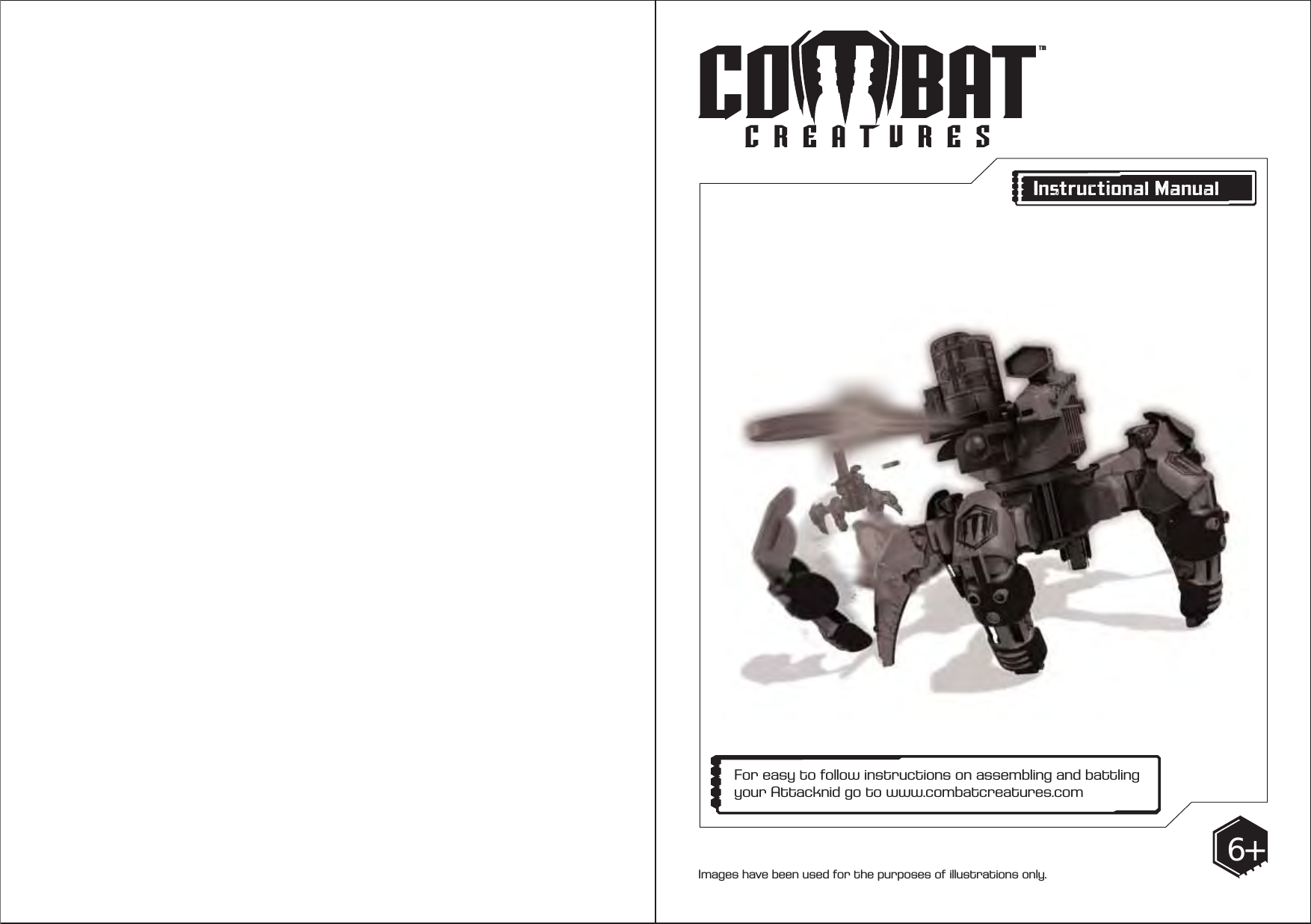
Images have been used for the purposes of illustrations only. 6+Instructional ManualFor easy to follow instructions on assembling and battling your Attacknid go to www.combatcreatures.com
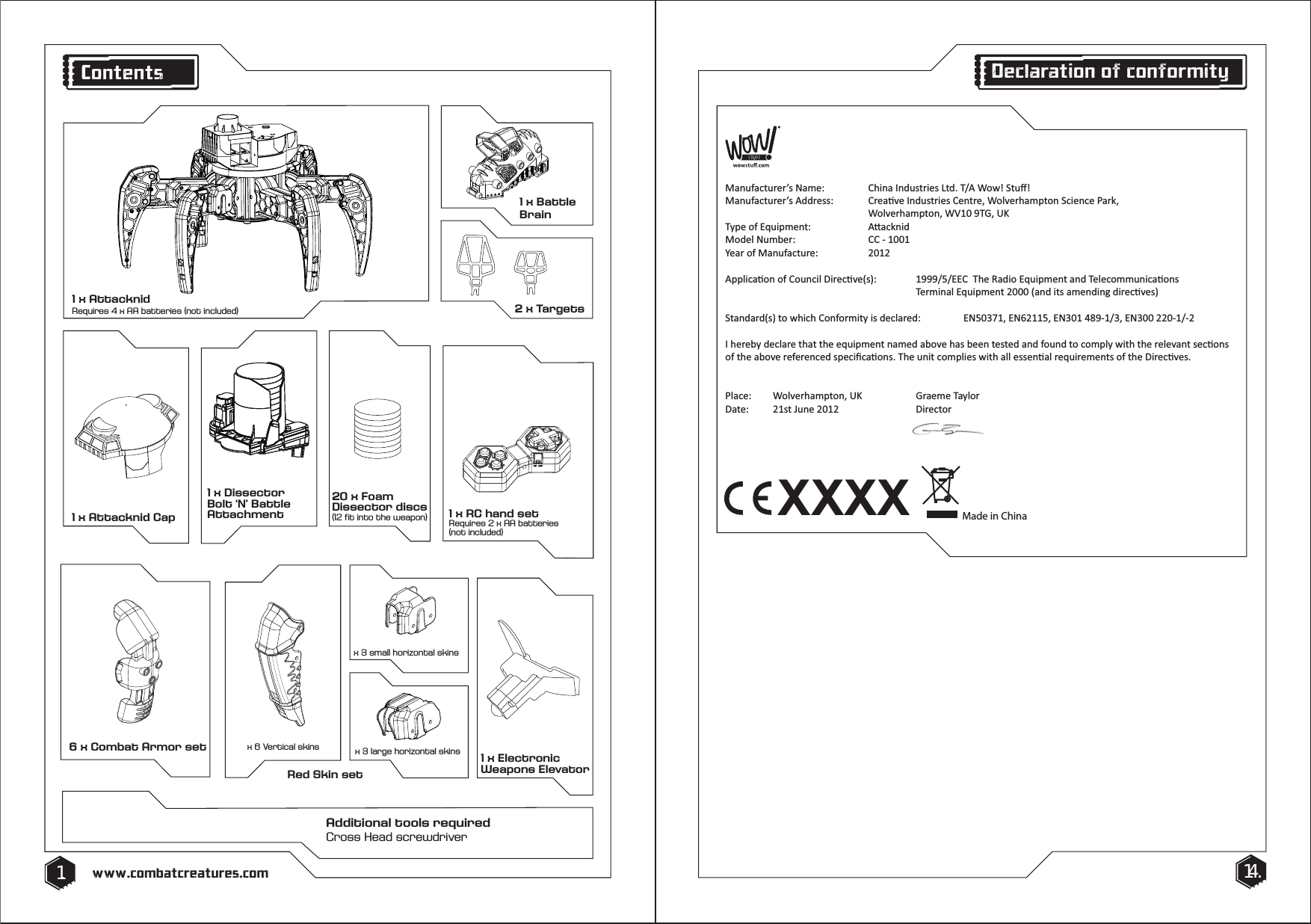
Red Skin setx 6 Vertical skins x 3 large horizontal skinsx 3 small horizontal skins6 x Combat Armor set20 x Foam Dissector discs (12 fit into the weapon)1 x RC hand setRequires 2 x AA batteries(not included)1 x Attacknid Cap1 x Electronic Weapons ElevatorAdditional tools requiredCross Head screwdriver1 x Battle Brain2 x Targets1. 14.www.combatcreatures.comContents1 x AttacknidRequires 4 x AA batteries (not included)XXXXDĂŶƵĨĂĐƚƵƌĞƌ͛ƐEĂŵĞ͗ ŚŝŶĂ/ŶĚƵƐƚƌŝĞƐ>ƚĚ͘dͬtŽǁ͊^ƚƵī͊DĂŶƵĨĂĐƚƵƌĞƌ͛ƐĚĚƌĞƐƐ͗ ƌĞĂƟǀĞ/ŶĚƵƐƚƌŝĞƐĞŶƚƌĞ͕tŽůǀĞƌŚĂŵƉƚŽŶ^ĐŝĞŶĐĞWĂƌŬ͕   tŽůǀĞƌŚĂŵƉƚŽŶ͕tsϭϬϵd'͕h<dLJƉĞŽĨƋƵŝƉŵĞŶƚ͗  ƩĂĐŬŶŝĚDŽĚĞůEƵŵďĞƌ͗  ͲϭϬϬϭzĞĂƌŽĨDĂŶƵĨĂĐƚƵƌĞ͗ ϮϬϭϮƉƉůŝĐĂƟŽŶŽĨŽƵŶĐŝůŝƌĞĐƟǀĞ;ƐͿ͗ ϭϵϵϵͬϱͬdŚĞZĂĚŝŽƋƵŝƉŵĞŶƚĂŶĚdĞůĞĐŽŵŵƵŶŝĐĂƟŽŶƐdĞƌŵŝŶĂůƋƵŝƉŵĞŶƚϮϬϬϬ;ĂŶĚŝƚƐĂŵĞŶĚŝŶŐĚŝƌĞĐƟǀĞƐͿ^ƚĂŶĚĂƌĚ;ƐͿƚŽǁŚŝĐŚŽŶĨŽƌŵŝƚLJŝƐĚĞĐůĂƌĞĚ͗ EϱϬϯϳϭ͕EϲϮϭϭϱ͕EϯϬϭϰϴϵͲϭͬϯ͕EϯϬϬϮϮϬͲϭͬͲϮ/ŚĞƌĞďLJĚĞĐůĂƌĞƚŚĂƚƚŚĞĞƋƵŝƉŵĞŶƚŶĂŵĞĚĂďŽǀĞŚĂƐďĞĞŶƚĞƐƚĞĚĂŶĚĨŽƵŶĚƚŽĐŽŵƉůLJǁŝƚŚƚŚĞƌĞůĞǀĂŶƚƐĞĐƟŽŶƐŽĨƚŚĞĂďŽǀĞƌĞĨĞƌĞŶĐĞĚƐƉĞĐŝĮĐĂƟŽŶƐ͘dŚĞƵŶŝƚĐŽŵƉůŝĞƐǁŝƚŚĂůůĞƐƐĞŶƟĂůƌĞƋƵŝƌĞŵĞŶƚƐŽĨƚŚĞŝƌĞĐƟǀĞƐ͘WůĂĐĞ͗ tŽůǀĞƌŚĂŵƉƚŽŶ͕h<  'ƌĂĞŵĞdĂLJůŽƌĂƚĞ͗ ϮϭƐƚ:ƵŶĞϮϬϭϮ  ŝƌĞĐƚŽƌMade in ChinaDeclaration of conformity1 x Dissector Bolt ‘N’ Battle Attachment
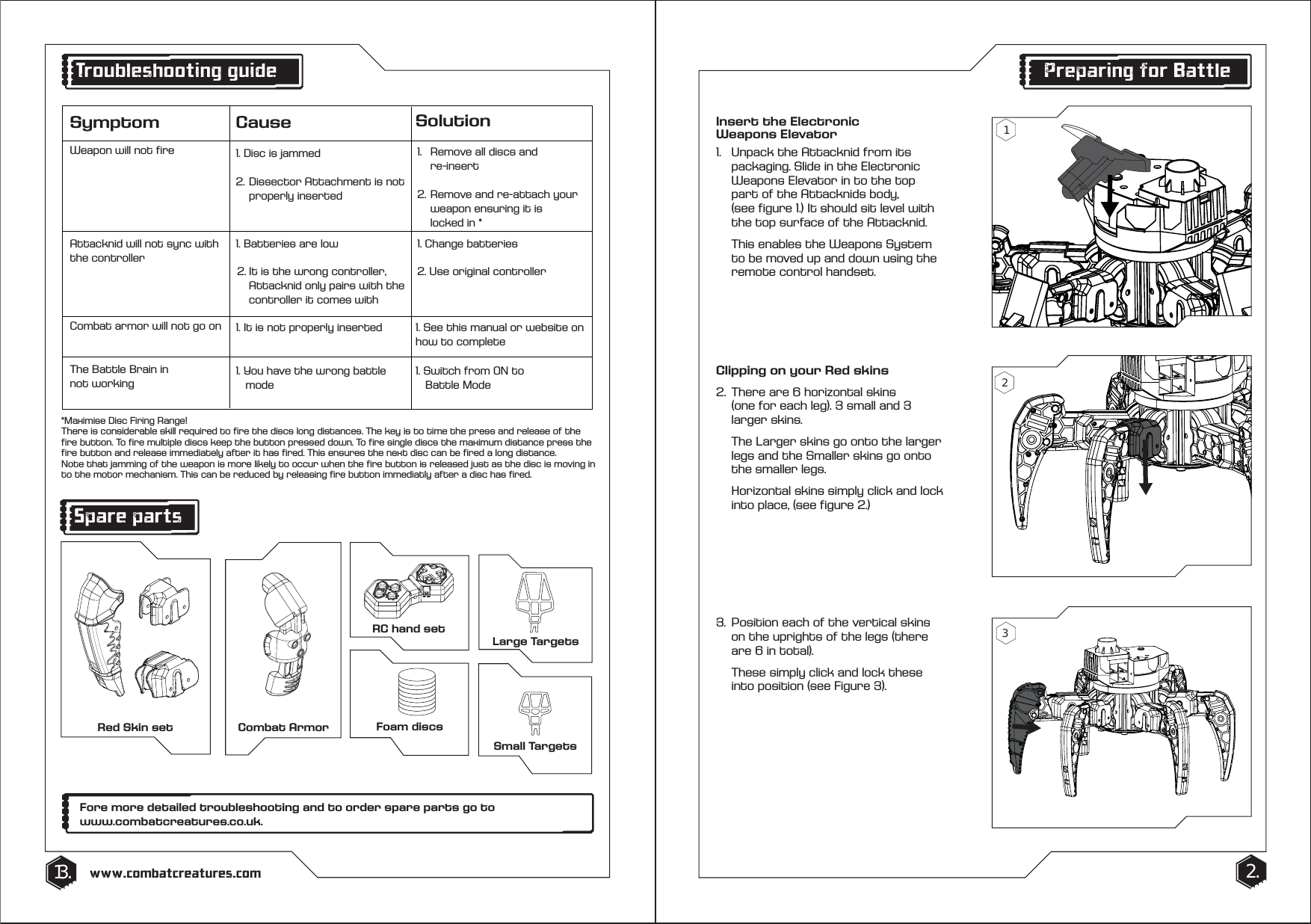
Insert the Electronic Weapons Elevator1.  Unpack the Attacknid from its      packaging. Slide in the Electronic     Weapons Elevator in to the top      part of the Attacknids body,   (see figure 1.) It should sit level with    the top surface of the Attacknid.   This enables the Weapons System    to be moved up and down using the    remote control handset.RC hand setSmall TargetsLarge Targets2.13. www.combatcreatures.comPreparing for Battle3.  Position each of the vertical skins    on the uprights of the legs (there    are 6 in total).   These simply click and lock these    into position (see Figure 3).321Symptom Cause SolutionAttacknid will not sync withthe controller1. Batteries are low2. It is the wrong controller,   Attacknid only pairs with the  controller it comes with1. Change batteries2. Use original controller1. Disc is jammed2. Dissector Attachment is not properly inserted 1.  Remove all discs and  re-insert2. Remove and re-attach your  weapon ensuring it is   locked in *Weapon will not fire1. You have the wrong battle    mode1. Switch from ON to    Battle ModeThe Battle Brain in not working*Maximise Disc Firing Range!There is considerable skill required to fire the discs long distances. The key is to time the press and release of the fire button. To fire multiple discs keep the button pressed down. To fire single discs the maximum distance press the fire button and release immediately after it has fired. This ensures the next disc can be fired a long distance. Note that jamming of the weapon is more likely to occur when the fire button is released just as the disc is moving in to the motor mechanism. This can be reduced by releasing fire button immediatly after a disc has fired.1. It is not properly inserted 1. See this manual or website onhow to completeCombat armor will not go onTroubleshooting guideSpare partsFore more detailed troubleshooting and to order spare parts go towww.combatcreatures.co.uk.Clipping on your Red skins2.  There are 6 horizontal skins   (one for each leg). 3 small and 3     larger skins.  The Larger skins go onto the larger    legs and the Smaller skins go onto    the smaller legs.  Horizontal skins simply click and lock    into place, (see figure 2.) Red Skin set Combat Armor Foam discs
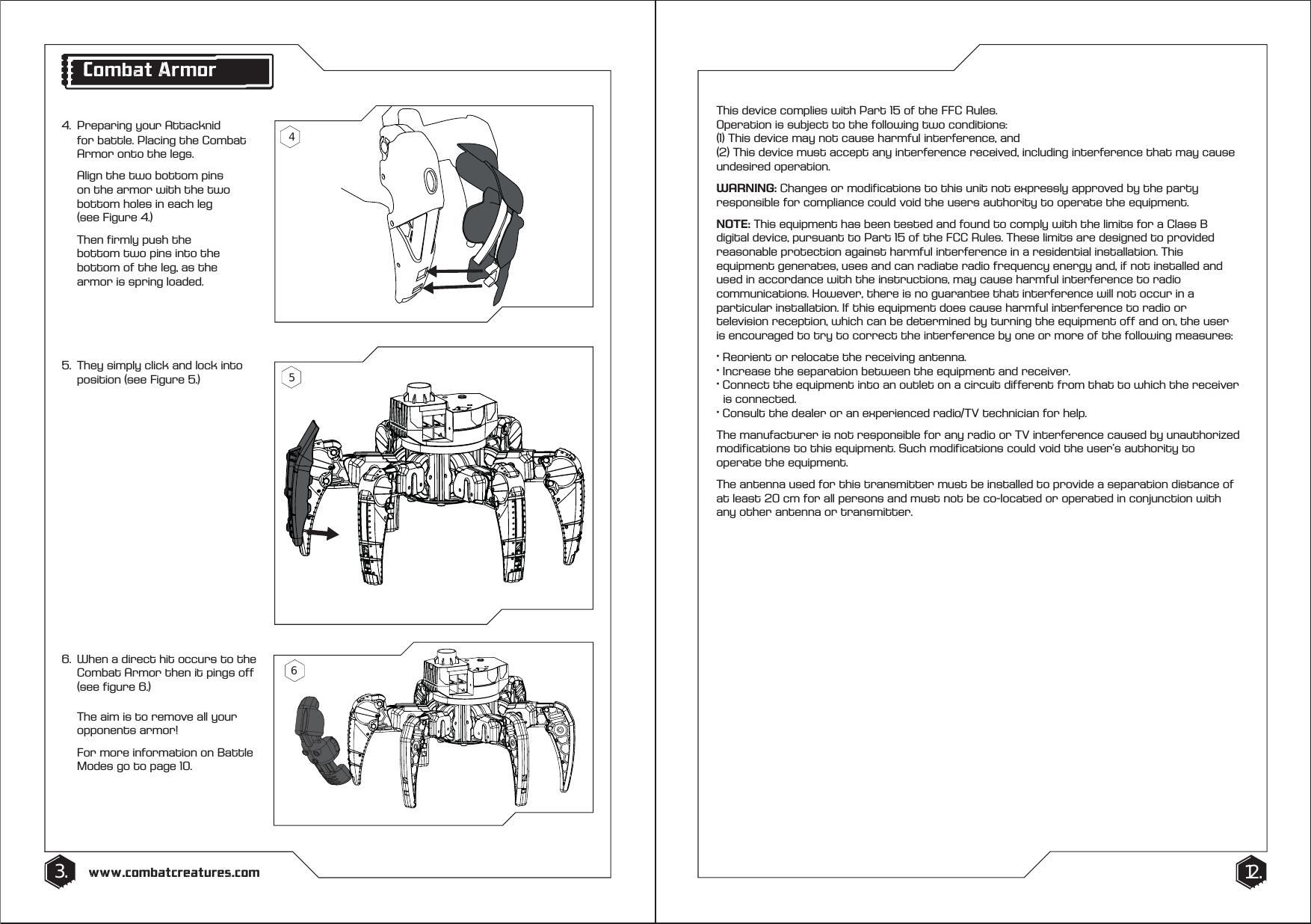
4.  Preparing your Attacknid    for battle. Placing the Combat    Armor onto the legs.   Align the two bottom pins    on the armor with the two    bottom holes in each leg   (see Figure 4.)  Then firmly push the      bottom two pins into the    bottom of the leg, as the    armor is spring loaded.6.  When a direct hit occurs to the    Combat Armor then it pings off    (see figure 6.)   The aim is to remove all your   opponents armor!  For more information on Battle    Modes go to page 10.5.  They simply click and lock into    position (see Figure 5.)3. 12.www.combatcreatures.comThis device complies with Part 15 of the FFC Rules. Operation is subject to the following two conditions:(1) This device may not cause harmful interference, and(2) This device must accept any interference received, including interference that may cause undesired operation.WARNING: Changes or modifications to this unit not expressly approved by the party responsible for compliance could void the users authority to operate the equipment.NOTE: This equipment has been tested and found to comply with the limits for a Class B digital device, pursuant to Part 15 of the FCC Rules. These limits are designed to provided reasonable protection against harmful interference in a residential installation. This equipment generates, uses and can radiate radio frequency energy and, if not installed and used in accordance with the instructions, may cause harmful interference to radio communications. However, there is no guarantee that interference will not occur in a particular installation. If this equipment does cause harmful interference to radio or television reception, which can be determined by turning the equipment off and on, the user is encouraged to try to correct the interference by one or more of the following measures:· Reorient or relocate the receiving antenna.· Increase the separation between the equipment and receiver.· Connect the equipment into an outlet on a circuit different from that to which the receiver    is connected.· Consult the dealer or an experienced radio/TV technician for help.The manufacturer is not responsible for any radio or TV interference caused by unauthorized modifications to this equipment. Such modifications could void the user’s authority to operate the equipment.The antenna used for this transmitter must be installed to provide a separation distance of at least 20 cm for all persons and must not be co-located or operated in conjunction with any other antenna or transmitter.Combat Armor465
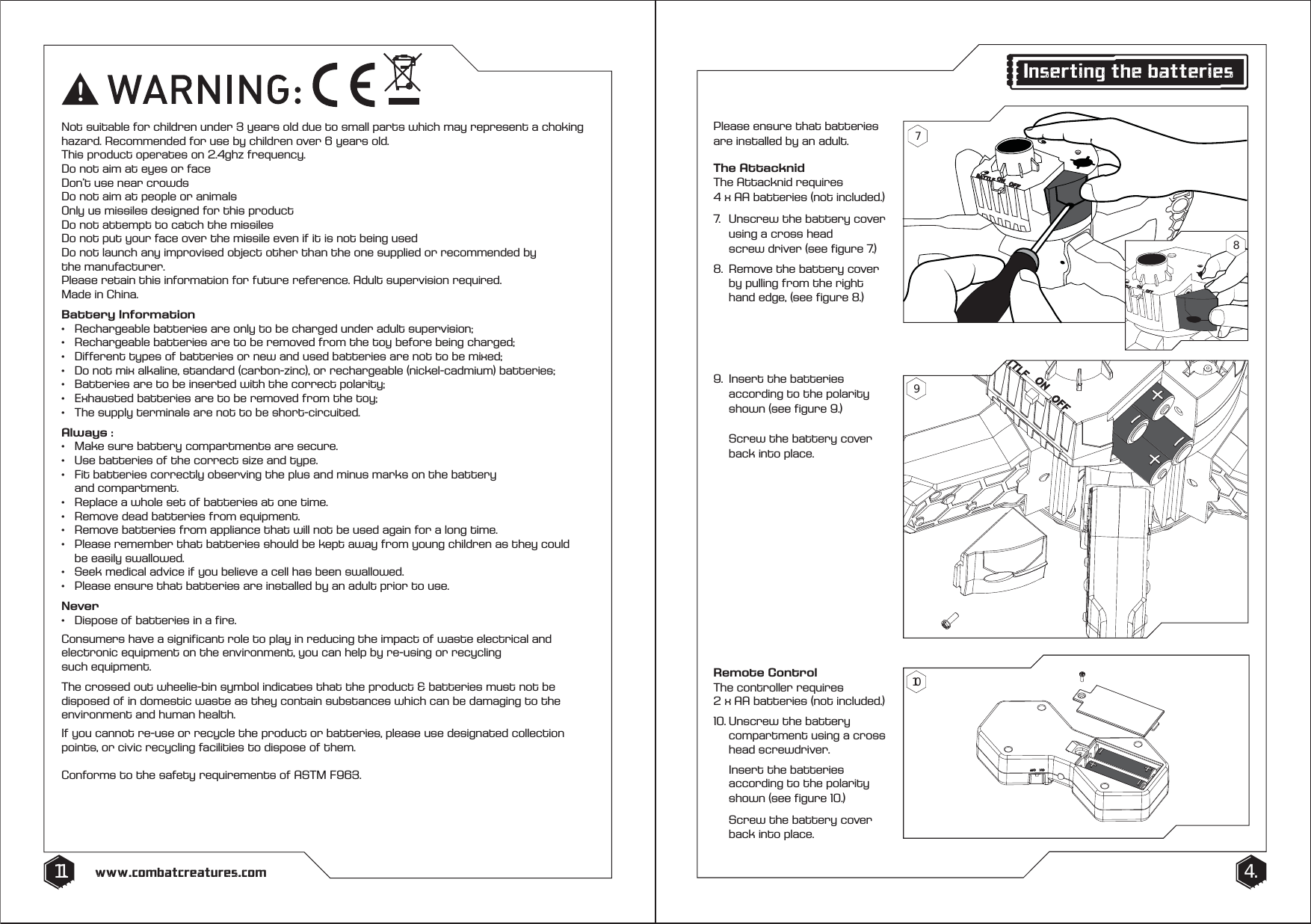
Please ensure that batteries are installed by an adult. The AttacknidThe Attacknid requires 4 x AA batteries (not included.) 7.  Unscrew the battery cover    using a cross head   screw driver (see figure 7.)8.  Remove the battery cover    by pulling from the right     hand edge, (see figure 8.)Remote ControlThe controller requires 2 x AA batteries (not included.)10. Unscrew the battery      compartment using a cross   head screwdriver.  Insert the batteries      according to the polarity    shown (see figure 10.)   Screw the battery cover    back into place.9.  Insert the batteries      according to the polarity    shown (see figure 9.)   Screw the battery cover    back into place.4.11. www.combatcreatures.com!Not suitable for children under 3 years old due to small parts which may represent a choking hazard. Recommended for use by children over 6 years old. This product operates on 2.4ghz frequency. Do not aim at eyes or faceDon’t use near crowdsDo not aim at people or animalsOnly us missiles designed for this productDo not attempt to catch the missilesDo not put your face over the missile even if it is not being usedDo not launch any improvised object other than the one supplied or recommended by the manufacturer.Please retain this information for future reference. Adult supervision required. Made in China.Battery Information•   Rechargeable batteries are only to be charged under adult supervision;•   Rechargeable batteries are to be removed from the toy before being charged;•   Different types of batteries or new and used batteries are not to be mixed;•   Do not mix alkaline, standard (carbon-zinc), or rechargeable (nickel-cadmium) batteries;•   Batteries are to be inserted with the correct polarity;•   Exhausted batteries are to be removed from the toy;•   The supply terminals are not to be short-circuited.Always :•   Make sure battery compartments are secure.•   Use batteries of the correct size and type. •   Fit batteries correctly observing the plus and minus marks on the battery  and compartment. •   Replace a whole set of batteries at one time. •   Remove dead batteries from equipment.•   Remove batteries from appliance that will not be used again for a long time.•   Please remember that batteries should be kept away from young children as they could      be easily swallowed. •   Seek medical advice if you believe a cell has been swallowed.•   Please ensure that batteries are installed by an adult prior to use.Never•   Dispose of batteries in a fire. Consumers have a significant role to play in reducing the impact of waste electrical and electronic equipment on the environment, you can help by re-using or recycling such equipment.The crossed out wheelie-bin symbol indicates that the product & batteries must not be disposed of in domestic waste as they contain substances which can be damaging to the environment and human health. If you cannot re-use or recycle the product or batteries, please use designated collection points, or civic recycling facilities to dispose of them.Conforms to the safety requirements of ASTM F963.Inserting the batteries79108
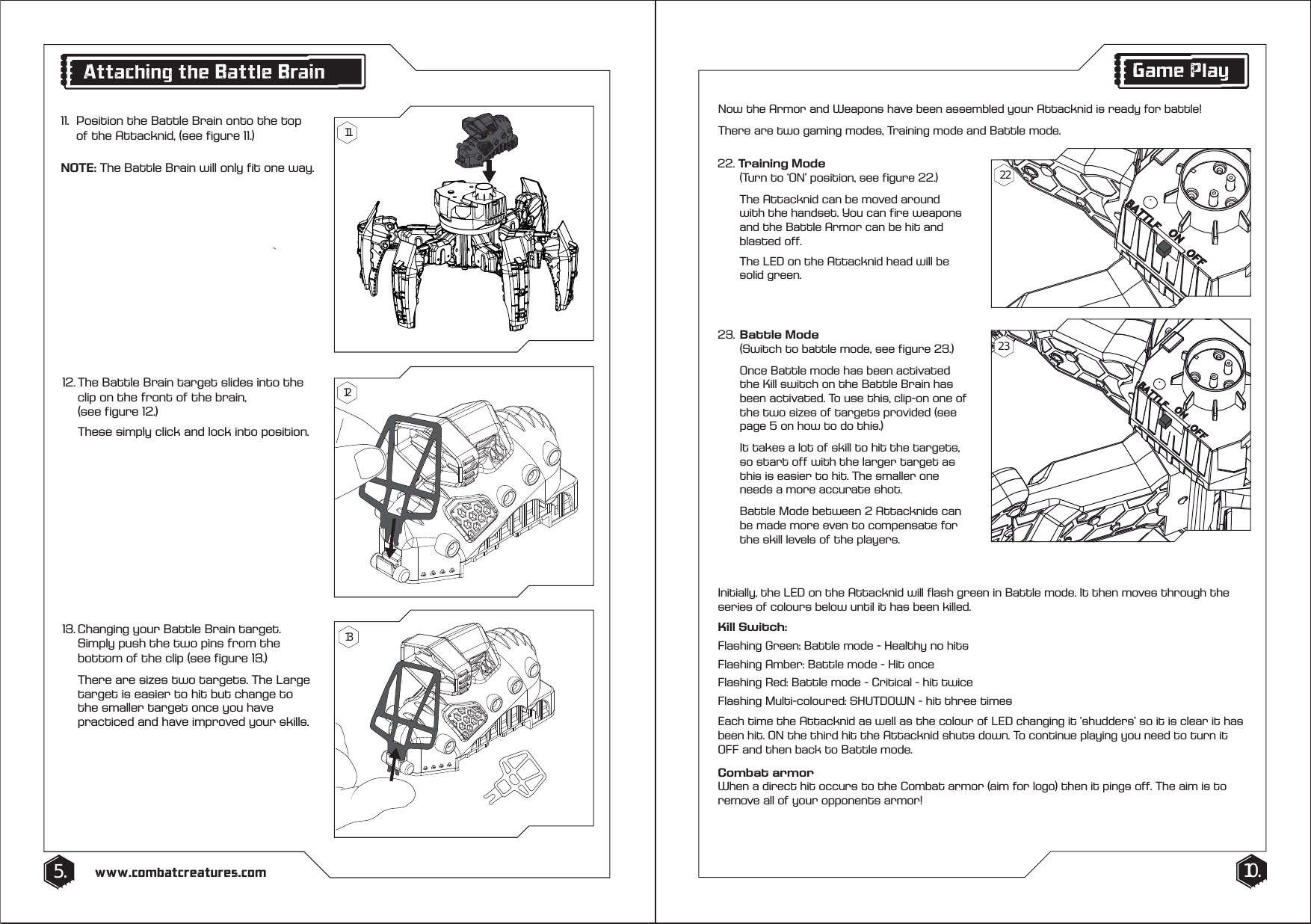
10.5. www.combatcreatures.comAttaching the Battle Brain1111.  Position the Battle Brain onto the top    of the Attacknid, (see figure 11.) NOTE: The Battle Brain will only fit one way.12. The Battle Brain target slides into the    clip on the front of the brain,   (see figure 12.)  These simply click and lock into position.13. Changing your Battle Brain target.    Simply push the two pins from the    bottom of the clip (see figure 13.)  There are sizes two targets. The Large    target is easier to hit but change to    the smaller target once you have    practiced and have improved your skills.  121322. Training Mode   (Turn to ‘ON’ position, see figure 22.)   The Attacknid can be moved around    with the handset. You can fire weapons    and the Battle Armor can be hit and   blasted off.  The LED on the Attacknid head will be  solid green.Game PlayNow the Armor and Weapons have been assembled your Attacknid is ready for battle!There are two gaming modes, Training mode and Battle mode.Initially, the LED on the Attacknid will flash green in Battle mode. It then moves through the series of colours below until it has been killed.Kill Switch:Flashing Green: Battle mode - Healthy no hitsFlashing Amber: Battle mode - Hit onceFlashing Red: Battle mode - Critical - hit twiceFlashing Multi-coloured: SHUTDOWN - hit three timesEach time the Attacknid as well as the colour of LED changing it ‘shudders’ so it is clear it has been hit. ON the third hit the Attacknid shuts down. To continue playing you need to turn it OFF and then back to Battle mode.Combat armorWhen a direct hit occurs to the Combat armor (aim for logo) then it pings off. The aim is to remove all of your opponents armor!23. Battle Mode   (Switch to battle mode, see figure 23.)  Once Battle mode has been activated    the Kill switch on the Battle Brain has   been activated. To use this, clip-on one of    the two sizes of targets provided (see    page 5 on how to do this.)   It takes a lot of skill to hit the targets,    so start off with the larger target as    this is easier to hit. The smaller one    needs a more accurate shot.  Battle Mode between 2 Attacknids can    be made more even to compensate for    the skill levels of the players.2223
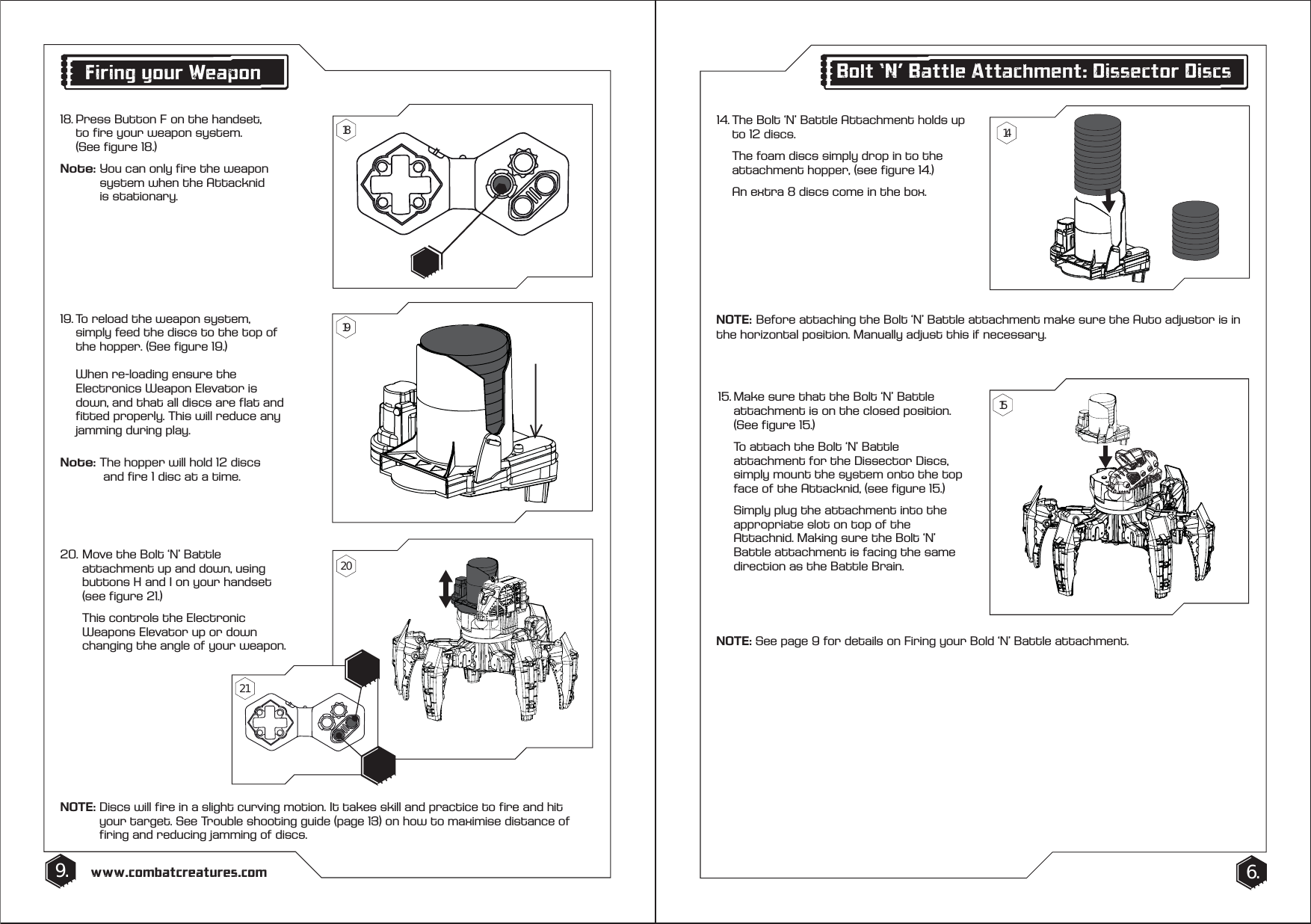
14. The Bolt ‘N’ Battle Attachment holds up    to 12 discs.   The foam discs simply drop in to the    attachment hopper, (see figure 14.)  An extra 8 discs come in the box.15. Make sure that the Bolt ‘N’ Battle    attachment is on the closed position.    (See figure 15.)  To attach the Bolt ‘N’ Battle      attachment for the Dissector Discs,    simply mount the system onto the top    face of the Attacknid, (see figure 15.)   Simply plug the attachment into the    appropriate slot on top of the      Attachnid. Making sure the Bolt ‘N’  Battle attachment is facing the same    direction as the Battle Brain.9. 6.www.combatcreatures.comBolt ‘N’ Battle Attachment: Dissector Discs19. To reload the weapon system,   simply feed the discs to the top of    the hopper. (See figure 19.)  When re-loading ensure the      Electronics Weapon Elevator is      down, and that all discs are flat and    fitted properly. This will reduce any    jamming during play.Note: The hopper will hold 12 discs      and fire 1 disc at a time.20. Move the Bolt ‘N’ Battle      attachment up and down, using    buttons H and I on your handset    (see figure 21.)   This controls the Electronic      Weapons Elevator up or down      changing the angle of your weapon.NOTE: Discs will fire in a slight curving motion. It takes skill and practice to fire and hit      your target. See Trouble shooting guide (page 13) on how to maximise distance of      firing and reducing jamming of discs.NOTE: See page 9 for details on Firing your Bold ‘N’ Battle attachment.Firing your Weapon18. Press Button F on the handset,     to fire your weapon system.  (See figure 18.)Note: You can only fire the weapon      system when the Attacknid    is stationary.141518192021NOTE:   Before attaching the Bolt ‘N’ Battle attachment make sure the Auto adjustor is in the horizontal position. Manually adjust this if necessary.
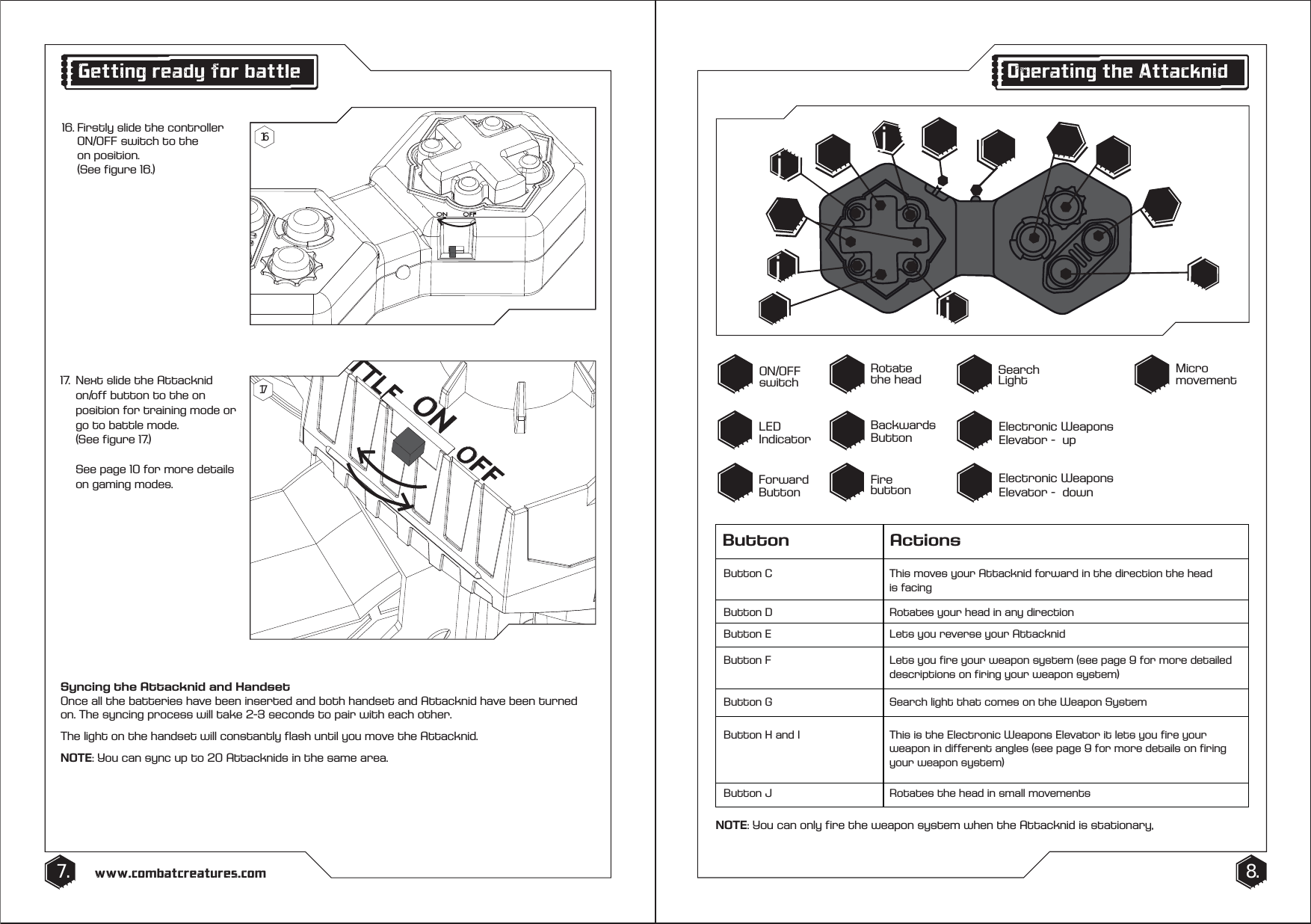
8.7. www.combatcreatures.comNOTE: You can only fire the weapon system when the Attacknid is stationary,Operating the AttacknidON/OFF switchLED IndicatorFire buttonSearch Light Micro movementElectronic Weapons Elevator -  upElectronic Weapons Elevator -  downForward ButtonRotate the headBackwards ButtonSyncing the Attacknid and HandsetOnce all the batteries have been inserted and both handset and Attacknid have been turned on. The syncing process will take 2-3 seconds to pair with each other.The light on the handset will constantly flash until you move the Attacknid. NOTE: You can sync up to 20 Attacknids in the same area.Getting ready for battle16. Firstly slide the controller    ON/OFF switch to the  on position.  (See figure 16.)17.  Next slide the Attacknid     on/off button to the on      position for training mode or    go to battle mode.  (See figure 17.)   See page 10 for more details    on gaming modes.1617jjjjButton ActionsButton C This moves your Attacknid forward in the direction the head is facingButton D Rotates your head in any directionButton E Lets you reverse your AttacknidButton F Lets you fire your weapon system (see page 9 for more detailed descriptions on firing your weapon system)Button H and I This is the Electronic Weapons Elevator it lets you fire your weapon in different angles (see page 9 for more details on firing your weapon system)Button G Search light that comes on the Weapon SystemButton J Rotates the head in small movements
FCC STATEMENT 7KLVGHYLFHFRPSOLHVZLWK3DUWRIWKH)&&5XOHV2SHUDWLRQLVVXEMHFWWRWKHIROORZLQJWZRFRQGLWLRQV7KLVGHYLFHPD\QRWFDXVHKDUPIXOLQWHUIHUHQFH7KLVGHYLFHPXVWDFFHSWDQ\LQWHUIHUHQFHUHFHLYHGLQFOXGLQJLQWHUIHUHQFHWKDWPD\FDXVHXQGHVLUHGRSHUDWLRQ&KDQJHVRUPRGLILFDWLRQVQRWH[SUHVVO\DSSURYHGE\WKHSDUW\UHVSRQVLEOHIRUFRPSOLDQFHFRXOGYRLGWKHXVHUVDXWKRULW\WRRSHUDWHWKHHTXLSPHQW127(7KLVHTXLSPHQWJHQHUDWHVXVHVDQGFDQUDGLDWHUDGLRIUHTXHQF\HQHUJ\DQGLIQRWLQVWDOOHGDQGXVHGLQDFFRUGDQFHZLWKWKHLQVWUXFWLRQVPD\FDXVHKDUPIXOLQWHUIHUHQFHWRUDGLRFRPPXQLFDWLRQV+RZHYHUWKHUHLVQRJXDUDQWHHWKDWLQWHUIHUHQFHZLOOQRWRFFXULQDSDUWLFXODULQVWDOODWLRQ,IWKLVHTXLSPHQWGRHVFDXVHKDUPIXOLQWHUIHUHQFHWRUDGLRRUWHOHYLVLRQUHFHSWLRQZKLFKFDQEHGHWHUPLQHGE\WXUQLQJWKHHTXLSPHQWRIIDQGRQWKHXVHULVHQFRXUDJHGWRWU\WRFRUUHFWWKHLQWHUIHUHQFHE\RQHRUPRUHRIWKHIROORZLQJPHDVXUHV5HRULHQWRUUHORFDWHWKHUHFHLYLQJDQWHQQD,QFUHDVHWKHVHSDUDWLRQEHWZHHQWKHHTXLSPHQWDQGUHFHLYHU&RQQHFWWKHHTXLSPHQWLQWRDQRXWOHWRQDFLUFXLWGLIIHUHQWIURPWKDWWRZKLFKWKHUHFHLYHULVFRQQHFWHG&RQVXOWWKHGHDOHURUDQH[SHULHQFHGUDGLR79WHFKQLFLDQIRUKHOS

Navigation menu