Chuango Security Technology IP6 HD WiFi Camera User Manual Manual 1

Chuango Security Technology Corporation HD WiFi Camera Manual 1

Contents

Manual 1

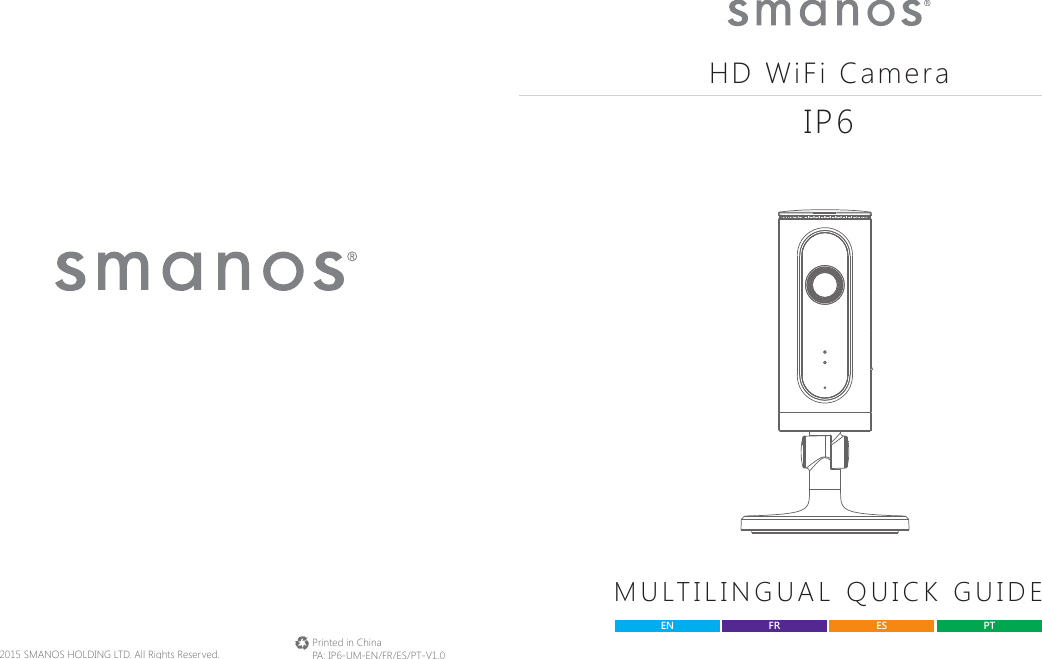
Printed in ChinaPA: IP6-UM-EN/FR/ES/PT-V1.0© 2015 SMANOS HOLDING LTD. All Rights Reserved. HD WiFi CameraMULTILINGUAL QUICK GUIDEEN ES PTFRIP6
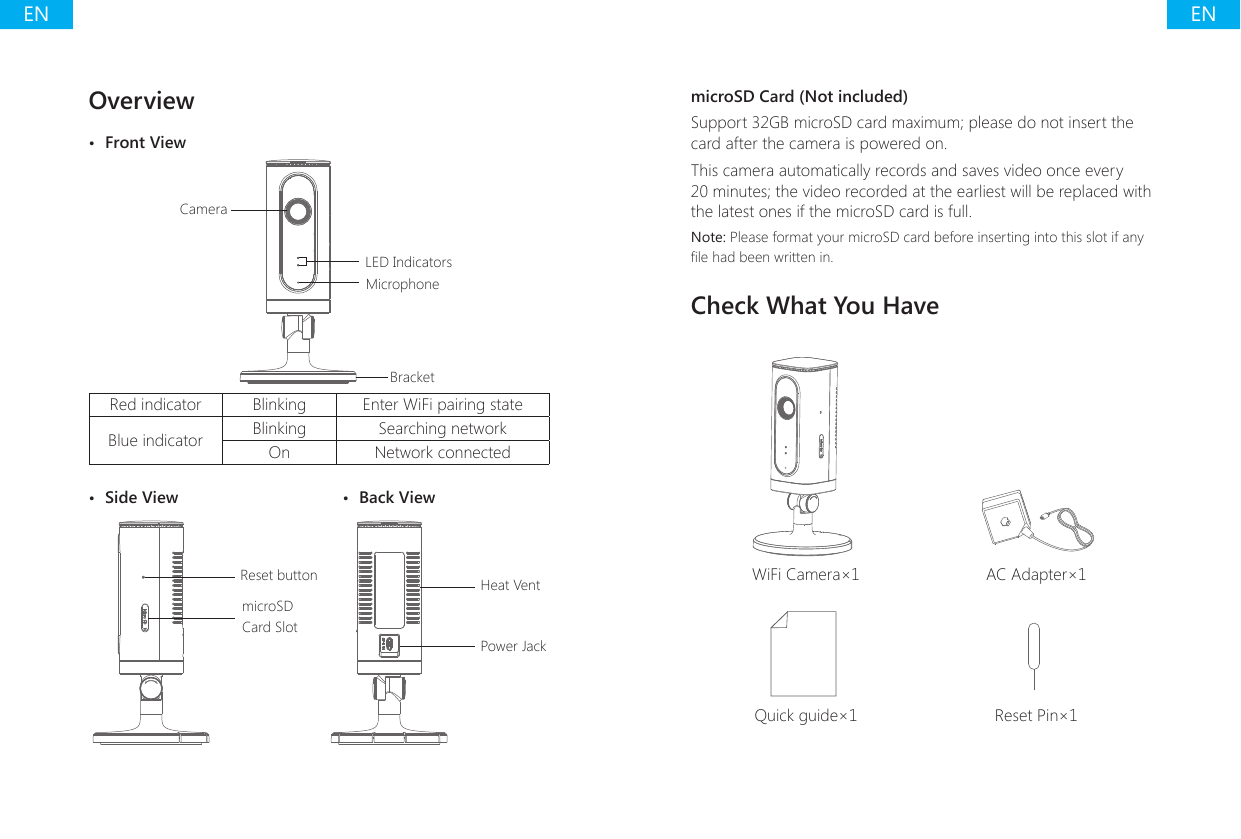
ENENOverview•  Front ViewLED IndicatorsCameraMicrophoneBracketRed indicator Blinking Enter WiFi pairing stateBlue indicator Blinking Searching networkOn Network connected•  Side View  •  Back ViewReset buttonmicroSD Card SlotHeat VentPower JackmicroSD Card (Not included)Support 32GB microSD card maximum; please do not insert the card after the camera is powered on.This camera automatically records and saves video once every 20 minutes; the video recorded at the earliest will be replaced with the latest ones if the microSD card is full.Note: Please format your microSD card before inserting into this slot if any le had been written in.Check What You HaveWiFi Camera×1 AC Adapter×1Quick guide×1 Reset Pin×1
ENENDownload the AppDownload the App by searching “IP6 camera” from Apple Store or Google Play. If you also bought a smanos alarm system, you don't need to download the separate app for the camera, just setup through the app for the alarm system.IP6 CameraWiFi Pairing1.  Preparation•  Hold the reset button by using the supplied reset pin until the camera beeps once, and then the red indicator starts to blink•  Find and choose the WiFi named “smanos IP6” from your phone’s WiFi list2.  Pairing Camera with WiFi through App***•  Launch the App, and then tap [+] to add a new camera* Make sure the UID No. is displayed before tapping [OK]•  Name your camera, enter the password (default: 888888) and input your home WiFi name & password•  When the blue indicator is on, it means the camera has connected with WiFiThe paired camera will be displayed in the video list.Note: For safety, it is recommended to change the password of your camera on the setting menu after pairing.
ENENSettings Setting ButtonCamera Sharing QR CodeDevice IDShare or Stop Sharing Camera with Your FriendsTap and save the QR code icon on your camera’s [Settings] interface, send to your friends so they can watch your camera from his/her App by scanning the given QR code.If you want to stop sharing the camera, please change the password of camera.PasswordAll the successfully paired phones have the same authority as administrator who can view and set the camera (including changing the password), so it is recommended to pair the phones of users with caution. For non-administrator users, you can share the camera by sending the QR code for them to scan.Sync the Date and TimeCheck if the camera’s date and time are set correctly. Sync them with your phone’s time if necessary.Enjoy the AppSnapshotRecordHold To TalkSpeaker
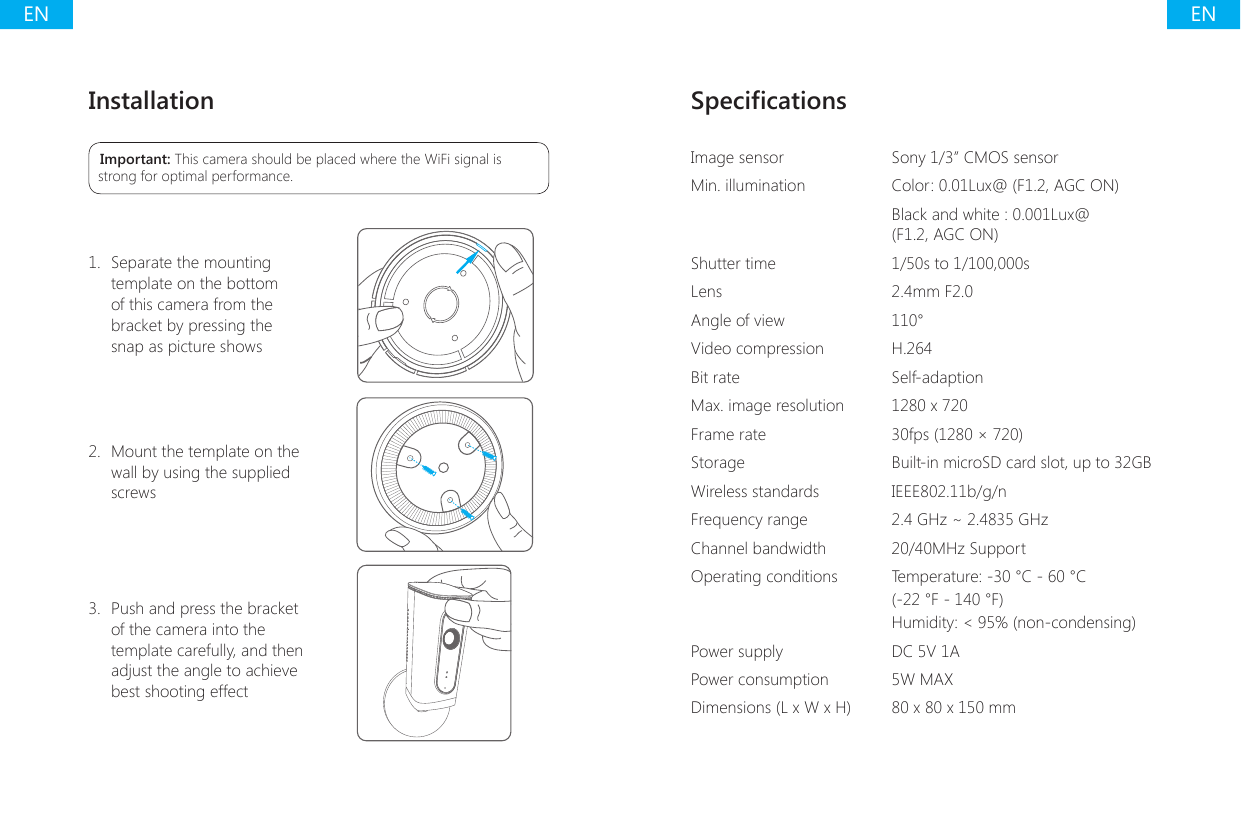
ENENInstallationImportant: This camera should be placed where the WiFi signal is strong for optimal performance.1.  Separate the mounting template on the bottom of this camera from the bracket by pressing the snap as picture shows2.  Mount the template on the wall by using the supplied screws 3.  Push and press the bracket of the camera into the template carefully, and then adjust the angle to achieve best shooting effectSpecicationsImage sensor Sony 1/3” CMOS sensorMin. illumination Color: 0.01Lux@ (F1.2, AGC ON)Black and white : 0.001Lux@ (F1.2, AGC ON)Shutter time 1/50s to 1/100,000sLens 2.4mm F2.0Angle of view 110°Video compression H.264Bit rate Self-adaptionMax. image resolution 1280 x 720Frame rate 30fps (1280 × 720)Storage Built-in microSD card slot, up to 32GBWireless standards IEEE802.11b/g/nFrequency range 2.4 GHz ~ 2.4835 GHzChannel bandwidth 20/40MHz SupportOperating conditions Temperature: -30 °C - 60 °C (-22 °F - 140 °F)Humidity: < 95% (non-condensing)Power supply DC 5V 1APower consumption 5W MAXDimensions (L x W x H) 80 x 80 x 150 mm
ENENIndustry Canada NoticeThis device complies with Industry Canada licence-exempt RSS standard(s).1. Operation is subject to the following two conditions:(1) this device may not cause interference, and (2) this device must accept any interference, including interference that may cause undesired operation of the device.2. Changes or modications not expressly approved by the party responsible for compliance could void the user's authority to operate the equipment.FCC STATEMENT1.This device complies with Part 15 of the FCC Rules. Operation is subject to the following two conditions:(1)This device may not cause harmful interference.(2)This device must accept any interference received, including interference that may cause undesired operation.2. Changes or modications not expressly approved by the party responsible for compliance could void the user's authority to operate the equipment.NOTE: This equipment has been tested and found to comply with the limits for a Class B digital device, pursuant to Part 15 of the FCC Rules. These limits are designed to provide reasonable protection against harmful interference in a residential installation.This equipment generates uses and can radiate radio frequency energy and, if not installed and used in accordance with the instructions, may cause harmful interference to radio communications. However, there is no guarantee that interference will not occur in a particular installation. If this equipment does cause harmful interference to radio or television reception, which can be determined by turning the equipment off and on, the user is encouraged to try to correct the interference by one or more of the following measures:Reorient or relocate the receiving antenna.Increase the separation between the equipment and receiver.Connect the equipment into an outlet on a circuit different from that to which the receiver is connected.Consult the dealer or an experienced radio/TV technician for help.FCC Radiation Exposure Statement:This equipment complies with FCC radiation exposure limits set forth for an uncontrolled environment. In order to avoid the possibility of exceeding the FCC radio frequency exposure limits, Human proximity to the antenna shall not be less than 20cm(8 inches) during normal operation.
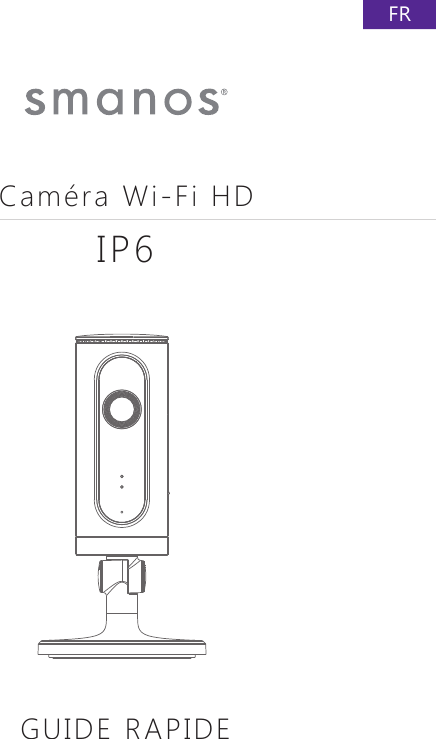
FRCaméra Wi-Fi HDIP6GUIDE RAPIDE
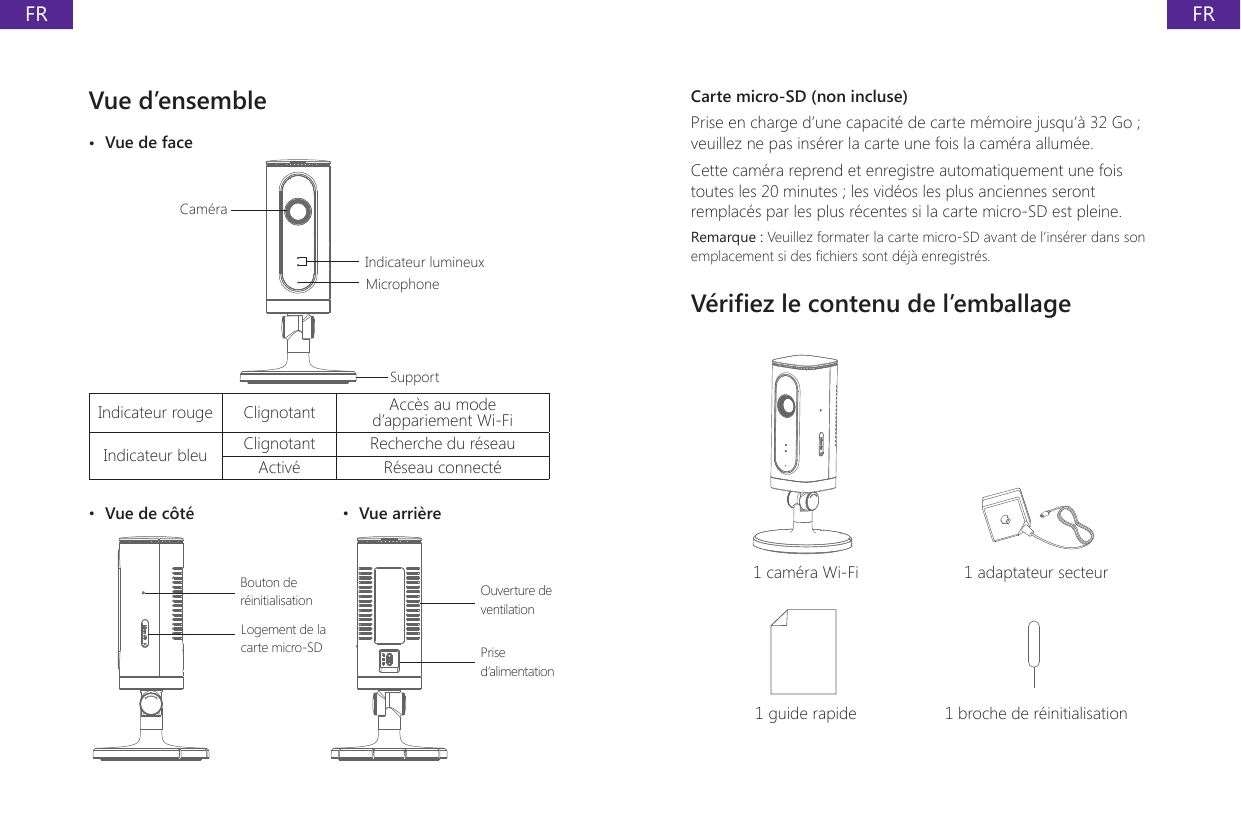
FRFRVue d’ensemble•  Vue de faceIndicateur lumineuxCaméraMicrophoneSupportIndicateur rouge Clignotant Accès au mode d’appariement Wi-FiIndicateur bleu Clignotant Recherche du réseauActivé Réseau connecté•  Vue de côté  •  Vue arrièreBouton de réinitialisationLogement de la carte micro-SDOuverture de ventilationPrise d’alimentationCarte micro-SD (non incluse)Prise en charge d’une capacité de carte mémoire jusqu’à 32 Go ; veuillez ne pas insérer la carte une fois la caméra allumée.Cette caméra reprend et enregistre automatiquement une fois toutes les 20 minutes ; les vidéos les plus anciennes seront remplacés par les plus récentes si la carte micro-SD est pleine.Remarque : Veuillez formater la carte micro-SD avant de l’insérer dans son emplacement si des chiers sont déjà enregistrés.Vériez le contenu de l’emballage1 caméra Wi-Fi 1 adaptateur secteur1 guide rapide 1 broche de réinitialisation
FRFRTélécharger l’applicationTéléchargez l’application en recherchant le mot clé « IP6 camera » dans les magasins d’application « Apple Store » ou « Google Play ».Si vous utilisez l'IP6 avec un smanos système d'alarme, il faut seulement télécharger l'application du système d'alarme.IP6 CameraAppariement Wi-Fi1.  Préparation•  Maintenez enfoncé le bouton de réinitialisation à l’aide de la broche de réinitialisation fournie jusqu’à ce que la caméra émette un bip. L’indicateur lumineux rouge se mettra ensuite à clignoter•  Recherchez et sélectionnez l’entrée portant le nom « smanos IP6 » dans la liste des réseaux Wi-Fi de votre téléphone2.  Appariement de la caméra avec le réseau Wi-Fi au moyen de l’application***•  Lancez l’application puis appuyez sur [+] pour ajouter une nouvelle caméra* Vérier que le numéro de l’identiant unique (UID) s’afche avant d’appuyer sur [OK]•  Donnez un nom à votre caméra, saisissez le mot de passe (par défaut : 888888), le nom de votre réseau Wi-Fi domestique et son mot de passe•  Une fois l’indicateur bleu allumé, la caméra aura établi la connexion Wi-Fi.La caméra appariée sera afchée dans la liste vidéo.Remarque : Pour votre sécurité, il est préférable de modier le mot de passe de votre caméra dans le menu de réglage après l’appariement.
FRFRRéglages Bouton de réglageCode QR de partage de la caméraIdentiant de l’appareilPartager ou annuler le partage de la caméra avec vos amisAppuyez sur l’entrée correspondante et enregistrez l’icône du code QR de l’interface [Paramètres] de votre caméra, envoyez-le à vos amis de façon à qu’ils puissent visualiser votre caméra depuis leur application en scannant le code QR donné.Si vous souhaitez ne plus partager la caméra, veuillez changer le mot de passe de la caméra.Mot de passeTous les téléphones appariés ont le même niveau d’autorité qu’un administrateur qui peut voir et effectuer des réglages de la caméra (y compris changer le mot de passe) et donc il est recommandé d’apparier les téléphones personnels avec précaution. Pour des utilisateurs qui ne sont pas administrateurs, il est possible de partager la caméra en leur envoyant le code QR à scanner.Synchroniser la date et l’heureVériez que la date et l’heure de la caméra sont dénies correctement. Synchronisez-les avec l’heure et la date de votre téléphone si nécessaire.Proter de l’applicationInstantanéEnregistrerMaintenir pour parlerHaut-parleur
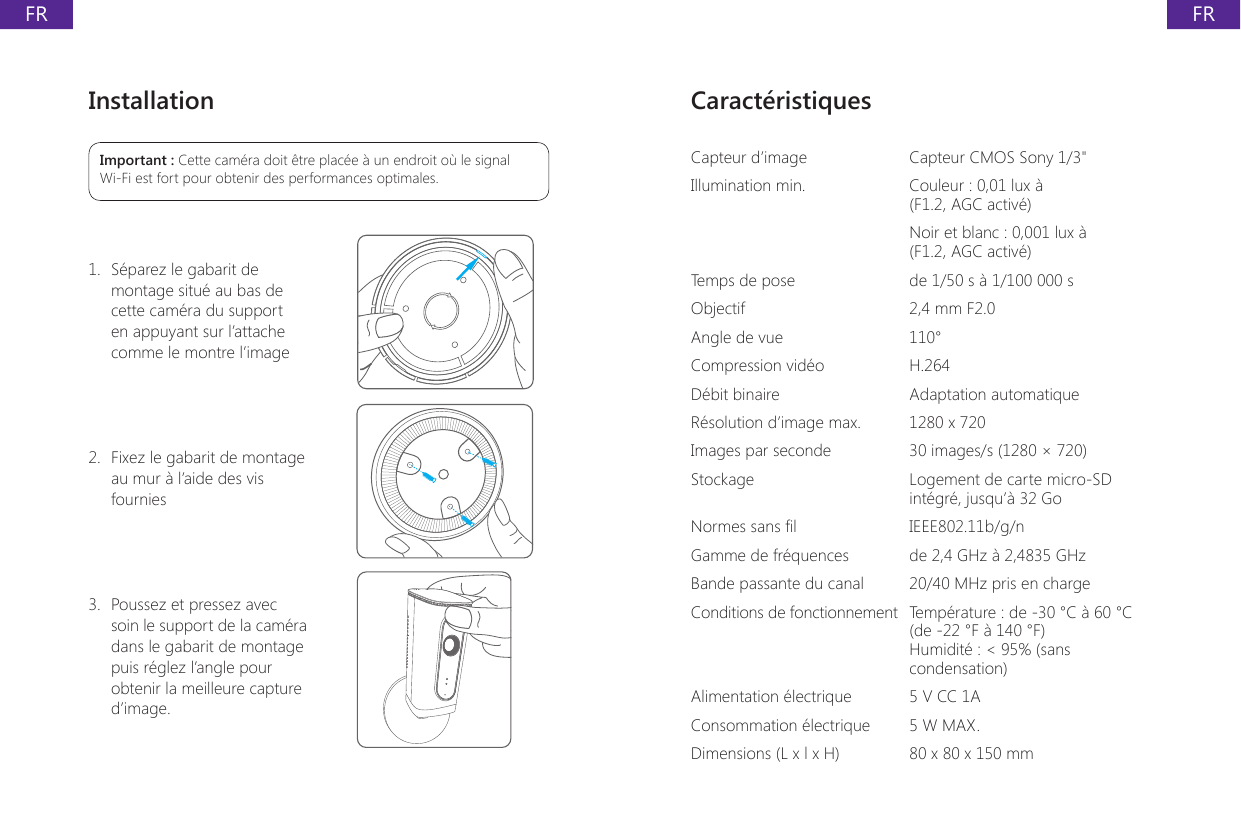
FRFRInstallationImportant : Cette caméra doit être placée à un endroit où le signal Wi-Fi est fort pour obtenir des performances optimales.1.  Séparez le gabarit de montage situé au bas de cette caméra du support en appuyant sur l’attache comme le montre l’image2.  Fixez le gabarit de montage au mur à l’aide des vis fournies 3.  Poussez et pressez avec soin le support de la caméra dans le gabarit de montage puis réglez l’angle pour obtenir la meilleure capture d’image.CaractéristiquesCapteur d’image Capteur CMOS Sony 1/3"Illumination min. Couleur : 0,01 lux à (F1.2, AGC activé)Noir et blanc : 0,001 lux à (F1.2, AGC activé)Temps de pose de 1/50 s à 1/100 000 sObjectif 2,4 mm F2.0Angle de vue 110°Compression vidéo H.264Débit binaire Adaptation automatiqueRésolution d’image max. 1280 x 720Images par seconde 30 images/s (1280 × 720)Stockage Logement de carte micro-SD intégré, jusqu’à 32 GoNormes sans l IEEE802.11b/g/nGamme de fréquences de 2,4 GHz à 2,4835 GHzBande passante du canal 20/40 MHz pris en chargeConditions de fonctionnement Température : de -30 °C à 60 °C (de -22 °F à 140 °F)Humidité : < 95% (sans condensation)Alimentation électrique 5 V CC 1AConsommation électrique 5 W MAX.Dimensions (L x l x H) 80 x 80 x 150 mm

Navigation menu