Chuango Security Technology W020 WiFi Alarm System User Manual RJY W020 User maunal

Chuango Security Technology Corporation WiFi Alarm System RJY W020 User maunal

RJY-W020_User maunal

Printed in ChinaPA: W020-UM-EN-V1.0© 2015 SMANOS HOLDING LTD. All Rights Reserved. W020WiFi Alarm SystemUSER MANUAL
Table of ContentsIntroduction ............................................................................................... 01Features ....................................................................................................... 01In the Box  ........................................................................................... 02~03How It Works ............................................................................................. 04Overview ...................................................................................................... 05Accessories ......................................................................................... 06~09Remote control ......................................................................................06Zone Mode.............................................................................................07Door/Window Contact ........................................................................08APP Operation ................................................................................... 10~14Apple and Android App ......................................................................10Managing Your Alarm System ...........................................................10Pairing/Deleting Accessory .......................................................... 15~16Pairing New Remote Control and Sensor ....................................... 15Deleting Sensors and Remote Controls ..........................................16Pairing New Wireless Siren .................................................................16Deleting wireless siren .........................................................................16Reload the Batteries of Accessories .................................................. 17Restoring to Factory Setting ................................................................ 18Trouble Shooting ...................................................................................... 19Maintenance ...................................................................................... 20~21Specications ..................................................................................... 22~23W020 Control Panel .............................................................................22RE2300 Remote Control ......................................................................23DS2300 Door/Window Contact ........................................................23Disclaimer.................................................................................................... 24Please read this user manual carefully.Be sure to keep this user manual handy for future reference.VIDEOIndustry Canada NoticeThis device complies with Industry Canada licence-exempt RSS standard(s).1. Operation is subject to the following two conditions:(1) this device may not cause interference, and (2) this device must accept any interference, including interference that may cause undesired operation of the device.2. Changes or modications not expressly approved by the party responsible for compliance could void the user's authority to operate the equipment.Avis d’Industrie CanadaLe présent appareil est conforme aux CNR d'Industrie Canada applicables aux appareils radio exempts de licence. L'exploitation est autorisée aux deux conditions suivantes : (1) l'appareil ne doit pas produire de brouillage, et (2) l'utilisateur de l'appareil doit accepter tout brouillage radioélectrique subi, même si le brouillage est susceptible d'en compromettre le fonctionnement. Cet appareil numérique ne dépasse pas les Rèlements sur l’interférence radio par un appareil numérique de classe B stipulées dans les Règlement sur l’interférence redio d’industrie Canada.
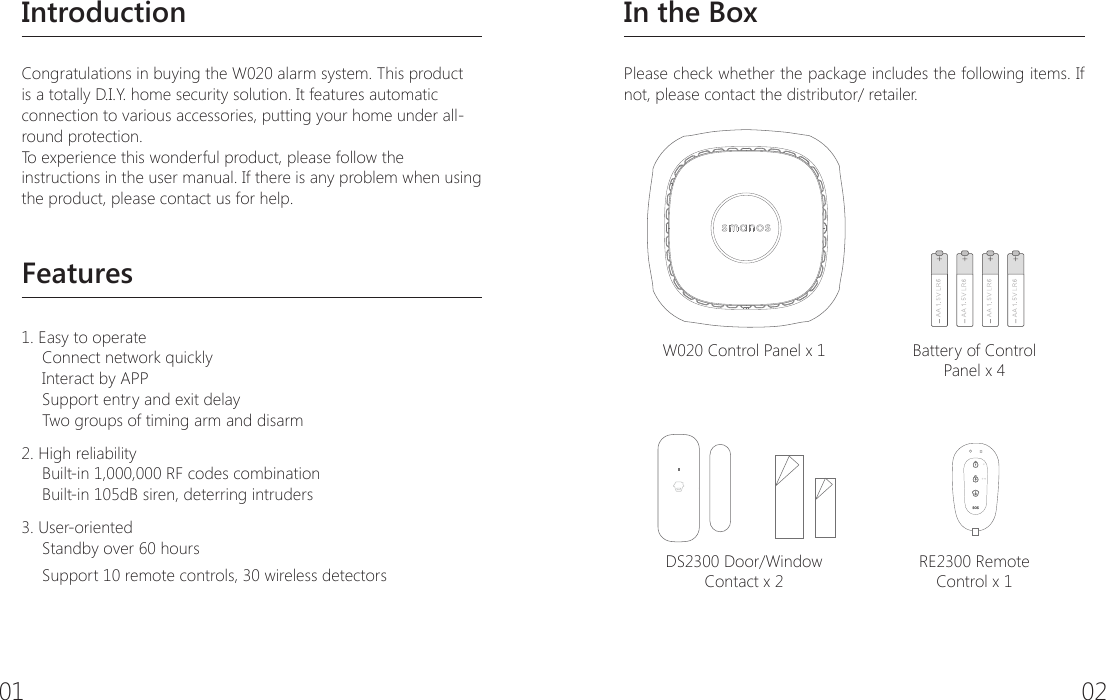
01 02IntroductionCongratulations in buying the W020 alarm system. This product is a totally D.I.Y. home security solution. It features automatic connection to various accessories, putting your home under all-round protection.To experience this wonderful product, please follow the instructions in the user manual. If there is any problem when using the product, please contact us for help.Features1. Easy to operateConnect network quicklyInteract by APPSupport entry and exit delayTwo groups of timing arm and disarm 2. High reliabilityBuilt-in 1,000,000 RF codes combinationBuilt-in 105dB siren, deterring intruders3. User-orientedStandby over 60 hours Support 10 remote controls, 30 wireless detectorsIn the BoxPlease check whether the package includes the following items. If not, please contact the distributor/ retailer.W020 Control Panel x 1 Battery of Control Panel x 4DS2300 Door/Window Contact x 2RE2300 Remote Control x 1
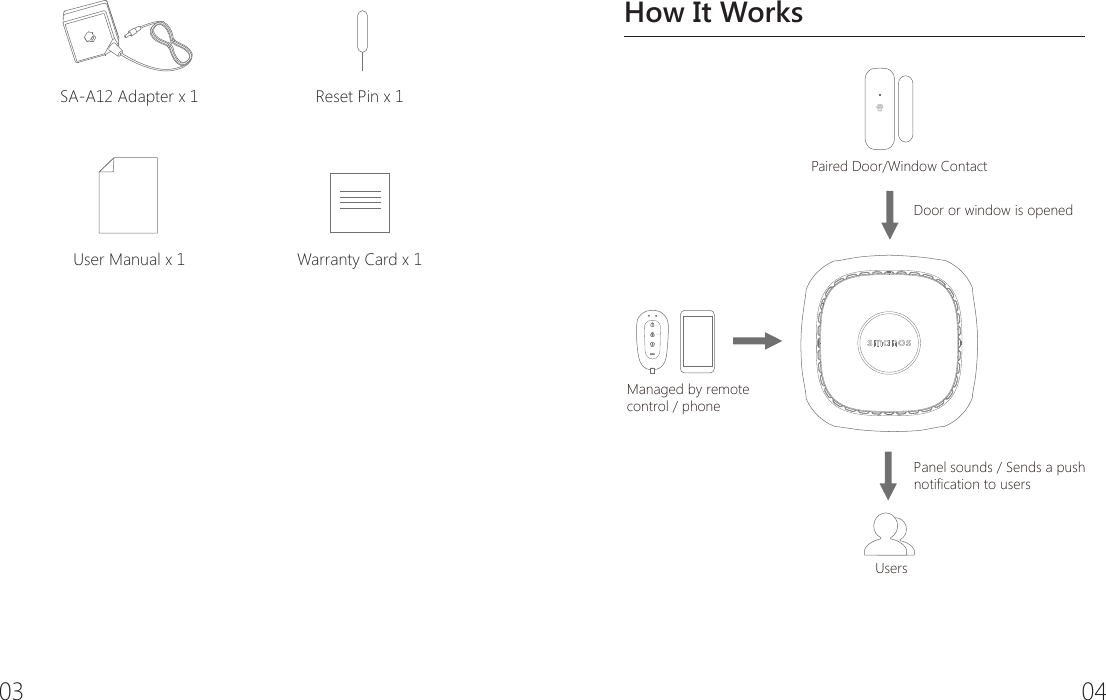
03 04SA-A12 Adapter x 1 Reset Pin x 1User Manual x 1 Warranty Card x 1How It Works  Door or window is openedUsers                Managed by remotecontrol / phone                Panel sounds / Sends a pushnotification to users Paired Door/Window Contact
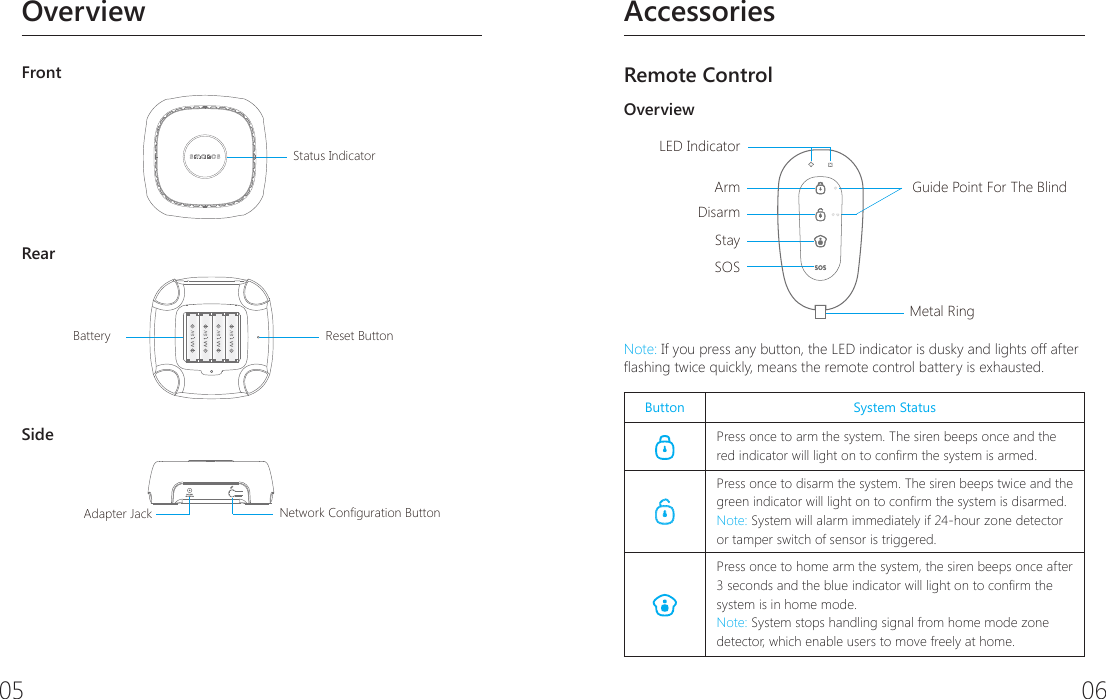
05 06OverviewFrontStatus IndicatorReset ButtonBattery+_+__+_+Adapter Jack  Network Configuration ButtonRearStatus IndicatorReset ButtonBattery+_+__+_+Adapter Jack  Network Configuration ButtonSideStatus IndicatorReset ButtonBattery+_+__+_+Adapter Jack  Network Configuration Button AccessoriesRemote ControlOverviewLED IndicatorArmDisarmStaySOSMetal RingGuide Point For The BlindNote: If you press any button, the LED indicator is dusky and lights off after ashing twice quickly, means the remote control battery is exhausted.Button System StatusPress once to arm the system. The siren beeps once and the red indicator will light on to conrm the system is armed.Press once to disarm the system. The siren beeps twice and the green indicator will light on to conrm the system is disarmed.Note: System will alarm immediately if 24-hour zone detector or tamper switch of sensor is triggered.Press once to home arm the system, the siren beeps once after 3 seconds and the blue indicator will light on to conrm the system is in home mode.Note: System stops handling signal from home mode zone detector, which enable users to move freely at home.
07 08   The control panel will hoot on-site with indicator ashing, users will receive an emergency message from App.Press the [stay   ] button, the indicator on the remote control blinks once, and then press [Arm   ] button within 3 seconds to mutely arm the system.Press the [stay   ] button, the indicator on the remote control blinks once, and then press [Disarm   ] button within 3 seconds to mutely disarm the system.Zone modesThere are three zone modes available for the sensors.Normal zone: In arm or home arm state, the detectors set to normal zone work normally. Once intrusion is detected, the detectors trigger an alarm.Home mode zone: When system is in home arm state, the detectors set to home mode zone are disarmed. The detectors set to other zones are armed. That is, partial arm.24-H zone: The detector set to 24-H zone trigger an alarm immediately when detecting intrusion, no matter the system is armed or disarmed.Sensors in This Kit Zone Mode (Default Setting)DS2300 Door/Window Contact Normal Zone (can be changed through App)Note: The zone mode of 24-hour zone sensor can not be changed.Door/Window Contact The contact contains a transmitter and a magnet, which can be mounted on a door, window or any objects that can be opened or closed. When the transmitter and magnet are separated over 2 cm, the contact will send a signal to the control panel to trigger an alarm.OverviewFront SideLED IndicatorTransmitter MagnetBack SideTamper SwitchLED IndicationBlinks once: Door/window open detected.Blinks once per 3 seconds after triggered: Low battery. Push notication will be sent to App. Please change battery as soon as possible.Note: When tamper switch is pressed, system will alarm immediately.
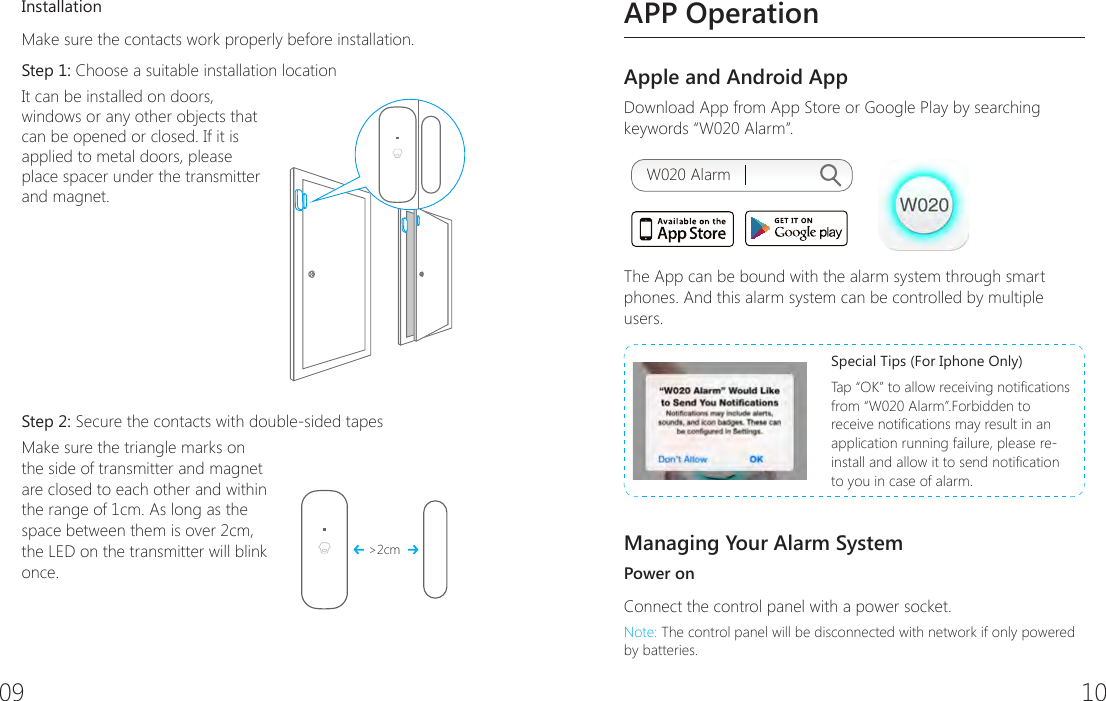
09 10InstallationMake sure the contacts work properly before installation.Step 1: Choose a suitable installation location It can be installed on doors, windows or any other objects that can be opened or closed. If it is applied to metal doors, please place spacer under the transmitter and magnet. Step 2: Secure the contacts with double-sided tapes Make sure the triangle marks on the side of transmitter and magnet are closed to each other and within the range of 1cm. As long as the space between them is over 2cm, the LED on the transmitter will blink once.>2cmAPP OperationApple and Android AppDownload App from App Store or Google Play by searching keywords “W020 Alarm”.W020 AlarmThe App can be bound with the alarm system through smart phones. And this alarm system can be controlled by multiple users.Special Tips (For Iphone Only)Tap “OK” to allow receiving notications from “W020 Alarm”.Forbidden to receive notications may result in an application running failure, please re-install and allow it to send notication to you in case of alarm.Managing Your Alarm SystemPower onConnect the control panel with a power socket.Note: The control panel will be disconnected with network if only powered by batteries.
11 12Registration and Network setupAfter registration, it enters into the network setup interface. There are two ways to connect the control panel with Wi-Fi:Option 1. One-click setup 1. Click the network conguration button (refer to page 5) on the control panel once, you’ll hear a beep from the control panel. then the red and blue status indicators blink alternately.2. Input the Wi-Fi’s password on the App, then tap [Start], when the indicator stops blinking but keeps on instead, the conguration is successful.Option 2. Manual conguration1. Hold the network conguration button on the control panel until the control panel beeps once, then the red and blue status indicators blink alternately, means the control panel has entered into a manual conguration state. 2. Find and choose the Wi-Fi named W020 in your phone’s Wi-Fi list.3. Choose manual conguration in the one-click setup interface of W020 App.4. Input the local Wi-Fi name and its password, click [Start]. When the status LED indicator stops blinking but keeps on instead, it means the conguration is successful.Note: One control panel can be controlled by multi users.Remote control your alarm systemPull-down to RefreshNetwork ReconnectionHome ArmDisarmArm
13 14System settings① Edit Accessory10 remote controls and 30 sensors could be extended and the names of sensors are editable.This function aims at guiding user to identify the invasion location quickly by changing the sensor name. Their sequence in naming follows pairing order, for example, the rst paired sensor is by default assigned to zone 1, the second paired sensor is by default assigned to zone 2, etc. In case of emergency, this control panel will push notication with zone number (or new name) to user.Meanwhile, you can change the working mode of accessory (Except the 24-hour zone sensor) by tapping the [   ] or [   ], please refer to the detail of “zone mode” on page 7.② Wireless SirenIf wireless siren is purchased, you can setup on the app to turn on/off the alarm function and arm/disarm tone, etc.③ Exit Delay Time & Entry Delay TimeIf you don’t want to carry along remote controls, you can set the exit or entry delay.Suppose entry delay is set at 30 seconds, the system will allow you 30 seconds to disarm the system before alarming. Suppose exit delay is set at 35 seconds, the system will allow you 35 seconds to leave before the system is armed. The “beep” is heard in every 2 seconds to remind you to leave. The pace of reminding sound will speed up in the last 15 seconds. Thus leaves you enough time to leave home without triggering the system.④User DeletionInput the ID No. (on the back side of the control panel)  to delete all the users.
15 16Pairing/Deleting AccessoryThe included accessories have been paired with the control panel by default, if you want to pair new accessories, please follow these instructions:Pairing New Remote Control and SensorTa p  [+] on the accessory interface to send out pairing signal, and then trigger the accessory by following the illustration. Important: Please don't trigger the tamper switch of sensor when pairing, otherwise the system will recognize the sensor as a 24-hour zone sensor.Press any button on the remote controlPress the test button more than twice(Purchase separately)Separate the transmitter and the magnetWhen a beep is heard from the control panel means the sensor is paired successfully. If two beeps are heard, it means the sensor has already been paired.Note: To pair other sensors, please refer to the related user manuals.Deleting Sensors and Remote ControlsUse the supplied reset pin to press the reset button for about 3 seconds, the control panel will beep once to indicate all the sensors and remote controls have been deleted.Pairing New Wireless SirenWireless siren is sold separately.1. Siren enters pairing state (please refer to its user manual).2. Arm or disarm the control panel on App to send out pairing signal to the siren.When a beep is heard from the siren means the siren is paired successfully. If two beeps are heard means the siren has already been paired.Deleting Wireless SirenPress and hold the pair button of the wireless siren, the deletion is succeeded when one beep is heard from the wireless siren.
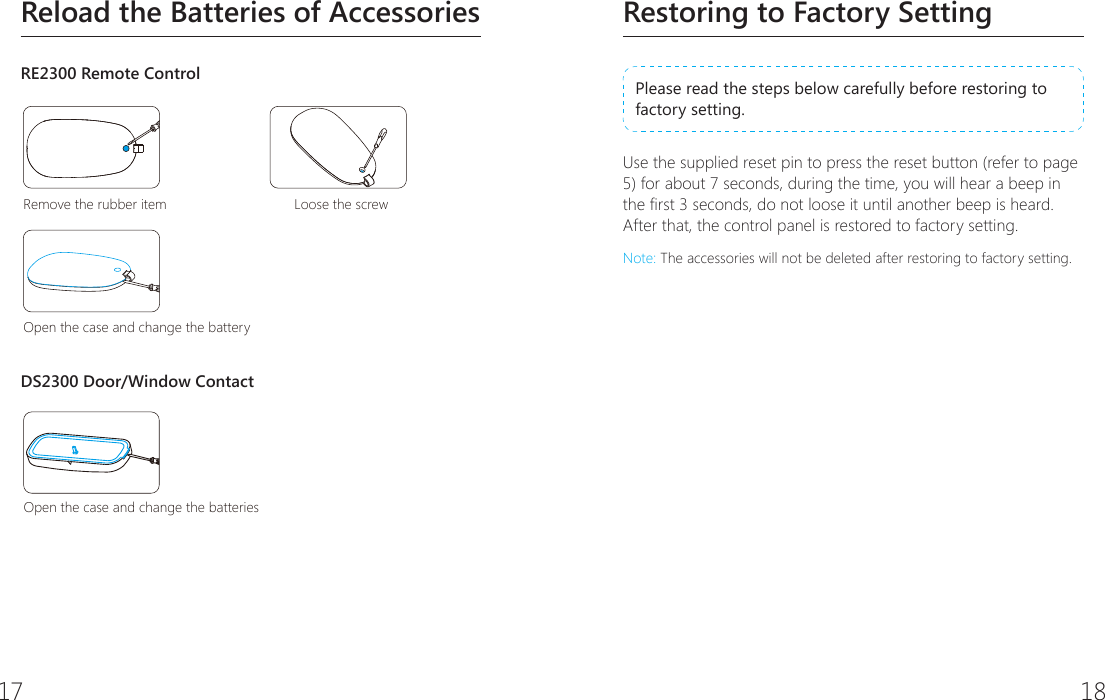
17 18Restoring to Factory SettingPlease read the steps below carefully before restoring to factory setting. Use the supplied reset pin to press the reset button (refer to page 5) for about 7 seconds, during the time, you will hear a beep in the rst 3 seconds, do not loose it until another beep is heard. After that, the control panel is restored to factory setting.Note: The accessories will not be deleted after restoring to factory setting.Reload the Batteries of AccessoriesRE2300 Remote ControlRemove the rubber item Loose the screwOpen the case and change the batteryOpen the case and change the batteriesDS2300 Door/Window ContactRemove the rubber item Loose the screwOpen the case and change the batteryOpen the case and change the batteries
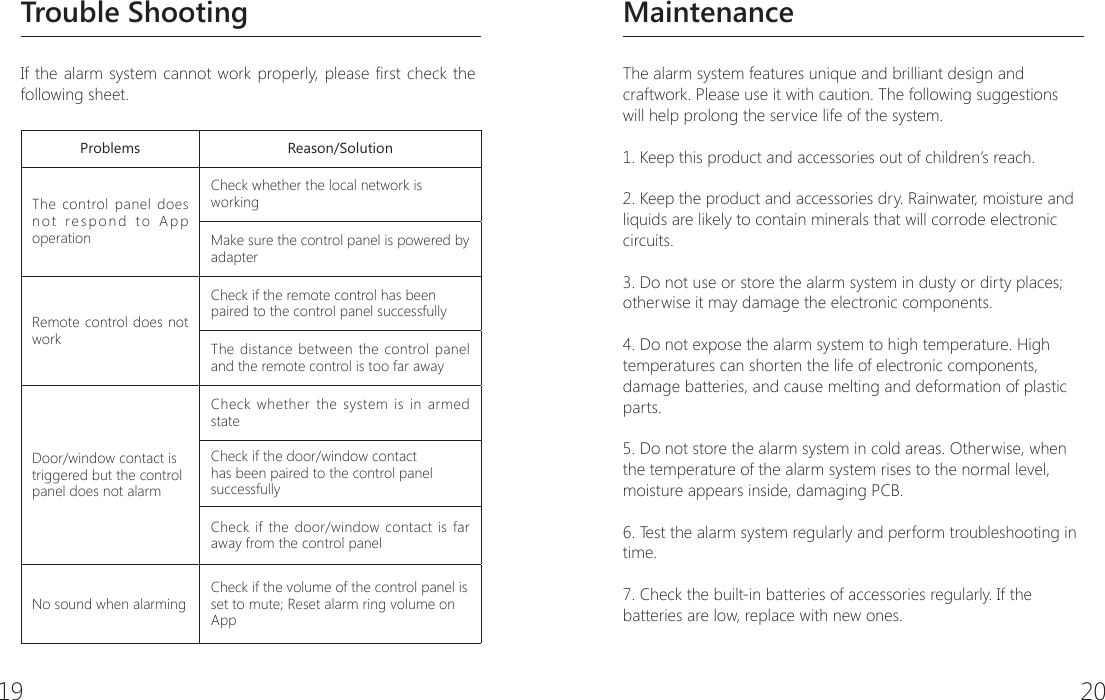
19 20MaintenanceThe alarm system features unique and brilliant design and craftwork. Please use it with caution. The following suggestions will help prolong the service life of the system.1. Keep this product and accessories out of children’s reach.2. Keep the product and accessories dry. Rainwater, moisture and liquids are likely to contain minerals that will corrode electronic circuits.3. Do not use or store the alarm system in dusty or dirty places; otherwise it may damage the electronic components.4. Do not expose the alarm system to high temperature. High temperatures can shorten the life of electronic components, damage batteries, and cause melting and deformation of plastic parts.5. Do not store the alarm system in cold areas. Otherwise, when the temperature of the alarm system rises to the normal level, moisture appears inside, damaging PCB.6. Test the alarm system regularly and perform troubleshooting in time.7. Check the built-in batteries of accessories regularly. If the batteries are low, replace with new ones.Trouble ShootingIf the alarm system cannot work properly, please rst check the following sheet.Problems Reason/SolutionThe control panel does not respond to App operationCheck whether the local network is workingMake sure the control panel is powered by adapterRemote control does not workCheck if the remote control has been paired to the control panel successfullyThe distance between the control panel and the remote control is too far awayDoor/window contact is triggered but the control panel does not alarmCheck whether the system is in armed stateCheck if the door/window contact has been paired to the control panel successfullyCheck if the door/window contact is far away from the control panelNo sound when alarmingCheck if the volume of the control panel is set to mute; Reset alarm ring volume on App
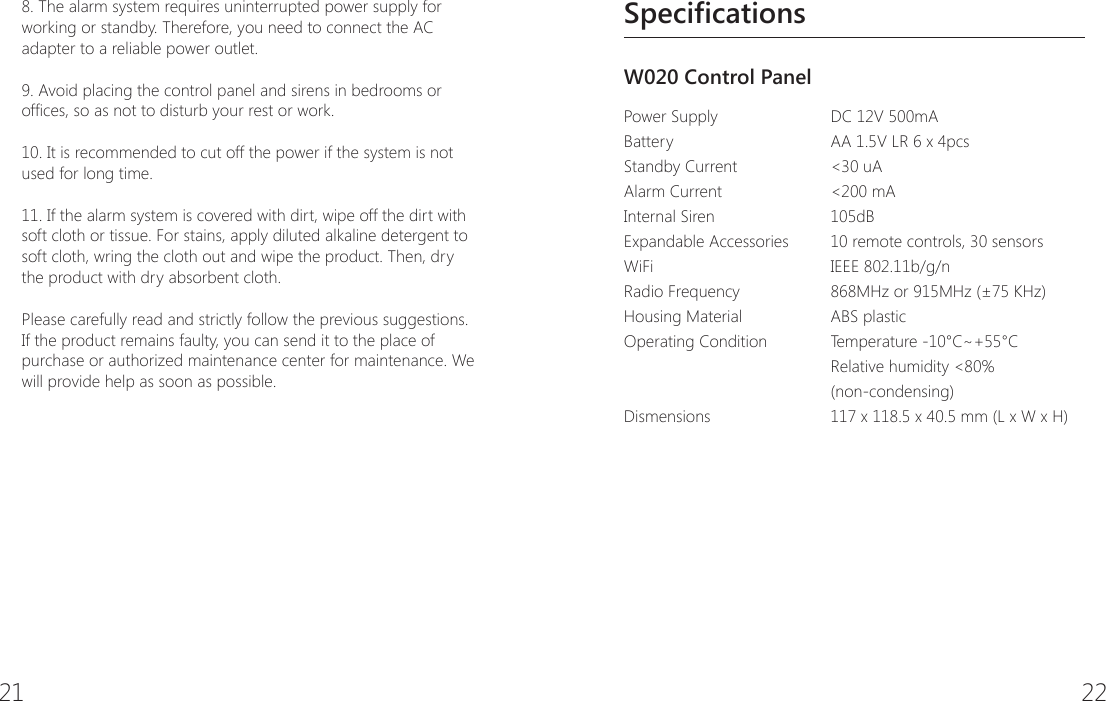
21 22SpecificationsW020 Control Panel Power SupplyBatteryStandby CurrentAlarm Current  Internal SirenExpandable Accessories WiFi  Radio Frequency   Housing Material Operating ConditionDismensions DC 12V 500mAAA 1.5V LR 6 x 4pcs<30 uA<200 mA105dB10 remote controls, 30 sensorsIEEE 802.11b/g/n868MHz or 915MHz (±75 KHz)ABS plasticTemperature -10°C~+55°C Relative humidity <80% (non-condensing)117 x 118.5 x 40.5 mm (L x W x H)8. The alarm system requires uninterrupted power supply for working or standby. Therefore, you need to connect the AC adapter to a reliable power outlet.9. Avoid placing the control panel and sirens in bedrooms or ofces, so as not to disturb your rest or work.10. It is recommended to cut off the power if the system is not used for long time.11. If the alarm system is covered with dirt, wipe off the dirt with soft cloth or tissue. For stains, apply diluted alkaline detergent to soft cloth, wring the cloth out and wipe the product. Then, dry the product with dry absorbent cloth.Please carefully read and strictly follow the previous suggestions. If the product remains faulty, you can send it to the place of purchase or authorized maintenance center for maintenance. We will provide help as soon as possible.
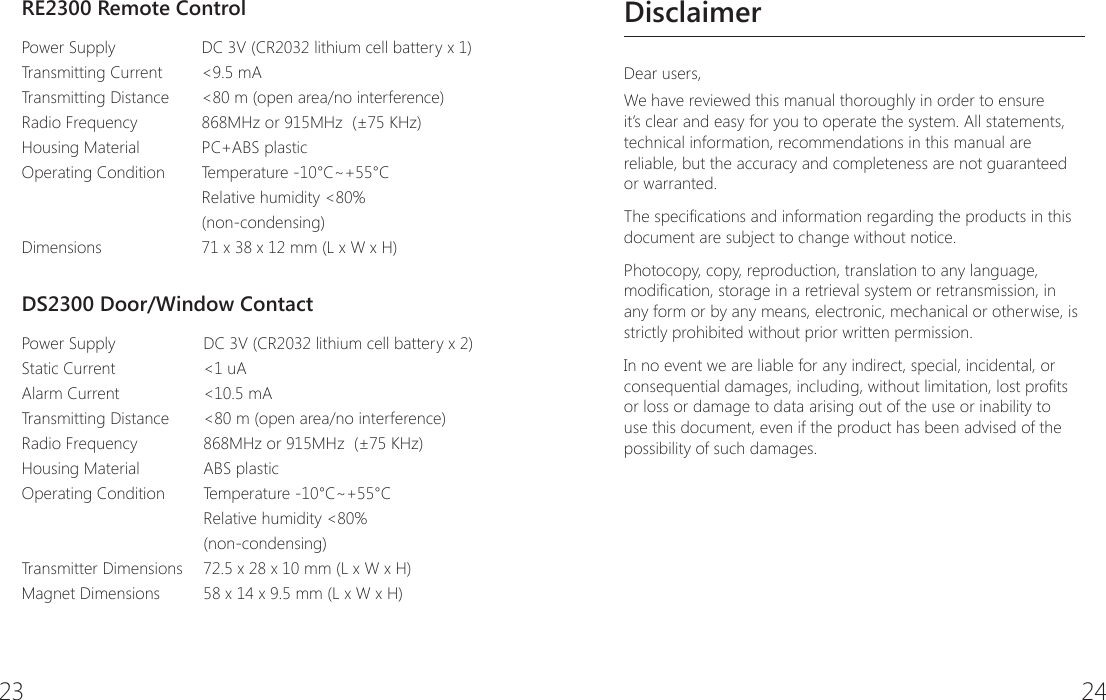
23 24DisclaimerDear users,We have reviewed this manual thoroughly in order to ensure it’s clear and easy for you to operate the system. All statements, technical information, recommendations in this manual are reliable, but the accuracy and completeness are not guaranteed or warranted.The specications and information regarding the products in this document are subject to change without notice.Photocopy, copy, reproduction, translation to any language, modication, storage in a retrieval system or retransmission, in any form or by any means, electronic, mechanical or otherwise, is strictly prohibited without prior written permission.In no event we are liable for any indirect, special, incidental, or consequential damages, including, without limitation, lost prots or loss or damage to data arising out of the use or inability to use this document, even if the product has been advised of the possibility of such damages.RE2300 Remote ControlPower SupplyTransmitting CurrentTransmitting DistanceRadio FrequencyHousing Material Operating ConditionDimensionsDC 3V (CR2032 lithium cell battery x 1)<9.5 mA<80 m (open area/no interference)868MHz or 915MHz  (±75 KHz)PC+ABS plasticTemperature -10°C~+55°C Relative humidity <80% (non-condensing)71 x 38 x 12 mm (L x W x H)DS2300 Door/Window ContactPower Supply  Static Current  Alarm Current     Transmitting DistanceRadio Frequency  Housing Material    Operating Condition Transmitter DimensionsMagnet DimensionsDC 3V (CR2032 lithium cell battery x 2)<1 uA<10.5 mA<80 m (open area/no interference)868MHz or 915MHz  (±75 KHz)ABS plasticTemperature -10°C~+55°C Relative humidity <80% (non-condensing)72.5 x 28 x 10 mm (L x W x H)58 x 14 x 9.5 mm (L x W x H)
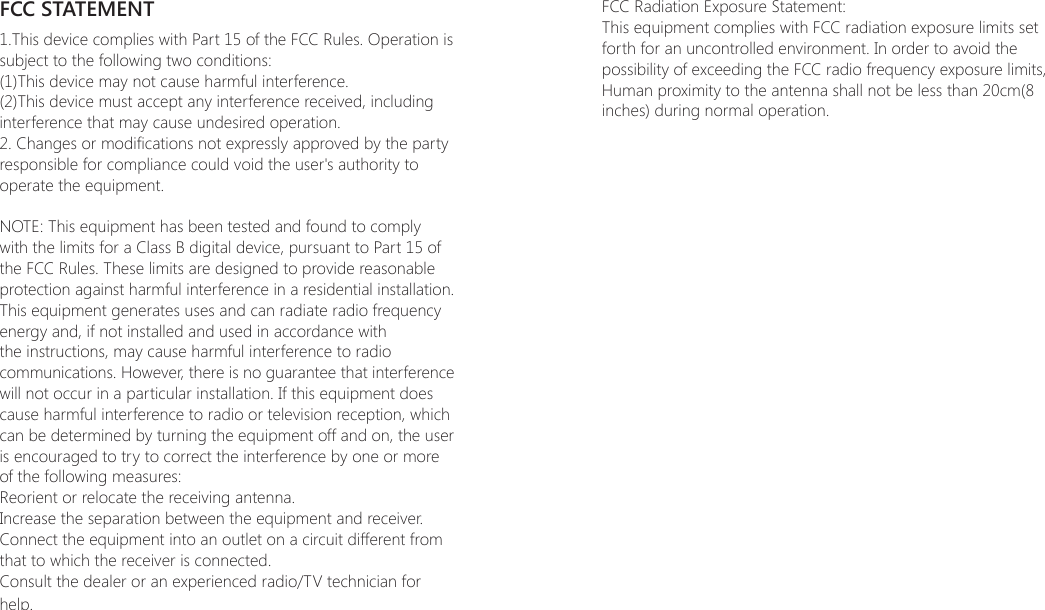
FCC STATEMENT1.This device complies with Part 15 of the FCC Rules. Operation is subject to the following two conditions:(1)This device may not cause harmful interference.(2)This device must accept any interference received, including interference that may cause undesired operation.2. Changes or modications not expressly approved by the party responsible for compliance could void the user's authority to operate the equipment.NOTE: This equipment has been tested and found to comply with the limits for a Class B digital device, pursuant to Part 15 of the FCC Rules. These limits are designed to provide reasonable protection against harmful interference in a residential installation.This equipment generates uses and can radiate radio frequency energy and, if not installed and used in accordance with the instructions, may cause harmful interference to radio communications. However, there is no guarantee that interference will not occur in a particular installation. If this equipment does cause harmful interference to radio or television reception, which can be determined by turning the equipment off and on, the user is encouraged to try to correct the interference by one or more of the following measures:Reorient or relocate the receiving antenna.Increase the separation between the equipment and receiver.Connect the equipment into an outlet on a circuit different from that to which the receiver is connected.Consult the dealer or an experienced radio/TV technician for help.FCC Radiation Exposure Statement:This equipment complies with FCC radiation exposure limits set forth for an uncontrolled environment. In order to avoid the possibility of exceeding the FCC radio frequency exposure limits, Human proximity to the antenna shall not be less than 20cm(8 inches) during normal operation.

Navigation menu