Chunghsin Technology Group UJ4118 43inch UHD DLED TV User Manual 1

Chunghsin Technology Group CO.,LTD 43inch UHD DLED TV 1

Contents

User Manual-1

USER’S MANUALMANUEL DE L’UTILISATEURMANUAL DEL USUARIOWE43UJ4118
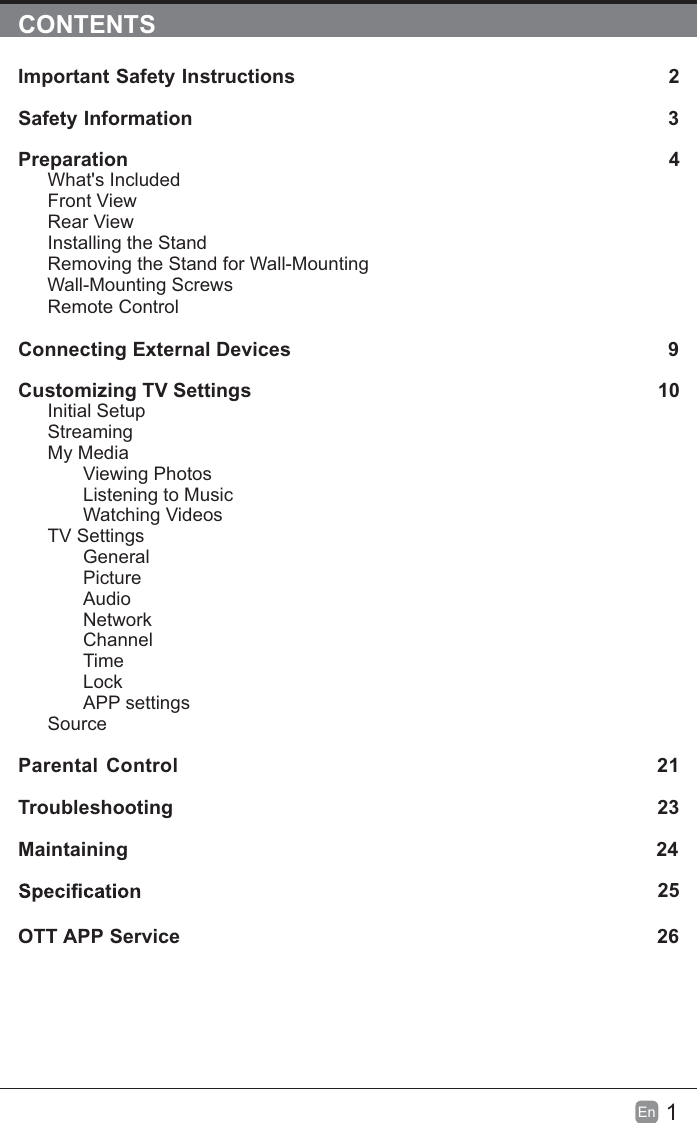
1EnCONTENTSImportant Safety Instructions 2Safety Information 3Preparation 4What's IncludedFront ViewRear ViewInstalling the StandRemoving the Stand for Wall-MountingWall-Mounting ScrewsRemote ControlConnecting External Devices 9Customizing TV Settings 10Initial SetupStreamingMy MediaViewing PhotosListening to MusicWatching VideosTV SettingsGeneralPictureAudioNetworkChannelTimeLockAPP settingsSourceParental Control 21Troubleshooting 23Maintaining                                                                                                2425OTT APP Service 26
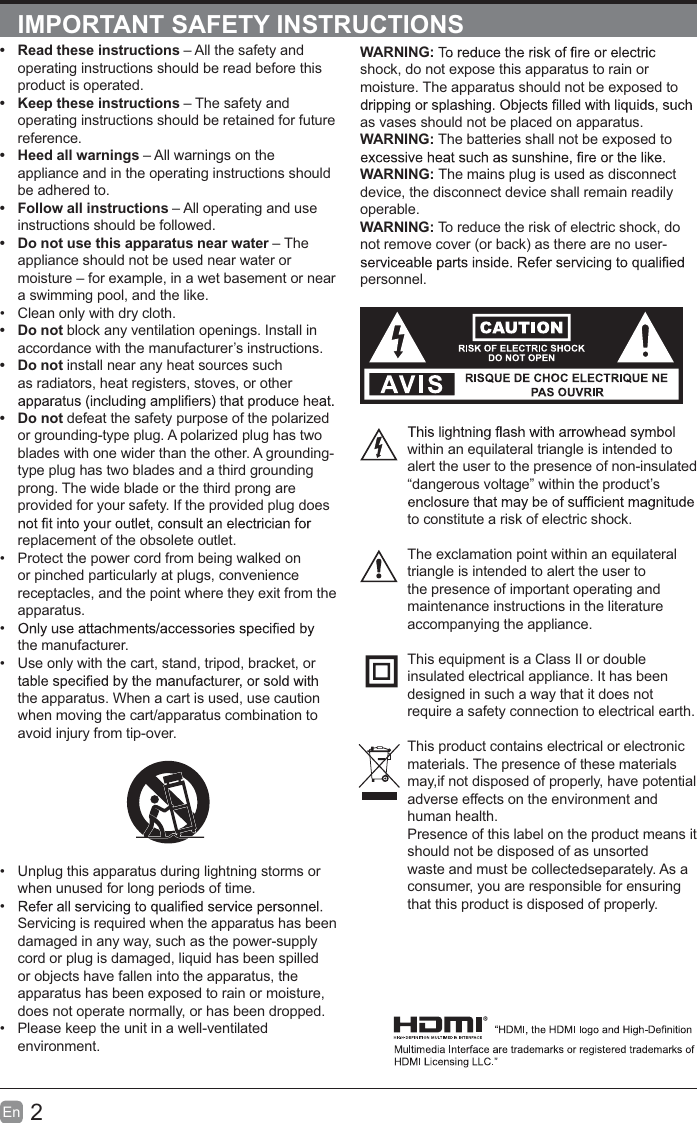
2EnIMPORTANT SAFETY INSTRUCTIONSWARNING:shock, do not expose this apparatus to rain ormoisture. The apparatus should not be exposed toas vases should not be placed on apparatus.WARNING: The batteries shall not be exposed toWARNING: The mains plug is used as disconnectdevice, the disconnect device shall remain readilyoperable.WARNING: To reduce the risk of electric shock, donot remove cover (or back) as there are no user-personnel.within an equilateral triangle is intended toalert the user to the presence of non-insulated“dangerous voltage” within the product’sto constitute a risk of electric shock.The exclamation point within an equilateraltriangle is intended to alert the user tothe presence of important operating andmaintenance instructions in the literatureaccompanying the appliance.This equipment is a Class II or doubleinsulated electrical appliance. It has beendesigned in such a way that it does notrequire a safety connection to electrical earth.This product contains electrical or electronicmaterials. The presence of these materialsmay,if not disposed of properly, have potentialadverse effects on the environment andhuman health.Presence of this label on the product means itshould not be disposed of as unsortedwaste and must be collectedseparately. As aconsumer, you are responsible for ensuringthat this product is disposed of properly.tRead these instructions – All the safety andoperating instructions should be read before thisproduct is operated.tKeep these instructions – The safety andoperating instructions should be retained for futurereference.tHeed all warnings – All warnings on theappliance and in the operating instructions shouldbe adhered to.tFollow all instructions – All operating and useinstructions should be followed.tDo not use this apparatus near water – Theappliance should not be used near water ormoisture – for example, in a wet basement or neara swimming pool, and the like.Clean only with dry cloth.tDo not block any ventilation openings. Install inaccordance with the manufacturer’s instructions.tDo not install near any heat sources suchas radiators, heat registers, stoves, or othertDo not defeat the safety purpose of the polarizedor grounding-type plug. A polarized plug has twoblades with one wider than the other. A grounding-type plug has two blades and a third groundingprong. The wide blade or the third prong areprovided for your safety. If the provided plug doesreplacement of the obsolete outlet.Protect the power cord from being walked onor pinched particularly at plugs, conveniencereceptacles, and the point where they exit from theapparatus.the manufacturer.Use only with the cart, stand, tripod, bracket, orthe apparatus. When a cart is used, use cautionwhen moving the cart/apparatus combination toavoid injury from tip-over.Unplug this apparatus during lightning storms orwhen unused for long periods of time.Servicing is required when the apparatus has beendamaged in any way, such as the power-supplycord or plug is damaged, liquid has been spilledor objects have fallen into the apparatus, theapparatus has been exposed to rain or moisture,does not operate normally, or has been dropped.Please keep the unit in a well-ventilatedenvironment.
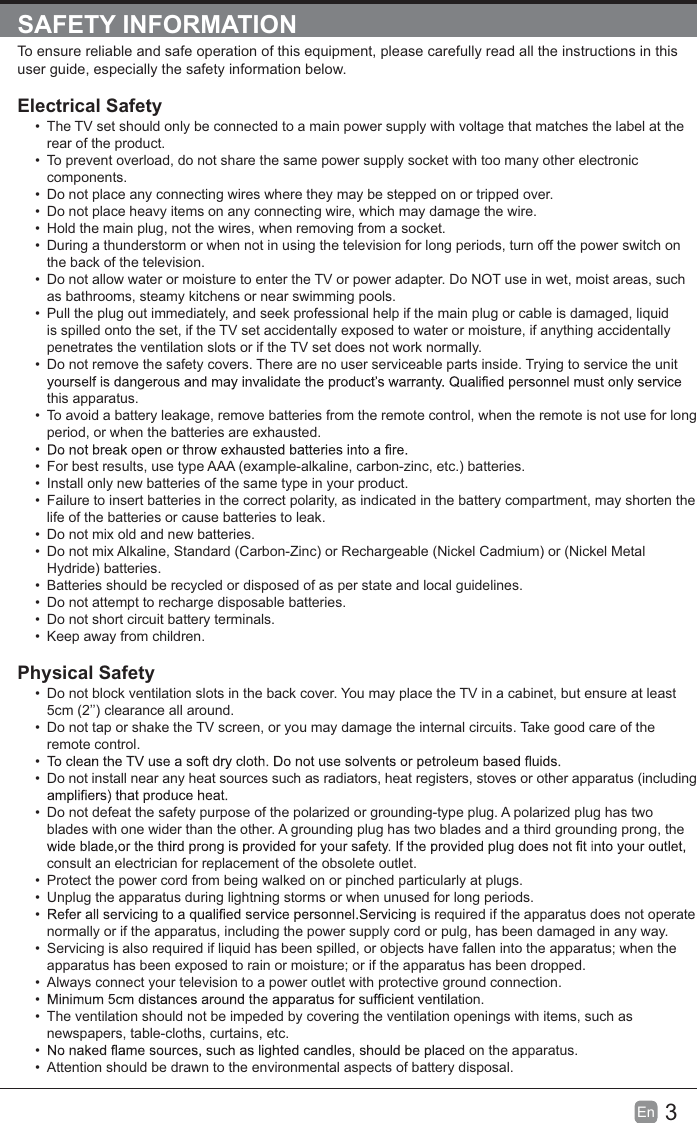
3EnSAFETY INFORMATIONTo ensure reliable and safe operation of this equipment, please carefully read all the instructions in this user guide, especially the safety information below.Electrical SafetyThe TV set should only be connected to a main power supply with voltage that matches the label at therear of the product.To prevent overload, do not share the same power supply socket with too many other electroniccomponents.Do not place any connecting wires where they may be stepped on or tripped over.Do not place heavy items on any connecting wire, which may damage the wire.Hold the main plug, not the wires, when removing from a socket.During a thunderstorm or when not in using the television for long periods, turn off the power switch onthe back of the television.Do not allow water or moisture to enter the TV or power adapter. Do NOT use in wet, moist areas, suchas bathrooms, steamy kitchens or near swimming pools.Pull the plug out immediately, and seek professional help if the main plug or cable is damaged, liquidis spilled onto the set, if the TV set accidentally exposed to water or moisture, if anything accidentallypenetrates the ventilation slots or if the TV set does not work normally.Do not remove the safety covers. There are no user serviceable parts inside. Trying to service the unitthis apparatus.To avoid a battery leakage, remove batteries from the remote control, when the remote is not use for longperiod, or when the batteries are exhausted.For best results, use type AAA (example-alkaline, carbon-zinc, etc.) batteries.Install only new batteries of the same type in your product.Failure to insert batteries in the correct polarity, as indicated in the battery compartment, may shorten thelife of the batteries or cause batteries to leak.Do not mix old and new batteries.Do not mix Alkaline, Standard (Carbon-Zinc) or Rechargeable (Nickel Cadmium) or (Nickel MetalHydride) batteries.Batteries should be recycled or disposed of as per state and local guidelines.Do not attempt to recharge disposable batteries.Do not short circuit battery terminals.Keep away from children.Physical SafetyDo not block ventilation slots in the back cover. You may place the TV in a cabinet, but ensure at least5cm (2’’) clearance all around.Do not tap or shake the TV screen, or you may damage the internal circuits. Take good care of theremote control.Do not install near any heat sources such as radiators, heat registers, stoves or other apparatus (includingDo not defeat the safety purpose of the polarized or grounding-type plug. A polarized plug has twoblades with one wider than the other. A grounding plug has two blades and a third grounding prong, theconsult an electrician for replacement of the obsolete outlet.Protect the power cord from being walked on or pinched particularly at plugs.Unplug the apparatus during lightning storms or when unused for long periods.s required if the apparatus does not operatenormally or if the apparatus, including the power supply cord or pulg, has been damaged in any way.Servicing is also required if liquid has been spilled, or objects have fallen into the apparatus; when theapparatus has been exposed to rain or moisture; or if the apparatus has been dropped.Always connect your television to a power outlet with protective ground connection.ation.The ventilation should not be impeded by covering the ventilation openings with items, such asnewspapers, table-cloths, curtains, etc.d on the apparatus.Attention should be drawn to the environmental aspects of battery disposal.
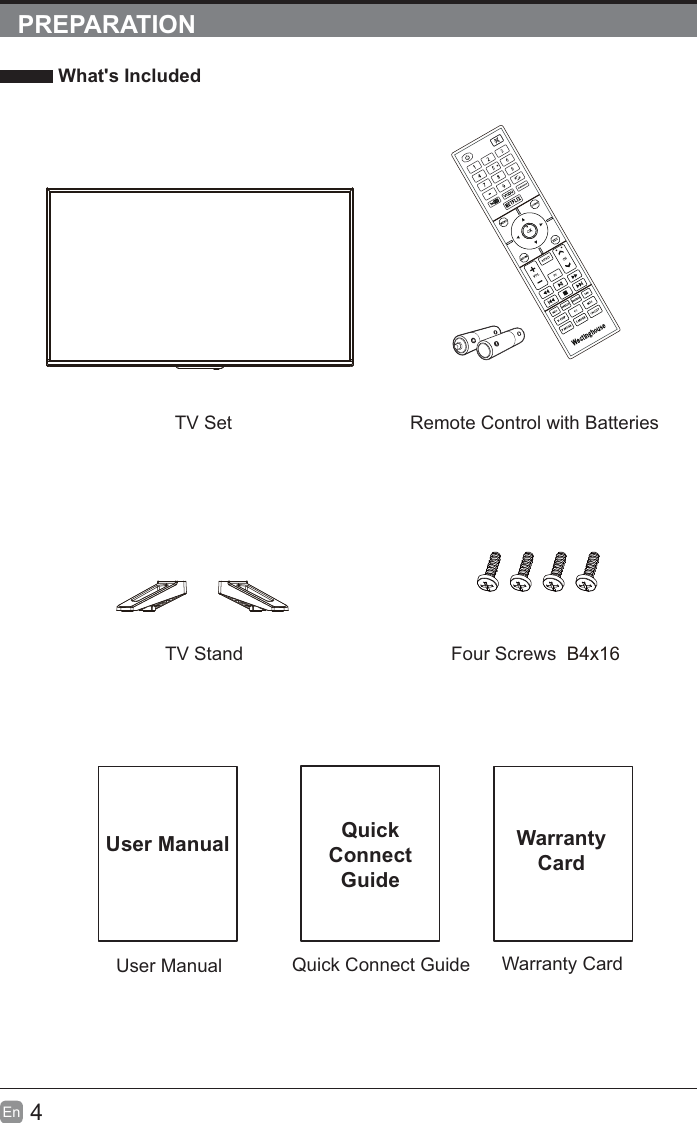
4EnPREPARATION What's IncludedQuick Connect GuideQuickConnectGuideUser ManualUser ManualRemote Control with BatteriesWarranty CardWarrantyCardTV SetTV Stand Four Screws  B4x16
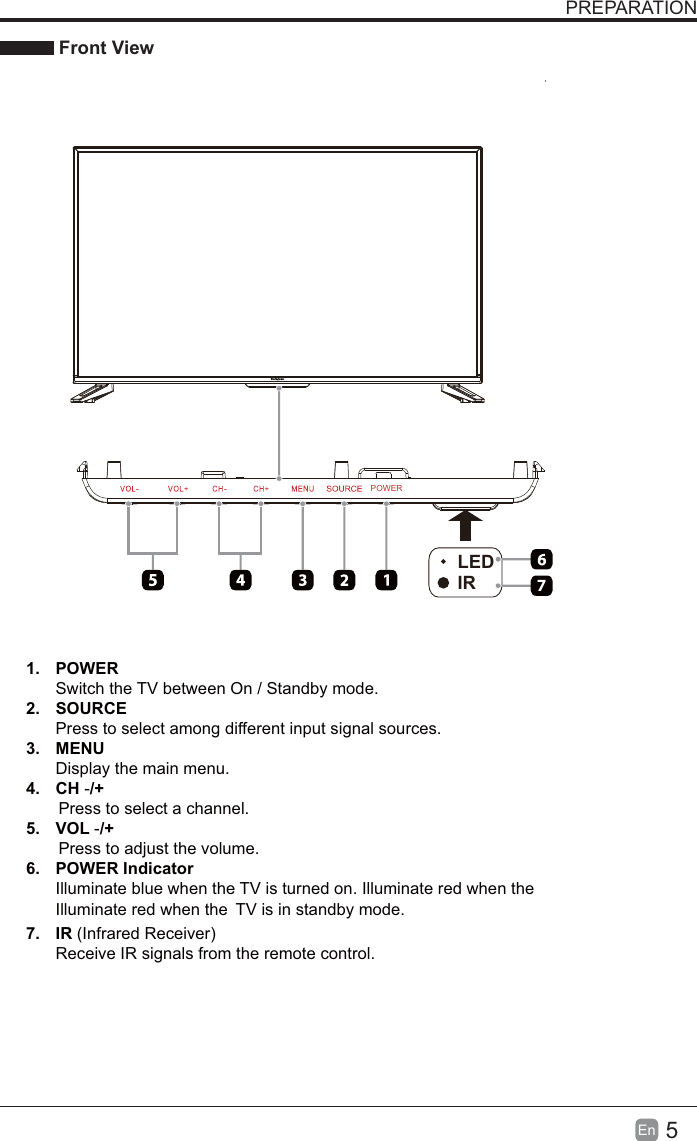
5EnPREPARATION Front View1. POWERSwitch the TV between On / Standby mode.2. SOURCEPress to select among different input signal sources.3. MENUDisplay the main menu.4. CHPress to select a channel.5. VOL -/+-/+Press to adjust the volume.6. POWER IndicatorIlluminate blue when the TV is turned on. Illuminate red when theIlluminate red when the TV is in standby mode.7. IR (Infrared Receiver)Receive IR signals from the remote control.LEDIRPOWER7
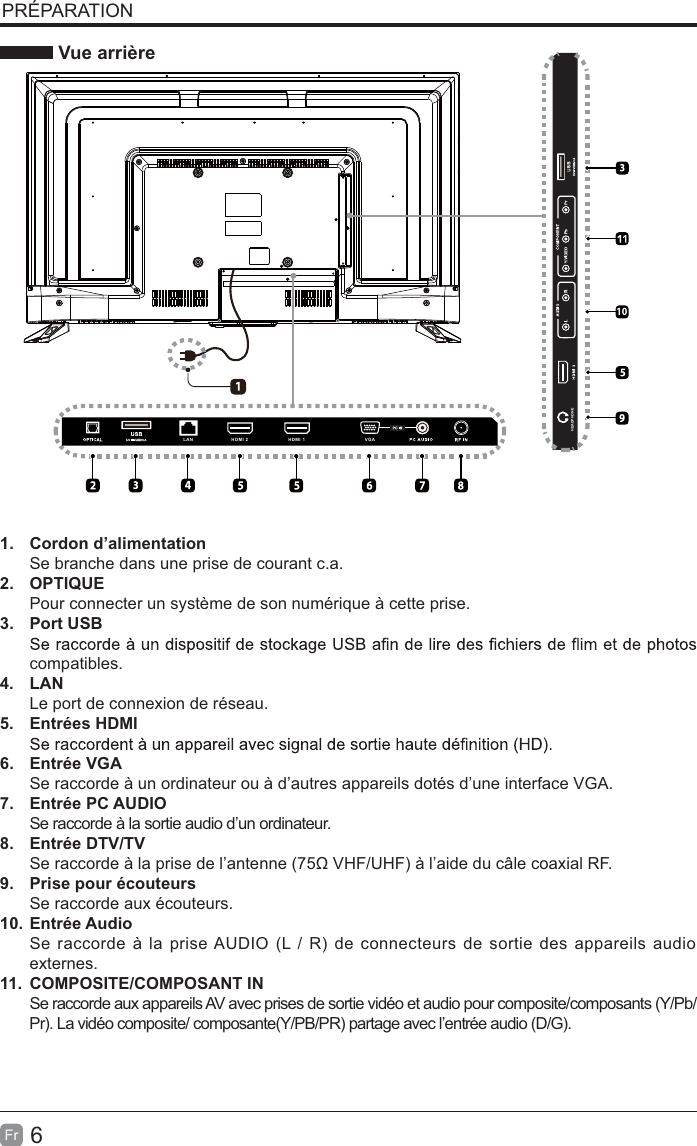
6EnPREPARATION Rear View1. Power CordConnect to AC power outlet.2. OPTICAL OutputConnect a digital sound system to thisjack.3. USB PortConnect to a USB storage device to play compatible movie and photo4. LANNetwork connection port.5. HDMI InputConnect to a (HD) signal input device.6. VGA InputConnect to a computer or other devices with a VGA interface.7. PC AUDIO InputConnect to a computer audio output.8. DTV/TV InputConnect to the antenna ȍ VHF/UHF) socket with the RF coaxial cable.9. Headphone SocketConnect to the Headphones.10. AUDIO InputConnect to the AUDIO (L/R) output sockets on external audio devices.11. COMPOSITE/COMPONENT INConnect to AV devices with composite/component (Y/Pb/Pr) video and audio output sockets.COMPOSITE VIDEO and COMPONENT(Y/PB/PR) share with AUDIO IN (L/R).10LAN HDMI 2 HDMI 1 VGAHEADPHONE
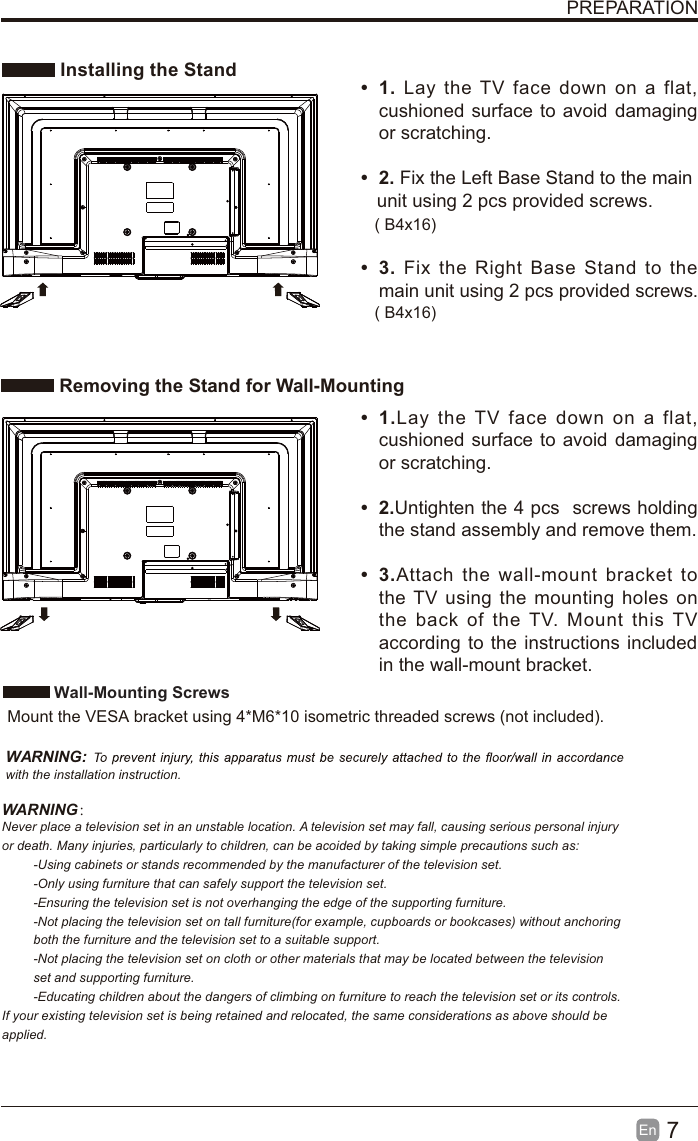
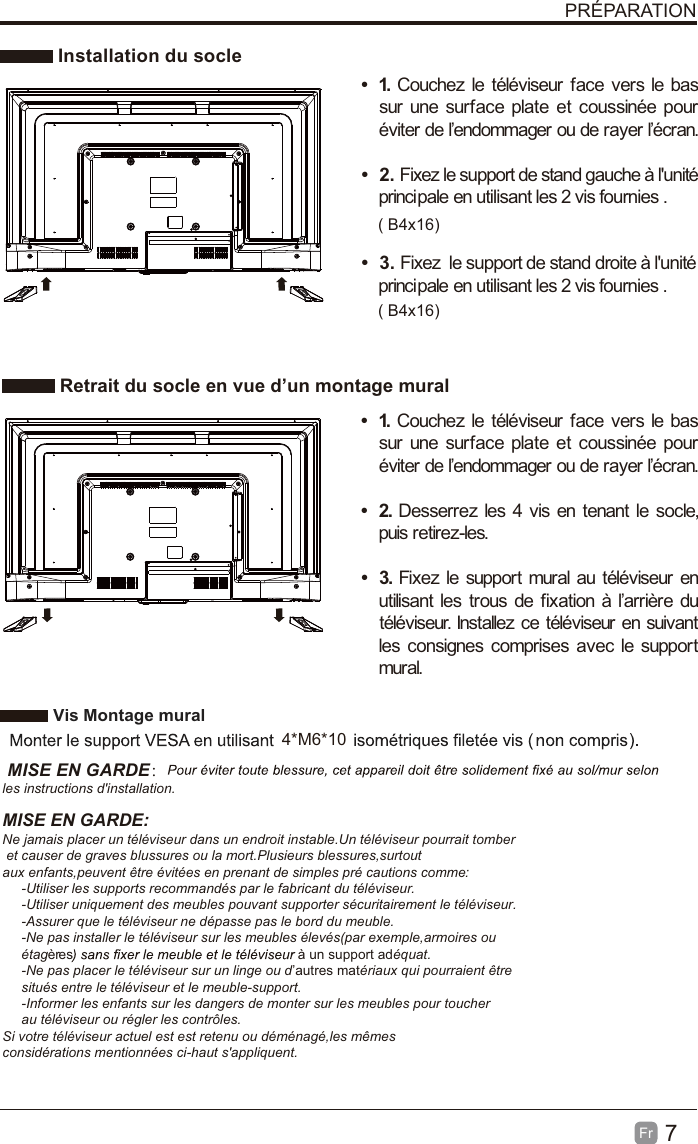
7EnPREPARATIONInstalling the StandRemoving the Stand for Wall-Mountingt1. Lay the TV face down on a flat,cushioned surface to avoid damagingor scratching.t2. Fix the Left Base Stand to the main   unit using 2 pcs provided screws.t3. Fix the Right Base Stand to themain unit using 2 pcs provided screws.t 1.Lay the TV face down on a flat,cushioned surface to avoid damagingor scratching.t 2.Untighten the 4 pcs screws holdingthe stand assembly and remove them. t 3.Attach the wall-mount bracket tothe TV using the mounting holes onthe back of the TV. Mount this TVaccording to the instructions includedin the wall-mount bracket. Wall-Mounting Screws  Mount the VESA bracket using 4*M6*10 isometric threaded screws (not included).WARNING:with the installation instruction.WARNING:Never place a television set in an unstable location. A television set may fall, causing serious personal injuryor death. Many injuries, particularly to children, can be acoided by taking simple precautions such as:-Using cabinets or stands recommended by the manufacturer of the television set.-Only using furniture that can safely support the television set.-Ensuring the television set is not overhanging the edge of the supporting furniture.-Not placing the television set on tall furniture(for example, cupboards or bookcases) without anchoring both the furniture and the television set to a suitable support.-Not placing the television set on cloth or other materials that may be located between the television set and supporting furniture.-Educating children about the dangers of climbing on furniture to reach the television set or its controls.If your existing television set is being retained and relocated, the same considerations as above should be applied.( B4x16)( B4x16)
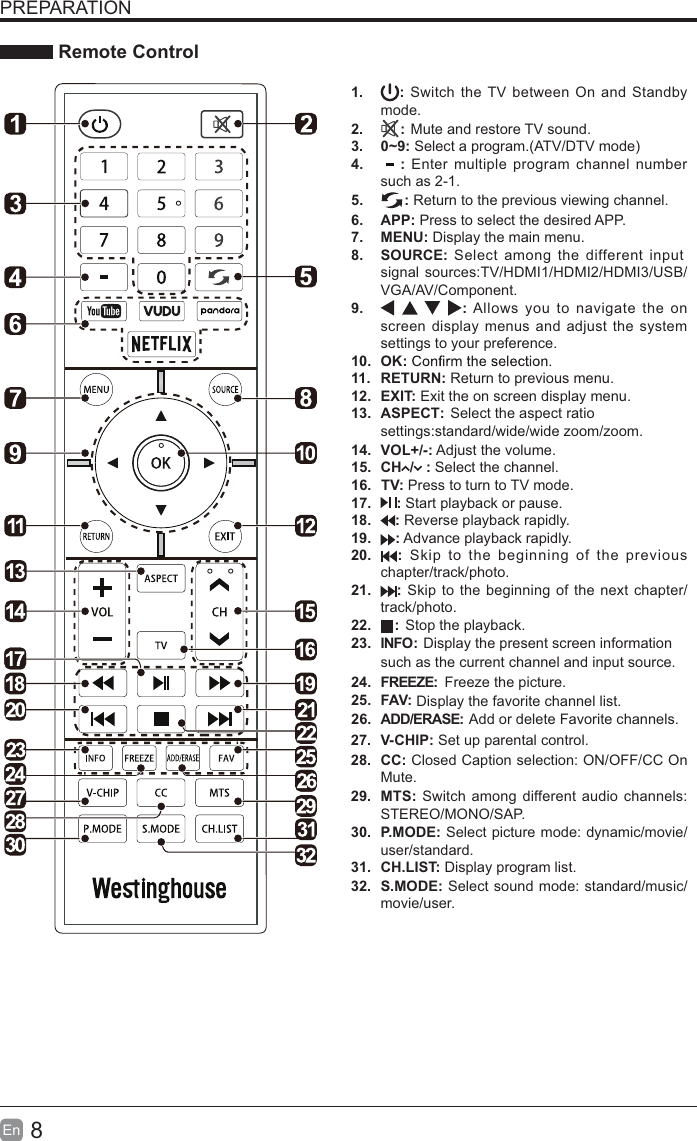
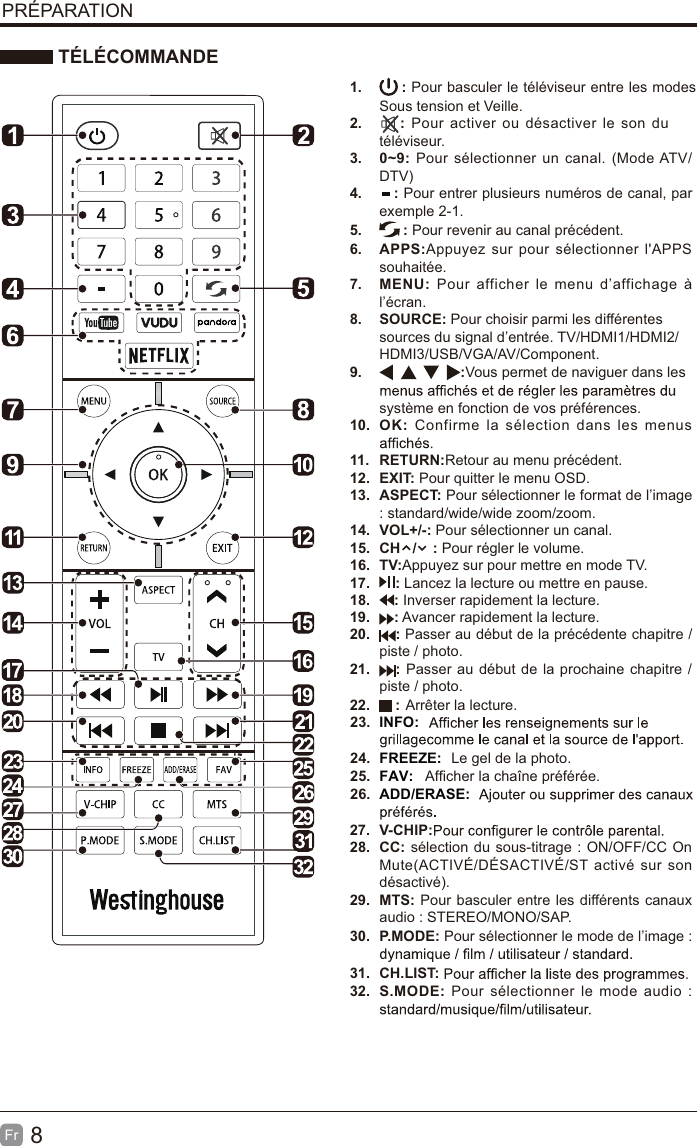
8EnPREPARATION Remote Control1. : Switch the TV between On and Standbymode.2. : Mute and restore TV sound.3. 0~9: Select a program.(ATV/DTV mode)4. : Enter multiple program channel numbersuch as 2-1.5. : Return to the previous viewing channel.6. APP: Press to select the desired APP.7. MENU: Display the main menu.8. SOURCE: Select among the different inputsignal sources:TV/HDMI1/HDMI2/HDMI3/USB/VGA/AV/Component.9. :Allows you to navigate the onscreen display menus and adjust the systemsettings to your preference.10. OK:11. RETURN: Return to previous menu.12. EXIT: Exit the on screen display menu.ASPECT: Select the aspect ratio 13.TV: Press to turn to TV mode.14. VOL+/-: Adjust the volume.15. CH  /   : Select the channel.16.17.: Stop the playback.  Freeze the picture.Display the favorite channel list.Add or delete Favorite channels.18.:Skip to the beginning of the previouschapter/track/photo.19.:Skip to the beginning of the next chapter/track/photo.20.: Reverse playback rapidly.21.:Advance playback rapidly.22.23.: Start playback or pause.24.25.P.MODE: Select picture mode: dynamic/movie/user/standard.S.MODE: Select sound mode: standard/music/movie/user.26.CH.LIST: Display program list.27.CC: Closed Caption selection: ON/OFF/CC OnMute.such as the current channel and input source.28.V-CHIP:INFO:FREEZE:ADD/ERASE:FAV: Set up parental control. Display the present screen information 29. MTS: Switch among different audio channels:STEREO/MONO/SAP.30.settings:standard/wide/wide zoom/zoom.31.32.
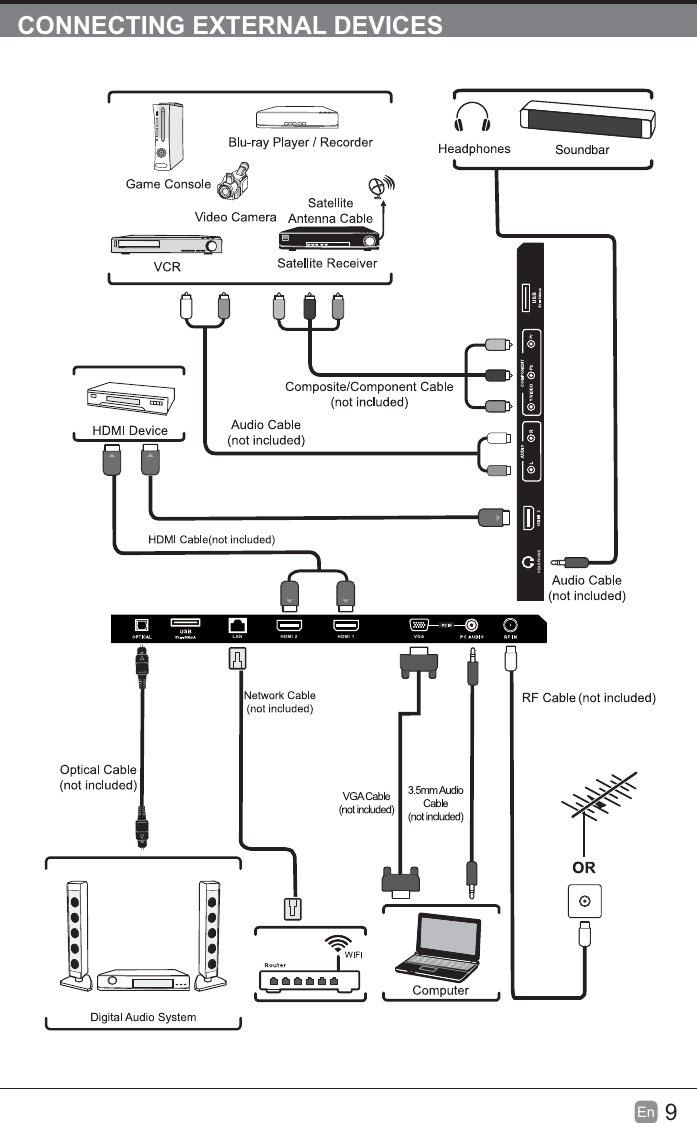
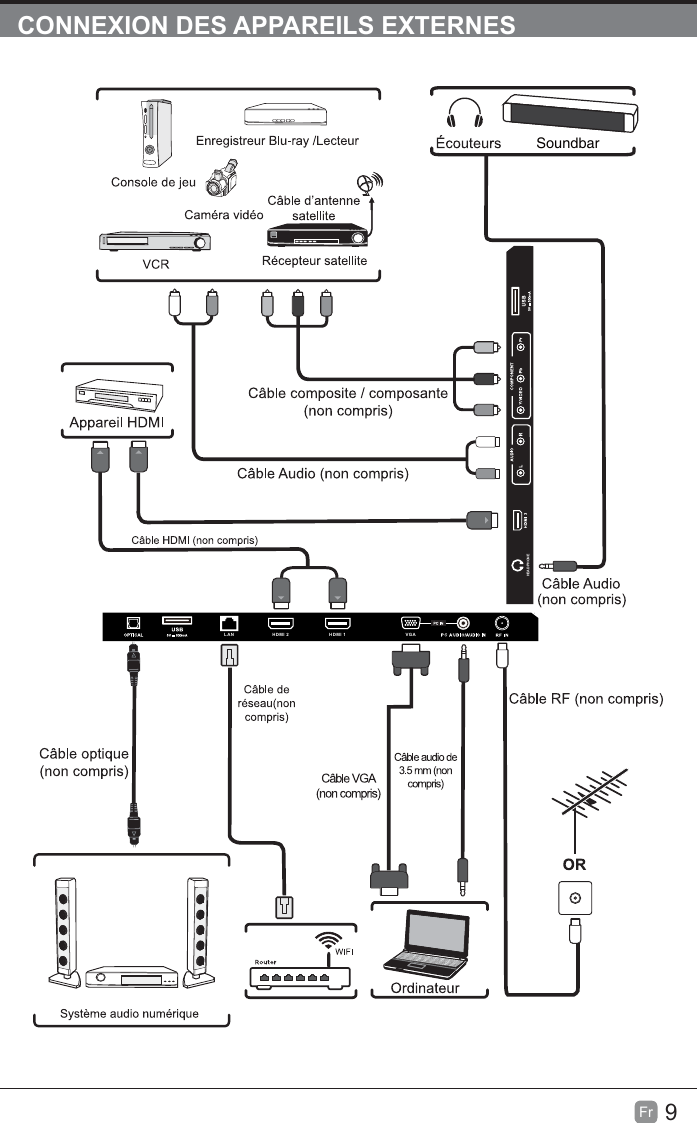
9EnCONNECTING EXTERNAL DEVICESSoundbarLAN HDMI 2 HDMI 1 VGAHEADPHONE
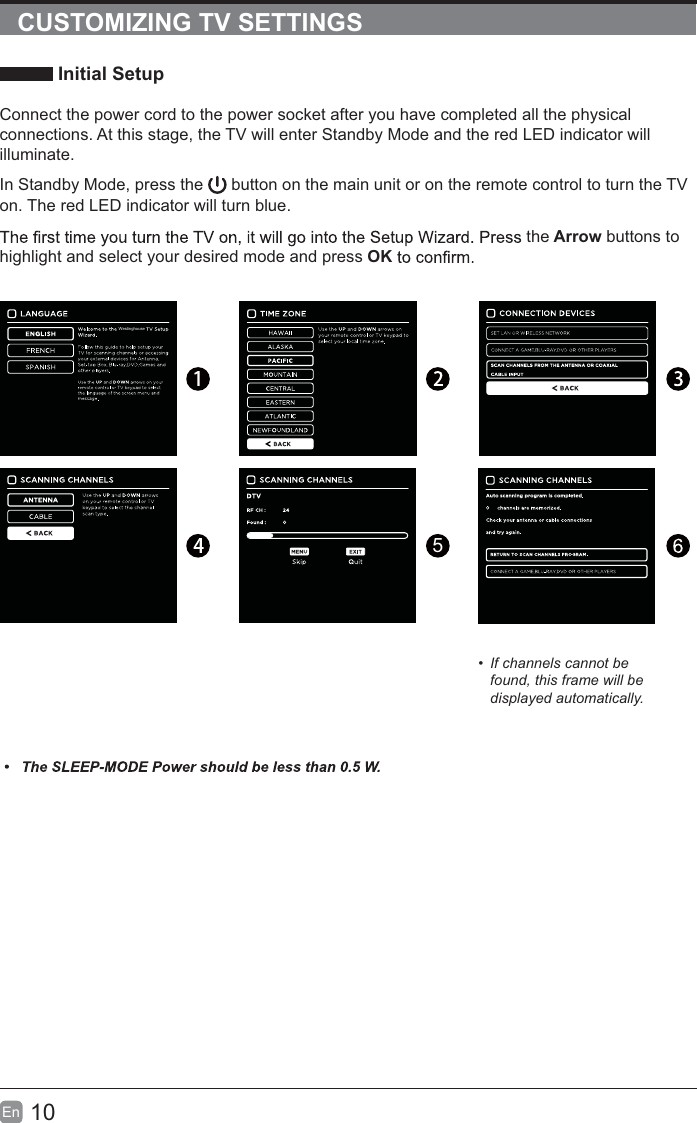
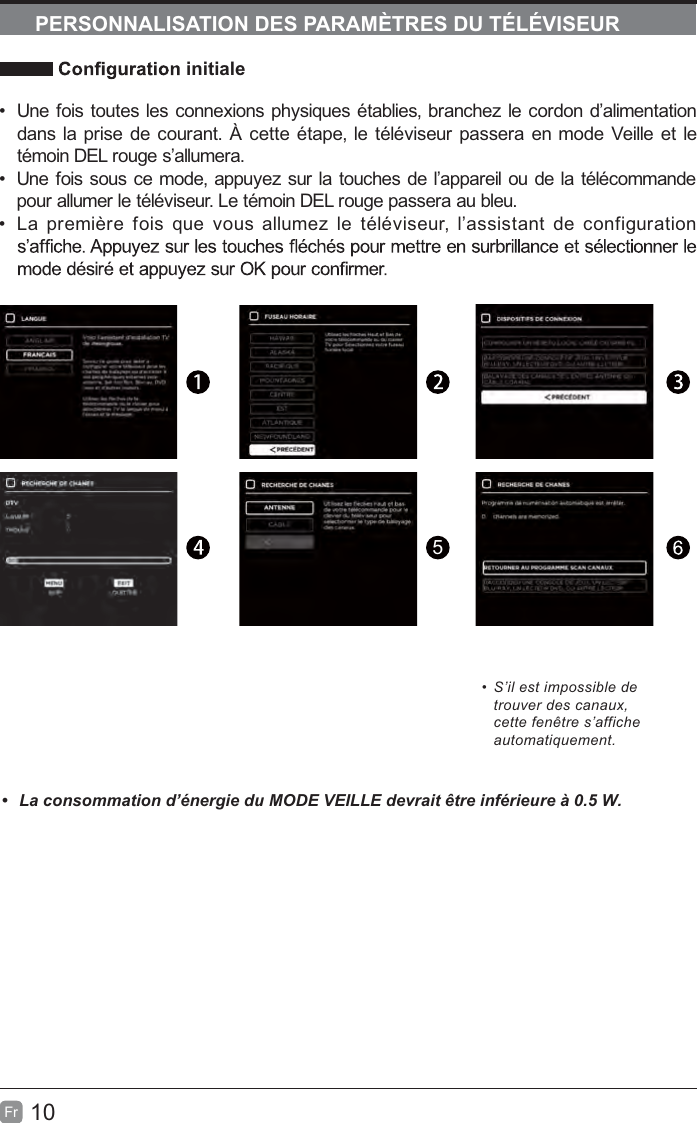
10EnCUSTOMIZING TV SETTINGS Initial SetupConnect the power cord to the power socket after you have completed all the physical connections. At this stage, the TV will enter Standby Mode and the red LED indicator will illuminate.In Standby Mode, press the   button on the main unit or on the remote control to turn the TVon. The red LED indicator will turn blue.the Arrow buttons tohighlight and select your desired mode and press OK5 If channels cannot be found, this frame will be displayed automatically.Westinghouse
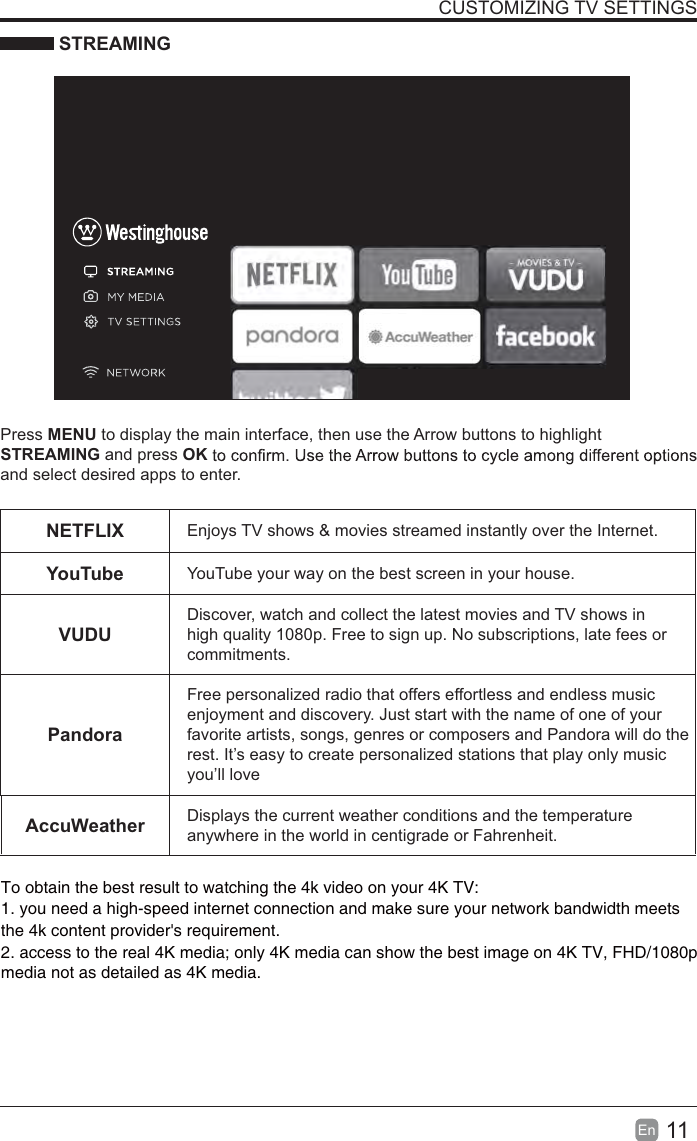
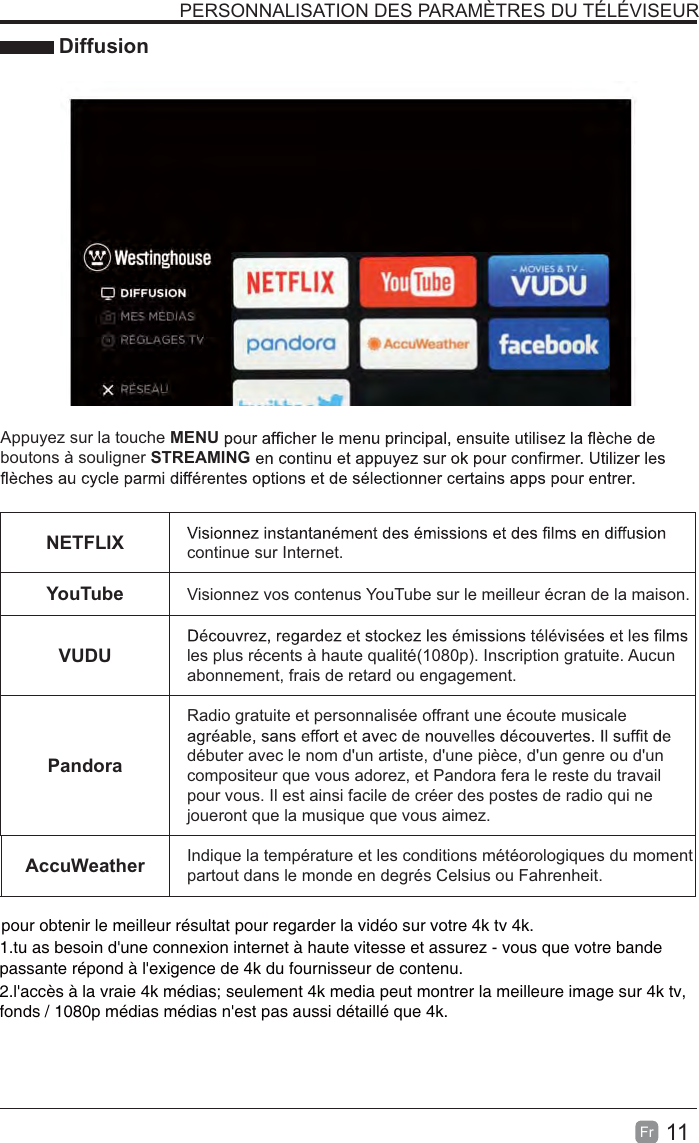
11EnCUSTOMIZING TV SETTINGS STREAMINGPress MENU to display the main interface, then use the Arrow buttons to highlight STREAMING and press OKand select desired apps to enter.NETFLIX Enjoys TV shows & movies streamed instantly over the Internet.YouTube YouTube your way on the best screen in your house.VUDUDiscover, watch and collect the latest movies and TV shows in high quality 1080p. Free to sign up. No subscriptions, late fees or commitments.PandoraFree personalized radio that offers effortless and endless music enjoyment and discovery. Just start with the name of one of your favorite artists, songs, genres or composers and Pandora will do the rest. It’s easy to create personalized stations that play only music you’ll loveAccuWeather Displays the current weather conditions and the temperature anywhere in the world in centigrade or Fahrenheit.To obtain the best result to watching the 4k video on your 4K TV:1. you need a high-speed internet connection and make sure your network bandwidth meets 2. access to the real 4K media; only 4K media can show the best image on 4K TV, FHD/1080p the 4k content provider's requirement.media not as detailed as 4K media.
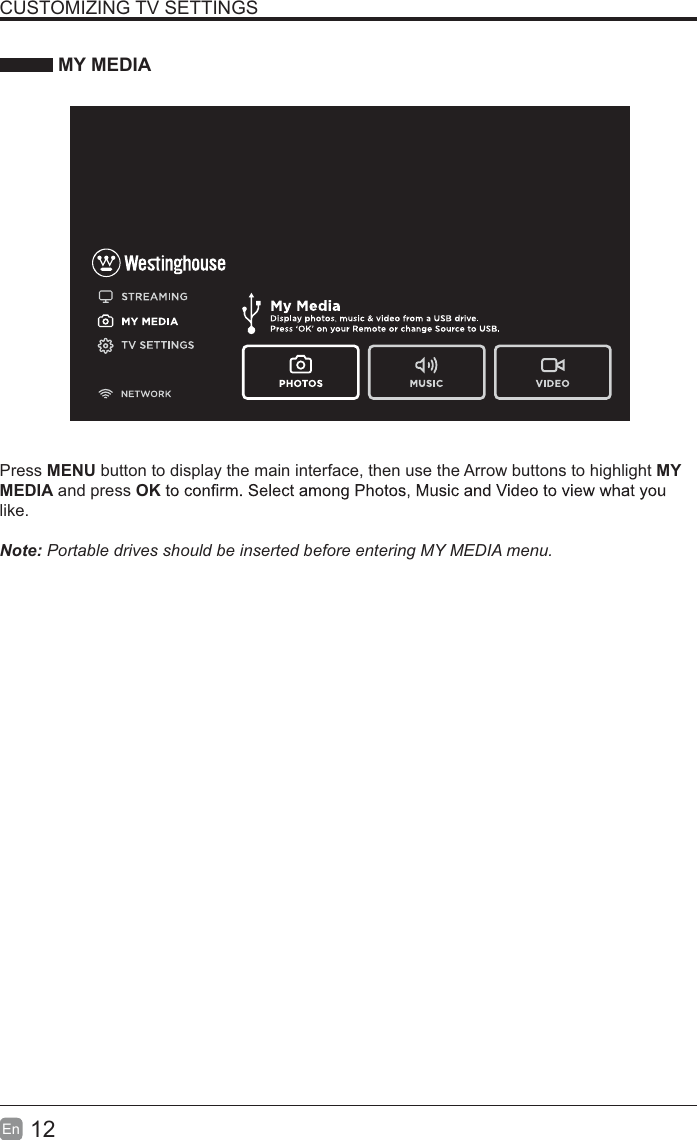
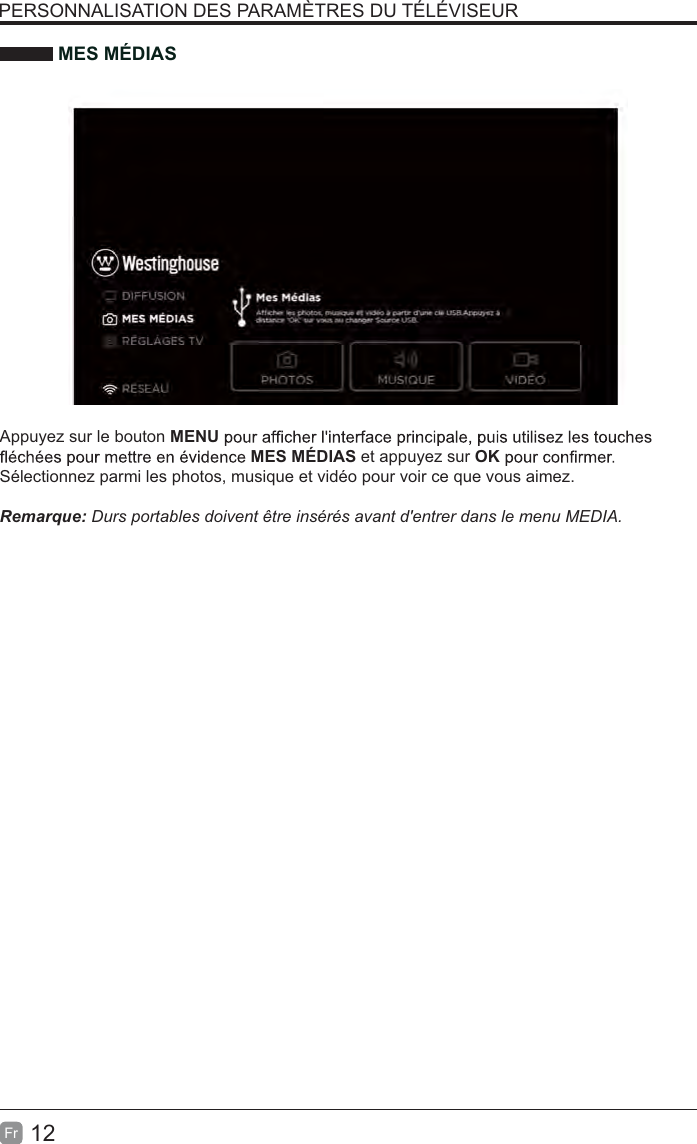
12EnCUSTOMIZING TV SETTINGS MY MEDIAPress MENU button to display the main interface, then use the Arrow buttons to highlight MYMEDIA and press OKlike.Note: Portable drives should be inserted before entering MY MEDIA menu.
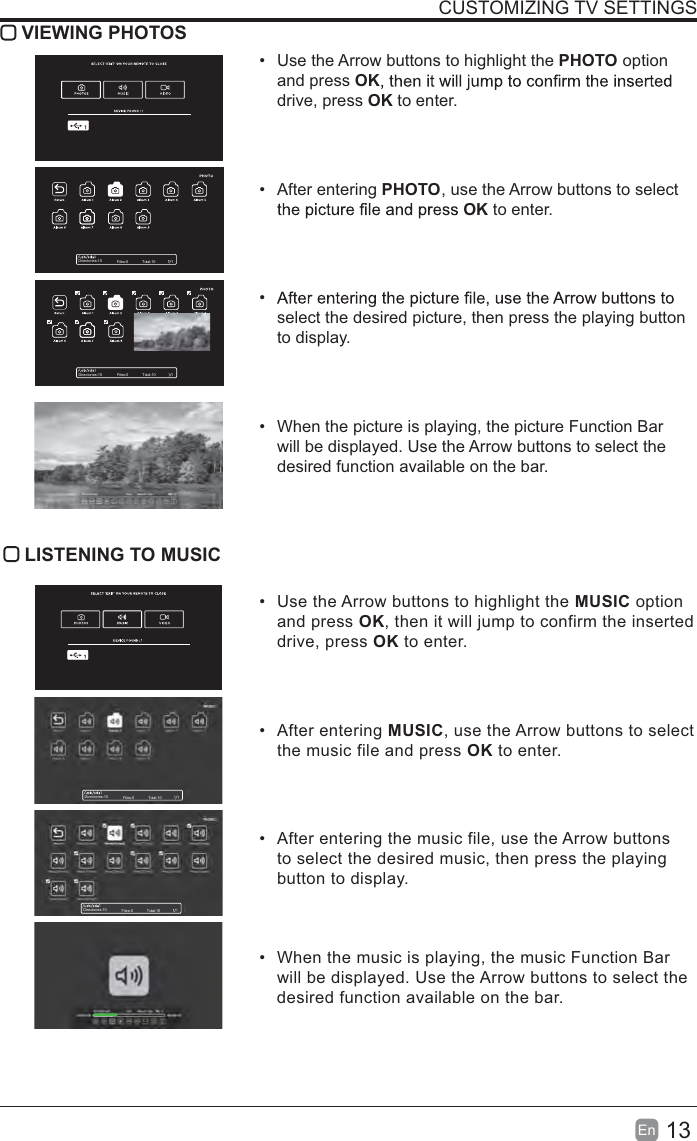
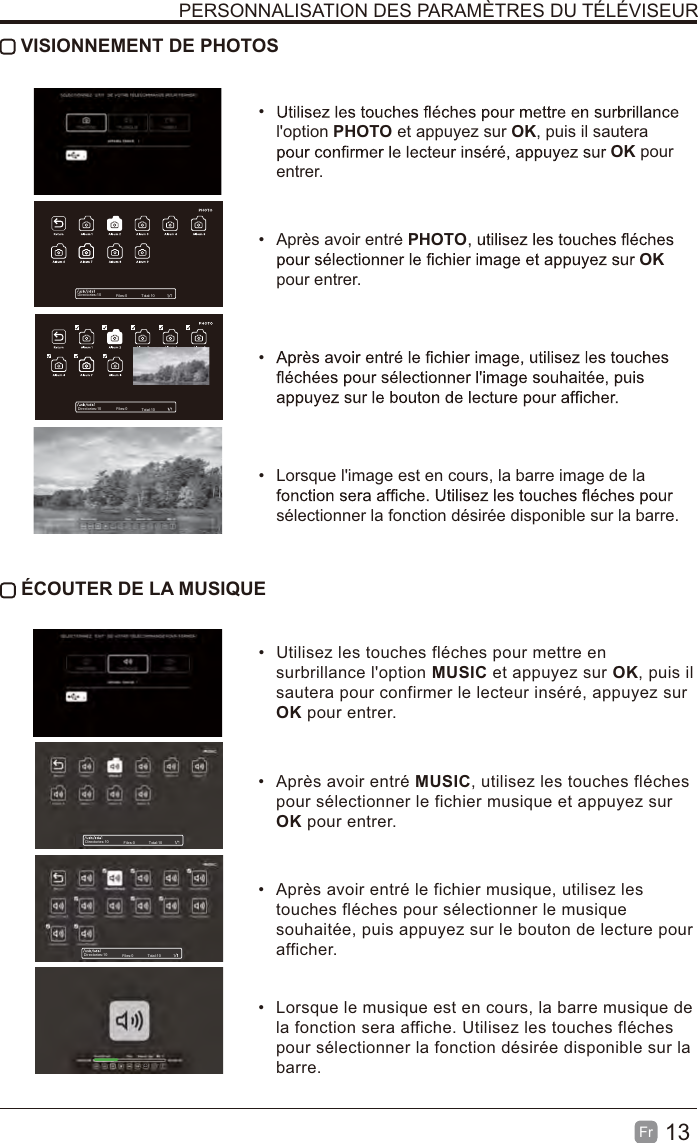
13EnCUSTOMIZING TV SETTINGS VIEWING PHOTOSUse the Arrow buttons to highlight the PHOTO option and press OKdrive, press OK to enter.After entering PHOTO, use the Arrow buttons to select OK to enter.select the desired picture, then press the playing button to display.When the picture is playing, the picture Function Bar will be displayed. Use the Arrow buttons to select the desired function available on the bar.LISTENING TO MUSICUse the Arrow buttons to highlight the MUSIC optionand press OK, then it will jump to confirm the inserteddrive, press OK to enter.After entering MUSIC, use the Arrow buttons to selectthe music file and press OK to enter.After entering the music file, use the Arrow buttonsto select the desired music, then press the playingbutton to display.When the music is playing, the music Function Barwill be displayed. Use the Arrow buttons to select thedesired function available on the bar.Directories:10 Files:0 Total:10Directories:10 Files:0 Total:10Directories:10 Files:0 Total:10Directories:10 Files:0 Total:10
14EnCUSTOMIZING TV SETTINGSWATCHING VIDEOSUse the Arrow buttons to highlight the VIDEO option and press OKpress OK to enter.After entering VIDEO, use the Arrow buttons to select OK to enter.select the desired video, then press the playing button to display.When the video is playing, the video Function Bar will be displayed. Use the Arrow buttons to select the desired function available on the bar. TV SETTINGSPress the MENU button on the main unit or on the remote control to display the main interface. Then use the Arrow buttons to highlight TV Settings and press OK to enter. Then use theArrow buttons to cycle among the following options and select the desired one to enter.Directories:10 Files:0 Total:10Directories:10 Files:0 Total:10
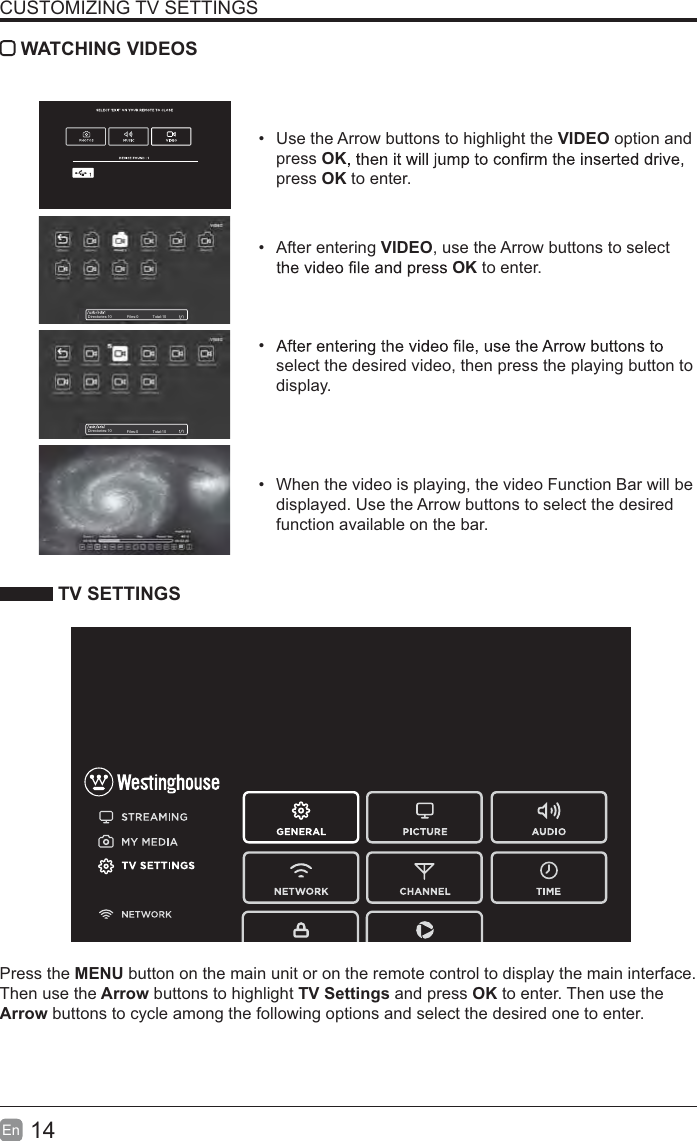
15EnCUSTOMIZING TV SETTINGSGENERALPress MENU to display the main interface, use the Arrow buttons to highlight TV SETTINGS and press OKGENERAL to enter and adjust each option setting. MENU LANGUAGESelect the menu language among English, Français or Español. Thedefault on-screen menu language is English.TRANSPARENCY Select to turn On/Off transparency function.ZOOM MODESelect zoom mode: Wide/Wide Zoom/Zoom/Just Scan/Standard/Dot by Dot.Note: With a different input source, the zoom mode options may differ.VGA SETTINGSAdjust advanced option’s setting: H-POS, V-POS, Clock, Phase or Auto.(only available in VGA mode)CLOSED CAPTIONCC mode On/Off/CC on Mute.BasicSelectionCC1/CC2/CC3 CC4/Text1/.../Text4/OFF.AdvancedSelectionSelect from Service 1 to Service 6.OptionMode, Font Style, Font Size, Font Edge Style, Font Edge Color, FG_Color, BG_Color, FG_Opacity, BG_Opacity.OTHER SETTINGSHDMI EDID: Select the HDMI version: Mode 1(HDMI 1.4)/Mode 2(HDMI 2.0).Inlink: Set the options: Inlink Control, Device Power Off, TV Power On, Audio Receive, Inlink Device List, Root Menu.RESTORE DEFAULT Restore the TV to factory default settings.SOFTWAREUPDATE (USB)Software Update In the case of a USB device.VIEW END-USERLINCENSEChoose "I have read the user agreement" to select Accept or Decline .SOFTWAREUPDATE(NETWORK)Software Update In the case of a NETWORK device.SOFTWAREINFORMATIONCheck Module Software VersionNetReady Device ID.View End-User LicenseSoftware Update(Network)Software InformationWIDE
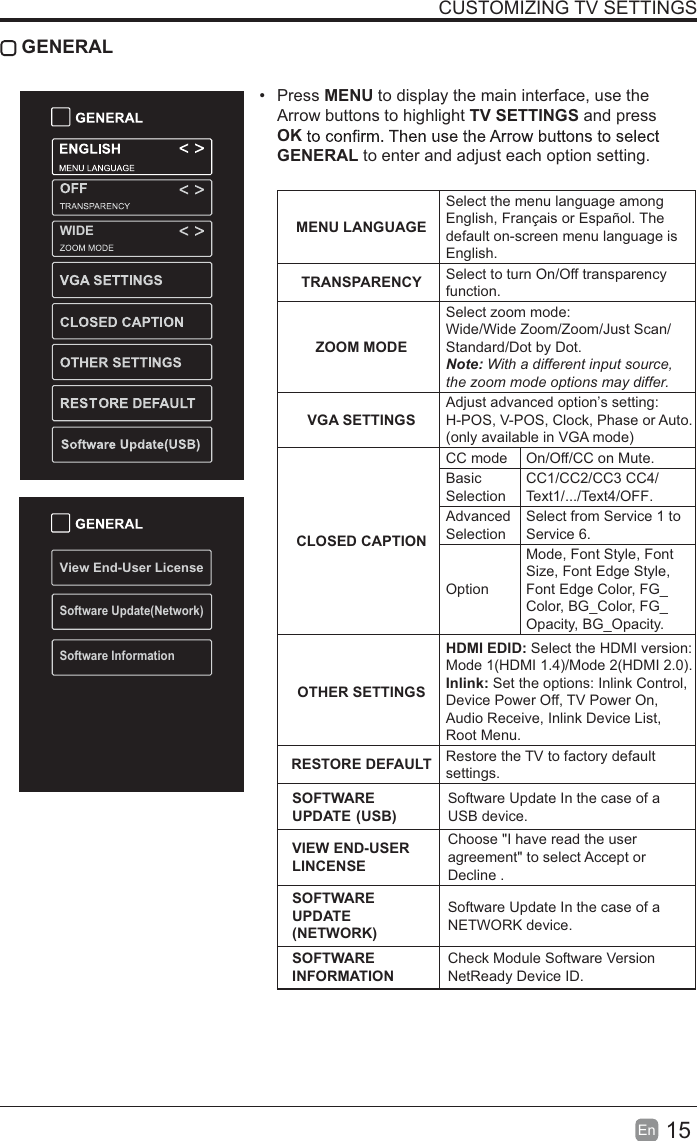
16EnCUSTOMIZING TV SETTINGS PICTUREPress MENU to display the main interface, use the Arrowbuttons to highlight TV SETTINGS and press OK to PICTUREto enter and adjust each option setting.PICTURE MODE Cycle among picture modes:Dynamic/Standard/Movie/User.BRIGHTNESS Increase or decrease the amount of white in the picture.CONTRAST Adjust the difference between light and dark levels in the pictures.COLOR Control the color intensity.SHARPNESS Adjust crispness level in edges between light and dark areas of the picture.TINT Adjust the balance between red and green levels.COLORTEMPERATURECycle among color temperatures: Normal/Warm/Cool.ADVANCEDOPTIONSet the following options:Noise Reduction: Reduce the noise level of the connected device: Off/Weak/Middle/Strong.White Balance: Set the different options of white balance.Backlight:  Set the value of backlight.AUTOOPEN HDROPEN HDR Cycle among picture modes:OFF/AUTO/LOW/MIDDLE/HIGH.
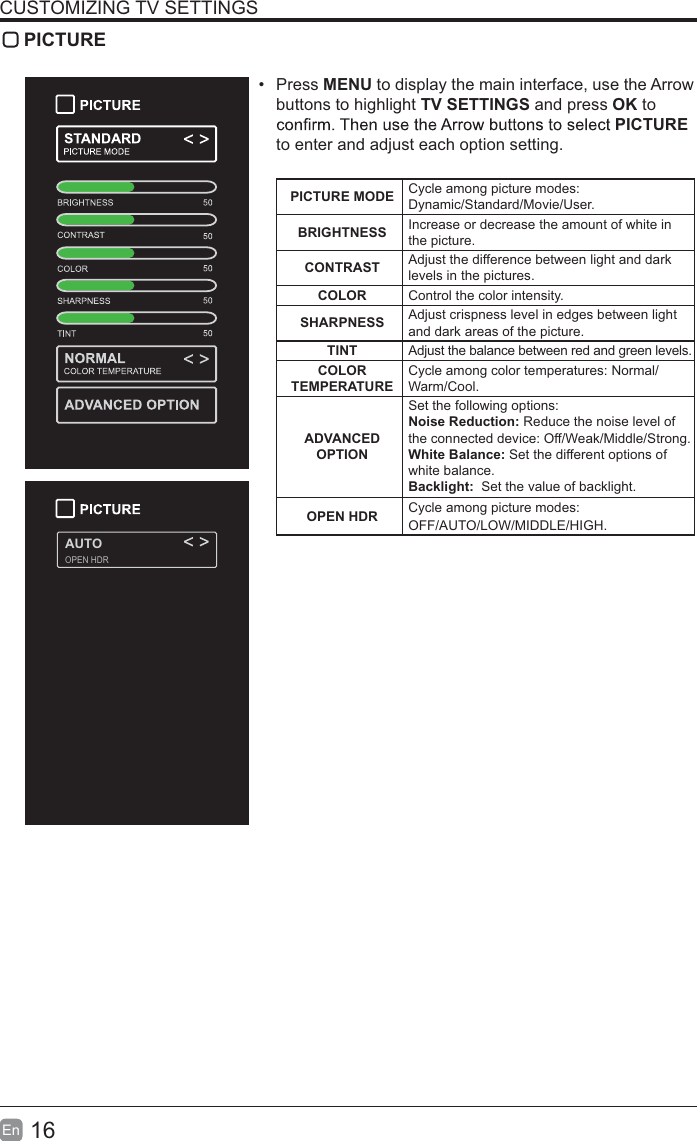
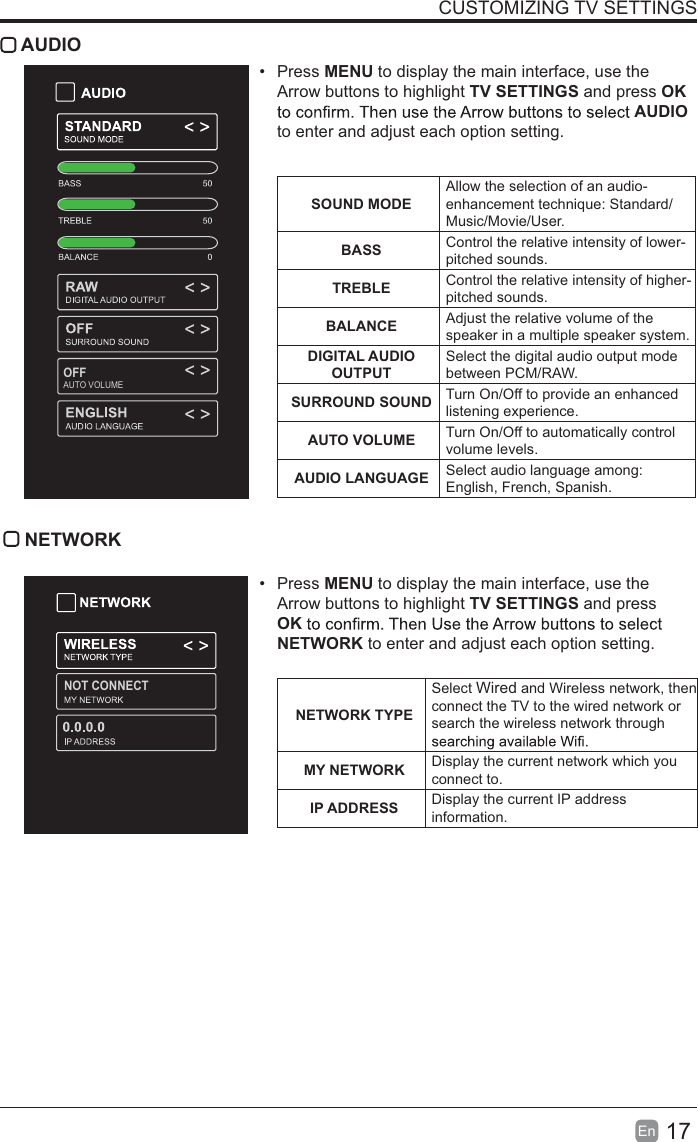
17EnCUSTOMIZING TV SETTINGSAUDIOPress MENU to display the main interface, use the Arrow buttons to highlight TV SETTINGS and press OKAUDIOto enter and adjust each option setting. SOUND MODEAllow the selection of an audio-enhancement technique: Standard/Music/Movie/User.BASS Control the relative intensity of lower-pitched sounds.TREBLE Control the relative intensity of higher-pitched sounds.BALANCE Adjust the relative volume of the speaker in a multiple speaker system.DIGITAL AUDIOOUTPUTSelect the digital audio output mode between PCM/RAW.SURROUND SOUND Turn On/Off to provide an enhanced listening experience.AUTO VOLUME Turn On/Off to automatically control volume levels.AUDIO LANGUAGE Select audio language among: English, French, Spanish. NETWORKPress MENU to display the main interface, use the Arrow buttons to highlight TV SETTINGS and press OKNETWORK to enter and adjust each option setting. NETWORK TYPESelect Wired and Wireless network, then connect the TV to the wired network or search the wireless network through MY NETWORK Display the current network which you connect to.IP ADDRESS Display the current IP address information.OFFAUTO VOLUMENOT CONNECT
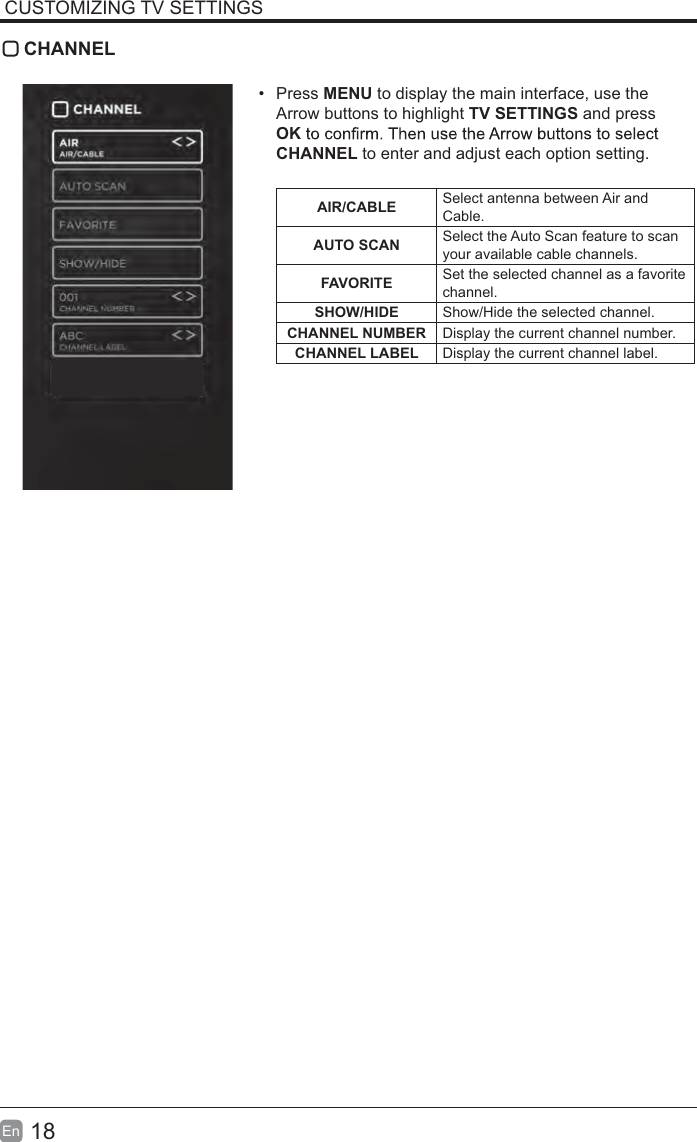
18EnCUSTOMIZING TV SETTINGSCHANNELPress MENU to display the main interface, use the Arrow buttons to highlight TV SETTINGS and press OKCHANNEL to enter and adjust each option setting. AIR/CABLE Select antenna between Air and Cable.AUTO SCAN Select the Auto Scan feature to scan your available cable channels.FAVORITE Set the selected channel as a favorite channel.SHOW/HIDE Show/Hide the selected channel.CHANNEL NUMBER Display the current channel number.CHANNEL LABEL Display the current channel label.
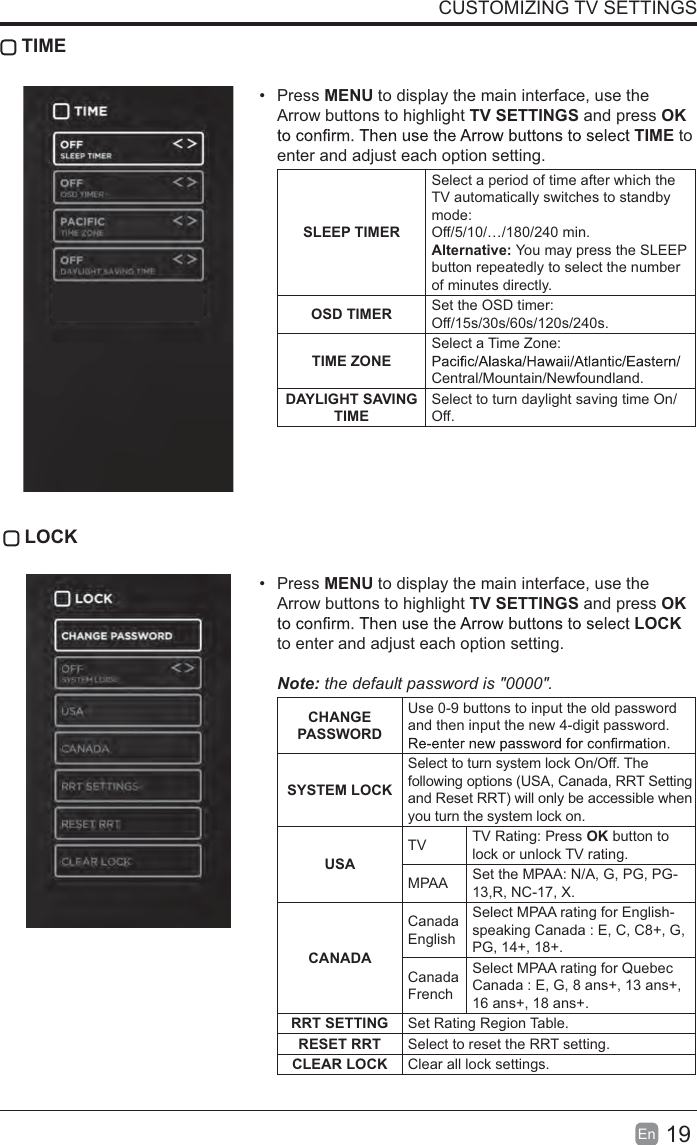
19EnCUSTOMIZING TV SETTINGS TIMEPress MENU to display the main interface, use the Arrow buttons to highlight TV SETTINGS and press OKTIME to enter and adjust each option setting.SLEEP TIMERSelect a period of time after which the TV automatically switches to standby mode:Off/5/10/…/180/240 min. Alternative: You may press the SLEEPbutton repeatedly to select the number of minutes directly.OSD TIMER Set the OSD timer: Off/15s/30s/60s/120s/240s.TIME ZONESelect a Time Zone: Central/Mountain/Newfoundland.DAYLIGHT SAVINGTIMESelect to turn daylight saving time On/Off.LOCKPress MENU to display the main interface, use the Arrow buttons to highlight TV SETTINGS and press OKLOCKto enter and adjust each option setting. Note: the default password is "0000".CHANGEPASSWORDUse 0-9 buttons to input the old password and then input the new 4-digit password. SYSTEM LOCKSelect to turn system lock On/Off. Thefollowing options (USA, Canada, RRT Settingand Reset RRT) will only be accessible whenyou turn the system lock on.USATV TV Rating: Press OK button to lock or unlock TV rating.MPAA Set the MPAA: N/A, G, PG, PG-13,R, NC-17, X.CANADACanadaEnglishSelect MPAA rating for English-speaking Canada : E, C, C8+, G, PG, 14+, 18+.CanadaFrenchSelect MPAA rating for Quebec Canada : E, G, 8 ans+, 13 ans+, 16 ans+, 18 ans+.RRT SETTING Set Rating Region Table.RESET RRT Select to reset the RRT setting.CLEAR LOCK Clear all lock settings.
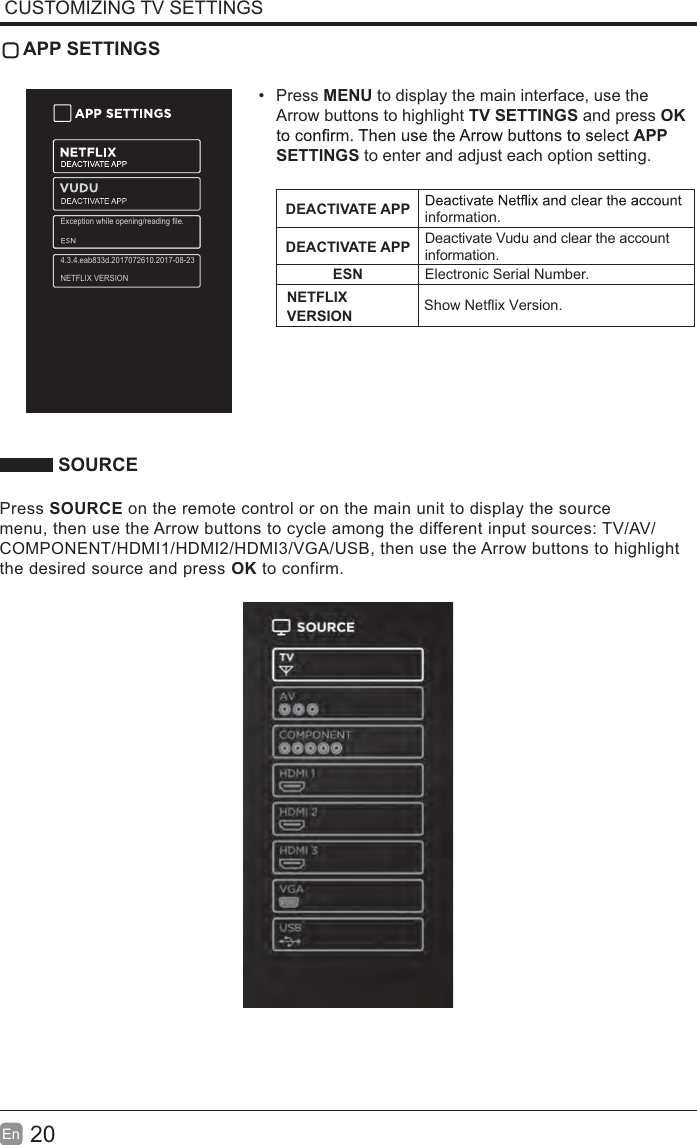
20EnCUSTOMIZING TV SETTINGSAPP SETTINGSPress MENU to display the main interface, use the Arrow buttons to highlight TV SETTINGS and press OKAPPSETTINGS to enter and adjust each option setting.DEACTIVATE APP information.DEACTIVATE APP Deactivate Vudu and clear the accountinformation.ESN Electronic Serial Number. SOURCEPress SOURCE on the remote control or on the main unit to display the sourcemenu, then use the Arrow buttons to cycle among the different input sources: TV/AV/COMPONENT/HDMI1/HDMI2/HDMI3/VGA/USB, then use the Arrow buttons to highlightthe desired source and press OK to confirm.NETFLIXVERSION Show Netflix Version.Exception while opening/reading file.4.3.4.eab833d.2017072610.2017-08-23NETFLIX VERSION
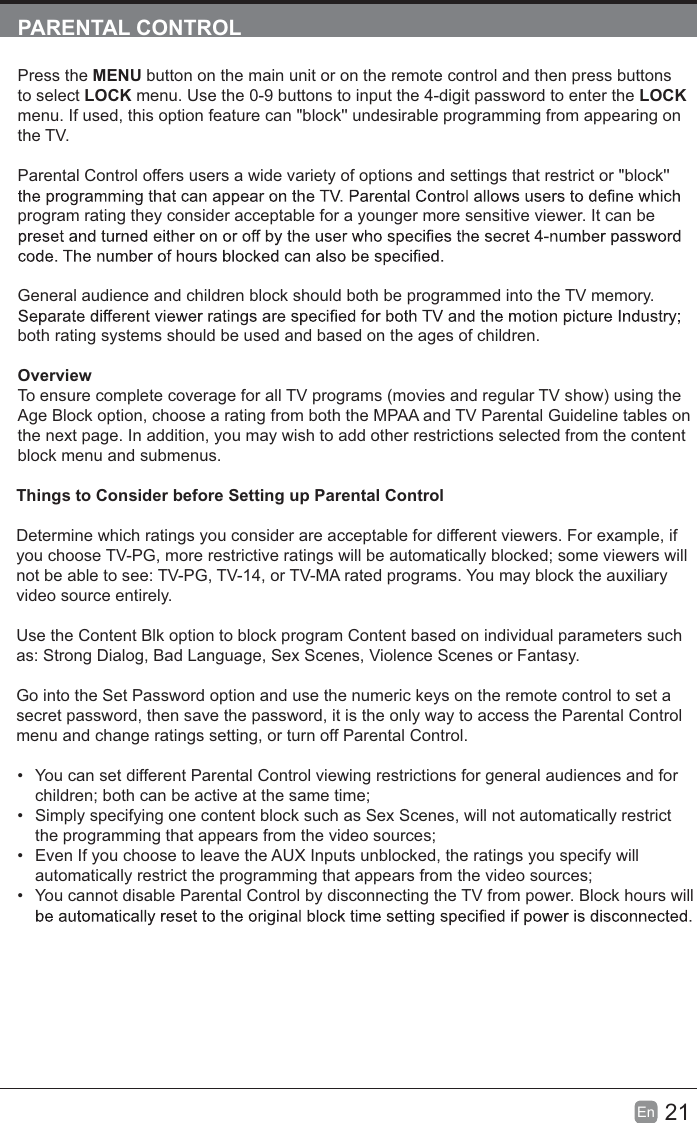
21EnPARENTAL CONTROLPress the MENU button on the main unit or on the remote control and then press buttons to select LOCK menu. Use the 0-9 buttons to input the 4-digit password to enter the LOCKmenu. If used, this option feature can "block'' undesirable programming from appearing on the TV.Parental Control offers users a wide variety of options and settings that restrict or "block'' program rating they consider acceptable for a younger more sensitive viewer. It can be General audience and children block should both be programmed into the TV memory.both rating systems should be used and based on the ages of children.OverviewTo ensure complete coverage for all TV programs (movies and regular TV show) using the Age Block option, choose a rating from both the MPAA and TV Parental Guideline tables on the next page. In addition, you may wish to add other restrictions selected from the content block menu and submenus.Things to Consider before Setting up Parental ControlDetermine which ratings you consider are acceptable for different viewers. For example, if you choose TV-PG, more restrictive ratings will be automatically blocked; some viewers will not be able to see: TV-PG, TV-14, or TV-MA rated programs. You may block the auxiliary video source entirely.Use the Content Blk option to block program Content based on individual parameters such as: Strong Dialog, Bad Language, Sex Scenes, Violence Scenes or Fantasy.Go into the Set Password option and use the numeric keys on the remote control to set a secret password, then save the password, it is the only way to access the Parental Control menu and change ratings setting, or turn off Parental Control.You can set different Parental Control viewing restrictions for general audiences and for children; both can be active at the same time;Simply specifying one content block such as Sex Scenes, will not automatically restrict the programming that appears from the video sources;Even If you choose to leave the AUX Inputs unblocked, the ratings you specify will automatically restrict the programming that appears from the video sources;You cannot disable Parental Control by disconnecting the TV from power. Block hours will
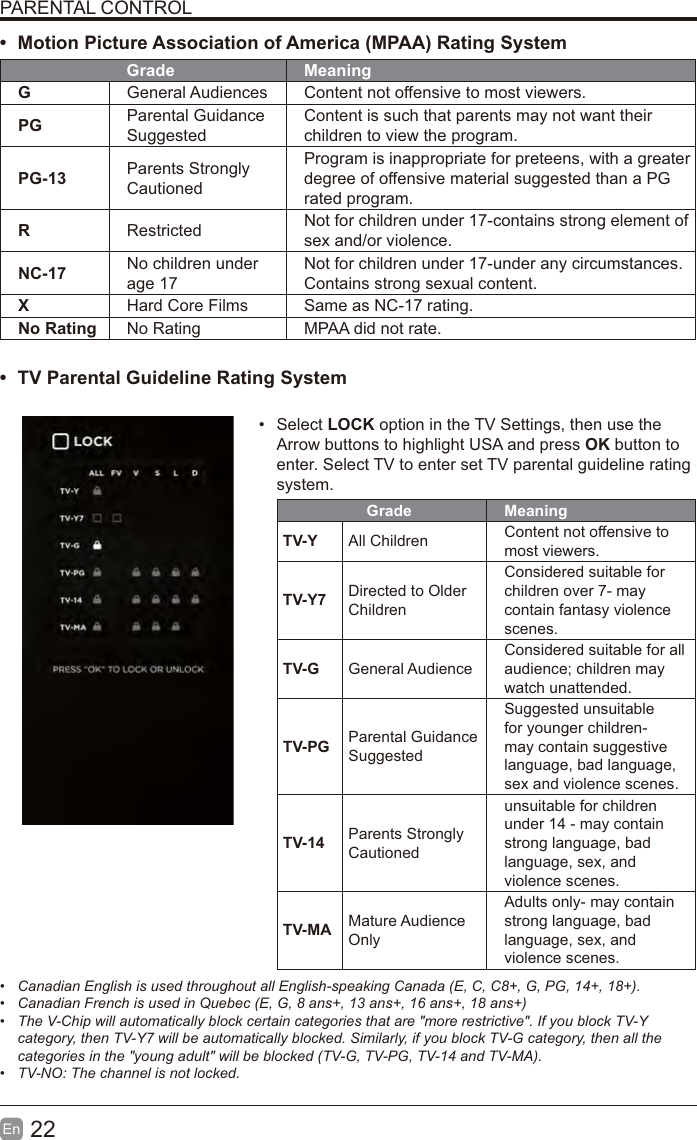
22EnPARENTAL CONTROLt Motion Picture Association of America (MPAA) Rating SystemGrade MeaningGGeneral Audiences Content not offensive to most viewers.PG Parental Guidance SuggestedContent is such that parents may not want their children to view the program.PG-13 Parents Strongly CautionedProgram is inappropriate for preteens, with a greater degree of offensive material suggested than a PG rated program.RRestricted Not for children under 17-contains strong element of sex and/or violence.NC-17 No children under age 17Not for children under 17-under any circumstances. Contains strong sexual content.XHard Core Films Same as NC-17 rating.No Rating No Rating MPAA did not rate.t TV Parental Guideline Rating SystemSelect LOCK option in the TV Settings, then use the Arrow buttons to highlight USA and press OK button to enter. Select TV to enter set TV parental guideline rating system.Grade MeaningTV-Y All Children Content not offensive to most viewers.TV-Y7 Directed to Older ChildrenConsidered suitable for children over 7- may contain fantasy violence scenes.TV-G General AudienceConsidered suitable for all audience; children may watch unattended.TV-PG Parental Guidance SuggestedSuggested unsuitable for younger children-may contain suggestive language, bad language, sex and violence scenes.TV-14 Parents Strongly Cautionedunsuitable for children under 14 - may contain strong language, bad language, sex, and violence scenes.TV-MA Mature AudienceOnlyAdults only- may contain strong language, bad language, sex, and violence scenes. Canadian English is used throughout all English-speaking Canada (E, C, C8+, G, PG, 14+, 18+).  Canadian French is used in Quebec (E, G, 8 ans+, 13 ans+, 16 ans+, 18 ans+)  The V-Chip will automatically block certain categories that are "more restrictive". If you block TV-Ycategory, then TV-Y7 will be automatically blocked. Similarly, if you block TV-G category, then all the categories in the "young adult" will be blocked (TV-G, TV-PG, TV-14 and TV-MA). TV-NO: The channel is not locked.
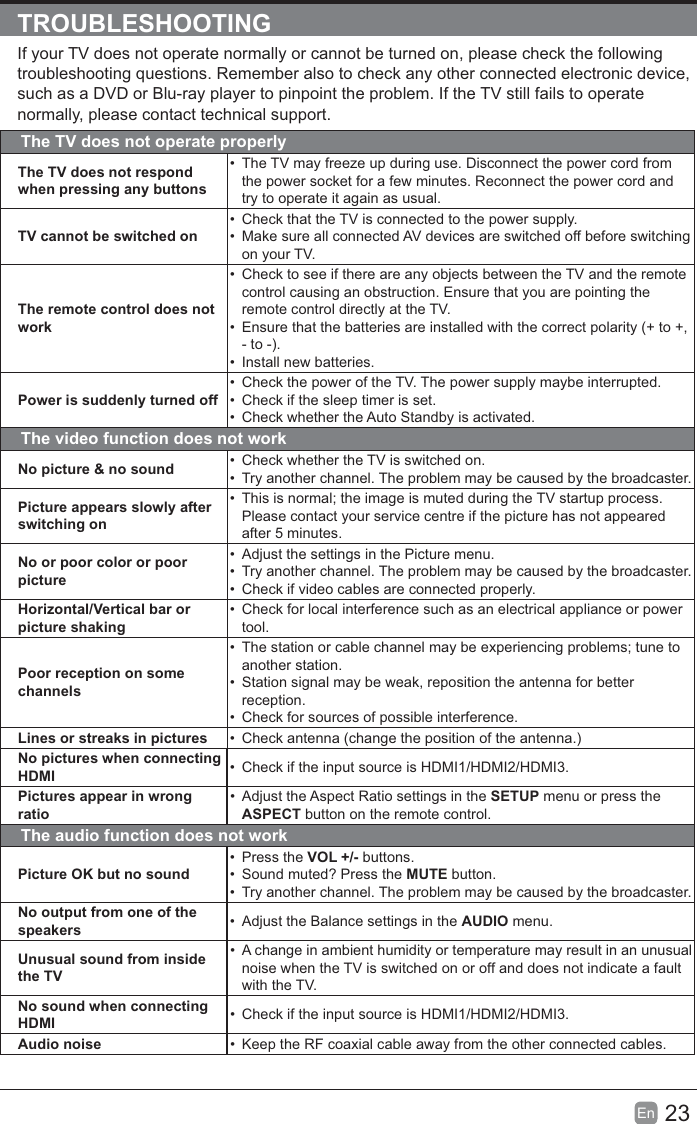
23EnTROUBLESHOOTINGIf your TV does not operate normally or cannot be turned on, please check the following troubleshooting questions. Remember also to check any other connected electronic device, such as a DVD or Blu-ray player to pinpoint the problem. If the TV still fails to operate normally, please contact technical support.The TV does not operate properlyThe TV does not respond when pressing any buttonsThe TV may freeze up during use. Disconnect the power cord from the power socket for a few minutes. Reconnect the power cord and try to operate it again as usual.TV cannot be switched onCheck that the TV is connected to the power supply.Make sure all connected AV devices are switched off before switching on your TV.The remote control does not workCheck to see if there are any objects between the TV and the remote control causing an obstruction. Ensure that you are pointing the remote control directly at the TV.Ensure that the batteries are installed with the correct polarity (+ to +, - to -).Install new batteries. Power is suddenly turned offCheck the power of the TV. The power supply maybe interrupted.Check if the sleep timer is set.Check whether the Auto Standby is activated. The video function does not workNo picture & no sound Check whether the TV is switched on.Try another channel. The problem may be caused by the broadcaster.Picture appears slowly after switching onThis is normal; the image is muted during the TV startup process. Please contact your service centre if the picture has not appeared after 5 minutes.No or poor color or poor pictureAdjust the settings in the Picture menu.Try another channel. The problem may be caused by the broadcaster.Check if video cables are connected properly.Horizontal/Vertical bar or picture shakingCheck for local interference such as an electrical appliance or power tool.Poor reception on some channelsThe station or cable channel may be experiencing problems; tune to another station.Station signal may be weak, reposition the antenna for better reception.Check for sources of possible interference.Lines or streaks in pictures Check antenna (change the position of the antenna.)No pictures when connecting HDMI Check if the input source is HDMI1/HDMI2/HDMI3.Pictures appear in wrong ratioAdjust the Aspect Ratio settings in the SETUP menu or press the ASPECT button on the remote control.The audio function does not workPicture OK but no soundPress the VOL +/- buttons. Sound muted? Press the MUTE button.Try another channel. The problem may be caused by the broadcaster.No output from one of the speakers Adjust the Balance settings in the AUDIO menu.Unusual sound from inside the TVA change in ambient humidity or temperature may result in an unusualnoise when the TV is switched on or off and does not indicate a fault with the TV.No sound when connecting HDMI Check if the input source is HDMI1/HDMI2/HDMI3.Audio noise Keep the RF coaxial cable away from the other connected cables.
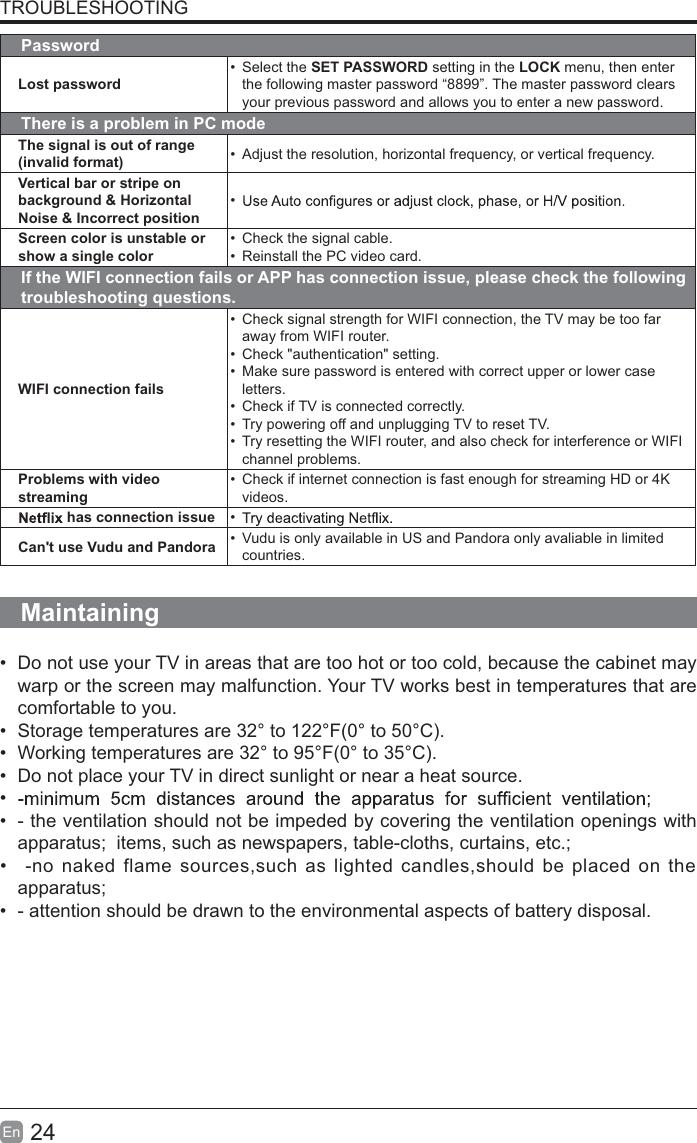
24EnTROUBLESHOOTINGPasswordLost passwordSelect the SET PASSWORD setting in the LOCK menu, then enter the following master password “8899”. The master password clears your previous password and allows you to enter a new password.There is a problem in PC modeThe signal is out of range (invalid format) Adjust the resolution, horizontal frequency, or vertical frequency.Vertical bar or stripe on background & Horizontal Noise & Incorrect positionScreen color is unstable or show a single colorCheck the signal cable.Reinstall the PC video card.If the WIFI connection fails or APP has connection issue, please check the following troubleshooting questions.WIFI connection failsCheck signal strength for WIFI connection, the TV may be too far away from WIFI router.Check "authentication" setting.Make sure password is entered with correct upper or lower case letters.Check if TV is connected correctly.Try powering off and unplugging TV to reset TV.Try resetting the WIFI router, and also check for interference or WIFI channel problems.Problems with video streamingCheck if internet connection is fast enough for streaming HD or 4K videos.has connection issue Can't use Vudu and Pandora Vudu is only available in US and Pandora only avaliable in limited countries.MaintainingDo not use your TV in areas that are too hot or too cold, because the cabinet maywarp or the screen may malfunction. Your TV works best in temperatures that arecomfortable to you.Storage temperatures are 32° to 122°F(0° to 50°C).Working temperatures are 32° to 95°F(0° to 35°C).Do not place your TV in direct sunlight or near a heat source.- the ventilation should not be impeded by covering the ventilation openings withapparatus;  items, such as newspapers, table-cloths, curtains, etc.;-no naked flame sources,such as lighted candles,should be placed on theapparatus;- attention should be drawn to the environmental aspects of battery disposal.
25EnSPECIFICATIONThe FCC Wants You to Know.Panel Size 43 inch diagonally Display Type LEDPanel Technology TFTPanel 60 Hz Vs. 120 Hz 60 HzDisplay Resolution  3840 x 2160HDMI Support 3840 x 2160 60HzPanel Resolution  3840 x 2160Aspect Ratio 16:9Dynamic Contrast Ratio-Panel 1000:1Response Time (G To G) 8 msLamp Life (Typ. Hours) 20,000 hoursHorizontal Viewing Angle (At CR>10) 176Vertical Viewing Angle (At CR>10) 176Wall-mount(LxW-mm) 200*200 VESA(mm)
26EnIf you want to know about these APP information or get more service. Please refer to followingcontent.tYou can call the following telephone for more help: 866-579-7172If y our m atter is r egarding c ustomer service, p lease r efer t o  foralternative contact information.t YouTubeYou can browse the following website for more help:https://productforums.google.com/forum/#!categories/youtube/smart-tvst VUDUYou can call the following telephone for more help: 888-554-8838t PandoraYou can send E-mail to Pandora for more help: pandora-support@pandora.comt AccuWeatherYou can send E-mail to AccuWeather for more help: CustomerService@AccuWeather.comPlease call Westinghouse E lectronics a t (800) 701-0680 f or t he l ocations o f the nearestWestinghouse Electronics service center or to obtain in-home services.OTT APP SERVICE  OBTAINING WARRANTY SERVICE
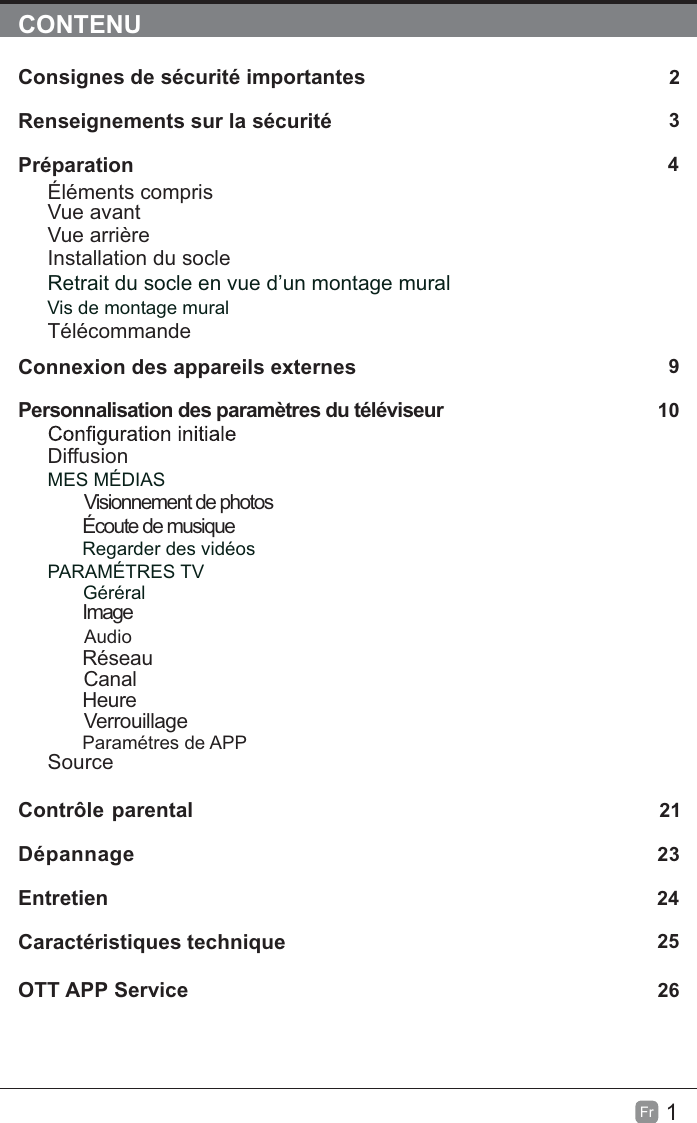
1FrCONTENUConsignes de sécurité importantes                                                       2Renseignements sur la sécurité                                                             3Préparation 4Éléments comprisVue avantVue arrièreInstallation du socleRetrait du socle en vue d’un montage muralVis de montage muralTélécommandeConnexion des appareils externes 9Personnalisation des paramètres du téléviseur                                      10DiffusionMES MÉDIASVisionnement de photos        Écoute de musiqueRegarder des vidéosPARAMÉTRES TVGéréral    ImageAudioRéseauCanalHeureVerrouillageParamétres de APPSourceContrôle parental 21Dépannage 23Entretien                                                                                                    24Caractéristiques technique                                                                  25OTT APP Service 26
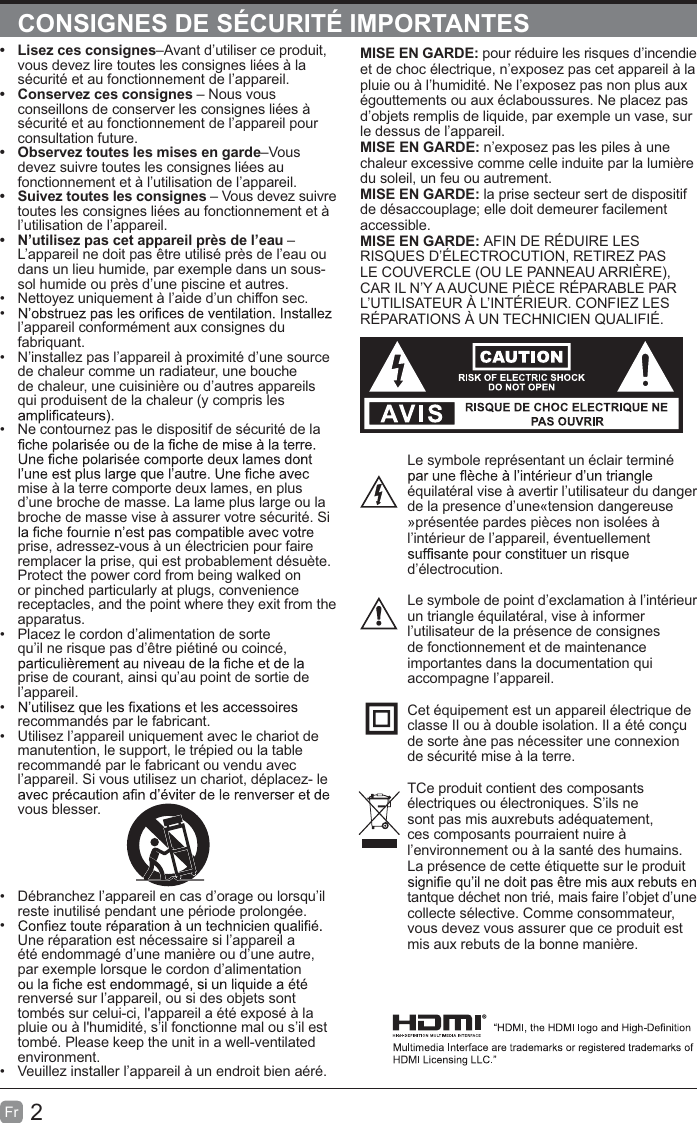
2FrCONSIGNES DE SÉCURITÉ IMPORTANTESMISE EN GARDE: pour réduire les risques d’incendieet de choc électrique, n’exposez pas cet appareil à lapluie ou à l’humidité. Ne l’exposez pas non plus auxégouttements ou aux éclaboussures. Ne placez pasd’objets remplis de liquide, par exemple un vase, surle dessus de l’appareil.MISE EN GARDE: n’exposez pas les piles à unechaleur excessive comme celle induite par la lumièredu soleil, un feu ou autrement.MISE EN GARDE: la prise secteur sert de dispositifde désaccouplage; elle doit demeurer facilementaccessible.MISE EN GARDE: AFIN DE RÉDUIRE LESRISQUES D’ÉLECTROCUTION, RETIREZ PASLE COUVERCLE (OU LE PANNEAU ARRIÈRE),CAR IL N’Y A AUCUNE PIÈCE RÉPARABLE PARL’UTILISATEUR À L’INTÉRIEUR. CONFIEZ LESRÉPARATIONS À UN TECHNICIEN QUALIFIÉ.Le symbole représentant un éclair terminééquilatéral vise à avertir l’utilisateur du dangerde la presence d’une«tension dangereuse»présentée pardes pièces non isolées àl’intérieur de l’appareil, éventuellementd’électrocution.Le symbole de point d’exclamation à l’intérieurun triangle équilatéral, vise à informerl’utilisateur de la présence de consignesde fonctionnement et de maintenanceimportantes dans la documentation quiaccompagne l’appareil.Cet équipement est un appareil électrique declasse II ou à double isolation. Il a été conçude sorte àne pas nécessiter une connexionde sécurité mise à la terre.TCe produit contient des composantsélectriques ou électroniques. S’ils nesont pas mis auxrebuts adéquatement,ces composants pourraient nuire àl’environnement ou à la santé des humains.La présence de cette étiquette sur le produittantque déchet non trié, mais faire l’objet d’unecollecte sélective. Comme consommateur,vous devez vous assurer que ce produit estmis aux rebuts de la bonne manière.tLisez ces consignes–Avant d’utiliser ce produit,vous devez lire toutes les consignes liées à lasécurité et au fonctionnement de l’appareil.tConservez ces consignes – Nous vousconseillons de conserver les consignes liées àsécurité et au fonctionnement de l’appareil pourconsultation future.tObservez toutes les mises en garde–Vousdevez suivre toutes les consignes liées aufonctionnement et à l’utilisation de l’appareil.tSuivez toutes les consignes – Vous devez suivretoutes les consignes liées au fonctionnement et àl’utilisation de l’appareil.tN’utilisez pas cet appareil près de l’eau –L’appareil ne doit pas être utilisé près de l’eau oudans un lieu humide, par exemple dans un sous-sol humide ou près d’une piscine et autres.Nettoyez uniquement à l’aide d’un chiffon sec.l’appareil conformément aux consignes dufabriquant.N’installez pas l’appareil à proximité d’une sourcede chaleur comme un radiateur, une bouchede chaleur, une cuisinière ou d’autres appareilsqui produisent de la chaleur (y compris lesNe contournez pas le dispositif de sécurité de lamise à la terre comporte deux lames, en plusd’une broche de masse. La lame plus large ou labroche de masse vise à assurer votre sécurité. Siprise, adressez-vous à un électricien pour faireremplacer la prise, qui est probablement désuète.Protect the power cord from being walked onor pinched particularly at plugs, conveniencereceptacles, and the point where they exit from theapparatus.Placez le cordon d’alimentation de sortequ’il ne risque pas d’être piétiné ou coincé,prise de courant, ainsi qu’au point de sortie del’appareil.recommandés par le fabricant.Utilisez l’appareil uniquement avec le chariot demanutention, le support, le trépied ou la tablerecommandé par le fabricant ou vendu avecl’appareil. Si vous utilisez un chariot, déplacez- levous blesser.Débranchez l’appareil en cas d’orage ou lorsqu’ilreste inutilisé pendant une période prolongée.Une réparation est nécessaire si l’appareil aété endommagé d’une manière ou d’une autre,par exemple lorsque le cordon d’alimentationrenversé sur l’appareil, ou si des objets sonttombés sur celui-ci, l'appareil a été exposé à lapluie ou à l'humidité, s’il fonctionne mal ou s’il esttombé. Please keep the unit in a well-ventilatedenvironment.Veuillez installer l’appareil à un endroit bien aéré.
3FrRENSEIGNEMENTS SUR LA SÉCURITÉles consignes de ce guide d’utilisation, et plus particulièrement les renseignements ci-dessous portantsur la sécurité.SÉCURITÉ ÉLECTRIQUELe téléviseur ne doit être raccordé qu’à l’alimentation principale, à une tension correspondant à celleindiquée sur l’étiquette à l’arrière de l’appareil.Pour éviter les surcharges, ne branchez pas plusieurs autres appareils électroniques sur la prise utiliséepour le téléviseu.Pour éviter le piétinement et les chutes, ne placez pas les câbles de connexion à des endroits où lesgens circulent.Pour éviter d’endommager les câbles de connexion, ne posez pas d’objets lourds sur ceux-ci.he et non sur le câble.En cas d’orage ou lorsque le téléviseur reste inutilisé pendant une période prolongée, fermez l’interrupteurd’alimentation à l’arrière de l’appareil.Évitez de laisser de l’eau ou de l’humidité pénétrer à l’intérieur du téléviseur ou de l’adaptateur decourant. N’utilisez PAS l’appareil dans une pièce mouillée ou humide, comme une salle de bain ou unecuisine pleine de vapeur, ou près d’une piscine.Débranchez immédiatement l’appareil et demandez l’aide d’un proendommagé, si du liquide a été renversé sur le téléviseur, si celui-ci est exposé accidentellement à del’eau ou de l’humidité, si un objet quelconque pénètre dans lessi le téléviseur ne fonctionne pas normalement.Laissez les couvercles de sécurité en place. Il n’y a aucune pièce réparable par l’utilisateur à l’intérieur. Ilest dangereux de tenter par vous-même de réparer l’appareil; en outre, cela pourrait annuler la garantieappareil.Pour éviter qu’elles fuient, retirez les piles de la télécommande si vous ne l’utilisez pas pendant unepériode prolongée ou si les piles sont épuisées.N’ouvrez pas les piles et ne les jetez pas au feu lorsqu’elles sont épuisées.Pour de meilleurs résultats , utilisez le type AAA ( exemple - alcalines , carbone - zinc , etc. ) batteries.Installez uniquement des piles neuves du même type dans votre produit.Le défaut d'insérer les piles en respectant la polarité , comme indiqué dans le compartiment de labatterie , peut raccourcir la durée de vie des batteries ou piles risqueraient de fuir.Ne pas mélanger piles neuves et anciennes.Ne pas mélanger des piles alcalines , standard ( carbone - zinc) ou rechargeables ( nickel-cadmium ) ou (nickel métal hydrure ) rechargeables.Les batteries doivent être recyclées ou éliminées conformément aux lignes directrices nationales etlocales.Ne tentez pas de recharger les piles jetables.Ne pas les bornes de la batterie en court-circuit.Gardez loin des enfant.SÉCURITÉ PHYSIQUEe. Vous pouvez placer le téléviseur dansun meuble, mais assurez-vous de . laisser un espace de dégagement d’au moins 5 cm (2 po) toutautour.Ne tapez sur l’écran du téléviseur et ne le secouez pas; vous risqueriez d’endommager les circuits àl’intérieur. Prenez bien soin de la télécommande.Pour nettoyer le téléviseur, utilisez un chiffon doux sec. N’utilisez pas de solvants, ni de liquides à basede pétrole.N’installez pas l’appareil à proximité d’une source de chaleur comme un radiateur, une bouche deterre comporte deux lames, en plus d’une broche de masse. La lame plus large ou la broche de massepatible avec votre prise, adressez-vous àun électricien pour faire remplacer la prise, qui est probablement désuète.Placez le cordon d’alimentation de sorte qu’il ne risque pas d’être piétiné ou coincé, particulièrement auDébranchez l'appareil lors des orages ou inutilisés pendant de longues périodes.est nécessaire si l’appareil fonctionnemal ou s’il a été endommagé d’une manière ou d’une autre (y compris le cordon d’alimentation ou laUne réparation est aussi nécessaire lorsqu’un liquide a été renversé sur l’appareil ou que des objets sonttombés sur celui-ci, si l’appareil a été exposé à la pluie ou à l’humidité, ou s’il est tombé.5cm distances minimales autour de l'appareil pour une ventilatiLa ventilation ne doit pas être empêchée en couvrant les ouvertures de ventilation avec des objets telsque des journaux, nappes, rideaux, etc.No hay fuente de llamas, como una vela encendida, se deben colocar sobre el aparato.L'attention doit être attirée sur les aspects environnementaux de l'élimination de la batterie.
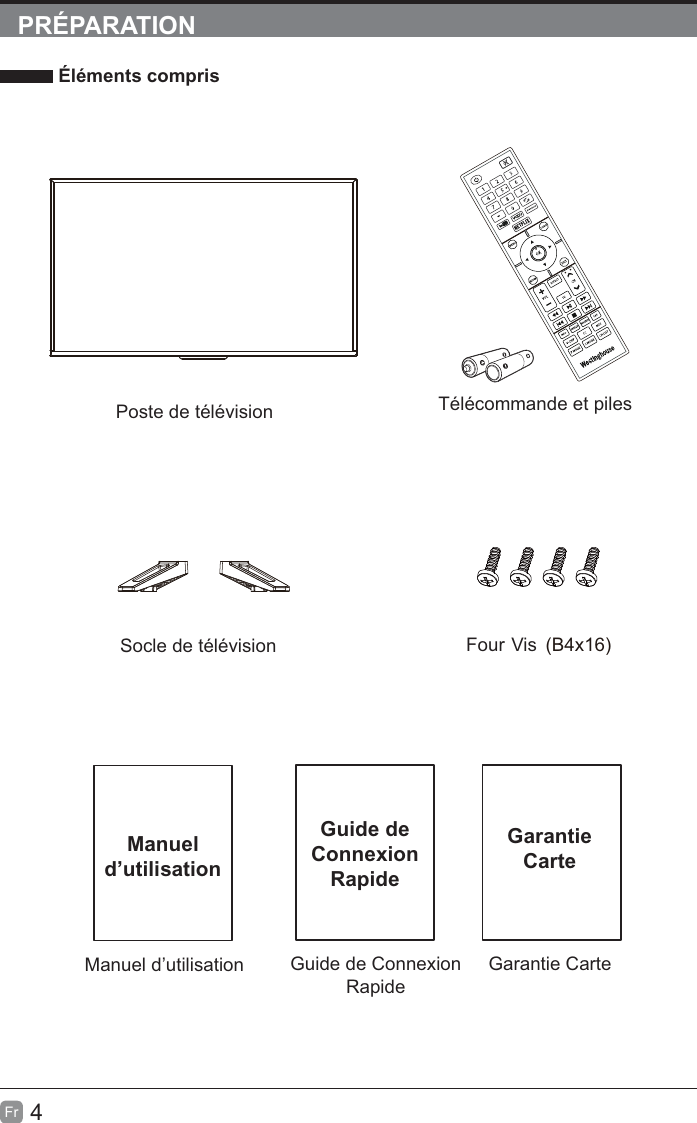
4FrPRÉPARATION Éléments comprisGuide de Connexion RapideGarantie CarteGuide de ConnexionRapideGarantieCarteManuel d’utilisationManueld’utilisationTélécommande et pilesPoste de télévisionSocle de télévision Four Vis (B4x16)
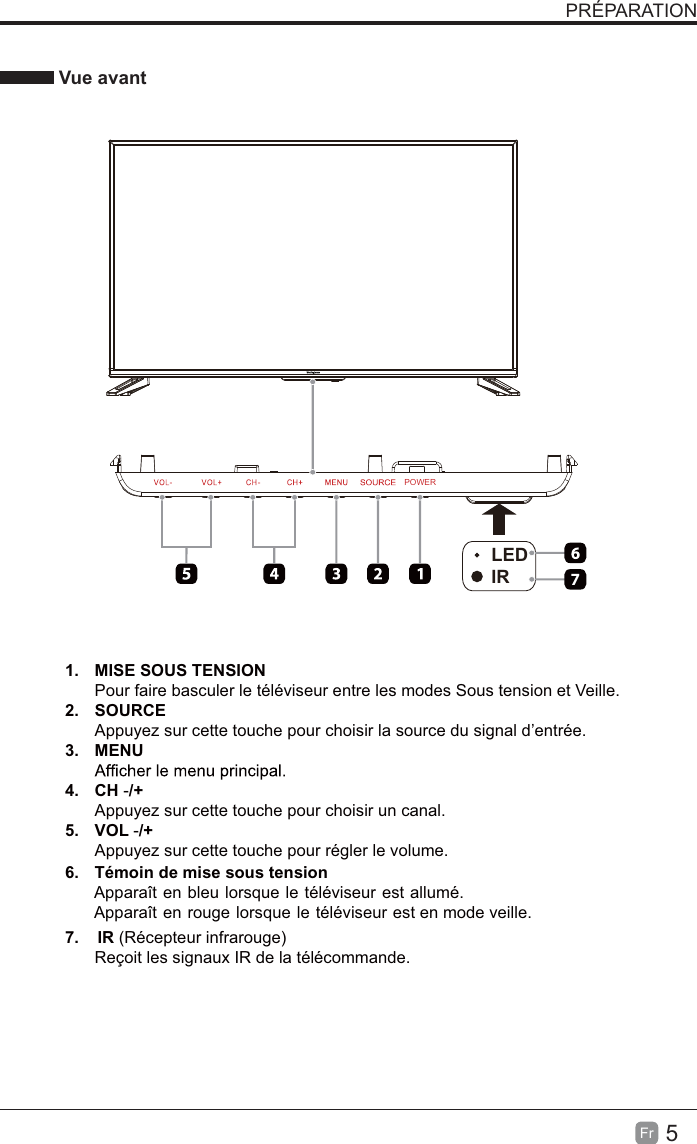
5FrPRÉPARATIONVue avantLEDIRPOWER71. MISE SOUS TENSIONPour faire basculer le téléviseur entre les modes Sous tension et Veille.2. SOURCEAppuyez sur cette touche pour choisir la source du signal d’entrée.3. MENU4. CHAppuyez sur cette touche pour choisir un canal.5. VOL -/+-/+Appuyez sur cette touche pour régler le volume.6. Témoin de mise sous tensionApparaît en bleu lorsque le téléviseur est allumé.Apparaît en rouge lorsque le téléviseur est en mode veille.7. IR (Récepteur infrarouge)Reçoit les signaux IR de la télécommande.
6FrPRÉPARATIONVue arrière1. Cordon d’alimentationSe branche dans une prise de courant c.a.2. OPTIQUEPour connecter un système de son numérique à cette prise.3. Port USBcompatibles.4. LANLe port de connexion de réseau.5. Entrées HDMI6. Entrée VGASe raccorde à un ordinateur ou à d’autres appareils dotés d’une interface VGA.7. Entrée PC AUDIOSe raccorde à la sortie audio d’un ordinateur.8. Entrée DTV/TV6HUDFFRUGHjODSULVHGHO¶DQWHQQHȍ9HF/UHF) à l’aide du câle coaxial RF.9. Prise pour écouteursSe raccorde aux écouteurs.10. Entrée AudioSe raccorde à la prise AUDIO (L / R) de connecteurs de sortie des appareils audioexternes.11. COMPOSITE/COMPOSANT INSe raccorde aux appareils AV avec prises de sortie vidéo et audio pour composite/composants (Y/Pb/Pr). La vidéo composite/ composante(Y/PB/PR) partage avec l’entrée audio (D/G).10LAN HDMI 2 HDMI 1 VGAHEADPHONE
7FrPRÉPARATIONInstallation du socleRetrait du socle en vue d’un montage muralt1. Couchez le téléviseur face vers le bassur une surface plate et coussinée pouréviter de l’endommager ou de rayer l’écran.t2. Fixez le support de stand gauche à l'unitéprincipale en utilisant les 2 vis fournies .t3. Fixez le support de stand droite à l'unitéprincipale en utilisant les 2 vis fournies .t1. Couchez le téléviseur face vers le bassur une surface plate et coussinée pouréviter de l’endommager ou de rayer l’écran.t2. Desserrez les 4 vis en tenant le socle,puis retirez-les.t3. Fixez le support mural au téléviseur enutilisant les trous de fixation à l’arrière dutéléviseur. Installez ce téléviseur en suivantlesconsignescomprisesaveclesupportmural.VisMontage mural4*M6*10 MISE EN GARDE:les instructions d'installation.MISE EN GARDE:Ne jamais placer un téléviseur dans un endroit instable.Un téléviseur pourrait tomber et causer de graves blussures ou la mort.Plusieurs blessures,surtoutaux enfants,peuvent être évitées en prenant de simples pré cautions comme:     -Utiliser les supports recommandés par le fabricant du téléviseur.     -Utiliser uniquement des meubles pouvant supporter sécuritairement le téléviseur.     -Assurer que le téléviseur ne dépasse pas le bord du meuble.     -Ne pas installer le téléviseur sur les meubles élevés(par exemple,armoires ou      étagères à un support adéquat.     -Ne pas placer le téléviseur sur un linge ou d’autres matériaux qui pourraient être      situés entre le téléviseur et le meuble-support.     -Informer les enfants sur les dangers de monter sur les meubles pour toucher     au téléviseur ou régler les contrôles.Si votre téléviseur actuel est est retenu ou déménagé,les mêmes considérations mentionnées ci-haut s'appliquent.( B4x16)( B4x16)
8Fr TÉLÉCOMMANDEPRÉPARATION1. :Pour basculer le téléviseur entre les modesSous tension et Veille.2. : Pour activer ou désactiver le son dutéléviseur.3. 0~9: Pour sélectionner un canal. (Mode ATV/DTV)4. : Pour entrer plusieurs numéros de canal, parexemple 2-1.5. : Pour revenir au canal précédent.6. APPS:Appuyez sur pour sélectionner l'APPSsouhaitée.7. MENU: Pour afficher le menu d’affichage àl’écran.8. SOURCE: Pour choisir parmi les différentessources du signal d’entrée. TV/HDMI1/HDMI2/HDMI3/USB/VGA/AV/Component.9. :Vous permet de naviguer dans les système en fonction de vos préférences.10. OK: Confirme la sélection dans les menus11. RETURN:Retour au menu précédent.12. EXIT: Pour quitter le menu OSD.13.TV:Appuyez sur pour mettre en mode TV.14. VOL+/-: Pour sélectionner un canal.15. CH   /    : Pour régler le volume.16.17.:Arrêter la lecture.18.:Passer au début de la précédente chapitre /piste / photo. 19.:PLe gel de la photo.Afficher la chaîne préférée.asser au début de la prochaine chapitre /piste / photo.20.: Inverser rapidement la lecture. 21.:Avancer rapidement la lecture.22.23.: Lancez la lecture ou mettre en pause.30. PINFO:24. FREEZE:25. FAV:26. ADD/ERASE:.MODE: Pour sélectionner le mode de l’image :32. S.MODE: Pour sélectionner le mode audio :31. CH.LIST:28. CC: sélection du sous-titrage : ON/OFF/CC OnMute(ACTIVÉ/DÉSACTIVÉ/ST activé sur sondésactivé).27. V-CHIP:29. MTS: Pour basculer entre les différents canauxaudio : STEREO/MONO/SAP.ASPECT: Pour sélectionner le format de l’image: standard/wide/wide zoom/zoom.
9FrCONNEXION DES APPAREILS EXTERNESSoundbarLAN HDMI 2 HDMI 1 VGAHEADPHONE
10FrPERSONNALISATION DES PARAMÈTRES DU TÉLÉVISEURinitialeUne fois toutes les connexions physiques établies, branchez le cordon d’alimentationdans la prise de courant. À cette étape, le téléviseur passera en mode Veille et letémoin DEL rouge s’allumera.Une fois sous ce mode, appuyez sur la touches de l’appareil ou de la télécommandepour allumer le téléviseur. Le témoin DEL rouge passera au bleu.noitarugifnocedtnatsissa’l,ruesivélételzemullasuoveuqsioferèimerpaL5S’il est impossible detrouver des canaux,cette fenêtre s’afficheautomatiquement. /DFRQVRPPDWLRQG¶pQHUJLHGX02'(9(,//(GHYUDLWrWUHLQIpULHXUHj:
11FrDiffusionAppuyez sur la touche MENUboutons à souligner STREAMINGNETFLIX continue sur Internet.YouTube Visionnez vos contenus YouTube sur le meilleur écran de la maison.VUDU les plus récents à haute qualité(1080p). Inscription gratuite. Aucunabonnement, frais de retard ou engagement. PandoraRadio gratuite et personnalisée offrant une écoute musicale débuter avec le nom d'un artiste, d'une pièce, d'un genre ou d'un compositeur que vous adorez, et Pandora fera le reste du travail pour vous. Il est ainsi facile de créer des postes de radio qui ne joueront que la musique que vous aimez.AccuWeather Indique la température et les conditions météorologiques du momentpartout dans le monde en degrés Celsius ou Fahrenheit.PERSONNALISATION DES PARAMÈTRES DU TÉLÉVISEURpour obtenir le meilleur résultat pour regarder la vidéo sur votre 4k tv 4k.1.tu as besoin d'une connexion internet à haute vitesse et assurez - vous que votre bande passante répond à l'exigence de 4k du fournisseur de contenu.2.l'accès à la vraie 4k médias; seulement 4k media peut montrer la meilleure image sur 4k tv, fonds / 1080p médias médias n'est pas aussi détaillé que 4k.
12FrMES MÉDIASAppuyez sur le bouton MENUMES MÉDIAS et appuyez sur OKSélectionnez parmi les photos, musique et vidéo pour voir ce que vous aimez.   5HPDUTXHDurs portables doivent être insérés avant d'entrer dans le menu MEDIA.PERSONNALISATION DES PARAMÈTRES DU TÉLÉVISEUR
13Fr VISIONNEMENT DE PHOTOSl'option PHOTO et appuyez sur OK, puis il sautera OK pour entrer.Après avoir entré PHOTOOKpour entrer.Lorsque l'image est en cours, la barre image de la sélectionner la fonction désirée disponible sur la barre. ÉCOUTER DE LA MUSIQUEUtilisez les touches fléches pour mettre ensurbrillance l'option MUSIC et appuyez sur OK, puis ilsautera pour confirmer le lecteur inséré, appuyez surOK pour entrer.Après avoir entré MUSIC, utilisez les touches fléchespour sélectionner le fichier musique et appuyez surOK pour entrer.Après avoir entré le fichier musique, utilisez lestouches fléches pour sélectionner le musiquesouhaitée, puis appuyez sur le bouton de lecture pourafficher.Lorsque le musique est en cours, la barre musique dela fonction sera affiche. Utilisez les touches fléchespour sélectionner la fonction désirée disponible sur labarre.PERSONNALISATION DES PARAMÈTRES DU TÉLÉVISEURDirectories:10 Files:0 Total:10Directories:10 Files:0 Total:10Directories:10 Files:0 Total:10Directories:10 Files:0 Total:10
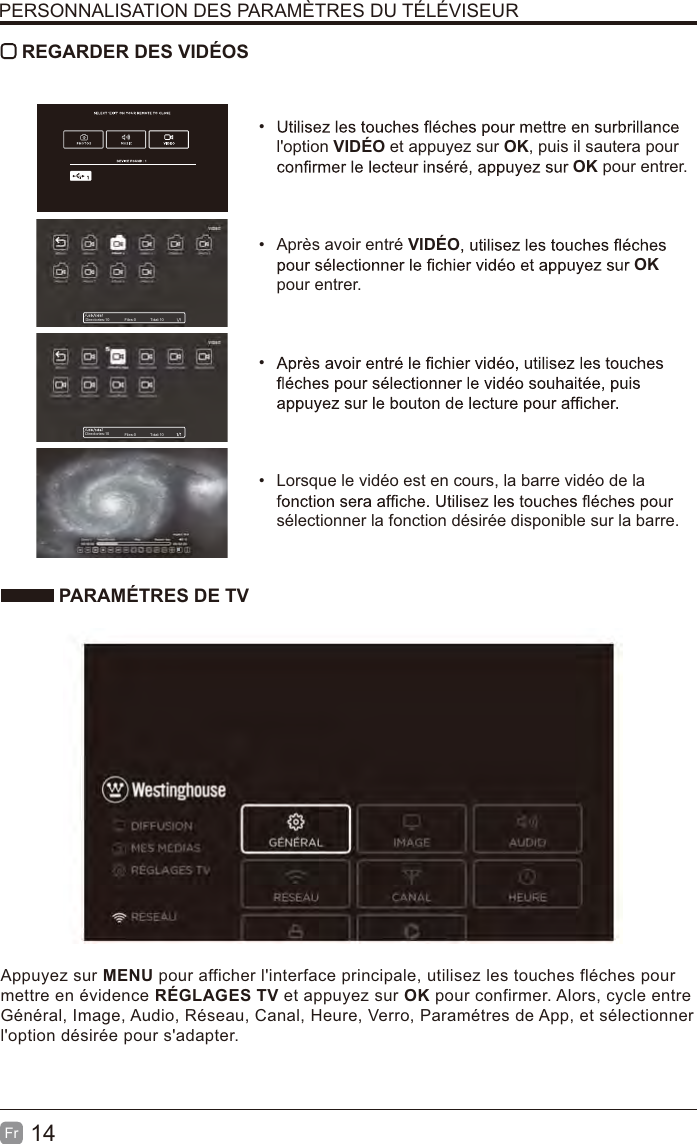
14Fr REGARDER DES VIDÉOSl'option VIDÉO et appuyez sur OK, puis il sautera pour OK pour entrer.Après avoir entré VIDÉOOKpour entrer.Lorsque le vidéo est en cours, la barre vidéo de la sélectionner la fonction désirée disponible sur la barre.PARAMÉTRES DE TVAppuyez sur MENU pour afficher l'interface principale, utilisez les touches fléches pourmettre en évidence RÉGLAGES TV et appuyez sur OK pour confirmer. Alors, cycle entreGénéral, Image, Audio, Réseau, Canal, Heure, Verro, Paramétres de App, et sélectionnerl'option désirée pour s'adapter.PERSONNALISATION DES PARAMÈTRES DU TÉLÉVISEURDirectories:10 Files:0 Total:10Directories:10 Files:0 Total:10

Navigation menu