Circle Media CIRCLE3 Circle User Manual Circle User Guide v1 2

Circle Media Inc. Circle Circle User Guide v1 2

User manual

!User Guide Version 1.2 — December 2018
Contents 1. Welcome1.1 Tips for Parents1.2 Getting Familiar with Circle2. Getting Started2.1 Setting up Circle2.2 Adding Kid Devices3. Using Circle3.1 The Home Screen3.2 Pause3.3 Profiles3.4 Location3.5 Devices3.6 History3.7 Usage3.8 Filter3.9 BedTime3.10 Time Limits3.11 OffTime3.12 Rewards3.13 Dashboard4. Circle Home Plus4.1 Setting up a Circle Home Plus4.2 Wi-Fi Devices & Circle Home Plus4.2 Troubleshooting5. Legal
1. Welcome What is Circle? Circle lets families manage content and time online for all of their iOS and Android devices. Circle gives each of your family members a consistent experience across all their devices that matches their age and interests. Parents set limits from the Circle mobile app, while kids keep track of their own time online with the Dashboard. By using Circle on your family’s devices, you can manage the websites and apps that your family has access to, as well as the times of day when the Internet is available. Circle uses a local Virtual Private Network (VPN) to keep track of all Internet data across all networks. Introducing Circle Home Plus A Circle Home Plus extends your mobile experience with Circle to your entire Wi-Fi network, allowing you to manage every connected device in your home — laptops, smart TVs, game consoles, and everything else. You’ll still use the Circle Family app, but you’ll have the added functionality of Circle Home Plus built right in.!Circle User Guide2
1.1 Tips for Parents Circle is designed to help families thrive with technology and with each other. So, before you start setting up Profiles and managing devices, let’s get everybody on board! A balanced digital lifestyle starts with a family conversation. That’s right, get everybody together to talk about Circle. To start, share your ideas about online time and content as they relate to your family. Next, let everyone express themselves. Get feedback on fair ground rules and ask your kids what they find most important online. Then, explain what limits you’re putting in place. Talk about BedTimes, Filters, Time Limits, and why they're important for the family. Finally, set the stage for future screen time discussions by letting your kids know that they can come to you with real concerns. Looking for a family guide to online life? To read more about family conversations, check out The Circle Guide to Online Life! It’s an eBook written by real parents with tips for modern families. [LINK TO THE CIRCLE GUIDE TO ONLINE LIFE GOES HERE]!Circle User Guide3
1.2 Getting Familiar with Circle As you use Circle, you’ll come across words and phrases that might be new to you. In the context of Circle, here are some helpful definitions:!•Pause: Pause the Internet™ with the push of a button. Unmanaged devices and sites can still get through, as always. •Unpause: Resuming Internet access after being Paused. •Location: Use Circle to keep track of your family’s Location. •Rewards: Give extra online time to a family member just for the day. •Usage: Compare time online today, last week, or months past for each Profile across all their devices. •Platform: A popular online service made up of sites and apps. •Site: An individual source of online content. •Category: A collection of sites and Platforms that share a common purpose. •History: A detailed breakdown of every site visited by a Profile across all their devices. •Filter: Match each family member’s age and interests with online content that’s right for them. •Manage: Network traffic is controlled based on a set of rules that a parent sets up with Circle. •Unmanage: Online content can be freely accessed, even during a Pause, BedTime, or OffTime, and it won’t contribute to daily Time Limits or appear in Usage & History. •Allowed: Content from this source is tracked & managed by Circle. Circle User Guide4
•Not Allowed: Content from this source is blocked by Circle. •BedTime: Schedule overnight offline time for each family member to make late-night surfing a thing of the past. •Time Limits: Limit daily online time for Platforms, Categories, and even total time. •OffTime: Weekly offline times that Pause a Profile on a schedule. •Device: Any Internet-connected equipment, like a smartphone, tablet, or laptop computer; plus smart home appliances (“IoT” devices) like smart TVs and thermostats. •Kid Device: Any internet-connected device that you manage with the Circle Family app. A kid device could belong to any family member, not just a kid. Also known as “Managed Device.” •Unassigned Device: Devices that aren’t assigned to a Profile are Unmanaged by Circle. All online content can be freely accessed at any time and Circle won’t track time spent in Usage or History. •Profiles: Circle settings are shared across all devices assigned to a family member Profile. •Network: A Wi-Fi, Ethernet, or cellular data source that is used to access the Internet. •Router: The device that distributes Internet to multiple devices, usually over Wi-Fi.!Circle User Guide5
2. Getting Started 2.1 Setting Up Circle Get the Circle Family app •On Apple iOS, Circle Family runs on version 9.3 or newer. •On Android, Circle Family runs on version 4.4 (KitKat) or newer. To find the app, search “Circle Family” on the Apple App Store (for iOS) or Google Play Store (for Android). Circle Subscription SUBSCRIPTION INFORMATION Setting up Circle for the first time •Open the app and press “Get Started.” •Agree to the “User Agreement.” •Select “Set up parent app.” •Log in using your ID. To create Profiles for each member of your family: •Start by typing in a family member’s name and add a photo. •Set a Filter, Time Limit, or BedTime for their Profile. •If you have your family member’s mobile device in your hand (iOS or Android), then press “Continue.” If not, tap “Skip” in the upper-right corner. Circle User Guide6
•After adding devices, tap “Add Another” or “Finish,” if you’re done creating family member Profiles.!Circle User Guide7
2.2 Adding Kid Devices Managing your family’s mobile devices is as easy as downloading the Circle Family app and walking through a guided setup process. Make sure you have both your own device (with Circle “parent” access) and any devices you want to manage on-hand, so you can scan kid devices with the parent device. On the device you want to manage: •Download the Circle Family app by searching “Circle Family” on the Apple App Store (for iOS) or Google Play Store (for Android). Circle runs on iOS 9.3 or newer and Android 4.4 or newer. •Open the app, tap “Get Started,” and select “Set up Kid App.” •Follow the instructions until you see a large, black QR code displayed on the screen. Then, on your own device (using the parent app): •Make sure you’ve selected the right family member Profile for the device you’re adding. •Press “Add Device,” or, if you’ve completed setup already, open their Profile, select “Devices” from the feature list, then tap “Add Mobile Device.” •Use your camera to scan the QR code on the kid app device. •After a successful scan, you’ll see the device list for this Profile. To set up the VPN on an Apple iOS device: •Tap “Continue,” then “Allow” on the alert that says “Circle would like to add VPN configurations.” Circle User Guide8
•Then, in the iOS Settings app, make sure you approve all changes in order for Circle to be able to manage this device. •Go back to the Circle Family app and press “Allow” on the alert boxes if you’d like to enable Location and Push Notifications. •Give the device back to it’s owner, and explain what settings you’ve applied to their Profile. This way, they know what to expect and can come to you if they have any issues. To set up the VPN on an Android device: •Tap “OK,” then “Activate this device admin app,” then “OK” when you see the “Connection request” alert. •Press “Allow” on the alert boxes if you’d like to enable Location and Push Notifications for this device. •Give the device back to it’s owner, and explain what settings you’ve applied to their Profile. This way, they know what to expect and can come to you if they have any issues.!Circle User Guide9
3. Using Circle 3.1 The Home Screen When you’ve completed setup, you’ll see the home screen. From here, you can access the home menu (top left), view your device list (top right), tap into a family Profile (center), or Pause the Internet (bottom). Menu Tapping the menu button in the top left corner of the screen brings up the home screen menu. Here, you’ll find a selection of handy tools and information. “Home” takes you back to the home screen. “Add Profile” lets you create a new Profile for a family member. “Devices” shows you every device that’s been added to Circle. “Settings” allows you to do the following: •Check your ID login or tap “Sign Out” to remove your ID from the Circle Family app on this device. •Toggle Push Notifications, which include messages for when a family member reaches a Time Limit, a new device joins Circle, a new device is managing Circle, Circle Home Plus has gone offline, has a low battery, has been reset, or other issues. •Set a PIN (to keep your Circle Family app secure), by tapping “Lock PIN.” If you forget your PIN and get locked out of Circle, the only way to restore access is to uninstall and reinstall the Circle Family app, then log in with your ID. •Reference legal documentation. Circle User Guide10
•If you’ve set up a Circle Home Plus, you can check the firmware version, adjust Wi-Fi settings, view Wi-Fi signal strength, as well as temporarily disable, reboot, and even remove your Circle Home Plus from Circle. “Help” shows you how you can contact support for help with Circle. “Set Up Circle Home Plus” gets you started with a Circle Home Plus. To find out more about setting up a Circle Home Plus, skip to chapter four: “Circle Home Plus."!Circle User Guide11
3.2 Pause Pause the Internet at the push of a button, so your family can enjoy some offline time. When you tap Pause, the Internet is shut off. Tapping the Pause button again resumes Internet access. During a Pause, Unmanaged devices and sites can still get through, as always. Home Pause To Pause all Circle devices at once, press the Pause button on the home screen, then confirm. Press the same button again to Unpause. Profile Pause To Pause a family member, tap on their Profile from the home screen, then tap the Pause button in the top-left corner of the screen. Press the same button again to Unpause. Device Pause To Pause a single device, tap the Devices icon in the top-right of the home screen, then tap on a device from the list, then press the Pause button on the bottom of the screen. Press the same button again to Unpause.!Circle User Guide12
3.3 Profiles Create Profiles for every family member, so their Circle settings are shared across all their devices. A Profile is a set of controls for online time and content that are shared across all assigned devices. To create a new Profile: •Tap on the Menu button in the top left corner of the screen, then select “Add Profile.” •Then, type in their name and tap the “Add Photo” button to pick a photo to represent them. •Follow the steps onscreen to create a few basic settings and assign devices for this family member. To view a Profile: •Tap on a Profile from the home screen. From here you can see their name, photo, and Circle settings. •Tap “Edit” in the top right corner of the screen, where you can type to change the name or tap “Edit Photo” to change the picture. You can also delete the Profile from here. When you’re finished, tap “Done” to save changes or “Cancel” to go back without saving your changes. •To learn about the features listed on the Profile screen, continue to the next page.!Circle User Guide13
3.4 Location Keep track of your family’s Location with Circle. To use Location, the Profile you want to locate must have a mobile device with the Circle Family app installed and Location Services turned on (for more on this, read 2.2 Adding Kid Devices). To locate a family member: •Tap on a Profile from the home screen, then select “Location” from the feature list. You might have to pick from a list of devices to locate. •Wait for Circle to locate the device. This can take a minute or two. •When the device has been found, you’ll see a marker on the map. Use your finger to move around the map, and pinch to zoom. •At the bottom of the screen, you’ll see the time when the Location was received. •You can check their Location again by tapping “Refresh.” Locating a device will only work if Location Services are enabled on the device you are locating, and Circle will notify you if this is the reason a device cannot be located. Circle does not store a history of previous locations.!Circle User Guide14
3.5 Devices A device is any Internet-connected or cellular equipment, like a smartphone, tablet, or laptop computer; plus smart home appliances and Internet of Things (“IoT”) devices like smart TVs and thermostats. From the home screen, you can find a list of all Circle devices by pressing the “Devices” icon in the top-right of the screen. From a Profile screen, you can find a list of all assigned devices by selecting “Devices” from the features list. Tap on any device from the Device List to see the Device Settings, where you’ll find: •The assigned Profile (edit by tapping the text). •The Device Name (edit by tapping the text). •The Manufacturer and MAC address — which can help you identify the device if you can’t figure out which is which. •If the device has the Circle Family app, you’ll see the VPN status. •The option to “Remove Device,” which deletes this device from Circle. Note: if the device was discovered on your network by Circle Home Plus, it will rejoin your Device List as soon as it’s detected again. If you don’t want to manage this device with Circle, set it to Unmanaged. •A Pause button, just for this single device.!Circle User Guide15
3.6 History Get a detailed breakdown of what sites were visited throughout the day. The History view is a chronological list of all sites accessed by a Profile’s devices. You can toggle between “Visited” sites and “Filtered” sites to see what this family member viewed and was stopped from viewing by Circle. To see a family member’s History: •Tap on a Profile from the home screen, then select “History” in the feature list. •Select “Visited” to see sites that this family member accessed. •Toggle over to “Filtered” to see sites that Circle blocked because of this family member’s Filter settings, a Pause state, an expired Time Limit, or an active BedTime or OffTime. To take action on a History entry, tap on it and select from the following options: •"Visit Website,” which opens your web browser and takes you to the home page of the site. •“Set as Allowed,” which creates a Custom Filter set to “Allowed.” •“Set as Not Allowed,” which creates a Custom Filter set to “Not Allowed.” •“Set as Unmanaged,” which creates a Custom Filter set to “Unmanaged.” You can edit any of these Custom Filters by selecting “Filter" from the Profile features list, then tapping “Custom Filter” on the bottom of the screen.!Circle User Guide16
3.7 Usage Compare time online today, last week, or months past across all devices assigned to a Profile. Usage adds up time spent online per Category and Platform. If you tap on a Category, you’ll see a list of sites and Platforms that contributed to the total time for the Category. If you tap on a site or Platform, you can take action on that particular item by using the pop-up menu. To see a family member’s Usage: •Tap on a Profile from the home screen, then select “Usage” in the feature list. •At the top of the screen, you can select whether you’d like to see Usage by the day, week, or month. •Next, you’ll see a summary of total time. •Below that, you can scroll from the current period and into past Usage.!Circle User Guide17
3.8 Filter Set online content Filters that match each family member’s age and interests. When setting a Filter, you first must select a Filter Level as a starting place, which you can always customize to be the right fit for each family member. If you want to edit a family member’s Filter, tap on their Profile from home screen, then select “Filter” from the feature list. Filter Levels •The “High” Filter Level grants access to kid-safe experiences, like the Education Category, but filters out content not designed for children. •The “Medium” Filter Level grants access to most general-use Platforms and Categories, without mature or adult-oriented content. •The “Low” Filter Level grants access to nearly all platforms, categories, and apps, though explicit content is filtered out by default. •Selecting “None” sets the Profile to Unmanaged, meaning Circle won’t manage any online content for assigned devices. Filter Settings After you select a Filter Level, you can customize it by setting content to “Allowed,” “Not Allowed,” or “Unmanaged” by tapping the text-box across from the Platform or Category name. The “Allowed” setting means that content from this source is available and tracked by Circle, whereas “Not Allowed” means that this content is restricted by the Filter. “Unmanaged” means that Internet traffic is allowed to freely come and go from this site, even if Circle is set on Pause, BedTime, or OffTime. Tapping “Custom Filter” (on the bottom of the screen) lets you create a Filter setting for an individual site. Just type in the name of the site and pick a Filter setting for it. Circle User Guide18
Categories!Entertainment •Arts & Entertainment: Visual arts, literature, humor, film, arts venues, and more.  •Music: Audio streaming and downloading, artist sites, and more •Online Games: Videogames and board game sites. •Sports & Recreation: Sports media, professional teams, and recreation. •Video: Video streaming and downloading. School & Work •Business: Employment, job postings, finance, and industry services. •Education: Instructional content, teaching, educational institutions, and career prep. •Science & Technology: Physical and social sciences as well as computers and artificial intelligence. Social •Chat & Forums: Messaging services, online chat, bulletin boards, and forums. •Social Media: Personal and professional networking communities. Lifestyle •Blogs & Personal Sites: Blogging platforms and sites with personal content. •Government & Politics: Government services, politics, lobbying, and military. •Health: Personal health and fitness. •Home & Family: Cooking, parenting, home-decorating, and more. •Issues & Lifestyles: Social issues, philosophy, religion, and more. Circle User Guide19
•News: Journalism, commentary, and other reporting. •Online Shopping: Ecommerce retailers and classified ads. •Travel: Maps, travel, and tourism. •Photo: Photography information and sharing. Services •App Stores & Downloads: Digital software distribution for apps, programs, and more.  •Email: Electronic mail providers.  •Search & Reference: Online search and information resources.  Adult •Dating: Online dating and match-making.  •Explicit Content: Graphic and explicit adult content.  •Gambling: Betting sites, lotteries, casinos, racetracks and more.  •Mature: Adult-specific content (age 18+ or 21+).  •VPNs & Proxies: Internet privacy and network routing services. Category descriptions are intended to describe the types of content Circle will Filter. You may disagree with a description or find content that you believe should be covered by a particular Category. If you have suggestions, please contact support with a specific web-address. Privacy and Safety •“Ad Blocking” filters out many sources of online advertising. Circle User Guide20
•“Safe Search” Filters sexually-explicit content from search results in Google and Bing. •“YouTube Restricted” mode (provided by YouTube) blocks major categories of content, including Music.!Circle User Guide21
3.9 BedTime Make late-night surfing a thing of the past. A BedTime shuts off Internet access for every device assigned to a Profile through the night, so everybody in your family can get the sleep they need without distraction. You can even set a separate Weekend BedTime! When setting BedTimes, keep in mind that the day of the week represents the night the BedTime begins, so a typical weekday schedule goes from Sunday to Thursday, with the weekend being Friday to Saturday. To set a BedTime: •Tap on a Profile from the home screen, then select “BedTimes” from the feature list. •Turn BedTimes on by tapping the “Enable” switch in the top right. •Set the BedTime by tapping on the days to toggle them on or off, and tap the “BedTime” and “Awake” times to set the clock. •Tap “Add Weekend” to set an alternate BedTime for certain days of the week. •Press “Save” to finish.!Circle User Guide22
3.10 Time Limits Limit online time for individual apps, sites, categories, and even total time with ease. Setting a Daily Time Limit ensures that your family members won’t get any more than this amount of online time for the day, across all types of content. Similarly, setting Category Time Limits means that even if there’s still time remaining on a specific Platform, family members won’t get more than a certain amount of Social Media, Online Games, or other content for the day. To set a Time Limit: •Tap on a Profile from the home screen, then select “Time Limits” from the feature list. •Turn Time Limits on by tapping the “Enable” switch in the top right. •Set an all-day cap by tapping “Daily Time Limit” at the top of the list. •Tap the name of a Platform or Category to set an individual limit. •Create an alternate schedule for certain days of the week by tapping “Add Weekend” near the top of the screen.!Circle User Guide23
3.11 OffTime Schedule offline moments in advance, so you can enjoy family time, get homework done, pay attention in class, and more. OffTimes are weekly recurring breaks from the Internet that you can create for your family members. To set an OffTime: •Tap on a Profile from the home screen, then select “OffTime” from the feature list. •Tap “Add OffTime,” or select from your existing OffTimes below. •Set the OffTime by typing in a name for the OffTime, selecting which days you’d like to activate, and scroll through the the “Start” and “End” times to set the clock. •Press “Done” to finish, then “Save” to keep all your changes for this Profile.!Circle User Guide24
3.12 Rewards Rewards are an easy way to send extra online time, and they expire at midnight, so whatever time you added goes back to normal on the following day. You can send as many Rewards as you’d like throughout the day. To send a Reward: •Tap on a Profile from the home screen, then tap the star in the top right corner, or select “Rewards” from the feature list. •Pick which type of Reward you’d like to send: Extend a Time Limit, Disable an OffTime, or give a Late BedTime. •Set the Reward based on the existing settings, and press “Send” to finish. Types of Rewards •Pick “Extend Time Limit Today” to select any existing Time Limit and add additional time to it. •Pick “Disable OffTime Today” to clear out an existing OffTime, just for the day. •Pick “Late BedTime Tonight” to set a new start time for this evening’s BedTime.!Circle User Guide25
3.13 Dashboard The Dashboard is where your family can check their online time for the day, and find other helpful information. Finding the Dashboard If you’ve assigned a family member’s device to a Profile, they can use the Dashboard from the Circle Family app or a web browser by visiting https://dashboard.t-mobilefamilymode.com. What’s on the Dashboard? On the Dashboard, you’ll see information for the various Circle features you’ve enabled for that family member. There’s also a general Profile card, where you can see the device name associated with this device in Circle. Finding the device name can be helpful for identifying devices if you’re not sure which is which. Dashboard Push Notifications Push notifications let your family members know about changes to their Internet access throughout the day from Circle. They’ll be notified about Circle features like Pause, Time Limits, OffTimes, BedTimes, and more.!Circle User Guide26
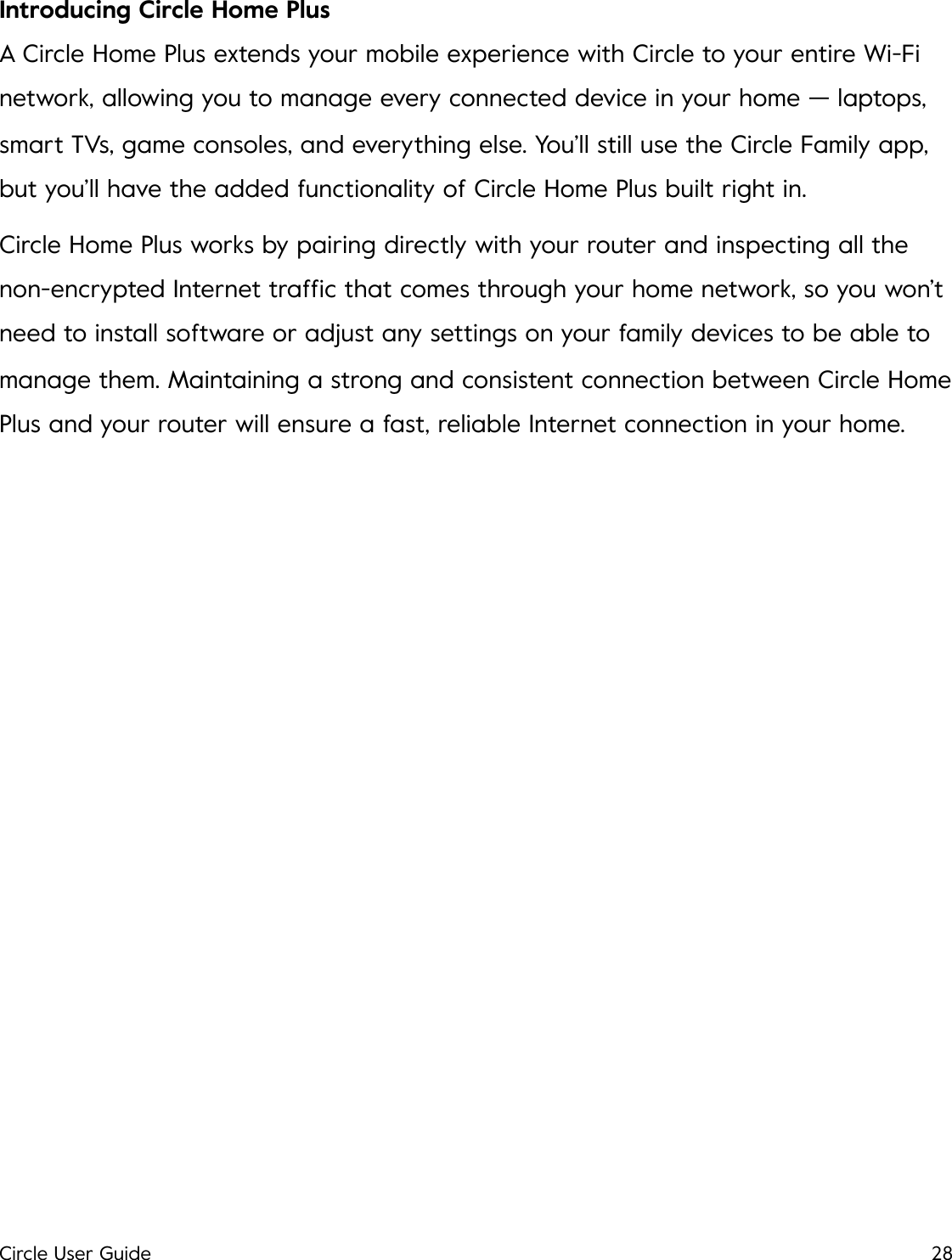
4. Circle Home Plus Plus!LED •Solid light: on & paired •Solid off: off •Slowly blinking: on, but not paired •Quickly blinking: resetting, low battery, or other internal error Power button •To power on: press once •To power off: hold for ten seconds, or until LED turns off Battery •Internal battery keeps Home Plus online when USB power is unavailable. Circle User Guide27
Introducing Circle Home Plus A Circle Home Plus extends your mobile experience with Circle to your entire Wi-Fi network, allowing you to manage every connected device in your home — laptops, smart TVs, game consoles, and everything else. You’ll still use the Circle Family app, but you’ll have the added functionality of Circle Home Plus built right in. Circle Home Plus works by pairing directly with your router and inspecting all the non-encrypted Internet traffic that comes through your home network, so you won’t need to install software or adjust any settings on your family devices to be able to manage them. Maintaining a strong and consistent connection between Circle Home Plus and your router will ensure a fast, reliable Internet connection in your home.!Circle User Guide28
4.1 Setting Up a Circle Home Plus •Make sure that your router is compatible with Circle Home Plus by visiting meetcircle.com/router. •In the Circle Family app, open the home screen menu — it’s located in the top left corner of the home screen — then select “Set Up Circle Home Plus.” •Connect the device in your hand (running the Circle Family app) to the same Wi-Fi network that you’re pairing with Circle Home Plus. •Find your Wi-Fi router. It's the device that connects to your modem and provides Wi-Fi to your home. Make sure you’ve found your router, rather than a modem, network extender, or other piece of equipment. Set Circle Home Plus next to your router. •Plug Circle Home Plus into a nearby wall outlet with the USB charger and make sure the light on the back has come on and is blinking slowly. •Connect Circle Home Plus with your Wi-Fi router using the Ethernet cable. •Follow the steps in the Circle Family app to pair Circle Home Plus to your network via Ethernet and Wi-Fi, then create your Home Profile by setting up a Filter and selecting all your family’s shared devices. After setup, don’t forget to assign all new Wi-Fi devices that have been discovered by Circle Home Plus to your family members’ Profiles, so their existing settings will carry over to all their devices. Your Circle Home Plus may discover Wi-Fi devices that do not belong to you or your family members. You may not use Circle Home Plus to manage or monitor Internet access for these devices without first informing the device owner and obtaining permission.  Circle User Guide29
4.2 Wi-Fi Devices & Circle Home Plus When you set up a Circle Home Plus, you’ll have access to a whole new group of connected devices to manage with Circle: your family’s Wi-Fi devices. Wi-Fi Devices Are Unmanaged By Default Wi-Fi devices discovered by Circle Home Plus will be set to Unmanaged when they join, meaning that Circle won’t interact with their Internet connection at any point. If you assign one to a Profile, it’ll be managed just like your mobile devices on your home network. The Home Profile The Home Profile is where all shared family devices live. You set a baseline Filter, plus any OffTimes or BedTimes to apply to all these devices. You can use this Home Profile any way you’d like by assigning the devices that make sense for your home. Network Gear & Smart Home Devices Leave all network gear and smart home devices Unmanaged. Any interference with Circle Home Plus may cause unexpected issues with these utilities and services. So, make sure that mesh Wi-Fi extenders and network fabric, as well as Internet of Things (“IoT”) devices like smart appliances, are never assigned to a Profile.!Circle User Guide30
4.3 Troubleshooting Circle Home Plus Setup: •If you don’t have a Circle Home Plus, open the Circle Family app at press “Get Circle Home Plus” from the home screen menu. •If Circle Home Plus isn’t pairing with your network via Ethernet, make sure that the mobile device with the Circle Family app (most likely your smartphone) is connected to the network created by your router. This way, Circle can verify that the Circle Home Plus you’ve plugged in is associated with your Circle account. •If you don’t have a spare Ethernet port in your router, just skip Ethernet pairing by tapping “Pair with Wi-Fi Instead” during setup. •If you skip Ethernet pairing, you’ll have to connect your phone to the Circle Home Plus hotspot. Follow the instructions in the app, and make sure that you stay connected to the Circle Home Plus hotspot, even though you won’t have an Internet connection on your phone for the moment. •If Circle Home Plus isn’t pairing with your network via Wi-Fi, make sure that you’ve connected to the Circle Home Plus hotspot (if the app required you to do so) before continuing, or that you’ve correctly entered your Wi-Fi password credentials into the Circle Family app. •If you paired Circle Home Plus over Ethernet but don’t use Wi-Fi, or you’re unable to pair wirelessly, just tap “Skip Wi-Fi Pairing” during setup. •If your Circle Home Plus seems to be creating problems for your home network, try temporarily disabling it from the Settings screen (found by tapping the menu button in the top-left corner of the home screen, then “Settings,” then “Disable Circle Home Plus”). If the problem goes away after you’ve disabled Circle Home Plus, check to make sure that all networking equipment (like a mesh network Circle User Guide31
extender or other network fabric) and smart home devices (like smart thermostats and lightbulbs) are set to Unmanaged.!Circle User Guide32
5. Legal This device complies with part 15 of the FCC rules. Operation is subject to the following two conditions: (1) this device may not cause harmful interference, and (2) this device must accept any interference received, including interference that may cause undesired operation. Changes or modifications not expressly approved by the party responsible for compliance could void the user’s authority to operate the equipment. This equipment has been tested and found to comply with the limits for a Class B digital device, pursuant to part 15 of the FCC Rules. These limits are designed to provide reasonable protection against harmful interference in a residential installation. This equipment generates uses and can radiate radio frequency energy and, if not installed and used in accordance with the instructions, may cause harmful interference to radio communications. However, there is no guarantee that interference will not occur in a particular installation. If this equipment does cause harmful interference to radio or television reception, which can be determined by turning the equipment off and on, the user is encouraged to try to correct the interference by one or more of the following measures: •Reorient or relocate the receiving antenna. •Increase the separation between the equipment and receiver. •Connect the equipment into an outlet on a circuit different from that to which the receiver is connected. •Consult dealer or an experienced radio/TV technician for help. Radiation Exposure Statement: This equipment complies with FCC radiation exposure limits set forth for an uncontrolled environment. This equipment should be installed Circle User Guide33
and operated with minimum distance 20cm between the radiator and your body. This transmitter must not be co-located or operating in conjunction with any other antenna or transmitter. In the event that these conditions cannot be met (for example certain laptop configurations or co-location with another transmitter), then the FCC authorization is no longer considered valid and the FCC ID cannot be used on the final product. In these circumstances, the OEM integrator will be responsible for reevaluating the end product (including the transmitter) and obtaining a separate FCC authorization.Circle User Guide34
ISEDStatement‐  English: This device complies with Industry Canada license ‐ exempt RSS standard(s).Operationissubjecttothefollowingtwoconditions:(1)Thisdevicemaynotcauseinterference,and(2)Thisdevicemustacceptanyinterference,includinginterferencethatmaycauseundesiredoperationofthedevice.ThedigitalapparatuscomplieswithCanadianCANICES ‐3(B)/NMB‐3(B).‐ French:LeprésentappareilestconformeauxCNRd'IndustrieCanadaapplicablesauxappareils radioexemptsdelicence.L'exploitationestautoriséeauxdeuxconditionssuivantes:(1)l'appareilne doit pas produire de brouillage, et (2) l'utilisateur de l'appareildoit accepter tout brouillageradio électriquesubi, m êmesi le brouillageest susceptible d'encompromettre lefonctionnement.RadiationExposureStatementThis equipment complies with Canada radiation exposure limits set forth for an uncontrolled environment. This equipment should be installed and operated with minimum distance 20cmbetweentheradiator&yourbody.Déclarationd'expositionauxradiationsCetéquipementestconforme Canada limitesd'exposition aux radiations dans un environnement non contrôlé. Cetéquipementdoitêtreinstallé et utilisé à distance minimum de 20cm entre leradiateuretvotrecorps.

Navigation menu