Cisco Systems Wet200 Users Manual Wireless G Business Ethernet Bridge Quick Start Guide
WET200 to the manual 76f8c56a-2574-4323-aae5-c604346cb912
2015-01-05
: Cisco-Systems Cisco-Systems-Wet200-Users-Manual-203544 cisco-systems-wet200-users-manual-203544 cisco-systems pdf
Open the PDF directly: View PDF  .
.
Page Count: 4
QUICK INSTALLATION
BUSINESS SERIES
Package Contents
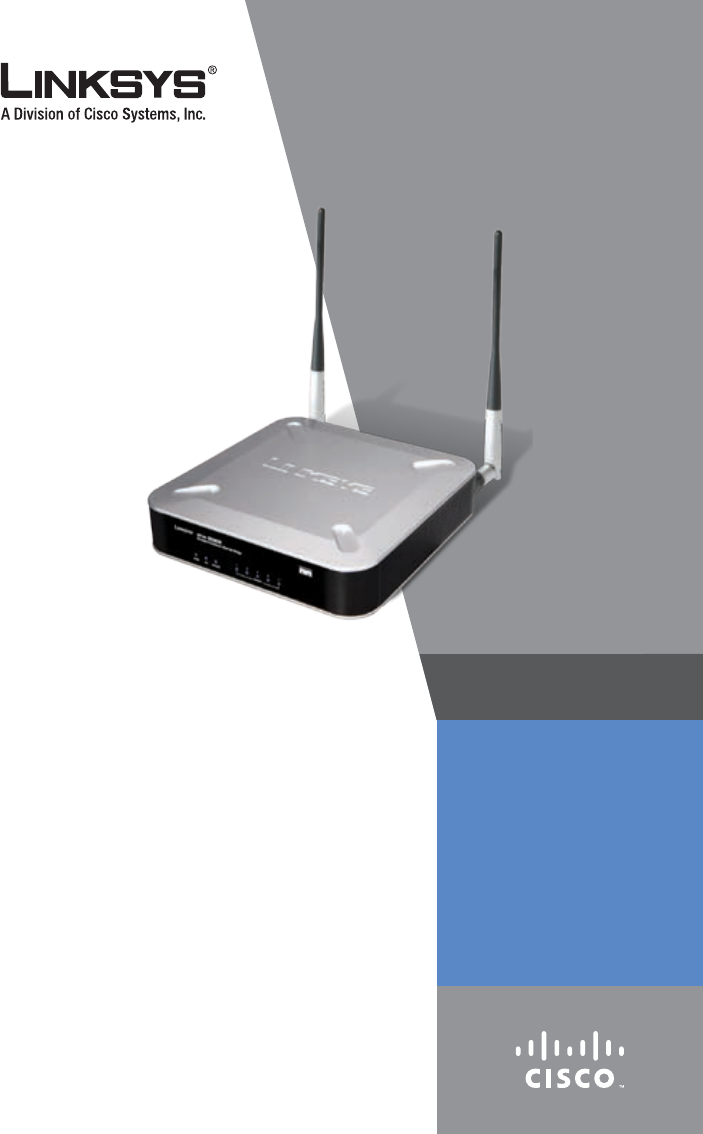
Wireless-G Business Ethernet Bridge
Two SMA Detachable Dipole Antennas
User Guide on CD-ROM
Quick Installation
Ethernet Network Cable
Power Adapter
Product Stands
Registration Card
•
•
•
•
•
•
•
•
Model: WET200
Wireless-G Business
Ethernet Bridge
NOTE: For details on placement options such as using the stands
or wall-mounting, please refer to the User Guide on the CD-ROM.
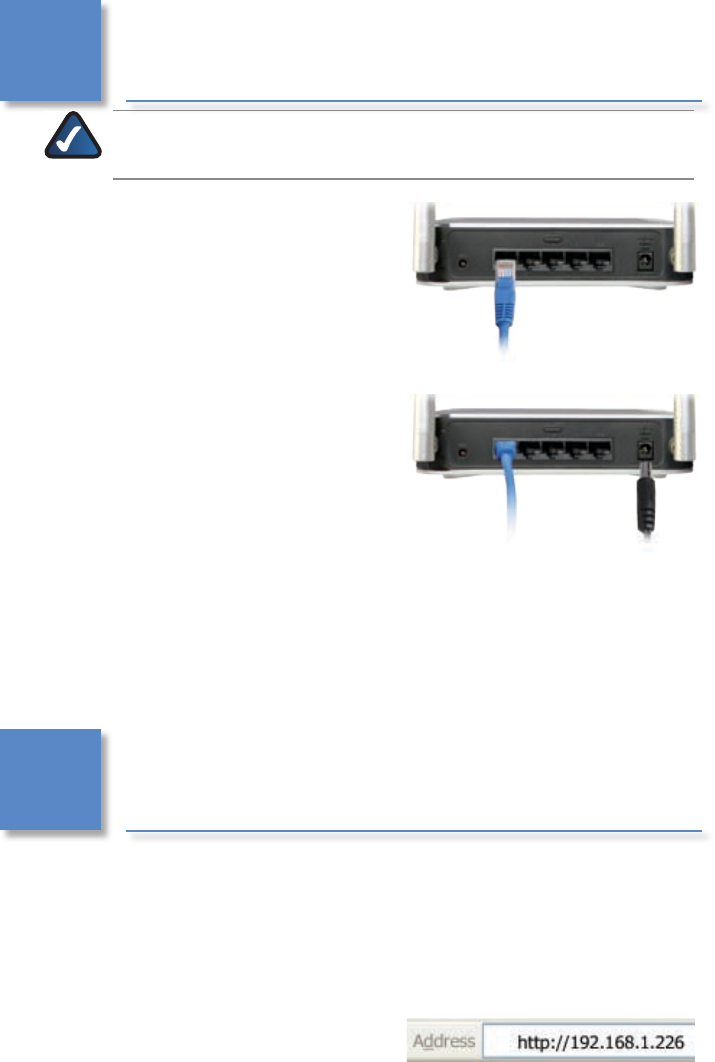
Connect one end of an Ethernet
network cable to the LAN port on
your PC, then connect the other
end to Ethernet port 1, 2, 3, 4, or 5
on the Bridge.
Connect the power adapter to the
Bridge’s Power port, and then plug
the other end into an electrical
outlet.
The Power LED on the front panel
will light up green as soon as
the power adapter is connected
properly.
Hardware installation is now complete.
Follow these instructions to set up the Bridge in Infrastructure mode. For
information on advanced conguration refer to the User Guide on the CD-ROM.
Assign your PC a static IP address
in the same subnet as the Bridge’s
default IP address, 192.168.1.226.
Open your web browser. Enter
http://192.168.1.226 in its Address
eld. Press Enter.
A.
B.
C.
A.
B.
Installation1�
Conguration2�
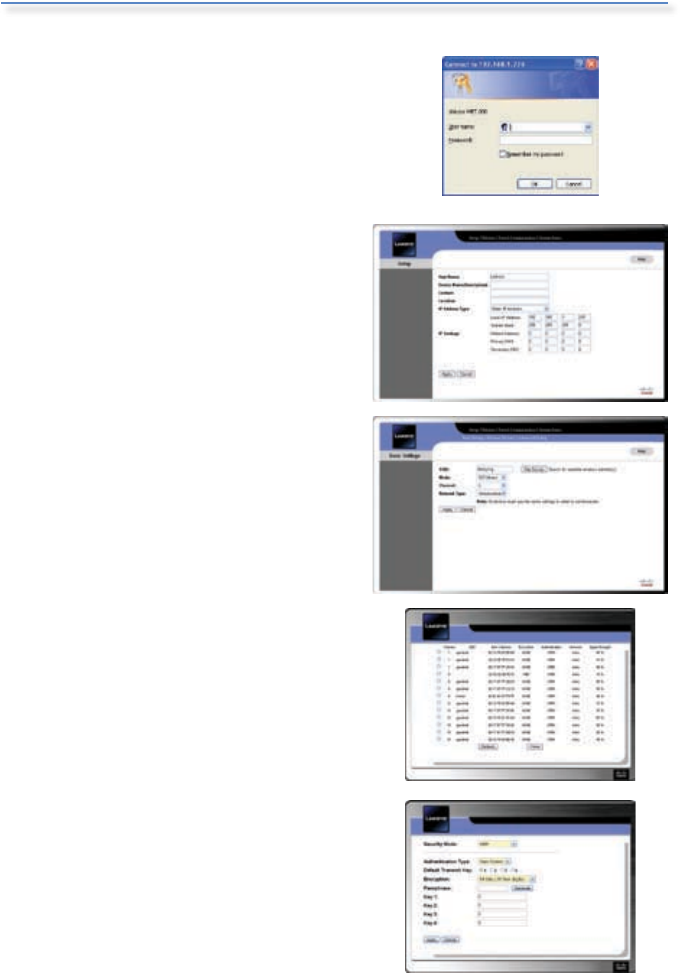
The login screen appears. Enter the
default user name and password,
admin, in lowercase letters in the
User name and Password elds.
Click OK.
The web-based utility’s Setup screen
(the default screen) appears. Select
the Wireless tab at the top of the
screen.
The Wireless tab’s Basic Settings
screen appears. Click Site Survey to
search for your wireless network.
The Wireless Site Survey screen
displays a list of wireless networks
in your area. Find your wireless
network and connect to it by
clicking the radio button to its left.
The next screen shows your wireless
network’s security settings. If the
Security Mode is Disabled, security
is not congured; click Apply.
Otherwise, ll in the security
settings (for example, the shared
secret, or the passphrase and keys).
Then click Apply.
C.
D.
E.
F.
G.
For additional information or troubleshooting help, please refer to the User Guide on the CD-ROM.
Additional support is also available via e-mail or by phone.
24-Hour Technical Support
800-326-7114
RMA (Return Merchandise Authorization)
http://www.linksys.com/support
E-mail Support
support@linksys.com
FTP Site
ftp://ftp.linksys.com
Website
http://www.linksys.com
http://support.linksys.com
Sales Information
800-546-5797 (800-LINKSYS)
Linksys is a registered trademark or trademark of Cisco Systems, Inc.
and/or its affiliates in the U.S. and certain other countries. Copyright
© 2007 Cisco Systems, Inc. All rights reserved. Other brands and
product names are trademarks or registered trademarks of their
respective holders.
7060710NC-AI
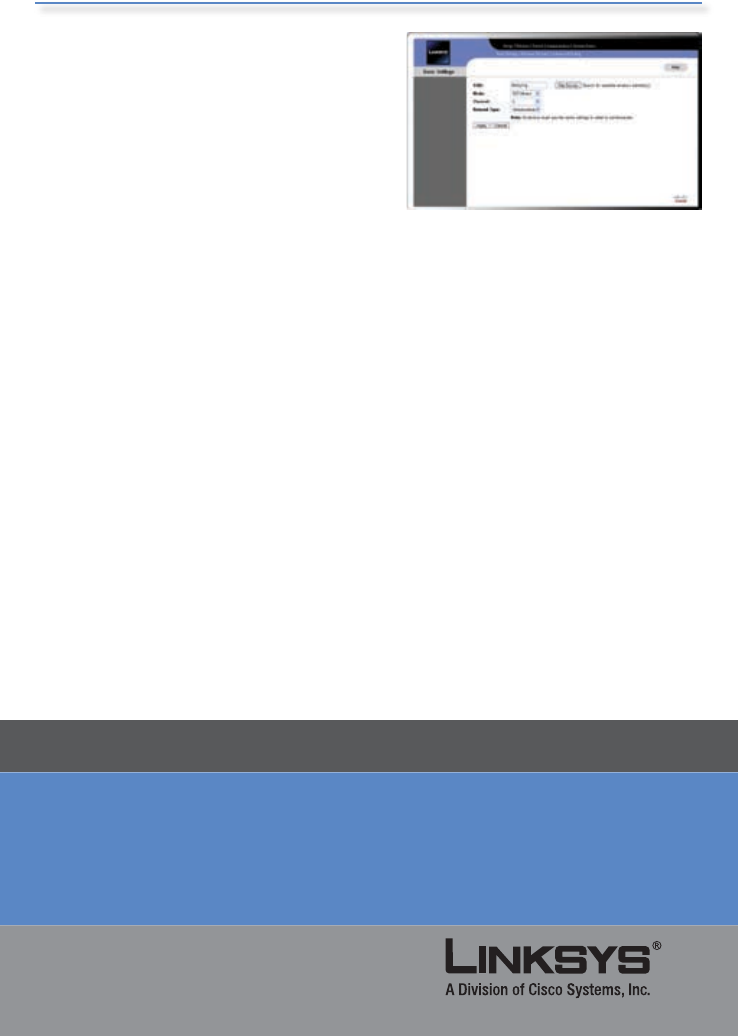
A message briey noties you that
the system is restarting, then the
Wireless tab’s Basic Settings screen
appears, displaying your wireless
network’s basic settings.
Select the Setup tab to display the
Setup screen.
If the Bridge’s default IP address
192.168.1.226 conicts with the
addresses on your network, change
the Bridge’s IP address as follows:
To assign a static IP address,
select Static IP Address from the
drop-down menu, then ll out
the Local IP Address, Subnet Mask,
Default Gateway, Primary DNS,
and Secondary DNS elds. Then
click Apply.
To have a DHCP server assign an
IP address to the Bridge, select
Automatic Conguration-DHCP
from the drop-down menu, then
click Apply.
Congratulations! Conguration is now complete.
H.
I.
•
•
