Clarion Dxz955Mc Users Manual
DXZ955MC DXZ955MC(Manual)
DXZ955MC to the manual d5156185-b35d-4ec3-be8d-d975d03e58d5
DXZ955MC_Manual Clarion U.S.A | Search Result
2015-02-02
: Clarion Clarion-Dxz955Mc-Users-Manual-410922 clarion-dxz955mc-users-manual-410922 clarion pdf
Open the PDF directly: View PDF  .
.
Page Count: 58
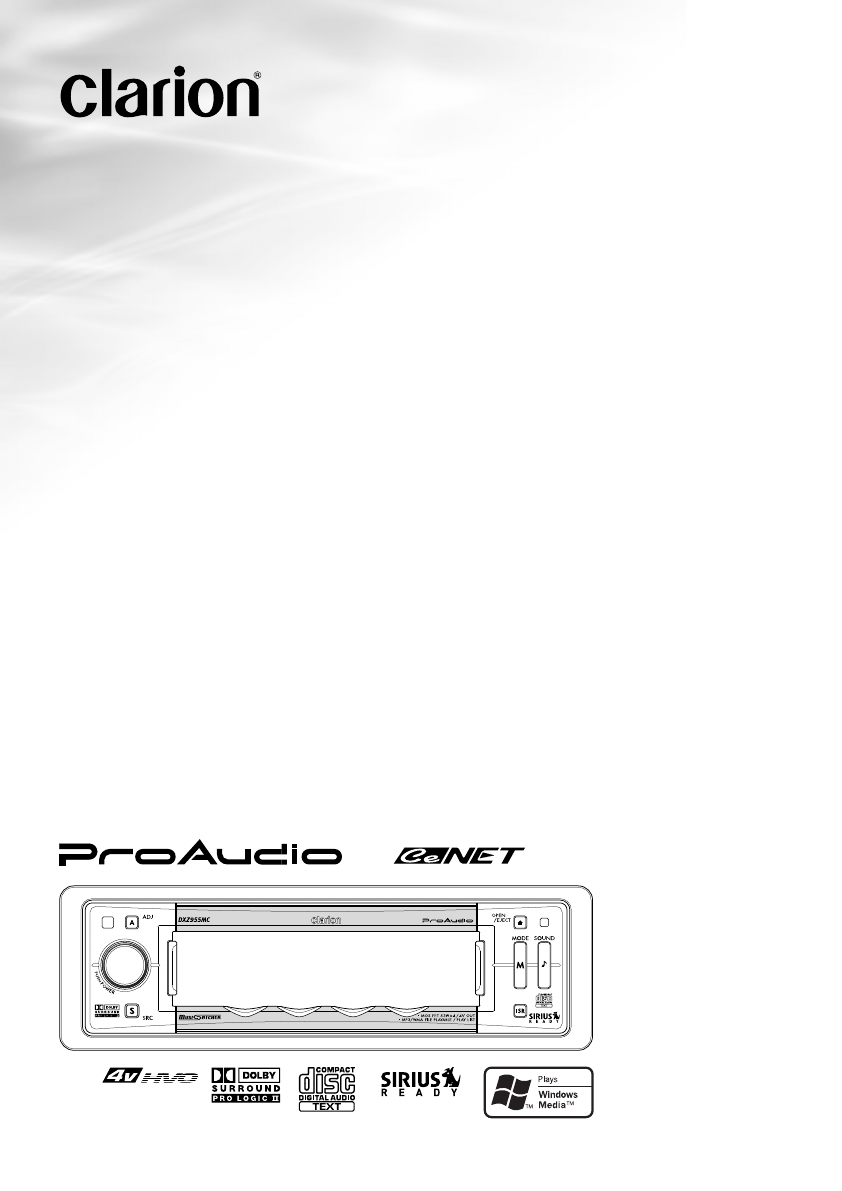
CD/MP3/WMA Receiver /
CeNET & Touch Panel Control /
Music Catcher
•
Récepteur CD/MP3/WMA/ CeNET et écran de contrôle
tactile/Music Catcher
•
Receptor de CD/MP3/WMA / Control en panel táctil y
CeNet / Music Catcher
Owner’s manual
Mode d’emploi
Manual de instrucciones
DXZ955MC
Clarion Co., Ltd.
All Rights Reserved. Copyright © 2005: Clarion Co., Ltd.
Printed in China / Imprimé en Chine / Impreso en China
2005/1 (Abe·Abe)
PE-2747B
280-8181-00
+DXZ955MC_00-Cover.p65 05.1.17, 5:22 PM1

280-8036-00
280-8036-00
Español
DXZ955MC 169
Thank you for purchasing this Clarion product.
∗Please read this owner’s manual in its entirety before operating this unit.
∗After reading this manual, be sure to keep it in a handy place (e.g., glove compartment).
∗Check the contents of the enclosed warranty card and keep it carefully with this manual.
∗This manual includes the operating procedures of the CD changer and TV tuner connected via the
CeNET cable. The CD changer and TV tuner have their own manuals, but no explanations for
operating them are described.
1. FEATURES
•4.2-Inch Full Color TFT Display
•Optimedia Technology for Superior Graphics and Touch-Screen Control
•MP3 and WMA Playback With ID3-TAG and WMA-TAG Display Capability
•High-Powered Internal MOSFET Amplifier (53 Watts x 4 Channels)
•Music Catcher for One-Touch CD Recording (Up to 80 Songs)
•Shock-Proof Memory for Skip-Free CD Playback
•Superb Music Reproduction With 24-Bit D/A Conversion and 4-Volt/6-Channel RCA Outputs
•Auxiliary Input for External Device Connection
•AC Processor IV: Dolby Pro Logic II / Time Alignment / Virtual Space Enhancer / 3-Band Parametric
EQ / ADF Compressed Audio Enhancer
•High Quality Stainless Steel Faceplate
Contents
1. FEATURES ..................................................................................................................................... 2
2. PRECAUTIONS .............................................................................................................................. 3
Sloping Console .............................................................................................................................. 4
Handling Compact Discs ................................................................................................................ 4
3. CONTROLS ..................................................................................................................................... 5
4. NOMENCLATURE ......................................................................................................................... 6
Names of the Buttons and their Functions ..................................................................................... 6
Operations when External Equipment is Connected to this Unit ..................................................... 7
Touch Panel Buttons ....................................................................................................................... 8
Touch Panel Operations .................................................................................................................. 9
5. DCP .............................................................................................................................................. 10
6. REMOTE CONTROL ..................................................................................................................... 11
Inserting the Battery ...................................................................................................................... 11
Functions of Remote Control Unit Buttons ................................................................................... 12
7. OPERATIONS ............................................................................................................................... 13
Basic Operations .......................................................................................................................... 13
Radio Operations ........................................................................................................................... 17
CD/MP3/WMA Operations ............................................................................................................ 20
MUSIC CATCHER Operations ....................................................................................................... 25
Sound Adjustment ......................................................................................................................... 27
Common Operations...................................................................................................................... 38
8. OPERATIONS OF ACCESSORIES ............................................................................................. 47
CD Changer Operations ............................................................................................................... 47
TV Operations .............................................................................................................................. 50
9. IN CASE OF DIFFICULTY ........................................................................................................... 53
10. ERROR DISPLAYS ....................................................................................................................... 55
11. SPECIFICATIONS ......................................................................................................................... 56
2DXZ955MC
+DXZ955MC_00-Cover.p65 05.1.17, 5:22 PM2
280-8036-00
DXZ955MC 3
English
1. When the inside of the car is very cold and
the player is used soon after switching on the
heater, moisture may form on the disc or the
optical parts of the player and proper
playback may not be possible. If moisture
forms on the disc, wipe it off with a soft cloth.
If moisture forms on the optical parts of the
player, do not use the player for about 1 hour.
The condensation will disappear naturally
allowing normal operation.
This unit has been tested and found to comply
with the limits for a Class B digital device,
pursuant to Part 15 of the FCC Rules.
These limits are designed to provide reasonable
protection against harmful interference in a
residential installation.
This unit generates, uses, and can radiate radio
frequency energy, and, if not installed and used
in accordance with the instructions, may cause
harmful interference to radio communications.
However, there is no guarantee that interference
will not occur in a particular installation.
If this unit does cause harmful interference to
radio or television reception, which can be
determined by turning the equipment off and on,
the user is encouraged to consult the dealer or
an experienced radio/TV technician for help.
2. PRECAUTIONS
2. Driving on extremely bumpy roads may
cause severe vibration and cause the sound
to skip.
3. This unit uses a precision mechanism. Even
in the event that trouble arises, never open
the case, disassemble the unit, or lubricate
the rotating parts.
WARNING
For your safety, do not watch or operate the touch panel while driving.
CAUTION
USE OF CONTROLS, ADJUSTMENTS, OR
PERFORMANCE OF PROCEDURES OTHER
THAN THOSE SPECIFIED HEREIN, MAY
RESULT IN HAZARDOUS RADIATION
EXPOSURE.
THE COMPACT DISC PLAYER AND MINI DISC
PLAYER SHOULD NOT BE ADJUSTED OR
REPAIRED BY ANYONE EXCEPT PROPERLY
QUALIFIED SERVICE PERSONNEL.
CHANGES OR MODIFICATIONS NOT
EXPRESSLY APPROVED BY THE
MANUFACTURER FOR COMPLIANCE COULD
VOID THE USER’S AUTHORITY TO OPERATE
THE EQUIPMENT.
INFORMATION FOR USERS:.
CHANGES OR MODIFICATIONS TO THIS
PRODUCT NOT APPROVED BY THE
MANUFACTURER WILL VOID THE
WARRANTY AND WILL VIOLATE FCC
APPROVAL.
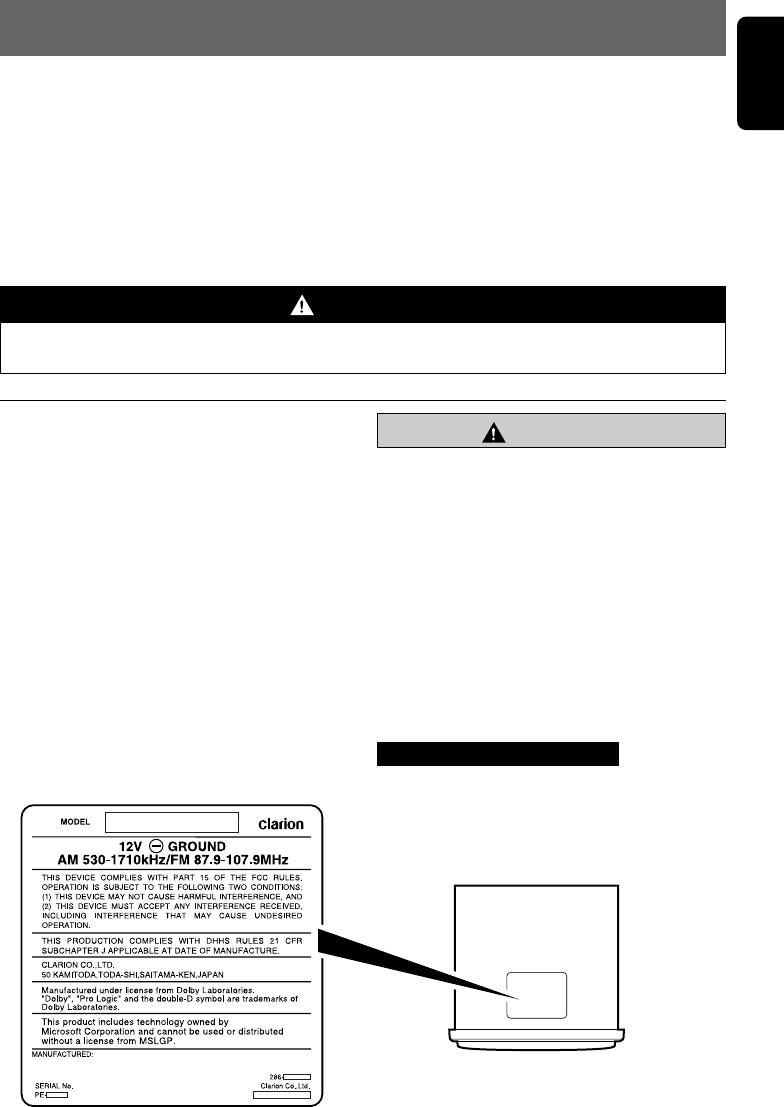
Bottom View of Source Unit
+DXZ955MC_01-02-Eng.p65 1/7/05, 2:03 PM3
4DXZ955MC
280-8036-00
English
This unit uses a SLOPING CONSOLE to make
large screen displays possible.
When you use the SLOPING CONSOLE, be
sure to close it.
CAUTION
BE CAREFUL NOT TO GET YOUR FINGERS
CAUGHT WHEN OPENING AND CLOSING
THE SLOPING CONSOLE.
1. For safety’s sake, always close the SLOPING
CONSOLE before leaving this unit unused for
a prolonged period or switching OFF the
ignition key.
If you switch OFF the ignition key with the
SLOPING CONSOLE tilted, the SLOPING
CONSOLE does not close.
Sloping Console
2. Before the SLOPING CONSOLE closes,
there may be a braking sound from the safety
mechanism. This is normal.
3. If you move the SLOPING CONSOLE by
hand, this may start play. To correct this play,
with the power for the unit ON, press the [QQ
QQ
Q]
button to close the SLOPING CONSOLE.
4. After a disc is ejected, the SLOPING
CONSOLE automatically returns to the tilted
or closed state. If there is any obstruction
when the SLOPING CONSOLE tries to close,
the safety mechanism is triggered and the
SLOPING CONSOLE returns to the open
state. If this happens, remove the
obstruction, then press the [QQ
QQ
Q] button.
5. To avoid scratching the compact disc, keep
the 12 or 8 cm CD level when loading or
removing it.
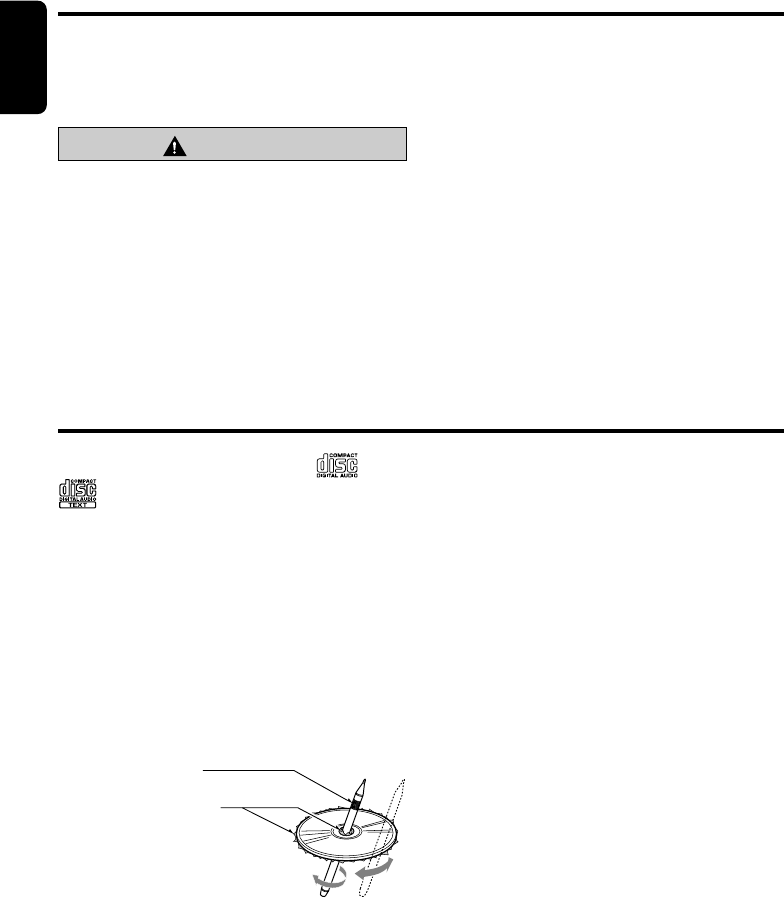
Use only compact discs bearing the or
mark.
Do not play heart-shaped, octagonal, or other
specially shaped compact discs.
Some CDs recorded in the CD-R/CD-RW mode
may not be usable.
Handling
•Compared to ordinary music CDs, CD-R and
CD-RW discs are both easily affected by high
temperature and humidity and some CD-R and
CD-RW discs may not be playable. Therefore,
do not leave them for a long time in the car.
•New discs may
have some
roughness
around the
edges. If such discs
are used, the player
may not work or the sound
may skip. Use a ball-point pen
or the like to remove any
roughness from the edge of the disc.
•Never stick labels on the surface of the
compact disc or mark the surface with a pencil
or pen.
•Never play a compact disc with any cellophane
tape or other glue on it or with peeling off
marks. If you try to play such a compact disc,
you may not be able to remove it from the CD
player or it may damage the CD player.
Handling Compact Discs
•Do not use compact discs that have large
scratches, are misshapen, cracked, etc. Use of
such discs may cause misoperation or
damage.
•To remove a compact disc from its storage
case, press down on the center of the case
and lift the disc out, holding it carefully by the
edges.
•Do not use commercially available CD
protection sheets or discs equipped with
stabilizers, etc. These may damage the disc or
break the internal mechanism.
Storage
•Do not expose compact discs to direct sunlight
or any heat source.
•Do not expose compact discs to excess
humidity or dust.
•Do not expose compact discs to direct heat
from heaters.
Cleaning
•To remove fingermarks and dust, use a soft
cloth and wipe in a straight line from the center
of the compact disc to the circumference.
•Do not use any solvents, such as commercially
available cleaners, anti-static spray, or thinner
to clean compact discs.
•After using special compact disc cleaner, let
the compact disc dry off well before playing it.
Ball-point pen
Roughness
+DXZ955MC_01-02-Eng.p65 1/7/05, 2:03 PM4
280-8036-00
English
DXZ955MC 5
3. CONTROLS
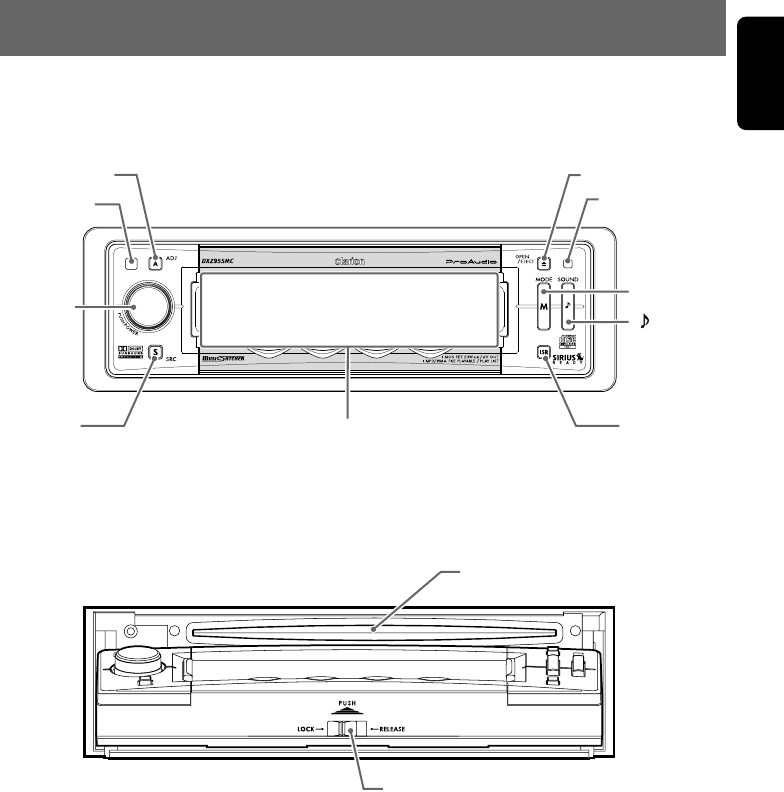
[ISR][SRC]Display
[MODE]
[ ] (SOUND)
[ADJ]
IR-Receiver
[ROTARY]
[Q] (OPEN/EJECT)
Photo Sensor
DCP Detaching Slider
[CD SLOT]
Source unit
With the SLOPING CONSOLE opened
+DXZ955MC_01-02-Eng.p65 1/7/05, 2:03 PM5
6DXZ955MC
280-8036-00
English
4. NOMENCLATURE
Names of the Buttons and their Functions
IR-Receiver
•Receiver for remote control unit. (Operating
range: 30° in all directions)
[ADJ] button
•Use this button to set or adjust the various
settings in the adjust mode.
[Q] (OPEN/EJECT) button
•Open/closes the control panel.
To eject a disc, open the control panel first, and
then press this button once again.
Photo Sensor
•This sensor detects the brightness inside your
car. When the auto-dimmer function is set to
“AUTO”, the brightness of the display is
dimmed according to the brightness detected
by this sensor.
[MODE] button
•Use this button to play in scan, repeat, or
random mode.
• Press and hold this button for 2 seconds or
longer to switch between standard and simple
operation displays.
[ ] (SOUND) button
•Use this button for setting or adjusting various
settings such as ADF.
[ISR] (Instant Station Recall) button
•Immediately calls up a favorite radio station
regardless of the current mode. (This is the
ISR function.) You can store radio stations to
the [ISR] button by holding this button down for
2 seconds or longer in the radio mode.
[SRC] button
•Switches among sound sources as shown
below.
Radio ➜ (SIRIUS) ➜ CD/MP3 ➜
M. CATCHER ➜ (CD changer) ➜ (DVD
changer) ➜ (TV) ➜ AUX ➜ Radio...
Note:
External equipment not connected with CeNET is
not displayed.
[ROTARY] knob
•Press the knob to turn the power ON.
•Press the knob to turn the power OFF.
•Turn the knob to adjust the volume.
[CD SLOT]
•CD insertion slot.
DCP Detaching Slider
•Removes the DCP.
Display
•Displays the various information that indicates
the operating state of this unit such as tuning/
play state and indicators.
•You can operate the display by touching or
touching the surface. (cf. page 9)
+DXZ955MC_01-02-Eng.p65 1/7/05, 2:03 PM6

280-8036-00
DXZ955MC 7
English
Operations when External Equipment is Connected to this Unit
What is Sirius Satellite Radio?
Sirius is radio the way it was meant to be: Up to
100 new channels of digital quality programming
delivered to listeners coast to coast via satellite.
That means 50 channels of completely
commercial-free music. Plus up to 50 more
channels of news, sports, and entertainment
from names like CNBC, Discovery, SCI-FI
Channel, A&E, House of Blues, E!, NPR,
Speedvision and ESPN.
Sirius is live, dynamic entertainment, completely
focused on listeners. Every minute of every day
of every week will be different. All 50
commercial-free music channels are created in-
house and hosted by DJs who know and love the
music. Do you like Reggae? How about Classic
Rock or New Rock? Sirius has an array of
choices spanning a vast range of musical tastes
including the hits of the 50’s, 60’s, 70’s, & 80’s as
well as Jazz, Country, Blues, Pop, Rap, R&B,
Bluegrass, Alternative, Classical, Heavy Metal,
Dance and many others...
From its state-of-the-art, digital broadcasting
facility in Rockefeller Center, New York City,
Sirius will deliver the broadest, deepest mix of
radio entertainment from coast to coast. Sirius
will bring you music and entertainment
programming that is simply not available on
traditional radio in any market across the country.
It’s radio like you’ve never heard before.
So Get Sirius and Listen Up! For more
information, visit siriusradio.com.
●When the CD/DVD changer is
connected
∗For details, see the section “CD changer
operations” (cf. page 47). For the DVD
changer, refer to the Owner’s Manual
provided with the DVD changer.
●When the TV is connected
∗For details, see the section “TV
operations” (cf. page 50).
●When the Sirius Satellite Radio
is connected
∗For details, refer to the Owner’s Manual
provided with the Sirius Satellite Radio.
+DXZ955MC_01-02-Eng.p65 1/7/05, 2:03 PM7
8DXZ955MC
280-8036-00
English
Touch Panel Buttons
●Standard operation display
98.10
FM1
SEEK
PRESET BAND DISPPS
/
AS
P3
P.CH
2:45 pm
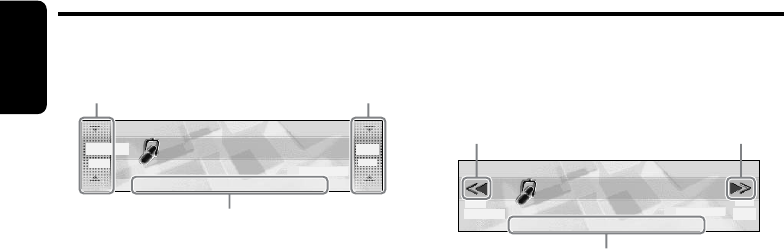
Left slide button
•Touch this button for seek up/down or track up/
down operations.
•Touch and hold this button for fast-forward/fast-
rewind operations.
Right slide button
•Touch this button for preset channel up/down,
folder up/down, and disc up/down operations.
Sub buttons
•Shows functions available in a certain context.
●Simple operation display
(To switch to the simple operation display, press
and hold the [MODE] button for 2 seconds or
longer.)
98.10
FM1
2:45
SEEK
PRESET BAND DISPPS
/
AS
P3
P.CH
pm
Left button
•Touch this button for seek down or track down
operations.
•Touch and hold this button for fast-rewind
operation.
Right button
•Touch this button for seek up or track up
operations.
•Touch and hold this button for fast-forward
operation.
Sub buttons
•Shows functions available in a certain context.
Left slide
button
Right slide
button
Sub buttons
Left button Right button
Sub buttons
+DXZ955MC_01-02-Eng.p65 1/7/05, 2:03 PM8
280-8036-00
DXZ955MC 9
English
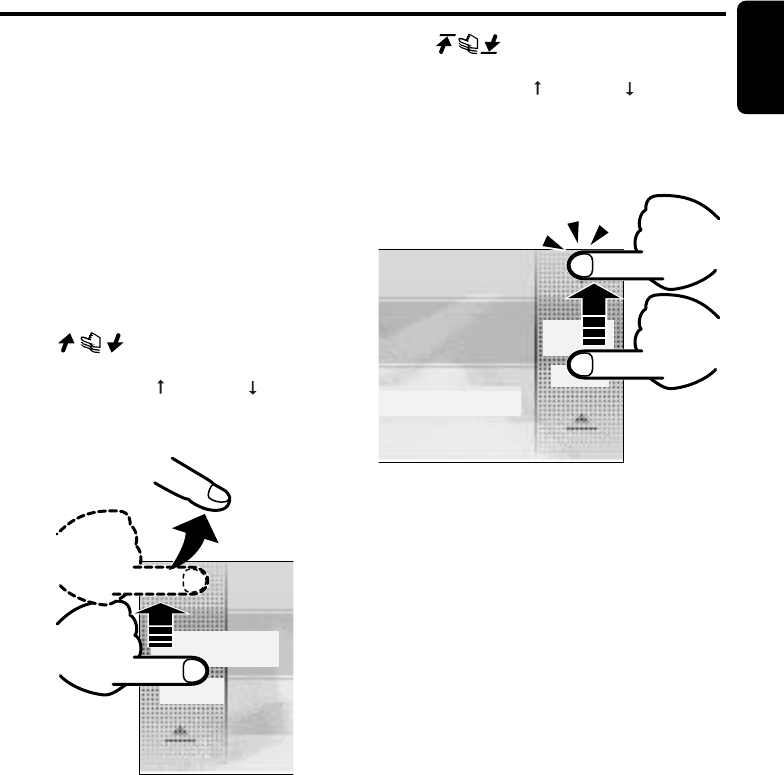
A touch panel display is used as the display on
this unit. You can operate this display just by
touching it with your fingertip. There are four
main display operations as follows:
Touch
Touch the display with your fingertip and take it
away within 1 second. This is the most basic
operation when operating the display.
Touch and hold
Touch the display with your fingertip and hold it
on the display for 1 or 2 seconds or longer. Do
not move your finger while you are touching the
display.
Touch
Touch the display with your fingertip, and move
your finger to the up ( ) or down ( ) with your
fingertip still touching the display, and take your
fingertip away within 1 second. This operation is
used, for example, selecting tracks or discs.
98.10
MANU
Touch Panel Operations
Touch
Touch the display with your fingertip, and move
your finger to the up ( ) or down ( ) with your
fingertip still touching the display, and keep your
fingertip on the display. The current operation
continues for the time your fingertip is held on
the display. This operation is used, for example,
for fast-forwarding/fast-rewinding tracks.
FM1
DISP
P3
P.CH
2:45 pm
+DXZ955MC_01-02-Eng.p65 1/7/05, 2:03 PM9
10 DXZ955MC
280-8036-00
English
5. DCP
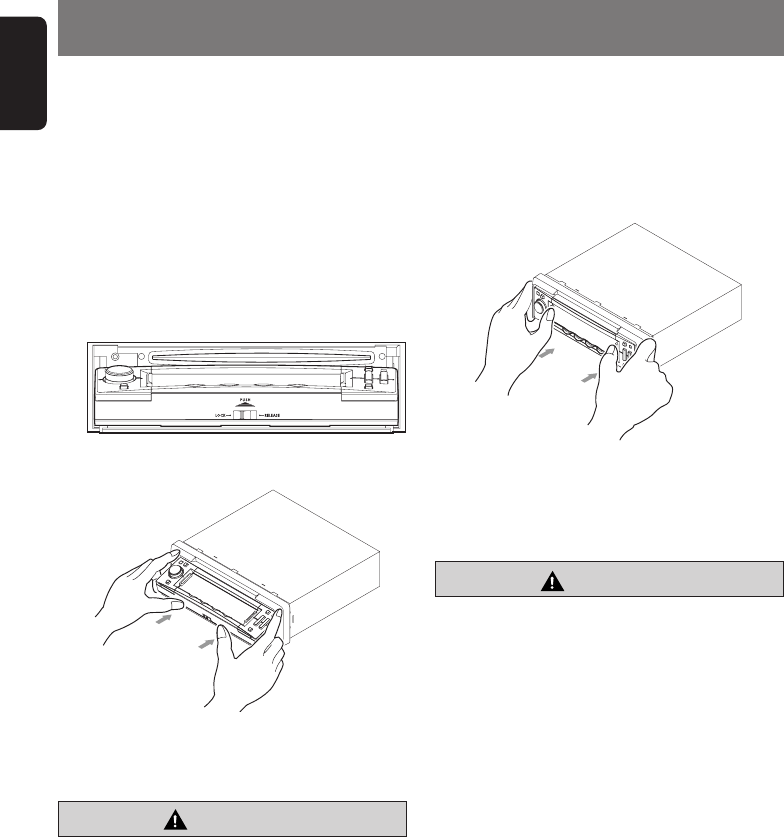
The control panel can be detached to prevent
theft. When detaching the control panel, store it
in the DCP (DETACHABLE CONTROL PANEL)
case to prevent scratches.
We recommend taking the DCP with you when
leaving the car.
Removing the DCP
1. Press the [Q] button to open the DCP.
2. Move the DCP detaching slider to the
“RELEASE” side.
3. Push and slide the DCP upward to remove.
∗The SLOPING CONSOLE without DCP
closes automatically in a few seconds.
CAUTION
•Do not try to remove or attach while
driving.
•The DCP can easily be damaged by shocks.
After removing it, be careful not to drop it
or subject it to strong shocks.
•If you purchased a replacement DCP, an
electrical adjustment is necessary.
This adjustment requires technical
knowledge.
Please consult Clarion service or a Clarion
service station.
Attaching the DCP
1. Place the DCP to the SLOPING CONSOLE,
adjusting the metal connecters on DCP and
the SLOPING CONSOLE.
2. Press the DCP until it clicks into the
SLOPING CONSOLE.
*The DCP display lights and is ready to use.
3. Move the DCP detaching slider to the
“LOCK” side.
CAUTION
•If the slider is on the [RELEASE] side and
the DCP is not locked into place, it may fall
out from vibration of the car. This can break
the DCP, so after removing it, either firmly
reattach it on the unit or put it in its DCP
case.
• The connector connecting the unit and the
DCP is an extremely important part. Be
careful not to damage it by pressing on it
with fingernails, screwdrivers, etc.
Note:
•If the DCP is dirty, wipe off the dirt with a soft, dry
cloth only.
\
+DXZ955MC_01-02-Eng.p65 05.1.11, 11:56 AM10
280-8036-00
English
DXZ955MC 11
6. REMOTE CONTROL
[BND]
[ ]
[a], [d]
[DISP]
[RDM]
[RPT]
[SRC]
[MUTE]
[ISR]
[SCN]
[ ], [ ]
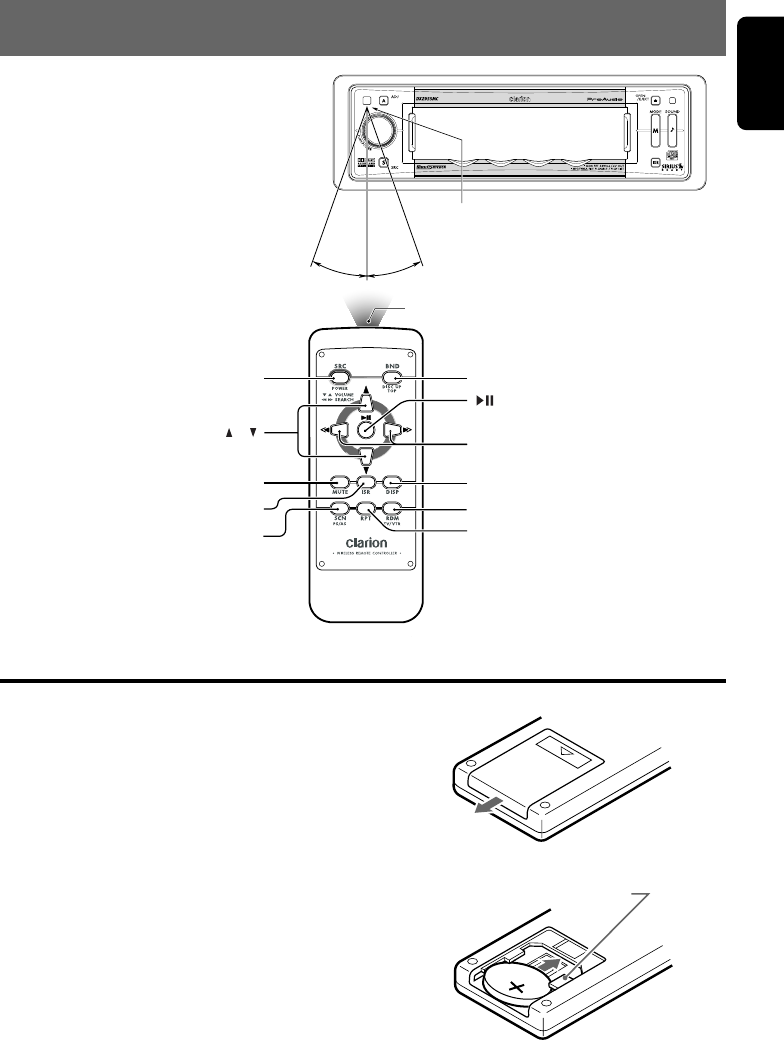
Remote control unit
Receiver for remote control unit
Operating range : 30° in all directions
Signal transmitter
1. Turn over the remote control unit and slide the
cover in the direction indicated by the arrow in the
illustration.
2. Insert the battery (CR2025) into the insertion
guides, with the printed side (+) facing upwards.
3. Press the battery in the direction indicated by the
arrow so that it slides into the compartment.
4. Replace the cover and slide in until it clicks into
place.
Notes:
Misuse may result in rupture of the battery, producing
leakage of fluid and resulting in personal injury or damage
to surrounding materials. Always follow these safety
precautions:
•Use only the designated battery .
• When replacing the battery, insert properly, with +/-
polarities oriented correctly.
• Do not subject battery to heat, or dispose of in fire or
water. Do not attempt to disassemble the battery.
• Dispose of used batteries properly.
Inserting the Battery
1
Insertion guide
C
R
2
0
2
5
23
+DXZ955MC_01-02-Eng.p65 1/7/05, 2:03 PM11
280-8036-00
English
12 DXZ955MC
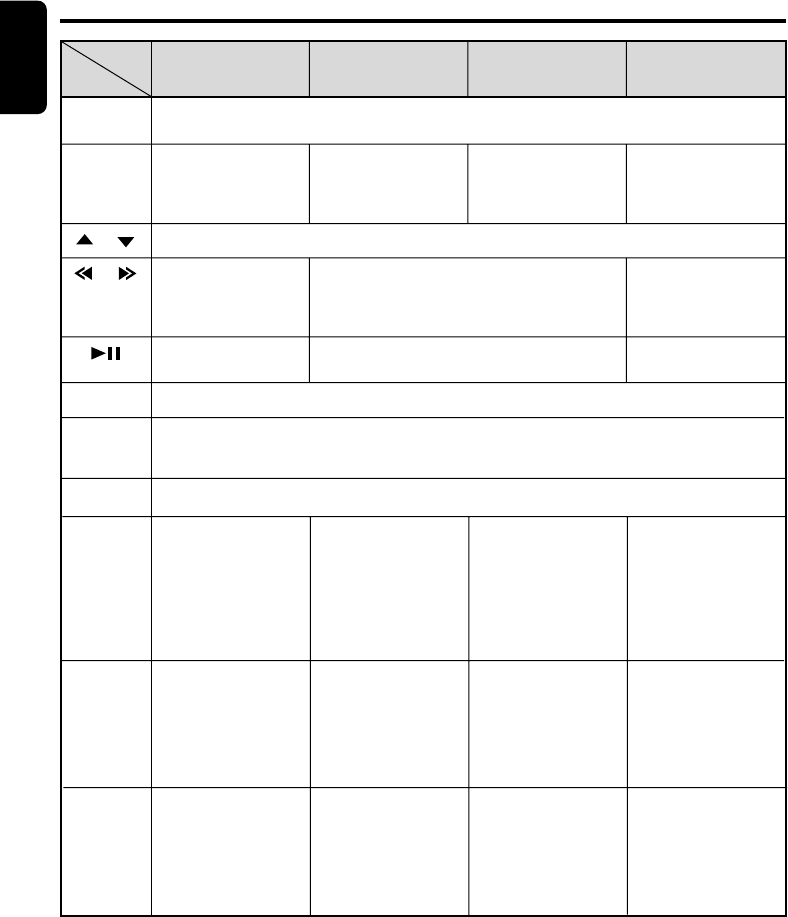
[SRC]
[BND]
[ ] , [ ]
[ ] , [ ]
[ ]
[MUTE]
[ISR]
[DISP]
[SCN]
[RPT]
[RDM]
Functions of the Remote Control Unit Buttons
Mode
Button
Radio/SIRIUS CD/MP3/WMA/
M.CATCHER
CD changer
DVD changer TV
Switches among radio, SIRIUS tuner, CD/MP3/WMA, MC, CD changer, DVD changer, TV
and AUX.
Switches reception
band.
Returns to the first
track.
Moves the next disc
in increasing order.
Switches reception
band.
Increases and decreases volume (in all modes).
Moves preset
channels up and
down.
No function.
Moves tracks up and down.
When pressed and held for 1 second or longer:
Fast-forward/fast-rewind.
Switches between playback and pause.
Moves preset
channels up and
down.
No function.
Tu r ns mute on and off.
Recalls ISR radio station in memory.
When pressed and held for 2 seconds or longer: Stores current station into ISR memory (radio
mode only).
Switches between the title display and the spectrum analyzer display.
Preset scan.
When pressed and
held for 2 seconds or
longer:
Auto store.
No function.
No function.
Scan play.
When pressed and
held for 1 second or
longer:
Folder scan play
(MP3/WMA disc, MC
mode).
Repeat play.
When pressed and
held for 1 second or
longer:
Folder repeat play
(MP3/WMA disc, MC
mode).
Random play.
When pressed and
held for 1 second or
longer:
Folder random play
(MP3/WMA disc, MC
mode).
Scan play.
When pressed and
held for 1 second or
longer:
Disc scan play.
Repeat play.
When pressed and
held for 1 second or
longer:
Disc repeat play.
Random play.
When pressed and
held for 1 second or
longer:
Disc random play.
Preset scan.
When pressed and
held for 2 seconds or
longer:
Auto store.
No function.
Switches between TV
and VTR.
∗Some of the corresponding buttons on the main unit and remote control unit have different functions.
+DXZ955MC_01-02-Eng.p65 1/7/05, 2:03 PM12
280-8036-00
DXZ955MC 13
English
CAUTION
Be sure to lower the volume before
switching the unit off or the ignition key. The
unit remembers its last volume setting. If you
switch the power OFF with the volume up,
when you switch the power back ON, the
sudden loud volume may hurt your hearing
and damage the unit.
7. OPERATIONS
Basic Operations
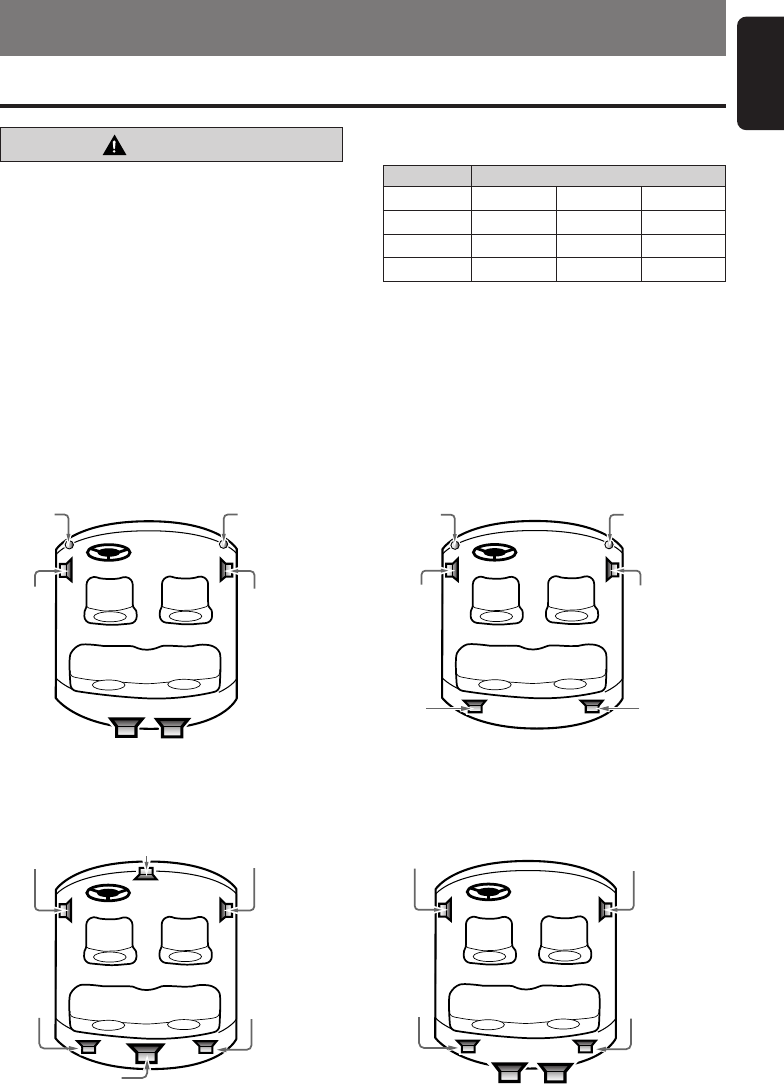
Speaker System
Speaker Configuration
3 WAY High 2ch Mid 2ch
Subwoofer 2ch
2 WAY High 2ch Mid 2ch Rear 2ch
Dolby PL II 5.1ch
Front 2ch
Surround 2ch
Center + Subwoofer
NORMAL Front 2ch Rear 2ch
Subwoofer 2ch
● NORMAL speaker system
Front 2ch, Rear 2ch, and Sub-woofer 2ch
●2WAY speaker system
High 2ch, Mid 2ch, and Rear 2ch
Sub-woofer
Rear
speaker
(left)
Rear
speaker
(right)
Rear
speaker
(left)
Rear
speaker
(right)
Tweeter
(left)
Tweeter
(right)
Front
speaker
(left)
Front
speaker
(right)
Front
speaker
(left)
Front
speaker
(right)
Speaker system
To make the best use of Dolby Pro Logic II on
this product, we recommend to install a 5.1
channel speaker system.
Even if it is unavailable, a 4 channel speaker
and sub-woofer system is also designed to
reproduce a sound field close to that of the 5.1
system.
●Dolby PL II (5.1ch) speaker system
Front 2ch, Surround 2ch, Center, and Sub-woofer
●3WAY speaker system
High 2ch, Mid 2ch, and Sub-woofer 2ch
Surround
speaker
(left)
Surround
speaker
(right)
Center
speaker
Sub-woofer
Sub-woofer
Tweeter
(left)
Tweeter
(right)
Front
speaker
(left)
Front
speaker
(right)
Front
speaker
(left)
Front
speaker
(right)
+DXZ955MC_01-13-Eng.p65 05.1.11, 11:56 AM13
14 DXZ955MC
280-8036-00
English
Turning off
1. Press the [ROTARY] knob.
∗The clock will stay displayed after the
power is turned OFF.
■ To turn off the clock display
Touch the clock to turn off the clock display
while the power is off.
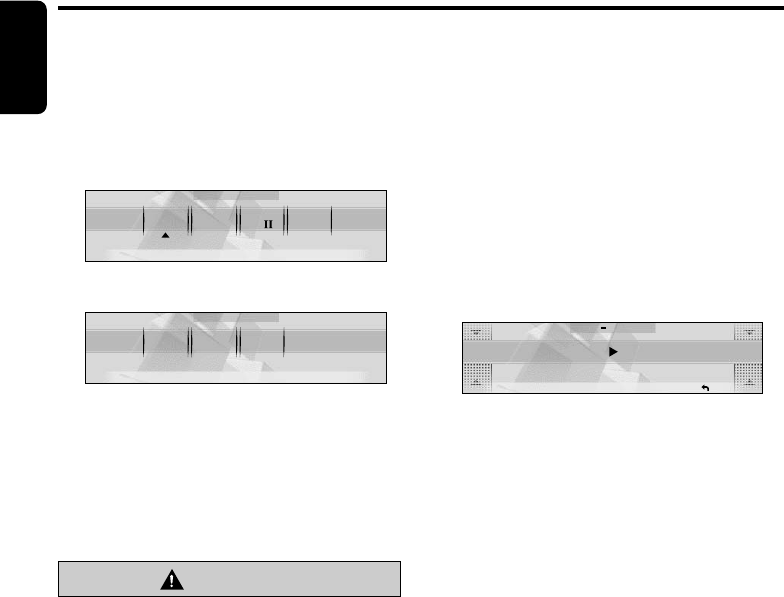
CODEMATIC function
When “CODEMATIC” is set to “ON”, and the
power is turned ON with the DCP attached, the
Touch Code display appears. Touch the display
in the order that was set in the adjust mode.
ADJ SETTING
RTN
CODEMATIC OFF
For details on the CODEMATIC function, see
“Using the security function” (cf. page 45).
Selecting a mode
1. Press the [SRC] button to change the
operation mode.
2. Each time you press the [SRC] button, the
operation mode changes in the following
order:
Radio ➜ (SIRIUS) ➜ CD/MP3 ➜
M. CATCHER ➜ (CD changer) ➜ (DVD
changer) ➜ (TV) ➜ AUX ➜ Radio...
∗External equipment not connected with
CeNET is not displayed.
Adjusting the volume
1. Turning the [ROTARY] knob clockwise
increases the volume; turning it
counterclockwise decreases the volume.
∗The volume level is from 0 (minimum) to
33 (maximum).
Selecting a speaker system
When this product is turned on for the first time,
it allows you to select a speaker system.
Choose your system in “SPEAKER SELECT”
screen by following the procedure below.
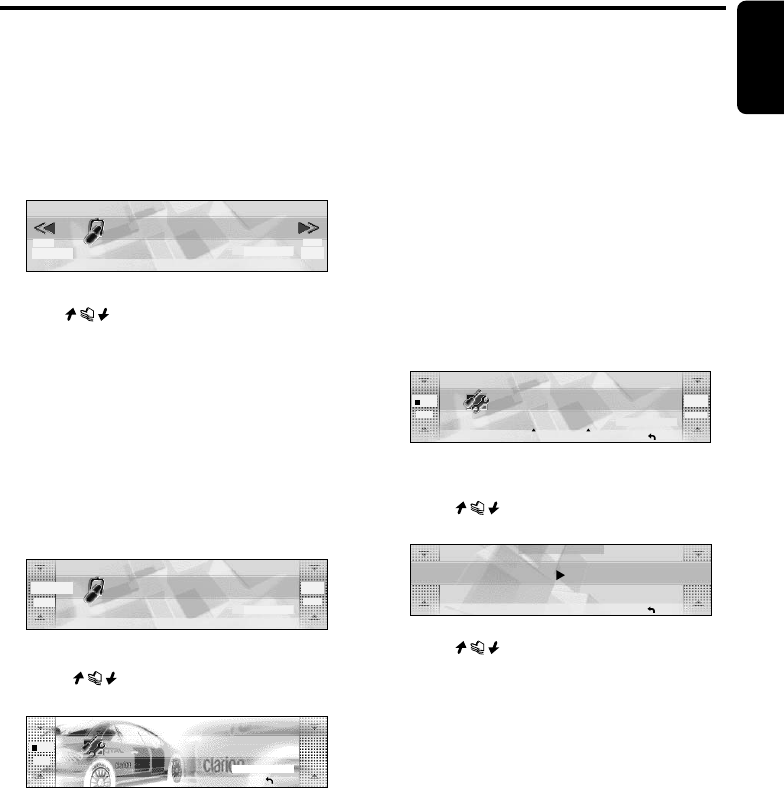
1. Touch the speaker system best suited to
your car.
SPEAKER SELECT
3 WAY 2 WAY
NORMAL
Dolby
PL
2. Touch [OK] to confirm your selection.
3 WAY ?
OK
CANCEL
∗The screen displays a clock with power off.
SYSTEM CHECK function
If you change your speaker system while the
power of this unit is on, perform the SYSTEM
CHECK function to display the SPEAKER
SELECT screen and select the appropriate
speaker system again. For details, see page 45.
CAUTION
Select the speaker system suited to your
speaker configuration. Failing to do so can
damage your speakers.
Turning ON/OFF the power
Turning on
Note:
•Be careful when using this unit for a long time
without running the engine. If you drain the car’s
battery too far, you may not be able to start the
engine and this can reduce the service life of the
battery.
1. Press the [ROTARY] knob.
The mode that was previously active is
displayed.
Basic Operations
+DXZ955MC_01-13-Eng.p65 1/7/05, 2:21 PM14
280-8036-00
DXZ955MC 15
English
Basic Operations
Switching the operation
display mode
There are 2 basic operation displays: standard
operation display and simple operation display.
1. Press and hold the [MODE] button for 2
seconds or longer to switch the operation
display.
98.10
FM1
2:45
SEEK
PRESET BAND DISPPS
/
AS
P3
P.CH
pm
In the simple operation display, the operations of
touching in the radio or CD mode display
screen are not required.
Descriptions given in this manual are mainly for
the standard operation display. For descriptions
for operations in the simple operation display,
refer to the descriptions for the screen displays
in the radio mode or the CD mode.
Switching the background
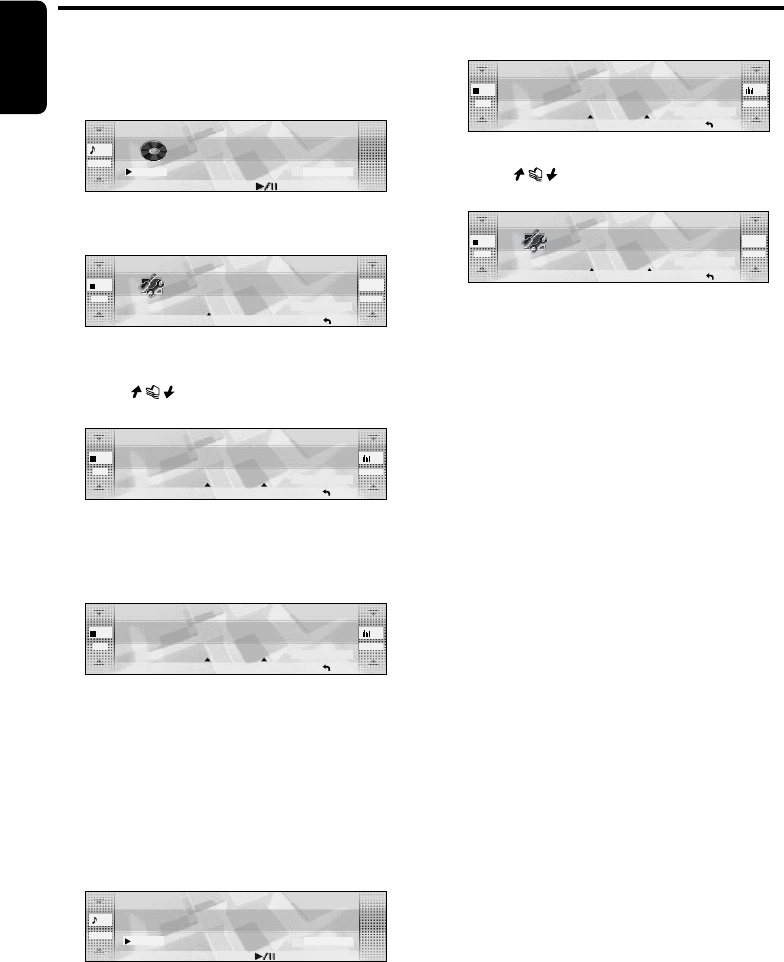
1. Touch [DISP].
98.10
FM1
SEEK
PRESET BAND DISPPS
/
AS
P3
P.CH
2:45
pm
∗DISPLAY EDIT screen displays.
2. Touch on the left of the display to
choose the background.
BGV
SP
/
ANA
DISPLAY EDIT
RTN
P
02
∗The background includes 12 wallpaper
images and 2 motion pictures.
∗Choose [SCAN] to automatically display all
the wallpaper.
●Background
M01:WRC
M02:Landscape
P01:Car and Checker Flag
P02:307WRC from Two View Points
P03:Rally Driver
P04:Driving Scene
P05:Cube
P06: Bubble
P07:Speaker
P08:Digital Image1 (Disc media)
P09:Digital Image2 (Broadcast media such
as satellite)
P10:Mixer
P11:Record Player
P12:Meter
3. Touch [RTN].
■ To change wallpaper color
You can change the colors of the wallpaper
(from P05 to P12).
•It can be set to both “DAY” mode and “NIGHT”
mode.
1. Touch [DISP].
2. Touch [COLOR].
05
DISPLAY EDIT
D
-
BLUE
AUTO
BGV
<<
TITLE
SP/ANA COLOR
SCROLL
P
RTN
∗The [COLOR] is displayed only when you
choose wallpaper from P05 to P12.
3. Touch on the left of the display to
select [DAY] or [NIGHT].
COLOR SELECT
NIGHT DARK BLUE
RTN
4. Touch on the right of the display to
select the color to set.
●COLOR
•DARK BLUE
•IVORY
•WINE RED
•LIGHT BLUE
•GREEN
+DXZ955MC_01-13-Eng.p65 1/7/05, 2:21 PM15
16 DXZ955MC
280-8036-00
English
2. Touch [TITLE].
DISPLAY EDIT
RTNTITLE COLOR SENS
05
BGV
D-BLUE
P
1
LOW
SPE/ANA
∗Title edit mode appears.
3. Touch on the right of the display to
choose the kind of title to show.
05
DISPLAY EDIT
D
-
BLUE
BGV
<<
TITLE
SP/ANA COLOR
P
RTN
AUTO
SCROLL
TRACK
∗The title you have chosen is displayed. If it
is too long to fit into the display, it
automatically scrolls.
4. Touch [SCROLL].
•Select [AUTO] to scroll the title repeatedly.
•Select [ONCE] to scroll the title only once.
Notes:
•You cannot set the scroll options in User title and
MUSIC CATCHER mode.
5. Touch [RTN].
●CD mode (MP3/WMA)
Folder title (when using a folder) ➜ Play
list (when using a play list) ➜ Track title
➜ Album TAG ➜ Artist TAG ➜ Title TAG ➜
Folder title (when using a folder)...
●MUSIC CATHCHER mode
Folder title ➜ Track title ➜ Folder title...
Notes:
•MP3 supports ID3 Tags V2.3 / 2.2 / 1.1 / 1.0.
•Tag displays give priority to V2.3 / 2.2.
•In the case of album Tags for WMA, the
information written into the extension header is
displayed.
•Only ASCII characters can be displayed in Tags.
Basic Operations
Adjusting the spectrum
analyzer
1. Touch [DISP].
01
Don
t
Stop
Be
,
HQ
TRACK
DISPTOPREC
2:45
01:01
pm
∗Display edit mode appears.
2. Touch [SP/ANA].
05
DISPLAY EDIT
D
-
BLUE
BGV
<<
TITLE
SP/ANA COLOR
INPUT
P
RTN
∗The display shows the spectrum analyzer
mode.
3. Touch on the right of the display to
select the spectrum analyzer to set.
DISPLAY EDIT
RTNTITLE COLOR SENS
05
BGV
D-BLUE
P
1
MID
SPE/ANA
•You can choose from four types.
•When [SCAN] is selected, each of them is
displayed for about 10 seconds.
4. Touch [SENS] to select the sensitivity.
DISPLAY EDIT
RTNTITLE COLOR SENS
05
BGV
D-BLUE
P
1
LOW
SPE/ANA
•You can choose from [HIGH], [MID], or [LOW].
5. Touch [RTN].
Switching the title display
You can display stored information such as disc
titles or track titles when playing back music in
CD, CD changer, or MUSIC CATCHER mode.
1. Touch [DISP] while a title is shown.
DISP
REC TOP
01
TRACK
HQ
02:53
2:45
pm
∗Display edit mode appears.
+DXZ955MC_01-13-Eng.p65 1/7/05, 2:21 PM16
280-8036-00
DXZ955MC 17
English
Radio Operations
FM reception
For enhanced FM performance, the
® tuner includes signal actuated
stereo control, Enhanced Multi AGC, Impulse
noise reduction circuits and Multipath noise
reduction circuits.
Screen displays in the radio
mode
●Standard operation display
The standard operation display appears by
pressing the [SRC] button and selecting the
radio mode.
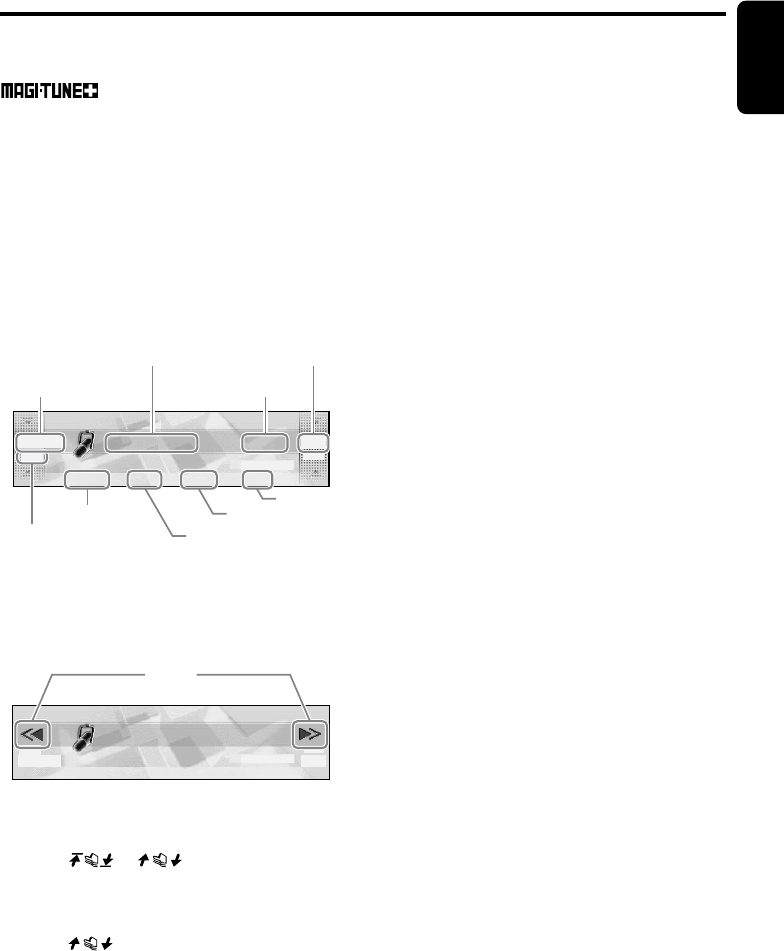
98.10
FM1
SEEK
PRESET BAND DISPPS
/
AS
P3
P.CH
2:45
pm
●Simple operation display
Pressing and holding the [MODE] button for 2
seconds or longer switches the simple operation
display.
98.10
FM1
2:45
SEEK
PRESET BAND DISPPS
/
AS
P3
P. C H
pm
Frequency display
The frequency currently being received is
displayed.
Touching or on the left slide
button in the standard operation display allows
you to perform seek tuning or manual tuning.
Preset No. display
Touching on the right slide button in the
standard operation display selects a preset
memory.
Title display
Displays the name of the broadcast channel
currently being received.
Reception band display
AM:AM band name
FM1:FM band name
PRESET
Touching this displays a preset memory No. list.
BAND
Touching this switches the reception band.
Touching and holding this for 1 second or longer
switches between the manual tuning mode and
the seek tuning mode.
PS/AS
Touching this starts a preset scan.
Touching and holding this for 2 seconds or
longer starts an auto store.
Touching this during the preset scan/auto scan
ends the operation.
DISP
The display contents can be changed.
a/d (only in the simple operation display)
Touching these enables seek tuning or step
tuning (in the manual tuning mode).
Touching and holding these enables quick
tuning (in the manual tuning mode).
Listening to the radio
1. Press the [SRC] button to select the radio
mode.
Each press of the [SRC] button switches the
mode as follows:
Radio ➜ (SIRIUS) ➜ CD/MP3 ➜
M.CATCHER ➜ (CD Changer) ➜ (DVD
Changer) ➜ (TV) ➜ AUX ➜ Radio...
∗The mode of equipment that is not
connected is not displayed.
2. Touch [BAND] to switch the reception band.
Each touch of [BAND] switches the
reception band as follows:
FM1 ➜ FM2 ➜ FM3 ➜ AM ➜ FM1...
Tuning
There are 3 types of tuning mode available,
seek tuning, manual tuning and preset tuning.
Preset No.
display
Title display
Frequency
display
Reception
band display
SEEK/MANU
display
PRESET
BAND
PS/AS
DISP
a/d
+DXZ955MC_01-13-Eng.p65 1/7/05, 2:21 PM17
18 DXZ955MC
280-8036-00
English
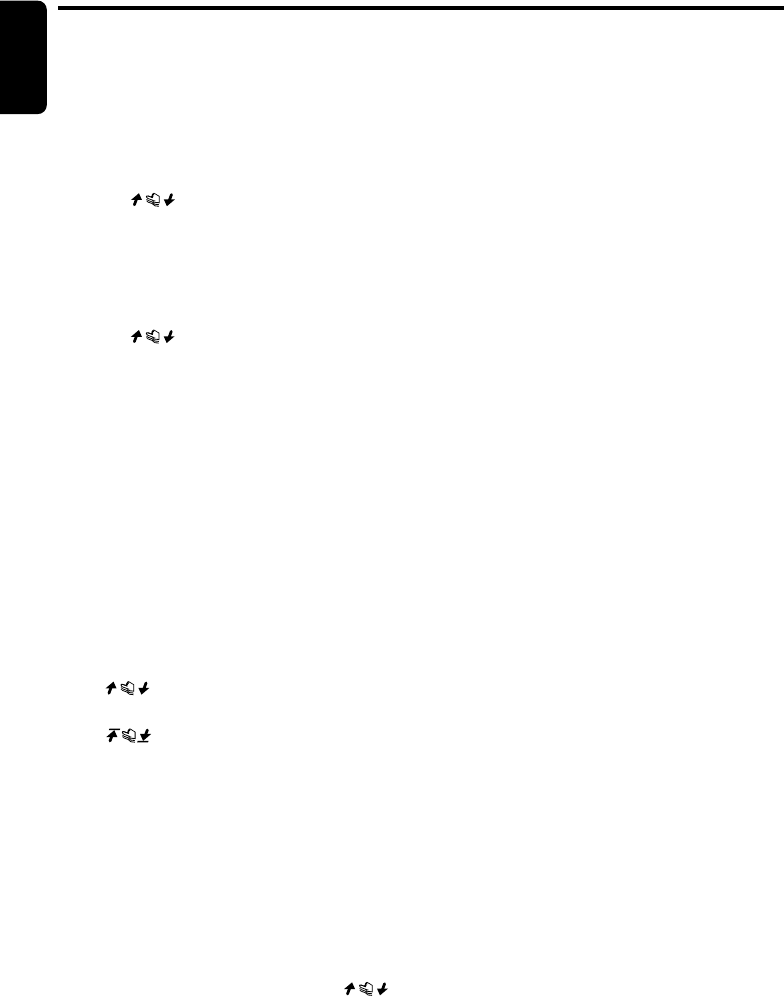
Seek tuning
Seek tuning is a function for automatically tuning
stations with good reception.
1. Touch and hold [BAND] for 1 second or
longer if “MANU” is displayed.
Automatic tuning is possible when “SEEK” is
displayed.
2. Touch on the frequency display.
“SEEK UP”/“SEEK DOWN” is displayed, and
tuning starts.
Tuning automatically stops at stations with
good reception.
■ To cancel tuning
1. Touch on the frequency display
again.
Manual tuning
There are 2 ways available: quick tuning and
step tuning.
In the step tuning mode, the frequency changes
1 step at a time. In the quick tuning mode, you
can quickly tune the desired frequency.
1. Touch and hold [BAND] for 1 second or
longer if “SEEK” is displayed.
Manual tuning is possible when “MANU” is
displayed.
2. Operate the frequency display to tune to a
frequency on which there is a broadcast.
●Step tuning
Touch on the frequency display.
●Quick tuning
Touch on the frequency display. Tuning
stops when you take your finger away from the
panel.
Recalling a preset station
Recalling a preset station is a function for tuning
pre-stored stations.
1. Touch [PRESET].
The preset memory No. list is displayed.
2. Touch the preset memory No.
∗In the standard operation display, preset
No. can also be tuned by touching .
■ To cancel tuning
1. Touch [RTN].
Radio Operations
Preset memory
A total of 24 preset positions (6-FM1, 6-FM2, 6-
FM3, 6-AM) exists to store individual radio
stations in memory.
1. Touch [BAND] to switch the reception band.
2. Operate the frequency display to tune to a
frequency to store.
3. Touch [PRESET].
The preset memory No. list is displayed.
4. Touch and hold the preset No. to store the
station to for 2 seconds or longer.
You will hear a long beep, and the station is
stored in memory.
Auto store
Auto store is a function for storing up to 6
stations that are automatically tuned in
sequentially.
1. Touch and hold [PS/AS] for 2 seconds or
longer.
“A-STORE” is displayed.
∗Stations with good reception are
automatically searched, and are stored to
preset memory (No.1 to No.6) in order
from the station having the lowest
frequency.
Notes:
•When auto store is performed, stations stored to
memory so far are cleared.
•When there are fewer than 6 stations with good
reception, low frequencies are automatically
returned to, and auto store is performed again. If
there are fewer than 6 stations even after auto
store is performed twice, stations stored so far
remain in memory.
Preset scan
Preset scan is a function for receiving stations in
the order that they are currently stored to preset
No. so that broadcasts can be checked.
1. Touch [PS/AS].
“P-SCAN” is displayed.
∗The currently stored stations are received
in order for 7 seconds or longer each.
Stations with poor reception are skipped,
and the next station is received.
+DXZ955MC_01-13-Eng.p65 1/7/05, 2:21 PM18

280-8036-00
DXZ955MC 19
English
■ To cancel preset scan
1. Touch [PS/AS].
“P-SCAN” display disappears and the
stations that were being received when [PS/
AS] was touched are received next.
Instant station recall (ISR)
Instant station recall is a special radio preset
that instantly accesses a favorite radio station at
a touch of a button. The ISR function even
operates with the unit in other modes.
•The factory default setting is “FM87.9MHz”.
1. Press the [ISR] button.
“ISR” appears on the display.
■ To return to the previous mode
Press the [ISR] button again or press the [SRC]
button.
■ To store the station to “ISR”
In the radio mode, tune the station to store, and
press and hold the [ISR] button for 2 seconds or
longer.
You will hear a long beep, and the station
currently being received is stored to ISR.
Radio Operations
+DXZ955MC_01-13-Eng.p65 1/7/05, 2:21 PM19
20 DXZ955MC
280-8036-00
English
CD/MP3/WMA Operations
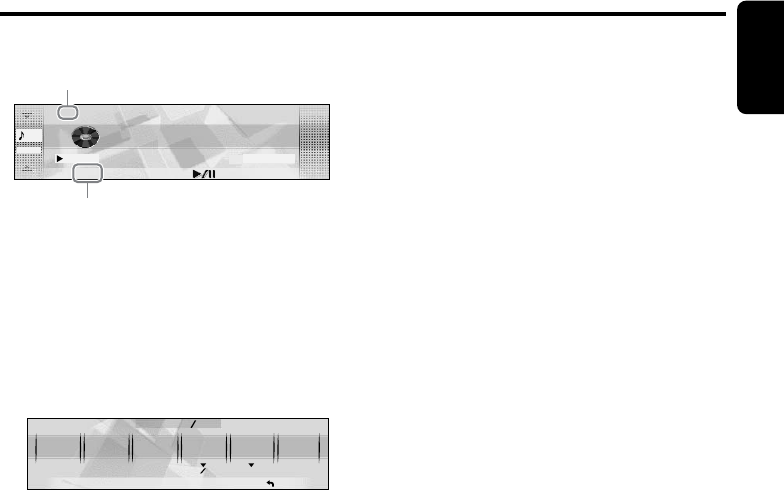
Screen displays in the CD/
MP3 mode
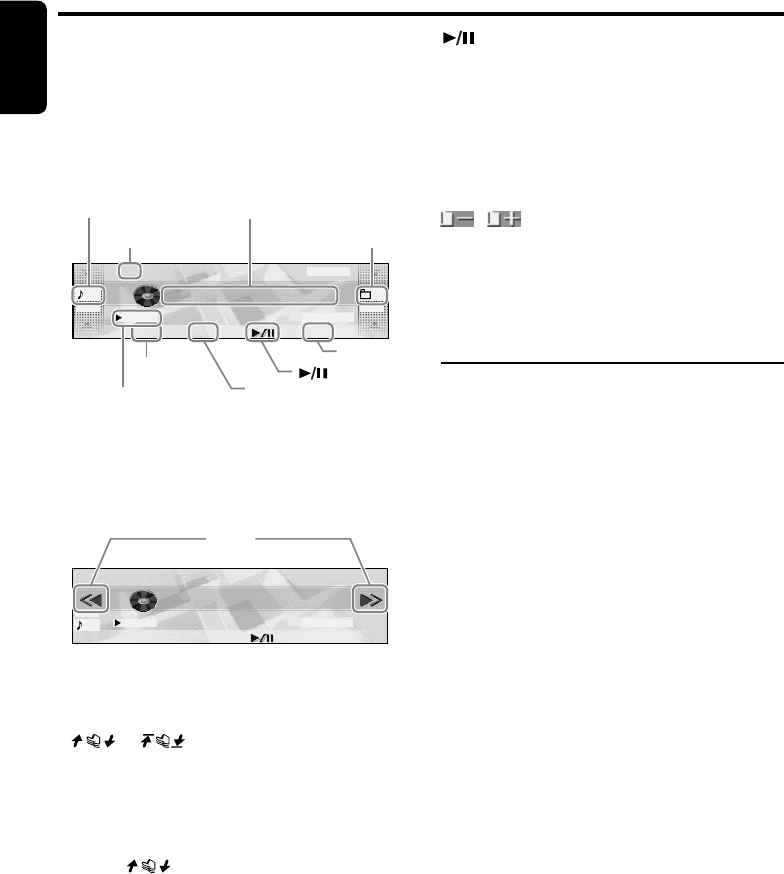
●Standard operation display
The standard operation display appears by
pressing the [SRC] button to select the CD/MP3
mode.
01 01
Don
t
Stop
Be
,
MP3
TRACK FOLDER
DISPTOPREC
2:45
01:01
pm
●Simple operation display
Pressing and holding the [MODE] button for 2
seconds or longer switches the simple operation
display.
01
Don
t
Stop
Be
,
MP3
TRACK
DISPTOPREC
2:45
01:26
pm
Playing time display
Î00: 01: The playing time is displayed.
Track No. display
If or is touched, you can select the
track to play, or fast-forward or fast-rewind
tracks.
Title display
The selected title is displayed.
Folder No. display (in the case of MP3/WMA)
Touching selects folders.
REC (in the case of CD-DA)
Touching this records the track being played.
Touching and holding this for 2 seconds or
longer records all tracks in the disc.
Touching this during recording cancels the
recording process.
TOP
Touching this starts play from the track at the
top of the disc or folder being played.
Touching this pauses or resumes play.
DISP
The display contents can be changed.
a/d (only in the simple operation display)
Touching these buttons selects the track to play.
Touching and holding these buttons fast-
forwards or fast-rewinds tracks.
/ (Appears only in MP3/WMA/
MUSIC CATCHER mode and the simple
operation display)
Touching these buttons selects the folder to
play.
MP3/WMA
What is MP3?
MP3 is an audio compression method and
classified into audio layer 3 of MPEG standards.
This audio compression method has penetrated
into PC users and become a standard format.
This MP3 features the original audio data
compression to about 10 percent of its initial
size with a high sound quality. This means about
10 music CDs can be recorded on a CD-R disc
or CD-RW disc to allow a long listening time
without having to change CDs.
What is WMA?
WMA is the abbreviation of Windows Media
Audio, an audio file format developed by
Microsoft Corporation.
Notes:
•If you play a file with DRM (Digital Rights
Management) for WMA remaining ON, no audio is
output. (The DRM indicator blinks.)
•Windows Media™, and the Windows® logo are
trademarks, or registered trademarks of Microsoft
Corporation in the United States and/or other
countries.
●To disable DRM (Digital Rights
Management):
1. When using Windows Media Player 8, click
on TOOLS ➜ OPTIONS ➜ COPY MUSIC
tab, then under COPY SETTINGS, unclick
the check box for PROTECT CONTENT.
Then, reconstruct files.
Tra ck No.
display
MP3 (WMA)
Folder No.
display
Title display
Playing time
display
REC DISP
TOP
a/d
+DXZ955MC_01-20-Eng.p65 1/7/05, 10:47 PM20
280-8036-00
DXZ955MC 21
English
CD/MP3/WMA Operations
2. When using Windows Media Player 9, click
on TOOL ➜ OPTIONS ➜ MUSIC RECORD
tab, then under Recording settings, unclick
the Check box for RECORD PROTECTED
MUSIC. Then, reconstruct files.
Personally constructed WMA files are used
at your own responsibility.
Precautions when creating
MP3/WMA disc
● Usable sampling rates and bit rates:
1. MP3: Sampling rate 11.025 kHz-48 kHz,
Bit rate: 8 kbps-320 kbps / VBR
2. WMA: Bit rate 48 kbps-192 kbps
● File extensions
1. Always add a file extension “.MP3” or
“.WMA” to MP3 or WMA file by using single
byte letters. If you add a file extension other
than specified or forget to add the file
extension, the file cannot be played.
2. Files without MP3/WMA data will not play.
The indication “––:––” appears in the play
time display if you attempt to play files
without MP3/WMA data.
● Logical format (File system)
1. When writing MP3/WMA file on a CD-R disc
or CD-RW disc, please select “ISO9660
level 1, 2 or JOLIET or Romeo” as the
writing software format. Normal play may not
be possible if the disc is recorded on another
format.
2. The folder name and file name can be
displayed as the title during MP3/WMA play
but the title must be within 128 single byte
alphabetical letters and numerals (including
an extension).
3. Do not affix a name to a file inside a folder
having the same name.
● Folder structure
1. A disc with a folder having more than 8
hierarchical levels will be impossible.
● Number of files or folders
1. Up to 255 files can be recognized per folder.
Up to 500 files can be played.
2. Tracks are played in the order that they were
recorded onto a disc. (Tracks might not
always be played in the order displayed on
the PC.)
3. Some noise may occur depending on the
type of encoder software used while
recording.
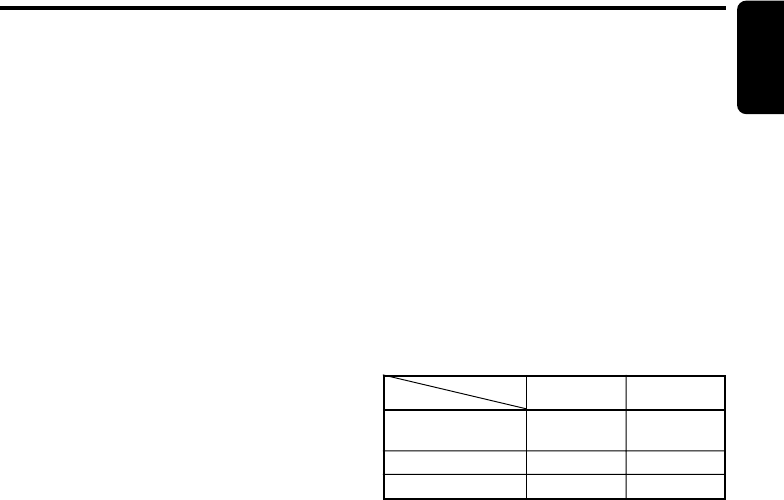
Multisession function
When a disc contains both CD-DA and MP3/
WMA type tracks mixedly, you can select which
type of the recorded tracks to play.
● Default value is “CD”.
1. Press the [MODE] button.
2. Touch [Å]/[Î] to go to the next page.
3. Touch [MULTI SESS].
Each touch of [MULTI SESS] toggles the
MULTI SESS display between “CD” (play
CD-DA) or “MP3/WMA” (play MP3/WMA).
∗The multi-session selection setting is
reflected the next time you load a CD.
Note:
•When playing a CCCD (Copy Control CD), set the
setting to CD type. When this is set to MP3/WMA
type, the CD cannot be played normally in some
cases.
Disc-In-Play function
As long as the ignition key is turned to the ON or
ACC position, this function allows you to turn the
power to the unit and start playing the disc
automatically when the disc is inserted even if
the power is not turned on.
Loading a CD
1. Press the [Q] button.
The control panel opens.
2. Insert the disc into the CD SLOT.
When the disc is loaded, the control panel
automatically closes after several seconds,
and play starts.
Notes:
•Never insert foreign objects into the CD SLOT.
• If the CD does not insert easily, there may be
another CD in the mechanism or the unit may
require service.
Set to MP3/WMA
Disc
Mixed with CD and
MP3/WMA type tracks
CD-DA
MP3/WMA disc
Set to CD
Play CD
Play MP3/WMA
Setting
Play CD Play CD
Play MP3/WMA
Play MP3/WMA
+DXZ955MC_01-20-Eng.p65 1/7/05, 10:47 PM21
22 DXZ955MC
280-8036-00
English
CD/MP3/WMA Operations
•Discs not bearing the or mark and
CD-ROMs cannot be played by this unit.
•Some CDs recorded in the CD-R/CD-RW mode
may not be usable.
Loading 8 cm compact discs
∗No adapter is required to play an 8 cm CD.
∗Insert the 8 cm CD into the center of the CD
SLOT.
Backup eject function
You can eject a disc by pressing the [Q] button
even if the engine key or ACC is at the OFF
position.
CAUTION
When the disc is ejected, press the [Q]
button to close the control panel. If the
control panel is left open, you will hear a
double beep, and the control panel
automatically closes.
1. Press the [Q] button.
The control panel opens.
2. Press the [Q] button.
The disc is ejected.
Note:
•Always close the SLOPING CONSOLE after
opening it or ejecting the CD.
CAUTION
•Be careful not to catch your hand or
fingers while closing the SLOPING
CONSOLE.
•Do not try to put your hand or fingers in
the disc insertion slot. Also never insert
foreign objects into the slot.
•Do not insert discs where adhesive comes
out from cellophane tape or a rental CD
label, or discs with marks where
cellophane tape or rental CD labels were
removed. It may be impossible to extract
these discs from the unit and they may
cause the unit to break down.
Listening to a disc already
loaded in the unit
1. Press the [SRC] button to select the CD/
MP3 mode.
∗Play automatically starts when the mode
changes to the CD/MP3 mode.
Pausing play
1. Touch [ ].
■ To resume play
1. Touch [ ] again.
Selecting a track
When a CD-R/CD-RW recorded with an MP3
file or a WMA file is loaded, you can select only
tracks recorded to the same folder by touching
on the track display.
1. To listen to the next track, touch on the
track display.
2. To listen to the previous track, touch
twice on the track display.
Touching plays the next track. If you
touch more times, the track advances
ahead to the track for the number of times
you touched and that track is played.
Touching plays the previous track. If
you touch more times, the track moves
back to the track for the number of times you
touched and that track is played.
∗If you touch twice on the track display
while the start of the track is being played,
the track 2 tracks back is sometimes
played.
■ To select a folder
To select a different folder, touch on the
folder display on the right.
Play list mode
This function allows you to play tracks, up to
latest 5 time stamps, by reading the play list
information written on the disc.
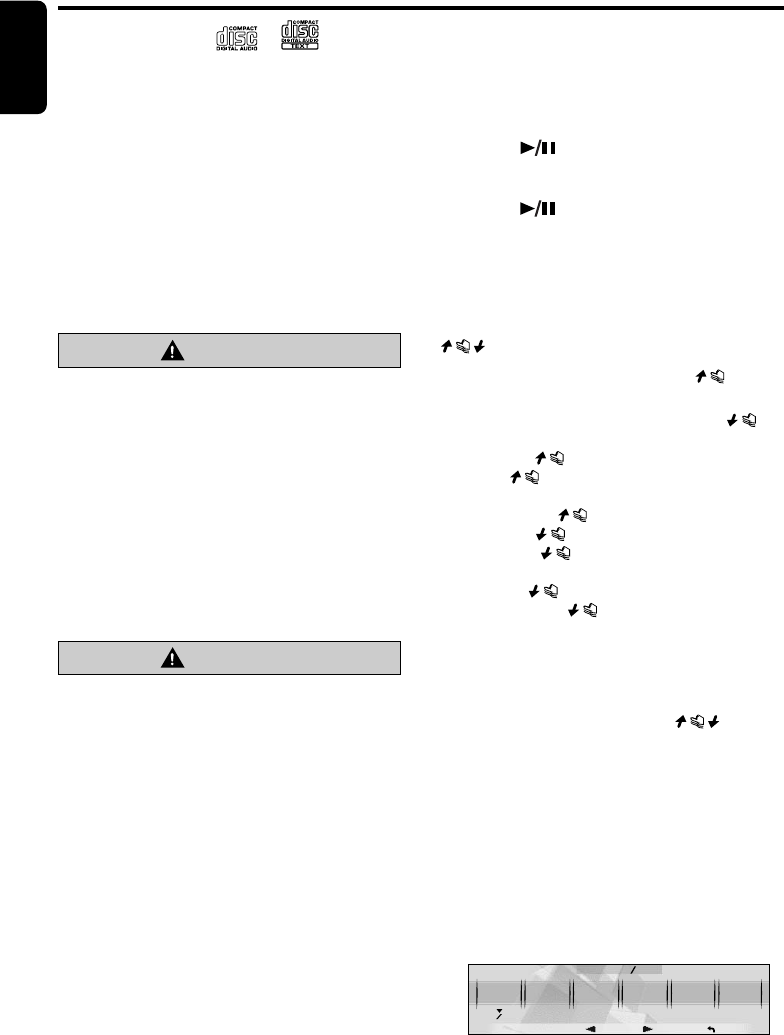
1. Press the [MODE] button.
2. Touch [Å]/[Î] to go to the next page.
3. Touch [PLAY LIST].
MODE
MULTI
SESS
MP3 WMA
PLAY
LIST
2 2
RTN
+DXZ955MC_01-20-Eng.p65 1/7/05, 10:47 PM22
280-8036-00
DXZ955MC 23
English
The operation of selecting the play list or
tracks in the play list is the same as that of
selecting a folder or tracks in a folder.
∗Play list play is possible only when there is
a file whose extension is “.M3U” on the
CD-R/RW.
∗Up to 5 play lists can be recognized, and
up to 255 files can be recognized per play
list.
■ Stopping play of play list
1. Press the [MODE] button.
2. Touch [Å]/[Î] to go to the next page.
3. Touch [PLAY LIST].
Notes:
•The SCN/RPT/RDM functions cannot be used
while in the play list mode.
•The title changes from folder name to play list
name.
Making a play list
1. Write desired tracks to a CD-R/RW, etc. Be
sure to use alphanumeric/ASCII characters
for all file names.
2. Make a play list by using a multimedia
player, etc. and save the data. The file format
must be M3U.
3. Again, write this play list to the CD-R/RW,
etc.
Notes:
• When writing to a CD-R/RW, etc., be sure to use
alphanumeric/ASCII characters.
•Up to 5 layers can be recognized as a list. For
written play lists, latest 5 lists are recognized in
the order in which they are written.
•When writing to a CD-R/RW, etc., turn off the Disc
At Once function.
• When adding a play list, it is recommended to
write it in the “Root” folder.
Fast-forward/fast-rewind
1. To fast-forward, touch on the track
display.
2. To fast-rewind, touch on the track
display.
Top function
The top function resets the CD player to the first
track of the disc.
1. Touch [TOP].
Play starts from the first track (track No.1).
Scan play
This function allows you to locate and play the
first 10 seconds of all the tracks recorded on a
disc.
1. Press the [MODE] button.
2. Touch [TRACK SCAN].
∗Scan play starts from the next track after
the track currently being played.
■ To cancel scan play
1. Press the [MODE] button.
Folder scan play
This function allows you to locate and play the
first 10 seconds of the first track of all the folders
recorders on a disc.
1. Press the [MODE] button.
2. Touch [FOLDER SCAN].
∗Folder scan play starts from the folder
following the folder that is playing.
■ To cancel folder scan play
1. Press the [MODE] button.
Repeat play
This function allows you to play the current track
repeatedly.
1. Press the [MODE] button.
2. Touch [TRACK RPT].
■ To cancel repeat play
1. Press the [MODE] button.
Folder repeat play
This function allows you to play the current
folder repeatedly.
1. Press the [MODE] button.
2. Touch [FOLDER RPT].
CD/MP3/WMA Operations
+DXZ955MC_01-20-Eng.p65 1/7/05, 10:47 PM23

24 DXZ955MC
280-8036-00
English
■ To cancel folder repeat play
1. Press the [MODE] button.
Random play
This function allows you to play all tracks on the
disc at random.
When the disc contains 2 or more folders, all of
the tracks in the folder are played at random,
followed by all of the tracks in the next folder.
This is repeated for all folders.
1. Press the [MODE] button.
2. Touch [TRACK RDM].
■ To cancel random play
1. Press the [MODE] button.
Folder random play
This function allows you to play all folders on the
disc at random.
1. Press the [MODE] button.
2. Touch [FOLDER RDM].
■ To cancel folder random play
1. Press the [MODE] button.
MUSIC CATCHER
In the M.CATCHER mode, the files recorded in
the built-in flash memory are played back.
Operations for listening to a recording made
using MUSIC CATCHER are the same as “CD/
MP3/WMA Operations”. For operations for
recoding using MUSIC CATCHER, refer to the
section “MUSIC CATCHER Operations”.
CD/MP3/WMA Operations
+DXZ955MC_01-20-Eng.p65 1/7/05, 10:47 PM24
280-8036-00
DXZ955MC 25
English
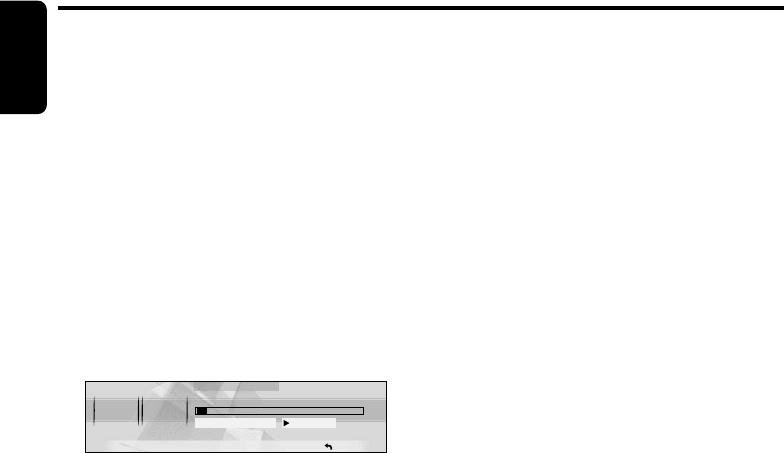
The MUSIC CATCHER function allows you to
record CD-DAs in the built-in flash memory.
01
Don
t
Stop
Be
,
HQ
TRACK
DISPTOPREC
2:45
01:01
pm
Setting a recording mode
MUSIC CATCHER can be switched between 2
recording modes:
•HQ (High Quality) MODE: about 266 minutes
•LP (Long Play) MODE: about 354 minutes
•The factory default setting is “HQ”.
1. Press the [MODE] button.
2. Touch [REC MODE] to select “HQ” or “LP”.
MODE
TRACK
SCAN
MP3 WMA HQ
TRACK
RPT TRACK
RDM MULTI
SESS REC
MODE
1 1
RTN
Notes on recording using
MUSIC CATCHER:
• Recording operations are to be performed in
the CD/MP3 mode.
•Recordable media are CD-DAs only.
•Discs (CD-R/CD-RW) created by copying on a
music recorder cannot be recorded.
•MP3/WMA discs cannot be recorded.
•Some CDs may show a subtractive time
indication in the area between tracks when
they are played back. A between-tracks area
is not recorded in such a CD.
•In recording using MUSIC CATCHER, some
amount of silent time is created between the
tracks.
•If the disc contains some tracks that have been
already recorded, the other tracks are recorded.
•Folder and track names are added
automatically during recording. You can
change folder names.
•If the disc contains some tracks previously
recorded, “INCLUDED” appears on the display.
•If there is no empty folder available, “FOLDER
FULL” appears on the display.
MUSIC CATCHER Operations
•When the memory capacity is used up,
“MEMORY FULL” appears on the display and
recording is canceled.
•Recording cannot be performed during SCN,
RPT, and RDM. In such cases, “BUSY”
appears on the display.
•When recording is canceled, the track that
has been recorded incompletely is deleted.
Recording operation (REC
function)
Recording using MUSIC CATCHER is performed
in the CD/MP3 mode and the following 2
recording modes are available: “TRACK REC” to
record only one track currently being played back
and “DISC REC” to record all tracks on the CD.
●TRACK REC
1. Press the [SRC] button to select the CD/MP3
mode.
2. Play back a track to be recorded, and touch
[REC] to start recording.
The “T-REC” indicator lights on the display.
∗When recording is complete, “REC DONE”
appears on the display.
●DISC REC
1. Press the [SRC] button to select the CD/MP3
mode.
2. Play back a CD to be recorded, and touch
and hold [REC] for 2 seconds or longer to
start recording.
The “D-REC” indicator lights on the display.
∗When recording is complete, “REC DONE”
appears on the display.
Canceling recording
1. Touch [REC] to cancel the recording
process.
The display shows “CANCELED” and then
the playback of the CD continues.
Notes:
•Recording also can be canceled by pressing the
[SRC], [
Q
] or [ISR] button.
•When recording is canceled, the track that has
been recorded incompletely is deleted.
REC MODE
REC
+DXZ955MC_01-20-Eng.p65 1/7/05, 10:47 PM25
26 DXZ955MC
280-8036-00
English
Erasing operation (ERASE
function)
MUSIC CATCHER has 3 different modes for
erasing files from memory.
“TRACK ERASE”:erase only one track.
“FOLDER ERASE”:erase the whole folder.
“ALL ERASE”:erase all the contents of
the flash memory.
1. Press the [SRC] button to select the
M.CATCHER mode.
2. Press the [MODE] button while playing
music.
3. Touch [Å]/[Î] to go to the next page.
4. Touch [TRACK ERASE], [FOLDER ERASE],
or [ALL ERASE].
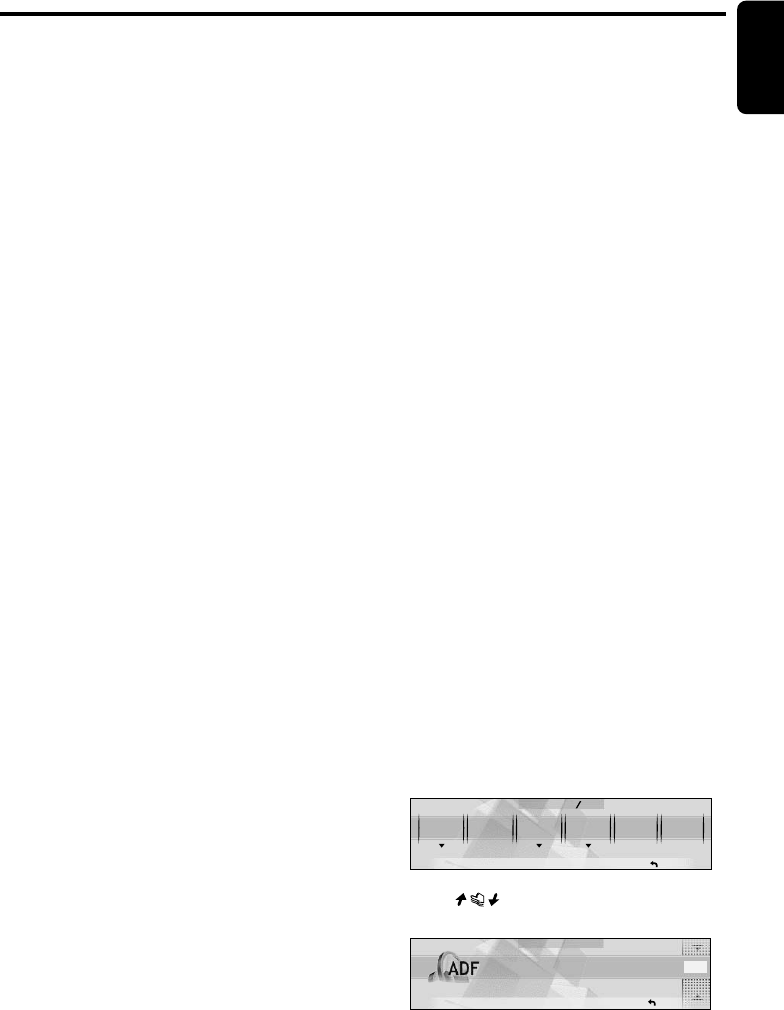
FOLDER ERASE ?
OK
AVIL.
240:40 253:49
CANCEL
RTN
∗The screen such as “FOLDER ERASE?”
appears.
5. Touch [OK] to erase.
∗The “ERASING” message appears on the
display, and a track, a folder, or flash
memory contents are erased.
Notes:
•When a selected track or folder is erased, the
approximate recordable time is shown (the
recordable time shown varies according to the set
recording mode).
•Do not turn off the power of the unit or switch the
operation mode during erasing recordings.
Remaining capacity of the
memory
By touching [DISP] while in MUSIC CATCHER
mode, the remaining capacity of the flash
memory can be displayed as an approximate
recordable time in “MM (minute): SS (second)”
format. For example, “AVIL. 123:45”.
Note:
•The recordable time shown varies according to
the set recording mode.
MUSIC CATCHER Operations
+DXZ955MC_01-20-Eng.p65 1/7/05, 10:47 PM26
280-8036-00
English
DXZ955MC 27
Sound Adjustment
Adjustment items
You can adjust a sound effect or tone quality to
your preference. A speaker system is selected in
the speaker select procedure (cf. page 14) when
this product is turned on for the first time.
The adjustment item depends on the speaker
system.
● 3 WAY
Anti Distortion Filter (ADF) .................... Page 27
SETTING
Parametric Equalizer (P.EQ) .............. Page 28
Crossover (X-OVER) ........................ Page 29
Time Alignment (TIME ALIGN) ......... Page 30
Speaker Gain (SP GAIN) .................. Page 30
All Seat setting (ALL SEAT) ............. Page 31
Sub-woofer speaker volume
(SW VOLUME) ................................ Page 31
Bass setting (BASS) ............................ Page 32
Treble setting (TREBLE) ...................... Page 32
Balance (BALANCE) ............................. Page 32
● 2 WAY
Anti Distortion Filter (ADF) .................... Page 27
SETTING
Parametric Equalizer (P.EQ) .............. Page 28
Crossover (X-OVER) ........................ Page 29
Time Alignment (TIME ALIGN) ......... Page 30
Speaker Gain (SP GAIN) ................. Page 30
All Seat setting (ALL SEAT) .............. Page 31
Bass setting (BASS) ............................ Page 32
Treble setting (TREBLE) ....................... Page 32
Balance (BALANCE) ............................. Page 32
Fader (FADER)..................................... Page 32
● Dolby PLII
Anti Distortion Filter (ADF) .................... Page 27
Sub-woofer speaker volume
(SW VOLUME) ................................ Page 31
Center speaker volume
(CTR VOLUME) ............................... Page 31
Balance (BALANCE) ............................ Page 32
Fader (FADER)...................................... Page 32
Dolby mode (Dolby PL II) ...................... Page 35
Speaker Gain (SP GAIN) ..................... Page 35
Filter (FILTER) ...................................... Page 36
Music mode setting (PL II CONT) ......... Page 36
Delay time of the rear speakers
(PL II DELAY) .................................. Page 37
● NORMAL
Anti Distortion Filter (ADF) .................... Page 27
Sub-woofer speaker volume
(SW VOLUME) ................................. Page 31
Bass setting (BASS) ............................. Page 32
Treble setting (TREBLE) ....................... Page 32
Balance (BALANCE) ............................. Page 32
Fader (FADER)...................................... Page 32
Virtual Space Enhancer (VSE).............. Page 32
Parametric Equalizer (P.EQ) ................. Page 33
Filter (FILTER) ....................................... Page 36
Setting the ADF
•ADF is the abbreviation of Anti Distortion
Filter.
The adopted “Liveliness Enhancement Filter”
and “Sound Tone Compensation” functions
allow well-modulated realistic playback without
affecting the characteristics of the original sound
tone.
This unit is provided with 4 types of sound tone
effects stored in memory. Select the one you
prefer.
ADF-1 : Suitable for genuine speakers
ADF-2 : Suitable for separate speakers
ADF-3 : Suitable for co-axial speakers
USER : This setting can be adjusted by the
user to his or her individual preference.
OFF : No sound effect
•The factory default setting is “OFF”.
Notes:
•As the volume changes when ADF is switched,
switch ADF with the volume and “SW VOLUME”
(sub-woofer) and “CTR VOLUME” (center
speaker) turned down as far as possible.
•On some speaker systems, sufficient effect
sometimes cannot be obtained. If this happens,
adjust the volume.
• When ADF is set to “USER”, “1”, “2” or “3”, the
VSE function and BASS/TREB function under
EQ-SELECT are disabled.
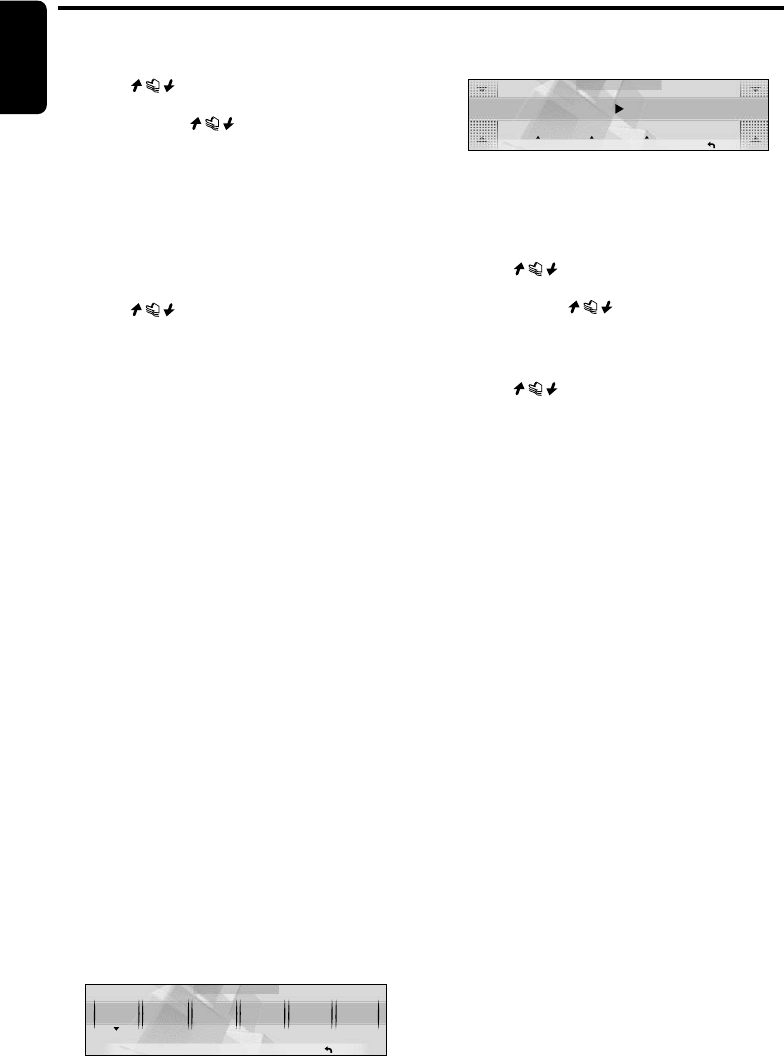
1. Press the [SOUND] button.
2. Touch [ADF].
SOUND
ADF
OFF 0 0
SETTING SW
VOLUME
BALANCE
1 1
RTN
3. Touch on the right of the display to
select the ADF mode.
ADF MODE
1
RTN
ADF 1
∗Select one of “USER”, “1”, “2”, “3”, or
“OFF”.
+DXZ955MC_01-27-Eng.p65 1/8/05, 2:52 PM27
28 DXZ955MC
280-8036-00
English
Sound Adjustment
4. To change the details of the ADF setting,
press the [ADJ] button.
5. Touch on the left of the display to
select the desired item.
Each touch of switches the
adjustment item display as follows:
●Adjustment item (when USER is
selected in step 3)
BASS ➜ TREBLE ➜ COMP ➜ BASS...
●Adjustment item (when 1 to 3 is
selected in step 3)
LEVEL ➜ COMP ➜ LEVEL...
6. Touch on the right of the display to
adjust the item.
∗“BASS” and “TREBLE” can be adjusted
within the range 1 to 13.
∗“LEVEL” can be adjusted within the range -
3 to +3.
∗Select either “ON” or “OFF” for “COMP”.
7. Press the [SOUND] button to return to the
original mode.
SETTING items (only for 3
WAY and 2 WAY)
You can adjust the items listed in the SETTING
section only when you selected “3 WAY” or “2
WAY” in “SPEAKER SELECT”. The items you
can adjust are “P.EQ”, “X-OVER”, “TIME
ALIGN”, “SP GAIN”, and “ALL SEAT”.
SETTING–P.EQ
P.EQ (Parametric Equalizer) allows you to
compensate the entire frequency level range in
detail by smooth curve using frequency
compensation matched to the type of your car.
“P.EQ” can be adjusted only when the
“SPEAKER SELECT” is set to “3WAY” or
“2WAY” and “EQ SELECT“ is set to “P.EQ” (cf.
page 43).
•The factory default setting is “OFF”.
1. Press the [SOUND] button.
2. Touch [SETTING].
3. Touch [P.EQ].
SETTING
P. EQ X-OVER TIME
ALIGN SP
GAIN ALL
SEAT
PRESET
RTN
OFF
4. Touch [ON/OFF].
The P.EQ effect is toggled ON/OFF.
P.EQ MODE
RTN
FREQUENCY
500Hz
1
L/R
BAND
LEFT
OFF
ON/OFF
5. Touch [L/R] to select “LEFT” or “RIGHT”.
6. Touch [BAND].
∗This item can be adjusted within the range
1 to 3.
7. Touch on the left of the display to
select the item.
Each touch of switches the
adjustment items as follows:
FREQUENCY ➜ Q ➜ GAIN ➜
FREQUENCY...
8. Touch on the right of the display to
adjust the setting.
∗“FREQUENCY” can be adjusted within the
range 20Hz to 20kHz.
∗“Q” can be adjusted within the range of 1,
3, 5, 7 and 20.
∗“GAIN” can be adjusted within the range
-12dB to +12dB.
9. Repeat steps 5 to 8 to adjust the each
setting.
∗Touch and hold [L/R] for 2 seconds or
longer to copy the setting from one (left or
right) to the other.
10. When you have finished adjusting each item,
touch [RTN].
∗You can store the settings. For details, see
“Storing and recalling the SETTING
adjustments” (page 31).
■ P.EQ adjustment
The settings that can be adjusted in the P.EQ
menu are as follows. The center frequency, gain
and Q curve can be stored to channel/band
combinations.
For example, center frequency “250Hz”, gain
“-8dB” and Q curve “3” can be stored to band 1
on the right channel.
LEFT/RIGHT (channel selection)
Selects the channel (left or right) to adjust.
BAND (band selection)
Selects the frequency band (1 to 3) to adjust.
Set the center frequency (FREQUENCY), gain
(GAIN) and Q curve (Q) for each frequency
band.
+DXZ955MC_01-27-Eng.p65 1/8/05, 2:53 PM28
280-8036-00
English
DXZ955MC 29
Sound Adjustment
FREQUENCY (center frequency selection)
Selects the frequency to be used as the center
of the frequency band to be compensated from
the range 20Hz to 20kHz.
(1/3 octave steps, 31 points)
GAIN (gain adjustment)
Adjusts the gain (output level) within the range
-12dB to +12dB.
(1dB steps, 25 points)
Q (Q curve selection)
Sets one of 1, 3, 5, 7, or 20 as the sharpness of
the Q curve.
● Compensation
There is no need to compensate frequency
characteristics if they are flat (no peaks or
valleys) when you have measured the frequency
characteristics with a measuring device.
However, sometimes the frequency
characteristics rise or fall in some places. If this
happens, the frequency characteristics must be
compensated. Create a frequency curve having
characteristics that are opposite to the center
frequency of parts where the characteristics rise
and fall to cancel out these peaks and values,
and make the frequency characteristics as flat
as possible.
Making the frequency characteristics as flat as
possible is called “compensation”.
On this unit, frequency characteristics can be
compensated by P.EQ (Parametric Equalizer).
●Compensation of frequency
characteristics
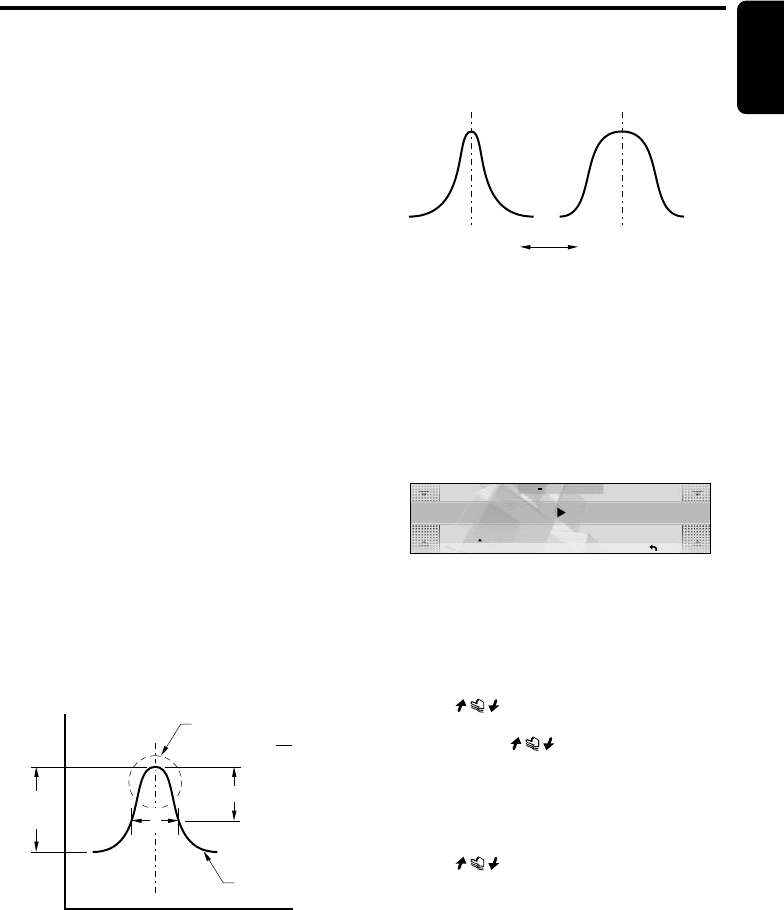
The figure below shows the relationship
between the center frequency, gain and Q
curve.
3dB
Q = F
f
f
●Q curve
The Q curve becomes sharper when the
numerical value is increased, and smoother
when the numerical value is decreased.
Flat frequency characteristics can be made by
selecting a Q curve opposite to that of the curve
to be compensated.
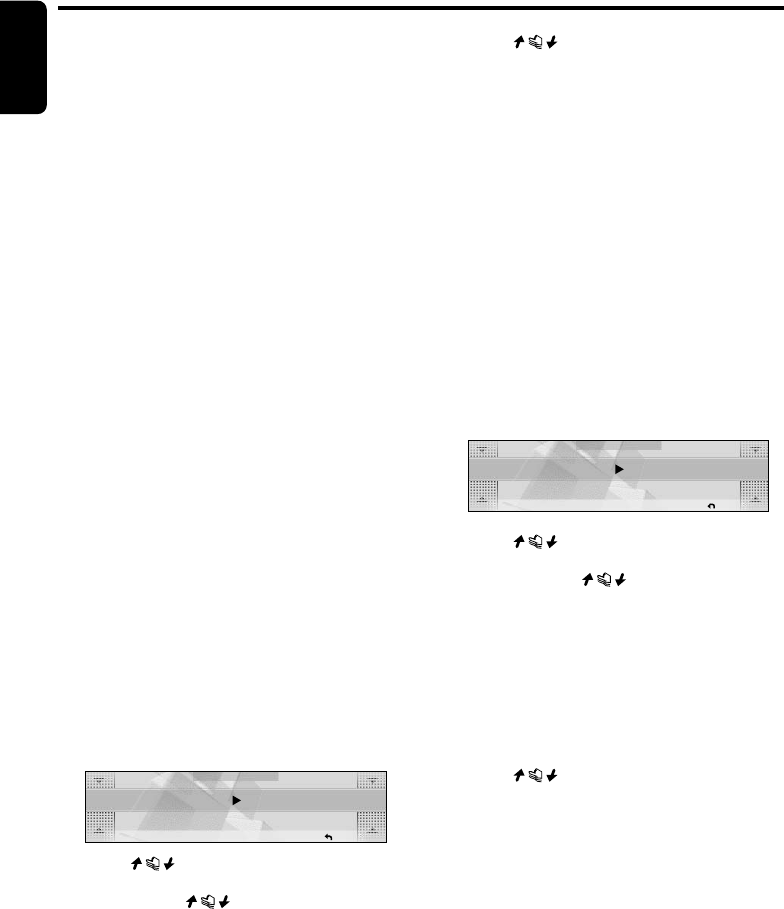
SETTING–X-OVER
This function allows you to adjust the speaker
setting such as cutoff frequencies or slope
matched to the speakers you are using.
(Crossover)
1. Press the [SOUND] button.
2. Touch [SETTING].
3. Touch [X-OVER].
X
OVER MODE
RTN
LPF
80Hz
SP
REAR
4. Touch [SP] to select the desired speaker.
Each touch of [SP] switches the adjustment
items as follows:
HIGH ➜ MID ➜ SUB-W (in the case of
3WAY) ➜ REAR (in the case of 2WAY) ➜
HIGH...
5. Touch on the left of the display to
select the item.
Each touch of switches the
adjustment items as follows:
LPF* ➜ LPF SLOPE* ➜ HPF ➜ HPF
SLOPE ➜ PHASE ➜ LPF...
* This does not appear when the speaker is
selected to “HIGH” in step 4.
6. Touch on the right of the display to
adjust the setting.
●“LPF”
•The adjustment range of “MID” is
THROUGH, 630Hz to 10 kHz. (The factory
default setting is “2kHz”.)
• The adjustment range of “SUB-W” (in the
case of 3WAY) or “REAR” (in the case of
2WAY) is THROUGH, 25Hz to 10 kHz.
(The factory default setting is “80Hz”.)
Center Frequency (F) Frequency
(Hz)
Q curve (Q)
Frequency
curve
Level
(dB)
Gain
(G)
Q curve : 20 Q curve : 1
Q curve : (Q)
+DXZ955MC_01-27-Eng.p65 1/8/05, 2:53 PM29
30 DXZ955MC
280-8036-00
English
Sound Adjustment
●“HPF”
•The adjustment range of “HIGH” is 630Hz
to 20 kHz. (The factory default setting is
“2kHz”.)
•The adjustment range of “MID” is
THROUGH, 25Hz to 10 kHz. (The factory
default setting is “THROUGH”.)
•The adjustment range of “SUB-W” (in the
case of 3WAY) or “REAR” (in the case of
2WAY) is THROUGH, 16Hz to 250 Hz.
(The factory default setting is
“THROUGH”.)
●“LPF SLOPE” and “HPF SLOPE”
•The adjustment range is -6dB/OCT,
-12dB/OCT, -18dB/OCT. (The factory
default setting is “-12dB/OCT”.)
●“PHASE”
•The adjustment range is NORMAL/
REVERSE. (The factory default setting is
“NORMAL”.)
7. Repeat steps 4 to 6 to adjust each setting.
8. Touch [RTN].
∗You can store the settings. For details, see
“Storing and recalling the SETTING
adjustments” (page 31).
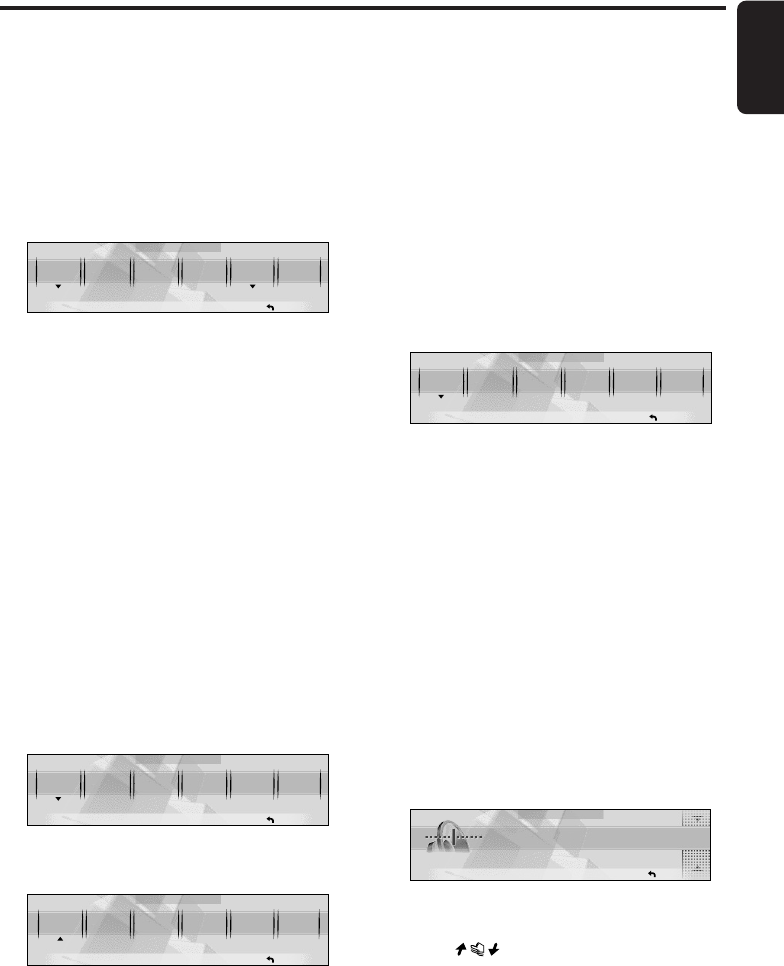
SETTING–TIME ALIGN
The distance from the listener up to each
speaker can be entered in 2.3 cm steps, and the
time that the sound reaches the listener from
each speaker can be adjusted. (Time alignment)
•The factory default setting is “0.0cm”.
1. Press the [SOUND] button.
2. Touch [SETTING].
3. Touch [TIME ALIGN].
TIME
ALIGN
RTN
HIGH L SP
0.0cm
4. Touch on the left of the display to
select the desired speaker.
Each touch of switches the
adjustment items as follows:
HIGH L SP ➜ HIGH R SP ➜ MID L SP ➜
MID R SP ➜ SUB-W L SP*1 ➜ SUB-W R
SP*1 ➜ REAR L SP*2 ➜ REAR R SP*2 ➜
HIGH L SP...
*1This is displayed when the “SPEAKER
SELECT” is set to “3WAY”.
*2This is displayed when the “SPEAKER
SELECT” is set to “2WAY”.
5. Touch on the right of the display to
adjust the setting.
∗The adjustment range is 0cm to 501.4cm
in 2.3 cm steps.
6. Repeat steps 4 and 5 to adjust each item.
7. Touch [RTN].
∗You can store the settings. For details, see
“Storing and recalling the SETTING
adjustments” (page 31).
SETTING–SP GAIN
This function allows you to adjust the speaker
output level. Adjust so that the volumes that are
output from each speaker are well-balanced.
(Speaker gain)
1. Press the [SOUND] button.
2. Touch [SETTING].
3. Touch [SP GAIN].
SP GAIN MODE
RTN
HIGH L SP
0dB
4Touch on the left of the display to
select the desired speaker.
∗Each touch of switches the
adjustment items as follows:
HIGH L SP ➜ HIGH R SP ➜ MID L SP ➜
MID R SP ➜ SUB-W L SP*1 ➜ SUB-W R
SP*1 ➜ REAR L SP*2 ➜ REAR R SP*2 ➜
HIGH L SP...
*1This is displayed when the “SPEAKER
SELECT” is set to “3WAY”.
*2This is displayed when the “SPEAKER
SELECT” is set to “2WAY”.
5. Touch on the right of the display to
adjust the setting.
∗The adjustment range is -20dB to 0dB.
6. Repeat steps 4 and 5 to adjust each item.
7. Touch [RTN].
∗You can store the settings. For details, see
“Storing and recalling the SETTING
adjustments” (page 31).
+DXZ955MC_01-27-Eng.p65 1/8/05, 2:53 PM30
280-8036-00
English
DXZ955MC 31
Sound Adjustment
SETTING–ALL SEAT
The setting of “TIME ALIGN” and “SP GAIN”
temporarily returns to the factory default setting.
When the setting that is adjusted for the driver's
seat returns to the factory default setting, a
sound suitable for all seats is provided.
1. Press the [SOUND] button.
2. Touch [SETTING].
3. Touch [ALL SEAT].
SETTING
P. EQ X-OVER TIME
ALIGN
SP
GAIN
ALL
SEAT
PRESET
RTN
ON ALL
“ALL” appears on the display and the setting
of “TIME ALIGN” and “SP GAIN” is set to the
factory default setting.
■ To disable ALL SEAT setting
1. Touch [ALL SEAT] again.
Storing and recalling the
SETTING adjustments
If your speaker system is “3 WAY” or “2 WAY”,
you can store and recall up to three adjustments
you have made to “P.EQ”, “X-OVER”, “TIME
ALIGN”, “SP GAIN”.
1. Adjust one of the items in the SETTING.
2. Display the [SETTING] screen.
∗To display this screen from the beginning,
press the [SOUND] button, then touch
[SETTING].
3. Touch [PRESET].
SETTING
P. EQ X-OVER TIME
ALIGN
SP
GAIN
ALL
SEAT
PRESET
RTN
OFF
4. Touch one of [SAVE 1], [SAVE 2], and
[SAVE 3].
SETTING PRESET
LOAD
1
LOAD
2
LOAD
3
SAVE
1
SAVE
2
SAVE
3
INITIAL
RTN
∗If you touch [LOAD] or [INITIAL] before
touching [SAVE], the adjustments you
have made will not be stored.
■ To initialize the adjustments
You can initialize the adjustments for SETTING
items.
1. Touch [SETTING].
2. Touch [INITIAL].
All the adjustments are initialized.
■To recall the adjustments for
SETTING items
You can recall the stored adjustments for
SETTING items.
1. Press the [SOUND] button.
2. Touch [SETTING].
3. Touch [PRESET].
SETTING
P. EQ X-OVER TIME
ALIGN
SP
GAIN
ALL
SEAT
PRESET
RTN
OFF
4. Touch one of [LOAD 1], [LOAD 2], and
[LOAD 3] to recall the stored adjustment.
Adjusting the sub-woofer/
center speaker
•“SW VOLUME” (sub-woofer) can be adjusted
only when the “SPEAKER SELECT” is set to
“3WAY”, “Dolby PL II” or “NORMAL” and
“SUB-WOOFER“ is set to “ON” (cf. page 43).
•“CTR VOLUME” (center speaker) can be
adjusted only when the “SPEAKER SELECT”
is set to “Dolby PL II” and “CENTER-SP” is
set to “ON” (cf. page 43).
•The factory default setting for SW VOLUME is
“0” and for CTR VOLUME is “0”.
1. Press the [SOUND] button.
2. Touch [SW VOLUME] or [CTR VOLUME].
SW VOLUME
RTN
0
∗ If you selected “Dolby PL II”, use [Å]/[Î]
to go to the next page.
3. Touch on the right of the display and
adjust the item as desired.
∗This item can be adjusted within the range
-5 to +5.
4. Press the [SOUND] button to return to the
original mode.
+DXZ955MC_01-27-Eng.p65 05.1.17, 5:16 PM31
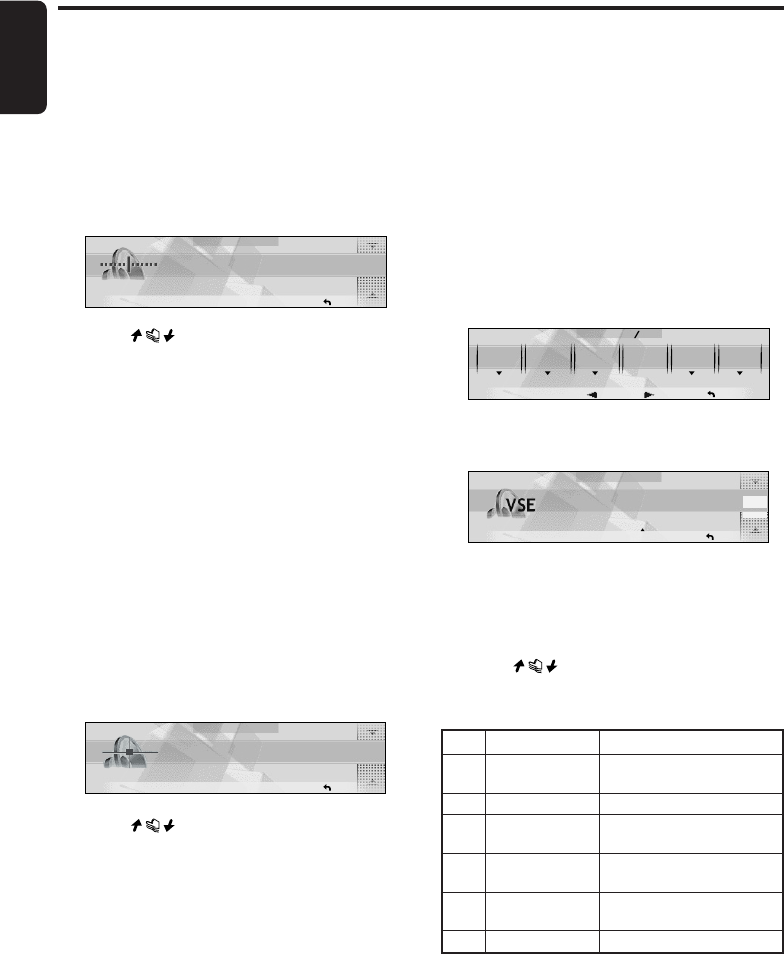
32 DXZ955MC
280-8036-00
English
Sound Adjustment
No.
Function Name
Description
1FLAT Sound source flat
equalizing
2BASS BOOST Bass tones enhanced
3HIGH BOOST Mid and treble
enhanced
4IMPACT Low and treble
enhanced
5ACOUSTICAL Mid tones (human
voice) enhanced
6USER User preference
Adjusting bass/treble
The bass/treble mode can be adjusted only
when the “SPEAKER SELECT” is set to “3
WAY”, “2 WAY”, or “NORMAL” (cf. page 14) and
“EQ SELECT” is set to “BASS/TREB” (cf. page
43).
•The factory default setting is “0”.
1. Press the [SOUND] button.
2. Touch [BASS] or [TREBLE].
BASS
RTN
0
3. Touch on the right of the display and
adjust the item as desired.
∗This item can be adjusted within the range
-6 to +6.
4. Press the [SOUND] button to return to the
original mode.
Adjusting balance/fader
BALANCE:
Adjusts the volume balance between the left
and right speakers.
FADER:
Adjusts the volume balance between the front
and rear speakers.
• The factory default setting for BALANCE is
“0” and for FADER is “0”.
1. Press the [SOUND] button.
2. Touch [BALANCE] or [FADER].
BALANCE
RTN
0
3. Touch on the right of the display and
adjust the item as desired.
∗“BALANCE” can be adjusted within the
range L13 (left side emphasized) and R13
(right side emphasized).
∗“FADER” can be adjusted within the range
R12 (rear side emphasized) and F12 (front
side emphasized).
4. Press the [SOUND] button to return to the
original mode.
Selecting the VSE menu
VSE (Virtual Space Enhancer) allows you to
compensate the sound pressure balance inside
your car so that the same sound effect can be
obtained whichever seat you are sitting in as
proved in compensation simulations.
•The factory default settings are “OFF” for VSE
and “FLAT” for the VSE basic menu.
■ VSE basic menu
Six basic menus are pre-stored to this function.
Select the basic menu to suit your preference.
1. Press the [SOUND] button.
2. Touch [VSE].
P. E Q FILTER
RTN
OFF OFF OFF 0 0
SOUND
ADF VSE SW
VOLUME
BALANCE
1 2
3. Touch [ON/OFF].
The VSE effect is toggled ON/OFF.
VSE MODE
RTN
FLAT
OFF
ON/OFF
PRESET
P 1
PRESET
When VSE is set to “OFF”, the VSE setting
is not reflected on the music source. This
completes the VSE setting. Press the
[SOUND] button to return to the original
mode.
4. Touch on the right of the display and
select one of the VSE basic menus.
VSE basic menus
5. Press the [SOUND] button to return to the
original mode.
+DXZ955MC_01-27-Eng.p65 05.1.17, 5:16 PM32
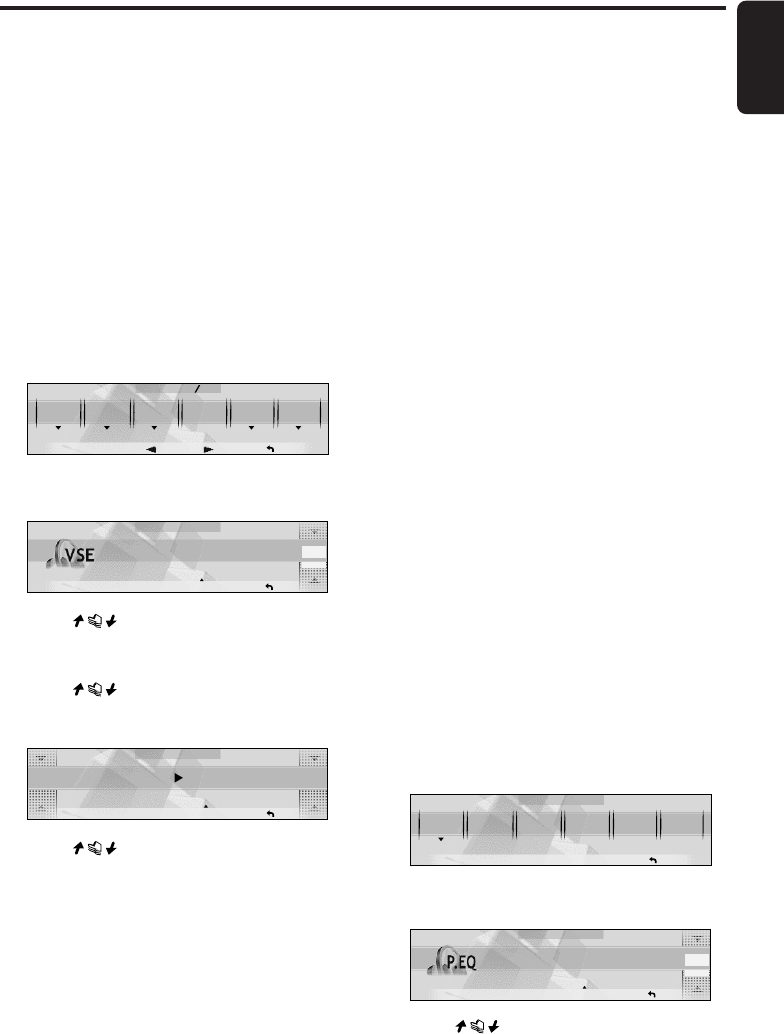
280-8036-00
English
DXZ955MC 33
Sound Adjustment
Adjusting/storing VSE (user
memory)
Adjustment items
●DIFFUSE
Adjusts the deviation in diffused sound
pressure.
●CAR WIDTH
Adjusts the deviation in sound pressure along
the width of the car.
●CAR LENGTH
Adjusts the deviation in sound pressure along
the length of the car.
1. Press the [SOUND] button.
2. Touch [VSE].
P. E Q FILTER
RTN
OFF OFF OFF 0 0
SOUND
ADF VSE SW
VOLUME
BALANCE
1 2
3. Touch [ON/OFF] to turn ON.
The VSE effect is toggled ON/OFF.
VSE MODE
RTN
FLAT
OFF
ON/OFF
PRESET
P 1
PRESET
4. Touch on the right of the display and
select one of the VSE basic menus.
5. Press the [ADJ] button.
6. Touch
on the left of the display and
select [DIFFUSE], [CAR WIDTH], or [CAR
LENGTH].
VSE EDIT
RTN
DIFFUSE
5
OFF
ON/OFF
7. Touch on the right of the display to
adjust the item.
Each touch switches the value from 1 to 10.
8. Repeat steps 6 and 7 to adjust the desired
item.
9. When you have finished adjusting each item,
touch [RTN].
Notes:
•The screen displayed in step 3 appears, with the
title being accompanied by "
✓
" mark.
Operation so far completes VSE adjustment. To
continue to store the adjustment value to the VSE
user menu, perform the following.
10. Touch [PRESET] to display the VSE menu
list.
11.Touch and hold [USER] for 2 seconds or
longer.
You will hear a long beep, and the values
you adjusted up to step 9 are stored to the
VSE menu.
If you hear a short beep, the adjustment
values up to step 9 are discarded. Adjust
these values again as required.
12. Press the [SOUND] button to return to the
original mode.
Selecting the P.EQ menu
P.EQ (Parametric Equalizer) allows you to
compensate the entire frequency level range in
detail by smooth curve using frequency
compensation matched to the type of your car.
The P.EQ menu can be adjusted only when the
“SPEAKER SELECT” is set to “NORMAL” (cf.
page 14) and “EQ SELECT” is set to “P.EQ” (cf.
page 43).
•The factory default setting for P.EQ is “OFF”
and for the P.EQ basic menu is “SEDAN-1”.
■ P.EQ basic menu
6 types of P.EQ basic menu are pre-stored to
this function matched to the type of your car and
the speaker mounting position. Select the basic
menu to suit you car.
1. Press the [SOUND] button.
2. Touch [P.EQ].
SETTING
P. EQ X-OVER TIME
ALIGN
SP
GAIN
ALL
SEAT
PRESET
RTN
OFF
3. Touch [ON/OFF].
The P.EQ effect is toggled ON/OFF.
P.EQ MODE
RTN
SEDAN
-
1
OFF
ON/OFF
PRESET
P 1
PRESET
4. Touch on the right of the display and
select one of the P.EQ menus.
+DXZ955MC_01-27-Eng.p65 05.1.17, 5:16 PM33
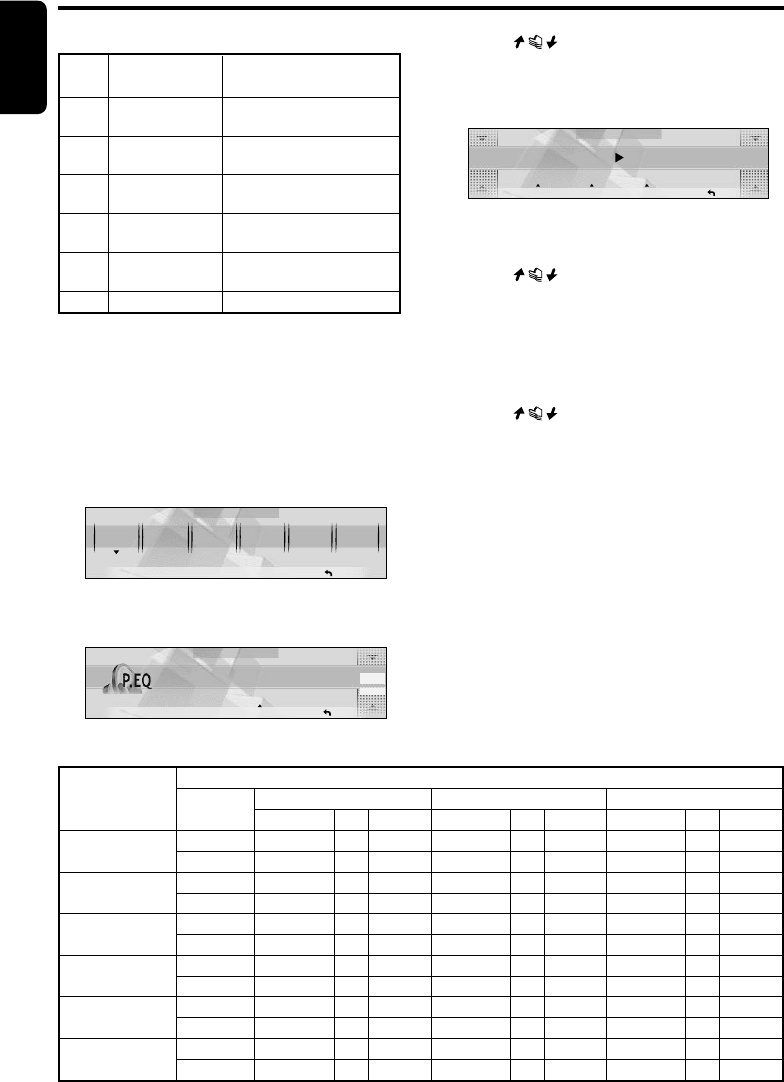
34 DXZ955MC
280-8036-00
English
P.EQ basic menu
5. Press the [SOUND] button to return to the
original mode.
Adjusting/storing P.EQ (user
memory)
1. Press the [SOUND] button.
2. Touch [P.EQ].
SETTING
P. EQ X-OVER TIME
ALIGN SP
GAIN ALL
SEAT
PRESET
RTN
OFF
3. Touch [ON/OFF] to turn ON.
The P.EQ effect is toggled ON/OFF.
P.EQ MODE
RTN
SEDAN
-
1
OFF
ON/OFF
PRESET
P 1
PRESET
Sound Adjustment
4. Touch on the right of the display and
select one of the P.EQ menus.
5. Press the [ADJ] button.
6. Touch [F/R] to select [FRONT] or [REAR].
P.EQ EDIT
RTN
FREQUENCY
250Hz
1
F/R
BAND
FRONT
OFF
ON/OFF
7. Touch [BAND] to select the value to set.
Each touch switches the value from 1 to 3.
8. Touch on the left of the display and
select each adjustment item.
Each touch switches the adjustment item as
follows:
●Adjustment items
FREQENCY ➜ Q ➜ GAIN ➜
FREQUENCY...
9. Touch on the right of the display to
adjust the items.
∗“FREQUENCY” can be adjusted within the
range 20Hz to 20kHz.
∗“Q” can be adjusted by choosing from 1, 3,
5, 7, or 20.
∗“GAIN” can be adjusted within the range
-12dB to +12dB.
10. Repeat steps from 6 to 9 to adjust the
desired item.
11. When you have finished adjusting each item,
touch [RTN].
P.EQ basic menu setting values F: Center frequency, Q: Q curve, G: Gain (output level)
No. Parametric Equalizer Parameters (default)
(car type) Channel Band 1 Band 2 Band 3
FQG F QG F QG
1Front 250 Hz 3 -8 dB 2 kHz 1 -4 dB 5 kHz 1 -4 dB
(SEDAN-1) Rear 250 Hz 3 -10 dB 1.25 kHz 5 0 dB 8 kHz 5 0 dB
2Front 250 Hz 7 -10 dB 800 Hz 3 -4 dB 8 kHz 1 -5 dB
(SEDAN-2) Rear 80 Hz 7 +3 dB 125 Hz 5 -12 dB 1.25 kHz 5 0 dB
3Front 125 Hz 5 -4 dB 1.25 kHz 3 -4 dB 2 kHz 7 +3 dB
(MINI VAN-1) Rear 250 Hz 1 -6 dB 630 Hz 3 -4 dB 8 kHz 5 0 dB
4Front 250 Hz 3 -4 dB 1.25 Hz 3 -8 dB 80 Hz 3 +3 dB
(MINI VAN-2) Rear 250 Hz 3 -8 dB 500 Hz 5 -5 dB 8 kHz 5 0 dB
5Front 250 Hz 3 -8 dB 1 kHz 3 -8 dB 10 kHz 1 -6 dB
(WAGON) Rear 250 Hz 3 -8 dB 800 Hz 1 -8 dB 8 kHz 5 0 dB
6Front 500 Hz 1 0 dB 1 kHz 1 0 dB 5 kHz 1 0 dB
(USER) Rear 500 Hz 1 0 dB 1 kHz 1 0 dB 5 kHz 1 0 dB
No. Display name Speaker Mounting
position
1SEDAN-1 Front: Front door
Rear: Rear parcel
2 SEDAN-2 Front: Front door
Rear: Rear door
3MINI VAN-1 Front: Front door
Rear: Luggage (side)
4MINI VAN-2 Front: Front door
Rear: Rear door
5WAGON Front: Front door
Rear: Luggage (side)
6USER User preference
+DXZ955MC_01-27-Eng.p65 1/8/05, 2:53 PM34
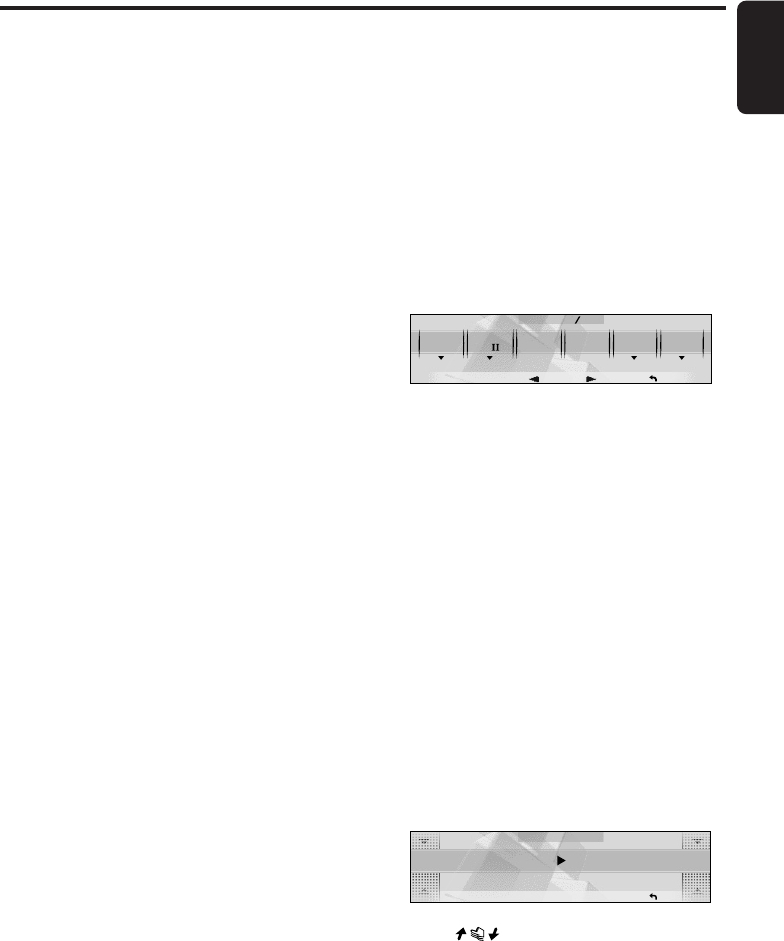
280-8036-00
English
DXZ955MC 35
Sound Adjustment
Notes:
•The screen displayed in step 3 appears, with the
title being accompanied by “
✓
” mark.
Operation so far completes P.EQ adjustment. To
continue to store the adjustment value to the
P.EQ user menu, perform the following.
12. Touch [PRESET] to display the P.EQ menu
list.
13. Touch and hold [USER] for 2 seconds or
longer.
You will hear a long beep, and the values
you adjusted up to step 10 are stored to the
P.EQ menu.
If you hear a short beep, the adjustment
values up to step 10 are discarded. Adjust
these values again as required.
14. Press the [SOUND] button to return to the
original mode.
Dolby Pro Logic II
Dolby Pro Logic II is a matrix decoding
technology in which updated digital matrix
technology is applied and Dolby Pro Logic is
further improved. Dolby Pro Logic II realizes
excellent 5.1 channel reproduction of Dolby
surround source as well as stereo sound
sources such as CDs, thereby causing a
surround channel to be full-ranged (20 Hz to 20
kHz) and become stereo. Therefore, you can
enjoy any stereo sources with dynamic sound of
5.1 channel. The Music Mode or Matrix Mode
can be selected according to a source to be
reproduced.
This product is manufactured under license from
Dolby Laboratories. “Dolby”, “Pro Logic” and
the double-D symbol are trademarks of Dolby
Laboratories.
Selecting the PL II menu
(Dolby PL II)
This is available only when the speaker system
is set to “Dolby PL II”.
Select the MUSIC mode or the MATRIX mode
matched the source you are to play as the Dolby
Pro Logic II mode.
•The factory default setting is “MUSIC”.
■ MUSIC (music mode)
•This mode is suited for stereo sound sources
such as CDs.
•Another adjustment mode (PL II CONT) that
enables more detailed adjustment is also
available because the sound field spreads
differently depending on the state of the
recorded music source. (See page 36)
■ MATRIX (matrix mode)
•This mode is suited for sound sources such as
AM/FM radio.
1. Press the [SOUND] button.
2. Touch [Dolby PL II].
FILTER FADER
RTN
OFF MUSIC 00
SOUND
ADF SP
GAIN
BALANCE
1 2
Dolby
PL
The mode display is switched as follows:
MUSIC (music mode) ➜ MATRIX (matrix
mode) ➜ MUSIC (music mode)...
3. Press the [SOUND] button to return to the
original mode.
*For details on the volume adjustment of
the center speaker/sub-woofer, see page
31.
Adjusting the speaker gain
level
Use the built-in test tone function so that the
gain levels from all speakers become equal.
•The SP GAIN menu can be adjusted only
when the Pro Logic II mode is set to “MUSIC”
or “MATRIX”.
•The factory default setting is “0dB”.
1. Press the [SOUND] button.
2. Touch [SP GAIN].
SP GAIN MODE
RTN
FRONT
-
L
0dB
3. Touch on the left of the display to
select an item.
Each touch switches the adjustment item as
follows:
+DXZ955MC_01-27-Eng.p65 05.1.17, 5:16 PM35
36 DXZ955MC
280-8036-00
English
Sound Adjustment
SPEAKER FILTER
SELECT HPF SUB-W LPF*
Dolby PL II No Yes
NORMAL Yes Yes
●Adjustment items
FRONT-L (Front left) ➜ CENTER*1 ➜
FRONT-R (Front right) ➜ SURROUND-R
(Surround right) ➜ SURROUND-L
(Surround left) ➜ SUB-WOOFER*2 ➜
FRONT-L...
*1“CENTER” is displayed only when
“CENTER-SP” (page 43) is set to “ON”.
*2“SUB-WOOFER” is displayed only when
“SUB-WOOFER” (page 43) is set to “ON”.
4. Touch on the right of the display to
adjust to the gain level.
•“SP-GAIN” can be adjusted within the
range -10dB to +10dB.
5. Repeat steps from 3 to 4 to adjust the
desired item.
6. Press the [SOUND] button to return to the
original mode.
Adjusting the filter frequency
Filter frequency
You can set a filter frequency value best suited
for your speakers.
•Depending on the settings for SPEAKER
SELECT, filters (HPF or SUB-W LPF) that can
be adjusted differ. In the table below, “YES”
refers to the item you can adjust while “NO”
refers to the item you cannot adjust.
*This item can be adjusted only when “SUB-
WOOFER” is set to “ON”.
•The factory default setting for folders is
“THROUGH”.
Filter adjustment
●HPF (High-Pass Filter) adjustment
This filter cuts the signals under the selected
frequency value.
Each touch switches the frequency value as
follows:
THROUGH ➜ 50Hz ➜ 80Hz ➜ 120Hz ➜
THROUGH...
Select the frequency that suits your speaker
when you have installed speakers with smaller
diameter.
Set to “THROUGH” if you use speakers that can
reproduce low frequency sound.
●SUB-W LPF (Subwoofer Low-Pass Filter)
adjustment
This filter cuts the signals above the selected
frequency value.
Each touch switches the frequency value as
follows:
THROUGH ➜ 50Hz ➜ 80Hz ➜ 120Hz ➜
THROUGH...
Select the frequency that suits your subwoofer.
Set to “THROUGH” if you use powered
subwoofers with built-in low-pass filters.
1. Press the [SOUND] button.
2. Touch [FILTER].
3. Touch on the left of the display to
select [HPF] or [SUB-W LPF].
4. Touch on the right of the display to
select the frequency value.
•Select from THROUGH, 50Hz, 80Hz, or
120Hz.
5. Press the [SOUND] button to return to the
original mode.
Setting the music mode
MUSIC mode
If you set Dolby ProLogic II to “MUSIC”, you can
further adjust the MUSIC mode in detail.
•This is available only when “MUSIC” has been
selected.
•The factory default settings are “NO” for
“PANORAMA”, “3” for “DIMENSION”, and “3”
for “CTR WIDTH”.
Adjustment items
●PANORAMA (Panorama control setting)
Extends the front sound field image to rear
speakers. Set to “YES” if you think the surround
effect is not enough.
●DIMENSION (Dimension setting)
Shifts the sound field image to either front or
rear. Set this item if the sound field image is
weighted on either front or rear side.
The center adjustment value is 3. Select from 0
to 2 for weighting on the rear side. Select from 4
to 6 for weighting on the front side.
●CTR WIDTH (Center width setting) *
Distributes a part of the center speaker sound to
front speakers (left and right).
By distributing the center sound to front
speakers, the entire sound field image, and you
can feel the natural broadening of the sound
field image.
+DXZ955MC_01-27-Eng.p65 1/8/05, 2:53 PM36
280-8036-00
English
DXZ955MC 37
Set the value to “0” to reproduce all center
sound from the center speaker.
Set the value to “7” to distribute all center sound
to left/right front speakers, just like a normal
stereo system.
*“CTR WIDTH” is displayed only when
“CENTER-SP” is set to “ON”.
1. Press the [SOUND] button.
2. Touch [Å]/[Î] to go to the next page.
3. Touch [Dolby PL II CONT].
•The items to set are “PANORAMA”,
“DIMENSION”, and “CTR WIDTH”.
4. Touch on the left of the display to
select the item.
Dolby PL CONT
RTN
PANORAMA
NO
5. Touch on the right of the display to
adjust the values.
•For “PANORAMA”, select “YES” or “NO”.
•“DIMENSION” can be adjusted within the
range 0 to 6.
•“CTR WIDTH” can be adjusted within the
range 0 to 7.
6. Press the [SOUND] button to return to the
original mode.
Adjusting the rear speaker
delay time
Delay time
The time necessary for sound to travel from
speakers to a listener differs depending on the
speaker location or the car size. By adjusting the
delay time of each speaker, you can hear the
sound from the front speakers and the other
speakers simultaneously.
•This item can be adjusted only when
“SPEAKER SELECT” is set to “Dolby PL II”.
•The factory default setting is “0ms”.
1. Press the [SOUND] button.
2. Touch [Å]/[Î] to go to the next page.
3. Touch [SRD DELAY].
SRD DELAY
RTN
SRD SP
0ms
Sound Adjustment
4. Touching on the right of the display to
adjust the delay time.
•“SRD-SP” can be adjusted within the
range 0ms to 15ms.
5. Press the [SOUND] button to return to the
original mode.
+DXZ955MC_01-27-Eng.p65 1/8/05, 2:53 PM37
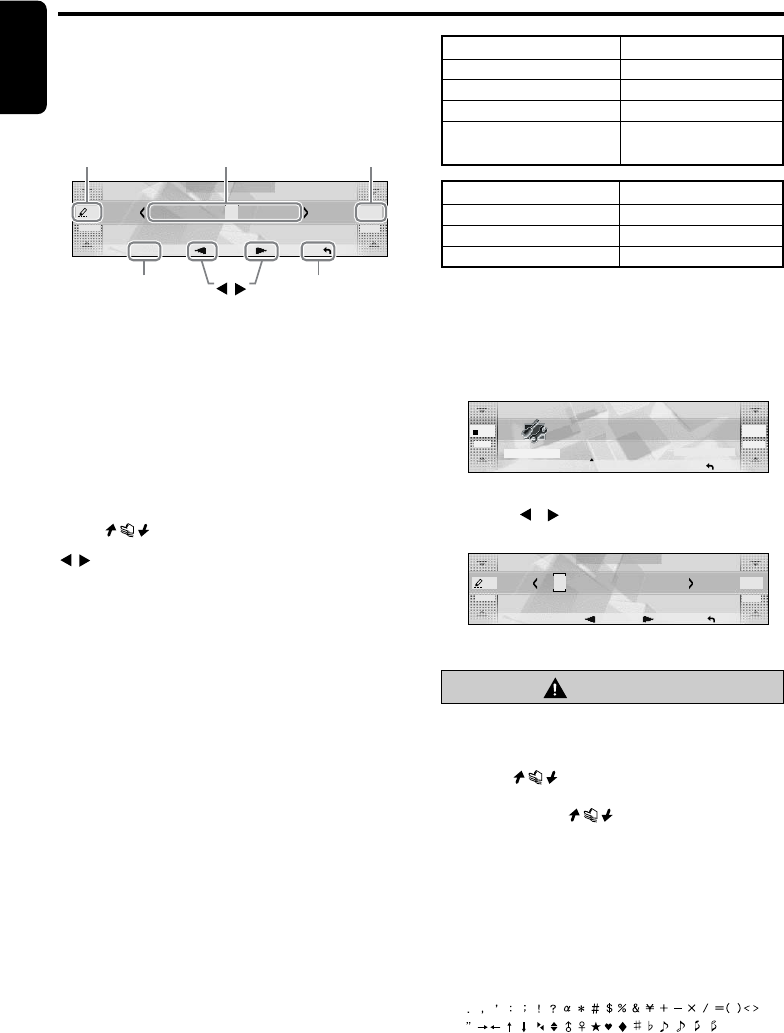
38 DXZ955MC
280-8036-00
English
Common Operations
FONT
display Title
display TEXT
display
RTN
MEMO /
Screen display in the TITLE
INPUT
The “TITLE INPUT” screen appears when you
enter a title.
TITLE INPUT
MEMO
FONT
a a
-
Z
RTN
TEXT
Me I o d y
FONT display
A: Capital alphabet letters
a: Small alphabet letters
1: Numbers
U:Symbols
A
¯:Umlaut
Title display
The currently entered title is displayed.
TEXT display
Touch to select the character to enter.
/
Touching these buttons moves the cursor
indicating input position.
RTN
Touching this cancels entry of titles, and returns
the display to the original screen.
MEMO
Touching this stores the title that was input, and
returns the display to the original screen.
Entering titles
You can give radio/TV stations, CDs, and
MUSIC MATCHER files a title up to 10
characters long. These titles can be displayed
when broadcasts are received or when playing
CDs.
The number of titles that can be entered is as
follows:
1. Either receive the radio or TV station, or play
a CD or MUSIC CATCHER file for which you
want to enter the title.
2. Touch [DISP].
3. Touch [INPUT].
05
DISPLAY EDIT
L
-
BLUE
AVIL.
208:43
BGV
<<
TITLE
SP/ANA COLOR
P
RTN
INPUT
FOLDER00002
The TITLE INPUT screen appears.
4. Touch [ ]/[ ] to move the cursor to indicate
the input position.
TITLE INPUT
MEMO
FONT
A A
-
Z
RTN
TEXT
∗Up to ten characters can be input.
CAUTION
Pressing the reset button clears all user
memories such as titles stored on this unit.
5. Touch on [FONT] to select the type of
text.
Each touch of switches the type of
text as follows:
Capital alphabet letters
(space) A B C D E F G H I J K L M N O P Q
R S T U V W X Y Z
Small alphabet letters
a b c d e f g h i j k l m n o p q r s t u v w x y z
Numbers
0 1 2 3 4 5 6 7 8 9
Symbols
Umlaut
Å Ä Ë É E Ê Ï Æ Ø å ä ë é e ê ï ö ü æ ø
Mode Number of titles
CD mode 50 titles
TV mode 20 titles
Radio mode 30 titles
MUSIC CATCHER mode
64 titles
(Only for folder names)
CD changer mode Number of titles
DCZ625 connected 100 titles
CDC655Tz connected 100 titles
CDC1255z connected 50 titles
+DXZ955MC_01-27-Eng.p65 1/8/05, 2:54 PM38
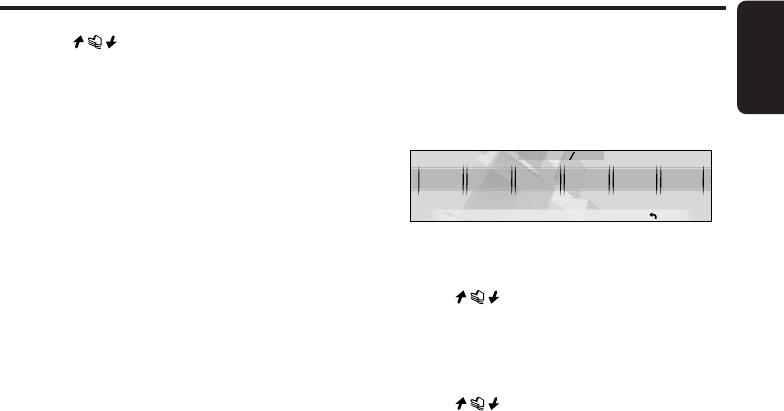
280-8036-00
English
DXZ955MC 39
Common Operations
6. Touch on [TEXT] to determine the
characters to enter.
7. Repeat steps 4 to 6 to enter the title.
8. Touch [MEMO].
You will hear a long beep, and the title is
stored in memory.
■ When a new title is stored beyond the
maximum number of titles
In the case of a radio or TV station
Titles not stored to preset channels and ISR
(radio stations only) are automatically cleared,
and the new title is stored in memory.
In the case of a CD
Titles of CDs that have been played the least
are cleared, and the new title is stored in
memory.
Clearing titles
1. Either receive the radio or TV station, or play
a CD or MUSIC CATCHER file whose title
you want to clear.
2. Touch [DISP].
3. Touch [INPUT].
4. Touch and hold [RTN] for 2 seconds or
longer to erase the title.
5. Touch [MEMO].
∗Erasing is performed by overwriting with a
blank title.
Triggered audio mute for
cellular telephones
This unit requires special wiring to mute the
audio signal automatically when a cellular
telephone rings in the car.
∗This function is not compatible with all cellular
telephones. Contact your local authorized
Clarion dealer for information on proper
installation and compatibility.
Changing settings
Selecting setting items
1. Press the [ADJ] button.
The mode changes to the adjust mode.
ADJ
APPEA-
RANCE
SETTINGSOUND
RECENT
TUNER
1 1
RTN
2. Touch [APPEARANCE], [SOUND],
[TUNER], or [SETTING].
3. Touch on the left of the display to
select the item to set.
4. When “ENT” is displayed at the right of the
display, touch [ENT] to switch to the
adjustment details display.
5. Touch on the right of the display to
set the details.
■ To return to the original mode
1. Press the [ADJ] button again.
■ To call up the last operated item
1. Touch [RECENT].
+DXZ955MC_01-27-Eng.p65 05.1.17, 5:17 PM39
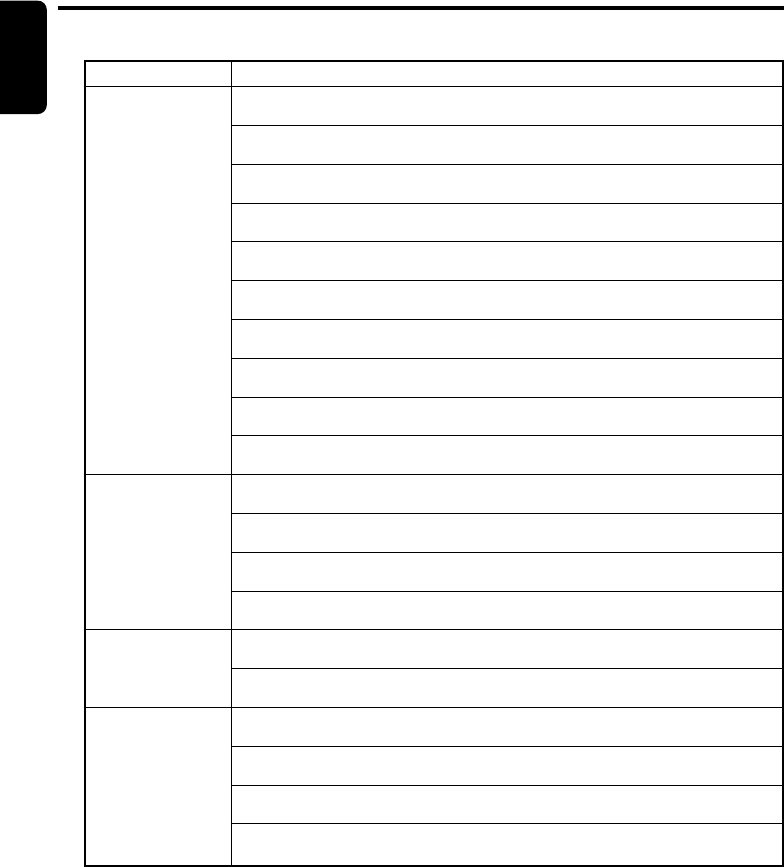
40 DXZ955MC
280-8036-00
English
Main item Sub item
APPEARANCE CLOCK EDIT
•Clock setting (cf. page 41)
MSG INFO
•Setting the message display ON/OFF (cf. page 41)
MSG INPUT
•Message information input (cf. page 41)
DIMMER IN
•Auto-dimmer setting (cf. page 42)
DMR LEVEL
•Setting the dimmer level (cf. page 42)
BRIGHT
•Adjusting the display brightness (cf. page 42)
BLINK LED
•Making the LED blink when DCP is removed (cf. page 42)
BEEP
•Setting beep (cf. page 43)
SCROLL SPD
•Adjusting the scroll speed (cf. page 43)
SRC ICON
•Setting the source icon display (cf. page 43)
SOUND EQ SELECT (When NORMAL, 3WAY or 2WAY is selected.)
•Setting P.EQ or BASS/TREB (cf. page 43)
CENTER SP (When PL II is selected.)
•Setting center speaker ON/OFF (cf. page 43)
SUB WOOFER (When NORMAL, 3WAY or PL II is selected)
•Setting sub woofer speaker ON/OFF (cf. page 43)
AMP CANCEL
•Setting internal amplifier use ON/OFF (cf. page 44)
TUNER TV DIVER
•Setting TV diversity (cf. page 52)
SID DISP
•Display the Sirius ID No. (cf. page 44)
SETTING AUX SENS
• Setting the portable audio (AUX) input level (cf. page 44)
SYSTEM CHECK
•Performing a system check (cf. page 45)
CODEMATIC
• Setting security (cf. page 45)
SLIDE CONT
•Setting the slide direction of the slide buttons (cf. page 46)
● Setting items
Common Operations
+DXZ955MC_01-27-Eng.p65 1/8/05, 2:54 PM40
280-8036-00
English
DXZ955MC 41
Setting the clock (CLOCK)
When the power is OFF, the clock is displayed to
set to the adjust mode.
The clock is displayed in 12-hour format.
1. Press the [ADJ] button.
2. Touch [APPEARANCE].
3. Touch on the left slide button to select
“CLOCK EDIT” and touch [ENT].
CLOCK EDIT
ADJ APPEARANCE
RTN
[ENT]
The time (e.g. “2pm:45”) currently set on this
unit is displayed, and the mode changes to
the time setting mode.
4. Touch on the left slide button to set
hours.
2
pm
:
45
ADJ APPEARANCE CLOCK
RTNSET
∗If you operate another button while you
are setting the time, the time is not
adjusted.
5. Touch on the right slide button to set
minutes.
6. Touch [SET].
∗You will hear a long beep, and the time is
set.
Notes:
•The clock cannot be adjusted when the power is
OFF.
•When the battery has been removed for
maintenance or for repair, set the time again.
7. Press the [ADJ] button to return to the
original mode.
Displaying messages (MSG
INFO)
This function allows you to display a message
on the display when no operation is performed
for more than 30 seconds.
•The factory default setting is “OFF”.
1. Press the [ADJ] button to set to the adjust
mode.
2. Touch [APPEARANCE].
3. Touch on the left of the display to
select "MSG INFO".
ADJ
APPEARANCE
RTN
MSG INFO OFF
4. Touch on the right of the display to
select “ON” or “OFF”.
5. Press the [ADJ] button to return to the
original mode.
Entering messages to display
in message information (MSG
INPUT)
•Up to 30 characters can be entered.
•The factory default setting is “Welcome to
Optimedia”.
1. Press the [ADJ] button to set to the adjust
mode.
2. Touch [APPEARANCE].
3. Touch on the left of the display to
select "MSG INPUT".
ADJ
-
APPEARANCE
RTN
MSG INPUT
[ENT]
4. Touch [ENT].
The mode changes to the message entry
mode.
5. Touch [ ]/[ ] to determine the entry
position.
MESSAGE INPUT
MEMO
FONT
A
A-
Z
RTN
TEXT
We I come to
6. Touch on [FONT] to select the type of
text.
Each touch of switches the type of
text. For details, see page 38.
7. Touch on [TEXT] to determine the
character to enter.
8. Repeat steps 5 to 7 to enter the message.
9. Touch [MEMO].
You will hear a long beep, and the message
is stored in memory.
10. Press the [ADJ] button to return to the
original mode.
Common Operations
+DXZ955MC_01-27-Eng.p65 05.1.17, 5:17 PM41
42 DXZ955MC
280-8036-00
English
Setting the auto-dimmer
(DIMMER IN)
This function allows you to dim the lighting of
the display matched to the illumination or the
brightness inside your car.
Select either “AUTO” (interlocked to the
brightness inside your car) or “ILLUMI”
(interlocked to the illumination inside your car)
as the auto-dimmer setting.
•When the auto-dimmer function is set to
“AUTO”, the brightness of the display is
dimmed according to the brightness detected
by this sensor.
•Set the dimmer setting at DMR LEVEL.
•The factory default setting is “AUTO”.
1. Press the [ADJ] button to set to the adjust
mode.
2. Touch [APPEARANCE].
3. Touch on the left of the display to
select “DIMMER IN”.
ADJ
APPEARANCE
RTN
D I MMER I N AUTO
4. Touch on the right of the display to
select “AUTO” or “ILLUMI”.
5. Press the [ADJ] button to return to the
original mode.
Setting the dimmer level
(DMR LEVEL)
This function allows you to set how much the
displayed is to be dimmed.
•The factory default setting is “3”.
1. Press the [ADJ] button to set to the adjust
mode.
2. Touch [APPEARANCE].
3. Touch on the left of the display to
select “DMR LEVEL”.
RTN
DMR LEVEL 3
ADJ
APPEARANCE
4. Touch on the right of the display to
set the dimmer level.
∗Select one of OFF (dimming OFF, bright),
1 (slightly dimmed) to 5 (dark).
5. Press the [ADJ] button to return to the
original mode.
Adjusting the brightness of
the display (BRIGHT)
You can adjust the brightness of the display to
match the mounting angle of the unit.
•The factory default setting is “5”.
1. Press the [ADJ] button to set to the adjust
mode.
2. Touch [APPEARANCE].
3. Touch on the left of the display to
select “BRIGHT”.
RTN
BRIGHT
5
ADJ
APPEARANCE
4. Touch on the right of the display to
adjust the brightness.
∗This setting item can be adjusted within
the range 1 to 12.
Adjust this setting item while viewing how
the appearance of the display changes.
5. Press the [ADJ] button to return to the
original mode.
Making the LED blink when
DCP is removed (BLINK LED)
You can make the LED on this unit blink when
the DCP is removed.
•The factory default setting is “OFF”.
1. Press the [ADJ] button to set to the adjust
mode.
2. Touch [APPEARANCE].
3. Touch on the left of the display to
select “BLINK LED”.
RTN
BL INK LED
OFF
ADJ
APPEARANCE
4. Touch on the right of the display to
select “ON” or “OFF”.
5. Press the [ADJ] button to return to the
original mode.
Common Operations
+DXZ955MC_01-27-Eng.p65 1/8/05, 2:54 PM42
280-8036-00
English
DXZ955MC 43
Setting the beep for when
buttons are operated (BEEP)
The short or long high-pitched tone you hear
when a button is operated is called a “BEEP”.
•The factory default setting is “ON”.
1. Press the [ADJ] button to set to the adjust
mode.
2. Touch [APPEARANCE].
3. Touch on the left of the display to
select “BEEP”.
RTN
BEEP
OFF
ADJ
APPEARANCE
4. Touch on the right of the display to
select “ON” or “OFF”.
5. Press the [ADJ] button to return to the
original mode.
Adjusting the title scroll
speed (SCROLL SPD)
This feature allows you to slow down the scroll
speed when the scroll speed is too fast, making
it difficult to view the screen.
•The factory default setting is “SPEED 1”.
1. Press the [ADJ] button to set to the adjust
mode.
2. Touch [APPEARANCE].
3. Touch on the left of the display to
select “SCROLL SPD”.
RTN
SCROLL SPD
1
ADJ
APPEARANCE
4. Touch on the right of the display to
adjust the sensitivity.
∗This setting item can be adjusted within
the range SPEED 1 to SPEED 4.
5. Press the [ADJ] button to return to the
original mode.
Setting the source icon
(SRC ICON)
You can change the source icon on the display.
•The factory default setting is “ICON”.
1. Press the [ADJ] button to set to the adjust
mode.
2. Touch [APPEARANCE].
3. Touch on the left of the display to
select “SRC ICON”.
RTN
SRC
I CONI CON
ADJ
APPEARANCE
4. Touch on the right of the display to
select “ICON” or “SPE/ANA”.
5. Press the [ADJ] button to return to the
original mode.
Selecting the equalizer (EQ
SELECT)
You can change the equalizer that adjusts the
sound quality.
•The factory default setting is “P.EQ”.
1. Press the [ADJ] button to set to the adjust
mode.
2. Touch [SOUND].
3. Touch on the left of the display to
select [EQ SELECT].
RTN
EQ
P.EQSELECT
ADJ
SOUND
4. Touch on the right of the display to
select [EQ SELECT] or [BASS/TREB].
5. Press the [ADJ] button to return to the
original mode.
Setting speakers ON/OFF
(CENTER-SP/SUB-WOOFER)
Set the center speaker (CENTER-SP) and sub-
woofer (SUB-WOOFER) ON/OFF.
Be sure to set this setting to “OFF” when there is
no center speaker or sub-woofer.
•The factory default setting is “ON” or “ST”.
1. Press the [ADJ] button to set to the adjust
mode.
2. Touch [SOUND].
Common Operations
+DXZ955MC_01-27-Eng.p65 1/8/05, 2:54 PM43
44 DXZ955MC
280-8036-00
English
3. Touch on the left of the display to
select “CENTER-SP” or “SUB-WOOFER”.
RTN
SUB
ST
WOOFER
ADJ
SOUND
4. Touch on the right of the display to
select "ON", "ST", "MONO", or "OFF".
5. Press the [ADJ] button to return to the
original mode.
Setting internal amplifier use
ON/OFF (AMP CANCEL)
Set internal amplifier use ON/OFF matched to
whether or not an external amplifier is used.
Set AMP CANCEL to “ON” (internal amplifier
use OFF) when an external amplifier is
connected and the internal amplifier is not used.
•The factory default setting is “OFF” (internal
amplifier used).
1. Press the [ADJ] button to set to the adjust
mode.
2. Touch [SOUND].
3. Touch on the left of the display to
select “AMP CANCEL”.
RTN
AMP
OFFCANCEL
ADJ
SOUND
4. Touch on the right of the display to
select “ON” or “OFF”.
5. Press the [ADJ] button to return to the
original mode.
Displaying the Sirius ID No.
(SID DISP)
•This item can be set only when Sirius is
connected.
1. Press the [ADJ] button to set to the adjust
mode.
2. Touch [TUNER].
3. Touch on the left of the display to
select “SID DISP”.
RTN
SID DISP
123456
ADJ
SOUND
4. Touch on the right of the display to
switch between the display for the upper 6
digits and the lower 6 digits.
5. Press the [ADJ] button to return to the
original mode.
AUX function
This system has an external RCA input so you
can listen to sounds and music from external
devices connected to this unit.
Setting the input level (AUX
SENS) of portable audio (AUX
mode)
This function allows you to set the input level of
optional external devices connected to this unit.
•The factory default setting is “MID”.
1. Press the [ADJ] button to set to the adjust
mode.
2. Touch [SETTING].
3. Touch on the left of the display to
select "AUX SENS".
RTN
AUX SENS
MID
ADJ
SETTING
4. Touch on the right of the display to
set the input level.
∗Select LOW, MID or HIGH.
Notes:
•When the input level is overloaded, “OVERLOAD”
appears. Adjust AUX SENS or the input level so
that “OVERLOAD” disappears.
5. Press the [ADJ] button to return to the
original mode.
Common Operations
+DXZ955MC_01-27-Eng.p65 1/8/05, 2:54 PM44
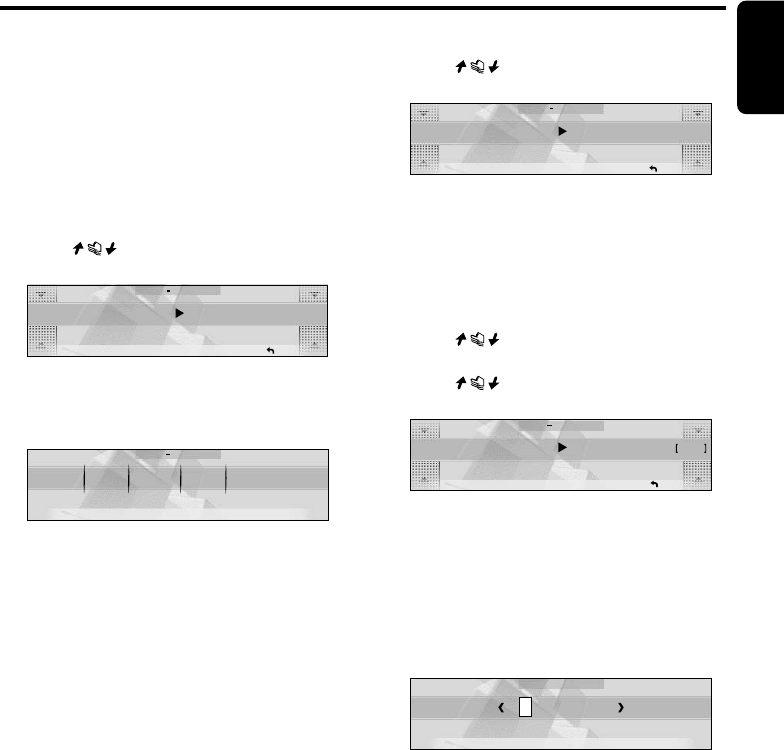
280-8036-00
English
DXZ955MC 45
Performing a system check
(SYSTEM CHECK)
This function allows you to perform a system
check when an external equipment is connected
to this unit or the “SPEAKER SELECT” is
changed.
1. Press the [ADJ] button to set to the adjust
mode.
2. Touch [SETTING].
3. Touch on the left of the display to
select “SYSTEM CHECK”.
RTN
SYSTEM
CHECK
[START]
ADJ
SETTING
4. Touch [START].
The confirmation display appears.
5. Touch [OK].
ADJ SETTING
OK
CANCEL
When the system check is complete,
“SPEAKER SELECT” screen appears.
Select the speaker system. For details on
the speaker system, see “Selecting a
speaker system” (cf. page 14). After this
operation, the display returns to the original
mode.
Using the security function
(CODEMATIC)
This function prevents persons who do not know
the touch sequence from easily operating this
unit. The Touch Code display appears when
DCP is attached and the power is turned ON
with “CODEMATIC” set to “ON”.
If you touch the display in this screen in the
preset order, “SUCCESSFUL” is displayed and
the power is turned OFF.
When the power is next turned ON, the Touch
Code display does not appear, and the main
display in the radio mode or CD mode is
displayed.
•The factory default setting is “OFF”.
1. Press the [ADJ] button to set to the adjust
mode.
2. Touch [SETTING].
3. Touch on the left of the display to
select “CODEMATIC”.
RTN
CODEMAT I C
OFF
ADJ
SETTING
2 types of items are displayed for
“CODEMATIC”, items for which “ON” or
“OFF” is displayed at the right of the screen,
and items for which “INPUT” is displayed at
the right of the screen. Here, select the item
for which “ON” or “OFF” is displayed at the
right of the display.
4. Touch on the right of the display to
select “ON” or “OFF”.
5. Touch on the left of the display to
select “CODEMATIC”.
CODEMATIC
RTN
ADJ SETTING
INPUT
Here, select the item for which “INPUT” is
displayed at the right of the display.
6. Touch [INPUT].
The Touch Code display appears.
7. Enter the touch code.
∗Touch [1] to [4] at the bottom of the display
at random. You can also repeatedly touch
the same number.
CODE MATIC
1234
When you touch 4 times, and 4 indicators
light, you will hear a long beep, and the
original mode is returned to.
■ To cancel CODEMATIC
If you have forgotten the touch order, either
touch [4], [1], [3] and then [2] in that order, or
press [SCN] on the remote control unit.
Common Operations
+DXZ955MC_01-27-Eng.p65 1/8/05, 2:54 PM45
46 DXZ955MC
280-8036-00
English
Setting the slide direction of
the slide buttons (SLIDE
CONT)
This function allows you to set the direction of
the left and right slide buttons.
•The factory default setting is “UP ➜ +”.
1. Press the [ADJ] button to set to the adjust
mode.
2. Touch [SETTING].
3. Touch on the left of the display to
select “SLIDE CONT”.
RTN
ADJ SETTING
SLIDE
CONT UP
4. Touch on the right of the display to
select “UP ➜ +” or “DOWN ➜ +”.
5. Press the [ADJ] button to return to the
original mode.
Common Operations
+DXZ955MC_01-27-Eng.p65 1/8/05, 2:54 PM46
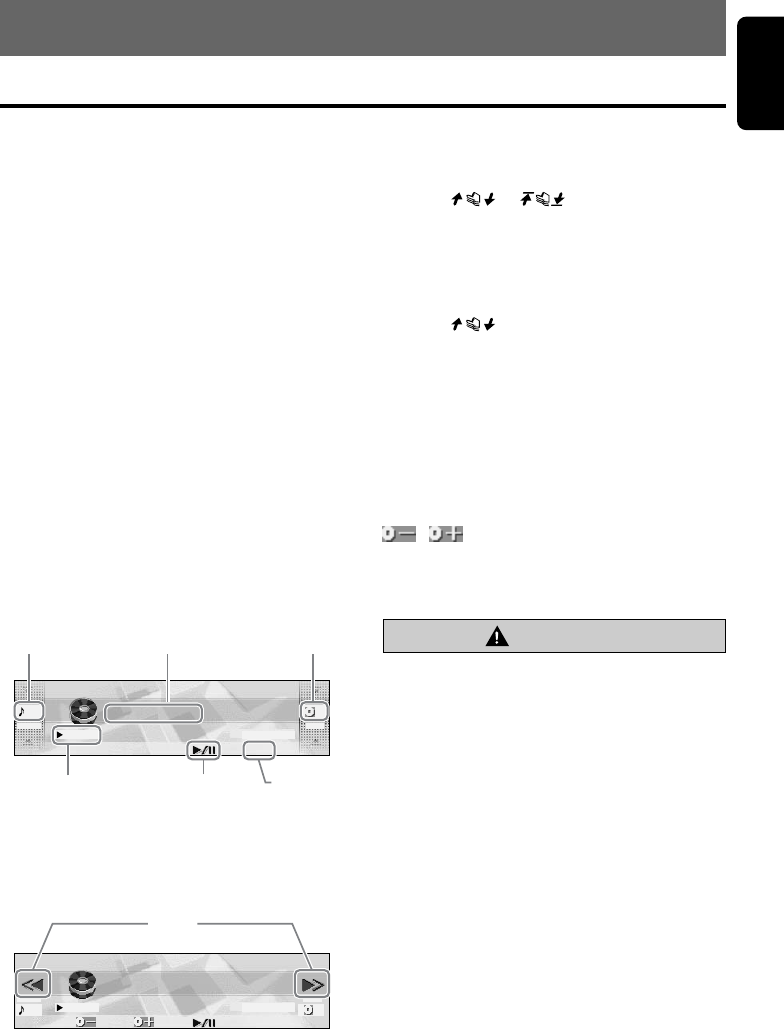
280-8036-00
DXZ955MC 47
English
CD changer
When an optional CD changer is connected
through the CeNET cable, this unit can control
CD changer operations. This unit can be
connected to a total of 2 CeNET-wired CD
changers.
■ When 2 CD changers are connected
Press the [SRC] button to select the changer
connected to this unit. (Each press of the [SRC]
button switches the changer.)
•If the CD changer does not contain a
magazine, “NO MAG” is displayed, and if the
magazine does not contain a CD, “NO DISC”
is displayed.
•For details on the title display, see “Switching
the title display” (cf. page 16).
Screen displays in the
changer mode
● Standard operation display
The standard operation display appears by
pressing the [SRC] button to select changer
modes.
01
TELL ME
TRACK
1
DISC
DISP
03:09
2:45 pm
● Simple operation display
Pressing and holding [MODE] button for 2
seconds or longer switches the simple operation
display.
01
TRACK
DISC
DISP
03:29
TELL ME
2:45 pm
1
Playing time display
Î00:01: The playing time is displayed.
Track No. display
Touching or allows you to select
the track to play, or fast-forward/fast-rewind
tracks.
Title display
The selected title is displayed.
Disc No. display
Touching selects discs.
s
Touching this pauses or resumes play.
DISP
The display contents can be changed.
a/d (only in the simple operation display)
Touching these selects the track to play.
Touching and holding these fast-forwards/fast-
rewinds tracks.
/ (Appears only in MP3/WMA/
MUSIC CATCHER mode and the simple
operation display)
Touching these buttons selects the disc to play.
CAUTION
CD-ROM discs cannot be played from every
CD changer. This depends on the model.
Note:
•Some CDs recorded in the CD-R/CD-RW mode
may not be usable.
8. OPERATIONS OF ACCESSORIES
CD Changer Operations
Playing time
display
Tra ck No.
display
Title
display
Disc No.
display
sDISP
a/d
+DXZ955MC_01-47-Eng.p65 1/7/05, 4:08 PM47
48 DXZ955MC
280-8036-00
English
Selecting the changer mode
1. Press the [SRC] button to select the changer
mode.
∗Each time you press the [SRC] button, the
display switches as follows:
Radio ➜ (SIRIUS) ➜ CD/MP3 ➜
M. CATCHER ➜ (CD changer) ➜ (DVD
changer) ➜ (TV) ➜ AUX ➜ Radio...
∗The mode of equipment that is not
connected is not displayed.
Play starts automatically when the mode
changes to the changer mode.
Pausing play
1. Touch [s].
■ To resume play
1. Touch [s] again.
Selecting a CD
1. Touch on the disc No. display to
select a disc.
Play starts.
∗If magazine does not contain the disc you
selected, the No. for that disc is not
displayed.
Selecting a track
1. To listen to the next track, touch on the
track display.
2. To listen to the previous track, touch
twice on the track display.
Touching plays the next track. If you
touch more times, the track advances
ahead to the track for the number of times
you touched and that track is played.
Touching plays the previous track. If
you touch more times, the track moves
back to the track for the number of times you
touched and that track is played.
∗If you touch twice on the track display
while the start of the track is being played,
the track 2 tracks back is sometimes
played.
CD Changer Operations
Fast-forward/fast-rewind
1. To fast-forward, touch on the track
display.
2. To fast-rewind, touch on the track
display.
Scan play
Scan play locates and plays the first 10 seconds
of each track on a disc automatically. This
function continues on the disc until it is
canceled.
The scan play function is useful when you want
to select a desired track.
1. Press the [MODE] button.
2. Touch [TRACK-SCAN].
∗Scan play starts from the next track after
the track currently being played.
■ To cancel scan play
1. Press the [MODE] button.
Disc scan play
Disc scan play locates and plays the first 10
seconds of the first track on each disc in the
currently selected changer. This function
continues automatically until it is canceled.
Disc scan play is useful when you want to select
a desired disc.
1. Press the [MODE] button.
2. Touch [DISC SCAN].
∗Disc scan play starts from the next disc
after the disc currently being played.
■ To cancel disc scan play
1. Press the [MODE] button.
Repeat play
Repeat play continuously plays the current track.
This function continues automatically until it is
canceled.
1. Press the [MODE] button.
2. Touch [TRACK RPT].
■ To cancel repeat play
1. Press the [MODE] button.
+DXZ955MC_01-47-Eng.p65 1/7/05, 4:08 PM48

280-8036-00
DXZ955MC 49
English
CD Changer Operations
Disc repeat play
After all the tracks on the current disc have been
played, disc repeat play automatically replays
the current disc over from the first track. This
function continues automatically until it is
canceled.
1. Press the [MODE] button.
2. Touch [DISC RPT].
■ To cancel disc repeat play
1. Press the [MODE] button.
Random play
Random play selects and plays individual tracks
on the disc in no particular order. This function
continues automatically until it is canceled.
1. Press the [MODE] button.
2. Touch [TRACK RDM].
■ To cancel random play
1. Press the [MODE] button.
Disc random play
The disc random play selects and plays
individual tracks or discs automatically in no
particular order. This function continues
automatically until it is canceled.
1. Press the [MODE] button.
2. Touch [DISC RDM].
■ To cancel disc random play
1. Press the [MODE] button.
+DXZ955MC_01-47-Eng.p65 1/7/05, 4:08 PM49
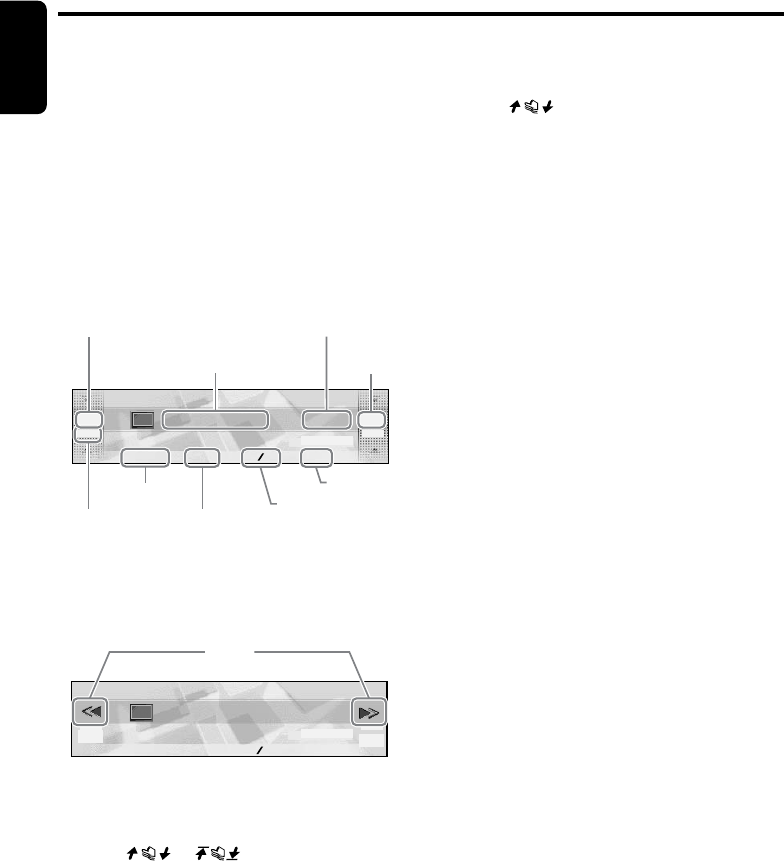
50 DXZ955MC
280-8036-00
English
Reception band display
TV1 : Band name
Preset No. display
Touching on the right slide button in the
standard operation display selects a preset
memory.
Touching [PRESET] displays the preset memory
number list.
PS/AS
Touching this starts a preset scan.
Touching and holding this for 2 seconds or
longer starts an auto store.
Touching this during the preset scan/auto scan
ends the operation.
BAND
Touching this switches the reception band.
Touching and holding this for 1 second or longer
toggles between the manual tuning mode and
the seek tuning mode.
a/d (only in the simple operation display)
Touching these buttons enables seek tuning or
step tuning (in the manual tuning mode).
Touch and holding these buttons enables quick
tuning (in manual tuning mode).
DISP
The display contents can be changed.
Selecting the TV mode
1. Press the [SRC] button to select the TV
mode.
Each press of the [SRC] button switches the
mode as follows:
Radio ➜ (SIRIUS) ➜ CD/MP3 ➜
M. CATCHER ➜ (CD changer) ➜ (DVD
changer) ➜ (TV) ➜ AUX ➜ Radio...
∗The mode of equipment that is not
connected is not displayed.
Switching the reception band
1. Touch [BAND] to switch the reception band.
Each touch of [BAND] switches the
reception band.
TV1 ➜ TV2 ➜ TV1...
TV tuner function
When an optional TV tuner is connected through
the CeNET cable, this unit controls all TV tuner
functions. To watch TV, you need a TV tuner and
a monitor.
Screen displays in the TV
mode
● Standard operation display
The standard operation display appears by
pressing the [SRC] button to select the TV
mode.
TV1
DISP
PRESET BAND PS AS
3ch
MANU
P1
P. C H
2:45 pm
● Simple operation display
Pressing and holding the [MODE] button for 2
seconds or longer switches the simple operation
display.
TV1
DISP
PRESET BAND PS AS
3ch
MANU
P1
P.CH
2:45 pm
Channel display
3ch: The channel currently being received is
displayed.
Touching or in the standard
operation display allows you to perform seek
tuning or manual tuning.
Title display
The name of the station currently being received
is displayed.
VTR : In video mode
Touching these switches the display.
TV Operations
Channel display
Reception
band display
Title display Preset No.
display
SEEK/MANU
indicator
PRESET
BAND PS/AS
DISP
a/d
+DXZ955MC_01-47-Eng.p65 1/7/05, 4:08 PM50
280-8036-00
DXZ955MC 51
English
Seek tuning
Seek tuning is a function for automatically tuning
stations with good reception.
1. Touch and hold [BAND] for 1 second or
longer while “MANU” is displayed.
Automatic tuning is possible when “SEEK” is
displayed.
2. Touch on the channel display.
“SEEK UP/SEEK DOWN” is displayed, and
tuning starts.
Tuning automatically stops at stations with
good reception.
■ To cancel tuning
1. Touch on the channel display again.
Manual tuning
There are 2 ways available: quick tuning and
step tuning.
In the step tuning mode, the frequency changes
1 step at a time. In the quick tuning mode, you
can quickly tune the desired frequency.
1. Touch and hold [BAND] for 1 second or
longer if “SEEK” is displayed.
Manual tuning is possible when “MANU” is
displayed.
2. Operate the channel display to tune to a
channel on which there is a broadcast.
● Step tuning
Touch on the channel display.
● Quick tuning
Touch on the channel display. Tuning
stops when you take your finger away from
the panel.
Recalling a preset station
This function allows the user to select a preset
station.
1. Touch [PRESET].
The preset memory No. list is displayed.
2. Touch the preset memory No.
∗The station can also be tuned by touching
in the standard operation display.
■ To cancel tuning
1. Touch [RTN].
Preset memory
A total of 12 TV stations can be stored (6-TV1
and 6-TV2). This allows you to select your
favorite TV stations and store them in memory
for later recall.
1. Touch [BAND] to switch the reception band.
2. Operate the channel display to select the
station to store to.
3. Touch [PRESET].
The preset memory No. list is displayed.
4. Touch and hold the preset No. to store for 2
seconds or longer.
You will hear a long beep, and the station is
stored in memory.
Auto store
Auto store selects 6 TV stations automatically
and stores each one into preset memory.
1. Touch and hold [PS/AS] for 2 seconds or
longer.
“A-STORE” appears on the display.
∗Stations with good reception are
automatically searched, and are stored to
preset memory (No.1 to No.6) in order
from the station having the lowest
frequency.
Notes:
•When auto store is performed, stations stored to
memory so far are cleared.
•When there are fewer than 6 stations with good
reception, low frequencies are automatically
returned to, and auto store is performed again. If
there are fewer than 6 stations even after auto
store is performed twice, stations stored so far
remain in memory.
Preset scan
Preset scan is a function for receiving stations in
the order that they are currently stored to preset
Nos. so that broadcasts can be checked.
1. Touch [PS/AS].
“P-SCAN” appears on the display.
∗The currently stored stations are received
in order for 7 seconds or longer each.
Stations with poor reception are skipped,
and the next station is received.
TV Operations
+DXZ955MC_01-47-Eng.p65 1/7/05, 4:08 PM51
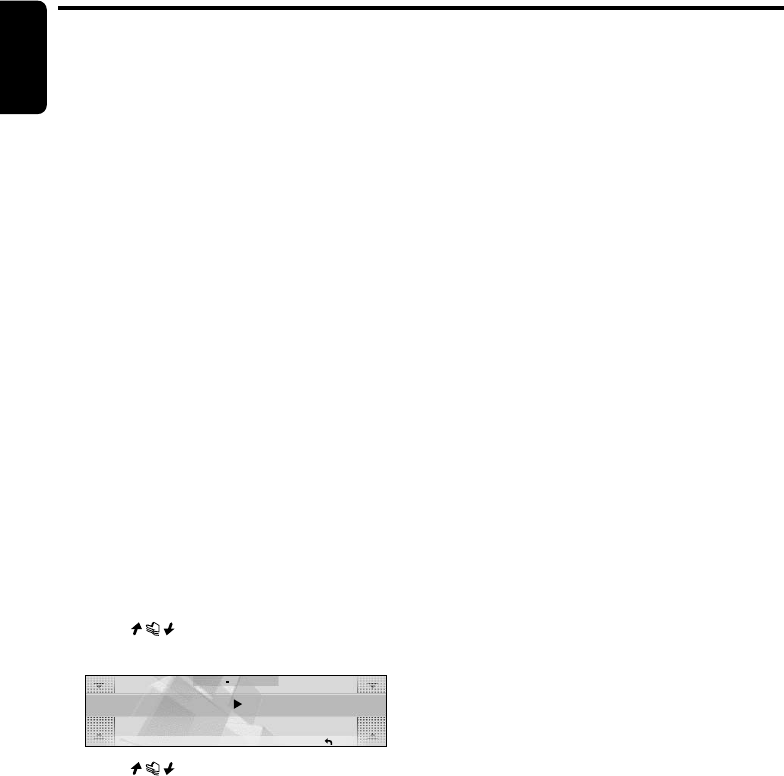
52 DXZ955MC
280-8036-00
English
TV Operations
■ To cancel the preset scan
1. Touch [PS/AS].
“P-SCAN” disappears, and the stations that
were being received when [PS/AS] was
touched are received next.
Watching a video
The TV tuner has a VTR input terminal to which
1 external device can be connected. Connect a
12 V video cassette player (VCP) or video
cassette recorder (VCR) to the TV tuner input
terminal.
1. Press the [MODE] button.
2. Touch [TV/VTR].
∗Every time you touch this, the function
switches between TV and VTR.
Setting the TV Diver
You can change the reception setting for the TV
antenna connected to the TV tuner.
•Set this item to “OFF” when a TV diversity
antenna is not in use.
•The factory default setting is “ON”.
1. Press the [ADJ] button to set to the adjust
mode.
2. Touch [TUNER].
3. Touch on the left of the display to
select [TV DIVER].
RTN
TV DIVER
ON
ADJ
TUNER
4. Touch on the right of the display to
select [ON] or [OFF].
5. Press the [ADJ] button to return to the
original mode.
+DXZ955MC_01-47-Eng.p65 1/7/05, 4:08 PM52
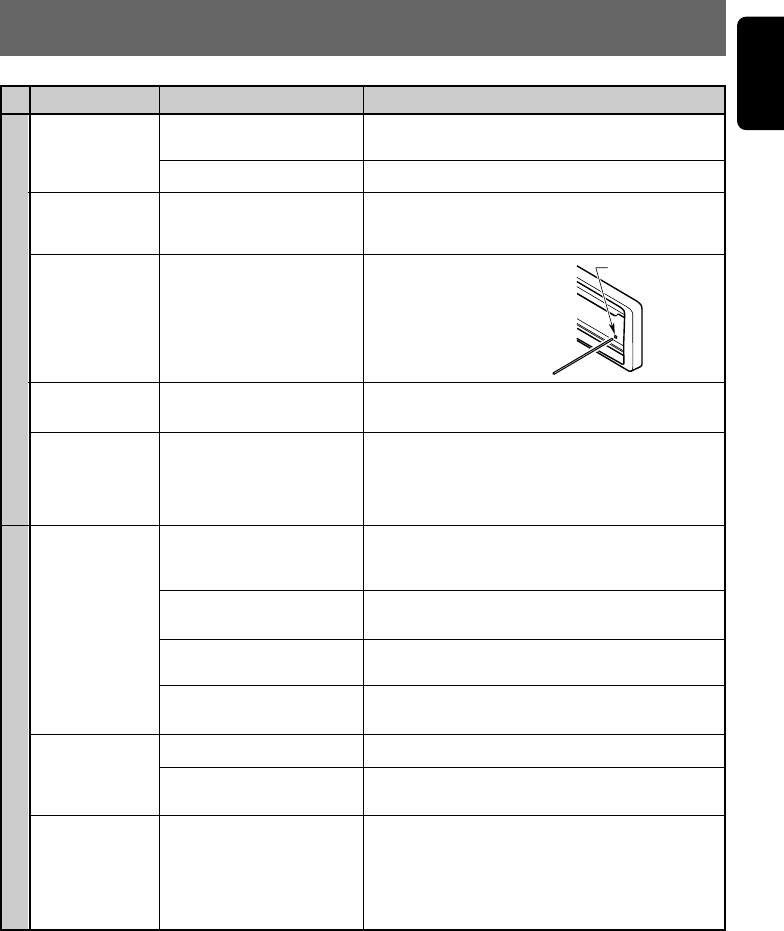
280-8036-00
English
DXZ955MC 53
9. IN CASE OF DIFFICULTY
Power does not
turn on.
(No sound is
produced.)
No audio when
operating the unit
with amplifiers.
Nothing happens
when buttons are
pressed.
Display is not
accurate.
No sound heard.
No sound heard.
Sound skips or is
noisy.
Sound is cut or
skipped.
Noise is
generated or
noise is mixed
with sound.
Problem
Fuse is blown.
Incorrect wiring.
Amplifier turn-on lead is
shorted to ground or
excessive current is required.
The microprocessor has
malfunctioned due to noise,
etc.
DCP or main unit connectors
are dirty.
The speaker protection
circuit is operating.
There is a disc other than a
compact disc or foreign
matter already in place.
MP3/WMA files are absent in
a disc.
Files are not recognized as
an MP3/WMA file.
File system is not correct.
Disc is dirty.
Disc is heavily scratched or
warped.
MP3/WMA files are not
encoded properly.
Replace with a fuse of the same amperage. If the
fuse blows again, consult your store of purchase.
Consult your store of purchase.
Tu rn the unit off and check each wire for a possible
short. If the amplifier turn-on lead shorts out, cover it
with insulation such as tape.
Tu rn off the power, then
remove the DCP by
referencing "Removing
the DCP" (cf. page 10).
Press the reset button for
about 2 seconds with a
thin rod.
Wipe the dirt off with a soft cloth moistened with
cleaning alcohol.
1. Check the speaker connection.
2. Turn down sound volume. Function can also be
restored by turning the power off and on again.
3. If the sound is muted again, consult your store of
purchase.
With the SLOPING CONSOLE open, press and hold
the [Q] button for 3 seconds or longer.
The foreign matter is forcibly ejected.
Write MP3/WMA files onto the disc properly.
Use MP3/WMA files encoded properly.
Use ISO9660 level 1, 2 or JOLIET or Romeo file
system.
Clean the disc with a soft cloth.
Replace with a disc with no scratches.
Use MP3/WMA files encoded properly.
Cause
General
Measure
CD/MP3/WMA
Reset button
+DXZ955MC_01-47-Eng.p65 1/7/05, 4:08 PM53
280-8036-00
English
54 DXZ955MC
Problem Cause Measure
CD/MP3/WMA
Water droplets may form on
the internal lens when the
car is parked in a humid
place.
File system is not correct.
File name or extension is not
correct.
Let dry for about 1 hour with the power on.
Use ISO9660 level 1, 2 or JOLIET or Romeo file
system.
Use alphanumeric/ASCII characters for MP3/WMA
file name.
Use “.M3U” for the file extension of a play list.
Sound is bad
directly after
power is turned
on.
Wrong filename
Play list play is
not performed.
+DXZ955MC_01-47-Eng.p65 1/7/05, 4:08 PM54
280-8036-00
English
DXZ955MC 55
10. ERROR DISPLAYS
If an error occurs, one of the following displays is displayed.
Take the measures described below to eliminate the problem.
ERROR 2
ERROR 3
ERROR 6
ERROR 7
ERROR 8
ERROR 9
ERROR 2
ERROR 3
ERROR 6
ERROR 2
ERROR 3
ERROR 6
ERROR P
ERROR R
Error Display Measure
A DISC is caught inside the CD deck and is
not ejected.
A DISC cannot be played due to scratches,
etc.
A DISC is loaded upside-down inside the
CD deck and does not play.
The format of the flash memory is damaged.
There is a failure with the flash memory.
An error during recording, scratch on the
disc, or error due to sound skips
A DISC inside the CD changer is not
loaded.
A DISC inside the CD changer cannot be
played due to scratches, etc.
A DISC inside the CD changer cannot be
played because it is loaded upside-down.
A DISC inside the DVD changer cannot be
played.
A DISC cannot be played due to scratches,
etc.
A DISC inside the DVD changer cannot be
played because it is loaded upside-down.
Parental level error
Region code error
This is a failure of CD deck’s mechanism and
consult your store of purchase.
Replace with a non-scratched,
non-warped-disc.
Eject the disc then reload it properly.
Execute ALL ERASE on the flash memory,
and the problem is solved.
Turn POWER/ACC off and then turn it on
again, and the problem is solved.
Tu rn POWER/ACC off and then turn it on
again, or eject the CD. The problem is solved.
This is a failure of CD changer’s mechanism
and consult your store of purchase.
Replace with a non-scratched, non-warped
disc.
Eject the disc then reload it properly.
This is a failure of DVD mechanism and con-
sult your store of purchase.
Retry or replace with a non-scratched, non-
warped-disc.
Eject the disc then reload it properly
Set the correct Parental level.
Eject the disc and replace correct region
code disc.
CD/MP3/WMA
DVD changer CD changer
Cause
If an error display other than the ones described above appears, press the reset button. If the problem
persists, turn off the power and consult your store of purchase.
M.CATCHER
+DXZ955MC_01-47-Eng.p65 1/7/05, 4:08 PM55

280-8036-00
English
56 DXZ955MC
11. SPECIFICATIONS
Audio
Maximum Power Output:
212 W (53 W × 4 ch)
Continuous Average Power Output:
18 W × 4, into 4 Ω, 20 Hz to 20 kHz, 1%THD
Bass Control Action (50 Hz):
±12 dB
Treble Control Action (12.5 kHz):
±12 dB
Line Output Level (CD 1 kHz):
4 V/F 2ch + 4V/R 2ch
4 V/SUB WOOFER 2ch
General
Power Supply Voltage:
14.4 V DC (10.8 to 15.6 V allowable), negative
ground
Current Consumption:
Less than 15 A, 3A
Speaker Impedance:
4 Ω (4 Ω to 8 Ω allowable)
Weight / Source unit:
3.74 lb. (1.7 kg)
Weight / Remote control unit:
1.41 oz. (40 g) (including battery)
Dimensions / Source unit:
7" (Width) × 2" (Height) × 6-5/16" (Depth)
[178 (W) × 50 (H) × 160 (D) mm]
Dimensions / Remote control unit:
1-3/4" (Width) × 4-7/16" (Height) × 1/2" (Depth)
[44 (W) × 113 (H) × 13 (D) mm]
Note:
•Specifications and design are subject to change without notice for further improvement.
FM Tuner
Frequency Range:
87.9 MHz to 107.9 MHz
Usable Sensitivity:
9 dBf
50dB Quieting Sensitivity:
15 dBf
Alternate Channel Selectivity:
70 dB
Stereo Separation (1 kHz):
32 dB
Frequency Response (±3 dB):
30 Hz to 15 kHz
AM Tuner
Frequency Range:
530 kHz to 1710 kHz
Usable Sensitivity:
25 µV
CD Player
System:
Compact disc digital audio system
Usable Discs:
Compact disc
Frequency Response (±1 dB):
5 Hz to 20 kHz
Signal to Noise Ratio (1 kHz):
100 dB
Dynamic Range (1 kHz):
96 dB
Harmonic Distortion:
0.005%
MC mode
HQ:
Approximately 266 minutes, 66 tracks
(4 minutes for each)
LP:
Approximately 354 minutes, 88 tracks
(4 minutes for each)
+DXZ955MC_01-47-Eng.p65 1/7/05, 4:08 PM56

280-8036-00
English
DXZ955MC 57
+DXZ955MC_01-47-Eng.p65 05.1.17, 5:18 PM57

CD/MP3/WMA Receiver /
CeNET & Touch Panel Control /
Music Catcher
•
Récepteur CD/MP3/WMA/ CeNET et écran de contrôle
tactile/Music Catcher
•
Receptor de CD/MP3/WMA / Control en panel táctil y
CeNet / Music Catcher
Owner’s manual
Mode d’emploi
Manual de instrucciones
DXZ955MC
Clarion Co., Ltd.
All Rights Reserved. Copyright © 2005: Clarion Co., Ltd.
Printed in China / Imprimé en Chine / Impreso en China
2005/1 (Abe·Abe)
PE-2747B
280-8181-00
+DXZ955MC_00-Cover.p65 05.1.17, 5:22 PM1
