Cleankeys CKD Wireless Keyboard User Manual 1
Cleankeys Inc Wireless Keyboard 1
Contents
- 1. User Manual 1
- 2. User Manual 2
User Manual 1

Cleankeys Keyboard
User Guide
2 CleankeysKeyboardUserGuide
CleankeysKeyboardUserGuide 3
Contents
Regulatoryinformation 4
AbouttheCleankeys®keyboard 5
Specications 5
OpeningtheCleankeysbox 5
ConnectingyourCleankeyskeyboardtoacomputer 7
ConnectingyourCleankeyskeyboardusingawirelessconnection 7
ConnectingyourCleankeyskeyboardusingtheUSBcable 7
Mounting 8
UsingyourCleankeyskeyboard 8
TypingonyourCleankeyskeyboard 8
Keyindentations 8
Proximitysensing 9
LowBatteryMode 9
PausingyourCleankeyskeyboard 9
Cleaning 9
Disinfecting 10
Infectioncontrol 10
Checkingthebatterylevel 10
ChargingyourCleankeyskeyboard 10
ChangingtheCleankeyskeyboardvolume 11
Changingthetouchsensitivityofthekeys 11
Changingthetapsensitivityofthekeys 12
UpdatingtheCleankeyskeyboardrmware 12
InstallingtheCleankeysUpdateUtility 12
UsingtheCleankeysUpdateUtility 13
UsingtheCleankeysUpdateUtilitytomanuallyselectthermwareversion 13
Troubleshooting 14
4 CleankeysKeyboardUserGuide
Regulatory information
European Union Directives Conformance Statement
Thisdevicecomplieswiththeessentialrequirementsandother
relevantprovisionsofdirective2004/108/EC.
FCC Rules – Part 15
KeyboardFCCregistrationnumber:XWS-CKPxxW
WirelessReceiverFCCregistrationnumber:XWS-CKD
ThisdevicecomplieswithPart15oftheFCCRules.Operationissubjecttothe
followingtwoconditions:(1)Thisdevicemaynotcauseharmfulinterference,and
(2)thisdevicemustacceptanyinterferencereceived,includinginterferencethat
maycauseundesiredoperation.
Industry Canada (IC) Notice
ThisClassAdigitalapparatuscomplieswithCanadianICES-003.
CetappareilnumériquedelaclasseAestconformeàlanormeNMB-003du
Canada.
KeyboardCerticationNumberIC:8721A-CKPxxW
WirelessReceiverCerticationNumberIC:8721A-CKD
WARNING
ChangesormodicationstothisequipmentnotapprovedbyCleankeyscancause
thisequipmenttonotcomplywith
Part15oftheFCCrulesandvoidtheuser’sauthoritytooperatethisequipment.
Cleankeys corporate address
CleankeysInc.
4664-99Street
Edmonton,Alberta
T6E5H5Canada
+1-780-702-1473
CleankeysKeyboardUserGuide 5
About the Cleankeys® keyboard
TheCleankeyskeyboardistheidealkeyboardandtrackpadforinfectioncontrolled
environments,oranyplacewherethecomputerkeyboardcaneasilybecome
contaminated.
TheCleankeyskeyboardhasasmoothtopsurfacemadefromglassoracrylic.The
baseismadeofCorian®orABSplastic.Thismakesitoneoftheworld’seasiest
keyboardstoclean.Justsprayandwipe,andyourkeyboardisspotlessinseconds.
TheCleankeyskeyboardisalsoextremelyresistanttomicrobialgrowth.
Thekeysarebothtouchandtapsensitiveandhaveanaudibleclickforfeedback.
Thetouchsensitivitycanbeadjusted,allowingCleankeystobetoucheddirectlyor
throughgloves.
Specications
Keyboard Size:14.68”x5.64”x0.68”(373mmx143mmx17mm)
Wireless Receiver Size:1.89”x0.68”x0.35”(48.0mmx17.3mmx8.9mm)
Keyboard Weight: Glass:2.0lbs(0.91kg),Acrylic:1.6lbs(0.73kg)
Wireless Receiver Weight:0.21oz(6gr)
Color:White
Cable:8ft.(2.46m)
Interface:USBoverNordicSemiconductorFrequencyAgilityProtocolWireless
Keyboard (Charging) Power:5V@1A(max)
Wireless Receiver Power:5V@22mA
Supported operating systems:Windows®,Mac,Linux,Unix
Regulatory approvals:FCC,CE,ROHS,IP65
Mounting option:Three#6-32insertsspacedinaMIS-D75Vesastandard
pattern
Operating Environment:32ºF(0ºC)to95ºF(35ºC)
Warranty:Twoyear(extendedoptionsavailable)
Opening the Cleankeys box
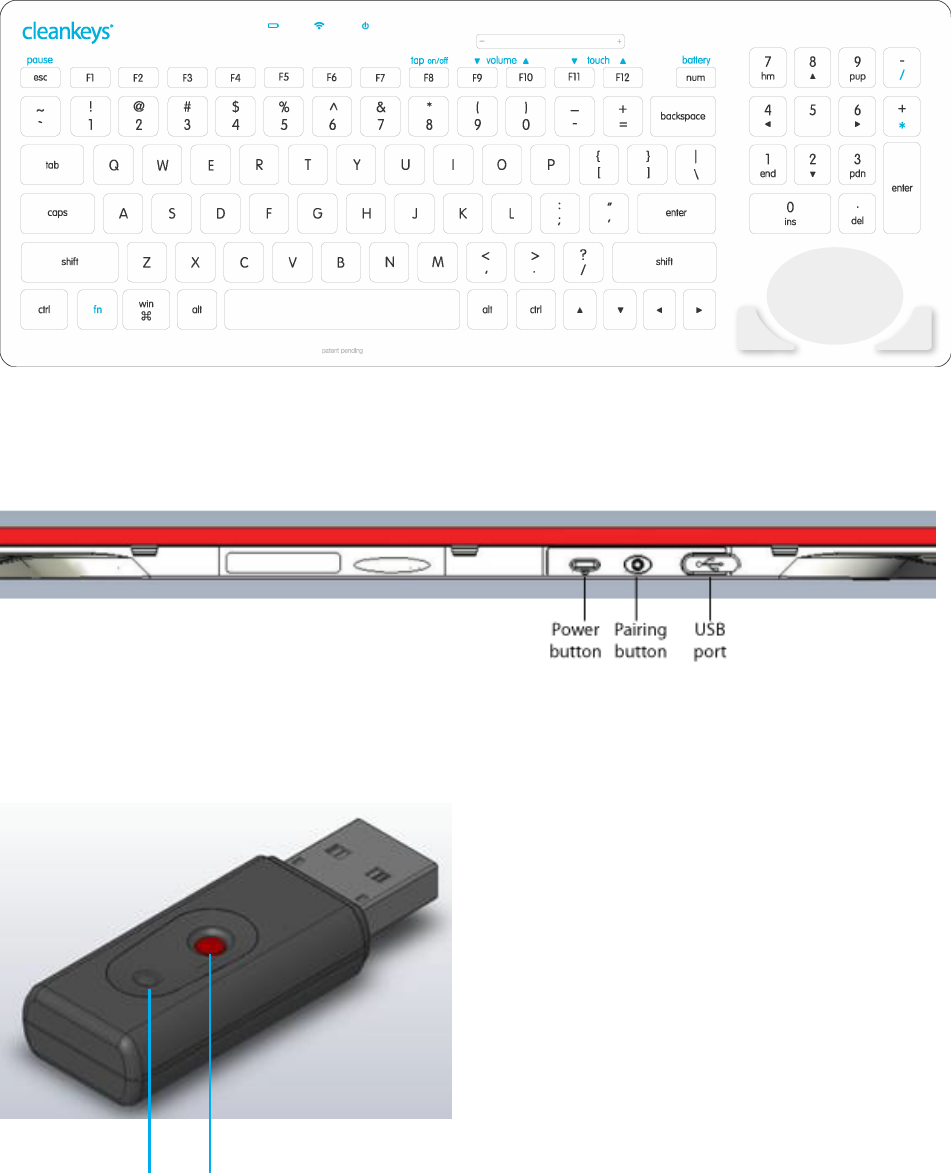
ThefollowingitemsareinyourCleankeyskeyboardbox.
• Cleankeyskeyboard
• wirelessreceiver
• batterycharger
• USBcable
• QuickReferenceCard
Ifanyoftheseitemsaremissing,contactyoulocaldistributor.
6 CleankeysKeyboardUserGuide
Cleankeys keyboard
Back of the Cleankeys keyboard
Wireless receiver
Pairing
button
Pairing
LED

CleankeysKeyboardUserGuide 7
Connecting your Cleankeys keyboard to a computer
YoucanconnectyourCleankeyskeyboardtoyourcomputerusingawireless
connectionoraUSBcable.
Connecting your Cleankeys keyboard using a wireless connection
ToconnectyourCleankeyskeyboardusingthewirelessconnection,connectthe
wirelessreceivertoyourcomputerandthenlinkthewirelessreceiverwithyour
Cleankeyskeyboard.
Connecting the wireless receiver
1. Turnonyourcomputer.
2. PlugthewirelessreceiverintoaUSBportonyourcomputer.
3. Waitforyourcomputertorecognizethewirelessreceiver.
Linking the wireless receiver to your Cleankeys keyboard
Note:YourCleankeyskeyboardandwirelessreceiverhavebeenlinkedatthe
factory,soyoudonothavetolinkthemwhenyourstinstallthekeyboard.
1. PressthepowerbuttononyourCleankeyskeyboard.
IfyourCleankeyskeyboarddoesnotturnon,thebuiltinbatterymayneedto
becharged.SeeChargingyourCleankeyskeyboardonpage10.
2. PressthePairingbuttononthewirelessreceiver.
TheLEDonthewirelessreceiverbeginstoash.
3. PressthePairingbuttonontheCleankeyskeyboard.
ThewirelessLEDontheCleankeyskeyboardashesatleastonce.
WhenthewirelessreceiverandtheCleankeyskeyboardhavenishedpairing,
theLEDsonthewirelessreceiverandthekeyboardstopashing.
Note:YoumustpressthePairingbuttonontheCleankeyskeyboardwithin10
secondsofpressingthePairingbuttononthewirelessreceiver.
4. ToverifytheCleankeyskeyboardisworking,touchthe
caps
key.
The caps LEDwilllightiftheCleankeyskeyboardisrecognizedbythe
computer.
Connecting your Cleankeys keyboard using the USB cable
1. Turnonyourcomputer.
2. PlugthesmallerendoftheUSBcableintotheUSBportonyourCleankeys
keyboard.
3. PlugthelargerendoftheUSBcableintoaUSBportonyourcomputer.
4. PressthepowerbuttononyourCleankeyskeyboard.
5. WaitforyourcomputertorecognizeyourCleankeyskeyboard.
6. ToverifytheCleankeyskeyboardisworking,touchthe
caps
key.
The
caps
keyLEDwilllightiftheCleankeyskeyboardisrecognizedbythe
computer.
8 CleankeysKeyboardUserGuide
Mounting
YoucanchoosetoplaceyourCleankeyskeyboardonacountertoporyoucan
mounttheCleankeyskeyboardtoawallorbracket.
Therearethree#6-32mountinginsertsonthebottomofCleankeyskeyboard.
TheseinsertsarecompatiblewiththeRAM-Mount101system.Usingthese
mountinginserts,youcanmounttheCleankeysatanyangle,includingvertical.
Using your Cleankeys keyboard
YourCleankeyskeyboardhasseveralfeaturesthatarenotfoundonstandard
keyboards.
Typing on your Cleankeys keyboard
AlthoughthekeysontheCleankeyskeyboarddonotmove,youusethesame
typingtechniqueontheCleankeysthatyouuseonastandardkeyboard.
TheCleankeyskeyboardaccomplishesthisbycombiningtouchsensingandtap
sensingtechnology.Withtouchandtapsensing,unlikejusttouchsensing,you
musttapthekeyswithyourngerstotypeacharacters.Thisnotonlyprovidesa
morefamiliarfeel,italsoallowsyoutorestyoungersonthekeyboard.
Touch sensing
TheCleankeyskeyboardusestouchcapacitancetechnologytosensethetouch
ofahumannger.Thismeansthatyoumustuseyourngerstotouchthekeys.
Touchingortappingthekeyboardwithanotherobject,apencilforexample,will
notactivateakey.
However,youcanusetheCleankeyskeyboardwithsurgicalgloves,oranytypeof
gloveforthatmatter.Justadjustthetouchsensitivityaccordingly.SeeChanging
thetouchsensitivityofthekeysonpage11.
Tap sensing
Whentapsensingisturnedon,youmusttapthekeyyouwanttotype,notjust
touchthekey.
Whentapsensingisturnedoff,theCleankeyskeyboardusesonlytouchsensingto
senseakeystroke.Iftapsensingisoff,donotrestyourngersonthekeyboard.
IfyoudotheCleankeyswilltypeeachkeythatyoutouch.
Tapsensingisdisabledatthefactory.Forinformationaboutturningtapsensing
on,seeTurningtapsensingonoroffonpage12.
Key indentations
ThesurfaceoftheacrylicCleankeyskeyboardhasshallowindentationsovereach
key.Theseindentationshelpyoulocatethepositionofthekeyswithoutlookingat
thekeyboard.
ThesurfaceoftheglassCleankeyskeyboarddoesnothavetheseindentations.

CleankeysKeyboardUserGuide 9
Low Battery Mode
TheredBatteryLEDatthetopofthekeyboardbeginstoashwhenthebattery
chargeislow.
TheredLEDashesslowly(aboutoncepersecond)whenthereis20%ofthe
batterypowerremaining.TheredLEDashesmorequickly(abouttwiceper
second)whenthereis10%ofthebatterypowerremaining.
Thisfeatureisonlyavailablewhenyouareusingawirelessconnectionforthe
Cleankeyskeyboard.
Pausing your Cleankeys keyboard
BeforeyoucleanordisinfectyourCleankeyskeyboard,youshouldpausethe
keyboard.Whenthekeyboardispaused,itdoesnotsendcharacterswhenthe
keysaretouchedortapped.Thisallowsyoutocleanthekeyboardsurfacewithout
inadvertentlypressingkeys.
TopausetheCleankeyskeyboard,touch fn andthen esc .
ThepauseLEDasheswhenthekeyboardispaused.
Whenyouarenishedcleaningthekeyboard,touch fn andthen esc .
ThepauseLEDturnsoff.
Cleaning
TheCleankeyskeyboardismadefromABSplasticandacrylic,orCorian®and
glass.Youcancleanitwithanythingsuitableforthosesurfaces.Fortheglassor
acrylic,useastandardglasscleaner(suchasWindex®).Forthebase,useany
standardcounter-topcleaners(suchasVim®).Do not use abrasive cleaners on
the keyboard.
TheCleankeyskeyboardissplash-proof,butshouldnotbeimmersedinwater.
Beforecleaningthekeyboard,touch fn andthen esc topausekeyboard
operation.ThepauseLEDasheswhenthekeyboardispaused.
Afteryouhavenishedcleaningkeyboard,touch fn andthen
esc
toreturnthe
keyboardtonormaloperation.ThepauseLEDturnsoff.
Disinfecting
YoucandisinfecttheCleankeyskeyboardwithanystandarddisinfectantsolution,
includingCaviCide®,Opti-Cide3®,andSciCanOptim®.Besuretotouch fn and
then
esc
topausethekeyboardoperationbeforedisinfectingtheCleankeys
keyboard.Whenyouarenished,touch fn andthen esc toreturnthekeyboard
tonormaloperation.

10 CleankeysKeyboardUserGuide
Infection control
Cleankeysisauniquecomputerkeyboardforuseinanyenvironmentwherethere
isahighriskofcontamination.Unlikehygienickeyboardcompetitors,Cleankeys
incorporatesasmooth,at,non-poroussurfacethatiseasytoclean.Itcanbe
wipedcleaninseconds,substantiallyincreasinginfectioncontrolandreducingstaff
timespentcleaningthekeyboard.
Althoughthekeyindentationsareeasytondwithyourngers,theyareshallow
enoughthattheydonotcreatecleaningshadowsonthesurface.
TheintegratedtrackpadontheCleankeyskeyboardalsoprovidessignicant
advantagesoveraseparatekeyboardandmouse.Notonlyisthereonlyone
devicetocleananddisinfect,thetrackpadiseasiertocleanthanamouse.A
singledevicealsoreducestheriskofcrosscontamination.
Checking the battery level
TochecktheamountofchargethatisleftintheCleankeyskeyboardbattery,
touch fn andthen
num
.TheindicatorLEDs,intheboxlabelledwith-and+,
lighttoindicatethecurrentbatterylevel.ThenumberofLEDsthatlightindicates
theamountofchargeinthebattery.Ifall5LEDsturnon,thebatteryisfully
charged.IfonlyLED1turnson,youneedtorechargethebatterysoon.
Charging your Cleankeys keyboard
YourCleankeyskeyboardhasabuiltinrechargeablebattery.Thisbatteryprovides
powertoyourCleankeyskeyboardwhenyouareusingawirelessconnection.
WhenyouareusingaUSBcabletoconnectyourCleankeyskeyboard,theUSB
portonyourcomputerprovidesthepowerforyourCleankeyskeyboard.TheUSB
portalsochargestheCleankeyskeyboardbattery.IftheUSBportischargingthe
battery,theredbatteryLEDislit.Whenthebatteryisfullycharged,thegreen
batteryLEDislit.
TochargeyourCleankeyskeyboardbatteryusingthecharger:
1. Plugthechargerintoawalloutlet.
2. PlugthewideendoftheUSBcableintothecharger.
3. PlugthesmallendoftheUSBcableintotheUSBportonthekeyboard.
Whenthebatteryischarging,theredbatteryLEDislit.
Whenthebatteryisfullycharged,thegreenbatteryLEDislit.

CleankeysKeyboardUserGuide 11
Changing the Cleankeys keyboard volume
TheCleankeyskeyboardusessoundtoindicatevariousactions,suchaskey
presses.Youcanadjustthevolumeofthesesoundstomatchyourpersonal
preferenceorworkingenvironment.
TochangethevolumeoftheCleankeys:
1. Touch fn andthen F9 or
F10
.
TheindicatorLEDs,intheboxlabelledwith-and+,lighttoindicatethe
currentvolumelevel.
ThenumberofLEDsthatlightindicatesthecurrentvolumelevel.Ifallve
LEDsturnon,thevolumeishigh.IfonlyoneLEDturnson,thevolumeislow.
2. Hold
fn
andtouch F9 tolowerthevolumeoftheCleankeyskeyboard.
Hold fn andtouch F10 toincreasethevolumeoftheCleankeyskeyboard.
ToturnthevolumeoftheCleankeyskeyboardoff,hold
fn
andtouch F9 until
allveLEDsareoff.
Changing the touch sensitivity of the keys
TheCleankeyskeyboardusestouchcapacitancetechnologytosensethetouchof
ahumannger.YoucanchangehowsensitivetheCleankeyskeyboardistouchby
changingthetouchsensitivity.Typically,youwillneedtoincreasethesensitivityif
youhaveglovesonwhenusingtheCleankeyskeyboard.
Youcansetthetouchsensitivitytoavaluefrom1to5.Whenthetouchsensitivity
is5,theCleankeyskeyboardcansenseaverylighttouch.Whenthetouch
sensitivityis1,morecontactwiththekeyisneeded.
Tochangethetouchsensitivity:
1. Touch fn andthen F11 or
F12
.
TheindicatorLEDs,intheboxlabelledwith-and+,lighttoindicatethe
currenttouchsensitivity.
ThenumberofLEDsthatlightindicatesthetouchsensitivitylevel.Ifallve
LEDsturnon,thetouchsensitivityishigh.IfonlyoneLEDturnson,thetouch
sensitivityislow.
2. Hold fn andtouch F11 tolowerthetouchsensitivity.
Hold fn andtouch F12 toraisethetouchsensitivity.
YoucanchangethetouchsensitivityoftheCleankeyskeyboard,butyoucannot
turntouchsensingoff.

12 CleankeysKeyboardUserGuide
Turning tap sensing on or off
Aswellassensingtouch,theCleankeyscansenseataponthekeys.Whentap
sensingisturnedon,youmusttapthekeyyouwanttotype,notjusttouchthe
key.
Toturntapsensingonoroff:
1. Touchandhold
fn
.
ThecurrentstateoftapsensingappearsontheLEDabovetap on/off.If
theLEDison,tapsensingison.
IftheLEDisoff,tapsensingisoff.
2. Ifyouwanttochangethecurrentstateoftapsensing(eitherfromofftoon,or
ontooff),touch F8 .
Updating the Cleankeys keyboard rmware
FirmwareisthesoftwarethatisinstalledonyourCleankeyskeyboard.This
rmwareprovidesthefeaturesandfunctionalitythatisavailableonthekeyboard.
Occasionally,thermwaremayneedtobeupdatedtoprovideadditional
functionalityorimproveperformance.
Toupdatethermware,youneedtheCleankeysUpdateUtility.
Installing the Cleankeys Update Utility
TheCleankeysUpdateUtilityisavailablefromtheCleankeyswebsite.
BeforeyouinstalltheCleankeysUpdateUtility,makesurethatyourcomputeris
usingtheWindowsXP,WindowsVistaorWindows7andhasthe.NetFramework
2.0orlaterinstalled.Aswell,youmustensurethatyourrewallsoftwareallows
basicwebconnectionswhiletheutilityisrunning.
1. GototheCleankeyswebsite(www.cleankeysinc.com).
2. Clickthelinktogotothedownloadpage.
3. DownloadtheCleankeysUpdateUtilitytoafolderonyourcomputer.
4. Double-clickthedownloadedleandfollowtheinstructionstoinstalltheutility.
CleankeysKeyboardUserGuide 13
Using the Cleankeys Update Utility
1. ConnectyourCleankeyskeyboardtoyourcomputerusingaUSBcable.
2. ChecktheCleankeyskeyboardpowerlighttoensurethekeyboardisturned
on.Ifthepowerlightisnoton,pressthepowerbuttontoturnonthe
Cleankeyskeyboard.
3. LaunchtheCleankeysUpdateUtility.
TheWelcomescreenappears.
4. ClicktheNextbutton.
TheSelectUpdateMethodwindowappears.
5. ClicktheAutomatically Download Latest Firmwareoption.
6. ClicktheNextbutton.
TheCleankeysUpdateUtilitystartsdownloadingthelatestversionof
compatiblermwarefortheattachedkeyboard.
7. WhentheConrmUpdatewindowappears,clicktheNextbutton.
TheCleankeysUpdateUtilitystartstoupdatethekeyboard.Whentheupdate
itcomplete,theCleankeyskeyboardresetsandstartusingthenewrmware.
8. WhentheUpdateSuccessfulwindowappears,clicktheFinishbutton.
Using the Cleankeys Update Utility to manually select the
rmware version
IfyouwanttoinstallaspecicversionoftheCleankeysrmware,youcanchoose
toselectthermwaretoinstall.Theversionofrmwareyouwanttoinstallmust
beonyourcomputer.Theseleshavecupasaleextension.
CAUTION:
Duetodifferentkeyboardlayoutsandfunctions,itiscrucialthattheyouselecta
rmwareversionthatiscompatiblewithyourCleankeyskeyboard.Updatingyour
keyboardwithaincompatiblermwareversioncanresultinerraticbehaviorand/
orthedisablingoffeatures.Itcanevencauseyourkeyboardtostopfunctioning.
Ifyouchoosetousemanualupdates,youmustdosowithcautionandonlyunder
theadviceofsomeonefamiliarwithCleankeyskeyboards.
1. ConnectyourCleankeyskeyboardtoyourcomputerusingtheUSBcable.
2. ChecktheCleankeyskeyboardpowerlighttoensurethekeyboardisturned
on.Ifthepowerlightisnoton,pressthepowerbuttontoturnonthe
Cleankeyskeyboard.
3. LaunchtheCleankeysUpdateUtility.
TheWelcomescreenappears.
4. ClicktheNextbutton.
TheSelectUpdateMethodwindowappears.
5. ClicktheBrowse Computer for Firmwareoption.
6. ClicktheNextbutton.
TheGetFirmwarewindowappears.

14 CleankeysKeyboardUserGuide
7. Movetothefolderthatcontainsthermwareandthenclickonthermware
youwanttoinstall.
8. ClicktheNextbutton.
TheCleankeysUpdateUtilitystartsdownloadingthermwarefortheattached
keyboard.
9. WhentheConrmUpdatewindowappears,clicktheConrmbutton.
TheCleankeysUpdateUtilitystartstoupdatethekeyboard.Whentheupdateit
complete,theCleankeyskeyboardwillresetandstartusingthenewrmware.
10.WhentheUpdateSuccessfulwindowappears,clicktheFinishbutton.
Troubleshooting
IfyourCleankeyskeyboardisnotworkingasyouexpect,tryoneofthefollowing
procedurestocorrecttheproblem.
The keyboard does not type and is connected using a USB cable
1. ChecktheCleankeyskeyboardpowerlighttoensurethekeyboardisturned
on.Ifthepowerlightisnoton,pressthepowerbuttontoturntheCleankeys
keyboardon.
2. Checkthepauselighttoseeifthekeyboardhasbeenpaused.Ifpauselightis
ashing,touch fn andthen
esc
tounpausethekeyboard.
3. Trychangingthetouchsensitivitylevelofthekeyboardtoitshighestlevel
(level5).
4. ChecktheUSBcabletomakesureitisproperlyconnectedtoboththe
Cleankeyskeyboardandthecomputer.
5. Checktheoperatingsystem’sUSBdevicetable(forexample,DeviceManager
forWindows)tomakesurethekeyboardisenumeratedproperlyasanHID.
Refertoyouroperatingsystemusermanualorhelpleforinformationabout
howtochecktheHID.
6. Windows,andsomeotheroperatingsystems,maycachetheUSBDescriptor
tablesanditispossibleforthesetablestogetcorrupted.Ifthishappens,
removetheCleankeysentryfromthetableandrestartthecomputer.

CleankeysKeyboardUserGuide 15
The keyboard does not type and is using a wireless connection
1. ChecktheCleankeyskeyboardpowerlighttoensurethekeyboardisturned
on.Ifthepowerlightisnoton,pressthepowerbuttontoturntheCleankeys
keyboardon.
2. CheckthewirelessLEDonthekeyboard.ThewirelessLEDasheswhenthere
isaproblemwiththewirelesscommunication.
3. Checkthatthewirelessreceiverispluggedintothecomputerandenumerated
properlyasanHIDdevice.Refertoyouroperatingsystemusermanualorhelp
leforinformationabouthowtochecktheHID.
4. Checkthepauselighttoseeifthekeyboardhasbeenpaused.Ifpauselightis
ashing,touch
fn
andthen
esc
tounpausethekeyboard.
5. Trychangingthetouchsensitivitylevelofthekeyboardtoitshighestlevel
(level5).
6. Trytolinkthekeyboardandthewirelessreceiver.SeeLinkingthewireless
receivertoyourCleankeyskeyboardonpage7.
7. Windows,andsomeotheroperatingsystems,maycachetheUSBDescriptor
tablesanditispossibleforthesetablestogetcorrupted.Ifthishappens,
removetheCleankeysentryfromthetableandrestartthecomputer.
The wireless receiver does not ash during pairing
1. Youshouldfeelaclick,whenthePairingbuttonispressed.Ifyoudonotfeel
theclick,tryusingapapercliporpintopressthebutton.
2. RemovethewirelessreceiverfromtheUSBportandplugitbackin.
Verifyifthewirelessreceiverhasbeenenumerated.
3. RemovethewirelessreceiverfromtheUSBportandplugitintoadifferent
USBport.
Verifyifthewirelessreceiverhasbeenenumerated.
4. UnplugthewirelessreceiverfromtheUSBport.
RemovetheexistingHIDentryfromtheHIDtablecache(forexample,the
WindowsDeviceManager).
Restartthecomputer.
PlugthewirelessreceiverintoaUSBport.
The keyboard does not ash during pairing
1. VerifythatthekeyboardisnotconnectedtothecomputerusingaUSBcable.
ConnectingaUSBcablebetweenthekeyboardandcomputerdisablesthe
wirelessconnection.Thekeyboardcanbepairedwiththewirelessreceiver
whenthechargerisconnectedtothekeyboard.
2. ChecktheCleankeyskeyboardpowerlighttoensurethekeyboardisturned
on.Ifthepowerlightisnoton,pressthepowerbuttontoturntheCleankeys
keyboardon.
3. Verifythatthekeyboardhasenoughbatterypower.SeeCheckingthebattery
levelonpage10.

16 CleankeysKeyboardUserGuide
The keyboard does not pair with the wireless receiver
1. CheckthatthewirelessreceiverispluggedinaUSBportonthecomputer.
2. ChecktheCleankeyskeyboardpowerlighttoensurethekeyboardisturned
on.Ifthepowerlightisnoton,pressthepowerbuttontoturntheCleankeys
keyboardon.
3. MakesureyoupressthePairingbuttononthekeyboardwithin10secondsof
pressingthePairingbuttononthewirelessreceiver.
The keyboard does not charge when connected using a USB cable
1. Checktomakesurethatthecomputeristurnedonandisnotinstandbyor
sleepmode.ThesemodesdonotprovideenoughpowerthroughtheUSBcable
tochargetheCleankeyskeyboardbattery.
2. CheckthattheUSBcableisproperlyconnectedtoboththeCleankeys
keyboardandthecomputer.
The keyboard does not charge when connected to the charger
1. MakesureyouuseonlythechargerthatcamewithyourCleankeyskeyboard.
ThebatterylightwillashifthechargerisnotthedesignatedCleankeys
keyboardcharger.
2. CheckthatchargerispluggedintothewallandtheUSBcableisproperly
connectedtothekeyboardandthecharger.
3. IftheLEDonthechargerashes,itindicatesanerror.
The keyboard does not make any sound
1. Touch fn andthen
F9
tocheckthevolumesettingoftheCleankeys
keyboard.
2. Touch
fn
andthen
num
tocheckthatthebatterylevelontheCleankeys
keyboard.
Chargethebatteryifthebatterylevelislow.
The keyboard does not turn on
Thebatterylevelmaytoolowtopowerthekeyboard.Chargethebattery.See
ChargingyourCleankeyskeyboardonpage10.
Ifyouwouldliketocontinueworkingwhilethebatteryischarging,connectthe
chargertotheCleankeyskeyboardandpressthepowerbuttontwice.
CleankeysKeyboardUserGuide 17
The caps or num light does not turn on
PressingthecapsornumkeychangestheCapsLockorNumlockmodeinthe
operatingsystem.Thelightsonthecapsandnumkeysareturnedonoroffto
reectthemodeintheoperatingsystem.
1. ChecktheCleankeyskeyboardpowerlighttoensurethekeyboardisturned
on.Ifthepowerlightisnoton,pressthepowerbuttontoturntheCleankeys
keyboardon.
2. CheckthattheCleankeyskeyboardisconnectedtothecomputerusingeither
theUSBcableorthewirelessreceiver.
3. Checkthattheoperatingsystemisnotstalledorfrozen.
The numeric pad does not type numbers but moves the cursor
ChecktoseeifthekeyboardisinNumlockmode.
The keyboard types but the trackpad does not move the cursor
CheckthatthetrackpadHIDisnotdisabledintheDeviceManager.
The Cleankeys Update Utility cannot nd the Cleankeys keyboard
WhenyoustarttheCleankeysUpdateUtilityitsearchesforaspecicUSBdevice
thathasbeenenumeratedwithapredenedVendorIDandProductID.
1. VerifythattheCleankeyskeyboardispluggedintothecomputerwithaUSB
cable.
2. Trytogetthesystemtore-enumeratethekeyboardbyunpluggingtheUSB
cableandpluggingitbackintothekeyboard.
3. ChecktheCleankeyskeyboardpowerlighttoensurethekeyboardisturned
on.Ifthepowerlightisnoton,pressthepowerbuttontoturntheCleankeys
keyboardon.
The rmware is incompatible
TheCleankeysUpdateUtilityisdesignedtocheckforcompatibilitybetweenthe
rmwareselectedandthedevice.Itwillpreventanyrmwareupdatesthatare
notcompatiblewiththedevicethatispluggedin.
After updating the rmware, the keyboard is behaving strangely
Checktomakesurethatthermwareupdateiscompatiblewiththekeyboard.It
ispossibletoforceaspecicrmwareupdatebydownloadingarmwareupdate
andthenselectingtheoptiontomanuallyuploadthatrmwaretothekeyboard.
Firmware updates fail repeatedly on the keyboard
Theupdateutilityusessomebasicreadandwriteoperationstouploadthe
rmwaretothekeyboard.Iftheupdatefailsinthemiddleofthisprocess
repeatedly,thisindicatesthatthereissomethingwrongwiththedevicehardware
itself.PleaseconsultTechnicalSupport.
18 CleankeysKeyboardUserGuide
Documentversion01