Comark RF500A RF500A Gateway User Manual Comark Wireless Monitoring RF500A System Manual
Comark Limited RF500A Gateway Comark Wireless Monitoring RF500A System Manual
Comark >
Contents
- 1. antanna datasheet
- 2. Manual
Manual

RF500A GATEWAY
SYSTEM MANUAL
Comark Wireless Monitoring - RF500A System Manual
Contents
RF500 System Components........................................................................................................................................................ 1
RF500A Gateway..................................................................................................................................................................... 1
RF500 Transmitters................................................................................................................................................................. 2
RF512 Temperature Transmitter......................................................................................................................................... 2
RF512M Temperature Transmitter Backbone Option..........................................................................................................2
RF513 Temperature and Humidity Transmitter................................................................................................................... 2
RF513M Temperature and Humidity Transmitter Backbone Option....................................................................................3
RF515 Analog Input Transmitter and RF515A Connection Box..........................................................................................3
RF515A Connection Box..................................................................................................................................................... 3
RF516 Precision Temperature Transmitter..........................................................................................................................3
Optional Accessories............................................................................................................................................................... 4
Know your Gateway................................................................................................................................................................. 5
Front View with LEDs........................................................................................................................................................... 5
Bottom Connections............................................................................................................................................................. 7
Side Switches and Connections......................................................................................................................................... 8
Know your Transmitter............................................................................................................................................................. 9
Transmitter Display............................................................................................................................................................ 11
Safety Information...................................................................................................................................................................... 12
Warning.................................................................................................................................................................................. 12
WEEE.................................................................................................................................................................................... 13
RF500 Wireless Monitoring System Overview...........................................................................................................................14
Gateway – Introduction.......................................................................................................................................................... 14
Overview of RF500 Mesh Networking................................................................................................................................... 16
Meshing Transmitters and Backbone Transmitters...............................................................................................................18
Automatic Data Retrieval (ADR)............................................................................................................................................ 18
Equipment Installation................................................................................................................................................................ 19
i
Gateway Fixing...................................................................................................................................................................... 19
Transmitter Fixing.................................................................................................................................................................. 19
Mains Wiring.......................................................................................................................................................................... 19
Ventilation.............................................................................................................................................................................. 20
Powering On and Off................................................................................................................................................................. 21
Switch On............................................................................................................................................................................... 21
Gateway Switch OFF............................................................................................................................................................. 22
Gateway Reset...................................................................................................................................................................... 22
Transmitter Activation............................................................................................................................................................ 22
Gateway Commissioning........................................................................................................................................................... 23
Requirements for Commissioning.......................................................................................................................................... 24
Gateway to PC Network Connection via RJ45 cross-over Ethernet Cable............................................................................24
Viewing the Gateway Login Page.......................................................................................................................................... 25
Setup of First Administrator...................................................................................................................................................27
Gateway Language................................................................................................................................................................ 27
Gateway Name...................................................................................................................................................................... 28
Gateway Clock Setup............................................................................................................................................................ 28
Network Setup....................................................................................................................................................................... 29
Network Details.................................................................................................................................................................. 29
Gateway Programming and Use................................................................................................................................................ 31
Gateway Specification – RF500A.............................................................................................................................................. 32
Transmitters Specification.......................................................................................................................................................... 34
Changing Lithium Battery on RF500 Series Transmitters..........................................................................................................39
Battery Reordering................................................................................................................................................................. 39
Battery Change Procedure.................................................................................................................................................... 39
Check for Transmitter Errors.................................................................................................................................................. 41
Gateway Indication of Low Battery........................................................................................................................................ 41
Pinout and Wiring....................................................................................................................................................................... 42
Door Connector...................................................................................................................................................................... 42
ii
Comark Wireless Monitoring - RF500A System Manual
Lumberg Connector............................................................................................................................................................... 42
Power Connector................................................................................................................................................................... 43
Gateway Relay Outputs......................................................................................................................................................... 43
FCC Approvals........................................................................................................................................................................... 44
Equipment Ratings..................................................................................................................................................................... 44
Supply Voltage....................................................................................................................................................................... 44
Environmental Conditions...................................................................................................................................................... 45
Gateway Storage/Operating Conditions............................................................................................................................ 45
RF51X Transmitter Operating Conditions..........................................................................................................................45
RF51X Transmitter Storage Conditions............................................................................................................................. 45
RF515 Maximum Input Conditions......................................................................................................................................... 46
Maintenance and Cleaning........................................................................................................................................................ 47
EC-Declaration of Conformity.................................................................................................................................................... 48
Transmitter Error Codes............................................................................................................................................................ 49
Gateway Fault Conditions.......................................................................................................................................................... 50
Appendix-A Setting a Fixed IP Address..................................................................................................................................... 51
Definitions of Gateway Terminology..........................................................................................................................................56
Glossary..................................................................................................................................................................................... 59
Document Revision History........................................................................................................................................................ 61
iii

RF500 System Components
RF500 System Components
RF500A Gateway
The RF500A Gateway is available in two variants:
•RF500A Standard
•RF500AP Power over Ethernet enabled
The actual Gateway model is indicated on the side label by a check mark
adjacent to the model code.
The RF500A and RF500AP Gateway Kit consists of the following items.
RF500A Gateway Part No. RF500A or RF500AP
Transmitter Activator (2-off) Part No. RF525
Jack Plug 2.5mm (2-off) Part No. RFJACK
High Gain Antenna. Part No. RF504
AC Adaptor.
Mains Lead with either UK, EU or US plug.
1
O N / O F F A U X
S T A T U S
1 2 3 4
R F 5 0 0 A
S E R I A L
N o .
C o m a r k I n s t r u m e n t s , 5 2 H u r r i c a n e w a y ,
N o r w i c h , N o r f o l k , N R 6 6 J B . U K
T e l : 0 1 6 0 3 ( + 4 4 1 6 0 3 ) 2 5 6 6 4 7
E m a i l : s e r v i c e @ c o m a r k l t d . c o m
w w w . c o m a r k l t d . c o m
C o m a r k I n s t r u m e n t s , P O B o x 9 0 9 0 ,
E v e r e t t , W A 9 8 2 0 6 , U S A
T e l : ( 5 0 3 ) 6 4 3 5 2 0 4
E m a i l : s e r v i c e @ c o m a r k U S A . c o m
w w w . c o m a r k U S A . c o m
R F 5 0 0 A P
M A D E I N U K
F O R I N D O O R U S E O N L Y
D O N O T M O V E W H E N
I N O P E R A T I O N
RF500 System Components
RF500 Transmitters
RF500 Transmitters are available as single items. Each RF500 Transmitter is packed with a mounting bracket and 2-tie-
wraps.
RF512 Temperature Transmitter
Integral temperature sensor plus connectors for two external temperature sensors and an external door sensor.
External temperature range: –40°C to +125°C
RF512M Temperature Transmitter Backbone Option
Integral temperature sensor plus connectors for two external temperature sensors and an external door sensor.
External temperature range: –40°C to +125°C
Includes High Gain Antenna and RF520 AC mains adaptor.
RF513 Temperature and Humidity Transmitter
Integral temperature sensor, one integral humidity sensor and connector for an external door sensor.
Integral temperature range: –30°C to +70°C
Humidity range: 10-90% RH
RF513M Temperature and Humidity Transmitter Backbone Option
Integral temperature sensor, one integral humidity sensor and connector for an external door sensor.
Integral temperature range: –30°C to +70°C
2
RF500 System Components
Humidity range: 10-90% RH
Includes High Gain Antenna and RF520 AC mains adaptor.
RF515 Analog Input Transmitter and RF515A Connection Box
Two analog input channels, each capable of configuration as 0-1V, 0-10V or 4-20mA using RF515A connection box.
RF515A Connection Box
Two channel screw-terminal box with 0.25m lead terminated with 6-Pin Lumberg Plug.
Includes two sets of 10R, 2K and 18K2 precision resistors.
RF516 Precision Temperature Transmitter
Integral temperature sensor, and connector for one external temperature Pt100 sensor and an external door sensor.
External temperature range: –200°C to +400°C
Optional Accessories
RF520 AC adaptor for RF512 and RF513
RF502 Bridge. 0.5m lead to enable transmission through RF resistant barriers
RF503 Bridge. 1.0m lead to enable transmission through RF resistant barriers
3
RF500 System Components
Know your Gateway
Front View with LEDs
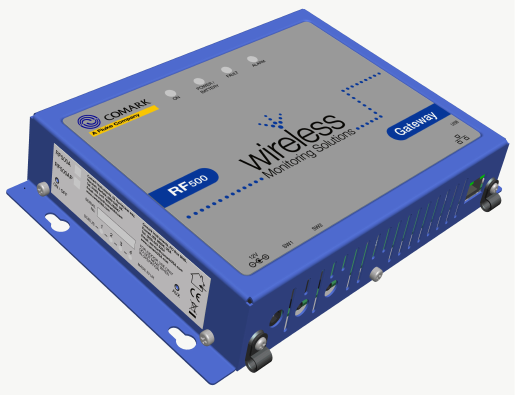
Figure 1 - Front view of RF500A Gateway
4
RF500 System Components
There are four LEDs on the front of the Gateway:
ON Steady Blue The Gateway is running
Flashing Blue Gateway is shutting down
POWER/BATTERY Steady Green External power is available.
Flashing Green Gateway is on and running off the battery pack
Off Gateway is off and external power is not available
FAULT Flashing Yellow Contact technical support from your local distributor or Comark
Instruments. The Home Page may provide more information on
possible faults
ALARM Flashing Red An enabled alarm event has occurred
5
RF500 System Components
Bottom Connections
D
E
C
C
B
A
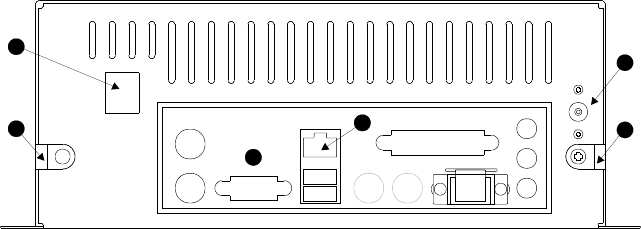
Figure 2 - Rear view of RF500 Gateway
A. 12 VDC input
B. Cable clamps
C. RJ45 Ethernet LAN Socket
D. SW1 – Jack Socket for Relay Output 1
E. SW2 – Jack Socket for Relay Output 2
6
RF500 System Components
Side Switches and Connections
O N / O F F A U X
S T A T U S
1 2 3 4
R F 5 0 0 A
S E R I A L
N o .
C o m a r k I n s t r u m e n t s , 5 2 H u r r i c a n e w a y ,
N o r w i c h , N o r f o l k , N R 6 6 J B . U K
T e l : 0 1 6 0 3 ( + 4 4 1 6 0 3 ) 2 5 6 6 4 7
E m a i l : s e r v i c e @ c o m a r k l t d . c o m
w w w . c o m a r k l t d . c o m
C o m a r k I n s t r u m e n t s , P O B o x 9 0 9 0 ,
E v e r e t t , W A 9 8 2 0 6 , U S A
T e l : ( 5 0 3 ) 6 4 3 5 2 0 4
E m a i l : s e r v i c e @ c o m a r k U S A . c o m
w w w . c o m a r k U S A . c o m
R F 5 0 0 A P
M A D E I N U K
F O R I N D O O R U S E O N L Y
D O N O T M O V E W H E N
I N O P E R A T I O N
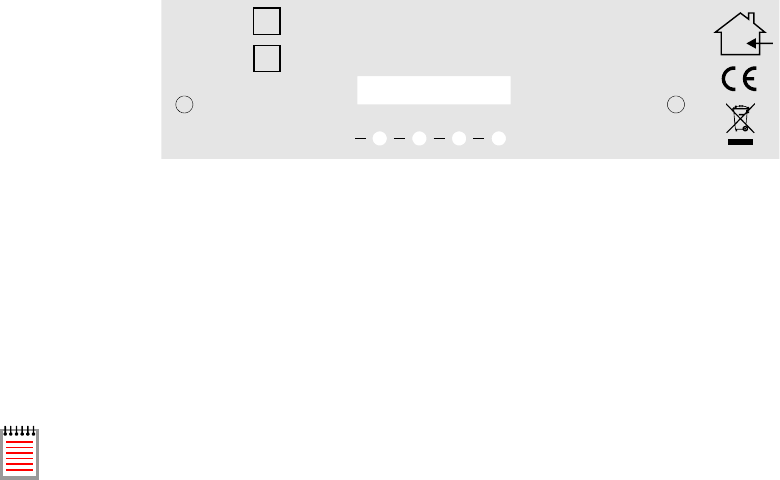
Figure 3 – Left Hand Side View of Gateway
ON/OFF Gateway Startup/Powerdown switch
STATUS Reserved LEDs for Comark use
AUX Reserved Switch
SW1 & SW2 are two switched outputs provided for connection to customer alarm indicators, via relay contacts with
24Vdc 500mA rating, configurable for either NO (Normally Open) or NC (Normally Closed). These are marked as SW1
and SW2, and are in the form of 2.5mm Jack Sockets. Plugs to fit these sockets can be ordered from Comark
Instruments using part number: RFJACK.
With the Gateway switched OFF the relays are in a Normally Open condition, this may cause any equipment
connected to the contacts to energise.
7
RF500 System Components
Know your Transmitter
8
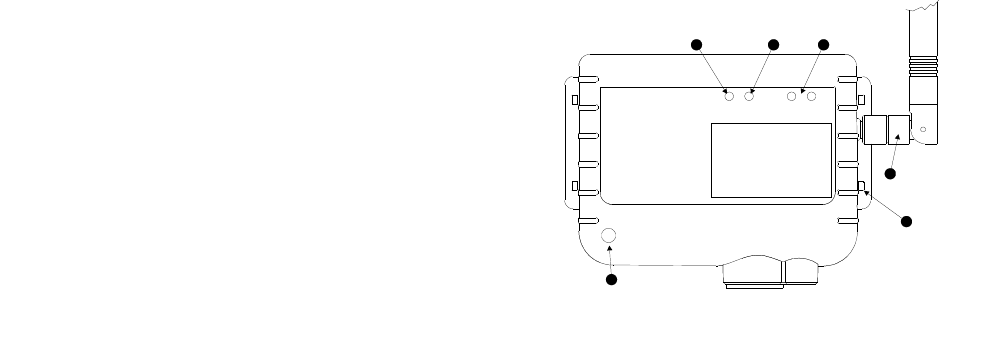
Figure 4 - Front view of RF512 Series Transmitter
BA C
E
D
F
A. Alarm LED. Flashes red to indicate any one channel
in alarm
B. Active LED. Flashes green to indicate external
power detected
C. Infra-Red interface. For Comark use only
D. Antenna. (Do not remove whilst in operation)
E. Lashing eye - Four available
F. Internal temperature sensor
RF500 System Components
C
B
A
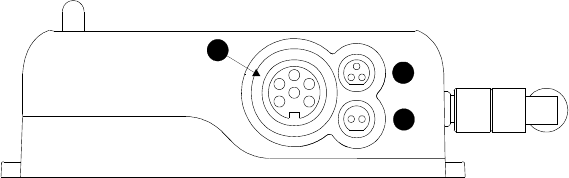
Figure 5 - Connector view of RF512, RF515 & RF516 Transmitter
A. Lumberg Socket for Probe
B. Socket for Door & RF525 Activator (Dual function)
C. External DC adaptor socket
9
RF500 System Components
Transmitter Display
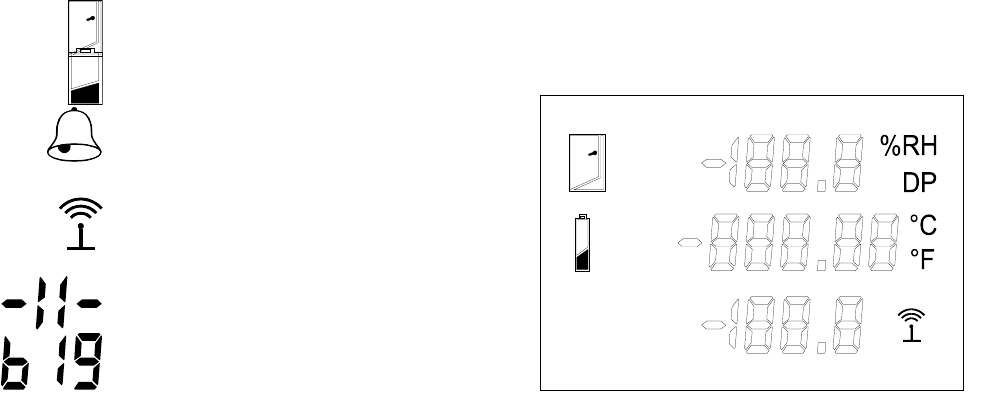
RF500 Transmitters all have a liquid crystal display as shown below. Only RF512 is capable of using all three display
areas and annunciators.
10
Figure 6 - Transmitter Display
I N T
E X T 1
E X T 2
Indicates that the door channel reads open.
Indicates that the internal lithium battery
requires replacement.
Indicates an unacknowledged alarm on any
channel.
When steady, indicates that the transmitter has
logged onto the Gateway.
When flashing, indicates the transmitter is
currently attempting transmission with the
Gateway.
Indicates that the sensor or probe is broken.
Indicates that the number to be displayed is too
big to fit on the LCD. E.g. 2000 cannot be
shown on a "1999" digit area.

Safety Information
Safety Information
Under no circumstances may a user make any changes to the RF500A Gateway that would alter its performance. Any
modification would void the CE compliance of the Gateway and may invalidate the warranty.
If the equipment is used in a manner not specified by Comark Instruments, then the protection provided by the equipment
may be impaired.
No user serviceable parts are provided in RF500 Comark Wireless Monitoring Equipment. Contact Comark Instruments
or your local distributor for all service requirements.
Warning
•Before connecting or disconnecting the antenna, ensure anti-static precautions are observed.
•Use only the FRIWO 12V AC adaptor; Type FW74010/12 as supplied; with the RF500A Gateway.
•Do not modify the RF500A Gateway AC adaptor in any way.
•Use only the PHIHONG, PSM11R-050 5V AC adaptor or FRIWO type FW7662/05 with RF512 and RF513. It is
supplied by Comark Instruments as three variants:
RF520 Transmitter AC adaptor with UK plug
RF520/EU Transmitter AC adaptor with European style plug
RF520/US Transmitter AC adaptor with North American style plug
11

Safety Information
•Do not modify the AC adaptor in any way.
•RF512, RF513, RF515 and RF516 Transmitters contain a C-size lithium cell. This cell must not be incinerated or
subjected to temperatures in excess of 100°C. Do not deform, mutilate, crush, pierce, disassemble, recharge or short
circuit. Such abuse can result in loss of seal, and/or cell explosion. Also exposure to humid conditions for long
periods should be avoided.
•Do not insert metal objects into connectors.
•Ensure the antenna is securely connected before powering the equipment. Internal damage may result otherwise.
•The Gateway and Transmitters have been designed to operate with the antenna supplied by Comark, and having a
maximum gain of 7dBi. Antennas not supplied by Comark Instruments or having a gain of greater than 7dBi are
strictly prohibited for use with this device. The required antenna impedance is 50 Ohms. If in doubt please contact
Comark Instruments or your Distributor for advice.
WEEE
RF512, RF513, RF515 and RF516 Transmitters contain a non-rechargeable lithium battery. This battery must
be disposed of in accordance with local regulations.
12

RF500 Wireless Monitoring System Overview
RF500 Wireless Monitoring System Overview
Gateway – Introduction
The RF500 Gateway is an embedded microprocessor device containing a radio module for RF communications to the
measuring transmitters. The radio module uses a licence free band in the 2.4GHz spectrum. Comark Instruments RF500
uses proprietary protocols over a standard IEEE 802.15.4 link. These protocols achieve reliable communication between
the transmitters and the Gateway via self-healing mesh radio networks.
Data from measurements taken by the transmitters is stored on the RF500 Gateway in contrast to other systems which
store their data on a PC using special software. For operating the RF500 system the only software required is a Web
Browser such as Internet Explorer or Firefox. There is no requirement to install software on each users computer.
The Gateway contains sufficient data storage capacity for up to 10 years which can be automatically backed up to
external storage using the built in shared drive backup method, or by manual request to generate and download a backup
file via your web browser.
Connection to the Gateway is via Network (ethernet) connection or remotely via optional analogue modem. For modem
access a dedicated Analogue phone line must be provided.
An external power adaptor provides the mains power for the Gateway. An internal Nickel-Metal-Hydride (Ni-Mh)
rechargeable battery is included, this provides normal operation of the Gateway during power failure until the battery is
exhausted, The Gateway then shuts down until power is restored.
Two relay connectors are provided for external alarms, Autodiallers/Klaxons etc. All other connections to the Gateway are
disabled. See Figure 3 – Left Hand Side View of Gateway for further details.
Emails for alarms will be instigated directly from the Gateway. It is also possible to send a text message alarm via email
using a third party provider.
13
RF500 Wireless Monitoring System Overview
The Gateway can be either desk mounted or wall mounted. Wall mount keyhole slots are provided on the case. The
external long range Antenna has variable orientation to suit vertical or horizontal mounting.
Four LEDs on the Gateway display current status of the system – On/Off, Power/Battery, Alarm indication, and Fault
indicators.
14
RF500 Wireless Monitoring System Overview
Overview of RF500 Mesh Networking
The RF500 Wireless Monitoring System uses the IEEE 802.15.4 radio transmission standard to implement a radio mesh
network.
A mesh network is comprised of the following devices:
•Gateway
•Mesh Transmitter
•Transmitter
On installation each transmitter is associated with a particular Gateway by serial number. Messages are transferred
between transmitters and the Gateway using two-way communication with acknowledgement of successful message
reception.
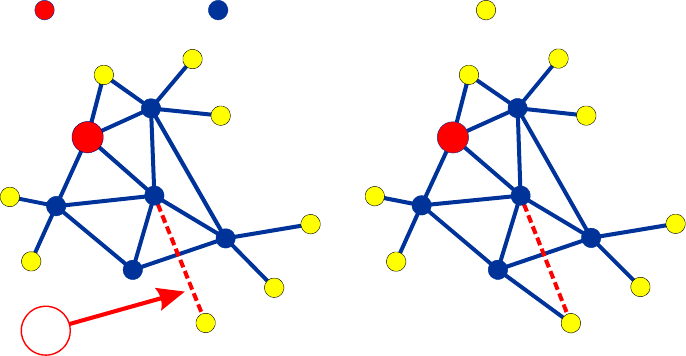
Transmitters which are physically close to their associated Gateway such as transmitter A in Figure 7 below, will most
likely transmit directly to it. Others such as transmitter B which are further away rely on meshing transmitters to forward
messages to and from the Gateway on their behalf.
The route taken by the message can vary depending on network load and link reliability. The ability to dynamically
reconfigure the network is termed self-healing. In the figure below the self-healing ability is shown.
15
RF500 Wireless Monitoring System Overview
M e s h T r a n s m i t t e r
G a t e w a y T r a n s m i t t e r
!
D a t a t r a n s f e r i n t e r r u p t e d
t r a n s m i t t e r c o n t i n u e s t o
s t o r e d a t a .
T r a n s m i t t e r r e r o u t e s t o
s e l f - h e a l n e t w o r k a n d
t r a n s f e r s s t o r e d d a t a .
A
B
A
B
Figure 7 - A Typical Mesh Network
16
RF500 Wireless Monitoring System Overview
Meshing Transmitters and Backbone Transmitters
Whenever a RF512 or RF513 transmitter is powered by a RF520 AC adaptor it will become a Meshing unit and will form
part of the radio mesh network. However if external power is removed it will revert back to a regular Transmitter.
RF512 and RF513 have the option to become “Network Backbone” units or routers which will intelligently forward
messages on behalf of other transmitters. This option is enabled using a setup option in the Gateway. Backbone
Transmitters will form part of the mesh network continuously even when not powered by a RF520. Due to the very large
drain on the internal battery, Backbone Transmitters must be powered using a RF520 mains adaptor. The internal battery
is considered only as a backup battery for Backbone Transmitters.
Automatic Data Retrieval (ADR)
The fact that transmissions between Transmitters and the RF500 Gateway are acknowledged ensures that the
Transmitters know exactly which data records have been successfully transferred to the Gateway and those which must
be re-transmitted. Therefore if the Gateway is temporarily unable to receive or transmit messages for whatever reason,
data will not be lost during this period. When the Gateway is again able to receive and transmit properly the Transmitters
will re-transmit those records which were unable to be transmitted during the period of outage.
This re-transmission of data happens automatically without user intervention and results in seamless graphical and
tabular data with no gaps.
17

Equipment Installation
Equipment Installation
Comark Instruments strongly recommend that RF500 System installation is carried out by a Comark Installation Engineer
or by a Comark Authorised Distributor or Agent.
Gateway Fixing
Mounting of the Gateway is possible using the keyhole screw fixings provided on the rear of the Gateway itself. However
the fixings used are to be determined by the installation engineer depending on the type of material used in the
construction of the area where the Gateway is to be placed. To avoid accidental disconnection, the DC power cable and
cables connecting to the Relay Outputs should be secured using the cable clamps provided on the Gateway case. See
Figure 2 - Rear view of RF500 Gateway.
Positioning of the Gateway should be in such a way as to limit the risk of liquid being spilt on it as damage may result.
Transmitter Fixing
Mounting of the Transmitters is possible using the mounting bracket provided. The bracket is fixed using 2 screws and the
Transmitter then slides into the bracket from the top. With each Transmitter, Comark Instruments provide two cable ties
which, once the Transmitter is slid into the bracket, can be fed through the slots in both bracket and Transmitter case to
retain it. The door and DC power cables should be tie-wrapped to the bracket to avoid accidental disconnection.
Mains Wiring
Connections to mains supply for the Gateway and powered Transmitters is via the AC mains adaptors supplied and a
locally installed socket. Any power requirements for the hardware will be determined during survey and should be
installed by qualified electrician and certified as safe to use before installation can be started.
18
Equipment Installation
Ventilation
At no time should the ventilation slots on the Gateway be covered or obstructed. At least 100mm of free space must be
provided above and below the Gateway to ensure that sufficient airflow is maintained through the case to provide
adequate cooling. Failure to do this may result in damage to the Gateway due to overheating and invalidation of the
warranty.
19

Powering On and Off
Powering On and Off
This chapter covers connectors and switching on and off.
Switch On
PLEASE ENSURE THE ANTENNA HAS BEEN FITTED.
IT IS ESSENTIAL TO AVOID DAMAGE.
1. Plug the Gateway AC adaptor into the socket on the underside of the Gateway, or for the PoE model (RF500AP)
plug the ethernet cord into a PoE enabled network socket . The Power/Battery indicator should show steady green.
2. Using a paper clip or similar object, press in and hold the ON/OFF switch on the side of the Gateway for 4 seconds.
Refer to “Figure 3 – Left Hand Side View of Gateway”. The Gateway will beep once and the On/Off indicator shows
flashing blue. Gateway initialisation will begin.
The Gateway contains an internal backup battery, if this battery is not sufficiently charged, the Gateway will not
switch on. Once external power is connected the internal battery will begin recharging. Whenever the charge
state becomes sufficient the Gateway will automatically start as requested. TO BE CHANGED Whilst in this
mode Status LEDs 2, 3 and 4 will flash together. See Figure 3 – Left Hand Side View of Gateway for location
of these LEDs.
It takes a few minutes for the Gateway to initialise. A sequence of 2 beeps followed by 4 beeps indicates
successful initialisation.
20
i
i

Powering On and Off
Gateway Switch OFF
To turn the Gateway OFF navigate to the hardware page of the website and use the Shutdown Gateway button, this will
initiate the Gateway shut-down procedure.
If for some reason it is not possible to use the Shutdown Gateway button, press and hold the ON/OFF switch for 4
seconds. The Gateway will beep once and the On/Off indicator will flash to indicate shut-down. This will initiate an orderly
shut-down of the Gateway at the start of which, the Gateway will beep 50 times in quick succession. The shut-down
procedure could take up to 5 minutes to complete. After shut-down is complete the On/Off indicator extinguishes.
Gateway Reset
There are several circumstances under which the Gateway will perform a software reset. At start of the sequence the
Gateway will beep 50 times in quick succession. The reset could take up to 5 minutes to complete which is indicated by a
sequence of 2 beeps followed by 4 beeps to indicate successful initialisation. Unlike the shut-down described above, the
On/Off indicator will remain steady during the reset sequence.
Transmitter Activation
RF500 Transmitters are despatched in a disabled state to preserve the battery. To activate these, insert the RF525
Activator into the 3-pin socket marked B in “Figure 5 - Connector view of RF512, RF515 & RF516 Transmitter” until the
display is enabled then remove the RF525.
Once activated, Transmitters can only be de-activated by removing the battery.
21

Gateway Commissioning
Gateway Commissioning
This section covers:
•Network connection
•Setup of first Administrator
•Setting Gateway language
•Setting Gateway name
•Setting date and time
•Network configuration
Each Gateway is shipped with a default IP address of 192.168.25.220. The Gateway is commissioned using a Web
Browser via a Network connection. Comark recommend that the initial configuration is performed using a cross-over RJ45
cable.
22
Gateway Commissioning
Requirements for Commissioning
•Computer with RJ45 ethernet jack.
•Ethernet cross-over cable
•Static IP address and subnet mask (Usually allocated by IT Department)
•Default gateway IP address (To enable access from different subnets)
•Email server name or IP address
•DNS server IP address (required if email server is named)
•For modem connections telephone sockets for the RF500 Gateway and PC modem plus associated leads are
required. An IP address is not required for modem only operation.
Gateway to PC Network Connection via RJ45 cross-over Ethernet Cable
1. Set up your computer temporarily with a fixed IP address using the instructions given in Appendix-A Setting a Fixed
IP Address.
2. Connect the cross-over ethernet cable between computer and RJ45 jack on the Gateway.
23
Gateway Commissioning
Viewing the Gateway Login Page
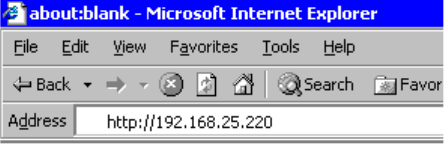
Each Gateway is shipped with a default IP address of 192.168.25.220.
1. Start the Web Browser on the PC
2. Enter the address into the Address Bar as displayed below.
3. Press “Enter” key or click “Go”.
Figure 8 - Browser Address Bar
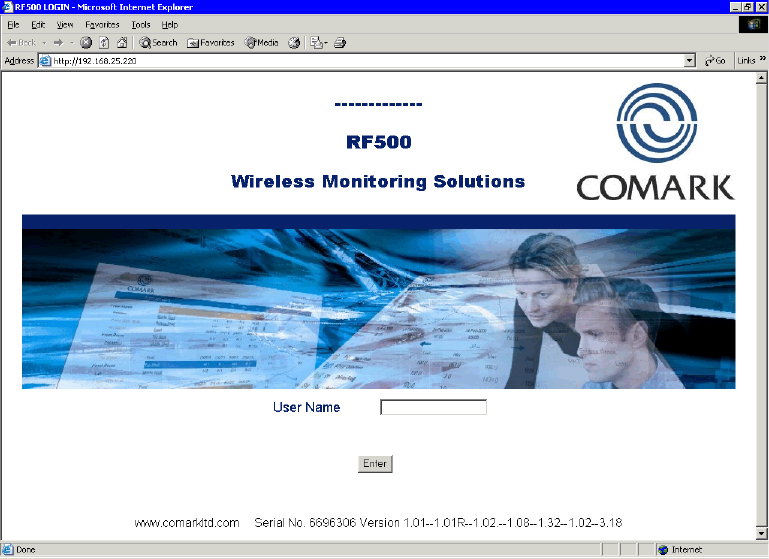
The Gateway login screen will be displayed.
24
Gateway Commissioning
Figure 9 - Gateway Login Screen
25
Gateway Commissioning
Setup of First Administrator
As shipped, the Gateway has no users configured except for a special “one-time-use” installation user which enables an
installer to add the main Administrator to the Gateway. Thereafter this Administrator’s username is used to perform all
subsequent commissioning.
1. At the Gateway user login screen, type the username “comark” and click Enter
2. At the password screen enter “42” and click Enter
3. You will be logged into the Gateway as the installation user
4. The Gateway will inform you that “You are about to commission a new system”
5. Click on the Enter Administrator Details button
6. When the Add 1st Administrator screen appears fill in the fields with the username and password of your choice
7. In the top left box, marked “Password Required”, enter the installation password:”42” and then click the Submit
button
8. If successful the Gateway will return the message “New user added”
9. Click the OK button to return to the Gateway user login screen
10. Login as the new Administrator you just created
26

Gateway Commissioning
Gateway Language
The language the Gateway uses in web pages and in emails can be changed as follows:
1. Click the Administration button then the Language button.
2. Click the radio button below the flag corresponding with your choice of language. Enter your password and click the
Submit button.
The language selected is used immediately for all web pages and emails generated for all users. There is no need to
reset the Gateway or Login again.
Gateway Name
A Gateway name is required for email operation.
Click the Administration button then the Gateway Name button.
The Gateway Name is any name you choose for the Gateway and will be used in the “From:” field in email and SMS
notifications. This is important if you have more than one Gateway in your wireless system and all should be unique.
Gateway Clock Setup
1. Click the Administration button then the Set Clock button.
2. Enter the current date and time using a 4-digit year.
3. Enter your password and click the Submit button.
The Gateway will automatically reset after this step.
27
Gateway Commissioning
Network Setup
The Network Settings page has many fields but at this stage for a basic LAN connectivity test, only the Network Details
section is required.
1. Click Administration button then the Setup Network button.
Network Details
Usually the IT Department will allocate a static IP address and subnet mask for the Gateway. Enter these using dotted
decimal notation into their respective fields. If access from different subnets is required also enter the Network Gateway
IP address. Users who implement MAC address access security will find the MAC address of the LAN interface displayed
in this screen.
Static IP Address The IP address which has been allocated to the Gateway. E.g.
192.168.25.217
Net mask The subnet mask associated with the above IP address. E.g.
255.255.255.0
Default Gateway The IP address of the network gateway to allow access by users on a different subnet
DNS no The IP address of your LAN Name Server
2. Double-check the Static IP Address entered because any entry mistake here can cause problems connecting after
settings are saved.
3. To save changes, enter your Gateway password and click the Save button. The Gateway may automatically reset
after this step.
4. Remove the cross-over ethernet cable after the Gateway has reset. (See Gateway Reset)
28
Gateway Commissioning
5. Using Appendix-A Setting a Fixed IP Address as a guide, restore the computer network settings back to as existed
previously.
6. Connect both the PC and RF500 Gateway to the LAN using regular ethernet patch leads.
7. Verify that a connection can be made to the Gateway by following the Viewing the Gateway Login Page steps using
the newly configured IP Address instead of 192.168.25.220.
29

Gateway Programming and Use
Gateway Programming and Use
This, the RF500 System Manual covers installation and commissioning of the RF500 Wireless Monitoring system from a
hardware point of view.
A Web-View Help Guide for the RF500 Wireless Monitoring System is available online via the Gateway itself. This is a
detailed manual incorporating help and detailed information on use of the Gateway and transmitters, including all the
available pages.
Using the Web-View manual as a guide the remainder of the RF500 Gateway configuration can be performed. This
includes:
•Email Setup
•Email Account
•Adding Transmitters
30

Gateway Specification – RF500A
Gateway Specification – RF500A
No of Channels Up to 512
No of Transmitters Up to 128
Storage Capacity Up to 10 years storage
RF Frequency 2.4GHz using IEEE 802.15.4
Operating Conditions +5°C to +35°C, 10-90% RH non-condensing. No
waterproof option available.
Power Sources
AC power adaptor, rechargeable Ni-Mh battery
RF500AP only:
Power over Ethernet (PoE) capability. Compliant to
IEEE 802.3af
Power Adaptor 100-240VAC 1.5A 50/60Hz
Battery Backup
4.3Ah Ni-Mh Rechargeable Battery plus reserve for
systematic shutdown.
Running time approximately 1 hour
31

Gateway Specification – RF500A
Clock Accuracy 4ppm (2 minutes per year)
Relay Outputs (SW1 & SW2) Two individual 2.5mm jack sockets.
Contacts: 24Vdc 500mA maximum
Power Consumption 12W typical
Dimensions L 225mm x W 150mm x D 40mm
Weight 1.3kg
32

Transmitters Specification
Transmitters Specification
Temperature Measurement Range
Integral Thermistor Sensor - RF512, RF516
Integral Thermistor Sensor - RF513
External Sensor
External Pt100 Sensor
-30°C to +70°C
-30°C to +70°C
-40°C to +125°C
-200°C to +400°C
Humidity Measurement Range 10 to 90% RH
33

Transmitters Specification
System Accuracy with Standard Sensors
Temperature
Internal Thermistor – 0°C to +70°C
External Thermistor – -20°C to +70°C
Thermistor – full range
Pt100 – full range
Pt100 – with 2-point correction over a
maximum range of ±50°C
Pt100 – full range (Instrument only)
Humidity
10-90% RH
Analog Input (23°C)
±0.5°C
±0.5°C
±1°C
±0.5°C plus probe
±0.1°C
±0.05°C (excluding probe)
±3%
0.3% of reading
Pt100 Connection Type 4-Wire
Pt100 Sensor Drive Current 400µA Nominal
34

Transmitters Specification
Resolution
Temperature
Thermistor
Pt100
Door Sensor
Humidity
10 to 90% RH
Analog Input
0-1V
0-10V
4-20mA
0.1°C
0.015°C
7.5 seconds
±0.1%
0.1mV
1mV
1µA
Storage Temperature -40°C to +85°C
RF Frequency 2.4GHz using IEEE 802.15.4
Standard Antenna
High-Gain Antenna (optional)
External, removable, Omni directional with pivot.
Length: 90mm from pivot
Length: 235mm from pivot
35

Transmitters Specification
Radio Range* *Typically 50 metres indoors
Clock Accuracy** 20ppm (1 minute/month) at 25°C
Logging Memory 32000 records
Logging Frequency Programmable between 1 minute and 60 minutes
Monitoring Frequency 1 minute
LEDs Red – Warning
Green – External Power (Not RF515)
Case Material Over moulded food safe clear Polycarbonate with
BioCote® antimicrobial
Environmental Protection Case enclosure designed to meet IP67 BS EN 60529
Battery Type
Replaceable Lithium ‘C’ Cell
Saft LSH14 LIGHT
Saft LS26500 (Restricted for transport)
Battery Life*** Up to 3 years
36

Transmitters Specification
Dimensions L 134mm x W 83mm x D 34mm
Weight 270g
Mains PSU Optional Mains PSU Part No RF520
100-240VAC 0.3A 50/60Hz
* Internal RF range cannot be guaranteed as it varies from building to building. Requirement for all hardware is always determined on
site by a physical site survey.
** Transmitters will synchronise their clocks with the Gateway at midnight.
*** When used at 23°C room temperature and Radio Rate of 15 minutes.
37

Changing Lithium Battery on RF500 Series Transmitters
Changing Lithium Battery on RF500 Series Transmitters
Battery Reordering
RF500 transmitters are fitted as standard with a high power 3.6V Primary lithium-thionyl chloride C-size cell.
Manufacturers part number Saft LSH14 LIGHT or Saft LS26500.
The Saft LS26500 battery can only be used in transmitters manufactured after April-2009. The date-of-manufacture is
encoded in the serial number. The serial number has the format MMYYxxxx where MM represents the 2-digit month and
YY represents the 2-digit year in which the transmitter was manufactured.
Only use Saft LSH14 LIGHT or Saft LS26500 as replacements. Use Comark part number: ‘RFBATT’ to order a
replacement battery.
Battery Change Procedure
The Transmitter latches any low battery condition and must be powered off fully for it to clear. Waiting for the display to go
blank ensures that the low battery status is cleared.
38
Changing Lithium Battery on RF500 Series Transmitters
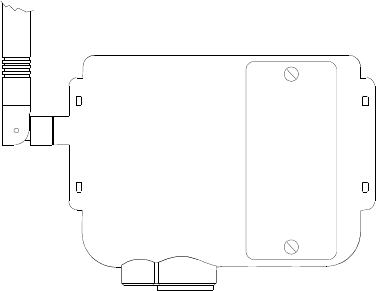
B A T T E R Y
C O V E R
1. Disconnect all plugs from the Transmitter and remove it from its mounting bracket by sliding it upwards.
2. Using a flat-blade screwdriver undo the two retaining screws and remove the battery cover.
3. Remove the exhausted battery and wait a few seconds for the display to blank.
4. Replace with a fresh one ensuring the polarity is correct and taking care to snap the new battery in cleanly without
making and breaking the contacts repeatedly.
5. Replace the battery cover and do up the two screws taking care not to overtighten them.
6. Observe any local restrictions on disposal of the used cell.
39
Changing Lithium Battery on RF500 Series Transmitters
Check for Transmitter Errors
The removal of the battery will cause the internal clock on the transmitter to reset and so generate an Error-100 condition.
This will be cleared automatically by the Gateway, see Transmitter Error Codes for details. Verify that the transmitter
display shows either no error or Error-100 only.
Should an Error-400 or Error-500 occur after battery change on a previously working transmitter try removing and
reinserting the battery taking care to snap the new battery in cleanly without making and breaking the contacts
repeatedly.
Gateway Indication of Low Battery
Once a transmitter shows “low battery” the radio is disabled, monitoring and data logging however will continue until the
battery becomes completely exhausted. If a transmitter is left in a state of low battery for a long period, there may be
many logged records awaiting transmission to the Gateway.
On changing the battery the transmitter logs a “battery good” record but due to Automatic Data Retrieval (ADR) this
record is only transmitted to the Gateway after any previously logged temperature records have been transmitted.
Therefore it may take several hours before the “battery good” record is received by the Gateway which in turn clears the
indication of Low Battery for the transmitter.
40

Pinout and Wiring
Pinout and Wiring
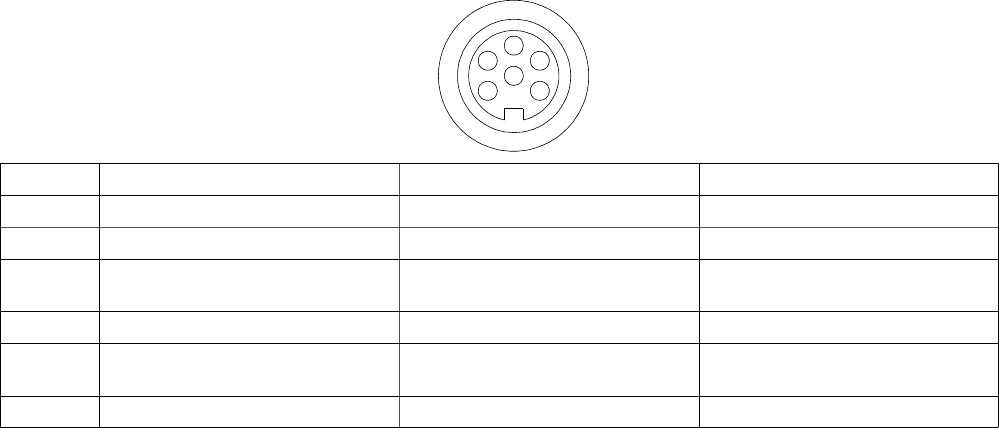
These connectors are drawn from the point of view of looking into the socket from outside the transmitter
Door Connector
A Door Positive
B RF525 Activator Positive
C Common Ground for Door and RF525
Power Connector
A Positive +5 VDC
B Negative Ground
41
A
C
B
A
B
Pinout and Wiring
Lumberg Connector
1
234
5
6
Pin No RF512 Pinout RF515 Pinout RF516 Pinout
1 Thermistor External-2 External-2 Positive Pt100 Positive Voltage Input
2 Thermistor External-1 External-1 Positive Pt100 Positive Current Drive
3 Thermistor External-4 (Reserved for
future use)
Reserved for future use
Do Not Connect
No Connection
4 Thermistor Common External Common Pt100 Negative Current Drive
5 Thermistor External-3 (Reserved for
future use)
Reserved for future use
Do Not Connect
Pt100 Negative Voltage Input
6 No Connection No Connection No Connection
42
Pinout and Wiring
Gateway Relay Outputs
The two relay outputs each accept a 2.5mm jack plug. These are individually controlled SPST relay contacts. Comark can
supply jack plugs for wiring external equipment to be activated by the Gateway.
The maximum lead length for the relay outputs is 3m.
Ensure that any external equipment presents only a low voltage on the jack so as to prevent any chance of
personal injury due to electric shock should the jack plug become disconnected.
FCC Approvals
The RF500 Gateway and Transmitters comply with Part 15 of the FCC Rules. Operation is subject to the following four
conditions:
•This device may not cause harmful interference, and
•This device must accept any interference received, including interference that may cause undesired operation.
•To reduce potential radio interference to other users, the antenna type and its gain should be so chosen that the
equivalent isotropic radiated power (e.i.r.p.) is not more than that permitted for successful communication.
•Changes or modifications not expressly approved by the party responsible for compliance could void the user's
authority to operate the equipment.
Transmitters must be placed greater than 20cm from the body.
43

Equipment Ratings
Equipment Ratings
Supply Voltage
Comark will provide mains adaptors with plugs to suit your country, if the correct socket adaptor has not been provided
please contact Comark for a replacement.
AC adaptors supplied for use with RF500 Gateway and Transmitters have been designed for worldwide use over the
following voltage and frequency ranges.
Voltage 100-240 VAC
Frequency 50/60Hz
Only use adaptors as supplied by Comark and do not attempt to use others as damage to the equipment and voiding of
the CE approval may occur.
Environmental Conditions
All RF500 equipment is designed for indoor use only.
(Some outdoor installation of RF500 Transmitters is permitted. Contact Comark for details)
Gateway Storage/Operating Conditions
Temperature +5°C to +35°C
Humidity 10-90% RH (Non-condensing)
RF51X Transmitter Operating Conditions
Temperature –30 to +70°C
Humidity 10-90% (Non-condensing)
44
Equipment Ratings
RF51X Transmitter Storage Conditions
Temperature –40 to +85°C
Humidity 10 to 90% RH (Non-condensing)
RF515 Maximum Input Conditions
0-1V Range 0 - 3V
0-10V Range 0 - 30V
4-20mA Range 0 - 100mA
45

Maintenance and Cleaning
Maintenance and Cleaning
No specific maintenance is required for the Gateway or the transmitters. Should service be required then a “return to
base” service is provided by Comark. Please contact Comark Instruments or your local distributor to make arrangements
for return of any items for repair.
Cleaning of the Gateway should be limited to a dry lint free cloth to remove dust and debris from the fan exhaust and air
intake grill. A damp cloth may be used in the event that a more stubborn mark needs to be removed. At no time should a
wet cloth or any detergent agent be used to clean the Gateway.
46

EC-Declaration of Conformity
EC-Declaration of Conformity
Comark Instruments
52 Hurricane Way
Norwich
Norfolk.
NR6 6JB
Declare that the products:
Comark Wireless Monitoring System Comprising Part Numbers:
RF500A,RF500AP, RF512, RF513, RF515, RF516 & RF520
Is in conformity with the requirements of the following documents (Directives):
Radio & Telecommunications Terminal Equipment Directive (R&TTE) 1999/5/EC
Electromagnetic Compatibility Directive 2004/108/EC.
The Low Voltage Directive (2006/95/EC) Annex-1
Standards:
EN 61010-1:2001 Safety requirements for electrical equipment for measurement, control and laboratory
ETSI EN 301 489-17 V1.2.1 (2002-08) Specific conditions for 2.4 GHz wideband transmission systems and 5 GHz high performance RLAN
equipment
47
David Goulden
Development Manager
Comark Instruments

Transmitter Error Codes
Transmitter Error Codes
Under certain conditions the transmitter display can show an error. These errors can help in diagnosing the reason a
transmitter may fail to transmit data to the Gateway.
This is not an exhaustive list of errors; only the most common will be described here.
Error Meaning Resolution
004 Fault with Radio Module Try removing the battery then replacing it
010 Battery is Dead. Replace the battery
100 Date and time lost Wait for the transmitter to receive correct date and time from
the Gateway
400 Invalid Programmed Task Program a new task from the Gateway
500 Errors 100 & 400 combined Resolve Error 100 & Error 400 individually
48

Gateway Fault Conditions
Gateway Fault Conditions
Under certain conditions the Gateway Fault LED can flash to indicate an error. The possible faults which can cause the
Fault LED to flash are:
•Overheating
•Battery Pack fault
•Clock error
•Clock Battery error
•PSU fault
•Software errors
•Radio Module fault
49

Appendix-A Setting a Fixed IP Address
Appendix-A Setting a Fixed IP Address
The following instructions detail the Windows 98, ME, 2000 and XP procedure for setting a computer for a fixed IP
address.
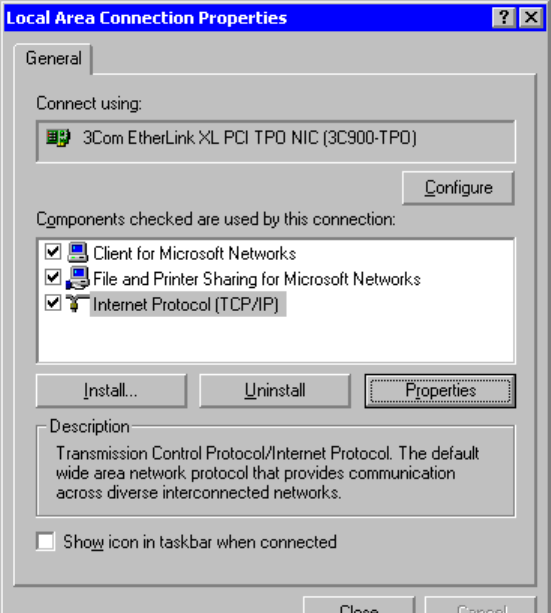
1. Go to the Windows control panel and double-click the Network icon or the Network Connections icon
2. Right-click on the “Local Area Connection” and select Properties
50
Appendix-A Setting a Fixed IP Address
51
Appendix-A Setting a Fixed IP Address
Figure 10 – Local Area Connection Properties
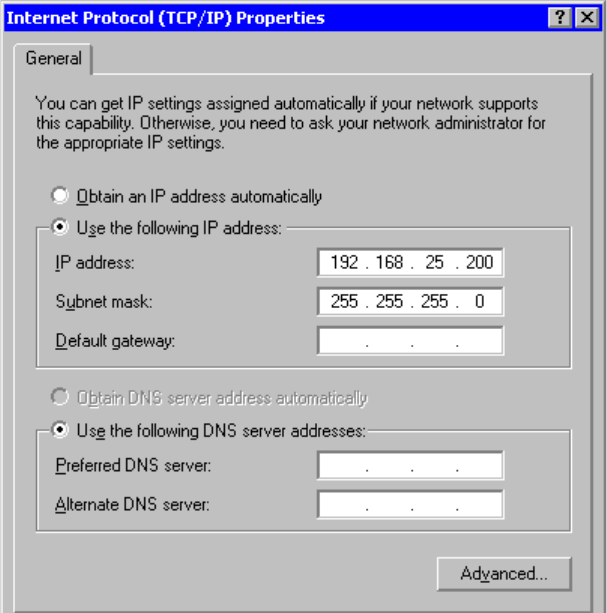
3. In the General Tab select the “Internet Protocol TCP/IP” item and click on the Properties button
52
Appendix-A Setting a Fixed IP Address
53
Appendix-A Setting a Fixed IP Address
Figure 11 – General Tab
4. Record the original settings so that they can be restored after RF500 configuration
5. Select the “Use the following IP address” button
6. Enter the following IP address: 192.168.25.200
7. Enter the following subnet mask: 255.255.255.0 then click OK
The Computer is now setup to use a fixed IP address.
54

Definitions of Gateway Terminology
Definitions of Gateway Terminology
Avg – This is the average reading recorded in the Period being displayed. On the Home Page this is the average
reading over the period of time from midnight to the timestamp of the latest reading received. In the summary pages the
average reading could be over a much longer period of time.
Backbone – A Transmitter during setup can be designated to be part of the Wireless Network Backbone. This
requirement is identified during site surveys. A Backbone Transmitter will be mains powered and constantly active. It will
therefore (almost) always be available to re-transmit messages received from nearby Transmitters.
Event Logging – All transmitters have the capacity to measure from one or more sensor inputs at a number of pre-
defined logging intervals. However should an alarm event occur between log intervals then the transmitters will wake up
to record this event. As soon as the alarm is triggered, the transmitter will wake up and transmit the alarm back to the
Gateway via the mesh network. This technique allows for long intervals between logging static readings knowing that if an
alarm does occur it will be captured. This results in a robust system that will log an extra reading when there is an event
to record.
Gateway Name – A customer selectable name for each Gateway for easy identification.
Last – This is the last known good reading from the Transmitter. It does not imply that the Transmitter is functional or
currently within range.
Location – A logical grouping of transmitters for the purpose of filtering and directing alerts. These Locations may
correspond to the physical siting of transmitters but more usually group transmitters monitoring equipment or
environments “owned” by an individual person or department.
Login Page – A user name and password are required in separate pages to log in to the Gateway to perform any setup
changes or maintenance.
55
Definitions of Gateway Terminology
Max – This is the maximum reading recorded in the Period being displayed. On the Home Page this is the maximum
reading over the period of time from midnight to the timestamp of the latest reading received. In the summary pages the
maximum reading could be over a much longer period of time.
Min – This is the minimum reading recorded in the Period being displayed. On the Home Page this is the minimum
reading over the period of time from midnight to the timestamp of the latest reading received. In the summary pages the
minimum reading could be over a much longer period of time.
Mesh Network – The technology used in the RF500 system to increase wireless reception reliability. Transmitters are
setup to be either part of a Backbone or to be a regular Transmitter. Those designated as part of the Backbone remain in
RF contact with each other. By doing this the system is able to dynamically adapt to changing conditions automatically
ensuring the integrity of the system at all times.
Modem Emails – If the Gateway is not network enabled, or in the event of power failure to the network, the modem can
send emails via dialup connection.
No Signal – The Gateway has not received any signal from a Transmitter for a long time. Usually 1 hour or 5 times the
radio rate whichever is longest.
Period – A continuous session of logged records. Any break in monitoring will result in the creation of a new logging
Period.
PST – Precision Semiconductor Technology or Thermistor, a sensor for measuring temperature.
Radio Rate – The rate at which a Transmitter enables its radio to contact the Gateway. The default is once every 15
minutes.
Restricted User – A user of RF500 who can only perform a selection of functions.
56

Definitions of Gateway Terminology
Self-Healing – As part of the Mesh technology the system is able to adapt automatically if one part of the system is
damaged, i.e. Radio Contact is lost with part of the Backbone. Only regular Transmitters directly reliant on the faulty part
of the system will be affected with the rest of the Transmitters simply finding alternative routes for the data.
Task – The name given to the collection of logging parameters for a specific monitoring job. Tasking is the action of
entering these parameters into RF500 and sending them to the Transmitter.
TextMagic™ – Internet SMS provider (www.textmagic.com). Warning emails sent from the Gateway can be converted to
SMS messages using this service. Other service providers may also work but only TextMagic has been tested.
Transmitter – A transmitter is a device connected wirelessly to the system. This device records data locally from a
number of sensors and sends the information back to the Gateway using RF. A transmitter is powered via battery or AC
adaptor.
57

Glossary
Glossary
21 CFR – The FDA (Food and Drug Administration) in the USA, issued regulations Title 21 CFR (Code of Federal
Regulations) Part 11 that provide criteria for acceptance by FDA or an approved regulatory body, for the acceptance of
electronic records, electronic signatures, and handwritten signatures executed to electronic records as equivalent to
paper records and handwritten signatures executed on paper. These regulations, which apply to all FDA program areas,
are intended to permit the widest possible use of electronic technology, compatible with the FDA’s responsibility to
promote and protect public health. Part 11 applies to any record governed by an existing FDA predicate rule that is
created, modified, maintained, archived, retrieved, or transmitted using computers and/or saved on durable storage
media. In other words any record from a data logger for instance that is at some stage stored on a PC or where a PC is
used to retrieve the data, 21 CFR Part 11 can be applied. The RF500 system is designed to aid compliance with 21 CFR
Part 11.
Administrator – An Administrator is a user who has unrestricted access to all Gateway functions.
Antenna – Electrical device for collecting or disseminating RF energy. The interface between a radio transmitter or
receiver and transmission medium (air).
Autodialler – A device when triggered (by Gateway alarm for example) to dial a specific telephone number to playback a
pre-recorded alarm message.
Ethernet/Network/LAN – Terms used to describe the connection of the Gateway to various users with access to the
system. Personal Computers are connected together using a network via ethernet ports combining to make a Local Area
Network.
FCC – Federal Communications Commission.
Firmware – The software program operating the various components of RF500 e.g. Transmitter, RF module and RF500
Gateway.
Frequency – Number of oscillation cycles-per-second of a radio signal.
58
Glossary
IE – Microsoft Internet Explorer.
IP address – Internet Protocol address. Unique identifier for each device connected to a network.
ISP – Internet Service Provider.
Licence free – Term used to describe the frequency band in which the system operates in terms of licence to broadcast.
RF500 uses the licence free Industrial, Scientific and Medical (ISM) band of 2.4GHz where operators and users are not
required to purchase any kind of licence in order to use the product.
Modem – Device for connecting to an analogue phone line to communicate with another Personal Computer remotely.
Used to dial-in to the Gateway for user access and service. Can also be used to send email alarms via Internet dial-up
account.
Password – A password is a string of characters that is used for user authentication. The password is personal and
should be kept secret.
Pt100 – Platinum Resistance Device for measuring temperature.
RF – An abbreviation of the words Radio Frequency. Commonly used to describe “wireless radio communication”.
RH – Relative Humidity. The amount of water vapour present in the atmosphere expressed as a percentage of the
maximum that could be present at the same temperature.
Users – A user is anyone who is able to log onto an IT system such as RF500.
59

Document Revision History
Document Revision History
Release-0* 20110509
Manual based on RF500-System Manual Rev 5.
1st Draft sent to TRAC.
60
Comark Instruments
52 Hurricane Way,
Norwich, Norfolk. NR6 6JB. UK
Tel: +44 (0) 844 815 6599
Fax: +44 (0) 844 815 6598
Email: salesuk@comarkltd.com
Website: www.comarkltd.com
Comark Instruments
PO Box 9090, Everett,
WA 98206, USA
Tel (503) 643 5204
Fax: (503) 644 5859
Email: sales@comarkUSA.com
© Comark Instruments RF500A System Manual Release-0* 20110310 Part No. 18393