CommScope of North Carolina C1004W2 10G GEPON ONU User Manual C604GR

CommScope, Inc. of North Carolina 10G GEPON ONU C604GR

User Manual

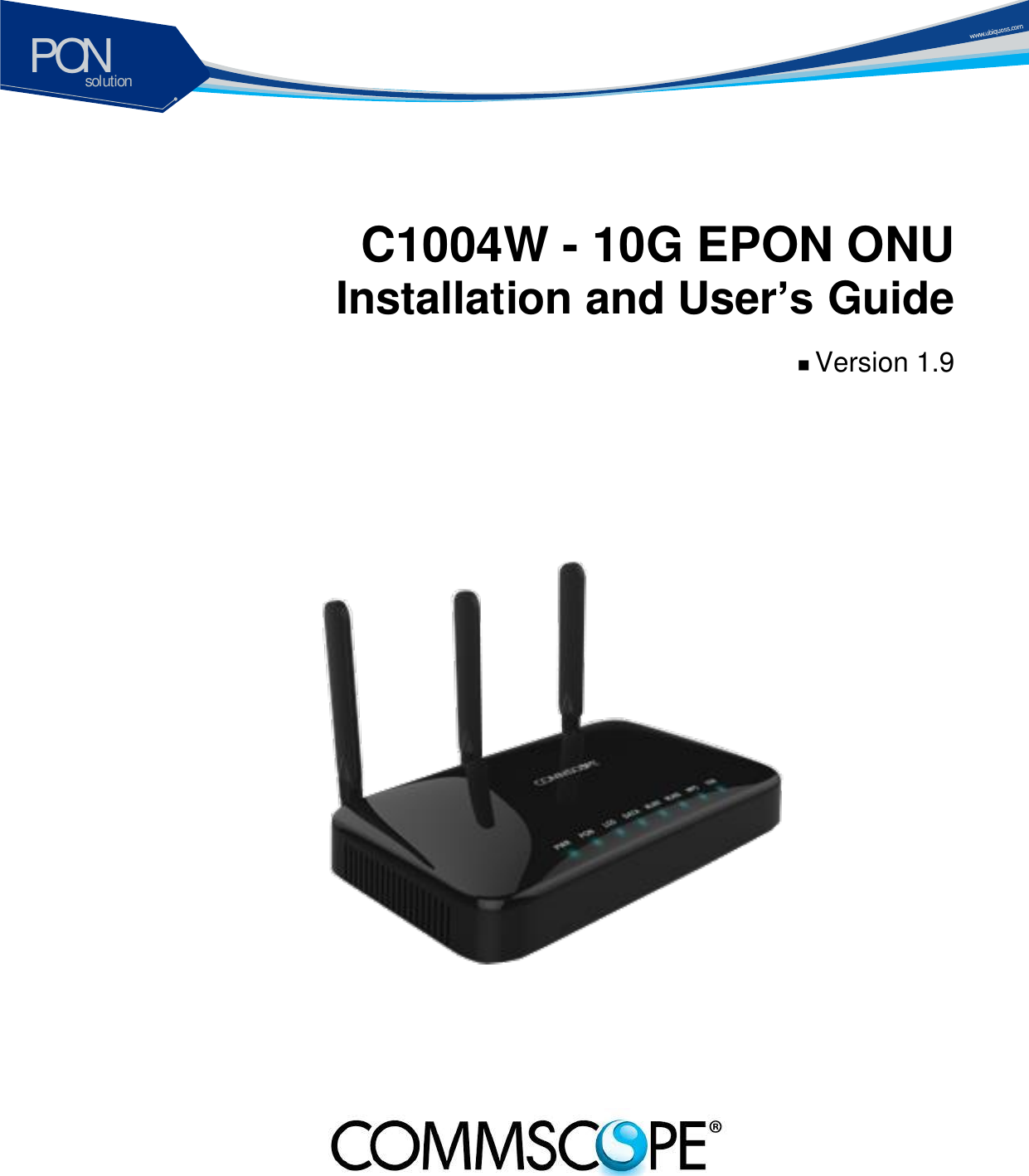
solutionPON  C1004W - 10G EPON ONU   Installation and User’s Guide   Version 1.9
solutionPON C1004W Installation Guide III Table of Contents Table of Contents ........................................................................................................... III Safety Precautions ......................................................................................................... 1 Accessibility Safeguards ................................................................................................. 2 Product Introduction ....................................................................................................... 3 Features ............................................................................................................................ 3 Appearance ...................................................................................................................... 4 Ports ................................................................................................................................. 5 LEDs ................................................................................................................................. 6 Contents of the Package ................................................................................................... 7 Before Installation ........................................................................................................... 8 Installation ....................................................................................................................... 9 LED Indicator .................................................................................................................. 11 Web GUI configuration setting ...................................................................................... 12 Default configuration setting ........................................................................................... 12 Web Login ....................................................................................................................... 12 VLAN assignment ........................................................................................................... 13 Device Info .................................................................................................................... 16 Advanced Setup / WAN Service ................................................................................... 18 Advanced Setup / Interface Grouping .......................................................................... 23 Wireless / Basic ............................................................................................................ 25 Wireless / Security ........................................................................................................ 26 Wireless / Advanced ..................................................................................................... 28 Troubleshooting ............................................................................................................ 29 Specification ................................................................................................................. 31
solutionPON C1004W Installation Guide 1   Safety Precautions  Warning  Before  you  install  the  C1004W  unit,  read  this  section.  Product  installation  should  be conducted only by professional installer who has been accurately trained.   Electrical safety   Always  use  caution  whenever  handling  live  electrical  material  and contacts.     Do not install electrical equipment in wet or damp conditions.     Ensure that the power source for the unit is adequately rated to assure safe operation and provides current overload protection.   Do not allow anything to be put on the power cable, and do not place this unit where people will stand or walk on the power cable.   This  unit  should  be  used  with  the  approved  power  adaptor  which  is included in the product package.     Warning  Do not open the enclosure without Commscope’s  permission and  technical  support,  which voids the warranty. Laser safety   Use  of  controls  or  adjustments,  or  performance  of  procedures  other than  those  specified  herein  may  result  in  hazardous  laser  radiation exposure.   To avoid exposure to radiation, do not stare into the aperture of a fiber-optic port. Invisible radiation might be emitted from the aperture of the port when no fiber cable is connected.   Do  not  bend  the  optic  fiber  cables  severely,  which  may  damage  the fiber or prevent the signal from being transmitted properly.     Always keep unused fiber-optic ports capped with a clean dust cap.   Warning  Invisible laser radiation may be emitted from disconnected fibers or connectors. Never stare into beams or look directly to optical connectors. Preventing EMI   When you run wires for any significant distance in an electromagnetic field, electro magnetic interference (EMI) can occur between the field and the signals on the wires.   Bad plant wiring can result in radio frequency interference (RFI).   If Strong EMI occurs in the installation place, consult RFI experts to get rid of it.
solutionPON  2 Accessibility Safeguards  Warning Never use “Administrator” nor “Operator” login account except professional installer!   Warning Supplier  will  not  be  liable  for  any  damage  or  misoperation  caused  from  incautious configuration attempted by end user who tries with “Administrator” or “Operator” login account.    Grade on accessibility  Three  login  accounts  are  available  as  per  their  own  authority  and capability.  “Administrator”  account  gives  the  top  most  authority  and  “User” account gives the least.     The account information is presented in this manual but this does not mean any end user may dare to configure the unit.     This product must be installed and configured by professional installer only.     Should there be any mis-configuration made upon the device (e.g. RF band selection or country selection) by end user the device would not operate properly.”
solutionPON C1004W Installation Guide 3   Product Introduction C1004W is a single family unit type ONU which has a 10G EPON uplink and 4 Gigabit Ethernet ports for service as well as dual band WiFi interfaces. Each service port can support upto 1 Gbps bandwidth meanwhile WiFi interface supports IEEE 802.11 b/g/n/ac. Besides, OAM functions like remote detection/configuration via ACS, web configuration and QoS control features are also obtainable for smoother operation and maintenance.    Features   Various speed combination supported   Diverse Downstream/Upstream speed sets for the uplink segment are available -  10Gbps / 10Gbps -  10Gbps / 1Gbps -  2Gbps / 1Gbps (Turbo mode) - planned -  1Gbps / 1Gbps - planned   Uplink segment means the portion between OLT and ONU.   [Note]  2Gbps  /  1Gbps  (Turbo  mode)  and  1Gbps  /  1Gbps  are  only  available  provided  that appropriate optic module is equipped at the corresponding OLT port.    Compliant to cablelab’s DPoE specification     Right for the MSOs who want to migrate to EPON technology   Management via efficient OAM     Remote detection and configuration by way of TR-069 (planned)   EPON OAM   Authentication     Charging     Dualband wireless access in concurrent manner   IEEE 802.11 ac as well as b/g/n are supported.   -  At 2.4 GHz: IEEE 802.11 b/g/n -  At 5 GHz: IEEE 802.11 ac   Local Configuration via web GUI   For monitoring and settings
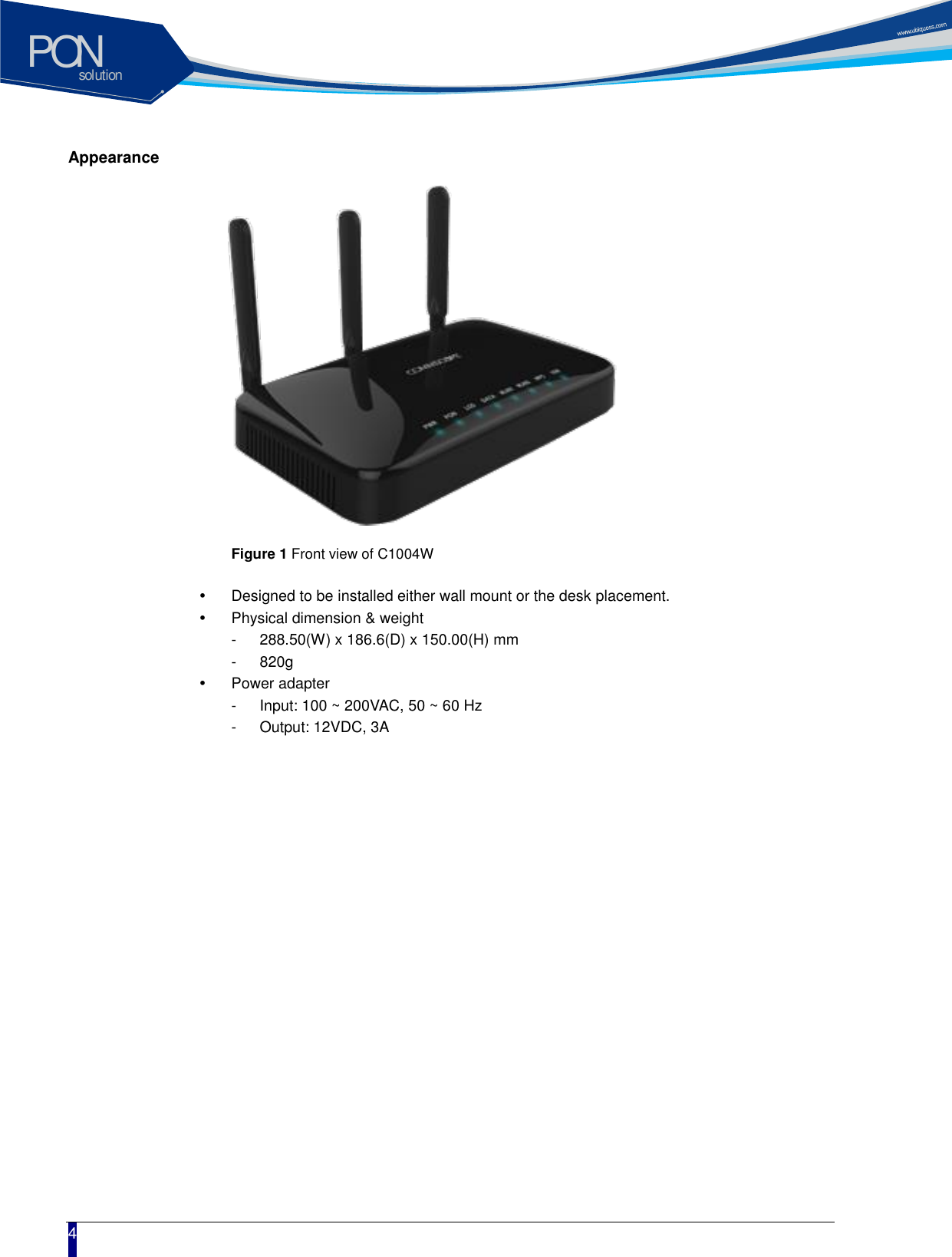
solutionPON  4 Appearance      Figure 1 Front view of C1004W    Designed to be installed either wall mount or the desk placement.   Physical dimension & weight -  288.50(W) x 186.6(D) x 150.00(H) mm   -  820g   Power adapter -  Input: 100 ~ 200VAC, 50 ~ 60 Hz -  Output: 12VDC, 3A
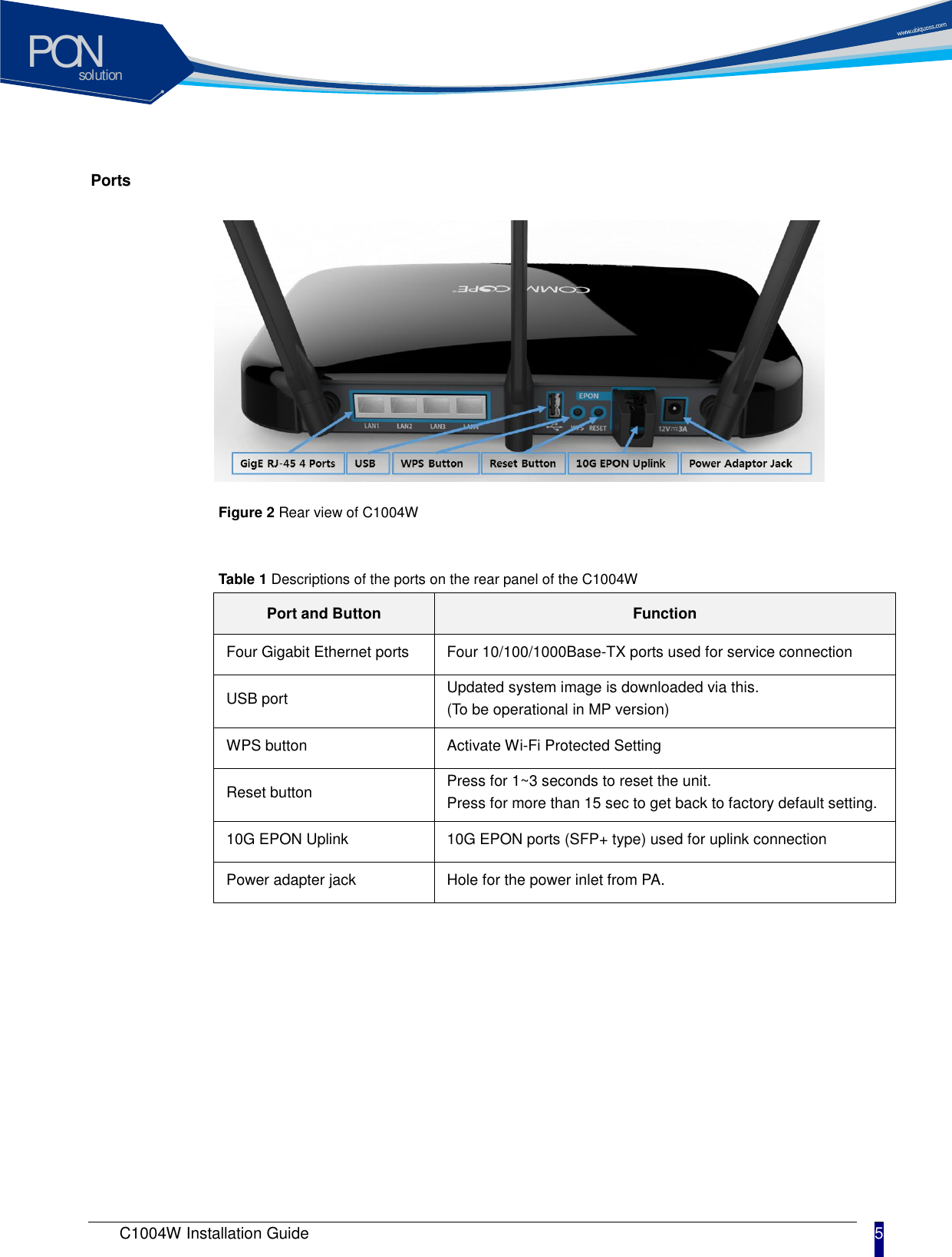
solutionPON C1004W Installation Guide 5   Ports   Figure 2 Rear view of C1004W     Table 1 Descriptions of the ports on the rear panel of the C1004W Port and Button Function Four Gigabit Ethernet ports Four 10/100/1000Base-TX ports used for service connection USB port Updated system image is downloaded via this. (To be operational in MP version) WPS button Activate Wi-Fi Protected Setting Reset button Press for 1~3 seconds to reset the unit. Press for more than 15 sec to get back to factory default setting. 10G EPON Uplink 10G EPON ports (SFP+ type) used for uplink connection Power adapter jack Hole for the power inlet from PA.
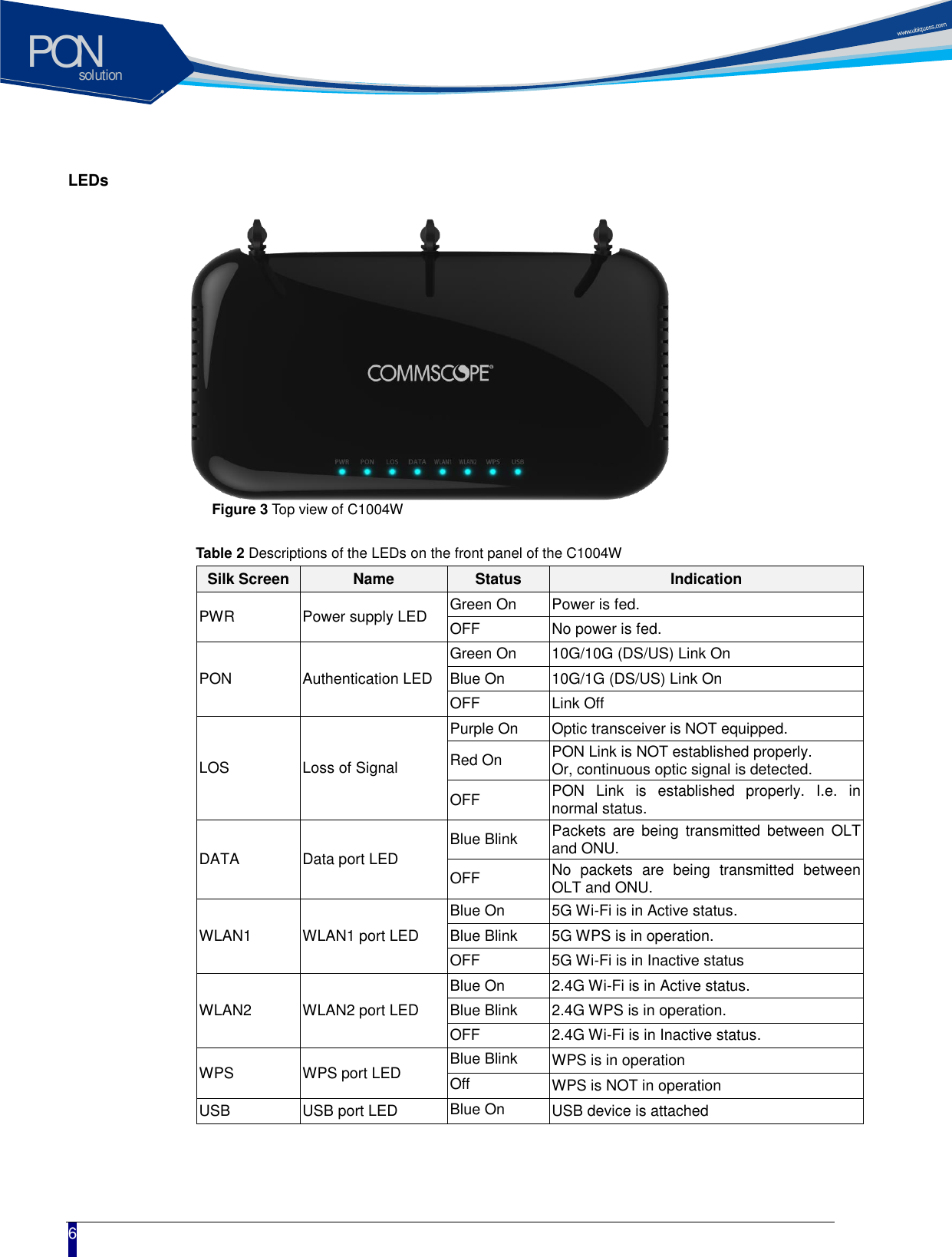
solutionPON  6 LEDs    Figure 3 Top view of C1004W  Table 2 Descriptions of the LEDs on the front panel of the C1004W Silk Screen Name Status Indication PWR Power supply LED Green On   Power is fed. OFF No power is fed. PON Authentication LED Green On 10G/10G (DS/US) Link On Blue On 10G/1G (DS/US) Link On OFF Link Off LOS Loss of Signal Purple On Optic transceiver is NOT equipped. Red On PON Link is NOT established properly. Or, continuous optic signal is detected. OFF PON  Link  is  established  properly.  I.e.  in normal status. DATA Data port LED Blue Blink Packets  are  being  transmitted  between  OLT and ONU. OFF No  packets  are  being  transmitted  between OLT and ONU. WLAN1   WLAN1 port LED Blue On 5G Wi-Fi is in Active status. Blue Blink 5G WPS is in operation. OFF 5G Wi-Fi is in Inactive status WLAN2 WLAN2 port LED Blue On 2.4G Wi-Fi is in Active status. Blue Blink 2.4G WPS is in operation. OFF 2.4G Wi-Fi is in Inactive status. WPS WPS port LED Blue Blink WPS is in operation Off WPS is NOT in operation USB USB port LED Blue On USB device is attached
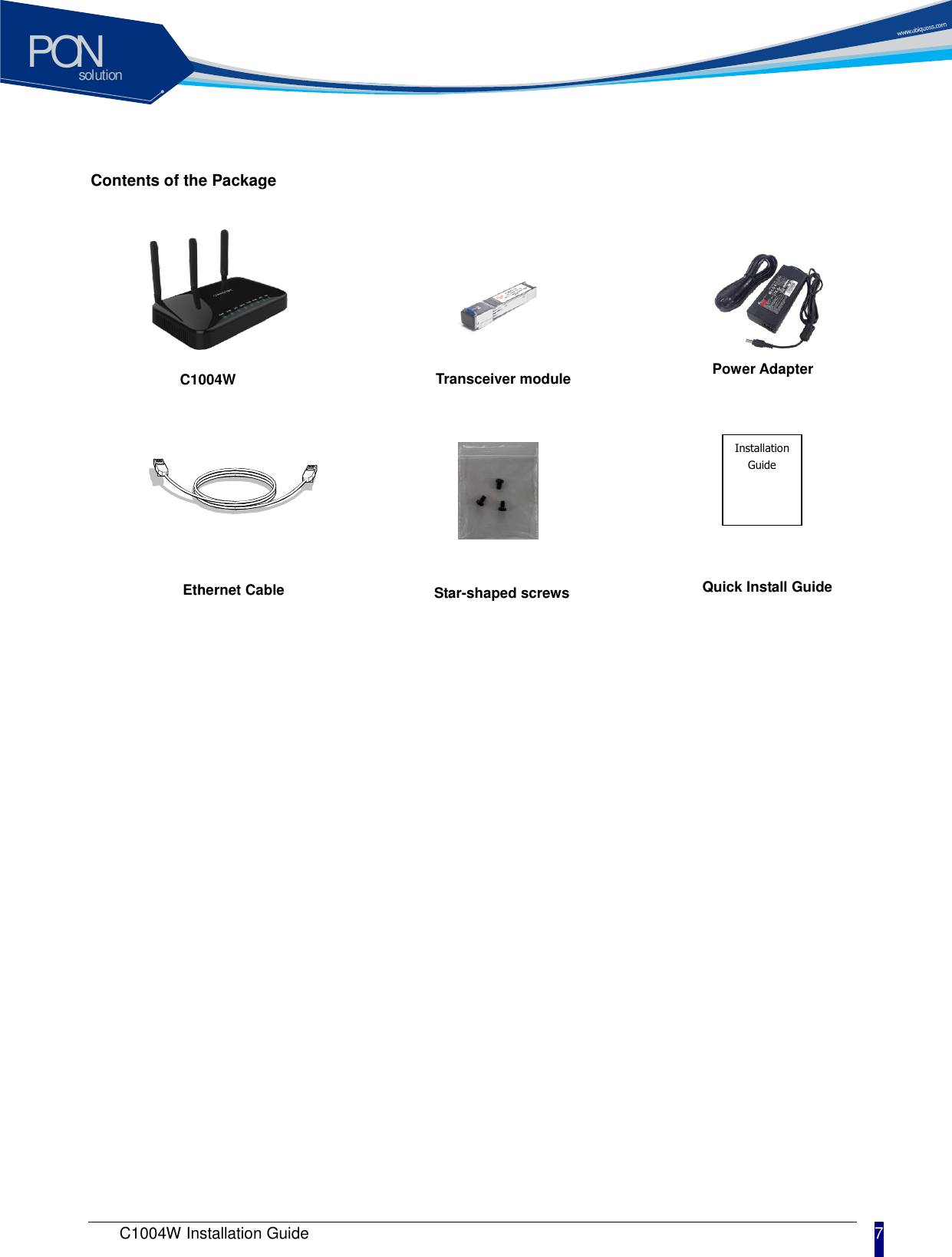
solutionPON C1004W Installation Guide 7   Contents of the Package              C1004W Ethernet Cable Installation Guide Transceiver module Power Adapter Star-shaped screws Quick Install Guide
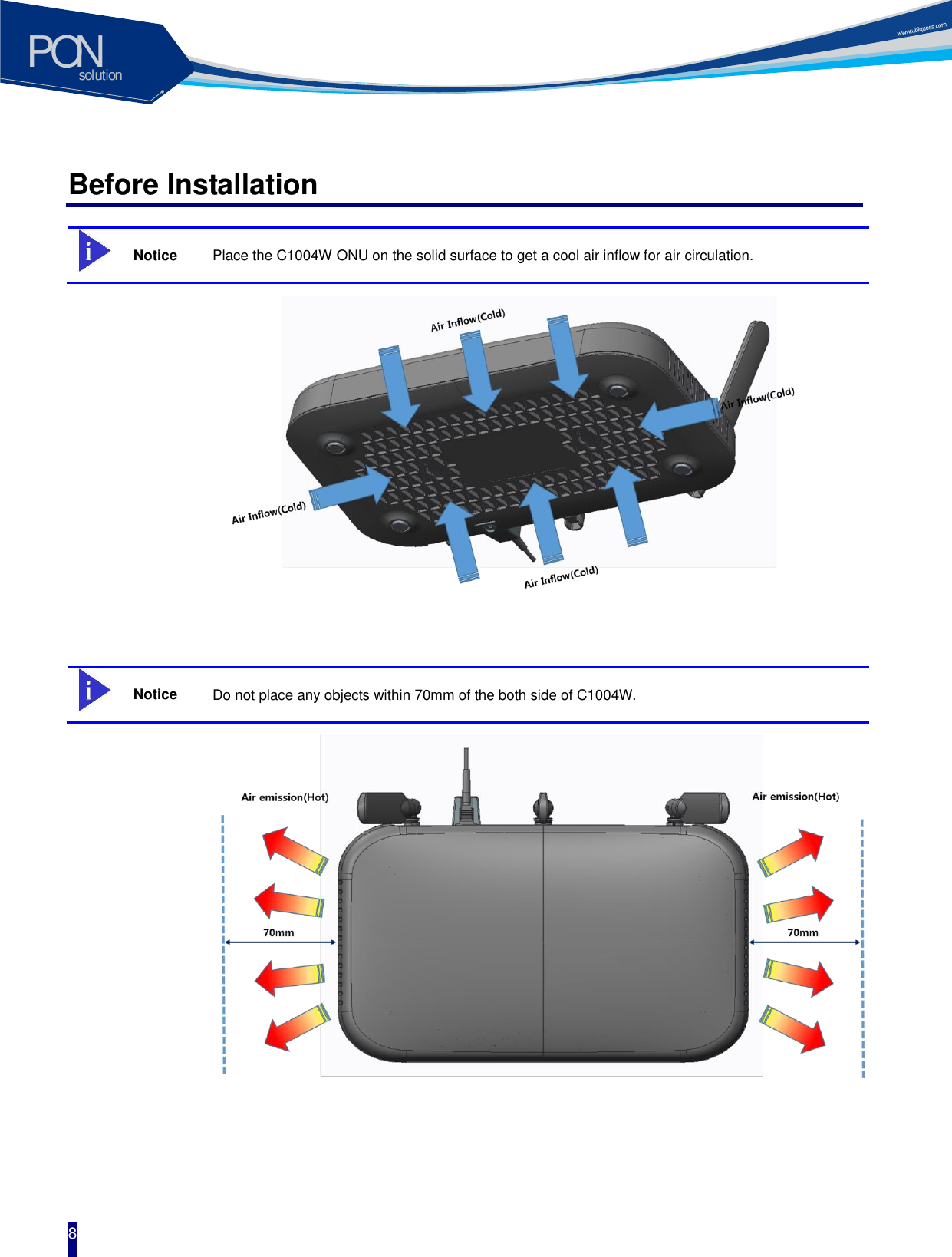
solutionPON  8 Before Installation  Notice Place the C1004W ONU on the solid surface to get a cool air inflow for air circulation.     Notice Do not place any objects within 70mm of the both side of C1004W.
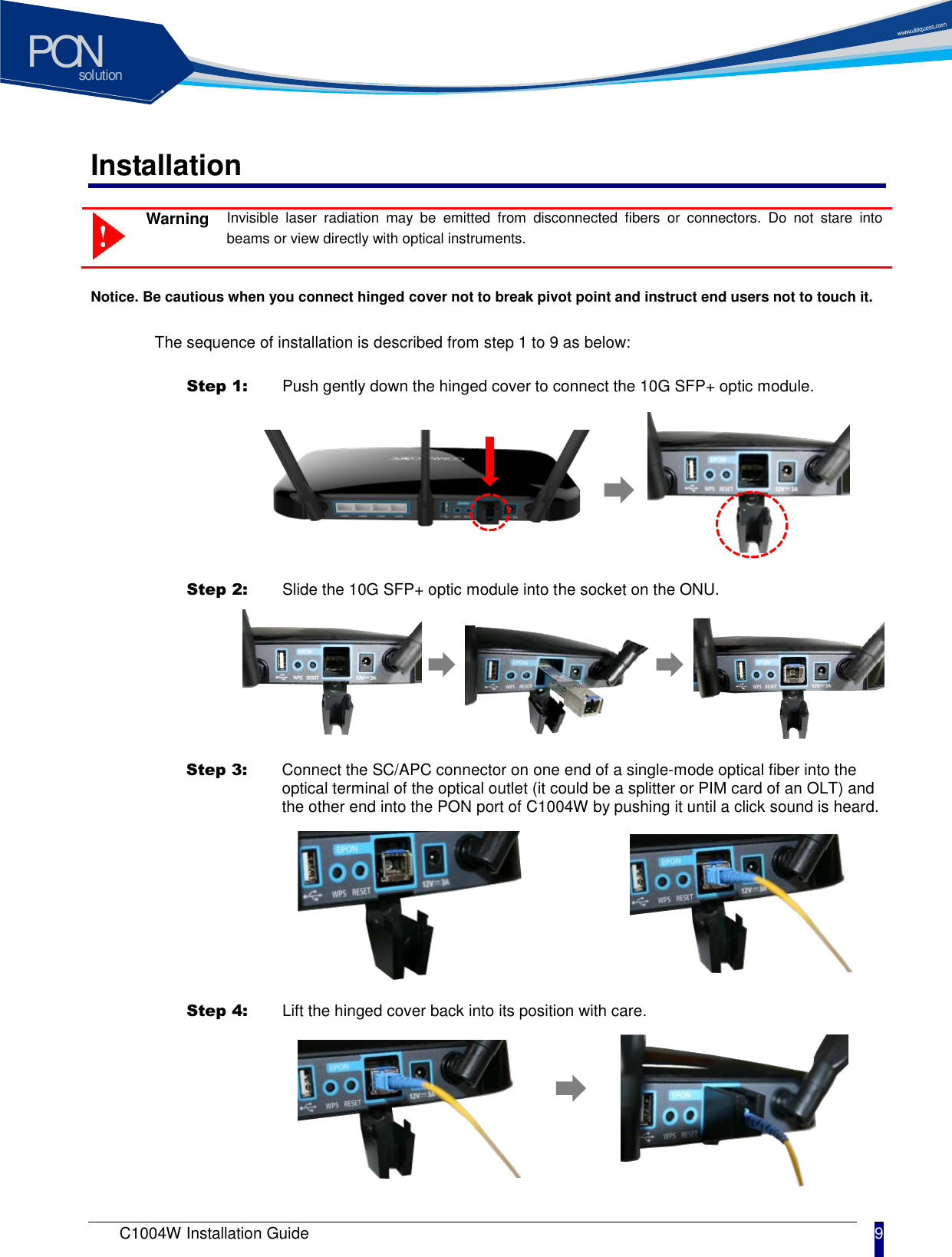
solutionPON C1004W Installation Guide 9   Installation  Warning Invisible  laser  radiation  may  be  emitted  from  disconnected  fibers  or  connectors.  Do  not  stare  into beams or view directly with optical instruments.    Notice. Be cautious when you connect hinged cover not to break pivot point and instruct end users not to touch it.  The sequence of installation is described from step 1 to 9 as below:  Step 1:   Push gently down the hinged cover to connect the 10G SFP+ optic module.    Step 2:   Slide the 10G SFP+ optic module into the socket on the ONU.  Step 3:   Connect the SC/APC connector on one end of a single-mode optical fiber into the optical terminal of the optical outlet (it could be a splitter or PIM card of an OLT) and the other end into the PON port of C1004W by pushing it until a click sound is heard.  Step 4:   Lift the hinged cover back into its position with care.
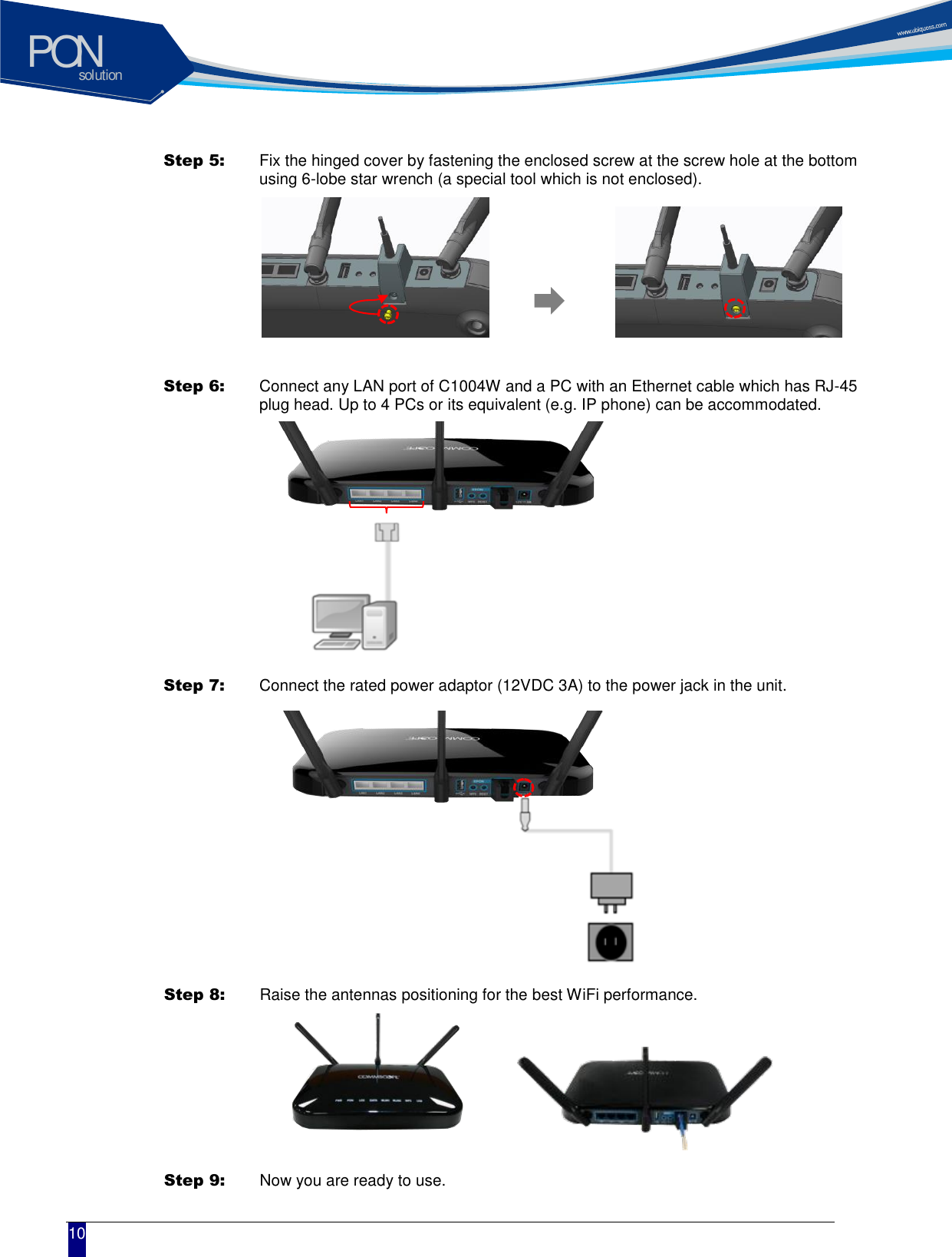
solutionPON  10 Step 5:   Fix the hinged cover by fastening the enclosed screw at the screw hole at the bottom using 6-lobe star wrench (a special tool which is not enclosed).   Step 6:   Connect any LAN port of C1004W and a PC with an Ethernet cable which has RJ-45 plug head. Up to 4 PCs or its equivalent (e.g. IP phone) can be accommodated.    Step 7:   Connect the rated power adaptor (12VDC 3A) to the power jack in the unit.  Step 8:   Raise the antennas positioning for the best WiFi performance.  Step 9:   Now you are ready to use.
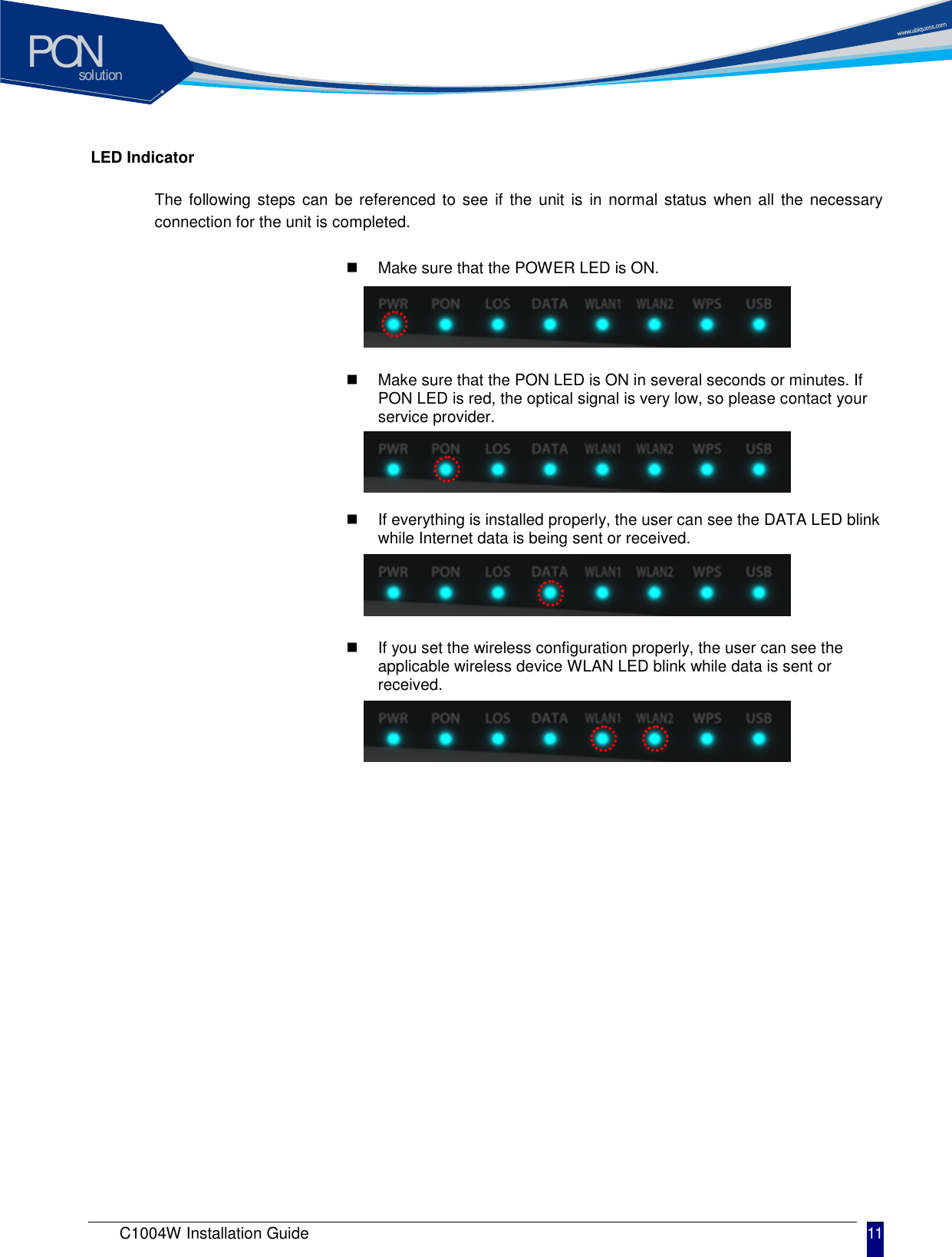
solutionPON C1004W Installation Guide 11   LED Indicator  The following steps can  be referenced to see if the  unit  is in normal status when  all the necessary connection for the unit is completed.      Make sure that the POWER LED is ON.    Make sure that the PON LED is ON in several seconds or minutes. If PON LED is red, the optical signal is very low, so please contact your service provider.    If everything is installed properly, the user can see the DATA LED blink while Internet data is being sent or received.    If you set the wireless configuration properly, the user can see the applicable wireless device WLAN LED blink while data is sent or received.
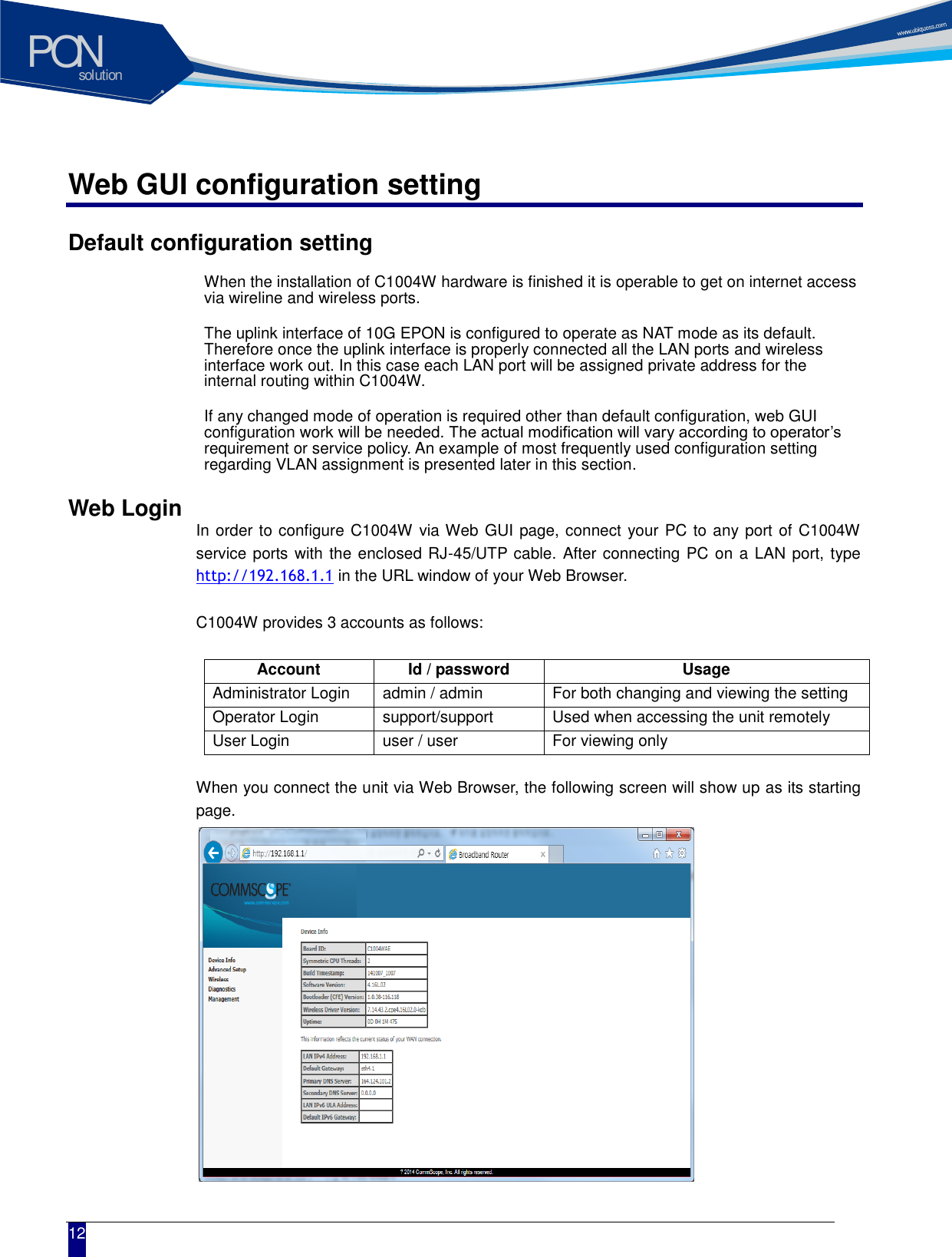
solutionPON  12 Web GUI configuration setting Default configuration setting When the installation of C1004W hardware is finished it is operable to get on internet access via wireline and wireless ports.   The uplink interface of 10G EPON is configured to operate as NAT mode as its default. Therefore once the uplink interface is properly connected all the LAN ports and wireless interface work out. In this case each LAN port will be assigned private address for the internal routing within C1004W.   If any changed mode of operation is required other than default configuration, web GUI configuration work will be needed. The actual modification will vary according to operator’s requirement or service policy. An example of most frequently used configuration setting regarding VLAN assignment is presented later in this section.   Web Login  In order to configure C1004W via Web GUI page, connect your PC to any port of C1004W service ports with the enclosed RJ-45/UTP cable. After connecting PC on a LAN port, type http://192.168.1.1 in the URL window of your Web Browser.  C1004W provides 3 accounts as follows:  Account Id / password Usage Administrator Login admin / admin For both changing and viewing the setting Operator Login support/support Used when accessing the unit remotely User Login user / user For viewing only  When you connect the unit via Web Browser, the following screen will show up as its starting page.
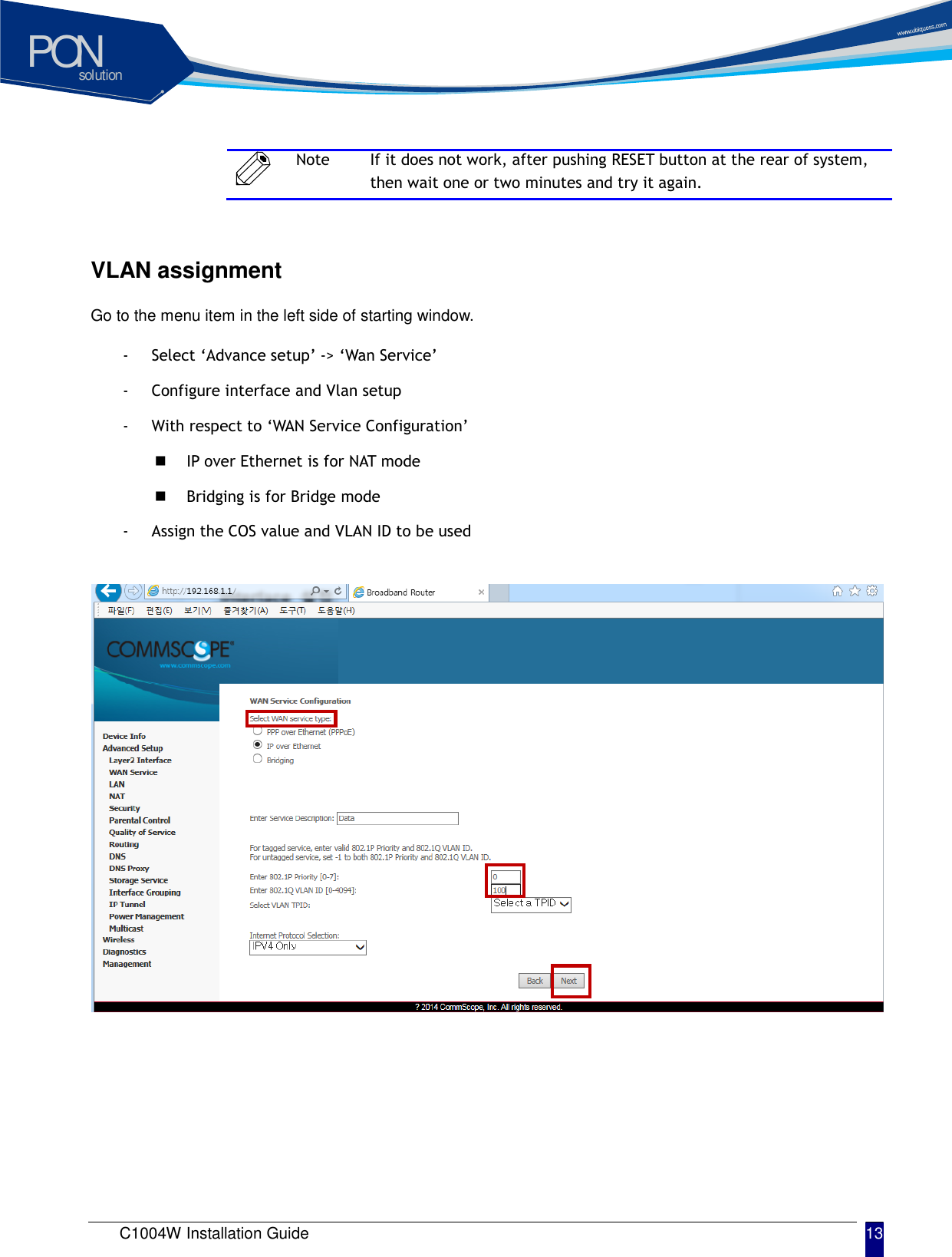
solutionPON C1004W Installation Guide 13    Note If it does not work, after pushing RESET button at the rear of system, then wait one or two minutes and try it again.  VLAN assignment  Go to the menu item in the left side of starting window.   - Select ‘Advance setup’ -> ‘Wan Service’   - Configure interface and Vlan setup - With respect to ‘WAN Service Configuration’    IP over Ethernet is for NAT mode  Bridging is for Bridge mode - Assign the COS value and VLAN ID to be used
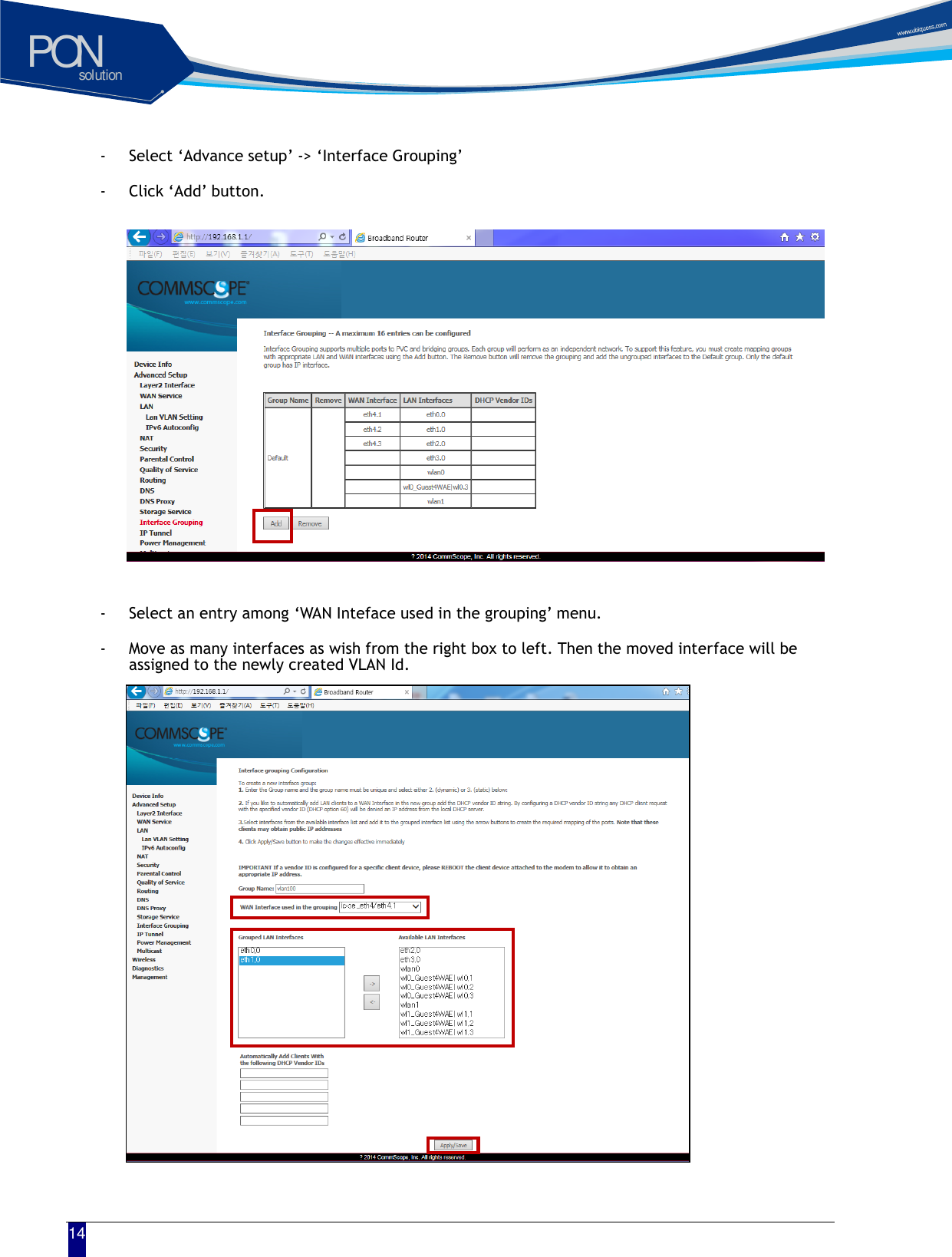
solutionPON  14 - Select ‘Advance setup’ -> ‘Interface Grouping’ - Click ‘Add’ button.            - Select an entry among ‘WAN Inteface used in the grouping’ menu. - Move as many interfaces as wish from the right box to left. Then the moved interface will be assigned to the newly created VLAN Id.
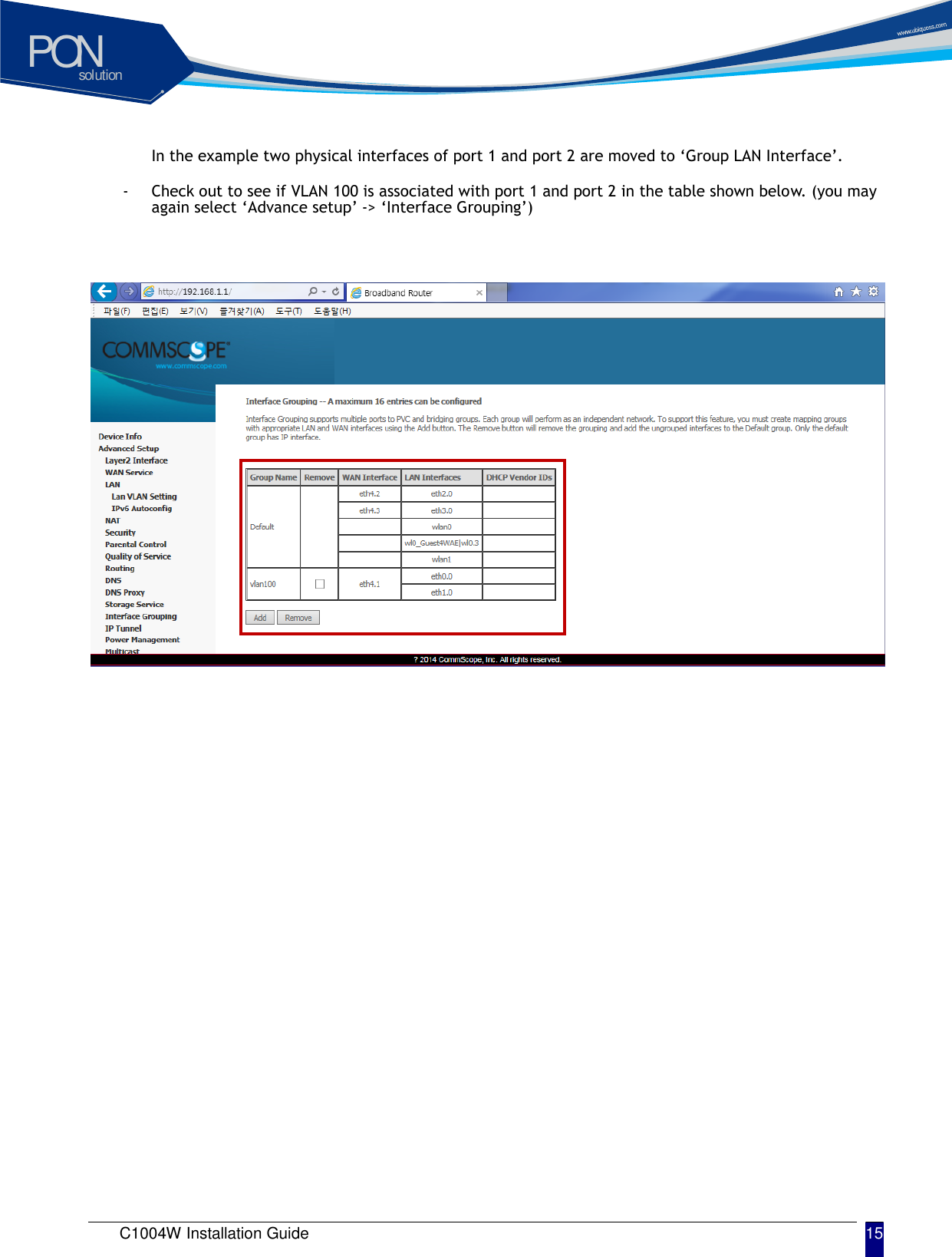
solutionPON C1004W Installation Guide 15   In the example two physical interfaces of port 1 and port 2 are moved to ‘Group LAN Interface’.   - Check out to see if VLAN 100 is associated with port 1 and port 2 in the table shown below. (you may again select ‘Advance setup’ -> ‘Interface Grouping’)
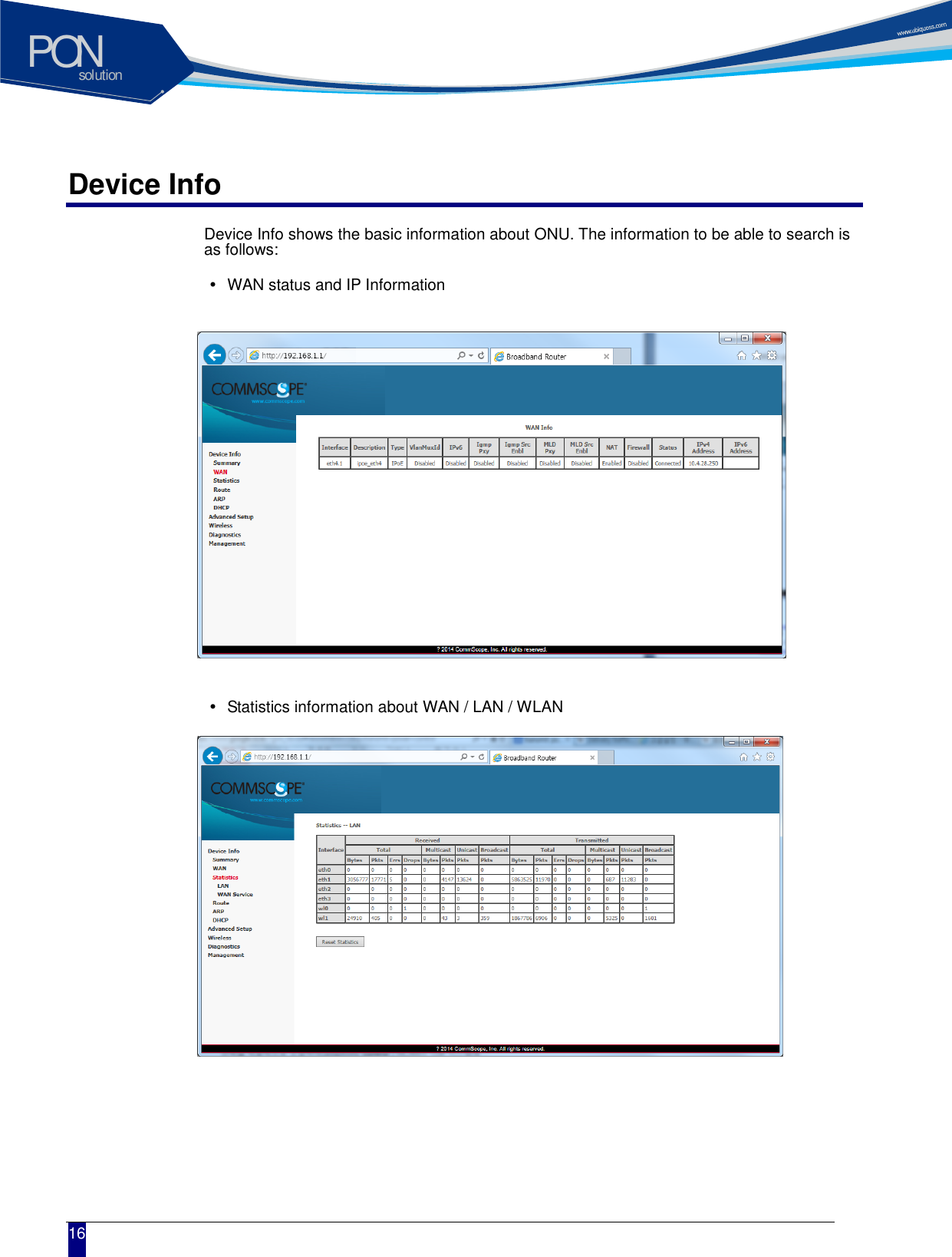
solutionPON  16 Device Info Device Info shows the basic information about ONU. The information to be able to search is as follows:    WAN status and IP Information             Statistics information about WAN / LAN / WLAN
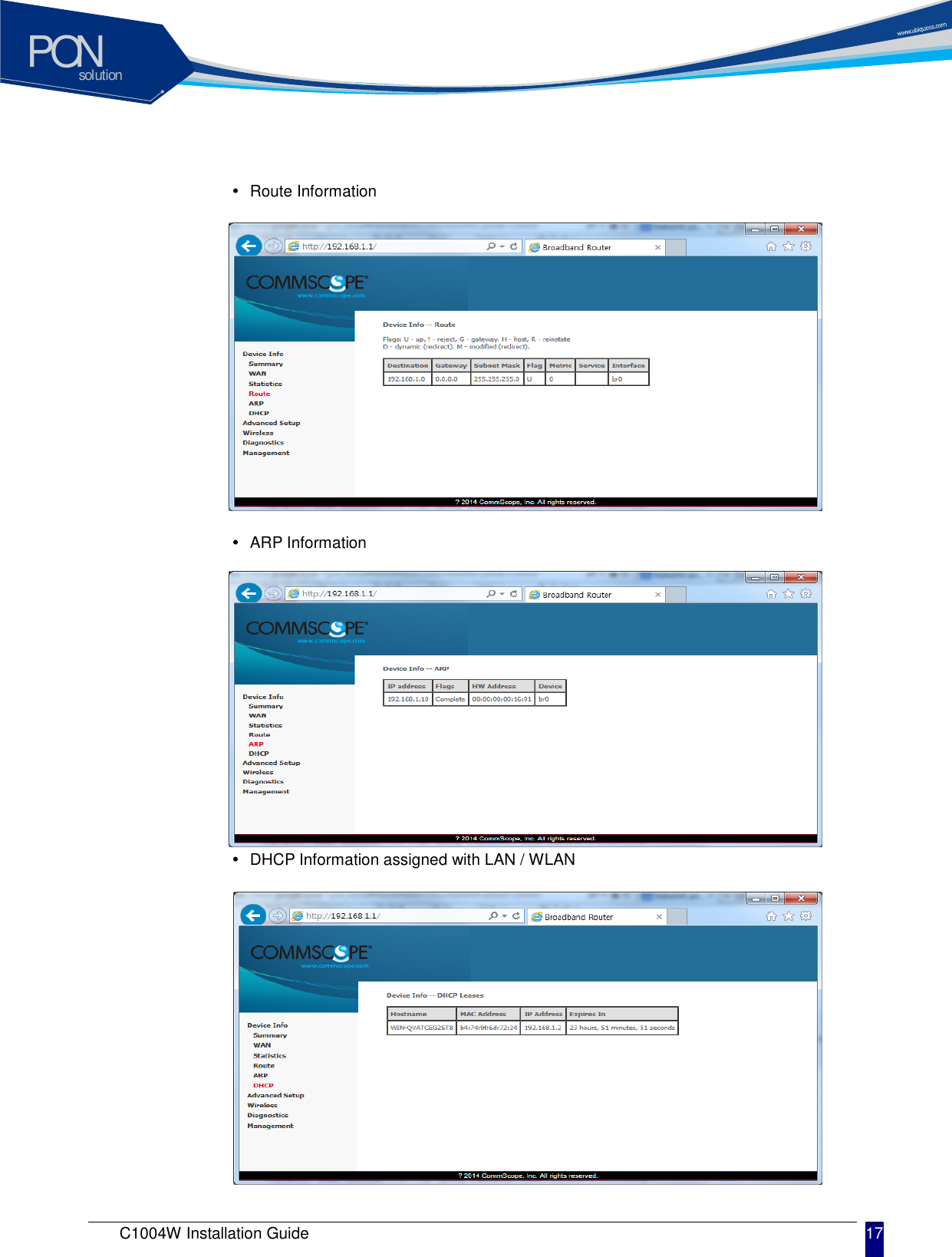
solutionPON C1004W Installation Guide 17      Route Information           ARP Information           DHCP Information assigned with LAN / WLAN
solutionPON  18 Advanced Setup / WAN Service You can create the Interface for various WAN service based on the assigned WAN Physical Port. To create WAN Service Interface, click [Add] button on [WAN Service Setup Display].
solutionPON C1004W Installation Guide 19   If you click [Next] button, you can assign VLAN ID about 802.1Q and a priority about WAN service type and 802.1P.               Note In case of assigning as Untagged Service from WAN Service Interface, you must set it as ‘-1’.
solutionPON  20 If you click [Next] button, you can set IP about WAN Service Interface. When the system needs to obtain an IP address automatically from DHCP server connected with WAN network, select [Obtain an IP address automatically] radio button. When the system uses the static IP address on WAN Service Interface, select [Use the following Static IP address]. Then set Static IP Address, Subnet Mask and Gateway IP Address.             If you click [Next] button, you can enable NAT and Multicast function on the WAN service Interface.
solutionPON C1004W Installation Guide 21   If you click [Next] button, you can assign Default Gateway about WAN Service Interface.             If you click [Next] button, you can set DNS Server about WAN Service Interface.
solutionPON  22 When the above procedure is done, it shows the information about WAN Service to be applied finally.             When you click [Apply/Save] button, the information of the set WAN Service Interface is listed and it is done about WAN Service Interface.           Note If you change 802.1P, 802.1Q on the created WAN Service Interface, you must register again after deleting WAN Service.   Note In case that you assign 802.1Q VLAN-ID individually on the several WAN Service and do grouping LAN Interfaces, refer to Interface Grouping setting on Advanced Setup Section.
solutionPON C1004W Installation Guide 23   Advanced Setup / Interface Grouping By creating several groups, you can manage several LAN Interfaces with Interface grouping provided from Advanced setup. By default, one default group includes all LAN Interfaces. To create Interface Group, click [Add] button on [Interface Group Display]           Set Group Name with easy name to acknowledge. To set WAN Interface for using to create Group, select list box. After selecting WAN Interface, select LAN Interface for including to group to create. Select LAN Interface to move on the [Available LAN Interfaces] BOX. If you click arrow button, it moves to the [Grouped LAN Interfaces] BOX.
solutionPON  24 After the creating Group by clicking [Apply/Save] button, the Group is created like following screen.             Note To process incoming traffic after applying VLAN ID per each Group, one WAN interface per Group system is applied. Thus, to set like the following screen, you must add WAN interface before creating Group.   Note To know the way of adding WAN Interface, refer to [Advanced Setup / WAN Service].
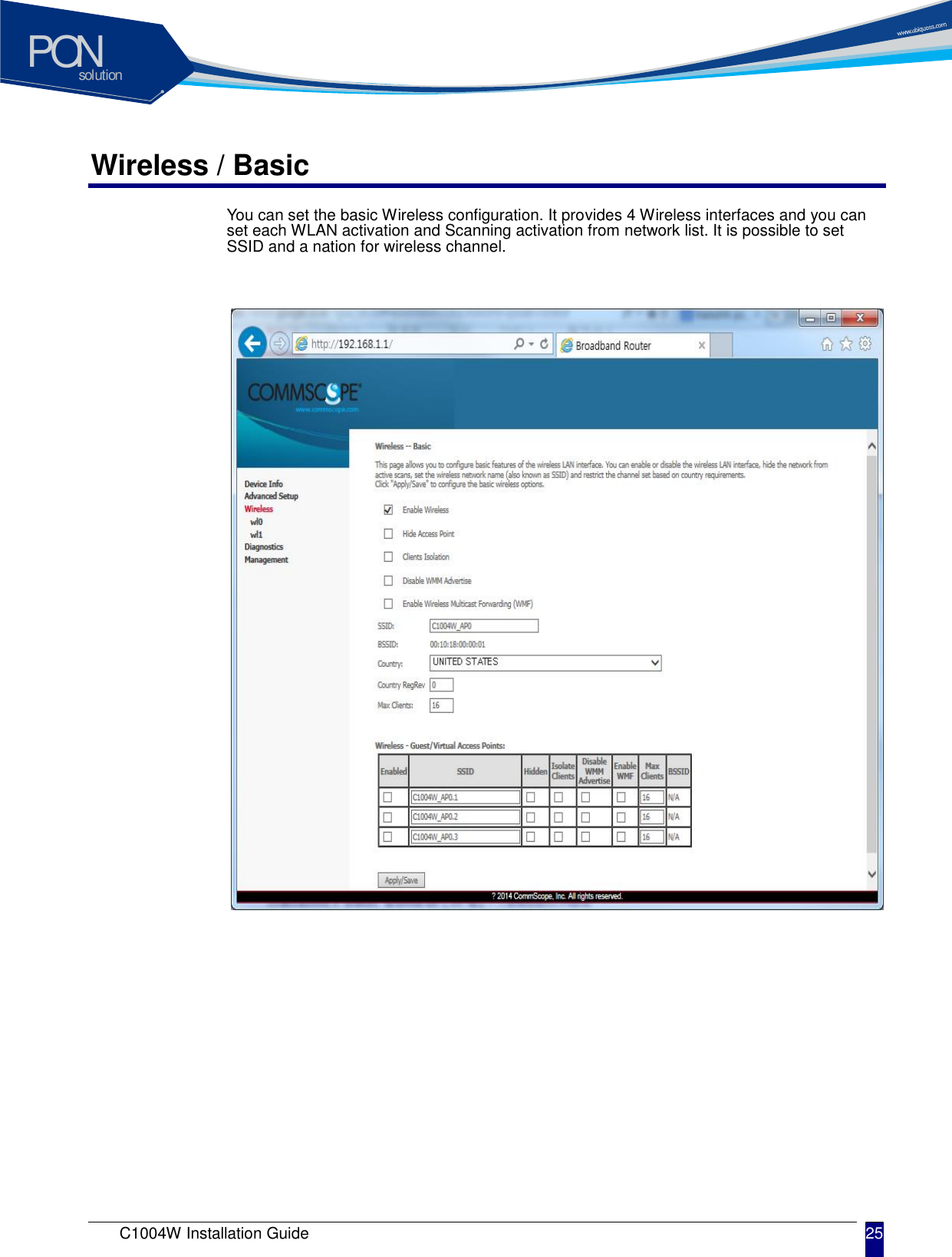
solutionPON C1004W Installation Guide 25   Wireless / Basic You can set the basic Wireless configuration. It provides 4 Wireless interfaces and you can set each WLAN activation and Scanning activation from network list. It is possible to set SSID and a nation for wireless channel.
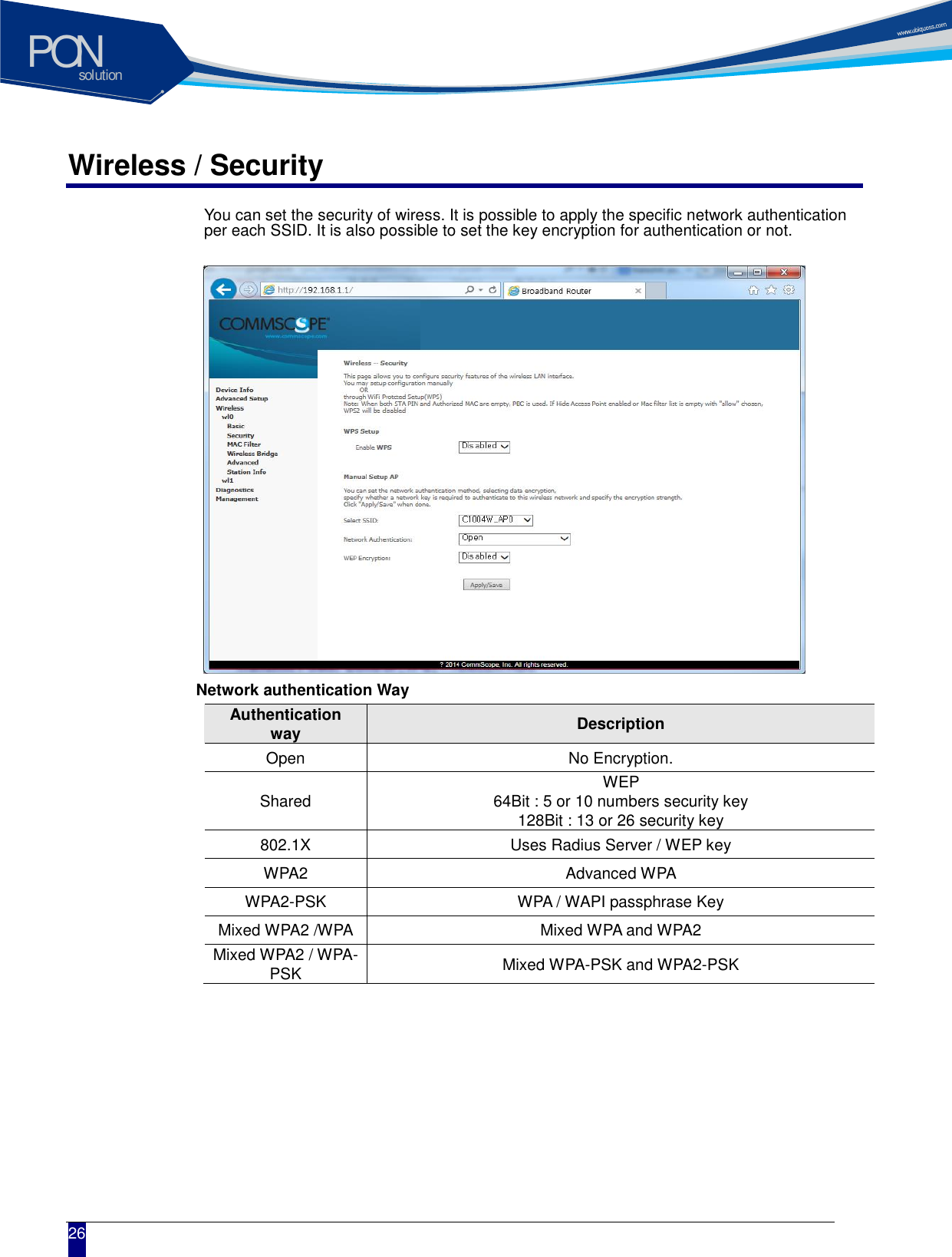
solutionPON  26 Wireless / Security You can set the security of wiress. It is possible to apply the specific network authentication per each SSID. It is also possible to set the key encryption for authentication or not.             Network authentication Way Authentication way Description Open No Encryption. Shared WEP   64Bit : 5 or 10 numbers security key 128Bit : 13 or 26 security key 802.1X Uses Radius Server / WEP key WPA2 Advanced WPA WPA2-PSK WPA / WAPI passphrase Key Mixed WPA2 /WPA Mixed WPA and WPA2 Mixed WPA2 / WPA-PSK Mixed WPA-PSK and WPA2-PSK
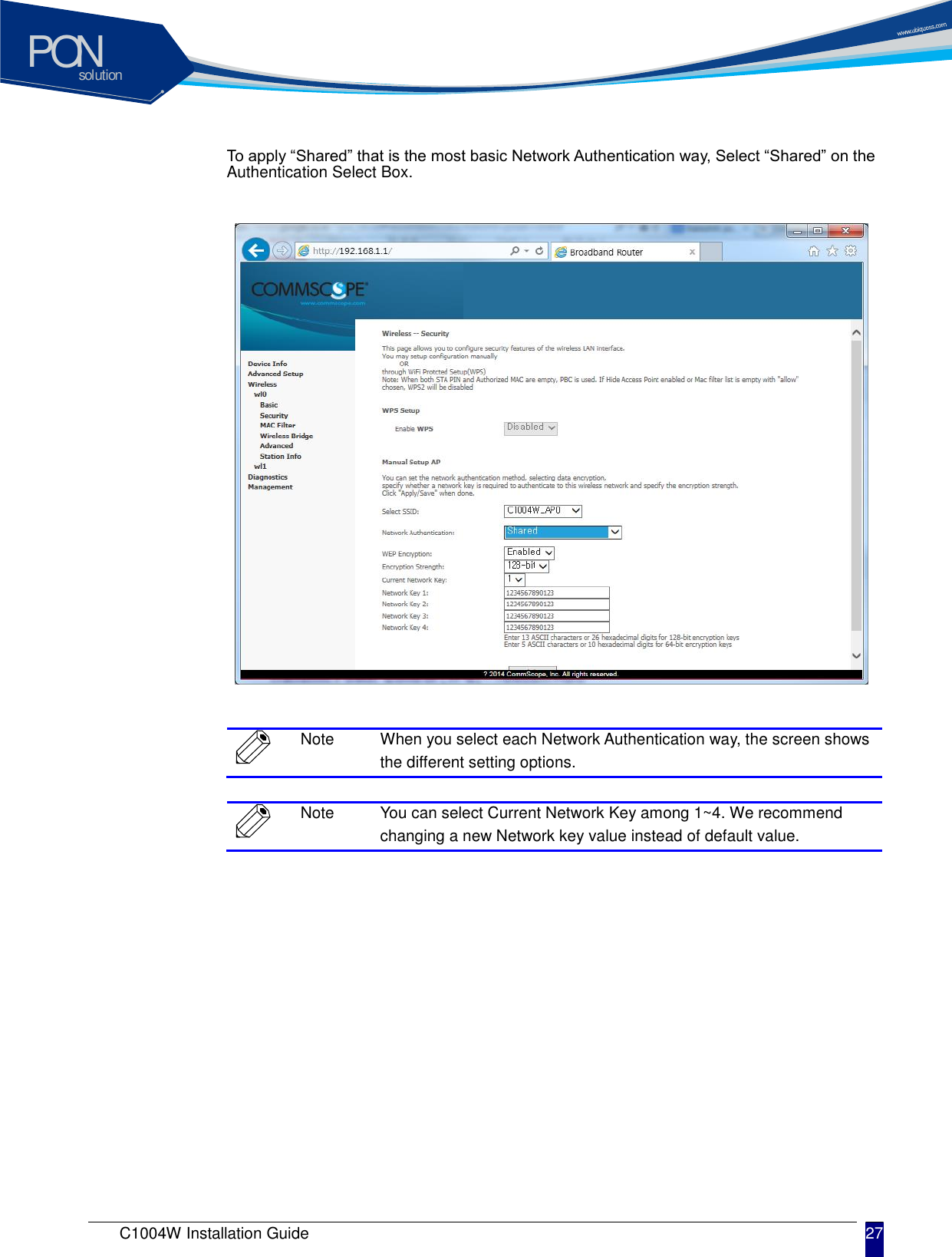
solutionPON C1004W Installation Guide 27   To apply “Shared” that is the most basic Network Authentication way, Select “Shared” on the Authentication Select Box.                 Note When you select each Network Authentication way, the screen shows the different setting options.   Note You can select Current Network Key among 1~4. We recommend changing a new Network key value instead of default value.
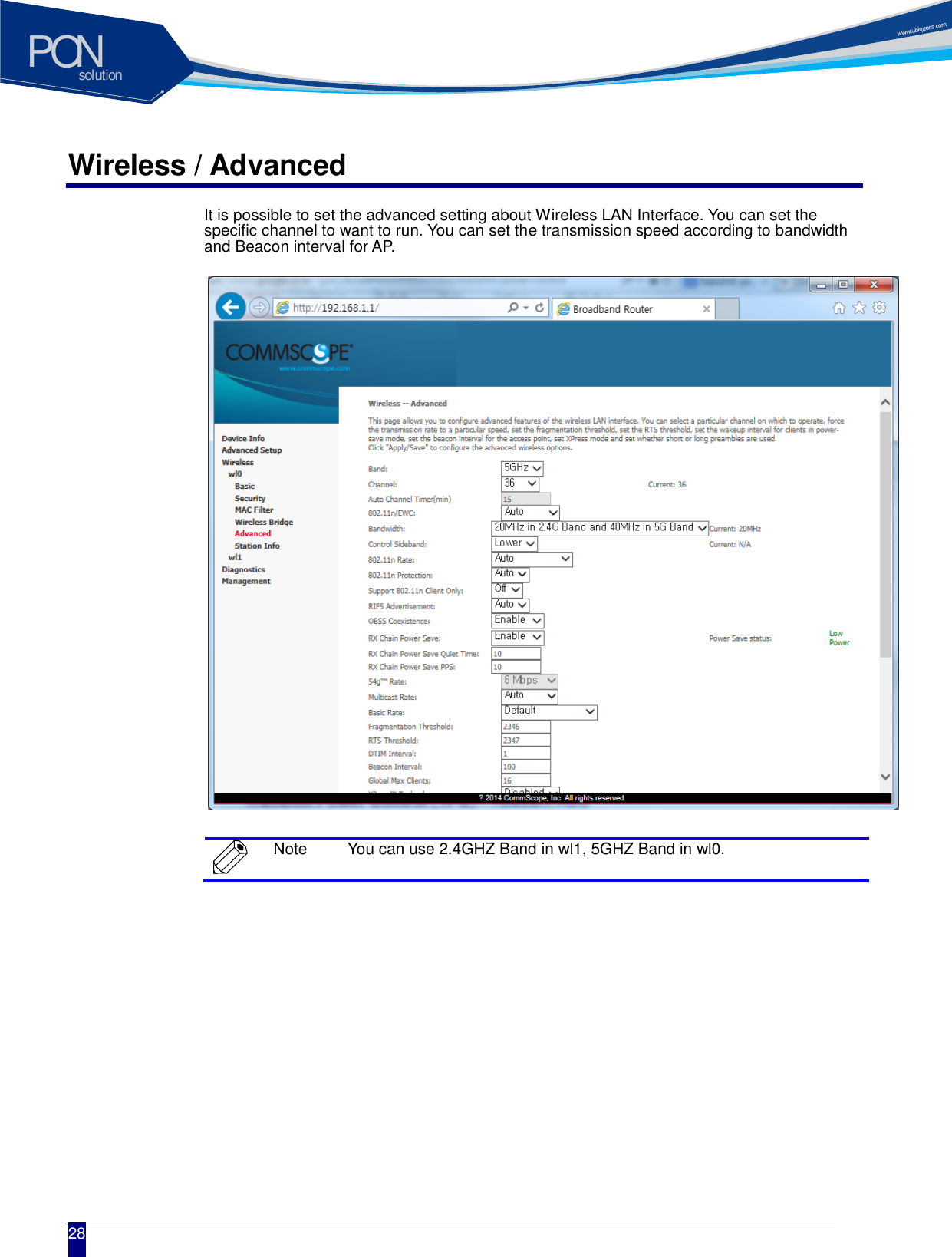
solutionPON  28 Wireless / Advanced It is possible to set the advanced setting about Wireless LAN Interface. You can set the specific channel to want to run. You can set the transmission speed according to bandwidth and Beacon interval for AP.                  Note You can use 2.4GHZ Band in wl1, 5GHZ Band in wl0.
solutionPON C1004W Installation Guide 29   Troubleshooting Possible troubles and its quick remedy:     Symptom 1: “Can not access to the Internet” -  Step 1  Make sure that the ONU is turned on. Once you turn on the power, the POWER LED on the front panel of C1004W should be lit. If the POWER LED is not lit, please check if the power cable is connected to the power inlet of ONU properly. If the problem persists, please call Service Provider.  Step 2  Make sure that the optical line is connected properly. Once the optic fiber is connected, the PON LED on the front panel of C1004W should be lit on within few seconds. If the PON LED blinks, call Service Provider to check the optical line connection.  Step 3  Make sure that the LAN cable is connected properly. Once the LAN cable is connected and user PC is turned on, LAN LED should be lit on. If the LED is not lit, check the cable connection.  Step 4  Make sure that network setting of your PC is correct. Select “set to ‘Obtain IP address automatically’.     Symptom 2: “All the cables are connected, but still can not obtain IP address”  Step 1  Look for the Network Neighborhood or My Network Places icon in your PC. If it is not there, try your Start Menu.  Step 2  Right-click the Network Neighborhood/My Network Places icon. A drop-down menu will appear.  Step 3  Choose the "Properties" option, which is generally found at the bottom of the menu.  Step 4  Look for an icon named "Local Area Connection". The icon looks like a pair of computer connected by a link. Double-click this icon.  Step 5  Click the "General" tab, if it is not already selected. You will see a list of protocols to choose.  Step 6  Scroll down and choose Internet Protocol (TCP/IP), and then click the button that is labeled "Properties".  Step 7  Again, click the "General" tab, it is not already selected. You will see two choices: 1)  "Obtain an IP address Automatically" 2)  "Use the following IP address..."  Step 8  Choose option “1)”  Step 9  Click OK
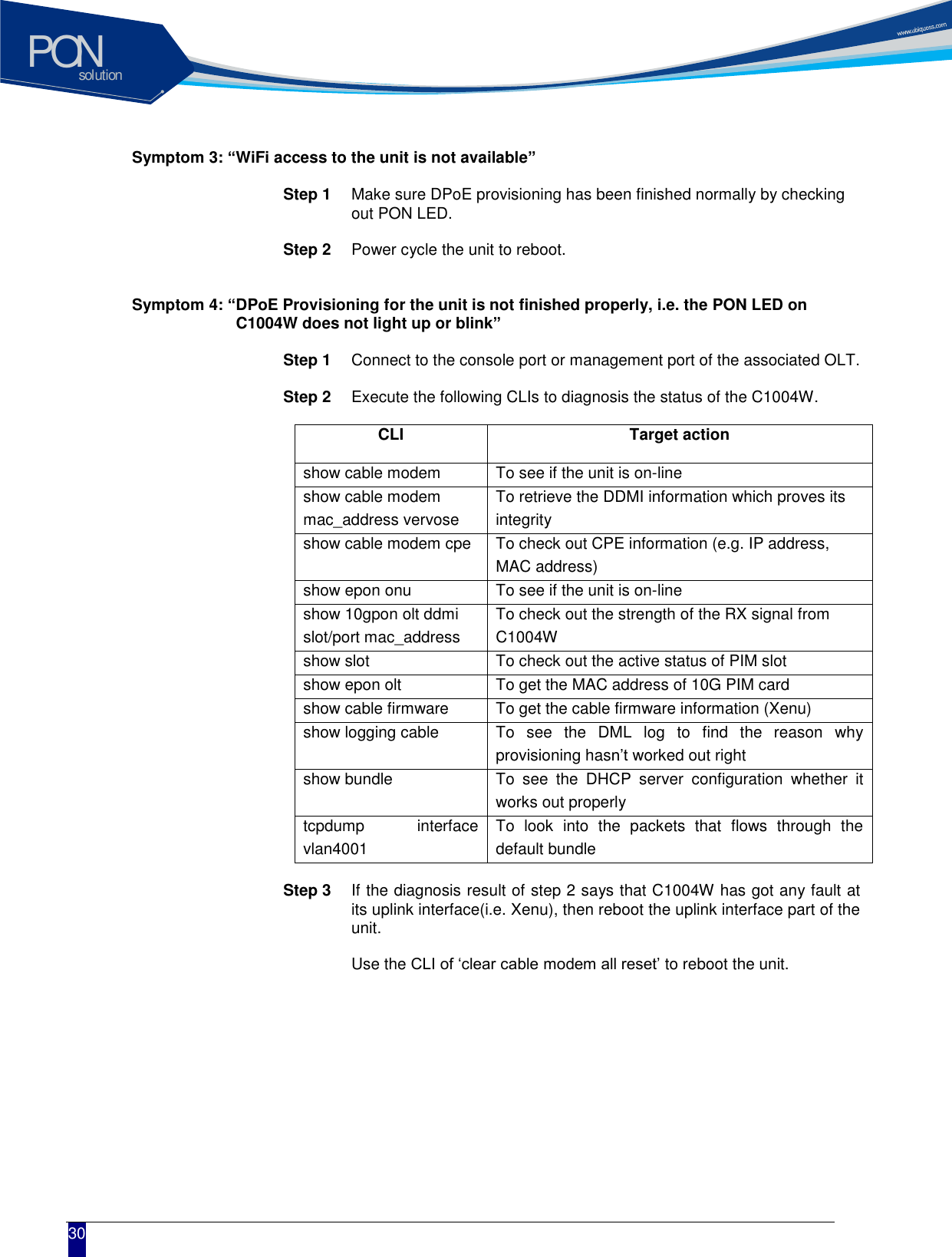
solutionPON  30 Symptom 3: “WiFi access to the unit is not available”  Step 1  Make sure DPoE provisioning has been finished normally by checking out PON LED.    Step 2  Power cycle the unit to reboot.       Symptom 4: “DPoE Provisioning for the unit is not finished properly, i.e. the PON LED on               C1004W does not light up or blink”  Step 1  Connect to the console port or management port of the associated OLT.    Step 2  Execute the following CLIs to diagnosis the status of the C1004W.      CLI Target action show cable modem To see if the unit is on-line show cable modem mac_address vervose To retrieve the DDMI information which proves its integrity show cable modem cpe To check out CPE information (e.g. IP address, MAC address) show epon onu To see if the unit is on-line show 10gpon olt ddmi slot/port mac_address To check out the strength of the RX signal from C1004W show slot To check out the active status of PIM slot show epon olt To get the MAC address of 10G PIM card show cable firmware To get the cable firmware information (Xenu) show logging cable To  see  the  DML  log  to  find  the  reason  why provisioning hasn’t worked out right show bundle To  see  the  DHCP  server  configuration  whether  it works out properly tcpdump  interface vlan4001 To  look  into  the  packets  that  flows  through  the default bundle    Step 3  If the diagnosis result of step 2 says that C1004W has got any fault at its uplink interface(i.e. Xenu), then reboot the uplink interface part of the unit.      Use the CLI of ‘clear cable modem all reset’ to reboot the unit.
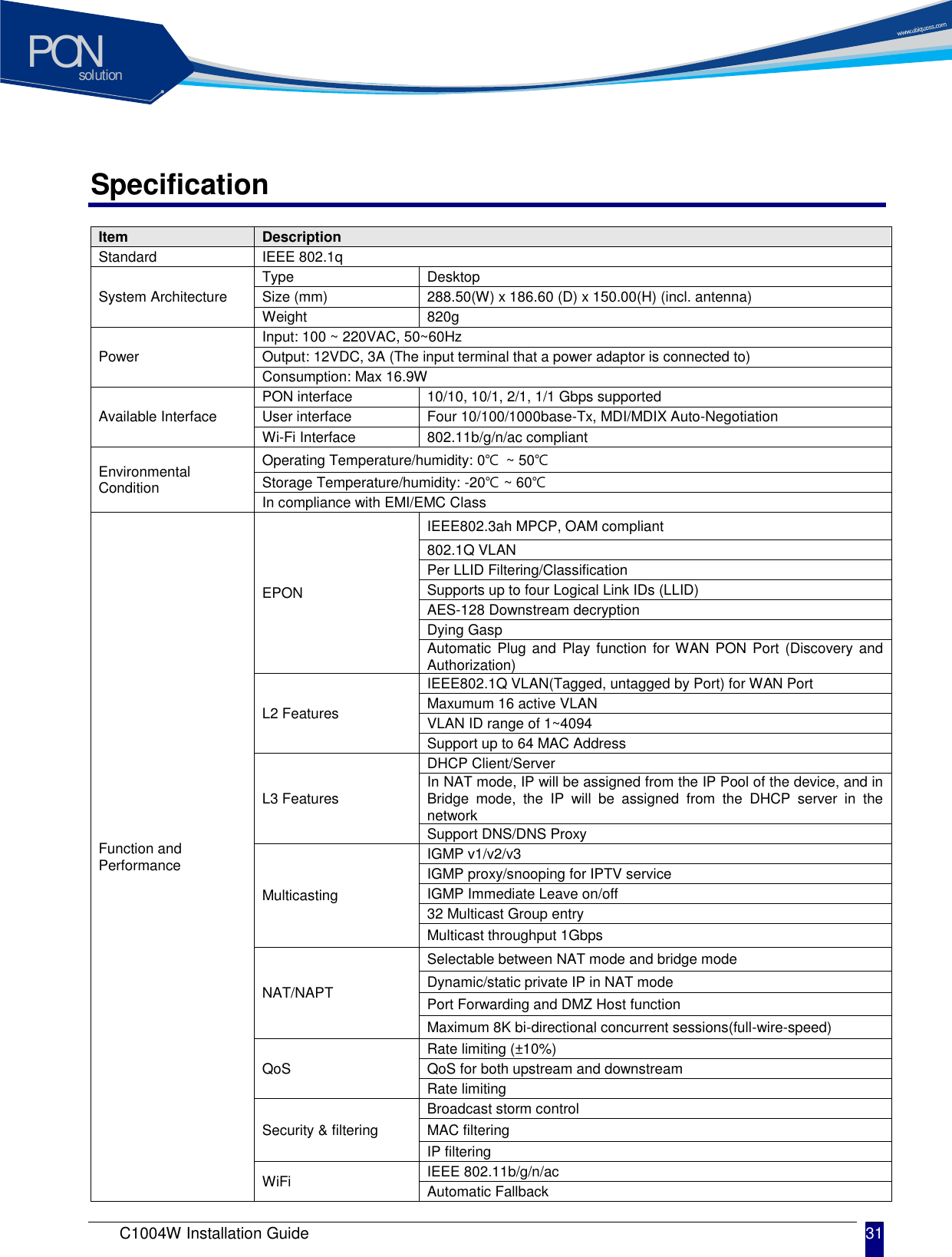
solutionPON C1004W Installation Guide 31   Specification Item Description Standard IEEE 802.1q   System Architecture Type Desktop Size (mm) 288.50(W) x 186.60 (D) x 150.00(H) (incl. antenna) Weight 820g Power Input: 100 ~ 220VAC, 50~60Hz Output: 12VDC, 3A (The input terminal that a power adaptor is connected to) Consumption: Max 16.9W  Available Interface PON interface 10/10, 10/1, 2/1, 1/1 Gbps supported User interface Four 10/100/1000base-Tx, MDI/MDIX Auto-Negotiation Wi-Fi Interface 802.11b/g/n/ac compliant   Environmental Condition Operating Temperature/humidity: 0℃  ~ 50℃ Storage Temperature/humidity: -20℃ ~ 60℃ In compliance with EMI/EMC Class Function and Performance EPON   IEEE802.3ah MPCP, OAM compliant 802.1Q VLAN Per LLID Filtering/Classification Supports up to four Logical Link IDs (LLID) AES-128 Downstream decryption Dying Gasp Automatic Plug  and Play function  for WAN PON  Port (Discovery and Authorization)   L2 Features IEEE802.1Q VLAN(Tagged, untagged by Port) for WAN Port Maxumum 16 active VLAN VLAN ID range of 1~4094 Support up to 64 MAC Address   L3 Features DHCP Client/Server In NAT mode, IP will be assigned from the IP Pool of the device, and in Bridge  mode,  the  IP  will  be  assigned  from  the  DHCP  server  in  the network Support DNS/DNS Proxy Multicasting IGMP v1/v2/v3 IGMP proxy/snooping for IPTV service IGMP Immediate Leave on/off 32 Multicast Group entry Multicast throughput 1Gbps NAT/NAPT Selectable between NAT mode and bridge mode Dynamic/static private IP in NAT mode Port Forwarding and DMZ Host function Maximum 8K bi-directional concurrent sessions(full-wire-speed) QoS Rate limiting (±10%) QoS for both upstream and downstream Rate limiting Security & filtering Broadcast storm control   MAC filtering IP filtering WiFi IEEE 802.11b/g/n/ac Automatic Fallback
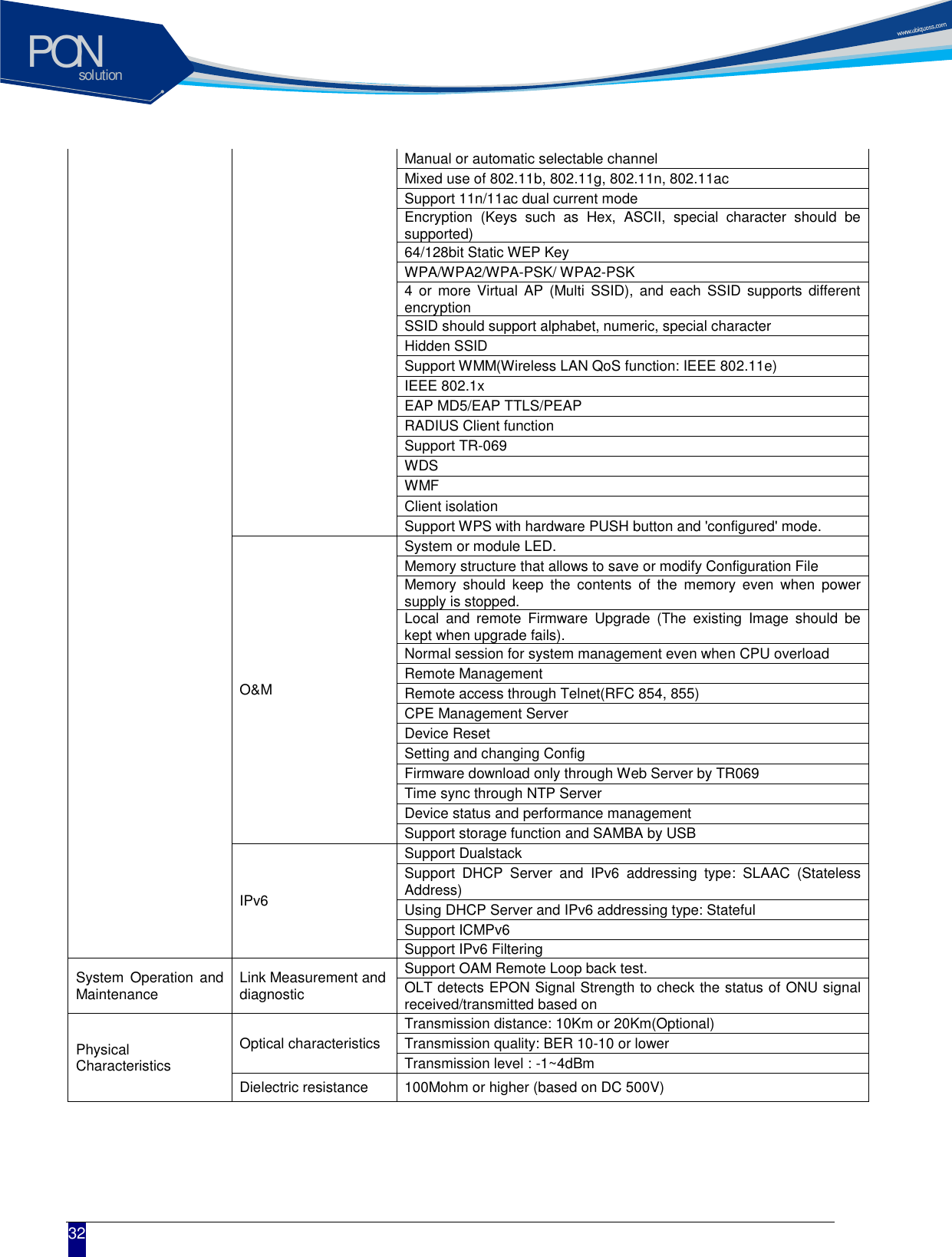
solutionPON  32 Manual or automatic selectable channel Mixed use of 802.11b, 802.11g, 802.11n, 802.11ac Support 11n/11ac dual current mode Encryption  (Keys  such  as  Hex,  ASCII,  special  character  should  be supported) 64/128bit Static WEP Key WPA/WPA2/WPA-PSK/ WPA2-PSK 4  or more  Virtual AP  (Multi SSID),  and  each  SSID  supports  different encryption SSID should support alphabet, numeric, special character Hidden SSID Support WMM(Wireless LAN QoS function: IEEE 802.11e) IEEE 802.1x EAP MD5/EAP TTLS/PEAP RADIUS Client function Support TR-069 WDS WMF Client isolation Support WPS with hardware PUSH button and 'configured' mode. O&M System or module LED.   Memory structure that allows to save or modify Configuration File Memory  should  keep  the  contents  of  the  memory  even  when  power supply is stopped. Local  and  remote  Firmware  Upgrade  (The  existing  Image  should  be kept when upgrade fails). Normal session for system management even when CPU overload Remote Management Remote access through Telnet(RFC 854, 855) CPE Management Server Device Reset Setting and changing Config   Firmware download only through Web Server by TR069 Time sync through NTP Server Device status and performance management Support storage function and SAMBA by USB IPv6 Support Dualstack Support  DHCP  Server  and  IPv6  addressing  type:  SLAAC  (Stateless Address) Using DHCP Server and IPv6 addressing type: Stateful Support ICMPv6 Support IPv6 Filtering System  Operation and Maintenance Link Measurement and diagnostic Support OAM Remote Loop back test. OLT detects EPON Signal Strength to check the status of ONU signal received/transmitted based on Physical Characteristics Optical characteristics Transmission distance: 10Km or 20Km(Optional) Transmission quality: BER 10-10 or lower Transmission level : -1~4dBm Dielectric resistance 100Mohm or higher (based on DC 500V)
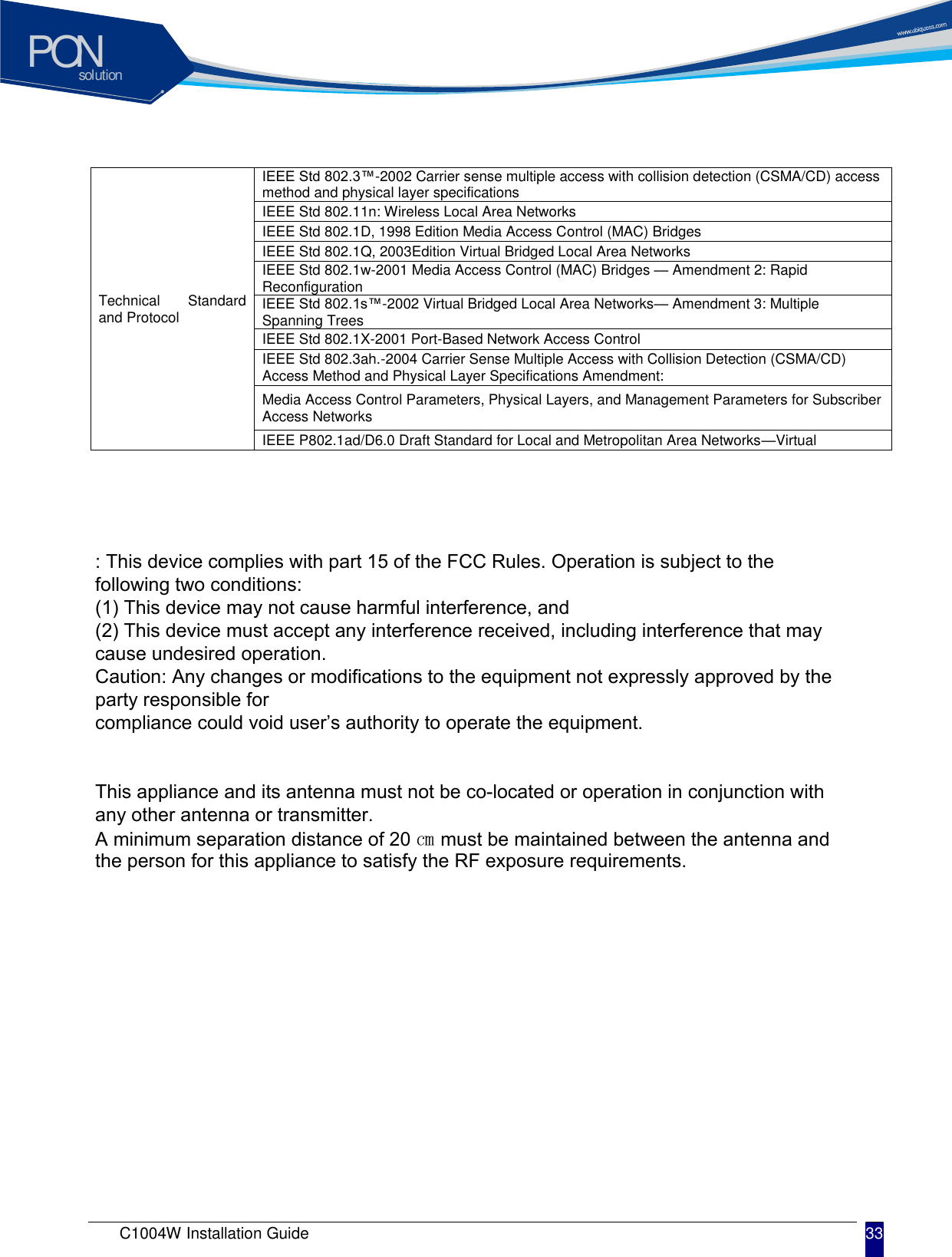
solutionPONC1004W Installation Guide 33 Technical  Standard and Protocol IEEE Std 802.3™-2002 Carrier sense multiple access with collision detection (CSMA/CD) access method and physical layer specifications IEEE Std 802.11n: Wireless Local Area Networks IEEE Std 802.1D, 1998 Edition Media Access Control (MAC) Bridges IEEE Std 802.1Q, 2003Edition Virtual Bridged Local Area Networks IEEE Std 802.1w-2001 Media Access Control (MAC) Bridges — Amendment 2: Rapid Reconfiguration IEEE Std 802.1s™-2002 Virtual Bridged Local Area Networks— Amendment 3: Multiple Spanning Trees IEEE Std 802.1X-2001 Port-Based Network Access Control IEEE Std 802.3ah.-2004 Carrier Sense Multiple Access with Collision Detection (CSMA/CD) Access Method and Physical Layer Specifications Amendment: Media Access Control Parameters, Physical Layers, and Management Parameters for Subscriber Access Networks IEEE P802.1ad/D6.0 Draft Standard for Local and Metropolitan Area Networks—Virtual : This device complies with part 15 of the FCC Rules. Operation is subject to the following two conditions:(1) This device may not cause harmful interference, and(2) This device must accept any interference received, including interference that may cause undesired operation.Caution: Any changes or modifications to the equipment not expressly approved by the party responsible for compliance could void user’s authority to operate the equipment.This appliance and its antenna must not be co-located or operation in conjunction with any other antenna or transmitter.A minimum separation distance of 20 ㎝ must be maintained between the antenna and the person for this appliance to satisfy the RF exposure requirements.

Navigation menu