CommScope of North Carolina ONU-1-3-105-D GE-PON ONT, 802.11 b/g/n Wireless Router User Manual

CommScope, Inc. of North Carolina GE-PON ONT, 802.11 b/g/n Wireless Router Users Manual

Users Manual

 http://www.emc2000.co.kr FCC TEST REPORT Report No.: EMC-FCC-R0067     EMC compliance Ltd.                                                                    Page: 1 of 1 480-5 Shin-dong, Yeongtong-gu, Suwon-city, Gyunggi-do, 443-390, Korea  82 31 336 9919 (Main)  82 31 336 4767 (Fax)  This test report shall not be reproduced except in full, Without the written approval.     Appendix  6.             User manual
   2  PON ONT Overview The CS6204W is an ONT (Optical Network Terminal) based on EPON technology for home and small office. It supports 4 Fast Ethernet (UTP, RJ45) ports, 2 FXS (RJ -11) ports, and Wi-Fi (802.11 b/g/n) interface to the subscriber. It is connected to GE-PON OLT (Optical Line Terminal) and RN (Remote Node) via a fiber optic cable to provide internet and voice service.  CS6204W is connected to the IP terminal devices such as a subscriber’s home-gateway, PC, laptops, smart phones or VoIP phone. It provides internet service, VoIP, and Wi-Fi service at the speed of up to 300 Mbps per subscriber.  CS6204W allows up to 32 subscribers to share the data of 1.25Gbps with one optic cable via passive optical distribution device. It adopts the state-of-the-art E-PON technology.    By adopting the state-of-the-art E-PON technology, CS6204W supports various functions, superior to those of the existing Ethernet switch, including QoS (Quality of Service) function, management function that enables prompt actions to be taken against the problems in the system and a subscriber line, security function that secures subscriber information safely, and subscriber management function that secures user information from illegal users such as crackers.  Key Features  Supports IEEE 802.11b/g/n standard.  2 FXS Phone Line(RJ-11) Interface for VoIP service  Supports WEP 64-bit / 128-bit Security password authentication and WPA, WPA2.  Powerful internet sharing function  Supports IEEE 802.1q VLAN Configuration function.  4 Ethernet LAN ports supported 10/100Mbps and one 1.25G EPON port for WAN  Supports ProDHCP function (Server/Client).  Supports specific application, virtual server, DMZ, Access Control and Firewall.  The management program based on WEB and GUI  Remote system management via Internet and software upgrade
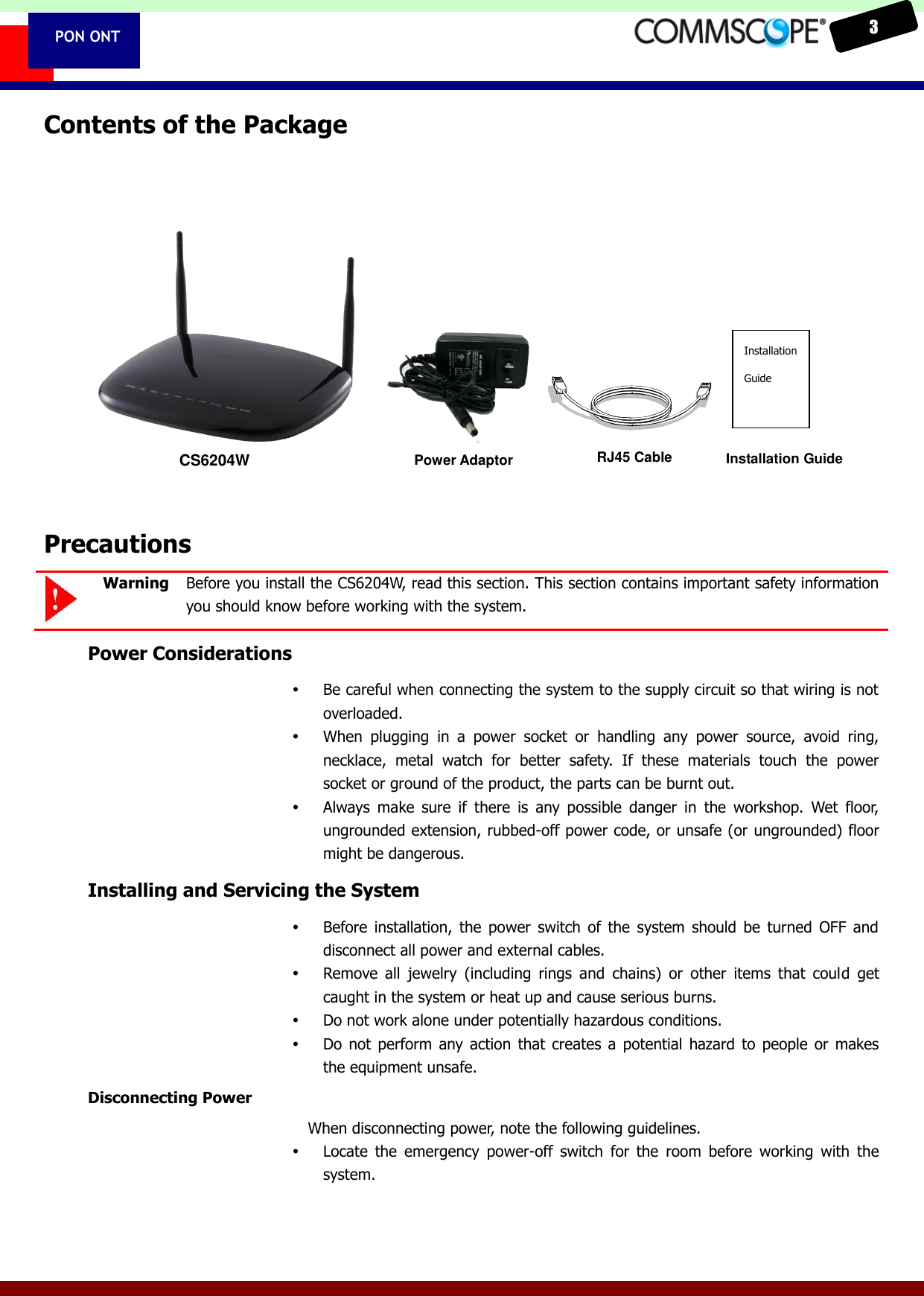
   3  PON ONT Contents of the Package              Precautions  Warning  Before you install the CS6204W, read this section. This section contains important safety information you should know before working with the system. Power Considerations  Be careful when connecting the system to the supply circuit so that wiring is not overloaded.  When  plugging  in  a  power  socket  or  handling  any  power  source,  avoid  ring, necklace,  metal  watch  for  better  safety.  If  these  materials  touch  the  power socket or ground of the product, the parts can be burnt out.  Always  make  sure  if  there  is  any  possible  danger  in  the  workshop.  Wet  floor, ungrounded extension, rubbed-off power code, or unsafe (or ungrounded) floor might be dangerous. Installing and Servicing the System  Before  installation,  the  power  switch  of the  system  should  be  turned  OFF  and disconnect all power and external cables.  Remove  all  jewelry  (including  rings  and  chains)  or  other  items  that  could  get caught in the system or heat up and cause serious burns.  Do not work alone under potentially hazardous conditions.  Do  not  perform  any action  that  creates  a  potential  hazard  to  people  or  makes the equipment unsafe. Disconnecting Power When disconnecting power, note the following guidelines.  Locate  the  emergency  power-off  switch  for  the  room  before  working  with  the system. CS6204W Power Adaptor  RJ45 Cable  Installation Guide  Installation Guide
   4  PON ONT  To completely turn off the system, disconnect the power connection to all power supplies.  For  DC  power  supplies,  locate  the  circuit  breaker  on  the  panel  board  that services the DC circuit, switch the circuit breaker to the off position, and tape the switch handle of the circuit breaker in the off position.  Do not touch the power supply when the power cord is connected. Line voltages are present within the power supply even when the power switch is off and the power cord is connected. Connecting Cables When you connect cables, note the following guidelines.  Do  not  work  on  the  system  or  connect  or  disconnect  cables  during  periods  of lightning activity.  Working with Lasers If your system includes a fiber-optic port, note the following guidelines.  To  avoid  exposure  to  radiation,  do  not  stare  into  the  aperture  of  a  fiber-optic port. Invisible radiation might be emitted from the aperture of the port when no fiber cable is connected.  Always keep unused fiber-optic ports capped with a clean dust cap.  Preventing EMI  When  you  run  wires  for  any  significant  distance  in  an  electromagnetic  field, electro magnetic interference (EMI) can occur between the field and the signals on the wires.  Bad plant wiring can result in radio frequency interference (RFI).  Strong EMI, especially when it is caused by lightning or radio transmitters,  can destroy the  signal drivers  and receivers in the  system, and can  even  create  an electrical hazard by conducting power surges through lines and into the system.  If Strong EMI occurs in the installation place, consult RFI experts to get rid of it.   Disposing of the System Dispose of the system and its components (including batteries) as specified by all national laws and regulations. This appliance and its antenna must not be colocated or operation in conjunction with any other antenna or transmitter. A minimum separation distance of 20 cm must be maintained between the antenna and the person for this appliance to satisfy the RF exposure requirements. RF Exposure Compliance Issue
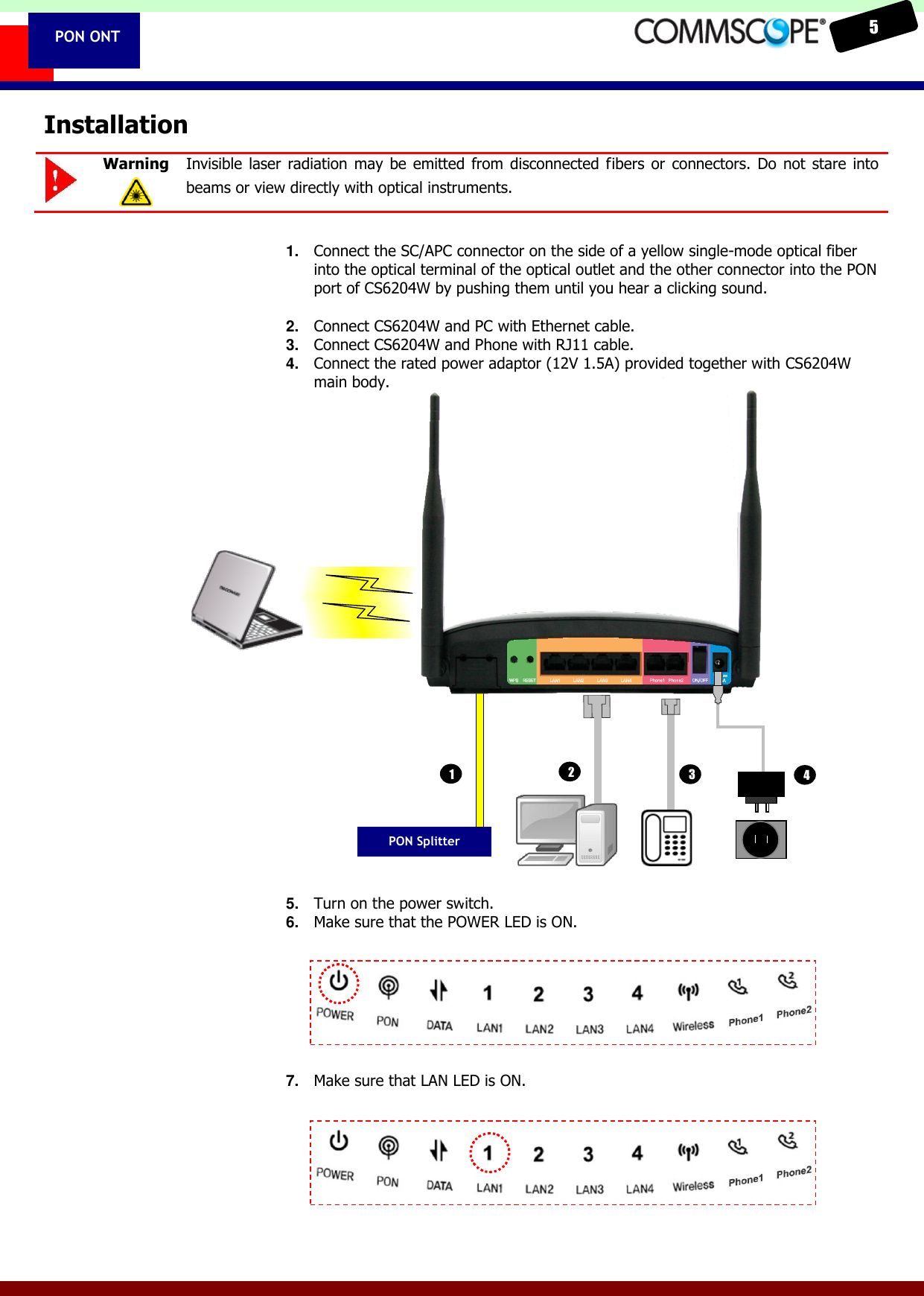
   5  PON ONT Installation  Warning  Invisible laser  radiation  may be emitted from  disconnected  fibers  or  connectors.  Do  not stare  into beams or view directly with optical instruments.  1. Connect the SC/APC connector on the side of a yellow single-mode optical fiber into the optical terminal of the optical outlet and the other connector into the PON port of CS6204W by pushing them until you hear a clicking sound.  2. Connect CS6204W and PC with Ethernet cable. 3. Connect CS6204W and Phone with RJ11 cable. 4. Connect the rated power adaptor (12V 1.5A) provided together with CS6204W main body.                   5. Turn on the power switch. 6. Make sure that the POWER LED is ON.      7. Make sure that LAN LED is ON.     PON Splitter 1 2 3 4
   6  PON ONT  8. Make sure that the PON LED is ON in several seconds or minutes. If PON LED is red, the optical signal is very low, so please contact the carrier. 9. If everything is installed properly, the user can see the DATA LED blink while Internet data is sent / received. 10. If you set the wireless configuration properly, the user can see the applicable wireless device (Wireless) LED blink while data is sent or received. 11. If you set the connection of phone connector exactly, the user can see the Phone LED comes to light while voice data is sent or received.
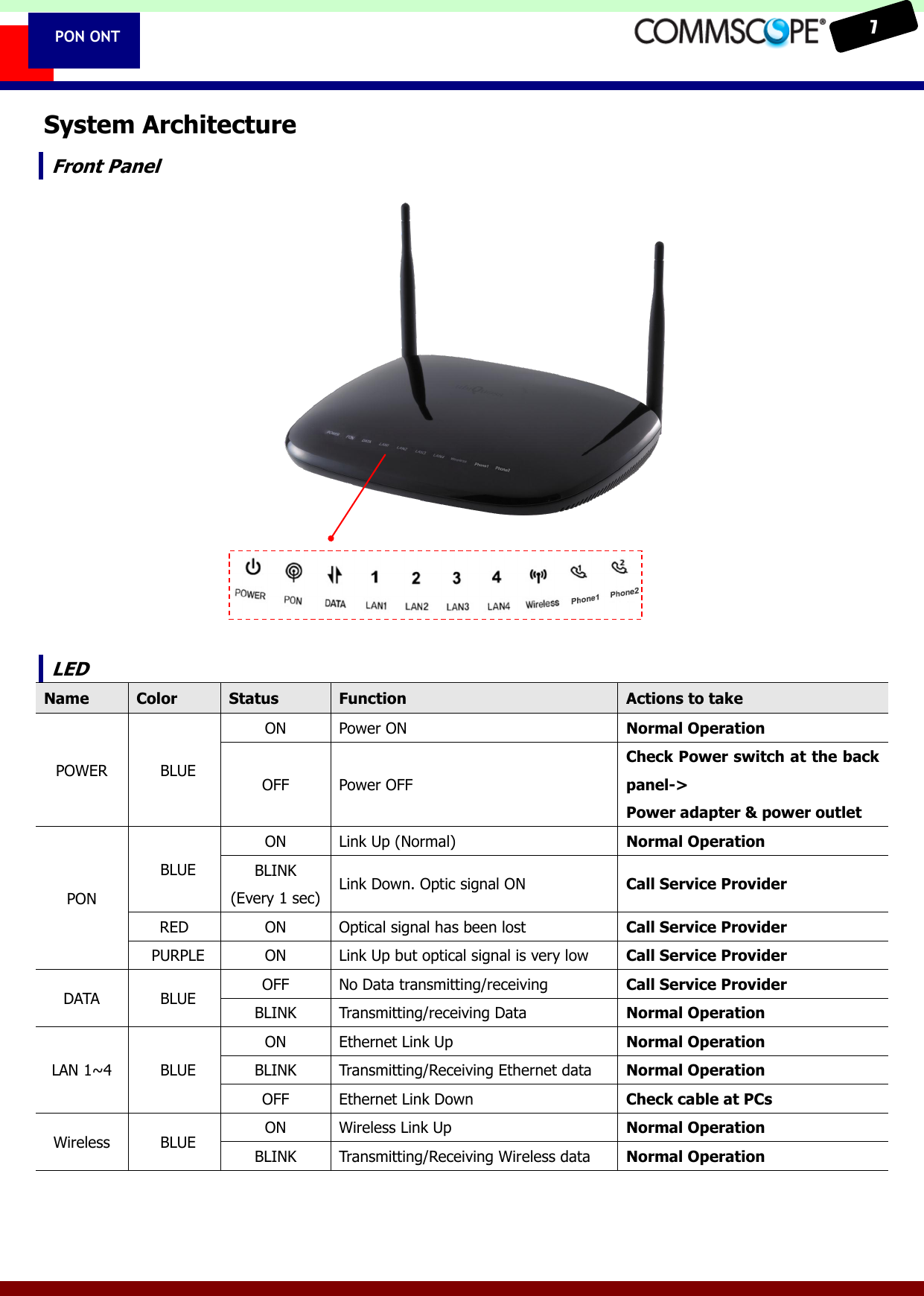
   7  PON ONT System Architecture Front Panel                  LED Name Color Status Function Actions to take POWER   BLUE ON Power ON Normal Operation OFF Power OFF Check Power switch at the back panel->   Power adapter & power outlet PON   BLUE ON Link Up (Normal) Normal Operation BLINK (Every 1 sec) Link Down. Optic signal ON Call Service Provider RED ON Optical signal has been lost Call Service Provider   PURPLE ON Link Up but optical signal is very low Call Service Provider DATA   BLUE OFF No Data transmitting/receiving Call Service Provider BLINK Transmitting/receiving Data Normal Operation LAN 1~4   BLUE ON Ethernet Link Up Normal Operation BLINK Transmitting/Receiving Ethernet data Normal Operation OFF Ethernet Link Down Check cable at PCs Wireless   BLUE ON Wireless Link Up Normal Operation BLINK Transmitting/Receiving Wireless data Normal Operation
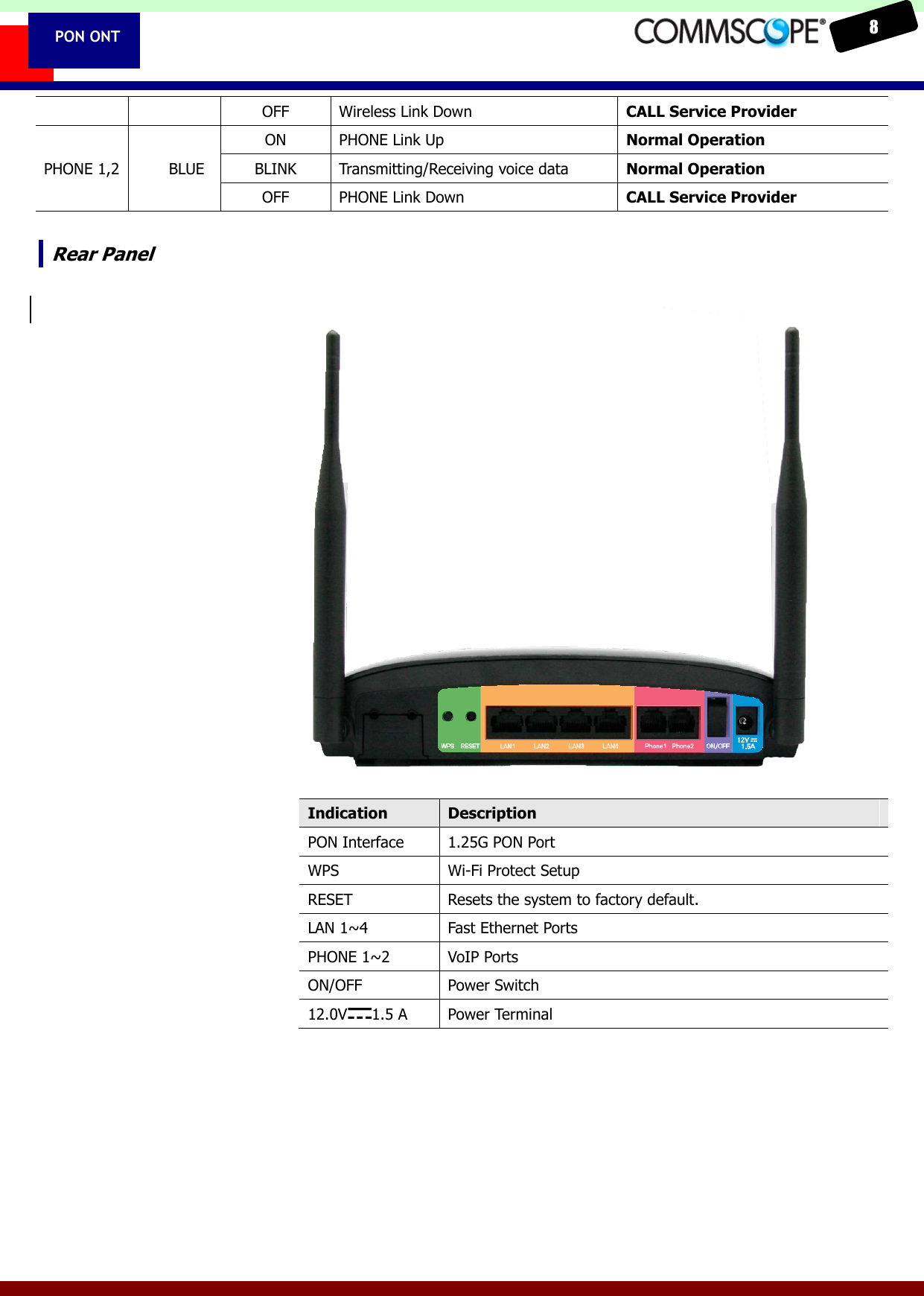
   8  PON ONT OFF Wireless Link Down CALL Service Provider PHONE 1,2   BLUE ON PHONE Link Up Normal Operation BLINK Transmitting/Receiving voice data Normal Operation OFF PHONE Link Down CALL Service Provider  Rear Panel                    Indication Description PON Interface   1.25G PON Port WPS Wi-Fi Protect Setup RESET Resets the system to factory default. LAN 1~4 Fast Ethernet Ports PHONE 1~2 VoIP Ports ON/OFF Power Switch 12.0V 1.5 A Power Terminal
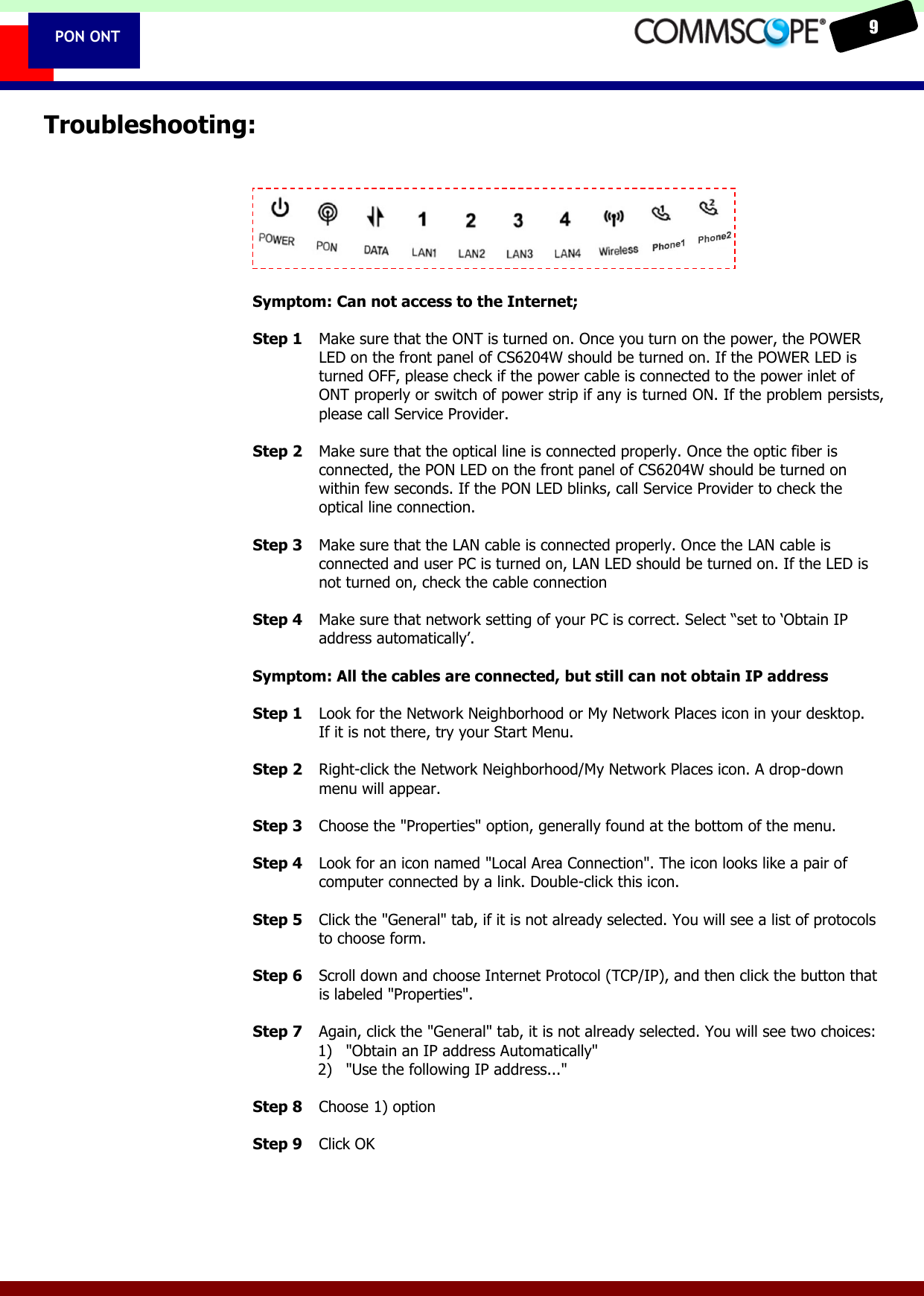
   9  PON ONT Troubleshooting:       Symptom: Can not access to the Internet;  Step 1  Make sure that the ONT is turned on. Once you turn on the power, the POWER LED on the front panel of CS6204W should be turned on. If the POWER LED is turned OFF, please check if the power cable is connected to the power inlet of ONT properly or switch of power strip if any is turned ON. If the problem persists, please call Service Provider.  Step 2  Make sure that the optical line is connected properly. Once the optic fiber is connected, the PON LED on the front panel of CS6204W should be turned on within few seconds. If the PON LED blinks, call Service Provider to check the optical line connection.  Step 3  Make sure that the LAN cable is connected properly. Once the LAN cable is connected and user PC is turned on, LAN LED should be turned on. If the LED is not turned on, check the cable connection      Step 4  Make sure that network setting of your PC is correct. Select “set to ‘Obtain IP address automatically’.     Symptom: All the cables are connected, but still can not obtain IP address  Step 1  Look for the Network Neighborhood or My Network Places icon in your desktop. If it is not there, try your Start Menu.  Step 2  Right-click the Network Neighborhood/My Network Places icon. A drop-down menu will appear.  Step 3  Choose the "Properties" option, generally found at the bottom of the menu.  Step 4  Look for an icon named "Local Area Connection". The icon looks like a pair of computer connected by a link. Double-click this icon.  Step 5  Click the "General" tab, if it is not already selected. You will see a list of protocols to choose form.  Step 6  Scroll down and choose Internet Protocol (TCP/IP), and then click the button that is labeled "Properties".  Step 7  Again, click the "General" tab, it is not already selected. You will see two choices: 1) "Obtain an IP address Automatically" 2) "Use the following IP address..."  Step 8  Choose 1) option  Step 9  Click OK
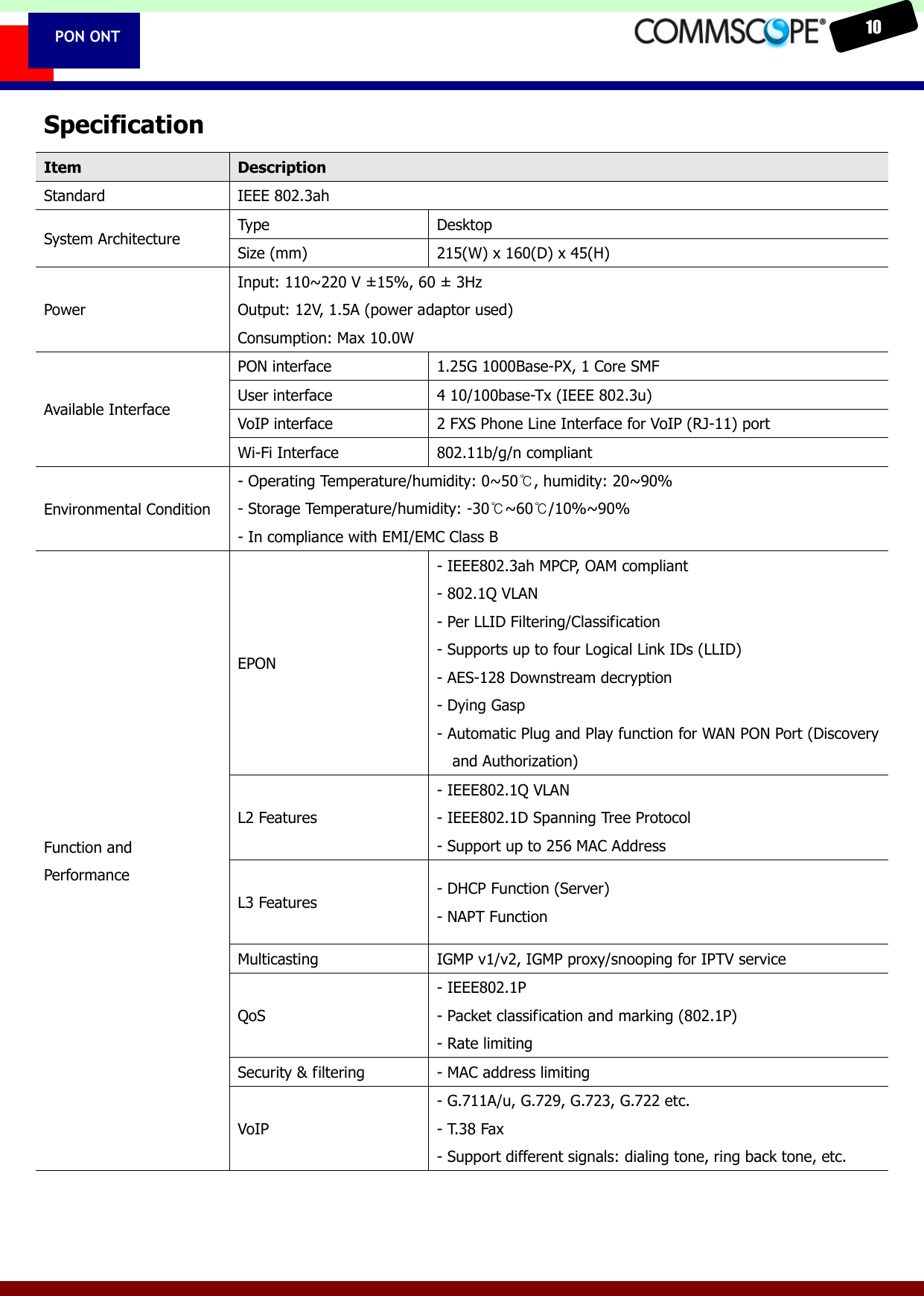
   10  PON ONT Specification Item Description Standard IEEE 802.3ah System Architecture Type Desktop Size (mm) 215(W) x 160(D) x 45(H) Power Input: 110~220 V ± 15%, 60 ±  3Hz Output: 12V, 1.5A (power adaptor used) Consumption: Max 10.0W   Available Interface PON interface 1.25G 1000Base-PX, 1 Core SMF User interface 4 10/100base-Tx (IEEE 802.3u) VoIP interface 2 FXS Phone Line Interface for VoIP (RJ-11) port Wi-Fi Interface 802.11b/g/n compliant   Environmental Condition - Operating Temperature/humidity: 0~50℃, humidity: 20~90% - Storage Temperature/humidity: -30℃~60℃/10%~90% - In compliance with EMI/EMC Class B Function and Performance EPON   - IEEE802.3ah MPCP, OAM compliant - 802.1Q VLAN - Per LLID Filtering/Classification - Supports up to four Logical Link IDs (LLID) - AES-128 Downstream decryption - Dying Gasp - Automatic Plug and Play function for WAN PON Port (Discovery and Authorization)   L2 Features - IEEE802.1Q VLAN - IEEE802.1D Spanning Tree Protocol - Support up to 256 MAC Address   L3 Features - DHCP Function (Server) - NAPT Function Multicasting IGMP v1/v2, IGMP proxy/snooping for IPTV service QoS - IEEE802.1P - Packet classification and marking (802.1P) - Rate limiting Security & filtering - MAC address limiting VoIP - G.711A/u, G.729, G.723, G.722 etc. - T.38 Fax - Support different signals: dialing tone, ring back tone, etc.
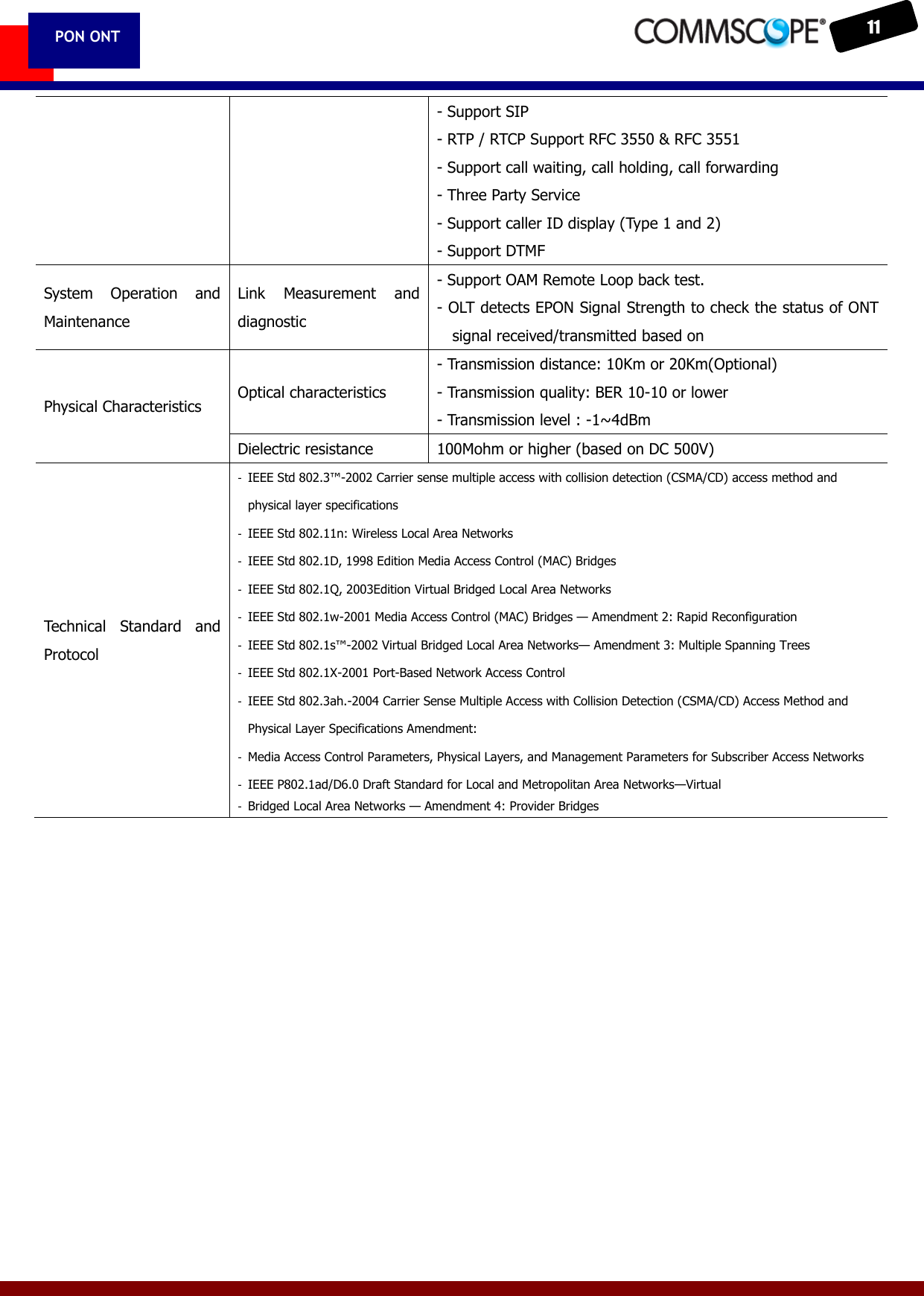
   11  PON ONT - Support SIP - RTP / RTCP Support RFC 3550 & RFC 3551 - Support call waiting, call holding, call forwarding - Three Party Service - Support caller ID display (Type 1 and 2) - Support DTMF System  Operation  and Maintenance Link  Measurement  and diagnostic - Support OAM Remote Loop back test. - OLT detects EPON Signal Strength to check the status of ONT signal received/transmitted based on Physical Characteristics Optical characteristics - Transmission distance: 10Km or 20Km(Optional) - Transmission quality: BER 10-10 or lower - Transmission level : -1~4dBm Dielectric resistance 100Mohm or higher (based on DC 500V) Technical  Standard  and Protocol -  IEEE Std 802.3™-2002 Carrier sense multiple access with collision detection (CSMA/CD) access method and physical layer specifications -  IEEE Std 802.11n: Wireless Local Area Networks -  IEEE Std 802.1D, 1998 Edition Media Access Control (MAC) Bridges -  IEEE Std 802.1Q, 2003Edition Virtual Bridged Local Area Networks -  IEEE Std 802.1w-2001 Media Access Control (MAC) Bridges — Amendment 2: Rapid Reconfiguration -  IEEE Std 802.1s™-2002 Virtual Bridged Local Area Networks— Amendment 3: Multiple Spanning Trees -  IEEE Std 802.1X-2001 Port-Based Network Access Control -  IEEE Std 802.3ah.-2004 Carrier Sense Multiple Access with Collision Detection (CSMA/CD) Access Method and Physical Layer Specifications Amendment: -  Media Access Control Parameters, Physical Layers, and Management Parameters for Subscriber Access Networks -  IEEE P802.1ad/D6.0 Draft Standard for Local and Metropolitan Area Networks—Virtual -  Bridged Local Area Networks — Amendment 4: Provider Bridges

Navigation menu