Communications Development JLM051690 WIRELESS LAN User Manual The 11Mbps Wireless LAN Access Point
Communications Development LLC WIRELESS LAN The 11Mbps Wireless LAN Access Point
Contents
- 1. FRONT PAGE
- 2. USERS MANUAL 1
- 3. USERS MANUAL 2
USERS MANUAL 2
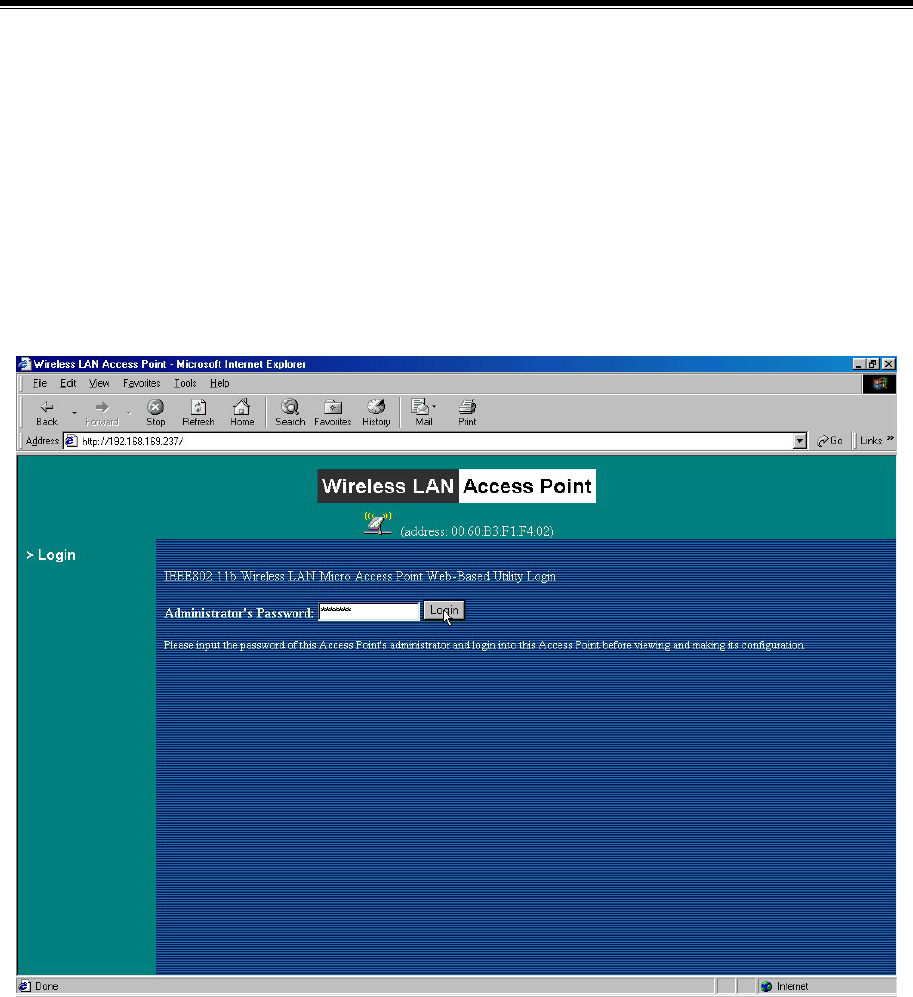
3-2 Using the Web Management
The built-in Web Management provides you with a user-friendly graphical user interface (web
pages) to manage your FastLinc 810Es. An AP with an assigned IP address (the default
address is 192.168.1.1) will allow you via web browser (e.g., Netscape Navigator 3.0 ~ 4.5 or
MS Internet Explorer 4.0) to monitor and configure the FastLinc 810E.
1. Open your web browser.
2. Enter the IP address of your FastLinc 810E in the Address field (the default address is
192.168.1.1). You will have access to the FastLinc 810E Web Pages of the FastLinc
810E Modem.
3. Enter the password to login to the FastLinc 810E. The default password is default. The
main page will show up.
-18-
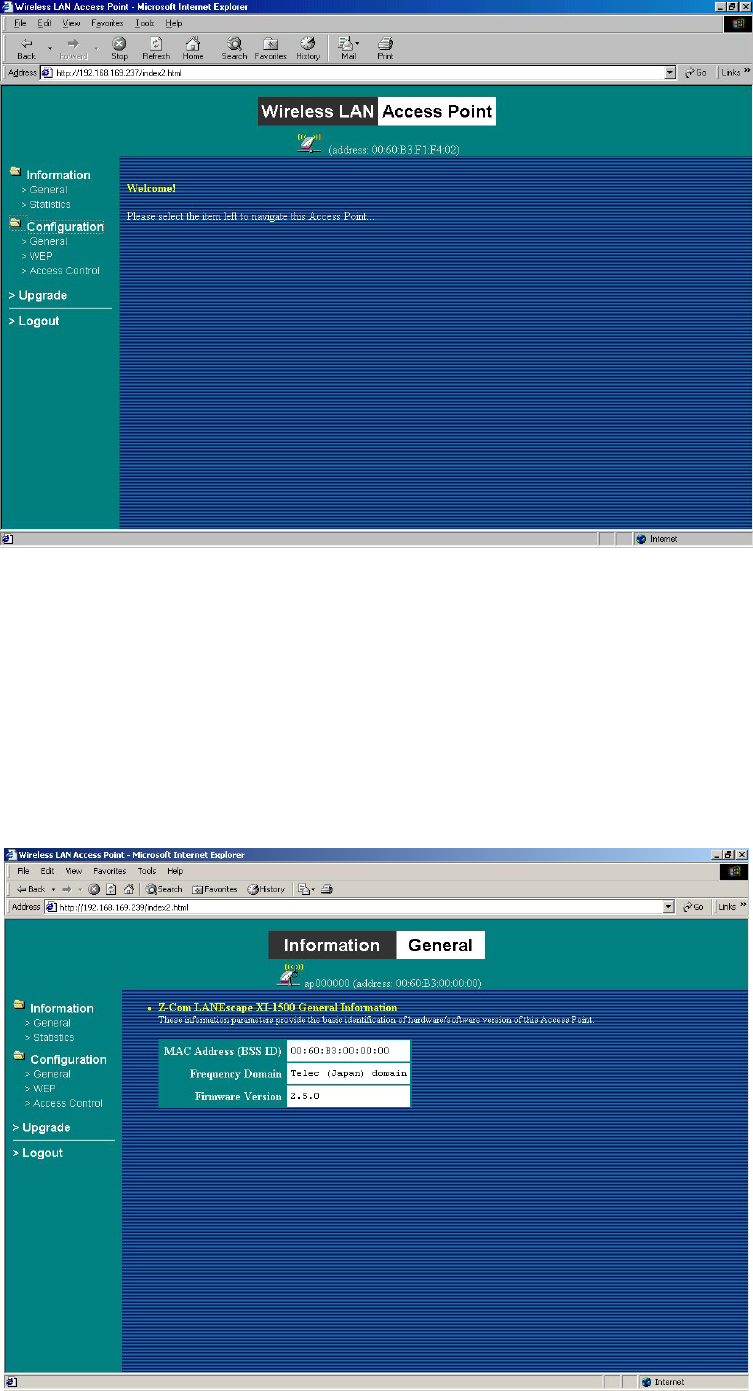
The FastLinc 810E main page contains two items for you to manage your FastLinc 810E
Modem.
Information
General
This item displays the general information of the FastLinc 810E such as the MAC address,
Frequency Domain, and Firmware Version.
-19-
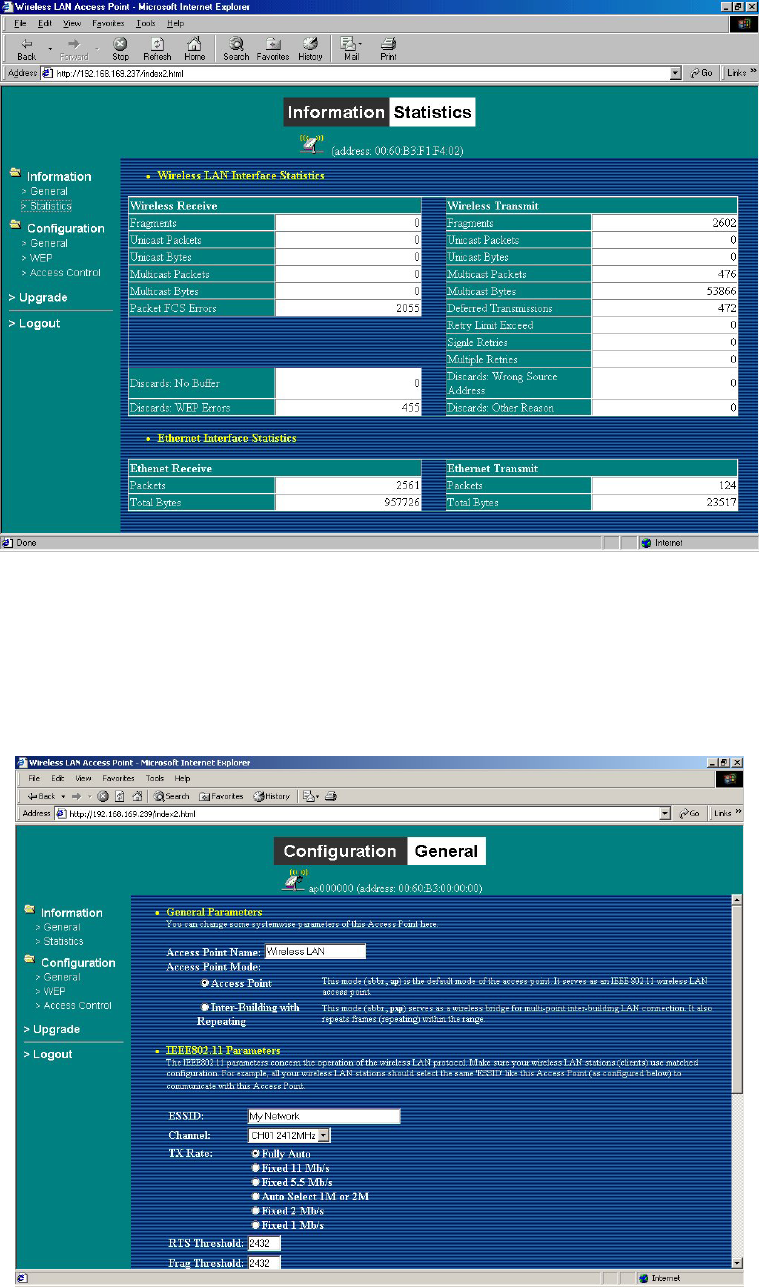
Statistics
This item displays the Ethernet and wireless network traffic.
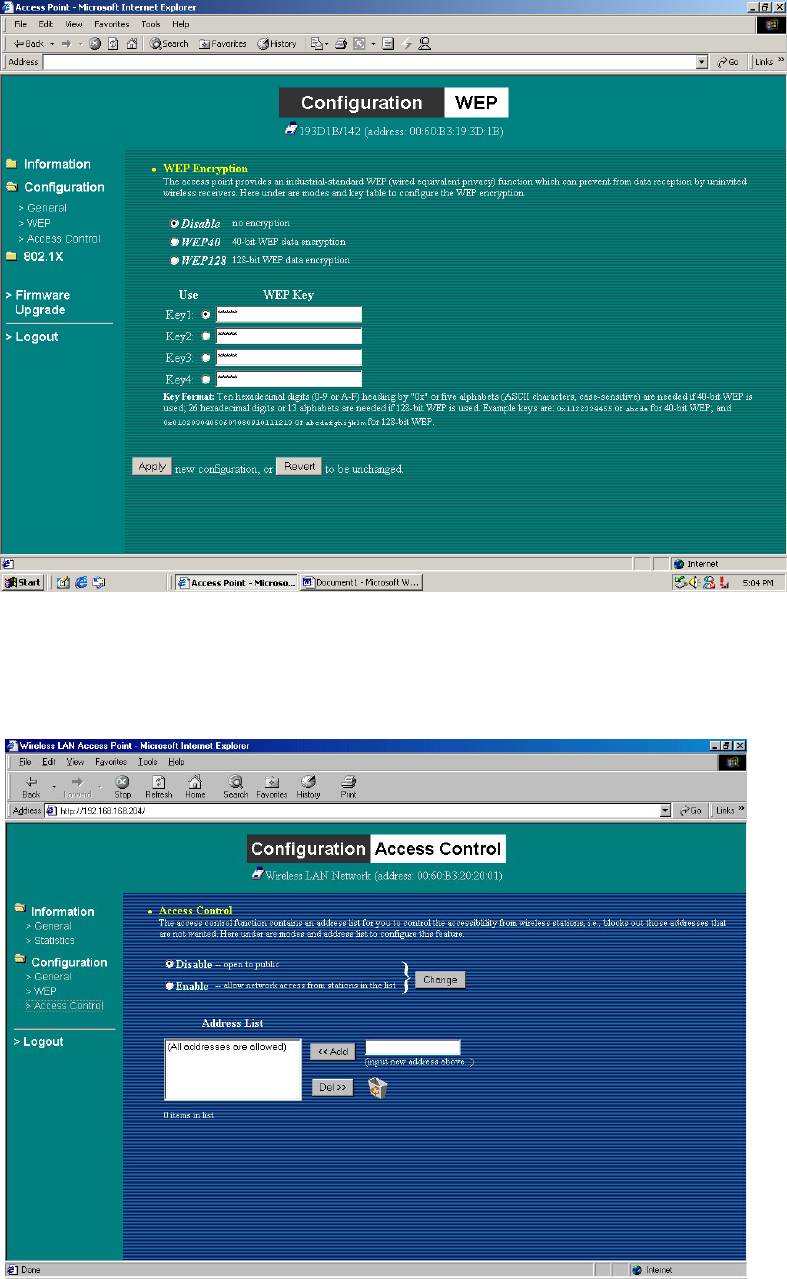
Configuration
General
You may make the settings on the FastLinc 810E such as AP mode, ESSID, channel, RTS
threshold, fragment threshold and password.
-20-
WEP
To prevent unauthorized wireless stations from accessing data transmitted over the network,
the FastLinc 810E Modem offers WEP (Wired Equivalency Privacy). You can set up 4
encryption keys but choose one key to encrypt your data.
Access Control
The Access Control Table enables you to restrict wireless stations accessing the FastLinc
810Es by identifying the MAC address of the wireless devices.
-21-
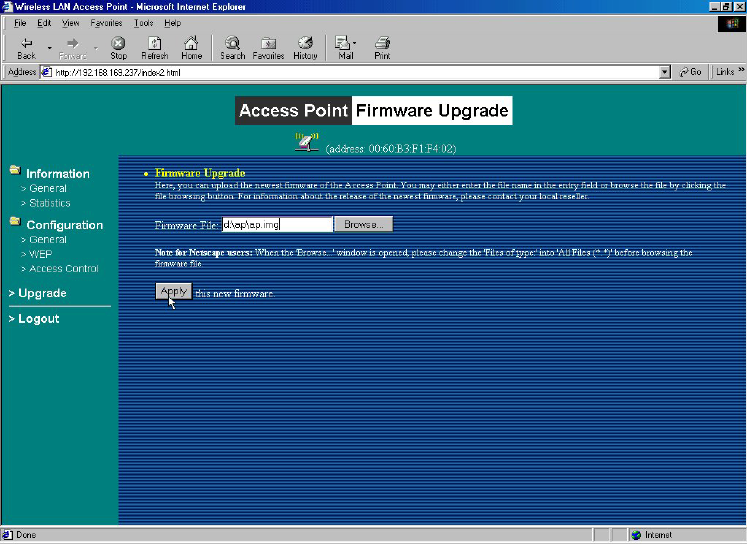
Upgrade
Here, you can upload the newest firmware of the FastLinc 810E. You may either enter the
file name in the entry field or browse the file by clicking the Browse button.
-22-
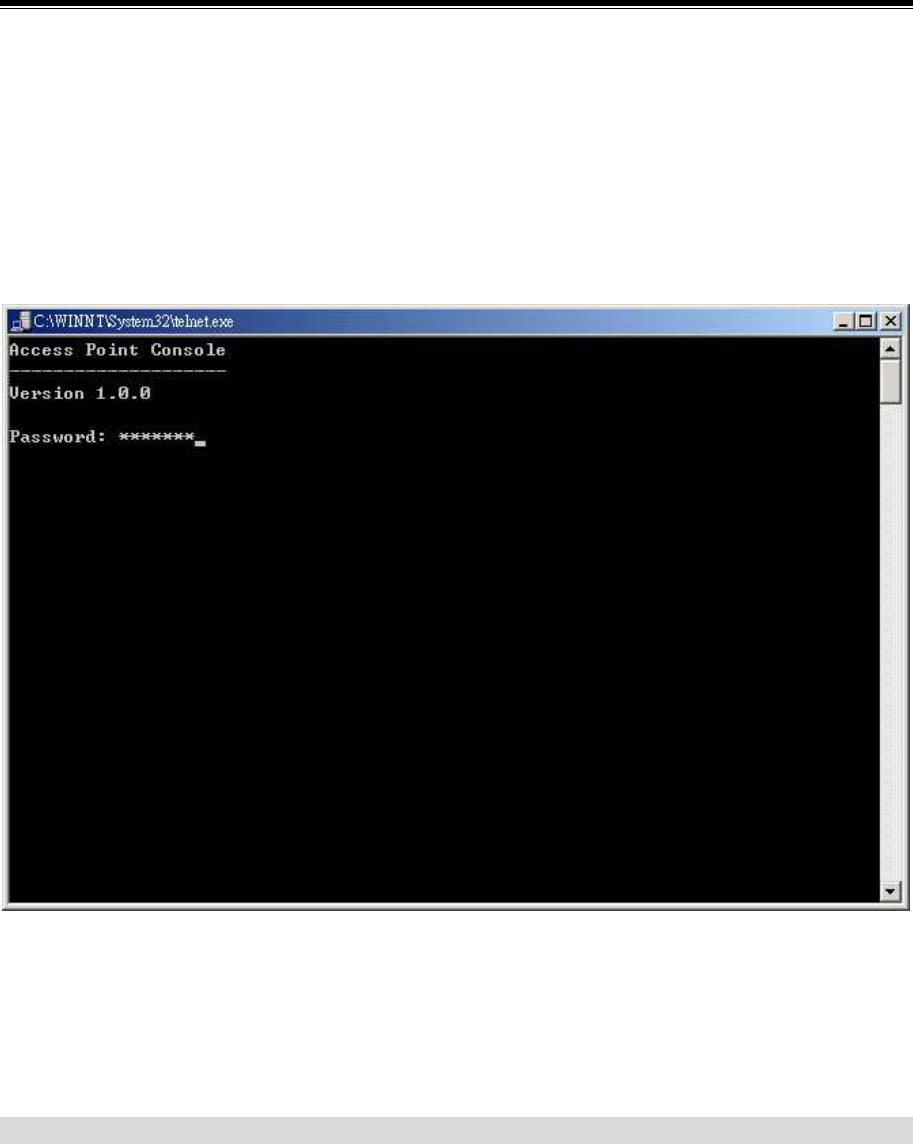
3-3 Using the Telnet
The FastLinc 810E can be configured via the command prompt console with TCP/IP:
Telnet (TCP/IP) Connection: Assign an IP address to your FastLinc 810E through the
Modem Utility or use the default IP address. Telnet to the FastLinc 810E to get access to the
FastLinc 810E console using standard Telnet commands.
1. Telnet to your FastLinc 810E. A window will show up.
2. Enter the password. The default password is “default”.
3-2-1 Basic Commands
The following are the commands provided for configuring the FastLinc 810E. In loader
mode, i.e., no valid firmware in the FastLinc 810E, only the commands with an asterisk (*)
are provided.
NOTE: [xxx] stands for optional arguments.
-23-
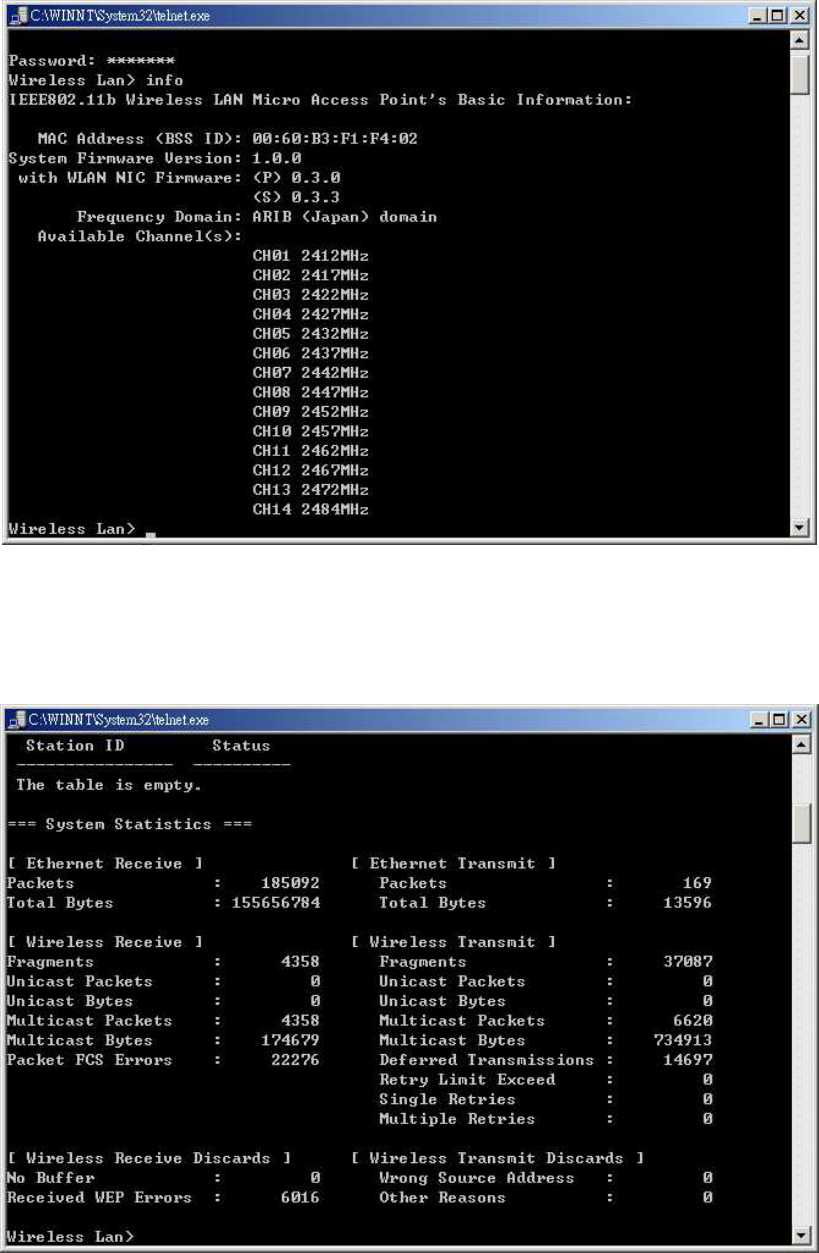
info*
Display some basic information of the FastLinc 810E, for example, firmware version,
frequency domain, etc.
stat
Display the statistical values of the operation of the FastLinc 810E, for example, association
status, LAN/WLAN interface load, etc.
-24-
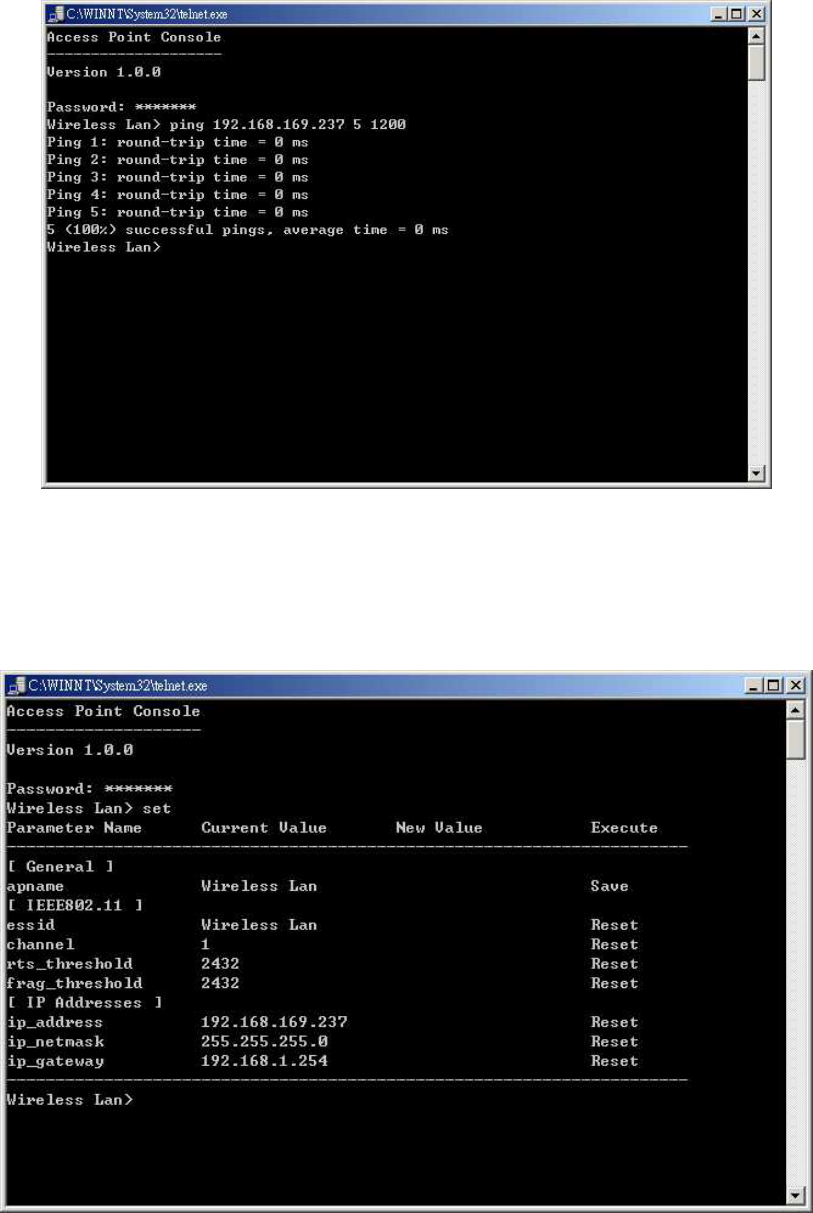
ping ip_addr [num_pings] [data_size]
Ping (ICMP echo) to an ip_addr host with optional num_pings times with optional data size
in a length of data_size.
set
List the configuration information.
set apname | channel | essid | rts_threshold | frag_threshold | ip_address | ip_netmask |
ip_gateway
-25-
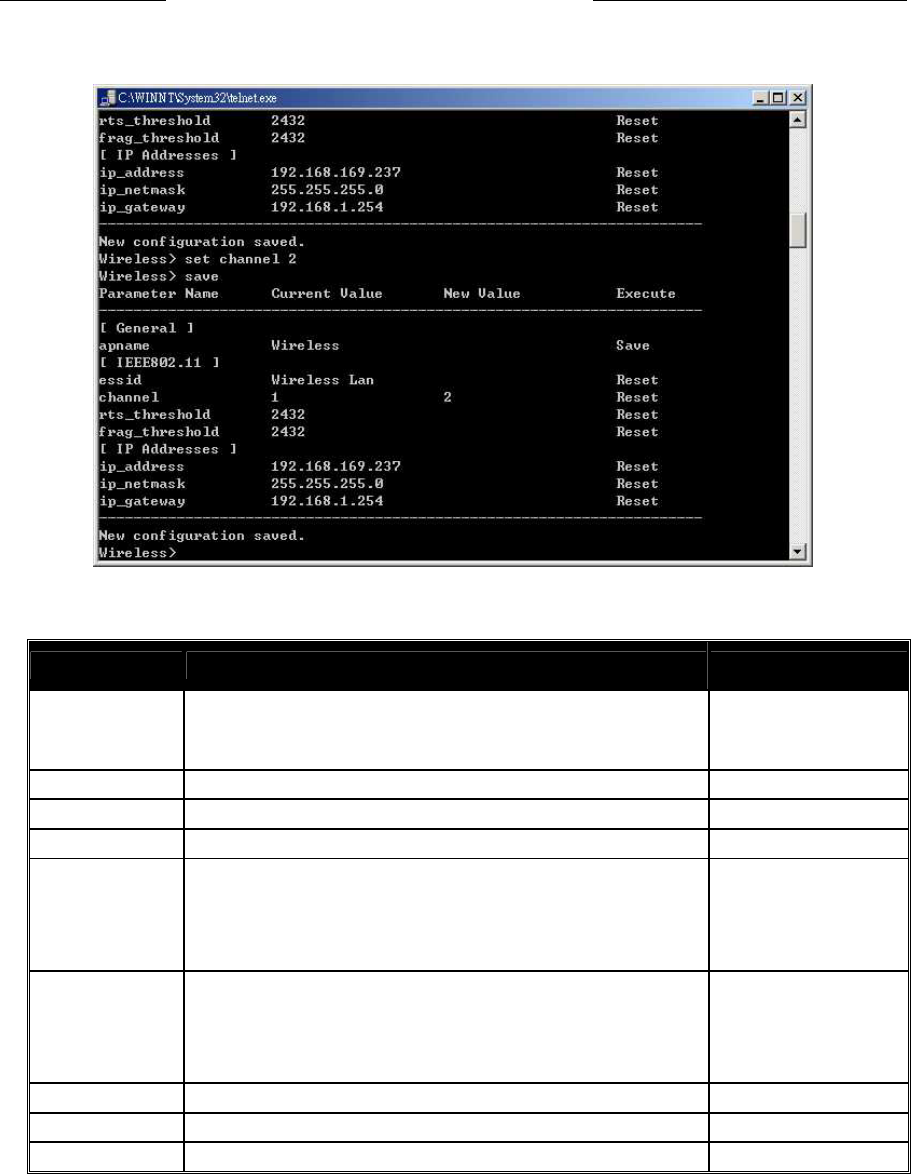
To change factory default settings, type “set xxx (parameter) xxxx (value). For example,
set channel 7 command will set the channel to number 7; set essid “Your Network”
command will set the ESSID as Your Network. Remember that, a 'save' command is required
for changes to take effect. Always reset your AP with the “Reset” command.
The following is a list of parameters you can make changes on the FastLinc 810E.
Parameter Description Default Value
apname A textual name for the identification of the FastLinc
810E.
apXXXXXX
(where XXXXXX is the
last six octets of FastLinc
810E’s MAC address)
mode Operation mode of the Modem AP
channel The radio channel number. 1
essid The ESS ID (a.k.a., SSID) of the FastLinc 810E. My Network
rts_threshold The threshold (number of bytes) for enabling
RTS/CTS handshake. Data with its frame size
larger than this value will perform the RTS/CTS
handshake. Range of value: 0~2432.
2432
frag_threshold The threshold (number of bytes) for the
fragmentation boundary. Data will be transmitted
in fragments which its size does not exceed this
value. Range of value: 256~2432.
2432
ip_address The IP address of the FastLinc 810E. 192.168.1.1
ip_netmask The subnet mask address of the FastLinc 810E. 255.255.255.0
ip_gateway The default gateway address of the FastLinc 810E. 192.168.1.254
-26-
save
Save your new configuration. Remember that the “save command” is required every
time you make the new configuration.
set default
Return the factory default settings of the FastLinc 810E except for the IP addresses. A
'save' command is required for changes to take effect.
cls*
Clear the console screen.
exit*
Exit the console.
? * or help*
Print a help screen.
rz*
Receive a firmware file by the Zmodem protocol. The console will enter Zmodem
receiving mode and then use the "file upload" function of your terminal emulation
program to upload a new firmware file (ap.img) to the FastLinc 810E. Upon
completion, always remember to type the 'reset' command for running the FastLinc 810E
with the new firmware.
reset*
Issue a reset signal. The FastLinc 810E will be reset if user confirms.
3-2-2 Advanced Settings for Security
This section describes the commands to control the security for FastLinc 810E. To prevent
unauthorized wireless stations from accessing data transmitted over the network, the FastLinc
810E Modem offers the following levels of security options.
- Access Control Table restricts wireless stations to access the FastLinc 810E.
- Data Encryption, known as WEP (Wired Equivalency Privacy), encrypts wireless data
transmitted via wireless medium.
Access Control
auth mode | add | del | list| clear
The 'auth' command contains sub-commands that allow you to manage the access control
(MAC address filter) of the FastLinc 810E. The access control table consists of a list for
you to control the accessibility of any wireless stations or repeaters. The sub-commands
are listed below:
mode open | allow: set the access control mode. The definition of each mode is specified
-27-
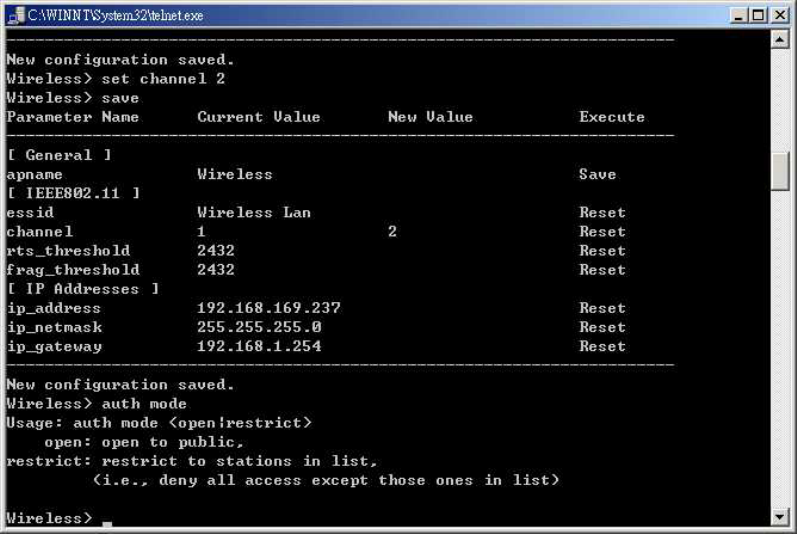
as follows:
• open: open to public (default)
• restrict: only allow access of the authorized stations/repeaters in the table (no
access is allowed if the list stays empty)
add mac_addr: add an address into the access control table
del mac_addr |index: delete a MAC address, or index an address from the access control
table
list [start/end]: display the content of the access control mode and the address list. The
optional arguments, start and end, can be affixed to select the range of items
to be listed.
clear: clear all the addresses in the access control table.
WEP Keys
wep mode | set | list
The 'wep' command contains sub-commands that allow you to manage the data encryption
(WEP, wired equivalent privacy) function provided with the FastLinc 810E. The
sub-commands are listed as follows:
mode disable | wep40: set the access control mode. The following are the definition of
each data encryption mode.
• none: no encryption (default)
• wep40: use 40-bit WEP data encryption
-28-
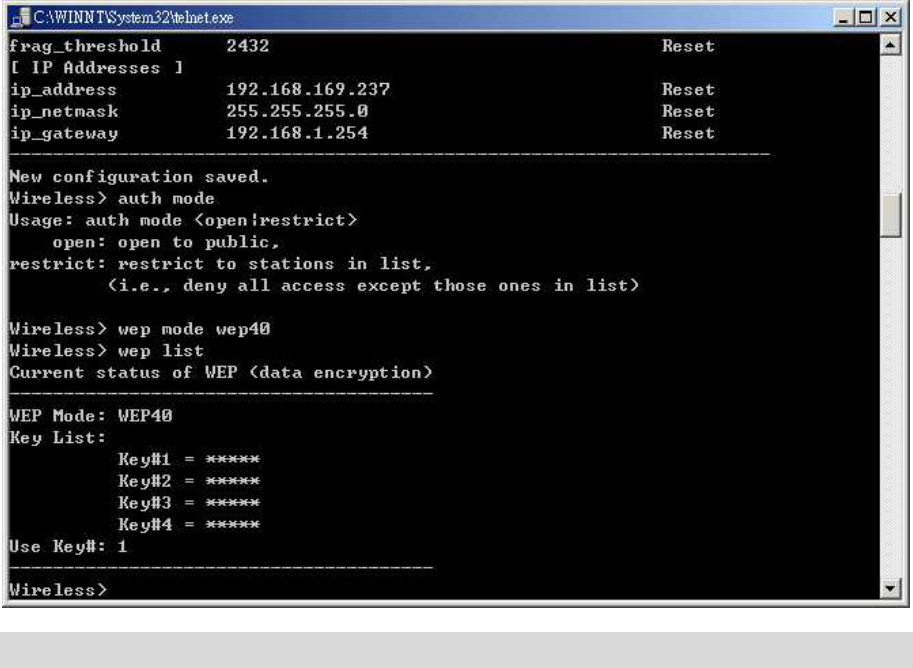
set key1 key_text: set WEP Key#1 as key_text. 10 hexadecimal digits (0-9 or A-F)
heading by “0x” or five alphanumeric values (ASCII characters,
case-sensitive) are required if 40-bit WEP is used.
Example: 0x1122334455, 0x0055AA55AA, abcde, or MyKey.
set key2 key_text: set WEP Key#2 as key_text with a same format as WEP Key#1.
set key3 key_text: set WEP Key#3 as key_text with a same format as WEP Key#1.
set key4 key_text: set WEP Key#2 as key_text with a same format as WEP Key#1.
set usekey 1|2|3|4: Select the WEP key to be used for encrypting data transmission. Only
one key can be selected at a time.
list: Display current WEP settings.
Note: Your new WEP settings will take effect after resetting the FastLinc 810E.
-29-

Chapter 4 Troubleshooting
If you have trouble using the FastLinc 810E Modem, the starting point to troubleshoot the
problem with your FastLinc 810E Modem is looking at the LED activity of the FastLinc 810E.
The following is “LED Error Table” provided to assist you in diagnosing and solving
operational problems.
PWR AP Active W-LAN Data LINK Description/Action
Steady
Green
Continuous
Green
Flash
Green
Flash
Green
-
Normal operation where flickering
indicates interface activity.
No action required.
Continuous
Green
On Off Off -
Normal operation that indicates
there is no LAN activity.
No action required.
Off Off Off Off Off
Power failure.
Check the power cord.
Check the power supply.
Off Off Off Off
Invalid loader firmware or the
FastLinc 810E-controller is dead.
Return the unit to the vendor
for support.
Blink Green - - -
Invalid FastLinc 810E firmware.
Upgrade the firmware via the
utility or console mode.
Blink Green Blink
Green - -
Wireless LAN initialization failure
Check whether the wireless
module has been properly
installed.
Continuous
Green
Blink Green - Blink
Green -
Ethernet initialization failure
Return the device to the vendor
for support.
-30-
If you are still unable to solve the problem by checking the LED activity, the error may be
caused from configuration mismatch, which prevents the FastLinc 810E from establishing a
wireless connection with the network. You may check the following to ensure normal
operation of the FastLinc 810E.
WEP keys: If data encryption is activated, always remember to set WEP keys exactly the
same on the FastLinc 810E as are on the wireless stations.
Access Control: Make sure that the MAC address of your FastLinc 810E is not included
in the Access Control table of other wireless devices.
-31-
Appendix A Network Configuration
The FastLinc Wireless LAN products support the same network configuration options of the
legacy Ethernet LANs as defined by IEEE 802 standard committee.
The FastLinc Wireless LAN products can be configured as:
Ad-Hoc for departmental or SOHO LANs
Infrastructure for enterprise LANs
LAN-Interconnection for point-to-point link as a campus backbone.
A-1 Network Topology
Ad-Hoc
Laptop w/FLC800C
Network card
Workstation FastLinc 810E
PLC
FastLinc 810E
PLC
FastLinc 810E
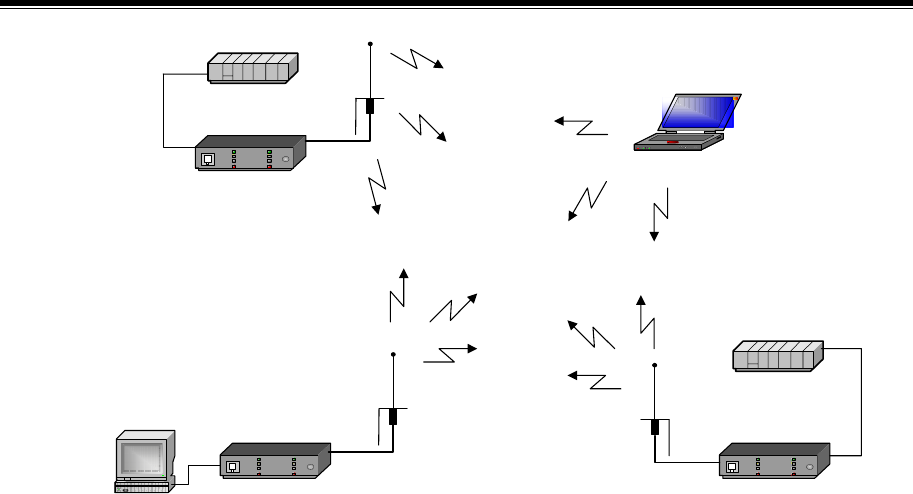
Fig An Example of Ad-Hoc Wireless LAN
An Ad-Hoc wireless LAN is a group of computers, each equipped with one wireless adapter,
connected as an independent wireless LAN. Computers in a specific Ad-Hoc wireless LAN
must be configured at the same radio channel.
Ad-Hoc wireless LAN is applicable at a departmental scale for a branch or SOHO operation.
-32-
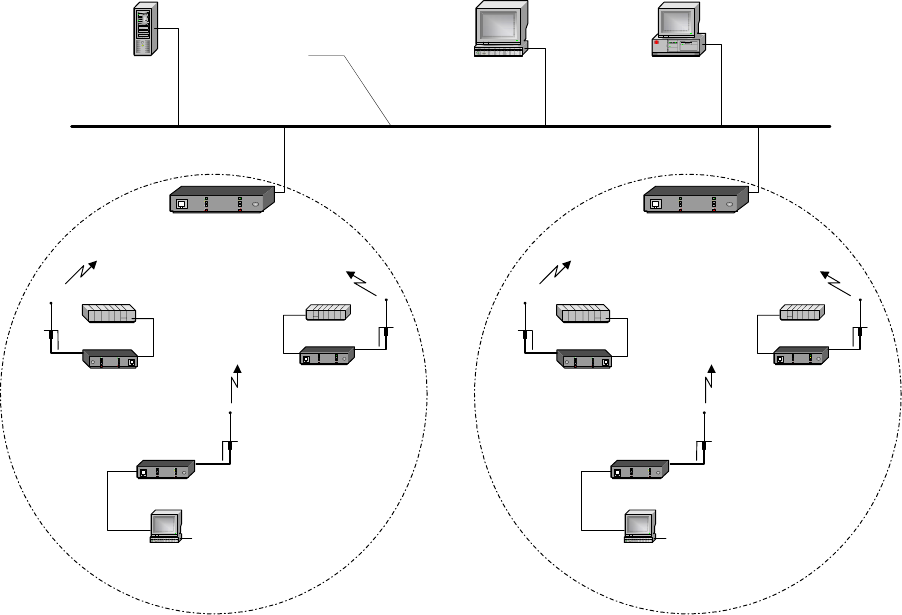
Infrastructure
Server Workstation Computer
FastLinc 810E
Access Point
Workstation
FastLinc 810E
FastLinc 810E
PLC PLC
FastLinc 810E
FastLinc 810E
Access Point
Workstation
FastLinc 810E
FastLinc 810E
PLC PLC
FastLinc 810E
BSS 1 BSS 2
Ethernet LAN
Fig An Example of Infrastructure Wireless LAN
-33-
The FastLinc Wireless LAN devices provide access to a wired LAN for wireless workstations.
An integrated wireless and wired LAN is called an Infrastructure configuration. A group of
wireless LAN PC users and a FastLinc 810E construct a Basic Service Set (BSS). Each
wireless-equipped PC in this BSS can talk to any computer in the wired LAN infrastructure
via the FastLinc 810E.
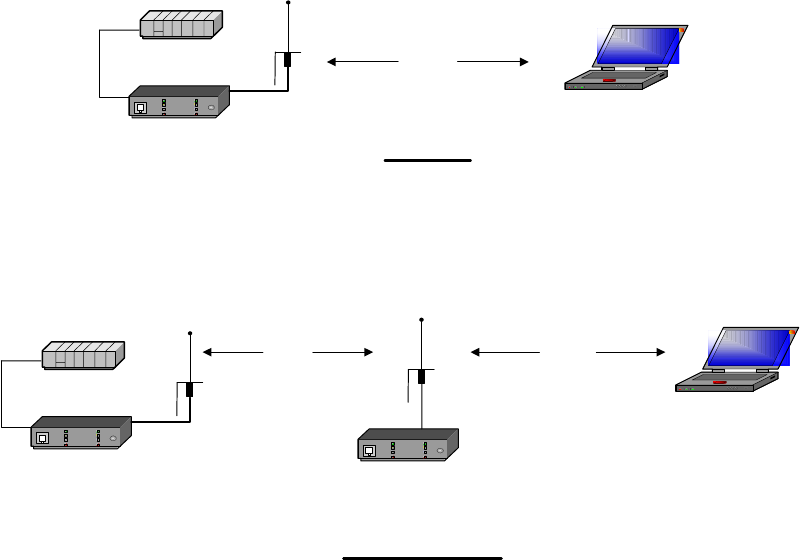
Infrastructure configuration will extend the accessibility of a wireless station to the wired
LAN. Multiple FastLinc 810Es will allow roaming and it will increase the transmission
range. The FastLinc 810E is also able to forward data within its BSS. The effective
transmission range in an infrastructure LAN is doubled.
PLC
FastLinc 810E
Laptop w/800C
Ad-Hoc
L
PLC
FastLinc 810E
Laptop w/800C
L L
FastLinc 810E
Access Point
Infrastructure
Fig Increase the effective Transmission Range
-34-

Appendix B Specifications
Product
11Mbps Wireless LAN
FastLinc 810E
Wired Interface 10/100 base T (RJ-45)
Wireless Interface 11Mbps Wireless LAN
Modulation DSSS (CCK, DQPSK, DBPSK)
Operation Frequency N. America/FCC: 2412~2.462 GHz (11 channels)
Speed Options (over the air) 11M/5.5M/2M/1M, also support Auto Rate Selections
RF Technology Direct Sequence Spread Spectrum
Power Supply DC 12V (External power supply included)
RF Output Power 22 dBm
Sensitivity -84dBm @ 11Mbps, PER < 8* 10-2
-35-
Appendix C Glossary
FastLinc 810E Modem - An internetworking device that seamlessly connects wired and
wireless networks.
Ad-Hoc - An Ad-Hoc wireless LAN is a group of computers each with wireless adapters,
connected as an independent wireless LAN.
Backbone - The core infrastructure of a network. The portion of the network that transports
information from one central location to another central location where it is off-loaded onto a
local system.
Base Station - In mobile telecommunications, a base station is the central radio
transmitter/receiver that maintains communications with the mobile radio telephone sets
within range. In cellular and personal communications applications, each cell or FastLinc
810Ecell has its own base station; each base station in turn is interconnected with other cells’
base.
Bridge - An internetworking function that incorporates the lowest 2 layers of the OSI network
protocol model.
BSS - Stands for “Basic Service Set,” a FastLinc 810E and all the wireless clients that
associated with it.
ESS - Stands for “Extended Service Set.” More than one BSS can be configured as an
Extended Service Set. Mobile users can roam between BSS in an ESS.
Ethernet - A popular local area data communications network, originally developed by
Xerox Corp., which accepts transmission from computers and terminals. Ethernet operates
on 10 Mbps baseband transmission over shielded coaxial cable or over shielded twisted pair
telephone wire.
Infrastructure - An integrated wireless and wired LAN is called an Infrastructure
configuration.
PCMCIA - Personal Computer Memory Card International Association, which develops
standards for PC cards, formerly known as PCMCIA cards, are available in three “types”
which are about the same length and width as credit cards, but range in thickness from 3.3
mm (Type I) to 5.0 mm (Type II) to 10.5 mm (Type III). These cards can be used for many
functions, including memory storage, landline modems and wireless modems.
Roaming - A wireless clients around an ESS and get the continuous connection to the
Infrastructure network.
-36-
RTS Threshold – Transmitters contending for the medium may not hear each other.
RTS/CTS mechanism can solve this “ Hidden Node Problem”. If the packet size is smaller
than the preset RTS Threshold size, the RTS/CTS mechanism will NOT be enabled.
Web Management - Network management by using web browser connecting to the target
devices.
-37-