Conexant Systems 36356A1 Access Point User Manual AccessPoint

Conexant Systems Inc. Access Point AccessPoint

manual

User Manual11 Mbps Wireless LAN Access PointDocument version: preliminary 3Document number: 555004.docCopyright © 2001 Intersil. All rights reserved.
2preliminary 3Trademarks and copyrightCopyright © 2001 Intersil.The publisher reserves the right to revise this publication and to make changes to any or all parts of this manual at any time, without obligation to notify any person or entity of such revisions or changes.No part of this publication may be reproduced, stored in a retrieval system, or transmitted in any form or by any means, whether electronic, mechanical, photocopying, recording, or otherwise without the prior written permission of the publisher.AirLock, APCenter, ASBF Connect and KickStart are trademarks of Intersil. Other product and company names are registered trademarks or trademarks of their respective holders.SafetyThis equipment is designed with utmost care for the safety of those who install and use it. However, special attention must be paid to the dangers of electric shock and static electricity when working with electronic equipment. All guidelines of this manual and of the computer manufacturer must therefore be followed at all times to ensure the safe use of the equipment.Important NoticeThis device is a 2.4 GHz low power RF device intended for home and office use in all EU member states except in France where restrictive use applies.Please refer to ‘Regulatory notes and statements’ on page 43 in this manual for further details.
555004.doc 3ContentsContents1 Getting started  . . . . . . . . . . . . . . . . . . . . . . . . . . . . . . . . . . .71.1 Introduction   . . . . . . . . . . . . . . . . . . . . . . . . . . . . . . . . . . . . . . . . . . . . . . 71.2 Contents of this manual  . . . . . . . . . . . . . . . . . . . . . . . . . . . . . . . . . . . . . 81.3 Where to implement a wireless LAN   . . . . . . . . . . . . . . . . . . . . . . . . . . .  81.4 Adding Access Points to your (network) environment  . . . . . . . . . . . . . . 91.4.1 Creating a wireless network  . . . . . . . . . . . . . . . . . . . . . . . . . . . . . . . . . . 91.4.2 Extending a wired network with one or more Access Points  . . . . . . . . 101.4.3 Connecting an Access Point directly to a computer . . . . . . . . . . . . . . .  112 Installing the Access Point . . . . . . . . . . . . . . . . . . . . . . . .132.1 Introduction   . . . . . . . . . . . . . . . . . . . . . . . . . . . . . . . . . . . . . . . . . . . . .  132.2 Access Point environment  . . . . . . . . . . . . . . . . . . . . . . . . . . . . . . . . . . 132.3 Physical installation of the Access Point   . . . . . . . . . . . . . . . . . . . . . . . 132.4 Desktop mount installation  . . . . . . . . . . . . . . . . . . . . . . . . . . . . . . . . . . 142.5 Wall mount installation  . . . . . . . . . . . . . . . . . . . . . . . . . . . . . . . . . . . . . 152.6 Connecting the Access Point  . . . . . . . . . . . . . . . . . . . . . . . . . . . . . . . . 162.6.1 Power adapter  . . . . . . . . . . . . . . . . . . . . . . . . . . . . . . . . . . . . . . . . . . . 172.6.2 UTP port . . . . . . . . . . . . . . . . . . . . . . . . . . . . . . . . . . . . . . . . . . . . . . . . 172.7 LEDs   . . . . . . . . . . . . . . . . . . . . . . . . . . . . . . . . . . . . . . . . . . . . . . . . . . 182.8 Unlocking the Access Point  . . . . . . . . . . . . . . . . . . . . . . . . . . . . . . . . . 182.8.1 Unlocking the Access Point to reconfigure . . . . . . . . . . . . . . . . . . . . . . 182.8.2 Resetting to the default factory setting . . . . . . . . . . . . . . . . . . . . . . . . . 193 Configuring the Access Point   . . . . . . . . . . . . . . . . . . . . .213.1 Introduction   . . . . . . . . . . . . . . . . . . . . . . . . . . . . . . . . . . . . . . . . . . . . .  213.2 When to configure the Access Point   . . . . . . . . . . . . . . . . . . . . . . . . . . 21
4preliminary 3Contents3.3 Starting the Web Interface . . . . . . . . . . . . . . . . . . . . . . . . . . . . . . . . . . .223.3.1 Installing KickStart . . . . . . . . . . . . . . . . . . . . . . . . . . . . . . . . . . . . . . . . .223.3.2 Launch KickStart  . . . . . . . . . . . . . . . . . . . . . . . . . . . . . . . . . . . . . . . . . .233.3.3 Select wireless ethernet device . . . . . . . . . . . . . . . . . . . . . . . . . . . . . . .233.3.4 Device data  . . . . . . . . . . . . . . . . . . . . . . . . . . . . . . . . . . . . . . . . . . . . . .243.3.5 Scanning and rescanning for devices  . . . . . . . . . . . . . . . . . . . . . . . . . .243.3.6 IP settings  . . . . . . . . . . . . . . . . . . . . . . . . . . . . . . . . . . . . . . . . . . . . . . .253.3.7 Static IP settings  . . . . . . . . . . . . . . . . . . . . . . . . . . . . . . . . . . . . . . . . . .263.3.8 IP settings  . . . . . . . . . . . . . . . . . . . . . . . . . . . . . . . . . . . . . . . . . . . . . . .273.3.9 Changing IP settings  . . . . . . . . . . . . . . . . . . . . . . . . . . . . . . . . . . . . . . .273.3.10 Ready to start the Web Interface . . . . . . . . . . . . . . . . . . . . . . . . . . . . . .283.3.11 Web Interface is launched . . . . . . . . . . . . . . . . . . . . . . . . . . . . . . . . . . .283.4 Launching Web Interface manually  . . . . . . . . . . . . . . . . . . . . . . . . . . . .293.5 Contents of Web Interface . . . . . . . . . . . . . . . . . . . . . . . . . . . . . . . . . . .293.5.1 Settings Summary  . . . . . . . . . . . . . . . . . . . . . . . . . . . . . . . . . . . . . . . . .293.5.2 Wireless Settings . . . . . . . . . . . . . . . . . . . . . . . . . . . . . . . . . . . . . . . . . .303.5.3 Security against unauthorized network access  . . . . . . . . . . . . . . . . . . .313.5.4 To add a a client to the exception list   . . . . . . . . . . . . . . . . . . . . . . . . . .323.5.5 To delete a client from the exception list  . . . . . . . . . . . . . . . . . . . . . . . .333.5.6 Security against eavesdropping   . . . . . . . . . . . . . . . . . . . . . . . . . . . . . .343.5.7 Change WEP password   . . . . . . . . . . . . . . . . . . . . . . . . . . . . . . . . . . . .343.5.8 Security against unauthorized configuration  . . . . . . . . . . . . . . . . . . . . .353.5.9 Identity  . . . . . . . . . . . . . . . . . . . . . . . . . . . . . . . . . . . . . . . . . . . . . . . . . .363.5.10 IP Settings  . . . . . . . . . . . . . . . . . . . . . . . . . . . . . . . . . . . . . . . . . . . . . . .374 Troubleshooting   . . . . . . . . . . . . . . . . . . . . . . . . . . . . . . . .394.1 If KickStart does not find the Access Point you are looking for  . . . . . . .394.1.1 Problems on the wireless side . . . . . . . . . . . . . . . . . . . . . . . . . . . . . . . .394.1.2 Problems on the wired side  . . . . . . . . . . . . . . . . . . . . . . . . . . . . . . . . . .405 Technical specifications 11 Mbps WLAN Access Point  415.1 General Specifications   . . . . . . . . . . . . . . . . . . . . . . . . . . . . . . . . . . . . .415.2 Radio specifications   . . . . . . . . . . . . . . . . . . . . . . . . . . . . . . . . . . . . . . .415.3 Security specifications   . . . . . . . . . . . . . . . . . . . . . . . . . . . . . . . . . . . . .425.4 Other specifications  . . . . . . . . . . . . . . . . . . . . . . . . . . . . . . . . . . . . . . . .426 Regulatory notes and statements  . . . . . . . . . . . . . . . . . .436.1 Wireless LAN, Health and Authorization for use  . . . . . . . . . . . . . . . . . .436.2 Regulatory Information/disclaimers  . . . . . . . . . . . . . . . . . . . . . . . . . . . .436.3 USA-FCC (Federal Communications Commission) statement  . . . . . . .436.4 FCC Radio Frequency Exposure statement  . . . . . . . . . . . . . . . . . . . . .446.5 FCC Interference Statement  . . . . . . . . . . . . . . . . . . . . . . . . . . . . . . . . .446.6 Export restrictions  . . . . . . . . . . . . . . . . . . . . . . . . . . . . . . . . . . . . . . . . .446.7 Europe - EU R&TTE Declaration of Conformity   . . . . . . . . . . . . . . . . . .456.8 Restricted Wireless LAN device use in EU  . . . . . . . . . . . . . . . . . . . . . .46
555004.doc 5ContentsA TCP and IP settings . . . . . . . . . . . . . . . . . . . . . . . . . . . . . .49A.1 Introduction   . . . . . . . . . . . . . . . . . . . . . . . . . . . . . . . . . . . . . . . . . . . . . 49A.2 How do computers communicate in a network   . . . . . . . . . . . . . . . . . . 49A.2.1 IP address   . . . . . . . . . . . . . . . . . . . . . . . . . . . . . . . . . . . . . . . . . . . . . .  50A.2.2 Subnet mask   . . . . . . . . . . . . . . . . . . . . . . . . . . . . . . . . . . . . . . . . . . . . 50A.2.3 IP address range  . . . . . . . . . . . . . . . . . . . . . . . . . . . . . . . . . . . . . . . . . 51A.2.4 Reserved addresses   . . . . . . . . . . . . . . . . . . . . . . . . . . . . . . . . . . . . . . 51A.2.5 Gateway  . . . . . . . . . . . . . . . . . . . . . . . . . . . . . . . . . . . . . . . . . . . . . . . . 51A.2.6 MAC address  . . . . . . . . . . . . . . . . . . . . . . . . . . . . . . . . . . . . . . . . . . . . 52A.3 IP configuration   . . . . . . . . . . . . . . . . . . . . . . . . . . . . . . . . . . . . . . . . . . 52A.3.1 DHCP  . . . . . . . . . . . . . . . . . . . . . . . . . . . . . . . . . . . . . . . . . . . . . . . . . . 52A.3.2 Auto IP  . . . . . . . . . . . . . . . . . . . . . . . . . . . . . . . . . . . . . . . . . . . . . . . . . 52B Wireless LAN  . . . . . . . . . . . . . . . . . . . . . . . . . . . . . . . . . . .55B.1 Introduction   . . . . . . . . . . . . . . . . . . . . . . . . . . . . . . . . . . . . . . . . . . . . . 55B.2 Wireless LAN  . . . . . . . . . . . . . . . . . . . . . . . . . . . . . . . . . . . . . . . . . . . . 55B.3 The Access Point  . . . . . . . . . . . . . . . . . . . . . . . . . . . . . . . . . . . . . . . . . 56B.4 Service Set ID (SSID)   . . . . . . . . . . . . . . . . . . . . . . . . . . . . . . . . . . . . . 56B.5 Physics of an Access Point   . . . . . . . . . . . . . . . . . . . . . . . . . . . . . . . . . 56B.5.1 Range . . . . . . . . . . . . . . . . . . . . . . . . . . . . . . . . . . . . . . . . . . . . . . . . . . 56B.5.2 Data rates . . . . . . . . . . . . . . . . . . . . . . . . . . . . . . . . . . . . . . . . . . . . . . . 56B.5.3 Regulatory Domain   . . . . . . . . . . . . . . . . . . . . . . . . . . . . . . . . . . . . . . . 57B.5.4 Radio Channels  . . . . . . . . . . . . . . . . . . . . . . . . . . . . . . . . . . . . . . . . . . 57B.6 Security   . . . . . . . . . . . . . . . . . . . . . . . . . . . . . . . . . . . . . . . . . . . . . . . . 57B.6.1 IEEE authentication  . . . . . . . . . . . . . . . . . . . . . . . . . . . . . . . . . . . . . . . 58B.6.2 Open Systems method . . . . . . . . . . . . . . . . . . . . . . . . . . . . . . . . . . . . . 58B.6.3 WEP method   . . . . . . . . . . . . . . . . . . . . . . . . . . . . . . . . . . . . . . . . . . . . 58
6preliminary 3Contents
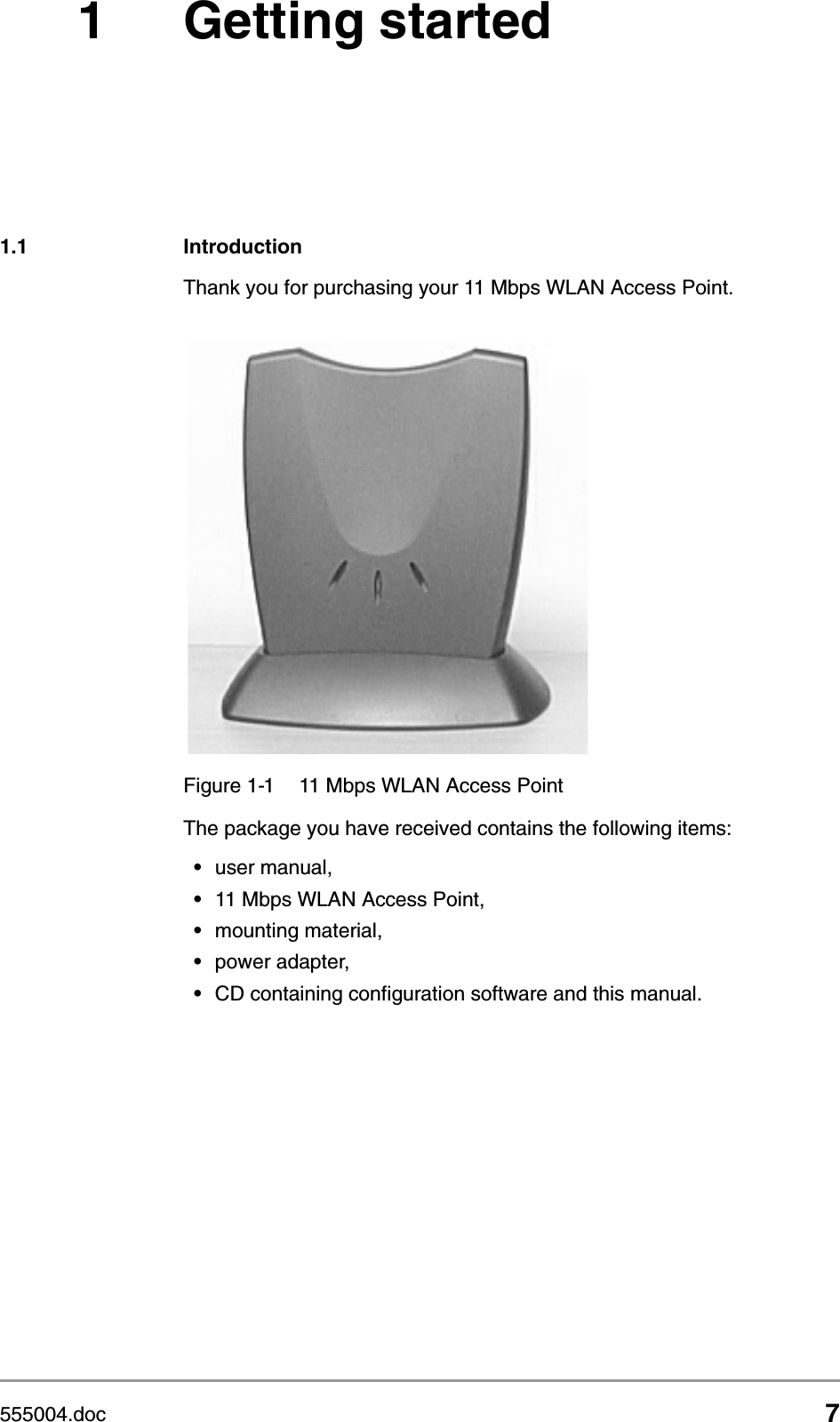
555004.doc 71 Getting started1.1 IntroductionThank you for purchasing your 11 Mbps WLAN Access Point. The package you have received contains the following items:•user manual,•11 Mbps WLAN Access Point,•mounting material,•power adapter,•CD containing configuration software and this manual.Figure 1-1 11 Mbps WLAN Access Point
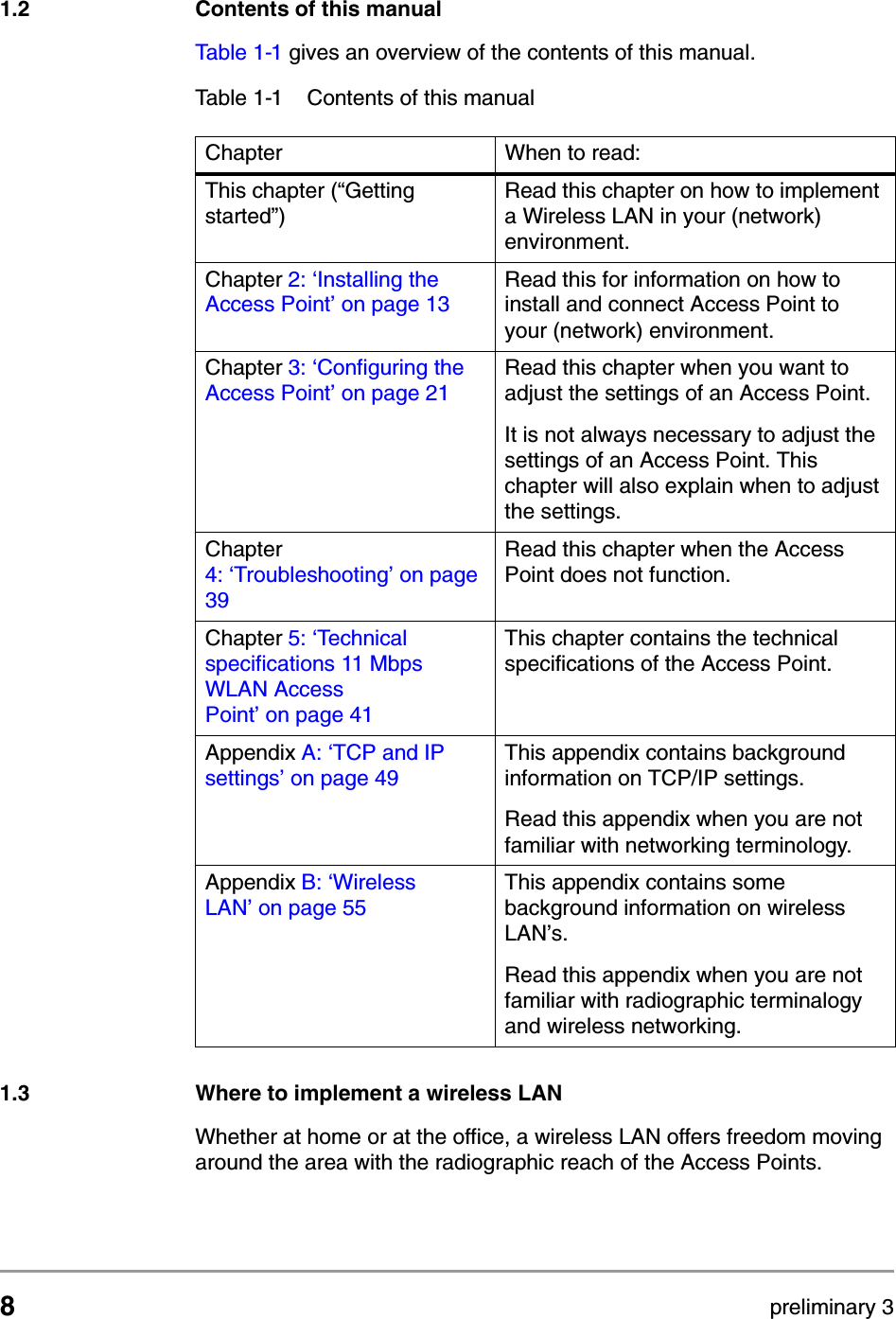
8preliminary 3Getting startedContents of this manual1.2 Contents of this manualTable 1-1 gives an overview of the contents of this manual. 1.3 Where to implement a wireless LANWhether at home or at the office, a wireless LAN offers freedom moving around the area with the radiographic reach of the Access Points.Table 1-1 Contents of this manualChapter When to read:This chapter (“Getting started”)Read this chapter on how to implement a Wireless LAN in your (network) environment.Chapter 2: ‘Installing the Access Point’ on page 13Read this for information on how to install and connect Access Point to your (network) environment.Chapter 3: ‘Configuring the Access Point’ on page 21Read this chapter when you want to adjust the settings of an Access Point.It is not always necessary to adjust the settings of an Access Point. This chapter will also explain when to adjust the settings.Chapter 4: ‘Troubleshooting’ on page39Read this chapter when the Access Point does not function.Chapter 5: ‘Technical specifications 11 Mbps WLAN Access Point’ on page 41This chapter contains the technical specifications of the Access Point.Appendix A: ‘TCP and IP settings’ on page 49This appendix contains background information on TCP/IP settings.Read this appendix when you are not familiar with networking terminology.Appendix B: ‘Wireless LAN’ on page 55This appendix contains some background information on wireless LAN’s.Read this appendix when you are not familiar with radiographic terminalogy and wireless networking.
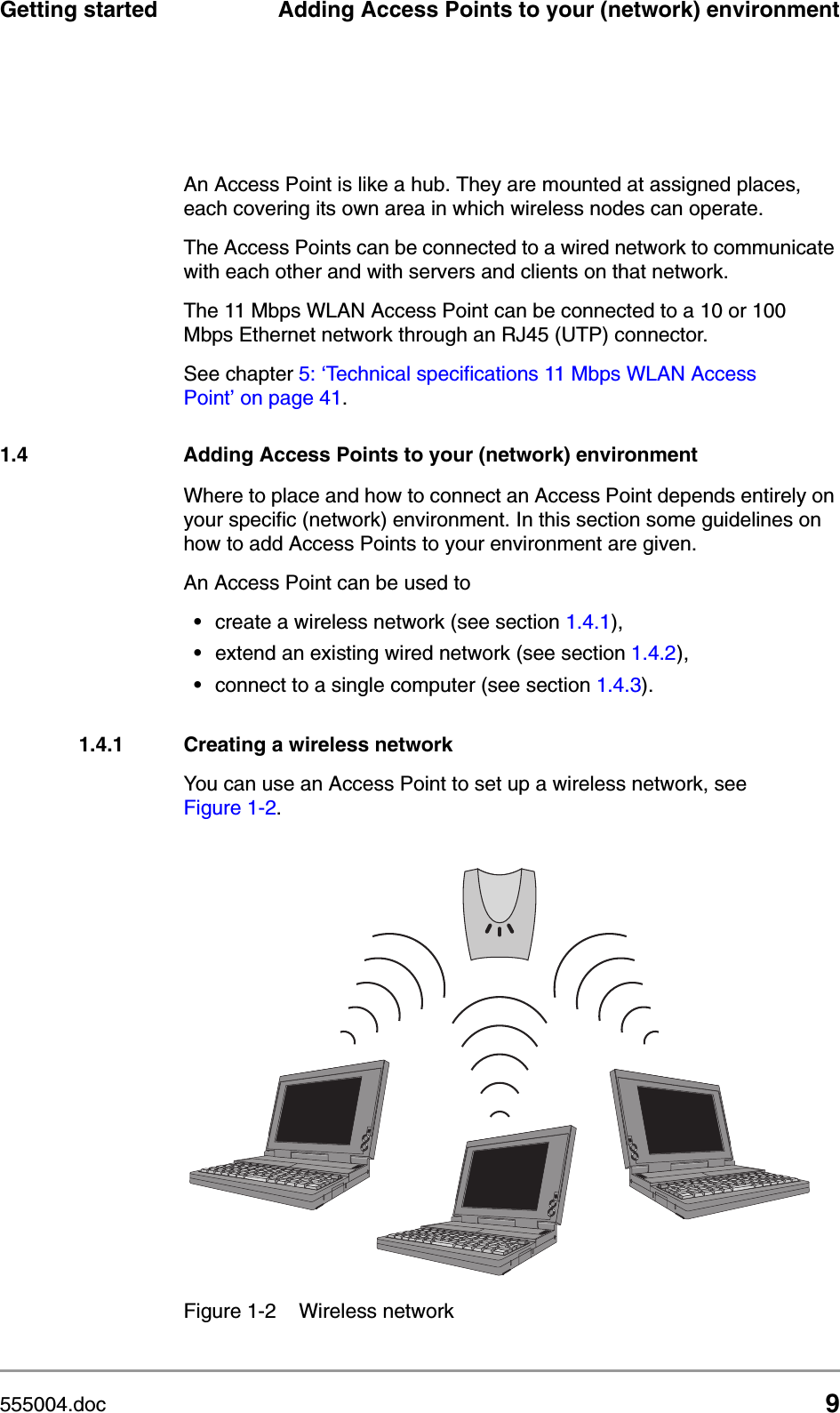
555004.doc 9Getting started Adding Access Points to your (network) environmentAn Access Point is like a hub. They are mounted at assigned places, each covering its own area in which wireless nodes can operate. The Access Points can be connected to a wired network to communicate with each other and with servers and clients on that network.The 11 Mbps WLAN Access Point can be connected to a 10 or 100 Mbps Ethernet network through an RJ45 (UTP) connector.See chapter 5: ‘Technical specifications 11 Mbps WLAN Access Point’ on page 41.1.4 Adding Access Points to your (network) environmentWhere to place and how to connect an Access Point depends entirely on your specific (network) environment. In this section some guidelines on how to add Access Points to your environment are given. An Access Point can be used to•create a wireless network (see section 1.4.1),•extend an existing wired network (see section 1.4.2),•connect to a single computer (see section 1.4.3).1.4.1 Creating a wireless networkYou can use an Access Point to set up a wireless network, see Figure 1-2.Figure 1-2 Wireless network
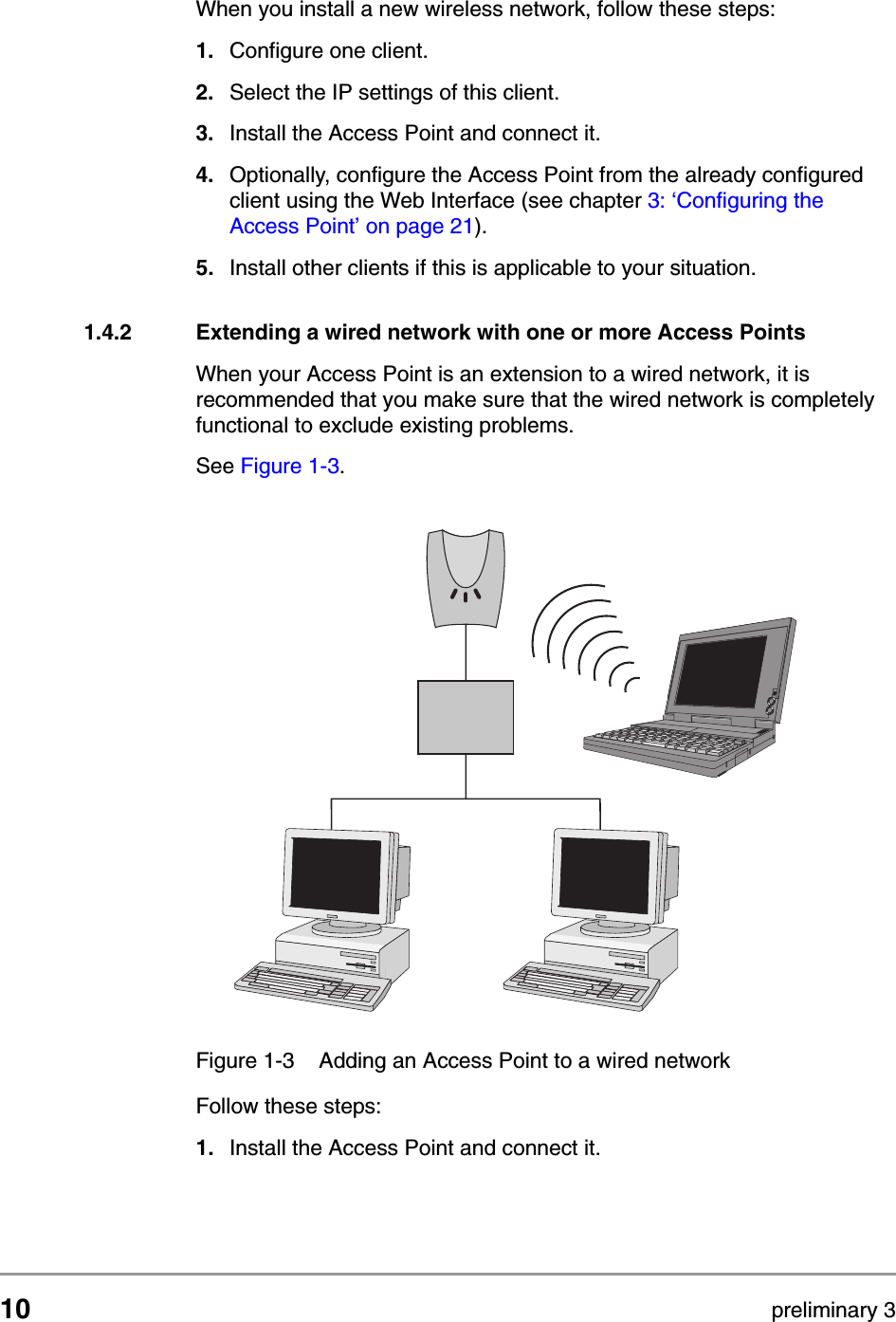
10 preliminary 3Getting startedAdding Access Points to your (network) environmentWhen you install a new wireless network, follow these steps:1. Configure one client.2. Select the IP settings of this client.3. Install the Access Point and connect it.4. Optionally, configure the Access Point from the already configured client using the Web Interface (see chapter 3: ‘Configuring the Access Point’ on page 21). 5. Install other clients if this is applicable to your situation.1.4.2 Extending a wired network with one or more Access PointsWhen your Access Point is an extension to a wired network, it is recommended that you make sure that the wired network is completely functional to exclude existing problems.See Figure 1-3. Follow these steps:1. Install the Access Point and connect it.Figure 1-3 Adding an Access Point to a wired network
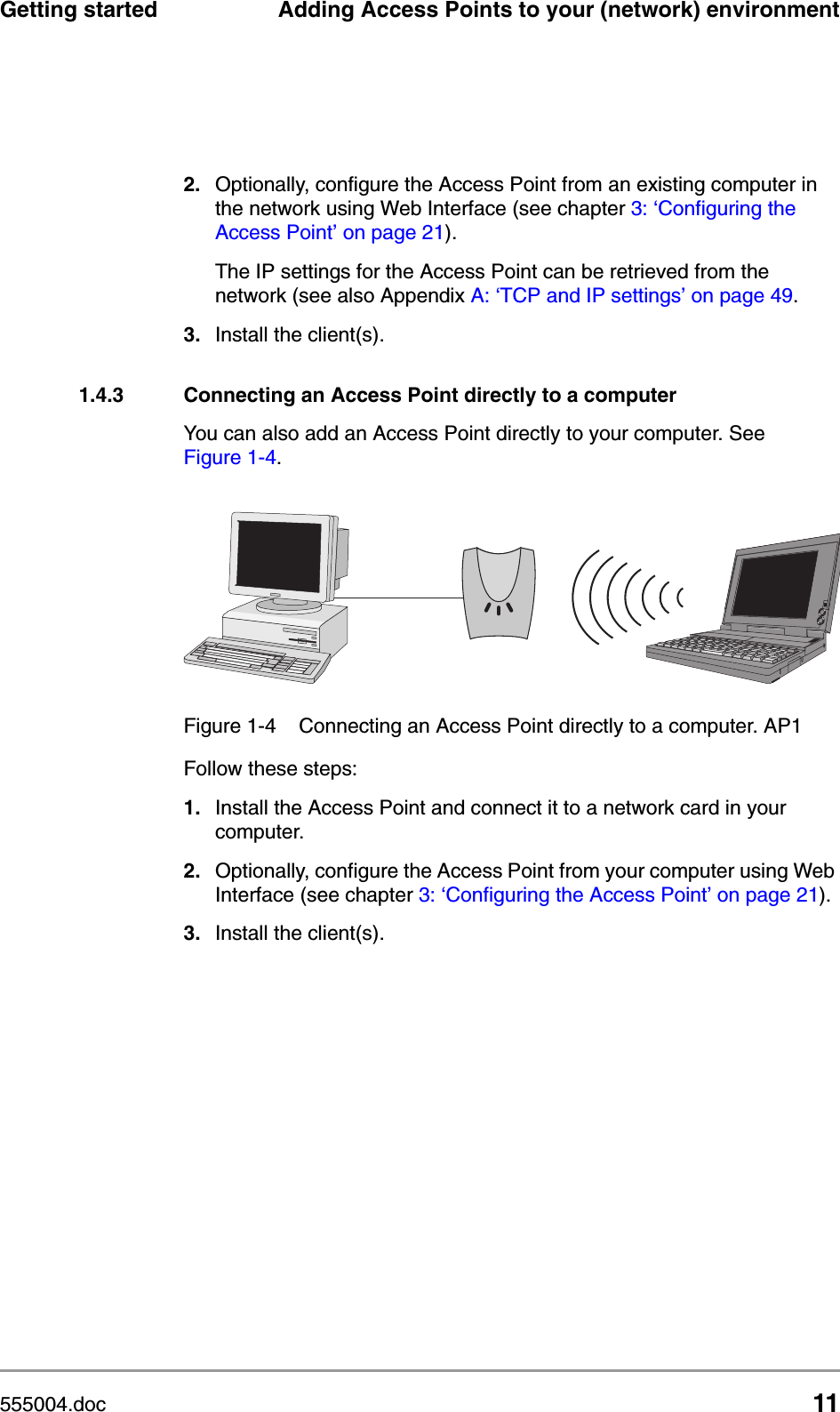
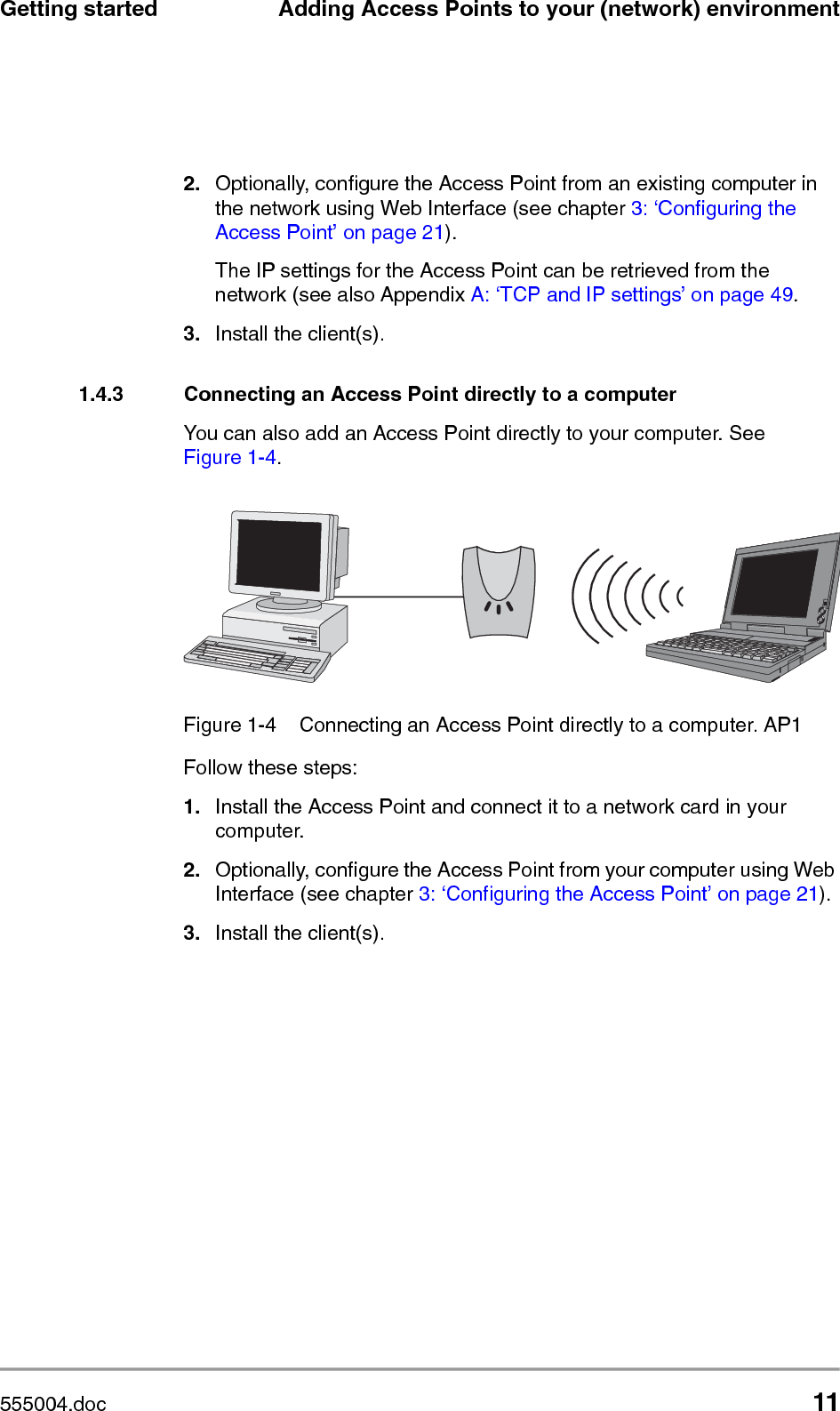
555004.doc 11Getting started Adding Access Points to your (network) environment2. Optionally, configure the Access Point from an existing computer in the network using Web Interface (see chapter 3: ‘Configuring the Access Point’ on page 21). The IP settings for the Access Point can be retrieved from the network (see also Appendix A: ‘TCP and IP settings’ on page 49.3. Install the client(s).1.4.3 Connecting an Access Point directly to a computerYou can also add an Access Point directly to your computer. See Figure 1-4. Follow these steps:1. Install the Access Point and connect it to a network card in your computer.2. Optionally, configure the Access Point from your computer using Web Interface (see chapter 3: ‘Configuring the Access Point’ on page 21). 3. Install the client(s).Figure 1-4 Connecting an Access Point directly to a computer. AP1
12 preliminary 3Getting startedAdding Access Points to your (network) environment
555004.doc 13Installing the Access Point Introduction2 Installing the Access Point2.1 IntroductionThis chapter describes the physical installation of an Access Point. 2.2 Access Point environmentWhen you install an Access Point, you must consider the following items:•Connection to the electricity net.•Connection to the network.•Environment of device (heat/humidity): see chapter 5: ‘Technical specifications 11 Mbps WLAN Access Point’ on page 41.•Range of device: see chapter 5: ‘Technical specifications 11 Mbps WLAN Access Point’ on page 41.2.3 Physical installation of the Access PointwwwwThe Access Point must be mounted in a vertical position always.Table 2-1 Overview of this chapter.Section Describes2.2 Consideradions about the physical environment of an Access Point. 2.3, 2.4, 2.5 How to install an Access Point.2.6 How to connect the Access Point.2.7 Explanation of the LEDs.2.8 How to unlock/reset the Access Point.
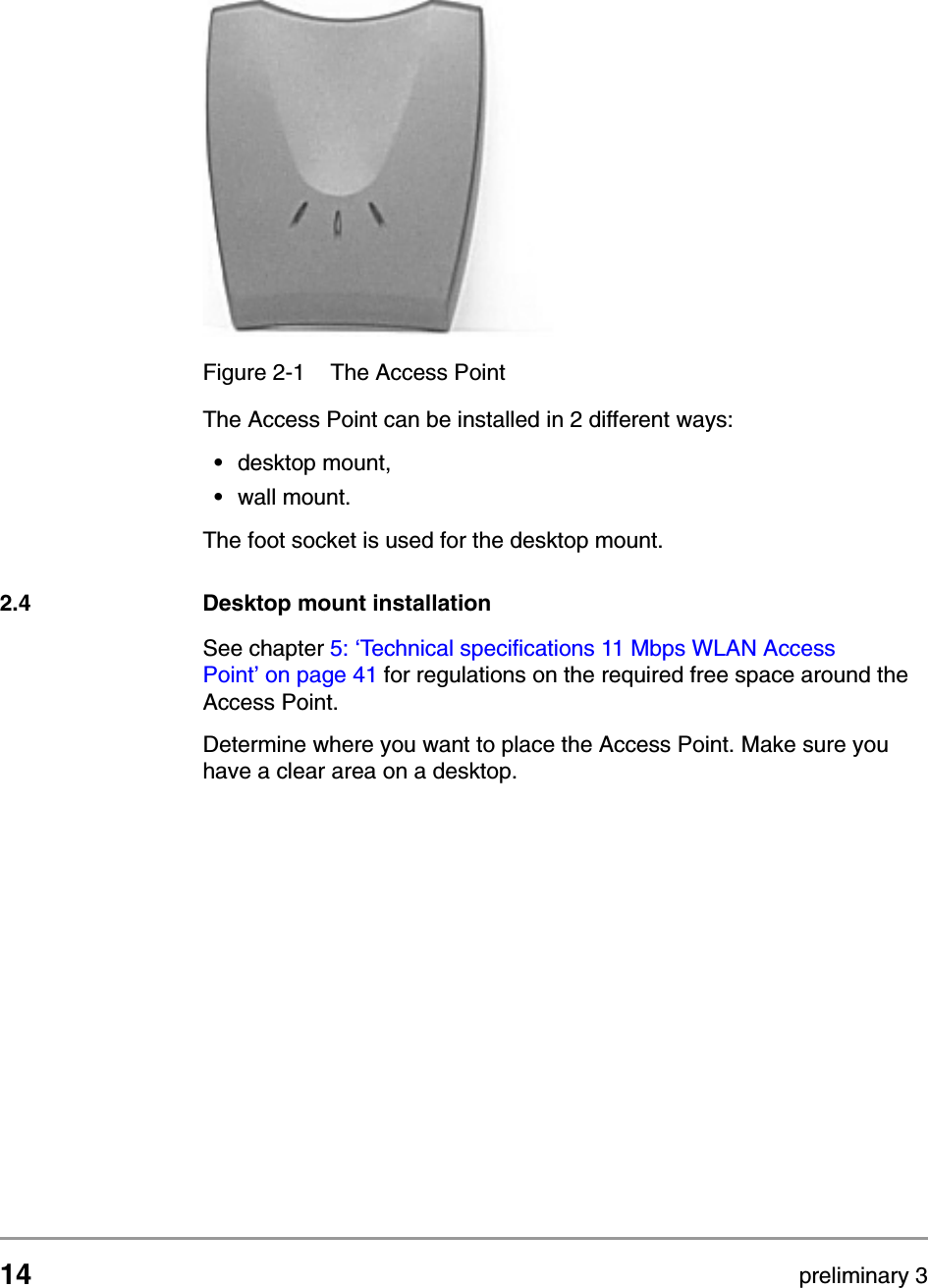
14 preliminary 3Installing the Access PointDesktop mount installationThe Access Point can be installed in 2 different ways:•desktop mount,•wall mount.The foot socket is used for the desktop mount.2.4 Desktop mount installationSee chapter 5: ‘Technical specifications 11 Mbps WLAN Access Point’ on page 41 for regulations on the required free space around the Access Point.Determine where you want to place the Access Point. Make sure you have a clear area on a desktop. Figure 2-1 The Access Point
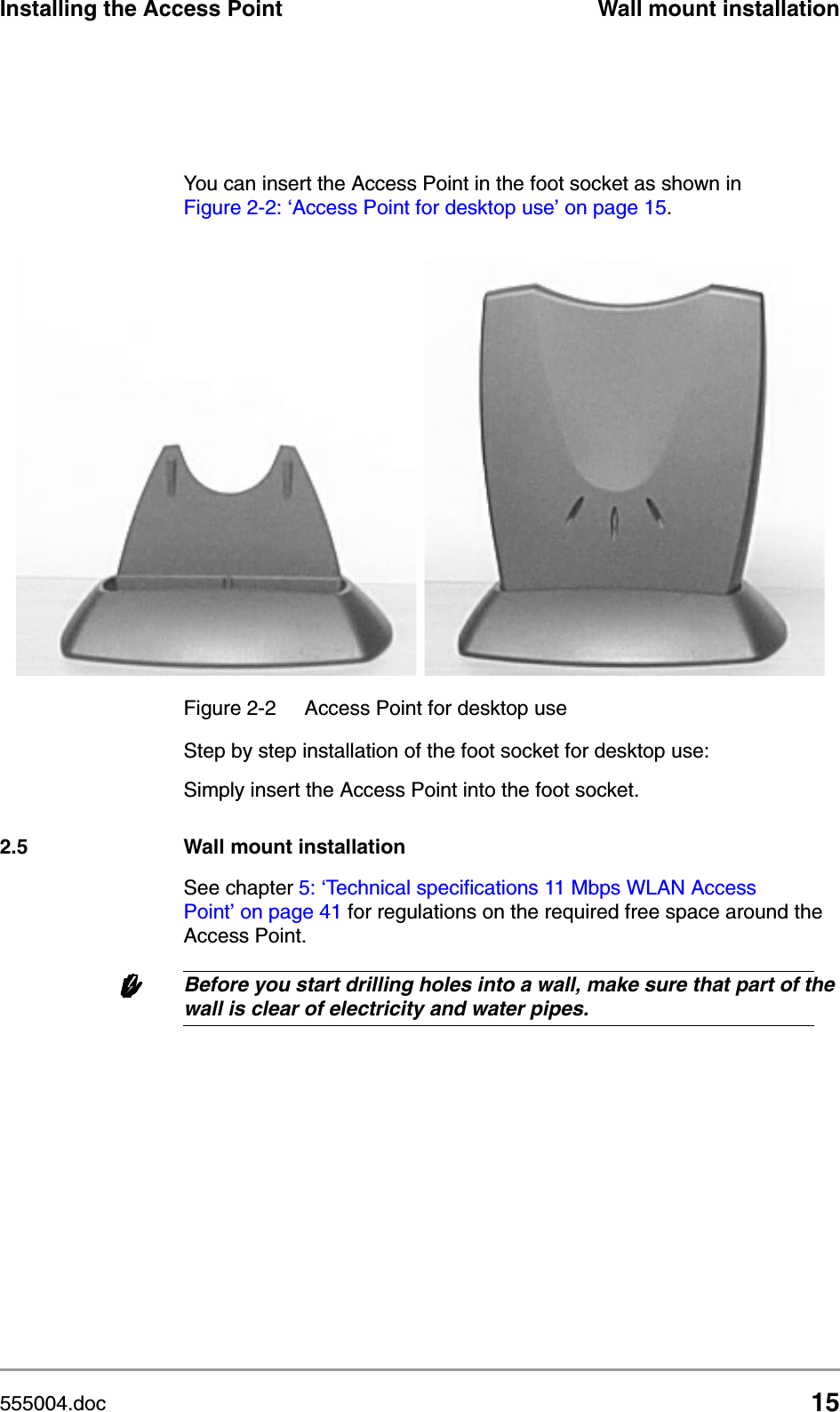
555004.doc 15Installing the Access Point Wall mount installationYou can insert the Access Point in the foot socket as shown in Figure 2-2: ‘Access Point for desktop use’ on page 15.Step by step installation of the foot socket for desktop use:Simply insert the Access Point into the foot socket.2.5 Wall mount installationSee chapter 5: ‘Technical specifications 11 Mbps WLAN Access Point’ on page 41 for regulations on the required free space around the Access Point.wwwwBefore you start drilling holes into a wall, make sure that part of the wall is clear of electricity and water pipes.Figure 2-2  Access Point for desktop use
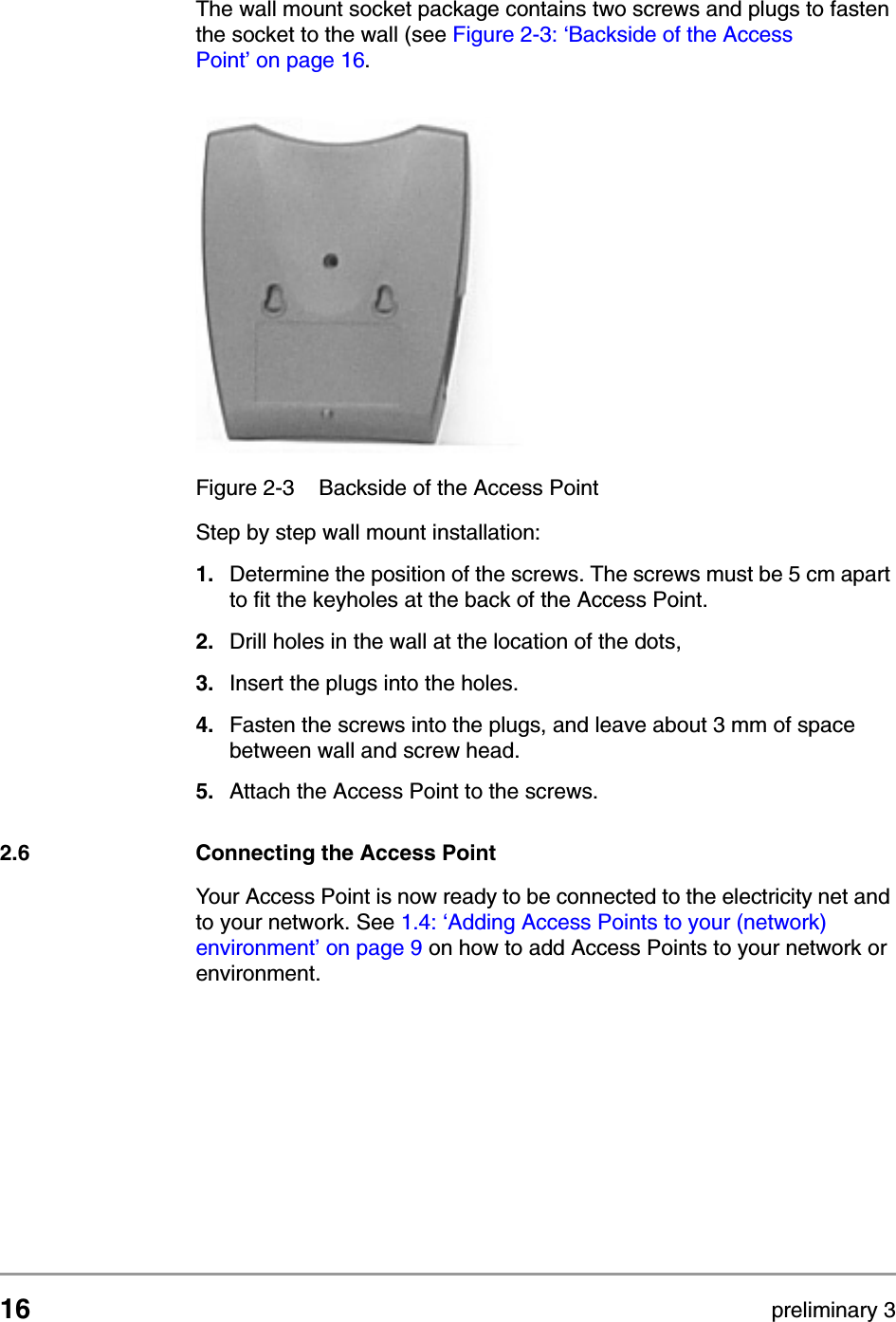
16 preliminary 3Installing the Access PointConnecting the Access PointThe wall mount socket package contains two screws and plugs to fasten the socket to the wall (see Figure 2-3: ‘Backside of the Access Point’ on page 16.Step by step wall mount installation:1. Determine the position of the screws. The screws must be 5 cm apart to fit the keyholes at the back of the Access Point.2. Drill holes in the wall at the location of the dots,3. Insert the plugs into the holes.4. Fasten the screws into the plugs, and leave about 3 mm of space between wall and screw head.5. Attach the Access Point to the screws.2.6 Connecting the Access PointYour Access Point is now ready to be connected to the electricity net and to your network. See 1.4: ‘Adding Access Points to your (network) environment’ on page 9 on how to add Access Points to your network or environment.Figure 2-3 Backside of the Access Point
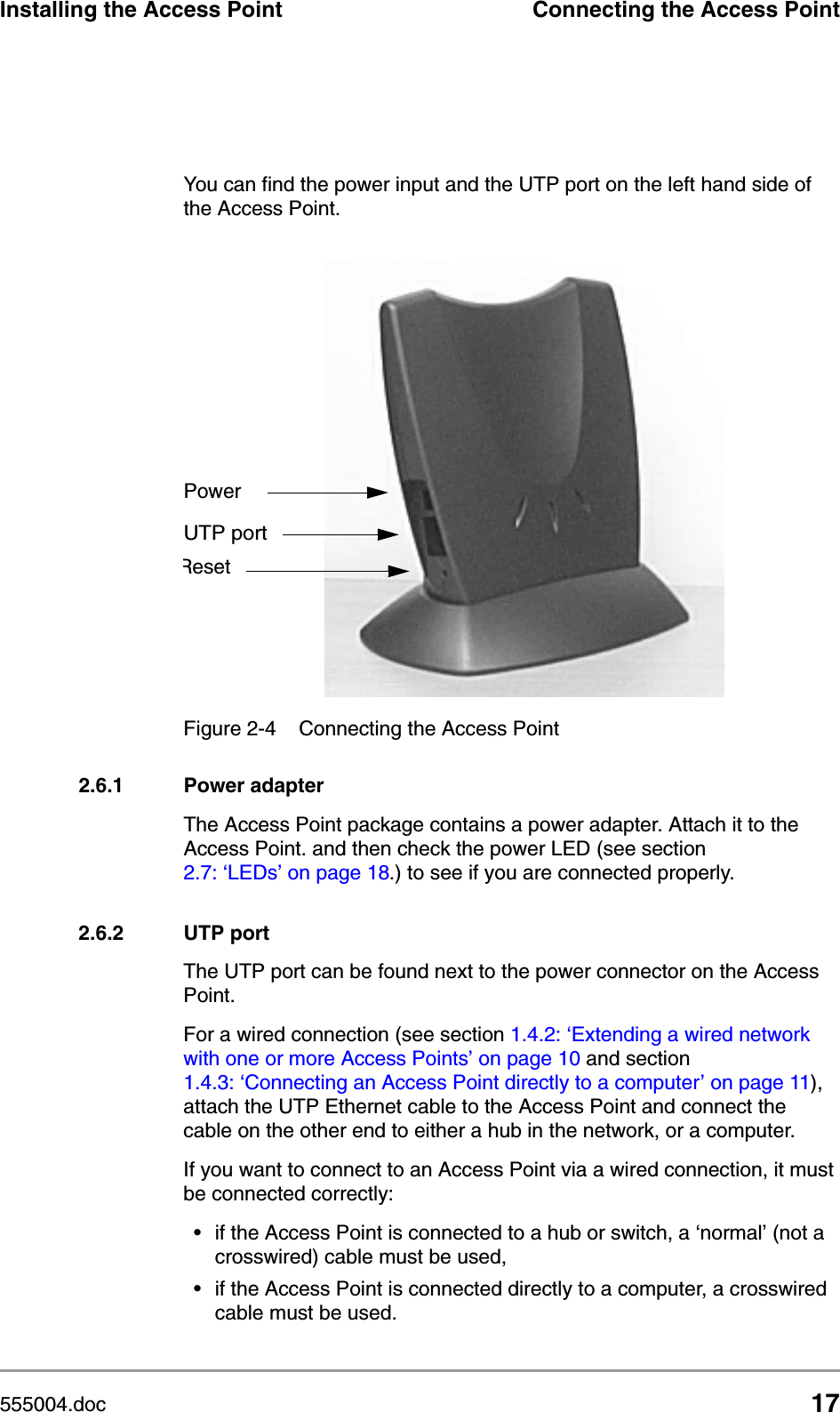
555004.doc 17Installing the Access Point Connecting the Access PointYou can find the power input and the UTP port on the left hand side of the Access Point. 2.6.1 Power adapterThe Access Point package contains a power adapter. Attach it to the Access Point. and then check the power LED (see section 2.7: ‘LEDs’ on page 18.) to see if you are connected properly.2.6.2 UTP portThe UTP port can be found next to the power connector on the Access Point. For a wired connection (see section 1.4.2: ‘Extending a wired network with one or more Access Points’ on page 10 and section 1.4.3: ‘Connecting an Access Point directly to a computer’ on page 11), attach the UTP Ethernet cable to the Access Point and connect the cable on the other end to either a hub in the network, or a computer.If you want to connect to an Access Point via a wired connection, it must be connected correctly:• if the Access Point is connected to a hub or switch, a ‘normal’ (not a crosswired) cable must be used,• if the Access Point is connected directly to a computer, a crosswired cable must be used.Figure 2-4 Connecting the Access PointPowerUTP portReset
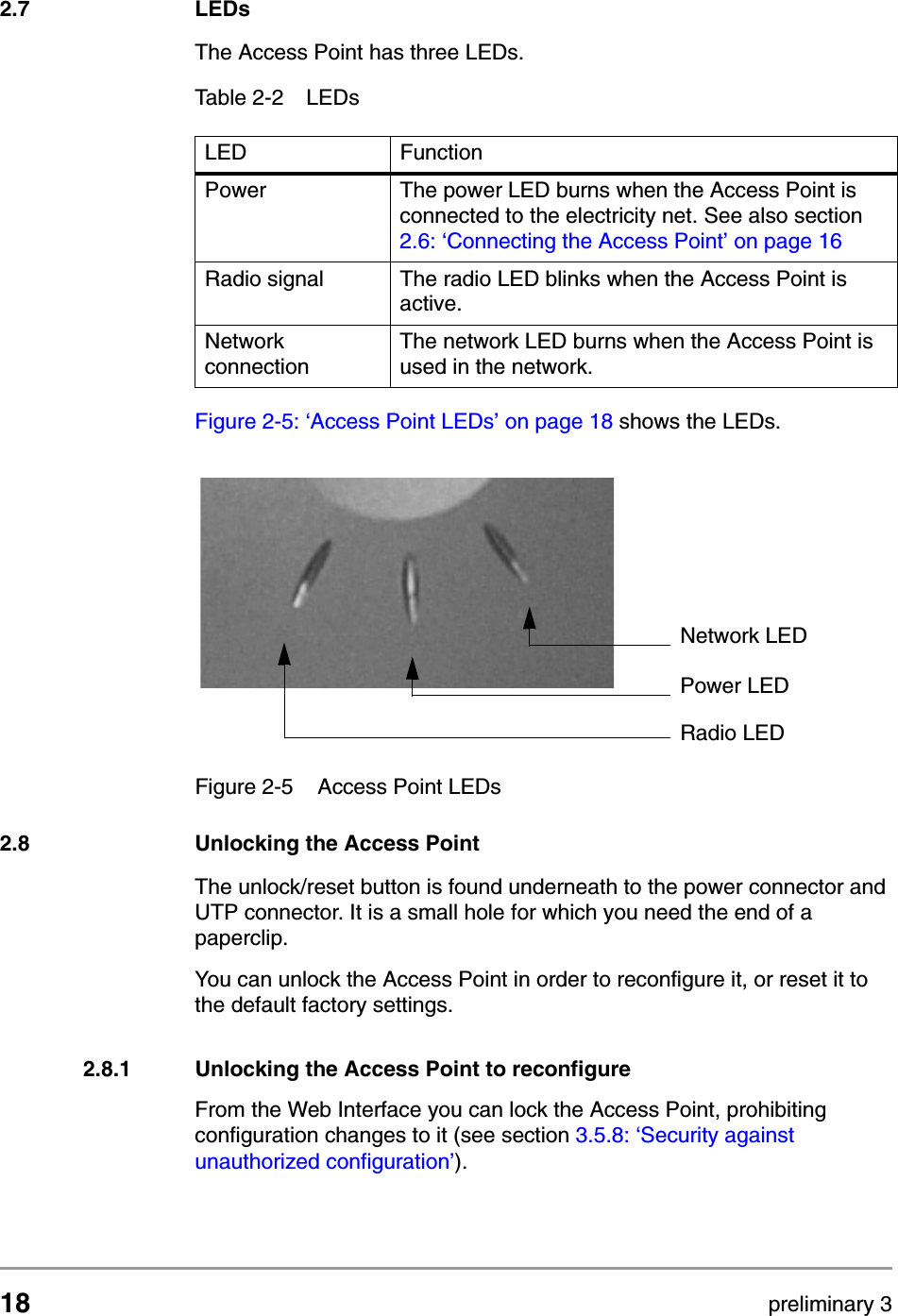
18 preliminary 3Installing the Access PointLEDs2.7 LEDsThe Access Point has three LEDs.Figure 2-5: ‘Access Point LEDs’ on page 18 shows the LEDs.2.8 Unlocking the Access PointThe unlock/reset button is found underneath to the power connector and UTP connector. It is a small hole for which you need the end of a paperclip. You can unlock the Access Point in order to reconfigure it, or reset it to the default factory settings.2.8.1 Unlocking the Access Point to reconfigureFrom the Web Interface you can lock the Access Point, prohibiting configuration changes to it (see section 3.5.8: ‘Security against unauthorized configuration’).Table 2-2 LEDsLED  FunctionPower The power LED burns when the Access Point is connected to the electricity net. See also section 2.6: ‘Connecting the Access Point’ on page 16Radio signal The radio LED blinks when the Access Point is active.Network connectionThe network LED burns when the Access Point is used in the network.Figure 2-5 Access Point LEDsPower LEDRadio LEDNetwork LED
555004.doc 19Installing the Access Point Unlocking the Access PointTo unlock the Access Point so that the configuration changes are allowed again:1. Insert one end of a paperclip briefly in the hole of the reset button. The Access Point lock is unlocked. All settings, including the IP settings, are retained.2. You can now use the Web Interface to manage the Access Point again.2.8.2 Resetting to the default factory settingIf you press the reset button longer, more than 5 seconds, the Access Point will be reset to the default factory settings:1. Insert one end of a paperclip into the hole for the reset button and keep it pressed down. The radio LED will first burn constantly. 2. Release the reset button when the LED has stopped burning.All settings are deleted.3. Use KickStart to install new IP settings. If you have a DHCP server the IP settings will probably remain the same.4. You can now use the Web Interface to manage the Access Point again.
20 preliminary 3Installing the Access PointUnlocking the Access Point
555004.doc 213 Configuring the Access Point3.1 IntroductionThe Access Point is a ready to use device. It is delivered with default settings which allow you to have access to it without configuring it. When you do configure the Access Point, you can change the settings with respect to security, radio channels, etc.Whether you need to configure the Access Point or not, depends entirely on how you apply the Access Point to your environment.Section 3.2: ‘When to configure the Access Point’ on page 21 discusses the consequences of configuring the Access Point or not.Table 3-1 describes the contents of this chapter:3.2 When to configure the Access PointConfiguring the Access Point means installing settings with respect to the use of radio channels, security, identification, etc. You only need to configure the Access Point when you want to change these settings. Table 3-1 Overview of this chapterSection Description2 When to configure the Access Point3 Starting the Web Interface for the first time.4 Launching the Web Interface5 Web Interface Settings
22 preliminary 3Configuring the Access PointStarting the Web InterfaceIP settings can be installed automatically or manually.3.3 Starting the Web InterfaceWhen there is no DHCP server in your network, you can assign an IP address to the Access Point and start up the Web Interface with the KickStart application. The KickStart application is needed only when:•You start the Access Point for the first time, or •You have reset the Access Point to factory defaults (see section 2.8.2: ‘Resetting to the default factory setting’ on page 19) and must install the IP settings again.The KickStart application can be found on the CD, see section 3.3: ‘Starting the Web Interface’ on page 22.3.3.1 Installing KickStartYou can install KickStart on a PC in the network to which the Access Point will be connected. Follow the instructions of the install wizard.Table 3-2 Installing methods for IP settingsInstall IP settings WhenAutomatically If the Access Point is part of a network with a DHCP server, the DHCP server assigns the IP settings to the Access Point for you. After that you can configure the Access Point by starting a web browser and inserting the IP address of the Access Point on the address bar. This will start the Web Interface, see section 3.4: ‘Launching Web Interface manually’ on page 29.Manually If there is no DHCP server, you need to install the IP settings using the KickStart application, see 3.3: ‘Starting the Web Interface’ on page 22.
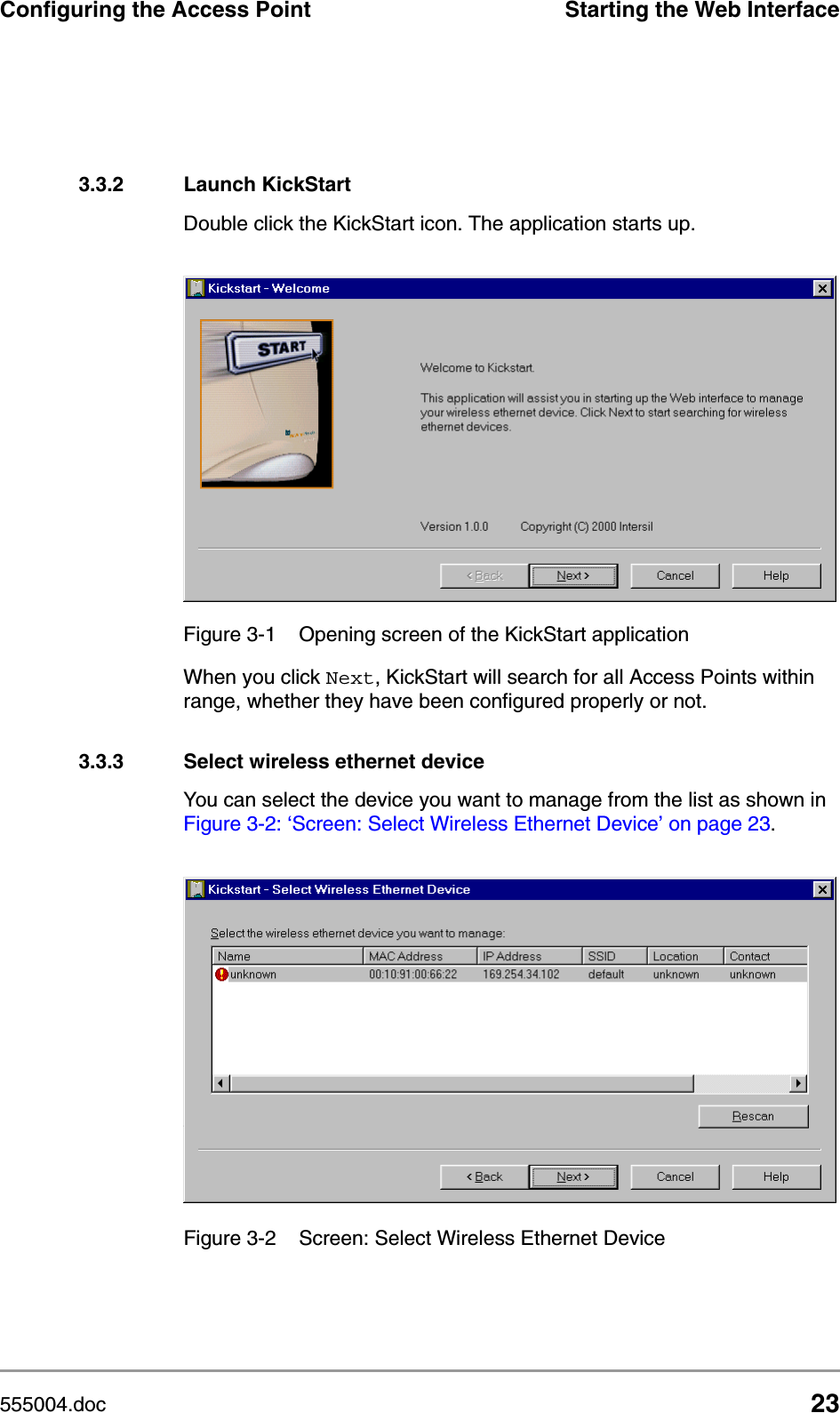
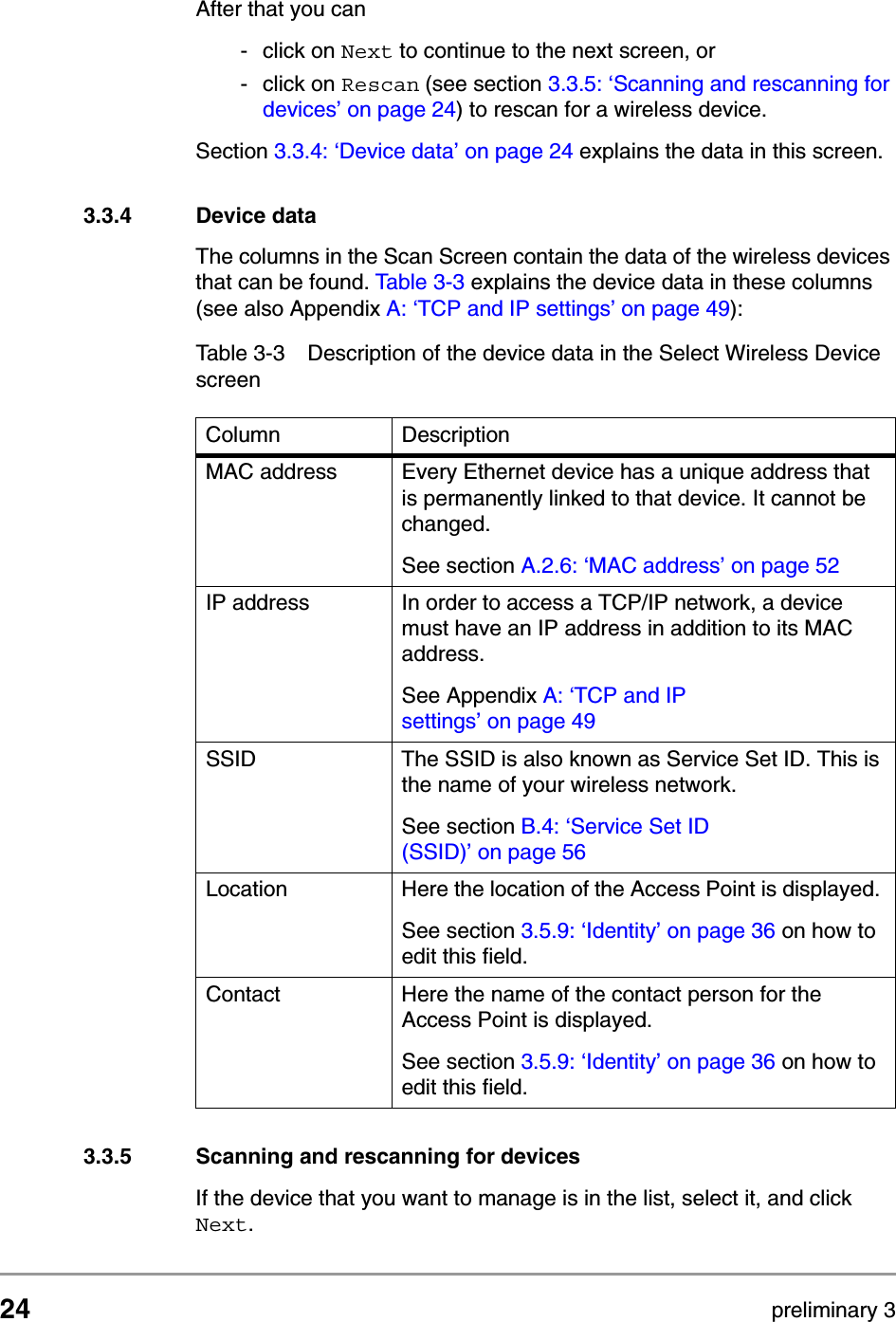
555004.doc 23Configuring the Access Point Starting the Web Interface3.3.2 Launch KickStartDouble click the KickStart icon. The application starts up.When you click Next, KickStart will search for all Access Points within range, whether they have been configured properly or not. 3.3.3 Select wireless ethernet deviceYou can select the device you want to manage from the list as shown in Figure 3-2: ‘Screen: Select Wireless Ethernet Device’ on page 23. Figure 3-1 Opening screen of the KickStart applicationFigure 3-2 Screen: Select Wireless Ethernet Device
24 preliminary 3Configuring the Access PointStarting the Web InterfaceAfter that you can - click on Next to continue to the next screen, or - click on Rescan (see section 3.3.5: ‘Scanning and rescanning for devices’ on page 24) to rescan for a wireless device. Section 3.3.4: ‘Device data’ on page 24 explains the data in this screen.3.3.4 Device dataThe columns in the Scan Screen contain the data of the wireless devices that can be found. Table 3-3 explains the device data in these columns (see also Appendix A: ‘TCP and IP settings’ on page 49):3.3.5 Scanning and rescanning for devicesIf the device that you want to manage is in the list, select it, and click Next.Table 3-3 Description of the device data in the Select Wireless Device screenColumn DescriptionMAC address Every Ethernet device has a unique address that is permanently linked to that device. It cannot be changed. See section A.2.6: ‘MAC address’ on page 52IP address In order to access a TCP/IP network, a device must have an IP address in addition to its MAC address. See Appendix A: ‘TCP and IP settings’onpage49SSID The SSID is also known as Service Set ID. This is the name of your wireless network. See section B.4: ‘Service Set ID (SSID)’ on page 56Location Here the location of the Access Point is displayed. See section 3.5.9: ‘Identity’ on page 36 on how to edit this field.Contact Here the name of the contact person for the Access Point is displayed. See section 3.5.9: ‘Identity’ on page 36 on how to edit this field.
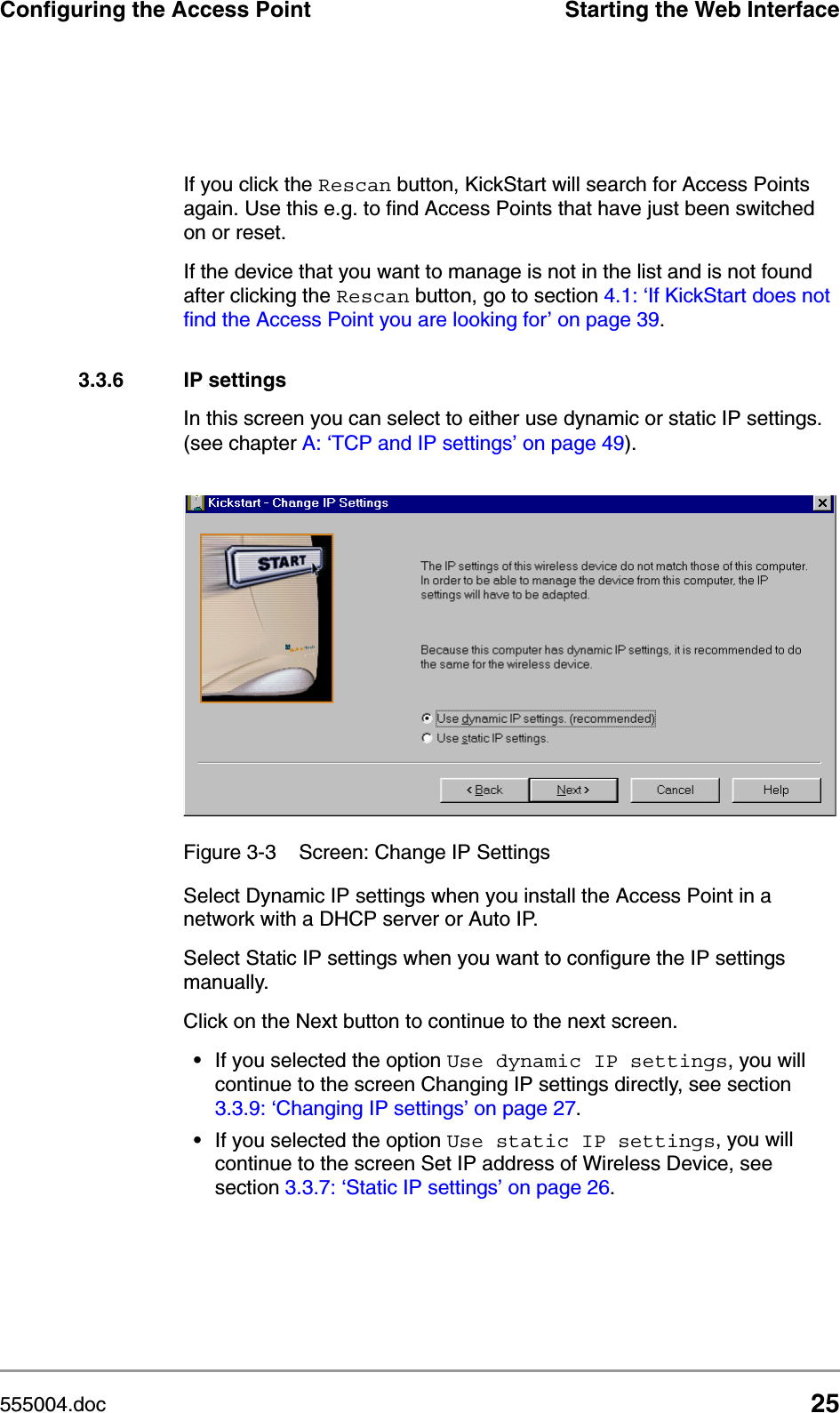
555004.doc 25Configuring the Access Point Starting the Web InterfaceIf you click the Rescan button, KickStart will search for Access Points again. Use this e.g. to find Access Points that have just been switched on or reset.If the device that you want to manage is not in the list and is not found after clicking the Rescan button, go to section 4.1: ‘If KickStart does not find the Access Point you are looking for’ on page 39.3.3.6 IP settingsIn this screen you can select to either use dynamic or static IP settings. (see chapter A: ‘TCP and IP settings’ on page 49).Select Dynamic IP settings when you install the Access Point in a network with a DHCP server or Auto IP.Select Static IP settings when you want to configure the IP settings manually.Click on the Next button to continue to the next screen.•If you selected the option Use dynamic IP settings, you will continue to the screen Changing IP settings directly, see section 3.3.9: ‘Changing IP settings’ on page 27. •If you selected the option Use static IP settings, you will continue to the screen Set IP address of Wireless Device, see section 3.3.7: ‘Static IP settings’ on page 26.Figure 3-3 Screen: Change IP Settings
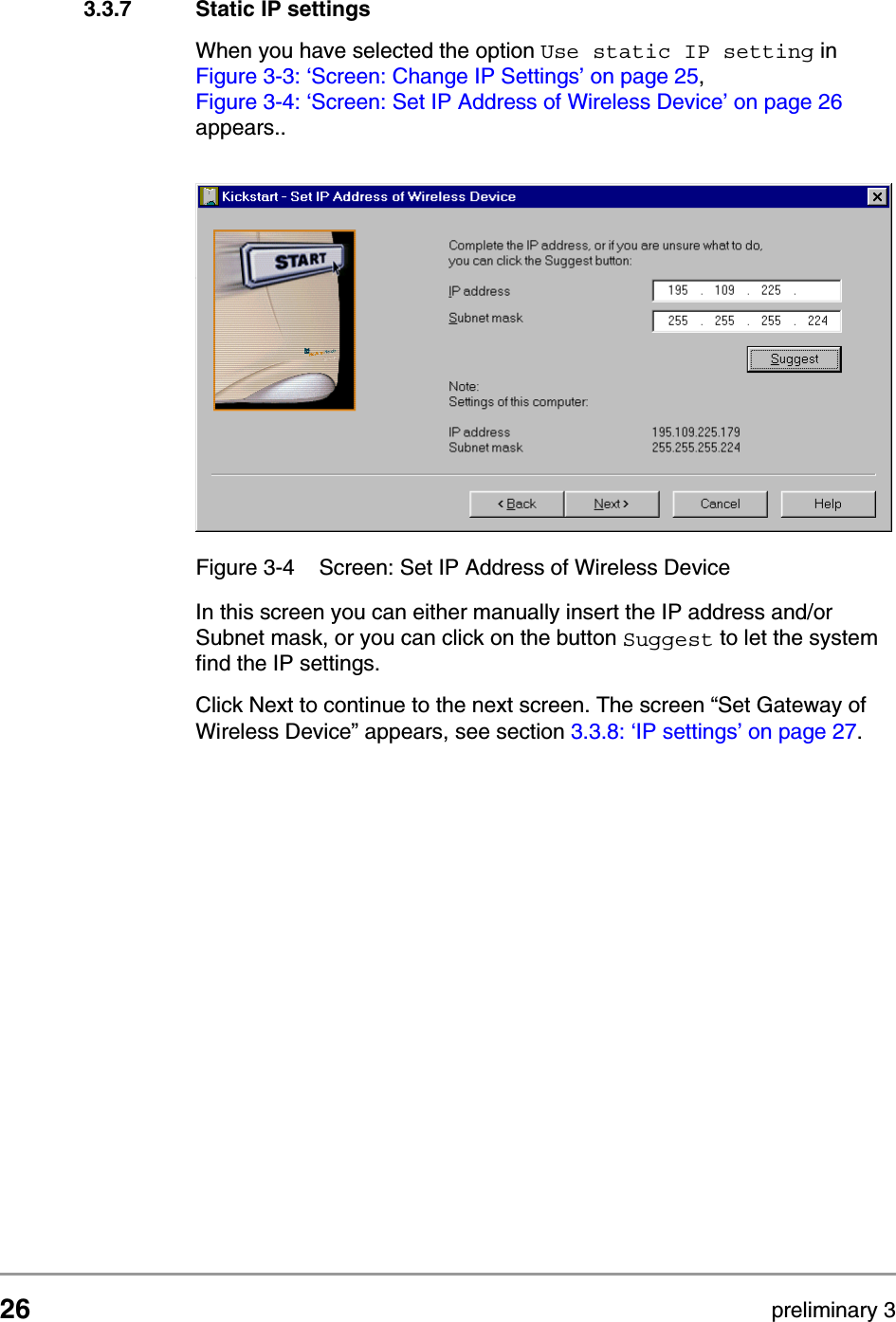
26 preliminary 3Configuring the Access PointStarting the Web Interface3.3.7 Static IP settingsWhen you have selected the option Use static IP setting in Figure 3-3: ‘Screen: Change IP Settings’ on page 25, Figure 3-4: ‘Screen: Set IP Address of Wireless Device’ on page 26 appears..In this screen you can either manually insert the IP address and/or Subnet mask, or you can click on the button Suggest to let the system find the IP settings.Click Next to continue to the next screen. The screen “Set Gateway of Wireless Device” appears, see section 3.3.8: ‘IP settings’ on page 27.Figure 3-4 Screen: Set IP Address of Wireless Device
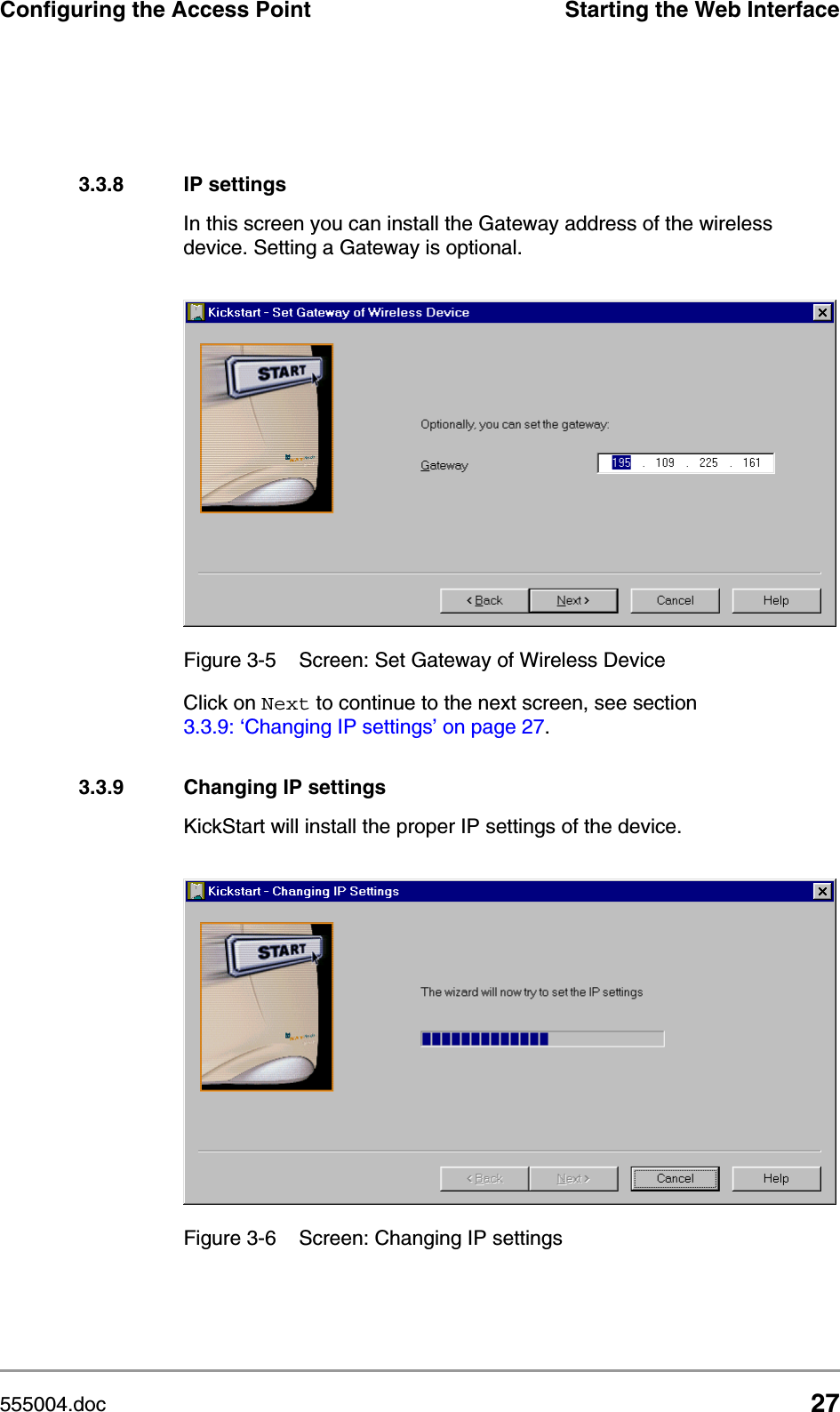
555004.doc 27Configuring the Access Point Starting the Web Interface3.3.8 IP settingsIn this screen you can install the Gateway address of the wireless device. Setting a Gateway is optional.Click on Next to continue to the next screen, see section 3.3.9: ‘Changing IP settings’ on page 27.3.3.9 Changing IP settingsKickStart will install the proper IP settings of the device.Figure 3-5 Screen: Set Gateway of Wireless DeviceFigure 3-6 Screen: Changing IP settings
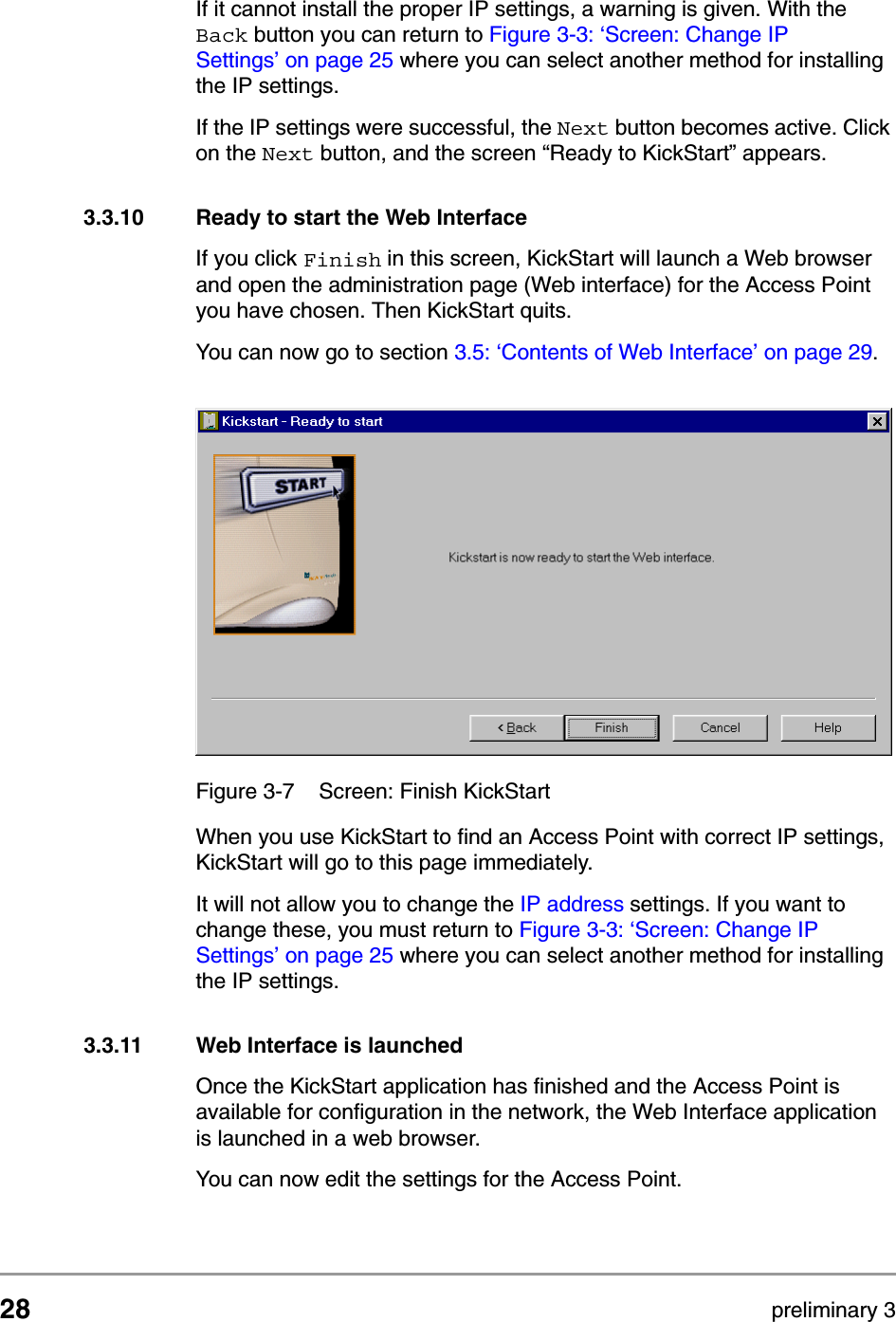
28 preliminary 3Configuring the Access PointStarting the Web InterfaceIf it cannot install the proper IP settings, a warning is given. With the Back button you can return to Figure 3-3: ‘Screen: Change IP Settings’ on page 25 where you can select another method for installing the IP settings.If the IP settings were successful, the Next button becomes active. Click on the Next button, and the screen “Ready to KickStart” appears.3.3.10 Ready to start the Web InterfaceIf you click Finish in this screen, KickStart will launch a Web browser and open the administration page (Web interface) for the Access Point you have chosen. Then KickStart quits. You can now go to section 3.5: ‘Contents of Web Interface’ on page 29.When you use KickStart to find an Access Point with correct IP settings, KickStart will go to this page immediately. It will not allow you to change the IP address settings. If you want to change these, you must return to Figure 3-3: ‘Screen: Change IP Settings’ on page 25 where you can select another method for installing the IP settings.3.3.11 Web Interface is launchedOnce the KickStart application has finished and the Access Point is available for configuration in the network, the Web Interface application is launched in a web browser.You can now edit the settings for the Access Point.Figure 3-7 Screen: Finish KickStart
555004.doc 29Configuring the Access Point Launching Web Interface manually3.4 Launching Web Interface manuallyWhen you know the IP address of an Access Point, you can launch the Web Interface in a web browser for editing. 1. Open a web browser.2. Insert the web address of the Access Point on the address bar as follows:http://IP address of the Access Point/It is recommended to bookmark your web address for the Web Interface.3.5 Contents of Web InterfaceThe Web Interface application contains the following subjects:3.5.1 Settings SummaryThis page contains a summary of the settings of the Access Point.To display the Settings Summary page, click  .Table 3-4 Contents of Web InterfacePage DescriptionSettings SummaryOn this page you will find an overview of the current settings.Wireless Settings The settings of the wireless device are displayed here, and you can edit some of these settings.Security against unauthorized network accessOn this page you can allow or deny access to the Access Point by clients.Security against EavesdroppingOn this page you can install security methods to prevent eavesdropping on the connection to the Access Point.Security against unauthorized configurationOn this page you can manage the Write Community String for the Access Point and lock the management of the Access Point.Identity Here the identity data of the Access Point are displayed, and you can edit some of these data.IP Settings The IP, subnet, and gateway addresses of the Access Point are displayed here.
30 preliminary 3Configuring the Access PointContents of Web InterfaceYou cannot change any of the settings in this page. Table 3-5 contains the references to the pages where these settings can be changed.  To change these settings: SSIDIP addressAccess ControlEavesdropping mode3.5.2 Wireless SettingsOn this page you can install items such as the identification of the device and the radio channel.To display the Wireless Settings page, click  .Table 3-6 contains the descriptions of the options in this page.Table 3-5 Web Interface page: Settings SummarySetting Refer to Web Interface pageSSID see section 3.5.2: ‘Wireless Settings’ on page 30IP address see section 3.3.8: ‘IP settings’ on page 27Access Control see section 3.5.3: ‘Security against unauthorized network access’ on page 31Eavesdropping modesee section 3.5.6: ‘Security against eavesdropping’ on page 34Table 3-6 Web Interface page: Wireless SettingsOption DescriptionSSID This is the Service Set ID. Only Access Points and clients that share the same SSID are able to communicate with each other.See also section B.4: ‘Service Set ID (SSID)’ on page 56.
555004.doc 31Configuring the Access Point Contents of Web Interface3.5.3 Security against unauthorized network accessTo protect your network against unauthorized network access you can create an Access Control List (ACL). To display the Security against unauthorized network page, click  .You can choose to allow access to all clients or deny access to all clients, and create a list of exceptions for both options.The changes to the Access Control List on this page are accepted when you click on the OK button.Radio Channel  This is the channel that the Access Point uses to transmit and receive information (see also section B.5.4: ‘Radio Channels’ on page 57).The channel that you select here is restricted to the channels that can be used within your Regulatory domain.Regulatory DomainThe Regulatory domain is displayed here. Every country has a Regulatory Domain concerning radio channels that can be used to transmit and receive signals (see also section B.5.3: ‘Regulatory Domain’ on page 57).This setting is a factory default that cannot be changed.Table 3-6 Web Interface page: Wireless SettingsOption Description
32 preliminary 3Configuring the Access PointContents of Web InterfaceThe first section in this page contains two Access options. Table 3-7 describes these options.Once you have selected whether you want to allow access to all clients or deny all clients, you can create an Exception List. See section 3.5.4: ‘To add a a client to the exception list’ on page 32 and section 3.5.5: ‘To delete a client from the exception list’ on page 33.nNote. The title of the Exceptions list shows•“denied clients” when the exceptions are applicable to the option Allow access to all clients.•“accepted clients” when the exceptions are applicable to the option Deny access to all clients.3.5.4 To add a a client to the exception listFollow these steps to add a client to the exception list (see section):1. Click on the button Add client.... and a separate window opens Table 3-7 Web Interface page: Security against unauthorized network access.Options DescriptionAll clients are acceptedWhen you select this option, you allow access to all PC Cards, except for ones that you specify in the Exception list.This option can be useful if you do not want to keep track of all PC Cards but you do know some PC Cards that need to be denied access because they were stolen.Deny all clients When you select this option, you deny access to all PC Cards except the ones you specify in the Exception List
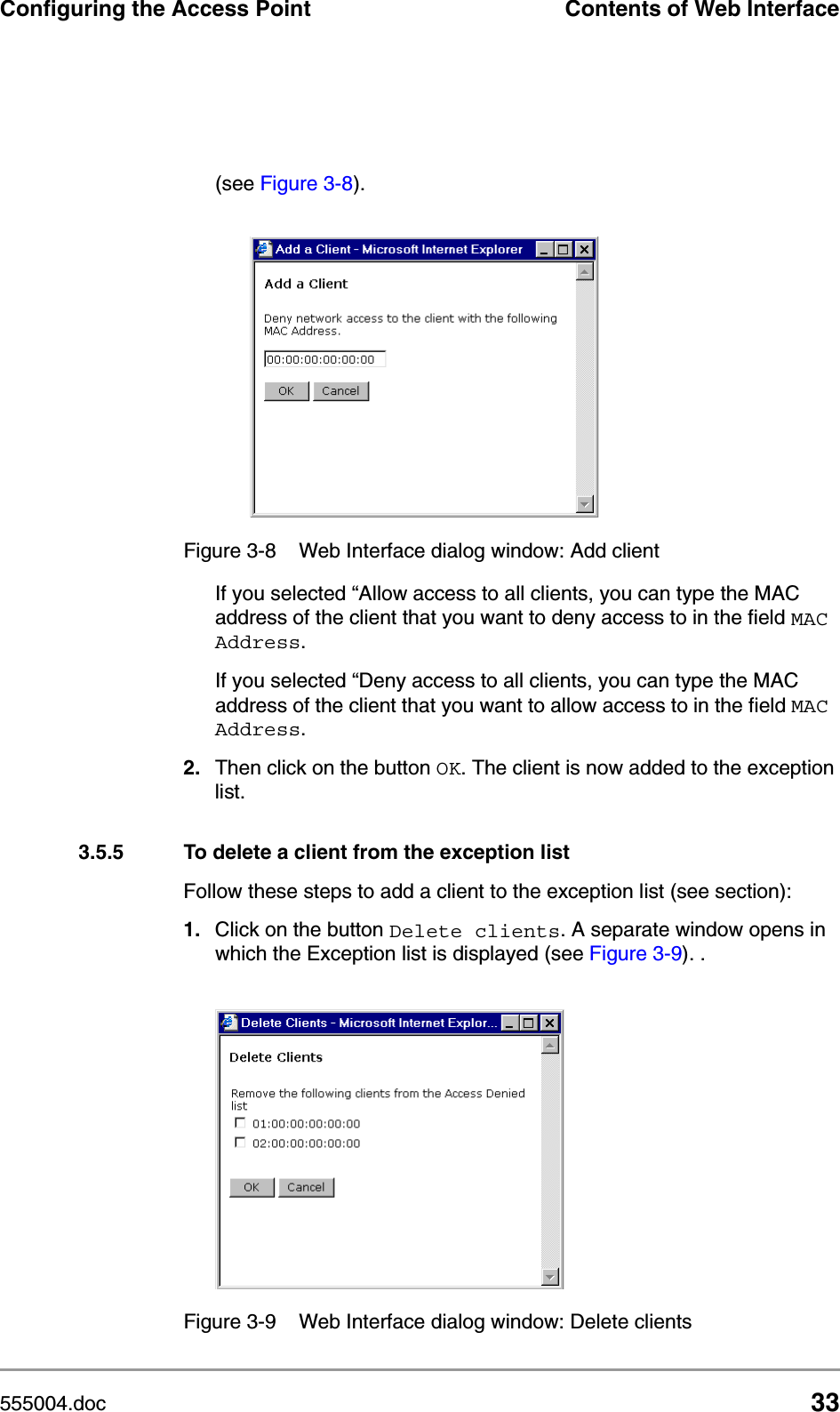
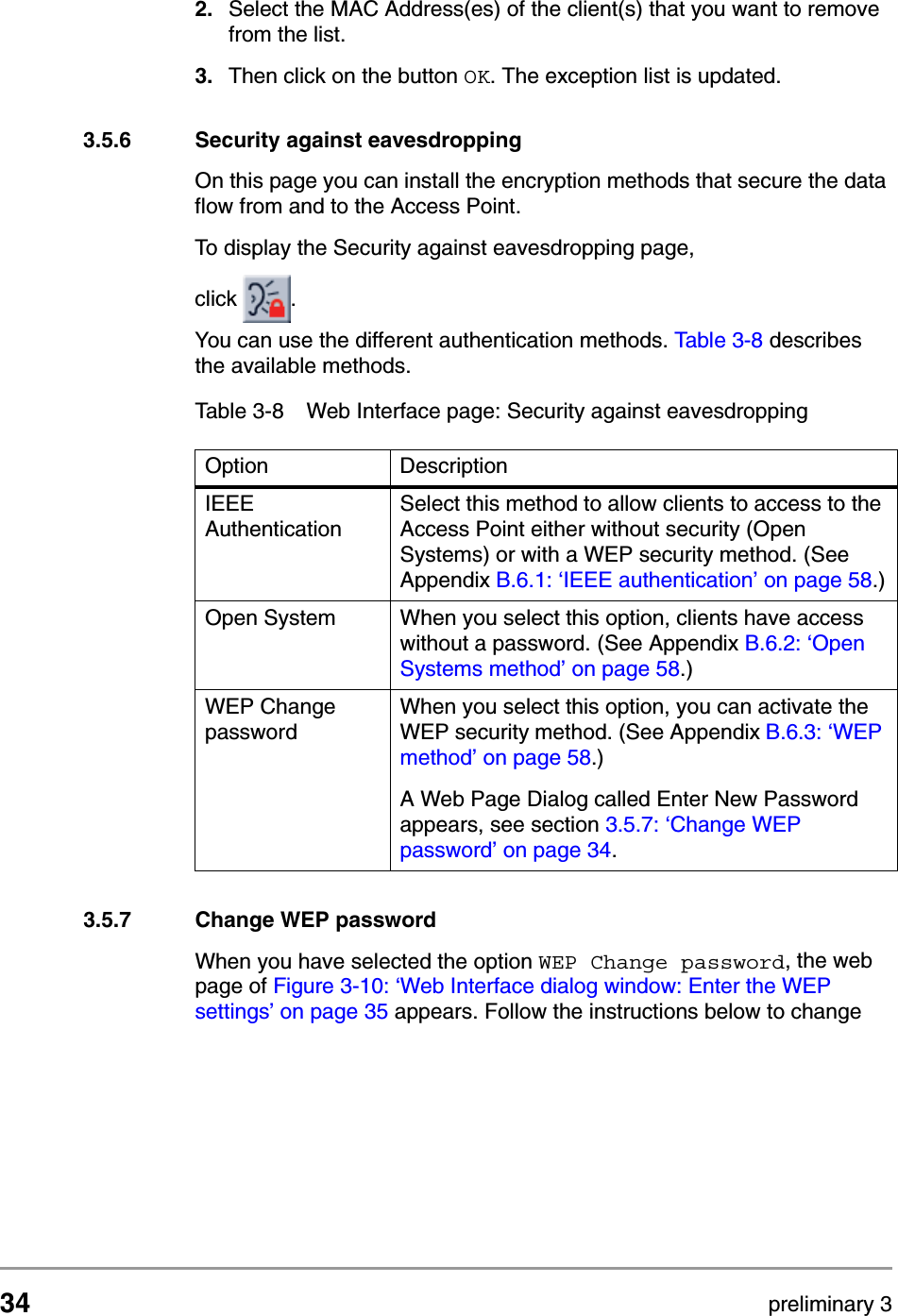
555004.doc 33Configuring the Access Point Contents of Web Interface(see Figure 3-8). If you selected “Allow access to all clients, you can type the MAC address of the client that you want to deny access to in the field MAC Address.If you selected “Deny access to all clients, you can type the MAC address of the client that you want to allow access to in the field MAC Address.2. Then click on the button OK. The client is now added to the exception list.3.5.5 To delete a client from the exception listFollow these steps to add a client to the exception list (see section):1. Click on the button Delete clients. A separate window opens in which the Exception list is displayed (see Figure 3-9). . Figure 3-8 Web Interface dialog window: Add clientFigure 3-9 Web Interface dialog window: Delete clients
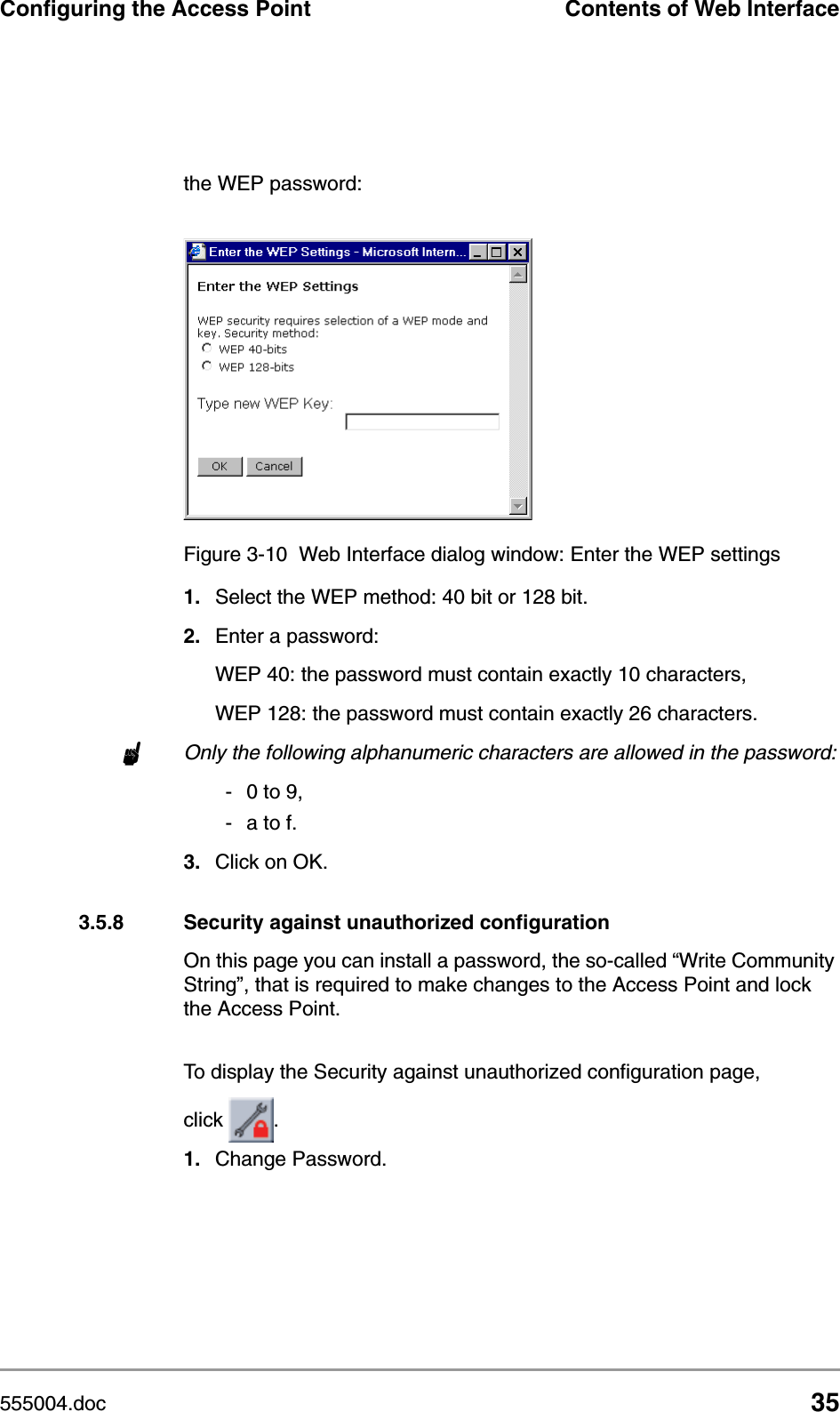
34 preliminary 3Configuring the Access PointContents of Web Interface2. Select the MAC Address(es) of the client(s) that you want to remove from the list.3. Then click on the button OK. The exception list is updated.3.5.6 Security against eavesdroppingOn this page you can install the encryption methods that secure the data flow from and to the Access Point. To display the Security against eavesdropping page, click  .You can use the different authentication methods. Tabl e 3 - 8  describes the available methods.3.5.7 Change WEP passwordWhen you have selected the option WEP Change password, the web page of Figure 3-10: ‘Web Interface dialog window: Enter the WEP settings’ on page 35 appears. Follow the instructions below to change Table 3-8 Web Interface page: Security against eavesdroppingOption DescriptionIEEE AuthenticationSelect this method to allow clients to access to the Access Point either without security (Open Systems) or with a WEP security method. (See Appendix B.6.1: ‘IEEE authentication’ on page 58.)Open System When you select this option, clients have access without a password. (See Appendix B.6.2: ‘Open Systems method’ on page 58.)WEP Change passwordWhen you select this option, you can activate the WEP security method. (See Appendix B.6.3: ‘WEP method’ on page 58.)A Web Page Dialog called Enter New Password appears, see section 3.5.7: ‘Change WEP password’ on page 34.
555004.doc 35Configuring the Access Point Contents of Web Interfacethe WEP password:1. Select the WEP method: 40 bit or 128 bit.2. Enter a password:WEP 40: the password must contain exactly 10 characters, WEP 128: the password must contain exactly 26 characters.nOnly the following alphanumeric characters are allowed in the password:-0 to 9,- a to f.3. Click on OK.3.5.8 Security against unauthorized configurationOn this page you can install a password, the so-called “Write Community String”, that is required to make changes to the Access Point and lock the Access Point.To display the Security against unauthorized configuration page, click  .1. Change Password.Figure 3-10 Web Interface dialog window: Enter the WEP settings
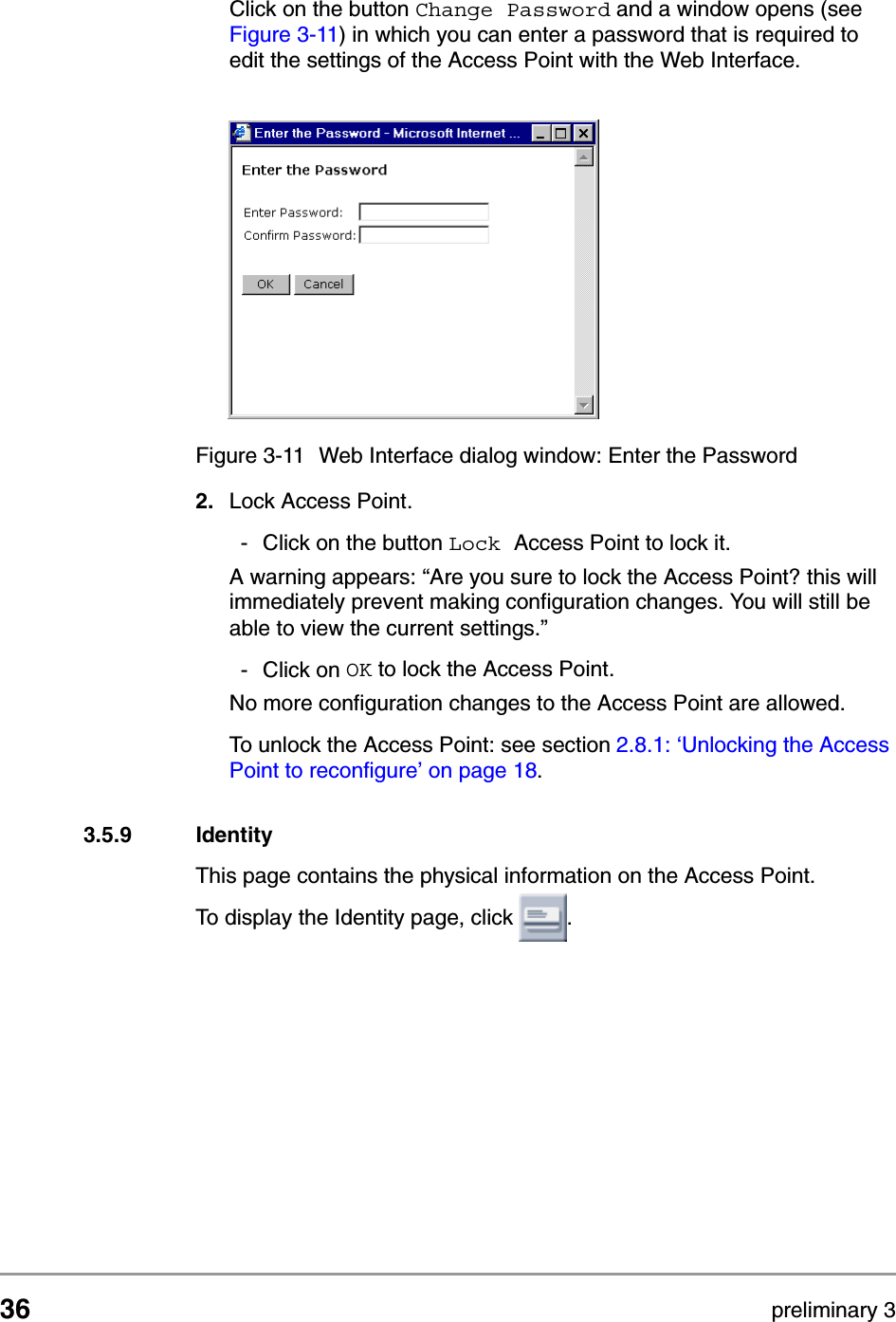
36 preliminary 3Configuring the Access PointContents of Web InterfaceClick on the button Change Password and a window opens (see Figure 3-11) in which you can enter a password that is required to edit the settings of the Access Point with the Web Interface.2. Lock Access Point.- Click on the button Lock Access Point to lock it. A warning appears: “Are you sure to lock the Access Point? this will immediately prevent making configuration changes. You will still be able to view the current settings.”- Click on OK to lock the Access Point.No more configuration changes to the Access Point are allowed.To unlock the Access Point: see section 2.8.1: ‘Unlocking the Access Point to reconfigure’ on page 18.3.5.9 IdentityThis page contains the physical information on the Access Point.To display the Identity page, click  .Figure 3-11 Web Interface dialog window: Enter the Password
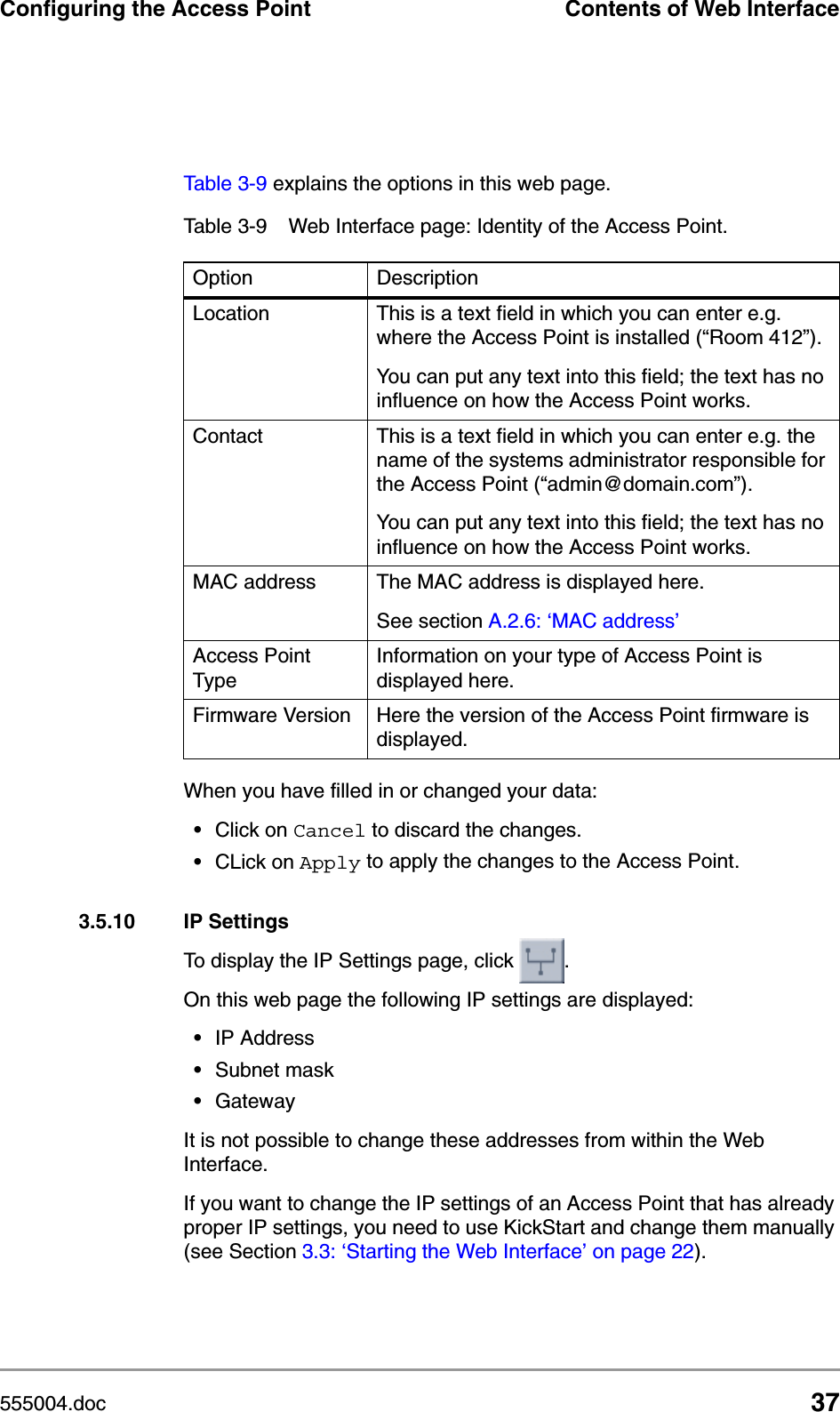
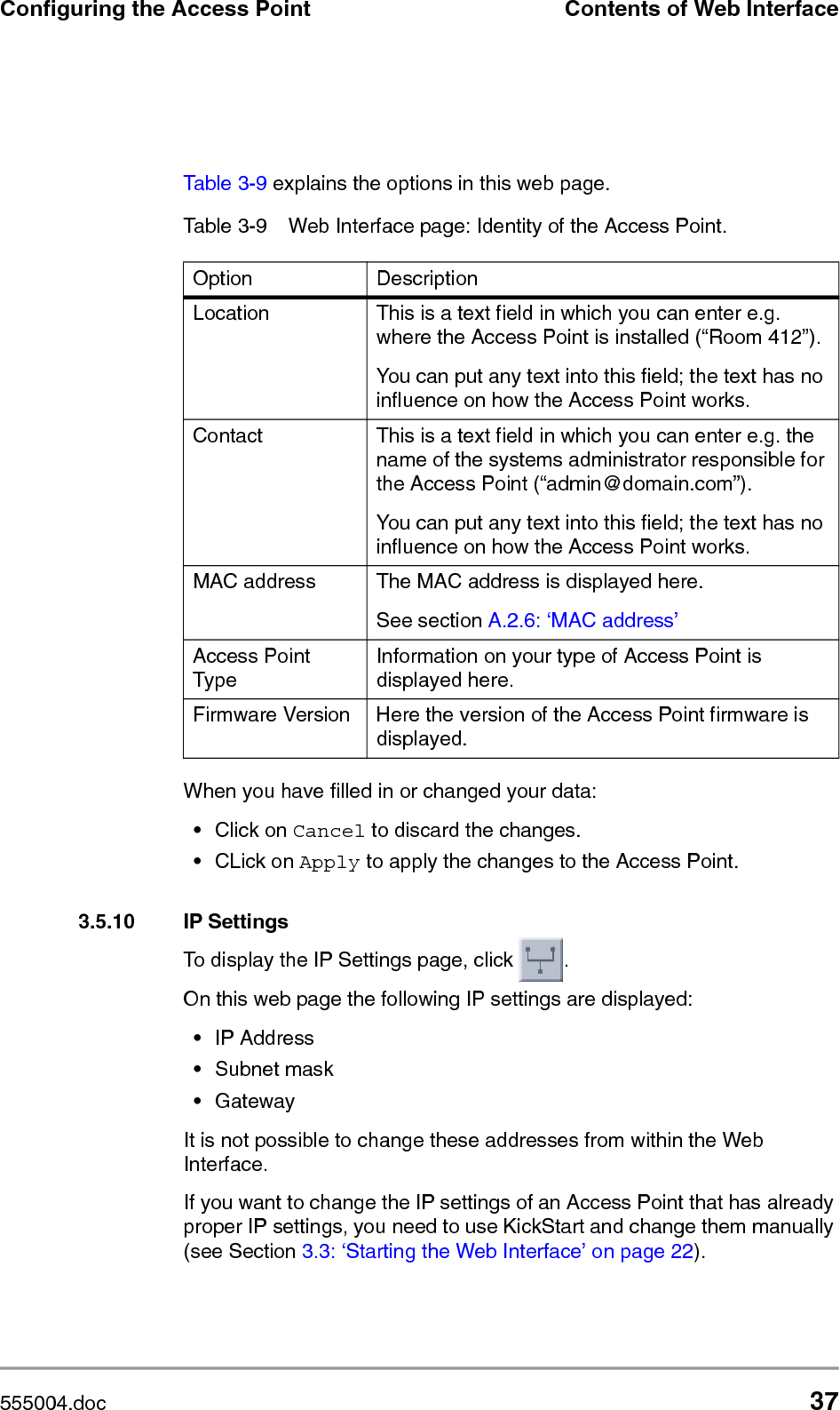
555004.doc 37Configuring the Access Point Contents of Web InterfaceTable 3-9 explains the options in this web page.When you have filled in or changed your data:•Click on Cancel to discard the changes.•CLick on Apply to apply the changes to the Access Point.3.5.10 IP SettingsTo display the IP Settings page, click  .On this web page the following IP settings are displayed:•IP Address•Subnet mask •GatewayIt is not possible to change these addresses from within the Web Interface.If you want to change the IP settings of an Access Point that has already proper IP settings, you need to use KickStart and change them manually (see Section 3.3: ‘Starting the Web Interface’ on page 22).Table 3-9 Web Interface page: Identity of the Access Point.Option DescriptionLocation This is a text field in which you can enter e.g. where the Access Point is installed (“Room 412”).You can put any text into this field; the text has no influence on how the Access Point works. Contact This is a text field in which you can enter e.g. the name of the systems administrator responsible for the Access Point (“admin@domain.com”). You can put any text into this field; the text has no influence on how the Access Point works. MAC address The MAC address is displayed here. See section A.2.6: ‘MAC address’Access Point TypeInformation on your type of Access Point is displayed here.Firmware Version Here the version of the Access Point firmware is displayed.
38 preliminary 3Configuring the Access PointContents of Web Interface
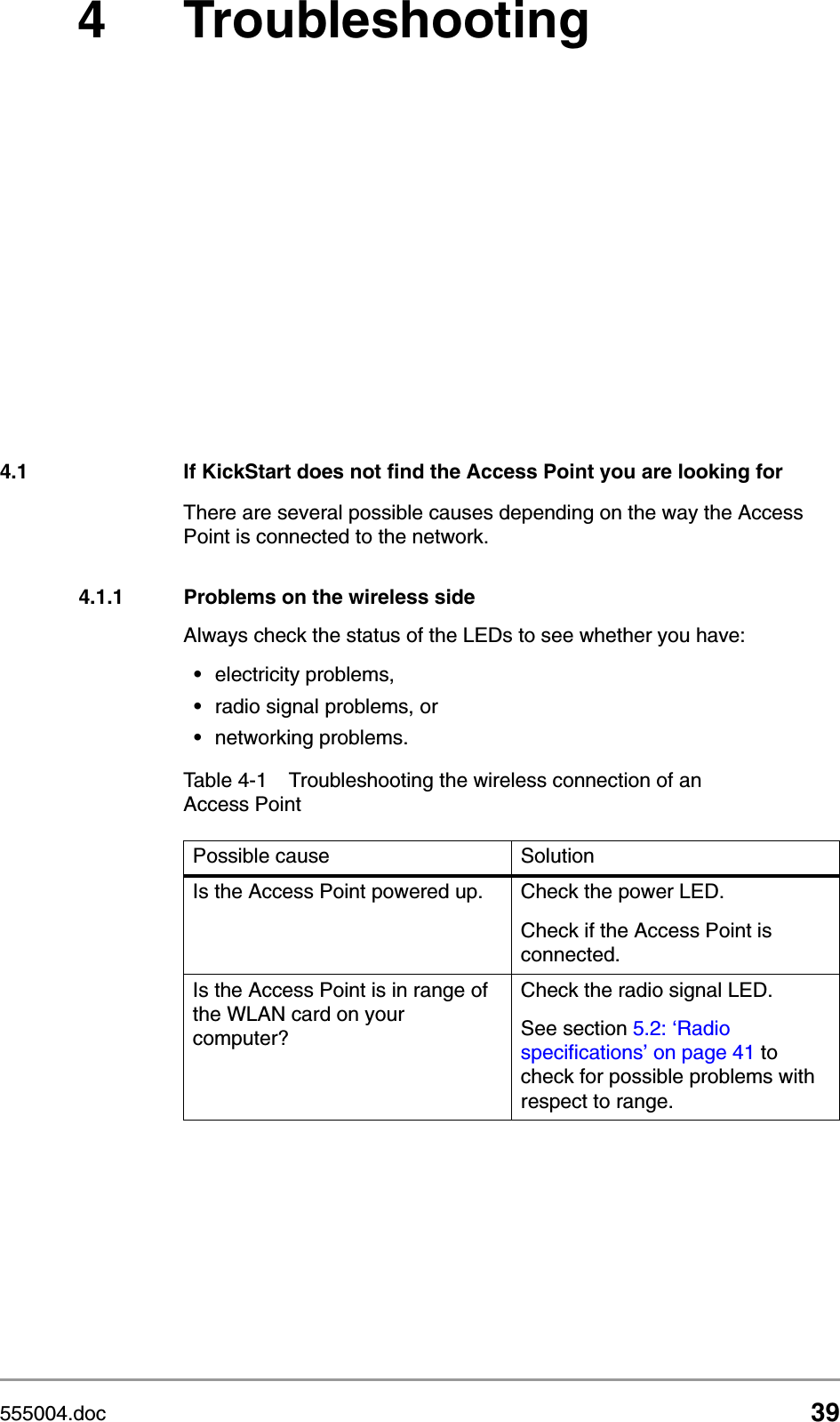
555004.doc 394 Troubleshooting4.1 If KickStart does not find the Access Point you are looking forThere are several possible causes depending on the way the Access Point is connected to the network.4.1.1 Problems on the wireless sideAlways check the status of the LEDs to see whether you have:•electricity problems,•radio signal problems, or •networking problems.Table 4-1 Troubleshooting the wireless connection of an Access PointPossible cause SolutionIs the Access Point powered up. Check the power LED. Check if the Access Point is connected.Is the Access Point is in range of the WLAN card on your computer?Check the radio signal LED. See section 5.2: ‘Radio specifications’ on page 41 to check for possible problems with respect to range.
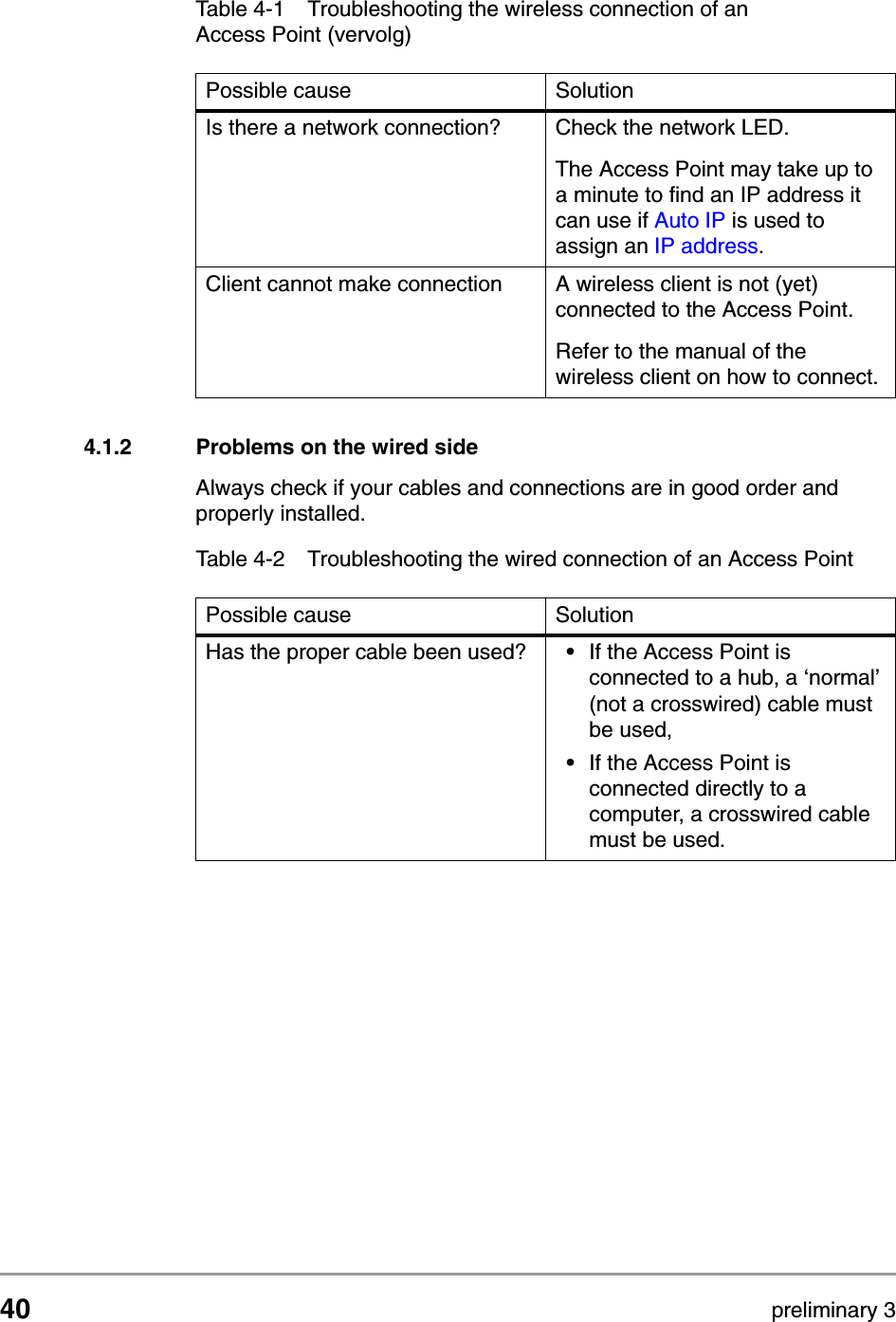
40 preliminary 3TroubleshootingIf KickStart does not find the Access Point you are looking for4.1.2 Problems on the wired sideAlways check if your cables and connections are in good order and properly installed.Is there a network connection? Check the network LED.The Access Point may take up to a minute to find an IP address it can use if Auto IP is used to assign an IP address. Client cannot make connection A wireless client is not (yet) connected to the Access Point.Refer to the manual of the wireless client on how to connect.Table 4-1 Troubleshooting the wireless connection of an Access Point (vervolg)Possible cause SolutionTable 4-2 Troubleshooting the wired connection of an Access PointPossible cause SolutionHas the proper cable been used? •If the Access Point is connected to a hub, a ‘normal’ (not a crosswired) cable must be used,•If the Access Point is connected directly to a computer, a crosswired cable must be used.
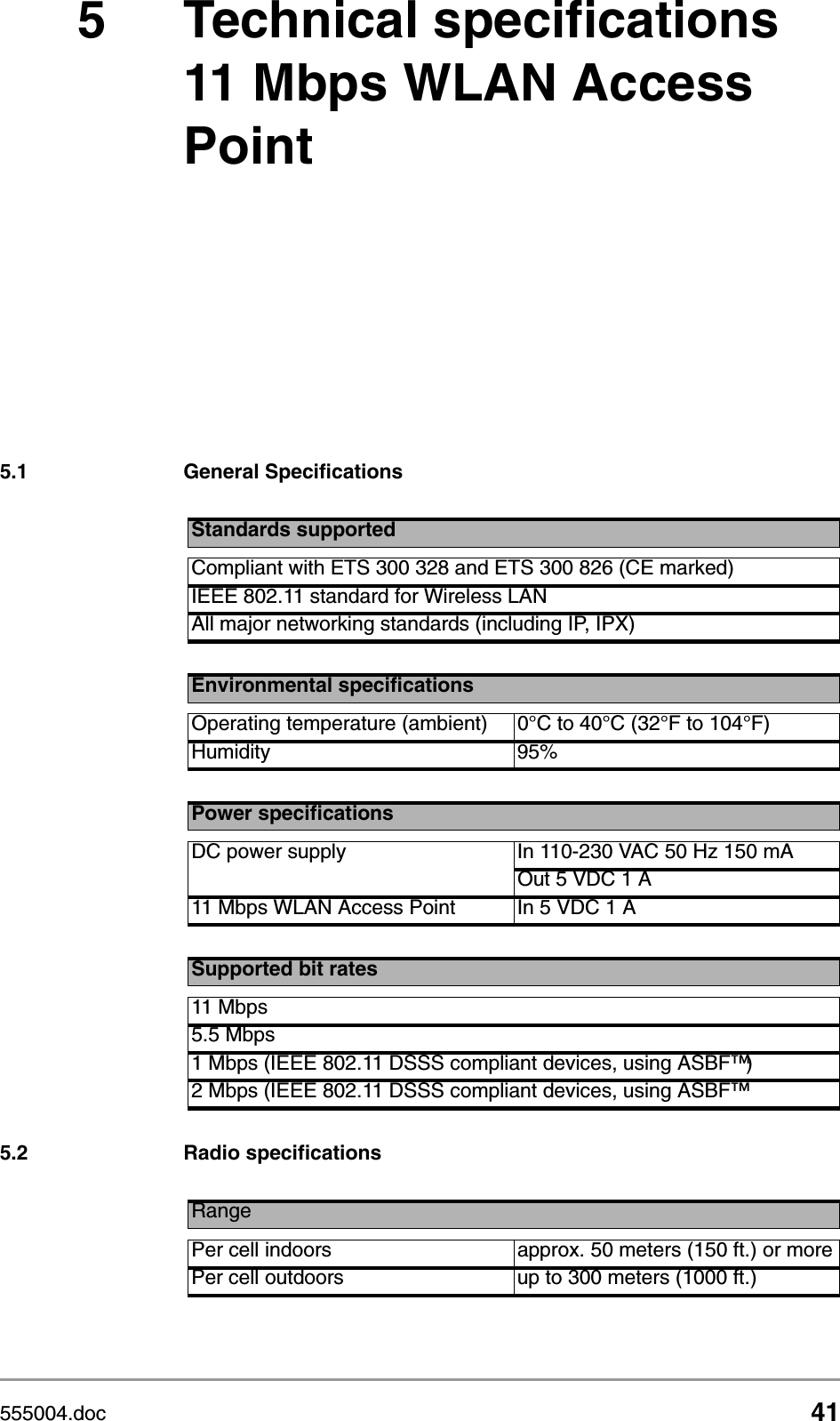
555004.doc 415 Technical specifications 11 Mbps WLAN Access Point5.1 General Specifications5.2 Radio specificationsStandards supportedCompliant with ETS 300 328 and ETS 300 826 (CE marked)IEEE 802.11 standard for Wireless LANAll major networking standards (including IP, IPX)Environmental specificationsOperating temperature (ambient) 0°C to 40°C (32°F to 104°F)Humidity 95%Power specificationsDC power supply In 110-230 VAC 50 Hz 150 mAOut 5 VDC 1 A11 Mbps WLAN Access Point In 5 VDC 1 ASupported bit rates11 Mbps5.5 Mbps 1 Mbps (IEEE 802.11 DSSS compliant devices, using ASBF™ )2 Mbps (IEEE 802.11 DSSS compliant devices, using ASBF™ RangePer cell indoors approx. 50 meters (150 ft.) or morePer cell outdoors up to 300 meters (1000 ft.)
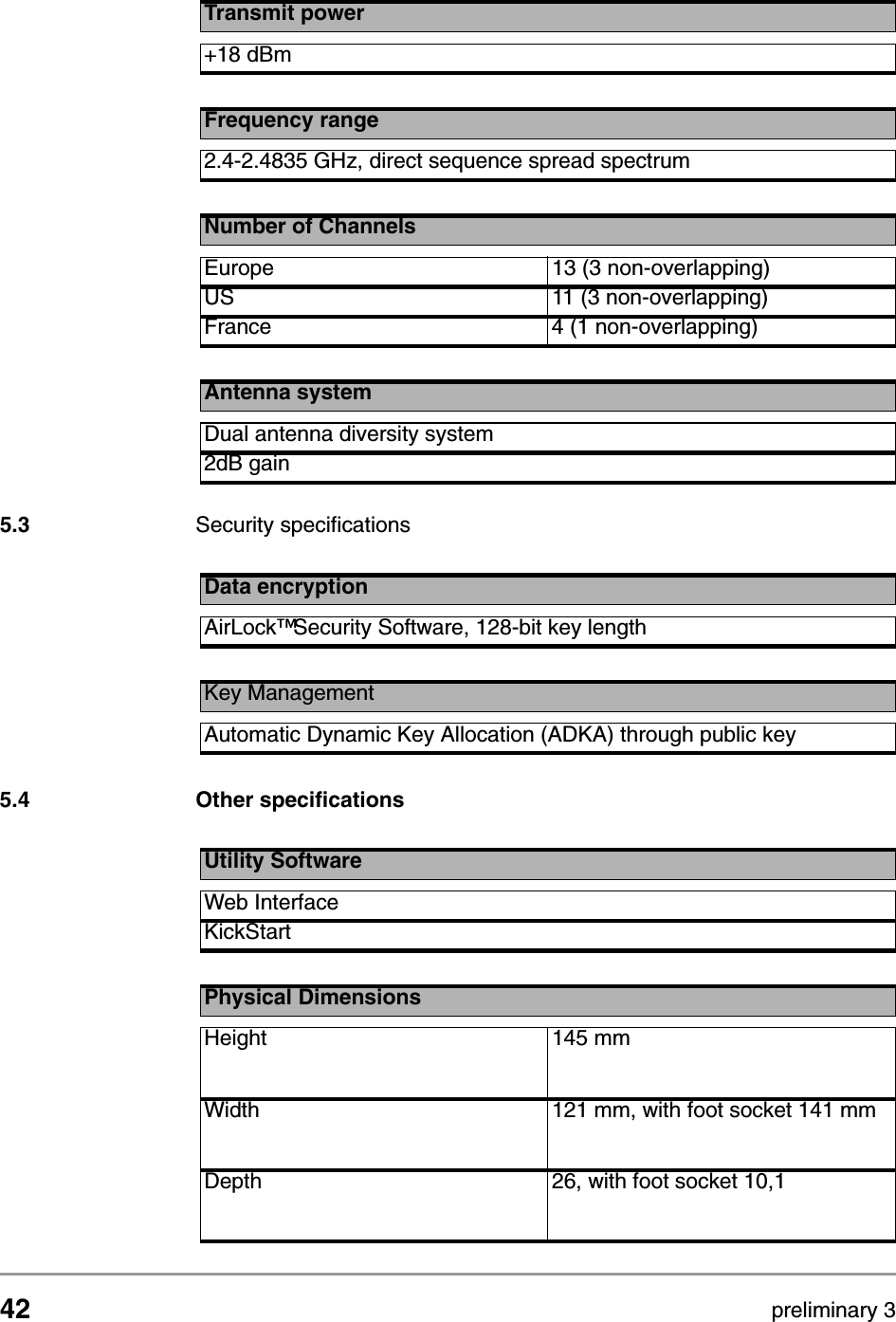
42 preliminary 3Technical specifications 11 Mbps WLAN Access PointSecurity specifications5.3 Security specifications 5.4 Other specificationsTransmit power+18 dBmFrequency range2.4-2.4835 GHz, direct sequence spread spectrumNumber of ChannelsEurope 13 (3 non-overlapping)US 11 (3 non-overlapping)France 4 (1 non-overlapping)Antenna systemDual antenna diversity system2dB gainData encryptionAirLock™ Security Software, 128-bit key lengthKey ManagementAutomatic Dynamic Key Allocation (ADKA) through public keyUtility SoftwareWeb InterfaceKickStartPhysical DimensionsHeight 145 mmWidth 121 mm, with foot socket 141 mmDepth 26, with foot socket 10,1
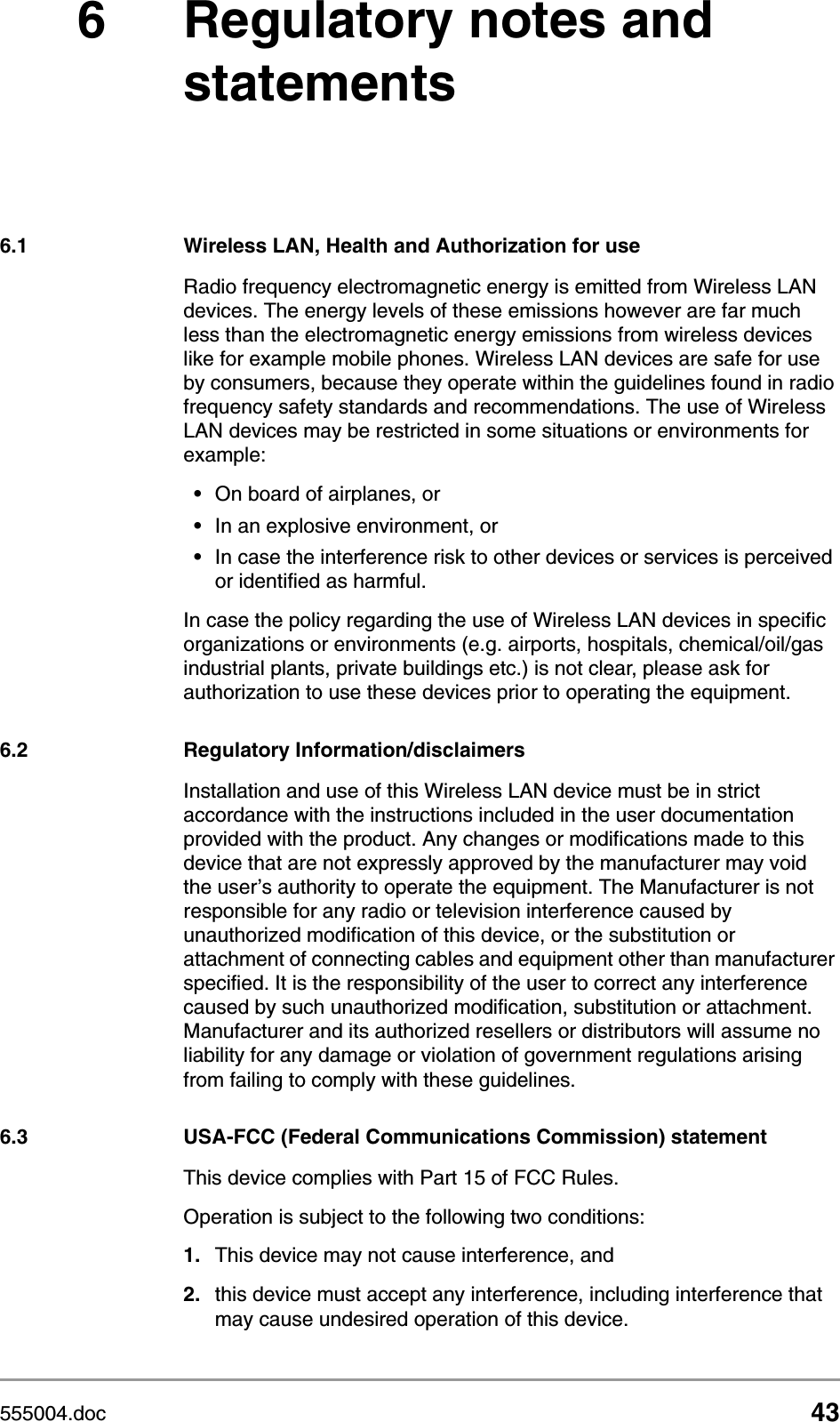
555004.doc 436 Regulatory notes and statements6.1 Wireless LAN, Health and Authorization for useRadio frequency electromagnetic energy is emitted from Wireless LAN devices. The energy levels of these emissions however are far much less than the electromagnetic energy emissions from wireless devices like for example mobile phones. Wireless LAN devices are safe for use by consumers, because they operate within the guidelines found in radio frequency safety standards and recommendations. The use of Wireless LAN devices may be restricted in some situations or environments for example:•On board of airplanes, or•In an explosive environment, or•In case the interference risk to other devices or services is perceived or identified as harmful.In case the policy regarding the use of Wireless LAN devices in specific organizations or environments (e.g. airports, hospitals, chemical/oil/gas industrial plants, private buildings etc.) is not clear, please ask for authorization to use these devices prior to operating the equipment.6.2 Regulatory Information/disclaimersInstallation and use of this Wireless LAN device must be in strict accordance with the instructions included in the user documentation provided with the product. Any changes or modifications made to this device that are not expressly approved by the manufacturer may void the user’s authority to operate the equipment. The Manufacturer is not responsible for any radio or television interference caused by unauthorized modification of this device, or the substitution or attachment of connecting cables and equipment other than manufacturer specified. It is the responsibility of the user to correct any interference caused by such unauthorized modification, substitution or attachment. Manufacturer and its authorized resellers or distributors will assume no liability for any damage or violation of government regulations arising from failing to comply with these guidelines.6.3 USA-FCC (Federal Communications Commission) statementThis device complies with Part 15 of FCC Rules.Operation is subject to the following two conditions:1. This device may not cause interference, and2. this device must accept any interference, including interference that may cause undesired operation of this device.
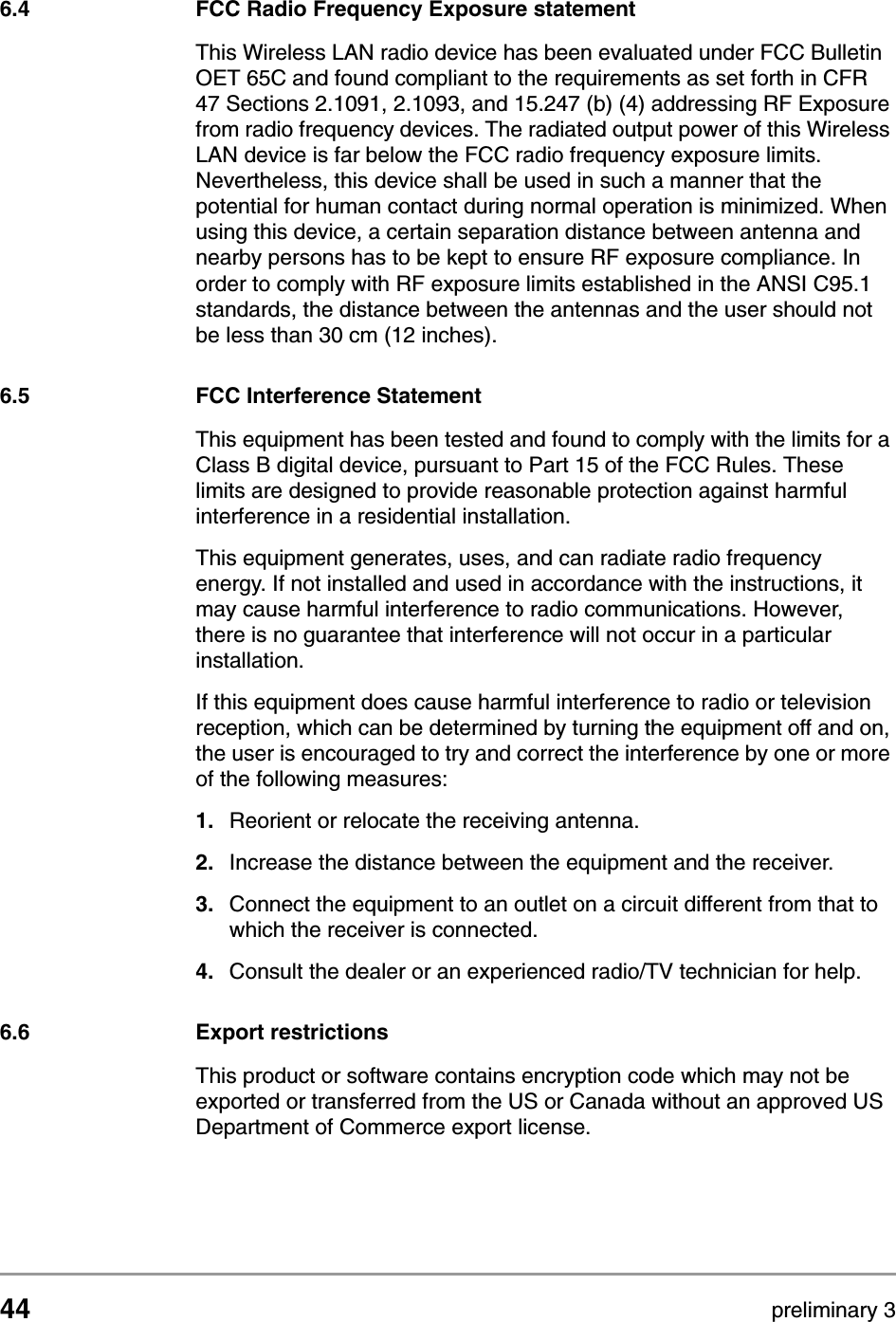
44 preliminary 3Regulatory notes and statementsFCC Radio Frequency Exposure statement6.4 FCC Radio Frequency Exposure statementThis Wireless LAN radio device has been evaluated under FCC Bulletin OET 65C and found compliant to the requirements as set forth in CFR 47 Sections 2.1091, 2.1093, and 15.247 (b) (4) addressing RF Exposure from radio frequency devices. The radiated output power of this Wireless LAN device is far below the FCC radio frequency exposure limits. Nevertheless, this device shall be used in such a manner that the potential for human contact during normal operation is minimized. When using this device, a certain separation distance between antenna and nearby persons has to be kept to ensure RF exposure compliance. In order to comply with RF exposure limits established in the ANSI C95.1 standards, the distance between the antennas and the user should not be less than 30 cm (12 inches).6.5 FCC Interference StatementThis equipment has been tested and found to comply with the limits for a Class B digital device, pursuant to Part 15 of the FCC Rules. These limits are designed to provide reasonable protection against harmful interference in a residential installation.This equipment generates, uses, and can radiate radio frequency energy. If not installed and used in accordance with the instructions, it may cause harmful interference to radio communications. However, there is no guarantee that interference will not occur in a particular installation.If this equipment does cause harmful interference to radio or television reception, which can be determined by turning the equipment off and on, the user is encouraged to try and correct the interference by one or more of the following measures:1. Reorient or relocate the receiving antenna.2. Increase the distance between the equipment and the receiver.3. Connect the equipment to an outlet on a circuit different from that to which the receiver is connected.4. Consult the dealer or an experienced radio/TV technician for help.6.6 Export restrictionsThis product or software contains encryption code which may not be exported or transferred from the US or Canada without an approved US Department of Commerce export license.
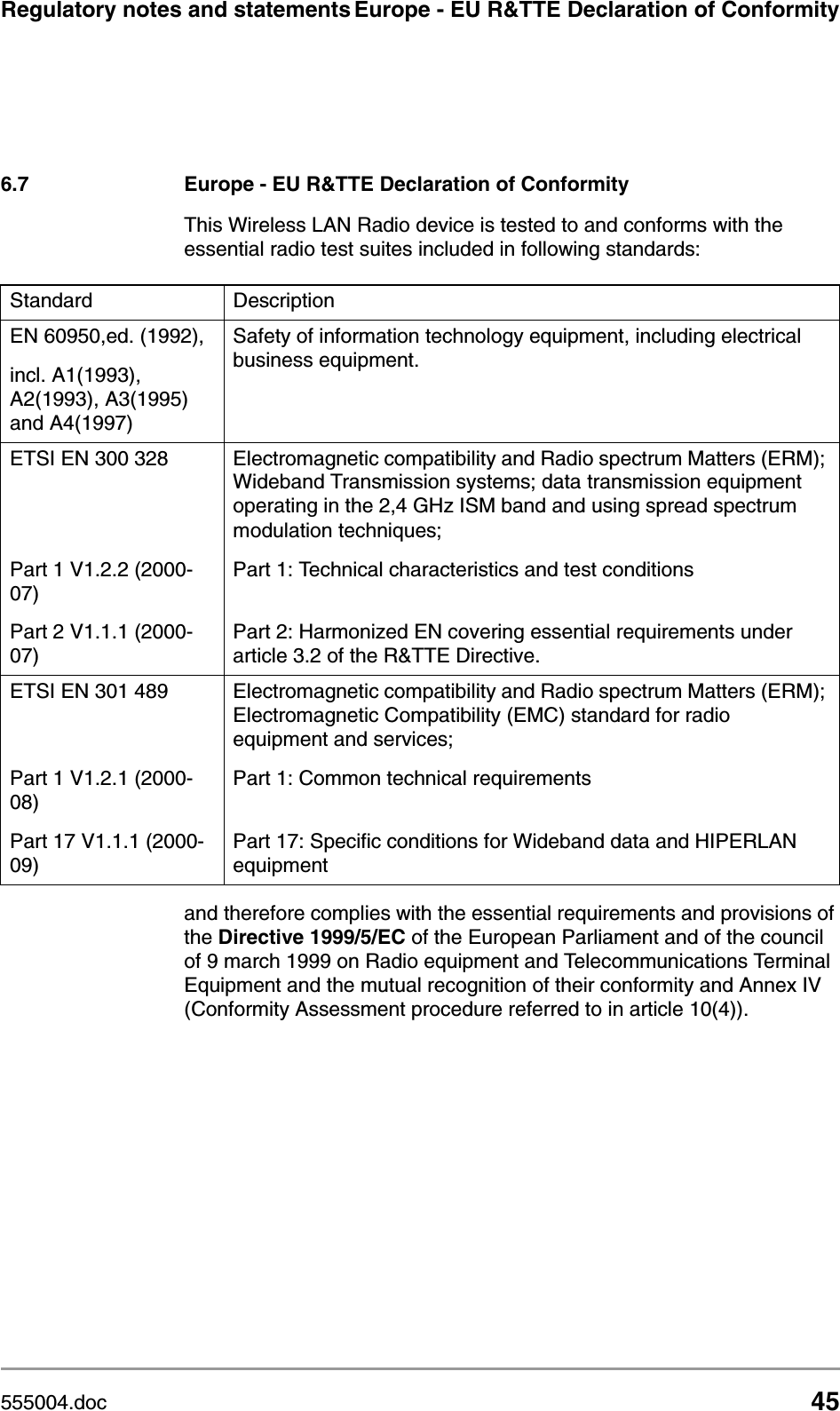
555004.doc 45Regulatory notes and statements Europe - EU R&TTE Declaration of Conformity6.7 Europe - EU R&TTE Declaration of ConformityThis Wireless LAN Radio device is tested to and conforms with the essential radio test suites included in following standards:and therefore complies with the essential requirements and provisions of the Directive 1999/5/EC of the European Parliament and of the council of 9 march 1999 on Radio equipment and Telecommunications Terminal Equipment and the mutual recognition of their conformity and Annex IV (Conformity Assessment procedure referred to in article 10(4)).Standard DescriptionEN 60950,ed. (1992),incl. A1(1993), A2(1993), A3(1995) and A4(1997)Safety of information technology equipment, including electrical business equipment.ETSI EN 300 328Part 1 V1.2.2 (2000-07)Part 2 V1.1.1 (2000-07)Electromagnetic compatibility and Radio spectrum Matters (ERM); Wideband Transmission systems; data transmission equipment operating in the 2,4 GHz ISM band and using spread spectrum modulation techniques;Part 1: Technical characteristics and test conditionsPart 2: Harmonized EN covering essential requirements under article 3.2 of the R&TTE Directive.ETSI EN 301 489Part 1 V1.2.1 (2000-08)Part 17 V1.1.1 (2000-09)Electromagnetic compatibility and Radio spectrum Matters (ERM); Electromagnetic Compatibility (EMC) standard for radio equipment and services;Part 1: Common technical requirementsPart 17: Specific conditions for Wideband data and HIPERLAN equipment
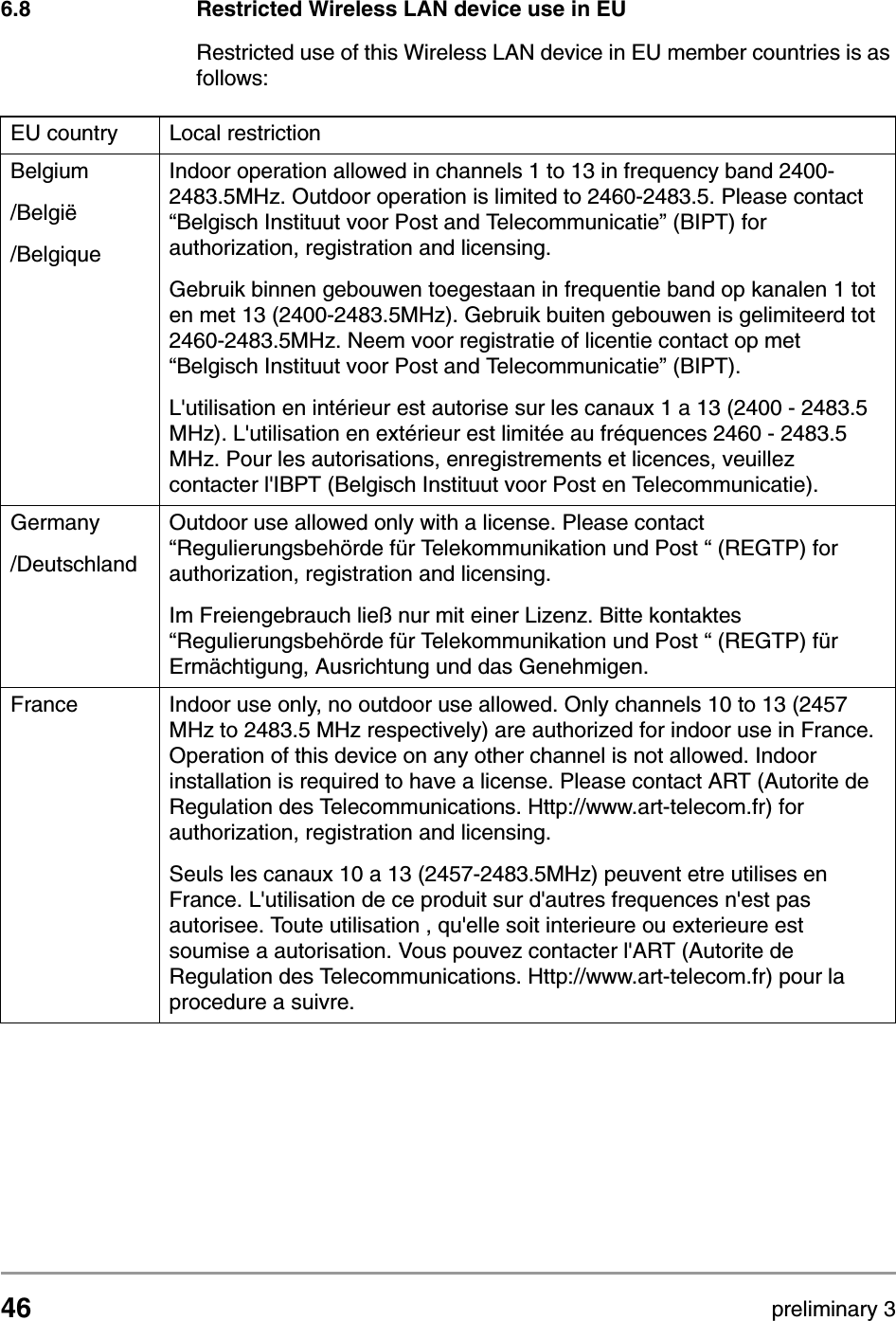
46 preliminary 3Regulatory notes and statementsRestricted Wireless LAN device use in EU6.8 Restricted Wireless LAN device use in EURestricted use of this Wireless LAN device in EU member countries is as follows:EU country Local restrictionBelgium/België/BelgiqueIndoor operation allowed in channels 1 to 13 in frequency band 2400-2483.5MHz. Outdoor operation is limited to 2460-2483.5. Please contact “Belgisch Instituut voor Post and Telecommunicatie” (BIPT) for authorization, registration and licensing.Gebruik binnen gebouwen toegestaan in frequentie band op kanalen 1 tot en met 13 (2400-2483.5MHz). Gebruik buiten gebouwen is gelimiteerd tot 2460-2483.5MHz. Neem voor registratie of licentie contact op met “Belgisch Instituut voor Post and Telecommunicatie” (BIPT).L'utilisation en intérieur est autorise sur les canaux 1 a 13 (2400 - 2483.5 MHz). L'utilisation en extérieur est limitée au fréquences 2460 - 2483.5 MHz. Pour les autorisations, enregistrements et licences, veuillez contacter l'IBPT (Belgisch Instituut voor Post en Telecommunicatie).Germany /DeutschlandOutdoor use allowed only with a license. Please contact “Regulierungsbehörde für Telekommunikation und Post “ (REGTP) for authorization, registration and licensing.Im Freiengebrauch ließ nur mit einer Lizenz. Bitte kontaktes “Regulierungsbehörde für Telekommunikation und Post “ (REGTP) für Ermächtigung, Ausrichtung und das Genehmigen.France Indoor use only, no outdoor use allowed. Only channels 10 to 13 (2457 MHz to 2483.5 MHz respectively) are authorized for indoor use in France. Operation of this device on any other channel is not allowed. Indoor installation is required to have a license. Please contact ART (Autorite de Regulation des Telecommunications. Http://www.art-telecom.fr) for authorization, registration and licensing.Seuls les canaux 10 a 13 (2457-2483.5MHz) peuvent etre utilises en France. L'utilisation de ce produit sur d'autres frequences n'est pas autorisee. Toute utilisation , qu'elle soit interieure ou exterieure est soumise a autorisation. Vous pouvez contacter l'ART (Autorite de Regulation des Telecommunications. Http://www.art-telecom.fr) pour la procedure a suivre.
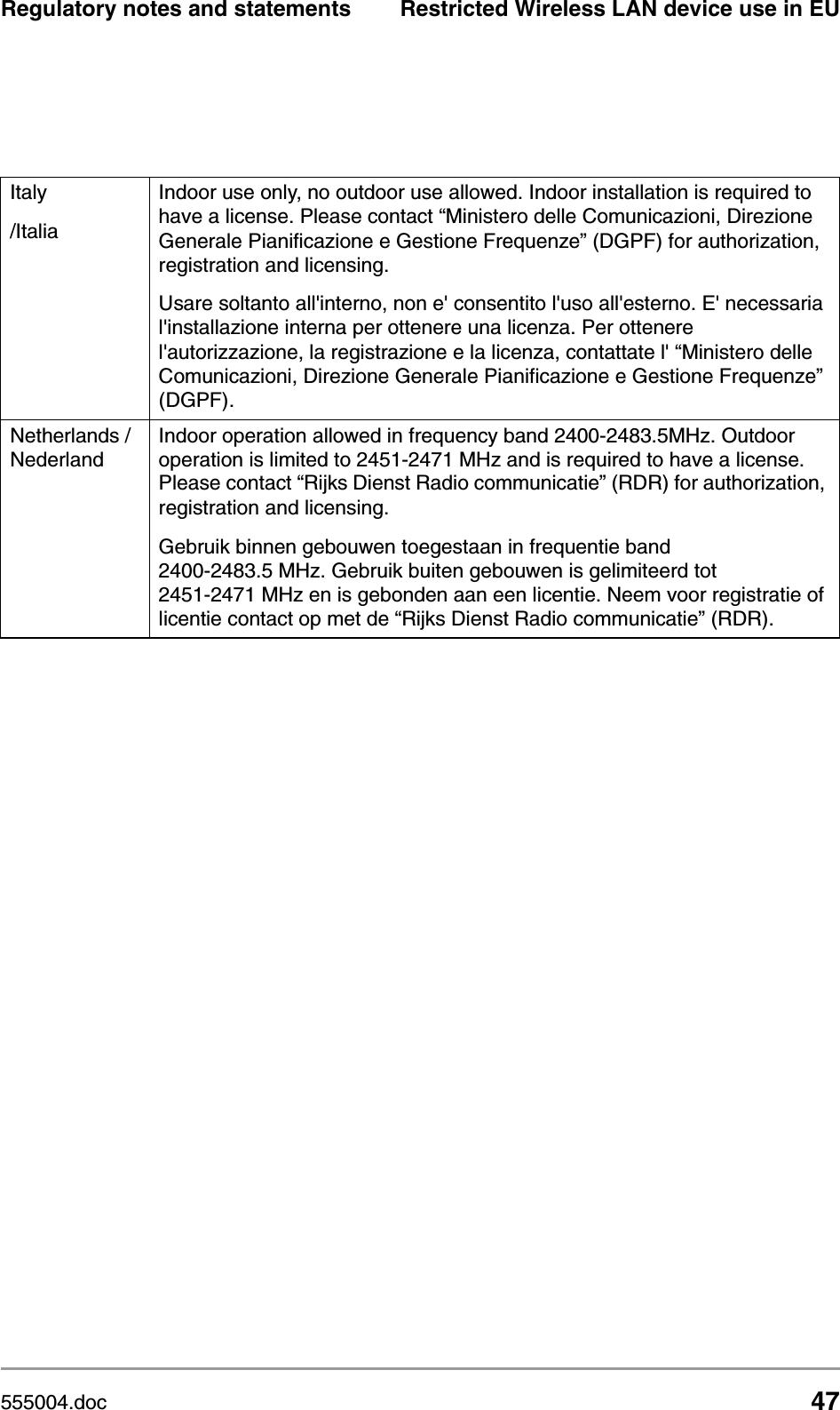
555004.doc 47Regulatory notes and statements Restricted Wireless LAN device use in EUItaly /ItaliaIndoor use only, no outdoor use allowed. Indoor installation is required to have a license. Please contact “Ministero delle Comunicazioni, Direzione Generale Pianificazione e Gestione Frequenze” (DGPF) for authorization, registration and licensing.Usare soltanto all'interno, non e' consentito l'uso all'esterno. E' necessaria l'installazione interna per ottenere una licenza. Per ottenere l'autorizzazione, la registrazione e la licenza, contattate l' “Ministero delle Comunicazioni, Direzione Generale Pianificazione e Gestione Frequenze” (DGPF).Netherlands /NederlandIndoor operation allowed in frequency band 2400-2483.5MHz. Outdoor operation is limited to 2451-2471 MHz and is required to have a license. Please contact “Rijks Dienst Radio communicatie” (RDR) for authorization, registration and licensing.Gebruik binnen gebouwen toegestaan in frequentie band 2400-2483.5 MHz. Gebruik buiten gebouwen is gelimiteerd tot 2451-2471 MHz en is gebonden aan een licentie. Neem voor registratie of licentie contact op met de “Rijks Dienst Radio communicatie” (RDR).
48 preliminary 3Regulatory notes and statementsRestricted Wireless LAN device use in EU
555004.doc 49A TCP and IP settingsA.1 IntroductionBefore installing a wireless network device you must analyze your the network environment. The information in this appendix is only helpful in determining which information is needed for a proper installation of such a device.This appendix explains how devices in a network are identified in order to communicate with each other. Chapter 3: ‘Configuring the Access Point’ on page 21 contains the instructions on how to apply this information to your situationA.2 How do computers communicate in a networkComputers use protocols to communicate to each other. The protocol that is used between computers (and other network devices) that are connected to the internet is TCP/IP (Transmission Control Protocol/Internet Protocol). This is also the main protocol in many other computer networks. The internet resembles the telephone network to some extent. Like a phone number that uniquely identifies one telephone connection, IP addresses are used to determine to which computer the data must be sent. An IP address looks like this: 192.168.201.160. Each of the four groups is represented in the computer by one byte, so only numbers from 0 to 255 can be used for a group.IP addresses are meant to be unique world-wide. To achieve this, IP addresses are assigned (you can’t just start using random addresses, but you have to ask for them). Usually, your Internet Service Provider will assign you a IP address range you can use.Table A-1 Overview of this chapterSection DescriptionA.2 Communication in a networkA.3 IP configuration
50 preliminary 3TCP and IP settingsHow do computers communicate in a networkA.2.1 IP addressAn IP address consists of two parts. The table below describes these two parts.The division between network portion and node portion is not obvious from what the IP address looks like. The division isn’t in a fixed place either. This is because not all subnets have the same size. Subnets can be small (16 computers) or very large (16 million computers). To indicate which part of an IP address is the subnet, and which is the computer identification, IP uses a Subnet mask. A.2.2 Subnet maskThe subnet mask defines which IP addresses are ‘local’ (i.e. are part of your subnet) and which are not local (but have to be reached via the internet). Compare this to calling someone via telephone: you can reach ‘local’ numbers by just entering the subscriber’s number, but for numbers that aren’t local you need the area code plus the subscriber’s number. The subnet mask looks like an IP address. When you translate the subnet mask to a binary number, it breaks down into two sections: first a series of 1s and then a series of zeroes (e.g. a subnet mask of 255.255.255.0 translates to 11111111.11111111.11111111.00000000). The 1s identify the network portion, the zeroes identify the node portion of the address. The subnet mask in this example has 8 bits available for local addresses (i.e. 256 different local addresses can be used). An example: on a computer, the network settings are defined with an IP address of 192.168.201.173 and a subnet mask of 255.255.255.224. These would be represented in binary like this:Table A-2 Sections of the IP addressPart Identifies DescriptionFirst partAll addresses on the subnet share this part of the IP address. subnet (local network) to which the computer is attachedThis part of the address is also known as the ‘network portion’; it is similar to the area code of a telephone number. Second part identification of the deviceThis part of the address is also known as the ‘node portion’, it is like the subscriber number in a telephone number.
555004.doc 51TCP and IP settings How do computers communicate in a networkIP address:11000000.10101000.11001001.10101101subnet mask: 11111111.11111111.11111111.11100000The subnet mask shows that the first 27 bits are the network portion of the address, the last 5 bits are the node portion, which means there is room for 32 addresses on this network (all numbers between 00000 and 11111 in binary). A.2.3 IP address rangeAll addresses in this network share the first 27 bits. The first address in the local network is 192.168.201.160. The last address is 192.168.201.192. In binary: First address:11000000.10101000.11001001.10100000Last address:11000000.10101000.11001001.10111111Such a group of addresses is also called an IP address range. A.2.4 Reserved addressesThe first and last addresses in a range cannot be assigned to computers in your network. These addresses have special functions. The first address in a range is also known as the network address, the last address is the broadcast address.Subnet masks are sometimes written down as 192.168.201.160/27, where 192.168.201.160 is the first address (or ‘network address’) in the range, and 27 is the number of 1s in the binary representation of the subnet mask (this subnet mask can also be written as 255.255.255.224). A.2.5 GatewayIf a device wants to communicate with another device it will determine if that IP address is in the same subnet as its own IP address. If it is, it can communicate directly with the other, if it isn’t, the situation is more complicated; it has to communicate with another subnet.To communicate between subnets there has to be a connection between the 2 subnets. This connection is made via devices known as gateways. If a device wants to communicate with a device in another subnet it sends the information to the gateway, and the gateway takes care of the rest of the transport.
52 preliminary 3TCP and IP settingsIP configurationIn order to do this, the sender needs to have the IP address of the gateway for his subnet. Normally, the lowest available node number in the subnet (the network address plus one) is used as the gateway address. A.2.6 MAC addressEvery Ethernet device has a unique address that is permanently linked to that device. It cannot be changed. On every wireless device, the MAC address is printed on its type label. The MAC address consists of six groups of two digits each (e.g. 00:10:91:00:00:00). A.3 IP configurationThe most basic way to configure IP settings is by entering the numbers manually on every host. This is somewhat complicated because every host in the subnet has to have the same subnet number but a unique node number. Also, the correct Subnet mask will have to be entered. Not doing this properly will result in errors.To simplify managing an IP network, several automated methods have been introduced. The two most important ones are DHCP and Auto IP.A.3.1 DHCPWhen a network uses DHCP (Dynamic Host Configuration Protocol), one host in the network contains a DHCP server. Whenever a device joins the network it asks the DHCP server for an IP configuration. The DHCP server sends back a unique IP address, the Subnet mask for this subnet and the IP address of the Gateway. The DHCP server keeps track of which hosts have requested an IP address and which IP they have been given.For large networks, DHCP is a convenient way of managing IP configurations, but in small networks the benefits do not compensate the overhead of managing the DHCP server.You must make a reservation in the DHCP server for the MAC address of a wireless network device before you configure the device. With the KickStart application you are then able to scan for the MAC address and obtain the IP address, subnet mask and/or gateway automatically.A.3.2 Auto IPAuto IP, also known as APIPA (Automatic Personal IP Assignment) is a method in which no server is needed.
555004.doc 53TCP and IP settings IP configurationEvery host that joins the network will look for a unique node number in the subnet 169.254.___.___ (i.e. network address is 169.254.0.0, Subnet mask is 255.255.000.000). The host will do this by randomly choosing a node number and then checking to make sure no other host is using that IP address. If the IP address is already in use, the host will try again with another random IP number.It is possible the address is used by a computer which was not switched on or connected during this verification; in that case you will likely get an error message on both computers later (when the other computer is switched on or connected).APIPA is supposed to be used on a non-routed network (i.e. a network that will never be connected to other networks or the internet).
54 preliminary 3TCP and IP settingsIP configuration
555004.doc 55B Wireless LANB.1 IntroductionThis Appendix explains some of the basic terms and concepts of Wireless LANs. See the specifications of your device for details on the performance of your device B.2 Wireless LANWireless LAN’s transmit and receive data through the air through radio frequency (RF) technology, minimizing the need for wired connections. Wireless LAN’s use Access Points (see section B.3: ‘The Access Point’ on page 56) to connect computers to each other and to the network.Through Wireless LAN’s, you can access shared information without looking for a place to plug in. A network administrators can install or expand networks without installing or moving wires. Applications and networking on a Wireless LAN function just like they do on a wired LAN. Most importantly: to use a wireless LAN, you do not need to be an expert. All you have to do is to find an Access Point in the range of your laptop and connect. Table B-1 Contents of Appendix B. Wireless LAN’sSection DescriptionB.2 This section explains the basic features of a Wireless LAN.B.3 This section explains the bsic features of an Access Point.B.4 Wireless LAN’s require an extra identification: the Service Set Identification.B.5 This section describes some of the physics of an Access PointB.6 Wireless LAN’s require extra security on eavesdropping. This section describes some of the security methods.
56 preliminary 3Wireless LANThe Access PointB.3 The Access PointAn Access Point is similar to a hub. It connects computers to each other and to a network. It functions as a node in a network. Only the Access Points on a Wireless LAN require cabling. An Access Point in itself cannot give access to the Internet because data exchange with the Internet needs to be routed through a gateway. Whether an Access Points also gives access to the Internet depends on its firmware.Different types of Access Points can use different types of Radio Frequency signals that are not compatible. It is recommended to check whether the type of Wireless LAN and your PC card are compatible when you connect in a unfamiliar network environment.B.4 Service Set ID (SSID)The Service Set ID is the name of your wireless network that you connect to. All the wireless devices connected to each other must share this SSID.B.5 Physics of an Access PointB.5.1 RangeA wireless LAN device uses RF waves (Radio Frequency) to transmit and receive data. The range of the propagated power depends on the device and the environment. Indoor environments contain objects such as walls, metal objects, and even people that can effect the propagation of the radiated power. Although RF energy can penetrate through most indoor walls and other obstacles, these obstacles may influence the quality of the signal of the wireless device. When placing wireless LAN device you must consider all possible obstacles and test the range of the device using a client device to make a connection and moving around to test the strength of the signal.When you place more than one wireless LAN device, consider the range that each device covers.For the range of your device(s); see the specifications of your device.B.5.2 Data ratesWireless LAN devices operate at much faster speeds than modems.The data rates on a wireless link are determined by:
555004.doc 57Wireless LAN Security•the range of the device,•proper propagation of the signal ((conducting) obstacles,), •interference of other devices•number of users.Some devices can handle more than one data rate; see the specifications of your device.B.5.3 Regulatory DomainEvery region or country has an institution/agency that governs radio transmissions. Such a region is called a regulatory domain.A wireless LAN uses a spectrum of radio frequencies for which no end-user license is needed. Europe (excluding France and Spain) are governed by the ETSI (the European Telecommunications Standards Institute). This is a non-profit making organization whose mission is to produce telecommunications standards. The ETSI regulates the radio channels (see section B.5.4: ‘Radio Channels’ on page 57) that can be used in your regulatory domainB.5.4 Radio ChannelsEach Access Point in the network forms the centre of a cell, i.e. an area in which the radio signal of an Access Point is sufficiently good to join with. The radio channels that you are allowed to use depend on both the capabilities of the PC cards you are deploying, as well as the regulations in your area (see section B.5.3: ‘Regulatory Domain’ on page 57). For a single Access Point you can choose any of the available channels. However, when there are more Access Points in the neighborhood, they must send and receive preferably on different channels for a maximum throughput. The cells should overlap slightly to guarantee seamless wireless connectivity everywhere. B.6 SecurityWired LAN’s require security techniques against unauthorized access to and management of the network. Security on a Wireless LAN requires additional techniques to protect from eavesdroppers that want to listen in on the Wireless LAN traffic. Every node (Access Point, PC card) in a wireless network must be secured against eavesdropping.
58 preliminary 3Wireless LANSecurityB.6.1 IEEE authentication This method provides an encryption technique that makes it very difficult to have unauthorized access to the network. Other authentication methods may have been delivered for different types of Wireless LAN devices.B.6.2 Open Systems methodThis is an IEEE authentication method that does not require password protection.B.6.3 WEP methodThe IEEE 802.11 standard includes a shared key data privacy mechanism, called 'Wired Equivalent Privacy'.Only devices that share the same WEP key are allowed to communicate with each other.Features of WEP are:•Data encryption using a - 40 bit shared key (10 character password), or- 128-bit shared key (26 character password).•No key distribution mechanism. The shared key (password) must be distributed manually to all personnel and either be remembered or stored somewhere on the hard disk.•Simple authentication of clients based on hardware address.
555004.doc 59IndexAAccess Control List 31Access Point 55,56Allow clients 32APIPA 52Authentication method 34Auto IP 52BBit rates 41Broadcast address 51CContact 24,37DData rates 56Deny clients 32DHCP 22,52Dynamic IP settings 25EException List 32GGateway 27,51IIEEE authentication 34,58IP address 24,49,50IP address range 49IP settings 22,37KKickStart 22LLocation 24,37Lock Access Point 36MMAC address 24,37,52NNetwork address 51Network LED 18Network portion 50Node portion 50OOpen Systems 34,58PPower LED 18RRadio channel 31,42,57Radio LED 18Radio specifications 41Range 41,56Regulatory domain 31,57Rescan 25Reset Access Point 19SSecurity 57SSID 24,30Static IP settings 25,26Subnet 50Subnet mask 50TTCP/IP 24UUnlock Access Point 18UTP port 17WWeb Interface 28WEP 34,35,58Wired connection 17Wireless LAN 55
60 preliminary 3Index

Navigation menu