Push Notification Ethernet Quick Start Guide Old
2014-03-12
: Controlanything Push Notification Ethernet Quick Start Guide Old Push_Notification_Ethernet_Quick_Start_Guide_old QSG
Open the PDF directly: View PDF  .
.
Page Count: 15
Push Notification Series
Table of Contents
Introduction
Getting Started (Ethernet Module Setup)
-Network Configuration
-UDP Notification Setup
-TCP Notification Setup
-Initial Testing
Hardware Reference
-Compatible Sensors (understanding inputs)
-Power supply specifications
-Environmental specifications
-Break-Away Tabs
Communication Overview
-Sensor Packet Breakdown
-Direct Query Command Set
Advanced Configuration Via Base Station
-Input Configuration
-User Definable Transmitted Bytes
Troubleshooting
Introduction
What is the Push Notification Series?
The push notification series was designed for customers requiring contact closure input
monitoring via push notification rather than a query based method. This means your
application is free to process other tasks while listening for input status change. This opens the
door to many new and exciting applications such as email/text message notification, data
logging, security monitoring, and much more. These controllers can be configured to send
information to a specific server via internet connection when their input status changes, or
alternatively they can broadcast their input status change across all devices on a local area
network so many applications can be informed of the recent closure.
What can this device be used for?
The possibilities are endless. Just think, a closure generated by someone walking through a
door could trigger a notification on 5 managers Android device’s informing them a customer
has entered the building. A notification could be sent to a small local server such as the WiNet
which can in turn can send an email notification when the float switch on a reservoir has been
tripped by excess water.
Several types of devices can be connected to the Push Notification Series product’s inputs such
as motion detectors, push buttons, switches, relay outputs, float switches, virtually any device
that generates a dry contact closure. The Push Notification series offers controllers with 1, 2, 4,
and 8 contact closure inputs.
We believe this product is the missing link in so many applications. When combined with our
current products such as the WiNet and Fusion series your imagination really is the limit to
what can be done.
How do Push Notification series products work?
PN series products send a packet via TCP or UDP sockets when the status of their inputs
change. They can be configured to send this packet when the input is open/closed, opened, or
closed. Setup of the socket and a breakdown of the packet will be covered later in this guide.
Getting Started
Ethernet Module Configuration
Setup of the Ethernet module configures it for connection to your Local Area network. It also
specifies where the notification packet is sent. This configuration is very simple using the
module’s built in web interface.
Things you will need
-Push Notification series controller with included Ethernet module.
-Windows Computer with built in web browser (Chrome or Firefox are recommended).
-Router with DHCP server enabled.
Step 1: With Ethernet module installed in push notification board Connect a standard Ethernet
cable(do not use cross over cable) between the controller and your router.
Step 2: Apply a 12VDC regulated power supply to the Push notification board. You should now
see LEDs light up on the front of the Ethernet module.
Step 3: Install NCD Base Station Software for configuration/testing purposes on your windows
computer: http://www.controlanything.com/start
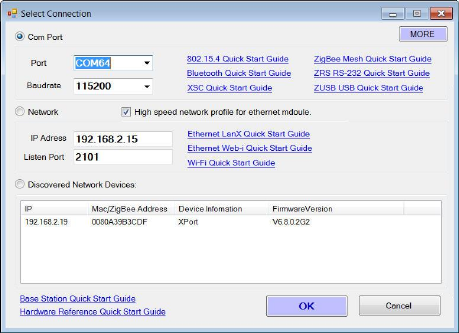
Step 4: Launch NCD Base Station software. The
first window you will see is the Select Connection
window. After a few seconds you should see your
Ethernet controller appear under Discovered
Network Devices. Once the device appears in the
window double click on it to open it’s web
interface in your browser. Alternatively you can
view attached devices on your network and open
your browser then enter the controller’s IP address
in the URL bar. This allows for configuration
without base station.
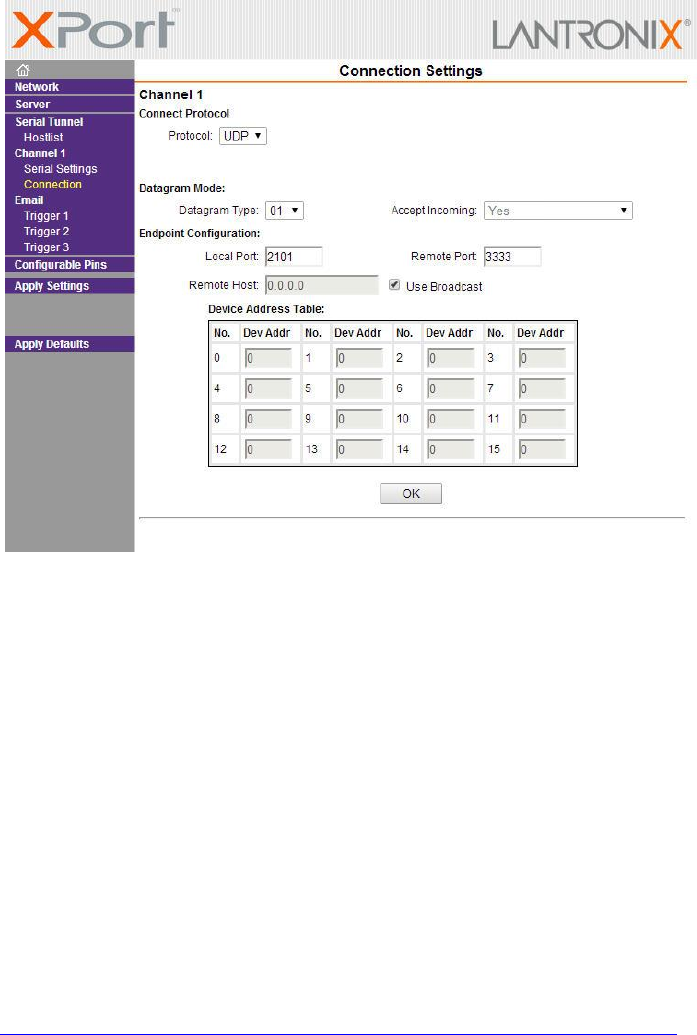
Step 5: If prompted for a password to log in simply click the enter button on your key board. Once you
have the web interface open to the controller you can begin modifications to its notification method. By
default your controller should be set to broadcast a UDP packet to all devices on the same network on
port 3333. The picture below shows how this looks on the configuration in the web interface under the
Connection Menu.
Step 6: Under this connection window you can change any settings you see fit. You can change the
notification packet destination to specify a particular IP address and you can send that packet via TCP or
UDP on any port you wish. Most customers will find the default settings for sending the notification in a
UDP broadcast to all devices on the network via port 3333 works quite well so don’t feel obligated to
change any settings here if you do not wish. The initial testing procedure below assumes you did not
change any settings here.
Step 7: Setup is complete. Proceed to initial testing process below.
Initial Testing
Step 1: Make sure your push notification board is still connected to the same network as your windows
computer and is still powered up.
Step 2: Install Com Operator Pal on your Windows computer:
http://www.serialporttool.com/download/CommOperator/CommOpPal.zip
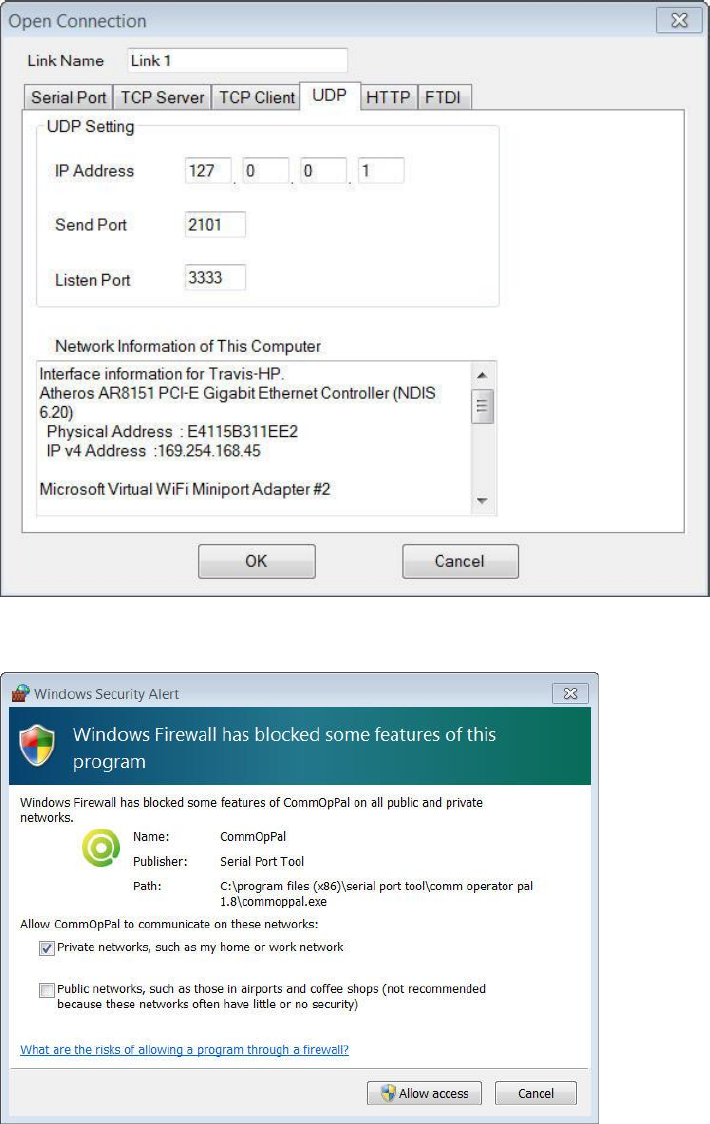
Step 3: Launch Com Operator Pal. You should see an Open connection window appear. Select the UDP
tab, change the Listen Port to 3333, send port to 2101, do not worry about the IP Address field, then
click the OK button.
Step 4: After clicking ok you may see a Windows Security Alert. If you do simply click Allow Access.
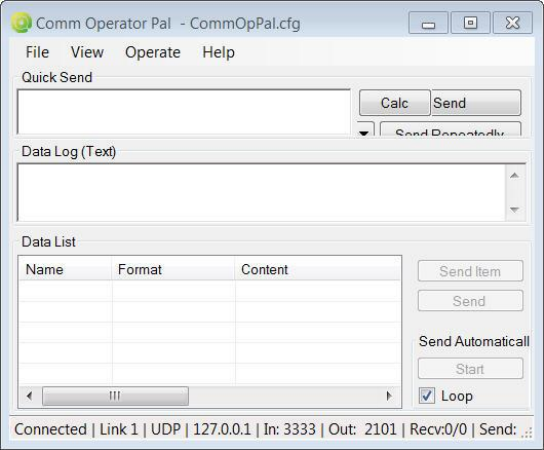
Step 5: You should now see the Send/Receive window below
Step 6: Click the View Menu at the top of the window and set it to Decimal.
Step 7: Close any input on your Push Notification board. You should see data appear in Com Operator
Pal under Data Log(Text). If you see data here then your setup is complete. If not please make sure you
have the Open Connection settings configured properly for the setup in the Ethernet module if you
changed any of those settings during setup.
Step 8: Setup and Initial Testing are now complete. Read further to learn more about the data being
sent by the push notification board an how to use it.
Hardware Reference
Compatible Sensors (Understanding Inputs)
Warning:
Users must NEVER apply any voltage to an input on PM series product!
Inputs are for dry contact closures only!
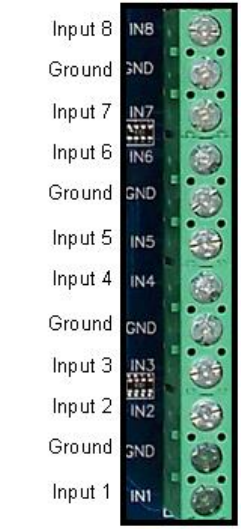
Inputs are capable of reading Contact Closure generating devices such as
buttons and switches. A wire connected from the ground terminal to the
input terminal would trigger the input, as this would be considered a contact
closure. Any device that generates a dry contact closure can be used to trip
the inputs on PM series controllers.
Push Notification Inputs play a vital role in the use of a PM series controller.
Before we begin using the controller, it is essential that users understand
the role of these inputs. Improper use of these inputs can cause Irreparable
Damage to the PM controller.
Power Supply Specifications
PM controllers require a 12VAC or 12VDC power supply to power the logic and relays of the
controller. The PWR12 is our stock power supply suitable for use with ALL PM Series
controllers. While it is possible to operate from an automotive 13.8V power supply, higher
voltages are not recommended. Additional power filtering may be required for proper
operation in automotive electrical systems. The absolute minimum recommended operating
voltage is 11VAC or 11VDC. PM controllers require approximately 100ma for standby and 60ma
for each activated relay. Communication Modules may require up to an additional 240 ma, this
is documented on the Electrical Specifications Page.
Power polarity is not important on the PM Series controllers. There is no positive or negative
terminal. Simply apply power to the controller as it is convenient to make wired connections.
The PM controller will rectify your power supply and attempt to filter noise to safe levels for
proper operation.
Environmental Specifications
Certain components of a PM controller may run at temperatures exceeding 120° Degrees
Fahrenheit. This is normal for a PM controller and does not indicate a defect.
The recommended operating temperature for all PM controllers is –25 to +85° C. This
temperature rating is based on temperature specifications of the components used to build a
PM controller and is not based on actual testing. We have speculated that PM controllers may
be able to withstand lower temperatures due to the fact that PM controllers tend to have hot
components in critical areas of the design.
Break-Away Tabs
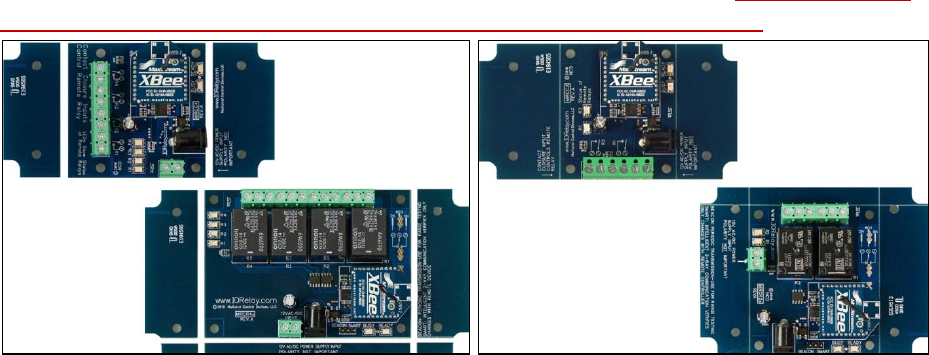
Physically, most MirC controllers are actually 2 sizes. When you receive your MirC, the unusual shape
and size ensures the MirC can fit into a standard enclosure. Optionally, you can make the controller
smaller by breaking away the outer tabs. Break-Away tabs are useful in applications where space may
be a concern. This allows your MirC to offer the same functionality in the smallest possible profile.
Break-Away tabs are unique to the NCD product line and are a standard option for most devices
released in 2010 and later.
Before breaking the tabs on your controller, please be advised that your MirC controller will not be
returnable for refund or credit if the Break-Away Tabs have been removed.
To break away the tabs, gently but firmly grab each break-away tab with a pair of pliers and bend the
tab back and forth until it breaks away from the main circuit board. This will NOT damage the controller
in any way.
Breaking the Tabs from a controller DOES NOT VOID the warranty. Please see the NCD return policy if
you would like more information on the policies that apply to Surface Mount devices.

Communication Overview
Sensor Packet Breakdown
The packet transmitted by the controller contains 22 bytes of data. Below is a breakdown of
the packet:
Byte Possition
Byte
0
1
2-3
4-9
10-17
18
19
20
21
Data
Type
Header
ID
F. ver
MAC
User
Def.
Status
Type
Prior
state
Current
state
Chk
sum
Byte 0 is a header byte. This will always be 180 for PN series products.
Byte 1 is a transmission id. This id will increase 1 increment for each broadcast sent by the
controller. Note that this will reset after power cycle.
Bytes 2-3 indicate the controller’s firmware version. 01 00 would indicate v1.0
Bytes 4-9 indicate the Ethernet module’s Mac address. Convert these bytes to Hexadecimal
bytes for Mac format.
Bytes 10-17 are user definable. This can be used for any purpose required by the customer.
These bytes can be customized under Scratch pad memory in Base Station.
Byte 18 indicates the transmission data type. For current PN products this will be 1 indicating
this is the status of contact closure inputs.
Byte 19 indicates the status of inputs prior to the input status change which triggered this
notification.
Byte 20 indicates the status of inputs after the input status change which triggered this
notification.
Byte 21 is a checksum for the whole packet. See API Codec guide which explains how this check
sum is calculated.
Direct query command set
The only command required for this product is to query the status of the inputs if needed. This
may need to be done after a server reboot in order to get the current status of inputs on the
controller. This will be done via a UDP socket connection to the controller’s IP address on the
port number configured in the Local Port field during Ethernet module setup in the modules
web interface(default is 2101). While these are technically A/D inputs we are simply using
them as contact closure inputs. All inputs are pulled low on the controller so if the input is not
tripped its value will be 0. When the input is tripped it will be pulled high and its status will be
255. It is recommended that you assume any input above 200 is tripped with a contact.
Reads the 8-Bit Analog Input of Channels
This command will read the Analog Input value of the specified input and return a value from 0-255.
Send Bytes: Byte 1: Byte 2:
Function: Command Parameter (Channel 1-8)
Decimal Values: 254 150-157
Hex Values 0xFE 0x96 - 0x9D
Receive Byte: Decimal: 0-255
Hex: 0x00-0xFF
Multi Channel 8-Bit
Reads all 8 Analog Input Channels and replies with 8 bytes indicating the 8-bit value of each Analog
Input.
Send Bytes: Byte 1: Byte 2:
Function: Command Returns AD1 - AD8
Decimal Values: 254 166
Hex Values 0xFE 0xA6
Receive Byte: Decimal: 0-255 (AD1-AD8)
Hex: 0x00-0xFF
Advanced Configuration
Input Configuration
Inputs on PN series controller can be configured to send notifications when the input is opened or
closed, only when they are closed, or only when they are opened. This configuration is done through
Base Station as follows:
Step 1: You must change the connection configuration for the Ethernet module for TCP. Base Station
currently only supports communication to network devices via TCP socket(not UDP). To do this open
the web interface to the Ethernet module by entering its IP address in your browser’s URL bar.
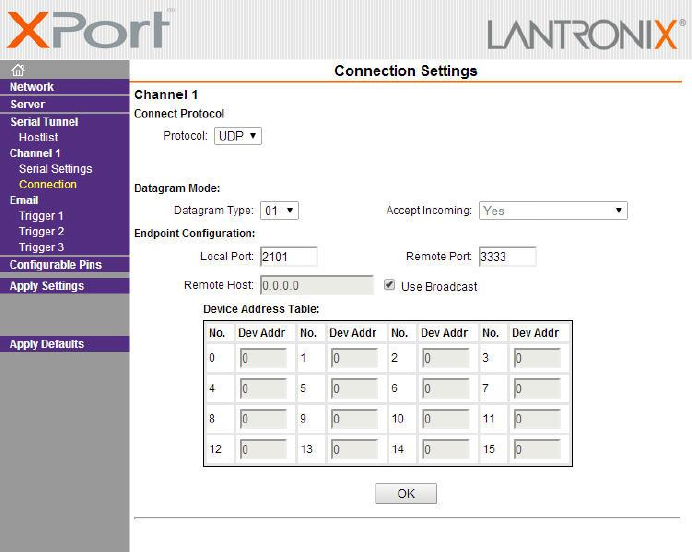
Step 2: Click the Connection menu on the left side of the web interface, you will more than likely see the
setup configured for UDP like the picture below:
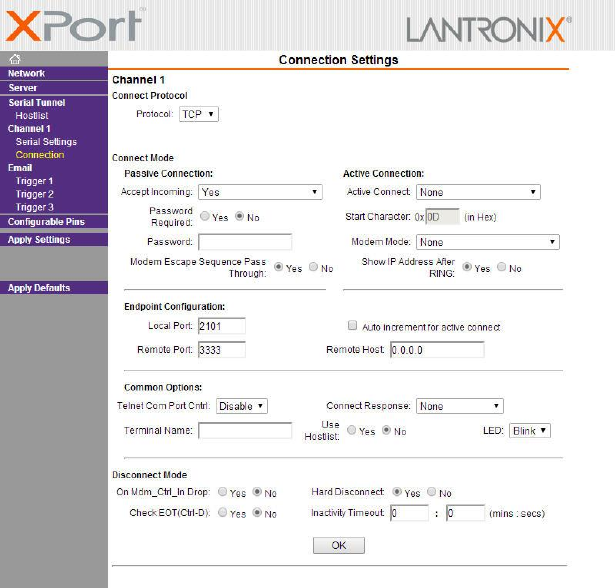
Step 3: Change configuration of the connection as shown in the window below, click the ok button, then
click the Apply Settings menu on the left:
Step 4: Open Base Station, Select the Network Radio button on the Select Connection window. Enter
the IP address of the Ethernet module in the IP address text field. Enter the Port defined as the TCP
Listener port in the Ethernet module(by default this is set to 2101). Then click the OK button below.
Step 5: Base Station will communicate to the controller and display a window with control software
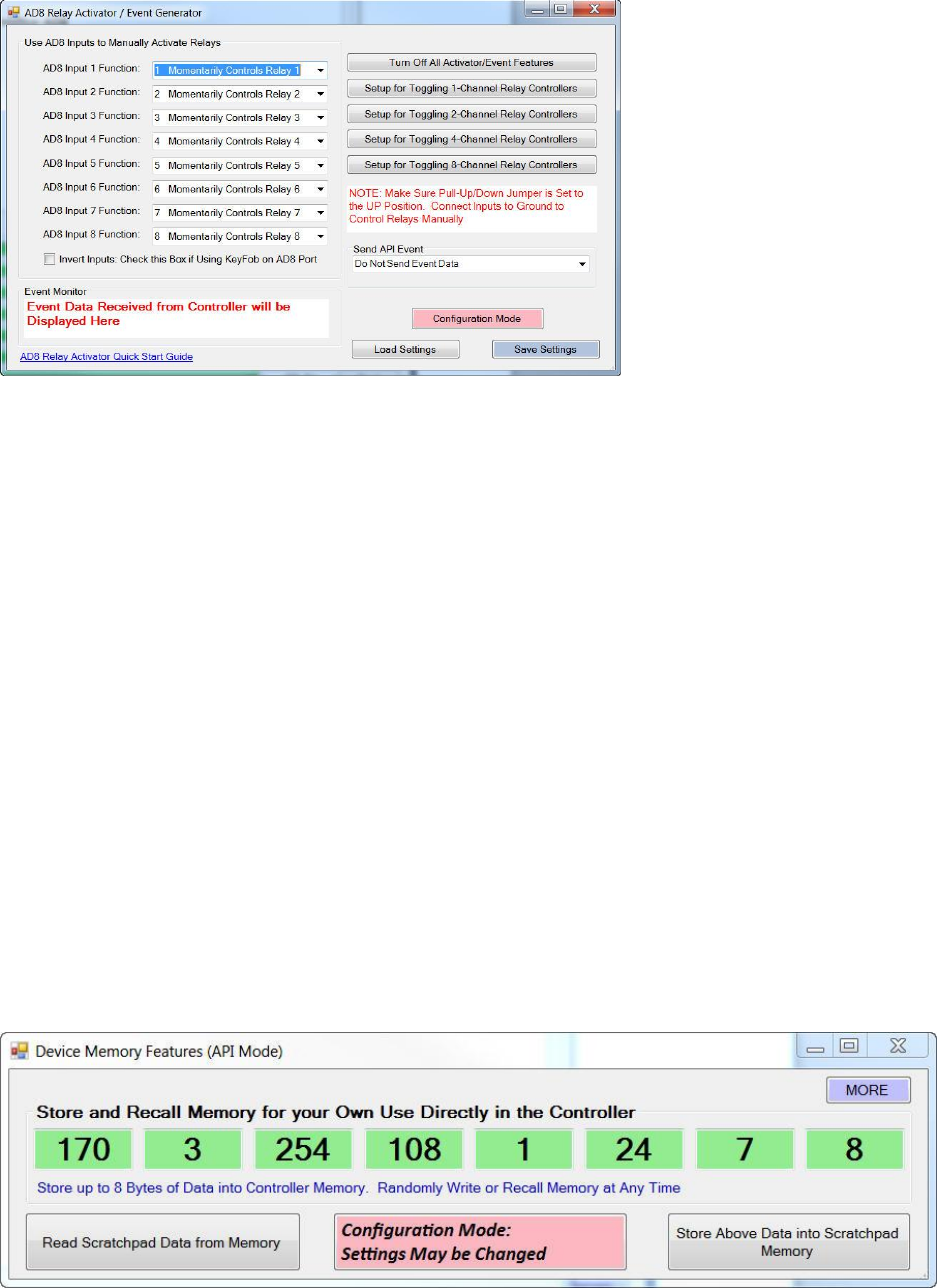
options. Select AD8 Relay Activator/Event Generator.
Step 6: The AD8 Relay Activator/Event Generator window will now be displayed. You will notice that
each input can be tied to a function. The functions are labeled for controlling relays but just know that
rather than switch a relay we will be triggering the notification. Inputs should only be set to momentary
or toggle at this time. If Input 1 function is being configured you may set to to Momentarily Control
Relay 1 or Toggle Relay 1. Do not set it to any other feature or set it to a different relay number as this
will cause confusion.
Step 7: Once settings are configured click the save settings button in the bottom right corner to save the
changes to the controller.
Step 8: Set User Definable Transmitted Bytes if needed. Remainder of setup is concluded after User
Definable Transmitted Bytes section. If you do not wish to define user bytes continue to the next page.
User Definable Transmitted Bytes
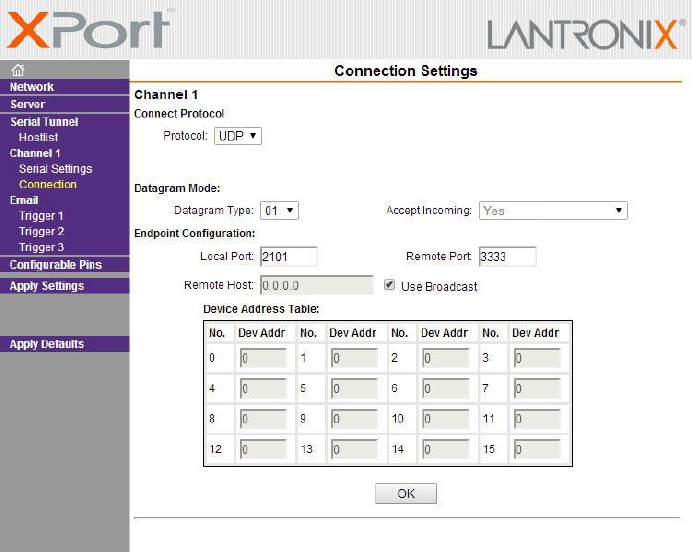
8 bytes in the Notification packet are definable by the user. These bytes can be used in any way
required by the user. Configuration of these bytes is done using Base Station as follows:
Step 1: Open Base Station, Select the Network Radio button on the Select Connection window. Enter
the IP address of the WiFi module in the IP address text field. Enter the Port defined as the TCP Listener
port in the WiFi module(by default this is set to 2101). Then click the OK button below.
Step 2: Base Station will communicate to the controller and display a window with control software
options. Select Scratchpad Memory Command Set.
Step 3: A new window will appear with 8 byte positions. The user may change any of the 8 bytes as
required.
Step 4: After configuration is complete click the Store Above Data into Scratchpad Memory to store the
changes into the controller.
Advanced Setup Continued
Step 9: Once all configuration through Base Station is concluded you will need to reset the connection
options in the device’s web interface. Open your browser and enter the controller’s IP address to open
the Ethernet module’s setup.
Step 10: Click the Connection menu option on the left and change settings as shown below, click the OK
button, then click the Apply Settings button on the left side of the window:
Step 11: Advanced Configuration is now complete.
Troubleshooting
Problem: Ethernet module will not associate with network.
Fix: Temporarily disable network security, there are known compatibility issues between.
Problem: Broadcast transmission from controller is not received on server/computer.
Fix:
-Make sure you do not have any type of antivirus software which could block TCP/UDP sockets
(McAfee is known for this).
-Windows firewall can also sometimes block these socket connections, you can open a port
number in Windows Firewall under configuration.
-Check Settings in module for server connection. Ensure server is listening on the transmit port
used by the controller. Only applicable if you specified an IP address in the connection settings
under WEB interface setup.
-Make sure WiFi module is associated with network, the flashing green LED on the module
indicates valid connection with the network.
-If server/computer is on a remote/sub network (separate network from the module) make
sure port forwarding is configured correctly.
-Make sure sensor connected to controller is functioning properly using a continuity tester (volt
meter).
