2754 Q05N_EN Reactor Quick Start Guide
2014-10-27
: Controlanything Reactor Quick Start Guide Reactor_Quick_Start_Guide QSG
Open the PDF directly: View PDF  .
.
Page Count: 61
NATIONAL CONTROL DEVICES
Reactor Relay Series Quick Start Guide
Autonomous Relay Controllers

N A T I O N A L C O N T R O L D E V I C E S
Reactor Relay Series
Autonomous Relay Controllers
National Control Devices, LLC
PO Box 455
Osceola, MO 64776
Phone 417.646.5644 • Fax (866) 562-0406
© Copyright 2013
All Rights Reserved.
Notice: Portions of this manual require internet access.

ii
NOTICE:
All customers are STRONGLY ADVISED to purchase at least ONE USB
Communication Module. This communication module may be used to
recover a controller or to reconfigure a controller should there be an
accidental loss of communications. NCD Tech support may be unable to
assist customers who do not have a USB Communications Module available
for troubleshooting purposes.
Purchase USB Communications Module from our website at this link:
http://www.controlanything.com/Relay/Device/ZUSB

Table of Contents
Introduction .............................................................................. 1
Getting Started .......................................................................................... 3
Hardware Reference ................................................................ 4
Understanding Inputs ................................................................................ 8
Understanding Outputs ........................................................................... 10
Controlling Relays ................................................................................... 11
Reactor Configuration ............................................................ 14
Communications ..................................................................................... 14
Reactor Configuration ............................................................................. 14
Reactor Sample Library .......................................................................... 17
Input Configuration.................................................................................. 18
Reading Temperature and Light ............................................................. 21
Key Fob Inputs ........................................................................................ 23
Using Inputs and Outputs ....................................................... 27
Using Inputs .................................................................................. 27
Reactor Event Configure ........................................................ 32
Advanced Features ................................................................ 37
Multiple Event Triggering ........................................................................ 37

Protected Data ....................................................................... 39
Editing Protected Data ............................................................................ 39
Override Reactor Logic ........................................................................... 40
Computer Access to A/D Values and Pivots .......................................... 42
Computer Access Command Set ........................................... 44
Reactor Specific Commands ..................................................... 45
Relay Logic ............................................................................ 46
Advanced Relay Logic ............................................................................ 49
Maximum Ratings .................................................................. 50
Trouble Shooting .................................................................... 51
Technical Support ..................... Error! Bookmark not defined.
Contact Information .......................... Error! Bookmark not defined.
Notice: ....................................................... Error! Bookmark not defined.

1
Introduction
he Reactor Series relay controllers represent a significant advancement in the
evolution of the NCD product line. The Reactor Series controllers represent
many foundation technologies that will significantly strengthen our product
offerings in the years to come.
The Reactor Series are the first controllers to offer Autonomous Relay Control
(logical control based on inputs without a computer). This architecture allows
powerful computer-based configuration without writing a single line of code.
Reactor controllers are the first to offer an autonomous mode of operation in
addition to a computer-override mode of operation. This allows users to take
over the relay controller at any time, and even change settings in the configuration
through a direct USB connection or using a wireless 802.15.4 or ZigBee Mesh
Interface. Some reactor controllers also include a Key Fob interface chip, allowing
relays to function from a small hand-held remote control with an incredible 3,000
foot range using an outdoor antenna. The Reactor Series are manufactured using
Surface Mount Technology. A Break-Away design has been implemented to meet
the requirements of customers who need an enclosure AND to customers who
need the smallest possible size. Break Away tabs allow the user to “break” off the
outer edges of the circuit board for a smaller profile, a unique design of the NCD
product line. The Reactor Series relay controllers represent the future direction of
the NCD product line.
Who’s Qualified to Use the Reactor Series?
Anyone. The Reactor Series Controllers are one of the most user-friendly devices
we have ever manufactured. Whether an electronics engineer or home hobbyist,
anyone is qualified to use the Reactor Series controller provided this guide is
carefully studied.
Chapter
1
T

2
How do the Reactor Series Controllers Work?
The Reactor Series Relay Controllers are configured using a computer (either using
wireless or a direct USB connection). Once configured, a Reactor will operate
without a computer. At any time, a computer may monitor the Reactor, Trigger
Events, Activate Relays, or Change Configuration settings. A computer can take
over a Reactor or a Reactor can operate autonomously (without a computer). The
Reactor Configuration Utility (part of NCD Base Station) provides over 100 pre-
set configurations that will help you understand the capabilities of the Reactor and
provide you a starting point for your own application.
Once a Reactor is configured, the Reactor monitors inputs. When inputs reach
user-defined limits, relays can turn on or off. Reactors allow much more than
simple relay control. Reactor inputs can trigger timers and rotations. A timer
allows a relay to activate over a duration of time. A rotation is a simple counter, in
which relays can be assigned to each “count.” This allows powerful functions
such as relay activation sequencing, flashing, and stepping. Event Piping allows
timers and rotations to trigger other timers and rotations. This is very powerful
for setting up complex relay activation sequences. These features will be described
in great detail as we advance through this manual.
Order of Operations
There is a general process to learning and using a Reactor Series relay controller,
this manual will follow two sequences, covering the Learning Cycle and the Usage
Cycle. Optionally, users may want to consider exploring the Advanced
Applications to unlock some of the most powerful features.
Learning Cycle
1. Hardware Reference (getting to know the hardware)
2. Communications
3. Configuration Overview
4. Using Pre-Set Configuration Profiles
5. Building a Custom Configuration Profile
6. Loading and Saving Configuration Profiles
7. Understanding Relay Control
8. Understanding Timer Events
9. Understanding Rotation Events
10. Understanding Event Piping
11. Testing and Troubleshooting Reactor Logic
12. Using a Key Fob Reactor
13. Connecting Sensors to a Reactor
14. Controlling Devices with a Reactor
15. Troubleshooting a Reactor Controller

3
Usage Cycle
1. Configuration
2. Testing
3. Sensor Connection
4. External Device connection
Advanced Application
1. Remote Configuration
2. Using a Computer to Take Over a Relay
3. Giving Relay Control Back to Reactor Logic
4. Using a Computer to Trigger Events
5. Changing the Timing of a Reactor Controller
6. Advanced Reactor Relay Logic
Getting Started
There is no better place to start than from the beginning. This guide will lead you
through the understanding and use of your Reactor Series relay controller in a
sequence that will help get you started from the ground up. Please take advantage
of the efforts we have invested in building a complete and comprehensive product
manual before contacting NCD technical support staff. This will save you time
and allow our technical support engineers to focus on product development. If
you do require technical support after reading this guide, please refer to the last
page for contact information.

4
Hardware Reference
here are many versions of the Reactor Series relay controllers. It is not
practical to photograph and outline every version in this manual. However,
there are many common elements that are shared among controllers. Most
notably, the Reactor CPU is identical whether you are using a 1-Channel Ethernet
Reactor or a ZB Mesh 8-Channel Key Fob Reactor. All Reactor controllers share
the exact same firmware with absolutely NO differences in firmware revisions.
This greatly reduces manufacturing time and troubleshooting while allowing our
customers a migration path to more complex communication technologies as
required.
Some Reactor controllers include a temperature sensor, some have a ZigBee Mesh
Interface, others have XSC or a 802.15.4 Interface. There are several available
interface options. Please refer to the appropriate quick start guide for your
selected interface that can be found on our website. If you choose an interface
other than USB, it is strongly recommended that you also purchase a USB
communication module so that you will be able to recover from a communication
loss or error.
A Key Fob interface chip is also common to some models of the Reactor Series.
Key Fob equipped Reactors may be controlled using a small hand-held remote.
With an optional antenna, you can expect a 200-300 foot range. With an outdoor
antenna, you can expect a 2,000 to 3,000 foot range. We have tested these ranges
and find their performance to be superior to competing technologies.
Some Reactor models have a auxiliary 5V output, which is useful for powering
external electronic circuits.
Chapter
2
T

5
Power Requirements
Reactor controllers require a 12VAC or 12VDC power supply to power the logic
and relays of the controller. The PWR12 is our stock power supply suitable for
use with ALL Reactor Series controllers. While it is possible to operate from an
automotive 13.8V power supply, higher voltages are not recommended.
Additional power filtering may be required for proper operation in automotive
electrical systems. The absolute minimum recommended operating voltage is
11VAC or 11VDC. Reactor controllers require approximately 100ma for standby
and 60ma for each activated relay. ZigBee Mesh or 802.15.4 equipped Reactor
Controllers may require an additional 240ma of current to sustain normal
operation.
Ethernet and Wi-Fi versions should ONLY be powered from the included power
supply, as their operating tolerances are stricter. The power supply (included with
Wi-Fi and Ethernet controllers) is rated at 12VDC, 1.25A. This power supply is a
computer grade regulated supply and should NOT be substituted.
Power polarity is not important on the Reactor Series controllers. There is no
positive and negative terminal. Simply apply power to the controller as it is
convenient to make wired connections. The Reactor controller will rectify your
power supply and attempt to filter noise to safe levels for proper operation.
Temperature Requirements
Certain components of a Reactor controller may run at temperatures exceeding
120° Degrees Fahrenheit when certain options are installed. This is normal for a
Reactor controller and does not indicate a defect.
The recommended operating temperature for all reactor controllers is –25 to 80°
C. This temperature rating is based on temperature specifications of the
components used to build a Reactor controller, and is not based on actual testing.
We have speculated that Reactor controllers may be able to withstand lower
temperatures due to the fact that Reactors tend to have hot components in critical
areas of the design.
6
A
B
C
H
I
G
F
E
D
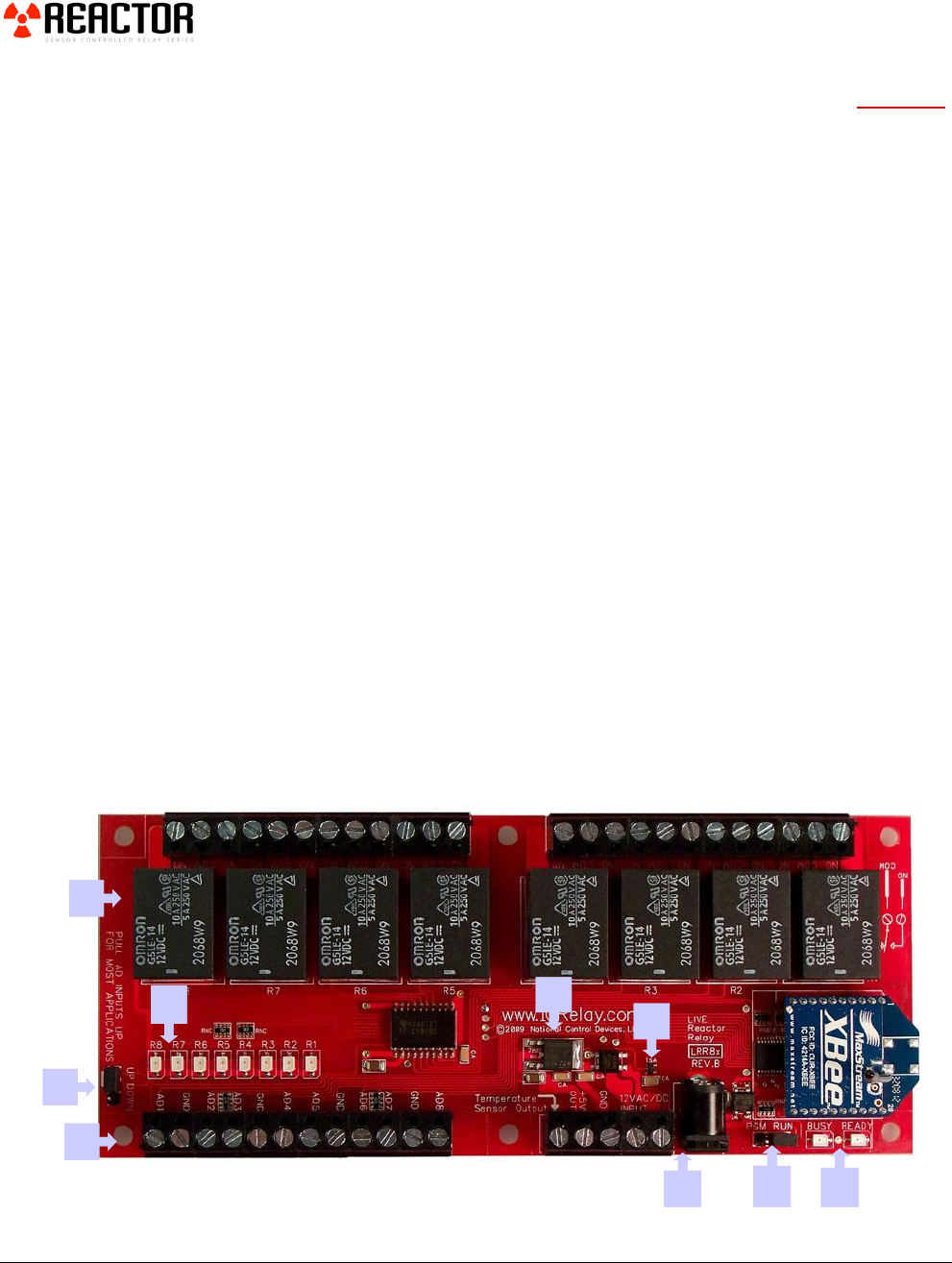
A. Reactor Controllers are equipped with 1, 2, 4, or 8 Relay Outputs. Relays are simply switches. They DO NOT
provide a voltage output, but they will switch the voltage you apply to the relay connections. Please Click Here
to see a list of relays and ratings that are commonly supported by the NCD product line.
B. Analog Inputs may be pulled Up or Down through a 10K resistor using a jumper similar to the one shown
here. The default setting for this jumper is the UP position. The UP position is desirable for most
applications, as it allows you to simply connect a button or switch between an analog input and ground.
Removing this jumper (shown) “floats” the analog inputs (and may not be suitable for some applications).
Setting this jumper DOWN may be desirable for some sensors. Analog inputs and the Up/Down jumper will
be explained in greater detail later in this manual. But keep in mind, the Up/Down jumper directly affects the
way the Analog inputs are read by the Reactor controller chip.
C. Analog Inputs are capable of reading switches and sensors operating in the 0 to 5VDC range. These inputs
serve as the heart of a Reactor Controller and are the basis for triggering most Reactor functions.
D. Status LEDs indicate which relays are currently active.
E. Some Reactors include a integrated +5VDC regulator useful for powering external electronic devices and
sensor up to 100ma.
F. Some Reactors include a integrated temperature sensor, a very tiny component accurate enough for most
thermostat applications. The integrated temperature sensor is slow to respond to temperature changes but is
suitable for non-critical applications.
G. Reactor Controllers include a 2.1mm Barrel Connector AND a 2-Position Screw Terminal. Use either
connector to provide 12V power to the Reactor Controller. Reactor controllers are compatible with 12V AC
or DC power supplies with an actual voltage output of 11 to 13.8V. Polarity is corrected by the Reactor
controller, therefore a Positive and Negative terminal are NOT labeled on the board (it is not possible to
connect power backwards to a Reactor controller; the Reactor will automatically correct polarity).
H. For most daily applications, the PGM/RUN jumper should be set to RUN. Only during configuration should
the jumper be changed to PGM mode. RUN mode protects internal memory from accidental changes while
PGM mode allows configuration changes.
I. The BUSY/READY LEDs indicate CPU activity. Under normal operation you will see the BUSY LED flash
as it computes Reactor logic and processes computer commands.
8
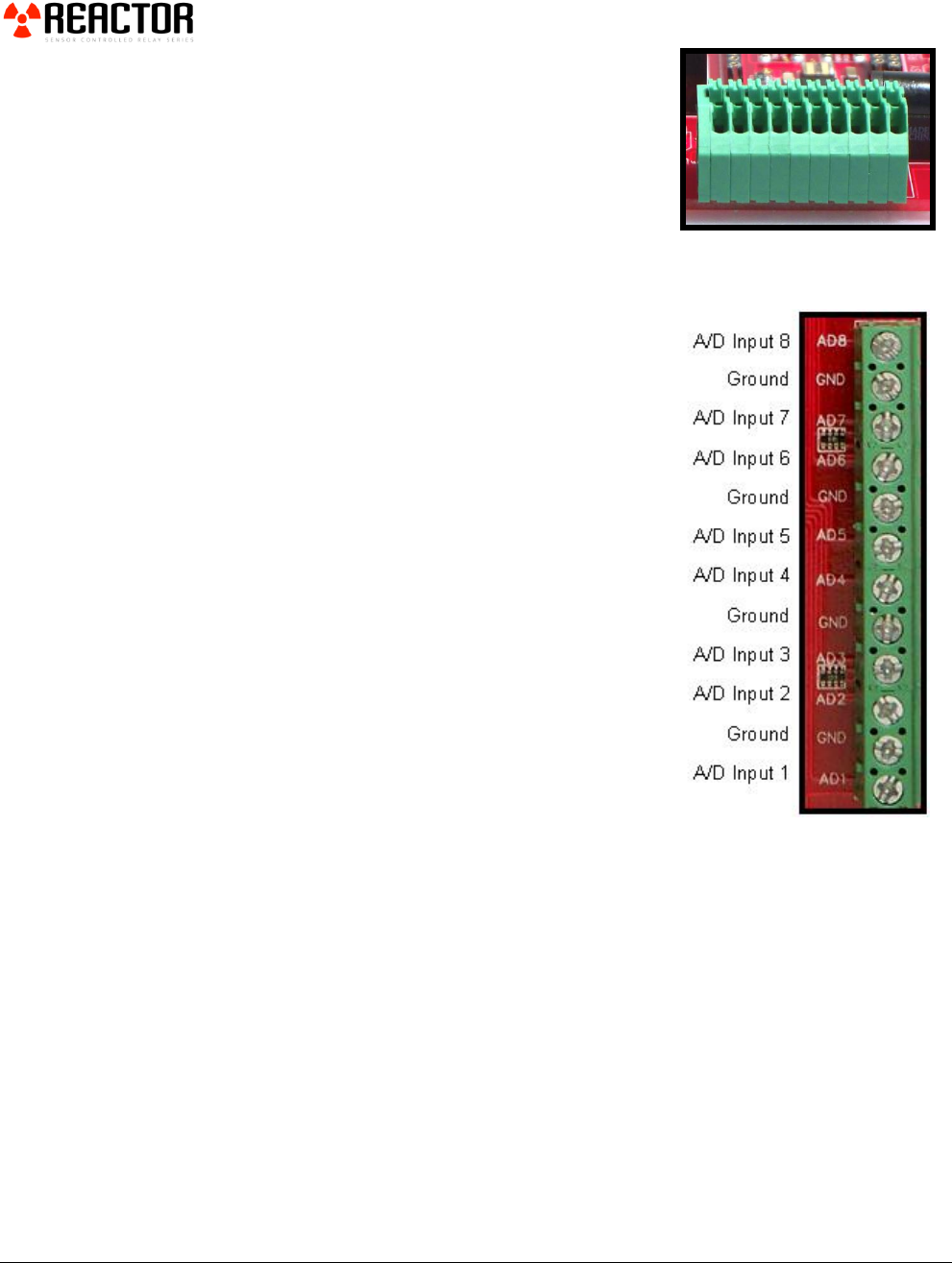
Reactor Controllers sometimes include a 10-Pin 8-
Channel A/D Connector. The Extreme left and
right connections are GROUND. Connections 2-9
(from left to right) correspond to Analog Inputs 1-8
respectively.
Understanding Inputs
Analog Inputs are capable of reading switches and
sensors operating in the 0 to 5VDC range. These
input serve as the heart of a Reactor Controller.
Reactor Inputs play a vital role in the use of a
Reactor controller. Before beginning to use the
controller, it is essential that users understand the
role of these inputs.
Improper use of these inputs can cause
irreparable damage to the Reactor controller,
so a firm understanding of these inputs is critical
to the longevity of the controller.
Reactor Inputs are also referred to as Analog
inputs. Analog inputs are simply inputs that are
sensitive to voltages. Analog inputs can accept
voltages from 0 to 5VDC ONLY. Higher
voltages and negative voltages will damage the
Reactor controller. Users must NEVER apply
a voltage to an Analog input on the Reactor
controller when powered down (220 Ohm
current limiting resistors may be used if this is not
possible and will be discussed later in this guide).
Analog Inputs are very special in that they are sensitive to voltage changes. In the
case of a Reactor controller, analog inputs have an 8-bit resolution, meaning the
voltage input (from 0 to 5VDC) is interpreted as a value from 0 to 255.
For example:
A voltage input of 0 Volts is interpreted as a value of 0.
A voltage input of 2.5 Volts is interpreted as a value of 128.
A voltage input of 5 Volts is interpreted as a value of 255.
So if you divide 5 Volts by 256 possible steps (0-255 for 8-Bit resolution), the
Reactor controller is sensitive to voltage changes as small as 0.0195 Volts.

9
A Reactor controller has 8 inputs. Each input is capable of reading a separate
voltage from 0 to 5 VDC, provided all voltages can share a common ground.
The Analog Inputs on a Reactor Controller may be configured to activate or
deactivate relays based on these voltage changes. These voltage changes can also
trigger timers and counting events (which will be discussed in greater detail later in
this guide). The important concept to understand is that Analog inputs are
sensitive to voltage changes and these voltage changes trigger functions within the
Reactor logic.
Reactor Controllers are equipped with a UP DOWN jumper, sometimes labeled
UP DWN.
One of the most critical rules in working with analog inputs on a
microprocessor is the understanding that each input must be
connected to something, either a ground or a voltage source.
Analog inputs should not “float” (remain disconnected). For this
reason, a UP/DOWN jumper is included on your Reactor series controller.
The purpose of the UP/DOWN jumper is to make sure all inputs are connected
to Ground (DOWN) or to a +5V voltage source (UP) to keep the inputs quiet.

10
However, inputs are NOT directly connected to +5V or to Ground using the
UP/DOWN jumper. Instead, inputs are “pulled” high or low using 10K resistors
for each of the 8 analog channels. A direct connection would render the inputs
useless (as any voltage input would cause a short circuit).
Using a 10K resistor on each input channel allows us to keep the inputs quiet
while allowing you to actually use the inputs.
For most applications, this jumper should be set to the UP position. This will pull
each analog input UP, causing the Analog values to read as 255. Any drop in the
input voltage can be used to trigger relays or Reactor events. So if you were to
connect a switch between an analog input and ground, Reactor Events could be
triggered every time a button is pressed.
Electrically, it is very safe to connect switches to analog inputs and to GND
(ground). When the Up/Down jumper is set to the UP position, the Reactor will
be able to detect switch and button presses. Switches are the safest type of device
to connect to a Reactor, as they do not introduce voltages from external sources.
Analog inputs will be discussed with a focus on a practical application later in this
guide. Consider this section as a simple introduction to Analog inputs.
Understanding Outputs
In the previous section, we introduced you to Analog Inputs and how voltage
changes play a key role in triggering Relays and Reactor logic. The subject of
Reactor Logic will take a little more time to explain, and in this section, we will
continue our focus on the hardware portion of the Reactor controller with our
next topic: Understanding Outputs.
Reactor Controllers have 1, 2, 4, or 8 Relays integrated into the circuit board. A
relay is similar to a switch. The only difference between a switch and a relay is the
actual mechanism for changing the on/off status of the switch. On a switch, you
manually push on a piece of metal or plastic to operate the switch. On a relay, an
electric current is used to operate the switch. Though a relay resembles the
characteristics of a switch, it cannot be controlled by touching it with your finger.
We will use the word “Relay” to indicate a switch that is controlled by the Reactor
controller.
Relays do NOT provide a voltage output. They provide a contact closure output,
exactly like the terminals found on a light switch at your local hardware store.
Wiring to a relay will be slightly different depending on the model of Reactor
controller you choose.
Some relays, such as the 5A and 10A versions have screw terminals that can
accept 12 Gauge or smaller wire. Other versions such as the 20A and 30A relays
have a .250” Quick Connect terminal (the appropriate mating connector can be
found at any hardware or automotive supply store). Our 20A HP series relays will
accept wires as large as 10 Gauge.

11
Again, relays do not provide a voltage output. They ONLY switch whatever
voltage you supply into the relay.
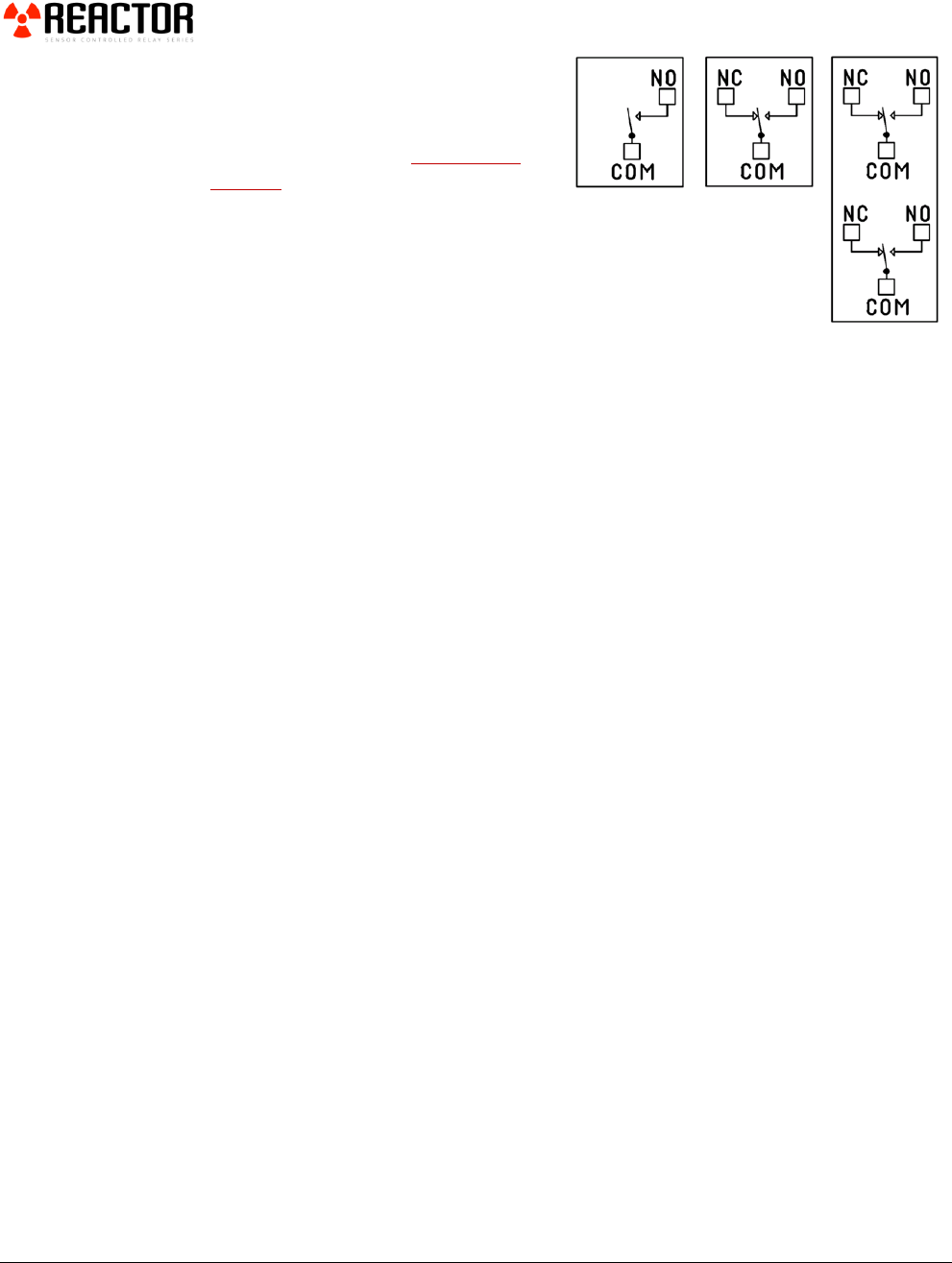
Relays are available in SPST, SPDT, and DPDT configurations. In addition, both
Mechanical and Solid State relays will be supported by the Reactor series. If you
are unfamiliar with the different versions of relays available, you can review the
this article, which explains these relay types in great detail.
The above article will help you determine the best type of relay for your
application, showing you the formulas for calculating relays sizes that are
appropriate for your application.
If you intend to use the Reactor Series relay controllers for inductive applications,
this article MUST be reviewed. An example of an inductive application is any
device that involves motion. For instance, using a Reactor Controller to control a
motor, a solenoid, or a valve. Other types of inductive applications include
anything with a transformer such as a fluorescent light or a power transformer of
any kind. Logic circuits (including those found on the Reactor Controller) may
malfunction in severe conditions. The above article will show you how to safely
implement these kinds of loads which greatly reduces the chances of a
malfunction. Some inductive applications generate excessive noise, and may not
be suitable for use with the Reactor Series Relay controllers. Solid State Reactor
Relay Controllers should be considered for these high-noise applications.
Controlling Relays
There are three possible ways to control the relays on a Reactor Series controller.
1. A Relay can be Directly Controlled by an Analog Input. When an analog
input changes state or reaches preset levels, a relay can be activated or
deactivated.
2. An Analog Input can trigger an Event (such as a timer or a counter) in the
Reactor logic. A Relay can be associated with a Timer or Counter event. In
this way, relays are NOT controlled by inputs. Timer and Counter events are
triggered by inputs, and relays are associated with these events. This is the
most powerful method of relay control and will be explained in great detail in
this manual.
3. A Relay can be controlled from a computer such as a ZigBee wireless
interface, Ethernet Interface, Wi-Fi Interface, or USB interface. A computer
can take control of any or all relays on a Reactor controller at any time. Once
taken over, the Reactor logic will not be able to switch a relay. The computer
MUST return control of the relay back to the Reactor Logic for stand-alone
operation. The default power-up status of a Reactor controller is
Autonomous control (self-controlled).

12
Controlling Relays with a Key Fob
A Key Fob can also be used to control relays. However, it is important to
understand that the Key Fob interface chip is not connected to the relays.
Instead, it is connected to the Analog Inputs of the Reactor Chip. This allows you
to use a Key Fob to activate relays in very complex ways, but often reduces the
number of available analog inputs.
Limitless Relay Control
Whether you will be using an analog input or a key fob to control the relays on
your Reactor controller, relays can do many things:
1. Relays can “Flash” in the Background
2. Relays can “Cycle” in a pattern in the Background
3. Relays can be activated for a duration of time
4. An Analog Input Change (or Key Fob button press) can trigger the
“next” relay in a sequence
5. An Analog Input (or Key Fob) can Activate a Relay
6. An Analog Input (or Key Fob) can Deactivate a Relay
7. A Relay can Change State as an input changes state (a relay can be on as
long as you press the button on a key fob, once released the relay will
change state again)
Relay may be triggered in very complex ways, in combination with key fob AND
analog inputs, or by timers, counters (called Rotations), or from a computer. It is
important to understand that we have created a very open architecture that will
allow relays to be used in some amazing switching operations WITHOUT
programming!
13
Break-Away Tabs
Physically, most Reactor controllers are actually two sizes. When you receive your
Reactor, the shape and size ensures the Reactor can fit into a standard enclosure.
Optionally, you can make the controller smaller by breaking away the outer tabs.
Break-Away tabs are useful in applications where space may be a concern. This
allows your Reactor to offer the same functionality in the smallest possible profile.
Break-Away tabs are unique to the NCD product line and are a standard option
for most devices released in 2010 and later.
Before breaking the tabs on your controller, please be advised that your Reactor
controller will not be returnable for refund or credit if the Break-Away Tabs have
been removed.
To break away the tabs, gently but firmly grab each break-away tab with a pair of
pliers and bend the tab back and forth until it breaks away from the main circuit
board. This will NOT damage the controller in any way.
Breaking the Tabs from a controller DOES NOT VOID the warranty. Please see
the NCD return policy if you would like more information on the policies that
apply to Surface Mount devices.
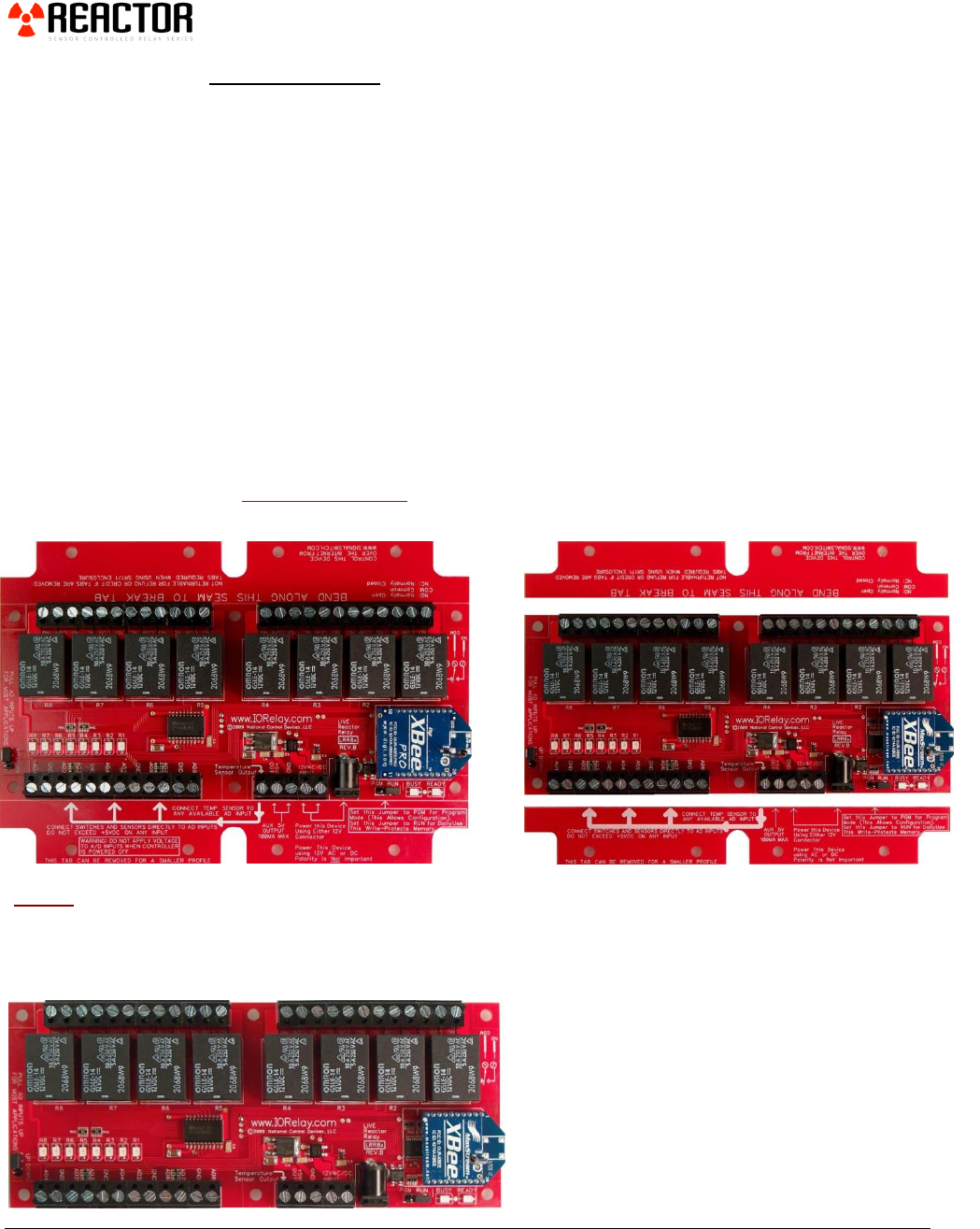
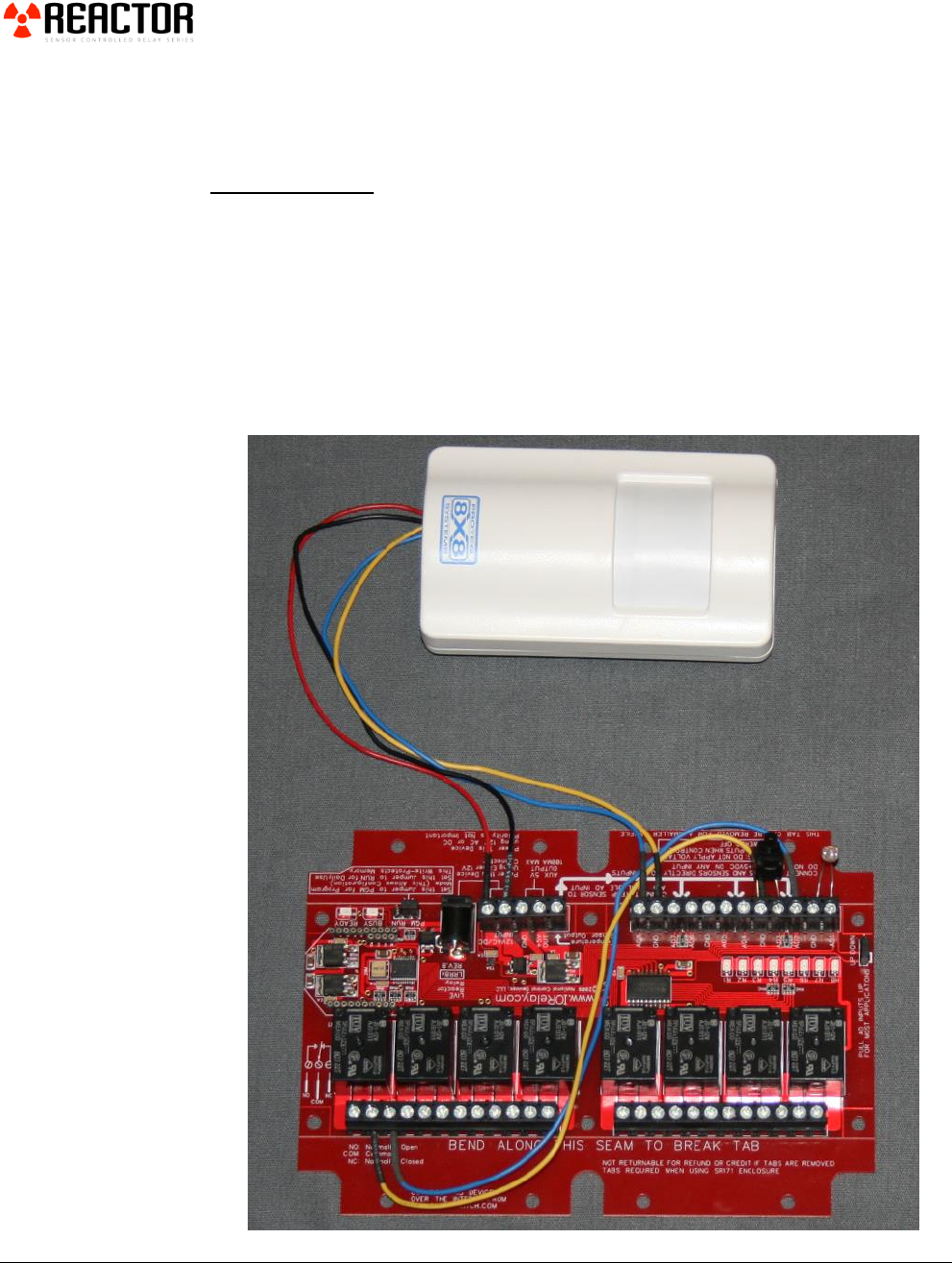
LRR810 shown here as shipped from National Control
Devices. The shape accommodates a standard enclosure.
Bend the tabs to break them away from the board.
Note that controllers with Broken Tabs are NOT
Returnable for Refund or Credit, but are still covered
under our Warranty.
Shown left, the final controller with tabs removed is
physically smaller in size, but no-longer fits a standard
enclosure.
14
Reactor Configuration
Communications
Establishing communications with a Reactor controller is an essential step in using
this device. Communications can be very simple or seemingly very complicated
depending on your background and communication method you have chosen.
Reactor series controllers are available in many different varieties. While all
Reactor controllers are capable of functioning WITHOUT a computer, a
computer is REQUIRED to configure the Reactor controller. Once configured,
the communications module may be removed (on select Reactor models) and used
again to configure other Reactor controllers.
The way the Reactor controller communicates with your computer depends on the
communication option you have chosen. By far, the easiest and most
recommended communication interface is USB using the ZUSB communications
module. If you choose another interface, we strongly recommend also purchasing a
USB interface to be used if a recovery of communication is needed. For
information on your chosen communication interface, please refer to the quick start
guides available on the resource page of our website: www.controlanything.com.
Reactor Configuration
1. Connect the Reactor controller
with your preferred interface.
2. Next, download and install our
NCD Base Station software. This
program will allow you to identify,
configure, and test your device and
is a powerful tool used to load and
save profiles into a Reactor
controller.
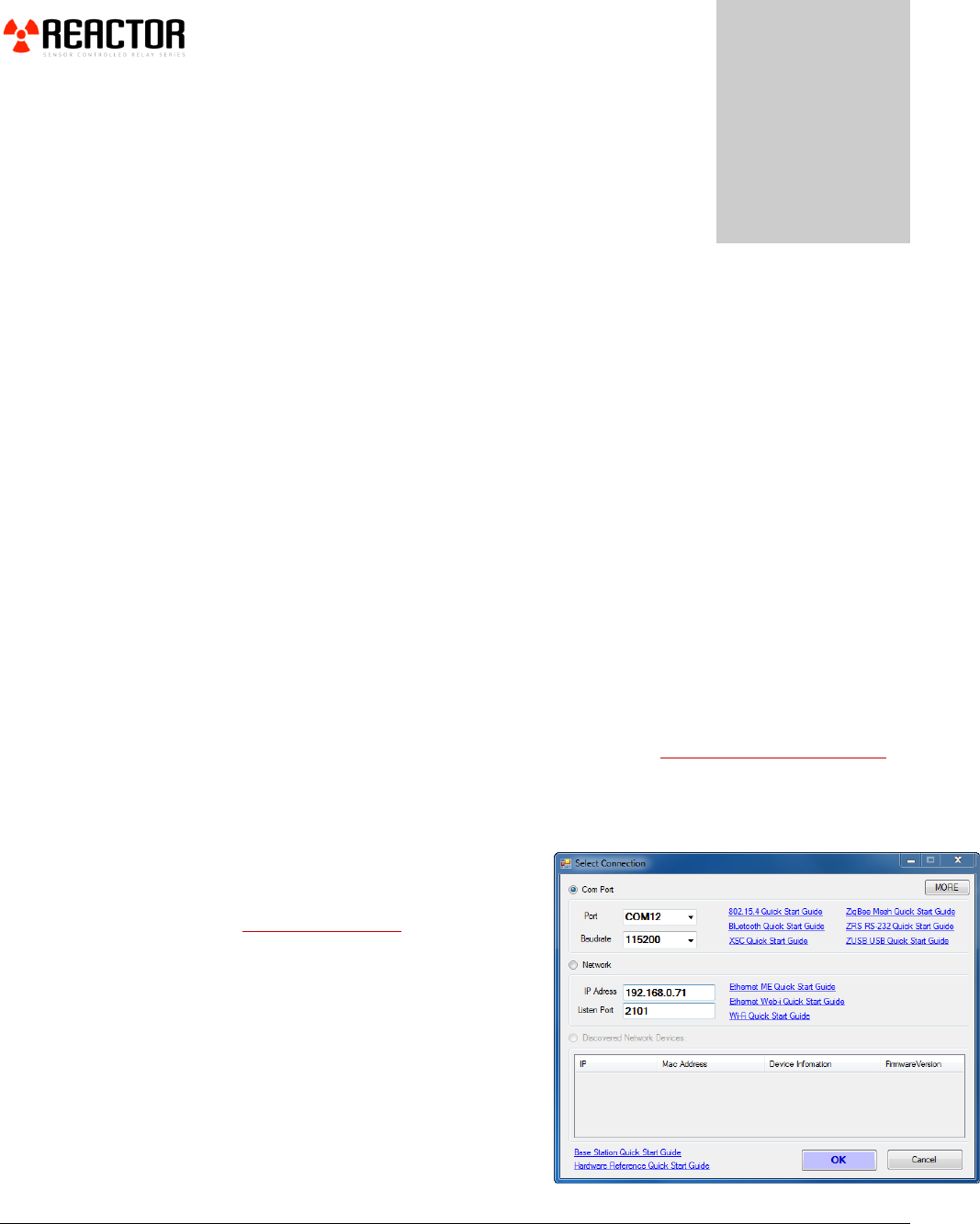
3. Run the NCD Base Station
program.
4. From the ‘Select Connection’
window, choose the Com Port of
your Reactor controller and click
‘OK’.
Chapter
3
15
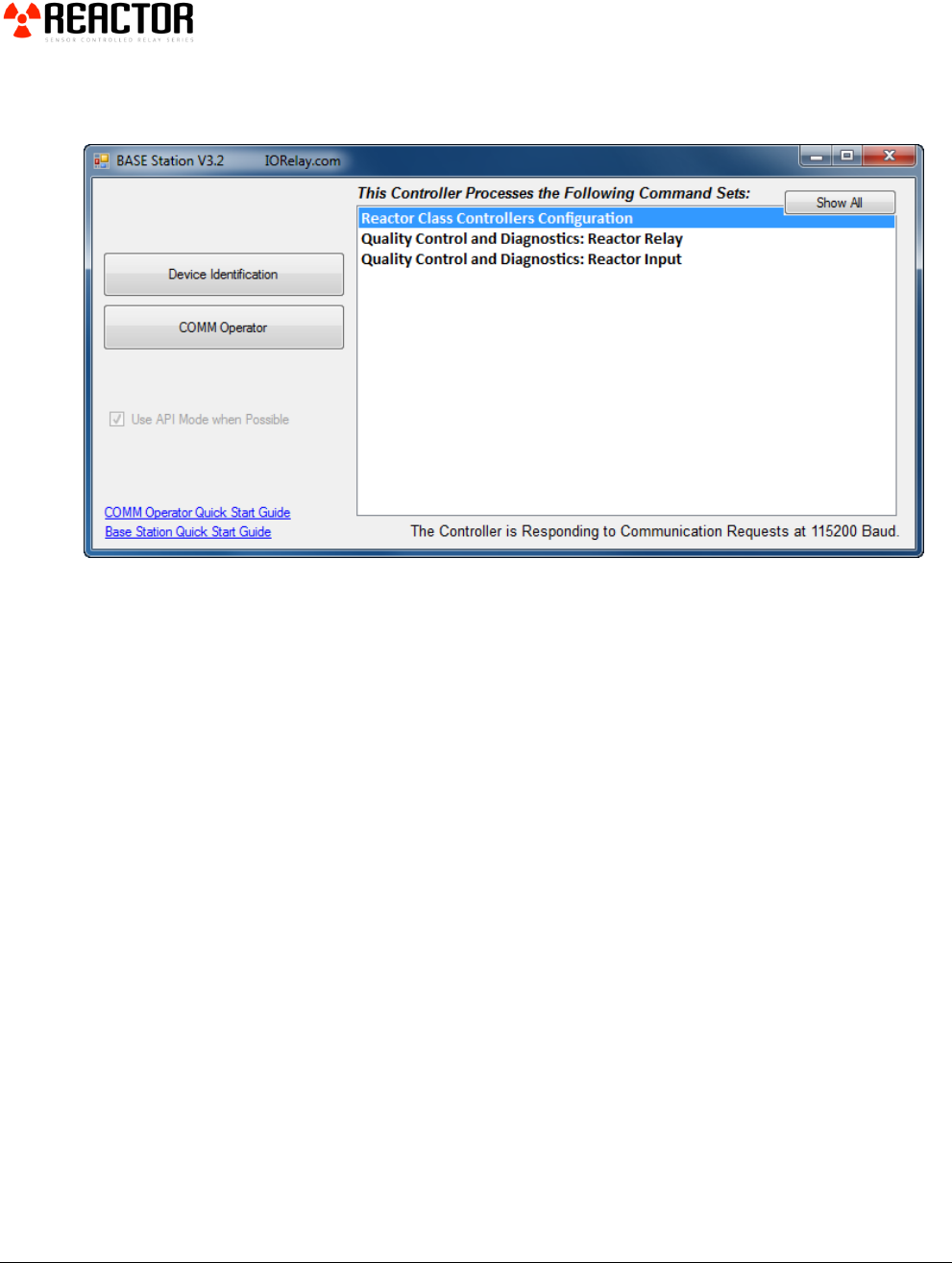
Base Station will list the available command sets for your device.
5. Choose ‘Reactor Class Controllers Configuration’ as shown below.
16
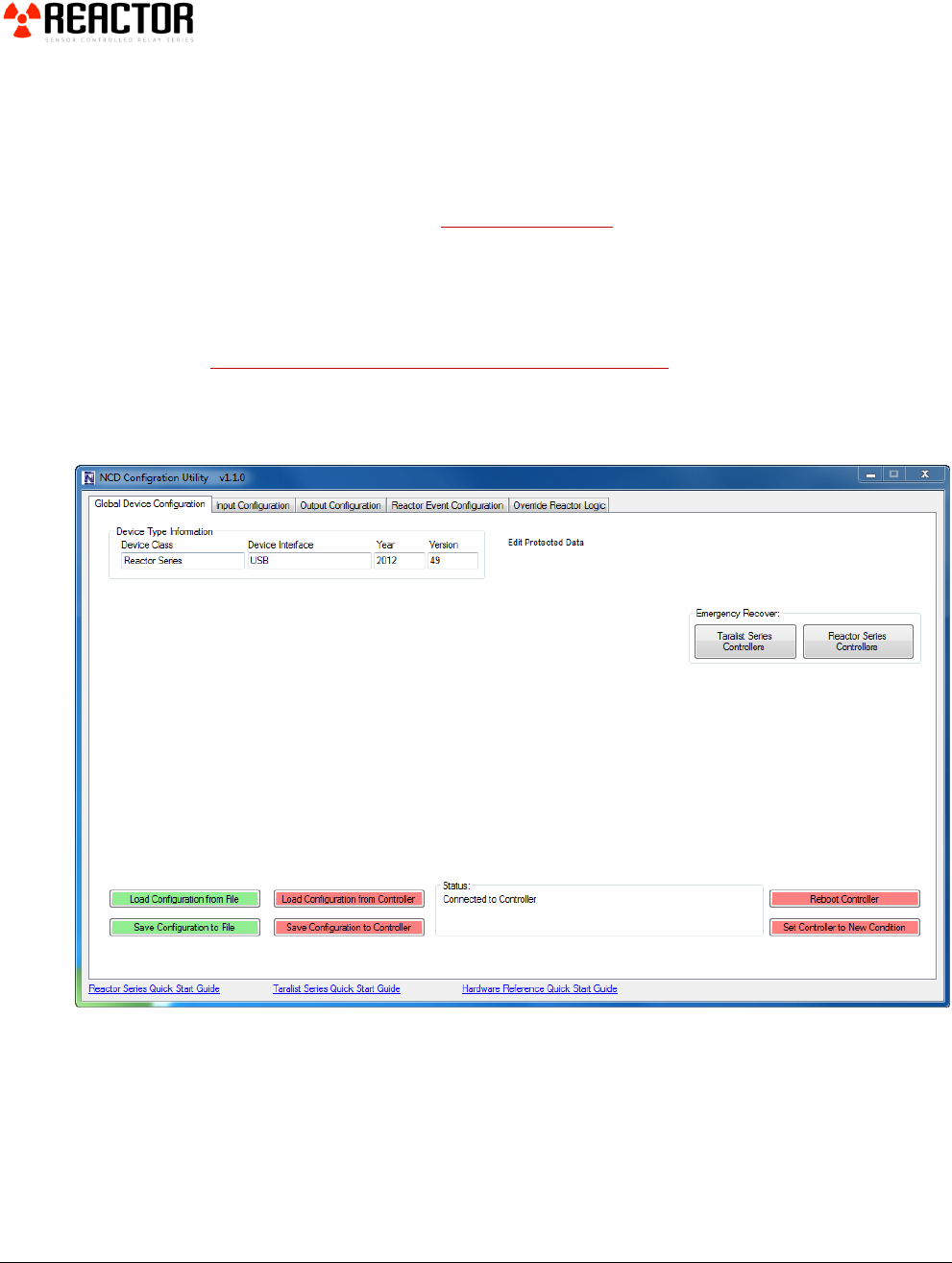
When communications is established, you will see the following screen appear.
This screen has several tabs across the top that allow you to configure your
Reactor controller.
The “Global Device Configuration” tab is used to Load and Save all settings (in all
tabs) into a Reactor controller or into a Configuration file. New users are strongly
encouraged to review the Application Videos on our website outlining potential
applications, and you might find something that is similar to the application you
are looking for.
Some users may find the Reactor controller particularly suitable for a specific
application. Once you have created a Configuration file that matches your needs,
you may email your Reactor configuration file to us and we can build and ship any
number of Reactor controllers with your configuration built in! This will save you
time and allow you to order a controller that is customized for your exact
application at no additional cost.

17
Note:
It is NOT Possible to Store Reactor Configuration data into the Reactor Controller
when the Program/Run jumper (PGM/RUN) is set to the Run position. This
jumper may be changed at any time. Power cycling is NOT REQUIRED.
Program Mode allows you to permanently write to on board nonvolatile storage.
Use this mode to load, test, and modify Reactor configuration data.
Run Mode write protects memory, making it impossible to store new configuration
settings.
Jumper settings are read by the Reactor firmware only during an operation that
requests a write to on-board memory.
Reactor Sample Library
Please review the Reactor Sample Library to see a current list of Reactor
Configuration files and a list of descriptions. The samples provided can save you a
lot of time, as we offer samples for many applications.
18
Input Configuration
On pages 8-9 of this guide, we discussed Analog inputs. As a refresher, Analog
inputs accept a voltage from 0-5VDC and convert this voltage to a number from 0
to 255. A value of 0 indicates 0 volts. A value of 128 indicates 2.5 volts. A value
of 255 indicates 5 volts are present on the analog input.
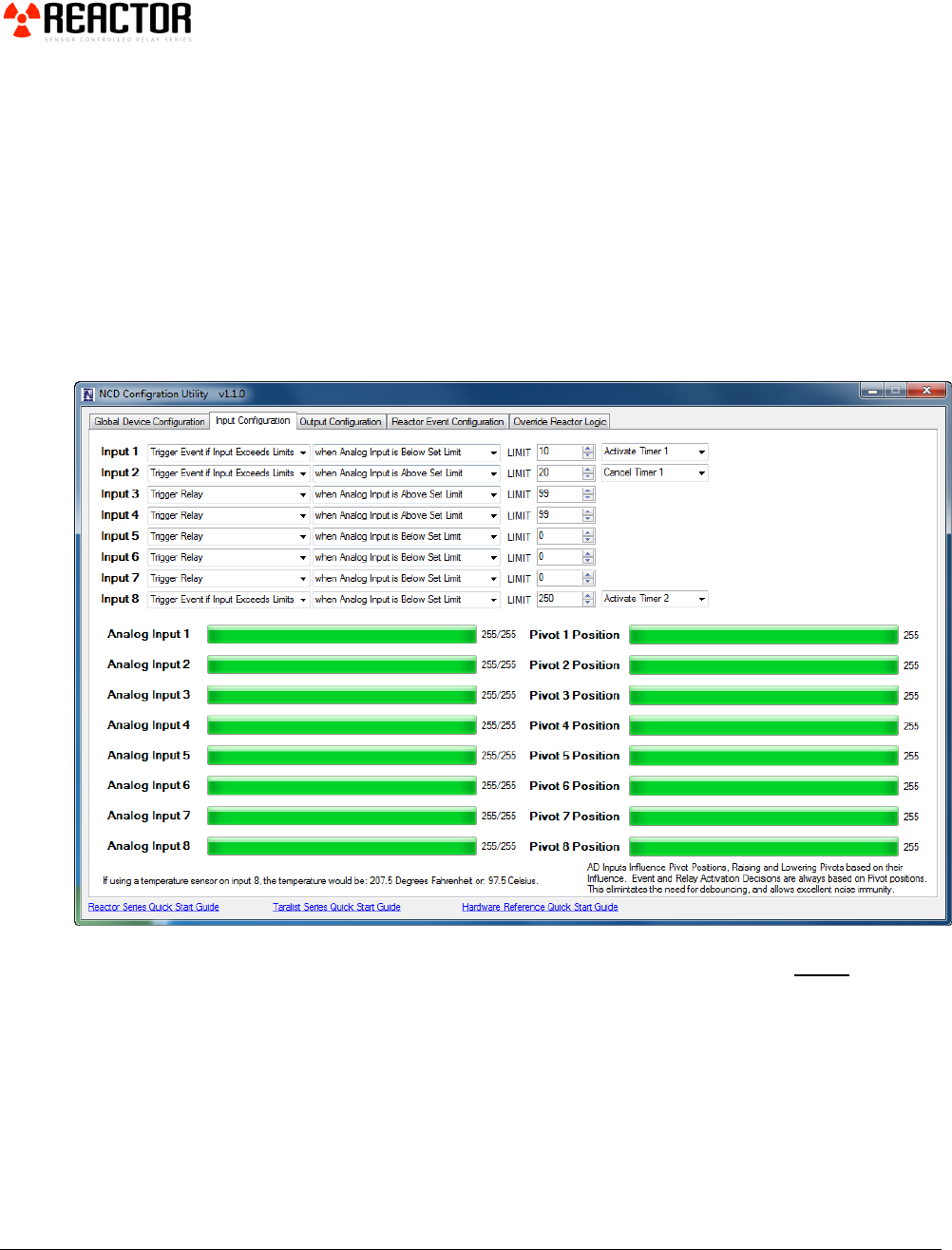
The ‘Input Configuration’ tab is a window into the heart of what triggers relays on
a Reactor controller…the Analog Inputs. When the ‘Input Configuration’ tab is
selected, the Reactor Configuration Utility will begin communication with the
Reactor controller. This live communication will show you the current values of
the analog inputs. You will use these values to trigger relay and events.
Before we get started, we need to introduce you to the concept of Pivots. Let’s
say you have a light that you want to come on when it gets dark outside. And you
have determined that it gets dark when Analog Input 1 reaches a value of 180.
And let’s just say it is getting dark outside and the value on analog Input 1 is
floating between 179 and 180. A relay would turn on and off violently until it gets
dark enough to keep the relay on. This is NOT a desirably condition. It will wear
out the relay prematurely and will render the controller useless for most
applications. It is this kind of condition we want to avoid. To help reduce this
undesirable behavior we use Pivots.

19
Pivots are like a shadow for the analog input. Pivots “chase” the analog input,
always seeking to match the value of the analog input. But they are slower to
respond and always seem to lag behind. So if an analog input fluctuates violently,
this really doesn’t matter much to the Reactor. The Reactor will be immune to
this because relays and events are not really triggered by the Analog inputs, but
rather the Pivots.
We will often refer to Analog inputs as the source of the trigger. While it is true
that the analog inputs are the actual data source, events and relays are actually
triggered using Pivots. This is a permanent feature of the Reactor controller. It
cannot be changed and it would be undesirable to do so.
Pivots do not eliminate “Limit Triggers” as described above, but they significantly
reduce the occurrence of the undesirable side effects of triggering relays based on
absolute limits.
So as you apply a voltage to an analog input, you will see analog inputs go up and
down very quickly. Pivots will lag behind until they match the analog input value.
20
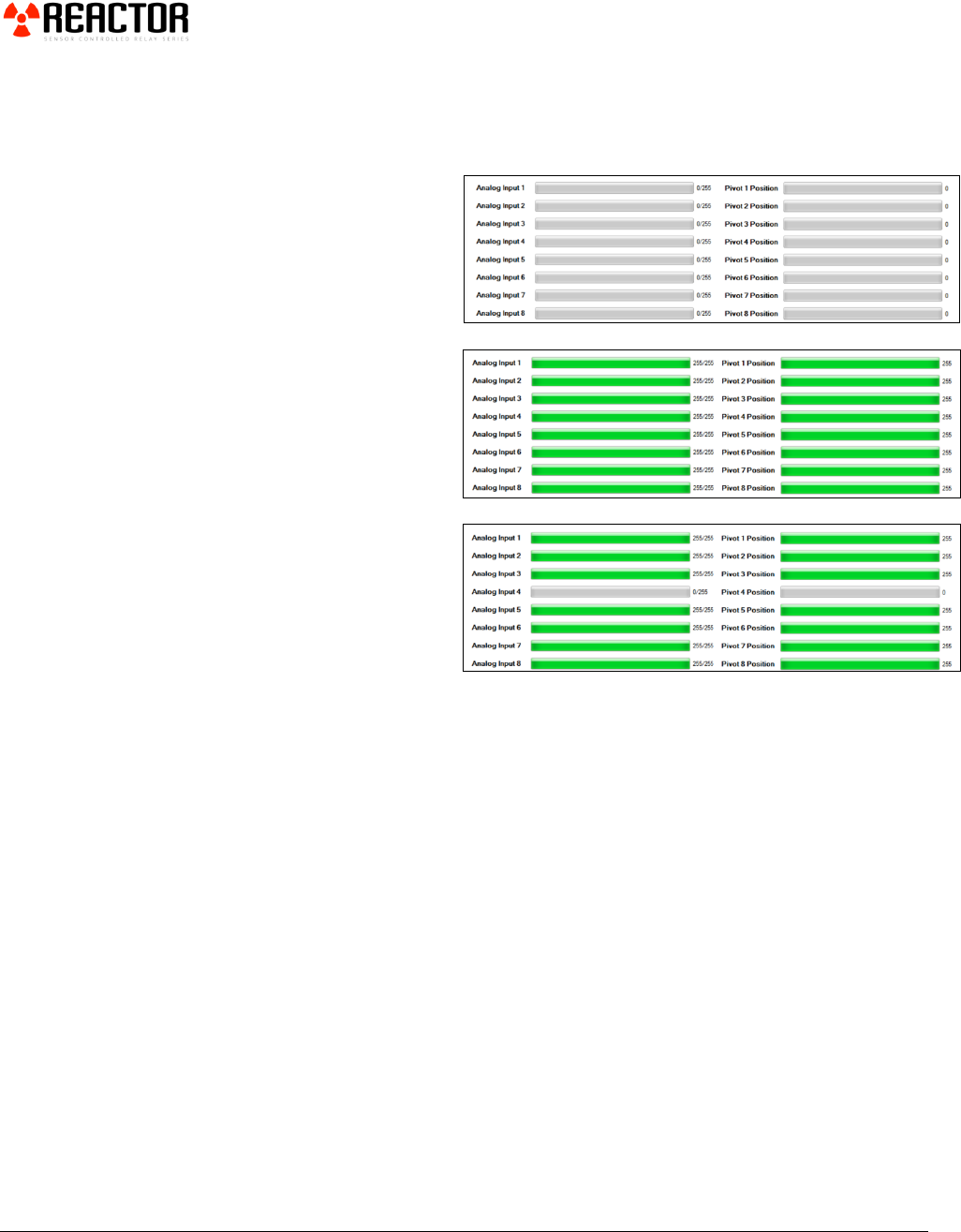
Moving the Up/Down jumper on the controller will affect the analog inputs. Try
moving the jumper to see the effects visually. When finished, move the jumper
back to the “UP” position.
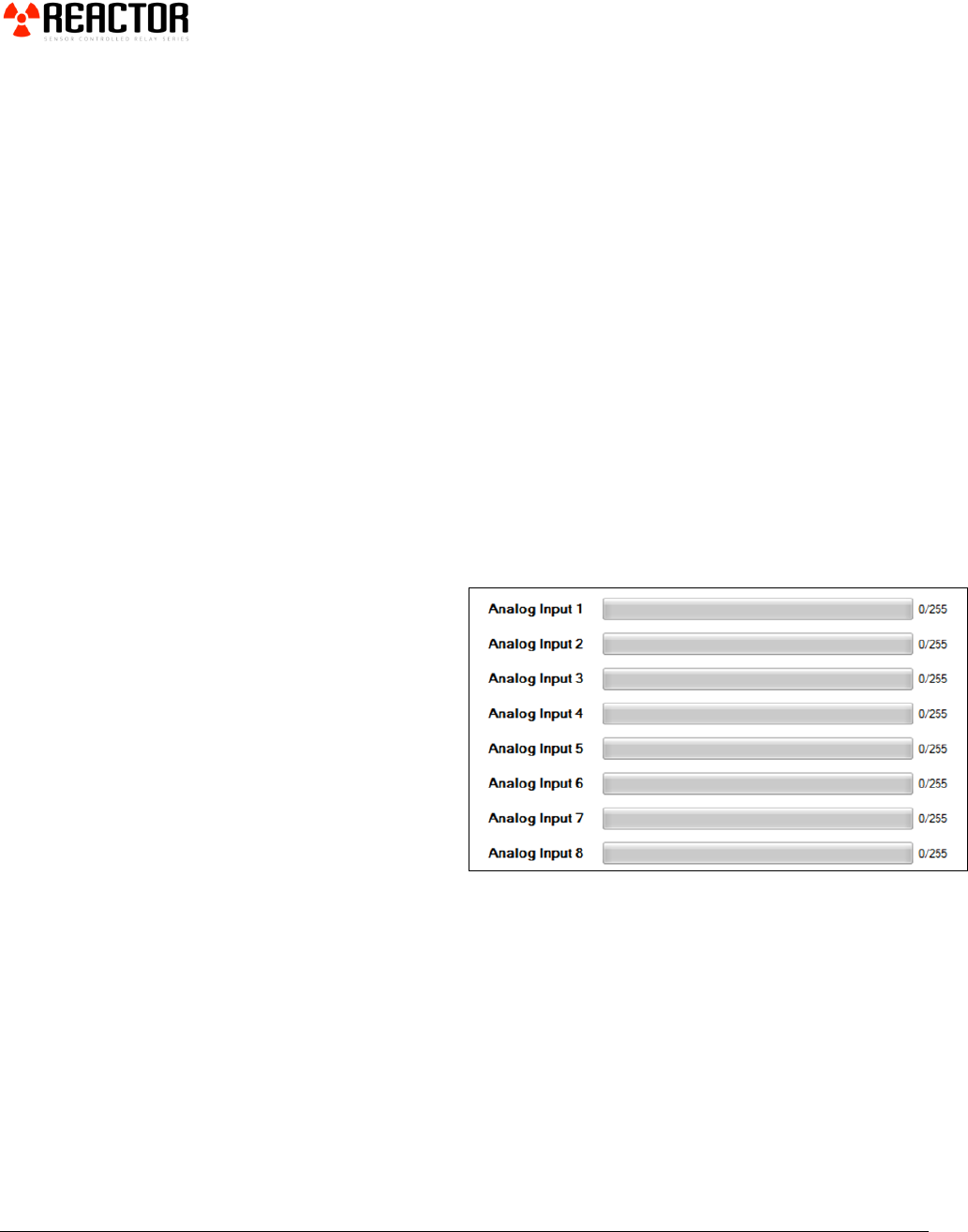
When you set the
Up/Down jumper to the
DOWN position, the analog
inputs will look like this:
When you set the
Up/Down jumper to the
UP position, the analog
inputs will look like this:
With the Up/Down jumper
in the UP position, connect
a switch between Analog
Input 5 and Ground. When
the switch is closed, your
inputs will look like this:
Reactors can detect all kinds of switches including Motion Detectors, Magnetic
Door Sensors, and even Key Fobs, which we will discuss in greater detail later on.
To this point, we have demonstrated how analog inputs can read the on/off status
of a switch. Analog inputs may also be used to read everything between on and
off. Reactor analog inputs are particularly suitable for reading voltage and
resistance changes.
21
Sensors:
National Control Devices now stocks many sensors compatible with the Reactor
Series relay controllers. Please review our entire list of sensors here.
Reading Temperature and Light
Since analog inputs are sensitive to voltage and resistance changes, we can
experiment with connecting a temperature and light sensor directly to the Reactor
controller.
Temperature Sensors
Many Reactor controllers have a built-in temperature sensor. Look carefully at
your controller to determine if a temperature sensor is built in. The temperature
sensor is very small, and has the label TSA printed nearby (usually above the part).
The temperature sensor is shown in the photo on the right.
Another indication of a built in temperature sensor is a Jumper labeled “T” or a
Output terminal on the controller labeled “Temp Sensor Out” or “Temperature
Sensor Output”.
If your controller has a jumper labeled “T”, move the jumper to the “T” position.
If your controller has a temperature sensor output terminal, connect this output to
analog Input 8. You may connect this terminal to any available analog input;
however, our software is written to give you an approximate temperature value
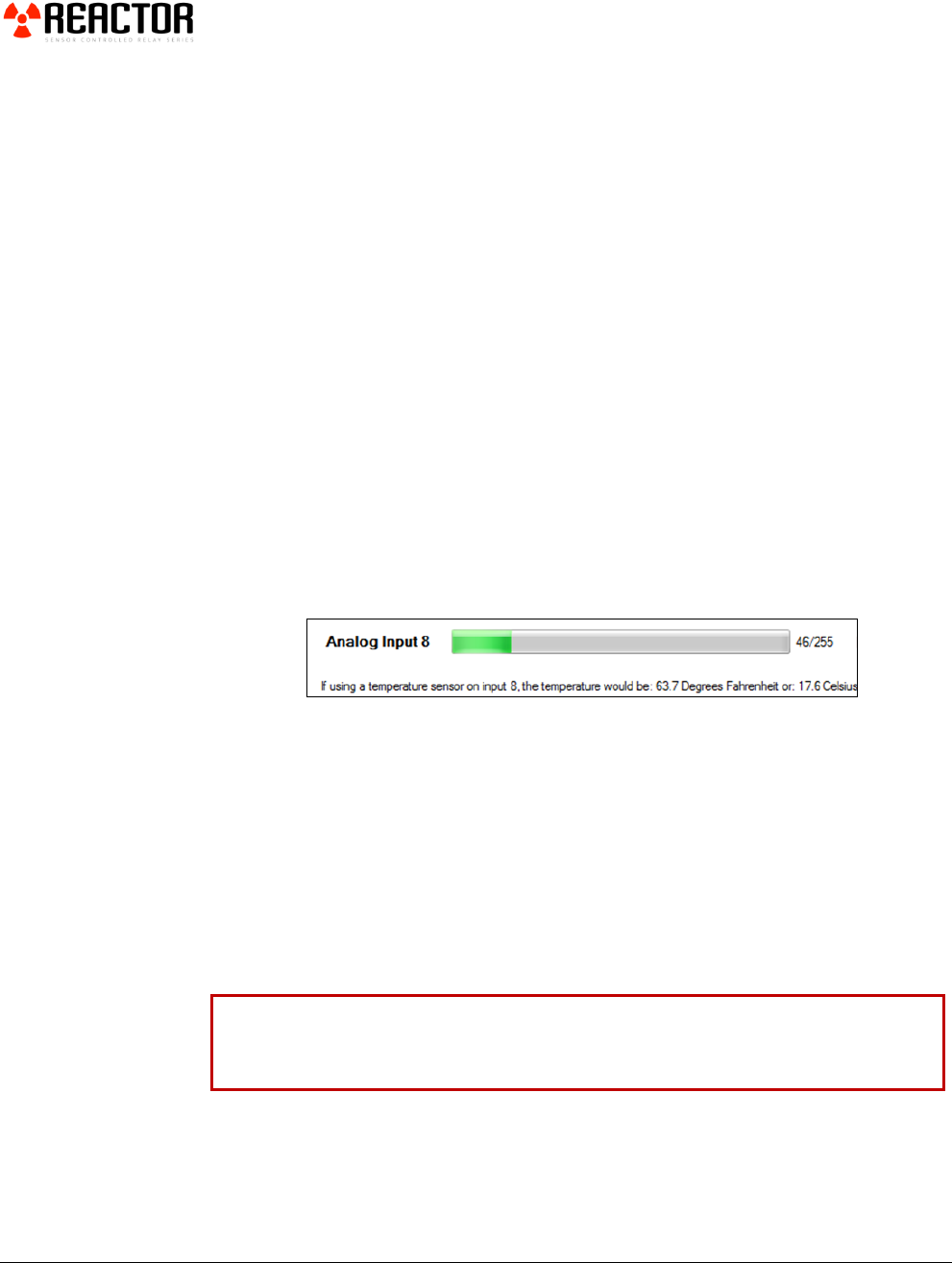
when connected to Analog Input 8. Look carefully at the Reactor software, you
will see the following:
The Up/Down jumper may have a small effect on the sensor reading. We
recommend leaving the jumper in the UP position for most applications.
Temperature readings are approximate, the actual accuracy of the final device has
not been determined.
If your controller does not have a integrated temperature sensor, a compatible
sensor can be purchased from www.digikey.com, part number MCP9701A-E/TO-
ND. Please review the sensor data sheet carefully for wiring information. Some
Reactor controllers include an Auxiliary +5V output that is suitable for powering
small sensors such as the MCP9701A.
22
Light Sensors
There are many applications that would benefit from a Light/Dark activated relay.
Another great low-cost sensor available from www.digikey.com is part number:
PDV-P9001-ND. DigiKey offers many compatible photocells, but the PDV-
P9001 has a resistance output that works great with the Reactor controller to offer
a wide range of light detection values between dark and light.
This sensor is very easy to connect, as it only has two wires. Both wires connect
directly to the Reactor between Ground (GND) and any available analog input.
Polarity of this sensor is not important. Make SURE the
Up/Down jumper is set to the UP position.
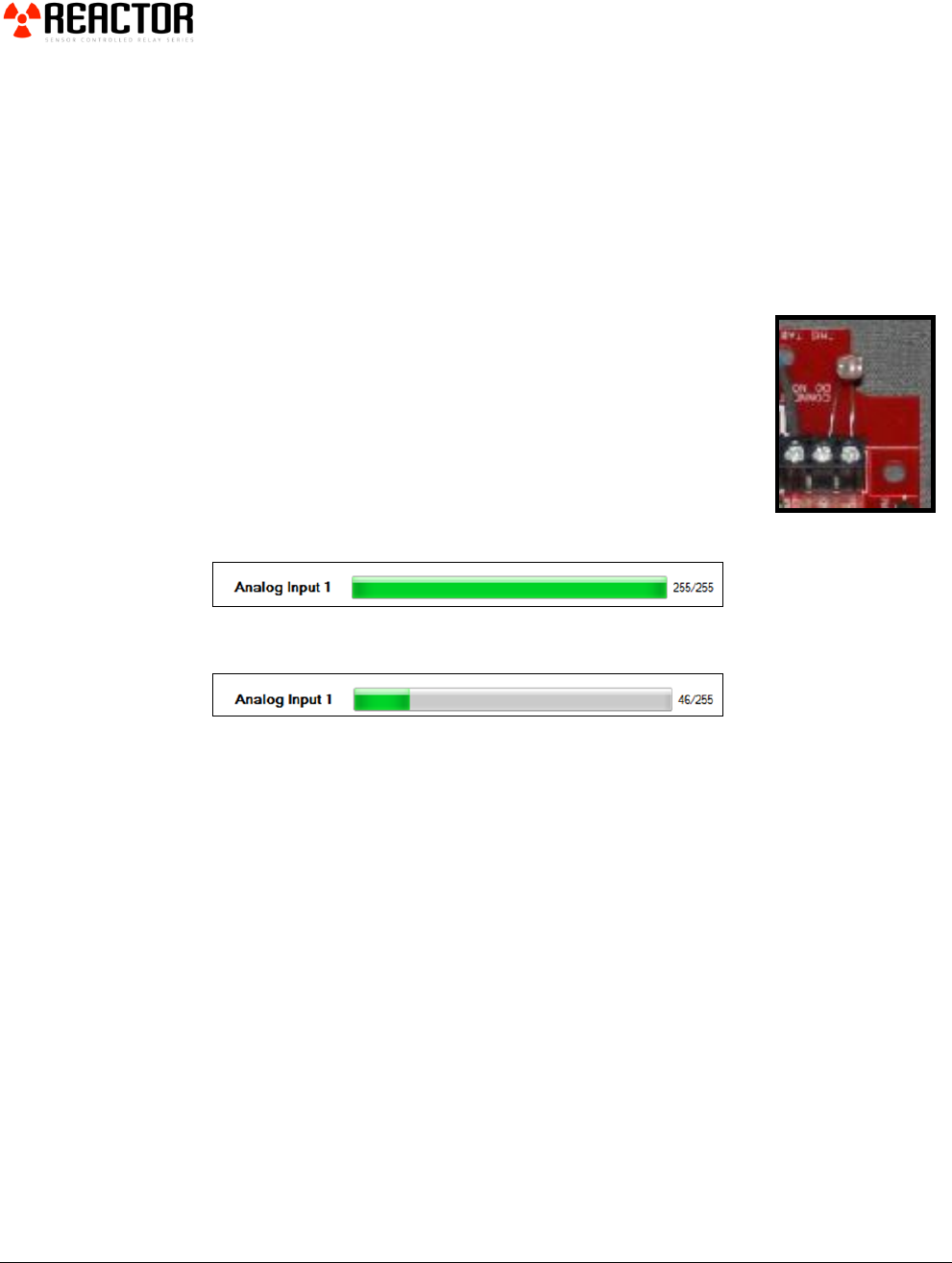
Light sensor connected between Analog Input 1 and Ground
with the Up/Down Jumper in the UP Position.
Here is a shot of analog input 1 in a somewhat dark room:
Here is a shot of analog input 1 in a bright room:
At first glance, you might think a brighter room would show a longer graph. But
if you think about how the analog input is actually working, you see this is not the
case. The Up jumper influences the graph to be at high levels. So longer graphs
appear because the Up/Down jumper is set to the Up position. The sensor has
one side connected to ground, so the sensor pulls the graph down. Resistance
decreases as light levels increase. Therefore, the input gets pulled closer to ground
in a bright room, resulting in shorter graphs.
HINT: Sometimes it is necessary to connect a single sensor output to multiple analog
inputs. This allows you to setup more complex events based on a single sensor. The
Up/Down jumper may bias the sensor into slightly incorrect readings. Your Reactor
configuration settings can easily compensate for this. However, you may need to
remove the Up/Down jumper to “Float” the inputs for some applications.
23
Key Fob Inputs
Since the analog inputs on a Reactor are sensitive to voltage, a Key Fob receiver
chip is integrated into some controllers allowing users to use remote button
presses to activate relays, timers, and counters. We have tested the range of these
small Key Fob remotes and have been very impressed with their range of
operation. We tested 2 types of antennas in an attempt to define a usable distance.
Our criteria for usable distance was simple: Pick up the Key Fob, hold it in front
of you like you would a remote TV controller, and press and hold the button for 1
second. If it worked reliably, we repeated this test at a further distance.
We paired a Reactor controller with a small integrated “Whip” antenna and tested
usable range as defined above. The installation environment was typical. Not
direct line of site, some trees, masonry, and vehicles nearby. We were able to
receive signals from these small Key Fob remotes RELIABLY (working nearly
100% of the time) at 200 feet with 50% reliability at 300 feet.
We repeated the testing of our Reactor controller with a 8’ cable and a Roof Top
antenna. This outdoor antenna was put on the roof of a house, and we resumed
range testing. Reliability was nearly 100% at 1,500 feet and approximately 50% at
3,000 feet.
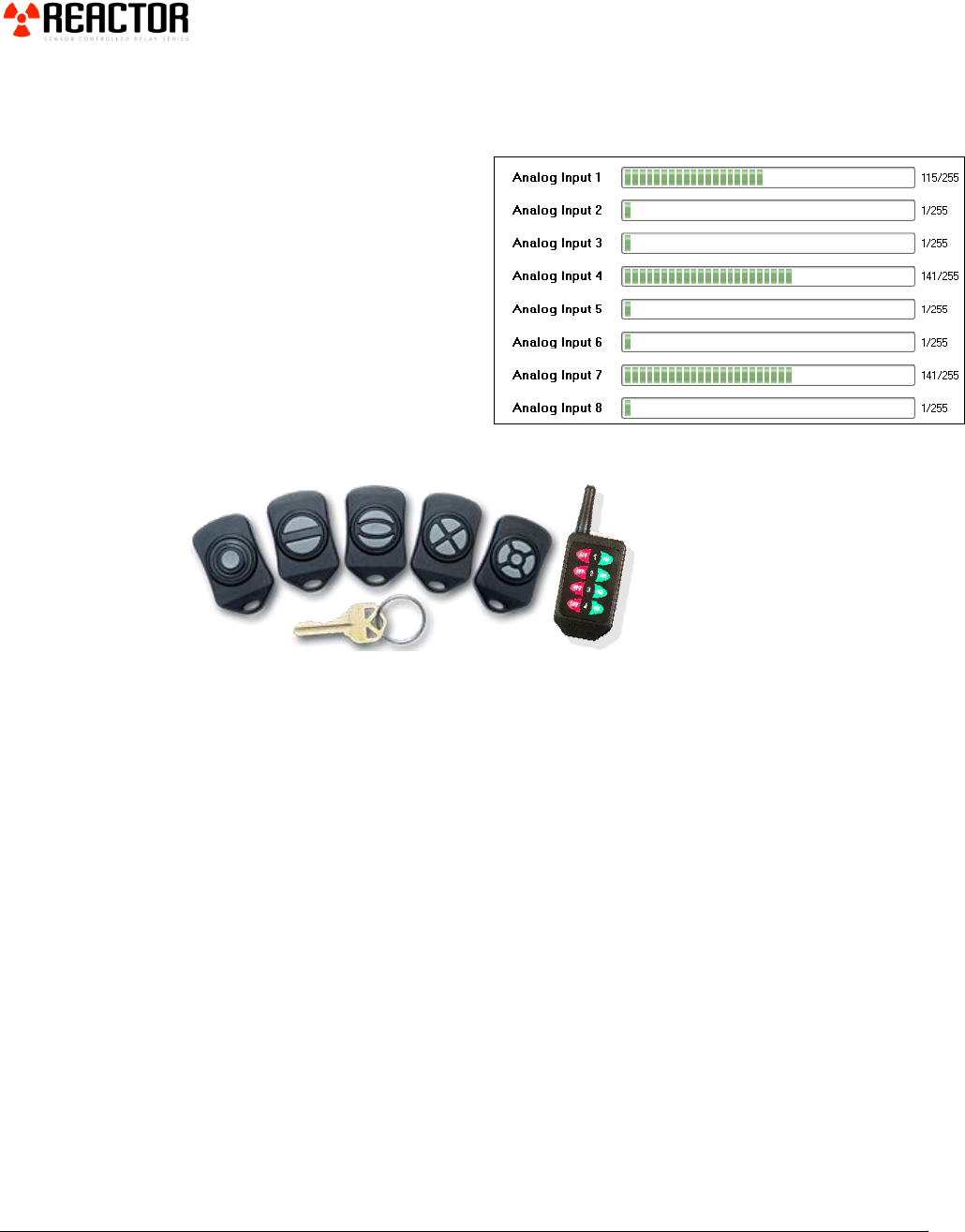
As we mentioned above, a
Key Fob receiver chip is
used to decode the signals
from the Key Fob
transmitter. This receiver
chip has an approximate 3V
voltage output into the
analog inputs of the Reactor
controller. When no key
presses are detected, all
analog inputs stay quiet as
shown in the photo at the
right.
24
This photo shows the analog inputs with 3 buttons on a Key Fob held on at the
same time. Notice how some analog inputs show a value of 1. This is caused by
voltage bleed between channels. This is normal operation. We recommend
configuring your Reactor
controller to detect a Key Fob
button press at a value of 5 or
larger. A value of 5 will make it
respond as quickly as possible
while larger values will slow the
response time. We typically set
our Reactors to respond when
analog values reach 5 or more.
Key Fob are available in 6 sizes, from a 1-button through 8-button version.
We have not yet discussed how inputs can be used to trigger relays. This topic will
be covered later. But now is a good time to remind potential users that a 1-Button
Key Fob is capable of controlling 8 relays using a Reactor controller. We will
explain this further. The important point we want to make to users is that small
Key Fobs (like the ones shown above) are available in 5 different button
configurations. There is NO cost difference between these Key Fobs. A 1-
Button and a 5-Button Key Fob are identical in cost. So choose what you need.

25
We will provide more in-depth information with regard to Key Fobs and how they
can be used with our controllers. But here are some of the basic functions you
can use a Key Fob for:
Key Fob Button Triggers a Relay for 10 Minutes.
Key Fob Button Cycles to the Next Relay
Key Fob Button Cycles to the Previous Relay
Key Fob Button Turns a Relay On
Key Fob Button Turns a Relay Off
Key Fob Button Toggles Relay State
Key Fob Button Turns Relay On Until Button is Released
Key Fob Button Triggers a Relay Sequence
Key Fob Button Triggers a Background Flashing Relay
Key Fob Button Cancels a Background Flashing Relay
Key Fob Button Triggers a Timer, which Triggers another Timer, which
Triggers a Rotation.
Key Fobs may be used to trigger complex events and timers. The capabilities are
extensive. It is even possible to mix analog input logic with Key Fob Button
Presses to build complex events, timing sequences, and logical operations.
Now that you have a complete understanding of inputs, it’s time to explain how
these input values are used.
Key Fob Input Map
When a Key Fob button is pressed, a voltage is applied to an Analog Input on the
Reactor Chip. This map shows you which buttons generate voltages on each of
the 8 Analog Inputs.
Key Fob Remotes:
Right Button: Generates a Voltage on Analog Input 1
Up Button: Generates a Voltage on Analog Input 2
Left Button: Generates a Voltage on Analog Input 3
Down Button: Generates a Voltage on Analog Input 4
Center Button: Generates a Voltage on Analog Input 5
Our small Key Fob remotes offer excellent
communication range (over 200 feet).

26
Long Range 8-Button Remotes:
1 Off Generates a Voltage on Analog Input 8
1 On Generates a Voltage on Analog Input 7
2 Off Generates a Voltage on Analog Input 6
2 On Generates a Voltage on Analog Input 5
3 Off Generates a Voltage on Analog Input 4
3 On Generates a Voltage on Analog Input 3
4 Off Generates a Voltage on Analog Input 2
4 On Generates a Voltage on Analog Input 1
Inputs should be Configured to a Minimum Lower Limit of 5 and a Maximum
Upper Limit of 160.
Since Analog Input 1 is associated with the Right Key Fob Button, a voltage will
be detected when the button is pressed. On 8-Button remotes, Analog Input 1 is
associated with the Row 4 ON button. Typical voltages will be lower than 5 when
the button is NOT pressed and higher than 160 when the button is pressed.
Our small Key Fob remotes offer excellent communication range (over 200 feet).
Each button corresponds to a analog input when pressed. Choose a Key Fob that
matches your needs, the prices are the same for all models. Two to three buttons
is suitable for most applications. Keep in mind, eight relays can be controlled with
a single button using Rotations! It is often nice to have a few extra buttons for
other features as well.
Long Range Key Fob Remotes
are small, and offer 8 Buttons
of remote operation. The
external antenna on this
model improved range by over
100 feet when tested with an
outdoor antenna.

27
Using Inputs and Outputs
Using Inputs
To this point, we have demonstrated how the Reactor controller reads analog
inputs. Now it’s time to put these inputs to actual use.
Before we get started, we need to explain one small detail. In the coming pages of
this manual, you will see us use the word “Event” and the phrase “Trigger an
Event”. You can guess what it means to trigger a relay. But triggering an event is
very different. The purpose of the Input Configuration tab is to allow users to
setup input triggers.
An input can trigger a relay directly or an input can trigger an event, such as a
timer. If an input triggers a relay, the relay may turn on. If an input triggers a
timer event, a timer may be started, but a relay may or may not be turned on based
on how you have configured the controller.
In summary, there are two different types of input triggers:
1. Inputs may Directly Trigger Relays.
2. Inputs may Directly Trigger Events. Triggering an event does not mean you
are triggering a relay, it just means you are triggering an internal function.
Relays may be associated with this internal function to achieve a large
number of possible operations.
Note: The Reactor Configuration Utility was designed to be as intuitive as possible
while still providing powerful functionality. When setting up a Reactor controller using
our software, read from the extreme left to the extreme right as you make changes to
your settings. This can sometimes help make sense of complex functions.
Chapter
4
28
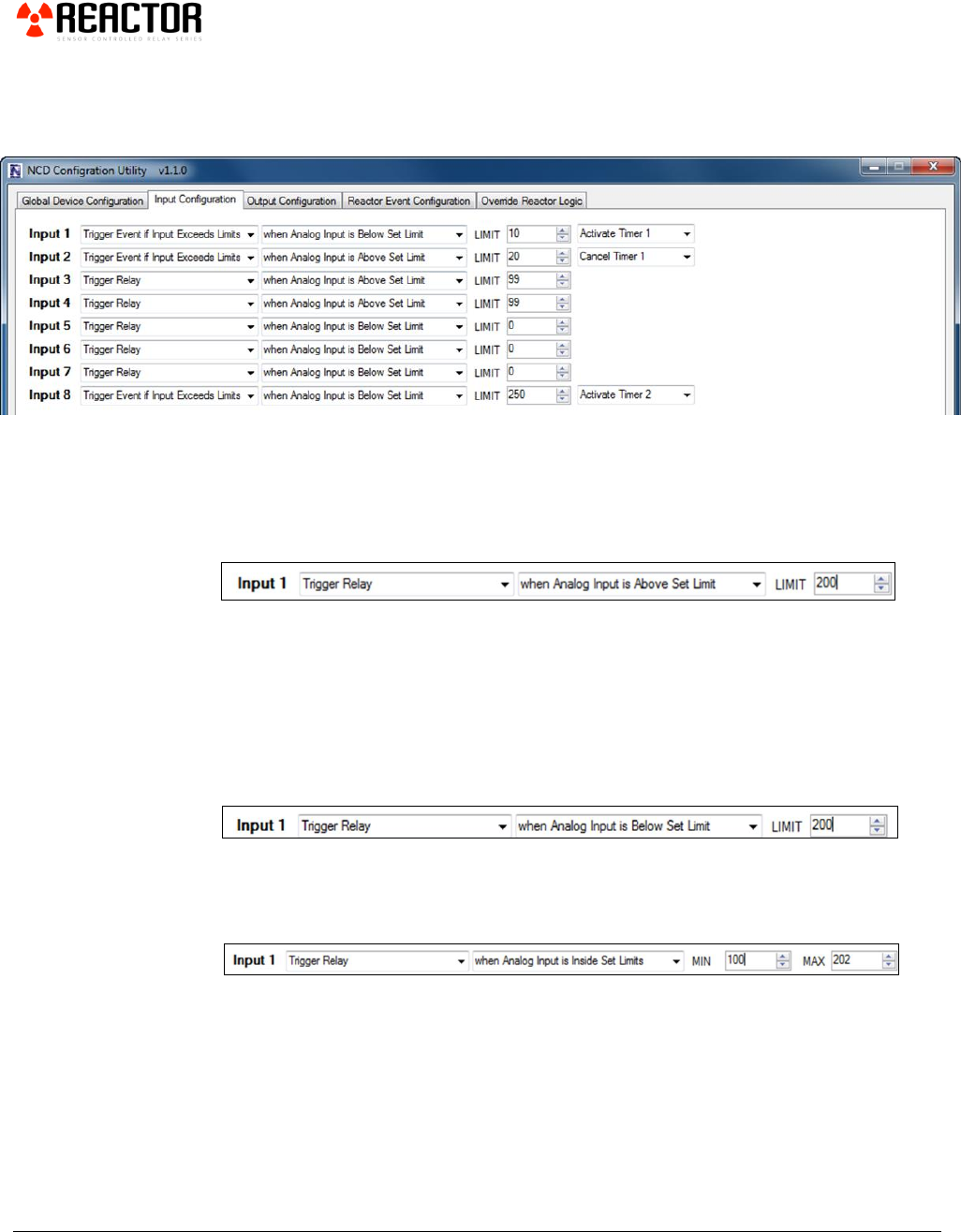
The ‘Input Configuration’ tab on the Base Station software shown below allows
users to define the activation of a relay or an event based on the voltage readings
of the analog inputs.
Again, the focus of this screen is to set input trigger points. In other words, to
define limits that will activate relays and events. For instance, if you determine
that it is dark outside when an analog input reaches a value of 200, then the input
trigger point would be 200. Let’s start with a few examples and read through them
so you understand what will happen.
Reading from Left to right, the settings above indicate Input 1 will trigger a relay
when Analog Input 1 is above 200. We will not define which relay will be active
on this screen. Input 1 is making a direct reference to Analog Input 1. In this
case, we have defined that a relay will turn on when it gets dark outside, and the
level of darkness is defined by a value of 200. Higher values will indicate a darker
condition while lower values will indicate brighter condition when following
examples on previous pages.
In this case, Analog Input 1 will trigger a relay when the value is below the 200
limit. In a light/dark condition, this would turn On a relay when it is light outside
and turn off a relay when it gets dark.
In the above example, a relay is triggered when an analog input is inside a set range
between 100 and 202. By defining two limits, you can further narrow the
parameters for the activation of a relay.
29
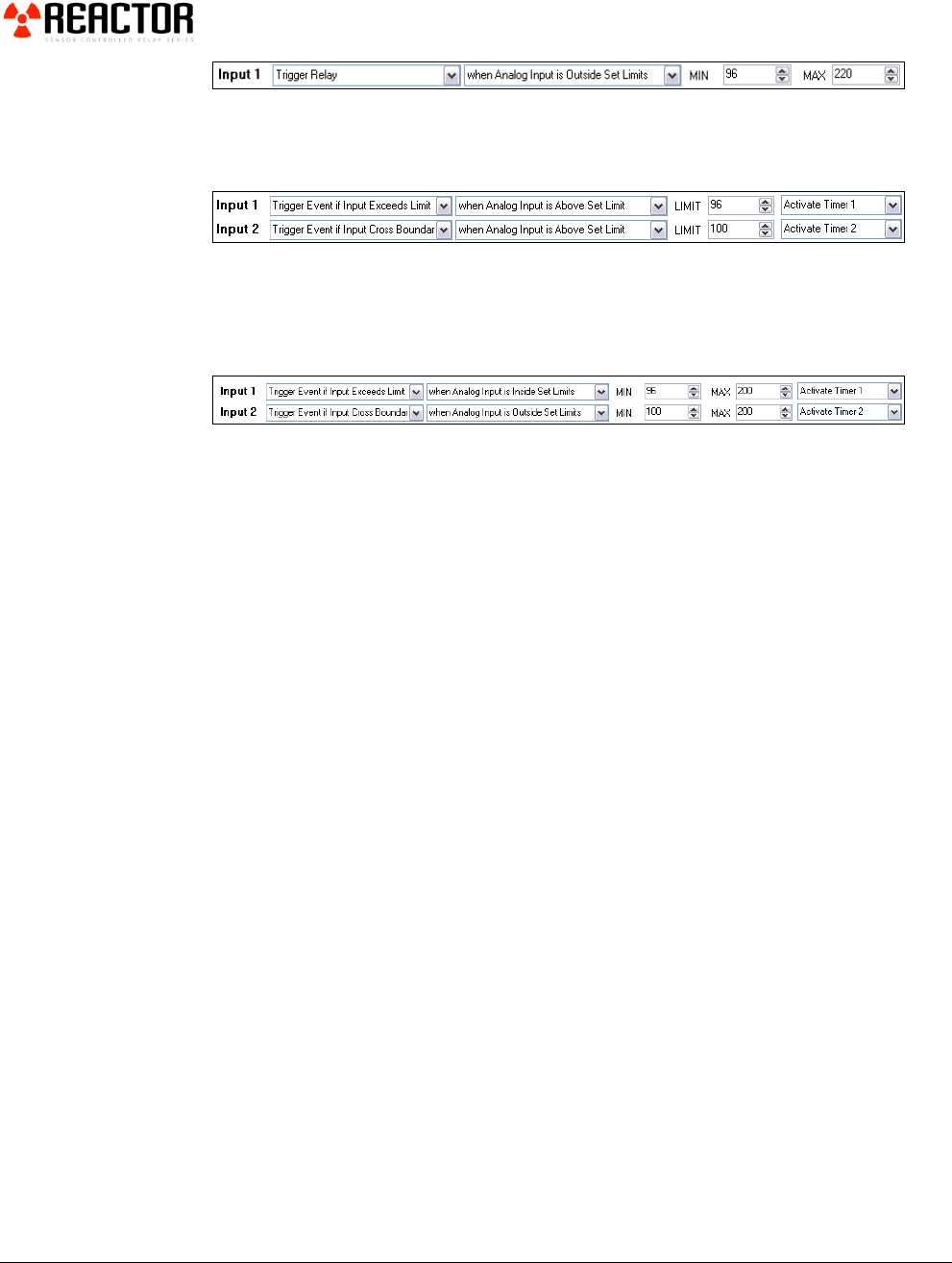
Similarly, you can trigger a relay outside two limits. This indicates a relay will turn
on under two extreme conditions:
Below 96 and Above 220.
Above, Input 1 will trigger the timer #1 event when an Analog input is above 96.
Input 2 will trigger the timer #2 event every time an analog input crosses the
boundary limit of 100 (so if the input is moving up or down, every boundary cross
will trigger the timer event).
In this example, Input #1 will trigger event timer #1 when an analog input is
inside the limits of 96 and 200. Input #2 will trigger event timer #2 every time an
analog input crosses the 100 or 200 boundary mark.
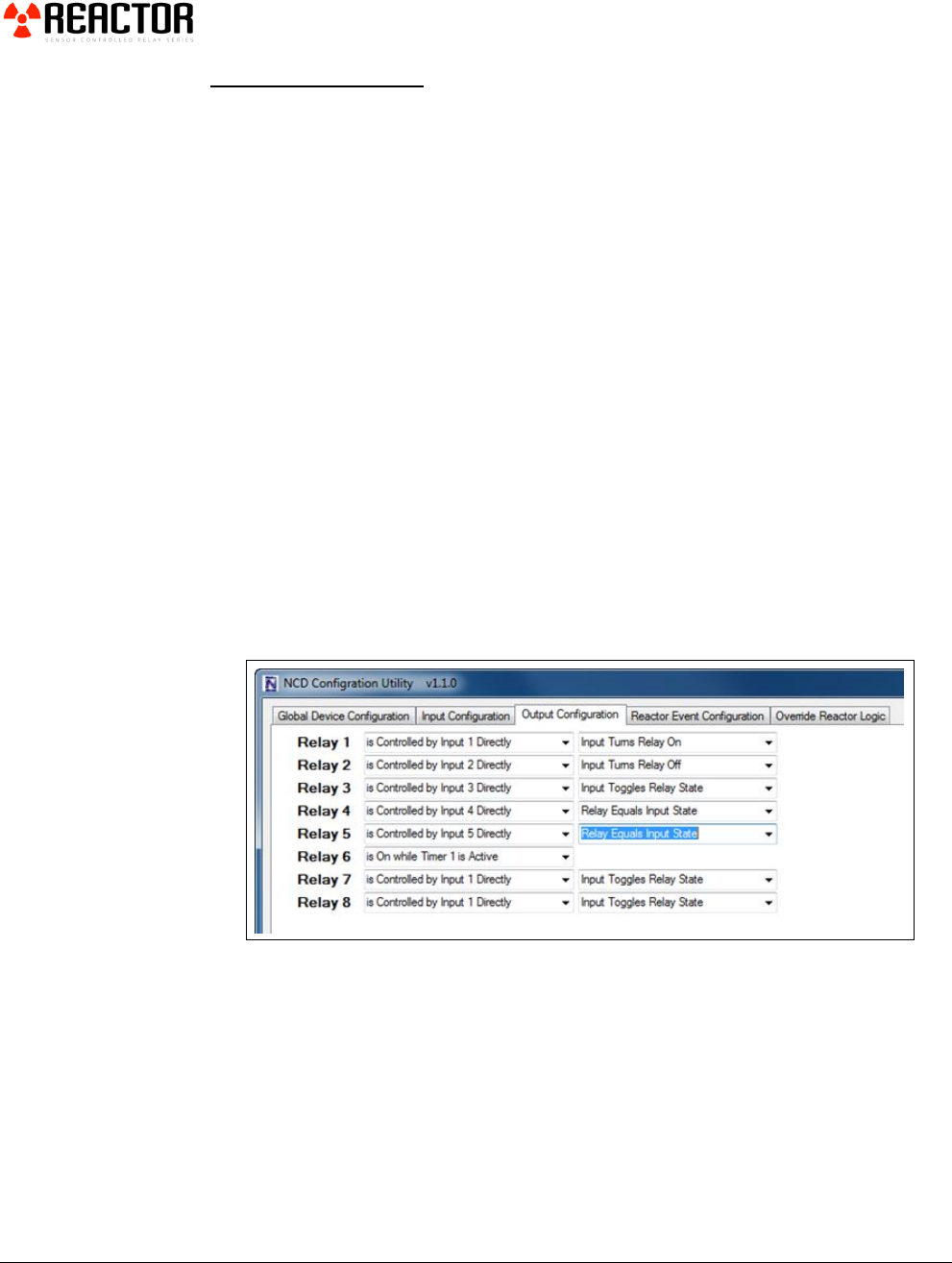
The next tab allows you to assign Relays to various functions. Let’s take a closer
look at the different ways we can connect a relay to an input, timer, or rotation.
30
Output Configuration
To this point, we have demonstrated how the Reactor controller reads analog
inputs. Now it’s time to put these inputs to actual use.
The ‘Output Configuration’ tab shown below allows users to assign relays to
inputs and events.
Reactor controllers have up to 8 relays available depending on the actual model
selected. Each relay can be assigned to a different input or event.
Again, reading the configuration from left to right helps make sense of the
function that will be performed.
In the example shown below, Relay 1 is Controlled by Input 1 Directly. Input 1
will turn Relay 1 ON. In order for Relay 1 to activate, it must meet the conditions
of the Input 1 configuration using the settings on the Input Configuration tab.
There are many ways to directly control a relay from an input. Relays 1-5 in the
examples show how inputs can turn relays on, off, toggle relay state, set the relay
to match the state of the input, or set the relay to NOT equal the state of a input.
In this example, Relay 6 is controlled by Timer 1. In other words, if Timer 1 is
active, the relay will stay ON. Otherwise, the relay will turn off. This is a great
way to activate a light for a given period of time. Timers will be discussed further
in the pages to come.
31
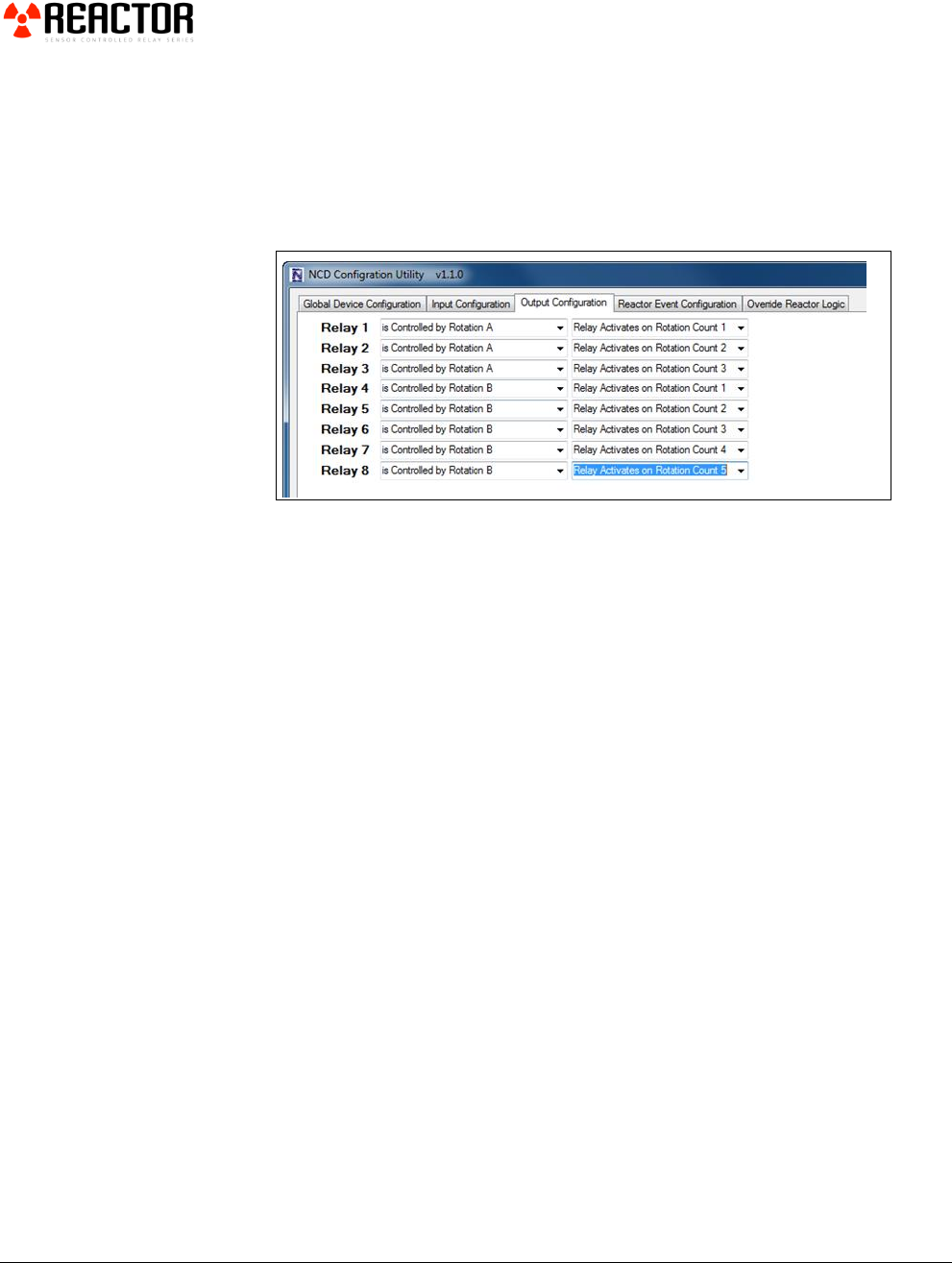
In the example shown below, relays may also be controlled by rotations. A
rotation is a counter that always starts at 0 (all relays are off when the counter is at
0. As the rotation (counter) increases, the relays will “count” accordingly.
In this sample, Relays 1-3 are controlled by Rotation A (the first of 4 available
counters). Relays 4 through 8 will be controlled by Rotation B (the second of 4
available counters).
Rotations will be fully explained on the next page, and samples will show the use
of these rotations so that you may get a better understanding of their function.
Rotations are critical to the Reactor, as a single input can be used to control up to
8 relays using a single rotation. There are many types of rotation parameters that
control the behavior of rotations. But for now, simply think of a rotation as a
simple counter.
32
Reactor Event Configure
eactor events unlock some of the most powerful features a Reactor controller
has to offer. Learning about Reactor Events will allow you setup complex
actions.
Timer Events
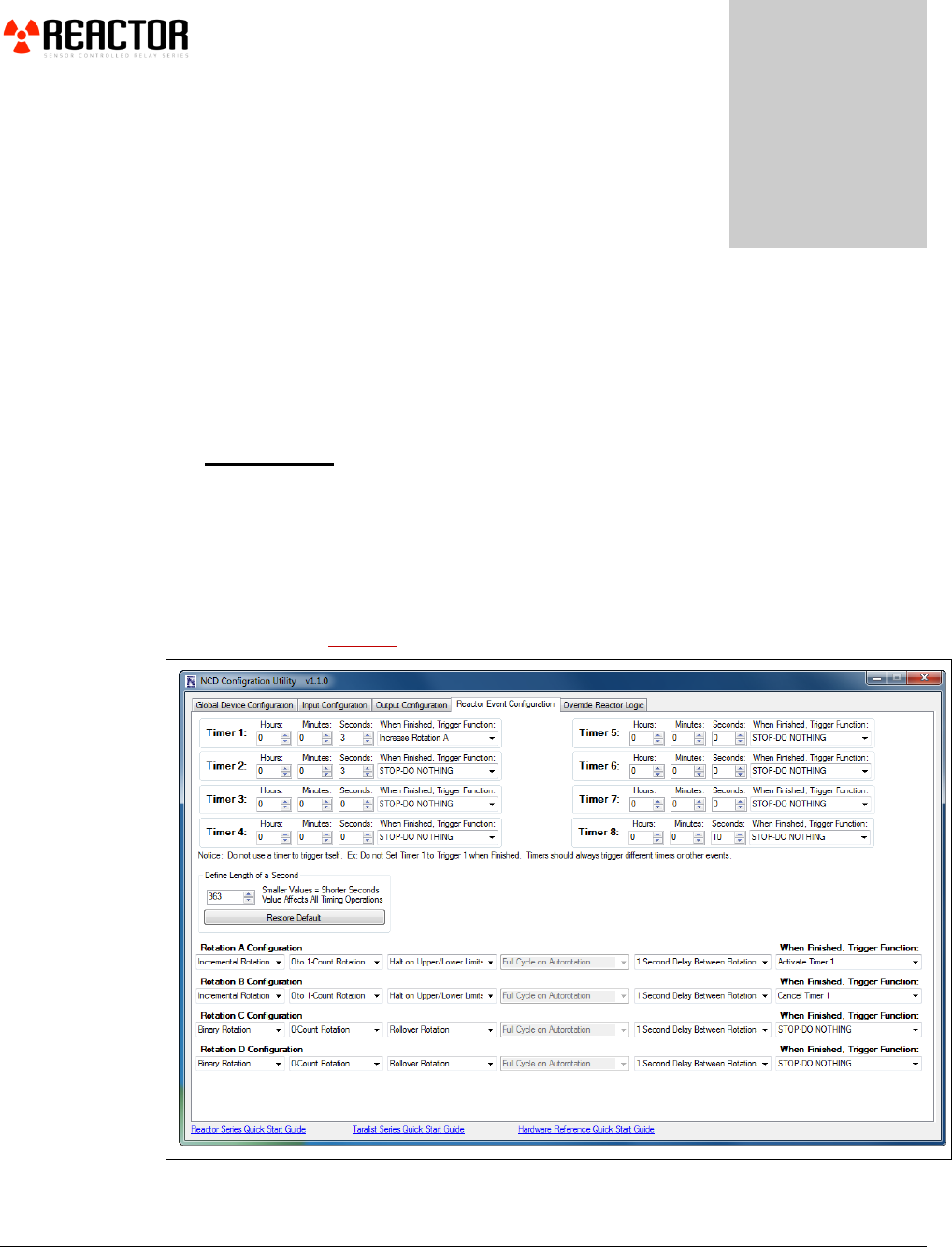
Timer events work just as the name implies. You can define up to 8 timers that
run in the background. Each timer can have a different time assigned to it.
Timers can be triggered or canceled based on input events. Relays can be
associated with timers so the relays only come on when the timer is active. Timers
support Event Piping. Event Piping means a timer can trigger another timer or
another event after the timer has completed its cycle. We will demonstrate this
feature in our samples.
Chapter
5
R

33
Rotations
Rotations are another powerful feature of the Reactor controller. Rotations are
simply counters. All Rotations begin their counting at 0. Any relays that are
associated with a Rotation will turn off if the Rotation counter reaches 0. There
are 4 Rotations: Rotation A, B, C, and D. Rotations can also run in the
background, or they can be stepped, one count at a time. You can define how far
they count. In the above example, Rotation A is a 3-count Rollover Rotation.
This means it will count: 0, 1, 2, 3, 0, 1, 2, 3, etc. Rotation B is similar to Rotation
A, except it counts from 0 to 5. Rotation C is a 2-Count Rotation, meaning it
counts: 0, 1, 2. Unlike the other rotations, Rotation C is a Halt on Limits rotation.
This simply means it will count up to 2 and no higher and will not cycle to 0.
These kinds of counters usually need a trigger to increase them and a separate
trigger to decrease them. You can define two inputs: One to count up, another to
count down.
Rotations can be interpreted by the relays in four ways. The first column sets the
way relays will interpret your Rotation.
1. Binary Rotations: Relays activate in a binary pattern.
2. Sequential Rotation: Relays activate in a sequence, one after another until all
associated relays are on.
3. Incremental Rotation: Only ONE relay is on at a time, each count triggers
the next relay.
4. Reverse Incremental: Same as above, but relay activates in the reverse
sequence.
To better understand the types of Rotations, we have provided many samples that
show relays associated with Rotations. Please review the Reactor Sample Library
for more information.
Auto-Rotations can also be triggered. An Auto-Rotation is the same as a
Rotation, except it runs through a complete counting cycle automatically. When a
Auto-Rotation has finished, it can triggers itself again, which results in relays
switching automatically in the background. This is very useful for relay flashing
operations.
34
Speed Control
In many cases, it is necessary to define the speed at which an event occurs. This is
done by redefining the length of a second. In the picture below, we have
redefined the length of a Reactor Second to 70 to speed up timing operations.
This is ideal for controlling the flash rate of a relay, but it has the side effect of
redefining the length of a second for all event operations, so timing events are no
longer accurate. Clicking the ‘Restore Default’ button will restore this value to
closely approximate a One Second.
Event Piping
Perhaps the most powerful feature of the Reactor Relay Controller is Event
Piping. Event piping is the process of one event triggering another event. When
a single event has finished its operation, it can trigger another event. For instance,
a Timer Event can be set for 10 minutes. A Rotation event can be set for 0-1
count rotation. When the timer expires, the Rotation can be increased. In a real-
world example, this would be the equivalent of waiting 10 minutes to turn on a
relay. Understanding Event Piping is the key to unlocking the most powerful feature the
Reactor Series Relay Controllers have to offer. Let’s take a look at a few event pipe
examples:
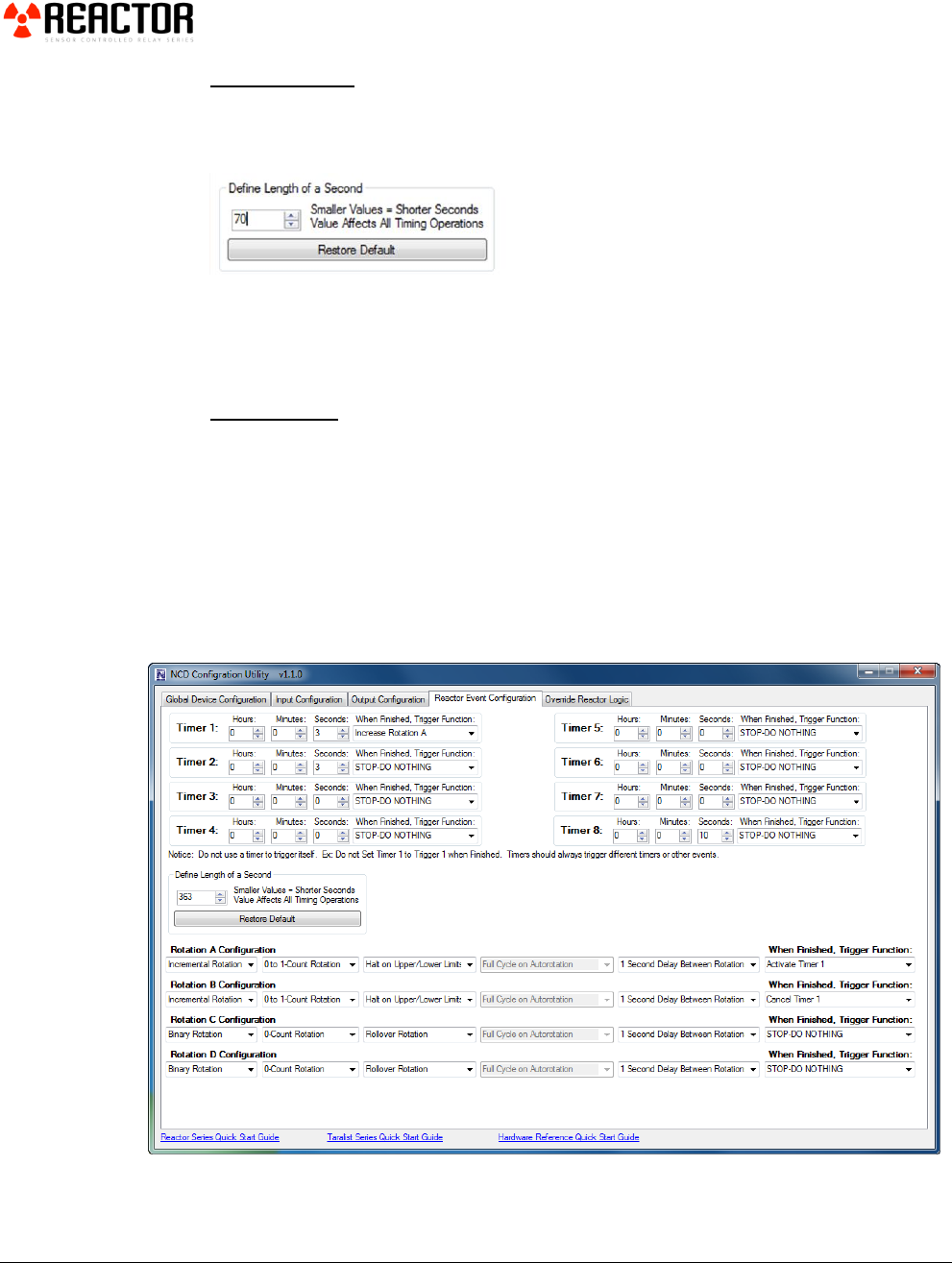
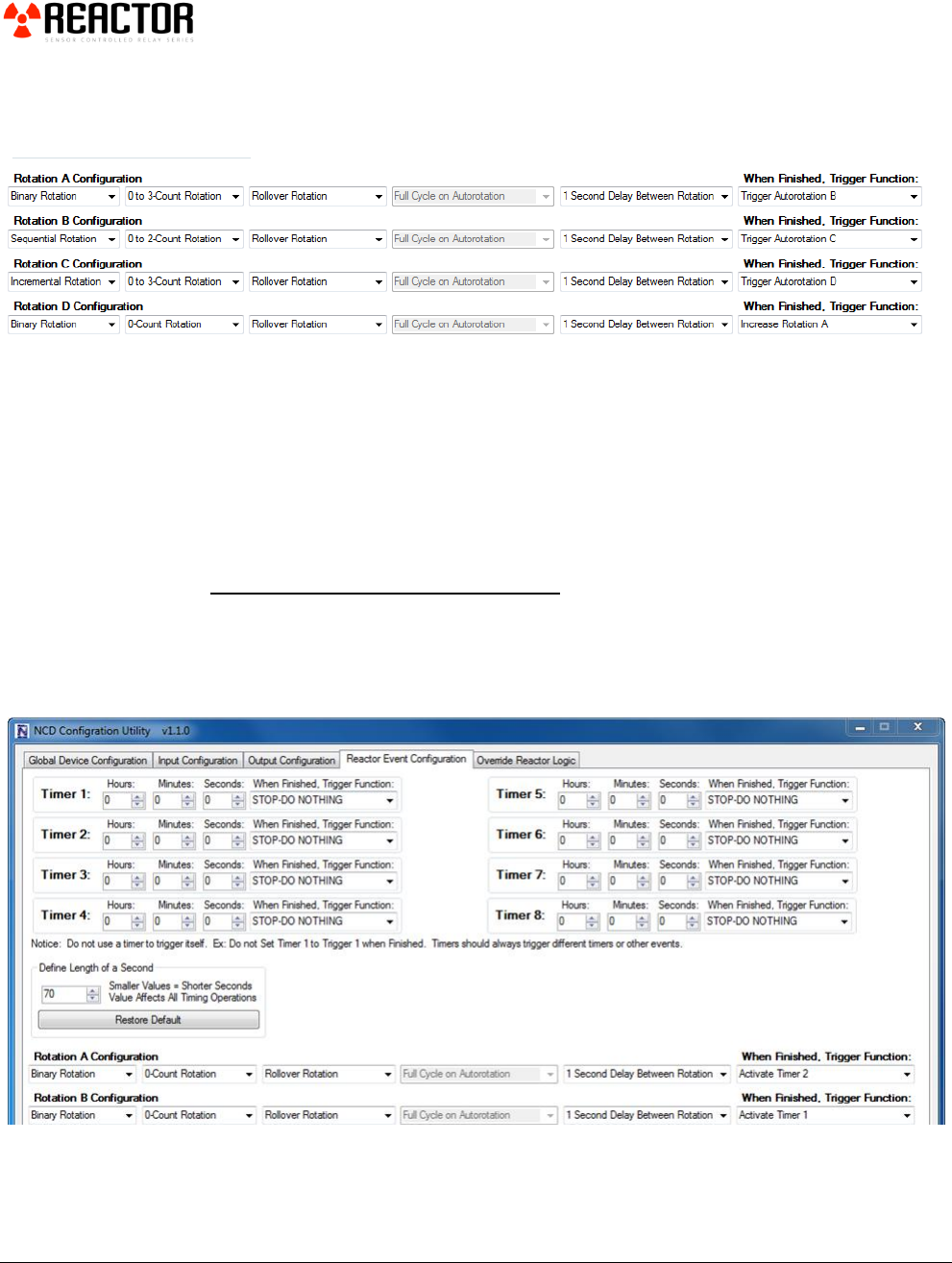
The top portion of the above sample demonstrates a timer that triggers a timer that
triggers a timer...etc. This event pipe never ends, meaning when the last timer finishes,
the entire cycle begins again. You can easily associate relays to each timer and watch the
relays activate for the durations shown in the sample above.
35
Event Piping Rotations
Rotations may also pipe events to trigger other rotations. Here is an example of a
never-ending Event Piped Rotation sequence:
In the sample above (bottom portion of the ‘Reactor Event Configuration’ tab),
Rotation A triggers Rotation B, which Triggers Rotation C, which Triggers
Rotation A. Experimenting with Rotations will yield some interesting relay
control patterns that could be used to light driveways, control lights on signs, and
many other special effects related control applications. Again, the rate at which
Rotations are processed is defined by altering the Length of a Second as shown
previously.
Event Piping Timers and Rotations
Timers and Rotations may also be Event Piped. Here is an example of How
Timer 1 Triggers Rotation A, when Rotation A is finished, Timer 2 is Triggered.
When Timer 2 is finished, Rotation B is Triggered. When Rotation B is finished,
Timer 1 is triggered again.

36
Learning More about Event Piping
The best way to learn about event piping is to review the Reactor Sample Library.
Here you can see practical applications of Timers and Rotations that have been
Event Piped for some very powerful operations. Experimentation is highly
encouraged. There is no danger is trying different settings to see how the Reactor
controller responds. Our only suggestion is make small changes and note how the
controller responds with each change. Saving and Loading configuration files is
quick, and you can experiment with settings by keeping the Program/Run jumper
in the Program setting. Don’t change the jumper until the desired results have
been achieved.
37
Advanced Features
Multiple Event Triggering
It is possible for a single input to trigger multiple events simultaneously. The
Reactor Controller is capable of processing 8 Timers and 4 Rotations
simultaneously. Triggering all of these events at once is easily configured using the
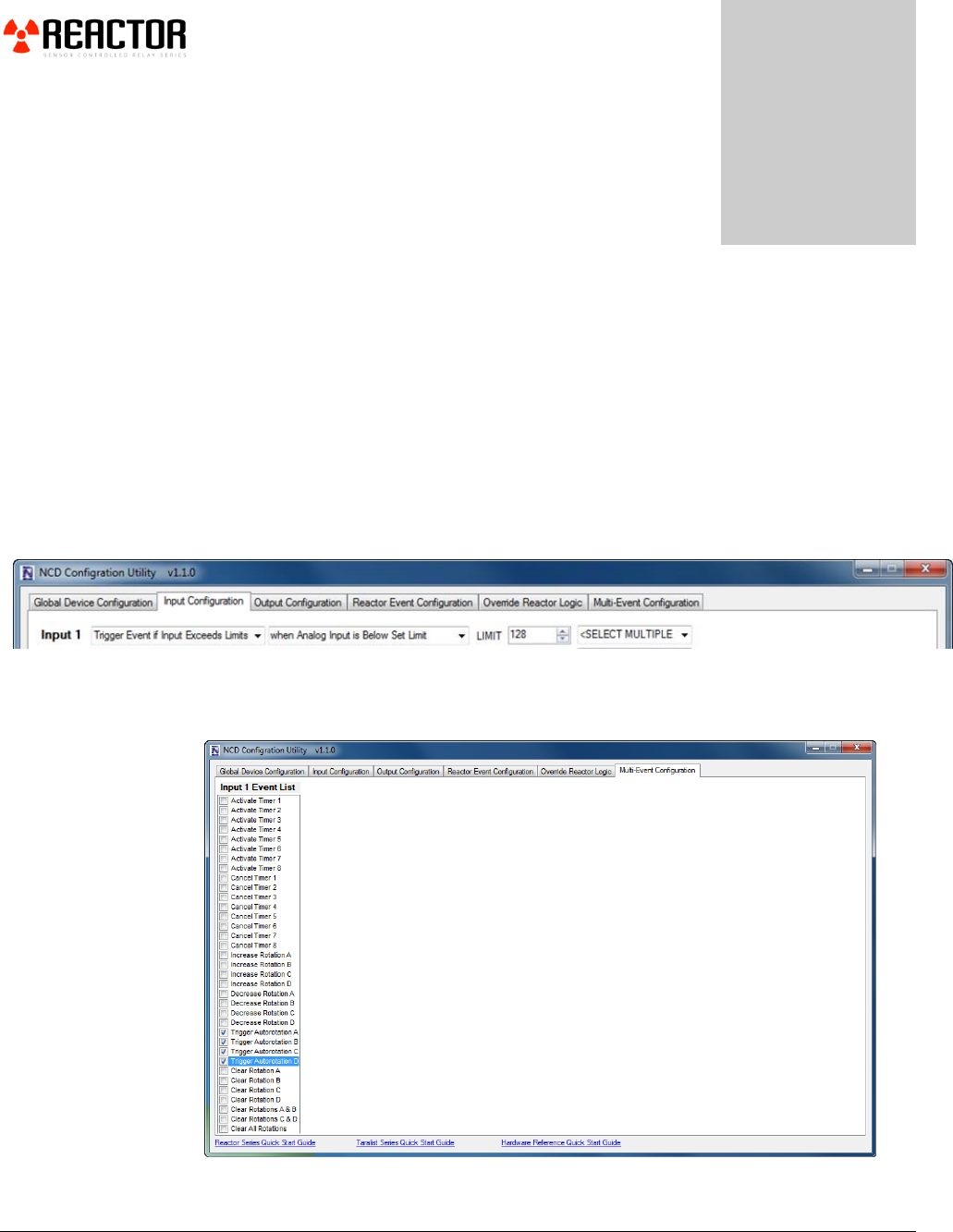
Multi-Event Configuration Tab. This tab is ONLY Available if it has been
activated. To activate this time, Go to the ‘Input Configuration’ tab; setup any
input to <SELECT MULTIPLE EVENTS>
After selection, the Multi-Event Configuration Tab will appear as shown in the
window above. The window below shows how Input 1 can be configured to
execute several events simultaneously:
Note the Heading is Labeled “Input 1 Event List”. An event list is available for
Every input.
Chapter
6
38
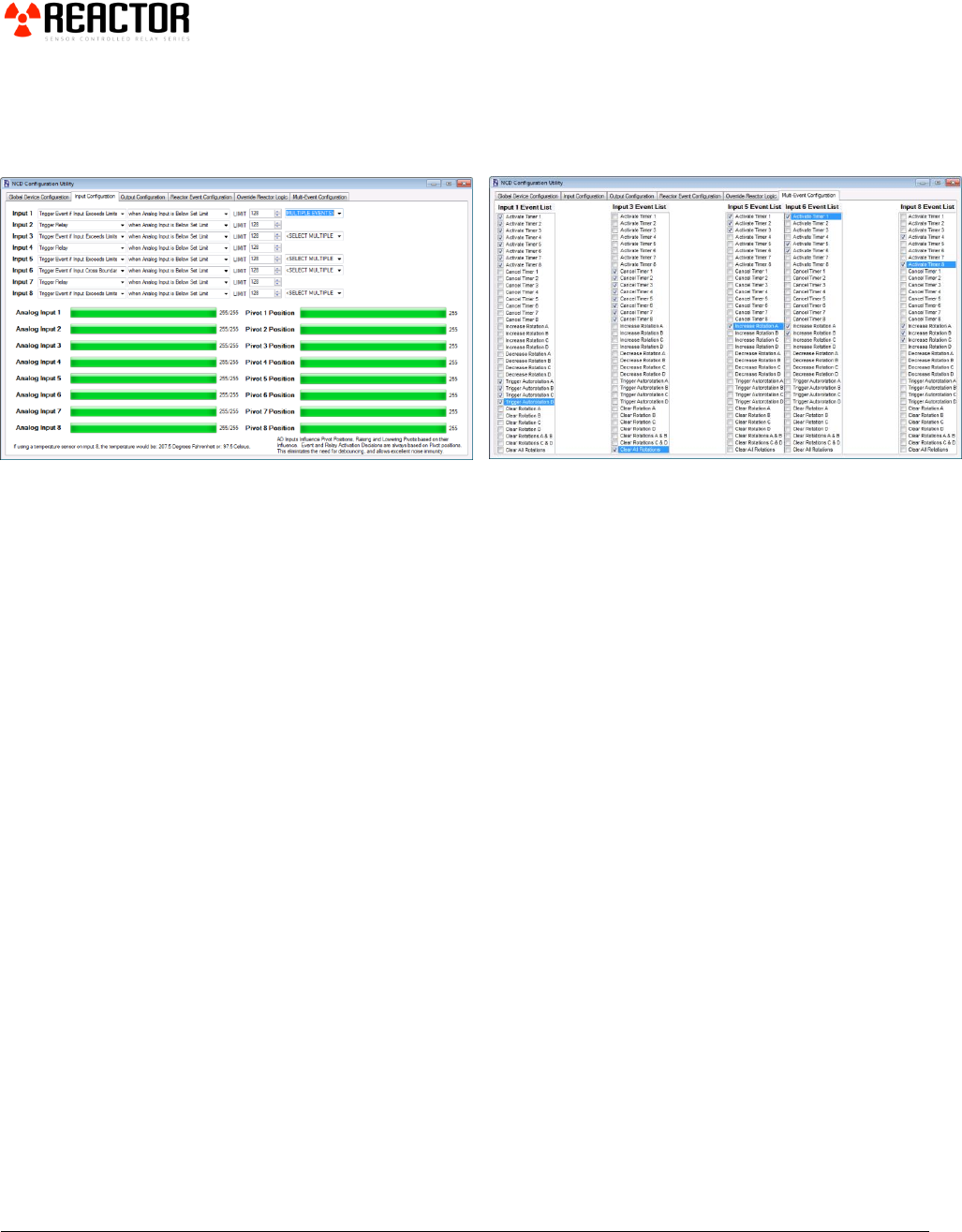
Multiple Event Execution lists can become very complex:
While this feature is very useful for some operations, most of our samples do not
use Multiple-Event Execution lists.
However, there are a few samples that would never function properly without this
feature, so it may be worth exploring if you want to unlock some of the most
advanced operations of the Reactor Series Relay Controllers.
39
Protected Data
Editing Protected Data
Protected Data is best described as a form of BIOS for a Reactor controller.
Under most circumstances, it is not necessary to Edit Protected Data, but there
are circumstances that may require this operation. Protected Data holds
important parameters regarding the Reactor Relay controller you are using. It is
important that these parameters match your hardware. In some cases, you may
want to change your hardware, so Editing Protected Data may be essential.
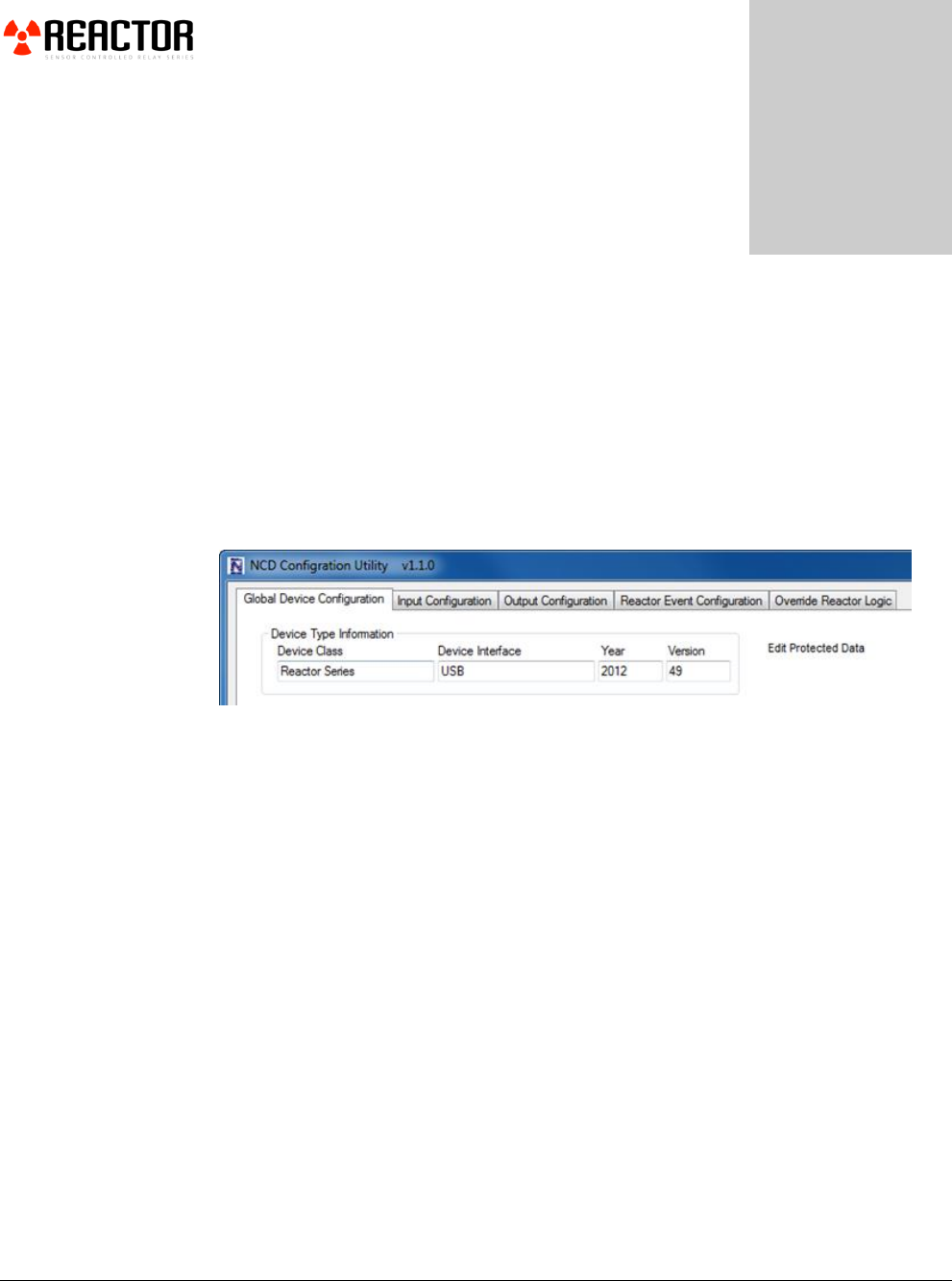
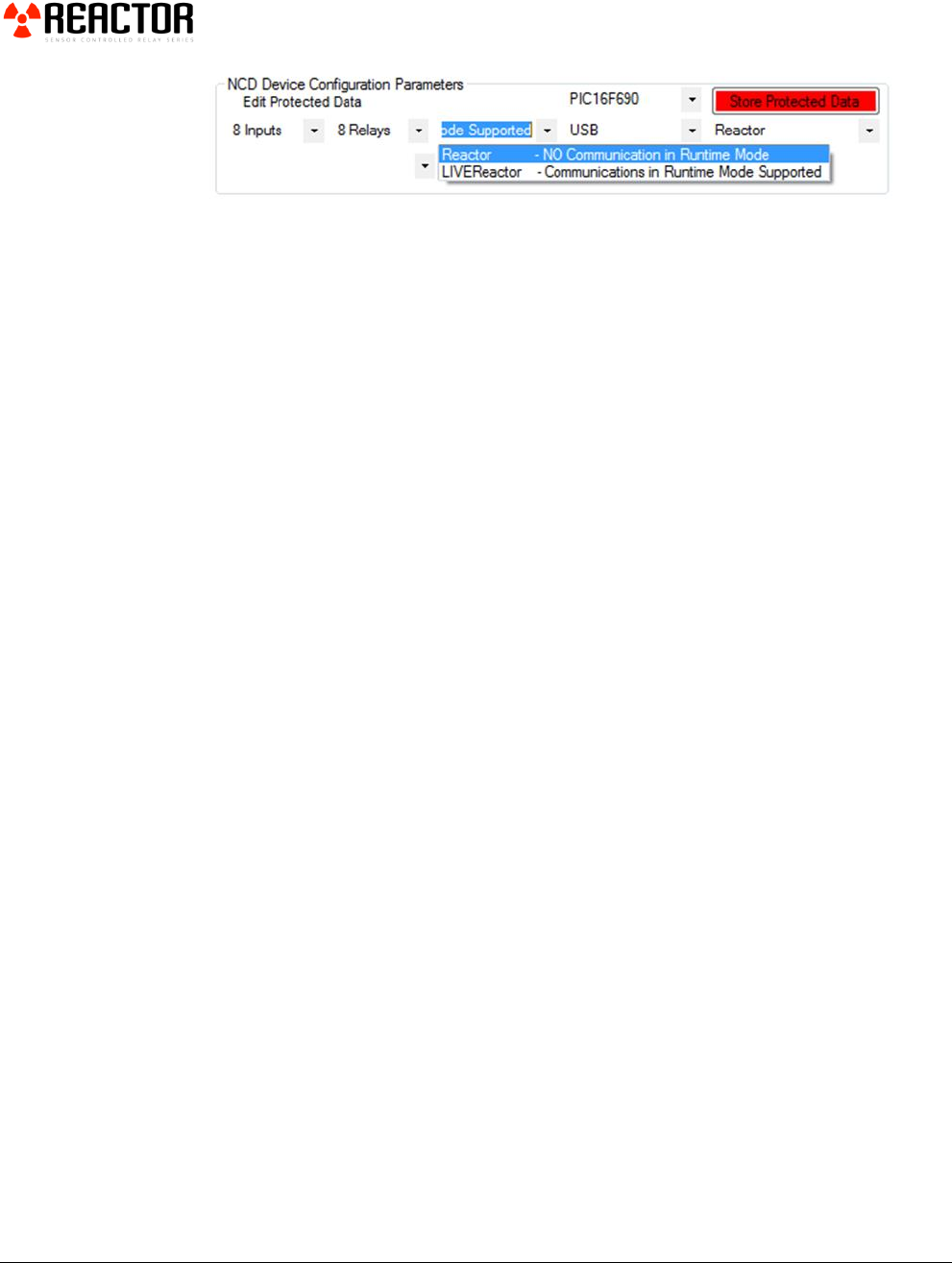
From the Base Station ‘Global Device Configuration’ tab, click on ‘Edit Protected
Data’. This will bring up more options.
There are two particularly useful settings that can be changed:
1. LIVE Reactor and Interface (shown as USB below)
2. LIVE Reactor and Reactor Options
If you plan to use your Reactor controller without a communication module installed, this
setting should be set to “Reactor” and the Program/Run Jumper must be set to
Runtime mode for daily operation. If you do not change this setting, it is possible
for the controller to set the BUSY/READY LED to BUSY and the controller will
appear to freeze. The controller has not actually frozen, but is waiting for data
from a computer. Setting this mode to “Reactor” instead of “LIVE Reactor” will
prevent the controller from monitoring computer data.
Chapter
7
40
Interface settings allow users to take advantage of communication technologies.
The only real effect this setting has is changing the internal baud rate of the
Reactor relay controller. For instance, USB is always set to 115.2K Baud while
XSC is always set to 57.6K Baud. We have also made provisions for an RS-232
Interface at 9600 Baud. Most baud rates are 115.2K Baud. You can lie to the
controller, telling it to use a RS-232 9600 Baud Rate while actually using a USB
interface. In this case, you can communicate to the controller at 9600 Baud
instead of 115.2K Baud. However, this change ONLY applies to Runtime Mode.
Configuration Mode is ALWAYS 115.2K Baud (the required communication
speed of all sample programs and the NCD Base Station software).
The other settings found on this page are used to enable and disable interface
elements of the NCD Configuration Utility. Changing these settings can prevent
normal configuration. When possible, make sure the settings match your
controller. If we happen to send you a controller with incorrect parameters, you
can make changes to these parameters yourself.
The PGM/RUN Jumper Must be Set to PGM. After you have changed your
settings, Click the ‘Store Protected Data’ button. Power Cycle the Reactor Relay
Controller and Restart the NCD Configuration Utility for your changes to take
effect.
Override Reactor Logic
The Reactor Series Relay Controllers offer both autonomous control and
computer control. By default, the Reactor controller is in Autonomous Mode,
meaning it is making its own decisions about how relays should be activated. At
any time, a computer may over-ride the Reactor logic and take control of relays. If
a command is received from a computer, the computer will have priority over the
Reactor Logic. Priority can be set for each relay. This allows some relays to
operate under autonomous control while other relays are controlled by a
computer. The computer may “Return” one or all relays back to the Reactor
Logic.
The Reactor Series Relay controllers support a “Lite” ProXR command set. If
you are familiar with our ProXR series relay controllers, then the command set
should be easy to understand. We will provide a summary of all Reactor
commands in this manual, but for now, let’s explore some of the computer
control features.
41
C
B
A
D
E
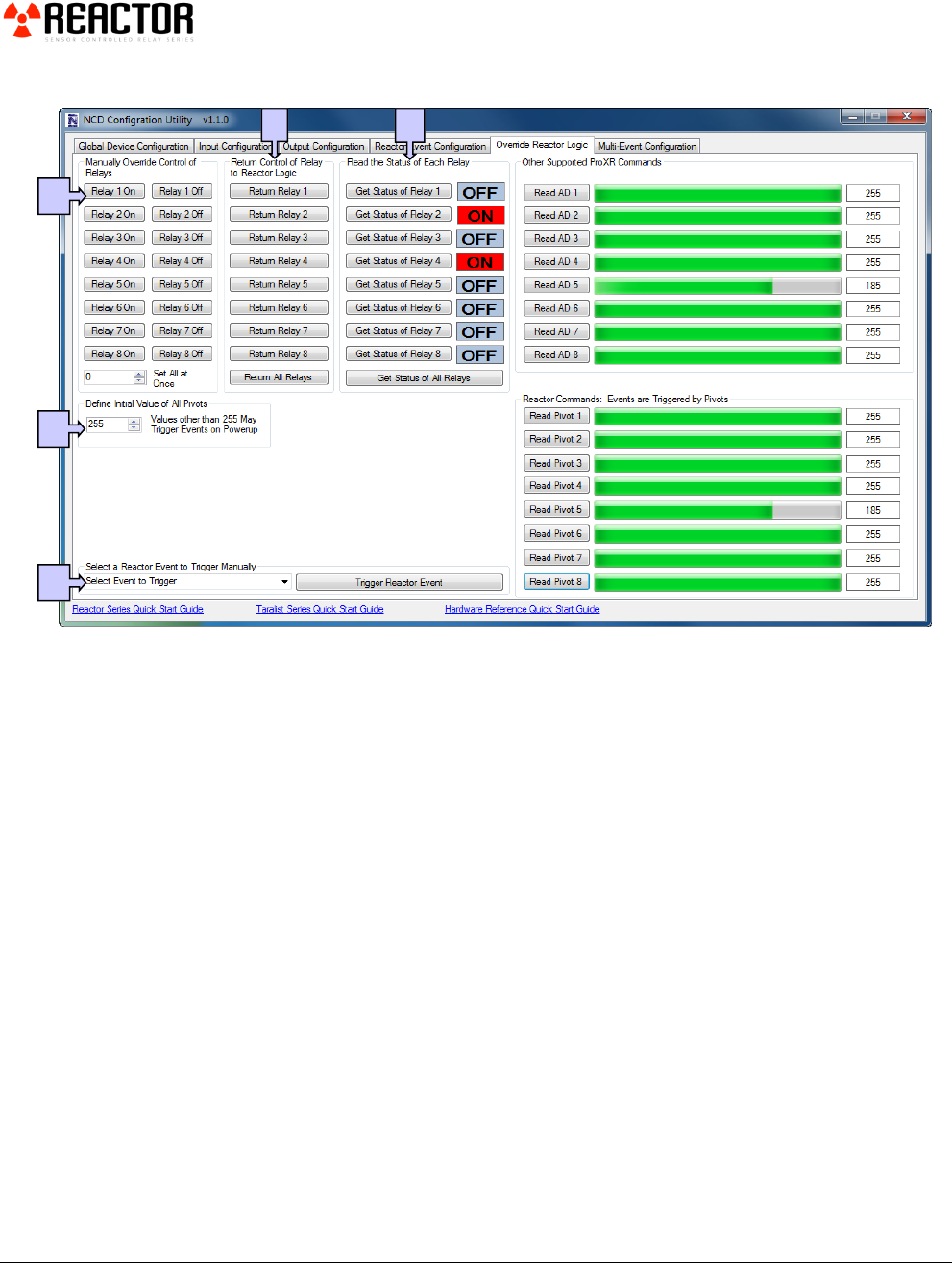
From the Base Station window, click on ‘Override Reactor Logic’ tab.
A. The interface elements at left allow a computer to take over control of any relay and force the relays to a
On or Off state. You may also set the On/Off state of all relays at one time using the arrows shown in
the interface. When using this command, all relays are set to the equivalent binary value of the number
shown and all relays will be under computer control. Reactor Logic is still running in the background,
but Reactor Logic will not have control of any relays that are currently under computer control.
B. The Return Control of Relays to Reactor Logic tells one or all relays to operate under control of the
Reactor Logic. Computer override is canceled for each of the affected relays. When these buttons are
clicked, the relays may turn on or off according to the decisions made by the Reactor Logic.
C. The computer can ask the Reactor Controller the state of the relays without affecting who has control of
the relay. This function is very useful if a computer needs to periodically evaluate the Reactor Logical
operations, or if a computer simply needs to report the status of the relays to a remote user. It is
possible to query each individual relay or all relays simultaneously.
D. Since a Reactor has Default Control of the Relays on Power-up, it is not really possible to set the state of
the relays when power is first applied, as the Reactor Logic will immediately override the stored value
and determine a new relay status. It is, however, possible to set the default state of all 8 inputs. This can
prevent an event from triggering when power is first applied, or it can force an event to trigger when
power is first applied to the Reactor Relay Controller. Set this value to Match the expected normal
analog input values to prevent an event from triggering. Set this value to exceed the limit of a input
value to force the event to trigger. This value sets the default status of ALL inputs, so multiple events
may be triggered by this setting.
E. At any time, a computer may forcefully trigger a Reactor Event. This is a great way to take control of a
relay without forcing the relay under computer control. Triggering events from a computer can also help
you identify and test various configuration settings.
We have plans to exploit this loophole in the form of new accessory devices...
42
Computer Access to A/D Values and Pivots
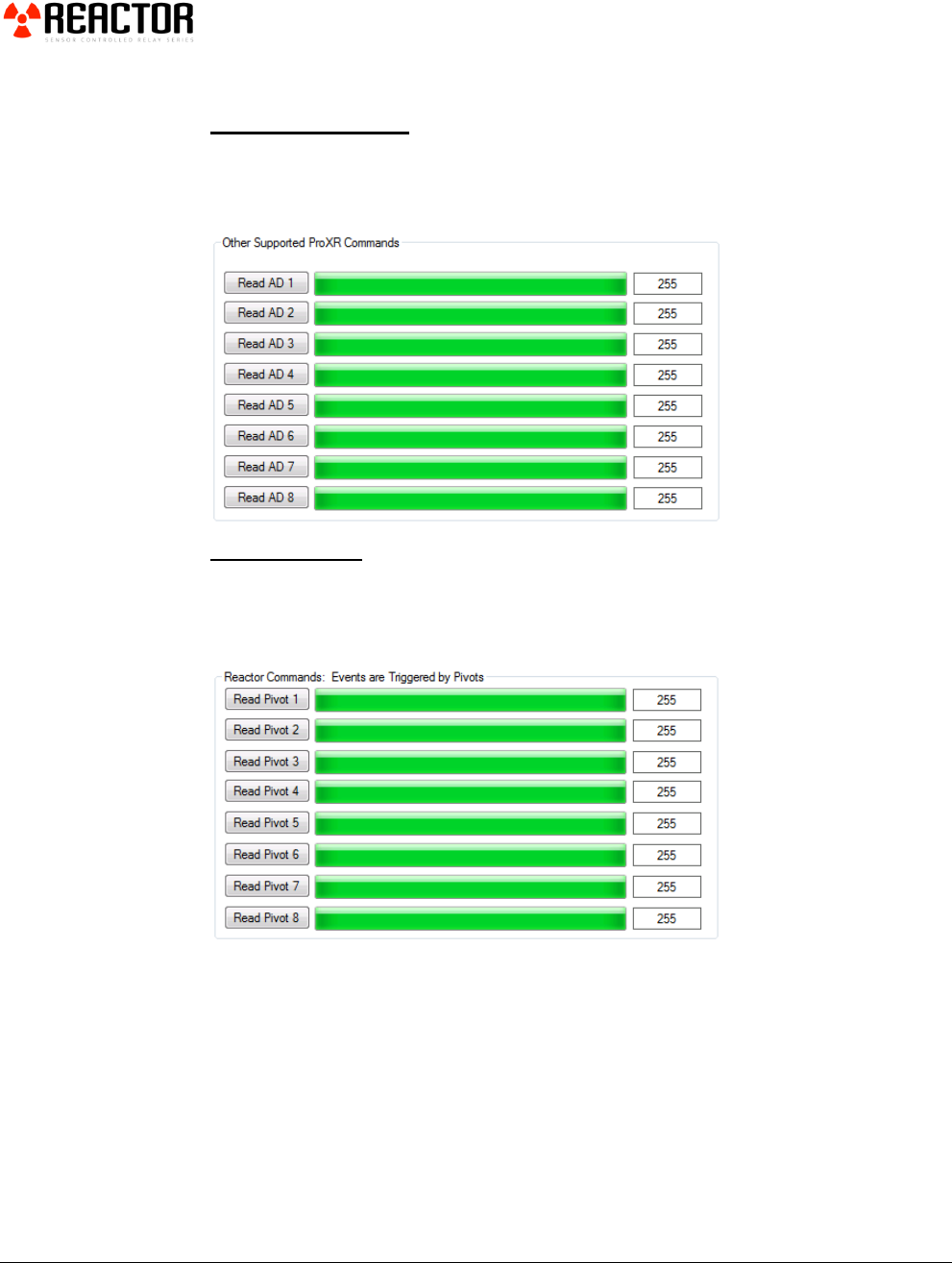
Reading A/D Values
The Reactor Series Relay Controllers support AD8 Series ProXR commands for
reading 8-Bit Analog Values. 10-Bit commands are NOT supported by this
device.
Reading Pivots
The Reactor Series Relay Controllers allow the user to read the Reactor Pivot
Values. Pivot Values are used to make reactive decisions, and are derived from
A/D values using a proprietary algorithm.

43
Command Set
The following commands may be sent to the Reactor Series Relay Controllers to
take control of relays and process other functions and inquiries. Commands may
be sent in Decimal values (as shown) or Decimal Values may be converted to Hex
depending on the preferred format of your programming language.
Please follow these steps to properly communicate to a Reactor:
1. Clear Serial Receive Buffer (VERY IMPORTANT)
2. Send Command
3. Wait for a Response
Baud Rate is typically 115.2K Baud, 8 Data Bits, 1 Stop Bit, No Parity.
Baud Rate is 57.6K Baud for XSC Devices
Baud Rate can be set to 9600 Baud for RS-232 Version
IMPORTANT: For proper execution, please wait 1ms between bytes when
sending data to this controller.
Example to Activate Relay 1:
Clear Serial Receive Buffer
Send Byte 254 (Hex 0xFE)
Wait 1ms (Windows 7 Users May need to Wait 2ms)
Send Byte 8 (Hex 0x08)
Send Bytes: Byte 1: Byte 2:
Function: Header Command Code
Decimal Values: 254 8
Hex Values 0xFE 0x08
Receive Byte: Decimal: 85
Hex: 0x55

44
Computer Access Command Set
Supported ProXR Command Set
The following commands may be sent to the Reactor Series Relay Controllers to
take control of relays and process other functions and inquiries. Commands may
be sent in Decimal values (as shown) or Decimal Values may be converted to Hex
depending on the preferred format of your programming language. The Left
column indicates the header byte; the second column indicates the command
code. A parameter (if required) is shown in the third column. A description
indicates the function of the command, and finally return bytes are shown.
Header
Byte
Command
Code
Parameter
Description
Return
Bytes
254
0
Turn Off Relay 1
85
Automatically Overrides Reactor Logic
254
1
Turn Off Relay2
85
Automatically Overrides Reactor Logic
254
2
Turn Off Relay3
85
Automatically Overrides Reactor Logic
254
3
Turn Off Relay4
85
Automatically Overrides Reactor Logic
254
4
Turn Off Relay5
85
Automatically Overrides Reactor Logic
254
5
Turn Off Relay 6
85
Automatically Overrides Reactor Logic
254
6
Turn Off Relay 7
85
Automatically Overrides Reactor Logic
254
7
Turn Off Relay 8
85
Automatically Overrides Reactor Logic
254
8
Turn On Relay 1
85
Automatically Overrides Reactor Logic
254
9
Turn On Relay 2
85
Automatically Overrides Reactor Logic
254
10
Turn On Relay 3
85
Automatically Overrides Reactor Logic
254
11
Turn On Relay 4
85
Automatically Overrides Reactor Logic
254
12
Turn On Relay 5
85
Automatically Overrides Reactor Logic
254
13
Turn On Relay 6
85
Automatically Overrides Reactor Logic
254
14
Turn On Relay 7
85
Automatically Overrides Reactor Logic
254
15
Turn On Relay 8
85
Automatically Overrides Reactor Logic
254
24
Report Status of all Relay
0-255
254
33
Test 2-Way Communications
85 or
86
85 in Runtime Mode, 86 in
Configuration Mode
254
40
0-255
Set the Status of All Relays at One
Time
85
Automatically Overrides Reactor Logic
254
150
Get AD Input 1
0-255
254
151
Get AD Input 2
0-255
254
152
Get AD Input 3
0-255
254
153
Get AD Input 4
0-255
254
154
Get AD Input 5
0-255
254
155
Get AD Input 6
0-255
254
156
Get AD Input 7
0-255
254
157
Get AD Input 8
0-255
254
246
Get Device Identification Data
4 Bytes
Features Byte
Interface Byte
Year Byte
Version Byte

45
Reactor Specific Commands
Header
Byte
Command
Code
Parameter
Description
Return
Bytes
64
0
0
Returns Control of Relay 1 to
Reactor Logic
85
64
0
1
Returns Control of Relay 2 to
Reactor Logic
85
64
0
2
Returns Control of Relay 3 to
Reactor Logic
85
64
0
3
Returns Control of Relay 4 to
Reactor Logic
85
64
0
4
Returns Control of Relay 5 to
Reactor Logic
85
64
0
5
Returns Control of Relay 6 to
Reactor Logic
85
64
0
6
Returns Control of Relay 7 to
Reactor Logic
85
64
0
7
Returns Control of Relay 8 to
Reactor Logic
85
64
1
Returns Control of All Relays to
Reactor Logic
85
64
2
0-34
Execute Event Pipe Function
85
See NCD Configuration Utility Software
for a Listing in Order of Events
64
150
Get Pivot 1
0-255
64
151
Get Pivot 2
0-255
64
152
Get Pivot 3
0-255
64
153
Get Pivot 4
0-255
64
154
Get Pivot 5
0-255
64
155
Get Pivot 6
0-255
64
156
Get Pivot 7
0-255
64
157
Get Pivot 8
0-255
64
246
Reboot CPU
46
Relay Logic
This is why we recommend using Reactor controllers with more relays than you may
actually need…
Using Relays to Create Logical Conditions
The Reactor Series Relay Controllers offer a great balance of flexibility and easy
configuration. However, complex decision making is sometimes outside the scope
of a Reactor controller. Relay Logic demonstrates easy ways to hard-wire your
decisions using a Reactor Controller.
We recently adapted a Reactor controller to an application that required Relay
Logic, so we wanted to share this method of solving logic problems that may be
too complicated for a Reactor configuration.
In our application, we have a motion detector that we want to activate a light for
30 seconds. But there is no point of turning a light on during the day. The
Reactor can be configured to activate a relay when it gets dark outside, and to
activate a 30-second relay timer when motion is detected. Using a simple wire
between two relays (as shown in Sample 3 Below), we can tie both events together
into a relay combination. In this way, both events must be active to activate the
light.
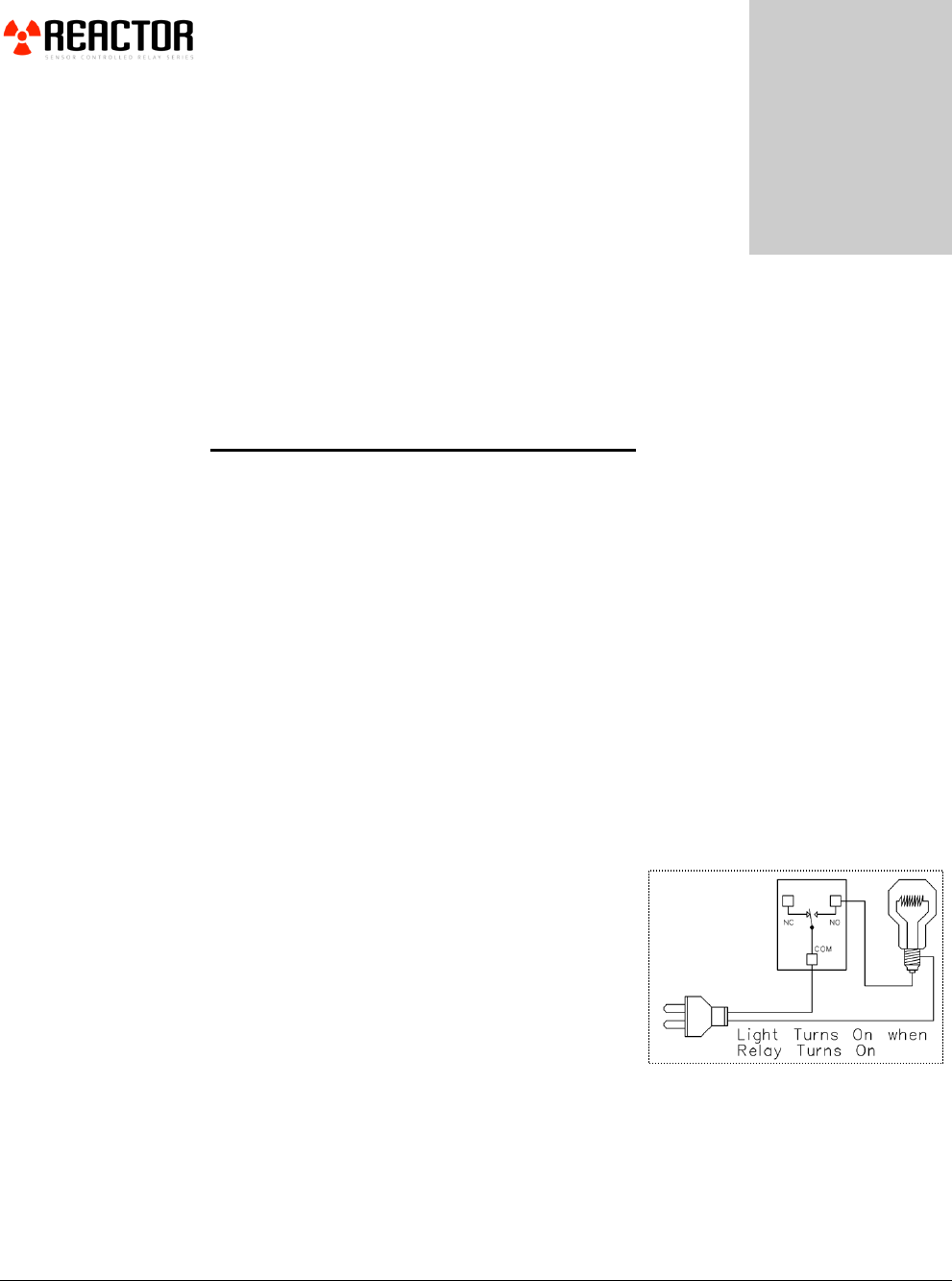
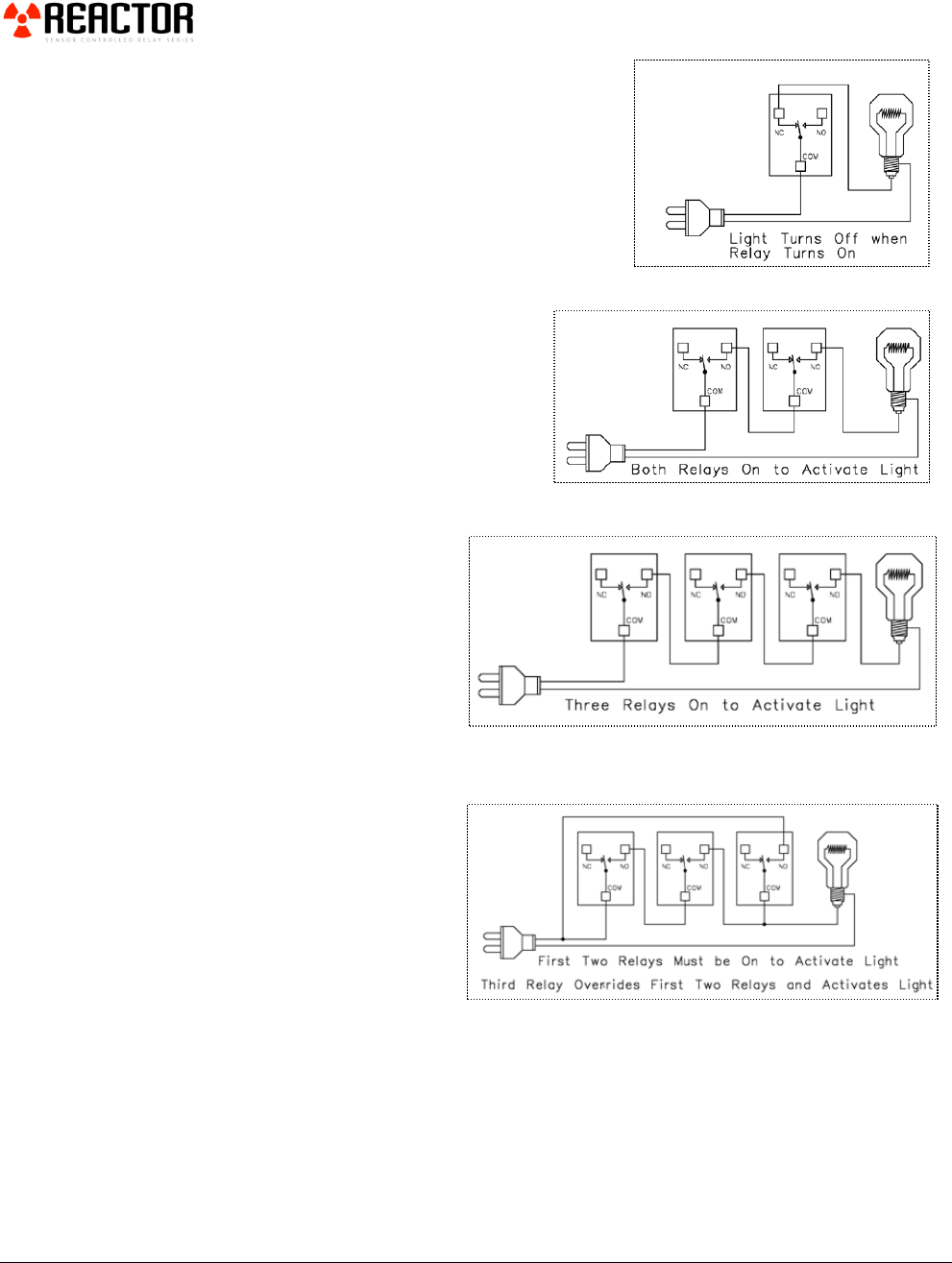
Sample 1
This sample demonstrates how a relay can be
used to activate a light bulb. When the relay
turns on, the light comes on. Only one power
wire is switched with this sample using the
COM (common) and NO (normally open)
connections of a relay.
Chapter
8
47
Sample 2
This sample demonstrates how a relay can be
used to turn a light bulb OFF. When the relay
turns off, the light will be ON. Only one
power wire is switched in this sample using
the COM (common) and NC (normally
closed) connections of a relay.
Sample 3
This sample demonstrates how two
activated relays are required to
activate a light bulb. This is the same
as a Logic AND function because
Relay 1 AND Relay 2 MUST be on
to activate the light.
Sample 4
This sample demonstrates
how three activated lights
are required to activate a
light bulb. This is the same
as a Logic AND function
because Relay 1 AND Relay
2 AND Relay 3 MUST be
on to activate the light.
Sample 5
This sample demonstrates
the AND/OR function.
The Light Bulb will be
activated if Relay 1 AND
Relay 2 are ON OR if Relay
3 is ON. This sample is
perfect for applications that
may require a Logical condition of 2 relays PLUS an Override feature. For
instance: Relay 1 is a Night/Day Sensor, Relay 2 is a Moisture Sensor. If it’s Dark
AND the soil is Dry, Relays 1 and 2 can activate a Pump. If you want to override
these conditions with a Key Fob, Relay 3 may be used.
48
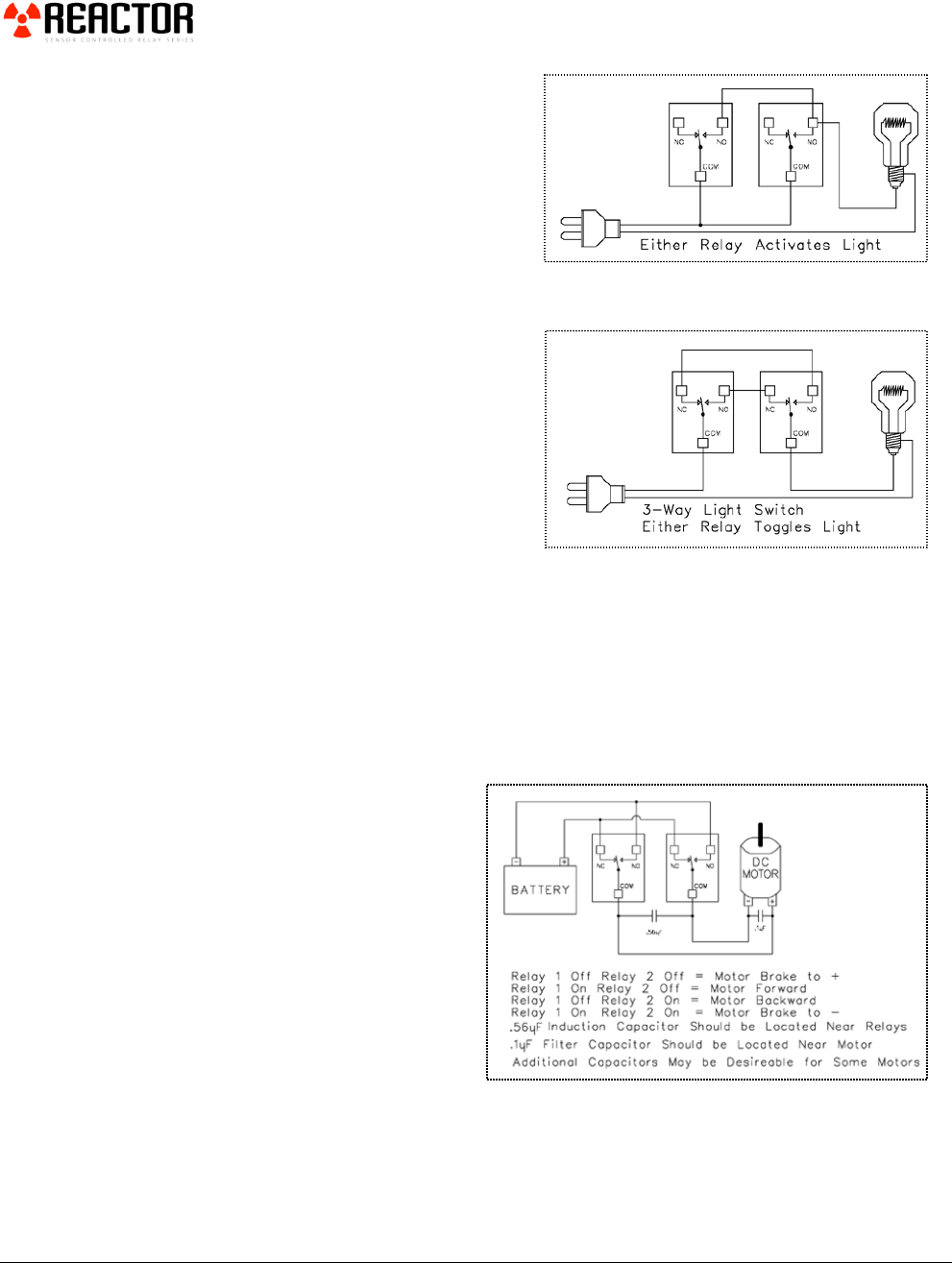
Sample 6
This sample demonstrates how
either relay can be used to activate a
light. In this sample, only one
activated relay is required to activate
the light. If both relays are
activated, the light will be on.
Sample 7
This sample demonstrates how a 3-
way light switch can be used to
activate a light. A 3-way light switch
is often found in your house where
two light switches can be used to
activate a single light. This sample is
exactly the same as a 3-way light
switch, the only difference being
each physical switch is replaced by a
relay. Operationally, it works the same way. Each relay activation will cause the
light to toggle. Switching two relays at one time is like flipping 2 switches at
once....with the same result. This sample is particularly useful since you can
replace one relay (as shown in the diagram) with a physical light switch. This will
allow a computer/Reactor to control a light as well as manual operation of a light.
Properly used, this can be one of the most valuable diagrams we offer on this
page.
Sample 8
This sample demonstrates
how to control the direction
of a DC motor using 2 relays.
Braking is accomplished by
connecting both motor
terminals to a common power
connection (Faraday's Law).
The capacitors shown may
not be required for small
motors, but if you experience
problems with relays shutting
themselves off, the induction suppression capacitor will be required. The .1uF
capacitor helps suppress electronic noise if the battery were to be used by sensitive
devices (such as radios/amplifiers).
49
Advanced Relay Logic
Hint: Connect the Relay Outputs of your Reactor to the Analog Inputs of
the Same Reactor Controller for more Powerful Relay Logic Possibilities.
Advanced Logic
In the sample below, Relay 1 turns on when it gets dark outside and turns back off
when the light sensor detects light. The output of this relay is fed back into the
controller on Analog Input 2. This triggers a timer to activate Relay 2 for 30
seconds. A motion detector is connected to Analog Input 8, and will also trigger
the 30-Second Relay 2 Timer.
In this way, 2 different kinds of detectors with their own configuration may be
used to trigger a single timer. A button is connected to Analog input #3, which is
used to cancel the timer and turn off relay 2.
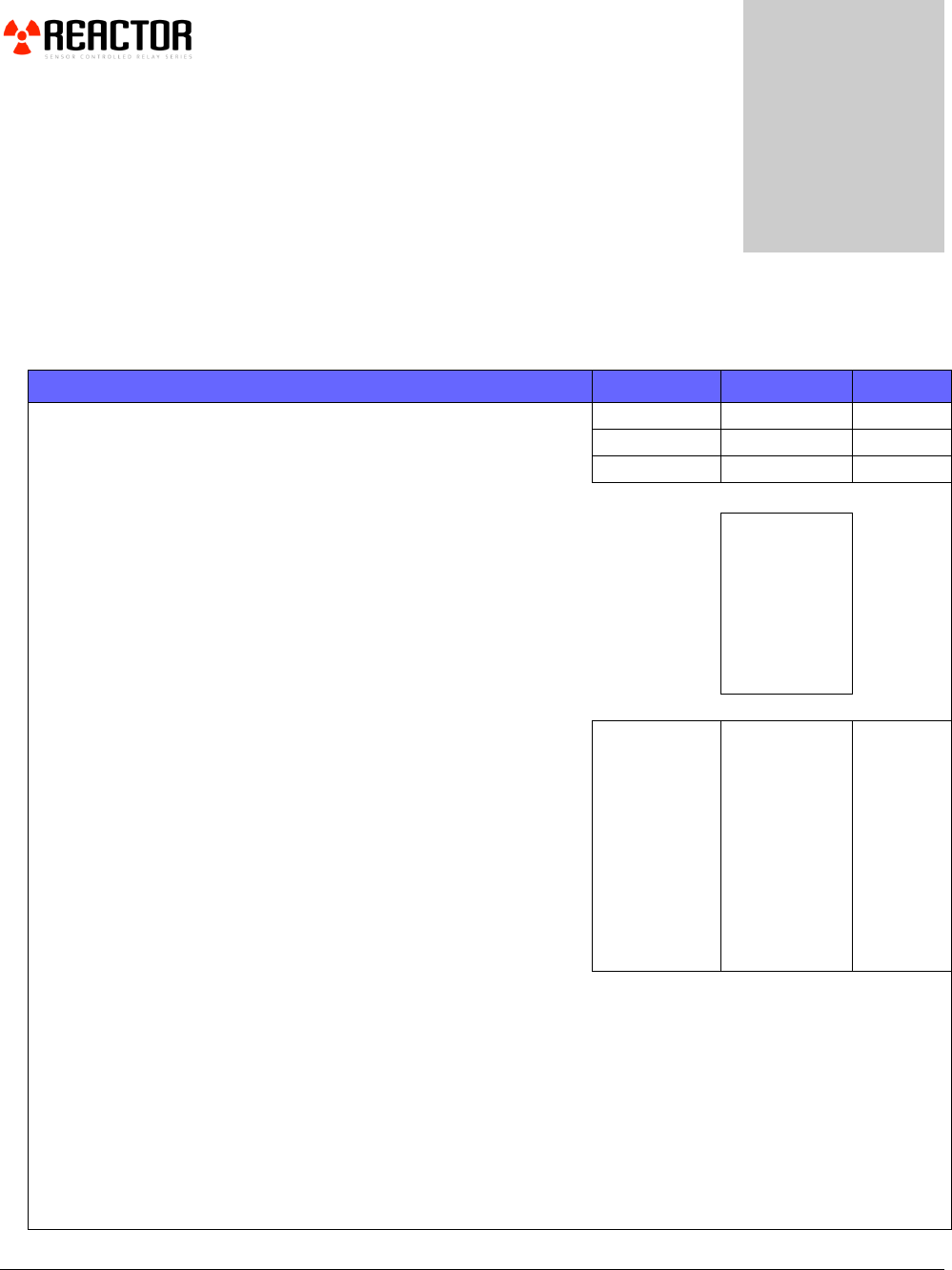
50
Maximum Ratings
Absolute Maximum Ratings
Minimum
Rated
MAX
Input Voltage Requirements VDC
11
12
14.5
Aux Output Voltage (Select Controllers Only)
N/A
5.00 VDC
N/A
Aux Output Amperage (Select Controllers Only)
0ma
N/A
100ma
Amperage Requirements
Standby (No Relays On, No Communication Module)
31ma
ZUSB USB Communications Module Installed
33ma
XBee 1mw Communications Module Installed
32ms*
XBee 100mw Communications Module Installed
32ma*
Each 5A/10A Relay Activated Adds to Consumption:
32ma
Each 20A/30A Relay Activated Adds to Consumption:
45ma
Each Solid State Relay Activated Adds to Consumption:
5ma
Temperature Ratings (Estimated)**
-25°C
80°C
Mechanical Relay Cycle Life (Non-DPDT Versions):
>10,000,000
Cycles
Mechanical Relay Cycle Life (DPDT Versions):
>2,000,000
Cycles
Typical Operational cycles per Minute
1,800
Relay Activation Time:
>5ms
<15ms
Relay Deactivation Time:
>5ms
<20ms
Command Processing Time
1ms
3ms
5ms
Relay Electrical Limits should be Determined by Reviewing Appropriate Relay Data Sheet:
5A Relays Data Sheet
10A Relays Data Sheet
20A Relays Data Sheet
30A Relays Data Sheet
Solid State Relays Sheet
*Communications will Increase Current Consumption by up to 250ma for short times.
**Ratings Based on Data Sheets of Component Used, Actual Tolerance May Exceed Ratings.
Chapter
9
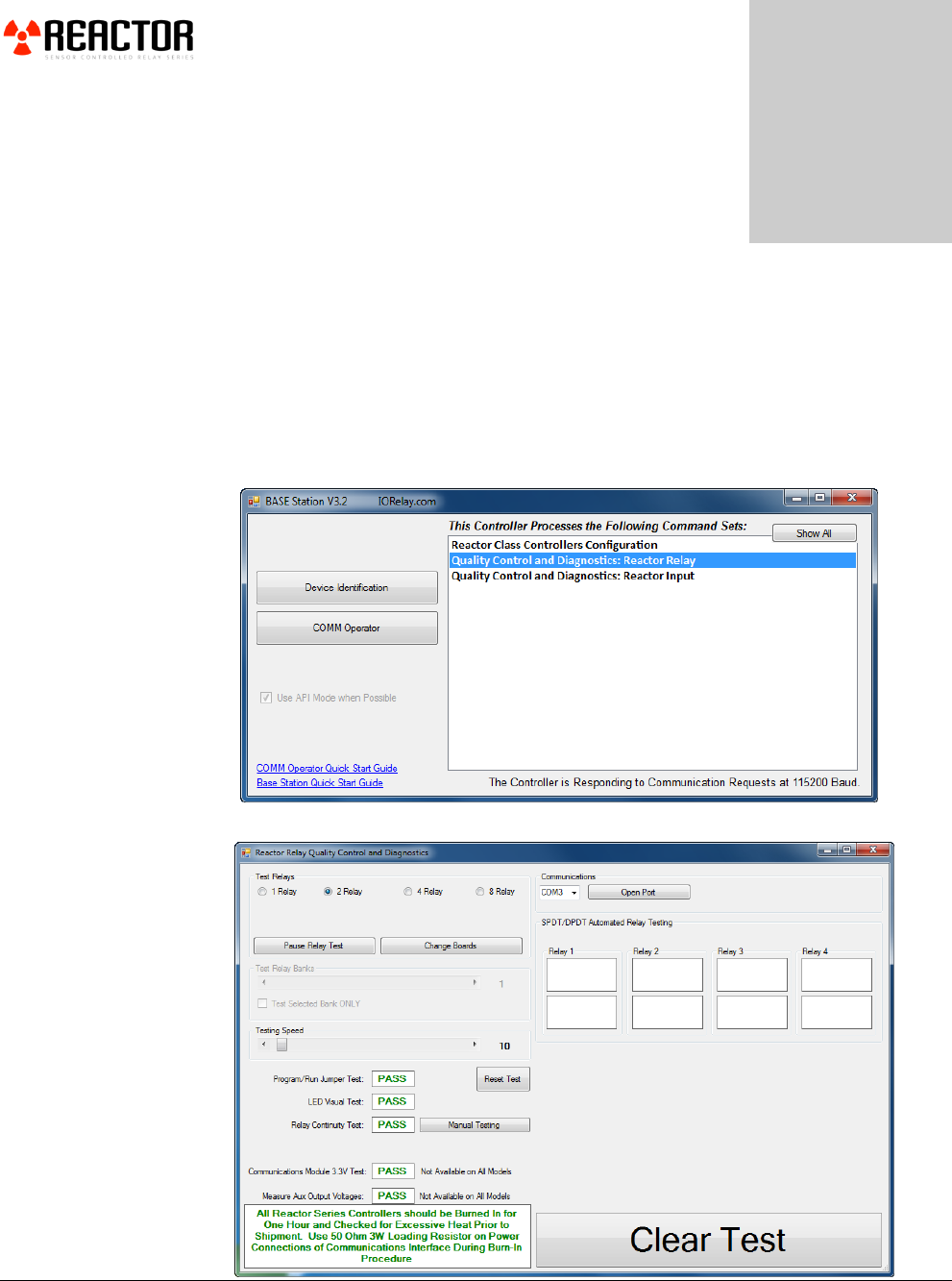
51
Trouble Shooting
Base Station Software can be used to test and troubleshoot your device.
Run Base Station software.
Choose the appropriate Com Port and click ‘OK’.
Click on ‘Reactor Relay Quality Control and Diagnostics’ to start testing
your device.
This a screen shot of the Reactor Relay Quality Control and Diagnostics window.
Chapter
10
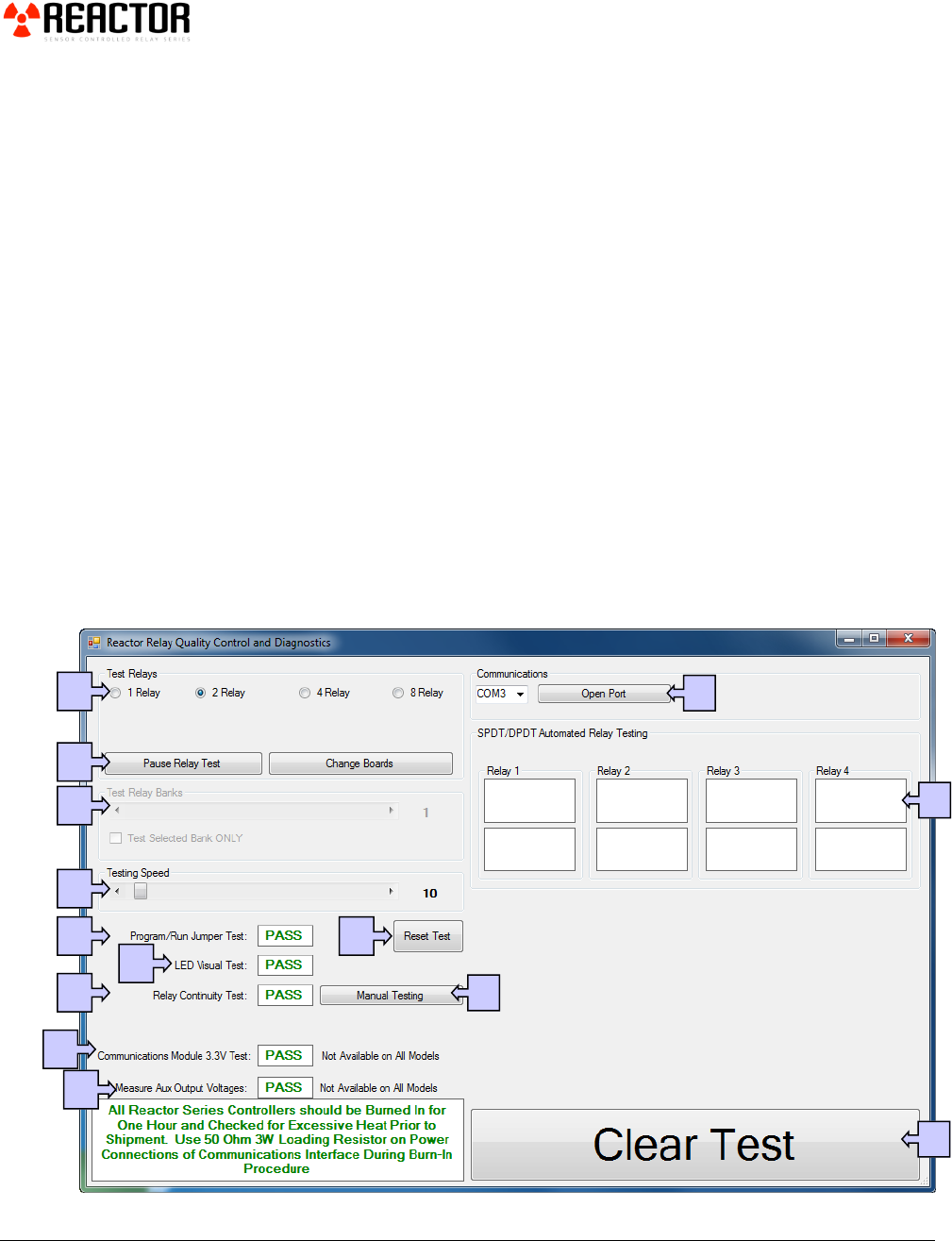
52
This is a screen shot of the Reactor Relay Quality Control and Diagnostics
window:
A. Determine the number of relays to test.
B. Pause Test feature allows you to switch boards in the middle of a test.
C. Allows choice of which relay banks to test.
D. Set testing speed.
E. Program Run Jumper test.
F. Reset Test option rests all test fields.
G. Tests the function of LEDs.
H. Tests relay continuity.
I. Test Communications module.
J. Measure Output voltages test.
K. Select COM port.
L. Automated Relay testing.
M. Manual Testing option shrinks the window to exclude all automated testing
options.
N. Clear Test resets automated testing fields.
A
B
C
D
E
G
H
F
I
J
K
L
N
M
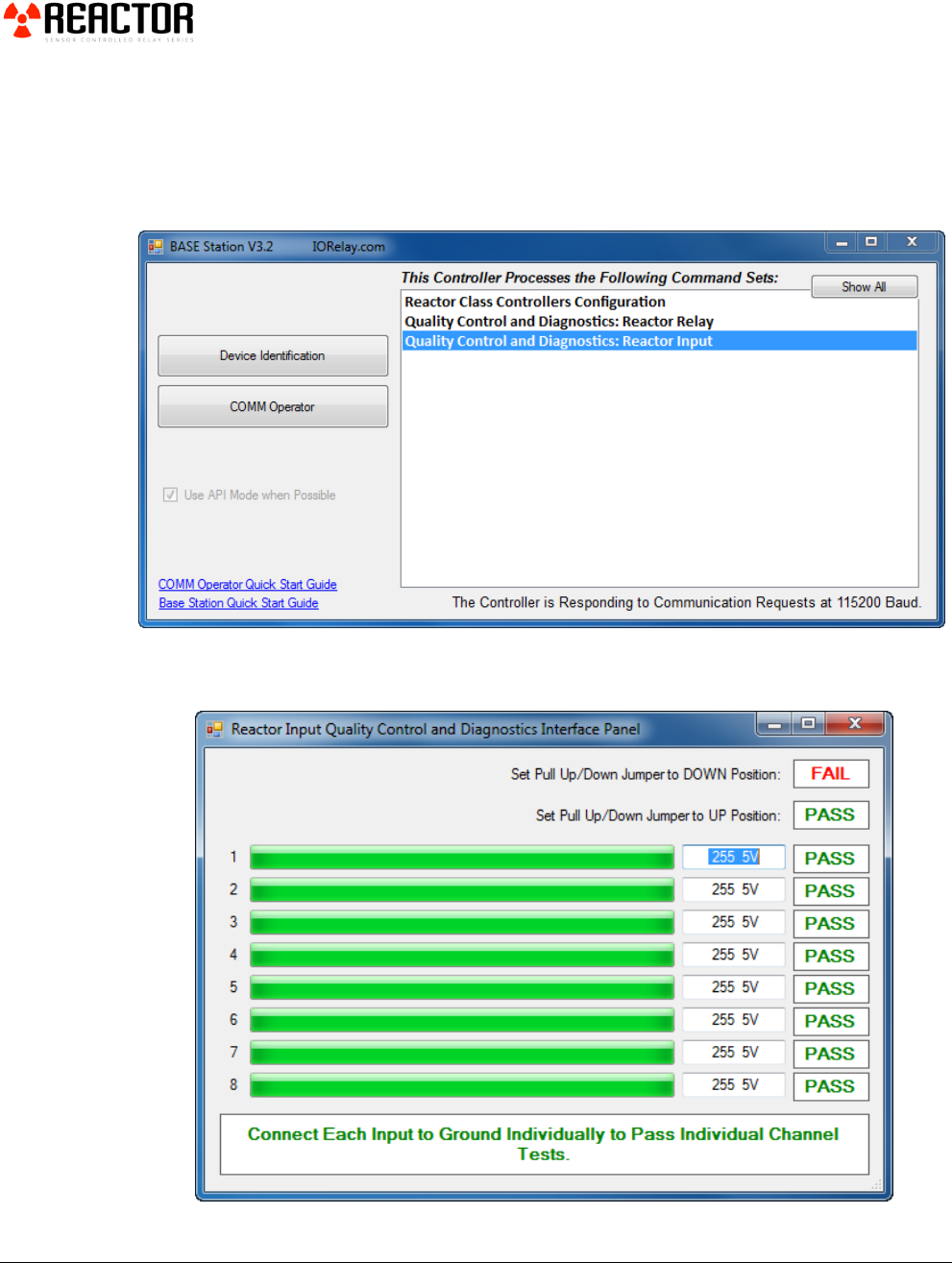
53
Base Station Software can be used to Test your device.
Run Base Station software.
Choose the appropriate Com Port and click ‘OK’.
Click on ‘Reactor Input Quality Control and Diagnostics’ to start testing
your device.
To test your controller, follow the instructions on the Reactor Input
Quality Control and Diagnostics screen.

54
Problem: Busy LED Stays On, No Operations
Solution: This problem is usually only seen when using a Reactor Relay
controller without a communications module installed. If this is the case, please
review Page 26 for a solution. If you are using a communication module and you
have a solid BUSY LED, please check your software carefully. The Reactor
controller enters BUSY mode when it receives a valid header byte. If commands
are sent too quickly, or if commands are incomplete, the Reactor will remain in
Busy mode and no operations will be processed until the command is completed.
We have not seen the Reactor controller “crash”, but if you suspect the controller
has crashed, please run the NCD Base Station software again to attempt
communications with the controller. When the BUSY LED is solid, the controller
is focusing on communications ONLY, and will NOT process background tasks.
With this in mind, communications errors are about the only thing that can cause
this condition.
Problem: Controller is Running HOT
Solution: It is normal for some components to run very hot on the Reactor
series relay controllers. This is not a concern as we have tested the design
carefully and are operating our components well within the specified limits of the
components we are using. It is NOT normal for the CPU to run hot at any time.
The CPU should remain cool. If the CPU is running hot and/or both
Busy/Ready LEDS are on at the same time, the CPU has been damaged.
Problem: Unable to Communicate with Controller
Solution: Use the ZUSB Communications Module to validate communications;
do NOT use any other communications module if this error occurs. The ZUSB is
the safest communication method of all communication technologies, and must be
used if you experience configuration problems. Make sure you are using the
correct COM port. Our software has been tested under Windows XP, Vista, and
Windows 7. Windows XP Users MUST use .NET Framework 3.5 or Later with
all the latest service packs installed. If the problem persists, makes sure the serial
port is NOT in use by another application. Lastly, we can only recommend trying
a different computer if problems persist.
55
Technical Support
echnical support is available through our website, controlanything.com.
Support is the way we connect NCD engineers to our customers.
Click on the Support tab at the top of any page on our website to be
taken to the Forum page. Here you can publicly post or review problems
that customers have had, and learn about our recommended solutions.
Our engineers monitor questions and respond continually throughout the day.
Before requesting telephone technical support, we ask that customers please try to
resolve their problems through Support first. However, for persistent problems,
NCD technical support engineers will schedule a phone consultation.
Chapter
11
T

56
Contact Information
National Control Devices, LLC
PO Box 455
Osceola, MO 64776
417-646-5644 phone
866-562-0406 fax
Open 9 a.m. - 4 p.m. CST
Like “National Control Devices” on Facebook, and follow us on Twitter
@ControlAnything.
All orders must be placed online at our website, www.controlanything.com
Notice:
The only authorized resellers of NCD products are
www.controlanything.com
www.relaycontrollers.com
www.relaypros.com
All other websites are not authorized dealers; we have noticed some retailers
offering our products fraudulently.
Copyright © 2013
National Control Devices
All Rights Reserved.
