Country Mate Technology CAHBT02 Bluetooth Earpods User Manual NS CAHBT02 BL NS CAHBT02 BK 16 0046 QSG V1 EN ai

Country Mate Technology Ltd Bluetooth Earpods NS CAHBT02 BL NS CAHBT02 BK 16 0046 QSG V1 EN ai

Users Manual

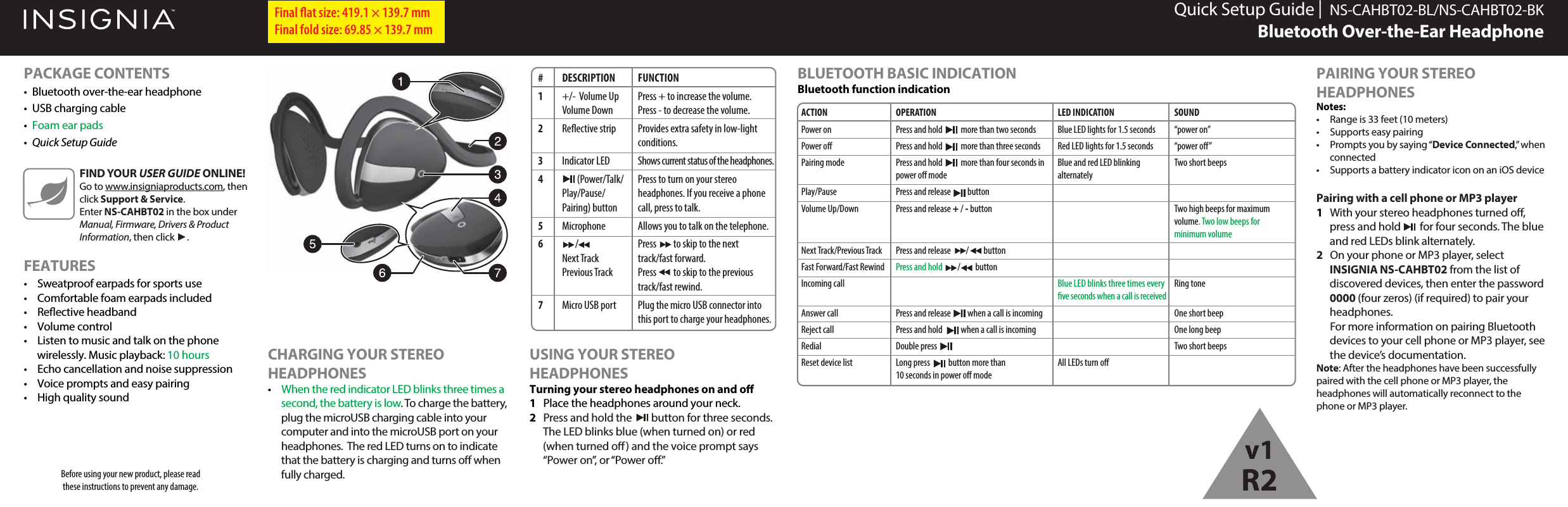
Quick Setup Guide |  NS-CAHBT02-BL/NS-CAHBT02-BKBluetooth Over-the-Ear HeadphonePACKAGE CONTENTS•  Bluetooth over-the-ear headphone•  USB charging cable•  Foam ear pads•  Quick Setup GuideFEATURES•  Sweatproof earpads for sports use•  Comfortable foam earpads included• Reective headband• Volume control•  Listen to music and talk on the phone wirelessly. Music playback: 10 hours•  Echo cancellation and noise suppression•  Voice prompts and easy pairing• High quality soundBefore using your new product, please read these instructions to prevent any damage.USING YOUR STEREO HEADPHONESTurning your stereo headphones on and o1  Place the headphones around your neck. 2  Press and hold the        button for three seconds. The LED blinks blue (when turned on) or red (when turned o) and the voice prompt says “Power on”, or “Power o.”Final flat size: 419.1 × 139.7 mm Final fold size: 69.85 × 139.7 mmFIND YOUR USER GUIDE ONLINE!Go to www.insigniaproducts.com, then click Support & Service. Enter NS-CAHBT02 in the box under Manual, Firmware, Drivers & Product Information, then click ►.# DESCRIPTION1  +/-  Volume Up Volume Down2 Reective strip3 Indicator LED4          (Power/Talk/ Play/Pause/ Pairing) button5 Microphone6         / Next Track Previous Track7  Micro USB portFUNCTIONPress + to increase the volume.Press - to decrease the volume.Provides extra safety in low-light conditions.Shows current status of the headphones.Press to turn on your stereo headphones. If you receive a phone call, press to talk.Allows you to talk on the telephone.Press         to skip to the next track/fast forward.Press         to skip to the previous track/fast rewind.Plug the micro USB connector into this port to charge your headphones.CHARGING YOUR STEREO HEADPHONES • When the red indicator LED blinks three times a second, the battery is low. To charge the battery, plug the microUSB charging cable into your computer and into the microUSB port on your headphones.  The red LED turns on to indicate that the battery is charging and turns o when fully charged.BLUETOOTH BASIC INDICATIONBluetooth function indicationPAIRING YOUR STEREO HEADPHONESNotes:•  Range is 33 feet (10 meters)•  Supports easy pairing•  Prompts you by saying “Device Connected,” when connected•  Supports a battery indicator icon on an iOS devicePairing with a cell phone or MP3 player 1  With your stereo headphones turned o, press and hold        for four seconds. The blue and red LEDs blink alternately. 2  On your phone or MP3 player, select INSIGNIA NS-CAHBT02 from the list of discovered devices, then enter the password 0000 (four zeros) (if required) to pair your headphones.  For more information on pairing Bluetooth devices to your cell phone or MP3 player, see the device’s documentation.Note: After the headphones have been successfully paired with the cell phone or MP3 player, the headphones will automatically reconnect to the phone or MP3 player.ACTIONPower onPower oPairing modePlay/PauseVolume Up/DownNext Track/Previous TrackFast Forward/Fast RewindIncoming callAnswer callReject callRedialReset device listOPERATIONPress and hold           more than two secondsPress and hold           more than three secondsPress and hold           more than four seconds in power o modePress and release          buttonPress and release + / - buttonPress and release         /         buttonPress and hold         /         buttonPress and release          when a call is incomingPress and hold           when a call is incomingDouble press Long press           button more than 10 seconds in power o modeLED INDICATIONBlue LED lights for 1.5 secondsRed LED lights for 1.5 secondsBlue and red LED blinking alternatelyBlue LED blinks three times every ve seconds when a call is receivedAll LEDs turn oSOUND“power on”“power o”Two short beeps Two high beeps for maximum volume. Two low beeps for minimum volumeRing toneOne short beepOne long beepTwo short beeps v1R2
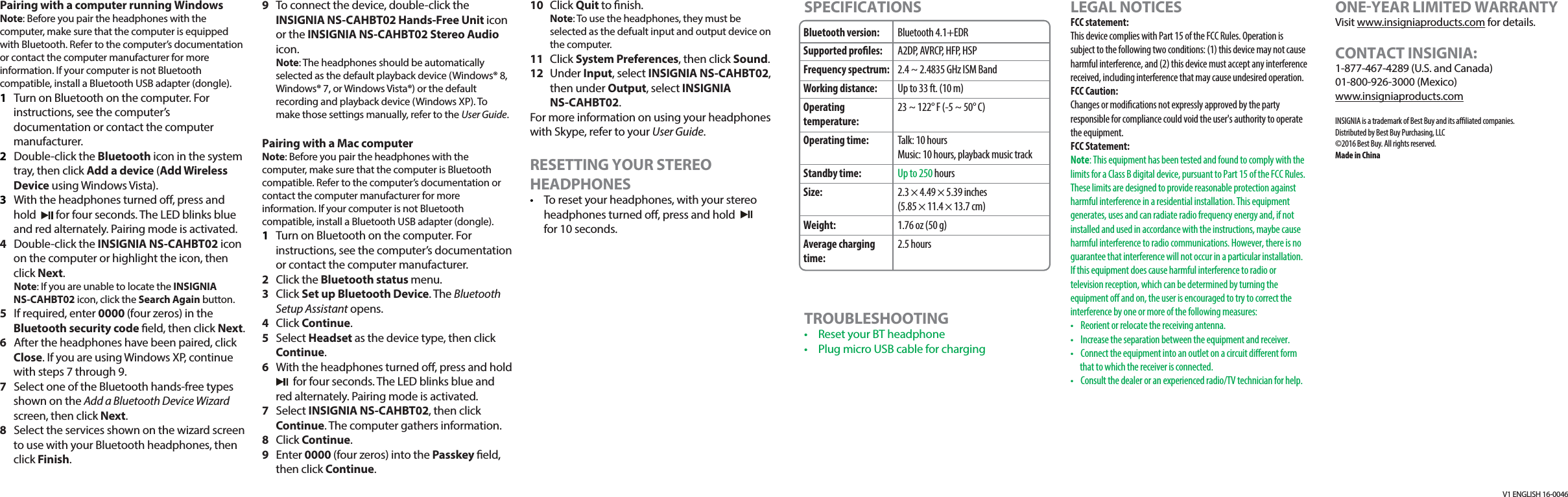
V1 ENGLISH 16-0046Pairing with a computer running WindowsNote: Before you pair the headphones with the computer, make sure that the computer is equipped with Bluetooth. Refer to the computer’s documentation or contact the computer manufacturer for more information. If your computer is not Bluetooth compatible, install a Bluetooth USB adapter (dongle).1  Turn on Bluetooth on the computer. For instructions, see the computer’s documentation or contact the computer manufacturer.2 Double-click the Bluetooth icon in the system tray, then click Add a device (Add Wireless Device using Windows Vista).3  With the headphones turned o, press and hold        for four seconds. The LED blinks blue and red alternately. Pairing mode is activated.4  Double-click the INSIGNIA NS-CAHBT02 icon on the computer or highlight the icon, then click Next. Note: If you are unable to locate the INSIGNIA NS-CAHBT02 icon, click the Search Again button.5  If required, enter 0000 (four zeros) in the Bluetooth security code eld, then click Next.6  After the headphones have been paired, click Close. If you are using Windows XP, continue with steps 7 through 9.7  Select one of the Bluetooth hands-free types shown on the Add a Bluetooth Device Wizard screen, then click Next.8  Select the services shown on the wizard screen to use with your Bluetooth headphones, then click Finish.9  To connect the device, double-click the INSIGNIA NS-CAHBT02 Hands-Free Unit icon or the INSIGNIA NS-CAHBT02 Stereo Audio icon. Note: The headphones should be automatically selected as the default playback device (Windows® 8, Windows® 7, or Windows Vista®) or the default recording and playback device (Windows XP). To make those settings manually, refer to the User Guide.Pairing with a Mac computer Note: Before you pair the headphones with the computer, make sure that the computer is Bluetooth compatible. Refer to the computer’s documentation or contact the computer manufacturer for more information. If your computer is not Bluetooth compatible, install a Bluetooth USB adapter (dongle).1  Turn on Bluetooth on the computer. For instructions, see the computer’s documentation or contact the computer manufacturer.2 Click the Bluetooth status menu.3 Click Set up Bluetooth Device. The Bluetooth Setup Assistant opens. 4 Click Continue.5 Select Headset as the device type, then click Continue.6  With the headphones turned o, press and hold        for four seconds. The LED blinks blue and red alternately. Pairing mode is activated.7 Select INSIGNIA NS-CAHBT02, then click Continue. The computer gathers information.8 Click Continue.9 Enter 0000 (four zeros) into the Passkey eld, then click Continue.10 Click Quit to nish. Note: To use the headphones, they must be selected as the defualt input and output device on the computer.11 Click System Preferences, then click Sound.12 Under Input, select INSIGNIA NS-CAHBT02, then under Output, select INSIGNIA NS-CAHBT02.For more information on using your headphones with Skype, refer to your User Guide. RESETTING YOUR STEREO HEADPHONES•  To reset your headphones, with your stereo headphones turned o, press and holdfor 10 seconds.Bluetooth version:Supported proles:Frequency spectrum:Working distance:Operating temperature:Operating time:Standby time:Size:Weight:Average charging time:Bluetooth 4.1+EDRA2DP, AVRCP, HFP, HSP2.4 ~ 2.4835 GHz ISM BandUp to 33 ft. (10 m)23 ~ 122° F (-5 ~ 50° C)Talk: 10 hoursMusic: 10 hours, playback music trackUp to 250 hours2.3 × 4.49 × 5.39 inches(5.85 × 11.4 × 13.7 cm)1.76 oz (50 g)2.5 hoursSPECIFICATIONSTROUBLESHOOTING•  Reset your BT headphone•  Plug micro USB cable for chargingLEGAL NOTICESFCC statement:This device complies with Part 15 of the FCC Rules. Operation is subject to the following two conditions: (1) this device may not cause harmful interference, and (2) this device must accept any interference received, including interference that may cause undesired operation. FCC Caution:Changes or modications not expressly approved by the party responsible for compliance could void the user's authority to operate the equipment.FCC Statement:Note: This equipment has been tested and found to comply with the limits for a Class B digital device, pursuant to Part 15 of the FCC Rules. These limits are designed to provide reasonable protection against harmful interference in a residential installation. This equipment generates, uses and can radiate radio frequency energy and, if not installed and used in accordance with the instructions, maybe cause harmful interference to radio communications. However, there is no guarantee that interference will not occur in a particular installation. If this equipment does cause harmful interference to radio or television reception, which can be determined by turning the equipment o and on, the user is encouraged to try to correct the interference by one or more of the following measures:•  Reorient or relocate the receiving antenna.•  Increase the separation between the equipment and receiver.•  Connect the equipment into an outlet on a circuit dierent form that to which the receiver is connected.•  Consult the dealer or an experienced radio/TV technician for help.ONEYEAR LIMITED WARRANTYVisit www.insigniaproducts.com for details.CONTACT INSIGNIA:1-877-467-4289 (U.S. and Canada)01-800-926-3000 (Mexico)www.insigniaproducts.comINSIGNIA is a trademark of Best Buy and its aliated companies. Distributed by Best Buy Purchasing, LLC©2016 Best Buy. All rights reserved. Made in China

Navigation menu