Covert Scouting Cameras 5465 Blackhawk LTE User Manual

Covert Scouting Cameras, Inc Blackhawk LTE

User Manual

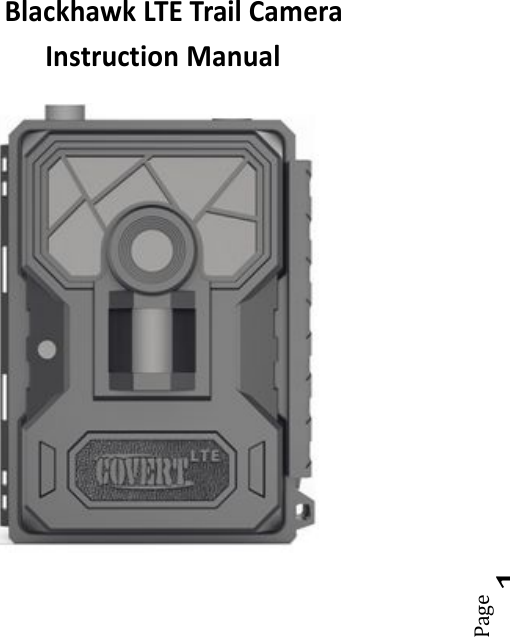
Page1Blackhawk LTE Trail CameraInstruction Manual
Page2What you will need to set thiscamera up:-Internet Access to Choose Your Plan.https://secure.covert-wireless.com-At least 4 AA Batteries-SD Card.
Page3Table of ContentsCamera Button Control Diagram .......................... 05Main Screen Info ................................................... 06Installing the Batteries .......................................... 07Downloading the Mobile App ............................... 08Purchasing Your Plan ............................................ 09Setting up the Wireless Network .......................... 14Send a Test Photo ................................................. 16Customizing Camera Settings ............................... 18PIR Tab .................................................................. 21SYS Tab ................................................................. 26Formatting the SD Card ........................................ 30Viewing Photos on Color Display .......................... 31Troubleshooting ................................................... 33Tricks and Tips on Field Setup .............................. 35Warranty Policy .................................................... 37International Warranty Policy .............................. 39Technical Specifications ........................................ 45
Page5Federal Communications Commission (FCC)StatementThis device complies with part 15 of the FCC Rules.Operation is subject to the following two conditions: (1)This device may not cause harmful interference, and (2)this device must accept any interference received,including interference that may cause undesiredoperation.Note: This equipment has been tested and found tocomply with the limits for a Class B digital device,pursuant to part 15 of the FCC Rules. These limits aredesigned to provide reasonable protection againstharmful interference in a residential installation. Thisequipment generates, uses and can radiate radiofrequency energy and, if not installed and used inaccordance with the instructions, may cause harmfulinterference to radio communications. However, there isno guarantee that interference will not occur in aparticular installation. If this equipment does causeharmful interference to radio or television reception,which can be determined by turning the equipment off
and on, the user is encouraged to try to correct theinterference by one or more of the following measures:●Reorient or relocate the receiving antenna.●Increase the separation between the equipmentand receiver.●Connect the equipment into an outlet on a circuitdifferent from that to which the receiver isconnected.●Consult the dealer or an experienced radio/TVtechnician for help.Note: The manufacturer is not responsible for any radioor tv interference caused by unauthorized modificationsto this equipment. Such modifications could void theuser’s authority to operate the equipment.Changes or modifications not expressly approved bythe party responsible for compliance could void theuser’s authority to operate the equipment.RF exposure statement:The transmitter must not be co-located or operated inconjunction with any other antenna or transmitter.This equipment complies with the FCC RF radiationExposure limits set forth for an uncontrolled environment.This equipment should be installed and operated with aminimum distance of 20cm between the radiator andany part of your body.
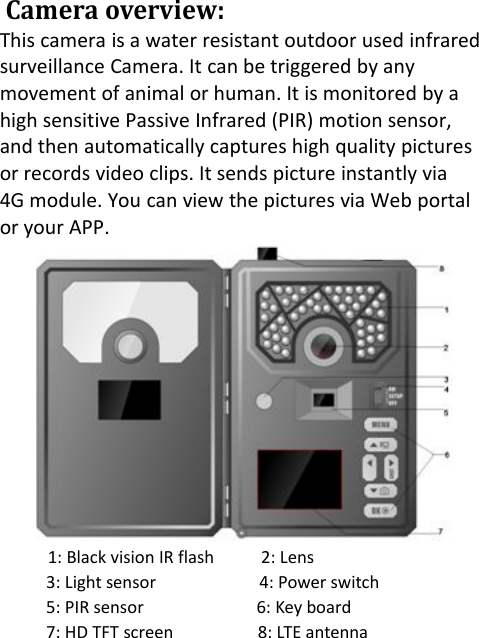
Camera overview:This camera is a water resistant outdoor used infraredsurveillance Camera. It can be triggered by anymovement of animal or human. It is monitored by ahigh sensitive Passive Infrared (PIR) motion sensor,and then automatically captures high quality picturesor records video clips. It sends picture instantly via4G module. You can view the pictures via Web portalor your APP.1: Black vision IR flash 2: Lens3: Light sensor 4: Power switch5: PIR sensor 6: Key board7: HD TFT screen 8: LTE antenna
Page7Installing SD card:You can use any SD card size up to 64GB.You must have the SD card in the camera to beable to turn the camera on and set it up.Installing the batteries:Your L4-AG can function short term on 4-AA batteries. Improved battery life on 8-AA, but wesuggest you use 12-AA batteries to get the most outof your cameras battery life. Using Covertrechargeable NiMH, 2300mAh, AA batteries willextend the battery life significantly when pairedwith a Covert Solar Panel.DISCLAIMER: Do not use external power source(Example: Solar Panel) withnon-rechargeableAAbatteries installed in camera.Install batteries by sliding the top battery into thesleeve, then depressing the spring with the otherbattery and snapping down in place. Pay attentionto the (+) or (-) molded into each sleeve todetermine if you insert the positive or negative endinto the sleeve first. Negative battery terminalalways contacts the spring.
Page36Field setup:For best results, mount the cameraapproximately 3 feet off the ground facingstraight forward, as level as possible.To enhance the flash, we recommendpositioning the camera in an area with abackdrop to reflect the maximum amount oflight. For instance, place the camera 20-30’from a field edge facing the woods. For theinside of timber, positioning the camera facing athicket approximately 20-30’ away.Try to set the camera up so it’s not facingdirectly into the sun either in the morning orthe evening when game movement is at itspeak.Use the Covert Tree60 mounting system tomount the camera up higher pointing down onthem for a better look. Works great when youdon’t have a straight tree to attach to.
Page8Downloading the Mobile App:Search "Covert Wireless" in your Google Play Storeor Apple App Store.Accessing the Web Portal:Open your web browser to:www.covert-wireless.com
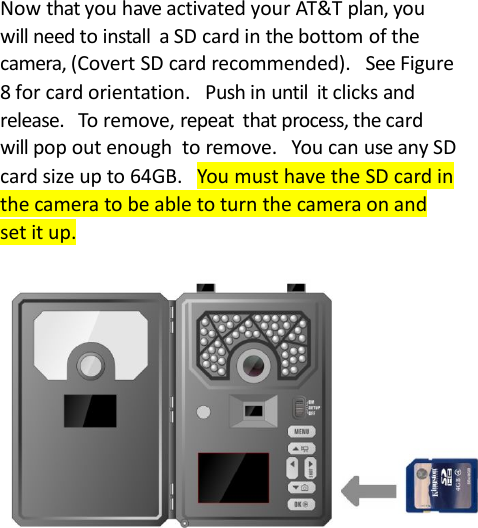
Now that you have activated your AT&T plan, youwill need to install a SD card in the bottom of thecamera, (Covert SD card recommended). See Figure8 for card orientation. Push in until it clicks andrelease. To remove, repeat that process, the cardwill pop out enough to remove. You can use any SDcard size up to 64GB. You must have the SD card inthe camera to be able to turn the camera on andset it up.
Page14Setting up the wireless network:NET tab:While finding the network you will see the wordsSearching Signal,in red on the screen. The camerawill then sayConnecting to Serveras it isconnecting to the server. Once you see AT&T in thetop right corner, you are ready to move on.Quick Tip:If your camera saysConnection Failed,turn the cameraOFFthen backON. (Power Cycle.)Definitions:INSTANT:Turns wireless featureONto send apicture every time the camera is triggered.
Page15Page16Download Firmware:Anytime your camera needs a firmware update, itwill be automatically pushed to your camera. Whenyou go check your camera, we encourage you toscroll to the NET Tab and download the latestfirmware version in case there’s been an update.Then take out your SD card, lock it and put it in yourcamera. Turn your camera onto setup, scroll to theSYS tab and scroll down to default set. Press OK.Then turn your camera off, unlock your SD card andput in back in your camera.Important Note:Anytime you make changesdirectly to the camera, pressOKto save thechanges on your camera and choose “Upload settings”in SYS to sync the changes directly to the web portal.
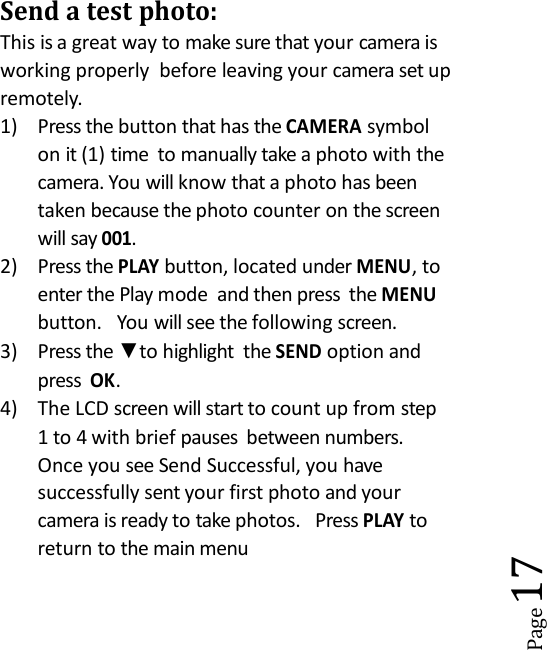
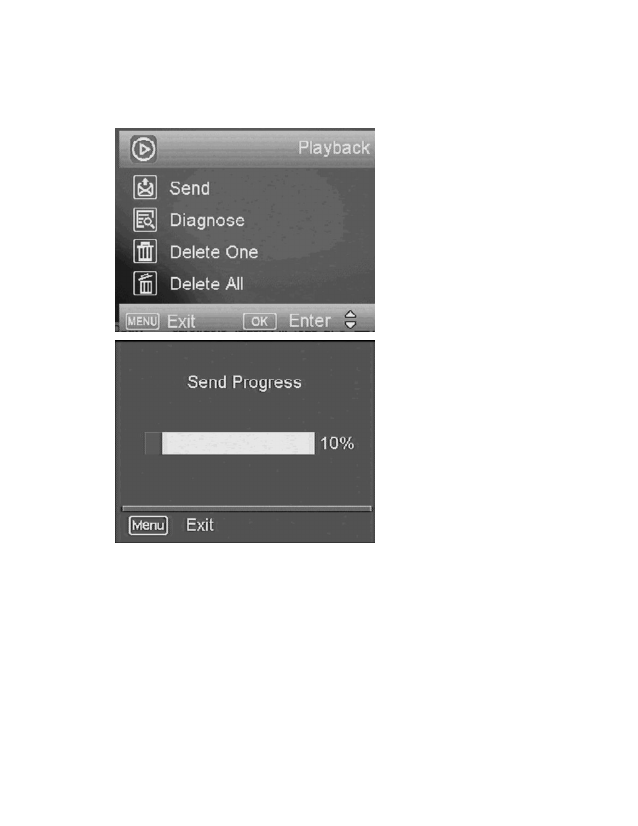
Page17Send a test photo:This is a great way to make sure that your camera isworking properly before leaving your camera set upremotely.1) Press the button that has theCAMERAsymbolon it (1) time to manually take a photo with thecamera. You will know that a photo has beentaken because the photo counter on the screenwill say001.2) Press thePLAYbutton, located underMENU, toenter the Play mode and then press theMENUbutton. You will see the following screen.3) Press the ▼to highlight theSENDoption andpressOK.4) The LCD screen will start to count up from step1 to 4 with brief pauses between numbers.Once you see Send Successful, you havesuccessfully sent your first photo and yourcamera is ready to take photos. PressPLAYtoreturn to the main menu
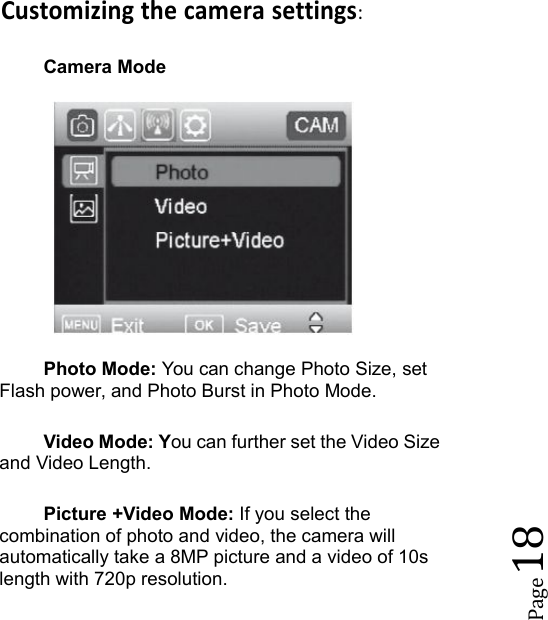
Page18Customizing the camera settings:Camera ModePhoto Mode: You can change Photo Size, setFlash power, and Photo Burst in Photo Mode.Video Mode: You can further set the Video Sizeand Video Length.Picture +Video Mode: If you select thecombination of photo and video, the camera willautomatically take a 8MP picture and a video of 10slength with 720p resolution.
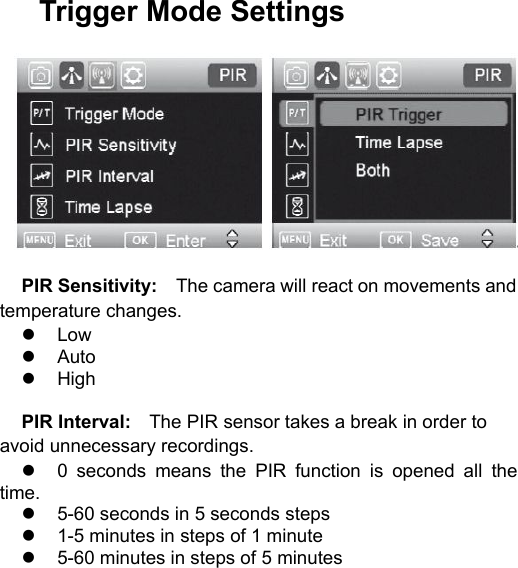
Trigger Mode SettingsPIR Sensitivity: The camera will react on movements andtemperature changes.LowAutoHighPIR Interval: The PIR sensor takes a break in order toavoid unnecessary recordings.0 seconds means the PIR function is opened all thetime.5-60 seconds in 5 seconds steps1-5 minutes in steps of 1 minute5-60 minutes in steps of 5 minutes
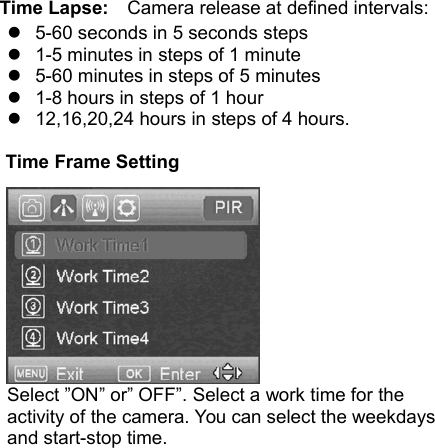
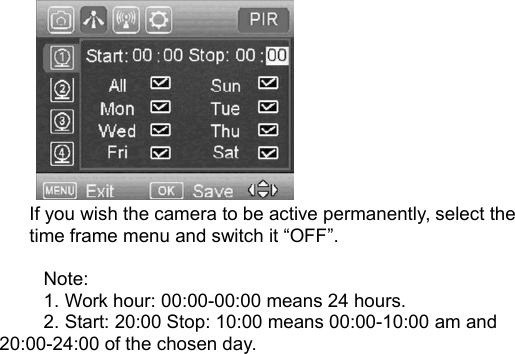
Time Lapse: Camera release at defined intervals:5-60 seconds in 5 seconds steps1-5 minutes in steps of 1 minute5-60 minutes in steps of 5 minutes1-8 hours in steps of 1 hour12,16,20,24 hours in steps of 4 hours.Time Frame SettingSelect ”ON” or” OFF”. Select a work time for theactivity of the camera. You can select the weekdaysand start-stop time.
If you wish the camera to be active permanently, select thetime frame menu and switch it “OFF”.Note:1. Work hour: 00:00-00:00 means 24 hours.2. Start: 20:00 Stop: 10:00 means 00:00-10:00 am and20:00-24:00 of the chosen day.
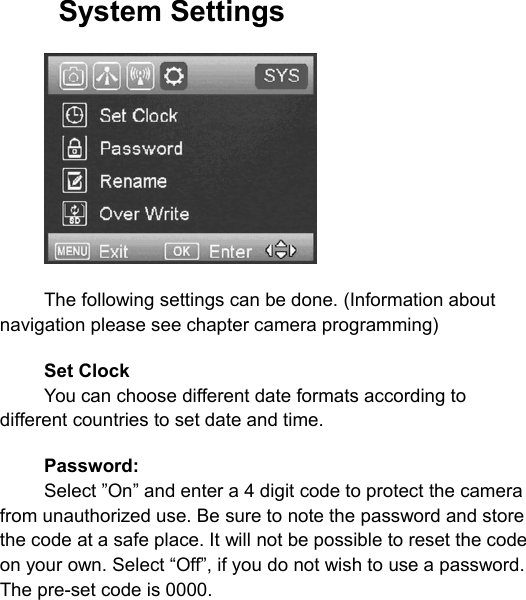
System SettingsThe following settings can be done. (Information aboutnavigation please see chapter camera programming)Set ClockYou can choose different date formats according todifferent countries to set date and time.Password:Select ”On” and enter a 4 digit code to protect the camerafrom unauthorized use. Be sure to note the password and storethe code at a safe place. It will not be possible to reset the codeon your own. Select “Off”, if you do not wish to use a password.The pre-set code is 0000.
Rename:Enter a name that will be shown on each picture stamp.OverwriteSave the new data file to overwrite the old data file whenSD card is full.SD card formatting:Delete all data of your memory card. Be sure that you won’tneed the data any more.Default:With a reset to factory settings, all your own settings will belost.Software Version:Indicate the software version in case of contact to ourservice agents.
AUXILIARY POWER:Your camera comes with astandard 4mm Auxiliary power jack. Covert offersan auxiliary cable to extend your battery life with anexternal 6, 9 or 12 volt battery. In order to use 12volt, you must use the Covert auxiliary batterycable. We also sell a Covert Solar Panel to directlyhook up to your camera for optimal battery usage.MINI USB:Your camera can use a mini USB cable tohook up to your computer or TV to look at thephotos.
Page33Troubleshooting:COMMON ERROR MESSAGES:“LOG IN FAIL”“SEND FAIL”“NETWORK BUSY”Reasons for error:Login Fail:1. The service in your area is insufficient to run thecamera.2. Make sure that your antenna is attachedsecurely.3. Make sure the firmware on your device is themost up-to-date version.Send Fail:1. The camera does not have sufficient service tosend the picture. Make sure you have setup an
Page34account and selected a rate plan fromsecure.covert-wireless.com2. You have entered your ICCID and/or IMEI numberincorrectly. Click the Red X to delete the camerafrom your secure.covert-wireless.com account andadd the correct information.Network Busy:1. The AT&T Network service provider is busy.2. The camera does not have sufficient service tosend the picture.3. Network busy can also mean there isn’t enoughmoney on your account with AT&T.No SIM:1. Take the SIM card out and reinsert it. Ensure itclicks into place.If it’s a cellular service issue you may need topurchase a booster antenna from Covert ScoutingCameras to help boost the signal. These can be veryeffective in boosting the signal to your camera in apoor signal area.
Page35If you are still having problems, contactcustomer service at877-462-1799or e-mailsupport@dlccovert.comIf you e-mail or have to leave a message, we willget back to you as quickly as we can.Cannot access the SET-UP menu:Reasons for issue:1) SD card not inserted2) SD card is corrupted3) Batteries are lowSuggestions to remedy1) Install new SD card2) Replace batteries
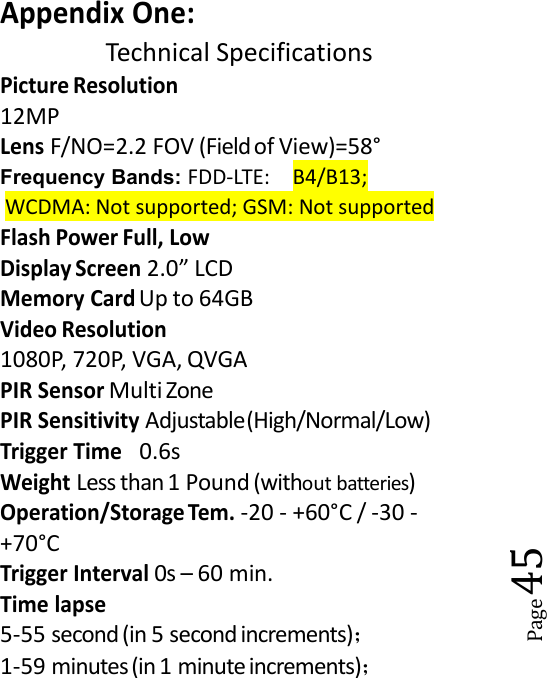
Page45Appendix One:Technical SpecificationsPicture Resolution12MPLensF/NO=2.2 FOV (Fieldof View)=58°Frequency Bands: FDD-LTE: B4/B13;WCDMA: Not supported; GSM: Not supportedFlash Power Full, LowDisplay Screen2.0” LCDMemory CardUp to 64GBVideo Resolution1080P, 720P, VGA, QVGAPIR SensorMulti ZonePIR SensitivityAdjustable(High/Normal/Low)Trigger Time0.6sWeightLess than 1 Pound (without batteries)Operation/Storage Tem.-20 - +60°C / -30 -+70°CTrigger Interval0s – 60 min.Time lapse5-55 second (in 5 second increments);1-59 minutes(in 1 minute increments);
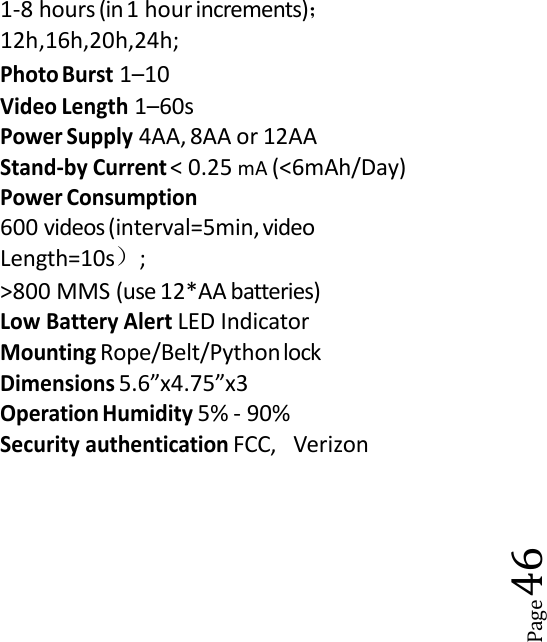
Page461-8 hours (in 1 hour increments);12h,16h,20h,24h;Photo Burst1–10Video Length1–60sPower Supply4AA, 8AA or 12AAStand-by Current< 0.25 mA (<6mAh/Day)Power Consumption600 videos(interval=5min, videoLength=10s);>800 MMS (use 12*AA batteries)Low Battery AlertLED IndicatorMountingRope/Belt/PythonlockDimensions5.6”x4.75”x3Operation Humidity5% - 90%Security authenticationFCC, Verizon

Navigation menu