Cropmark WKP-1314 Wireless Bluetooth Keypad / Keyboard User Manual WKP 1314 UM E D F 1 0 final

Cropmark AG Wireless Bluetooth Keypad / Keyboard WKP 1314 UM E D F 1 0 final

Users Manual

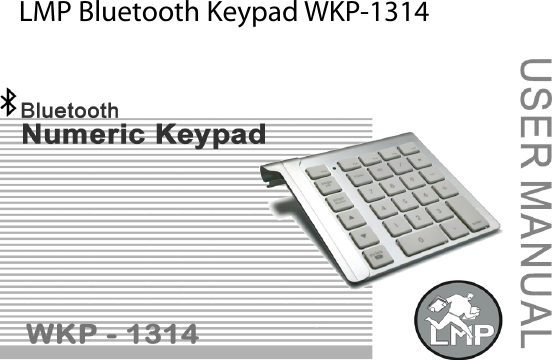
 LMP Bluetooth Keypad WKP-1314
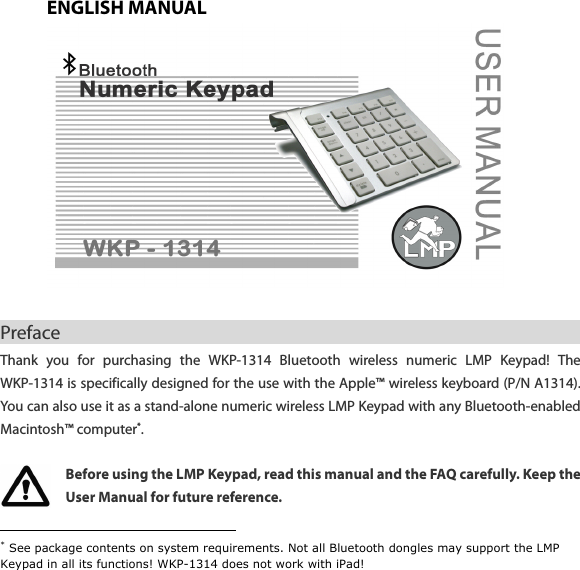
ENGLISH MANUAL   Preface                                                        Thank  you  for  purchasing  the  WKP-1314  Bluetooth  wireless  numeric  LMP  Keypad!  The WKP-1314 is specifically designed for the use with the Apple™ wireless keyboard (P/N A1314). You can also use it as a stand-alone numeric wireless LMP Keypad with any Bluetooth-enabled Macintosh™ computer*.    Before using the LMP Keypad, read this manual and the FAQ carefully. Keep the User Manual for future reference.                                                  * See package contents on system requirements. Not all Bluetooth dongles may support the LMP Keypad in all its functions! WKP-1314 does not work with iPad!
 Key Features                             • 28-key numeric wireless Keypad for easy and fast working with figures, tables, calculations, spread sheets, etc. • Bluetooth wireless technology for convenient wireless access to any Bluetooth-enabled Macintosh™ computer. No dongle or driver installation required! • Linkage bar connects the WKP-1314 seamlessly with the Apple™ wireless keyboard (A1314) to form a full-size wireless keyboard – a perfect alternative solution to the USB keyboard! • Can be used as a stand-alone numeric wireless Keypad with any Macintosh™ Bluetooth-enabled computer*. • Keys include 0 ~ 9, operation keys, decimal key “.” (or “,”), hot-keys F13 ~ F17, page up/down, arrow up/down, delete forward, enter key. • Designed to fit the Apple™ wireless keyboard in an elegant way.   • Broadcom Bluetooth chipset. • Power on/off, pairing button, power on/off bar for activating/de-activating the Apple™ wireless keyboard, LED status indicator.   • Scissor-type membrane keys with non-curved square keycaps for high comfort typing and reduced typing tiredness. • No dongle or driver installation needed!                                                  * Works with built-in Bluetooth as well with most USB Bluetooth dongles. WKP-1314 does not work with iPad!
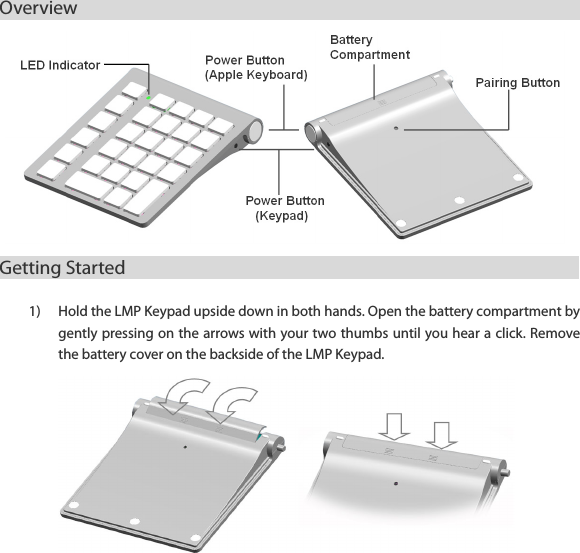
Overview                                                      Getting Started                                             1) Hold the LMP Keypad upside down in both hands. Open the battery compartment by gently pressing on the arrows with your two thumbs until you hear a click. Remove the battery cover on the backside of the LMP Keypad.
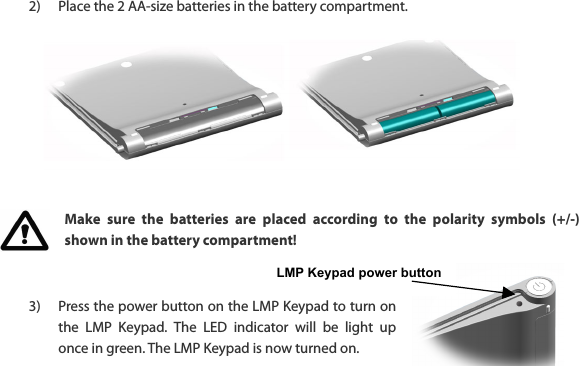
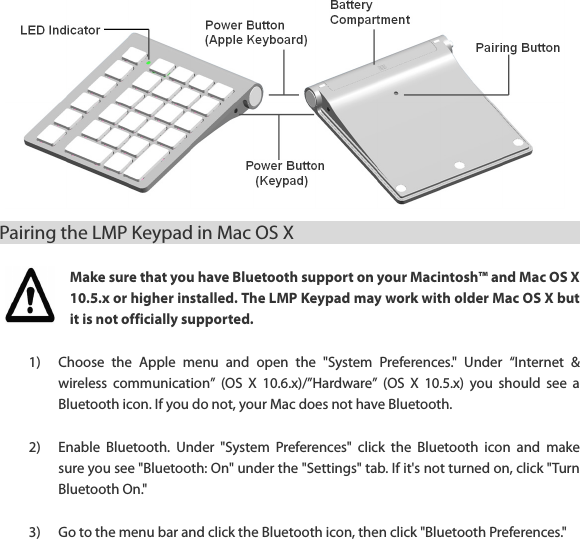
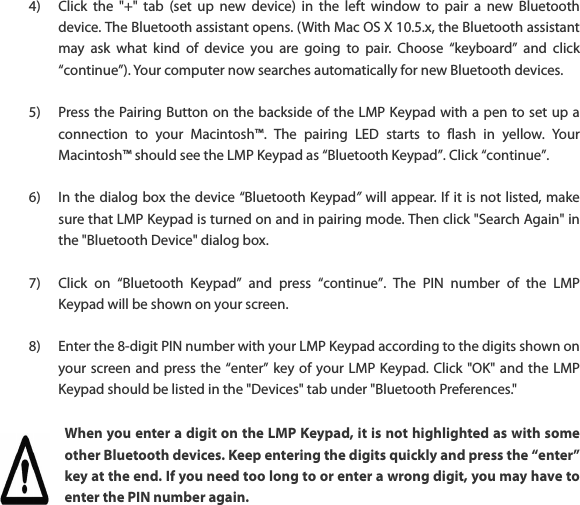
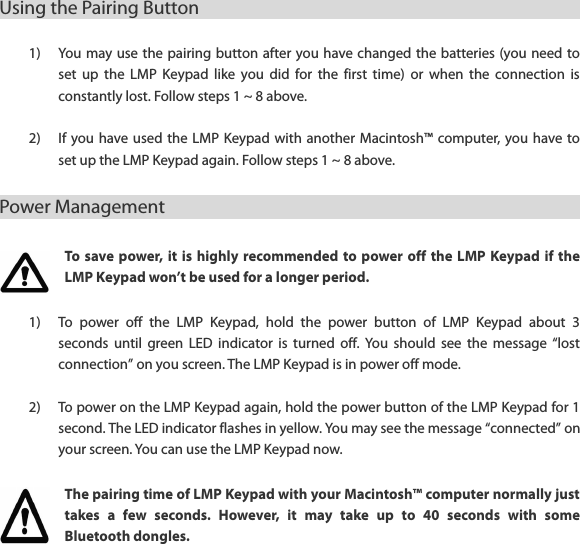
LMP Keypad power button  2) Place the 2 AA-size batteries in the battery compartment.          Make  sure  the  batteries  are  placed  according  to  the  polarity  symbols  (+/-) shown in the battery compartment!   3) Press the power button on the LMP Keypad to turn on the  LMP  Keypad.  The  LED  indicator  will  be  light  up once in green. The LMP Keypad is now turned on.
Pairing the LMP Keypad in Mac OS X                                             Make sure that you have Bluetooth support on your Macintosh™ and Mac OS X 10.5.x or higher installed. The LMP Keypad may work with older Mac OS X but it is not officially supported.    1) Choose  the  Apple  menu  and  open  the  "System  Preferences."  Under  “Internet  & wireless  communication”  (OS  X  10.6.x)/”Hardware”  (OS  X  10.5.x)  you  should  see  a Bluetooth icon. If you do not, your Mac does not have Bluetooth.  2) Enable  Bluetooth.  Under  "System  Preferences"  click  the  Bluetooth  icon  and  make sure you see "Bluetooth: On" under the "Settings" tab. If it's not turned on, click "Turn Bluetooth On."  3) Go to the menu bar and click the Bluetooth icon, then click "Bluetooth Preferences."
4) Click  the  "+"  tab  (set  up  new  device)  in  the  left  window  to  pair  a  new  Bluetooth device. The Bluetooth assistant opens. (With Mac OS X 10.5.x, the Bluetooth assistant may  ask  what  kind  of  device  you  are  going  to  pair.  Choose  “keyboard”  and  click “continue”). Your computer now searches automatically for new Bluetooth devices.  5) Press the Pairing Button on the backside of the LMP Keypad with a pen to set up a connection  to  your  Macintosh™.  The  pairing  LED  starts  to  flash  in  yellow.  Your Macintosh™ should see the LMP Keypad as “Bluetooth Keypad”. Click “continue”.  6) In the dialog box the device “Bluetooth Keypad” will appear. If it is not listed, make sure that LMP Keypad is turned on and in pairing mode. Then click "Search Again" in the "Bluetooth Device" dialog box.  7) Click  on  “Bluetooth  Keypad”  and  press  “continue”.  The  PIN  number  of  the  LMP Keypad will be shown on your screen.  8) Enter the 8-digit PIN number with your LMP Keypad according to the digits shown on your screen and press the  “enter” key of  your LMP Keypad. Click "OK" and the LMP Keypad should be listed in the "Devices" tab under "Bluetooth Preferences." When you enter a digit on the LMP Keypad, it is not highlighted as with some other Bluetooth devices. Keep entering the digits quickly and press the “enter” key at the end. If you need too long to or enter a wrong digit, you may have to enter the PIN number again.
Using the Pairing Button                                                      1) You may use the pairing button after you have changed the batteries (you need to set  up  the  LMP  Keypad  like  you  did  for  the  first  time)  or  when  the  connection  is constantly lost. Follow steps 1 ~ 8 above.  2) If you have used the LMP  Keypad with  another Macintosh™ computer, you have to set up the LMP Keypad again. Follow steps 1 ~ 8 above. Power Management                                                      To save power,  it  is  highly  recommended to  power off the  LMP  Keypad if  the LMP Keypad won’t be used for a longer period. 1) To  power  off  the  LMP  Keypad,  hold  the  power  button  of  LMP  Keypad  about  3 seconds  until  green  LED  indicator  is  turned off. You  should  see the  message  “lost connection” on you screen. The LMP Keypad is in power off mode.  2) To power on the LMP Keypad again, hold the power button of the LMP Keypad for 1 second. The LED indicator flashes in yellow. You may see the message “connected” on your screen. You can use the LMP Keypad now. The pairing time of LMP Keypad with your Macintosh™ computer normally just takes  a  few  seconds.  However,  it  may  take  up  to  40  seconds  with  some Bluetooth dongles.
3) The LMP Keypad greatly reduces the power consumption automatically when it is in idle mode (connected, but no keying). In fact, the power consumption in idle mode is only about ¼ (about 0.65 mA) of the consumption of the keying mode (typing on the LMP Keypad; about 3 mA). This feature greatly extends the battery life.  4) The LMP Keypad uses 2 pcs. AA size batteries. You can either use non-rechargeable or rechargeable batteries.  Connecting with Apple™ wireless keyboard (A1314)          1) Connect the linkage bar to the LMP Keypad on its left side by simply sliding it into the opening. It will nicely form a Keypad unit ready to be linked to the Apple™ wireless keyboard.    2) Connect  the  Keypad  unit  to  your  Apple™  wireless  keyboard (A1314) by  sliding  the right side into the LMP Keypad unit as shown in figure shown below. You now have a full size Bluetooth wireless keyboard ready for use!  3) You can turn on/off the Apple™ wireless keyboard with the power on bar of the LMP Keypad situated on the right side and upper right corner of the LMP Keypad. To turn on the Apple™ keyboard, press the power on bar of the LMP Keypad for 1 second. To turn  off  the  Apple™  wireless  keyboard,  press  the  power  on  bar  for  about  2  ~  3 seconds.
    Make  sure  the  Apple™  wireless  keyboard  is  firmly  plugged  into  the  LMP Keypad unit.
FAQ                                                        1) The LMP Keypad shows an erratic behavior such as a sudden loss of connection, sleep mode after a short time (i.e. only a few seconds), no connection possible when trying to pair, etc. Erratic behavior of the LMP Keypad can be a result of (too) low battery power. You should change the batteries now.  2) Short cuts with the cmd-key (i.e. “cmd+” (to enlarge) or “cmd-” (to downsize) in Pages) do not work when using the Apple™ wireless keyboard together with the LMP Keypad. Keyboard and LMP Keypad are recognized by the Mac OS as two separate input de-vices. This means that a combination of the two input devices to form a single com-mand is not possible. Instead, you can use the programmable hot-keys F13 to F17: • Choose “System Preferences”  >  “Keyboard”  >  “Keyboard Shortcuts”. Press “+” to assign a new keyboard shortcut. • Enter  the  shortcut  command  and  assign  a  hot  key  (i.e.  “Show  All Bookmarks” to F14) • Make sure you are using the correct term and the exact same spelling as in the program so the system activates the command correctly (i.e. “Show All Bookmarks” vs. “Show all bookmarks” which will not work!). • Use the hot-key for the assigned task.
3) The  “clear”  key  under  Windows™  has  different  and  sometimes  strange functions such as delete forward, delete backwards, no function at all, numlock function, clear all, etc. The LMP Keypad is designed  to work with Mac OS X. However, it can be used with certain  Windows™  OS  and  programs  as  well  but  without  support  from  the manufacturer.   The “clear”  key under Windows™  OS is basically  equal to numlock.  However, it can have  different  functions  depending  on  the  software  being  used.  This  shortcoming cannot be changed. Use “delete” and “delete forward” instead to clear any characters and try to avoid using the “clear” key while working with Windows™ OS.  4) The LMP Keypad does not work anymore with Windows™ OS You  may  have  accidentally  pressed  the  “clear”  key,  which  locks  the  LMP  Keypad (numlock  function  in  some  programs).  Unlock  the  LMP  Keypad  by  pressing  “clear” again.  5) Can the LMP Keypad be connected with various Macintosh™ computers, i.e. an iMac and a MacBook, and switch back and forth? No, the LMP Keypad can only be connected with one Macintosh™ computer at a time. When switching to another Macintosh™, the pairing needs to be redone. It is recom-mended to  delete  the “Bluetooth  Keypad”  first before re-pairing  is  performed. You can delete it by choosing the “Bluetooth Keypad” and clicking on the “-“ sign in the left window. Follow the steps under “Bluetooth Pairing under Mac OS X”.
 6) Can  the  battery  power  status  be  read  in  the  Apple™  System  Preferences  like with the Apple™ wireless keyboard? No, there is no reading for the current battery power status. Once the battery power is low, the LMP Keypad will display an erratic behavior like loosing the connection all the time, having difficulty to do the pairing, etc.  7) When using the LMP Keypad with my iPad it does not work properly. The WKP-1314 is specifically designed to work with desktop or portable Macintosh™ computers. It does not support any iPad which is clearly stated on the packaging.  8) On the LMP Keypad, there is a “.” (decimal) key. In my language, the “,” is used as the decimal sign. Will the LMP Keypad display a “.” or a “,”? Whether  the  LMP  Keypad  displays  a  “.”  or  a  “,”  depends  on  the  Mac  OS  installed (keyboard  layout/language),  i.e.  in  French  OS/keyboard  layout,  the  decimal  key displays a “,” while in Swiss OS/keyboard layout, a “.” is displayed.  9) During the process of pairing the LMP Keypad with the Macintosh™, there is  a window displayed called “Keyboard identification”. I am supposed to press the key next to the shift key. But there is no shift key on the LMP Keypad. What do I need to do? The message can be ignored. Simply press the red button in the upper left corner to close this window. Your Macintosh™ will recognize the LMP Keypad.
       All rights reserved. All trade names are registered trademarks of the respective manufacturers listed. All specifications are subject to change without prior notice. Design & Copyrights by Cropmark AG, Switzerland. info@cropmark.ch, www.lmp-adapter.com
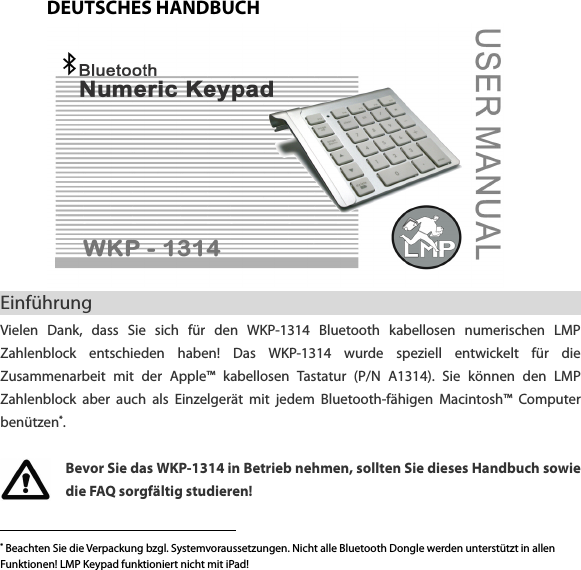
DEUTSCHES HANDBUCH  Einführung                                                        Vielen  Dank,  dass  Sie  sich  für  den  WKP-1314  Bluetooth  kabellosen  numerischen  LMP Zahlenblock  entschieden  haben!  Das  WKP-1314  wurde  speziell  entwickelt  für  die Zusammenarbeit  mit  der  Apple™  kabellosen  Tastatur  (P/N  A1314).  Sie  können  den  LMP Zahlenblock  aber  auch  als  Einzelgerät  mit  jedem  Bluetooth-fähigen  Macintosh™  Computer benützen*.    Bevor Sie das WKP-1314 in Betrieb nehmen, sollten Sie dieses Handbuch sowie die FAQ sorgfältig studieren!                                                    * Beachten Sie die Verpackung bzgl. Systemvoraussetzungen. Nicht alle Bluetooth Dongle werden unterstützt in allen Funktionen! LMP Keypad funktioniert nicht mit iPad!
Eigenschaften                            • 28-Tasten  kabelloser  numerischer  Zahlenblock  für  ein  einfaches  und  schnelles Arbeiten mit Zahlen, Tabellen, Kalkulationen, Spread Sheets, usw. • Bluetooth Funktechnologie für einfachen Anschluss an einen Bluetooth- fähigen Macintosh™. Kein USB Dongel oder Treiber notwendig! • Verbindungssteg  ermöglicht  eine  praktisch  nahtlose  Verbindung  mit  der  Apple™ kabellosen  Tastatur  (A1314)  und  formt  so  eine  vollwertige  kabellose  Tastatur –  die ideale Alternative zur grossen USB Tastatur! • Das  WKP-1314  kann  auch  als  alleinstehender  numerischer  kabelloser  Zahlenblock mit jedem Bluetooth-fähigen Macintosh™ Computer verwendet werden. • Tasten  0  ~  9,  Funktionstasten,  programmierbare  Hot-Keys  F13  ~  F17,  Seite auf-/abwärts, auf-/abwärts, Löschen vorwärts, Dezimalzeichen, Return/Eingabe Taste. • Elegantes Design im Stil der Apple™ kabellosen Tastatur. • Broadcom Bluetooth Chipsatz. • Ein-/Ausschaltknopf,  Paaren-Knopf,  Ein-/Ausschaltverbindungssteg  für  das Ein-/Ausschalten der Apple™ kabellosen Tastatur, LED Statusanzeige. • Scissor-type  Membrantasten  mit  abgerundeten,  quadratischen  Keycaps  bieten höchsten Schreibkomfort bei langer Lebensdauer. • Kein USB Dongle oder Treiber notwendig!
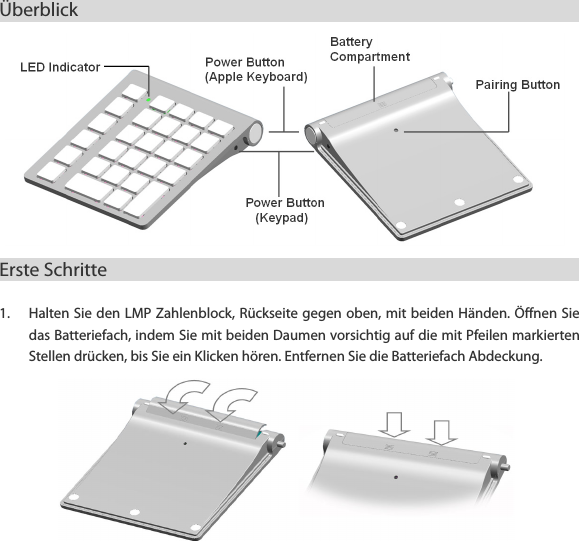
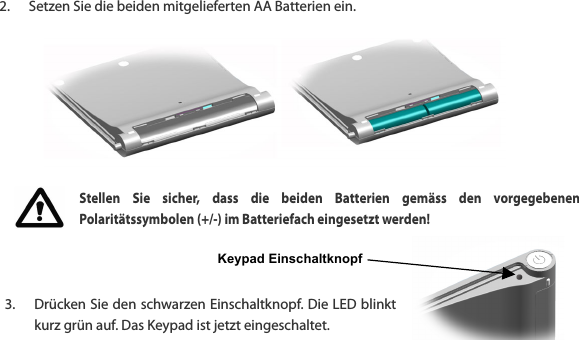
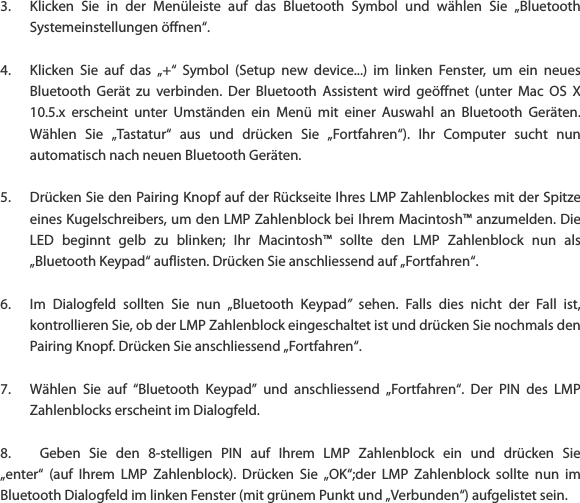
Überblick                                                      Erste Schritte                                                 1. Halten Sie den LMP Zahlenblock, Rückseite gegen oben, mit beiden Händen. Öffnen Sie das Batteriefach, indem Sie mit beiden Daumen vorsichtig auf die mit Pfeilen markierten Stellen drücken, bis Sie ein Klicken hören. Entfernen Sie die Batteriefach Abdeckung.
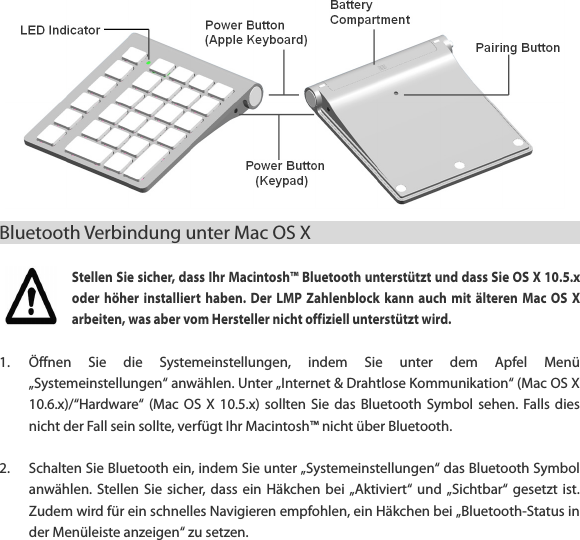
Keypad Einschaltknopf  2. Setzen Sie die beiden mitgelieferten AA Batterien ein.         Stellen  Sie  sicher,  dass  die  beiden  Batterien  gemäss  den  vorgegebenen Polaritätssymbolen (+/-) im Batteriefach eingesetzt werden!    3. Drücken Sie den schwarzen Einschaltknopf. Die LED blinkt kurz grün auf. Das Keypad ist jetzt eingeschaltet.
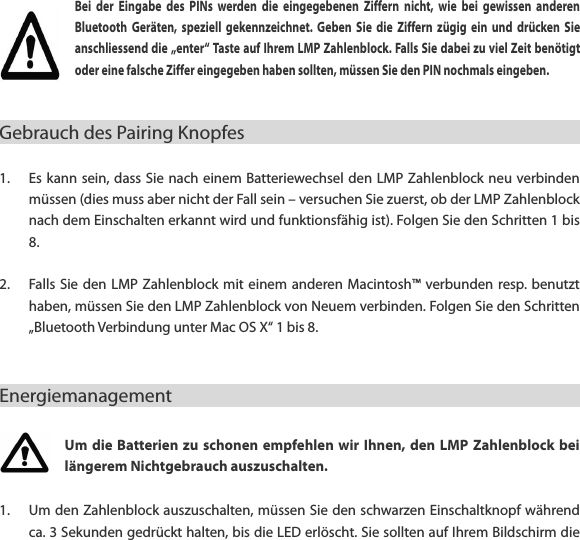
Bluetooth Verbindung unter Mac OS X                                             Stellen Sie sicher, dass Ihr Macintosh™ Bluetooth unterstützt und dass Sie OS X 10.5.x oder  höher  installiert  haben.  Der  LMP  Zahlenblock  kann  auch  mit  älteren  Mac  OS  X arbeiten, was aber vom Hersteller nicht offiziell unterstützt wird.    1. Öffnen  Sie  die  Systemeinstellungen,  indem  Sie  unter  dem  Apfel  Menü „Systemeinstellungen“ anwählen. Unter „Internet & Drahtlose Kommunikation“ (Mac OS X 10.6.x)/“Hardware“ (Mac  OS  X  10.5.x)  sollten  Sie  das  Bluetooth  Symbol  sehen.  Falls dies nicht der Fall sein sollte, verfügt Ihr Macintosh™ nicht über Bluetooth.  2. Schalten Sie Bluetooth ein, indem Sie unter „Systemeinstellungen“ das Bluetooth Symbol anwählen. Stellen  Sie  sicher,  dass  ein  Häkchen  bei „Aktiviert“  und  „Sichtbar“ gesetzt  ist. Zudem wird für ein schnelles Navigieren empfohlen, ein Häkchen bei „Bluetooth-Status in der Menüleiste anzeigen“ zu setzen.
3. Klicken  Sie  in  der  Menüleiste  auf  das  Bluetooth  Symbol  und  wählen  Sie  „Bluetooth Systemeinstellungen öffnen“.  4. Klicken  Sie  auf  das  „+“  Symbol  (Setup  new  device...)  im  linken  Fenster,  um  ein  neues Bluetooth  Gerät  zu  verbinden.  Der  Bluetooth  Assistent  wird  geöffnet  (unter  Mac  OS  X 10.5.x  erscheint  unter  Umständen  ein  Menü  mit  einer  Auswahl  an  Bluetooth  Geräten. Wählen  Sie  „Tastatur“  aus  und  drücken  Sie  „Fortfahren“).  Ihr  Computer  sucht  nun automatisch nach neuen Bluetooth Geräten.  5. Drücken Sie den Pairing Knopf auf der Rückseite Ihres LMP Zahlenblockes mit der Spitze eines Kugelschreibers, um den LMP Zahlenblock bei Ihrem Macintosh™ anzumelden. Die LED  beginnt  gelb  zu  blinken;  Ihr  Macintosh™  sollte  den  LMP  Zahlenblock  nun  als „Bluetooth Keypad“ auflisten. Drücken Sie anschliessend auf „Fortfahren“.  6. Im  Dialogfeld  sollten  Sie  nun  „Bluetooth  Keypad”  sehen.  Falls  dies  nicht  der  Fall  ist, kontrollieren Sie, ob der LMP Zahlenblock eingeschaltet ist und drücken Sie nochmals den Pairing Knopf. Drücken Sie anschliessend „Fortfahren“.  7. Wählen  Sie  auf  “Bluetooth  Keypad”  und  anschliessend  „Fortfahren“.  Der  PIN  des  LMP Zahlenblocks erscheint im Dialogfeld.  8. Geben  Sie  den  8-stelligen  PIN  auf  Ihrem  LMP  Zahlenblock  ein  und  drücken  Sie „enter“  (auf  Ihrem  LMP  Zahlenblock).  Drücken  Sie  „OK“;der  LMP  Zahlenblock  sollte  nun  im Bluetooth Dialogfeld im linken Fenster (mit grünem Punkt und „Verbunden“) aufgelistet sein.
Bei  der  Eingabe  des  PINs  werden  die  eingegebenen  Ziffern  nicht,  wie  bei  gewissen  anderen Bluetooth  Geräten,  speziell  gekennzeichnet.  Geben  Sie  die  Ziffern  zügig  ein  und  drücken  Sie anschliessend die „enter“ Taste auf Ihrem LMP Zahlenblock. Falls Sie dabei zu viel Zeit benötigt oder eine falsche Ziffer eingegeben haben sollten, müssen Sie den PIN nochmals eingeben.   Gebrauch des Pairing Knopfes                                                      1. Es kann sein, dass Sie nach einem Batteriewechsel den LMP Zahlenblock neu verbinden müssen (dies muss aber nicht der Fall sein – versuchen Sie zuerst, ob der LMP Zahlenblock nach dem Einschalten erkannt wird und funktionsfähig ist). Folgen Sie den Schritten 1 bis 8.  2. Falls Sie den  LMP Zahlenblock mit  einem anderen Macintosh™ verbunden resp. benutzt haben, müssen Sie den LMP Zahlenblock von Neuem verbinden. Folgen Sie den Schritten „Bluetooth Verbindung unter Mac OS X“ 1 bis 8.  Energiemanagement                                                      Um die  Batterien zu schonen  empfehlen wir  Ihnen, den  LMP  Zahlenblock  bei längerem Nichtgebrauch auszuschalten. 1. Um den Zahlenblock auszuschalten, müssen Sie den schwarzen Einschaltknopf während ca. 3 Sekunden gedrückt halten, bis die LED erlöscht. Sie sollten auf Ihrem Bildschirm die
Meldung „Verbindung verloren“ sehen. Der LMP Zahlenblock ist nun ausgeschaltet.  2. Um den LMP Zahlenblock wieder einzuschalten, drücken Sie den Einschaltknopf für ca. 1 Sekunde.  Die  LED  blinkt  kurz  gelb  auf.  Sie  sollten  die Meldung  „Verbunden“  auf  Ihrem Bildschirm sehen. Normalerweise  werden  nur  wenige  Sekunden  benötigt,  um  die  Verbindung  vom LMP  Zahlenblock  zum  Macintosh™  wieder  herzustellen.  Beim  Gebrauch  von Bluetooth  USB  Dongeln  kann  es  vorkommen,  dass  die  Verbindung  erst  nach längerer Zeit (bis 40 Sekunden) zustande kommt. 3. Der LMP Zahlenblock  verringert im  Betriebszustand  ohne  aktives Arbeiten  (Idle  Modus) den  Energieverbrauch  auf  ca.  ¼  (ca.  0.65  mA)  des  Verbrauchs  während  des  aktiven Arbeitens (ca. 3 mA). Dadurch wird die Batterielebensdauer erheblich verlängert.  4. Zum  Einsatz  kommen  2  Stk.  AA Batterien.  Sie  können  alternativ  auch  2  Stk.  AA  wieder aufladbare Batterien (Akkus) einsetzen.   Verbinden mit der Apple™ wireless Tastatur (A1314)                1. Führen Sie den Verbindungssteg (Linkage Bar) und den LMP Zahlenblock auf dessen linker Seite zusammen, indem Sie beide Teile vorsichtig ineinander stecken. Verbindungssteg und LMP Zahlenblock formen jetzt eine Einheit, die Sie mit der Apple wireless Tastatur (A1314) verbinden können.
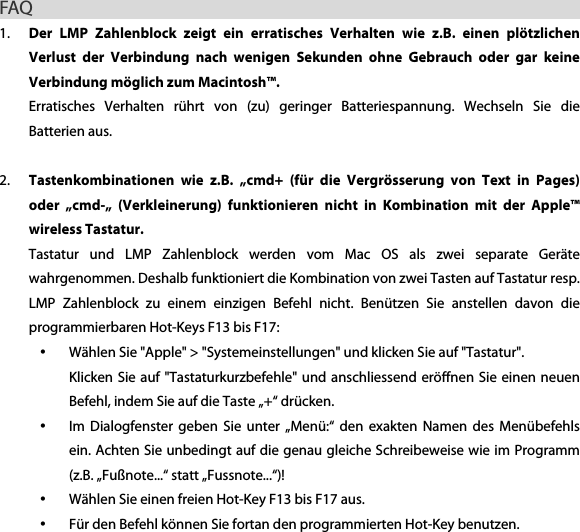
2. Verbinden  Sie  den  LMP  Zahlenblock  mit  Verbindungssteg  nun  mit  der  Apple  wireless Tastatur (A1314), indem Sie beide  zusammen stecken, wie im Bild unten. Sie haben nun eine vollwertige kabellose Tastatur!  3. Sie können die Apple wireless Tastatur (A1314) ein- und ausschalten, indem Sie den run-den Einschaltknopf des LMP  Zahlenblocks  (auf der  rechten Seite ganz  oben  rechts) fest drücken. Der Verbindungsstift aktiviert resp. de-aktiviert  die Apple wireless Tastatur. Für Einschalten den Einschaltknopf 1 Sekunde durchdrücken, für Ausschalten 3 Sekunden.   Stellen Sie  sicher,  dass  die  Apple wireless  Tastatur  (A1314) korrekt und  vollständig  in den Verbindungssteg eingesteckt wurde.
FAQ                                                         1. Der  LMP  Zahlenblock  zeigt  ein  erratisches  Verhalten  wie  z.B.  einen  plötzlichen Verlust  der  Verbindung  nach  wenigen  Sekunden  ohne  Gebrauch  oder  gar  keine Verbindung möglich zum Macintosh™.   Erratisches  Verhalten  rührt  von  (zu)  geringer  Batteriespannung.  Wechseln  Sie  die Batterien aus.  2. Tastenkombinationen  wie  z.B.  „cmd+  (für  die  Vergrösserung  von  Text  in  Pages) oder  „cmd-„  (Verkleinerung)  funktionieren  nicht  in  Kombination  mit  der  Apple™ wireless Tastatur. Tastatur  und  LMP  Zahlenblock  werden  vom  Mac  OS  als  zwei  separate  Geräte wahrgenommen. Deshalb funktioniert die Kombination von zwei Tasten auf Tastatur resp. LMP  Zahlenblock  zu  einem  einzigen  Befehl  nicht.  Benützen  Sie  anstellen  davon  die programmierbaren Hot-Keys F13 bis F17: • Wählen Sie "Apple" > "Systemeinstellungen" und klicken Sie auf "Tastatur". Klicken Sie auf "Tastaturkurzbefehle" und anschliessend eröffnen Sie einen neuen Befehl, indem Sie auf die Taste „+“ drücken. • Im  Dialogfenster  geben  Sie unter  „Menü:“  den  exakten  Namen des  Menübefehls ein. Achten Sie unbedingt auf die genau gleiche Schreibeweise wie im Programm (z.B. „Fußnote...“ statt „Fussnote...“)! • Wählen Sie einen freien Hot-Key F13 bis F17 aus. • Für den Befehl können Sie fortan den programmierten Hot-Key benutzen.
3. Die  „clear“  Taste  hat  bei  der  Verwendung  unter  Windows  unterschiedliche  und teilweise  seltsame  Funktionen,  z.B.  Löschen  vorwärts,  Löschen  rückwärts,  keine Funktion, numlock Funktion, etc. Der LMP Zahlenblock wurde für den Gebrauch unter Mac OS X konzipiert. Dennoch kann der  LMP  Zahlenblock  mit  Windows  mit  Einschränkungen  verwendet  werden,  allerdings ohne  offiziellen  Support  des  Herstellers  (wie  auf  der  Verpackung  ersichtlich,  wird Windows nicht offiziell unterstützt!).   Grundsätzlich  entspricht  die  „clear“  Taste  unter  Windows  der  numlock  Funktion.  In verschiedenen  Programmen  nimmt sie  aber  eine  andere  Funktion ein.  Dies  kann  nicht geändert werden.  Es  wird  daher empfohlen,  beim  Arbeiten  in Windows  Umgebung  auf die „clear“ Taste zu verzichten.  4. Der LMP Zahlenblock reagiert nicht mehr beim Arbeiten mit Windows OS. Sie  haben  aus  Versehen  die  „clear“  Taste  gedrückt  und  die  numlock  Funktion  aktiviert. Entsperren Sie den LMP Zahlenblock, indem Sie nochmals die „clear“ Taste drücken.  5. Kann  der  LMP  Zahlenblock  mit  verschiedenen  Macintosh™  gleichzeitig  verbunden sein,  z.B.  mit  meinem  iMac  und  meinem  MacBook?  Kann  ich  also  mit  dem  LMP Zahlenblock hin und her wechseln? Nein, der LMP Zahlenblock kann nur mit einem Macintosh™ gleichzeitig verbunden sein. Wenn  Sie  den  LMP  Zahlenblock  an  einem  anderen  Macintosh™  benutzen  möchten, müssen  Sie  die  Verbindung  neu  herstellen.  In  diesem  Fall  empfehlen  wir,  die  alte
Verbindung „Bluetooth Keypad“ zuerst mit der „-„-Taste zu entfernen und anschliessend die Verbindung gem. „Bluetooth Verbindung unter Mac OS X“ neu aufzubauen.    6. Kann ich den Batterieladezustand (Restkapazität) irgendwo ablesen wie beim Apple wireless Keyboard? Nein,  es  gibt  keine  Anzeige,  die  den  Batterieladezustand  angibt.  Wenn  die  Batterie-kapazität tief ist, weist der LMP Zahlenblock ein erratisches Verhalten auf, z.B. verliert er ständig die Verbindung zum Macintosh™.  7. Wenn ich  den LMP  Zahlenblock  mit  meinem  iPad verwenden  möchte, funktioniert dies nicht zufriedenstellend. Der  LMP  Zahlenblock  wurde  speziell  für  den  Gebrauch  mit  Macintosh™  Desktop  und Laptop  Geräten  konzipiert.  iPad  werden  daher  nicht  unterstützt,  was  klar  auf  der  Ver-packung ersichtlich ist.  8. Der LMP Zahlenblock weist eine „.“-Taste (Dezimaltaste) auf. In meiner Sprache wird ein  „,“  als  Dezimalzeichen  verwendet.  Welches  Zeichen  wird  der  LMP  Zahlenblock ausgeben? Ob  der  LMP  Zahlenblock  ein  „.“  oder  ein  „,“  als  Dezimalzeichen  ausgibt,  hängt  vom verwendeten Mac OS X ab. So wird in einem deutschen OS/Tastaturlayout ein „,“ ausge-geben, während im Schweizerischen OS/Tastaturlayout ein „.“ ausgegeben wird.
9. Während  des  Verbindungsaufbaus  des  LMP  Zahlenblocks  mit  dem  Macintosh™ erscheint ein Meldung „Tastatur Identifikation“ auf dem Bildschirm. Es soll die Taste neben der Umschalttaste („shift“) gedrückt werden. Der LMP Zahlenblock hat aber keine „shift“ Taste. Was ist zu tun? Die Meldung  kann  ignoriert werden.  Drücken  Sie den  roten  Knopf in  der  oberen linken Ecke,  um  das  Fenster  zu  schliessen.  Ihr  Macintosh™  wird  anschliessend  den  LMP Zahlenblock problemlos identifizieren.         Alle Rechte vorbehalten. Alle gekennzeichneten Markennamen gehören den jeweiligen Inhabern der Markenrechte. Alle Angaben können verändert oder erweitert werden ohne vorherige Ankündigung. Design- & Kopierechte bei Cropmark AG, Schweiz. info@cropmark.ch, www.lmp-adapter.com
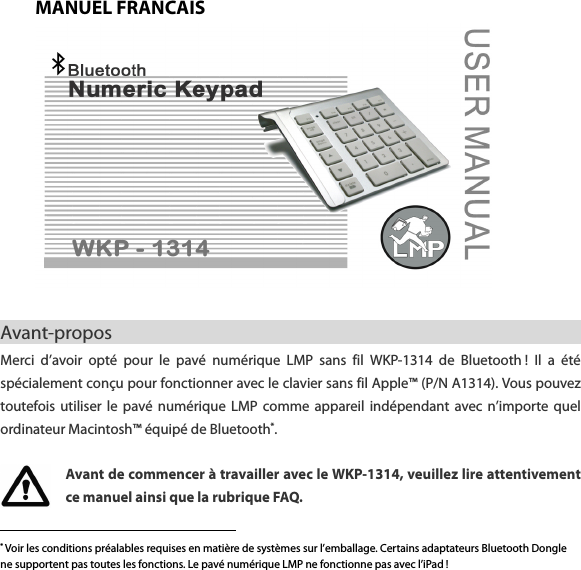
MANUEL FRANCAIS   Avant-propos                                                        Merci  d’avoir  opté  pour  le  pavé  numérique  LMP  sans  fil  WKP-1314  de  Bluetooth !  Il  a  été spécialement conçu pour fonctionner avec le clavier sans fil Apple™ (P/N A1314). Vous pouvez toutefois utiliser  le  pavé  numérique  LMP  comme  appareil  indépendant  avec  n’importe quel ordinateur Macintosh™ équipé de Bluetooth*.    Avant de commencer à travailler avec le WKP-1314, veuillez lire attentivement ce manuel ainsi que la rubrique FAQ.                                                    * Voir les conditions préalables requises en matière de systèmes sur l’emballage. Certains adaptateurs Bluetooth Dongle ne supportent pas toutes les fonctions. Le pavé numérique LMP ne fonctionne pas avec l’iPad !
Caractéristiques techniques                          • Pavé numérique sans fil à 28 touches permettant de travailler facilement et rapidement avec des chiffres et des tableaux, d’effectuer des calculs à l’aide   de tableurs, etc. • Technologie de transmission par ondes radio Bluetooth sans fil permettant un raccordement facile à un Macintosh™ équipé de Bluetooth. Aucun adaptateur USB ou gestionnaire de périphérique nécessaire ! • Grâce à une tige de raccordement, le pavé numérique s’emboîte parfaitement dans le clavier sans fil Apple™ (A1314), formant ainsi un clavier complet sans fil – l’alternative idéale au grand clavier USB ! • Le WKP-1314 peut également être utilisé comme pavé numérique sans fil indépendant avec n’importe quel ordinateur Macintosh™ équipé de Bluetooth.   • Touches 0 à 9, touches de fonction, touches d’accès rapide F13 à F17 program- mables, touches de défilement (Aller au début/à la fin du document, Page suivante/précédente), touche Effacer vers l’avant, touche décimale, touche Entrée • Design élégant dans le style du clavier sans fil Apple™. • Set de puces Broadcom Bluetooth. • Bouton marche/arrêt, bouton de couplage, tige de raccordement permettant d’activer ou de désactiver le clavier sans fil Apple™, voyant lumineux (LED) indiquant les différents états de fonctionnement. • Touches à membrane «sur ciseaux» avec capsules carrées légèrement incurvées offrant un confort de frappe optimal et une durée de vie plus longue. • Aucun besoin d’un pilot ou clé électronique !
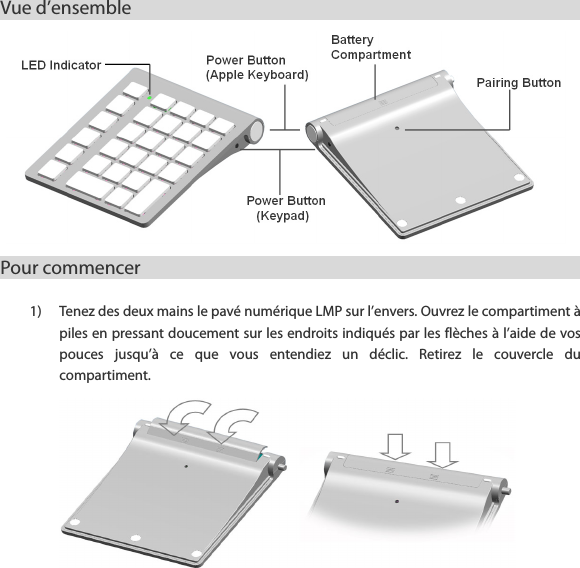
Vue d’ensemble                                                      Pour commencer                                             1) Tenez des deux mains le pavé numérique LMP sur l’envers. Ouvrez le compartiment à piles en pressant doucement sur les endroits indiqués par les flèches à l’aide de vos pouces  jusqu’à  ce  que  vous  entendiez  un  déclic.  Retirez  le  couvercle  du compartiment.
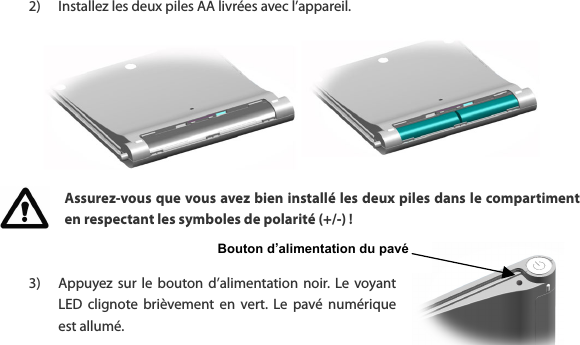
Bouton d’alimentation du pavé   2) Installez les deux piles AA livrées avec l’appareil.         Assurez-vous que vous avez bien installé les deux piles dans le compartiment en respectant les symboles de polarité (+/-) !   3) Appuyez sur  le  bouton d’alimentation noir.  Le  voyant LED  clignote  brièvement  en  vert.  Le  pavé  numérique est allumé.
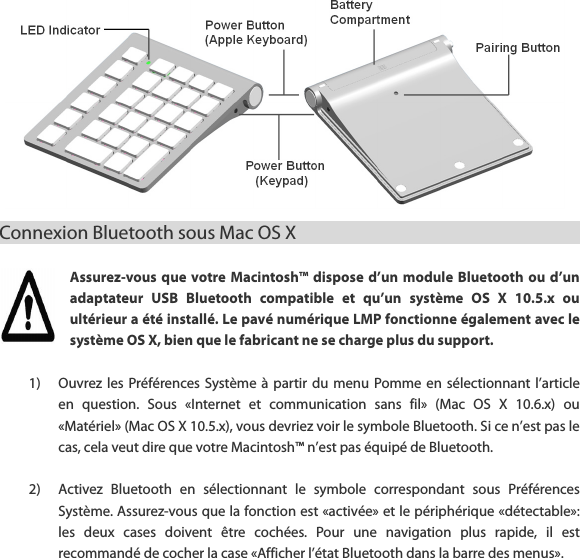
Connexion Bluetooth sous Mac OS X                                             Assurez-vous que votre Macintosh™ dispose  d’un module  Bluetooth ou  d’un adaptateur  USB  Bluetooth  compatible  et  qu’un  système  OS  X  10.5.x  ou ultérieur a été installé. Le pavé numérique LMP fonctionne également avec le système OS X, bien que le fabricant ne se charge plus du support.  1) Ouvrez les  Préférences Système à  partir  du menu Pomme en  sélectionnant  l’article en  question.  Sous  «Internet  et  communication  sans  fil»  (Mac  OS  X  10.6.x)  ou «Matériel» (Mac OS X 10.5.x), vous devriez voir le symbole Bluetooth. Si ce n’est pas le cas, cela veut dire que votre Macintosh™ n’est pas équipé de Bluetooth.  2) Activez  Bluetooth  en  sélectionnant  le  symbole  correspondant  sous  Préférences Système. Assurez-vous que la fonction est «activée» et le périphérique «détectable»: les  deux  cases  doivent  être  cochées.  Pour  une  navigation  plus  rapide,  il  est recommandé de cocher la case «Afficher l’état Bluetooth dans la barre des menus».
3) Cliquez  sur  le  symbole  Bluethooth  dans  la  barre  des  menus  et  choisissez  «Ouvrir Préférences Système».  4) Cliquez  sur  le  symbole  «+»  (Setup  new  device...)  dans  la fenêtre  de  gauche  afin de connecter un nouvel appareil Bluetooth. L’assistant Bluetooth s’affiche (sous Mac OS X  10.5.x  apparaît  éventuellement  un  menu  proposant  une  sélection  d’appareils Bluetooth.  Choisissez  «Clavier»  puis  «Continuer»).  Votre  ordinateur  recherche  alors automatiquement de nouveaux appareils Bluetooth.  5) Appuyez avec la  pointe d’un stylo bille  sur le bouton de couplage au dos  de votre pavé numérique LMP afin d’établir la connexion entre ce dernier et votre Macintosh™. Le voyant LED se met à clignoter en jaune; le pavé numérique LMP identifié par votre ordinateur devrait  alors  s’afficher  dans  la  liste  sous  la  dénomination  de  «Bluetooth Keypad». Cliquez ensuite sur «Continuer».  6) Dans la fenêtre de dialogue, vous devriez voir maintenant «Bluetooth Keypad». Si ce n’est  pas  le  cas,  contrôlez  que  le  pavé  numérique  LMP  est  bien  activé  et  pressez encore une fois sur le bouton de couplage. Cliquez ensuite sur «Continuer».  7) Cliquez  sur  «Bluetooth  Keypad»,  puis  sur  «Continuer».  Le  code  NIP  du  pavé numérique LMP apparaît dans la boîte de dialogue.  8) Saisissez  le  code  NIP  à  8  chiffres  de  votre  pavé  numérique  LMP  et  pressez  sur  la touche Entrée du pavé numérique. Validez en appuyant sur «OK». Le pavé numérique LMP  devrait  alors  s’afficher  dans  la  fenêtre  de  gauche  de  la  boîte  de  dialogue Bluetooth (avec un point vert ou la mention «Connecté»).
Lorsque vous saisissez le code NIP, les chiffres ne sont pas surlignés, comme c’est le cas avec certains appareils Bluetooth. Entrez les chiffres rapidement et pressez ensuite sur la touche Entrée de votre pavé numérique LMP. Si vous prenez trop de temps pour le faire ou que vous entrez un chiffre erroné, vous devrez saisir une nouvelle fois votre code NIP. Comment utiliser le bouton de couplage                                                       1) Il se peut que vous soyez obligé de reconnecter le pavé numérique LMP après avoir changé les piles (ce n’est pas toujours le cas – essayez d’abord de voir si, une fois le clavier allumé, l’ordinateur identifie le pavé numérique et s’il fonctionne). Suivez les étapes 1 à 8. 2) Au  cas  où  vous  auriez  connecté  ou  utilisé  le  pavé  numérique  LMP  avec  un  autre Macintosh™,  vous  devrez  procéder  à  nouveau  à  l’enregistrement  de  votre  pavé numérique LMP. Suivez les étapes 1 à 8 du chapitre précédent, «Connexion Bluetooth sous Mac OS X».   Gestion de l’énergie                                                       Afin de ménager les piles, nous vous conseillons d’éteindre le pavé numérique LMP en cas de non utilisation prolongée.   1) Pour désactiver le pavé numérique, vous devez presser pendant env. 3 secondes le bouton  d’alimentation  noir,  jusqu’à  ce  que  le  voyant  LED  s’éteigne.  Le  message «Connexion  interrompue»  devrait  s’afficher  à  l’écran.  Le  pavé  numérique  est  alors désactivé.
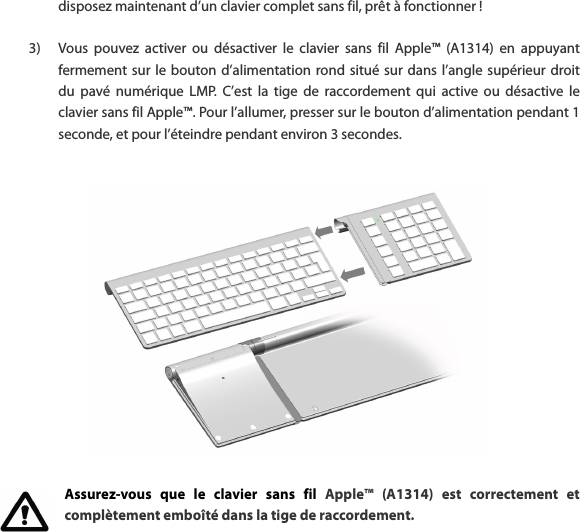
2) Pour  allumer  à  nouveau  le  pavé  numérique  LMP,  appuyez  sur  le  bouton d’alimentation pendant environ une seconde. Le voyant LED clignote brièvement en jaune. Le message «Connecté» devrait s’afficher sur votre écran.   Normalement,  quelques  secondes  suffisent  pour  rétablir  la  connexion entre  le  pavé  numérique  LMP  et  le  Macintosh™.  Mais  en  cas  d’utilisation d’adaptateurs  USB  Bluetooth  Dongle,  il  peut  arriver  que  la  connexion demande plus de temps (jusqu’à 40 secondes).   3) Quand il est en mode veille (connecté, mais pas actif ), le pavé numérique LMP sans fil réduit automatiquement sa consommation d’énergie d’env. ¼ (env. 0.65 mA contre 3 mA  lorsqu’il  est  utilisé).  La  durée  de  vie  des  piles  s’en  trouve  considérablement augmentée.  4) L’appareil  est  alimenté  par  2  piles  AA.  Vous  pouvez  également  utiliser  des  piles rechargeables de même type.   Couplage avec le clavier sans fil Apple™ (A1314)                1) Introduisez  avec  précaution  la  tige  de  raccordement  dans  l’ouverture correspondante  située  sur  le  bord  gauche  du  pavé  numérique  LMP.  Les  deux éléments n’en forment plus qu’un que vous pouvez assembler avec le clavier sans fil Apple™ (A1314).  2) Pour connecter le pavé numérique LMP doté d’une tige de raccordement au clavier sans  fil  Apple™  (A1314),  emboîtez-les  comme  indiqué  sur  l’image  ci-dessous.  Vous
disposez maintenant d’un clavier complet sans fil, prêt à fonctionner !  3) Vous  pouvez  activer  ou  désactiver  le  clavier  sans  fil  Apple™  (A1314)  en  appuyant fermement sur le  bouton d’alimentation rond  situé sur  dans l’angle supérieur droit du  pavé  numérique  LMP.  C’est  la  tige  de  raccordement  qui  active  ou  désactive  le clavier sans fil Apple™. Pour l’allumer, presser sur le bouton d’alimentation pendant 1 seconde, et pour l’éteindre pendant environ 3 secondes.    Assurez-vous  que  le  clavier  sans  fil  Apple™  (A1314)  est  correctement  et complètement emboîté dans la tige de raccordement.
FAQ                                                         1) Le  pavé  numérique  LMP  présente  un  comportement  erratique,  p.ex.  une interruption soudaine de la connexion au bout de quelques secondes en mode veille, voire aucune connexion possible vers le Macintosh™. Ce  comportement  erratique  provient  d’une  (trop)  faible  tension  des  piles. Changez-les.    2) Certains raccourcis clavier avec la touche «cmd» (p.ex. «cmd+» ou «cmd-» pour agrandir  ou  réduire  la  taille  des  caractères  du  texte)  ne  fonctionnent  pas  en combinaison avec le clavier sans fil Apple™. Le clavier et le pavé numérique LMP sont perçus par le système Mac OS comme deux appareils distincts. C’est la raison pour laquelle la combinaison de deux touches du clavier  ou  du  pavé  numérique  LMP  pour  créer  un  seul  ordre  de  commande  ne fonctionne pas. A la place, utilisez les touches d’accès rapide programmables F13 à F17: • Sélectionnez  «Pomme»  >  «Préférences  Système»  et  cliquez  sur  «Clavier»,  puis  sur «Raccourcis clavier»   • Sélectionnez dans la liste «Description» la commande que vous souhaitez ajouter. • Utilisez la touche d’accès rapide correspondant à la tâche assignée.  Le raccourci doit exactement concorder avec la terminologie de Mac OS X pour être accepté par le système Mac !
3) Utilisée  sous  Windows,  la touche  «clear» (Effacer)  a des  fonctions différentes, parfois  curieuses,  p.ex.  Effacer  vers  l’avant  ou  Effacer  vers  l’arrière,  aucune fonction, fonction de verrouillage, etc. Le  pavé  numérique  LMP  a  été  conçu  pour  être  utilisé  sous  Mac  OS  X.  Toutefois,  il peut être utilisé avec certaines restrictions sous Windows, mais sans qu’il soit pris en charge par le fabricant (ainsi qu’on peut le lire sur l’emballage). En principe, la touche «clear» correspond à la fonction de verrouillage sous Windows. Dans d’autres programmes,  elle a toutefois  une autre fonction.  Il n’est pas  possible d’y  remédier.    Il  est  donc  conseillé,  si  vous  travaillez  dans  un  environnement Windows, d’éviter d’utiliser cette touche.    4) Le pavé numérique LMP ne réagit plus lorsque je travaille avec Windows OS. Vous  avez  appuyé  par  inadvertance  sur  la  touche  «clear»  et  activé  la  fonction  de verrouillage.  Vous  pouvez  déverrouiller  le  pavé  numérique  LMP  en  appuyant  une nouvelle fois sur la touche «clear».  5) Le  pavé  numérique  LMP  peut-il  être  raccordé  en  même  temps  à  plusieurs ordinateurs Macintosh™, p.ex. à mon iMac et à mon MacBook ? Autrement dit, est-ce que je peux passer d’un appareil à l’autre avec le même pavé numérique LMP ? Non. Le pavé numérique LMP ne peut être raccordé qu’à un seul Macintosh™ à la fois. Si vous voulez l’utiliser sur un autre Macintosh™, il vous faudra établir à nouveau la connexion.  Dans  ce  cas,  nous  vous  recommandons  d’annuler  d’abord  la  première
connexion «Bluetooth Keypad» au moyen de la touche «-», puis de vous connecter de nouveau  en  suivant  la procédure  indiquée  dans  le  chapitre  «Connexion  Bluetooth sous Mac OS X».    6) Est-ce que je peux voir quelque part l’état des piles (capacité restante) comme sur le clavier sans fil Apple™ ? Non. Il n’y a aucun affichage indiquant l’état des piles. Lorsque la capacité est faible, le  pavé  numérique  LMP  a  un  comportement  erratique,  p.ex.  la  connexion  avec  le Macintosh™ s’interrompt constamment.      7) Lorsque je veux utiliser le pavé numérique LMP avec mon iPad, il ne fonctionne pas correctement. Le  pavé  numérique  LMP  a  été  spécialement  conçu  pour  être  utilisé  avec  un ordinateur  de  bureau  ou  portable  Macintosh™,  et  donc,  il  ne  fonctionne  pas  avec l’iPad, ce qui est clairement indiqué sur l’emballage.    8) Le  pavé  numérique  LMP  présente  une  touche  «.»  dite  «touche  décimale».  Or, dans  ma  langue,  on  utilise  un  «,»  comme  signe  décimal.  Quel  signe  vais-je obtenir avec le pavé numérique LMP ? Cela dépendra du système Mac  OS X que vous utilisez. Sur un clavier allemand OS, vous obtiendrez une virgule, tandis qu’avec un clavier suisse OS, vous obtiendrez un point.
9) Lors de l’établissement de la connexion du pavé numérique LMP au Macintosh™, un message «Identification de clavier» s’affiche à l’écran. L’utilisateur est censé appuyer sur la touche se trouvant à côté de la touche «Maj» («shift»). Or, le pavé numérique LMP n’a pas de touche «shift». Que faire ? Vous pouvez ignorer le message. Appuyez sur le bouton rouge dans l’angle supérieur gauche  pour  fermer  la  fenêtre.  Votre  Macintosh™  identifiera  ensuite  le  pavé numérique LMP sans problème.           Tous droits réservés. Toutes les marques commerciales déposées citées dans ce document sont la propriété exclusive de leurs détenteurs respectifs. Ces informations sont susceptibles d’être modifiées ou complétées sans préavis.   Conception LMP Keypap & Copyright: Cropmark AG, Suisse. info@cropmark.ch, www.lmp-adapter.com
 Federal Communication Commission Interference Statement  This equipment has been tested and found to comply with the limits for a Class B digital device, pursuant to Part 15 of the FCC Rules. These limits are designed to provide reasonable protection against harmful interference in a residential installation. This equipment generates, uses and can radiate radio frequency energy and, if not installed and used in accordance with the instructions, may cause harmful interference to radio communications. However, there is no guarantee that interference will not occur in a particular installation. If this equipment does cause harmful interference to radio or television reception, which can be determined by turning the equipment off and on, the user is encouraged to try to correct the interference by one of the following measures: . Reorient or relocate the receiving antenna. . Increase the separation between the equipment and receiver. . Connect the equipment into an outlet on a circuit different from that to which the receiver is connected. . Consult the dealer or an experienced radio/TV technician for help.  FCC Caution: To assure continued compliance, any changes or modifications not expressly approved by the party responsible for compliance could void the user's authority to operate this equipment. (Example - use only shielded interface cables when connecting to computer or peripheral devices).  FCC Radiation Exposure Statement  The equipment complies with FCC RF radiation exposure limits set forth for an uncontrolled environment. The integral antennas used for this transmitter must not be co-located or operating in conjunction with any other antenna or transmitter within the host device.  This device complies with Part 15 of the FCC Rules. Operation is subject to the following two conditions: (1) This device may not cause harmful interference, and (2) This device must accept any interference received, including interference that may cause undesired operation.

Navigation menu