Cropmark WKP-1644 LMP Bluetooth Keypad 2 User Manual

Cropmark AG LMP Bluetooth Keypad 2 Users Manual

Users Manual

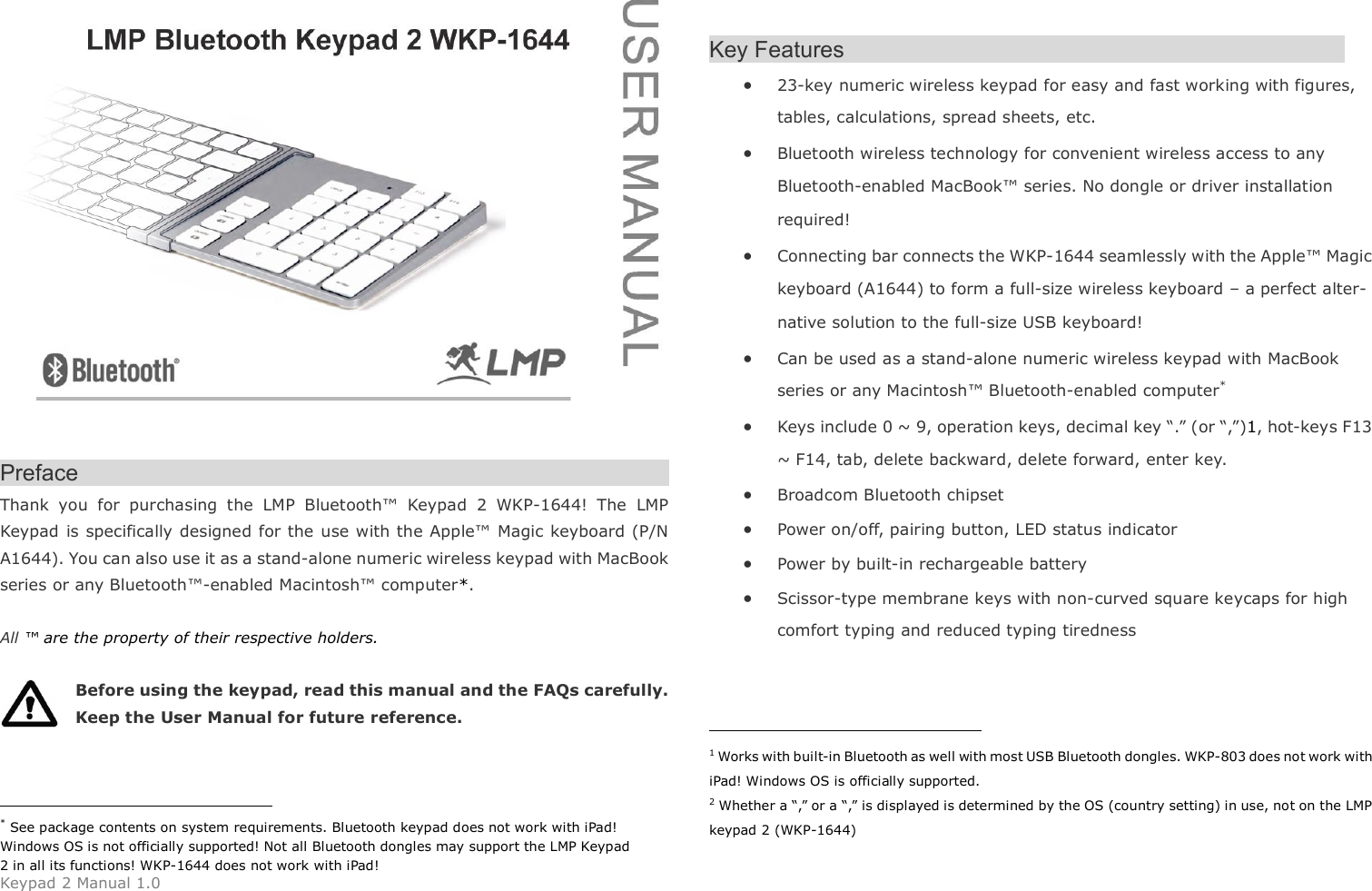
Keypad 2 Manual 1.0   Preface                                                        Thank  you  for  purchasing  the  LMP  Bluetooth™  Keypad  2  WKP-1644!  The  LMP Keypad  is specifically designed for the use with the Apple™ Magic keyboard (P/N A1644). You can also use it as a stand-alone numeric wireless keypad with MacBook series or any Bluetooth™-enabled Macintosh™ computer*.    All ™ are the property of their respective holders.  Before using the keypad, read this manual and the FAQs carefully. Keep the User Manual for future reference.                                                   * See package contents on system requirements. Bluetooth keypad does not work with iPad! Windows OS is not officially supported! Not all Bluetooth dongles may support the LMP Keypad 2 in all its functions! WKP-1644 does not work with iPad!   Key Features                               23-key numeric wireless keypad for easy and fast working with figures, tables, calculations, spread sheets, etc.  Bluetooth wireless technology for convenient wireless access to any Bluetooth-enabled MacBook™ series. No dongle or driver installation required!  Connecting bar connects the WKP-1644 seamlessly with the Apple™ Magic keyboard (A1644) to form a full-size wireless keyboard – a perfect alter-native solution to the full-size USB keyboard!  Can be used as a stand-alone numeric wireless keypad with MacBook series or any Macintosh™ Bluetooth-enabled computer*  Keys include 0 ~ 9, operation keys, decimal key “.” (or “,”)1, hot-keys F13 ~ F14, tab, delete backward, delete forward, enter key.  Broadcom Bluetooth chipset    Power on/off, pairing button, LED status indicator    Power by built-in rechargeable battery  Scissor-type membrane keys with non-curved square keycaps for high comfort typing and reduced typing tiredness                                                   1 Works with built-in Bluetooth as well with most USB Bluetooth dongles. WKP-803 does not work with iPad! Windows OS is officially supported.   2 Whether a “,” or a “,” is displayed is determined by the OS (country setting) in use, not on the LMP keypad 2 (WKP-1644)
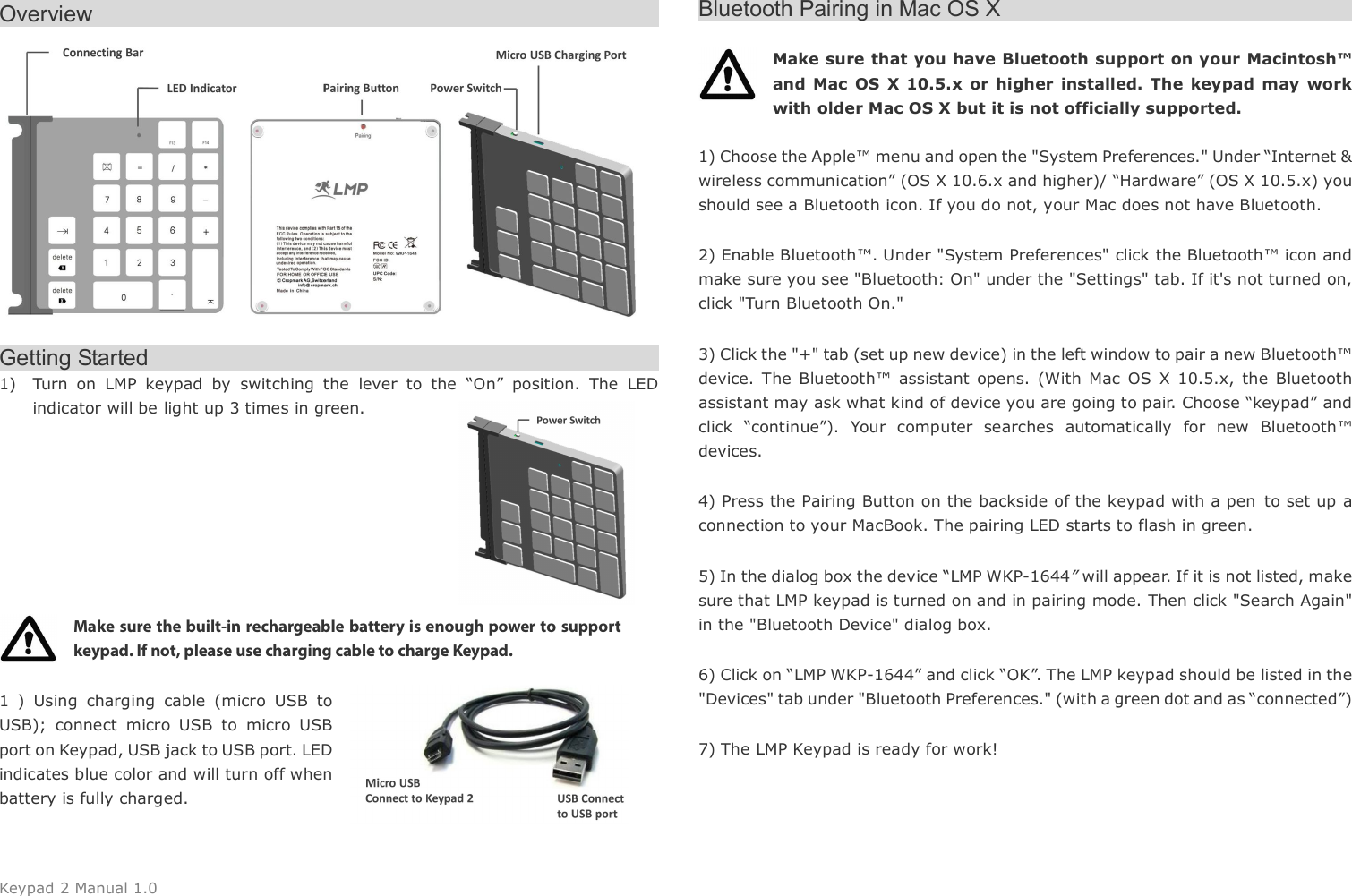
Keypad 2 Manual 1.0 Overview                                                       Getting Started                                               1) Turn  on  LMP  keypad  by  switching  the  lever  to  the  “On”  position.  The  LED indicator will be light up 3 times in green.         Make sure the built-in rechargeable battery is enough power to support keypad. If not, please use charging cable to charge Keypad.    1  )  Using  charging  cable  (micro  USB  to USB);  connect  micro  USB  to  micro  USB port on Keypad, USB jack to USB port. LED indicates blue color and will turn off when battery is fully charged.   Bluetooth Pairing in Mac OS X                                            Make sure that you have Bluetooth support on your Macintosh™ and  Mac  OS X 10.5.x  or higher  installed. The  keypad  may  work with older Mac OS X but it is not officially supported.    1) Choose the Apple™ menu and open the "System Preferences." Under “Internet & wireless communication” (OS X 10.6.x and higher)/ “Hardware” (OS X 10.5.x) you should see a Bluetooth icon. If you do not, your Mac does not have Bluetooth. 2) Enable Bluetooth™. Under "System Preferences" click the Bluetooth™ icon and make sure you see "Bluetooth: On" under the "Settings" tab. If it's not turned on, click "Turn Bluetooth On." 3) Click the "+" tab (set up new device) in the left window to pair a new Bluetooth™ device.  The  Bluetooth™  assistant  opens.  (With  Mac  OS  X  10.5.x,  the  Bluetooth assistant may ask what kind of device you are going to pair. Choose “keypad” and click  “continue”).  Your  computer  searches  automatically  for  new  Bluetooth™ devices. 4) Press the Pairing Button on the backside of the keypad with a pen to set up a connection to your MacBook. The pairing LED starts to flash in green. 5) In the dialog box the device “LMP WKP-1644” will appear. If it is not listed, make sure that LMP keypad is turned on and in pairing mode. Then click "Search Again" in the "Bluetooth Device" dialog box. 6) Click on “LMP WKP-1644” and click “OK”. The LMP keypad should be listed in the "Devices" tab under "Bluetooth Preferences." (with a green dot and as “connected”)   7) The LMP Keypad is ready for work!
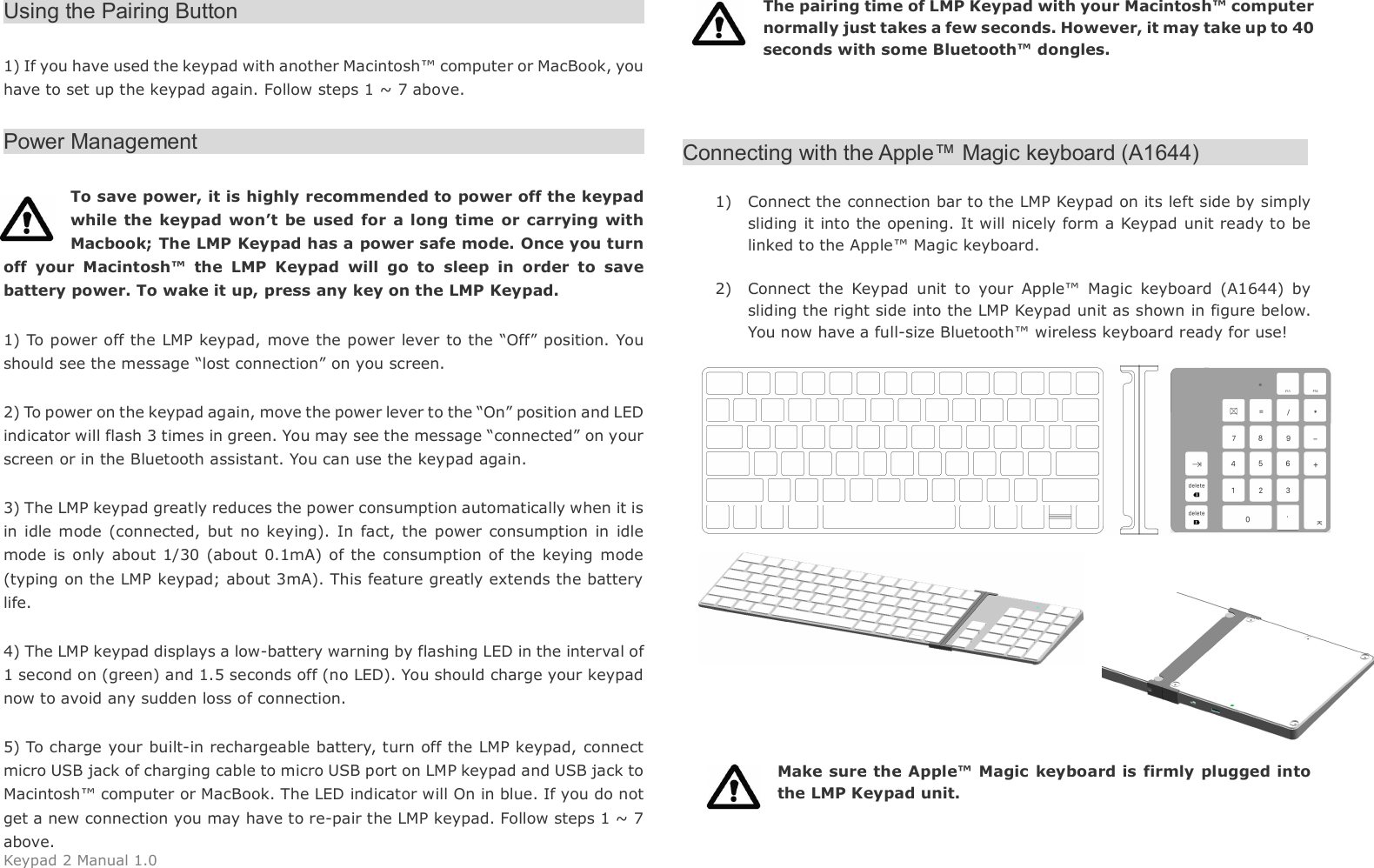
Keypad 2 Manual 1.0 Using the Pairing Button                                                      1) If you have used the keypad with another Macintosh™ computer or MacBook, you have to set up the keypad again. Follow steps 1 ~ 7 above. Power Management                                                      To save power, it is highly recommended to power off the keypad while  the  keypad  won’t  be  used for  a long time or carrying  with Macbook; The LMP Keypad has a power safe mode. Once you turn off  your  Macintosh™  the  LMP  Keypad  will  go  to  sleep  in  order  to  save battery power. To wake it up, press any key on the LMP Keypad. 1) To power off the LMP keypad, move the power  lever to the “Off” position. You should see the message “lost connection” on you screen.   2) To power on the keypad again, move the power lever to the “On” position and LED indicator will flash 3 times in green. You may see the message “connected” on your screen or in the Bluetooth assistant. You can use the keypad again. 3) The LMP keypad greatly reduces the power consumption automatically when it is in idle  mode (connected, but  no keying).  In fact, the  power  consumption  in  idle mode  is only  about 1/30  (about  0.1mA)  of the  consumption of the keying  mode (typing on the LMP keypad; about 3mA). This feature greatly extends the battery life.   4) The LMP keypad displays a low-battery warning by flashing LED in the interval of 1 second on (green) and 1.5 seconds off (no LED). You should charge your keypad now to avoid any sudden loss of connection. 5) To charge your built-in rechargeable battery, turn off the LMP keypad, connect micro USB jack of charging cable to micro USB port on LMP keypad and USB jack to Macintosh™ computer or MacBook. The LED indicator will On in blue. If you do not get a new connection you may have to re-pair the LMP keypad. Follow steps 1 ~ 7 above. The pairing time of LMP Keypad with your Macintosh™ computer normally just takes a few seconds. However, it may take up to 40 seconds with some Bluetooth™ dongles.    Connecting with the Apple™ Magic keyboard (A1644)                     1) Connect the connection bar to the LMP Keypad on its left side by simply sliding it into the opening. It will nicely form a Keypad unit ready to be linked to the Apple™ Magic keyboard.    2) Connect  the  Keypad  unit  to  your  Apple™  Magic  keyboard  (A1644)  by sliding the right side into the LMP Keypad unit as shown in figure below. You now have a full-size Bluetooth™ wireless keyboard ready for use!    Make sure the Apple™ Magic  keyboard is firmly  plugged into the LMP Keypad unit.
Keypad 2 Manual 1.0 FAQs 1) The  keypad  shows  an  erratic  behavior  such  as  a  sudden  loss  ofconnection,  sleep  mode  after  a  short  time  (i.e.  only  a  few  seconds),  no connection possible when trying to pair, etc. Erratic behavior of the keypad can be a result of (too) low battery power. You should charge the battery now. 2) Short  cuts  with  the  cmd-key  (i.e.  “cmd+”  (to  enlarge)  or  “cmd-”  (todownsize) in Pages) do not work when using the Apple™ Magic keyboard together with the keypad. Keyboard and keypad are recognized by the Mac OS as two separate input devices. This means that a combination of the two input devices to form a single command is not possible.   The shortcut command must be exactly in line with the Mac OS X shortcut terminology!   3) On the screen, the message “lost connection” appears.In order to save battery energy, the keypad goes automatically into sleep mode. Just  press  any  key  on  the  keypad  and  the  connection  is  resumed  within  1  ~  3 seconds. 4) Can the keypad be connected with various Macintosh™ computers, i.e.an iMac and a MacBook, and switch back and forth? No, the keypad can only be connected with one Macintosh™ computer at a time. 5) Can the battery power status be read in the Apple™ System Preferenceslike with the Apple™ wireless keyboard? No, there is no reading for the current battery power status. 6) Can the sleep mode be altered or turned off?No, the sleep mode cannot be changed or turned off. The sleep mode reduces the power consumption to about 1/30 of the stand-by mode. Consequently, the battery life is greatly extended. 7) When using the LMP Keypad with my iPad it does not work properly.The LMP Keypad is specifically designed to work with desktop or portable Macin-tosh™  computers.  It  does  not  support  iPad  which  is  clearly  stated  on  the packaging. 8) On the LMP Keypad, there is a “.” (decimal) key. In my language, the“,” is used as the decimal sign. Will the LMP Keypad display a “.” or a“,”?Whether the LMP Keypad displays a (decimal) “.” or a (decimal) “,” depends on the Mac OS installed (keyboard layout/language), i.e. in French OS/keyboard layout, the decimal key displays a “,” while in Swiss OS/keyboard layout, a “.” is displayed. 9) During  the  pairing  process  with the  Macintosh™, there is  a  windowdisplayed  called  “Keyboard  identification”.  I  am  supposed  to  pressthe  key  next  to  the  shift  key.  But  there  is  no  shift  key  on  the  LMPKeypad. What do I need to do?The message can be ignored. Simply press the red button in the upper left corner to close this window. Your Macintosh™ will recognize the LMP Keypad. 10) The connection to my Mac is lost from time to time or lost completely.The Bluetooth Keypad does not seem to be connected anymore to myMac. This happened after I updated the OS.An  update  of the OS  can  lead  to  a damaged  Bluetooth  thread  as well as other reasons such interferences from other electronic devices or system crashes. Follow these steps to renew the Bluetooth connection:
Keypad 2 Manual 1.0 1) Remove  all  entries  of  "LMP  WKP-1644  or  Bluetooth  Keypad"  in  theBluetooth Assistant's menu by selecting them and pressing the "-" button in the lower left corner. 2) Turn off the Mac and Bluetooth Keypad.3) Start your Mac and turn it off again (after the OS has booted without anyentries of the Bluetooth Keypad in its Bluetooth directory). 4) Start your Mac again and install the Bluetooth Keypad from scratch. Theconnection should be re-established. This  device  complies  with Part  15  of  the FCC  Rules. Operation is subject to the following two conditions: (1) This device  may not  cause harmful interference, and (2)  This  device must accept any interference received, including interference that may cause undesired operation. Federal Communication Commission Interference Statement This equipment has been tested and found to comply with the limits for a Class B digital device, pursuant to Part 15 of the FCC Rules. These limits are designed to provide  reasonable  protection  against  harmful  interference  in  a  residential installation. This equipment generates, uses and can radiate radio frequency energy and, if not installed  and  used  in  accordance  with  the  instructions,  may  cause  harmful interference  to  radio  communications.  However,  there  is  no  guarantee  that interference will not occur in a particular installation. If this equipment does cause harmful interference to radio or television reception, which can be determined by turning  the  equipment  off  and  on,  the  user  is  encouraged  to  try  to  correct  the interference by one of the following measures: . Reorient or relocate the receiving antenna. . Increase the separation between the equipment and receiver. . Connect the equipment into an outlet on a circuit different from that to which the receiver is connected. . Consult the dealer or an experienced radio/TV technician for help. FCC Caution: To assure continued compliance, any changes or modifications not expressly approved by the party responsible for compliance could void the user's authority to operate this equipment. (Example - use only shielded interface cables when connecting to computer or peripheral devices). FCC Radiation Exposure Statement This  equipment  complies with  FCC  RF  radiation  exposure  limits  set  forth  for  an uncontrolled environment.  This equipment complies with FCC RF radiation exposure limits set forth for an uncontrolled environment. This equipment should be installed and operated with a minimum distance of 0.5 centimeters between the radiator and your body.This transmitter must not be co-located or operating in conjunction with any other antenna or transmitter.The antennas used for this transmitter must be installed to provide a separation distance of at least 0.5 cm from all persons and must not be co-located or operating in conjunction with any other antenna or transmitter.
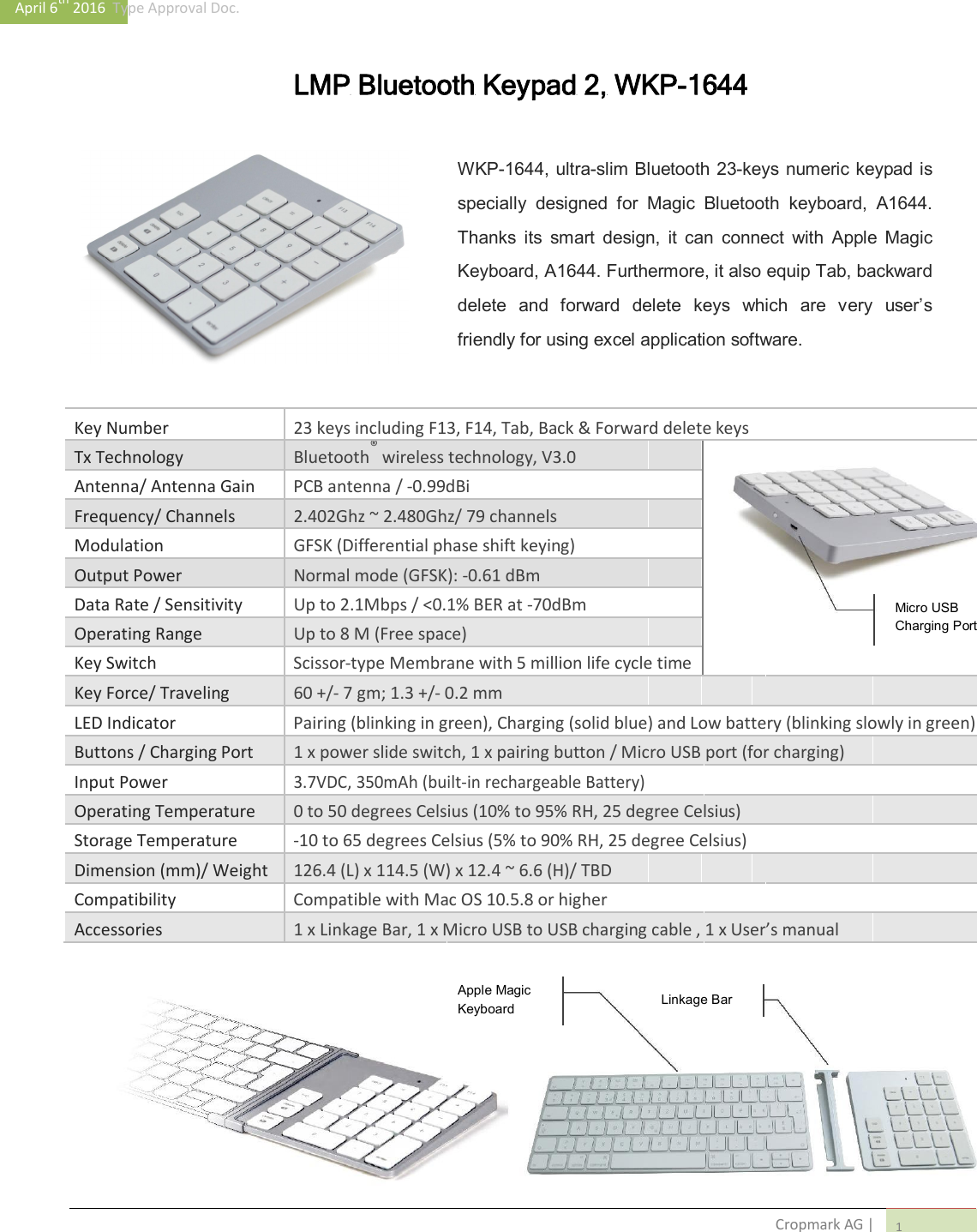
April 6th 2016  Type Approval Doc.   LMP Bluetooth Keypad 2, WKP-1644    WKP-1644, ultra-slim Bluetooth 23-keys numeric keypad is specially  designed  for  Magic  Bluetooth  keyboard,  A1644. Thanks  its  smart  design,  it  can  connect  with  Apple  Magic Keyboard, A1644. Furthermore, it also equip Tab, backward delete  and  forward  delete  keys  which  are  very  user’s friendly for using excel application software.    Key Number 23 keys including F13, F14, Tab, Back & Forward delete keys     Tx Technology Bluetooth® wireless technology, V3.0          Antenna/ Antenna Gain PCB antenna / -0.99dBi           Frequency/ Channels 2.402Ghz ~ 2.480Ghz/ 79 channels           Modulation GFSK (Differential phase shift keying)          Output Power Normal mode (GFSK): -0.61 dBm          Data Rate / Sensitivity Up to 2.1Mbps / <0.1% BER at -70dBm        Micro USB          Operating Range Up to 8 M (Free space)      Charging Port              Key Switch Scissor-type Membrane with 5 million life cycle time        Key Force/ Traveling 60 +/- 7 gm; 1.3 +/- 0.2 mm           LED Indicator Pairing (blinking in green), Charging (solid blue) and Low battery (blinking slowly in green)   Buttons / Charging Port 1 x power slide switch, 1 x pairing button / Micro USB port (for charging)     Input Power 3.7VDC, 350mAh (built-in rechargeable Battery)          Operating Temperature 0 to 50 degrees Celsius (10% to 95% RH, 25 degree Celsius)     Storage Temperature -10 to 65 degrees Celsius (5% to 90% RH, 25 degree Celsius)     Dimension (mm)/ Weight 126.4 (L) x 114.5 (W) x 12.4 ~ 6.6 (H)/ TBD           Compatibility Compatible with Mac OS 10.5.8 or higher           Accessories 1 x Linkage Bar, 1 x Micro USB to USB charging cable , 1 x User’s manual                        Apple Magic               Linkage Bar           Keyboard                                                               Cropmark AG | 1

Navigation menu