CyWee Group CW-AP01KT Air Shuttle User Manual PCD Bigstream v19
CyWee Group Ltd. Air Shuttle PCD Bigstream v19
User Manual
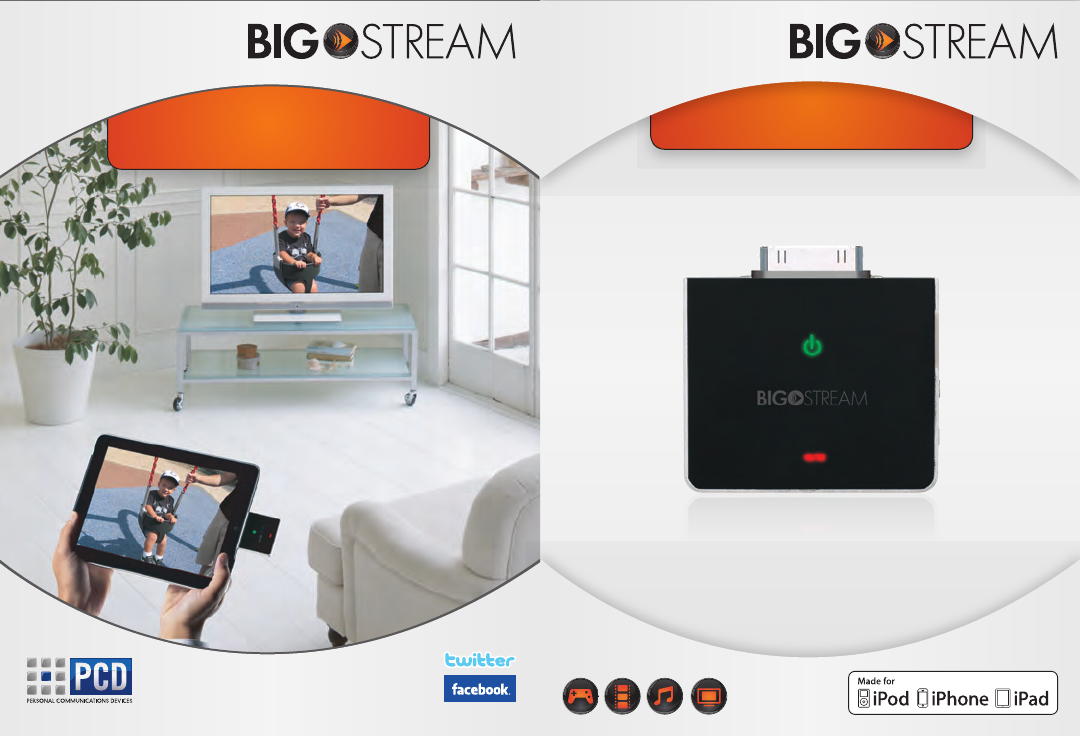
User Manual
For an updated list of compatible
apps & devices, please visit:
www.getbigstream.com
Brought to market by:
© 2010 Personal Communications Devices LLC. All rights reserved.
think bigthink big
Follow us on:
Introduction
Package Contents
Compatible Devices
Set Up
Usage
Charging Instructions
Maintenance
Technical Specifications
Troubleshooting
Contact Us
Table of Contents
01
01
02
03
05
06
06
07
08
09
01 02
Introduction
BigstreamTM is a plug-and-play device that enables users to stream
media content from their Apple devices to a TV without the need for
cables and wires. Extremely portable, the Bigstream can be transported
from the home to the road for entertainment, business, and many other
applications.
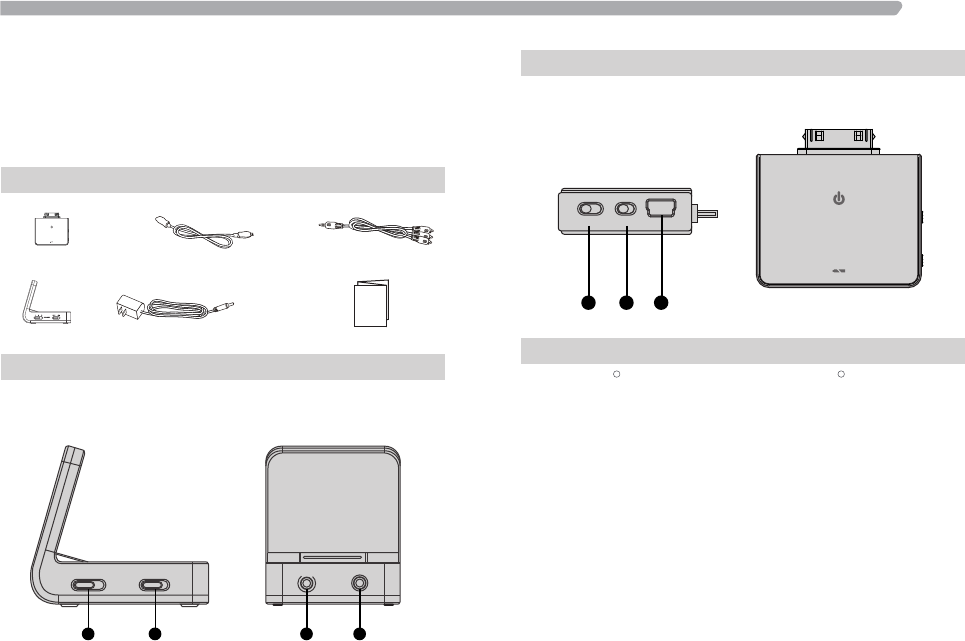
Package Contents
- Transmitter - Mini-USB to USB Charging Cable - Audio/Video Cable
- Receiver - Receiver Power Adapter - Quick Start Guide
Receiver Connectors/Switches
1. Channel Selector 3. DC-IN Power Port
2. Power Switch 4. A/V OUT
1 2 3 OFF ON
CHANNEL
1 2
D
C
I
N
A
/
V
O
U
T
3 4
Side Back
Transmitter Connectors/Switches
1. Channel Selector
3. Mini-USB Port
2. Power Switch
CHANNEL
1 2 3 OFF ON
1 2 3
Compatible Devices
1. iPhone 4 c
2. iPhone 3GS
3. iPhone 3G
4. iPhone
5. iPadTM
6. iPod touch c (4th Gen)
7. iPod touch (3rd Gen)
8. iPod touch (2nd Gen)
9. iPod nano (6th Gen)
10. iPod nano (4th and 5th Gen)
Side Front
Quick Start
Guide
03 04
Set Up
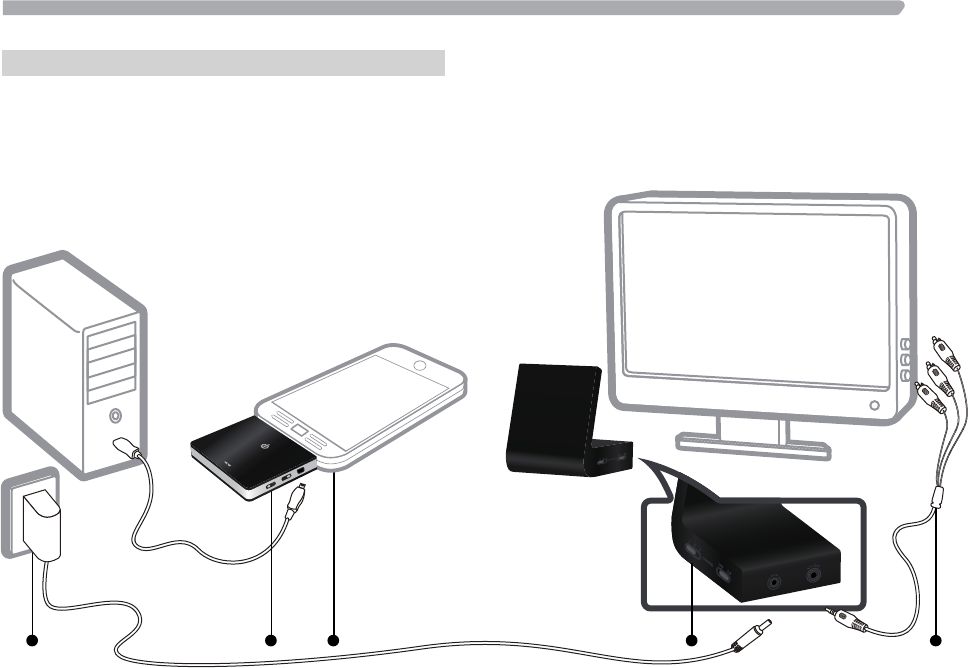
1. Plug the AC adapter into the receiver’s DC-IN power port and turn
on the receiver.
2. Set the transmitter and receiver channel switches to the same
channel.
3. Attach the fully charged transmitter into the mobile device and turn on.
When the transmitter is on, the Power LED will emit a green light.
4. Plug the Audio/Video cable (red, yellow, and white connectors)
into the component audio/video input ports on your TV. Attach the
opposite end of the cable into the receiver’s A/V OUT port.
5. On your TV, select the appropriate input setting.
6. You are now ready to begin streaming media wirelessly to your TV.
4
1
232
1 2 3 OFF ON
CHANNEL
05 06
Streaming a video/movie
1. Make sure the transmitter is fully charged, and both devices are
set up for streaming. (see Set Up)
2. For iPhone users, select the” iPod” icon and then play a video from
your library.
3. For iPad and iPod touch users, select the “Videos” icon and play
a video from your library.
4. The video will instantly be played on your TV screen.
Maintenance
1. Unplug the power and disconnect all external devices and cables
from the transmitter and receiver.
2. Gently remove any surface dirt using a damp, soft lint-free cloth.
Dry the plastic with a soft lint-free cloth after cleaning.
3. To clean the device, do not use cleaning sprays or solvents of any
kind containing alcohol or other inflammable liquids.
Charging Instructions
Charging the Transmitter
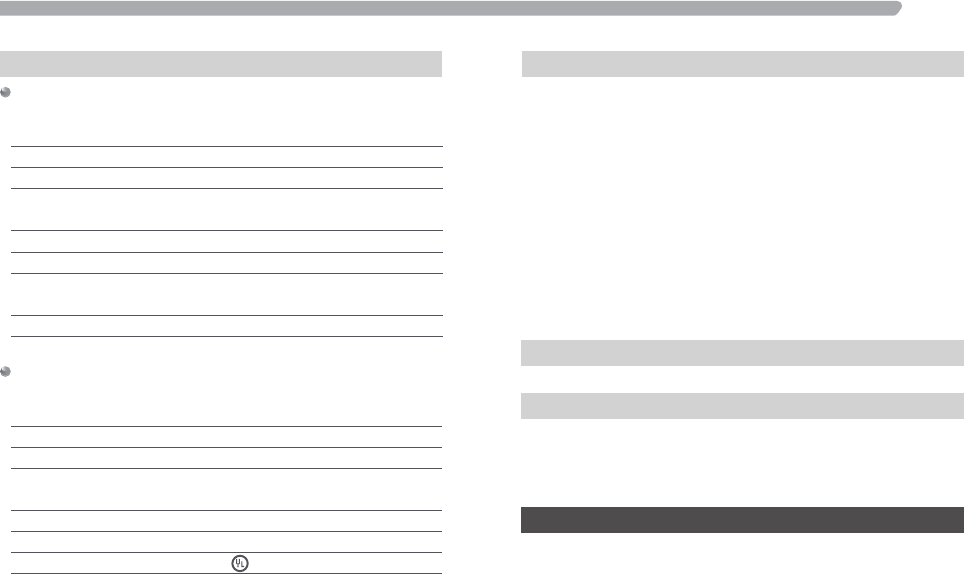
1. When the red LED flashes, this indicates the device has less than
ten minutes of playback time and needs to be charged immediately.
2. Connect the mini-USB charging cable to the transmitter.
3. Connect the other end of the USB cable to a power source
that accepts USB. (computer, USB charger, etc.)
4. When charging, the Battery LED will emit a red light.
5. When the transmitter is fully charged, the Battery LED will turn off.
Streaming an app
1. Download and install an app that supports Apps TV-out function.
For a list of apps that support Apple's TV-out function, please visit
www.getbigstream.com.
2. Launch the app from your device.
3. Most apps that support TV-out will automatically appear on the TV
screen.
4. For some apps such as games, additional steps may be required.
Follow the onscreen instructions to show on the TV.
Streaming a presentation
1. You must have a presentation app installed on your device that
supports TV-out to use this function. (e.g., Keynote for iPad)
2. Launch the presentation app.
3. For some presentation apps, the presentation can only be viewed
in slideshow mode.
4. Start the slideshow and the presentation will be instantly displayed
on the TV screen.
Streaming a photo slideshow
1. Select the “Photos” icon.
2. Photos using the TV-out can only be shown as a slideshow.
3. On an iPad, select “slideshow” and “start” to begin viewing photos.
4. On an iPhone or iPod touch, press play to start slideshow and
begin viewing. The slideshow will instantly appear on the TV. Power LED
Battery LED
07 08
Safety Information/ Warnings/ Warranty Repair
Keep safety notes and other documentation together with device.
Repair
Only qualified technicians should repair the device. Unauthorized
opening and improper repair can result in considerable danger to
the user, the device, and may also void the warranty.
Please refer to www.getbigstream.com/support for detailed information
regarding warranty.
Warning
Never force a connector into a port. If the connector and port do not
join with ease, they probably do not match. Ensure that the connector
matches the port and that you have positioned the connector
correctly in relation to the port.
Troubleshooting
1. I can’t get the transmitter to turn on.
Make sure that your transmitter is fully charged, and that the receiver is
set up properly. In the event that the transmitter battery is not
charged, power the transmitter with the included mini-USB to USB cable.
2. My picture quality is not clear.
It is possible that there is another user in close proximity. You can solve
this by changing the transmitter and receiver to a different channel.
Choose the channels that provide the clearest picture and sound quality.
Both transmitter and receiver must have the same channel selected.
3. I can’t get the picture to display on the TV.
Check to make sure you have switched your TV input to the appropriate
selection that corresponds to the plugged in Audio/Video cable.
Additionally, make sure the application you are running is enabled
for iPhone/ iPad/ iPod TV-out functionality.
Technical Specifications
Transmitter End
Dimensions
Weight
Connectors
Switches
Indicators
Resolution Support
Power & Battery
Operating Frequency
Operating Temperature
1.7 in(L) x 2 in(W) x 0.6 in(H)
44 mm(L) x 52.9 mm(W) x 14.6 mm(H)
30.76(g) / 1.09(oz)
Apple 30-pin dock connector, mini-USB port
Power On/Off Switch, Channel Selector
with 3 channels
2 LED Indicators
Up to 480p @30fps
Lithium Ion Indicators 335 mAh
Playback time: 2hr+
5.8GHz (FM)
0°C~50°C
Receiver End
3.2 in(L) x 2.4 in(W) x 2.9 in(H)
82.2 mm(L) x 60 mm(W) x 72.8 mm(H)
80.2(g) / 2.83(oz)
DC IN, A/V OUT
Power On/Off Switch, Channel Selector
with 3 channels
Up to 480p @30fps
Power consumption: 210mA/6V
+6.0V, , 3W
5.8GHz (FM)
Dimensions
Weight
Connectors
Switches
Resolution Support
Power
AC Adapter
Operating Frequency

Contact Us
Should you require additional support, please contact one of our
regional offices or contact us at : support@getbigstream.com
Office Locations
USA
Canada
Personal Communications Devices, LLC.
555 Wireless Blvd. Hauppauge, NY 11788
PCD Communications Canada Ltd.
5535 Eglinton Avenue West Suite #234
Toronto, ON M9C 5K5
iPhone, iPod, iPod classic, iPod nano, iPod shuffle, and iPod touch are
trademarks of Apple Inc., registered in the U.S. and other countries.
iPad is a trademark of Apple Inc.
“Made for iPod,” “Made for iPhone,” and “Made for iPad” mean that
an electronic accessory has been designed to connect specifically to
iPod, iPhone, or iPad, respectively, and has been certified by the
developer to meet Apple performance standards. Apple is not respon-
sible for the operation of this device or its compliance with safety and
regulatory standards. Please note that the use of this accessory with
iPod, iPhone, or iPad may affect wireless performance.
09
Federal Communication Commission Interference Statement
This equipment has been tested and found to comply with the limits for a Class B
digital device, pursuant to Part 15 of the FCC Rules. These limits are designed
to provide reasonable protection against harmful interference in a residential
installation. This equipment generates, uses and can radiate radio frequency
energy and, if not installed and used in accordance with the instructions, may
cause harmful interference to radio communications. However, there is no
guarantee that interference will not occur in a particular installation. If this
equipment does cause harmful interference to radio or television reception,
which can be determined by turning the equipment off and on, the user is
encouraged to try to correct the interference by one or more of the following
measures:
• Reorient or relocate the receiving antenna.
• Increase the separation between the equipment and receiver.
• Connect the equipment into an outlet on a circuit different from that to which
the receiver is connected.
• Consult the dealer or an experienced radio/TV technician for help.
FCC Caution: Any changes or modifications not expressly approved by the party
responsible for compliance could void the user's authority to operate this
equipment.
This device complies with Part 15 of the FCC Rules.
Operation is subject to the following two conditions: (1) This device may not
cause harmful interference, and (2) this device must accept any interference
received, including interference that may cause undesired operation.
This device and its antenna(s) must not be co-located or operating in conjunction
with any other antenna or transmitter.
This Class [B] digital apparatus complies with Canadian ICES-003.
Cet appareil numérique de la classe [B] est conforme à la norme NMB-003 du
Canada.