CyWee Group CWCL01KP-D 2.4G Wireless Dongle User Manual

CyWee Group Ltd. 2.4G Wireless Dongle

User Manual

● User ManualCyWeeEn.indd   1 2008/12/30   5:54:08 PM
Thank you for your purchase of the   controller. Before use, review the user manual carefully and follow the instructions. "Health Information" contains safety warnings for the user while "Safety information"  includes instructions on how to protect the controller from damage. If children are using the controller, read the contents carefully and monitor children during use. In addition, keep this manual in a safe location for future reference.● Health information              P.2● Safety information     P.3● Product description     P.5● Troubleshooting       P.12● Terms of responsibility           P.13Package contentsMake sure the following components are in  the  package  or contact your dealer for assistance.●   Controller●   Receiver● One wrist strap●  Two AA Alkaline Batteries● One user manual 1User Manual controllerCyWeeEn.indd   2 2008/12/30   5:54:08 PM
2Warning●  Play games in a well-lit indoor room and keep a  distance  from  the  LCD  or PC screen. Parents should monitor children during play.●  The stimulation of strong light or looking directly at a television or computer screen may cause muscle  cramps and/or loss of consciousness in some people. If you are prone to have one  of  the above symptoms, get medical advice before using the product. If  these symptoms occur during use, stop using the product immediately  and  obtain  medical treatment.●  If your hand, wrist, or body is  tired  while  using the product, take a break. If  your  body continues to feel pain or you  feel  uncomfortable, stop using the product and  obtain medical treatment.●  If dizziness, nausea, fatigue, or other symptoms  similar  with  motion sickness occur, stop using the product. If these symptoms persist,  obtain  medical  treatment  as soon as possible.●  Avoid using the product while you are tired, or for an extended period of time to prevent exhaustion. ●  We recommend taking a 10~15 minute break every 30 minutes of use especially for those who do not exercise regularly, or people  who  suffer  from heart disease or high blood pressure, or other related diseases. ●  The game software is designed to be  sensitive  to  your body's motions, so refrain from overly intense movements while using the   controller to play games. Users with heart disease, diabetes, hypertension or respiratory disease should follow medical advice to limit the amount of physical exertion.  Users  who  are pregnant or potentially pregnant should ask for medical advice before using this product. Usage informationWarning●  During game play, grip the   controller  tightly,  do  not  throw it around or wave it dangerously in order to avoid causing injuries to other people or damage to surrounding objects.●  Make sure all players tighten the wrist strap on their wrists. If the   controller wrist strap is not tightened, it may fall off your wrist and cause damages.●  Before game play, make sure there are no other people or any objects within arms length, and make sure the distance between the   controller and the computer or the TV is more  than two meters. In addition, if  there is more than one player playing the game, make sure there is sufficient space to avoid unintended collisions and accidents.Health information for usersHealth informationCyWeeEn.indd   3 2008/12/30   5:54:08 PM
Warning●  Use the    authorized  wrist  strap; do not use any other wrist strap.  If  you  use another wrist strap, the wrist strap may fall off and result in a broken or loose wrist strap, or even cause damages or injuries.●  If your hand is wet or sweaty, do not use the   controller. Dry your hands before using this device. Using it when your hands are wet may cause it to slip from your hand and cause damages or injuries.●  Do not swing or wave the   controller when only holding the wrist strap; doing so could cause the wrist strap to break and result in damages or injuries.●  Before using the    controller, make sure the wrist  strap  is  not damaged. If the wrist strap is damaged, stop using this device and replace the wrist strap.●  When replacing the batteries, put the battery  cover  back  on. Do not use the product without the battery cover or you may cause damages or injuries.●  If there is unusual sound, smell, or  smoke  originating  from the controller, immediately remove the batteries and send the product  to  the  maintenance  center for inspection. Continuous usage may cause a short circuit or product malfunction.●  Do not use the   controller if any liquid has been spilled on it. Do not use a damp or cleaning solvent to clean the   controller, just send it to the maintenance center. Continuous usage may cause a short circuit or product malfunction. ●  Do not use a damaged    controller; continuously using the product may cause electric shocks, injuries or product malfunction.●  Do not attempt to repair or make any adjustments to the   controller without any  authorization.●  Do not touch the battery connector with your fingers or  other  metals,  to  avoid  electric shock, injuries or product malfunction.●  Do not use the product in locations with  high  volumes  of  wireless frequencies (e.g., hospitals or public agencies) to avoid interference with the  radio  waves  of the   controller.●  Users with a pacemaker should maintain  a distance  of  at  least  22 cm between the product  and  the  pacemaker  to  avoid  the  pacemaker  radio  waves  from  affecting  the functions of the   controller.Caution●  Do not place the product on the floor to avoid damages  and injuries..●  Place the product in a location that is out of reach to children.●  The   controller is made of plastic and metal components. Regular disposal of the  controller may be extremely hazardous; dispose of  it  in  accordance  with your local government regulations.3Safety informationInformation about the   controller and Wrist StrapCyWeeEn.indd   4 2008/12/30   5:54:09 PM
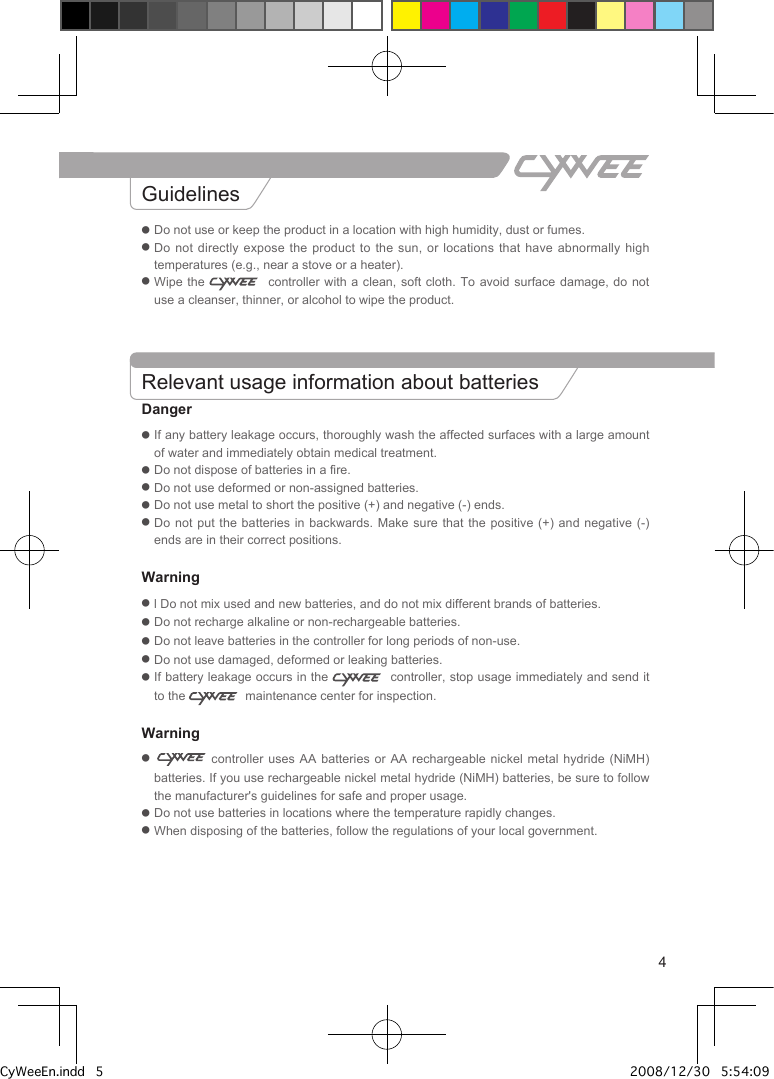
4● Do not use or keep the product in a location with high humidity, dust or fumes.●  Do not directly expose the product to  the  sun,  or locations that have abnormally high temperatures (e.g., near a stove or a heater).●  Wipe the    controller  with  a  clean, soft cloth. To avoid surface  damage,  do not use a cleanser, thinner, or alcohol to wipe the product.Relevant usage information about batteriesDanger●  If any battery leakage occurs, thoroughly wash the affected surfaces with a large amount of water and immediately obtain medical treatment.● Do not dispose of batteries in a fire.● Do not use deformed or non-assigned batteries.● Do not use metal to short the positive (+) and negative (-) ends.●  Do not put the batteries in backwards. Make  sure  that  the  positive (+) and negative (-) ends are in their correct positions.Warning●  l Do not mix used and new batteries, and do not mix different brands of batteries.●  Do not recharge alkaline or non-rechargeable batteries.●  Do not leave batteries in the controller for long periods of non-use.●  Do not use damaged, deformed or leaking batteries.●  If battery leakage occurs in the    controller, stop usage immediately and send it to the    maintenance center for inspection. Warning●    controller uses AA batteries or AA  rechargeable  nickel  metal hydride (NiMH) batteries. If you use rechargeable nickel metal hydride (NiMH) batteries, be sure to follow the manufacturer's guidelines for safe and proper usage.● Do not use batteries in locations where the temperature rapidly changes.● When disposing of the batteries, follow the regulations of your local government. GuidelinesSafety informationInformation about the   controller and Wrist StrapCyWeeEn.indd   5 2008/12/30   5:54:09 PM
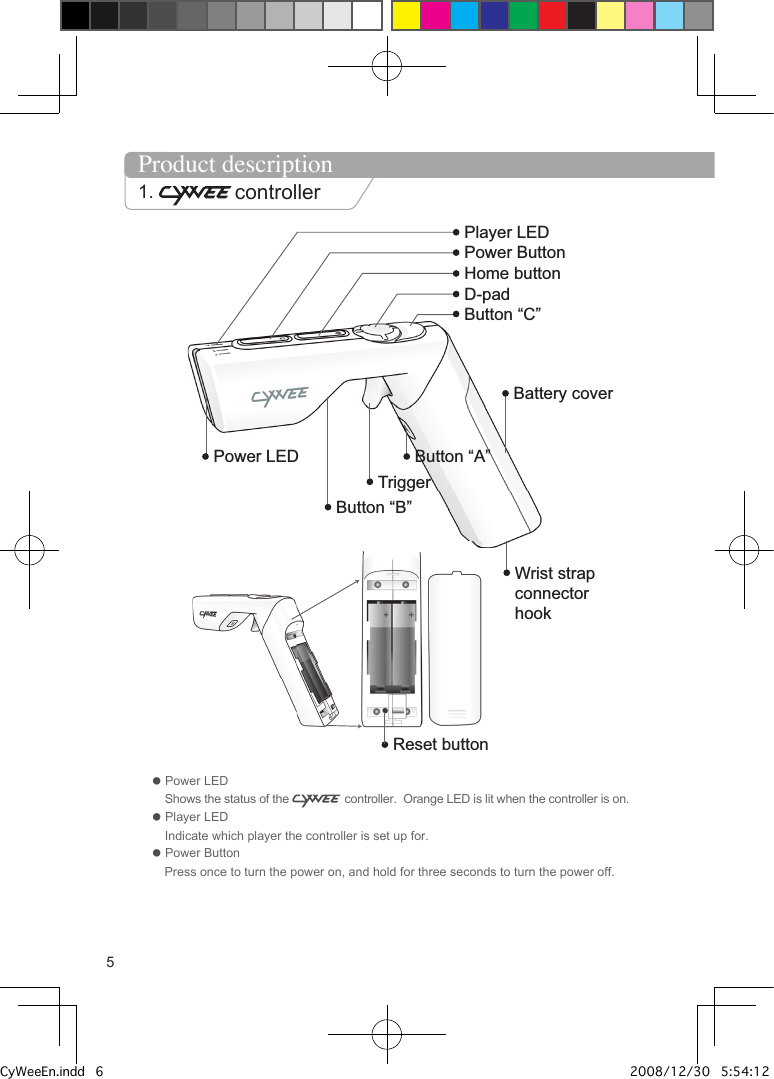
Home buttonD-padButton “C”Battery coverLEDSYNC ButtonWrist strap connector hookButton “A”TriggerButton “B”Reset buttonPower LED Power ButtonPlayer LED Product description1.  controller● Power LED    Shows the status of the   controller.  Orange LED is lit when the controller is on.● Player LED     Indicate which player the controller is set up for.● Power Button     Press once to turn the power on, and hold for three seconds to turn the power off. 5CyWeeEn.indd   6 2008/12/30   5:54:12 PM
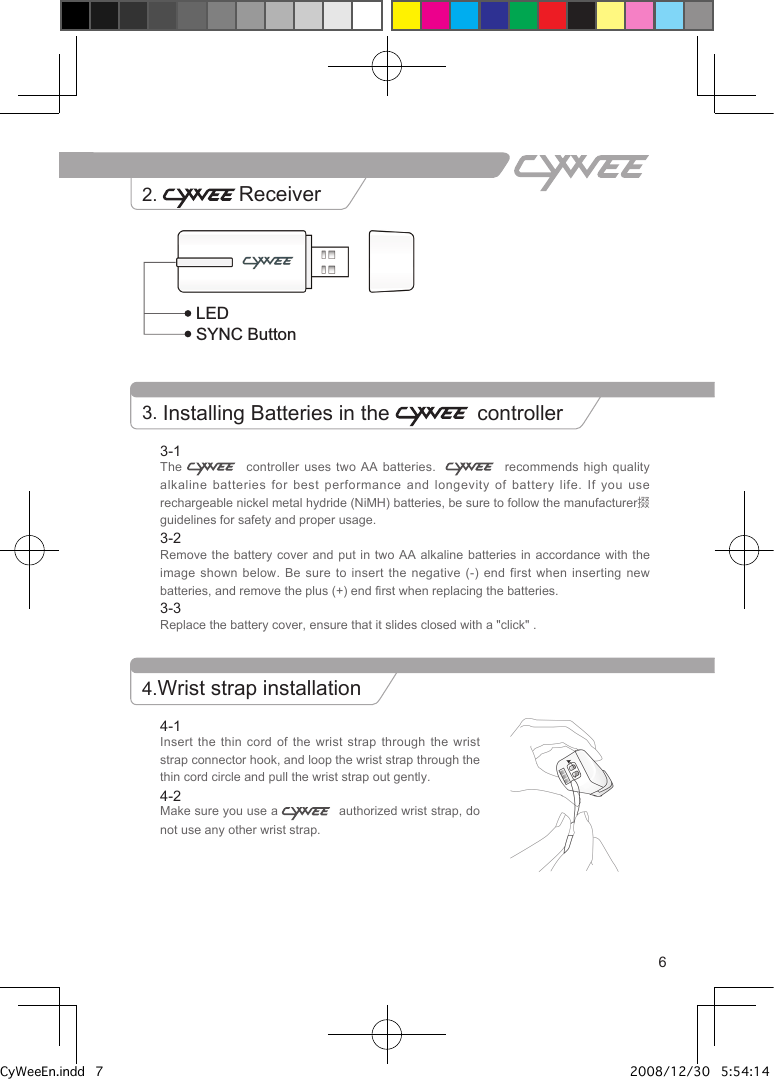
63-1The     controller  uses  two  AA batteries.       recommends  high quality alkaline batteries for best performance and longevity of  battery  life.  If  you use rechargeable nickel metal hydride (NiMH) batteries, be sure to follow the manufacturer掇 guidelines for safety and proper usage.3-2Remove the battery cover and put in two  AA  alkaline  batteries  in accordance with the image shown below. Be sure to insert the negative  (-)  end  first  when  inserting new batteries, and remove the plus (+) end first when replacing the batteries.3-3Replace the battery cover, ensure that it slides closed with a "click" . 3. Installing Batteries in the   controllerHome buttonD-padButton “C”Battery coverLEDSYNC ButtonWrist strap connector hookButton “A”TriggerButton “B”Reset buttonPower LED Power ButtonPlayer LED 4-1Insert the thin cord of the wrist strap  through  the  wrist strap connector hook, and loop the wrist strap through the thin cord circle and pull the wrist strap out gently.4-2Make sure you use a    authorized wrist strap, do not use any other wrist strap.2.  Receiver4.Wrist strap installationCyWeeEn.indd   7 2008/12/30   5:54:14 PM
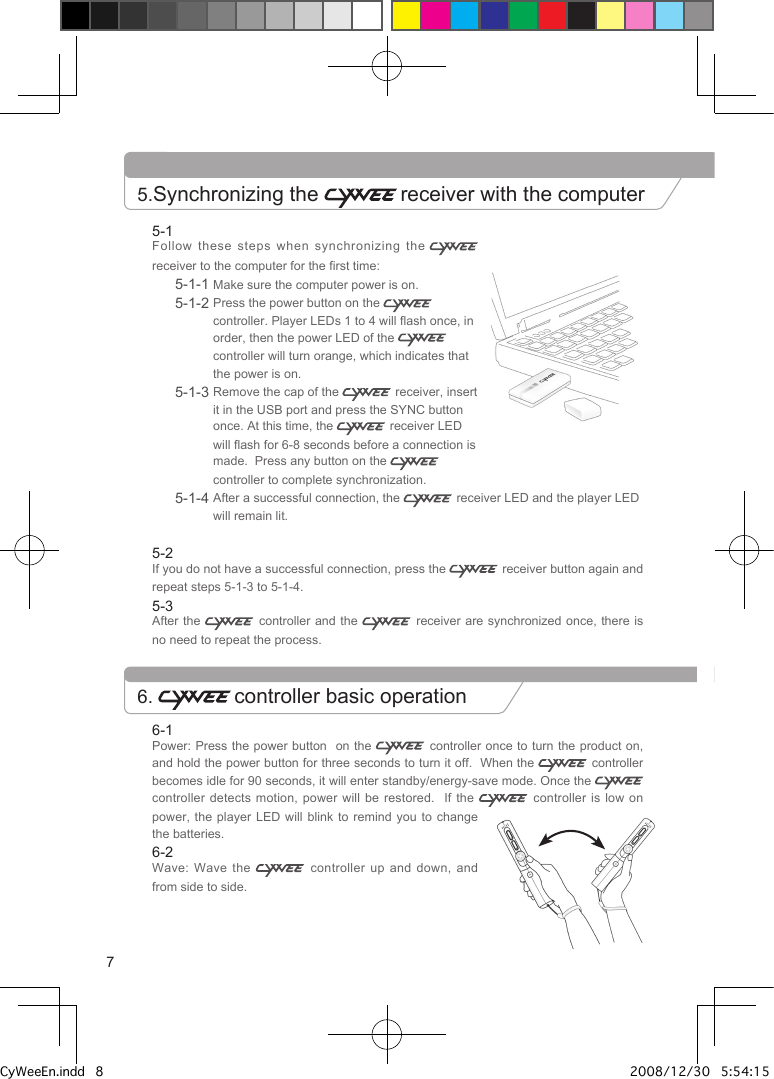
6-1Power: Press the power button  on the   controller  once to turn the product on, and hold the power button for three seconds to turn it off.  When the   controller becomes idle for 90 seconds, it will enter standby/energy-save mode. Once the   controller detects motion, power will be restored.    If  the    controller  is  low on power, the player LED will blink to remind you  to  change the batteries.6-2Wave: Wave the    controller up and down, and from side to side.5-1Follow these steps when synchronizing the  receiver to the computer for the first time:5-1-1 Make sure the computer power is on.5-1-2  Press the power button on the   controller. Player LEDs 1 to 4 will flash once, in order, then the power LED of the   controller will turn orange, which indicates that the power is on.5-1-3  Remove the cap of the   receiver, insert it in the USB port and press the SYNC button once. At this time, the   receiver LED will flash for 6-8 seconds before a connection is made.  Press any button on the   controller to complete synchronization.5-1-4  After a successful connection, the   receiver LED and the player LED will remain lit.5-2If you do not have a successful connection, press the   receiver button again and repeat steps 5-1-3 to 5-1-4.5-3After the   controller  and  the    receiver  are  synchronized  once, there is no need to repeat the process.5.Synchronizing the  receiver with the computer6.  controller basic operation7CyWeeEn.indd   8 2008/12/30   5:54:15 PM
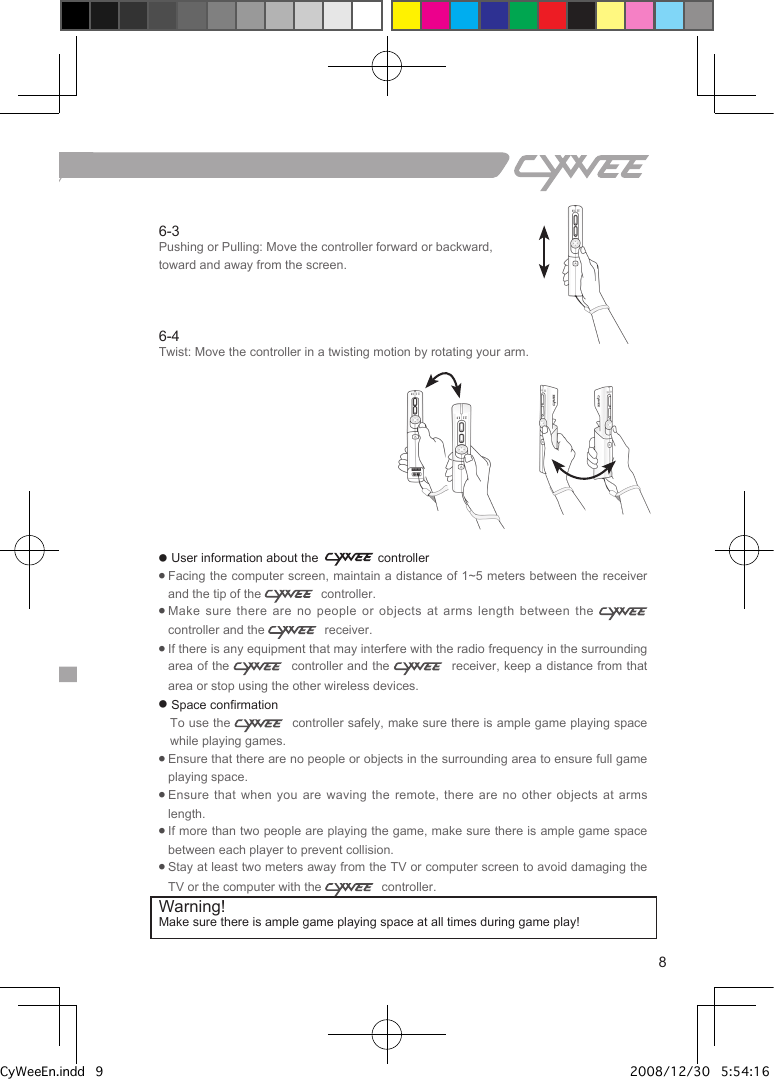
86-3Pushing or Pulling: Move the controller forward or backward, toward and away from the screen. 6-4Twist: Move the controller in a twisting motion by rotating your arm.● User information about the   controller●  Facing the computer screen, maintain a distance of 1~5 meters between the receiver and the tip of the    controller.●  Make sure there are no people or objects  at  arms  length  between the    controller and the    receiver.●  If there is any equipment that may interfere with the radio frequency in the surrounding area of the    controller and the    receiver, keep a distance from that area or stop using the other wireless devices.● Space confirmation   To use the    controller safely, make sure there is ample game playing space while playing games.●  Ensure that there are no people or objects in the surrounding area to ensure full game playing space.●  Ensure that  when  you  are  waving  the  remote,  there  are  no  other  objects  at  arms length.●  If more than two people are playing the game, make sure there is ample game space between each player to prevent collision.●  Stay at least two meters away from the TV or computer screen to avoid damaging the TV or the computer with the    controller.Warning! Make sure there is ample game playing space at all times during game play!CyWeeEn.indd   9 2008/12/30   5:54:16 PM
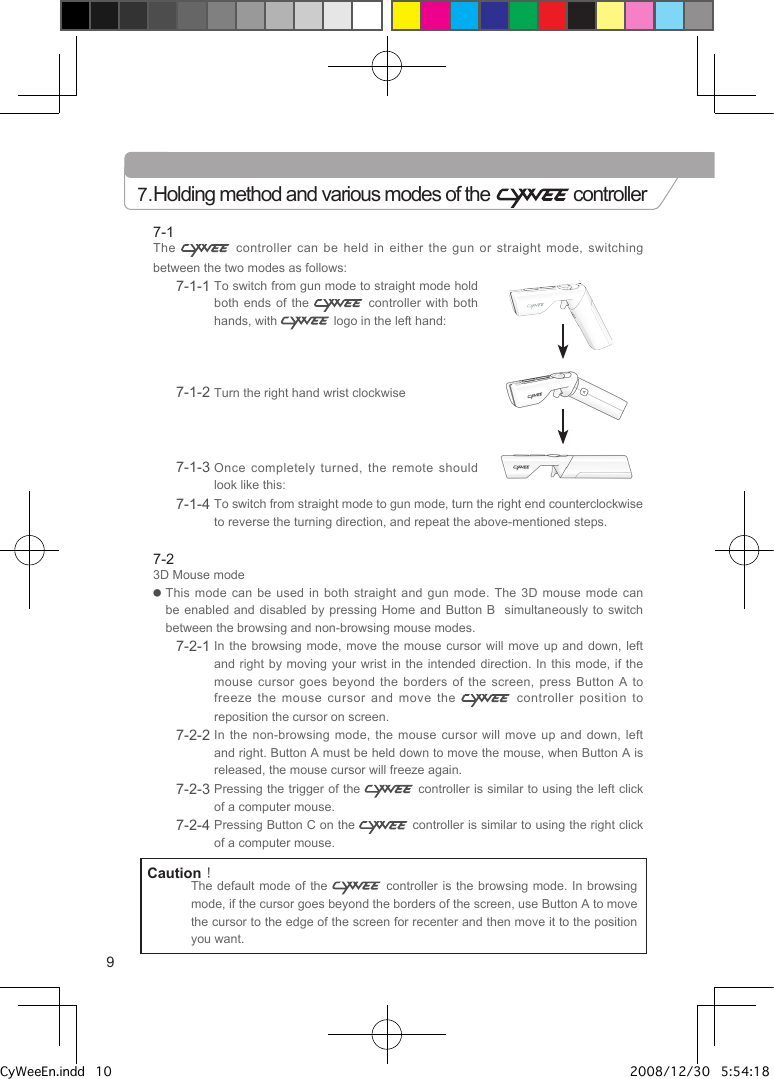
7-1The   controller can be held in either the gun or straight mode,  switching between the two modes as follows:7-1-1  To switch from gun mode to straight mode hold both ends of the    controller with both hands, with   logo in the left hand: 7-1-2  Turn the right hand wrist clockwise7-1-3  Once  completely  turned,  the  remote  should look like this:7-1-4  To switch from straight mode to gun mode, turn the right end counterclockwise to reverse the turning direction, and repeat the above-mentioned steps.7-23D Mouse mode●   This mode can be used in both straight  and  gun  mode.  The 3D mouse mode can be enabled and disabled by pressing Home and  Button  B    simultaneously to switch between the browsing and non-browsing mouse modes.7-2-1  In the browsing mode, move the mouse  cursor  will  move up and down, left and right by moving your wrist in the  intended  direction.  In  this mode, if the mouse cursor goes beyond the borders of the  screen,  press  Button  A to freeze the mouse cursor and move the   controller position to reposition the cursor on screen.7-2-2  In the non-browsing mode, the mouse cursor will  move  up  and  down, left and right. Button A must be held down to move the mouse, when Button A is released, the mouse cursor will freeze again.7-2-3  Pressing the trigger of the   controller is similar to using the left click of a computer mouse.7-2-4  Pressing Button C on the   controller is similar to using the right click of a computer mouse.7.Holding method and various modes of the   controllerCaution!The default mode of the    controller  is the browsing mode. In browsing mode, if the cursor goes beyond the borders of the screen, use Button A to move the cursor to the edge of the screen for recenter and then move it to the position you want.9CyWeeEn.indd   10 2008/12/30   5:54:18 PM
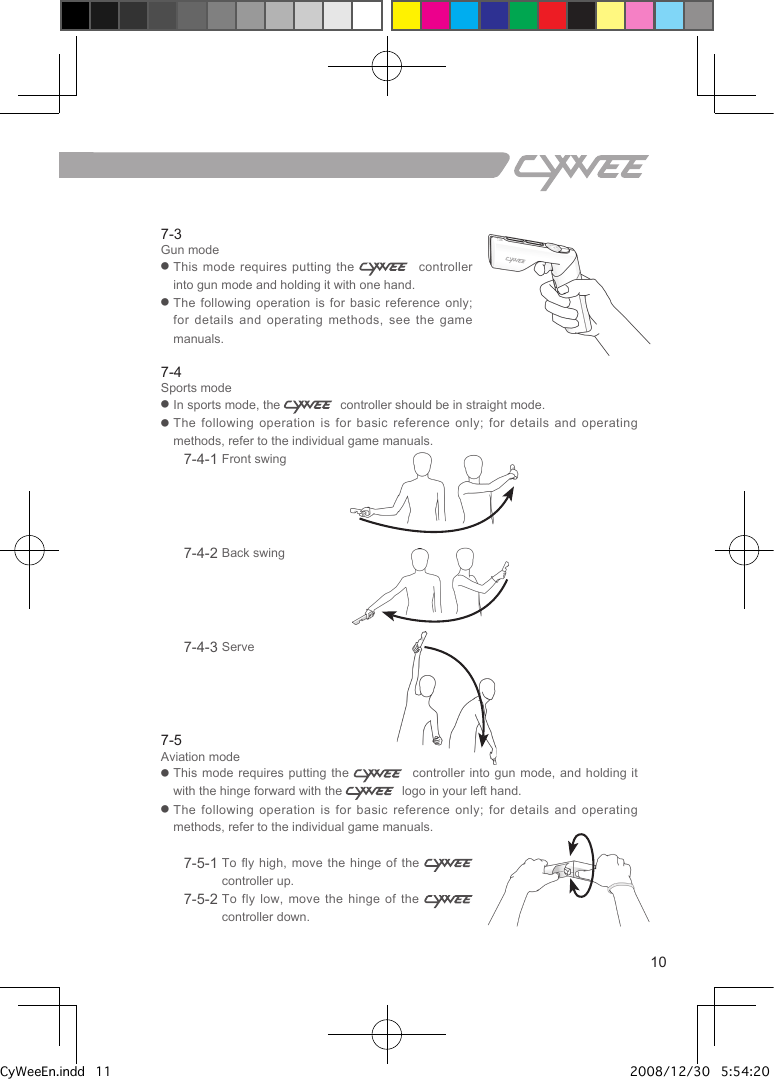
7-3Gun mode●   This  mode  requires  putting  the      controller into gun mode and holding it with one hand.●   The following operation is for basic reference only; for details and operating methods, see the game manuals.7-4Sports mode●  In sports mode, the    controller should be in straight mode.●  The following operation is for basic reference only;  for  details  and  operating methods, refer to the individual game manuals.7-4-1 Front swing             7-4-2 Back swing               7-4-3 Serve7-5Aviation mode●   This mode requires putting the      controller  into  gun mode, and holding it with the hinge forward with the    logo in your left hand.●   The following operation is for basic reference only;  for  details  and  operating methods, refer to the individual game manuals.7-5-1  To fly high, move the hinge of  the    controller up.7-5-2  To fly low, move the hinge of the    controller down.7.Holding method and various modes of the   controller10CyWeeEn.indd   11 2008/12/30   5:54:20 PM
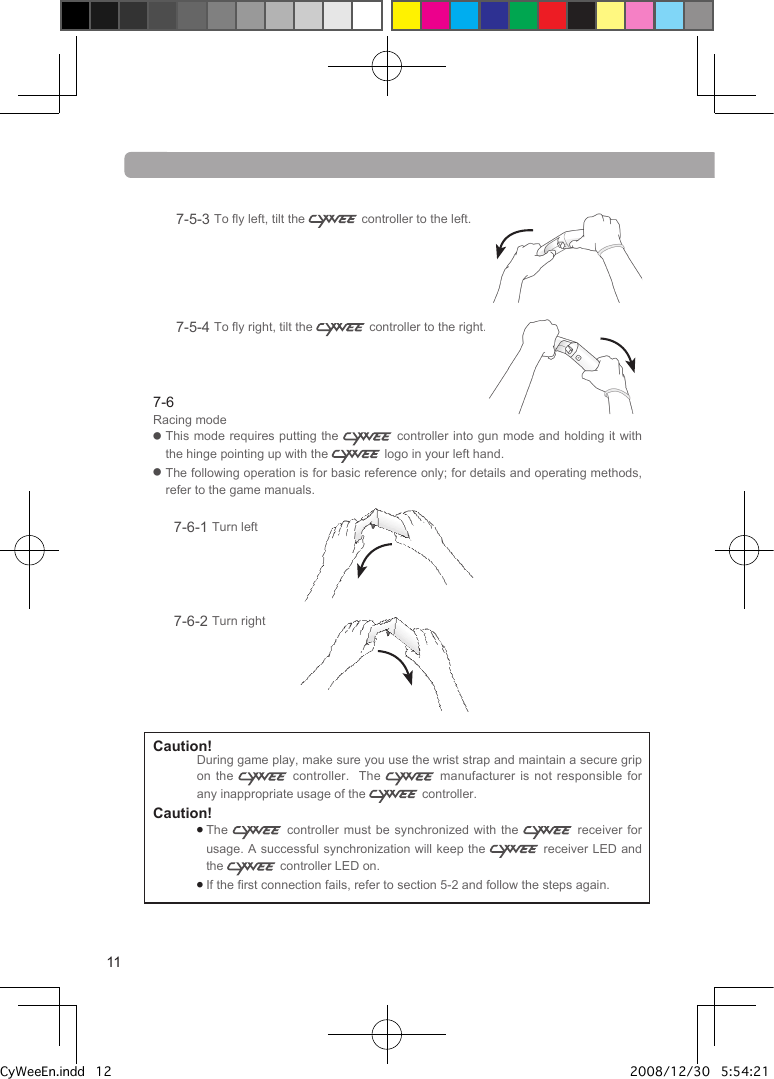
7-5-3  To fly left, tilt the   controller to the left.7-5-4  To fly right, tilt the   controller to the right.  7-6Racing mode●   This mode  requires  putting  the   controller into gun mode and holding it with the hinge pointing up with the   logo in your left hand.●   The following operation is for basic reference only; for details and operating methods, refer to the game manuals.7-6-1 Turn left7-6-2 Turn rightCaution! During game play, make sure you use the wrist strap and maintain a secure grip on the   controller.    The   manufacturer is not responsible for any inappropriate usage of the   controller.Caution! ●  The   controller must be synchronized  with  the   receiver for usage. A successful synchronization will keep the   receiver LED and the   controller LED on.●  If the first connection fails, refer to section 5-2 and follow the steps again.11CyWeeEn.indd   12 2008/12/30   5:54:21 PM
12If any of the following situations occur  while  using  the     controller, refer to the following Q&A list for help:Situation 1:    controller cannot be used.  Why?●   Is the    controller power on? Make sure the    controller power is on.  If so, make sure the batteries are correctly positioned in the    controller.● Is the    controller in standby mode? If the    controller has not been used for 90 seconds, it will enter standby mode. Just move the    controller to re-activate it.●   Is the    receiver plugged in? Make sure the    receiver is plugged-in correctly and the LED is always on.●   Is there any interference with the position of the    receiver? Remove any obstacles in front of the      receiver and make sure you can clearly see the front of the    receiver.● Is the distance between the    controller and the    receiver too close or too far? Keep a distance between the    controller and the     receiver of 1~5 meters.Situation 2:  Even after motions, there is no response from   controller, why?●   Is it the mode correct? Follow the game instructions to ensure you are using the correct mode.Situation 3:    receiver LED is not on●   Is the power on? Make sure the computer power and the    controller power are both on.●   Is the distance too far? If  the    controller is too  far  away, the    receiver  cannot sense  it. Maintain a distance between the   controller and the receiver of 1~5 meters.●   Has the synchronization of the   controller failed? Refer to section 5-2 for synchronization information.Situation 4:    controller cursor control is not stable●   Does the LED continue to flash? If it does, that means that the    controller  is too far away. The   receiver will not be able to sense it; so maintain a distance between the controller and the receiver of 1~5 meters.If it does not, remove the battery cover  and  press  the  reset button to allow the  controller to return to the default setting.If any of  the above  solutions do  not correct your  problem or  you have  a  question, please visit our website, www.cywee.com, for supplemental and/or updated information about our product.TroubleshootingCyWeeEn.indd   13 2008/12/30   5:54:22 PM
In addition to the relevant laws and regulations, the following situations are not included in the warranty scope or liability of the company: 1. Product damage that has resulted from inappropriate product usage.2.  Product damage that has resulted from product repair without written authorization of the company.3. User-inflicted product damage.4. Product damage that has resulted from using the product in an abnormal environment.5. Product damage caused by natural disasters.6. Products without  -issued serial numbers.7. Damage caused by using software or an object not provided by the company. 8. Samples, testers, non-mass production products and software. 9. Products under an expired warranty.The liabilities of the company only include  direct  and  actual damage. It does not include indirect, incidental or special damage (such as  expected  profit  loss and moral damage compensation) and punitive damages. In addition to other regulations, the liabilities of the company to users will require the company, at most, to replace the   controller with the latest model.Terms of responsibility13CyWeeEn.indd   14 2008/12/30   5:54:22 PM
Federal Communication Commission Interference Statement This equipment has been tested and found to comply with the limits for a Class B digital device, pursuant to Part 15 of the FCC Rules.    These limits are designed to provide reasonable protection against harmful interference in a residential installation.  This equipment generates, uses and can radiate radio frequency energy and, if not installed and used in accordance with the instructions, may cause harmful interference to radio communications.   However, there is no guarantee that interference will not occur in a particular installation.    If this equipment does cause harmful interference to radio or television reception, which can be determined by turning the equipment off and on, the user is encouraged to try to correct the interference by one of the following measures: z Reorient or relocate the receiving antenna. z Increase the separation between the equipment and receiver. z Connect the equipment into an outlet on a circuit different from that to which the receiver is connected. z Consult the dealer or an experienced radio/TV technician for help.  FCC Caution: Any changes or modifications not expressly approved by the party responsible for compliance could void the user's authority to operate this equipment.  This device complies with Part 15 of the FCC Rules.   Operation is subject to the following two conditions: (1) This device may not cause harmful interference, and (2) this device must accept any interference received, including interference that may cause undesired operation.  This device and its antenna(s) must not be co-located or operating in conjunction with any other antenna or transmitter.  Country Code selection feature to be disabled for products marketed to the US/CANADA  This Class [B] digital apparatus complies with Canadian ICES-003. Cet appareil numérique de la classe [B] est conforme à la norme NMB-003 du Canada.

Navigation menu