CyberData 010835-010914 LiteScape SPAR User Manual User Guide

CyberData Corporation LiteScape SPAR User Guide

Contents

User Guide

  SPAR (Secure Profile Authentication Reader) User Guide              LiteScape Technologies, Inc. 1000 Bridge Parkway, Suite 200 Redwood Shores, CA 94065 650-227-0220 650-227-0226 FAX info@litescape.com www.litescape.com
 Copyright © 2007 LiteScape Technologies, Inc. All Rights Reserved. LiteScape, LS ServicePoint, Multi-Modal Application Platform (MAP), OnCast, CallTrack, CallTrack PRO, Secure Disa and Secure Profile Management are trademarks of LiteScape Technologies, Inc. All other trademarks are the property of their respective owners.
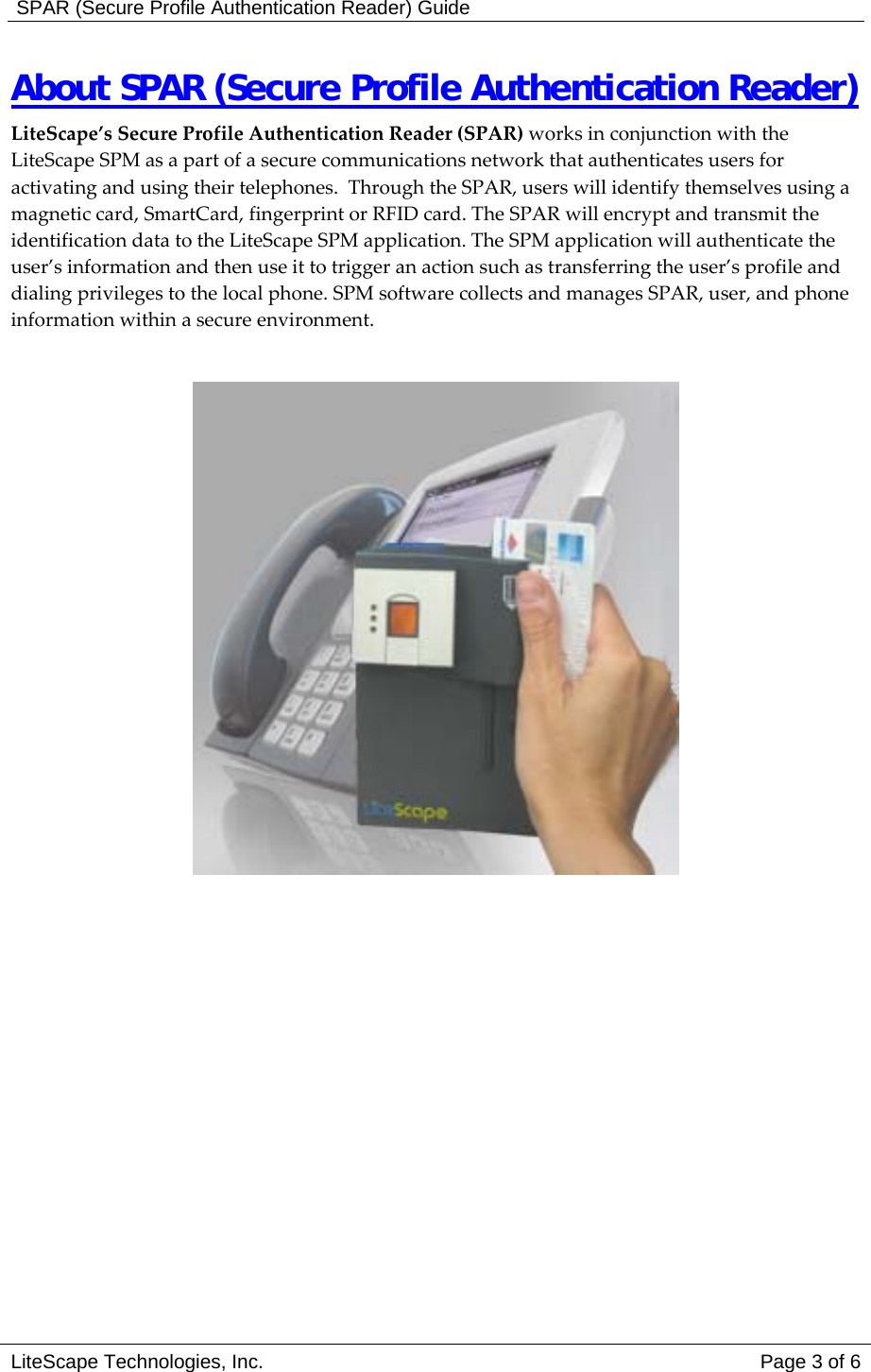
 SPAR (Secure Profile Authentication Reader) Guide About SPAR (Secure Profile Authentication Reader)  LiteScape’s Secure Profile Authentication Reader (SPAR) works in conjunction with the LiteScape SPM as a part of a secure communications network that authenticates users for activating and using their telephones.  Through the SPAR, users will identify themselves using a magnetic card, SmartCard, fingerprint or RFID card. The SPAR will encrypt and transmit the identification data to the LiteScape SPM application. The SPM application will authenticate the user’s information and then use it to trigger an action such as transferring the user’s profile and dialing privileges to the local phone. SPM software collects and manages SPAR, user, and phone information within a secure environment.   LiteScape Technologies, Inc.   Page 3 of 6
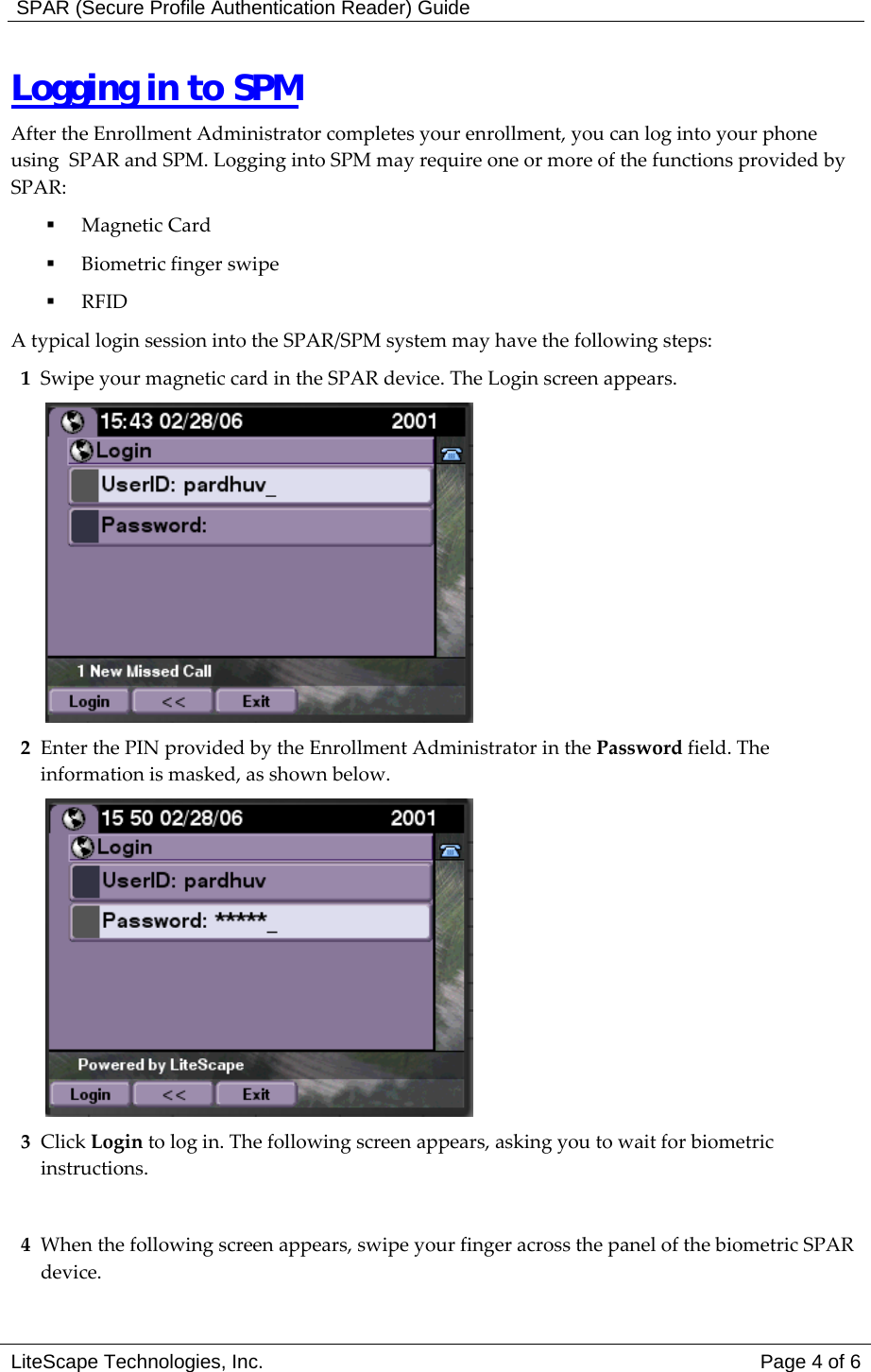
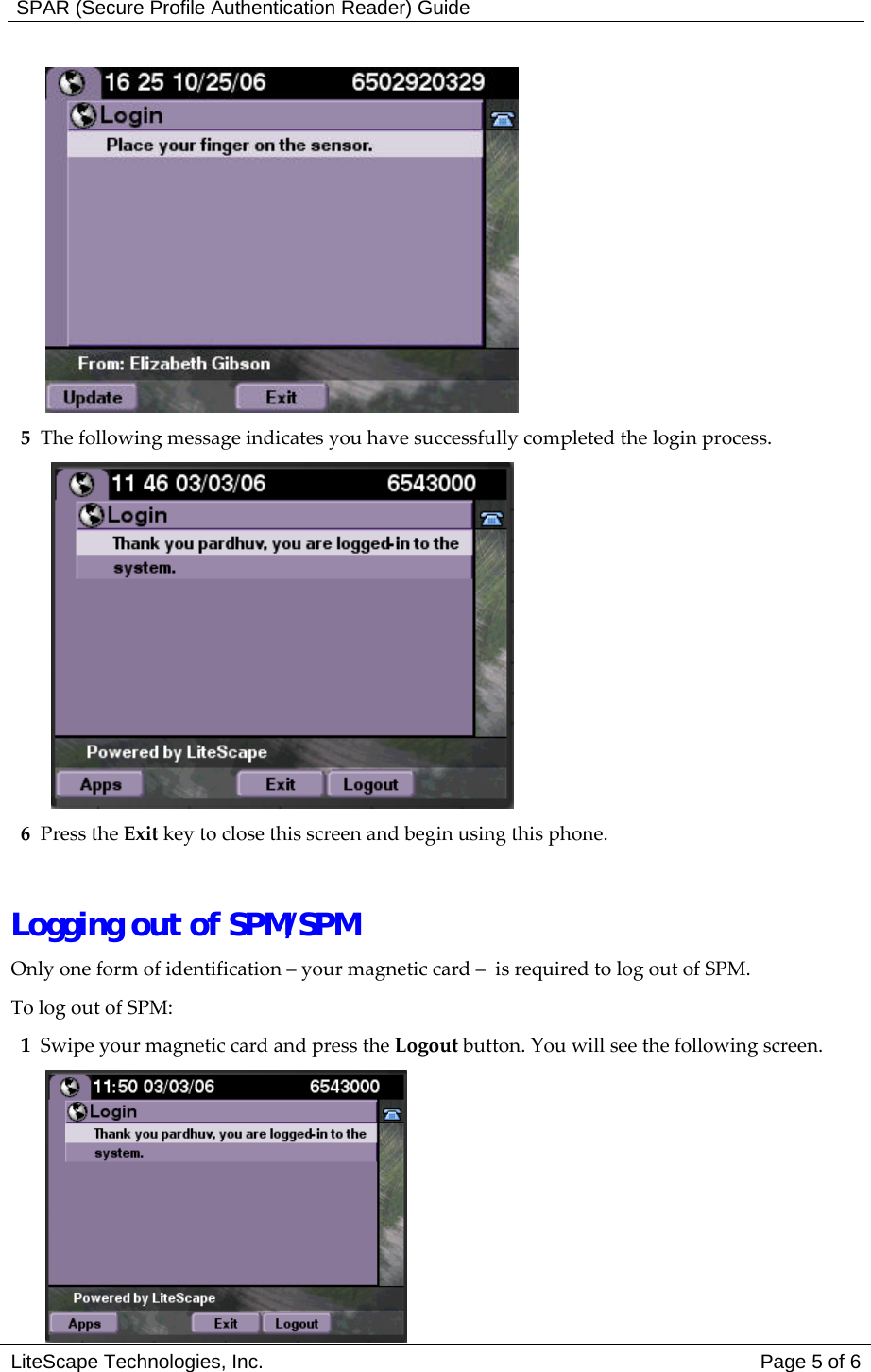
 SPAR (Secure Profile Authentication Reader) Guide Logging in to SPM After the Enrollment Administrator completes your enrollment, you can log into your phone using  SPAR and SPM. Logging into SPM may require one or more of the functions provided by SPAR:   Magnetic Card   Biometric finger swipe   RFID A typical login session into the SPAR/SPM system may have the following steps: 1  Swipe your magnetic card in the SPAR device. The Login screen appears.  2  Enter the PIN provided by the Enrollment Administrator in the Password field. The information is masked, as shown below.  3 Click Login to log in. The following screen appears, asking you to wait for biometric instructions.  4  When the following screen appears, swipe your finger across the panel of the biometric SPAR device.  LiteScape Technologies, Inc.   Page 4 of 6
 SPAR (Secure Profile Authentication Reader) Guide  5  The following message indicates you have successfully completed the login process.   6 Press the Exit key to close this screen and begin using this phone.    Logging out of SPM/SPM Only one form of identification – your magnetic card –  is required to log out of SPM. To log out of SPM:  1  Swipe your magnetic card and press the Logout button. You will see the following screen. LiteScape Technologies, Inc.   Page 5 of 6
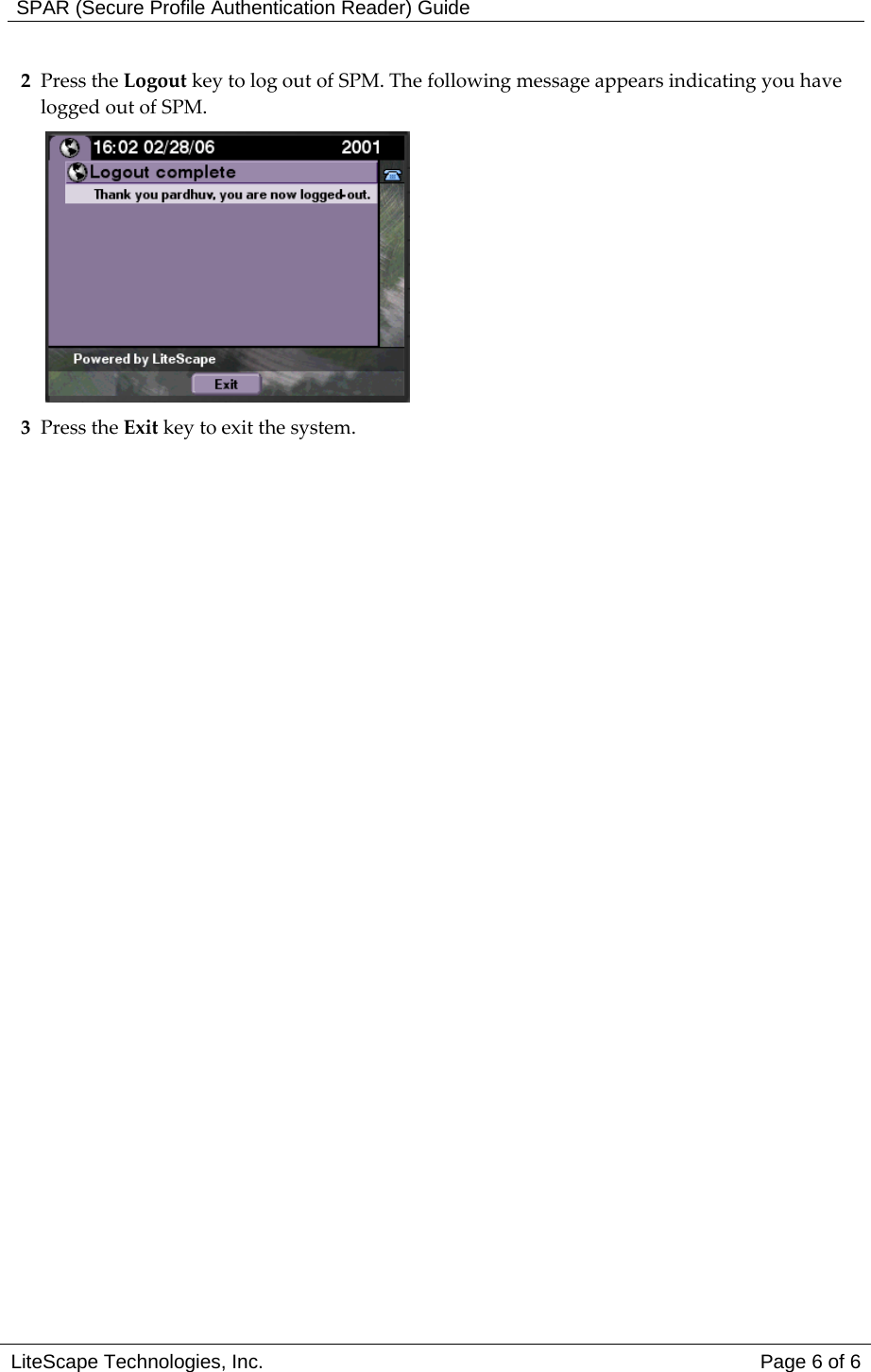
 SPAR (Secure Profile Authentication Reader) Guide 2 Press the Logout key to log out of SPM. The following message appears indicating you have logged out of SPM.  3 Press the Exit key to exit the system.     LiteScape Technologies, Inc.   Page 6 of 6

Navigation menu