D Parts Mobilphon and Zubehoer TX4PRO Bluetooth Audio Transmitter User Manual Home TX Pro B W indd copy

D-Parts Mobilphon & Zubehoer GmbH Bluetooth Audio Transmitter Home TX Pro B W indd copy

Users Manual

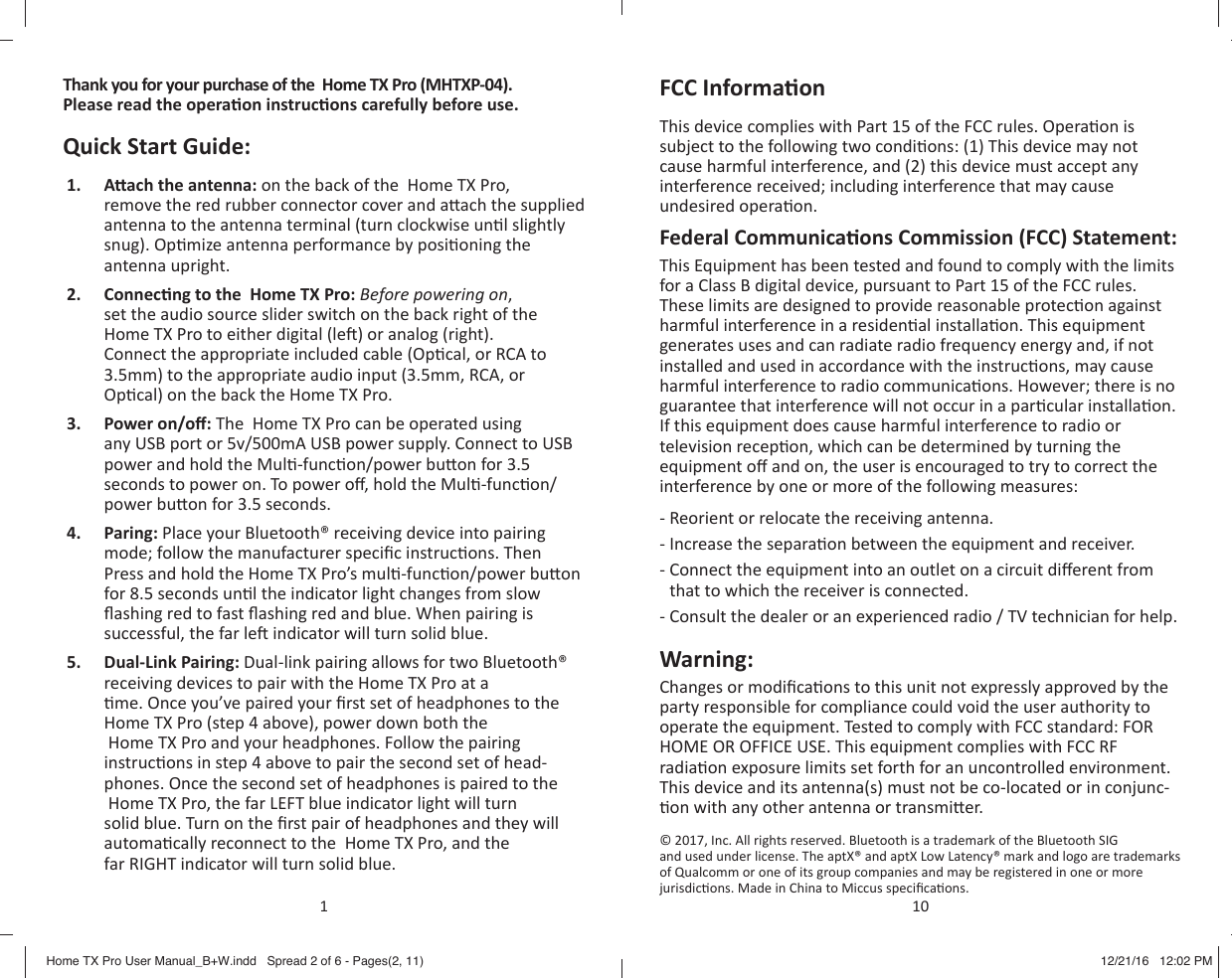
Thank you for your purchase of the  Home TX Pro (MHTXP-04). Please read the opera on instruc ons carefully before use.Quick Start Guide:1.  A   ach the antenna: on the back of the  Home TX Pro, remove the red rubber connector cover and a ach the supplied antenna to the antenna terminal (turn clockwise un l slightly snug). Op mize antenna performance by posi oning the antenna upright.2.  Connec ng to the  Home TX Pro: Before powering on, set the audio source slider switch on the back right of the Home TX Pro to either digital (le ) or analog (right). Connect the appropriate included cable (Op cal, or RCA to 3.5mm) to the appropriate audio input (3.5mm, RCA, or Op cal) on the back the Home TX Pro.3.  Power on/o : The  Home TX Pro can be operated using any USB port or 5v/500mA USB power supply. Connect to USB power and hold the Mul -func on/power bu on for 3.5 seconds to power on. To power o , hold the Mul -func on/power bu on for 3.5 seconds.4.  Paring: Place your Bluetooth® receiving device into pairing mode; follow the manufacturer specifi c instruc ons. Then Press and hold the Home TX Pro’s mul -func on/power bu on for 8.5 seconds un l the indicator light changes from slow fl ashing red to fast fl ashing red and blue. When pairing is successful, the far le  indicator will turn solid blue.5.  Dual-Link Pairing: Dual-link pairing allows for two Bluetooth® receiving devices to pair with the Home TX Pro at a  me. Once you’ve paired your fi rst set of headphones to the Home TX Pro (step 4 above), power down both the  Home TX Pro and your headphones. Follow the pairing instruc ons in step 4 above to pair the second set of head-phones. Once the second set of headphones is paired to the  Home TX Pro, the far LEFT blue indicator light will turn solid blue. Turn on the fi rst pair of headphones and they will automa cally reconnect to the  Home TX Pro, and the far RIGHT indicator will turn solid blue.1FCC Informa onThis device complies with Part 15 of the FCC rules. Opera on is subject to the following two condi ons: (1) This device may not cause harmful interference, and (2) this device must accept any interference received; including interference that may cause undesired opera on.Federal Communica ons Commission (FCC) Statement:This Equipment has been tested and found to comply with the limits for a Class B digital device, pursuant to Part 15 of the FCC rules. These limits are designed to provide reasonable protec on against harmful interference in a residen al installa on. This equipment generates uses and can radiate radio frequency energy and, if not installed and used in accordance with the instruc ons, may cause harmful interference to radio communica ons. However; there is no guarantee that interference will not occur in a par cular installa on. If this equipment does cause harmful interference to radio or television recep on, which can be determined by turning the equipment o  and on, the user is encouraged to try to correct the interference by one or more of the following measures:- Reorient or relocate the receiving antenna.- Increase the separa on between the equipment and receiver.-  Connect the equipment into an outlet on a circuit di erent from that to which the receiver is connected.- Consult the dealer or an experienced radio / TV technician for help.Warning:Changes or modifi ca ons to this unit not expressly approved by the party responsible for compliance could void the user authority to operate the equipment. Tested to comply with FCC standard: FOR HOME OR OFFICE USE. This equipment complies with FCC RF radia on exposure limits set forth for an uncontrolled environment. This device and its antenna(s) must not be co-located or in conjunc- on with any other antenna or transmi er.© 2017, Inc. All rights reserved. Bluetooth is a trademark of the Bluetooth SIG and used under license. The aptX® and aptX Low Latency® mark and logo are trademarks of Qualcomm or one of its group companies and may be registered in one or more jurisdic ons. Made in China to Miccus specifi ca ons.10Home TX Pro User Manual_B+W.indd   Spread 2 of 6 - Pages(2, 11)Home TX Pro User Manual_B+W.indd   Spread 2 of 6 - Pages(2, 11) 12/21/16   12:02 PM12/21/16   12:02 PM
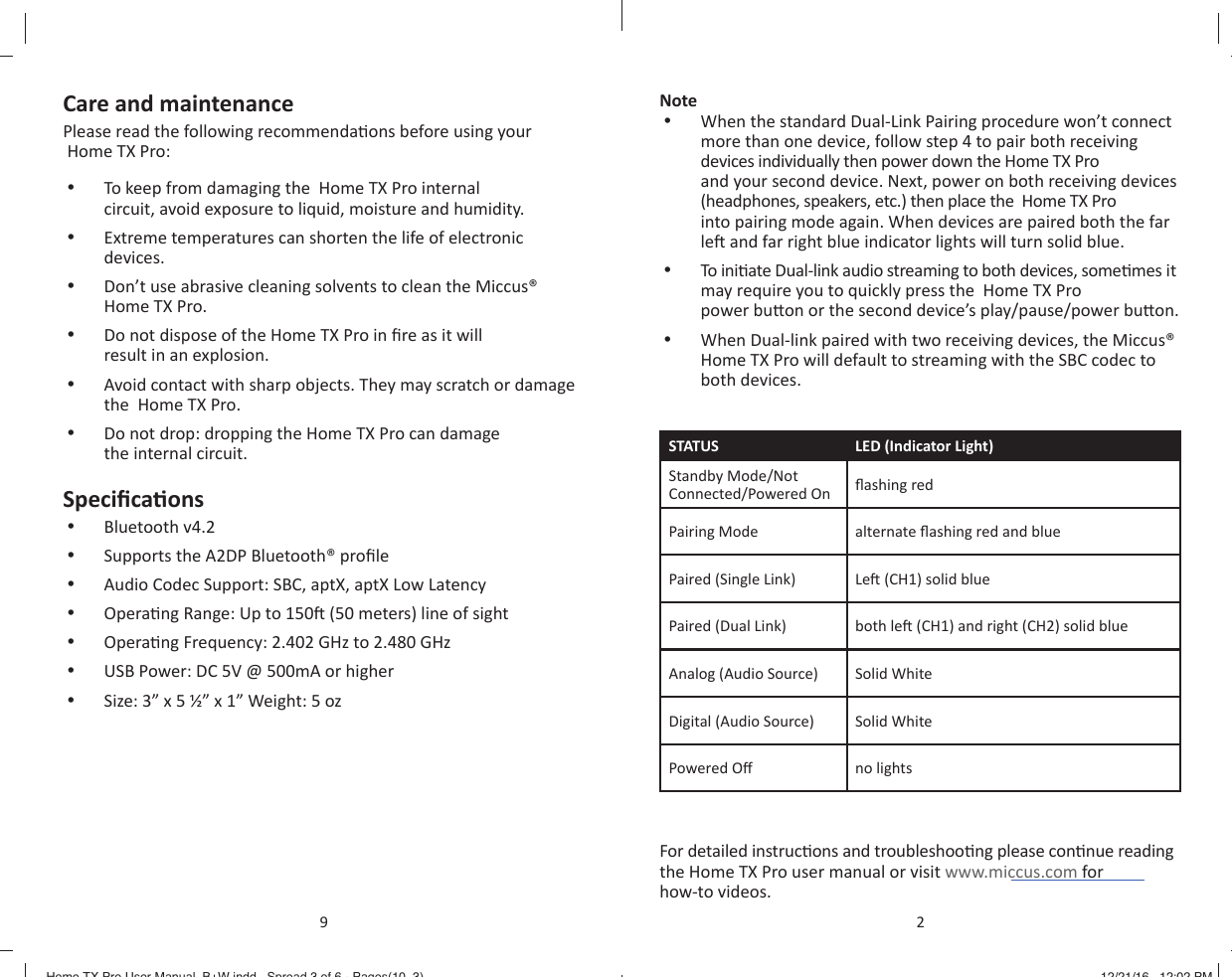
Care and maintenancePlease read the following recommenda ons before using your  Home TX Pro:•  To keep from damaging the  Home TX Pro internal circuit, avoid exposure to liquid, moisture and humidity.•  Extreme temperatures can shorten the life of electronic devices.•  Don’t use abrasive cleaning solvents to clean the Miccus® Home TX Pro.•  Do not dispose of the Home TX Pro in fi re as it will result in an explosion.•  Avoid contact with sharp objects. They may scratch or damage the  Home TX Pro.•  Do not drop: dropping the Home TX Pro can damage the internal circuit.Specifi ca ons•  Bluetooth v4.2•  Supports the A2DP Bluetooth® profi le•  Audio Codec Support: SBC, aptX, aptX Low Latency•  Opera ng Range: Up to 150  (50 meters) line of sight•  Opera ng Frequency: 2.402 GHz to 2.480 GHz•  USB Power: DC 5V @ 500mA or higher•  Size: 3” x 5 ½” x 1” Weight: 5 oz9Note•  When the standard Dual-Link Pairing procedure won’t connect more than one device, follow step 4 to pair both receiving devices individually then power down the Home TX Pro and your second device. Next, power on both receiving devices (headphones, speakers, etc.) then place the  Home TX Pro into pairing mode again. When devices are paired both the far le  and far right blue indicator lights will turn solid blue.•  To  in i ate Dual-link audio streaming to both devices, some mes it may require you to quickly press the  Home TX Pro power bu on or the second device’s play/pause/power bu on.•  When Dual-link paired with two receiving devices, the Miccus® Home TX Pro will default to streaming with the SBC codec to both devices. STATUS LED (Indicator Light)Standby Mode/Not Connected/Powered On fl ashing redPairing Mode alternate fl ashing red and bluePaired (Single Link) Le  (CH1) solid bluePaired (Dual Link) both le  (CH1) and right (CH2) solid blueAnalog (Audio Source) Solid WhiteDigital (Audio Source) Solid WhitePowered O  no lightsFor detailed instruc ons and troubleshoo ng please con nue reading the Home TX Pro user manual or visit www.miccus.com for how-to videos.2Home TX Pro User Manual_B+W.indd   Spread 3 of 6 - Pages(10, 3)Home TX Pro User Manual_B+W.indd   Spread 3 of 6 - Pages(10, 3) 12/21/16   12:02 PM12/21/16   12:02 PM
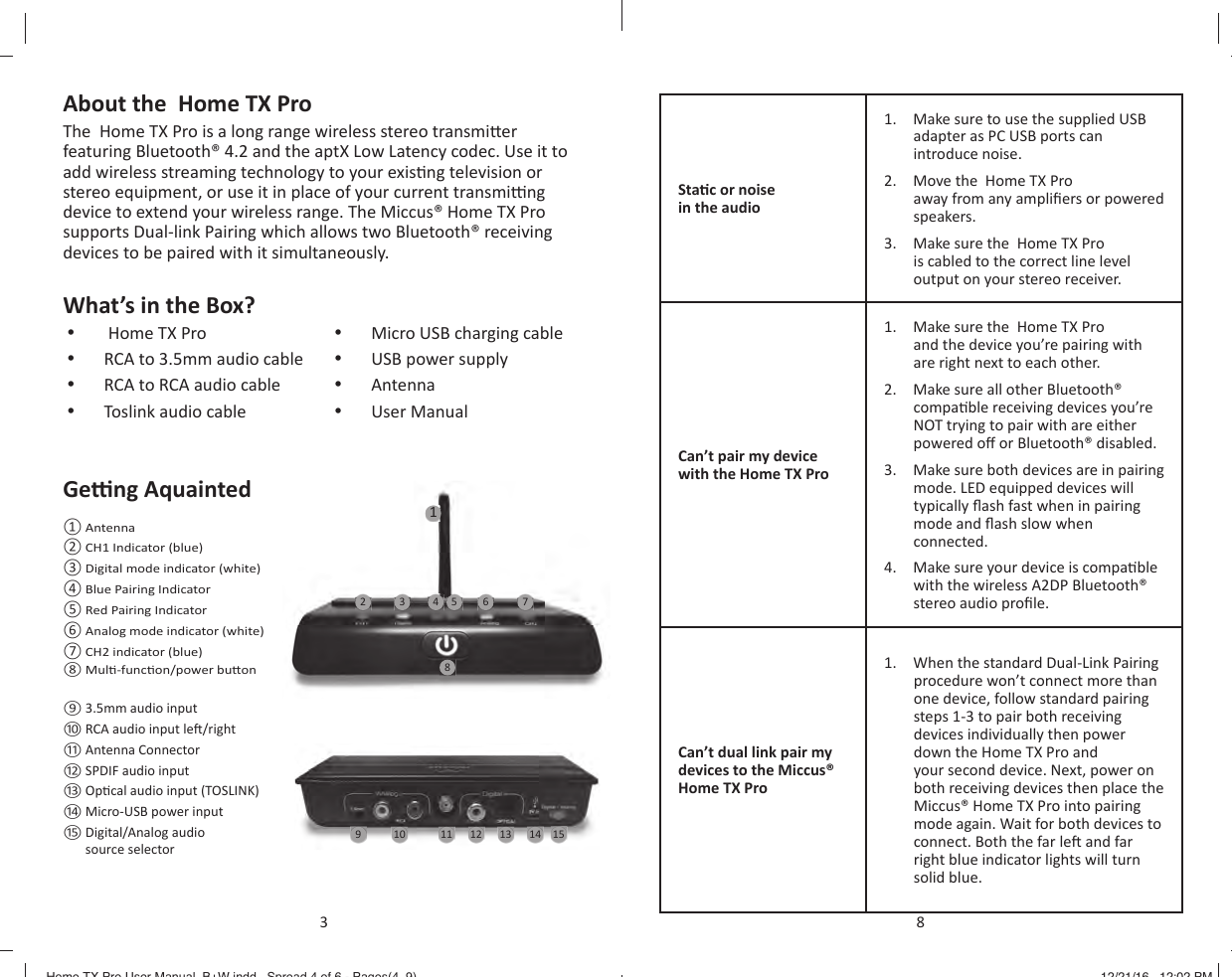
About the  Home TX ProThe  Home TX Pro is a long range wireless stereo transmi er featuring Bluetooth® 4.2 and the aptX Low Latency codec. Use it to add wireless streaming technology to your exis ng television or stereo equipment, or use it in place of your current transmi  ng device to extend your wireless range. The Miccus® Home TX Pro supports Dual-link Pairing which allows two Bluetooth® receiving devices to be paired with it simultaneously.What’s in the Box?•   Home TX Pro•  RCA to 3.5mm audio cable•  RCA to RCA audio cable•  Toslink audio cable•  Micro USB charging cable•  USB power supply•  Antenna•  User ManualGe  ng Aquainted10 11 12 13 14 15956 78432 Antenna CH1 Indicator (blue)  Digital mode indicator (white)  Blue Pairing Indicator  Red Pairing Indicator  Analog mode indicator (white)  CH2 indicator (blue)  Mul -func on/power bu on 3.5mm audio input RCA audio input le  /right Antenna Connector SPDIF audio input Op cal audio input (TOSLINK) Micro-USB power input  Digital/Analog audio source selector 13Sta c or noise in the audio1.  Make sure to use the supplied USB adapter as PC USB ports can introduce noise.2.  Move the  Home TX Pro away from any amplifi ers or powered speakers.3.  Make sure the  Home TX Pro is cabled to the correct line level output on your stereo receiver.Can’t pair my device with the Home TX Pro1.  Make sure the  Home TX Pro and the device you’re pairing with are right next to each other.2.  Make sure all other Bluetooth® compa ble receiving devices you’re NOT trying to pair with are either powered o  or Bluetooth® disabled.3.  Make sure both devices are in pairing mode. LED equipped devices will typically fl ash fast when in pairing mode and fl ash slow when connected.4.  Make sure your device is compa ble with the wireless A2DP Bluetooth® stereo audio profi le.Can’t dual link pair my devices to the Miccus® Home TX Pro1.  When the standard Dual-Link Pairing procedure won’t connect more than one device, follow standard pairing steps 1-3 to pair both receiving devices individually then power down the Home TX Pro and your second device. Next, power on both receiving devices then place the Miccus® Home TX Pro into pairing mode again. Wait for both devices to connect. Both the far le  and far right blue indicator lights will turn solid blue.8Home TX Pro User Manual_B+W.indd   Spread 4 of 6 - Pages(4, 9)Home TX Pro User Manual_B+W.indd   Spread 4 of 6 - Pages(4, 9) 12/21/16   12:02 PM12/21/16   12:02 PM
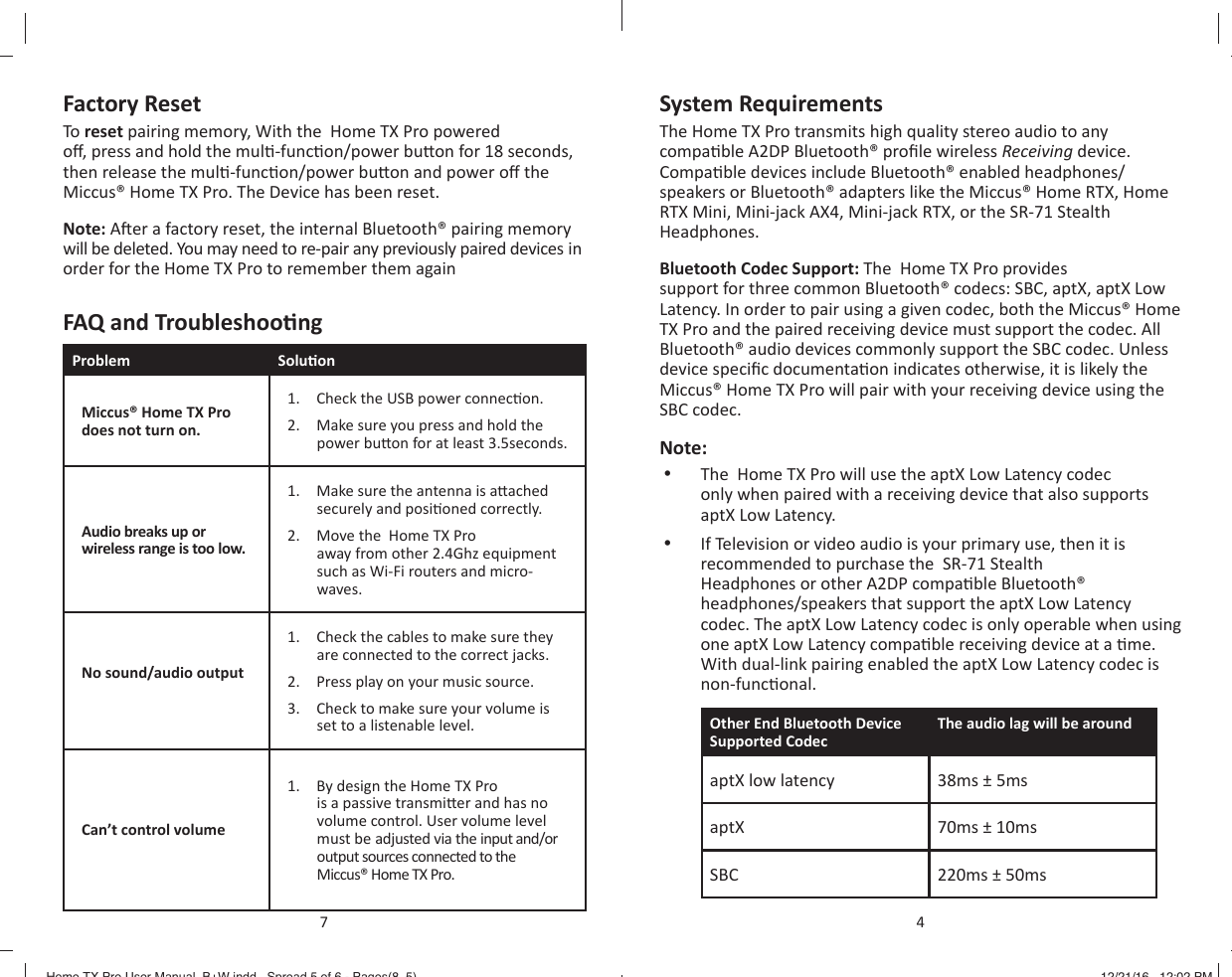
Factory ResetTo reset pairing memory, With the  Home TX Pro powered o , press and hold the mul -func on/power bu on for 18 seconds, then release the mul -func on/power bu on and power o  the Miccus® Home TX Pro. The Device has been reset.Note: A er a factory reset, the internal Bluetooth® pairing memory will be deleted. You may need to re-pair any previously paired devices in order for the Home TX Pro to remember them againFAQ and Troubleshoo ngProblem Solu onMiccus® Home TX Pro does not turn on.1.  Check the USB power connec on.2.  Make sure you press and hold the power bu on for at least 3.5seconds.Audio breaks up or wireless range is too low.1.  Make sure the antenna is a ached securely and posi oned correctly.2.  Move the  Home TX Pro away from other 2.4Ghz equipment such as Wi-Fi routers and micro-waves.No sound/audio output 1.  Check the cables to make sure they are connected to the correct jacks.2.  Press play on your music source.3.  Check to make sure your volume is set to a listenable level.Can’t control volume1.  By design the Home TX Pro is a passive transmi er and has no volume control. User volume level must be adjusted via the input and/or output sources connected to the Miccus® Home TX Pro.7System RequirementsThe Home TX Pro transmits high quality stereo audio to any compa ble A2DP Bluetooth® profi le wireless Receiving device. Compa ble devices include Bluetooth® enabled headphones/speakers or Bluetooth® adapters like the Miccus® Home RTX, Home RTX Mini, Mini-jack AX4, Mini-jack RTX, or the SR-71 Stealth Headphones.Bluetooth Codec Support: The  Home TX Pro provides support for three common Bluetooth® codecs: SBC, aptX, aptX Low Latency. In order to pair using a given codec, both the Miccus® Home TX Pro and the paired receiving device must support the codec. All Bluetooth® audio devices commonly support the SBC codec. Unless device specifi c documenta on indicates otherwise, it is likely the Miccus® Home TX Pro will pair with your receiving device using the SBC codec. Note: •  The  Home TX Pro will use the aptX Low Latency codec only when paired with a receiving device that also supports aptX Low Latency.•  If Television or video audio is your primary use, then it is recommended to purchase the  SR-71 Stealth Headphones or other A2DP compa ble Bluetooth® headphones/speakers that support the aptX Low Latency codec. The aptX Low Latency codec is only operable when using one aptX Low Latency compa ble receiving device at a  me. With dual-link pairing enabled the aptX Low Latency codec is non-func onal.Other End Bluetooth Device Supported CodecThe audio lag will be around aptX low latency 38ms ± 5msaptX  70ms ± 10msSBC 220ms ± 50ms4Home TX Pro User Manual_B+W.indd   Spread 5 of 6 - Pages(8, 5)Home TX Pro User Manual_B+W.indd   Spread 5 of 6 - Pages(8, 5) 12/21/16   12:02 PM12/21/16   12:02 PM
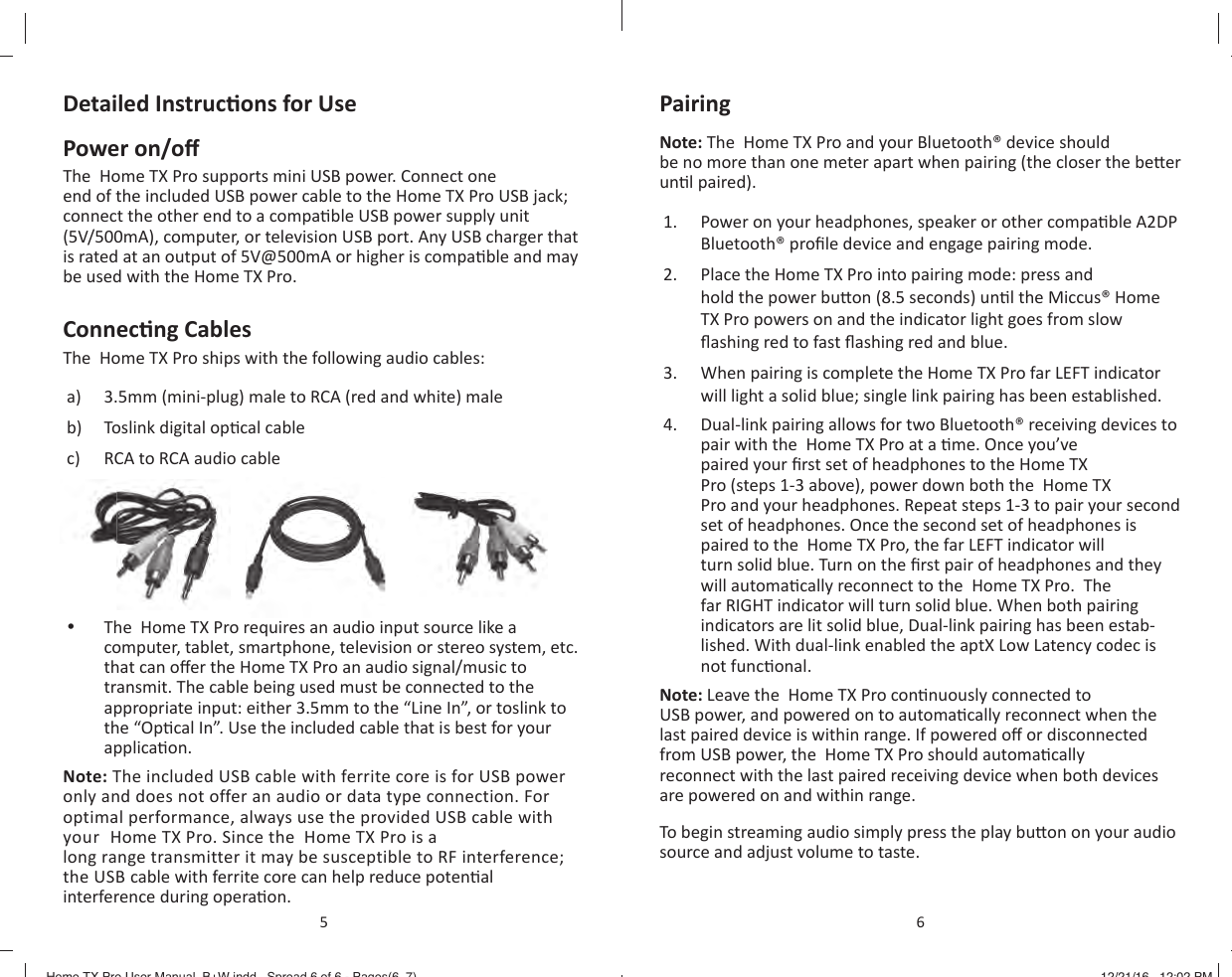
Detailed Instruc ons for UsePower on/o The  Home TX Pro supports mini USB power. Connect one end of the included USB power cable to the Home TX Pro USB jack; connect the other end to a compa ble USB power supply unit (5V/500mA), computer, or television USB port. Any USB charger that is rated at an output of 5V@500mA or higher is compa ble and may be used with the Home TX Pro.Connec ng CablesThe  Home TX Pro ships with the following audio cables:a)  3.5mm (mini-plug) male to RCA (red and white) maleb)  Toslink digital op cal cablec)  RCA to RCA audio cable •  The  Home TX Pro requires an audio input source like a computer, tablet, smartphone, television or stereo system, etc. that can o er the Home TX Pro an audio signal/music to transmit. The cable being used must be connected to the appropriate input: either 3.5mm to the “Line In”, or toslink to the “Op cal In”. Use the included cable that is best for your applica on.Note: The included USB cable with ferrite core is for USB power only and does not offer an audio or data type connection. For optimal performance, always use the provided USB cable with your  Home TX Pro. Since the  Home TX Pro is a long range transmitter it may be susceptible to RF interference; the USB cable with ferrite core can help reduce poten al interference during opera on.5Pairing Note: The  Home TX Pro and your Bluetooth® device should be no more than one meter apart when pairing (the closer the be er un l paired).1.  Power on your headphones, speaker or other compa ble A2DP Bluetooth® profi le device and engage pairing mode.2.  Place the Home TX Pro into pairing mode: press and hold the power bu on (8.5 seconds) un l the Miccus® Home TX Pro powers on and the indicator light goes from slow fl ashing red to fast fl ashing red and blue.3.  When pairing is complete the Home TX Pro far LEFT indicator will light a solid blue; single link pairing has been established.4.  Dual-link pairing allows for two Bluetooth® receiving devices to pair with the  Home TX Pro at a  me. Once you’ve paired your fi rst set of headphones to the Home TX Pro (steps 1-3 above), power down both the  Home TX Pro and your headphones. Repeat steps 1-3 to pair your second set of headphones. Once the second set of headphones is paired to the  Home TX Pro, the far LEFT indicator will turn solid blue. Turn on the fi rst pair of headphones and they will automa cally reconnect to the  Home TX Pro.  The far RIGHT indicator will turn solid blue. When both pairing indicators are lit solid blue, Dual-link pairing has been estab-lished. With dual-link enabled the aptX Low Latency codec is not func onal.Note: Leave the  Home TX Pro con nuously connected to USB power, and powered on to automa cally reconnect when the last paired device is within range. If powered o  or disconnected from USB power, the  Home TX Pro should automa cally reconnect with the last paired receiving device when both devices are powered on and within range.To begin streaming audio simply press the play bu on on your audio source and adjust volume to taste.6Home TX Pro User Manual_B+W.indd   Spread 6 of 6 - Pages(6, 7)Home TX Pro User Manual_B+W.indd   Spread 6 of 6 - Pages(6, 7) 12/21/16   12:02 PM12/21/16   12:02 PM

Navigation menu