DAZA Electronics MID MID User Manual 223 english manuel

DAZA Electronics Company MID 223 english manuel

Users Manual

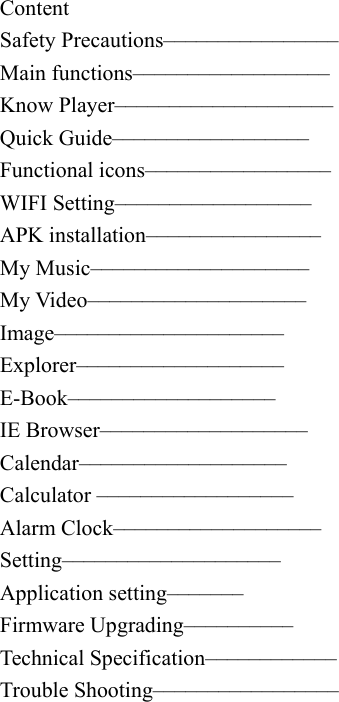
  Content Safety Precautions–––––––––––––––– Main functions–––––––––––––––––– Know Player––––––––––––––––––––   Quick Guide––––––––––––––––––   Functional icons–––––––––––––––––   WIFI Setting––––––––––––––––––   APK installation––––––––––––––––     My Music––––––––––––––––––––   My Video––––––––––––––––––––   Image–––––––––––––––––––––  Explorer–––––––––––––––––––   E-Book–––––––––––––––––––  IE Browser––––––––––––––––––– Calendar–––––––––––––––––––  Calculator ––––––––––––––––––   Alarm Clock–––––––––––––––––––   Setting––––––––––––––––––––  Application setting–––––––   Firmware Upgrading–––––––––– Technical Specification–––––––––––– Trouble Shooting–––––––––––––––––
   ◆NOTES To know all function of this player and avoid improper operation, please read the User Manual carefully before use it. 1. Safety notices   1.1 Do not use the player in the extra hot, cold, dusty or humid environments. 1.2. Do not let the panel pc fall or rub or compact TFT screen with hard objects during using, or it may cause surface scratch of the panel pc and abnormal display of the screen, Damage caused by human factors or force majeure is not within the scope of warranty. 1.3. Try to avoid using the panel pc in too dry environments. 1.4. Please charge the battery under the below conditions: A .The no-power icon appears. B .Automatic shutdown or automatic shutdown after starting up. C .Operate no reaction 1.5. Do not place heavy goods on the panel pc, or it will be damaged. 1.6. When used as Mobile Hard disk, users should export files according to correct file management methods. no responsibility and liability will be taken by us for the loss of files caused by improper operation. 1.7. Because a small part of memory is consumed by softwares, and number systems of memory capacity of different computer is different, the capacity of memory is below the standard value.
  1.8. If some changes or damages of memory result in not working smoothly, users can format the disc.  The Company reserves the right of amending our products, Performances and functions of products of different version of hardwares and softwares differ with each other, if some changes, no prior notice will be given.   ◆ Main Functions: 1. 4.3-inch high-definition wide-screen (800*272), it adopts anti-glare resistive touch screen and supports multi-touch. 2. This player is equipped with Android 2.3 intelligent operating system which has great application potential, and inbuilt Wi-Fi wireless modules, besides, it supports the access network on the places with hotspot or WIFI wireless network, above all, it can provide one-thousand application experiences such as web browsing, news information, instant messaging, emails, micro blogs, online games, online video and audio, stock market, weather forecast, maps, fun software, etc. 3. This player is equipped with the brand new WIDGET interface system with whole controls, it adopts global mobile plugins, icon designs and five-page main menus which have broken out the traditional features, the functional plugins featured direct manipulation on the desktop are quite convenient and fast, interesting,
  and the wonderful performances of WIDGET will bring your the unprecedented touch experience. 4. Its in-built G-Sensor gravity sensor devices can be automatically rotated to display content according to holding direction, let you choose the most suitable visual angle under various applications, and it also can let you experience the super-cool G-Sensor gravity sensor games. 5. Format supports of media video: it fully supports high definition 720P (1280×720) video files with formats of AVI, RM, RMVB, FLV, WMV, etc. 6. Format supports of media audio: it supports music files with formats of MP3, WMA, WAV, AAC, OGG, etc. It also supports many kinds of EQ modes and multi-task operations. 7. It supports the image files with formats of JPEG, BMP, GIF, etc, it also supports the functions of thumbnail viewing, slideshow, image rotation, image zooming, etc. 8. Memory devices: In addition to in-built memorizer, it also supports IF expansion, and can support up to 16GB. 9. Support Interfaces: earphone interface, Mini USB interface, TF expansion slot, power interface, etc. 10. Support OTG function.  ◆  Knowing Player
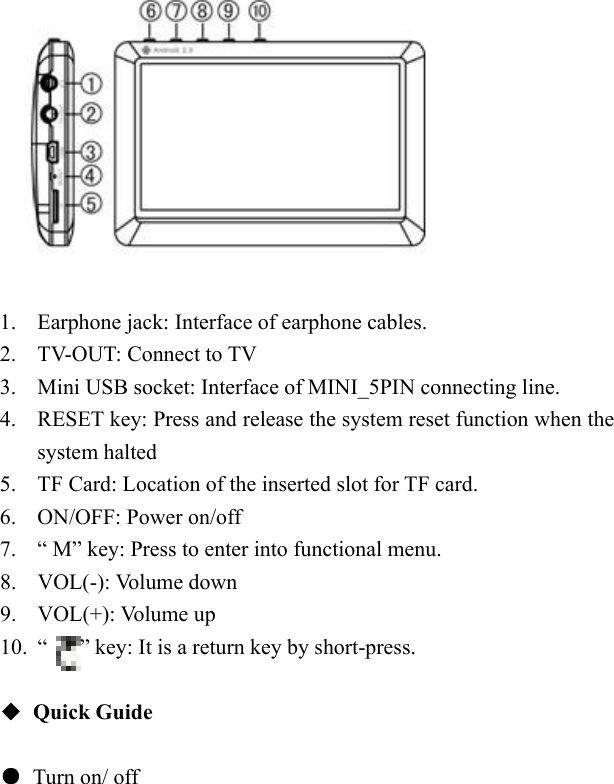
    1. Earphone jack: Interface of earphone cables. 2. TV-OUT: Connect to TV   3. Mini USB socket: Interface of MINI_5PIN connecting line. 4. RESET key: Press and release the system reset function when the system halted 5. TF Card: Location of the inserted slot for TF card. 6. ON/OFF: Power on/off 7. “ M” key: Press to enter into functional menu. 8. VOL(-): Volume down 9. VOL(+): Volume up 10. “      ” key: It is a return key by short-press.  ◆ Quick Guide  ● Turn on/ off
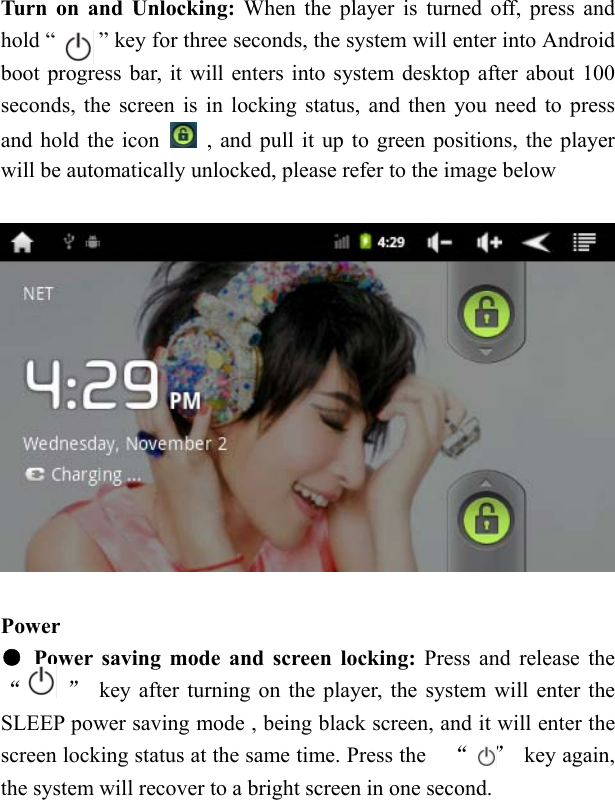
  Turn on and Unlocking: When the player is turned off, press and hold “        ” key for three seconds, the system will enter into Android boot progress bar, it will enters into system desktop after about 100 seconds, the screen is in locking status, and then you need to press and hold the icon    , and pull it up to green positions, the player will be automatically unlocked, please refer to the image below          Power ●  Power saving mode and screen locking: Press and release the “    ”  key after turning on the player, the system will enter the SLEEP power saving mode , being black screen, and it will enter the screen locking status at the same time. Press the    “  ” key again, the system will recover to a bright screen in one second.
   ●    Turn off: When the player is turned on, press and hold the turn on-off key for three seconds, then the screen will show a closing confirmation interface, after choosing the closing option to confirm it, the system will turn off automatically.  [Note] When the voltage of the battery is low, the player will continuously give alarms, the player will turn off automatically if it is not charged; if the player can’t be opened, please firstly check if the player battery works, and then try to open it under the premise of ensuring it has been charged with certain electric capacity.  ●  Battery management and charging A    For the first use, you should charge the battery for 8 to 12 hours, and use it after ensuring that the battery is charged enough.   B    Insert the mini end of AC adapter into the DC socket of the player, and insert another end into the power socket. The battery icon on the desktop is shown by rolling as      green strip, it means to that the player is in charging, please don’ t unplug the charger in a charging process until it is fully charged. After the battery is fully charged, the green stripe of battery icon    on the desktop doesn’t roll. C. When you are charging the player that battery electricity is totally exhausted, please restart the player after waiting at least one minute.  [Note] In order to keep the lithium battery in best performance, the
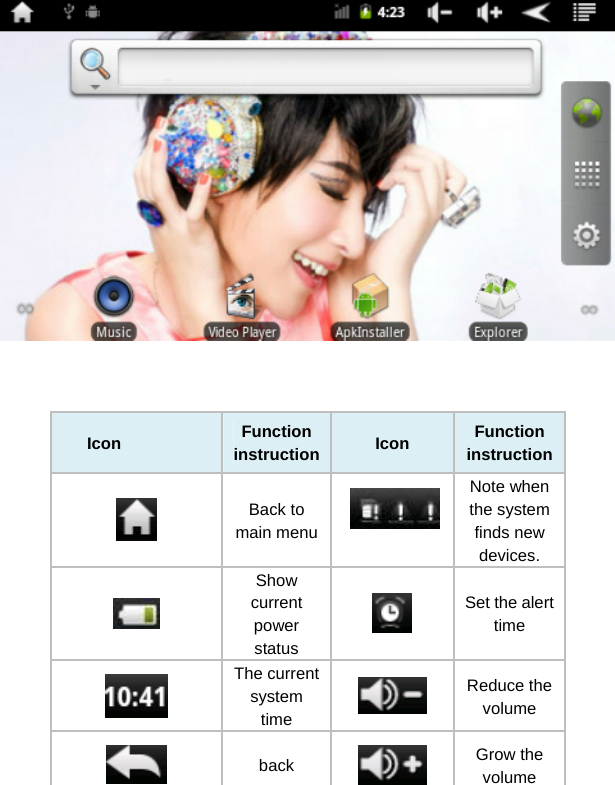
  following matters should be paid attention to:  ● DO not charge the battery in a high temperature environment (such as balcony or places with direct sunlight) ● The lithium battery doesn’t need discharging, and it is unnecessary to be charged after running out of capacity, you can charge it when it is in a low battery. ●  If the product hasn’t been used for a long time, please fully charge it at least biweekly to avoid over discharge of the battery thus affects its charging performance.   ◆ Functional icons ●  Icon Definitions of Desktop Functions
     Icon  Function instruction Icon  Function instruction Back to main menu   Note when the system finds new devices.  Show current power status  Set the alert time  The current system time   Reduce the volume  back   Grow the volume
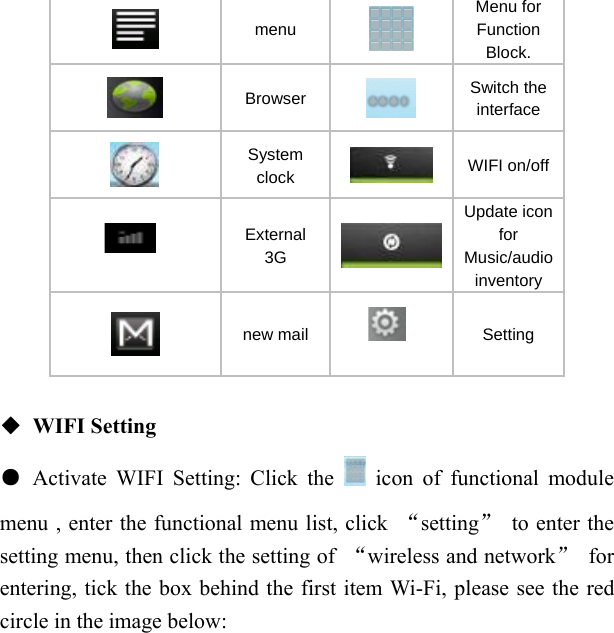
   menu   Menu for Function Block.   Browser   Switch the interface  System clock    WIFI on/off   External 3G Update icon for Music/audio inventory  new mail      Setting  ◆ WIFI Setting ● Activate WIFI Setting: Click the   icon of functional module menu , enter the functional menu list, click  “setting”  to enter the setting menu, then click the setting of  “wireless and network” for entering, tick the box behind the first item Wi-Fi, please see the red circle in the image below:
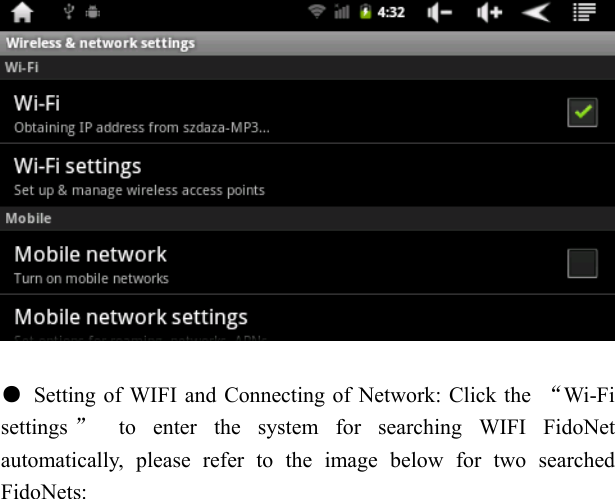
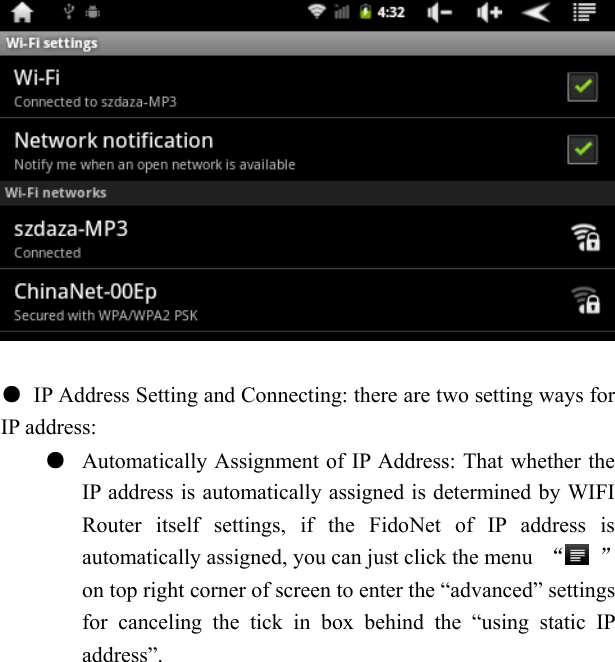
    ●  Setting of WIFI and Connecting of Network: Click the  “Wi-Fi settings ” to enter the system for searching WIFI FidoNet automatically, please refer to the image below for two searched FidoNets:
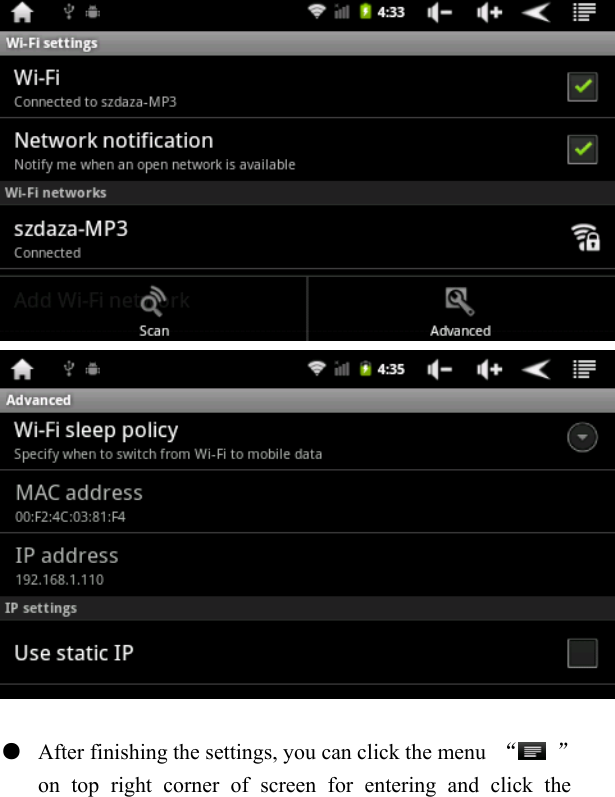
    ●  IP Address Setting and Connecting: there are two setting ways for IP address: ●  Automatically Assignment of IP Address: That whether the IP address is automatically assigned is determined by WIFI Router itself settings, if the FidoNet of IP address is automatically assigned, you can just click the menu  “ ” on top right corner of screen to enter the “advanced” settings for canceling the tick in box behind the “using static IP address”.
    ●  After finishing the settings, you can click the menu  “ ” on top right corner of screen for entering and click the
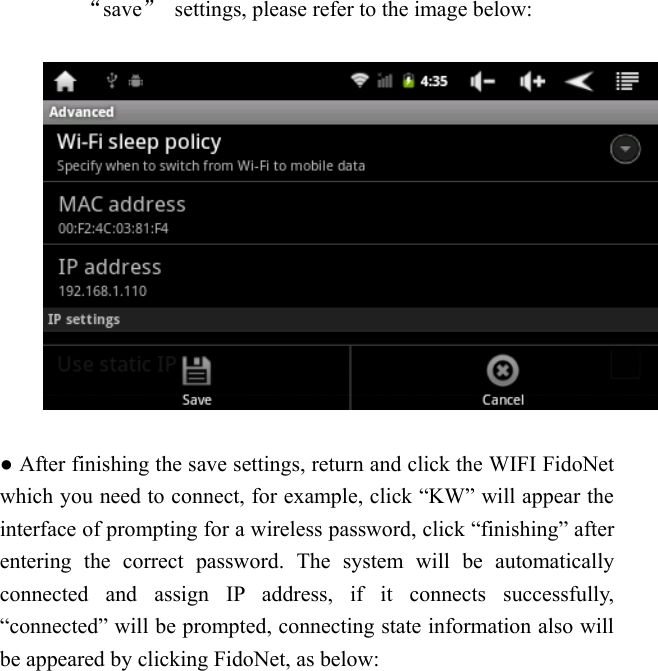
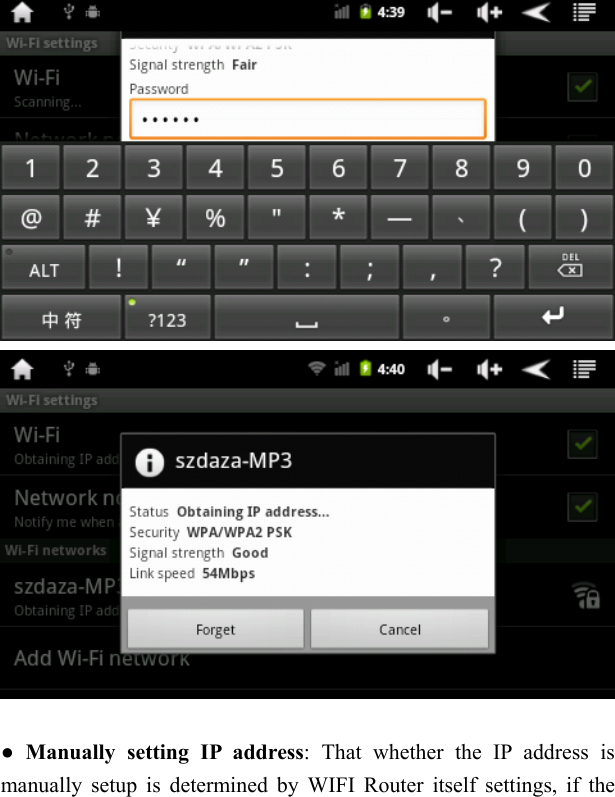
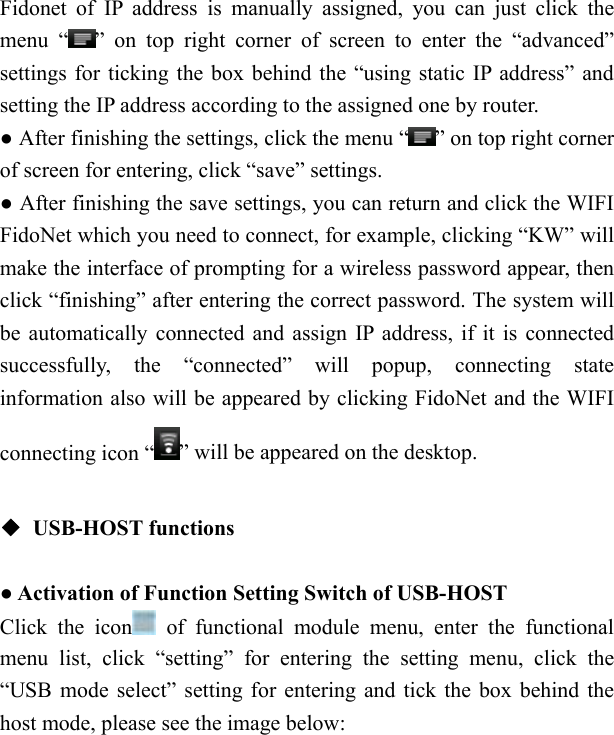
  “save”  settings, please refer to the image below:    ● After finishing the save settings, return and click the WIFI FidoNet which you need to connect, for example, click “KW” will appear the interface of prompting for a wireless password, click “finishing” after entering the correct password. The system will be automatically connected and assign IP address, if it connects successfully, “connected” will be prompted, connecting state information also will be appeared by clicking FidoNet, as below:
     ● Manually setting IP address: That whether the IP address is manually setup is determined by WIFI Router itself settings, if the
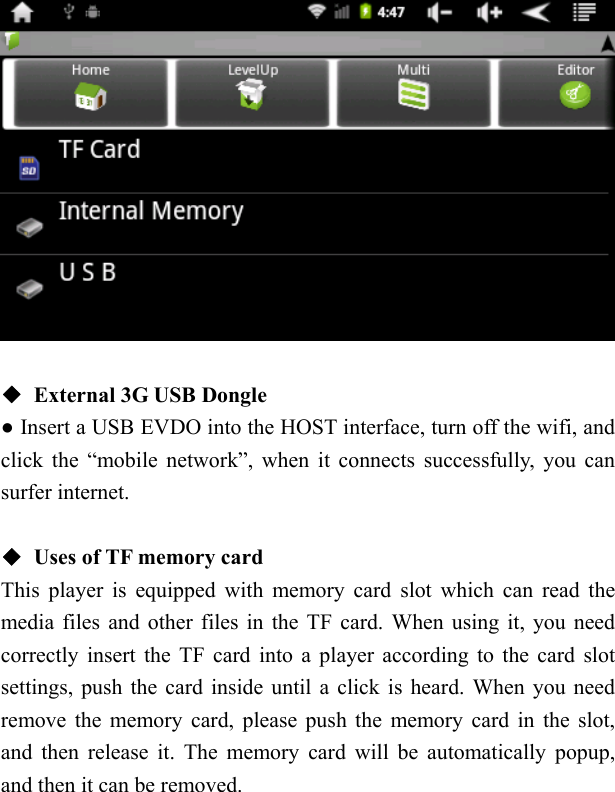
  Fidonet of IP address is manually assigned, you can just click the menu “ ” on top right corner of screen to enter the “advanced” settings for ticking the box behind the “using static IP address” and setting the IP address according to the assigned one by router. ● After finishing the settings, click the menu “ ” on top right corner of screen for entering, click “save” settings. ● After finishing the save settings, you can return and click the WIFI FidoNet which you need to connect, for example, clicking “KW” will make the interface of prompting for a wireless password appear, then click “finishing” after entering the correct password. The system will be automatically connected and assign IP address, if it is connected successfully, the “connected” will popup, connecting state information also will be appeared by clicking FidoNet and the WIFI connecting icon “ ” will be appeared on the desktop.  ◆ USB-HOST functions  ● Activation of Function Setting Switch of USB-HOST Click the icon  of functional module menu, enter the functional menu list, click “setting” for entering the setting menu, click the “USB mode select” setting for entering and tick the box behind the host mode, please see the image below:
    ◆  External 3G USB Dongle ● Insert a USB EVDO into the HOST interface, turn off the wifi, and click the “mobile network”, when it connects successfully, you can surfer internet.  ◆  Uses of TF memory card This player is equipped with memory card slot which can read the media files and other files in the TF card. When using it, you need correctly insert the TF card into a player according to the card slot settings, push the card inside until a click is heard. When you need remove the memory card, please push the memory card in the slot, and then release it. The memory card will be automatically popup, and then it can be removed.
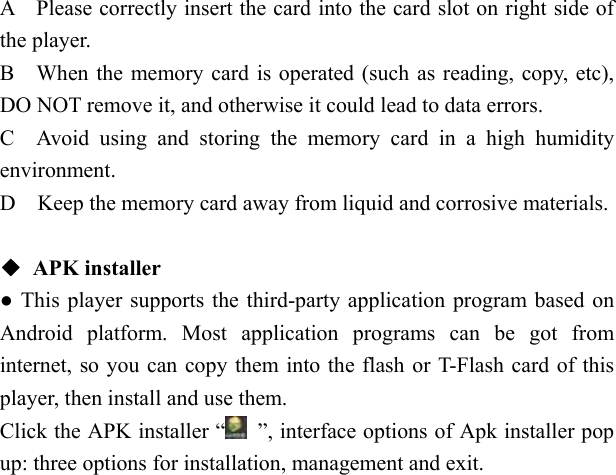
  A    Please correctly insert the card into the card slot on right side of the player. B    When the memory card is operated (such as reading, copy, etc), DO NOT remove it, and otherwise it could lead to data errors. C  Avoid using and storing the memory card in a high humidity environment. D    Keep the memory card away from liquid and corrosive materials.  ◆ APK installer ● This player supports the third-party application program based on Android platform. Most application programs can be got from internet, so you can copy them into the flash or T-Flash card of this player, then install and use them. Click the APK installer “   ”, interface options of Apk installer pop up: three options for installation, management and exit.
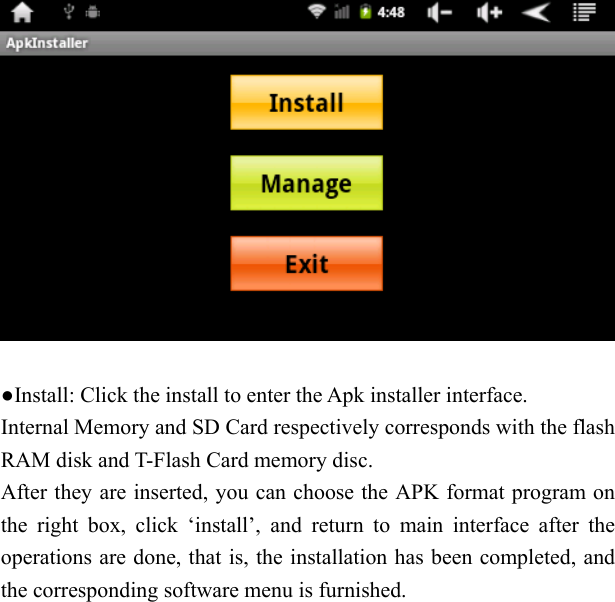
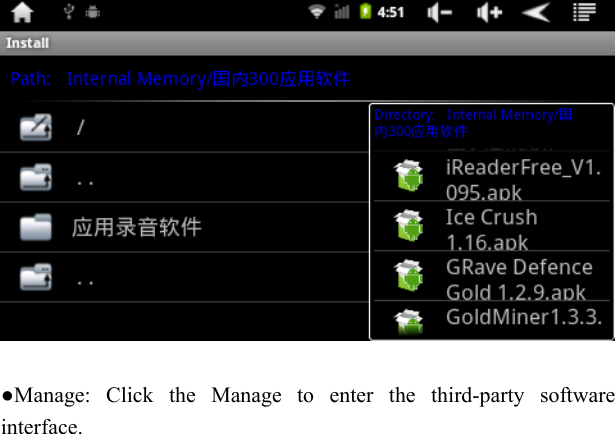
    ●Install: Click the install to enter the Apk installer interface. Internal Memory and SD Card respectively corresponds with the flash RAM disk and T-Flash Card memory disc. After they are inserted, you can choose the APK format program on the right box, click ‘install’, and return to main interface after the operations are done, that is, the installation has been completed, and the corresponding software menu is furnished.
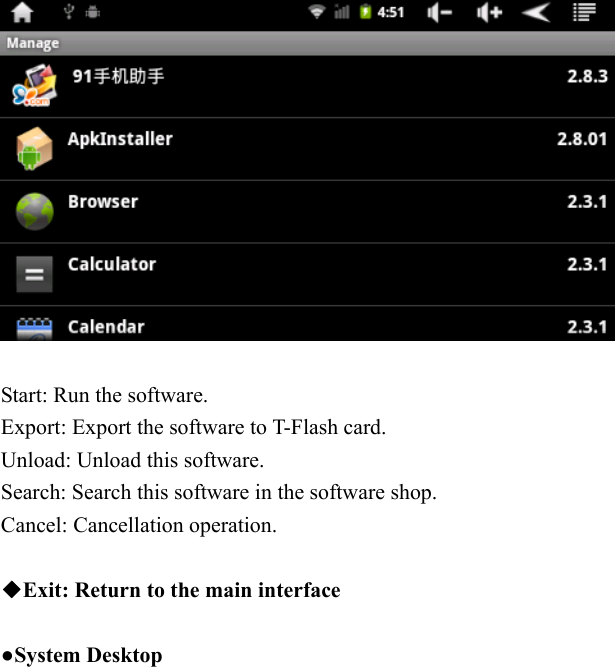
    ●Manage: Click the Manage to enter the third-party software interface.
    Start: Run the software. Export: Export the software to T-Flash card. Unload: Unload this software. Search: Search this software in the software shop. Cancel: Cancellation operation.  ◆Exit: Return to the main interface  ●System Desktop
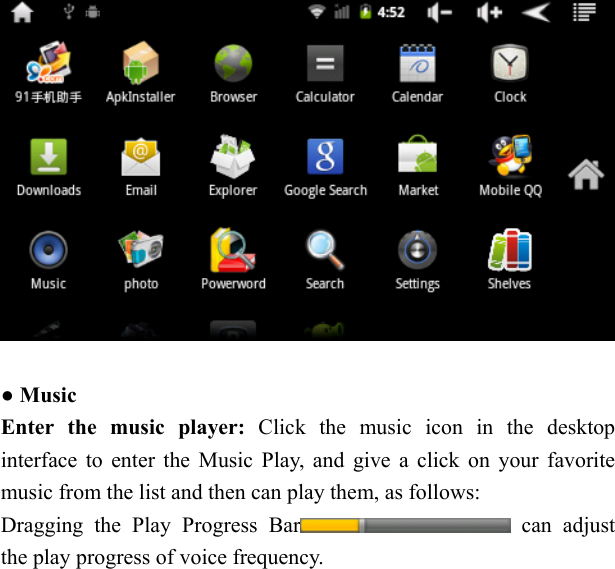
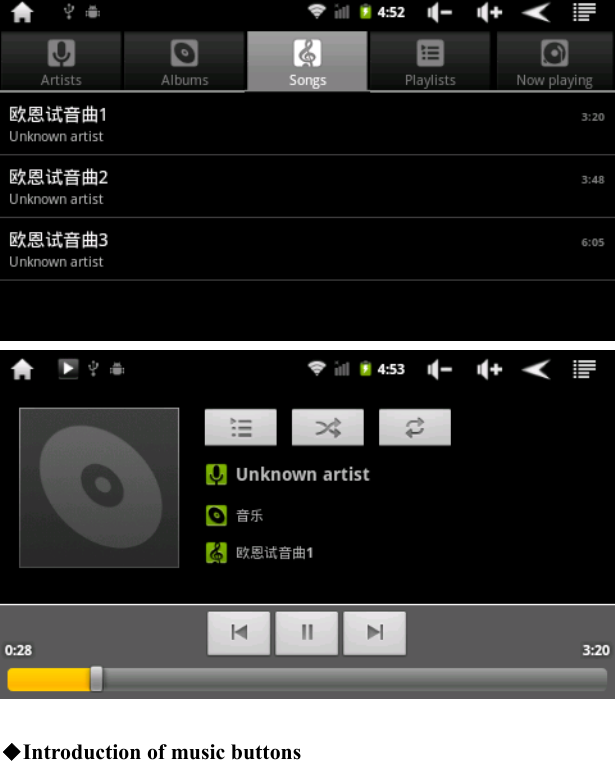
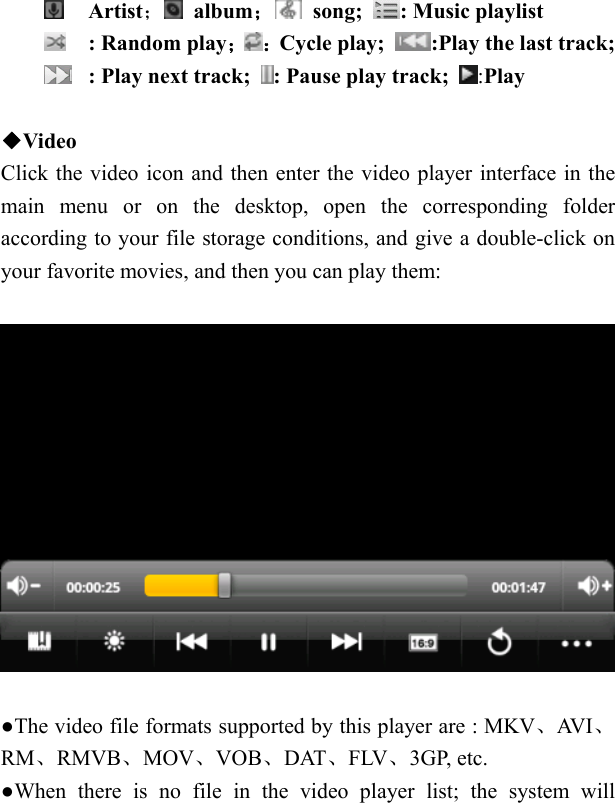
    ● Music Enter the music player: Click the music icon in the desktop interface to enter the Music Play, and give a click on your favorite music from the list and then can play them, as follows: Dragging the Play Progress Bar  can adjust the play progress of voice frequency.
     ◆Introduction of music buttons
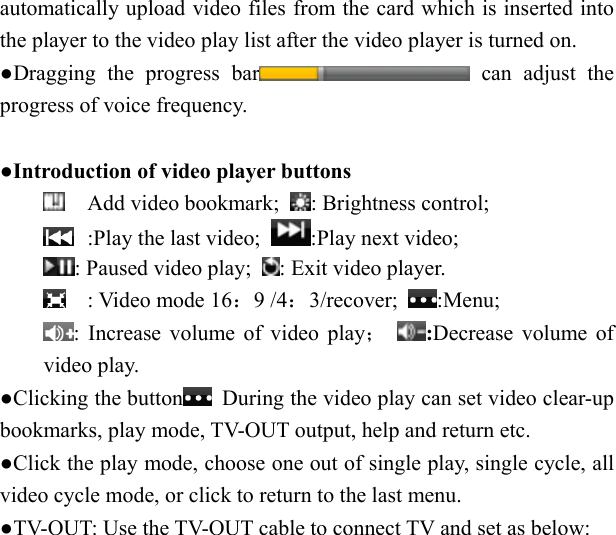
   Artist; album; song;  : Music playlist  : Random play; :Cycle play;  :Play the last track;  : Play next track;  : Pause play track;  :Play  ◆Video Click the video icon and then enter the video player interface in the main menu or on the desktop, open the corresponding folder according to your file storage conditions, and give a double-click on your favorite movies, and then you can play them:    ●The video file formats supported by this player are : MKV、AV I 、RM、RMVB、MOV、VOB、DAT、FLV、3GP, etc. ●When there is no file in the video player list; the system will
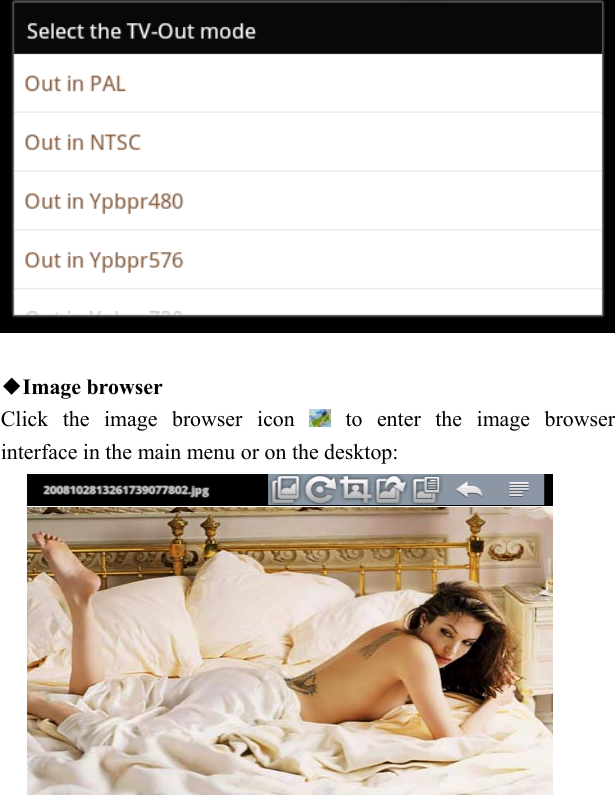
  automatically upload video files from the card which is inserted into the player to the video play list after the video player is turned on. ●Dragging the progress bar  can adjust the progress of voice frequency.  ●Introduction of video player buttons  Add video bookmark;  : Brightness control;    :Play the last video;  :Play next video;      : Paused video play;  : Exit video player.  : Video mode 16:9 /4:3/recover;  :Menu;  : Increase volume of video play;  :Decrease volume of video play. ●Clicking the button   During the video play can set video clear-up bookmarks, play mode, TV-OUT output, help and return etc. ●Click the play mode, choose one out of single play, single cycle, all video cycle mode, or click to return to the last menu. ●TV-OUT: Use the TV-OUT cable to connect TV and set as below:
    ◆Image browser Click the image browser icon   to enter the image browser interface in the main menu or on the desktop:
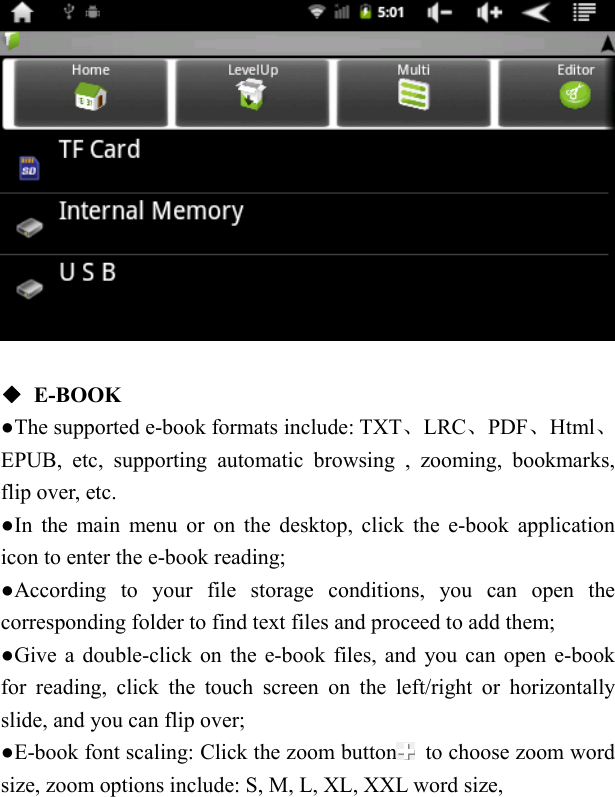
  ●Introduction of image browser button :Picture rotating effect/Transparency effect/From left to right sliding effect;  :Rotate right or left;  :Printscreen :Set desktop background;  :Review images detailed information; :Return .  :Level sliding or vertical sliding    ●Add images (this panel pc supports : BMP、JPG、JPEG、PNG、GIF). When there is no file in the image list, the system will automatically upload video files from the card which is inserted into the player to the video play list after the picture browser is turned on. According to your file storage conditions, you can open the corresponding folder, find the image files and proceed to add them. ●Click the image setting button to set the current imagine as the front view of desktop  ◆Explorer ●In the main menu or on the desktop, click the source Explorer icon to enter the management interface, click the【TF Card】、【Internal Memory】 and [USB] to unfold drop-down folders and related documents, you can implement add, copy , paste, deletion and other operations. Press and hold a single folder or file to choose the “last”, “next” or “upper” and find the corresponding path, click the “edit” in the popup window to choose paste to the corresponding path.
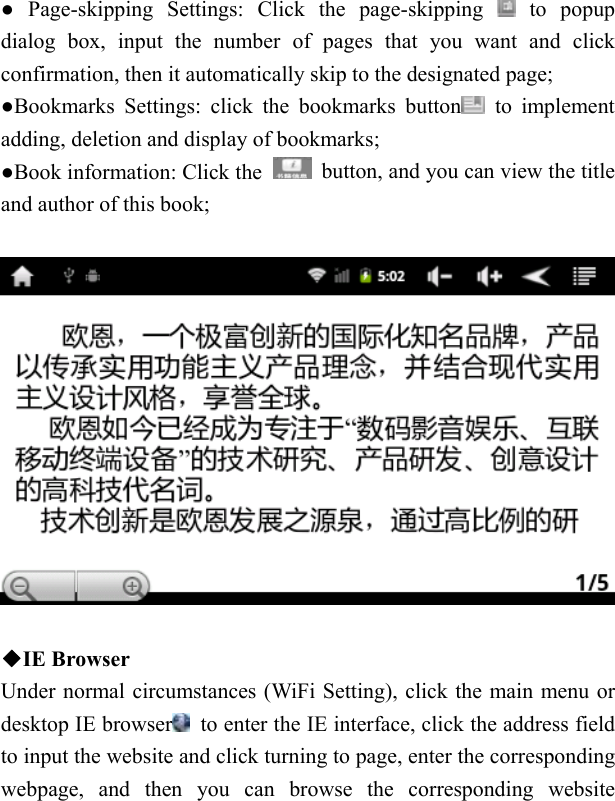
    ◆ E-BOOK ●The supported e-book formats include: TXT、LRC、PDF、Html、EPUB, etc, supporting automatic browsing , zooming, bookmarks, flip over, etc.   ●In the main menu or on the desktop, click the e-book application icon to enter the e-book reading;   ●According to your file storage conditions, you can open the corresponding folder to find text files and proceed to add them; ●Give a double-click on the e-book files, and you can open e-book for reading, click the touch screen on the left/right or horizontally slide, and you can flip over; ●E-book font scaling: Click the zoom button   to choose zoom word size, zoom options include: S, M, L, XL, XXL word size,
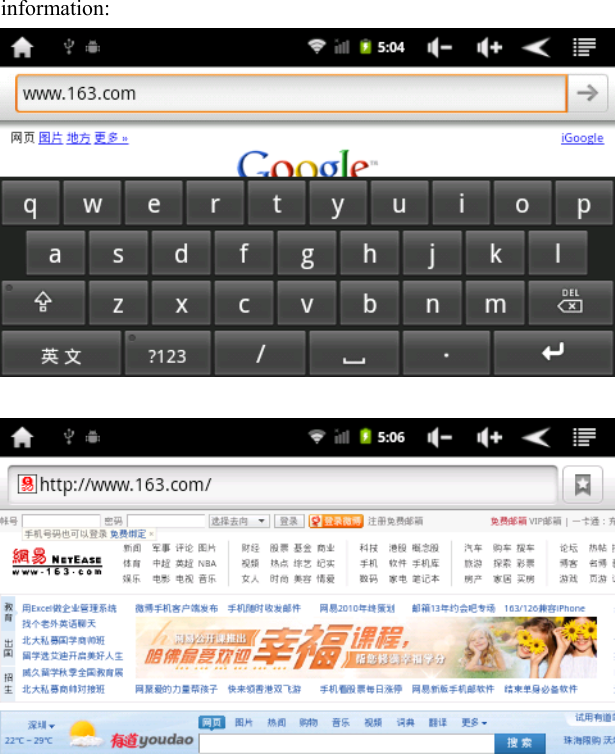
  ● Page-skipping Settings: Click the page-skipping   to popup dialog box, input the number of pages that you want and click confirmation, then it automatically skip to the designated page; ●Bookmarks Settings: click the bookmarks button  to implement adding, deletion and display of bookmarks; ●Book information: Click the    button, and you can view the title and author of this book;    ◆IE Browser Under normal circumstances (WiFi Setting), click the main menu or desktop IE browser   to enter the IE interface, click the address field to input the website and click turning to page, enter the corresponding webpage, and then you can browse the corresponding website
  information:
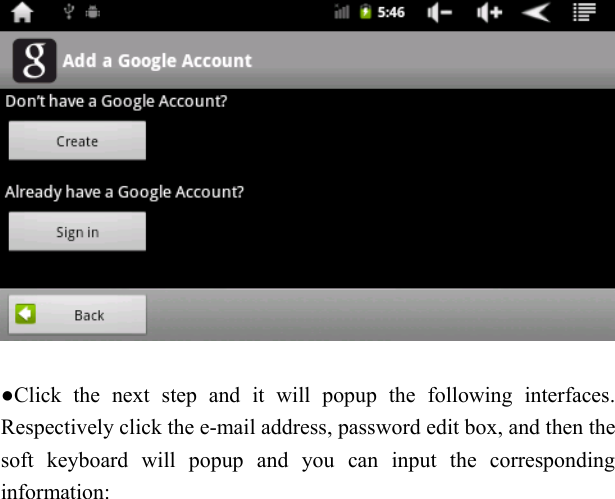
  [Note] Browser adopts the currently popular third-party IE browser software. Please follow the standard operations of IE browser. Press and hold “        " key to change input methods.  ◆E-mail ●Click the main menu or Gmail icon on the desktop to enter the mailbox login interface under normal connections of WIFI (WIFI setting):   ●If there is no Google mailbox account, click the   to add a Google account.
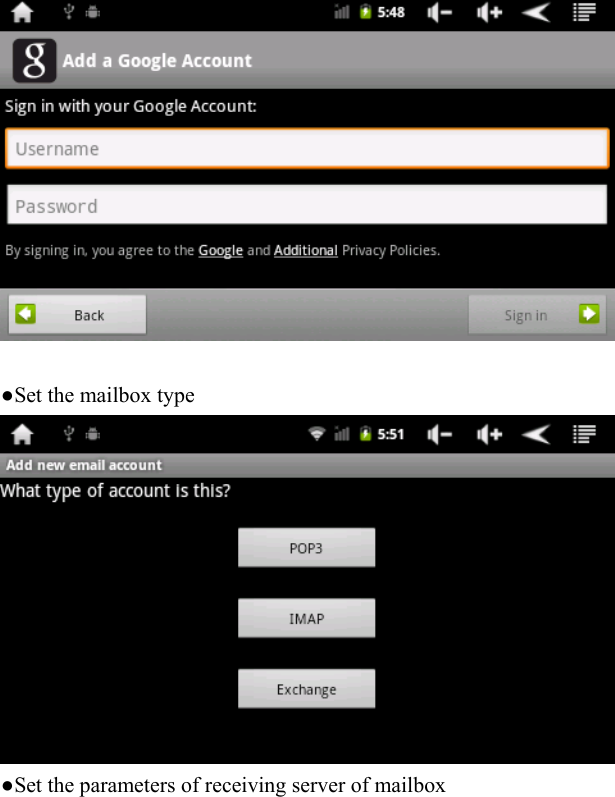
    ●Click the next step and it will popup the following interfaces. Respectively click the e-mail address, password edit box, and then the soft keyboard will popup and you can input the corresponding information:
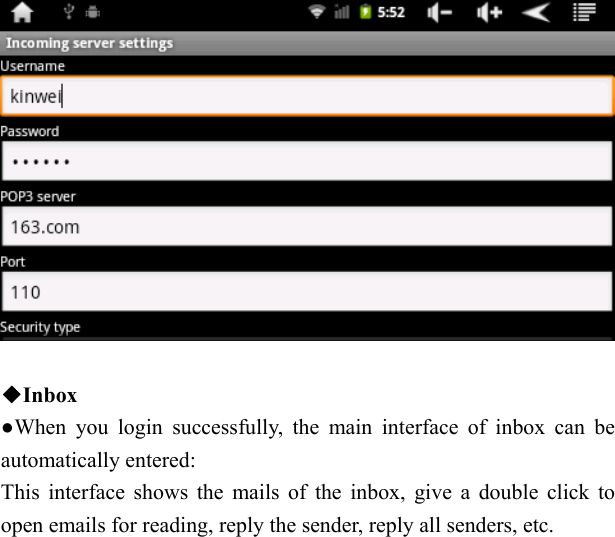
    ●Set the mailbox type    ●Set the parameters of receiving server of mailbox
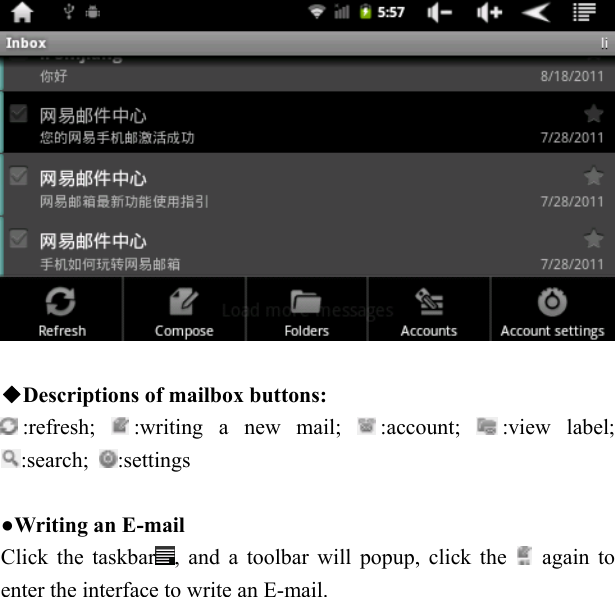
    ◆Inbox ●When you login successfully, the main interface of inbox can be automatically entered: This interface shows the mails of the inbox, give a double click to open emails for reading, reply the sender, reply all senders, etc.
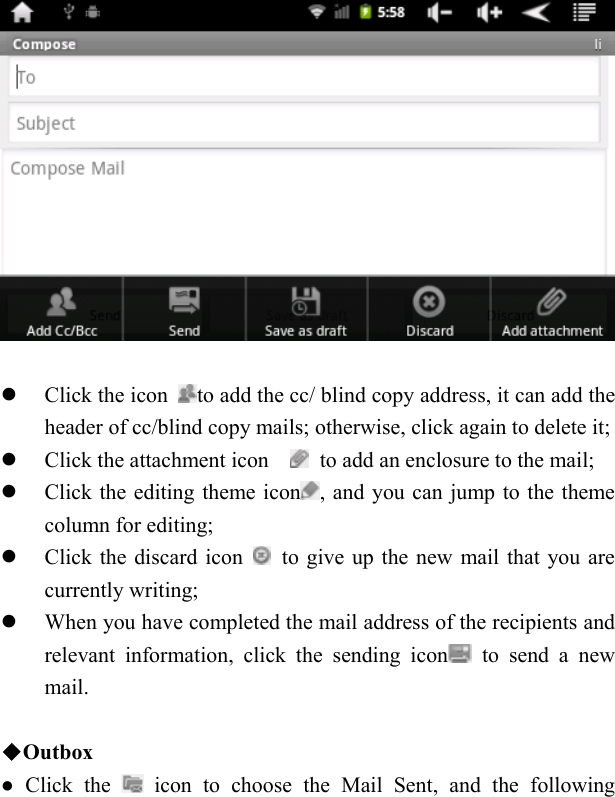
    ◆Descriptions of mailbox buttons: :refresh;  :writing a new mail;  :account;  :view label; :search;  :settings  ●Writing an E-mail   Click the taskbar , and a toolbar will popup, click the   again to enter the interface to write an E-mail.
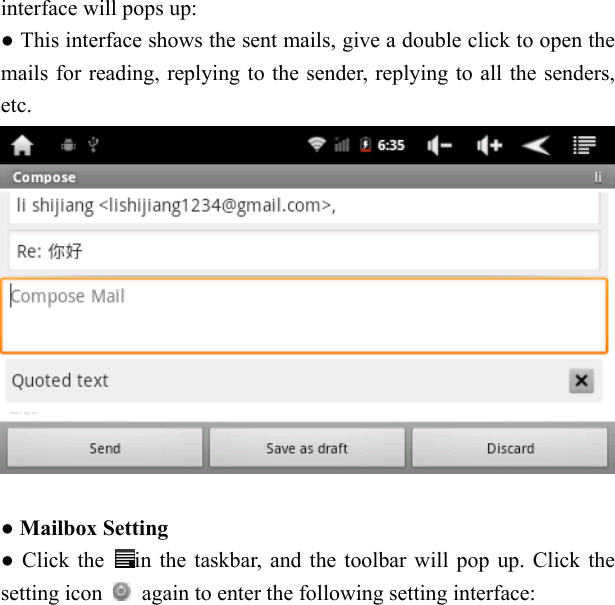
     Click the icon  to add the cc/ blind copy address, it can add the header of cc/blind copy mails; otherwise, click again to delete it;  Click the attachment icon      to add an enclosure to the mail;  Click the editing theme icon , and you can jump to the theme column for editing;  Click the discard icon    to give up the new mail that you are currently writing;  When you have completed the mail address of the recipients and relevant information, click the sending icon  to send a new mail.      ◆Outbox ● Click the   icon to choose the Mail Sent, and the following
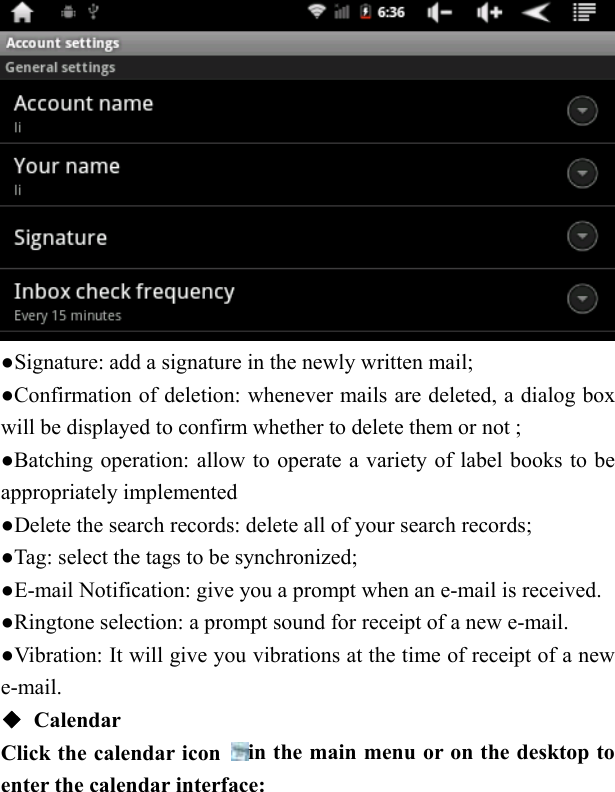
  interface will pops up: ● This interface shows the sent mails, give a double click to open the mails for reading, replying to the sender, replying to all the senders, etc.    ● Mailbox Setting   ● Click the  in the taskbar, and the toolbar will pop up. Click the setting icon    again to enter the following setting interface:
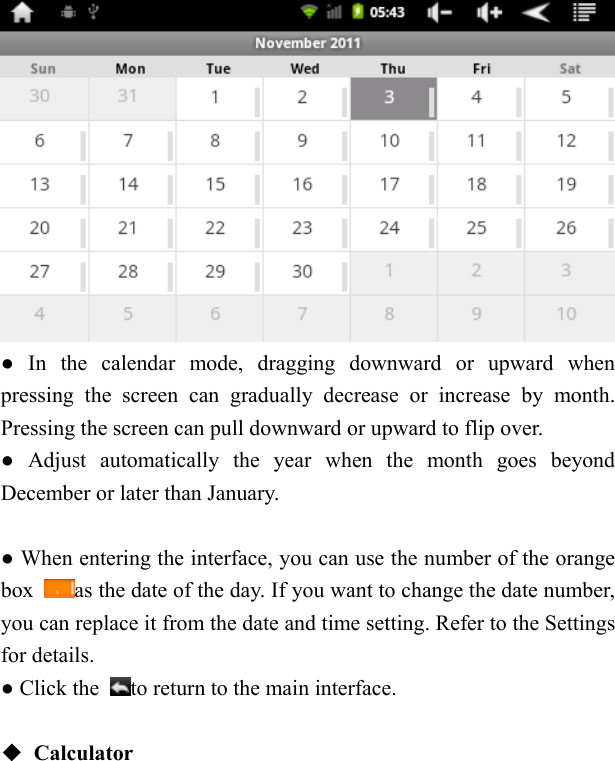
   ●Signature: add a signature in the newly written mail; ●Confirmation of deletion: whenever mails are deleted, a dialog box will be displayed to confirm whether to delete them or not ;   ●Batching operation: allow to operate a variety of label books to be appropriately implemented ●Delete the search records: delete all of your search records;     ●Tag: select the tags to be synchronized;   ●E-mail Notification: give you a prompt when an e-mail is received.   ●Ringtone selection: a prompt sound for receipt of a new e-mail.   ●Vibration: It will give you vibrations at the time of receipt of a new e-mail. ◆ Calendar Click the calendar icon  in the main menu or on the desktop to enter the calendar interface:
    ● In the calendar mode, dragging downward or upward when pressing the screen can gradually decrease or increase by month. Pressing the screen can pull downward or upward to flip over.   ● Adjust automatically the year when the month goes beyond December or later than January.      ● When entering the interface, you can use the number of the orange box  as the date of the day. If you want to change the date number, you can replace it from the date and time setting. Refer to the Settings for details.   ● Click the  to return to the main interface.    ◆ Calculator
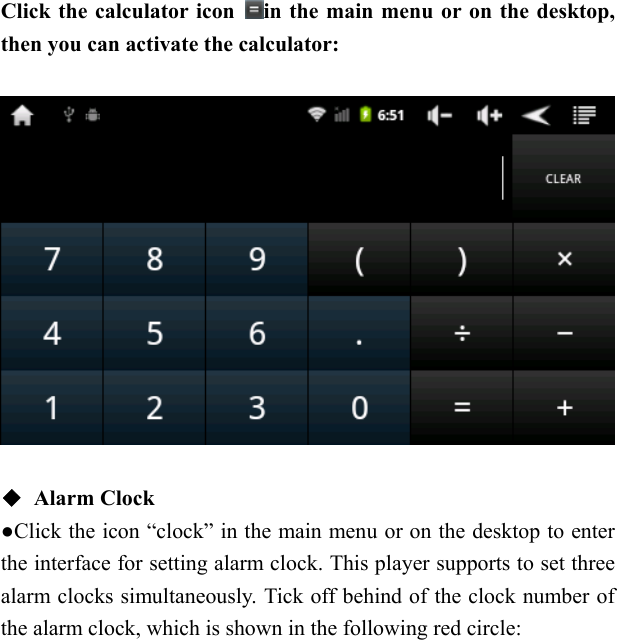
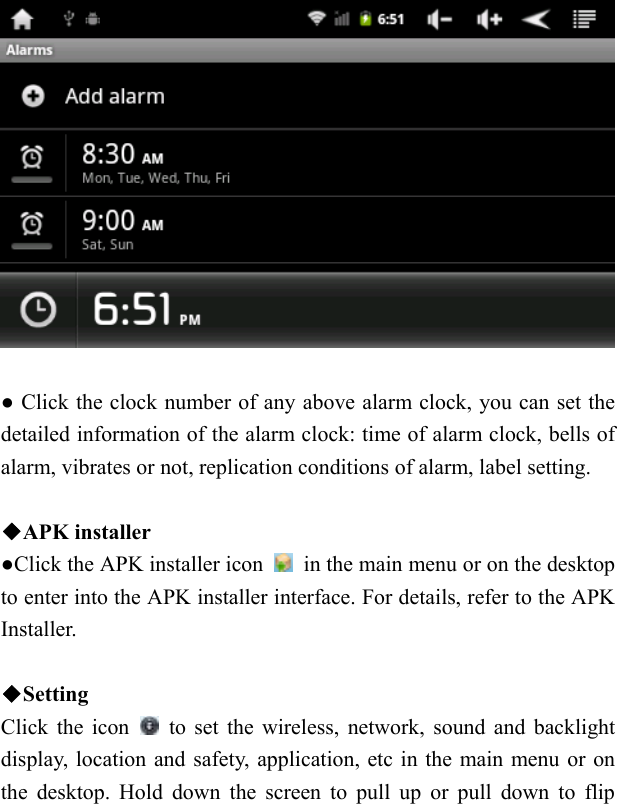
  Click the calculator icon  in the main menu or on the desktop, then you can activate the calculator:    ◆ Alarm Clock ●Click the icon “clock” in the main menu or on the desktop to enter the interface for setting alarm clock. This player supports to set three alarm clocks simultaneously. Tick off behind of the clock number of the alarm clock, which is shown in the following red circle:
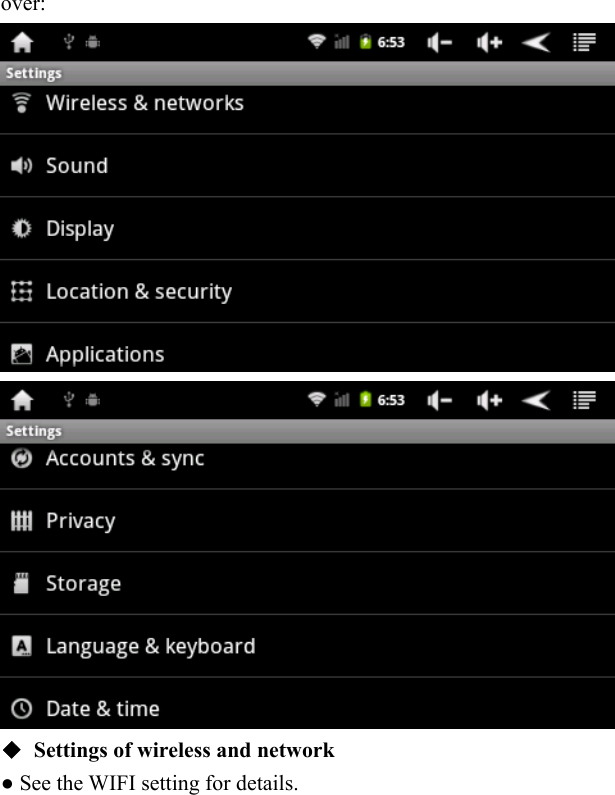
    ● Click the clock number of any above alarm clock, you can set the detailed information of the alarm clock: time of alarm clock, bells of alarm, vibrates or not, replication conditions of alarm, label setting.      ◆APK installer   ●Click the APK installer icon    in the main menu or on the desktop to enter into the APK installer interface. For details, refer to the APK Installer.    ◆Setting  Click the icon    to set the wireless, network, sound and backlight display, location and safety, application, etc in the main menu or on the desktop. Hold down the screen to pull up or pull down to flip
  over:    ◆  Settings of wireless and network     ● See the WIFI setting for details.
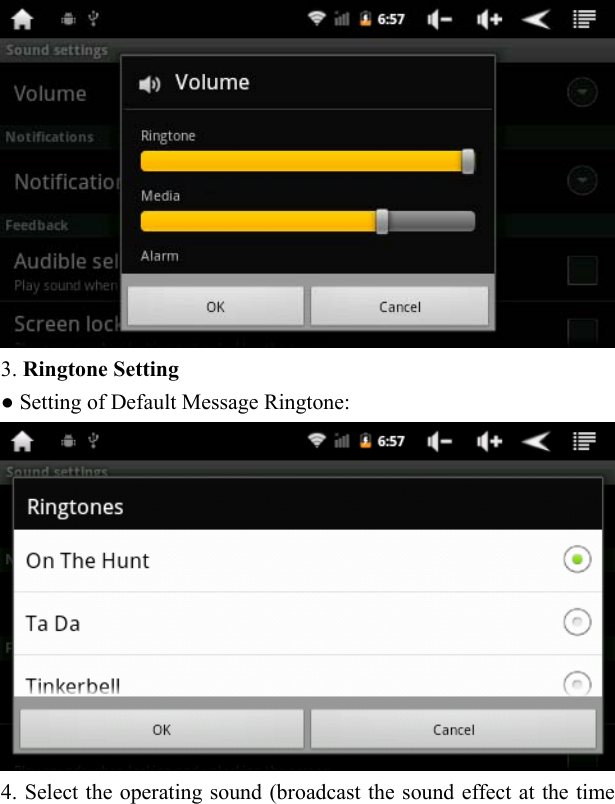
   ● Sound and Display Settings ● Click the setting menu-[sound or display] to enter the setting interface:  1. Sound off Setting   When choose the sound off mode, all the sound will be off except for alarm clock and media sound. 2. Volume setting In the setting interface, click the volume icon to set the volume of media, alarm clock and message.
   3. Ringtone Setting     ● Setting of Default Message Ringtone:    4. Select the operating sound (broadcast the sound effect at the time
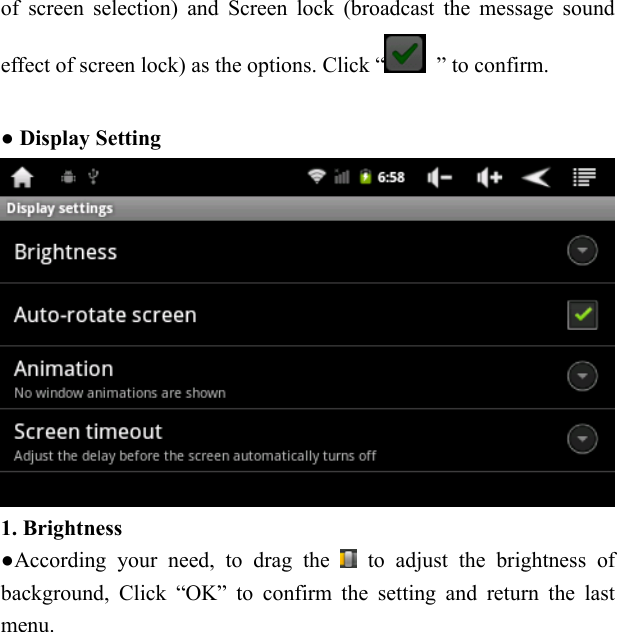
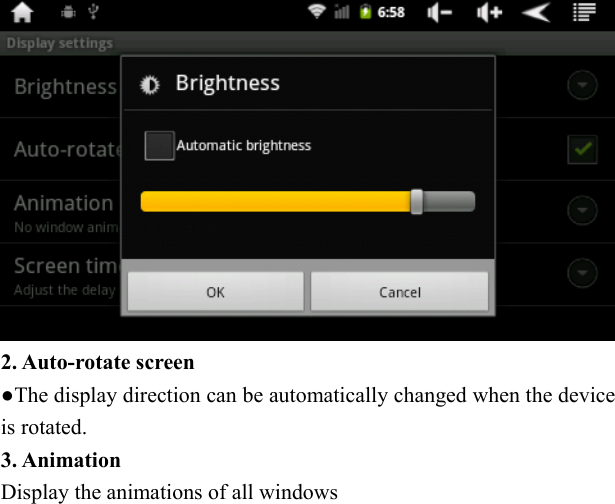
  of screen selection) and Screen lock (broadcast the message sound effect of screen lock) as the options. Click “   ” to confirm.  ● Display Setting    1. Brightness ●According your need, to drag the   to adjust the brightness of background, Click “OK” to confirm the setting and return the last menu.
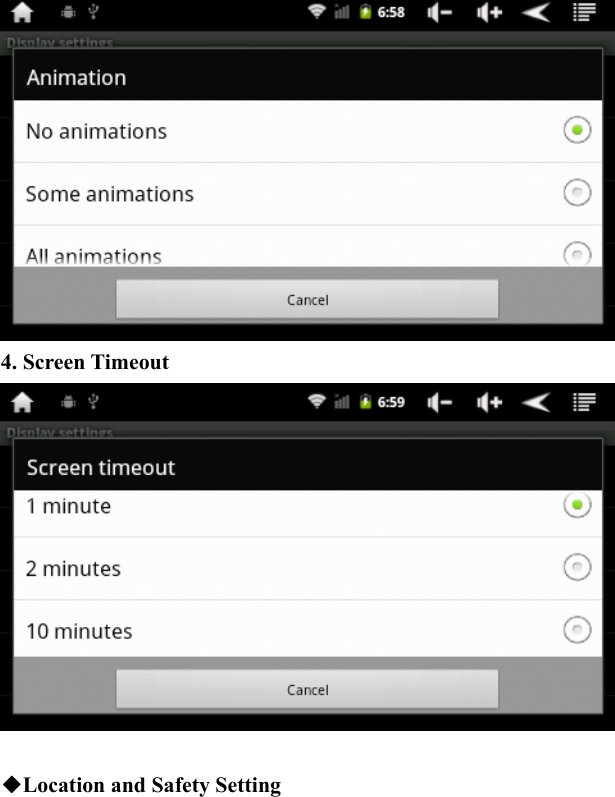
   2. Auto-rotate screen ●The display direction can be automatically changed when the device is rotated.     3. Animation   Display the animations of all windows
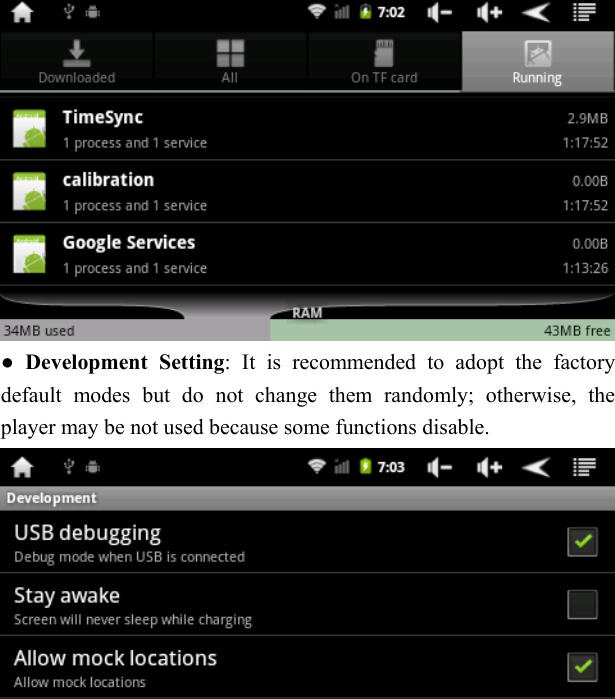
   4. Screen Timeout   ◆Location and Safety Setting
  ●Click the setting menu [location & safety] to enter the setting interface.     ●Click the “set up screen lock” icon to set screen lock, including “None, PIN, Pattern and Password”. Note: Draw the unlock pattern, connect at least four points given, and click the next step, then it is completed.      ◆ Application Procedure Setting   ● Click the [application procedure] in the setting menu to enter the setting interface:
    Setting of management application procedure:   ● Click the [Management application procedure] to manage and delete the application procedure.    ●Setting of ongoing services:     ● Click the [Setting of ongoing services] to review and control the ongoing services:
   ● Development Setting: It is recommended to adopt the factory default modes but do not change them randomly; otherwise, the player may be not used because some functions disable.
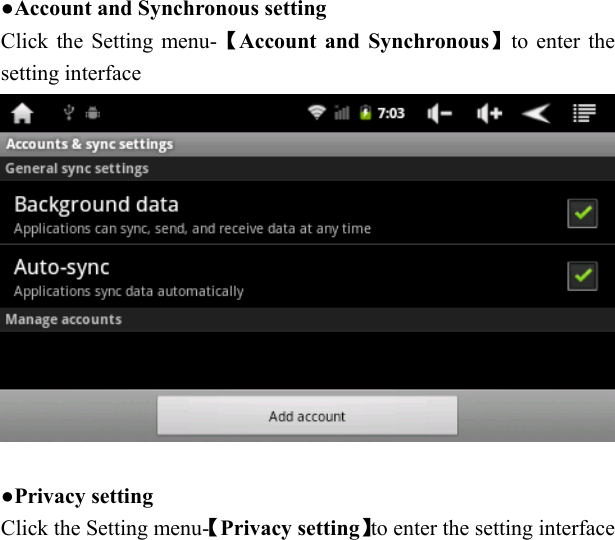
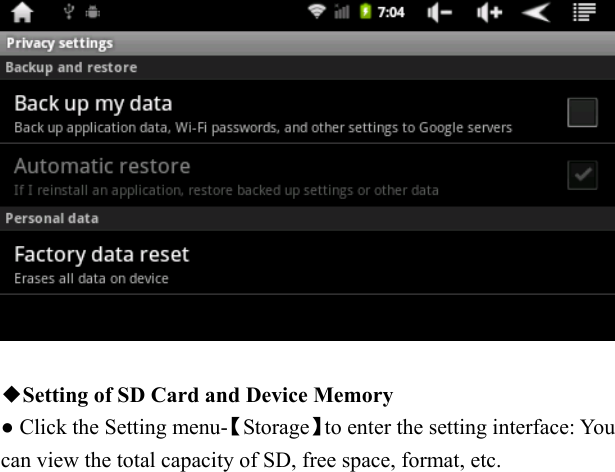
   ●Account and Synchronous setting Click the Setting menu-【Account and Synchronous】to enter the setting interface   ●Privacy setting Click the Setting menu-【Privacy setting】to enter the setting interface
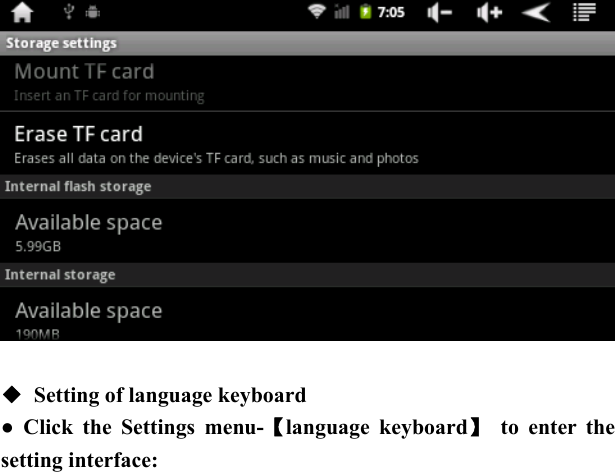
    ◆Setting of SD Card and Device Memory   ● Click the Setting menu-【Storage】to enter the setting interface: You can view the total capacity of SD, free space, format, etc.
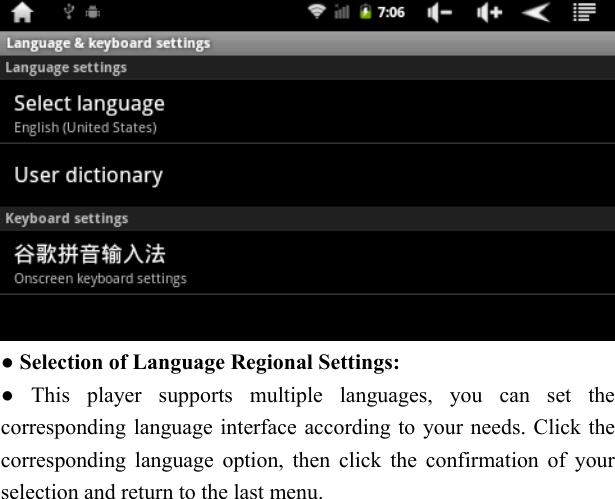
    ◆  Setting of language keyboard   ● Click the Settings menu-【language keyboard】 to enter the setting interface:
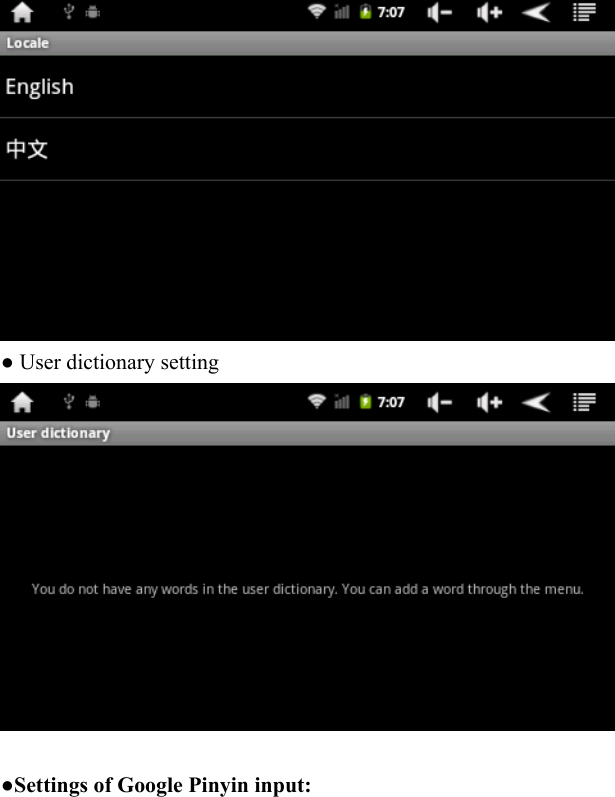
   ● Selection of Language Regional Settings: ● This player supports multiple languages, you can set the corresponding language interface according to your needs. Click the corresponding language option, then click the confirmation of your selection and return to the last menu.
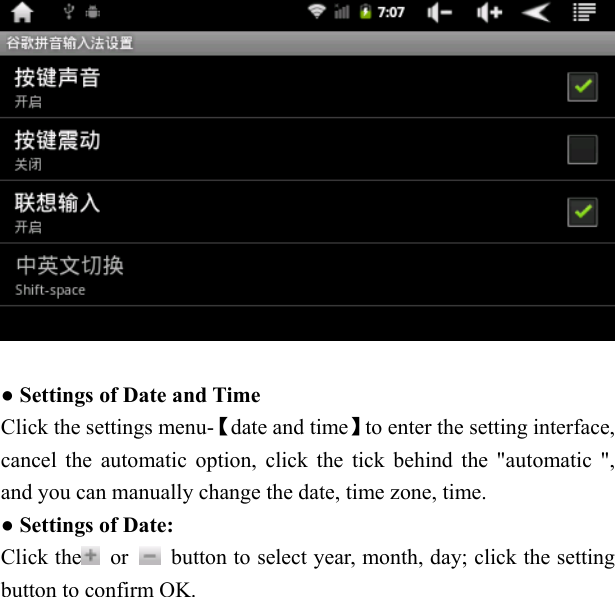
   ● User dictionary setting   ●Settings of Google Pinyin input:
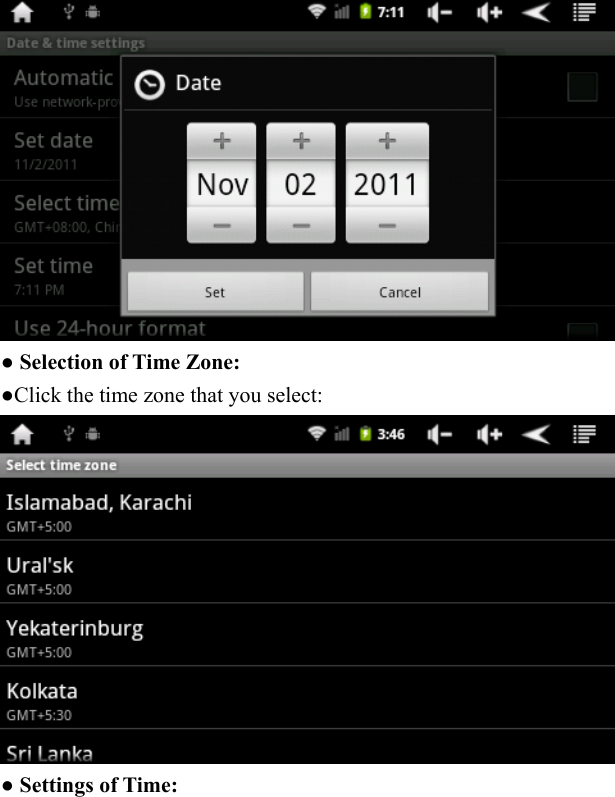
    ● Settings of Date and Time Click the settings menu-【date and time】to enter the setting interface, cancel the automatic option, click the tick behind the "automatic ", and you can manually change the date, time zone, time. ● Settings of Date: Click the  or    button to select year, month, day; click the setting button to confirm OK.
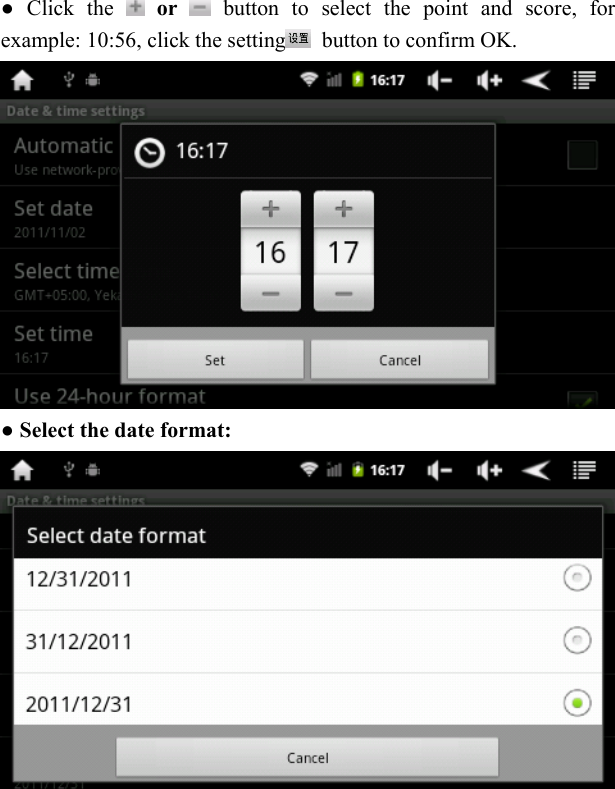
   ● Selection of Time Zone: ●Click the time zone that you select:  ● Settings of Time:
  ● Click the   or   button to select the point and score, for example: 10:56, click the setting   button to confirm OK.  ● Select the date format:
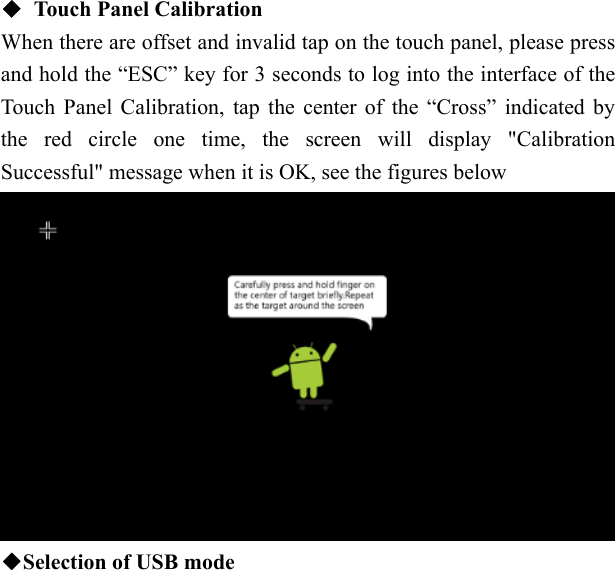
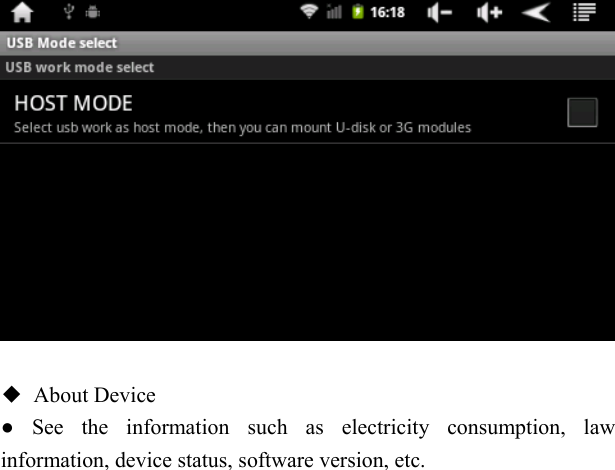
   ◆  Touch Panel Calibration When there are offset and invalid tap on the touch panel, please press and hold the “ESC” key for 3 seconds to log into the interface of the Touch Panel Calibration, tap the center of the “Cross” indicated by the red circle one time, the screen will display "Calibration Successful" message when it is OK, see the figures below  ◆Selection of USB mode
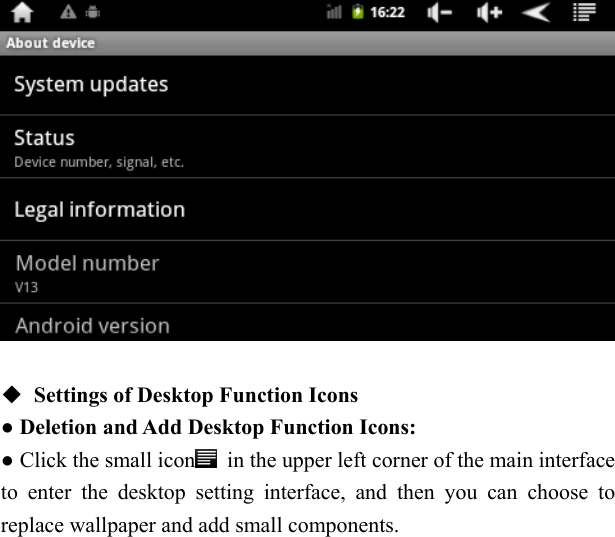
    ◆ About Device ● See the information such as electricity consumption, law information, device status, software version, etc.
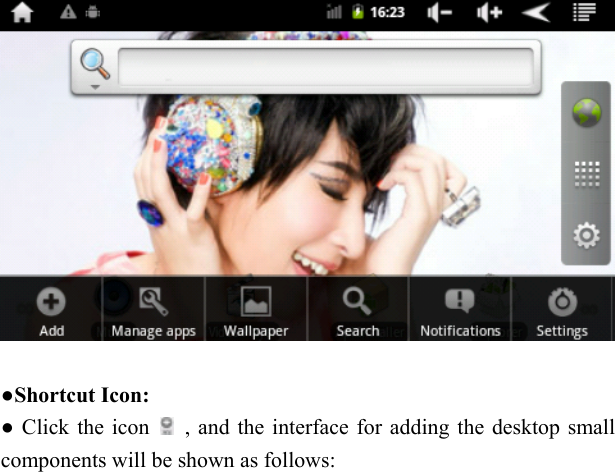
    ◆  Settings of Desktop Function Icons   ● Deletion and Add Desktop Function Icons: ● Click the small icon   in the upper left corner of the main interface to enter the desktop setting interface, and then you can choose to replace wallpaper and add small components.
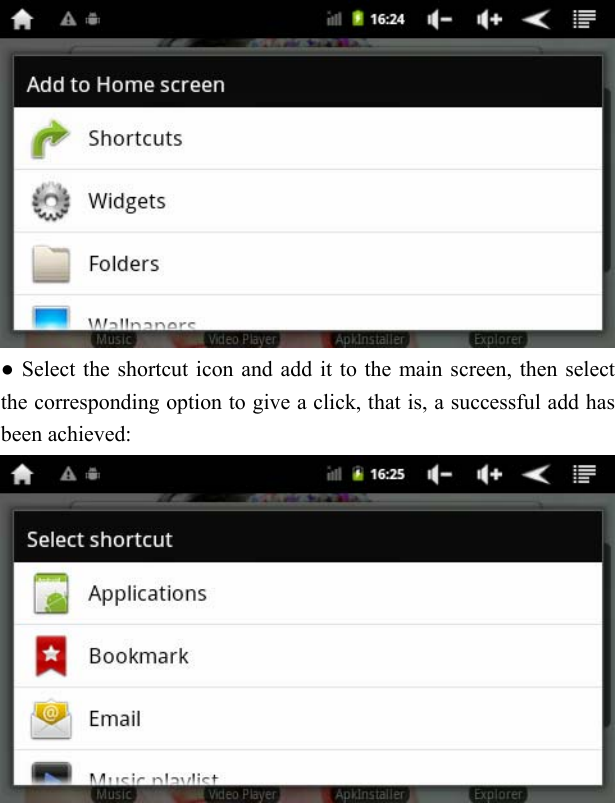
     ●Shortcut Icon: ● Click the icon    , and the interface for adding the desktop small components will be shown as follows:
   ● Select the shortcut icon and add it to the main screen, then select the corresponding option to give a click, that is, a successful add has been achieved:
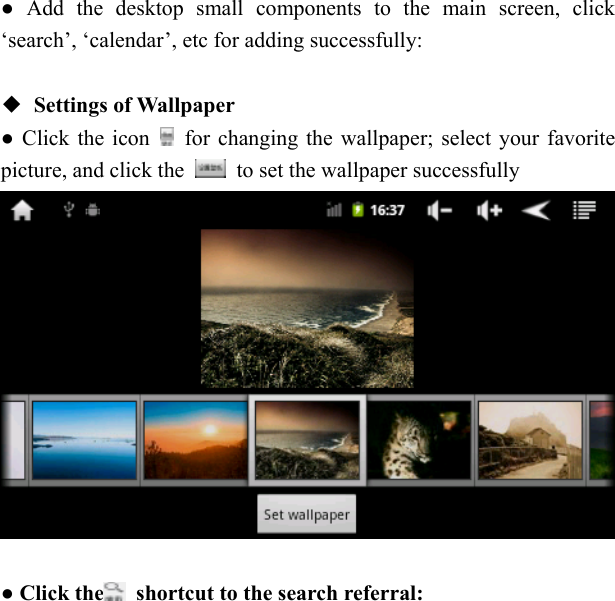
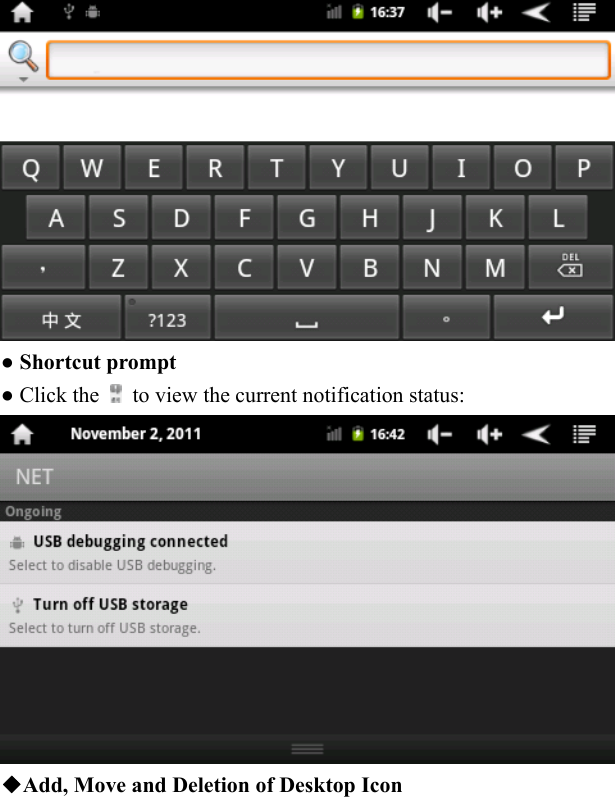
  ● Add the desktop small components to the main screen, click ‘search’, ‘calendar’, etc for adding successfully:  ◆ Settings of Wallpaper ● Click the icon    for changing the wallpaper; select your favorite picture, and click the    to set the wallpaper successfully   ● Click the   shortcut to the search referral:
   ● Shortcut prompt ● Click the    to view the current notification status:    ◆Add, Move and Deletion of Desktop Icon
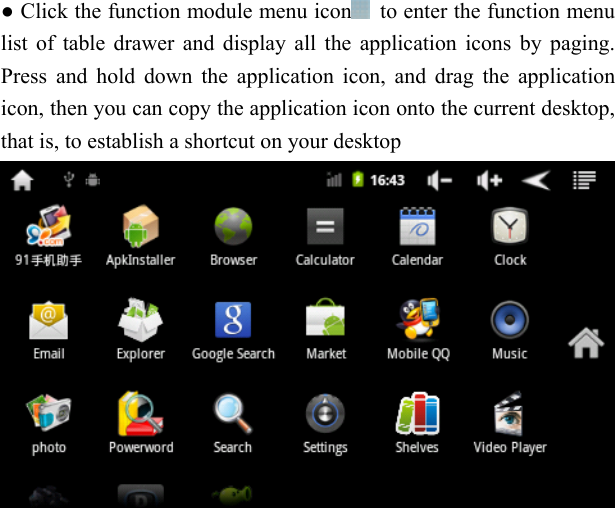
  ● Click the function module menu icon   to enter the function menu list of table drawer and display all the application icons by paging. Press and hold down the application icon, and drag the application icon, then you can copy the application icon onto the current desktop, that is, to establish a shortcut on your desktop
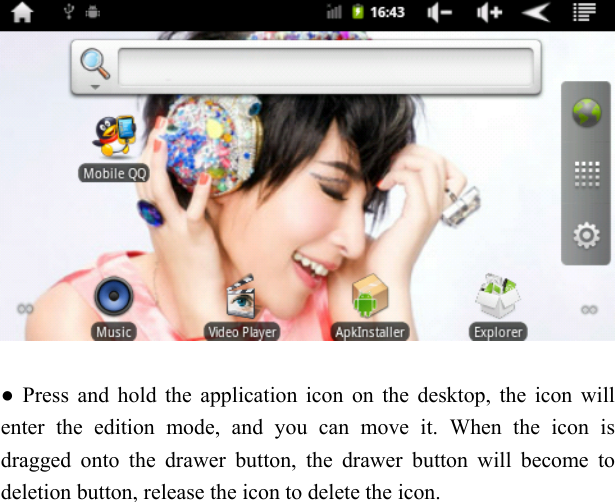
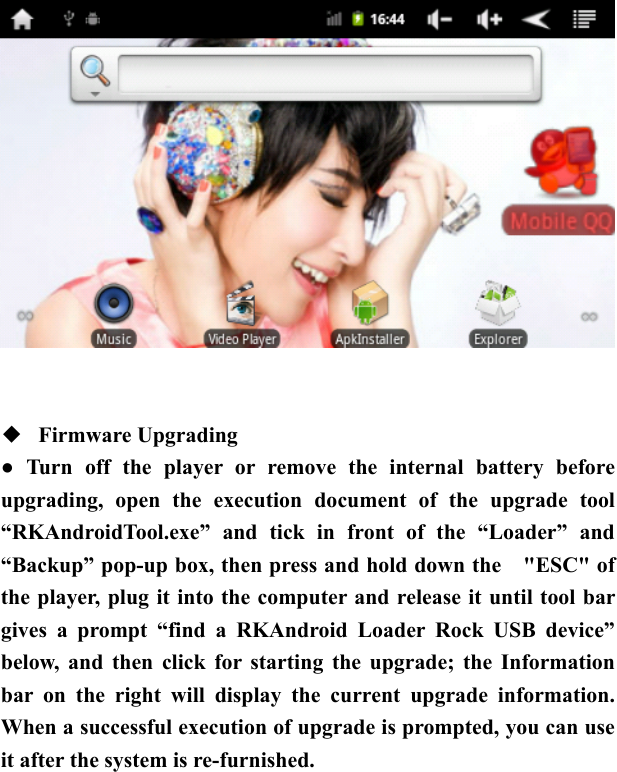
    ● Press and hold the application icon on the desktop, the icon will enter the edition mode, and you can move it. When the icon is dragged onto the drawer button, the drawer button will become to deletion button, release the icon to delete the icon.
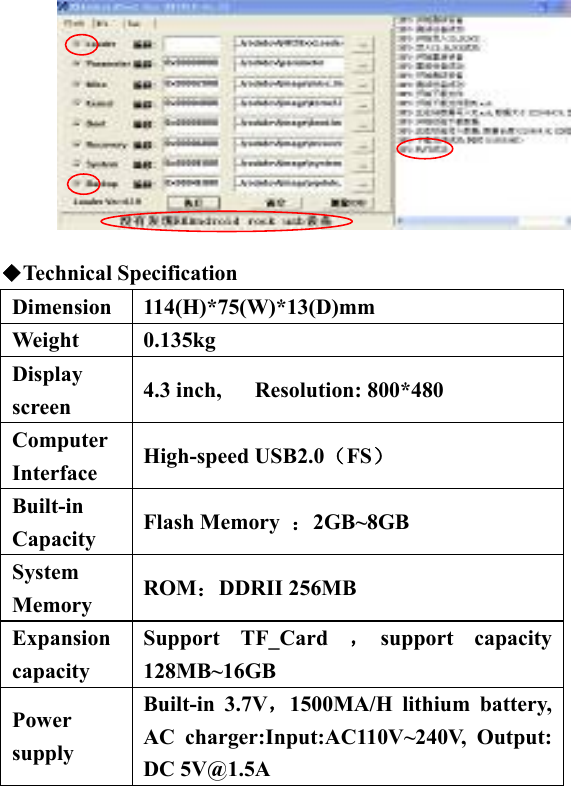
     ◆  Firmware Upgrading   ● Turn off the player or remove the internal battery before upgrading, open the execution document of the upgrade tool “RKAndroidTool.exe” and tick in front of the “Loader” and “Backup” pop-up box, then press and hold down the    "ESC" of the player, plug it into the computer and release it until tool bar gives a prompt “find a RKAndroid Loader Rock USB device” below, and then click for starting the upgrade; the Information bar on the right will display the current upgrade information. When a successful execution of upgrade is prompted, you can use it after the system is re-furnished.
           ◆Technical Specification Dimension 114(H)*75(W)*13(D)mm Weight 0.135kg Display screen  4.3 inch,   Resolution: 800*480 Computer Interface  High-speed USB2.0(FS)  Built-in Capacity  Flash Memory  :2GB~8GB System Memory  ROM:DDRII 256MB Expansion capacity Support TF_Card ,support capacity 128MB~16GB Power supply  Built-in 3.7V,1500MA/H lithium battery, AC charger:Input:AC110V~240V, Output: DC 5V@1.5A
   Playback Formats MP3、WMA、OGG、APE、FLAC、AAC、WAV Maximum Headphone Output (L)5mW+( R)5mW(32Ohm)Support MP3 bit rate 8Kbps — 392Kbps WMA  、WAV bit rate 5Kbps ~ 192 Kbps   Music features Frequency 20Hz to 20KHz
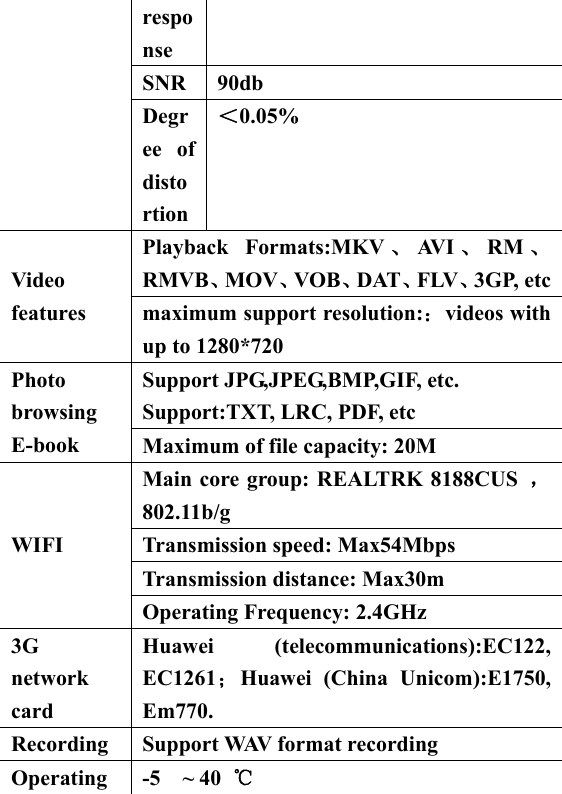
  response SNR 90db Degree of distortion <0.05% Playback Formats:MKV 、AV I 、RM 、RMVB、MOV、VOB、DAT、FLV、3GP, etcVideo features  maximum support resolution::videos with up to 1280*720 Support JPG,JPEG,BMP,GIF, etc. Support:TXT, LRC, PDF, etc Photo browsing E-book  Maximum of file capacity: 20M Main core group: REALTRK 8188CUS  ,802.11b/g Transmission speed: Max54Mbps Transmission distance: Max30m WIFI  Operating Frequency: 2.4GHz 3G network card Huawei (telecommunications):EC122, EC1261;Huawei (China Unicom):E1750, Em770. Recording Support WAV format recording Operating  -5  ~ 40 ℃
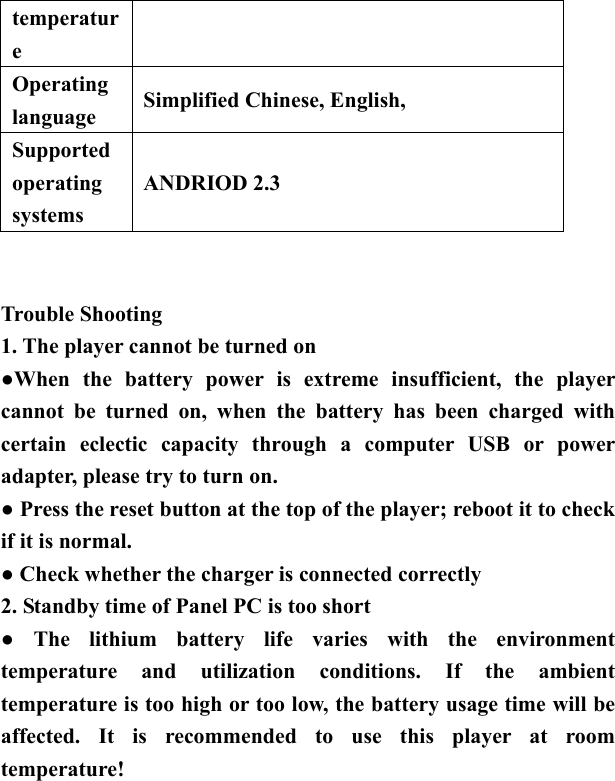
  temperature Operating language  Simplified Chinese, English,   Supported operating systems ANDRIOD 2.3      Trouble Shooting 1. The player cannot be turned on ●When the battery power is extreme insufficient, the player cannot be turned on, when the battery has been charged with certain eclectic capacity through a computer USB or power adapter, please try to turn on. ● Press the reset button at the top of the player; reboot it to check if it is normal. ● Check whether the charger is connected correctly   2. Standby time of Panel PC is too short   ● The lithium battery life varies with the environment temperature and utilization conditions. If the ambient temperature is too high or too low, the battery usage time will be affected. It is recommended to use this player at room temperature!
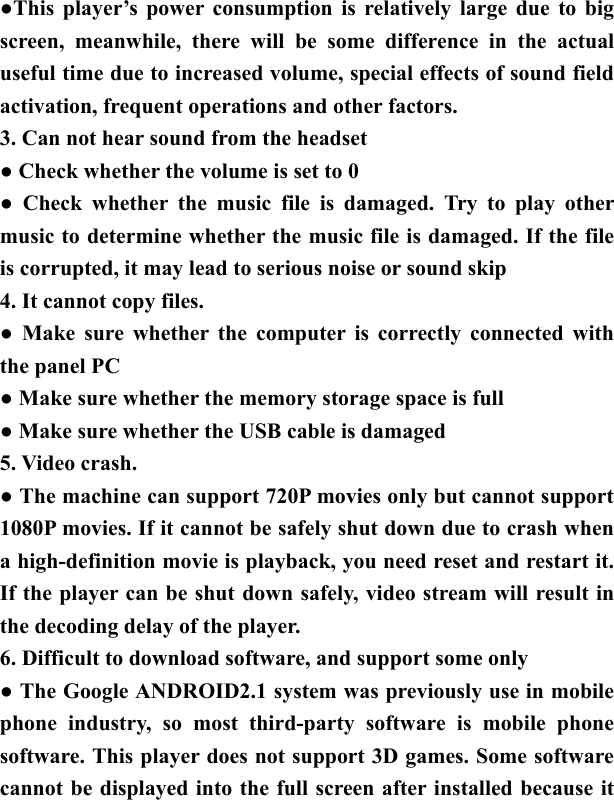
  ●This player’s power consumption is relatively large due to big screen, meanwhile, there will be some difference in the actual useful time due to increased volume, special effects of sound field activation, frequent operations and other factors. 3. Can not hear sound from the headset ● Check whether the volume is set to 0   ● Check whether the music file is damaged. Try to play other music to determine whether the music file is damaged. If the file is corrupted, it may lead to serious noise or sound skip 4. It cannot copy files.   ● Make sure whether the computer is correctly connected with the panel PC ● Make sure whether the memory storage space is full ● Make sure whether the USB cable is damaged 5. Video crash. ● The machine can support 720P movies only but cannot support 1080P movies. If it cannot be safely shut down due to crash when a high-definition movie is playback, you need reset and restart it. If the player can be shut down safely, video stream will result in the decoding delay of the player.   6. Difficult to download software, and support some only ● The Google ANDROID2.1 system was previously use in mobile phone industry, so most third-party software is mobile phone software. This player does not support 3D games. Some software cannot be displayed into the full screen after installed because it
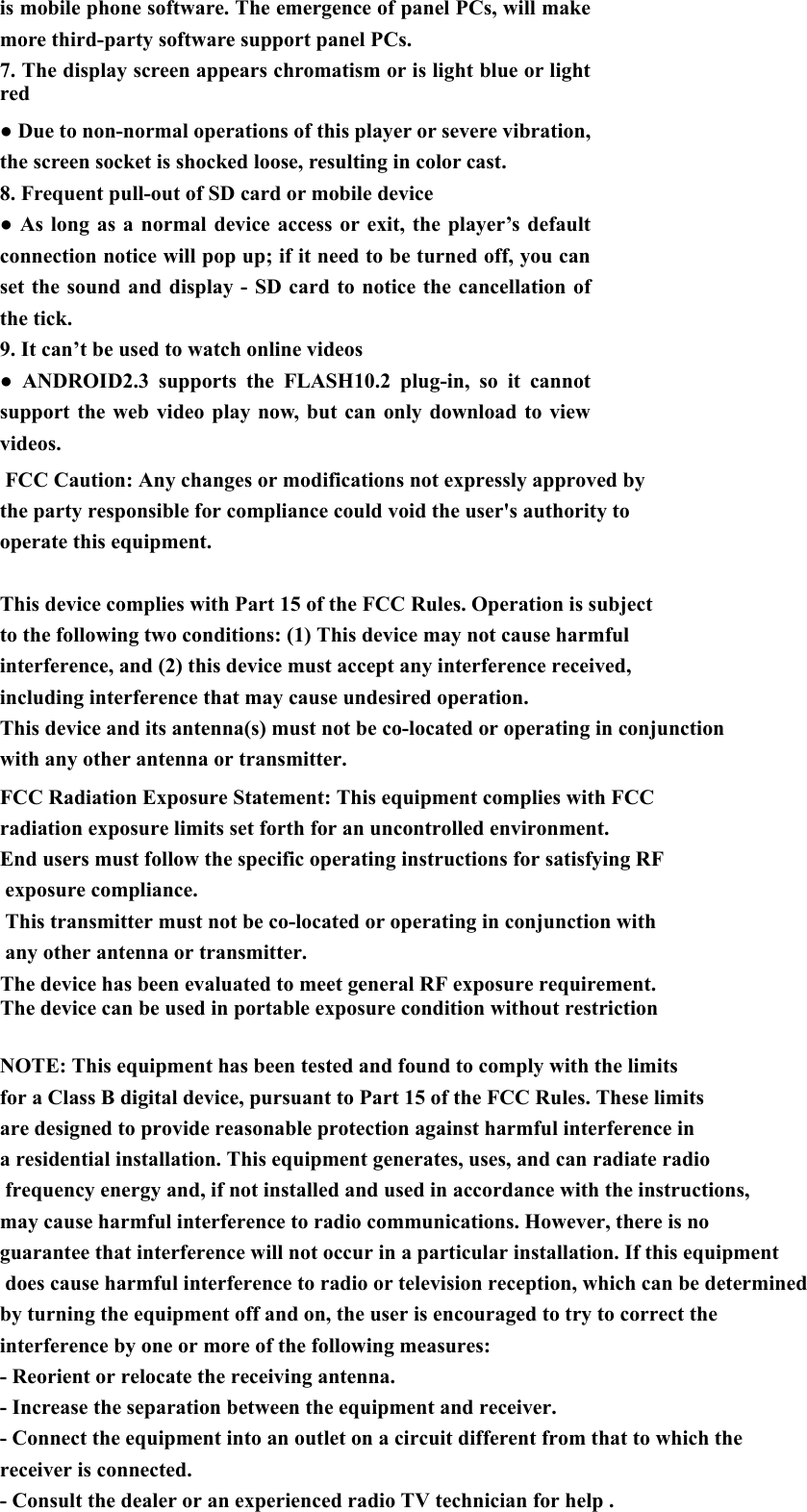
with any other antenna or transmitter.The device has been evaluated to meet general RF exposure requirement. The device can be used in portable exposure condition without restriction   is mobile phone software. The emergence of panel PCs, will make more third-party software support panel PCs. 7. The display screen appears chromatism or is light blue or light red ● Due to non-normal operations of this player or severe vibration, the screen socket is shocked loose, resulting in color cast. 8. Frequent pull-out of SD card or mobile device ● As long as a normal device access or exit, the player’s default connection notice will pop up; if it need to be turned off, you can set the sound and display - SD card to notice the cancellation of the tick.   9. It can’t be used to watch online videos   ● ANDROID2.3 supports the FLASH10.2 plug-in, so it cannot support the web video play now, but can only download to view videos.    FCC Caution: Any changes or modifications not expressly approved by the party responsible for compliance could void the user's authority to operate this equipment. This device complies with Part 15 of the FCC Rules. Operation is subject to the following two conditions: (1) This device may not cause harmful interference, and (2) this device must accept any interference received, including interference that may cause undesired operation.This device and its antenna(s) must not be co-located or operating in conjunctionFCC Radiation Exposure Statement: This equipment complies with FCC radiation exposure limits set forth for an uncontrolled environment. End users must follow the specific operating instructions for satisfying RF exposure compliance.  This transmitter must not be co-located or operating in conjunction with any other antenna or transmitter. for a Class B digital device, pursuant to Part 15 of the FCC Rules. These limits are designed to provide reasonable protection against harmful interference in a residential installation. This equipment generates, uses, and can radiate radio frequency energy and, if not installed and used in accordance with the instructions, may cause harmful interference to radio communications. However, there is no guarantee that interference will not occur in a particular installation. If this equipment does cause harmful interference to radio or television reception, which can be determined by turning the equipment off and on, the user is encouraged to try to correct the interference by one or more of the following measures:- Reorient or relocate the receiving antenna.- Increase the separation between the equipment and receiver.- Connect the equipment into an outlet on a circuit different from that to which the receiver is connected.- Consult the dealer or an experienced radio TV technician for help . NOTE: This equipment has been tested and found to comply with the limits

Navigation menu