Users Manual

1
Index
1. Preparation
▣Product Feature
▣Package Contents
▣Name of display
▣Button manual
▣LCD Screen Display
2. Windows98/SE Driver Installation
▣ Windows98/SE Driver Installation
3. Connect to computer
Connect to computer
▣ Recommended System Environment
▣ Connect to PC
▣ The way to Download/Upload the file
▣ The way to apart from MY-2030 to PC.
4. Basic operation
▣Power ON/OFF
▣ Listening to music
▣ Volume control
▣ Selection of the song and search
functions
▣ Repeat function
▣ Set HOLD
▣SOUND Effect function
▣ Playback function
▣ Navigation
▣Bookmark function
▣Recording
▣Menu function
▣Reset
5. Mode Menu
▣Log into Mode Menu
▣NAVIGATE
▣Voice(Play the voice record file)
▣RADIO(Play the radio broadcast record file)
▣LINE(Play the LINE IN record file)
▣FM RADIO(listening to radio broadcast)
▣WATCH
6. Main menu
▣Log into main menu
▣PLAYBACK
▣SOUND
▣DISPALY
▣SYSTEM
▣DELETE file
7.Menu structure
8.Extra functions
▣Charging
▣Usage of SD, MMC card.

2
▣HOST function (SD,MMC)
▣Create logo display on LCD
▣ Usage of the music text support program
9. Notes
▣Notes
10. The solution of matters and
services inquiry
▣ Solution of the problem
▣ A/S application
11.Specification
▣Specification
Notes) The contents of the manual can be changed without notification.

3
1. Preparation
▣Product Feature
●Multi-Codec Player
MP3, WMA, ASF are supported by Multi Codec.
● Support WMA ENCODING
Support WMA format when you recording the Voice, FM radio, Line In.
● Support exterior memory card
SD, MMC cards are be able to extend the exterior memory through memory card slot.
●USB automatic recharging
You do not need to recharge separately, it will recharge automatically when it has
connected to the computer.
●HOST Functions.
The files from extended memory are be able to Copy to inner memory
● My LOGO expression
You can create your own logo for JPG, BMP,GIF files with LOGO EDITOR
●FM radio function)
Automation station set up, and station memory function help you to listen FM. >
● Radio reservation record function
Set reserve recording for FM radio
● 3 Colors and 128 Gray
●Firmware Upgrade
Firmware upgraded product, with the functions of addition and change and continues
progress. You will be able to enjoy the music with the best functions.
●5 Preset EQ
Set users Equalizer had simply changed for users. You can enjoy the sound with
BASS and TREBLE.
●SRS/WOW Effect for 3D Sound
●GUI MENU support
●Easy Navigation
It is flexible to save and search for the songs by tree system
● Bookmark function
You can set-up your favorite songs.
●portable flexibility
it is very convenience to port, by carrying case and neck band.
4
▣ Package Contents
(CD) (Ear Phone) (USB connection cable) (LINE IN cable)
(User Guide) (Neck lace)(Portable USB connection Adapter) (Carrying Case)
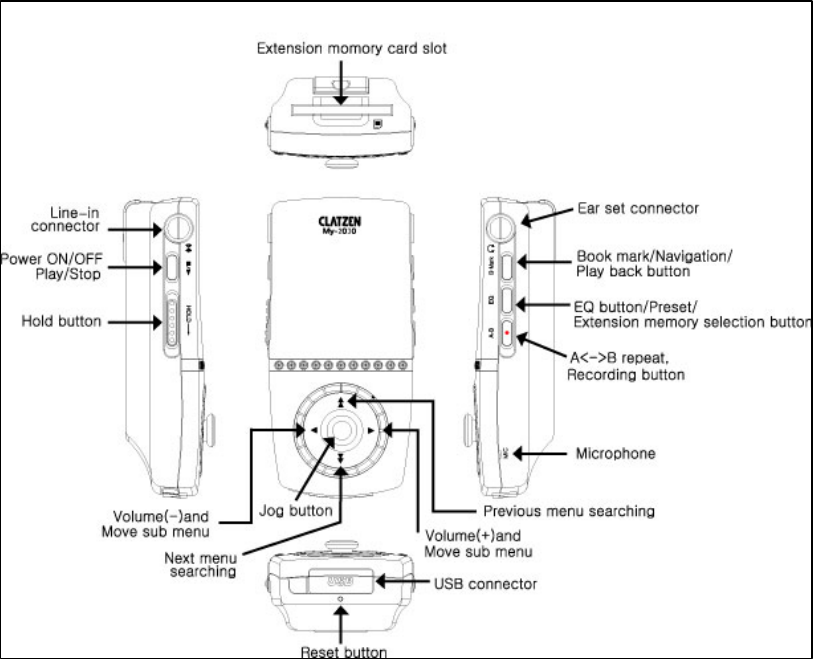
▣ Name of Display
5
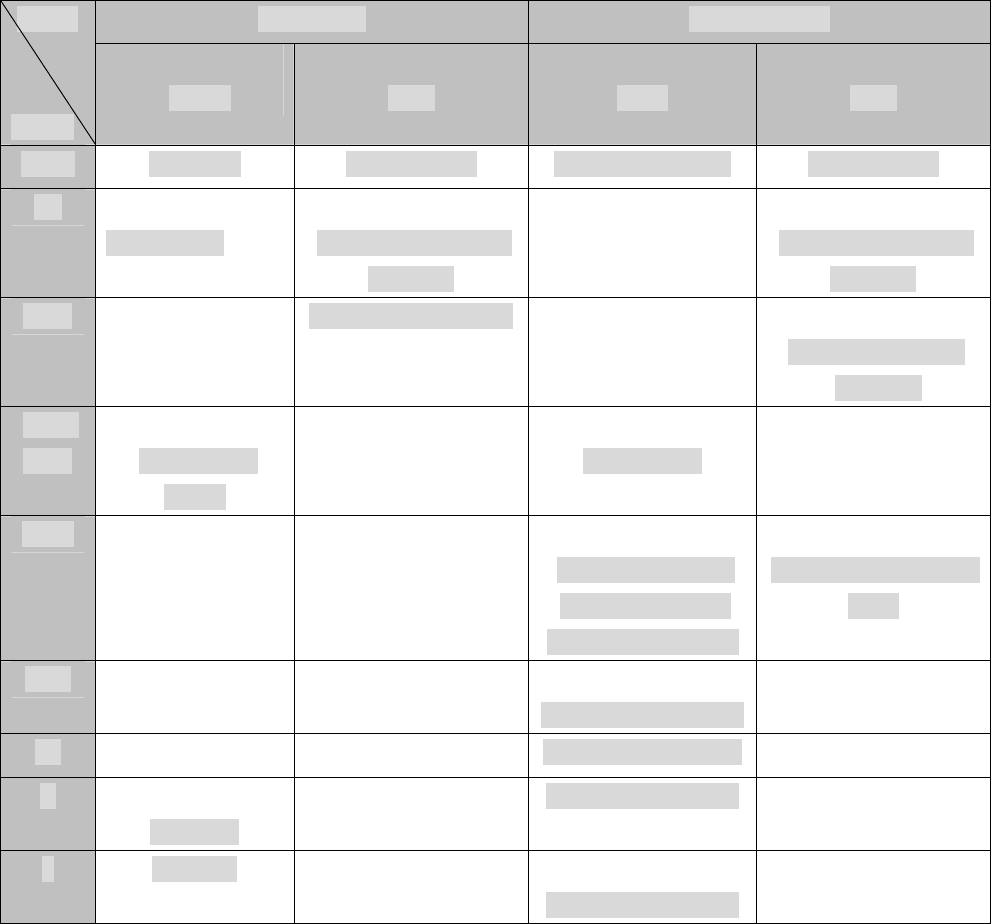
▣ Button Manual
(Functional button usage data)
REC MODE Browser Mode MODE
Button
Short
Long
Short
Long
PLAY Play/Stop Power On/Off New folder/Delete Power On/Off
EQ
Sound Menu
In/Exterior memory
selection
In/Exterior memory
selection
A↔B REC mode set/cancel
Copy the exterior
memory
Book
Mark
PLAYBACK
MENU
BOOKMARK
Menu
MENU Selection /
move from upper
menu to down menu
Move to the previous
menu
REW
Move to upper folder
FF Move to down folder
+
Volume+
Move to down menu
- Volume-
Move to down menu
6
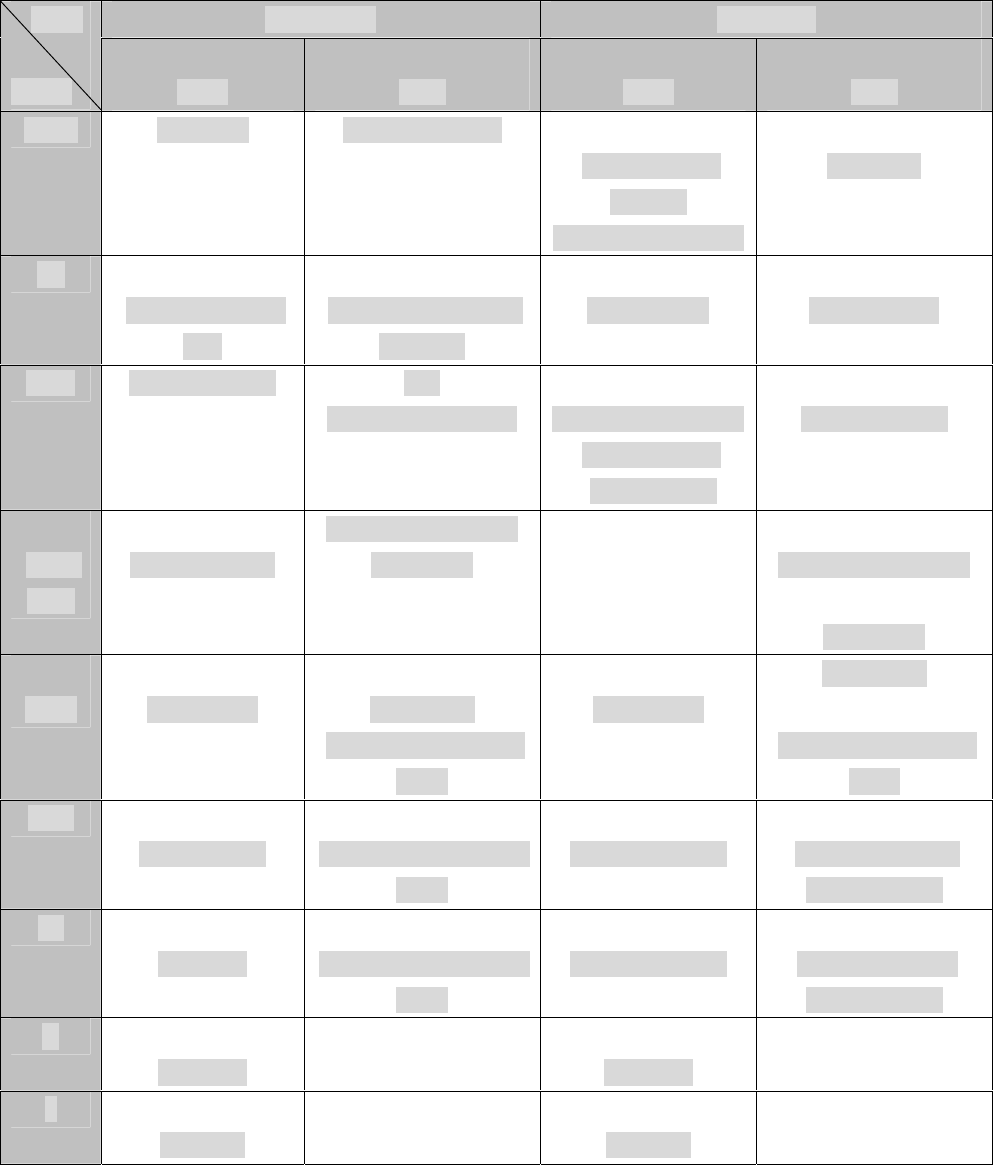
If you press many buttons in same time, it can cause the error
MP3 MODE FM MODE mode
button
Short
Long
Short
Long
PLAY Play/Stop POWER ON/OFF
Saving Preset
Channel
Saving timer record
Power off
EQ
Sound Selection
Key
In/Exterior memory
selection
Preset Mode
Auto Memory
A↔B A <-> B repeat Rec
(Voice, Line, Radio)
Timer Record Mode
Timer Record
Cancellation
Radio Recoding
Book
mark
Play Mode Key
Bookmark Selection
Navigation
Bookmark Selection
Navigation
Menu
Mode Menu
Main Menu
Go back to previous
mode
Mode Menu
Main Menu
Go back to previous
mode
REW
Previous File
Fast Rewind and Play
mode
Move to 0.1MHz
Automatic upper
station Search
FF
Next File
Fast Rewind and Play
mode
Move to 0.1MHz
Automatic down
station Search
+
Volume+
Volume+
-
Volume-
Volume-
7
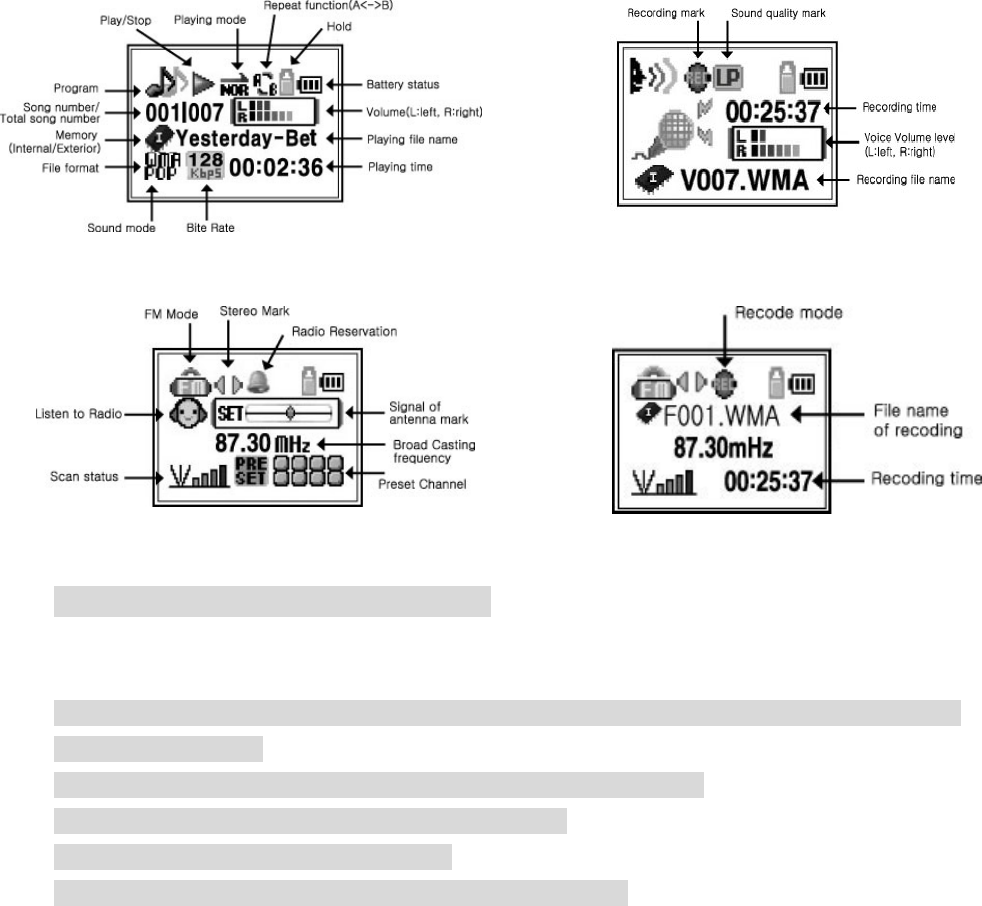
▣ LCD Screen Display
MP3 Play Mode Voice Recording Mode
FM Radio Mode FM Encoding Mode
2. Installation of Windows8/SE Driver
▣ Windows98/SE Driver Installation
You can only install to the computer which has windows98/SE OS. If you install once, you do
not need to reinstall.
With the Windows ME ,XP,2000,MAC, you do not need installation.
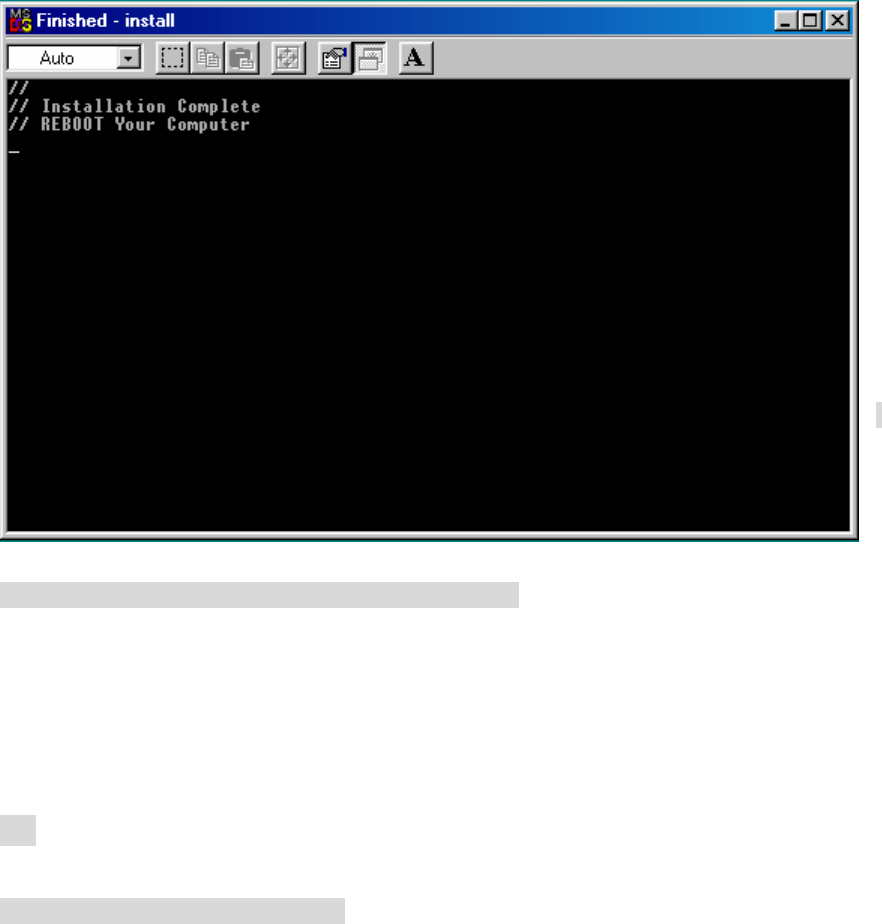
1) Put the product CD in to the PC’s CD-ROM drive.
2) Double click the file call “install. bat”.
3) If you perform the install .bat file, it will show as below.
8
.
4) Close the screen above, and restart the computer.
If you wish to delete the drive, search for “uninstall.bat” file then
process it same way as you did for CD.
3. Connect to computer
▣ Recommended System Environment
PC system needs the functions below.
●Pentium over 133MHz
●Window 98/SE, ME, 2000, Mac OS 9 Mac OS 10
●CD-ROM Drive (over 2times)
●Usable USB port (USB over 1.1)
●VGA Graphic
●Over 64MB Memory)
9
▣ Connect to PC
1) Connect USB port with USB cable, which are at the back of the PC.
2) Connect USB cable terminal connection with USB cable, which are at the bottom of My-
2030.
※ If you plug out when the program is processing, it can go wrong.
3) USB will be set with the message saying it is finding new device.
If it’s set, you might not be able to see the screen.
Check out whether it has been set properly.
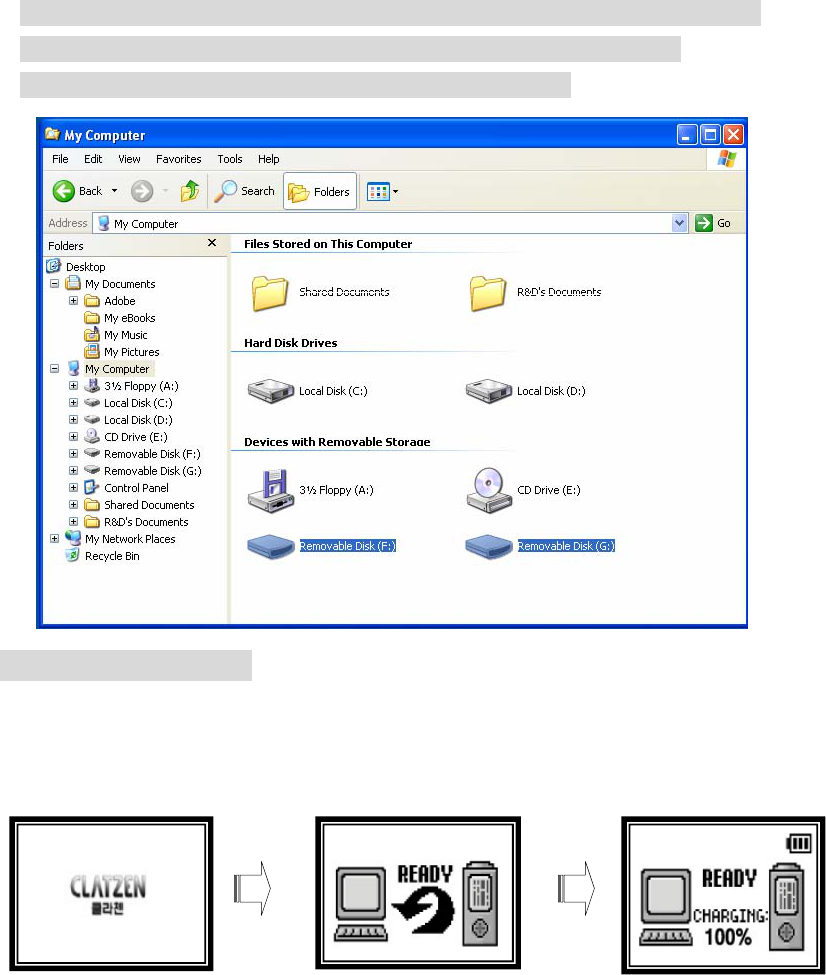
4) When the USB driver has set, my computer will have two portable disks.
The first one is inner memory, and second one is exterior memory.
Each drivers have LINE, LOGO, RADIO, and VOICE folder.
Connect to computer.
When you connect My-2030, it reads USB drive and in same time it reads as charge
function.
It is the screen when you connect MY-2030 to the computer. % Is amount of charge.
10
After this, you can use the same way as how you use floppy disk or hard disk.
♣ Reference: The way to check out USB driver at the controller.
Windows 98/ME
Control board – System – Controller – Hard disk controller –MY-2030 Win98USB Mas Storage
Device
Windows 2000
Control board – System – Controller – Disk drive - MY-2030 USB Device
Windows XP
Control board – Condition Management – System – Controller – Disk drive - MY-2030 USB
Device
▣ File Download / Upload Information
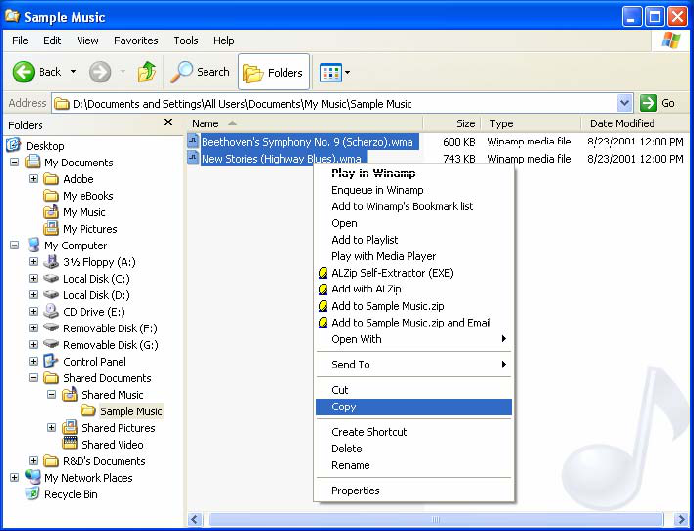
1)Choose the file that you wish to move, from your hard disk.
2)Set your mouse pointer at the back of the file, and click the right side button.
Then it will show the menu, and you should choose copy function.
11
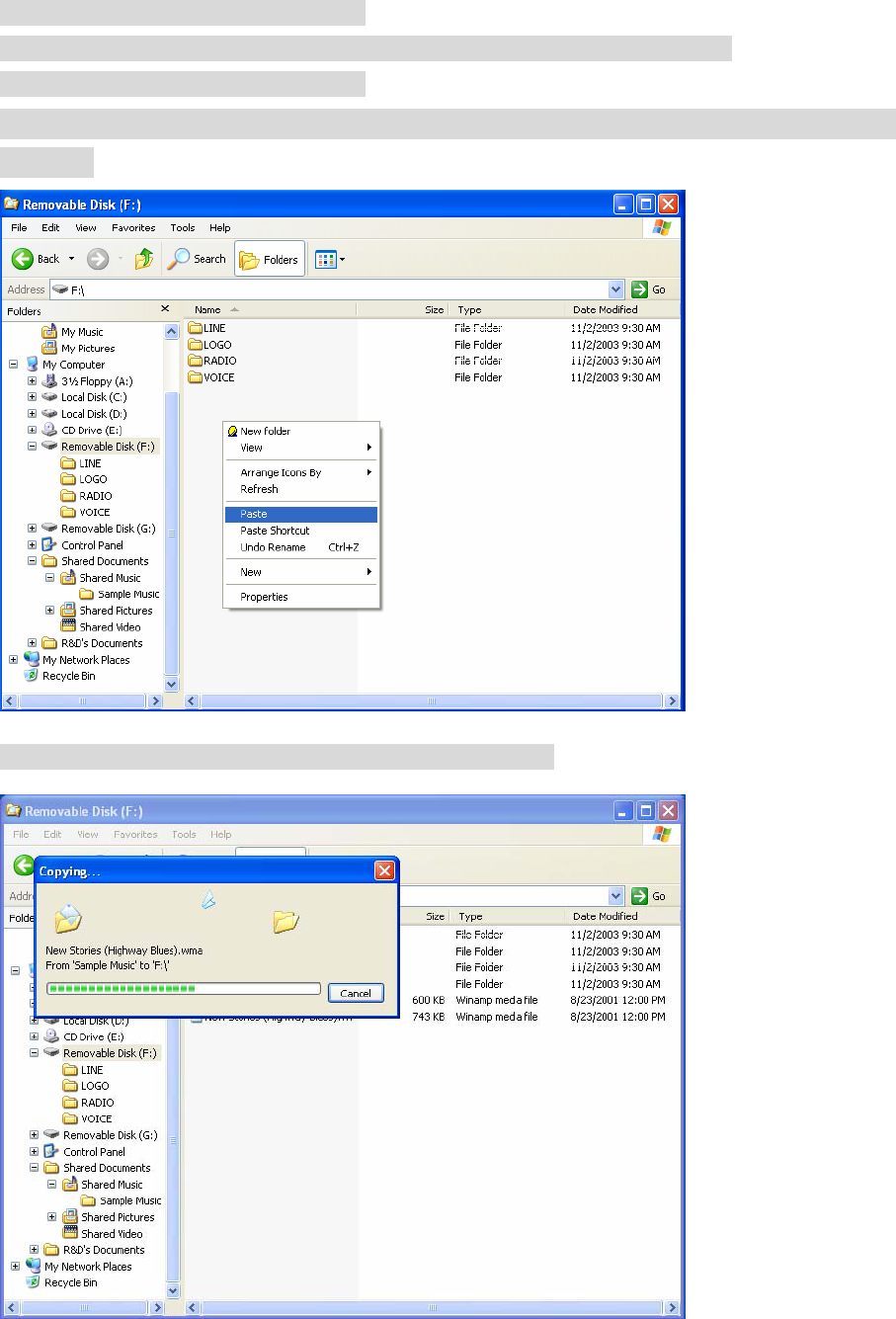
3) Click the first portable disk (F:)
When the portable disk has opened, click the right button of your mouse.
Select the ‘paste’ from the menu.
※ If you paste to the second portable disk (G:), It will save to exterior
memory.
4)Copy file is saving in your first portable disk (F: )
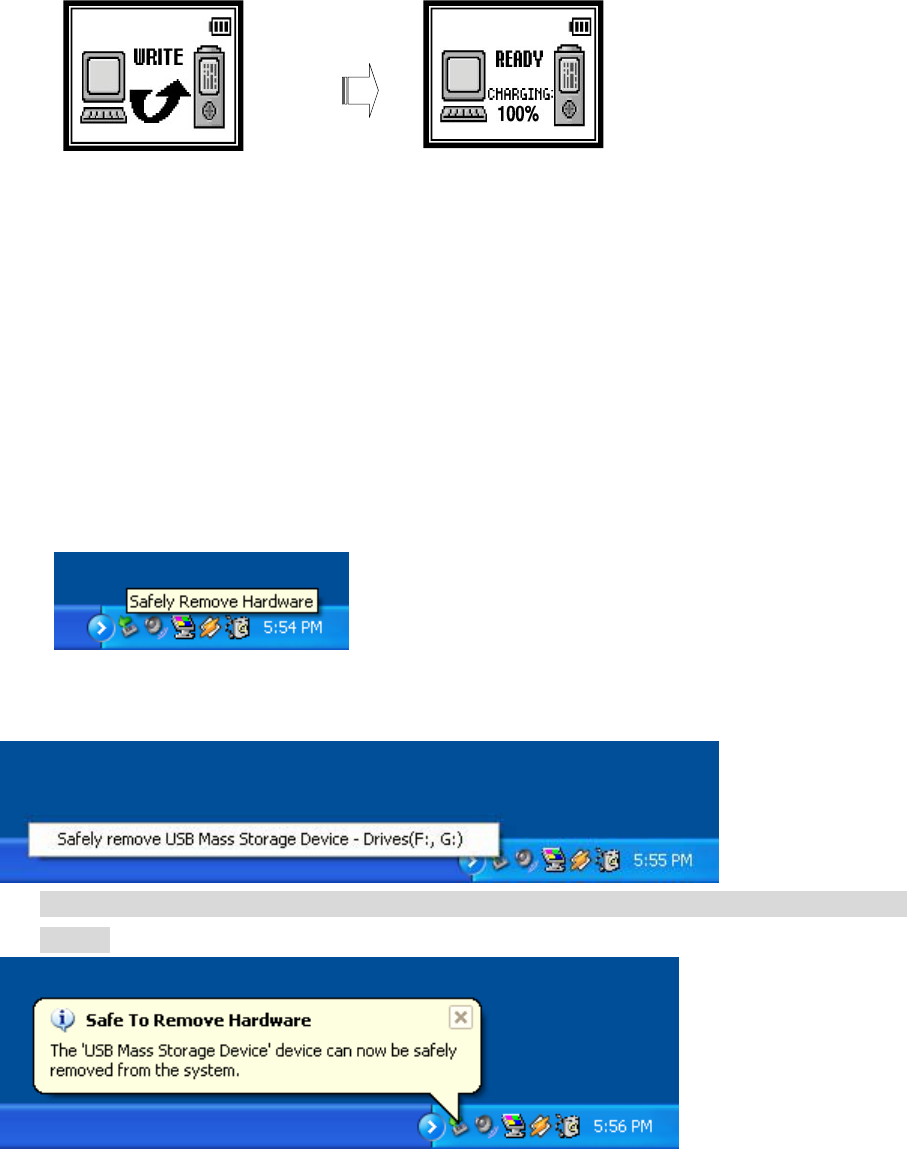
12
※ This is Clatzen's screen, when you download the file.
(Processing the file download) (Completion of file download)
▣ The way to apart the Clatzen from the computer (Window ME/2000/XP)
※ Caution 1 - When you apart the Clatzen from PC, it can be a parted only when it shows
ready on LCD screen. Otherwise you can destroy the data.
※ Caution 2 – When you apart from PC, you should use hardware apart or take out functions.
1)Put the mouse pointer on hardware apart or take out function, which is at the bottom
right. If you click the left button, it will show like below.
2) If you choose the message to left mouse, it will show such a message.
3)If you click the left button of your mouse, on the message above, it will show as
below.
*When the function deleted safely, Clatzen will change the mode to MP3 PLAY
4) Now apart the Clatzen, from PC USB port.
13
4. Basic functions
▣ Power ON/OFF
Power will be ON/OFF , if you press Play/Stop button for about two seconds.
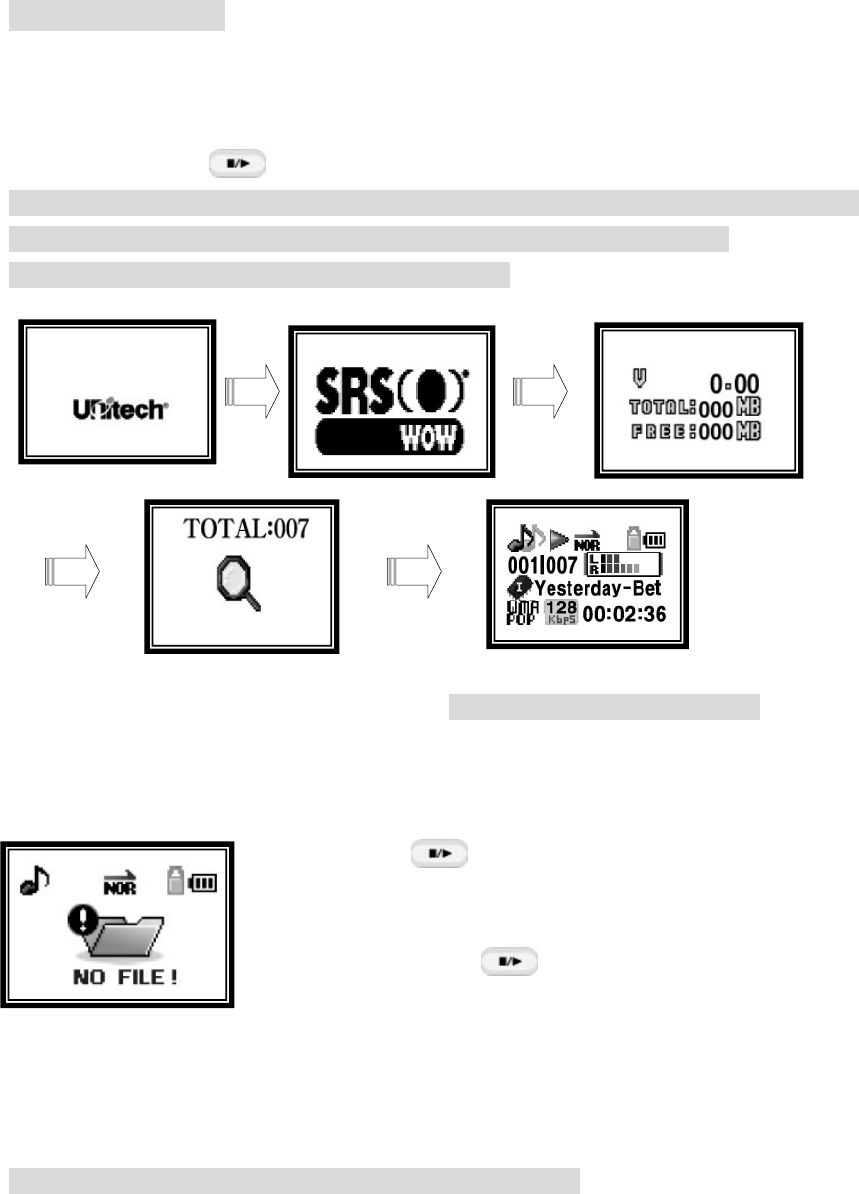
When the power is on, the screen will show as below and it will play the music file.
If you do not have music files, it will show the message of “NO FILE”.
*This is the order when the power is properly on.
(When the music file has saved)
▣ Listen to Music – Music file Play
When you turn on the MY-2030, it will be Play condition. If
you don’t have any saved files, it will show the message saying
“NO FILE”
If you press PLAY/STOP button gently at the Pause or stop
functions, it will become a play condition. But if you do it in
Play function, it will be paused.
When the case of having in other menu, you need to go to navigation menu and choose TOTAL
PLAY to be in music file play mode.
※Refer the page about navigate. It is in the mode menu.
14
▣Volume Control
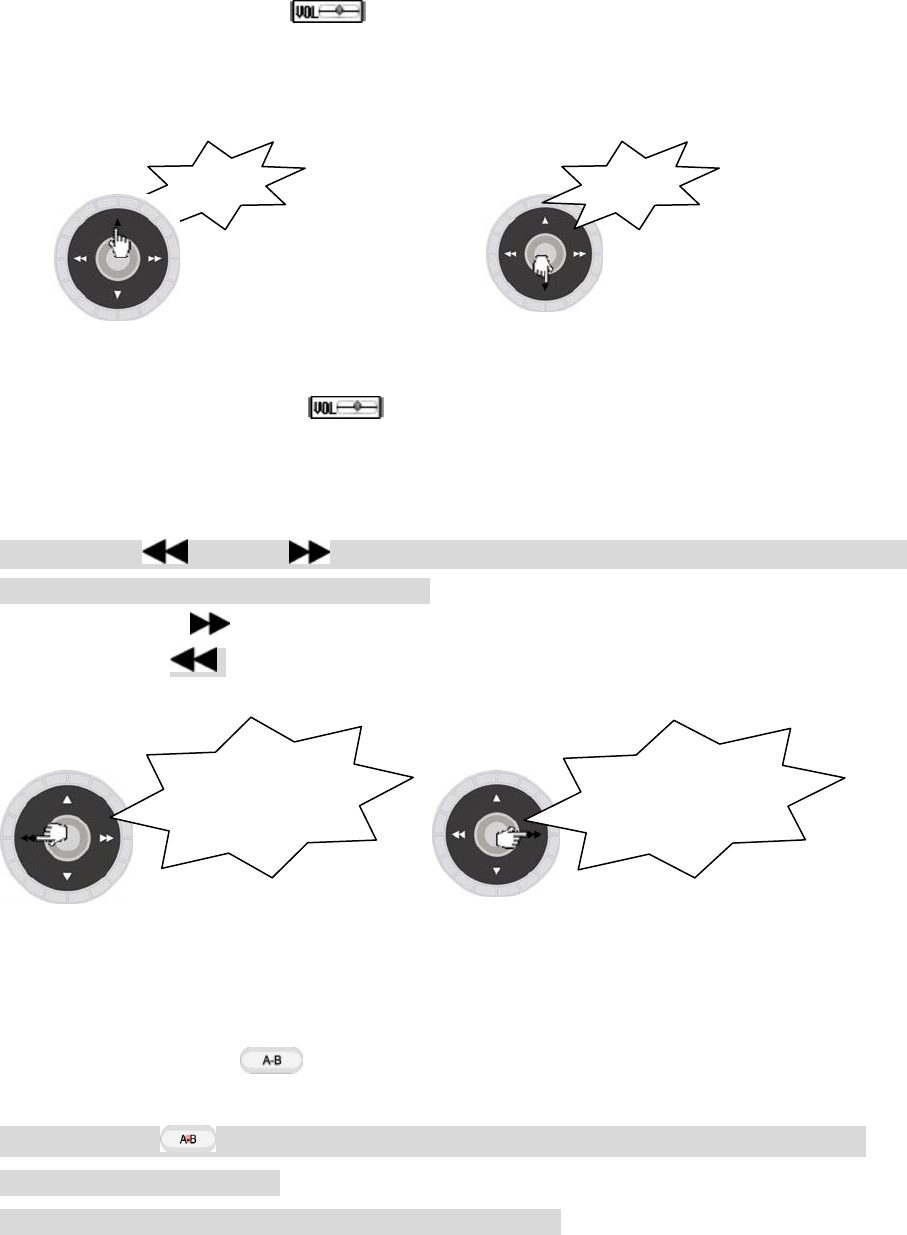
▣When you adjust the volume move the handle button to up or down.
(volume up) (volume down)
※ You will control the volume in a same way, at FM listening and record listening
mode.
▣ Selection of the song and search functions
1)If you push (REW) or (FF) shortly, to the left and right, it will move to the
previous or next songs and play the files.
2) If you press FF button for a long time while in play mode, it will fast forward.
But if you press REW button for a long time, it will fast rewind.
▣ Repeat function. (Only use in Play mode)
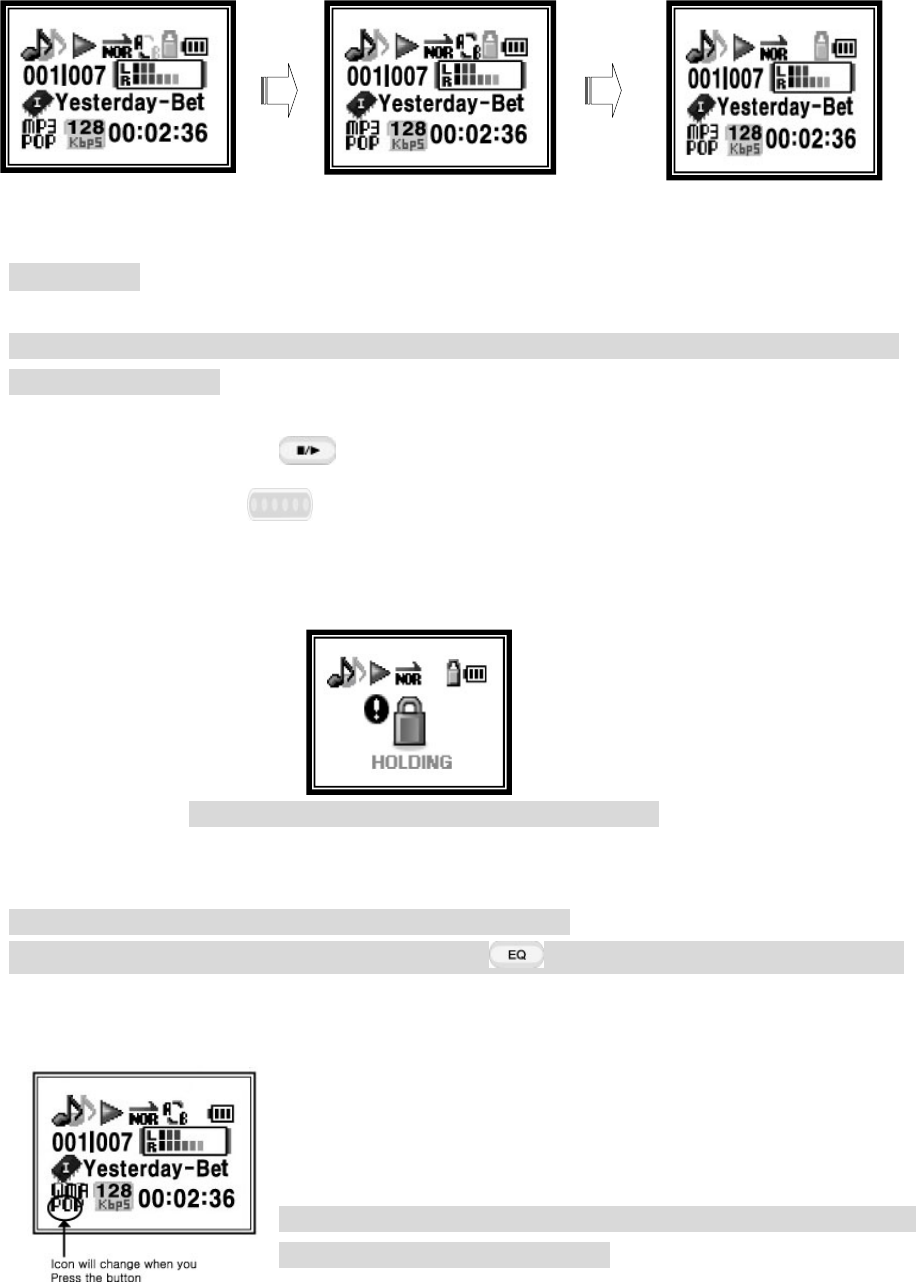
(1) If you press the A<->B button shortly, at the beginning part that you want to
repeat, then it will start from wherever with showing ‘A’
(2)If you press (A<->B) again at the end part, it will set repeat area and from
begin to end will be repeated continuously.
3) If you press (A<->B) button shortly again, or move the music file, ‘A<->B’
signal will be disappeared.
It will repeat until the ‘A<->B’ signal is disappear.
Push Push
Push or Push
For long time
Push or Push
For long time
15
▣ Set Hold
In case of the error movement of product while the power is on, you can control the HOLD
key to HOLD→ side.
If you press the Play/Stop button when the holding switch has
locked, HOLDING switch will flash and you would need to turn on the power again
after unlock the HOLDING.
This is HOLDING function screen, when the power is ON.
Extra – HOLD set screen when the power is on.
▣ sound Effect Function
Play the file, and set EQ with your style or the music.
You can select sound that you want, by press EQ button shortly while in play mode.
●Set EQ Sort
1) MY2030 Basic sound - Normal
2) Set maker EZ – CLASSIC, POP, ROCK, JAZZ, SRS, TRUBASS, WOW
3) Set the user EQ – USER, 3D USER
※ Refer the p25 at the sound menu of main menu, for the EQ
Selection and the way to select.
16
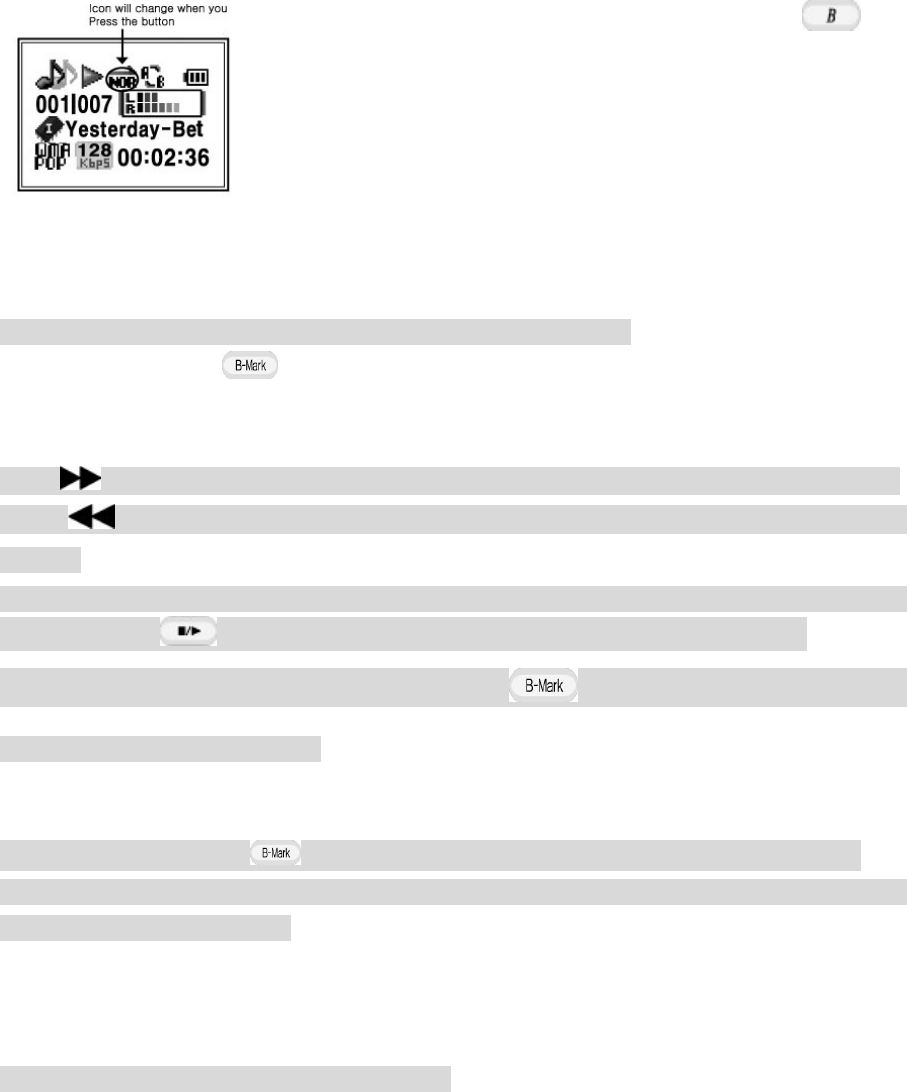
▣ PLAY BACK Function
You can choose play mode if you press bookmark for
shortly.
The sorts of play back are NORMAL, INTRO, EPEAT ONE, REPEAT
ALL, and SHUFFLE.
Reference the playback function of main menu, for detailed
playback functions.
▣ NAVIGATION
You can find the files easily, by using navigation simple key.
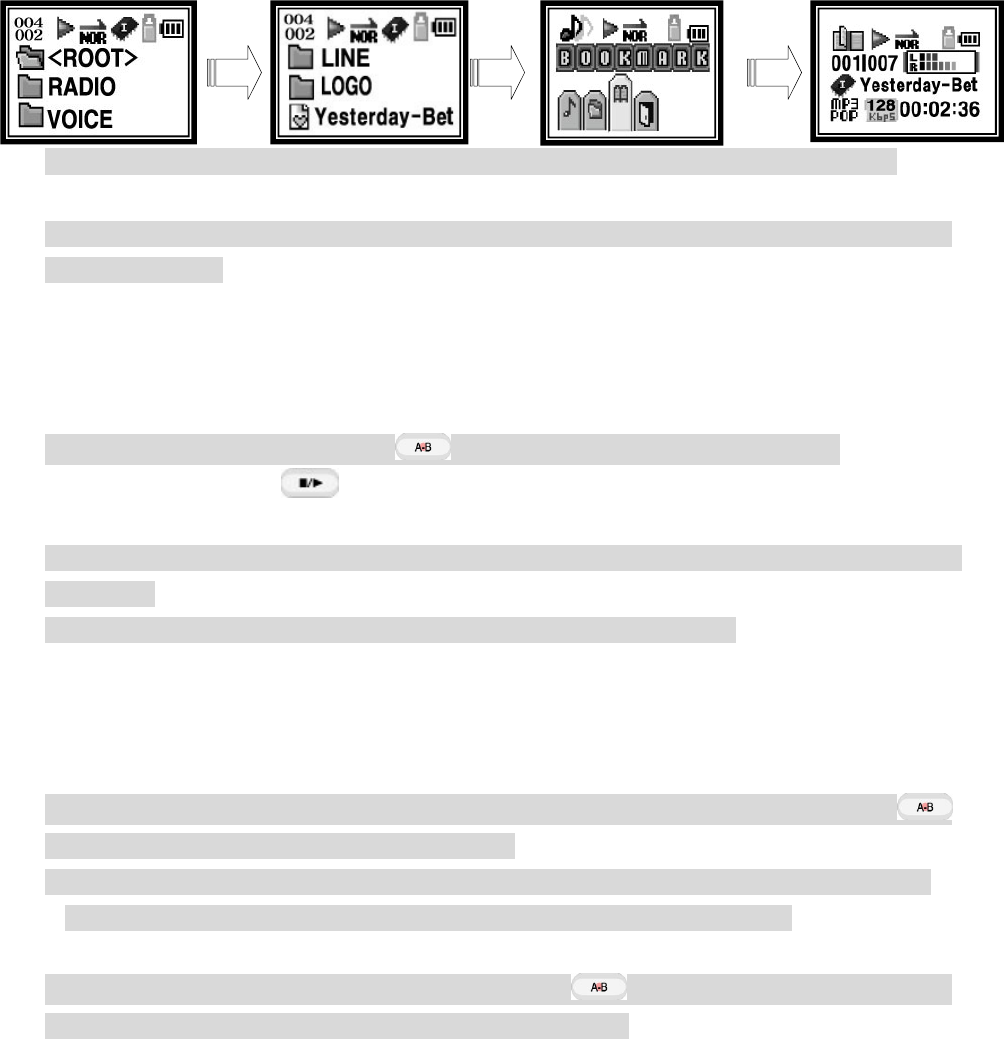
If you press bookmark button for long time, you can be able to find the folder that
you wish to find. ▲(+),▼(-)
Push - (FF)shortly to move to down folder. You can see the information of down folder.
Push - (REW)shortly to move to upper folder. You can see the information of upper
folder.
It will show ‘folder list’ on your screen, then find the file that you wish to find.
Press play/stop or press menu button shortly, and it will play the files.
To get out from the navigation – press bookmark button again for long time, or
press the menu button for long.
▣ Bookmark)
1) If you press bookmark button for long, it will log into the navigation mode.
if you wish to set the music files from navigation to bookmark, press the bookmark button
shortly and set by bookmark.
In the opposite way, if you press once again, bookmark will be cancelled.
2)You can install maximum of 20 songs in the bookmark play list, if you choose bookmark at
the navigation, you will only listen to bookmark songs.
※ Please refer Navigation of the mode menu.
17
Navigation Set Bookmark Selection of bookmark play play
※ Notes- it will automatically delete when you move the folder or delete the file with the
PC has connected.
▣Recording
My-2030 can record Voice Recording, LINE IN Encoding, and FM Radio.
When you wish to record, press the button for long and it will start record.
If you press PLAY/STOP button shortly while recording, it will pause the function,
and if you press it for long time, it will cancel the recording function.
※ If you wish to listen to the files that you have recorded, please refer for VOICE, LINE,
and RADIO.
※When its shortage of the record memory, it will show “DISK FULL!”
● Voice recording (Installed microphone) – Voice recording can be record with WMA.
※ Reference at the page For voice the sound.
● Line in encoding – Recording by CD Player, Cassette with WMA.
Connect the Audio cable to jack with exterior audio output system, then press A-B
button for long. Then it will start to record.
※ When you do not exterior record, please take out the audio cable from the LINE IN jack.
Do not perform the exterior record when you are listening to the FM Radio.
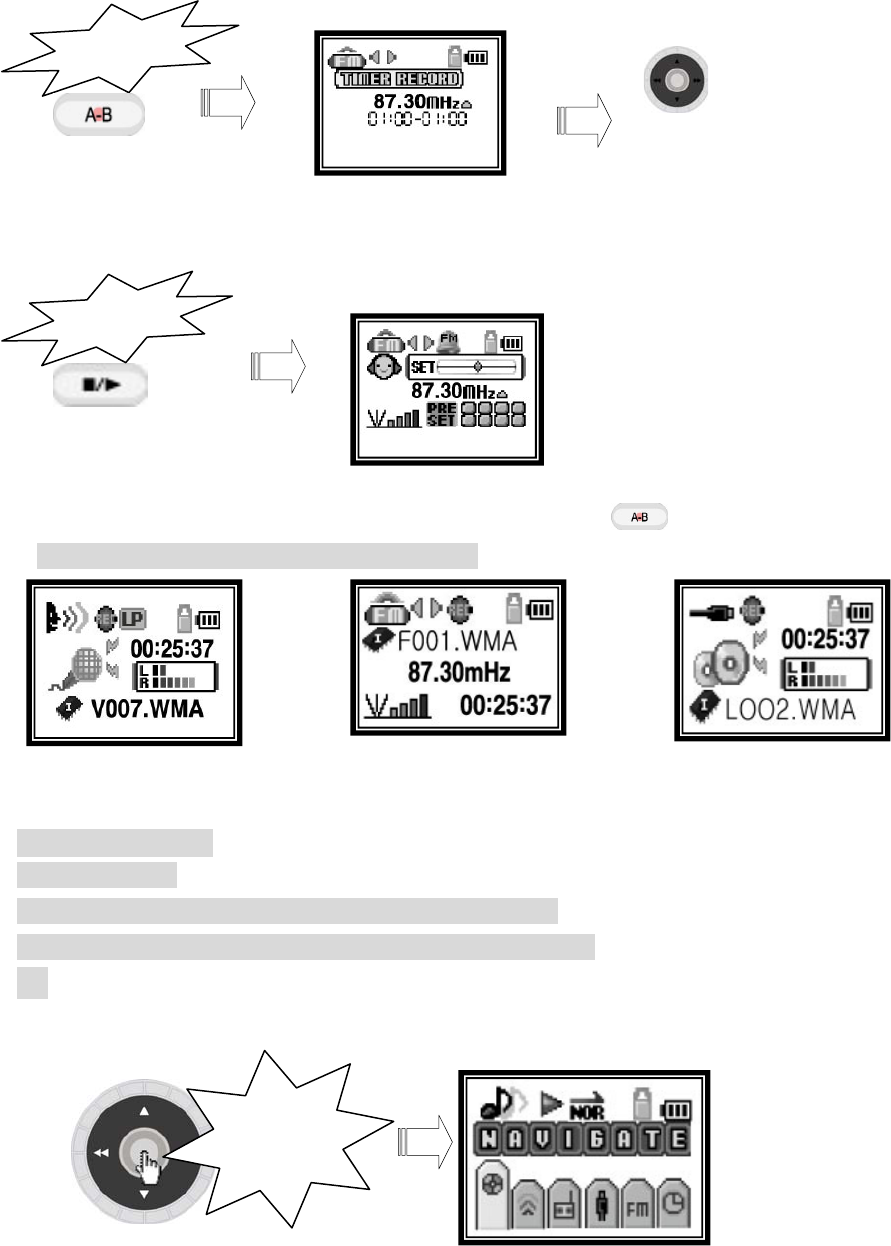
●Radio record – it starts to record if you press A-B button while you are listening to
the FM RADIO. It will automatically record, if you set timer.
The way to set the time is below.
18
※ If you wish to cancel the radio set time record, press A-B shortly.
※ this is the screen for each record mode.
(Voice record screen) (FM radio record screen) (LINE IN recode screen)
▣ Menu functions
● Log into menu
1) Log into the mode : press the menu button shortly.
2) Log into the Main menu: press the menu button for long.
3) To log out :if you press the menu button for long, it will go back to the
previous menu.
<When you use mode menu>
Press
Set start time and
finishing time by Jog button
Press
Press
Shortly
19
Press for
Long
(When you use main menu)
4) Movement by menu: Push ( )REW or ( ) FF lever
5) Movement of serve menu: Push ▲+ or T- lever
6) Choose the function: press the menu button shortly.
It has navigation, listen to recording, listen to FM Radio recording, listen to LINE
recording, listen to FM radio, the watch menu.
There are PALYBACK, SOUND, DISPLAY, SYSTEM, DELETE menu, in the main menu.
※ Please refer for the menu functions, mode menu main menu.
▣ Reset
If the set does not work, and the power is not turning off properly, press the reset -hall
with a sharp thing like a clip.
After reset, MY-2030 will show basic screen, but saved memory would not be erased.
5. Mode menu
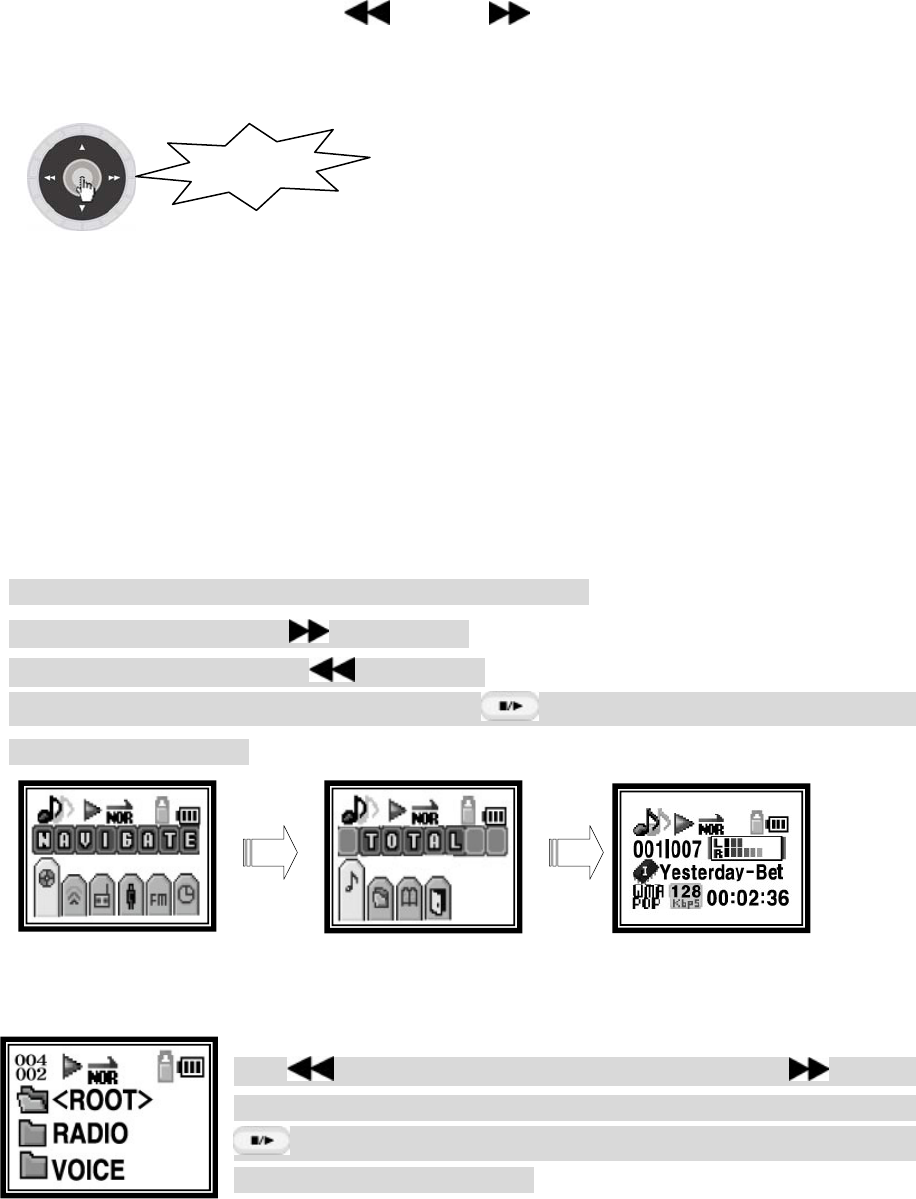
▣ Log into mode menu
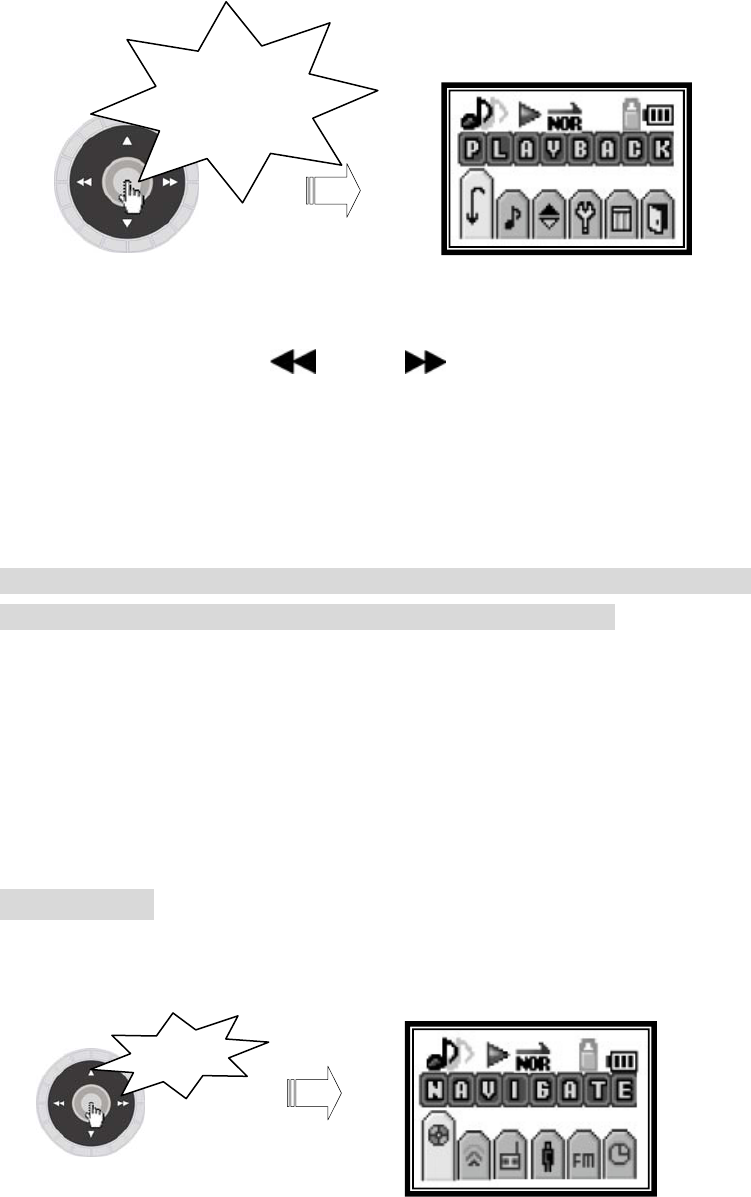
If you press menu button shortly, it changes to menu controller.
It has 6 different sorts of mode menu, which are navigation, voice, radio, LINE, FM Radio,
and the watch.
click
20
● Movement by menu
Mode menu movement controls by ( )REW or ( )FF lever, and serve menu controls by
▲(+) or T (–) lever.
● To select from mode menu to serve menu or performing mode menu.
Click the menu button shortly.
● To exit from the mode menu
If you wish to move to top mode, move buy exit and press menu button.
To get out from mode menu, you need to press menu button for long time then it goes back
to previous screen.
▣ NAVIGATION
Serve menu divides by TOTAL PLAY, FOLDER PLAY, and BOOKMARK PLAY.
Search for the files or the folders by pushing ▲(+),▼(-)
Down folder movement- press (FF) shortly.
Upper folder movement- press - (REW)shortly.
After you found the music files, if you press PLAY/STOP or the menu button shortly,
it will play the files.
● If you select TOTAL PLAY, it plays all the music in you music files.
●If you select FOLDER PLAY, it shows all the folders in the memory.
Push (REW) when you use upper folder, and push (FF) for
down folder, and check the information. If you push
(PLAY/STOP) button or press menu button shortly, the music
files in the folder will play.
Click
21
● If you select BOOKMARK PLAY, it would only play the saved music in BOOKMARK file.
※ Please refer bookmark functions for the bookmark installment
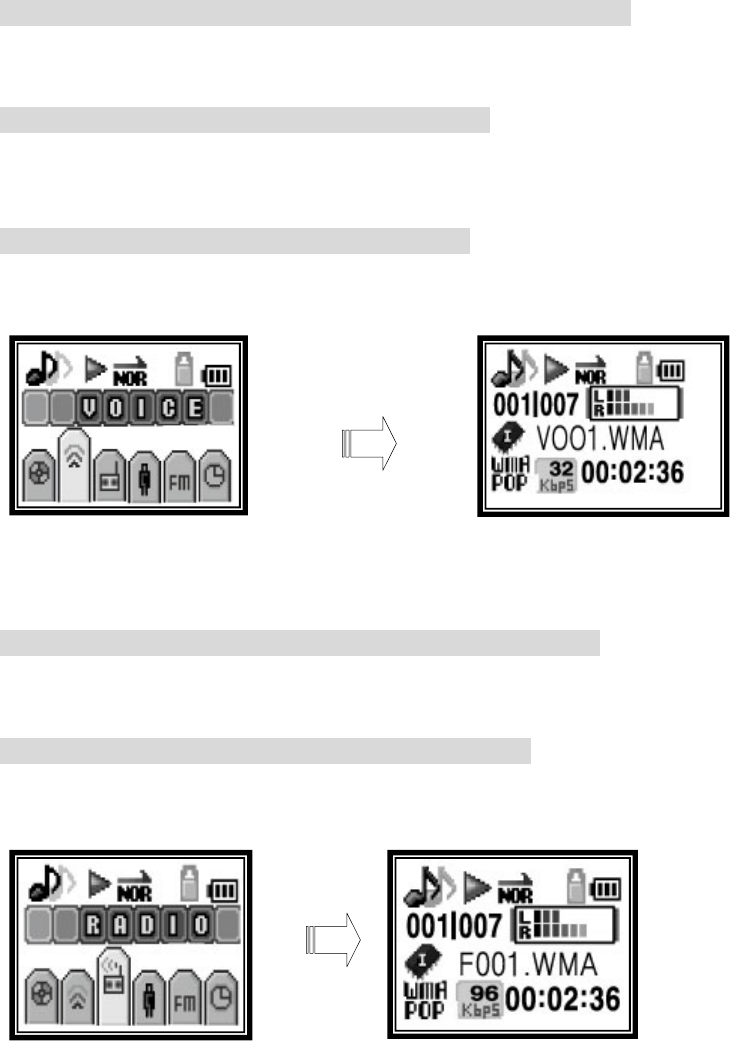
▣VOICE (Play voice record file)
it only plays the voice recorded files and play.
Play files, sound control, and track movement, FF or REW, EQ functions can set same way as
music menu.
※Please refer for listening music information
▣RADIO (Play the radio broadcast record file)
It only plays the radio recorded files in the radio folder.
Play files, sound control, and track movement, FF or REW, EQ functions can set same way as
music menu.
※ Refer the information of listening to music files.
22
Push Shortly
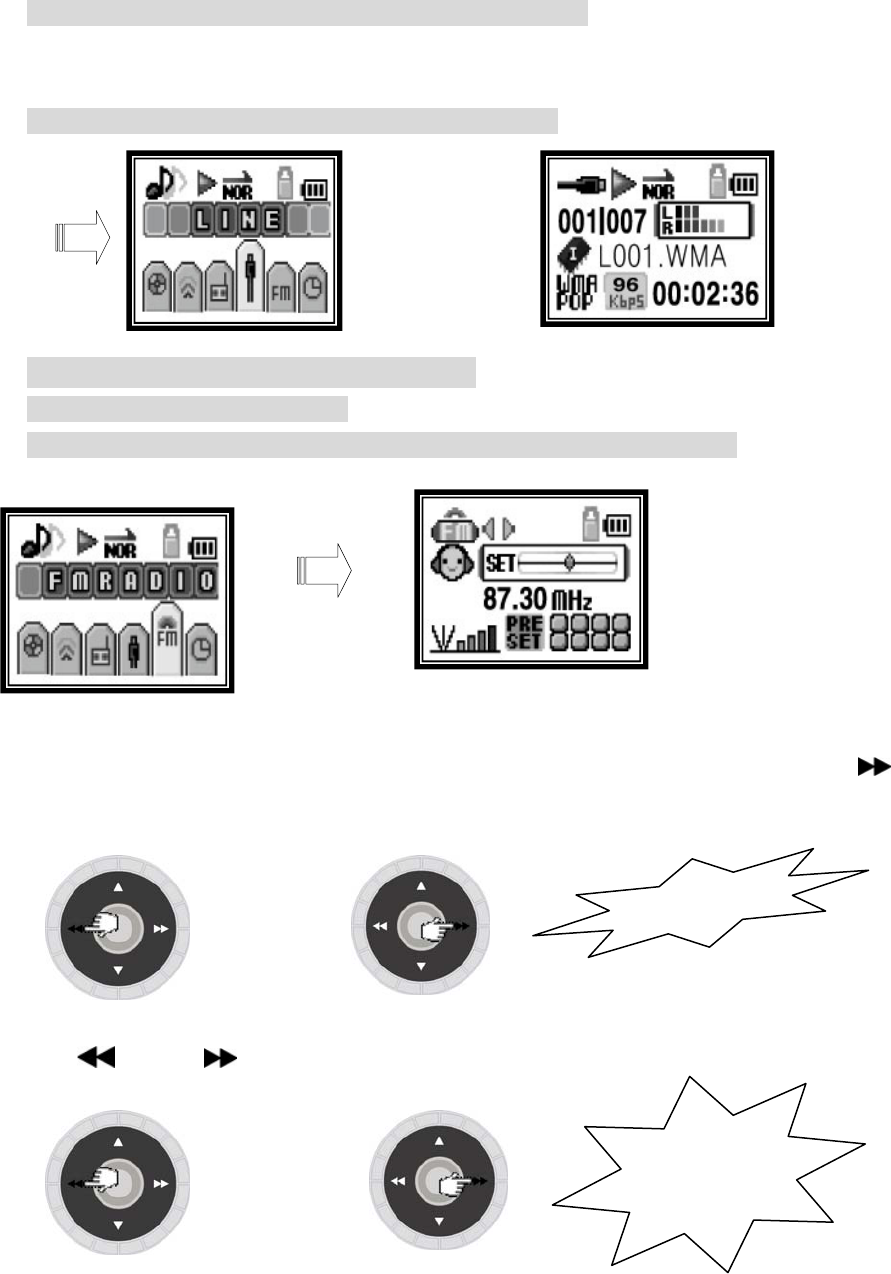
▣LINE (Play the line in record file)
It only plays the files in the LINE- IN record folders.
Play files, sound control, and track movement, FF or REW, EQ functions can set same way as
music menu.
※ Refer the information of listening to music files.
▣FM RADIO (listening to FM broadcast)
You can listen to the FM radio.
you can control the radio volume, same way as listening to music menu.
.
.
● When user is looking for favorite Frequency.
1) Search for the station: if you wish to change the station, push (REW) or (FF)
shortly.
or
2) Automatic search for the station: if you wish to find the station automatically, please
push (REW) or (FF). It will search for the station for you.
Push for
long time
or
23
● Save channel
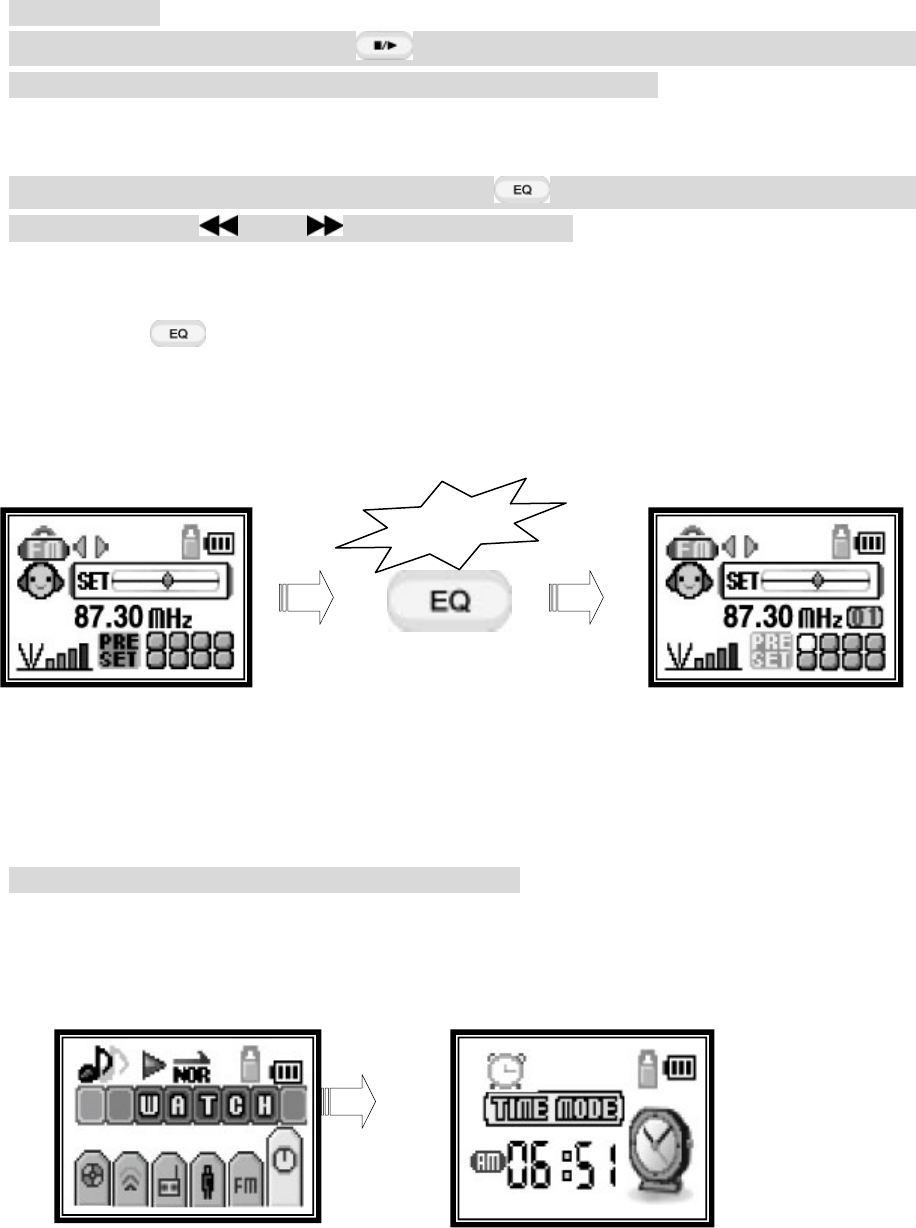
1) Preset function : if you press Play/Stop button shortly, while you are listening
to the FM Radio, the station will be saved in the preset channel.
About 20 PRESET numbers are supportable, and it’s over 20, then it will start from 1
again.
If you wish to find the saved stations, press (EQ) button shortly and choose the
station by pushing (REW)/ (FF) on preset mode.
2) AUTO MEMORY function: it finds the station automatically and PRESET in an order.
Press the EQ/PRS button for long time, then it will find station automatically
and PRESET in an empty channel by in an order.
※ The station would not work properly, at the area where their transmition reception does
not work well.
RADIO MODE PRESET MODE
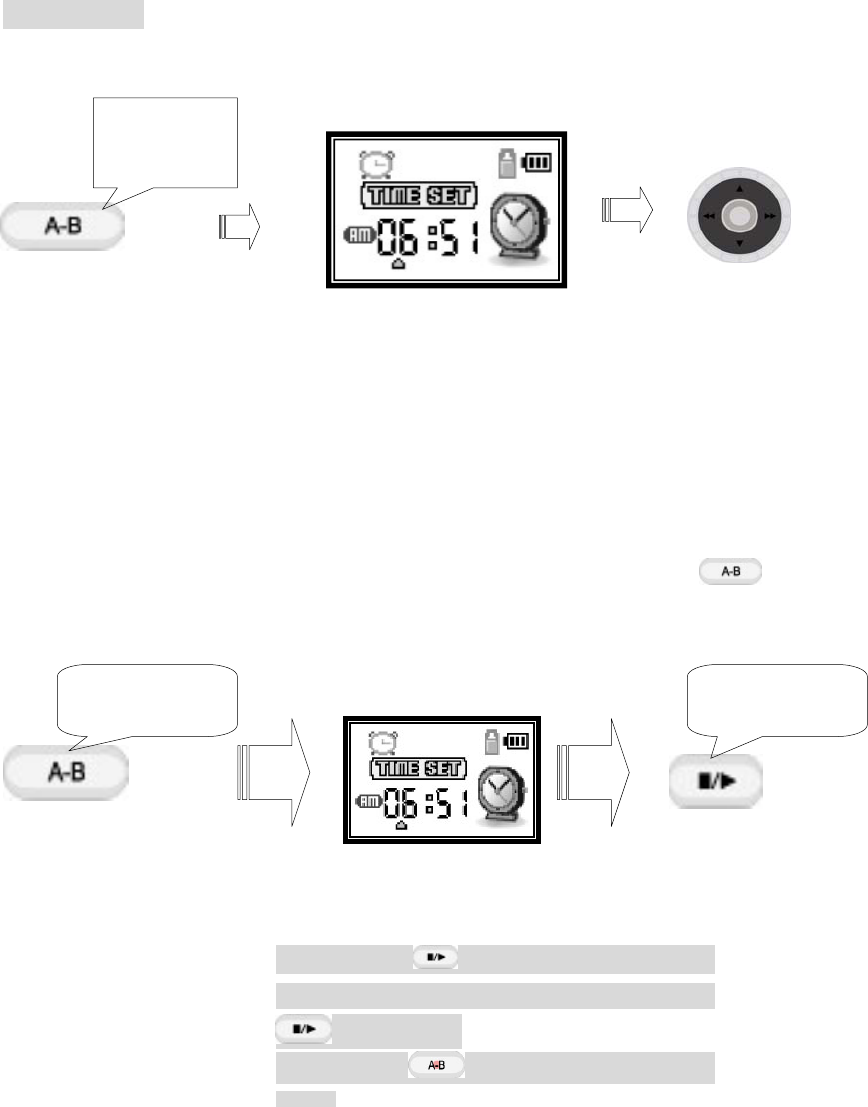
▣ WATCH
You can have current time, set alarm and stop watch
If you log into WATCH menu, the music file will be stop automatically.
Click
24
If you press stop/play button shortly,
it will START. Again if you press shortly
it will stop.
If you press A<->B, it becomes time
reset
Timer is start
●TIME SETING
if you press A-B button shortly, after you set the time, it will go back to Time
mode.
●STOP WATCH
※ If you wish to get out of STOP WATCH MODE, then you need to click (A-B) for long
time.
Click
Shortly
Click Shortly Click Shortly
25
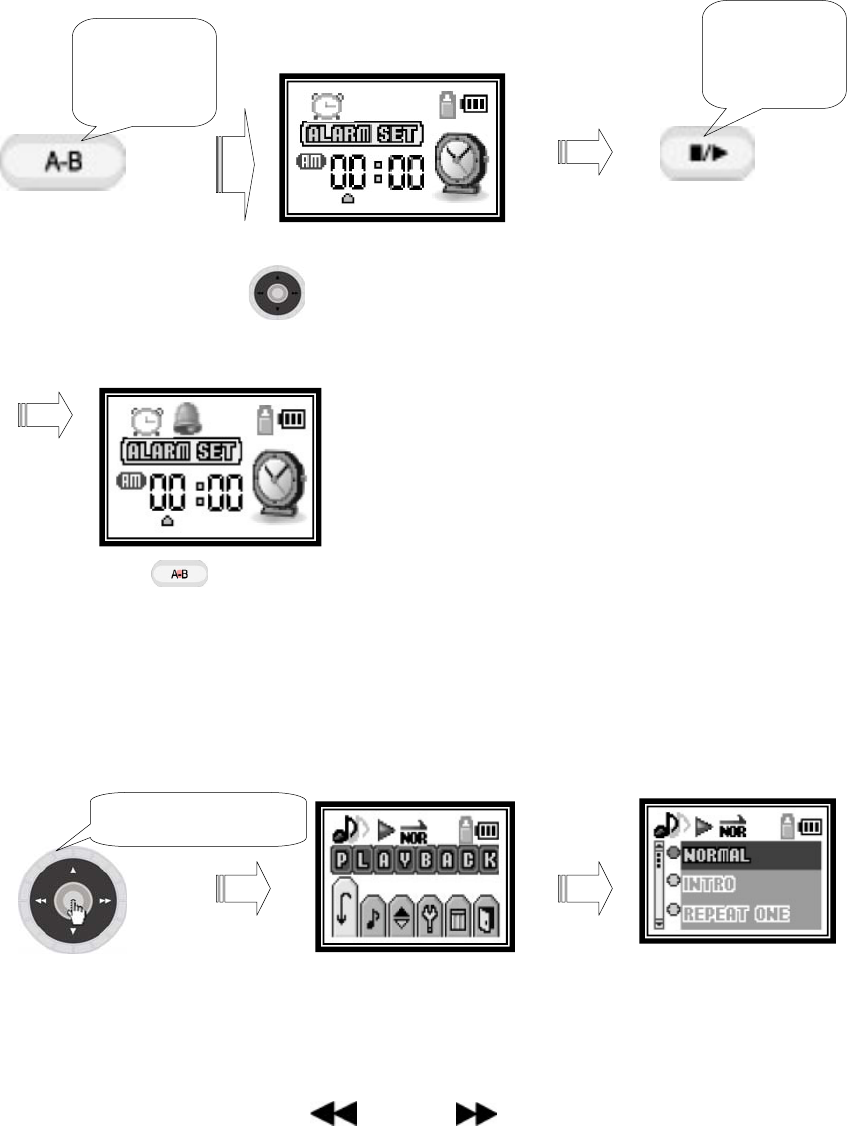
Jog Button use to set time
● Set the Alarm.
This alarm system will play automatically at the set time.
※ If you press then it cancels the alarm
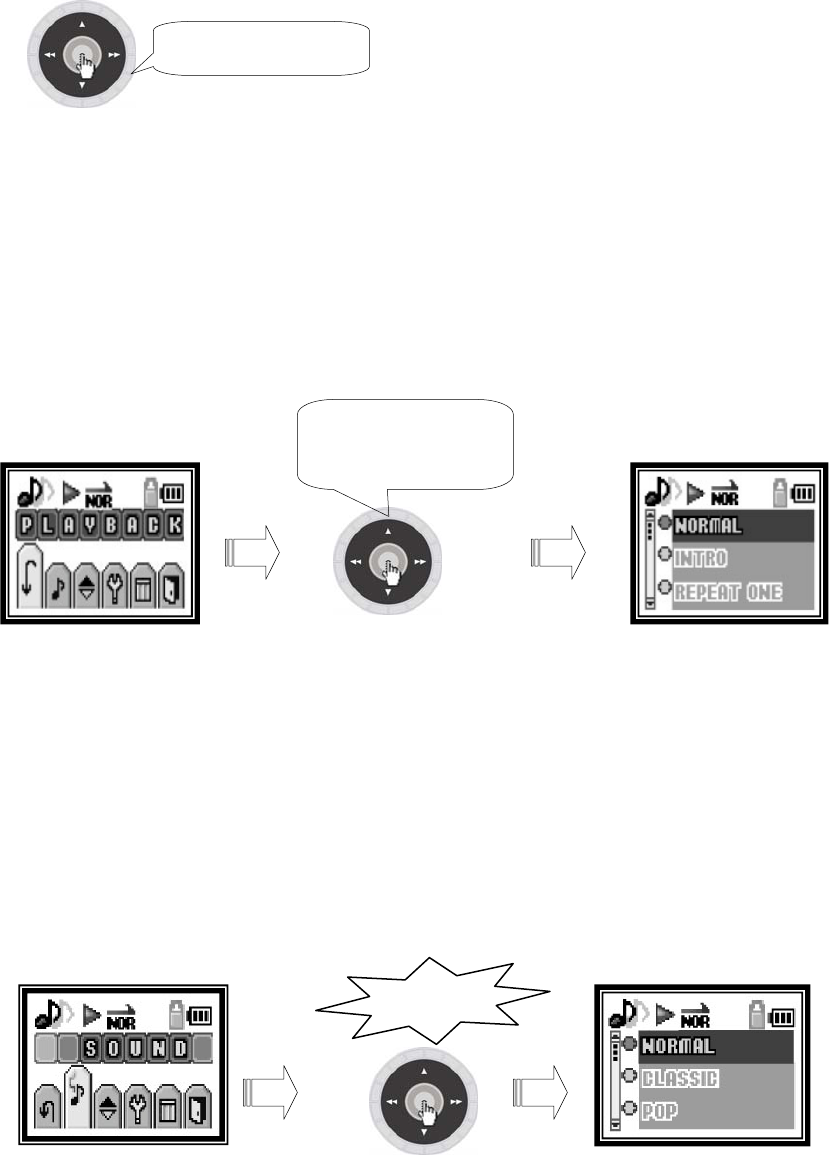
6. Main Menu
▣ Log to Main menu
If you click the menu button for long time, then it will change to menu controller.
(MainMenu) (Sub Menu)
5 different sorts are in the main menus, which are PLAYBACK, SOUND, DISPLAY, SYSTEM,
DELETE, and EXIT.
● MENU MOVEMENT
MAIN menu movement controls by (REW) or (FF) lever, and serve menu controls by ▲
(+) or T(–) lever.
Click
shortly
Click
shortly
Press for Long
26
Click
● Select from MAIN menu to serve menu or performing mode menu
Click the menu button shortly
● To get out from mode menu
If you wish to move to top menu, then you need to move by EXIT and press menu button.
If you wish to get out from mode menu, then just click the menu button for long time.
▣PALYBACK
You can change play mode in 7 different ways.
●NORMAL; It plays in saved order.
●INTRO; It plays all the songs in the memory and it only plays for 10 seconds.
●REPEAT ONE; It repeats only the song that you are listening at the moment.
●REPEAT ALL; It plays continuously all the songs in the memory.
●SHUFFLE; It only plays for once, all the songs in the memory.
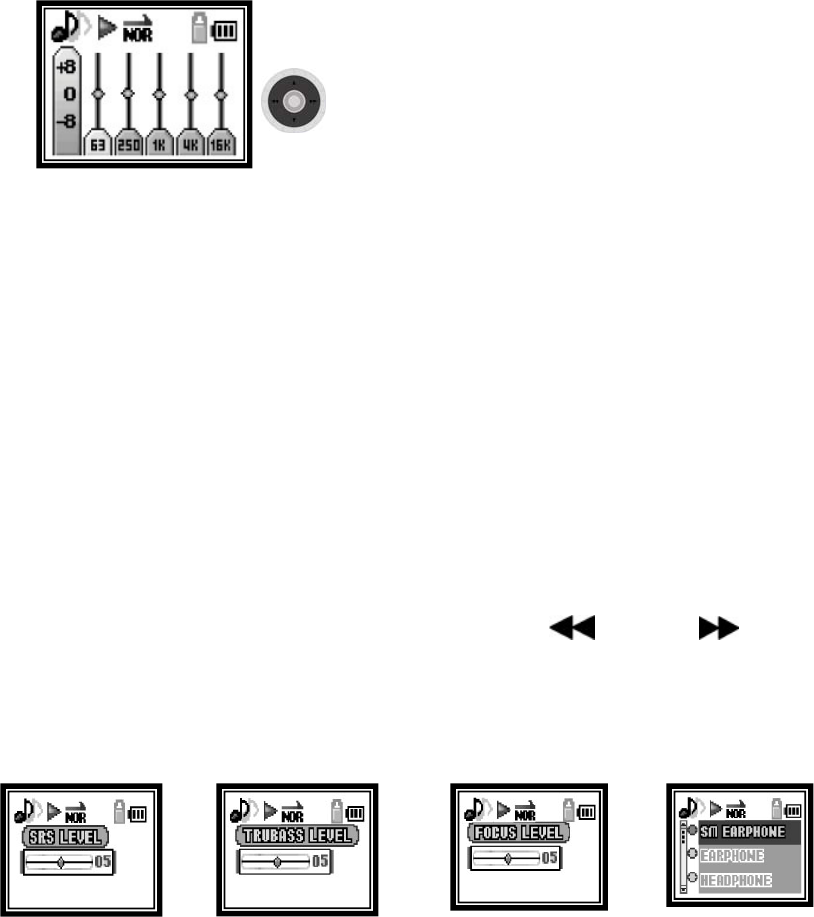
▣SOUND
Press shortly
Press Shortly
27
Sound menu is structured in NORMAL, CLASSIC, POP, ROCK, JAZZ, USER, SRC, TRUBASS,
WOW, and SRS USER.
● NORMAL : It establish by the basic sound mode.
● CLASSIC : Set EQ for the Classic
● POP : Set EQ for the POP
● ROCK : Set EQ for the ROCK
● JAZZ : Set EQ for the JAZZ
● USER : User can self-set the sound in low and high.
You can set the 5 steps of frequencies in –8dB~ +8dB
Set EQ value by direction button.
●SRS: Set EQ with 3D sound effect.
●TRUBASS: Set EQ with low sound
●WOW: Set EQ with 3D sound and variety sounds.
●SRS USER: Set SRS LEVEL, TRUBASS LEVEL, FODUS LEVEL, and SPEAKER SIZE for the user.
1)SRS LEVEL– you can control 3D sound effect from 1-10 level.
2)TRUBASS LEVEL- you can control low sound effect from 1-10 level.
3)FODUS LEVEL-You can control in 1-10 level.
4)SPEAKER SIZE- It’s a menu that gives you better 3D sound effect for car pack or the exterior
speakers
It has 6 menus, such as SMALL_EARPHONE, EARPHONE, HEADPHONE, SMALL_SPEAKER,
MEDIUM_SPEAKER, BIG_SPEAKER
Set the right value for the users by controlling with (REW) or (FF)
After set, please get out from the menu by selecting EXIT.
※ You cannot use the EQ function with SRS WOW together.
<SRS LEVEL> <TRUBASS LEVEL> <FOCUS LEVEL> <SPEAKER SIZE>
28
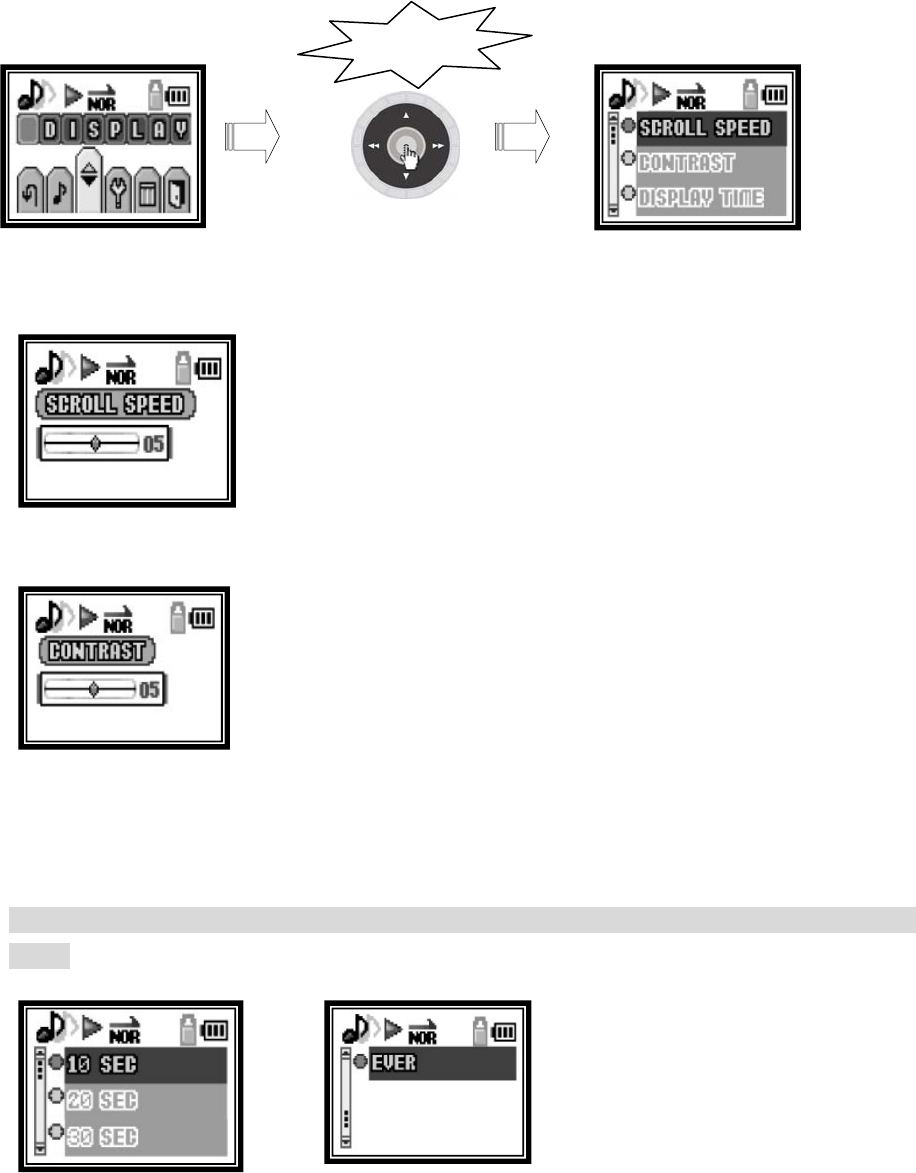
▣DISPLAY
●SCROLL SPEED
You can control scroll speed in 1-10 level.
●CONTRAST
You can control display LCD brightness in 1-10 level.
●DISPLAY TIME
LCC screen will automatically turned off in a set time. It has 4 different serve menu,
which are 10 sec, 20 sec, 30 sec, and EVER.
If you set EVER, display stays on.
※ if you let LCD on, it will waste lots of battery. So we do not recommand you to set in
EVER.
Click
29
click
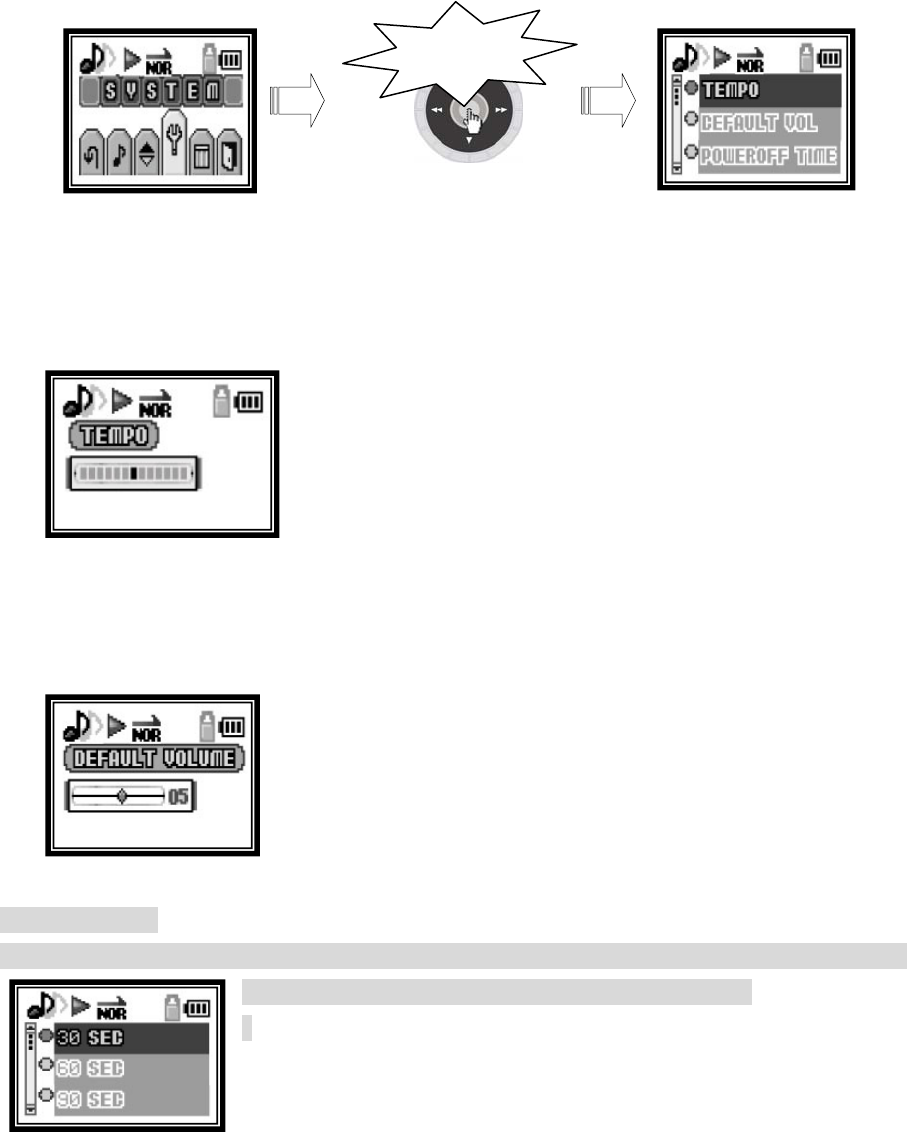
▣ SYSTEM
TEMPO
You can control the TEMPO in 12 different stage, it changes 5% in every stage and total of
-30%~+30%
It is efficient for language study.
DEFAULT VOLUME
It can stop to get large volume when you turn on the power.
You can control the volume from 1-20 level and when you play it stays at the set volume.
●POWER OFF TIME
You can set the automatic log off system, by 30sec,60sec,90sec,120sec. It protects from
waste battery when its no longer playing and stop.
30
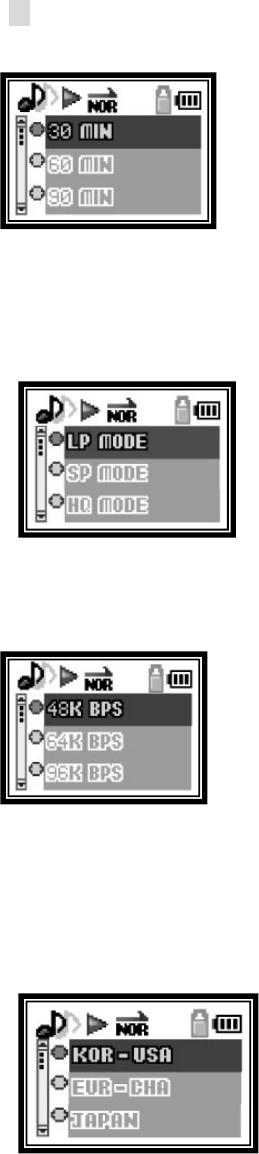
●SLEEP TIME
The power will be off after set time.
It will be power off no matter you listen to the radio or
music, within set time of 30 min, 60 min, 90min, or 120min.
Player would be off until you press the power off key.
If mp3 power is off, it automatically set in OFF.
●VOICE RECODING
You can set the voice recode bit rate in LP(32kbps), Sp(48kbps), and HQ(64kbps)
●ENCODE SET
You can choose recode sound effect for BITRATE- LINE input
record or radio record.
You can select by 48KBPS, 64KBPS, 96KBPS, and 128KBPS
After set, you can come back to menu by EXIT button.
●FM BAND SET
Set the radio broadcast BAND
It support 3 different modes, which are USA BAND, EUROPE BAND, JAPAN BAND
If you use in Korea, please select USA BAND.
31
●LANGUAGE
Please select the language for the player
You can select in between KOREAN, S- CHINESE , T- CHINESE , JAPANESE, ENGLISH, EUROPEAN,
and RUSSIAN.
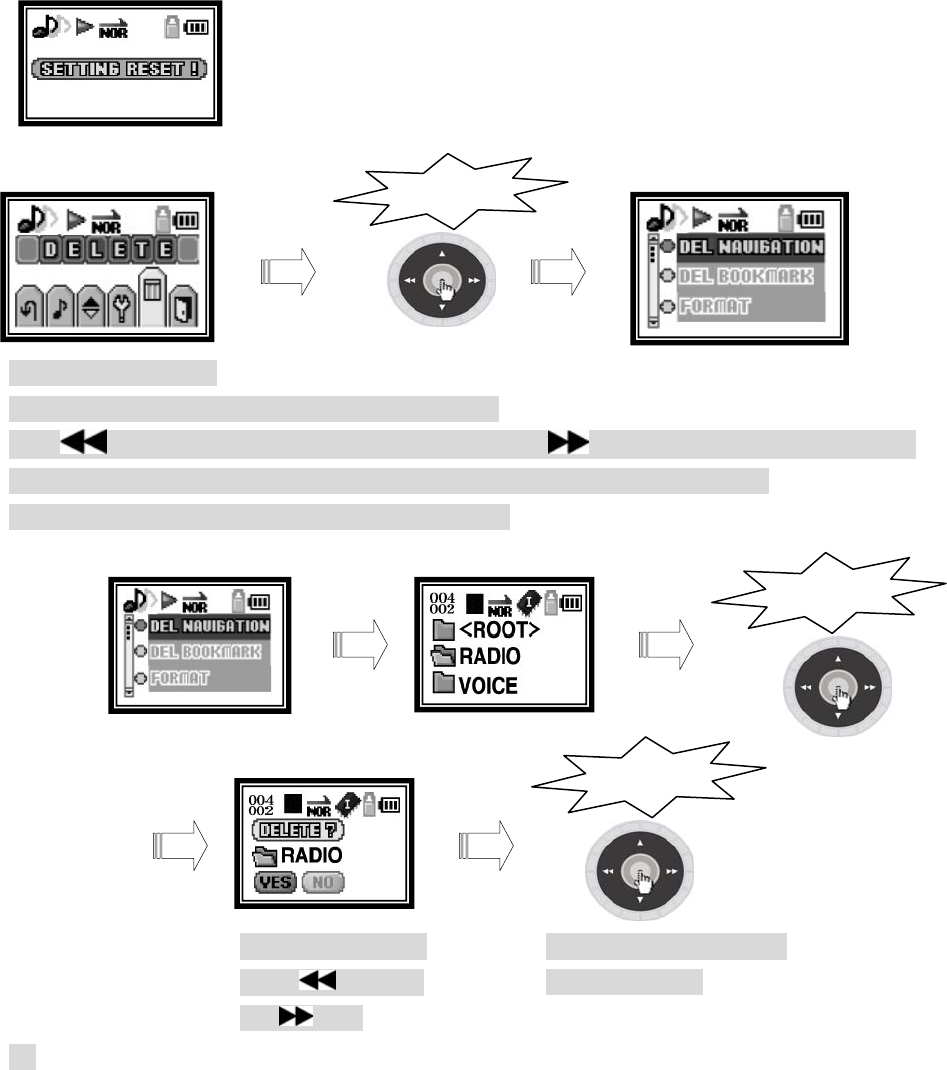
●DEFAULT SET
Set the product.
▣ DELETE File
●DELETE NAVIGATION
You can delete the folder or songs by navigation.
Push (REW) when you use upper folder, and push (FF) for down folder, and check
the information. Select the files or folder to delete, by the menu button,
you can delete the files or the folders as below.
※ Go back to the previous mode, if you deleted the files that you wished to.
Click
click
Select Yes/No by
using (REW)
or (FF)
Click
Delete the selected
folders or files.
32
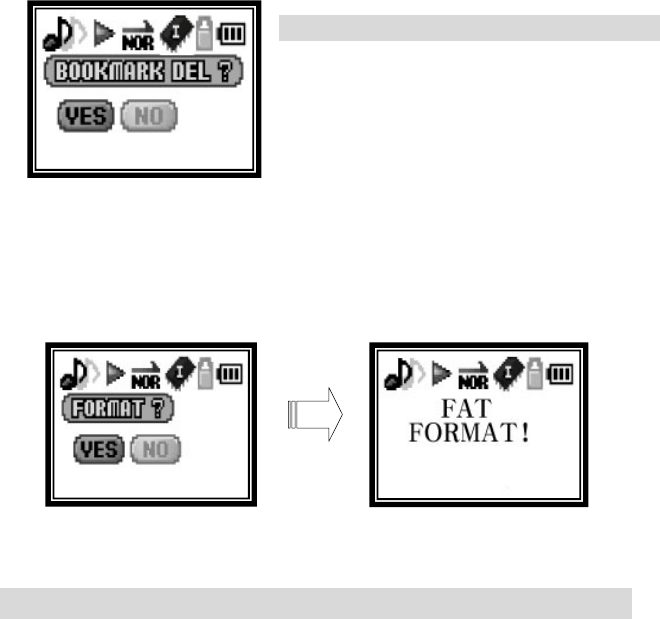
●DELETE BOOKMARK
You can delete songs from BOOKMARK
It will cancel the selected bookmark.
FORMAT
It is a function to format.
* Use it when you upgrade firmware.
* If you format regularly, then you can keep the better condition.
※ Be aware that it will delete all the files if you format.
33
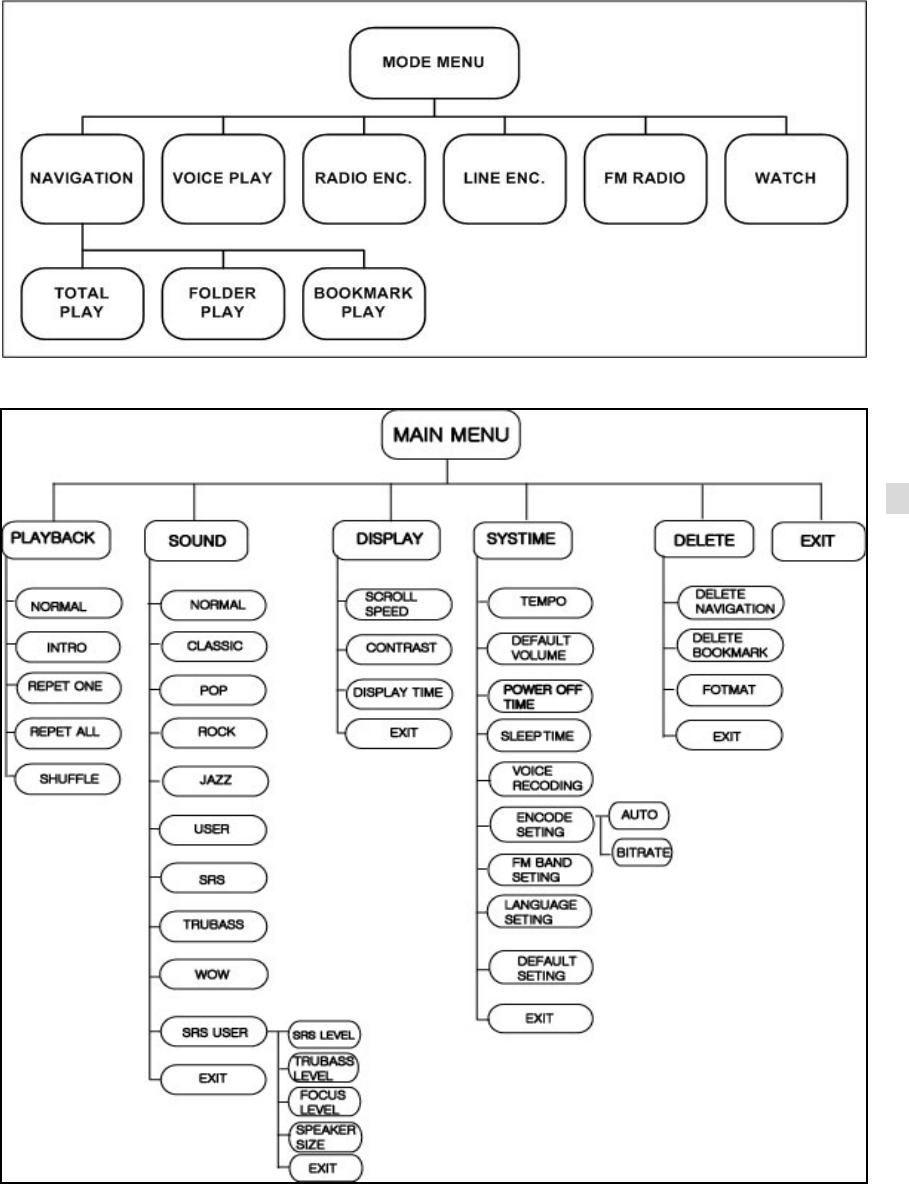
▣ Menu Structure.
Mode Menu Construction.
Main Menu construction.
8.
34
EXTRA functions
▣ Charging
1) Connect to USB port
2) It will work automatically.
3) If you leave in connect function for long time, even the charge has
completed, it will be automatically cut off for the safety.
* Charge after POWER OFF.
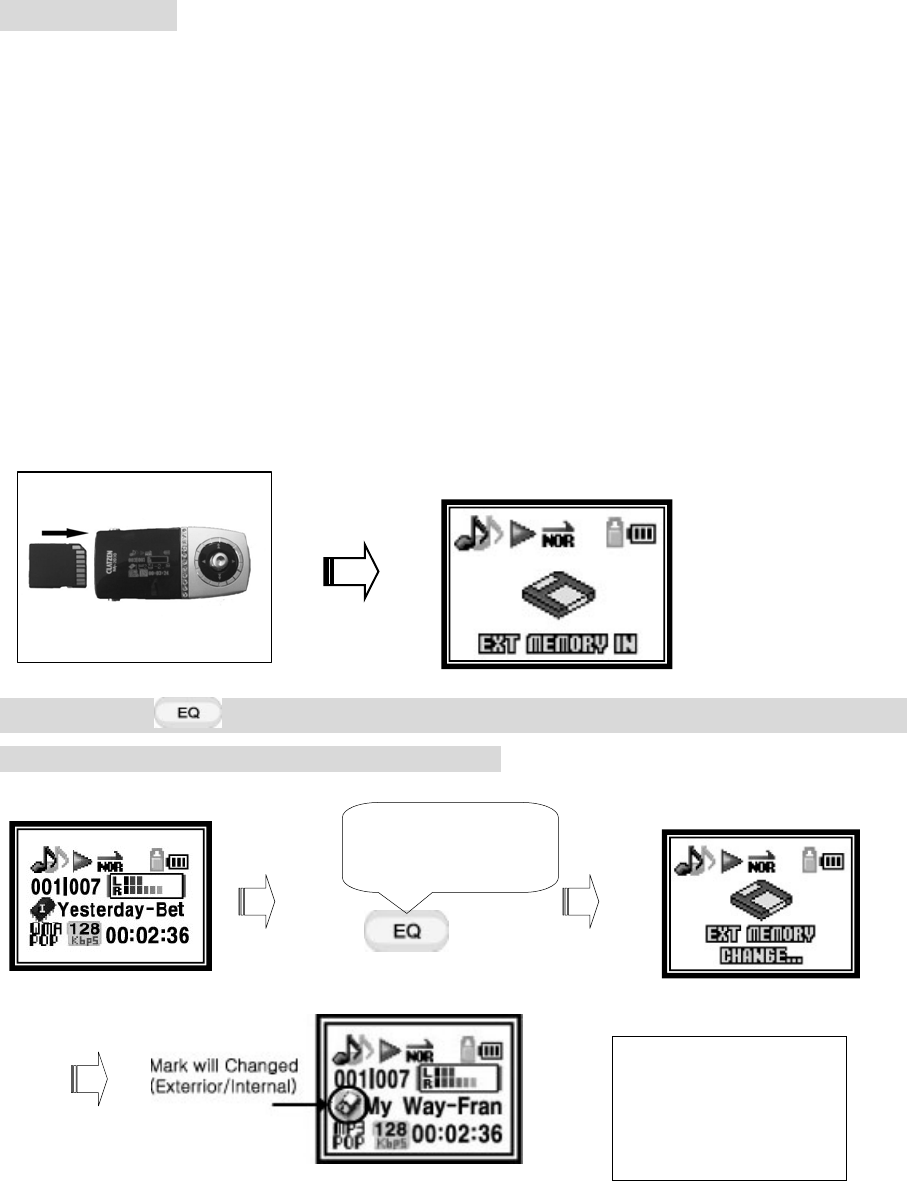
▣ Use SD, MMC card
Put SD or MMC cards at the MP3 player.
When you put SD or MMC card, it will show the message of EXT MEMORY IN.
when you press (EQ) button for long, it will show EXT MEMORY CHANGE message for a
while. Then it will move to in/exterior memories.
Press the button
for long time
The icon will be
changed when you
put card in slot.
35
※ it is same way to use as inner memory, and if you press (EQ) button for lon, it will
go back to inner memory.
▣HOST Function (SD,MMC)
It is the function to copy the files in SD and MMC card to MP3 player’s memory.
Pleas put SD and MMC card and change to exterior memory
Search for the files that you would like to copy. You need to go to (NAVIGATE),
after read the exterior memory of MP3 Player.
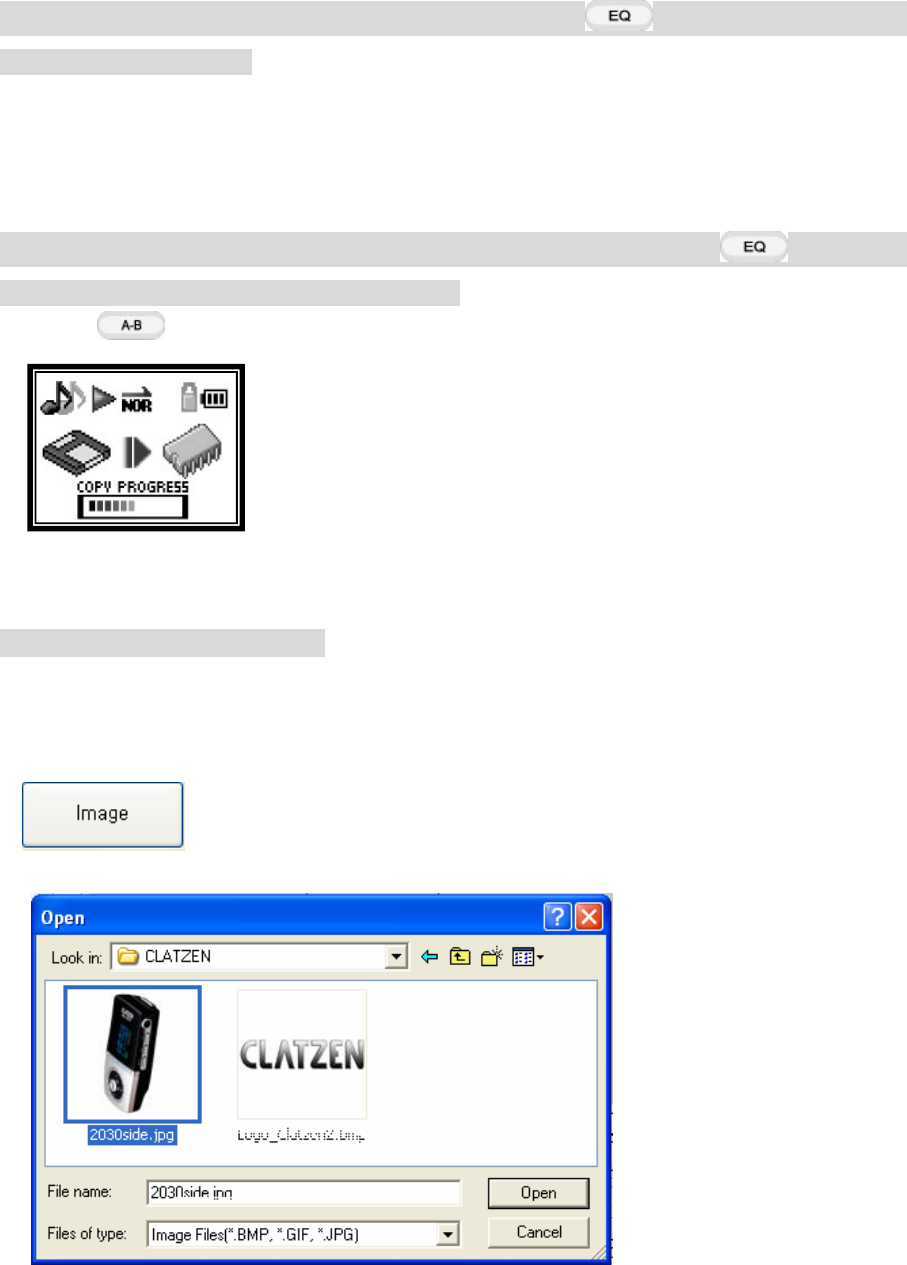
Press the button for long time. Then it will show as below, saying that it is copying.
SD and MMC files are copied into the memory.
▣ Create logo display on LCD
● Make the logo.
1) Perform Logo editor. (You need to save the program from CD to PC)
Call jpg, bmp, gif files. (Let’s try with JPG file)
Select the, then search for JPG.
3) If you open the image that you wish for search, it will show on the screen.
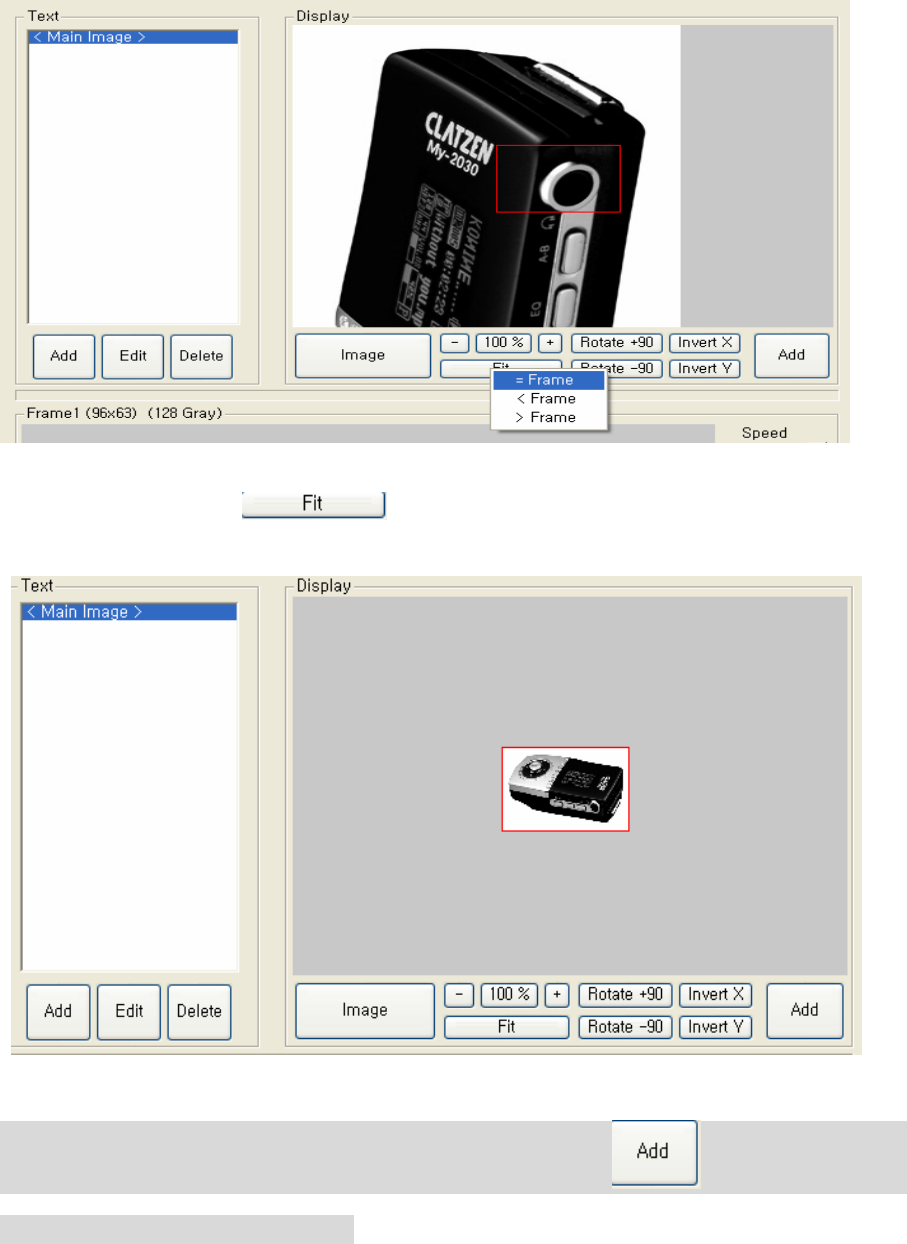
36
4) You need to find , and if you select =Frame, then the picture will
be adjusted.
5) The MP3 Player will have extra screen, if you select (ADD) which is on
the right side on Display screen.
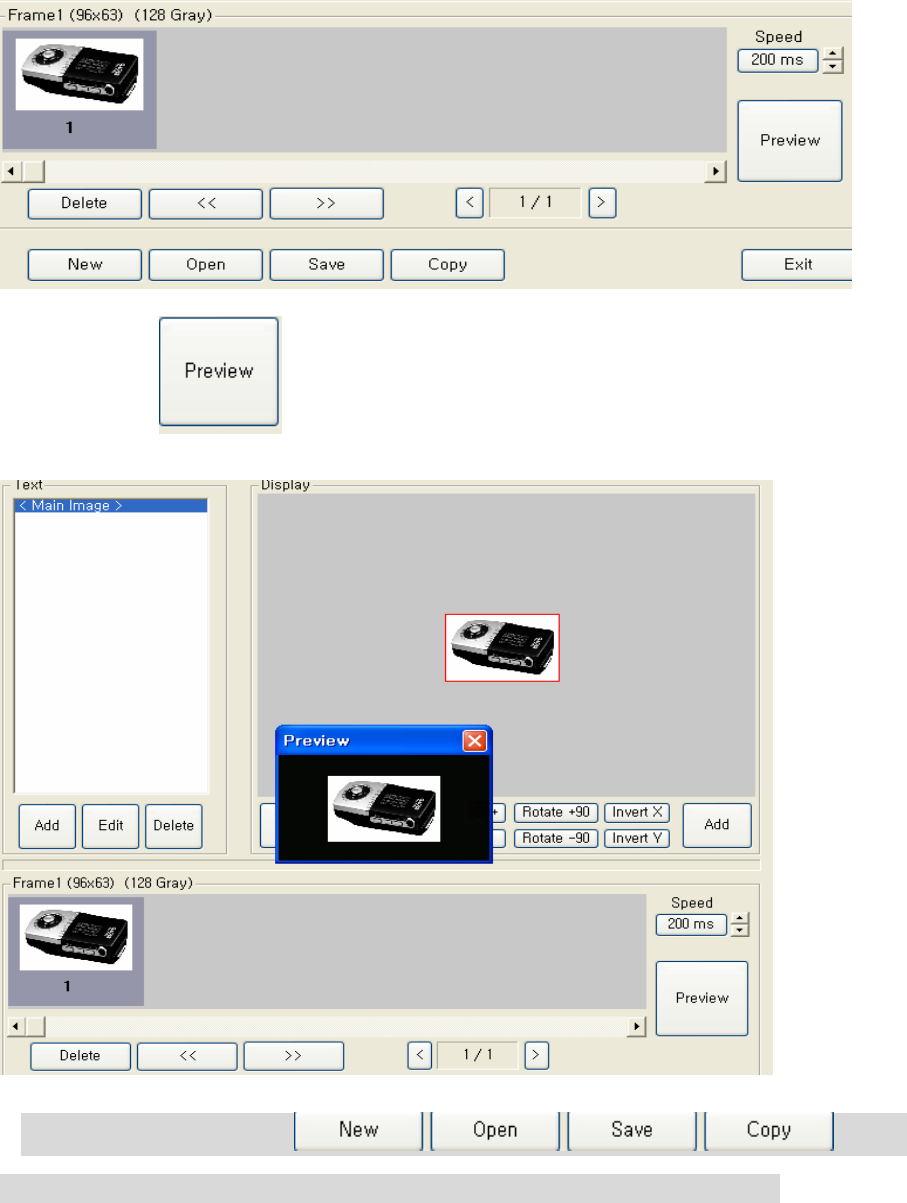
37
6)Pleas select to preview on the MP3 player screen.
7) Select the COPY from , and if
you select the first portable disk drive, it will save to MP3 LOGO Folder.
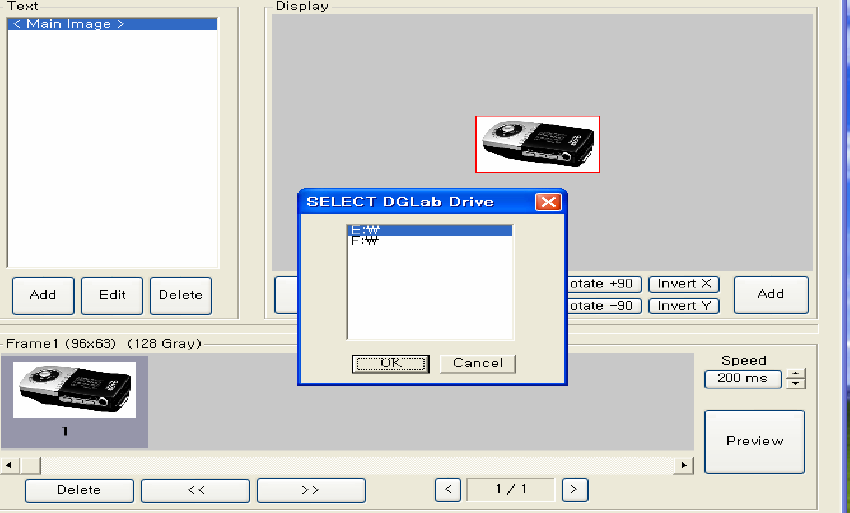
38
*NOTE
-.F: W is MP3 player’s extend memory: SD/MMC, and if you save here, it would
not show.
-.When the MP3 player is not connect to the PC, E: W, F: W screen will not be
shown.
8. If you a part MP3 player from PC, and turn the power on, it will show the screen
and here comes the music.
※ Others
-.When you wish to insert the text in an art file, you need to select add from the
text page.
-. Speeds control the frame speed when you perform the gif.
▣ Usage of the music text support program
1. Things to prepare (it should be in the PC)
① Win amp: it has to be downloading in recent version
② Lyrics 3 Editor: install the LYR3EDITV122.EXE, which is in the CD.
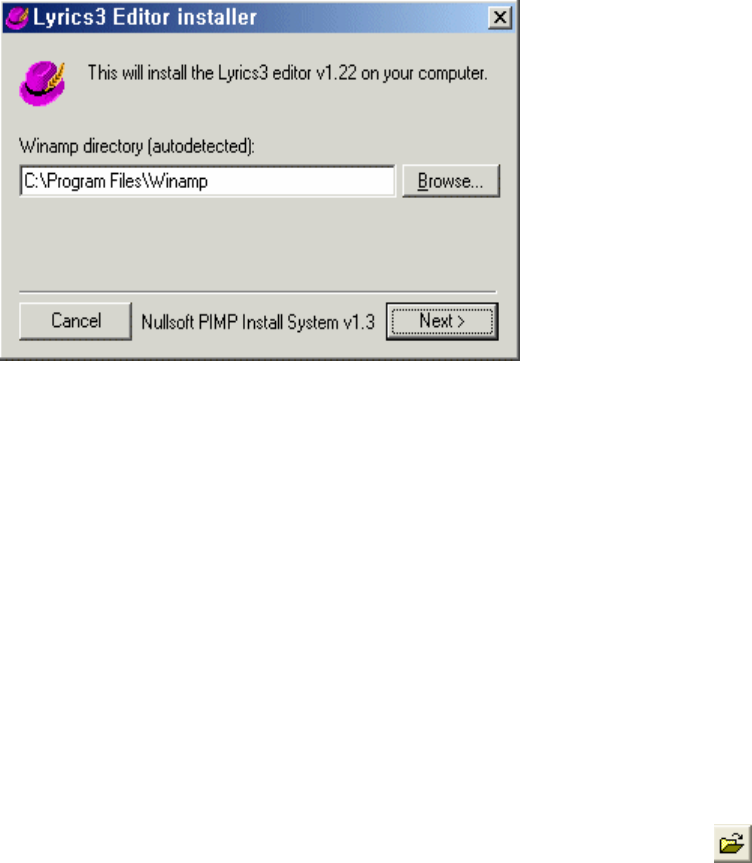
39
Picture 1
③ MP3 File: download the music from the Internet site, such as SORIBADA
④ Music text: Seek for the music text in some of the sites, such as Lyrics web site
A. Create a music text file.
-. Let’s make file of Glass Box, the song named “ Love is all around ”
① Save the music text file in txt file, that you got from the music text site.
(It is more flexible if you use memo note which is located in start program or assistant
program.)
② Perform Lyric editor, then select the LYREDIT icon on the main screen.
③ Open the MP3 music by click the Lyric editor에서 File a Open F3( ).
Open the MP3 file that is in the C Drive.
(It does not matter even the music file has saved in the hard disk or in the other saving
functions.)
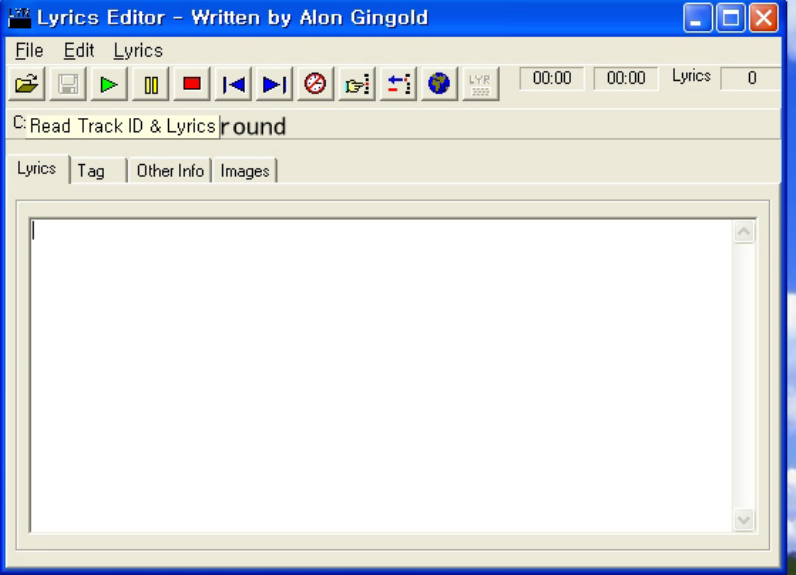
40
(Picture 2)
④ It stays in the stage of insert music text in the Lyric editor, when you open the
MP3 music at the picture 2.
⑤ Then open up the text file that you have already prepared, and copy (CTRL+C)
then paste (CTRL+V) at the Lyric editor.
⑥ (If you know the music text, you can create on your own.
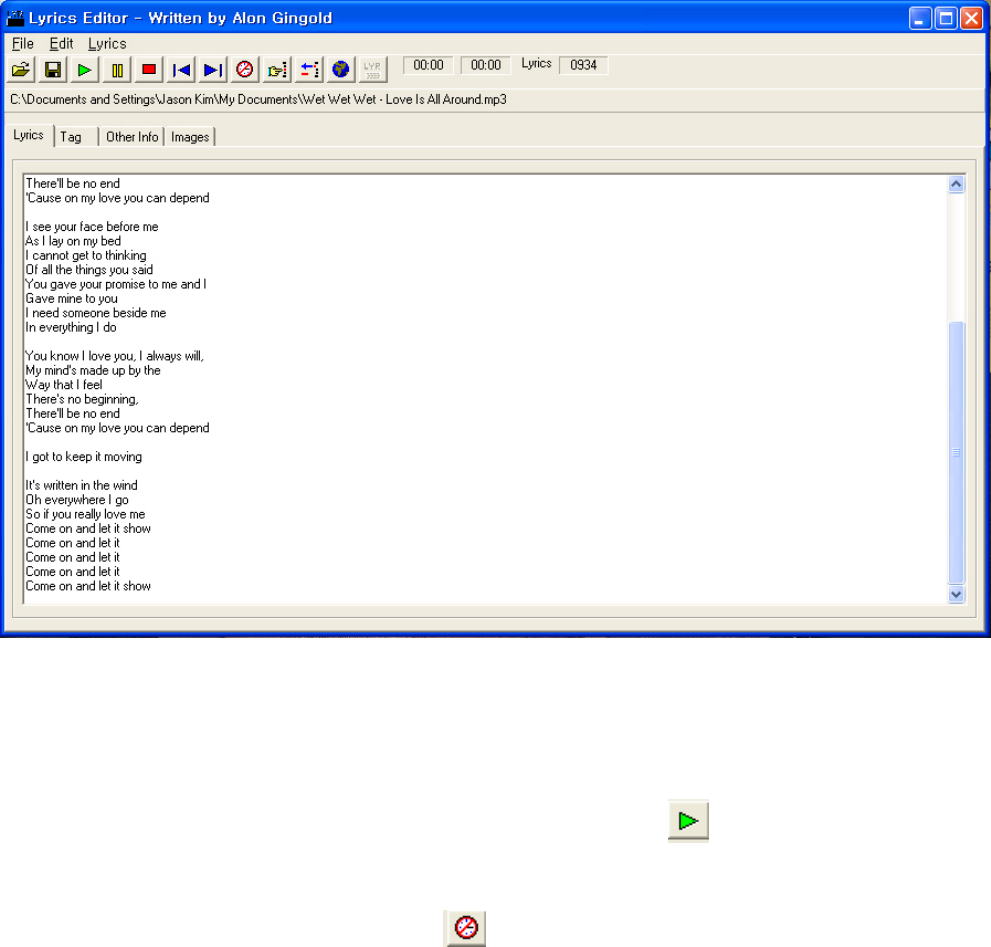
41
(Picture 3)
⑦ It is ready to make music text file (*.lrc). Plug in your earphone, because you
need to work with playing music in the PC.
⑧ If you press play button from Lyric editor, WINAMP will (play) automatically
and play the music.
⑨ Click the Timestamp mode button while you are listening to music.
⑩ Now listen to the music and click the mouse key, and click the music text button
in the right time.
⑪ Then it shows time, in every lines of music text. Continue the work until it’s end.
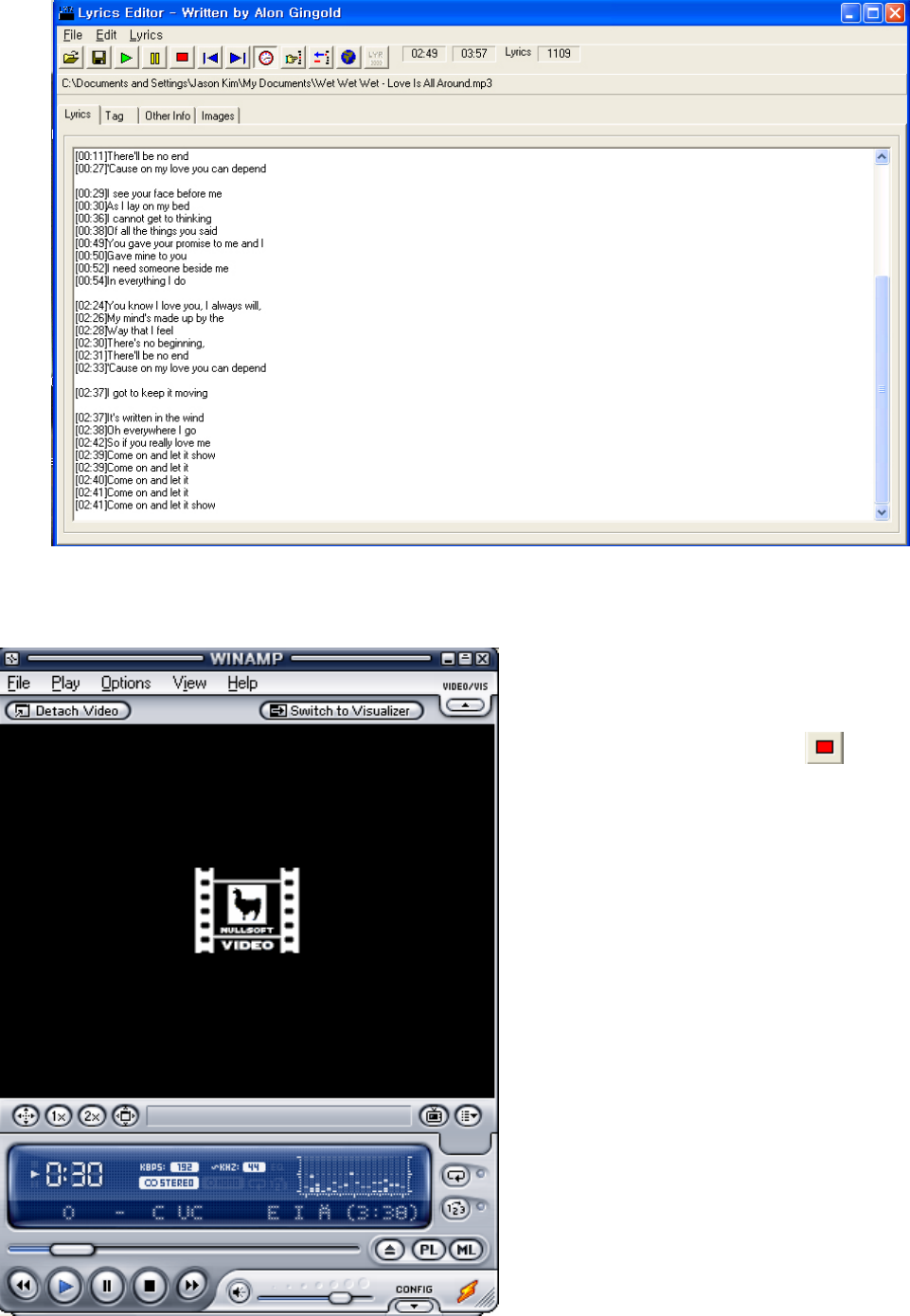
42
Picture 4
⑫ When the music has finished,
you need to click button
to complete the music text.
43
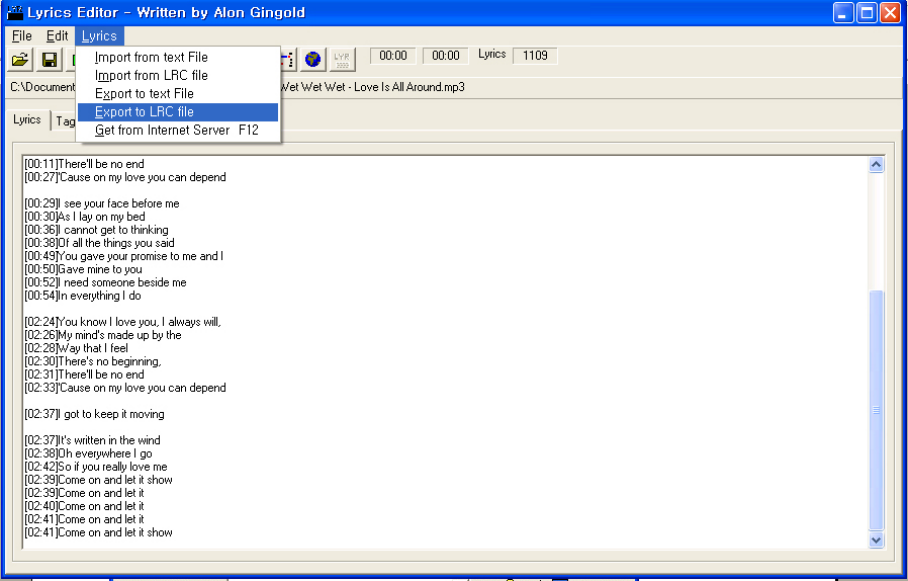
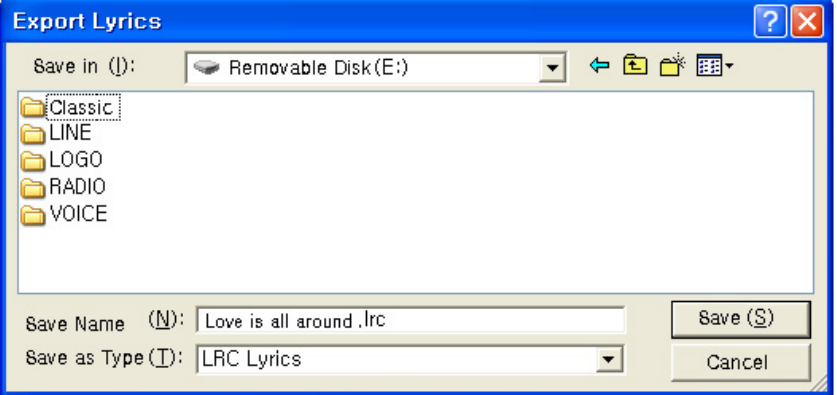
⑬ If you wish to download the music text to your MP3 player, click Lyrics an
Export to LRC file
Picture 5
⑭ If you wish to download directly to your MP3 player, it has to be in a READY
function after connection with USB cable.
If it has not saved in a portable disk, search to select.
44
picture 6
⑮ If you click the save, then it will be created Glass Box-May I love you. Irc file in
your portable disk.
16 To support the music text would need to exist the same file with MP3 and Irc file.
Glass Box-May I love you~. mp3, Glass Box-May I love you ~. lrc)
17 Please remove the USB cable from the player, and turn the power on for the
player. Then here comes the music with the music text support.
18 The music text support about 5 letters in each lines (include the spaces), and it
has 2 lines. So when you wish to fix the text you can create in your own style.

45
9. Notes
▣ Notes
※ Please comply with the following instructions to prevent risks and physical damages
through proper usage of this product.
● Do not drop or apply strong shock for the product.
● Please do not keep in a wet, or high/low temperature places.
● Do not put or drop the metal objects or dirt. (It can cause for damage)
● Get away from the hot places.
● Do not spray the water directly to the player.
● Clean the player with the dry cloth.
● Do not use chemical or cleaning liquid to clean, because it can remove the surface
paint.
● Be careful when you put player in your pocket. It can cause injury when you fall off.
● Do not run when you wearing the neckband. It can damage the player and injure yourself
if you fall off.
● Do not press many buttons in same time or do not disassemble the player. If you need
A/S, please contact the selected A/S center.
- If the player is disassembled, we do not be responsible for the damage.
●
This product is not waterproof; so when the water went in to the product, please do not
turn the power on. Then dry with clean dry cloth and inquiry with A/S center.
● Please back up the information incase of damage files by heat or electronically damage.
● When you wish to disassemble the product from the computer, perform hardware
disassemble or take out icon, and do it while the computer stop.
You must perform take out icon with Windows 98/SE
● Do not use earphone while you are driving. It can cause accident.
● It is dangerous to set in a large volume when you are crossing the street.
● Do not use the earphone with large volume for too long, to protect your ear. When you
have echo, please down the volume and stop using it.

46
● Be careful with the places or objects, which creates static electricity.
● Over static electricity can stop the product.
Then, press the reset hole with the sharp thing and use it again after reset.
10. The solution of matters and service inquiry
▣ Solution for problem
* Please check the list when the product does not work properly.
Q : Cannot turn the main power on.
A : Please check the battery remains.
- If it still not works after recharginf, please Reset.
Q : When the button is not working.
A : Check out with hold switch maybe it has locked.
Q : When the screen is freezing.
A : Try to power on/off
Q : When it has no sound or it has noise.
A : Check out with your earphone whether it has connected properly or it has got dirt
*** It can happen when MP3 WMA has damaged data.
Q : Connection to PC, saves in data file, or not is able to download MP3 files.
A : Check out with PC connection.
*** Try to reconnect USB port ***
*** Check out for the proper installation of Windows98/SE Driver for Windows98/SE
*** Check out for the proper installation of Windows Update for Windows ME/2000/XP.
Then reset the PC and reconnect them.
47
11. Specification
▣ Specification
Index Item Description
Frequency 20Hz-20KHz
Ear set Output 26mW(L 13mW + R 13mW), Max SRS
Audio
S/N 90dB
File format MPEG Layer 3(MP3),MPEG2 Layer3,MPEG2.5
Layer3 File support
Bit rate 8Kbps-320Kbps, VBR
FM Frequency 88~108Mhz(USA,EUROPE),78.5-108 Mhz (JAPEN)
Ear set Output 12mW (L 6mW + R 6mW)
S/N 50dB
FM Radio
Antenna Ear set code Antenna
Power
Battery Li-polymer
Charging : 3 hours
Playing –15 hours
Using USB power
Display OLED Type(96×63Dot, Graphic),3color
Product size 35.7mm(W)×78.2mm(H)×19.5mm(D)
Weight 42g
Transmit speed 5Mbps(USB V1.1)
Operate
temperature
-5℃~35℃
Normal
Memory 128MB/256MB/512MB
Voice record. Approximately 18 Hours(256MB)/36hours (512MB)
Line in record. Approximately 4 hours
USB USB1.1
CAUTION: Changes or modifications not expressly approved by the manufacturer
responsible for compliance could void the user’s authority to operate the equipment
WARNING
This device complies with part 15 of the FCC Rules. Operation is subject to the
following two conditions: (1) This device may not cause harmful interference, and (2)
this device must accept any interference received, including interference that may cause
undesired operation.
INFORMATION TO USER:
This equipment has been tested and found to comply with the limit of a Class B digital
device, pursuant to Part 15 of the FCC Rules. These limits are designed to provide
reasonable protection against harmful interference in a residential installation. This
equipment generates, uses and can radiate radio frequency energy and, if not installed
and used in accordance with the instructions, may cause harmful interference to radio
communications. However, there is no guarantee that interference will not occur in a
particular installation; if this equipment does cause harmful interference to radio or
television reception, which can be determined by turning the equipment off and on, the
user is encouraged to try to correct the interference by one or more of the following
measures:
1. Reorient / Relocate the receiving antenna.
2. Increase the separation between the equipment and receiver.
3. Connect the equipment into an outlet on a circuit difference from that to which
the receiver is connected.
4. Consult the dealer or an experienced radio/TV technician for help