users manual
M A T I A S C O R P O R A T I O N © 2 0 0 3
A L L R I G H T S R E S E R V E D
MATIAS
HALF-QWERTY
KEYBOARD
PC & MACINTOSH
1
CONTENTS
1Getting Started
2How It Works
4LEFT HAND TYPING
5RIGHT HAND TYPING
6TYPING A SPACE OR BACKSPACE CHARACTER
6TYPING A CAPITAL LETTER
7TYPING A SPECIAL SYMBOL
7TURNING ONE-HANDED TYPING ON / OFF
8Tutorials for (Former) Two-Handed Typists
8LEFT HAND TYPING
9RIGHT HAND TYPING
10 Avoiding Computer-Related Injuries
12 Help
Legal Stuff
GETTING STARTED
The Half-QWERTY Keyboard is compatible with a standard
keyboard. Just plug it in and you're ready to type.
MACINTOSH USERS
For Mac users, we include the Matias Keyboard Enabler CD.
The Enabler allows the Half-QWERTY keyboard to correctly configure
the Ctrl, Option, and ⌘ keys for use with a Mac.
To install the Enabler, please follow the installation instructions on
the CD. Mac OS 9 and OS X versions are included.
2 3
HOW IT WORKS
4LEFT HAND TYPING
5RIGHT HAND TYPING
6TYPING A SPACE OR BACKSPACE CHARACTER
6TYPING A CAPITAL LETTER
7TYPING A SPECIAL SYMBOL
7TURNING ONE-HANDED TYPING ON / OFF
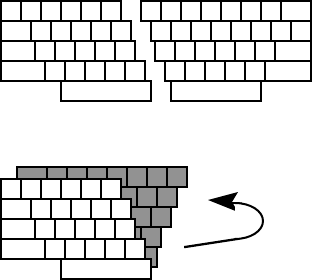
Regular desktop keyboards have two sides (left and right),
one for each hand:
The Half-QWERTY keyboard also has two sides, but it lets
you access both sides using just one hand...
4 5
LEFT HAND TYPING
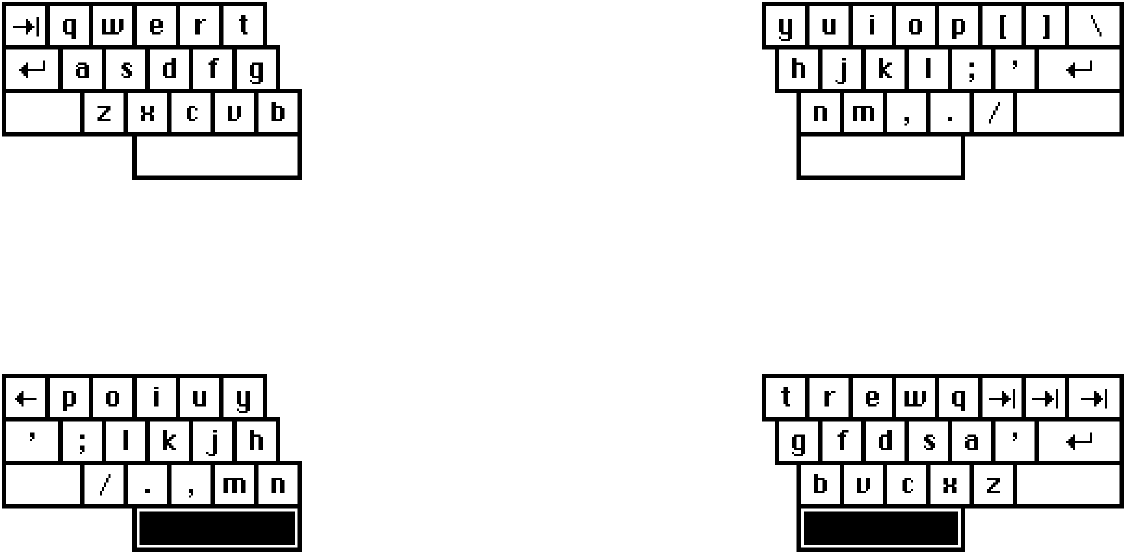
Typing with your left hand is just like on a regular keyboard:
The other side of the keyboard is accessed using the space bar.
When you hold down the space bar, the layout remaps to the right side
of keyboard:
The remapping is done so that the finger movements are the same as
used in two-handed touch-typing (e.g.: right index finger to left index
finger, right ring finger to left ring finger, etc.). This makes it very easy
and quick to learn if you're already trained in touch-typing.
If you're not trained, it's just as easy to learn as two-handed touch-
typing and takes the same amount of time. You can even learn it in a
regular typing class.
RIGHT HAND TYPING
Typing with your right hand is just like on a regular keyboard:
The other side of the keyboard is accessed using the space bar.
When you hold down the space bar, the layout remaps to the left side
of keyboard:
The remapping is done so that the finger movements are the same as
used in two-handed touch-typing (e.g.: left index finger to right index
finger, left ring finger to right ring finger, etc.). This makes it very easy
and quick to learn if you're already trained in touch-typing.
If you're not trained, it's just as easy to learn as two-handed touch-
typing and takes the same amount of time. You can even learn it in a
regular typing class.
6 7
TYPING A SPACE CHARACTER
To type a space, simply tap the space bar, just as you would on a normal
keyboard.
TYPING A BACKSPACE
Space-Tab
To type a backspace, simply hold down the space bar and tap the Tab
key.
TYPING A CAPITAL LETTER
The Half-QWERTY Keyboard has a feature called Sticky Keys, which
lets you use modifier keys without holding them down.
To type a capital-A, you don't need to hold down the Shift key.
Simply tap the Shift key once and then tap the key you want
capitalized.
Sticky Keys also works for the Ctrl and Alt keys.
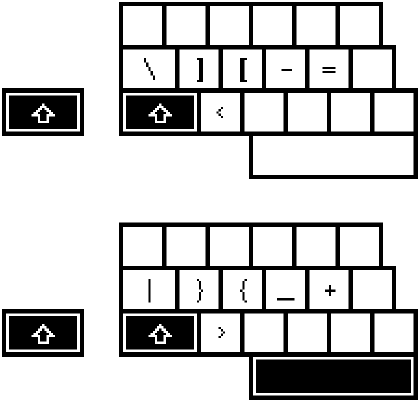
TYPING A SPECIAL SYMBOL
The special symbols in the lower left corner of each key are typed by
tapping the Shift key twice. Tap the Shift key twice and then tap the
key with the desired symbol.
TURNING ONE-HANDED TYPING ON / OFF
The key above the number pad labelled “1/2” turns one-handed typing
on and off.
Press once for one-handed typing.
Press twice for two-handed typing.
Even with one-handed typing switched on, the keyboard will still let
you type two-handed.
8 9
TUTORIALS FOR (FORMER) TWO-HANDED TYPISTS
LEFT HAND TYPING
This tutorial is written for a person who wishes to type with their left
hand only. Generally, right-handed users should type using their left
hand — this leaves the dominant hand free to use a mouse or stylus.
❶Place your left hand on the keyboard, and type the
following words. Try not to think about the other side of the
keyboard.
safe wax serve gas case sew taste fax
❷Hold down the Space bar with your thumb, and type the
following words, remembering that the keyboard is now in
right-side mode.
jump poll hop milk noun hum lump kin
❸Type the following words. Some words will require you to
hold down the Space bar, while others will not.
safe poll care oil feed kin star hum
❹Type the following words. Some letters will require you to
hold down the Space bar, while others will not. Try to
concentrate on the left side of the keyboard. If the letter you
want to type is not on the side you are thinking of (left), you
know you have to hold down the Space bar to type it.
the that rock corporation perfume inform
RIGHT HAND TYPING
This tutorial is written for a person who wishes to type with their
right hand only. Generally, left-handed users should type using their
right hand — this leaves the dominant hand free to use a mouse or
stylus.
❶Place your right hand on the keyboard, and type the
following words. Try not to think about the other side of the
keyboard.
jump poll hop milk noun hum lump
❷Hold down the Space bar with your thumb, and type the
following words, remembering that the keyboard is now in left-
side mode.
safe wax serve gas case sew taste
❸Type the following words. Some words will require you to
hold down the Space bar, while others will not.
poll safe oil care kin feed hum
❹Type the following words. Some letters will require you to
hold down the Space bar, while others will not. Try to
concentrate on the right side of the keyboard. If the letter you
want to type is not on the side you are thinking of (right), you
know you have to hold down the Space bar to type it.
the that rock corporation perfume inform
10 11
AVOIDING COMPUTER-RELATED INJURIES
With increased computer use, computer-related injuries have increased
as well. There are many reasons for this. We’ve listed a few below so
that you can watch out for them, and avoid getting injured yourself.
A certain percentage of the population is physiologically predisposed
to injury. Some people are just less sturdy than others. If you have
small wrists, or long thin bones, you are more likely to sustain an injury,
typing or otherwise, and therefore should be extra careful.
The psychology of computer use makes it easier to sustain an injury. In
particular, it is very easy to lose track of time while using a computer.
Combined with bad posture, injury becomes more likely. To counteract
this, take periodic breaks from your work. Frequent short breaks
(several an hour) help reduce fatigue and the risk of injury.
Bad work-area ergonomics is another major cause of computer-related
injuries:
Chair: Sit with your feet flat on the floor and the backs of your
knees slightly higher than the seat of your chair. Use a foot rest if
necessary. Your chair should support your lower back. Also, avoid
chairs with arm-rests that are too high — they will force your
shoulders up, restricting your movement and prevent you from relaxing
your shoulders. It is a very common problem with many office chairs.
Monitor: If possible, position your monitor at eye-level so you’re
not hunched-over to look at the screen. In particular, users of notebook
computers often experience neck pain, because their monitor height is
not adjustable and the keyboard position is fixed, forcing them to look
down at the screen. Laptop stands are available that can easily
remedy this problem.
Keyboard: When typing, your shoulders should be relaxed. Your
upper arm and forearm should form a right angle, with your wrist and
hand in roughly a straight line. Use a soft touch on the keyboard and
keep your hands and fingers relaxed. If desk height is too high, mount
a keyboard tray underneath.
Work Area: Organize your work area so that commonly used items
are within easy reach, and don’t require a lot of bending forward or
stretching to reach them.
Also, periodically take a moment to think about whether you feel
comfortable, and change position if necessary.
Finally, keep in mind that you are typing with only one hand. You are
using one hand to do the job most people use two hands for. So, be extra
careful. If you’re sore, take a break; stretch a bit. If you’re in pain,
go see a doctor. Don’t wait; go right away. Waiting could result in a
minor injury turning into a more serious one.
The general rules are preventative:
❶Keep your wrists straight, elbows at right angles, and shoulders
relaxed.
❷If possible, position your monitor at eye-level so you’re not
hunched-over looking at the screen.
❸Take frequent short rest breaks (several an hour).
❹Don’t spend long periods of time in one position.
❺Notice when you’re tense and consciously try to relax.
ªOccasionally rest your eyes. From time to time focus your eyes on a
distant object, and blink often while you work.
ºGet plenty of sleep at night.
12
HELP
If you have questions, comments, or suggestions, you can contact us at:
Tel: (905) 265-8844
10:00 AM to 6:00 PM (Eastern Standard Time)
Email: help@half-qwerty.com
Regular mail:
Matias Corporation
129 Rowntree Dairy Road #20
Vaughan, Ontario, L4L 6E1, Canada
MUTE AND CD EJECT KEYS
On some operating systems, a special driver is required for these keys to
work.
Drivers for Mac OS 9 and OS X are currently undergoing testing and will
be released soon.
LEGAL STUFF
LIMITED WARRANTY
Matias Corporation ("Matias") warrants to the original end user ("Customer") that this product will be
free from defects in workmanship and materials, under normal use, for one year from the date of
original purchase from Matias or its authorized reseller. Matias' sole obligation under this express
warranty shall be (at Matias' option and expense) to repair or replace the product or part with a
comparable product or part. All products or parts that are replaced become the property of Matias.
LIMITATION OF LIABILITY
To the full extent allowed by law, Matias excludes for itself and its suppliers any liability (whether
based in contract or in tort, including negligence) for incidental, consequential, indirect, special, or
punitive damages of any kind, or for loss of revenue or profits, loss of business, loss of information or
data, or other financial loss arising out of or in connection with the sale, installation, maintenance, use,
performance, failure, or interruption of this product, even if Matias or its authorized reseller has been
advised of the possibility of such damages, and limits its liability to replacement, repair, or refund of the
purchase price paid, at Matias' option. This disclaimer of liability for damages will not be affected if
any remedy provided herein shall fail of its essential purpose.
SAFETY STATEMENT
Warning: Prolonged or improper use of a keyboard may result in discomfort or injury.
You should use the method of inputting data into your computer that is most comfortable for you.
This keyboard is not intended for extended or intensive use. If discomfort develops, consider changing
your method of input or the manner in which you use the keyboard or stylus/mouse/trackball. If
discomfort or pain persists, either decrease usage or consult a medical or ergonomics professional.
FCC STATEMENT
This equipment has been tested and found to comply with the limits for a Class B digital device,
pursuant to Part 15 of the FCC Rules. These limits are designed to provide reasonable protection
against harmful interference in a residential installation. This equipment generates, uses and can radiate
radio frequency energy and, if not installed and used in accordance with the instructions, may cause
harmful interference to radio communications. However, there is no guarantee that interference will not
occur in a particular installation.
If this equipment does cause harmful interference to radio or television reception, which can be
determined by turning the equipment off and on, the user is encouraged to try to correct the interference
by one or more of the following measures:
• Reorient or relocate the receiving antenna.
• Increase the separation between the equipment and receiver.
• Connect the equipment into an outlet on a circuit different from that to which the receiver is connected.
• Consult the dealer or an experienced radio/TV technician for help.
CAUTION: Changes or modifications not expressly approved by the party responsible for compliance
could void the user's authority to operate the equipment.
TRADEMARKS AND PATENTS
Matias, the Matias logo, and Half-QWERTY Keyboard are trademarks of Matias Corporation. Other
names may be trademarks and their owners are respectfully acknowledged. The Half-QWERTY
Keyboard is patented in Canada (1,336,418), United States (5,288,158), Europe (489,792), Australia
(647,750), and Japan (3,001,628).