Danfoss Drives LCP-103 VLT Wireless Communication Panel LCP103 User Manual LCP 103 Quick Start Guide
Danfoss Drives VLT Wireless Communication Panel LCP103 LCP 103 Quick Start Guide
Contents
- 1. User manual instructions
- 2. User manual
- 3. User Guide
User manual
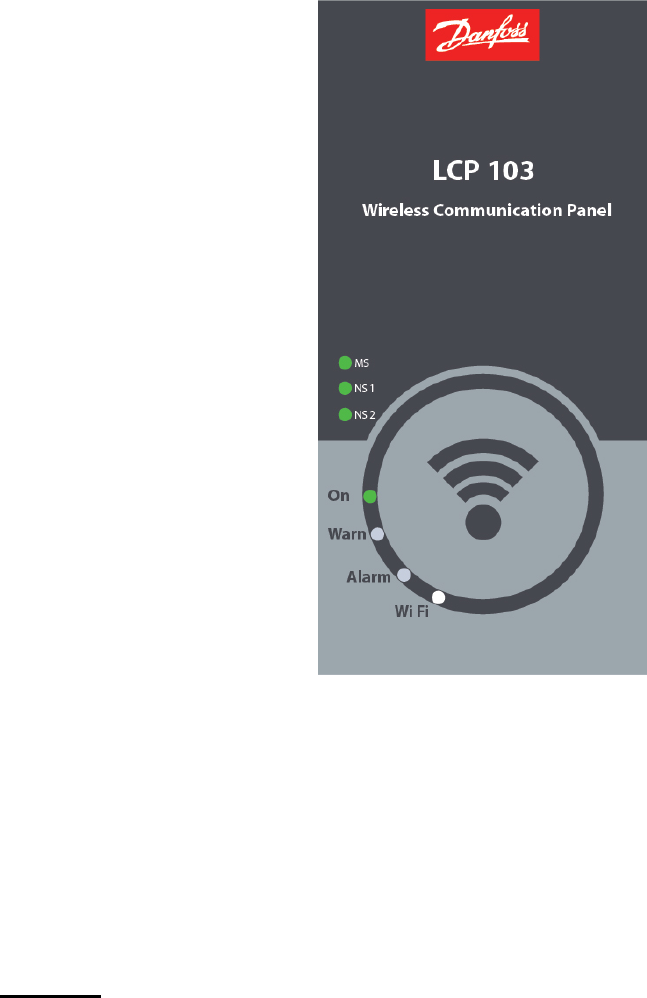
Product overview
The package contains LCP-103 as shown below
This LCP-103 is be compatible with below drive series,
VLT® HVAC Drive FC 102
VLT® Refrigeration Drive FC 103
VLT® Aqua Drive FC 202
VLT® Automation Drive FC 300
Features
Wireless Technology –
Built with leading 802.11b/g technology
Advanced Security - Keep Wi-Fi safe from Internet threats at bay with WEP encryption and standard
firewalls to help keep your drive protected
LED Indicators — LED which help understand the drive behaviour
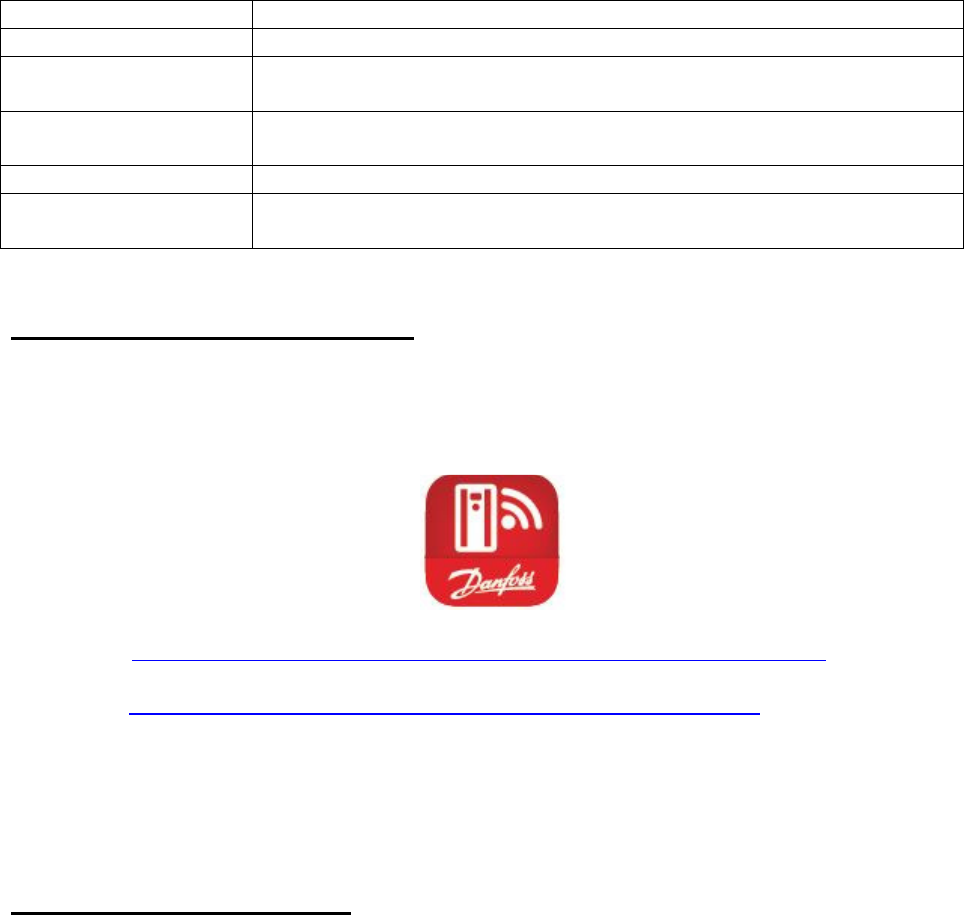
LED
Description
On
Solid Green: Drive is powered
-
on
Wi
-
Fi
Blinking White: Device is pairing
Solid White: Smart device connected and communication is OK
Alarm
Solid Red: Fault in the drive
Blinking Red: Alarm occurred
Warn
Blinking Yellow:
Warning occurred
Field bus indicators
Solid Green: Based on the fieldbus communication MS, NS1, NS2
Winking White: Drive Identification all together MS, NS1, NS2
Installation - Preliminary check-list
Step 1: Check whether the drive has new control card (Read drive profile/decode type code)
Step 2: Download app – MyDrive® Connect, available for Android & iOS
Google play https://play.google.com/store/apps/developer?id=Danfoss+A/S&hl=en
Apple store https://itunes.apple.com/fi/developer/danfoss-a-s/id423984644
Step 3: Power-off the drive if it’s powered-on
Step 4: Mount the LCP-103 hardware in the drive’s D-9 serial connector (or) Just replace the
existing LCP from the drive
Begin the connection process
Step 1: Power-on the drive, the LCP-103 will glow green LED besides the ‘On’ Label
Step 2: If you are connecting an android device then you shall directly launch the app, (Enable the
Wi-Fi service in your smart device before launching)
If you are connecting an apple device, then go to settings and then the device will scan and
populate the wireless id
Step 3: The wireless id is the ‘Danfoss’ name tagged with ‘serial id’ of the drive. For example:
Danfoss_019223G455 is the wireless id by default.
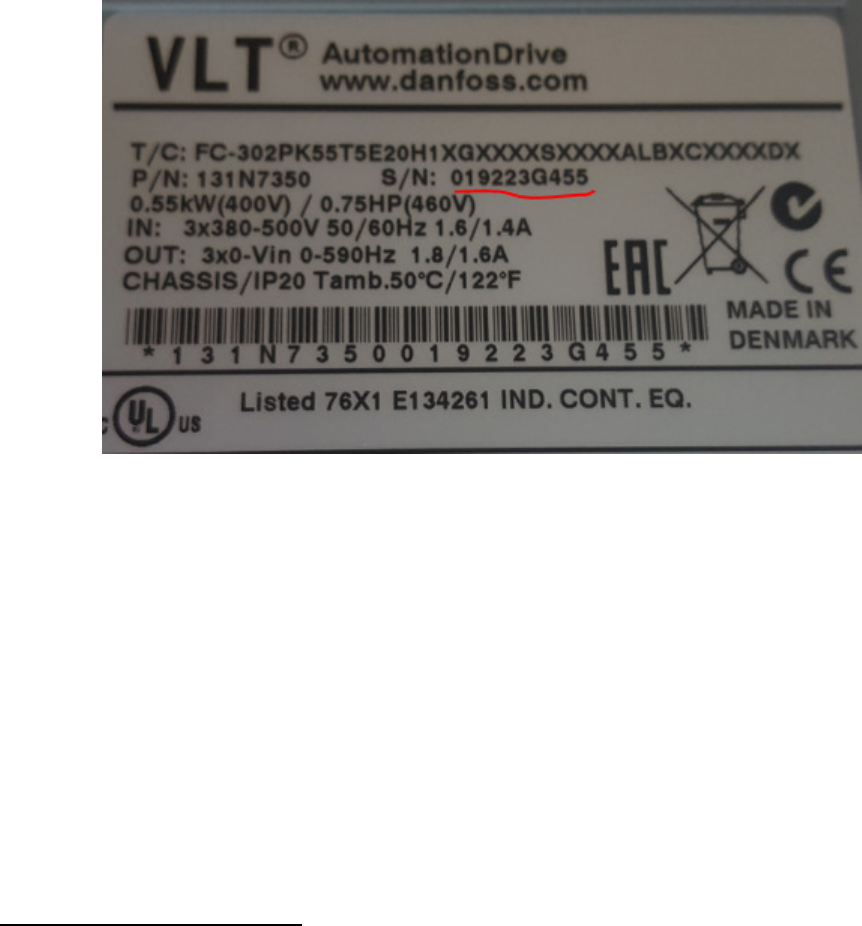
Step 3: The default password is ‘Danfoss1933’, after successful pairing the app will ask you to
change the default network id and password. In this case the password is mandatory field, while
the network id is an option field.
Step 4: You can skip changing the default id’s. But this will allow you to connect and perform the
drive operations only for 10 minutes, later the drive will close the connection.
Step 5: On successful change of id’s, your connection will close automatically and you need to
reconnect the drive as per step 2. Once gain the app will not ask you to change the password,
since you have changed the default id’s which is advised due to security risks.
Step 6: The app will show the status screen by default, where you will see the current setup id &
all the parameters which was configured earlier through MCT10/LCP-102
Additional Features – App
MyDrive® Connect app is designed with similar navigational structure like LCP-102, hence the
initial learning & adaptations are much easier. few more extended functionalities are listed below
which helps improve the usability better.
1. Widget Dynamically change the type of widget & also change the parameters
2. Search Parameter search using ID
3. Drive Identification Identify the drive using led winking
4. Push Notification when the app is in background, push notification helps pop-up the
alarm & warnings
5. Authentication Allows read/write (or) read parameters
6. Drive Profile Read drive profile
7. Share Logs Share the alarm/warning logs through email

8. Store/Restore Use 0-50 parameter, app uses intelligence and provide various option for
copy & restore the setups either to drive or internal memory
9. Disconnect the drive applicable for android devices, once disconnected the LCP-103 will
broadcast
10. Vibrate Based on native settings for alarm/warning notifications
11. Graphs All numerical parameters have scope functionality embedded, this helps to poll
the read-out values in graph
12. Multi-Language app settings will help change different options (German/English)
13. Demo Mode Helps to learn/demonstrate/promote
Hot-Swap/Plug-n-Play
The device is ready to connect/how-swap when the drive is powered-on.
When you connect to any drive (one to another), the wireless id will be populated from the drive.
Hence, the app shall be reconnected to the new network id.
30-9 Group
This group will have the special parameters like wireless id, password, safe parameter, which will
be saved to the drive. This group is accessible from MCT-10 or Graphical keypad LCP. This is not
available in app due to security limits.
Safe Parameter – option for the user to select the behavior when the app crashes/battery
down/connection lost, etc. whether the drive to stop or continue the ongoing process.
In case if you need any further assistance, please contact Danfoss representative.