Decatur Electronics SI3 Traffic/Speed Radar User Manual manual

Decatur Electronics Inc Traffic/Speed Radar manual

manual

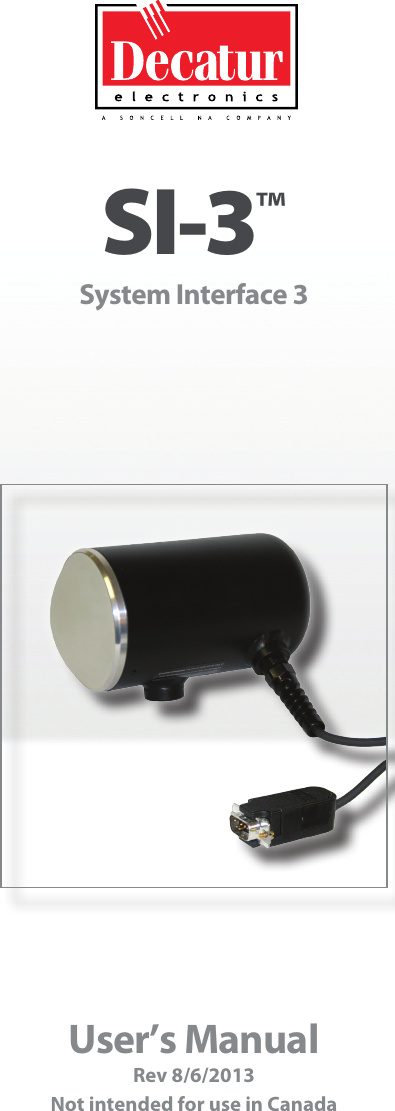
User’s ManualRev 8/6/2013Not intended for use in CanadaSI-3™ System Interface 3
SI-3™System Interface 3User’s Manual
Table of Contents  Welcome .............................................................6About This Manual ....................................................71  Safety Information ....................................................72  Receiving Inspection ..................................................83  Getting Started .......................................................93.1  Introduction......................................................93.2  Connecting The Serial Cable.......................................93.3  Optional Programming Cable  . . . . . . . . . . . . . . . . . . . . . . . . . . . . . . . . . . . . 103.4  Mounting Congurations ........................................104  Conguring the SI-3™ ................................................114.1  Equipment Needed ..............................................114.2  Device Conguration ............................................114.3  Conguration Notes .............................................144.4  Baud Rate .......................................................144.5  Measurement....................................................144.6  Min/Max Speed..................................................144.7  Target Report....................................................144.8  Target Select.....................................................154.9  Cosine Horizontal and Cosine Vertical. . . . . . . . . . . . . . . . . . . . . . . . . . . . . 154.10   Update Rate ....................................................154.11   Hold Time and Speed Lock . . . . . . . . . . . . . . . . . . . . . . . . . . . . . . . . . . . . . . 154.12   Sensitivity ......................................................154.13   Serial Protocol ..................................................164.14   Start and Stop Output Buttons . . . . . . . . . . . . . . . . . . . . . . . . . . . . . . . . . . 174.15   Radar On/O Button............................................175  Performance Tips  ....................................................185.1  How Radar Works ................................................185.2  Interference Sources .............................................185.2.1  Angular Interference (Cosine Eect) . . . . . . . . . . . . . . . . . . . . . . . . . . . . 185.2.2  Fan Interference ...............................................205.2.3  Electromagnetic Interference (EMI) . . . . . . . . . . . . . . . . . . . . . . . . . . . . . 205.2.4  Feedback Interference .........................................205.2.5  Multi-Path Beam Cancellation . . . . . . . . . . . . . . . . . . . . . . . . . . . . . . . . . . 205.2.6  Radio Frequency Interference (RFI) . . . . . . . . . . . . . . . . . . . . . . . . . . . . . 20
5.2.7  Scanning . . . . . . . . . . . . . . . . . . . . . . . . . . . . . . . . . . . . . . . . . . . . . . . . . . . . . . 215.2.8  Environmental Factors: Wind, Rain, Snow . . . . . . . . . . . . . . . . . . . . . . . 216  Testing The Device ...................................................226.1  Tuning Fork Test .................................................227  Care, Cleaning, and Storage ..........................................238  Specications........................................................238.1  Antenna Parameters .............................................238.2   Environment ....................................................238.3   Speed Range Parameters ........................................238.4    Power Consumption ............................................239  Legal Requirements..................................................249.1    Documents.....................................................249.2    FCC Statement..................................................259.3    Conditions......................................................259.4  Installer Note ....................................................259.5  End User Note ...................................................2510  Frequently Asked Questions (FAQ) . . . . . . . . . . . . . . . . . . . . . . . . . . . . . . . . . . . . 2511  Warranty.............................................................26 12  Service Return Procedure.............................................2713  How To Order Additional Products . . . . . . . . . . . . . . . . . . . . . . . . . . . . . . . . . . . . 28Appendix A - SI-3 Serial Commands . . . . . . . . . . . . . . . . . . . . . . . . . . . . . . . . . . . . . . . 29User Notes . . .............................................................33
SI-3™  User’s Manual6Welcome To Decatur Electronics, Inc.!Thank you for choosing this Decatur Electronics product—the System Interface 3 (SI-3)™, a highly advanced directional radar unit that will reward your department with years of dependable service. The SI-3™ incorporates high performance and long range, with many leading features. We urge you to study this manual before using the SI-3™ so you can maximize the benets of this sophisticated radar device. We believe you will be pleasantly surprised by the features and advantages.  If you are as pleased with its performance as we think you will be, ask your Decatur sales representative about other Decatur products including the Genesis™ line of radars, the Onsite™ line of speed trailers, dollies, pole signs and the Responder™ line of in-car video systems.Try any one of our products and see if you don't agree that it is the best-in-class!—The Management and Sta at Decatur Electronics
SI-3™  User’s Manual7About This ManualThis manual contains valuable information to help you set up, use and maintain your radar, so you can optimize its life and keep it at peak performance. Please take a moment to read through it, and keep it handy for future reference. Note the following symbols in this manual:  Indicates a warning message about safety precautions.  Please read it carefully.   Indicates a helpful tip or precaution to note.1.  Safety InformationAll service needs should be referred back to the manufacturer.WARNINGS •  Do not over voltage the radar - it can damage the unit! •  The SI-3™ is designed to operate o of conventional +12 VDC (+10.8 to +16.5 VDC) from the serial cable. Important Warnings•  Opening the SI-3™ automatically voids any warranty still in eect.  There are no user serviceable parts inside.•  Do not expose the SI-3™ to excessive moisture. Never submerge the device. •  Do not drop the SI-3™ on hard surfaces since damage could occur. Units damaged by dropping or abuse are not covered for warranty repair.    Violation of these guidelines may void the warranty.
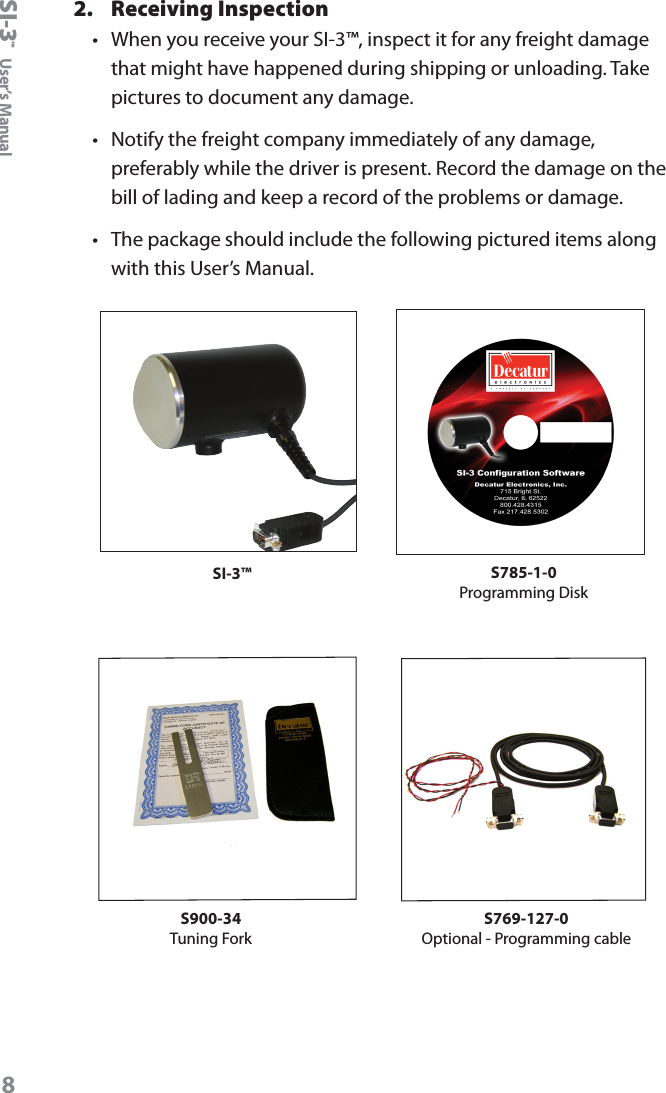
SI-3™  User’s Manual82.  Receiving Inspection•   When you receive your SI-3™, inspect it for any freight damage that might have happened during shipping or unloading. Take pictures to document any damage.•   Notify the freight company immediately of any damage, preferably while the driver is present. Record the damage on the bill of lading and keep a record of the problems or damage. •   The package should include the following pictured items along with this User’s Manual. SI-3™ S785-1-0 Programming DiskS900-34Tuning ForkS769-127-0 Optional - Programming cable
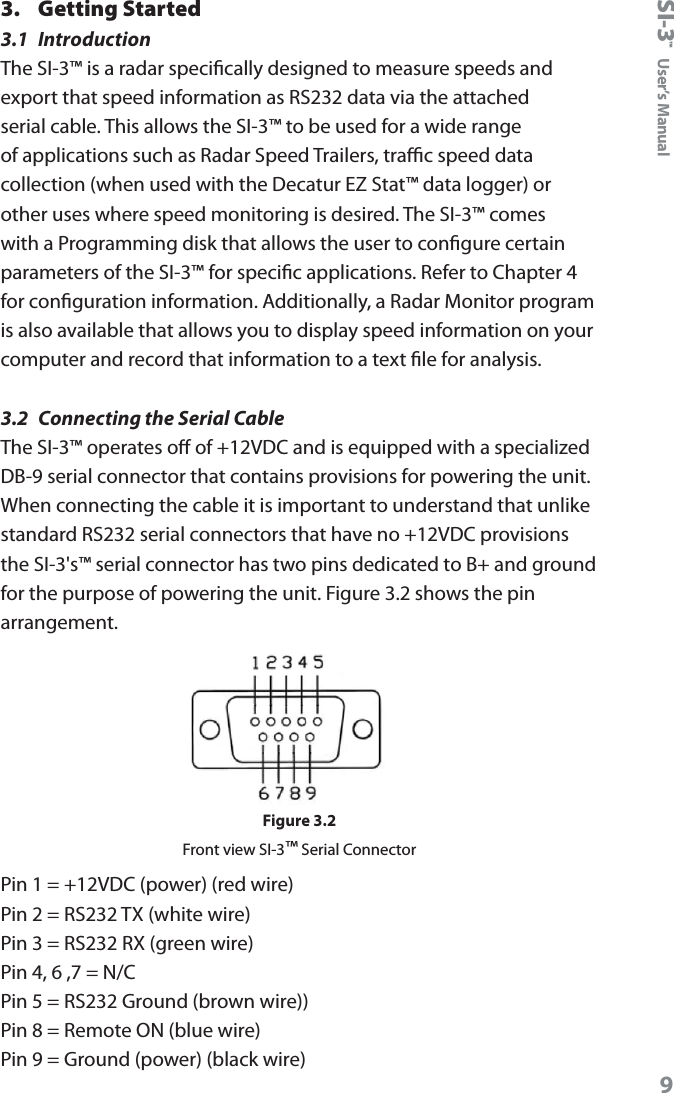
SI-3™  User’s Manual93.  Getting Started3.1  IntroductionThe SI-3™ is a radar specically designed to measure speeds and export that speed information as RS232 data via the attached serial cable. This allows the SI-3™ to be used for a wide range of applications such as Radar Speed Trailers, trac speed data collection (when used with the Decatur EZ Stat™ data logger) or other uses where speed monitoring is desired. The SI-3™ comes with a Programming disk that allows the user to congure certain parameters of the SI-3™ for specic applications. Refer to Chapter 4 for conguration information. Additionally, a Radar Monitor program is also available that allows you to display speed information on your computer and record that information to a text le for analysis.3.2  Connecting the Serial CableThe SI-3™ operates o of +12VDC and is equipped with a specialized DB-9 serial connector that contains provisions for powering the unit. When connecting the cable it is important to understand that unlike standard RS232 serial connectors that have no +12VDC provisions the SI-3's™ serial connector has two pins dedicated to B+ and ground for the purpose of powering the unit. Figure 3.2 shows the pin arrangement. Figure 3.2Front view SI-3™ Serial ConnectorPin 1 = +12VDC (power) (red wire)Pin 2 = RS232 TX (white wire)Pin 3 = RS232 RX (green wire)Pin 4, 6 ,7 = N/CPin 5 = RS232 Ground (brown wire))Pin 8 = Remote ON (blue wire)Pin 9 = Ground (power) (black wire)
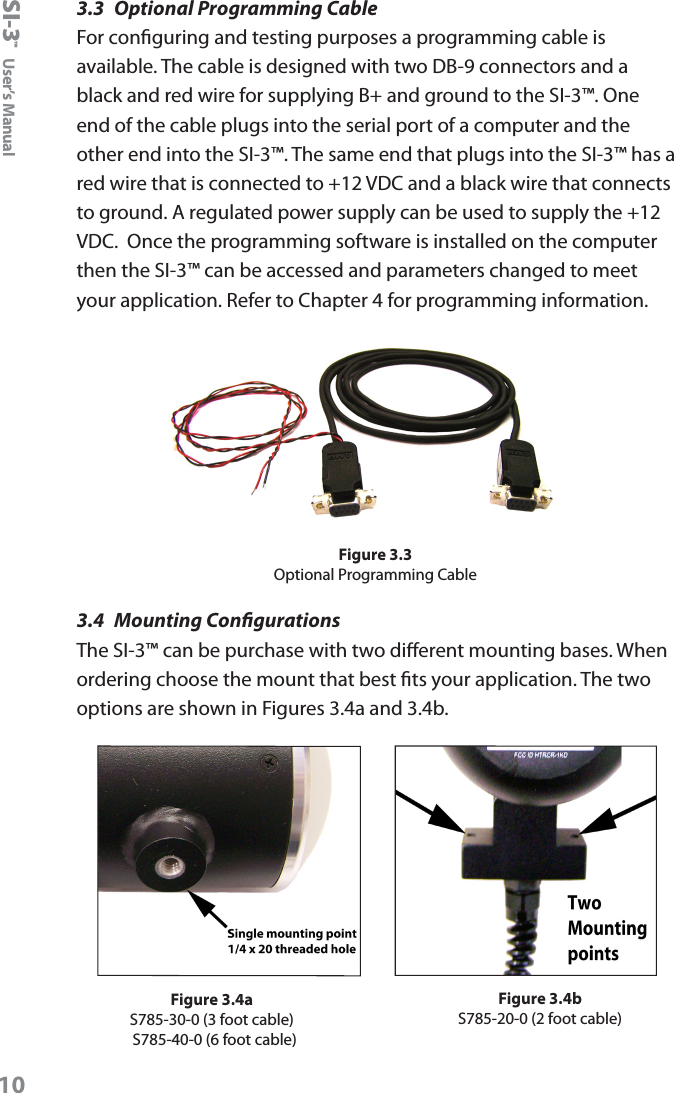
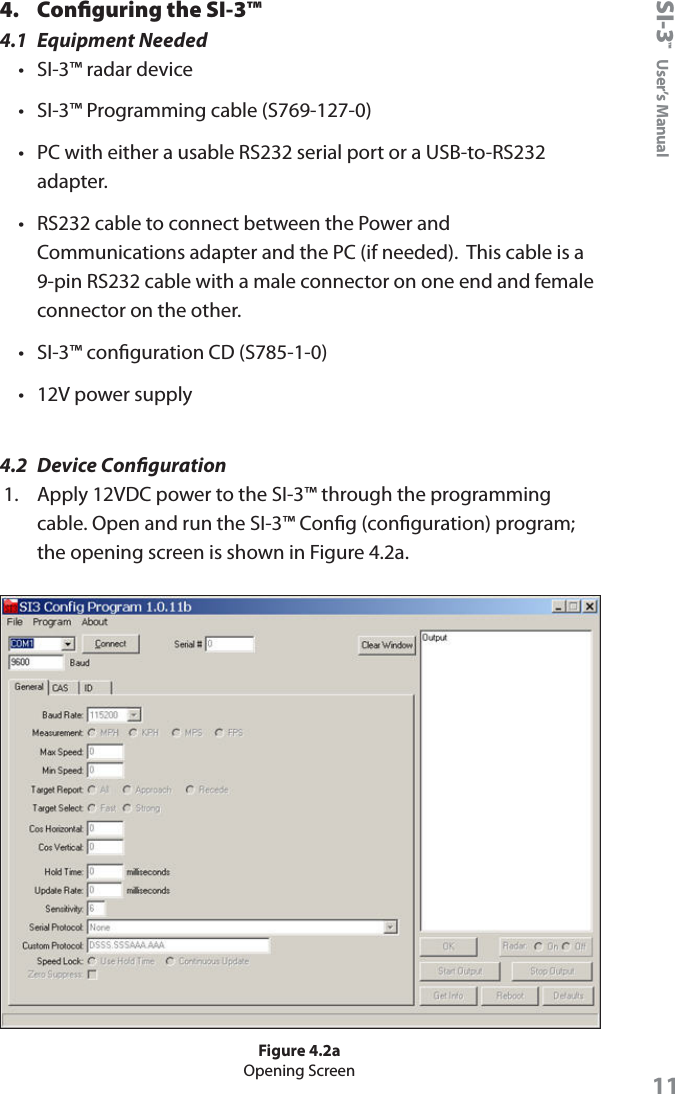
SI-3™  User’s Manual103.3  Optional Programming CableFor conguring and testing purposes a programming cable is available. The cable is designed with two DB-9 connectors and a black and red wire for supplying B+ and ground to the SI-3™. One end of the cable plugs into the serial port of a computer and the other end into the SI-3™. The same end that plugs into the SI-3™ has a red wire that is connected to +12 VDC and a black wire that connects to ground. A regulated power supply can be used to supply the +12 VDC.  Once the programming software is installed on the computer then the SI-3™ can be accessed and parameters changed to meet your application. Refer to Chapter 4 for programming information.Figure 3.3Optional Programming Cable3.4  Mounting CongurationsThe SI-3™ can be purchase with two dierent mounting bases. When ordering choose the mount that best ts your application. The two options are shown in Figures 3.4a and 3.4b.Figure 3.4bS785-20-0 (2 foot cable)Figure 3.4aS785-30-0 (3 foot cable) S785-40-0 (6 foot cable)
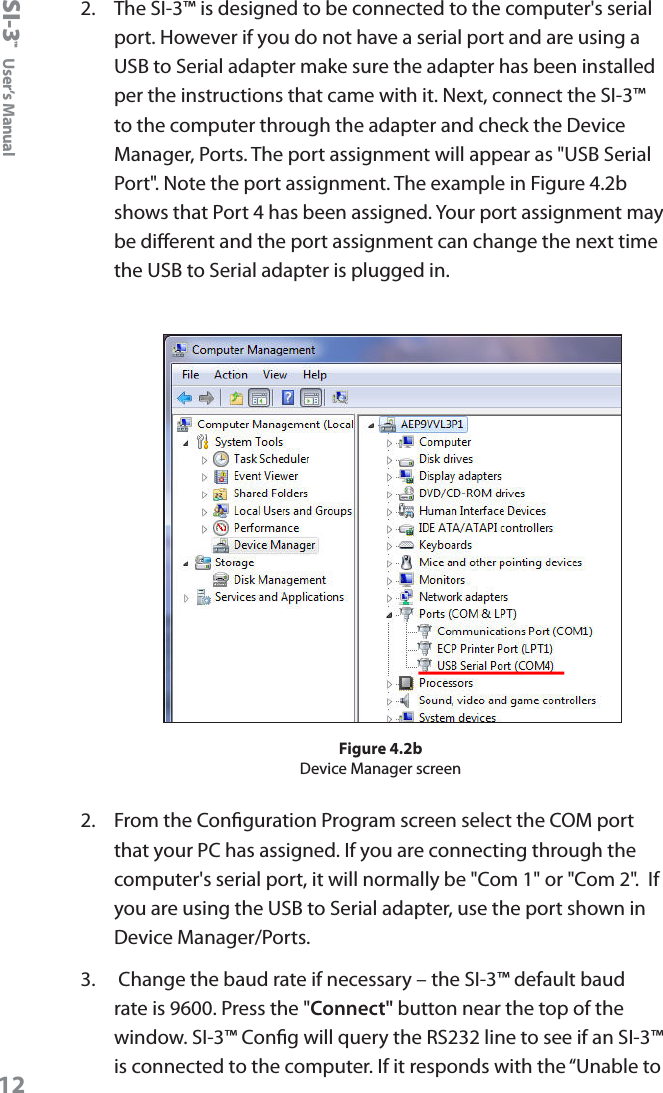
SI-3™  User’s Manual114.  Configuring the SI-3™4.1  Equipment Needed•  SI-3™ radar device•  SI-3™ Programming cable (S769-127-0)•  PC with either a usable RS232 serial port or a USB-to-RS232 adapter.•  RS232 cable to connect between the Power and Communications adapter and the PC (if needed).  This cable is a 9-pin RS232 cable with a male connector on one end and female connector on the other.•  SI-3™ conguration CD (S785-1-0)•  12V power supply4.2  Device Conguration1.  Apply 12VDC power to the SI-3™ through the programming cable. Open and run the SI-3™ Cong (conguration) program; the opening screen is shown in Figure 4.2a.Figure 4.2aOpening Screen
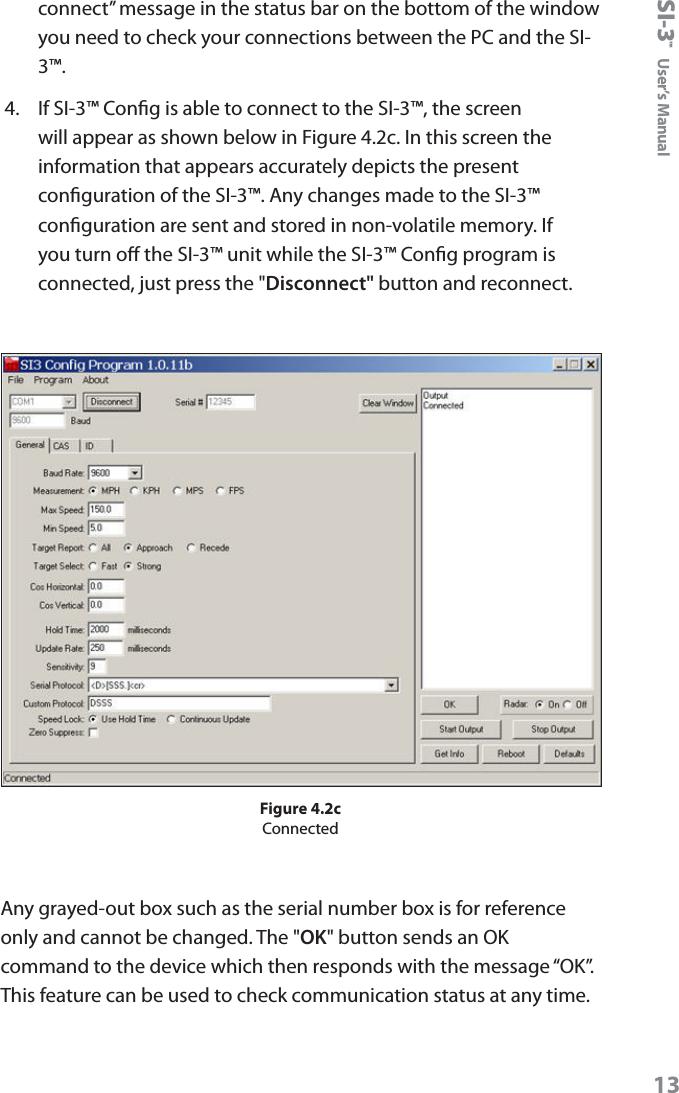
SI-3™  User’s Manual122.   The SI-3™ is designed to be connected to the computer's serial port. However if you do not have a serial port and are using a USB to Serial adapter make sure the adapter has been installed per the instructions that came with it. Next, connect the SI-3™ to the computer through the adapter and check the Device Manager, Ports. The port assignment will appear as "USB Serial Port". Note the port assignment. The example in Figure 4.2b shows that Port 4 has been assigned. Your port assignment may be dierent and the port assignment can change the next time the USB to Serial adapter is plugged in.Figure 4.2bDevice Manager screen2.  From the Conguration Program screen select the COM port that your PC has assigned. If you are connecting through the computer's serial port, it will normally be "Com 1" or "Com 2".  If you are using the USB to Serial adapter, use the port shown in Device Manager/Ports.3.   Change the baud rate if necessary – the SI-3™ default baud rate is 9600. Press the "Connect" button near the top of the window. SI-3™ Cong will query the RS232 line to see if an SI-3™ is connected to the computer. If it responds with the “Unable to
SI-3™  User’s Manual13connect” message in the status bar on the bottom of the window you need to check your connections between the PC and the SI-3™.4.  If SI-3™ Cong is able to connect to the SI-3™, the screen will appear as shown below in Figure 4.2c. In this screen the information that appears accurately depicts the present conguration of the SI-3™. Any changes made to the SI-3™ conguration are sent and stored in non-volatile memory. If you turn o the SI-3™ unit while the SI-3™ Cong program is connected, just press the "Disconnect" button and reconnect.Figure 4.2cConnectedAny grayed-out box such as the serial number box is for reference only and cannot be changed. The "OK" button sends an OK command to the device which then responds with the message “OK”.  This feature can be used to check communication status at any time.
SI-3™  User’s Manual14The "Defaults" button sends a command to put the conguration back to the factory default settings. If you have changed the baud rate and have then pressed the Default button and suddenly nd that the SI-3™ will no longer respond to commands; you need to reconnect at 9600 baud before you can change the SI-3™ back to your desired baud rate. The "Get Info" button retrieves the present conguration from the SI-3™ and updates the displayed conguration. This command can be used to resync the SI-3™ Cong program with the SI-3™ if you’ve power-cycled the SI-3™ while it was connected to the SI-3™ Cong program.4.3  Conguration NotesWith the exception of baud rate, all changes occur immediately and do not require a reboot of the SI-3™ to become operational. When baud rate is changed it takes eect the next time the SI-3™ is power-cycled.•  Please wait 2 seconds after the last conguration command before disconnecting the power to allow the SI-3™ to record the setting in ash memory.4.4  Baud RateThe "Baud Rate" can be 1200, 2400, 4800, 9600, 19200, 38400, 57600, or 115200 bits per second. The SI-3™ always uses 8 bits, no parity, and one stop bit for its serial port conguration.4.5  MeasurementMPH = miles per hour, KPH = kilometers per hour, MPS = meters per second, and FPS = feet per second.4.6  Min/Max SpeedNo vehicles will be reported outside the minimum and maximum congured speeds.4.7  Target ReportThe Target Report has three selections. Choosing the "All" selection will display vehicle speeds coming towards or away from the SI-3™.
SI-3™  User’s Manual15"Approach“ will show vehicle speeds coming towards SI-3™, and "Recede" will show vehicle speeds going away from the SI-3™.4.8  Target SelectA Target Select value of “Strong” is the standard SI-3™ conguration.  Changing to “Fast” will report the fastest vehicle seen within the range of the SI-3™.4.9  Cosine Horizontal and Cosine VerticalFor bridge-type installations where the SI-3™ is over the trac and pointing slightly down, the vertical angle can be entered here to ensure that the SI-3™ calculates the correct vehicle speeds. For installations where the SI-3™ is at a signicant angle from the road, the horizontal angle can also be congured. These two may be used together. Keep the angles between 0 and 45 degrees for maximum accuracy.4.10  Update RateThe selected message format will be sent in whatever time interval (in milliseconds) that you set. The "Update Rate" can be as low as 20 milliseconds. The number should be a multiple of 20 milliseconds. The "Update Rate" and the amount of serial port activity do not aect the measurement accuracy of the SI-3™.4.11  Hold Time and Speed LockWhen the "Speed Lock" is congured as "Use Hold Time", the "Hold Time" value indicates the time the vehicle speed is displayed after the vehicle moves out of range. If the "Continuous Update" is selected this value has no aect.4.12  SensitivityThe SI-3™ is shipped with a default "Sensitivity" of 9, this should work for most applications. The sensitivity can be increased for longer range or decreased for closer range. If the sensitivity is too low the SI-3™ may take too long to lock onto and display a speed.
SI-3™  User’s Manual16Typical ranges for an on-coming mid-sized sedan are:Setting Range (feet)1 3502 5753 8004 9505 13006 17007 18758 24009 280010 >3000The distances will vary based on location, body of the car and alignment of the antenna. It is normal for the range to vary by 10% on identical cars.4.13  Serial Protocol Refer to the product manual for more information on which protocol to use. <D> is a direction character that is “+” for vehicles coming towards the sign, “-“ for vehicles moving away, and “?” when the direction cannot be determined. [S] represents the displayed speed. If a period is within the square brackets it is the decimal point. Any zeros are sent as described and do not change with a vehicle’s speed. The <cr> signies the end of the outgoing message. The default setting is  <D>[SSS.]<cr>. Other protocols listed are used by Decatur for testing purposes. Zero SuppressWhen this value is selected the SI-3™ will not send any information over the RS232 port unless a vehicle is detected.
SI-3™  User’s Manual17•  When a serial protocol is running and a command is sent to the SI-3™, the SI-3™ does receive and perform the requested function. However, the returned "OK" may be inserted anywhere in the data stream and the resulting action on the host computer can not be guaranteed. Example: The protocol is sending out "123.4" If a command is sent to the SI-3™, the response may be 12OK3.4". For this reason it is recommended that the "Stop" command be sent prior to any change in serial protocol if a serial protocol has been selected previously. 4.14  Start and Stop Output Buttons These buttons are used to start and stop the continuously updated serial protocol. Any congured Serial Protocol will resume periodic data transmission after a power-cycle. The Stop command is used to temporarily stop the periodic data transmission. This Stop state is not retained after a power-cycle. The Clear Window button will clear the output window.4.15  Radar  On/O buttonThe Radar On / O buttons turn the radar transmitter on and o.
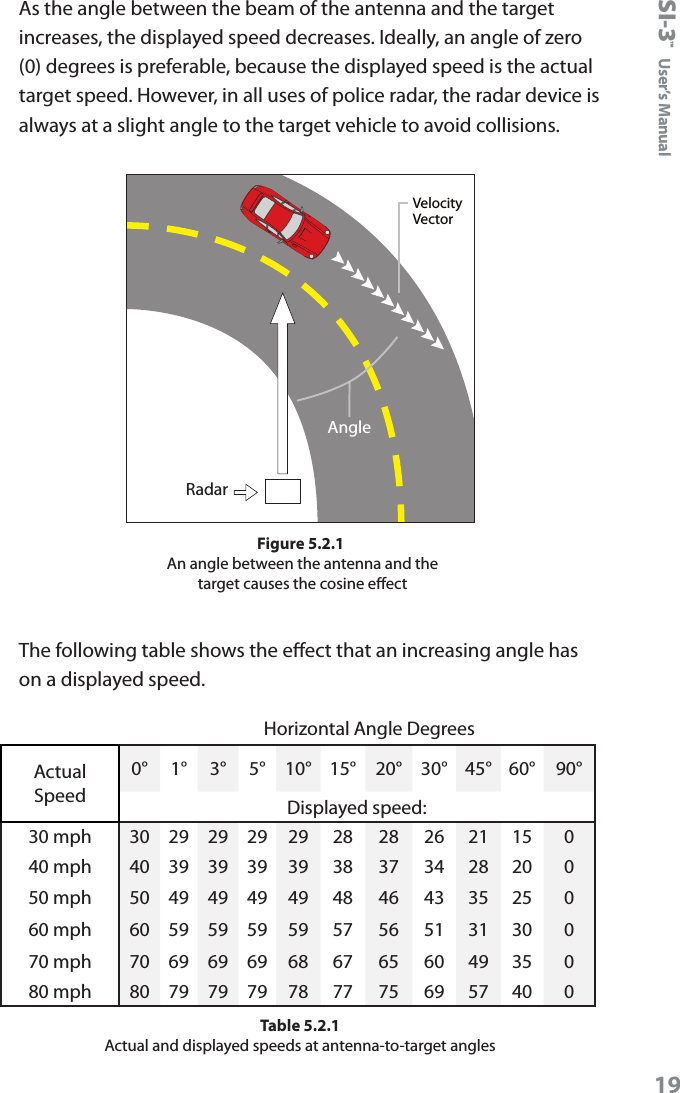
SI-3™  User’s Manual185.  Performance TipsUnderstanding potential radar interference and what to do when it occurs can greatly increase the radar’s performance. 5.1  How Radar Works Determining an object’s speed begins with the radar transmitting a beam of microwave energy (radio waves) at an approaching or departing target. When energy from this beam strikes a target, a small amount of the beam is reected back to the antenna. The reected signal frequency shifts by an amount proportional to the speed of the target. This is known as the Doppler eect. The radar device then determines the target speed from the dierence in frequency between the reected and transmitted signal.5.2  Interference SourcesWhen properly installed and operated, Doppler radar technology is extremely accurate and reliable. However, variations in the environment can cause situations and circumstances which can cause spurious (erratic and unusually low or high) speeds to display. Signs that a speed is spurious can include the following characteristics:•  A reading appears when no target is in the operational range of the antenna. •  A target entering the operational range overrides the interference signal, causing the display speed to change suddenly to the target’s speed. •  Speeds are irregular.5.2.1  Angular Interference (Cosine Eect)The cosine eect causes the system to display a speed which is lower than the actual target speed. This condition occurs when the target’s path is not parallel to the antenna such as the target vehicle traveling on a curve or hill.
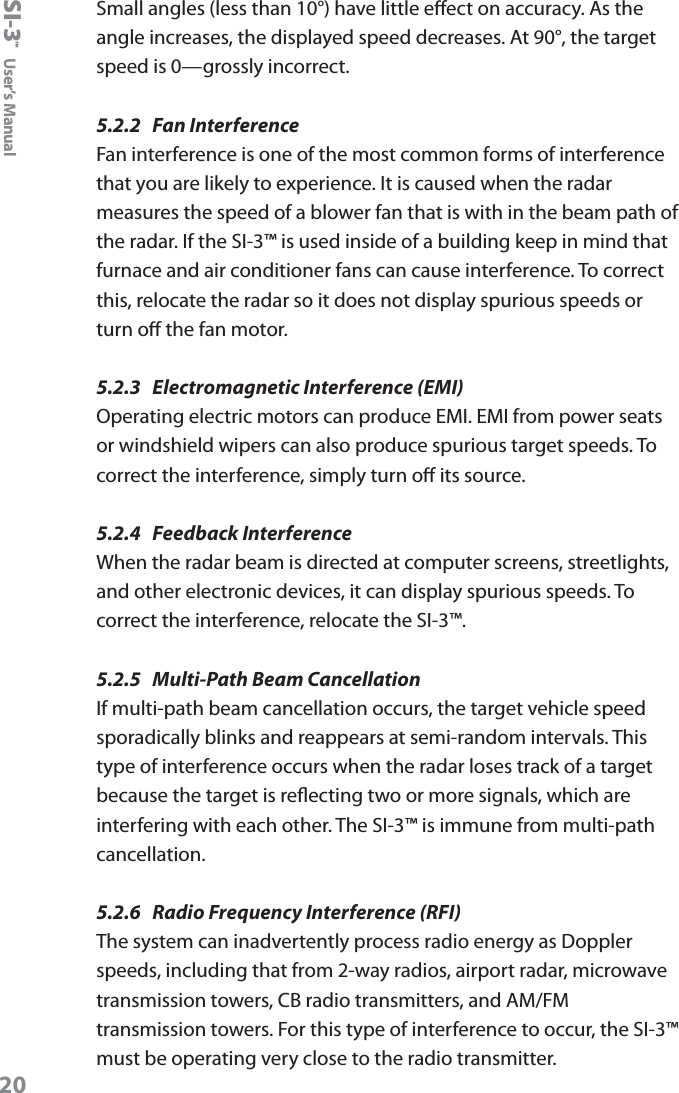
SI-3™  User’s Manual19As the angle between the beam of the antenna and the target increases, the displayed speed decreases. Ideally, an angle of zero (0) degrees is preferable, because the displayed speed is the actual target speed. However, in all uses of police radar, the radar device is always at a slight angle to the target vehicle to avoid collisions.VelocityVectorAngleRadarFigure 5.2.1 An angle between the antenna and the  target causes the cosine eectThe following table shows the eect that an increasing angle has on a displayed speed.Horizontal Angle DegreesActual Speed0° 1° 3° 5° 10° 15° 20° 30° 45° 60° 90°Displayed speed:30 mph 30 29 29 29 29 28 28 26 21 15 040 mph 40 39 39 39 39 38 37 34 28 20 050 mph 50 49 49 49 49 48 46 43 35 25 060 mph 60 59 59 59 59 57 56 51 31 30 070 mph 70 69 69 69 68 67 65 60 49 35 080 mph 80 79 79 79 78 77 75 69 57 40 0Table 5.2.1Actual and displayed speeds at antenna-to-target angles
SI-3™  User’s Manual20Small angles (less than 10°) have little eect on accuracy. As the angle increases, the displayed speed decreases. At 90°, the target speed is 0—grossly incorrect.5.2.2  Fan InterferenceFan interference is one of the most common forms of interference that you are likely to experience. It is caused when the radar measures the speed of a blower fan that is with in the beam path of the radar. If the SI-3™ is used inside of a building keep in mind that furnace and air conditioner fans can cause interference. To correct this, relocate the radar so it does not display spurious speeds or turn o the fan motor.5.2.3  Electromagnetic Interference (EMI) Operating electric motors can produce EMI. EMI from power seats or windshield wipers can also produce spurious target speeds. To correct the interference, simply turn o its source.5.2.4  Feedback InterferenceWhen the radar beam is directed at computer screens, streetlights, and other electronic devices, it can display spurious speeds. To correct the interference, relocate the SI-3™. 5.2.5  Multi-Path Beam CancellationIf multi-path beam cancellation occurs, the target vehicle speed sporadically blinks and reappears at semi-random intervals. This type of interference occurs when the radar loses track of a target because the target is reecting two or more signals, which are interfering with each other. The SI-3™ is immune from multi-path cancellation.5.2.6  Radio Frequency Interference (RFI)The system can inadvertently process radio energy as Doppler speeds, including that from 2-way radios, airport radar, microwave transmission towers, CB radio transmitters, and AM/FM transmission towers. For this type of interference to occur, the SI-3™ must be operating very close to the radio transmitter.
SI-3™  User’s Manual215.2.7  Scanning The SI-3™ is designed to be used while attached to a solid mount position. Moving or “scanning” the antenna past stationary objects can cause the system to detect motion. Obtaining a speed reading from scanning will not happen when you properly use the radar and is considered deliberate misuse of the system.5.2.8  Environmental Factors: Rain & Snow Environmental factors such as rain or snow can reduce the range (distance) at which a target can be detected. However, these factors will not aect accuracy.
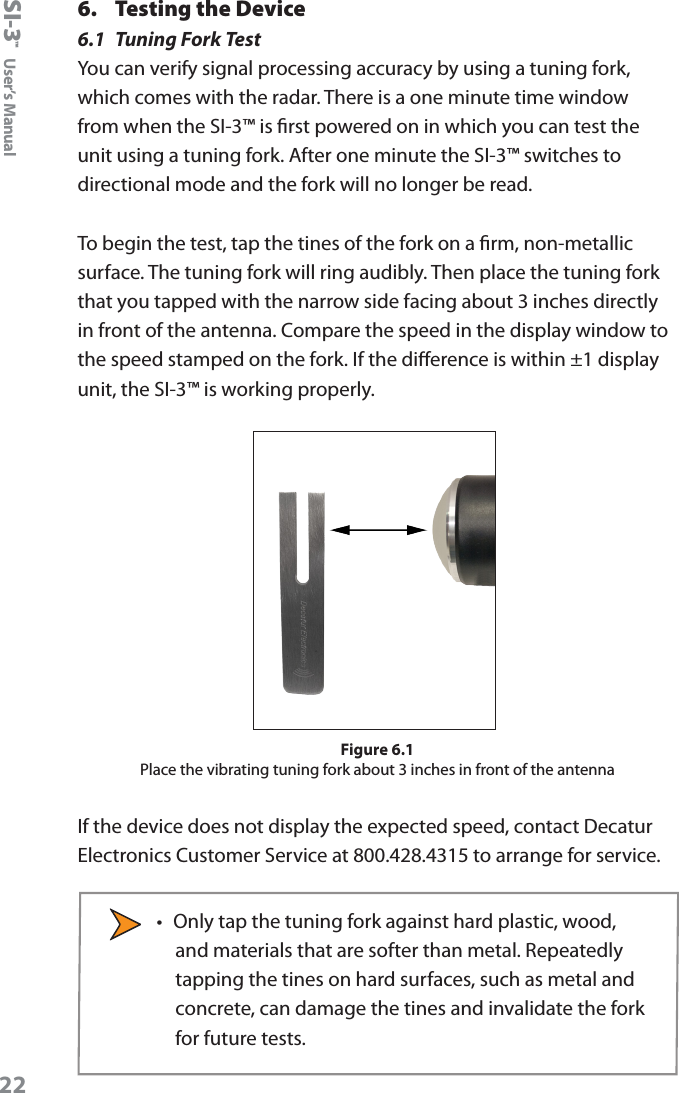
SI-3™  User’s Manual226.  Testing the Device6.1  Tuning Fork TestYou can verify signal processing accuracy by using a tuning fork, which comes with the radar. There is a one minute time window from when the SI-3™ is rst powered on in which you can test the unit using a tuning fork. After one minute the SI-3™ switches to directional mode and the fork will no longer be read.To begin the test, tap the tines of the fork on a rm, non-metallic surface. The tuning fork will ring audibly. Then place the tuning fork that you tapped with the narrow side facing about 3 inches directly in front of the antenna. Compare the speed in the display window to the speed stamped on the fork. If the dierence is within ±1 display unit, the SI-3™ is working properly. Figure 6.1Place the vibrating tuning fork about 3 inches in front of the antennaIf the device does not display the expected speed, contact Decatur Electronics Customer Service at 800.428.4315 to arrange for service.•  Only tap the tuning fork against hard plastic, wood, and materials that are softer than metal. Repeatedly tapping the tines on hard surfaces, such as metal and concrete, can damage the tines and invalidate the fork for future tests.
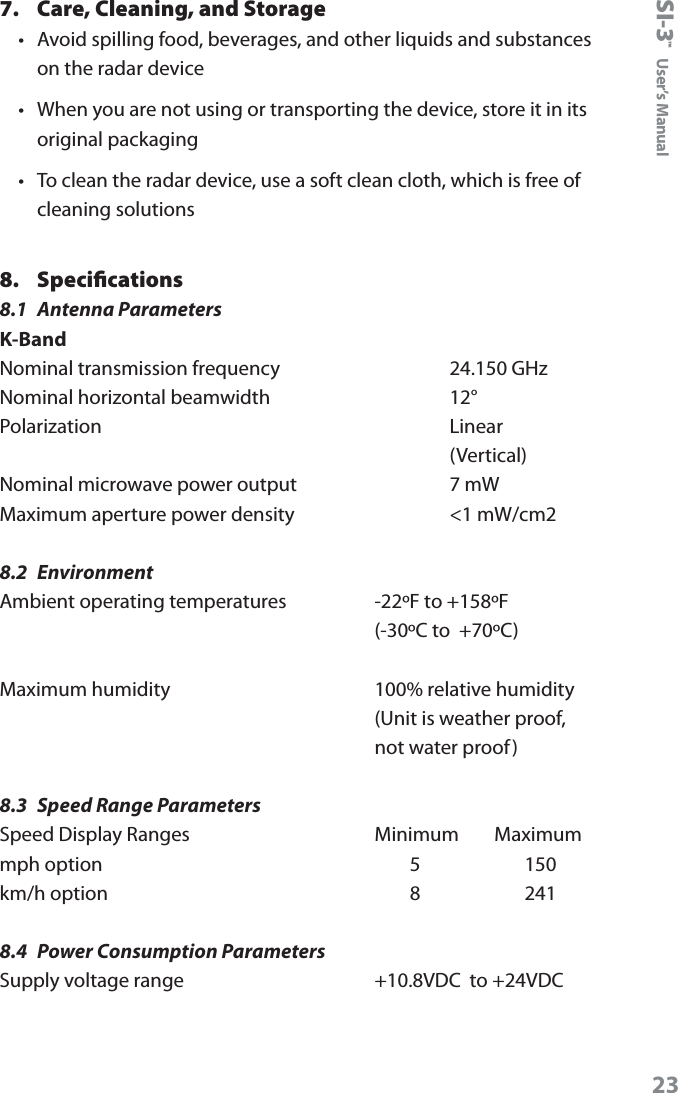
SI-3™  User’s Manual237.  Care, Cleaning, and Storage •  Avoid spilling food, beverages, and other liquids and substances on the radar device •  When you are not using or transporting the device, store it in its original packaging •  To clean the radar device, use a soft clean cloth, which is free of cleaning solutions8.  Specifications 8.1  Antenna ParametersK-BandNominal transmission frequency      24.150 GHz Nominal horizontal beamwidth      12° Polarization      Linear        (Vertical) Nominal microwave power output      7 mW Maximum aperture power density      <1 mW/cm28.2  EnvironmentAmbient operating temperatures    -22ºF to +158ºF     (-30ºC to  +70ºC)Maximum humidity       100% relative humidity     (Unit is weather proof,      not water proof)8.3  Speed Range ParametersSpeed Display Ranges    Minimum        Maximum mph option            5           150 km/h option            8           2418.4  Power Consumption ParametersSupply voltage range    +10.8VDC  to +24VDC
SI-3™  User’s Manual249.  Legal Requirements9.1  DocumentsThis page reserved for FCC Certication Letter
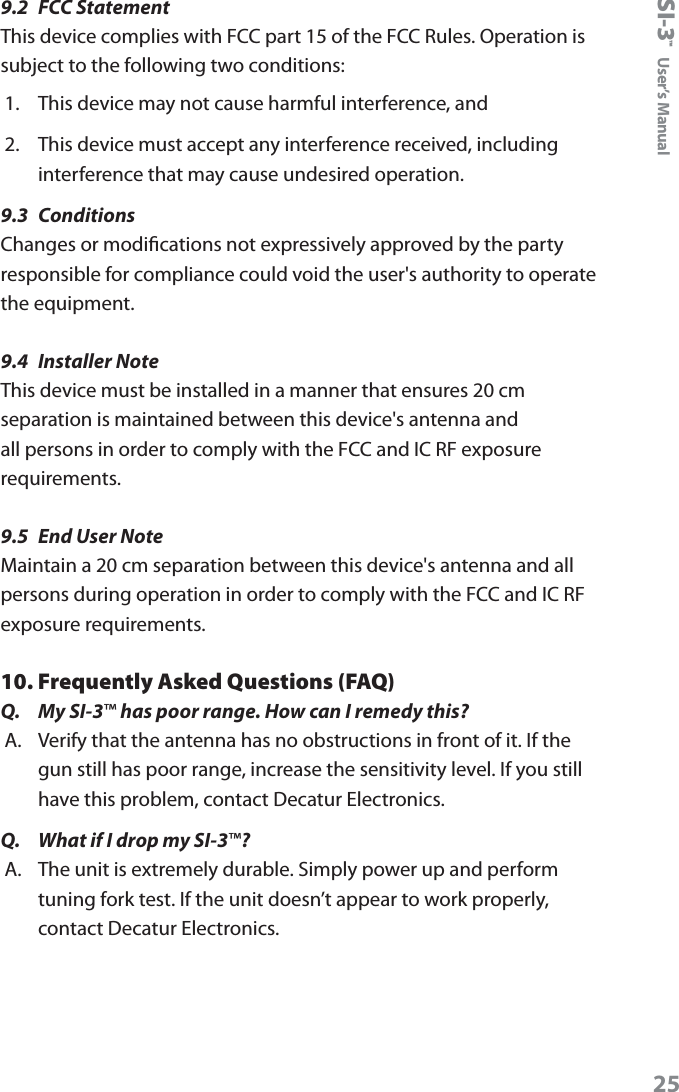
SI-3™  User’s Manual259.2  FCC StatementThis device complies with FCC part 15 of the FCC Rules. Operation is subject to the following two conditions:1.  This device may not cause harmful interference, and2.  This device must accept any interference received, including interference that may cause undesired operation.9.3  ConditionsChanges or modications not expressively approved by the party responsible for compliance could void the user's authority to operate the equipment.9.4  Installer NoteThis device must be installed in a manner that ensures 20 cm separation is maintained between this device's antenna and all persons in order to comply with the FCC and IC RF exposure requirements.9.5  End User NoteMaintain a 20 cm separation between this device's antenna and all persons during operation in order to comply with the FCC and IC RF exposure requirements.10. Frequently Asked Questions (FAQ)Q.  My SI-3™ has poor range. How can I remedy this?A.  Verify that the antenna has no obstructions in front of it. If the gun still has poor range, increase the sensitivity level. If you still have this problem, contact Decatur Electronics.Q.  What if I drop my SI-3™?A.  The unit is extremely durable. Simply power up and perform tuning fork test. If the unit doesn’t appear to work properly, contact Decatur Electronics.
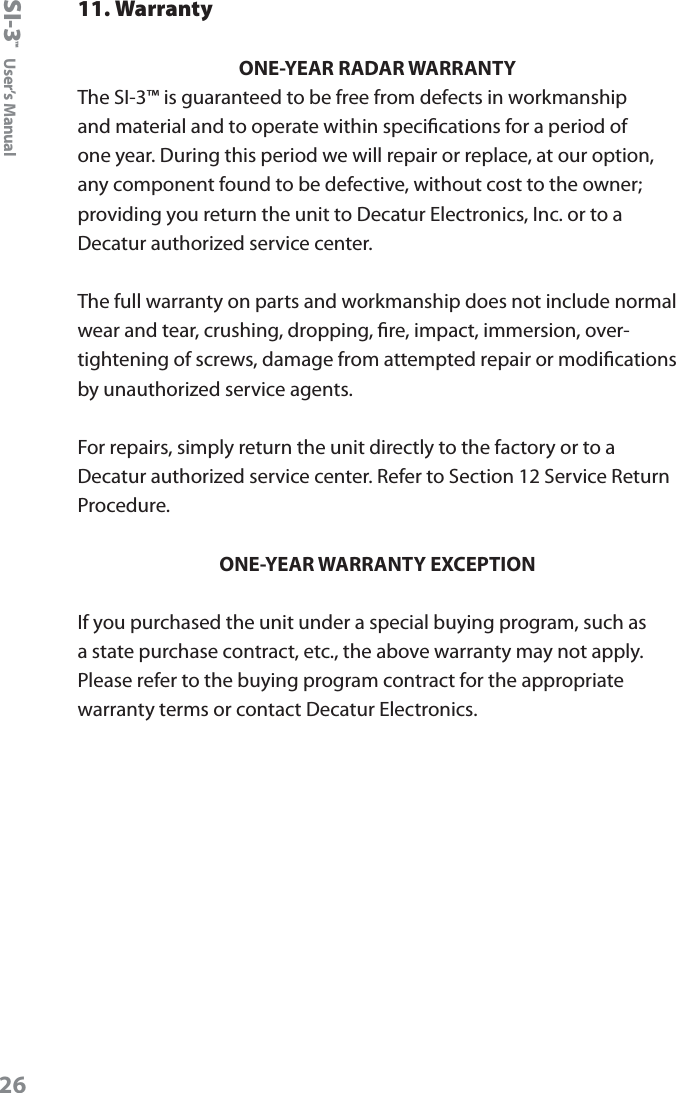
SI-3™  User’s Manual2611. WarrantyONE-YEAR RADAR WARRANTYThe SI-3™ is guaranteed to be free from defects in workmanship and material and to operate within specications for a period of one year. During this period we will repair or replace, at our option, any component found to be defective, without cost to the owner; providing you return the unit to Decatur Electronics, Inc. or to a Decatur authorized service center.  The full warranty on parts and workmanship does not include normal wear and tear, crushing, dropping, re, impact, immersion, over-tightening of screws, damage from attempted repair or modications by unauthorized service agents.For repairs, simply return the unit directly to the factory or to a Decatur authorized service center. Refer to Section 12 Service Return Procedure.ONE-YEAR WARRANTY EXCEPTIONIf you purchased the unit under a special buying program, such as a state purchase contract, etc., the above warranty may not apply. Please refer to the buying program contract for the appropriate warranty terms or contact Decatur Electronics.
SI-3™  User’s Manual2712. Service Return ProcedureIf you have questions, want a quick problem diagnosis, or need to return your unit to the factory:•  Call Decatur Electronics and ask to speak with a Customer Service Representative.Phone: 800.428.4315•  Ask for a Return Authorization Number.•  Based on the information that you provide, the Customer Service Representative will issue you a return authorization (RA) number. Write the RA number on your note and shipping label. •  If so directed, include a note describing the problem and/or the incident that resulted in the problem. Failure to do so can delay the return of your system.•  Return the system to: Decatur Electronics, Inc. 3433 East Wood Street Phoenix, AZ, 85040, USA RA # XXXXXXDecatur Electronics does not accept items shipped COD. The customer is responsible for all shipping charges to the Decatur service location. On warranty items Decatur Electronics will pay the freight (up to $10 US) for shipping the system from the repair facility to the customer. We will charge the customer for any shipping charges above the initial $10. If you want to ship your package express or next day air, we will send you an invoice for these freight charges.After your product has been received, our technicians will investigate the problem. Once they have diagnosed the problem, and if your SI-3™ is out of warranty, you will be sent an estimate of cost, prior to any repair work being performed. After receiving the estimate, you can choose from the following options:
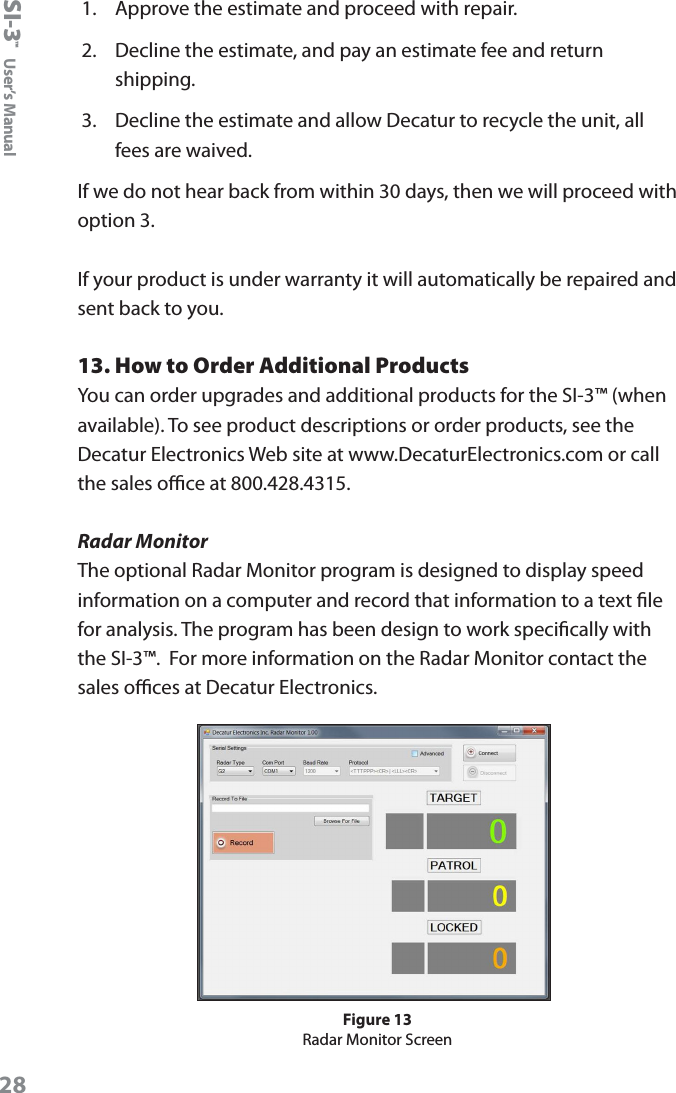
SI-3™  User’s Manual281.  Approve the estimate and proceed with repair.2.  Decline the estimate, and pay an estimate fee and return shipping.3.  Decline the estimate and allow Decatur to recycle the unit, all fees are waived.If we do not hear back from within 30 days, then we will proceed with option 3.If your product is under warranty it will automatically be repaired and sent back to you.13. How to Order Additional ProductsYou can order upgrades and additional products for the SI-3™ (when available). To see product descriptions or order products, see the Decatur Electronics Web site at www.DecaturElectronics.com or call the sales oce at 800.428.4315.Radar MonitorThe optional Radar Monitor program is designed to display speed information on a computer and record that information to a text le for analysis. The program has been design to work specically with the SI-3™.  For more information on the Radar Monitor contact the sales oces at Decatur Electronics.Figure 13Radar Monitor Screen
SI-3™  User’s Manual29Appendix ASI-3 Serial CommandsCommands transmitted to the SI-3 unit will be variable length messages in ASCII followed by a carriage return <CR> or <decimal 13>.  Messages received by the unit will be followed by an acknowledgment ASCII “OK”.  To save new settings into permanent ash memory, an ASCII “F” followed by a <CR> must be sent to the unit (otherwise, new settings will get lost on power-downGet unit IDSend     ASCII i,<CR>Radar responds back with ASCII unit ID (0 – 255), <LF>, <CR>Get serial numberSend      ASCII s,<CR>Radar responds back with ASCII unit serial number (0 – 65535), <LF>, <CR>Set speed units/conversionSend     ASCII  C,units,<CR>Where units = 0 -> mph, 1 -> kph, 2 -> fps, 3 -> m/sRadar responds back with ASCII “OK”,<LF>,<CR>Set Max speedSend     ASCII  M,XXX,<CR>Where XXX = max speed in ASCII formatRadar responds back with ASCII “OK”,<LF>,<CR>Set min speedSend     ASCII  m,XXX,<CR>Where XXX = min speed in ASCII formatRadar responds back with ASCII “OK”,<LF>,<CR>
SI-3™  User’s Manual30Set target reportSend     ASCII  T,X,<CR>Where ASCII value X = 0 -> All targets, X = 1 -> All directional, X = 2 -> Towards, X = 3 -> AwayRadar responds back with ASCII “OK”,<LF>,<CR>Set horizontal Cosine AngleSend     ASCII  H,XX,<CR>Where XX = angle degrees in ASCII formatRadar responds back with ASCII “OK”,<LF>,<CR>Set vertical Cosine AngleSend     ASCII  V,XX,<CR>Where XX = angle degrees in ASCII formatRadar responds back with ASCII “OK”,<LF>,<CR>Set hold timeSend     ASCII  h,XXXX,<CR>Where XXXX = milliseconds in ASCII formatRadar responds back with ASCII “OK”,<LF>,<CR>Set update rate(note: radar requires a power cycle for new values to be used)Send     ASCII  U,X,<CR>Where X = 0 -> 1*sec, X = 1 -> 2*sec, X = 2->5*sec, X=3->8*sec,X=4->change only, X=5->pollRadar responds back with ASCII “OK”,<LF>,<CR>Set sensitivitySend     ASCII  S,X,<CR>Where X = Sensitivity in ASCII format (0 to 9 allowed)  9 is maximum value.Radar responds back with ASCII “OK”,<LF>,<CR>
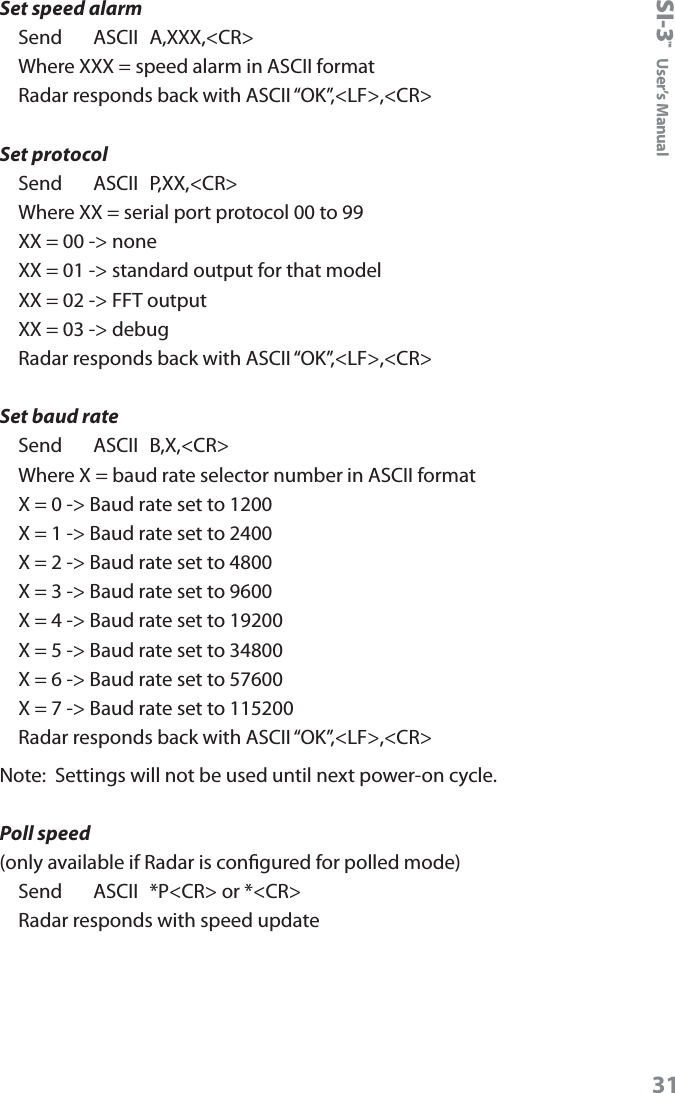
SI-3™  User’s Manual31Set speed alarmSend     ASCII  A,XXX,<CR>Where XXX = speed alarm in ASCII formatRadar responds back with ASCII “OK”,<LF>,<CR>Set protocol Send     ASCII  P,XX,<CR>Where XX = serial port protocol 00 to 99XX = 00 -> noneXX = 01 -> standard output for that modelXX = 02 -> FFT outputXX = 03 -> debugRadar responds back with ASCII “OK”,<LF>,<CR>Set baud rateSend     ASCII  B,X,<CR>Where X = baud rate selector number in ASCII formatX = 0 -> Baud rate set to 1200X = 1 -> Baud rate set to 2400X = 2 -> Baud rate set to 4800X = 3 -> Baud rate set to 9600X = 4 -> Baud rate set to 19200X = 5 -> Baud rate set to 34800X = 6 -> Baud rate set to 57600X = 7 -> Baud rate set to 115200Radar responds back with ASCII “OK”,<LF>,<CR> Note:  Settings will not be used until next power-on cycle.Poll speed(only available if Radar is congured for polled mode)Send    ASCII  *P<CR> or *<CR>Radar responds with speed update
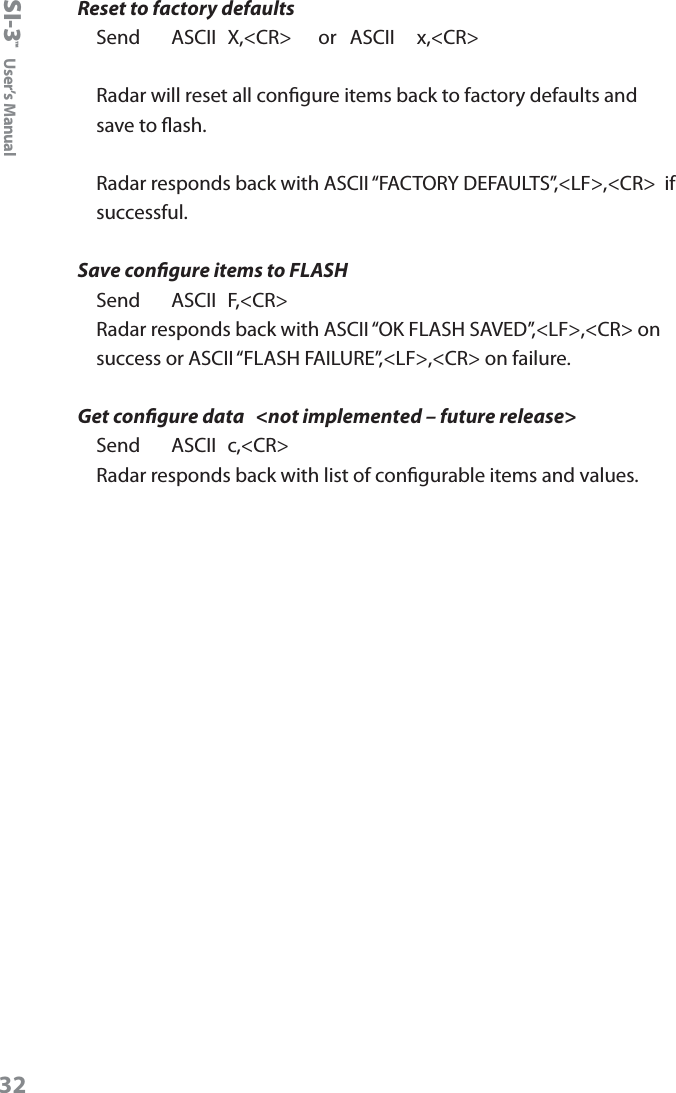
SI-3™  User’s ManualReset to factory defaultsSend     ASCII  X,<CR>      or   ASCII     x,<CR>Radar will reset all congure items back to factory defaults and save to ash.  Radar responds back with ASCII “FACTORY DEFAULTS”,<LF>,<CR>  if successful.Save congure items to FLASHSend     ASCII  F,<CR>Radar responds back with ASCII “OK FLASH SAVED”,<LF>,<CR> on success or ASCII “FLASH FAILURE”,<LF>,<CR> on failure.  Get congure data   <not implemented – future release>Send     ASCII  c,<CR>Radar responds back with list of congurable items and values.32
SI-3™  User’s Manual User Notes33
www.DecaturElectronics.com3433 East Wood Street, Phoenix, Arizona 85040, USA800.428.4315  |  217.428.4315  |  Fax 217.428.5302

Navigation menu