Dell 1355cnw User's Guide 1507920921dell 1355cn Cwn En Us
1507920878dell-1355cn-cwn_user's guide_en-us DELL 1355CNW pdf | FreeUserManuals.com
User Manual: Dell DELL 1355CN pdf | FreeUserManuals.com
Open the PDF directly: View PDF  .
.
Page Count: 522 [warning: Documents this large are best viewed by clicking the View PDF Link!]
- Dell™ 1355cn/1355cnw Multifunction Color Printer
- User's Guide
- Before Beginning
- Setting Up Printer (Printer Setup)
- Removing Packaging Material
- Connecting Your Printer
- Setting the IP Address
- Loading Paper
- Installing Printer Drivers on Computers Running Windows
- Installing Printer Drivers on Computers Running Macintosh
- Using Your Printer
- Dell Printer Configuration Web Tool
- Print Media Guidelines
- Loading Print Media
- Operator Panel
- Printing, Copying, Scanning, and Faxing
- Printing
- Copying
- Scanning
- Faxing
- Using the Numeric Keypad to Enter Characters
- Configuring Fax Initial Settings
- Setting Sounds
- Specifying the Fax Settings
- Sending a Fax
- Sending a Delayed Fax
- Sending a Fax from the Driver (Direct Fax)
- Receiving a Fax
- About Receiving Modes
- Loading Paper for Receiving Faxes
- Receiving a Fax Automatically in the Fax Mode
- Receiving a Fax Manually in the Telephone Mode
- Receiving a Fax Automatically in the Telephone/Fax or Ans/Fax Mode
- Receiving a Fax Manually Using an External Telephone
- Receiving Faxes Using the DRPD Mode
- Receiving Faxes in the Memory
- Polling Receive
- Automatic Dialing
- Other Ways to Fax
- Printing a Report
- Changing Setting Options
- Know Your Printer
- Understanding the Tool Box Menus
- Printer Settings Report
- Printer Maintenance
- System Settings
- Date & Time
- Paper Density
- Adjust BTR
- Adjust Fuser
- Registration Adjustment
- Adjust Altitude
- Reset Defaults
- Non-Dell Toner
- BTR Refresh Mode
- Web Link Customization
- TCP/IP Settings
- Tray Settings
- EWS (Embedded Web Server or Dell Printer Configuration Web Tool)
- Scan Defaults
- Fax Defaults
- Copy Defaults
- Fax Settings
- Diagnosis
- Resetting Defaults
- Understanding the Printer Menus
- Understanding Your Printer Software (Windows Only)
- Understanding Printer Messages
- Printing with Web Services on Devices (WSD)
- Specifications
- Understanding the Tool Box Menus
- Maintaining Your Printer
- Maintaining Your Printer
- Clearing Jams
- Troubleshooting
- Troubleshooting
- Basic Printer Problems
- Display Problems
- Printing Problems
- Print Quality Problems
- The output is too light
- Toner smears or print comes off/Stain on back side
- Random spots/Blurred images
- The entire output is blank
- Streaks appear on the output
- Pitched color dots
- Vertical blanks
- Ghosting
- Fog
- Bead-Carry-Out (BCO)
- Auger mark
- Wrinkled/Stained paper
- The top margins is incorrect
- Color registration is out of alignment
- Protrudent / Bumpy paper
- Jam
- Copy Problem
- Fax Problems
- Scanning Problems
- Scanner Driver/Printer Utility Problems
- Other Problems
- Contacting Service
- Troubleshooting
- Appendix
- Index

www.dell.com | support.dell.com
Dell™ 1355cn/1355cnw Multifunction
Color Printer
User's Guide

Contents 1
Contents
Dell™ 1355cn/1355cnw Multifunction Color
Printer ............................................................1
User's Guide .................................................1
Before Beginning .......................................19
A Notes, Notices, and Cautions . . . . . . . . . 21
1 Dell™ 1355cn/1355cnw Multifunction Color Printer
User's Guide 23
2 Finding Information . . . . . . . . . . . . . . . . . 25
3 Product Features . . . . . . . . . . . . . . . . . . . 29
4 About the Printer . . . . . . . . . . . . . . . . . . . 33
Front View . . . . . . . . . . . . . . . . . . . . . . . . 33
Rear View . . . . . . . . . . . . . . . . . . . . . . . . 34
Space Requirements . . . . . . . . . . . . . . . . . . 34

2Contents
Automatic Document Feeder (ADF) . . . . . . . . . . . 36
Operator Panel . . . . . . . . . . . . . . . . . . . . . . 36
Securing the Printer . . . . . . . . . . . . . . . . . . . 36
Ordering Supplies . . . . . . . . . . . . . . . . . . . . 37
Setting Up Printer (Printer Setup) ...........39
5 Removing Packaging Material . . . . . . . . 41
6 Connecting Your Printer . . . . . . . . . . . . . 43
Connecting Printer to Computer or Network . . . . . . 44
Direct Connection . . . . . . . . . . . . . . . . . 44
Network Connection . . . . . . . . . . . . . . . . 45
Turning On the Printer . . . . . . . . . . . . . . . . . . 47
Connecting the Telephone Line . . . . . . . . . . . . . 48
7 Setting the IP Address . . . . . . . . . . . . . . 51
Setting Initial Settings on the Operator Panel . . . . . 51
Assigning an IP Address (for IPv4 Mode) . . . . . . . . 53
The Operator Panel . . . . . . . . . . . . . . . . . 54
The Tool Box . . . . . . . . . . . . . . . . . . . . 55
Verifying the IP Settings . . . . . . . . . . . . . . . . . 56
Printing and Checking the Printer Settings Page . . . . 57
The Operator Panel . . . . . . . . . . . . . . . . . 57

Contents 3
The Tool Box . . . . . . . . . . . . . . . . . . . . 57
8 Loading Paper . . . . . . . . . . . . . . . . . . . . . 59
Loading Print Media in the Multipurpose Feeder (MPF) 59
Loading Print Media in the Priority Sheet Inserter (PSI) 66
9 Installing Printer Drivers on Computers Running
Windows 69
Identifying Printer Driver Pre-install Status (For Network Connection
Setup) . . . . . . . . . . . . . . . . . . . . . . . . . . 69
The Operator Panel . . . . . . . . . . . . . . . . 69
The Tool Box . . . . . . . . . . . . . . . . . . . . 69
Disabling the firewall before installing your printer 70
Inserting the Drivers and Utility CD . . . . . . . . . . . 70
Direct Connection Setup . . . . . . . . . . . . . . . . 71
For installing host-based printer driver . . . . . . 71
For installing XML Paper Specification (XPS) printer driver 71
Network Connection Setup . . . . . . . . . . . . . . . 74
Network Printer Setup on a Local Network . . . . 74
Network Printer Setup on a Remote Network . . . 79
Configuring Wireless Settings (Dell 1355cnw Multifunction Color
Printer Only) . . . . . . . . . . . . . . . . . . . . . . . 85
Using Wizard Setup to Configure Wireless Settings 86
Using Advanced Setup to Configure Wireless Settings 88
Setting up a New Wireless Network Environment for Your
Computer (When you need to setup your wireless connectivity
with your computer) . . . . . . . . . . . . . . . . 97
Setting Up for Shared Printing . . . . . . . . . . . . . 107

4Contents
Point and Print . . . . . . . . . . . . . . . . . . . 109
Peer-to-Peer . . . . . . . . . . . . . . . . . . . . 112
10 Installing Printer Drivers on Computers Running
Macintosh 117
Installing the Drivers and Software . . . . . . . . . . . 117
Adding a Printer on Mac OS X 10.5 or Later Version(s) 117
Adding a Printer on Mac OS X 10.4.11 . . . . . . . 118
Using Your Printer ...................................121
11 Dell Printer Configuration Web Tool . . . 123
Overview . . . . . . . . . . . . . . . . . . . . . . . . . 123
Using the Dell Printer Configuration Web Tool . . . . . 125
Setting Up the Dell Printer Configuration Web Tool . . 126
Setting Up From Web Browser . . . . . . . . . . . 127
Setting Up From Operator Panel . . . . . . . . . . 129
Page Display Format . . . . . . . . . . . . . . . . . . . 129
Top Frame . . . . . . . . . . . . . . . . . . . . . . 129
Left Frame . . . . . . . . . . . . . . . . . . . . . 130
Right Frame . . . . . . . . . . . . . . . . . . . . . 132
Changing the Settings of the Menu Items . . . . . . . . 133
Details of the Menu Items . . . . . . . . . . . . . 133
Printer Status . . . . . . . . . . . . . . . . . . . . 135
Printer Jobs . . . . . . . . . . . . . . . . . . . . . 137
Printer Settings . . . . . . . . . . . . . . . . . . . 138
Print Server Settings . . . . . . . . . . . . . . . . 160

Contents 5
Print Volume . . . . . . . . . . . . . . . . . . . . 179
Address Book . . . . . . . . . . . . . . . . . . . 179
Tray Settings . . . . . . . . . . . . . . . . . . . . 186
12 Print Media Guidelines . . . . . . . . . . . . . 189
Paper . . . . . . . . . . . . . . . . . . . . . . . . . . 189
Paper Characteristics . . . . . . . . . . . . . . . 189
Recommended Paper . . . . . . . . . . . . . . . 190
Unacceptable Paper . . . . . . . . . . . . . . . . 191
Selecting Paper . . . . . . . . . . . . . . . . . . 191
Selecting Preprinted Media and Letterhead . . . . 192
Printing on Letterhead . . . . . . . . . . . . . . . 192
Loading Letterhead . . . . . . . . . . . . . . . . . 193
Selecting Pre-Punched Paper . . . . . . . . . . . 193
Envelopes . . . . . . . . . . . . . . . . . . . . . . . . 194
Labels . . . . . . . . . . . . . . . . . . . . . . . . . . 195
Storing Print Media . . . . . . . . . . . . . . . . . . . 196
Identifying Print Media and Specifications . . . . . . 196
Supported Paper Sizes . . . . . . . . . . . . . . . 196
Supported Paper Types . . . . . . . . . . . . . . 198
Paper Type Specifications . . . . . . . . . . . . . 199
13 Loading Print Media . . . . . . . . . . . . . . . 201
Capacity . . . . . . . . . . . . . . . . . . . . . . . . . 201
Print Media Dimensions . . . . . . . . . . . . . . . . 201
Loading Print Media in the Multipurpose Feeder (MPF) 202
Loading an Envelope in the Multipurpose Feeder (MPF) 207

6Contents
Loading Letterhead . . . . . . . . . . . . . . . . . 210
Loading Print Media in the Priority Sheet Inserter (PSI) 211
Loading an Envelope in the Priority Sheet Inserter (PSI) 214
Loading Letterhead . . . . . . . . . . . . . . . . . 217
Manual Duplex Printing (Windows Printer Driver Only) 218
The Multipurpose Feeder (MPF) . . . . . . . . . . 218
The Priority Sheet Inserter (PSI) . . . . . . . . . . 219
Using the Output Tray Extension . . . . . . . . . . . . 221
14 Operator Panel . . . . . . . . . . . . . . . . . . . 223
Using the Operator Panel Buttons . . . . . . . . . . . . 223
Printing a Panel Settings Page . . . . . . . . . . . . . 225
The Operator Panel . . . . . . . . . . . . . . . . . 225
The Tool Box . . . . . . . . . . . . . . . . . . . . 225
Printing, Copying, Scanning, and Faxing 227
15 Printing . . . . . . . . . . . . . . . . . . . . . . . . . 229
Tips for Successful Printing . . . . . . . . . . . . . . . 229
Tips on Storing Print Media . . . . . . . . . . . . 229
Avoiding Paper Jams . . . . . . . . . . . . . . . . 229
Sending a Job to Print . . . . . . . . . . . . . . . . . . 229
Canceling a Print Job . . . . . . . . . . . . . . . . . . 230
Canceling From the Operator Panel . . . . . . . . 230
Canceling a Job From the Computer Running Windows 230

Contents 7
Direct Print Using the USB Storage Device . . . . . . 231
Supported File Formats . . . . . . . . . . . . . . 231
Printing a Report Page . . . . . . . . . . . . . . . . . 232
Printing a System Settings Page . . . . . . . . . . 232
The Operator Panel . . . . . . . . . . . . . . . . 232
Printer Settings . . . . . . . . . . . . . . . . . . . . . 233
Using the Tool Box to Change the Printer Settings 233
Adjusting the Language . . . . . . . . . . . . . . 233
16 Copying . . . . . . . . . . . . . . . . . . . . . . . . . 235
Loading Paper for Copying . . . . . . . . . . . . . . . 235
Preparing a Document . . . . . . . . . . . . . . . . . 235
Making Copies From the Document Glass . . . . . . . 235
Making Copies From the ADF . . . . . . . . . . . . . . 237
Setting Copy Options . . . . . . . . . . . . . . . . . . 238
Number of Copies . . . . . . . . . . . . . . . . . 238
Color . . . . . . . . . . . . . . . . . . . . . . . . 238
Collated . . . . . . . . . . . . . . . . . . . . . . . 239
Reduce/Enlarge . . . . . . . . . . . . . . . . . . 240
Document Size . . . . . . . . . . . . . . . . . . . 241
Original Type . . . . . . . . . . . . . . . . . . . . 242
Lighter/Darker . . . . . . . . . . . . . . . . . . . 243
Sharpness . . . . . . . . . . . . . . . . . . . . . 244
Auto Exposure . . . . . . . . . . . . . . . . . . . 244
Multiple-Up . . . . . . . . . . . . . . . . . . . . . 245
Margin Top/Bottom . . . . . . . . . . . . . . . . . 247
Margin Left/Right . . . . . . . . . . . . . . . . . . 248
Margin Middle . . . . . . . . . . . . . . . . . . . 249

8Contents
Changing the Default Settings . . . . . . . . . . . . . 250
Setting the Power Saver Timer Option . . . . . . . . . 250
17 Scanning . . . . . . . . . . . . . . . . . . . . . . . . 253
Scanning Overview . . . . . . . . . . . . . . . . . . . 253
Scanning From the Operator Panel . . . . . . . . . . . 254
Scanning Using the TWAIN Driver . . . . . . . . . . . 255
Scanning Using the Windows Image Acquisition (WIA) Driver 257
Using a Scanner on the Network . . . . . . . . . . . . 259
Overview . . . . . . . . . . . . . . . . . . . . . . 259
Confirming a Login name and Password . . . . . . 261
Specifying a Destination to Store the Document . 262
Configuring the Printer Settings . . . . . . . . . . 271
Sending the Scanned File on the Network . . . . . 279
Scanning to USB Storage Device . . . . . . . . . . . . 280
Sending an E-Mail with the Scanned Image . . . . . . 281
Setting an E-Mail Address Book . . . . . . . . . . 281
Sending an E-mail With the Scanned File . . . . . 282
18 Faxing . . . . . . . . . . . . . . . . . . . . . . . . . . 285
Using the Numeric Keypad to Enter Characters . . . . 285
Keypad Letters and Numbers . . . . . . . . . . . 285
Changing Numbers or Names . . . . . . . . . . . 286
Inserting a Pause . . . . . . . . . . . . . . . . . . 286
Configuring Fax Initial Settings . . . . . . . . . . . . . 286
Setting Your Country . . . . . . . . . . . . . . . . 286

Contents 9
Setting the Printer ID . . . . . . . . . . . . . . . . 287
Setting the Time and Date . . . . . . . . . . . . . 288
Changing the Clock Mode . . . . . . . . . . . . . 289
Setting Sounds . . . . . . . . . . . . . . . . . . . . . 289
Speaker Volume . . . . . . . . . . . . . . . . . . 289
Ringer Volume . . . . . . . . . . . . . . . . . . . 290
Specifying the Fax Settings . . . . . . . . . . . . . . . 290
Changing the Fax Settings Options . . . . . . . . 290
Available Fax Settings Options . . . . . . . . . . . 291
Advanced Fax Settings . . . . . . . . . . . . . . . 294
Sending a Fax . . . . . . . . . . . . . . . . . . . . . . 296
Loading an Original Document on the ADF . . . . 296
Loading an Original Document on the Document Glass 296
Resolution . . . . . . . . . . . . . . . . . . . . . 298
Document Type . . . . . . . . . . . . . . . . . . . 298
Lighter/Darker . . . . . . . . . . . . . . . . . . . 299
Sending a Fax Automatically . . . . . . . . . . . . 299
Sending a Fax Manually . . . . . . . . . . . . . . 300
Confirming Transmissions . . . . . . . . . . . . . 301
Automatic Redialing . . . . . . . . . . . . . . . . 302
Sending a Delayed Fax . . . . . . . . . . . . . . . . . 302
Sending a Fax from the Driver (Direct Fax) . . . . . . . 303
Example . . . . . . . . . . . . . . . . . . . . . . 303
Receiving a Fax . . . . . . . . . . . . . . . . . . . . . 308
About Receiving Modes . . . . . . . . . . . . . . 308
Loading Paper for Receiving Faxes . . . . . . . . 308
Receiving a Fax Automatically in the Fax Mode . . 309
Receiving a Fax Manually in the Telephone Mode 309
Receiving a Fax Automatically in the Telephone/Fax or Ans/Fax
Mode . . . . . . . . . . . . . . . . . . . . . . . . 309

10 Contents
Receiving a Fax Manually Using an External Telephone 309
Receiving Faxes Using the DRPD Mode . . . . . . 310
Receiving Faxes in the Memory . . . . . . . . . . 311
Polling Receive . . . . . . . . . . . . . . . . . . . 311
Automatic Dialing . . . . . . . . . . . . . . . . . . . . 311
Speed Dialing . . . . . . . . . . . . . . . . . . . . 311
Storing a Number for Speed Dialing . . . . . . . . 311
Sending a Fax Using a Speed Dial . . . . . . . . . 312
Group Dialing . . . . . . . . . . . . . . . . . . . . 313
Setting Group Dial . . . . . . . . . . . . . . . . . 314
Editing Group Dial . . . . . . . . . . . . . . . . . 314
Sending a Fax Using Group Dialing (Multi-address Transmission)
316
Printing an Address Book List . . . . . . . . . . . 316
Other Ways to Fax . . . . . . . . . . . . . . . . . . . . 316
Using the Secure Receiving Mode . . . . . . . . . 316
Using an Answering Machine . . . . . . . . . . . 318
Using a Computer Modem . . . . . . . . . . . . . 319
Printing a Report . . . . . . . . . . . . . . . . . . . . . 319
Changing Setting Options . . . . . . . . . . . . . . . . 320
Know Your Printer ...................................321
19 Understanding the Tool Box Menus . . . 323
Printer Settings Report . . . . . . . . . . . . . . . . . 323
Printer Information . . . . . . . . . . . . . . . . . 323
Menu Settings . . . . . . . . . . . . . . . . . . . 324
Reports . . . . . . . . . . . . . . . . . . . . . . . 327

Contents 11
TCP/IP Settings . . . . . . . . . . . . . . . . . . . 328
Tray Settings . . . . . . . . . . . . . . . . . . . . 328
Defaults Settings . . . . . . . . . . . . . . . . . . 329
Fax Settings . . . . . . . . . . . . . . . . . . . . 331
Printer Maintenance . . . . . . . . . . . . . . . . . . 333
System Settings . . . . . . . . . . . . . . . . . . 333
Date & Time . . . . . . . . . . . . . . . . . . . . 336
Paper Density . . . . . . . . . . . . . . . . . . . 336
Adjust BTR . . . . . . . . . . . . . . . . . . . . . 337
Adjust Fuser . . . . . . . . . . . . . . . . . . . . 338
Registration Adjustment . . . . . . . . . . . . . . 338
Adjust Altitude . . . . . . . . . . . . . . . . . . . 340
Reset Defaults . . . . . . . . . . . . . . . . . . . 340
Non-Dell Toner . . . . . . . . . . . . . . . . . . . 341
BTR Refresh Mode . . . . . . . . . . . . . . . . . 341
Web Link Customization . . . . . . . . . . . . . . 342
TCP/IP Settings . . . . . . . . . . . . . . . . . . . 342
Tray Settings . . . . . . . . . . . . . . . . . . . . 343
EWS (Embedded Web Server or Dell Printer Configuration Web
Tool) . . . . . . . . . . . . . . . . . . . . . . . . 345
Scan Defaults . . . . . . . . . . . . . . . . . . . 345
Fax Defaults . . . . . . . . . . . . . . . . . . . . 347
Copy Defaults . . . . . . . . . . . . . . . . . . . 348
Fax Settings . . . . . . . . . . . . . . . . . . . . 351
Diagnosis . . . . . . . . . . . . . . . . . . . . . . . . 356
Chart Print . . . . . . . . . . . . . . . . . . . . . 356
Environment Sensor Info . . . . . . . . . . . . . . 356
Clean Developer . . . . . . . . . . . . . . . . . . 356
Refresh Mode . . . . . . . . . . . . . . . . . . . 357
Resetting Defaults . . . . . . . . . . . . . . . . . . . . 357

12 Contents
20 Understanding the Printer Menus . . . . . 359
Defaults Settings . . . . . . . . . . . . . . . . . . . . 359
Copy Defaults . . . . . . . . . . . . . . . . . . . . 359
Scan Defaults . . . . . . . . . . . . . . . . . . . . 364
Fax Defaults . . . . . . . . . . . . . . . . . . . . 369
USB Print Defaults . . . . . . . . . . . . . . . . . 371
Tray Settings . . . . . . . . . . . . . . . . . . . . . . . 371
MPF . . . . . . . . . . . . . . . . . . . . . . . . . 371
Reports/List . . . . . . . . . . . . . . . . . . . . . . . 373
System Settings . . . . . . . . . . . . . . . . . . 373
Panel Settings . . . . . . . . . . . . . . . . . . . 373
Job History . . . . . . . . . . . . . . . . . . . . . 374
Error History . . . . . . . . . . . . . . . . . . . . 374
Color Test Page . . . . . . . . . . . . . . . . . . . 374
Protocol Monitor . . . . . . . . . . . . . . . . . . 374
Address Book . . . . . . . . . . . . . . . . . . . . 374
Fax Activity . . . . . . . . . . . . . . . . . . . . . 374
Admin Menu . . . . . . . . . . . . . . . . . . . . . . . 374
Phone Book . . . . . . . . . . . . . . . . . . . . . 375
Network . . . . . . . . . . . . . . . . . . . . . . 375
Fax Settings . . . . . . . . . . . . . . . . . . . . . 381
System Settings . . . . . . . . . . . . . . . . . . 391
Maintenance . . . . . . . . . . . . . . . . . . . . 396
Secure Settings . . . . . . . . . . . . . . . . . . 402
Scan to EMail . . . . . . . . . . . . . . . . . . . . 404
USB Settings . . . . . . . . . . . . . . . . . . . . 404
Panel Language . . . . . . . . . . . . . . . . . . . . . 405
Panel Lock Function . . . . . . . . . . . . . . . . . . . 405
Enabling the Panel Lock . . . . . . . . . . . . . . 405

Contents 13
Disabling the Panel Lock . . . . . . . . . . . . . . 406
Resetting Defaults . . . . . . . . . . . . . . . . . . . . 407
21 Understanding Your Printer Software (Windows
Only) 409
Printer Status Window . . . . . . . . . . . . . . . 409
Status Monitor Console . . . . . . . . . . . . . . 409
Dell Supplies Management System . . . . . . . . 409
Software Update . . . . . . . . . . . . . . . . . . 410
Quick Launch Utility . . . . . . . . . . . . . . . . 410
Address Book Editor . . . . . . . . . . . . . . . . 412
ScanButton Manager . . . . . . . . . . . . . . . 413
ScanDirect . . . . . . . . . . . . . . . . . . . . . 413
User Setup Disk Creating Tool . . . . . . . . . . . 413
22 Understanding Printer Messages . . . . . 415
23 Printing with Web Services on Devices (WSD) 425
Adding Roles of Print Services . . . . . . . . . . . . . 425
Printer Setup . . . . . . . . . . . . . . . . . . . . . . 426
Installing a Printer Driver Using the Add Printer Wizard 426
24 Specifications . . . . . . . . . . . . . . . . . . . . 429
Operating System Compatibility . . . . . . . . . . . . 429
Power Supply . . . . . . . . . . . . . . . . . . . . . . 429
Dimensions . . . . . . . . . . . . . . . . . . . . . . . 430

14 Contents
Memory . . . . . . . . . . . . . . . . . . . . . . . . . 430
Page Description Language (PDL)/Emulation, Operating System, and
Interface . . . . . . . . . . . . . . . . . . . . . . . . . 430
MIB Compatibility . . . . . . . . . . . . . . . . . . . . 430
Environment . . . . . . . . . . . . . . . . . . . . . . . 431
Cables . . . . . . . . . . . . . . . . . . . . . . . . . . 431
Copier Specifications . . . . . . . . . . . . . . . . . . 432
Scanner Specifications . . . . . . . . . . . . . . . . . 433
Facsimile Specifications . . . . . . . . . . . . . . . . 434
Maintaining Your Printer .......................437
25 Maintaining Your Printer . . . . . . . . . . . . 439
Determining the Status of Supplies . . . . . . . . . . . 439
Conserving Supplies . . . . . . . . . . . . . . . . . . . 439
Storing Print Media . . . . . . . . . . . . . . . . . . . 440
Storing Consumables . . . . . . . . . . . . . . . . . . 440
Replacing Toner Cartridges . . . . . . . . . . . . . . . 441
Removing the Toner Cartridges . . . . . . . . . . 441
Installing a Toner Cartridge . . . . . . . . . . . . 442
Cleaning Inside the Printer . . . . . . . . . . . . . . . 444
Cleaning the Color Toner Density (CTD) Sensor . . . . 448
Adjusting Color Registration . . . . . . . . . . . . . . 450

Contents 15
Performing Auto Adjust . . . . . . . . . . . . . . 450
Printing the Color Registration Chart . . . . . . . 451
Determining Values . . . . . . . . . . . . . . . . 452
Entering Values . . . . . . . . . . . . . . . . . . . 453
Cleaning the Scanner . . . . . . . . . . . . . . . . . . 454
Cleaning the ADF Feed Roller . . . . . . . . . . . . . . 456
26 Clearing Jams . . . . . . . . . . . . . . . . . . . . 459
Avoiding Jams . . . . . . . . . . . . . . . . . . . . . . 459
Identifying the Location of Paper Jams . . . . . . . . . 460
Clearing Paper Jams From the ADF . . . . . . . . . . . 461
Clearing Paper Jams From the Front of the Printer . . . 465
Clearing Paper Jams From the Back of the Printer . . . 467
Clearing Paper Jams From the Output Tray . . . . . . . 470
Troubleshooting .......................................475
27 Troubleshooting . . . . . . . . . . . . . . . . . . 477
Basic Printer Problems . . . . . . . . . . . . . . . . . 477
Display Problems . . . . . . . . . . . . . . . . . . . . 477
Printing Problems . . . . . . . . . . . . . . . . . . . . 478
Print Quality Problems . . . . . . . . . . . . . . . . . 480
The output is too light . . . . . . . . . . . . . . . 480
Toner smears or print comes off/Stain on back side 481

16 Contents
Random spots/Blurred images . . . . . . . . . . . 482
The entire output is blank . . . . . . . . . . . . . 483
Streaks appear on the output . . . . . . . . . . . 483
Pitched color dots . . . . . . . . . . . . . . . . . 484
Vertical blanks . . . . . . . . . . . . . . . . . . . 484
Ghosting . . . . . . . . . . . . . . . . . . . . . . 485
Fog . . . . . . . . . . . . . . . . . . . . . . . . . 486
Bead-Carry-Out (BCO) . . . . . . . . . . . . . . . 487
Auger mark . . . . . . . . . . . . . . . . . . . . . 487
Wrinkled/Stained paper . . . . . . . . . . . . . . 488
The top margins is incorrect . . . . . . . . . . . . 489
Color registration is out of alignment . . . . . . . 490
Protrudent / Bumpy paper . . . . . . . . . . . . . 491
Jam . . . . . . . . . . . . . . . . . . . . . . . . . . . . 492
Misfeed jam . . . . . . . . . . . . . . . . . . . . 492
Multi-feed jam . . . . . . . . . . . . . . . . . . . 493
Copy Problem . . . . . . . . . . . . . . . . . . . . . . 494
Fax Problems . . . . . . . . . . . . . . . . . . . . . . 494
Scanning Problems . . . . . . . . . . . . . . . . . . . 496
Scanner Driver/Printer Utility Problems . . . . . . . . 499
Other Problems . . . . . . . . . . . . . . . . . . . . . 500
Contacting Service . . . . . . . . . . . . . . . . . . . 500
Appendix ...................................................501
B Appendix . . . . . . . . . . . . . . . . . . . . . . . . 503
Dell Technical Support Policy . . . . . . . . . . . . . . 503


18 Contents

19
Before Beginning

20

Notes, Notices, and Cautions 21
Notes, Notices, and Cautions
NOTE: A NOTE indicates important information that helps you make better use of
your printer.
NOTICE: A NOTICE indicates either potential damage to hardware or loss of data
and tells you how to avoid the problem.
CAUTION: A CAUTION indicates a potential for property damage, personal injury,
or death.
Information in this document is subject to change without notice.
© 2010 Dell Inc. All rights reserved.
Reproduction of these materials in any manner whatsoever without the written permission of
Dell Inc. is strictly forbidden.
Trademarks used in this text:
Dell
and the
DELL
logo are trademarks of Dell Inc.;
Microsoft
,
Windows
,
Windows Server
,
and Windows Vista
are either trademarks or registered trademarks of
Microsoft Corporation in the United States and/or other countries; Adobe is either a registered
trademark or a trademark of Adobe Systems Incorporated in the United States and/or other
countries; Wi-Fi is a registered trademarks of the Wi-Fi Alliance.
XML Paper Specification (XPS)
: This product may incorporate intellectual property owned by
Microsoft Corporation. The terms and conditions upon which Microsoft is licensing such
intellectual property may be found at http://go.microsoft.com/fwlink/?LinkId=52369;
DES
: This
product includes software developed by Eric Young (eay@mincom.oz.au);
AES
: Copyright ©
2003, Dr Brian Gladman, Worcester, UK. All rights reserved. This product uses published AES
software provided by Dr Brian Gladman under BSD licensing terms;
TIFF (libtiff)
: Copyright ©
1988-1997 Sam Leffler and Copyright © 1991-1997 Silicon Graphics, Inc.;
ICC Profile (Little
cms)
: Copyright © 1998-2004 Marti Maria.
Other trademarks and trade names may be used in this document to refer to either the entities
claiming the marks and names or their products. Dell Inc. disclaims any proprietary interest in
trademarks and trade names other than its own.
Our printer software uses some of the codes defined by the Independent JPEG Group.
____________________

22 Notes, Notices, and Cautions
UNITED STATES GOVERNMENT RESTRICTED RIGHTS
This software and documentation are provided with RESTRICTED RIGHTS. Use, duplication,
or disclosure by the Government is subject to restrictions as set forth in subparagraph (c)(1)(ii)
of the Rights in Technical Data and Computer Software clause at DFARS 252.227-7013 and in
applicable FAR provisions: Dell Inc., One Dell Way, Round Rock, Texas, 78682, USA.
November 2010 Rev. A00

Dell™ 1355cn/1355cnw Multifunction Color Printer User's Guide 23
1
Dell™ 1355cn/1355cnw
Multifunction Color Printer User's
Guide
Click the links to the left for information on the features, options, and
operation of your printer. For information on other documentation included
with your printer, see "Finding Information" on page 25.
To order replacement toner cartridges or supplies from Dell:
1
Double-click the icon on your desktop.
If you cannot find the icon on your desktop, follow the procedure below.
a
Navigate to
x:\abc\Dell Printers\Dell 1355 Multifunction Color
Printer\Reorder
, where
x:\abc
is the location where the printer
software is installed.
b
Click the file
dl1armm.exe
.
c
Click
File
on the toolbar.
d
Choose
Send To
from the drop-down menu, and then click
Desktop(create shortcut)
on the submenu that appears.
2
Visit the Dell Printer Supplies website at
www.dell.com/supplies
, or order
Dell printer supplies by phone.
For best service, have your Dell printer Service Tag ready.
To locate the Service Tag of your printer, see "Express Service Code and
Service Tag" on page 27.

24 Dell™ 1355cn/1355cnw Multifunction Color Printer User's Guide
Finding Information 25
2
Finding Information
NOTE: The USB cable and the Ethernet cable are not shipped with your printer.
What are you looking for? Find it here
• Drivers for my printer
•My
User's Guide
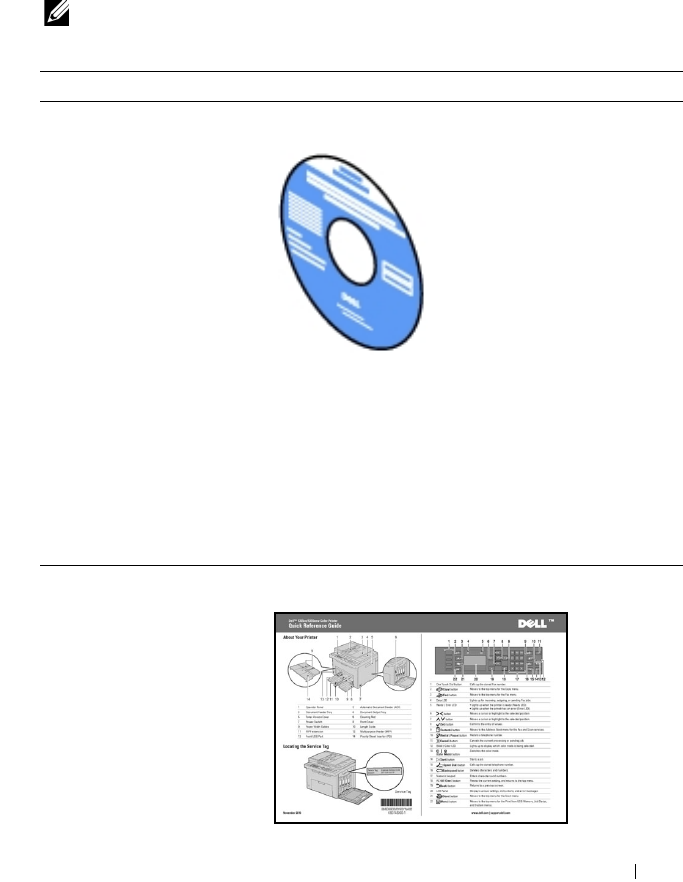
Drivers and Utilities
CD
The
Drivers and Utilities
CD contains setup video,
documentation, and drivers for your printer. You can
use the CD to install/re-install drivers or access your
setup video and documentation.
Readme files may be included on your CD to provide
last-minute updates about technical changes to your
printer or advanced technical reference material for
experienced users or technicians.
• How to use my printer
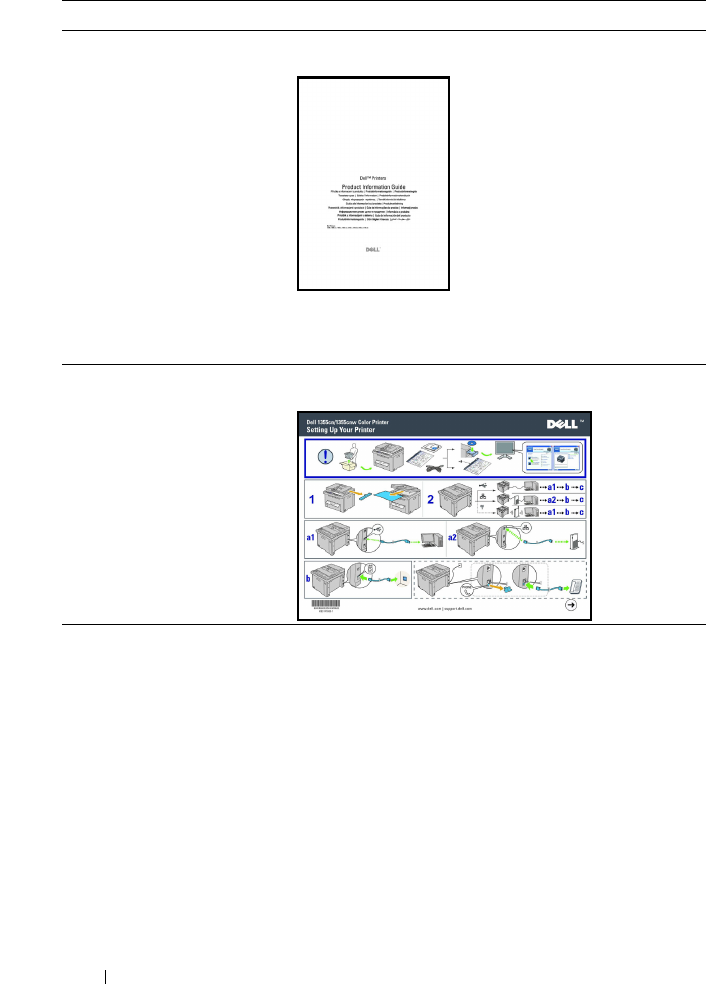
Quick Reference Guide
26 Finding Information
• Safety information
•Warranty information
Product Information Guide
CAUTION: Read and follow all safety instructions in
your
Product Information Guide
prior to setting up and
operating your printer.
How to set up my printer
Setup diagram
Troubleshooting "Troubleshooting" on page 477
What are you looking for? Find it here
Finding Information 27
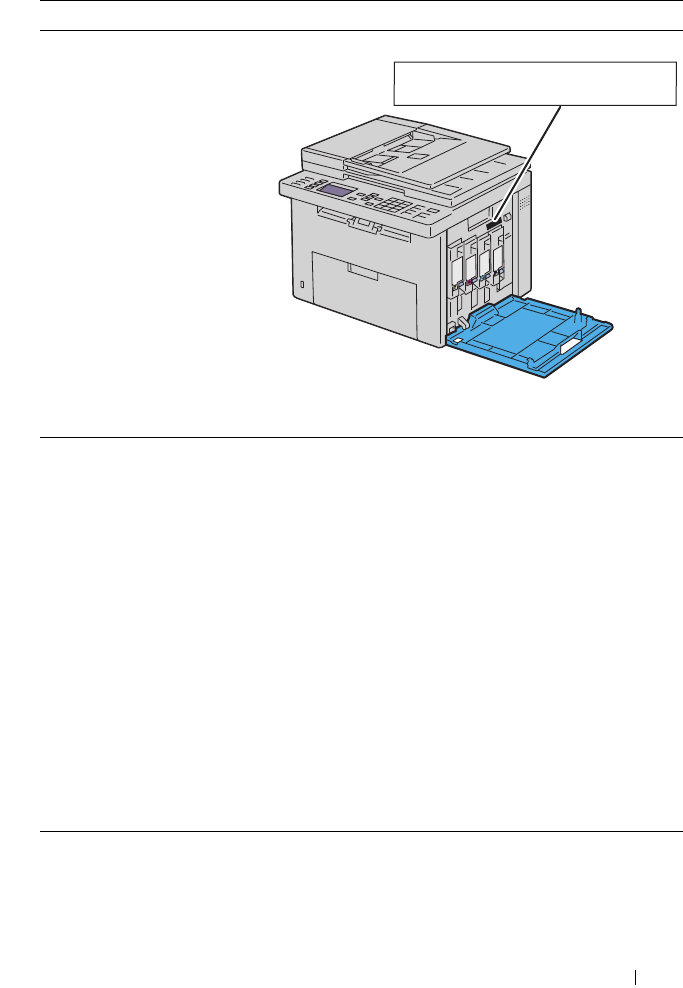
Express Service Code and
Service Tag
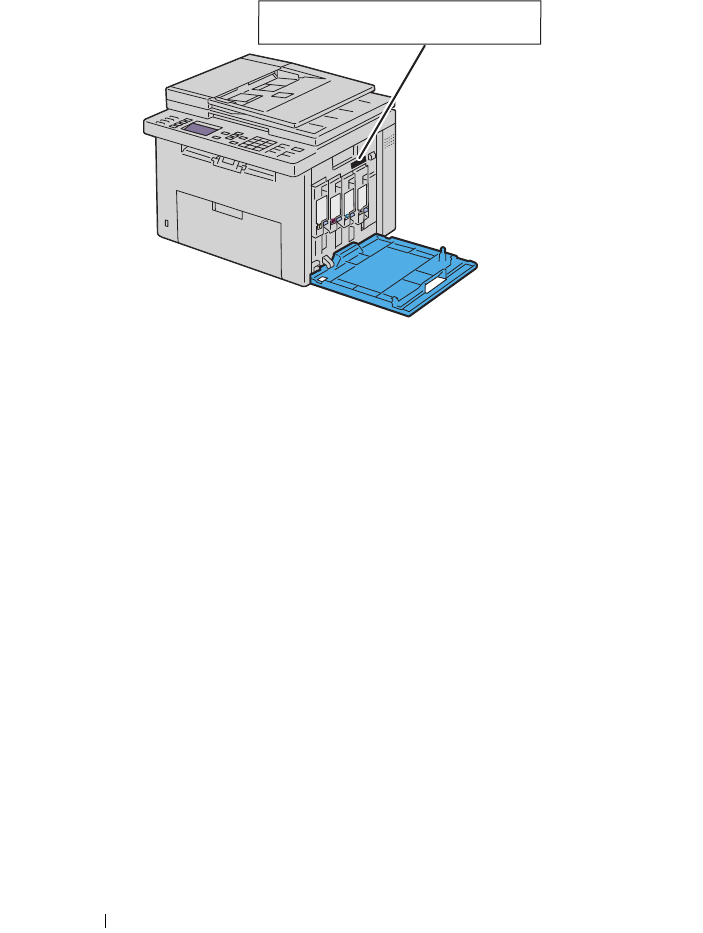
The Express Service Code and Service Tag are located
inside the side door of your printer.
• Latest drivers for my printer
• Answers to technical service
and support questions
• Documentation for my
printer
Go to support.dell.com
support.dell.com provides several online tools,
including:
• Solutions — Troubleshooting hints and tips,
articles from technicians, and online courses
• Upgrades — Upgrade information for
components, such as printer driver
• Customer Care — Contact information, order
status, warranty, and repair information
•Downloads — Drivers
• Manuals — Printer documentation and product
specifications
Go to support.dell.com. Select your region and fill in
the requested details to access help tools and
information.
What are you looking for? Find it here
Service Tag Express Service Code
xxxxxxx 000 000 000 00

28 Finding Information
Product Features 29
3
Product Features
This chapter describes the product features and indicates their links.
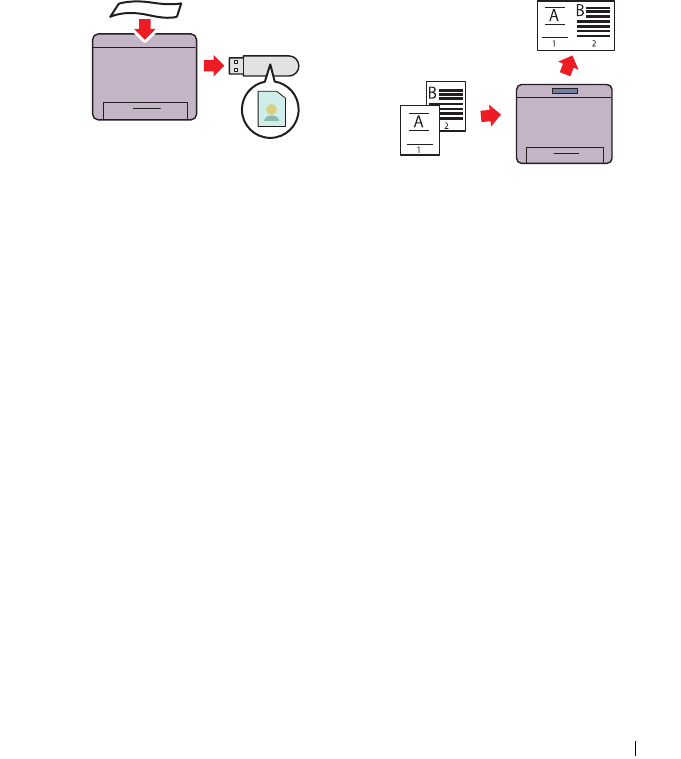
Scanning to a USB Storage Device
With Dell 1355cn/1355cnw
Multifunction Color Printer, you don't
need a PC to connect your USB storage
device to save the scanned data. Insert
your USB storage device in the port on
the printer, and save the scanned data
directly to your USB storage device.
For more information, see "Scanning to
USB Storage Device" on page 280.
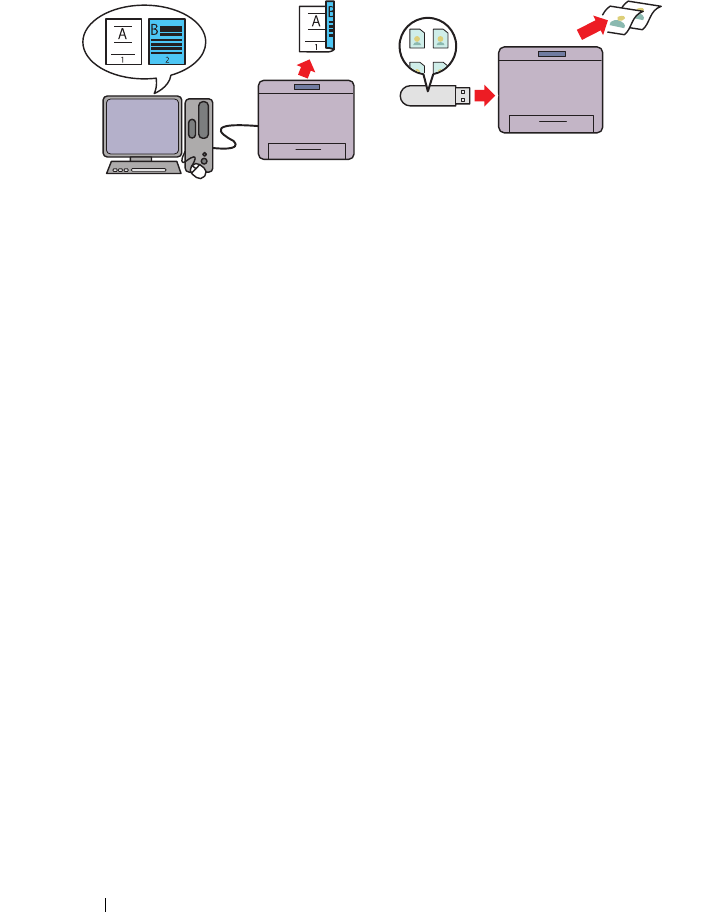
Multiple-Up (2-in-1 Copy)
N-up Print enables you to print multiple
pages on a single sheet of paper. This
feature allows you to reduce the paper
consumption.
For more information, see "Multiple-Up"
on page 245.
30 Product Features
2-Sided (Manual Duplex Print)
Manual Duplex Print is to print two or
more pages on the front and back
side of a single sheet of paper manually.
This feature allows you to reduce the
paper consumption.
For more information, see "Manual
Duplex Printing (Windows Printer
Driver Only)" on page 218.
Print From USB Memory
(USB Direct Print)
Print From USB Memory feature allows
you to print directly from your USB
storage device without starting your
computer. Without requiring you to
start your computer and an application,
this feature allows quick printing with
simple procedures.
For more information, see "Direct Print
Using the USB Storage Device" on
page 231.
Product Features 31
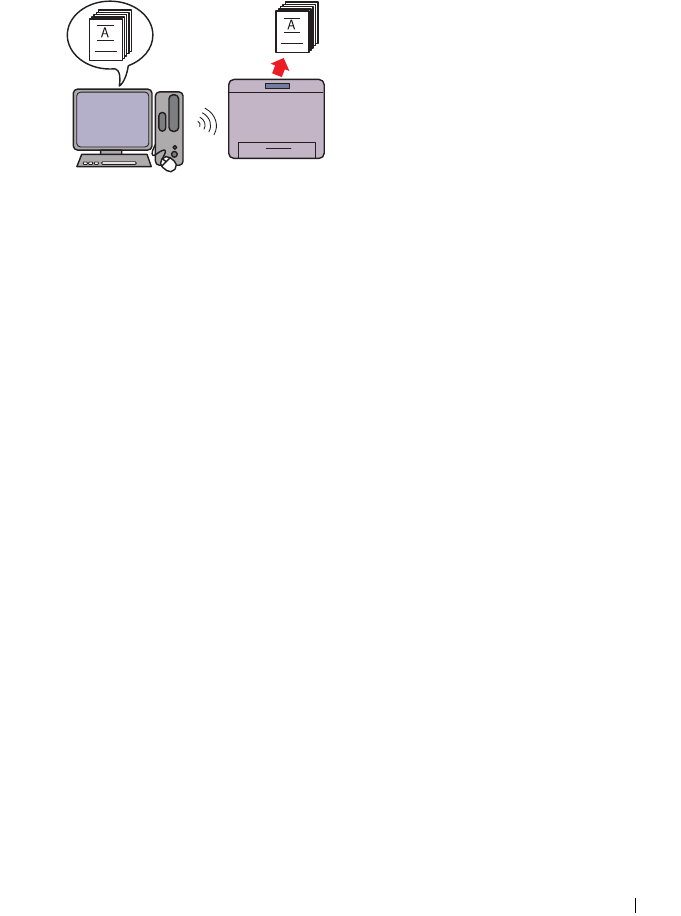
Printing Through Wireless Connection
(Wireless Print)
The Wireless LAN feature on your
printer allows you to install the printer at
any location, and enables printing
without a wired connection to your
computer.
For more information, see "Configuring
Wireless Settings (Dell 1355cnw
Multifunction Color Printer Only)" on
page 85.

32 Product Features
About the Printer 33
4
About the Printer
This chapter provides an overview of your Dell™ 1355cn/1355cnw Color
Multifunction Printer.
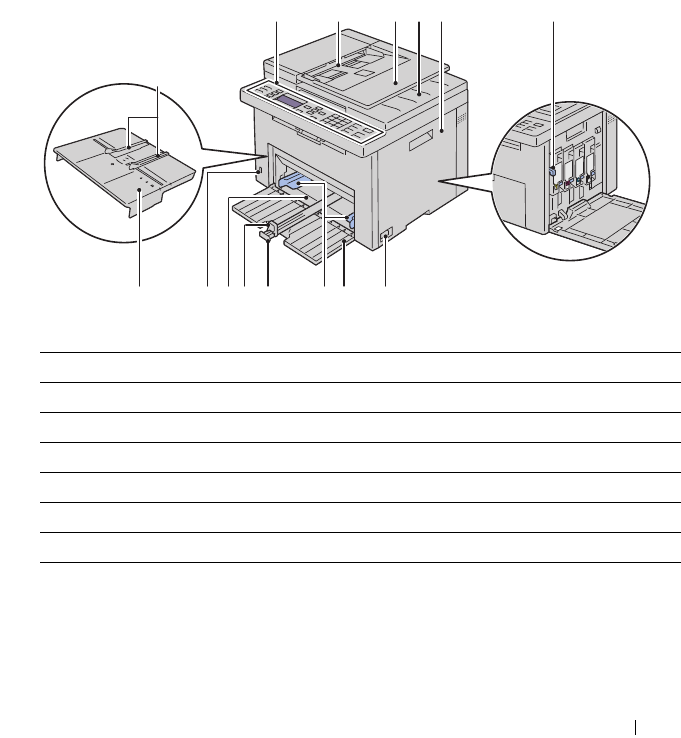
Front View
1Operator Panel 2Automatic Document Feeder (ADF)
3Document Feeder Tray 4Document Output Tray
5Toner Access Cover 6Print Head Cleaning Rod
7Power Switch 8Front Cover
9Paper Width Guides 10 Length Guide
11 MPF Extension 12 Multipurpose Feeder (MPF)
13 Front USB Port 14 Priority Sheet Inserter (PSI)
1
9
79101114 8
65234
1213
34 About the Printer
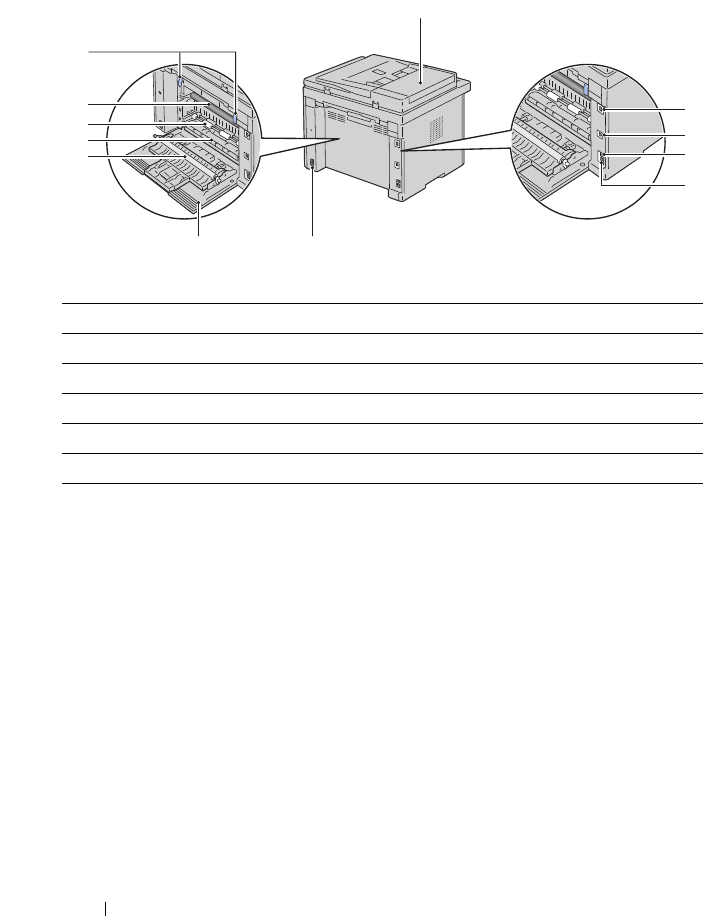
Rear View
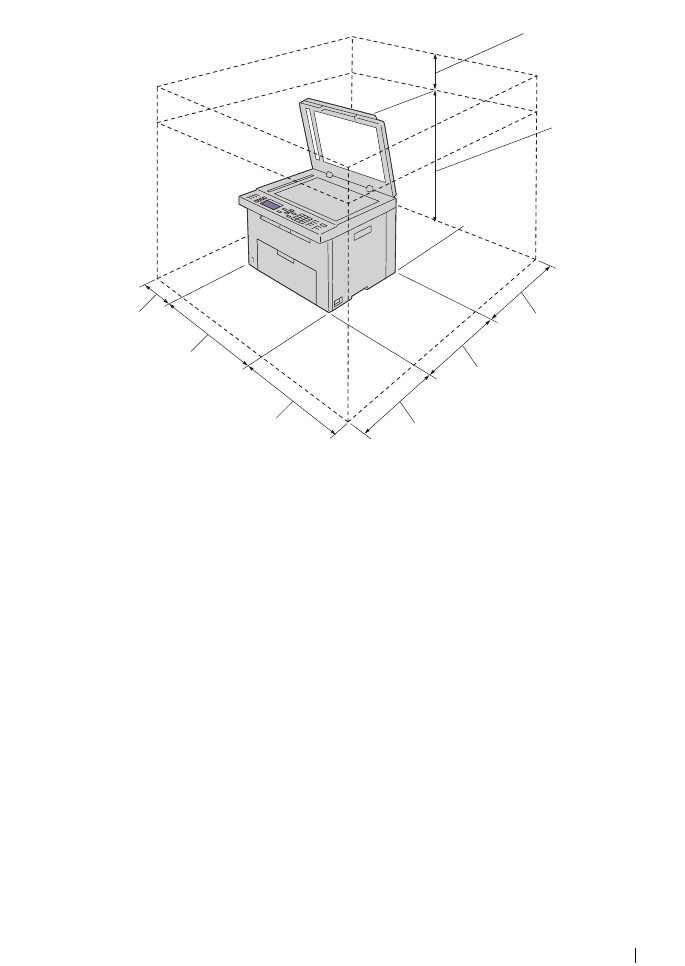
Space Requirements
Place the printer at a location such that there is adequate space for using the
printer feeder and covers.
1ADF Cover 2Ethernet Port
3USB Port 4Wall Jack Connector
5Phone Connector 6Security Slot
7Rear Cover 8Transfer Roller
9Paper Chute 10 Paper Feed Roller
11 Tra nsf er Belt 12 Fuser Release Lever
7
8
9
10
11
12
1
2
3
6
4
5
About the Printer 35
To avoid irregular screen image or malfunctioning of your printer, avoid
placing the printer in direct sunlight with the single sheet feeder opened.
100 mm/3.94 inches
596 mm/23.46 inches
262.5 mm/10.33 inches
379 mm/14.92 inches
292.5 mm/11.52 inches
338 mm/13.31 inches
410 mm/16.14 inches
132 mm/5.20 inches
36 About the Printer
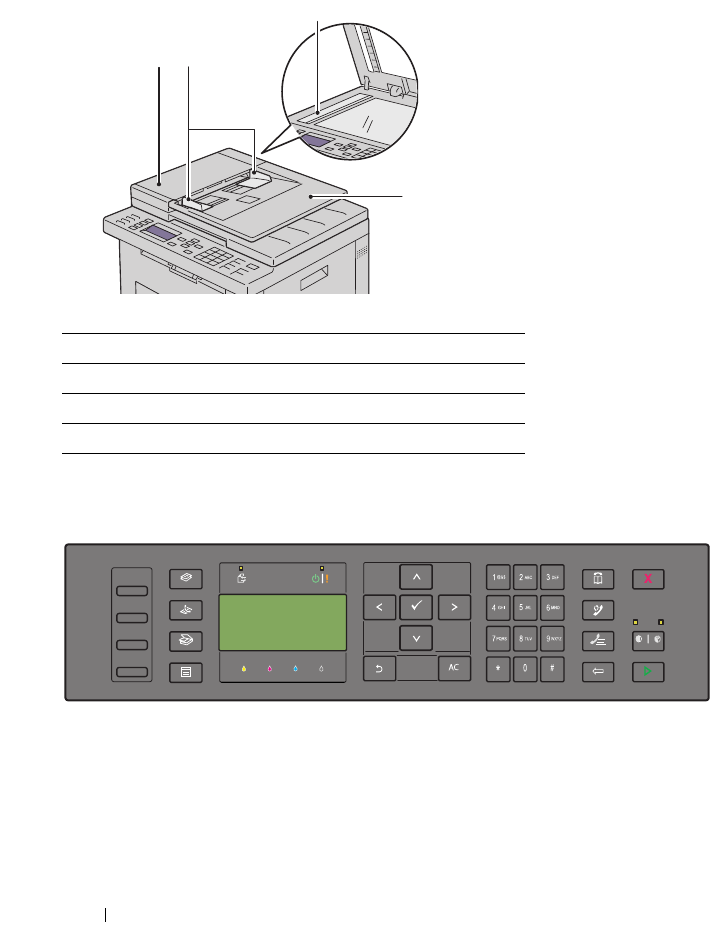
Automatic Document Feeder (ADF)
Operator Panel
For more information on the operator panel, see "Operator Panel" on
page 223.
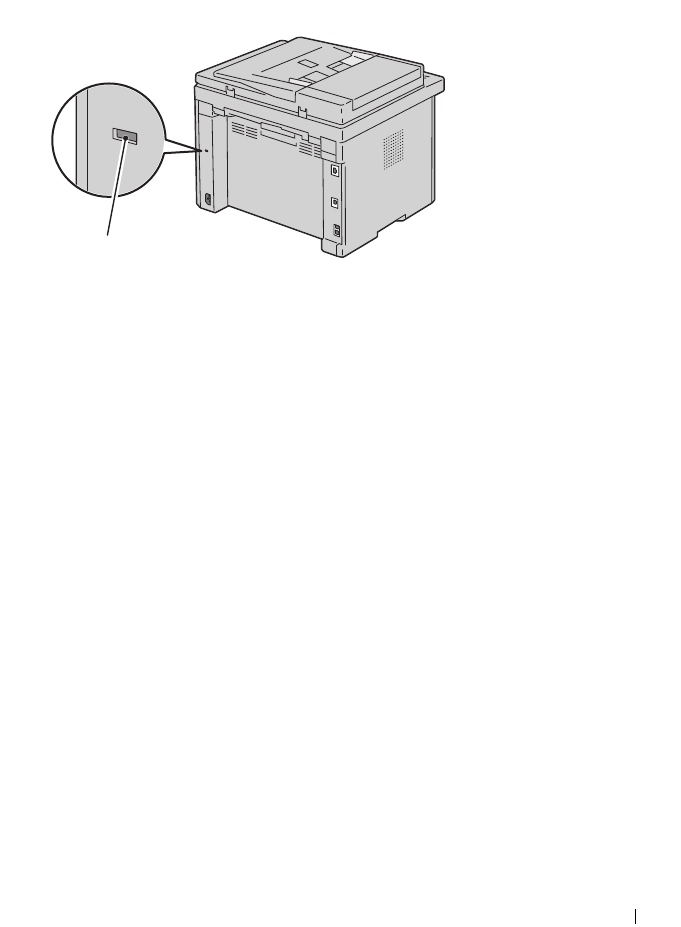
Securing the Printer
To protect your printer from theft, you can use the optional Kensington lock.
1ADF Cover
2Document Guides
3Document Glass
4Document Feeder Tray
1 2
3
4
About the Printer 37
Attach the Kensington lock to the security slot on your printer.
For details, see the operating instructions supplied with the Kensington lock.
Ordering Supplies
You can order consumables from Dell on the Internet when using a networked
printer. Enter the IP address of your printer in your web browser, launch the
Dell Printer Configuration Web Tool, and click the Order Supplies at: to
order toner for your printer.
You can also order toner cartridges by the following method:
1
Click
Start
All Programs
Dell Printers
Additional Color Software
Dell Supplies Management System
.
The
Dell Supplies Management System
window appears.
2
Select your printer from the
Select Printer Model
list.
3
If ordering from the web:
a
Select a web address from the
Select Reorder URL
list.
b
Click the
Visit Dell printer supplies ordering web site
.
The
Dell 1355 Color MFP - Dell Supplies Management System
screen appears.
c
Enter the Service Tag, and then click
OK
.
The Service Tag is located inside the toner access cover of your printer.
Security slot
38 About the Printer
Dell supplies web site appears.
If you order by phone, call the number that appears in the Order by Phone
section.
Service Tag Express Service Code
xxxxxxx 000 000 000 00

39
Setting Up Printer
(Printer Setup)

40
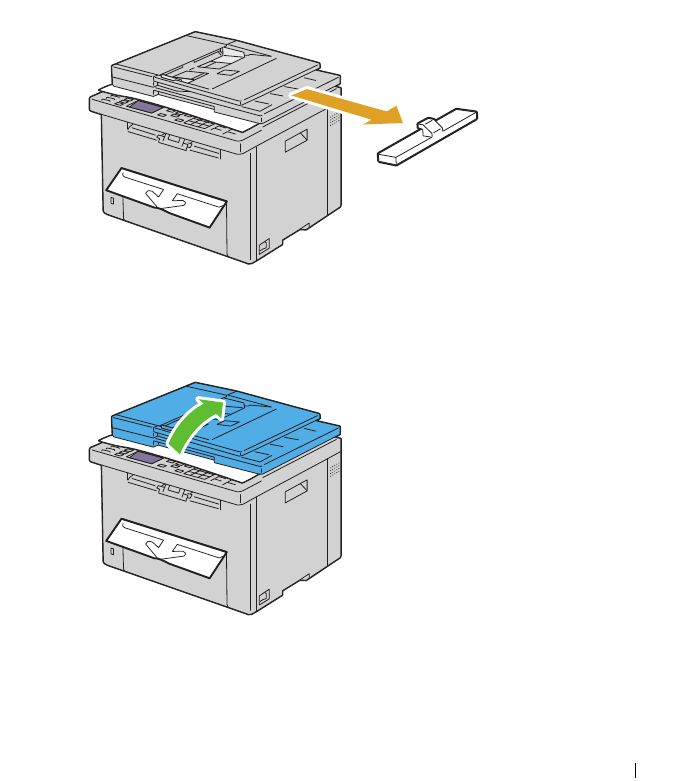
Removing Packaging Material 41
5
Removing Packaging Material
1
Remove the packaging material from the printer.
2
Lift and open the document cover.
3
Remove the protective sheet from the ADF Glass.
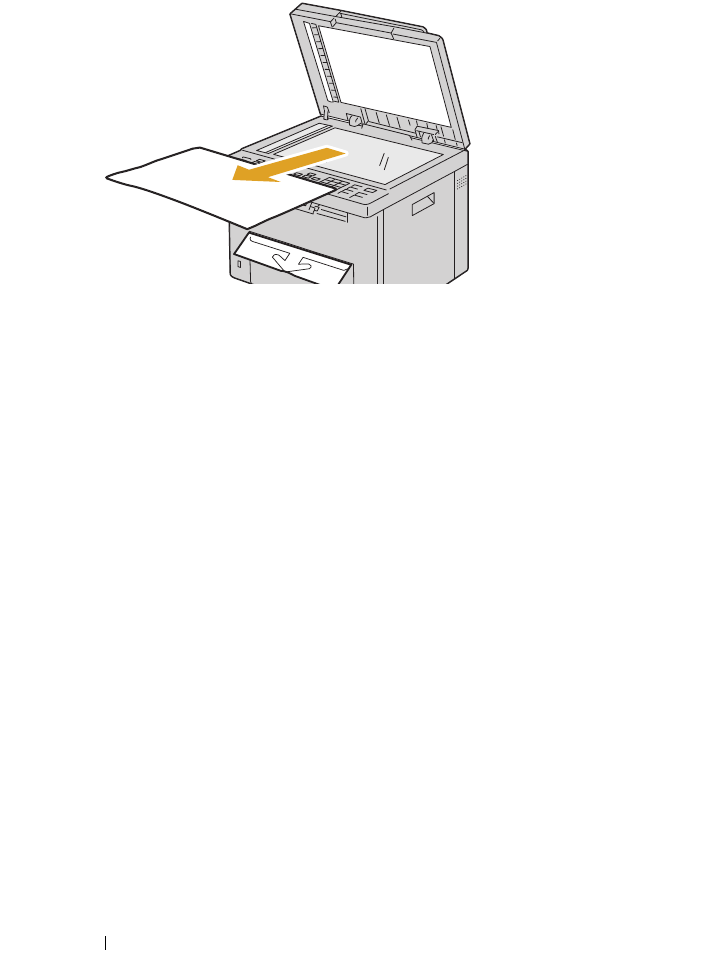
42 Removing Packaging Material
Connecting Your Printer 43
6
Connecting Your Printer
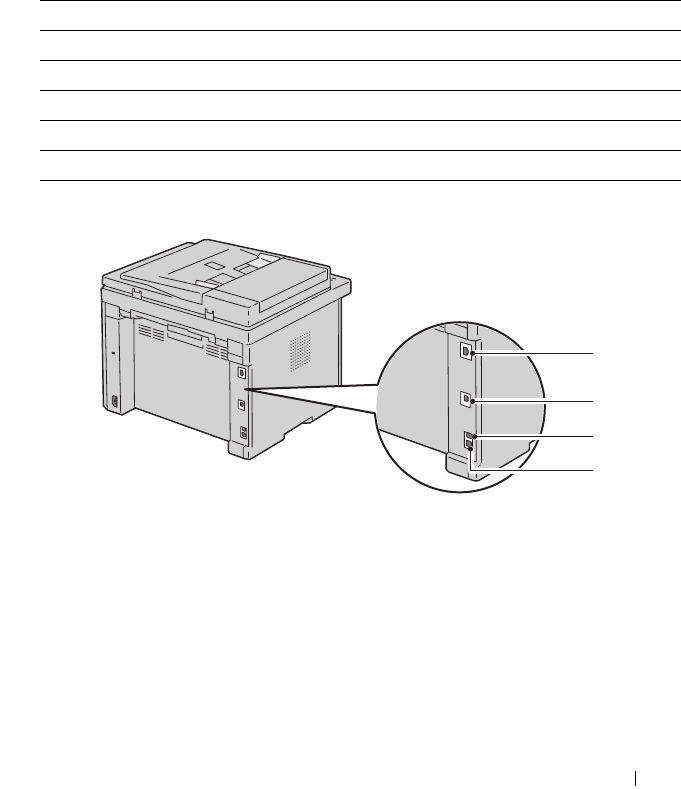
Your Dell™ 1355cn/1355cnw Color Multifunction Printer interconnection
cable must meet the following requirements:
Connection type Connection specifications
Wireless IEEE 802.11b/802.11g
USB USB 2.0 compatible
Ethernet 10 Base-T/100 Base-TX compatible
Wall jack connector RJ11
Phone connector RJ11
1
2
3
4
44 Connecting Your Printer
Connecting Printer to Computer or Network
Direct Connection
A local printer is a printer which is directly attached to your computer using
the USB cable. If your printer is attached to a network instead of your
computer, skip this section and go to "Network Connection" on page 45.
USB Cable
The following operating systems support USB connection:
•Microsoft
®
Windows
®
XP
• Microsoft Windows XP 64-bit Edition
•Windows Server
®
2003
• Windows Server 2003 x64 Edition
• Windows Server 2008
• Windows Server 2008 64-bit Edition
• Windows Server 2008 R2
•Windows Vista
®
• Windows Vista 64-bit Edition
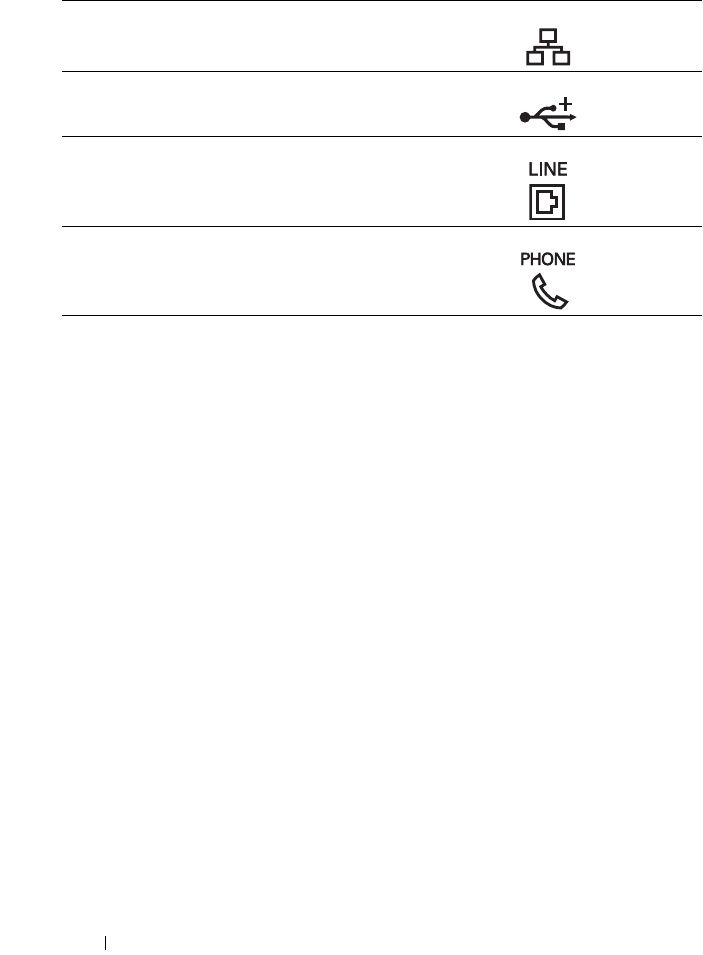
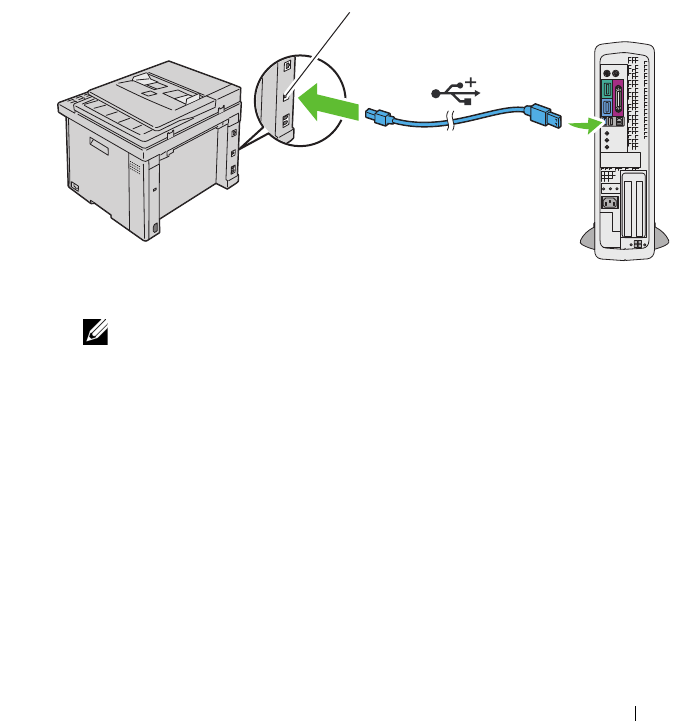
1Ethernet Port
2USB Port
3Wall Jack Connector
4Phone Connector
Connecting Your Printer 45
•Windows 7
• Windows 7 64-bit Edition
•Mac OS
®
X 10.4.11/10.5/10.6
To attach the printer to a computer:
1
Ensure that the printer, computer, and any other attached devices are
turned off and unplugged from the power source/outlet.
2
Connect the smaller USB connector into the USB port at the back of the
printer.
3
Connect the other end of the cable into a USB port of the computer.
NOTE: Do not connect the printer USB cable to the USB connector available
on the keyboard.
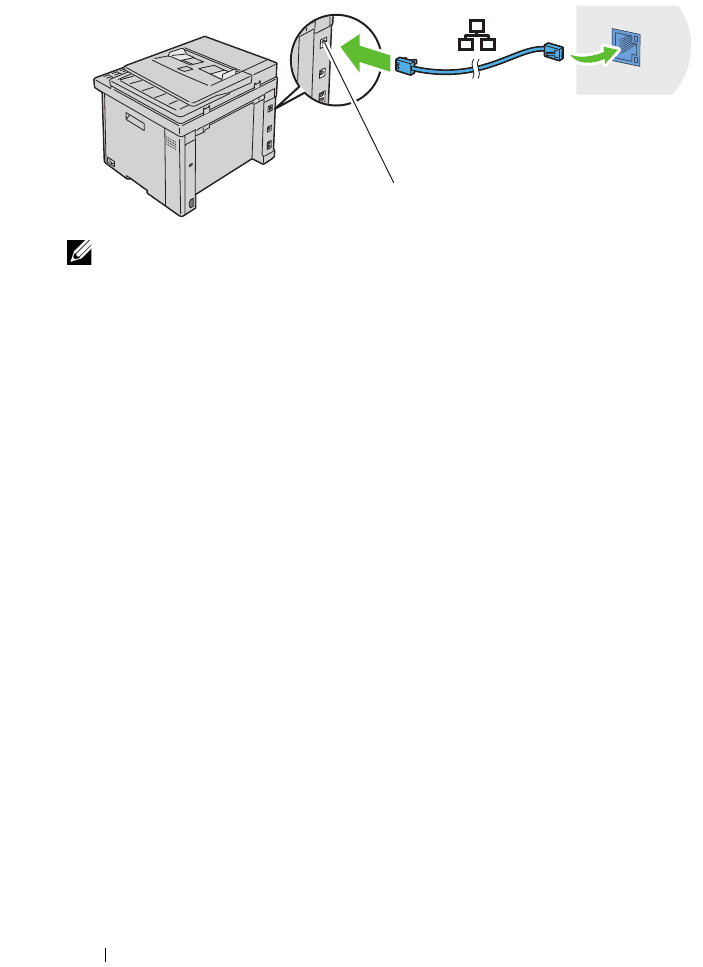
Network Connection
To connect the printer to a network:
1
Ensure that the printer, computer and any other connected devices have
been turned off and all cables have been disconnected.
2
Connect the Ethernet cable.
USB port
46 Connecting Your Printer
NOTE: Connect the Ethernet cable, only if you need to setup a wired connection.
To connect the printer to the network, connect one end of an Ethernet cable
into the Ethernet port at the rear of the printer, and the other end to a LAN
drop or hub.
To setup a wireless connection, see "Configuring Wireless Settings (Dell
1355cnw Multifunction Color Printer Only)" on page 85.
Ethernet port
Connecting Your Printer 47
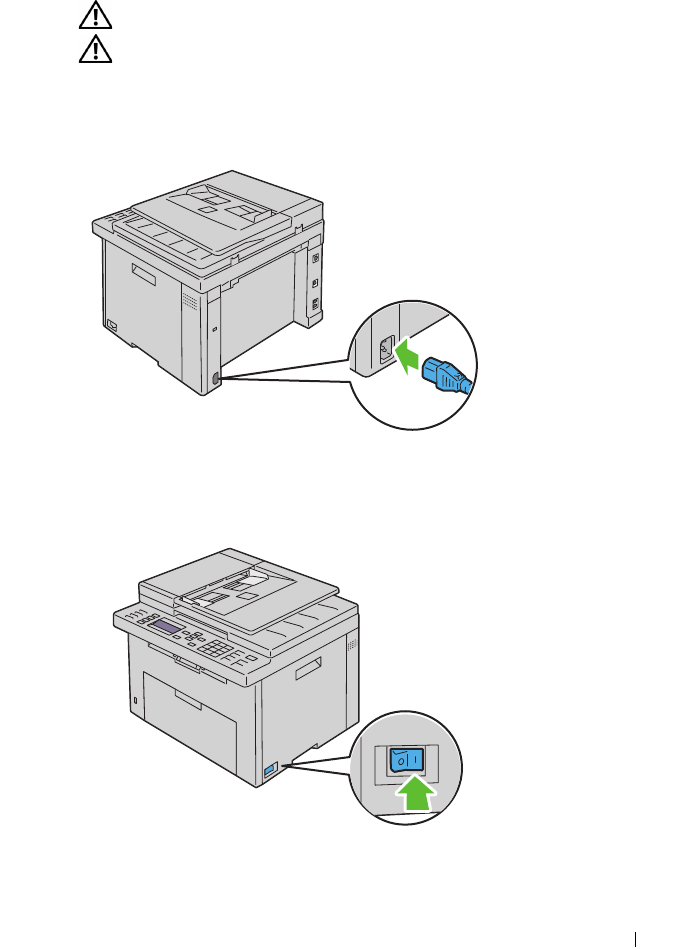
Turning On the Printer
CAUTION: Do not use extension cords or power strips.
CAUTION: The printer should not be connected to a UPS system.
1
Connect the power cable to the wall jack connector on the rear of your
printer (see "Rear View" on page 34).
2
Connect the other end of the cable to the power source.
3
Turn on the printer.
4
Follow the on-screen instructions in the operator panel to configure the
initial settings of your printer.
48 Connecting Your Printer
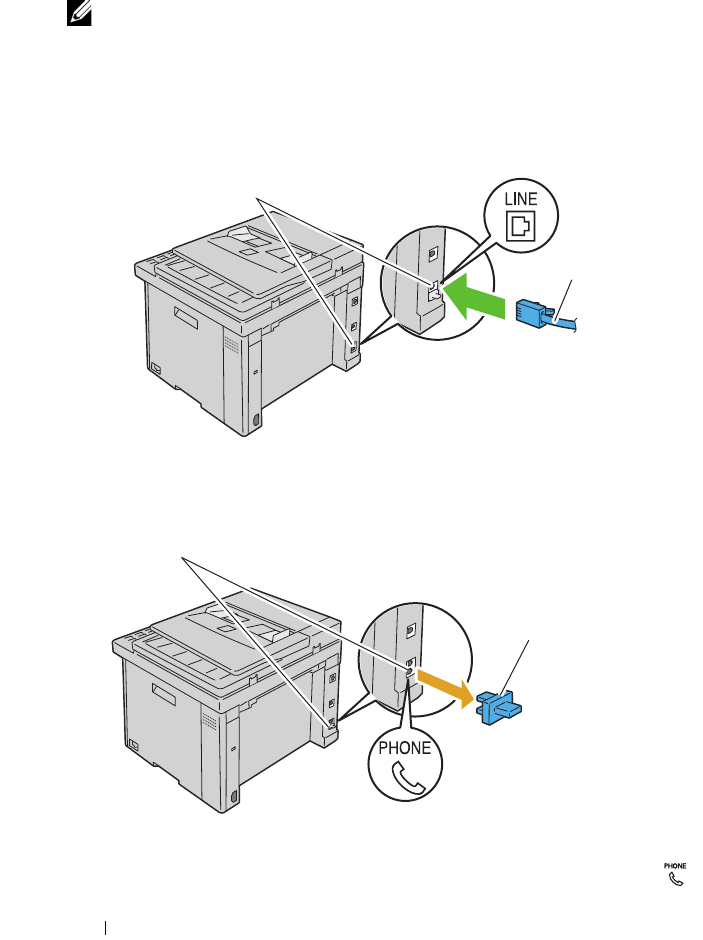
Connecting the Telephone Line
NOTE: Do not connect your printer directly to a DSL (digital subscriber line). This
may damage the printer. To use a DSL, you will need to use an appropriate DSL filter.
Contact your service provider for the DSL filter.
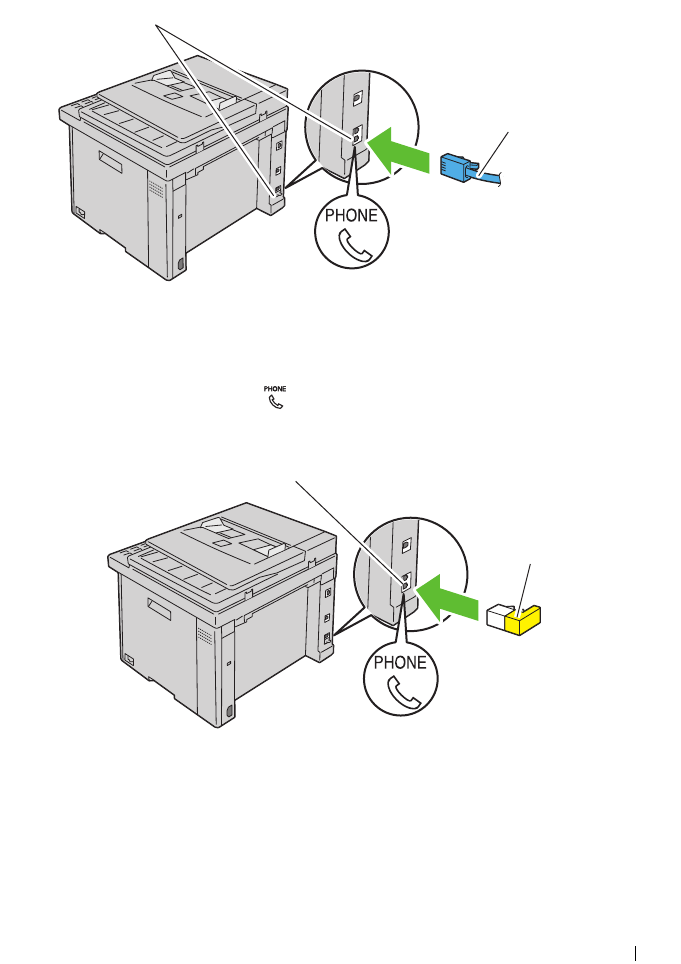
1
Plug one end of a telephone line cord to the wall jack connector and the
other end to an active wall jack.
2
Remove the blue plug from the phone connector.
3
To connect a telephone and/or answering machine to your printer, plug the
telephone or answering machine line cord into the phone connector ( ).
Wall jack connector
To the wall jack
Phone connector
Blue plug
Connecting Your Printer 49
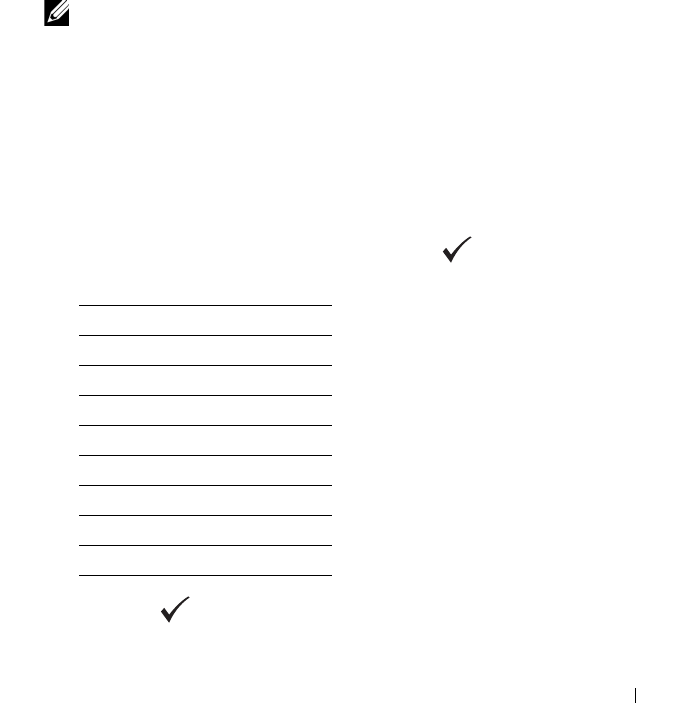
If the phone communication is serial in your country (such as Germany,
Sweden, Denmark, Austria, Belgium, Italy, France and Switzerland), and
you are supplied with a yellow terminator, insert the yellow terminator into
the phone connector ( ).
Phone connector
To an external telephone
or answering machine
Phone connector
Yellow terminator

50 Connecting Your Printer
Setting the IP Address 51
7
Setting the IP Address
Setting Initial Settings on the Operator Panel
You need to set the printer language, country, clock date, and time when you
turn on printer for the first time.
When you turn on the printer, a wizard appears on the operator panel. Follow
the steps below to set the initial settings.
NOTE: If you do not start configuring the initial settings, Ready appears on the
operator panel in three minutes. After that, you can set the following initial setup by
enabling Power on Wizard on the operator panel or Dell™ Printer Configuration
Web Tool if needed.
For more information on operator panel, see "Understanding the Printer Menus" on
page 359.
For more information on Dell Printer Configuration Web Tool, see "Dell Printer
Configuration Web Tool" on page 123.
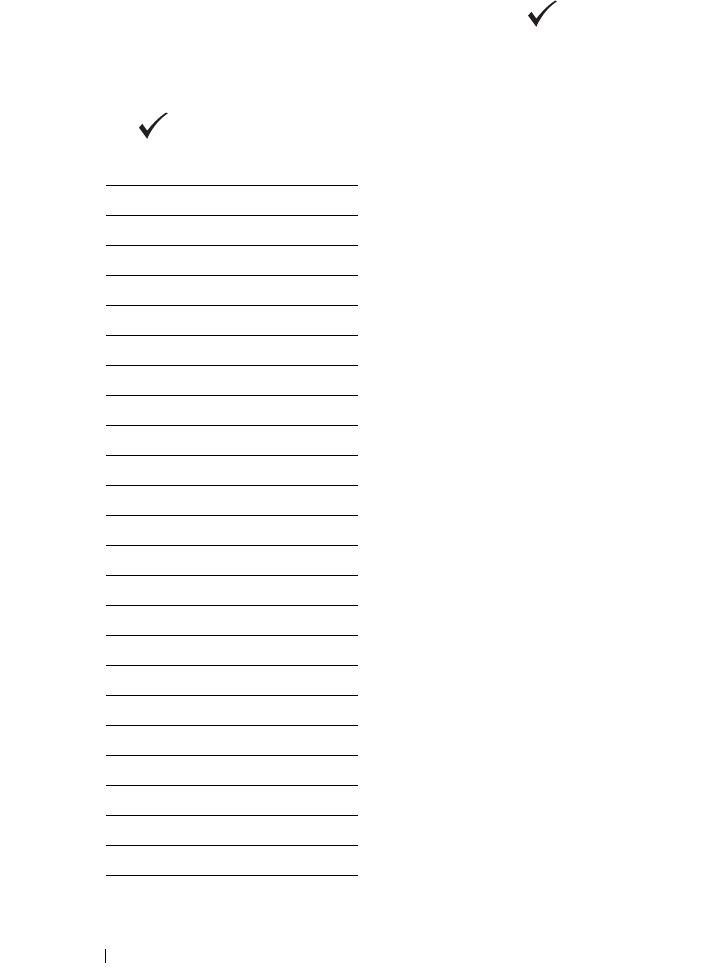
1
Ensure that
Please Select Language
is highlighted, and then
select the language you want to use on the operator panel from the
following drop-down list, and then press the button.
2
Press the button to start setting the country.
English
Français
Italiano
Deutsch
Español
Dansk
Nederlands
Norsk
Svenska
52 Setting the IP Address
3
Ensure that
Please Select Country
is highlighted. Select your
country from the drop-down list, and then press the button.
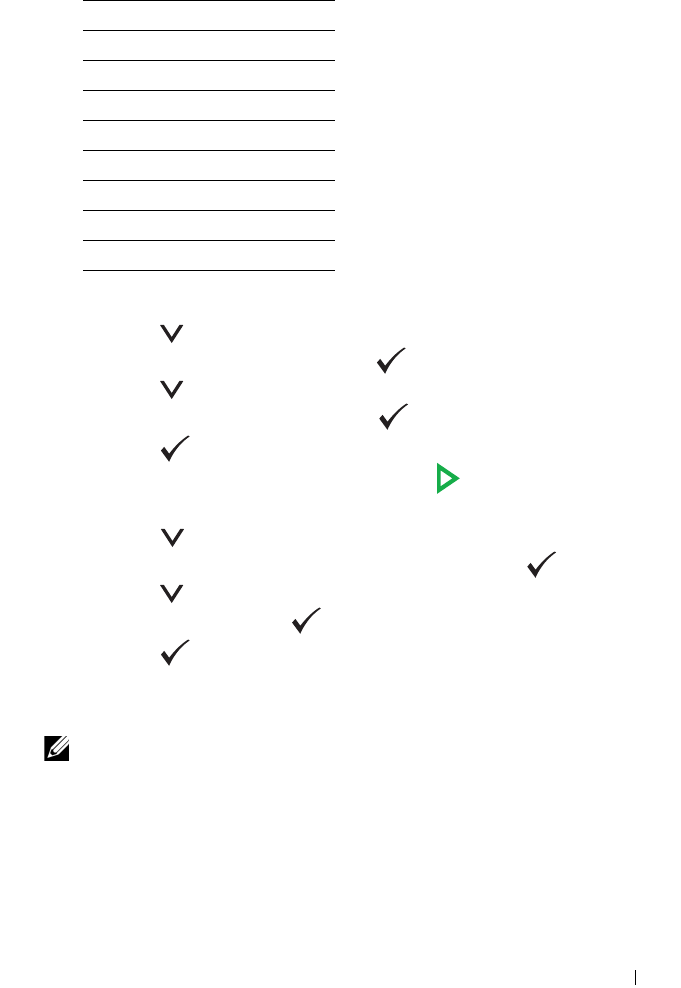
4
Ensure that
Please Select Time Zone
is highlighted. Select the
appropriate time zone from the following drop-down list, and then press
the button.
UTC -12:00
UTC -11:00
UTC -10:00
UTC -09:00
UTC -08:00
UTC -07:00
UTC -06:00
UTC -05:00
UTC -04:00
UTC -03:30
UTC -03:00
UTC -02:00
UTC -01:00
UTC 00:00
UTC +01:00
UTC +02:00
UTC +03:00
UTC +03:30
UTC +04:00
UTC +04:30
UTC +05:00
UTC +05:30
UTC +05:45
UTC +06:00
Setting the IP Address 53
5
Press the button until
Please Enter Date
is highlighted. Specify
the current date, and then press the button.
6
Press the button until
Please Enter Time
is highlighted. Specify
the current time, and then press the button.
7
Press the button for Fax Setup.
If you want to skip the Fax Setup, press the
(Start)
button and then
restart the printer.
8
Press the button until
Please Enter Fax Number
is
highlighted. enter your fax number, and then press the button.
9
Press the button until
Please Enter Name
is highlighted. Enter a
name, and then press the button.
10
Press the button, and then restart the printer.
Assigning an IP Address (for IPv4 Mode)
NOTE: When you assign an IP address manually in IPv6 Mode, use the Dell Printer
Configuration Web Tool. To open the Dell Printer Configuration Web Tool, use the
link local address. To check a link local address, see "Printing and Checking the
Printer Settings Page" on page 57.
An IP address is a unique number that consists of four sections that are
delimited by a period and can include up to three digits in each section, for
example, 111.222.33.44.
UTC +06:30
UTC +07:00
UTC +08:00
UTC +09:00
UTC +09:30
UTC +10:00
UTC +11:00
UTC +12:00
UTC +13:00
54 Setting the IP Address
Assigning an IP address that is already in use can cause network performance
issues.
NOTE: Assigning an IP address is considered as an advanced function and is
normally done by a system administrator.
NOTE: Depending on the address class, the range of the IP address assigned may
be different. On Class A, for example, an IP address in the range from 0.0.0.0 to
127.255.255.255 will be assigned. For assignment of IP addresses, contact
your system administrator.
You can assign the IP address by using the operator panel or using the tool
box.
The Operator Panel
For more information on using your operator panel, see "Operator Panel" on
page 223.
1
Turn on the printer.
Ensure that
Ready
message appears on the LCD panel.
2
Press the
(Menu)
button.
3
Press the button until
System
is highlighted, and then press the
button.
4
Press the button until
Admin Menu
is highlighted, and then press
the button.
5
Press the button until
Network
is highlighted, and then press the
button.
6
Press the button until
TCP/IP
is highlighted, and then press the
button.
7
Press the button until
IPv4
is highlighted, and then press the
button.
8
Ensure that
Get IP Address
is highlighted, and then press the
button.
9
Ensure that
Panel
is highlighted, and then press the button.
10
Ensure that
Get IP Address
is highlighted.
11
Press the button until
IP Address
is highlighted, and then press
the button.
Setting the IP Address 55
The cursor is located at the first three digits of the IP address.
12
Enter the value of the IP address using the numeric keypad.
13
Press the button.
The next three digits are highlighted.
14
Repeat step 12 and step 13 to enter all of the digits in the IP address, and
then press the button.
15
Ensure that
IP Address
is highlighted.
16
Press the button until
Subnet Mask
is highlighted, and then press
the button.
The cursor is located at the first three digits of the subnet mask.
17
Enter the value of the subnet mask using the numeric keypad.
18
Press the button.
The next three digits are highlighted.
19
Repeat step 17 and step 18 to set subnet mask, and then press the
button.
20
Press the
button and ensure that
Subnet Mask
is highlighted.
21
Press the button until
Gateway Address
is highlighted, and then
press the button.
The cursor is located at the first three digits of the gateway address.
22
Enter the value of the gateway address using the numeric keypad.
23
Press the button.
The next three digits are highlighted.
24
Repeat step 22 and step 23 to set gateway address, and then press the
button.
25
Turn off and turn on the printer.
The Tool Box
NOTE: When you use IPv6 Mode for network printing, the Tool Box cannot be used
to assign an IP address.

56 Setting the IP Address
1
Click
Start
All Programs
Dell Printers
Dell 1355 Multifunction
Color Printer
Tool Box
.
NOTE: The Select Printer dialog box opens in this step, when multiple printer
drivers are installed on your computer. In this case, click the name of Dell 1355
Multifunction Color Printer listed in Printer Name, and then click OK.
The
Tool Box
opens.
2
Click the
Printer Maintenance
tab.
3
Select
TCP/IP Settings
from the list at the left side of the page.
The
TCP/IP Settings
page is displayed.
4
Select the mode from
IP Address Mode
, and then enter the values in IP
Address,
Subnet Mask
, and
Gateway Address
.
5
Press the
Apply New Settings
button to take effect.
The IP address is assigned to your printer. To verify the setting, open the web
browser on any computer connected to the network and enter the IP address
into the address bar on the browser. If the IP address is set up correctly, the
Dell Printer Configuration Web Tool displays in your browser.
You can also assign the IP address to the printer when installing the printer
drivers with installer. When you use the Network Installation feature, and the
Get IP Address is set to AutoIP on the operator panel menu, you can
set the IP address from 0.0.0.0 to the desired IP address on the printer
selection window.
Verifying the IP Settings
1
Print the printer settings page.
See "Printing and Checking the Printer Settings Page" on page 57.
2
Look under the
TCP/IP
heading on the printer settings page to ensure
that the IP address, subnet mask, and gateway are appropriate.
To verify if the printer is active on the network, run the ping command in
your computer:
1
Click
Start
, and select
Run
.
2
Ty p e
cmd
, and then press
OK
.
A black window is displayed.
Setting the IP Address 57
3
Type ping
xx.xx.xx.xx
(where
xx.xx.xx.xx
is the IP address of
your printer).
4
Reply from the IP address denotes printer is active on the network.
Printing and Checking the Printer Settings Page
Print the printer settings page and check your printer's IP address.
The Operator Panel
1
Press the
(Menu)
button.
2
Press the button until
System
is highlighted, and then press the
button.
3
Press the button until
Report/List
is highlighted, and then press
the button.
4
Ensure that
System Settings
is highlighted, and then press the
button.
The system settings page is printed.
5
Confirm the IP address next to
IP Address
under
Wired Network
on the
printer settings page. If the IP address is
0.0.0.0
, wait for a few minutes
to resolve the IP address automatically, and then print the system settings
page again.
If the IP address is not resolved automatically, see "Assigning an IP Address
(for IPv4 Mode)" on page 53.
The Tool Box
NOTE:
1
Click
Start
All Programs
Dell Printers
Dell 1355 Multifunction
Color Printer
Tool Box
.
NOTE: The Select Printer dialog box opens in this step, when multiple printer drivers
are installed on your computer. In this case, click the name of Dell 1355 Multifunction
Color Printer listed in Printer Name, and then click OK.
The
Tool Box
opens.
2
Click the
Printer Settings Report
tab.
3
Select
Reports
from the list at the left side of the page.

58 Setting the IP Address
The
Reports
page is displayed.
4
Click the
Printer Settings
button.
The printer settings page is printed.
If the IP address is
0.0.0.0
(the factory default) or
169.254.xx.xx
,
an IP address has not been assigned. To assign an IP address for your
printer, see "Assigning an IP Address (for IPv4 Mode)" on page 53.
Loading Paper 59
8
Loading Paper
NOTE: To avoid paper jams, do not remove the priority sheet inserter while a
printing is in progress.
NOTE: Use only laser print media. Do not use ink jet paper in your printer.
NOTE: For printing envelopes, see "Loading Print Media" on page 201.
Loading Print Media in the Multipurpose Feeder
(MPF)
1
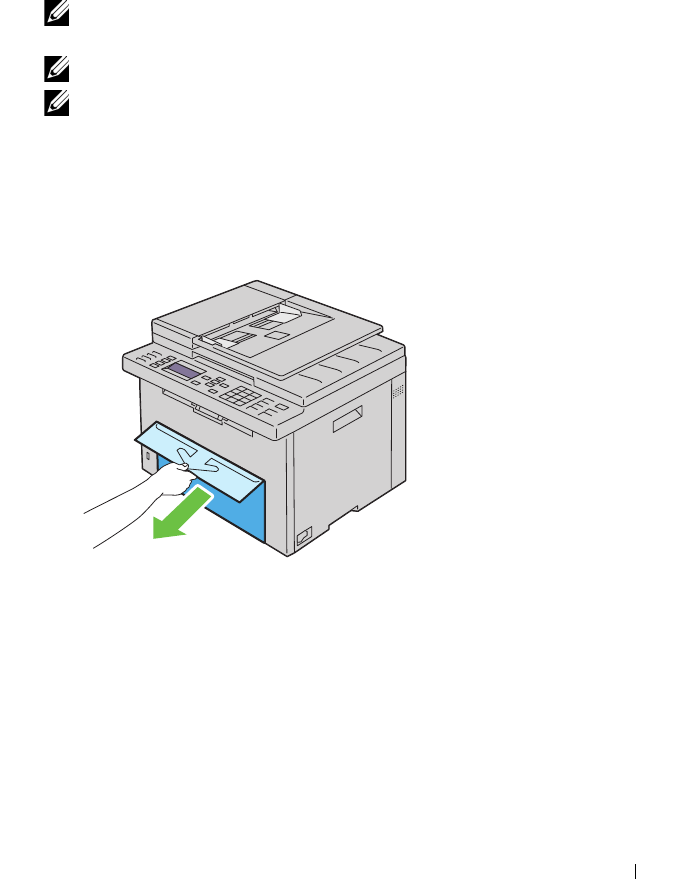
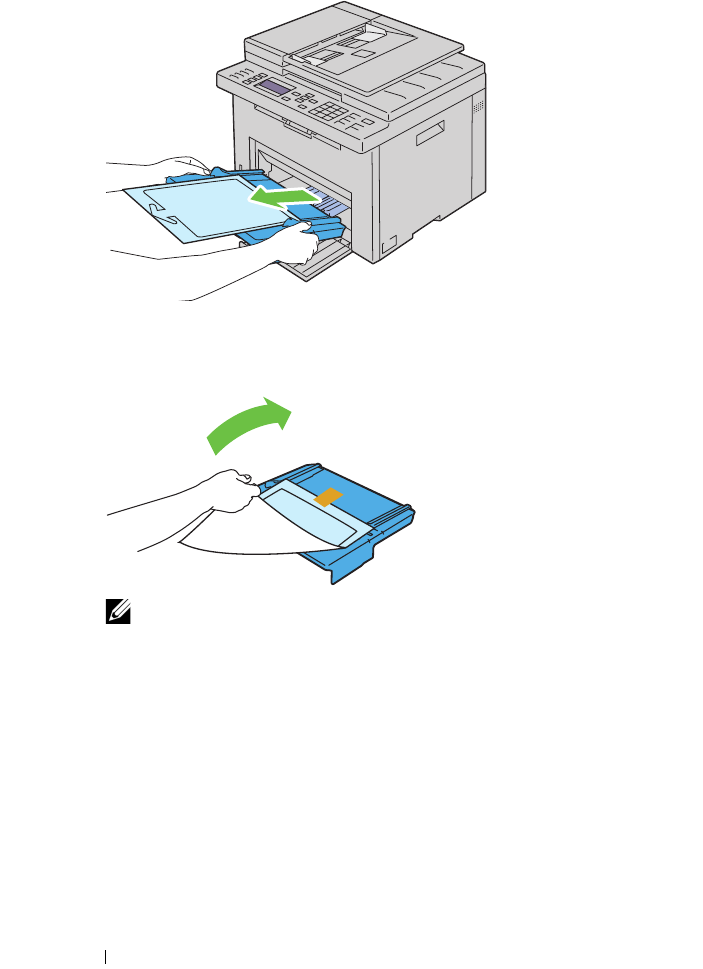
Open the front cover by pulling out the instruction sheet.
2
Pull the priority sheet inserter (PSI) out.
60 Loading Paper
3
Remove the instruction sheet attached to the PSI with adhesive tape.
NOTE: Read the instruction sheet before you use the PSI.
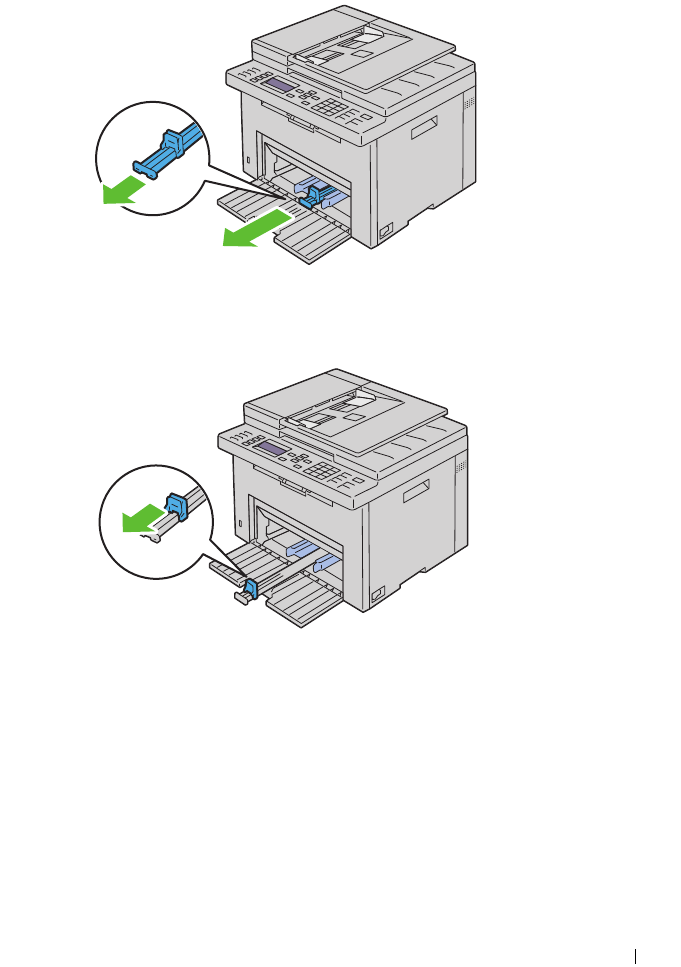
4
Pull the length guide forward until it stops.
Loading Paper 61
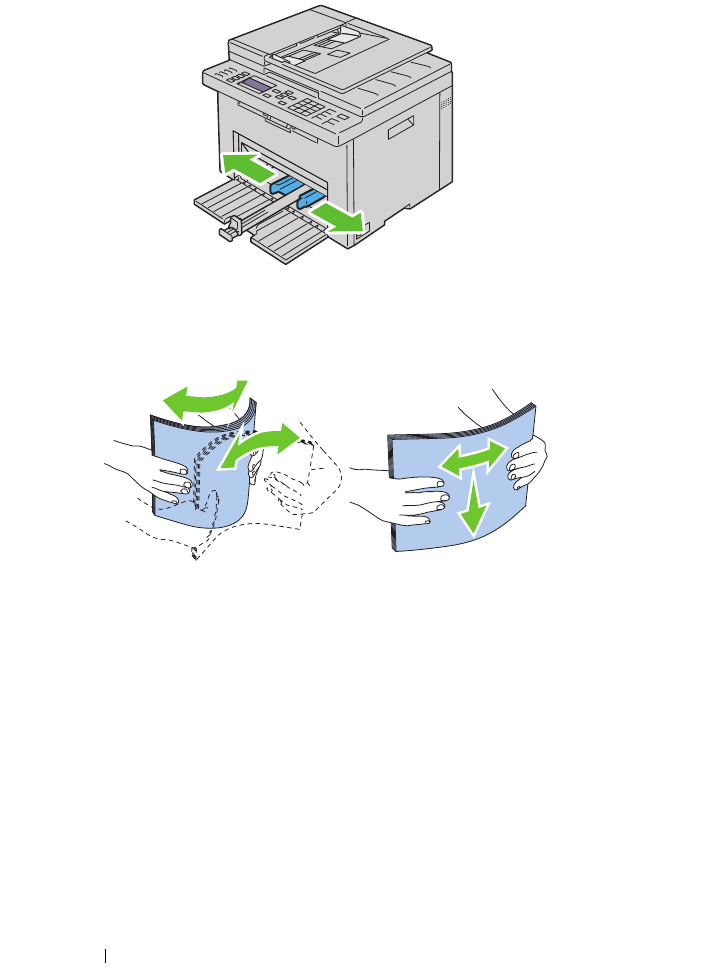
5
Pull the MPF extension forward until it stops.
6
Adjust the paper width guides to their maximum width.
62 Loading Paper
7
Before loading the print media, flex the sheets back and forth, and then
fan them. Straighten the edges of the stack on a level surface.
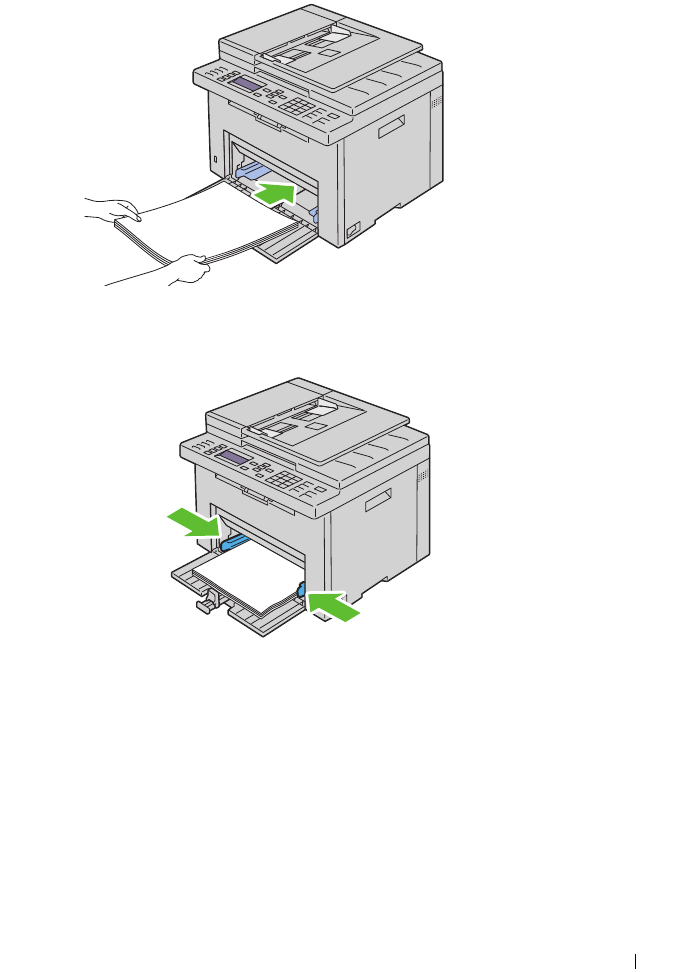
8
Load paper on the MPF with the top edge first and with the recommended
print side facing up.
Loading Paper 63
9
Adjust the width guides and length guides until they rest lightly against
the edges of the stack of print media.
10
Slide the length guide towards the printer until it touches the print media.
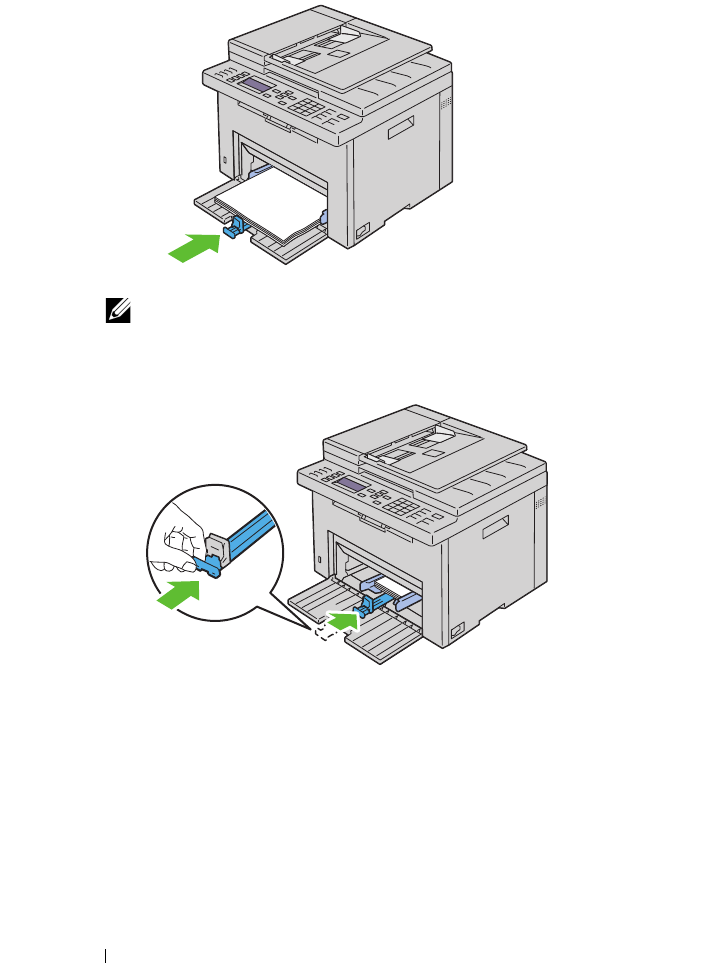
64 Loading Paper
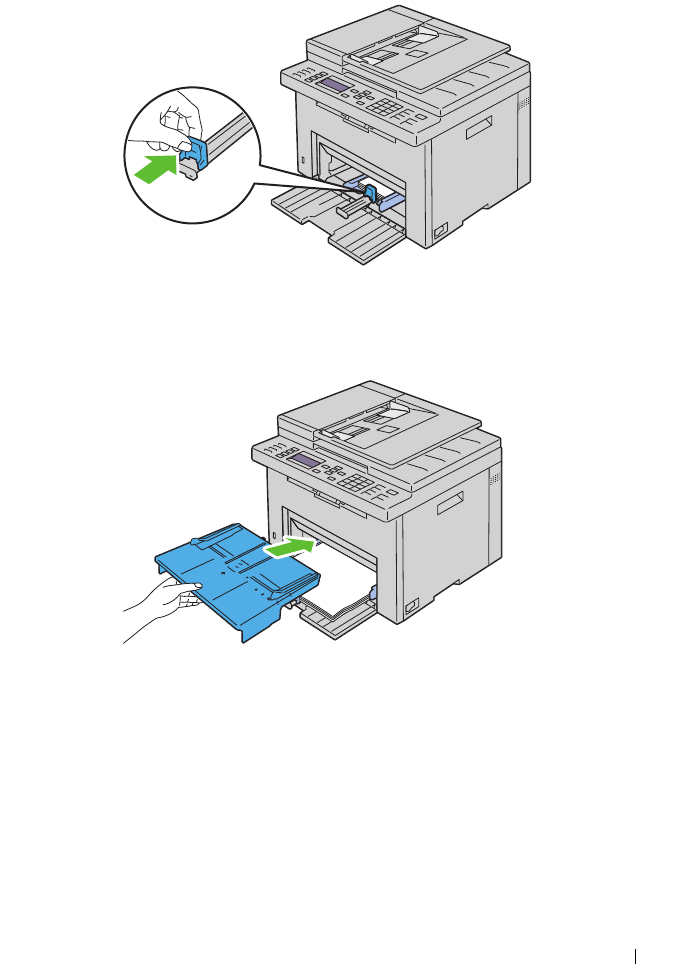
NOTE: Depending on the size of print media, first slide the MPF extension
backward until it stops, and then pinch the length guide and slide it backward
until it touches print media.
Loading Paper 65
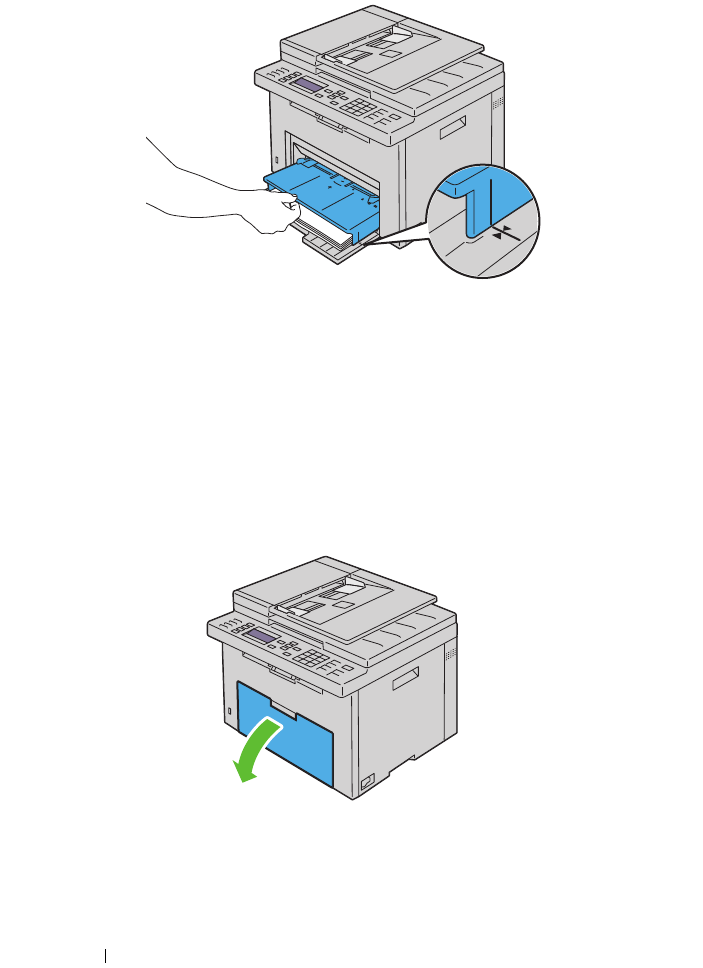
11
Insert the PSI into the printer and then align the PSI to the marking on
the paper tray.
66 Loading Paper
12
Select the paper type from the printer driver if the loaded print media is
not standard plain paper. If a user-specified print media is loaded in the
MPF, you must specify the paper size setting by using the printer driver.
Loading Print Media in the Priority Sheet Inserter
(PSI)
1
Open the front cover.
2
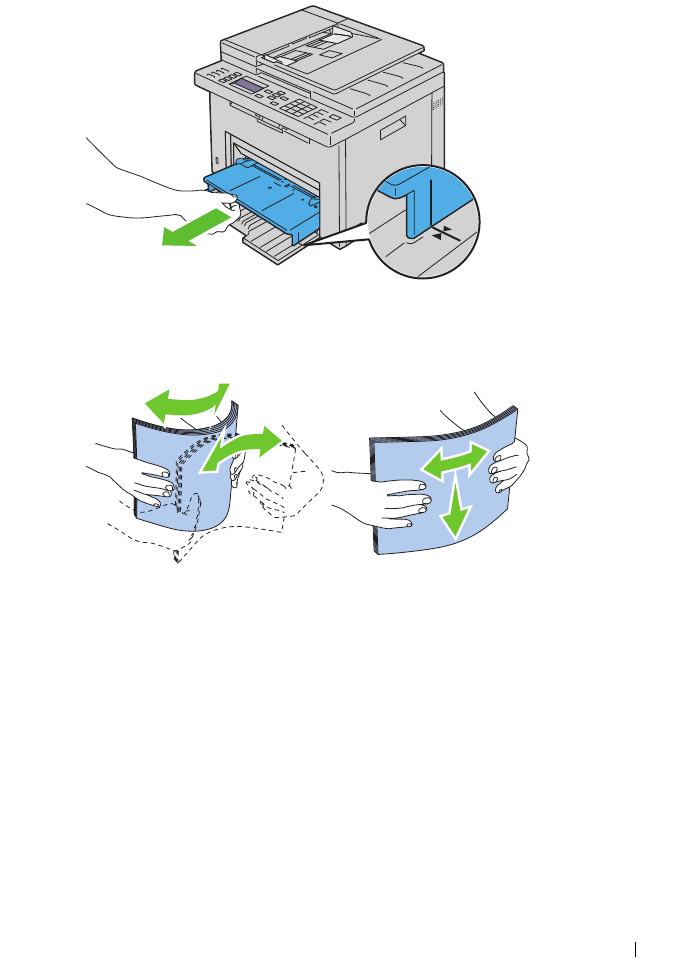
Slide the PSI forward, and then align the PSI to the marking on the paper
tray.
Loading Paper 67
3
Before loading the print media, flex the sheets back and forth, and then
fan them. Straighten the edges of the stack on a level surface.
4
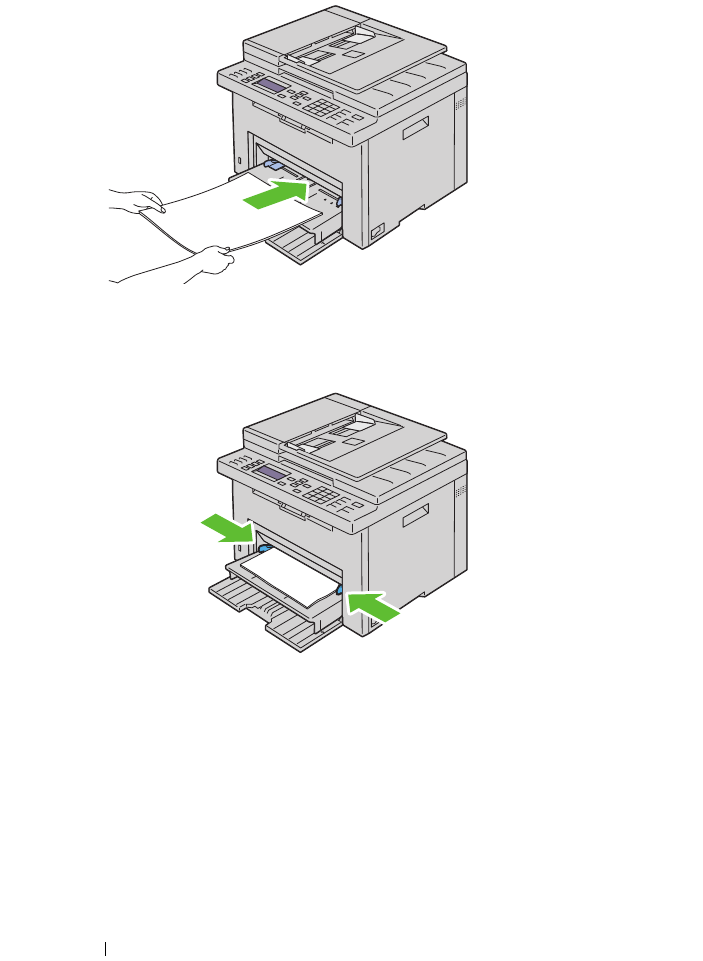
Load print media on the PSI with the top edge first and with the
recommended print side facing up.
68 Loading Paper
5
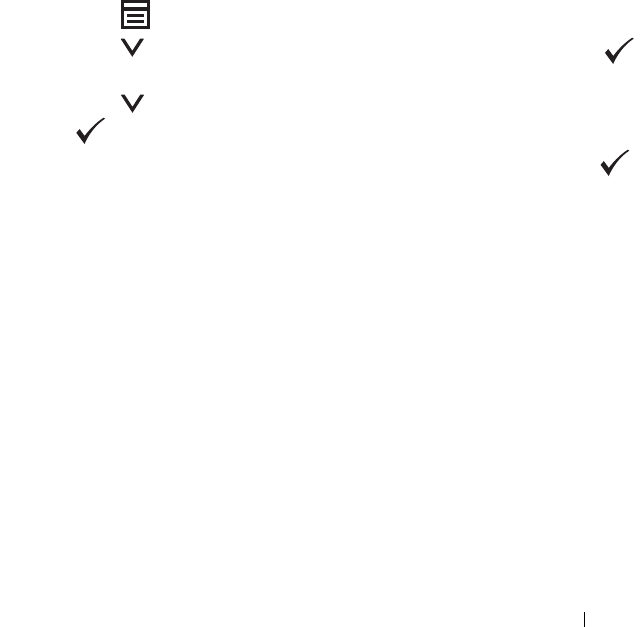
Adjust the width guides until they rest lightly against the edges of the
stack of print media.
6
Select the paper type from the printer driver if the loaded print media is
not standard plain paper. If a user-specified print media is loaded in the
PSI, you must specify the paper size setting by using the printer driver.
Installing Printer Drivers on Computers Running Windows
9
Installing Printer Drivers on
Computers Running Windows
Identifying Printer Driver Pre-install Status (For
Network Connection Setup)
Before installing the printer driver on your computer, print the printer
settings page to check the IP address of your printer.
The Operator Panel
1
Press the (
Menu)
button.
2
Press the button until
System
is highlighted, and then press the
button.
3
Press the button until
Report/List
is highlighted, and then press
the button.
4
Ensure that
System Settings
is highlighted, and then press the
button.
The system settings page is printed.
5
Find the IP address under Wired Network/Wireless Network on the printer
settings page.
If the IP address is
0.0.0.0
, wait for a few minutes to resolve the IP
address automatically, and then print the system settings page again.
If the IP address is not resolved automatically, see "Assigning an IP Address
(for IPv4 Mode)" on page 53.
The Tool Box
1
Click
Start
All Programs
Dell Printers
Dell 1355 Multifunction
Color Printer
Tool Box
.

70 Installing Printer Drivers on Computers Running Windows
NOTE: When multiple printer drivers are installed on your computer, the
Select Printer window opens. In this case, click the name of Dell 1355cnw
Color MFP listed in Printer Name.
The
Tool Box
opens.
2
Select
TCP/IP Settings
from the list on the left side of the page.
The
TCP/IP Settings
page appears.
If the IP address shows 0.0.0.0 (the factory default) or 169.254.xx.xx,
an IP address has not been assigned. To assign one for your printer, see
"Assigning an IP Address (for IPv4 Mode)" on page 53.
Disabling the firewall before installing your printer
NOTE: For Windows XP, Service Pack 2 or 3 must be installed.
If you are running one of the following operating systems, you must disable
the firewall before installing the Dell printer software:
•Windows 7
•Windows Vista
• Windows Server 2008 R2
• Windows Server 2008
•Windows XP
1
Click
Start
Help and Support
.
NOTE: For Windows Server 2008 R2 and Windows 7 operating systems, if you
use Online Help, switch to Offline Help on Windows Help and Support
window.
2
In the
Search
box, type
firewall
and then press
Enter
.
In the list, click
Turn Windows Firewall on or off
and then follow the
instructions on the screen.
Enable the firewall after the installation of the Dell printer software is
complete.
Inserting the Drivers and Utility CD
1
Insert the
Drivers and Utilities
CD into your computer to start
Easy Setup
Navigator
.

Installing Printer Drivers on Computers Running Windows 71
NOTE: If the CD does not automatically launch, click Start All Programs (for
Windows Vista and Windows 7) Accessories (for Windows Vista and
Windows 7) Run, and then type D:\setup_assist.exe (where D is
the drive letter of your CD), and then click OK.
Direct Connection Setup
For installing host-based printer driver
1
Click
Software Installation
.
2
Select
Personal Installation
, and then click
Next
.
3
Follow the on-screen instructions to connect the computer and the printer
with a USB cable, and then turn the printer on.
The Plug and Play installation starts and the installation software proceeds
to the next page automatically.
NOTE: If the installation software does not automatically proceed to the next
page, click Install.
4
Click
Finish
to exit the wizard when the
Congratulations!
screen appears.
If necessary, click
Print Test Page
to print a test page.
USB Printing
A personal printer is a printer attached to your computer or a print server
using a USB. If your printer is attached to a network and not your computer,
see "Network Connection Setup" on page 74.
For installing XML Paper Specification (XPS) printer driver
NOTE: Download and install the XPS printer driver at support.dell.com/support.
NOTE: XPS driver is supported on the following operating systems: Windows 7,
Windows 7 64-bit Edition, Windows Vista, Windows Vista 64-bit Edition, Windows
Server 2008 R2, Windows Server 2008, and Windows Server 2008 64-bit Edition.
Windows Vista or Windows Vista 64-bit Edition
1
Extract the zip file you downloaded to your desired location.
2
Click
Start
Control Panel
Hardware and Sound
Printers
.
3
Click
Add a printer
.

72 Installing Printer Drivers on Computers Running Windows
4
Click
Add a local printer
.
5
Select the port connected to this product, and then click
Next
.
6
Click
Have Disk
to display the
Install From Disk
dialog box.
7
Click
Browse
, and then select the extracted folder in step 1.
8
Click
OK
.
9
Select your printer name and click
Next
.
10
To change the printer name, enter the printer name in the
Printer name
box. To use this printer as the default printer, select the check box
displayed under the
Printer name
. Click
Next
.
Installation starts.
If the
User Account Control
dialog box appears, click
Continue
.
NOTE: If you are an administrator on the computer, click Continue; otherwise,
contact your administrator to continue the desired action.
11
As the driver installation is completed, click
Print a test page
to print a test
page.
12
Click
Finish
.
Windows Server 2008 or Windows Server 2008 64-bit Edition
NOTE: You must log in as an administrator.
1
Extract the zip file you downloaded to your desired location.
2
Click
Start
Control Panel
Hardware and Sound
Printers
.
3
Click
Add a printer
.
4
Click
Add a local printer
.
5
Select the port connected to this product, and then click
Next
.
6
Click
Have Disk
to display the
Install From Disk
dialog box.
7
Click
Browse
, and then select the extracted folder in step 1.
8
Click
OK
.
9
Select your printer name and click
Next
.
10
To change the printer name, enter the printer name in the
Printer name
box.

Installing Printer Drivers on Computers Running Windows 73
To use this printer as the default printer, select the
Set as the default
printer
check box. Click
Next
.
Installation starts.
11
If you do not share your printer, select
Do not share this printer
. If you
share your printer, select
Share this printer so that others on your network
can find and use it
. Click
Next
.
12
As the driver installation is completed, click
Print a test page
to print a test
page.
13
Click
Finish
.
Windows 7, Windows 7 64-bit Edition, or Windows Server 2008 R2
1
Extract the zip file you downloaded to your desired location.
2
Click
Start
Devices and Printers
.
3
Click
Add a printer
.
4
When you use Windows Server 2008 R2, click
Add a local or network
printer as an administrator
.
If the
User Account Control
dialog box appears, click
Yes
.
NOTE: If you are an administrator on the computer, click Yes; otherwise,
contact your administrator to continue the desired action.
5
Click
Add a local printer
.
6
Select the port connected to this product, and then click
Next
.
7
Click
Have Disk
to display the
Install From Disk
dialog box.
8
Click
Browse
, and then select the extracted folder in step 1.
9
Click
OK
.
10
Select your printer name and click
Next
.
11
To change the printer name, enter the printer name in the Printer name
box, and then click
Next
.
Installation starts.
12
If you do not share your printer, select
Do not share this printer
. If you
share your printer, select
Share this printer so that others on your network
can find and use it
. Click
Next
.

74 Installing Printer Drivers on Computers Running Windows
13
As the driver installation is completed, click
Print a test page
to print a test
page. To use this printer as the default printer, select the
Set as the default
printer
check box.
14
Click
Finish
.
Network Connection Setup
Network Printer Setup on a Local Network
For installing host-based printer driver
1
Click
Software Installation
.
2
Select
Network Installation
, and then click
Next
.
3
Select
Local Installation
, and then click
Next
.
4
Select the printer you want to install from the printer list, and then click
Next
. If the target printer is not displayed on the list, click
Refresh
to
refresh the list or click
Add Printer
to add a printer to the list manually.
You may specify the IP address and port name at this point.
If you have installed this printer on the server computer, select
I am
setting up this printer on a server
check box.
NOTE: When using AutoIP, 0.0.0.0 is displayed in the installer. Before you can
continue, you must enter a valid IP address.
NOTE: If you are running any of the following operating systems, a Windows
Security Alert is displayed:
•Windows Vista
•Windows Vista 64-bit Edition
•Windows Server 2008
•Windows Server 2008 64-bit Edition
•Windows Server 2008 R2 64-bit Edition
•Windows 7
•Windows 7 64-bit Edition
To continue installing the host-based printer driver, click
Unblock
or
Allow access
(for Windows Server 2008 R2 and Windows 7).
5
Specify the printer settings, and then click
Next
.

Installing Printer Drivers on Computers Running Windows 75
a
Enter the printer name.
b
If you want other users on the network to access this printer, select
Share this printer
with other computers on the network, and then
enter a share name that users can identify.
c
If you want to set a printer as the default, select the
Set this printer
as
default check box.
6
Select the software and documentation you want to install, and then click
Next
. You can specify folders in which to install the Dell software and
documentation. To change the folders, click
Browse
.
7
Click
Finish
to exit the wizard when the
Congratulations!
screen appears.
If necessary, click
Print Test Page
to print a test page.
For installing XML Paper Specification (XPS) printer driver
NOTE: Download and install the XPS printer driver at support.dell.com/support.
NOTE: XPS driver is supported on the following operating systems: Windows 7,
Windows 7 64-bit Edition, Windows Vista, Windows Vista 64-bit Edition, Windows
Server 2008 R2, Windows Server 2008, and Windows Server 2008 64-bit Edition.
Windows Vista or Windows Vista 64-bit Edition
1
Extract the zip file you downloaded to your desired location.
2
Click
Start
Control Panel
Hardware and Sound
Printers
.
3
Click
Add a printer
.
4
Click
Add a network
,
wireless or Bluetooth printer
.
5
Select printer or click
The printer that I want isn't listed
.
6
Select
Add a printer using a TCP/IP address or hostname
, and then click
Next
.
7
Select
TCP/IP Device
for
Device type
, and enter the IP address for
Hostname or IP address
, and then click
Next
.
If the
User Account Control Continue
dialog box appears, click
Continue
.
NOTE: If you are an administrator on the computer, click Continue; otherwise,
contact your administrator to continue the desired action.
8
Click
Have Disk
to display the
Install From Disk
dialog box.
9
Click
Browse
, then select the extracted folder in step 1, and then click
OK
.

76 Installing Printer Drivers on Computers Running Windows
10
Select your printer name and click
Next
.
11
To change the printer name, enter the printer name in the
Printer name
box, and then click
Next
.
To use this printer as the default printer, select the
Set as the default
printer
check box.
Installation starts.
If the
User Account Control
dialog box appears, click
Continue
.
NOTE: If you are an administrator on the computer, click Continue; otherwise,
contact your administrator to continue the desired action.
12
As the driver installation is completed, click
Print a test page
to print a test
page.
13
Click
Finish
.
Windows Server 2008 or Windows Server 2008 64-bit Edition
NOTE: You must log in as an administrator.
1
Extract the zip file you downloaded to your desired location.
2
Click
Start
Control Panel
Hardware and Sound
Printers
.
3
Click
Add a printer
.
4
Click
Add a network
,
wireless or Bluetooth printer
.
5
Select your printer or click
The printer that I want isn't listed
.
When you select your printer, go to step 8.
When you click
The printer that I want isn't listed
, go to step 6.
6
Select
Add a printer using a TCP/IP address or hostname
, and then click
Next
.
7
Select
TCP/IP Device
from
Device type
, and enter the IP address for
Hostname or IP address
, and then click
Next
.
If the
User Account Control Continue
dialog box appears, click
Continue
.
8
Click
Have Disk
to display the
Install From Disk
dialog box.
9
Click
Browse
, then select the extracted folder in step 1, and then click
OK
.
10
Select your printer name and click
Next
.

Installing Printer Drivers on Computers Running Windows 77
11
To change the printer name, enter the printer name in the
Printer name
box, and then click
Next
.
To use this printer as the default printer, select the
Set as the default
printer
check box.
Installation starts.
12
If you do not share your printer, select
Do not share this printer
. If you
share your printer, select
Share this printer so that others on your network
can find and use it
. Click
Next
.
13
As the driver installation is completed, click
Print a test page
to print a test
page.
14
Click
Finish
.
Windows Server 2008 R2
1
Extract the zip file you downloaded to your desired location.
2
Click
Start
Devices and Printers
.
3
Click
Add a printer
.
4
Click
Add a network
,
wireless or Bluetooth printer
.
5
Select your printer or click
The printer that I want isn't listed
.
NOTE: When you click The printer that I want isn't listed, Find a printer by
name or TCP/IP address screen appears. Find your printer on this screen.
If the
User Account Control
dialog box appears, click
Yes
.
NOTE: If you are an administrator on the computer, click Yes; otherwise,
contact your administrator to continue the desired action.
6
Click
Have Disk
to display the
Install From Disk
dialog box.
7
Click
Browse
, then select the extracted folder in step 1, and then click
OK
.
8
Select your printer name and click
Next
.
9
To change the printer name, enter the printer name in the
Printer name
box, and then click
Next
.
10
If you do not share your printer, select
Do not share this printer
. If you
share your printer, select
Share this printer so that others on your network
can find and use it
.
11
Click
Next
.

78 Installing Printer Drivers on Computers Running Windows
Installation starts.
12
As the driver installation is completed, click
Print a test page
to print a test
page. To use this printer as the default printer, select the
Set as the default
printer
check box.
13
Click
Finish
.
Windows 7 or Windows 7 64-bit Edition
1
Extract the zip file you downloaded to your desired location.
2
Click
Start
Devices and Printers
.
3
Click
Add a printer
.
4
Click
Add a network
,
wireless or Bluetooth printer
.
5
Select your printer or click
The printer that I want isn't listed
.
When you select your printer, go to step 8.
When you click
The printer that I want isn't listed
, go to step 6.
6
Select
Add a printer using a TCP/IP address or host name
, and then click
Next
.
7
Select
TCP/IP Device
from
Device type
, and enter the IP address for
Hostname or IP address
, and then click
Next
.
If the
User Account Control
dialog box appears, click
Yes
.
NOTE: If you are an administrator on the computer, click Yes; otherwise,
contact your administrator to continue the desired action.
8
Click
Have Disk
to display the
Install From Disk
dialog box.
9
Click
Browse
, then select the extracted folder in step 1, and then click
OK
.
10
Select your printer name and click
Next
.
11
To change the printer name, enter the printer name in the
Printer name
box, and then click
Next
.
Installation starts.
12
As the driver installation is completed, click
Print a test page
to print a test
page. To use this printer as the default printer, select the
Set as the default
printer
check box.
13
Click
Finish
.

Installing Printer Drivers on Computers Running Windows 79
NOTE: You can set up the Dell Printer Configuration Web Tool to send you an e-mail
when the printer needs supplies or intervention.
For more information about E-Mail Alert, see "E-Mail Alert" on page 126.
Network Printer Setup on a Remote Network
Before Installation
Before you start remote installation, perform the following procedures.
Allow Print Spooler to Accept Client Connections
NOTE: This step is required for Windows XP 64-bit Edition, Windows Vista,
Windows Vista 64-bit Edition, Windows Server 2003, Windows Server 2003 x64
Edition, Windows Server 2008, Windows Server 2008 64-bit Edition, Windows Server
2008 R2, Windows 7, and Windows 7 64-bit Edition.
For Windows XP 64-bit Edition, Windows Vista, Windows Server 2003, and
Windows Server 2008:
1
Click
Start
All Programs
(for Windows Vista only)
Accessories
(for
Windows Vista only)
Run
.
2
Ty p e
gpedit.msc
, and then click
OK
.
3
Click
Computer Configuration
Administrative Templates
Printers
.
4
Right-click
Allow Print Spooler to accept client connections
and select
Properties
.
5
On the
Setting
tab, select
Enabled
, and then click
OK
.
6
Restart the computer.
For Windows Server 2008 R2 and Windows 7:
1
Click
Start
All Programs
(for Windows 7 only)
Accessories
(for
Windows 7 only)
Run
.
2
Ty p e
gpedit.msc
, and then click
OK
.
3
Click
Computer Configuration
Administrative Templates
Printers
.
4
Right-click
Allow Print Spooler to accept client connections
and select
Edit
.
5
Select
Enabled
, and then click
OK
.
6
Restart the computer.

80 Installing Printer Drivers on Computers Running Windows
Share the Firewall File and Printer
NOTE: This step is required for Windows XP, Windows XP 64-bit Edition, Windows
Vista, Windows Vista 64-bit Edition, Windows Server 2008, Windows Server 2008 64-
bit Edition, Windows Server 2008 R2, Windows 7, and Windows 7 64-bit Edition.
For Windows XP:
1
Click
start
Control Panel
.
2
Select
Security Center
.
3
Click
Windows Firewall
.
4
On the
Exceptions
tab, check the
File and Printer Sharing
check box, and
then click
OK
.
For Windows Vista:
1
Click
Start
Control Panel
.
2
Select
Security
.
3
Click
Windows Firewall
.
4
Click
Change settings
.
5
Click
Continue
.
6
On the
Exceptions
tab, check the
File and Printer Sharing
check box, and
then click
OK
.
For Windows Server 2008:
1
Click
Start
Control Panel
.
2
Double-click
Windows Firewall
.
3
Click
Change settings
.
4
On the
Exceptions
tab, check the
File and Printer Sharing
check box, and
then click
OK
.
For Windows Server 2008 R2 and Windows 7:
1
Click
Start
Control Panel
.
2
Select
System and Security
.
3
Click
Windows Firewall
.
4
Click
Allow a program or feature through Windows Firewall
.
5
If the check boxes under
Allowed programs and features:
are dimmed,
click Change settings, and then click
Yes
.

Installing Printer Drivers on Computers Running Windows 81
6
Check the
Name
check box.
Home/Work (Private)
or
Public
check box is
automatically selected according to your settings.
If
File and Printer Sharing Properties
dialog box appears, click
OK
.
7
Click
OK
.
Start Remote Registry
NOTE: This step is required for Windows Vista, Windows Vista 64-bit Edition,
Windows 7, and Windows 7 64-bit Edition.
1
Click
Start
Control Panel
.
2
Select
System and Maintenance (System and Security
for Windows 7
)
.
3
Click
Administrative Tools
.
4
Double-click
Services
.
5
Click
Continue
(for Windows Vista only).
6
Right-click
Remote Registry
and select
Start
.
7
Right-click
Remote Registry
and select
Properties
.
8
Change
Startup type:
to
Automatic
, and then click
OK
.
Disable User Account Control
NOTE: Disabling the User Account Control might leave the system vulnerable to
virus attacks.
NOTE: This step is required for Windows Vista, Windows Vista 64-bit Edition,
Windows Server 2008, Windows Server 2008 64-bit Edition, Windows Server 2008
R2, Windows 7, and Windows 7 64-bit Edition.
For Windows Vista:
1
Click
Start
Control Panel
.
2
Select
User Accounts
.
3
Click
User Accounts
.
4
Click
Turn User Account Control on or off
.
5
Click
Continue
.
6
Clear the
Use User Account Control (UAC) to help protect your
computer
check box.
7
Click
OK
.

82 Installing Printer Drivers on Computers Running Windows
8
Restart the computer.
For Windows Server 2008:
1
Click
Start
Control Panel
.
2
Double-click
User Accounts
.
3
Click
Turn User Account Control on or off
.
4
Click
Continue
.
5
Clear the
Use User Account Control (UAC) to help protect your
computer
check box.
6
Click
OK
.
7
Restart the computer.
For Windows Server 2008 R2:
1
Click
Start
Control Panel
.
2
Select
User Accounts
.
3
Click
User Accounts
.
4
Click
Change User Account Control settings
.
5
Move the slider to the bottom, and then click
OK
.
6
Click
Yes
.
7
Click
OK
.
8
Click
Yes
.
9
Restart the computer.
For Windows 7:
1
Click
Start
Control Panel
.
2
Select
User Accounts and Family Safety
.
3
Click
User Accounts
.
4
Click
Change User Account Control Settings
.
5
Move the slider to the bottom, and then click
OK
.
6
Click
Yes
in
User Account Control
dialog box.
7
Restart the computer.

Installing Printer Drivers on Computers Running Windows 83
Enable Network Discovery and File Sharing for all Public Networks
NOTE: This step is required when you use Windows Vista, Windows Vista 64-bit
Edition, Windows Server 2008, Windows Server 2008 64-bit Edition, Windows Server
2008 R2, Windows 7, and Windows 7 64-bit Edition for the server computer.
For Windows 7, and Windows 7 64-bit Edition, Windows Server 2008 R2
1
Click
Start
Control Panel
Network and Internet
Network and
Sharing Center
Change advanced sharing settings
.
2
To allow your computer to be found on the network, and to allow other
computers on the network to share the files and folders on your computer,
click
Turn on network discovery
.
3
Click
Save changes
.
4
If you see the
User Account Control
dialog box, click
Yes
.
For Windows Vista, Windows Vista 64-bit Edition, Windows Server 2008,
Windows Server 2008 64-bit Edition:
1
Click
Start
Network
.
2
Right-click
Network
and select
Properties
.
The
Network an Sharing Center
screen appears.
3
Click the down arrow button next to either
Network
discovery
.
4
To allow your computer to be found on the network, and to allow other
computers on the network to share the files and folders on your computer,
click
Turn on network discovery
.
5
Click
Apply
.
6
If the
User Account Control
dialog box appears, click
Continue
.
Disable Simple File Sharing
NOTE: This step is required for Windows XP, and Windows XP 64-bit Edition.
1
Click
Start
Control Panel
.
2
Select
Appearance and Themes
.
3
Select
Folder Options
.
4
On the
View
tab, clear the
Use simple file sharing (Recommended)
check
box, and then click
OK
.
5
Click
Start
Control Panel
.

84 Installing Printer Drivers on Computers Running Windows
6
Select
Performance and Maintenance
.
7
Select
Administrative Tools
.
8
Double-click
Local Security Policy
.
9
Click
Local Policies
Security Options
.
10
Right-click
Network access: Sharing and security model for local accounts
and select
Properties
.
11
Ensure that
Classic - local users authenticate as themselves
is selected.
12
Click
OK
.
Installing the Printer Driver
NOTE: Installation on Windows XP Home Edition, Windows Vista Home Basic,
Windows Vista Home Premium, Windows Vista x64 Home Basic, Windows Vista x64
Home Premium, Windows 7 Starter, Windows 7 Home Basic, Windows 7 Home
Premium, Windows 7 x64 Home Basic, and Windows 7 x64 Home Premium is not
supported.
1
Insert the
Drivers and Utilities
CD provided with the printer in your
computer. The
Easy Setup Navigator
file launches automatically.
2
Click
Software Installation
.
The
Install Printer Driver and Software
screen appears.
3
Select
Network Installation
, and then click
Next
.
4
Select
Remote Installation
, and then click
Next
.
5
Enter the Administrator user name and password of the client computer,
then select the clients or servers, and then
Next
.
NOTE: If you are running any of the following operating systems, a Windows
Security Alert is displayed:
•Windows Vista
•Windows Vista 64-bit Edition
•Windows Server 2008
•Windows Server 2008 64-bit Edition
•Windows Server 2008 R2 64-bit Edition
•Windows 7
•Windows 7 64-bit Edition
Installing Printer Drivers on Computers Running Windows 85
To continue installing the host-based printer driver, click
Unblock
or
Allow access
(for Windows Server 2008 R2 and Windows 7).
6
Check if the printer to be installed is listed in
Select Printer
, and then click
Next
.
NOTE: If the printer to be installed is not listed in Select Printer, try the
following steps:
•Click Refresh to update the information.
•Click Add Printer, and then enter a port name (any alphanumeric string)
and an existing IP address for the printer.
7
Select the required items on the
Software and Documentation
, and then
click
Install
.
8
Click
Finish
to exit this tool.
Configuring Wireless Settings (Dell 1355cnw
Multifunction Color Printer Only)
This section describes how to configure wireless settings through Easy Setup
Navigator.
The specifications of wireless setting function are described below:
You can select a method to configure a wireless setting from the following:
Item Specification
Connectivity Wireless
Connectivity Standard IEEE 802.11b/802.11g compliant
Bandwidth 2.4 GHz
Data Transfer Rate 802.11g: 54, 48, 36, 24, 18, 12, 9, 6 Mbps
802.11b: 11, 5.5, 2, 1 Mbps
Security WEP (64/128bits), WPA-PSK (TKIP, AES), WPA-
2PSK (AES)
Certifications Wifi, WPA2.0 (Personal)
Wifi Protected Setup(WPS) Push Button Configuration (PBC), Personal
Identification Number (PIN)
86 Installing Printer Drivers on Computers Running Windows
NOTE: For information on how to install a wireless, see "Using Wizard Setup to
Configure Wireless Settings" on page 86 or "Using Advanced Setup to Configure
Wireless Settings" on page 88.
Using Wizard Setup to Configure Wireless Settings
1
Insert the
Drivers and Utilities
CD provided with the printer in your
computer. The
Easy Setup Navigator
file launches automatically.
Wizard Setup through USB connection
Advanced Setup through
Ethernet connection
Operator Panel
Dell Printer Configuration Web Tool
WPS-PIN*1
WPS-PBC*2
*1 WPS-PIN (Wi-Fi® Protected Setup-Personal Identification Number) is a method to
authenticate and register devices required for wireless configuration, by entering
PIN assignments in the printer and computer. This setting, performed through
access point, is available only when the access points of your wireless router
supports WPS.
*2 WPS-PBC (Wi-Fi Protected Setup-Push Button Configuration) is a method to
authenticate and register devices required for wireless configuration, by pressing
the button provided on the access point via wireless routers, and then performing
WPS-PBC setting on the operator panel. This setting is available only when the
access point supports WPS.
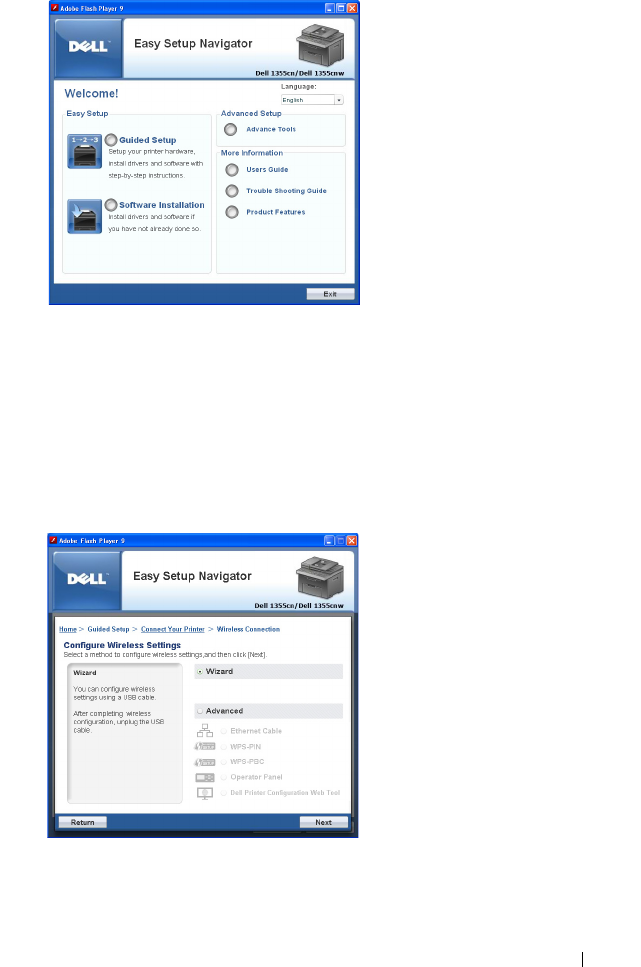
Installing Printer Drivers on Computers Running Windows 87
2
Click
Guided Setup
.
3
Click
Connect Your Printer
.
Select your type of connection screen appears.
4
Select
Wireless Connection
, and then click
Next
.
The setting method selection window appears.
5
Ensure that
Wizard
is selected, and then click
Next
.
6
Follow the instructions until the
Check Setup
screen appears.

88 Installing Printer Drivers on Computers Running Windows
7
Confirm there are no errors displayed in the operator panel, and then click
NO
.
If you see any errors, click
YES
and follow the instruction.
8
Click
Start installation
.
9
Select
Local Installation
, and then click
Next
.
10
Check if the printer to be installed is listed in the
Select Printer
screen,
and then click
Next
.
NOTE: If the printer to be installed is not listed in the Select Printer screen, try
the following steps:
•Click Refresh to update the information.
•Click Add Printer, and then enter the details of the printer manually.
11
Select the required items on the
Enter Printer Settings
screen, and then
click
Next
.
12
Select the software to be installed, and then click
Install
.
The
Congratulations!
screen appears.
13
Click
Finish
to exit this tool.
The wireless configuration is complete.
Using Advanced Setup to Configure Wireless Settings
To use the Advanced Setup, display the Configuration Wireless Setting
screen.
Displaying Configure Wireless Settings Screen
1
Insert the
Drivers and Utilities
CD provided with the printer in your
computer. The
Easy Setup Navigator
file launches automatically.
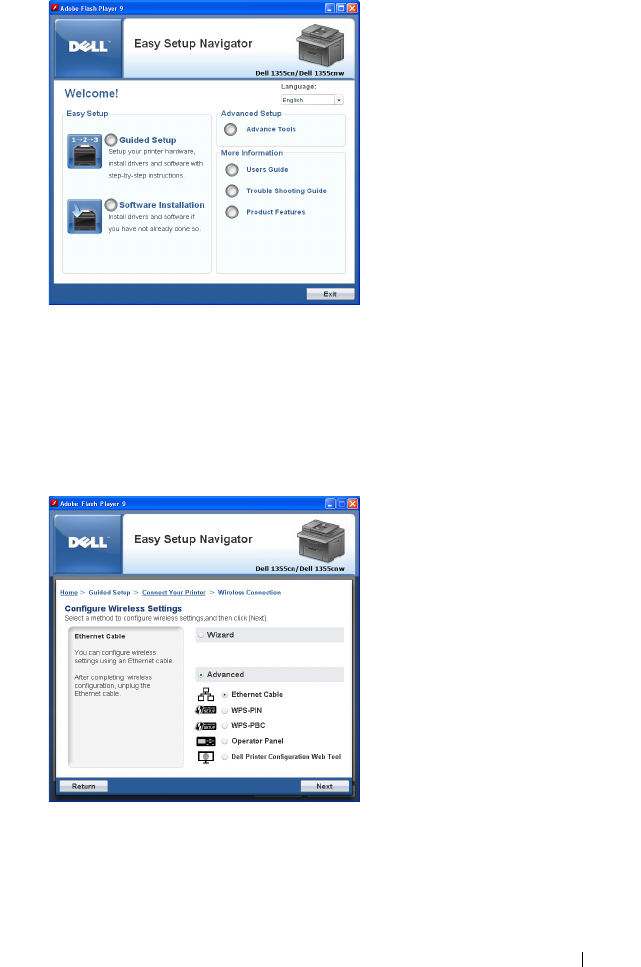

90 Installing Printer Drivers on Computers Running Windows
•WPS-PBC
• Operator Panel
• Dell Printer Configuration Web Tool
Ethernet Cable
1
Select
Ethernet Cable
, and then click
Next
.
2
Follow the instructions, and then click
Next
.
The
Advanced Configuration Tool
screen appears.
3
Select the printer to be configured in the
Select Printer
screen, and then
click
Next
.
NOTE: If the printer to be configured is not listed in the Select Printer screen,
try the following steps:
•Click Refresh to update the information.
•Click Enter IP Address, and then enter the IP address of your printer.
4
Enter the SSID.
5
Select
Type of wireless network
.
6
Configure the security setting, and then click
Next
.
The
IP Address Settings
screen appears.
7
Select
IP Mode
depending on your network scheme.
When
IPv4
is selected:
Configure the following:
a
Select
Ty p e
.
b
Enter the following items:
•
IP address
of your printer
•Subnet Mask
• Gateway Address
When
IPv6
is selected:
Configure the following:
a
Select
Use Manual Address
.
b
Enter IP address of your printer.
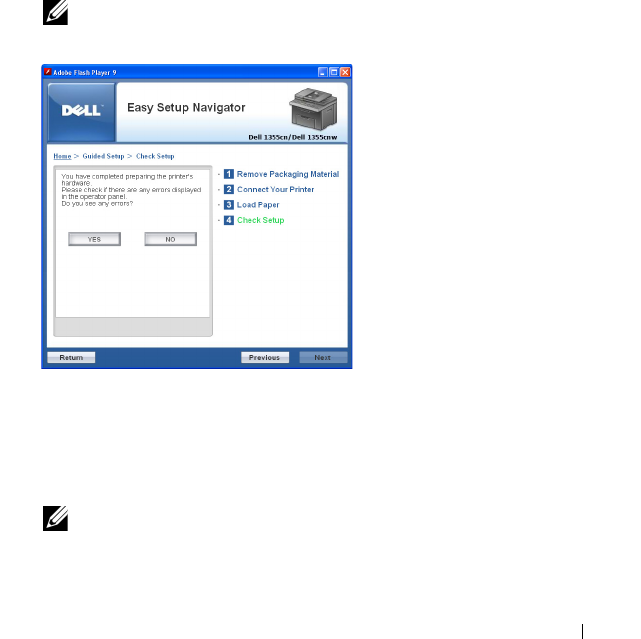
Installing Printer Drivers on Computers Running Windows 91
c
Enter the gateway address of your network.
When
Dual Stack
is selected:
Configure the
IPv4 Settings
and
IPv6 Settings
.
8
Click
Next
.
9
Ensure that the wireless settings are displayed, and then click
Apply
.
The
Complete configuration
screen appears.
10
Click
Next
.
11
Follow the instructions until the
Check Setup
screen appears, and then
click
Next
.
12
Confirm there are no errors displayed on the operator panel, and then click
NO
on the
Check Setup
screen.
NOTE: If you see any errors, click YES and follow the instruction.
13
Click
Start Installation
.
14
Select
Local Installation
, and then click
Next
.
15
Check if the printer to be installed is listed in the
Select Printer
screen,
and then click
Next
.
NOTE: If the printer to be installed is not listed in the Select Printer screen, try
the following steps:
•Click
Refresh
to update the information.
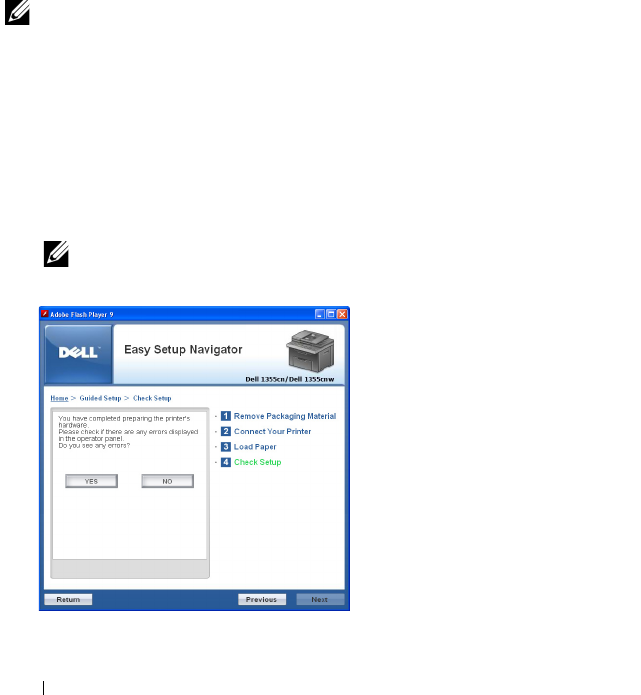
92 Installing Printer Drivers on Computers Running Windows
•Click
Add Printer
, and then enter the details of the printer
manually.
16
Configure the required items on the
Enter Printer Settings
screen, and
then click
Next
.
17
Select the software to be installed, and then click
Install
.
The
Congratulations!
screen appears.
18
Click
Finish
to exit this tool.
The wireless configuration is complete.
WPS-PIN
NOTE: WPS-PIN (Wi-Fi Protected Setup-Personal Identification Number) is a
method to authenticate and register devices required for wireless configuration, by
entering PIN assignments to a printer and computer. This setting, performed
through access point, is available only when the access points of your wireless
router supports WPS.
1
Select
WPS-PIN
, and then click
Next
.
2
Follow the instructions until the
Check Setup
screen appears.
3
Confirm there are no errors displayed on the operator panel, and then click
NO
on the
Check Setup
screen.
NOTE: If you see any errors, click YES and follow the instruction.

Installing Printer Drivers on Computers Running Windows 93
4
Select
Local Installation
, and then click
Next
.
5
Check if the printer to be installed is listed in the
Select Printer
, and then
click
Next
.
NOTE: If the printer to be installed is not listed in the Select Printer, try the
following steps:
•Click Refresh to update the information.
•Click Add Printer, and then enter the details of the printer manually.
6
Configure the required items on the
Enter Printer Settings
screen, and
then click
Next
.
7
Select the software to be installed, and then click
Install
.
The
Congratulations!
screen appears.
8
Click
Finish
to exit this tool.
The wireless configuration is complete.
When the WPS-PIN operation is successful and the printer is rebooted,
wireless LAN connection is completed.
WPS-PBC
NOTE: WPS-PBC (Wi-Fi Protected Setup-Push Button Configuration) is a method to
authenticate and register devices required for wireless configuration, by pressing
the button provided on the access point via wireless routers, and then performing
WPS-PBC setting on the operator panel. This setting is available only when the
access point supports WPS.
1
Select
WPS-PBC
, and then click
Next
.
2
Follow the instructions until the
Check Setup
screen appears.
3
Confirm there are no errors displayed on the operator panel, and then click
NO
on the
Check Setup
screen.
NOTE: If you see any errors, click YES and follow the instruction.
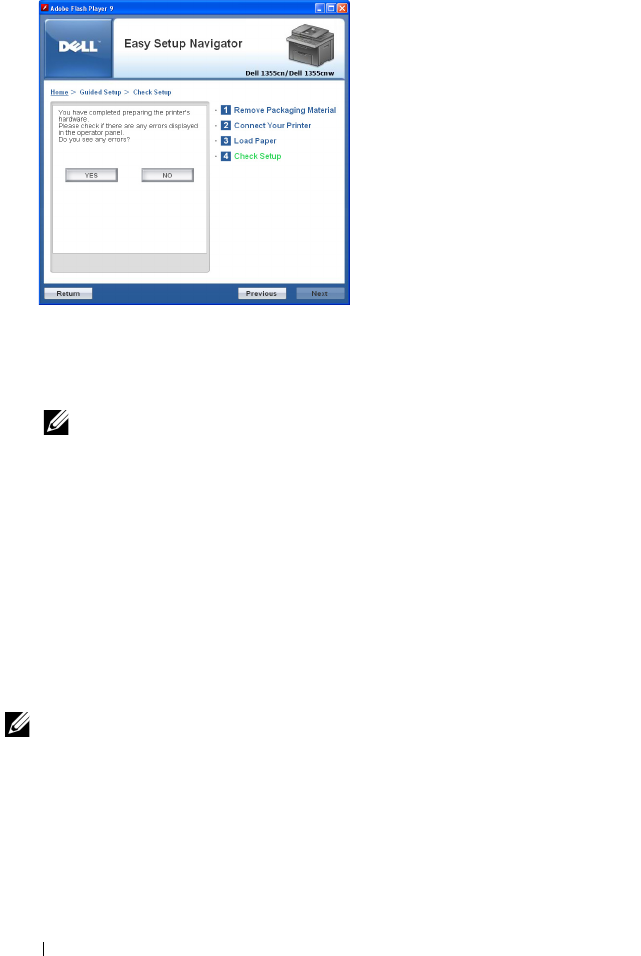
94 Installing Printer Drivers on Computers Running Windows
4
Select
Local Installation
, and then click
Next
.
5
Check if the printer to be installed is listed in the
Select Printer
screen,
and then click
Next
.
NOTE: If the printer to be installed is not listed in the Select Printer screen, try
the following steps:
•Click Refresh to update the information.
•Click Add Printer, and then enter the details of the printer manually.
6
Configure the required items on the
Enter Printer Settings
screen, and
then click
Next
.
7
Select the software to be installed, and then click
Install
.
The
Congratulations!
screen appears.
8
Click
Finish
to exit this tool.
The wireless configuration is complete.
NOTE: For WPS-PBC operation on the wireless LAN access point, refer to the
manual supplied with the wireless LAN access point.
When the WPS-PBC operation is successful and the printer is rebooted,
wireless LAN connection is completed.
Operator Panel
1
Select
Operator Panel
, and then click
Next
.
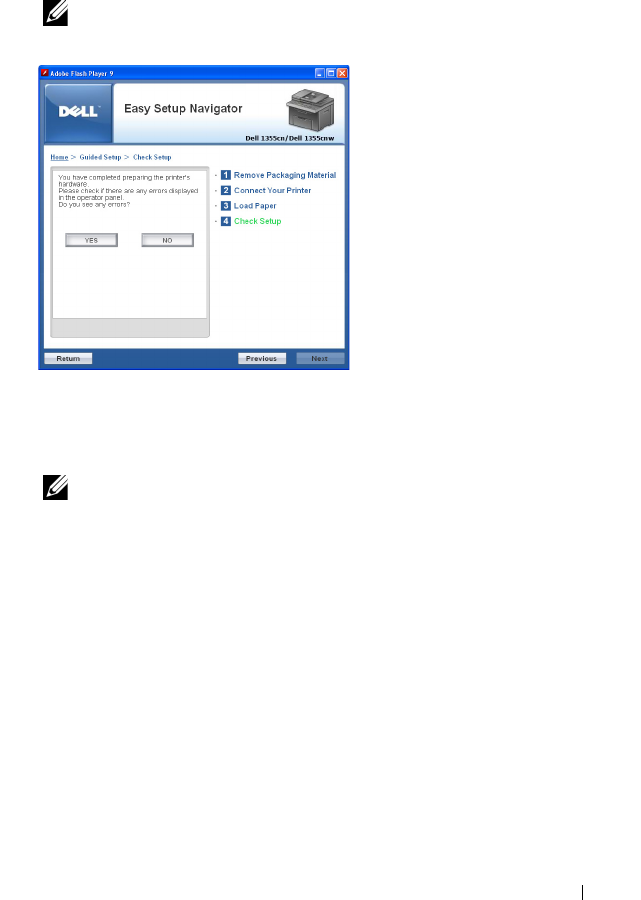
Installing Printer Drivers on Computers Running Windows 95
2
Follow the instructions until the
Check Setup
screen appears.
3
Confirm there are no errors displayed on the operator panel, and then click
NO
on the
Check Setup
screen.
NOTE: If you see any errors, click YES and follow the instruction.
4
Select
Local Installation
, and then click
Next
.
5
Check if the printer to be installed is listed in the
Select Printer
screen,
and then click
Next
.
NOTE: If the printer to be installed is not listed in the Select Printer screen,
try the following steps:
•Click
Refresh
to update the information.
•Click
Add Printer
, and then enter the details of the printer
manually.
6
Configure the required items on the
Enter Printer Settings
screen, and
then click
Next
.
7
Select the software to be installed, and then click
Install
.
The
Congratulations!
screen appears.
8
Click
Finish
to exit this tool.
The wireless configuration is complete.
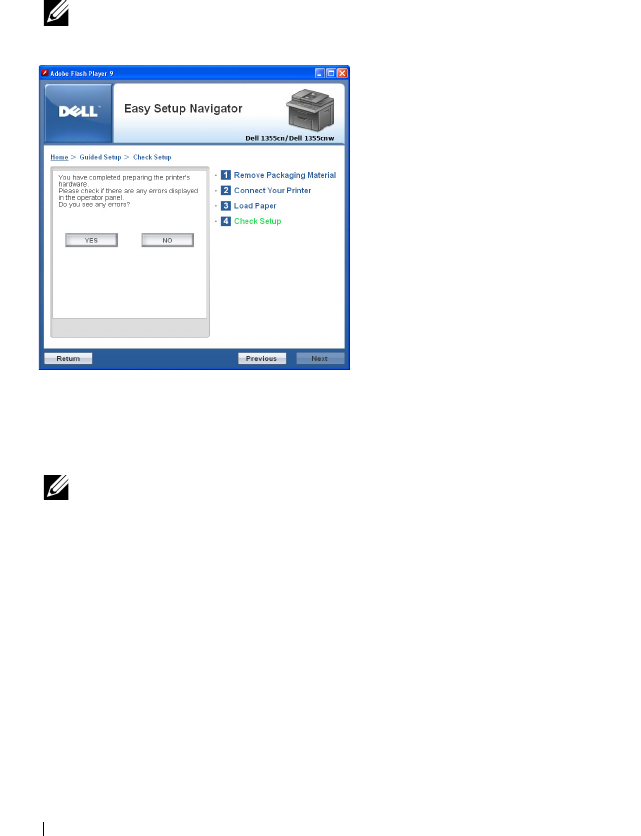
96 Installing Printer Drivers on Computers Running Windows
Dell Printer Configuration Web Tool
1
Select
Dell Printer Configuration Web Tool
, and then click
Next
.
2
Follow the instructions until the
Check Setup
screen appears.
3
Confirm there are no errors displayed on the operator panel, and then click
NO
on the
Check Setup
screen.
NOTE: If you see any errors, click YES and follow the instruction.
4
Select
Local Installation
, and then click
Next
.
5
Check if the printer to be installed is listed in the
Select Printer
screen,
and then click
Next
.
NOTE: If the printer to be installed is not listed in the Select Printer screen, try
the following steps:
•Click Refresh to update the information.
•Click Add Printer, and then enter the details of the printer manually.
6
Configure the required items on the
Enter Printer Settings
screen, and
then click
Next
.
7
Select the software to be installed, and then click
Install
.
The
Congratulations!
screen appears.
8
Click
Finish
to exit this tool.
The wireless configuration is complete.

Installing Printer Drivers on Computers Running Windows 97
When the Dell Printer Configuration Web Tool operation is successful and
the printer is rebooted, wireless LAN connection is completed.
Setting up a New Wireless Network Environment for Your Computer
(When you need to setup your wireless connectivity with your
computer)
For DHCP network:
1
Setting up your computer for wireless connectivity:
NOTE: You can also change the wireless settings using the wireless
application that may be installed in your computer.
For Windows XP and Windows Server 2003:
a
Select
Network Connections
from
Control Panel
.
b
Right-click
Wireless Network Connection
and select
Properties
.
c
Select the
Wireless Networks
tab.
d
Ensure that the check box for
Use Windows to configure my wireless
network settings
is checked.
NOTE: Make note of the wireless settings on the Advanced window
(step f) and the Wireless Network Properties window (step g). You may
require these settings later.
e
Click the
Advanced
button.
f
Select
Computer to Computer (ad hoc) networks only
and close the
Advanced
dialog box.
g
Click the
Add
button to display
Wireless network properties
.
h
On the
Association
tab, enter the following information and click
OK
.
Network name (SSID)
:
dell_device
Network Authentication
:
Open
Data encryption
:
Disabled
Ad hoc network
:
checked
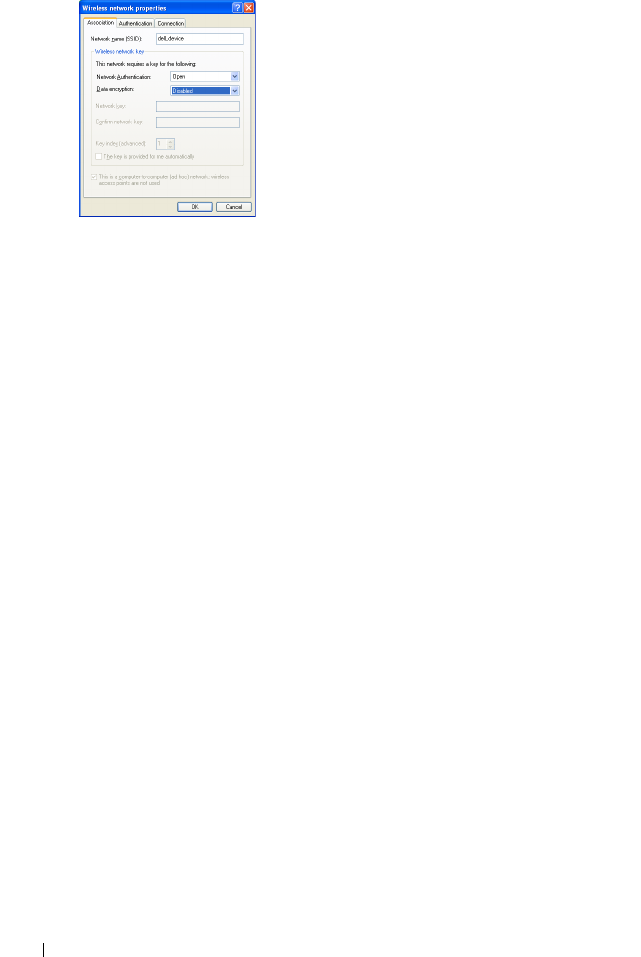
98 Installing Printer Drivers on Computers Running Windows
i
Click the
Move up
button to move the newly added SSID to the top
of the list.
j
Click
OK
to close the
Property
dialog box.
For Windows Vista:
a
Open
Control Panel
.
b
Select
Network and Internet
.
c
Select
Network and Sharing Center
.
d
Select
Connect to a network
.
e
Select
dell_device
from the network items listed in
Connect to a
network
.
f
Select
Connect Anyway in the warning
dialog box indicating you are
entering an unsecured area.
g
Click
Close
in the dialog box after confirming the connection is a
success.
For Windows Server 2008:
a
Open
Control Panel
.
b
Select
Network and Sharing Center
.
c
Select
Connect to a network
.
d
Select
dell_device
from the network items listed in
Connect to a
network
.
e
Select
Connect Anyway in the warning
dialog box indicating you are
entering an unsecured area.
Installing Printer Drivers on Computers Running Windows 99
f
Click
Close
in the dialog box after confirming the connection is a
success.
For Windows Server 2008 R2 and Windows 7:
a
Open
Control Panel
.
b
Select
Network and Internet
.
c
Select
Network and Sharing Center
.
d
Select
Connect to a network
.
e
Select
dell_device
from the network items listed in the available
network list, and click
Connect
.
2
Check the IP address assigned by AutoIP on the printer.
a
Press the
(Menu)
button on the printer operator panel.
b
Press the button until
System
is highlighted, and then press the
button.
c
Press the button until
Admin Menu
is highlighted, and then press
the button.
d
Press the button until
Network
is highlighted, and then press the
button.
e
Press the button until
TCP/IP
is highlighted, and then press the
button.
f
Press the button until
IPv4
is highlighted, and then press the
button.
(Default IP address range: 169.254.
xxx
.
yyy
)
3
Ensure that the IP Address on your computer is assigned by DHCP.
IP Address
169.254.000.041
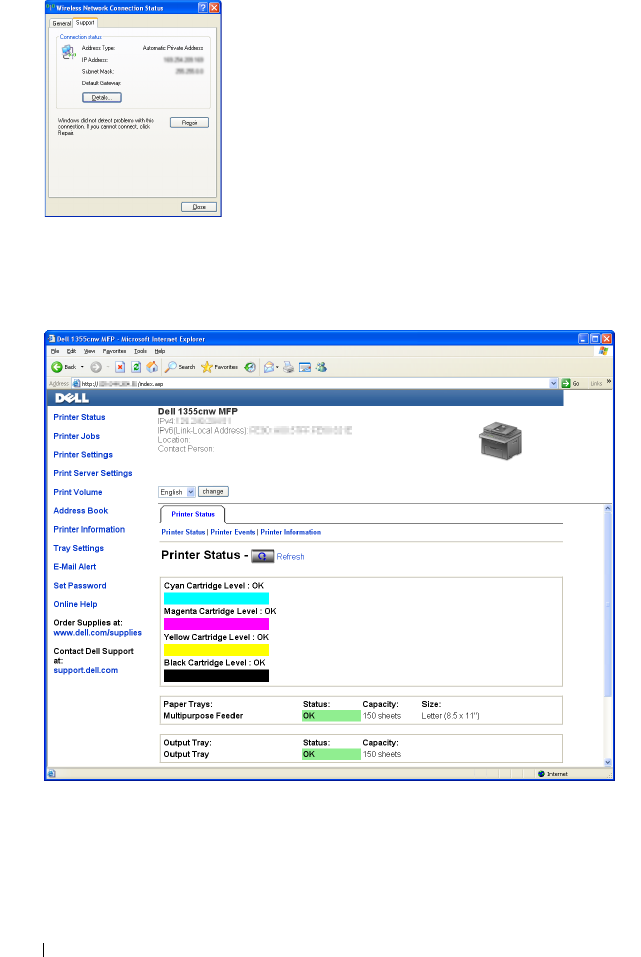
100 Installing Printer Drivers on Computers Running Windows
4
Enter the IP address in the address bar on your web browser.
Dell Printer Configuration Web Tool
page appears.
5
Create wireless setting of the printer on
Dell Printer Configuration Web
Tool
.
6
Reboot the printer.
7
Restore the wireless settings on your computer.

Installing Printer Drivers on Computers Running Windows 101
NOTE: If the operating system on your computer provides a wireless
configuration software, use it to change the wireless settings. See the
instructions below.
For Windows XP and Windows Server 2003:
a
Open
Control Panel
.
b
Select
Network Connections
.
c
Right-click
Wireless Network Connection
and select
Properties
.
d
Select
Wireless Network
tab.
e
Ensure that the check box for
Use Windows to configure my wireless
network settings
is checked.
f
Click
Advanced
.
g
You can either set the printer to the ad-hoc mode or the infrastructure
mode.
For Adhoc mode:
Select
Computer to Computer (ad hoc) networks only
and close the
dialog box.
For Infrastructure mode:
Select
Access point (Infrastructure) networks only
and close the
dialog box.
h
Click
Add
to display
Wireless network properties
.
i
Enter the setting that you will send to the printer and click
OK
.
j
Click
Move up
to move the setting to the top of the list.
k
Click
OK
to close the
Property dialog
box.
For Windows Vista:
a
Open
Control Panel
.
b
Select
Network and Internet
.
c
Select
Network and Sharing Center
.
d
Select
Connect to a network
.
e
Select the network, and then click
Connect
.

102 Installing Printer Drivers on Computers Running Windows
f
Select
Connect Anyway
in the warning dialog box indicating you are
entering an unsecured area.
g
Click
Close
in the dialog box after confirming the connection is a
success.
For Windows Server 2008:
a
Open
Control Panel
.
b
Select
Network and Sharing Center
.
c
Select
Connect to a network
.
d
Select the network, and then click
Connect
.
e
Select
Connect Anyway
in the warning dialog box indicating you are
entering an unsecured area.
f
Click
Close
in the dialog box after confirming the connection is a
success.
For Windows Server 2008 R2 and Windows 7:
a
Open
Control Panel
.
b
Select
Network and Internet
.
c
Select
Network and Sharing Center
.
d
Select
Connect to a network
.
e
Select the network, and then click
Connect
.
f
Enter the Security key and click
OK
, if necessary.
For Fixed IP networks:
1
Set up your computer for wireless connectivity:
NOTE: If the operating system on your computer provides a wireless configuration
software, use it to change the wireless settings. See the instructions below.
For Windows XP and Windows Server 2003:
a
Select
Network Connections
from Control Panel.
b
Right-click
Wireless Network Connection
and select
Properties
.
c
Select the
Wireless Networks
tab.
d
Ensure that the check box for
Use Windows to configure my wireless
network settings
is checked.
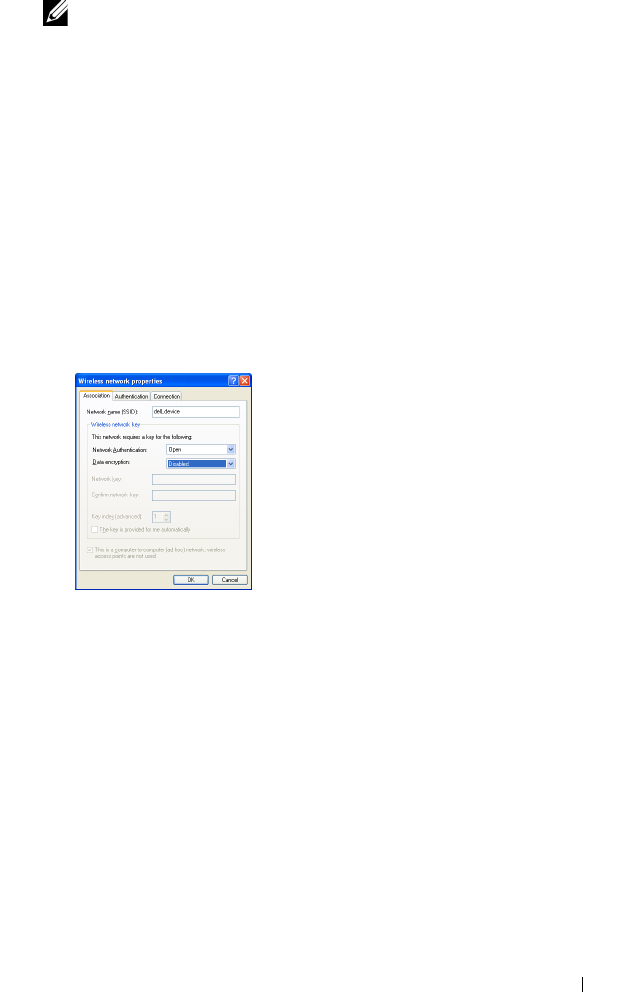
Installing Printer Drivers on Computers Running Windows 103
NOTE: Be sure to write down the current wireless computer settings in step d
and step f so that you can restore them later.
e
Click the
Advanced
button.
f
Select
Computer to Computer (ad hoc) networks only
and close the
Advanced
dialog box.
g
Click the
Add
button to display
Wireless network
properties.
h
On the
Association
tab, enter the following information and click
OK
.
Network name (SSID)
:
dell_device
Network Authentication
:
Open
Data encryption
:
Disabled
Ad hoc network
:
checked
i
Click the
Move up
button to move the newly added SSID to the top
of the list.
j
Click
OK
to close the
Property
dialog box.
For Windows Vista:
a
Open
Control Panel
.
b
Select
Network and Internet
.
c
Select
Network and Sharing Center
.
d
Select
Connect to a network
.
e
Select
dell_device
from the network items listed in
Connect to a
network
.

104 Installing Printer Drivers on Computers Running Windows
f
Select
Connect Anyway
in the warning dialog box indicating you are
entering an unsecured area.
g
Click
Close
in the dialog box after confirming the connection is a
success.
For Windows Server 2008:
a
Open
Control Panel
.
b
Select
Network and Sharing Center
.
c
Select
Connect to a network
.
d
Select
dell_device
from the network items listed in
Connect to a
network
.
e
Select
Connect Anyway
in the warning dialog box indicating you are
entering an unsecured area.
f
Click
Close
in the dialog box after confirming the connection is a
success.
For Windows Server 2008 R2 and Windows 7:
a
Open
Control Panel
.
b
Select
Network and Internet
.
c
Select
Network and Sharing Center
.
d
Select
Connect to a network
.
e
Select
dell_device
from the network items listed in the available
network list, and click
Connect
.
2
Check the IP address on your computer.
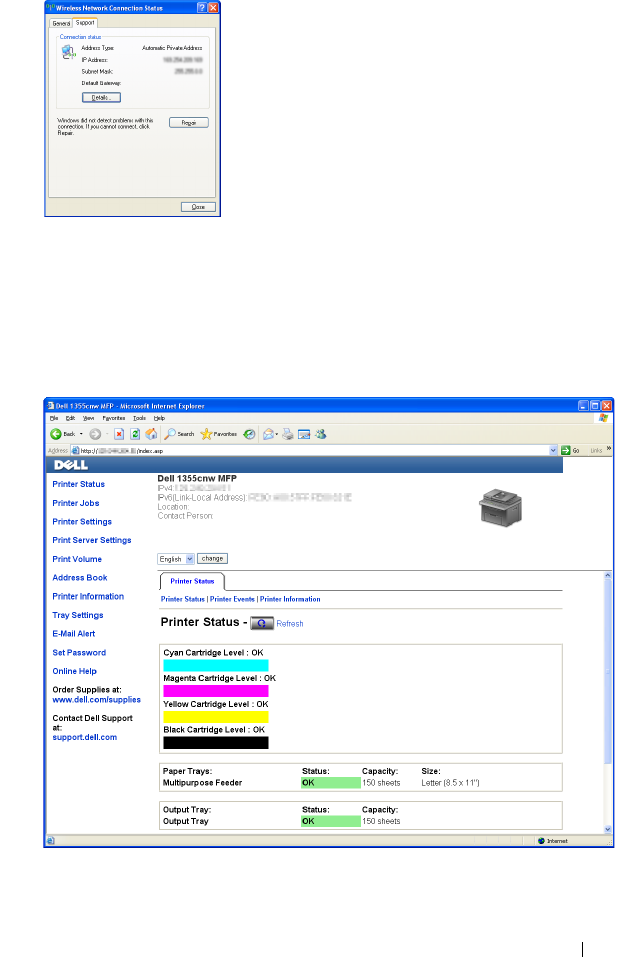

106 Installing Printer Drivers on Computers Running Windows
5
Change the wireless setting of the printer on
Dell Printer Configuration
Web Tool
.
6
Reboot the printer.
7
Restore the wireless settings on your computer.
NOTE: If the operating system on your computer provides a wireless
configuration software, use it to change the wireless settings. Or you can
change the wireless settings using the tool provided with the operating
system. See the instructions below.
For Windows XP and Windows Server 2003:
a
Select
Network Connections
from Control Panel.
b
Right-click
Wireless Network Connection
and select
Properties
.
c
Select
Wireless Network
tab.
d
Ensure that the check box for
Use Windows to configure my wireless
network settings
is checked.
e
Click
Advanced
.
f
You can either set the printer to the ad-hoc mode or the infrastructure
mode.
For Adhoc mode:
Select
Computer to Computer (ad hoc) networks only
and close the
dialog box.
For Infrastructure mode:
Select
Access point (Infrastructure) networks only
and close the
dialog box.
g
Click
Add
to display
Wireless network properties
.
h
Enter the setting that you will send to the printer and click
OK
.
i
Click
Move up
to move the setting to the top of the list.
j
Click
OK
to close the
Property
dialog box.
For Windows Vista:
a
Open
Control Panel
.
b
Select
Network and Internet
.

Installing Printer Drivers on Computers Running Windows 107
c
Select
Network and Sharing Center
.
d
Select
Connect to a network
.
e
Select the network, and then click
Connect
.
f
Select
Connect Anyway
in the warning dialog box indicating you are
entering an unsecured area.
g
Click
Close
in the dialog box after confirming the connection is a
success.
For Windows Server 2008:
a
Open
Control Panel
.
b
Select
Network and Sharing Center
.
c
Select
Connect to a network
.
d
Select the network, and then click
Connect
.
e
Select
Connect Anyway
in the warning dialog box indicating you are
entering an unsecured area.
f
Click
Close
in the dialog box after confirming the connection is a
success.
For Windows Server 2008 R2 and Windows 7:
a
Open
Control Panel
.
b
Select
Network and Internet
.
c
Select
Network and Sharing Center
.
d
Select
Connect to a network
.
e
Select the network, and then click
Connect
.
f
Enter the Security key and click
OK
, if necessary.
Setting Up for Shared Printing
You can share your new printer on the network using the
Drivers and Utilities
CD that shipped with your printer, or using Windows Point and Print or peer-
to-peer method. However, if you use either of the Microsoft® methods you
will not get features such as the status monitor and other printer utilities,
which will get installed with the
Drivers and Utilities
CD.

108 Installing Printer Drivers on Computers Running Windows
If you want to use the printer on a network, share the printer and install its
drivers on all the computers on the network.
NOTE: You need to purchase a Ethernet cable separately for shared printing.
For Windows® XP, Windows XP 64-bit Edition, Windows Server® 2003, Windows
Server 2003 x64 Edition
1
Click
Start
Printers and Faxes
.
2
Right-click this printer icon and select
Properties
.
3
From the
Sharing
tab, check the
Share this printer
check box, and then
type a name in the
Share name
text box.
4
Click
Additional Drivers
and select the operating systems of all network
clients using this printer.
5
Click
OK
.
If the files are not present in your computer, then you will be prompted to
insert the server operating system CD.
For Windows Vista®, Windows Vista 64-bit Edition
1
Click
Start
Control Panel
Hardware and Sound
Printers
.
2
Right-click the printer icon and select
Sharing
.
3
Click
Change sharing options
button.
4
The "
Windows needs your permission to continue
" appears.
5
Click
Continue
button.
6
Select the
Share this printer
check box, and then type a name in the
Share
name
text box.
7
Select
Additional Drivers
and select the operating systems of all network
clients using this printer.
8
Click
OK
.
For Windows Server 2008, Windows Server 2008 64-bit Edition
1
Click
Start
Control Panel
Printers
.
2
Right-click the printer icon and select
Sharing
.
3
Click
Change Sharing Options
button if exists.

Installing Printer Drivers on Computers Running Windows 109
4
Select the
Share this printer
check box, and then type a name in the
Share
name
text box.
5
Click
Additional Drivers
and select the operating systems of all network
clients using this printer.
6
Click
OK
.
For Windows 7, Windows 7 64-bit Edition, Windows Server 2008 R2
1
Click
Start
Devices and Printers
.
2
Right-click the printer icon and select
Printer properties
.
3
On the
Sharing
tab, click
Change Sharing Options
button if exists, and
then click
Yes
.
4
Select the
Share this printer
check box, and then type a name in the
Share
name
text box.
5
Click
Additional Drivers
and select the operating systems of all network
clients using this printer.
6
Click
OK
.
7
Click
Apply
, and then click
OK
.
To check that the printer is shared:
• Ensure that the printer object in the
Printers, Printers and Faxes, or
Devices and Printers
folder is shared. The share icon is shown under the
printer icon.
•Browse
Network or My Network Places
. Find the host name of the server
and look for the shared name you assigned to the printer.
Now that the printer is shared, you can install the printer on network clients
using the Point and Print method or the peer-to-peer method.
Point and Print
Point and Print is a Microsoft Windows technology that allows you to connect
to a remote printer. This feature automatically downloads and installs the
printer driver.
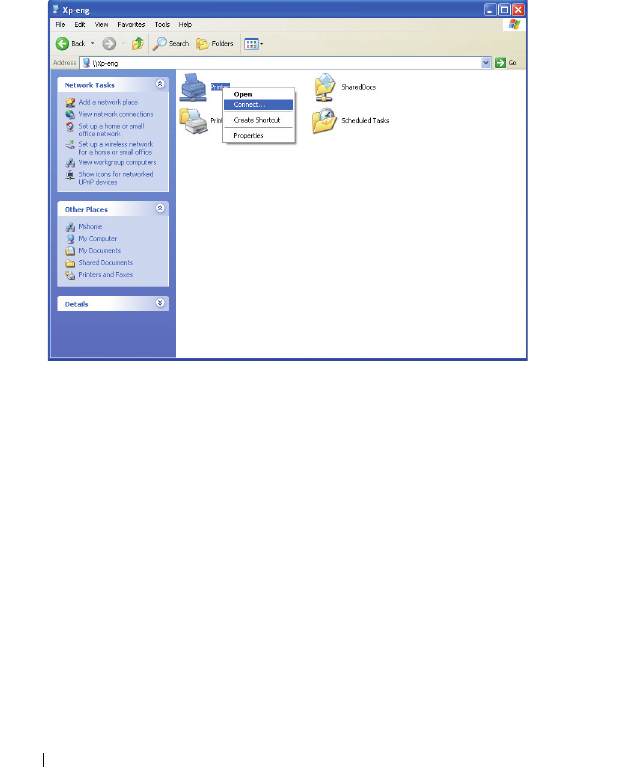
110 Installing Printer Drivers on Computers Running Windows
For Windows XP, Windows XP 64-bit Edition, Windows Server 2003, Windows
Server 2003 x64 Edition
1
On the Windows desktop of the client computer, double-click
My
Network Places
.
2
Locate the host name of the server computer, and then double-click the
host name.
3
Right-click the shared printer name, and then click
Connect
.
Wait for the driver information to be copied from the server computer to
the client computer, and for a new printer object to be added to the
Printers and Faxes
folder. The time taken to copy varies based on the
network traffic.
Close
My Network Places
.
4
Print a test page to verify installation.
a
Click
start
(
Start
for Windows Server 2003 / Windows Server 2003 x64
Edition)
Settings
(for Windows XP / Windows XP 64-bit Edition)
Printers and Faxes
.
b
Select the printer you have installed.
c
Click
File
Properties
.
d
On the
General
tab, click
Print Test Page
.

Installing Printer Drivers on Computers Running Windows 111
When a test page is printed successfully, installation is complete.
For Windows Vista, Windows Vista 64-bit Edition
1
Click
Start
Network
.
2
Locate and double-click the host name of the server computer.
3
Right-click the shared printer name, and then click
Connect
.
4
Click
Install driver
.
5
Click
Continue
in
User Account Control
dialog box.
Wait until the driver is copied from the server to the client computer. A
new printer object is added to the
Printers
folder. The duration of this
procedure may vary based on the network traffic.
6
Print a test page to verify installation.
a
Click
Start
Control Panel
Hardware and Sound
.
b
Select
Printers
.
c
Right-click the printer you just created and select
Properties
.
d
On the
General
tab, click
Print Test Page
.
When a test page is printed successfully, installation is complete.
For Windows Server 2008, Windows Server 2008 64-bit Edition
1
Click
Start
Network
.
2
Locate the host name of the server computer, and then double-click the
host name.
3
Right-click the shared printer name, and then click
Connect
.
4
Click
Install driver
.
5
Wait until the driver is copied from the server to the client computer. A
new printer object will be added to the
Printers
folder. The time taken for
these activities varies based on network traffic.
6
Print a test page to verify installation.
a
Click
Start
Control Panel
.
b
Select
Printers
.
c
Right-click the printer you just created and select
Properties
.

112 Installing Printer Drivers on Computers Running Windows
d
On the
General
tab, click
Print Test Page
.
When a test page is printed successfully, installation is complete.
For Windows 7, Windows 7 64-bit Edition, Windows Server 2008 R2
1
Click
Start
Network (Start
Network
for Windows Server 2008 R2
)
.
2
Locate the host name of the server computer, and then double-click the
host name.
3
Right-click the shared printer name, and then click
Connect
.
4
Click
Install driver
.
5
Wait until the driver is copied from the server to the client computer. A
new printer object will be added to the
Printers
folder. The time taken for
these activities varies based on network traffic.
6
Print a test page to verify installation.
a
Click
Start
Devices and Printers
.
b
Right-click the printer you just created and select
Printer properties
.
c
On the
General
tab, click
Print Test Page
.
When a test page is printed successfully, installation is complete.
Peer-to-Peer
If you use the peer-to-peer method, the printer driver is installed on each
client computer. The client computers can modify the drivers and handle the
print jobs.
For Windows XP, Windows XP 64-bit Edition, Windows Server 2003, Windows
Server 2003 x64 Edition
1
Click
start
(
Start
for Windows Server 2003 / Windows Server 2003 x64
Edition)
Settings
(for Windows XP / Windows XP 64-bit Edition)
Printers and Faxes
.
2
Click
Add a Printer
to launch the
Add Printer
wizard.
3
Click
Next
.
4
Select
A network printer, or a printer attached to another computer
, and
then click
Next
. If the printer is not listed, type in the path of the printer
in the text box.
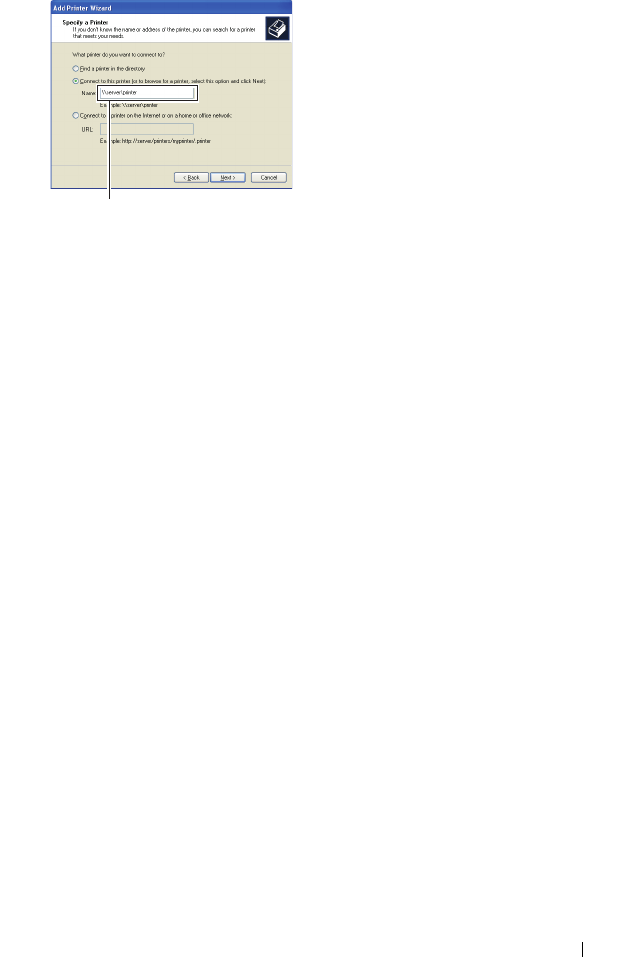
Installing Printer Drivers on Computers Running Windows 113
The server host name is the name of the server computer that identifies it
to the network. The shared printer name is the name assigned during the
server installation process.
5
Click
Browse for a printer
, and then click
Next
.
If this is a new printer, you may be prompted to install a printer driver. If
no system driver is available, specify the location where the driver is
available.
6
Select
Yes
if you want this printer to be set as the default printer, and then
click
Next
.
If you want to verify installation, click
Yes
to print a test page.
7
Click
Finish
.
When a test page prints successfully, installation is complete.
For Windows Vista, Windows Vista 64-bit Edition
1
Click
Start
Control Panel
Hardware and Sound
Printers
.
2
Click
Add a Printer
to launch the
Add Printer wizard
.
3
Select
Add a network, wireless or Bluetooth printer
, and then click
Next
.
If the printer is listed, select the printer and click
Next
, or select
The
printer that I want isn't listed
and type in the path of the printer in the
Select a shared printer by name
text box and click
Next
.
For example:\\<server host name>\<shared printer name>
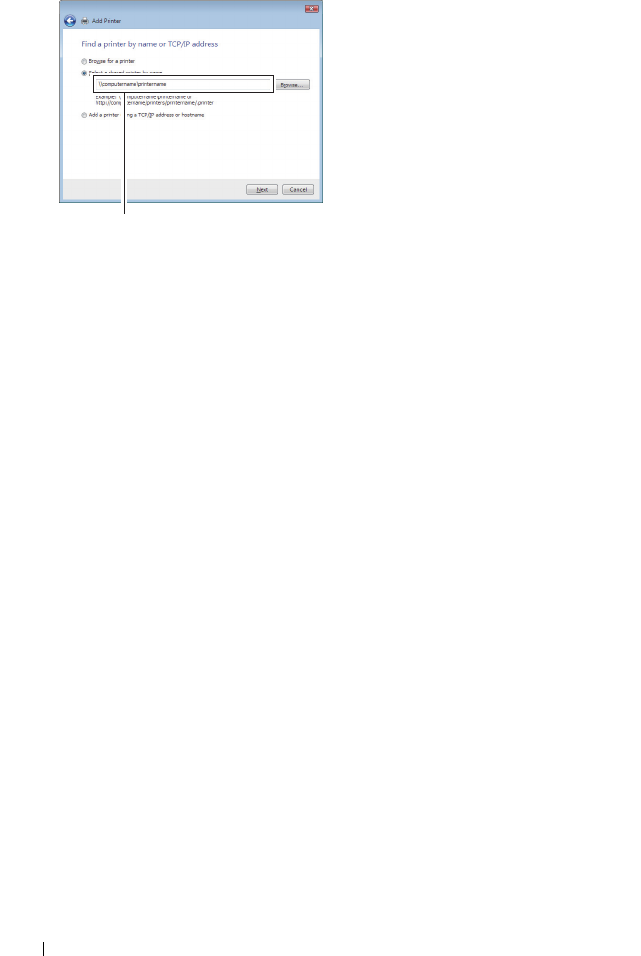
114 Installing Printer Drivers on Computers Running Windows
The server host name is the name of the server computer that identifies it
on the network. The shared printer name is the name assigned during the
server installation process.
4
If this is a new printer, you may be prompted to install a printer driver. If
no system driver is available, specify the location where the driver is
available.
5
Select
Yes
if you want this printer to be set as the default printer, and then
click
Next
.
6
If you want to verify installation, click
Print a test page
.
7
Click
Finish
.
When a test page is printed successfully, installation is complete.
For Windows Server 2008, Windows Server 2008 64-bit Edition
1
Click
Start
Control Panel
Printers
.
2
Click
Add a Printer
to launch the
Add Printer
wizard.
3
Select
Add a network, wireless or Bluetooth printer
, and then click
Next
.
If the printer is listed, select the printer and click
Next
, or select
The
printer that I want isn't listed
and type in the path of the printer in the
Select a shared printer by name
text box and click
Next
.
For example:
\\<server host name>\<shared printer
name>
For example:\\<server host name>\<shared printer name>

Installing Printer Drivers on Computers Running Windows 115
The server host name is the name of the server computer that identifies it
on the network. The shared printer name is the name assigned during the
server installation process.
4
If this is a new printer, you may be prompted to install a printer driver. If
no system driver is available, specify the location where the driver is
available.
5
Select
Yes
if you want this printer to be set as the default printer, and then
click
Next
.
6
If you want to verify installation, click
Print a test page
.
7
Click
Finish
.
When a test page is printed successfully, installation is complete.
For Windows 7, Windows 7 64-bit Edition, Windows Server 2008 R2
1
Click
Start
Devices and Printers
.
2
Click
Add a Printer
to launch the
Add Printer
wizard.
3
Select
Add a network, wireless or Bluetooth printer
. If the printer is listed,
select the printer and click
Next
, or select
The printer that I want isn't
listed
. Click
Select a shared printer by name
and type in the path of the
printer in the text box, and then click
Next
.
For example:
\\<server host name>\<shared printer
name>
The server host name is the name of the server computer that identifies it
to the network. The shared printer name is the name assigned during the
server installation process.
4
If this is a new printer, you may be prompted to install a printer driver. If
no system driver is available, you need to specify the path to the available
drivers.
5
Confirm the printer name, and then click
Next
.
6
Select
Yes
if you want this printer to be set as the default printer, and then
click
Next
.
7
If you want to verify installation, click
Print a test page
.
8
Click
Finish
.
When a test page is printed successfully, installation is complete.

116 Installing Printer Drivers on Computers Running Windows

Installing Printer Drivers on Computers Running Macintosh 117
10
Installing Printer Drivers on
Computers Running Macintosh
Installing the Drivers and Software
1
Run the
Drivers and Utilities
CD on the Macintosh computer.
2
Double-click the
Dell 1355cnw Installer
icon, and then click
Continue
.
3
Click
Continue
on the
Introduction
screen.
4
Confirm the installation location, and then click
Continue
.
5
Click
Install
to perform the standard installation.
6
Type the administrator's name and password, and then click
OK
.
7
Click
Install
to proceed with the installation.
8
Click
Close
to complete installation.
Adding a Printer on Mac OS X 10.5 or Later Version(s)
When Using a USB connection
1
Turn on the printer.
2
Connect the USB cable between the printer and Macintosh computer.
3
Open the
System Preferences
, and click
Print & Fax
.
4
Click the Plus (+) sign, and click
Default
.
5
Select the printer connected via USB from the
Printer Name
list.
Name
and
Print Using
are automatically entered.
6
Click
Add
.
When Using Bonjour
1
Turn on the printer.
2
Ensure that your Macintosh computer is connected to the network.

118 Installing Printer Drivers on Computers Running Macintosh
If you use wired connection, connect the Ethernet cable between the
printer and the network.
If you use wireless connection, ensure that wireless connection is
configured properly on your Macintosh computer and printer.
3
Open the
System Preferences
, and click
Print & Fax
.
4
Click the Plus (+) sign, and click
Default
.
5
Select the printer connected via Bonjour from the
Printer Name
list.
Name
and
Print Using
are automatically entered.
6
Click
Add
.
When Using IP Printing
1
Turn on the printer.
2
Ensure that your Macintosh computer is connected to the network.
If you use wired connection, connect the Ethernet cable between the
printer and the network.
If you use wireless connection, ensure that wireless connection is
configured properly on your Macintosh computer and printer.
3
Open the
System Preferences
, and click
Print & Fax
.
4
Click the Plus (+) sign, and click
IP
.
5
Select
Line Printer Daemon - LPD
for
Protocol
.
6
Type the IP address for the printer in the
Address
area.
7
Select the model of your printer for
Print Using
.
NOTE: When the printing is set up using IP printing, the queue name is
displayed as blank. You do not need to specify it.
8
Click
Add
.
Adding a Printer on Mac OS X 10.4.11
When Using a USB Connection
1
Turn on the printer.
2
Connect the USB cable between the printer and Macintosh computer.

Installing Printer Drivers on Computers Running Macintosh 119
3
Start
Printer Setup Utility
.
NOTE: You can find Printer Setup Utility in the Utilities folder in Applications.
4
Click
Add
.
5
Click
Default Browser
in the
Printer Browser
dialog box.
6
Select the printer connected via USB from the Printer list.
Name
and
Print Using
are automatically entered.
7
Click
Add
.
When Using Bonjour
1
Turn on the printer.
2
Ensure that your Macintosh computer is connected to the network.
If you use wired connection, connect the Ethernet cable between the
printer and the network.
If you use wireless connection, ensure that wireless connection is
configured properly on your Macintosh computer and printer.
3
Start the
Printer Setup Utility
.
NOTE: You can find Printer Setup Utility in the Utilities folder in Applications.
4
Click
Add
.
5
Click
Default Browser
in the
Printer Browser
dialog box.
6
Select the printer connected via Bonjour from the
Printer Name
list.
Name
and
Print Using
are automatically entered.
7
Click
Add
.
When Using IP Printing
1
Turn on the printer.
2
Ensure that your Macintosh computer is connected to the network.
If you use wired connection, connect the Ethernet cable between the
printer and the network.
If you use wireless connection, ensure that wireless connection is
configured properly on your Macintosh computer and printer.

120 Installing Printer Drivers on Computers Running Macintosh
3
Start
Printer Setup Utility
.
NOTE: You can find Printer Setup Utility in the Utilities folder in Applications.
4
Click
Add
.
5
Click
IP Printer
in the
Printer Browser
dialog box.
6
Select
Line Printer Daemon - LPD
for
Protocol
.
7
Type the IP address for the printer in the
Address
area.
8
Select
the model of your printer
for
Print Using
.
NOTE: When the printing is set up using IP printing, the queue name is
displayed as blank. You do not need to specify it.
9
Click
Add
.

121
Using Your Printer

122
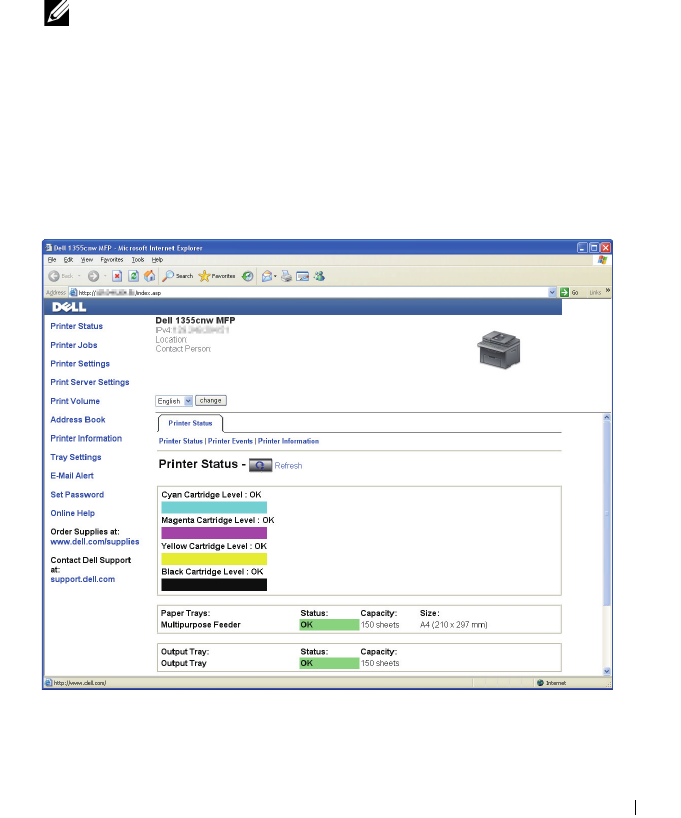
Dell Printer Configuration Web Tool 123
11
Dell Printer Configuration Web Tool
Overview
NOTE: This web tool is available only when the printer is connected to a network.
One of the features of the Dell™ Printer Configuration Web Tool is the E-
Mail Alert Setup, which sends an e-mail to you or the key operator when the
printer needs supplies or intervention.
To fill up the printer inventory report, enter the asset tag of all the required
printers using the Printer Information feature in the Dell Printer
Configuration Web Tool. Enter the IP address of each printer on the network
to display the asset tag number.
The Dell Printer Configuration Web Tool feature also allows you to change
the printer settings and keep track of printing trends.
124 Dell Printer Configuration Web Tool
To launch the Dell Printer Configuration Web Tool, enter the IP address of your
printer in your web browser.
If you do not know the IP address of your printer, print the system settings
page, or display the TCP/IP Settings page, which lists the IP address.
The Operator Panel
1
Press the (
Menu)
button.
2
Press the button until
System
is highlighted, and then press the
button.
3
Press the button until
Report/List
is highlighted, and then press
the button.
4
Ensure that
System Settings
is highlighted, and then press the
button.
The system settings page is printed.
5
Confirm the IP address next to
IP Address
under
Network
on the system
settings page.
If the IP address is
0.0.0.0
, wait for a few minutes to resolve the IP
address automatically, and then print the system settings page again.
If the IP address is not resolved automatically, see "Assigning an IP Address
(for IPv4 Mode)" on page 53.
The Tool Box
NOTE: When the printer is connected to the USB port, TCP/IP Settings cannot be
displayed.
NOTE:
1
Click
Start
All Programs
Dell Printers
Dell 1355 Multifunction Color
Printer
Tool Box
.
NOTE: When multiple printer drivers are installed on your computer, the
Select Printer window appears. In this case, click the name of this printer
listed in Printer Name, and then click OK.
The
Tool Box
opens.
2
Click the
Printer Settings Report
tab.

Dell Printer Configuration Web Tool 125
3
Select
TCP/IP Settings
from the list at the left side of the page.
The
TCP/IP Settings
page is displayed.
If the IP address shows 0.0.0.0 (the factory default) or 169.254.xx.xx,
an IP address has not been assigned. To assign an IP address for your printer,
see "Assigning an IP Address (for IPv4 Mode)" on page 53.
Using the Dell Printer Configuration Web Tool
Use the Dell Printer Configuration Web Tool for:
Printer Status
Use the Printer Status menu to get feedback on the printer status. When a
toner cartridge is running low, click the order supplies link on the first screen
to order an additional toner cartridge.
Printer Jobs
Use the Printer Jobs menu to contain information on the Job List page and
Completed Jobs page.
These pages show the details of the status regarding each protocol or job.
Printer Settings
Use the Printer Settings menu to change printer settings and view the settings
in the operator panel remotely.
Print Server Settings
Using the Print Server Settings menu to change the type of printer interface
and necessary conditions for communications.
Print Volume
Use the Print Volume option to check the number of pages printed for each
paper size.
Address Book
Use the Address Book menu to view or edit the e-mail address, phone number,
server address, and fax number entries in the Address Book, or to register new
entries.

126 Dell Printer Configuration Web Tool
Printer Information
Use the Printer Information menu to display the information of your printer.
Tray Settings
Use the Tray Settings menu to get information about the paper size and type
of paper loaded in the Multipurpose Feeder (MPF).
E-Mail Alert
Use the E-Mail Alert menu to receive an e-mail when the printer needs
supplies or intervention. Enter your name or the key operator name in the e-
mail list box to be notified. Set E-mail Alert also when using the Scan to E-
mail feature.
Set Password
Use the Set Password menu to lock the Dell Printer Configuration Web Tool
with a password so that other users do not inadvertently change the printer
settings you selected.
NOTE: You must log in as an administrator to use this feature.
Online Help
Click Online Help to visit the Dell Support web site.
Order Supplies at:
www.dell.com/supplies
Contact Dell Support at:
support.dell.com
Setting Up the Dell Printer Configuration Web
Tool
Ensure that you activate JavaScript in your browser before using the Dell
Printer Configuration Web Tool.
It is recommended that you configure the environment settings of your web
browser before using the Dell Printer Configuration Web Tool.

Dell Printer Configuration Web Tool 127
NOTE: The Dell Printer Configuration Web Tool pages may be unreadable if the
language differs from that of your web browser.
Setting Up From Web Browser
It is recommended that you configure both the environment settings of your
web browser and the operator panel before using the Dell Printer Configuration
Web Tool.
For Internet Explorer® 6.0, Internet Explorer 7.0, Internet Explorer 8.0
Setting Up the Display Language
1
Select
Internet Options
from
Tools
on the menu bar.
2
Select
Languages
in the
General
tab.
3
Specify the display language in order of preference in the
Language
list.
For example:
• Italian (Italy) [it-IT]
• Spanish (Traditional Sort) [es-ES tradnl]
• German (Germany) [de-DE]
• French (France) [fr-FR]
• English (United States) [en-us]
•Danish [da-DK]
• Dutch (Netherlands) [nl-NL]
• Norwegian (Bokmal) [no]
• Swedish [sv-SE]
Setting the IP Address of the printer to Non-Proxy
1
Select
Internet Options
from the
Tools
menu.
2
Click
LAN Settings
under
Local Area Network (LAN) settings
in the
Connections
tab.
3
You can configure the LAN settings in one of the following ways:
•Clear the
Use a proxy server for your LAN
check box under
Proxy server
.
•Click
Advanced
, and then specify the IP address of your printer in the
Do not use proxy server for addresses beginning with
field under
Exceptions
.

128 Dell Printer Configuration Web Tool
After setting the language and proxy, enter
<http://nnn.nnn.nnn.nnn/> (the IP address of your printer) in the
URL entry field of the browser to activate the Dell Printer Configuration Web
Tool.
For Firefox 2.0 or Later
Setting Up the Display Language
1
Select
Options
from the
Tools
menu.
2
Click
Advanced
.
3
When you use Firefox 2.0, click
Choose
in the
General
tab. When you use
Firefox 3.0, click
Choose
in the
Content
tab.
4
Specify the display language in order of preference in the
Languages in
order of preference
list.
For example:
•
English [en]
or
English/United States [en-us]
• Italian [it]
• Spanish [es]
•German [de]
• French [fr]
•Dutch [nl]
• Norwegian [no]
•Swedish [sv]
• Danish [da]
Setting the IP Address of the printer to Non-Proxy
1
Select
Options
from the
Tools
menu.
2
Click
Advanced
tab.
3
Click
Network
on the
Options
dialog box.
4
Click
Connection
Settings
.
5
When you use Firefox 2.0, do one of the following:
• Select the
Direct connection to the Internet
check box.
• Select the
Auto-detect proxy settings for this network
check box.

Dell Printer Configuration Web Tool 129
• Select the
Manual proxy configuration
check box, and then enter the IP
address of your printer in the
No Proxy for
edit box.
• Select the
Automatic proxy configuration URL
check box.
When you use Firefox 3.0, do one of the following:
• Select the
No Proxy
check box, if you do not want to use a proxy.
• Select the
Auto-detect proxy settings for this network
check box.
• Select the
Manual proxy configuration
check box, and then enter a
hostname and a port number if you have a list of one or more proxy
servers. If you have an IP address that does not use a proxy, enter the
IP address of your printer in the
No Proxy for
edit box.
• Select the
Automatic proxy configuration URL
check box.
After setting the language and proxy, enter
<http://nnn.nnn.nnn.nnn/> (the IP address of your printer) in the
URL entry field of the browser to activate the Dell Printer Configuration Web
Tool.
Setting Up From Operator Panel
You can launch the Dell Printer Configuration Web Tool only when EWS is set to
Enable (the factory default) on the operator panel. Check the operator
panel setting if you cannot launch the Dell Printer Configuration Web Tool. For
more information, see "Understanding the Printer Menus" on page 359.
Page Display Format
The layout of the page is divided into three sections.
Top Frame
The top frame is located on the top of all pages. When the Dell Printer
Configuration Web Tool is activated, the current status and specifications of
the printer are displayed in the top frame on every page.
The following items are displayed in the top frame.
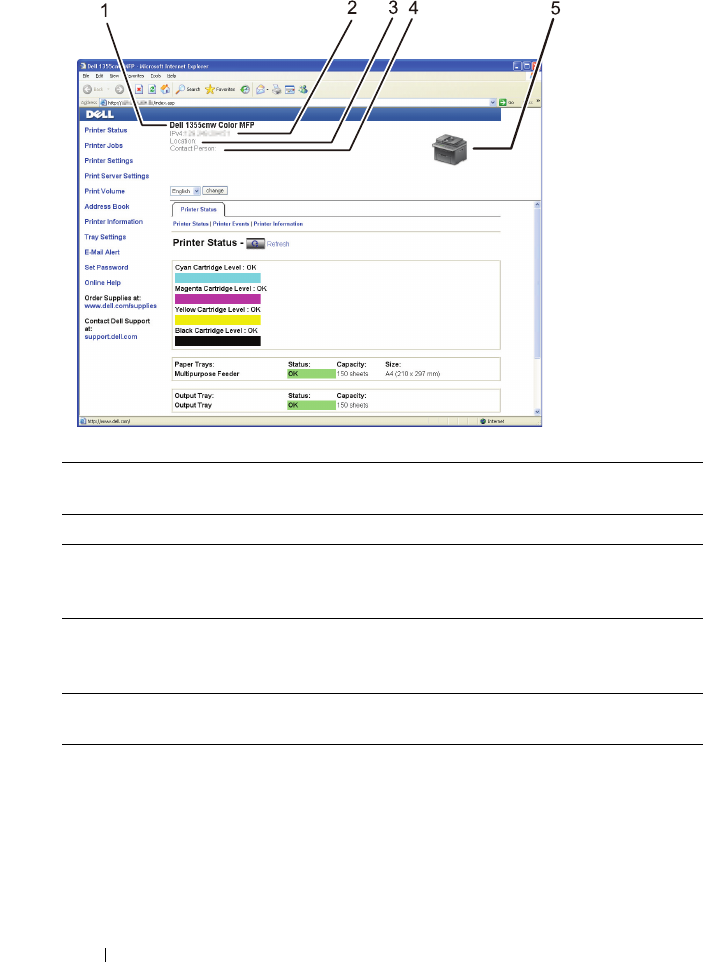
130 Dell Printer Configuration Web Tool
Left Frame
The left frame is located on the left side of all pages. The menu titles
displayed in the left frame are linked to corresponding menus and pages. You
can go to the corresponding page by clicking their characters.
The following menus are displayed in the left frame.
1Dell 1355cnw
MFP
Displays the printer model name.
2IP Address Displays the IP address of your printer.
3Location Displays the location of the printer. The location can be
changed in the Basic Information on the Print Server
Settings page.
4Contact Person Displays the administrator name of the printer. The name
can be changed in the Basic Information on the Print
Server Settings page.
5Printer Bitmap Shows the bitmap image of the printer. The Printer Status
menu appears in the right frame when you click the image.
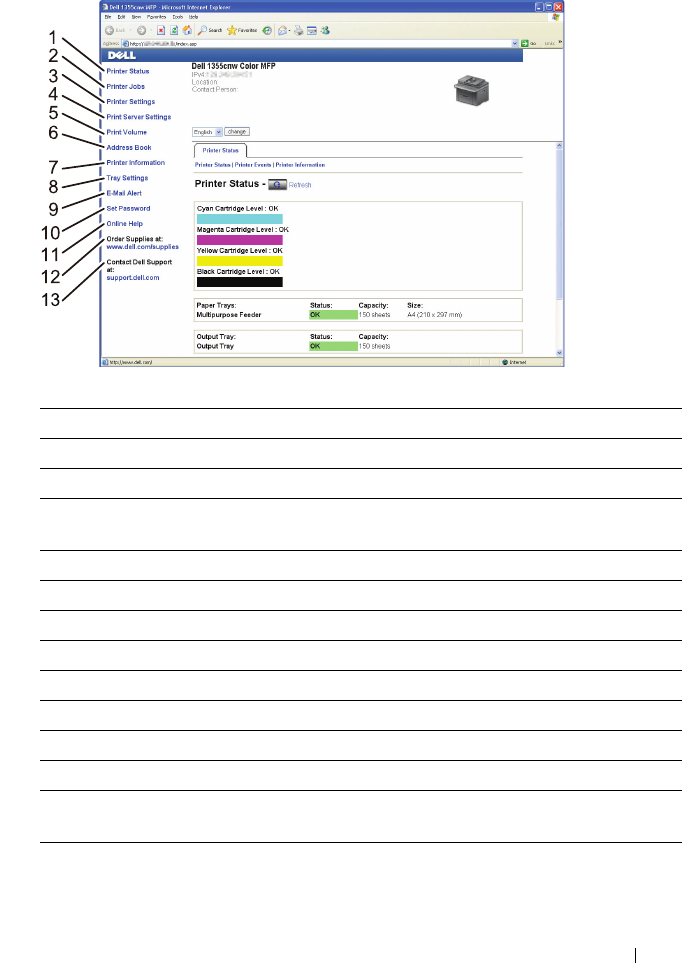
Dell Printer Configuration Web Tool 131
1Printer Status Links to the Printer Status menu.
2Printer Jobs Links to the Printer Jobs menu.
3Printer Settings Links to the Printer Settings Report menu.
4Print Server
Settings
Links to the Print Server Reports menu.
5Print Volume Links to the Print Volume menu
6Address Book Links to the Address Book menu.
7Printer Information Links to the Printer Status menu.
8Tray Settings Links to the Tray Settings menu.
9E-Mail Alert Links to the Print Server Settings menu.
10 Set Password Links to the Other Features menu.
11 Online Help Links to the Dell Support website.
12 Order Supplies at: Links to the Dell web page.
13 Contact Dell
Support at:
Links to the Dell support page web address:
support.dell.com
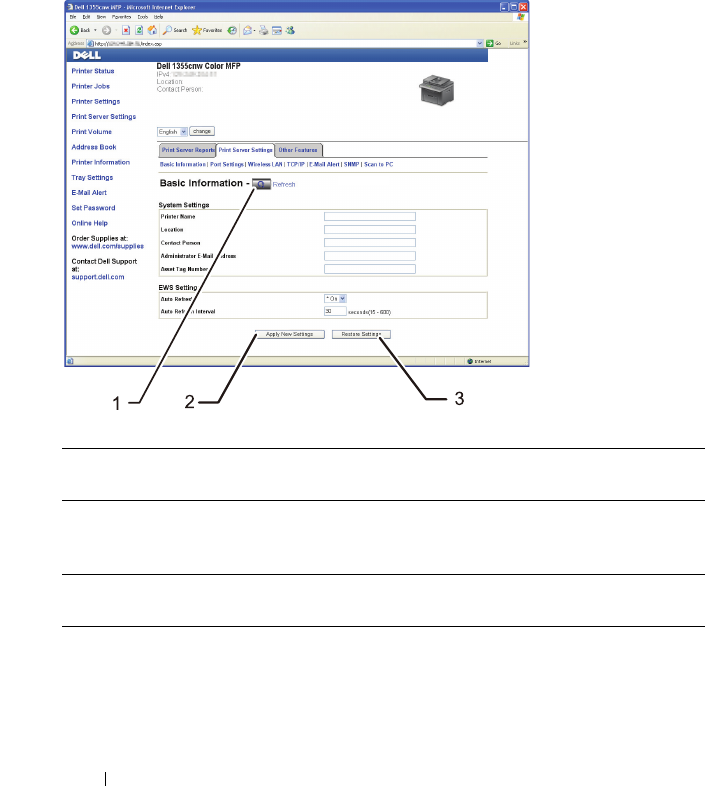
132 Dell Printer Configuration Web Tool
Right Frame
The right frame is located on the right side of all pages. The contents of the
right frame correspond to the menu that you select in the left frame. For
details on the items displayed in the right frame, see "Details of the Menu
Items" on page 133.
Buttons in the Right Frame
1Refresh button Receives the current printer configuration and updates
the latest information in the right frame.
2Apply New Settings
button
Submits new settings made on the Dell Printer
Configuration Web Tool to the printer. The new
settings replace the old settings of the printer.
3Restore Settings
button
Restores the old settings. New settings will not be
submitted to the printer.
Dell Printer Configuration Web Tool 133
Changing the Settings of the Menu Items
Some menus allow you to change the printer settings through the Dell Printer
Configuration Web Tool. When you access these menus, the authentication
window appears on the screen. Enter a user name and password of the
administrator by following the prompts displayed in the dialog box.
The default user name is admin, and the default password is left blank
(NULL). You can change only the password in the Set Password page in the
Other Features menu. For more information, see "Set Password" on page 178.
Details of the Menu Items
"Printer Status" "Printer Status"
"Printer Events"
"Printer Information"
"Printer Jobs" "Job List"
"Completed Jobs"

134 Dell Printer Configuration Web Tool
"Printer
Settings"
"Printer Settings
Report"
"Menu Settings"
"Reports"
"Printer
Settings"
"System Settings"
"Secure Settings"
"Copy Defaults"
"Copy Color Balance"
"Copy Settings"
"Scan Defaults"
"Fax Defaults"
"Fax Settings"
"Printer
Maintenance"
"Paper Density"
"Adjust BTR"
"Adjust Fuser"
"Auto Registration Adjustment"
"Color Registration Adjustment"
"Clean Developer"
"Adjust Altitude"
"Reset Defaults"
"Non-Dell Toner"
"Clock Settings"
"Web Link Customization"

Dell Printer Configuration Web Tool 135
Printer Status
Use the Printer Status menu to check the status of consumables, hardware,
and specifications of the printer.
"Print Server
Settings"
"Print Server
Reports"
"Print Server Setup Page"
"E-Mail Alert Setup Page"
"Print Server
Settings"
"Basic Information"
"Port Settings"
"Wireless LAN (Dell 1355cnw Multifunction
Color Printer only)"*1
"TCP/IP"
"E-Mail Alert"
"SNMP"
"Scan to PC"
"Other
Features"
"Set Password"
"Reset Print Server"
"Print Volume" "Print Volume"
"Address Book" "Fax/E-mail" "Address Book - Top Page"
"Address Book (Confirm/Change, Create)"
"Address Book (Delete)"
"FAX Group - Top Page"
"FAX Group (Confirm/Change, Create)"
"FAX Group (Delete)"
"E-Mail Group - Top Page"
"E-Mail Group (Confirm/Change, Create)"
"E-Mail Group (Delete)"
"E-Mail Default Setup"
"Server Address" "Server Address - Top Page"
"Server Address (Confirm/Change, Create)"
"Server Address (Delete)"
"Tray Settings"
*1 This item is available only when the printer is connected with a wireless network.

136 Dell Printer Configuration Web Tool
The following pages are displayed in the Printer Status menu.
Printer Status
Purpose:
To check the status of the consumables and trays.
Val u e s:
Printer Events
Purpose:
When faults such as
Out of Paper
or
Rear Cover is Open
occur, the details of
all alerts or indications of faults are displayed in the Printer Events page.
Val u e s:
Cyan Cartridge Level
Magenta Cartridge Level
Yellow Cartridge Level
Black Cartridge Level
Displays the percentage of toner remaining in
each toner cartridge. When a cartridge is
empty, a message appears. The text
Call or
Order
is linked to the Dell Printer Supplies
website.
Paper Trays Status OK Indicates that there is some paper in the tray
but the quantity is unknown.
Add Paper Indicates that there is no paper in the tray.
Capacity Displays the maximum capacity of the paper
tray.
Size Displays the size of paper in the tray.
Output Tray Status OK Indicates that the tray is available.
Capacity Displays the maximum capacity of the
output tray.
Cover Status Closed Indicates that the cover is closed.
Open Indicates that the cover is open.
Printer Type Displays the type of the printer. Color Laser
is displayed normally.
Printing Speed Displays the printing speed.

Dell Printer Configuration Web Tool 137
Printer Information
Purpose:
To display the system information of the printer. This page can also be
displayed by clicking Printer Information in the left frame.
Values:
Printer Jobs
The Printer Jobs menu contains information on the Job List and Completed
Jobs pages. These pages show the details of the status regarding each protocol
or the print jobs.
Job List
Purpose:
To confirm the print jobs that are being processed. Click the Refresh button to
update the screen.
Values:
Location Displays the location where the error occurred.
Details Displays the details of the error.
Dell Service Tag Number Displays Dell's service tag number.
Asset Tag Number Displays the asset tag number of the printer.
Printer Serial Number Displays the serial number of the printer.
Memory Capacity Displays the memory capacity.
Processor Speed Displays the processing speed.
Printer Revision
Levels
Firmware
Version
Displays the version of the controller.
Network
Firmware
Version
Displays the NIC version.
ID Displays the job ID.
138 Dell Printer Configuration Web Tool
Completed Jobs
Purpose:
To check the completed jobs. Up to 20 latest jobs are displayed. Click the
Refresh button to update the screen.
Val u e s:
Printer Settings
Use the Printer Settings menu to display the Printer Settings Report and to
configure the printer settings.
The following tabbed pages are displayed at the top of the right frame.
Job Name
Displays the file name of the job being printed
.
Owner Displays the name of the job owner.
Host Name Displays the name of the host computer.
Job Status Displays the status of the job being printed.
Job Type Displays the type of the job.
Host I/F Displays the status of the host interface.
Job Submitted
Time
Displays the date when the print job was submitted.
ID Displays the job ID.
Job Name Displays the file name of the job.
Owner Displays the name of the job owner.
Host Name Displays the name of the host computer.
Output Result Displays the status of the job.
Job Type Displays the type of the job.
Impression
Number
Displays the total number of pages used by the print job.
No. of Sheets Displays the total number of sheets used by the print job.
Host I/F Displays the status of the host interface.
Job Submitted
Time
Displays the date when the job was submitted.
Dell Printer Configuration Web Tool 139
Printer Settings Report
The Printer Settings Report tab contains the Menu Settings and Reports pages.
Menu Settings
Purpose:
To display the current settings of your printer.
Values:
System SettingsPower Saver
Timer - Sleep
Displays the time taken by the printer before it
enters the power saver timer - sleep after it
finishes a job.
Power Saver
Timer - Deep
Sleep
Displays the time taken by the printer before it
enters the power saver timer - deep sleep after it
goes into the power saver timer mode 1.
Auto Reset Displays the time taken by the printer before it
automatically resets the settings for Copy, Scan, or
Fax on the operator panel to the defaults when no
additional settings are made.
Control Panel
Tone
Displays the volume of the tone that is emitted
when the operator panel input is correct. Off
indicates that the tone is disabled.
Panel Alert
Tone
Displays the volume of the tone that is emitted
when the operator panel input is incorrect. Off
indicates that the tone is disabled.
Job Tone Displays the volume of the tone that is emitted
when a job is complete. Off indicates that the
tone is disabled.
Alert Tone Displays the volume of the tone that is emitted
when a problem occurs. Off indicates that the
tone is disabled.
Out of Paper
Tone
Displays the volume of the tone that is emitted
when the printer runs out of paper. Off indicates
that the tone is disabled.
Auto Clear
Alert Tone
Displays the volume of the tone that is emitted 5
seconds before the printer performs auto clear. Off
indicates that the tone is disabled.
140 Dell Printer Configuration Web Tool
All Tones Displays the volume of all the alert tones. Off
indicates that all the tones are disabled.
Job Time-Out Displays the amount of time that the printer waits
for data to arrive from the computer.
Panel Language Displays the language used on the operator panel.
Auto Log
Print*1 Displays whether to automatically print a job
history report after every 20 jobs.
mm/inch Displays the measurement unit used after the
numeric value on the operator panel.
Secure Settings Panel Lock Set Displays whether to limit access to Admin
Menu with a password.
Copy Service
Lock Set
Displays whether to enable the Copy service or to
require a password to use the service.
Scan Service
Lock Set
Displays whether to enable the Scan service or to
require a password to use the service.
Fax Service
Lock Set
Displays whether to enable the Fax service or to
require a password to use the service.
Print from USB Displays whether to enable the USB-Print service
or to require a password to use the service.
Secure Receive
Set
Displays whether to require a password to print
incoming faxes.
Copy Defaults Color Displays whether to make copies in color or in
black and white.
Reduce/Enlarge Displays the default copy reduction/enlargement
ratio.
Original Type Displays the default document type.
Document Size Displays the default document size.
Lighter/Darker Displays the default copy density level.
Sharpness Displays the default sharpness level.
Auto Exposure Displays whether to suppress the background of
the original to enhance text on the copy.

Dell Printer Configuration Web Tool 141
Copy Color
Balance
Color Balance
(Red)
Displays the color balance level of red.
Color Balance
(Green)
Displays the color balance level of green.
Color Balance
(Blue)
Displays the color balance level of blue.
Gray Balance Displays the gray balance level.
Copy Settings Multiple-Up Displays whether to enable the Multiple-Up
feature.
Collated Displays whether to sort the copy job.
Margin
Top/B ottom
Displays the value of the top and bottom margins.
Margin
Left/Right
Displays the value of the left and right margins.
Margin Middle Displays the value of the middle margin.
142 Dell Printer Configuration Web Tool
Scan Defaults Scan To
Network
Displays whether to store scanned image on a
network server or on a computer.
File Format Displays the file format to save the scanned image.
Color Displays whether to scan in color or in black and
white.
Resolution Displays the default scan resolution.
Document Size Displays the default document size.
Lighter/Darker Displays the default scan density level.
Sharpness Displays the default sharpness level.
Auto Exposure Displays whether to suppress the background of
the original to enhance text on the scanned image.
Margin
Top/Bottom
Displays the value of the top and bottom margins.
Margin
Left/Right
Displays the value of the left and right margins.
Margin Middle Displays the value of the middle margin.
Image
Compression
Displays the image compression level.
Max E-Mail
Size
Displays the maximum size of e-mail that can be
sent.
Fax Defaults Resolution Displays the resolution level to be used for fax
transmission.
Lighter/Darker Displays the default density level to be used for
fax transmission.
Delayed Start Displays the fax transmission start time.
Fax Settings Receive Mode Displays the fax receiving mode.
Auto Receive
Fax
Displays the interval at which the printer goes into
the fax receive mode after receiving an incoming
call.
Auto Receive
Tel/Fax
Displays the interval at which the printer goes into
the fax receive mode after the external telephone
receives an incoming call.
Auto Receive
Answer/Fax
Displays the interval at which the printer goes into
the fax receive mode after the external answering
machine receives an incoming call.
Dell Printer Configuration Web Tool 143
Line Monitor Displays the volume of the line monitor, which
audibly monitors a transmission through the
internal speaker until a connection is made.
Ring Tone
Volume
Displays the volume of the ring tone, which
indicates that an incoming call is a telephone call
through the internal speaker when Receive Mode
is set to Telephone/Fax.
Line Type Displays the line type.
Tone/ Pul se Displays the dialing type.
Resend Delay Displays the interval between transmission
attempts.
Redial
Attempts
Displays the number of redial attempts.
Redial Delay Displays the interval between redial attempts.
Junk Fax Setup Displays whether to reject faxes sent from
unwanted numbers.
Remote Receive Displays whether to receive faxes by pressing a
remote receive code on the external telephone.
Remote Receive
Tone
Displays the remote receive code to start Remote
Receive.
Fax Header Displays whether to print the information of
sender on the header of faxes.
Fax Header
Name
Displays the name of sender to be printed on the
header of faxes.
Fax Number Displays the fax number to be printed on the
header of faxes.
Fax Cover Page Displays whether to attach a cover page to faxes.
DRPD Pattern Displays the Distinctive Ring Pattern Detection
(DRPD) setting.
Sent Fax
Forward
Displays whether to forward incoming faxes to a
specified destination.
Fax Forward
Number
Displays the fax number of the destination to
which incoming faxes are to be forwarded.
Prefix Dial Displays whether to set a prefix dial number.

144 Dell Printer Configuration Web Tool
Prefix Dial
Number
Displays a prefix dial number. This number dials
before any auto dial number is started.
Discard Size Displays whether to discard text or images at the
bottom of a fax page when the entire page does
not fit onto the output paper.
ECM Displays whether to enable the Error Correction
Mode (ECM).
Modem Speed Displays the fax modem speed.
Fax Activity Displays whether to automatically print a fax
activity report after every 50 incoming and
outgoing fax communications.
Fax Transmit Displays whether to print a transmission report
after every fax transmission or only when an error
occurs.
Fax Broadcast Displays whether to print a transmission report
after every fax transmission to multiple
destinations or only when an error occurs.
Fax Protocol Displays whether to print a protocol monitor
report after every fax transmission or only when an
error occurs.
Country Displays the country where the printer is used.
Paper Density Plain Displays the paper density of plain paper.
Label Displays the paper density of labels.
Dell Printer Configuration Web Tool 145
Adjust BTR Plain Displays the voltage setting of the transfer roller
for plain paper.
Plain Thick Displays the voltage setting of the transfer roller
for thick plain paper.
Covers Displays the voltage setting of the transfer roller
for cover paper.
Label Displays the voltage setting of the transfer roller
for labels.
Coated Displays the voltage setting of the transfer roller
for coated paper.
Recycled Displays the voltage setting of the transfer roller
for recycled paper.
Envelope Displays the voltage setting of the transfer roller
for envelopes.
Adjust Fuser Plain Displays the temperature setting of the fuser for
plain paper.
Plain Thick Displays the temperature setting of the fuser for
thick plain paper.
Covers Displays the temperature setting of the fuser for
cover paper.
Label Displays the temperature setting of the fuser for
labels.
Coated Displays the temperature setting of the fuser for
coated paper.
Recycled Displays the temperature setting of the fuser for
recycled paper.
Envelope Displays the temperature setting of the fuser for
envelopes.
Auto Registration Adjustment Displays whether to automatically adjust color
registration.
Adjust Altitude Displays the altitude of the location where the
printer is installed.
Non-Dell Toner Displays whether to use toner cartridge of another
manufacturer.
146 Dell Printer Configuration Web Tool
Reports
Purpose:
To print the settings and history information of your printer.
Val u e s:
Clock Settings Date Format Displays the default date format.
Time Format Displays the default time format; 24H or 12 Hour
Clock.
Time Zone Displays the default time zone.
Set Date Displays the date setting.
Set Time Displays the time setting.
Web Link
Customization
Select Reorder
URL
Displays a link used for ordering consumables,
which can be accessed from Order Supplies at: in
the left frame.
Regular Displays the regular web address
(http://accessories.us.dell.com/sna) that can be
linked to Order Supplies at: in the left frame.
Premier Displays the premier web address
(http://premier.dell.com) that can be linked to
Order Supplies at: in the left frame.
Tray Settings Tray 1 Paper
Ty p e
Displays the paper type setting of the MPF.
Tray 1 Paper
Size
Displays the paper size setting of the MPF.
Tray 1 Custom
Size - Y
Displays the length of custom size paper loaded in
the MPF.
Tray 1 Custom
Size - X
Displays the width of custom size paper loaded in
the MPF.
Display Popup Displays whether to use a popup menu that
prompts the user to set Paper Type and Paper Size
when the paper is loaded in the MPF.
*1 If more than 20 jobs are in the queue, the job history may be cleared.
System Settings Click the Start button to print the system settings page.

Dell Printer Configuration Web Tool 147
Printer Settings
The Printer Settings tab contains the System Settings, Secure Settings, Copy
Defaults, Copy Color Balance, Copy Settings, Scan Defaults, Fax Defaults, and Fax
Settings pages.
System Settings
Purpose:
To configure the basic printer settings.
Values:
Panel Settings Click the Start button to print the panel settings page.
Job History Click the Start button to print the Job History report.
Error History Click the Start button to print the Error History report.
Address Book Click the Start button to print the Address Book report.
Demo Page Click the Start button to print the Demo Page.
Power Saver
Timer - Sleep*1 Specifies the time taken by the printer before it enters the power
saver timer mode 1 after it finishes a job.
Power Saver
Timer - Deep
Sleep
Specifies the time taken by the printer before it enters the power
saver timer mode 2 after it goes into the power saver timer mode 1.
Auto Reset Specifies the time taken by the printer before it automatically
resets the settings for Copy, Scan, or Fax on the operator panel to
the defaults when no additional settings are made.
Control Panel
Tone
Sets the volume of the tone that is emitted when the operator
panel input is correct, or disables the tone.
Panel Alert Tone Sets the volume of the tone that is emitted when the operator
panel input is incorrect, or disables the tone.
Job Tone Sets the volume of the tone that is emitted when a job is complete,
or disables the tone.
Alert Tone Sets the volume of the tone that is emitted when a problem occurs,
or disables the tone.
Out of Paper
Tone
Sets the volume of the tone that is emitted when the printer runs
out of paper, or disables the tone.
148 Dell Printer Configuration Web Tool
Secure Settings
Panel Lock
Purpose:
To restrict access to Admin Menu with a password, and to set or change the
password.
NOTE: This menu sets a password to lock the operator panel. When you change
the password for the Dell Printer Configuration Web Tool, click Set Password on the
left frame and set the password.
Val u e s:
Auto Clear Alert
Tone
Sets the volume of the tone that is emitted 5 seconds before the
printer performs auto clear, or disables the tone.
All Tones Sets the volume of all the alert tones, or disables all the tones.
Job Time-Out Specifies the amount of time that the printer waits for data to
arrive from the computer. The print job is cancelled if it times out.
Panel Language Used to set the language on the operator panel.
Auto Log Print*2 Specifies if a job history needs to be printed after every 20 jobs.
mm/inch*3 Specifies the measurement unit displayed after the numeric value
on the operator panel.
*1 Enter 5 in Power Saver Timer - Sleep to put the printer in the power saver timer mode
five minutes after it finishes a job. This uses less energy, but requires more warm-up
time for the printer. Enter 5 if your printer shares an electrical circuit with room
lighting and you notice lights flickering.
Select a high value if your printer is in constant use. In most circumstances, this
keeps the printer ready to operate with minimum warm-up time. Select a value
between 5 and 30 minutes for the power saver timer mode if you want a balance
between energy consumption and a shorter warm-up period.
The printer automatically returns to the standby mode from the power saver timer
mode when it receives data from the computer. You can also return the printer to the
standby mode by pressing any button on the operator panel.
*2 If more than 20 jobs are in the queue, the job history may be cleared.
*3 The default for mm/inch varies depending on country-specific factory default.
Panel Lock Set Restricts access to Admin Menu with a password.
New Password Sets a password that is required to access Admin Menu.
Re-enter
Password
Enter the new password again to confirm.
Dell Printer Configuration Web Tool 149
Function Enabled
Purpose:
To enable the services to be password-enabled, and allow the user to change
it.
NOTE: This menu sets a password to limit the Copy, Scan, Fax, and USB-Print
services. When you change the password for the Dell Printer Configuration Web
Tool, click Set Password you change on the left frame and set the password.
Values:
Secure Receive
Purpose:
Enables you to set a password to secure the incoming faxes. When the Secure
Receive feature is enabled, the printer stores incoming faxes and prints them
when the correct password is entered on the operator panel.
NOTE: This menu sets a password to lock printing incoming fax. When changing
the password for the Dell Printer Configuration Web Tool, click Set Password on the
left frame and set the password.
Values:
Copy Service
Lock Set
Enables you to set a password for the Copy Service feature.
Scan Service
Lock Set
Enables you to set a password for the Scan Service feature.
Fax Service
Lock Set
Enables you to set a password for the Fax Service feature.
Print from USB Enables you to set a password for the USB-Print Service feature.
New Password Sets a password required to use the Copy, Scan, Fax, and USB-Print
services.
Re-enter
Password
Enter the new password again to confirm.
Secure Receive
Set
Enables you to set a password to secure the incoming faxes.
New Password Sets a password that is required to print incoming faxes.
150 Dell Printer Configuration Web Tool
Copy Defaults
Purpose:
To create your own default Copy settings.
Val u e s:
Copy Color Balance
Purpose:
To specify the default color balance level.
Val u e s:
Copy Settings
Purpose:
To configure the Copy settings.
Re-enter
Password
Enter the new password again to confirm.
Color Selects mode for color or black and white copying.
Reduce/Enlarge Sets the default copy reduction/enlargement ratio.
Custom
Reduce/Enlarge
Sets a custom reduction/enlargement ratio within the range of 25%
to 400% when Reduce/Enlarge is set to Custom.
Original Type Sets the copy image quality.
Document Size Sets the default document size.
Lighter/Darker Sets the default copy density level.
Sharpness Sets the default sharpness level.
Auto Exposure Sets whether to suppress the background of the original to enhance
text on the copy.
Color Balance (Red) Sets the color balance level of red.
Color Balance (Green) Sets the color balance level of green.
Color Balance (Blue) Sets the color balance level of blue.
Gray Balance Sets the gray balance level.
Dell Printer Configuration Web Tool 151
NOTE: Values marked by an asterisk (*) are the factory default menu settings.
Values:
Scan Defaults
Purpose:
To create your own default Scan settings.
NOTE: Values marked by an asterisk (*) are the factory default menu settings.
Values:
Multiple-Up Off* Does not perform multiple-up printing.
Auto Automatically reduces the original pages to fit
onto one sheet of paper.
ID Copy Prints the original pages onto one sheet of paper in
the original size.
Manual Prints the original pages onto one sheet of paper in
the size specified in Reduce/Enlarge.
Collated Sets whether to sort the copy job.
Margin
Top/Bottom
Sets the value of the top and bottom margins within the range of 0
mm to 50 mm/0.0 to 2.0 inch.
Margin
Left/Right
Sets the value of the left and right margins within the range of 0
mm to 50 mm/0.0 to 2.0 inch.
Margin Middle Sets the value of the middle margin within the range of 0 mm to 50
mm/0.0 to 2.0 inch.
Scan To
Network
Computer
(Network)*
Stores the scanned image on a computer using the
Server Message Block (SMB) protocol.
Server (FTP) Stores the scanned image on a server using the
FTP protocol.
File Format Sets the file format to save the scanned image.
Color Sets whether to scan in color or in black and white.
Resolution Sets the default scan resolution.
Document Size Sets the default document size.
Lighter/Darker Sets the default scan density level.
152 Dell Printer Configuration Web Tool
Fax Defaults
Purpose:
To create your own default Fax settings.
NOTE: Values marked by an asterisk (*) are the factory default menu settings.
Val u e s:
Sharpness Sets the default sharpness level.
Auto Exposure Sets whether to suppress the background of the original to enhance
text on the scanned image.
Margin
Top/B ottom
Sets the value of the top and bottom margins within the range of 0
mm to 50 mm/0.0 to 2.0 inch.
Margin
Left/Right
Sets the value of the left and right margins within the range of 0
mm to 50 mm/0.0 to 2.0 inch.
Margin Middle Sets the value of the middle margin within the range of 0 mm to 50
mm/0.0 to 2.0 inch.
Image
Compression
Sets the image compression level.
Max E-Mail
Size
Sets the maximum size of e-mail that can be sent, within the range
of 50 K bytes to 16384 K bytes. The default is 2048 K bytes.
Resolution Standard* Suitable for documents with normal sized
characters.
Fine Suitable for documents containing small
characters or thin lines or documents printed
using a dot-matrix printer.
Super Fine Suitable for documents containing extremely fine
detail. The super fine mode is enabled only if the
remote machine also supports the super fine
resolution.
Ultra Fine Suitable for documents containing photographic
images.
Lighter/Darker Sets the default density level to be used for fax transmission.
Delayed Start Sets the fax transmission start time when sending a fax at a
specified time.
Dell Printer Configuration Web Tool 153
Fax Settings
Purpose:
To configure the basic fax settings.
NOTE: Values marked by an asterisk (*) are the factory default menu settings.
Values:
Receive Mode Telephone Automatic fax reception is turned off. You can
receive a fax by picking up the handset of the
external telephone, pressing the remote receive code,
and then pressing .
Fax* Automatically receives faxes.
Telephone/
Fax
When the printer receives an incoming fax, the
external telephone rings for the time specified in
Auto Receive Fax/Tel, and then the printer
automatically receives a fax. If an incoming call is not
a fax, the printer beeps from the internal speaker
indicating that the call is a telephone call.
Answer
Machine/
Fax
The printer can share a telephone line with an
answering machine. In this mode, the printer will
monitor the fax signal and pick up the line if there
are fax tones. If the phone communication is using
serial transmission in your country (such as Germany,
Sweden, Denmark, Austria, Belgium, Italy, France
and Switzerland), this mode is not supported.
DRPD Before using the Distinctive Ring Pattern Detection
(DRPD) option, a distinctive ring service must be
installed on your telephone line by the telephone
company. After the telephone company has provided
a separate number for faxing with a distinctive ring
pattern, configure the fax setup to monitor for that
specific ring pattern.
Auto Receive Fax Sets the interval at which the printer goes into the fax receive
mode after receiving an incoming call.
Auto Receive
Tel/Fax
Sets the interval at which the printer goes into the fax receive
mode after the external telephone receives an incoming call.
154 Dell Printer Configuration Web Tool
Auto Receive
Answer/Fax
Sets the interval at which the printer goes into the fax receive
mode after the external answering machine receives an incoming
call.
Line Monitor Sets the volume of the line monitor, which audibly monitors a
transmission through the internal speaker until a connection is
made.
Ring Tone
Volume
Sets the volume of the ring tone, which indicates that an
incoming call is a telephone call through the internal speaker
when Receive Mode is set to Telephone/Fax.
Line Type Sets the line type.
Tone/Pulse Sets the dialing type.
Resend Delay Specifies the interval between transmission attempts.
Redial Attempts Specifies the number of redial attempts to make when the
destination fax number is busy. If you enter 0, the printer will not
redial.
Redial Delay Specifies the interval between redial attempts.
Junk Fax Setup Sets whether to reject faxes sent from unwanted numbers by
accepting faxes only from the fax numbers registered in the Phone
Book.
Remote Receive Sets whether to receive a fax by pressing a remote receive code on
the external telephone.
Remote Receive
Tone
Specifies the remote receive code in two digits to start Remote
Receive.
Fax Header Sets whether to print the information of sender on the header of
faxes.
Fax Header
Name
Sets the name of sender to be printed on the header of faxes. Up
to 30 alphanumeric characters can be entered.
Fax Number Sets the fax number of the printer to be printed on the header of
faxes.
Fax Cover Page Sets whether to attach a cover page to faxes.
DRPD Pattern Sets the DRPD setting from Pattern 1 to Pattern 7. DRPD is a
service provided by some telephone companies.
Sent Fax Forward Sets whether to forward incoming faxes to a specified destination.
Fax Forward
Number
Specifies the fax number of the destination to which incoming
faxes will be forwarded.
Dell Printer Configuration Web Tool 155
Printer Maintenance
The Printer Maintenance tab contains the Paper Density, Adjust BTR, Adjust
Fuser, Auto Registration Adjustment, Color Registration Adjustment, Clean
Developer, Adjust Altitude, Reset Defaults, Non-Dell Toner, Clock Settings, and
Web Link Customization pages.
Paper Density
Purpose:
To specify the paper density.
Values:
Prefix Dial Specifies whether to set a prefix dial number.
Prefix Dial
Number
Sets a prefix dial number of up to five digits. This number dials
before any auto dial number is started. It is useful for accessing the
Private Automatic Branch Exchange (PABX).
Discard Size Sets whether to discard text or images at the bottom of a fax page
when the entire page does not fit onto the output paper. Selecting
Auto Reduction automatically reduces the fax page to fit it onto
the output paper, and does not discard any images or text at the
bottom of the page.
ECM Sets whether to enable the ECM. To use the ECM, the remote
machines must also support the ECM.
Modem Speed Specifies the fax modem speed when a fax transmission or
reception error occurs.
Fax Activity Sets whether to automatically print a fax activity report after every
50 incoming and outgoing fax communications.
Fax Transmit Sets whether to print a transmission report after every fax
transmission or only when an error occurs.
Fax Broadcast Sets whether to print a transmission report after every fax
transmission to multiple destinations or only when an error
occurs.
Fax Protocol Sets whether to print a protocol monitor report after every fax
transmission or only when an error occurs.
Country Sets the country where the printer is used.
156 Dell Printer Configuration Web Tool
Adjust BTR
Purpose:
To specify the optimum voltage settings for printing for the transfer roller
(BTR). To lower the voltage, set negative values. To increase, set positive
values.
The default settings may not give the best output on all paper types. If you
see mottles on the print output, try to increase the voltage. If you see white
spots on the print output, try to decrease the voltage.
NOTE: The print quality changes depending on the values you select for this item.
Val u e s:
Adjust Fuser
Purpose:
To specify the optimum temperature settings for printing for the fuser. To
lower the temperature, set negative values. To increase, set positive values.
Plain Sets the paper density of plain paper.
Label Sets the paper density of labels.
Plain Sets the reference voltage setting for the transfer roller for plain
paper within the range of -3 to 3.
Plain Thick Sets the reference voltage setting for the transfer roller for thick
plain paper within the range of -3 to 3.
Covers Sets the reference voltage setting for the transfer roller for cover
paper within the range of -3 to 3.
Label Sets the reference voltage setting for the transfer roller for labels
within the range of -3 to 3.
Coated Sets the reference voltage setting for the transfer roller for coated
paper within the range of -3 to 3.
Recycled Sets the reference voltage setting for the transfer roller for recycled
paper within the range of -3 to 3.
Envelope Sets the reference voltage setting for the transfer roller for
envelopes within the range of -3 to 3.
Dell Printer Configuration Web Tool 157
The default settings may not give the best output on all paper types. When
the printed paper has curled, try to lower the temperature. When the toner
does not fuse on the paper properly, try to increase the temperature.
NOTE: The print quality changes depending on the values you select for this item.
Values:
Auto Registration Adjustment
Purpose:
To specify whether to automatically adjust color registration.
Color Registration Adjustment
Purpose:
To automatically adjust color registration.
Color registration adjustment need to be made during the initial setup of the
printer or when the printer is moved to a different location.
NOTE: The Color Registration Adjustment feature can be configured when Auto
Registration Adjustment is set to Off.
Clean Developer
Purpose:
Plain Sets the temperature settings for the fuser for plain paper within
the range of -3 to 3.
Plain Thick Sets the temperature settings for the fuser for thick plain paper
within the range of -3 to 3.
Covers Sets the temperature settings for the fuser for cover paper within
the range of -3 to 3.
Label Sets the temperature settings for the fuser for labels within the
range of -3 to 3.
Coated Sets the temperature settings for the fuser for coated paper within
the range of -3 to 3.
Recycled Sets the temperature settings for the fuser for recycled paper within
the range of -3 to 3.
Envelope Sets the temperature settings for the fuser for envelopes within the
range of -3 to 3.
158 Dell Printer Configuration Web Tool
To rotate the developer motor and stir the toner in the toner cartridge, to use
up a toner cartridge when you need to replace it before the end of its life, or to
stir the toner in a new toner cartridge.
Val u e s:
Adjust Altitude
Purpose:
To specify the altitude of the location where the printer is installed.
The discharge phenomenon for charging the photo conductor varies with
barometric pressure. Adjustments are performed by specifying the altitude of
the location where the printer is being used.
NOTE: An incorrect altitude adjustment setting leads to poor printing quality,
incorrect indication of remaining toner.
Val u e s:
Reset Defaults
Purpose:
Clean
Developer
Click Start to stir the toner in the toner cartridge.
Yellow Toner
Refresh
Click Start to clean the toner in the yellow toner cartridge.
Magenta Toner
Refresh
Click Start to clean the toner in the magenta toner cartridge.
Cyan Toner
Refresh
Click Start to clean the toner in the cyan toner cartridge.
Black Toner
Refresh
Click Start to clean the toner in the black toner cartridge.
0 meter* Specifies the altitude of the location where the printer is installed.
1000 meters
2000 meters
3000 meters
Dell Printer Configuration Web Tool 159
To initialize NVM (non-volatile memory) memory for system parameters,
Address Book data for fax, or Address Book data for e-mail. After executing
this function and rebooting the printer, the menu parameters or data are reset
to their default values.
Values:
Non-Dell Toner
Purpose:
To use toner cartridge of another manufacturer.
NOTE: Using non-Dell-brand toner cartridges may make some printer features
unusable, reduce print quality and decrease the reliability of your printer. Dell
recommends only new Dell-brand toner cartridges for your printer. Dell does not
provide warranty coverage for problems caused by using accessories, parts, or
components not supplied by Dell.
NOTE: Before you use toner cartridge of another manufacturer, be sure to restart
the printer.
Clock Settings
Purpose:
To set the date and time, and regional time zone of the printer.
Values:
Reset Defaults
and Restart
Printer
Click Start to initialize the system parameters.
Reset Defaults
of User (Fax)
Section
Click Start to initialize the fax number entries in the Address Book.
Reset Defaults
of User (Scan)
Section
Click Start to initialize the e-mail and server address entries in the
Address Book.
160 Dell Printer Configuration Web Tool
Web Link Customization
Purpose:
To specify a link used for ordering consumables, which can be accessed from
Order Supplies at: in the left frame.
Val u e s:
Print Server Settings
Use the Print Server Settings menu to set the type of printer interface and
necessary conditions for communications.
The following tabbed pages are displayed in the top of the right frame.
Date Format*1 yy/mm/dd Specifies the date format.
mm/dd/yy
dd/mm/yy
Time Format 12 Hour
Clock*Specifies the time format.
24H
Time Zone Specifies the time zone.
Set Date Specifies the current date.
Set Time Specifies the current time.
*1 The default for Date Format varies depending on country-specific factory default.
Select Reorder
URL
Select the Regular or Premier web address to be linked to Order
Supplies at: in the left frame.
Regular Displays the regular web address
(http://accessories.us.dell.com/sna) that can be linked to Order
Supplies at: in the left frame.
Premier Displays the premier web address (http://premier.dell.com) that
can be linked to Order Supplies at: in the left frame.
Dell Printer Configuration Web Tool 161
Print Server Reports
The Print Server Reports tab contains the Print Server Setup Page and E-Mail
Alert Setup Page.
Print Server Setup Page
Purpose:
To verify the current settings of TCP/IP (Transmission Control
Protocol/Internet Protocol) and printing ports. On this page, you can only
verify the settings of items. If you want to change the settings, go to the pages
in the Print Server Settings tab.
Values:
Ethernet*1 Ethernet
Settings
Displays the current settings of Ethernet
transmission rate and the duplex settings.
Current
Ethernet
Settings
Displays the current Ethernet settings.
MAC Address Displays the Media Access Control (MAC) address
of the printer.
Wireless*2 SSID Displays the name that identifies the network.
Network Type Displays the network type from either the Ad-Hoc or
Infrastructure mode.
MAC Address Displays the MAC address of the wireless printer
setting.
Link Channel Displays the channel number of the connection.
Link Quality Displays the quality of the connection.
Encryption Displays the security method.
Transmit Key Displays the transmit key.

162 Dell Printer Configuration Web Tool
TCP/IP
Settings
Host Name Displays the host name.
IP Mode Displays the IP mode.
IPv4 IP Address
Mode
Displays the IP address mode.
IP Address Displays the IP address.
Subnet Mask Displays the subnet mask.
Gateway
Address
Displays the gateway address.
IPv6 Use Manual
Address
Displays the manual IP address.
Manual
Address
Displays the IP address.
Stateless
Address 1-3
Displays the stateless addresses.
Link Local
Address
Displays the link local address.
Manual
Gateway
Address
Displays the gateway address.
Auto Configure
Gateway
Address
Displays the gateway address.
DNS IPv4 Get DNS
Server Address
from DHCP
Displays if the printer receives the
DNS server address automatically
from the DHCP server.
Manual DNS
Server Address
Displays the DNS server address.
IPv6 Get DNS
Server Address
from DHCPv6-
lite
Displays if the printer receives the
DNS server address automatically
from the DHCPv6-lite server.
Manual DNS
Server Address
Displays the DNS server address.
Dell Printer Configuration Web Tool 163
LPD Port Settings Displays the port status.
Connection
Time-Out
Displays the connection time-out period.
Bonjour
(mDNS)
Port Settings Displays the port status.
Port9100 Port Settings Displays the port status.
Port Number Displays the port number.
Connection
Time-Out
Displays the connection time-out period.
HTTP Port Settings Displays the port status.
Port Number Displays the port number.
Simultaneous
Connections
Displays the number of connections received
simultaneously by the client.
Connection
Time-Out
Displays the connection time-out period.
WSD Port Settings Displays the WSD (Web Services on Devices) port
status.
Port Number Displays the WSD port number.
Receive
Time-Out
Displays the receive time-out period.
Notification
Time-Out
Displays the notification time-out period.
Maximum
Number of
TTL
Displays the maximum number of TTLs.
Maximum
Number of
Notification
Displays the maximum number of notifications.
SNMP Port Settings Displays the port status.
LLTD Port Settings Displays the port status.
FTP Client Connection
Time-Out
Displays the connection time-out period.
FTP Passive Displays whether to enable the FTP Passive mode.
164 Dell Printer Configuration Web Tool
E-Mail Alert Setup Page
Purpose:
To verify the current settings of SMTP/POP (Simple Mail Transfer
Protocol/Post Office Protocol) used for the e-mail feature and E-Mail Alerts
feature. In this page, you can only verify the settings of items. If you want to
change the settings, go to the pages in the Print Server Settings tab.
Val u e s:
SMB Client Connection
Time-Out
Displays the connection time-out period.
*1 This item is displayed only when the printer is connected with a wired network.
*2 This item is displayed only when the printer is connected with a wireless network.
E-Mail Server
Settings
Port Status Displays the port status.
Primary SMTP
Gateway
Displays the primary SMTP gateway.
SMTP Port
Number
Displays the SMTP port number.
E-Mail Send
Authentication
Displays the authentication method for outgoing
e-mail.
POP3 Server
Address
Displays the POP3 server address.
POP3 Port
Number
Displays the POP3 port number.
Reply Address Displays the reply e-mail address sent with each
E-mail Alert.
SMTP Server
Connection
Displays the status of the SMTP server
connection.
Dell Printer Configuration Web Tool 165
Print Server Settings
The Print Server Settings tab contains the Basic Information, Port Status, Wireless
LAN, TCP/IP
, E-Mail Alert, SNMP, and Scan To PC pages.
Basic Information
Purpose:
To configure the basic information of the printer.
Values:
E-Mail Alert
Settings
E-Mail List 1 Displays the acceptable e-mail addresses for the
E-Mail Alert feature specified in E-Mail List 1.
Select Alerts for
List 1
Supplies Alerts Displays the e-mail alert
receive status for consumables.
Paper Handling
Alerts
Displays the e-mail alert
receive status for paper
handling.
Service Call Displays the e-mail alert
receive status for service calls.
E-Mail List 2 Displays the acceptable e-mail addresses for the
E-Mail Alert feature specified in E-Mail List 2.
Select Alerts for
List 2
Supplies Alerts Displays the e-mail alert
receive status for consumables.
Paper Handling
Alerts
Displays the e-mail alert
receive status for paper
handling.
Service Call Displays the e-mail alert
receive status for service calls.
166 Dell Printer Configuration Web Tool
NOTE: The Auto Refresh feature is effective for the contents of the top frame,
Printer Status page, Job List page, and Completed Jobs page.
Port Settings
Purpose:
To enable or disable printing connectors and management protocol features.
Val u e s:
System Settings Printer Name Specifies the name of the printer using up to 31
alphanumeric characters.
Location Specifies the location of the printer using up to 63
alphanumeric characters.
Contact Person Specifies the contact name, number, and other
information of the administrator and service
center using up to 63 alphanumeric characters.
Administrator
E-Mail Address
Specifies the contact address of the administrator
and service center using up to 63 alphanumeric
characters.
Asset Tag
Number
Enter the asset tag number for the printer.
EWS Settings Auto Refresh Automatically refreshes the contents of the status
display pages.
Auto Refresh
Interval
Sets the time interval for refreshing the contents
of the status display pages automatically from 15
to 600 seconds.
Dell Printer Configuration Web Tool 167
NOTE: The settings in the Port Settings page will be valid only when the printer is
rebooted. When you change or configure the settings, click the Apply New Settings
button to apply the new settings.
Wireless LAN (Dell 1355cnw Multifunction Color Printer only)
Purpose:
To configure wireless network settings.
Ethernet*1 Ethernet
Settings
Auto*Detects Ethernet transmission
rate and the duplex settings
automatically.
10Base-T Half-
Duplex
Selects 10Base-T Half-Duplex
as the default value.
10Base-T Full-
Duplex
Selects 10Base-T Full-Duplex
as the default value.
100Base-TX
Half-Duplex
Selects 100Base-TX Half-
Duplex as the default value.
100Base-TX Full-
Duplex
Selects 100Base-TX Full-
Duplex as the default value.
Current Ethernet Settings Displays the current settings of
Ethernet.
MAC Address Displays the MAC address of
the printer.
Port Status LPD Specifies whether to enable LPD.
Port9100 Specifies whether to enable Port9100.
E-Mail Alert Specifies whether to enable the E-Mail Alert
feature.
SNMP Specifies whether to enable the SNMP.
WSD Specifies whether to enable the WSD port.
Bonjour
(mDNS)
Specifies whether to enable the Bonjour(mDNS)
feature.
Status Messager Specifies whether to enable the Status Messager.
LLTD Specifies whether to enable LLTD.
*1 This item is available only when the printer is connected with a wired network.
168 Dell Printer Configuration Web Tool
To connect the printer with a wireless network, be sure to disconnect the
cable.
NOTE: Once wireless LAN is activated, wired LAN protocol will be disabled.
Val u e s:
Wireless
Settings
SSID Specifies the name that identifies the wireless
network using up to 32 alphanumeric characters.
Network Type Specifies the network type from either Ad-Hoc or
Infrastructure.
MAC Address Displays the MAC address of the wireless network
setting of the printer.
Link Channel Displays the channel number of the wireless
connection of the printer.
Link Quality Displays the quality of the wireless network
connection of the printer.
Dell Printer Configuration Web Tool 169
Security
Settings
Encryption Select the security method from the list.
No Security*Specifies No Security to
configure the wireless setting
without specifying a security
method from WEP, WPA-
PSK AES/WPA2-PSK AES,
and WPA-PSK TKIP.
WEP 64 Bit
ASCII (5 Bytes)
Specifies the WEP 64 Bit
ASCII to use through the
wireless network.
WEP 128 Bit
ASCII (13 Bytes)
Specifies the WEP 128 Bit
ASCII to use through the
wireless network.
WEP 64 Bit Hex
(10 Bytes)
Specifies the WEP 64 Bit Hex
to use through the wireless
network.
WEP 128 Bit Hex
(26 Bytes)
Specifies the WEP 128 Bit
Hex to use through the
wireless network.
WPA-PSK AES*1 Specifies the WPA-PSK AES
to use through the wireless
network.
WPA2-PSK AES*1 Specifies the WPA2-PSK AES
to use through the wireless
network.
WPA-PSK TKIP Specifies the WPA-PSK TKIP
to use through the wireless
network.
WEP Key 1 Enter the WEP key when WEP is selected from
Encryption.
Re-enter WEP Key 1 Enter the WEP key 1 again to confirm.
WEP Key 2 Enter the WEP key when WEP is selected from
Encryption.
Re-enter WEP Key 2 Enter the WEP key 2 again to confirm.
WEP Key 3 Enter the WEP key when WEP is selected from
Encryption.
Re-enter WEP Key 3 Enter the WEP key 3 again to confirm.

170 Dell Printer Configuration Web Tool
NOTE: This item is available only when the printer is connected with a wireless
network.
TCP/IP
Purpose:
To configure the IP address, subnet mask, and gateway address of the printer.
Val u e s:
WEP Key 4 Enter the WEP key when WEP is selected from
Encryption.
Re-enter WEP Key 4 Enter the WEP key 4 again to confirm.
Transmit Key Specifies the transmit key type from the list.
Pass Phrase Specifies the pass phrase.
Re-enter Pass Phrase Enter the pass phrase again to confirm.
*1 This item is available only when the Infrastructure mode is selected for Network
Type.
Dell Printer Configuration Web Tool 171
TCP/IP
Settings
Host Name Specifies the host name.
IP Mode Specifies the IP mode.
IPv4 IP Address Mode Selects the IP address mode.
Manual IP
Address
Manually sets the IP address.
Manual Subnet
Mask
Manually sets the subnet
mask.
Manual Gateway
Address
Manually sets the gateway
address.
IPv6 Use Manual
Address
To set the IP address
manually.
Manual Address Manually sets the IP address.
To specify an IPv6 address,
enter the address followed by
a slash (/) and then "64". For
details, consult your system
administrator.
Stateless Address
1-3
Displays the stateless
addresses.
Link Local
Address
Displays the link local address.
Manual Gateway
Address
Manually sets the gateway
address.
Auto Configure
Gateway Address
Displays the gateway address.

172 Dell Printer Configuration Web Tool
DNS DNS Domain
Name
Specifies the domain name of the domain name
server. Up to 255 alphanumeric characters,
periods, and hyphens can be used. If you need to
specify more than one domain name, separate
them using a comma or semicolon.
IPv4 Get DNS Server
Address from
DHCP
Specifies whether to get the
DNS server address
automatically from the
DHCP server.
Manual DNS
Server Address
Sets the DNS server address.
IPv6 Get DNS Server
Address from
DHCPv6-lite
Specifies whether to get the
DNS server address
automatically from the
DHCPv6-lite server.
Manual DNS
Server Address
Sets the DNS server address.
LPD Connection
Time-Out
Sets the connection time-out period from 1 to
1000 seconds.
Port9100 Port Number Sets the port number from 9000 to 9999.
Connection
Time-Out
Sets the connection time-out period between 1
and 1000 seconds.
HTTP Port Number Sets the port number. This must be 80 or between
8000 and 9999.
Simultaneous
Connections
Displays the maximum number of connections
received simultaneously by the client.
Connection
Time-Out
Sets the connection time-out period from 1 to 255
seconds.

Dell Printer Configuration Web Tool 173
E-Mail Alert
Purpose:
To configure settings for E-Mail Alert. This page can also be displayed by
clicking E-Mail Alert in the left frame.
Values:
WSD Port Number Sets the port number. This must be 80 or between
8000 and 9999.
Receive
Time-Out
Sets the receive time-out period from 1 to 65535
seconds.
Notification
Delivery Time-
Out
Sets the notification time-out period from 1 to 60
seconds.
Maximum
Number of TTL
Sets the maximum number of TTL from 1 to 10.
Maximum
Number of
Notification
Sets the maximum number of notifications from
10 to 20.
174 Dell Printer Configuration Web Tool
E-Mail Server
Settings
Primary SMTP
Gateway
Sets the primary SMTP gateway.
SMTP Port
Number
Specifies the SMTP port number. This must be
25, 587 or between 5000 and 65535.
E-Mail Send
Authentication
Specifies the authentication method for outgoing
e-mail.
SMTP Login
User
Specifies the SMTP login user. Up to 63
alphanumeric characters, periods, hyphens,
underscores, and at symbols (@) can be used. If
specifying more than one address, separate them
using commas.
SMTP Login
Password
Specifies the SMTP account password using up to
31 alphanumeric characters.
Re-enter SMTP
Login Password
Enter the SMTP account password again to
confirm.
POP3 Server
Address
Specifies the POP3 server address in IP address
format of "aaa.bbb.ccc.ddd" or as a DNS host
name using up to 63 characters.
POP3 Port
Number
Specifies the POP3 server port number. This must
be 110 or between 5000 and 65535.
POP User
Name
Specifies the POP3 account user name. Up to 63
alphanumeric characters, periods, hyphens,
underscores, and at symbols (@) can be used. If
specifying more than one address, separate them
using commas.
POP User
Password
Specifies the POP3 account password using up to
31 alphanumeric characters.
Re-enter POP
User Password
Enter the password again to confirm.
Reply Address Designates the reply e-mail address sent with each
E-mail Alert.
SMTP Server
Connection
Displays the status of the SMTP server
connection.

Dell Printer Configuration Web Tool 175
SNMP
Purpose:
To configure the detailed settings of SNMP.
Values:
E-Mail Alert
Settings
E-Mail List 1 Sets acceptable e-mail addresses for the E-Mail
Alert feature using up to 255 alphanumeric
characters.
Select Alerts for
List 1
Supplies Alerts Specifies whether to receive an
e-mail alert for consumables.
Paper Handling
Alerts
Specifies whether to receive an
e-mail alert for paper handling.
Service Call Specifies whether to receive an
e-mail alert for service calls.
E-Mail List 2 Sets acceptable e-mail addresses for the E-Mail
Alert feature using up to 255 alphanumeric
characters.
Select Alerts for
List 2
Supplies Alerts Specifies whether to receive an
e-mail alert for consumables.
Paper Handling
Alerts
Specifies whether to receive an
e-mail alert for paper handling.
Service Call Specifies whether to receive an
e-mail alert for service calls.

176 Dell Printer Configuration Web Tool
Community
Name
Community
Name
(Read only)
Specifies the community name to access (read
only) data using up to 31 alphanumeric
characters.
The original setting will remain valid if nothing is
entered. Characters entered for community name
in the previous settings will not be displayed on
the screen. The default Read Community is
public.
Re-enter
Community
Name (Read only)
Enter the community name to access (read only)
data again to confirm.
Community
Name
(Read/Write)
Specifies the community name to access (read
and write) data using up to 31 alphanumeric
characters.
The original setting will remain valid if nothing is
entered. Characters entered for community name
in the previous settings will not be displayed on
the screen. The default Read/Write Community
is private.
Re-enter
Community
Name
(Read/Write)
Enter the community name to access (read and
write) data again to confirm.
Community
Name (Trap)
Specifies the community name used for trap up
to 31 alphanumeric characters.
The original settings will remain valid if nothing
is entered. Characters entered for community
name in the previous settings will not be
displayed on the screen. The default Trap
Community is " " (NULL).
Re-enter
Community
Name (Trap)
Enter the community name used for trap again to
confirm.

Dell Printer Configuration Web Tool 177
Scan to PC
Purpose:
To specify the client when scanning data.
Values:
Trap
Notification
1-4
Trap Address Type Select the trap address type from the list.
Selecting Off clears the settings in Trap Address,
Port Number, and Notify, and does not notify
trap occurrence. Selecting IPv4 or IPv6 allows
you to enter Trap Address.
Trap Address Specifies the IP address and IP socket in the
following format:
•IPv4
Specifies the IP address and IP socket in the
nnn.nnn.nnn.nnn:mmmmm format. Each
section of "nnn" is a variable value between 0
and 255. Note that values 127 and 224-254 are
not valid for the first three-digits only. IP socket
mmmmm is a variable value between 0 and
65535.
•IPv6
Specifies the IP address and IP socket in the
xxxx:xxxx:xxxx:xxxx:xxxx:xxxx:xxxx:xxxx:mmm
mm format. Each section of "xxxx" is a
hexadecimal variable value between 0 and ffff.
IP socket mmmmm is a variable value between 0
and 65535.
Trap Notification
(IP) Port Number
Enter the SNMP trap destination port number.
Notify Specifies whether to notify trap occurrence.
Authenticate Error Trap Specifies whether to notify Authenticate Error
Tra p.
FTP Client Connection
Time-Out
Sets the connection time-out period from 1 to 60
seconds.
FTP Passive Sets whether to enable the FTP Passive mode.
178 Dell Printer Configuration Web Tool
Other Features
The Other Features tab contains the Set Password and Reset Print Server pages.
Set Password
Purpose:
To set or change the password that is required to access the setup parameters
of the printer from the Dell Printer Configuration Web Tool.
This page can also be displayed by clicking Set Password in the left frame.
Val u e s:
NOTE: If you forgot your password, initialize NVM (non-volatile memory) to restore
the password to the default (NULL). See "Reset Print Server" on page 178.
NOTE: When you change the password to lock the operator panel, set the
password from Panel Lock Set in the Printer Settings.
Reset Print Server
Purpose:
To initialize NVM (non-volatile memory) for the network feature and reboot
the printer. You can also initialize the NVM of the printer from Reset
Defaults in the Printer Settings menu.
Val u e s:
SMB Client Connection
Time-Out
Sets the connection time-out period from 1 to 60
seconds.
Administrator
Password
Sets the password using up to 10 alphanumeric characters. The
password will appear as asterisks (*) in the field when it is entered.
Re-enter
Administrator
Password
Enter the password again to confirm.
Initialize NIC
NVRAM
Memory and
restart printer.
Click the Start button to initialize NVM. Network settings will
revert to the factory default settings and reboot the network
capability.

Dell Printer Configuration Web Tool 179
Print Volume
Use the Print Volume menu to verify the number of printed pages.
Values:
Address Book
The Address Book menu contains the Fax/E-mail and Server Address pages.
Fax/E-mail
The Fax/E-mail page contains the following subpages.
Address Book - Top Page
Purpose:
To view the address book entries registered on the Address book page.
Values:
Restart Printer Click the Start button to reboot the printer.
Printer Page
Count
Displays the total number of pages printed since the printer was
shipped from the factory.
Paper Used Displays the number of pages printed for each paper size.
Address Book Allows you to view, edit, or create address book entries.
Fax Group Allows you to view, edit, or create fax group entries.
E-Mail Group Allows you to view, edit, or create e-mail group entries.
E-Mail Default
Setup
Allows you to view, edit, or set the default e-mail subject and
message.
Address List to: Selecting each button displays a list of entries for the group of user
IDs indicated on the button.
ID:Name Displays a user ID and the name of the user registered under that
user ID. IDs without an entry show (Not in Use) in the Name
column.
180 Dell Printer Configuration Web Tool
Address Book (Confirm/Change, Create)
Purpose:
To view or edit the address book entries on the Address Book page, or create a
new entry. The following items are in the dialog box that appears when you
click the Confirm/Change or Create button on the Address Book top page.
Val u e s:
Address Book (Delete)
Purpose:
Phone Number Displays the phone number of the user.
E-Mail Address Displays the e-mail address of the user.
Delete Deletes the entry for the selected user ID.
Confirm/Chan
ge
Displays a dialog box where you can edit the entry of the selected
user ID.
Create Displays a dialog box where you can create a new entry under the
selected user ID.
ID (Fax Speed
Dial)
Displays the selected user ID.
Name Allows you to view or edit the name of the user registered under the
user ID, or enter a name for the new entry.
Phone Number Allows you to view or edit the phone number of the user, or enter a
phone number for the new entry.
E-mail Address Allows you to view or edit the e-mail address of the user, or enter an
e-mail address for the new entry.
Delete Click this button to delete the entry for the user ID. This button is
available only on the dialog box for editing an existing entry.
Apply New
Settings
Click this button to apply the new settings.
Restore Settings Click this button to restore the previous settings.
Back Click this button to return to the top page.
Dell Printer Configuration Web Tool 181
To delete the address book entries registered on the Address Book page. The
following items are in the dialog box that appears when you click the Delete
button on the Address Book top page.
Values:
FAX Group - Top Page
Purpose:
To view the fax group entries registered on the Fax Group page.
Values:
FAX Group (Confirm/Change, Create)
Purpose:
To view or edit the fax number group entries on the Fax Group page, or create
a new entry. The following items are in the dialog box that appears when you
click the Confirm/Change or Create button on the Fax Group top page.
Values:
ID (Fax Speed
Dial)
Displays the selected user ID.
Name Displays the name of the of the user registered under the selected
user ID.
Phone Number Displays the phone number of the user.
E-mail Address Displays the e-mail address of the user.
Apply New
Settings
Click this button to apply the new settings.
Back Click this button to return to the top page.
GroupID:Name Displays a fax group ID and the assigned group name. IDs without
an entry show (Not in Use) in the Name column.
Delete Deletes the entry for the selected group ID.
Confirm /
Change
Displays a dialog box where you can edit the entry for the selected
group ID.
Create Displays a dialog box where you can create a new entry under the
selected group ID.
182 Dell Printer Configuration Web Tool
FAX Group (Delete)
Purpose:
To delete the fax number group entries registered on the Fax Group page. The
following items are in the dialog box that appears when you click the Delete
button on the Fax Group top page.
Val u e s:
E-Mail Group - Top Page
Purpose:
Fax Group ID Displays the selected group ID.
Name Allows you to view or edit the name assigned for
the group ID, or enter a new group name.
FAX Speed
Dial
Address List to: Selecting each button displays a list of entries for
the group of speed dial codes indicated on the
button.
ID:Name Displays a speed dial code and the names of an
entry registered under the speed dial code. Speed
dial codes without an entry show (Not in Use) in
the Name column.
Phone Number Allows you to view or edit the fax number of an
entry registered under the selected speed dial
code, or enter a fax number for the new entry.
Apply New
Settings
Click this button to apply the new settings.
Restore Settings Click this button to restore the previous settings.
Back Click this button to return to the top page.
ID Displays the selected group ID.
Name Displays the name assigned for the group ID.
Apply New
Settings
Click this button to apply the new settings.
Back Click this button to return to the top page.
Dell Printer Configuration Web Tool 183
To view the e-mail address entries registered on the E-Mail Group page.
Values:
E-Mail Group (Confirm/Change, Create)
Purpose:
To view or edit the e-mail address group entries on the E-Mail Group page, or
create a new entry. The following items are in the dialog box that appears
when you click the Confirm/Change or Create button on the E-Mail Group top
page.
Values:
GroupID:Name Displays a group ID and the assigned group name. IDs without an
entry show (Not in Use) in the Name column.
Delete Deletes the entry for the selected group ID.
Confirm/
Change
Displays a dialog box where you can edit the entry for the selected
group ID.
Create Displays a dialog box where you can create a new entry under the
selected group ID.
E-Mail Group ID Displays the selected group ID.
Name Allows you to view or edit the name assigned for
the group ID, or enter a new group name.
E-Mail Address Address List to: Selecting each button displays a list of entries for
the group of IDs indicated on the button.
ID:Name Displays a user ID and the name of the user
registered under that user ID. IDs without an
entry show (Not in Use) in the Name column.
Address Allows you to view or edit the e-mail address of an
entry registered under the selected user ID, or
enter an e-mail address for the new entry.
Apply New
Settings
Click this button to apply the new settings.
Restore Settings Click this button to restore the previous settings.
Back Click this button to return to the top page.
184 Dell Printer Configuration Web Tool
E-Mail Group (Delete)
Purpose:
To delete the e-mail group entries registered on the E-Mail Group page. The
following items are in the dialog box that appears when you click the Delete
button on the E-mail Group top page.
Val u e s:
E-Mail Default Setup
Purpose:
To set the default e-mail subject and message.
Val u e s:
Server Address
Server Address - Top Page
Purpose:
To view the server address entries registered on the Server Address page.
Val u e s:
ID Displays the selected group ID.
Name Displays the name assigned for the group ID.
Apply New
Settings
Click this button to apply the new settings.
Back Click this button to return to the top page.
Default Subject Allows you to enter the default e-mail subject. Up to 50
alphanumeric characters can be entered.
Body Text Allows you to enter the default e-mail message. Up to 200
alphanumeric characters can be entered.
Apply New
Settings
Click this button to apply the new settings.
Restore Settings Click this button to restore the previous settings.

Dell Printer Configuration Web Tool 185
Server Address (Confirm/Change, Create)
Purpose:
To view or edit the server address entries on the Server Address page, or create
a new entry. The following items are in the dialog box that appears when you
click the Confirm/Change or Create button on the Server Address top page.
Values:
Address List to: Selecting each button displays a list of entries for the group of IDs
indicated on the button.
ID:Name Displays a server ID and the name of a file directory registered
under that server ID. IDs without an entry show (Not in Use) in
the Name column.
Server Address Displays the address of the file directory.
Delete Deletes the entry for the selected server ID.
Confirm/
Change
Displays a dialog box where you can edit the entry for the selected
server ID.
Create Displays a dialog box where you can create a new entry under the
selected server ID.
ID Displays the selected server ID.
Name Allows you to view or change the server name assigned to the server
ID, or enter a new server name.
Server Type FTP Select this to store scanned documents on a server
via the FTP protocol.
SMB Select this to store scanned documents on a
computer via the Server Message Block (SMB)
protocol.
Server Address Allows you to view or edit the server address registered under the
server ID, or enter a new server address.
Share Name Allows you to view or edit the assigned shared name, or enter a new
shared name, when Server Type is set to SMB.
Server Path Allows you to view or edit the assigned server path, or enter a new
path.
186 Dell Printer Configuration Web Tool
Server Address (Delete)
Purpose:
To delete the server address entries registered on the Server Address page. The
following items are in the dialog box that appears when you click the Delete
button on the Server Address top page.
Val u e s:
Tray Settings
Use the Tray Settings menu to set the paper size and type of paper loaded in
the Multipurpose Feeder (MPF).
Val u e s:
Server Port
Number
Allows you to view or edit the assigned server port number, or enter
a new port number. If you leave the text box blank, the default port
number (FTP: 21, SMB: 139) will be used.
Login Name Allows you to view or edit the login name that is required to access
the selected protocol, or enter a new login name.
Login Password Allows you to view or edit the password that is required to access the
selected protocol, or enter a new password.
Re-enter
Password
Enter the password again to confirm.
Apply New
Settings
Click this button to apply the new settings.
Restore Settings Click this button to restore the previous settings.
Back Click this button to return to the top page.
ID Displays the selected server ID.
Name Displays the name assigned for the server ID.
Server Address Displays the server address registered under the server ID.
Apply New
Settings
Click this button to apply the new settings.
Back Click this button to return to the top page.

Dell Printer Configuration Web Tool 187
Tray Paper Type Sets the type of paper loaded in the MPF.
Tray Paper Size Sets the size of paper loaded in the MPF.
Tray 1 Custom
Size - Y
Sets the length of custom size paper loaded in the MPF.
Tray 1 Custom
Size - X
Sets the width of custom size paper loaded in the MPF.
Display Popup Sets whether to display a popup menu that prompts the user to set
Paper Type and Paper Size when the paper is loaded in the MPF.
Apply New
Settings
Click this button to apply the new settings.
Restore Settings Click this button to restore the previous settings.

188 Dell Printer Configuration Web Tool

Print Media Guidelines 189
12
Print Media Guidelines
Print media can be paper, labels, envelopes, and coated paper among others.
Your printer provides high-quality printing on a variety of print media.
Selecting the appropriate print media for your printer helps avoid printing
troubles. This section describes selecting print media, caring for print media,
and loading the print media in Multipurpose Feeder (MPF) or Priority Sheet
Inserter (PSI).
Paper
For the best print quality in color, use 75 g/m2 (20 lb) xerographic, grain long
paper. For the best print quality in black and white, use 90 g/m2 (24 lb)
xerographic, grain long paper. Before buying large quantities of any print
media, it is recommended that you try a sample first.
When loading paper, identify the recommended print side on the paper
package, and load the paper accordingly. See "Loading Print Media in the
Multipurpose Feeder (MPF)" on page 59 and "Loading Print Media in the
Priority Sheet Inserter (PSI)" on page 66 for detailed loading instructions.
Paper Characteristics
The following paper characteristics affect print quality and reliability. It is
recommended that you follow these guidelines when evaluating new paper
stock.
Weight
Both MPF and PSI automatically feed paper whose weights range from 60 to
163 g/m2 (16 to 44 lb bond) grain long. Paper lighter than 60 g/m2 (16 lb) may
not feed properly, and could cause paper jams. For best performance, use 75
g/m2 (20 lb bond) grain long paper.
Curl
Curl is the tendency of print media to curve at its edges. Excessive curl can
cause paper feeding problems. Curl usually occurs after the paper passes
through the printer, where it is exposed to high temperatures. Storing paper

190 Print Media Guidelines
unwrapped, even in the feeder, can contribute to paper curling prior to
printing and cause feeding problems regardless of humidity. When printing
on curled paper, straighten the paper and then insert it into the MPF or PSI.
Smoothness
The degree of paper smoothness directly affects print quality. If the paper is
too rough, the toner does not fuse to the paper properly, resulting in poor
print quality. If the paper is too smooth, it can cause paper feeding problems.
Smoothness between 150 and 250 Sheffield points produces the best print
quality.
Moisture Content
The amount of moisture in the paper affects both print quality and the ability
of the printer to feed the paper properly. Leave the paper in its original
packaging until you are ready to use it. This limits the exposure of the paper
to moisture changes that can degrade its performance.
Grain Direction
Grain refers to the alignment of the paper fibers in a sheet of paper. Grain is
either grain long, running the length of the paper, or grain short, running the
width of the paper. For 60 to 135 g/m2 (16 to 36 lb bond) paper, grain long
fibers are recommended. For paper heavier than 135 g/m2 (36 lb bond), grain
short is preferred.
Fiber Content
Most high-quality xerographic paper is made from 100% chemically pulped
wood. Paper containing fibers such as cotton possess characteristics that can
result in degraded paper handling.
Recommended Paper
To ensure the best print quality and feed reliability, use dry 75 g/m2 (20 lb)
xerographic paper. Business paper designed for general business use also
provide acceptable print quality. Only use paper able to withstand high
temperatures without discoloring, bleeding, or releasing hazardous emissions.
The laser printing process heats paper to high temperatures. Check with the
manufacturer or vendor to determine whether the paper you have chosen is
acceptable for laser printers.

Print Media Guidelines 191
NOTE: Always print several samples before buying large quantities of any type of
print media. When choosing any print media, you should consider the weight, fiber
content, and color.
Unacceptable Paper
The following paper types are not recommended for use with the printer:
• Chemically treated paper used to make copies without carbon paper, also
known as carbonless paper, carbonless copy paper (CCP), or no carbon
required (NCR) paper
• Preprinted paper with chemicals that may contaminate the printer
• Preprinted paper that can be affected by the temperature in the fuser
• Preprinted paper that require a registration (the precise print location on
the page) greater than ±0.09 inches, such as optical character recognition
(OCR) forms
In some cases, you can adjust registration with your software program to
successfully print on these forms.
• Coated paper (erasable bond), synthetic paper, thermal paper
• Rough-edged, rough or heavily textured surface paper, or curled paper
• Recycled paper containing more than 25% post-consumer waste that do
not meet DIN 19 309
• Multiple-part forms or documents
• Print quality may deteriorate (blank spaces or blotches may appear in the
text) when printing on talc or acid paper.
• Moist paper that may cause wrinkle
Selecting Paper
Proper paper selection helps prevent jams and ensures trouble-free printing.
To help avoid jams or poor print quality:
• Always use new, dry, and undamaged paper.
• Before loading the paper, identify the recommended print side of the
paper. This information is usually indicated on the paper package.
• Do not use paper that you have cut or trimmed yourself.
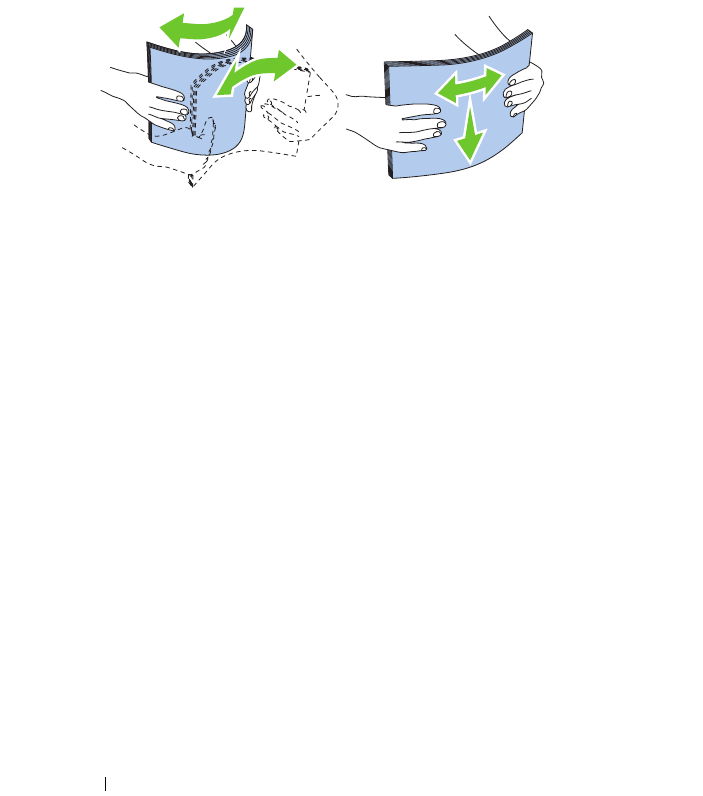
192 Print Media Guidelines
• Do not mix print media sizes, weights, or types in the same source. This
may result in a paper jam.
• Do not remove the PSI while a job is printing.
• Ensure that the paper is properly loaded in the MPF or PSI.
• Flex paper back and forth, and then fan them. Straighten the edges of the
stack on a level surface.
Selecting Preprinted Media and Letterhead
When selecting preprinted media and letterhead paper for the printer:
• Use grain long paper for best results.
• Use only forms and letterhead printed using an offset lithographic or
engraved printing process.
• Select paper that absorb ink, but do not bleed.
• Avoid paper with rough or heavily textured surfaces.
• Use paper printed with heat-resistant inks designed for use in xerographic
copiers. The ink must withstand temperatures of 225°C (437°F) without
melting or releasing hazardous emissions.
• Use inks that are not affected by the resin in toner or the silicone in the
fuser. Inks that are oxidation-set or oil-based should meet these
requirements; latex inks might not. If you are in doubt, contact your paper
supplier.
Printing on Letterhead
Check with the manufacturer or vendor to determine whether the pre-printed
letterhead you have selected is acceptable for laser printers.
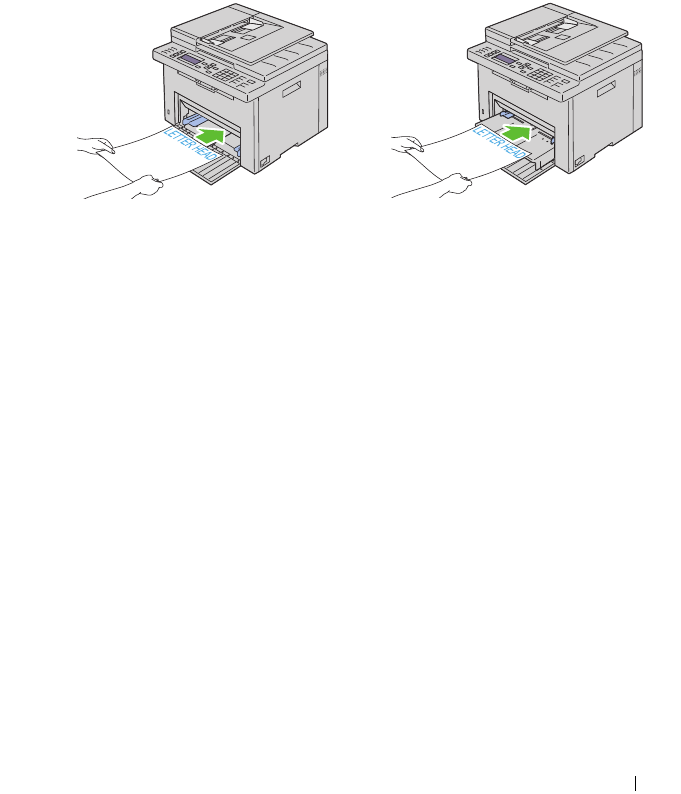
Print Media Guidelines 193
Page orientation is important when printing on letterhead. Use the following
table for help when loading letterhead in the print media sources.
Loading Letterhead
Load the letterhead in the printer with the print side facing up. Ensure that
the title on the letter head enters the printer first.
Multipurpose Feeder (MPF) Priority Sheet Inserter (PSI)
Selecting Pre-Punched Paper
Pre-punched paper brands can differ in the number and placement of holes
and in manufacturing techniques. However, it may not be possible to print on
the paper to depending on the placement of holes on the paper.
To select and use pre-punched paper:
• Test paper from several manufacturers before ordering and using large
quantities of pre-punched paper.
• Paper should be punched at the paper manufacturer and not drilled into
paper already packaged in a ream. Drilled paper can cause jams when
multiple sheets feed through the printer. This may result in a paper jam.
• Pre-punched paper can include more paper dust than standard paper. Your
printer may require more frequent cleaning and feed reliability may not be
as good as standard paper.
• Weight guidelines for pre-punched paper are the same as non-punched
paper.

194 Print Media Guidelines
Envelopes
Depending on the choice of envelopes, it is possible to expect variable levels
of light wrinkling. Before buying large quantities of any print media, it is
recommended that you try a sample first. See "Loading Print Media in the
Multipurpose Feeder (MPF)" on page 59 or "Loading Print Media in the
Priority Sheet Inserter (PSI)" on page 66 for instructions on loading an
envelope.
When printing on envelopes:
• Use only high-quality envelopes that are designed for use in laser printers.
• Set the print media source to MPF or PSI. Set the paper type to
Envelope
,
and select the correct size of envelope from the printer driver.
• For best performance, use envelopes made from 75 g/m
2
(20 lb bond)
paper. You can use up to 105 g/m
2
(28 lb bond) weight for the envelope
feeder as long as the cotton content is 25% or less. Envelopes with 100%
cotton content must not exceed 90 g/m
2
(24 lb bond) weight.
• Use only freshly unpackaged, undamaged envelopes.
• Use envelopes that can withstand temperatures of 205°C (401°F) without
sealing, excessive curling, wrinkling, or releasing hazardous emissions. If
you have any doubts about the envelopes you are considering, check with
the envelope supplier.
• Adjust the guide to fit the width of the envelopes.
• To load envelope in MPF or PSI, the print side must be facing up.
•See
"Loading Print Media in the Multipurpose Feeder (MPF)" on
page 59
or
"Loading Print Media in the Priority Sheet Inserter (PSI)" on
page 66
for instructions on loading an envelope.
• Use one envelope size during a print job.
• Ensure that the humidity is low because high humidity (more than 60%)
and the high printing temperatures may seal the envelopes.
• For best performance, do not use envelopes that:
– Have excessive curl or twist
– Are stuck together or damaged in any way
– Contain windows, holes, perforations, cutouts, embossing

Print Media Guidelines 195
– Use metal clasps, string ties, or metal folding bars
– Have an interlocking design
– Have postage stamps attached
– Have nicked edges or bent corners
– Have rough, cockle, or laid finishes
Labels
Your printer can print on many labels designed only for use with laser printers.
When selecting labels:
• Label adhesives, face sheet (printable stock), and topcoats must be able to
withstand temperatures of 205°C (401°F) and pressure of 25 pounds per
square inch (psi).
• Use labels that can be without sealing, excessive curling, wrinkling, or
releasing hazardous emissions.
• Do not use label sheets with a slick backing material.
NOTICE: Before buying large quantities of any print media, it is recommended that
you try a sample first.
When printing on labels:
• Use labels that can withstand temperatures of 205°C (401°F) without
sealing, excessive curling, wrinkling, or releasing hazardous emissions.
• Set the paper type to Label from the printer driver.
• Do not load labels together with paper in the same tray.
• Do not print within 1 mm (0.04 inches) of the die-cut.
• Do not print within 1 mm (0.04 inches) of the edge of the label, of the
perforations, or between die-cuts of the label.
• Do not print a label through the printer more than once.
• Portrait orientation is preferred, especially when printing bar codes.
• Do not use labels that have exposed adhesive.
• Use full label sheets. Partial sheets may cause labels to peel off during
printing, resulting in a jam.
196 Print Media Guidelines
• Do not use label sheets that have adhesive to the edge of the sheet. It is
recommended that zone coating of the adhesive is done at least 1 mm
(0.04 inches) away from edges. Adhesive material contaminates your
printer and could void your warranty.
CAUTION: Otherwise the printer occur in a jam and contaminate your printer and
your cartridges with adhesive. As a result, could void your printer and cartridge
warranties.
Storing Print Media
For proper print media storage, the following guidelines help avoid media
feeding problems and uneven print quality.
• For best results, store print media in an environment where the
temperature is approximately 21°C (70°F) and the relative humidity is
40%.
• Store cartons of print media on a pallet or shelf, rather than directly on the
floor.
• If you store individual packages of print media out of the original carton,
ensure that they rest on a flat surface so that the edges do not buckle or
curl.
• Do not place anything on top of the print media packages.
Identifying Print Media and Specifications
This section provides information on supported paper sizes, types, and
specification.
Supported Paper Sizes
Multipurpose Feeder
(MPF)
Priority Sheet Inserter
(PSI)
A4 (210x297 mm) YY
B5 (182x257 mm) YY
A5 (148x210 mm) YY
C5 (162x229 mm) YY
Print Media Guidelines 197
Monarch (3.875x7.5 in) YY
Monarch LEF (7.5x3.875 in)*1 YY
*4
Envelope #10 (4.125x9.5 in) YY
DL (110x220 mm) YY
DL LEF (220x110 mm)*1 YY
*4
Letter (8.5x11 in) YY
Legal (8.5x14 in) YY
Folio (8.5x13 in) YY
Executive (7.25 x 10.5 in) YY
Custom*2*3 YY
*1 You can place the originals in a long-edge feed direction or in a short-edge feed
direction. The following illustration shows SEF and LEF. The arrow mark in the
illustration shows the orientation of the paper loading.
NOTE: Not available when the XPS Printer Driver is used.
*2 Custom width: 76.2 mm (3.00 inches) to 215.9 mm (8.50 inches)
The maximum width for envelope (DL LEF): 220.0 mm (8.66 inches)
Custom length: 127.0 mm (5.00 inches) to 355.6 mm (14.00 inches)
(For the PSI, 191.0 mm (7.50 inches) to 355.6 mm (14.00 inches))
The maximum length for envelope (Monarch LEF): 98.4 mm (3.87 inches)
*3 Only the administrator user can set the custom size from the printer driver.
*4 Be sure to fully insert the envelope until it stops. Otherwise, print media that is
loaded on the MPF will be fed.
Multipurpose Feeder
(MPF)
Priority Sheet Inserter
(PSI)
LEFSEF
198 Print Media Guidelines
Supported Paper Types
Media Multipurpose Feeder
(MPF)
Priority Sheet Inserter
(PSI)
Plain Y*Y*
Plain Side 2 YY
Plain Thick YY
Plain Thick Side 2 YY
Recycled YY
Recycled Side 2 YY
Label YY
Covers YY
Covers Side 2 YY
Envelope YY
Coated YY
Coated Side 2 YY
* Values marked by an asterisk (*) are the factory default menu settings.
Print Media Guidelines 199
Paper Type Specifications
Paper type Weight (gsm) Remarks
Plain Paper 60-90 -
Plain Thick Paper 91-105 -
Covers 106-163 -
Coated 106-163 Inkjet printer paper
cannot be used.
Label - Inkjet printer paper
cannot be used.
Envelopes - -
Recycled 60-105 -

200 Print Media Guidelines

Loading Print Media 201
13
Loading Print Media
Loading print media properly helps prevent jams and ensures trouble-free
printing.
Before loading print media, identify the recommended print side of the print
media. This information is usually on the print media package.
NOTE: After loading paper in the feeder, specify the same paper type on the
operator panel.
Capacity
Multipurpose Feeder (MPF) can hold:
• 150 sheets of standard paper
• 16.2 mm (0.64 inches) of thick paper
• One sheet of coated paper
• 16.2 mm (0.64 inches) of post cards
• Five envelopes
• 16.2 mm (0.64 inches) of labels
Priority Sheet Inserter (PSI) can hold:
• 10 sheets of standard paper or one sheet of other paper
Print Media Dimensions
Both MPF and PSI accept print media within the following dimensions:
• Width — 76.2 mm (3.00 inches) to 215.9 mm (8.50 inches)
• Length — 127.0 mm (5.00 inches) to 355.6 mm (14.00 inches)
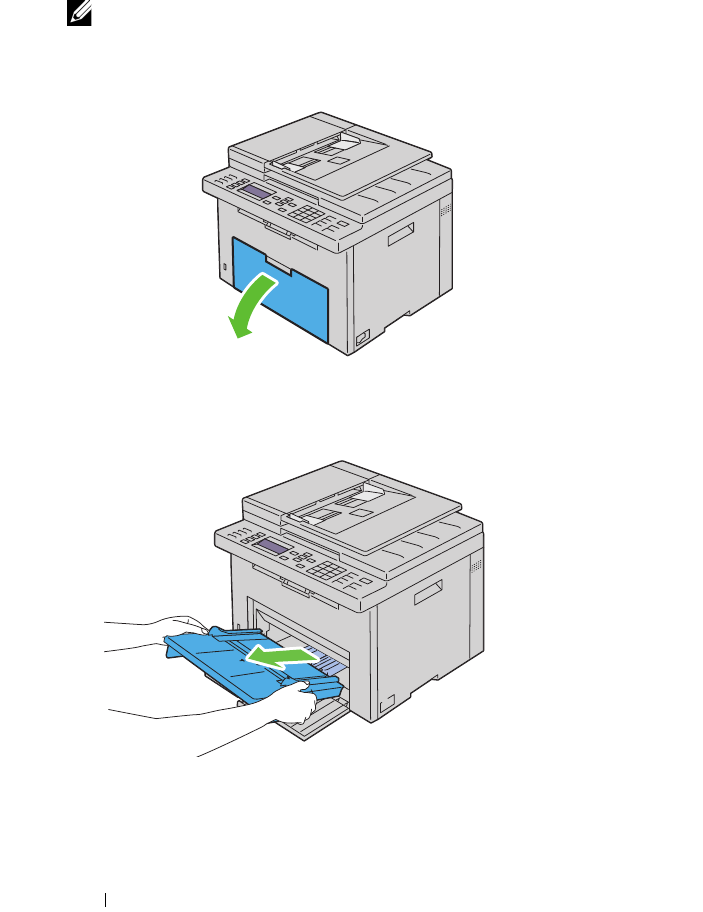
202 Loading Print Media
Loading Print Media in the Multipurpose Feeder
(MPF)
NOTE: Use only laser print media. Do not use ink jet paper in this printer.
1
Open the front cover.
2
Pull the priority sheet inserter (PSI) out.
3
Pull the length guide forward until it stops.
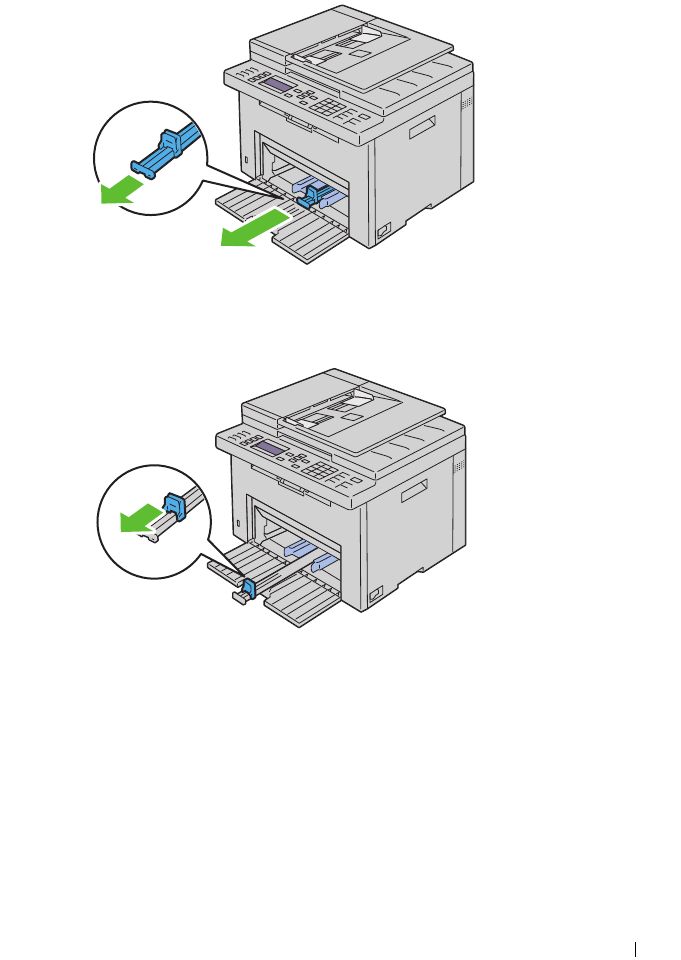
Loading Print Media 203
4
Pull the MPF extension forward until it stops.
5
Adjust the paper width guides to their maximum width.
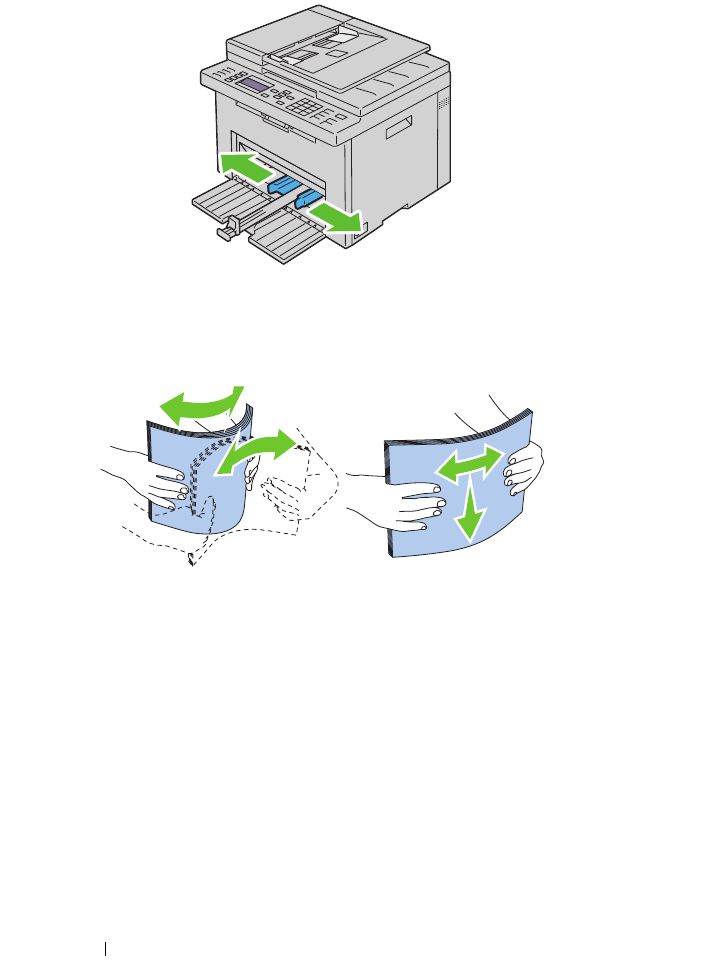
204 Loading Print Media
6
Before loading the print media, flex the sheets back and forth, and then
fan them. Straighten the edges of the stack on a level surface.
7
Load print media on the MPF with the top edge first and with the
recommended print side facing up.
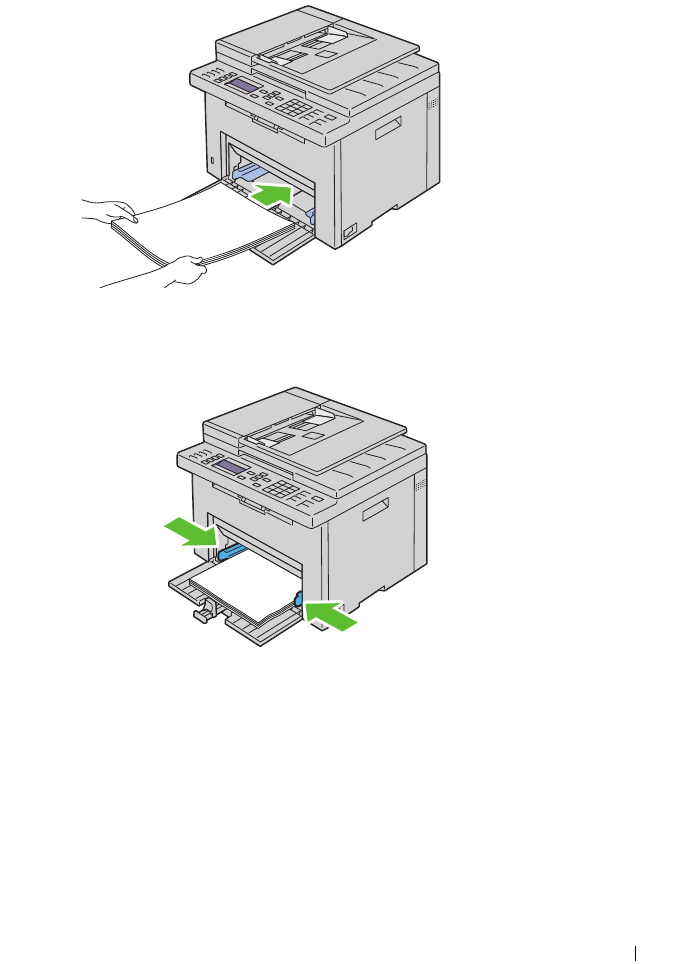
Loading Print Media 205
8
Adjust the width guides until they rest lightly against the edges of the
stack of print media.
9
Slide the length guide towards the printer until it touches the print media.
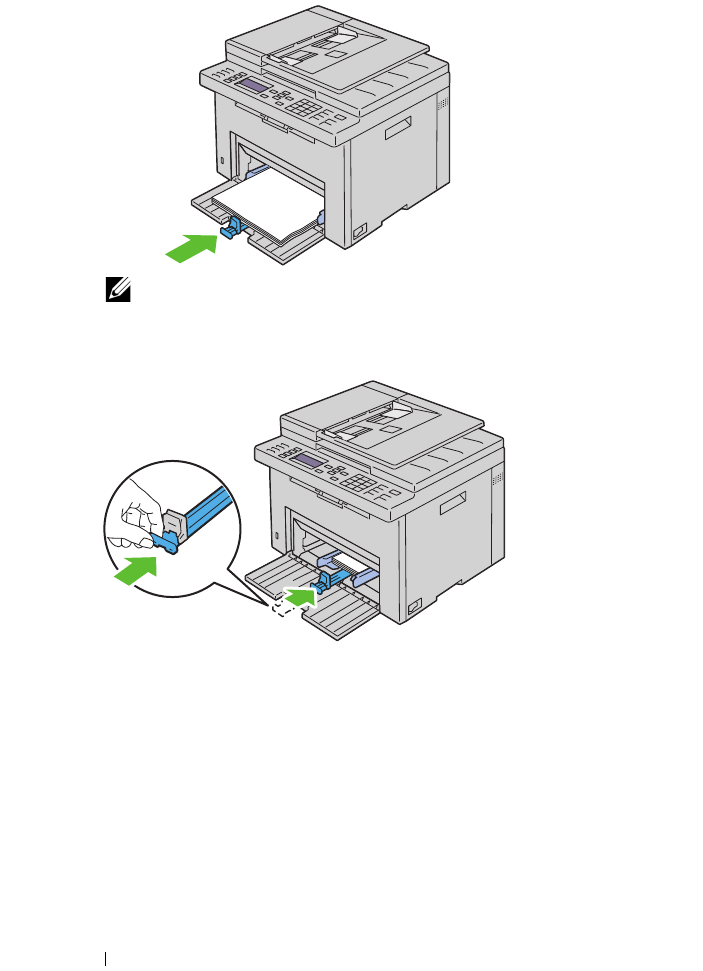
206 Loading Print Media
NOTE: Depending on the size of print media, first slide the MPF extension
backward until it stops, and then pinch the length guide and slide it backward
until it touches print media.
10
Insert the PSI into the printer and then align the PSI to the marking on
the paper tray.
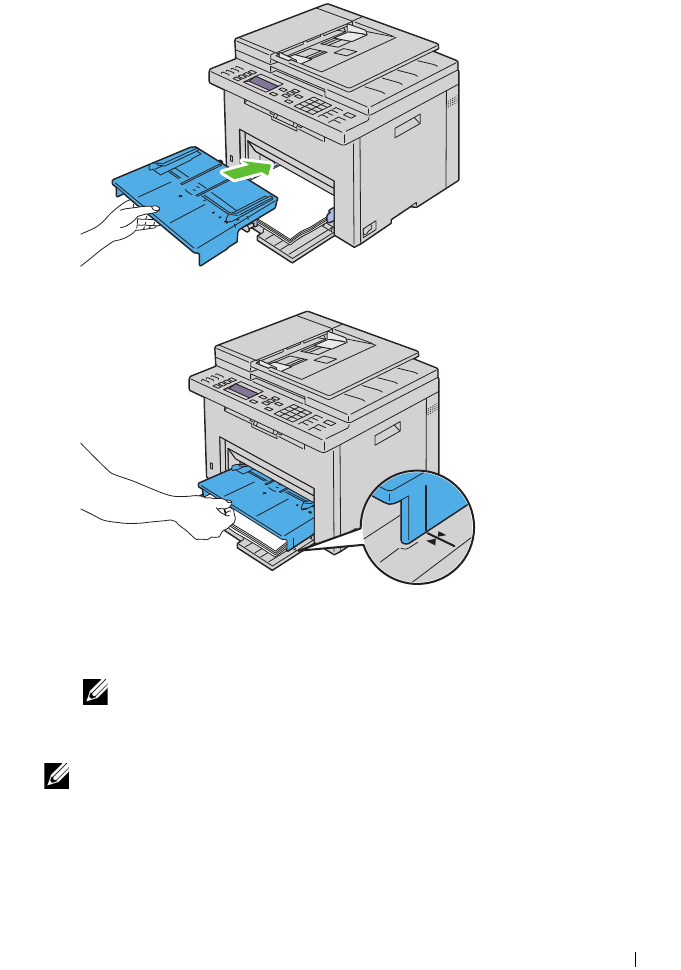
Loading Print Media 207
11
Select the paper type from the operator panel if any print media other than
plain print media is loaded. If a user-specified print media is loaded in the
MPF, you must specify the paper size setting by using the operator panel.
NOTE: For standard-size papers, adjust the guides first and then set papers.
Loading an Envelope in the Multipurpose Feeder (MPF)
NOTE: When you print on envelopes, be sure to specify the envelope setting on the
printer driver. If not specified, the print image will be rotated 180 degrees.
When Loading Envelope#10, DL, or Monarch
Load envelopes with the side to be printed on facing up, the flap side facing
down, and the flap turned to the right.
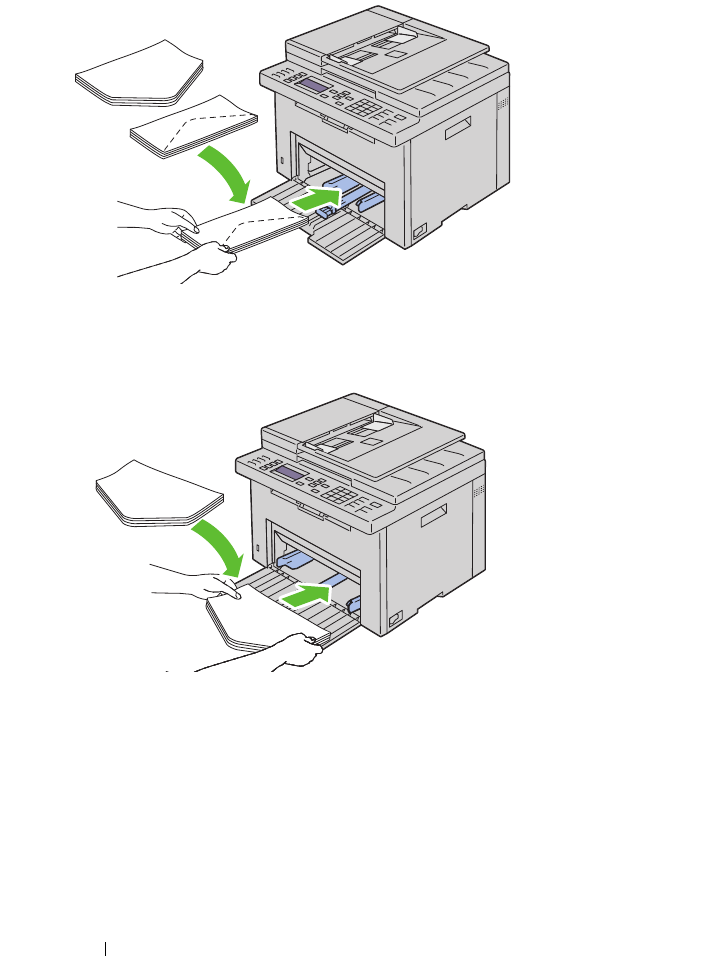
208 Loading Print Media
To prevent DL and Monarch from being wrinkled, they are recommended to
be loaded with the print-side facing up, flap opened, and facing you.
When Loading C5
Load envelopes with the side to be printed on facing up, with the flap open.
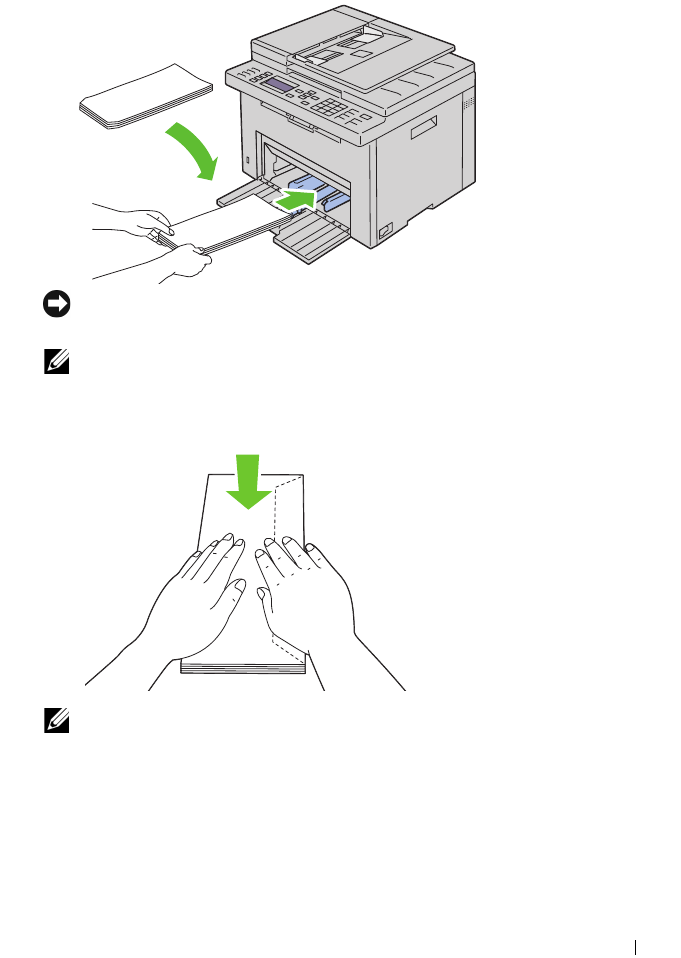
Loading Print Media 209
NOTICE: Never use envelopes with windows, or coated linings. These lead to
paper jams and can cause damage to the printer.
NOTE: If you do not load envelopes in the MPF right after they have been removed
from the packaging, they may bulge. To avoid jams, flatten them as shown below
when loading them in the MPF.
NOTE: If envelopes are still not fed correctly, add some bending to the flap of the
envelopes as shown in the following illustration.
The amount of the bending shall be 5 mm (0.20 inches) or less.
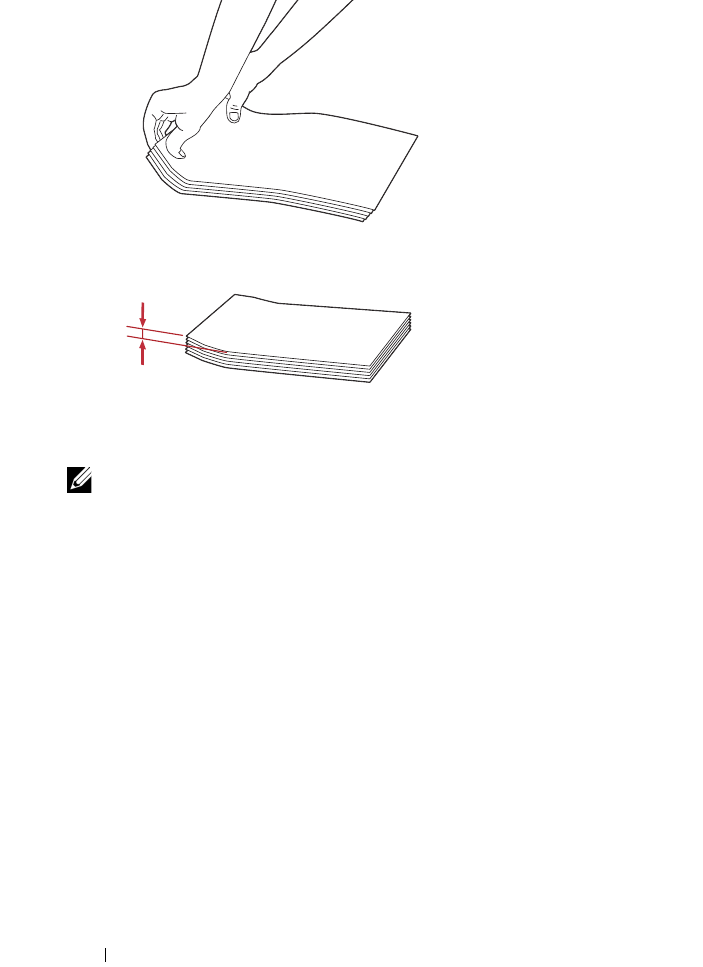
210 Loading Print Media
NOTE: To confirm the correct orientation of each print media such as envelopes,
see the instruction on the Envelope/Paper Setup Navigator on the printer driver.
Loading Letterhead
Load the letter head in the printer with the print side facing up. Ensure that
the title on the letter head enters the printer first.
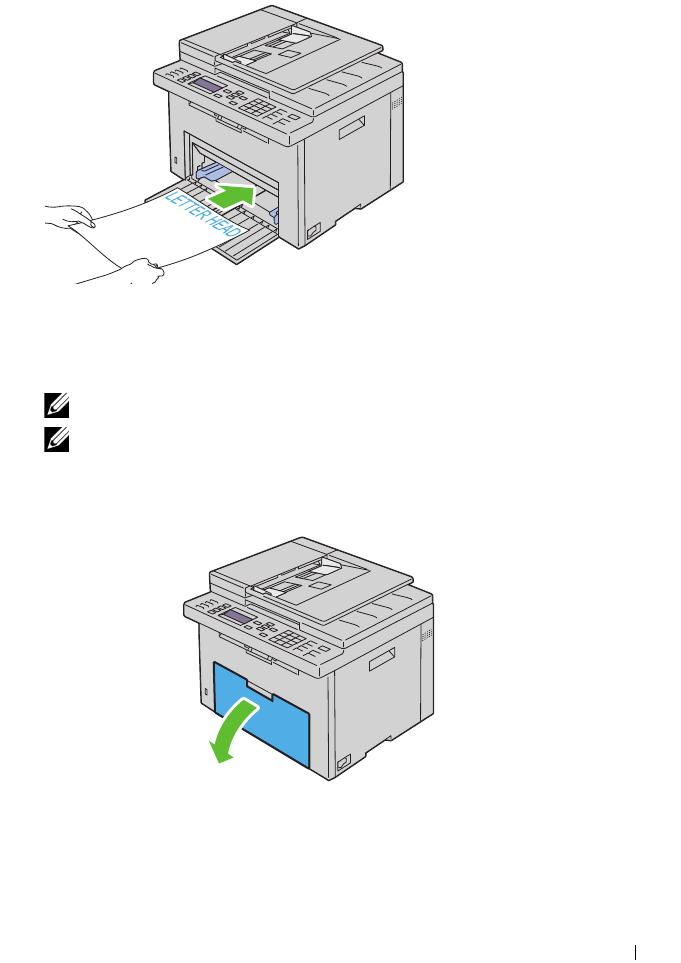
Loading Print Media 211
Loading Print Media in the Priority Sheet Inserter
(PSI)
NOTE: To avoid paper jams, do not remove the PSI while printing is in progress.
NOTE: Use only laser print media. Do not use ink jet paper in this printer.
1
Open the front cover.
2
Slide the PSI forward, and then align the PSI to the marking on the paper
tray.
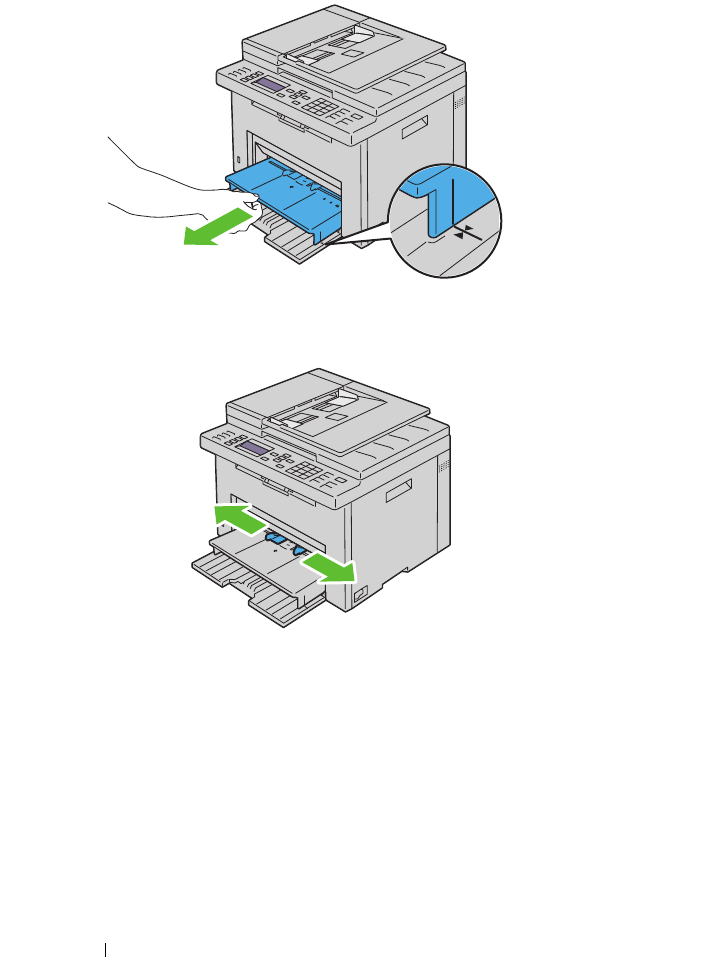
212 Loading Print Media
3
Adjust the paper width guides to their maximum width.
4
Before loading the print media, flex the sheets back and forth, and then
fan them. Straighten the edges of the stack on a level surface.
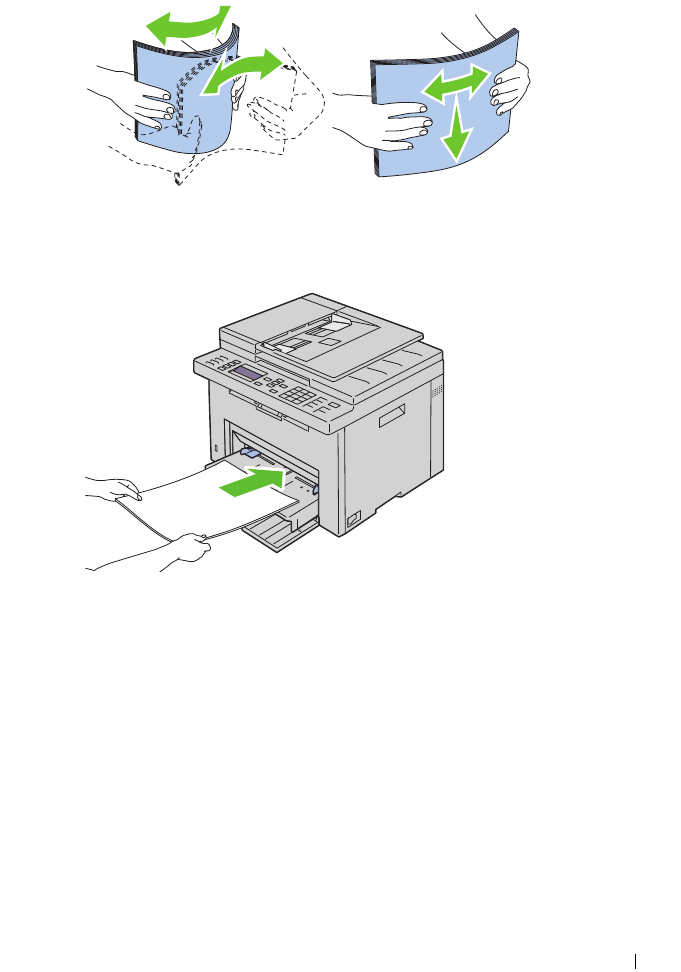
Loading Print Media 213
5
Load print media on the PSI with the top edge first and with the
recommended print side facing up.
6
Adjust the width guides until they rest lightly against the edges of the
stack of print media.
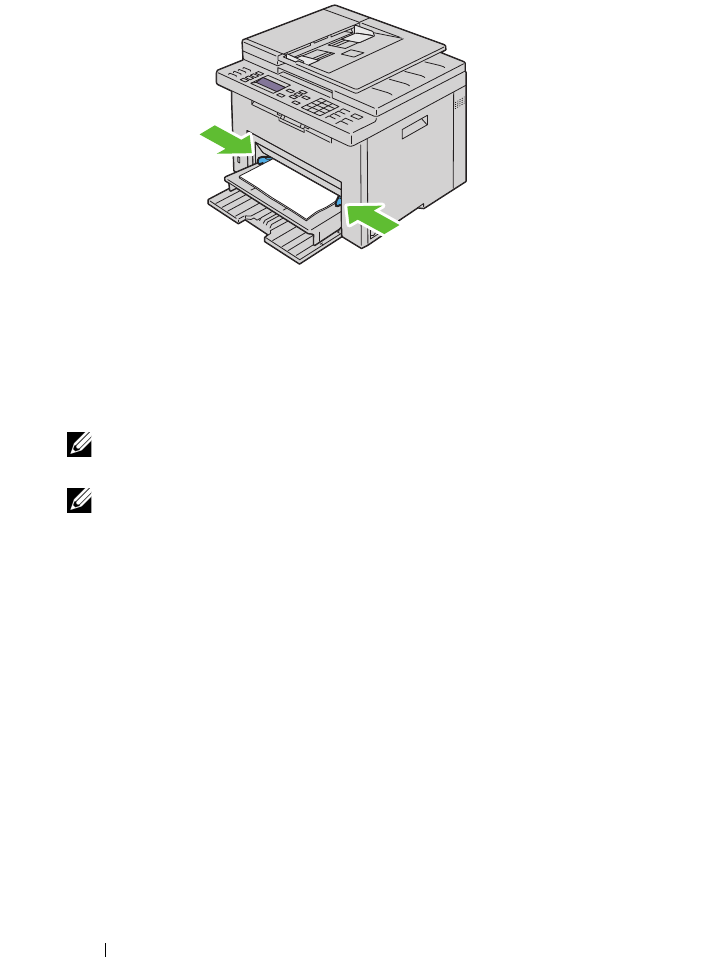
214 Loading Print Media
7
Select the paper type from the printer driver if the loaded print media is
not standard plain paper. If a user-specified print media is loaded in the
PSI, you must specify the paper size setting by using the printer driver.
Loading an Envelope in the Priority Sheet Inserter (PSI)
NOTE: Be sure to fully insert the envelope until it stops. Otherwise, print media that
is loaded on the MPF will be fed.
NOTE: When you print on envelopes, be sure to specify the envelope setting on the
printer driver. If not specified, the print image will be rotated 180 degrees.
When Loading Envelope#10, DL, or Monarch
Load envelopes with the side to be printed on facing up, the flap side facing
down, and the flap turned to the right.
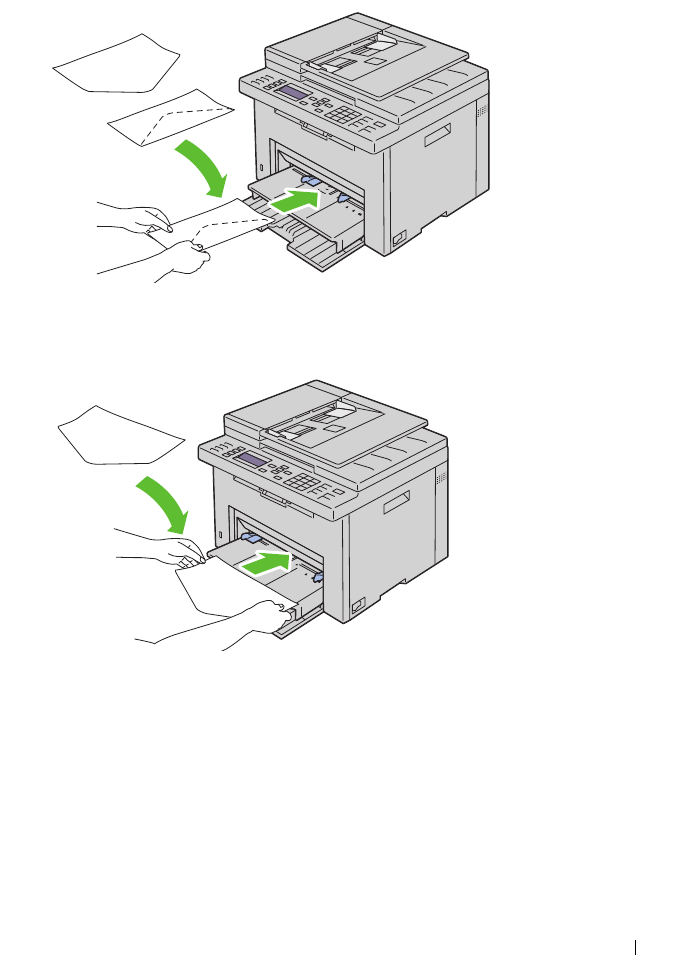
Loading Print Media 215
To prevent DL and Monarch from being wrinkled, they are recommended to
be loaded with the print-side facing up, flap opened, and facing you.
When Loading C5
Load envelopes with the side to be printed on facing up, with the flap open.
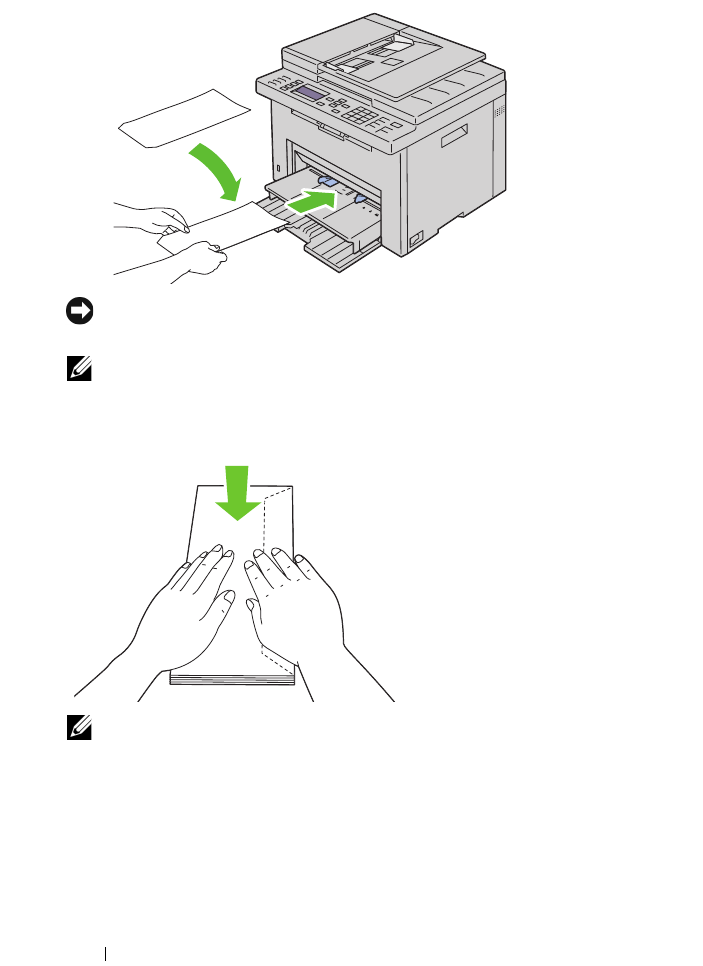
216 Loading Print Media
NOTICE: Never use envelopes with windows, or coated linings. These lead to
paper jams and can cause damage to the printer.
NOTE: If you do not load envelopes in the PSI right after they have been removed
from the packaging, they may bulge. To avoid jams, flatten them as shown below
when loading them in the PSI.
NOTE: If envelopes are still not fed correctly, add some bending to the flap of the
envelopes as shown in the following illustration.
The amount of the bending shall be 5 mm (0.20 inches) or less.
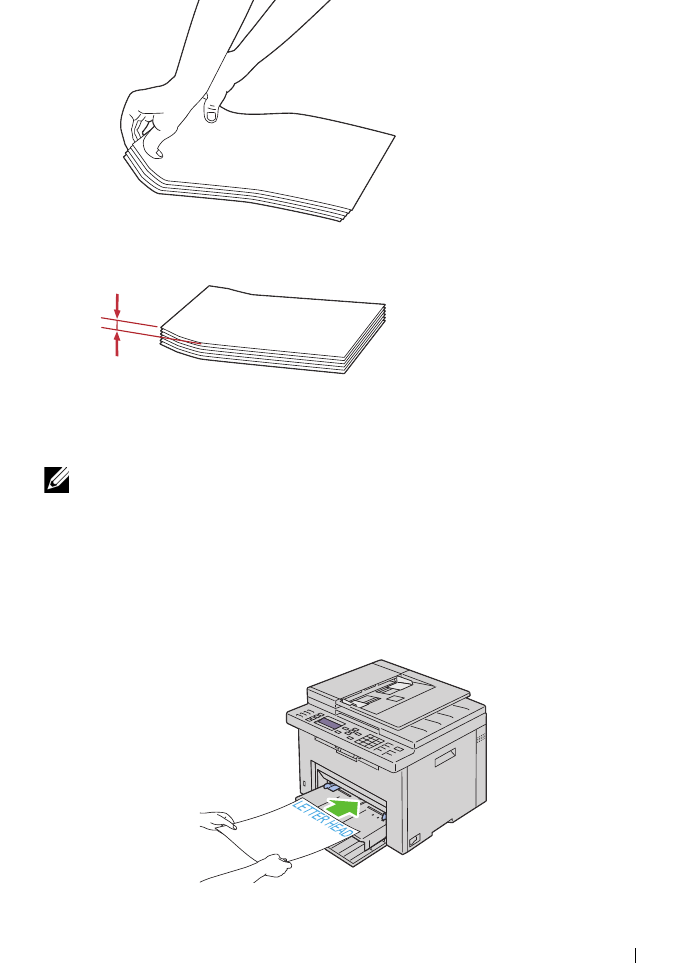
Loading Print Media 217
NOTE: To confirm the correct orientation of each print media such as envelopes,
see the instruction on the Envelope/Paper Setup Navigator on the printer driver.
Loading Letterhead
Load the letter head in the printer with the print side facing up. Ensure that
the title on the letter head enters the printer first.
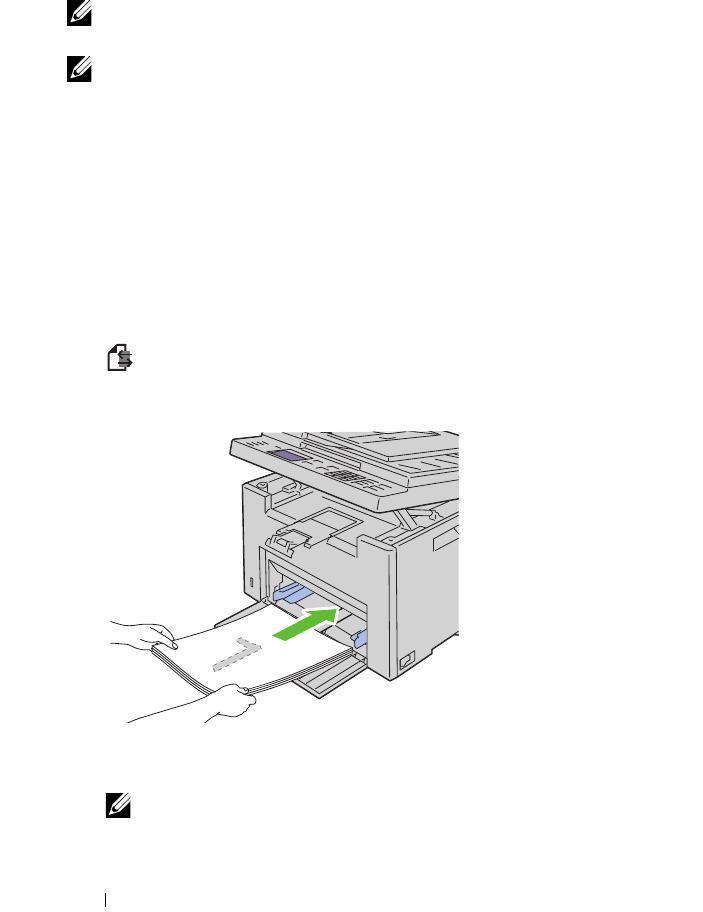
218 Loading Print Media
Manual Duplex Printing (Windows Printer Driver
Only)
NOTE: When printing on curled paper, straighten the paper and then insert it into
the feeder.
NOTE: The XPS printer driver does not support manual duplex printing.
When you start manual duplex printing, the instruction window appears.
Note that the window cannot be reopened once it is closed. Do not close the
window until duplex printing is complete.
Manual duplex printing can be done using the multipurpose feeder or the
priority sheet inserter.
The Multipurpose Feeder (MPF)
1
First print the even pages (rear sides).
For a six page document, rear sides are printed in the order of page 6, page
4, then page 2.
(Data LED)
blinks and the message appears on the LCD when the
even pages finish printing.
2
After the even pages are printed, remove the paper stack from the output
tray and set them as they are (with the blank side facing up).
NOTE: Warped or curled prints can cause paper jams. Straighten them
before setting them.
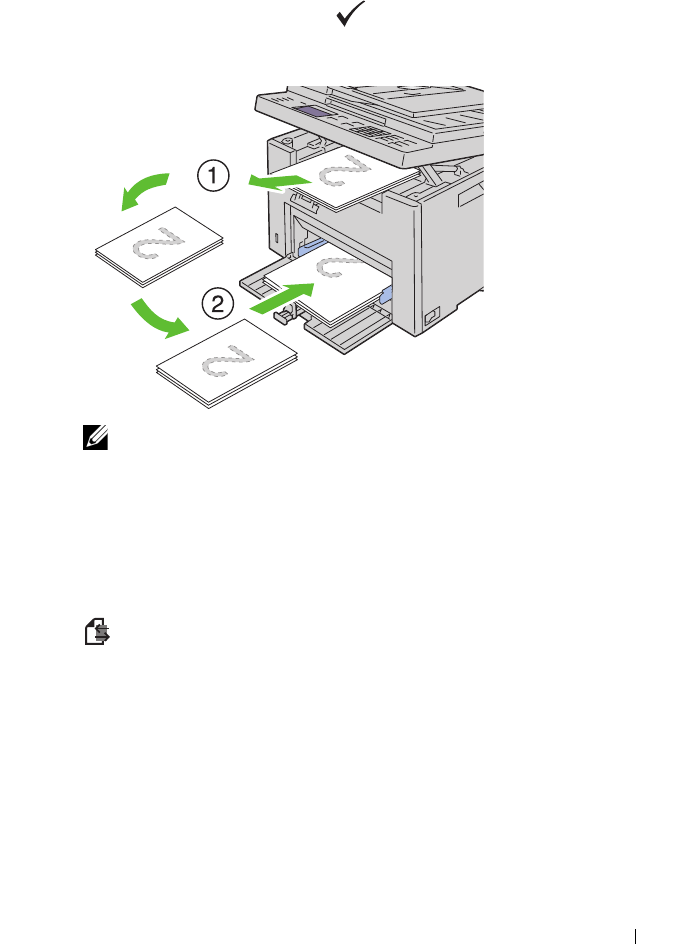
Loading Print Media 219
3
Stack the prints and set them as they are (with the blank side facing up)
into the MPF. Ensure that
Insert Output into paper tray
is
highlighted, and then press the button. Print pages in the order page 1
(rear of page 2), page 3 (rear of page 4), then page 5 (rear of page 6).
NOTE: Printing on both sides of the paper is not possible if the document
consists of various sizes of papers.
The Priority Sheet Inserter (PSI)
1
First print the even pages.
For a six page document, even pages are printed in the order page 2, page
4, then page 6.
(Data LED)
blinks and the message appears on the LCD when the
even pages finish printing.
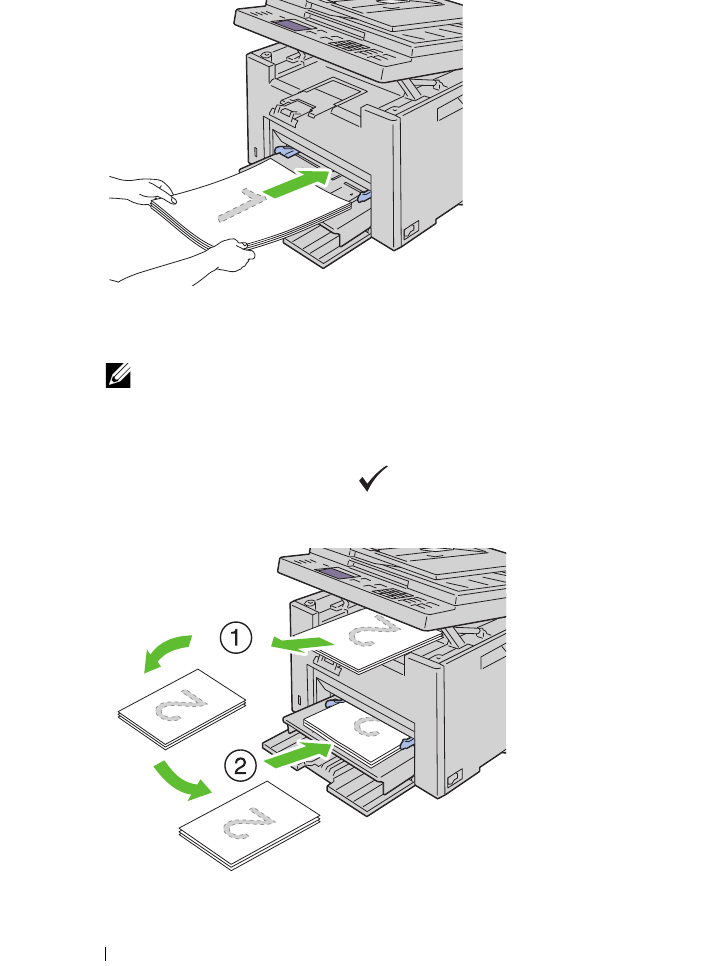
220 Loading Print Media
2
After the even pages are printed, remove the paper stack from the output
tray and set them as they are (with the blank side facing up).
NOTE: Warped or curled prints can cause paper jams. Straighten them
before setting them.
3
Next stack the prints and set them as they are (with the blank side face up)
into the PSI. Ensure that
Insert Output into paper tray
is
highlighted, and then press the button. Print pages in the order page 1
(rear of page 2), page 3 (rear of page 4), then page 5 (rear of page 6).
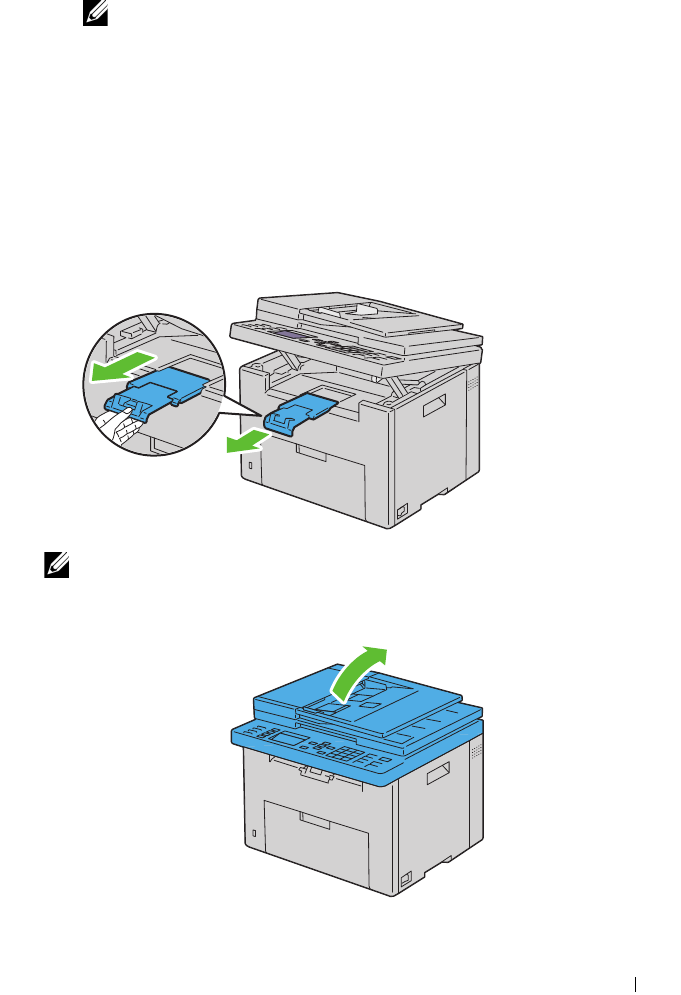
Loading Print Media 221
NOTE: Printing on both sides of the paper is not possible if the document
consists of various sizes of papers.
Using the Output Tray Extension
The output tray extension is designed to prevent print media from falling
from the printer after the print job is complete.
Before printing a document, ensure that the output tray extension is fully
extended.
NOTE: When you pull out envelopes or small size print media, lift up the scanner
unit.

222 Loading Print Media
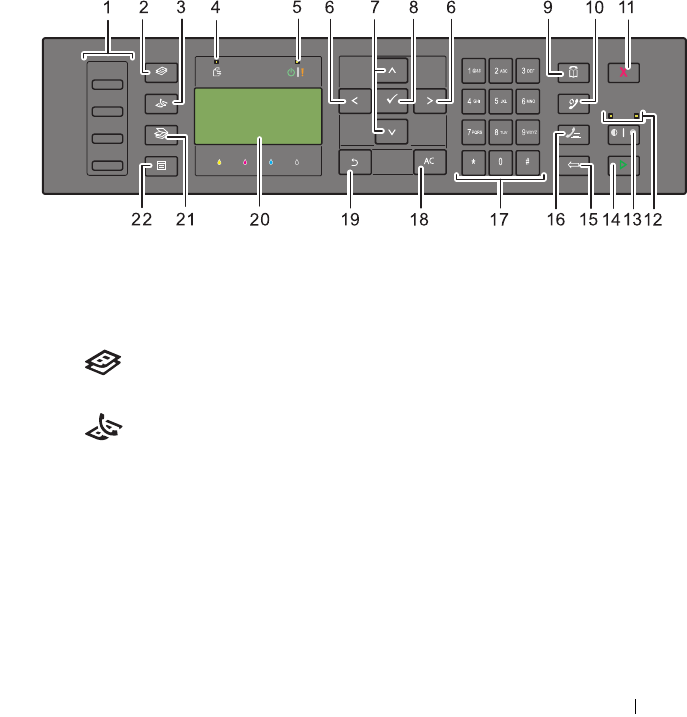
Operator Panel 223
14
Operator Panel
Using the Operator Panel Buttons
The operator panel has a 4-line by 28-character liquid crystal display (LCD),
light-emitting diodes (LED), control buttons, and numeric keypad, which
allow you to control the printer.
1
One Touch Dial button
• Calls up the stored Fax number registered in the Phone Book. The
first four fax numbers in the Phone Book are assigned to the buttons
in row order, starting from the top corner.
2
(Copy)
button
• Moves to the top level of the Copy menu.
3
(Fax)
button
• Moves to the top level of the Fax menu.
4
Data LED
• Lights up for incoming, outgoing, or pending Fax jobs.
5
Ready / Error LED
• Lights up when the printer is ready. (Ready LED)
• Lights up when the printer has an error. (Error LED)
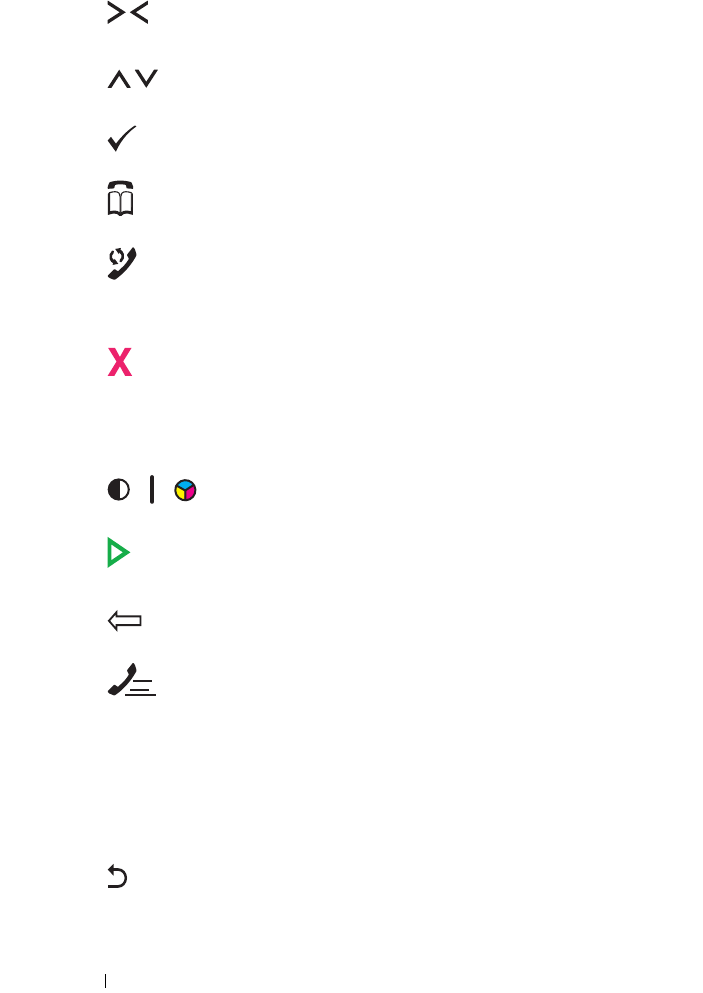
224 Operator Panel
6
button
• Moves a cursor or highlight right or left.
7
button
• Moves a cursor or highlight up or down.
8
(Set)
button
• Confirms the entry of values.
9
(Contacts)
button
• Moves to the Address Book menu for the Fax and Scan services.
10
(Re-dial / Pause)
button
• Re-dials a telephone number.
• Pauses a telephone number.
11
(Cancel)
button
• Cancels the current processing or pending job.
12
B&W / Color LED
• Lights up to indicate which color mode is selected.
13
(Color Mode)
button
• Switches the color mode.
14
(Start)
button
•Starts a job.
15
(Backspace)
button
• Deletes characters and numbers.
16
(Speed Dial)
button
• Calls up a stored telephone number.
17
Numeric keypad
• Enters characters and numbers.
18
AC
(All Clear)
button
• Resets the current setting, and returns to the top menu.
19
(Back)
button
• Returns to the previous screen.
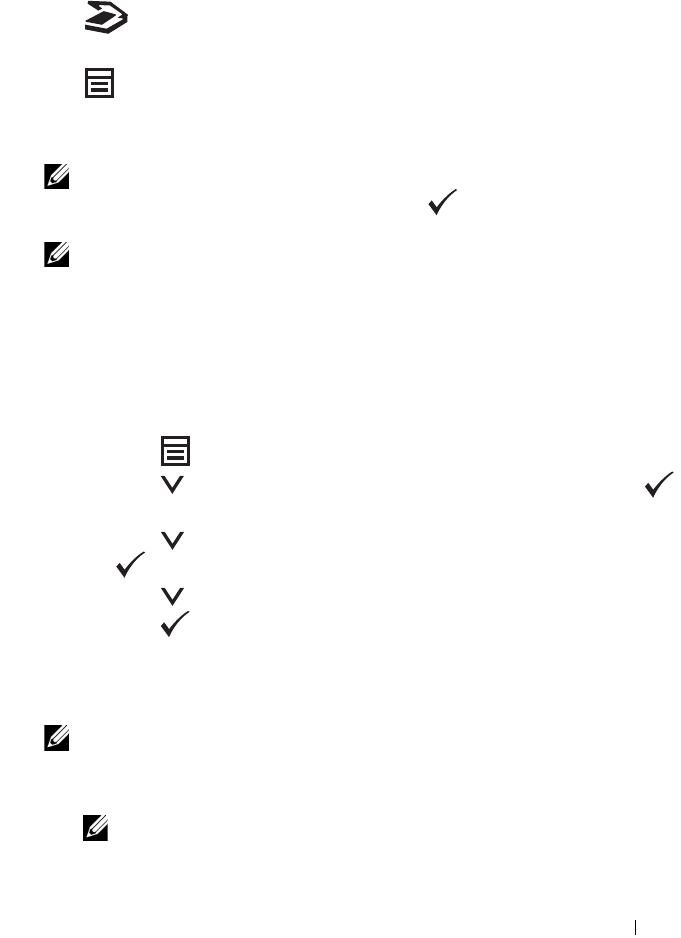
Operator Panel 225
20
LCD Panel
• Displays various settings, instructions, and error messages.
21
(Scan)
button
• Moves to the top level of the Scan menu.
22
(Menu)
button
• Moves to the top level of the Print From USB Memory, Job Status, and
System menus.
NOTE: Moving to a different menu or returning to a previous screen cancels the
current entry or setting. Make sure to press the button to save the current
entry or setting.
NOTE: For details on how to use the numeric keypad to enter alphanumeric
characters, see "Using the Numeric Keypad to Enter Characters" on page 285.
Printing a Panel Settings Page
The panel settings page shows current settings for the operator panel menus.
The Operator Panel
1
Press the
(Menu)
button.
2
Press the button until
System
is highlighted, and then press the
button.
3
Press the button until
Report/List
is highlighted, and then press
the button.
4
Press the button until
Panel Settings
is highlighted, and then
press the button.
The panel settings page is printed.
The Tool Box
NOTE:
1
Click
Start
All Programs
Dell Printers
Dell 1355 Multifunction
Color Printer
Tool Box
.
NOTE: When multiple printer drivers are installed on your computer, the
Select Printer window appears. In this case, click the name of this printer
listed in Printer Name, and then click OK.

226 Operator Panel
The
Tool Box
opens.
2
Click the
Printer Settings Report
tab.
3
Select
Reports
from the list at the left side of the page.
The
Reports
page is displayed.
4
Click the
Panel Settings
button.
The panel settings page is printed.

227
Printing, Copying,
Scanning, and Faxing

228

Printing 229
15
Printing
This chapter covers tips for printing, how to print certain lists of information
from your printer, and how to cancel a job.
Tips for Successful Printing
Tips on Storing Print Media
Store your print media properly. For more information, see "Storing Print
Media" on page 196.
Avoiding Paper Jams
NOTE: It is recommended that you try a limited sample of any print media you are
considering using with the printer before purchasing large quantities.
By selecting appropriate print media and loading it properly, you can avoid
paper jams. See the following instructions on loading print media:
• "Loading Print Media in the Multipurpose Feeder (MPF)" on page 202
• "Loading Print Media in the Priority Sheet Inserter (PSI)" on page 211
• "Avoiding Jams" on page 459
If you experience a jam, see "Jam" on page 492 for instructions.
Sending a Job to Print
Install the printer driver to use all the features of the printer. When you
choose Print from a software program, a window representing the printer
driver opens. Select the appropriate settings for the specific job you are
sending to print. Print settings selected from the driver have precedence over
the default menu settings selected from the operator panel or Tool Box.
You may need to click Preferences from the initial Print box to see all the
available system settings you can change. If you are not familiar with a feature
in the printer driver window, open the online Help for more information.
To print a job from a typical Windows® application:

230 Printing
1
Open the file you want to print.
2
From the
File
menu, select
Print
.
3
Verify that the correct printer is selected in the dialog box. Modify the
system settings as needed (such as the pages you want to print or the
number of copies).
4
To adjust system settings not available from the first screen, such as
Quality, Paper Size, or Image Orientation, click
Preferences
.
The
Printing Preferences
dialog box appears.
5
Specify the print settings. For more information, click
Help
.
6
Click
OK
to close the
Printing Preferences
dialog box.
7
Click
Print
to send the job to the selected printer.
Canceling a Print Job
There are several methods for canceling a print job.
Canceling From the Operator Panel
To cancel a job after it has started printing:
1
Press the
(Cancel)
button.
NOTE: Printing is canceled only for the current job. All the following jobs will
continue to print.
Canceling a Job From the Computer Running Windows
Canceling a Job From the Taskbar
When you send a job to print, a small printer icon appears in the right corner
of the taskbar.
1
Double-click the printer icon.
A list of print jobs appears in the printer window.
2
Select the job you want to cancel.
3
Press
Delete
on the keyboard.

Printing 231
Canceling a Job From the Desktop
1
Minimize all programs to reveal the desktop.
Click
Start
Printers and Faxes
(for Windows XP and 2003).
Click
Start
Devices and Printers
(for Windows 7 and Windows Server
®
2008 R2).
Click
Start
Control Panel
Hardware and Sound
Printers
(for
Windows Vista
®
).
Click
Start
Control Panel
Printers
(for Windows Server 2008).
A list of available printers appears.
2
Double-click the printer you selected when you sent the job.
A list of print jobs appears in the printer window.
3
Select the job you want to cancel.
4
Press
Delete
on the keyboard.
Direct Print Using the USB Storage Device
The Print From USB Memory feature allows you to print files stored in a USB
storage device by operating from the operator panel.
Supported File Formats
Files in the following file formats can be printed directly from a USB storage
device.
•PDF
•TIFF
•JPEG
To print a file in a USB storage device:
1
Insert a USB storage device to the USB port of the printer.
USB Memory
appears.
2
Ensure that
Print From
is highlighted, and then press the button.
Select Document
appears.
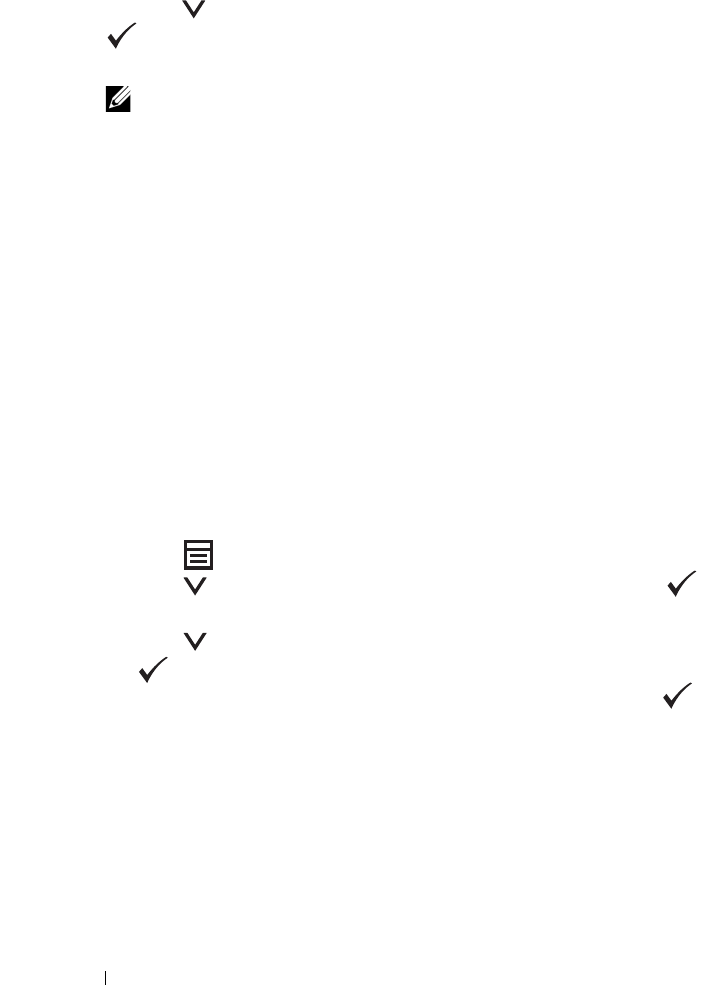
232 Printing
3
Press the button until the desired file is highlighted, and then press the
button.
4
Select printing options as required.
NOTE: You can print files scanned and stored using the Scan to USB Memory
feature. Files saved without using the feature such as files created by user
may not be printed properly.
Printing a Report Page
By using the Report/List menu, you can print a various of settings for
your printer including printer settings, panel settings, job history, error
history, color test page, protocol monitor, address book, and fax activity. This
section describes two examples of printing from the Report/List menu.
Printing a System Settings Page
To verify detailed printer settings, print a printer settings page.
See "Understanding the Printer Menus" on page 359 or "Understanding the
Tool Box Menus" on page 323 to identify the display and operator panel
buttons if you need help.
The Operator Panel
1
Press the
(Menu)
button.
2
Press the button until
System
is highlighted, and then press the
button.
3
Press the button until
Report/List
is highlighted, and then press
the button.
4
Ensure that
System Settings
is highlighted, and then press the
button.
The system settings page is printed.
5
Confirm the IP address next to
IP Address
under
Wired Network
on the
system settings page.
If the IP address is
0.0.0.0
, wait for a few minutes to resolve the IP
address automatically, and then print the system settings page again.
If the IP address is not resolved automatically, see "Assigning an IP Address
(for IPv4 Mode)" on page 53.

Printing 233
Printer Settings
Using the Tool Box to Change the Printer Settings
You can select menu items and corresponding values from the Tool Box.
NOTE:
NOTE: Factory defaults may vary for different countries.
These settings are active until new ones are selected or the factory defaults are
restored.
To select a new value as a setting:
1
Click
Start
All Programs
Dell Printers
Dell 1355 Multifunction
Color Printer
Tool Box
.
NOTE: The Select Printer dialog box opens in this step, when multiple printer
drivers are installed on your computer. In this case, click the name of Dell 1355
Multifunction Color Printer listed in Printer Name, and then click OK.
The
Tool Box
opens.
2
Click the
Printer Maintenance
tab.
3
Select the desired menu item.
Each menu item has a list of values for the menu item. A value can be:
• A phrase or word to describe a setting
• A numerical value that can be changed
• An On or Off setting
4
Select the desired value, and then click the associated button with each
menu item.
Driver settings may have precedence over changes previously made and
may require you to change the Tool Box defaults.
Adjusting the Language
To display a different language on the operator panel:
From the Printer Operator Panel
1
Press the
(Menu)
button.

234 Printing
2
Press the button until
System
is highlighted, and then press the
button.
3
Press the button until
Panel Language
is highlighted, and then
press the button.
4
Press the button until the desired language is highlighted, and then
press the button.
From Your Computer
NOTE:
1
Click
Start
All Programs
Dell Printers
Dell 1355 Multifunction
Color Printer
Tool Box
.
NOTE: The Select Printer dialog box opens in this step, when multiple printer
drivers are installed on your computer. In this case, click the name of Dell 1355
Multifunction Color Printer listed in Printer Name, and then click OK.
The
Tool Box
opens.
2
Click the
Printer Maintenance tab
.
3
Select
System Settings
from the list at the left side of the page.
The
System Settings
page is displayed.
4
Select the desired language from
Panel Language
, and then press the
Apply New Settings
button.
Copying 235
16
Copying
Loading Paper for Copying
The instructions for loading print documents are the same whether you are
printing, faxing, or copying. For more details, see "Loading Print Media" on
page 201.
Preparing a Document
You can use the document glass or the Automatic Document Feeder (ADF)
to load an original document for copying, scanning and sending a fax. You can
load up to 35 sheets of 75 g/m2 (20 lb) documents for one job using the ADF
or one sheet at a time using the document glass.
CAUTION: Avoid loading documents that are smaller than 5.5 in. by 5.5 in. (139.7
mm by 139.7 mm) or larger than 8.5 in. by 14 in. (215.9 mm by 355.6 mm), different
sizes or weights together, or booklets, pamphlets, transparencies, or documents
having other unusual characteristics in ADF.
CAUTION: Carbon-paper or carbon-backed paper, coated paper, onion skin or
thin paper, wrinkled or creased paper, curled or rolled paper or torn paper cannot
be used in ADF.
CAUTION: Do not use the documents with staples, paper clips or exposed to
adhesives or solvent based materials such as glue, ink and correcting fluid in ADF.
NOTE: To get the best scan quality, especially for color or gray scale images, use
the document glass instead of the ADF.
Making Copies From the Document Glass
NOTE: A computer connection is not required for copying.
NOTE: Ensure that no document is in the ADF. If any document is detected in the
ADF, it takes priority over the document on the document glass.
NOTE: Contaminants on the document glass may cause black spots on the copy
printout. For best results, clean the document glass before use. For more
information, see "Cleaning the Scanner" on page 454.
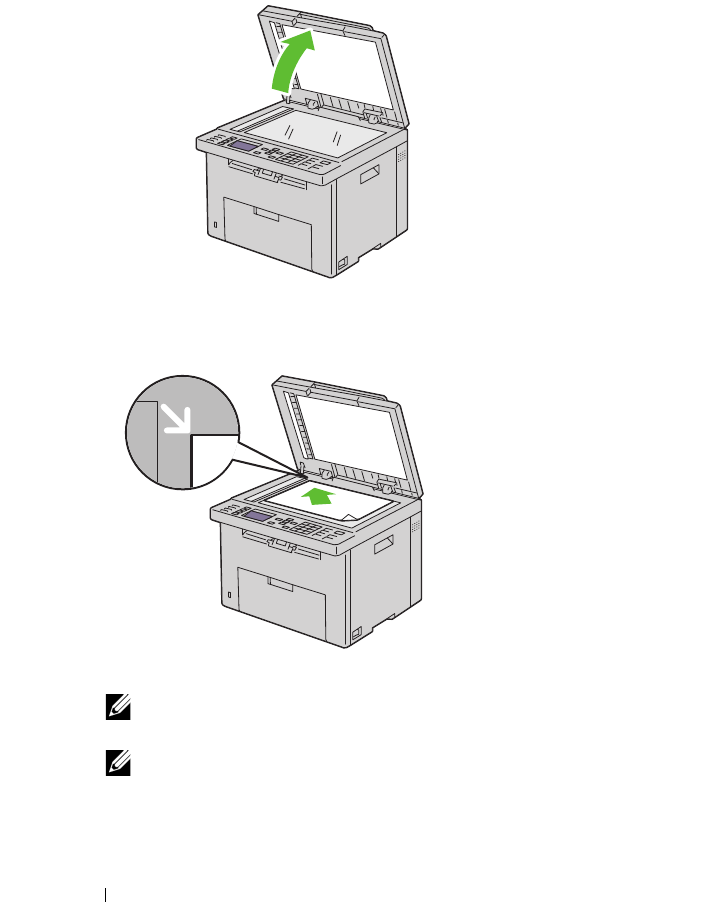
236 Copying
To make a copy from the document glass:
1
Open the document cover.
2
Place the document face down on the document glass and align it with the
registration guide on the top left corner of the glass.
3
Close the document cover.
NOTE: Leaving the document cover open while copying may affect the copy
quality and increase the toner consumption.
NOTE: If you are copying a page from a book or magazine, lift the document
cover until its hinges are caught by the stopper and then close the cover. If the
book or magazine is thicker than 30 mm, start copying with the cover open.
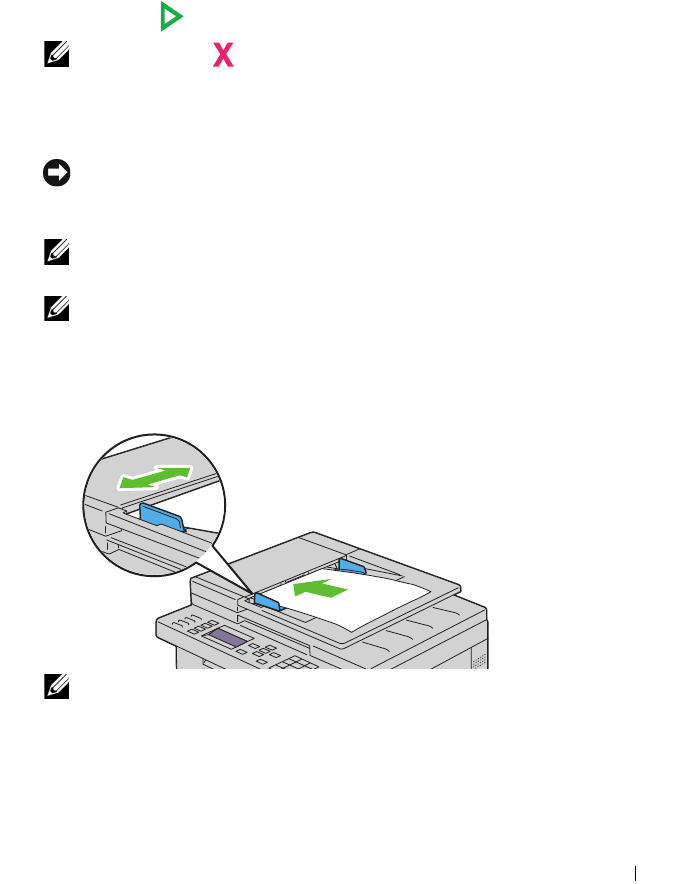
Copying 237
4
Customize the copy settings including the number of copies, copy size, the
contrast, and the image quality. For more information, see "Setting Copy
Options" on page 238.
To clear the settings, use the
AC (All Clear) button
.
5
Press the
(Start)
button to begin copying.
NOTE: Press the (Cancel) button to cancel a copy job at any time while
scanning a document.
Making Copies From the ADF
NOTICE: Do not load more than 35 sheets into the ADF or allow more than 35
sheets to be fed to the ADF output tray. The ADF output tray should be emptied
before it exceeds 35 sheets or your original documents may be damaged.
NOTE: To get the best scan quality, especially for gray scale images, use the
document glass instead of the ADF.
NOTE: A computer connection is not required for copying.
1
Load up to
35 sheets of 75 g/m2 (20 lb)
documents face up on the ADF
with top edge of the documents in first. Then adjust the document guides
to the correct document size.
NOTE: Ensure that you use the document guides before copying a legal-size
document.
2
Customize the copy settings including the number of copies, copy size,
contrast, and image quality. For more information, see "Setting Copy
Options" on page 238.

238 Copying
To clear the settings, use the
AC (All Clear)
button.
3
Press the
(Start)
button to begin copying.
NOTE: Press the (Cancel) button to cancel a copy job at any time while
scanning a document.
Setting Copy Options
Set the following options for the current copy job before pressing
the
(Start)
button to make copies.
NOTE: The copy options automatically return to their default status after copying.
Number of Copies
To specify the number of copies from 1 to 99.
1
Load the document(s) face up with top edge in first into the ADF.
OR
Place a single document face down on the document glass, and close the
document cover.
For details about loading a document, see "Loading an Original Document
on the ADF" on page 296.
2
Press the
(Copy)
button.
3
Enter the number of copies using the numeric keypad to select the desired
value.
4
Press the
(Start)
button to begin copying.
Color
To select mode for color or black and white copying.
1
Load the document(s) face up with top edge in first into the ADF.
OR
Place a single document face down on the document glass, and close the
document cover.
For details about loading a document, see "Loading an Original Document
on the ADF" on page 296.
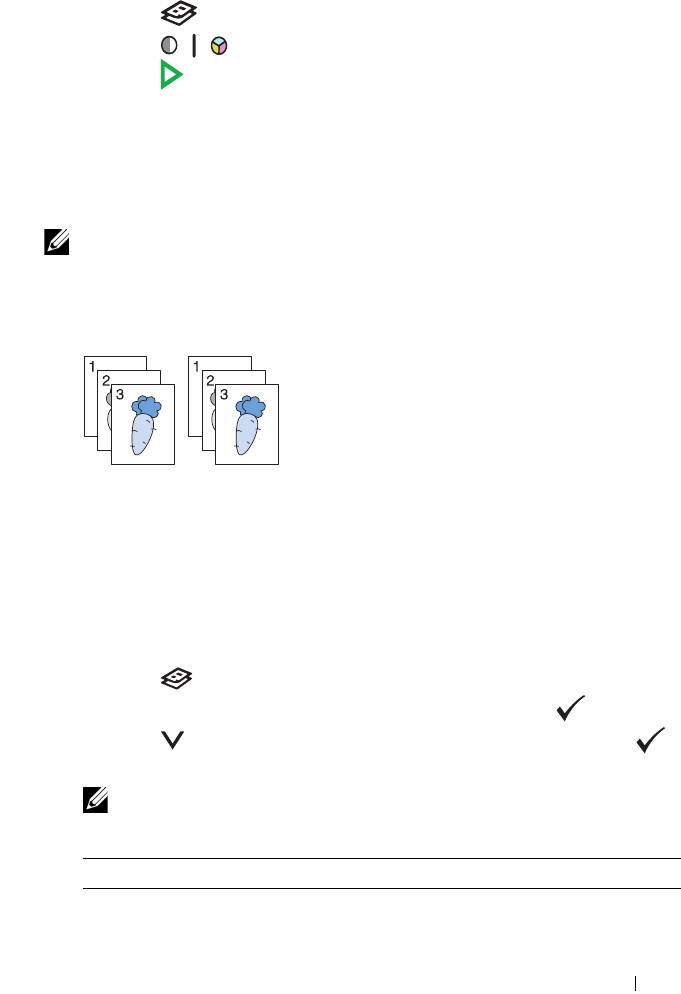
Copying 239
2
Press the
(Copy)
button.
3
Press the
(Color Mode)
button to select the desired color mode.
4
Press the
(Start)
button to begin copying.
Collated
To sort the copy output: For example, if you make two copies of three page
documents, one complete three page document will print followed by the
second complete document.
NOTE: Copying documents with a large amount of data may exhaust available
memory.
If a memory shortage occurs, cancel the collating by turning Collated to
Uncollated on the operator panel.
1
Load the document(s) face up with top edge in first into the ADF.
OR
Place a single document face down on the document glass, and close the
document cover.
For details about loading a document, see "Loading an Original Document
on the ADF" on page 296.
2
Press the
(Copy)
button.
3
Ensure that
Collated
is highlighted, and then press the button.
4
Press
the button to select the desired setting, and then press the
button.
NOTE: Values marked by an asterisk (*) are the factory default menu settings.
Uncollated* Does not sort the copy job
Collated Sorts the copy job
240 Copying
5
If necessary, customize the copy settings including the number of copies,
contrast, and image quality. See "Setting Copy Options" on page 238.
6
Press the
(Start)
button to begin copying.
Reduce/Enlarge
To reduce or enlarge the size of a copied image, from 25 percent to 400
percent when you copy original documents from the document glass or ADF.
NOTE: When you make a reduced copy, black lines may appear at the bottom of
your copy.
NOTE: This item is available only when Multiple-Up is set to Off or
Manual.
1
Load the document(s) face up with top edge in first into the ADF.
OR
Place a single document face down on the document glass, and close the
document cover.
For details about loading a document, see "Loading an Original Document
on the ADF" on page 296.
2
Press the
(Copy)
button.
3
Press the
button
until
Reduce/Enlarge
is highlighted, and then
press the button.
4
Press the
button
to select the desired settings, and then press the
button.
mm series
NOTE: Values marked by an asterisk (*) are the factory default menu settings.
Auto Automatically determines which output mode for the copy job
200%
A5A4 (141%)
A5B5 (122%)
100%*
Copying 241
inch series
NOTE: This item is available only when Multiple-Up is set to Off or
Manual.
NOTE: You can also use the numeric keypad to input the desired zoom ratio from
25% to 400%, or press the button to enlarge the zoom ratio or press the
button to reduce the zoom ratio in 1% intervals.
5
Press the
(Start)
button to begin copying.
Document Size
To specify the default document size:
1
Load the document(s) face up with top edge in first into the ADF.
OR
Place a single document face down on the document glass, and close the
document cover.
For details about loading a document, see "Loading an Original Document
on the ADF" on page 296.
2
Press the
(Copy)
button.
3
Press the button until
Document Size
is highlighted, and then
press the button.
B5A5 (81%)
A4A5 (70%)
50%
200%
StmtLgl (154%)
StmtLtr (129%)
100%*
LglLtr (78%)
LdgrLtr (64%)
50%
242 Copying
4
Press
the
button to select the desired settings, and then press the
button.
NOTE: Values marked by an asterisk (*) are the factory default menu settings.
5
Press the
(Start)
button to begin copying.
Original Type
To select the copy image quality.
1
Load the document(s) face up with top edge in first into the ADF.
OR
Place a single document face down on the document glass, and close the
document cover.
For details about loading a document, see "Loading an Original Document
on the ADF" on page 296.
2
Press the
(Copy)
button.
3
Press the button until
Original Type
is highlighted, and then
press the button.
4
Press the button to select the desired settings, and then press the
button.
NOTE: Values marked by an asterisk (*) are the factory default menu settings.
A4 (210 x 297 mm)*1
A5 (148 x 210 mm)
B5 (182 x 257 mm)
Letter (8.5 x 11")*1
Folio (8.5 x 13")
Legal (8.5 x 14")
Executive (7.25 x 10.5")
*1 The default for Document Size
varies depending on country
specific factory default.
Copying 243
5
Press the
(Start)
button to begin copying.
Lighter/Darker
To adjust the contrast to make the copy lighter or darker than the original.
1
Load the document(s) face up with top edge in first into the ADF.
OR
Place a single document face down on the document glass, and close the
document cover.
For details about loading a document, see "Loading an Original Document
on the ADF" on page 296.
2
Press the
(Copy)
button.
3
Press the button until
Lighter/Darker
is highlighted, and then
press the button.
4
Press the or
button to select the desired settings, and then press the
button.
NOTE: Values marked by an asterisk (*) are the factory default menu settings.
5
Press the
(Start)
button to begin copying.
Text Suitable for documents with text.
Text & Photo* Used for documents with both text and photos.
Photo Suitable for documents with photos.
Lighter2 Makes the copy lighter than the original. Works well with dark
print.
Lighter1
Normal* Works well with standard typed or printed documents.
Darker1 Makes the copy darker than the original. Works well with light
print or faint pencil markings.
Darker2
244 Copying
Sharpness
To adjust the sharpness to make the copy sharper or softer than the original.
1
Load the document(s) face up with top edge in first into the ADF.
OR
Place a single document face down on the document glass, and close the
document cover.
For details about loading a document, see "Loading an Original Document
on the ADF" on page 296.
2
Press the
(Copy)
button.
3
Press the button until
Sharpness
is highlighted, and then press the
button.
4
Press the button to select the desired settings, and then press the
button.
NOTE: Values marked by an asterisk (*) are the factory default menu settings.
5
Press the
(Start)
button to begin copying.
Auto Exposure
To suppress the background of the original to enhance text on the copy.
1
Load the document(s) face up with top edge in first into the ADF.
OR
Place a single document face down on the document glass, and close the
document cover.
For details about loading a document, see "Loading an Original Document
on the ADF" on page 296.
Sharpest Makes the copy sharper than the original.
Sharper
Normal* Does not make the copy sharper or softer than the original.
Softer Makes the copy softer than the original.
Softest
Copying 245
2
Press the
(Copy)
button.
3
Press the button until
Auto Exposure
is highlighted, and then
press the button.
4
Press the button until
On
is highlighted, and then press the
button.
5
Press the
(Start)
button to begin copying.
Multiple-Up
To print two original images to fit onto one sheet of paper.
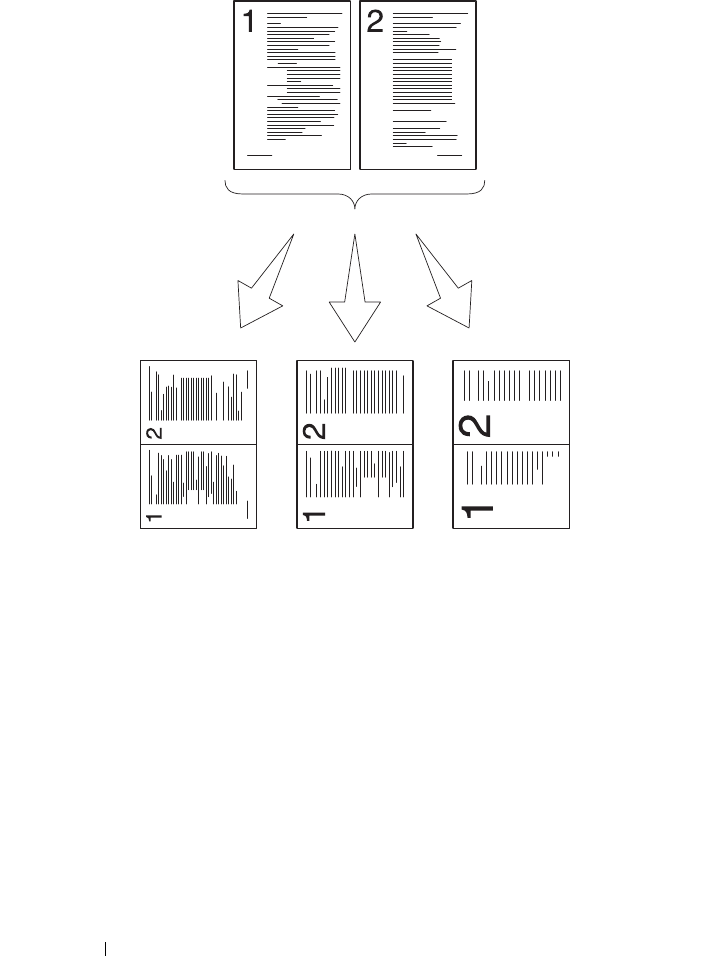
246 Copying
1
Load the document(s) face up with top edge in first into the ADF.
OR
Place a single document face down on the document glass, and close the
document cover.
For details about loading a document, see "Loading an Original Document
on the ADF" on page 296.
Auto:
Automatically
reduces the
pages to fit in one
page.
ID Copy:
Always prints two
sides of the ID card
in one page in the
original size (by
100%).
Manual:
Reduces the pages in
the custom size
depending on the setting
of the Reduce/Enlarge
menu.
Copying 247
2
Press the
(Copy)
button.
3
Press the button until
Multiple-Up
is highlighted, and then press
the button.
4
Press the button to select the desired setting, and then press the
button.
NOTE: Values marked by an asterisk (*) are the factory default menu settings.
5
If necessary, customize the copy settings including the number of copies,
contrast, and image quality. See "Setting Copy Options" on page 238.
6
Press the
(Start)
button to begin copying.
When you are using the document glass and
Multiple-Up
is set to
Auto
,
ID Copy
, or
Manual
, the display prompts you for another page.
Press the button to select
Yes
or
No
, and then press the button.
7
If you select
Yes
, press the button to select
Continue
or
Cancel
,
and then press the button.
Margin Top/Bottom
To specify the top and bottom margins of the copy.
1
Load the document(s) face up with top edge in first into the ADF.
OR
Place a single document face down on the document glass, and close the
document cover.
For details about loading a document, see "Loading an Original Document
on the ADF" on page 296.
Off* Does not perform multiple-up printing.
Auto Automatically reduces the original pages to fit onto one
sheet of paper.
ID Copy Prints the original pages onto one sheet of paper in the
original size.
Manual Prints the original pages onto the one sheet of paper in
the size specified in Reduce/Enlarge.
248 Copying
2
Press the
(Copy)
button.
3
Press the button until
Margin Top/Bottom
is highlighted, and
then press the button.
4
Press the or button or enter the desired value using the numeric
keypad, and then press the button.
NOTE: Values marked by an asterisk (*) are the factory default menu settings.
5
Press the
(Start)
button to begin copying.
Margin Left/Right
To specify the left and right margins of the copy.
1
Load the document(s) face up with top edge in first into the ADF.
OR
Place a single document face down on the document glass, and close the
document cover.
For details about loading a document, see "Loading an Original Document
on the ADF" on page 296.
2
Press the
(Copy)
button.
3
Press the button until
Margin Left/Right
is highlighted, and
then press the button.
4
Press the or button or enter the desired value using the numeric
keypad, and then press the button.
NOTE: Values marked by an asterisk (*) are the factory default menu settings.
4 mm*/0.2
inch*
Specify the value in increments of 1 mm/0.1 inch.
0-50 mm/0.0-
2.0 inch
Copying 249
5
Press the
(Start)
button to begin copying.
Margin Middle
To specify the middle margin of the copy.
1
Load the document(s) face up with top edge in first into the ADF.
OR
Place a single document face down on the document glass, and close the
document cover.
For details about loading a document, see "Loading an Original Document
on the ADF" on page 296.
2
Press the
(Copy)
button.
3
Press the button until
Margin Middle
is highlighted, and then
press the button.
4
Press the or button or enter the desired value using the numeric
keypad, and then press the button.
NOTE: Values marked by an asterisk (*) are the factory default menu settings.
5
Press the
(Start)
button to begin copying.
4 mm*/0.2
inch*
Specify the value in increments of 1 mm/0.1 inch.
0-50 mm/0.0-
2.0 inch
0 mm*/
0.0 inch*
Specify the value in increments of 1 mm/0.1 inch.
0-50 mm/
0.0-2.0 inch
250 Copying
Changing the Default Settings
The COPY menu options, including contrast, and image quality can be set to
the most frequently used modes. When you copy a document, the default
settings are used unless they are changed by using the corresponding buttons
on the operator panel.
NOTE: While you set copy options, pressing the AC (All Clear) button cancels the
changed settings and returns to the default status.
To create your own default settings:
1
Press the
(Menu)
button.
2
Press the button until
System
is highlighted, and then press the
button.
3
Ensure that
Defaults Settings
is highlighted, and then press the
button.
4
Ensure that
Copy Defaults
is highlighted, and then press the
button.
5
Press the button until the desired menu item is highlighted, and then
press the button.
6
Press the or button until the desired setting is highlighted or enter
the value using the numeric keypad, and then press the button.
7
Repeat steps 5 and 6, as needed.
8
To return to the previous screen, press the
(Back)
button.
Setting the Power Saver Timer Option
You can set the power saver timer for the printer. The printer waits before it
restores the default copy settings, if you do not start copying after changing
them on the operator panel.
1
Press the
(Menu)
button.
2
Press the button until
System
is highlighted, and then press the
button.
3
Press the button until
Admin Menu
is highlighted, and then press
the button.

Copying 251
4
Press the button until
System Settings
is highlighted, and then
press the button.
5
Ensure that
Power Saver Timer
is highlighted, and then press the
button.
6
Press the button to select
Mode 1
or
Mode 2
, and then press the
button.
7
Press the or button or enter the desired value using the numeric
keypad, and then press the button.
You can select from 5
–
30 minutes for
Mode 1
or 1
–
6 minutes for
Mode
2
.
8
To return to the previous screen, press the
(Back)
button.

252 Copying
Scanning 253
17
Scanning
Scanning Overview
You can use your Dell™ 1355cn/1355cnw Multifunction Color Printer to turn
pictures and text into editable images on your computer.
PaperPort® is a program that enables you to organize, find and share all your
paper and digital documents, and is supplied with your printer.
The resolution setting to use when you scan an item depends on the item
type and how you plan to use the image or document after you scan it in to
your computer. For the best results, use these recommended settings.
Scanning beyond these recommended resolutions may exceed the capabilities
of the application. If you require a resolution above those recommended in
the above table, you should reduce the size of the image by previewing (or
pre-scan) and cropping before scanning the image.
NOTE: You can use PaperPort's built-in Optical Character Recognition (OCR)
software to copy text from scanned documents so that you can use and edit the text
in any text editing, word processing, or spreadsheet program. The OCR process
requires textual images scanned at 150–600 dpi and 300 dpi or 600 dpi is
recommended for graphics.
Type Resolution
Documents 300 dpi black-and-white or 200 dpi
grayscale or color
Documents of poor quality or that
contain small text
400 dpi black-and-white or 300 dpi
grayscale
Photographs and pictures 100–200 dpi color or 200 dpi grayscale
Images for an inkjet printer 150–300 dpi
Images for a high-resolution printer 300–600 dpi
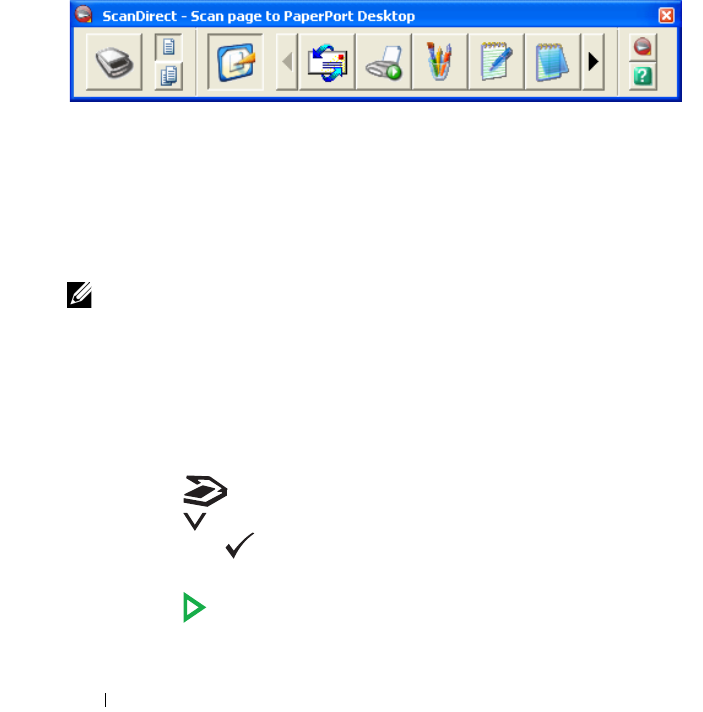
254 Scanning
If you prefer to use another application, such as Adobe® Photoshop®, you
must assign the application to the printer by selecting it from the list of
available applications through the Select Software button each time you start
scanning. If you do not assign an application to the Select Software button,
PaperPort is automatically selected when you start scanning.
ScanDirect is a PaperPort application that enables you to scan items and send
them directly to PaperPort or other programs on your computer without first
running PaperPort. ScanDirect runs as a separate application from the
Windows start menu and displays the ScanDirect bar. For more information
about using ScanDirect, refer to the PaperPort's Help menu.
Icons on the ScanDirect bar represent the programs that are limited to
PaperPort and to ScanDirect. To scan and send an item to a program, click the
program icon and then scan the item. ScanDirect automatically starts the
selected program when the scan is complete.
Scanning From the Operator Panel
NOTE: Ensure that the printer is connected to the computer using the USB cable.
1
Load the document(s) face up with top edge in first into the ADF.
OR
Place a single document face down on the document glass.
For details about loading a document, see "Loading an Original Document
on the ADF" on page 296.
2
Press the
(Scan)
button.
3
Press the button until
Scan to Application
is highlighted, and
then press the button.
4
Configure the scanning settings as necessary.
5
Press the
(Start)
button.
The selected application window opens on your computer.
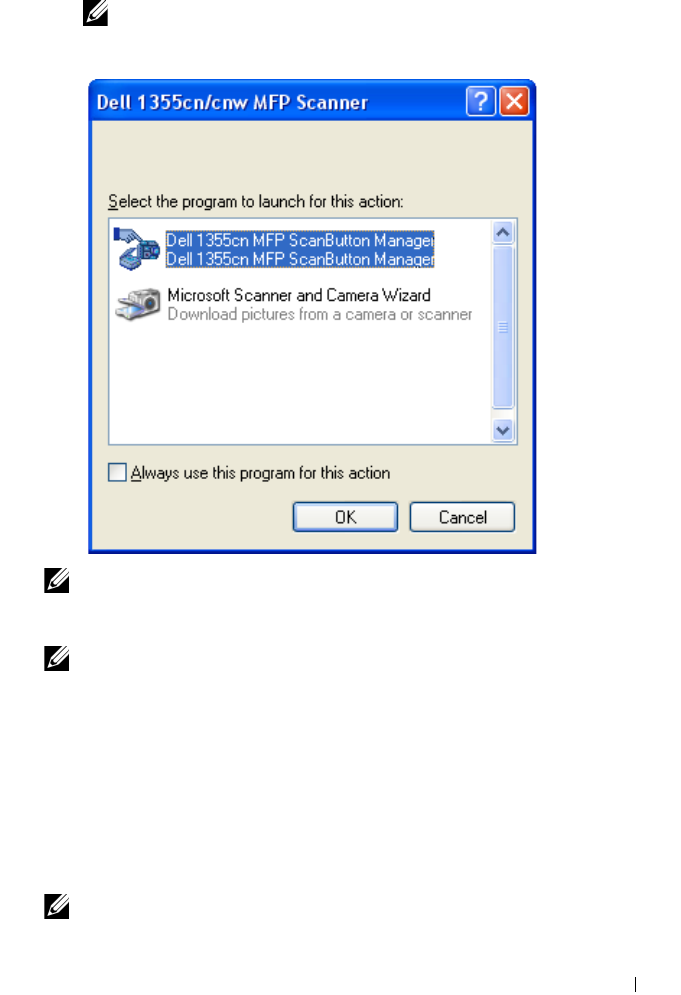
Scanning 255
NOTE: If the following dialog box appears on your computer, select
1355cn/1355cnw MFP Scan Button Manager, and then click OK.
NOTE: Once you check the Always use this program for this action check box
when selecting 1355cn/1355cnw MFP Scan Button Manager, the selected
application is automatically used without displaying the program selection window.
NOTE: You must use ScanButton Manager on your computer to change the
settings for scanning. For details, see "Quick Launch Utility" on page 410.
Scanning Using the TWAIN Driver
Your printer supports the Tool Without An Interesting Name (TWAIN)
driver for scanning images. TWAIN is one of the standard components
provided by Microsoft® Windows XP, Windows Server® 2003, Windows
Server 2008, Windows Vista®, and Windows 7, and works with various
scanners.
NOTE: Ensure that the printer is connected to the computer using the USB cable.
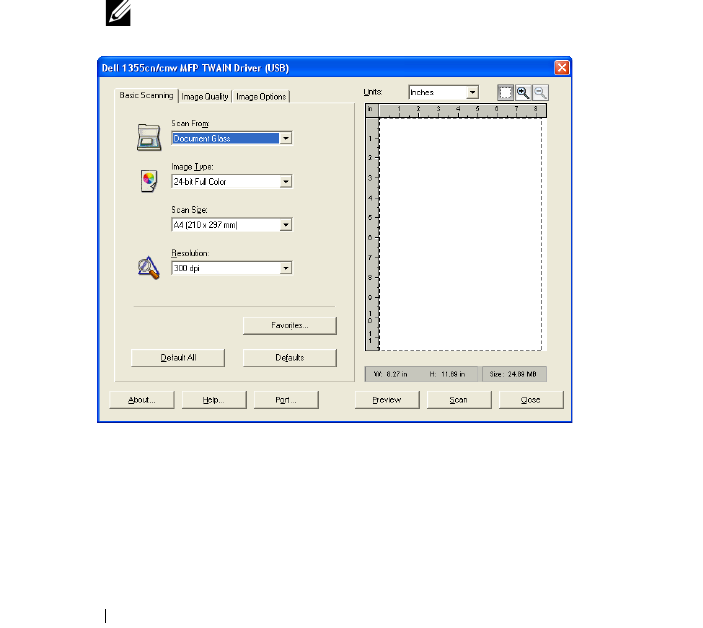
256 Scanning
To scan an image from the PaperPort:
1
Load the document(s) face up with top edge in first into the ADF.
OR
Place a single document face down on the document glass.
For details about loading a document, see "Loading an Original Document
on the ADF" on page 296.
2
On the Windows
Start
menu, click
Nuance PaperPort 12
from
All
Programs
, and then click
PaperPort
.
3
Click
Select
, then select
TWAIN: Dell 1355cn/cnw MFP Scanner
, and
then click
OK
.
4
Select your scanning preferences and click
Preview
to display the preview
image.
NOTE: The illustration may vary for different operating systems.
5
Select the desired properties from the
Image Quality
and
Image Options
tabs.
6
Click
Scan
to start scanning.
7
Follow the on-screen instructions to edit the picture after it is copied to
your computer.

Scanning 257
Scanning Using the Windows Image Acquisition
(WIA) Driver
Your printer also supports the WIA driver for scanning images. WIA is one of
the standard components provided by Microsoft Windows XP and later
operating systems and works with digital cameras and scanners. Unlike the
TWAIN driver, the WIA driver allows you to scan an image and easily
manipulate those images without using additional software.
NOTE: Ensure that the printer is connected to the computer using the USB cable.
1
Load the document(s) face up with top edge in first into the ADF.
OR
Place a single document face down on the document glass.
For details about loading a document, see "Loading an Original Document
on the ADF" on page 296.
2
Start the drawing software, such as
Paint
for Windows.
NOTE: When you use Windows Vista or Windows Server 2008, use Windows
Photo Gallery instead of Paint.
3
Click
File
From Scanner or Camera
(
Paint
button
From scanner or
camera
for Windows Server 2008 R2 and Windows 7).
The
Scan using Dell 1355cn/1355cnw MFP Scanner
window appears.
NOTE: The illustration may vary for different operating systems.
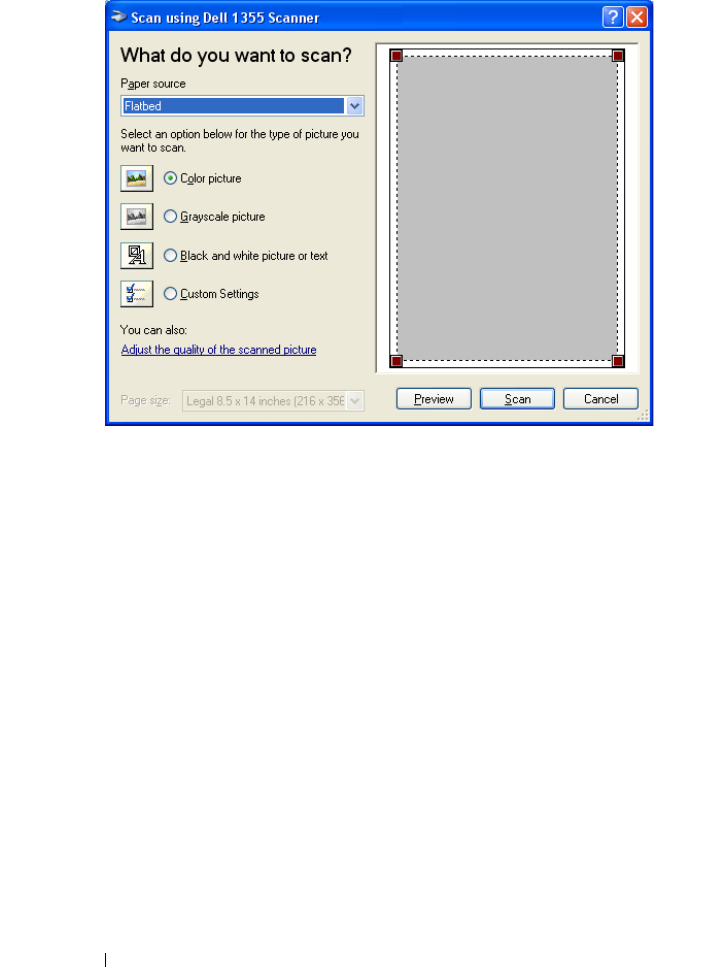
258 Scanning
4
Select your scanning preferences and click
Adjust the quality of the
scanned picture
to display the
Advanced Properties
dialog box.
5
Select the desired properties including brightness and contrast, and then
click
OK
.
6
Click
Scan
to start scanning.
7
Click
Save As
from the
File
menu.
8
Enter a picture name, and select a file format and destination to save the
picture.
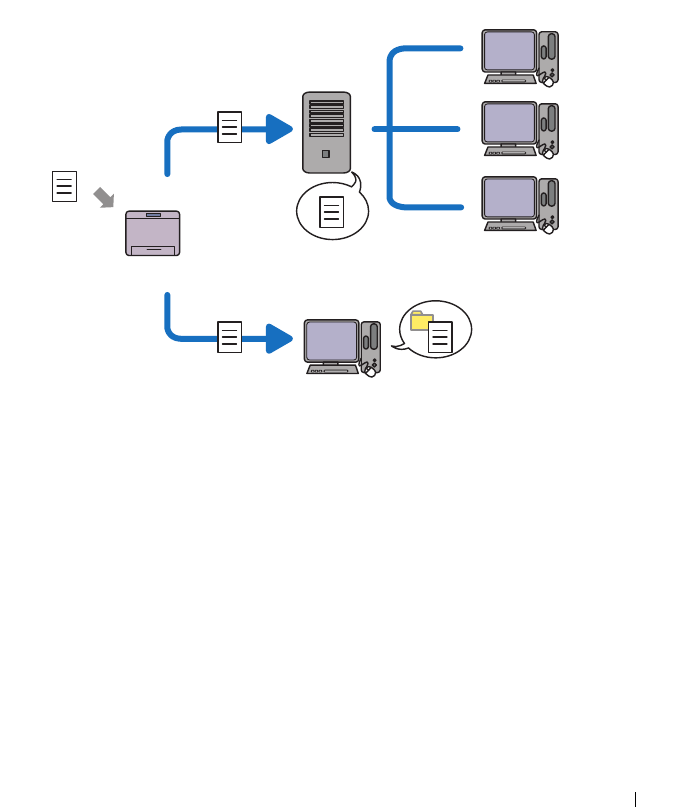
Scanning 259
Using a Scanner on the Network
Overview
The Scan to Server/Computer feature allows you to scan documents and send
the scanned document to a network computer via the FTP or SMB protocol.
You can select the kind of the server and specify a destination to store the
scanned document with the Dell Printer Configuration Web Tool or Address
Book Editor.
The following items are required to use the Scan to Server/Computer feature.
•Using SMB
To transfer data via SMB, your computer must run on one of the following
operating systems that includes folder sharing.
For Mac OS X, a shared user account is required on the Mac OS X.
• Microsoft Windows Server 2003
• Microsoft Windows Server 2008
• Microsoft Windows Server 2008 R2
• Microsoft Windows XP
FTP Server
Using FTP
Scan
Using SMB
Computer
Computer
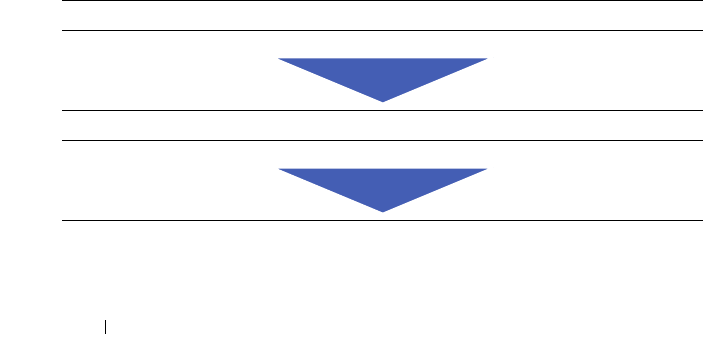
260 Scanning
• Microsoft Windows Vista
• Microsoft Windows 7
• Mac OS X 10.4/10.5/10.6
• Using FTP
To transfer data via FTP, one of the following FTP servers and an account
to the FTP server (login name and password) are required.
• Microsoft Windows Server 2003, Microsoft Windows Server 2008,
Microsoft Windows Server 2008 R2, Microsoft Windows Vista, or
Microsoft Windows 7
FTP service of Microsoft Internet Information Services 6.0
• Microsoft Windows XP
FTP service of Microsoft Internet Information Server 3.0/4.0 or
Internet Information Services 5.0/5.1
•Mac OS X
FTP service of Mac OS X
10.4.2/10.4.4/10.4.8/10.4.9/10.4.10/10.4.11/10.5/10.6
For information on how to configure the FTP service, contact your system
administrator.
Follow the procedure below to use the Scan to Server/Computer feature.
"Confirming a Login name and Password" on page 261
"Specifying a Destination to Store the Document" on page 262
"Configuring the Printer Settings" on page 271
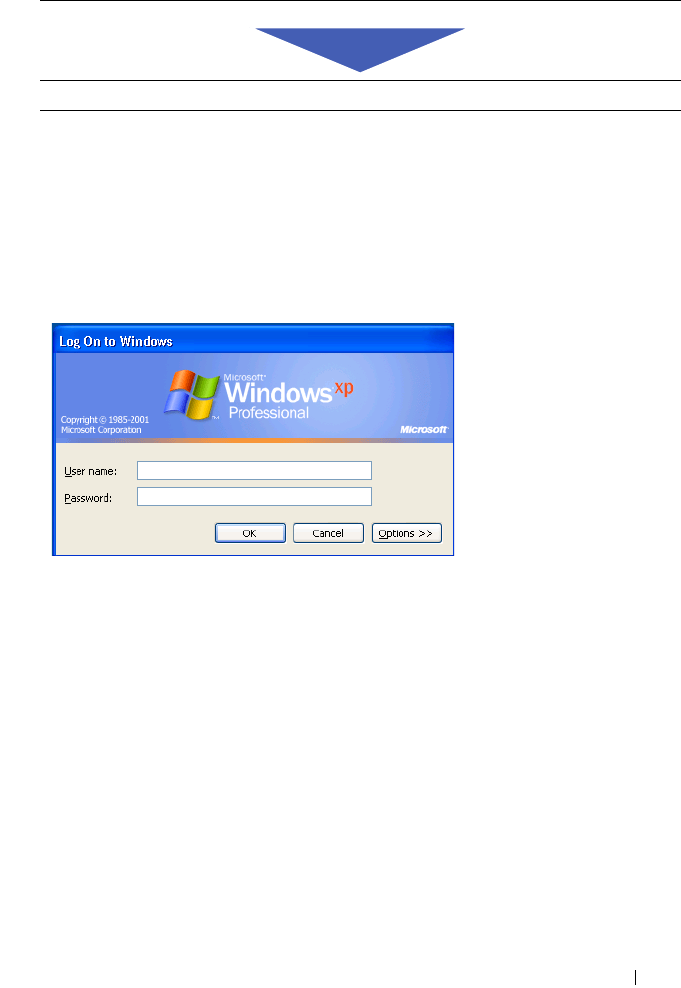
Scanning 261
Confirming a Login name and Password
When using SMB:
The Scan to Computer/Server feature requires a user login account with a
valid and non-empty password for authentication. Confirm a login user name
and password.
If you do not use a password for your user login, you need to create a password
on your User Login Account with the following procedure.
For Microsoft Windows XP:
1
Click
start
Control Panel
User Accounts
.
2
Click
Change an account
.
3
Select your account.
4
Click
Create a password
and add in a password for your user login account.
For Windows Vista and Windows 7:
1
Click
Start
Control Panel
.
2
Click
User Accounts and Family Safety
.
"Sending the Scanned File on the Network" on page 279

262 Scanning
3
Click
User Accounts
.
4
Click
Create a password for your account
and add in a password for your
user login account.
For Windows Server 2008:
1
Click
Start
Control Panel
.
2
Double-click
User Accounts
.
3
Click
Create a password for your account
and add in a password for your
user login account.
For Windows Server 2008 R2:
1
Click
Start
Control Panel
.
2
Select
User Accounts
.
3
Click
User Accounts
.
4
Click
Create a password for your account
and add in a password for your
user login account.
For Mac OS X 10.4/10.5/10.6
1
Click
System Preferences
Accounts
.
2
Select
Change Password
.
3
Enter a password for your user login account in
New password
.
4
Re-enter the password in
Verify
.
After you confirmed a login user name and password, go to "Specifying a
Destination to Store the Document" on page 262.
When using FTP
The Scan to Computer/Server feature requires a user name and a password.
For your user name and password, contact your system administrator.
Specifying a Destination to Store the Document
When using SMB
Share a folder to store the scanned document using the following procedure.
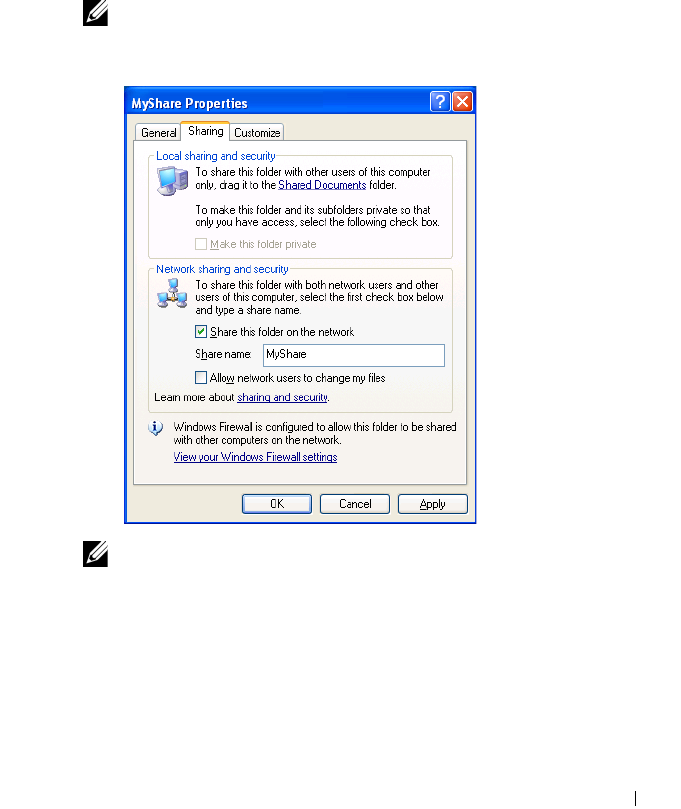
Scanning 263
For Windows XP Home Edition:
1
Create a folder in the desired directory on your computer (Example of
folder name,
MyShare
).
2
Right-click on the folder, and then select
Properties
.
3
Click on the
Sharing
tab, and then select
Share this folder on the network
.
4
Enter a shared name in the
Share name
box.
NOTE: Write down this shared name because you will use this name in the
next setting procedure.
NOTE: When the following screen appears, click If you understand the
security risks but want to share files without running the wizard, click here,
then select Just enable file sharing, and then click OK.
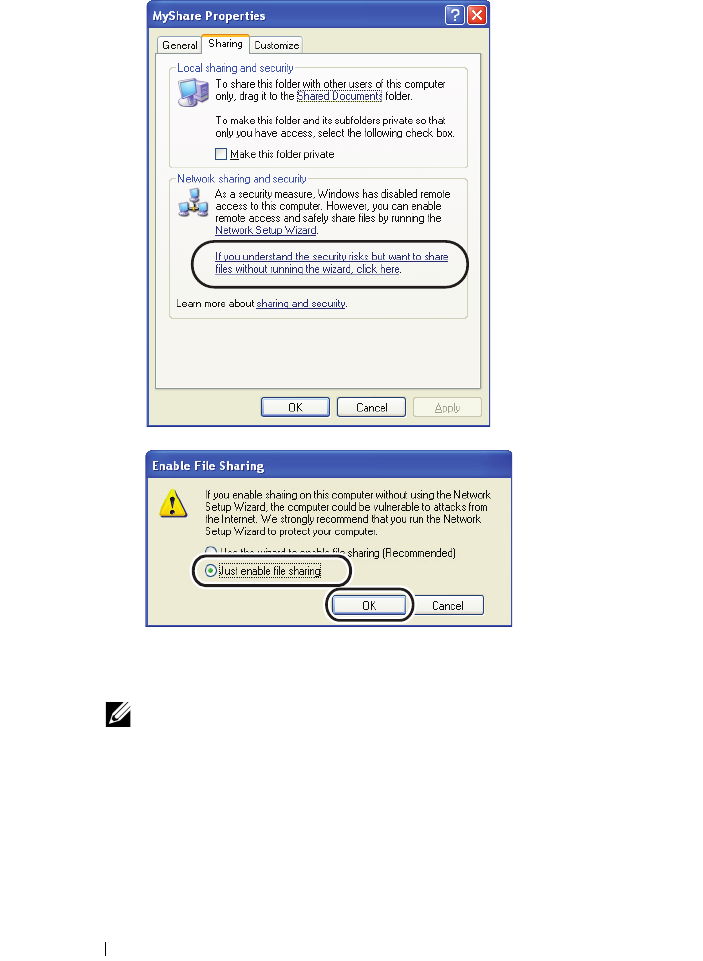
264 Scanning
5
Select
Allow network users to change my files
.
6
Click
OK
.
NOTE: To add sub-folders, create new folders in the shared folder you have
created.
Example: Folder name, MyShare, Second-level folder name: MyPic,
Third-level folder name: John
You should now see MyShare\MyPic\John in your directory
After you created a folder, go to "Configuring the Printer Settings" on
page 271.
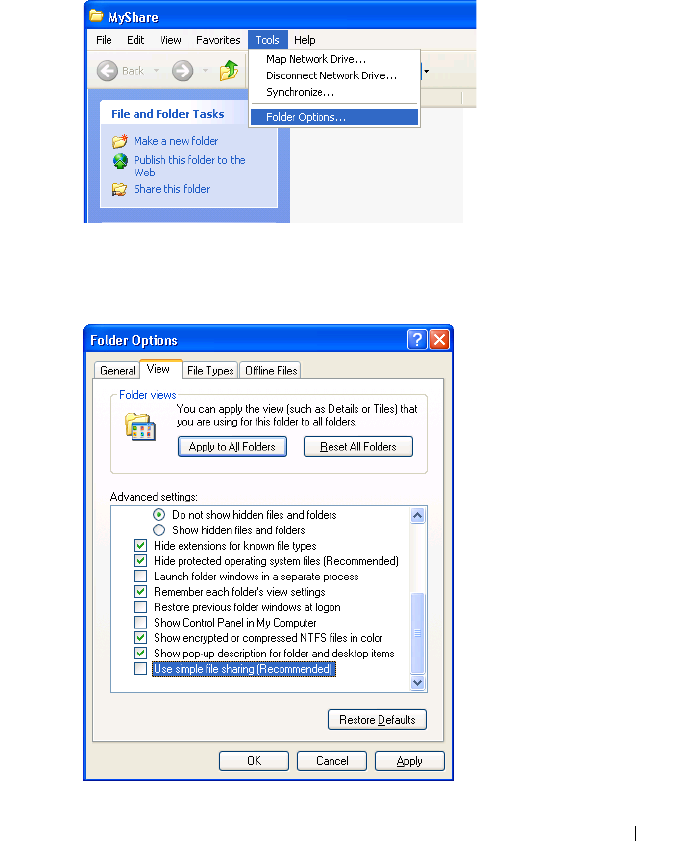
Scanning 265
For Microsoft Windows XP Professional Edition:
1
Create a folder in the desired directory on your computer (Example of
folder name,
MyShare
) and double-click the folder.
2
Select
Folder Options
from
Tools
.
3
Click
View
tab, and then clear the checkbox of
Use simple file sharing
(Recommended)
.
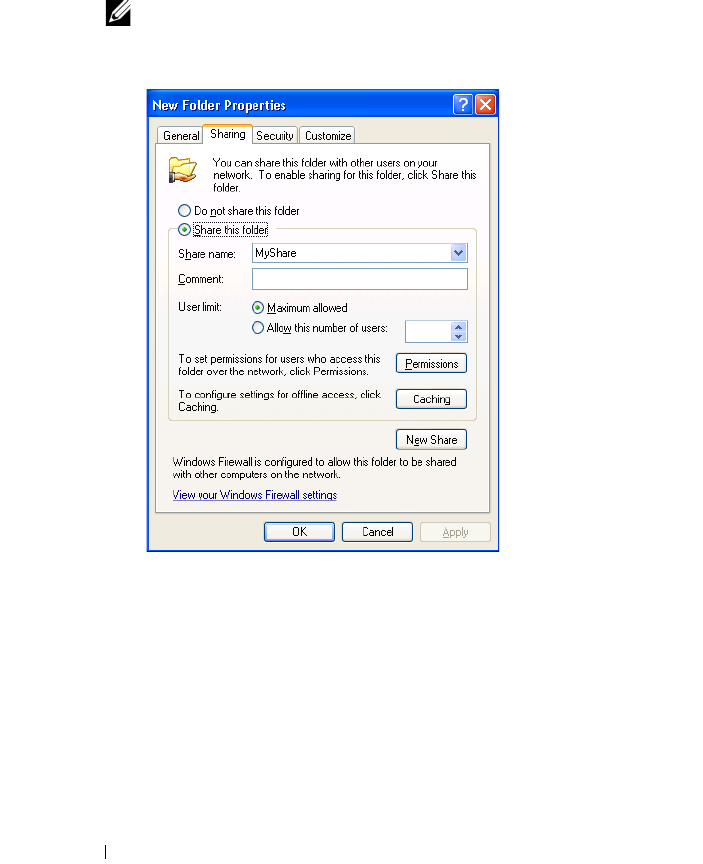
266 Scanning
4
Click
OK
, and then close the window.
5
Right-click the folder, and then select
Properties
.
6
Select the
Sharing
tab, and then select
Share this folder
.
7
Enter a shared name in the
Share name
box.
NOTE: Write down this shared name because you will use this name in the
next setting procedure.
8
Click on
Permissions
to create a write permission for this folder.
9
Click
Add
.
10
Search user login name by clicking
Advanced
, or enter the user login name
in the
Enter the object names
to select
box and click
Check Names
to
confirm (Example of user login name,
MySelf
).
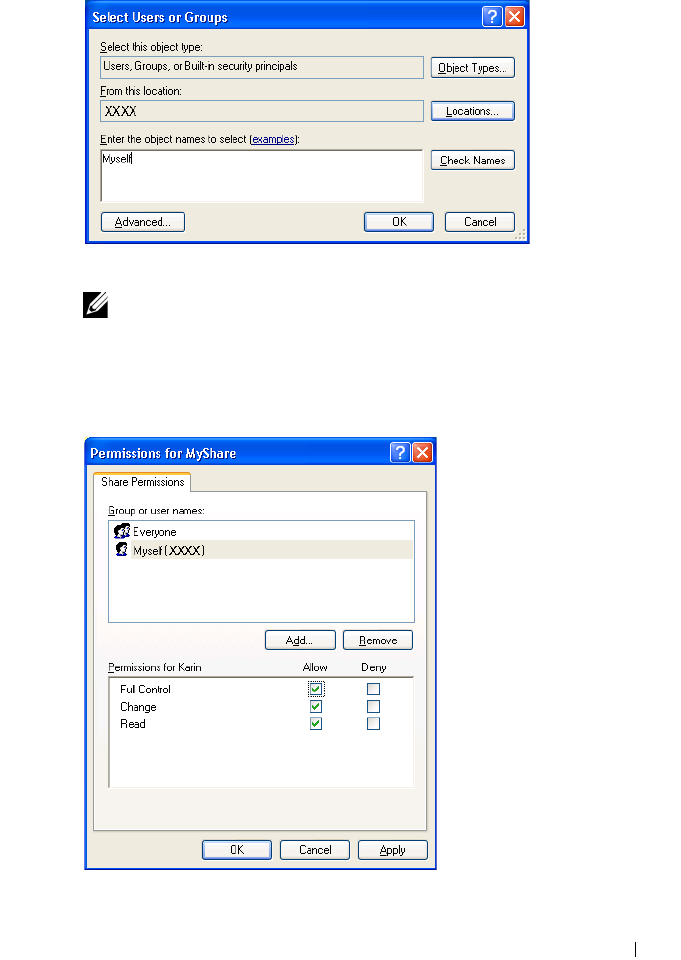
Scanning 267
11
Click
OK
.
NOTE: Do not use Everyone as the user login name.
12
Click the user login name that you have just entered. Select the
Full
Control
check box. This will grant you permission to send the document
into this folder.
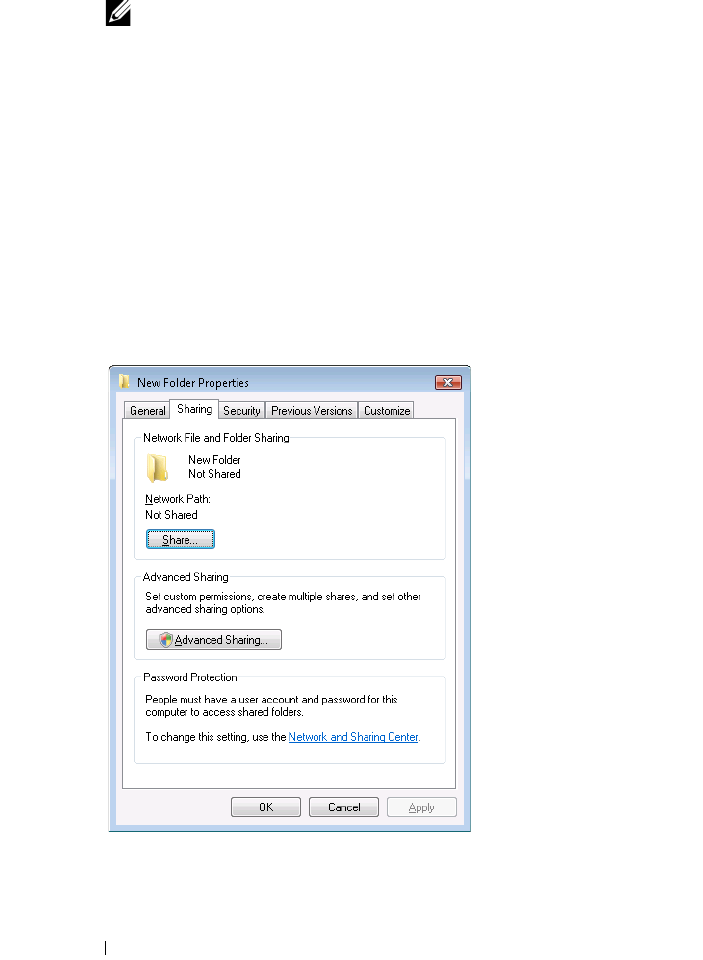
268 Scanning
13
Click
OK
.
NOTE: To add sub-folders, create new folders in the shared folder you have
created.
Example: Folder name: MyShare, Second-level folder name: MyPic,
Third-level folder name: John
You should now see MyShare\MyPic\John in your directory.
After you created a folder, go to "Configuring the Printer Settings" on
page 271.
For Microsoft Windows Vista, Windows 7, Windows Server 2008, Windows
Server 2008 R2
1
Create a folder in the desired directory on your computer (Example of
folder name,
MyShare
).
2
Right-click the folder, and then select
Properties
.
3
Click the
Sharing
tab, and then select
Advanced Sharing
.
4
Select the
Share this folder
check box.
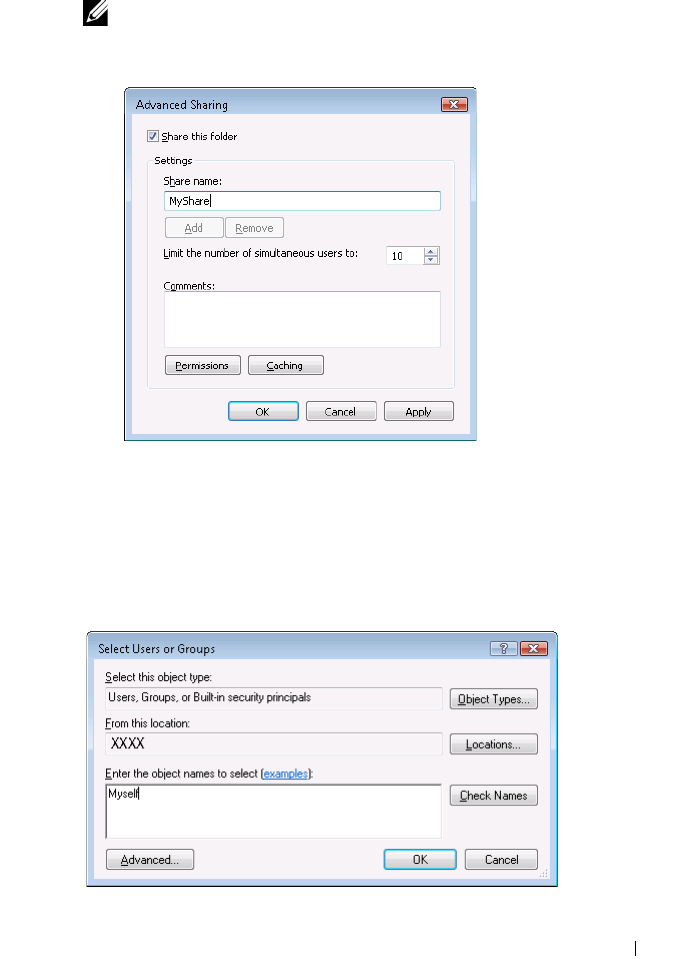
Scanning 269
5
Enter a shared name in the
Share name
box.
NOTE: Note down the shared name as you need to use this name in the next
setting procedure.
6
Click
Permissions
to give write permission for this folder.
7
Click
Add
.
8
Search user login name by clicking
Advanced
, or enter the user login name
in the
Enter the object names
to select
box and click
Check Names
to
confirm (Example of user login name,
MySelf
).
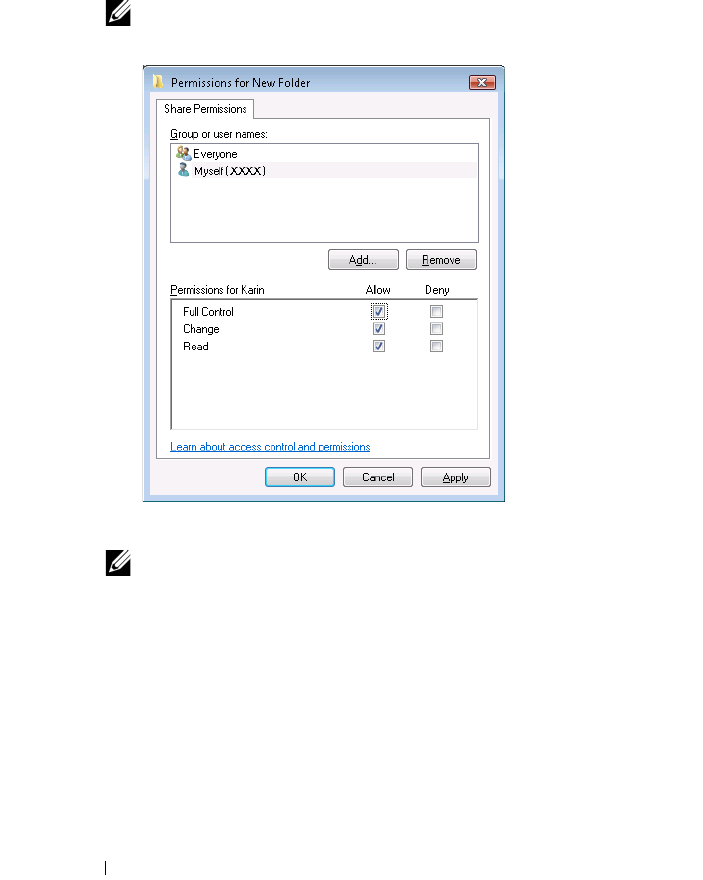
270 Scanning
9
Click
OK
when you are done.
10
Click the user login name that you have just entered. Select the
Full
Control
check box. This will grant you permission to send the document
to this folder.
NOTE: Do not use Everyone as the user login name.
11
Click
OK
.
NOTE: To add sub-folders, create new folders in the shared folder you have
created.
Example: Folder name: MyShare, Second-level folder name: MyPic,
Third-level folder name: John
You should now see MyShare\MyPic\John in your directory.
After you created a folder, go to "Configuring the Printer Settings" on
page 271.
For Mac OS X 10.4:
1
Select
Go
from the
Finder
menu, and then click
Home
.

Scanning 271
2
Double-click
Public
.
3
Create a folder (Example of folder name,
MyShare
).
NOTE: Note down the folder name as you need to use this name in the next
setting procedure.
4
Open
System Preferences
, and then click
Sharing
.
5
Check the
File Sharing
check box and the
Windows Sharing
check box.
For Mac OS X 10.5/10.6:
1
Create a folder in the desired directory on your computer (Example of
folder name,
MyShare
).
NOTE: Note down the folder name as you need to use this name in the next
setting procedure.
2
Select the created folder, and then select
Get Info
from the
File
menu.
3
Check the
Shared folder
check box, and then close the window.
4
Open
System Preferences
, and then click
Sharing
.
5
Check the
File Sharing
check box, and then click
Options
.
6
Check the
Share Files and folders using SMB
check box and your account
name.
7
Click
Done
.
When Using FTP
For a destination to store the document, contact your system administrator.
Configuring the Printer Settings
You can configure the printer settings to use the Scan to Server/Computer
feature with the Dell Printer Configuration Web Tool or Address Book Editor.
From the Dell Printer Configuration Web Tool
1
Open a web browser.
2
Type in the IP address of the printer in the address bar.
NOTE: For details on how to check the IP address of the printer, see "Verifying
the IP Settings" on page 56.
3
Click
Go
.
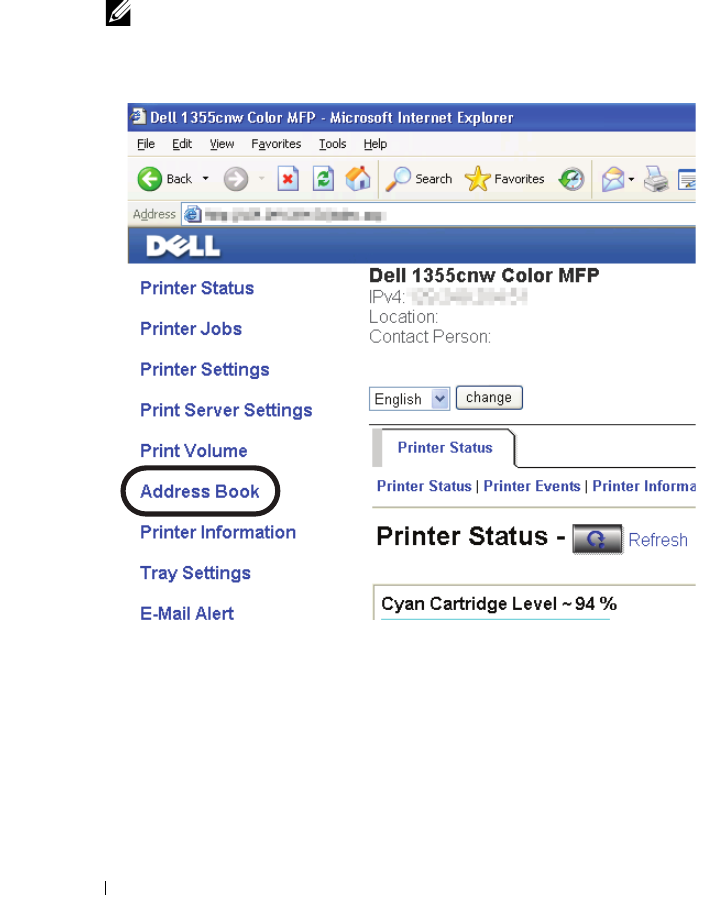
272 Scanning
The printer's web page appears.
4
Click
Address Book
if a security login dialog box appears, type in the
correct user name and password.
NOTE: The default user name is admin, and the default password is left blank
(NULL).
5
Click the
Server Address
tab.
6
Select any unused number and click
Create
.
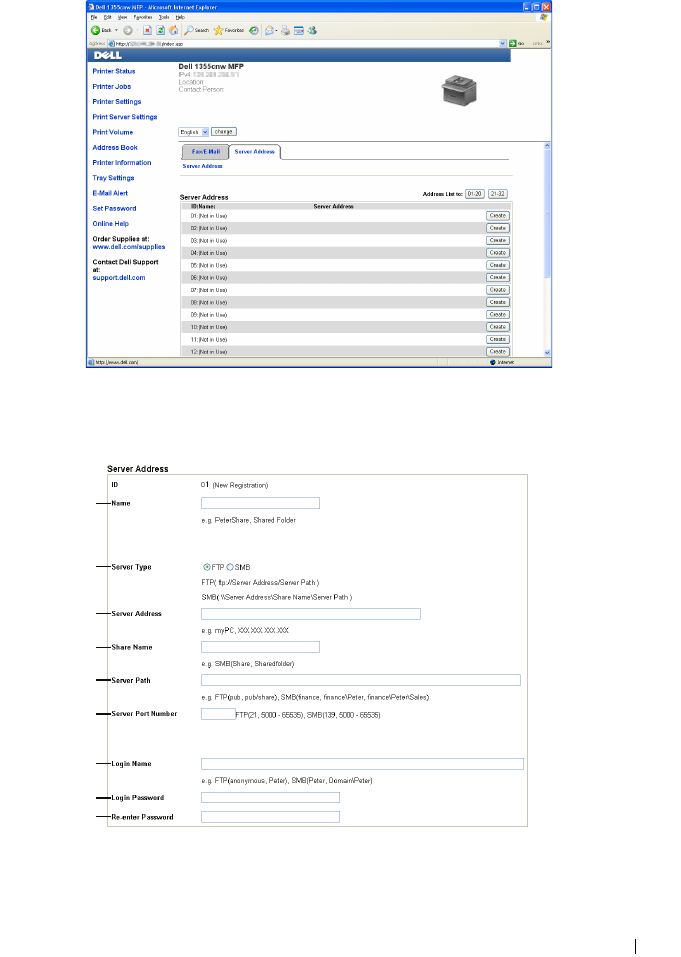
Scanning 273
The
Server Address
page appears.
To fill in the fields, enter the information as follows:
1
2
3
4
5
6
7
8
9

274 Scanning
1Name Enter a friendly name that you want it to appear on the
Server address book.
2Server Type Select SMB if you store the document in a shared folder of
your computer.
Select FTP if you use a FTP server.
3Server Address Enter a server name or IP address of your computer or the
FTP server that you have shared out.
The following are examples:
•For
FTP
:
Server name: myhost.example.com
(myhost: host name, example.com: domain name)
IP address: 192.168.1.100
•For
SMB
:
Server name: myhost
IP address: 192.168.1.100
4Share Name For SMB only.
On the Windows operating system, enter the share name
of the folder to store the scanned document on the
recipient computer.
On the Mac OS, enter the folder name to store the
scanned document on the recipient computer.
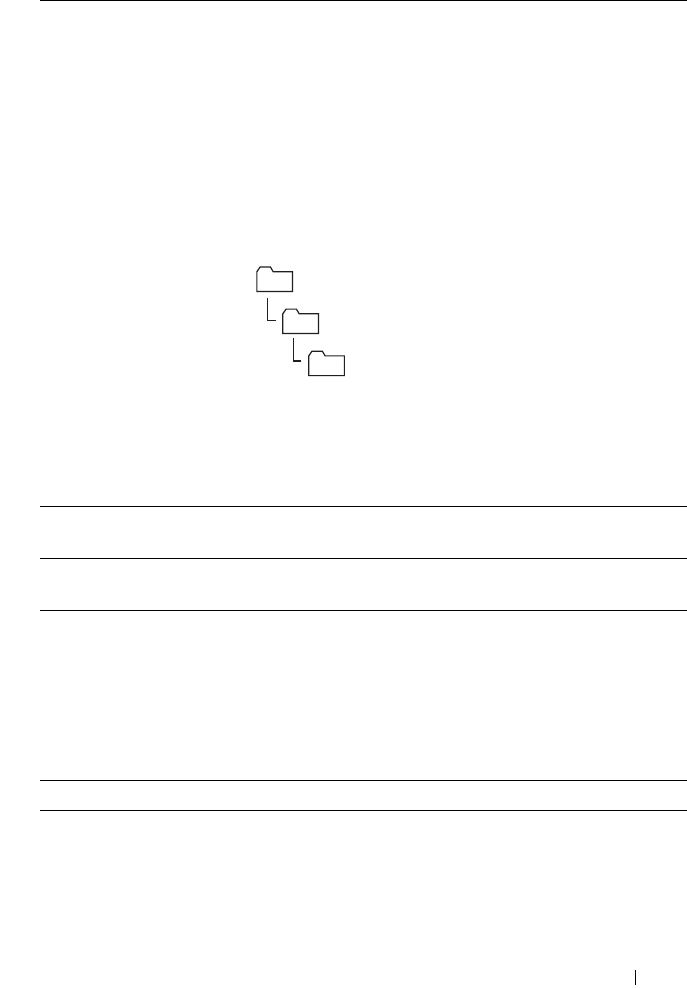
Scanning 275
After you configured settings, go to "Sending the Scanned File on the
Network" on page 279.
5Server Path For SMB
To store the scanned document in the share folder directly
without creating any subfolder, leave the space blank.
To store the scanned document in the folder you created
under the share folder, enter the path as following.
Example: Share Folder name, MyShare, Second-level
folder name: MyPic, Third-level folder name: John
You should now see MyShare\Mypic\John in your
directory.
In this case, enter the following item.
Server Path: \MyPic\John
For FTP
Enter the server path to store the scanned document.
6Server Port
Number
Enter the Server Port Number. If you are unsure, you can
enter the default value of 139 for SMB and 21 for FTP.
7Login Name Enter the user account name that has access to the shared
folder on your computer or FTP server.
8Login Password Enter the password corresponding to the above login
name.
NOTE: Empty password is not valid in the Scan to Computer
feature. Ensure that you have a valid password for the user
login account. (See "Confirming a Login name and Password"
on page 261 for details on how to add a password in your
user login account.)
9Re-enter Password Re-enter your password.
MyShare (Share folder)
MyPic
John
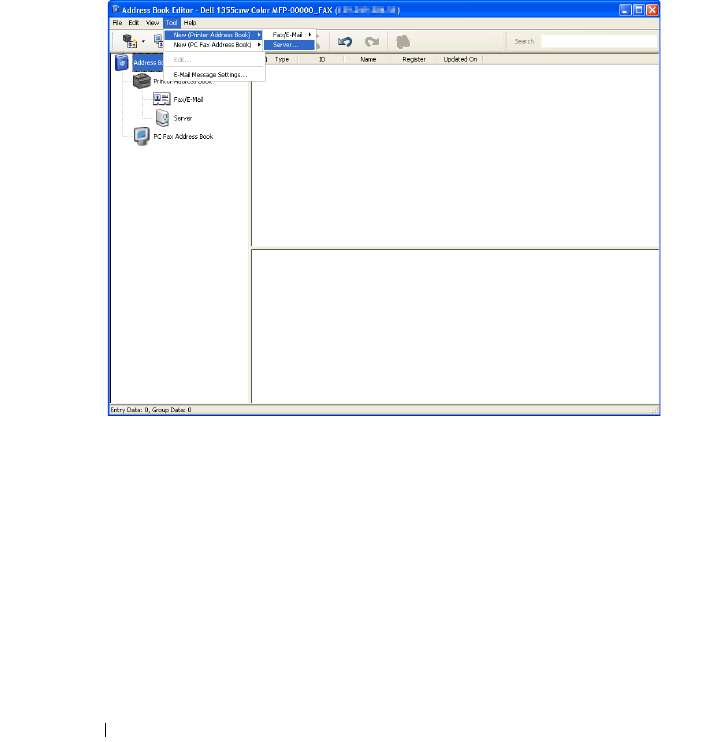
276 Scanning
From the Address Book Editor
1
Click
Start
All Programs
Dell Printers
Dell 1355 Multifunction
Color Printer
Address Book Editor
.
The
Select Device
window appears.
2
Select your printer from the list.
3
Click
OK
.
4
Click
Tool
New (Printer Address Book)
Server
.
The
Server Address
dialog box appears.
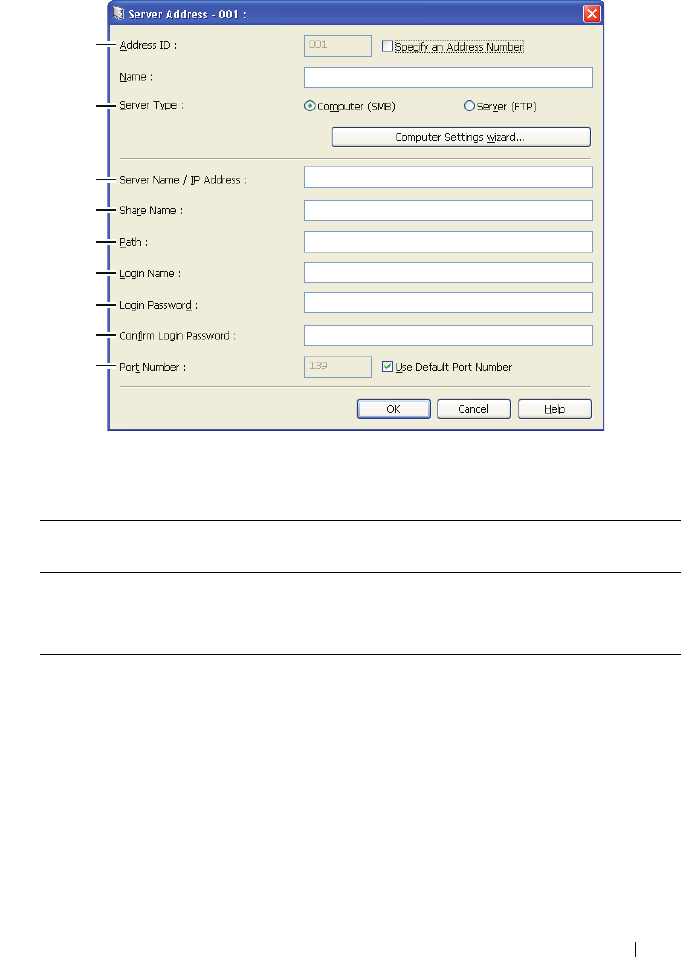
Scanning 277
To fill in the fields, enter the information as follows:
1Name Enter a friendly name that you want it to appear on the
Server address book.
2Server Type Select Computer (SMB) if you store the document in a
shared folder of your computer.
Select Server (FTP) if you use a FTP server.
3Computer
Settings wizard
Clicking this button opens the wizard screen which guides
you through several steps.
When you complete the steps in the wizard, the items 4 to
10 are entered automatically. For details, click the Help
button.
1
2
3
4
5
6
7
8
9
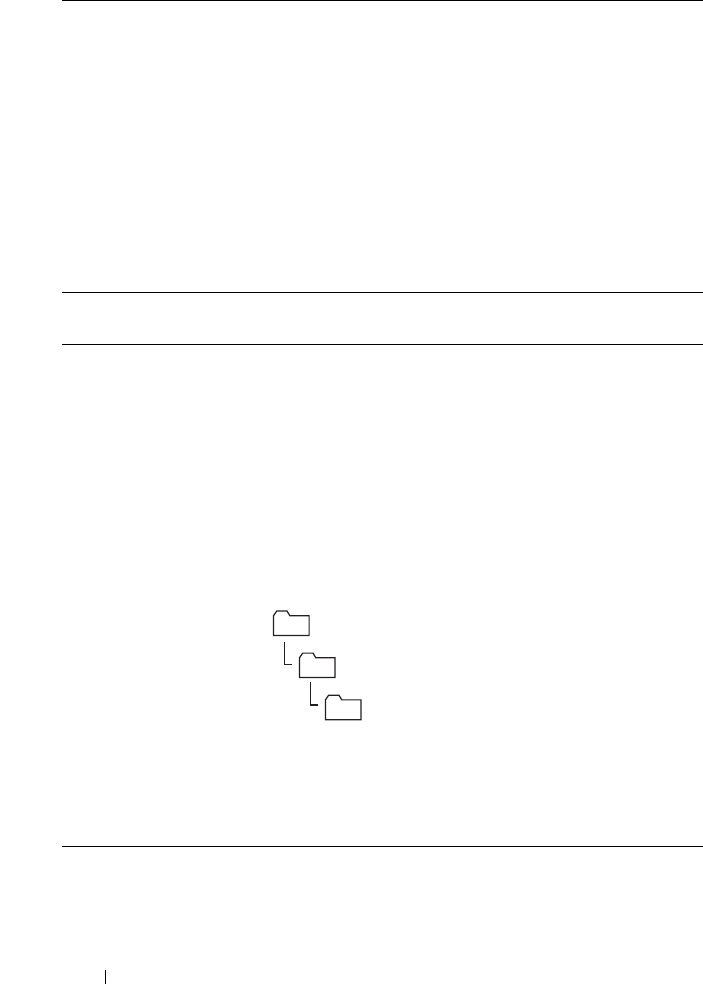
278 Scanning
4Sever Name/
IP Address
Enter a server name or IP address of your computer or the
FTP server that you have shared out.
The following are examples:
•For
Computer (SMB)
:
Server name: myhost
IP address: 192.168.1.100
•For
Server (FTP)
:
Server name: myhost.example.com
(myhost: host name, example.com: domain name)
IP address: 192.168.1.100
5Share Name Enter the name of the shared folder on the recipient
computer. For SMB only.
6Path For SMB
To store the scanned document in the share folder directly
without creating any subfolder, leave the space blank.
To store the scanned document in the folder you created
under the share folder, enter the path as following.
Example: Share Folder name, MyShare, Second-level
folder name: MyPic, Third-level folder name: John
You should now see MyShare\MyPic\John in your
directory.
In this case, enter the following item.
Path: \MyPic\John
For FTP
Enter the path to store the scanned document.
7Login Name Enter the user account name that has access to the shared
folder on your computer or FTP server.
MyShare (Share folder)
MyPic
John
Scanning 279
After you configured settings, go to "Sending the Scanned File on the
Network" on page 279.
Sending the Scanned File on the Network
1
Load the document(s) face up with top edge in first into the ADF.
OR
Place a single document face down on the document glass.
For details about loading a document, see "Loading an Original Document
on the ADF" on page 296.
2
Press the
(Scan)
button.
3
Press the button until
Scan to Network
is highlighted, and then
press the button.
4
Ensure that
Scan to
is highlighted, press the button.
5
Press the button to select
Network (Computer)
or
Network
(Server)
, or
Search Address book
, and then press the
button.
Network (Computer)
: Stores the scanned image on the computer by
using the SMB protocol.
Network (Server)
: Stores the scanned image on the server by using
the FTP protocol.
Search Address Book
: Select the server address registered in
Address Book.
8Login Password Enter the password corresponding to the above login
name.
NOTE: NOTE: Empty password is not valid in the Scan to
Server/Computer feature. Ensure that you have a valid
password for the user login account. (See "Confirming a
Login name and Password" on page 261 for details on how to
add a password in your user login account).
9Confirm Login
Password
Re-enter your password.
10 Port Number Enter the Server Port Number. If you are unsure, you can
enter the default value of 139 for SMB and 21 for FTP.
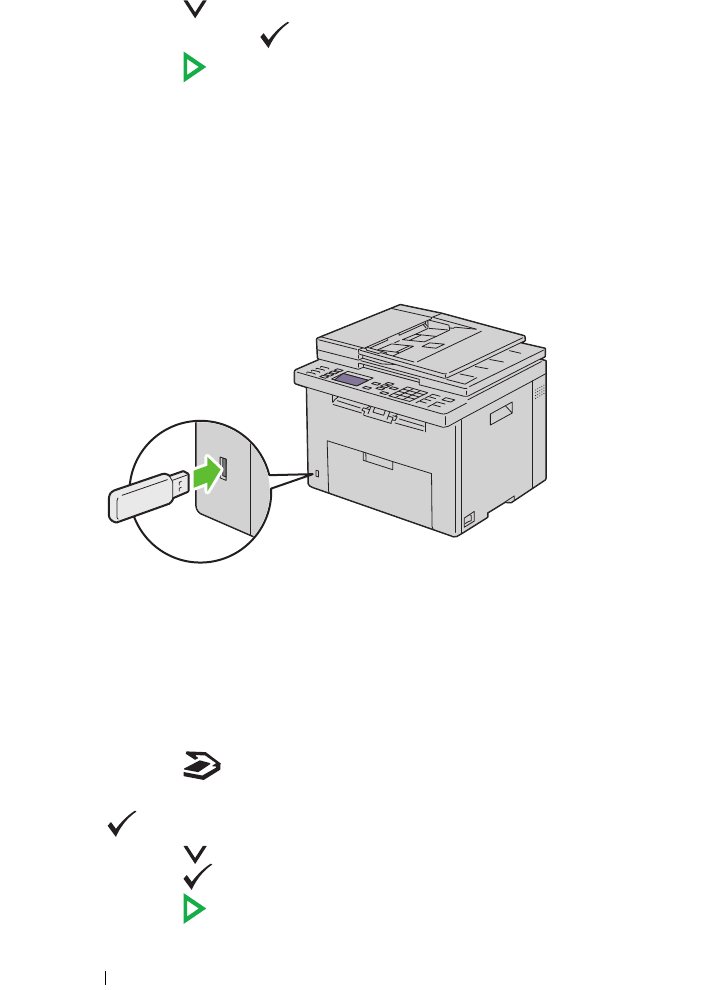
280 Scanning
6
Press the button to select the destination to store the scanned file in,
and then press the button.
7
Press the
(Start)
button to send the scanned files.
Scanning to USB Storage Device
The Scan to USB Memory feature allows you to scan documents and save the
scanned data to a USB storage device. To scan documents and save them,
follow the steps below:
1
Insert the USB storage device into the USB port on your printer.
2
Load the document(s) face up with top edge in first into the ADF.
OR
Place a single document face down on the document glass.
For details about loading a document, see "Loading an Original Document
on the ADF" on page 296.
3
Press the
(Scan)
button.
4
Ensure that
Scan to USB Memory
is highlighted, and then press the
button.
5
Press the button until the your desired folder is highlighted, and then
press the button.
6
Press the
(Start)
button.
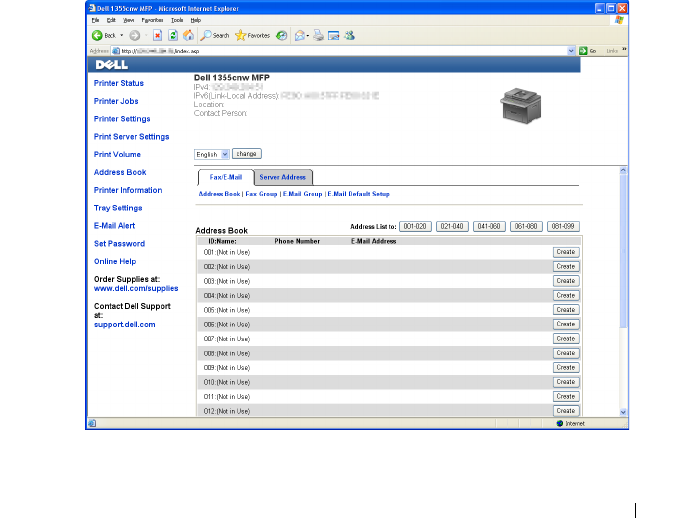
Scanning 281
Sending an E-Mail with the Scanned Image
To send an e-mail attached with the scanned image from your printer, follow
the steps below:
• Setup the E-mail address book through the
Dell Printer Configuration
Web Tool
. See "Setting an E-Mail Address Book" on page 281 for more
details.
Setting an E-Mail Address Book
1
Open a web browser.
2
Type in the IP address of the printer in the address bar and click
Go
. The
printer's Web page appears.
3
Click the
Address Book
tab.
The login dialog box appears.
4
Type in the administrator login ID and password registered on the printer.
5
Click
Address Book
.
6
Click
Create
.
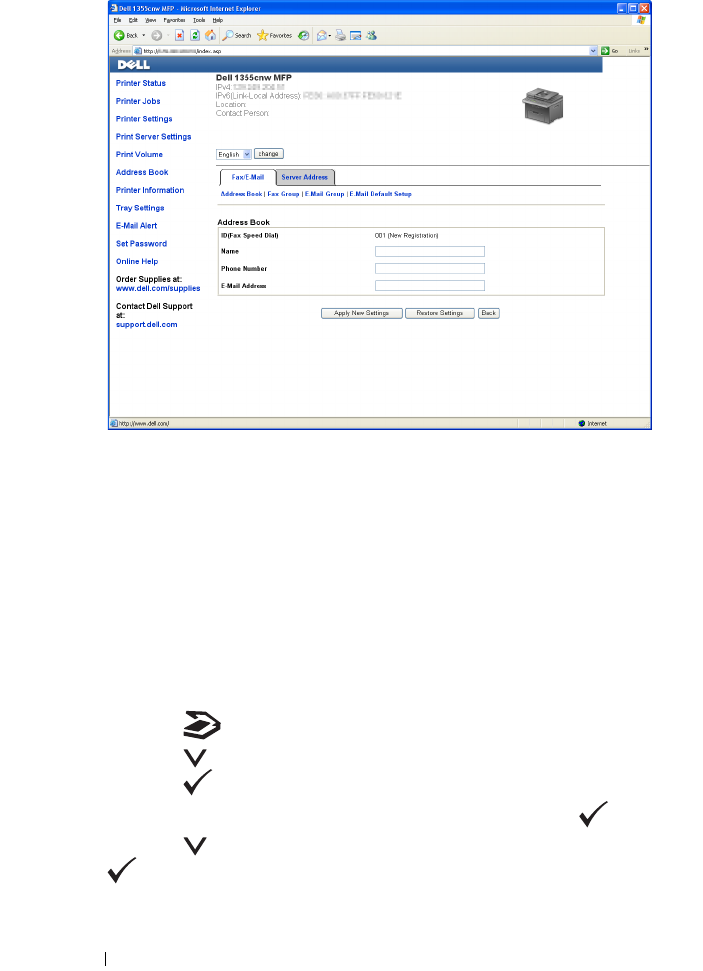
282 Scanning
7
Enter a name and e-mail address in the
Name
and
E-mail Address
fields.
8
Click the
Apply New Settings
button.
Sending an E-mail With the Scanned File
1
Load the document(s) face up with top edge in first into the ADF.
OR
Place a single document face down on the document glass.
For details about loading a document, see "Loading an Original Document
on the ADF" on page 296.
2
Press the
(Scan)
button.
3
Press the button until
Scan to Email
is highlighted, and then
press the button.
4
Ensure that
Email to
is highlighted, and then press the button.
5
Press the button to select the setting listed below, and then press the
button.

Scanning 283
Keypad:
Type the e-mail address directly and then press the
button.
Address Book
: Select the e-mail address registered in the E-mail
address book, and then press the button.
Email Group
: Select the e-mail group registered in the E-mail Groups,
and then press the button.
NOTE: Users need to be registered before you can select Address Book
on the operator panel.
6
Press the
(Start)
button to send e-mail.

284 Scanning
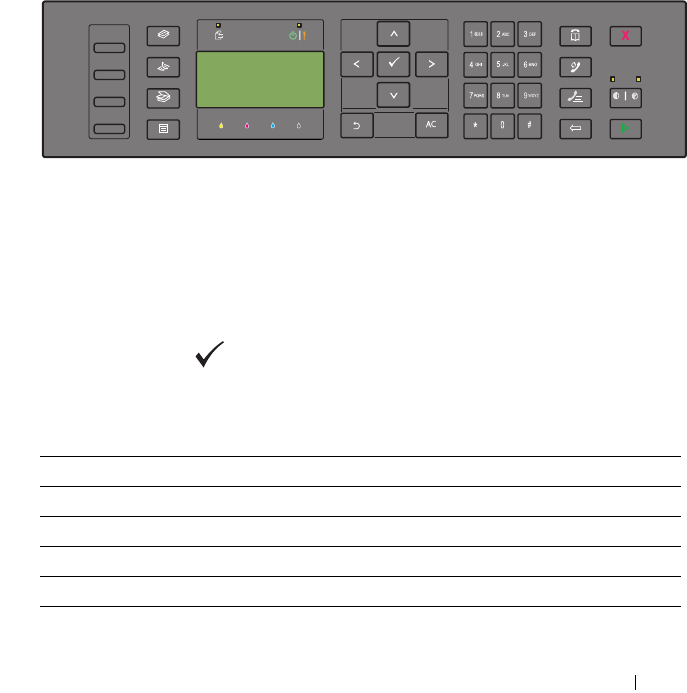
Faxing 285
18
Faxing
Using the Numeric Keypad to Enter Characters
As you perform various tasks, you may need to enter names and numbers. For
example, when you set up your printer, you enter your name or your company
name and telephone number. When you store speed dial or group dial
numbers, you may also need to enter the corresponding names.
• When prompted to enter a letter, press the appropriate button until the
correct letter appears on the display.
For example, to enter the letter O, press 6.
– Each time you press 6, the display shows a different letter, M, N, O
and finally 6.
– To enter additional letters, repeat the first step.
– Press the button when you are finished.
Keypad Letters and Numbers
Key Assigned numbers, letters or characters
1@ : . / 1
2a b c A B C 2
3 d e f D E F 3
4g h i G H I 4
5j k l J K L 5
286 Faxing
Changing Numbers or Names
If an incorrect name or number is entered, press the (Backspace) button
to delete the last digit or character. Then enter the correct number or
character.
Inserting a Pause
For some telephone systems, it is necessary to dial an access code and listen
for a second dial tone. A pause must be entered in order for the access code to
function. For example, enter the access code 9 and then press the
(Redial/Pause) button before entering the telephone number. "-" appears on
the display to indicate when a pause is entered.
Configuring Fax Initial Settings
NOTE: The following settings can be configured also using Advance Tools on Easy
Setup Navigator.
Setting Your Country
You need to set the country where your printer is used for using the fax service
on the printer.
1
Press the
(Menu)
button.
2
Press the button until
System
is highlighted, and then press the
button.
6m n o M N O 6
7p q r s P Q R S 7
8t u v T U V 8
9w x y z W X Y Z 9
00
*- _ ~
#@ . _ ! " # $ % & ' ~^ | ` ; : ? , (space) + - * / = ( ) [ ] { }
< >
Key Assigned numbers, letters or characters
Faxing 287
3
Press the button until
Admin Menu
is highlighted, and then press the
button.
4
Press the button until
Fax Settings
is highlighted, and then press
the button.
5
Press the button until
Country
is highlighted, and then press the
button.
6
Press the button to select the country where the printer is used, and
then press the button.
7
Ensure that
Are You Sure?
is displayed, press the button to select
Yes
, and then press the button.
The printer restarts automatically to apply the settings.
NOTE: In case of either one, when you configure the country setting, the
information, which is registered to the device, is initialized.
Setting the Printer ID
In most countries, you are required by law to indicate your fax number on any
fax you send. The printer ID, containing your telephone number and name or
company name, will be printed at the top of each page sent from your printer.
1
Press the
(Menu)
button.
2
Press the button until
System
is highlighted, and then press the
button.
3
Press the button until
Admin Menu
is highlighted, and then press the
button.
4
Press the button until
Fax Settings
is highlighted, and then press
the button.
5
Press the button until
Fax Number
is highlighted, and then press
the button.
6
Enter your fax number using the number keypad.
NOTE: If you make a mistake while entering numbers, press the
(Backspace) button to delete the last digit.
7
Press the button when the number on the display is correct.
8
Press the button until
Company Name
is highlighted, and then press
the button.
288 Faxing
9
Enter your name or company name using the numeric keypad.
You can enter alphanumeric characters using the numeric keypad,
including special symbols by pressing the 1, *, and # buttons.
For details on how to use the numeric keypad to enter alphanumeric
characters, see "Using the Numeric Keypad to Enter Characters" on
page 285.
10
Press the button when the name on the display is correct.
11
To return to the previous screen, press the
(Back)
button.
Setting the Time and Date
NOTE: It may be necessary to reset the correct time and date if loss of power to the
printer occurs.
1
Press the
(Menu)
button.
2
Press the button until
System
is highlighted, and then press the
button.
3
Press the button until
Admin Menu
is highlighted, and then press
the button.
4
Press the button until
System Settings
is highlighted, and then
press the button.
5
Press the button until
Date & Time
is highlighted, and then press
the button.
6
Ensure that
Set Date
is highlighted, and then press the button.
7
Enter the correct date using the numeric keypad, or press the button
to select the correct date.
NOTE: If you make a mistake while entering numbers, press the button to
re-enter the digit.
8
Press the button when the date on the display is correct.
9
Press the button until
Set Time
is highlighted, and then press the
button.
10
Enter the correct time using the numeric keypad, or press the button
to select the correct time.
11
Press the button when the time on the display is correct.
Faxing 289
12
To return to the previous screen, press the
(Back)
button.
Changing the Clock Mode
You can set the current time using either the 12-hour or the 24-hour format.
1
Press the
(Menu)
button.
2
Press the button until
System
is highlighted, and then press the
button.
3
Press the button until
Admin Menu
is highlighted, and then press
the button.
4
Press the button until
System Settings
is highlighted, and then
press the button.
5
Press the button until
Date & Time
is highlighted, and then press
the button.
6
Press the button until
Date Format
is highlighted, and then press
the button.
7
Press the button until the desired format is highlighted, and then press
the button.
8
To return to the previous screen, press the
(Back)
button.
Setting Sounds
Speaker Volume
1
Press the
(Menu)
button.
2
Press the button until
System
is highlighted, and then press the
button.
3
Press the button until
Admin Menu
is highlighted, and then press
the button.
4
Press the button until
Fax Settings
is highlighted, and then press
the button.
5
Press the button until
Line Monitor
is highlighted, and then press
the button.
6
Press the button until the desired volume is highlighted, and then
press the button.
290 Faxing
7
Reboot the printer by turning the power switch off and then on.
Ringer Volume
1
Press the
(Menu)
button.
2
Press the button until
System
is highlighted, and then press the
button.
3
Press the button until
Admin Menu
is highlighted, and then press
the button.
4
Press the button until
Fax Settings
is highlighted, and then press
the button.
5
Press the button until
Ring Tone Volume
is highlighted, and
then press the button.
6
Press
the
button until the desired volume is highlighted, and then
press the button.
7
Reboot the printer by turning the power switch off and then on.
Specifying the Fax Settings
Changing the Fax Settings Options
1
Press the
(Menu)
button.
2
Press the button until
System
is highlighted, and then press the
button.
3
Press the button until
Admin Menu
is highlighted, and then press
the button.
4
Press the button until
Fax Settings
is highlighted, and then press
the button.
5
Press the button until the desired menu item is highlighted, and then
press the button.
6
Press the or button until the desired setting is highlighted or enter
the value using the numeric keypad.
7
Press the button to save the selection.
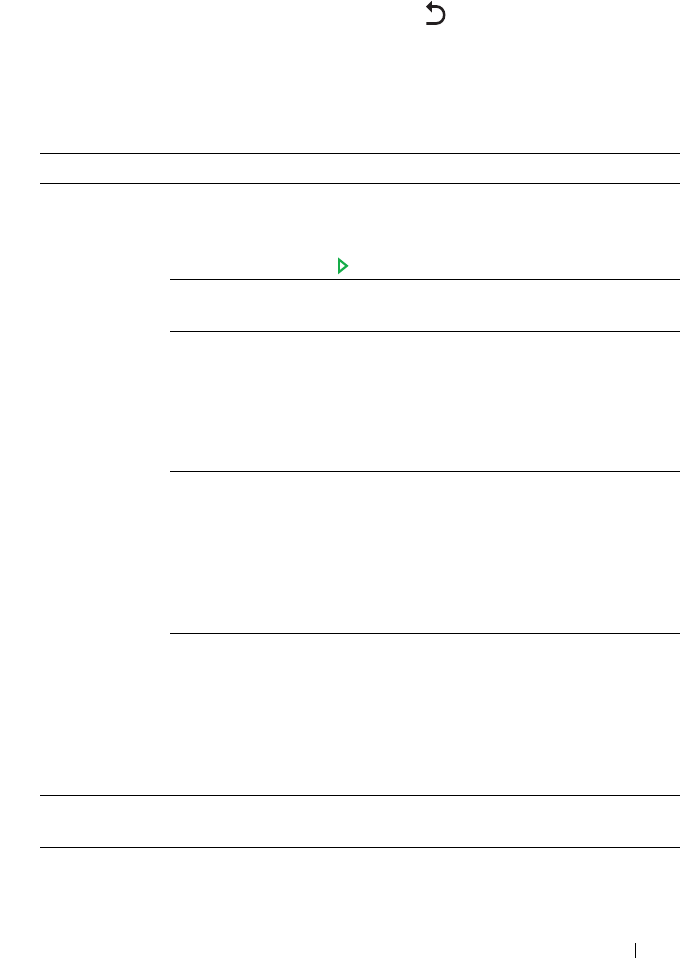
Faxing 291
8
If necessary, repeat steps 5 to 7.
9
To return to the previous screen, press the
(Back)
button.
Available Fax Settings Options
You can use the following settings options for configuring the fax system:
Option Description
Receive Mode TEL Mode Automatic fax reception is turned off. You can receive
a fax by picking up the handset of the external
telephone, pressing the remote receive code, and then
pressing .
FAX
Mode*
Automatically receives faxes.
TEL/FAX
Mode
When the printer receives an incoming fax, the
external telephone rings for the time specified in Auto
Rec TEL/FAX, and then the printer automatically
receives a fax. If an incoming call is not a fax, the
printer beeps from the internal speaker indicating that
the call is a telephone call.
Ans/FAX
Mode
The printer can share a telephone line with an
answering machine. In this mode, the printer will
monitor the fax signal and pick up the line if there are
fax tones. If the phone communication is using serial
transmission in your country (such as Germany,
Sweden, Denmark, Austria, Belgium, Italy, France and
Switzerland), this mode is not supported.
DRPD
Mode
Before using the Distinctive Ring Pattern Detection
(DRPD) option, a distinctive ring service must be
installed on your telephone line by the telephone
company. After the telephone company has provided a
separate number for faxing with a distinctive ring
pattern, configure the fax setup to monitor for that
specific ring pattern.
Auto Rec Fax Sets the interval at which the printer goes into the fax receive mode
after receiving an incoming call.
Auto Rec
TEL/FAX
Sets the interval at which the printer goes into the fax receive mode
after the external telephone receives an incoming call.
292 Faxing
Auto Rec
Ans/FAX
Sets the interval at which the printer goes into the fax receive mode
after the external answering machine receives an incoming call.
Line Monitor Sets the volume of the line monitor, which audibly monitors a
transmission through the internal speaker until a connection is
made.
Ring Tone
Volume
Sets the volume of the ring tone, which indicates that an incoming
call is a telephone call through the internal speaker when Receive
Mode is set to Telephone/Fax.
Line Type Sets the line type.
Tone/Pulse Sets the dialing type.
Resend Delay Specifies the interval between transmission attempts.
Redial
Attempts
Specifies the number of redial attempts to make when the
destination fax number is busy. If you enter 0, the printer will not
redial.
Redial Delay Specifies the interval between redial attempts.
Junk Fax Setup Sets whether to reject faxes sent from unwanted numbers by
accepting faxes only from the fax numbers registered in the Phone
Book.
Remote Receive Sets whether to receive a fax by pressing a remote receive code on
the external telephone.
Remote Rcv
Tone
Specifies the remote receive code in two digits to start Remote
Receive.
Fax Header Sets whether to print the information of sender on the header of
faxes.
Company
Name
Sets the name of sender to be printed on the header of faxes. Up to
30 alphanumeric characters can be entered.
Fax Number Sets the fax number of the printer to be printed on the header of
faxes.
Fax Cover Page Sets whether to attach a cover page to faxes.
DRPD Pattern Sets the DRPD setting from Pattern 1 to Pattern 7. DRPD is a
service provided by some telephone companies.
Forward
Settings
Sets whether to forward incoming faxes to a specified destination.
Option Description
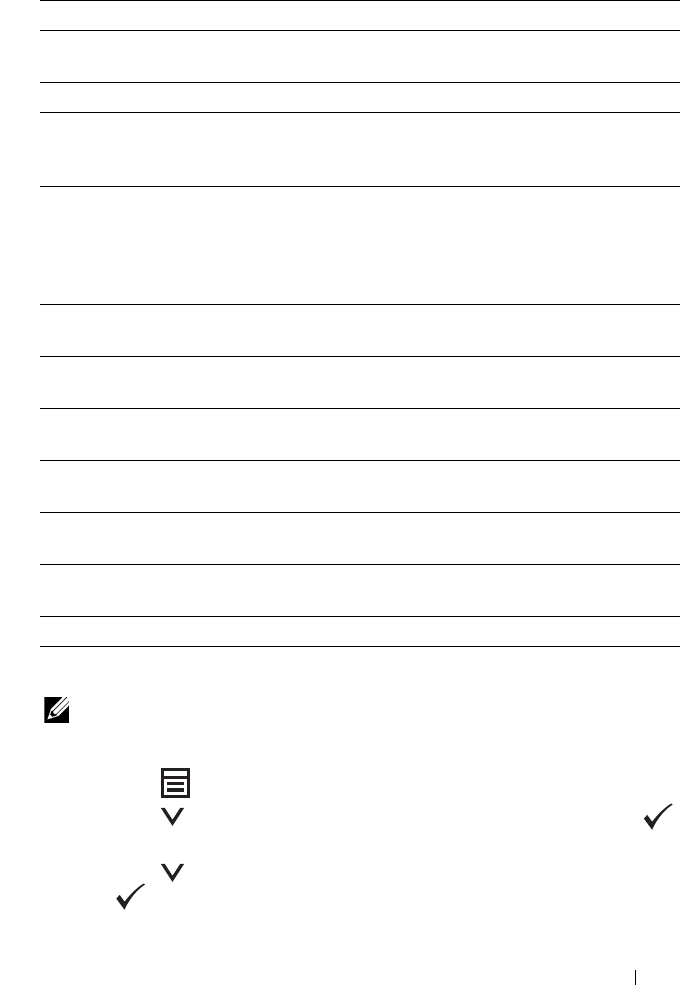
Faxing 293
Prefix Dial
NOTE: Prefix Dial only supports the environment where you send a fax to the
external line number. To use Prefix Dial, you must do the following from the operator
panel.
1
Press the
(Menu)
button.
2
Press the button until
System
is highlighted, and then press the
button.
3
Press the button until
Admin Menu
is highlighted, and then press
the button.
Fax Fwd
Number
Specifies the fax number of the destination to which incoming
faxes will be forwarded.
Prefix Dial Specifies whether to set a prefix dial number.
Prefix Dial
Num
Sets a prefix dial number of up to five digits. This number dials
before any auto dial number is started. It is useful for accessing the
Private Automatic Branch Exchange (PABX).
Discard Size Sets whether to discard text or images at the bottom of a fax page
when the entire page does not fit onto the output paper. Selecting
Auto Reduction automatically reduces the fax page to fit it onto
the output paper, and does not discard any images or text at the
bottom of the page.
ECM Sets whether to enable the ECM. To use the ECM, the remote
machines must also support the ECM.
Modem Speed Specifies the fax modem speed when a fax transmission or
reception error occurs.
Fax Activity Sets whether to automatically print a fax activity report after every
50 incoming and outgoing fax communications.
Fax Transmit Sets whether to print a transmission report after every fax
transmission or only when an error occurs.
Fax Broadcast Sets whether to print a transmission report after every fax
transmission to multiple destinations or only when an error occurs.
Protocol
Monitor
Sets whether to print a protocol monitor report after every fax
transmission or only when an error occurs.
Country Sets the country where the printer is used.
Option Description
294 Faxing
4
Press the button until
Fax Settings
is highlighted, and then press
the button.
5
Press the button until
Line Type
is highlighted, and then press the
button.
6
Press the button until
PBX
is highlighted, and then press the
button.
7
Press the
(Back)
button to return to the previous menu.
8
Press the button until
Prefix Dial
is highlighted, and then press
the button.
9
Press the button until
On
is highlighted, and then press the
button.
10
Press the
(Back)
button to return to the previous menu.
11
Press the button until
Prefix Dial Num
is highlighted, and then
press the button.
12
Enter an up-to-five-digit prefix number from 0
–
9, *, and #.
13
Press the button when the prefix dial number on the display is correct.
14
Reboot the printer by turning the power switch off and then on.
Advanced Fax Settings
NOTE: The advanced fax settings are only meant for advanced users. Incorrect
settings on this printer may damage the device.
If you are experiencing fax send or receive errors, there is an advanced fax
settings menu which you can access and change the settings accordingly.
To enter the Diagnostic Menu (Customer Mode), follow the instructions.
1
Turn off the printer.
2
Disconnect all network, phone line, and USB cables from the device.
3
Turn on the printer while holding down the and buttons.
The
Customer Mode
menu appears.
4
After all the advanced fax settings have been made, you will need to turn
off and on the printer for the new settings to be effective.
Faxing 295
Fax Data Encoding Method
Some of the legacy fax devices do not support the Joint Bi-level Image
Experts Group (JBIG) data encoding method. You may experience fax send or
receive errors due to this data encoding method. You can disable the JBIG and
select the Modified Huffman (MH), Modified Read (MR), or Modified
Modified Read (MMR) encoding with the following instructions.
You can change the modem transmission encoding with the following
instructions.
1
When the printer is in
Customer Mode
, select
Fax/Scanner Diag
and press the button.
2
Press the button until
Parameter
is highlighted, and then press the
button.
3
Press the button until
FAX Parameter
is highlighted, and then
press the button.
4
Press the button until
G3M TX Coding
is highlighted, and then
press the button.
5
Press the button until
MMR
is highlighted, and then press the
button to enable MMR encoding, select
MR
to enable
MR
encoding, or
select
MH
to enable MH encoding.
You can change the modem receive encoding with the following instructions.
1
When the printer is in
Customer Mode
, select
Fax/Scanner Diag
and press the button.
2
Press the button until
Parameter
is highlighted, and then press the
button.
3
Press the button until
FAX Parameter
is highlighted, and then
press the button.
4
Press the button until
G3M RX Coding
is highlighted, and then
press the button.
5
Press the button until
MMR
is highlighted, and then press the
button to enable MMR encoding, select
MR
to enable MR encoding, or
select
MH
to enable MH encoding.
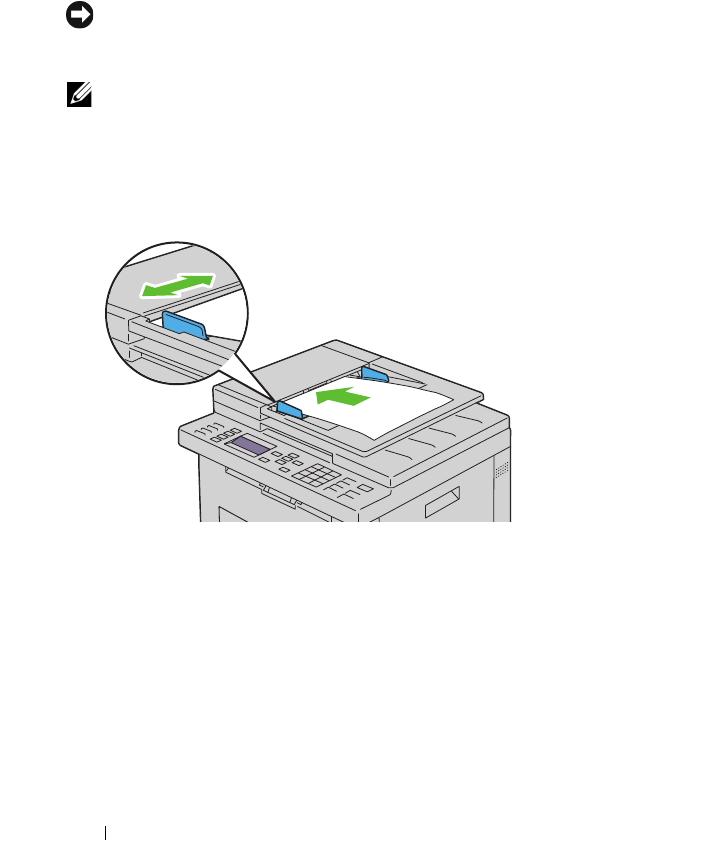
296 Faxing
Sending a Fax
You can fax data from your printer. You can also directly fax data transferred
from the computer running a Microsoft® Windows® operating system.
Loading an Original Document on the ADF
NOTICE: Do not load more than 35 sheets into the ADF or allow more than 35
sheets to be fed to the ADF output tray. The ADF output tray should be emptied
before it exceeds 35 sheets or your original documents may be damaged.
NOTE: To get the best scan quality, especially for gray scale images, use the
document glass instead of the ADF.
1
Place the document(s) face up on the ADF with the top edge of the
documents in first. Then adjust the document guides to the correct
document size.
2
Adjust the document resolution, referring to "Resolution" on page 298.
Loading an Original Document on the Document Glass
1
Open the document cover.
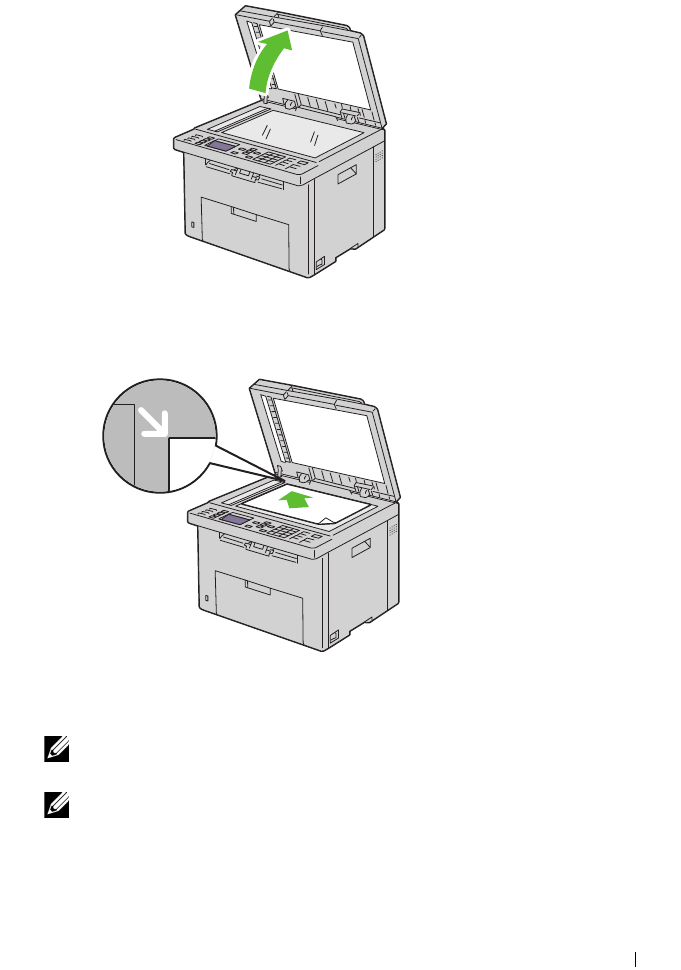
Faxing 297
2
Place the document face down on the document glass and align it with the
registration guide on the top left corner of the glass.
3
Adjust the document resolution, referring to "Resolution" on page 298.
4
Close the document cover.
NOTE: Ensure that no document is in the ADF. If any document is detected in the
ADF, it takes priority over the document on the document glass.
NOTE: If you are faxing a page from a book or magazine, lift the document cover
until its hinges are caught by the stopper and then close the cover. If the book or
magazine is thicker than 30 mm, start faxing with the cover open.
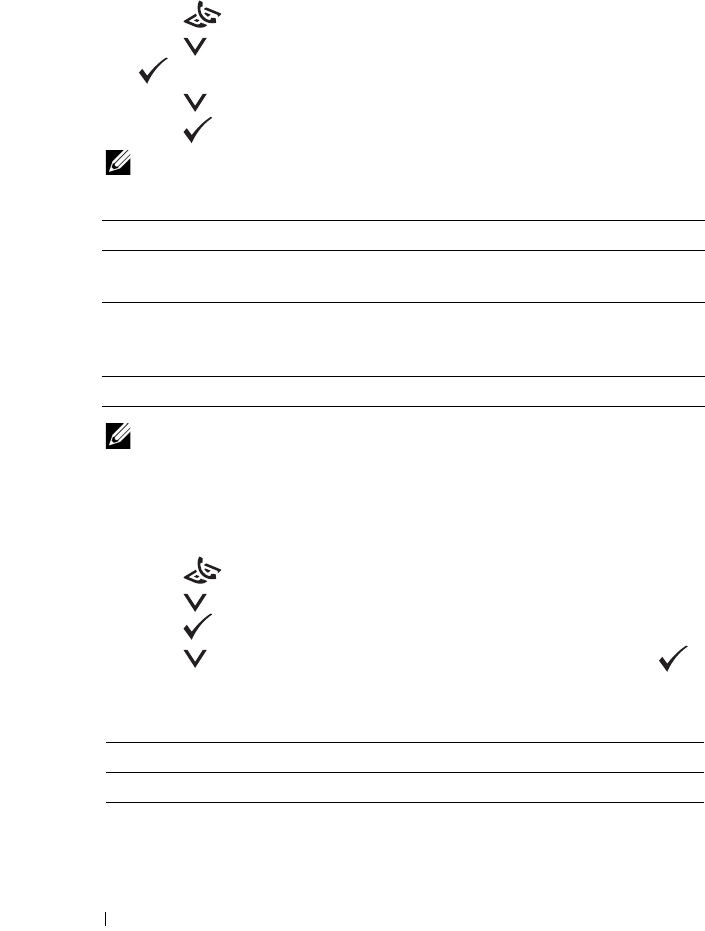
298 Faxing
Resolution
To specify the resolution level to be used for fax transmission:
1
Press the
(Fax)
button.
2
Press the button until
Resolution
is highlighted, and then press
the button.
3
Press the button until the desired menu item is highlighted, and then
press the button.
NOTE: Values marked by an asterisk (*) are the factory default menu settings.
NOTE: Faxes scanned in the Super Fine mode transmit at the highest
resolution supported by the receiving device.
Document Type
To select the default document type for the current fax job:
1
Press the
(Fax)
button.
2
Press the button until
Document Type
is highlighted, and then
press the button.
3
Press the button to select the desired setting, and then press the
button.
Standard* Suitable for documents with normal sized characters.
Fine Suitable for documents containing small characters or thin
lines or documents printed using a dot-matrix printer.
Super Fine Suitable for documents containing extremely fine detail.
The super fine mode is enabled only if the remote machine
also supports the super fine resolution.
Ultra Fine Suitable for documents containing photographic images.
Text Suitable for documents with text.
Photo Suitable for documents with photos.
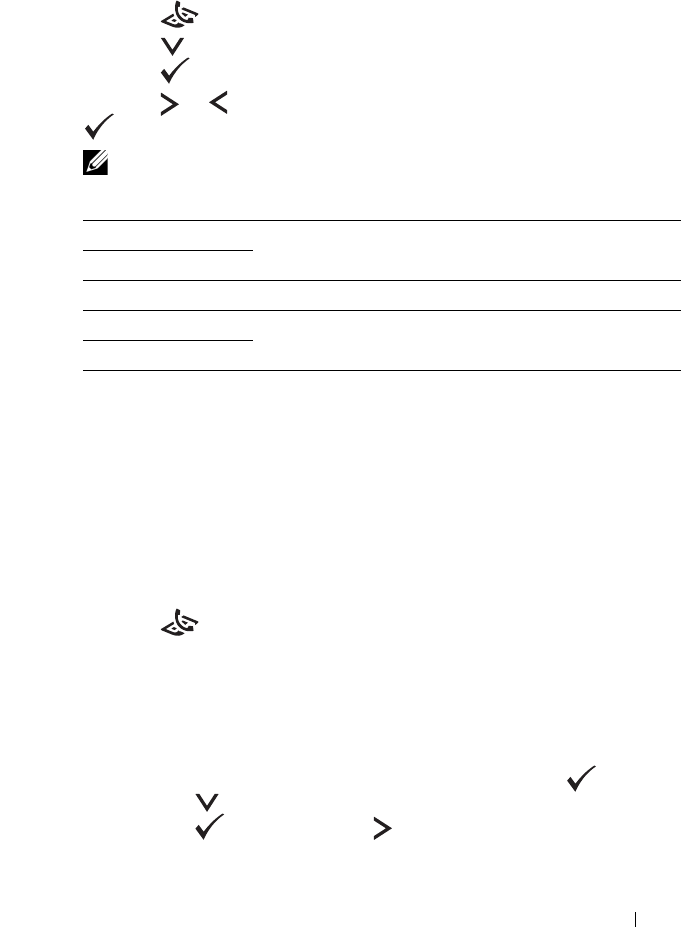
Faxing 299
Lighter/Darker
To adjust the contrast to make the fax lighter or darker than the original:
1
Press the
(Fax)
button.
2
Press the button until
Lighter/Darker
is highlighted, and then
press the button.
3
Press the or button to select the desired setting, and then press the
button.
NOTE: Values marked by an asterisk (*) are the factory default menu settings.
Sending a Fax Automatically
1
Load the document(s) face up with top edge in first into the ADF:
OR
Place a single document face down on the document glass, and close the
document cover.
For details about loading a document, see "Loading an Original Document
on the ADF" on page 296.
2
Press the
(Fax)
button.
3
Adjust the document resolution to suit your fax needs. For more
information, see "Resolution" on page 298.
If you need to change the contrast, see "Lighter/Darker" on page 299.
4
You can select a fax number in one of the following ways:
• Ensure that
Fax to
is highlighted, and then press the button.
Press the button until
Phone Book
is highlighted, and then
press the button. Press the button to select the recipients.
•Press the
One Touch Dial
button.
Lighter2 Makes the fax lighter than the original. Works well with
dark print.
Lighter1
Normal* Works well with standard typed or printed documents.
Darker1 Makes the fax darker than the original. Works well with
light print or faint pencil markings.
Darker2
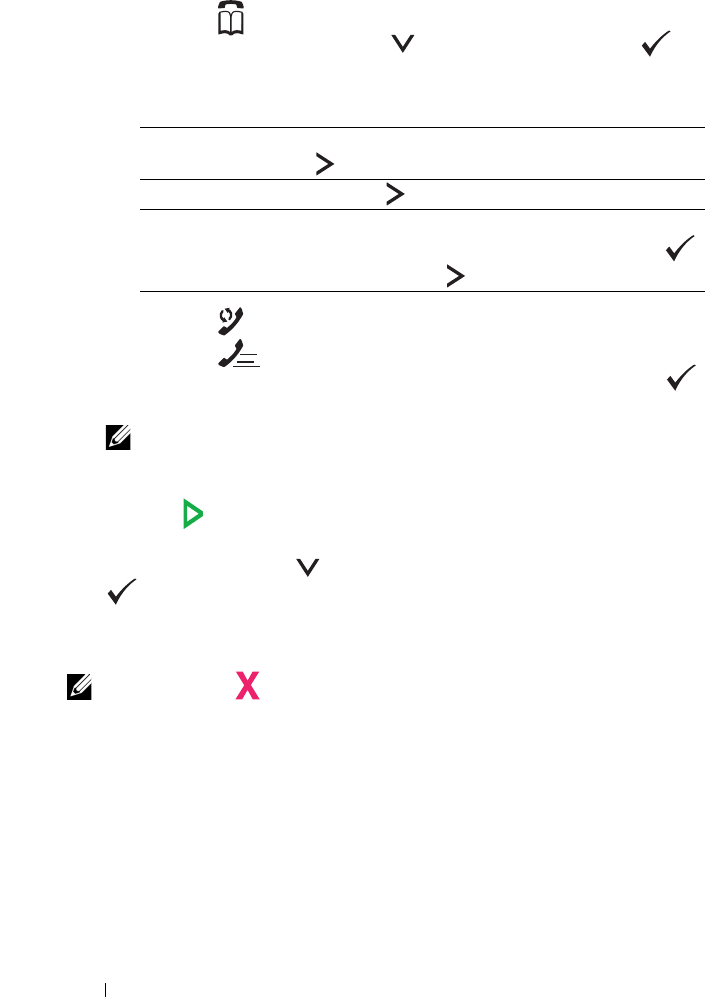
300 Faxing
•Press the
(Contacts)
button, select
All Entries, Group
Dial,
or
Search
using the button, and then press the
button.
•Press the
(Redial/Pause)
button to redial.
•Press the
(Speed Dial)
button. Enter the speed dial number
between 01 and 99 using the numeric keypad, and then press the
button.
NOTE: Before you use the One Touch Dial button, you need to register a
number for the speed dial. For more information on how to store the number,
see "Automatic Dialing" on page 311.
5
Press the
(Start)
button.
When you are using the document glass, the display prompts you for
another page. Press the button to select
Yes
or
No
, and then press the
button.
6
The number is dialed and then the printer begins sending the fax when the
remote fax machine is ready.
NOTE: Press the (Cancel) button to cancel the fax job at any time while
sending the fax.
Sending a Fax Manually
1
Load the document(s) face up with top edge in first into the ADF.
OR
Place a single document face down on the document glass, and close the
document cover.
All Entries Displays a list of registered fax numbers. Press the
button to select the recipients.
Group Dial Press the button to select the recipients.
Search Searches a fax number from the Phone Book. Enter
the text you want to search, and then press the
button. Press the button to select the recipients.
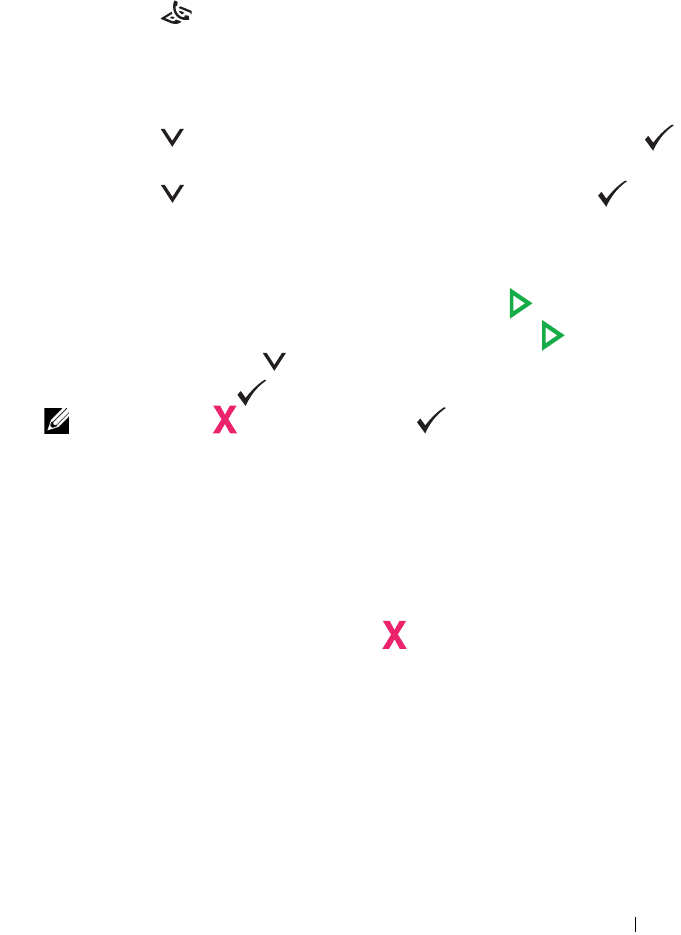
Faxing 301
For details about loading a document, see "Loading an Original Document
on the ADF" on page 296.
2
Press the
(Fax)
button.
3
Adjust the document resolution to suit your fax needs. For more
information, see "Resolution" on page 298.
If you need to change the contrast, see "Lighter/Darker" on page 299.
4
Press the button until
OnHook
is highlighted, and then press the
button.
5
Press the button until
On
is highlighted, and then press the
button.
6
Enter the fax number of the remote fax machine using the numeric
keypad.
• If the document is loaded on the ADF, press the
(Start)
button.
• If the document is not loaded on the ADF, press the
(Start)
button,
press the
button until the desired setting appears, and
then press the button.
NOTE: Press the (Cancel) button and the button to cancel the fax job at
any time while sending the fax.
Confirming Transmissions
When the last page of your document has been sent successfully, the printer
beeps and returns to the standby mode.
If something goes wrong while sending your fax, an error message appears on
the display.
If you receive an error message, p
ress
the (Cancel) button to clear the
message and try to send the document again.
You can set your printer to print a confirmation report automatically after
each fax transmission. For more information, see "Printing a Report" on
page 319.
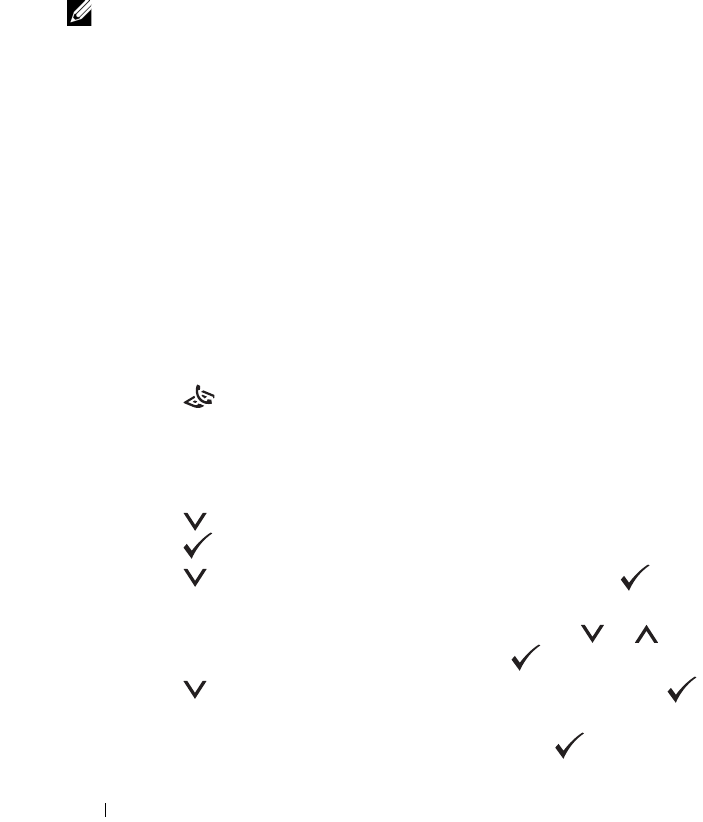
302 Faxing
Automatic Redialing
If the number you have dialed is busy or there is no answer when you send a
fax, the printer will automatically redial the number every minute based on
the number set in the redial settings.
To change the time interval between redials and the number of redial
attempts, see "Available Fax Settings Options" on page 291.
NOTE: The printer will not automatically redial a number that was busy when the
number was manually entered.
Sending a Delayed Fax
The Delayed Start mode can be used to save scanned documents for
transmission at a specified time in order to take advantage of lower long
distance rates.
1
Load the document(s) face up with top edge in first into the ADF.
OR
Place a single document face down on the document glass, and close the
document cover.
For details about loading a document, see "Loading an Original Document
on the ADF" on page 296.
2
Press the
(Fax)
button.
3
Adjust the document resolution to suit your fax needs. For more
information, see "Resolution" on page 298.
If you need to change the contrast, see "Lighter/Darker" on page 299.
4
Press the button until
Delayed Start
is highlighted, and then
press the button.
5
Press the button until
On
is highlighted, and then press the
button.
6
Enter the start time using the numeric keypad or press the or
button to select the start time, and then press the button.
7
Press the button until
Fax to
is highlighted, and then press the
button.
8
Ensure that
Keypad
is highlighted, and then press the button.
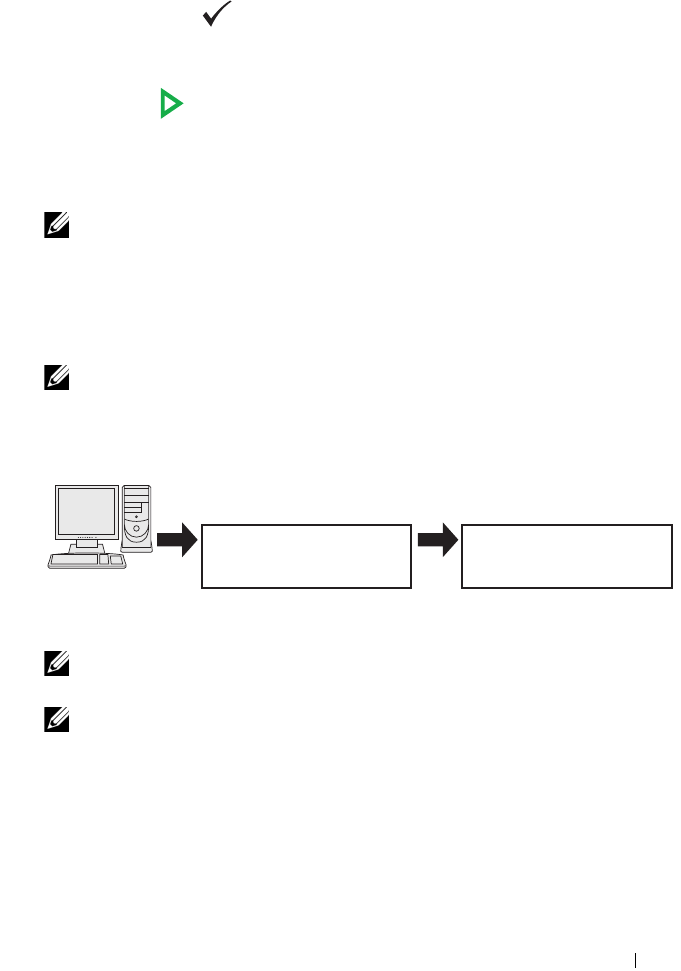
Faxing 303
9
Enter the number of the remote machine using the numeric keypad, and
then press the button.
You can also use speed dial or group dial numbers. For more information,
see "Automatic Dialing" on page 311.
Press the
(Start)
button to begin faxing.
Once Delayed Start mode is activated, your printer stores all the documents
to be faxed to its memory and sends them at the specified time. After faxing
in the Delayed Start mode is complete, the data in the memory is cleared.
NOTE: If you turn off and on the printer, the stored documents are sent as soon as
the printer is activated.
Sending a Fax from the Driver (Direct Fax)
You can send a fax directly from your computer by using the driver.
NOTE: Only black and white faxes can be sent using Direct Fax.
Example
For Microsoft Windows:
NOTE: The names of the windows and the buttons may be different from those
given in the following procedure depending on the application you are using.
NOTE: To use this feature, you must install the fax driver.
1
Open the file you want to send by fax.
2
Open the print dialog box from the application, and then select
Dell
1355cnw Color MFP FAX
.
3
Click
Preferences
.
Send data via the Dell 1355cnw
Color MFP FAX driver
Sending machine (Dell
1355cn Multifunction
Color Printer)
Send fax
Receiving machine (fax
machine/multifunction
printer)
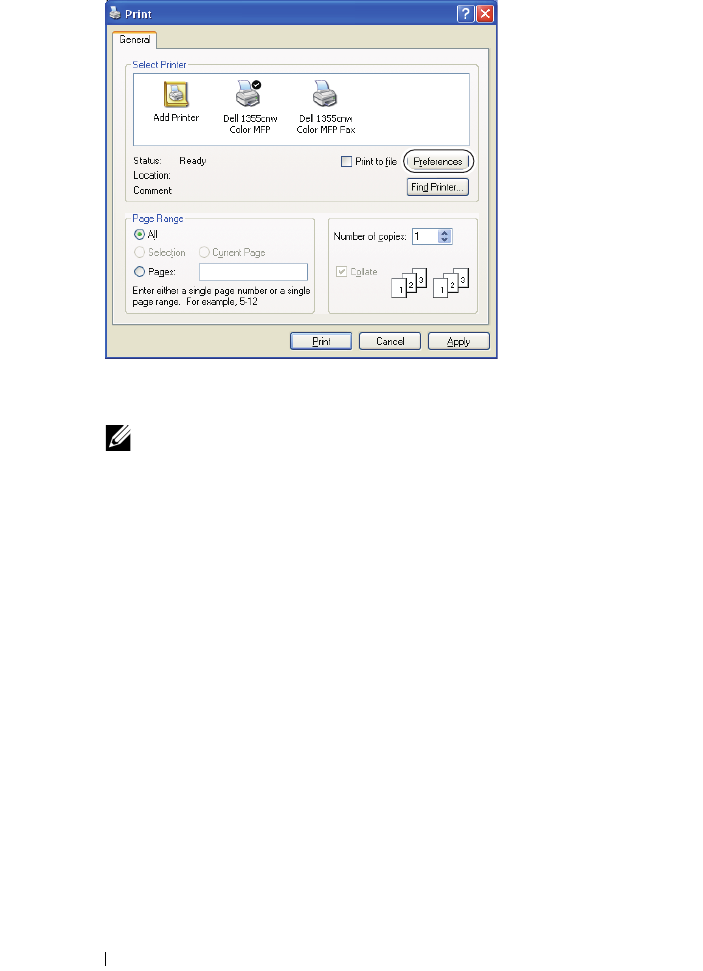
304 Faxing
4
The
Printing Preferences
dialog box appears. Specify the fax settings. For
more information, click the
Help
of the driver.
NOTE: The settings done here are only applied to a single fax job.
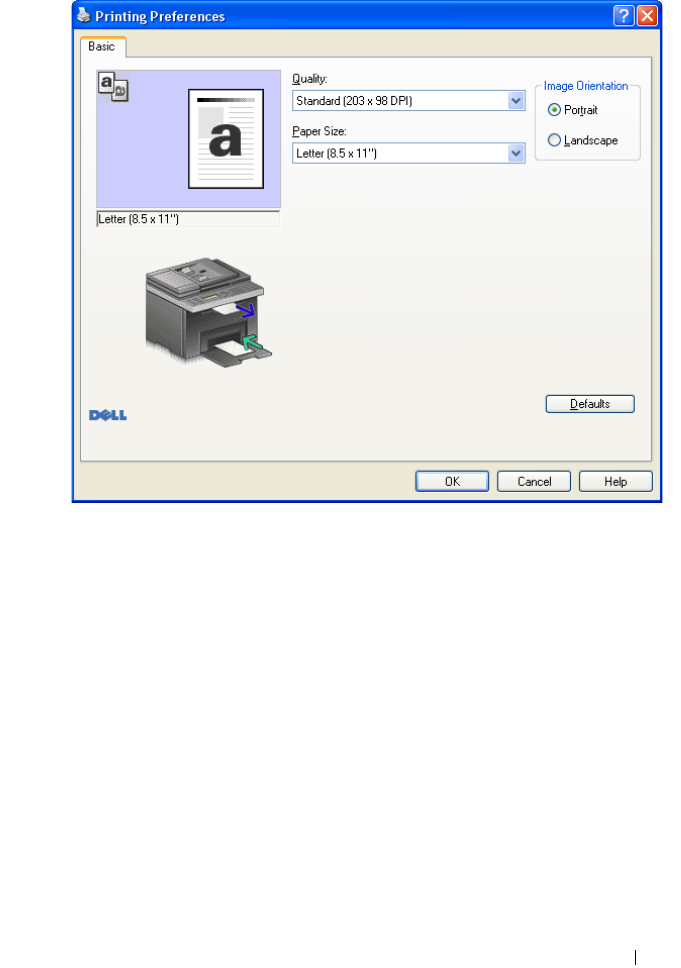
Faxing 305
5
Click
OK
to close the
Printing Preferences
dialog box.
6
Click
Print
. The
Set / Check Fax Transmission
: dialog box appears.
7
Specify the destination for the recipient in one of the following ways:
• Enter a name and phone number directly.
• Select a recipient from a phone book saved on your computer.
• Select a recipient from a database other than a phone book or address
book.
For more information on how to specify the destination, see the
Help
of
the driver.
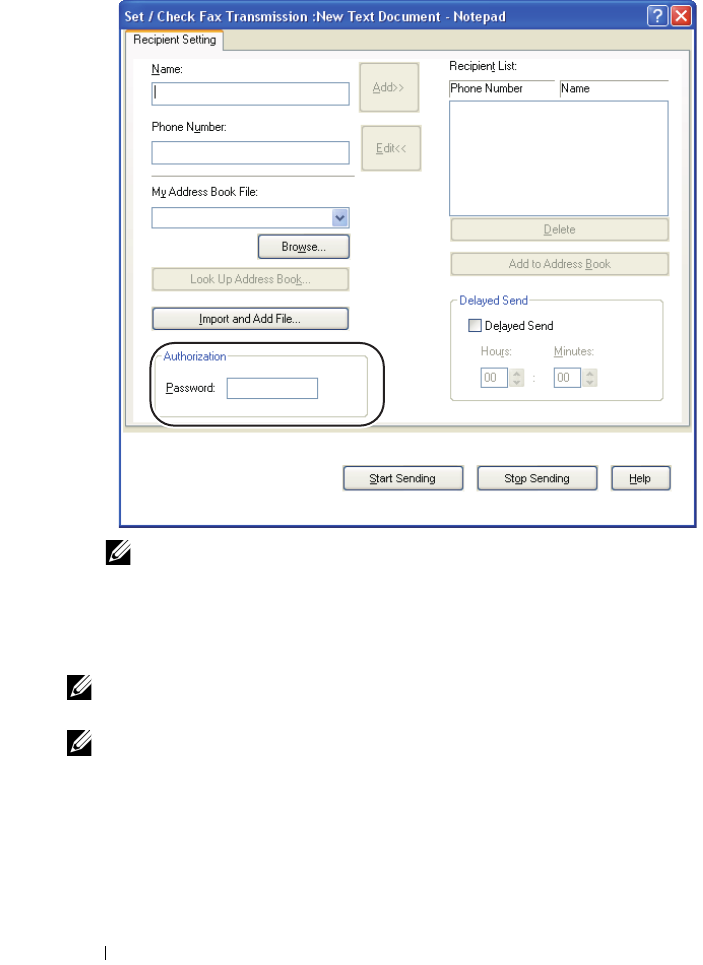
306 Faxing
NOTE: Enter the password in the Password field in the Authorization area
before sending a fax if the Fax service is locked with a password.
8
Click
Start Sending
.
For Apple Macintosh:
NOTE: The names of the windows and the buttons may be different from those
given in the following procedure depending on the application you are using.
NOTE: When using a USB connection on Mac OS 10.4.x, upgrade Common Unix
Printing System (CUPS) software to version 1.2.12 or later. You can download it from
CUPS web site.
1
Open the file you want to send by fax.
2
Open the print dialog box from the application, and then select
Dell 1355
Color MFP Fax
.
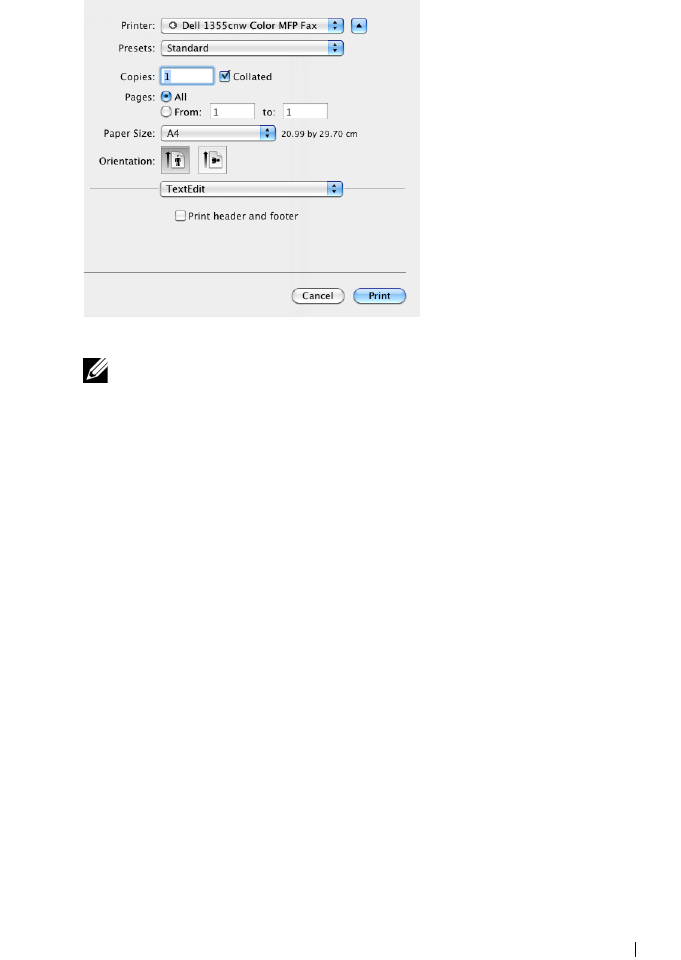
Faxing 307
3
Specify the fax settings.
NOTE: The settings done here are only applied to a single fax job.
4
Click
Print
. The
Fax Recipient
dialog box appears.
5
Specify the destination for the recipient in one of the following ways:
• Enter a name and phone number directly.
• Select a recipient from a phone book saved on your computer.
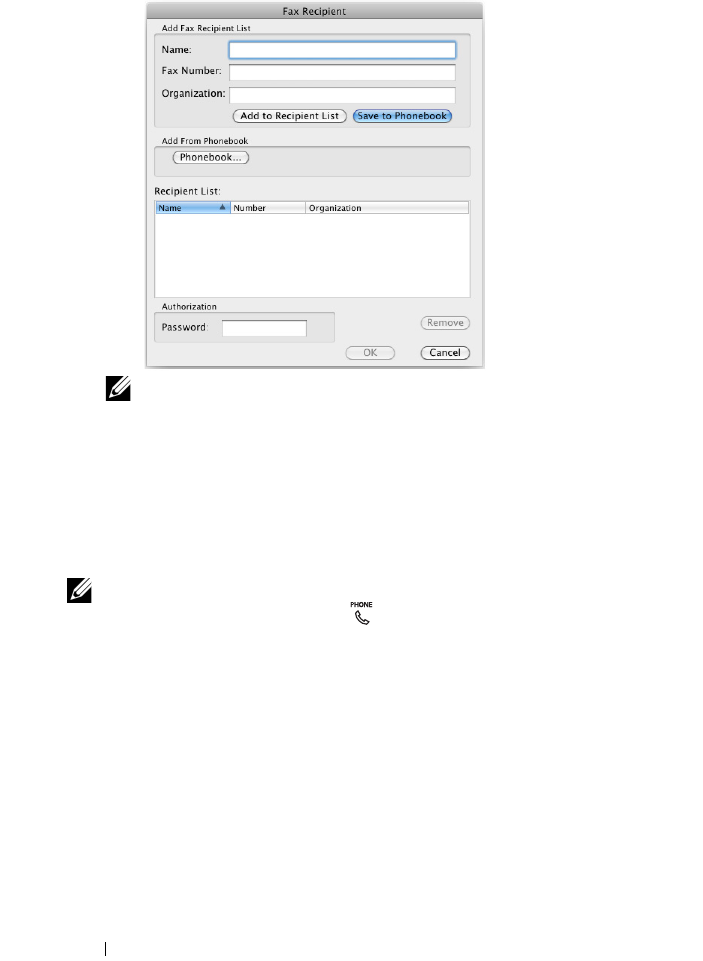
308 Faxing
NOTE: Enter the password in the Password field in the Authorization area
before sending a fax if the Fax service is locked with a password.
6
Click
OK
.
Receiving a Fax
About Receiving Modes
NOTE: To use the TEL/FAX Mode or Ans/Fax mode, attach an answering
machine to the phone connector
()
on the back of your printer.
When the memory is full, the fax is received in the TEL Mode.
Loading Paper for Receiving Faxes
The instructions for loading paper in the PSI are the same whether you are
printing, faxing, or copying, except that faxes can only be printed on Letter-,
A4-, or Legal-sized paper. For details about loading paper, see "Loading Print
Media" on page 201. For details about setting the paper type and size in the
PSI, see "Print Media Guidelines" on page 189.

Faxing 309
Receiving a Fax Automatically in the Fax Mode
Your printer is preset to the fax mode at the factory.
If you receive a fax, the printer automatically goes into the fax mode after a
specified period of time and receives the fax.
To change the interval at which the printer goes into the fax mode after
receiving an incoming call, see "Available Fax Settings Options" on page 291.
Receiving a Fax Manually in the Telephone Mode
You can receive a fax by picking up the handset of the external telephone, and
then pressing the
(Start)
button.
The printer begins receiving a fax and returns to the standby mode when the
reception is completed.
Receiving a Fax Automatically in the Telephone/Fax or Ans/Fax Mode
To use the TEL/FAX Mode or Ans/FAX Mode, you must attach an external
telephone to the phone connector ( ) on the back of your printer.
If the caller leaves a message, the answering machine stores the message as it
would normally. If your printer hears a fax tone on the line, it automatically
starts to receive a fax.
NOTE: If you have set your printer to Auto Answer Fax and your answering
machine is switched off, or no answering machine is connected to your printer,
your printer will automatically go into the Fax mode after a predefined time.
Receiving a Fax Manually Using an External Telephone
This feature works best when you are using an external telephone connected
to the phone connector ( ) on the back of your printer. You can receive a fax
from someone you are talking to on the external telephone without having to
go to the printer.
When you receive a call on the external telephone and hear fax tones, press
the two-digit keys on the external telephone, or set On Hook to Off and
then press the
(Start)
button.
The printer receives the document.
Press the buttons slowly in sequence. If you still hear the fax tone from the
remote machine, try pressing the two-digit keys once again.
310 Faxing
The remote receive code is set to Off at the factory. You can change the two-
digit number to whatever you choose. For details on changing the code, see
"Available Fax Settings Options" on page 291.
NOTE: Set the dialing system of your external telephone to DTMF.
Receiving Faxes Using the DRPD Mode
The DRPD is a telephone company service which enables a user to use a
single telephone line to answer several different telephone numbers. The
particular number someone uses to call you on is identified by different
ringing patterns, which consist of various combinations of long and short
ringing sounds.
Before using the Distinctive Ring Pattern Detection option, Distinctive Ring
service must be installed on your telephone line by the telephone company.
To set up Distinctive Ring Pattern Detection, you will need another
telephone line at your location, or someone available to dial your FAX
number from outside.
To set up the DRPD:
1
Press the
(Menu)
button.
2
Press the button until
System
is highlighted, and then press the
button.
3
Press the button until
Admin Menu
is highlighted, and then press
the button.
4
Press the button until
Fax Settings
is highlighted, and then press
the button.
5
Press the button until
DRPD Pattern
is highlighted, and then press
the button.
6
Press the button until the desired menu item is highlighted, and then
press the button.
7
To return to the previous screen, press the
(Back)
button.
To receive faxes in the DRPD, you need to set the menu to DRPD Mode; see
"Available Fax Settings Options" on page 291.
Your printer provides seven DRPD patterns. If this service is available from
your telephone company, ask your telephone company which pattern you
need to select to use this service.
Faxing 311
Receiving Faxes in the Memory
Since your printer is a multi-tasking device, it can receive faxes while you are
making copies or printing. If you receive a fax while you are copying, printing,
or run out of paper or toner, your printer stores incoming faxes in the memory.
Then, as soon as you finish copying, printing, or re-supply the consumables,
the printer automatically prints the fax.
Polling Receive
You can receive faxes from the remote fax machine when you want to receive
it.
1
Press the
(Fax)
button.
2
Press the button until
Polling Receive
is highlighted, and then
press the button.
3
Press the button until
On
is highlighted, and then press the
button.
4
Enter the fax number of the remote machine, and then press the
button.
NOTE: For information on how to enter the fax number of the remote machine,
see "Sending a Fax Manually" on page 300 or "Sending a Fax Automatically" on
page 299.
5
Press the
(Start)
button.
Automatic Dialing
Speed Dialing
You can store up to 99 frequently dialed numbers in speed dial locations (01–
99).
When the speed dial job specified in the delayed fax or redial exists, you
cannot change the speed dial number from the operator panel or Dell Printer
Configuration Web Tool.
Storing a Number for Speed Dialing
1
Press the
(Menu)
button.

312 Faxing
2
Press the button until
System
is highlighted, and then press the
button.
3
Press the button until
Admin Menu
is highlighted, and then press
the button.
4
Press the button until
Phone Book
is highlighted, and then press
the button.
5
Ensure that
Speed Dial
is highlighted, and then press the button.
6
Press the button until the desired speed dial number between 01 and
99 is highlighted, and then press the button.
7
Ensure that
Name
is highlighted, and then press the button.
8
Enter the name, and then press the button.
9
Ensure that
Phone Number
is highlighted, and then press the
button.
10
Enter the number you want to store using the numeric keypad, and then
press the button.
To insert a pause between numbers, press the
(Redial/Pause)
button.
"-" appears on the display.
11
Ensure that
Apply Settings
is highlighted, and then press the
button.
12
Ensure that
Are You Sure?
is displayed, press the button to select
Yes
, and then press the button.
13
To store more fax numbers, repeat steps 6 to 12.
14
To return to the previous screen, press the
(Back)
button.
Sending a Fax Using a Speed Dial
1
Load the document(s) face up with top edge in first into the ADF.
OR
Place a single document face down on the document glass, and close the
document cover.
For details about loading a document, see "Loading an Original Document
on the ADF" on page 296.
Faxing 313
2
To enter the speed dial number do either of the following after pressing the
(Fax)
button:
• Ensure that
Fax to
is highlighted, and then press the button.
Press the button until
Speed Dial
is highlighted, and then
press the button.
•Press the
(Speed Dial)
button.
3
Enter the speed dial number between 01 and
99
using the numeric keypad,
and then press the button.
The corresponding entry's name briefly displays. To confirm the name
again, press the button.
4
Adjust the document resolution to suit your fax needs. For more
information, see "Resolution" on page 298.
If you need to change the contrast, see "Lighter/Darker" on page 299.
5
Press the
(Start)
button.
6
The document scans to the memory.
When you are using the document glass, the display prompts you for
another page. Press the button to select
Yes
to add more documents
or to select
No
to begin sending the fax immediately, and then press the
button.
7
The fax number stored in the speed dial location is automatically dialed.
The document is sent when the remote fax machine answers.
NOTE: Using the asterisk (*) in the first digit, you can send a document to multiple
locations. For example, if you enter 0*, you can send a document to the locations
registered between 01 and 09.
Group Dialing
If you frequently send the same document to several destinations, you can
create a group of these destinations and set them under a one-digit group dial
location. This enables you to use a group dial number setting to send the
same document to all the destinations in the group.
NOTE: You cannot include one group dial number within another group dial
number.
314 Faxing
Setting Group Dial
1
Press the
(Menu)
button.
2
Press the button until
System
is highlighted, and then press the
button.
3
Press the button until
Admin Menu
is highlighted, and then press
the button.
4
Press the button until
Phone Book
is highlighted, and then press
the button.
5
Press the button until
Group Dial
is highlighted, and then press
the button.
6
Press the button until the desired group dial number between 1 and 6
is highlighted, and then press the button.
7
Ensure that
Name
is highlighted, and then press the button.
8
Enter the name, and then press the button.
9
Ensure that
Speed Dial No
is highlighted, and then press the
button.
10
Press the button until the desired number is highlighted, press the
button to select the speed dial numbers, and then press the button.
11
Ensure that
Apply Settings
is highlighted, and then press the
button.
12
Ensure that
Are You Sure?
is displayed, press the button to select
Yes
, and then press the button.
13
To store more group dial numbers, repeat steps 6 to 12.
14
To return to the previous screen, press the
(Back)
button.
Editing Group Dial
You can delete a specific speed dial number from a selected group or add a
new number to the selected group.
1
Press the
(Menu)
button.
2
Press the button until
System
is highlighted, and then press the
button.
Faxing 315
3
Press the button until
Admin Menu
is highlighted, and then press
the button.
4
Press the button until
Phone Book
is highlighted, and then press
the button.
5
Press the button until
Group Dial
is highlighted, and then press
the button.
6
Press the button until the group dial number that you want to edit is
highlighted, and then press the button.
7
To change the group dial name:
a
Ensure that
Name
is highlighted, and then press the button.
b
Enter a new name, and then press the button.
c
Press the button until
Apply settings
is highlighted, and
then press the button.
d
Ensure that
Are You Sure?
is displayed, press the button to
select
Yes
, and then press the button.
8
To change the speed dial number:
a
Press the button until
Speed Dial No
is highlighted, and then
press the button.
b
Press the button until the speed dial number that you want to edit
is highlighted, and then press the button to select or deselect the
speed dial number. Press the button.
c
Press the button until
Apply settings
is highlighted, and
then press the button.
d
Ensure that
Are You Sure?
is displayed, press the button to
select
Yes
, and then press the button.
9
To delete the group dial:
a
Press the
(Backspace)
button.
b
Ensure that
Are You Sure?
is displayed, press the button to
select
Yes
, and then press the button.
NOTE: When you delete the last speed dial in a group, the group itself is not
deleted.
10
If you want to edit another group dial number or enter a new group dial
number, repeat steps 5 to 9.
316 Faxing
11
To return to the previous screen, press the
(Back)
button.
Sending a Fax Using Group Dialing (Multi-address Transmission)
You can use group dialing for broadcasting or delayed transmissions.
Follow the procedure of the desired operation (For Delayed transmission, see
"Specifying the Fax Settings" on page 290).
You can use one or more group numbers in one operation. Then continue the
procedure to complete the desired operation.
Your printer automatically scans the document loaded in the Automatic
Document Feeder or on the document glass into the memory. The printer
dials each of the numbers included in the group.
Printing an Address Book List
You can check your automatic dial setting by printing a speed dial list.
1
Press the
(Menu)
button.
2
Press the button until
System
is highlighted, and then press the
button.
3
Press the button until
Report/List
is highlighted, and then press
the button.
4
Press the button until
Address Book
is highlighted, and then press
the button.
A list of your speed dial entries is printed.
Other Ways to Fax
Using the Secure Receiving Mode
You may need to prevent your received faxes from being accessed by
unauthorized people. You can turn on the secure fax mode using the Secure
Receive option to restrict printing out all of the received faxes when the
printer is unattended. In the secure fax mode, all incoming faxes will get
saved in the memory. When the mode turns off, any faxes stored will be
printed.
NOTE: Before operation, ensure that Panel Lock Set is set to Enable.
Faxing 317
To turn the secure receiving mode on:
1
Press the
(Menu)
button.
2
Press the button until
System
is highlighted, and then press the
button.
3
Press the button until
Admin Menu
is highlighted, and then press
the button.
4
Press the button until
Secure Settings
is highlighted, and then
press the button.
5
Press the button until
Secure Receive
is highlighted, and then
press the button.
6
Ensure that
Secure Receive Set
is highlighted, and then press the
button.
7
Press
the
button until
Enable
is highlighted, and then press the
button.
NOTE: The factory-default password is 0000.
8
To return to the standby mode, press the
(Menu)
button
.
When a fax is received in the secure receiving mode, your printer stores it
into memory and the
Job Status
screen displays "
Secure Receive
"
to let you know that there is a fax stored.
NOTE: If you change the password while Secure Receive Set is
Enable, perform steps 1 to 5. Press the button until Change
Password is highlighted, and then press the button. Enter the new
password, and then press the button.
To print received documents:
1
Press the
(Menu)
button.
2
Press the button until
Job Status
is highlighted, and then press
the button.
3
Press the button until
Secure Receive
is highlighted, and then
press the button.
4
Enter the password, and then press the button.
The faxes stored in memory are printed.
To turn the secure receiving mode off:
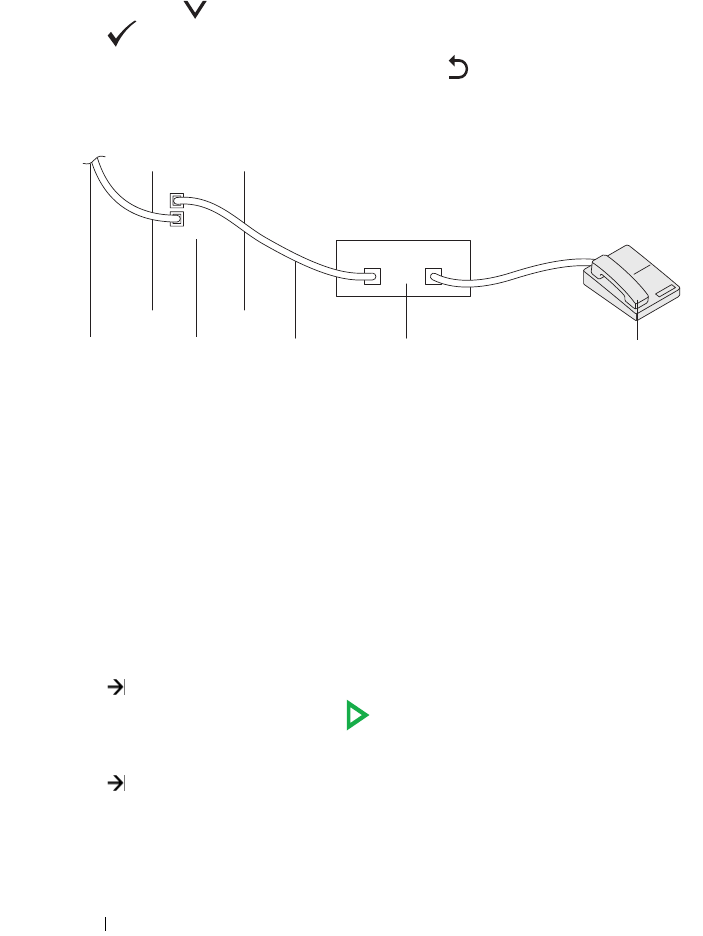
318 Faxing
1
Access the
Secure Receive Set
menu by following steps 1 to 6 in
"To turn the secure receiving mode on:".
2
Press the button until
Disable
is highlighted, and then press the
button.
3
To return to the previous screen, press the
(Back)
button.
Using an Answering Machine
You can connect a telephone answering device (TAD) directly to the back of
your printer as shown above.
• Set your printer to the
Ans/FAX Mode
and set
Auto Rec Ans/FAX
to specify the time for the TAD.
• When the TAD picks up the call, the printer monitors and takes the line if
fax tones are received and then starts receiving the fax.
• If the answering device is off, the printer automatically goes into the
Fax
after the ring tone sounds for a predefined time.
• If you answer the call and hear fax tones, the printer will answer the fax call
if you
Set
On Hook
to
On
(you can hear voice or fax tones from the remote
machine), and then press the
(Start)
button and hang up the receiver.
OR
Press the two-digit remote receive code and hang up the receiver.
To the
wall jack
Printer Line Telephone Answering Device Phone
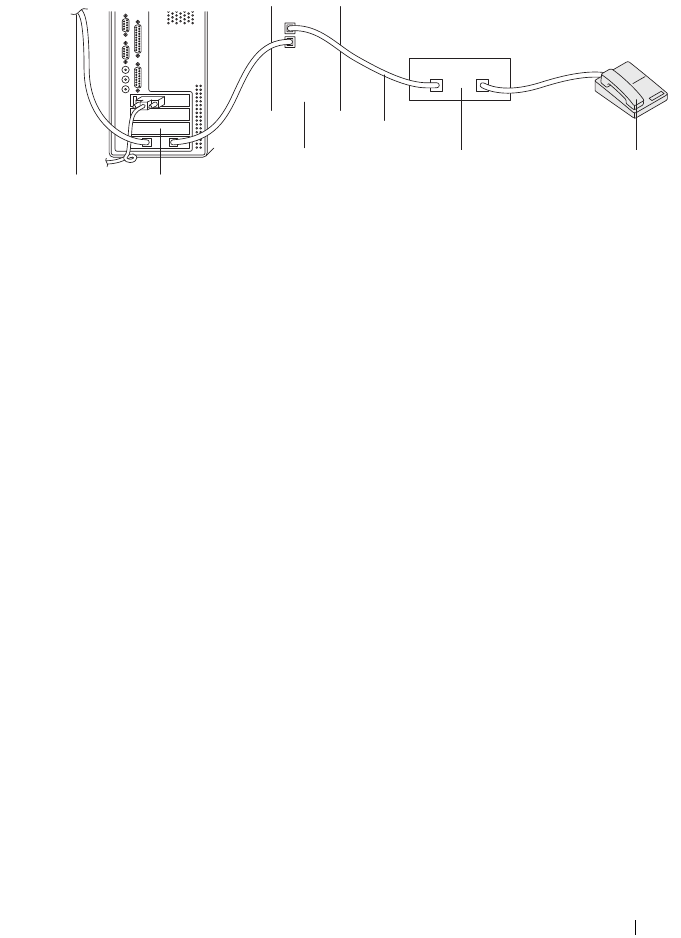
Faxing 319
Using a Computer Modem
If you want to use your computer modem for faxing or for a dial-up internet
connection, connect the computer modem directly to the back of your printer
with the TAD as shown above.
• Set your printer to the
Ans/FAX Mode
and set
Auto Rec. Ans/FAX
to specify the time for the TAD.
• Turn off the computer modem's fax-receive feature.
• Do not use the computer modem if your printer is sending or receiving a
fax.
• Follow the instructions provided with your computer modem and fax
application to fax via the computer modem.
Printing a Report
The following reports may be useful when using fax:
Address Book
This list shows all the addresses currently stored in the memory of the printer
as Address Book information.
Fax Activity
This report shows information about the faxes you recently received or sent.
Protocol Monitor
This report shows information about the faxes you recently received or sent.
Procedures:
To the
internet
Computer
Printer
Line
Telephone Answering Device Phone
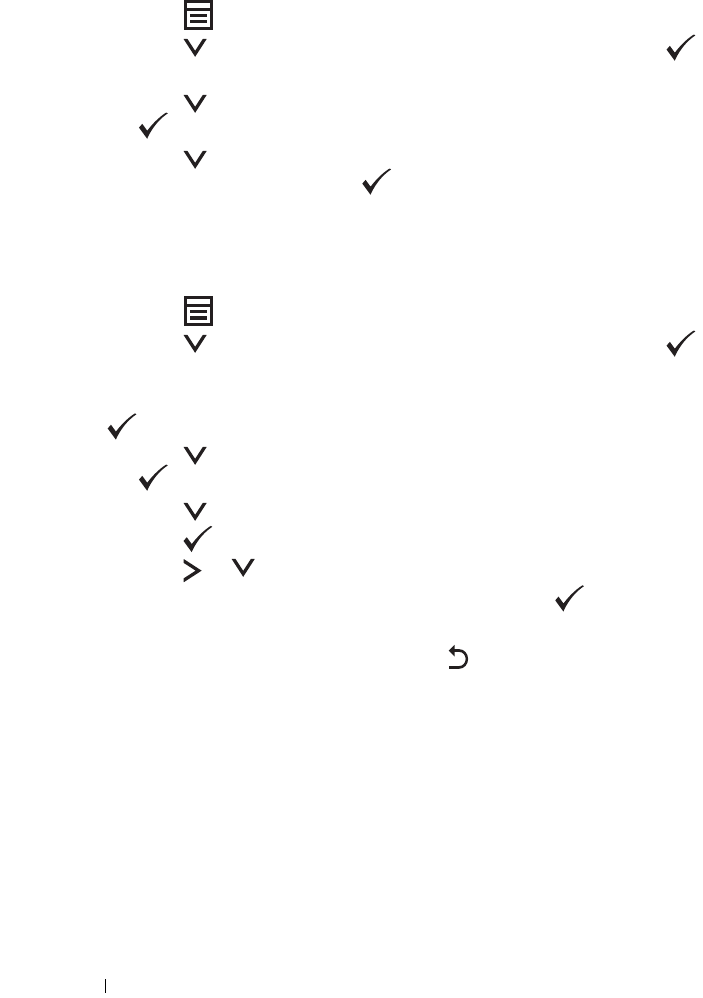
320 Faxing
1
Press the
(Menu)
button.
2
Press the button until
System
is highlighted, and then press the
button.
3
Press the button until
Report/List
is highlighted, and then press
the button.
4
Press the button until the report or list you want to print is
highlighted, and then press the button.
The selected report or list is printed.
Changing Setting Options
1
Press the
(Menu)
button.
2
Press the button until
System
is highlighted, and then press the
button.
3
Ensure that
Defaults Settings
is highlighted, and then press the
button.
4
Press the button until
Fax Defaults
is highlighted, and then press
the button.
5
Press the button until the desired menu item is highlighted, and then
press the button.
6
Press the or button until the desired setting is highlighted or enter
the value using the numeric keypad, and then press the button.
7
Repeat steps 5 and 6, as needed.
8
To return to the previous screen, press the
(Back)
button.

321
Know Your Printer

322
Understanding the Tool Box Menus 323
19
Understanding the Tool Box Menus
The Tool Box allows you to view or specify the system settings. You can also
diagnose the system settings by using the Tool Box.
The Tool Box consists of the Printer Settings Report, Printer Maintenance,
and Diagnosis tabs.
NOTE: The Password dialog box appears the first time you try to change settings
on ToolBox when Panel Lock is set on the printer. In this case, enter the password
you specified, and click OK to apply the settings.
NOTE: For how to start Tool Box, see "Understanding Your Printer Software
(Windows Only)" on page 409.
Printer Settings Report
The Printer Settings Report tab contains the Printer Information, Menu
Settings, Reports, TCP/IP Settings, Tray Settings, Defaults Settings, and Fax
Settings pages.
NOTE: Values marked by an asterisk (*) are the factory default menu settings.
Printer Information
Purpose:
To display the information of your printer.
Val ue s:
Dell Service Tag Number Displays Dell’s service tag number.
Express Service Code Displays the express service code of the printer.
Printer Serial Number Displays the serial number of the printer.
Printer Type Displays the type of the printer. Color Laser is
displayed normally.
Asset Tag Number Displays the asset tag of the printer.
Memory Capacity Displays the memory capacity.

324 Understanding the Tool Box Menus
Menu Settings
Purpose:
To display the current settings of your printer.
Values :
Processor Speed Displays the processing speed.
Firmware Version Displays the version of the controller.
Network Firmware Version Displays the NIC version.
MCU Firmware Version Displays the version of the Machine Control Unit
(MCU) firmware.
Printing Speed (Color) Displays the speed for color printing.
Printing Speed
(Monochrome)
Displays the speed for monochrome printing.
System Settings Sleep Displays the time taken by the
printer before it enters Sleep mode
after it finishes a job.
Deep Sleep Displays the time taken by the
printer before it enters Deep Sleep
mode after it goes into Sleep
mode.
Auto Reset Displays the time taken by the
printer before it automatically
resets the settings for Copy, Scan,
or Fax on the operator panel to the
defaults when no additional
settings are made.
Panel Select Tone Displays the volume of the tone
that is emitted when the operator
panel input is correct. Off
indicates that the tone is disabled.
Panel Alert Tone Displays the volume of the tone
that is emitted when the operator
panel input is incorrect. Off
indicates that the tone is disabled.

Understanding the Tool Box Menus 325
Job Tone Displays the volume of the tone
that is emitted when a job is
complete. Off indicates that the
tone is disabled.
Alert Tone Displays the volume of the tone
that is emitted when a problem
occurs. Off indicates that the tone
is disabled.
Out of Paper Tone Displays the volume of the tone
that is emitted when the printer
runs out of paper. Off indicates
that the tone is disabled.
Auto Clear Alert Tone Displays the volume of the tone
that is emitted 5 seconds before
the printer performs auto clear.
Off indicates that the tone is
disabled.
All Tones Displays the volume of all the alert
tones. Off indicates that all the
tones are disabled.
Job Time-Out Displays the amount of time that
the printer waits for data to arrive
from the computer.
Fault Time-Out Displays the time taken by the
printer before it cancels jobs that
stop abnormally.
Panel Language Displays the language used on the
operator panel.
Auto Log Print*1 Displays whether to automatically
print a job history report after
every 20 jobs.
mm/inch Displays the measurement unit
used after the numeric value on
the operator panel.

326 Understanding the Tool Box Menus
Date & Time Date Format Displays the default date format.
Time Format Displays the default time format;
24H or 12H.
Time Zone Displays the default time zone.
Set Date Displays the date setting.
Set Time Displays the time setting.
Paper Density Plain Displays the paper density of plain
paper.
Label Displays the paper density of
labels.
Adjust BTR Plain Displays the voltage setting of the
transfer roller for plain paper.
Plain Thick Displays the voltage setting of the
transfer roller for thick plain paper.
Recycled Displays the voltage setting of the
transfer roller for recycled paper.
Covers Displays the voltage setting of the
transfer roller for cover paper.
Coated Displays the voltage setting of the
transfer roller for coated paper.
Envelope Displays the voltage setting of the
transfer roller for envelopes.
Label Displays the voltage setting of the
transfer roller for labels.

Understanding the Tool Box Menus 327
Reports
Purpose:
To print the settings and history information of your printer.
The reports are printed in the paper size specified in system settings. The
default is A4 or Letter.
Val ue s:
Adjust Fuser Plain Displays the temperature setting
of the fuser for plain paper.
Plain Thick Displays the temperature setting
of the fuser for thick plain paper.
Recycled Displays the temperature setting
of the fuser for recycled paper.
Covers Displays the temperature setting
of the fuser for cover paper.
Coated Displays the temperature setting
of the fuser for coated paper.
Envelope Displays the temperature setting
of the fuser for envelopes.
Label Displays the temperature setting
of the fuser for labels.
Auto Registration
Adjustment
Displays whether to automatically adjust color registration.
Adjust Altitude Displays the altitude of the location where the printer is installed.
Non-Dell Toner Displays whether to use toner cartridge of another manufacturer.
BTR Refresh
Mode
Displays whether to execute counter measures for
curling/separating discharge of the paper.
Web Link
Customization
Select
Reorder URL
Displays a link used for ordering consumables.
Regular Displays the regular web address
(http://accessories.us.dell.com/sna).
Premier Displays the premier web address
(http://premier.dell.com).
*1 If more than 20 jobs are in the queue, the job history may be cleared.

328 Understanding the Tool Box Menus
TCP/IP Settings
Purpose:
To display the current settings of TCP/IP (Transmission Control
Protocol/Internet Protocol) protocol.
Values :
Tray Settings
Purpose:
To display the paper size and type of paper loaded in the Multipurpose Feeder
(MPF).
Values :
System Settings Click to print a detailed list of the system settings.
Panel Settings Click to print a detailed list of the panel settings.
Job History Click to print the completed jobs history.
Error History Click to print the error history.
Demo Page Click to print the Demo Page.
Address Book List Click to print the list of Personal Address, Fax Group,
and E-mail Group stored as Address Book.
IP Address Mode Displays the method for acquiring the IP address.
IP Address Displays the IP address of your printer.
Subnet Mask Displays the subnet mask.
Gateway Address Displays the gateway address.
Paper Type Displays the paper type setting of the MPF.
Paper Size Displays the paper size setting of the MPF.
Custom Size - Y Displays the length of custom size paper loaded in the
MPF.
Understanding the Tool Box Menus 329
Defaults Settings
Purpose:
To display the default scan, fax, and copy settings of the printer.
Val ue s:
Custom Size - X Displays the width of custom size paper loaded in the
MPF.
Display Popup Displays whether to use a popup menu that prompts
the user to set Paper Type and Paper Size when the
paper is loaded in the MPF.
Scan
Defaults
Scan To
Network
Displays whether to store scanned image on a network
server or on a computer.
File Format Displays the file format to save the scanned image.
Color Displays whether to scan in color or in black and
white.
Resolution Displays the default scan resolution.
Document
Size
Displays the default document size.
Lighter/Dark
er
Displays the default scan density level.
Sharpness Displays the default sharpness level.
Auto
Exposure
Displays whether to suppress the background of the
original to enhance text on the scanned image.
Margin
Top/Bottom
Displays the value of the top and bottom margins.
Margin
Left/Right
Displays the value of the left and right margins.
Margin
Middle
Displays the value of the middle margin.
Image
Compression
Displays the image compression level.
Max E-Mail
Size
Displays the maximum size of e-mail that can be sent.
330 Understanding the Tool Box Menus
Fax Defaults Resolution Displays the resolution level to be used for fax
transmission.
Lighter/Dark
er
Displays the default density level to be used for fax
transmission.
Delayed Start Displays the fax transmission start time.
Copy
Defaults
Color Displays whether to make copies in color or in black
and white.
Reduce/Enlar
ge
Displays the default copy reduction/enlargement ratio.
Original Type Displays the default document type.
Document
Size
Displays the default document size.
Lighter/Dark
er
Displays the default copy density level.
Sharpness Displays the default sharpness level.
Auto
Exposure
Displays whether to suppress the background of the
original to enhance text on the copy.
Color
Balance
(Red)
Displays the color balance level of red.
Color
Balance
(Green)
Displays the color balance level of green.
Color
Balance
(Blue)
Displays the color balance level of blue.
Gray Balance Displays the gray balance level.
Multiple-Up Displays whether to enable the Multiple-Up feature.
Collated Displays whether to sort the copy job.
Margin
Top /B ottom
Displays the value of the top and bottom margins.
Margin
Left/Right
Displays the value of the left and right margins.
Margin
Middle
Displays the value of the middle margin.

Understanding the Tool Box Menus 331
Fax Settings
Purpose:
To display the basic fax settings.
Val ue s:
Receive Mode Displays the fax receiving mode.
Auto Rec Fax Displays the interval at which the printer goes into the
fax receive mode after receiving an incoming call.
Auto Rec Fax/Tel Displays the interval at which the printer goes into the
fax receive mode after the external telephone receives
an incoming call.
Auto Rec Ans/Fax Displays the interval at which the printer goes into the
fax receive mode after the external answering machine
receives an incoming call.
Line Monitor Displays the volume of the line monitor, which audibly
monitors a transmission through the internal speaker
until a connection is made.
Ring Tone Volume Displays the volume of the ring tone, which indicates
that an incoming call is a telephone call through the
internal speaker when Receive Mode is set to
Telephone/Fax.
Line Type Displays the line type.
Tone/Pulse Displays the dialing type.
Resend Delay Displays the interval between transmission attempts.
Redial Attempts Displays the number of redial attempts.
Redial Delay Displays the interval between redial attempts.
Junk Fax Setup Displays whether to reject faxes sent from unwanted
numbers.
Remote Receive Displays whether to receive faxes by pressing a remote
receive code on the external telephone.
Remote Rcv Tone Displays the remote receive code to start Remote
Receive.
Fax Header Displays whether to print the information of sender on
the header of faxes.
332 Understanding the Tool Box Menus
Fax Header Name Displays the name of sender to be printed on the
header of faxes.
Fax Number Displays the fax number to be printed on the header
of faxes.
Fax Cover Page Displays whether to attach a cover page to faxes.
DRPD Pattern Displays the Distinctive Ring Pattern Detection
(DRPD) setting.
Sent Fax Fwd Displays whether to forward incoming faxes to a
specified destination.
Fax Fwd Number Displays the fax number of the destination to which
incoming faxes are to be forwarded.
Prefix Dial Displays whether to set a prefix dial number.
Prefix Dial Num Displays a prefix dial number. This number dials
before any auto dial number is started.
Discard Size Displays whether to discard text or images at the
bottom of a fax page when the entire page does not fit
onto the output paper.
ECM Displays whether to enable the Error Correction Mode
(ECM).
Modem Speed Displays the fax modem speed when a fax
transmission or reception error occurs.
Fax Activity Displays whether to automatically print a fax activity
report after every 50 incoming and outgoing fax
communications.
Fax Transmit Displays whether to print a transmission report after
every fax transmission or only when an error occurs.
Fax Broadcast Displays whether to print a transmission report after
every fax transmission to multiple destinations or only
when an error occurs.
Fax Protocol Displays whether to print a protocol monitor report
after every fax transmission or only when an error
occurs.
Country Displays the country where the printer is used.

Understanding the Tool Box Menus 333
Printer Maintenance
The Printer Maintenance tab contains the System Settings, Date & Time,
Paper Density, Adjust BTR, Adjust Fuser, Registration Adjustment, Adjust
Altitude, Reset Defaults, Non-Dell Toner, BTR Refresh Mode, Web Link
Customization, TCP/IP Settings, Tray Settings, EWS, Scan Defaults, Fax
Defaults, Copy Defaults, and Fax Settings pages.
NOTE: Values marked by an asterisk (*) are the factory default menu settings.
System Settings
Purpose:
To configure the power saving mode, auto clear time, warning tones, time-out
time, operator panel language settings, job log auto print, and mm/inch
setting.
Val ue s:
Power Saver
Timer
Sleep*1 5 minutes* Specifies the time taken by
the printer before it enters
Sleep mode after it finishes
a job.
5– 30 minutes
Deep Sleep 6 minutes* Specifies the time taken by
the printer before it enters
Deep Sleep mode after it
goes into Sleep mode.
1–6 minutes
Auto Reset 45 seconds* Specifies the time taken by the printer before it
automatically resets the settings for Copy, Scan, or Fax
on the operator panel to the defaults when no
additional settings are made.
1 minute
2 minutes
3 minutes
4 minutes
Alert Tone Panel Select
Tone
Off* Does not emit a tone when the operator
panel input is correct.
Low Emits a tone at the specified volume
when the operator panel input is correct.
Medium
High
334 Understanding the Tool Box Menus
Panel Alert
Tone
Off* Does not emit a tone when the operator
panel input is incorrect.
Low Emits a tone at the specified volume
when the operator panel input is
incorrect.
Medium
High
Job Tone Off Does not emit a tone when a job is
complete.
Low Emits a tone at the specified volume
when a job is complete.
Medium*
High
Alert Tone Off Does not emit a tone when a problem
occurs.
Low Emits a tone at the specified volume
when a problem occurs.
Medium*
High
Out of Paper
Tone
Off Does not emit a tone when the printer
runs out of paper.
Low Emits a tone at the specified volume
when the printer runs out of paper.
Medium*
High
Auto Clear
Alert Tone
Off* Does not emit a tone before the printer
performs auto clear.
Low Emits a tone at the specified volume 5
seconds before the printer performs auto
clear.
Medium
High
All Tones Off Disables all the alert tones.
Low Specifies the volume of all the alert tones
at once.
Medium
High
Understanding the Tool Box Menus 335
Job Time-
Out
0Disables the job time-out.
30 seconds* Specifies the amount of time that the printer waits for
data to arrive from the computer. The print job is
cancelled if it times out.
5–300
seconds
Fault Time-
Out
0Disables the fault time-out.
60 seconds* Specifies the time taken by the printer before it cancels
jobs that stop abnormally. The print job is cancelled if it
times out.
3–300
seconds
Panel
Language
English* Specifies the language to be used on the operator panel.
Français
Italiano
Deutsch
Español
Nederlands
Dansk
Norsk
Svenska
Auto Log
Print*2 Off* Does not automatically print a job history report.
On Automatically prints a job history report after every 20
jobs.
mm/inch*3 millimeter
(mm)
Specifies the measurement unit displayed after the
numeric value on the operator panel.
inch (")
Apply New Settings After you complete the settings, press the Apply New
Settings button to apply the changes.
Restart printer to apply new
settings
Press the Restart printer to apply new settings button
to apply the changes.
336 Understanding the Tool Box Menus
Date & Time
Purpose:
To set the date and time, and regional time zone of the printer.
Values :
Paper Density
Purpose:
To specify the paper density.
Values :
*1 Enter 5 in Sleep to put the printer in the Sleep mode five minutes after it finishes a job.
This uses less energy, but requires more warm-up time for the printer. Enter 5 if your
printer shares an electrical circuit with room lighting and you notice lights flickering.
Select a high value if your printer is in constant use. In most circumstances, this
keeps the printer ready to operate with minimum warm-up time. Select a value
between 5 and 30 minutes for the power saver timer mode if you want a balance
between energy consumption and a shorter warm-up period.
The printer automatically returns to the standby mode from the Sleep mode when it
receives data from the computer. You can also return the printer to the standby mode
by pressing any button on the operator panel.
*2 If more than 20 jobs are in the queue, the job history may be cleared.
*3 The default for mm/inch varies depending on country-specific factory default.
Date Format Specifies the date format; yy/mm/dd, mm/dd/yy, or
dd/mm/yy.
Time Format Specifies the time format; 24H or 12H.
Time Zone Specifies the time zone.
Set Date Specifies the current date.
Set Time Specifies the current time.
Apply New Settings After you complete the settings, press the Apply New
Settings button to apply the changes.
Plain Normal* Specifies the paper density of plain paper.
Light
Understanding the Tool Box Menus 337
Adjust BTR
Purpose:
To specify the optimum voltage settings for printing for the transfer roller
(BTR). To lower the voltage, set negative values. To increase, set positive
values.
The default settings may not give the best output on all paper types. If you
see mottles on the print output, try to increase the voltage. If you see white
spots on the print output, try to decrease the voltage.
NOTE: The print quality changes depending on the values you select for this item.
Val ue s:
Label Normal* Specifies the paper density of labels.
Light
Apply New Settings After you complete the settings, press the Apply New
Settings button to apply the changes.
Plain 0*
-3 – +3
Plain Thick 0*
-3 – +3
Recycled 0*
-3 – +3
Covers 0*
-3 – +3
Coated 0*
-3 – +3
Envelope 0*
-3 – +3
Label 0*
-3 – +3
Apply New
Settings
After you complete the settings, press the Apply New Settings
button to apply the changes.
338 Understanding the Tool Box Menus
Adjust Fuser
Purpose:
To specify the optimum temperature settings for printing for the fuser. To
lower the temperature, set negative values. To increase, set positive values.
The default settings may not give the best output on all paper types. When
the printed paper has curled, try to lower the temperature. When the toner
does not fuse on the paper properly, try to increase the temperature.
NOTE: The print quality changes depending on the values you select for this item.
Values :
Registration Adjustment
Purpose:
To set Color Registration Adjustment (individual yellow, magenta, cyan
correction) settings. When Auto Registration Adjustment is set to On, the
printer prints the color registration chart and adjusts the color registration by
Plain 0*
-3 – +3
Plain Thick 0*
-3 – +3
Recycled 0*
-3 – +3
Covers 0*
-3 – +3
Coated 0*
-3 – +3
Envelope 0*
-3 – +3
Label 0*
-3 – +3
Apply New
Settings
After you complete the settings, press the Apply New Settings
button to apply the changes.

Understanding the Tool Box Menus 339
using the chart. Color registration adjustment need to be made during the
initial setup of the printer or when the printer is moved to a different
location.
Val ue s:
Auto Registration
Adjustment
On* Automatically adjusts color registration.
Off Does not automatically adjust color registration.
Auto Correct*1 Click Start to automatically correct color
registration.
Print Color Regi Chart*1,*2 Click Start to print a color registration chart.
Color
Registration
Adjustment 1
(Lateral)*1
Yellow 0* Specifies lateral (perpendicular to
paper feed direction) color
adjustment values individually.
-5–+5
Magenta 0*
-5–+5
Cyan 0*
-5–+5
Color
Registration
Adjustment 2
(Process)*1
LY(Left
Yellow)
0* Specifies process (paper feed
direction) color adjustment values
individually.
-5–+5
LM(Left
Magenta)
0*
-5–+5
LC(Left
Cyan)
0*
-5–+5
RY(Right
Yellow)
0*
-5–+5
RM(Right
Magenta)
0*
-5–+5
RC(Right
Cyan)
0*
-5–+5
Apply New Settings After you complete the settings, press the Apply
New Settings button to apply the changes.
340 Understanding the Tool Box Menus
Adjust Altitude
Purpose:
To specify the altitude of the location where the printer is installed.
The discharge phenomenon for charging the photo conductor varies with
barometric pressure. Adjustments are performed by specifying the altitude of
the location where the printer is being used.
NOTE: An incorrect altitude adjustment setting leads to poor printing quality,
incorrect indication of remaining toner.
Values :
Reset Defaults
Purpose:
To initialize NVM (non-volatile memory) for system parameters or Address
Book data. After executing this function and rebooting the printer, the menu
parameters or data are reset to their default values.
For details, see "Resetting Defaults" on page 357.
Values :
*1 This item is available only when Auto Registration Adjustment is set to Off.
*2 The color registration chart prints a lattice pattern of yellow, magenta, and cyan
lines. On the chart, find the values on the right side that are next to the line that is
perfectly straight for each of the three colors. If the value for this line is 0, color
registration is not needed. If the value for this line is any value other than 0, specify
the adjustment values under Color Registration Adjustment.
0 meter* Specifies the altitude of the location where the printer
is installed.
1000 meters
2000 meters
3000 meters
Apply New Settings After you complete the settings, press the Apply New
Settings button to apply the changes.
System Section Click to initialize the system parameters.
Understanding the Tool Box Menus 341
Non-Dell Toner
Purpose:
To use toner cartridge of another manufacturer.
NOTE: Using non-Dell-brand toner cartridges may make some printer features
unusable, reduce print quality and decrease the reliability of your printer. Dell
recommends only new Dell-brand toner cartridges for your printer. Dell does not
provide warranty coverage for problems caused by using accessories, parts, or
components not supplied by Dell.
NOTE: Before you use toner cartridge of another manufacturer, be sure to restart
the printer.
Val ue s:
BTR Refresh Mode
Purpose:
To execute counter measures for curling/separating discharge of the paper.
Val ue s:
User Fax Section Click to initialize the fax number entries in the
Address Book.
User Scan Section Click to initialize the e-mail and server address entries
in the Address Book.
Non-Dell
Toner
Off* Does not use toner cartridge of another manufacturer.
On Uses toner cartridge of another manufacturer.
Apply New Settings After you complete the settings, press the Apply New
Settings button to apply the changes.
BTR Refresh
Mode
Off*Does not automatically execute counter measures for
curling/separating discharge of the paper.
On Automatically executes counter measures for
curling/separating discharge of the paper.
Apply New Settings After you complete the settings, press the Apply New
Settings button to apply the changes.
342 Understanding the Tool Box Menus
Web Link Customization
Purpose:
To specify a link used for ordering consumables.
Values :
TCP/IP Settings
Purpose:
To configure TCP/IP settings.
Values :
Select Reorder URL Select the Regular or Premier URL.
Regular* Displays the regular web address
(http://accessories.us.dell.com/sna).
Premier Displays the premier web address
(http://premier.dell.com).
Apply New Settings After you complete the settings, press the Apply New
Settings button to apply the changes.
IP Address
Mode
AutoIP* Automatically sets the IP address.
BOOTP Uses BOOTP to set the IP address.
RARP Uses RARP to set the IP address.
DHCP Uses DHCP to set the IP address.
Panel Manually sets the IP address.
IP Address Manually sets the IP address allocated to the printer.
Subnet Mask Manually sets the subnet mask.
Gateway Address Manually sets the gateway address.
Apply New Settings After you complete the settings, press the Apply New
Settings button to apply the changes.
Restart printer to apply new
settings
Press the Restart printer to apply new settings button
to apply the changes.
Understanding the Tool Box Menus 343
Tray Settings
Purpose:
To specify the paper size and type of paper loaded in the Multipurpose Feeder
(MPF).
Val ue s:
Paper Type Plain* Specifies the type of paper loaded in the MPF.
Plain Thick
Covers
Coated
Label
Recycled
Envelope
Plain Side 2
Plain Thick
Side 2
Covers Side 2
Coated
Side 2
Recycled
Side 2
344 Understanding the Tool Box Menus
Paper Size A4*1 Specifies the size of paper loaded in the MPF.
A5
B5
Letter*1
Folio
Legal
Executive
Envelope
#10
Monarch
Monarch
Landscape
DL
DL
Landscape
C5
Custom Size
Custom Size
- Y
297
mm*/11.7
inch*
Specifies the length of custom size paper.
127–355
mm/5.0–14.0
inch
Custom Size
- X
210 mm*/8.3
inch*
Specifies the width of custom size paper.
77–215
mm/3.0–8.5
inch
Display
Popup
On* Displays a popup menu that prompts the user to set
Paper Type and Paper Size when the paper is loaded in
the MPF.
Off Does not display a popup menu.
Apply New Settings After you complete the settings, press the Apply New
Settings button to apply the changes.
Understanding the Tool Box Menus 345
EWS (Embedded Web Server or Dell Printer Configuration Web Tool)
Purpose:
To display the server settings of the Dell Printer Configuration Web Tool.
NOTE: When the printer is connected to the USB port, this setting cannot be
displayed.
Val ue s:
Scan Defaults
Purpose:
To create your own default Scan settings.
Val ue s:
*1 The default for Paper Size varies depending on country-specific factory default.
Print Server Settings Click Display to display the server settings for the Dell
Printer Configuration Web Tool.
Display of
EWS
On* Turns on the display of the server settings for the Dell
Printer Configuration Web Tool.
Off Turns off the display of the server settings for the Dell
Printer Configuration Web Tool.
Apply New Settings After you complete the settings, press the Apply New
Settings button to apply the changes.
Scan To
Network
Computer
(Network)*
Stores the scanned image on a computer using the
Server Message Block (SMB) protocol.
Server (FTP) Stores the scanned image on a server using the FTP
protocol.
File Format TIFF Saves the scanned image in TIFF.
PDF* Saves the scanned image in PDF.
JPEG Saves the scanned image in JPEG.

346 Understanding the Tool Box Menus
Color Black &
White
Scans in black and white mode.
GrayScale Scan in grayscale mode.
Color* Scans in color mode.
Color(Photo) Scans in color mode. This is suitable for photographic
images.
Resolution 200* Scans an image at 200dpi.
300 Scans an image at 300dpi.
400 Scans an image at 400dpi.
600 Scans an image at 600dpi.
Document
Size
A4*1 Sets the document size to A4.
A5 Sets the document size to A5.
B5 Sets the document size to B5.
Letter*1 Sets the document size to Letter.
Folio Sets the document size to Folio.
Legal Sets the document size to Legal.
Executive Sets the document size to Executive.
Lighter/Dark
er
Lighter 2 Makes the scanned image lighter than the original.
Works well with dark print.
Lighter 1
Normal* Works well with standard typed or printed documents.
Darker 1 Makes the scanned image darker than the original.
Works well with light print or faint pencil markings.
Darker 2
Sharpness Softest Makes the scanned image softer than the original.
Softer
Normal* Does not make the scanned image sharper or softer
than the original.
Sharper Makes the scanned image sharper than the original.
Sharpest
Auto
Exposure
On* Suppresses the background of the original to enhance
text on the scanned image.
Off Does not suppress the background.
Understanding the Tool Box Menus 347
Fax Defaults
Purpose:
To create your own default Fax settings.
Val ue s:
Margin
Top/Bottom
2 mm*/0.1
inch*
Specifies the value of the top and bottom margins.
0–50
mm/0.0–2.0
inch
Margin
Left/Right
2 mm*/0.1
inch*
Specifies the value of the left and right margins.
0–50
mm/0.0–2.0
inch
Margin
Middle
0 mm*/0.0
inch*
Specifies the value of the middle margin.
0–50
mm/0.0–2.0
inch
Image
Compression
High Sets the image compression level to High.
Medium* Sets the image compression level to Medium.
Low Sets the image compression level to Low.
Max E-Mail Size Sets the maximum size of e-mail that can be sent,
within the range of 50 K bytes to 16384 K bytes. The
default is 2048 K bytes.
Apply New Settings After you complete the settings, press the Apply New
Settings button to apply the changes.
*1 The default for Document Size varies depending on country-specific factory default.
348 Understanding the Tool Box Menus
Copy Defaults
Purpose:
To create your own default Copy settings.
Values :
Resolution Standard* Suitable for documents with normal sized characters.
Fine Suitable for documents containing small characters or
thin lines or documents printed using a dot-matrix
printer.
Super Fine Suitable for documents containing extremely fine
detail. The super fine mode is enabled only if the
remote machine also supports the Super Fine
resolution.
Ultra Fine Suitable for documents containing photographic
images.
Lighter/Dark
er
Lighter 2 Makes the fax lighter than the original. Works well
with dark print.
Lighter 1
Normal* Works well with standard typed or printed documents.
Darker 1 Makes the fax darker than the original. Works well
with light print or faint pencil markings.
Darker 2
Delayed Start 21:00* Sets the fax transmission start time when sending a fax
at a specified time.
00:00–23:59
Apply New Settings After you complete the settings, press the Apply New
Settings button to apply the changes.
Restart printer to apply new
settings
Press the Restart printer to apply new settings button
to apply the changes.
Color Black &
White
Prints in black and white mode.
Color* Prints in color mode.
Understanding the Tool Box Menus 349
Reduce/
Enlarge
mm series Custom Sets the default reduction/enlargement
ratio to the custom size.
200% Sets the default enlargement ratio when
you set the default measurement unit to
millimeter.
A5A4
(141%)
A5B5
(122%)
100% Does not enlarge or reduce the size of a
copied image.
B5A5
(81%)
Sets the default reduction ratio when you
set the default measurement unit to
millimeter.
A4A5
(70%)
50%
inch series 200% Sets the default enlargement ratio when
you set the default measurement unit to
inch.
Statement
Legal (154%)
Statement
Letter (129%)
100% Does not enlarge or reduce the size of a
copied image.
LegalLetter
(78%)
Sets the default reduction ratio when you
set the default measurement unit to inch.
Ledger
Letter (64%)
50%
Custom
Reduce/
Enlarge
100%* Reduces or enlarges the image to the
custom size when Reduce/Enlarge is set
to Custom.
25–400%
Original Type Text Suitable for documents with text.
Text &
Photo*
Suitable for documents with both text
and photos/gray tones.
Photo Suitable for documents with photos.

350 Understanding the Tool Box Menus
Document
Size
A4*1 Sets the document size to A4.
A5 Sets the document size to A5.
B5 Sets the document size to B5.
Letter*1 Sets the document size to Letter.
Folio Sets the document size to Folio.
Legal Sets the document size to Legal.
Executive Sets the document size to Executive.
Lighter/Dark
er
Lighter 2 Makes the copy lighter than the original.
Works well with dark print.
Lighter 1
Normal* Works well with standard typed or printed
documents.
Darker 1 Makes the copy darker than the original.
Works well with light print or faint pencil
markings.
Darker 2
Sharpness Softest Makes the copy softer than the original.
Softer
Normal* Does not make the copy sharper or softer
than the original.
Sharper Makes the copy sharper than the original.
Sharpest
Auto
Exposure
On* Suppresses the background of the original
to enhance text on the copy.
Off Does not suppress the background.
Color
Balance
(Red)
0* Sets the color balance level of red.
-2– 2
Color
Balance
(Green)
0* Sets the color balance level of green.
-2– 2
Color
Balance
(Blue)
0* Sets the color balance level of blue.
-2– 2
Gray Balance 0* Sets the gray balance level.
-2– 2
Understanding the Tool Box Menus 351
Fax Settings
Purpose:
To configure the basic fax settings.
Val ue s:
Multiple-Up Off* Does not perform multiple-up printing.
Auto Automatically reduces the original pages
to fit onto one sheet of paper.
ID Copy Prints the original pages onto one sheet of
paper in the original size.
Manual Prints the original pages onto the one
sheet of paper in the size specified in
Reduce/Enlarge.
Collated Uncollated* Does not sort the copy job.
Collated Sorts the copy job.
Auto Automatically determines which output
mode for the copy job.
Margin
Top/Bottom
4 mm*/0.2
inch*
Specifies the value of the top and bottom
margins.
0-50 mm/0.0-
2.0 inch
Margin
Left/Right
4 mm*/0.2
inch*
Specifies the value of the left and right
margins.
0-50 mm/0.0-
2.0 inch
Margin
Middle
0 mm*/0.0
inch*
Specifies the value of the middle margin.
0-50 mm/0.0-
2.0 inch
Apply New Settings After you complete the settings, press the
Apply New Settings button to apply the
changes.
*1 The default for Document Size varies depending on country-specific factory default.
352 Understanding the Tool Box Menus
Receive
Mode
Telephone Automatic fax reception is turned off. You can receive
a fax by picking up the handset of the external
telephone, pressing the remote receive code, and then
pressing .
Fax* Automatically receives faxes.
Telephone/Fa
x
When the printer receives an incoming fax, the
external telephone rings for the time specified in Auto
Rec Fax/Tel, and then the printer automatically
receives a fax. If an incoming call is not a fax, the
printer beeps from the internal speaker indicating that
the call is a telephone call.
Ans
Machine/Fax
The printer can share a telephone line with an
answering machine. In this mode, the printer will
monitor the fax signal and pick up the line if there are
fax tones. If the phone communication is using serial
transmission in your country (such as Germany,
Sweden, Denmark, Austria, Belgium, Italy, France and
Switzerland), this mode is not supported.
DRPD Before using the Distinctive Ring Pattern Detection
(DRPD) option, a distinctive ring service must be
installed on your telephone line by the telephone
company. After the telephone company has provided a
separate number for faxing with a distinctive ring
pattern, configure the fax setup to monitor for that
specific ring pattern.
Auto Rec Fax 0* Sets the interval at which the printer goes into the fax
receive mode after receiving an incoming call.
0–255
Auto Rec
Fax/Tel
6* Sets the interval at which the printer goes into the fax
receive mode after the external telephone receives an
incoming call.
0–255
Auto Rec
Ans/Fax
21* Sets the interval at which the printer goes into the fax
receive mode after the external answering machine
receives an incoming call.
0–255
Understanding the Tool Box Menus 353
Line Monitor Off Turns off the volume of the line monitor.
Low Specifies the volume of the line monitor, which
audibly monitors a transmission through the internal
speaker until a connection is made.
Medium*
High
Ring Tone
Volume
Off Turns off the volume of the ring tone.
Low Specifies the volume of the ring tone, which indicates
that an incoming call is a telephone call through the
internal speaker when Receive Mode is set to
Telephone/Fax.
Medium
High*
Line Type PSTN* Sets the line type to PSTN.
PBX Sets the line type to PBX.
Tone/Pulse Tone* Sets the dialing type to Tone.
Pulse(10PPS
)
Sets the dialing type to Pulse (10 pulse per second).
Pulse(20PPS
)
Sets the dialing type to Pulse (20 pulse per second).
Resend Delay 8* Specifies the interval between transmission attempts.
3–255
Redial
Attempts
3* Specifies the number of redial attempts to make when
the destination fax number is busy. If you enter 0, the
printer will not redial.
0–9
Redial Delay 1* Specifies the interval between redial attempts.
1–15
Junk Fax
Setup
Off* Does not reject faxes sent from unwanted numbers.
On Rejects faxes sent from unwanted numbers by
accepting faxes only from the fax numbers registered
in the Phone Book.
Remote
Receive
Off* Disables the remote receive feature.
On Receives a fax by pressing a remote receive code on the
external telephone after picking up the handset of the
telephone.
Remote Rcv
Tone
00* Specifies the remote receive code in two digits to start
Remote Receive.
00–99
354 Understanding the Tool Box Menus
Fax Header On* Prints the information of sender on the header of
faxes.
Off Does not print the information of sender on the
header of faxes.
Fax Header Name Sets the name of sender to be printed on the header of
faxes. Up to 30 alphanumeric characters can be
entered.
Fax Number Sets the fax number of the printer to be printed on the
header of faxes.
Fax Cover
Page
Off* Does not attach a cover page to faxes.
On Attaches a cover page to faxes.
DRPD
Pattern
Pattern 4* Provides a separate number for faxing with a
distinctive ring pattern.
Pattern 1–7
Sent Fax Fwd Off* Does not forward incoming faxes.
Forward Always forwards incoming faxes to a specified
destination.
Print and
Forward
Always forwards incoming faxes to a specified
destination and prints all forwarded incoming faxes.
Fax Fwd Number Specifies the fax number of the destination to which
incoming faxes will be forwarded.
Prefix Dial Off* Does not set a prefix dial number.
On Sets a prefix dial number.
Prefix Dial Num Sets a prefix dial number of up to five digits. This
number dials before any auto dial number is started. It
is useful for accessing the Private Automatic Branch
Exchange (PABX).
Discard Size Off Prints any excess at the bottom of a fax page without
discarding it.
On Discards any excess at the bottom of a fax page.
Auto
Reduction*
Automatically reduces a fax page to fit it onto the
output paper.
ECM On* Enables the ECM. To use the ECM, the remote
machines must also support the ECM.
Off Disables the ECM.
Understanding the Tool Box Menus 355
Modem
Speed
2.4 Specifies the fax modem speed when a fax
transmission or reception error occurs.
4.8
9.6
14.4
33.6*
Fax Activity Auto Print* Automatically prints a fax activity report after every 50
incoming and outgoing fax communications.
No Auto
Print
Does not automatically print a fax activity report.
Fax Transmit Print Disable Does not print a transmission report after a fax
transmission.
Print On
Error*
Prints a transmission report only when an error occurs.
Print Always Prints a transmission report after every fax
transmission.
Fax
Broadcast
Print Disable Does not print a transmission report after a fax
transmission to multiple destinations.
Print On
Error
Prints a transmission report only when an error occurs.
Print Always* Prints a transmission report after every fax
transmission to multiple destinations.
Fax Protocol Print
Disable*
Does not print a protocol monitor report.
Print On
Error
Prints a protocol monitor report only when an error
occurs.
Print Always Prints a protocol monitor report after every fax
transmission.
Country Selects the country where the printer is used.
Apply New Settings After you complete the settings, press the Apply New
Settings button to apply the changes.
Restart printer to apply new
settings
Press the Restart printer to apply new settings button
to apply the changes.
356 Understanding the Tool Box Menus
Diagnosis
The Diagnosis tab contains the Chart Print, Environment Sensor Info,
Clean Developer, and Refresh Mode pages.
NOTE: Values marked by an asterisk (*) are the factory default menu settings.
Chart Print
Purpose:
To print various charts that can be used for diagnosing your printer.
Values :
Environment Sensor Info
Purpose:
To output the internal environment sensor information of the printer to
Result by pressing the Get Environment Sensor Info button.
Clean Developer
Purpose:
To rotate the developer motor and stir the toner in the toner cartridge.
Values :
Pitch Configuration Chart Click to print full halftone pages for yellow, magenta,
cyan, and black. Also outputs pages to check the pitch.
Ghost Configuration Chart Click to print a chart to check for ghost printing.
4 Colors Configuration
Chart
Click to print bands of yellow, magenta, cyan, and
black with varying density.
MQ Chart Click to print charts to check for the binding.
Alignment Chart Click to print a chart, and then check for proper
alignment of the print image on the paper.
PHD Refresh Configuration
Chart
Click to print a chart to check the light fatigue of the
PHD unit.
Understanding the Tool Box Menus 357
Refresh Mode
Purpose:
To use up a toner cartridge when you need to replace it before the end of its
life, or to stir the toner in a new toner cartridge.
NOTE: Using the Refresh Mode consumes extra toner.
Val ue s:
Resetting Defaults
After executing this function and rebooting the printer, the menu parameters
or data are reset to their default values.
NOTE:
1
Click
Start
All Programs
Dell Printers
Dell 1355 Multifunction
Color Printer
Tool Box
.
NOTE: When multiple printer drivers are installed on your computer, the
Select Printer window appears. In this case, click the name of this printer
listed in Printer Name, and then click OK.
The
Tool Box
opens.
2
Click the
Printer Maintenance
tab.
3
Select
Reset Defaults
from the list at the left side of the page.
The
Reset Defaults
page is displayed.
4
Select the desired option button.
Clean Developer Click Start to stir the toner.
To ner Re f resh
Mode
Yellow Click to clean the toner in the yellow toner cartridge.
Magenta Click to clean the toner in the magenta toner
cartridge.
Cyan Click to clean the toner in the cyan toner cartridge.
Black Click to clean the toner in the black toner cartridge.

358 Understanding the Tool Box Menus
The printer restarts automatically to apply the settings.
Understanding the Printer Menus 359
20
Understanding the Printer Menus
When your printer is configured as a network printer available to a number of
users, the access to the Admin Menu menus can be limited. This prevents
unauthorized users from using the operator panel to inadvertently change the
default menu settings that has been set by the administrator. However, you
can use select settings for individual print jobs using the printer driver. Print
settings selected from the printer driver have precedence over the default
menu settings selected from the operator panel.
Defaults Settings
Use the Defaults Settings menu to configure the default copy, scan,
and fax settings of the printer.
Copy Defaults
Use the Copy Defaults menus to configure a variety of copy features.
NOTE: Values marked by an asterisk (*) are the factory default menu settings.
Color
Purpose:
To set whether to make copies in color or in black and white.
Val ue s:
Collated
Purpose:
To sort the copy job.
Val ue s:
Black & White Prints in black and white mode.
Color* Prints in color mode.
360 Understanding the Printer Menus
Reduce/Enlarge
Purpose:
To set the default copy reduction/enlargement ratio.
Values :
mm series
inch series
Uncollated* Does not sort the copy job.
Collated Sorts the copy job.
Auto Automatically determines which output mode for the copy job.
200%
A5A4 (141%)
A5B5 (122%)
100%*
B5A5 (81%)
A4A5 (70%)
50%
200%
StmtLgl (154%)
StmtLtr (129%)
100%*
LglLtr (78%)
LdgrLtr (64%)
50%
Understanding the Printer Menus 361
NOTE: You can also use the numeric keypad to input the desired zoom ratio from
25% to 400%, or press to enlarge the zoom ratio or press to reduce the zoom
ratio in 1% intervals.
NOTE: This item is available only when Multiple-Up is set to Off or
Manual.
Document Size
Purpose:
To specify the default document size.
Val ue s:
Original Type
Purpose:
To select the copy image quality.
Val ue s:
A4 (210 x 297 mm)*1
A5 (148 x 210 mm)
B5 (182 x 257 mm)
Letter (8.5 x 11")*1
Folio (8.5 x 13")
Legal (8.5 x 14")
Executive (7.25 x 10.5")
*1 The default for Document Size
varies depending on country-
specific factory default.
Text Suitable for documents with text.
Text & Photo* Suitable for documents with both text and photos/gray tones.
Photo Suitable for documents with photos.
362 Understanding the Printer Menus
Lighter/Darker
Purpose:
To set the default copy density level.
Values :
Sharpness
Purpose:
To set the default sharpness level.
Values :
Auto Exposure
Purpose:
To suppress the background of the original to enhance text on the copy.
Values :
Lighter2 Makes the copy lighter than the original. Works well with dark
print.
Lighter1
Normal* Works well with standard typed or printed documents.
Darker1 Makes the copy darker than the original. Works well with light print
or faint pencil markings.
Darker2
Sharpest Makes the copy sharper than the original.
Sharper
Normal* Does not make the copy sharper or softer than the original.
Softer Makes the copy softer than the original.
Softest
Off Does not suppress the background.
On* Suppresses the background of the original to enhance text on the
copy.

Understanding the Printer Menus 363
Color Balance R
Purpose:
To specify the default color balance level of red within the range of -2 to +2.
Color Balance G
Purpose:
To specify the default color balance level of green within the range of -2 to
+2.
Color Balance B
Purpose:
To specify the default color balance level of blue within the range of -2 to +2.
Gray Balance
Purpose:
To specify the default gray balance level within the range of -2 to +2.
Multiple-Up
Purpose:
To print two original pages to fit onto one sheet of paper.
Val ue s:
Margin Top/Bottom
Purpose:
To specify the value of the top and bottom margins.
Val ue s:
Off* Does not perform multiple-up printing.
Auto Automatically reduces the original pages to fit onto one sheet of
paper.
ID Copy Prints the original pages onto one sheet of paper in the original size.
Manual Prints the original pages onto the one sheet of paper in the size
specified in Reduce/Enlarge.
364 Understanding the Printer Menus
Margin Left/Right
Purpose:
To specify the value of the left and right margins.
Values :
Margin Middle
Purpose:
To specify the value of the middle margin.
Values :
Scan Defaults
Use the Scan Defaults menus to configure a variety of scanner features.
NOTE: Values marked by an asterisk (*) are the factory default menu settings.
Scan to Network
Purpose:
To store the scanned image on a network server or on a computer.
Values :
4 mm*/0.2 inch* Specify the value in increments of 1 mm/0.1 inch.
0-50 mm/0.0-2.0 inch
4 mm*/0.2 inch* Specify the value in increments of 1 mm/0.1 inch.
0-50 mm/0.0-2.0 inch
0 mm*/0.0 inch* Specify the value in increments of 1 mm/0.1 inch.
0-50 mm/0.0-2.0 inch
Understanding the Printer Menus 365
File Format
Purpose:
To specify the file format to save the scanned image.
Val ue s:
Color
Purpose:
To set whether to scan in color or in black and white.
Val ue s:
Color Button Set
Purpose:
To assign color mode to the color mode switch button.
Values:
Network
(Computer)*Stores the scanned image on a computer using the Server Message
Block (SMB) protocol.
Network
(Server)
Stores the scanned image on a server using the FTP protocol.
PDF*
TIFF
JPEG
Black & White Scans in black and white mode.
Color* Scans in color mode.
366 Understanding the Printer Menus
Resolution
Purpose:
To specify the default scan resolution.
Values :
Document Size
Purpose:
To specify the default document size.
Values :
B&W Button Black & White* Scans in black and white when Black &
White is selected for a color mode.
Grayscale Scans in gray scale when Black & White is
selected for a color mode.
Color Button Color* Scans in color when Color is selected for a
color mode.
Color (Photo) Scans in color (Photo) when Color is
selected for a color mode. This is suitable for
photographic images.
200 x 200 dpi*
300 x 300 dpi
400 x 400 dpi
600 x 600 dpi
A4 (210 x 297 mm)*1
A5 (148 x 210 mm)
B5 (182 x 257 mm)
Letter (8.5 x 11")*1
Folio (8.5 x 13")
Understanding the Printer Menus 367
Lighter/Darker
Purpose:
To set the default scan density level.
Val ue s:
Sharpness
Purpose:
To set the default sharpness level.
Val ue s:
Auto Exposure
Purpose:
Legal (8.5 x 14")
Executive (7.25 x 10.5")
*1 The default for Document Size
varies depending on country-
specific factory default.
Lighter2 Makes the scanned image lighter than the original. Works well with
dark print.
Lighter1
Normal* Works well with standard typed or printed documents.
Darker1 Makes the scanned image darker than the original. Works well with
light print or faint pencil markings.
Darker2
Sharpest Makes the scanned image sharper than the original.
Sharper
Normal* Does not make the scanned image sharper or softer than the
original.
Softer Makes the scanned image softer than the original.
Softest
368 Understanding the Printer Menus
To suppress the background of the original to enhance text on the scanned
image.
Values :
Margin Top/Bottom
Purpose:
To specify the value of the top and bottom margins.
Values :
Margin Left/Right
Purpose:
To specify the value of the left and right margins.
Values :
Margin Middle
Purpose:
To specify the value of the middle margin.
Values :
Off Does not suppress the background.
On* Suppresses the background of the original to enhance text on the
scanned image.
2 mm*/0.1 inch* Specify the value in increments of 1 mm/0.1 inch.
0-50 mm/0.0-2.0 inch
2 mm*/0.1 inch* Specify the value in increments of 1 mm/0.1 inch.
0-50 mm/0.0-2.0 inch
Understanding the Printer Menus 369
Image Compression
Purpose:
To specify the image compression level.
Val ue s:
Max EMail Size
Purpose:
To specify the maximum size of e-mail that can be sent, within the range of
50 K bytes to 16384 K bytes. The default is 2048 K bytes.
Fax Defaults
Use the Fax Defaults menus to configure a variety of fax features.
NOTE: The FAX service cannot be used unless you set up a country code under
Country. If Country is not set up, a message Set The Country
Code appears on the display.
NOTE: Values marked by an asterisk (*) are the factory default menu settings.
Resolution
Purpose:
To specify the resolution level to be used for fax transmission.
Val ue s:
0 mm*/0.0 inch* Specify the value in increments of 1 mm/0.1 inch.
0-50 mm/0.0-2.0 inch
High Sets the image compression level to High.
Medium* Sets the image compression level to Medium.
Low Sets the image compression level to Low.
Standard* Suitable for documents with normal sized characters.
370 Understanding the Printer Menus
NOTE: Faxes scanned in the Super Fine mode transmit at the highest
resolution supported by the receiving device.
Original Type
Purpose:
To select the default document type.
Values :
Lighter/Darker
Purpose:
To set the default copy density level.
Values :
Delayed Start
Purpose:
Fine Suitable for documents containing small characters or thin lines or
documents printed using a dot-matrix printer.
Super Fine Suitable for documents containing extremely fine detail. The
Super Fine mode is enabled only if the remote machine also
supports the super fine resolution. See the notes below.
Ultra Fine Suitable for documents containing photographic images.
Text* Suitable for documents with text.
Photo Suitable for documents with photos.
Lighter2 Makes the fax lighter than the original. Works well with dark print.
Lighter1
Normal* Works well with standard typed or printed documents.
Darker1 Makes the fax darker than the original. Works well with light print
or faint pencil markings.
Darker2
Understanding the Printer Menus 371
This feature enables you to set a specific time for the fax transmission to
start. Once Delayed Start mode is activated, your printer stores all of the
documents to be faxed into its memory and sends them at the specified time.
After faxing in the Delayed Start mode is complete, the data in the memory is
cleared.
Val ue s:
NOTE: A maximum of 19 delayed fax jobs can be stored in this printer.
USB Print Defaults
Layout
Purpose:
To automatically enlarge print documents when you print directly from a
USB storage device.
Val ue s:
Tray Settings
Use the Tray Settings menu to set the paper size and type of paper
loaded in the Multipurpose Feeder (MPF).
NOTE: Values marked by an asterisk (*) are the factory default menu settings.
MPF
Purpose:
To specify the paper loaded in the Multipurpose Feeder (MPF).
21:00*/PM9:00* Specify the fax transmission start time when sending a fax at a
specified time.
0:00 - 23:59 /
AM/PM1:00 -
12:59
Auto* Automatically enlarges print documents to fit on the paper.
Off Does not enlarge print documents.

372 Understanding the Printer Menus
Values :
Paper Size A4 (210 x 297 mm)*1
A5 (148 x 210 mm)
B5 (182 x 257 mm)
Letter (8.5 x 11")*1
Folio (8.5 x 13")
Legal (8.5 x 14")
Executive (7.25 x 10.5")
Envelope #10 (4.1 x 9.5")
Monarch Env. (3.9 x 7.5")
Monarch Env. L (7.5 x 3.9")
DL Env. (110 x 220 mm)
DL Env. L (220 x 110 mm)
C5 Envelope (162 x 229 mm)
Custom
Size
Portrait (Y) 297
mm*/11.7inch*Specifies the
length of the
custom size
paper.
127 - 355
mm/5.0-14.0
inches
Landscape(X) 210 mm*/8.3
inch*Specifies the
width of the
custom size
paper.
77 - 215
mm/3.0-8.5
inches
Understanding the Printer Menus 373
NOTE: For more information on supported paper sizes, see "Supported Paper Sizes"
on page 196.
Reports/List
Use the Reports/List menu to print various types of reports and lists.
System Settings
Purpose:
To print a list of the information such as the printer name, service tag, the
status of the printer, consumables, and the network settings.
Panel Settings
Purpose:
Paper Type Plain*
Plain Thick
Covers
Coated
Label
Recycled
Envelope
Plain S2
Plain Thick S2
Covers S2
Coated
S2
Recycled S2
Display Popup Off Does not display a popup menu.
On* Displays a popup menu that prompts the user to
set Paper Size and Paper Type when
the paper is loaded in the MPF.
*1 The default for Paper Size varies depending on country-specific
factory default.

374 Understanding the Printer Menus
To print a detailed list of all the settings on the operator panel menus.
Job History
Purpose:
To print a detailed list of the print, copy, fax, or scan jobs that have been
processed. This list contains the last 20 jobs.
Error History
Purpose:
To print a detailed list of paper jams and fatal errors.
Color Test Page
Purpose:
To print a page for testing colors.
Protocol Monitor
Purpose:
To print a detailed list of monitored protocols.
Address Book
Purpose:
To print the list of all addresses stored as Address Book information.
Fax Activity
Purpose:
To print the report of faxes you recently received or sent.
Admin Menu
Use the Admin Menu menu to configure a variety of printer features.
NOTE: A Password is required to enter the Admin Menu menu when Panel
Lock Set is set to Enable. In this case, enter the password you specified,
and press the button.

Understanding the Printer Menus 375
Phone Book
Use the Phone Book menu to configure the speed dial and group dial
settings.
Speed Dial
Purpose:
To store up to 99 frequently dialed numbers in speed dial locations.
See also:
"Storing a Number for Speed Dialing" on page 311.
Group Dial
Purpose:
To create a group of fax destinations and register it under a two-digit dial
code. Up to 6 group dial codes can be registered.
See also:
"Setting Group Dial" on page 314.
Network
Use the Network menu to change the printer settings affecting jobs sent to
the printer through the wired or wireless network.
NOTE: Values marked by an asterisk (*) are the factory default menu settings.
Ethernet
Purpose:
To specify the communication speed and the duplex settings of Ethernet.
The change becomes effective after the printer is turned off and then on.
Val ue s:
Auto* Detects the Ethernet settings automatically.
10BASE-T Half Uses 10base-T half-duplex.
10BASE-T Full Uses 10base-T full-duplex.
376 Understanding the Printer Menus
NOTE: This item is displayed only when the printer is connected with a wired
network.
Status (Dell 1355cnw Multifunction Color Printer only)
Purpose:
To display the information on the wireless signal strength. No changes can be
made on the operator panel to improve the status of the wireless connection.
Values :
NOTE: This item is displayed only when the printer is connected with a wireless
network.
Wireless Setup (Dell 1355cnw Multifunction Color Printer only)
Purpose:
To configure the wireless network interface.
Values :
100BASE-TX
Half
Uses 100base-TX half-duplex.
100BASE-TX
Full
Uses 100base-TX full-duplex.
Good Indicates good signal strength.
Acceptable Indicates marginal signal strength.
Low Indicates insufficient signal strength.
No Reception Indicates that no signal is received.

Understanding the Printer Menus 377
Manual
Setup
Enter
Network
(SSID)
Specify a name to identify the wireless network. Up to 32
alphanumeric characters can be entered.
Infrastruct
ure
Select when you configure the wireless setting through the
access point such as a wireless router.
No
Security
Specify No Security to configure the wireless
setting without specifying a security method from
WEP, WPA-PSK-TKIP, and WPA-PSK-AES.
WEP
(64Bit)
Specify the WEP 64bit Key to use through the
wireless network. Up to 10 hexadecimal characters
can be entered.
Transmit
Key
Specify the transmit key from WEP
Key 1, WEP Key 2, WEP Key 3, and
WEP Key 4.
WEP
(128Bit)
Specify the WEP 128bit Key to use through the
wireless network. Up to 26 hexadecimal characters
can be entered.
Transmit
Key
Specify the transmit key from WEP
Key 1, WEP Key 2, WEP Key 3, and
WEP Key 4.
378 Understanding the Printer Menus
WPA-
PSK-
TKIP
Select to configure the wireless setting with the
security method of WPA-PSK-TKIP.
Pass
Phrase
Entry
Specify the passphrase of alphanumeric
characters from 8 to 63 only when
WPA-PSK-TKIP is selected for
Encryption.
WPA2-
PSK-AES
Select to configure the wireless setting with the
security method of WPA2-PSK-AES.
Pass
Phrase
Entry
Specify the passphrase of alphanumeric
characters from 8 to 63 only when
WPA-PSK-AES is selected for
Encryption.
Ad-hoc Select to configure the wireless setting without the access
point such as a wireless router.
No
Security
Specify No Security to configure the wireless
setting without specifying the security method
from WEP.
WEP
(64Bit)
Specify the WEP 64bit Key to use through the
wireless network. Up to 10 hexadecimal characters
can be entered.
Transmit
Key
Specify the transmit key from WEP
Key 1, WEP Key 2, WEP Key 3, and
WEP Key 4.
WEP
(128Bit)
Specify the WEP 128bit Key to use through the
wireless network. Up to 26 hexadecimal characters
can be entered.
Transmit
Key
Specify the transmit key from WEP
Key 1, WEP Key 2, WEP Key 3, and
WEP Key 4.
Understanding the Printer Menus 379
NOTE: This item is displayed only when the printer is connected with a wireless
network.
Reset Wireless (Dell 1355cnw Multifunction Color Printer only)
Purpose:
To initialize wireless network settings. After executing this function and
rebooting the printer, all wireless network settings are reset to their default
values.
NOTE: This item is displayed only when the printer is connected with a wireless
network.
TCP/IP
Purpose:
To configure TCP/IP settings. The change becomes effective after the printer
is turned off and then on.
Val ue s:
WPS Push
Button
Control
PBC
Start
No* Disables the security method of WPS-
PBC.
Yes Configures the wireless setting with the
security method of WPS-PBC.
PIN Code Start
Configur
ation
Configures the wireless setting using the PIN code
assigned automatically by the printer.
Print
PIN
Code
Prints the PIN code. Confirm it when you enter
the PIN code to your computer.
No* Does not reset the wireless setting.
Yes Resets the wireless setting.
IP
Mode
Dual Stack* Uses both IPv4 and IPv6 to set the IP address.
IPv4 Mode Uses IPv4 to set the IP address.

380 Understanding the Printer Menus
Protocol
Purpose:
To enable or disable each protocol. The change becomes effective after the
printer is turned off and then on.
Values :
IPv4 Get IP
Address
AutoIP* Automatically sets the IP address.
BOOTP Uses BOOTP to set the IP address.
RARP Uses RARP to set the IP address.
DHCP Uses DHCP to set the IP address.
Panel Enables the IP address entered on the operator
panel.
IP Address Manually sets the IP address allocated to the printer.
Subnet Mask Manually sets the subnet mask.
Gateway Address Manually sets the gateway address.
LPD Disable Disables the LPD port.
Enable* Enables the Line Printer Daemon (LPD) port.
Port9100 Disable Disables the Port9100 port.
Enable* Enables the Port9100 port.
WSD Disable Disables the WSD port.
Enable* Enables the WSD port.
SNMP Disable Disables the SNMP UDP port.
Enable* Enables the Simple Network Management Protocol
(SNMP) UDP port.
E-Mail Alerts Disable Disables the E-Mail Alert feature.
Enable* Enables the E-Mail Alert feature.
EWS Disable Disables an access to Dell Printer Configuration
Web Tool embedded in the printer.
Enable* Enables an access to Dell Printer Configuration
Web Tool embedded in the printer.
Understanding the Printer Menus 381
Initialize NVM
Purpose:
To initialize wired network data stored in NVM (non-volatile memory). After
executing this function and rebooting the printer, all wired network settings
are reset to their default values.
Fax Settings
Use the Fax Settings menu to configure the basic fax settings.
NOTE: Values marked by an asterisk (*) are the factory default menu settings.
Receive Mode
Purpose:
To select the default fax receiving mode.
Val ue s:
LLTD Disable Disables the LLTD.
Enable* Enables the LLTD.
Bonjour (mDNS) Disable Disables the Bonjour (mDNS).
Enable* Enables the Bonjour (mDNS).
No* Does not initialize the wired network data stored in NVM.
Yes Initializes the wired network data stored in NVM.
TEL Mode Automatic fax reception is turned off. You can receive a fax by
picking up the handset of the external telephone, pressing the
remote receive code, and then pressing
.
FAX Mode Automatically receives faxes.
TEL/FAX
Mode
When the printer receives an incoming fax, the external telephone
rings for the time specified in Auto Rec TEL/FAX, and then
the printer automatically receives a fax. If an incoming call is not a
fax, the printer beeps from the internal speaker indicating that the
call is a telephone call.

382 Understanding the Printer Menus
Auto Rec Fax
Purpose:
To set the interval at which the printer goes into the fax receive mode after
receiving an incoming call. The interval can be specified within the range of 0
to 255 seconds. The default is 0 second.
Auto Rec TEL/FAX
Purpose:
To set the interval at which the printer goes into the fax receive mode after
the external telephone receives an incoming call. The interval can be
specified within the range of 0 to 255 seconds. The default is 6 seconds.
Auto Rec Ans/FAX
Purpose:
To set the interval at which the printer goes into the fax receive mode after
the external answering machine receives an incoming call. The interval can be
specified within the range of 0 to 255 seconds. The default is 21 seconds.
Line Monitor
Purpose:
To set the volume of the line monitor, which audibly monitors a transmission
through the internal speaker until a connection is made.
Values :
Ans/FAX Mode The printer can share a telephone line with an answering machine.
In this mode, the printer will monitor the fax signal and pick up the
line if there are fax tones. If the phone communication is using
serial transmission in your country (such as Germany, Sweden,
Denmark, Austria, Belgium, Italy, France and Switzerland), this
mode is not supported.
DRPD Mode Before using the Distinctive Ring Pattern Detection (DRPD)
option, a distinctive ring service must be installed on your
telephone line by the telephone company. After the telephone
company has provided a separate number for faxing with a
distinctive ring pattern, configure the fax setup to monitor for that
specific ring pattern.
Understanding the Printer Menus 383
Ring Tone Volume
Purpose:
To set the volume of the ring tone, which indicates that an incoming call is a
telephone call through the internal speaker when Receive Mode is set to
Telephone/Fax.
Val ue s:
Line Type
Purpose:
To select the line type.
Val ue s:
Tone/Pulse
Purpose:
To select the dialing type.
Val ue s:
Off Turns off the volume of the line monitor.
Low Sets the volume of the line monitor.
Medium*
High
Off Turns off the volume of the ring tone.
Low Sets the volume of the ring tone.
Medium
High*
PSTN* Sets the line type to PSTN.
PBX Sets the line type to PBX.
384 Understanding the Printer Menus
Resend Delay
Purpose:
To specify the interval between transmission attempts within the range of 3 to
255 seconds. The default is 8 seconds.
Redial Attempts
Purpose:
To specify the number of redial attempts to make when the destination fax
number is busy, within the range of 0 to 9. If you enter 0, the printer will not
redial. The default is 3.
Redial Delay
Purpose:
To specify the interval between redial attempts within the range of 1 to 15
minutes. The default is 1 minute.
Junk Fax Setup
Purpose:
To reject faxes sent from unwanted numbers by accepting faxes only from the
fax numbers registered in the Phone Book.
NOTE: Ensure to specify Fax Number before using Junk Fax Setup.
Remote Receive
Purpose:
Tone* Sets the dialing type to Tone.
Pulse(10PPS) Sets the dialing type to Pulse (10 pulse per second).
Pulse(20PPS) Sets the dialing type to Pulse (20 pulse per second).
Off* Does not reject faxes sent from unwanted numbers.
On Rejects faxes sent from unwanted numbers.

Understanding the Printer Menus 385
To receive a fax by pressing a remote receive code on the external telephone
after picking up the handset of the telephone.
Val ue s:
Remote Rcv Tone
Purpose:
To specify the remote receive code in two digits to start Remote Receive.
Fax Header
Purpose:
To print the information of sender on the header of faxes.
Val ue s:
Company Name
Purpose:
To set the name of sender to be printed on the header of faxes. Up to 30
alphanumeric characters can be entered.
Fax Number
Purpose:
To set the fax number of the printer to be printed on the header of faxes.
Fax Cover Page
Purpose:
To set whether to attach a cover page to faxes.
Off* Does not receive a fax by pressing a remote receive code on the
external telephone.
On Receives a fax by pressing a remote receive code on the external
telephone.
Off Does not print the information of sender on the header of faxes.
On* Prints the information of sender on the header of faxes.

386 Understanding the Printer Menus
Values :
DRPD Pattern
Purpose:
To provide a separate number for faxing with a distinctive ring pattern.
Values :
Off* Does not attach a cover page to faxes.
On Attaches a cover page to faxes.
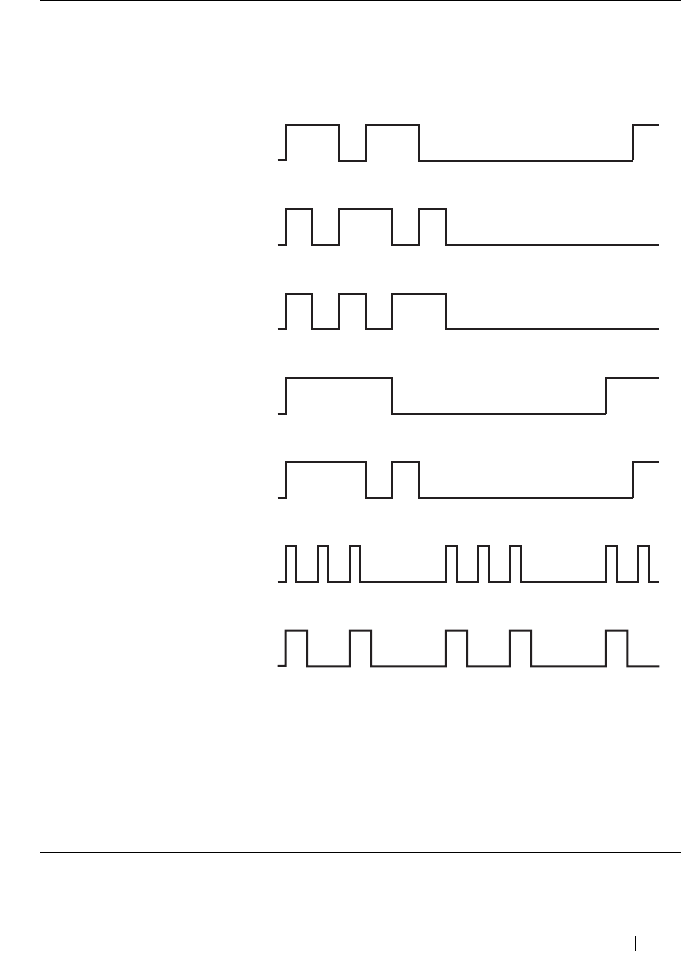
Understanding the Printer Menus 387
Pattern 1-7 DRPD is a service provided by some telephone companies. DRPD
Patterns are specified by your telephone company. The patterns
provided with your printer are shown below:
Ask your telephone company which pattern you need to select to
use this service. For example, Pattern 7 is the New Zealand
FaxAbility distinctive ringing pattern: rings for 400ms, stops for
800ms, rings for 400ms and stops for 1400ms. This pattern is
repeated over and over again. This printer only responds to
Distinctive Alert cadence(s) DA4 in New Zealand.
Pattern 1
Pattern 2
Pattern 3
Pattern 4
Pattern 5
Pattern 6
Pattern 7

388 Understanding the Printer Menus
Forward Settings
Purpose:
To set whether to forward incoming faxes to a specified destination.
Values :
Fax Fwd Number
Purpose:
To enter the fax number of the destination to which incoming faxes will be
forwarded.
Prefix Dial
Purpose:
To select whether to set a prefix dial number.
Values :
Prefix Dial Num
Purpose:
To set a prefix dial number of up to five digits. This number dials before any
auto dial number is started. It is useful for accessing the Private Automatic
Branch Exchange (PABX).
Discard Size
Purpose:
Off* Does not forward incoming faxes.
Forward Only Forwards the incoming faxes to a specified destination.
Print and
Forward
Prints the incoming fax and forwards it to a specified destination.
Off* Does not set a prefix dial number.
On Sets a prefix dial number.

Understanding the Printer Menus 389
To set whether to discard text or images at the bottom of a fax page when the
entire page does not fit onto the output paper.
Val ue s:
ECM
Purpose:
To set whether to enable the Error Correction Mode (ECM). To use the
ECM, the remote machines must also support the ECM.
Val ue s:
Modem Speed
Purpose:
To specify the fax modem speed when a fax transmission or reception error
occurs. Valu es:
Fax Activity
Purpose:
Off* Prints any excess at the bottom of a fax page without discarding it.
On Discards any excess at the bottom of a fax page.
Auto Reduction Automatically reduces a fax page to fit it onto the output paper.
Off Disable the ECM.
On* Enables the ECM.
2.4 Kbps
4.8 Kbps
9.6 Kbps
14.4 Kbps
33.6 Kbps*

390 Understanding the Printer Menus
To set whether to automatically print a fax activity report after every 50
incoming and outgoing fax communications.
Values :
Fax Transmit
Purpose:
To set whether to print a transmission report after every fax transmission or
only when an error occurs.
Values :
Fax Broadcast
Purpose:
To set whether to print a transmission report after every fax transmission to
multiple destinations or only when an error occurs.
Values :
Protocol Monitor
Purpose:
Auto Print* Automatically prints a fax activity report after every 50 incoming
and outgoing fax communications.
No Auto Print Does not automatically print a fax activity report.
Print Always Prints a transmission report after every fax transmission.
Print On Error* Prints a transmission report only when an error occurs.
Print Disable Does not print a transmission report after a fax transmission.
Print Always* Prints a transmission report after every fax transmission.
Print On Error Prints a transmission report only when an error occurs.
Print Disable Does not print a transmission report after a fax transmission to
multiple destinations.
Understanding the Printer Menus 391
To set whether to print a protocol monitor report, which helps you identify the
cause of a communication problem.
Val ues:
Country
Purpose:
To select the country where the printer is used.
System Settings
Use the System Settings menu to configure to configure a variety of
printer features.
NOTE: Values marked by an asterisk (*) are the factory default menu settings.
Power Saver Timer
Purpose:
To specify the time for transition to power saver mode.
Options:
Enter 5 in Mode 1 to put the printer in the power saver timer mode five
minutes after it finishes a job. This uses less energy, but requires more warm-
up time for the printer. Enter 5 if your printer shares an electrical circuit with
room lighting and you notice lights flickering.
Print Always Prints a protocol monitor report after every fax transmission.
Print On Error Prints a protocol monitor report only when an error occurs.
Print Disable* Does not print a protocol monitor report after a fax transmission.
Mode 1 5min* Specifies the time taken by the printer before it
enters the power saver timer mode 1 after it finishes
a job.
5–30min
Mode 2 6min* Specifies the time taken by the printer before it
enters the power saver timer mode 2 after it goes into
the power saver mode 1.
1–6min
392 Understanding the Printer Menus
Select a high value if your printer is in constant use. In most circumstances,
this keeps the printer ready to operate with minimum warm-up time. Select a
value between 5 and 30 minutes for the power saver timer mode if you want a
balance between energy consumption and a shorter warm-up period.
The printer automatically returns to the standby mode from the power saver
timer mode when it receives data from the computer. You can also return the
printer to the standby mode by pressing any button on the operator panel.
Auto Reset
Purpose:
To automatically reset the settings for COPY, SCAN, or FAX to the defaults
and return to the standby mode after you do not specify any settings for the
specified time.
Values :
Fault Time-out
Purpose:
To specify the time taken by the printer before it cancels jobs that stop
abnormally. The print job is cancelled if it times out.
Options:
Job Time-out
Purpose:
45sec*
1min
2min
3min
4min
Off Disables the fault time-out.
On* 60 sec* Specifies the time taken by the printer before it
cancels for jobs that stop abnormally.
3–300 sec

Understanding the Printer Menus 393
To specify the amount of time that the printer waits for data to arrive from
the computer. The print job is cancelled if it times out.
Options:
Date & Time
Purpose:
To set the date and time, and regional time zone of the printer.
Val ue s:
Alert Tone
Purpose:
To configure settings for tones emitted by the printer during operation or
when a warning message appears.
Val ue s:
Off Disables the job time-out.
On 30 sec* Specifies the amount of time that the printer waits for data to
arrive from the computer.
5–300 sec
Set Date Specifies the current date.
Set Time Specifies the current time.
Date Format*1 YY/MM/DD Specifies the date format.
MM/DD/YY
DD/MM/YY
Time Format 12H Specifies the time format.
24H
Time Zone Specifies the time zone.
*1 The default for Date Format varies depending on country-specific factory
default.
394 Understanding the Printer Menus
Panel Select Tone Off* Does not emit a tone when the operator panel
input is correct.
Low Emits a tone at the specified volume when the
operator panel input is correct.
Medium
High
Panel Alert Tone Off* Does not emit a tone when the operator panel
input is incorrect.
Low Emits a tone at the specified volume when the
operator panel input is incorrect.
Medium
High
Auto Clear Alert Off* Does not emit a tone before the printer performs
auto clear.
Low Emits a tone at the specified volume 5 seconds
before the printer performs auto clear.
Medium
High
Job Tone Off Does not emit a tone when a job is complete.
Low Emits a tone at the specified volume when a job
is complete.
Medium*
High
Alert Tone Off Does not emit a tone when a problem occurs.
Low Emits a tone at the specified volume when a
problem occurs.
Medium*
High
Out of Paper Off Does not emit a tone when the printer runs out
of paper.
Low Emits a tone at the specified volume when the
printer runs out of paper.
Medium*
High
Understanding the Printer Menus 395
mm/inch
Purpose:
To specify the measurement unit displayed after the numeric value on the
operator panel.
Val ue s:
NOTE: The default for mm/inch varies depending on country-specific factory
default.
Auto Log Print
Purpose:
To automatically print a job history report after every 20 jobs.
Val ue s:
NOTE: The job history report can also be printed using the Report List
menu.
NOTE: If more than 20 jobs are in the queue, the job history may be cleared.
Low Toner Alert Msg
Purpose:
All Tones Off Disables all the alert tones.
Low Sets the volume of all the alert tones at once.
Medium*
High
Millimeters
(mm)
Specifies the default measurement unit.
Inches (")
Off* Does not automatically print a job history report.
On Automatically prints a job history report.
396 Understanding the Printer Menus
To specify whether to show the alert message when the toner is low.
Values :
Power on Wizard
Purpose:
To perform initial setup for the printer.
Values :
Maintenance
Use the Maintenance menu to initialize NVM (non-volatile memory),
configure the plain paper quality adjustment settings, and configure the
security settings.
NOTE: Values marked by an asterisk (*) are the factory default menu settings.
F/W Version
Purpose:
To display the version of the controller.
Service Tag
Purpose:
To display the service tag of the printer.
Express Code
Purpose:
To display the express service code of the printer.
Off Does not show the alert message when the toner is low.
On* Shows the alert message when the toner is low.
Yes Performs the initial setup for the printer.
No* Does not perform the initial setup for the printer.
Understanding the Printer Menus 397
Paper Density
Purpose:
To specify the paper density.
Val ue s:
Adjust BTR
Purpose:
To specify the optimum voltage settings for printing for the transfer roller
(BTR). To lower the voltage, set negative values. To increase, set positive
values.
The default settings may not give the best output on all paper types. If you
see mottles on the print output, try to increase the voltage. If you see white
spots on the print output, try to decrease the voltage.
NOTE: The print quality changes depending on the values you select for this item.
Val ue s:
Plain Light
Normal*
Label Light
Normal*
Plain 0*
-3 – +3
Plain Thick 0*
-3 – +3
Covers 0*
-3 – +3
Coated 0*
-3 – +3
Label 0*
-3 – +3
398 Understanding the Printer Menus
Adjust Fuser
Purpose:
To specify the optimum temperature settings for printing for the fuser. To
lower the temperature, set negative values. To increase, set positive values.
The default settings may not give the best output on all paper types. When
the printed paper has curled, try to lower the temperature. When the toner
does not fuse on the paper properly, try to increase the temperature.
NOTE: The print quality changes depending on the values you select for this item.
Values :
Recycled 0*
-3 – +3
Envelope 0*
-3 – +3
Plain 0*
-3 – +3
Plain Thick 0*
-3 – +3
Covers 0*
-3 – +3
Coated 0*
-3 – +3
Label 0*
-3 – +3
Recycled 0*
-3 – +3
Envelope 0*
-3 – +3
Understanding the Printer Menus 399
Auto Regi Adjust
Purpose:
To specify whether to automatically adjust color registration.
Val ue s:
Adjust ColorRegi
Purpose:
To automatically adjust color registration.
Color registration adjustment need to be made during the initial setup of the
printer or when the printer is moved to a different location.
NOTE: This item is available only when Auto Regi Adjust is set to Off.
Clean Developer
Purpose:
To rotate the developer motor and stir the toner in the toner cartridge.
Toner Refresh
Purpose:
To use up a toner cartridge when you need to replace it before the end of its
life, or to stir the toner in a new toner cartridge.
Off Does not automatically adjust color registration.
On* Automatically adjusts color registration.
Yes Stirs the toner in a new toner cartridge.
No* Does not stir the toner in a new toner cartridge.
Yellow Yes Cleans the toner in the yellow toner cartridge.
No* Does not clean the toner in the yellow toner
cartridge.
400 Understanding the Printer Menus
BTR Refresh
Purpose:
Specify whether to execute counter measures for curling/separating discharge
of the paper.
Values:
Initialize NVM
Purpose:
To initialize NVM (non-volatile memory) for system parameters, Address
Book data for fax, or Address Book data for e-mail. After executing this
function and rebooting the printer, the menu parameters or data are reset to
their default values.
Values :
Magenta Yes Cleans the toner in the magenta toner cartridge.
No* Does not clean the toner in the magenta toner
cartridge.
Cyan Yes Cleans the toner in the cyan toner cartridge.
No* Does not clean the toner in the cyan toner
cartridge.
Black Yes Cleans the toner in the black toner cartridge.
No* Does not clean the toner in the black toner
cartridge.
Off*Does not automatically execute counter measures for
curling/separating discharge of the paper.
On Automatically executes counter measures for curling/separating
discharge of the paper.
User Fax
Section
Yes Initializes the fax number entries in the Address
Book.
No* Does not initialize the fax number entries in the
Address Book.
Understanding the Printer Menus 401
Non-Dell Toner
Purpose:
To use toner cartridge of another manufacturer.
NOTE: Using non-Dell-brand toner cartridges may make some printer features
unusable, reduce print quality and decrease the reliability of your printer. Dell
recommends only new Dell-brand toner cartridges for your printer. Dell does not
provide warranty coverage for problems caused by using accessories, parts, or
components not supplied by Dell.
NOTE: Before you use toner cartridge of another manufacturer, be sure to restart
the printer.
Val ue s:
Adjust Altitude
Purpose:
To specify the altitude of the location where the printer is installed.
The discharge phenomenon for charging the photo conductor varies with
barometric pressure. Adjustments are performed by specifying the altitude of
the location where the printer is being used.
NOTE: An incorrect altitude adjustment setting leads to poor printing quality,
incorrect indication of remaining toner.
Val ue s:
User Scan
Section
Yes Initializes the e-mail and server address entries in
the Address Book.
No* Does not initialize the e-mail and server address
entries in the Address Book.
System Section Yes Initializes the system parameters.
No* Does not initialize the system parameters.
Off* Does not use toner cartridge of another manufacturer.
On Uses toner cartridge of another manufacturer.
402 Understanding the Printer Menus
Secure Settings
Use the Secure Settings menu to set a password to limit access to the
menus. This prevents items from being changed accidentally.
NOTE: Values marked by an asterisk (*) are the factory default menu settings.
Panel Lock
Purpose:
To restrict access to Admin Menu with a password.
For details see "Panel Lock Function" on page 405.
NOTE: You can select Disable for Panel Lock Set when all items under Function
Enabled are set to On and Secure Receive Set is set to Disable.
Values :
Function Enabled
Purpose:
To specify whether to enable each of the printer services or to require a
password to use the services, and to set or change the password.
NOTE: You can access to the items under Function Enabled only when
Panel Lock Set is set to Enable.
Values :
0m* Specifies the altitude of the location where the printer is installed.
1000m
2000m
3000m
Panel Lock Set Disable* Does not restrict access to Admin Menu with a
password.
Enable Restricts access to Admin Menu with a password.
Change Password 0000–9999 Sets or changes the password required to access
Admin Menu.
Understanding the Printer Menus 403
Secure Receive
Purpose:
To specify whether to require a password to print incoming faxes, and to set or
change the password. When Secure Receive Set is set to Enable, the
printer stores incoming faxes and prints them when the correct password is
entered on the operator panel.
NOTE: You can access to the items under Secure Receive Set only
when Panel Lock Set is set to Enable.
Copy On Enables the Copy service.
Off Disables the Copy service.
On
(Password)
Enables the Copy service with a black and white
mode, but requires a password.
On (Color
Password)
Enables the Copy service with a color mode, but
requires a password.
FAX On Enables the Fax service.
Off Disables the Fax service (the printer will not send
or receive faxes).
On
(Password)
Enables the Fax services, but requires a password
to send faxes (does not require a password to
receive incoming faxes).
SCAN On Enables the Scan service.
Off Disables the Scan service.
On
(Password)
Enables the Scan service, but requires a password.
USB-Print On* Enables the USB-Print service.
Off Disables the USB-Print service.
On
(Password)
Enables the USB-Print service with a black and
white mode, but requires a password.
On (Color
Password)
Enables the USB-Print service with a color mode,
but requires a password.
Change Password Sets or changes the password required to use the
Copy, Scan, Fax, and USB-Print services.
404 Understanding the Printer Menus
Values :
Scan to EMail
Use the Scan to EMail menu to edit the transmission source.
NOTE: Values marked by an asterisk (*) are the factory default menu settings.
Edit From Field
USB Settings
Use the USB Settings menu to change printer settings affecting a USB
port.
NOTE: Values marked by an asterisk (*) are the factory default menu settings.
USB Port
Purpose:
To enable or disable the USB interface. The change becomes effective after
the printer is turned off and then on.
Values :
Secure Receive Set Disable* Does not require a password to print incoming
faxes.
Enable Requires a password to print incoming faxes.
Change Password 0000–9999 Sets or changes the password required to print
incoming faxes.
Disable Disables editing of the transmission source.
Enable* Enables editing of the transmission source.
Enable* Enables the USB interface.
Disable Disables the USB interface.
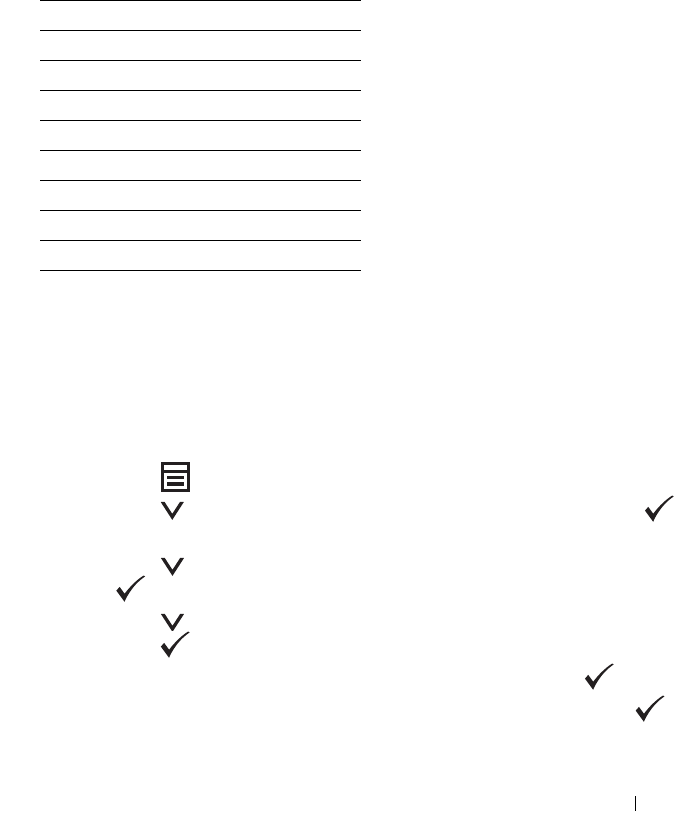
Understanding the Printer Menus 405
Panel Language
Purpose:
To specify the language to be used on the operator panel.
Val ue s:
Panel Lock Function
This feature prevents unauthorized users from changing settings made by the
administrator. However, you can select settings for individual print jobs using
the printer driver.
Enabling the Panel Lock
1
Press the (
Menu)
button.
2
Press the button until
System
is highlighted, and then press the
button.
3
Press the button until
Admin Menu
is highlighted, and then press
the button.
4
Press the button until
Secure Settings
is highlighted, and then
press the button.
5
Ensure that
Panel Lock
is highlighted, and then press the button.
6
Ensure that
Panel Lock Set
is highlighted, and then press the
button.
English*
Français
Italiano
Deutsch
Español
Dansk
Nederlands
Norsk
Svenska
406 Understanding the Printer Menus
7
Press the button until
Enable
is highlighted, and then press the
button.
NOTE: The factory-default panel password is 0000.
NOTE: Be sure to remember the password. The procedure described below
allows you to reset the password, but the settings for Address Book and
Phone Book are cleared.
•Turn off the printer. Then, while holding the (Menu) button, turn on
the printer.
NOTE: If you change the password while Panel Lock is Enable, perform
steps 1 to 5. Press the
button until Change Password is highlighted, and
then press the button. Enter the new password, and then press the
button. This will change the password.
Disabling the Panel Lock
1
Press the (
Menu)
button.
2
Press the button until
System
is highlighted, and then press the
button.
3
Press the button until
Admin Menu
is highlighted, and then press
the button.
4
Enter the password, and then press the button.
5
Press the button until
Secure Settings
is highlighted, and then
press the button.
6
Ensure that
Panel Lock
is highlighted, and then press the button.
7
Ensure that
Panel Lock Set
is highlighted, and then press the
button.
8
Press the button until
Disable
is highlighted, and then press the
button.
Understanding the Printer Menus 407
Resetting Defaults
After executing this function and rebooting the printer, the menu parameters
or data are reset to their default values.
1
Press the
(Menu)
button.
2
Press the button until
System
is highlighted, and then press the
button.
3
Press the button until
Admin Menu
is highlighted, and then press the
button.
4
Press the button until
Maintenance
is highlighted, and then press
the button.
5
Press the button until
Initialize NVM
is highlighted, and then
press the button.
6
Press the button until the desired setting is highlighted, and then press
the button.
7
Press the button until
Yes
is highlighted, and then press the
button.
The printer restarts automatically to apply the settings.

408 Understanding the Printer Menus

Understanding Your Printer Software (Windows Only) 409
21
Understanding Your Printer
Software (Windows Only)
Use the
Drivers and Utilities
CD that shipped with your printer to install a
combination of software programs, depending on your operating system.
Printer Status Window
The Printer Status window alerts you when there is a warning or when an
error occurs, for example, when a paper jam occurs or toner is running low.
By default, the Printer Status window launches only when an error occurs.
When an error occurs, the error message appears on the Printer Status
window. You can set the Printer Status window to always launch when
printing in Printing Status Window Properties.
You can also check the toner level of your printer.
Status Monitor Console
Use the Status Monitor Console to manage multiple instances of the Status
Window for a particular printer.
Select a printer from the list view (or Printer Selection) by clicking its name
to open a Status Window for a particular printer.
Dell Supplies Management System
You can launch the Dell Supplies Management System dialog box from the
All Programs menu or the desktop icon.
You can order consumables by phone or from the web.
1
Click
Start
All Programs
Dell Printers
Dell 1355 Multifunction
Color Printer
Dell Supplies Management System
.
The
Dell Supplies Management System
window appears.
2
Select your printer from the
Select Printer Model
list.
3
If you are ordering from the web:
a
Select a web address from the
Select Reorder URL
list.
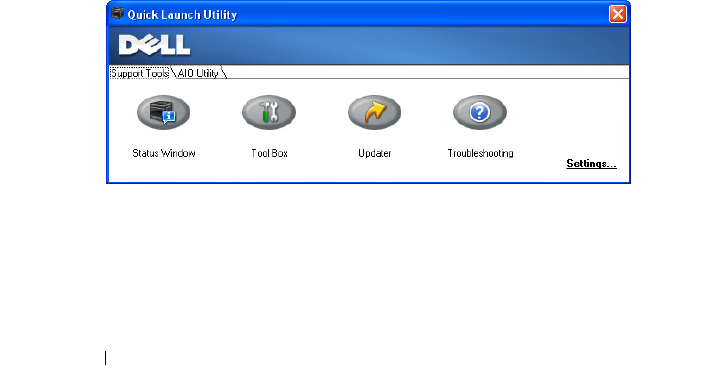
410 Understanding Your Printer Software (Windows Only)
b
Click
Visit Dell printer supplies ordering web site
.
Dell 1355cn Color MFP - Dell Supplies Management System
window appears.
c
Enter the Service Tag, and then click
OK
.
If you order by phone, call the number that appears in the
Order by Phone
section.
Software Update
The firmware and/or driver updates can be downloaded from the Dell
Support website located at support.dell.com.
Quick Launch Utility
Using the Quick Launch Utility window, you can open the Status Window,
Tool Box, Updater, Troubleshooting, Address Book Editor, ScanButton
Manager, and Dell ScanCenter.
To use the Quick Launch Utility, select to install the Quick Launch Utility
when you install the Dell software.
To open the Quick Launch Utility window:
1
Click
Start
All Programs
Dell Printers
Dell 1355
Multifunction
Color Printer
Quick Launch Utility.
The
Quick Launch Utility
dialog box opens.
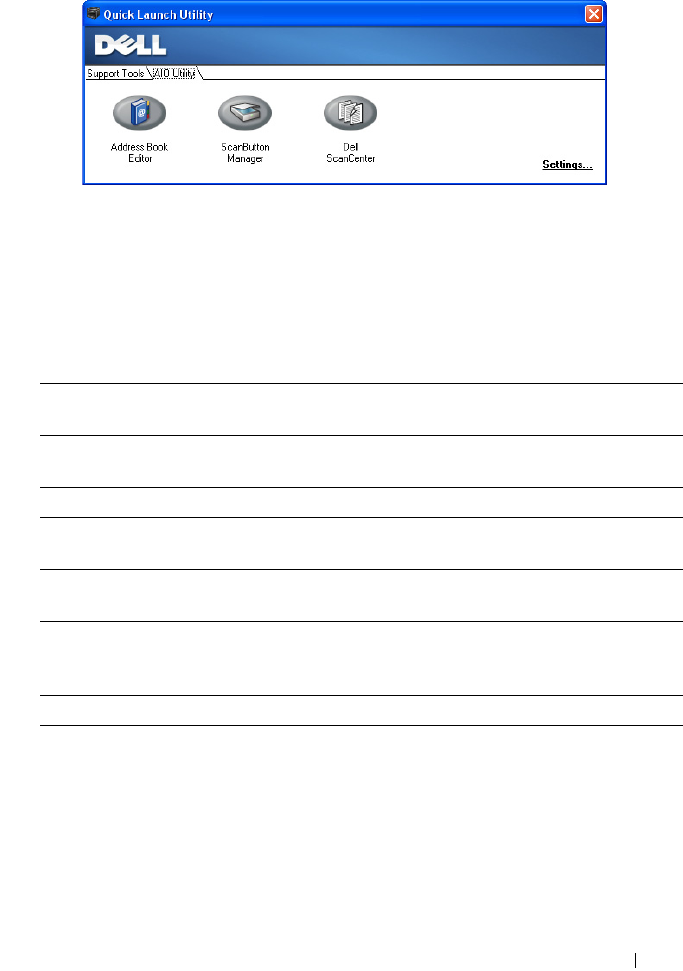
Understanding Your Printer Software (Windows Only) 411
2
The
Quick Launch Utility
window provides seven buttons;
Status
Window
,
Tool Box
,
Updater
,
Troubleshooting
,
Address Book Editor
,
ScanButton Manager
, and
Dell ScanCenter.
To exit, click the X button at the top-right of the window.
For details, click the
Help
button of each application.
Status Window Click to open the Printing Status window. See "Printer
Status Window" on page 409.
Tool Box Click to open the Tool Box. See "Understanding the Tool
Box Menus" on page 323.
Updater Click to update the Dell software and printer firmware.
Troubleshooting Click to open the Troubleshooting Guide, which allows you
to resolve issues by yourself.
Address Book Editor Click to open the Address Book Editor, which allows you to
create and edit Address Book entries.
ScanButton Manager Click to open the ScanButton Manager, which allows you to
specify how the ScanButton Manager behaves for scan
events that the device generates.
Dell ScanCenter Click to open the Dell ScanCenter.
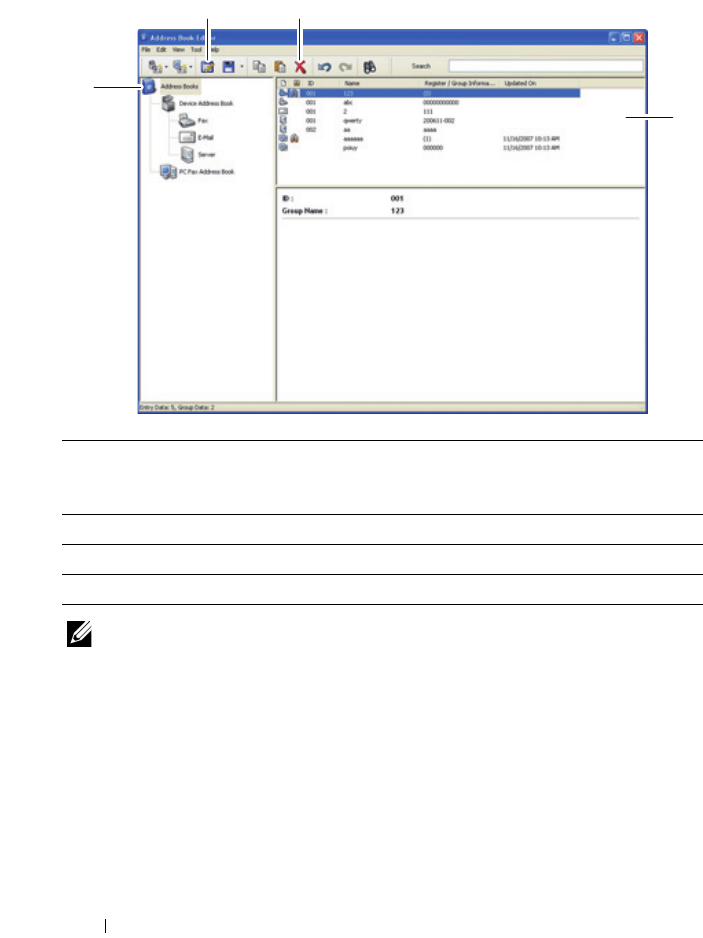
412 Understanding Your Printer Software (Windows Only)
Address Book Editor
NOTE: You must install the fax driver before reading or editing the Address Book
entries.
For more information about Address Book Editor, see the Help of Address
Book Editor.
1Read the Device Address Book entries from the printer to the Address Book
Editor and read the PC Fax Address Book entries from the PC to the Address
Book Editor.
2Allows you to edit a selected Address Book entry in the edit dialog box.
3Deletes a selected Address Book entry.
4Displays Address Book entries.
1
4
2 3
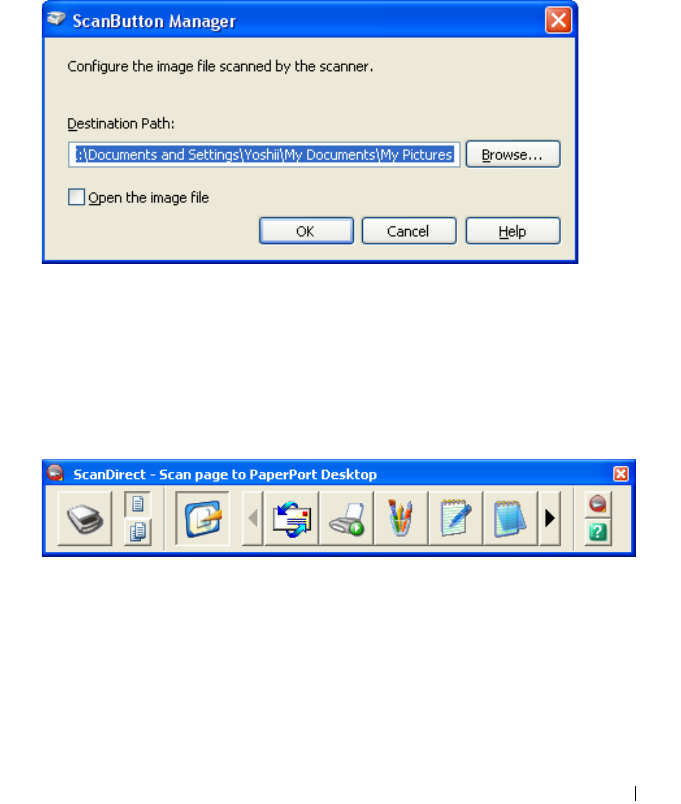
Understanding Your Printer Software (Windows Only) 413
ScanButton Manager
The Scan to Application stores the image files in the My Documents
folder by default, and then you can open them using the related application.
Use ScanButton Manager to change the output destination of the obtained
image files and to select whether to open the image files using the related
application.
ScanDirect
ScanDirect is a PaperPort application that enables you to scan items and send
them directly to PaperPort or other programs on your computer without
running the PaperPort program first. For more information about using
ScanDirect, refer to PaperPort's Help menu.
User Setup Disk Creating Tool
The User Setup Disk Creating Tool program located in the MakeDisk folder
of the Utilities folder on the
Drivers and Utilities
CD and the printer drivers
located on the
Drivers and Utilities
CD are used to create driver installation

414 Understanding Your Printer Software (Windows Only)
packages that contain custom driver settings. A driver installation package
can contain a group of saved printer driver settings and other data for things
such as:
• Print orientation and Multiple Up (document settings)
•Watermarks
If you want to install the printer driver with the same settings on multiple
computers running on the same operating system, create a setup disk in a
floppy disk or in a server on the network. Using the setup disk that you have
created will reduce the amount of work required when installing the printer
driver.
• Install the Dell™ 1355cnw Multifunction Color Printer driver in the
computer on which the setup disk is to be created.
• The setup disk can only be used on the operating system on which the disk
was created or computers running the same operating system. Create a
separate setup disk for each of the operating systems.
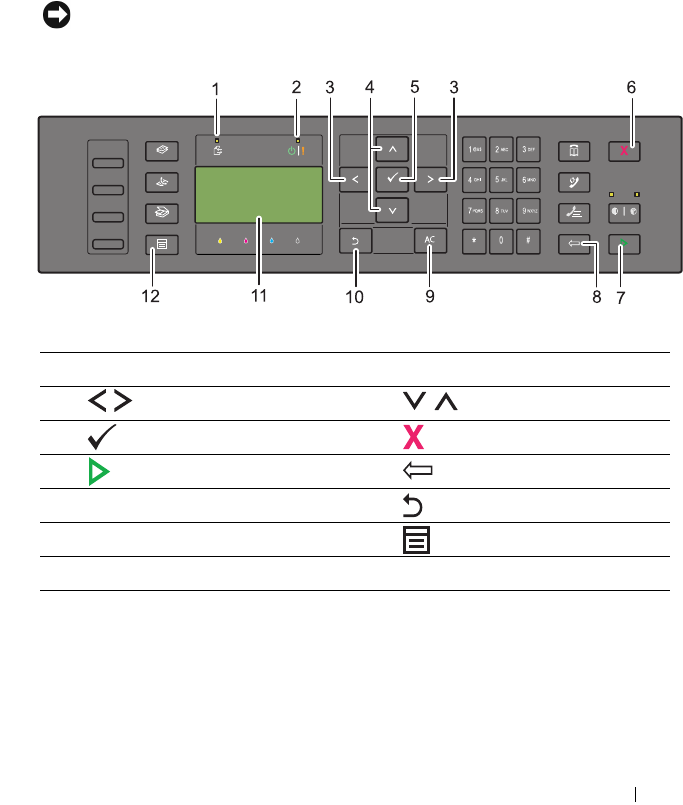
Understanding Printer Messages 415
22
Understanding Printer Messages
The printer operator panel displays messages describing the current state of
the printer and indicates possible printer problems you must resolve. This
chapter describes messages, their meanings, and how to clear the messages.
NOTICE: When an error code is displayed, the print data remaining on the printer
and the information accumulated in the memory of the printer are not secured.
1Data LED 2Ready / Error LED*1
3 buttons 4 buttons
5 button 6 (Cancel) button
7 (Start) button 8 (Back) button
9AC (All Clear) button 10 (Backspace) button
11 LCD Panel 12 (Menu) button
*1 The Error LED is on the right and blinks when an error occurs.
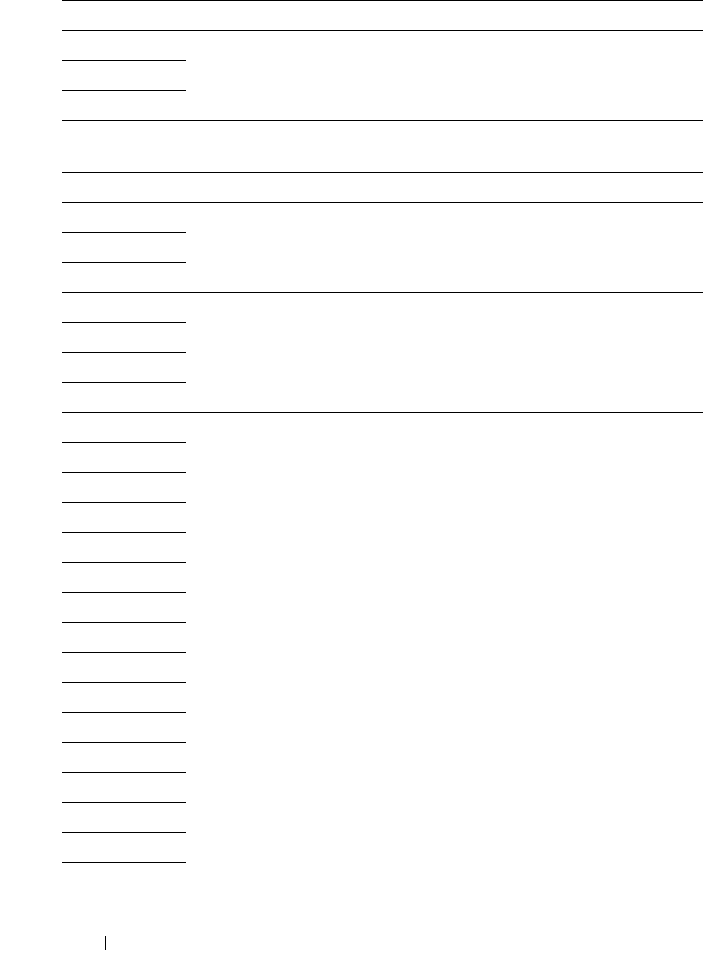
416 Understanding Printer Messages
Error-Code What you can do
001-360 Turn off the printer, and then on. If this does not solve the problem,
contact Dell. See "Contacting Dell" on page 504.
003-340
003-356
005-121 Check and clear the paper path. See "Clearing Paper Jams From the
ADF" on page 461.
005-301 Close the ADF cover.
006-370 Turn off the printer, and then on. If this does not solve the problem,
contact Dell. See "Contacting Dell" on page 504.
007-340
007-371
009-360 Re-install the specified toner cartridge. See "Installing a Toner
Cartridge" on page 442.
009-361
009-362
009-363
009-654 Turn off the printer, and then on. If this does not solve the problem,
contact Dell. See "Contacting Dell" on page 504.
010-354
010-377
016-315
016-317
016-338
016-344
016-347
016-354
016-355
016-370
016-372
016-374
016-375
016-376
016-377
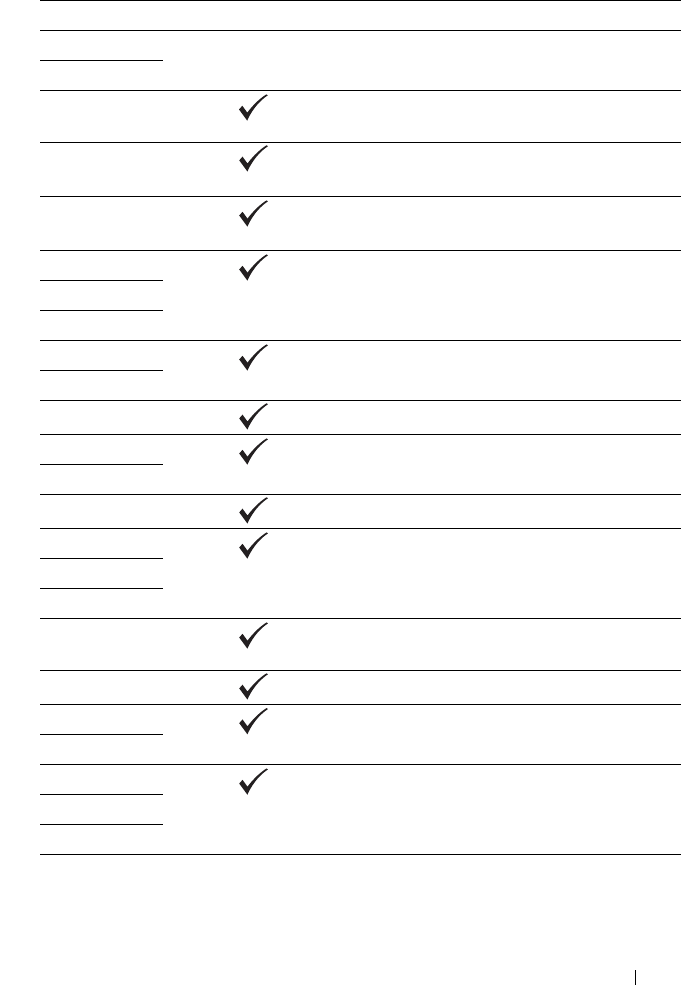
Understanding Printer Messages 417
016-393 Turn off the printer, and then on. If this does not solve the problem,
contact Dell. See "Contacting Dell" on page 504.
016-395
016-503 Press the
button. Check if SMTP server and DNS server are set
correctly.
016-504 Press the
button. Check if user name and password for POP3
server and DNS server are set correctly.
016-507 Press the
button. Check if user name and password used for
SMTP server are set correctly.
016-700 Press the
button to cancel the current print job.
016-701
016-720
016-744 Press the
button. Contact Dell if this message appears
repeatedly. See "Contacting Dell" on page 504.
016-745
016-749 Press the
button to cancel the current print job.
016-764 Press the
button. Contact SMTP server administrator.
016-766
016-767 Press the
button. Check e-mail address, and try scanning again.
016-794 Press the button to clear the message.
016-795
016-797
016-920 Press the
button. Execute the operation again according to the
operation procedure.
016-981 Press the
button to cancel the current print job.
016-985 Press the
button. Retry scanning by lowering the resolution
setting or changing the file format of the scanned image.
017-970
017-980 Press the
button to clear the message.
017-981
017-988
024-914 Load the specified paper. See "Loading Print Media in the
Multipurpose Feeder (MPF)" on page 202 or "Loading Print Media
in the Priority Sheet Inserter (PSI)" on page 211.
Error-Code What you can do
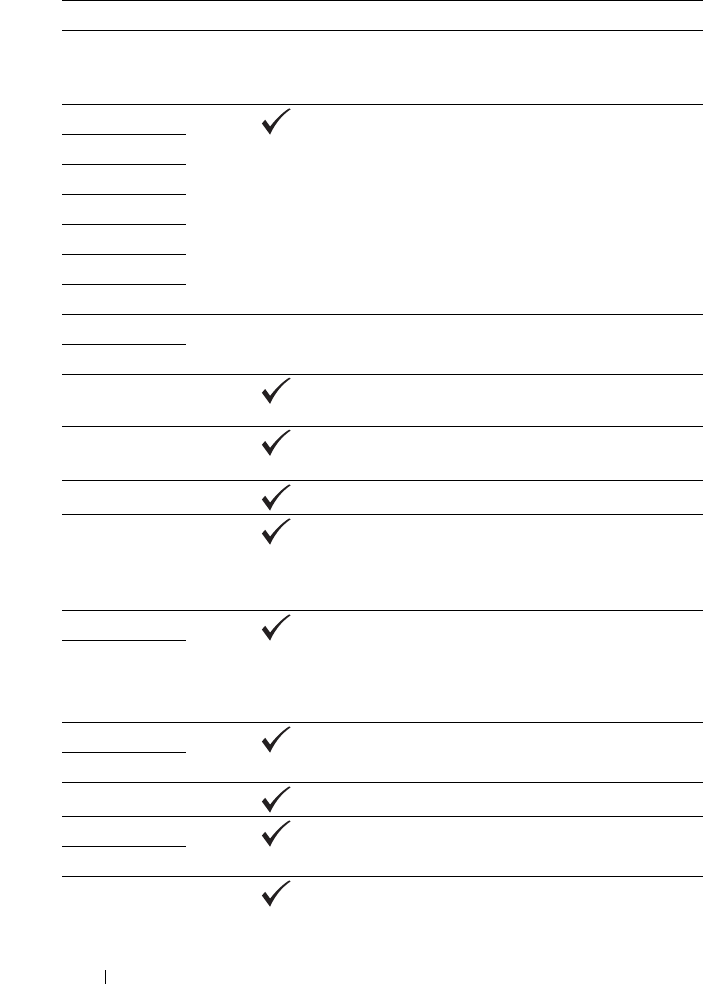
418 Understanding Printer Messages
024-969 Load the appropriate paper. See "Loading Print Media in the
Multipurpose Feeder (MPF)" on page 202 or "Loading Print Media
in the Priority Sheet Inserter (PSI)" on page 211.
026-720 Press the
button to clear the message.
026-721
026-722
026-723
026-750
026-751
026-752
027-446 Change IP address to avoid duplication. Turn off the printer, and
turn it on again.
027-452
031-521 Press the
button. Confirm login-able computer with your
system administrator.
031-526 Press the
button. Check DNS connection, or check if
forwarding destination server is registered with DNS.
031-529 Press the
button. Check if password is correct.
031-530 Press the
button. Check if storage location is correct. Storage
location you specified is DFS setting, and check if it is linked to
other server. Specify directly linked server, share name, and storage
location.
031-533 Press the
button. Check the following:
• If the file name you specified is not used by other users.
• If file or folder that has the same name as the one you specified
already exists.
031-534
031-535 Press the
button. Check if other user is not operating file in
storage location you specified.
031-536
031-537 Press the
button. Check if storage location has free space.
031-555 Press the
button to clear the message.
031-556
031-557 Press the
button. Change the file name that already exists on
FTP server.
Error-Code What you can do
Understanding Printer Messages 419
031-558 Press the
button to clear the message.
031-571
031-574 Press the
button. Check DNS connection, or check if name of
forwarding destination server is registered with DNS.
031-575 Press the
button. Set DNS address, or set forwarding
destination server address as IP address.
031-576 Press the
button. Check if the printer communicates with
forwarding destination FTP server. For example, check connection of
network cable and if the IP address of the server is correct.
031-578 Press the
button. Check if login name (user name) and
password are correct.
031-579 Press the
button. Check if storage location is correct.
031-582 Press the
button. Check if the file name you specified can be
created in storage location. Check if storage location has free space.
031-584 Press the
button. Check if the folder name you specified can be
created in storage location. Check if the folder that has the same
name as the one you specified already exists.
031-585 Press the
button. Check server access rights.
031-587
031-588 Press the
button. Check if storage location has free space.
031-589 Press the
button to clear the message.
031-594 Press the
button. Execute the operation again according to the
operation procedure. Contact Dell if this message appears
repeatedly. See "Contacting Dell" on page 504.
031-598 Press the
button. Check append access right to the file and if
server supports FTP append command.
033-503 Press the
button to clear the message.
033-513 Press the
button. Print the received fax, or wait for a while until
sending a fax is completed.
033-517 Press the
button. Check if password is correct.
033-518 Press the
button. Check if your country code is set correctly.
Error-Code What you can do
420 Understanding Printer Messages
033-519 Press the
button to clear the message.
033-787
033-788 Press the
button. Remove the received fax, or wait for a while
until sending a fax is completed. Press the
button to clear the
message.
034-700 Press the
button to clear the message. Check that the phone
line is connected properly. See "Connecting the Telephone Line" on
page 48.
034-701
034-702
034-703
034-704
034-705
034-706
034-707
034-708
034-709
034-710
034-711
034-712
034-713
034-714
034-715
034-716
034-717
034-718
034-719
034-720
034-721
034-722
034-723
034-724
Error-Code What you can do
Understanding Printer Messages 421
034-725
034-726
034-727
034-750
034-751
034-752
034-753
034-754
034-755
034-756
034-757
034-758
034-759
034-760
034-761
034-762
034-763
034-764
034-765
034-766
034-767
034-768
062-321 Turn off the printer, and then on. If this does not solve the problem,
contact Dell. See "Contacting Dell" on page 504.
062-790 Press the
button.
075-100 Check and clear the paper path, load the specified paper, and then
press the
button. See "Clearing Paper Jams From the Front of
the Printer" on page 465.
075-921 Load paper for the second side (odd) pages, and press the
button. See Figure "Manual Duplex Printing (Windows Printer
Driver Only)" on page 218.
Error-Code What you can do
422 Understanding Printer Messages
077-100 Check and clear the paper path. See "Clearing Jams" on page 459.
077-101
077-102 Check and clear the paper path. See "Clearing Paper Jams From the
Back of the Printer" on page 467.
077-104 Check and clear the paper path. See "Clearing Jams" on page 459.
077-105
077-300 Close the rear cover.
077-900 Check and clear the paper path. See "Clearing Paper Jams From the
Output Tray" on page 470.
077-901 Check and clear the paper path. See "Clearing Jams" on page 459.
091-402 Turn off the printer, and then on. If this does not solve the problem,
contact Dell. See "Contacting Dell" on page 504.
092-310 Clean the CTD sensor. See "Cleaning the Color Toner Density
(CTD) Sensor" on page 448.
093-423 Replace the specified toner cartridge soon. Order a new consumable
from www.dell.com/supplies.
See "Replacing Toner Cartridges" on page 441.
093-424
093-425
093-426
093-919 Re-install or replace the specified toner cartridge. See "Replacing
Toner Cartridges" on page 441.
093-920
093-921
093-922
093-930 Remove the specified toner cartridge and install a new one. If you do
not replace the toner cartridge, print quality problems may occur.
Order a new consumable from www.dell.com/supplies.
See "Replacing Toner Cartridges" on page 441.
093-931
093-932
093-933
093-960 "Replace the specified toner cartridge with the supported one. Order
a new consumable from www.dell.com/supplies.
See "Replacing Toner Cartridges" on page 441.
093-961
093-962
093-963
Error-Code What you can do
Understanding Printer Messages 423
093-970 Re-install the specified toner cartridge. See "Installing a Toner
Cartridge" on page 442.
093-971
093-972
093-973
117-331 Turn off the printer, and then on. If this does not solve the problem,
contact Dell. See "Contacting Dell" on page 504.
117-332
117-333
117-334
117-340
117-342
117-343
117-344
117-346
117-348
117-349
117-350
117-351
117-366
124-333 Turn off the printer, and then on. If this does not solve the problem,
contact Dell. See "Contacting Dell" on page 504.
134-211
191-310
193-700 This message indicates the printer is in the non-Dell toner mode.
Error-Code What you can do

424 Understanding Printer Messages

Printing with Web Services on Devices (WSD) 425
23
Printing with Web Services on
Devices (WSD)
This section provides information for network printing with WSD, the new
Windows Vista®, Windows Server® 2008, Windows Server 2008 R2, and
Windows® 7 protocol of Microsoft®.
Adding Roles of Print Services
When you use Windows Server 2008 or Windows Server 2008 R2, you need
to add the roles of print services to the Windows Server 2008 or Windows
Server 2008 R2 client.
For Windows Server 2008:
1
Click
Start
Administrative Tools
Server Manager
.
2
Select
Add Roles
from the
Action
menu.
3
Check the
Print Services
check box on the
Server Roles
window in the
Add Roles Wizard
, and then click
Next
.
4
Check the
Print Server
check box, and then click
Next
.
5
Click
Install
.
For Windows Server 2008 R2:
1
Click
Start
Administrative Tools
Server Manager
.
2
Select
Add Roles
from the
Action
menu.
3
Check the
Print and Document Services
check box on the
Server Roles
window in the
Add Roles Wizard
, and then click
Next
.
4
Click
Next
.
5
Check the
Print Server
check box, and then click
Next
.
6
Click
Install
.

426 Printing with Web Services on Devices (WSD)
Printer Setup
You can install your new printer on the network using the
Drivers and Utilities
CD that shipped with your printer, or using Microsoft's Windows Add Printer
wizard.
Installing a Printer Driver Using the Add Printer Wizard
1
Click
Start
Control Panel
Hardware and Sound
Printers
(
Start
Devices and Printers
for Windows Server 2008 R2 and Windows 7).
2
Click
Add a printer
to launch the
Add Printer
wizard.
3
Select
Add a network, wireless or Bluetooth printer
.
4
In the list of available printers, select the one you want to use, and then
click
Next
.
NOTE: In the list of available printers, the WSD printer is displayed in the form
of http://IP address/ws/.
NOTE: If no WSD printer is displayed in the list, enter the printer's IP address
manually to create a WSD printer. To enter the printer's IP address manually,
follow the instructions below. For Windows Server 2008 R2, to create a WSD
printer, you must be a member of Administrators group.
1. Click The printer that I want isn't listed.
2. Select Add a printer using a TCP/IP address or hostname and click Next.
3. Select Web Services Device from Device type.
4. Enter the printer's IP address in the Hostname or IP address text box and
click Next.
NOTE: Before installing the driver using the Add Printer? wizard on Windows
Server 2008 R2 or Windows 7, perform one of the followings:
•Establish the Internet connection so that Windows Update can scan your
computer.
•Add the printer driver to your computer in advance.
5
If prompted, install the printer driver on your computer. If you are
prompted for an administrator password or confirmation, type the
password or provide confirmation.
6
Complete the additional steps in the wizard, and then click
Finish
.
7
Print a test page to verify print installation.

Printing with Web Services on Devices (WSD) 427
a
Click
Start
Control Panel
Hardware and Sound
Printers
(
Start
Devices and Printers
for Windows Server 2008 R2 and
Windows 7).
b
Right-click the printer you just created, and then click
Properties
(
Printer properties
for Windows Server 2008 R2 and Windows 7).
On the
Options
tab, set each setting item, and then click
Apply
.
c
On the
General
tab, click
Print Test Page
. When a test page is printed
successfully, installation is complete.

428 Printing with Web Services on Devices (WSD)

Specifications 429
24
Specifications
Operating System Compatibility
Your Dell™ 1355cn/1355cnw Multifunction Color Printer is compatible with
Microsoft® Windows® XP, Windows XP 64-bit Edition, Windows Server®
2003, Windows Server 2003 x64 Edition, Windows Server 2008, Windows
Server 2008 64-bit Edition, Windows Vista®, Windows Vista 64-bit Edition,
Windows 7, and Windows 7 64-bit Edition, Mac OS® X 10.4.11/10.5.6, 10.6.x
or later.
1 Dell technical phone support only supports factory-installed operating
systems (Microsoft) for the first 30 days for free. See
http://www1.us.dell.com/content/products/compare.aspx/laser?c=us&cs=
555&l=en&s=biz for more details. The customer will have to purchase
technical support from the manufacturer of the operating system in order to
get technical assistance beyond 30 days.
2 If the customer has other operating systems and has purchased Gold
Technical Support (for more information on Gold Technical Support, see
http://www1.us.dell.com/content/topics/global.aspx/services/en/gts?c=
us&cs=555&l=en&s=biz), the telephone support will be a "best effort"
attempt to resolve the operating system issue. If the manufacturer needs to be
contacted, the customer must pay an additional fee for that support. The only
time that Dell pays for the third party support is when Dell is responsible for
the issue. In the case of getting the printer installed and working, this is
configuration and the customer would be responsible for paying.
Power Supply
Rated Voltage 220-240 VAC 110-127 VAC
Frequency 50/60 Hz 50/60 Hz
Current 5.0 A 11.0 A
430 Specifications
Dimensions
Height: 338 mm (13.31 inches) Width: 410 mm (16.14 inches) Depth: 379
mm (14.92 inches)
Weight (only the toner cartridges are included):
• 1355cn: 14.8 kg (32.63 lb)
• 1355cnw: 14.9 kg (32.85 lb)
Memory
Page Description Language (PDL)/Emulation,
Operating System, and Interface
MIB Compatibility
A Management Information Base (MIB) is a database containing information
about network devices (such as adapters, bridges, routers, or computers). This
information helps network administrators manage the network (analyze
performance, traffic, errors, and so on). Dell™ 1355cn/1355cnw
Base memory 128 MB
PDL/Emulations Host-based printing system
OSes Microsoft Windows 7, Windows 7 64-bit Edition, Windows Vista,
Windows Vista 64-bit Edition, Windows Server 2008, Windows
Server 2008 64-bit Edition, Windows Server 2008 R2 64-bit
Edition, Windows XP, Windows XP 64-bit Edition, Windows
Server 2003, Windows Server 2003 x64 Edition, Mac OS X
Version 10.4.11, 10.5.8, and 10.6
Interfaces Standard local:
Standard network:
USB 2.0
10Base-T/100Base-TX Ethernet
IEEE 802.11b/802.11g
(Wireless)
Specifications 431
Multifunction Color Printer complies with standard industry MIB
specifications, allowing the printer to be recognized and managed by various
printer and network management software systems.
Environment
Operation
Print Quality Guarantee
Storage
Altitude
NOTE: For more information on adjusting the altitude, see "Adjust Altitude" on
page 340.
Cables
Your interconnection cable must meet the following requirements:
Temperature
10-32°
C
Relative humidity 10-85% RH (no condensation)
Temperature 15
-
28
°
C
Relative humidity 20-70% RH (no condensation)
Temperature range -20-40°C
Storage humidity range 5-80% RH (no condensation)
Operating Up to 3,100 m (10,000 feet)
Storage 70.9275 Kpa
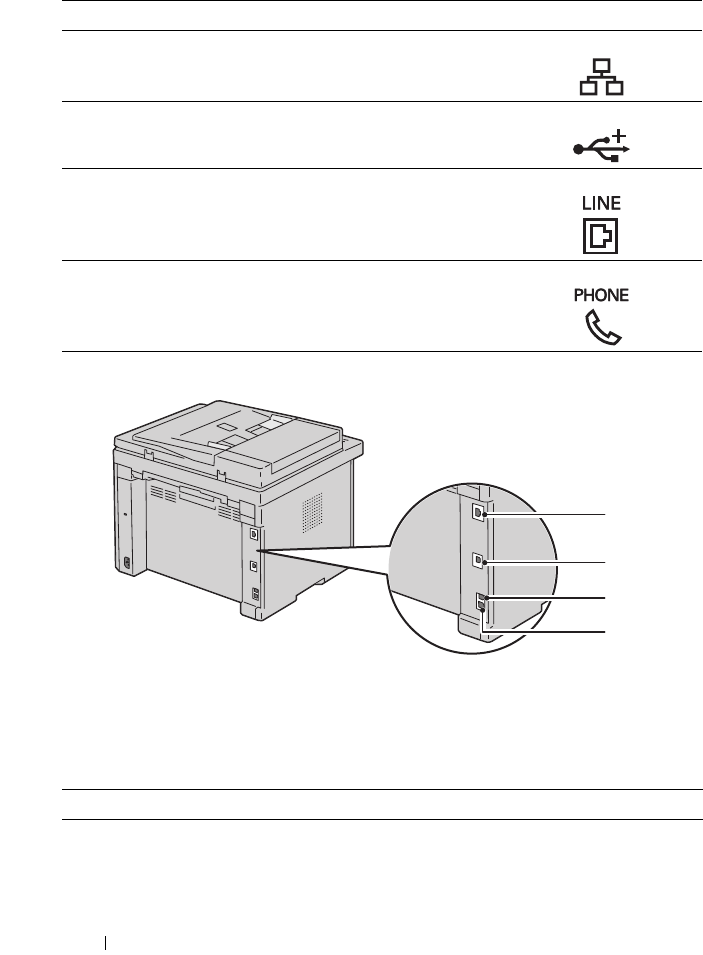
432 Specifications
Copier Specifications
Connection type Connection specifications and symbols
1Ethernet 10 Base-T/100 Base-TX
2USB USB 2.0
3Wall Jack Connector
4Phone Connector
Item Description
Copy Resolution Optical: 600x600 dots/25.4 mm (1 inch),
ADF: 600x300 dots/25.4mm (1 inch)
(Same for Color/Black&White)
1
2
3
4

Specifications 433
Scanner Specifications
Copy Speed Color 12 cpm or more, Black&White 15 cpm or more
(When using the document glass to make sequential
copies of a document with pages scanned one by one.)
Color 2.87 cpm or more, Black&White 10.64 cpm or
more (When using the ADF to make sequential copies
of multiple documents.)
Paper Size A4, A5, B5, Executive, Letter, Folio, Legal, Monarch,
DL, C5, Envelope #10
Zoom Rate Document glass: 25% - 400%, ADF: 25% - 400%
Multiple copies 1 - 99 pages
Copy mode (=Original
Ty p e )
Text, Text & Photo, Photo
Scanning method Platen: Document-fixed flatbed scanning method
ADF: Carriage-fixed, document-feeding scanning
method (one side scanning)
Item Description
Compatibility Tool Without An Interesting Name (TWAIN),
Windows Image Acquisition (WIA)
Scan Resolution TWAIN: 75 x 75 to 4800 x 4800 dots/25.4 mm (1 inch)
WIA: 75/100/150/200/300/400/600 dots/25.4 mm
(1 inch)
Resolutions other than the following are achieved by
driver's resolution conversion:
200 x 200 dots/25.4 mm (1 inch)
300 x 300 dots/25.4 mm (1 inch) (Default)
600 x 600 dots/25.4 mm (1 inch)
1200 x 1200 dots/25.4 mm (1 inch)
Color bit depth 24 bit (WIA, TWAIN)
Mono bit depth 1 bit for Line art and 8 bit for Gray scale
Item Description
434 Specifications
Facsimile Specifications
Effective scanning length Document glass: 297 mm (11.69 inches),
ADF: 355.6 mm (14 inches)
Effective scanning width 215.9 mm (8.5 inches)
Scan speed (Text mode) Black&White:
641.22 μsec/line (600 dots/25.4 mm (1 inch)),
1265.19 μsec/line (1200 dots/25.4 mm (1 inch))
Color:
2176.52 μsec/line (600 dots/25.4 mm (1 inch)),
4363.36 μsec/line (1200 dots/25.4 mm (1 inch))
Item Description
Compatibility ITU-T Group 3
Applicable line Public Switched Telephone Network (PSTN)
Data coding Black&White: 1bit, JBIG, MMR, MR, MH encoding
Color: Not supported
Max modem speed 33.6 Kbps
Transmission speed Approx. 3 seconds/page *Transmission time applies to
memory transmission of text data scanned in Standard
resolution with ECM using only ITU-T No.1 Chart.
Scanning speed Document glass: approx. 3 seconds/A4 (at standard fax
resolution mode) ADF: approx. 5 seconds/Letter (at
standard fax resolution mode), 7.5 seconds/Letter (at
fine fax resolution mode)
Maximum document length Document glass: 297 mm (11.69 inches),
ADF: 355.6 mm (14 inches)
Paper size Letter, A4, Legal
Item Description

Specifications 435
Resolution Standard: 8 pels/mm (203 pels/inch) x 3.85 lines/mm
(98 lines/inch)
200 dpi x 100 dpi
Fine: 8 pels/mm (203 pels/inch) x 7.7 lines/mm (196
lines/inch)
200 dpi x 200 dpi
Super Fine: 8 pels/mm (203 pels/inch) x 15.4 lines/mm
(391 lines/inch)
200 dpi x 400 dpi
Ultra Fine: 16 pels/mm (406 pels/inch) x 15.4
lines/mm (391 lines/inch)
400 dpi x 400 dpi
User Memory 2 MB
Halftone 256 levels
Item Description

436 Specifications

437
Maintaining Your Printer

438

Maintaining Your Printer 439
25
Maintaining Your Printer
Periodically, your printer requires you to complete certain tasks to maintain
optimum print quality. If several people are using the printer, you may want to
designate a key operator to maintain your printer. Refer printing problems
and maintenance tasks to this key operator.
Determining the Status of Supplies
If your printer is connected to the network, the Dell™ Printer Configuration
Web Tool can provide instant feedback on remaining toner levels. Type the
printer's IP address in your web browser to view this information. To use the
E-Mail Alert Setup feature that notifies you when the printer requires new
supplies, type your name or the name of the key operator in the e-mail list
box.
On the operator panel, you can also confirm the following:
• Any supply or maintenance items that require attention replacing
(However, the printer can only display information about one item at a
time.)
• Amount of toner remaining in each toner cartridge
Conserving Supplies
You can change several settings in your printer driver to conserve toner
cartridge and paper.
Supply Setting Function
Toner
cartridge
Toner Saving Mode in
the Graphics tab of the
printer driver
This check box allows the users to select a
print mode that uses less toner. When this
feature is used, the image quality will be lower
than when it is not used.

440 Maintaining Your Printer
Storing Print Media
To avoid potential paper feeding problems and uneven print quality, there are
several things you can do.
• To achieve the best possible print quality, store print media in an
environment where the temperature is approximately 21°C (70°F) and the
relative humidity is 40%.
• Store cartons of print media on a pallet or shelf, rather than directly on the
floor.
• If you store individual packages of print media out of the original carton,
ensure that they rest on a flat surface so the edges do not buckle or curl.
• Do not place anything on top of the print media packages.
Storing Consumables
Store consumables in their original packaging until you need to use them. Do
not store consumables in:
• Temperatures greater than 40°C (104°F).
• An environment with extreme changes in humidity or temperature.
• Direct sunlight.
•Dusty places.
• A car for a long period of time.
Print
media
Multiple Up in the
Layout tab of the printer
driver
The printer prints two or more pages on one
side of a sheet. The available numbers that
each printer driver can print one sheet of paper
are as follows:
• Windows Printer Driver: 2, 4, 8, or 16 pages
• Macintosh Printer Driver: 2, 4, 6, 9, or 16
pages
Combined with the duplex setting, Multiple
Up allows you to print up to 32 pages on one
sheet of paper. (16 images on the front and 16
on the back)
Supply Setting Function
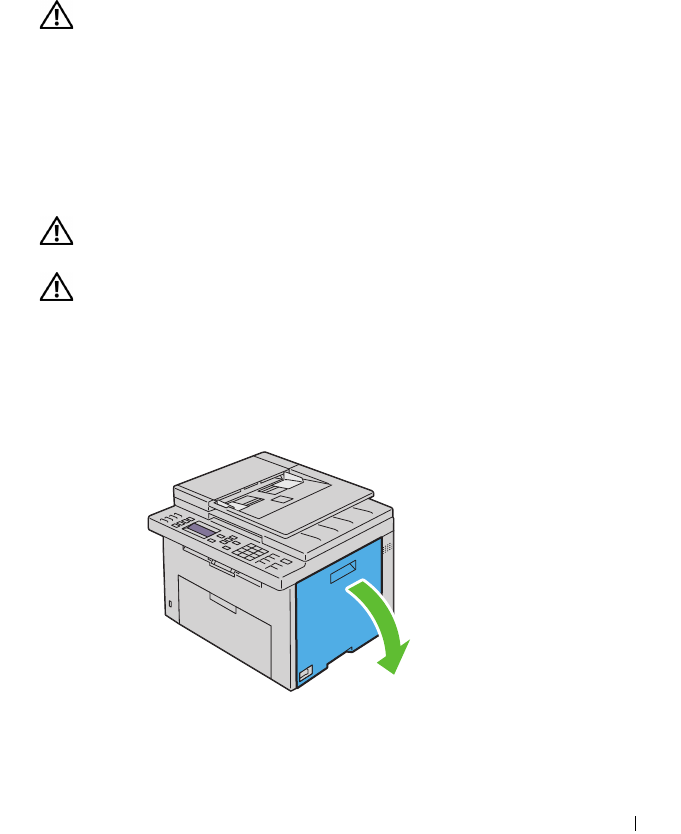
Maintaining Your Printer 441
• An environment where corrosive gases are present.
• An environment with salty air.
Replacing Toner Cartridges
CAUTION: Before replacing toner cartridges, read and follow the safety
instructions in your
Product Information Guide
.
Dell toner cartridges are available only through Dell. You can order more
cartridges online at http://www.dell.com/supplies or by phone. To order by
phone, see "Contacting Dell" on page 504.
It is recommended that you use Dell toner cartridges for your printer. Dell
does not provide warranty coverage for problems caused by using accessories,
parts, or components not supplied by Dell.
CAUTION: Never throw used toner cartridges into fire. The residual toner could
explode resulting in burns and injuries.
CAUTION: Do not shake the used toner cartridge to avoid spilling of toner.
Removing the Toner Cartridges
1
Turn off the printer.
2
Open the toner access cover.
3
Pinch the cartridge firmly as shown in the illustration.
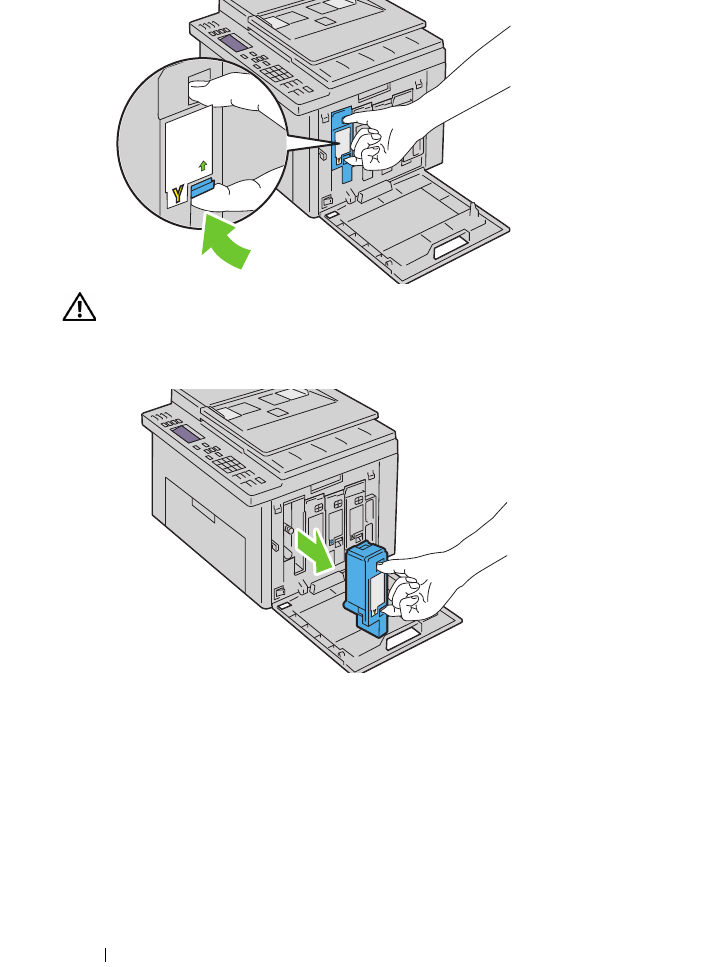
442 Maintaining Your Printer
CAUTION: Always pull the cartridge out slowly so you do not spill any toner.
4
Pull the toner cartridge out.
Installing a Toner Cartridge
1
Unpack a new toner cartridge of the desired color and shake it five to six
times to distribute the toner evenly.
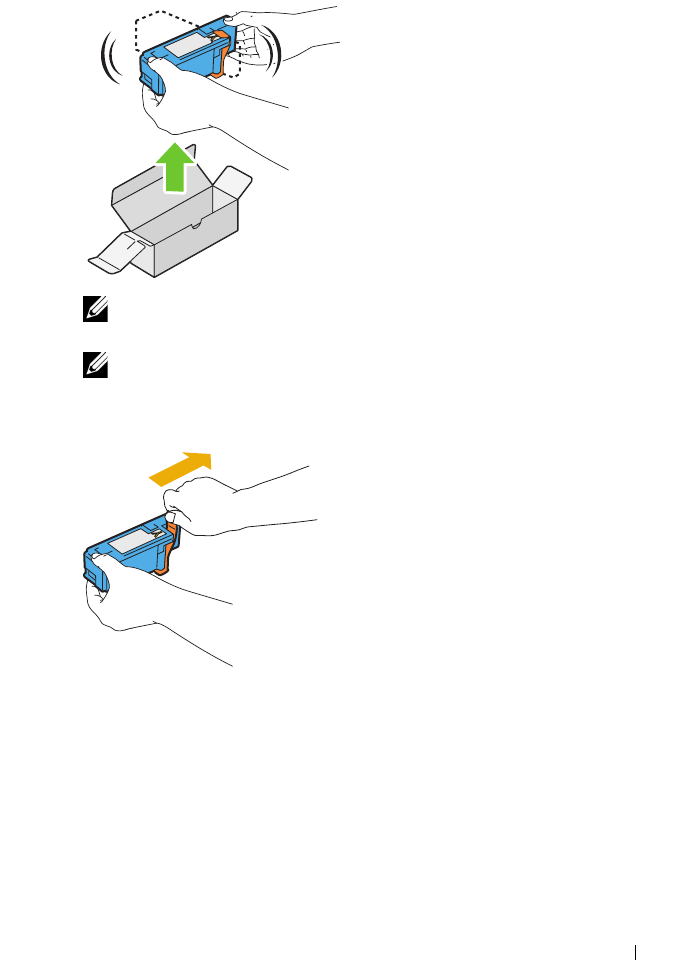
Maintaining Your Printer 443
NOTE: Ensure that the color of the new toner cartridge matches that on the
handle before replacing it.
NOTE: Handle the toner cartridge carefully to avoid spillage of the toner.
2
Remove the tape from the toner cartridge.
3
Adjust the toner cartridge to the associated cartridge holder, and then
insert it firmly by pressing near the center of the label until the cartridge
clicks.
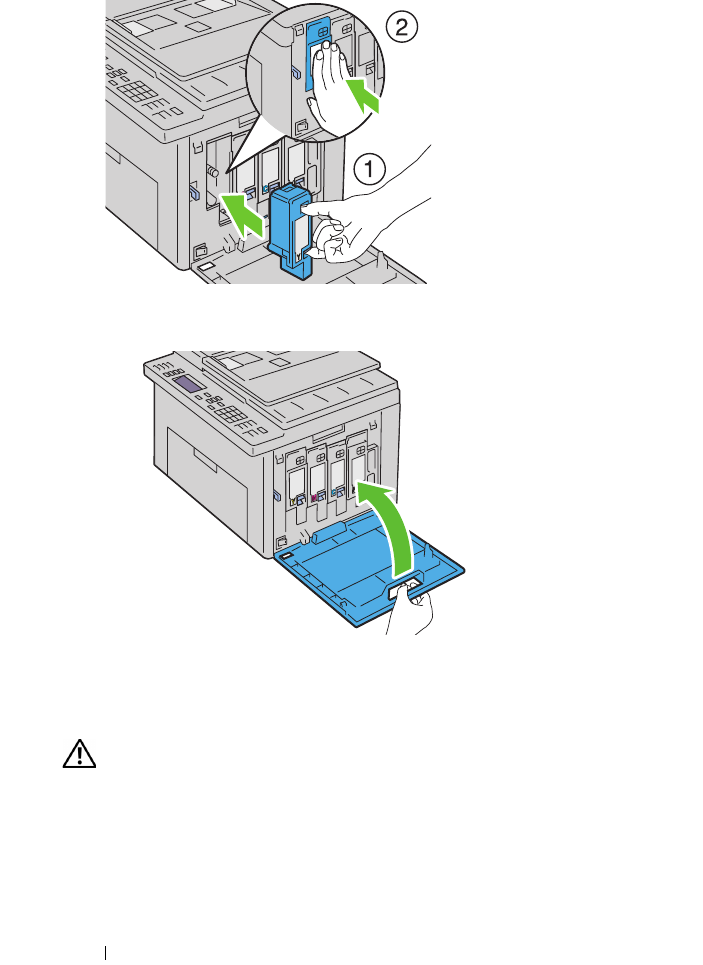
444 Maintaining Your Printer
4
Close the toner access cover.
Cleaning Inside the Printer
CAUTION: To prevent electric shock, always turn off the printer and disconnect
the power cable from the grounded outlet before performing maintenance.
1
Confirm that the printer is not in operation, and open the toner access
cover.
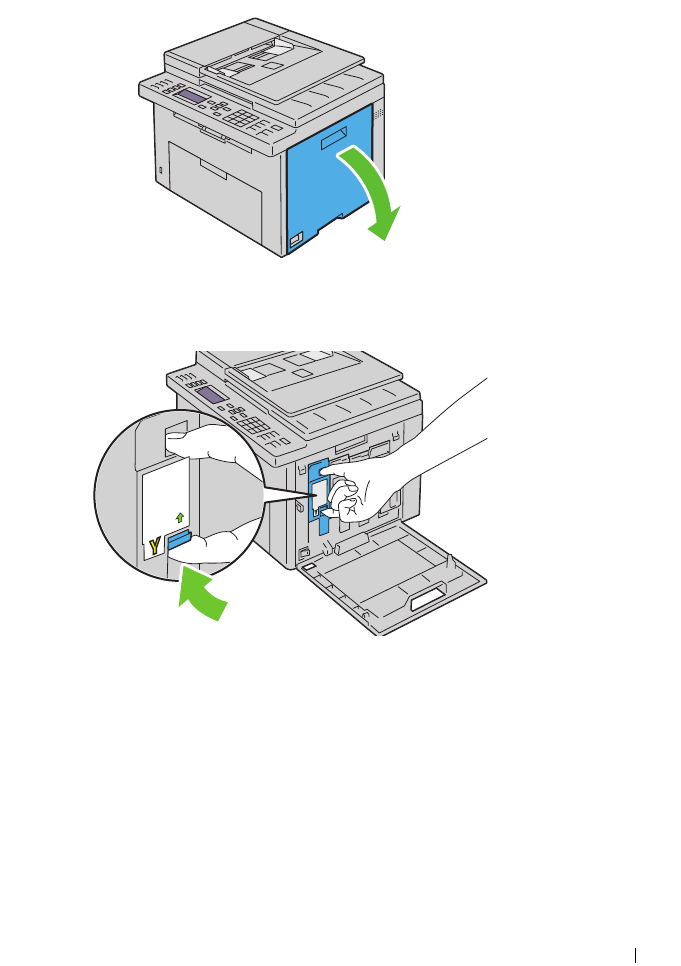
Maintaining Your Printer 445
2
Pinch the cartridge firmly as shown in the illustration.
3
Pull the toner cartridge out.
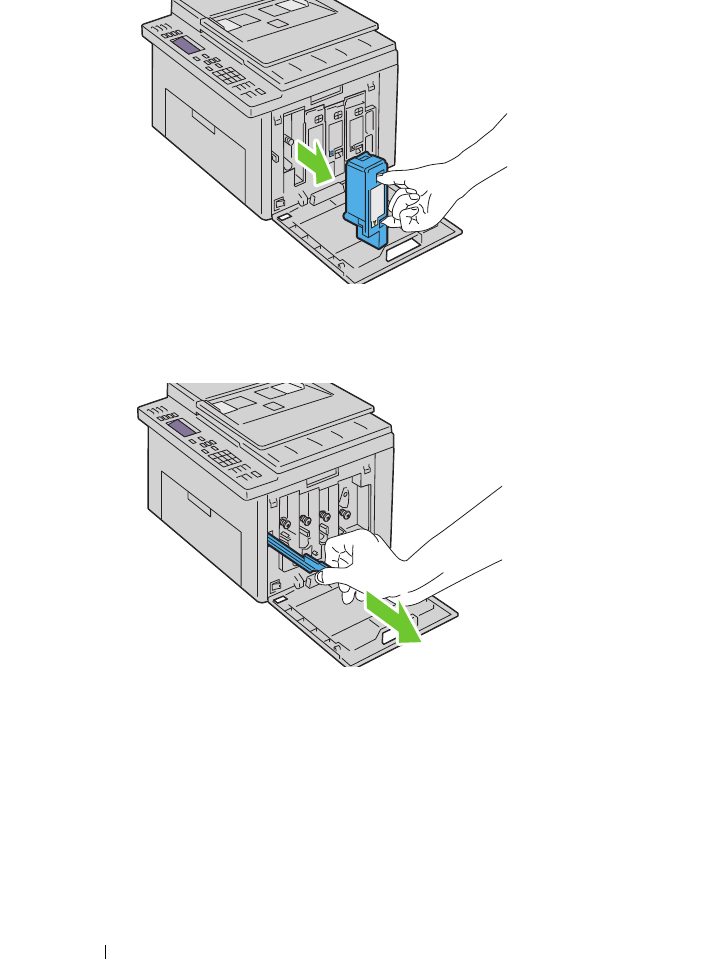
446 Maintaining Your Printer
4
Pull the other three cartridges out as well.
5
Pull the cleaning rod out.
6
Insert the cleaning rod fully into the hole beside the arrow on the printer
until its tip reaches the interior of the printer as illustrated below, and then
pull it out.
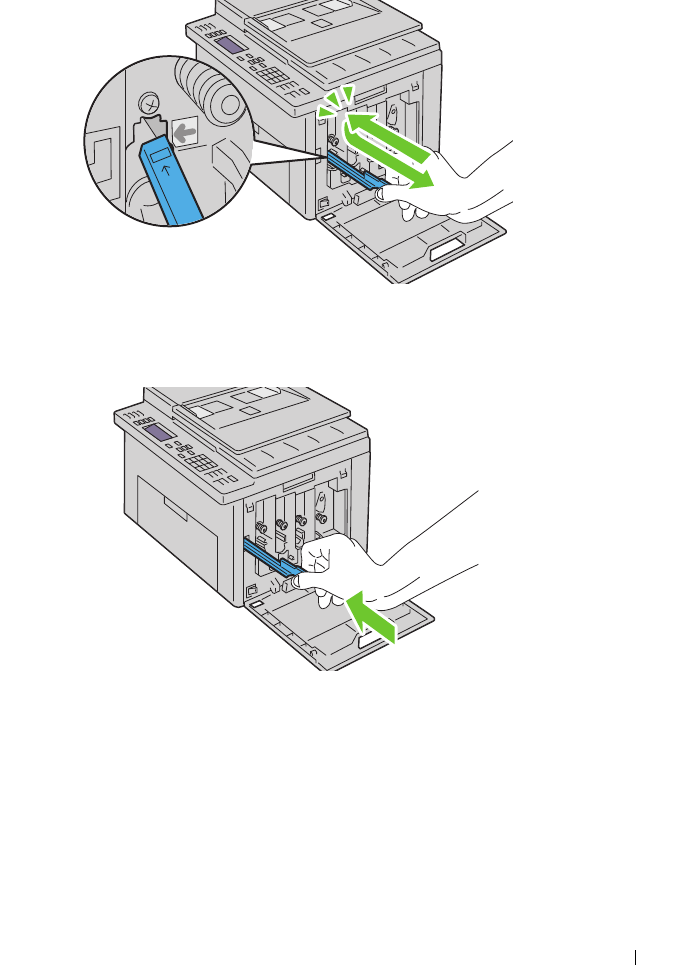
Maintaining Your Printer 447
7
Repeat the same procedure for the other three holes.
8
Return the cleaning rod to its original location.
9
Replace the black cartridge by adjusting it to the associated cartridge
holder, and then insert it firmly by pressing near the center of the label
until the cartridge clicks.
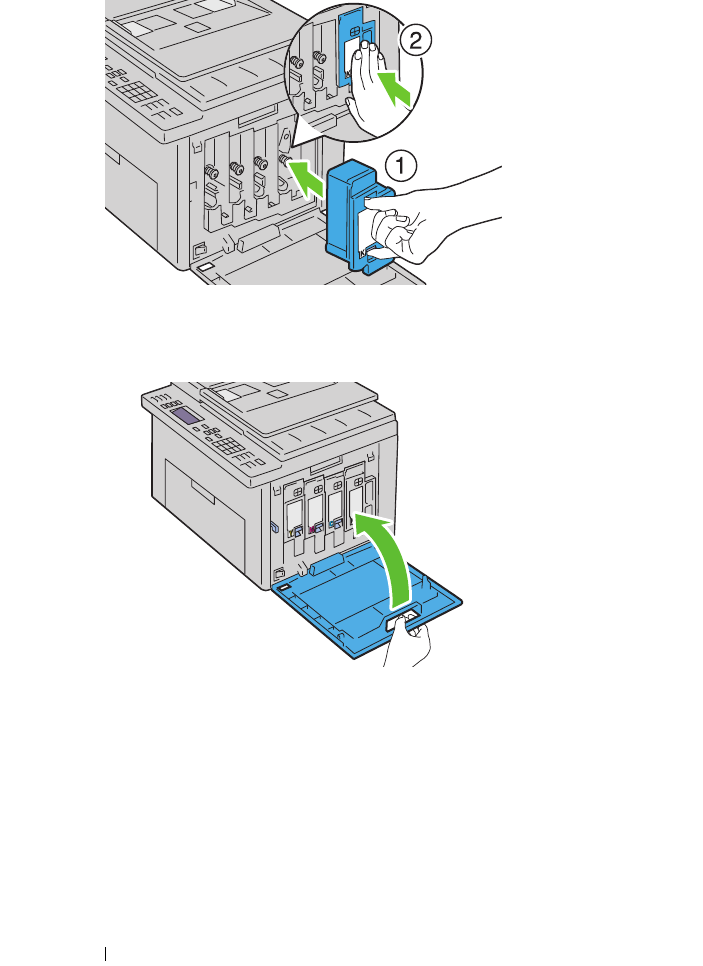
448 Maintaining Your Printer
10
Replace the other three cartridges as well.
11
Close the toner access cover.
Cleaning the Color Toner Density (CTD) Sensor
Clean the CTD sensor only when an alert for the CTD sensor is shown on the
Status Monitor or operator panel.
1
Ensure that the printer is turned off.
2
Push the rear cover release handle and open the rear cover.
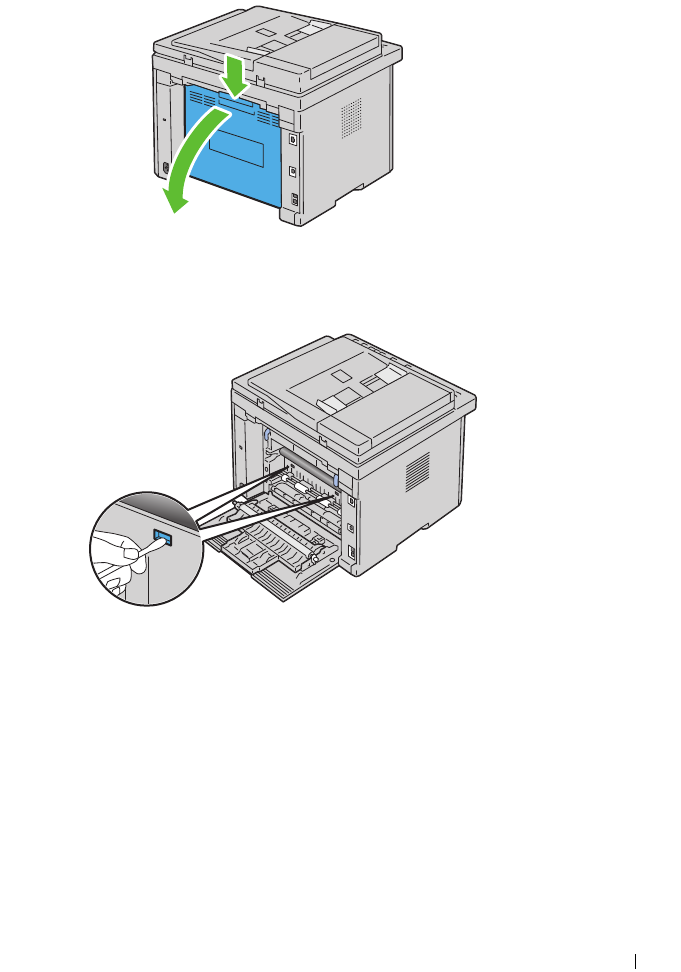
Maintaining Your Printer 449
3
Clean the CTD sensor inside the printer with a clean dry cotton swab.
4
Close the rear cover.
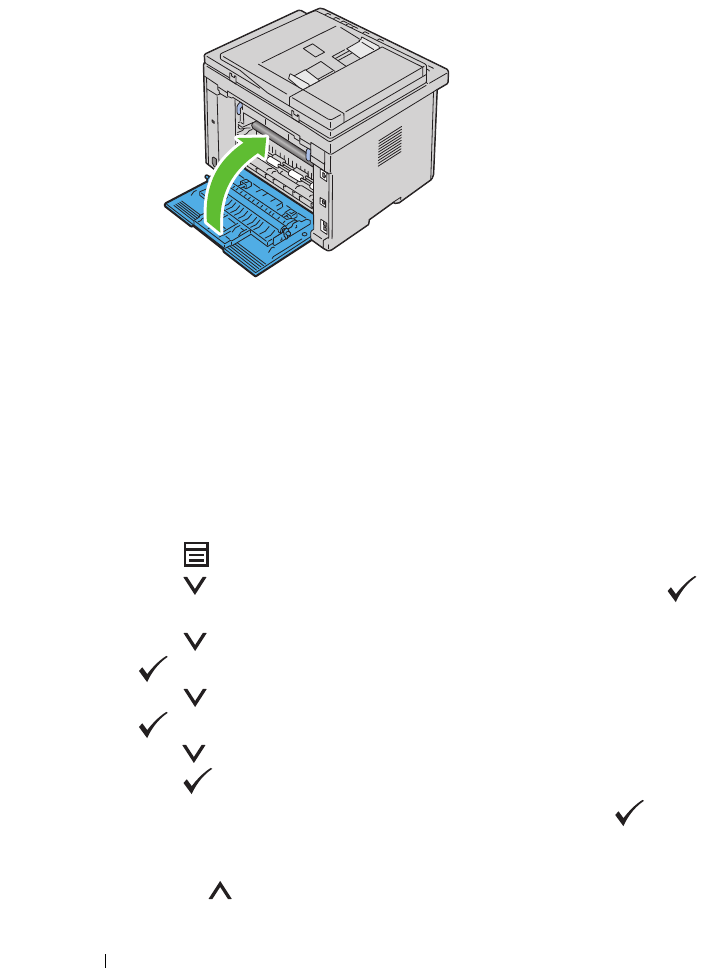
450 Maintaining Your Printer
Adjusting Color Registration
This section describes how to adjust the color registration when you first
install the printer or after moving it to a new location.
Performing Auto Adjust
Auto Adjust allows you to correct the color registration automatically.
The Operator Panel
1
Press the
(Menu)
button.
2
Press the button until
System
is highlighted, and then press the
button.
3
Press the button until
Admin Menu
is highlighted, and then press
the button.
4
Press the button until
Maintenance
is highlighted, and then press
the button.
5
Press the button until
Adjust ColorRegi
is highlighted, and then
press the button.
6
Ensure that
Auto Adjust
is highlighted, and then press the
button.
7
Ensure that
Are you sure?
is highlighted, and then select
Yes
by
pressing the button.

Maintaining Your Printer 451
Auto adjust is performed.
The Tool Box
NOTE:
1
Click
Start
All Programs
Dell Printers
Dell 1355 Multifunction
Color Printer
Tool Box
.
NOTE: The Select Printer window is highlighted in this step, when multiple
printer drivers are installed on your computer. In this case, click the name of
Dell 1355 Multifunction Color Printer listed in Printer Name, and then click OK.
The Tool Box opens.
2
Click the
Printer Maintenance
tab.
3
Select
Registration Adjustment
from the list at the left side of the page.
The
registration adjustment
page is displayed.
4
Uncheck the check box next to
On
.
5
Click the
Start
button next to
Auto Correct
.
The color registration is corrected automatically.
Printing the Color Registration Chart
The Tool Box
NOTE:
1
Click
Start
All Programs
Dell Printers
Dell 1355 Multifunction
Color Printer
Tool Box
.
NOTE: The Select Printer dialog box opens in this step, when multiple printer
drivers are installed on your computer. In this case, click the name of Dell 1355
Multifunction Color Printer listed in Printer Name, and then click OK.
The
Tool Box
opens.
2
Click the
Printer Maintenance
tab.
3
Select
Registration Adjustment
from the list at the left side of the page.
The registration adjustment page is displayed.
4
Uncheck the check box next to
On
.
5
Click the
Start
button next to
Print
Color Regi Chart
.

452 Maintaining Your Printer
The color registration chart is printed.
Determining Values
On the color registration chart printed, find the straightest lines where the
two black lines and the colored line are most closely aligned for each color (Y,
M, and C).
If you find the straightest line, make a note of the value (-5 - +5) indicated by
the straightest line for each color.
When the value is 0 for each color, you do not need to adjust the color
registration.
When the value is not 0, enter the value according to the procedure in
"Entering Values" on page 453.
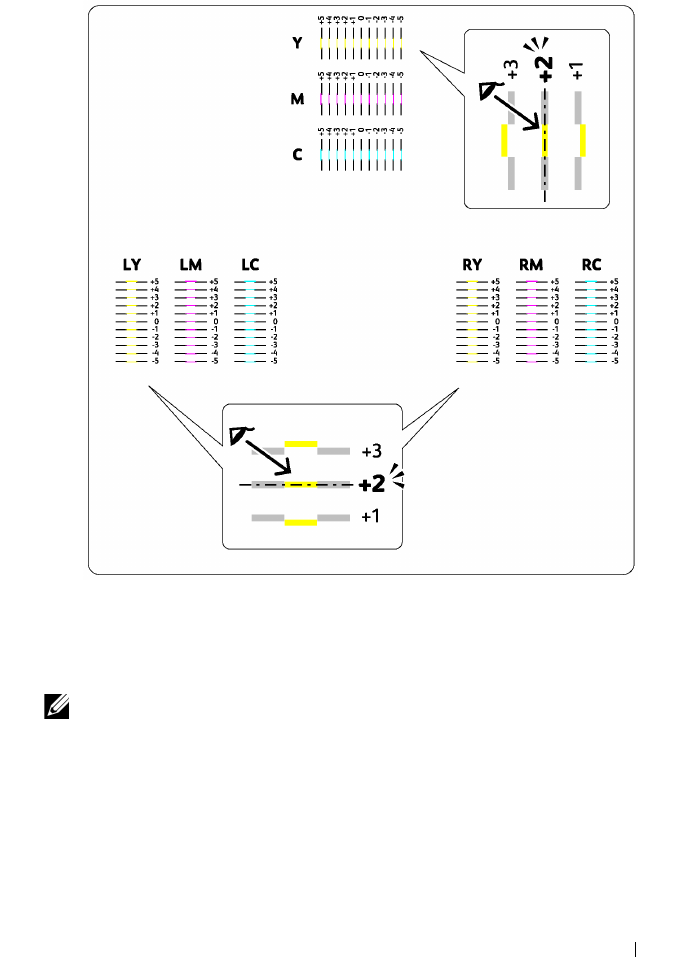
Maintaining Your Printer 453
Entering Values
The Tool Box
NOTE:
Using the Tool Box, enter the values that you found in the color registration
chart to make adjustments.
1
Click
Start
All Programs
Dell Printers
Dell 1355 Multifunction
Color Printer
Tool Box
.
The
Tool Box
opens.
2
Click the
Printer Maintenance
tab.
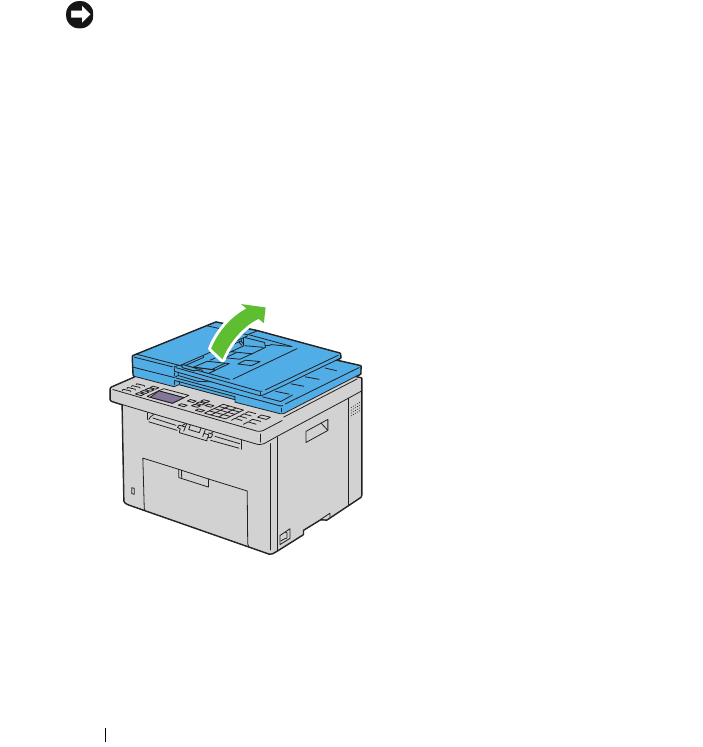
454 Maintaining Your Printer
3
Select
Registration Adjustment
from the list at the left side of the page.
The registration adjustment page is displayed.
4
Select the value with the straight line, and then click the
Apply New
Settings
button.
5
Click the
Start
button next to
Print Color Regi Chart
.
The color registration chart is printed with the new values.
6
Adjust until all straight lines are at the value of 0. Show image of before
and after adjustment will help.
NOTICE: After printing the color registration chart, do not turn off the printer until
the printer motor has stopped running.
Cleaning the Scanner
Keeping the scanner clean helps ensure the best possible copies. It is
recommended to clean the scanner at the start of each day and during the
day, as needed.
1
Slightly dampen a soft lint-free cloth or paper towel with water.
2
Open the document cover.
3
Wipe the surface of the document glass and ADF glass until it is clean and
dry.
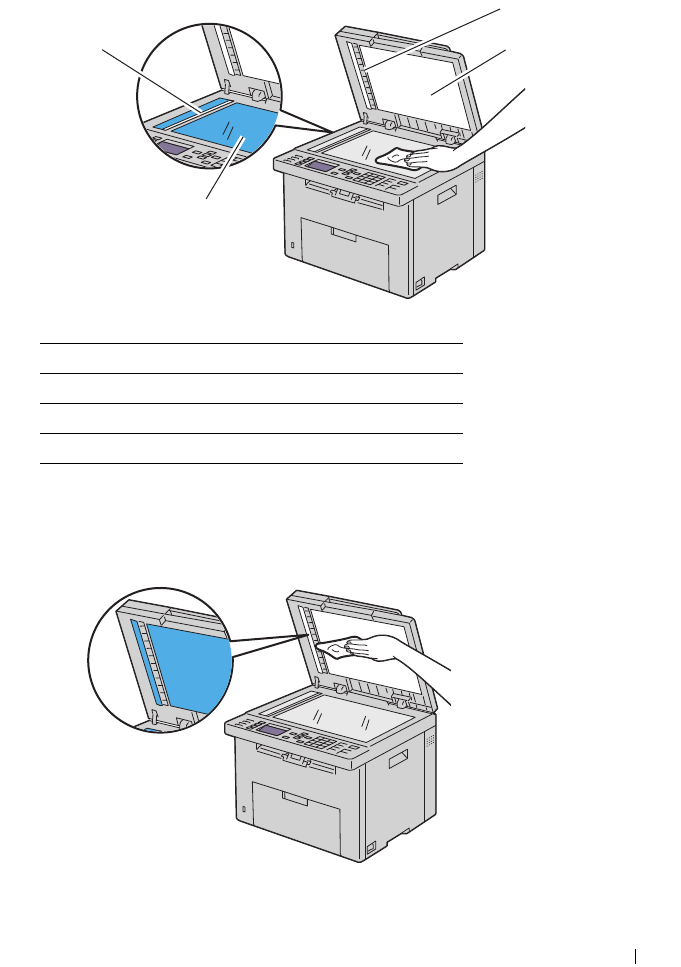
Maintaining Your Printer 455
4
Wipe the underside of the white document cover and white sheet until
they are clean and dry.
5
Close the document cover.
1White Strip
2White Document Cover
3Document Glass
4ADF Glass
1
3
42
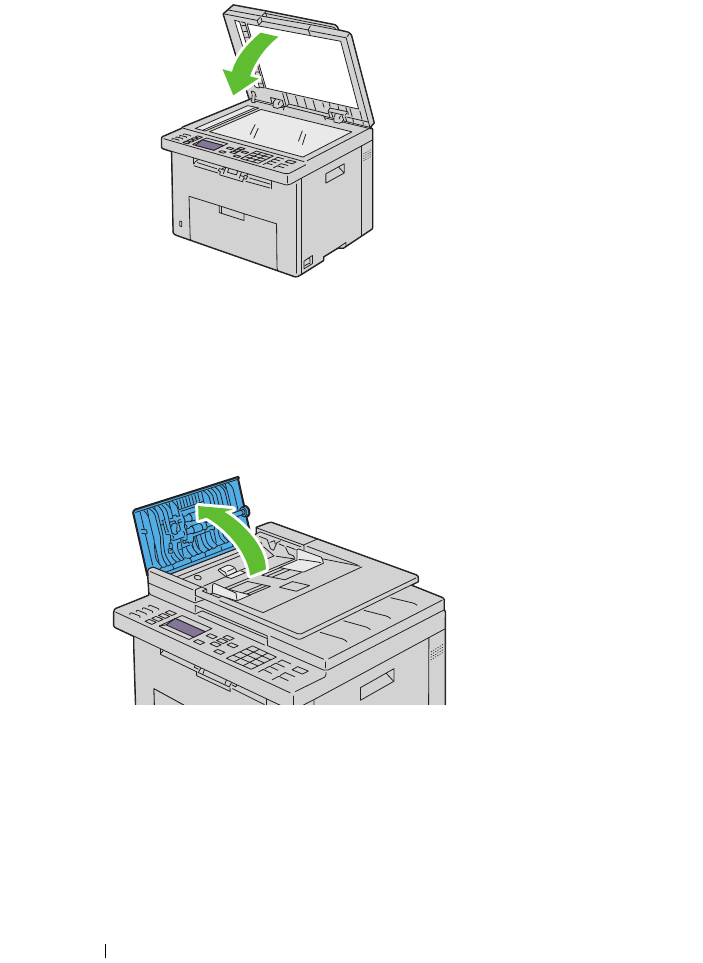
456 Maintaining Your Printer
Cleaning the ADF Feed Roller
Keeping the ADF feed roller clean helps ensure the best possible copies. It is
recommended to clean the ADF feed roller at regular intervals.
1
Open the ADF cover.
2
Wipe the ADF feed roller with a dry soft lint-free cloth or paper towel until
it is clean.
If the ADF feed roller gets soiled with ink stains, paper from the ADF may
also be soiled. In this case, slightly dampen a soft lint-free cloth or paper
towel with a neutral detergent or water, and then remove the
contamination from the ADF feed roller until it is clean and dry.
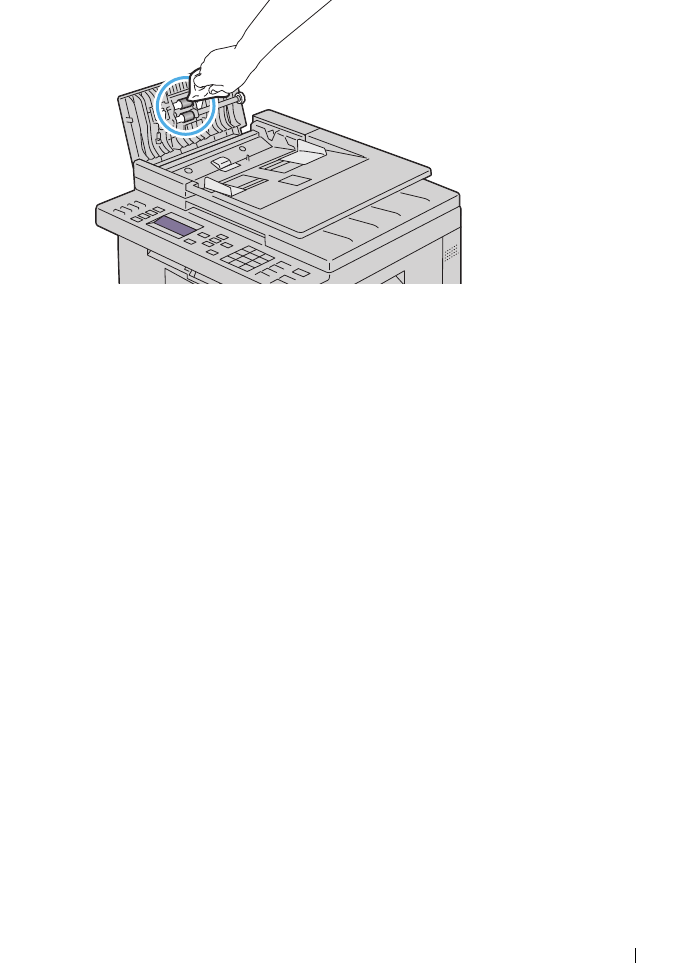
Maintaining Your Printer 457

458 Maintaining Your Printer

Clearing Jams 459
26
Clearing Jams
Careful selection of appropriate print media and proper loading allow you to
avoid most jams. See "Print Media Guidelines" on page 189 for more
information.
NOTE: Before buying large quantities of any print media, it is recommended that
you try a sample first.
Avoiding Jams
• Use only recommended print media. See "Print Media Guidelines" on
page 189 for more information.
• See "Loading Print Media in the Multipurpose Feeder (MPF)" on page 202
and "Loading Print Media in the Priority Sheet Inserter (PSI)" on page 211
to load print media properly.
• Do not overload the print media sources. Ensure that the stack print
media height does not exceed the maximum height indicated by the load
line labels in the tray.
• Do not load wrinkled, creased, damp, or curled print media.
• Flex, fan, and straighten print media before you load it. If a jam occurs
with print media, try feeding one sheet at a time through the single sheet
feeder.
• Do not use print media that you have cut or trimmed.
• Do not mix print media sizes, weights, or types in the same print media
source.
• Ensure that the recommended print side is face up when you insert the
print media. Also, the recommended print side should be face down when
using the single sheet feeder.
• Keep print media stored in an acceptable environment. For more
information, see "Storing Print Media" on page 196.
• Do not remove the feeding tray during a print job.
• Push the tray in firmly after loading.
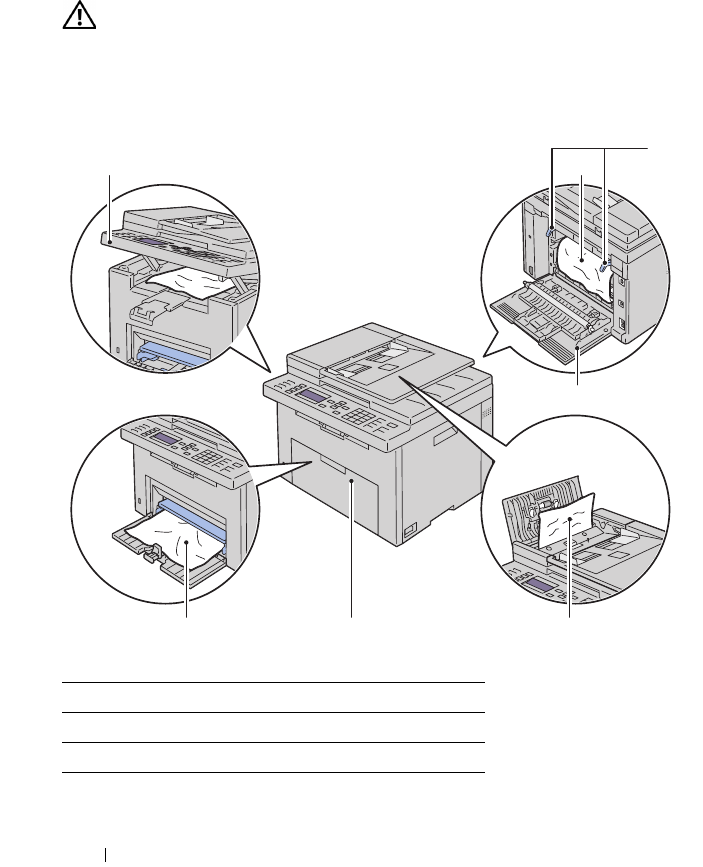
460 Clearing Jams
• Ensure that all cables that connect to the printer are correctly attached.
• Overtightening the guides may cause jams.
Identifying the Location of Paper Jams
CAUTION: Do not attempt to clear any jams using tools or instruments. This may
permanently damage the printer.
The following illustration shows where paper jams may occur along the print
media path.
1Scanner Unit
2Fuser
3Fuser Release Lever
4Rear Cover
1 2 3
7 6 5
4
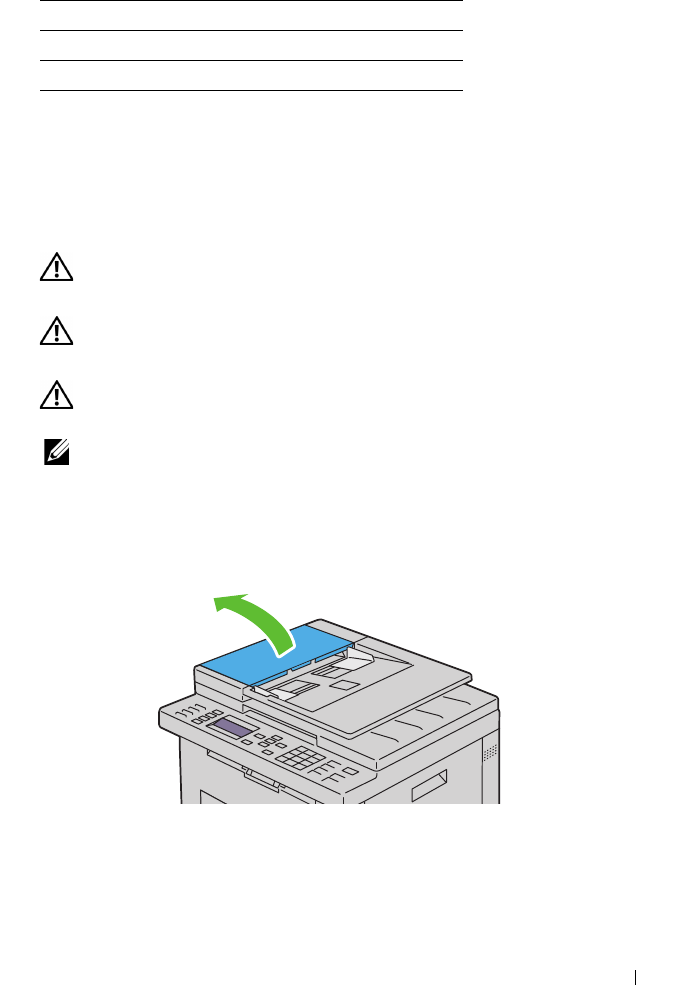
Clearing Jams 461
Clearing Paper Jams From the ADF
When a document jams while it passes through the Automatic Document
Feeder (ADF), remove jams in the following procedure.
CAUTION: Before performing any of the following procedures, read and follow
the safety instructions in your Product Information Guide.
CAUTION: To prevent electric shock, always turn off the printer and disconnect
the power cable from the grounded outlet before performing maintenance.
CAUTION: To avoid burns, do not clear paper jams immediately after printing. The
fuser becomes extremely hot during use.
NOTE: To resolve the error displayed on the operator panel, you must clear all print
media from the print media path.
1
Open the ADF cover.
2
Remove the jammed document by carefully pulling it in the direction of
the arrow shown in the following illustration.
5ADF Cover
6Front Cover
7Multipurpose Feeder (MPF)
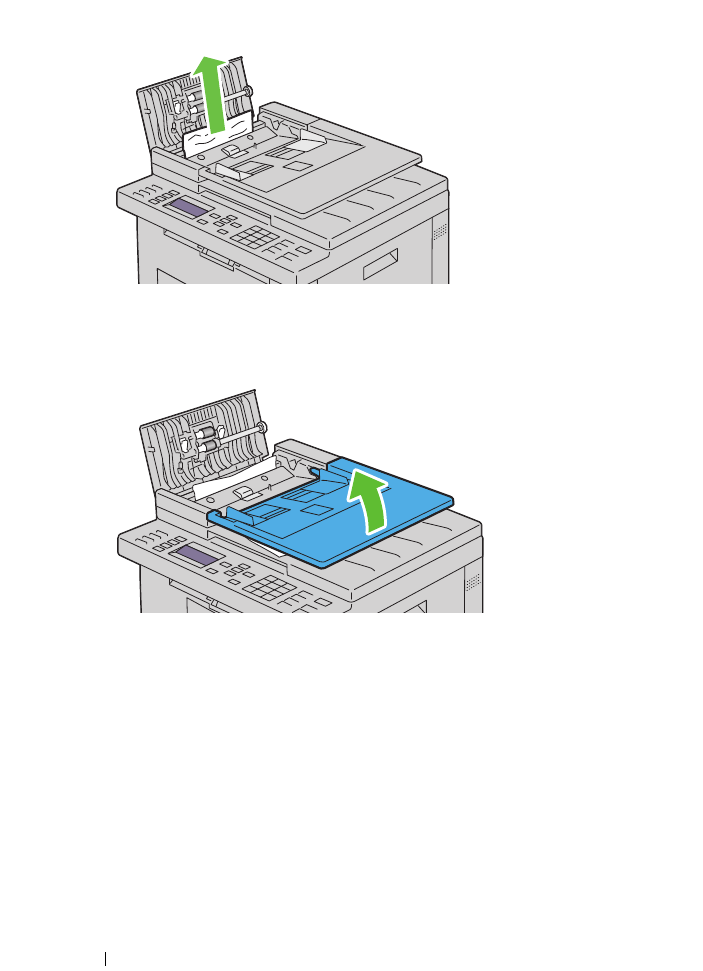
462 Clearing Jams
3
If you find it difficult to pull the document, open the document feeder
tray.
4
Remove the jammed document from the document output tray.
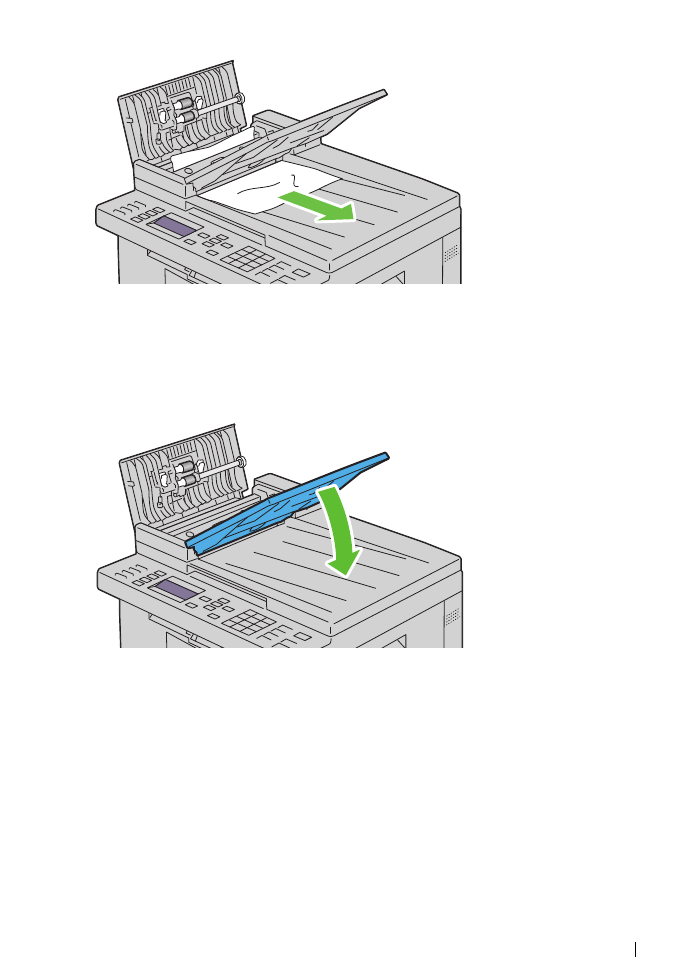
Clearing Jams 463
5
Close the document feeder tray.
6
Close the ADF cover, and then load the documents back into the ADF.
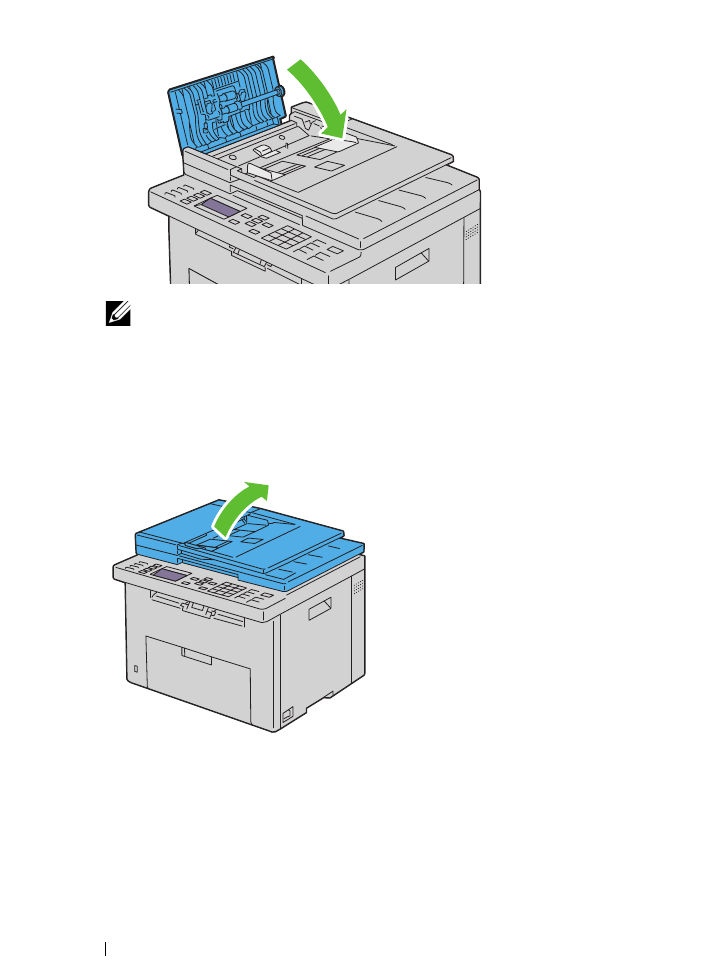
464 Clearing Jams
NOTE: Ensure that you adjust the document guides before printing a Legal-
size document.
7
If you cannot remove the jammed document from the document output
tray or cannot find any jammed document there, open the document
output tray.
8
Remove the document from the ADF feed roller or the feed area by
carefully pulling the document in the direction of the arrow shown in the
following illustration.
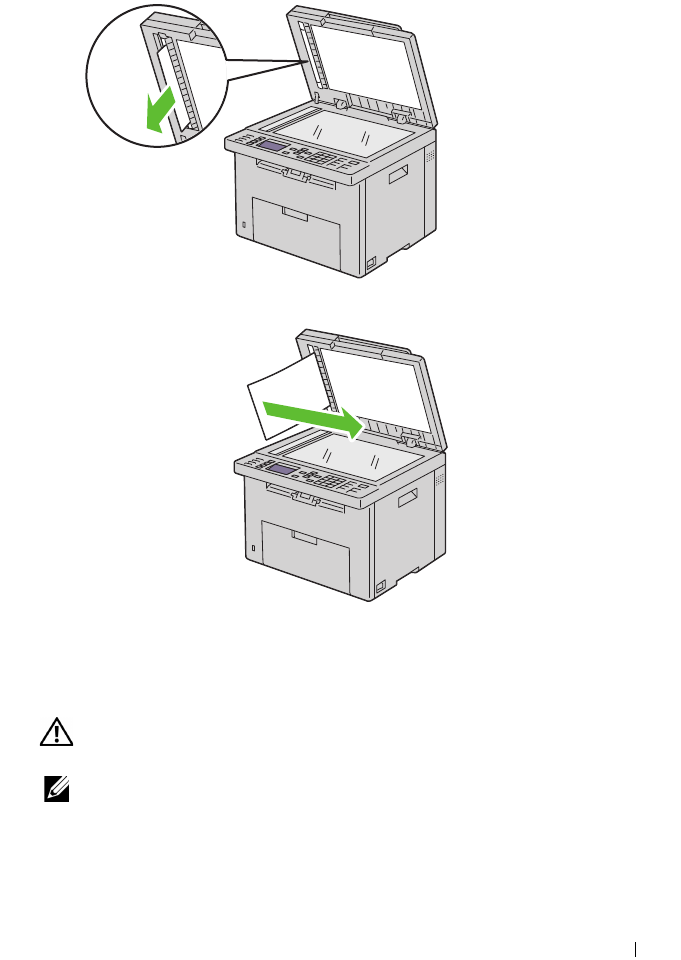
Clearing Jams 465
Clearing Paper Jams From the Front of the Printer
CAUTION: Before performing any of the following procedures, read and follow
the safety instructions in your Product Information Guide.
NOTE: To resolve the error displayed on the operator panel, you must clear all print
media from the print media path.
1
Pull the PSI out.
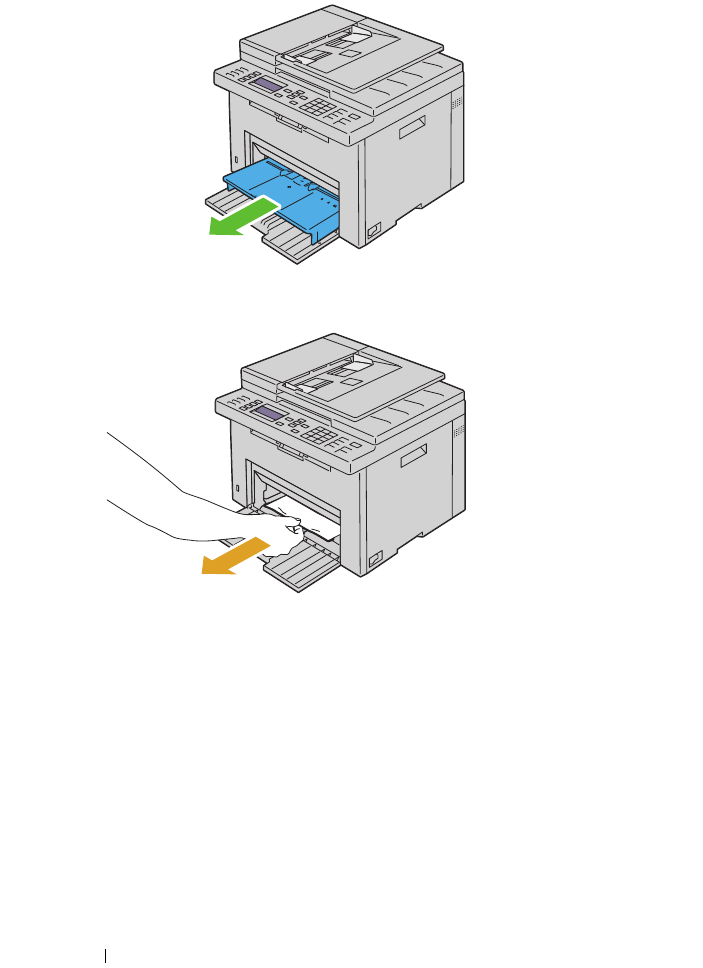
466 Clearing Jams
2
Remove any paper jammed from the front of the printer.
3
Replace the PSI in the printer.
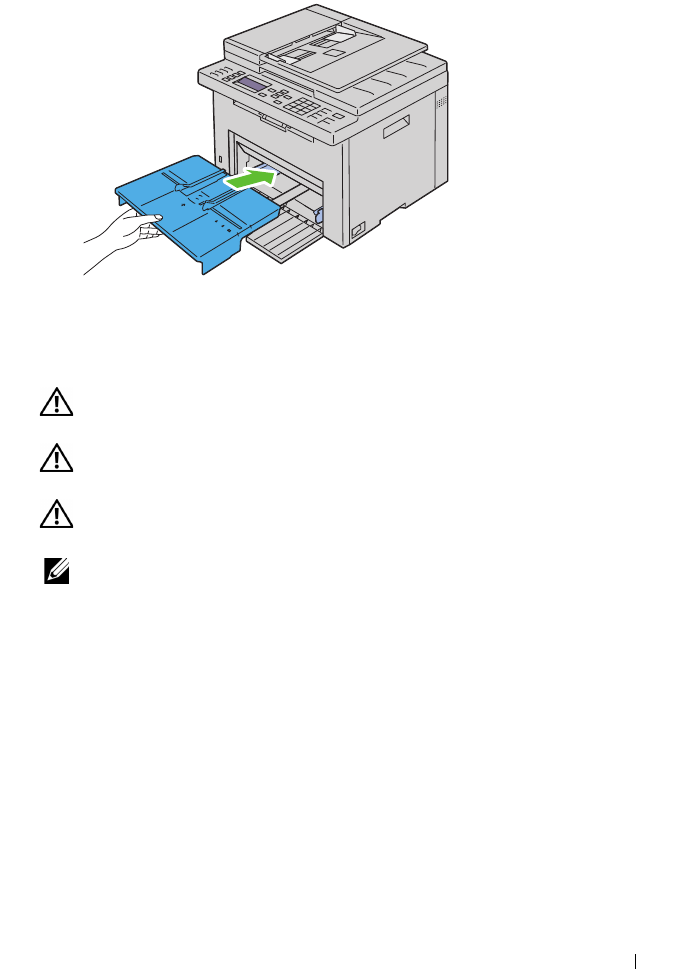
Clearing Jams 467
Clearing Paper Jams From the Back of the Printer
CAUTION: Before performing any of the following procedures, read and follow
the safety instructions in your Product Information Guide.
CAUTION: To prevent electric shock, always turn off the printer and disconnect
the power cable from the grounded outlet before performing maintenance.
CAUTION: To avoid burns, do not clear paper jams immediately after printing. The
fuser becomes extremely hot during use.
NOTE: To resolve the error displayed on the operator panel, you must clear all print
media from the print media path.
1
Push the rear cover release handle and open the rear cover.
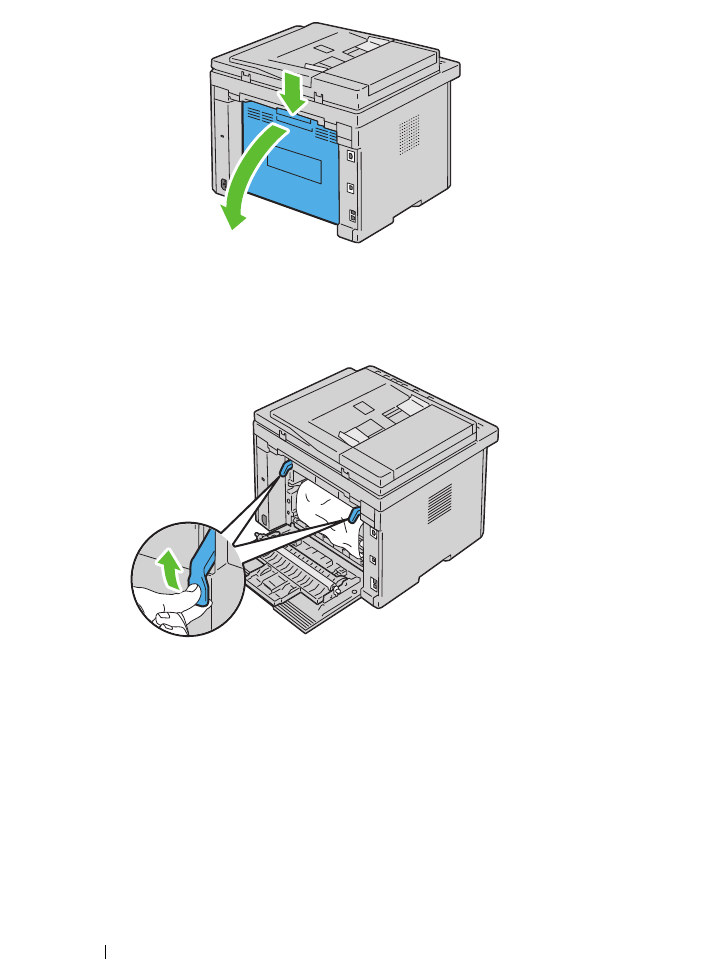
468 Clearing Jams
2
Lift up the fuser release levers.
3
Remove any paper jammed from the back of the printer.
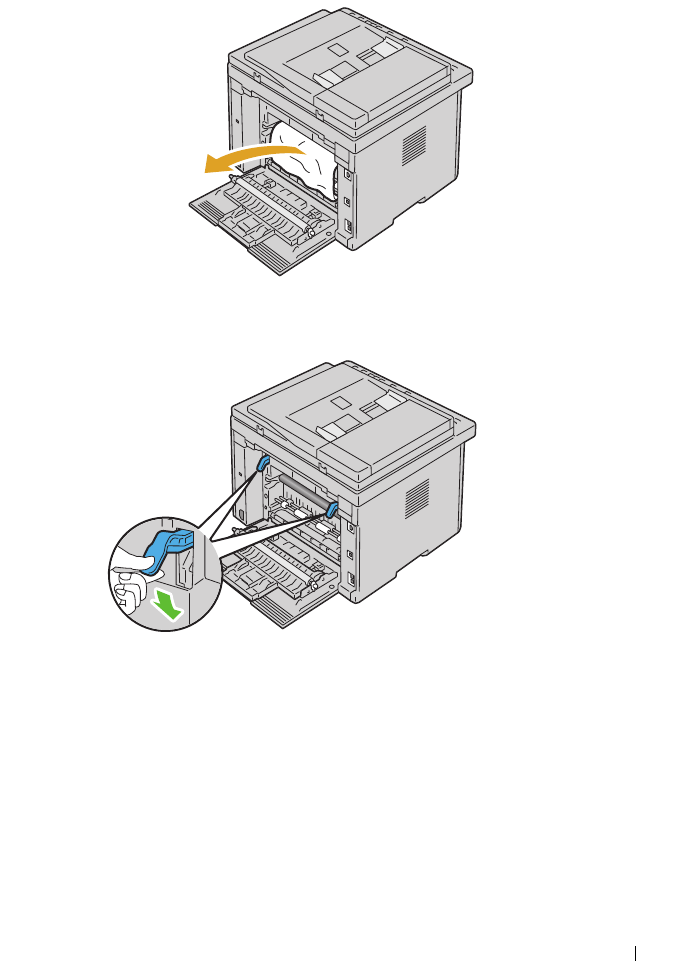
Clearing Jams 469
4
Lower the fuser release levers to their original position.
5
Close the rear cover.
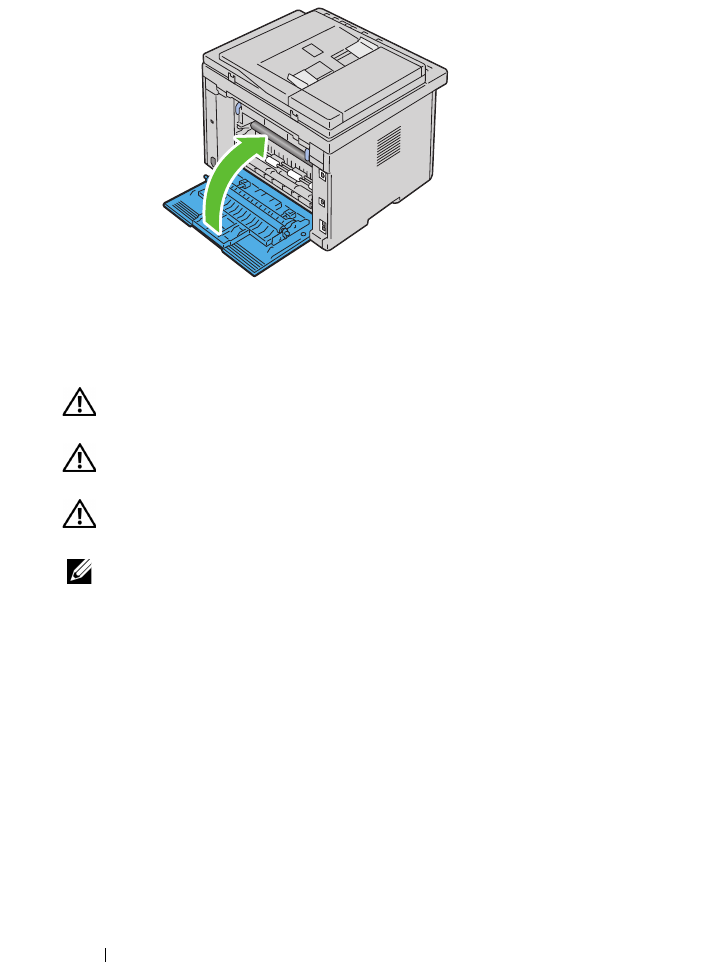
470 Clearing Jams
Clearing Paper Jams From the Output Tray
CAUTION: Before performing any of the following procedures, read and follow
the safety instructions in your Product Information Guide.
CAUTION: To prevent electric shock, always turn off the printer and disconnect
the power cable from the grounded outlet before performing maintenance.
CAUTION: To avoid burns, do not clear paper jams immediately after printing. The
fuser becomes extremely hot during use.
NOTE: To resolve the error displayed on the operator panel, you must clear all print
media from the print media path.
1
Push the rear cover release handle and open the rear cover.
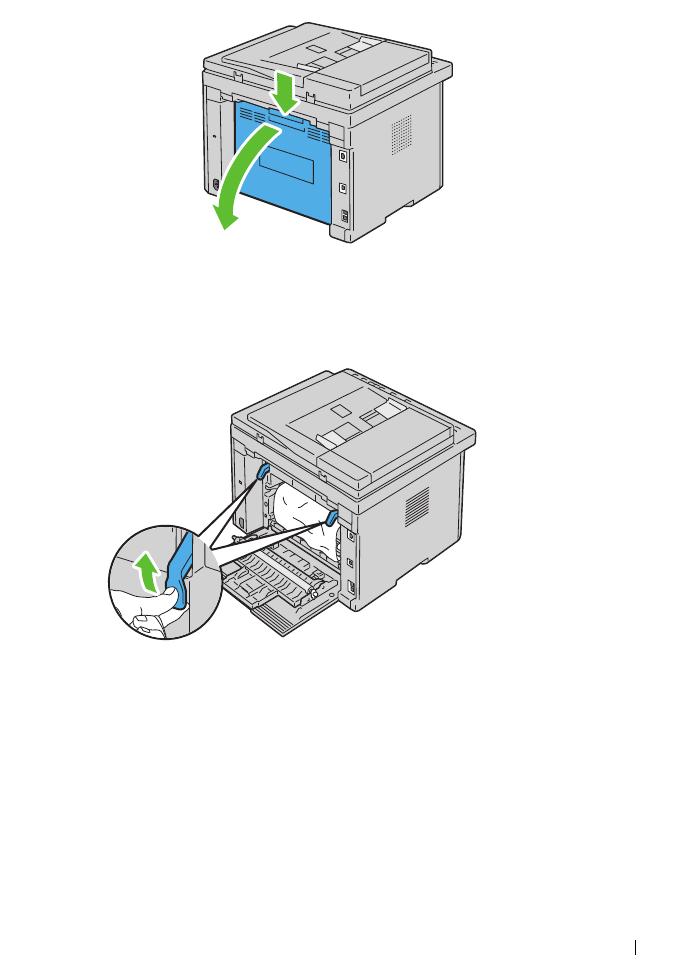
Clearing Jams 471
2
Lift up the fuser release levers.
3
Remove any paper jammed from the back of the printer. If no paper is
found in the paper path, face the front of the printer and check the output
tray.
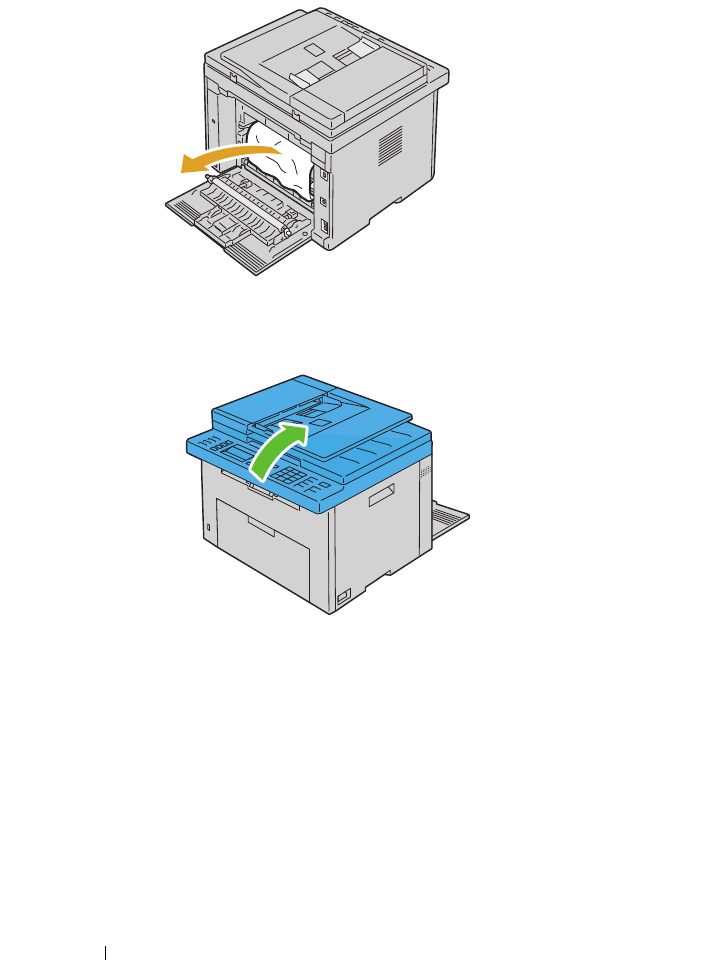
472 Clearing Jams
4
Lift and open the scanner unit.
5
Remove any paper jammed out of the output tray.
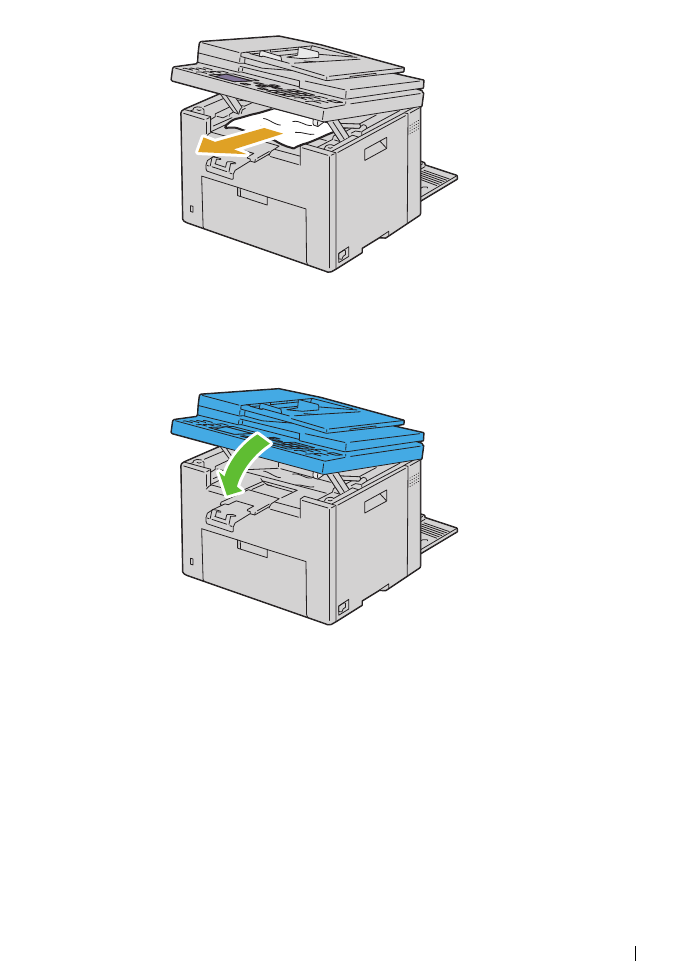
Clearing Jams 473
6
Lower and close the scanner unit.
7
Lower the fuser release levers to their original position.
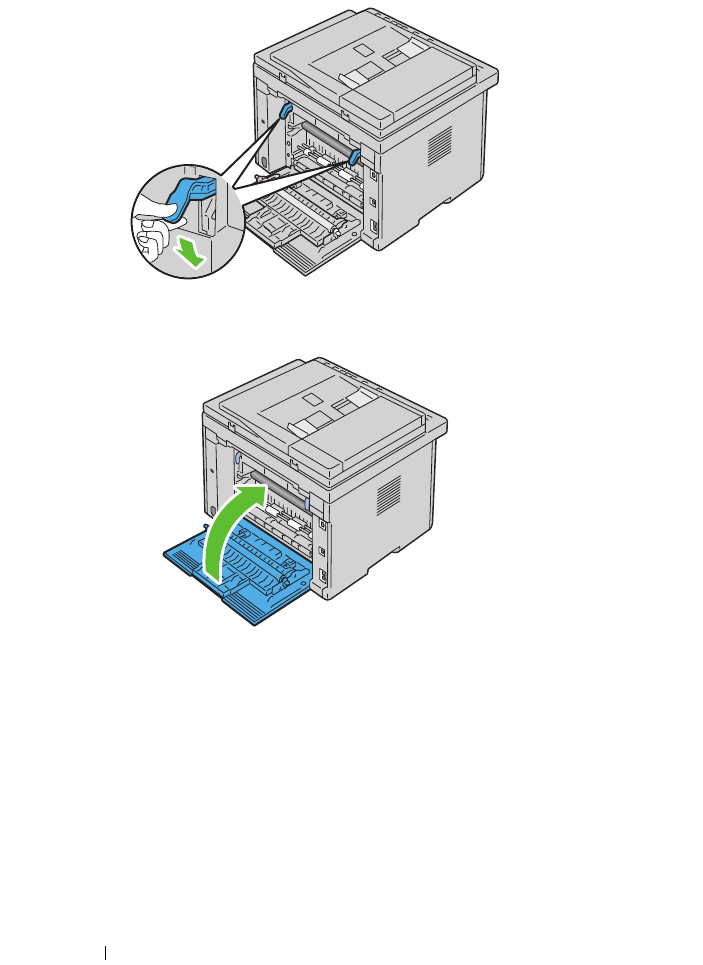
474 Clearing Jams
8
Close the rear cover.

475
Troubleshooting

476
Troubleshooting 477
27
Troubleshooting
Basic Printer Problems
Some printer problems can be easy to resolve. If a problem occurs with your
printer, check each of the following:
• The power cable is connected to the printer, and to a properly grounded
electrical outlet.
• The printer is turned on.
• The electrical outlet is not turned off at any switch or breaker.
• Other electrical equipment plugged into the outlet is working.
• When your printer is connected to the network with the Ethernet cable,
the USB cable is not connected between the printer and the computer.
• When your printer is connected to the computer with the USB cable, the
Ethernet cable is not connected between the printer and the network.
If you have checked all of the above and still have a problem, turn off the
printer, wait for 10 seconds, and then turn on the printer. This often fixes the
problem.
Display Problems
Problem Action
After the printer is turned
on, the display on the
operator panel is blank, keeps
showing the DELL logo, or
the back light is not lit.
• Turn off the printer, wait for 10 seconds, and turn on
the printer.
• Self Test Message appears on the operator panel.
When the test is completed,
Ready
is displayed.
478 Troubleshooting
Printing Problems
Menu settings changed from
the operator panel have no
effect.
Settings in the software program, the printer driver, or
the printer utilities have precedence over the settings
made on the operator panel.
Change the menu settings from the printer driver, the
printer utilities, or the software program instead of the
operator panel.
Problem Action
Job did not print or incorrect
characters printed.
Ensure that Ready appears on the operator panel
before you send a job to print.
Ensure that print media is loaded in the printer.
Verify that you are using the correct printer driver.
Ensure that you are using the correct Ethernet or USB
cable and that it is securely connected to the printer.
Verify that the correct print media size is selected.
If you are using a print spooler, verify that the spooler
has not stalled.
Check the interface of your printer from the Admin
Menu.
Determine the host interface you are using. Print a
device settings page to verify that the current interface
settings are correct. Refer to "Printing a System
Settings Page" on page 232 for details on how to print
a device settings page.
Problem Action
Troubleshooting 479
Print media misfeeds or
multiple feeds occur
Ensure that the print media you are using meets the
specifications for your printer. See "Supported Paper
Sizes" on page 196 for more information.
Fan the print media before loading it.
Ensure that the print media is loaded correctly.
Ensure that the width and length guides are adjusted
correctly.
Ensure that the PSI is securely inserted.
Do not overfill the print media sources.
Do not force print media into the Priority Sheet
Inserter (PSI) or the Multipurpose Feeder (MPF)
when you load it. Otherwise, it may skew or buckle.
Ensure that the print media is not curled.
Load the recommended print side correctly for the
type of print media you are using. See "Loading Print
Media" on page 201 for more information.
Turn the print media over or around and try printing
again to see if feeding improves.
Do not mix print media types.
Do not mix reams of print media.
Remove the top and bottom curled sheets of a ream
before loading the print media.
Load a print media source only when it is empty.
The envelope is creased after
printing.
Ensure that the envelope is loaded as instructed in
"Loading Print Media in the Multipurpose Feeder
(MPF)" on page 202 or "Loading Print Media in the
Priority Sheet Inserter (PSI)" on page 211.
Page breaks in unexpected
places.
Increase the setting for Time-Out in the Printer
Settings menu in the Dell Printer Configuration Web
Tool.
Print media does not stack
neatly in the output bin.
Turn the print media stack over in the PSI and MPF.
Problem Action
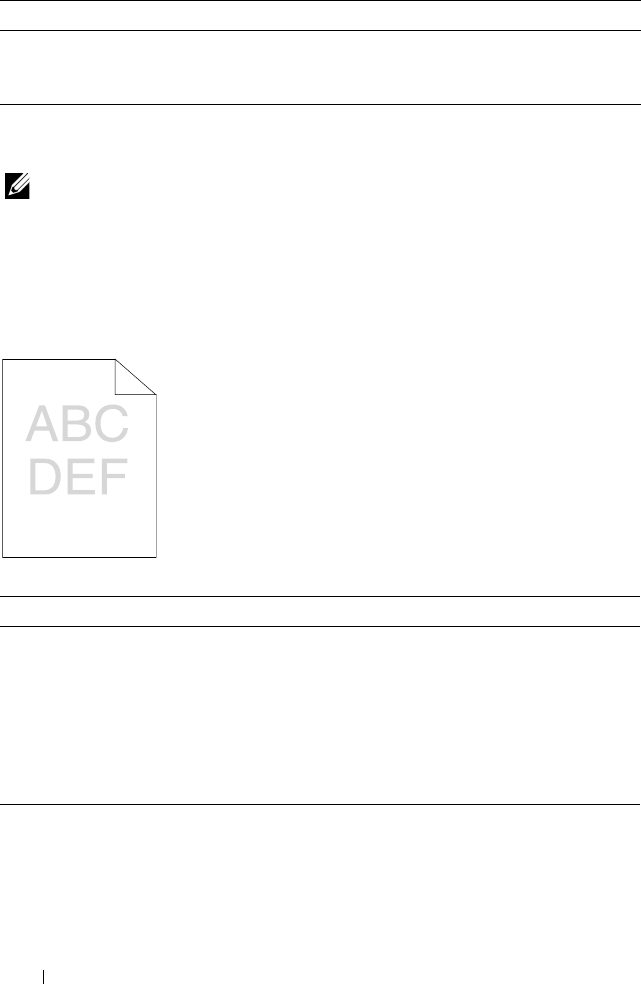
480 Troubleshooting
Print Quality Problems
NOTE: In this section, some procedures that use the Tool Box can also be
performed using the operator panel or Dell Printer Configuration Web Tool. For
information on how to use the operator panel and Dell Configuration Web Tool, see
"Understanding the Printer Menus" on page 359 and "Dell Printer Configuration Web
Tool" on page 123.
The output is too light
Printer does not duplex
pages.
Select Flip on Short Edge or Flip on Long Edge from
the Duplex menu on the Paper/Output tab in the
printer driver.
Action Yes No
1The toner cartridges may be low or need to be
replaced. Confirm the amount of toner in each
toner cartridge.
1
Check the toner level in the
Status
tab in the
Status Monitor.
2
Replace the toner cartridges as necessary.
Is the problem recovered?
The task is
complete.
Go to action 2.
2Verify that the print media is not damp and the
correct print media is used. See "Supported
Paper Sizes" on page 196. If not, use the print
media recommended for the printer.
Is the problem recovered?
The task is
complete.
Go to action 3.
Problem Action
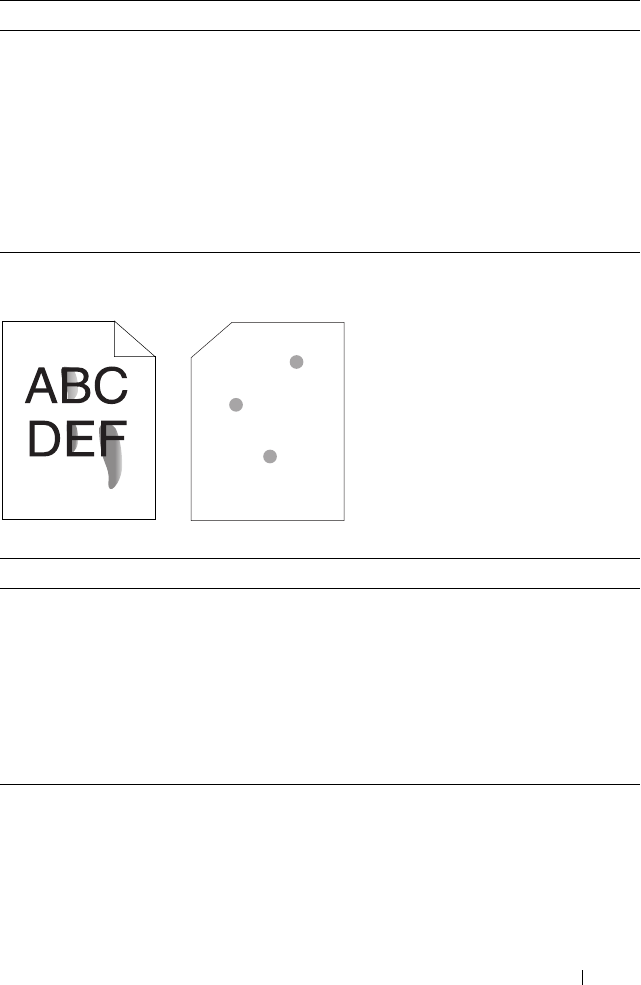
Troubleshooting 481
Toner smears or print comes off/Stain on back side
3Verify that the Paper Type setting in the printer
driver matches the print media you loaded.
1
On the
Paper/Output
tab in
Printing
Preferences
of the printer driver, check the
Paper Type
setting.
2
Load dry (not damp) and corrected print
media, and then click
Print Test Page
in
Properties
of the printer driver.
Is the problem recovered?
The task is
complete.
Contact Dell.
Action Yes No
1The print media surface may be uneven. Try
changing the Paper Type setting in the printer
driver. For example, change the plain paper to
thick.
1
On the
Paper/Output tab in Printing
Preferences of the printer driver, change the
Paper Type setting.
Is the problem recovered?
The task is
complete.
Go to action 2.
2Verify that the correct print media is being
used. See "Supported Paper Sizes" on page 196.
If not, use the print media recommended for
the printer.
Is the problem recovered?
The task is
complete.
Go to action 3.
Action Yes No
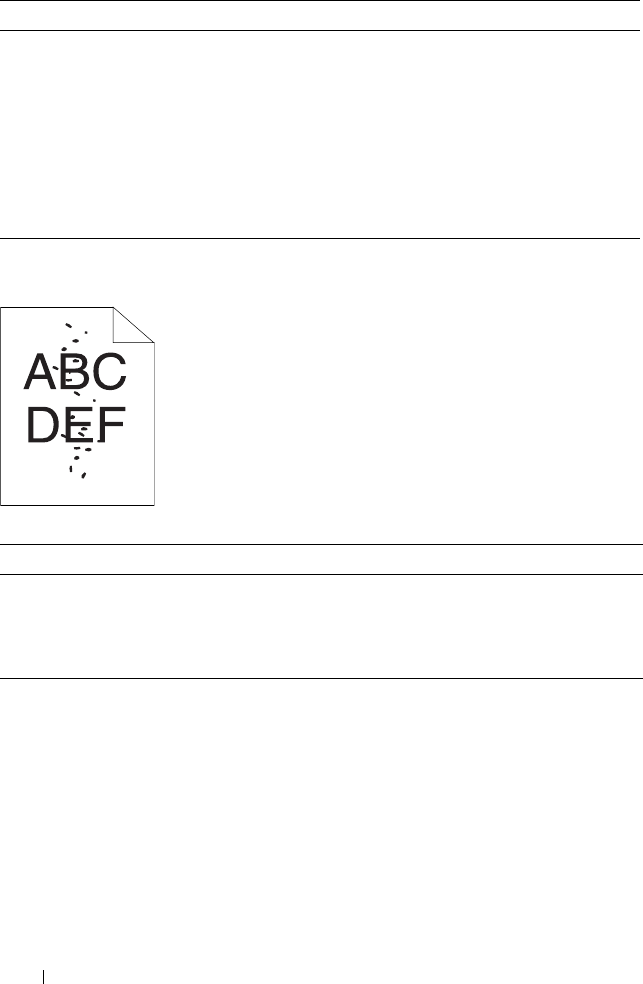
482 Troubleshooting
Random spots/Blurred images
3Adjust the fuser temperature.
1
Launch the Tool Box, and click
Adjust Fuser
on the
Printer Maintenance
tab.
2
Adjust the fixing temperature by turning up
the value for your printing media.
3
Click
Apply New Settings
.
4
Click close box to exit Tool Box.
Is the problem recovered?
The task is
complete.
Contact Dell.
Action Yes No
1Ensure that the toner cartridges are installed
correctly. See
"Installing a Toner Cartridge" on
page 442.
Is the problem recovered?
The task is
complete.
Go to action 2.
2If you use non-Dell brand toner cartridges,
install Dell brand toner cartridges.
Is the problem recovered?
The task is
complete.
Go to action 3.
Action Yes No
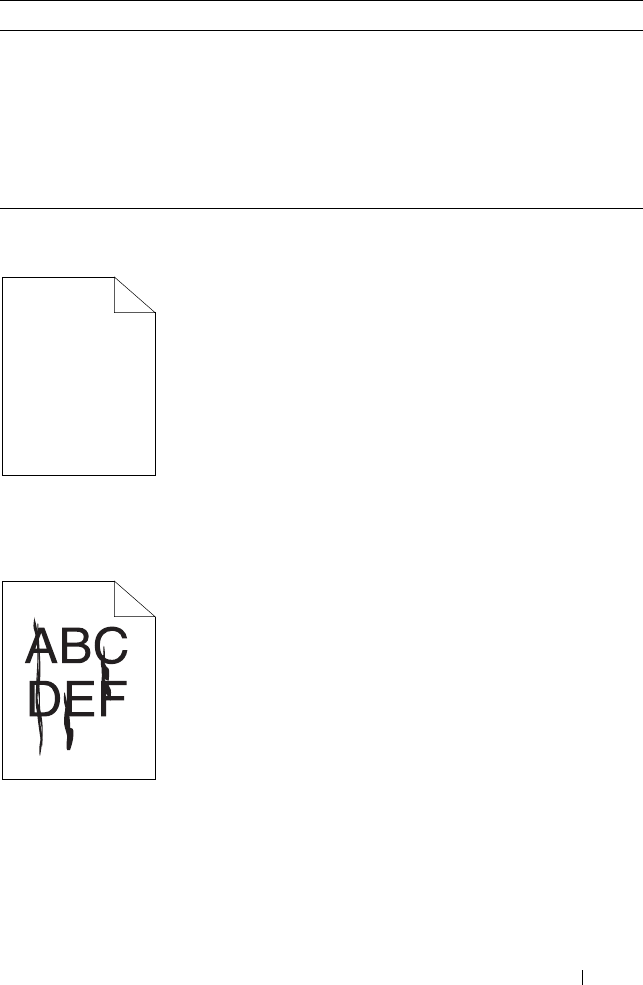
Troubleshooting 483
The entire output is blank
If this trouble comes out, contact Dell.
Streaks appear on the output
If this trouble comes out, contact Dell.
3Clean up the fuser unit.
1
Load one sheet of paper on the MPF, and then
print a solid image all over paper.
2
Load the printed sheet with the side to be
printed on facing down, and then print a blank
sheet of paper.
Is the problem recovered?
The task is
complete.
Contact Dell.
Action Yes No
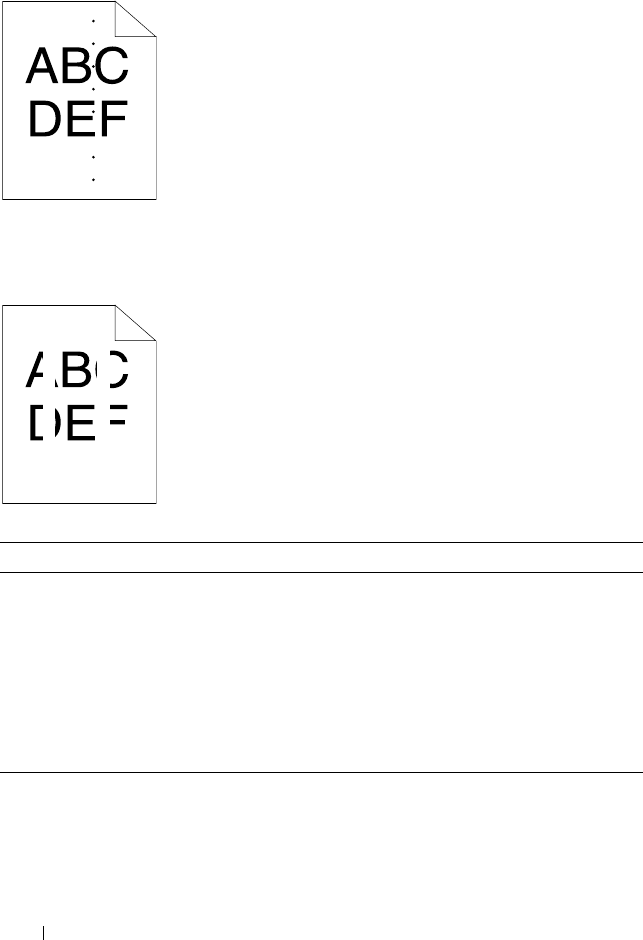
484 Troubleshooting
Pitched color dots
If this trouble comes out, contact Dell.
Vertical blanks
Action Yes No
1Clean inside the printer and performing test
print.
1
Clean inside the printer by using the cleaning
rod. See "Cleaning Inside the Printer" on
page 444.
2
Click
Print Test Page
in
Properties
of the
printer driver.
Is the problem recovered?
The task is
complete.
Contact Dell.

Troubleshooting 485
Ghosting
Action Yes No
1Adjust the transfer bias.
1
Launch the Tool Box, and click
Chart Print
on
the
Diagnosis
tab.
2
Click the
Ghost Configuration Chart
button.
The ghost configuration chart is printed.
3
Launch the Tool Box, and click
BTR Refresh
Mode
on the
Printer Maintenance
tab.
4
Check the check box next to
On
, and then
click
Apply New Settings
.
5
Click
Chart Print
on the
Diagnosis
tab.
6
Click the
Ghost Configuration Chart
button.
The ghost configuration chart is printed.
Is the problem recovered?
The task is
complete.
Go to action 2.
2The print media surface may be uneven. Try
changing the Paper Type setting in the printer
driver. For example, change the plain paper to
thick.
1
On the
Paper/Output
tab in
Printing
Preferences
of the printer driver, change the
Paper Type
setting.
Is the problem recovered?
The task is
complete.
Go to action 3.
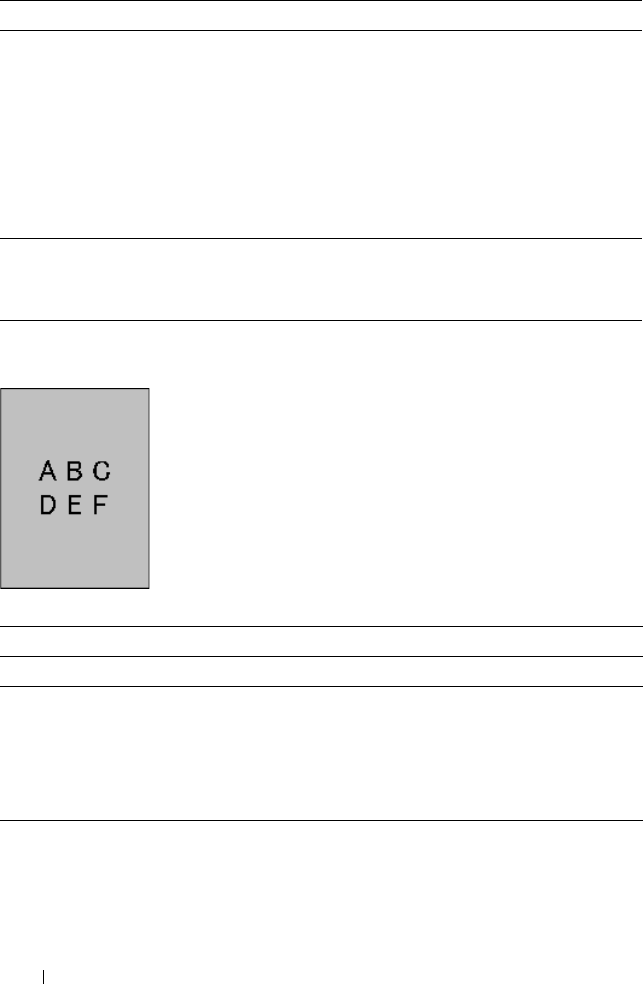
486 Troubleshooting
Fog
3Adjust the fuser temperature.
1
Launch the Tool Box, and click
Adjust Fuser
on the
Printer Maintenance
tab.
2
Adjust the fixing temperature by turning up
the value for your printing media.
3
Click
Apply New Settings
.
4
Click close box to exit Tool Box.
Is the problem recovered?
The task is
complete.
Go to action 4.
4If you use non-recommended print media, use
the print media recommended for the printer.
Is the problem recovered?
The task is
complete.
Contact Dell.
Action Yes No
1Is the whole page printed light? Contact Dell. Go to action 2.
2Start Clean Developer.
1
Launch the Tool Box, and click
Clean
Developer
on the
Diagnosis
tab.
2
Click the
Start
button.
Is the problem recovered?
The task is
complete.
Contact Dell.
Action Yes No
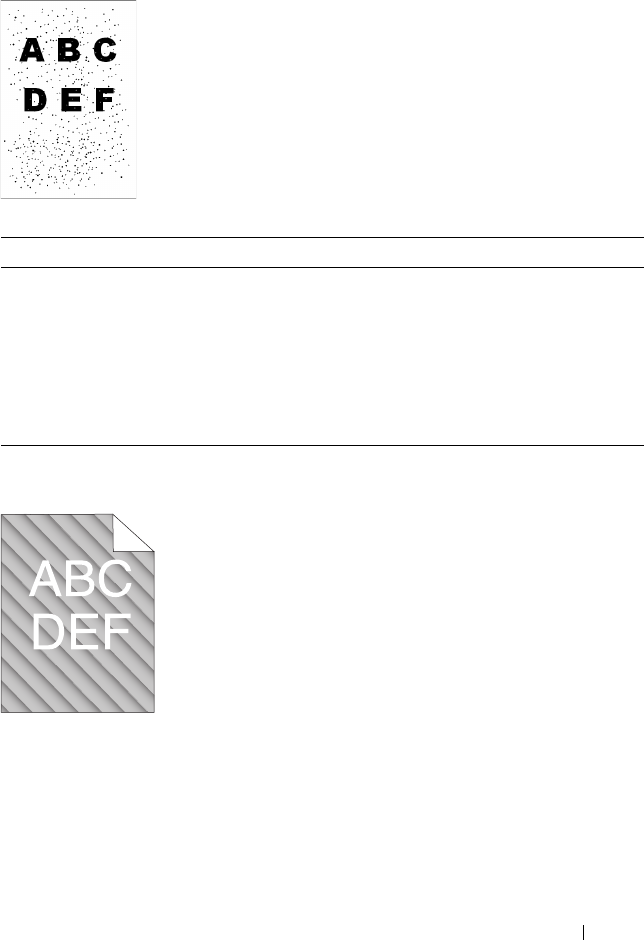
Troubleshooting 487
Bead-Carry-Out (BCO)
Auger mark
Action Yes No
1If the printer is installed in a high altitude
location, set the altitude of the location.
1
Launch the Tool Box, and click
Adjust
Altitude
on the
Printer Maintenance
tab.
2
Select the value close to the altitude of the
location where the printer is installed.
Is the problem recovered?
The task is
complete.
Contact Dell.
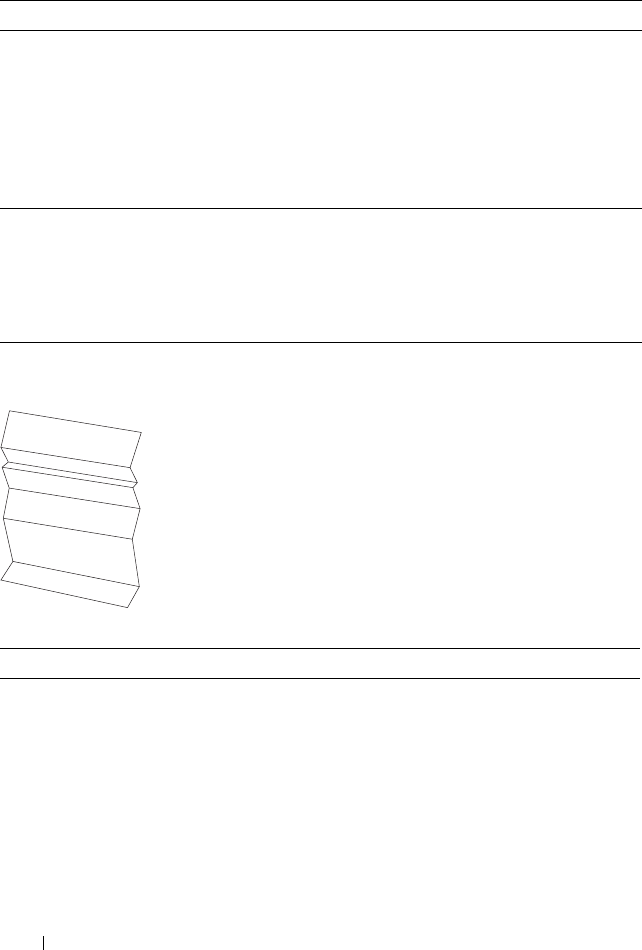
488 Troubleshooting
Wrinkled/Stained paper
Action Yes No
1The toner cartridges may be low or need to be
replaced. Confirm the amount of toner in each
toner cartridge.
1
Check the toner level in the
Status
tab in the
Status Monitor.
2
Replace the toner cartridges as necessary.
Is the problem recovered?
The task is
complete.
Contact Dell.
2Start Clean Developer.
1
Launch the Tool Box, and click
Clean
Developer
on the
Diagnosis
tab.
2
Click the
Start
button.
Is the problem recovered?
The task is
complete.
Contact Dell.
Action Yes No
1Verify that the correct print media is being
used. See "Supported Paper Sizes" on page 196
and "Print Media Guidelines" on page 189. If
not, use the print media recommended for the
printer.
Is the problem recovered?
The task is
complete.
If printing on
an envelope, go
to action 2.
If printing on
print media
other than
envelopes,
contact Dell.
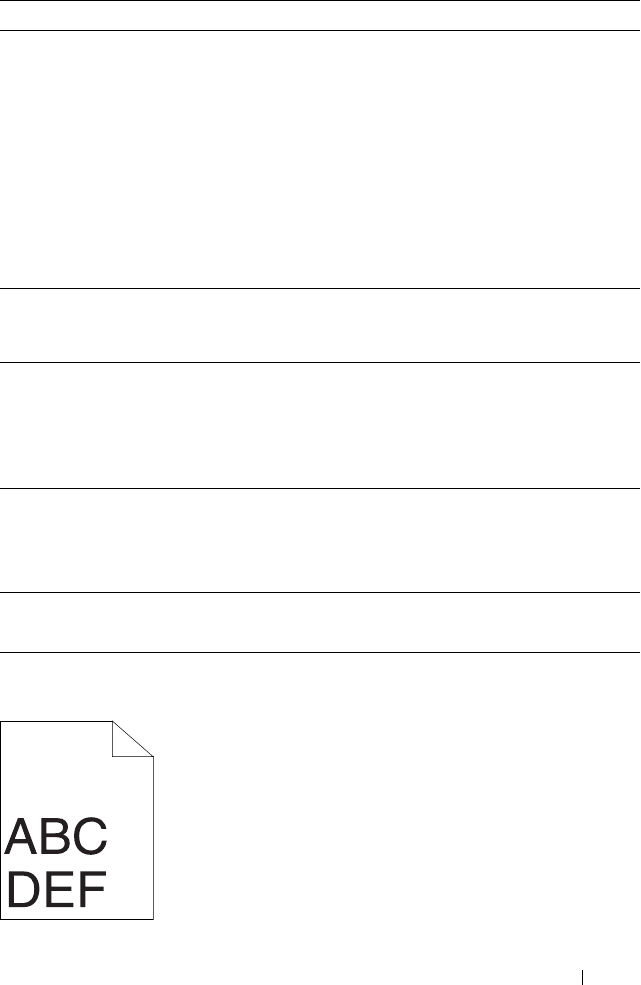
Troubleshooting 489
The top margins is incorrect
2
Check the crease. Is the crease within 30 mm of
the four edges of the envelope?
This type of
crease is
considered
normal. Your
printer is not at
fault.
If the envelope
is 220 mm or
longer (C5 or
Envelope#10),
go to action 3a.
If the envelope
is shorter than
220 mm
(Monarch or
DL), go to
action 3b.
3a
Does the envelope have a flap on the long edge?
The envelope is
Envelope#10.
Go to 4b.
The envelope
is C5. Go to
action 4a.
3b Load the envelope long edge feed in the MPF
with the flap open and facing up. For details,
see "When Loading Envelope#10, DL, or
Monarch" on page 207.
Is the problem recovered?
The task is
complete.
Go to action
4b.
4a Load the envelope in the MPF with the flap
open and facing up. For details, see "When
Loading C5" on page 208.
Is the problem recovered?
The task is
complete.
Contact Dell.
4b Use a different size envelope.
Is the problem recovered?
The task is
complete.
Contact Dell.
Action Yes No
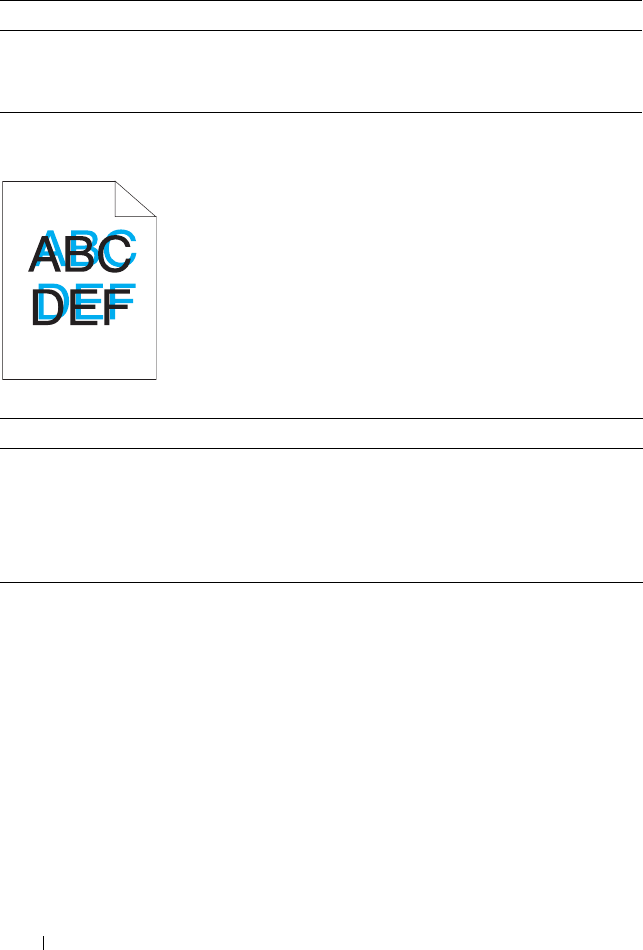
490 Troubleshooting
Color registration is out of alignment
Action Yes No
1Ensure that the margins are set correctly on the
application being used.
Is the problem recovered?
The task is
complete.
Contact Dell.
Action Yes No
1Execute auto color registration adjustment.
1
Launch the Tool Box, and click
Registration
Adjustment
on the
Printer Maintenance
tab.
2
Click the
Start
button next to
Auto Correct
.
Is the problem recovered?
The task is
complete.
Go to action 2.
2Clean the CTD sensor.
1
Clean the CTD sensor. See "Cleaning the
Color Toner Density (CTD) Sensor" on
page 448.
2
Launch the Tool Box, and click
Registration
Adjustment
on the
Printer Maintenance
tab.
3
Click the
Start
button next to
Auto Correct
.
Is the problem recovered?
The task is
complete.
Go to action 3.
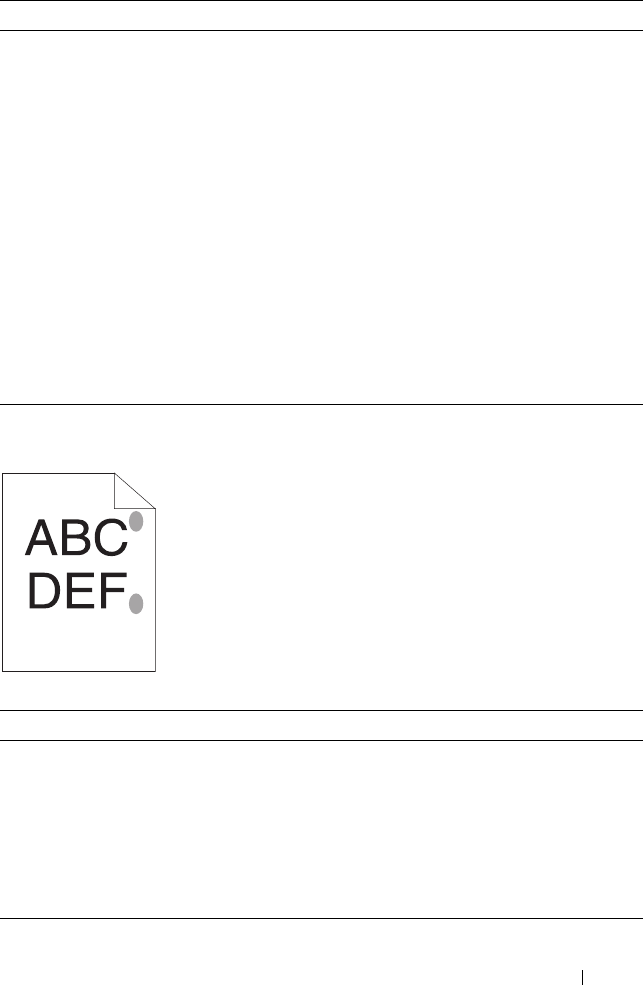
Troubleshooting 491
Protrudent / Bumpy paper
3Print the color registration chart and manually
correct the color registration.
1
Click
Registration Adjustment
on the
Printer
Maintenance
tab.
2
Click the
Start
button next to
Print Color
Regi Chart
.
The color registration chart is printed.
3
Adjust till all straight lines are at the value of
0. See "Adjusting Color Registration" on
page 450 for details.
4
Click the
Apply New Settings
button.
5
Click the
Start
button next to
Print Color
Regi Chart
to print the color registration chart
again.
Is the problem recovered?
The task is
complete.
Contact Dell.
Action Yes No
1Clean up the fuser unit.
1
Load one sheet of paper on the MPF, and then
print a solid image all over paper.
2
Load the printed sheet with the side to be
printed on facing down, and then print a blank
sheet of paper.
Is the problem recovered?
The task is
complete.
Contact Dell.
Action Yes No

492 Troubleshooting
Jam
NOTE: In this section, some procedures that use the Tool Box can also be
performed using the operator panel or Dell Printer Configuration Web Tool. For
information on how to use the operator panel and Dell Configuration Web Tool, see
"Understanding the Printer Menus" on page 359 and "Dell Printer Configuration Web
Tool" on page 123.
Misfeed jam
Action Yes No
1 Remove the paper from the PSI, and then
ensure that papers are properly inserted on the
MPF.
Is the problem recovered?
The task is
complete.
Proceed to the
action
corresponding
to the type of
the print media
being used:
•Thick - 2a
• Thin - 2b
• Envelope -
2c
If performing
manual duplex
printing, go to
action 2d.
If using paper
other than the
above or if not
performing
duplex
printing, go to
action 2e.
2a Use thick paper that is 216 gsm or less.
Is the problem recovered?
The task is
complete.
Go to action
3a.
2b Use thin paper that is 60 gsm or more.
Is the problem recovered?
The task is
complete.
Go to action
3a.
Troubleshooting 493
Multi-feed jam
2c Ensure that the envelope is properly loaded in
the MPF as instructed in "Loading an Envelope
in the Multipurpose Feeder (MPF)" on
page 207.
Is the problem recovered?
The task is
complete.
Go to action
3b.
2d Ensure that the print media is not curled.
Is the problem recovered?
The task is
complete.
Go to action
3a.
2e Is the print media damp? Go to action
3c.
Go to action
3a.
3a Fan the print media.
Is the problem recovered?
The task is
complete.
Go to action
3b.
3b If the envelope is deformed, correct it or use
another envelope.
Is the problem recovered?
The task is
complete.
Go to action
3a.
3c Turn over the print media.
Is the problem recovered?
The task is
complete.
Go to action 4.
4 Use print media that is not damp.
Is the problem recovered?
The task is
complete.
Contact Dell.
Action Yes No
1 Remove the paper from the PSI, and then
ensure that papers are inserted properly in the
MPF.
Is the problem recovered?
The task is
complete.
Go to action 2.
2 Is the print media damp? Go to action
3a.
Go to action
3b.
3a Use print media that is not damp.
Is the problem recovered?
The task is
complete.
Go to action
3b.
Action Yes No
494 Troubleshooting
A document jam occurs in the ADF if scanning of multiple-sheet document
is cancelled while scanning is in progress.
Copy Problem
Fax Problems
3b Fan the print media.
Is the problem recovered?
The task is
complete.
Contact Dell.
Action Yes No
1 Clear the jam. See "Clearing Paper Jams From
the ADF" on page 461.
Is the problem recovered?
The task is
complete.
Contact Dell.
Problem Action
A document loaded in the
ADF cannot be copied.
Ensure that the ADF cover is firmly closed.
Problem Action
The printer is not working,
there is no display and the
buttons are not working.
Unplug the power cord and plug it in again.
Ensure that there is power to the electrical receptacle.
No dial tone sounds. Check that the phone line is connected properly. See
"Connecting the Telephone Line" on page 48.
Check that the phone socket in the wall is working by
plugging in another phone.
Action Yes No

Troubleshooting 495
The numbers stored in the
memory do not dial correctly.
Ensure that the numbers are stored in the memory
correctly.
Print a Address Book list.
The document does not feed
into the printer.
Ensure that the document is not wrinkled and you are
putting it in correctly. Check that the document is of
the right size, not too thick or thin.
Ensure that the ADF cover is firmly closed.
Faxes are not received
automatically.
The FAX mode should be selected.
Ensure that there is paper in the PSI or MPF.
Check to see if the display shows Memory Full.
The printer does not send
faxes.
Sending should show up on the display.
Check the other fax machine you are sending to, to see
if it can receive your fax.
The incoming fax has blank
spaces or is received in poor-
quality.
The fax machine sending you the fax may be faulty.
A noisy phone line can cause line errors.
Check your printer by making a copy.
The toner cartridge may be empty. Replace the toner
cartridge. For details, see "Replacing Toner Cartridges"
on page 441.
Some of the words on an
incoming fax are stretched.
The fax machine sending you the fax had a temporary
document jam.
There are lines on the
documents you send.
Check your scan glass for marks and clean it. See
"Cleaning the Scanner" on page 454.
The printer dials a number,
but the connection with
another fax machine fails.
The other fax machine may be turned off, out of paper,
or cannot answer incoming calls. Speak with the other
machine operator and ask her/him to sort out the
problem.
Documents are not stored in
the memory.
There may not be enough memory to store the
document. If the display shows a Memory Full
message, delete any documents you no longer need
from the memory and then restore the document, or
wait for the job in progress (e.g., a fax transmission or
reception) to complete.
Problem Action
496 Troubleshooting
Scanning Problems
Blank areas appear at the
bottom of each page or on
other pages, with a small
strip of text at the top.
You may have chosen the wrong paper settings in the
user option setting. See "Print Media Guidelines" on
page 189.
The printer will not send or
receive faxes.
Ensure that the country code is set correctly under
(Menu) System Admin Menu Fax
Settings Country.
Check that the phone line is connected properly. See
"Connecting the Telephone Line" on page 48.
An error often occurs during
a fax transmission or
reception.
Reduce the modem speed under (Menu)
System Admin Menu Fax Settings
Modem Speed.
Problem Action
The scanner does not work. Ensure that you place the document to be scanned
face down from the document feeder glass, or face up
in the ADF.
There may not be enough available memory to hold
the document you want to scan. Try the Prescan
function to see if that works. Try lowering the scan
resolution rate.
Check that the USB cable is connected properly.
Ensure that the USB cable is not defective. Switch the
cable with a known good cable. If necessary, replace the
cable.
Check that the scanner is configured correctly. Check
the application you want to use to make certain that
the scanner job is being sent to the correct port.
Problem Action
Troubleshooting 497
The printer scans very slowly. Graphics are scanned more slowly than text when
using the Scan to E-mail or Scan to Network feature.
Communication speed becomes slow in scan mode
because of the large amount of memory required to
analyze and reproduce the scanned image.
Scanning images at a high resolution takes more time
than scanning at a low resolution.
Document misfeeds or
multiple feeds occur in the
Automatic Document Feeder
(ADF).
Ensure that the document’s paper type meets the
specifications for the printer. See "Supported Paper
Types" on page 198 for more information.
Check whether the document is properly loaded in the
ADF.
Ensure that the document guides are adjusted
properly.
Ensure that the number of document sheets do not
exceed the maximum capacity of the ADF.
Ensure that the document is not curled.
Fan the document well before loading it in the ADF.
Vertical stripes appear on the
output when scanned using
the ADF.
Clean the ADF glass.
See "Cleaning the Scanner" on page 454.
A smear appears at the same
location on the output when
scanned using the document
glass.
Clean the document glass.
See "Cleaning the Scanner" on page 454.
Images are skewed. Ensure that the document is loaded straight in the
ADF or on the document glass.
Diagonal lines appear jagged
when scanned using the
ADF.
If the document uses thick media, try scanning it from
the document glass.
Problem Action
498 Troubleshooting
The printer does not properly
transfer scan data to a
specified destination via the
Scan to E-mail or Scan to
Network feature.
Check if the following settings have been set correctly
on the Dell Printer Configuration Web Tool.
Scan to Network
Check the following settings under Address Book
Server Address:
• Server Address
•Share Name
•Server Path
•Login Name
• Login Password
Scan to E-mail
Check the following setting under Address Book
Fax/E-Mail:
• E-Mail Address
Cannot scan using WIA on a
Windows Server 2003
computer.
Enable WIA on the computer.
To en able WIA:
1
Click
Start
, point to
Administrative Tools
, and then
click
Services
.
2
Right-click
Windows Image Acquisition (WIA)
, and
then click
Start
.
Cannot scan using TWAIN
or WIA on a Windows Server
2008 or Windows Server
2008 R2 computer.
Install the Desktop Experience feature on the
computer.
To install Desktop Experience:
1
Click
Start
, point to
Administrative Tools
, and then
click
Server Manager
.
2
Under
Features Summary
, click
Add Features
.
3
Select the
Desktop Experience
check box, click
Next
,
and then click
Install
.
4
Restart the computer.
Problem Action
Troubleshooting 499
Scanner Driver/Printer Utility Problems
Problem Action
Unable to retrieve the
Address Book data from the
printer on the Address Book
Editor.
Ensure that your computer and the printer is properly
connected with the USB cable.
Ensure that the printer’s power is on.
Ensure that the printer driver is installed on your
computer. (The Address Book Editor retrieves the
Address Book data via the printer driver.)
The TWAIN driver cannot
connect to the printer.
Ensure that your computer and the printer is properly
connected with the USB cable.
Check whether the printer is on. If the printer is on,
reboot it by turning the power switch off and then on
again.
If a scan application is running, close the application
once, restart the application, and then try scanning
again.
The scanner driver has not
been registered on your
computer and cannot be
accessed from ScanButton
Manager.
Install the scanner driver. If the driver is installed,
uninstall it and then reinstall it.
Failed to scan your
document on the printer via
ScanButton Manager.
Ensure that your computer and the printer is properly
connected with the USB cable.
Check whether the printer is on. If the printer is on,
reboot it by turning the power switch off and then on
again.
If a scan application is running, close the application
once, restart the application, and then try scanning
again.
Failed to create an image file
via ScanButton Manager.
Ensure that there is sufficient space in your hard disk.
Uninstall ScanButton Manager on your computer and
then reinstall it.
Failed to initialize
ScanButton Manager.
Uninstall ScanButton Manager on your computer and
then reinstall it.
500 Troubleshooting
Other Problems
Contacting Service
When you call for printer service, be prepared to describe the problem you are
experiencing or the error message on the display.
You need to know the model of your printer and serial number. See the label
located inside the side door of your printer.
Failed to execute ScanButton
Manager.
Uninstall ScanButton Manager on your computer and
then reinstall it.
An unexpected error
occurred on ScanButton
Manager.
Uninstall ScanButton Manager on your computer and
then reinstall it.
Problem Action
Condensation has occurred
inside the printer.
This usually occurs within several hours after you heat
the room in winter. This also occurs when the printer is
operating in a location where relative humidity reaches
85% or more. Adjust the humidity or relocate the
printer to an appropriate environment.
No file is displayed on the
operator panel when you are
selecting a file for Printing
from USB Memory feature.
Confirm that there are files with the supported file
formats (PDF, TIFF, or JPEG) in the USB storage
device.
If the target file is in a deep hierarchy in the USB
storage device, move the file to the root directory in
the USB storage device with your computer.
Shorten the target file name in the USB storage device
with your computer, and try printing again.
Problem Action

501
Appendix

502

Appendix 503
B
Appendix
Dell Technical Support Policy
Technician-assisted technical support requires the cooperation and
participation of the customer in the troubleshooting process and provides for
restoration of the operating system, software program and hardware drivers to
the original default configuration as shipped from Dell, as well as the
verification of appropriate functionality of the printer and all Dell-installed
hardware. In addition to this technician assisted technical support, online
technical support is available at Dell Support. Additional technical support
options may be available for purchase.
Dell provides limited technical support for the printer and any Dell-installed
software and peripherals. Support for third-party software and peripherals is
provided by the original manufacturer, including those purchased and/or
installed through Software & Peripherals (DellWare), ReadyWare, and
Custom Factory Integration (CFI/DellPlus).
Online Services
You can learn about Dell products and services on the following websites:
www.dell.com
www.dell.com/ap
(Asian/Pacific countries only)
www.dell.com/jp
(Japan only)
www.euro.dell.com
(Europe only)
www.dell.com/la
(Latin American and Caribbean countries)
www.dell.ca
(Canada only)
You can access Dell Support through the following websites and e-mail
addresses:
• Dell Support websites
support.dell.com

504 Appendix
support.euro.dell.com
(Europe only)
• Dell Support e-mail addresses
mobile_support@us.dell.com
support@us.dell.com
la-techsupport@dell.com (Latin America and Caribbean countries only)
apsupport@dell.com
(Asian/Pacific countries only)
• Dell Marketing and Sales e-mail addresses
apmarketing@dell.com
(Asian/Pacific countries only)
sales_canada@dell.com (Canada only)
• Anonymous file transfer protocol (FTP)
ftp.dell.com
Log in as user:
anonymous
, and use your e-mail address as your password.
Warranty and Return Policy
Dell Computer Corporation ("Dell") manufactures its hardware products
from parts and components that are new or equivalent to new in accordance
with industry-standard practices. For information about the Dell warranty for
your printer, see support.dell.com.
Recycling Information
It is recommended that customers dispose of their used computer hardware, monitors, printers,
and other peripherals in an environmentally sound manner. Potential methods include reuse of
parts or whole products and recycling of products, components, and/or materials.
For specific information on Dell's worldwide recycling programs, see www.dell.com/
recyclingworldwide.
Contacting Dell
For customers in the United States, call 800-WWW-Dell (800-999-3355).
NOTE: If you do not have an active Internet connection, you can find contact
information on your purchase invoice, packing slip, bill, in your Dell catalog.

Appendix 505
Dell provides several online and telephone-based support and service options.
Availability varies by country and product, and some services may not be
available in your area. To contact Dell for sales, technical support, or
customer service issues:
1
Visit
support.dell.com
.
2
Verify your country or region in the
Choose A Country/Region
drop-down
menu at the bottom of the page.
3
Click
Contact Us
on the left side of the page.
4
Select the appropriate service or support link based on your need.
5
Choose the method of contacting Dell that is convenient for you.

506 Appendix

Index 507
Index
Numerics
100Base-TX Full-Duplex, 167
100Base-TX Half-Duplex, 167
10Base-T Full-Duplex, 167
10Base-T Half-Duplex, 167
A
A4, 196
A5, 196
About printer, 33
AC (All Clear) button, 224, 415
Address Book, 125, 131, 147,
179, 374
Address Book Editor, 412
ADF Cover, 34, 36, 461
ADF Glass, 455
Ad-Hoc, 168
Adjust Altitude, 145, 158, 340,
401
Adjust BTR, 145, 156, 337, 397
Adjust ColorRegi, 399
Adjust Fuser, 145, 156, 338, 398
Adjusting Color
Registration, 450
Admin Menu, 374
Administrator Password, 178
Alert Tone, 139, 147, 393
All Tones, 140, 148
Altitude, 431
Ans/FAX Mode, 291
Answer Machine/Fax, 153
Appendix, 503
Apply New Settings, 132
Asset Tag Number, 137
Authenticate Error Trap, 177
Auto Clear Alert Tone, 139, 148
Auto Exposure, 140, 142, 150,
152, 244, 362, 367
Auto Log Print, 140, 148, 395
Auto Rec Ans/FAX, 292, 382
Auto Rec Fax, 291, 382
Auto Rec TEL/FAX, 291, 382
Auto Receive Answer/Fax, 142,
154
Auto Receive Fax, 142, 153
Auto Receive Tel/Fax, 142, 153
Auto Regi Adjust, 399
Auto Registration
Adjustment, 145, 157
Auto Reset, 139, 147, 392

508 Index
Automatic Document Feeder
(ADF), 33, 36
Automatic Redialing, 302
Avoiding Jam, 229, 459
B
B&W / Color LED, 224
B5, 196
Back button, 224, 415
Backspace button, 224, 415
Base memory, 430
Basic Information, 165
Basic printer problem, 477
Blue plug, 48
Bonjour(mDNS), 163, 167
BTR Refresh, 400
BTR Refresh Mode, 341
C
C5, 196
Cable, 431
Cancel button, 224, 415
Canceling a job, 230
Canceling print job
From computer, 230
Carbonless copy paper, 191
CCP, 191
Changing the settings of menu
item, 133
Chart Print, 356
Clean Developer, 157-158, 356,
399
Clearing jam, 459
From ADF, 461
Clearing Paper Jam
From ADF, 461
From Back of the Printer, 467
From Front of the Printer, 465
From Output Tray, 470
Clock Mode, 289
Clock Settings, 146, 159
Coated, 145, 156-157, 337-338,
397-398
Collated, 141, 151, 239, 359
Color, 140, 142, 150-151, 238,
359, 365
Color Balance, 363
Color Button Set, 365
Color Mode button, 224
Color Registration
Adjustment, 157
Color Registration Chart, 451
Color Test Page, 374
Community Name (Read
only), 176
Community Name
(Read/Write), 176
Community Name (Trap), 176

Index 509
Company Name, 292, 385
Completed Jobs, 125, 138
Configuring Wireless
Settings, 85
Connecting Printer, 43
Connection specification, 43,
432
Connection type, 43, 432
Conserving supplies, 439
Contact Dell Support at, 126,
131
Contact Person, 130
Contacting Service, 500
Contacts button, 224
Control Panel Tone, 139, 147
Copy button, 223
Copy Color Balance, 141, 150
Copy Defaults, 140, 348
Copy Problem, 494
Copy Service Lock Set, 140, 149
Copy Settings, 141
Country, 144, 155, 293
Cover, 136
Covers, 145, 156-157, 337-338,
397-398
CTD Sensor, 448
Custom Reduce/Enlarge, 150
D
Data LED, 223, 415
Date & Time, 336, 393
Date Format, 146
Defaults Settings, 329
Delayed Start, 142, 152, 370
Dell Printer Configuration Web
Tool, 123, 126
Page display format, 1 29
Dell Service Tag Number, 137
Dell Supplies Management
System, 409
Dell Technical Support
Policy, 503
Demo Page, 147
Details, 137
Determining Values, 452
DHCP, 162, 172
Dimensions, 430
Direct Fax, 303
Discard Size, 144, 155, 293, 388
Display Popup, 146
Display Problem, 477
DL, 197
DL LEF, 197
DNS, 162, 172
Document Feeder Tray, 33, 36
Document Glass, 36, 455

510 Index
Document Guides, 36
Document Output Tray, 33
Document Size, 140, 142,
150-151, 241, 361, 366
Document Type, 298
Driver, 25
Drivers and Utilities CD, 25
DRPD, 153
DRPD Mode, 291
DRPD Pattern, 143, 154, 292,
386
E
ECM, 144, 155, 293, 389
Edit From Field, 404
E-Mail Alert, 126, 131, 167, 173,
380
E-Mail Alert Settings, 165, 175
E-Mail Alert Setup, 123
E-mail Alert Setup Page, 164
E-Mail Server Settings, 164, 174
Emulations, 430
Encryption, 161, 169
Entering Values, 453
Envelope, 145, 156-157, 194,
337-338, 398
Envelope #10, 197
Environment, 431
Environment Sensor Info, 356
Environment settings of your
web browser, 127
Error History, 147, 374
Ethernet, 161, 167, 432
Ethernet Port, 34, 44
EWS, 345, 380
EWS Settings, 166
Executive, 197
Express Code, 396
F
F/W Version, 396
Fault Time-Out, 392
Fax Activity, 144, 155, 293, 374,
389
Fax Broadcast, 144, 155, 293,
390
Fax button, 223
Fax Cover Page, 143, 154, 292,
385
Fax Defaults, 142, 152, 347
Fax Forward Number, 143, 154
Fax Fwd Number, 293, 388
FAX Group, 181
Fax Group, 182
Fax Header, 143, 154, 292, 385
Fax Header Name, 143, 154

Index 511
Fax Number, 143, 154, 292, 385
Fax Problems, 494
Fax Protocol, 144, 155
Fax Service Lock Set, 140, 149
Fax Settings, 142, 153, 331, 351,
381
FAX Speed Dial, 182
Fax Transmit, 144, 155, 293
File Format, 142, 151, 365
Finding Information, 25
Firmware Version, 137
Folio, 197
Forward Settings, 292, 388
Front Cover, 33, 461
Front USB Port, 33
FTP Client, 163
Function Enabled, 149, 402
Fuser, 460
Fuser Release Lever, 34, 460
G
Gateway Address, 162, 171
Group Dial, 375
Group Dialing, 313
H
Host I/F, 138
Host Name, 138, 162, 171
How to set up, 26
How to use, 25
HTTP, 163, 172
I
ID, 137-138
Identifying Print Media, 196
Identifying Print
Specification, 196
Image Compression, 142, 152,
369
Impression Number, 138
Infrastructure, 168
Initialize NIC NVM and restart
printer, 178
Initialize NVM, 400
Installing
Printer drivers, 69
Installing a Toner Cartridge, 442
Interfaces, 430
IP Address, 130, 162, 171
IP address, 162
IP Address Mode, 162, 171
IP Mode, 162, 171
IPv4, 162, 171-172, 177
IPv6, 162, 171-172, 177

512 Index
J
Jam, 492
Job History, 147, 374
Job List, 125, 137
Job Name, 138
Job Status, 138
Job Submitted Time, 138
Job Time-Out, 140, 148
Job Time-out, 392
Job Tone, 139, 147
Job Type, 138
Junk Fax Setup, 143, 154, 292,
353, 384
K
Kensington lock, 37
L
Label, 144-145, 156-157, 195,
337-338, 397-398
LCD, 223
LCD Panel, 225, 415
Left frame, 130
Legal, 197
Length Guide, 33
Letter, 197
Lighter/Darker, 140, 142,
150-152, 243, 299, 362, 367,
370
Line Monitor, 143, 154, 292, 382
Line Type, 143, 154, 292, 383
Link Channel, 161, 168
Link Quality, 161, 168
Liquid crystal display, 223
LLTD, 163
Loading Envelope, 207
Loading Letterhead, 193, 210,
217
Loading Paper, 59
Loading Print Media, 201
MPF, 202
PSI, 211
Loading Print Media in
Multipurpose Feeder
(MPF), 59, 202
Loading Print Media in Priority
Sheet Inserter (PSI), 66, 211
Location, 130, 137
Low Toner Alert Msg, 395
LPD, 163, 167, 172, 380
M
MAC Address, 161, 168
Maintenance, 439
Manual Duplex Printing, 218

Index 513
Margin Left/Right, 141-142,
151-152, 248, 364, 368
Margin Middle, 141-142,
151-152, 249, 364, 368
Margin Top/Bottom, 141-142,
151-152, 247, 363, 368
Max E-Mail Size, 142, 152
Max EMail Size, 369
Memory, 430
Memory Capacity, 137
Menu button, 225, 415
Menu Item, 133
Menu Settings, 139, 324
MIB Compatibility, 430
mm/inch, 140, 148, 395
Modem Speed, 144, 155, 293,
389
Monarch, 197
Monarch LEF, 197
MPF Extension, 33
Multiple Up, 440
Multiple-Up, 141, 151, 245, 363
Multipurpose Feeder (MPF), 33,
461
N
NCR, 191
Network, 375
Network Connection Setup, 74
Network Firmware Version, 137
Network printing, 69
Network Type, 161, 168
New Password, 149
No carbon required, 191
No. of Sheets, 138
Non-Dell Toner, 145, 159, 341,
401
Number of Copies, 238
Numeric keypad, 224
O
OCR, 191
One Touch Dial button, 223
Online Help, 126, 131
Online Services, 503
Operating System
Compatibility, 429
Operation, 431
Operator Panel, 33, 223
Button, 223
Optical character
recognition, 191
Order Supplies at, 126, 131
Original Type, 140, 150, 242, 361
OS, 430
Other Features, 178

514 Index
Out of Paper Tone, 139, 147
Output Result, 138
Output Tray, 136
Output Tray Extension, 221
Owner, 138
P
Page Display Format, 129
Panel Alert Tone, 139, 147
Panel Language, 140, 148, 405
Panel Lock, 402, 405
Panel Lock Set, 140
Panel Settings, 147, 373
Panel Settings Page, 225
Paper, 189
Characteristics, 189
Curl, 189
Fiber Content, 190
Grain Direction, 190
Moisture Content, 190
Smoothness, 190
Weight, 189
Paper Chute, 34
Paper Density, 144, 155, 336, 397
Paper Feed Roller, 34
Paper jam location, 460
Paper Type, 198
Paper Used, 179
Paper Width Guides, 33
Parts name, 33
PDL, 430
Peer-to-Peer, 112
Phone Book, 375
Phone Connector, 34, 44, 48, 432
Plain, 144-145, 156-157,
337-338, 397-398
Plain Thick, 145, 156-157,
337-338, 397-398
Point and Print, 109
Port Settings, 163, 166
Port Status, 163, 167
Port9100, 163, 167, 172, 380
Power on Wizard, 396
Power Saver Time, 391
Power Saver Timer, 250
Power Saver Timer - Deep
Sleep, 139, 147
Power Saver Timer - Sleep, 139,
147
Power Supply, 429
Power Switch, 33
Prefix, 293
Prefix Dial, 143, 155, 293, 388
Prefix Dial Num, 388
Prefix Dial Number, 144, 155,
293
Premier, 146
Print Cartridge Level, 136

Index 515
Print from USB, 140, 149
Print Head Cleaning Rod, 33
Print Media
Dimensions, 201
Print media, 189, 440
Print Quality Guarantee, 431
Print Quality Problems, 480
Print Server Reports, 161
Print Server Settings, 125, 131,
160, 165
Print Server Setup Page, 161
Print Volume, 125, 131, 179
Printer Driver Pre-install
Status, 69
Printer Drivers (Macintosh)
Installing Printer Drivers, 117
Printer Drivers Installing, 69
Printer Events, 136
Printer Information, 126, 131,
137, 323
Printer Jobs, 125, 131, 137
Printer Maintenance, 155
Printer Media, 189
Printer Page Count, 179
Printer Revision Levels, 137
Printer Serial Number, 137
Printer Settings, 125, 131, 138,
147
Printer Settings Report, 139
Printer Software, 409
Printer specification, 429
Printer Status, 125, 131, 135-136
Printer Type, 136
Printing, 229
Printing on Letterhead, 192
Printing problem, 478
Printing Speed, 136
Printing Status Window, 409
Printing with WSD, 425
Priority Sheet Inserter (PSI), 33
Processor Speed, 137
Product Features, 29
Product Information Guide, 26
Protocol Monitor, 293, 374
Q
Quick Launch Utility, 410
Quick Reference Guide, 25
R
Ready / Error LED, 223, 415
Rear Cover, 34, 460
Receive Mode, 142, 153, 291,
381
Recommended Paper, 190
Recycled, 145, 156, 337-338, 398

516 Index
Recycling Information, 504
Re-dial / Pause button, 224
Redial Attempts, 143, 154, 292,
384
Redial Delay, 143, 154, 292, 384
Reduce/Enlarge, 140, 150, 240,
360
Re-enter Password, 149
Refresh, 132
Refresh Mode, 357
Registration Adjustment, 338
Regular, 146
Relative humidity, 431
Remote Rcv Tone, 292, 385
Remote Receive, 143, 154, 292,
384
Remote Receive Tone, 143, 154
Removing the Toner
Cartridges, 441
Report Page, 232
Reports, 146, 327
Resend Delay, 143, 154, 292, 384
Reset Defaults, 158, 340
Reset Print Server, 178
Reset Wireless, 379
Resetting Defaults, 357, 407
Resolution, 142, 151-152, 298,
366, 369
Restore Settings, 132
Return Policy, 504
Right Frame, 132
Ring Tone Volume, 143, 154,
292, 383
Ringer Volume, 290
S
Safety information, 26
Scan button, 225
Scan Defaults, 142, 151, 345
Scan Service Lock Set, 140, 149
Scan To Network, 142, 151, 364
Scan to PC, 177
ScanButton Manager, 413
ScanDirect, 413
Scanner Driver/Printer Utility
Problems, 499
Scanner Unit, 460
Scanning Problems, 496
Secure Receive, 149, 403
Secure Receive Set, 140, 149
Secure Settings, 140, 148, 402
Security Settings, 169
Security Slot, 34
Select Reorder URL, 146
Selecting Letterhead, 192
Selecting Paper, 191
Selecting Preprinted Media, 192

Index 517
Selecting Pre-Punched
Paper, 193
Sending a Fax, 296
Sending a Fax
Automatically, 299
Sending a Fax Manually, 300
Sending print job, 229
Sent Fax Forward, 143, 154
Server Address, 184-185
Service Code, 27
Service Tag, 27, 396
Set Date, 146
Set Password, 126, 131, 178
Set Time, 146
Setting, 439
Setting Copy Options, 238
Setting the Printer ID, 287
Setting the Time and Date, 288
Setting Your Country, 286
Setup diagram, 26
Sharpness, 140, 142, 150, 152,
244, 362, 367
SMB Client, 164
SNMP, 163, 167, 175
SNMP UDP, 380
Software Update, 410
Speaker Volume, 289
Speed Dial, 375
Speed Dial button, 224
SSID, 161, 168
Start, 224
Start button, 224, 415
Status Messenger, 167
Status Monitor Console, 409
Status of printer supplies, 439
Storage, 431
Storage humidity range, 431
Storing consumables, 440
Storing Print Media, 196, 229,
440
Support
Contacting Dell, 504
Supported Paper Size, 196
System Settings, 139, 146-147,
166, 333, 373
System Settings page, 146
system settings page, 124
T
TCP/IP, 170
TCP/IP Settings, 162, 171, 328,
342
TCP/IP settings page, 124
TEL Mode, 291
TEL/FAX Mode, 291
Telephone, 153

518 Index
Telephone/Fax, 153
Temperature, 431
Time Format, 146
Time Zone, 146
Time-Out, 163, 173
Tone/Pulse, 143, 154, 292, 383
Toner Access Cover, 33
Toner Refresh, 158, 399
Top frame, 129
Transfer Belt, 34
Transfer Roller, 34
Transmit Key, 161
Trap Notification (IP), 177
Tray 1 Custom Size - X, 146
Tray 1 Custom Size - Y, 146
Tray 1 Paper Size, 146
Tray 1 Paper Type, 146
Tray Settings, 126, 131, 146, 186,
328, 371
TWAIN, 255
U
Unacceptable Paper, 191
UNITED STATES
GOVERNMENT
RESTRICTED RIGHTS, 22
USB, 432
USB port, 34, 44
USB Settings
USB Port, 404
USB storage device, 280
User Setup Disk Creating
Tool, 413
Using Dell Printer Configuration
Web Tool, 125
W
Wall Jack Connector, 34, 44, 48,
432
Warranty, 504
Warranty information, 26
Web Link Customization, 146,
160, 342
WEP 128 Bit ASCII (13
Bytes), 169
WEP 128 Bit Hex (26 Bytes), 169
WEP 64 Bit ASCII (5 Bytes), 169
WEP 64 Bit Hex (10 Bytes), 169
White Document Cover, 455
White Strip, 455
Width guide, 205
Windows Image Acquisition
(WIA), 257
Wired Network
Ethernet, 375
Initialize NVM, 381
Protocol, 380
Wireless LAN, 167


520 Index
