Dell Drac 5 Version 1 30 With Openmanage 3 Users Manual 1.30 5.3 User's Guide
2014-11-13
: Dell Dell-Drac-5-Version-1-30-With-Openmanage-5-3-Users-Manual-118279 dell-drac-5-version-1-30-with-openmanage-5-3-users-manual-118279 dell pdf
Open the PDF directly: View PDF  .
.
Page Count: 372 [warning: Documents this large are best viewed by clicking the View PDF Link!]
- Firmware Version 1.30 User’s Guide
- Contents
- DRAC 5 Overview
- Installing and Setting Up the DRAC 5
- Before You Begin
- Installing the DRAC 5 Hardware
- Configuring Your System to Use a DRAC 5
- Software Installation and Configuration Overview
- Installing the Software on the Managed System
- Installing the Software on the Management Station
- Configuring a Supported Web Browser
- Configuring DRAC 5 Properties
- Configuring the DRAC 5 Network Settings
- Adding and Configuring DRAC 5 Users
- Updating the DRAC 5 Firmware
- Accessing the DRAC 5 Through a Network
- Configuring IPMI
- Configuring Platform Events
- Configuring and Using the DRAC 5 Command Line Console
- Command Line Console Features
- Enabling and Configuring the Managed System to Use a Serial or Telnet Console
- Using the connect com2 Serial Command
- Configuring the BIOS Setup Program for a Serial Connection on the Managed System
- Using the Remote Access Serial Interface
- Configuring Linux for Serial Console Redirection During Boot
- Enabling Login to the Console After Boot
- Enabling the DRAC 5 Serial/Telnet/SSH Console
- Using the RACADM Command to Configure the Settings for the Serial and Telnet Console
- Using the Secure Shell (SSH)
- Enabling Additional DRAC 5 Security Options
- Connecting to the Managed System Through the Local Serial Port or Telnet Management Station (Client System)
- Connecting the DB-9 Cable for the Serial Console
- Configuring the Management Station Terminal Emulation Software
- Using a Serial or Telnet Console
- Configuring the DRAC 5 Using the Web User Interface
- Accessing the Web-Based Interface
- Configuring the DRAC 5 NIC
- Adding and Configuring DRAC 5 Users
- Configuring and Managing Active Directory Certificates (Standard Schema and Extended Schema)
- Securing DRAC 5 Communications Using SSL and Digital Certificates
- Configuring Serial and Terminal Modes
- Configuring Serial Over LAN
- Configuring Services
- Configuring Smart Card
- Frequently Asked Questions
- Recovering and Troubleshooting the Managed System
- Using the DRAC 5 With Microsoft Active Directory
- Advantages and Disadvantages of Extended Schema and Standard Schema
- Extended Schema Active Directory Overview
- Active Directory Schema Extensions
- Overview of the RAC Schema Extensions
- Active Directory Object Overview
- Configuring Extended Schema Active Directory to Access Your DRAC 5
- Extending the Active Directory Schema
- Installing the Dell Extension to the Active Directory Users and Computers Snap-In
- Adding DRAC 5 Users and Privileges to Active Directory
- Configuring the DRAC 5 With Extended Schema Active Directory and Web-Based Interface
- Configuring the DRAC 5 With Extended Schema Active Directory and RACADM
- Standard Schema Active Directory Overview
- Enabling SSL on a Domain Controller
- Using Active Directory to Log In To the DRAC 5
- Frequently Asked Questions
- Using GUI Console Redirection
- Using and Configuring Virtual Media
- Using the RACADM Command Line Interface
- Deploying Your Operating System Using VM-CLI
- Using the DRAC 5 SM-CLP Command Line Interface
- Troubleshooting
- RACADM Subcommand Overview
- help
- arp
- clearasrscreen
- config
- getconfig
- coredump
- coredumpdelete
- fwupdate
- getssninfo
- getsysinfo
- getractime
- ifconfig
- netstat
- ping
- setniccfg
- getniccfg
- getsvctag
- racdump
- racreset
- racresetcfg
- serveraction
- getraclog
- clrraclog
- getsel
- clrsel
- gettracelog
- sslcsrgen
- sslcertupload
- sslcertdownload
- sslcertview
- sslkeyupload
- testemail
- testtrap
- vmdisconnect
- vmkey
- usercertupload
- usercertview
- localConRedirDisable
- DRAC 5 Property Database Group and Object Definitions
- Displayable Characters
- idRacInfo
- cfgLanNetworking
- cfgDNSDomainNameFromDHCP (Read/Write)
- cfgDNSDomainName (Read/Write)
- cfgDNSRacName (Read/Write)
- cfgDNSRegisterRac (Read/Write)
- cfgDNSServersFromDHCP (Read/Write)
- cfgDNSServer1 (Read/Write)
- cfgDNSServer2 (Read/Write)
- cfgNicEnable (Read/Write)
- cfgNicIpAddress (Read/Write)
- cfgNicNetmask (Read/Write)
- cfgNicGateway (Read/Write)
- cfgNicUseDhcp (Read/Write)
- cfgNicSelection (Read/Write)
- cfgNicMacAddress (Read Only)
- cfgNicVLanEnable (Read/Write)
- cfgNicVLanId (Read/Write)
- cfgNicVLanPriority (Read/Write)
- cfgRemoteHosts
- cfgUserAdmin
- cfgEmailAlert
- cfgSessionManagement
- cfgSerial
- cfgSerialBaudRate (Read/Write)
- cfgSerialConsoleEnable (Read/Write)
- cfgSerialConsoleQuitKey (Read/Write)
- cfgSerialConsoleIdleTimeout (Read/Write)
- cfgSerialConsoleNoAuth (Read/Write)
- cfgSerialConsoleCommand (Read/Write)
- cfgSerialHistorySize (Read/Write)
- cfgSerialSshEnable (Read/Write)
- cfgSerialTelnetEnable (Read/Write)
- cfgSerialCom2RedirEnable (Read/Write)
- cfgNetTuning
- cfgOobSnmp
- cfgRacTuning
- cfgRacTuneHttpPort (Read/Write)
- cfgRacTuneHttpsPort (Read/Write)
- cfgRacTuneIpRangeEnable
- cfgRacTuneIpRangeAddr
- cfgRacTuneIpRangeMask
- cfgRacTuneIpBlkEnable
- cfgRacTuneIpBlkFailcount
- cfgRacTuneIpBlkFailWindow
- cfgRacTuneIpBlkPenaltyTime
- cfgRacTuneSshPort (Read/Write)
- cfgRacTuneTelnetPort (Read/Write)
- cfgRacTuneRemoteRacadmEnable (Read/Write)
- cfgRacTuneConRedirEncryptEnable (Read/Write)
- cfgRacTuneConRedirPort (Read/Write)
- cfgRacTuneConRedirVideoPort (Read/Write)
- cfgRacTuneAsrEnable (Read/Write)
- cfgRacTuneDaylightOffset (Read/Write)
- cfgRacTuneTimezoneOffset (Read/Write)
- cfgRacTuneWebserverEnable (Read/Write)
- cfgRacTuneLocalServerVideo (Read/Write)
- cfgRacTuneLocalConfigDisable
- cfgRacTuneCtrlEConfigDisable
- ifcRacManagedNodeOs
- cfgRacSecurity
- cfgRacVirtual
- cfgActiveDirectory
- cfgStandardSchema
- cfgIpmiSerial
- cfgIpmiSerialConnectionMode (Read/Write)
- cfgIpmiSerialBaudRate (Read/Write)
- cfgIpmiSerialChanPrivLimit (Read/Write)
- cfgIpmiSerialFlowControl (Read/Write)
- cfgIpmiSerialHandshakeControl (Read/Write)
- cfgIpmiSerialLineEdit (Read/Write)
- cfgIpmiSerialEchoControl (Read/Write)
- cfgIpmiSerialDeleteControl (Read/Write)
- cfgIpmiSerialNewLineSequence (Read/Write)
- cfgIpmiSerialInputNewLineSequence (Read/Write)
- cfgIpmiSol
- cfgIpmiLan
- cfgIpmiPef
- cfgIpmiPet
- Supported RACADM Interfaces
- Browser Pre-installation
- Glossary
- Index
www.dell.com | support.dell.com
Dell Remote Access Controller 5
Firmware Version 1.30
User’s Guide

Notes and Notices
NOTE: A NOTE indicates important information that helps you make better use of
your computer.
NOTICE: A NOTICE indicates either potential damage to hardware or loss of data
and tells you how to avoid the problem.
____________________
Information in this document is subject to change without notice.
© 2007 Dell Inc. All rights reserved.
Reproduction in any manner whatsoever without the written permission of Dell Inc. is strictly forbidden.
Trademarks used in this text: Dell, the DELL logo, Dell OpenManage, and PowerEdge, are trademarks
of Dell Inc.; Microsoft, Active Directory, Internet Explorer, Windows, Windows NT, and Windows Server
are registered trademarks and Windows Vista is a trademark of Microsoft Corporation; Red Hat is a
registered trademark of Red Hat, Inc.; Novell and SUSE are registered trademarks of Novell Corporation.
Intel is a registered trademark of Intel Corporation; UNIX is a registered trademark of The Open Group
in the United States and other countries.
Copyright 1998-2006 The OpenLDAP Foundation. All rights reserved. Redistribution and use in
source and binary forms, with or without modification, are permitted only as authorized by the
OpenLDAP Public License. A copy of this license is available in the file LICENSE in the top-level
directory of the distribution or, alternatively, at http://www.OpenLDAP.org/license.html.
OpenLDAP is a registered trademark of the OpenLDAP Foundation. Individual files and/or
contributed packages may be copyrighted by other parties and subject to additional restrictions. This
work is derived from the University of Michigan LDAP v3.3 distribution. This work also contains
materials derived from public sources. Information about OpenLDAP can be obtained at http://
www.openldap.org/. Portions Copyright 1998-2004 Kurt D. Zeilenga. Portions Copyright 1998-2004
Net Boolean Incorporated. Portions Copyright 2001-2004 IBM Corporation. All rights reserved.
Redistribution and use in source and binary forms, with or without modification, are permitted only
as authorized by the OpenLDAP Public License. Portions Copyright 1999-2003 Howard Y.H. Chu.
Portions Copyright 1999-2003 Symas Corporation. Portions Copyright 1998-2003 Hallvard B.
Furuseth. All rights reserved. Redistribution and use in source and binary forms, with or without
modification, are permitted provided that this notice is preserved. The names of the copyright holders
may not be used to endorse or promote products derived from this software without their specific prior
written permission. This software is provided "as is'' without express or implied warranty. Portions
Copyright (c) 1992-1996 Regents of the University of Michigan. All rights reserved. Redistribution
and use in source and binary forms are permitted provided that this notice is preserved and that due
credit is given to the University of Michigan at Ann Arbor. The name of the University may not be used
to endorse or promote products derived from this software without specific prior written permission.
This software is provided "as is'' without express or implied warranty. Other trademarks and trade
names may be used in this document to refer to either the entities claiming the marks and names or their
products. Dell Inc. disclaims any proprietary interest in trademarks and trade names other than its own.
Other trademarks and trade names may be used in this document to refer to either the entities claiming
the marks and names or their products. Dell Inc. disclaims any proprietary interest in trademarks and
trade names other than its own.
September 2007 Rev. A00

Contents 3
Contents
1 DRAC 5 Overview . . . . . . . . . . . . . . . . . . 21
What’s New in DRAC 5 in this Release? . . . . . . . . 21
DRAC 5 Hardware Features . . . . . . . . . . . . . . . 22
Hardware Specifications . . . . . . . . . . . . . . . . 22
Power Specifications . . . . . . . . . . . . . . . 22
Connectors . . . . . . . . . . . . . . . . . . . . . 23
DRAC 5 Ports . . . . . . . . . . . . . . . . . . . . 23
Supported Remote Access Connections . . . . . . . . 24
DRAC 5 Security Features . . . . . . . . . . . . . . . . 25
Supported Platforms . . . . . . . . . . . . . . . . . . 26
Supported Operating Systems . . . . . . . . . . . . . . 27
Supported Web Browsers . . . . . . . . . . . . . . . . 29
Disabling the Whitelist Feature in
Mozilla Firefox . . . . . . . . . . . . . . . . . . . 30
Features . . . . . . . . . . . . . . . . . . . . . . . . . 31
Other Documents You May Need . . . . . . . . . . . . 32

4Contents
2 Installing and Setting Up the
DRAC 5 . . . . . . . . . . . . . . . . . . . . . . . . . . . 35
Before You Begin . . . . . . . . . . . . . . . . . . . . 35
Installing the DRAC 5 Hardware . . . . . . . . . . . . 35
Configuring Your System to Use a DRAC 5 . . . . . . . 36
Software Installation and Configuration Overview . . . 37
Installing Your DRAC 5 Software . . . . . . . . . . 37
Configuring Your DRAC 5 . . . . . . . . . . . . . . 38
Installing the Software on the Managed System . . . . 38
Configuring the Managed System to
Capture the Last Crash Screen . . . . . . . . . . . 39
Disabling the Windows
Automatic Reboot Option . . . . . . . . . . . . . . 39
Installing the Software on the
Management Station . . . . . . . . . . . . . . . . . . 40
Configuring Your
Red Hat Enterprise Linux (Version 4)
Management Station . . . . . . . . . . . . . . . . 41
Installing and Removing RACADM on a
Linux Management Station . . . . . . . . . . . . . 41
Installing RACADM . . . . . . . . . . . . . . . . . 41
Configuring a Supported Web Browser . . . . . . . . . 42
Configuring Your Web Browser to
Connect to the Web-Based Interface . . . . . . . 42
List of Trusted Domains . . . . . . . . . . . . . . 43
32-bit and 64-bit Web Browsers . . . . . . . . . . 43
Viewing Localized Versions of the
Web-Based Interface . . . . . . . . . . . . . . . 43
Configuring DRAC 5 Properties . . . . . . . . . . . . . 45

Contents 5
Configuring the DRAC 5 Network Settings . . . . . . . 45
Adding and Configuring DRAC 5 Users . . . . . . . . . 46
Updating the DRAC 5 Firmware . . . . . . . . . . . . . 46
Before You Begin . . . . . . . . . . . . . . . . . . 46
Downloading the DRAC 5 Firmware . . . . . . . . 47
Updating the DRAC 5 Firmware Using the
Web-Based Interface . . . . . . . . . . . . . . . 47
Clearing the Browser Cache . . . . . . . . . . . . 48
Accessing the DRAC 5 Through a Network . . . . . . . 48
Configuring IPMI . . . . . . . . . . . . . . . . . . . . 50
Configuring IPMI Using the
Web-Based Interface . . . . . . . . . . . . . . . 51
Configuring IPMI Using the RACADM CLI . . . . . 53
Configuring Platform Events . . . . . . . . . . . . . . 57
Configuring Platform Event Filters (PEF) . . . . . . 58
Configuring PET . . . . . . . . . . . . . . . . . . 60
Configuring E-Mail Alerts . . . . . . . . . . . . . 62
3 Configuring and Using the
DRAC 5 Command Line Console . . . . . . . 65
Command Line Console Features . . . . . . . . . . . . 65
Enabling and Configuring the Managed System to
Use a Serial or Telnet Console . . . . . . . . . . . . . 66
Using the connect com2 Serial Command . . . . . 66
Configuring the BIOS Setup Program for a
Serial Connection on the Managed System . . . . 66
Using the Remote Access Serial Interface . . . . 67
Configuring Linux for Serial Console
Redirection During Boot . . . . . . . . . . . . . . 68

6Contents
Enabling Login to the Console After Boot . . . . . 70
Enabling the
DRAC 5 Serial/Telnet/SSH Console . . . . . . . . . 73
Using the RACADM Command to Configure the
Settings for the Serial and Telnet Console . . . . . 74
Using the Secure Shell (SSH) . . . . . . . . . . . . . . 76
Enabling Additional DRAC 5 Security Options . . . . . 77
Connecting to the Managed System Through the
Local Serial Port or
Telnet Management Station (Client System) . . . . . . 83
Connecting the DB-9 Cable for the Serial Console . . . 84
Configuring the Management Station
Terminal Emulation Software . . . . . . . . . . . . . . 85
Configuring Linux Minicom for
Serial Console Emulation . . . . . . . . . . . . . . 85
Configuring HyperTerminal for
Serial Console Redirection . . . . . . . . . . . . . 87
Configuring Linux XTerm for
Telnet Console Redirection . . . . . . . . . . . . . 88
Enabling Microsoft Telnet for
Telnet Console Redirection . . . . . . . . . . . . . 88
Using a Serial or Telnet Console . . . . . . . . . . . . 90
4 Configuring the DRAC 5 Using the
Web User Interface . . . . . . . . . . . . . . . . . 91
Accessing the Web-Based Interface . . . . . . . . . . 91
Logging In . . . . . . . . . . . . . . . . . . . . . 92
Logging Out . . . . . . . . . . . . . . . . . . . . . 93

Contents 7
Configuring the DRAC 5 NIC . . . . . . . . . . . . . . . 93
Configuring the Network and
IPMI LAN Settings . . . . . . . . . . . . . . . . . 93
Configuring the Network Security Settings . . . . 96
Adding and Configuring DRAC 5 Users . . . . . . . . . 98
Configuring and Managing
Active Directory Certificates
(Standard Schema and Extended Schema) . . . . . . . 102
Configuring Active Directory
(Standard Schema and Extended Schema) . . . . 103
Uploading an Active Directory CA Certificate . . . 106
Downloading a DRAC Server Certificate . . . . . 107
Viewing an Active Directory CA Certificate . . . . 107
Securing DRAC 5 Communications
Using SSL and Digital Certificates . . . . . . . . . . . 108
Secure Sockets Layer (SSL) . . . . . . . . . . . . 108
Certificate Signing Request (CSR) . . . . . . . . . 109
Accessing the SSL Main Menu . . . . . . . . . . 109
Generating a New Certificate
Signing Request . . . . . . . . . . . . . . . . . . 110
Uploading a Server Certificate . . . . . . . . . . . 112
Viewing a Server Certificate . . . . . . . . . . . . 112
Configuring Serial and Terminal Modes . . . . . . . . 113
Configuring IPMI and RAC Serial . . . . . . . . . 113
Configuring Terminal Mode . . . . . . . . . . . . 115
Configuring Serial Over LAN . . . . . . . . . . . . . . 116
Configuring Services . . . . . . . . . . . . . . . . . . 118
Configuring Smart Card . . . . . . . . . . . . . . . . . 122
Frequently Asked Questions . . . . . . . . . . . . . . 123

8Contents
5 Recovering and Troubleshooting the
Managed System . . . . . . . . . . . . . . . . . . 127
First Steps to Troubleshoot a Remote System . . . . . . 127
Managing Power on a Remote System . . . . . . . . . 128
Selecting Power Control Actions . . . . . . . . . 128
Viewing System Information . . . . . . . . . . . . . . 129
Main System Chassis . . . . . . . . . . . . . . . . 129
Remote Access Controller . . . . . . . . . . . . . 130
Using the System Event Log (SEL) . . . . . . . . . . . . 130
Viewing the Last System Crash Screen . . . . . . . . . 132
Using the RAC Log . . . . . . . . . . . . . . . . . . . . 133
Using the Diagnostic Console . . . . . . . . . . . . . . 134
Troubleshooting Network Problems . . . . . . . . . . 135
Troubleshooting Alerting Problems . . . . . . . . . . . 136
6 Using the DRAC 5 With
Microsoft Active Directory . . . . . . . . . . 137
Advantages and Disadvantages of
Extended Schema and Standard Schema . . . . . . . . 137
Extended Schema Active Directory Overview . . . . . 138
Active Directory Schema Extensions . . . . . . . 138
Overview of the RAC Schema Extensions . . . . . 139
Active Directory Object Overview . . . . . . . . . 139
Configuring Extended Schema
Active Directory to Access Your DRAC 5 . . . . . 143
Extending the Active Directory Schema . . . . . . 143

Contents 9
Installing the Dell Extension to the
Active Directory Users and
Computers Snap-In . . . . . . . . . . . . . . . . . 149
Adding DRAC 5 Users and Privileges to
Active Directory . . . . . . . . . . . . . . . . . . 150
Configuring the DRAC 5 With Extended Schema
Active Directory and Web-Based Interface . . . . 152
Configuring the DRAC 5 With Extended Schema
Active Directory and RACADM . . . . . . . . . . 154
Standard Schema Active Directory Overview . . . . . 156
Configuring Standard Schema
Active Directory to Access Your DRAC 5 . . . . . 158
Configuring the DRAC 5 With Standard Schema
Active Directory and
Web-Based Interface . . . . . . . . . . . . . . . 159
Configuring the DRAC 5 With Standard Schema
Active Directory and
RACADM . . . . . . . . . . . . . . . . . . . . . . 161
Enabling SSL on a Domain Controller . . . . . . . . . 162
Exporting the Domain Controller
Root CA Certificate . . . . . . . . . . . . . . . . . 162
Importing the DRAC 5 Firmware
SSL Certificate . . . . . . . . . . . . . . . . . . . 164
Using Active Directory to Log In To the DRAC 5 . . . . 164
Frequently Asked Questions . . . . . . . . . . . . . . 165
7 Using GUI Console Redirection . . . . . . . 169
Overview . . . . . . . . . . . . . . . . . . . . . . . . 169

10 Contents
Using Console Redirection . . . . . . . . . . . . . . . 169
Supported Screen Resolutions
Refresh Rates on the Managed System . . . . . . 170
Configuring Your Management Station . . . . . . 170
Configuring Console Redirection . . . . . . . . . . 170
Opening a Console Redirection Session . . . . . . 172
Disabling or Enabling Local Video . . . . . . . . . 173
Using the Video Viewer . . . . . . . . . . . . . . . . . 174
Accessing the Viewer Menu Bar . . . . . . . . . 175
Adjusting the Video Quality . . . . . . . . . . . . . 178
Synchronizing the Mouse Pointers . . . . . . . . 178
Frequently Asked Questions . . . . . . . . . . . . . . 179
8 Using and Configuring
Virtual Media . . . . . . . . . . . . . . . . . . . . . 187
Overview . . . . . . . . . . . . . . . . . . . . . . . . . 187
Installing the Virtual Media Plug-In . . . . . . . . . . 189
Windows-Based Management Station . . . . . . 189
Linux-Based Management Station . . . . . . . . . 189
Running Virtual Media . . . . . . . . . . . . . . . . . . 190
Supported Virtual Media Configurations . . . . . . 190
Running Virtual Media Using the
Web User Interface . . . . . . . . . . . . . . . . 190
Attaching and Detaching the
Virtual Media Feature . . . . . . . . . . . . . . . 192
Booting From Virtual Media . . . . . . . . . . . . 193
Installing Operating Systems Using
Virtual Media . . . . . . . . . . . . . . . . . . . . 194
Using Virtual Media When the Server’s
Operating System Is Running . . . . . . . . . . . . 194

Contents 11
Using Virtual Flash . . . . . . . . . . . . . . . . . . . 195
Enabling Virtual Flash . . . . . . . . . . . . . . . 195
Disabling Virtual Flash . . . . . . . . . . . . . . . 196
Storing Images in a Virtual Flash . . . . . . . . . . 196
Configuring a Bootable Virtual Flash . . . . . . . . 196
Using the Virtual Media
Command Line Interface Utility . . . . . . . . . . . . . 197
Utility Installation . . . . . . . . . . . . . . . . . . 198
Command Line Options . . . . . . . . . . . . . . . 198
VM-CLI Parameters . . . . . . . . . . . . . . . . 199
VM-CLI Operating System Shell Options . . . . . 202
Frequently Asked Questions . . . . . . . . . . . . . . 203
9 Using the RACADM
Command Line Interface . . . . . . . . . . . . 209
Using a Serial or Telnet Console . . . . . . . . . . . . 209
Logging in to the DRAC 5 . . . . . . . . . . . . . . 209
Starting a Text Console . . . . . . . . . . . . . . . 210
Using RACADM . . . . . . . . . . . . . . . . . . . . . 210
Using RACADM Remotely . . . . . . . . . . . . . 211
RACADM Synopsis . . . . . . . . . . . . . . . . . 212
RACADM Options . . . . . . . . . . . . . . . . . 212
Enabling and Disabling the racadm
Remote Capability . . . . . . . . . . . . . . . . . 213
RACADM Subcommands . . . . . . . . . . . . . 213
RACADM Error Messages . . . . . . . . . . . . . 215
Configuring Multiple DRAC 5 Cards . . . . . . . . . . 215
Creating a DRAC 5 Configuration File . . . . . . . 216
Parsing Rules . . . . . . . . . . . . . . . . . . . . 218
Modifying the DRAC 5 IP Address . . . . . . . . . 220

12 Contents
Using the RACADM Utility to
Configure the DRAC 5 . . . . . . . . . . . . . . . . . . 221
Before You Begin . . . . . . . . . . . . . . . . . . 221
Adding a DRAC 5 User . . . . . . . . . . . . . . . 222
Removing a DRAC 5 User . . . . . . . . . . . . . . 223
Testing e-mail Alerting . . . . . . . . . . . . . . . 223
Testing the RAC SNMP Trap Alert Feature . . . . . 223
Enabling a DRAC 5 User With Permissions . . . . 224
Configuring DRAC 5 Network Properties . . . . . . 224
Frequently Asked Questions . . . . . . . . . . . . . . 226
10 Deploying Your Operating System
Using VM-CLI . . . . . . . . . . . . . . . . . . . . 227
Before You Begin . . . . . . . . . . . . . . . . . . . . 227
Remote System Requirements . . . . . . . . . . . 227
Network Requirements . . . . . . . . . . . . . . . 228
Creating a Bootable Image File . . . . . . . . . . . . . 228
Creating an Image File for Linux Systems . . . . . 228
Creating an Image File for Windows Systems . . . 228
Preparing for Deployment . . . . . . . . . . . . . . . . 229
Configuring the Remote Systems . . . . . . . . . . 229
Deploying the Operating System . . . . . . . . . . . . 229
11 Using the DRAC 5 SM-CLP
Command Line Interface . . . . . . . . . . . . 231
DRAC 5 SM-CLP Support . . . . . . . . . . . . . . . . 231

Contents 13
SM-CLP Features . . . . . . . . . . . . . . . . . . . . 231
SM-CLP Management Operations and
Targets . . . . . . . . . . . . . . . . . . . . . . . 232
Options . . . . . . . . . . . . . . . . . . . . . . . 233
DRAC 5 SM-CLP Examples . . . . . . . . . . . . . 233
12 Troubleshooting . . . . . . . . . . . . . . . . . . 243
Troubleshooting the DRAC 5 . . . . . . . . . . . . . . 243
A RACADM Subcommand Overview . . . . . 245
help . . . . . . . . . . . . . . . . . . . . . . . . . . . 245
arp . . . . . . . . . . . . . . . . . . . . . . . . . . . . 246
clearasrscreen . . . . . . . . . . . . . . . . . . . . . 246
config . . . . . . . . . . . . . . . . . . . . . . . . . . 247
getconfig . . . . . . . . . . . . . . . . . . . . . . . . . 249
coredump . . . . . . . . . . . . . . . . . . . . . . . . 251
coredumpdelete . . . . . . . . . . . . . . . . . . . . . 252
fwupdate . . . . . . . . . . . . . . . . . . . . . . . . . 253
getssninfo . . . . . . . . . . . . . . . . . . . . . . . . 256
getsysinfo . . . . . . . . . . . . . . . . . . . . . . . . 258
getractime . . . . . . . . . . . . . . . . . . . . . . . . 261
ifconfig . . . . . . . . . . . . . . . . . . . . . . . . . . 262
netstat . . . . . . . . . . . . . . . . . . . . . . . . . . 262

14 Contents
ping . . . . . . . . . . . . . . . . . . . . . . . . . . . 263
setniccfg . . . . . . . . . . . . . . . . . . . . . . . . . 263
getniccfg . . . . . . . . . . . . . . . . . . . . . . . . . 265
getsvctag . . . . . . . . . . . . . . . . . . . . . . . . . 266
racdump . . . . . . . . . . . . . . . . . . . . . . . . . 267
racreset . . . . . . . . . . . . . . . . . . . . . . . . . 268
racresetcfg . . . . . . . . . . . . . . . . . . . . . . . . 269
serveraction . . . . . . . . . . . . . . . . . . . . . . . 270
getraclog . . . . . . . . . . . . . . . . . . . . . . . . . 271
clrraclog . . . . . . . . . . . . . . . . . . . . . . . . . 273
getsel . . . . . . . . . . . . . . . . . . . . . . . . . . 273
clrsel . . . . . . . . . . . . . . . . . . . . . . . . . . . 274
gettracelog . . . . . . . . . . . . . . . . . . . . . . . . 275
sslcsrgen . . . . . . . . . . . . . . . . . . . . . . . . . 276
sslcertupload . . . . . . . . . . . . . . . . . . . . . . 278
sslcertdownload . . . . . . . . . . . . . . . . . . . . . 279
sslcertview . . . . . . . . . . . . . . . . . . . . . . . 281
sslkeyupload . . . . . . . . . . . . . . . . . . . . . . . 283
testemail . . . . . . . . . . . . . . . . . . . . . . . . . 284
testtrap . . . . . . . . . . . . . . . . . . . . . . . . . . 285
vmdisconnect . . . . . . . . . . . . . . . . . . . . . . 287

Contents 15
vmkey . . . . . . . . . . . . . . . . . . . . . . . . . . 288
usercertupload . . . . . . . . . . . . . . . . . . . . . 288
usercertview . . . . . . . . . . . . . . . . . . . . . . 290
localConRedirDisable . . . . . . . . . . . . . . . . . . 291
B DRAC 5 Property Database Group and
Object Definitions . . . . . . . . . . . . . . . . . 293
Displayable Characters . . . . . . . . . . . . . . . . . 293
idRacInfo . . . . . . . . . . . . . . . . . . . . . . . . 293
idRacProductInfo (Read Only) . . . . . . . . . . . 293
idRacDescriptionInfo (Read Only) . . . . . . . . . 294
idRacVersionInfo (Read Only) . . . . . . . . . . . 294
idRacBuildInfo (Read Only) . . . . . . . . . . . . 294
idRacName (Read Only) . . . . . . . . . . . . . . 295
idRacType (Read Only) . . . . . . . . . . . . . . . 295
cfgLanNetworking . . . . . . . . . . . . . . . . . . . 295
cfgDNSDomainNameFromDHCP
(Read/Write) . . . . . . . . . . . . . . . . . . . . 296
cfgDNSDomainName (Read/Write) . . . . . . . . 296
cfgDNSRacName (Read/Write) . . . . . . . . . . 296
cfgDNSRegisterRac (Read/Write) . . . . . . . . . 297
cfgDNSServersFromDHCP (Read/Write) . . . . . 297
cfgDNSServer1 (Read/Write) . . . . . . . . . . . 298
cfgDNSServer2 (Read/Write) . . . . . . . . . . . 298
cfgNicEnable (Read/Write) . . . . . . . . . . . . 298
cfgNicIpAddress (Read/Write) . . . . . . . . . . . 299
cfgNicNetmask (Read/Write) . . . . . . . . . . . 299
cfgNicGateway (Read/Write) . . . . . . . . . . . 300
cfgNicUseDhcp (Read/Write) . . . . . . . . . . . 300

16 Contents
cfgNicSelection (Read/Write) . . . . . . . . . . . 301
cfgNicMacAddress (Read Only) . . . . . . . . . . 302
cfgNicVLanEnable (Read/Write) . . . . . . . . . . 302
cfgNicVLanId (Read/Write) . . . . . . . . . . . . . 302
cfgNicVLanPriority (Read/Write) . . . . . . . . . . 303
cfgRemoteHosts . . . . . . . . . . . . . . . . . . . . . 303
cfgRhostsSmtpServerIpAddr (Read/Write) . . . . 303
cfgRhostsFwUpdateTftpEnable (Read/Write) . . . 304
cfgRhostsFwUpdateIpAddr (Read/Write) . . . . . 304
cfgRhostsFwUpdatePath (Read/Write) . . . . . . 304
cfgUserAdmin . . . . . . . . . . . . . . . . . . . . . . 305
cfgUserAdminIpmiLanPrivilege (Read/Write) . . . 305
cfgUserAdminIpmiSerialPrivilege
(Read/Write) . . . . . . . . . . . . . . . . . . . . 305
cfgUserAdminPrivilege (Read/Write) . . . . . . . 306
cfgUserAdminUserName (Read/Write) . . . . . . 307
cfgUserAdminPassword (Write Only) . . . . . . . 308
cfgUserAdminEnable . . . . . . . . . . . . . . . . 308
cfgUserAdminSolEnable . . . . . . . . . . . . . . 309
cfgEmailAlert . . . . . . . . . . . . . . . . . . . . . . 309
cfgEmailAlertIndex (Read Only) . . . . . . . . . . 309
cfgEmailAlertEnable (Read/Write) . . . . . . . . . 310
cfgEmailAlertAddress (Read Only) . . . . . . . . . 310
cfgEmailAlertCustomMsg (Read Only) . . . . . . . 310
cfgSessionManagement . . . . . . . . . . . . . . . . . 311
cfgSsnMgtConsRedirMaxSessions
(Read/Write) . . . . . . . . . . . . . . . . . . . . 311
cfgSsnMgtRacadmTimeout (Read/Write) . . . . . 311
cfgSsnMgtWebserverTimeout (Read/Write) . . . . 312
cfgSsnMgtSshIdleTimeout (Read/Write) . . . . . . 312
cfgSsnMgtTelnetTimeout (Read/Write) . . . . . . 313

Contents 17
cfgSerial . . . . . . . . . . . . . . . . . . . . . . . . . 313
cfgSerialBaudRate (Read/Write) . . . . . . . . . 314
cfgSerialConsoleEnable (Read/Write) . . . . . . . 314
cfgSerialConsoleQuitKey (Read/Write) . . . . . . 314
cfgSerialConsoleIdleTimeout (Read/Write) . . . . 315
cfgSerialConsoleNoAuth (Read/Write) . . . . . . 316
cfgSerialConsoleCommand (Read/Write) . . . . . 316
cfgSerialHistorySize (Read/Write) . . . . . . . . . 316
cfgSerialSshEnable (Read/Write) . . . . . . . . . 317
cfgSerialTelnetEnable (Read/Write) . . . . . . . . 317
cfgSerialCom2RedirEnable (Read/Write) . . . . . 317
cfgNetTuning . . . . . . . . . . . . . . . . . . . . . . 318
cfgNetTuningNicAutoneg (Read/Write) . . . . . . 318
cfgNetTuningNic100MB (Read/Write) . . . . . . . 319
cfgNetTuningNicFullDuplex (Read/Write) . . . . . 319
cfgNetTuningNicMtu (Read/Write) . . . . . . . . 319
cfgNetTuningTcpSrttDflt (Read/Write) . . . . . . . 320
cfgOobSnmp . . . . . . . . . . . . . . . . . . . . . . . 320
cfgOobSnmpAgentCommunity (Read/Write) . . . 320
cfgOobSnmpAgentEnable (Read/Write) . . . . . . 321
cfgRacTuning . . . . . . . . . . . . . . . . . . . . . . 321
cfgRacTuneHttpPort (Read/Write) . . . . . . . . . 321
cfgRacTuneHttpsPort (Read/Write) . . . . . . . . 322
cfgRacTuneIpRangeEnable . . . . . . . . . . . . 322
cfgRacTuneIpRangeAddr . . . . . . . . . . . . . 322
cfgRacTuneIpRangeMask . . . . . . . . . . . . . 323
cfgRacTuneIpBlkEnable . . . . . . . . . . . . . . 323
cfgRacTuneIpBlkFailcount . . . . . . . . . . . . . 323
cfgRacTuneIpBlkFailWindow . . . . . . . . . . . 324
cfgRacTuneIpBlkPenaltyTime . . . . . . . . . . . 324
cfgRacTuneSshPort (Read/Write) . . . . . . . . . 325

18 Contents
cfgRacTuneTelnetPort (Read/Write) . . . . . . . . 325
cfgRacTuneRemoteRacadmEnable
(Read/Write) . . . . . . . . . . . . . . . . . . . . 325
cfgRacTuneConRedirEncryptEnable
(Read/Write) . . . . . . . . . . . . . . . . . . . . 326
cfgRacTuneConRedirPort (Read/Write) . . . . . . 326
cfgRacTuneConRedirVideoPort (Read/Write) . . . 326
cfgRacTuneAsrEnable (Read/Write) . . . . . . . . 327
cfgRacTuneDaylightOffset (Read/Write) . . . . . . 327
cfgRacTuneTimezoneOffset (Read/Write) . . . . . 328
cfgRacTuneWebserverEnable (Read/Write) . . . . 328
cfgRacTuneLocalServerVideo (Read/Write) . . . . 329
cfgRacTuneLocalConfigDisable . . . . . . . . . . 329
cfgRacTuneCtrlEConfigDisable . . . . . . . . . . . 329
ifcRacManagedNodeOs . . . . . . . . . . . . . . . . . 330
ifcRacMnOsHostname (Read/Write) . . . . . . . . 330
ifcRacMnOsOsName (Read/Write) . . . . . . . . . 330
cfgRacSecurity . . . . . . . . . . . . . . . . . . . . . 331
cfgRacSecCsrCommonName (Read/Write) . . . . 331
cfgRacSecCsrOrganizationName
(Read/Write) . . . . . . . . . . . . . . . . . . . . 331
cfgRacSecCsrOrganizationUnit (Read/Write) . . . 332
cfgRacSecCsrLocalityName (Read/Write) . . . . . 332
cfgRacSecCsrStateName (Read/Write) . . . . . . 332
cfgRacSecCsrCountryCode (Read/Write) . . . . . 333
cfgRacSecCsrEmailAddr (Read/Write) . . . . . . . 333
cfgRacSecCsrKeySize (Read/Write) . . . . . . . . 333
cfgRacVirtual . . . . . . . . . . . . . . . . . . . . . . 334
cfgVirMediaAttached (Read/Write) . . . . . . . . 334
cfgVirAtapiSrvPort (Read/Write) . . . . . . . . . . 335
cfgVirAtapiSrvPortSsl (Read/Write) . . . . . . . . 335
cfgVirMediaKeyEnable (Read/Write) . . . . . . . 335

Contents 19
cfgVirMediaBootOnce (Read/Write) . . . . . . . . 336
cfgFloppyEmulation (Read/Write) . . . . . . . . . 336
cfgActiveDirectory . . . . . . . . . . . . . . . . . . . 337
cfgADRacDomain (Read/Write) . . . . . . . . . . 337
cfgADRacName (Read/Write) . . . . . . . . . . . 337
cfgADEnable (Read/Write) . . . . . . . . . . . . . 337
cfgADAuthTimeout (Read/Write) . . . . . . . . . . 340
cfgADRootDomain (Read/Write) . . . . . . . . . . 340
cfgADType (Read/Write) . . . . . . . . . . . . . . 341
cfgStandardSchema . . . . . . . . . . . . . . . . . . . 341
cfgSSADRoleGroupIndex (Read Only) . . . . . . . 341
cfgSSADRoleGroupName (Read/Write) . . . . . . 341
cfgSSADRoleGroupDomain (Read/Write) . . . . . 342
cfgSSADRoleGroupPrivilege (Read/Write) . . . . 342
cfgIpmiSerial . . . . . . . . . . . . . . . . . . . . . . 343
cfgIpmiSerialConnectionMode (Read/Write) . . . 343
cfgIpmiSerialBaudRate (Read/Write) . . . . . . . 344
cfgIpmiSerialChanPrivLimit (Read/Write) . . . . . 344
cfgIpmiSerialFlowControl (Read/Write) . . . . . . 344
cfgIpmiSerialHandshakeControl (Read/Write) . . 345
cfgIpmiSerialLineEdit (Read/Write) . . . . . . . . 345
cfgIpmiSerialEchoControl (Read/Write) . . . . . . 346
cfgIpmiSerialDeleteControl (Read/Write) . . . . . 346
cfgIpmiSerialNewLineSequence
(Read/Write) . . . . . . . . . . . . . . . . . . . . 346
cfgIpmiSerialInputNewLineSequence
(Read/Write) . . . . . . . . . . . . . . . . . . . . 347
cfgIpmiSol . . . . . . . . . . . . . . . . . . . . . . . . 347
cfgIpmiSolEnable (Read/Write) . . . . . . . . . . 347
cfgIpmiSolBaudRate (Read/Write) . . . . . . . . . 348
cfgIpmiSolMinPrivilege (Read/Write) . . . . . . . 348

20 Contents
cfgIpmiSolAccumulateInterval (Read/Write) . . . 349
cfgIpmiSolSendThreshold (Read/Write) . . . . . . 349
cfgIpmiLan . . . . . . . . . . . . . . . . . . . . . . . . 349
cfgIpmiLanEnable (Read/Write) . . . . . . . . . . 349
cfgIpmiLanPrivLimit (Read/Write) . . . . . . . . . 350
cfgIpmiLanAlertEnable (Read/Write) . . . . . . . . 350
cfgIpmiEncryptionKey (Read/Write) . . . . . . . . 351
cfgIpmiPetCommunityName (Read/Write) . . . . . 351
cfgIpmiPef . . . . . . . . . . . . . . . . . . . . . . . . 351
cfgIpmiPefName (Read Only) . . . . . . . . . . . 352
cfgIpmiPefIndex (Read Only) . . . . . . . . . . . . 352
cfgIpmiPefAction (Read/Write) . . . . . . . . . . 352
cfgIpmiPefEnable (Read/Write) . . . . . . . . . . 353
cfgIpmiPet . . . . . . . . . . . . . . . . . . . . . . . . 353
cfgIpmiPetIndex (Read/Write) . . . . . . . . . . . 353
cfgIpmiPetAlertDestIpAddr (Read/Write) . . . . . 354
cfgIpmiPetAlertEnable (Read/Write) . . . . . . . . 354
C Supported RACADM Interfaces . . . . . . 355
D Browser Pre-installation . . . . . . . . . . . . 357
Obtain Plug-in Installation Package . . . . . . . . . . 357
Plug-in Installation . . . . . . . . . . . . . . . . . . . 358
Glossary . . . . . . . . . . . . . . . . . . . . . . . . . . . 359
Index . . . . . . . . . . . . . . . . . . . . . . . . . . . . . . 367

DRAC 5 Overview 21
1
DRAC 5 Overview
The Dell™ Remote Access Controller 5 (DRAC 5) is a systems management
hardware and software solution designed to provide remote management
capabilities, crashed system recovery, and power control functions for Dell
systems.
By communicating with the system’s baseboard management controller
(BMC), the DRAC 5 (when installed) can be configured to send you e-mail
alerts for warnings or errors related to voltages, temperatures, intrusion, and
fan speeds. The DRAC 5 also logs event data and the most recent crash screen
(for systems running the Microsoft® Windows® operating system only) to
help you diagnose the probable cause of a system crash.
The DRAC 5 has its own microprocessor and memory, and is powered by the
system in which it is installed. The DRAC 5 may be preinstalled on your
system, or available separately in a kit.
To get started with the DRAC 5, see "Installing and Setting Up the DRAC 5"
on page 35.
What’s New in DRAC 5 in this Release?
For this release, DRAC 5 firmware version 1.30:
• Provides support for Microsoft Windows Server
®
2008.
NOTE: Microsoft Windows Server 2008 is scheduled to be available in the
first half of 2008. For the latest information, see
http://www.microsoft.com/windowsserver2008/default.mspx.
• Enables Smart Card logon that provides a higher level of security by
implementing the two-factor authentication.
• Provides advanced security options for the local DRAC administrator
• Provides advanced security options for the remote DRAC administrator
• Supports a new macro—<RightCtrl>+<ScrlLock><ScrlLock> key
code sequence to initiate a crash dump of the Microsoft Windows
operating system. For more information, see the Microsoft Knowledge
Base article at:
http://support.microsoft.com/kb/256986/
.
22 DRAC 5 Overview
NOTE: You must keep the <RightCtrl> key pressed during the additional
keystrokes.
• Supports an option to allow users to specify LDAP or Global Catalog
servers to handle user authentication.
• Provides the ability to specify a list of LDAP servers and Global Catalog
servers.
• Removed support for SSL version 2.0.
DRAC 5 Hardware Features
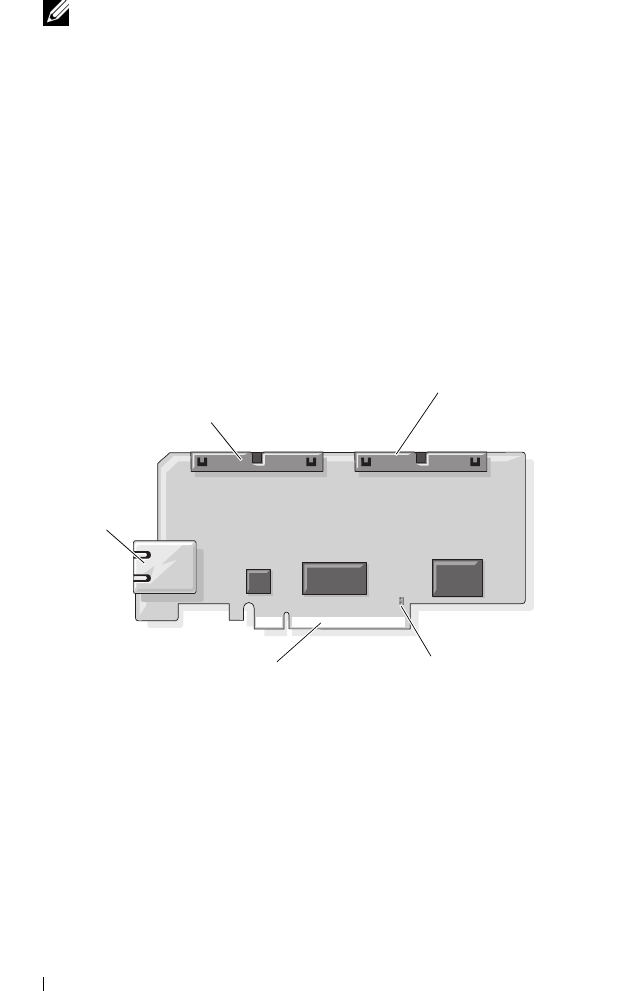
Figure 1-1 shows the DRAC 5 hardware.
Figure 1-1. DRAC 5 Hardware Features
Hardware Specifications
Power Specifications
Table 1-1 lists the power requirements for the DRAC 5.
RJ-45
Connector
50-pin management
cable connector
44-pin MII cable
connector
Jumper Connector
PCIe Connector

DRAC 5 Overview 23
Connectors
NOTE: The DRAC 5 hardware installation instructions can be found in the
Installing
a Remote Access Card
document or the
Installation and Troubleshooting Guide
included with your system.
The DRAC 5 includes one onboard 10/100 Mbps RJ-45 NIC, a 50-pin
management cable, and a 44-pin MII cable. See Figure 1-1 for the DRAC 5
cable connectors.
The 50-pin management cable is the main interface to the DRAC that
provides connectivity to USB, serial, video, and an inter-integrated circuit
(I2C) bus. The 44-pin MII cable connects the DRAC NIC to the system’s
motherboard. The RJ-45 connector connects the DRAC NIC to an out-of-
band connection when the DRAC 5 is configured in Dedicated NIC mode.
Using the management and MII cables, you can configure your DRAC in
three separate modes, depending on your needs. See "DRAC Modes" on
page 225 in "Using the RACADM Command Line Interface" on page 209 for
more information.
DRAC 5 Ports
Table 1-2 identifies the ports used by the DRAC 5 that listen for a server
connection. Table 1-3 identifies the ports that the DRAC 5 uses as a client.
This information is required when opening firewalls for remote access to a
DRAC 5.
Table 1-1. DRAC 5 Power Specifications
System Power
1.2 A on +3.3 V AUX (maximum)
550 mA on +3.3 V main (maximum)
0 mA on +5V main (maximum)
Table 1-2. DRAC 5 Server Listening Ports
Port Number Function
22*
Secure Shell (SSH)
23*
Telnet

24 DRAC 5 Overview
Supported Remote Access Connections
Table 1-4 lists the connection features.
80*
HTTP
161
SNMP Agent
443*
HTTPS
623
RMCP/RMCP+
3668*
Virtual Media server
3669*
Virtual Media Secure Service
5900*
Console Redirection keyboard/mouse
5901*
Console Redirection video
* Configurable port
Table 1-3. DRAC 5 Client Ports
Port Number Function
25
SMTP
53
DNS
68
DHCP-assigned IP address
69
TFTP
162
SNMP trap
636
LDAPS
3269
LDAPS for global catalog (GC)
Table 1-2. DRAC 5 Server Listening Ports
(continued)
Port Number Function

DRAC 5 Overview 25
DRAC 5 Security Features
The DRAC 5 provides the following security features:
• Two-factor authentication, which is provided by the Smart Card logon.
The two-factor authentication is based on what the users have (the Smart
Card) and what they know (the PIN).
• Advanced Security options for the DRAC administrator:
• The Console Redirection disable option allows the
local
system user to
disable console redirection using the DRAC 5 Console Redirection
feature.
• The local configuration disable features allows the
remote
DRAC
administrator to selectively disable the ability to configure the
DRAC 5 from:
– BIOS POST option-ROM
– operating system using the local racadm
– Dell OpenManage™ Server Administrator utilities
Table 1-4. Supported Remote Access Connections
Connection Features
DRAC 5 NIC
• 10/100 Mbps Ethernet
• DHCP support
• SNMP traps and e-mail event notification
• Dedicated network interface for the DRAC 5 Web-based
interface
• Support for telnet/ssh console and RACADM CLI commands
including system boot, reset, power-on, and shutdown
commands
Serial port
• Support for Serial console and RACADM CLI commands
including system boot, reset, power-on, and shutdown
commands
• Support for text-only console redirection to a VT-100 terminal
or terminal emulator

26 DRAC 5 Overview
• User authentication through Microsoft Active Directory (optional) or
hardware-stored user IDs and passwords
• Role-based authority, which enables an administrator to configure specific
privileges for each user
• User ID and password configuration through the Web-based interface or
RACADM CLI
• RACADM CLI and Web-based interface operation, which supports 128-
bit SSL encryption and 40-bit SSL encryption (for countries where 128 bit
is not acceptable)
NOTE: Telnet does not support SSL encryption.
• Session time-out configuration (in seconds) through the Web-based
interface or RACADM CLI
• Configurable IP ports (where applicable)
• Secure Shell (SSH), which uses an encrypted transport layer for higher
security.
• Login failure limits per IP address, with login blocking from the IP address
when the limit is exceeded.
• Limited IP address range for clients connecting to the DRAC 5
Supported Platforms
The DRAC 5 supports the following Dell systems:
• 1900
• 1950
• 2900
• 2950
• 2970
• 6950
•R300
•R600
•T600
• M605

DRAC 5 Overview 27
• R805
• R900
• R905
• T300
• PowerVault™ 500
• PowerVault 600
NOTE: The PowerEdge R805 is scheduled to be available in Q4 CY07–Q1 CY08.
See the Dell Systems Software Support Matrix located on the Dell Support
website at support.dell.com for the latest supported platforms.
Supported Operating Systems
Table 1-5 lists the operating systems that support the DRAC 5.
See the Dell Systems Software Support Matrix located on the Dell Support
website at support.dell.com for the latest information.

28 DRAC 5 Overview
Table 1-5. Supported Operating Systems
Operating System
Family
Operating System
Microsoft
Windows
Microsoft Windows Server™ 2008 Web, Standard, Enterprise,
and Core Edition (x86)
Microsoft Windows Server 2008 Standard, Enterprise,
DataCenter, and Core Edition (x64)
Windows 2000 Advanced Server with Service Pack 4 (SP4)
Windows 2000 Server with SP4
Windows Server 2003 R2 Standard and Enterprise Editions with
SP2 (32-bit)
Windows Server 2003 Web Edition with SP2 (32-bit)
Windows Server 2003 R2 Standard and Enterprise Editions with
SP2 (x86_64)
Windows Server 2003 Standard and Enterprise X64 Editions with
SP1 and SP2
Windows Storage Server 2003 R2 Workgroup, Standard, and
Enterprise x64 Editions (x86_64)
Windows Unified Data Storage Server 2003 Gold Standard and
Enterprise X64 Editions (x86_64)
Windows Vista™
NOTE: When installing Windows Server 2003 with Service Pack 1,
be aware of changes to DCOM security settings. For more
information, see article 903220 from the Microsoft Support website
at support.microsoft.com/kb/903220.

DRAC 5 Overview 29
Supported Web Browsers
NOTICE: Console Redirection and Virtual Media only supports 32-bit Web
browsers. Using 64-bit Web browsers may generate unexpected results or failure of
operations.
Table 1-6 lists the Web browsers that support the DRAC 5.
See the Dell System Software Support Matrix located on the Dell Support
website at support.dell.com for the latest information.
Red Hat® Linux Enterprise Linux® WS, ES, and AS (version 3) (x86 and x86_64)
Enterprise Linux WS, ES, and AS (version 4) (ia32 and x86_64)
Enterprise Linux WS, ES, and AS (version 4) (x86 and x86_64)
Enterprise Linux WS, ES, and AS (Version 4.5) (x86)
Enterprise Linux WS, ES, and AS (Version 4.5) (x86_64)
Enterprise Linux WS and AS (Version 4.5) (ia64)
Enterprise Linux 5 (x86 and x86-64)
NOTE: When using DRAC 5 with Red Hat Enterprise Linux (version 5)
systems, support is limited to a managed node and racadm CLI;
managed console (web-based interface) is not supported.
SUSE® Linux Linux Enterprise Server 9 with SP3 (x86_64)
Linux Enterprise Server 9 with Update 2 and 3 (x86_64)
Linux Enterprise Server 10 (Gold) (x86_64).
Table 1-5. Supported Operating Systems
(continued)
Operating System
Family
Operating System

30 DRAC 5 Overview
Disabling the Whitelist Feature in Mozilla Firefox
Firefox includes a "whitelist" feature that provides additional security. When
the whitelist feature is enabled, the browser requires user permission to install
plug-ins for each distinct site that hosts the plug-in. This process requires
that you install a plug-in for each distinct RAC IP/DNS name, even though
the plug-in versions are identical.
To disable the whitelist feature and avoid repetitive, unnecessary plugin
installations, perform the following steps:
1
Open a Firefox Web browser window.
2
In the address field, type the following and press <Enter>:
about:config
Table 1-6. Supported Web Browsers
Operating System Supported Web Browser
Windows Internet Explorer 6.0 (32-bit) with Service Pack 2
(SP2) for Windows XP and Windows 2003 R2 SP2
only.
Internet Explorer 7.0 for Windows Vista, Windows
XP, and Windows 2003 R2 SP2 only.
To view localized versions of the DRAC 5 Web-based
interface:
1
Open the Windows
Control Panel
.
2
Double-click the
Regional Options
icon.
3
Select the desired locale from the
Your locale
(location)
drop-down menu.
NOTICE: If you are running the Virtual Media
client, you must use Internet Explorer 6.0 with
Service Pack 1 or later.
Linux Mozilla Firefox 1.5 (32-bit) on SUSE Linux (version
10) only.
Mozilla Firefox 2.0 (32-bit).

DRAC 5 Overview 31
3
In the
Preference Name
column, locate and double-click
xpinstall.whitelist.required
.
The values for
Preference Name
,
Status
,
Ty p e
, and
Val ue
change to bold
text. The
Status
value changes to
user set
and the
Value
value changes to
false
.
4
In the
Preferences
Name
column, locate
xpinstall.enabled
.
Ensure that
Value
is
true
. If not, double-click
xpinstall.enabled
to set
Val ue
to
true
.
Features
The DRAC 5 provides the following features:
• Dynamic Domain Name System (DNS) registration
• Remote system management and monitoring using a Web-based interface,
serial connection, remote RACADM, or telnet connection.
• Support for Active Directory authentication — Centralizes all DRAC 5
user ID and passwords in Active Directory using Standard Schema and
Extended Schema.
• Console Redirection — Provides remote system keyboard, video, and
mouse functions.
• Virtual Media — Enables a managed system to access a media drive on the
management station.
• Access to system event logs — Provides access to the system event log
(SEL), DRAC 5 log, and last crash screen of the crashed or unresponsive
system that is independent of the operating system state.
• Dell OpenManage software integration — Enables you to launch the
DRAC5 Web-based interface from Dell OpenManage Server
Administrator or IT Assistant.
• RAC alert — Alerts you to potential managed node issues through e-mail
messages or an SNMP trap using the
Dedicated
,
Shared with Failover
, or
Shared
NIC settings.
• Local and remote configuration — Provides local and remote
configuration using the RACADM command-line utility.

32 DRAC 5 Overview
• Remote power management — Provides remote power management
functions from a management console, such as shutdown and reset.
•IPMI support.
• Secure Sockets Layer (SSL) encryption — Provides secure remote system
management through the Web-based interface.
• Password-level security management — Prevents unauthorized access to a
remote system.
• Role-based authority — Provides assignable permissions for different
systems management tasks.
Other Documents You May Need
In addition to this User’s Guide, the following documents provide additional
information about the setup and operation of the DRAC 5 in your system:
• DRAC 5 online help provides information about using the Web-based
interface.
•The
Dell OpenManage™ IT Assistant User’s Guide
and the
Dell
OpenManage IT Assistant Reference Guide
provide information about IT
Assistant.
•The
Dell OpenManage Server Administrator’s User’s Guide
provides
information about installing and using Server Administrator.
•The
Dell OpenManage Server Administrator SNMP Reference Guide
documents the Server Administrator SNMP management information
base (MIB). The MIB defines variables that extend the standard MIB to
cover the capabilities of systems management agents.
•The
Dell OpenManage Baseboard Management Controller Utilities User’s
Guide
provides information about configuring the Baseboard Management
Controller (BMC), configuring your managed system using the BMC
Management Utility, and additional BMC information.
•The
Dell Update Packages User's Guide
provides information about obtaining
and using Dell Update Packages as part of your system update strategy.
•The
Dell Systems Software Support Matrix
provides information about the
various Dell systems, the operating systems supported by these systems,
and the Dell OpenManage components that can be installed on these
systems.

DRAC 5 Overview 33
The following system documents are also available to provide more
information about the system in which your DRAC 5 is installed:
•The
Product Information Guide
provides important safety and regulatory
information. Warranty information may be included within this document
or as a separate document.
•The
Rack Installation Guide
and
Rack Installation Instructions
included
with your rack solution describes how to install your system into a rack.
•The
Getting Started Guide
provides an overview of system features, setting
up your system, and technical specifications.
•The
Hardware Owner’s Manual
provides information about system
features and describes how to troubleshoot the system and install or
replace system components.
• Systems management software documentation describes the features,
requirements, installation, and basic operation of the software.
• Operating system documentation describes how to install (if necessary),
configure, and use the operating system software.
• Documentation for any components you purchased separately provides
information to configure and install these options.
• Updates are sometimes included with the system to describe changes to
the system, software, and/or documentation.
NOTE: Always read the updates first because they often supersede
information in other documents.
• Release notes or readme files may be included to provide last-minute
updates to the system or documentation or advanced technical reference
material intended for experienced users or technicians.

34 DRAC 5 Overview

Installing and Setting Up the DRAC 5 35
2
Installing and Setting Up the
DRAC 5
This section provides information about how to install and setup your DRAC
5 hardware and software.
Before You Begin
Gather the following items that were included with your system prior to
installing and configuring the DRAC 5 software:
• DRAC 5 hardware (currently installed or in the optional kit)
• DRAC 5 installation procedures (located in this chapter)
•
Dell Systems Console and Agent
CD
•
Dell Systems Documentation
CD
•
Dell Systems Service and Diagnostic Tools
CD
Installing the DRAC 5 Hardware
NOTE: The DRAC 5 connection emulates a USB keyboard connection. As a result,
when you restart the system, the system will not notify you if your keyboard is not
attached.
The DRAC 5 may be preinstalled on your system, or available separately in a
kit. To get started with the DRAC 5 that is installed on your system, see
"Software Installation and Configuration Overview" on page 37.
If a DRAC 5 is not installed on your system, see the Installing a Remote Access
Card document that is included with your DRAC 5 kit, or see your platform
Installation and Troubleshooting Guide for hardware installation instructions.
NOTE: See the
Installation and Troubleshooting Guide
included with your system
for information about removing the DRAC 5. Also, review all Microsoft® Active
Directory® RAC properties associated with the removed DRAC 5 to ensure proper
security if you are using extended schema.

36 Installing and Setting Up the DRAC 5
Configuring Your System to Use a DRAC 5
To configure your system to use a DRAC 5, use the Dell™ Remote Access
Configuration Utility (formerly known as the BMC Setup Module).
To run the Dell Remote Access Configuration Utility, perform the following steps:
1
Turn on or restart your system.
2
Press <Ctrl><E> when prompted during POST.
If your operating system begins to load before you press <Ctrl><E>, allow
the system to finish booting, and then restart your system and try again.
3
Configure the NIC.
a
Using the down-arrow key, highlight
NIC Selection
.
b
Using the left-arrow and right-arrow keys, select one of the following
NIC selections:
•
Dedicated
— Select this option to enable the remote access
device to utilize the dedicated network interface available on the
Remote Access Controller (RAC). This interface is not shared
with the host operating system and routes the management traffic
to a separate physical network, enabling it to be separated from
the application traffic. This option is available only if a DRAC
card is installed in the system.
•
Shared
— Select this option to share the network interface with the
host operating system. The remote access device network interface
is fully functional when the host operating system is configured for
NIC teaming. The remote access device receives data through NIC
1 and NIC 2, but transmits data only through NIC 1. If NIC 1 fails,
the remote access device will not be accessible.
•
Failover
— Select this option to share the network interface with
the host operating system. The remote access device network
interface is fully functional when the host operating system is
configured for NIC teaming. The remote access device receives
data through NIC 1 and NIC 2, but transmits data only through
NIC 1. If NIC 1 fails, the remote access device fails over to NIC 2
for all data transmission. The remote access device continues to
use NIC 2 for data transmission. If NIC 2 fails, the remote access
device fails over all data transmission back to NIC 1.

Installing and Setting Up the DRAC 5 37
4
Configure the network controller LAN parameters to use DHCP or a
Static IP address source.
a
Using the down-arrow key, select
LAN Parameters
, and press <Enter>.
b
Using the up-arrow and down-arrow keys, select
IP Address Source
.
c
Using the right-arrow and left-arrow keys, select
DHCP
or
Static
.
d
If you selected
Static
, configure the
Ethernet IP Address
,
Subnet
Mask
, and
Default Gateway
settings.
e
Press <Esc>.
5
Press <Esc>.
6
Select
Save Changes and Exit
.
The system automatically reboots.
NOTE: When viewing the Web user interface on a Dell PowerEdge™ 1900 system
that is configured with one NIC, the NIC Configuration page displays two NICs (NIC1
and NIC2). This behavior is normal. The PowerEdge 1900 system (and other Dell
systems that are configured with a single LAN On Motherboard) can be configured
with NIC teaming. Shared and Teamed modes work independently on these systems.
See the Dell OpenManage Baseboard Management Controller Utilities User’s
Guide for more information about the Dell Remote Access Configuration Utility.
Software Installation and Configuration Overview
This section provides a high-level overview of the DRAC 5 software
installation and configuration process. Configure your DRAC 5 using the
Web-based interface, RACADM CLI, or Serial/Telnet/SSH console.
For more information about the DRAC 5 software components, see
"Installing the Software on the Managed System" on page 38.
Installing Your DRAC 5 Software
To install your DRAC 5 software, perform the following steps in order:
1
Install the software on the managed system. See "Installing the Software
on the Managed System" on page 38.
2
Install the software on the management station. See "Installing the
Software on the Management Station" on page 40.

38 Installing and Setting Up the DRAC 5
Configuring Your DRAC 5
To configure your DRAC 5, perform the following steps in order:
1
Select one of the following configuration tools:
• Web-based interface
•RACADM CLI
• Serial/Telnet/SSH console
NOTICE: Using more than one DRAC 5 configuration tool at the same time may
generate unexpected results.
2
Configure the DRAC 5 network settings. See "Configuring the DRAC 5
Network Settings" on page 45.
3
Add and configure DRAC 5 users. See "Adding and Configuring DRAC 5
Users" on page 46.
4
Configure the Web browser to access the Web-based interface. See
"Configuring a Supported Web Browser" on page 42.
5
Disable the Windows
®
Automatic Reboot Option. See "Disabling the
Windows Automatic Reboot Option" on page 39.
6
Update the DRAC 5 Firmware. See "Updating the DRAC 5 Firmware" on
page 46.
7
Access the DRAC 5 through a network. See "Accessing the DRAC 5
Through a Network" on page 48.
Installing the Software on the Managed System
Installing software on the managed system is optional. Without managed
system software, you lose the ability to use the RACADM locally, and for the
RAC to capture the last crash screen.
To install the managed system software, install the software on the managed
system using the
Dell Systems Console and Agent
CD
. For instructions about
how to install this software, see your Quick Installation Guide.
Managed system software installs your choices from the appropriate version
of Server Administrator on the managed system.
NOTE: Do not install the DRAC 5 management station software and the DRAC 5
managed system software on the same system.

Installing and Setting Up the DRAC 5 39
If Server Administrator is not installed on the managed system, you cannot
view the system’s last crash screen or use the Auto Recovery feature.
For more information about the last crash screen, see "Viewing the Last
System Crash Screen" on page 132.
Configuring the Managed System to Capture the Last Crash Screen
Before the DRAC 5 can capture the last crash screen, you must configure the
managed system with the following prerequisites.
1
Install the managed system software. For more information about installing
the managed system software, see the
Server Administrator User's Guide
.
2
Run a supported Microsoft
®
Windows
®
operating system with the
Windows "automatically reboot" feature deselected in the
Windows
Startup and Recovery Settings
.
3
Enable the Last Crash Screen (disabled by default).
To enable using local RACADM, open a command prompt and type the
following commands:
racadm config -g cfgRacTuning -o
cfgRacTuneAsrEnable 1
4
Enable the Auto Recovery timer and set the
Auto Recovery
action to
Reset
,
Power Off
, or
Power Cycle
. To configure the
Auto Recovery
timer,
you must use Server Administrator or IT Assistant.
For information about how to configure the
Auto Recovery
timer, see the
Server Administrator User's Guide
. To ensure that the last crash screen can
be captured, the
Auto Recovery
timer must be set to 60 seconds or greater.
The default setting is 480 seconds.
The last crash screen is not available when the
Auto Recovery
action is set
to
Shutdown
or
Power Cycle
if the managed system is powered off.
Disabling the Windows Automatic Reboot Option
To ensure that the DRAC 5 Web-based interface last crash screen feature
works properly, disable the Automatic Reboot option on managed systems
running the Microsoft Windows Server 2003 and Windows 2000 Server
operating systems.

40 Installing and Setting Up the DRAC 5
Disabling the Automatic Reboot Option in Windows Server 2003
1
Open the Windows
Control Panel
and double-click the
System
icon.
2
Click the
Advanced
tab.
3
Under
Startup and Recovery
, click
Settings
.
4
Deselect the
Automatically Reboot
check box.
5
Click
OK
twice.
Disabling the Automatic Reboot Option in Windows 2000 Server
1
Open the Windows
Control Panel
and double-click the
System
icon.
2
Click the
Advanced
tab.
3
Click the
Startup and Recovery...
button.
4
Deselect the
Automatically Reboot
check box.
Installing the Software on the Management
Station
Your system includes the Dell OpenManage System Management Software Kit.
This kit includes, but is not limited to, the following components:
•
Dell Systems Build and Update Utility
CD — A bootable CD that provides
the tools you need to install your operating system, configure and update
your system. The CD enables you to streamline Dell system deployment
and redeployment.
•
Dell Systems Console and Agent
CD — Contains all the latest Dell systems
management software products such as Dell OpenManage Server
Administrator and console products including Dell OpenManage IT Assistant.
•
Dell Systems Service and Diagnostics Tools
CD — Provides the tools you
need to configure your system and delivers the latest BIOS, firmware,
diagnostics, and Dell-optimized drivers for your system.
•
Dell Systems Documentation
CD — Helps you stay current with
documentation for systems, systems management software products,
peripherals, and RAID controllers.
NOTE: Starting with Dell OpenManage version 5.3, you can also obtain all the
above components from the
Dell Systems Management Tools and Documentation
DVD and the
Dell Server Updates
DVD.

Installing and Setting Up the DRAC 5 41
For information about installing Server Administrator software, see your
Server Administrator User's Guide.
Configuring Your Red Hat Enterprise Linux (Version 4)
Management Station
The Dell Digital KVM Viewer requires additional configuration to run on a
Red Hat Enterprise Linux (version 4) management station. When you install
the Red Hat Enterprise Linux (version 4) operating system on your
management station, perform the following procedures:
• When prompted to add or remove packages, install the optional
Legacy
Software Development
software. This software package includes the
necessary software components to run the Dell Digital KVM viewer on
your management station.
• To ensure that the Dell Digital KVM Viewer functions properly, open the
following ports on your firewall:
– Keyboard and mouse port (default is port 5900)
– Video port (default is port 5901)
Installing and Removing RACADM on a Linux Management Station
To use the remote RACADM functions, install RACADM on a management
station running Linux.
NOTE: When you run Setup on the
Dell Systems Console and Agent
CD, the
RACADM utility for all supported operating systems are installed on your
management station.
Installing RACADM
1
Log on as root to the system where you want to install the management
station components.
2
If necessary, mount the
Dell Systems Console and Agent CD
using the
following command or a similar command:
mount /media/cdrom
3
Navigate to the
/linux/rac
directory and execute the following command:
rpm -ivh *.rpm

42 Installing and Setting Up the DRAC 5
For help with the RACADM command, type racadm help after issuing the
previous commands. For more information about RACADM, see "Using the
RACADM Command Line Interface" on page 209.
Uninstalling RACADM
To uninstall RACADM, open a command prompt and type:
rpm -e <racadm_package_name>
where <racadm_package_name> is the rpm package that was used to
install the RAC software.
For example, if the rpm package name is srvadmin-racadm5, then type:
rpm -e srvadmin-racadm5
Configuring a Supported Web Browser
The following sections provide instructions for configuring the supported
Web browsers. For a list of supported Web browsers, see "Supported Web
Browsers" on page 29.
Configuring Your Web Browser to Connect to the Web-Based Interface
If you are connecting to the DRAC 5 Web-based interface from a
management station that connects to the Internet through a proxy server, you
must configure the Web browser to access the Internet from this server.
To configure your Internet Explorer Web browser to access a proxy server,
perform the following steps:
1
Open a Web browser window.
2
Click
Tools
, and click
Internet Options
.
3
From the
Internet Options
window, click the
Connections
tab.
4
Under
Local Area Network (LAN) settings
, click
LAN Settings
.
5
If the
Use a proxy server
box is selected, select the
Bypass proxy server for
local addresses
box.
6
Click
OK
twice.

Installing and Setting Up the DRAC 5 43
List of Trusted Domains
When you access the DRAC 5 Web-based interface through the Web
browser, you are prompted to add the DRAC 5 IP address to the list of trusted
domains if the IP address is missing from the list. When completed, click
Refresh or relaunch the Web browser to reestablish a connection to the
DRAC 5 Web-based interface.
32-bit and 64-bit Web Browsers
The DRAC 5 Web-based interface is not supported on 64-bit Web browsers.
If you open a 64-bit Browser, access the Console Redirection page, and
attempt to install the plug-in, the installation procedure fails. If this error was
not acknowledged and you repeat this procedure, the Console Redirect Page
loads even though the plug-in installation fails during your first attempt. This
issue occurs because the Web browser stores the plug-in information in the
profile directory even though the plug-in installation procedure failed. To fix
this issue, install and run a supported 32-bit Web browser and log in to the
DRAC 5.
Viewing Localized Versions of the Web-Based Interface
Windows
The DRAC 5 Web-based interface is supported on the following Windows
operating system languages:
•English
•French
•German
•Spanish
• Japanese
• Simplified Chinese
To view a localized version of the DRAC 5 Web-based interface in Internet
Explorer, perform the following steps:
1
Click the
Tools
menu and select
Internet Options
.
2
In the
Internet Options
window, click
Languages
.
3
In the
Language Preference
window, click
Add
.

44 Installing and Setting Up the DRAC 5
4
In the
Add Language
window, select a supported language.
To select more than one language, press <Ctrl>.
5
Select your preferred language and click
Move Up
to move the language to
the top of the list.
6
Click
OK
.
7
In the
Language Preference
window, click
OK
.
Linux
If you are running Console Redirection on a Red Hat Enterprise Linux
(version 4) client with a Simplified Chinese GUI, the viewer menu and title
may appear in random characters. This issue is caused by an incorrect
encoding in the Red Hat Enterprise Linux (version 4) Simplified Chinese
operating system. To fix this issue, access and modify the current encoding
settings by performing the following steps:
1
Open a command terminal.
2
Type “locale” and press <Enter>. The following output appears.
LANG=zh_CN.UTF-8
LC_CTYPE="zh_CN.UTF-8"
LC_NUMERIC="zh_CN.UTF-8"
LC_TIME="zh_CN.UTF-8"
LC_COLLATE="zh_CN.UTF-8"
LC_MONETARY="zh_CN.UTF-8"
LC_MESSAGES="zh_CN.UTF-8"
LC_PAPER="zh_CN.UTF-8"
LC_NAME="zh_CN.UTF-8"
LC_ADDRESS="zh_CN.UTF-8"
LC_TELEPHONE="zh_CN.UTF-8"
LC_MEASUREMENT="zh_CN.UTF-8"
LC_IDENTIFICATION="zh_CN.UTF-8"
LC_ALL=
3
If the values include “zh_CN.UTF-8”, no changes are required. If the
values do not include “zh_CN.UTF-8”, go to step 4.
4
Navigate to the /etc/sysconfig/i18n file.

Installing and Setting Up the DRAC 5 45
5
In the file, apply the following changes:
Current entry:
LANG="zh_CN.GB18030"
SUPPORTED="zh_CN.GB18030:zh_CH.GB2312:zh_CN:zh"
Updated entry:
LANG="zh_CN.UTF-8"
SUPPORTED="zh_CN.UTF-
8:zh_CN.GB18030:zh_CH.GB2312:zh_CN:zh"
6
Log out and then login to the operating system.
7
Relaunch the DRAC 5.
When you switch from any other language to the Simplified Chinese
language, ensure that this fix is still valid. If not, repeat this procedure.
Configuring DRAC 5 Properties
Configure the DRAC 5 properties (network, users, alerts, etc.) using the
Web-based interface or RACADM.
For more information about using the Web-based interface, see "Accessing
the Web-Based Interface" on page 91. For more information about using
RACADM in a serial or telnet connection, see "Using the RACADM
Command Line Interface" on page 209.
Configuring the DRAC 5 Network Settings
NOTICE: Changing your DRAC 5 Network settings may disconnect your current
network connection.
Configure the DRAC 5 network settings using one of the following tools:
• Web-based Interface — See "Configuring the DRAC 5 NIC" on page 93
• RACADM CLI — See "cfgLanNetworking" on page 295
•
Dell Remote Access Configuration Utility — See
"Configuring Your
System to Use a DRAC 5" on page 36
NOTE: If you are deploying the DRAC 5 in a Linux environment, see "Installing
RACADM" on page 41.

46 Installing and Setting Up the DRAC 5
Adding and Configuring DRAC 5 Users
Use one of the following tools to add and configure DRAC 5 users:
• Web-based interface — See "Adding and Configuring DRAC 5 Users" on
page 98.
• RACADM CLI — See "cfgUserAdmin" on page 305.
Updating the DRAC 5 Firmware
Use one of the following methods to update your DRAC 5 firmware.
• Web-based Interface — See "Updating the DRAC 5 Firmware Using the
Web-Based Interface" on page 47.
• RACADM CLI — See "fwupdate" on page 253.
• Dell Update Packages — See the
Dell Update Packages User's Guide
for
information about obtaining and using Dell Update Packages as part of
your system update strategy
Before You Begin
Before you update your DRAC 5 firmware using local RACADM or the Dell
Update Packages, perform the following procedures. Otherwise, the firmware
update operation may encounter a failure.
1
Install and enable the appropriate IPMI and managed node drivers.
2
If your system is running the Windows operating system, enable and start
the
Windows Management Instrumentation
(WMI) services.
3
If your system is running SUSE Linux Enterprise Server (Version 10) for
Intel EM64T, start the
Raw
service.
4
Ensure that the RAC virtual flash is unmounted or not in use by the
operating system or another application or user.
5
Disconnect and unmount Virtual Media.
6
Ensure that USB is enabled.

Installing and Setting Up the DRAC 5 47
Downloading the DRAC 5 Firmware
To update your DRAC 5 firmware, download the latest firmware from the
Dell Support website located at support.dell.com and save the file to your
local system.
The following software components are included with your DRAC 5 firmware
package:
• Compiled DRAC 5 firmware code and data
• Expansion ROM image
• Web-based interface, JPEG, and other user interface data files
• Default configuration files
Use the Firmware Update page to update the DRAC 5 firmware to the latest
revision. When you run the firmware update, the update retains the current
DRAC 5 settings.
Updating the DRAC 5 Firmware Using the Web-Based Interface
1
Open the Web-based interface and login to the remote system.
See "Accessing the Web-Based Interface" on page 91.
2
In the
System
tree, click
Remote Access
and click the
Update
tab.
3
In the
Firmware Update
page in the
Firmware Image
field, type the path
to the firmware image that you downloaded from
support.dell.com
or click
Browse
to navigate to the image.
NOTE: If you are running Firefox, the text cursor does not appear in the
Firmware Image field.
For example:
C:\Updates\V1.0\<
image_name
>
.
The default firmware image name is
firmimg.d5
.
4
Click
Update
.
The update may take several minutes to complete. When completed, a
dialog box appears.
5
Click
OK
to close the session and automatically log out.
6
After the DRAC 5 resets, click
Log In
to log in to the DRAC 5.

48 Installing and Setting Up the DRAC 5
Clearing the Browser Cache
After the firmware upgrade, clear the Web browser cache.
See your Web browser’s online help for more information.
Accessing the DRAC 5 Through a Network
After you configure the DRAC 5, you can remotely access the managed
system using one of the following interfaces:
• Web-based interface
•RACADM
•Telnet Console
• SSH
•IPMI
Table 2-1 describes each DRAC 5 interface.
Table 2-1. DRAC 5 Interfaces
Interface Description
Web-based interface Provides remote access to the DRAC 5 using a graphical
user interface. The Web-based interface is built into
the DRAC 5 firmware and is accessed through the NIC
interface from a supported Web browser on the
management station.
For a list of supported Web browsers, see "Supported
Web Browsers" on page 29.

Installing and Setting Up the DRAC 5 49
NOTE: The DRAC 5 default user name is root and the default password is
calvin.
RACADM Provides remote access to the DRAC 5 using a
command line interface. RACADM uses the managed
system’s IP address to execute RACADM commands
(racadm remote capability option [-r]).
NOTE: The racadm remote capability is supported only on
management stations. For more information, see
"Supported Web Browsers" on page 29.
NOTE: When using the racadm remote capability, you
must have write permission on the folders where you are
using the racadm subcommands involving file operations,
for example:
racadm getconfig -f <file name>
or:
racadm sslcertupload -t 1 -f
c:\cert\cert.txt subcommands
Telnet Console Provides access through the DRAC 5 to the server RAC
port and hardware management interfaces through the
DRAC 5 NIC and provides support for serial and
RACADM commands including powerdown, powerup,
powercycle, and hardreset commands.
NOTE: Telnet is an unsecure protocol that transmits all
data—including passwords—in plain text. When
transmitting sensitive information, use the SSH interface.
SSH Interface Provides the same capabilities as the telnet console
using an encrypted transport layer for higher security.
IPMI Interface Provides access through the DRAC 5 to the remote
system’s basic management features. The interface
includes IPMI over LAN, IPMI over Serial, and Serial
over LAN. See the Dell OpenManage Baseboard
Management Controller User’s Guide for more
information.
Table 2-1. DRAC 5 Interfaces
(continued)
Interface Description

50 Installing and Setting Up the DRAC 5
You can access the DRAC 5 Web-based interface through the DRAC 5 NIC
by using a supported Web browser, or through Server Administrator or
IT Assistant.
See "Supported Web Browsers" on page 29 for a list of supported Web
browsers.
To access the DRAC 5 using a supported Web browser, see "Accessing the
Web-Based Interface" on page 91.
To access the DRAC 5 remote access interface using Server Administrator,
launch Server Administrator. From the system tree on the left pane of the
Server Administrator home page, click System→ Main System Chassis→
Remote Access Controller. For more information, see your Server
Administrator User’s Guide.
For information about accessing the DRAC 5 using RACADM, see "Using the
RACADM Command Line Interface" on page 209.
Configuring IPMI
This section provides information about configuring and using the DRAC 5
IPMI interface. The interface includes the following:
• IPMI over LAN
• IPMI over Serial
• Serial over LAN
The DRAC5 is fully IPMI 2.0 compliant. You can configure the DRAC IPMI
using your browser; using an open source utility, such as ipmitool; using the
Dell OpenManage IPMI shell, ipmish; or using RACADM.
For more information about using the IPMI Shell, ipmish, see the Dell
OpenManage™ BMC User's Guide located on the Dell Support website at
support.dell.com.
For more information about using RACADM, see "Using RACADM" on
page 210.

Installing and Setting Up the DRAC 5 51
Configuring IPMI Using the Web-Based Interface
1
Login to the remote system using a supported Web browser.
See "Accessing the Web-Based Interface" on page 91.
2
Configure IPMI over LAN.
a
In the
System
tree, click
Remote Access
.
b
Click the
Configuration
tab and click
Network
.
c
In the
Network Configuration
page under
IPMI LAN Settings
, select
Enable IPMI Over LAN
and click
Apply Changes
.
d
Update the IPMI LAN channel privileges, if required.
NOTE: This setting determines the IPMI commands that can be executed
from the IPMI over LAN interface. For more information, see the IPMI 2.0
specifications.
Under
IPMI LAN Settings
, click the
Channel Privilege Level Limit
drop-down menu, select
Administrator
,
Operator
, or
User
and click
Apply Changes
.
e
Set the IPMI LAN channel encryption key, if required.
NOTE: The DRAC 5 IPMI supports the RMCP+ protocol.
Under
IPMI LAN Settings
in the
Encryption Key field
, type the
encryption key and click
Apply Changes
.
NOTE: The encryption key must consist of an even number of hexadecimal
characters with a maximum of 40 characters.
3
Configure IPMI Serial over LAN (SOL).
a
In the
System
tree, click
Remote Access
.
b
In the
Configuration
tab, click
Serial Over LAN
.
c
In the
Serial Over LAN Configuration
page, select
Enable Serial
Over LAN
.
d
Update the IPMI SOL baud rate.
NOTE: To redirect the serial console over LAN, ensure that the SOL baud rate
is identical to your managed system’s baud rate.
e
Click the
Baud Rate
drop-down menu, select the appropriate baud
rate, and click
Apply Changes
.

52 Installing and Setting Up the DRAC 5
f
Update the
Minimum Required Privilege
. This property defines the
minimum user privilege that is required to use the
Serial Over LAN
feature.
Click the
Channel Privilege Level Limit
drop-down menu, select
User
,
Operator
, or
Administrator
.
g
Click
Apply Changes
.
4
Configure IPMI Serial.
a
In the
Configuration
tab, click
Serial
.
b
In the
Serial Configuration
menu, change the IPMI serial connection
mode to the appropriate setting.
Under
IPMI Serial
, click the
Connection Mode Setting
drop-down
menu, select the appropriate mode.
c
Set the IPMI Serial baud rate.
Click the
Baud Rate
drop-down menu, select the appropriate baud
rate, and click
Apply Changes
.
d
Set the Channel Privilege Level Limit.
Click the
Channel Privilege Level Limit
drop-down menu, select
Administrator
,
Operator
, or
User
.
e
Click
Apply Changes
.
f
Ensure that the serial MUX is set correctly in the managed system’s
BIOS Setup program.
• Restart your system.
• During POST, press <F2> to enter the BIOS Setup program.
•Navigate to
Serial Communication
.
•In the
Serial Connection
menu, ensure that
External Serial
Connector
is set to
Remote Access Device
.
• Save and exit the BIOS Setup program.
• Restart your system.

Installing and Setting Up the DRAC 5 53
If IPMI serial is in terminal mode, you can configure the following
additional settings:
• Delete control
• Echo control
• Line edit
• New line sequences
• Input new line sequences
For more information about these properties, see the IPMI 2.0
specification.
Configuring IPMI Using the RACADM CLI
1
Login to the remote system using any of the RACADM interfaces. See
"Using RACADM" on page 210.
2
Configure IPMI over LAN.
Open a command prompt, type the following command, and press
<Enter>:
racadm config -g cfgIpmiLan -o cfgIpmiLanEnable 1
NOTE: This setting determines the IPMI commands that can be executed from the
IPMI over LAN interface. For more information, see the IPMI 2.0 specifications.
a
Update the IPMI channel privileges.
At the command prompt, type the following command and press
<Enter>:
racadm config -g cfgIpmiLan -o
cfgIpmiLanPrivilegeLimit
<level>
where
<level>
is one of the following:
•
2
(User)
•
3
(Operator)
•
4
(Administrator)

54 Installing and Setting Up the DRAC 5
For example, to set the IPMI LAN channel privilege to 2 (User), type
the following command:
racadm config -g cfgIpmiLan -o
cfgIpmiLanPrivilegeLimit 2
b
Set the IPMI LAN channel encryption key, if required.
NOTE: The DRAC 5 IPMI supports the RMCP+ protocol. See the IPMI 2.0
specifications for more information.
At the command prompt, type the following command and press
<Enter>:
racadm config -g cfgIpmiLan -o
cfgIpmiEncryptionKey
<key>
where
<key>
is a 20-character encryption key in a valid hexadecimal
format.
3
Configure IPMI Serial over LAN (SOL).
At the command prompt, type the following command and press <Enter>:
racadm config -g cfgIpmiSol -o cfgIpmiSolEnable 1
a
Update the IPMI SOL minimum privilege level.
NOTICE: The IPMI SOL minimum privilege level determines the minimum
privilege required to activate IPMI SOL. For more information, see the IPMI 2.0
specification.
At the command prompt, type the following command and press
<Enter>:
racadm config -g cfgIpmiSol -o
cfgIpmiSolMinPrivilege
<level>
where
<level>
is one of the following:
•
2
(User)
•
3
(Operator)
•
4
(Administrator)

Installing and Setting Up the DRAC 5 55
For example, to configure the IPMI privileges to 2 (User), type the
following command:
racadm config -g cfgIpmiSol -o
cfgIpmiSolMinPrivilege 2
b
Update the IPMI SOL baud rate.
NOTE: To redirect the serial console over LAN, ensure that the SOL baud rate
is identical to your managed system’s baud rate.
At the command prompt, type the following command and press
<Enter>:
racadm config -g cfgIpmiSol -o
cfgIpmiSolBaudRate
<baud_rate>
where
<baud_rate>
is 9600, 19200, 57600, or 115200 bps.
For example:
racadm config -g cfgIpmiSol -o
cfgIpmiSolBaudRate 57600
c
Enable SOL.
NOTE: SOL can be enabled or disabled for each individual user.
At the command prompt, type the following command and press
<Enter>:
racadm config -g cfgUserAdmin -o
cfgUserAdminSolEnable -i
<id>
2
where
<id>
is the user’s unique ID.
4
Configure IPMI Serial.
a
Change the IPMI serial connection mode to the appropriate setting.
At the command prompt, type the following command and press
<Enter>:
racadm config -g cfgSerial -o
cfgSerialConsoleEnable 0
b
Set the IPMI Serial baud rate.

56 Installing and Setting Up the DRAC 5
Open a command prompt, type the following command, and press
<Enter>:
racadm config -g cfgIpmiSerial -o
cfgIpmiSerialBaudRate
<baud_rate>
where
<baud_rate>
is 9600, 19200, 57600, or 115200 bps.
For example:
racadm config -g cfgIpmiSerial -o
cfgIpmiSerialBaudRate 57600
c
Enable the IPMI serial hardware flow control.
At the command prompt, type the following command and press
<Enter>:
racadm config -g cfgIpmiSerial -o
cfgIpmiSerialFlowControl 1
d
Set the IPMI serial channel minimum privilege level.
At the command prompt, type the following command and press
<Enter>:
racadm config -g cfgIpmiSerial -o
cfgIpmiSerialChanPrivLimit
<level>
where
<level>
is one of the following:
•
2
(User)
•
3
(Operator)
•
4
(Administrator)
For example, to set the IPMI serial channel privileges to 2 (User), type
the following command:
racadm config -g cfgIpmiSerial -o
cfgIpmiSerialChanPrivLimit 2

Installing and Setting Up the DRAC 5 57
e
Ensure that the serial MUX is set correctly in the BIOS Setup
program.
• Restart your system.
• During POST, press <F2> to enter the BIOS Setup program.
• Navigate to
Serial Communication
.
•In the
Serial Connection
menu, ensure that
External Serial
Connector
is set to
Remote Access Device
.
• Save and exit the BIOS Setup program.
• Restart your system.
The IPMI configuration is complete.
If IPMI serial is in terminal mode, you can configure the following
additional settings using
racadm config cfgIpmiSerial
commands:
• Delete control
•Echo control
• Line edit
• New line sequences
• Input new line sequences
For more information about these properties, see the IPMI 2.0
specification.
Configuring Platform Events
Platform event configuration provides a mechanism for configuring the
remote access device to perform selected actions on certain event messages.
These actions include reboot, power cycle, power off, and triggering an alert
(Platform Events Trap [PET] and/or e-mail).
The filterable Platform Events include the following:
•Fan Probe Failure
• Battery Probe Warning
• Battery Probe Failure
• Discrete Voltage Probe Failure
• Temperature Probe Warning

58 Installing and Setting Up the DRAC 5
• Temperature Probe Failure
• Chassis Intrusion Detected
• Redundancy Degraded
•Redundancy Lost
•Processor Warning
• Processor Failure
• Processor Absent
• PS/VRM/D2D Warning
• PS/VRM/D2D Failure
• Power Supply Absent
•Hardware Log Failure
• Automatic System Recovery
When a platform event occurs (for example, a fan probe failure), a system
event is generated and recorded in the System Event Log (SEL). If this event
matches a platform event filter (PEF) in the Platform Event Filters list in the
Web-based interface and you have configured this filter to generate an alert
(PET or e-mail), then a PET or e-mail alert is sent to a set of one or more
configured destinations.
If the same platform event filter is also configured to perform an action
(such as rebooting the system), the action is performed.
Configuring Platform Event Filters (PEF)
Configure your platform event filters before you configure the platform event
traps or e-mail alert settings.
Configuring PEF Using the Web User Interface
1
Login to the remote system using a supported Web browser. See
"Accessing the Web-Based Interface" on page 91.
2
Click the
Alert Management
tab and then click
Platform Events
.
3
Enable global alerts.
a
Click
Alert Management
and select
Platform Events
.
b
Select the
Enable Platform Event Filter Alert
checkbox.

Installing and Setting Up the DRAC 5 59
4
Under
Platform Events Filters Configuration
, select the
Enable Platform
Event Filter alerts
check box and then click
Apply Changes
.
5
Under
Platform Event Filters List
, double-click a filter that you wish to
configure.
6
In the
Set Platform Events
page, make the appropriate selections and then
click
Apply Changes
.
NOTE: Generate Alert must be enabled for an alert to be sent to any valid,
configured destination (PET or e-mail).
Configuring PEF Using the RACADM CLI
1
Enable PEF.
Open a command prompt, type the following command, and press <Enter>:
racadm config -g cfgIpmiPef -o cfgIpmiPefEnable -i
1 1
where
1
and
1
are the PEF index and the enable/disable selection, respectively.
The PEF index can be a value from 1 through 17. The enable/disable
selection can be set to 1 (Enabled) or 0 (Disabled).
For example, to enable PEF with index 5, type the following command:
racadm config -g cfgIpmiPef -o cfgIpmiPefEnable -i
5 1
2
Configure your PEF actions.
At the command prompt, type the following command and press <Enter>:
racadm config -g cfgIpmiPef -o cfgIpmiPefAction -i
1 <action>
where the
<action>
values bits are as follows:
•
<action>
value bit 0 – 1 = enable alert action, 0 = disable alert
•
<action>
value bit 1 – 1 = power off; 0 = no power off
•
<action>
value bit 2 – 1 = reboot; 0 = no reboot
•
<action>
value bit 3 – 1 = power cycle; 0 = no power cycle

60 Installing and Setting Up the DRAC 5
For example, to enable PEF to reboot the system, type the following
command:
racadm config -g cfgIpmiPef -o cfgIpmiPefAction -i
1 2
where
1
is the PEF index and 2 is the PEF action to reboot.
Configuring PET
Configuring PET Using the Web User Interface
1
Login to the remote system using a supported Web browser. See
"Accessing the Web-Based Interface" on page 91.
2
Ensure that you followed the procedures in "Configuring PEF Using the
Web User Interface" on page 58.
3
Configure your PET policy.
a
In the
Alert Management
tab, click
Traps Settings
.
b
Under
Destination Configuration Settings
, configure the
Community String
field with the appropriate information and then
click
Apply Changes
.
4
Configure your PET destination IP address
a
In the
Destination Number
column, click a destination number.
b
Ensure that the
Enable Destination
checkbox is selected.
c
In the
Destination IP Address
field, type a valid PET destination IP
address.
d
Click
Apply Changes
.
e
Click
Send Test Trap
to test the configured alert (if desired).
NOTE: Your user account must have Test Alerts permission to perform this
procedure. See Table 4-9.
f
Repeat step a through step e for any remaining destination numbers.

Installing and Setting Up the DRAC 5 61
Configuring PET Using RACADM CLI
1
Enable your global alerts.
Open a command prompt, type the following command, and press
<Enter>:
racadm config -g cfgIpmiLan -o
cfgIpmiLanAlertEnable 1
2
Enable PET.
At the command prompt, type the following commands and press
<Enter> after each command:
racadm config -g cfgIpmiPet -o
cfgIpmiPetAlertEnable -i 1 1
where
1
and
1
are the PET destination index and the enable/disable
selection, respectively.
The PET destination index can be a value from 1 through 4. The
enable/disable selection can be set to 1 (Enabled) or 0 (Disabled).
For example, to enable PET with index 4, type the following command:
racadm config -g cfgIpmiPet -o
cfgIpmiPetAlertEnable -i 4 0
3
Configure your PET policy.
At the command prompt, type the following command and press
<Enter>:
racadm config -g cfgIpmiPet -o
cfgIpmiPetAlertDestIPAddr -i 1
<IP_address>
where
1
is the PET destination index and
<IP_address>
is the
destination IP address of the system that receives the platform event alerts.
4
Configure the Community Name string.
At the command prompt, type:
racadm config -g cfgIpmiLan -o
cfgIpmiPetCommunityName
<Name>

62 Installing and Setting Up the DRAC 5
Configuring E-Mail Alerts
Configuring E-mail Alerts Using the Web User Interface
1
Login to the remote system using a supported Web browser. See
"Accessing the Web-Based Interface" on page 91.
2
Ensure that you followed the procedures in "Configuring PEF Using the
Web User Interface" on page 58.
3
Configure your e-mail alert settings.
a
In the
Alert Management
tab, click
Email Alert Settings
.
b
Under
SMTP (Email) Server Address settings
, configure the
SMTP
(Email) Server IP address
field with the appropriate information and
then click
Apply Changes
.
4
Configure your e-mail alert destination.
a
In the
Email Alert Number
column, click an e-mail alert number.
b
Ensure that the
Enable Email Alert
checkbox is selected.
c
In the
Destination Email Address
field, type a valid e-mail address.
d
In the
Email Description
field, enter a description (if required).
e
Click
Apply Changes
.
f
Click
Send Test Email
to test the configured e-mail alert (if desired).
NOTE: Your user account must have Test Alerts permission to perform this
procedure. See Table 4-9.
g
Repeat step a through step e for any remaining e-mail alert settings.
5
Enable global alerts.
a
Click
Alert Management
and select
Platform Events
.
b
Select the
Enable Platform Event Filter Alert
checkbox.

Installing and Setting Up the DRAC 5 63
Configuring E-Mail Alerts Using RACADM CLI
1
Enable your global alerts.
Open a command prompt, type the following command, and press
<Enter>:
racadm config -g cfgIpmiLan -o
cfgIpmiLanAlertEnable 1
2
Enable e-mail alerts.
At the command prompt, type the following commands and press
<Enter> after each command:
racadm config -g cfgEmailAlert -o
cfgEmailAlertEnable -i 1 1
where
1
and
1
are the e-mail destination index and the enable/disable
selection, respectively.
The e-mail destination index can be a value from 1 through 4. The
enable/disable selection can be set to 1 (Enabled) or 0 (Disabled).
For example, to enable e-mail with index 4, type the following command:
racadm config -g cfgEmailAlert -o
cfgEmailAlertEnable -i 4 1
3
Configure your e-mail settings.
At the command prompt, type the following command and press
<Enter>:
racadm config -g
cfgEmailAlert
-o
cfgEmailAlertAddress
-i 1
<e-mail_address>
where
1
is the e-mail destination index and
<e-mail_address>
is the
destination e-mail address that receives the platform event alerts.
To configure a custom message, at the command prompt, type the
following command and press <Enter>:
racadm config -g
cfgEmailAlert
-o
cfgEmailAlertCustomMsg -i 1
<custom_message>
where
1
is the e-mail destination index and
<custom_message>
is the
custom message.

64 Installing and Setting Up the DRAC 5

Configuring and Using the DRAC 5 Command Line Console 65
3
Configuring and Using the DRAC 5
Command Line Console
This section provides information about the DRAC 5 command line console
(or serial/telnet/ssh console) features, and explains how to set up your system
so you can perform systems management actions through the console.
Command Line Console Features
The DRAC 5 supports the following serial and telnet console features:
• One serial client connection and up to four, simultaneous telnet client
connections
• Up to four simultaneous SSH client connections
• Access to the managed system consoles through the system serial port and
through the DRAC 5 NIC
• Console commands that allow you to power-on, power-off, power-cycle,
reset, view logs, or configure the DRAC 5
•Supports the
RACADM
command, which is useful for scripting
• Command-line editing and history
•The
connect com2
serial command to connect, view, and interact with the
managed system text console that is being output through a serial port
(including BIOS and the operating system)
NOTE: If you are running Linux on the managed system, the connect com2
serial command provides a true Linux console stream interface.
• Session timeout control on all console interfaces

66 Configuring and Using the DRAC 5 Command Line Console
Enabling and Configuring the Managed System to
Use a Serial or Telnet Console
The following subsections provide information about how to enable and
configure a serial/telnet/ssh console on the managed system.
Using the connect com2 Serial Command
When using the connect com2 serial command, the following must be
configured properly:
•The
Serial Communication
→
Serial Port
setting in the
BIOS Setup
program.
• The DRAC configuration settings.
When a telnet session is established to the DRAC 5 and these settings are
incorrect, connect com2 may display a blank screen.
Configuring the BIOS Setup Program for a Serial Connection on the
Managed System
Perform the following steps to configure your BIOS Setup program to
redirect output to a serial port.
NOTE: You must configure the System Setup program in conjunction with the
connect com2 command.
1
Turn on or restart your system.
2
Press <F2> immediately after you see the following message:
<F2> = System Setup
3
Scroll down and select
Serial Communication
by pressing <Enter>.
4
Set the
Serial Communication
screen to the following settings:
External Serial Connector
—
Remote Access Device
Redirection After Boot
—
Disabled
5
Press <Esc> to exit the
System Setup
program to complete the
System
Setup
program configuration.

Configuring and Using the DRAC 5 Command Line Console 67
Using the Remote Access Serial Interface
When establishing a serial connection to the RAC device, the following
interfaces are available:
• IPMI serial interface
• RAC serial interface
IPMI Serial Interface
In the IPMI serial interface, the following modes are available:
•
IPMI terminal mode
— Supports ASCII commands that are submitted
from a serial terminal. The command set is limited to a limited number of
commands (including power control) and supports raw IPMI commands
that are entered as hexadecimal ASCII characters.
•
IPMI basic mode
— Supports a binary interface for program access, such
as the IPMI shell (IPMISH) that is included with the Baseboard
Management Utility (BMU).
To configure the IPMI mode using RACADM, perform the following steps:
1
Disable the RAC serial interface.
At the command prompt, type:
racadm config -g cfgSerial -o
cfgSerialConsoleEnable 0
2
Enable the appropriate IPMI mode.
For example, at the command prompt, type:
racadm config -g cfgIpmiSerial -o
cfgIpmiSerialConnectionMode
<
0
or
1
>
See "DRAC 5 Property Database Group and Object Definitions" on page 293
for more information.
RAC Serial Interface
RAC also supports a serial console interface (or RAC Serial Console) that
provides a RAC CLI, which is not defined by IPMI. If your system includes a
RAC card with Serial Console enabled, the RAC card will override the IPMI
serial settings and display the RAC CLI serial interface.
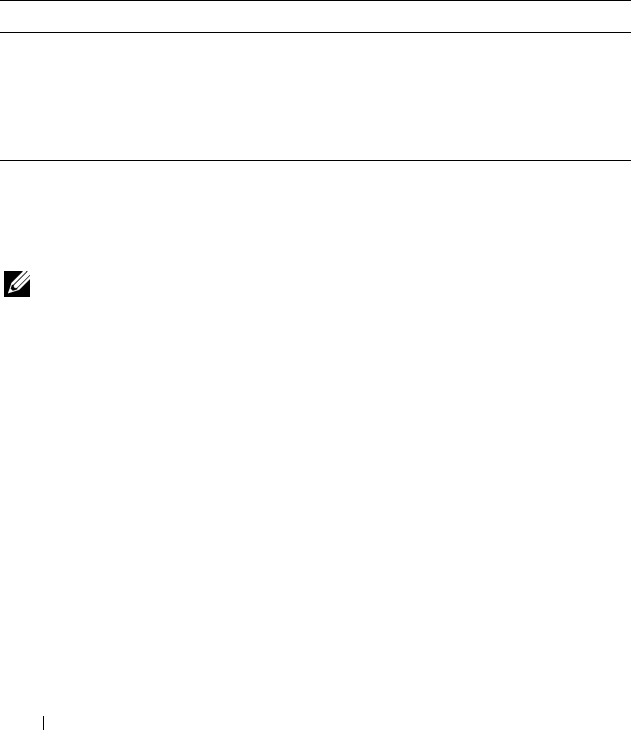
68 Configuring and Using the DRAC 5 Command Line Console
To enable the RAC serial terminal interface, set the cfgSerialConsoleEnable
property to 1 (TRUE).
For example:
racadm config -g cfgSerial -o cfgSerialConsoleEnable 1
See "cfgSerialConsoleEnable (Read/Write)" on page 314 for more
information.
Table 3-1 provides the serial interface settings.
Configuring Linux for Serial Console Redirection During Boot
The following steps are specific to the Linux GRand Unified Bootloader
(GRUB). Similar changes would be necessary for using a different boot loader.
NOTE: When you configure the client VT100 emulation window, set the window or
application that is displaying the redirected console to 25 rows x 80 columns to
ensure proper text display; otherwise, some text screens may be garbled.
Edit the /etc/grub.conf file as follows:
1
Locate the general setting sections in the file and add the following two
new lines:
serial --unit=1 --speed=57600
terminal --timeout=10 serial
2
Append two options to the kernel line:
kernel ............. console=ttyS1,57600
3
If the
/etc/grub.conf
contains a
splashimage
directive, comment it out.
Table 3-2 provides a sample /etc/grub.conf file that show the changes
described in this procedure.
Table 3-1. Serial Interface Settings
IPMI Mode RAC Serial Console Interface
Basic Disabled Basic Mode
Basic Enabled RAC CLI
Terminal Disabled IPMI Terminal Mode
Terminal Enabled RAC CLI

Configuring and Using the DRAC 5 Command Line Console 69
Table 3-2. Sample File: /etc/grub.conf
# grub.conf generated by anaconda
#
# Note that you do not have to rerun grub after
making changes
# to this file
# NOTICE: You do not have a /boot partition. This
means that
# all kernel and initrd paths are relative
to /, e.g.
# root (hd0,0)
# kernel /boot/vmlinuz-version ro root=
/dev/sdal
# initrd /boot/initrd-version.img
#
#boot=/dev/sda
default=0
timeout=10
#splashimage=(hd0,2)/grub/splash.xpm.gz
serial --unit=1 --speed=57600
terminal --timeout=10 serial
title Red Hat Linux Advanced Server (2.4.9-e.3smp)
root (hd0,0)
kernel /boot/vmlinuz-2.4.9-e.3smp ro root=
/dev/sda1 hda=ide-scsi console=ttyS0 console=
ttyS1,57600
initrd /boot/initrd-2.4.9-e.3smp.img
title Red Hat Linux Advanced Server-up (2.4.9-e.3)
root (hd0,00)
kernel /boot/vmlinuz-2.4.9-e.3 ro root=/dev/sda1 s
initrd /boot/initrd-2.4.9-e.3.im

70 Configuring and Using the DRAC 5 Command Line Console
When you edit the /etc/grub.conf file, use the following guidelines:
1
Disable GRUB's graphical interface and use the text-based interface;
otherwise, the GRUB screen will not be displayed in RAC console
redirection. To disable the graphical interface, comment out the line
starting with
splashimage
.
2
To start multiple GRUB options to start console sessions through the RAC
serial connection, add the following line to all options:
console=ttyS1,57600
Tabl e 3 -2
shows
console=ttyS1,57600
added to only the first option.
Enabling Login to the Console After Boot
Edit the file /etc/inittab, as follows:
Add a new line to configure
agetty
on the COM2 serial port:
co:2345:respawn:/sbin/agetty -h -L 57600 ttyS1 ansi
Table 3-3 shows a sample file with the new line.

Configuring and Using the DRAC 5 Command Line Console 71
Table 3-3. Sample File: /etc/innitab
#
# inittab This file describes how the INIT process
should set up
# the system in a certain run-level.
#
# Author: Miquel van Smoorenburg
# Modified for RHS Linux by Marc Ewing and
Donnie Barnes
#
# Default runlevel. The runlevels used by RHS are:
# 0 - halt (Do NOT set initdefault to this)
# 1 - Single user mode
# 2 - Multiuser, without NFS (The same as 3, if you
do not have
# networking)
# 3 - Full multiuser mode
# 4 - unused
# 5 - X11
# 6 - reboot (Do NOT set initdefault to this)
#
id:3:initdefault:
# System initialization.
si::sysinit:/etc/rc.d/rc.sysinit
l0:0:wait:/etc/rc.d/rc 0
l1:1:wait:/etc/rc.d/rc 1
l2:2:wait:/etc/rc.d/rc 2
l3:3:wait:/etc/rc.d/rc 3
l4:4:wait:/etc/rc.d/rc 4
l5:5:wait:/etc/rc.d/rc 5
l6:6:wait:/etc/rc.d/rc 6

72 Configuring and Using the DRAC 5 Command Line Console
Edit the file /etc/securetty, as follows:
Add a new line, with the name of the serial tty for COM2:
ttyS1
# Things to run in every runlevel.
ud::once:/sbin/update
# Trap CTRL-ALT-DELETE
ca::ctrlaltdel:/sbin/shutdown -t3 -r now
# When our UPS tells us power has failed, assume we
have a few
# minutes of power left. Schedule a shutdown for 2
minutes from now.
# This does, of course, assume you have power
installed and your
# UPS is connected and working correctly.
pf::powerfail:/sbin/shutdown -f -h +2 "Power Failure;
System Shutting Down"
# If power was restored before the shutdown kicked
in, cancel it.
pr:12345:powerokwait:/sbin/shutdown -c "Power
Restored; Shutdown Cancelled"
# Run gettys in standard runlevels
co:2345:respawn:/sbin/agetty -h -L 57600 ttyS1 ansi
1:2345:respawn:/sbin/mingetty tty1
2:2345:respawn:/sbin/mingetty tty2
3:2345:respawn:/sbin/mingetty tty3
4:2345:respawn:/sbin/mingetty tty4
5:2345:respawn:/sbin/mingetty tty5
6:2345:respawn:/sbin/mingetty tty6
# Run xdm in runlevel 5
# xdm is now a separate service
x:5:respawn:/etc/X11/prefdm -nodaemon
Table 3-3. Sample File: /etc/innitab
(continued)

Configuring and Using the DRAC 5 Command Line Console 73
Table 3-4 shows a sample file with the new line.
Enabling the DRAC 5 Serial/Telnet/SSH Console
The serial/telnet/ssh console can be enabled locally or remotely.
Enabling the Serial/Telnet/SSH Console Locally
NOTE: You (the current user) must have Configure DRAC 5 permission in order to
perform the steps in this section.
To enable the serial/telnet/ssh console from the managed system, type the
following local RACADM commands from a command prompt:
racadm config -g cfgSerial -o cfgSerialConsoleEnable 1
racadm config -g cfgSerial -o cfgSerialTelnetEnable 1
racadm config -g cfgSerial -o cfgSerialSshEnable 1
Table 3-4. Sample File: /etc/securetty
vc/1
vc/2
vc/3
vc/4
vc/5
vc/6
vc/7
vc/8
vc/9
vc/10
vc/11
tty1
tty2
tty3
tty4
tty5
tty6
tty7
tty8
tty9
tty10
tty11
ttyS1

74 Configuring and Using the DRAC 5 Command Line Console
For detailed information about how to use RACADM, serial/telnet/ssh, and
RACADM commands, see "Using the RACADM Command Line Interface"
on page 209.
Enabling the Serial/Telnet/SSH Console Remotely
To enable the serial/telnet/ssh console remotely, type the following remote
RACADM commands from a command prompt:
racadm -u <username> -p <password> -r <DRAC 5 IP
address> config -g cfgSerial cfgSerialConsoleEnable 1
racadm -u <username> -p <password> -r <DRAC 5 IP
address> config -g cfgSerial cfgSerialTelnetEnable 1
racadm -u <username> -p <password> -r <DRAC 5 IP
address> config -g cfgSerial cfgSerialSshEnable 1
Using the RACADM Command to Configure the Settings for the Serial
and Telnet Console
This subsection provides steps to configure the default configuration settings
for serial/telnet/ssh console redirection.
To configure the settings, type the RACADM config command with the
appropriate group, property, and property value(s) for the setting that you
want to configure.
You can type RACADM commands locally or remotely. When using
RACADM commands remotely, you must include the user name, password,
and managed system DRAC 5 IP address.
For a complete list of available serial/telnet/ssh and RACADM CLI
commands, see "Using the RACADM Command Line Interface" on page 209.
Using RACADM Locally
To type RACADM commands locally, type the following command from a
command prompt on the managed system:
racadm config -g <group> -o <property> <value>
To view a list of properties, type the following command from a command
prompt on the managed system:
radadm getconfig -g <group>

Configuring and Using the DRAC 5 Command Line Console 75
Using RACADM Remotely
To use RACADM commands remotely, type the following command from a
command prompt on a management station:
racadm -u <username> -p <password> -r <DRAC 5 IP
address> config -g <group> -o <property> <value>
Ensure that your web server is configured with a DRAC 5 card before you use
RACADM remotely. Otherwise, RACADM times out and the following
message appears:
Unable to connect to RAC at specified IP address.
To enable your web server using Secure Shell (SSH), telnet or local RACADM,
type the following command from a command prompt on a management station:
racadm config -g cfgRacTuning -o
cfgRacTuneWebServerEnable 1
Displaying Configuration Settings
Table 3-5 provides the actions and related commands to display your
configuration settings. To run the commands, open a command prompt on
the managed system, type the command, and press <Enter>.
Table 3-5. Displaying Configuration Settings
Action Command
List the
available
groups.
racadm getconfig -h
Display the
current settings
for a particular
group.
racadm getconfig -g <group>
For example, to display a list of all cfgSerial group settings, type
the following command:
racadm getconfig -g cfgSerial
Display the
current settings
for a particular
group remotely.
racadm -u <user> -p <password> -r <DRAC 5 IP
address> getconfig -g cfgSerial
For example, to display a list of all of the settings for the
cfgSerial group remotely, type:
racadm -u root -p calvin -r 192.168.0.1
getconfig -g cfgSerial

76 Configuring and Using the DRAC 5 Command Line Console
Configuring the Telnet Port Number
Type the following command to change the telnet port number on the DRAC 5.
racadm config -g cfgRacTuning -o cfgRacTuneTelnetPort
<new port number>
Using the Secure Shell (SSH)
It is critical that your system’s devices and device management is secure.
Embedded connected devices are the core of many business processes. If
these devices are compromised, the customer’s business may be at risk, which
requires new security demands for command line interface (CLI) device
management software.
Secure Shell (SSH) is a command line session that includes the same
capabilities as a telnet session, but with improved security. The DRAC 5
supports SSH version 2 with password authentication. SSH is enabled on the
DRAC 5 when you install or update your DRAC 5 firmware.
You can use either PuTTY or OpenSSH on the management station to
connect to the managed system’s DRAC 5. When an error occurs during the
login procedure, the secure shell client issues an error message. The message
text is dependent on the client and is not controlled by the DRAC 5.
NOTE: OpenSSH should be run from a VT100 or ANSI terminal emulator on
Windows. Running OpenSSH at the Windows command prompt does not result in
full functionality (that is, some keys do not respond and no graphics are displayed).
Only four SSH sessions are supported at any given time. The session time-out
is controlled by the cfgSsnMgtSshIdleTimeout property as described in
the "DRAC 5 Property Database Group and Object Definitions" on page 293.
You can enable the SSH on the DRAC 5 with the command:
racadm config -g cfgSerial -o cfgSerialSshEnable 1
You can change the SSH port with the command:
racadm config -g cfgRacTuning -o cfgRacTuneSshPort
<port number>
For more information on cfgSerialSshEnable and
cfgRacTuneSshPort properties, see "DRAC 5 Property Database Group
and Object Definitions" on page 293.
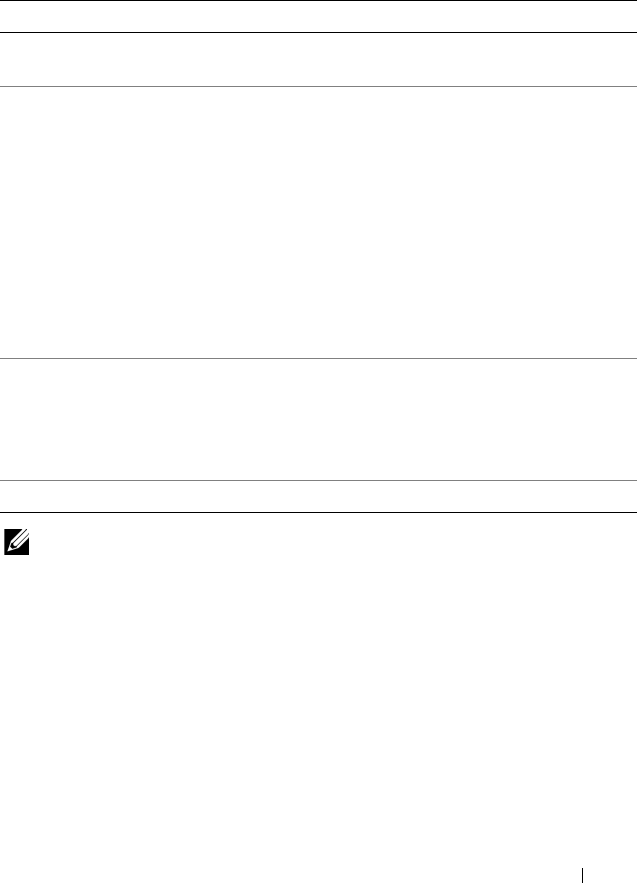
Configuring and Using the DRAC 5 Command Line Console 77
The DRAC 5 SSH implementation supports multiple cryptography schemes,
as shown in Table 3-6.
NOTE: SSHv1 is not supported.
Enabling Additional DRAC 5 Security Options
To prevent unauthorized access to your remote system, the DRAC 5 provides
the following features:
• IP address filtering (IPRange) — Defines a specific range of IP addresses
that can access the DRAC 5.
• IP address blocking — Limits the number of failed login attempts from a
specific IP address
Table 3-6. Cryptography Schemes
Scheme Type Scheme
Asymmetric Cryptography Diffie-Hellman DSA/DSS 512-1024 (random) bits
per NIST specification
Symmetric Cryptography
• AES256-CBC
•RIJNDAEL256-CBC
• AES192-CBC
•RIJNDAEL192-CBC
• AES128-CBC
•RIJNDAEL128-CBC
• BLOWFISH-128-CBC
• 3DES-192-CBC
•ARCFOUR-128
Message Integrity
•HMAC-SHA1-160
•HMAC-SHA1-96
• HMAC-MD5-128
• HMAC-MD5-96
Authentication
•Password

78 Configuring and Using the DRAC 5 Command Line Console
These features are disabled in the DRAC 5 default configuration. Use the
following subcommand or the Web-based interface to enable these features.
racadm config -g cfgRacTuning -o <object_name> <value>
Additionally, use these features in conjunction with the appropriate session
idle time-out values and a defined security plan for your network.
The following subsections provide additional information about these features.
IP Filtering (IpRange)
IP address filtering (or
IP Range Checking
) allows DRAC 5 access only from
clients or management workstations whose IP addresses are within a user-
specific range. All other logins are denied.
IP filtering compares the IP address of an incoming login to the IP address
range that is specified in the following cfgRacTuning properties:
• cfgRacTuneIpRangeAddr
•cfgRacTuneIpRangeMask
The cfgRacTuneIpRangeMask property is applied to both the incoming IP
address and to the cfgRacTuneIpRangeAddr properties. If the results of both
properties are identical, the incoming login request is allowed to access the
DRAC 5. Logins from IP addresses outside this range receive an error.
The login proceeds if the following expression equals zero:
cfgRacTuneIpRangeMask & (<incoming_IP_address> ^
cfgRacTuneIpRangeAddr)
where & is the bitwise AND of the quantities and ^ is the bitwise exclusive-
OR.
See "DRAC 5 Property Database Group and Object Definitions" on page 293
for a complete list of cfgRacTune properties.
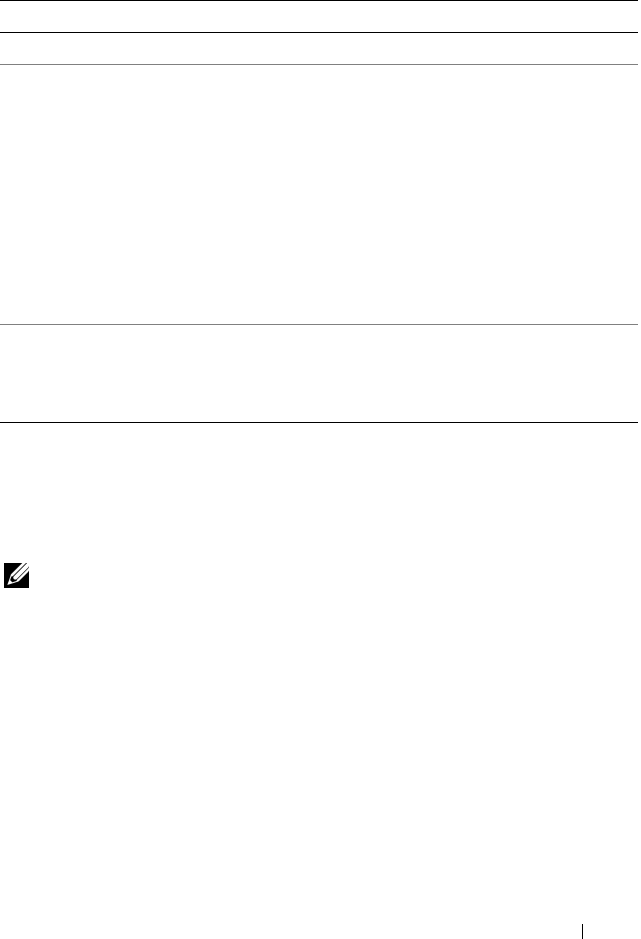
Configuring and Using the DRAC 5 Command Line Console 79
Enabling IP Filtering
Below is an example command for IP filtering setup.
See "Using RACADM" on page 210 for more information about RACADM
and RACADM commands.
NOTE: The following RACADM commands block all IP addresses except
192.168.0.57)
To restrict the login to a single IP address (for example, 192.168.0.57), use the
full mask, as shown below.
racadm config -g cfgRacTuning -o
cfgRacTuneIpRangeEnable 1
racadm config -g cfgRacTuning -o
cfgRacTuneIpRangeAddr 192.168.0.57
racadm config -g cfgRacTuning -o
cfgRacTuneIpRangeMask 255.255.255.255
Table 3-7. IP Address Filtering (IpRange) Properties
Property Description
cfgRacTuneIpRangeEnable Enables the IP range checking feature.
cfgRacTuneIpRangeAddr Determines the acceptable IP address bit pattern,
depending on the 1’s in the subnet mask.
This property is bitwise AND’d with
cfgRacTuneIpRangeMask to determine the upper
portion of the allowed IP address. Any IP address that
contains this bit pattern in its upper bits is allowed to
establish a DRAC 5 session. Logins from IP addresses
that are outside this range will fail. The default values
in each property allow an address range from
192.168.1.0 to 192.168.1.255 to establish a DRAC 5
session.
cfgRacTuneIpRangeMask Defines the significant bit positions in the IP address.
The subnet mask should be in the form of a netmask,
where the more significant bits are all 1’s with a single
transition to all zeros in the lower-order bits.

80 Configuring and Using the DRAC 5 Command Line Console
To restrict logins to a small set of four adjacent IP addresses (for example,
192.168.0.212 through 192.168.0.215), select all but the lowest two bits in the
mask, as shown below:
racadm config -g cfgRacTuning -o
cfgRacTuneIpRangeEnable 1
racadm config -g cfgRacTuning -o
cfgRacTuneIpRangeAddr 192.168.0.212
racadm config -g cfgRacTuning -o
cfgRacTuneIpRangeMask 255.255.255.252
IP Filtering Guidelines
Use the following guidelines when enabling IP filtering:
•Ensure that
cfgRacTuneIpRangeMask
is configured in the form of a
netmask, where all most significant bits are 1’s (which defines the subnet
in the mask) with a transition of all 0’s in the lower-order bits.
• Use the desired range’s base address as the value of
cfgRacTuneIpRangeAddr
. The 32-bit binary value of this address should
have zeros in all the low-order bits where there are zeros in the mask.
IP Blocking
IP blocking dynamically determines when excessive login failures occur from
a particular IP address and blocks (or prevents) the address from logging into
the DRAC 5 for a preselected time span.
The IP blocking parameter uses cfgRacTuning group features that include:
• The number of allowable login failures ("cfgRacTuneIpBlkFailcount" on
page 323)
• The timeframe in seconds when these failures must occur
("cfgRacTuneIpBlkFailWindow" on page 324)
• The amount of time in seconds when the "guilty" IP address is prevented
from establishing a session after the total allowable number of failures is
exceeded ("cfgRacTuneIpBlkPenaltyTime" on page 324)

Configuring and Using the DRAC 5 Command Line Console 81
As login failures accumulate from a specific IP address, they are "aged" by an
internal counter. When the user logs in successfully, the failure history is
cleared and the internal counter is reset.
NOTE: When login attempts are refused from the client IP address, some SSH
clients may display the following message: ssh exchange
identification: Connection closed by remote host.
See "DRAC 5 Property Database Group and Object Definitions" on page 293
for a complete list of cfgRacTune properties.
Table 3-8 lists the user-defined parameters.
Enabling IP Blocking
The following example prevents a client IP address from establishing a session
for five minutes if that client has failed its five login attempts in a one-minute
period of time.
racadm config -g cfgRacTuning -o
cfgRacTuneIpRangeEnable 1
Table 3-8. Login Retry Restriction Properties
Property Definition
cfgRacTuneIpBlkEnable Enables the IP blocking feature.
When consecutive failures
(cfgRacTuneIpBlkFailCount) from a single IP
address are encountered within a specific amount of
time (cfgRacTuneIpBlkFailWindow), all further
attempts to establish a session from that address are
rejected for a certain timespan
(cfgRacTuneIpBlkPenaltyTime).
cfgRacTuneIpBlkFailCount Sets the number of login failures from an IP address
before the login attempts are rejected.
cfgRacTuneIpBlkFailWindow The timeframe in seconds when the failure attempts
are counted. When the failures exceed this limit, they
are dropped from the counter.
crgRacTuneIpBlkPenaltyTime Defines the timespan in seconds when all login
attempts from an IP address with excessive failures are
rejected.

82 Configuring and Using the DRAC 5 Command Line Console
racadm config -g cfgRacTuning -o
cfgRacTuneIpBlkFailCount 5
racadm config -g cfgRacTuning -o
cfgRacTuneIpBlkFailWindows 60
racadm config -g cfgRacTuning -o
cfgRacTuneIpBlkPenaltyTime 300
The following example prevents more than three failed attempts within one
minute, and prevents additional login attempts for an hour.
racadm config -g cfgRacTuning -o
cfgRacTuneIpBlkEnable 1
racadm config -g cfgRacTuning -o
cfgRacTuneIpBlkFailCount 3
racadm config -g cfgRacTuning -o
cfgRacTuneIpBlkFailWindows 60
racadm config -g cfgRacTuning -o
cfgRacTuneIpBlkPenaltyTime 3600
Disabling Local Configuration of DRAC 5
DRAC 5 version 1.30 includes new security features that provide system
administrators with flexible tools to augment the data center security without
compromising on the manageability.
Disabling Local Configuration During System Reboot
This feature enables the DRAC administrator to disable the ability of a local
user to configure the DRAC 5 from the BIOS power-on self test (POST)
option-ROM.
racadm config -g cfgRacTune -o
cfgRacTuneCtrlEConfigDisable 1
NOTE: This command is available only through the remote racadm.
NOTE: This option is supported only on the Remot Access Configuration Utility
version 1.13 and later. To upgrade to this version, upgrade your BIOS using the BIOS
update package from the
Dell Server Updates
DVD or the Dell Support Website at
support.dell.com.

Configuring and Using the DRAC 5 Command Line Console 83
Disabling Local Configuration From Local racadm
This feature disables the ability of the managed system’s user to configure the
DRAC 5 using the local racadm or the Dell OpenManage Server
Administrator utilities.
racadm config -g cfgRacTune -o
cfgRacTuneLocalConfigDisable 1
NOTICE: Use these features discreetly as they severely limit the ability of the local
user to configure the DRAC 5 from the local system, including performing a reset to
default of the configuration.
NOTE: This command is available only through the remote racadm.
NOTE: See the white paper on
Effectively Using the New Security Options in the
DRAC 5 Firmware and Software Version 1.30
on the Dell Support site at
support.dell.com for more information.
Disabling Console Redirection
The disable console redirection option allows the administrator of the local
DRAC 5 to disable the console redirection to the management station.The
disable console redirection option provides a secure mechanism for the local
DRAC 5 administrator to configure BIOS and DRAC settings without the risk
of someone else being able to view the administrator’s actions over a console
redirection session.
To disable console redirection:
racadm localConRedirDisable 1
NOTE: To enable console redirection, use the argument 0.
NOTE: The disable console redirection option is only available to local racadm
users.
Connecting to the Managed System Through the
Local Serial Port or Telnet Management Station
(Client System)
The managed system provides access between the DRAC 5 and the serial port
on your system to enable you to power on, power off, or reset the managed
system, and access logs.

84 Configuring and Using the DRAC 5 Command Line Console
The serial console is available on the DRAC 5 through the managed system
external serial connector. Only one serial client system (management station)
may be active at any given time. The telnet and SSH consoles are available on
the DRAC 5 through the DRAC modes (see "DRAC Modes" on page 225).
Up to four telnet client systems and four SSH clients may connect at any
given time. The management station connection to the managed system
serial or telnet console requires management station terminal emulation
software. See "Configuring the Management Station Terminal Emulation
Software" on page 85 for more information.
The following subsections explain how to connect your management station
to the managed system using the following methods:
• A managed system external serial port using terminal software and a null
modem cable
• A telnet connection using terminal software through the managed system
DRAC 5 NIC or the shared, teamed NIC
Connecting the DB-9 Cable for the Serial Console
To access the managed system using a serial text console, connect a DB-9 null
modem cable to the COM port on the managed system. Not all DB-9 cables
carry the pinout/signals necessary for this connection. The DB-9 cable for this
connection must conform to the specification shown in Table 3-9.
NOTE: The DB-9 cable can also be used for BIOS text console redirection.
Table 3-9. Required Pinout for DB-9 Null Modem Cable
Signal Name DB-9 Pin
(server pin)
DB-9 Pin
(workstation pin)
FG (Frame Ground) – –
TD (Transmit data) 3 2
RD (Receive Data) 2 3
RTS (Request To Send) 7 8
CTS (Clear To Send) 8 7
SG (Signal Ground) 5 5
DSR (Data Set Ready) 6 4
CD (Carrier Detect) 1 4
DTR (Data Terminal Ready) 4 1 and 6

Configuring and Using the DRAC 5 Command Line Console 85
Configuring the Management Station Terminal
Emulation Software
Your DRAC 5 supports a serial or telnet text console from a management
station running one of the following types of terminal emulation software:
• Linux Minicom in an Xterm
• Hilgraeve’s HyperTerminal Private Edition (version 6.3)
• Linux Telnet in an Xterm
•Microsoft
®
Telnet
Perform the steps in the following subsections to configure your type of terminal
software. If you are using Microsoft Telnet, configuration is not required.
Configuring Linux Minicom for Serial Console Emulation
Minicom is the serial port access utility for Linux. The following steps are
valid for configuring Minicom version 2.0. Other Minicom versions may differ
slightly but require the same basic settings. Use the information in "Required
Minicom Settings for Serial Console Emulation" on page 86 to configure
other versions of Minicom.
Configuring Minicom Version 2.0 for Serial Console Emulation
NOTE: To ensure that the text displays properly, Dell recommends that you use an
Xterm window to display the telnet console instead of the default console provided
by the Linux installation.
1
To start a new Xterm session, type
xterm &
at the command prompt.
2
In the Xterm window, move your mouse arrow to the lower right-hand
corner of the window and resize the window to 80 x 25.
3
If you do not have a Minicom configuration file, go to the next step.
If you have a Minicom configuration file, type
minicom
<
Minicom
config file name
>
and skip to step 17.
4
At the Xterm command prompt, type
minicom -s
.
5
Select
Serial Port Setup
and press <Enter>.
6
Press <a> and select the appropriate serial device (for example,
/dev/ttyS0
).

86 Configuring and Using the DRAC 5 Command Line Console
7
Press <e> and set the
Bps/Par/Bits
option to
57600 8N1
.
8
Press <f> and set
Hardware Flow Control
to
Yes
and set
Software Flow
Control
to
No
.
9
To exit the
Serial Port Setup
menu, press <Enter>.
10
Select
Modem and Dialing
and press <Enter>.
11
In the
Modem Dialing and Parameter Setup
menu, press <Backspace>
to clear the
init
,
reset
,
connect
, and
hangup
settings so that they are blank.
12
Press <Enter> to save each blank value.
13
When all specified fields are clear, press <Enter> to exit the
Modem
Dialing and Parameter Setup
menu.
14
Select
Save setup as config_name
and press <Enter>.
15
Select
Exit From Minicom
and press <Enter>.
16
At the command shell prompt, type
minicom <
Minicom
config
file name
>
.
17
To expand the Minicom window to 80 x 25, drag the corner of the window.
18
Press <Ctrl+a>, <z>, <x> to exit Minicom.
NOTE: If you are using Minicom for serial text console redirection to configure the
managed system BIOS, it is recommended to turn on color in Minicom. To turn on
color, type the following command in the command prompt: minicom -c on
Ensure that the Minicom window displays a command prompt such as
[DRAC 5\root]#. When the command prompt appears, your connection
is successful and you are ready to connect to the managed system console
using the connect serial command.
Required Minicom Settings for Serial Console Emulation
Use Table 3-10 to configure any version of Minicom.
Table 3-10. Minicom Settings for Serial Console Emulation
Setting Description Required Setting
Bps/Par/Bits 57600 8N1
Hardware flow control Yes
Software flow control No

Configuring and Using the DRAC 5 Command Line Console 87
Configuring HyperTerminal for Serial Console Redirection
HyperTerminal is the Microsoft Windows serial port access utility. To set the
size of your console screen appropriately, use Hilgraeve’s HyperTerminal
Private Edition version 6.3.
To configure HyperTerminal for serial console redirection, perform the
following steps:
1
Start the HyperTerminal program.
2
Type a name for the new connection and click
OK
.
3
Next to
Connect using:
, select the COM port on the management station
(for example, COM2) to which you have connected the DB-9 null modem
cable and click
OK
.
4
Configure the COM port settings as shown in Table 3-11.
5
Click
OK
.
6
Click
File
→
Properties
, and then click the
Settings
tab.
7
Set the
Telnet terminal ID:
to
ANSI
.
8
Click
Terminal Setup
and set
Screen Rows
to
26
.
9
Set
Columns
to
80
and click
OK
.
Terminal emulation ANSI
Modem dialing and
parameter settings
Clear the init, reset, connect, and hangup settings so
that they are blank
Window size 80 x 25 (to resize, drag the corner of the window)
Table 3-11. Management Station COM Port Settings
Setting Description Required Setting
Bits per second 57600
Data bits 8
Parity None
Stop bits 1
Flow control Hardware
Table 3-10. Minicom Settings for Serial Console Emulation
(continued)
Setting Description Required Setting

88 Configuring and Using the DRAC 5 Command Line Console
The HyperTerminal window displays a command prompt such as [DRAC
5\root]#. When the command prompt appears, your connection is
successful and you are ready to connect to the managed system console using
the connect com2 serial command.
Configuring Linux XTerm for Telnet Console Redirection
Use the following guidelines when performing the steps in this section:
• When you are using the
connect com2
command through a telnet console
to display the System Setup screens, set the terminal type to
ANSI
in
System Setup and for the telnet session.
• To ensure that the text is properly displayed, Dell recommends that you
use an Xterm window to display the telnet console instead of the default
console provided by the Linux installation.
To run telnet with Linux, perform the following steps:
1
Start a new Xterm session.
At the command prompt, type
xterm &
2
Using the mouse arrow, click on the lower right-hand corner of the XTerm
window and resize the window to 80 x 25.
3
Connect to the DRAC 5 in the managed system.
At the Xterm prompt, type
telnet <
DRAC 5 IP address
>
Enabling Microsoft Telnet for Telnet Console Redirection
NOTE: Some telnet clients on Microsoft operating systems may not display the
BIOS setup screen correctly when BIOS console redirection is set for VT100
emulation. If this issue occurs, update the display by changing BIOS console
redirection to ANSI mode. To perform this procedure in the BIOS setup menu, select
Console Redirection
→
Remote Terminal Type
→
ANSI.
1
Enable
Telnet
in
Windows Component Services
.
2
Connect to the DRAC 5 in the management station.
Open a command prompt, type the following, and press <Enter>:
telnet <
IP address
>:<
port number
>
where
IP address
is the IP address for the DRAC 5 and
port number
is the telnet port number (if you are using a new port).

Configuring and Using the DRAC 5 Command Line Console 89
Configuring the Backspace Key For Your Telnet Session
Depending on the telnet client, using the <Backspace> key may produce
unexpected results. For example, the session may echo ^h. However, most
Microsoft and Linux telnet clients can be configured to use the
<Backspace> key.
To configure Microsoft telnet clients to use the <Backspace> key, perform
the following steps:
1
Open a command prompt window (if required).
2
If you are not running a telnet session, type:
telnet
If you are running a telnet session, press <Ctrl><]>.
3
At the prompt, type:
set bsasdel
The following message appears:
Backspace will be sent as delete.
To configure a Linux telnet session to use the <Backspace> key, perform the
following steps:
1
Open a command prompt and type:
stty erase ^h
2
At the prompt, type:
telnet

90 Configuring and Using the DRAC 5 Command Line Console
Using a Serial or Telnet Console
Serial and telnet commands, and RACADM CLI can be typed in a serial or
telnet console and executed on the server locally or remotely. The local
RACADM CLI is installed for use by a root user only.
For more information about the serial/telnet/ssh commands and RACADM
CLI, see "Using the RACADM Command Line Interface" on page 209.
Running Telnet Using Windows XP or Windows 2003
If your management station is running Windows XP or Windows 2003, you
may experience an issue with the characters in a DRAC 5 telnet session.This
issue may occur as a frozen login where the return key does not respond and
the password prompt does not appear.
To fix this issue, download hotfix 824810 from the Microsoft Support website
at support.microsoft.com. See Microsoft Knowledge Base article 824810 for
more information.
Running Telnet Using Windows 2000
If your management station is running Windows 2000, you cannot access
BIOS setup by pressing the <F2> key. To fix this issue, use the telnet client
supplied with the Windows Services for UNIX® 3.5—a recommended free
download from Microsoft. Browse to www.microsoft.com/downloads/ and
search for "Windows Services for UNIX 3.5."

Configuring the DRAC 5 Using the Web User Interface 91
4
Configuring the DRAC 5 Using the
Web User Interface
The DRAC 5 provides a Web-based interface and RACADM (a command-
line interface) that enables you to configure the DRAC 5 properties and users,
perform remote management tasks, and troubleshoot a remote (managed)
system for problems. For everyday systems management, use the DRAC 5
Web-based interface. This chapter provides information about how to
perform common systems management tasks with the DRAC 5 Web-based
interface and provides links to related information.
All Web-based interface configuration tasks can also be performed with
RACADM. For a list of all RACADM and serial/telnet/ssh console commands
that can be used to perform the text-based equivalents of each task, see
"Using the RACADM Command Line Interface" on page 209.
See your DRAC 5 online help for context sensitive information about each
Web-based interface page.
Accessing the Web-Based Interface
To access the DRAC 5 Web-based interface, perform the following steps:
1
Open a supported Web browser window.
See "Supported Web Browsers" on page 29 for more information.
2
In the
Address
field, type the following and press <Enter>:
https://<
IP address>
If the default HTTPS port number (port 443) has been changed, type:
https://<
IP address>
:<
port number
>
where
IP address
is the IP address for the DRAC 5 and
port number
is the HTTPS port number.
The DRAC 5
Log in
window appears.

92 Configuring the DRAC 5 Using the Web User Interface
Logging In
You can log in as either a DRAC 5 user or as a Microsoft® Active Directory® user.
The default user name and password are root and calvin, respectively.
Before you log in to the DRAC 5, verify that you have Log In to DRAC 5
permission.
To log in, perform the following steps:
1
In the
User Name
field, type one of the following:
• Your DRAC 5 user name.
For example, <
username
>
The DRAC 5 user name for local users is case sensitive
• Your Active Directory user name.
For example, <
domain
>\<
username
>, <
domain
>/<
username
>, or
<
user
>@<
domain
>.
Examples of an Active Directory user name are:
dell.com\john_doe
or
john_doe@dell.com
.
The Active Directory user name is not case sensitive.
2
In the
Password
field, type your DRAC 5 user password or Active Directory
user password.
This field is case sensitive.
3
Click
OK
or press <Enter>.

Configuring the DRAC 5 Using the Web User Interface 93
Logging Out
1
In the upper-right corner of the DRAC 5 Web-based interface window,
click
Log Out
to close the session.
2
Close the browser window.
NOTE: The Log Out button does not appear until you log in.
NOTE: Closing the browser without gracefully logging out causes the session to
remain open until it times out. It is strongly recommended that you click the logout
button to end the session; otherwise, the session remains active until the session
timeout is reached.
NOTE: Closing the DRAC 5 Web-based interface within Microsoft Internet Explorer
using the close button ("x") at the top right corner of the window may generate an
application error. To fix this issue, download the latest Cumulative Security Update for
Internet Explorer from the Microsoft Support website, located at support.microsoft.com.
Configuring the DRAC 5 NIC
Configuring the Network and IPMI LAN Settings
NOTE: You must have Configure DRAC 5 permission to perform the following steps.
NOTE: Most DHCP servers require a server to store a client identifier token in its
reservations table. The client (DRAC 5, for example) must provide this token during
DHCP negotiation. For RACs, the DRAC 5 supplies the client identifier option using a
one-byte interface number (0) followed by a six-byte MAC address.
NOTE: If your managed system DRAC is configured in Shared or Shared with Failover
mode and the DRAC is connected to a switch with Spanning Tree Protocol (STP)
enabled, network clients will experience a 20-30 second delay in connectivity when
the management station’s LOM link state changes during the STP convergence.
1
In the
System
tree, click
Remote Access
.
2
Click the
Configuration
tab and then click
Network
.
3
In the
Network Configuration
page, configure the DRAC 5 NIC settings.
Tab le 4- 1 an d Tabl e 4-2 des crib es t he
Network Settings
and
IPMI Settings
on the
Network Configuration
page.
4
When completed, click
Apply Changes
.
5
Click the appropriate
Network Configuration
page button to continue.
See Table 4-3.

94 Configuring the DRAC 5 Using the Web User Interface
Table 4-1. Network Settings
Setting Description
NIC Selection Displays the selected NIC mode (Dedicated, Shared with
Failover, or Shared).
The default setting is Dedicated.
MAC Address Displays the DRAC 5 MAC address.
Enable NIC Enables the DRAC 5 NIC and activates the remaining controls
in this group.
The default setting is Enabled.
Use DHCP (For
NIC IP Address)
Enables Dell OpenManage™ Server Administrator to obtain the
DRAC 5 NIC IP address from the Dynamic Host Configuration
Protocol (DHCP) server. Selecting the check box deactivates the
Static IP Address, Static Gateway, and Static Subnet Mask
controls.
The default setting is Disabled.
Static IP Address Specifies or edits the static IP address for the DRAC 5 NIC.
To change this setting, deselect the Use DHCP (For NIC
IP Address) check box.
Static Gateway Specifies or edits the static gateway for the DRAC 5 NIC.
To change this setting, deselect the Use DHCP (For NIC
IP Address) check box.
Static Subnet
Mask
Specifies or edits the static subnet mask for the DRAC 5 NIC.
To change this setting, deselect the Use DHCP (For NIC
IP Address) check box.
Use DHCP to
obtain DNS server
addresses
Obtains the primary and secondary DNS server addresses from
the DHCP server instead of the static settings.
The default setting is Disabled.
Static Preferred
DNS Server
Uses the primary DNS server IP address only when Use DHCP
to obtain DNS server addresses is not selected.
Static Alternate
DNS Server
Uses the secondary DNS server IP address when Use DHCP to
obtain DNS server addresses is not selected. You may enter an
IP address of 0.0.0.0 if you do not have an alternate DNS server.
Register DRAC on
DNS
Registers the DRAC 5 name on the DNS server.
The default setting is Disabled.

Configuring the DRAC 5 Using the Web User Interface 95
DNS DRAC Name Displays the DRAC 5 name only when Register DRAC 5 on
DNS is selected. The default DRAC 5 name is RAC-service tag,
where service tag is the service tag number of the Dell server
(for example, RAC-EK00002).
Use DHCP for
DNS Domain
Name
Uses the default DNS domain name. When the box is not
selected and the Register DRAC 5 on DNS option is selected,
you can modify the DNS domain name in the DNS Domain
Name field.
The default setting is Disabled.
DNS Domain
Name
The default DNS domain name is MYDOMAIN. When the
Use DHCP for DNS Domain Name check box is selected, this
option is grayed out and you cannot modify this field.
Auto Negotiation Determines whether the DRAC 5 automatically sets the Duplex
Mode and Network Speed by communicating with the nearest
router or hub (On) or allows you to set the Duplex Mode and
Network Speed manually (Off).
Network Speed Sets the network speed to 100 Mb or 10 Mb to match your
network environment. This option is not available if Auto
Negotiation is set to On.
Duplex Mode Sets the duplex mode to full or half to match your network
environment. This option is not available if Auto Negotiation is
set to On.
Table 4-2. IPMI LAN Settings
Setting Description
Enable IPMI Over
LAN
Enables the IPMI LAN channel.
Channel Privilege
Level Limit
Configures the user’s maximum privilege level that can be
accepted on the LAN channel. Select one of the following
options: Administrator, Operator, or User.
Encryption Key Configures the encryption key character format: 0 to 20
hexadecimal characters (no blanks allowed).
The default setting is 00000000000000000000.
Table 4-1. Network Settings
(continued)
Setting Description
96 Configuring the DRAC 5 Using the Web User Interface
Configuring the Network Security Settings
NOTE: You must have Configure DRAC 5 permission to perform the following steps.
1
In the
System
tree, click
Remote Access
.
2
Click the
Configuration
tab and then click
Network
.
3
In the
Network Configuration
page, click
Advanced Settings
.
4
In the
Network Security
page, configure the attribute values and then click
Apply Changes
.
Table 4-4 describes the
Network Security
page settings.
5
Click the appropriate
Network Security
page button to continue. See
Table 4-5.
Enable VLAN ID Enables the VLAN ID. If enabled, only matched VLAN ID
traffic is accepted.
VLAN ID The VLAN ID field of 802.1g fields.
Priority The Priority field of 802.1g fields.
Table 4-3. Network Configuration Page Buttons
Button Description
Print Prints the Network Configuration page
Refresh Reloads the Network Configuration page
Advanced Settings Displays the Network Security page.
Apply Changes Saves the changes made to the network configuration.
NOTE: Changes to the NIC IP address settings will close all user
sessions and require users to reconnect to the DRAC 5 Web-
based interface using the updated IP address settings. All other
changes will require the NIC to be reset, which may cause a brief
loss in connectivity.
Table 4-2. IPMI LAN Settings
(continued)
Setting Description

Configuring the DRAC 5 Using the Web User Interface 97
Table 4-4. Network Security Page Settings
Settings Description
IP Range Enabled Enables the IP Range checking feature, which defines a specific
range of IP addresses that can access the DRAC 5.
IP Range Address Determines the acceptable IP subnet address.
IP Range Subnet
Mask
Defines the significant bit positions in the IP address. The
subnet mask should be in the form of a netmask, where the
more significant bits are all 1's with a single transition to all
zeros in the lower-order bits.
For example: 255.255.255.0
IP Blocking
Enabled
Enables the IP address blocking feature, which limits the
number of failed login attempts from a specific IP address for a
preselected time span.
IP Blocking Fail
Count
Sets the number of login failures attempted from an IP address
before the login attempts are rejected from that address.
IP Blocking Fail
Window
Determines the time span in seconds within which IP Block Fail
Count failures must occur to trigger the IP Block Penalty Time.
IP Blocking
Penalty Time
The time span in seconds within which login attempts from an
IP address with excessive failures are rejected.
Table 4-5. Network Security Page Buttons
Button Description
Print Prints the Network Security page
Refresh Reloads the Network Security page
Apply Changes Saves the changes made to the Network Security page.
Go Back to
Network
Configuration
Page
Returns to the Network Configuration page.

98 Configuring the DRAC 5 Using the Web User Interface
Adding and Configuring DRAC 5 Users
To manage your system with the DRAC 5 and maintain system security, create
unique users with specific administrative permissions (or role-based authority).
For additional security, you can also configure alerts that are e-mailed to
specific users when a specific system event occurs.
To add and configure DRAC 5 users, perform the following steps:
NOTE: You must have Configure DRAC 5 permission to perform the following steps.
1
Expand the
System
tree and click
Remote Access
.
2
Click the
Configuration
tab and then click
Users
.
The
Users
page appears, which includes each user’s
State
,
User Name, RAC
Privilege
,
IPMI LAN Privilege
,
IPMI Serial Privilege
and
Serial Over LAN
.
3
In the
User ID
column, click a user ID number.
4
On the
User Main Menu
page, you can configure users, upload a user
certificate, view an existing user certificate, upload a trusted certification
authority (CA) certificate, or view a trusted CA certificate.
If you select
Configure User
and click
Next
, the User Configuration page
is displayed. See step 5 for more information.
See Table 4-6 if you select the options under the
Smart Card
Configuration
section.
5
In the
User Configuration
page, configure the user’s properties and privileges.
Table 4-7 describes the General
settings for configuring a new or existing
DRAC username and password.
Table 4-8
describes
the
IPMI User Privileges
for configuring the user’s
LAN privileges.
Table 4-9
describes
the
User Group Permissions
for the
IPMI User
Privileges
and the
DRAC User Privileges
settings.
Ta bl e 4 -1 0
describes
the
DRAC Group
permissions. If you add a DRAC
User Privilege to the Administrator, Power User, or Guest User, the
DRAC
Group
will change to the
Custom
group.
6
When completed, click
Apply Changes
.
7
Click the appropriate
User Configuration
page button to continue. See
Tabl e 4-1 1.

Configuring the DRAC 5 Using the Web User Interface 99
Table 4-6. Options in the Smart Card Configuration section
Option Description
Upload User Certificate Enables you to upload the user certificate to DRAC and
import it to the user profile.
View User Certificate Displays the user certificate page that has been
uploaded to the DRAC.
Upload Trusted CA
Certificate
Enables you to upload the trusted CA certificate to
DRAC and import it to the user profile.
View Trusted CA
Certificate
Displays the trusted CA certificate that has been
uploaded to the DRAC. The trusted CA certificate is
issued by the CA who is authorized to issue certificates
to users.
Table 4-7. General Properties
Property Description
User ID Specifies one of 16 preset User ID numbers.
If you are editing information for user root, this field is
static. You cannot edit the username for root.
Enable User Enables the user to access the DRAC 5. When
unchecked, the User Name cannot be changed.
User Name Specifies a DRAC 5 user name with up to 16 characters.
Each user must have a unique user name.
NOTE: User names on the local DRAC 5 cannot include
the / (forward slash) or . (period) characters.
NOTE: If the user name is changed, the new name will not
appear in the user interface until the next user login.
Change Password Enables the New Password and Confirm New Password
fields. When unchecked, the user’s Password cannot be
changed.
New Password Specifies or edits the DRAC 5 user's password.
Confirm New Password Requires you to retype the DRAC 5 user's password to
confirm.

100 Configuring the DRAC 5 Using the Web User Interface
Table 4-8. IPMI User Privileges
Property Description
Maximum LAN User
Privilege Granted
Specifies the user’s maximum privilege on the IPMI
LAN channel to one of the following user groups:
Administrator, Operator, User, or None.
Maximum Serial Port
User Privilege Granted
Specifies the user’s maximum privilege on the IPMI
Serial channel to one of the following: Administrator,
Operator, User, or None.
Enable Serial Over LAN Allows user to use IPMI Serial Over LAN. When
checked, this privilege is enabled.
Table 4-9. DRAC User Privileges
Property Description
DRAC Group Specifies the user’s maximum DRAC user privilege to
one of the following: Administrator, Power User, Guest
User, None, or Custom.
See Table 4-10 for DRAC Group permissions.
Login to DRAC Enables the user to log in to the DRAC.
Configure DRAC Enables the user to configure the DRAC.
Configure Users Enables the user to allow specific users to access the
system.
Clear Logs Enables the user to clear the DRAC logs.
Execute Server Control
Commands
Enables the user to execute racadm commands.
Access Console
Redirection
Enables the user to run Console Redirection.
Access Virtual Media Enables the user to run and use Virtual Media.
Test Alerts Enables the user to send test alerts (e-mail and PET) to
a specific user.
Execute Diagnostic
Commands
Enables the user to run diagnostic commands.

Configuring the DRAC 5 Using the Web User Interface 101
Table 4-10. DRAC Group Permissions
User Group Permissions Granted
Administrator Login to DRAC, Configure DRAC, Configure Users, Clear
Logs, Execute Server Control Commands, Access Console
Redirection, Access Virtual Media, Test Alerts, Execute
Diagnostic Commands
Power User Login to DRAC, Clear Logs, Execute Server Control
Commands, Access Console Redirection, Access Virtual
Media, Test Aler ts
Guest User Login to DRAC
Custom Selects any combination of the following permissions: Login
to DRAC, Configure DRAC, Configure Users, Clear Logs,
Execute Server Action Commands, Access Console
Redirection, Access Virtual Media, Test Alerts, Execute
Diagnostic Commands
None No assigned permissions
Table 4-11. User Configuration Page Buttons
Button Action
Print Prints the User Configuration page
Refresh Reloads the User Configuration page
Go Back To Users
Page
Returns to the Users Page.
Apply Changes Saves the changes made to the network configuration.

102 Configuring the DRAC 5 Using the Web User Interface
Configuring and Managing Active Directory
Certificates (Standard Schema and Extended
Schema)
NOTE: You must have Configure DRAC 5 permission to configure Active Directory
and upload, download, and view an Active Directory certificate.
NOTE: For more information about Active Directory configuration and how to
configure Active Directory with Standard Schema or Extended Schema, see "Using
the DRAC 5 With Microsoft Active Directory" on page 137.
Use the Microsoft® Active Directory® service to configure your software to
provide access to the DRAC 5. The service allows you to add and control the
DRAC5 user privileges of your existing users.
See "Using the DRAC 5 With Microsoft Active Directory" on page 137 for
more information.
To access the Active Directory Main Menu:
1
Expand the
System
tree and click
Remote Access
.
2
Click the
Configuration
tab and click
Active Directory
.
Table 4-12 lists the Active Directory Main Menu page options. The buttons
in Table 4-13 are available on the Active Directory Main Menu page.
Table 4-12. Active Directory Main Menu Page Options
Field Description
Configure Active
Directory
Configures the Active Directory's DRAC Name, ROOT
Domain Name, DRAC Domain Name, Active Directory
Authentication Timeout, Active Directory Schema
Selection, and Role Group settings.
Upload Active
Directory CA
Certificate
Uploads an Active Directory certificate to the DRAC.
Download DRAC
Server Certificate
The Windows Download Manager enables you to
download a DRAC server certificate to your system.
View Active Directory
CA Certificate
Displays the Active Directory Certificate that has been
uploaded to the DRAC.

Configuring the DRAC 5 Using the Web User Interface 103
Configuring Active Directory (Standard Schema and Extended Schema)
1
In the
Active Directory Main Menu
page, select
Configure Active
Directory
and click
Next
.
2
In the
Active Directory Configuration and Management
page, enter the
Active Directory settings.
Table 4-14 describes the
Active Directory Configuration and
Management
page settings.
3
Click
Apply
to save the settings.
4
Click the appropriate
Active Directory Configuration
page button to
continue. See Table 4-15.
5
To configure the Role Groups for Active Directory Standard Schema, click
on the individual Role Group (1-5). See Table 4-16 and Table 4-17.
NOTE: To save the settings on the Active Directory Configuration and
Management page, you have to click Apply before proceeding to the Custom
Role Group page.
Table 4-13. Active Directory Main Menu Page Buttons
Button Definition
Print Prints the contents of the open window to your default
printer
Next Go to the next selected Option page.
Table 4-14. Active Directory Configuration and Management Page Settings
Setting Description
Enable Active
Directory
Enables Active Directory. Checked=Enabled;
Unchecked=Disabled.
ROOT Domain Name The Active Directory ROOT domain name. This value is
NULL by default.
The name must be a valid domain name consisting of x.y,
where x is a 1-254 character ASCII string with no blank
spaces between characters, and y is a valid domain type
such as com, edu, gov, int, mil, net, org.

104 Configuring the DRAC 5 Using the Web User Interface
Timeout The time in seconds to wait for Active Directory queries
to complete. Minimum value is equal to or greater than 15
seconds. The default value is 120 seconds.
Use Standard Schema Uses Standard Schema with Active Directory
Use Extended Schema Uses Extended Schema with Active Directory
DRAC Name The name that uniquely identifies the DRAC 5 card in
Active Directory. This value is NULL by default.
The name must be a 1-254 character ASCII string with no
blank spaces between characters.
DRAC Domain Name The DNS name (string) of the domain, where the Active
Directory DRAC 5 object resides. This value is NULL by
default.
The name must be a valid domain name consisting of x.y,
where x is a 1-254 character ASCII string with no blank
spaces between characters, and y is a valid domain type
such as com, edu, gov, int, mil, net, org.
Role Groups The list of role groups associated with the DRAC 5 card.
To change the settings for a role group, click their role
group number, in the role groups list. The Configure Role
Group window displays.
NOTE: If you click on the role group link prior to applying the
settings for the Active Directory Configuration and
Management page, you will lose these settings.
Group Name The name that identifies the role group in the Active
Directory associated with the DRAC 5 card.
Group Domain The domain that the group is in.
Group Privilege The privilege level for the group.
Table 4-14. Active Directory Configuration and Management Page Settings
(continued)
Setting Description

Configuring the DRAC 5 Using the Web User Interface 105
Table 4-15. Active Directory Configuration and Management Page Buttons
Button Description
Print Prints the Active Directory Configuration and
Management page.
Apply Saves the changes made to the Active Directory
Configuration and Management page.
Go Back to Active
Directory Main Menu
Returns to the Active Directory Main Menu page.
Table 4-16. Role Group Privileges
Setting Description
Role Group Privilege Level Specifies the user’s maximum DRAC user
privilege to one of the following: Administrator,
Power User, Guest user, None, or Custom.
See Table 4-17 for Role Group permissions
Login to DRAC Enables the user to log in to the DRAC.
Configure DRAC Enables the user to configure the DRAC.
Configure Users Enables the user to allow specific users to access
the system.
Clear Logs Enables the user to clear the DRAC logs.
Execute Server Control
Commands
Enables the user to execute racadm commands.
Access Console Redirection Enables the user to run Console Redirection.
Access Virtual Media Enables the user to run and use Virtual Media.
Test Alerts Enables the user to send test alerts (e-mail and
PET) to a specific user.
Execute Diagnostic Commands Enables the user to run diagnostic commands.

106 Configuring the DRAC 5 Using the Web User Interface
Uploading an Active Directory CA Certificate
1
In the
Active Directory Main Menu
page, select
Upload Active Directory
CA Certificate
and click
Next
.
2
In the
Certificate Upload page,
in the
File Path
field, type the file path of
the certificate or click
Browse
to navigate to the certificate file.
NOTE: The File Path value displays the relative file path of the certificate you are
uploading. You must type the absolute file path, which includes the full path and the
complete file name and file extension.
3
Click
Apply
.
4
Click the appropriate
Certificate Upload
page button to continue. See
Tabl e 4-1 8.
Table 4-17. Role Group Permissions
Property Description
Administrator Login to DRAC, Configure DRAC, Configure Users, Clear
Logs, Execute Server Control Commands, Access Console
Redirection, Access Virtual Media, Test Alerts, Execute
Diagnostic Commands
Power User Login to DRAC, Clear Logs, Execute Server Control
Commands, Access Console Redirection, Access Virtual
Media, Test Alerts
Guest User Login to DRAC
Custom Selects any combination of the following permissions: Login to
DRAC, Configure DRAC, Configure Users, Clear Logs,
Execute Server Action Commands, Access Console
Redirection, Access Virtual Media, Test Alerts, Execute
Diagnostic Commands
None No assigned permissions

Configuring the DRAC 5 Using the Web User Interface 107
Downloading a DRAC Server Certificate
1
In the
Active Directory Main Menu
page, select
Download DRAC Server
Certificate
and click
Next
.
2
In the
File Download
window, click
Save
and save the file to a directory on
your system.
3
In the
Download Complete
window, click
Close
.
Viewing an Active Directory CA Certificate
Use the Active Directory Main Menu page to view a CA server certificate for
your DRAC 5.
1
In the
Active Directory Main Menu
page, select
View Active Directory
CA Certificate
and click
Next
.
Table 4-19 describes the fields and associated descriptions listed in the
Certificate
window.
Table 4-20 describes the available page buttons on the View Active
Directory CA Certificate page.
2
Click the appropriate
View Active Directory CA Certificate
page button
to continue. See Table 4-20.
Table 4-18. Certificate Upload Page Buttons
Button Description
Print Print the Certificate Upload page.
Go Back to Active
Directory Main Menu
Return to the Active Directory Main Menu page.
Apply Apply the certificate to the DRAC 5 firmware.
Table 4-19. Active Directory CA Certificate Information
Field Description
Serial Number Certificate serial number.
Subject Information Certificate attributes entered by the subject.
Issuer Information Certificate attributes returned by the issuer.
Vali d Fr o m Certificate issue date.
Vali d To Certificate expiration date.

108 Configuring the DRAC 5 Using the Web User Interface
Securing DRAC 5 Communications Using SSL and
Digital Certificates
This subsection provides information about the following data security
features that are incorporated in your DRAC 5:
• Secure Sockets Layer (SSL)
• Certificate Signing Request (CSR)
• Accessing the SSL main menu
• Generating a new CSR
• Uploading a server certificate
• Viewing a server certificate
Secure Sockets Layer (SSL)
The DRAC includes a Web server that is configured to use the industry-
standard SSL security protocol to transfer encrypted data over the Internet.
Built upon public-key and private-key encryption technology, SSL is a widely
accepted technique for providing authenticated and encrypted
communication between clients and servers to prevent eavesdropping across a
network.
SSL allows an SSL-enabled system to perform the following tasks:
• Authenticate itself to an SSL-enabled client
• Allow the client to authenticate itself to the server
• Allow both systems to establish an encrypted connection
This encryption process provides a high level of data protection. The DRAC
employs the 128-bit SSL encryption standard, the most secure form of
encryption generally available for Internet browsers in North America.
Table 4-20. View Active Directory CA Certificate Page Buttons
Button Description
Print Prints the Active Directory CA Certificate.
Go Back to Active
Directory Main Menu
Returns to the Active Directory Main Menu page.

Configuring the DRAC 5 Using the Web User Interface 109
The DRAC Web server includes a Dell self-signed SSL digital certificate
(Server ID). To ensure high security over the Internet, replace the Web server
SSL certificate by submitting a request to the DRAC to generate a new
Certificate Signing Request (CSR).
Certificate Signing Request (CSR)
A CSR is a digital request to a Certificate Authority (CA) for a secure server
certificate. Secure server certificates ensure the identity of a remote system
and ensure that information exchanged with the remote system cannot be
viewed or changed by others. To ensure the security for your DRAC, it is
strongly recommended that you generate a CSR, submit the CSR to a CA,
and upload the certificate returned from the CA.
A Certificate Authority is a business entity that is recognized in the IT
industry for meeting high standards of reliable screening, identification, and
other important security criteria. Examples of CAs include Thawte and
VeriSign. After the CA receives your CSR, they review and verify the
information the CSR contains. If the applicant meets the CA’s security
standards, the CA issues a certificate to the applicant that uniquely identifies
that applicant for transactions over networks and on the Internet.
After the CA approves the CSR and sends you a certificate, you must upload
the certificate to the DRAC firmware. The CSR information stored on the
DRAC firmware must match the information contained in the certificate.
Accessing the SSL Main Menu
1
Expand the
System
tree and click
Remote Access
.
2
Click the
Configuration
tab and then click
SSL
.
Use the SSL Main Menu page options (see Table 4-21) to generate a CSR to
send to a CA. The CSR information is stored on the DRAC 5 firmware. The
buttons in Table 4-22 are available on the SSL Main Menu page.

110 Configuring the DRAC 5 Using the Web User Interface
Generating a New Certificate Signing Request
NOTE: Each new CSR overwrites any previous CSR on the firmware. Before a
certificate authority (CA) can accept your CSR, the CSR in the firmware must match the
certificate returned from the CA. Otherwise, the DRAC 5 will not upload the certificate.
1
In the
SSL Main Menu
page, select
Generate a New Certificate Signing
Request (CSR)
and click
Next
.
2
In the
Generate Certificate Signing Request (CSR)
page, type a value for
each CSR attribute value.
Table 4-23 describes the
Generate Certificate Signing Request (CSR)
page options.
Table 4-21. SSL Main Menu Options
Field Description
Generate a New
Certificate Signing
Request (CSR)
Click Next to open the Certificate Signing Request
Generation page that enables you to generate a CSR to
send to a CA to request a secure Web certificate.
NOTICE: Each new CSR overwrites any pervious CSR
on the firmware. For a CA to accept your CSR, the CSR
in the firmware must match the certificate returned
from the CA.
Upload Server
Certificate
Click Next to upload an existing certificate that your
company has title to, and uses to control access to the
DRAC 5.
NOTICE: Only X509, Base 64 encoded certificates are
accepted by the DRAC 5. DER encoded certificates
are not accepted. Upload a new certificate to replace
the default certificate you received with your DRAC 5.
View Server Certificate Click Next to view an existing server certificate.
Table 4-22. SSL Main Menu Buttons
Button Description
Print Prints the SSL Main Menu page.
Next Navigates to the next page.

Configuring the DRAC 5 Using the Web User Interface 111
3
Click
Generate
to save or view the CSR.
4
Click the appropriate
Generate Certificate Signing Request (CSR)
page
button to continue. See Table 4-24.
Table 4-23. Generate Certificate Signing Request (CSR) Page Options
Field Description
Common Name The exact name being certified (usually the Web server's
domain name, for example, www.xyzcompany.com). Only
alphanumeric characters, hyphens, underscores, and
periods are valid. Spaces are not valid.
Organization Name The name associated with this organization (for example,
XYZ Corporation). Only alphanumeric characters,
hyphens, underscores, periods and spaces are valid.
Organization Unit The name associated with an organizational unit, such as
a department (for example, Enterprise Group). Only
alphanumeric characters, hyphens, underscores, periods,
and spaces are valid.
Locality The city or other location of the entity being certified (for
example, Round Rock). Only alphanumeric characters
and spaces are valid. Do not separate words using an
underscore or some other character.
State Name The state or province where the entity who is applying for
a certification is located (for example, Texas). Only
alphanumeric characters and spaces are valid. Do not use
abbreviations.
Country Code The name of the country where the entity applying for
certification is located. Use the drop-down menu to select
the country.
Email The e-mail address associated with the CSR. You can type
your company’s e-mail address, or any e-mail address you
desire to have associated with the CSR. This field is
optional.
112 Configuring the DRAC 5 Using the Web User Interface
Uploading a Server Certificate
1
In the
SSL Main Menu
page, select
Upload Server Certificate
and click
Next
.
The
Certificate Upload
page appears.
2
In the
File Path
field, type the path of the certificate in the
Val ue
field or
click
Browse
to navigate to the certificate file.
NOTE: The File Path value displays the relative file path of the certificate you are
uploading. You must type the absolute file path, which includes the full path and the
complete file name and file extension
3
Click
Apply
.
4
Click the appropriate page button to continue. See Table 4-25.
Viewing a Server Certificate
1
In the
SSL Main Menu
page, select
View Server Certificate
and click
Next
.
Table 4-26 describes the fields and associated descriptions listed in the
Certificate
window.
2
Click the appropriate
View Server Certificate
page button to continue.
See
Tab le 4 -2 7
.
Table 4-24. Generate Certificate Signing Request (CSR) Page Buttons
Button Description
Print Print the Generate Certificate Signing Request (CSR) page.
Go Back to Security
Main Menu
Return to the SSL Main Menu page.
Generate Generate a CSR.
Table 4-25. Certificate Upload Page Buttons
Button Description
Print Print the Certificate Upload page.
Go Back to SSL Main
Menu
Return to the SSL Main Menu page.
Apply Apply the certificate to the DRAC 5 firmware.

Configuring the DRAC 5 Using the Web User Interface 113
Configuring Serial and Terminal Modes
Configuring IPMI and RAC Serial
1
Expand the
System
tree and click
Remote Access
.
2
Click the
Configuration
tab and then click
Serial
.
3
Configure the IPMI serial settings.
Table 4-28 provides information about the IPMI serial settings.
4
Configure the RAC serial settings.
Table 4-29 provides information about the RAC serial settings.
5
Click
Apply Changes
.
6
Click the appropriate
Serial Configuration
page button to continue. See
Table 4-30.
Table 4-26. Certificate Information
Field Description
Serial Number Certificate serial number
Subject Information Certificate attributes entered by the subject
Issuer Information Certificate attributes returned by the issuer
Vali d Fr o m Issue date of the certificate
Vali d To Expiration date of the certificate
Table 4-27. View Server Certificate Page Buttons
Button Description
Print Print the View Server Certificate page.
Go Back to SSL Main
Menu
Return to the SSL Main Menu page.

114 Configuring the DRAC 5 Using the Web User Interface
Table 4-28. IPMI Serial Settings
Setting Description
Connection Mode
Setting
• Direct Connect Basic Mode - IPMI Serial Basic Mode
• Direct Connect Terminal Mode - IPMI Serial Terminal
Mode
Baud Rate Sets the data speed rate. Select 9600 bps, 19.2 kbps,
57.6 kbps, or 115.2 kbps.
Flow Control
• None — Hardware Flow Control Off
• RTS/CTS — Hardware Flow Control On
Channel Privilege
Level Limit
• Administrator
•Operator
•User
Table 4-29. RAC Serial Settings
Setting Description
Enabled Enables or disables the RAC serial console. Checked=
Enabled; Unchecked=Disabled
Maximum Sessions The maximum number of simultaneous sessions allowed
for this system.
Timeout The maximum number of seconds of line idle time before
the line is disconnected. The range is 60 to 1920 seconds.
Default is 300 seconds. Use 0 seconds to disable the
Timeout feature.
Redirect Enabled Enables or disables Console Redirection. Checked=
Enabled; Unchecked=Disabled
Baud Rate The data speed on the external serial port. Values are 9600
bps, 28.8 kbps, 57.6 kbps, and 115.2 kbps. Default is
57.6 kbps.
Escape Key Specifies the <Esc> key. The default are the ^\
characters.

Configuring the DRAC 5 Using the Web User Interface 115
Configuring Terminal Mode
1
Expand the
System
tree and click
Remote Access
.
2
Click the
Configuration
tab and then click
Serial
.
3
In the
Serial Configuration
page, click
Terminal Mode Settings
.
4
Configure the terminal mode settings.
Table 4-31 provides information about the terminal mode settings.
5
Click
Apply Changes
.
6
Click the appropriate
Terminal Mode Settings
page button to continue.
See Table 4-32.
History Buffer Size The size of the serial history buffer, which holds the last
characters written to the console. The maximum and
default = 8192 characters.
Login Command The DRAC command line to be executed upon valid
login.
Table 4-30. Serial Configuration Page Settings
Button Description
Print Print the Serial Configuration page.
Refresh Refresh the Serial Configuration page.
Apply Changes Apply the IPMI and RAC serial changes.
Terminal Mode
Settings
Opens the Terminal Mode Settings page.
Table 4-29. RAC Serial Settings
(continued)
Setting Description
116 Configuring the DRAC 5 Using the Web User Interface
Configuring Serial Over LAN
NOTE: For complete Serial Over LAN information, see the
Dell OpenManage
Baseboard Management Controller User’s Guide
.
1
Expand the
System
tree and click
Remote Access
.
2
Click the
Configuration
tab and then click
Serial Over LAN
.
3
Configure the Serial Over LAN settings.
Table 4-33 provides information about the
Serial Over LAN
Configuration
page settings.
Table 4-31. Terminal Mode Settings
Setting Description
Line Editing Enables or disables line editing.
Delete Control Select one of the following:
•
BMC outputs a <bksp><sp><bksp> character when
<bksp> or <del> is received
—
•
BMC outputs a <del> character when <bksp> or
<del> is received
—
Echo Control Enables or disables echo.
Handshaking Control Enables or disables handshaking.
New Line Sequence Select None, <CR-LF>, <NULL>, <CR>, <LF-CR>,
or <LF>.
Input New Line
Sequence
Select <CR> or <NULL>.
Table 4-32. Terminal Mode Settings Page Buttons
Button Description
Print Print the Terminal Mode Settings page.
Refresh Refresh the Terminal Mode Settings page.
Go Back to Serial Port
Configuration
Return to the Serial Port Configuration page.
Apply Changes Apply the terminal mode settings changes.

Configuring the DRAC 5 Using the Web User Interface 117
4
Click
Apply Changes
.
5
Configure the advanced settings, if required. Otherwise, click the
appropriate
Serial Over LAN Configuration
page button to continue (see
Table 4-34).
To configure the advanced settings, perform the following steps:
a
Click
Advanced Settings
.
b
In the
Serial Over LAN Configuration Advanced Settings
page,
configure the advanced settings as required. See Table 4-35.
c
Click
Apply Changes
.
d
Click the appropriate
Serial Over LAN Configuration Advanced
Settings
page button to continue. See Table 4-36.
Table 4-33. Serial Over LAN Configuration Page Settings
Setting Description
Enable Serial Over
LAN
Enables Serial Over LAN. Checked=Enabled;
Unchecked=Disabled.
Baud Rate The IPMI data speed. Select 9600 bps, 19.2 kbps, 57.6
kbps, or 115.2 kbps.
Channel Privilege
Level Limit
Sets the IPMI Serial Over LAN minimum user privilege:
Administrator, Operator, or User.
Table 4-34. Serial Over LAN Configuration Page Buttons
Button Description
Print Prints the Serial Over LAN Configuration page.
Refresh Refreshes the Serial Over LAN Configuration page.
Advanced Settings Opens the Serial Over LAN Configuration Advanced
Settings page.
Apply Changes Applies the Serial Over LAN Configuration page settings.

118 Configuring the DRAC 5 Using the Web User Interface
Configuring Services
NOTE: To modify these settings, you must have Configure DRAC 5 permission.
Additionally, the remote RACADM command-line utility can only be enabled if the
user is logged in as root.
1
Expand the
System tree and click Remote Access.
2Click the Configuration tab and then click Services.
3
Configure the following services as required:
• Local Configuration (Table 4-37)
• Web server (Table 4-38)
• SSH (Table 4-39)
• Telnet (Table 4-40)
Table 4-35. Serial Over LAN Configuration Advanced Settings Page Settings
Setting Description
Character Accumulate
Interval
The amount of time that the BMC will wait before
transmitting a partial SOL character data package.
1-based 5ms increments.
Character Send
Threshold
The BMC will send an SOL character data package
containing the characters as soon as this number of
characters (or greater) has been accepted. 1-based units.
Table 4-36. Serial Over LAN Configuration Advanced Settings Page Buttons
Button Description
Print Prints the Serial Over LAN Configuration Advanced
Settings page.
Refresh Refreshes the Serial Over LAN Configuration Advanced
Settings page.
Go Back To Serial
Over LAN
Configuration Page
Returns to the Serial Over LAN Configuration page.
Apply Changes Applies the Serial Over LAN Configuration Advanced
Settings page settings.

Configuring the DRAC 5 Using the Web User Interface 119
• Remote RACADM (Table 4-41)
• SNMP agent (Table 4-42)
• Automated System Recovery Agent (Table 4-43)
Use the
Automated Systems Recovery Agent
to enable the
Last Crash
Screen
functionality of the DRAC 5.
NOTE: Server Administrator must be installed with its Auto Recovery feature
activated by setting the Action to either: Reboot System, Power Off System, or
Power Cycle System, for the Last Crash Screen to function in the DRAC 5.
4
Click
Apply Changes
.
5
Click the appropriate
Services
page button to continue. See Table 4-44.
Table 4-37. Local Configuration Settings
Setting Description
Disable the DRAC local
configuration using option
ROM
Disables local configuration of the DRAC 5 using
option ROM. The option ROM prompts you to
enter the setup module by pressing <Ctrl+E>
during system reboot.
Disable the DRAC local
configuration using RACADM
Disables local configuration of the DRAC 5 using
local RACADM.
Table 4-38. Web Server Settings
Setting Description
Enabled Enables or disables the Web server. Checked=Enabled;
Unchecked=Disabled.
Max Sessions The maximum number of simultaneous sessions allowed
for this system.
Active Sessions The number of current sessions on the system, less than
or equal to the Max Sessions.
Timeout The time in seconds that a connection is allowed to
remain idle. The session is cancelled when the timeout is
reached. Changes to the timeout setting do not affect the
current session. When you change the timeout setting,
you must log out and log in again to make the new setting
effective. Timeout range is 60 to 1920 seconds.

120 Configuring the DRAC 5 Using the Web User Interface
HTTP Port Number The port used by the DRAC that listens for a server
connection. The default setting is 80.
HTTPS Port Number The port used by the DRAC that listens for a server
connection. The default setting is 443.
Table 4-39. SSH Settings
Setting Description
Enabled Enables or disables SSH. Checked=Enabled;
Unchecked=Disabled.
Max Sessions The maximum number of simultaneous sessions allowed
for this system. Up to four sessions are supported.
Active Sessions The number of current sessions on the system, less than
or equal to the Max Sessions.
Timeout The Secure Shell idle timeout, in seconds. Range = 60 to
1920 seconds. Enter 0 seconds to disable the Timeout
feature. The default setting is 300.
Port Number The port used by the DRAC that listens for a server
connection. The default setting is 22.
Table 4-40. Telnet Settings
Setting Description
Enabled Enables or disables Telnet. Checked=Enabled;
Unchecked=Disabled.
Max Sessions The maximum number of simultaneous sessions allowed
for this system. Up to four sessions are supported.
Active Sessions The number of current sessions on the system, less than
or equal to the Max Sessions.
Timeout The Secure Shell idle timeout, in seconds. Range = 60 to
1920 seconds. Enter 0 seconds to disable the Timeout
feature. The default setting is 0.
Port Number The port used by the DRAC that listens for a server
connection. The default setting is 23.
Table 4-38. Web Server Settings
(continued)
Setting Description

Configuring the DRAC 5 Using the Web User Interface 121
Table 4-41. Remote RACADM Settings
Setting Description
Enabled Enables or disables remote RACADM. Checked=
Enabled; Unchecked=Disabled.
Max Sessions The maximum number of simultaneous sessions allowed
for this system. Up to four sessions are supported.
Active Sessions The number of current sessions on the system, less than
or equal to the Max Sessions.
Table 4-42. SNMP Agent Settings
Setting Description
Enabled Enables or disables the SNMP agent. Checked=Enabled;
Unchecked=Disabled.
Community Name The name of the community that contains the IP address
for the SNMP Alert destination. The Community Name
can be up to 31 non-blank characters in length. The
default setting is public.
Table 4-43. Automated System Recovery Agent Setting
Setting Description
Enabled Enables the Automated System Recovery Agent.
Table 4-44. Services Page Buttons
Button Description
Print Prints the Services page.
Refresh Refreshes the Services page.
Apply Changes Applies the Services page settings.

122 Configuring the DRAC 5 Using the Web User Interface
Configuring Smart Card
NOTE: To modify these settings, you must have Configure DRAC 5 permission.
NOTE: For more information about the Smart Card, see the white paper on the Dell
website at www.dell.com/openmanage.
1
Expand the
System
tree and click
Remote Access
.
2
Click the
Configuration
tab and then click
Smart Card
.
3
Configure the Smart Card logon settings.
Table 4-45 provides information about the
Smart Card
page settings.
4
Click
Apply Changes
.
Table 4-45. Smart Card Settings
Setting Description
Configure Smart Card
Logon
• Disabled — Disables Smart Card logon. Subsequent
logins from the graphical user interface (GUI) display
the regular login page. All command line out-of-band
interfaces including secure shell (SSH), Telnet,
Serial, and remote RACADM are set to their default
state.
• Enabled — Enables Smart Card logon. After applying
the changes, logout, insert your Smart Card and then
click
Login
to enter your Smart Card PIN. Enabling
Smart Card logon disables all CLI out-of-band
interfaces including SSH, Telnet, Serial, remote
RACADM, and IPMI over LAN.
• Enabled with Remote Racadm — Enables Smart
Card logon along with remote RACADM. All other
CLI out-of-band interfaces are disabled.
NOTE: The Smart Card logon requires you to configure
the local DRAC 5 users with the appropriate certificates.
If the Smart Card logon is used to log in a Microsoft
Active Directory user, then you must ensure that you
configure the Active Directory user certificate for that
user. You can configure the user certificate in the Users→
User Main Menu page.

Configuring the DRAC 5 Using the Web User Interface 123
Frequently Asked Questions
Table 4-46 lists frequently asked questions and answers.
Enable CRL check for
Smart Card Logon
This check is available only for Active Directory login
users. Select this option if you want the DRAC 5 to
check the Certificate Revocation List (CRL) for
revocation of the user's Smart Card certificate.
The user will not be able to login if:
• The user certificate is listed as revoked in the CRL
file.
• DRAC is not able to communicate with the CRL
distribution server.
• DRAC is not able to download the CRL.
NOTE: You must correctly configure the IP address of
the DNS server in the Configuration→ Network page for
this check to succeed.
Table 4-45. Smart Card Settings
(continued)
Setting Description

124 Configuring the DRAC 5 Using the Web User Interface
Table 4-46. Managing and Recovering a Remote System:
Frequently Asked Questions
Question Answer
When accessing the DRAC 5 Web-
based interface, I get a security
warning stating the hostname of the
SSL certificate does not match the
hostname of the DRAC 5.
The DRAC 5 includes a default DRAC 5
server certificate to ensure network security
for the Web-based interface and remote
racadm features. When this certificate is
used, the Web browser displays a security
warning because the default certificate is
issued to DRAC5 default certificate which
does not match the host name of the
DRAC 5 (for example, the IP address).
To address this security concern, upload a
DRAC 5 server certificate issued to the IP
address of the DRAC 5. When generating
the certificate signing request (CSR) to be
used for issuing the certificate, ensure that
the common name (CN) of the CSR
matches the IP address of the DRAC 5 (for
example, 192.168.0.120) or the registered
DNS DRAC name.
To ensure that the CSR matches the
registered DNS DRAC name, perform the
following steps:
1
In the
System
tree, click
Remote Access
.
2
Click the
Configuration
tab and then
click
Network
.
3
In the
Network Settings
page, perform the
following steps:
a
Select the
Register DRAC on DNS
checkbox.
b
In the
DNS DRAC Name
field, enter
the DRAC name.
4
Click
Apply Changes
.
See "Securing DRAC 5 Communications
Using SSL and Digital Certificates" on
page 108 for more information about
generating CSRs and issuing certificates.

Configuring the DRAC 5 Using the Web User Interface 125
Why are the remote racadm and
Web-based services unavailable after
a property change?
It may take a minute for the remote
RACADM services and the Web-based
interface to become available after the
DRAC 5 Web server resets.
The DRAC 5 Web server is reset after the
following occurrences:
• When changing the network
configuration or network security
properties using the DRAC 5 web user
interface
• When the
cfgRacTuneHttpsPort
property
is changed (including when a config
-
f
<
config file
> changes it)
• When
racresetcfg
is used
• When the DRAC 5 is reset
• When a new SSL server certificate is
uploaded
Why doesn’t my DNS server register
my DRAC 5?
Some DNS servers only register names of 31
characters or fewer.
When accessing the DRAC 5 Web-
based interface, I get a security
warning stating the SSL certificate
was issued by a certificate authority
(CA) that is not trusted.
DRAC 5 includes a default DRAC 5 server
certificate to ensure network security for the
Web-based interface and remote racadm
features. This certificate was not issued by a
trusted CA. To address this security
concern, upload a DRAC 5 server certificate
issued by a trusted CA (for example,
Thawte or Verisign). See "Securing DRAC 5
Communications Using SSL and Digital
Certificates" on page 108 for more
information about issuing certificates.
Table 4-46. Managing and Recovering a Remote System:
Frequently Asked Questions
(continued)
Question Answer

126 Configuring the DRAC 5 Using the Web User Interface
The following message is displayed
for unknown reasons:
Remote Access: SNMP
Authentication Failure
Why does this happen?
As part of discovery, IT Assistant attempts
to verify the device’s get and set community
names. In IT Assistant, you have the get
community name = public and the set
community name = private. By default, the
community name for the DRAC 5 agent is
public. When IT Assistant sends out a set
request, the DRAC 5 agent generates the
SNMP authentication error because it will
only accept requests from community =
public.
You can change the DRAC 5 community
name using RACADM.
To see the DRAC 5 community name, use
the following command:
racadm getconfig -g
cfgOobSnmp
To set the DRAC 5 community name, use
the following command:
racadm config -g cfgOobSnmp
-o cfgOobSnmpAgentCommunity
<community name>
To prevent SNMP authentication traps
from being generated, you must input
community names that will be accepted by
the agent. Since the DRAC 5 only allows
one community name, you must input the
same get and set community name for
IT Assistant discovery setup.
Table 4-46. Managing and Recovering a Remote System:
Frequently Asked Questions
(continued)
Question Answer

Recovering and Troubleshooting the Managed System 127
5
Recovering and Troubleshooting the
Managed System
This section explains how to perform tasks related to recovering and
troubleshooting a crashed remote system using the DRAC 5 Web-based
interface. For information about troubleshooting your DRAC 5, see
"Deploying Your Operating System Using VM-CLI" on page 227.
• Troubleshooting a remote system
• Managing power on a remote system
• Using the System Event Log (SEL)
• Viewing the Last System Crash screen
•Using the RAC Log
• Using the Diagnostic Console
First Steps to Troubleshoot a Remote System
The following questions are commonly used to troubleshoot high-level
problems in the managed system:
1
Is the system powered on or off?
2
If powered on, is the operating system functioning, crashed, or just frozen?
3
If powered off, did the power turn off unexpectedly?
For crashed systems, check the last crash screen (see "Viewing the Last
System Crash Screen" on page 132), and use console redirection (see
"Supported Screen Resolutions Refresh Rates on the Managed System" on
page 170) and remote power management (see "Managing Power on a
Remote System" on page 128) to restart the system and watch the reboot
process.

128 Recovering and Troubleshooting the Managed System
Managing Power on a Remote System
The DRAC 5 enables you to remotely perform several power management
actions on the managed system so you can recover after a system crash or
other system event.
Use the Power Management page to do the following:
• Perform an orderly shutdown through the operating system when
rebooting, and power the system on or off.
• View the system’s current
Power Status
—either
ON
or
OFF
.
To access the Power Management page from the System tree, click System
and then click the Power Management tab.
NOTE: You must have Execute Server Action Commands permission to perform
power management actions.
Selecting Power Control Actions
1
Select one of the following
Power Control Actions
.
• Power On System
— Turns on the system power (equivalent to
pressing the power button when the system power is off).
•
Power Off System
— Turns off the system power (equivalent to
pressing the power button when the system power is on).
•
Reset System
— Resets the system (equivalent to pressing the reset
button); the power is not turned off by using this function.
•
Power Cycle System
— Power off, then reboot (cold boot) the system.
2
Click
Apply
to perform the power management action (for example, cause
the system to power cycle).
3
Click the appropriate
Power Management
page button to continue (see
Table 5 - 1).
Table 5-1. Power Management Page Buttons (Top Right)
Button Action
Print Prints the Power Management page
Refresh Reloads the Power Management page

Recovering and Troubleshooting the Managed System 129
Viewing System Information
The System Summary page displays information about the following system
components:
• Main System Chassis
• Remote Access Controller
• Baseboard Management Controller
To access the system information, expand the System tree and click
Properties.
Main System Chassis
Table 5-2 and Table 5-3 describes the main system chassis properties.
NOTE: To receive Host Name and OS Name information, you must have DRAC 5
services installed on the managed system.
Table 5-2. System Information Fields
Field Description
Description System description.
BIOS Version System BIOS version.
Service Tag System Service Tag number.
Host Name Host system’s name.
OS Name Operating system running on the system.
Table 5-3. Auto Recovery Fields
Field Description
Recovery Action When a "system hang" is detected, the DRAC can be
configured to do one of the following actions: No Action,
Hard Reset, Power Down, or Power Cycle.
Initial Countdown The number of seconds after a "system hang" is detected at
which the DRAC will perform a Recovery Action.
Present
Countdown
The current value, in seconds, of the countdown timer.

130 Recovering and Troubleshooting the Managed System
Remote Access Controller
Table 5-4 describes the Remote Access Controller properties.
Baseboard Management Controller
Table 5-5 describes the Baseboard Management Controller properties.
Using the System Event Log (SEL)
The SEL Log page displays system-critical events that occur on the managed
system.
Table 5-4. RAC Information Fields
Field Description
Name Short name.
Product
Information
Verbose Name.
Hardware Version Remote Access Controller card version, or "unknown".
Firmware Version DRAC 5 current firmware version level.
Firmware Updated Date and time that the firmware was last updated.
RAC Time System clock setting.
Table 5-5. BMC Information Fields
Field Description
Name "Baseboard Management Controller".
IPMI Version Intelligent Platform Management Interface (IPMI) version.
Number of
Possible Active
Sessions
Maximum number of session that can be active at the same
time.
Number of
Current Active
Sessions
Total number of current active sessions.
Firmware Version Version of the BMC firmware.
LAN Enabled LAN Enabled or LAN Disabled.
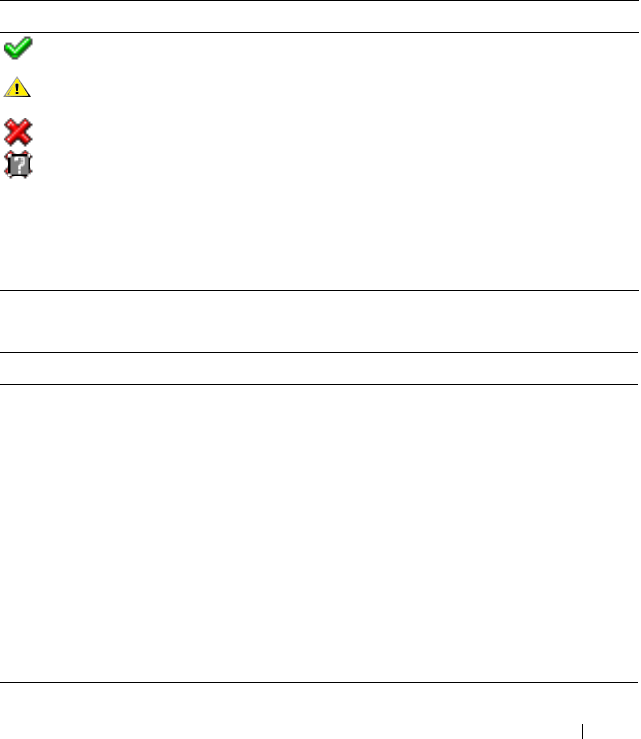
Recovering and Troubleshooting the Managed System 131
To view the System Event Log, perform the following steps:
1
In the
System
tree, click
System
.
2
Click the
Logs
tab and then click
System Event Log
.
The
System Event Log
page displays the event severity and provides other
information as shown in Table 5-6.
3
Click the appropriate
System Event Log
page button to continue (see
Tab le 5 -7 ) .
Table 5-6. Status Indicator Icons
Icon/Category Description
A green check mark indicates a healthy (normal) status condition.
A yellow triangle containing an exclamation point indicates a
warning (noncritical) status condition.
A red X indicates a critical (failure) status condition.
A question mark icon indicates that the status is unknown.
Date/Time The date and time that the event occurred. If the date is blank, then
the event occurred at System Boot. The format is mm/dd/yyyy
hh:mm:ss, based on a 24-hour clock.
Description A brief description of the event
Table 5-7. SEL Page Buttons
Button Action
Print Prints the SEL in the sort order that it appears in the window.
Clear Log Clears the SEL.
NOTE: The Clear Log button appears only if you have Clear Logs
permission.
Save As Opens a pop-up window that enables you to save the SEL to a
directory of your choice.
NOTE: If you are using Internet Explorer and encounter a problem
when saving, be sure to download the Cumulative Security Update for
Internet Explorer, located on the Microsoft Support website at
support.microsoft.com.
Refresh Reloads the SEL page.

132 Recovering and Troubleshooting the Managed System
Viewing the Last System Crash Screen
NOTICE: The last crash screen feature requires the managed system with the Auto
Recovery feature configured in Server Administrator. In addition, ensure that the
Automated System Recovery feature is enabled using the DRAC. Navigate to the
Services page under the Configuration tab in the Remote Access section to enable
this feature.
The Last Crash Screen page displays the most recent crash screen, which
includes information about the events that occurred before the system crash.
The last system crash information is saved in DRAC 5 memory and is
remotely accessible.
To view the Last Crash Screen page, perform the following steps:
1
In the
System
tree, click
System
.
2
Click the
Logs
tab and then click
Last Crash
.
The Last Crash Screen page provides the following buttons (see Table 5-8) in
the top-right corner of the screen:
NOTE: Due to fluctuations in the Auto Recovery timer, the Last Crash Screen may
not be captured when the System Reset Timer is set to a value less than 30 seconds.
Use Server Administrator or IT Assistant to set the System Reset Timer to at least
30 seconds and ensure that the Last Crash Screen functions properly. See
"Configuring the Managed System to Capture the Last Crash Screen" on page 39 for
additional information.
Table 5-8. Last Crash Screen Page Buttons
Button Action
Print Prints the Last Crash Screen page.
Save Opens a pop-up window that enables you to save the Last
Crash Screen to a directory of your choice.
Delete Deletes the Last Crash Screen page.
Refresh Reloads the Last Crash Screen page.

Recovering and Troubleshooting the Managed System 133
Using the RAC Log
The RAC Log is a persistent log maintained in the DRAC 5 firmware. The log
contains a list of user actions (such as log in, log out, and security policy
changes) and alerts issued by the DRAC 5. The oldest entries are overwritten
when the log becomes full.
To access the RAC Log, perform the following steps:
1
In the
System
tree, click
Remote Access
.
2
Click the
Logs
tab and then click
RAC Log
.
The RAC Log provides the information in Table 5-9.
Using the RAC Log Page Buttons
The RAC Log page provides the following buttons (see Table 5-10).
Table 5-9. RAC Log Page Information
Field Description
Date/ Time The date and time (for example, Dec 19 16:55:47).
When the DRAC 5 initially starts and is unable to communicate
with the managed system, the time will be displayed as System
Boot.
Source The interface that caused the event.
Description A brief description of the event and the user name that logged into
the DRAC 5.
Table 5-10. RAC Log Buttons
Button Action
Print Prints the RAC Log page.
Clear Log Clears the RAC Log entries.
NOTE: The Clear Log button only appears if you have Clear Logs
permission.

134 Recovering and Troubleshooting the Managed System
Using the Diagnostic Console
The DRAC 5 provides a standard set of network diagnostic tools (see
Table 5-11) that are similar to the tools included with Microsoft® Windows®
or Linux-based systems. Using the DRAC 5 Web-based interface, you can
access the network debugging tools.
To access the Diagnostic Console page, perform the following steps:
1
In the
System
tree, click
Remote Access
.
2
Click the
Diagnostics
tab.
Table 5-11 describes the options that are available on the Diagnostic Console
page. Type a command and click Submit. The debugging results appear in the
Diagnostic Console page.
To refresh the Diagnostic Console page, click Refresh. To execute another
command, click Go Back to Diagnostics Page.
Save As Opens a pop-up window that enables you to save the RAC Log
to a directory of your choice.
NOTE: If you are using Internet Explorer and encounter a problem
when saving, be sure to download the Cumulative Security Update
for Internet Explorer, located on the Microsoft Support website at
support.microsoft.com.
Refresh Reloads the RAC Log page.
Table 5-11. Diagnostic Commands
Command Description
arp Displays the contents of the Address Resolution Protocol
(ARP) table. ARP entries may not be added or deleted.
ifconfig Displays the contents of the network interface table.
Table 5-10. RAC Log Buttons
(continued)
Button Action

Recovering and Troubleshooting the Managed System 135
Troubleshooting Network Problems
The internal DRAC 5 Trace Log is used by administrators to debug DRAC 5
alerting and networking. You can access the Trace Log from the DRAC 5
Web-based interface by clicking the Diagnostics tab, typing the gettracelog
command, or typing the racadm gettracelog command. See "gettracelog" on
page 275 for more information.
The Trace Log tracks the following information:
• DHCP — Traces packets sent to and received from a DHCP server.
• IP — Traces IP packets sent and received.
The trace log may also contain DRAC 5 firmware-specific error codes that are
related to the internal DRAC 5 firmware, not the managed system’s operating
system.
NOTE: The DRAC 5 will not echo an ICMP (ping) with a packet size larger than
1500 bytes.
netstat Prints the content of the routing table. If the optional
interface number is provided in the text field to the right of
the netstat option, then netstat prints additional information
regarding the traffic across the interface, buffer usage, and
other network interface information.
ping <IP
Address>
Verifies that the destination IP address is reachable from the
DRAC 5 with the current routing-table contents. A
destination IP address must be entered in the field to the right
of this option. An Internet control message protocol (ICMP)
echo packet is sent to the destination IP address based on the
current routing-table contents.
gettracelog Displays the DRAC 5 trace log. See "gettracelog" on page 275
for more information.
Table 5-11. Diagnostic Commands
(continued)
Command Description

136 Recovering and Troubleshooting the Managed System
Troubleshooting Alerting Problems
Use logged SNMP trap information to troubleshoot a particular type of
DRAC 5 alert. SNMP trap deliveries are logged in the Trace Log by default.
However, since SNMP does not confirm delivery of traps, use a network
analyzer or a tool such as Microsoft’s snmputil to trace the packets on the
managed system.

Using the DRAC 5 With Microsoft Active Directory 137
6
Using the DRAC 5 With Microsoft
Active Directory
A directory service maintains a common database of all information needed
for controlling users, computers, printers, etc. on a network. If your company
uses the Microsoft® Active Directory® service software, you can configure the
software to provide access to the DRAC 5, allowing you to add and control
DRAC 5 user privileges to your existing users in your Active Directory
software.
NOTE: Using Active Directory to recognize DRAC 5 users is supported on the
Microsoft Windows® 2000 and Windows Server® 2003 operating systems.
You can use Active Directory to define user access on DRAC 5 through two
methods: you can use the extended schema solution which uses Dell-defined
Active Directory objects or a standard schema solution which uses Active
Directory group objects only.
Advantages and Disadvantages of Extended
Schema and Standard Schema
When using Active Directory to configure access to the DRAC 5, you must
choose either the extended schema or the standard schema solution.
The advantages of using the extended schema solution are:
• All of the access control objects are maintained in Active Directory.
• Maximum flexibility in configuring user access on different DRAC 5 cards
with different privilege levels.
The advantages of using the standard schema solution are:
• No schema extension is required because standard schema uses Active
Directory objects only.
• Configuration on Active Directory side is simple.

138 Using the DRAC 5 With Microsoft Active Directory
Extended Schema Active Directory Overview
There are two ways to enable Extended Schema Active Directory:
• With the DRAC 5 web-based user interface. See "Configuring the DRAC 5
With Extended Schema Active Directory and Web-Based Interface" on
page 152.
• With the RACADM CLI tool. See "Configuring the DRAC 5 With
Extended Schema Active Directory and RACADM" on page 154.
Active Directory Schema Extensions
The Active Directory data is a distributed database of Attributes and Classes.
The Active Directory schema includes the rules that determine the type of
data that can be added or included in the database. The user class is one
example of a Class that is stored in the database. Some example user class
attributes can include the user’s first name, last name, phone number, and so
on. Companies can extend the Active Directory database by adding their own
unique Attributes and Classes to solve environment-specific needs. Dell has
extended the schema to include the necessary changes to support remote
management Authentication and Authorization.
Each Attribute or Class that is added to an existing Active Directory Schema
must be defined with a unique ID. To maintain unique IDs across the
industry, Microsoft maintains a database of Active Directory Object
Identifiers (OIDs) so that when companies add extensions to the schema,
they can be guaranteed to be unique and not to conflict with each other. To
extend the schema in Microsoft's Active Directory, Dell received unique
OIDs, unique name extensions, and uniquely linked attribute IDs for our
attributes and classes that are added into the directory service.
Dell extension is: dell
Dell base OID is: 1.2.840.113556.1.8000.1280
RAC LinkID range is:12070 to 12079
The Active Directory OID database maintained by Microsoft can be viewed
at http://msdn.microsoft.com/certification/ADAcctInfo.asp by entering our
extension Dell.

Using the DRAC 5 With Microsoft Active Directory 139
Overview of the RAC Schema Extensions
To provide the greatest flexibility in the multitude of customer environments,
Dell provides a group of properties that can be configured by the user
depending on the desired results. Dell has extended the schema to include an
Association, Device, and Privilege property. The Association property is used
to link together the users or groups with a specific set of privileges to one or
more RAC devices. This model provides an Administrator maximum
flexibility over the different combinations of users, RAC privileges, and RAC
devices on the network without adding too much complexity.
Active Directory Object Overview
For each of the physical RACs on the network that you want to integrate with
Active Directory for Authentication and Authorization, create at least one
Association Object and one RAC Device Object. You can create multiple
Association Objects, and each Association Object can be linked to as many
users, groups of users, or RAC Device Objects as required. The users and RAC
Device Objects can be members of any domain in the enterprise.
However, each Association Object can be linked (or, may link users, groups of
users, or RAC Device Objects) to only one Privilege Object. This example
allows an Administrator to control each user’s privileges on specific RACs.
The RAC Device object is the link to the RAC firmware for querying Active
Directory for authentication and authorization. When a RAC is added to the
network, the Administrator must configure the RAC and its device object
with its Active Directory name so users can perform authentication and
authorization with Active Directory. Additionally, the Administrator must add
the RAC to at least one Association Object in order for users to authenticate.
Figure 6-1 illustrates that the Association Object provides the connection
that is needed for all of the Authentication and Authorization.

140 Using the DRAC 5 With Microsoft Active Directory
Figure 6-1. Typical Setup for Active Directory Objects
NOTE: The RAC privilege object applies to both DRAC 4 and DRAC 5.
You can create as many or as few association objects as required. However, you
must create at least one Association Object, and you must have one RAC
Device Object for each RAC (DRAC 5) on the network that you want to
integrate with Active Directory for Authentication and Authorization with
the RAC (DRAC 5).
The Association Object allows for as many or as few users and/or groups as
well as RAC Device Objects. However, the Association Object only includes
one Privilege Object per Association Object. The Association Object
connects the "Users" who have "Privileges" on the RACs (DRAC 5s).
Additionally, you can configure Active Directory objects in a single domain or
in multiple domains. For example, you have two DRAC 5 cards (RAC1 and
RAC2) and three existing Active Directory users (user1, user2, and user3).
You want to give user1 and user2 an administrator privilege to both DRAC 5
cards and give user3 a login privilege to the RAC2 card. Figure 6-2 shows how
you set up the Active Directory objects in this scenario.
Association
Object
User(s)
Group(s)
Privilege
Object RAC Device
Object(s)
RAC4 Privilege
Object
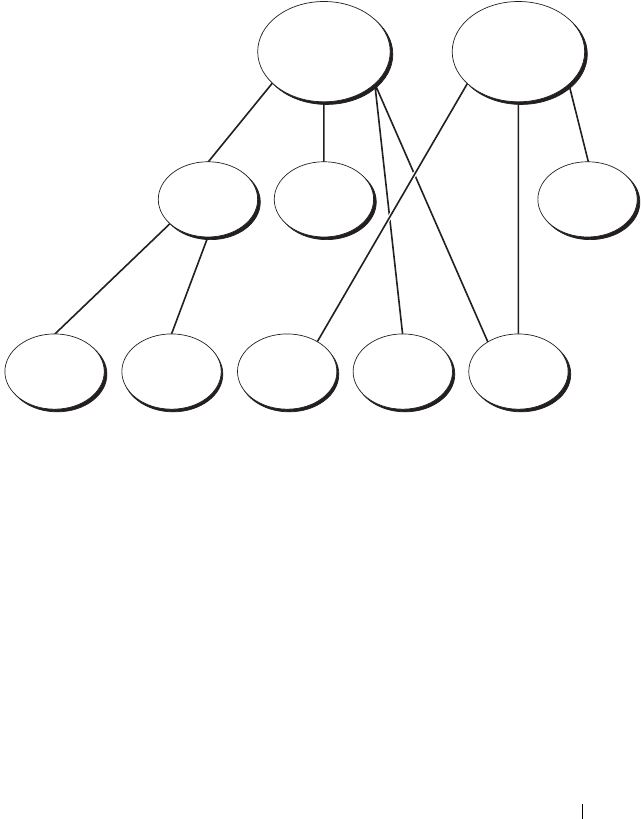
Using the DRAC 5 With Microsoft Active Directory 141
When adding Universal Groups from separate domains, create an Association
Object with Universal Scope. The Default Association objects created by the
Dell Schema Extender Utility are Domain Local Groups and will not work
with Universal Groups from other domains.
Figure 6-2. Setting Up Active Directory Objects in a Single Domain
To configure the objects for the single domain scenario, perform the
following tasks:
1
Create two Association Objects.
2
Create two RAC Device Objects, RAC1 and RAC2, to represent the two
DRAC 5 cards.
3
Create two Privilege Objects, Priv1 and Priv2, in which Priv1 has all
privileges (administrator) and Priv2 has login privileges.
4
Group user1 and user2 into Group1.
5
Add Group1 as Members in Association Object 1 (AO1), Priv1 as Privilege
Objects in AO1, and RAC1, RAC2 as RAC Devices in AO1.
6
Add User3 as Members in Association Object 2 (AO2), Priv2 as Privilege
Objects in AO2, and RAC2 as RAC Devices in AO2.
AO1 AO2
Priv2Priv1
Group1
RAC2RAC1User3User2User1
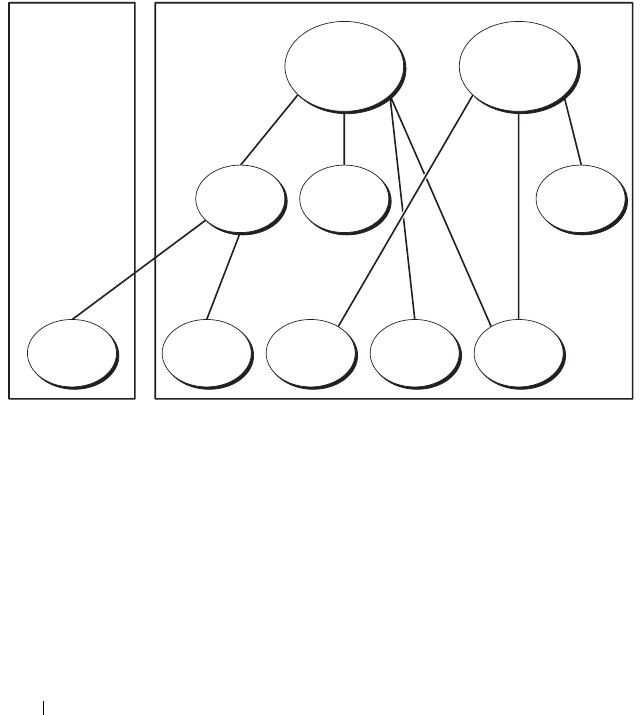
142 Using the DRAC 5 With Microsoft Active Directory
See "Adding DRAC 5 Users and Privileges to Active Directory" on page 150
for detailed instructions.
Figure 6-3 provides an example of Active Directory objects in multiple
domains. In this scenario, you have two DRAC 5 cards (RAC1 and RAC2) and
three existing Active Directory users (user1, user2, and user3). User1 is in
Domain1, and user2 and user 3 are in Domain2. In this scenario, configure
user1 and user 2 with administrator privileges to both DRAC 5 cards and
configure user3 with login privileges to the RAC2 card.
Figure 6-3. Setting Up Active Directory Objects in Multiple Domains
To configure the objects for the multiple domain scenario, perform the
following tasks:
1
Ensure that the domain forest function is in Native or Windows 2003
mode.
2
Create two Association Objects, AO1 (of Universal scope) and AO2, in any
domain.
Figure 6-3 shows the objects in Domain2.
3
Create two RAC Device Objects, RAC1 and RAC2, to represent the two
DRAC 5 cards.
AO1 AO2
Priv2Priv1Group1
RAC2RAC1User3User2User1
Domain2Domain1

Using the DRAC 5 With Microsoft Active Directory 143
4
Create two Privilege Objects, Priv1 and Priv2, in which Priv1 has all
privileges (administrator) and Priv2 has login privileges.
5
Group user1 and user2 into Group1. The group scope of Group1 must be
Universal.
6
Add Group1 as Members in Association Object 1 (AO1), Priv1 as Privilege
Objects in AO1, and RAC1, RAC2 as RAC Devices in AO1.
7
Add User3 as Members in Association Object 2 (AO2), Priv2 as Privilege
Objects in AO2, and RAC2 as RAC Devices in AO2.
Configuring Extended Schema Active Directory to Access Your DRAC 5
Before using Active Directory to access your DRAC 5, configure the Active
Directory software and the DRAC 5 by performing the following steps in
order:
1
Extend the Active Directory schema (see "Extending the Active Directory
Schema" on page 143).
2
Extend the Active Directory Users and Computers Snap-in (see "Installing
the Dell Extension to the Active Directory Users and Computers Snap-In"
on page 149).
3
Add DRAC 5 users and their privileges to Active Directory (see "Adding
DRAC 5 Users and Privileges to Active Directory" on page 150).
4
Enable SSL on each of your domain controllers (see "Enabling SSL on a
Domain Controller" on page 162).
5
Configure the DRAC 5 Active Directory properties using either the DRAC
5 Web-based interface or the RACADM (see "Configuring the DRAC 5
With Extended Schema Active Directory and Web-Based Interface" on
page 152 or "Configuring the DRAC 5 With Extended Schema Active
Directory and RACADM" on page 154").
Extending the Active Directory Schema
Extending your Active Directory schema adds a Dell organizational unit,
schema classes and attributes, and example privileges and association objects
to the Active Directory schema. Before you extend the schema, ensure that
you have Schema Admin privileges on the Schema Master Flexible Single
Master Operation (FSMO) Role Owner of the domain forest.

144 Using the DRAC 5 With Microsoft Active Directory
You can extend your schema using one of the following methods:
• Dell Schema Extender utility
• LDIF script file
If you use the LDIF script file, the Dell organizational unit will not be added
to the schema.
The LDIF files and Dell Schema Extender are located on your Dell Systems
Console and Agent CD in the following respective directories:
•
CD drive
:\support\OMActiveDirectory Tools\RAC4-5\LDIF_Files
•
CD drive
:\support\OMActiveDirectory Tools\RAC4-5\Schema_Extender
To use the LDIF files, see the instructions in the readme included in the
LDIF_Files directory. To use the Dell Schema Extender to extend the Active
Directory Schema, see "Using the Dell Schema Extender" on page 144.
You can copy and run the Schema Extender or LDIF files from any location.
Using the Dell Schema Extender
NOTICE: The Dell Schema Extender uses the SchemaExtenderOem.ini file.
To ensure that the Dell Schema Extender utility functions properly, do not modify the
name of this file.
1
In the
Welcome
screen, click
Next.
2
Read and understand the warning and click
Next
.
3
Select
Use Current Log In Credentials
or enter a user name and password
with schema administrator rights.
4
Click
Next
to run the Dell Schema Extender.
5
Click
Finish
.
The schema is extended. To verify the schema extension, use the
Microsoft Management Console (MMC) and the Active Directory
Schema snap-in to verify that the following exist:
• Classes (see Table 6-1 through Table 6-6)
• Attributes (Table 6-7)
See your Microsoft documentation for more information on how to enable
and use the Active Directory Schema snap-in the MMC.

Using the DRAC 5 With Microsoft Active Directory 145
Table 6-1. Class Definitions for Classes Added to the Active Directory Schema
Class Name Assigned Object Identification Number (OID)
dellRacDevice 1.2.840.113556.1.8000.1280.1.1.1.1
dellAssociationObject 1.2.840.113556.1.8000.1280.1.1.1.2
dellRACPrivileges 1.2.840.113556.1.8000.1280.1.1.1.3
dellPrivileges 1.2.840.113556.1.8000.1280.1.1.1.4
dellProduct 1.2.840.113556.1.8000.1280.1.1.1.5
Table 6-2. dellRacDevice Class
OID 1.2.840.113556.1.8000.1280.1.1.1.1
Description Represents the Dell RAC device. The RAC device must be
configured as dellRacDevice in Active Directory. This
configuration enables the DRAC 5 to send Lightweight
Directory Access Protocol (LDAP) queries to Active Directory.
Class Type Structural Class
SuperClasses dellProduct
Attributes dellSchemaVersion
dellRacType
Table 6-3. dellAssociationObject Class
OID 1.2.840.113556.1.8000.1280.1.1.1.2
Description Represents the Dell Association Object. The Association
Object provides the connection between the users and the
devices.
Class Type Structural Class
SuperClasses Group
Attributes dellProductMembers
dellPrivilegeMember

146 Using the DRAC 5 With Microsoft Active Directory
Table 6-4. dellRAC4Privileges Class
OID 1.2.840.113556.1.8000.1280.1.1.1.3
Description Used to define the privileges (Authorization Rights) for the
DRAC 5 device.
Class Type Auxiliary Class
SuperClasses None
Attributes dellIsLoginUser
dellIsCardConfigAdmin
dellIsUserConfigAdmin
dellIsLogClearAdmin
dellIsServerResetUser
dellIsConsoleRedirectUser
dellIsVirtualMediaUser
dellIsTestAlertUser
dellIsDebugCommandAdmin
Table 6-5. dellPrivileges Class
OID 1.2.840.113556.1.8000.1280.1.1.1.4
Description Used as a container Class for the Dell Privileges (Authorization Rights).
Class Type Structural Class
SuperClasses User
Attributes dellRAC4Privileges
Table 6-6. dellProduct Class
OID 1.2.840.113556.1.8000.1280.1.1.1.5
Description The main class from which all Dell products are derived.
Class Type Structural Class
SuperClasses Computer
Attributes dellAssociationMembers

Using the DRAC 5 With Microsoft Active Directory 147
Table 6-7. List of Attributes Added to the Active Directory Schema
Attribute Name/Description Assigned OID/Syntax Object Identifier Single
Valued
dellPrivilegeMember
List of dellPrivilege Objects
that belong to this Attribute.
1.2.840.113556.1.8000.1280.1.1.2.1
Distinguished Name (LDAPTYPE_DN
1.3.6.1.4.1.1466.115.121.1.12)
FALSE
dellProductMembers
List of dellRacDevices Objects
that belong to this role. This
attribute is the forward link to
the dellAssociationMembers
backward link.
Link ID: 12070
1.2.840.113556.1.8000.1280.1.1.2.2
Distinguished Name (LDAPTYPE_DN
1.3.6.1.4.1.1466.115.121.1.12)
FALSE
dellIsLoginUser
TRUE if the user has Login
rights on the device.
1.2.840.113556.1.8000.1280.1.1.2.3
Boolean (LDAPTYPE_BOOLEAN
1.3.6.1.4.1.1466.115.121.1.7)
TRUE
dellIsCardConfigAdmin
TRUE if the user has Card
Configuration rights on the
device.
1.2.840.113556.1.8000.1280.1.1.2.4
Boolean (LDAPTYPE_BOOLEAN
1.3.6.1.4.1.1466.115.121.1.7)
TRUE
dellIsUserConfigAdmin
TRUE if the user has User
Configuration rights on the
device.
1.2.840.113556.1.8000.1280.1.1.2.5
Boolean (LDAPTYPE_BOOLEAN
1.3.6.1.4.1.1466.115.121.1.7)
TRUE
delIsLogClearAdmin
TRUE if the user has Log
Clearing rights on the device.
1.2.840.113556.1.8000.1280.1.1.2.6
Boolean (LDAPTYPE_BOOLEAN
1.3.6.1.4.1.1466.115.121.1.7)
TRUE
dellIsServerResetUser
TRUE if the user has Server
Reset rights on the device.
1.2.840.113556.1.8000.1280.1.1.2.7
Boolean (LDAPTYPE_BOOLEAN
1.3.6.1.4.1.1466.115.121.1.7)
TRUE
dellIsConsoleRedirectUser
TRUE if the user has Console
Redirection rights on the
device.
1.2.840.113556.1.8000.1280.1.1.2.8
Boolean (LDAPTYPE_BOOLEAN
1.3.6.1.4.1.1466.115.121.1.7)
TRUE

148 Using the DRAC 5 With Microsoft Active Directory
dellIsVirtualMediaUser
TRUE if the user has Virtual
Media rights on the device.
1.2.840.113556.1.8000.1280.1.1.2.9
Boolean (LDAPTYPE_BOOLEAN
1.3.6.1.4.1.1466.115.121.1.7)
TRUE
dellIsTestAlertUser
TRUE if the user has Test
Alert User rights on the
device.
1.2.840.113556.1.8000.1280.1.1.2.10
Boolean (LDAPTYPE_BOOLEAN
1.3.6.1.4.1.1466.115.121.1.7)
TRUE
dellIsDebugCommandAdmin
TRUE if the user has Debug
Command Admin rights on
the device.
1.2.840.113556.1.8000.1280.1.1.2.11
Boolean (LDAPTYPE_BOOLEAN
1.3.6.1.4.1.1466.115.121.1.7)
TRUE
dellSchemaVersion
The Current Schema Version
is used to update the schema.
1.2.840.113556.1.8000.1280.1.1.2.12
Case Ignore String
(LDAPTYPE_CASEIGNORESTRING
1.2.840.113556.1.4.905)
TRUE
dellRacType
This attribute is the Current
Rac Type for the
dellRacDevice object and the
backward link to the
dellAssociationObjectMembe
rs forward link.
1.2.840.113556.1.8000.1280.1.1.2.13
Case Ignore String
(LDAPTYPE_CASEIGNORESTRING
1.2.840.113556.1.4.905)
TRUE
dellAssociationMembers
List of
dellAssociationObjectMembe
rs that belong to this Product.
This attribute is the backward
link to the
dellProductMembers Linked
attribute.
Link ID: 12071
1.2.840.113556.1.8000.1280.1.1.2.14
Distinguished Name (LDAPTYPE_DN
1.3.6.1.4.1.1466.115.121.1.12)
FALSE
Table 6-7. List of Attributes Added to the Active Directory Schema
(continued)
Attribute Name/Description Assigned OID/Syntax Object Identifier Single
Valued

Using the DRAC 5 With Microsoft Active Directory 149
Installing the Dell Extension to the Active Directory Users and
Computers Snap-In
When you extend the schema in Active Directory, you must also extend the
Active Directory Users and Computers snap-in so the administrator can
manage RAC (DRAC 5) devices, Users and User Groups, RAC Associations,
and RAC Privileges.
When you install your systems management software using the Dell Systems
Console and Agent CD, you can extend the snap-in by selecting the
Dell Extension to the Active Directory User’s and Computers Snap-In
option during the installation procedure. See the Dell OpenManage Software
Quick Installation Guide for additional instructions about installing systems
management software.
For more information about the Active Directory User’s and Computers
snap-in, see your Microsoft documentation.
Installing the Administrator Pack
You must install the Administrator Pack on each system that is managing the
Active Directory DRAC 5 Objects. If you do not install the Administrator
Pack, you cannot view the Dell RAC Object in the container.
See "Opening the Active Directory Users and Computers Snap-In" on
page 149 for more information.
Opening the Active Directory Users and Computers Snap-In
To open the Active Directory Users and Computers snap-in, perform the
following steps:
1
If you are logged into the domain controller, click
Start
Admin Tools
→
Active Directory Users and Computers
.
If you are not logged into the domain controller, you must have the
appropriate Microsoft Administrator Pack installed on your local system.
To install this Administrator Pack, click
Start
→
Run
, type
MMC
, and
press
Enter
.
The Microsoft Management Console (MMC) appears.
2
In the
Console 1
window, click
File
(or
Console
on systems running
Windows 2000).
3
Click
Add/Remove Snap-in
.

150 Using the DRAC 5 With Microsoft Active Directory
4
Select the
Active Directory Users and Computers
snap-in and click
Add
.
5
Click
Close
and click
OK
.
Adding DRAC 5 Users and Privileges to Active Directory
Using the Dell-extended Active Directory Users and Computers snap-in, you
can add DRAC 5 users and privileges by creating RAC, Association, and
Privilege objects. To add each object type, perform the following procedures:
•Create a RAC device Object
• Create a Privilege Object
• Create an Association Object
• Add objects to an Association Object
Creating a RAC Device Object
1
In the MMC
Console Root
window, right-click a container.
2
Select
New
→
Dell RAC Object
.
The
New Object
window appears.
3
Type a name for the new object. The name must be identical to the DRAC
5 Name that you will type in step a of "Configuring the DRAC 5 With
Extended Schema Active Directory and Web-Based Interface" on page 152.
4
Select
RAC Device Object
.
5
Click
OK
.
Creating a Privilege Object
NOTE: A Privilege Object must be created in the same domain as the related
Association Object.
1
In the
Console Root
(MMC) window, right-click a container.
2
Select
New
→
Dell RAC Object
.
The
New Object
window appears.
3
Type a name for the new object.
4
Select
Privilege Object
.
5
Click
OK
.

Using the DRAC 5 With Microsoft Active Directory 151
6
Right-click the privilege object that you created, and select
Properties
.
7
Click the
RAC Privileges
tab and select the privileges that you want the
user to have (for more information, see Table 4-9).
Creating an Association Object
The Association Object is derived from a Group and must contain a Group
Type. The Association Scope specifies the Security Group Type for the
Association Object. When you create an Association Object, choose the
Association Scope that applies to the type of objects you intend to add.
For example, if you select Universal, the association objects are only available
when the Active Directory Domain is functioning in Native Mode or above.
1
In the
Console Root
(MMC) window, right-click a container.
2
Select
New
→
Dell RAC Object
.
This opens the
New Object
window.
3
Type a name for the new object.
4
Select
Association Object
.
5
Select the scope for the
Association Object
.
6
Click
OK
.
Adding Objects to an Association Object
Using the Association Object Properties window, you can associate users or
user groups, privilege objects, and RAC devices or RAC device groups. If your
system is running Windows 2000 mode or higher, use Universal Groups to
span domains with your user or RAC objects.
You can add groups of Users and RAC devices. The procedure for creating
Dell-related groups and non-Dell-related groups is identical.
Adding Users or User Groups
1
Right-click the
Association Object
and select
Properties
.
2
Select the
Users
tab and click
Add
.
3
Type the user or User Group name and click
OK
.

152 Using the DRAC 5 With Microsoft Active Directory
Click the Privilege Object tab to add the privilege object to the association
that defines the user’s or user group’s privileges when authenticating to a
RAC device. Only one privilege object can be added to an Association Object.
Adding Privileges
1
Select the
Privileges Object
tab and click
Add
.
2
Type the Privilege Object name and click
OK
.
Click the Products tab to add one or more RAC devices to the association.
The associated devices specify the RAC devices connected to the network
that are available for the defined users or user groups. Multiple RAC devices
can be added to an Association Object.
Adding RAC Devices or RAC Device Groups
To add RAC devices or RAC device groups:
1
Select the
Products
tab and click
Add.
2
Type the RAC device or RAC device group name and click
OK
.
3
In the
Properties
window, click
Apply
and click
OK
.
Configuring the DRAC 5 With Extended Schema Active Directory and
Web-Based Interface
1
Open a supported Web browser window.
2
Log in to the DRAC 5 Web-based interface.
3
Expand the
System
tree and click
Remote Access
.
4
Click the
Configuration
tab and select
Active Directory
.
5
On the
Active Directory Main Menu
page, select
Configure Active
Directory
and click
Next
.
6
In the Common Settings section:
a
Select the
Enable Active Directory
check box.
b
Typ e t he
Root Domain Name
. The
Root Domain Name
is the fully
qualified root domain name for the forest.
c
Typ e t he
Timeout
time in seconds.
7
Click
Use Extended Schema
in the Active Directory Schema Selection
section.

Using the DRAC 5 With Microsoft Active Directory 153
8
In the Extended Schema Settings section:
a
Typ e t h e
DRAC Name
. This name must be the same as the common
name of the new RAC object you created in your Domain Controller
(see step 3 of "Creating a RAC Device Object" on page 150).
b
Typ e t h e
DRAC Domain Name
(for example,
drac5.com
). Do not
use the NetBIOS name. The
DRAC Domain Name
is the fully
qualified domain name of the sub-domain where the RAC Device
Object is located.
9
Click
Apply
to save the Active Directory settings.
10
Click
Go Back To Active Directory Main Menu
.
11
Upload your domain forest Root CA certificate into the DRAC 5.
a
Select the
Upload Active Directory CA Certificat
e check-box and
then click
Next
.
b
In the
Certificate Upload
page, type the file path of the certificate or
browse to the certificate file.
NOTE: The File Path value displays the relative file path of the certificate you
are uploading. You must type the absolute file path, which includes the full
path and the complete file name and file extension.
The domain controllers' SSL certificates should have been signed by
the root CA. Have the root CA certificate available on your
management station accessing the DRAC 5 (see "Exporting the
Domain Controller Root CA Certificate" on page 162).
c
Click
Apply
.
The DRAC 5 Web server automatically restarts after you click
Apply
.
12
Log out and then log in to the DRAC 5 to complete the DRAC 5 Active
Directory feature configuration.
13
In the
System
tree, click
Remote Access
.
14
Click the
Configuration
tab and then click
Network
.
The
Network Configuration
page appears.

154 Using the DRAC 5 With Microsoft Active Directory
15
If
Use DHCP (for NIC IP Address)
is selected under
Network Settings
,
then select
Use DHCP to obtain DNS server address
.
To manually input a DNS server IP address, deselect
Use DHCP to obtain
DNS server addresses
and type your primary and alternate DNS server IP
addresses.
16
Click
Apply Changes
.
The DRAC 5 Extended Schema Active Directory feature configuration is
complete.
Configuring the DRAC 5 With Extended Schema Active Directory and
RACADM
Using the following commands to configure the DRAC 5 Active Directory
Feature with Extended Schema using the RACADM CLI tool instead of the
Web-based interface.
1
Open a command prompt and type the following racadm commands:
racadm config -g cfgActiveDirectory -o cfgADEnable 1
racadm config -g cfgActiveDirectory -o cfgADType 1
racadm config -g cfgActiveDirectory -o
cfgADRacDomain <
fully qualified rac domain name
>
racadm config -g cfgActiveDirectory -o
cfgADRootDomain <
fully qualified root domain name
>
racadm config -g cfgActiveDirectory -o
cfgADRacName <
RAC common name
>
racadm sslcertupload -t 0x2 -f <
ADS root CA
certificate
>
racadm sslcertdownload -t 0x1 -f <
RAC SSL
certificate
>
2
If you want to specify an LDAP or Global Catalog server instead of using
the servers returned by the DNS server to search for a user name, type the
following command to enable the
Specify Server
option:
racadm config -g cfgActive Directory -o
cfgADSpecifyServer Enable 1

Using the DRAC 5 With Microsoft Active Directory 155
NOTE: If you use this option, the hostname in the CA certificate is not
matched against the name of the specified server. This is particularly useful if
you are a DRAC administrator because it enables you to enter a hostname as
well as an IP address.
After the
Specify Server
option is enabled, you can specify an LDAP server
with an IP address or a fully qualified domain name of the server (FQDN).
The FQDN consists of the hostname and the domain name of the server.
To specify an LDAP server, type:
racadm config -g cfgActive Directory -o
cfgADDomainController <
fully qualified domain name
or IP address
>
To specify a Global Catalog server, type:
racadm config -g cfgActive Directory -o
cfgGlobalCatalog <
fully qualified domain name or
IP address
>
NOTE: If you specify the IP address as 0.0.0.0, DRAC 5 will not search for any
server.
NOTE: You can specify a list of LDAP or Global Catalog servers separated by
commas. DRAC 5 allows you to specify up to three IP addresses or
hostnames.
NOTE: If LDAPS is not correctly configured for all domains and applications,
enabling it may produce unexpected results during the functioning of the
existing applications/domains.
3
If DHCP is enabled on the DRAC 5 and you want to use the DNS
provided by the DHCP server, type the following racadm command:
racadm config -g cfgLanNetworking -o
cfgDNSServersFromDHCP 1

156 Using the DRAC 5 With Microsoft Active Directory
4
If DHCP is disabled on the DRAC 5 or you want manually to input your
DNS IP address, type following racadm commands:
racadm config -g cfgLanNetworking -o
cfgDNSServersFromDHCP 0
racadm config -g cfgLanNetworking -o cfgDNSServer1
<primary DNS IP address>
racadm config -g cfgLanNetworking -o cfgDNSServer2
<secondary DNS IP address>
5
Press
Enter
to complete the DRAC 5 Active Directory feature
configuration.
Standard Schema Active Directory Overview
As shown in Figure 6-4, using standard schema for Active Directory
integration requires configuration on both Active Directory and the DRAC 5.
On the Active Directory side, a standard group object is used as a role group.
A user who has DRAC 5 access will be a member of the role group. In order to
give this user access to a specific DRAC 5 card, the role group name and its
domain name need to be configured on the specific DRAC 5 card. Unlike the
extended schema solution, the role and the privilege level is defined on each
DRAC 5 card, not in the Active Directory. Up to five role groups can be
configured and defined in each DRAC 5. Table 4-16 shows the privileges level
of the role groups and Table 6-8 shows the default role group settings.

Using the DRAC 5 With Microsoft Active Directory 157
Figure 6-4. Configuration of DRAC 5 with Microsoft Active Directory and
Standard Schema
Table 6-8. Default Role Group Privileges
Role
Groups
Default
Privilege Level
Permissions Granted Bit Mask
Role
Group 1
Administrator Login to DRAC, Configure
DRAC, Configure Users, Clear
Logs, Execute Server Control
Commands, Access Console
Redirection, Access Virtual
Media, Test Alerts, Execute
Diagnostic Commands
0x000001ff
Role
Group 2
Power User Login to DRAC, Clear Logs,
Execute Server Control
Commands, Access Console
Redirection, Access Virtual
Media, Test Alerts
0x000000f9
Role
Group
Role
Group Name
and Domain
Name
Role
Definition
User
Configuration on Active
Directory Side
Configuration on
DRAC 5 Side

158 Using the DRAC 5 With Microsoft Active Directory
NOTE: The Bit Mask values are used only when setting Standard Schema with the
RACADM.
There are two ways to enable Standard Schema Active Directory:
• With the DRAC 5 web-based user interface. See "Configuring the DRAC 5
With Standard Schema Active Directory and Web-Based Interface" on
page 159.
• With the RACADM CLI tool. See "Configuring the DRAC 5 With
Standard Schema Active Directory and RACADM" on page 161.
Configuring Standard Schema Active Directory to Access Your DRAC 5
You need to perform the following steps to configure the Active Directory
before an Active Directory user can access the DRAC 5:
1
On an Active Directory server (domain controller), open the Active
Directory Users and Computers Snap-in.
2
Create a group or select an existing group. The name of the group and the
name of this domain will need to be configured on the DRAC 5 either with
the web-based interface or RACADM (see "Configuring the DRAC 5 With
Standard Schema Active Directory and Web-Based Interface" on page 159
or "Configuring the DRAC 5 With Standard Schema Active Directory and
RACADM" on page 161).
3
Add the Active Directory user as a member of the Active Directory group
to access the DRAC 5.
Role
Group 3
Guest User Login to DRAC 0x00000001
Role
Group 4
None No assigned permissions 0x00000000
Role
Group 5
None No assigned permissions 0x00000000
Table 6-8. Default Role Group Privileges
(continued)
Role
Groups
Default
Privilege Level
Permissions Granted Bit Mask

Using the DRAC 5 With Microsoft Active Directory 159
Configuring the DRAC 5 With Standard Schema Active Directory and
Web-Based Interface
1
Open a supported Web browser window.
2
Log in to the DRAC 5 Web-based interface.
3
Expand the
System
tree and click
Remote Access
.
4
Click the
Configuration
tab and select
Active Directory
.
5
On the
Active Directory Main Menu
page, select
Configure Active
Directory
and click
Next
.
6
In the Common Settings section:
a
Select the
Enable Active Directory
check box.
b
Typ e t h e
Root Domain Name
. The
Root Domain Name
is the fully
qualified root domain name for the forest.
c
Typ e t h e
Timeout
time in seconds.
7
Click
Use Standard Schema
in the Active Directory Schema Selection
section.
8
Click
Apply
to save the Active Directory settings.
9
In the
Role Groups
column of the Standard Schema settings section, click
a
Role Group
.
The
Configure Role Group
page appears, which includes a role group’s
Group Name
,
Group Domain
, and
Role Group Privileges
.
10
Typ e t h e
Group Name
. The group name identifies the role group in the
Active Directory associated with the DRAC 5 card.
11
Typ e t h e
Group Domain
. The
Group Domain
is the fully qualified root
domain name for the forest.
12
In the
Role Group Privileges
page, set the group privileges.
Table 4-16 describes the
Role Group Privileges
.
Table 4-17 describes the
Role Group Permissions
. If you modify any of the
permissions, the existing
Role Group Privilege
(Administrator, Power User,
or Guest User) will change to either the Custom group or the appropriate
Role Group Privilege based on the permissions modified.
13
Click
Apply
to save the Role Group settings.

160 Using the DRAC 5 With Microsoft Active Directory
14
Click
Go Back To Active Directory Configuration and Management
.
15
Click
Go Back To Active Directory Main Menu
.
16
Upload your domain forest Root CA certificate into the DRAC 5.
a
Select the
Upload Active Directory CA Certificat
e check-box and
then click
Next
.
b
In the
Certificate Upload
page, type the file path of the certificate or
browse to the certificate file.
NOTE: The File Path value displays the relative file path of the certificate you
are uploading. You must type the absolute file path, which includes the full
path and the complete file name and file extension.
The domain controllers' SSL certificates should have been signed by
the root CA. Have the root CA certificate available on your
management station accessing the DRAC 5 (see "Exporting the
Domain Controller Root CA Certificate" on page 162).
c
Click
Apply
.
The DRAC 5 Web server automatically restarts after you click
Apply
.
17
Log out and then log in to the DRAC 5 to complete the DRAC 5 Active
Directory feature configuration.
18
In the
System
tree, click
Remote Access
.
19
Click the
Configuration
tab and then click
Network
.
The
Network Configuration
page appears.
20
If
Use DHCP (for NIC IP Address)
is selected under
Network Settings
,
select
Use DHCP to obtain DNS server address
.
To manually input a DNS server IP address, deselect
Use DHCP to obtain
DNS server addresses
and type your primary and alternate DNS server IP
addresses.
21
Click
Apply Changes
.
The DRAC 5 Standard Schema Active Directory feature configuration is
complete.

Using the DRAC 5 With Microsoft Active Directory 161
Configuring the DRAC 5 With Standard Schema Active Directory and
RACADM
Using the following commands to configure the DRAC 5 Active Directory
Feature with Standard Schema using the RACADM CLI instead of the
Web-based interface.
1
Open a command prompt and type the following racadm commands:
racadm config -g cfgActiveDirectory -o cfgADEnable 1
racadm config -g cfgActiveDirectory -o cfgADType 2
racadm config -g cfgActiveDirectory -o
cfgADRootDomain <
fully qualified root domain name
>
racadm config -g cfgStandardSchema -i <index> -o
cfgSSADRoleGroupName <
common name of the role group
>
racadm config -g cfgStandardSchema -i <index> -o
cfgSSADRoleGroupDomain <
fully qualified domain name
>
racadm config -g cfgStandardSchema -i <index> -o
cfgSSADRoleGroupPrivilege <Bit Mask Number for
specific user permissions>
racadm sslcertupload -t 0x2 -f <
ADS root CA
certificate
>
racadm sslcertdownload -t 0x1 -f <
RAC SSL
certificate
>
NOTE: For Bit Mask number values, see Table B-4.
2
If DHCP is enabled on the DRAC 5 and you want to use the DNS
provided by the DHCP server, type the following racadm commands:
racadm config -g cfgLanNetworking -o
cfgDNSServersFromDHCP 1
3
If DHCP is disabled on the DRAC 5 or you want manually to input your
DNS IP address, type the following racadm commands:
racadm config -g cfgLanNetworking -o
cfgDNSServersFromDHCP 0
racadm config -g cfgLanNetworking -o cfgDNSServer1
<
primary DNS IP address
>
racadm config -g cfgLanNetworking -o cfgDNSServer2
<
secondary DNS IP address>

162 Using the DRAC 5 With Microsoft Active Directory
Enabling SSL on a Domain Controller
If you are using Microsoft Enterprise Root CA to automatically assign all your
domain controllers to an SSL certificate, perform the following steps to
enable SSL on each domain controller.
1
Install a Microsoft Enterprise Root CA on a Domain Controller.
a
Select
Start
→
Control Panel
→
Add or Remove Programs
.
b
Select
Add/Remove Windows Components
.
c
In the
Windows Components
Wizard
, select the
Certificate Services
check box.
d
Select
Enterprise root CA
as
CA Type
and click
Next
.
e
Enter
Common name for this CA
, click
Next
, and click
Finish
.
2
Enable SSL on each of your domain controllers by installing the SSL
certificate for each controller.
a
Click
Start
→
Administrative Tools
→
Domain Security Policy
.
b
Expand the
Public Key Policies
folder, right-click
Automatic
Certificate Request Settings
and click
Automatic Certificate
Request
.
c
In the
Automatic Certificate Request Setup Wizard
, click
Next
and
select
Domain Controller
.
d
Click
Next
and click
Finish
.
Exporting the Domain Controller Root CA Certificate
NOTE: If your system is running Windows 2000, the following steps may vary.
1
Locate the domain controller that is running the Microsoft Enterprise CA
service.
2
Click
Start
→
Run
.
3
In the
Run
field, type
mmc
and click
OK
.
4
In the
Console 1
(MMC) window, click
File (
or
Console
on Windows 2000
machines
)
and select
Add/Remove Snap-in
.
5
In the
Add/Remove Snap-In
window, click
Add
.
6
In the
Standalone Snap-In
window, select
Certificates
and click
Add
.

Using the DRAC 5 With Microsoft Active Directory 163
7
Select
Computer
account and click
Next
.
8
Select
Local Computer
and click
Finish
.
9
Click
OK
.
10
In the
Console 1
window, expand the
Certificates
folder, expand the
Personal
folder, and click the
Certificates
folder.
11
Locate and right-click the root CA certificate, select
All Tasks
, and click
Export...
.
12
In the
Certificate Export Wizard
, click
Next
, and select
No do not export
the private key
.
13
Click
Next
and select
Base-64 encoded X.509 (.cer)
as the format.
14
Click
Next
and save the certificate to a directory on your system.
15
Upload the certificate you saved in step 14 to the DRAC 5.
To upload the certificate using RACADM, see "Configuring the DRAC 5
With Extended Schema Active Directory and Web-Based Interface" on
page 152.
To upload the certificate using the Web-based interface, perform the
following procedure:
a
Open a supported Web browser window.
b
Log in to the DRAC 5 Web-based interface.
c
Expand the
System
tree and click
Remote Access
.
d
Click the
Configuration
tab, and then click
Security
.
e
In the
Security Certificate Main Menu
page, select
Upload Server
Certificate
and click
Apply
.
f
In the
Certificate Upload
screen, perform one of the following
procedures:
•Click
Browse
and select the certificate
•In the
Val ue
field, type the path to the certificate.
g
Click
Apply
.

164 Using the DRAC 5 With Microsoft Active Directory
Importing the DRAC 5 Firmware SSL Certificate
Use the following procedure to import the DRAC 5 firmware SSL certificate
to all domain controller trusted certificate lists.
NOTE: If your system is running Windows 2000, the following steps may vary.
NOTE: If the DRAC 5 firmware SSL certificate is signed by a well-known CA, you
are not required to perform the steps in this section.
The DRAC 5 SSL certificate is the identical certificate used for the DRAC 5
Web server. All DRAC 5 controllers are shipped with a default self-signed
certificate.
To access the certificate using the DRAC 5 Web-based interface, select
Configuration→ Active Directory→ Download DRAC 5 Server Certificate.
1
On the domain controller, open an
MMC Console
window and select
Certificates
→
Trusted Root Certification Authorities
.
2
Right-click
Certificates
, select
All Tasks
and click
Import
.
3
Click
Next
and browse to the SSL certificate file.
4
Install the RAC SSL Certificate in each domain controller’s
Trusted Root
Certification Authority
.
If you have installed your own certificate, ensure that the CA signing your
certificate is in the
Trusted Root Certification Authority
list. If the
Authority is not in the list, you must install it on all your Domain Controllers.
5
Click
Next
and select whether you would like Windows to automatically
select the certificate store based on the type of certificate, or browse to a
store of your choice.
6
Click
Finish
and click
OK
.
Using Active Directory to Log In To the DRAC 5
You can use Active Directory to log in to the DRAC 5 using one of the
following methods:
• Web-based interface
• Remote RACADM
• Serial or telnet console.
Using the DRAC 5 With Microsoft Active Directory 165
The login syntax is consistent for all three methods:
<username@domain>
or
<domain>\<username> or <domain>/<username>
where username is an ASCII string of 1–256 bytes.
White space and special characters (such as \, /, or @) cannot be used in the
user name or the domain name.
NOTE: You cannot specify NetBIOS domain names, such as Americas, as these
names cannot be resolved.
Frequently Asked Questions
Table 6-9 lists frequently asked questions and answers.
Table 6-9. Using DRAC 5 With Active Directory:
Frequently Asked Questions
Question Answer
Can I log into the DRAC 5 using
Active Directory across multiple
trees?
Yes. The DRAC 5’s Active Directory querying
algorithm supports multiple trees in a single
forest.
Does the log in to the DRAC 5
using Active Directory work in
mixed mode (that is, the domain
controllers in the forest run
different operating systems, such as
Microsoft Windows NT® 4.0,
Windows 2000, or
Windows Server 2003)?
Yes. In mixed mode, all objects used by the
DRAC 5 querying process (among user, RAC
Device Object, and Association Object) have to
be in the same domain.
The Dell-extended Active Directory Users and
Computers snap-in checks the mode and limits
users in order to create objects across domains if
in mixed mode.
Does using the DRAC 5 with
Active Directory support multiple
domain environments?
Yes. The domain forest function level must be
in Native mode or Windows 2003 mode. In
addition, the groups among Association Object,
RAC user objects, and RAC Device Objects
(including Association Object) must be
universal groups.

166 Using the DRAC 5 With Microsoft Active Directory
Can these Dell-extended objects
(Dell Association Object, Dell RAC
Device, and Dell Privilege Object)
be in different domains?
The Association Object and the Privilege Object
must be in the same domain. The Dell-
extended Active Directory Users and
Computers snap-in forces you to create these
two objects in the same domain. Other objects
can be in different domains.
Are there any restrictions on
Domain Controller SSL
configuration?
Yes. All Active Directory servers’ SSL certificates
in the forest must be signed by the same root
CA since DRAC 5 only allows uploading one
trusted CA SSL certificate.
I created and uploaded a new RAC
certificate and now the Web-based
interface does not launch.
If you use Microsoft Certificate Services to
generate the RAC certificate, one possible cause
of this is you inadvertently chose User
Certificate instead of Web Certificate when
creating the certificate.
To recover, generate a CSR and then create a
new web certificate from Microsoft Certificate
Services and load it using the RACADM CLI
from the managed system by using the following
racadm commands:
racadm sslcsrgen [-g] [-u] [-f
{filename}]
racadm sslcertupload -t 1 -f
{web_sslcert}
Table 6-9. Using DRAC 5 With Active Directory:
Frequently Asked Questions
(continued)
Question Answer

Using the DRAC 5 With Microsoft Active Directory 167
What can I do if I cannot log into
the DRAC 5 using Active Directory
authentication? How do I
troubleshoot the issue?
1
Ensure that you use the correct user domain
name during a login and not the NetBIOS
name.
2
If you have a local DRAC user account, log
into the DRAC 5 using your local credentials.
After you are logged in, perform the following
steps:
a
Ensure that you have checked the
Enable
Active Directory
box on the DRAC 5 Active
Directory configuration page.
b
Ensure that the DNS setting is correct on
the DRAC 5 Networking configuration page.
c
Ensure that you have uploaded the Active
Directory certificate from your Active
Directory root CA to the DRAC 5.
d
Check the Domain Controller SSL
certificates to ensure that they have not
expired.
e
Ensure that your
DRAC Name
,
Root
Domain Name
, and
DRAC Domain Name
match your Active Directory environment
configuration.
f
Ensure that the DRAC 5 password has a
maximum of 127 characters. While the
DRAC 5 can support passwords of up to 256
characters, Active Directory only supports
passwords that have a maximum length of
127 characters.
Table 6-9. Using DRAC 5 With Active Directory:
Frequently Asked Questions
(continued)
Question Answer

168 Using the DRAC 5 With Microsoft Active Directory

Using GUI Console Redirection 169
7
Using GUI Console Redirection
This section provides information about using the DRAC 5 console
redirection feature.
Overview
The DRAC 5 console redirection feature enables you to access the local
console remotely in either graphic or text mode. Using console redirection,
you can control one or more DRAC 5-enabled systems from one location.
Today with the power of networking and the Internet, you do not have to sit
in front of each server to perform all the routine maintenance. You can
manage the servers from another city or even from the other side of the world
from your desktop or laptop computer. You can also share the information
with others— remotely and instantly.
Using Console Redirection
NOTE: When you open a console redirection session, the managed system does
not indicate that the console has been redirected.
The Console Redirection page enables you to manage the remote system by
using the keyboard, video, and mouse on your local management station to
control the corresponding devices on a remote managed system. This feature
can be used in conjunction with the Virtual Media feature to perform remote
software installations.
The following rules apply to a console redirection session:
• Only two simultaneous console redirection sessions are supported.
• Console redirection sessions can only be connected to one remote target
system.
• You cannot configure a console redirection session on the local system.
• A minimum available network bandwidth of 1 MB/sec is required.

170 Using GUI Console Redirection
Supported Screen Resolutions Refresh Rates on the Managed System
Table 7-1 lists the supported screen resolutions and corresponding refresh
rates for a console redirection session that is running on the managed system.
Configuring Your Management Station
To use Console Redirection on your management station, perform the
following procedures:
1
Install and configure a supported Web browser. See the following sections
for more information:
– "Supported Web Browsers" on page 29
NOTICE: Console Redirection and Virtual Media only support 32-bit
Web browsers. Using 64-bit Web browsers may generate unexpected
results or failure of operations.
– "Configuring a Supported Web Browser" on page 42
2
Configure your monitor display resolution to at least 1280 x 1024 pixels at
60 Hz with 128 colors. Otherwise, you may not view the console in
Full
Screen Mode
.
Configuring Console Redirection
1
On your management station, open a supported Web browser and log into
the DRAC 5. See "Accessing the Web-Based Interface" on page 91 for
more information.
2
In the
System
tree, click
System
.
Table 7-1. Supported Screen Resolutions and Refresh Rates
Screen Resolution Refresh Rate (Hz)
720x400 70
640x480 60, 72, 75, 85
800x600 60, 70, 72, 75, 85
1024x768 60, 70, 72, 75, 85
1280x1024 60

Using GUI Console Redirection 171
3
Click the
Console
tab and then click
Configuration
.
4
In the
Console Redirect Configuration
page, use the information in
Table 7-2 to configure your console redirection session and then click
Apply Changes
.
The buttons in
Tabl e 7-3
are available on the Console Redirection
Configuration page.
NOTE: With DRAC 5 version 1.30 and later, you can disable console redirection for
a remote user. For more information, see "Disabling Console Redirection" on
page 83.
Table 7-2. Console Redirection Configuration Page Information
Information Description
Enabled Checked = Enabled; Unchecked=Disabled
Max Sessions Displays the number of console redirection sessions
that are available.
Active Sessions Displays the number of active console redirection
sessions.
Keyboard and Mouse Port
Number
Default = 5900
Video Port Number Default = 5901
Video Encryption Enabled Checked = Enabled; Unchecked=Disabled
Local Server Video
Enabled
Checked = Enabled; Unchecked=Disabled
Table 7-3. Console Redirection Configuration Page Buttons
Property Description
Print Prints the Console Redirection Configuration page
Refresh Reloads the Console Redirection Configuration page
Apply Changes Saves your configuration settings.

172 Using GUI Console Redirection
Opening a Console Redirection Session
When you open a console redirection session, the Dell Virtual KVM Viewer
Application starts and the remote system's desktop appears in the viewer.
Using the Virtual KVM Viewer Application, you can control the system's
mouse and keyboard functions from a local or remote management station.
To open a console redirection session, perform the following steps:
1
On your management station, open a supported Web browser and log into
the DRAC 5. See "Accessing the Web-Based Interface" on page 91 for
more information.
2
In the
System
tree, click
System
and then in the
Console
tab, click
Console Redirect
.
NOTE: If you receive a security warning prompting you to install and run the
Console Redirection plug-in, verify the plug-in’s authenticity and then click Yes to
install and run the plug-in. If you are running Firefox, restart the browser and then
go to step 1.
3
In the
Console Redirection
page, use the information in Figure 7-4 to
ensure that a console redirection session is available.
Table 7-4. Console Redirection Page Information
Property Description
Console Redirection
Enabled
Yes/No
Video Encryption
Enabled
Yes/No
Local Server Video
Enabled
Yes/No
Status Connected or Disconnected
Max Sessions The maximum number of supported console redirection sessions
Active Sessions The current number of active console redirection sessions

Using GUI Console Redirection 173
The buttons in
Tabl e 7-5
are available on the Console Redirection page.
4
If a console redirection session is available, click
Connect
.
NOTE: Multiple message boxes may appear after you launch the application.
To prevent unauthorized access to the application, you must navigate through
these message boxes within three minutes. Otherwise, you will be prompted
to relaunch the application.
NOTE: If one or more Security Alert windows appear in the following steps,
read the information in the window and click Yes to continue.
The management station connects to the DRAC 5 and the remote
system’s desktop appears in the Dell Digital KVM Viewer Application.
5
If two mouse pointers appear on the remote system's desktop, synchronize
the mouse pointers on the management station and the remote system.
See "Synchronizing the Mouse Pointers" on page 178.
Disabling or Enabling Local Video
To disable or enable local video, perform the following procedure:
1
On your management station, open a supported Web browser and log into
the DRAC 5. See "Accessing the Web-Based Interface" on page 91 for
more information.
2
In the
System
tree, click
System
.
3
Click the
Console
tab and then click
Configuration
.
Table 7-5. Console Redirection Page Buttons
Button Definition
Refresh Reloads the Console Redirection Configuration page
Connect Opens a console redirection session on the targeted
remote system.
Print Prints the Console Redirection Configuration page.

174 Using GUI Console Redirection
4
If you want to enable (turn ON) local video on the server, in the
Console
Redirect Configuration
page, select the
Local Server Video Enabled
check-box and then click
Apply Changes
. The default value is ON.
5
If you want to disable (turn OFF) local video on the server, in the
Console
Redirect Configuration
page, deselect the
Local Server Video Enabled
checkbox and then click
Apply Changes
.
The Console Redirection page displays the status of the Local Server Video.
NOTE: The local server video enabled feature is supported on all x9xx PowerEdge
systems except PowerEdge SC1435 and 6950.
NOTE: By disabling (turning OFF) the local video on the server, only the monitor
connected to the local server will be disabled.
NOTE: With DRAC 5 version 1.30 and later, you can disable console redirection for
a remote user. For more information, see "Disabling Console Redirection" on page 83.
Using the Video Viewer
The Video Viewer provides a user interface between the management station
and the remote system, allowing you to see the remote system's desktop and
control its mouse and keyboard functions from your management station.
When you connect to the remote system, the Video Viewer starts in a
separate window.
The Video Viewer provides various control adjustments such as video
calibration, mouse acceleration, and snapshots. Click Help for more
information on these functions.
When you start a console redirection session and the Video Viewer appears,
you may be required to adjust the following controls in order to view and
control the remote system properly. These adjustments include:
• Accessing the Viewer Menu Bar
• Adjusting the video quality
• Synchronizing the mouse pointers

Using GUI Console Redirection 175
Accessing the Viewer Menu Bar
The viewer menu bar is a hidden menu bar. To access the menu bar, move
your cursor near the top-center edge of the Viewer’s desktop window.
Also, the menu bar can be activated by pressing the default function key <F9>.
To reassign this function key to a new function, perform the following steps:
1
Press <F9> or move your mouse cursor to the top of the Video Viewer.
2
Press the "push pin" to lock the viewer menu bar.
3
In the viewer menu bar, click
Tools
and select
Session
Options.
4
In the
Session Options
window, click the
General
tab.
5
In the
General
tab window in the
Menu Activation Keystroke
box, click
the drop-down menu and select another function key.
6
Click
Apply
, and then click
OK
.
Table 7-6 provides the main features that are available for use in the viewer
menu bar.
Table 7-6. Viewer Menu Bar Selections
Menu Item Item Description
File Capture to File Captures the current remote system
screen to a .bmp (Windows) or .png
(Linux) file on the local system. A
dialog box is displayed that allows you
to save the file to a specified location.
Exit Exits the Console Redirection page.
View Refresh Updates the entire remote system-
screen viewport.
Full Screen Expands the session screen from a
window to full screen.

176 Using GUI Console Redirection
Macros Various keyboard
shortcuts
Executes a keystroke combination on
the remote system.
To connect your management station’s
keyboard to the remote system and run
a macro, perform the following steps:
1
Click
Tools
.
2
In the
Session Options
window, click
the
General
tab.
3
Select
Pass all keystrokes to target
.
4
Click
OK
.
5
Click
Macros
.
6
In the
Macros
menu, click a
keystroke combination to execute on
the target system.
Table 7-6. Viewer Menu Bar Selections
(continued)
Menu Item Item Description

Using GUI Console Redirection 177
Tools Automatic Video
Adjust
Recalibrates the session viewer video
output.
Manual Video Adjust Provides individual controls to
manually adjust the session viewer
video output.
NOTE: Adjusting the horizontal position
off-center desynchronizes the mouse
pointers.
Session Options Provides additional session viewer
control adjustments.
The Mouse tab enables you to select
the operating system you are using to
optimize console redirection mouse
performance. Select Windows, Linux,
or None.
The General tab provides the
following options:
•
Keyboard pass through mode —
Select
Pass all keystrokes to target
to
pass your management station’s
keystrokes to the remote system.
•
Menu Activation Keystroke
—
Selects the function key that
activates the viewer menu bar.
The Toolbar tab enables you to adjust
the Toolbar Hide Delay time between
1 and 10 seconds.
Help N/A Activates the Help menu.
Table 7-6. Viewer Menu Bar Selections
(continued)
Menu Item Item Description

178 Using GUI Console Redirection
Adjusting the Video Quality
The Video Viewer provides video adjustments that allow you to optimize the
video for the best possible view. Click Help for more information.
To automatically adjust the video quality, perform the following steps:
1
Access the Viewer Menu Bar. See "Accessing the Viewer Menu Bar" on
page 175.
2
Click
Tools
and select
Automatic Video Adjust
.
The video quality is recalibrated, and the session viewer reappears.
To manually adjust the video quality, perform the following steps:
1
Access the Viewer Menu Bar. See "Accessing the Viewer Menu Bar" on
page 175.
2
Click
Tools
and select
Manual Video Adjust
.
3
In the
Video Adjustment
window, click each video adjustment button and
adjust the controls as needed.
When you manually adjust the video quality, observe the following
guidelines:
• To prevent the mouse pointers from desyncronizing, adjust the horizontal
setting so the remote system’s desktop is centered in the session window.
• Reducing the Pixel Noise Ratio setting to zero causes multiple video
refresh commands that generates excessive network traffic and flickering
video in the
Video Viewer window
. Dell recommends that you adjust the
Pixel Noise Ratio setting at a level that provides optimal system
performance and pixel enhancement while minimizing network traffic.
Synchronizing the Mouse Pointers
When you connect to a remote Dell system using Console Redirection, the
mouse acceleration speed on the remote system may not synchronize with the
mouse pointer on your management station, causing two mouse pointers to
appear in the Video Viewer window.
To synchronize the mouse pointers, perform the following steps:
1
Access the Viewer Menu Bar. See "Accessing the Viewer Menu Bar" on
page 175.
2
Click
Tools
and select
Session Options
.

Using GUI Console Redirection 179
3
Click the
Mouse
tab, select your management station’s operating system,
and click
OK
.
4
Click
Tools
and select
Manual Video Adjust
.
5
Adjust the horizontal controls so the remote system’s desktop appears in
the center of the session window.
6
Click
OK
.
When using Linux (Red Hat® or Novell®), the operating system’s default
mouse settings are used to control the mouse arrow in the DRAC 5 Console
Redirection screen.
NOTE: On Linux (Red Hat or Novell) systems, there are known mouse arrow
synchronization issues. To minimize mouse synchronization problems, ensure that
all users use the default mouse settings.
Frequently Asked Questions
Table 7-7 lists frequently asked questions and answers.
Table 7-7. Using Console Redirection: Frequently Asked Questions
Question Answer
Can a new remote
console video session
be started when the
local video on the
server is turned OFF?
Yes.
Why does it take 15
seconds to turn OFF
the local video on the
server after requesting
to turn OFF the local
video?
It gives a local user an opportunity to take any action
before the video is switched OFF.
Is there a time delay
when turning ON the
local video?
No, once a local video turn ON request is received by
DRAC 5 the video is turned ON instantly.
Can the local user
also turn OFF the
video?
Yes, a local user can use racadm CLI (local) to turn OFF
the video.

180 Using GUI Console Redirection
Can the local user
also turn ON the
video?
Yes, the user should have racadm CLI installed on the
server and only if the user is able to get to the server over an
RDP connection, like terminal services, telnet, or SSH. The
user can then log on to the server and can run racadm
(local) to turn ON the video.
My local video is
turned OFF and for
some reason my
DRAC 5 is not
accessible remotely
and the server is not
accessible with RDP,
telnet, or SSH. How
do I recover the local
video?
The only way to recover the local video in this case is by
removing the AC power cord from the server, draining the
server flee power and reconnecting the AC power cord; this
will bring back the local video on the server monitor. Also,
the DRAC 5 configuration is changed to local video ON
(default). The DRAC 5 needs to be reconfigured if the
local video needs to be turned OFF again.
Does switching OFF
the local video also
switch OFF the local
keyboard and mouse?
No, switching OFF the local video only switches OFF the
video going from the server’s monitor output connector; it
will not switch off the keyboard and mouse connected
locally to the server.
Does turning off the
local server video turn
off the video on the
remote vKVM
session?
No, turning the local video ON or OFF is independent of
the remote console session.
What privileges are
needed for a DRAC 5
user to turn ON or
OFF the local server
video?
Any user with DRAC 5 configuration privileges can turn
the local server video ON or OFF.
How can I get the
current status of the
local server video?
The status is displayed on the Console Redirection
Configuration page of the DRAC 5 web-based interface.
The racadm CLI command racadm getconfig –g
cfgRacTuning displays the status in the object
cfgRacTuneLocalServerVideo. The status is also seen by
the local user on the server LCD screen as “Video OFF” or
as “Video OFF in 15”.
Table 7-7. Using Console Redirection: Frequently Asked Questions
(continued)
Question Answer

Using GUI Console Redirection 181
Why is it that
sometimes I do not
see the “Video OFF”
or “Video OFF in 15”
status on the server
LCD screen?
The local video status is a low-priority message and will get
masked if a high priority server event has occurred. The
LCD messages are based on priority; you must resolve any
high-priority LCD messages and once that event is cleared
or resolved, the next low priority message is displayed. The
server video message on the LCD screen is informational in
nature.
Where can I get more
information on the
Local Server Video
feature?
There will be a white paper discussing this feature on the
Dell Support website located at support.dell.com.
I see video corruption
on my screen. How do
I fix this issue?
In the Console Redirection window, click Refresh to
refresh the screen.
NOTE: Clicking Refresh several times may be required to
correct the video corruption.
During Console
Redirection, the
keyboard and mouse
became locked after
coming back from
hibernation on a
Windows 2000
system. What caused
this to happen?
To resolve this issue, you must reset the DRAC 5 by
running the racadm racreset command.
I cannot see the
bottom of the system
screen from the
Console Redirection
window.
Ensure that the management station’s monitor resolution
is set to 1280x1024.
Table 7-7. Using Console Redirection: Frequently Asked Questions
(continued)
Question Answer

182 Using GUI Console Redirection
During Console
Redirection, the
mouse became locked
after coming back
from hibernation on a
Windows Server 2003
system. Why did this
happen?
To resolve this issue, select a different operating system
than Windows for mouse acceleration from the virtual
KVM (vKVM) window pull-down menu, wait 5 to 10
seconds, and then select Windows again. If the problem is
not resolved, you must reset the DRAC 5 by running the
racadm racreset command.
If the problem is still not resolved, you must reset the
DRAC 5 by running the racadm racreset hard command.
Why aren’t the vKVM
keyboard and mouse
working?
You must set the USB controller to On with BIOS support
in the BIOS settings of the managed system. Restart the
managed system and press <F2> to enter setup. Select
Integrated Devices, and then select USB Controller. Save
your changes and restart the system.
Why does the
managed system
console screen go
blank when Windows
has a blue screen?
The managed system does not have the correct ATI video
driver. You must update the video driver by using the Dell
Systems Build and Update Utility CD or the Dell Systems
Management Tools and Documentation DVD.
Why do I get a blank
screen on the remote
console after
completing a
Windows 2000
installation?
The managed system does not have the correct ATI video
driver. The DRAC 5 Console Redirection will not run
correctly on the SVGA video driver on the Windows 2000
distribution CD. You must install Windows 2000 by using
the Dell Systems Build and Update Utility CD or the Dell
Systems Management Tools and Documentation DVD to
ensure that you have the latest, supported drivers for the
managed system.
Why do I get a blank
screen on the
managed system
when loading the
Windows 2000
operating system?
The managed system does not have the correct ATI video
driver. You must update the video driver by using the Dell
Systems Build and Update Utility CD or the Dell Systems
Management Tools and Documentation DVD.
Table 7-7. Using Console Redirection: Frequently Asked Questions
(continued)
Question Answer

Using GUI Console Redirection 183
Why do I get a blank
screen on the
managed system in
the Windows full
screen DOS window?
The managed system does not have the correct ATI video
driver. You must update the video driver by using the Dell
Systems Build and Update Utility CD or the Dell Systems
Management Tools and Documentation DVD.
Why can’t I enter
BIOS setup by
pressing the <F2>
key?
This behavior is typical in a Windows environment. Use
your mouse to click on an area of the Console Redirection
window to adjust the focus. To move the focus to the
bottom menu bar of Console Redirection window, use the
mouse and click one of the objects on the bottom menu
bar.
Why doesn’t the
vKVM mouse sync
when I use the Dell
Systems Build and
Update Utility CD or
the Dell Systems
Management Tools
and Documentation
DVD to remotely
install the operating
system?
Configure Console Redirection for the operating system
that is running on the target system.
1
In the vKVM toolbar menu, click
Tools
and select
Session
Options
.
2
In the
Session Options
window, click the
Mouse
tab.
3
In the
Mouse Acceleration
box, select the operating
system that is running on the target system and click
OK
.
Why doesn’t the
vKVM mouse sync
after coming back
from hibernation on a
Windows system?
Select a different operating system for mouse acceleration on
the vKVM window pull-down menu. Next, return to the
original operating system to initialize the USB mouse device.
1
In the vKVM toolbar, click
Tools
and select
Session
Options
.
2
In the
Session Options
window, click the
Mouse
tab.
3
In the
Mouse Acceleration
box, select another operating
system and click
OK
.
4
Initialize the USB mouse device.
Table 7-7. Using Console Redirection: Frequently Asked Questions
(continued)
Question Answer

184 Using GUI Console Redirection
Why doesn’t the
mouse sync in DOS
when performing
Console Redirection?
The Dell BIOS is emulating the mouse driver as a PS/2
mouse. By design, the PS/2 mouse uses relative position for
the mouse pointer, which causes the lag in syncing. DRAC
5 has a USB mouse driver, which allows absolute position
and closer tracking of the mouse pointer. Even if DRAC 5
passes the USB absolute mouse position to the Dell BIOS,
the BIOS emulation would convert it back to relative
position and the behavior would remain.
Why doesn’t the
mouse sync under the
Linux text console?
Virtual KVM requires the USB mouse driver, but the USB
mouse driver is available only under the X-Window
operating system.
I am still having
issues with mouse
synchronization.
Ensure that the target system’s desktop is centered in the
console redirection window.
1
In the vKVM toolbar, click
Tools
and select
Manual Video
Adjustment
.
2
Adjust the horizontal and vertical controls as needed to
align the desktop in the console redirection window.
3
Click
Close
.
4
Move the target system’s mouse cursor to the top left
corner of the console redirection window, and then move
the cursor back to the center of the window.
5
Repeat step 2 through step 4 until both cursors are
synchronized.
Why doesn’t the
vKVM mouse and
keyboard work when
changing mouse
acceleration for
different operating
systems?
The USB vKVM keyboard and mouse are inactive from 5 to
10 seconds after changing the mouse acceleration. The
network load can sometimes cause this operation to take
longer than normal (more than 10 seconds).
Why can't I see the
bottom of the server
screen from the
vKVM window?
Ensure that the server screen resolution is 1280 x 1024
pixels at 60 Hz with 128 colors.
Table 7-7. Using Console Redirection: Frequently Asked Questions
(continued)
Question Answer

Using GUI Console Redirection 185
Why can't I use a
keyboard or mouse
while installing a
Microsoft® operating
system remotely by
using DRAC5
Console Redirection?
When you remotely install a supported Microsoft
operating system on a system with Console Redirection
enabled in the BIOS, you receive an EMS Connection
Message that requires that you select OK before you can
continue. You cannot use the mouse to select OK remotely.
You must either select OK on the local system or restart the
remotely managed system, reinstall, and then turn Console
Redirection Off in the BIOS.
This message is generated by Microsoft to alert the user
that Console Redirection is enabled. To ensure that this
message does not appear, always turn off Console
Redirection in the BIOS before installing an operating
system remotely.
Why does console
redirection fail to
show the operating
system boot menu in
the Chinese,
Japanese, and Korean
versions of Microsoft
Windows 2000?
On systems running Windows 2000 that can boot to
multiple operating systems, change the default boot
operating system by performing the following steps:
1
Right-click the
My Computer
icon and select
Properties
.
2
Click the
Advanced
tab.
3
Click
Startup and Recovery
.
4
Select the new default operating system from the
Startup
list.
5
In the
Show
list for box, type the number of seconds that
the list of choices should be displayed before the default
operating system automatically boots.
Why doesn’t the
Num Lock indicator
on my management
station reflect the
status of the Num
Lock on the remote
server?
When accessed through the DRAC 5, the Num Lock
indicator on the management station does not necessarily
coincide with the state of the Num Lock on the remote
server. The state of the Num Lock is dependent on the
setting on the remote server when the remote session is
connected, regardless of the state of the Num Lock on the
management station.
Why do multiple
Session Viewer
windows appear when
I establish a console
redirection session?
You are configuring a console redirection session to the
local system. Reconfigure the session to a remote system.
Table 7-7. Using Console Redirection: Frequently Asked Questions
(continued)
Question Answer

186 Using GUI Console Redirection
If I am running a
console redirection
session and a local
user accesses the
remote system, do I
receive a warning
message?
No. If a local user accesses the system, he/she can override
your actions with no warning.
How much
bandwidth do I need
to run a console
redirection session?
Dell recommends a 5 MB/sec connection for good
performance. A 1 MB/sec connection is required for
minimal performance.
What are the
minimum system
requirements for my
management station
to run console
redirection?
The management station requires an Intel Pentium III 500
MHz processor with at least 256 MB of RAM.
What are the
maximum number of
console redirection
sessions that I can run
on a remote system?
The DRAC 5 supports up to two simultaneous console
redirection sessions.
Why do I have mouse
synchronization
problems?
On Linux (Red Hat or Novell) systems, there are known
mouse arrow synchronization issues. To minimize mouse
synchronization problems, ensure that all users use the
default mouse settings.
Table 7-7. Using Console Redirection: Frequently Asked Questions
(continued)
Question Answer
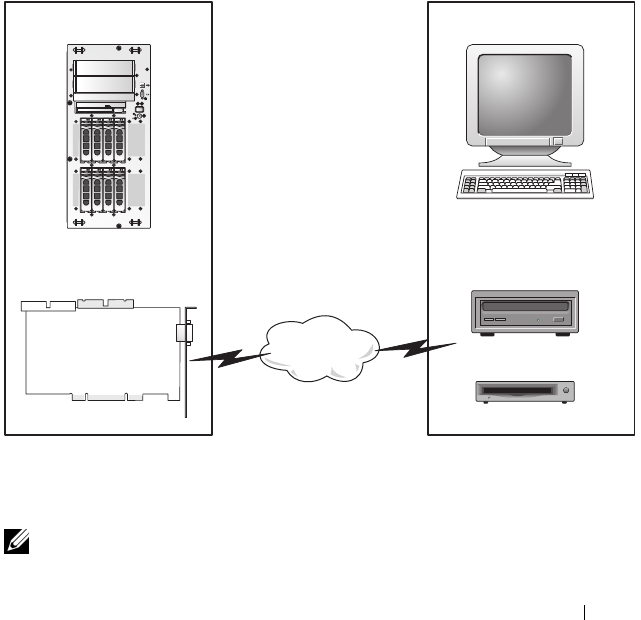
Using and Configuring Virtual Media 187
8
Using and Configuring Virtual
Media
Overview
The Virtual Media feature provides the managed system with a virtual CD
drive, which can use standard media from anywhere on the network.
Figure 8-1 shows the overall architecture of virtual media.
Figure 8-1. Overall Architecture of Virtual Media
Using Virtual Media, administrators can remotely boot their managed
systems, install applications, update drivers, or even install new operating
systems remotely from the virtual CD/DVD and diskette drives.
NOTE: Virtual media requires a minimum available network bandwidth of 128 Kbps.
Managed System Management Station
DRAC 4 Remote CD
Virtual Floppy
Virtual CD
Remote Floppy
Network

188 Using and Configuring Virtual Media
The managed system is configured with a DRAC 5 card. The virtual CD and
floppy drives are two electronic devices embedded in the DRAC 5 that are
controlled by the DRAC 5 firmware. These two devices are present on the
managed system’s operating system and BIOS at all times, whether virtual
media is connected or disconnected.
The management station provides the physical media or image file across the
network. When you launch the RAC browser for the first time and you access
the virtual media page, the virtual media plug-in is downloaded from the
DRAC 5 Web server and is automatically installed on the management
station. The virtual media plug-in must be installed on the management
station for the virtual media feature to function properly.
When virtual media is connected, all virtual CD/floppy drive access requests
from the managed system are directed to the management station across the
network. Connecting virtual media is identical to inserting media into virtual
devices. When virtual media is not connected, virtual devices on the
managed system appear as two drives without media installed in the drives.
Table 8-1 lists the supported drive connections for virtual floppy and virtual
optical drives.
NOTE: Changing virtual media while connected could stop the system boot
sequence.
Table 8-1. Supported Drive Connections
Supported Virtual Floppy Drive
Connections
Supported Virtual Optical Drive
Connections
Legacy 1.44 floppy drive with a 1.44
floppy diskette
CD-ROM, DVD, CDRW, combination
drive with CD-ROM media
USB floppy drive with a 1.44 floppy
diskette
CD-ROM image file in the ISO9660
format
1.44 floppy image USB CD-ROM drive with CD-ROM
media.

Using and Configuring Virtual Media 189
Installing the Virtual Media Plug-In
The virtual media browser plug-in must be installed on your management
station to use the virtual media feature. After you open the DRAC 5 user
interface and launch the Virtual Media page, the browser automatically
downloads the plug-in, if required. If the plug-in is successfully installed, the
Virtual Media page displays a list of floppy diskettes and optical disks that
connect to the virtual drive.
Windows-Based Management Station
To run the virtual media feature on a management station running the
Microsoft Windows operating system, install a supported version of Internet
Explorer with the ActiveX Control plug-in. Set the browser security to
Medium or a lower setting to enable Internet Explorer to download and
install signed ActiveX controls.
See "Supported Web Browsers" on page 29 for more information.
Additionally, you must have administrator rights to install and use the virtual
media feature. Before installing the ActiveX control, Internet Explorer may
display a security warning. To complete the ActiveX control installation
procedure, accept the ActiveX control when Internet Explorer prompts you
with a security warning.
Linux-Based Management Station
To run the virtual media feature on a management station running the Linux
operating system, install a supported version of Mozilla or Firefox. If the
virtual media plug-in is not installed or if a newer version is available, a dialog
box appears during the installation procedure to confirm the plug-in
installation on the management station. Ensure that the user ID running the
browser has write permissions in the browser's directory tree. If the user ID
does not have write permissions, you cannot install the virtual media plug-in.
See the Dell Systems Software Support Matrix on the Dell Support website at
support.dell.com for more information.

190 Using and Configuring Virtual Media
Running Virtual Media
NOTICE: Do not issue a racreset command when running a Virtual Media session.
Otherwise, undesired results may occur, including loss of data.
Using Virtual Media, you can "virtualize" a diskette image or drive, enabling a
floppy image, floppy drive, or optical drive on your management console to
become an available drive on the remote system.
Supported Virtual Media Configurations
You can enable Virtual Media for one floppy drive and one optical drive. Only
one drive for each media type can be virtualized at a time.
Supported floppy drives include a floppy image or one available floppy drive.
Supported optical drives include a maximum of one available optical drive or
one ISO image file.
Running Virtual Media Using the Web User Interface
Connecting Virtual Media
1
Open a supported Web browser on your management station.
See the Dell
Systems Software Support Matrix on the Dell Support website at
support.dell.com for more information
NOTICE: Console Redirection and Virtual Media only supports 32-bit Web
browsers. Using 64-bit Web browsers may generate unexpected results or
failure of operations.
2
Connect and log into the DRAC 5. See "Accessing the Web-Based
Interface" on page 91 for more information.
3
Click the
Media
tab and then click
Virtual Media
.
The
Virtual Media
page appears with the client drives that can be
virtualized.
NOTE: The Floppy Image File under Floppy Drive (if applicable) may appear,
as this device can be virtualized as a virtual floppy. You can select one optical
drive and one floppy at the same time, or a single drive.
NOTE: The virtual device drive letters on the managed system do not coincide
with the physical drive letters on the management station.

Using and Configuring Virtual Media 191
4
If prompted, follow the on-screen instructions to install the virtual media
plug-in.
5
In the
Attribute
box, perform the following steps:
a
In the
Val ue
column, ensure that the
Attach/Detach
status value is
Attached
.
If the value is
Detached
, perform the following steps:
•In the
Media
tab, click
Configuration
.
•In the
Val ue
column, ensure that the
Attach Virtual Media
checkbox is selected.
•Click
Apply Changes
.
•In the
Virtual Media
tab, click
Virtual Media
.
•In the
Val ue
column, ensure that the
Attach/Detach
status value
is
Attached
.
b
Ensure that the
Current Status
value is
Not connected
. If the
Val ue
field displays connected, you must disconnect from the image or drive
before reconnecting. This status denotes the current status of the
Virtual Media connection on the current Web-based interface only.
c
Ensure that the
Active Session
value is
Available
. If the
Val ue
field
display
In Use
, you must wait for the existing Virtual Media session to
be released or terminate it by going to the Session Management tab
under Remote Access and terminating the active Virtual Media
session. Only one active Virtual Media session is allowed at one time.
This session could have been created by any Web-based interface or
VM-CLI utility
.
d
Select the
Encryption Enabled
checkbox to establish an encrypted
connection between the remote system and your management station
(if desired).

192 Using and Configuring Virtual Media
6
If you are virtualizing a floppy image or ISO image, select
Floppy Image
File
or
ISO Image File
and enter or browse to the image file you want to
virtualize.
If you are virtualizing a floppy drive or an optical drive, select the button
next to the drives that you want to virtualize.
7
Click
Connect
.
If the connection is authenticated, the connection status becomes
Connected
and a list of all connected drives is displayed. All available
diskette images and drives you selected become available on the managed
system’s console as though they are real drives.
NOTE: The assigned virtual drive letter (for Microsoft® Windows® systems)
or device special file (for Linux systems) may not be identical to the drive letter
on your management console.
NOTE: Virtual Media may not function properly on Windows operating system
clients that are configured with Internet Explorer Enhanced Security. To
resolve this issue, see your Microsoft operating system documentation or
contact your administrator.
Disconnecting Virtual Media
Click Disconnect to disconnect all virtualized images and drives from the
management station. All virtualized images or drives disconnect and are no
longer available on the managed system.
Attaching and Detaching the Virtual Media Feature
The DRAC 5 Virtual Media feature is based on USB technology and can take
advantage of the USB plug and play features. DRAC 5 adds the option to
attach and detach the virtual devices from the USB bus. When the devices
are detached, the operating system or BIOS cannot see any attached drives.
When the virtual devices are attached, the drives are visible. Unlike DRAC 4,
where the drives could only be enabled or disabled at the next system boot,
DRAC 5 virtual devices can be attached or detached at any time.
The virtual devices can be attached or detached using a Web browser, local
racadm, remote racadm, telnet, and serial port. To configure virtual media
using a Web browser, you can navigate to the Media page and then to the
Configuration page where you can change settings and apply them.You may

Using and Configuring Virtual Media 193
also specify the Virtual Media Port Number and the Virtual Media SSL Port
Number. In addition, you can enable or disable the Virtual Flash and the
Boot Once feature.
Attaching and Detaching Virtual Media using the Web browser
To Attach the virtual media feature, do the following:
1
Click
System
->
Media
->
Configuration
2
Select the
Val ue
checkbox for
Attach Virtual Media
3
Click
Apply Changes
To Detach the virtual media feature, do the following:
1
Click
System
->
Media
->
Configuration
2
De-select the
Val ue
checkbox for
Attach Virtual Media
3
Click
Apply Changes
Attaching and Detaching Virtual Media using RACADM
To Attach the virtual media feature, open a command prompt, type the
following command, and press <Enter>.:
racadm config -g cfgRacVirtual -o cfgVirMediaAttached 1
To Detach the virtual media feature, open a command prompt, type the
following command, and press <Enter>:
racadm config -g cfgRacVirtual -o cfgVirMediaAttached 0
Booting From Virtual Media
On supported systems, the system BIOS enables you to boot from virtual optical
drives or virtual floppy drives. During POST, enter the BIOS setup window
and verify that the virtual drives are enabled and listed in the correct order.
To change the BIOS setting, perform the following steps:
1
Boot the managed system.
2
Press <F2> to enter the BIOS setup window.
3
Scroll to the boot sequence and press <Enter>.
In the pop-up window, the virtual optical drives and virtual floppy drives
are listed with the standard boot devices.

194 Using and Configuring Virtual Media
4
Ensure that the virtual drive is enabled and listed as the first device with
bootable media. If required, follow the on-screen instructions to modify
the boot order.
5
Save the changes and exit.
The managed system reboots.
The managed system attempts to boot from a bootable device based on
the boot order. If virtual device is connected and a bootable media is
present, the system boots to the virtual device. Otherwise, the system
overlooks the device—similar to a physical device without bootable media.
Installing Operating Systems Using Virtual Media
This section describes a manual, interactive method to install the operating
system on your management station that may take several hours to complete.
A scripted operating system installation procedure using Virtual Media may
take less than 15 minutes to complete. See "Deploying Your Operating
System Using VM-CLI" on page 227 for more information.
1
Verify the following:
• The operating system installation CD is inserted in the management
station’s CD drive.
• The local CD drive is selected.
• You are connected to the virtual drives.
2
Follow the steps for booting from the virtual media in the "Booting From
Virtual Media" on page 193 section to ensure that the BIOS is set to boot
from the CD drive that you are installing from.
3
Follow the on-screen instructions to complete the installation.
Using Virtual Media When the Server’s Operating System Is Running
Windows-Based Systems
On Windows systems, the virtual media drives are automounted and
configured with a drive letter.
Using the virtual drives from within Windows is similar to using your physical
drives. When you connect to the media at a management station, the media
is available at the system by clicking the drive and browsing its content.

Using and Configuring Virtual Media 195
Linux-Based Systems
On Linux systems, the virtual media drives are not configured with a drive
letter. Depending on the software installed on your system, the virtual media
drives may not be automounted. If your drives are not automounted,
manually mount the drives.
Using Virtual Flash
The DRAC 5 provides persistent Virtual Flash—16 MB of flash memory that
resides in the DRAC 5 file system that can be used for persistent storage and
accessed by the system. When enabled, Virtual Flash is configured as a third
virtual drive and appears in the BIOS boot order, allowing a user to boot from
the Virtual Flash.
NOTE: To boot from the Virtual Flash, the Virtual Flash image must be a bootable
image.
Unlike a CD or floppy drive that requires an external client connection or
functional device in the host system, implementing Virtual Flash only
requires the DRAC 5 persistent Virtual Flash feature. The 16 MB of flash
memory appears as an unformatted, removable USB drive in the host
environment.
Use the following guidelines when implementing Virtual Flash:
• Attaching or detaching the Virtual Flash performs a USB renumeration,
which attaches and detaches all Virtual Media devices, respectively (for
example, CD drive and floppy drive).
• When you enable or disable Virtual Flash, the Virtual Media CD/floppy
drive connection status does not change.
NOTICE: The Detach and Attach procedures disrupt active Virtual Media read and
write operations.
Enabling Virtual Flash
To enable Virtual Flash, open a command prompt, type the following
command, and press <Enter>:
racadm config -g cfgRacVirtual -o
cfgVirMediaKeyEnable 1

196 Using and Configuring Virtual Media
Disabling Virtual Flash
To disable Virtual Flash, open a command prompt, type the following
command, and press <Enter>:
racadm config -gcfgRacVirtual -o cfgVirMediaKeyEnable 0
Storing Images in a Virtual Flash
The Virtual Flash can be formatted from the managed host. If you are
running the Windows operating system, right-click the drive icon and select
Format. If you are running Linux, system tools such as format and fdisk allow
you to partition and format the USB.
Before you upload an image from the RAC Web browser to the Virtual Flash,
ensure that the image file is between 1.44 MB and 16 MB in size (inclusive)
and Virtual Flash is disabled. After you download the image and re-enable the
Virtual Flash drive, the system and BIOS recognize the Virtual Flash.
Configuring a Bootable Virtual Flash
1
Insert a bootable diskette into the diskette drive or insert a bootable CD
into the optical drive.
2
Restart your system and boot to the selected media drive.
3
Add a partition to Virtual Flash and enable the partition.
Use
fdisk
if Virtual Flash is emulating the hard drive. If Virtual Flash is
configured as Drive B:, the Virtual Flash is floppy emulated and does not
require a partition to configure Virtual Flash as a bootable drive.
4
Using the
format
command, format the drive with the
/s
switch to transfer
the system files to the Virtual Flash.
For example:
format /s x
where
x
is the drive letter assigned to Virtual Flash.
5
Shut down the system and remove the bootable floppy or CD from the
appropriate drive.
6
Turn on the system and verify that the system boots from Virtual Flash to
the
C:\
or
A:\
prompt.

Using and Configuring Virtual Media 197
Using the Virtual Media Command Line Interface
Utility
The Virtual Media Command Line Interface (VM-CLI) utility is a scriptable
command-line interface that provides virtual media features from the
management station to the DRAC 5 in the remote system.
The VM-CLI utility provides the following features:
• Supports multiple, simultaneously-active sessions.
NOTE: When virtualizing read-only image files, multiple sessions may share
the same image media. When virtualizing physical drives, only one session
can access a given physical drive at a time.
• Removable media devices or image files that are consistent with the
Virtual Media plug-ins
• Automatic termination when the DRAC firmware boot once option is
enabled.
• Secure communications to the DRAC 5 using Secure Sockets Layer (SSL)
Before you run the utility, ensure that you have Virtual Media user privilege to
the DRAC 5 in the remote system.
If your operating system supports administrator privileges or an operating
system-specific privilege or group membership, administrator privileges are
also required to run the VM-CLI command.
The client system's administrator controls user groups and privileges, thereby
controlling the users who can run the utility.
For Windows systems, you must have Power User privileges to run the VM-
CLI utility.
For Linux systems, you can access the VM-CLI utility without administrator
privileges by using the sudo command. This command provides a centralized
means of providing non-administrator access and logs all user commands. To
add or edit users in the VM-CLI group, the administrator uses the visudo
command. Users without administrator privileges can add the sudo command
as a prefix to the VM-CLI command line (or to the VM-CLI script) to obtain
access to the DRAC 5 in the remote system and run the utility.

198 Using and Configuring Virtual Media
Utility Installation
The VM-CLI utility is located on the Dell Systems Console and Agent CD,
which is included with your Dell OpenManage System Management Software
Kit. To install the utility, insert the Systems Console and Agent CD into your
system’s CD drive and follow the on-screen instructions.
The Systems Console and Agent CD contains the latest systems management
software products, including diagnostics, storage management, remote access
service, and the RACADM utility. This CD also contains readme files, which
provide the latest systems management software product information.
Additionally, the Systems Console and Agent CD includes vmdeploy—a
sample script that illustrates how to use the VM-CLI and RACADM utilities
to deploy software to multiple remote systems. For more information, see
"Deploying Your Operating System Using VM-CLI" on page 227.
Command Line Options
The VM-CLI interface is identical on both Windows and Linux systems. The
utility uses options that are consistent with the RACADM utility options. For
example, an option to specify the DRAC 5 IP address requires the same
syntax for both RACADM and VM-CLI utilities.
The VM-CLI command format is as follows:
racvmcli [parameter] [operating_system_shell_options]
NOTE: You need Administrator privileges to run the racvmcli command.
All command-line syntax are case sensitive. See "VM-CLI Parameters" on
page 199 for more information.
If the remote system accepts the commands and the DRAC 5 authorizes the
connection, the command continues to run until either of the following occurs:
• The VM-CLI connection terminates for any reason.
• The process is manually terminated using an operating system control. For
example, in Windows, you can use the Task Manager to terminate the
process.

Using and Configuring Virtual Media 199
VM-CLI Parameters
DRAC 5 IP Address
-r <RAC-IP-address>[:<RAC-SSL-port>]
where <RAC-IP-address> is a valid, unique IP address or the DRAC 5
Dynamic Domain Naming System (DDNS) name (if supported).
This parameter provides the DRAC 5 IP address and SSL port. The VM-CLI
utility needs this information to establish a Virtual Media connection with
the target DRAC 5. If you enter an invalid IP address or DDNS name, an error
message appears and the command is terminated.
If <RAC-SSL-port> is omitted, port 443 (the default port) is used. The
optional SSL port is not required unless you change the DRAC 5 default SSL
port.
DRAC 5 User Name
-u <DRAC-user-name>
This parameter provides the DRAC 5 user name that will run Virtual Media.
The <DRAC-user-name> must have the following attributes:
• Valid user name
• DRAC Virtual Media User permission
If DRAC 5 authentication fails, an error message appears and the command is
terminated.
DRAC User Password
-p <DRAC-user-password>
This parameter provides the password for the specified DRAC 5 user.
If DRAC 5 authentication fails, an error message displays and the command
terminates.
Floppy/Disk Device or Image File
-f {<device-name> | <image-file>}

200 Using and Configuring Virtual Media
where <device-name> is a valid drive letter (for Windows systems) or a
valid device file name, including the mountable file system partition number,
if applicable (for Linux systems); and <image-file> is the filename and
path of a valid image file.
This parameter specifies the device or file to supply the virtual floppy/disk media.
For example, an image file is specified as:
-f c:\temp\myfloppy.img (Windows system)
-f /tmp/myfloppy.img (Linux system)
If the file is not write-protected, Virtual Media may write to the image file.
Configure the operating system to write-protect a floppy image file that
should not be overwritten.
For example, a device is specified as:
-f a:\ (Windows system)
-f /dev/sdb4 # 4th partition on device /dev/sdb (Linux
system)
If the device provides a write-protection capability, use this capability to
ensure that Virtual Media will not write to the media.
Additionally, omit this parameter from the command line if you are not
virtualizing floppy media. If an invalid value is detected, an error message
displays and the command terminates.
CD/DVD Device or Image File
-c {<device-name> | <image-file>}
where <device-name> is a valid CD/DVD drive letter (Windows systems)
or a valid CD/DVD device file name (Linux systems) and <image-file> is
the file name and path of a valid ISO-9660 image file.
This parameter specifies the device or file that will supply the virtual
CD/DVD-ROM media:
For example, an image file is specified as:
-c c:\temp\mydvd.img (Windows systems)
-c /tmp/mydvd.img (Linux systems)

Using and Configuring Virtual Media 201
For example, a device is specified as:
-c d:\ (Windows systems)
-c /dev/cdrom (Linux systems)
Additionally, omit this parameter from the command line if you are not
virtualizing CD/DVD media. If an invalid value is detected, an error message
is listed and the command terminates.
Specify at least one media type (floppy or CD/DVD drive) with the
command, unless only switch options are provided. Otherwise, an error
message displays and the command terminates and generates an error.
Version Display
-v
This parameter is used to display the VM-CLI utility version. If no other non-
switch options are provided, the command terminates without an error
message.
Help Display
-h
This parameter displays a summary of the VM-CLI utility parameters. If no
other non-switch options are provided, the command terminates without
error.
Encrypted Data
-e
When this parameter is included in the command line, the VM-CLI utility
will use an SSL-encrypted channel to transfer data between the management
station and the DRAC 5 in the remote system. If this parameter is not
included in the command line, the data transfer is not encrypted.

202 Using and Configuring Virtual Media
VM-CLI Operating System Shell Options
The following operating system features can be used in the VM-CLI
command line:
• stderr/stdout redirection — Redirects any printed utility output to a file.
For example, using the greater-than character (>) followed by a filename
overwrites the specified file with the printed output of the VM-CLI utility.
NOTE: The VM-CLI utility does not read from standard input (stdin). As a result,
stdin redirection is not required.
• Background execution — By default, the VM-CLI utility runs in the
foreground. Use the operating system's command shell features to cause
the utility to run in the background. For example, under a Linux operating
system, the ampersand character (&) following the command causes the
program to be spawned as a new background process.
The latter technique is useful in script programs, as it allows the script to
proceed after a new process is started for the VM-CLI command (otherwise,
the script would block until the VM-CLI program is terminated). When
multiple VM-CLI instances are started in this way, and one or more of the
command instances must be manually terminated, use the operating system-
specific facilities for listing and terminating processes.
VM-CLI Return Codes
0 = No error
1 = Unable to connect
2 = VM-CLI command line error
3 = RAC firmware connection dropped
English-only text messages are also issued to standard error output whenever
errors are encountered.

Using and Configuring Virtual Media 203
Frequently Asked Questions
Table 8-2 lists frequently asked questions and answers.
Table 8-2. Using Virtual Media: Frequently Asked Questions
Question Answer
Sometimes, I notice my Virtual
Media client connection drop.
Why?
When a network time-out occurs, the DRAC 5
firmware drops the connection,
disconnecting the link between the server and
the Virtual Drive. To reconnect to the Virtual
Drive, use the Virtual Media feature.
Which operating systems support
the DRAC 5?
See the Dell Systems Software Support Matrix
on the Dell Support website at
support.dell.com for a list of supported
operating systems.
Which Web browsers support the
DRAC 5?
See the Dell Systems Software Support Matrix
on the Dell Support website at
support.dell.com for more information for a
list of supported Web browsers.
Why do I sometimes lose my client
connection?
• You can sometimes lose your client
connection if the network is slow or if you
change the CD in the client system CD
drive. For example, if you change the CD in
the client system’s CD drive, the new CD
might have an autostart feature. If this is
the case, the firmware can time out and the
connection can be lost if the client system
takes too long before it is ready to read the
CD. If a connection is lost, reconnect from
the GUI and continue the previous operation.
• When a network time-out occurs, the
DRAC 5 firmware drops the connection,
disconnecting the link between the server
and the Virtual Drive. To reconnect to the
Virtual Drive, use the Virtual Media feature.

204 Using and Configuring Virtual Media
What do I do if Windows 2000
with Service Pack 4 fails to install
properly?
If you use Virtual Media and the Windows
2000 operating system CD to install
Windows 2000 with Service Pack 4, your
system may momentarily lose its connection
to the CD drive during the installation
procedure, and the operating system may fail
to install properly. To fix this issue, download
the file usbstor.sys from the Microsoft
Support website at support.microsoft.com
and run the program only on your systems
that experience this issue. For more
information, see Microsoft Knowledge Base
article 823086.
Why can’t I install Windows 2000
locally or remotely?
If Virtual Flash is enabled and does not
contain a valid image; for example, the virtual
flash contains a corrupted or random image,
you may not be able to install Windows 2000
locally or remotely. To fix this issue, install a
valid image on Virtual Flash or disable Virtual
Flash if it will not be used during the
installation procedure.
Why does the Virtual Media
connection drop when configured
in the Shared-NIC mode?
Installing network and chipset drivers on the
server causes the Virtual Media connection to
drop when configured in the Shared-NIC
mode. Installing the network or chipset
drivers causes the LOM to reset, which in
turn causes network packets to timeout and
the Virtual Media connection to timeout and
drop. To work around this issue, copy the
drivers from your virtual drive to the server’s
local hard drive. To prevent a dropped Virtual
Media connection from interfering with your
driver installation procedure, start the driver
installation directly from the server.
Table 8-2. Using Virtual Media: Frequently Asked Questions
(continued)
Question Answer

Using and Configuring Virtual Media 205
An installation of the Windows
operating system seems to take too
long. Why?
If you are installing the Windows operating
system using the Dell Systems Build and
Update Utility CD or the Dell Systems
Management Tools and Documentation DVD
and have a slow network connection, the
installation procedure may require an
extended amount of time to access the
DRAC 5 Web-based interface due to network
latency. While the installation window does
not indicate the installation progress, the
installation procedure is in progress.
I am viewing the contents of a
floppy drive or USB memory key. If
I try to establish a Virtual Media
connection using the same drive,
I receive a connection failure
message and am asked to retry.
Why?
Simultaneous access to Virtual Floppy drives
is not allowed. Close the application used to
view the drive contents before you attempt to
virtualize the drive.
How do I configure my virtual
device as a bootable device?
On the managed system, access the BIOS
Setup and navigate to the boot menu. Locate
the virtual CD, Virtual Floppy, or Virtual
Flash and change the device boot order as
needed. For example, to boot from a CD
drive, configure the CD drive as the first drive
in the boot order.
What types of media can I boot
from?
The DRAC 5 allows you to boot from the
following bootable media:
• CDROM/DVD Data media
• ISO 9660 image
• 1.44 Floppy disk or floppy image
•DRAC 5 embedded virtual flash
• A USB key that is recognized by the
operating system as a removable disk
•A USB key image
Table 8-2. Using Virtual Media: Frequently Asked Questions
(continued)
Question Answer

206 Using and Configuring Virtual Media
How can I make my USB key
bootable?
Only USB keys with Windows 98 DOS can
boot from the Virtual Floppy. To configure
your own bootable USB key, boot to a
Windows 98 startup disk and copy system
files from the startup disk to your USB key.
For example, from the DOS prompt, type the
following command:
sys a: x: /s
where "x:" is the USB key you want to make
bootable.
You can also use the Dell boot utility to create
a bootable USB key. This utility is only
compatible with Dell-branded USB keys. To
download the utility, open a supported Web
browser, navigate to the Dell Support website
located at support.dell.com, and search for
"R122672.exe."
Do I need Administrator privileges
to install the ActiveX plug-in?
You must have Administrator or Power User
privileges on Windows systems to install the
Virtual Media plug-in.
What privileges do I need to install
and use the Virtual Media plug-in
on a Red Hat Linux Management
station?
Yo u m u s t h a v e Write privileges on the
browsers directory tree to successfully install
the Virtual Media plug-in.
Table 8-2. Using Virtual Media: Frequently Asked Questions
(continued)
Question Answer

Using and Configuring Virtual Media 207
I cannot locate my Virtual Floppy
device on a system running Red
Hat Enterprise Linux or the SUSE
Linux operating System. My
Virtual Media is attached and I am
connected to my remote floppy.
What should I do?
Some Linux versions do not automount the
Virtual Floppy Drive and the Virtual CD
drive in a similar manner. In order to mount
the Virtual Floppy Drive, locate the device
node that Linux assigns to the Virtual Floppy
Drive. Perform the following steps to
correctly find and mount the Virtual Floppy
Drive:
1
Open a Linux command prompt and run
the following command:
grep "Virtual Floppy"
/var/log/messages
2
Locate the last entry to that message and
note the time.
3
At the Linux prompt, run the following
command:
grep "hh:mm:ss"
/var/log/messages
where:
hh:mm:ss
is the time stamp of the
message returned by grep in step 1.
4
In step 3, read the result of the grep
command and locate the device name that
is given to the "Dell Virtual Floppy"
5
Ensure that you are attached and connected
to the Virtual Floppy Drive.
6
At the Linux prompt, run the following
command:
mount /dev/sdx /mnt/floppy
where:
/dev/sdx
is the device name found in
step 4
/mnt/floppy
is the mount point.
Table 8-2. Using Virtual Media: Frequently Asked Questions
(continued)
Question Answer

208 Using and Configuring Virtual Media
What file system types are
supported on my Virtual Floppy
Drive or Virtual Flash?
Your Virtual Floppy Drive or Virtual Flash
supports FAT16 or FAT32 file systems.
When I performed a firmware
update remotely using the DRAC 5
Web-based interface, my virtual
drives at the server were removed.
Why?
Firmware updates cause the DRAC 5 to reset,
drop the remote connection, and unmount
the virtual drives. The drives will reappear
when the DRAC reset is complete.
When enabling or disabling the
Virtual Flash, I noticed that all my
virtual drives disappeared and then
reappeared. Why?
Disabling or enabling the Virtual Flash causes
a USB reset and causes all virtual drives to
detach from and then reattach to the USB bus.
Table 8-2. Using Virtual Media: Frequently Asked Questions
(continued)
Question Answer

Using the RACADM Command Line Interface 209
9
Using the RACADM Command Line
Interface
The serial/telnet/ssh console provides a set of racadm commands. The racadm
commands provide access to the text-based features supported by the DRAC 5
Web-based interface.
RACADM enables you to locally or remotely configure and manage your
DRAC 5. RACADM runs on the management station and the managed
system. RACADM is included on the Dell Systems Console and Agent CD.
You can use RACADM to write scripts to automatically configure multiple
DRAC 5s. For more information about configuring multiple DRAC 5s, see
"Configuring Multiple DRAC 5 Cards" on page 215.
This section provides the following information:
•Using the
serial
and
racadm
commands. See "Using a Serial or Telnet
Console" on page 209 or "Using RACADM" on page 210
• Configuring your DRAC5 using the
racadm
command
• Using the racadm configuration file to configure multiple DRAC 5 cards
Using a Serial or Telnet Console
You can run the serial commands in Tab le 9 - 1 re m o te l y usi n g RACAD M o r
from the serial/telnet/ssh console command prompt.
Logging in to the DRAC 5
After you have configured your management station terminal emulator software
and managed node BIOS, perform the following steps to log into the DRAC 5:
1
Connect to the DRAC 5 using your management station terminal
emulation software.
2
Type your DRAC 5 user name and press <Enter>.
You are logged into the DRAC 5.

210 Using the RACADM Command Line Interface
Starting a Text Console
After you have logged into the DRAC 5 through your management station
terminal software with telnet or SSH, you can redirect the managed system
text console by using connect com2, which is a telnet/SSH command. Only
one connect com2 client is supported at a time.
To connect to the managed system text console, open a DRAC 5 command
prompt (displayed through a telnet or SSH session) and type:
connect com2
From a serial session, you can connect to the managed system’s serial console
by pressing <Esc><Shift><Q>, which connects the managed system’s
serial port directly to the servers’ COM2 port and bypasses the DRAC 5. To
reconnect the DRAC 5 to the serial port, press <Esc><Shift><9>. The
managed node COM2 port and the DRAC 5 serial port baud rates must be
identical.
The connect -h com2 command displays the contents of the serial
history buffer before waiting for input from the keyboard or new characters
from the serial port.
NOTE: When using the -h option, the client and server terminal emulation type
(ANSI or VT100) must be identical; otherwise, the output may be garbled.
Additionally, set the client terminal row to 25.
The default (and maximum) size of the history buffer is 8192 characters.
You can set this number to a smaller value using the command:
racadm config -g cfgSerial -o cfgSerialHistorySize
<number>
Using RACADM
You can run the RACADM commands locally or remotely from the serial or
telnet console command prompt or through a normal command prompt.
Use the racadm command to configure DRAC 5 properties, perform remote
management tasks, or recover a crashed system.
To display the racadm subcommand list using RACADM, type:
racadm help
The subcommand list includes all commands that are supported by the
DRAC 5.

Using the RACADM Command Line Interface 211
Without options, the racadm command displays general use information.
Ty p e racadm help to display a list of all available subcommands. Type
racadm help <subcommand> to list any syntax and command-line
options for the subcommand.
The following sections provide information about how to use the racadm
commands.
Using RACADM Remotely
NOTE: Configure the IP address on your DRAC 5 before using the racadm remote
capability. For more information about setting up your DRAC 5 and a list of related
documents, see "Installing and Setting Up the DRAC 5" on page 35.
RACADM provides a remote capability option (-r) that allows you to connect
to the managed system and execute racadm subcommands from a remote
console or management station. To use the remote capability, you need a
valid user name (-u option) and password (-p option), and the DRAC 5
IP address.
NOTE: If the system from where you are accessing the remote system does not
have a DRAC certificate in its default certificate store, a message is displayed when
you type a racadm command.
Security Alert: Certificate is invalid - Name on
Certificate is invalid or does not match site name
Enter "Y" to continue, or any other key to quit
NOTE: The racadm remote capability is supported only on management stations.
For more information, see the Dell Systems Software Support Matrix on the Dell
Support website at support.dell.com for more information.
NOTE: When using the racadm remote capability, you must have write permissions
on the folders where you are using the racadm subcommands involving file
operations, for example:
racadm getconfig -f <file name>
or
racadm sslcertupload -t 1 -f c:\cert\cert.txt
subcommands

212 Using the RACADM Command Line Interface
RACADM Synopsis
racadm -r <RAC IP Address> -u <username> -p <password>
<subcommand> <subcommand options>
racadm -i -r <RAC IP Address> <subcommand> <subcommand
options>
For example:
racadm -r 192.168.0.120 -u root -p calvin getsysinfo
racadm -i -r 192.168.0.120 getsysinfo
If the HTTPS port number of the RAC has been changed to a custom port
other than the default port (443), the following syntax must be used:
racadm -r <RAC IP Address>:<port> -u <username> -p
<password> <subcommand> <subcommand options>
racadm -i -r <RAC IP Address>:<port> <subcommand>
<subcommand options>
RACADM Options
Table 9-1 lists the options for the racadm command.
Table 9-1. racadm Command Options
Option Description
-r <racIpAddr>
-r <racIpAddr>:<port
number>
Specifies the controller’s remote IP address.
Use :<port number> if the DRAC 5 port number is
not the default port (443)
-iInstructs racadm to interactively query the user for
user name and password.
-u <usrName>Specifies the user name that is used to authenticate
the command transaction. If the -u option is used, the
-p option must be used, and the -i option (interactive)
is not allowed.
-p <password>Specifies the password used to authenticate the
command transaction. If the -p option is used, the -i
option is not allowed.

Using the RACADM Command Line Interface 213
Enabling and Disabling the racadm Remote Capability
NOTE: It is recommended that you run these commands on your local system.
The racadm remote capability is enabled by default. If disabled, type the
following racadm command to enable:
racadm config -g cfgRacTuning -o
cfgRacTuneRemoteRacadmEnable 1
To disable the remote capability, type:
racadm config -g cfgRacTuning -o
cfgRacTuneRemoteRacadmEnable 0
RACADM Subcommands
Table 9-2 provides a description of each racadm subcommand that you can
run in RACADM. For a detailed listing of racadm subcommands including
syntax and valid entries, see "RACADM Subcommand Overview" on
page 245.
When entering a RACADM subcommand, prefix the command with
racadm. For example:
racadm help
Table 9-2. RACADM Subcommands
Command Description
help Lists DRAC 5 subcommands.
help
<subcommand>
Lists usage statement for the specified subcommand.
arp Displays the contents of the ARP table. ARP table entries may
not be added or deleted.
clearasrscreen Clears the last ASR (crash) screen (last blue screen).
clrraclog Clears the DRAC 5 log. A single entry is made to indicate the
user and time that the log was cleared.
config Configures the RAC.
getconfig Displays the current RAC configuration properties.
coredump Displays the last DRAC 5 coredump.
coredumpdelete Deletes the coredump stored in the DRAC 5.

214 Using the RACADM Command Line Interface
fwupdate Executes or displays status on DRAC 5 firmware updates.
getssninfo Displays information about active sessions.
getsysinfo Displays general DRAC 5 and system information.
getractime Displays the DRAC 5 time.
ifconfig Displays the current RAC IP configuration.
netstat Displays the routing table and the current connections.
ping Verifies that the destination IP address is reachable from the
DRAC 5 with the current routing-table contents.
setniccfg Sets the IP configuration for the controller.
getniccfg Displays the current IP configuration for the controller.
getsvctag Displays service tags.
racdump Dumps DRAC 5 status and state information for debug.
racreset Resets the DRAC 5.
racresetcfg Resets the DRAC 5 to the default configuration.
serveraction Performs power management operations on the managed system.
getraclog Displays the RAC log.
clrsel Clears the System Event Log entries.
gettracelog Displays the DRAC 5 trace log. If used with -i, the command
displays the number of entries in the DRAC 5 trace log.
sslcsrgen Generates and downloads the SSL CSR.
sslcertupload Uploads a CA certificate or server certificate to the DRAC 5.
sslcertdownload Downloads a CA certificate.
sslcertview Views a CA certificate or server certificate in the DRAC 5.
testemail Forces the DRAC 5 to send an e-mail over the DRAC 5 NIC.
testtrap Forces the DRAC 5 to send an SNMP over the DRAC 5 NIC.
vmdisconnect Forces a virtual media connection to close.
vmkey Resets the virtual flash size to its default size (16 MB).
Table 9-2. RACADM Subcommands
(continued)
Command Description

Using the RACADM Command Line Interface 215
RACADM Error Messages
For information about racadm CLI error messages, see "Frequently Asked
Questions" on page 226.
Configuring Multiple DRAC 5 Cards
Using RACADM, you can configure one or more DRAC 5 cards with identical
properties. When you query a specific DRAC 5 card using its group ID and
object ID, RACADM creates the racadm.cfg configuration file from the
retrieved information. By exporting the file to one or more DRAC 5 cards, you
can configure your controllers with identical properties in a minimal amount
of time.
NOTE: Some configuration files contain unique DRAC 5 information (such as the
static IP address) that must be modified before you export the file to other DRAC 5
cards.
To configure multiple DRAC 5 cards, perform the following procedures:
1
Use RACADM to query the target DRAC 5 that contains the appropriate
configuration.
NOTE: The generated .cfg file does not contain user passwords.
Open a command prompt and type:
racadm getconfig -f myfile.cfg
NOTE: Redirecting the RAC configuration to a file using getconfig -f is only
supported with the local and remote RACADM interfaces.
2
Modify the configuration file using a simple text editor (optional).
3
Use the new configuration file to modify a target RAC.
In the command prompt, type:
racadm config -f myfile.cfg
4
Reset the target RAC that was configured.
In the command prompt, type:
racadm reset

216 Using the RACADM Command Line Interface
The getconfig -f racadm.cfg subcommand requests the DRAC 5
configuration and generates the racadm.cfg file. If required, you can
configure the file with another name.
You can use the getconfig command to enable you to perform the following
actions:
• Display all configuration properties in a group (specified by group name
and index)
• Display all configuration properties for a user by user name
The config subcommand loads the information into other DRAC 5s. Use
config to synchronize the user and password database with Server
Administrator
The initial configuration file, racadm.cfg, is named by the user. In the
following example, the configuration file is named myfile.cfg. To create this
file, type the following at the command prompt:
racadm getconfig -f myfile.cfg
NOTICE: It is recommended that you edit this file with a simple text editor. The
racadm utility uses an ASCII text parser. Any formatting confuses the parser, which
may corrupt the racadm database.
Creating a DRAC 5 Configuration File
The DRAC 5 configuration file <filename>.cfg is used with the racadm
config -f <filename>.cfg command. The configuration file is a
simple text file that allows the user to build a configuration file (similar to an
.ini file) and configure the DRAC 5 from this file. You may use any file name,
and the file does not require a .cfg extension (although it is referred to by that
designation in this subsection).
The .cfg file can be:
•Created
• Obtained from a
racadm getconfig -f <filename>.cfg
command
• Obtained from a r
acadm getconfig -f <filename>.cfg
command, and then edited
NOTE: See "getconfig" on page 249 for information about the getconfig command.

Using the RACADM Command Line Interface 217
The .cfg file is first parsed to verify that valid group and object names are
present and that some simple syntax rules are being followed. Errors are
flagged with the line number that detected the error, and a simple message
explains the problem. The entire file is parsed for correctness, and all errors
are displayed. Write commands are not transmitted to the DRAC 5 if an error
is found in the .cfg file. The user must correct all errors before any
configuration can take place. The -c option may be used in the config
subcommand, which verifies syntax only and does not perform writes to the
DRAC 5.
Use the following guidelines when you create a .cfg file:
• If the parser encounters an indexed group, it is the value of the anchored
object that differentiates the various indexes.
The parser reads in all of the indexes from the DRAC 5 for that group. Any
objects within that group are simple modifications when the DRAC 5 is
configured. If a modified object represents a new index, the index is
created on the DRAC 5 during configuration.
• The user cannot specify a desired index in a
.cfg
file.
Indexes may be created and deleted, so over time the group may become
fragmented with used and unused indexes. If an index is present, it is
modified. If an index is not present, the first available index is used. This
method allows flexibility when adding indexed entries where the user does
not need to make exact index matches between all the RACs being
managed. New users are added to the first available index. A
.cfg
file that
parses and runs correctly on one DRAC 5 may not run correctly on another
if all indexes are full and you must add a new user.
•Use the
racresetcfg
subcommand to configure all DRAC 5 cards with
identical properties.
Use the
racresetcfg
subcommand to reset the DRAC 5 to original defaults,
and then run the
racadm config -f <filename>.cfg
command. Ensure that the
.cfg
file includes all desired objects, users,
indexes, and other parameters.
NOTICE: Use the racresetcfg subcommand to reset the database and the DRAC 5
NIC settings to the original default settings and remove all users and user
configurations. While the root user is available, other users’ settings are also reset
to the default settings.

218 Using the RACADM Command Line Interface
Parsing Rules
• All lines that start with '#' are treated as comments.
A comment line
must
start in column one. A '#' character in any other
column is treated as a # character.
Some modem parameters may include # characters in its string. An escape
character is not required. You may want to generate a
.cfg
from a
racadm
getconfig -f <filename>.cfg
command, and then perform a
racadm config -f <filename>.cfg
command to a different
DRAC 5, without adding escape characters.
Example
:
#
# This is a comment
[cfgUserAdmin]
cfgUserAdminPageModemInitString=<Modem init # not
a comment>
• All group entries must be surrounded by "
["
and "
]"
characters.
The starting "
["
character denoting a group name
must
start in column
one. This group name
must
be specified before any of the objects in that
group. Objects that do not include an associated group name generate an
error. The configuration data is organized into groups as defined in "DRAC
5 Property Database Group and Object Definitions" on page 293.
The following example displays a group name, object, and the object’s
property value.
Example
:
[cfgLanNetworking] -{group name}
cfgNicIpAddress=143.154.133.121 {object name}
• All parameters are specified as "object=value" pairs with no white space
between the object, =, or value.
White spaces that are included after the value are ignored. A white space
inside a value string remains unmodified. Any character to the right of the

Using the RACADM Command Line Interface 219
'=' is taken as is (for example, a second '=', or a '#', '[', ']', and so forth).
These characters are valid modem chat script characters.
See the example in the previous bullet.
•The
.cfg
parser ignores an index object entry.
The user
cannot
specify which index is used. If the index already exists, it is
either used or the new entry is created in the first available index for that
group.
The
racadm getconfig -f <filename>.cfg
command places a
comment in front of index objects, allowing the user to see the included
comments.
NOTE: The user may create an indexed group manually using the following
command:
racadm config -g <
groupName>
-o
<anchored object>
-i
<index 1-16>
<unique
anchor name>
• The line for an indexed group
cannot
be deleted from a
.cfg
file.
The user must remove an indexed object manually using the following
command:
racadm config -g <groupName> -o <objectName> -i
<index 1-16> ""
NOTE: A NULL string (identified by two
""
characters) directs the DRAC 5 to delete
the index for the specified group.
To view the contents of an indexed group, use the following command:
racadm getconfig -g <groupName> -i <index 1-16>
• For indexed groups the object anchor
must
be the first object after the "[ ]"
pair. The following are examples of the current indexed groups:
[cfgUserAdmin]
cfgUserAdminUserName=<USER_NAME>
If you type
racadm getconfig -f <myexample>.cfg
, the
command builds a
.cfg
file for the current DRAC 5 configuration. This
configuration file can be used as an example and as a starting point for
your unique
.cfg
file.

220 Using the RACADM Command Line Interface
Modifying the DRAC 5 IP Address
When you modify the DRAC 5 IP address in the configuration file, remove all
unnecessary <variable>=value entries. Only the actual variable group’s label
with "[" and "]" remains, including the two <variable>=value entries
pertaining to the IP address change.
For example:
#
# Object Group "cfgLanNetworking"
#
[cfgLanNetworking]
cfgNicIpAddress=10.35.10.110
cfgNicGateway=10.35.10.1
This file will be updated as follows:
#
# Object Group "cfgLanNetworking"
#
[cfgLanNetworking]
cfgNicIpAddress=10.35.9.143
# comment, the rest of this line is ignored
cfgNicGateway=10.35.9.1
The command racadm config -f myfile.cfg parses the file and identifies any
errors by line number. A correct file will update the proper entries.
Additionally, you can use the same getconfig command from the previous
example to confirm the update.
Use this file to download company-wide changes or to configure new systems
over the network.
NOTE: "Anchor" is an internal term and should not be used in the file.

Using the RACADM Command Line Interface 221
Using the RACADM Utility to Configure the
DRAC 5
NOTE: You must be logged in as user root to execute RACADM commands on a
remote Linux system.
The DRAC 5 Web-based interface is the quickest way to configure a DRAC 5.
If you prefer command-line or script configuration or need to configure
multiple DRAC 5s, use RACADM, which is installed with the DRAC 5 agents
on the managed system.
To configure multiple DRAC 5s with identical configuration settings, perform
one of the following procedures:
• Use the RACADM examples in this section as a guide to create a batch file
of
racadm
commands and then execute the batch file on each managed
system.
• Create the DRAC 5 configuration file as described in "RACADM
Subcommand Overview" on page 245 and execute the
racadm config
subcommand on each managed system using the same configuration file.
Before You Begin
You can configure up to 16 users in the DRAC 5 property database. Before
you manually enable a DRAC 5 user, verify if any current users exist. If you are
configuring a new DRAC 5 or you ran the racadm racresetcfg command, the
only current user is root with the password calvin. The racresetcfg
subcommand resets the DRAC 5 back to the original defaults.
NOTICE: Use caution when using the racresetcfg command, as
all
configuration
parameters are reset to the original defaults. Any previous changes are lost.
NOTE: Users can be enabled and disabled over time. As a result, a user may have a
different index number on each DRAC 5.
To verify if a user exists, type the following command at the command prompt:
racadm getconfig -u <username>
OR
type the following command once for each index of 1–16:
racadm getconfig -g cfgUserAdmin -i <index>

222 Using the RACADM Command Line Interface
NOTE: You can also type racadm getconfig -f <myfile.cfg> and view
or edit the myfile.cfg file, which includes all DRAC 5 configuration parameters.
Several parameters and object IDs are displayed with their current values.
Two objects of interest are:
# cfgUserAdminIndex=XX
cfgUserAdminUserName=
If the cfgUserAdminUserName object has no value, that index number,
which is indicated by the cfgUserAdminIndex object, is available for use. If a
name appears after the "=", that index is taken by that user name.
NOTE: When you manually enable or disable a user with the racadm config
subcommand, you
must
specify the index with the -i option. Observe that the
cfgUserAdminIndex object displayed in the previous example contains a '#'
character. Also, if you use the racadm config -f racadm.cfg command to specify any
number of groups/objects to write, the index cannot be specified. A new user is
added to the first
available index. This behavior allows more flexibility in configuring
multiple DRAC 5s with the same settings.
Adding a DRAC 5 User
To add a new user to the RAC configuration, a few basic commands can be
used. In general, perform the following procedures:
1
Set the user name.
2
Set the password.
3
Set the user privileges.
4
Enable the user.
Example
The following example describes how to add a new user named "John" with a
"123456" password and LOGIN privileges to the RAC.
racadm config -g cfgUserAdmin -o cfgUserAdminUserName
-i 2 john
racadm config -g cfgUserAdmin -o cfgUserAdminPassword
-i 2 123456
racadm config -g cfgUserAdmin -i 2 -o cfgUserPrivilege
0x00000001

Using the RACADM Command Line Interface 223
racadm config -g cfgUserAdmin -i 2 -o
cfgUserAdminEnable 1
To verify, use one of the following commands:
racadm getconfig -u john
racadm getconfig –g cfgUserAdmin –i 2
Removing a DRAC 5 User
When using RACADM, users must be disabled manually and on an
individual basis. Users cannot be deleted by using a configuration file.
The following example illustrates the command syntax that can be used to
delete a RAC user:
racadm config -g cfgUserAdmin -o cfgUserAdminUserName
-i <index> ""
A null string of double quote characters ("") instructs the DRAC 5 to remove
the user configuration at the specified index and reset the user configuration
to the original factory defaults.
Testing e-mail Alerting
The RAC e-mail alerting feature allows users to receive e-mail alerts when a
critical event occurs on the managed system. The following example shows
how to test the e-mail alerting feature to ensure that the RAC can properly
send out e-mail alerts across the network.
racadm testemail -i 2
NOTE: Ensure that the SMTP and Email Alert settings are configured before testing
the e-mail alerting feature. See "Configuring E-Mail Alerts" on page 62 for more
information.
Testing the RAC SNMP Trap Alert Feature
The RAC SNMP trap alerting feature allows SNMP trap listener
configurations to receive traps for system events that occur on the managed
system.
The following example shows how a user can test the SNMP trap alert feature
of the RAC.
racadm testtrap -i 2

224 Using the RACADM Command Line Interface
Before you test the RAC SNMP trap alerting feature, ensure that the SNMP
and trap settings are configured correctly. See "testtrap" on page 285 and
"testemail" on page 284 subcommand descriptions to configure these
settings.
Enabling a DRAC 5 User With Permissions
To enable a user with specific administrative permissions (role-based
authority), first locate an available user index by performing the steps in
"Before You Begin" on page 221. Next, type the following command lines with
the new user name and password.
NOTE: See Table B-2 for a list of valid bit mask values for specific user privileges.
The default privilege value is 0, which indicates the user has no privileges enabled.
racadm config -g cfgUserAdmin -o
cfgUserAdminPrivilege -i <index> <user privilege
bitmask value>
Configuring DRAC 5 Network Properties
To generate a list of available network properties, type the following:
racadm getconfig -g cfgLanNetworking
To use DHCP to obtain an IP address, use the following command to write
the object cfgNicUseDhcp and enable this feature:
racadm config -g cfgLanNetworking -o cfgNicUseDHCP 1
The commands provide the same configuration functionality as the option
ROM at boot-up when you are prompted to type <Ctrl><e>. For more
information about configuring network properties with the option ROM, see
"Configuring DRAC 5 Network Properties" on page 224.
The following is an example of how the command may be used to configure
desired LAN network properties.
racadm config -g cfgLanNetworking -o cfgNicEnable 1
racadm config -g cfgLanNetworking -o cfgNicIpAddress
192.168.0.120
racadm config -g cfgLanNetworking -o cfgNicNetmask
255.255.255.0

Using the RACADM Command Line Interface 225
racadm config -g cfgLanNetworking -o cfgNicGateway
192.168.0.120
racadm config -g cfgLanNetworking -o cfgNicUseDHCP 0
racadm config -g cfgLanNetworking -o
cfgDNSServersFromDHCP 0
racadm config -g cfgLanNetworking -o cfgDNSServer1
192.168.0.5
racadm config -g cfgLanNetworking -o cfgDNSServer2
192.168.0.6
racadm config -g cfgLanNetworking -o
cfgDNSRegisterRac 1
racadm config -g cfgLanNetworking -o cfgDNSRacName
RAC-EK00002
racadm config -g cfgLanNetworking -o
cfgDNSDomainNameFromDHCP 0
racadm config -g cfgLanNetworking -o cfgDNSDomainName
MYDOMAIN
NOTE: If cfgNicEnable is set to 0, the DRAC 5 LAN is disabled even if DHCP is
enabled.
DRAC Modes
The DRAC 5 can be configured in one of three modes:
•Dedicated
•Shared
• Shared with failover
Table 9-3 provides a description of each mode.

226 Using the RACADM Command Line Interface
Frequently Asked Questions
Table 9-4 lists the frequently asked questions and answers.
Table 9-3. DRAC 5 NIC Configurations
Mode Description
Dedicated The DRAC uses its own NIC (RJ-45 connector) and the BMC
MAC address for network traffic.
Shared The DRAC uses Broadcom LOM1 on the planar.
Shared with
failover
The DRAC uses Broadcom LOM1 and LOM2 as a team for
failover. The team uses the BMC MAC address.
Table 9-4. Using the serial and racadm Commands: Frequently Asked Questions
Question Answer
After performing a DRAC 5 reset (using
the racadm racreset command), I issue
a command and the following message
is displayed:
racadm <command name>
Transport: ERROR: (RC=-1)
What does this message mean?
You must wait until the DRAC 5
completes the reset before issuing
another command.
When I use the racadm commands and
subcommands, I get errors that I don’t
understand.
You may encounter one or more of the
following errors when using the racadm
commands and subcommands:
• Local error messages — Problems such
as syntax, typographical errors, and
incorrect names.
Example:
ERROR: <message>
When I ping the DRAC IP address from
my system and then switch my DRAC 5
card between Dedicated and Shared
modes during the ping response, I do
not receive a response.
Clear the ARP table on your system.

Deploying Your Operating System Using VM-CLI 227
10
Deploying Your Operating System
Using VM-CLI
The Virtual Media Command Line Interface (VM-CLI) utility is a
command-line interface that provides Virtual Media features from the
management station to the DRAC 5 in the remote system. Using VM-CLI
and scripted methods, you can deploy your operating system on multiple
remote systems in your network.
This section provides information on integrating the VM-CLI utility into
your corporate network.
Before You Begin
Before using the VM-CLI utility, ensure that your targeted remote systems
and corporate network meet the requirements listed in the following sections.
Remote System Requirements
• DRAC 5 card is installed in each remote system
• The virtual device in each remote system is the first device in the BIOS
boot order.
Dell Custom Factory Integration
When you order your Dell™ system using the Dell Custom Factory
Integration (CFI) options, Dell can preconfigure your system with a DRAC 5
card that includes a DDNS name and a preconfigured system BIOS that is
enabled for Virtual Media. Using this configuration, your system is ready to
boot from its Virtual Media devices when installed into your corporate network.
For more information, see the Dell website at www.dell.com.

228 Deploying Your Operating System Using VM-CLI
Network Requirements
A network share must contain the following components:
• Operating system files
• Required drivers
• Operating system boot image file(s)
The image file must be a floppy image or CD/DVD ISO image with an
industry-standard, bootable format.
Creating a Bootable Image File
Before you deploy your image file to the remote systems, ensure that a
supported system can boot from the file. To test the image file, transfer the
image file to a test system using the DRAC 5 Web user interface and then
reboot the system.
The following sections provide specific information for creating image files
for Linux and Windows systems.
Creating an Image File for Linux Systems
Use the Data Duplicator utility to create a bootable image file for your Linux
system.
To run the utility, open a command prompt and type the following:
dd if=<input-device> of=<output-file>
For example:
dd if=/dev/fd0 of=myfloppy.img
Creating an Image File for Windows Systems
When choosing a data replicator utility for Windows image files, select a
utility that copies the image file and the CD/DVD boot sectors.

Deploying Your Operating System Using VM-CLI 229
Preparing for Deployment
Configuring the Remote Systems
1
Create a network share that can be accessed by the management station.
2
Copy the operating system files to the network share.
3
If you have a bootable, preconfigured deployment image file to deploy the
operating system to the remote systems, skip this step.
If you do not have a bootable, preconfigured deployment image file, create
the file. Include any programs and/or scripts used for the operating system
deployment procedures
For example, to deploy Microsoft
®
Windows
®
operating system, the
image file may include programs that are similar to deployment methods
used by Microsoft Systems Management Server (SMS).
When you create the image file, do the following:
• Follow standard network-based installation procedures
• Mark the deployment image as "read only" to ensure that each target
system boots and executes the same deployment procedure
4
Perform one of the following procedures:
• Integrate RACADM and the Virtual Media command line interface
(VM-CLI) into your existing operating system deployment
application. Use the sample deployment script as a guide when
integrating the DRAC 5 utilities into your existing operating system
deployment application.
• Use the existing
vmdeploy
script to deploy your operating system.
Deploying the Operating System
Use the VM-CLI utility and the vmdeploy script included with the utility to
deploy the operating system to your remote systems.
Before you begin, review the sample vmdeploy script included with the
VM-CLI utility. The script offers detailed requirements to deploy the
operating system to remote systems in your network.

230 Deploying Your Operating System Using VM-CLI
The following procedure provides a high-level overview for deploying the
operating system on targeted remote systems.
1
Identify the remote systems that will be deployed.
2
Record the DRAC 5 names and IP addresses of the targeted remote systems.
3
Perform the following procedure for each targeted remote system:
a
Configure a VM-CLI process that includes the following parameters
for the targeted system:
• DRAC 5 IP address or DDNS name
• Bootable deployment image file name
• DRAC 5 user name
• DRAC 5 user password
b
Using RACADM, set the target DRAC 5
boot once
option.
c
Using RACADM, reboot the DRAC 5 system.

Using the DRAC 5 SM-CLP Command Line Interface 231
11
Using the DRAC 5 SM-CLP
Command Line Interface
This section provides information about the Server Management Workgroup
(SMWG) Server Management-Command Line Protocol (SM-CLP) that is
incorporated in the DRAC 5.
NOTE: This section assumes that you are familiar with the Systems Management
Architecture for Server Hardware (SMASH) Initiative and the SMWG SM-CLP
specifications. For more information on these specifications, see the Distributed
Management Task Force (DMTF) website at www.dmtf.org.
The DRAC 5 SM-CLP is a protocol driven by the DMTF and SMWG to
provide standards for systems management CLI implementations. Many
efforts are driven by a defined SMASH architecture that is targeted as a
foundation for more standardized systems management set of components.
The SMWG SM-CLP is a subcomponent of the overall SMASH efforts
driven by DMTF.
DRAC 5 SM-CLP Support
DRAC 5 is the first RAC product that provides support for the SM-CLP
standard-based command line protocol. The SM-CLP is hosted from the
DRAC 5 controller firmware and supports telnet, SSH, and serial-based
interfaces. The DRAC 5 SM-CLP interface is based on the SM-CLP
Specification Version 1.0 provided by the DMTF organization.
The following sections provide an overview of the SM-CLP feature that is
hosted from the DRAC 5.
SM-CLP Features
The SM-CLP specification provides a common set of standard SM-CLP verbs
that can be used for simple systems management through the CLI.
Table 11-1 provides a list of supported CLI verbs.

232 Using the DRAC 5 SM-CLP Command Line Interface
SM-CLP Management Operations and Targets
The SM-CLP promotes the concept of verbs and targets to provide system
management capabilities through the CLI. The verb indicates the operation
to perform, and the target determines the entity (or object) that runs the
operation.
Below is an example of the SM-CLP command line syntax.
<verb> [<options>] [<target>] [<properties>]
During a typical SM-CLP session, the user can perform operations using the
verbs listed in Table 11-1.
Management Operations
The DRAC 5 SM-CLP enables users to manage the following:
• Server Power Management — Turn on, shutdown, or reboot the system
• System Event Log (SEL) Management — Display or clear the SEL records
Targets
Table 11-2 provides a list of targets provided through the SM-CLP to support
these operations.
Table 11-1. Supported CLI Verbs
Verb Definition
cd Navigates through the MAP using the shell.
delete Deletes an object instance.
help Displays help for a specific target.
reset Resets the target.
show Displays the target properties, verbs, and subtargets.
start Turns on a target.
stop Shuts down a target.
exit Exits from the SM-CLP shell session.
version Displays the version attributes of a target.

Using the DRAC 5 SM-CLP Command Line Interface 233
Options
Table 11-3 lists the supported SM-CLP options.
SM-CLP Output Format
The DRAC 5 currently supports text-based output as described in the SM-
CLP specifications.
DRAC 5 SM-CLP Examples
The following subsections provide sample scenarios for using the SM-CLP to
perform the following operations:
• Server power management
• SEL management
• MAP target navigation
• Display system properties
Table 11-2. SM-CLP Targets
Target Definition
/system1 The managed system target.
/system1/logs1 The log collections target
/system1/logs1/log1 The System Event Log (SEL) target on the
managed system.
/system1/logs1/log1/
record1
An individual SEL record instance on the managed
system.
Table 11-3. Supported SM-CLP Options
SM-CLP
Option
Description
-all Instructs the verb to perform all possible functions.
-display Displays the user-defined data.
-examine Instructs the command processor to validate the command syntax
without executing the command.
-help Displays command verb help.
-version Displays the command verb version.

234 Using the DRAC 5 SM-CLP Command Line Interface
Server Power Management
Table 11-4 provides examples of using SM-CLP to perform power
management operations on a managed system.
SEL Management
Table 11-5 provides examples of using the SM-CLP to perform SEL-related
operations on the managed system.
Table 11-4. Server Power Management Operations
Operation Syntax
Logging into the
RAC using the
telnet/SSH
interface
>ssh 192.168.0.120
>login: root
>password:
Starting the SM-
CLP management
shell
-
>smclp
DRAC5 SM-CLP System Management Shell,
version 1.0
Copyright (c) 2004-2006 Dell, Inc.
All Rights Reserved
->
Power down the
server
-
->stop /system1
system1 has been stopped successfully
Power up the server
from a powered-off
state
-
->start /system1
system1 has been started successfully
Reboot the server ->reset /system1
system1 has been reset successfully

Using the DRAC 5 SM-CLP Command Line Interface 235
Table 11-5. SEL Management Operations
Operation Syntax
Viewing the
SEL
->show /system1/logs1/log1
/system1/logs1/log1
Targets:
Record1
Record2
Record3
Record4
Record5
Properties:
InstanceID = IPMI:BMC1 SEL Log
MaxNumberOfRecords = 512
CurrentNumberOfRecords = 5
Name = IPMI SEL
EnabledState = 2
OperationalState = 2
HealthState = 2
Caption = IPMI SEL
Description = IPMI SEL
ElementName = IPMI SEL
Commands:
cd
show
help
exit
version

236 Using the DRAC 5 SM-CLP Command Line Interface
MAP Target Navigation
Table 11-6 provides examples of using the cd verb to navigate the MAP. In all
examples, the initial default target is assumed to be /.
Viewing the
SEL record
->show /system1/logs1/log1/record4
/system1/logs1/log1/record4
Properties:
LogCreationClassName = CIM_RecordLog
CreationClassName = CIM_LogRecord
LogName = IPMI SEL
RecordID = 1
MessageTimeStamp = 20050620100512.000000-
000
Description = FAN 7 RPM: fan sensor,
detected a failure
ElementName = IPMI SEL Record
Commands:
cd
show
help
exit
version
Clearing the
SEL
->delete /system1/logs1/log1/record*
All records deleted successfully
Table 11-6. Map Target Navigation Operations
Operation Syntax
Navigate to the
system target and
reboot
->cd system1
->reset
NOTE: The current default target is /.
Table 11-5. SEL Management Operations
(continued)
Operation Syntax

Using the DRAC 5 SM-CLP Command Line Interface 237
System Properties
The Table 11-7 lists the system properties that are displayed when the user
types the following:
show /system1
These properties are derived from the Base System Profile that is provided by
the standards body and is based on the CIM_ComputerSystem class as
defined by the CIM schema.
For additional information, see the DMTF CIM schema definitions.
Navigate to the SEL
target and display the
log records
->cd system1
->cd logs1/log1
->show
->cd system1/logs1/log1
->show
Display current
target
->cd .
Move up one level ->cd ..
Exiting the shell ->exit
Table 11-7. System Properties
Object Property Description
CIM_ComputerSystem Name Unique identifier of a System
instance that exists in the
enterprise environment.
MaxLen = 256
ElementName User-friendly name for the
system.
MaxLen = 64
Table 11-6. Map Target Navigation Operations
(continued)
Operation Syntax

238 Using the DRAC 5 SM-CLP Command Line Interface
NameFormat Identifies the method by which
the Name is generated.
Values:
Other, IP, Dial, HID, NWA,
HWA, X25, ISDN, IPX, DCC,
ICD, E.164, SNA, OID/OSI,
WWN, NAA
Dedicated Enumeration indicating whether
the system is a special-purpose
system or general-purpose
system.
Values:
0=Not Dedicated
1=Unknown
2=Other
3=Storage
4=Router
5=Switch
6=Layer 3 Switch
7=CentralOffice Switch
8=Hub
9=Access Server
10=Firewall
11=Print
12=I/O
13=Web Caching
14=Management
15=Block Server
Table 11-7. System Properties
(continued)
Object Property Description

Using the DRAC 5 SM-CLP Command Line Interface 239
16=File Server
17=Mobile User Device,
18=Repeater
19=Bridge/Extender
20=Gateway
21=Storage Virtualizer
22=Media Library
23=Extender Node
24=NAS Head
25=Self-Contained NAS
26=UPS
27=IP Phone
28=Management Controller
29=Chassis Manager
ResetCapability Defines the reset methods
available on the system
Val ues :
1=Other
2=Unknown
3=Disabled
4=Enabled
5=Not Implemented
CreationClassName The superclass from which this
instance is derived.
Table 11-7. System Properties
(continued)
Object Property Description

240 Using the DRAC 5 SM-CLP Command Line Interface
EnabledState Indicates the enabled/disabled
states of the system.
Values:
0=Unknown
1=Other
2=Enabled
3=Disabled
4=Shutting Down
5=Not Applicable
6=Enabled but Offline
7=In Test
8=Deferred
9=Quiesce
10=Starting
EnabledDefault Indicates the default startup
configuration for the enabled
state of the system. By default,
the system is "Enabled" (value=
2).
Values:
2=Enabled
3=Disabled
4=Not Applicable
5=Enabled but Offline
6=No Default
Table 11-7. System Properties
(continued)
Object Property Description

Using the DRAC 5 SM-CLP Command Line Interface 241
RequestedState Indicates the last requested or
desired state for the system.
Val ues :
2=Enabled
3=Disabled
4=Shut Down
5=No Change
6=Offline
7=Test
8=Deferred
9=Quiesce
10=Reboot
11=Reset
12=Not Applicable
HealthState Indicates the current health of
the system.
Val ues :
0=Unknown
5=OK
10=Degraded/Warning
15=Minor Failure
20=Major Failure
30=Critical Failure
35=Non-recoverable Error
Table 11-7. System Properties
(continued)
Object Property Description

242 Using the DRAC 5 SM-CLP Command Line Interface
OperationalStatus Indicates the current status of
the system.
Values:
0=Unknown
1=Other
2=OK
3=Degraded
4=Stressed
5=Predictive Failure
6=Error
7=Non-Recoverable Error
8=Starting
9=Stopping
10=Stopped
11=In Service
12=No Contact
13=Lost Communication
14=Aborted
15=Dormant
16=Supporting Entity in Error
17=Completed
18=Power Mode
Description A text-based description of the
system.
Table 11-7. System Properties
(continued)
Object Property Description

Troubleshooting 243
12
Troubleshooting
Troubleshooting the DRAC 5
See the following tables for help with troubleshooting the DRAC 5 and the
RACADM:
Table 6-9, "Using DRAC 5 With Active Directory: Frequently Asked
Questions" on page 165
Table 7-7, "Using Console Redirection: Frequently Asked Questions" on
page 179
Table 8-2, "Using Virtual Media: Frequently Asked Questions" on page 203
Table 9-4, "Using the serial and racadm Commands: Frequently Asked
Questions" on page 226

244 Troubleshooting

RACADM Subcommand Overview 245
A
RACADM Subcommand Overview
This section provides descriptions of the subcommands that are available in
the RACADM command line interface.
help
NOTE: To use this command, you must have Log In DRAC 5 permission.
Table A-1 describes the help command.
Synopsis
racadm help
racadm help <subcommand>
Description
The help subcommand lists all of the subcommands that are available when
using the racadm command along with a one-line description. You may also
type a subcommand after help to get the syntax for a specific subcommand.
Output
The racadm help command displays a complete list of subcommands.
The racadm help <subcommand> command displays information for the
specified subcommand only.
Supported Interfaces
•Local RACADM
• Remote RACADM
• telnet/ssh/serial RACADM
Table A-1. Help Command
Command Definition
help Lists all of the subcommands available to use with
racadm and provides a short description for each.
246 RACADM Subcommand Overview
arp
NOTE: To use this command, you must have Execute Diagnostic Commands
permission.
Table A-2 describes the arp command.
Synopsis
racadm arp
Supported Interfaces
• Remote RACADM
• telnet/ssh/serial RACADM
clearasrscreen
NOTE: To use this command, you must have Clear Logs permission.
Table A-3 describes the clearasrscreen subcommand.
Synopsis
racadm clearasrscreen
Supported Interfaces
•Local RACADM
• Remote RACADM
• telnet/ssh/serial RACADM
Table A-2. arp Command
Command Definition
arp Displays the contents of the ARP table. ARP table
entries may not be added or deleted.
Table A-3. clearasrscreen
Subcommand Definition
clearasrscreen Clears the last crash screen that is in memory.

RACADM Subcommand Overview 247
config
NOTE: To use the getconfig command, you must have Log In DRAC 5 permission.
Table A-4 describes the config and getconfig subcommands.
Synopsis
racadm config [-c|-p] -f <filename>
racadm config -g <groupName> -o <objectName> [-i
<index>] <Value>
Supported Interfaces
•Local RACADM
• Remote RACADM
• telnet/ssh/serial RACADM
Description
The config subcommand allows the user to set DRAC 5 configuration
parameters individually or to batch them as part of a configuration file. If the
data is different, that DRAC 5 object is written with the new value.
Input
Table A-5 describes the config subcommand options.
NOTE: The -f and -p options are not supported for the serial/telnet/ssh console.
Table A-4. config/getconfig
Subcommand Definition
config Configures the DRAC 5.
getconfig Gets the DRAC 5 configuration data.

248 RACADM Subcommand Overview
Output
This subcommand generates error output upon encountering either of the
following:
• Invalid syntax, group name, object name, index, or other invalid database
members
•racadm CLI failures
This subcommand returns an indication of how many configuration objects
that were written out of how many total objects were in the .cfg file.
Table A-5. config Subcommand Options and Descriptions
Option Description
-f The -f
<filename>
option causes config to read the contents of the file
specified by <filename> and configure the DRAC 5. The file must
contain data in the format specified in "Parsing Rules" on page 218.
-p The -p, or password option, directs config to delete the password entries
contained in the config file -f
<filename>
after the configuration is
complete.
-g The -g
<groupName>
, or group option, must be used with the -o
option. The <groupName> specifies the group containing the object
that is to be set.
-o The -o
<objectName> <Value>
, or object option, must be used with
the -g option. This option specifies the object name that is written with
the string <value>.
-i The -i
<index>,
or index option, is only valid for indexed groups and can
be used to specify a unique group. The <index> is a decimal integer
from 1 through 16. The index is specified here by the index value, not a
"named" value.
-c The -c, or check option, is used with the config subcommand and allows
the user to parse the .cfg file to find syntax errors. If errors are found, the
line number and a short description of what is incorrect are displayed.
Writes do not occur to the DRAC 5. This option is a check only.

RACADM Subcommand Overview 249
Examples
•
racadm config -g cfgLanNetworking -o
cfgNicIpAddress 10.35.10.100
Sets the
cfgNicIpAddress
configuration parameter (object) to the value
10.35.10.110. This IP address object is contained in the group
cfgLanNetworking
.
•
racadm config -f myrac.cfg
Configures or reconfigures the DRAC 5. The
myrac.cfg
file may be created
from the
getconfig
command. The
myrac.cfg
file may also be edited
manually as long as the parsing rules are followed.
NOTE: The myrac.cfg file does not contain password information. To include
this information in the file, it must be input manually. If you want to remove
password information from the myrac.cfg file during configuration, use the -p
option.
getconfig
getconfig Subcommand Description
The getconfig subcommand allows the user to retrieve DRAC 5 configuration
parameters on an individual basis, or all the RAC configuration groups may
be retrieved and saved into a file.
Input
Table A-6 describes the getconfig subcommand options.
NOTE: The -f option without a file specification will output the contents of the file to
the terminal screen.

250 RACADM Subcommand Overview
Output
This subcommand generates error output upon encountering either of the
following:
• Invalid syntax, group name, object name, index, or other invalid database
members
• racadm CLI transport failures
Table A-6. getconfig Subcommand Options
Option Description
-f The -f
<filename>
option directs getconfig to write the entire RAC
configuration to a configuration file. This file can be used for batch
configuration operations using the config subcommand.
NOTE: The -f option does not create entries for the cfgIpmiPet and
cfgIpmiPef groups. You must set at least one trap destination to capture the
cfgIpmiPet group to the file.
-g The -g
<groupName>
, or group option, can be used to display the
configuration for a single group. The groupName is the name for the
group used in the racadm.cfg files. If the group is an indexed group, use
the -i option.
-h The -h, or help option, displays a list of all available configuration
groups that you can use. This option is useful when you do not
remember exact group names.
-i The -i
<index>
, or index option, is valid only for indexed groups and
can be used to specify a unique group. The <index> is a decimal integer
from 1 through 16. If -i <index> is not specified, a value of 1 is assumed
for groups, which are tables that have multiple entries. The index is
specified by the index value, not a "named" value.
-o The -o
<objectname>
or object option specifies the object name that is
used in the query. This option is optional and can be used with the -g
option.
-u The -u
<username>
, or user name option, can be used to display the
configuration for the specified user. The <username> option is the
login name for the user.
-v The -v option displays additional details with the display of the
properties and is used with the -g option.

RACADM Subcommand Overview 251
If errors are not encountered, this subcommand displays the contents of the
specified configuration.
Examples
•
racadm getconfig -g cfgLanNetworking
Displays all of the configuration properties (objects) that are contained in
the group
cfgLanNetworking
.
•
racadm getconfig -f myrac.cfg
Saves all group configuration objects from the RAC to
myrac.cfg
.
•
racadm getconfig -h
Displays a list of the available configuration groups on the DRAC 5.
•racadm getconfig -u root
Displays the configuration properties for the user named root.
•
racadm getconfig -g cfgUserAdmin -i 2 -v
Displays the user group instance at index 2 with verbose information for
the property values.
Synopsis
racadm getconfig -f <filename>
racadm getconfig -g <groupName> [-i <index>]
racadm getconfig -u <username>
racadm getconfig -h
Supported Interfaces
•Local RACADM
• Remote RACADM
• telnet/ssh/serial RACADM
coredump
NOTE: To use this command, you must have Execute Debug Commands
permission.

252 RACADM Subcommand Overview
Table A-7 describes the coredump subcommand.
Synopsis
racadm coredump
Description
The coredump subcommand displays detailed information related to any
recent critical issues that have occurred with the RAC. The coredump
information can be used to diagnose these critical issues.
If available, the coredump information is persistent across RAC power cycles
and will remain available until either of the following conditions occur:
• The coredump information is cleared with the
coredumpdelete
subcommand.
• Another critical condition occurs on the RAC. In this case, the coredump
information will be relative to the last critical error that occurred.
See the coredumpdelete subcommand for more information about clearing
the coredump.
Supported Interfaces
• Remote RACADM
• telnet/ssh/serial RACADM
coredumpdelete
NOTE: To use this command, you must have Clear Logs or Execute Debug
Commands permission.
Table A-8 describes the coredumpdelete subcommand.
Table A-7. coredump
Subcommand Definition
coredump Displays the last DRAC 5 core dump.

RACADM Subcommand Overview 253
Synopsis
racadm coredumpdelete
Description
The coredumpdelete subcommand can be used to clear any currently
resident coredump data stored in the RAC.
NOTE: If a coredumpdelete command is issued and a coredump is not currently
stored in the RAC, the command will display a success message. This behavior is
expected.
See the coredump subcommand for more information on viewing a
coredump.
Supported Interfaces
•Local RACADM
• Remote RACADM
• telnet/ssh/serial RACADM
fwupdate
NOTE: To use this command, you must have Configure DRAC 5 permission.
NOTE: Before you begin your firmware update, see "Updating the DRAC 5
Firmware" on page 46 for additional instructions.
Table A-9 describes the fwupdate subcommand.
Table A-8. coredumpdelete
Subcommand Definition
coredumpdelete Deletes the core dump stored in the DRAC 5.
Table A-9. fwupdate
Subcommand Definition
fwupdate Updates the firmware on the DRAC 5.

254 RACADM Subcommand Overview
Synopsis
racadm fwupdate -s
racadm fwupdate -g -u -a <TFTP_Server_IP_Address> -d
<path>
racadm fwupdate -p -u -d <path>
Description
The fwupdate subcommand allows users to update the firmware on the
DRAC 5. The user can:
• Check the firmware update process status
• Update the DRAC 5 firmware from a TFTP server by providing an IP
address and optional path
• Update the DRAC 5 firmware from the local file system using local
RACADM
Supported Interfaces
•Local RACADM
• Remote RACADM
• telnet/ssh/serial RACADM
Input
Table A-10 describes the fwupdate subcommand options.
NOTE: The -p option is only supported in local RACADM and is not supported with
the serial/telnet/ssh console.
Table A-10. fwupdate Subcommand Options
Option Description
-u The update option performs a checksum of the firmware update file and
starts the actual update process. This option may be used along with the
-g or -p options. At the end of the update, the DRAC 5 performs a soft
reset.
-s The status option returns the current status of where you are in the
update process. This option is always used by itself.

RACADM Subcommand Overview 255
Output
Displays a message indicating which operation is being performed.
Examples
•racadm fwupdate -g -u - a 143.166.154.143 -d
<path>
In this example, the
-g
option tells the firmware to download the firmware
update file from a location (specified by the
-d
option) on the TFTP server
at a specific IP address (specified by the
-a
option). After the image file is
downloaded from the TFTP server, the update process begins. When
completed, the DRAC 5 is reset.
If the download exceeds 15 minutes and times out, transfer the firmware flash
image to a local drive on the server. Then, using Console Redirection, connect
to the remote system and install the firmware locally using local racadm.
•racadm fwupdate -s
This option reads the current status of the firmware update.
-g The get option instructs the firmware to get the firmware update file
from the TFTP server. The user must also specify the -a and -d options.
In the absence of the -a option, the defaults are read from properties
contained in the group cfgRemoteHosts, using properties
cfgRhostsFwUpdateIpAddr and cfgRhostsFwUpdatePath.
-a The IP Address option specifies the IP address of the TFTP server.
-d The -d, or directory, option specifies the directory on the TFTP server or
on the DRAC 5’s host server where the firmware update file resides.
-p The -p, or put, option is used to update the firmware file from the
managed system to the DRAC 5. The -u option must be used with the -
p option.
Table A-10. fwupdate Subcommand Options
(continued)
Option Description
256 RACADM Subcommand Overview
•racadm fwupdate -p -u -d c:\ <images>
In this example, the firmware image for the update is provided by the
host’s file system.
•racadm -r 192.168.0.120 -u root -p racpassword
fwupdate -g -u -a 192.168.0.120 -d <images>
In this example, RACADM is used to remotely update the firmware of a
specified DRAC using the provided DRAC username and password. The
image is retrieved from a TFTP server.
NOTE: The -p option is not supported in the Remote RACADM interface for the
fwupdate subcommand.
getssninfo
NOTE: To use this command, you must have Log In To DRAC 5 permission.
Table A-11 describes the getssninfo subcommand.
Synopsis
racadm getssninfo [-A] [-u <username> | *]
Description
The getssninfo command returns a list of users that are connected to the
DRAC. The summary information provides the following information:
•Username
• IP address (if applicable)
• Session type (for example, serial or telnet)
• Consoles in use (for example, Virtual Media or Virtual KVM)
Table A-11. getssninfo Subcommand
Subcommand Definition
getssninfo Retrieves session information for one or more
currently active or pending sessions from the
Session Manager's session table.

RACADM Subcommand Overview 257
Supported Interfaces
•Local RACADM
• Remote RACADM
• telnet/ssh/serial RACADM
Input
Table A-12 describes the getssninfo subcommand options.
Examples
•racadm getssninfo
Table A-13 provides an example of output from the racadm getssninfo
command.
•racadm getssninfo -A
"root" 143.166.174.19 "Telnet" "NONE"
•racadm getssninfo -A -u *
"root" "143.166.174.19" "Telnet" "NONE"
"bob" "143.166.174.19" "GUI" "NONE"
Table A-12. getssninfo Subcommand Options
Option Description
-A The -A option eliminates the printing of data headers.
-u The -u <username> user name option limits the printed output to only
the detail session records for the given user name. If an "*" symbol is given
as the user name, all users are listed. Summary information is not printed
when this option is specified.
Table A-13. getssninfo Subcommand Output Example
User IP Address Type Consoles
root 192.168.0.10 Telnet Virtual KVM

258 RACADM Subcommand Overview
getsysinfo
NOTE: To use this command, you must have Log In To DRAC 5 permission.
Table A-14 describes the racadm getsysinfo subcommand.
Synopsis
racadm getsysinfo [-d] [-s] [-w] [-A]
Description
The getsysinfo subcommand displays information related to the RAC,
managed system, and watchdog configuration.
Supported Interfaces
•Local RACADM
• Remote RACADM
• telnet/ssh/serial RACADM
Input
Table A-15 describes the getsysinfo subcommand options.
If the -w option is not specified, then the other options are used as defaults.
Table A-14. getsysinfo
Command Definition
getsysinfo Displays DRAC 5 information, system
information, and watchdog status information.
Table A-15. getsysinfo Subcommand Options
Option Description
-d Displays DRAC 5 information.
-s Displays system information
-w Displays watchdog information
-A Eliminates the printing of headers/labels.

RACADM Subcommand Overview 259
Output
The getsysinfo subcommand displays information related to the RAC,
managed system, and watchdog configuration.
Sample Output
RAC Information:
RAC Date/Time = Thu Dec 8 20:01:33 2005
Firmware Version = 1.0
Firmware Build = 05.12.08
Last Firmware Update = Thu Dec 8 08:09:36 2005
Hardware Version = A00
Current IP Address = 192.168.0.120
Current IP Gateway = 192.168.0.1
Current IP Netmask = 255.255.255.0
DHCP Enabled = 0
MAC Address = 00:14:22:18:cd:f9
Current DNS Server 1 = 0.0.0.0
Current DNS Server 2 = 0.0.0.0
DNS Servers from DHCP = 0
Register DNS RAC Name = 0
DNS RAC Name = rac-48192
Current DNS Domain =
System Information:
System Model = PowerEdge 2900
System BIOS Version = 0.2.3
BMC Firmware Version = 0.17
Service Tag = 48192
Host Name = racdev103
OS Name = Microsoft Windows Server
2003
Power Status = OFF

260 RACADM Subcommand Overview
Watchdog Information:
Recovery Action = None
Present countdown value = 0 seconds
Initial countdown value = 0 seconds
Examples
•racadm getsysinfo -A -s
"System Information:" "PowerEdge 2900" "A08" "1.0"
"EF23VQ-0023" "Hostname"
"Microsoft Windows 2000 version 5.0, Build Number
2195, Service Pack 2" "ON"
•racadm getsysinfo -w -s
System Information:
System Model = PowerEdge 2900
System BIOS Version = 0.2.3
BMC Firmware Version = 0.17
Service Tag = 48192
Host Name = racdev103
OS Name = Microsoft Windows Server
2003
Power Status = OFF
Watchdog Information:
Recovery Action = None
Present countdown value = 0 seconds
Initial countdown value = 0 seconds
Restrictions
The Hostname and OS Name fields in the getsysinfo output display accurate
information only if Dell OpenManage is installed on the managed system. If
OpenManage is not installed on the managed system, these fields may be
blank or inaccurate.

RACADM Subcommand Overview 261
getractime
NOTE: To use this command, you must have Log In DRAC 5 permission.
Table A-16 describes the getractime subcommand.
Synopsis
racadm getractime [-d]
Description
With no options, the getractime subcommand displays the time in a
common readable format.
With the -d option, getractime displays the time in the format,
yyyymmddhhmmss.mmmmmms, which is the same format returned by the
UNIX date command.
Output
The getractime subcommand displays the output on one line.
Sample Output
racadm getractime
Thu Dec 8 20:15:26 2005
racadm getractime -d
20051208201542.000000
Supported Interfaces
•Local RACADM
• Remote RACADM
• telnet/ssh/serial RACADM
Table A-16. getractime
Subcommand Definition
getractime Displays the current time from the remote access controller.
262 RACADM Subcommand Overview
ifconfig
NOTE: To use this command, you must have Execute Diagnostic Commands or
Configure DRAC 5 permission.
Table A-17 describes the ifconfig subcommand.
Synopsis
racadm ifconfig
netstat
NOTE: To use this command, you must have Execute Diagnostic Commands
permission.
Table A-18 describes the netstat subcommand.
Synopsis
racadm netstat
Supported Interfaces
• Remote RACADM
• telnet/ssh/serial RACADM
Table A-17. ifconfig
Subcommand Definition
ifconfig Displays the contents of the network interface table.
Table A-18. netstat
Subcommand Definition
netstat Displays the routing table and the current connections.
RACADM Subcommand Overview 263
ping
NOTE: To use this command, you must have Execute Diagnostic Commands or
Configure DRAC 5 permission.
Table A-19 describes the ping subcommand.
Synopsis
racadm ping <ipaddress>
Supported Interfaces
• Remote RACADM
• telnet/ssh/serial RACADM
setniccfg
NOTE: To use the setniccfg command, you must have Configure DRAC 5
permission.
Table A-20 describes the setniccfg subcommand.
NOTE: The terms NIC and Ethernet management port may be used
interchangeably.
Table A-19. ping
Subcommand Definition
ping Verifies that the destination IP address is reachable from the
DRAC 5 with the current routing-table contents. A destination
IP address is required. An ICMP echo packet is sent to the
destination IP address based on the current routing-table
contents.
Table A-20. setniccfg
Subcommand Definition
setniccfg Sets the IP configuration for the controller.

264 RACADM Subcommand Overview
Synopsis
racadm setniccfg -d
racadm setniccfg -s [<ipAddress> <netmask> <gateway>]
racadm setniccfg -o [<ipAddress> <netmask> <gateway>]
Description
The setniccfg subcommand sets the controller IP address.
•The
-d
option enables DHCP for the Ethernet management port (default
is DHCP enabled).
•The
-s
option enables static IP settings. The IP address, netmask, and
gateway can be specified. Otherwise, the existing static settings are used.
<
ipAddress
>
,
<
netmask
>
, and
<
gateway
>
must be typed as dot-
separated strings.
racadm setniccfg -s 192.168.0.120 255.255.255.0
192.168.0.1
•The
-o
option disables the Ethernet management port completely.
<
ipAddress
>
,
<
netmask
>
, and
<
gateway
>
must be typed as dot-
separated strings.
racadm setniccfg -o 192.168.0.120 255.255.255.0
192.168.0.1
Output
The setniccfg subcommand displays an appropriate error message if the
operation is not successful. If successful, a message is displayed.
Supported Interfaces
•Local RACADM
• Remote RACADM
• telnet/ssh/serial RACADM

RACADM Subcommand Overview 265
getniccfg
NOTE: To use the getniccfg command, you must have Log In To DRAC 5 permission.
Table A-21 describes the setniccfg and getniccfg subcommands.
Synopsis
racadm getniccfg
Description
The getniccfg subcommand displays the current Ethernet management port
settings.
Sample Output
The getniccfg subcommand will display an appropriate error message if the
operation is not successful. Otherwise, on success, the output displayed in the
following format:
NIC Enabled = 1
DHCP Enabled = 1
IP Address = 192.168.0.1
Subnet Mask = 255.255.255.0
Gateway = 192.168.0.1
Supported Interfaces
•Local RACADM
• Remote RACADM
• telnet/ssh/serial RACADM
Table A-21. setniccfg/getniccfg
Subcommand Definition
getniccfg Displays the current IP configuration for the controller.

266 RACADM Subcommand Overview
getsvctag
NOTE: To use this command, you must have Log In To DRAC 5 permission.
Table A-22 describes the getsvctag subcommand.
Synopsis
racadm getsvctag
Description
The getsvctag subcommand displays the service tag of the host system.
Example
Ty p e getsvctag at the command prompt. The output is displayed as
follows:
Y76TP0G
The command returns 0 on success and nonzero on errors.
Supported Interfaces
•Local RACADM
• Remote RACADM
• telnet/ssh/serial RACADM
Table A-22. getsvctag
Subcommand Definition
getsvctag Displays a service tag.

RACADM Subcommand Overview 267
racdump
NOTE: To use this command, you must have Debug permission.
Table A-23 describes the racdump subcommand.
Synopsis
racadm racdump
Description
The racdump subcommand provides a single command to get dump, status,
and general DRAC 5 board information.
The following information is displayed when the racdump subcommand is
processed:
• General system/RAC information
•Coredump
• Session information
• Process information
• Firmware build information
Supported Interfaces
• Remote RACADM
• telnet/ssh/serial RACADM
Table A-23. racdump
Subcommand Definition
racdump Displays status and general DRAC 5 information.

268 RACADM Subcommand Overview
racreset
NOTE: To use this command, you must have Configure DRAC 5 permission.
Table A-24 describes the racreset subcommand.
NOTICE: When you issue a racreset subcommand, the DRAC may require up to
one minute to return to a usable state.
Synopsis
racadm racreset [hard | soft]
Description
The racreset subcommand issues a reset to the DRAC 5. The reset event is
written into the DRAC 5 log.
A hard reset performs a deep reset operation on the RAC. A hard reset should
only be performed as a last-case resort to recover the RAC.
NOTICE: You must reboot your system after performing a hard reset of the DRAC 5
as described in Table A-25.
Table A-25 describes the racreset subcommand options.
Table A-24. racreset
Subcommand Definition
racreset Resets the DRAC 5.
Table A-25. racreset Subcommand Options
Option Description
hard A hard reset performs a deep reset operation on the remote access
controller. A hard reset should only be used as a last case resort of
resetting the RAC controller for recovery purposes.
soft A soft reset performs a graceful reboot operation on the RAC.

RACADM Subcommand Overview 269
Examples
•racadm racreset
Start the DRAC 5 soft reset sequence.
•racadm racreset hard
Start the DRAC 5 hard reset sequence.
Supported Interfaces
•Local RACADM
• Remote RACADM
• telnet/ssh/serial RACADM
racresetcfg
NOTE: To use this command, you must have Configure DRAC 5 permission.
Table A-26 describes the racresetcfg subcommand.
Synopsis
racadm racresetcfg
Supported Interfaces
•Local RACADM
• Remote RACADM
• telnet/ssh/serial RACADM
Table A-26. racresetcfg
Subcommand Definition
racresetcfg Resets the entire RAC configuration to factory
default values.

270 RACADM Subcommand Overview
Description
The racresetcfg command removes all database property entries that have
been configured by the user. The database has default properties for all
entries that are used to restore the card back to its original default settings.
After resetting the database properties, the DRAC 5 resets automatically.
NOTICE: This command deletes your current RAC configuration and resets the
RAC and serial configuration to the original default settings. After reset, the default
name and password is root and calvin, respectively, and the IP address is
192.168.0.120. If you issue racresetcfg from a network client (for example, a
supported Web browser, telnet/ssh, or remote RACADM), you must use the default
IP address.
NOTE: This subcommand will also reset the serial interface to its default baud rate
(57600) and COM port. The serial settings may need to be reconfigured through the
BIOS setup screen for the server in order to access the RAC through the serial port.
serveraction
NOTE: To use this command, you must have Execute Server Control Commands
permission.
Table A-27 describes the serveraction subcommand.
Synopsis
racadm serveraction <action>
Description
The serveraction subcommand enables users to perform power management
operations on the host system. Table A-28 describes the serveraction power
control options.
Table A-27. serveraction
Subcommand Definition
serveraction Executes a managed system reset or power-on/off/cycle.

RACADM Subcommand Overview 271
Output
The serveraction subcommand displays an error message if the requested
operation could not be performed, or a success message if the operation
completed successfully.
Supported Interfaces
•Local RACADM
• Remote RACADM
• telnet/ssh/serial RACADM
getraclog
NOTE: To use this command, you must have Log In DRAC 5 permission.
Table A-29 describes the racadm getraclog command.
Table A-28. serveraction Subcommand Options
String Definition
<action>Specifies the action. The options for the <action> string are:
•
powerdown
— Powers down the managed system.
•
powerup
— Powers up the managed system.
•
powercycle
— Issues a power-cycle operation on the managed
system. This action is similar to pressing the power button on the
system’s front panel to power down and then power up the system.
•
powerstatus
— Displays the current power status of the server
("ON", or "OFF")
•
hardreset
— Performs a reset (reboot) operation on the managed
system.
Table A-29. getraclog
Command Definition
getraclog -i Displays the number of entries in the DRAC 5 log.
getraclog Displays the DRAC 5 log entries.

272 RACADM Subcommand Overview
Synopsis
racadm getraclog -i
racadm getraclog [-A] [-o] [-c count] [-s start-
record] [-m]
Description
The getraclog -i command displays the number of entries in the DRAC 5 log.
The following options allow the getraclog command to read entries:
•
-A
— Displays the output with no headers or labels.
•
-c
— Provides the maximum count of entries to be returned.
•
-m
— Displays one screen of information at a time and prompts the user
to continue (similar to the UNIX
more
command).
•
-o
— Displays the output in a single line.
•
-s
— Specifies the starting record used for the display
NOTE: If no options are provided, the entire log is displayed.
Output
The default output display shows the record number, time stamp, source, and
description. The timestamp begins at midnight, January 1 and increases until
the system boots. After the system boots, the system’s timestamp is used.
Sample Output
Record: 1
Date/Time: Dec 8 08:10:11
Source: login[433]
Description: root login from 143.166.157.103
Supported Interfaces
•Local RACADM
• Remote RACADM
• telnet/ssh/serial RACADM
RACADM Subcommand Overview 273
clrraclog
NOTE: To use this command, you must have Clear Logs permission.
Synopsis
racadm clrraclog
Description
The clrraclog subcommand removes all existing records from the RAC log.
A new single record is created to record the date and time when the log was
cleared.
getsel
NOTE: To use this command, you must have Log In To DRAC 5 permission.
Table A-30 describes the getsel command.
Synopsis
racadm getsel -i
racadm getsel [-E] [-R] [-A] [-o] [-c count] [-s
count] [-m]
Description
The getsel -i command displays the number of entries in the SEL.
The following getsel options (without the -i option) are used to read entries.
-A — Specifies output with no display headers or labels.
-c — Provides the maximum count of entries to be returned.
-o — Displays the output in a single line.
Table A-30. getsel
Command Definition
getsel -i Displays the number of entries in the System Event Log.
getsel Displays SEL entries.

274 RACADM Subcommand Overview
-s — Specifies the starting record used for the display
-E — Places the 16 bytes of raw SEL at the end of each line of output as a
sequence of hex values.
-R — Only the raw data is printed.
-m — Displays one screen at a time and prompts the user to continue (similar
to the UNIX more command).
NOTE: If no arguments are specified, the entire log is displayed.
Output
The default output display shows the record number, timestamp, severity, and
description.
For example:
Record: 1
Date/Time: 11/16/2005 22:40:43
Severity: Ok
Description: System Board SEL: event log sensor for
System Board, log cleared was asserted
Supported Interfaces
•Local RACADM
• Remote RACADM
• telnet/ssh/serial RACADM
clrsel
NOTE: To use this command, you must have Clear Logs permission.
Synopsis
racadm clrsel
Description
The clrsel command removes all existing records from the system event log (SEL).

RACADM Subcommand Overview 275
Supported Interfaces
•Local RACADM
• Remote RACADM
• telnet/ssh/serial RACADM
gettracelog
NOTE: To use this command, you must have Log In To DRAC 5 permission.
Table A-31 describes the gettracelog subcommand.
Synopsis
racadm gettracelog -i
racadm gettracelog [-A] [-o] [-c count] [-s
startrecord] [-m]
Description
The gettracelog (without the -i option) command reads entries.
The following gettracelog entries are used to read entries:
-i — Displays the number of entries in the DRAC 5 trace log
-m — Displays one screen at a time and prompts the user to continue (similar
to the UNIX more command).
-o — Displays the output in a single line.
-c — specifies the number of records to display
-s — specifies the starting record to display
-A — do not display headers or labels
Table A-31. gettracelog
Command Definition
gettracelog -i Displays the number of entries in the DRAC 5 trace log.
gettracelog Displays the DRAC 5 trace log.

276 RACADM Subcommand Overview
Output
The default output display shows the record number, timestamp, source, and
description. The timestamp begins at midnight, January 1 and increases until
the system boots. After the system boots, the system’s timestamp is used.
For example:
Record: 1
Date/Time: Dec 8 08:21:30
Source: ssnmgrd[175]
Description: root from 143.166.157.103: session
timeout sid 0be0aef4
Supported Interfaces
•Local RACADM
• Remote RACADM
• telnet/ssh/serial RACADM
sslcsrgen
NOTE: To use this command, you must have Configure DRAC 5 permission.
Table A-32 describes the sslcsrgen subcommand.
Synopsis
racadm sslcsrgen [-g] [-f <filename>]
racadm sslcsrgen -s
Table A-32. sslcsrgen
Subcommand Description
sslcsrgen Generates and downloads an SSL certificate
signing request (CSR) from the RAC.

RACADM Subcommand Overview 277
Description
The sslcsrgen subcommand can be used to generate a CSR and download the
file to the client’s local file system. The CSR can be used for creating a
custom SSL certificate that can be used for SSL transactions on the RAC.
Options
NOTE: The -f option is not supported for the serial/telnet/ssh console.
Table A-33 describes the sslcsrgen subcommand options.
NOTE: If the -f option is not specified, the filename defaults to sslcsr in your current
directory.
If no options are specified, a CSR is generated and downloaded to the local
file system as sslcsr by default. The -g option cannot be used with the -s
option, and the -f option can only be used with the -g option.
The sslcsrgen -s subcommand returns one of the following status codes:
• CSR was generated successfully.
• CSR does not exist.
• CSR generation in progress.
Restrictions
The sslcsrgen subcommand can only be executed from a local or remote
RACADM client and cannot be used in the serial, telnet, or SSH interface.
NOTE: Before a CSR can be generated, the CSR fields must be configured in the
RACADM cfgRacSecurity group. For example: racadm config -g
cfgRacSecurity -o cfgRacSecCsrCommonName MyCompany
Table A-33. sslcsrgen Subcommand Options
Option Description
-g Generates a new CSR.
-s Returns the status of a CSR generation process (generation in progress,
active, or none).
-f Specifies the filename of the location, <filename>, where the CSR will
be downloaded.

278 RACADM Subcommand Overview
Examples
racadm sslcsrgen -s
or
racadm sslcsrgen -g -f c:\csr\csrtest.txt
Supported Interfaces
•Local RACADM
• Remote RACADM
• telnet/ssh/serial RACADM
sslcertupload
NOTE: To use this command, you must have Configure DRAC 5 permission.
Table A-34 describes the sslcertupload subcommand.
Synopsis
racadm sslcertupload -t <type> [-f <filename>]
Options
Table A-35 describes the sslcertupload subcommand options.
Table A-34. sslcertupload
Subcommand Description
sslcertupload Uploads a custom SSL server or CA certificate
from the client to the RAC.
Table A-35. sslcertupload Subcommand Options
Option Description
-t Specifies the type of certificate to upload, either the CA certificate or
server certificate.
1 = server certificate
2 = CA certificate
-f Specifies the file name of the certificate to be uploaded. If the file is
not specified, the sslcert file in the current directory is selected.
RACADM Subcommand Overview 279
The sslcertupload command returns 0 when successful and returns a nonzero
number when unsuccessful.
Restrictions
The sslcertupload subcommand can only be executed from a local or remote
RACADM client. The sslcsrgen subcommand cannot be used in the serial,
telnet, or SSH interface.
Example
racadm sslcertupload -t 1 -f c:\cert\cert.txt
Supported Interfaces
•Local RACADM
• Remote RACADM
sslcertdownload
NOTE: To use this command, you must have Configure DRAC 5 permission.
Table A-36 describes the sslcertdownload subcommand.
Synopsis
racadm sslcertdownload -t <type> [-f <filename>]
Table A-36. sslcertdownload
Subcommand Description
sslcertupload Downloads an SSL certificate from the RAC to
the client’s file system.

280 RACADM Subcommand Overview
Options
Table A-37 describes the sslcertdownload subcommand options.
The sslcertdownload command returns 0 when successful and returns a
nonzero number when unsuccessful.
Restrictions
The sslcertdownload subcommand can only be executed from a local or
remote RACADM client. The sslcsrgen subcommand cannot be used in the
serial, telnet, or SSH interface.
Example
racadm sslcertdownload -t 1 -f c:\cert\cert.txt
Supported Interfaces
•Local RACADM
• Remote RACADM
Table A-37. sslcertdownload Subcommand Options
Option Description
-t Specifies the type of certificate to download, either the
Microsoft®Active Directory® certificate or server certificate.
1 = server certificate
2 = Microsoft Active Directory certificate
-f Specifies the file name of the certificate to be uploaded. If the -f
option or the filename is not specified, the sslcert file in the current
directory is selected.

RACADM Subcommand Overview 281
sslcertview
NOTE: To use this command, you must have Configure DRAC 5 permission.
Table A-38 describes the sslcertview subcommand.
Synopsis
racadm sslcertview -t <type> [-A]
Options
Table A-39 describes the sslcertview subcommand options.
Output Example
racadm sslcertview -t 1
Serial Number : 00
Subject Information:
Country Code (CC) : US
State (S) : Texas
Locality (L) : Round Rock
Organization (O) : Dell Inc.
Table A-38. sslcertview
Subcommand Description
sslcertview Displays the SSL server or CA certificate that
exists on the RAC.
Table A-39. sslcertview Subcommand Options
Option Description
-t Specifies the type of certificate to view, either the Microsoft Active
Directory certificate or server certificate.
1 = server certificate
2 = Microsoft Active Directory certificate
-A Prevents printing headers/labels.

282 RACADM Subcommand Overview
Organizational Unit (OU) : Remote Access Group
Common Name (CN) : DRAC5 default certificate
Issuer Information:
Country Code (CC) : US
State (S) : Texas
Locality (L) : Round Rock
Organization (O) : Dell Inc.
Organizational Unit (OU) : Remote Access Group
Common Name (CN) : DRAC5 default certificate
Valid From : Jul 8 16:21:56 2005 GMT
Valid To : Jul 7 16:21:56 2010 GMT
racadm sslcertview -t 1 -A
00
US
Texas
Round Rock
Dell Inc.
Remote Access Group
DRAC5 default certificate
US
Texas
Round Rock
Dell Inc.
Remote Access Group
DRAC5 default certificate
Jul 8 16:21:56 2005 GMT
Jul 7 16:21:56 2010 GMT
Supported Interfaces
•Local RACADM
• Remote RACADM
• telnet/ssh/serial RACADM

RACADM Subcommand Overview 283
sslkeyupload
NOTE: To use this command, you must have Configure DRAC 5 permission.
Table A-40 describes the sslkeyupload subcommand.
Synopsis
racadm sslkeyupload -t <type> [-f <filename>]
Options
Table A-41 describes the sslkeyupload subcommand options.
The sslkeyupload command returns 0 when successful and returns a nonzero
number when unsuccessful.
Restrictions
The sslkeyupload subcommand can only be executed from a local or remote
RACADM client. The sslcsrgen subcommand cannot be used in the serial,
telnet, or SSH interface.
Example
racadm sslcertupload -t 1 -f c:\cert\cert.txt
Table A-40. sslkeyupload
Subcommand Description
sslkeyupload Uploads SSL key from the client to the DRAC 5.
Table A-41. sslkeyupload Subcommand Options
Option Description
-t Specifies the key to upload.
1 = server certificate
-f Specifies the file name of the certificate to be uploaded. If the file is
not specified, the sslcert file in the current directory is selected.

284 RACADM Subcommand Overview
Supported Interfaces
•Local RACADM
• Remote RACADM
testemail
Table A-42 describes the testemail subcommand.
Synopsis
racadm testemail -i <index>
Description
Sends a test e-mail from the RAC to a specified destination.
Prior to executing the test e-mail command, ensure that the specified index
in the RACADM cfgEmailAlert group is enabled and configured properly.
Table Table A-43 provides a list and associated commands for the
cfgEmailAlert group.
Table A-42. testemail configuration
Subcommand Description
testemail Tests the RAC’s e-mail alerting
feature.
Table A-43. testemail Configuration
Action Command
Enable the alert racadm config -g cfgEmailAlert -o
cfgEmailAlertEnable
-i 1 1
Set the destination e-
mail address
racadm config -g cfgEmailAlert -o
cfgEmailAlertAddress -i 1
user1@mycompany.com
Set the custom message
that is sent to the
destination e-mail
address
racadm config -g cfgEmailAlert -o
cfgEmailAlertCustomMsg -i 1 "This is a
test!"

RACADM Subcommand Overview 285
Options
Table A-44 describes the testemail subcommand options.
Output
None.
Supported Interfaces
•Local RACADM
• Remote RACADM
• telnet/ssh/serial RACADM
testtrap
NOTE: To use this command, you must have Test Alerts permission.
Table A-45 describes the testtrap subcommand.
Ensure the SNMP IP
address is configured
properly
racadm config -g cfgRemoteHosts -o
cfgRhostsSmptServerIpAddr -i
192.168.0.152
View the current e-mail
alert settings
racadm getconfig -g cfgEmailAlert -i
<index>
where <index> is a number from 1 to 4
Table A-44. testemail Subcommands
Option Description
-i Specifies the index of the e-mail alert to test.
Table A-45. testtrap
Subcommand Description
testtrap Tests the RAC’s SNMP trap alerting feature.
Table A-43. testemail Configuration
Action Command

286 RACADM Subcommand Overview
Synopsis
racadm testtrap -i <index>
Description
The testtrap subcommand tests the RAC’s SNMP trap alerting feature by
sending a test trap from the RAC to a specified destination trap listener on
the network.
Before you execute the testtrap subcommand, ensure that the specified index
in the RACADM cfgIpmiPet group is configured properly.
Table Table A-43 provides a list and associated commands for the cfgIpmiPet
group.
Input
Table A-47 describes the testtrap subcommand options.
Table A-46. cfgEmailAlert Commands
Action Command
Enable the alert racadm config -g cfgIpmiPet -o
cfgIpmiPetAlertEnable
-i 1 1
Set the destination
e-mail IP address
racadm config -g cfgIpmiPet -o
cfgIpmiPetAlertDestIpAddr -i 1
192.168.0.110
View the current test
trap settings
racadm getconfig -g cfgIpmiPet -i
<index>
where <index> is a number from 1 to 4
Table A-47. testtrap Subcommand Options
Option Description
-i Specifies the index of the trap configuration to use for the test Valid
values are from 1 to 4.

RACADM Subcommand Overview 287
Supported Interfaces
•Local RACADM
• Remote RACADM
• telnet/ssh/serial RACADM
vmdisconnect
NOTE: To use this command, you must have Access Virtual Media permission.
Table A-48 describes the vmdisconnect subcommand.
Synopsis
racadm vmdisconnect
Description
The vmdisconnect subcommand allows a user to disconnect another user's
virtual media session. Once disconnected, the web-based interface will reflect
the correct connection status. This is available only through the use of local or
remote racadm.
The vmdisconnect subcommand enables a RAC user to disconnect all active
virtual media sessions. The active virtual media sessions can be displayed in
the RAC web-based interface or by using the racadm getsysinfo
subcommand.
Supported Interfaces
•Local RACADM
• Remote RACADM
• telnet/ssh/serial RACADM
Table A-48. vmdisconnect
Subcommand Description
vmdisconnect Closes all open RAC virtual media connections from remote
clients.

288 RACADM Subcommand Overview
vmkey
NOTE: To use this command, you must have Access Virtual Media permission.
Table A-49 describes the vmkey subcommand.
Synopsis
racadm vmkey <action>
If <action> is configured as reset, the virtual flash memory is reset to the
default size of 16 MB.
Description
When a custom virtual media key image is uploaded to the RAC, the key size
becomes the image size. The vmkey subcommand can be used to reset the
key back to its original default size, which is 16 MB on the DRAC 5.
Supported Interfaces
•Local RACADM
• Remote RACADM
• telnet/ssh/serial RACADM
usercertupload
NOTE: To use this command, you must have Configure DRAC 5 permission.
Table A-50 describes the sslcertupload subcommand.
Table A-49. vmkey
Subcommand Description
vmkey Performs virtual media key-related operations.
Table A-50. usercertupload
Subcommand Description
usercertupload Uploads a user certificate or a user CA
certificate from the client to the DRAC.

RACADM Subcommand Overview 289
Synopsis
racadm usercertupload -t <type> [-f <filename>] -i
<index>
Options
Table A-51 describes the usercertupload subcommand options.
The usercertupload command returns 0 when successful and returns a
nonzero number when unsuccessful.
Restrictions
The usercertupload subcommand can only be executed from a local or a
remote RACADM client.
Example
racadm usercertupload -t 1 -f c:\cert\cert.txt -i 6
Supported Interfaces
•Local RACADM
• Remote RACADM
Table A-51. usercertupload Subcommand Options
Option Description
-t Specifies the type of certificate to upload, either the CA certificate or
server certificate.
1 = user certificate
2 = user CA certificate
-f Specifies the file name of the certificate to be uploaded. If the file is
not specified, the sslcert file in the current directory is selected.
-i Index number of the user. Valid values 1-16.

290 RACADM Subcommand Overview
usercertview
NOTE: To use this command, you must have Configure DRAC 5 permission.
Table A-52 describes the usercertview subcommand.
Synopsis
racadm sslcertview -t <type> [-A] -i <index>
Options
Table A-53 describes the sslcertview subcommand options.
Supported Interfaces
•Local RACADM
• Remote RACADM
• telnet/ssh/serial RACADM
Table A-52. usercertview
Subcommand Description
usercertview Displays the user certificate or user CA
certificate that exists on the DRAC.
Table A-53. sslcertview Subcommand Options
Option Description
-t Specifies the type of certificate to view, either the user certificate or
the user CA certificate.
1 = user certificate
2 = user CA certificate
-A Prevents printing headers/labels.
-i Index number of the user. Valid values are 1-16.

RACADM Subcommand Overview 291
localConRedirDisable
NOTE: Only a local racadm user can execute this command.
Table A-54 describes the localConRedirDisable subcommand.
Synopsis
racadm localConRedirDisable <option>
If <option> is set to 1, console redirection is disabled.
Supported Interfaces
•Local RACADM
Table A-54. localConRedirDisable
Subcommand Description
localConRedirDisable Disables console redirection to the management station.

292 RACADM Subcommand Overview

DRAC 5 Property Database Group and Object Definitions 293
B
DRAC 5 Property Database Group
and Object Definitions
The DRAC 5 property database contains the configuration information for
the DRAC 5. Data is organized by associated object, and objects are
organized by object group. The IDs for the groups and objects that the
property database supports are listed in this section.
Use the group and object IDs with the racadm utility to configure the DRAC
5. The following sections describe each object and indicate whether the
object is readable, writable, or both.
All string values are limited to displayable ASCII characters, except where
otherwise noted.
Displayable Characters
Displayable characters include the following set:
abcdefghijklmnopqrstuvwxwz
ABCDEFGHIJKLMNOPQRSTUVWXYZ
0123456789~`!@#$%^&*()_+-={}[]|\:";'<>,.?/
idRacInfo
This group contains display parameters to provide information about the
specifics of the DRAC 5 being queried.
One instance of the group is allowed. The following subsections describe the
objects in this group.
idRacProductInfo (Read Only)
Legal Values
String of up to 63 ASCII characters.

294 DRAC 5 Property Database Group and Object Definitions
Default
"Dell Remote Access Controller 5"
Description
Uses a text string to identify the product.
idRacDescriptionInfo (Read Only)
Legal Values
String of up to 255 ASCII characters.
Default
"This system component provides a complete set of remote management
functions for Dell PowerEdge servers."
Description
A text description of the RAC type.
idRacVersionInfo (Read Only)
Legal Values
String of up to 63 ASCII characters.
Default
"1.0"
Description
A string containing the current product firmware version.
idRacBuildInfo (Read Only)
Legal Values
String of up to 16 ASCII characters.

DRAC 5 Property Database Group and Object Definitions 295
Default
The current RAC firmware build version. For example, "05.12.06".
Description
A string containing the current product build version.
idRacName (Read Only)
Legal Values
String of up to 15 ASCII characters.
Default
DRAC 5
Description
A user assigned name to identify this controller.
idRacType (Read Only)
Default
6
Description
Identifies the remote access controller type as the DRAC 5.
cfgLanNetworking
This group contains parameters to configure the DRAC 5 NIC.
One instance of the group is allowed. All objects in this group will require the
DRAC 5 NIC to be reset, which may cause a brief loss in connectivity. Objects
that change the DRAC 5 NIC IP address settings will close all active user
sessions and require users to reconnect using the updated IP address settings.

296 DRAC 5 Property Database Group and Object Definitions
cfgDNSDomainNameFromDHCP (Read/Write)
NOTE: To modify this property, you must have Configure DRAC 5 permission.
Legal Values
1 (TRUE)
0 (FALSE)
Default
1
Description
Specifies that the RAC DNS Domain Name should be assigned from the
network DHCP server.
cfgDNSDomainName (Read/Write)
NOTE: To modify this property, you must have Configure DRAC 5 permission.
Legal Values
String of up to 254 ASCII characters. At least one of the characters must be
alphabetic. Characters are restricted to alphanumeric, '-' and '.'
NOTE: Microsoft® Active Directory® only supports Fully Qualified Domain Names
(FQDN) of 64 bytes or fewer.
Default
""
Description
The DNS domain name. This parameter is only valid if
cfgDNSDomainNameFromDHCP is set to 0 (FALSE).
cfgDNSRacName (Read/Write)
NOTE: To modify this property, you must have Configure DRAC 5 permission.

DRAC 5 Property Database Group and Object Definitions 297
Legal Values
String of up to 63 ASCII characters. At least one character must be
alphabetic.
NOTE: Some DNS servers only register names of 31 characters or fewer.
Default
rac-service tag
Description
Displays the RAC name, which is rac-service tag (by default). This parameter
is only valid if cfgDNSRegisterRac is set to 1 (TRUE).
cfgDNSRegisterRac (Read/Write)
NOTE: To modify this property, you must have Configure DRAC 5 permission.
Legal Values
1 (TRUE)
0 (FALSE)
Default
0
Description
Registers the DRAC 5 name on the DNS server.
cfgDNSServersFromDHCP (Read/Write)
NOTE: To modify this property, you must have Configure DRAC 5 permission.
Legal Values
1 (TRUE)
0 (FALSE)
Default
0

298 DRAC 5 Property Database Group and Object Definitions
Description
Specifies that the DNS server IP addresses should be assigned from the
DHCP server on the network.
cfgDNSServer1 (Read/Write)
NOTE: To modify this property, you must have Configure DRAC 5 permission.
Legal Values
A string representing a valid IP address. For example: "192.168.0.20".
Description
Specifies the IP address for DNS server 1. This property is only valid if
cfgDNSServersFromDHCP is set to 0 (FALSE).
NOTE: cfgDNSServer1 and cfgDNSServer2 may be set to identical values while
swapping addresses.
cfgDNSServer2 (Read/Write)
NOTE: To modify this property, you must have Configure DRAC 5 permission.
Legal Values
A string representing a valid IP address. For example: "192.168.0.20".
Default
0.0.0.0
Description
Retrieves the IP address for DNS server 2. This parameter is only valid if
cfgDNSServersFromDHCP is set to 0 (FALSE).
NOTE: cfgDNSServer1 and cfgDNSServer2 may be set to identical values while
swapping addresses.
cfgNicEnable (Read/Write)
NOTE: To modify this property, you must have Configure DRAC 5 permission.

DRAC 5 Property Database Group and Object Definitions 299
Legal Values
1 (TRUE)
0 (FALSE)
Default
0
Description
Enables or disables the RAC network interface controller. If the NIC is
disabled, the remote network interfaces to the RAC will no longer be
accessible, and the RAC will only be available through the serial or local
RACADM interfaces.
cfgNicIpAddress (Read/Write)
NOTE: To modify this property, you must have Configure DRAC 5 permission. This
parameter is only configurable if the cfgNicUseDhcp parameter is set to 0 (FALSE).
Legal Values
A string representing a valid IP address. For example: "192.168.0.20".
Default
192.168.0.120
Description
Specifies the static IP address to assign to the RAC. This property is only valid
if cfgNicUseDhcp is set to 0 (FALSE).
cfgNicNetmask (Read/Write)
NOTE: To modify this property, you must have Configure DRAC 5 permission. This
parameter is only configurable if the cfgNicUseDhcp parameter is set to 0 (FALSE).
Legal Values
A string representing a valid subnet mask. For example: "255.255.255.0".

300 DRAC 5 Property Database Group and Object Definitions
Default
255.255.255.0
Description
The subnet mask used for static assignment of the RAC IP address. This
property is only valid if cfgNicUseDhcp is set to 0 (FALSE).
cfgNicGateway (Read/Write)
NOTE: To modify this property, you must have Configure DRAC 5 permission. This
parameter is only configurable if the cfgNicUseDhcp parameter is set to 0 (FALSE).
Legal Values
A string representing a valid gateway IP address. For example: "192.168.0.1".
Default
192.168.0.1
Description
The gateway IP address used for static assignment of the RAC IP address.
This property is only valid if cfgNicUseDhcp is set to 0 (FALSE).
cfgNicUseDhcp (Read/Write)
NOTE: To modify this property, you must have Configure DRAC 5 permission.
Legal Values
1 (TRUE)
0 (FALSE)
Default
0

DRAC 5 Property Database Group and Object Definitions 301
Description
Specifies whether DHCP is used to assign the RAC IP address. If this
property is set to 1 (TRUE), then the RAC IP address, subnet mask, and
gateway are assigned from the DHCP server on the network. If this property is
set to 0 (FALSE), the static IP address, subnet mask, and gateway is assigned
from the cfgNicIpAddress, cfgNicNetmask, and cfgNicGateway properties.
NOTE: If you are updating your system remotely, use the setniccfg command.
cfgNicSelection (Read/Write)
NOTE: To modify this property, you must have Configure DRAC 5 permission.
Legal Values
0 (shared)
1 (shared with failover)
2 (dedicated)
Default
2
Description
Specifies the current mode of operation for the RAC network interface
controller (NIC). Table B-1 describes the supported modes.
Table B-1. cfgNicSelection Supported Modes
Mode Description
Shared Used if the host server integrated NIC is shared with the
RAC on the host server. This mode enables
configurations to use the same IP address on the host
server and the RAC for common accessibility on the
network.
Shared with Failover Enables teaming capabilities between host server
integrated network interface controllers.
Dedicated Specifies that the RAC NIC is used as the dedicated
NIC for remote accessibility.

302 DRAC 5 Property Database Group and Object Definitions
cfgNicMacAddress (Read Only)
Legal Values
A string representing the RAC NIC MAC address.
Default
The current MAC address of the RAC NIC. For example, "00:12:67:52:51:A3".
Description
The RAC NIC MAC address.
cfgNicVLanEnable (Read/Write)
NOTE: To modify this property, you must have Configure DRAC 5 permission.
Legal Values
1 (TRUE)
0 (FALSE)
Default
0
Description
Enables or disables the VLAN capabilities of the RAC/BMC.
cfgNicVLanId (Read/Write)
NOTE: To modify this property, you must have Configure DRAC 5 permission.
Legal Values
0 – 4094
Default
0

DRAC 5 Property Database Group and Object Definitions 303
Description
Specifies the VLAN ID for the network VLAN configuration. This property is
only valid if cfgNicVLanEnable is set to 1 (enabled).
cfgNicVLanPriority (Read/Write)
NOTE: To modify this property, you must have Configure DRAC 5 permission.
Legal Values
0 – 7
Default
0
Description
Specifies the VLAN Priority for the network VLAN configuration.
This property is only valid if cfgNicVLanEnable is set to 1 (enabled).
cfgRemoteHosts
This group provides properties that allow configuration of various remote
components, which include the SMTP server for e-mail alerts and TFTP
server IP addresses for firmware updates.
cfgRhostsSmtpServerIpAddr (Read/Write)
NOTE: To modify this property, you must have Configure DRAC 5 permission.
Legal Values
A string representing a valid SMTP server IP address. For example,
192.168.0.55.
Default
0.0.0.0
Description
The IP address of the network SMTP server. The SMTP server transmits
e-mail alerts from the RAC if the alerts are configured and enabled.

304 DRAC 5 Property Database Group and Object Definitions
cfgRhostsFwUpdateTftpEnable (Read/Write)
NOTE: To modify this property, you must have Configure DRAC 5 permission.
Legal Values
1 (TRUE)
0 (FALSE)
Default
1
Description
Enables or disables the RAC firmware update from a network TFTP server.
cfgRhostsFwUpdateIpAddr (Read/Write)
NOTE: To modify this property, you must have Configure DRAC 5 permission.
Legal Values
A string representing a valid TFTP server IP address. For example,
192.168.0.61.
Default
0.0.0.0
Description
Specifies the network TFTP server IP address that is used for TFTP RAC
firmware update operations.
cfgRhostsFwUpdatePath (Read/Write)
NOTE: To modify this property, you must have Configure DRAC 5 permission.
Legal Values
String. Maximum length = 255.

DRAC 5 Property Database Group and Object Definitions 305
Default
""
Description
Specifies TFTP path where the RAC firmware image file exists on the TFTP
server. The TFTP path is relative to the TFTP root path on the TFTP server.
NOTE: The server may still require you to specify the drive (for example, C).
cfgUserAdmin
This group provides configuration information about the users who are
allowed to access the RAC through the available remote interfaces.
Up to 16 instances of the user group are allowed. Each instance represents the
configuration for an individual user.
cfgUserAdminIpmiLanPrivilege (Read/Write)
NOTE: To modify this property, you must have Configure Users permission.
Legal Values
2 (User)
3 (Operator)
4 (Administrator)
15 (No access)
Default
4 (User 2)
15 (All others)
Description
The maximum privilege on the IPMI LAN channel.
cfgUserAdminIpmiSerialPrivilege (Read/Write)
NOTE: To modify this property, you must have Configure Users permission.

306 DRAC 5 Property Database Group and Object Definitions
Legal Values
2 (User)
3 (Operator)
4 (Administrator)
15 (No access)
Default
4 (User 2)
15 (All others)
Description
The maximum privilege on the IPMI serial channel.
cfgUserAdminPrivilege (Read/Write)
NOTE: To modify this property, you must have Configure Users permission.
Legal Values
0x0000000 to 0x00001ff, and 0x0
Default
0x0000000
Description
This property specifies the allowed role-based authority privileges allowed for
the user. The value is represented as a bitmask that allows for any
combination of privilege values. Table B-2 describes the allowed user
privileges’ bit masks.
Table B-2. Bit Masks for User Privileges
User Privilege Privilege Bit Mask
Log In To DRAC 5 0x0000001
Configure DRAC 5 0x0000002
Configure Users 0x0000004

DRAC 5 Property Database Group and Object Definitions 307
Examples
Table B-3 provides sample privilege bit masks for users with one or more
privileges.
cfgUserAdminUserName (Read/Write)
NOTE: To modify this property, you must have Configure Users permission.
Legal Values
String. Maximum length = 16.
Clear Logs 0x0000008
Execute Server Control Commands 0x0000010
Access Console Redirection 0x0000020
Access Virtual Media 0x0000040
Test Alerts 0x0000080
Execute Debug Commands 0x0000100
Table B-3. Sample Bit Masks for User Privileges
User Privilege(s) Privilege Bit Mask
The user is not allowed to access
the RAC.
0x00000000
The user may only login to RAC
and view RAC and server
configuration information.
0x00000001
The user may login to RAC and
change configuration.
0x00000001 + 0x00000002 = 0x00000003
The user may login to RAC,
access virtual media, and access
console redirection.
0x00000001 + 0x00000040 + 0x00000080 =
0x000000C1
Table B-2. Bit Masks for User Privileges
(continued)
User Privilege Privilege Bit Mask

308 DRAC 5 Property Database Group and Object Definitions
Default
""
Description
The name of the user for this index. The user index is created by writing a
string into this name field if the index is empty. Writing a string of double
quotes ("") deletes the user at that index. You cannot change the name. You
must delete and then recreate the name. The string must not contain "/"
(forward slash, "\" (backslash), "." (period), "@" ("at" symbol) or quotations
marks.
NOTE: This property value MUST be unique from other user instances.
cfgUserAdminPassword (Write Only)
NOTE: To modify this property, you must have Configure Users permission.
Legal Values
A string of up to 20 ASCII characters.
Default
""
Description
The password for this user. The user passwords are encrypted and cannot be
seen or displayed after this property is written.
cfgUserAdminEnable
NOTE: To modify this property, you must have Config Users permission.
Legal Values
1 (TRUE)
0 (FALSE)
Default
0

DRAC 5 Property Database Group and Object Definitions 309
Description
Enables or disables an individual user.
cfgUserAdminSolEnable
NOTE: To modify this property, you must have Config Users permission.
Legal Values
1 (TRUE)
0 (FALSE)
Default
0
Description
Enables or disables Serial Over LAN (SOL) user access.
cfgEmailAlert
This group contains parameters to configure the RAC e-mail alerting
capabilities.
The following subsections describe the objects in this group. Up to four
instances of this group are allowed.
cfgEmailAlertIndex (Read Only)
Legal Values
1–4
Default
This parameter is populated based on the existing instances.
Description
The unique index of an alert instance.

310 DRAC 5 Property Database Group and Object Definitions
cfgEmailAlertEnable (Read/Write)
Legal Values
1 (TRUE)
0 (FALSE)
Default
0
Description
Specifies the destination e-mail address for e-mail alerts. For example,
user1@company.com.
cfgEmailAlertAddress (Read Only)
Legal Values
E-mail address format, with a maximum length of 64 ASCII characters.
Default
""
Description
The e-mail address of the alert source.
cfgEmailAlertCustomMsg (Read Only)
Legal Values
String. Maximum Length = 32.
Default
""
Description
Specifies a custom message that is sent with the alert.

DRAC 5 Property Database Group and Object Definitions 311
cfgSessionManagement
This group contains parameters to configure the number of sessions that can
connect to the DRAC 5.
One instance of the group is allowed. The following subsections describe the
objects in this group.
cfgSsnMgtConsRedirMaxSessions (Read/Write)
NOTE: To modify this property, you must have Configure DRAC 5 permission.
Legal Values
1 – 2
Default
2
Description
Specifies the maximum number of console redirection sessions allowed on
the RAC.
cfgSsnMgtRacadmTimeout (Read/Write)
NOTE: To modify this property, you must have Configure DRAC 5 permission.
Legal Values
10 –1920
Default
30
Description
Defines the idle time-out in seconds for the Remote RACADM interface. If a
remote RACADM session remains inactive for more than the specified
sessions, the session will be closed.

312 DRAC 5 Property Database Group and Object Definitions
cfgSsnMgtWebserverTimeout (Read/Write)
NOTE: To modify this property, you must have Configure DRAC 5 permission.
Legal Values
60 – 1920
Default
300
Description
Defines the Web server time-out. This property sets the amount of time in
seconds that a connection is allowed to remain idle (there is no user input).
The session is cancelled if the time limit set by this property is reached.
Changes to this setting do not affect the current session (you must log out
and log in again to make the new settings effective).
An expired Web server session logs out the current session.
cfgSsnMgtSshIdleTimeout (Read/Write)
NOTE: To modify this property, you must have Configure DRAC 5 permission.
Legal Values
0 (No time-out)
60 – 1920
Default
300
Description
Defines the Secure Shell idle time-out. This property sets the amount of time
in seconds that a connection is allowed to remain idle (there is no user input).
The session is cancelled if the time limit set by this property is reached.
Changes to this setting do not affect the current session (you must log out
and log in again to make the new settings effective).

DRAC 5 Property Database Group and Object Definitions 313
An expired Secure Shell session displays the following error message only after
you press <Enter>:
Warning: Session no longer valid, may have timed out
After the message appears, the system returns you to the shell that generated
the Secure Shell session.
cfgSsnMgtTelnetTimeout (Read/Write)
NOTE: To modify this property, you must have Configure DRAC 5 permission.
Legal Values
0 (No timeout)
60 – 1920
Default
0
Description
Defines the Telnet idle time-out. This property sets the amount of time in
seconds that a connection is allowed to remain idle (there is no user input).
The session is cancelled if the time limit set by this property is reached.
Changes to this setting do not affect the current session (you must log out
and log in again to make the new settings effective).
An expired Telnet session displays the following error message only after you
press <Enter>:
Warning: Session no longer valid, may have timed out
After the message appears, the system returns you to the shell that generated
the Telnet session.
cfgSerial
This group contains configuration parameters for the DRAC 5 serial port.
One instance of the group is allowed. The following subsections describe the
objects in this group.

314 DRAC 5 Property Database Group and Object Definitions
cfgSerialBaudRate (Read/Write)
NOTE: To modify this property, you must have Configure DRAC 5 permission.
Legal Values
9600, 28800, 57600, 115200
Default
57600
Description
Sets the baud rate on the DRAC 5 serial port.
cfgSerialConsoleEnable (Read/Write)
NOTE: To modify this property, you must have Configure DRAC 5 permission.
Legal Values
1 (TRUE)
0 (FALSE)
Default
0
Description
Enables or disables the RAC serial console interface.
cfgSerialConsoleQuitKey (Read/Write)
NOTE: To modify this property, you must have Configure DRAC 5 permission.
Legal Values
STRING
MaxLen = 4

DRAC 5 Property Database Group and Object Definitions 315
Default
^\ (<Ctrl><\>)
NOTE: The "^" is the <Ctrl> key.
Description
This key or key combination terminates text console redirection when using
the connect com2 command. The cfgSerialConsoleQuitKey value can be
represented by one of the following:
• Decimal value — For example: "95"
• Hexidecimal value — For example: "0x12"
• Octal value — For example: "007"
• ASCII value — For example: "^a"
ASCII values may be represented using the following Escape Key codes:
(a) ^ followed by any alphabetic (a-z, A-Z)
(b) ^ followed by the listed special characters: [ ] \ ^ _
cfgSerialConsoleIdleTimeout (Read/Write)
NOTE: To modify this property, you must have Configure DRAC 5 permission.
Legal Values
0 = No time-out
60 – 1920
Default
300
Description
The maximum number of seconds to wait before an idle serial session is
disconnected.

316 DRAC 5 Property Database Group and Object Definitions
cfgSerialConsoleNoAuth (Read/Write)
NOTE: To modify this property, you must have Configure DRAC 5 permission.
Legal Values
0 (enables serial login authentication)
1 (disables serial login authentication)
Default
0
Description
Enables or disables the RAC serial console login authentication.
cfgSerialConsoleCommand (Read/Write)
NOTE: To modify this property, you must have Configure DRAC 5 permission.
Description
Specifies a serial command that is executed after a user logs into the serial
console interface.
Default
""
Example
"connect com2"
cfgSerialHistorySize (Read/Write)
NOTE: To modify this property, you must have Configure DRAC 5 permission.
Legal Values
0 – 8192
Default
8192

DRAC 5 Property Database Group and Object Definitions 317
Description
Specifies the maximum size of the serial history buffer.
cfgSerialSshEnable (Read/Write)
NOTE: To modify this property, you must have Configure DRAC 5 permission.
Legal Values
1 (TRUE)
0 (FALSE)
Default
1
Description
Enables or disables the secure shell (SSH) interface on the DRAC 5.
cfgSerialTelnetEnable (Read/Write)
NOTE: To modify this property, you must have Configure DRAC 5 permission.
Legal Values
1 (TRUE)
0 (FALSE)
Default
0
Description
Enables or disables the telnet console interface on the RAC.
cfgSerialCom2RedirEnable (Read/Write)
NOTE: To modify this property, you must have Configure DRAC 5 permission.
Default
1

318 DRAC 5 Property Database Group and Object Definitions
Legal Values
1 (TRUE)
0 (FALSE)
Description
Enables or disables the console for COM 2 port redirection.
cfgNetTuning
This group enables users to configure the advanced network interface
parameters for the RAC NIC. When configured, the updated settings may
take up to a minute to become active.
NOTICE: Use extra precaution when modifying properties in this group.
Inappropriate modification of the properties in this group can result in your RAC NIC
become inoperable.
cfgNetTuningNicAutoneg (Read/Write)
NOTE: To modify this property, you must have Configure DRAC 5 permission.
Legal Values
1 (Enabled)
0 (Disabled)
Default
1
Description
Enables autonegotiation of physical link speed and duplex. If enabled,
autonegotiation takes priority over values set in the cfgNetTuningNic100MB
and cfgNetTuningNicFullDuplex objects.

DRAC 5 Property Database Group and Object Definitions 319
cfgNetTuningNic100MB (Read/Write)
NOTE: To modify this property, you must have Configure DRAC 5 permission.
Legal Values
0 (10 MBit)
1 (100 MBit)
Default
1
Description
Specifies the speed to use for the RAC NIC. This property is not used if the
cfgNetTuningNicAutoNeg is set to 1 (enabled).
cfgNetTuningNicFullDuplex (Read/Write)
NOTE: To modify this property, you must have Configure DRAC 5 permission.
Legal Values
0 (Half Duplex)
1 (Full Duplex)
Default
1
Description
Specifies the duplex setting for the RAC NIC. This property is not used if the
cfgNetTuningNicAutoNeg is set to 1 (enabled).
cfgNetTuningNicMtu (Read/Write)
NOTE: To modify this property, you must have Configure DRAC 5 permission.
Legal Values
576 – 1500

320 DRAC 5 Property Database Group and Object Definitions
Default
1500
Description
The size in bytes of the maximum transmission unit used by the DRAC 5
NIC.
cfgNetTuningTcpSrttDflt (Read/Write)
NOTE: To modify this property, you must have Configure DRAC 5 permission.
Legal Values
6 – 384
Default
6
Description
The smoothed round trip time-out base default value for TCP retransmission
round trip time in ½ second units. (Type hexadecimal values.)
cfgOobSnmp
The group contains parameters to configure the SNMP agent and trap
capabilities of the DRAC 5.
One instance of the group is allowed. The following subsections describe the
objects in this group.
cfgOobSnmpAgentCommunity (Read/Write)
NOTE: To modify this property, you must have Configure DRAC 5 permission.
Legal Values
String. Maximum Length = 31.
Default
public

DRAC 5 Property Database Group and Object Definitions 321
Description
Specifies the SNMP Community Name used for SNMP Traps.
cfgOobSnmpAgentEnable (Read/Write)
NOTE: To modify this property, you must have Configure DRAC 5 permission.
Legal Values
1 (TRUE)
0 (FALSE)
Default
0
Description
Enables or disables the SNMP agent in the RAC.
cfgRacTuning
This group is used to configure various RAC configuration properties, such as
valid ports and security port restrictions.
cfgRacTuneHttpPort (Read/Write)
NOTE: To modify this property, you must have Configure DRAC 5 permission.
Legal Values
10 – 65535
Default
80
Description
Specifies the port number to use for HTTP network communication with the
RAC.

322 DRAC 5 Property Database Group and Object Definitions
cfgRacTuneHttpsPort (Read/Write)
NOTE: To modify this property, you must have Configure DRAC 5 permission.
Legal Values
10 – 65535
Default
443
Description
Specifies the port number to use for HTTPS network communication with
the RAC.
cfgRacTuneIpRangeEnable
NOTE: To modify this property, you must have Configure DRAC 5 permission.
Legal Values
1 (TRUE)
0 (FALSE)
Default
0
Description
Enables or disables the IP Address Range validation feature of the RAC.
cfgRacTuneIpRangeAddr
NOTE: To modify this property, you must have Configure DRAC 5 permission.
Legal Values
String, IP address formatted. For example, 192.168.0.44.
Default
192.168.1.1

DRAC 5 Property Database Group and Object Definitions 323
Description
Specifies the acceptable IP address bit pattern in positions determined by the
1's in the range mask property (cfgRacTuneIpRangeMask).
cfgRacTuneIpRangeMask
NOTE: To modify this property, you must have Configure DRAC 5 permission.
Legal Values
Standard IP mask values with left-justified bits
Default
255.255.255.0
Description
String, IP-address formatted. For example, 255.255.255.0.
cfgRacTuneIpBlkEnable
NOTE: To modify this property, you must have Configure DRAC 5 permission.
Legal Values
1 (TRUE)
0 (FALSE)
Default
0
Description
Enables or disables the IP address blocking feature of the RAC.
cfgRacTuneIpBlkFailcount
NOTE: To modify this property, you must have Configure DRAC 5 permission.
Legal Values
2 – 16

324 DRAC 5 Property Database Group and Object Definitions
Default
5
Description
The maximum number of login failure to occur within the window before the
login attempts from the IP address are rejected.
cfgRacTuneIpBlkFailWindow
NOTE: To modify this property, you must have Configure DRAC 5 permission.
Legal Values
2 – 65535
Default
60
Description
Defines the timespan in seconds that the failed attempts are counted. When
the failure attempts age to this limit, the failures are dropped from the count.
cfgRacTuneIpBlkPenaltyTime
NOTE: To modify this property, you must have Configure DRAC 5 permission.
Legal Values
2 – 65535
Default
300
Description
Defines the timespan in seconds that session requests from an IP address with
excessive failures are rejected.

DRAC 5 Property Database Group and Object Definitions 325
cfgRacTuneSshPort (Read/Write)
NOTE: To modify this property, you must have Configure DRAC 5 permission.
Legal Values
1 – 65535
Default
22
Description
Specifies the port number used for the RAC SSH interface.
cfgRacTuneTelnetPort (Read/Write)
NOTE: To modify this property, you must have Configure DRAC 5 permission.
Legal Values
1 – 65535
Default
23
Description
Specifies the port number used for the RAC telnet interface.
cfgRacTuneRemoteRacadmEnable (Read/Write)
NOTE: To modify this property, you must have Configure DRAC 5 permission.
Legal Values
1 (TRUE)
0 (FALSE)
Default
1

326 DRAC 5 Property Database Group and Object Definitions
Description
Enables or disables the Remote RACADM interface in the RAC.
cfgRacTuneConRedirEncryptEnable (Read/Write)
NOTE: To modify this property, you must have Configure DRAC 5 permission.
Legal Values
1 (TRUE)
0 (FALSE)
Default
0
Description
Encrypts the video in a console redirection session.
cfgRacTuneConRedirPort (Read/Write)
NOTE: To modify this property, you must have Configure DRAC 5 permission.
Legal Values
1 – 65535
Default
5901
Description
Specifies the port to be used for keyboard and mouse traffic during Console
Redirection activity with the RAC.
NOTE: This object requires a DRAC 5 reset before it becomes active.
cfgRacTuneConRedirVideoPort (Read/Write)
NOTE: To modify this property, you must have Configure DRAC 5 permission.

DRAC 5 Property Database Group and Object Definitions 327
Legal Values
1 – 65535
Default
5901
Description
Specifies the port to be used for video traffic during Console Redirection
activity with the RAC.
NOTE: This object requires a DRAC 5 reset before it becomes active.
cfgRacTuneAsrEnable (Read/Write)
NOTE: To modify this property, you must have Configure DRAC 5 permission.
Legal Values
0 (FALSE)
1 (TRUE)
Default
1
Description
Enables or disables the crash screen capture feature of the RAC.
NOTE: This object requires a DRAC 5 reset before it becomes active.
cfgRacTuneDaylightOffset (Read/Write)
NOTE: To modify this property, you must have Configure DRAC 5 permission.
Legal Values
0 – 60
Default
0

328 DRAC 5 Property Database Group and Object Definitions
Description
Specifies the daylight savings offset (in minutes) to use for the RAC Time.
cfgRacTuneTimezoneOffset (Read/Write)
NOTE: To modify this property, you must have Configure DRAC 5 permission.
Legal Values
-720 – 780
Default
0
Description
Specifies the timezone offset (in minutes) from GMT/UTC to use for the
RAC Time. Some common timezone offsets for timezones in the United
States are shown below:
-480 (PST — Pacific Standard Time)
-420 (MST — Mountain Standard Time)
-360 (CST — Central Standard Time)
-300 (EST — Eastern Standard Time)
cfgRacTuneWebserverEnable (Read/Write)
NOTE: To modify this property, you must have Configure DRAC 5 permission.
Legal Values
0 (FALSE)
1 (TRUE)
Default
1

DRAC 5 Property Database Group and Object Definitions 329
Description
Enables and disables the RAC webserver. If this property is disabled, the RAC
will not be accessible using client web browsers or remote RACADM. This
property has no effect on the telnet/ssh/serial or local RACADM interfaces.
cfgRacTuneLocalServerVideo (Read/Write)
NOTE: To modify this property, you must have Configure DRAC 5 permission.
Legal Values
1 (Enables)
0 (Disables)
Default
1
Description
Enables (switches ON) or disables (switches OFF) the local server video.
cfgRacTuneLocalConfigDisable
NOTE: To modify this property, you must have Configure DRAC 5 permission.
Legal Values
1 (TRUE)
0 (FALSE)
Default
0
Description
Enables or disables the ability of a local user to configure the DRAC 5 using
local racadm or the Dell OpenManage Server Administrator Utilities.
cfgRacTuneCtrlEConfigDisable
NOTE: To modify this property, you must have Configure DRAC 5 permission.

330 DRAC 5 Property Database Group and Object Definitions
Legal Values
1 (TRUE)
0 (FALSE)
Default
0
Description
Enables or disables the ability to disable the ability of the local user to
configure the DRAC 5 from the BIOS POST option-ROM.
ifcRacManagedNodeOs
This group contains properties that describe the Managed Server operating
system.
One instance of the group is allowed. The following subsections describe the
objects in this group.
ifcRacMnOsHostname (Read/Write)
NOTE: To modify this property, you must have Configure DRAC 5 permission.
Legal Values
String. Maximum Length = 255.
Default
""
Description
The host name of the managed system.
ifcRacMnOsOsName (Read/Write)
NOTE: To modify this property, you must have Configure DRAC 5 permission.
Legal Values
String. Maximum Length = 255.

DRAC 5 Property Database Group and Object Definitions 331
Default
""
Description
The operating system name of the managed system.
cfgRacSecurity
This group is used to configure settings related to the RAC SSL certificate
signing request (CSR) feature. The properties in this group MUST be
configured prior to generating a CSR from the RAC.
See the RACADM sslcsrgen subcommand details for more information on
generating certificate signing requests.
cfgRacSecCsrCommonName (Read/Write)
NOTE: To modify this property, you must have Configure DRAC 5 permission.
Legal Values
String. Maximum Length = 254.
Default
""
Description
Specifies the CSR Common Name (CN).
cfgRacSecCsrOrganizationName (Read/Write)
NOTE: To modify this property, you must have Configure DRAC 5 permission.
Legal Values
String. Maximum Length = 254.
Default
""

332 DRAC 5 Property Database Group and Object Definitions
Description
Specifies the CSR Organization Name (O).
cfgRacSecCsrOrganizationUnit (Read/Write)
NOTE: To modify this property, you must have Configure DRAC 5 permission.
Legal Values
String. Maximum Length = 254.
Default
""
Description
Specifies the CSR Organization Unit (OU).
cfgRacSecCsrLocalityName (Read/Write)
NOTE: To modify this property, you must have Configure DRAC 5 permission.
Legal Values
String. Maximum Length = 254.
Default
""
Description
Specifies the CSR Locality (L).
cfgRacSecCsrStateName (Read/Write)
NOTE: To modify this property, you must have Configure DRAC 5 permission.
Legal Values
String. Maximum Length = 254.
Default
""

DRAC 5 Property Database Group and Object Definitions 333
Description
Specifies the CSR State Name (S).
cfgRacSecCsrCountryCode (Read/Write)
NOTE: To modify this property, you must have Configure DRAC 5 permission.
Legal Values
String. Maximum Length = 2.
Default
""
Description
Specifies the CSR Country Code (CC)
cfgRacSecCsrEmailAddr (Read/Write)
NOTE: To modify this property, you must have Configure DRAC 5 permission.
Legal Values
String. Maximum Length = 254.
Default
""
Description
Specifies the CSR e-mail Address.
cfgRacSecCsrKeySize (Read/Write)
NOTE: To modify this property, you must have Configure DRAC 5 permission.
Legal Values
1024
2048
4096

334 DRAC 5 Property Database Group and Object Definitions
Default
1024
Description
Specifies the SSL asymmetric key size for the CSR.
cfgRacVirtual
This group contains parameters to configure the DRAC 5 Virtual Media
feature. One instance of the group is allowed. The following subsections
describe the objects in this group.
cfgVirMediaAttached (Read/Write)
NOTE: To modify this property, you must have Configure DRAC 5 permission.
Legal Values
1 (TRUE)
0 (FALSE)
Default
0
Description
This object is used to attach your virtual devices to the system via the USB
bus. When the devices are attached the server will recognize valid USB Mass
Storage devices attached to the system. This is equivalent to attaching a local
USB CDROM/Floppy drive to a USB port on the system. When the devices
are attached you then can connect to the virtual devices remotely using
DRAC5 web-based interface or the CLI. Setting this object to 0 will cause the
devices to detach from the USB bus.
NOTE: You must restart your system to enable all changes.

DRAC 5 Property Database Group and Object Definitions 335
cfgVirAtapiSrvPort (Read/Write)
NOTE: To modify this property, you must have Access Virtual Media permission.
Legal Values
1 – 65535
Default
3669
Description
Specifies the port number used for encrypted virtual media connections to
the RAC.
cfgVirAtapiSrvPortSsl (Read/Write)
NOTE: To modify this property, you must have Configure DRAC 5 permission.
Legal Values
Any unused port number between 0 and 65535 decimal.
Default
3669
Description
Sets the port used for SSL Virtual Media connections.
cfgVirMediaKeyEnable (Read/Write)
NOTE: To modify this property, you must have Configure DRAC 5 permission.
Legal Values
1 (TRUE)
0 (FALSE)
Default
0

336 DRAC 5 Property Database Group and Object Definitions
Description
Enables or disables the virtual media key feature of the RAC.
cfgVirMediaBootOnce (Read/Write)
NOTE: To modify this property, you must have Configure DRAC 5 permission.
Legal Values
1 (Enabled)
0 (Disabled)
Default
0
Description
Enables or disables the virtual media boot-once feature of the RAC. If this
property is enabled when the host server is rebooted, this feature will attempt
to boot from the virtual media devices—if the appropriate media is installed
in the device.
cfgFloppyEmulation (Read/Write)
NOTE: To modify this property, you must have Configure DRAC 5 permission.
Legal Values
1 (True)
0 (False)
Default
1
Description
When set to 0, the Virtual Floppy drive is recognized as a removable disk by
Windows operating systems. Windows operating systems will assign a drive
letter that is C: or higher during enumeration. When set to 1, the Virtual
Floppy drive will be seen as a floppy drive by Windows operating systems.
Windows operating systems will assign a drive letter of A: or B:.

DRAC 5 Property Database Group and Object Definitions 337
cfgActiveDirectory
This group contains parameters to configure the DRAC 5 Active Directory
feature.
cfgADRacDomain (Read/Write)
NOTE: To modify this property, you must have Configure DRAC 5 permission.
Legal Values
Any printable text string with no white space. Length is limited to 254
characters.
Default
""
Description
Active Directory Domain in which the DRAC resides.
cfgADRacName (Read/Write)
NOTE: To modify this property, you must have Configure DRAC 5 permission.
Legal Values
Any printable text string with no white space. Length is limited to 254
characters.
Default
""
Description
Name of DRAC as recorded in the Active Directory forest.
cfgADEnable (Read/Write)
NOTE: To modify this property, you must have Configure DRAC 5 permission.

338 DRAC 5 Property Database Group and Object Definitions
Legal Values
1 (TRUE)
0 (FALSE)
Default
0
Description
Enables or disables Active Directory user authentication on the RAC. If this
property is disabled, local RAC authentication is used for user logins instead.
cfgADSpecifyServerEnable (Read/Write)
NOTE: To modify this property, you must have Configure DRAC 5 permission.
Legal Values
1 or 0 (True or False)
Default
0
Description
1 (True) enables you to specify an LDAP or a Global Catalog server. 0 (False)
disables this option.
cfgADDomainController (Read/Write)
NOTE: To modify this property, you must have Configure DRAC 5 permission.
Legal Values
Valid IP address or fully qualified domain name (FQDN)
Default
No default values
Description
DRAC 5 uses the value you specify, to search the LDAP server for user names.

DRAC 5 Property Database Group and Object Definitions 339
cfgADGlobalCatalog (Read/Write)
NOTE: To modify this property, you must have Configure DRAC 5 permission.
Legal Values
Valid IP address or FQDN
Default
No default values
Description
DRAC 5 uses the value you specify, to search the Global Catalog server for
user names.
cfgADSmartCardLogonEnable (Read/Write)
NOTE: To modify this property, you must have Configure DRAC 5 permission.
Legal Values
1 (TRUE)
0 (FALSE)
Default
0
Description
Enables or disables the Smart Card logon on DRAC 5.
cfgADCRLEnable (Read/Write)
NOTE: To modify this property, you must have Configure DRAC 5 permission.
Legal Values
1 (TRUE)
0 (FALSE)

340 DRAC 5 Property Database Group and Object Definitions
Default
0
Description
Enables or disables the Certificate Revocation List (CRL) check for Active
Directory-based Smart Card users.
cfgADAuthTimeout (Read/Write)
NOTE: To modify this property, you must have Configure DRAC 5 permission.
Legal Values
15 – 300
Default
120
Description
Specifies the number of seconds to wait for Active Directory authentication
requests to complete before timing out.
cfgADRootDomain (Read/Write)
NOTE: To modify this property, you must have Configure DRAC 5 permission.
Legal Values
Any printable text string with no white space. Length is limited to 254
characters.
Default
""
Description
Root domain of the Domain Forest.

DRAC 5 Property Database Group and Object Definitions 341
cfgADType (Read/Write)
NOTE: To modify this property, you must have Configure DRAC 5 permission.
Legal Values
1 = Enables Extended Schema with Active Directory.
2 = Enables Standard Schema with Active Directory.
Default
1 = Extended Schema
Description
Determines the schema type to use with Active Directory.
cfgStandardSchema
This group contains parameters to configure the Standard Schema settings.
cfgSSADRoleGroupIndex (Read Only)
Legal Values
Integer from 1 to 5.
Description
Index of the Role Group as recorded in the Active Directory.
cfgSSADRoleGroupName (Read/Write)
NOTE: To modify this property, you must have Configure DRAC 5 permission.
Legal Values
Any printable text string with no white space. Length is limited to 254
characters.
Default
(blank)

342 DRAC 5 Property Database Group and Object Definitions
Description
Name of the Role Group as recorded in the Active Directory forest.
cfgSSADRoleGroupDomain (Read/Write)
NOTE: To modify this property, you must have Configure DRAC 5 permission.
Legal Values
Any printable text string with no white space. Length is limited to
254 characters.
Default
(blank)
Description
Active Directory Domain in which the Role Group resides.
cfgSSADRoleGroupPrivilege (Read/Write)
NOTE: To modify this property, you must have Configure DRAC 5 permission.
Legal Values
0x00000000 to 0x000001ff
Default
(blank)
Description
Use the bit mask numbers in Table B-4 to set role-based authority privileges
for a Role Group.
Table B-4. Bit Masks for Role Group Privileges
Role Group Privilege Bit Mask
Log In To DRAC 5 0x00000001
Configure DRAC 5 0x00000002
Configure Users 0x00000004

DRAC 5 Property Database Group and Object Definitions 343
cfgIpmiSerial
This group specifies properties used to configure the IPMI serial interface of
the BMC.
cfgIpmiSerialConnectionMode (Read/Write)
NOTE: To modify this property, you must have Configure DRAC 5 permission.
Legal Values
0 (Terminal)
1 (Basic)
Default
1
Description
When the DRAC 5 cfgSerialConsoleEnable property is set to 0 (disabled),
the DRAC 5 serial port becomes the IPMI serial port. This property
determines the IPMI defined mode of the serial port.
In Basic mode, the port uses binary data with the intent of communicating
with an application program on the serial client. In Terminal mode, the port
assumes that a dumb ASCII terminal is connected and allows very simple
commands to be entered.
Clear Logs 0x00000008
Execute Server Control Commands 0x00000010
Access Console Redirection 0x00000020
Access Virtual Media 0x00000040
Test Alerts 0x00000080
Execute Debug Commands 0x00000100
Table B-4. Bit Masks for Role Group Privileges
(continued)
Role Group Privilege Bit Mask

344 DRAC 5 Property Database Group and Object Definitions
cfgIpmiSerialBaudRate (Read/Write)
NOTE: To modify this property, you must have Configure DRAC 5 permission.
Legal Values
9600, 19200, 57600, 115200
Default
57600
Description
Specifies the baud rate for a serial connection over IPMI.
cfgIpmiSerialChanPrivLimit (Read/Write)
NOTE: To modify this property, you must have Configure DRAC 5 permission.
Legal Values
2 (User)
3 (Operator)
4 (Administrator)
Default
4
Description
Specifies the maximum privilege level allowed on the IPMI serial channel.
cfgIpmiSerialFlowControl (Read/Write)
NOTE: To modify this property, you must have Configure DRAC 5 permission.
Legal Values
0 (None)
1 (CTS/RTS)
2 (XON/XOFF)

DRAC 5 Property Database Group and Object Definitions 345
Default
1
Description
Specifies the flow control setting for the IPMI serial port.
cfgIpmiSerialHandshakeControl (Read/Write)
NOTE: To modify this property, you must have Configure DRAC 5 permission.
Legal Values
0 (FALSE)
1 (TRUE)
Default
1
Description
Enables or disables he IPMI terminal mode handshake control.
cfgIpmiSerialLineEdit (Read/Write)
NOTE: To modify this property, you must have Configure DRAC 5 permission.
Legal Values
0 (FALSE)
1 (TRUE)
Default
1
Description
Enables or disables line editing on the IPMI serial interface.

346 DRAC 5 Property Database Group and Object Definitions
cfgIpmiSerialEchoControl (Read/Write)
NOTE: To modify this property, you must have Configure DRAC 5 permission.
Legal Values
0 (FALSE)
1 (TRUE)
Default
1
Description
Enables or disables echo control on the IPMI serial interface.
cfgIpmiSerialDeleteControl (Read/Write)
NOTE: To modify this property, you must have Configure DRAC 5 permission.
Legal Values
0 (FALSE)
1 (TRUE)
Default
0
Description
Enables or disables delete control on the IPMI serial interface.
cfgIpmiSerialNewLineSequence (Read/Write)
NOTE: To modify this property, you must have Configure DRAC 5 permission.
Legal Values
0 (None)
1 (CR-LF)
2 (NULL)

DRAC 5 Property Database Group and Object Definitions 347
3 (<CR>)
4 (<LF-CR>)
5 (<LF>)
Default
1
Description
Specifies the newline sequence specification for the IPMI serial interface.
cfgIpmiSerialInputNewLineSequence (Read/Write)
NOTE: To modify this property, you must have Configure DRAC 5 permission.
Legal Values
0 (<ENTER>)
1 (NULL)
Default
1
Description
Specifies the input newline sequence specification for the IPMI serial
interface.
cfgIpmiSol
This group is used to configure the Serial-Over-LAN capabilities of the
system.
cfgIpmiSolEnable (Read/Write)
NOTE: To modify this property, you must have Configure DRAC 5 permission.
Legal Values
0 (FALSE)
1 (TRUE)

348 DRAC 5 Property Database Group and Object Definitions
Default
1
Description
Enables or disables Serial Over LAN (SOL).
cfgIpmiSolBaudRate (Read/Write)
NOTE: To modify this property, you must have Configure DRAC 5 permission.
Legal Values
9600, 19200, 57600, 115200
Default
57600
Description
The baud rate for serial communication over LAN.
cfgIpmiSolMinPrivilege (Read/Write)
NOTE: To modify this property, you must have Configure DRAC 5 permission.
Legal Values
2 (User)
3 (Operator)
4 (Administrator)
Default
4
Description
Specifies the minimum privilege level required for serial over LAN access.

DRAC 5 Property Database Group and Object Definitions 349
cfgIpmiSolAccumulateInterval (Read/Write)
NOTE: To modify this property, you must have Configure DRAC 5 permission.
Legal Values
1 – 255.
Default
10
Description
Specifies the typical amount of time that the BMC waits before transmitting
a partial SOL character data packet. This value is 1-based 5ms increments.
cfgIpmiSolSendThreshold (Read/Write)
NOTE: To modify this property, you must have Configure DRAC 5 permission.
Legal Values
1 – 255
Default
255
Description
The SOL threshold limit value.
cfgIpmiLan
This group is used to configure the IPMI-Over-LAN capabilities of the
system.
cfgIpmiLanEnable (Read/Write)
NOTE: To modify this property, you must have Configure DRAC 5 permission.

350 DRAC 5 Property Database Group and Object Definitions
Legal Values
0 (FALSE)
1 (TRUE)
Default
1
Description
Enables or disables the IPMI-Over-LAN interface.
cfgIpmiLanPrivLimit (Read/Write)
NOTE: To modify this property, you must have Configure DRAC 5 permission.
Legal Values
2 (User)
3 (Operator)
4 (Administrator)
Default
0
Description
Specifies the maximum privilege level allowed for IPMI over LAN access.
cfgIpmiLanAlertEnable (Read/Write)
NOTE: To modify this property, you must have Configure DRAC 5 permission.
Legal Values
0 (FALSE)
1 (TRUE)
Default
1

DRAC 5 Property Database Group and Object Definitions 351
Description
Enables or disables global e-mail alerting. This property overrides all
individual e-mail alerting enable/disable properties.
cfgIpmiEncryptionKey (Read/Write)
NOTE: To view or modify this property, you must have Configure DRAC 5 permission
and administrator privileges.
Legal Values
A string of hexadecimal digits from 0 to 20 characters with no spaces.
Default
"00000000000000000000"
Description
The IPMI encryption key.
cfgIpmiPetCommunityName (Read/Write)
NOTE: To modify this property, you must have Configure DRAC 5 permission.
Legal Values
A string up to 18 characters.
Default
"public"
Description
The SNMP community name for traps.
cfgIpmiPef
This group is used to configure the platform event filters available on the
managed server.
The event filters can be used to control policy related to actions that are
triggered when critical events occur on the managed system.

352 DRAC 5 Property Database Group and Object Definitions
cfgIpmiPefName (Read Only)
Legal Values
String. Maximum Length = 255.
Default
The name of the index filter.
Description
Specifies the name of the platform event filter.
cfgIpmiPefIndex (Read Only)
Legal Values
1 – 17
Default
The index value of a platform event filter object.
Description
Specifies the index of a specific platform event filter.
cfgIpmiPefAction (Read/Write)
NOTE: To modify this property, you must have Configure DRAC 5 permission.
Legal Values
0 (None)
1 (Power Down)
2 (Reset)
3 (Power Cycle)
Default
0

DRAC 5 Property Database Group and Object Definitions 353
Description
Specifies the action that is performed on the managed system when the alert
is triggered.
cfgIpmiPefEnable (Read/Write)
NOTE: To modify this property, you must have Configure DRAC 5 permission.
Legal Values
0 (FALSE)
1 (TRUE)
Default
1
Description
Enables or disables a specific platform event filter.
cfgIpmiPet
This group is used to configure platform event traps on the managed system.
cfgIpmiPetIndex (Read/Write)
NOTE: To modify this property, you must have Configure DRAC 5 permission.
Legal Values
1 – 4
Default
The appropriate index value.
Description
Unique identifier for the index corresponding to the trap.

354 DRAC 5 Property Database Group and Object Definitions
cfgIpmiPetAlertDestIpAddr (Read/Write)
NOTE: To modify this property, you must have Configure DRAC 5 permission.
Legal Values
String representing a valid IP address. For example, 192.168.0.67.
Default
0.0.0.0
Description
Specifies the destination IP address for the trap receiver on the network.
The trap receiver receives an SNMP trap when an event is triggered on the
managed system.
cfgIpmiPetAlertEnable (Read/Write)
NOTE: To modify this property, you must have Configure DRAC 5 permission.
Legal Values
0 (FALSE)
1 (TRUE)
Default
1
Description
Enables or disables a specific trap.
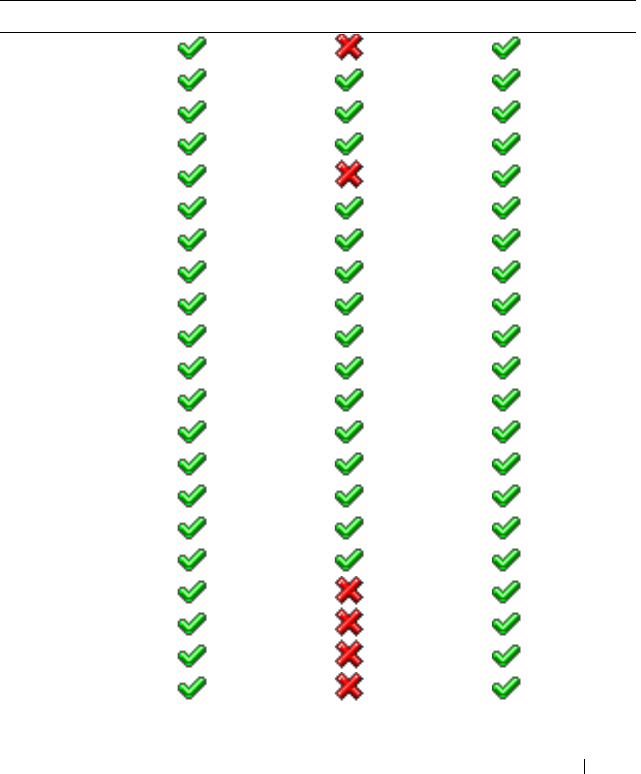
Supported RACADM Interfaces 355
C
Supported RACADM Interfaces
The following table provides an overview of RACADM subcommands and
their corresponding interface support.
Table C-1. RACADM Subcommand Interface Support
Subcommand Telnet/SSH/Serial Local RACADM Remote RACADM
arp
clearascreen
clrraclog
clrsel
coredump
coredumpdelete
fwupdate
getconfig
getniccfg
getraclog
getractime
getsel
getssninfo
getsvctag
getsysinfo
gettracelog
help
ifconfig
netstat
ping
racdump
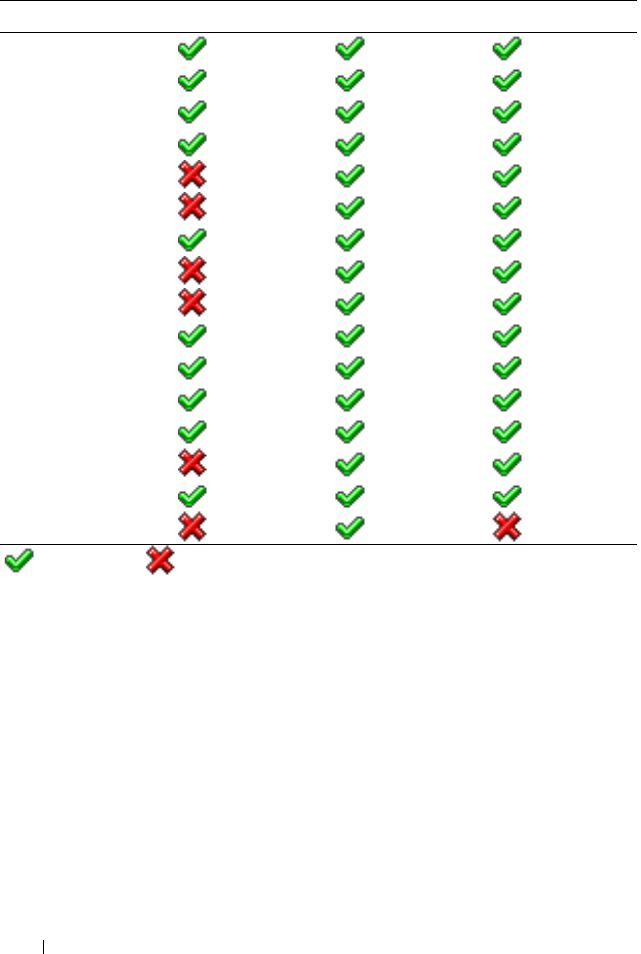
356 Supported RACADM Interfaces
racreset
racresetcfg
serveraction
setniccfg
sslcertdownload
sslcertupload
sslcertview
sslcsrgen
sslkeyupload
testemail
testtrap
vmdisconnect
vmkey
usercertupload
usercertview
localConRedirDisable
= Supported; =Not supported
Table C-1. RACADM Subcommand Interface Support
(continued)
Subcommand Telnet/SSH/Serial Local RACADM Remote RACADM

Browser Pre-installation 357
D
Browser Pre-installation
If you are running Linux and your management station has a read-only file
system, a browser can be installed on a client system without requiring a
connection to a DRAC 5. By using the native plug-in installation package, the
browser can be manually installed during the client setup phase.
NOTICE: In a read-only client environment, if the DRAC 5 firmware is updated to a
newer version of the plug-in, then the installed VM plug-in will become inoperative.
This is because earlier plug-in features are disabled when the firmware contains a
newer plug-in version. In this case, the client will be prompted for plug-in
installation. Since the file system is read-only, the installation will fail and the plug-
in features will not be available.
Obtain Plug-in Installation Package
To obtain the plug-in installation package:
1
Login to an existing DRAC5
2
Change the URL in the browser's address bar, from:
https://<RAC_IP>/cgi-bin/webcgi/main
to:
https://<RAC_IP>/plugins/ # Be sure to include the
trailing slash.
3
Notice the two subdirectories
vm
and
vkvm.
Navigate to the appropriate
subdirectory, right click the
rac5XXX.xpi
file, and select
Save Link
Target As....
4
Choose a location to save the plug-in installation package file.

358 Browser Pre-installation
Plug-in Installation
To install the plug-in installation package:
1
Copy the installation package to the client's native file system share that is
accessible by the client.
2
Open an instance of the browser on the client system.
3
Enter the file-path to the plug-in installation package in the browser's
address bar. For example:
file:///tmp/rac5vm.xpi
4
The browser guides the user through plug-in installation.
Once installed, the browser will not prompt for that plug-in installation again,
as long as the target DRAC 5 firmware does not contain a newer version of the
plug-in.

Glossary 359
Glossary
Active Directory
Active Directory is a centralized and standardized system that automates network
management of user data, security, and distributed resources, and enables
interoperation with other directories. Active Directory is designed especially for
distributed networking environments.
AGP
Abbreviation for accelerated graphics port, which is a bus specification that allows
graphics cards faster access to main system memory.
ARP
Acronym for Address Resolution Protocol, which is a method for finding a host’s
Ethernet address from its Internet address.
ASCII
Acronym for American Standard Code for Information Interchange, which is a
code representation used for displaying or printing letters, numbers, and other
characters.
BIOS
Acronym for basic input/output system, which is the part of system software that
provides the lowest-level interface to peripheral devices and which controls the
first stage of the system boot process, including installation of the operating
system into memory.
BMC
Abbreviation for baseboard management controller, which is the controller
interface between the DRAC 5 and the managed system’s BMC.
bus
A set of conductors connecting the various functional units in a computer. Busses
are named by the type of data they carry, such as data bus, address bus, or PCI bus.

360 Glossary
CA
A certificate authority is a business entity that is recognized in the IT industry for
meeting high standards of reliable screening, identification, and other important
security criteria. Examples of CAs include Thawte and VeriSign. After the CA
receives your CSR, they review and verify the information the CSR contains. If
the applicant meets the CA’s security standards, the CA issues a certificate to the
applicant that uniquely identifies that applicant for transactions over networks
and on the Internet.
CD
Abbreviation for compact disc.
CHAP
Acronym for Challenge-Handshake Authentication Protocol, which is an
authentication method used by PPP servers to validate the identity of the
originator of the connection.
CIM
Acronym for Common Information Model, which is a protocol designed for
managing systems on a network.
CLI
Abbreviation for command-line interface.
CLP
Abbreviation for command-line protocol.
console redirection
Console redirection is a function that directs a managed system’s display screen,
mouse functions, and keyboard functions to the corresponding devices on a
management station. You may then use the management station’s system console
to control the managed system.
CSR
Abbreviation for Certificate Signing Request.
DHCP
Abbreviation for Dynamic Host Configuration Protocol, which is a protocol that
provides a means to dynamically allocate IP addresses to computers on a local
area network.

Glossary 361
DLL
Abbreviation for Dynamic Link Library, which is a library of small programs, any
of which can be called when needed by a larger program that is running in the
system. The small program that lets the larger program communicate with a
specific device such as a printer or scanner is often packaged as a DLL program
(or file).
DDNS
Abbreviation for Dynamic Domain Name System.
DMTF
Abbreviation for Distributed Management Task Force.
DNS
Abbreviation for Domain Name System.
DRAC 5
Abbreviation for Dell Remote Access Controller 5.
DSU
Abbreviation for disk storage unit.
extended schema
A solution used with Active Directory to determine user access to DRAC 5; uses
Dell-defined Active Directory objects
.
FQDN
Acronym for Fully Qualified Domain Names. Microsoft
®
Active Directory
®
only
supports FQDN of 64 bytes or fewer.
FSMO
Flexible Single Master Operation. It is Microsoft’s way of guaranteeing atomicity
of the extension operation.
GMT
Abbreviation for Greenwich Mean Time, which is the standard time common to
every place in the world. GMT nominally reflects the mean solar time along the
prime meridian (0 longitude) that runs through the Greenwich Observatory
outside of London, UK.

362 Glossary
GPIO
Abbreviation for general purpose input/output.
GRUB
Acronym for GRand Unified Bootloader, a new and commonly-used Linux loader.
GUI
Abbreviation for graphical user interface, which refers to a computer display
interface that uses elements such as windows, dialog boxes, and buttons as
opposed to a command prompt interface, in which all user interaction is displayed
and typed in text.
hardware log
Records events generated by the DRAC 5 and the BMC.
ICMB
Abbreviation for Intelligent Chassis Management Bus.
ICMP
Abbreviation for Internet control message protocol.
ID
Abbreviation for identifier, commonly used when referring to a user identifier
(user ID) or object identifier (object ID).
IP
Abbreviation for Internet Protocol, which is the network layer for TCP/IP. IP
provides packet routing, fragmentation, and reassembly.
IPMB
Abbreviation for intelligent platform management bus, which is a bus used in
systems management technology.
IPMI
Abbreviation for Intelligent Platform Management Interface, which is a part of
systems management technology.
Kbps
Abbreviation for kilobits per second, which is a data transfer rate.

Glossary 363
LAN
Abbreviation for local area network.
LDAP
Abbreviation for Lightweight Directory Access Protocol.
LED
Abbreviation for light-emitting diode.
LOM
Abbreviation for Local area network On Motherboard.
MAC
Acronym for media access control, which is a network sublayer between a network
node and the network physical layer.
MAC address
Acronym for media access control address, which is a unique address embedded
in the physical components of a NIC.
managed system
The managed system is the system in which the DRAC 5 is installed or embedded.
management station
The management station is a system that remotely accesses the DRAC 5.
MAP
Abbreviation for Manageability Access Point.
Mbps
Abbreviation for megabits per second, which is a data transfer rate.
MIB
Abbreviation for management information base.
MII
Abbreviation for Media Independent Interface.
NAS
Abbreviation for network attached storage.

364 Glossary
NIC
Abbreviation for network interface card. An adapter circuit board installed in a
computer to provide a physical connection to a network.
OID
Abbreviation for Object Identifiers.
PCI
Abbreviation for Peripheral Component Interconnect, which is a standard
interface and bus technology for connecting peripherals to a system and for
communicating with those peripherals.
POST
Acronym for power-on self-test, which is a sequence of diagnostic tests that are
run automatically by a system when it is powered on.
PPP
Abbreviation for Point-to-Point Protocol, which is the Internet standard protocol
for transmitting network layer datagrams (such as IP packets) over serial point-
to-point links.
RAM
Acronym for random-access memory. RAM is general-purpose readable and
writable memory on systems and the DRAC 5.
RAM disk
A memory-resident program which emulates a hard drive. The DRAC 5 maintains
a RAM disk in its memory.
RAC
Abbreviation for remote access controller.
ROM
Acronym for read-only memory, which is memory from which data may be read,
but to which data cannot be written.
RPM
Abbreviation for Red Hat Package Manager, which is a package-management
system for the Red Hat Enterprise Linux operating system that helps installation
of software packages. It is similar to an installation program.

Glossary 365
SAC
Acronym for Microsoft’s Special Administration Console.
SAP
Abbreviation for Service Access Point.
SEL
Acronym for system event log.
SMI
Abbreviation for systems management interrupt.
SMTP
Abbreviation for Simple Mail Transfer Protocol, which is a protocol used to
transfer electronic mail between systems, usually over an Ethernet.
SMWG
Abbreviation for Systems Management Working Group.
SNMP
Abbreviation for Simple Network Management Protocol, which is a protocol
designed to manage nodes on an IP network. DRAC 5s are SNMP-managed
devices (nodes).
SNMP trap
A notification (event) generated by the DRAC 5 or the BMC that contains
information about state changes on the managed system or about potential
hardware problems.
SSH
Abbreviation for Secure Shell.
SSL
Abbreviation for secure sockets layer.
standard schema
A solution used with Active Directory to determine user access to DRAC 5; uses
Active Directory group objects only.

366 Glossary
TAP
Abbreviation for Telelocator Alphanumeric Protocol, which is a protocol used for
submitting requests to a pager service.
TCP/IP
Abbreviation for Transmission Control Protocol/Internet Protocol, which
represents the set of standard Ethernet protocols that includes the network layer
and transport layer protocols.
TFTP
Abbreviation for Trivial File Transfer Protocol, which is a simple file transfer
protocol used for downloading boot code to diskless devices or systems.
UPS
Abbreviation for uninterruptible power supply.
USB
Abbreviation for Universal Serial Bus.
UTC
Abbreviation for Universal Coordinated Time.
See
GMT.
VLAN
Abbreviation for Virtual Local Area Network.
VNC
Abbreviation for virtual network computing.
VT-100
Abbreviation for Video Terminal 100, which is used by the most common terminal
emulation programs.
WAN
Abbreviation for wide area network.

Index 367
Index
A
Active Directory
adding DRAC 5 users, 150
configuring access to the DRAC
5, 143
configuring and managing
certificates, 102
extending schemas, 143
logging in to the DRAC 5, 164
objects, 139
schema extensions, 138
using with extended schema, 138
using with standard schema, 156
using with the DRAC 5, 137
alerts
troubleshooting, 136
B
BIOS setup
configuring on a managed
system, 66
bootable image file
creating, 228
C
Certificate Signing Request
(CSR)
about, 109
generating a new certificate, 110
certificates
Active Directory, 102
exporting the root CA
certificate, 162
SSL and digital, 108
uploading a server certificate, 112
viewing a server certificate, 112
command line console
features, 65
configuration file
creating, 216
configuring
DRAC 5 users, 98
serial mode, 113
serial over LAN, 116
services, 118
smart card, 122
terminal mode, 113
connect com2
using, 66
console redirection
configuring, 170
opening a session, 172
using, 169

368 Index
D
DRAC 5
accessing through a network, 48
adding and configuring users, 98
adding users, 46
configuring, 38, 152, 159
configuring network settings, 45
configuring properties, 45
configuring the NIC, 93
creating a configuration file, 216
downloading firmware, 47
enabling security options, 77
enabling serial/telnet/ssh
console, 73
securing communications, 108
updating the firmware, 46
E
e-mail alerts
configuring, 62
configuring using RACADM
CLI, 63
configuring using the web user
interface, 62
extended schema
using with Active Directory, 138
F
features
DRAC 5, 31
DRAC 5 hardware, 22
new, 21
security, 25
firmware
downloading, 47
updating, 46
frequently asked questions
managing and recovering a remote
system, 123
using console redirection, 179
using serial and RACADM
commands, 226
using the DRAC 5 with Active
Directory, 165
using Virtual Media, 203
H
hardware
installing, 35
hardware specifications, 22
connectors, 23
DRAC 5 ports, 23
power requirements, 22
I
IP blocking
about, 80
enabling, 81
IPMI
configuring, 50, 113
configuring using the RACADM
CLI, 53
configuring using the Web-based
interface, 51
modes, 67

Index 369
IpRange
about, 78
enabling, 79
L
last crash screen
capturing on the managed
system, 39
Linux XTerm
configuring for telnet console
redirection, 88
M
managed system
accessing through the local serial
port, 83
capturing the last crash screen, 39
configuring BIOS setup, 66
enabling serial or telnet
console, 66
installing software, 38
management station
configuring, 170
configuring a Red Hat Enterprise
Linux management
station, 41
configuring terminal
emulation, 85
installing and removing
RACADM, 41
installing the software, 40
mouse pointer
synchronizing, 178
Mozilla Firefox
disabling whitelist, 30
supported version, 30
N
network properties
configuring manually, 224
configuring using racadm, 224
O
operating systems
supported, 27
other documents you may
need, 32
P
parsing rules, 218
PEF
configuring, 58
configuring using RACACM
CLI, 59
configuring using the web user
interface, 58

370 Index
PET
configuring, 60
configuring using RACADM
CLI, 61
configuring using the web user
interface, 60
platform events
configuring, 57
platforms
supported, 26
property database groups
cfcRacManagedNodesOs, 330
cfgActiveDirectory, 337
cfgEmailAlert, 309
cfgIpmiLan, 349
cfgIpmiPef, 351
cfgIpmiPet, 353
cfgIpmiSerial, 343
cfgIpmiSol, 347
cfgLanNetworking, 295
cfgNetTuning, 318
cfgOobSnmp, 320
cfgRacSecurity, 331
cfgRacTuning, 321
cfgRacVirtual, 334
cfgRemoteHosts, 303
cfgSerial, 313
cfgSessionManagement, 311
cfgUserAdmin, 305
idRacInfo, 293
R
RAC serial
configuring, 113
RAC serial interface
about, 67
RACADM
attaching virtual media, 193
configuring serial and telnet, 74
installing and removing, 41
supported interfaces, 355, 357
RACADM CLI
configuring e-mail alerts, 63
configuring PEF, 59
configuring PET, 61
RACADM subcommands
arp, 246
clearascreen, 246
clrraclog, 273
clrsel, 274
config, 247
coredump, 251
coredumpdelete, 252
fwupdate, 253
getconfig, 249
getniccfg, 265
getraclog, 271
getractime, 261
getsel, 273
getssninfo, 256
getsvctag, 266
getsysinfo, 258
gettracelog, 275
help, 245
ifconfig, 262

Index 371
localConRedirDisable, 291
netstat, 262
ping, 263
racdump, 267
racreset, 268
racresetcfg, 269
serveraction, 270
setniccfg, 263
sslcertupload, 278, 283
sslcertview, 281
sslcsrgen, 276
testemail, 284
testtrap, 285
usercertupload, 288
userertview, 290
vmdisconnect, 287
vmkey, 288
racadm utility
configuring network
properties, 224
parsing rules, 218
subcommands, 245
reboot option
disabling, 39
Red Hat Enterprise Linux
configuring for serial console
redirection, 68
remote access connections
supported, 24
S
Secure Shell (SSH)
using, 76
Secure Sockets Layer (SSL)
about, 108
enabling on a domain
controller, 162
importing the firmware
certificate, 164
security
enabling, 77
using SSL and digital
certificates, 108
serial console
connecting the DB-9 cable, 84
using, 90
serial mode
configuring, 113
Serial Over LAN (SOL)
configuring, 116
server certificate
uploading, 112
viewing, 112
Server Management Command
Line Protocol (SM-CLP)
about, 231
support, 231
services
configuring, 118

372 Index
snap-in
installing the Dell extension, 149
software
configuring, 37
installing, 37
sslcertdownload, 279
standard schema
using with Active Directory, 156
system
configuring to use a DRAC 5, 36
T
telnet console
using, 90
terminal mode
configuring, 113, 115
troubleshooting, 243
basic, 243
U
usercertupload, 288
V
video viewer
accessing the viewer menu
bar, 175
using, 174
virtual flash
configuring, 196
disabling, 196
enabling, 195
using, 195
virtual media
about, 187
attaching, 192
booting, 193
detaching, 192
installing the operating
system, 194
installing the plug-in, 189
running, 190
supported configurations, 190
VM-CLI
about, 197
deploying the operating
system, 229
operating system shell
options, 202
parameters, 199
using, 197
W
web browser
configuring, 42
supported browsers, 29
web user interface
accessing, 91
configuring e-mail alerts, 62
configuring PEF, 58
configuring PET, 60
