Dell Kvm 2162Ds Users Manual Dell™ Remote Console Switch Hardware User's Guide
2014-11-13
: Dell Dell-Kvm-2162Ds-Users-Manual-116358 dell-kvm-2162ds-users-manual-116358 dell pdf
Open the PDF directly: View PDF  .
.
Page Count: 188 [warning: Documents this large are best viewed by clicking the View PDF Link!]
- Product Overview
- Features and Benefits
- Reduce Cable Bulk
- KVM Switching Capabilities
- Multiplatform Support
- True Serial Capabilities
- Local and Remote User Interfaces
- Virtual Media and Smart Card-capable Switches
- On-board Web Interface
- Access the Switch Using a Standard TCP/IP Network
- Encryption
- Video
- Flash Upgradeable
- Tier Expansion
- Avocent Management Software Plug-in
- FIPS cryptographic module
- Sample Configuration
- Safety Precautions
- General
- LAN Options
- Features and Benefits
- Installation
- Local and Remote Configuration
- Local User Interface (UI)
- OBWI
- Using the User Interfaces
- Launching a Session
- Scan Mode
- Viewing System Information
- RCS Tools
- Network Settings
- DNS Settings
- NTP Settings
- SNMP Settings
- Auditing Event Settings
- Setting Event Destinations
- Ports - Configuring SIPs
- Power Device Settings
- Local Port UI Settings
- Modem Settings
- Setup Settings - Port Security
- Sessions
- Setting Up User Accounts
- LDAP
- Override Admin
- Active Sessions
- The Video Viewer Window
- LDAP Feature for the RCS
- The Structure of Active Directory
- Standard Schema versus Dell Extended Schema
- Standard Installation
- Configure the Override Admin Account
- Configuring DNS Settings
- Configuring the Network Time Protocol (NTP) Settings
- Configuring the LDAP Authentication Parameters
- Enabling LDAP Authentication
- Entering Authentication Parameters - Operational Modes
- Entering Extension Options - Active Directory LDAP
- Entering Authentication Parameters - Standard LDAP
- Entering Authentication Parameters - Custom IP Port Assignments
- Completing LDAP Configuration
- Secondary LDAP Settings - Standard Configuration
- Setting up the RCS for performing Standard LDAP queries
- Search Configuration Settings
- Query Mode Selection Settings
- Group Configuration Parameters
- Secondary LDAP Settings - Active Directory Configuration
- LDAP SSL Certificates
- CA Certificate Information Display
- Configuring Group Objects
- Configuring Active Directory with Dell Schema Extensions to Access Your RCS
- Adding Users and Privileges to Active Directory with Dell Schema Extensions
- Using Dell Association Objects Syntax
- Console Redirection Access Security
- Using Active Directory to Log In to the RCS
- Target Device Naming Requirements for LDAP Implementation
- Frequently Asked Questions
- Appendix A: Terminal Operations
- Appendix B: Using SIPs
- Appendix C: MIB and SNMP Traps
- Appendix D: Cable Pinouts Information
- Appendix E: UTP Cabling
- Appendix F: Sun Advanced Key Emulation
- Appendix G: Technical Specifications
- Appendix H: Technical Support
- Bookmarks

Dell™ Remote Console
Switch
User's Guide

Notes, Cautions, and Warnings
NOTE: A NOTE indicates important information that helps you
make better use of your computer.
CAUTION: A CAUTION indicates potential damage to hardware or
loss of data if instructions are not followed.
WARNING: A WARNING indicates a potential for property damage,
personal injury, or death.
____________________
Information in this document is subject to change without notice.
© 2012 Dell Inc. All rights reserved.
Reproduction of these materials in any manner whatsoever without the written
permission of Dell Inc. is strictly forbidden.
Trademarks used in this text: Dell, the DELL logo, and PowerEdge are trademarks
of Dell Inc.; Avocent is a trademark or registered trademark of Avocent Corporation
or its affiliates in the U.S. and other countries.
Other trademarks and trade names may be used in this document to refer to either the
entities claiming the marks and names or their products. Dell Inc. disclaims any
proprietary interest in trademarks and trade names other than its own.
590-1021-501B
July 2012
Model 1082DS/2162DS/4322DS Remote Console Switch

Contentsxxx |xxxi
Contents
Product Overview 1
Features and Benefits 1
Reduce Cable Bulk 2
KVMSwitching Capabilities 2
Multiplatform Support 2
True Serial Capabilities 3
Local and Remote User Interfaces 3
Virtual Media and Smart Card-capable Switches 3
On-board Web Interface 4
Access the Switch Using a Standard TCP/IP Network 4
Encryption 4
Video 4
Flash Upgradeable 5
Tier Expansion 5
Avocent Management Software Plug-in 5
FIPS cryptographic module 5
Sample Configuration 7
Safety Precautions 8
General 9
LAN Options 10
Installation 13
RCS Quick Setup 13
Getting Started 15
Setting up Your Network 16
Rack Mounting the RCS 16
Rack Mounting Safety Considerations 16
Installing the Dell ReadyRails™ System 17

Contentsxxx |xxxii
Installing the RCS 22
Connecting the RCS Hardware 25
Connecting a SIP 29
Adding a Tiered Switch 31
Cascading with Legacy Switches 34
Adding a PEM (Optional) 36
Configuring the Remote Console Switch 38
Setting up the Built-in Web Server 38
Connecting to the OBWI Through a Firewall 38
Verifying the Connections 41
Rear Panel Ethernet Connection LEDs 41
Rear Panel Power Status LEDs 41
Adjusting Mouse Settings on Target Devices 42
Local and Remote Configuration 43
Local User Interface (UI) 43
Filtering 44
OBWI 45
Using the User Interfaces 47
Launching a Session 49
Scan Mode 50
Viewing System Information 51
RCS Tools 52
Rebooting the RCS 52
Upgrading RCS Firmware 52
Saving and Restoring RCS Configurations and RCS User
Databases 53
Network Settings 55
DNSSettings 56

Contentsxxx |xxxiii
NTP Settings 57
SNMP Settings 57
Auditing Event Settings 58
Setting Event Destinations 58
Ports - Configuring SIPs 59
Upgrading SIPs 59
Power Device Settings 60
Associated Target Servers and Power Outlets 61
Grouping Power Outlets 63
Default Outlet Names 64
Assigning an Outlet Name 65
Local Session Page on the Local Port 69
Local Port UI Settings 70
Modem Settings 71
Setup Settings - Port Security 72
Sessions 72
Configuring General Sessions 72
Configuring KVM Sessions 73
Configuring Local Virtual Media Sessions 73
Configuring Serial Sessions 77
Setting Up User Accounts 77
Managing Local Accounts 77
Access Levels 77
Avocent Management Software Device IP Addresses 79
LDAP 79
Override Admin 79
Active Sessions 80
Closing a Session 80

Contentsxxx |xxxiv
The Video Viewer Window 81
Changing the Toolbar 83
Launching a Session 84
Session Time-out 84
Window Size 85
Adjusting the View 85
Refreshing the Image 87
Video Settings 87
Additional Video Adjustment 87
Target Video Settings 89
Automatic Video Adjustment 89
Video Test Pattern 90
Vendor-specific Video Settings 90
Color Settings 90
Adjusting Color Depth 90
Contrast and Brightness 91
Noise Settings 91
Detection Thresholds 91
Mouse Settings 92
Adjusting Mouse Options 92
Cursor Type 92
Mouse Scaling 95
Mouse Alignment and Synchronization 95
Virtual Media 96
Requirements 96
Sharing and Preemption Considerations 97
Virtual Media Dialog Box 97
Opening a Virtual Media Session 98
Closing a Virtual Media Session 101
Smart Cards 102

Contentsxxx |xxxv
Keyboard Pass-through 103
Macros 104
Saving the View 104
Closing a Session 104
LDAP Feature for the RCS 105
The Structure of Active Directory 105
Domain Controller Computers 105
Object Classes 106
Attributes 107
Schema Extensions 107
Standard Schema versus Dell Extended Schema 108
Standard Installation 109
Configure the Override Admin Account 110
Configuring DNS Settings 110
Configuring the Network Time Protocol (NTP) Settings 112
Configuring the LDAP Authentication Parameters 112
Enabling LDAP Authentication 112
Entering Authentication Parameters - Operational Modes 115
Entering Extension Options - Active Directory LDAP 116
Entering Authentication Parameters - Standard LDAP 116
Entering Authentication Parameters - Custom IP Port
Assignments 117
Completing LDAP Configuration 118
Secondary LDAPSettings - Standard Configuration 119
Setting up the RCS for performing Standard LDAP
queries 119
Search Configuration Settings 120
Query Mode Selection Settings 121
Group Configuration Parameters 122
Secondary LDAP Settings - Active Directory Configuration124

Contentsxxx |xxxvi
LDAP SSL Certificates 127
Enabling SSL on a Domain Controller 128
Login Timeout 132
CA Certificate Information Display 133
Configuring Group Objects 134
Active Directory Object Overview for Standard Schema 137
Dell Extended Schema Active Directory Object Overview 139
Configuring Active Directory with Dell Schema Extensions to
Access Your RCS 143
Extending the Active Directory Schema (Optional) 143
Installing the Dell Extension to the Active Directory Users
and Computers Snap-In (Optional) 144
Opening the Active Directory Users and Computers Snap-
In 145
Adding Users and Privileges to Active Directory with Dell
Schema Extensions 145
Creating a SIP Object 145
Creating a Privilege Object 146
Using Dell Association Objects Syntax 147
Creating an Association Object 148
Adding Objects to an Association Object 148
Console Redirection Access Security 149
Using Active Directory to Log In to the RCS 150
Target Device Naming Requirements for LDAP
Implementation 151
Frequently Asked Questions 152
Appendix A: Terminal Operations 155
Console Boot Menu Options 155
Console Main Menu Options 156

Contentsxxx |xxxvii
Appendix B: Using SIPs 157
ACS Console Server Port Pinouts 157
Cisco Port Pinouts 158
Appendix C: MIB and SNMP Traps 159
Appendix D: Cable Pinouts Information 165
Modem Pinouts 165
Console/Setup Pinouts 166
Appendix E: UTP Cabling 167
UTP Copper Cabling 167
Wiring Standards 167
Cabling Installation, Maintenance, and Safety Tips 168
Appendix F: Sun Advanced Key Emulation 171
Appendix G: Technical Specifications 173
Appendix H: Technical Support 177

Contentsxxx |xxxviii

1
Product Overviewxxx |xxx1
Product Overview
The Dell 1082DS/2162DS/4322DS Remote Console Switch (RCS) digital
keyboard, video and mouse (KVM) over IP and serial console switches combine
analog and digital technology to provide flexible, centralized control of data
center servers, and to facilitate the operations, activation, and maintenance of
remote branch offices where trained operators may be unavailable. The IP-based
RCS gives you flexible target device management control and secure remote
access from anywhere at anytime through the RCS software or on-board web
interface (OBWI).
Features and Benefits
The RCS provides enterprise customers with the following features and options:
• significant reduction of cable volume
• Virtual Media (VM) capabilites, configurable for analog (local) or digital
(remote) connectivity
• smart card/Common Access Card (CAC) capability
• true serial capability through Secure Shell (SSH) and Telnet
• enhanced video resolution support, up to 1600 x 1200 or 1680 x 1050
(widescreen) native from target to remote
• optional dual power models for redundancy
• optional support for managing intelligent power devices
• dual independent local port video paths (dedicated to ACI)

2xxx |Product Overviewxxx
• dual stack IPv4 (DHCP) and IPv6 (DHCPv6 and stateless auto-
configuration) for simultaneous access
• accessibility to target devices across 10/100/1000BaseT LAN ports.
• a MODEM port that supports V.34, V.90 or V.92-compatible modems that
may be used to access the switch when an Ethernet connection is not
available
• FIPS support
Reduce Cable Bulk
With server densities continually increasing, cable bulk remains a major concern
for network administrators. The RCS significantly reduces KVM cable volume in
the rack by utilizing the innovative Server Interface Pod (SIP) modules and
single, industry-standard Unshielded Twisted Pair (UTP) cabling. This allows a
higher server density while providing greater airflow and cooling capacity.
KVMSwitching Capabilities
The RCS supports SIPs that are powered directly from the target device and
provide Keep Alive functionality when the switch is not powered. The SIPs with
CAT 5 design dramatically reduce cable clutter while providing optimal
resolution and video settings. The built-in memory of the SIPs simplifies
configuration by assigning and retaining unique device names and Electronic ID
(EID) numbers for each attached device.
PS/2 and USB SIPs are available allowing direct KVM connectivity to devices.
The USB2+CAC SIP is also available. The RCS is offered with 8, 16, or 32
Analog Rack Interface (ARI) ports for connecting SIPs. Utilizing the SIP, you
can attach additional switches to expand your RCS system. This flexibility
allows you to add capacity as your data center grows.
Multiplatform Support
The Dell SIPs are available for use with the RCS to support PS/2, USB, USB2,
and USB2+CAC device environments. Using the OBWI in conjunction with
these modules allows you to switch easily across platforms.

Product Overviewxxx |xxx3
Interoperability with Avocent® IQ Module Intelligent Cabling may also be used
to connect devices to the RCS. PS/2, USB, Sun®, and serial module options are
available. For more information, please refer to the appropriate Avocent
installer/user guide for your product or visit avocent.com/manuals for more
information..
True Serial Capabilities
The RCS supports SIPs that provide true serial capabilities through Telnet.
With a SIP, you can launch an SSH session or launch a serial viewer from the
OBWI to connect to serial targets that are connected to an RCS.
Local and Remote User Interfaces
You can use the local user interface (local UI) by connecting directly to the local
port to manage the RCS. You can also use the remote OBWI to manage your
switch. The OBWI is web browser based and is launched directly from the
switch, and any devices connected to the switch are automatically detected.
Virtual Media and Smart Card-capable Switches
The RCS allows you to view, move, or copy data located on virtual media to and
from any target device. You can manage remote systems more efficiently by
allowing operating system installation, operating system recovery, hard drive
recovery or duplication, BIOS updating, and target device backup.
The RCS also allows you to use smart cards in conjunction with your switch
system. Smart cards are pocket-sized cards that store and process information.
Smart cards such as the CAC can be used to store identification and
authentication to enable access to computers, networks, and secure rooms or
buildings.
Virtual media and a smart card reader can be connected directly to the USB
ports on the switch. In addition, virtual media and smart card readers may be
connected to any remote workstation that is running the remote OBWI, Dell
RCS software, or Avocent management software and is connected to the switch
using an Ethernet connection.

4xxx |Product Overviewxxx
NOTE: To open a virtual media or smart card session with a target device,
you must first connect the target device to a switch using a SIP.
On-board Web Interface
The OBWI provides similar management functions as the RCS software, but
does not require a software server or any installation. The OBWI is launched
directly from the switch, and any servers connected to the RCS are
automatically detected. You can use the OBWI to configure the RCS from a
web browser. Launch the Viewer from the OBWI to establish KVM and virtual
media sessions to target devices. The OBWI also supports LDAP
authentication, which allows permissions for multiple RCSs to be managed
through a single interface.
Access the Switch Using a Standard TCP/IP Network
The switch provides agentless remote control and access. No special software or
drivers are required on the attached servers or client.
NOTE: The client connects to the switch using an Internet browser.
You can access the switch and all attached systems via Ethernet or using a V.34,
V.90, or V.92 modem from a client. The clients can be located anywhere a valid
network connection exists.
Encryption
The RCS supports 128-bit SSL(ARCFOUR), as well as AES, DES, and 3DES
encryption of keyboard/mouse, video, and virtual media sessions.
Video
The RCS provides optimal resolution for analog VGA, SVGA, and XGA video.
You can achieve resolutions up to 1600 x 1200 or 1680 x 1050 (widescreen),
depending on the length of cable separating your switch and servers.

Product Overviewxxx |xxx5
Flash Upgradeable
Upgrade your RCS and SIPs at any time to ensure you are always running the
most current firmware version available. Flash Upgrades can be initiated through
the OBWI or the serial console. The RCS can be configured to perform
automatic firmware upgrades of SIPs. See "Upgrading RCS Firmware" on page
52 for more information.
Tier Expansion
The RCS features allow you to tier additional Dell RCSs from each of the
Analog Rack Interface (ARI) port on the switch. The tiered switches are
attached in the same manner as any device. This additional tier of units allows
you to attach up to 1024 servers in one system. See "Adding a Tiered Switch" on
page 31.
Avocent Management Software Plug-in
Avocent management software may be used with the switch to allow IT
administrators to remotely access, monitor, and control target devices on
multiple platforms through a single, web-based user interface. For more
information, see the Technical Bulletin for the Avocent management software.
FIPS cryptographic module
The RCS switches support FIPS 140-2 Level 1 cryptographic security
requirements. The FIPS mode of operation can be enabled or disabled via the
OBWI or local port and executed after a reboot. When FIPS is enabled, a reboot
of the switch requires approximately two additional minutes to complete a FIPS
mode integrity check. Also, when FIPS is enabled, if the keyboard, mouse or
video encryption is set to 128-bit SSL (ARCFOUR) or DES, the encryption
level is automatically changed to the encryption level AES.
NOTE: The FIPS mode of operation is initially disabled and must be enabled
to operate.
NOTE: The Setup port factory default setting will automatically disable the
FIPS module.

6xxx |Product Overviewxxx
NOTE: The FIPS mode can be changed via the DSView software plug-in.
RCS switches use an embedded FIPS 140-2 validated cryptographic module
(Certificate #1051) running on a Linux PPC platform per FIPS 140-2
Implementation Guidance section G.5 guidelines.
The FIPS mode can be enabled/disabled via the OBWI, Local Port, or DSView
plug-in. A reboot is required to enable or disable FIPS mode. A firmware upgrade
to this version or setting the state to the default state (Setup Port menu) will
disable FIPS mode.
In FIPS mode, encryption ciphers are restricted to AES or 3DES. When FIPS is
enabled, if the Keyboard/Mouse or Video encryption is set to 128-bit SSL or
DES, the encryption level is automatically changed to AES. With FIPS enabled,
these files are saved (or restored) using a FIPS compatible algorithm, AES.
When FIPS is disabled, the User Database and Appliance Configuration files
saved from or restored to the appliance as external files are encrypted (or
decrypted) using DES.
This is true even when the user does not fill in the Password parameter in the
Save (or Load) dialog on the OBWI, in which case a default OEM password is
used for encryption or decryption.
One result of enabling the FIPS module is to render previously saved User
Database and Appliance Configuration files incompatible. In this case, you may
temporarily disable the FIPS module, reboot the appliance, restore the previously
saved database or configuration file, re-enable the FIPS module, reboot, and then
save the file externally again while the FIPS module is enabled. The new saved
external file will be compatible with the appliance as long as the appliance is
running with FIPS mode enabled.
The opposite situation is also true, in that database and configuration files
saved with FIPS module enabled are not compatible for restoring to an
appliance without the FIPS module enabled or an appliance with older firmware
not supporting the FIPS module.
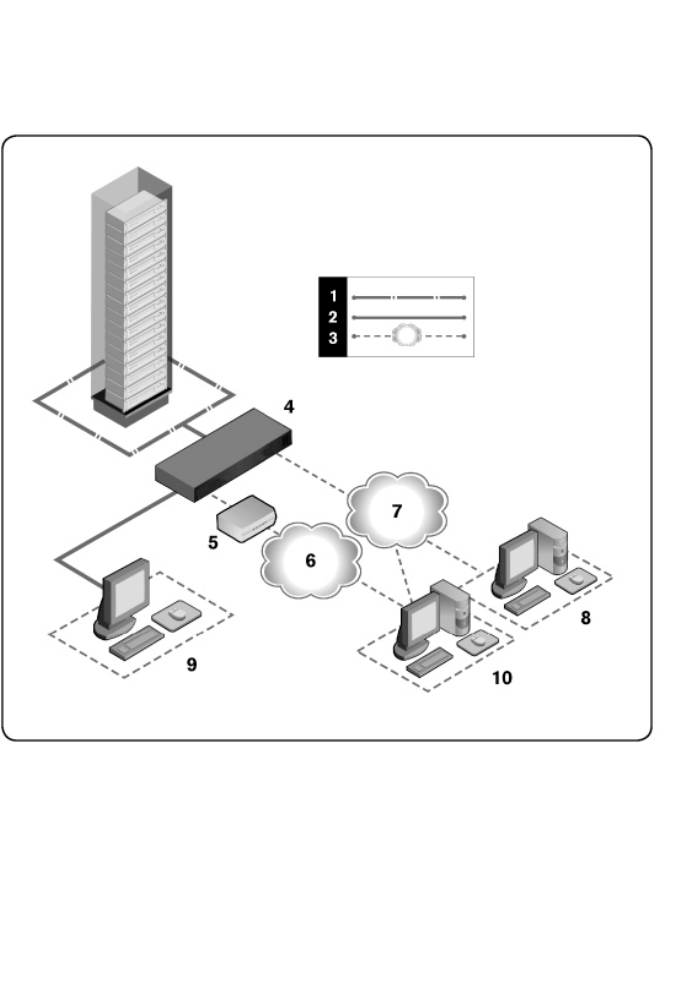

8xxx |Product Overviewxxx
Number Description Number Description
1UTP connection 6Telephone
network
2KVM connection to the RCS 7Ethernet
3Remote IP connection 8
Avocent
Management
Software Server
4RCS 9Analog User
(local UI)
5Modem 10
Digital user
(computer with
Internet browser
for a remote
OBWI or Dell
RCS software)
Safety Precautions
Use the following safety guidelines to help ensure your own personal safety and
to help protect your system and working environment from potential damage.
CAUTION: The power supplies in your system may produce high voltages and energy
hazards, which can cause bodily harm. Only trained service technicians are
authorized to remove the covers and access any of the components inside the system.
This warning applies to Dell™ Remote Console Switch, Dell™ PowerEdge™ servers,
and Dell PowerVault™ storage systems.
This document pertains only to the Dell 1082DS/2162DS/4322DS Remote
Console Switch. You should also read and follow the additional safety
instructions.
• Dell Remote Console Switch User's Guide
• Dell Safety Sheet

Product Overviewxxx |xxx9
• Dell RTF Regulatory Tech Bulletin
General
• Observe and follow service markings.
• Do not service any product except as explained in your system
documentation.
• Opening or removing covers that are marked with the triangular symbol with
a lightning bolt may expose you to electrical shock.
• Components inside these compartments should be serviced only by a
trained service technician.
• This product contains no serviceable components. Do not attempt to open.
If any of the following conditions occur, unplug the product from the electrical
outlet and replace the part or contact your trained service provider:
- The power cable, extension cable, or plug is damaged.
- An object has fallen into the product.
- The product has been exposed to water.
- The product has been dropped or damaged.
- The product does not operate correctly when you follow the
operating instructions.
• Keep your system away from radiators and heat sources. Also, do not block
cooling vents.
• Do not spill food or liquids on your system components, and never operate
the product in a wet environment. If the system gets wet, see the
appropriate section in your troubleshooting guide or contact your trained
service provider.
• Use the product only with approved equipment.
• Allow the product to cool before removing covers or touching internal
components.

10xxx |Product Overviewxxx
• Operate the product only from the type of external power source indicated
on the electrical ratings label. If you are not sure of the type of power source
required, consult your service provider or local power company.
NOTE: To help avoid damaging your system, be sure the voltage selection
switch (if provided) on the power supply is set for the voltage that most closely
matches the AC power available in your location. Also be sure that your
monitor and attached devices are electrically rated to operate.
• Be sure that your monitor and attached devices are electrically rated to
operate with the power available in your location.
• Use only power cables provided with this product.
• To help prevent electric shock, plug the system and peripheral power cables
into properly grounded electrical outlets. These cables are equipped with
three-prong plugs to help ensure proper grounding. Do not use adaptor plugs
or remove the grounding prong from a cable.
• Observe extension cable and power strip ratings. Make sure that the total
ampere rating of all products plugged into the power strip does not exceed
80 percent of the ampere ratings limit for the power strip.
• To help protect your system from sudden, transient increases and decreases
in electrical power, use a surge suppressor, line conditioner, or
uninterruptible power supply (UPS).
• Position system cables and power cables carefully. Route cables so that they
cannot be stepped on or tripped over. Be sure that nothing rests on any
cables.
• Do not modify power cables or plugs. Consult a licensed electrician or your
power company for site modifications. Always follow your local/national
wiring rules.
LAN Options
• Do not connect or use during a lightning storm. There may be a risk of
electrical shock from lightning.

Product Overviewxxx |xxx11
• Never connect or use in a wet environment.

12xxx |Product Overviewxxx

2
Installationxxx |xxx13
Installation
The RCS transmits KVM and serial information between operators and target
devices connected to the switch over a network using either an Ethernet or
modem connection. The RCS uses TCP/IP for communication over Ethernet.
For the best system performance, use a dedicated, switched 100BaseT or
1000BaseT network. You can also use 10BaseT Ethernet.
The RCS uses the Point-to-Point Protocol (PPP) for communication over a
V.34, V.90, or V.92 modem. You can perform KVM and serial switching tasks by
using the OBWI or the Avocent management software. For more information on
the Avocent management software, visit http://www.avocent.com.
The RCS box includes the RCS, RCS software, and the OBWI. You may choose
to use either the RCS software or the OBWI to manage your system. The
OBWI manages a single RCS and its connections, while the RCS software can
manage multiple switches and their connections. If you plan to use only the
OBWI, you do not need to install the RCS software.
NOTE: The RCS software can be used to manage some switches. For more
information, please refer to the appropriate installer/user guide for your
product.
NOTE: Please ensure that all your RCSs have been upgraded to their most
recent version of Firmware. For information on upgrading an RCS through the
OBWI, refer to "RCS Tools" on page 52.
RCS Quick Setup
The following is a quick setup list. To begin by mounting the RCS in a rack and
for detailed installation instructions, see "Getting Started" on page 15.

14xxx |Installationxxx
1Adjust mouse acceleration on each server to Slow or None.
2Install the RCS hardware, and connect a Server Interface Pod (SIP) or
Avocent® IQ module to each server or tiered switch. Connect each SIP or
Avocent IQ module to the RCS with CAT 5 cabling and connect the
keyboard, monitor, and mouse connectors to the analog port of the RCS.
3Connect the local port peripherals to the appropriate ports on the back
panel of the RCS and set up the network configuration. The IP address can
be set here or from the RCS software. Dell recommends using a static IP
address for ease of configuration.
4Using the local port, input all server names using the OBWI interface.
To set up the RCS software (see the RCS Software User's Guide):
1Install the RCS software on each client workstation.
2From one client workstation, launch the RCS software.
3Click the New RCS task button to add the new switch to the RCS software
database. If you configured the IP address as described above, select Yes,
the product already has an IP address, otherwise select No, the product does
not have an IP address.
RCS software will find the RCS and all SIPs connected to it and display the
names in the Explorer.
NOTE: In addition to adding and managing Dell RCSs using the RCS
software, you can add and manage some Avocent switches.
4Set properties and group servers as desired into locations, sites, or folders
through the Explorer.
5Create user accounts through the OBWI. See "Setting Up User Accounts"
on page 77 for more information.
6Once one client workstation is set up, select File - Database - Save to save a
copy of the database with all the settings.
7From the second client workstation, click File - Database - Load and browse
to find the file you have saved. Select the file and click Load.

Installationxxx |xxx15
8If the local user adds, deletes, or renames any SIPs after you have loaded this
file, you can resynchronize your local switch by selecting the RCS and
clicking Resync. To control a connected server, select it in the Explorer and
click the Connect Video task button to launch a server session in the
Viewer.
9Adjust the resolution (select View - Scaling) and quality (select View -
Color) of the server video in the Viewer.
Getting Started
The following items are supplied with the Remote Console Switch. Before
installing your RCS, locate the necessary items for proper installation.
• Remote Console Switch
• Jumper Cord(s)
• 0U Mounting Bracket
• 1U Mounting Bracket Hardware Kit (two additional rails that are pre-
mounted to the RCS are included in the kit assembly)
• Cable and Adaptors for SETUP and MODEM
• Remote Console Switch System User's Guide on CD
• Dell Safety Sheet
• Dell RTF Regulatory Tech Bulletin
Additional Items Needed:
• One Dell SIP or Avocent IQ module per attached device
• One CAT 5 patch cable per attached device (up to 45 meters)
Optional Items:
• V.34, V.90, Or V.92-compatible Modem and cables
• Power Control Device(s)
• Port Expansion Module (PEM)

16xxx |Installationxxx
NOTE: You cannot open a virtual media session or a CAC session if the
server is connected via a PEM.
Setting up Your Network
The switch uses IP addresses to uniquely identify the switch and the target
devices. The RCS supports both Dynamic Host Configuration Protocol
(DHCP) and static IP addressing. Make sure that an IP address is reserved for
each switch and that each IP address remains static while the switch is
connected to the network.
Keyboards
A USB keyboard and mouse may be connected to the analog port of the RCS.
NOTE: The RCS also supports the use of multiple keyboards and multiple
mice on the analog port. The use of more than one input device
simultaneously, however, may produce unpredictable results.
Rack Mounting the RCS
You may either place the RCS on the rack shelf or mount the switch directly
into a 19" wide, EIA-310-E compliant rack (four-post, two-post, or threaded
methods). The Dell ReadyRails™ system is provided for 1U front-rack, 1U rear-
rack, and two-post installations. The ReadyRails system includes two separately
packaged rail assemblies and two rails that are shipped attached to the sides of
the RCS. In addition, one mounting bracket is provided for 0U configurations,
and one blanking panel is provided for rear-rack installations.
WARNING: This is a condensed reference. Read the safety instructions in your
Safety, Environmental, and Regulatory Information booklet before you begin.
NOTE: The illustrations in this document are not intended to represent a
specific switch.
Rack Mounting Safety Considerations
• Rack Loading: Overloading or uneven loading of racks may result in shelf or
rack failure, causing damage to equipment and possible personal injury.

Installationxxx |xxx17
Stabilize racks in a permanent location before loading begins. Mount
components beginning at the bottom of the rack, then work to the top. Do
not exceed your rack load rating.
• Power considerations: Connect only to the power source specified on the
unit. When multiple electrical components are installed in a rack, ensure
that the total component power ratings do not exceed circuit capabilities.
Overloaded power sources and extension cords present fire and shock
hazards.
• Elevated ambient temperature: If installed in a closed rack assembly, the
operating temperature of the rack environment may be greater than room
ambient. Use care not to exceed the 50°C maximum ambient temperature
of the switch.
• Reduced air flow: Install the equipment in the rack so that the amount of
airflow required for safe operation of the equipment is not compromised.
• Reliable earthing: Maintain reliable earthing of rack-mounted equipment.
Pay particular attention to supply connections other than direct
connections to the branch circuit (for example, use of power strips).
• Product should not be mounted with the rear panel facing in the downward
position.
Installing the Dell ReadyRails™ System
The ReadyRails system is provided to easily configure your rack for installation
of your RCS. The ReadyRails system can be installed using the 1U tool-less
method or one of three possible 1U tooled methods (two-post flush mount, two-
post center mount, or four-post threaded).
1U Tool-less Configuration (Four-post Square Hole or Unthreaded
Round Hole)
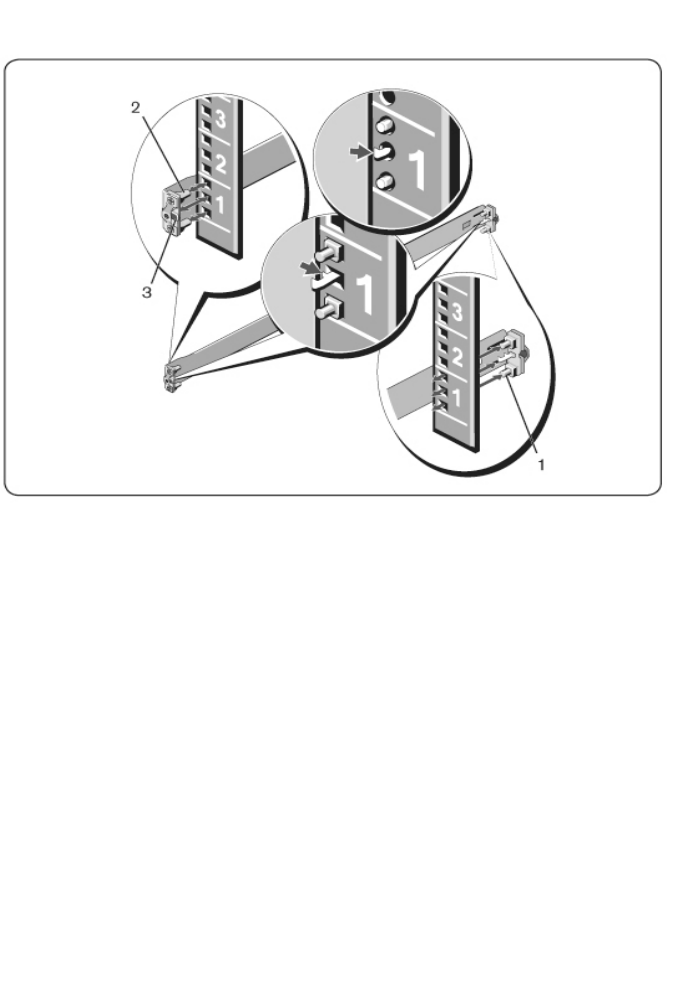
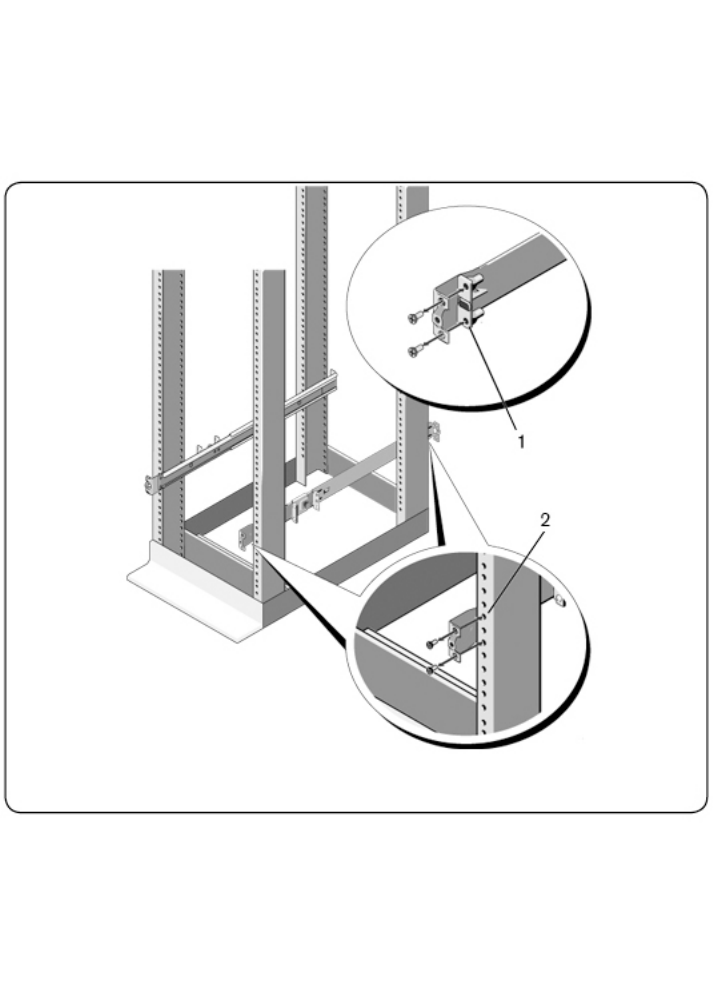
1With the ReadyRails flange ears facing outward, place one rail between the
left and right vertical posts. Align and seat the rear flange rail pegs in the
rear vertical post flange. In Figure 2.1, item 1 and its extractions illustrate
how the pegs appear in both the square and unthreaded round holes.
18xxx |Installationxxx
Figure 2.1: 1U Tool-less Configuration
2Align and seat the front flange pegs in the holes on the front side of the
vertical post (item 2).
3Repeat this procedure for the second rail.
4To remove each rail, pull on the latch release button on each flange ear
(item 3) and unseat each rail.
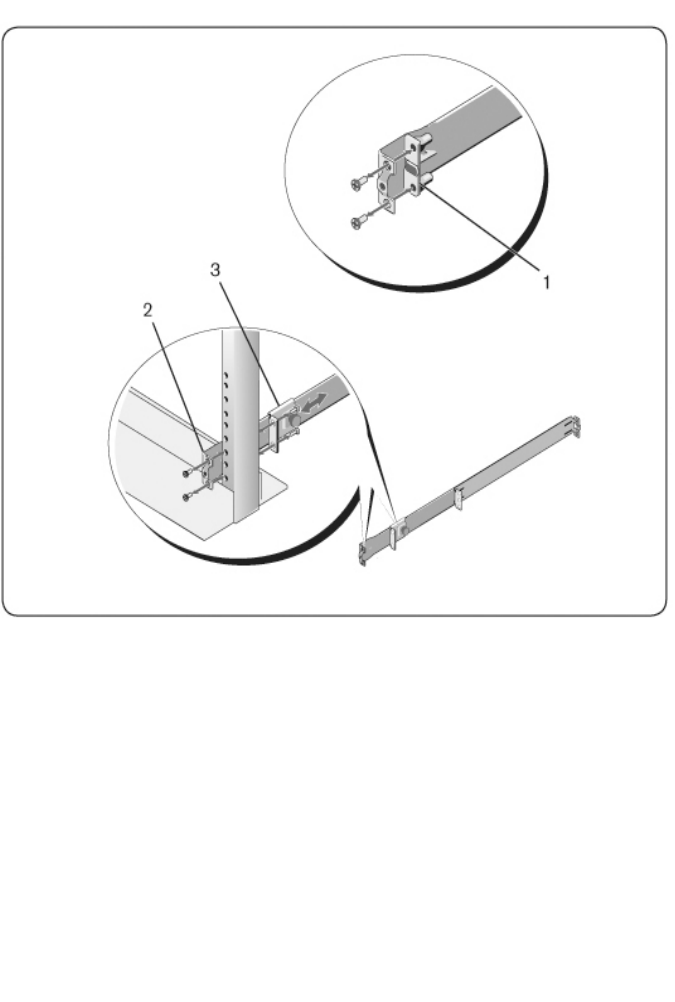
Two-post Flush-mount Configuration
1For this configuration, the castings must be removed from the front side of
each ReadyRails assembly (Figure 2.2, item 1). Use a Torx™ driver to
remove the two screws from each front flange ear (on the device side of the
rail) and remove each casting. Retain castings for future rack requirements.
It is not necessary to remove the rear flange castings.
Figure 2.2: Two-post Flush-mount Configuration
Installationxxx |xxx19
2Attach one rail to the front post flange with two user-supplied screws (item
2).
3Slide the plunger bracket forward against the vertical post and secure the
plunger bracket to the post flange with two user-supplied screws (item 3).
4Repeat this procedure for the second rail.
20xxx |Installationxxx
Two-post Center-mount Configuration
1Slide the plunger bracket rearward until it clicks into place and secure the
bracket to the front post flange with two user-supplied screws (Figure 2.3,
item 1).
Figure 2.3: Two-post Center-mount Configuration
2Slide the back bracket towards the post and secure it to the post flange with
two user-supplied screws (item 2).
3Repeat this procedure for the second rail.
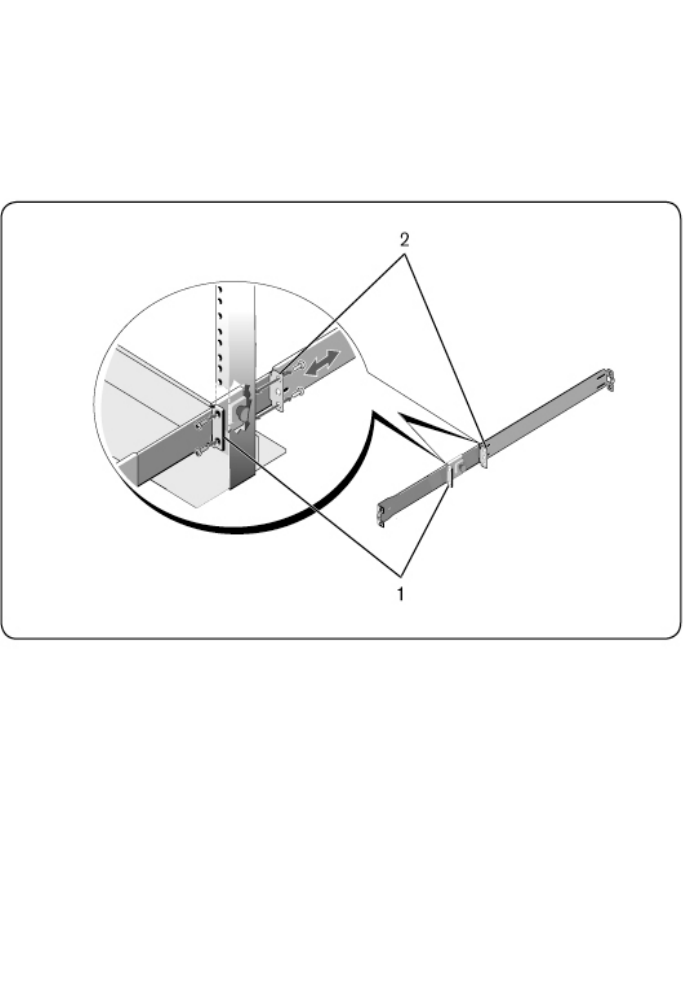
Four-post Threaded Configuration
1For this configuration, the flange ear castings must be removed from each
end of the ReadyRails assemblies. Use a Torx™ driver to remove the two
Installationxxx |xxx21
screws from each flange ear and remove each casting (Figure 2.4, item 1).
Retain castings for future rack requirements.
2For each rail, attach the front and rear flanges to the post flanges with two
user-supplied screws at each end (item 2).
Figure 2.4: Four-post Threaded Configuration
22xxx |Installationxxx
Installing the RCS
The switch may be mounted in the 1U rear-rack, 1U front-rack, 1U two-post
(flush and center), and 0U configurations. The following are examples of 1U rear-
rack, 1U front-rack, and 0U configurations. For 1U two-post (flush and center)
configurations, you can slide the switch into the rails in the same manner as the
four-post configurations.
1U Rear-rack Installation
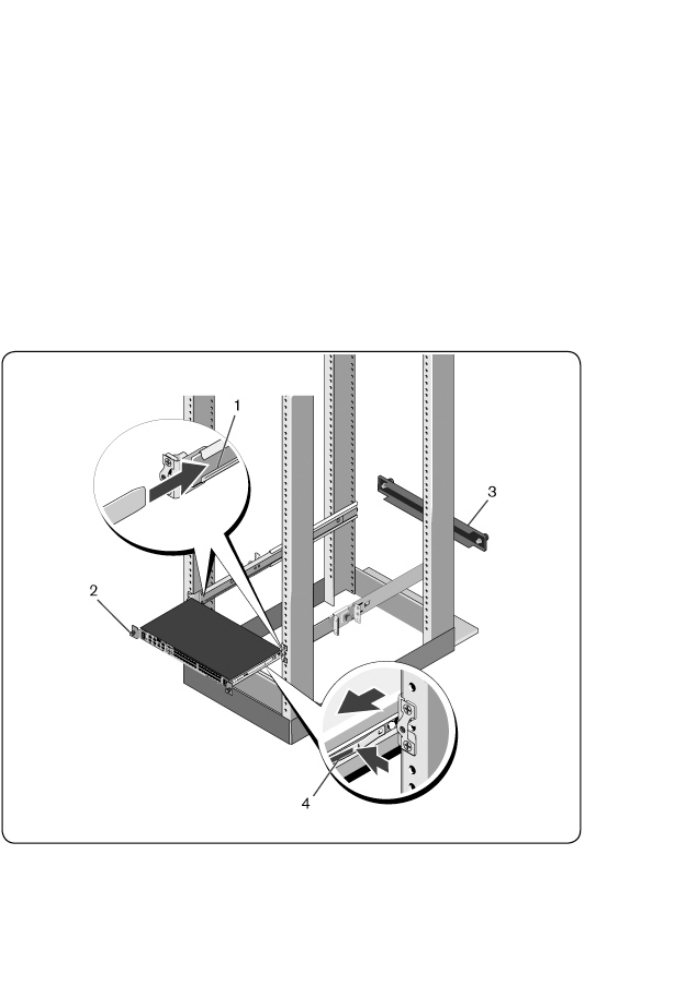
1Insert the ends of the rails that are attached to the switch into the
ReadyRails assembly and push the switch into the rack (Figure 2.5, item 1).
Figure 2.5: 1U Rear-rack Installation

Installationxxx |xxx23
2Secure each switch rail with the thumbscrew (item 2).
3(Optional) Assemble the blanking panel to the rails on the front side of the
rack and tighten the thumbscrews (item 3).
To remove the switch from the rack:
1Unscrew the thumbscrews and pull the switch assembly out of the rack until
the travel stops are reached. The travel stop position is intended to provide
the opportunity to reposition the rail grip; it is not intended for service.
2Locate the blue tabs on the sides of the switch rails (item 4).
3Push the tabs inward and continue pulling the assembly until the switch
rails are clear of the ReadyRails assemblies.
1U Front-rack Installation
Before installation, the rails that are attached to the switch must be re-
configured.
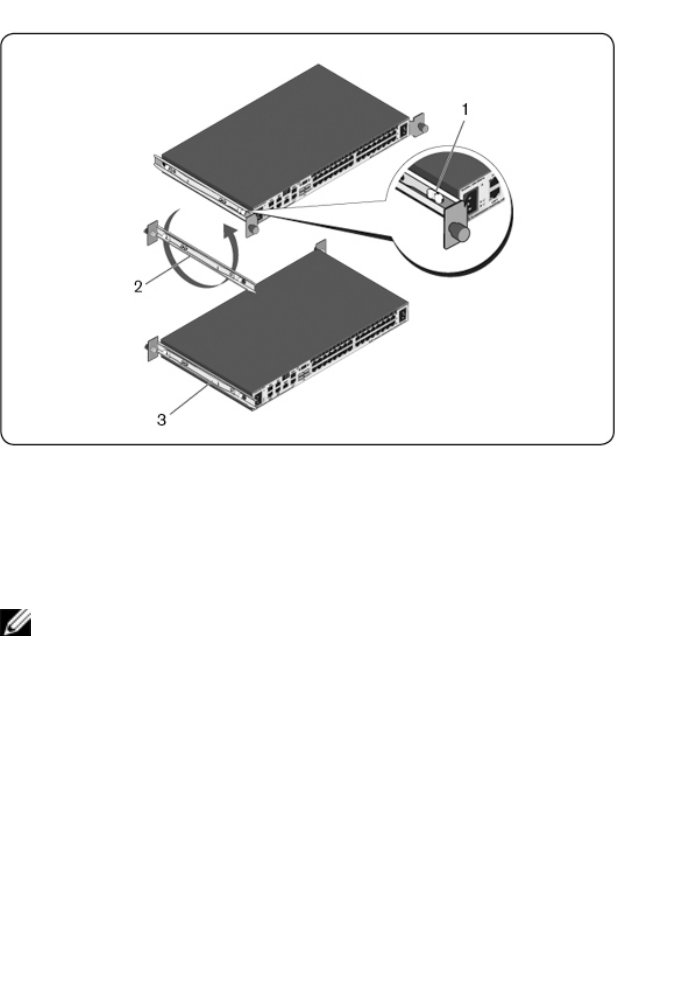
1On each switch rail, lift the tab under the front standoff and slide the rail
forward as you lift the rail from the switch (Figure 2.6, item 1).
Figure 2.6: Rotating the Switch Rails
24xxx |Installationxxx
2Rotate each rail 180° (item 2) and then reassemble each rail to the switch
(item 3).
3Refer to the 1U rear-rack instructions to insert and remove the switch
assembly from the ReadyRails system.
NOTE: No blanking panel is required for this configuration.
0U RCS Installation
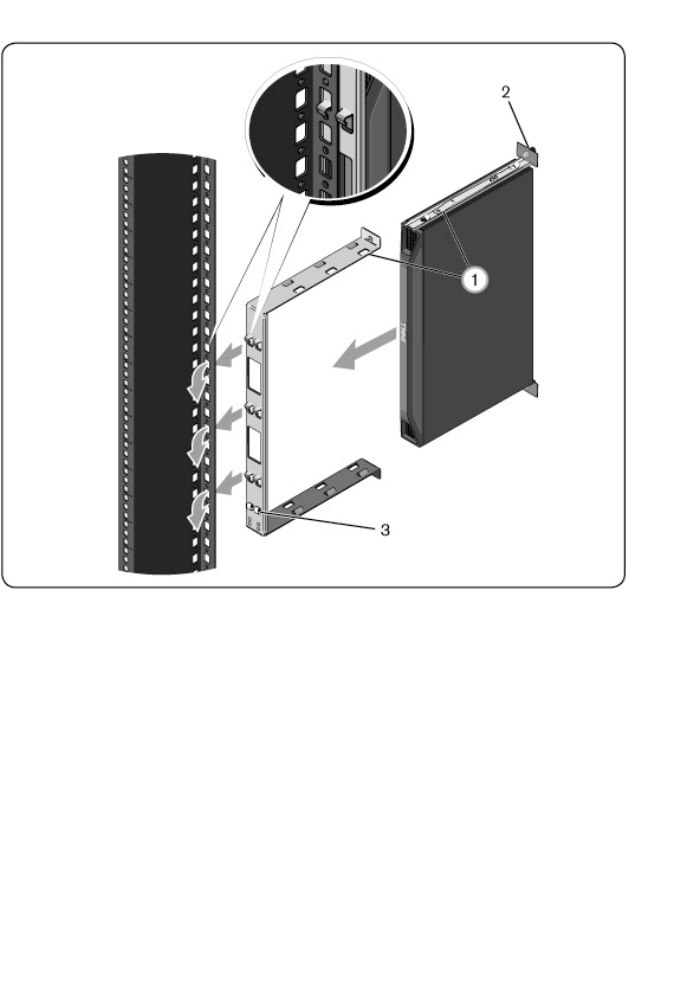
1Align and assemble the 0U mounting bracket to the switch rails (Figure 2.7,
item 1). Tighten the thumbscrews (item 2).
2Insert the mounting bracket hooks into the rack holes and push down until
the blue button pops out and locks the bracket into place.
Figure 2.7: 0U Installation
Installationxxx |xxx25
To remove the switch assembly, press the blue button (item 3) to unseat the
bracket and then lift the assembly from the posts.
Connecting the RCS Hardware
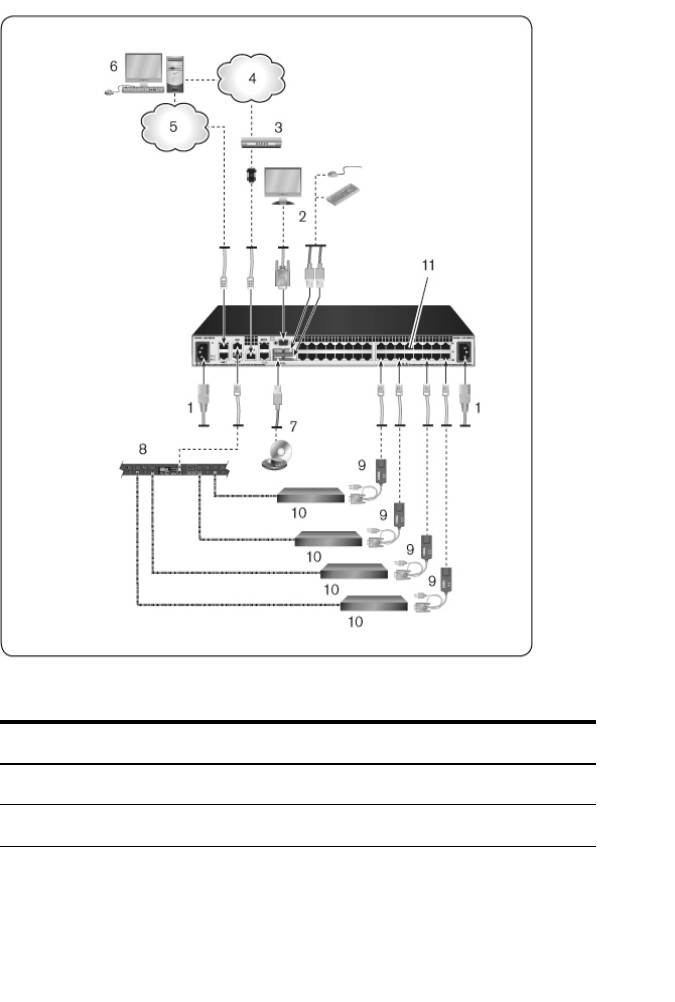
The following diagram illustrates one possible configuration for your RCS
hardware.
Figure 2.8: Basic RCS Configuration
26xxx |Installationxxx
Table 2.1: Basic RCS Configuration Descriptions
Number Description Number Description
1 Jumper cord 7 External virtual media
2 Analog user 8 Power control device

Installationxxx |xxx27
Number Description Number Description
3 Modem 9 SIPs
4Telephone
network 10 Target devices
5 Network 11 RCS (32-port model
shown)
6 Digital user
To connect and turn on your switch:
CAUTION: To reduce the risk of electric shock or damage to your equipment, do not
disable the jumper cord grounding plug. The grounding plug is an important safety
feature. Plug the jumper cord into a grounded (earthed) outlet that is easily accessible
at all times. Disconnect the power from the unit by unplugging the jumper cord from
either the power source or the unit.
NOTE: If the building has 3-phase AV power, ensure that the computer and
monitor are on the same phase to avoid potential phase-related video and/or
keyboard problems.
NOTE: The maximum supported cable length from switch to device is 30
meters.
• Do not disable the power grounding plug. The grounding plug is an
important safety feature.
• Connect the jumper cord into a grounded (earthed) outlet that is easily
accessible at all times.
• Disconnect the power from the product by unplugging the jumper cord
from either the power source or the product.
• The AC inlet is the main disconnect for removing power to this
product. For products that have more than one AC inlet, to remove
power completely, all AC line cords must be disconnected.

28xxx |Installationxxx
• This product has no user serviceable parts inside the product enclosure.
Do not open or remove product cover.
1Connect your VGA monitor and USB keyboard and mouse cables to the
appropriately labeled ports.
2Connect one end of a UTP cable (4-pair, up to 150 ft/45 m) to an available
numbered port. Connect the other end to an RJ-45 connector of a SIP.
3Connect a SIP to the appropriate port on the back of a target device.
Repeat steps 2 and 3 for all target devices you want to connect.
NOTE: When connecting to a Sun Microsystems target device, you must use
a multi-sync monitor in the local port to accommodate Sun computers that
support both VGA and sync-on-green or composite sync.
4Connect a user-supplied UTP cable from the Ethernet network to a LAN
port on the back of the RCS. Network users will access the RCS through
this port. Plugging the redundant LAN ports to separate Ethernet switches
provides additional redundancy in the event one Ethernet switch fails.
5(Optional) The switch may also be accessed using an ITU V.92, V.90, or
V.24-compatible modem. Connect one end of an RJ-45 cable to the
MODEM port on the switch. Connect the other end to the supplied RJ-45
to DB-9 (male) adaptor, which then connects to the appropriate port on the
back of the modem.
NOTE: Using a modem connection instead of a LAN connection will limit the
performance capability of your switch.
6(Optional) Connect a supported PDU to the RCS by connecting one end of
a CAT 5 cable to the PDU1 port on the switch. Connect the other end to
the PDU. Connect the power cords from the target devices to the PDU.
Connect the PDU to a power source. Repeat this procedure for the PDU2
port to connect a second PDU, if desired.
7Turn on each target device, then locate the jumper cord(s) that came with
the switch. Connect one end to the power socket on the rear of the switch.
Connect the other end into an appropriate power source. If using an RCS
equipped with dual power, use the second jumper cord to connect to the

Installationxxx |xxx29
second power socket on the rear of the RCS, and plug the other end into a
different power source.
NOTE: Plug the redundant power supplies into separate branch circuits to
provide additional redundancy in the event one external AC power source
should go away.
8(Optional) Connect the virtual media devices or smart card readers to any
of the USB ports on the switch.
NOTE: For all virtual media sessions, you must use a USB2 or USB2+CAC
SIP.
Connecting a SIP
To connect a SIP to each server:
1Locate the SIPs for your RCS.
2If you are using a PS/2 SIP connection, attach the color-coded ends of the
SIP cable to the appropriate keyboard, monitor, and mouse ports on the
first server you will be connecting to this RCS. If you are using a USB
connection, attach the plug from the SIP to the USB port on the first server
you will be connecting to this RCS.
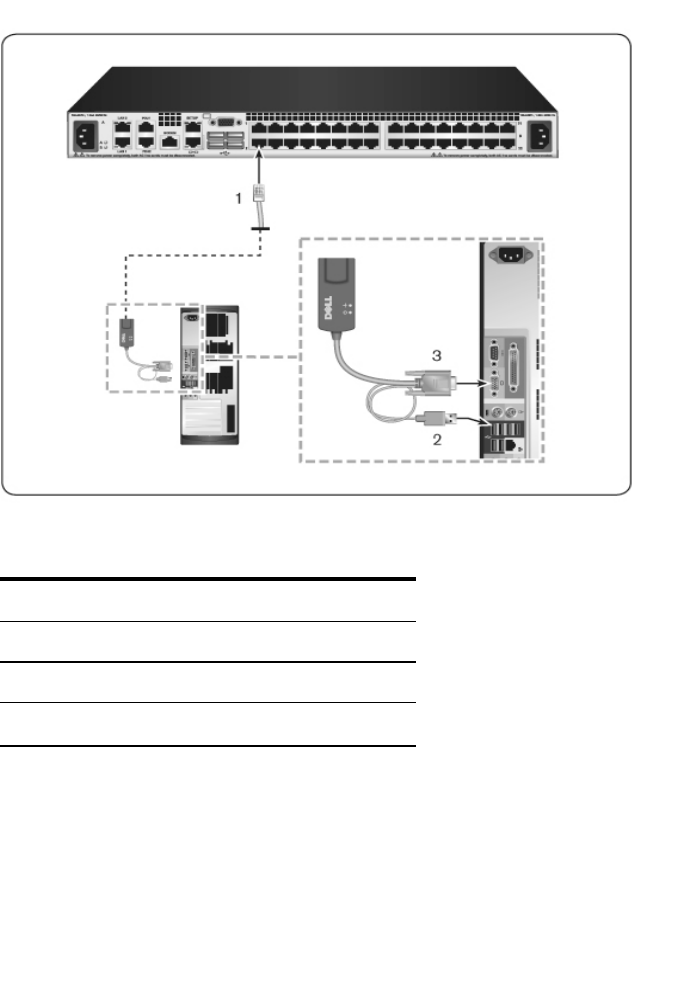
3To the RJ-45 connector on the SIP, attach one end of the CAT 5 cabling
that will run from your SIP to the RCS. See Figure 2.9.
4Connect the other end of the CAT 5 cable to the desired Avocent Rack
Interface (ARI) port on the back of your RCS.
5Repeat steps 2-4 for all servers you wish to attach.
NOTE: Power down the RCS before servicing. Always disconnect the jumper
cord from the power source.
NOTE: In addition to Dell SIPs, the RCS may also be connected to devices
using Avocent IQ modules, including Sun and Serial IQ modules.
Figure 2.9: SIP Connection

Installationxxx |xxx31
Connect the SIP to an RJ-45 to 9-pin female adaptor. Connect the
adaptor to the serial port of the serial device.
2Connect one end of a UTP cable (4-pair, up to 150 ft/45 m) into an
available numbered port on the rear of the switch. Connect the other end
into the RJ-45 connector of the SIP.
3Connect a USB-to-barrel power cord to the power connector on your SIP.
Connect the USB connector on the USB-to-barrel power cord into any
available USB port on the serial target device.
Adding a Tiered Switch
NOTE: The RCS does not support the EL80-DT.
NOTE: The M1000e Modular Enclosure is supported in a tiered
configuration. Attach one end of a CAT5 cable to target port on RCS switch.
Attach the other end to the Analog Console Interface (ACI) compatible RJ45
port on the iKVM module on the back of the M1000e chassis.Firmware
upgrades to the components of the M1000e Modular Enclosure are not
possible via this tiered configuration.
You can tier up to two levels of switches, enabling users to connect to up to
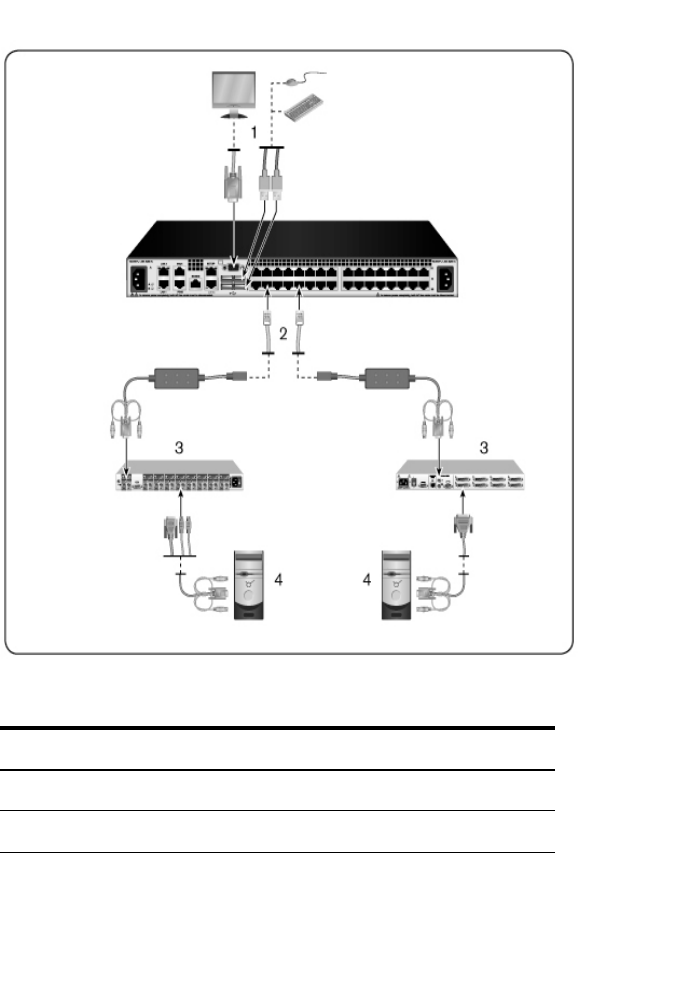
1024 servers. In a tiered system, each target port on the main switch will
connect to the ACI port on each tiered switch. Each tiered switch can then be
connected to a device with a SIP or Avocent IQ module.
To tier multiple switches:
1Attach one end of a UTP cable to a target port on the switch.
2Connect the other end of the UTP cable to the ACI port on the back of
your tiered switch.
3Connect the devices to your tiered switch.
4Repeat these steps for all the tiered switches you wish to attach to your
system.
NOTE: The system will automatically “merge” the two switches. All switches
connected to the tiered switch will display on the main switch list in the local
UI.

32xxx |Installationxxx
NOTE: The switch supports one tiered switch per target port of the main
switch. You cannot attach a switch to the tiered switch.
NOTE: When cascading with an RCS, an 8-port or 16-port analog console
switch is not supported as the primary unit in a tiered configuration. The RCS
must be the primary unit.

34xxx |Installationxxx
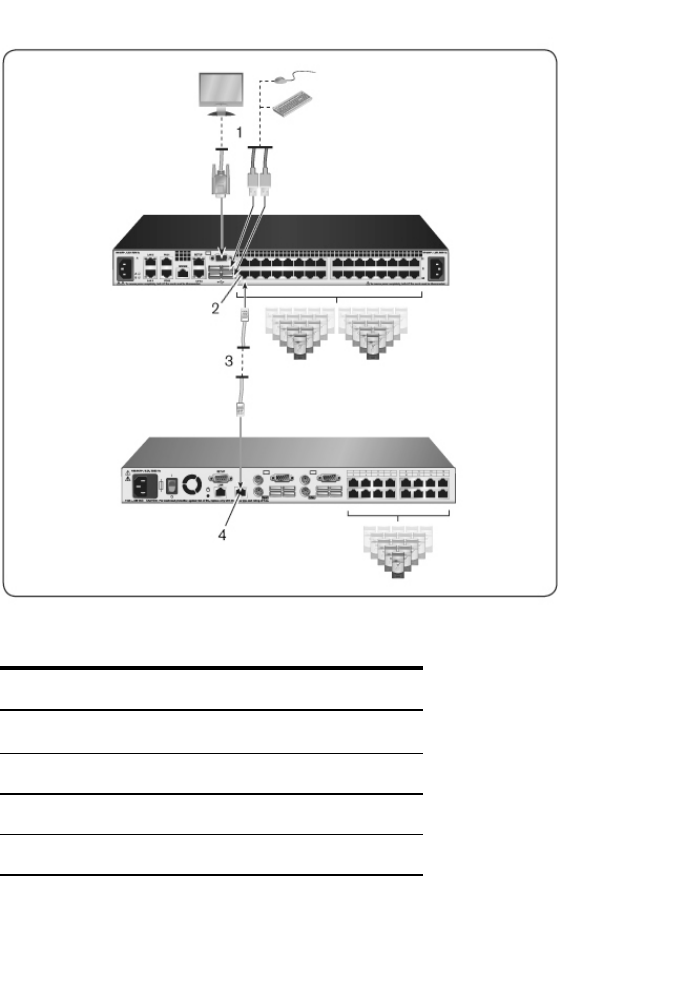
Cascading with Legacy Switches
To add a legacy switch (optional):
1Mount the switch into your rack. Locate a UTP cable to connect your RCS
to the legacy switch.
2Attach one end of the UTP cabling to the ARI port on the Console Switch.
3Connect the other end of the UTP cable to a PS/2 SIP.
4Connect the SIP to your legacy switch according to the switch
manufacturer's recommendations.
5Repeat steps 1-4 for all the legacy switches you wish to attach to your
switch.
NOTE: The RCS supports only one switch per ARI port. You cannot cascade
another switch under this first switch.
NOTE: When cascading with an RCS, an 8-port or 16-port analog console
switch is not supported as the primary unit. The RCS must be the primary unit.

36xxx |Installationxxx
Number Description
3 PS2 Connection
4 Target Connection
Adding a PEM (Optional)
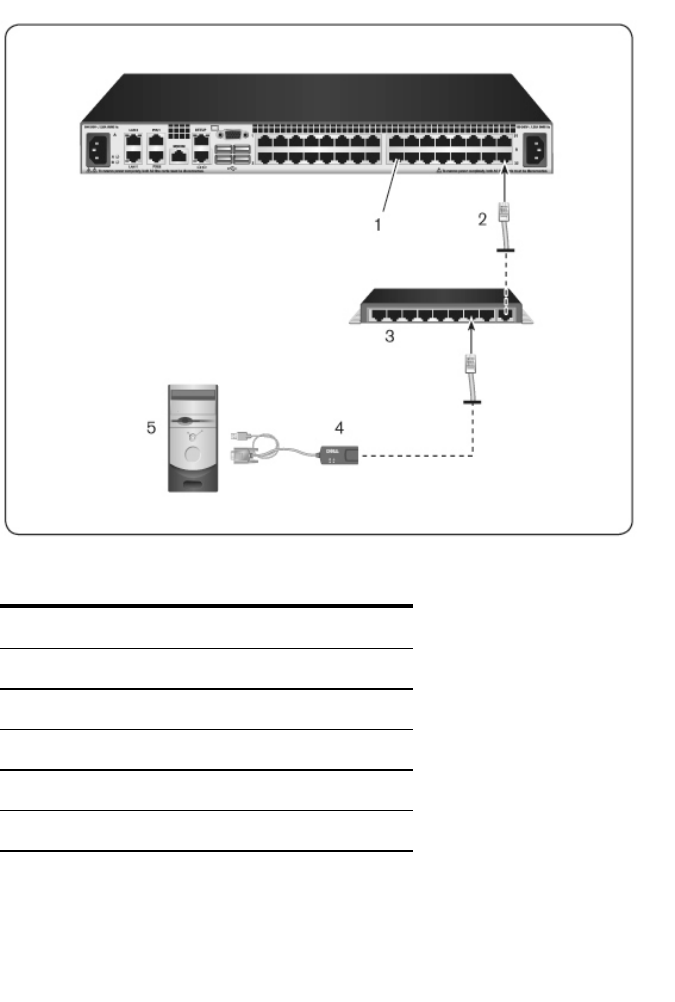
A Port Expansion Module (PEM) allows you to expand each ARI port to
accommodate up to eight devices instead of one. See the following figure and
figure description table.
NOTE: The PEM operates passively. Therefore, once a user accesses a
device attached to a PEM, any subsequent users attempting to access any of
the devices attached to that PEM will be blocked.
NOTE: The use of VM or CAC SIPs behind a PEM is not supported.
NOTE: True Serial SIP does not work behind PEM.
To add a PEM (optional):
1Mount the PEM into your rack. Using up to nine UTP cables, one connects
your RCS to the PEM, and the other eight connect the PEM to the SIP
attached to each device.
2Attach one end of the UTP cabling that will run between your PEM and the
RCS to the RJ-45 connector slightly separated from the other connectors on
the PEM. Connect the remaining end of the UTP cable to the desired ARI
port on the back of your RCS.
3To one of the eight RJ-45 connectors grouped on the back of the PEM,
attach the UTP cabling that will run between your PEM and each device’s
SIP.
4Connect the other end of the UTP cable to the first SIP.
5Repeat steps 3-4 for all devices you wish to attach.
Figure 2.12: RCS Configuration With a PEM

38xxx |Installationxxx
Configuring the Remote Console Switch
Once all physical connections have been made, you will need to configure the
switch for use in the overall switch system. This can be accomplished in two
ways.
To configure the switch using Avocent management software, see the applicable
Avocent Installer/User Guide for detailed instructions.
To configure the switch using the local UI:
See "Network Settings" on page 55 for detailed instructions on using the local UI
to configure initial network setup.
Setting up the Built-in Web Server
You can access the switch using the embedded web server that handles most
day-to-day switch tasks. Before using the web server to access the switch, first
specify an IP address through the SETUP port on the back panel of the switch
or local UI. See Chapter 3 for detailed instructions on using the switch user
interface.
Connecting to the OBWI Through a Firewall
For switch installations that use the OBWI for access, the following ports must
be opened in a firewall if outside access is desired.
Port
Number Function
TCP 22 Used for SSH for serial sessions to a SIP.
TCP 23 Used for Telnet (when Telnet is enabled).
TCP 80 Used for the initial downloading of the Video Viewer. The
RCS Admin can change this value.
Table 2.6: OBWI Ports With a Firewall

Installationxxx |xxx39
Port
Number Function
TCP 443
Used by the web browser interface for managing the
switch and launching KVM sessions. The RCS Admin can
change this value.
TCP
2068
Transmission of KVM session data (mouse & keyboard) or
transmission of video on switches.
TCP/UDP
3211 Discovery.
TCP 389 (Optional) Used by LDAP Directory Services; standard
access port
TCP 636 (Optional) Used by LDAPDirectory Services; Secure/SSL
port
TCP
3268
(Optional) Used by Microsoft Active Directory Services;
standard access port
TCP
3269
(Optional) Used by Microsoft Active Directory Services;
Secure/SSL access port
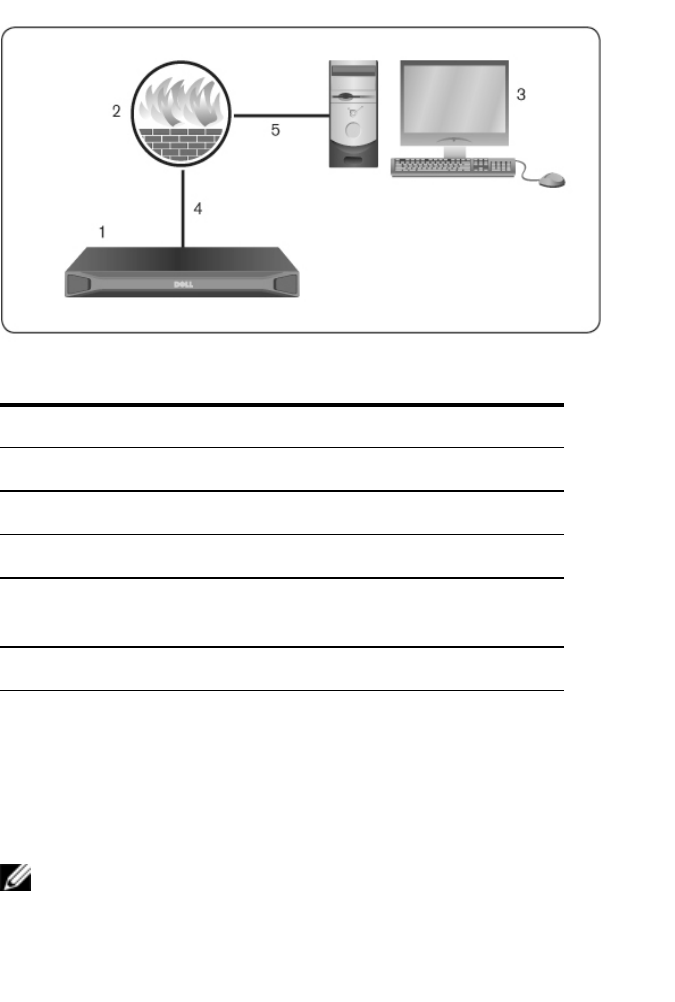
The following figure and table provide a typical configuration, where the user’s
computer is located outside of the firewall and the switch resides inside the
firewall.
Figure 2.13: Typical RCS Firewall Configuration
40xxx |Installationxxx
Table 2.7: Descriptions for Figure 2.13
Number Description
1RCS
2Firewall
3User’s computer
4Firewall forwards HTTP requests and KVM traffic to the
switch
5User browses to firewall’s external IP address
To configure the firewall:
To access the switch from outside a firewall, configure your firewall to forward
ports 22, 23 (if telnet is enabled), 80, 443, 2068, and 3211 from its external
interface to the KVM switch through the firewall’s internal interface. Consult
the manual for your firewall for specific port forwarding instructions.
NOTE: Ports 80 and 443 can be reconfigured by an administrator.

Installationxxx |xxx41
For information on launching the OBWI, see "OBWI" on page 45.
Verifying the Connections
Rear Panel Ethernet Connection LEDs
On the RCS, the rear panel features two LEDs indicating the Ethernet LAN1
connection status and two LEDs indicating the Ethernet LAN2 connection
status.
• The green LEDs illuminate when a valid connection to the network is
established and blink when there is activity on the port.
• The bi-color LEDs may illuminate either green or amber.
• They illuminate green when the communication speed is 1000M.
• They illuminate amber when the communication speed is 100M.
• They are not illuminated when the communication speed is 10M.
Rear Panel Power Status LEDs
The rear panel of each RCS has one for each power supply. There are two Power
LEDs for dual power models (16-port and 32-port) and only one LED for the 8-
port model. The LED(s) illuminate green when the switch is turned on and
operating normally.
• The LED is off if the power supply does not have power or has failed.
• The LED illuminates when the unit is ready.
• The LED blinks when the switch is booting or an upgrade is in progress.
• The LED blinks "SOS" if a fault condition occurs, such as power supply
failure, elevated ambient temperature, or fan failure. The LED will continue
to blink "SOS" as long as the failure persists.
The switch prevents a serial break from the attached device if the module loses
power. However, a user can generate a serial break with the attached device by
pressing Serial Break on the serial session viewer.

42xxx |Installationxxx
Adjusting Mouse Settings on Target
Devices
Before a computer connected to the switch can be used for remote user control,
you must set the target mouse speed and turn off acceleration. For machines
running Microsoft®Windows®(Windows NT®, 2000, XP, Server 2003), use
the default PS/2 mouse driver.
To ensure that the local mouse movement and remote cursor display remain in
sync, mouse acceleration must be set to “none” for all user accounts accessing a
remote system through a KVM switch. Mouse acceleration must also be set to
“none” on every remote system. Special cursors should not be used and cursor
visibility options, such as pointer trails, Ctrl key cursor location animations,
cursor shadowing, and cursor hiding, should also be turned off.
NOTE: If you are not able to disable mouse acceleration from within a
Windows operating system, or if you do not wish to adjust the settings of all
your target devices, you may use the Tools - Single Cursor Mode command
available in the Video Viewer window. This command places the Video
Viewer window into an “invisible mouse” mode, which allows you to manually
toggle control between the mouse pointer on the target system being viewed
and the mouse pointer on the client computer.

3
Local and Remote Configurationxxx |xxx43
Local and Remote
Configuration
The RCS comes equipped with two “point-and-click” interfaces: a local user
interface (local UI) and a remote OBWI. Using the configuration options
provided by these interfaces, you can tailor the switch to your specific
application, control any attached devices, and handle all basic KVM or serial
switch needs.
NOTE: The local UI and remote OBWI are almost identical. Unless specified,
all information in this chapter applies to both interfaces.
From either interface, you can launch two different kinds of sessions:
• The Video Viewer window allows you to control the keyboard, monitor, and
mouse functions of individual target devices connected to the switch in real
time. You may also use predefined global macros to perform actions within
the Video Viewer window. For instructions on how to use the Video
Viewer, see Chapter 4.
• The serial viewer window allows you to manage individual serial target
devices either by using commands or scripts.
Local User Interface (UI)
The switch includes a local port on the back. This port enables you to connect a
keyboard, monitor and mouse directly to the switch and use the local UI.
You can choose any of the following keystrokes to be configured to open the
local UI or to switch between the local UI and an active session: <Print

44xxx |Local and Remote Configurationxxx
Screen>, <Ctrl +Ctrl>, <Shift +Shift>, and <Alt +Alt>. The defaults are
<PrintScreen> and <Ctrl-Ctrl>.
To launch the local UI:
1Connect your monitor, keyboard and mouse cables to the switch. For more
information,see "Connecting the RCS Hardware" on page 25.
2Press any of the enabled keystrokes to launch the local UI.
3If local UI authentication has been enabled, enter your username and
password.
NOTE: If the switch has been added to an Avocent management software
server, then the Avocent management software server will be accessed to
authenticate the user. If the switch has not been added to an Avocent
management software server, or if the Avocent management software server
cannot be reached, then the switch local user database will be accessed to
authenticate the user. The default local username is Admin, and there is no
password. Usernames in the local user database are case-sensitive.
Attached target devices in the Local Port User Interface can be viewed and
managed from two individual screens that are selected from the left navigational
toolbar. For less than 20 targets, the Target List-Basic screen is recommended
for navigation. For more than 20 attached target devices, the Target List-Full
screen provides additional navigation tools. At the Target List-Full screen you
can navigate by entering the page number, using the page navigation buttons, or
using the filter. Either the Basic or Full screens can be set as the default screen
for selecting target devices.
Filtering
You may filter the list of target devices by providing a text string that will be
used to retrieve matching items. Filtering can provide a shorter, more exact list
of items. When filtering is performed, the Name column is searched for the
specified text string. The search is not case sensitive. When filtering, you may
use an asterisk (*) before or after text strings as a wildcard. For example, typing
emailserver* and clicking Filter will display items with emailserver at the
beginning (such as emailserver, emailserverbackup).
Local and Remote Configurationxxx |xxx45
OBWI
The switch OBWI is a remote, web browser based user interface. For details on
setting up your system, see "Connecting the RCS Hardware" on page 25. The
following table lists the operating systems and browsers that are supported by
the OBWI. Make sure that you are using the latest version of your Web browser.
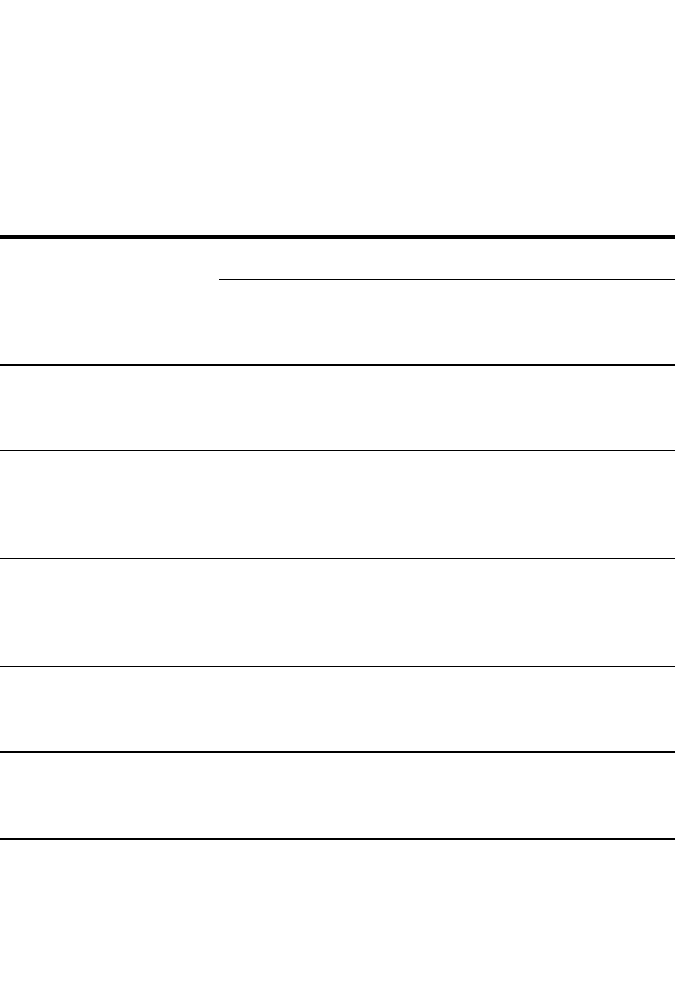
Table 3.1: Operating Systems Supported by the OBWI
Operating System
Browser
Microsoft®Internet
Explorer version 6.0
SP1 and later Firefox version 2.0 and later
Microsoft Windows 2000
Workstation or Server
with Service Pack 2
Yes Yes
Microsoft Windows
Server®2003 Standard,
Enterprise, or Web
Edition
Yes Yes
Microsoft Windows
Server®2008 Standard,
Enterprise, or Web
Edition
Yes Yes
Windows XP
Professional with
Service Pack 3
Yes Yes
Windows Vista®
Business with Service
Pack 1
Yes Yes

46xxx |Local and Remote Configurationxxx
Operating System
Browser
Microsoft®Internet
Explorer version 6.0
SP1 and later Firefox version 2.0 and later
Red Hat Enterprise
Linux®4 and 5
Standard, Enterprise or
Web Edition (Smart card
may not be supported by
the operating system)
No Yes
Sun Solaris®9 and 10
(Smart card may not be
supported by the
operating system)
No Yes
Novell SUSE Linux
Enterprise 10 and 11
(Smart card may not be
supported by the
operating system)
No Yes
Ubuntu 8 Workstation
(Smart card may not be
supported by the
operating system)
No Yes
To log in to the switch OBWI:
1Launch a web browser.
2In the address field of the browser, enter the IP address or host name
assigned to the switch you wish to access. Use https://xxx.xx.xx.xx or
https://hostname as the format.
NOTE: If using IPv6 mode, you must include square brackets around the IP
address. Use https://[<ipaddress-] as the format.

Local and Remote Configurationxxx |xxx47
3When the browser makes contact with the switch, enter your username and
password, then click Login. The switch OBWI will appear.
NOTE: The default username is Admin with no password.
To log in to the switch OBWI from outside a firewall, repeat the above
procedure, entering the external IP address of the firewall instead.
NOTE: The RCS will attempt to detect if Java is already installed on your PC.
If it is not, in order to use the on-board web interface, you will need to install it.
You may also need to associate the JNLP file with Java WebStart.
NOTE: Using the on-board web interface requires using Java Runtime
Environment (JRE) version 1.6.0_11 or higher.
NOTE: Once you have logged in to the on-board web interface, you will not
have to log in again when launching new sessions unless you have logged
out or your session has exceeded the inactivity timeout specified by the
administrator.
Using the User Interfaces
After you have been authenticated, the user interface appears. You may view,
access, and manage your switch, as well as specify system settings and change
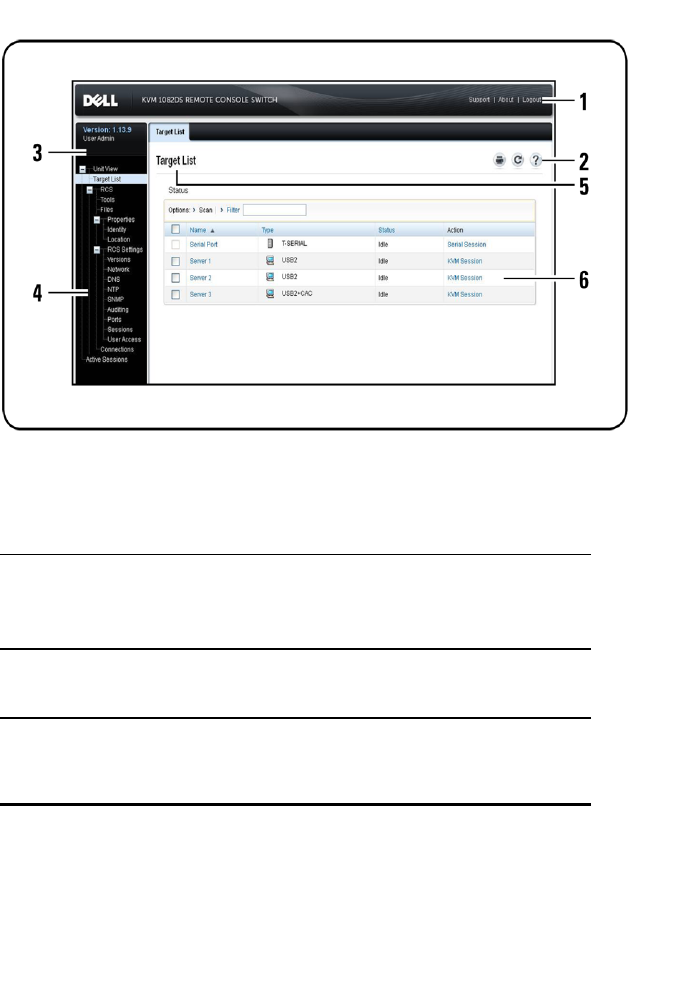
profile settings. The following figure shows the user interface window areas.
Screen descriptions are provided in the following table.
Figure 3.1: User Interface Window
48xxx |Local and Remote Configurationxxx
Table 3.2: User Interface Descriptions
Number Description
1
Top option bar: Use the top option bar to contact Technical
Support, view the software general information, or log out of
an OBWI session.
2Second option bar: Use this bar to print a web page, refresh
the current web page or access the Help tool.
3
Version block: The firmware version of the product and the
username of the user currently logged in appears on the left
side of the top option bar.

Local and Remote Configurationxxx |xxx49
Number Description
4
Side navigation bar: Use the side navigation bar to select
the information to be displayed. You can use the side
navigation bar to display windows in which you can specify
settings or perform operations.
5
Navigation tabs: The selected tab displays the system
information in the content area. Some tabs provide sub tabs
that can be clicked to display and revise details within a
category.
6Content area: Use the content area to display or make
changes to the switch OBWI system.
Launching a Session
NOTE: Java 1.6.0_11 or later is required to launch a session.
To launch a session:
1From the side navigation bar, select Target List. A list of available devices
will appear.
2The applicable action, KVM Session or Serial Session, will be displayed in
the Action column, and will depend on the target device that was selected
to launch the session. If more than one action is available for a given target
device, click the drop-down arrow and select the applicable action from the
list.
If the target device is currently in use, you may be able to gain access by forcing
a connection to the device if your preemption level is equal to or higher than
the current user’s.
The RCS also allows serial sessions to Serial SIPs via an external Telnet or SSH
application such as PuTTY. Telnet and SSH sessions are only used to connect to
Serial SIPs and cannot be used to access or manage RCS or KVM target devices.
To launch a serial session from a Telnet or SSH application:

50xxx |Local and Remote Configurationxxx
1Enter the RCS host IP address that the Serial SIP is connected to.
2Enter <RCS-username>:<Serial-SIP-name>, for example, jsmith:router.
3Enter the password for the RCS user.
NOTE: The Telnet feature default is disabled. To enable Telnet support, refer
to "Configuring Serial Sessions" on page 77.
To switch to the active session from the local UI (local users only):
1From the side navigation bar, select Local Session.
2Select the Resume Active Session checkbox. The Video Viewer window will
appear.
Scan Mode
In Scan mode, the switch scans multiple target devices. The scanning order is
determined by placement of the target device in the list. You can also configure
the amount of time before the scan moves to the next target device in the
sequence.
NOTE: The Scan button is disabled if you are connected via modem.
To add target devices to the Scan list:
1From the side navigation bar, select Unit View - Target List to open the
Target Devices screen.
2Select the checkboxes next to the names of the target devices you wish to
scan.
3Click Scan.
To configure Scan Time:
1From the side navigation bar, select Ports - Local Port UI to open the
Local Port UISettings screen.
2Under the Scan Mode heading, enter an amount of time in seconds (from 3-
255) in the Scan Time field.

Local and Remote Configurationxxx |xxx51
3Click Save.
Viewing System Information
You can view switch and target device information from the following screens in
the user interface.
Table 3.3: System Information
Category Select This: To View This:
RCS Unit View - RCS -
Tools
RCS name and type, and the
RCS tools (Maintenance,
Diagnostics, Certificates and
Trap MIB)
Unit View - RCS -
Files
RCS Configuration, User
Database, and Target Device
Unit View - RCS -
Properties - Identity
Part Number, Serial Number,
and EID
Unit View - RCS -
Properties - Location Site, Department, and Location
Unit View - RCS
Settings - Versions
Current Application and Boot
versions
Target
Device Unit View - Target List
List of connected target
devices, as well as the Name,
Type, Status, and Action of
each device
Click on a target device to view
the following additional
information: Name, Type, EID,
available session option, and
the connection path

52xxx |Local and Remote Configurationxxx
RCS Tools
From the Tools - Maintenance - Overview screen, you can view the appliance
name and type. You can also perform basic appliance tasks.
Rebooting the RCS
To reboot the RCS:
1From the side navigation bar, select the Unit View - RCS - Tools -
Maintenance - Overview tab to open the Unit Maintenance screen.
2Click Reboot.
3A dialog box appears, warning you that all active sessions will be
disconnected. Click OK.
NOTE: If you are using the local UI, the screen will be blank while the switch
reboots. If you are using the remote OBWI, a message will appear to let you
know that the interface is waiting on the appliance to complete the reboot.
Upgrading RCS Firmware
You can update your RCS with the latest firmware available.
After the Flash memory is reprogrammed with the upgrade, the switch performs
a soft reset, which terminates all SIP sessions. A target device experiencing a SIP
firmware update may not display, or may display as disconnected. The target
device will appear normally when the Flash update is completed.
Attention: Disconnecting a SIP during a firmware update or cycling power to
the target device will render the module inoperable and require the SIP to be
returned to the factory for repair.
To upgrade the switch firmware:
1From the side navigation bar, select the Unit View - RCS - Tools -
Maintenance - Upgrade tab to open the Upgrade RCS Firmware window.
2Click Upgrade to open the Upgrade Appliance Firmware.

Local and Remote Configurationxxx |xxx53
3Select one of the following methods from which to load the firmware
file:Filesystem,TFTP,FTP, or HTTP.
NOTE: The Filesystem option is only available on the remote OBWI.
4If you selected Filesystem, select Browse to specify the location of the
firmware upgrade file.
-or-
If you selected TFTP, enter the Server IP Address and Firmware File
you wish to load.
-or-
If you selected FTP or HTTP, enter the Server IP Address and
Firmware File you wish to load, as well as the User Name and User
Password.
5Click Upgrade.
Saving and Restoring RCS Configurations and RCS User
Databases
You may save the switch configuration to a file. The configuration file will
contain information about the managed appliance. You may also save the local
user database on the switch. After saving either file, you may also restore a
previously saved configuration file or local user database file to the switch.
To save a managed appliance configuration or user database of a managed
appliance:
1From the side navigation bar, click the Unit View - RCS - Files tab.
2Click either the RCS Configuration tab or the User Database tab, then
click the Save tab.
3Select the file save method: Filesystem,TFTP,FTP, or HTTP PUT.
4If you selected TFTP, enter the Server IP Address and Firmware Filename
you wish to load.
-or-

54xxx |Local and Remote Configurationxxx
If you selected FTP or HTTP, enter the Server IP Address, Username,
User Password, and Firmware Filename you wish to load.
5Enter an encryption password if you wish to encrypt the data before
download.
6Click Download. The Save As dialog box will open.
7Navigate to the desired location and enter a name for the file. Click Save.
To restore a managed appliance configuration or user database of a managed
appliance:
1From the side navigation bar, click the Unit View - RCS - Files tab.
2Click either the RCS Configuration tab or the User Database tab, then
click the Restore tab.
3Select the file save method: Filesystem,TFTP,FTP, or HTTP.
4If you selected Filesystem, select Browse to specify the location of the
firmware upgrade file.
-or-
If you selected TFTP, enter the Server IP Address and Firmware
Filename you wish to load.
-or-
If you selected FTP or HTTP, enter the Server IP Address, User Name,
User Password, and Firmware Filename you wish to load.
5Click Browse. Navigate to the desired location and select the file name.
Click Upload.
6Enter the decryption password if the original file was encrypted.
7After the success screen appears, reboot the managed appliance to enable
the restored configuration. See "Rebooting the RCS" on page 52.
To recover from a Flash update failure:
If after a Flash procedure, the RCS does not boot into the new firmware version,
you may use the following steps to revert to the previous firmware version.

Local and Remote Configurationxxx |xxx55
1Connect a serial cable to the SETUP port on the rear panel of the RCS.
2Run a terminal program on the PC connected to the Setup port. The serial
port settings should be: 9600 baud, 8 data bits, 1 stop bit, no parity, and no
flow control.
3Turn on the RCS.
4In the terminal program, when the prompt "Hit any key to stop autoboot"
appears, press any key. A menu will be displayed.
5Enter <1> (Boot Alternate) and press <Enter>. The RCS will
automatically reboot to the previous firmware version.
6After the RCS reboots, you can attempt the Flash upgrade.
Network Settings
NOTE: Only switch administrators can make changes to the network dialog
box settings. Other users will have view only access.
From the side navigation bar, click Network to display the General, IPv4, and
IPv6 tabs.
To configure general network settings:
1Click the Network tab, then click the General tab to display the RCS
General Network Settings screen.
2Select one of the following options from the LAN Speed drop-down menu:
Auto-Detect,10 Mbps Half Duplex,10 Mbps Full Duplex,100 Mbps Half
Duplex,100 Mbps Full Duplex, or 1 Gbps Full Duplex.
NOTE: You must reboot if you change the Ethernet mode.
3Select either Enabled or Disabled in the ICMP Ping Reply drop-down
menu.
4Verify or modify the HTTP or HTTPS ports. The settings will default to
HTTP 80 and HTTPS 443.
5Click Save.

56xxx |Local and Remote Configurationxxx
To configure IPv4 network settings:
1Click the IPv4 tab to display the IPv4 Settings screen.
2Click to fill or clear the Enable IPv4 checkbox.
3Enter the desired information in the Address, Subnet, and Gateway fields.
IPv4 addresses are entered as the xxx.xxx.xxx.xxx dot notation.
4Select either Enabled or Disabled from the DHCP drop-down menu.
NOTE: If you enable DHCP, any information that you enter in the Address,
Subnet, and Gateway fields will be ignored.
5Click Save.
To configure IPv6 network settings:
1Click the IPv6 tab to display the IPv6 Settings screen.
2Click to fill or clear the Enable IPv6 checkbox.
3Enter the desired information in the Address, Subnet, and Prefix Length
fields. IPv6 addresses are entered as the FD00:172:12:0:0:0:0:33 or
abbreviated FD00:172:12::33 hex notation.
4Select either Enabled or Disabled from the DHCP drop-down menu
NOTE: If you enable DHCPv6, any information that you enter in the Address,
Gateway, and Prefix length fields will be ignored.
5Click Save.
DNSSettings
You can choose to either manually assign theDNS server or to use the addresses
obtained using DHCP or DHCPv6.
To manually configure DNSsettings:
1From the side navigation bar, select DNS to display the RCS DNS Settings
screen.
2Select Manual,DHCP (if IPv4 is enabled) or DHCPv6 (if IPv6 is enabled).

Local and Remote Configurationxxx |xxx57
3If you selected Manual, enter the DNS Server numbers in the Primary,
Secondary, and Tertiary fields.
4Click Save.
NTP Settings
The switch must have access to the current time to verify that certificates have
not expired. You can configure the switch to request time updates from the
NTP. Refer to Configuring the Network Time Protocol (NTP) Settings in
Chapter 5.
SNMP Settings
SNMP is a protocol used to communicate management information between
network management applications and the switch. Other SNMP managers can
communicate with your switch by accessing MIB-II. When you open the SNMP
screen, the OBWI will retrieve the SNMP parameters from the unit.
From the SNMP screen, you can enter system information and community
strings. You may also designate which stations can manage the switch as well as
receive SNMP traps from the switch. If you select Enable SNMP, the unit will
respond to SNMP requests over UDP port 161.
To configure general SNMP settings:
1Click SNMP to open the SNMPscreen.
2Click to enable the Enable SNMP checkbox to allow the switch to respond
to SNMP requests over UDP port 161.
3Enter the system’s fully qualified domain name in the Name field, as well as
a node contact person in the Contact field.
4Enter the Read, Write, and Trap community names. These specify the
community strings that must be used in SNMP actions. The Read and
Write strings only apply to SNMP over UDP port 161 and act as passwords

58xxx |Local and Remote Configurationxxx
that protect access to the switch. The values can be up to 64 characters in
length. These fields may not be left blank.
5Type the address of up to four management workstations that are allowed to
manage this switch in the Allowable Managers fields. Alternatively, you may
leave these fields blank to allow any station to manage the RCS.
6Click Save.
Auditing Event Settings
An event is a notification sent by the switch to a management station
indicating that something has occurred that may require further attention.
To enable individual events:
1Click Auditing to open the Events screen.
2Specify the events that will generate notifications by clicking the
appropriate checkboxes in the list.
-or-
Select or clear the checkbox next to Event Name to select or deselect
the entire list.
3Click Save.
Setting Event Destinations
You can configure audit events to be sent to SNMPtrap destinations and Syslog
servers. The events enabled on the Events screen are sent to all the servers listed
on the Event Destination screen.
1Click Auditingand the Destinations tab to open the Event Destinations
screen.
2Type the address of up to four management workstations to which this
switch will send events in the SNMP Trap Destination fields, as well as up
to four Syslog servers.

Local and Remote Configurationxxx |xxx59
3Click Save.
Ports - Configuring SIPs
From the switch, you can display a list of the attached SIPs, as well as the
following information about each SIP: EID (electronic ID), Port, Status,
Application, Interface Type, and USB Speed. You can click on one of the SIPs
to view the following additional information: Switch Type, Boot Version,
Application Version, Hardware Version, FPGA Version, Version Available, and
Upgrade Status.
You can also perform the following tasks: delete offline SIPs, upgrade the SIP
firmware, set the USB speed, or decommission the cables.
To delete offline SIPs:
1From the side navigation bar, click Ports - SIPs to open the SIP screen.
2Click Delete Offline.
Upgrading SIPs
The SIP Flash upgrade feature allows RCS Administrators to update the SIP
with the latest firmware available. This update can be performed using the
switch user interface or Avocent management software.
After the Flash memory is reprogrammed with the upgrade, the switch performs
a soft reset, which terminates all SIP sessions. A target device experiencing a SIP
firmware update may or may not display as disconnected. The target device will
appear normally when the Flash update is completed.
If the RCS is configured to Auto-Upgrade SIPs, the SIPs will automatically
update when the switch is updated. To update your switch firmware, see "RCS
Tools" on page 52 or the Avocent management software Online Help. If issues
occur during the normal upgrade process, SIPs may also be force-upgraded when
needed.
NOTE: Check http://www.dell.com for firmware upgrade files.

60xxx |Local and Remote Configurationxxx
To change the SIP Auto-Upgrade feature:
1From the side navigation bar, click Ports - SIPs to open the SIPs screen.
2Select the checkbox(es) next to the SIP(s) that you wish to upgrade and
click Enable Auto-Upgrade.
Attention: Disconnecting a SIP during a firmware update or cycling power to
the target device will render the module inoperable and require the SIP to be
returned to the factory for repair.
To upgrade the SIP firmware:
1From the side navigation bar, click Ports - SIPs to open the SIPs screen.
2Select the checkbox(es) next to the SIP(s) that you wish to modify.
3Select Choose an operation and select Upgrade.
4If the settings are correct, click Upgrade.
To set the USB Speed:
NOTE: This section only applies to the USB2 SIP.
1From the side navigation bar, click Ports - SIPs to open the SIPs screen.
2Select the checkbox(es) next to the SIP(s) that you wish to modify.
3Select Choose an operation and select either Set USB 1.1 Speed or Set
USB 2.0 Speed.
Power Device Settings
NOTE: You must have Administrator privileges to change power control
device settings.
NOTE: Refer to www.dellkvm.com for a list of supported PDUs.
From the RCS Power Devices screen, you can view a list of connected power
devices, as well as the following information about each power device: Name,
Port, Status, Version, Model, Buzzer, Alarm, and Temperature. You can also
select a power device, then select Settings to view the following details about

Local and Remote Configurationxxx |xxx61
that power device: Name, Description, Status, Version, Sockets, Vendor Name,
Model, and Input Feeds.
If a target device is connected to a power control device outlet, you can turn on,
turn off or cycle (turn off, then turn on) the target device.
To turn on, turn off or power cycle a target device:
1From the side navigation bar, click Ports - Power Devices to open the
Power Devices screen.
2Click the name of the unit you wish to configure and select Outlet List.
3Select the checkbox to the left of the outlet(s) that you wish to configure.
4Click On,Off, or Cycle, as desired.
To delete offline power devices:
1From the side navigation bar, click Ports - Power Devices to open the
Power Devices screen.
2Click Delete Offline.
To change the minimum on time, off time or wake up state:
1From the side navigation bar, click Ports - Power Devices to open the
Power Devices screen.
2Click the name of the unit you wish to configure and select Outlets.
3Click the outlet name that you wish to modify.
4Use the drop-down windows to alter the desired settings and click Save.
Associated Target Servers and Power Outlets
In the OBWI Target List page, power control actions are selectable for a target
with linked outlets. Selecting the Ports - Power Devices tabs, and then clicking
on a device name will display the Device Settings, Device Firmware Upgrade,
and Outlet List tabs. Click the Outlet List tab to display the outlets linked with
a target device.
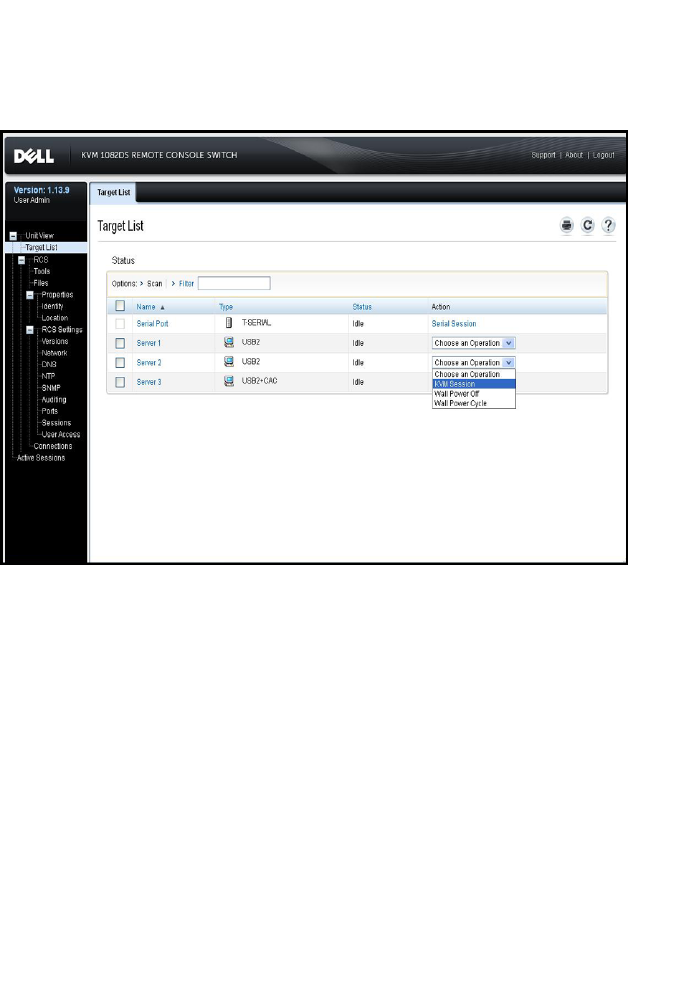
62xxx |Local and Remote Configurationxxx
In the following figure, the target device named Server2 has linked power outlets.
Clicking on the drop-down menu arrow in the Action column shows the
additional power actions available.
Figure 3.2: Target List
In the following figure, the target Unit Overview page for Server2 shows the Wall
Outlet Power, where outlet 1 and outlet 9 from PDU 1 are linked to Server2.
Figure 3.3: Target Overview Server2
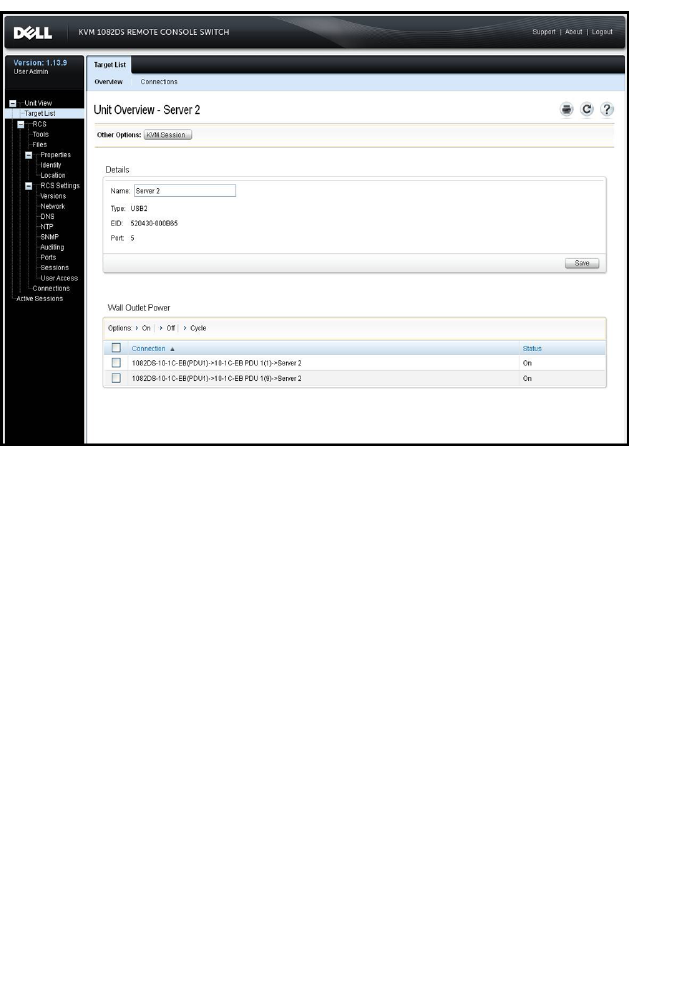
Local and Remote Configurationxxx |xxx63
Grouping Power Outlets
The outlets can be linked or associated with the target server for easier control.
To group outlets (or outlets to servers), the first device to be named must use
the Manual name field. The second and subsequent devices must use the Link
to Target Device menu, and then select the target name for the first device from
the drop down list.
Power actions performed on the Target List page are applied to all applicable
outlets. Power control actions for specific power outlets of a target may be
performed on the Unit Overview page. In the following figure, the target named
Group2 is composed of power outlets 4 and 5 from PDU 1.
To group sockets 4 and 5:
1Select outlet 4 to display the Power Devices Outlet Settings page.
2Select Manual and enter Group2.
3Click Save.
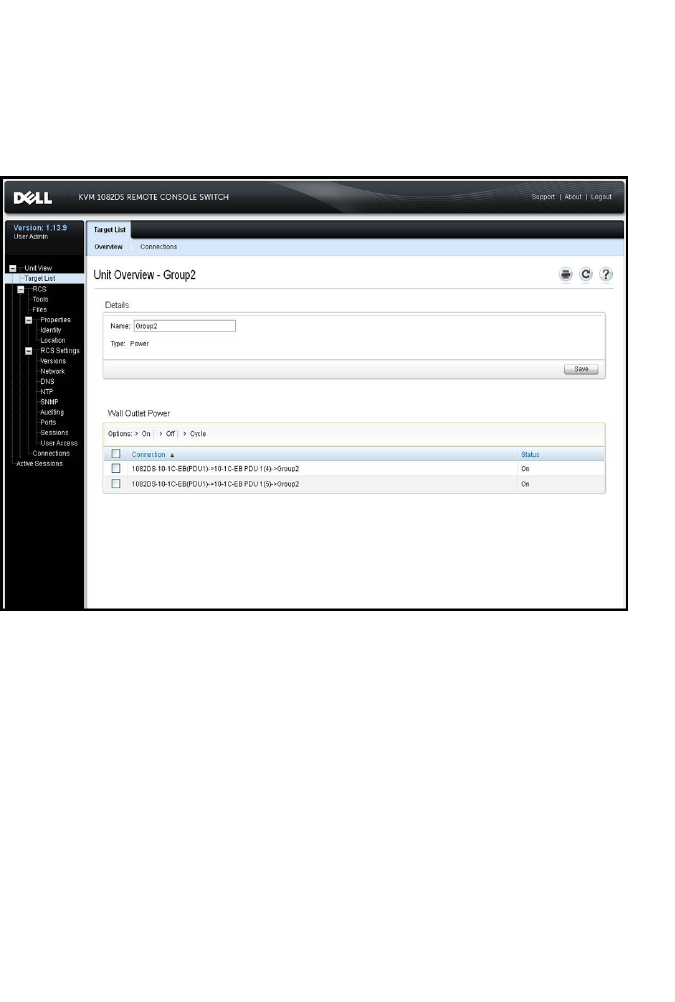
64xxx |Local and Remote Configurationxxx
4Select outlet 5 to display the Power Devices Outlet Settings page.
5Select Link to Target Device, select Group2 from the drop down menu.
6Click Save. After returning to the Outlet List, outlets 4 and 5 will have the
same name.
Figure 3.4: Target Overview for Group2
Default Outlet Names
On the Power Devices page, the checkbox “Assign Default Names to Outlets”
controls whether or not power outlets are given default names for a power
device, as shown in the following figure. Only power outlets with names are
listed on the Target page. Default assigned power outlet names may be removed
by clearing the "Assign Default Names to Outlets" checkbox and saving. Power
outlets without names are assigned default names by turning on “Assign Default
Names to Outlets” and saving.
Figure 3.5: RCS Power Devices Page
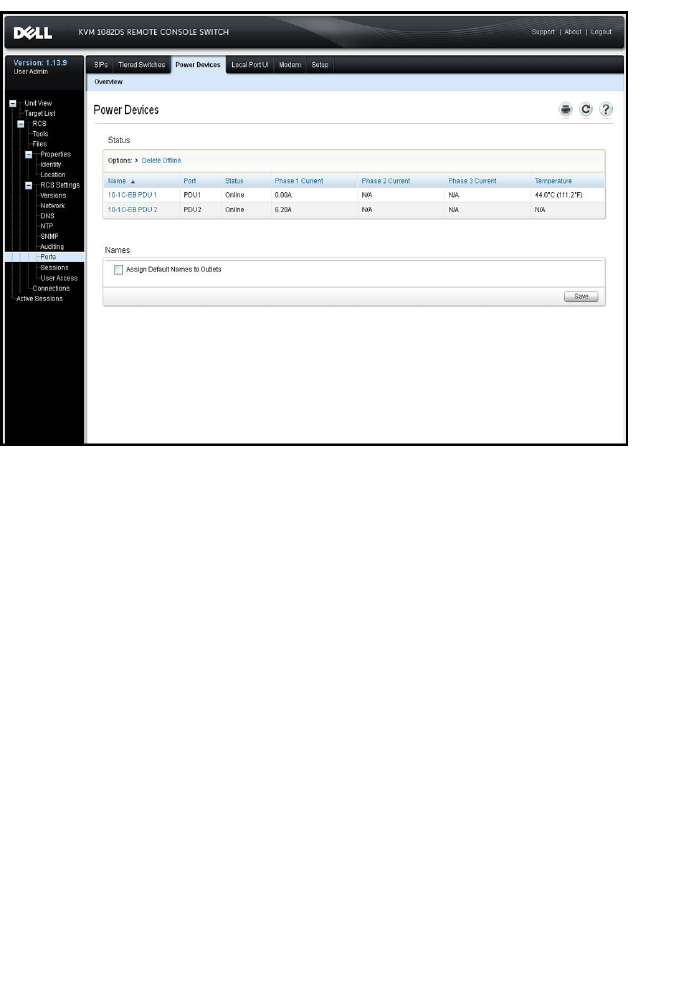
Local and Remote Configurationxxx |xxx65
Assigning an Outlet Name
On the Power Device Outlet Settings page, three options are available for
assigning the name of a outlet as shown in the following figure. The options are
Manual Name assignment, Link to Target Device and Do Not Display as Target
Device.
Figure 3.6: Power Device Outlet Settings Page
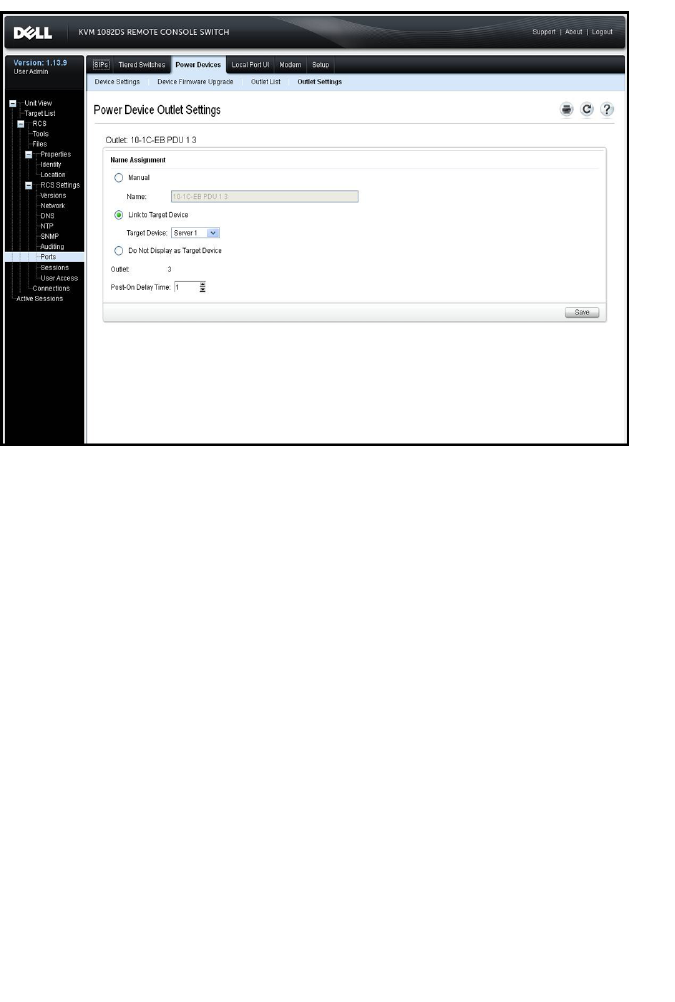
66xxx |Local and Remote Configurationxxx
• The Manual Name assignment gives a unique name to an outlet. The name
must be unique for all the SIPs and power outlet names. An attempt to
specify a manual name which is not unique will result in an error and the
name will not be saved.
• The Link to Target List assignment links the outlet to another target name
(either an outlet or SIP) for power control of the named target. When an
outlet is linked to a SIP target name, typically the outlet physically provides
power to the server attached to the SIP.
• The Do Not Display as Target Device option gives the outlet a blank name,
which prevents it from being displayed on the Target List page. This option
may be used for spare outlets to remove them from the Target List page.
Access Control Inheritance
When a power outlet name is changed by linking it to a target, the outlet
inherits the access control already configured for that target name. When a SIP
is added, if the name retrieved from the SIP matches the name of an existing

Local and Remote Configurationxxx |xxx67
target, the new SIP inherits the access control from that target. When a target
device is renamed, all the SIPs and outlets of that target are renamed, and they
carry forward the access control previously configured for the old target name.
Renaming of a Target Device
On the Target List - Overview page, the name for that target may be changed to
any unique target name. The name must be unique for the set of all targets,
including SIPs and power outlets. When a target is renamed, all outlets linked to
that target are also given the new target name.
Prioritized Status of Target Devices
On the Target List page, a target with linked power outlets controls multiple
devices. The Status value displayed for a target is chosen as the highest priority
of all the status values of the devices. The following table shows the possible
status values in priority order (highest to lowest) and the applicable target
device types.
Status Value Applicable for: Status Description
SIP Power
Outlet
In Use x N/A A session is active
Path Blocked x N/A Path to Target is in use by
another session
Upgrading x N/A SIP is being upgraded
Turning On N/A x One or more outlets are turning
on
Turning Off N/A x One or more outlets are turning
off
Table 3.4: Target Status Values

68xxx |Local and Remote Configurationxxx
Status Value Applicable for: Status Description
SIP Power
Outlet
No Power x N/A No power detected on SIP
Partial Power N/A x Target has outlets in both on
and off states
Locked-Off N/A x One or more outlets are locked
on
Turned Off N/A x One or more outlets are turned
off
Locked-On N/A x One or more outlets are locked
off
Idle x N/A No session active; SIP has
power
Turned On N/A x Outlets are turned on
When a target device has multiple power outlets linked by name and they do
not have a common power state, the RCS may consider the Locked-Off outlet
status as Off, and the Locked-On outlet status as On. The following table lists
the resulting Status values for combinations of two outlet status values.
Outlet 1 Status Outlet 2
Status Resulting Status
Off Off Off
Off On Partial Power
On On Powered On
Table 3.5: Multiple Outlet Status Values and Displayed Status

Local and Remote Configurationxxx |xxx69
Outlet 1 Status Outlet 2
Status Resulting Status
Locked-On On Powered On
Locked-On Locked-On Locked-On
Locked-On Off Partial Power
Locked-Off On Partial Power
Locked-Off Locked-Off Locked-Off
Locked-Off Off Powered Off
Locked-On Locked-Off Partial Power
Local Session Page on the Local Port
On the local port's Local Session page, when the target of the active session has
power outlets linked, three power controls are displayed on the page under the
Active session. The following figure illustrates the power controls displayed for
an active local port session for a target named Server2.
Figure 3.7: Local Session Page With Power Controls
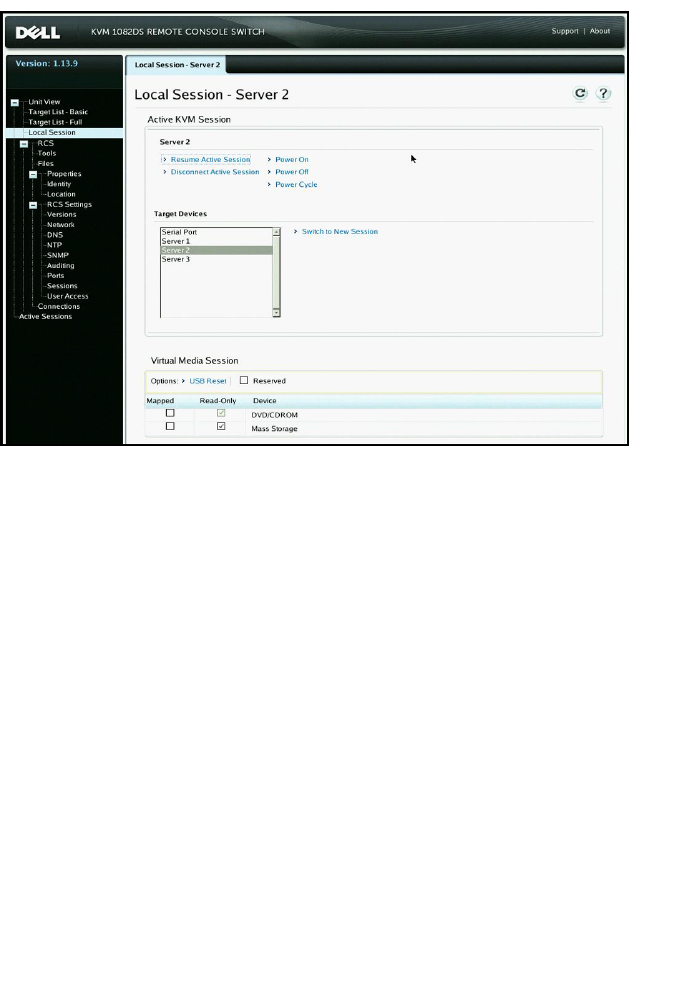
70xxx |Local and Remote Configurationxxx
Local Port UI Settings
To change how the local UI is invoked:
1From the side navigation bar, select Ports - Local Port UI to open the
Local Port UI Settings screen.
2Under the Invoke Local Port UI heading, select the checkbox next to one or
more of the listed methods.
3Click Save.
You can turn on or turn off local port user interface authentication and choose a
user access level. If you turn on local port user interface authentication, you will
be required to log in to use the interface.
You can also select the keyboard language for the local port, scan mode time,
enable/disable the local port password and select a user preemption level. The

Local and Remote Configurationxxx |xxx71
preemption level of users determines whether they may disconnect another user’s
serial or KVM session with a target device. Preemption levels range from 1 - 4,
with 4 being the highest level. For example, a user with a preemption level of 4
may preempt other level 4 users, as well as those with a level 1, 2, or 3 setting.
To change the Local Port User Authentication (Administrator only):
1From the side navigation bar, select Ports - Local Port UI to open the
Local Port UI Settings screen.
2Select or deselect the Disable Local Port User Authentication checkbox.
3If Disable Local Port User Authentication is checked, select one of the
following options from the User Access Level drop-down menu:User,User
Administrator, or RCS Administrator.
4Click Save.
Modem Settings
From the RCS Modem Settings screen, you can configure several modem
settings, as well as view the following modem settings:Local Address, Remote
Address, Subnet Mask, and Gateway.
For information on connecting your switch to a modem, see "Connecting the
RCS Hardware" on page 25.
To configure modem settings:
1From the side navigation bar, select Ports - Modem to open the Modem
Settings screen.
2Either enable or disable the Modem sessions can preempt digital sessions
checkbox.
3Select an Authentication Timeout time from 30 to 300 seconds, and an
Inactivity Timeout time from 1 to 60 minutes.
4Select Save.

72xxx |Local and Remote Configurationxxx
Setup Settings - Port Security
From the serial setup port, you can change the appliance network configuration,
enable debug information, and reset the appliance.
To enable a password to restrict access the serial setup port:
1From the side navigation bar, select RCS Settings - Ports - Setup to display
the Setup Port Settings page.
2Click to enable the Enable Setup Port Security box.
3Enter and confirm your password.
4Click Save.
Sessions
From the Active Sessions screen, you can view a list of active sessions and the
following information about each session: Target Device, Owner, Remote Host,
Duration, and Type.
Configuring General Sessions
To configure general session settings:
1From the side navigation bar, select Sessions - General. The General
Session Settings screen appears.
2Select or deselect the Enable Inactivity Timeout checkbox.
3In the Inactivity Timeout field, enter the amount of inactive time you want
to pass before the session closes (from 1 to 90 minutes).
4In the Login Timeout field, enter the amount of inactive time you want to
pass before you must log in again (from 21 to 120 seconds).
5Select or deselect the Enable Preemption Timeout checkbox.

Local and Remote Configurationxxx |xxx73
6In the Preemption Timeout field, enter the amount of time (from 1 to 120
seconds) that a prompt will be displayed to inform you that your session is
going to be preempted.
7Select the applicable session sharing options (Enabled, Automatic,
Exclusive, or Stealth).
8Select the Input Control Timeout from 1 to 50, with 1 representing one
tenth of a second.
9Click Save.
Configuring KVM Sessions
To configure KVM session settings:
1From the side navigation bar, select Sessions - KVM. The KVM Session
Settings screen appears.
2Select an encryption level for keyboard and mouse signals (128-bit SSL
(ARCFOUR),DES,3DES, or AES) and for video signals (128-bit SSL
(ARCFOUR),DES,3DES,AES, or None).
3Select a language from the Keyboard drop-down menu.
4If your hardware includes the USB2+CAC SIP, select the video resolution.
5Click Save.
Configuring Local Virtual Media Sessions
To set virtual media options:
1From the side navigation bar, select Sessions - Virtual Media to open the
Virtual Media Session Settings screen.
2Either enable or disable the Virtual Media locked to KVM Sessions
checkbox.
3Either enable or disable the Allow Reserved Sessions checkbox.
4Select one of the following options from the Virtual Media Access Mode
from the drop-down menu: Read-Only or Read-Write.

74xxx |Local and Remote Configurationxxx
5Select one of the Encryption Levels that you wish to be supported.
6Click Save.
7Select the checkbox next to each SIP for which you want to enable virtual
media and click Enable VM.
-or-
Select the checkbox next to each SIP for which you want to disable
virtual media and click Disable VM.
Virtual Media Options
You can determine the behavior of the switch during a virtual media session
using the options provided in the Virtual Media Session Settings screen. Table
3.4 outlines the options that can be set for virtual media sessions.
For information about using virtual media in a KVMsession, see "Virtual Media"
on page 96.
Setting Description
Session Settings:
Virtual Media
locked to KVM
Session
The locking option specifies whether a virtual
media session is locked to the KVM session on
the target device. When locking is enabled
(default) and the KVM session is closed, the
virtual media session will also be closed. When
locking is disabled and the KVM session is
closed, the virtual media session will remain
active.
Table 3.6: Virtual Media Session Settings

Local and Remote Configurationxxx |xxx75
Setting Description
Session
Settings:Allow
Reserved
Sessions
Ensures that a virtual media connection can only
be accessed with your username and that no
other user can create a KVM connection to that
target device. When the associated KVM session
is disconnected, the virtual media session may
be disconnected according to the Locked setting
in the Virtual Media dialog box.
Drive Mappings:
Virtual Media
Access Mode
You may set the access mode for mapped drives
to read-only or read-write. When the access
mode is read-only, the user will not be able to
write data to the mapped drive on the client
server. When the access mode is read-write, the
user will be able to read and write data from/to
the mapped drive. If the mapped drive is read-
only by design (for example, a CD-ROM drive,
DVD-ROM drive or ISO images), the configured
read-write access mode will be ignored. Setting
the read-only mode can be helpful when a read-
write drive such as a mass storage device or a
USB removable media is mapped, and you wish
to prevent the user from writing data to it.
You can have one DVD drive and one mass
storage device mapped concurrently. A CD drive,
DVD drive, or ISO disk image file is mapped as a
virtual CD/DVD drive.
Encryption Level
You may configure encryption levels for virtual
media sessions. The choices are: None (default),
128-bit SSL (ARCFOUR), DES, 3DES, and AES.

76xxx |Local and Remote Configurationxxx
Setting Description
Virtual Media
Access per
SIP:Enable
VM/Disable VM
The Virtual Media Access per the SIP section lists
all virtual media SIPs. The list includes details
about each cable, including the option to enable
or disable virtual media for each cable.
Local Users
Local users can also determine the behavior of virtual media from the Local
Session screen. In addition to connecting and disconnecting a virtual media
session, you can configure the settings in the following table.
Table 3.7: Local Virtual Media Session Settings
Setting Description
CD ROM/
DVD ROM
Allows virtual media sessions to the first detected
CD-ROM or DVD-ROM (read-only) drives. Enable
this checkbox to establish a virtual media CD-ROM
or DVD-ROM connection to a target device.
Disable to end a virtual media CD-ROM or DVD-
ROM connection to a target device.
Mass Storage
Allows virtual media sessions to the first detected
mass storage drive. Enable this checkbox to
establish a virtual media mass storage connection
to a target device. Disable to end a virtual media
mass storage connection to a target device.
Reserved
Ensures that a virtual media connection can only
be accessed with your username and that no other
user can create a KVM connection to that target
device.

Local and Remote Configurationxxx |xxx77
Configuring Serial Sessions
To configure serial session settings:
1From the side navigation bar, click Sessions - Serial to display the Serial
Session Settings screen.
2Either enable or disable the Telnet Access Enabled checkbox.
3Click Save.
Setting Up User Accounts
Managing Local Accounts
The switch OBWI provides local and login security through administrator-
defined user accounts. By selecting User Accounts on the side navigation bar,
administrators may add and delete users, define user preemption, and access
levels and change passwords.
Access Levels
When a user account is added, the user may be assigned to any of the following
access levels: RCS Administrators, User Administrators, and Users.
Operation RCS Administrator User Administrator Users
Configure interface
system-level settings Yes No No
Configure access rights Yes Yes No
Add, change and delete
user accounts
Yes, for all access
levels
Yes, for Users and
User Administrators
only
No
Table 3.8: Allowed Operations by Access Level

78xxx |Local and Remote Configurationxxx
Operation RCS Administrator User Administrator Users
Change your own
password Yes Yes Yes
Access target device Yes, all target
devices
Yes, all target
devices
Yes, if
allowe-
d
To add a new user account (User Administrator or RCS Administrator only):
1On the side navigation bar, select User Accounts - Local User Accounts to
open the Local User Accounts screen.
2Click the Add button.
3Enter the name and password of the new user in the blanks provided.
4Select the access level for the new user.
5Select any of the available target devices that you wish to assign to the user
account and click Add.
NOTE: User Administrators and RCS Administrators can access all target
devices.
6Click Save.
To delete a user account (User Administrator or RCS Administrator only):
1On the side navigation bar, select User Accounts - Local Accounts to open
the Local User Accounts screen.
2Click the checkbox to the left of each account that you wish to delete, then
click Delete.
To edit a user account (Administrator or active user only):
1On the side navigation bar, select User Accounts - Local Accounts. The
Local User Accounts screen is displayed.
2Click the name of the user you wish to edit. The user profile will appear.

Local and Remote Configurationxxx |xxx79
3Fill out the user information on the screen, then click Save.
Avocent Management Software Device IP Addresses
You can contact and register an unmanaged switch with an Avocent
management software server by specifying the IP address of the management
software server.
To configure the server IP address:
1On the side navigation bar, select User Accounts - Avocent. The Avocent
Management Software Settings screen is displayed.
2Enter the server IP addresses that you want to contact. Up to four addresses
are allowed.
3Use the scroll bar to select the desired retry interval.
4To disassociate an RCS that has been registered with the server, click the
Disassociate button.
5Click Save.
LDAP
The Dell 1082DS/2162DS/4322D RCS can authenticate and authorize users via
a local database or by an external scalable distributed directory service using the
Dell RCS software or OBWI with LDAP (Lightweight Directory Assistance
Protocol) support. Refer to the LDAP section for additional information on
configuring and using LDAP on the RCS.
Override Admin
Should a network failure occur, an account is provided that may be used
regardless of the unit’s ability to authenticate against an LDAP server. Refer to
Configure the Override Admin Account in Chapter 5.

80xxx |Local and Remote Configurationxxx
Active Sessions
From the Active Sessions screen, you can view a list of active sessions and the
following information about each session: Target Device, Owner, Remote Host,
Duration, and Type.
Closing a Session
To close a session:
1From the side navigation bar, select Active Sessions to display the RCS
Active Sessions screen.
2Click the checkbox next to the desired target device(s).
3Click Disconnect.
NOTE: If there is an associated locked virtual media session, it will be
disconnected.
To close a session (local users only):
1From the side navigation bar, select Local Session.
2Select the Disconnect Active Session checkbox.

4
The Video Viewer Windowxxx |xxx81
The Video Viewer Window
The Video Viewer is used to conduct a KVM session with the target devices
attached to an switch using the OBWI. When you connect to a device using the
Video Viewer, the target device desktop appears in a separate window
containing both the local and the target device cursors.
The switch OBWI software uses a Java-based program to display the Video
Viewer window. The switch OBWI automatically downloads and installs the
Video Viewer the first time it is opened.
NOTE: Java 1.6.0_11 or later is required to launch a session.
NOTE: The switch OBWI does not install the Java Resource Engine (JRE).
The JRE is available as a free download from http://www.sun.com.
NOTE: The switch OBWI uses system memory to store and display images
within Video Viewer windows. Each opened Video Viewer window requires
additional system memory. An 8-bit color setting on the client server requires
1.4 MB of memory per Video Viewer window, a 16-bit color setting requires
2.4 MB and a 32-bit color setting requires 6.8 MB. If you attempt to open more
Video Viewer windows than your system memory allows (usually four), you
will receive an out-of-memory error and the requested Video Viewer window
will not open.
If the device you are attempting to access is currently being viewed by another
user, you will be prompted to preempt the other user if your preemption level is
equal to or greater than the other user's preemption level. An RCS Administrator
can also disconnect an active user via the Active Session page. For more
information, see "Active Sessions" on page 80.
Figure 4.1: Video Viewer Window (normal window mode)
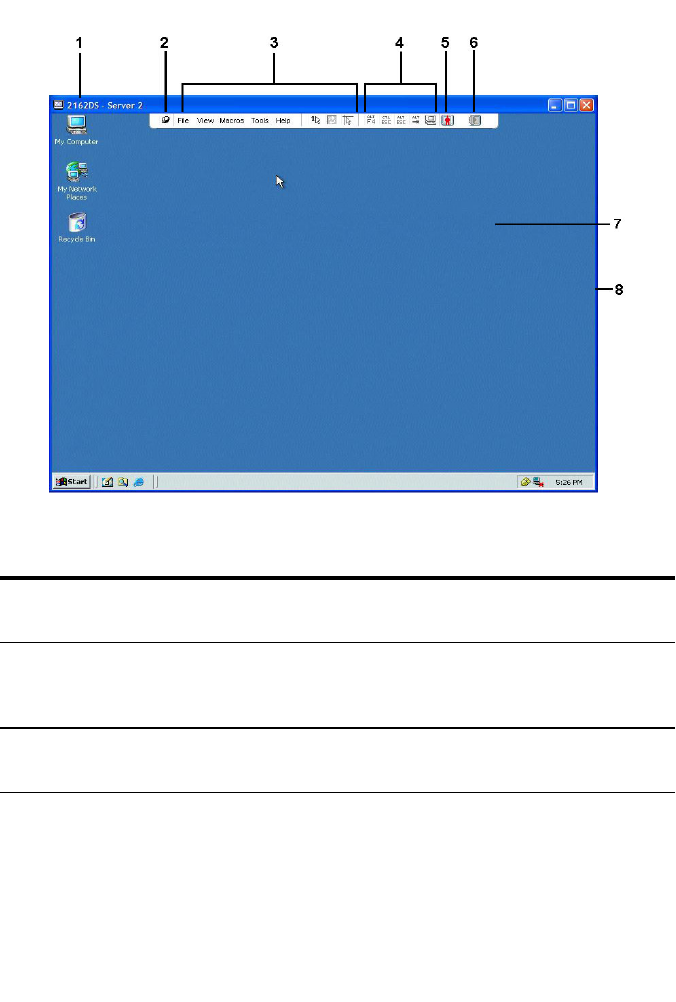
82xxx |The Video Viewer Windowxxx
Table 4.1: Video Viewer Descriptions
Numbe-
rDescription
1
Title Bar: Displays the name of the target device being viewed. When
in Full Screen mode, the title bar disappears and the target device
name appears between the menu and toolbar.
2Thumbtack icon: Locks the display of the menu and toolbar so that it is
visible at all times.
The Video Viewer Windowxxx |xxx83
Numbe-
rDescription
3
Menu and toolbar: Enables you to access many of the features in the
Video Viewer window. The menu and toolbar is in a show/hide state if
the thumbtack has not been used. Place your cursor over the toolbar to
display the menu and toolbar. Up to ten commands and/or macro
group buttons can be displayed on the toolbar. By default, the Single
Cursor Mode, Refresh, Automatic Video Adjust and Align Local Cursor
buttons appear on the toolbar. For more information, see "Changing
the Toolbar" on page 83 and "Macros" on page 104.
4Macro buttons: Commonly used keyboard sequences that can be sent
to the target device.
5
Connection Status Indicator: Indicates the status of the user that is
connected to the RCS for this server. The modes are exclusive, basic
active connection, primary active sharing, secondary active sharing,
passive sharing, stealth, and scanning.
6
Smart Card Status Indicators: Indicate whether or not a smart card is in
the smart card reader. The Video Viewer screen smart card icon is
greyed out and indicates that the smart card option is unavailable or
disabled. The icon is green if the smart card is mapped.
7Display area: Accesses the server desktop.
8Frame: Resizes the Video Viewer window by clicking and holding on
the frame.
Changing the Toolbar
You can choose the amount of elapsed time before the toolbar hides in the
Video Viewer window when it is in show/hide state (that is, not locked in place
by the thumbtack).
To specify a toolbar hide time:
1Select Tools - Session Options from the Video Viewer window menu.

84xxx |The Video Viewer Windowxxx
-or-
Click the Session Options button.
The Session Options dialog box appears.
2Click the Toolbar tab.
3Use the arrow keys to specify the number of elapsed seconds prior to hiding
the toolbar.
4Click OK to save your changes and close the dialog box.
Launching a Session
NOTE: When using a non-proxied connection, video performance over a
slower network connection may be less than optimal. Since certain color
settings (such as Grayscale) use less network bandwidth than others (such
as Best Color), changing the color settings can increase video performance.
For optimal video performance over a slower network connection, use a color
setting such as Grayscale/Best Compression or Low Color/High
Compression. See "Adjusting the View" on page 85 for more information.
NOTE: If a user connects to a target device with a higher screen resolution
than the local computer, the Video Viewer window will display a portion of the
target device screen, with scroll bars for viewing the remainder of the screen.
The user may view the entire screen by adjusting the resolution on the target
device, the local computer or both.
To launch a KVM session from the switch Explorer window:
1Click on a device listed on the Target List screen to open the unit overview
window.
2Click the KVM Session link to open the Video Viewer in a new window.
Session Time-out
A remote session can time-out when no activity occurs in a Session window for
a specified time. The session time-out value can be configured in the RCS KVM
Session Settings window. The specified time-out value will be used the next
time the switch OBWI is accessed.

The Video Viewer Windowxxx |xxx85
To enable, disable, or configure the session time-out:
1In the side menu, select Unit View - RCS - RCS Settings - Sessions -
General.
2Select the desired setting for the Enable Activity Timeout box.
3If necessary, select the time limit for the inactivity time-out.
4Click Save.
Window Size
NOTE: The View - Scaling command is not available if the Video Viewer
window is in Full Screen mode or to non-primary users of a shared session.
When the switch OBWI is used for the first time, any open Video Viewer
windows display at a resolution of 1024 x 768 until the user changes the value.
Each Video Viewer window can be set to a different resolution.
The switch OBWI automatically adjusts the display if the window size changes
during a session as long as autoscaling is enabled. If the target device resolution
changes any time during a session, the display adjusts automatically.
To change the Video Viewer window resolution:
1Select the View - Scaling command.
2Select the desired resolution.
Adjusting the View
Using menus or task buttons in the Video Viewer window, you can do the
following:
• Align the mouse cursors.
• Refresh the screen.

86xxx |The Video Viewer Windowxxx
• Enable or disable Full Screen mode. When Full Screen mode is enabled, the
image adjusts to fit the desktop up to a size of 1600 x 1200 or 1680 x 1050
(widescreen). If the desktop has a higher resolution, the following occurs:
• The full-screen image is centered in the desktop, and the areas
surrounding the Video Viewer window are black.
• The menu and toolbar are locked so that they are visible at all times.
• Enable automatic, full or manual scaling of the session image:
• With full scaling, the desktop window remains fixed and the device
image scales to fit the window.
• With automatic scaling, the desktop window is sized to match the
resolution of the target device being viewed.
• With manual scaling, a drop-down menu of supported image scaling
resolutions is displayed.
• Change the color depth of the session image.
To align the mouse cursors:
Click the Align Local Cursor button in the Video Viewer window toolbar. The
local cursor should align with the cursor on the remote device.
NOTE: If cursors drift out of alignment, turn off mouse acceleration in the
attached device.
To refresh the screen, click the Refresh Image button in the Video Viewer
window, or select View - Refresh from the Video Viewer window menu. The
digitized video image is completely regenerated.
To enable Full Screen mode, click the Maximize button, or select View - Full
Screen from the Video Viewer window menu. The desktop window disappears
and only the accessed device desktop is visible. The screen resizes up to a
maximum of 1600 x 1200 or 1680 x 1050 (widescreen). If the desktop has a
higher resolution, then a black background surrounds the full screen image. The
floating toolbar appears.

The Video Viewer Windowxxx |xxx87
To disable Full Screen mode, click the Full Screen Mode button on the floating
toolbar to return to the desktop window.
To enable full scaling, select View - Scaling from the Video Viewer window
menu and select Full Scale. The device image scales automatically to the
resolution of the target device being viewed.
To enable manual scaling, select View - Scaling from the Video Viewer window
menu. Choose the dimension to scale the window. The available manual scaling
sizes will vary according to your system.
Refreshing the Image
Clicking the Refresh Image button in the Manual Video Adjust dialog box
completely regenerates the digitized video image.
NOTE: You can also select View - Refresh from the Video Viewer window
menu to refresh the image.
Video Settings
Additional Video Adjustment
Generally, the Video Viewer window automatic adjustment features optimize
the video for the best possible view. However, users can fine-tune the video with
the help of Dell Technical Support by selecting the Tools - Manual Video
Adjust command in the Video Viewer window menu or clicking the Manual
Video Adjust button. This displays the Manual Video Adjust dialog box. Video
adjustment is a per target setting.
Users can also verify the level of packets per second required to support a static
screen by observing the packet rate located in the lower left-hand corner of the
dialog box.
To manually adjust the video quality of the window:
NOTE: The following video adjustments should be made only with the help of
Dell Technical Support.
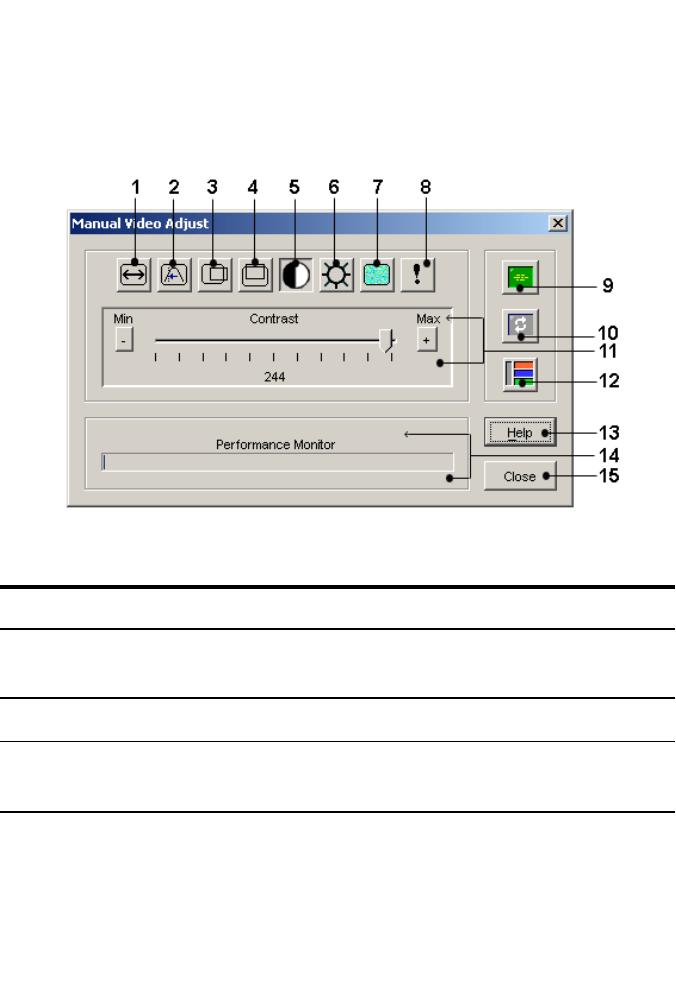
88xxx |The Video Viewer Windowxxx
1Select Tools - Manual Video Adjust from the Video Viewer window menu.
-or-
Click the Manual Video Adjustbutton.
The Manual Video Adjust dialog box appears.
Figure 4.2: Manual Video Adjust Dialog Box
Table 4.2: Descriptions for Figure 4.2
Number Description Number Description
1Image Capture Width 9Automatic Video
Adjustment
2Pixel Sampling/Fine Adjust 10 Refresh Image
3Image Capture Horizontal
Position 11 Adjustment bar

The Video Viewer Windowxxx |xxx89
Number Description Number Description
4Image Capture Vertical
Position 12 Video Test Pattern
5Contrast 13 Help
6Brightness 14 Performance Monitor
7Noise Threshold 15 Close button
8Priority Threshold
2Click the icon corresponding to the feature you wish to adjust.
3Move the Contrast slider bar and then fine-tune the setting by clicking the
Min (-) or Max (+) buttons to adjust the parameter for each icon pressed.
The adjustments display immediately in the Video Viewer window.
4When finished, click Close to exit the Manual Video Adjust dialog box.
Target Video Settings
The Image Capture Width, Pixel Sampling/Fine Adjust, Image Capture
Horizontal Position and Image Capture Vertical Position adjustments affect
how the target video is captured and digitized. They are seldom changed.
The image capture parameters are automatically changed by the Automatic
Adjustment function. A special image is required on the target in order to make
accurate adjustments independently.
Automatic Video Adjustment
In most cases, you do not need to alter the Video Settings from the default
settings. The system automatically adjusts and uses the optimal video
parameters. The switch OBWI performs best when the video parameters are set
such that no (0) video packets are transmitted for a static screen.

90xxx |The Video Viewer Windowxxx
You can easily adjust your video parameters to ideal settings by clicking on the
Auto Adjust Video button in the Manual Video Adjust dialog box.
NOTE: You can also select Tools - Automatic Video Adjust from the Video
Viewer window menu or click the Automatic Video Adjust toolbar icon to
automatically adjust the video.
Video Test Pattern
Clicking the Video Test Pattern button in the Manual Video Adjust dialog box
toggles a display of a video test pattern. Click the Video Test Pattern button
again to toggle back to a normal video image.
Vendor-specific Video Settings
Video settings vary significantly among manufacturers. Dell maintains an online
database of optimized video settings for various video cards, particularly Sun-
specific ones. This information can be obtained from the Dell online knowledge
base or by calling Dell technical support.
Color Settings
Adjusting Color Depth
The Dambrackas Video Compression® (DVC) algorithm enables users to adjust
the number of viewable colors in a remote session window. You can choose to
display more colors for the best fidelity or fewer colors to reduce the volume of
data transferred on the network.
Video Viewer windows can be viewed using the Best Color Available (slower
updates), Best Compression (fastest updates), a combination of Best Color and
Best Compression or in Grayscale.
You can specify the color depths of individual ports and channels by selecting
the View Color command in a remote session window. These settings are saved
individually per channel.

The Video Viewer Windowxxx |xxx91
Contrast and Brightness
If the image in the Video Viewer window is too dark or too light, select Tools -
Automatic Video Adjust or click the Automatic Video Adjust button. This
command is also available in the Video Adjustments dialog box. In most cases,
this corrects video issues.
When clicking Auto Adjust several times does not set the contrast and
brightness as desired, adjusting the contrast and brightness manually can help.
Increase the brightness. Do not go more than 10 increments before moving the
contrast. Generally, the contrast should be moved very little.
Noise Settings
Detection Thresholds
In some cases, noise in the video transmission keeps the packets/sec count up,
which is indicated by small dots changing in the area of the cursor when it is
moved. Varying the threshold values may result in “quieter” screens and can
improve cursor tracking.
You can modify Noise Threshold and Priority Threshold values if you are using
standard video compression. You can restore default threshold values by clicking
Auto Adjust Video.
NOTE: Leaving the noise threshold at zero triggers constant video refresh,
resulting in high network usage and a flickering video. It is recommended that
the noise threshold be set at the highest level that allows efficient system
performance, while still being able to recover pixel colors that the mouse
cursor travels over.
NOTE: When adjusting the noise threshold, the slider bar is used for large
adjustments and the Plus (+) and Minus (-) buttons at either end of the slider
bar are used for fine-tuning.
See "Adjusting the View" on page 85 for information about changing the color
depth.

92xxx |The Video Viewer Windowxxx
Mouse Settings
Adjusting Mouse Options
The Video Viewer window mouse options affect cursor type, Cursor mode,
scaling, alignment and resetting. Mouse settings are device-specific; that is, they
may be set differently for each device.
NOTE: If the device does not support the ability to disconnect and reconnect
the mouse (almost all newer PCs do), then the mouse will become disabled
and the device will have to be rebooted.
Cursor Type
The Video Viewer window offers five appearance choices for the local mouse
cursor. You can also choose no cursor or the default cursor.
In Single Cursor mode, the display of the local (second) cursor in the Video
Viewer window turns off and only the target device mouse pointer is visible. The
only mouse movements that appear are those of the target device remote cursor.
Use Single Cursor mode when there is no need for a local cursor.
Figure 4.3: Video Viewer Window With Local and Remote Cursors Displayed
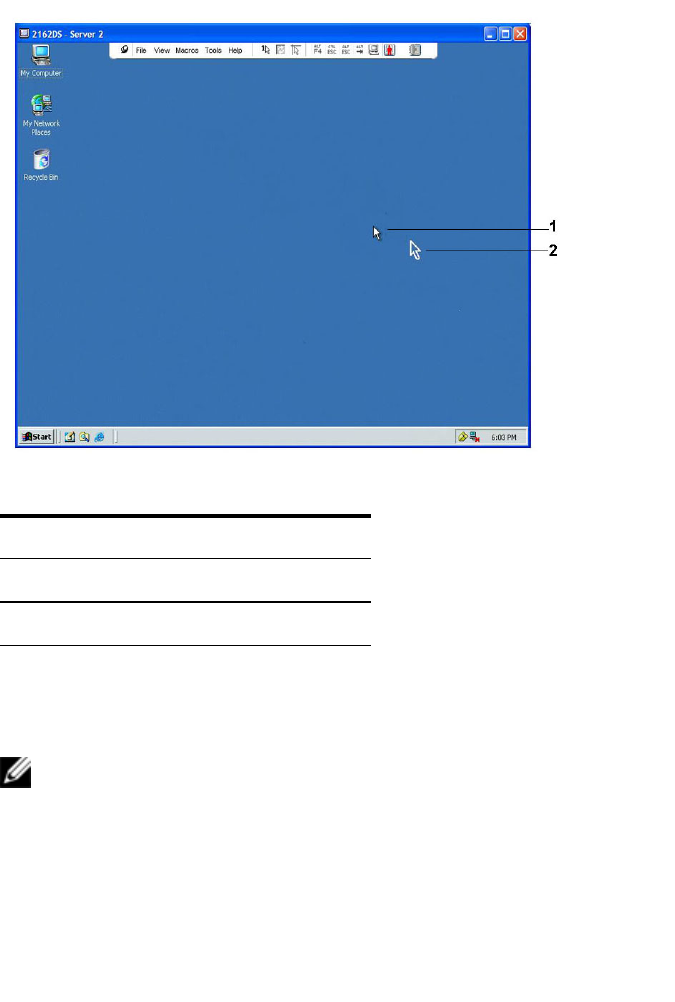
The Video Viewer Windowxxx |xxx93
Table 4.3: Descriptions for Figure 4.3
Number Description
1Remote Cursor
2Local Cursor
The Cursor mode status of the Video Viewer window displays in the title bar,
including the keystroke that will exit Single Cursor mode. You can define the
keystroke that will exit Single Cursor mode in the Session Options dialog box.
NOTE: When using a device that captures keystrokes before they reach the
client server, you should avoid using those keys to restore the mouse pointer.

94xxx |The Video Viewer Windowxxx
To enter Single Cursor mode, select Tools - Single Cursor Mode from the
Video Viewer window menu, or click the Single Cursor Mode button. The local
cursor does not appear and all movements are relative to the target device.
To select a key for exiting Single Cursor mode:
1Select Tools - Session Options from the Video Viewer window menu.
-or-
Click the Session Options button.
The Session Options dialog box appears.
2Click the Mouse tab.
3Select a terminating keystroke from the drop-down menu in the Single
Cursor mode area.
4Click Save to save settings.
When you enable Single Cursor mode, you can press the specified key to return
to Regular Desktop mode.
To exit Single Cursor mode, press the key on the keyboard that is identified in
the title bar.
To change the mouse cursor setting:
1Select Tools - Session Options from the Video Viewer window menu.
-or-
Click the Session Options button.
The Session Options dialog box appears.
2Click the Mouse tab.
3Select a mouse cursor type in the Local Cursor panel.
4Click OK to save settings.

The Video Viewer Windowxxx |xxx95
Mouse Scaling
Some earlier versions of Linux did not support adjustable mouse accelerations.
For installations that must support these earlier versions, you can choose among
three pre-configured mouse scaling options or set your own custom scaling. The
pre-configured settings are Default (1:1), High (2:1) or Low (1:2):
• In a 1:1 scaling ratio, every mouse movement on the desktop window sends
an equivalent mouse movement to the target device.
• In a 2:1 scaling ratio, the same mouse movement sends a 2X mouse
movement.
• In a 1:2 scaling ratio, the value is 1/2X.
To set mouse scaling:
1Select Tools - Session Options from the Video Viewer window menu.
-or-
Click the Session Options button.
The Session Options dialog box appears.
2Click the Mouse tab.
3To use one of the pre-configured settings, check the appropriate radio
button.
-or-
To set custom scaling:
a. Click the Custom radio button to enable the X and Y fields.
b. Type a scaling value in the X and Y fields. For every mouse input, the
mouse movements are multiplied by the respective X and Y scaling
factors. Valid input range is 0.25-3.00.
Mouse Alignment and Synchronization
Because the switch OBWI cannot get constant feedback from the mouse, there
are times when the mouse on the switch may lose sync with the mouse on the

96xxx |The Video Viewer Windowxxx
host system. If your mouse or keyboard no longer responds properly, you can
align the mouse to reestablish proper tracking.
Alignment causes the local cursor to align with the remote target device’s cursor.
Resetting causes a simulation of a mouse and keyboard reconnect as if you had
disconnected and reconnected them.
To realign the mouse, click the Align Local Cursor button in the Video Viewer
window toolbar.
Virtual Media
The virtual media feature allows the user on the client server to map a physical
drive on that machine as a virtual drive on a target device. The client server may
also add and map an ISO or floppy image file as a virtual drive on the target
device. You may have one CD drive and one mass storage device mapped
concurrently.
• A CD/DVD drive, disk image file (such as an ISO or floppy image file) is
mapped as a virtual CD/DVD-ROM drive.
• A floppy drive, USB memory device or other media type is mapped as a
virtual mass storage device.
For information on configuring virtual media settings using the OBWI, see
"Configuring Local Virtual Media Sessions" on page 73.
Requirements
The target device must support virtual media and be connected to the KVM
switch with a USB2 or USB2+CAC SIP.
The target device must be intrinsically able to use the types of USB2-compatible
media that you virtually map. In other words, if the target device does not
support a portable USB memory device, you cannot map that on the client
server as a virtual media drive on the target device.

The Video Viewer Windowxxx |xxx97
The user (or user group to which the user belongs) must have permission to
establish virtual media sessions and/or reserved virtual media sessions to the
target device. See "Setting Up User Accounts" on page 77.
Only one virtual media session may be active to a target device at one time.
Sharing and Preemption Considerations
The KVM and virtual media sessions are separate; therefore, there are many
options for sharing, reserving or preempting sessions. The Avocent management
software has the flexibility to accommodate the system needs.
For example, the KVM and virtual media sessions may be locked together. In
this mode, when a KVM session is disconnected, so is the associated virtual
media session. If the sessions are not locked together, the KVM session can be
closed but the virtual media session will remain active. This could be desirable if
a user is performing a time-intensive task using the virtual media session (such
as an operating system load), and wants to establish a KVM session with a
different target device to perform other functions while the operating system
load progresses.
Once a target device has an active virtual media session without an associated
active KVM session, two situations can occur - the original user (User A) can
reconnect or a different user (User B) can connect to that channel. You may set
an option in the Virtual Media dialog box (Reserved) that allows only the User
A to access that channel with a KVM session.
If User B is allowed to access that session (the Reserved option is not enabled),
User B could control the media that is being used in the virtual media session.
By using the Reserved option in a tiered environment, only User A could access
the lower switch and the KVM channel between the upper switch and lower
switch would be reserved for User A.
Virtual Media Dialog Box
The Virtual Media dialog box allows you to manage the mapping and
unmapping of virtual media. The dialog box displays all the physical drives on

98xxx |The Video Viewer Windowxxx
the client server that can be mapped as virtual drives. You may also add ISO and
floppy image files and then map them using the Virtual Media dialog box.
After a device is mapped, the Virtual Media dialog box Details View displays
information about the amount of data transferred and the time elapsed since the
device was mapped.
You may specify that the virtual media session is reserved. When a session is
reserved, and the associated KVM session is closed, another user cannot launch a
KVM session to that target device. If a session is not reserved, another KVM
session may be launched.
You may also reset the SIP from the Virtual Media dialog box. This action will
reset every form of USB media on the target device. It should be used with
caution and only when the target device is not responding.
Opening a Virtual Media Session
To launch a virtual media session:
Select Tools - Virtual Media from the Video Viewer menu. The Virtual Media
dialog box will appear. To make this a reserved session, click Details, then select
the Reserved checkbox.
Figure 4.4: Video Viewer Virtual Media Dialog Box
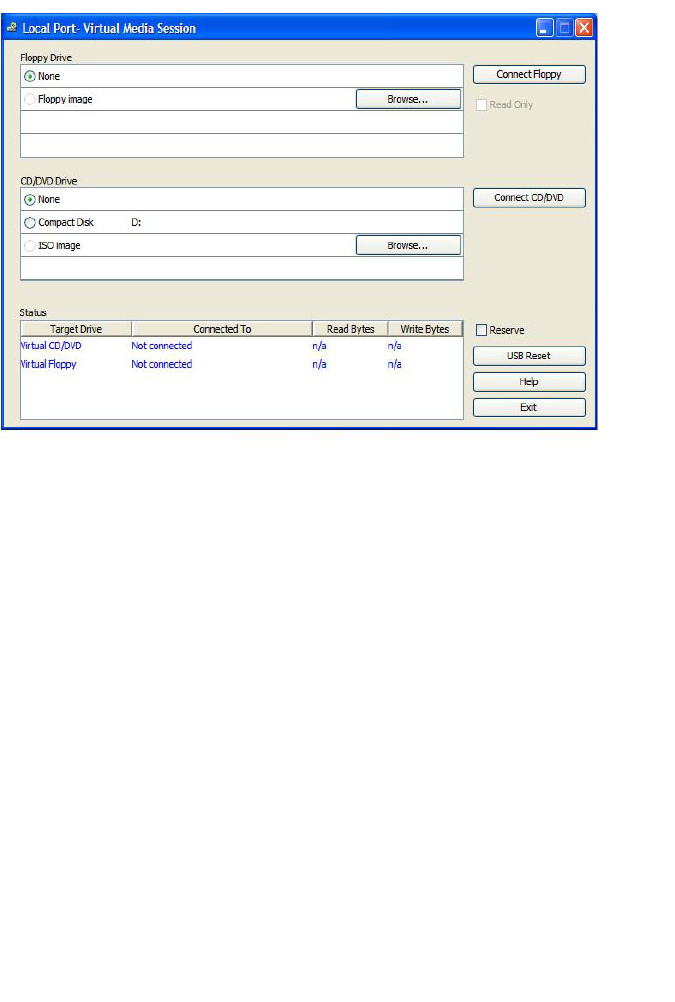
The Video Viewer Windowxxx |xxx99
To map a virtual media drive:
1Open a virtual media session from the Video Viewer menu by selecting
Tools - Virtual Media.
2To map a physical drive as a virtual media drive:
a. In the Virtual Media dialog box, click the Mapped checkbox next to the
drive(s) you wish to map.
b. If you wish to limit the mapped drive to read-only access, click the
Read Only checkbox next to the drive. If the virtual media session
settings were previously configured so that all mapped drives must be
read only, this checkbox will already be enabled and cannot be changed.
You might wish to enable the Read Only checkbox if the
session settings enabled read and write access, but you wished
to limit a particular drive’s access to read only.
3To add and map an ISO or floppy image as a virtual media drive:

100xxx |The Video Viewer Windowxxx
a. In the Virtual Media dialog box, click Add Image.
b. The common file dialog box will appear, with the directory containing
disk image files (that is, those ending in .iso or .img) displayed. Select
the desired ISO or floppy image file and click Open.
-or-
If the client server’s operating system supports drag-and-drop,
select the desired ISO or floppy image file from the common
file dialog box, and drag it onto the Virtual Media dialog box.
c. The file’s header is checked to ensure it is correct. If it is, the common
file dialog box will close and the chosen image file will appear in the
Virtual Media dialog box, where it can be mapped by clicking the
Mapped checkbox.
d. Repeat steps a through c for any additional ISO or floppy images you
wish to add. You may add any number of image files (up to the limits
imposed by memory), but you may only have one virtual CD or DVD
or virtual mass storage mapped concurrently.
If you attempt to map too many drives (one CD or DVD and one mass storage
device) or too many drives of a particular type (more than one CD or DVD or
mass storage device), a message will be displayed. If you still wish to map a new
drive, you must first unmap an existing mapped drive, then map the new drive.
After a physical drive or image is mapped, it may be used on the target device.
To unmap a virtual media drive:
1In the Virtual Media dialog box, uncheck the Mapped checkbox next to the
drive you wish to unmap.
2You will be prompted to confirm. Confirm or cancel the unmapping.
3Repeat for any additional virtual media drives you wish to unmap.
To display virtual media drive details:
In the Virtual Media dialog box, click Details. The dialog box expands to display
the Details table. Each row indicates:

The Video Viewer Windowxxx |xxx101
• Target Drive - Name used for the mapped drive, such as Virtual CD 1 or
Virtual CD 2.
• Mapped to - Identical to Drive information that appears in the Client View
Drive column.
• Read Bytes and Write Bytes - Amount of data transferred since the
mapping.
• Duration - Elapsed time since the drive was mapped.
To close the Details view, click Details again.
To reset all USB devices on the target device:
NOTE: The USB reset feature resets every USB device on the target device,
including the mouse and keyboard. It should only be used when the target
device is not responding.
1In the Virtual Media dialog box, click Details.
2The Details View will appear. Click USB Reset.
3A warning message will appear, indicating the possible effects of the reset.
Confirm or cancel the reset.
4To close the Details view, click Details again.
Closing a Virtual Media Session
To close the Virtual Media dialog box:
1Click Exit.
2If you have any mapped drives, a message is displayed, indicating that the
drives will be unmapped. Confirm or cancel the operation.
If a user attempts to disconnect a virtual media session or an active KVM
session that has an associated locked virtual media session, a confirmation
message is displayed, indicating that any virtual media mappings will be lost.
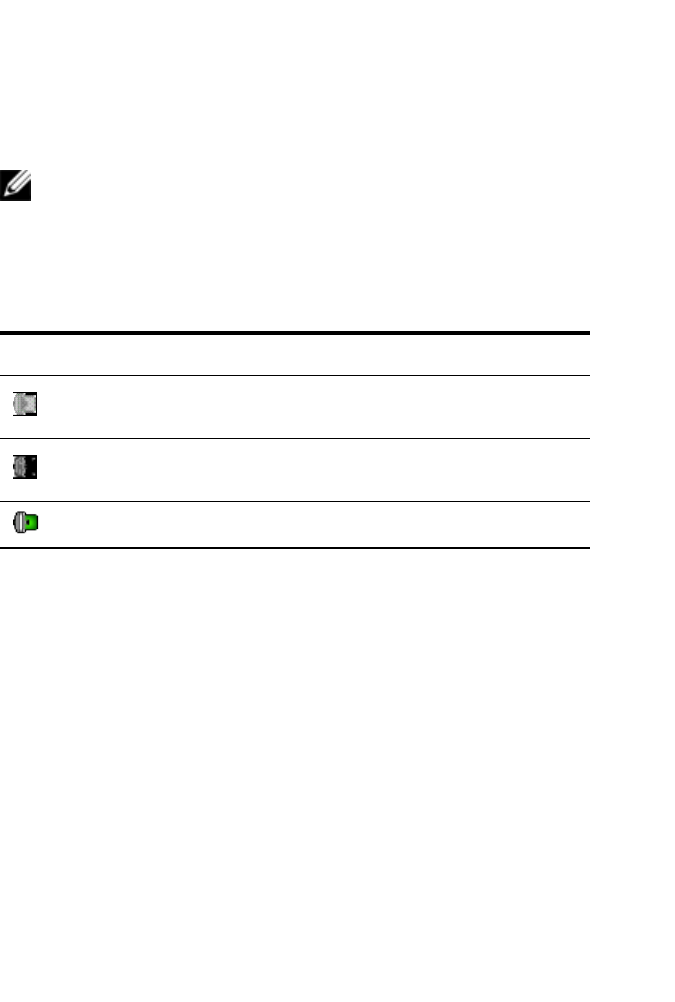
102xxx |The Video Viewer Windowxxx
Smart Cards
You can connect a smart card reader to an available USB port on the client
server and access attached target devices on the switch system. You can then
launch a KVM session to open the Video Viewer and map a smart card.
NOTE: For all smart card readers, you must use a Dell USB2+CAC SIP or an
Avocent VMC IQ module.
The smart card status is indicated by the smart card icon at the far right of the
Video Viewer toolbar. The following table describes the smart card status icons.
Table 4.4: Smart Card Icons
Icon Description
A smart card is not in the smart card reader, or a
smart card reader is not attached.
A smart card is in the smart card reader but has not
been mapped yet.
A smart card is mapped (green icon).
To map a smart card:
1Open a KVM session to display the Video Viewer window menu.
2Insert a smart card into the smart card reader attached to your client server.
3Click Tools - Map Smart Card on the Video Viewer window menu.
4If no smart card is mapped to the target device, the No Card Mapped
option will have a dot beside it. Select your smart card, listed below this
option, to map the smart card.
To unmap a smart card, close out the KVM session by clicking Xin the Video
Viewer window menu, selecting Tools - No Card Mapped, and either removing

The Video Viewer Windowxxx |xxx103
the smart card from the smart card reader or disconnecting the smart card reader
from the client server.
Keyboard Pass-through
Keystrokes that a user enters when using a Video Viewer window may be
interpreted in two ways, depending on the Screen mode of the Video Viewer
window.
• If a Video Viewer window is in Full Screen mode, all keystrokes and
keyboard combinations except Ctrl-Alt-Del are sent to the remote target
device being viewed.
• If a Video Viewer window is in Regular Desktop mode, Keyboard Pass-
through mode can be used to control whether the remote target device or
local computer recognizes certain keystrokes or keystroke combinations.
Keyboard pass-through must be specified using the Session Options dialog box.
When enabled, keyboard pass-through sends all keystrokes and keystroke
combinations except Ctrl-Alt-Del to the remote target device being viewed
when the Video Viewer window is active. When the local desktop is active,
keystrokes and keystroke combinations entered by the user affect the local
computer.
NOTE: The Ctrl-Alt-Del keyboard combination can be sent only to a remote
target device by using a macro.
NOTE: The Japanese keyboard ALT-Han/Zen keystroke combination is
always sent to a remote target device regardless of the Screen mode or
keyboard pass-through setting.
To specify keyboard pass-through:
1Select Tools - Session Options from the Video Viewer window menu.
-or-
Click the Session Options button.
The Session Options dialog box appears.
2Click the General tab.

104xxx |The Video Viewer Windowxxx
3Select Pass-through all keystrokes in regular window mode.
4Click OK to save setting.
Macros
The switch OBWI comes pre-configured with macros for the Windows, Linux,
and Sun platforms.
To send a macro, select Macros - <desired macro> from the Video Viewer
window menu, or select the desired macro from the buttons available on the
Video Viewer menu.
Saving the View
You can save the display of a Video Viewer either to a file or to the clipboard for
pasting into a word processor or other program.
To capture the Video Viewer window to a file:
1Select File - Capture to File from the Video Viewer window menu.
-or-
Click the Capture to File button.
The Save As dialog box appears.
2Enter a filename and choose a location to save the file.
3Click Save to save the display to a file.
To capture the Video Viewer window to your clipboard, select File - Capture to
Clipboard from the Video Viewer window menu, or click the Capture to
Clipboard button. The image data is saved to the clipboard.
Closing a Session
To close a Video Viewer window session:
Select File - Exit from the Video Viewer window.

5
LDAP Feature for the RCSxxx |xxx105
LDAP Feature for the RCS
LDAP is a protocol standard used for accessing and updating a directory using
TCP/IP. The Dell RCS software and OBWI supports both standard and Dell
extended schema, and offers strong security features including authentication,
privacy, and integrity.
NOTE: Windows 2008 Server is required to use LDAP in IPv6 mode.
NOTE: Use of Microsoft Active Directory to recognize RCS users is supported
on the Microsoft Windows®2000 and Windows Server 2003 operating
systems.
The Structure of Active Directory
An Active Directory (AD) deployment consists of a distributed database
containing hierarchical structures of objects. Each object is associated with an
object class that determines what kinds of data can be stored in that object.
The hierarchical structures begin with objects that represent AD domains,
deployed to form a hierarchy of domain names that can be represented in a tree
diagram the same way DNS name spaces are usually depicted. Dell RCSs are
designed to support a single tree of domains that are deployed in either a
shallow or deep hierarchical name structure.
Domain Controller Computers
Associated with the Domain hierarchy is the corresponding hierarchy of Domain
Controller computers where AD provides LDAP services. Each domain may
have multiple peer Domain Controllers and may also be distributed across
geographical sites. The suite of Dell RCSs is designed to support both of these

106xxx |LDAP Feature for the RCSxxx
aspects of AD. DNS is used to determine the network coordinates of each
Domain Controller so that the Dell RCSs can gracefully handle situations where
some Domain Controllers are not available on the network. DNS SRV records
are used for this purpose so the Dell RCSs always attempt to contact alternative
Domain Controllers at the nearest site first, depending on the administrative
settings configured in the SRV records.
Object Classes
Within each domain, there is another hierarchy of objects designed to store
information about various entities and groupings of entities. Such entities are
represented in AD by object classes used to define “containers” that help
organize groupings of objects. Other object classes represent entities such as
network users, computers, printers, or network services. Two types of container
object classes are of special interest: Group and Organizational Unit (OU).
These two object classes allow the AD Administrator to define groupings of
entities for the purpose of simplifying the application of access controls and
other administrative policies. For example, a domain may be configured to have
an OU container named Engineering, which contains several Group objects
named according to function, like Hardware, Software, and Support; each of the
groups is configured with a membership list of User objects and perhaps
Computer objects. Yet another level of hierarchy can be configured by nesting
groups; a nesting is formed by including the name of a Group object in the
membership of another Group object. It should be noted here that each AD
Group object has an associated scope that is used to configure the types of
nesting relationships it is allowed to have with other groups; for example, when
scope is set to Universal, the group may participate in nesting that crosses
domain boundaries but when scope is set to Local it may not participate in
such nesting. Rules for nesting are available in the AD product documentation
available from Microsoft. The suite of Dell RCSs is designed to support all
nesting rules defined for AD.

LDAP Feature for the RCSxxx |xxx107
Attributes
There is one more hierarchy used in AD. Associated with each object class is a
set of “attributes” used to store specific information about the entity that is
being represented. For example, associated with the User object class is an
attribute type named SAM ACCOUNT NAME and others such as FIRST
NAME, SURNAME, PASSWORD, etc. The suite of Dell Remote Console
Switches uses the SAM ACCOUNT NAME and PASSWORD attributes to
authenticate a user (the formal AD names for these two attributes are
sAMAccountName and unicodePWD, respectively).
Schema Extensions
AD is packaged with many object classes, including default containers for
Computer and User objects as well as classes for OU containers and classes to
represent computer and user entities. AD can be extended to include new object
classes such as those provided by Dell to simplify the administration of access
controls; such extensions are usually referred to as “schema extensions” and are
at the heart of the Dell Extended Schema feature described in this document.
These schema extensions provide customized object classes to represent Dell
RCSs, access control information, and a type of container used to associate
specific access control information with specific instances of Dell RCSs and
Users. It is important to note that each attribute type and object class used in
AD must have a globally unique identifier, known as an Object Identifier (OID).
These unique identifiers are ultimately managed by internationally recognized
authorities. For AD, the OID space is managed secondarily by Microsoft. Dell
has obtained OIDs for the custom object classes and attribute types used in the
Dell Extended Schema feature. The following is a summary of the OIDs Dell
obtained:
Dell extension is: dell
Dell base OID is: 1.2.840.113556.1.8000.1280
RCS LinkID range is: 12070 to 12079

108xxx |LDAP Feature for the RCSxxx
The suite of Dell RCSs is also designed to function using only object classes
present in the AD packaged classes; this option is known as the Standard
Schema. Under this option, the Computer object class is used to represent Dell
RCSs and standard Group objects are used to associate specific access control
information with specific instances of Dell RCSs and Users. In this case, access
control information is stored in a specific attribute type in the Group object.
The hierarchical structures present in AD can complicate your ability to access
information stored in the directory objects. To avoid potential delays associated
with navigation of the hierarchies, the suite of Dell Remote Console Switches is
designed to use an aspect of AD known as the Global Catalog (GC). The GC
provides a “quick look-up” service by providing access to a subset of the data
stored in the complete AD database and by “collapsing” all of the hierarchies
and geographic distribution into a single relatively flat structure. The GC is
queried using the same LDAP directory queries that work on the complete AD
database. The AD product requires at least one of the Domain Controllers in an
enterprise to also be configured to provide GC services and actual deployments
of AD can have any or all of the Domain Controllers configured to provide GC
services. The suite of Dell RCSs uses DNS to determine the network
coordinates of each GC server so that the Dell RCSs can gracefully handle
situations where some GC servers are not available on the network. DNS SRV
records are used for this purpose so that the Dell RCSs always attempt to
contact alternative GC servers at the “nearest” site first, depending on the
administrative settings configured in the SRV records.
Standard Schema versus Dell Extended
Schema
To provide the greatest flexibility in the multitude of customer environments,
Dell provides a group of objects that can be configured by the user depending on
the desired results. Dell has extended the schema to include an Association,
Device, and Privilege object. The Association object is used to link together the
users or groups with a specific set of privileges to one or more SIPs. The Device
Object defines the individual RCSs within the Active Directory structure and

LDAP Feature for the RCSxxx |xxx109
the privilege object is linked to device objects via association objects to assign
usage permissions.
This model provides an Administrator maximum flexibility over the different
combinations of users, privileges, and SIPs on the Remote Console Switch
without adding too much complexity.
Before installing the Dell Schema Extensions, Administrators should read
through the descriptions and instructions within this chapter to determine
which schema is right for their particular installation. Altering a schema object
will cause it to propagate through Active Directory so that once it is created, it
cannot be deleted. It can only be deactivated. Because of this, the benefits of
changing the schema should be carefully weighed before the effort is undertaken.
The primary benefit gained by installing the Dell Schema Extensions is to
eliminate confusion. When using the standard Active Directory schema, a
Remote Console Switch most closely matches a computer device object and is
configured as one. Since the RCS is not a computer, the schema functions will
not all apply. Care will have to be taken to correctly configure an RCS that is
designated in this manner.
In addition, using the Dell Schema Extensions makes it easier to search on and
identify switch devices. A switch that is configured using a computer device
object will be searched on along with every computer device within the Active
Directory structure.
The RCS can authenticate equally well using either schema and no functionality
is lost by using either method. Administrators are free to choose whichever
method works within their particular installation. Instructions have been
provided for installations with and without the Dell Schema extensions.
Sections and instructions that pertain to only one schema set will be marked as
such and may be ignored in installations where they are not used.
Standard Installation
Before a Dell RCS can use Active Directory for authentication:
1Configure the Override Admin Account

110xxx |LDAP Feature for the RCSxxx
2Configure DNS Settings
3Set the Network Time Protocol
4Configure the Authentication Parameters
5Configure Group Objects
6Create and Download the CA Root certificate
7Set the Login Timeout
Configure the Override Admin Account
Should a network failure occur, an account is provided that may be used
regardless of the unit’s ability to authenticate against an LDAP server. Before
configuring other settings, this account should be configured. To configure the
Override Admin Account in the on-board web interface:
1Click User Accounts, then click Override Admin.
2Type the username and password you wish to assign to the user and then
verify the password by typing it in the Verify Password field.
3Click Save.
NOTE: You must be logged in as admin for this option.
Configuring DNS Settings
Before the LDAP client can resolve names, at least one DNS server must be
specified.
The Network sub-category displays the name of the RCS and allows you to
change the network settings including the IP address, Subnet Mask, Gateway,
LAN speed and DHCP/BootP setting. The name displayed for the RCS will be
the same as the name given in the System Name field in the SNMP category.
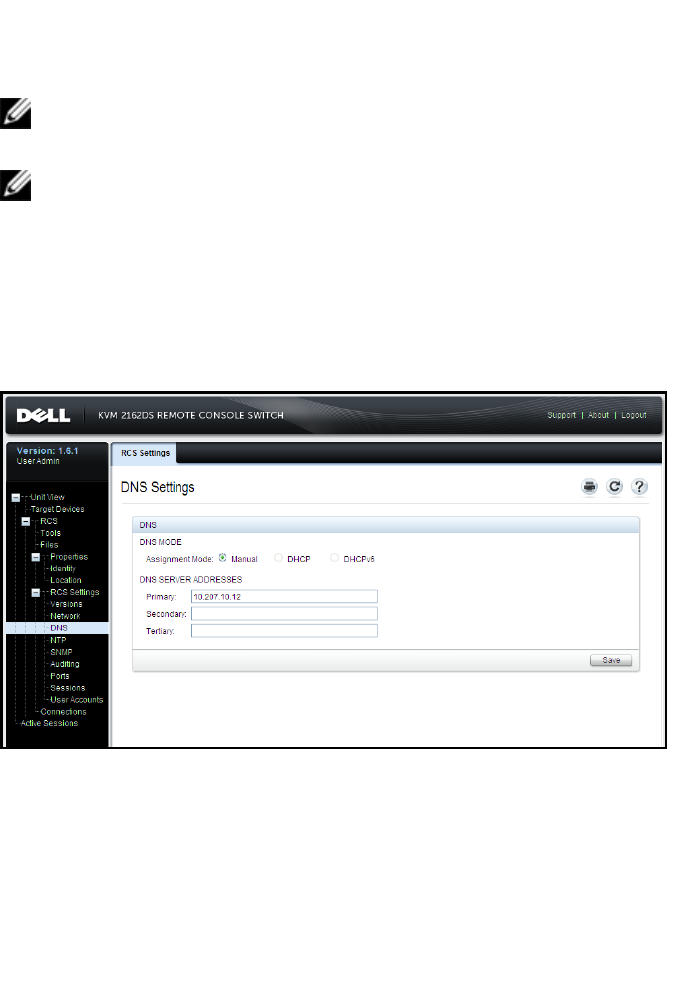
LDAP Feature for the RCSxxx |xxx111
The Network sub-category allows the entry and maintenance of up to three DNS
Servers. These DNS servers are used to resolve DNS names provided on the
LDAP authentication panel.
NOTE: At least one DNS server must be configured for the LDAP feature to
work. Whenever a primary server is unavailable, the RCS software will
automatically failover to backup DNS servers, as identified here.
NOTE: You can also set DNS server addresses using the RCS’s serial
administrative interface. For information about using the serial administrative
interface, please consult your RCS documentation.
To configure the DNS settings in the on-board web interface:
1Click DNS to open the DNS Settings screen.
2Specify the DNS mode, enter the Server addresses, and click Save.
Figure 5.1: OBWI - DNS Settings

112xxx |LDAP Feature for the RCSxxx
Configuring the Network Time Protocol
(NTP) Settings
The switch must have access to the current time to verify that certificates have
not expired. You can configure the switch to request time updates from the
NTP. To configure NTP settings in the on-board web interface:
1Click NTP to open the NTP screen.
2Click the Enable NTP box.
3Enter the name of your network time source in the provided boxes. You
may also set an hour interval to specify how often to request time updates.
If the interval is set to 0, requests will only be made during RCS startup or
when changes to the Global - NTP menu are made.
4Click Save.
Configuring the LDAP Authentication
Parameters
The Authentication panel allows RCS Administrators to configure the
parameters required to access LDAP Directory Services. When access requests
are received from users, the RCS can use LDAP protocols to send the username,
password, and other information to the Directory Service in determining what
authorization permissions the user has.
NOTE: The terms for establishing LDAP configuration are, KVM User, KVM
User Admin, and KVMAppliance Admin, They are equivalent to User, User
Administrator and RCS Administrator, respectively. The access levels have
not changed, but use the new terms as directed.
Enabling LDAP Authentication
The Operational Modes section on the LDAP Configuration Options screen
allows you to choose the appropriate type of LDAP services to use for user
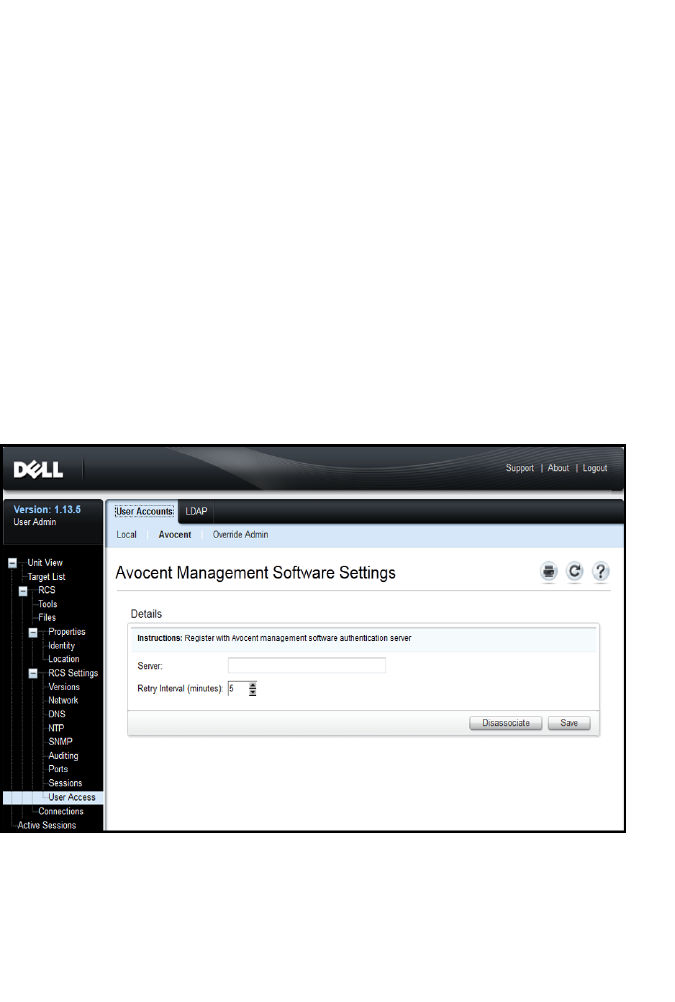
LDAP Feature for the RCSxxx |xxx113
authentication. The available modes are:
• Standard LDAPdirectory services (non-Microsoft)
• Microsoft Active Directory services
• Disable LDAP authentication
If an alternate (non-LDAP) authentication method has already been selected for
use, then LDAP authentication will automatically be disabled. It will be
necessary to deselect this method to use LDAP Directory Services.
To restore the ability to use LDAP authentication:
1Under User Access, select the Avocent tab, see Figure 5.2.
2Click Disassociate to deselect the use of the Avocent management
authentication server.
3Click Save.
Figure 5.2: The Avocent Authentication Screen
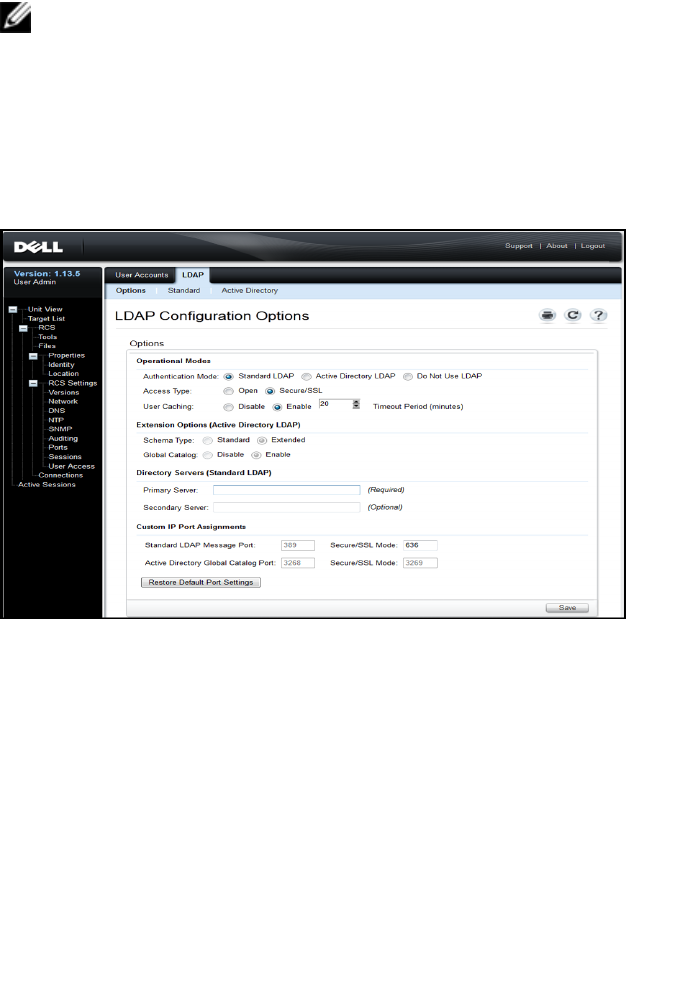
114xxx |LDAP Feature for the RCSxxx
NOTE: It is possible to externally sever the Avocent authentication
association without performing these steps. Nonetheless, if an Avocent server
association has been created for user authentication, it must be expressly
removed via this procedure to permit LDAP authentication configuration to
proceed.
To enable LDAP Authentication:
1Under User Access, select the LDAP tab, see Figure 5.3.
Figure 5.3: The LDAP Configuration Options Screen
2Select one of the available LDAP Authentication modes in the Operational
Modes section.
3Configuration options must be set to fully enable LDAP Authentication for
use. Each of the options are detailed in this chapter.
4Click Save.
To disable LDAP authentication, select the Do Not Use LDAP option, and
click Save. All other options on the screen will be disabled; no editing of these

LDAP Feature for the RCSxxx |xxx115
other fields will be permitted. In addition, the additional configuration screens
under both the Standard and Active Directory tabs will also be disabled.
When LDAP Authentication is disabled, User Access will be adjudicated by
either locally-defined user access lists or Avocent management software (see the
section on User Access).
When LDAP Authentication is enabled, locally-defined user access lists take
precedence over requests to LDAP Directory Servers. User access requests with
first check for RCS-defined users. If no match is found, then requests will be
sent to LDAP Directory Servers, as configured.
Entering Authentication Parameters - Operational Modes
Access type
LDAP Directory Servers may be setup to operate either in Open or Secure mode
(using SSL - Secure Socket Layer encryption). The mode selected must match
that of the host directory server. When selecting Secure/SSL mode, please also
see the section entitled LDAP SSL Certificates for guidance on meeting the
requirements for encrypted operations.
User caching
Whenever a successful user authentication is completed via LDAP, the RCS has
the ability to retain the results obtained from the LDAP Directory Server for a
selected period of time. If, during that time window, another access request is
generated that normally would result in a repeat request of the Directory Server,
such requests are handled locally on board the RCS. This results in a near
instantaneous response that will allow the user to continue working with
minimal delays.
The three settings for this configuration option are disable, enable, and timeout
period.

116xxx |LDAP Feature for the RCSxxx
Disable - do not permit user caching, and always ask the LDAP Directory Server
for guidance on the authentication status for every user, every time it is
required. By default, User Caching is disabled.
Enable - hold results of recent user authorization requests as determined by the
LDAP Directory Server. When identical authorization requests are received
within a pre-determined time period, use those prior results to service the new
request.
Timeout Period - establishes the duration of the time window. Values are
recorded as minutes. Enter only the number in the box, or use the arrow
controls.
• Default timeout value: 15 minutes
• Minimum timeout: 1 minute
• Maximum timeout: 1,000 minutes
NOTE: As with all configuration updates, you must click the Save to secure
your changes. LDAP configuration changes are generally available to the
RCS immediately, with no reboot required.
Entering Extension Options - Active Directory LDAP
When Active Directory mode is selected, administrators must determine if the
Standard or Extended Schema will be employed. Additionally, administrators
should declare whether the Microsoft Global Catalog option will be in use.
Entering Authentication Parameters - Standard LDAP
When using standard LDAP (not Microsoft Active Directory LDAP), direct
entry of at least one relevant directory server address is required. Enter the
addresses in the Primary Server and Secondary Server fields. The primary server
entry is required.
Server addresses may be entered in one of the following forms:
• DNS address (example: myldapserver.com)
• IPv4 address (example: 10.20.255.255)

LDAP Feature for the RCSxxx |xxx117
• IPv6 address (example: fe80::200:f8af:fe20:76ce )
Entering Authentication Parameters - Custom IP Port Assignments
This section permits changes to the industry-standard IP Port numbers
conventionally used for LDAP. In most instances, there should be no need to
change these values. However, if the administrator of the LDAP Directory Server
you are using requires different port assignments, then those may be entered
here.
Depending on the exact configuration, LDAP can make use up to four different
IP Ports, and as many as two as a time. Slots for each of these four are shown in
the LDAPConfiguration Options screen. Settings elsewhere on the same screen
will be used to identify the ports that can be altered. The following chart defines
conditions in which the available port slots are enabled and allowed to be edited.
List of Port Slots that are
enabled and may be
customized
Open Mode Secure/SSLMode
Not using Global
Catalog
Standard
LDAPMessage Port
Standard LDAP
Message Port -
Secure/SSL Mode
Using Global Catalog
Standard
LDAPMessage Port and
Active Directory Global
Catalog Port
Standard LDAP
Message Port -
Secure/SSLMode and
Active Directory Global
Catalog Port -
Secure/SSL Mode
Table 5.1: Editing IP Port Assignments
If at any time, the original industry-standard IP Port designations need to be
restored, click on the 'Restore Default Port Settings' button. All four Port values
will be returned to their original values, which are:
Standard LDAP Message Port - 389
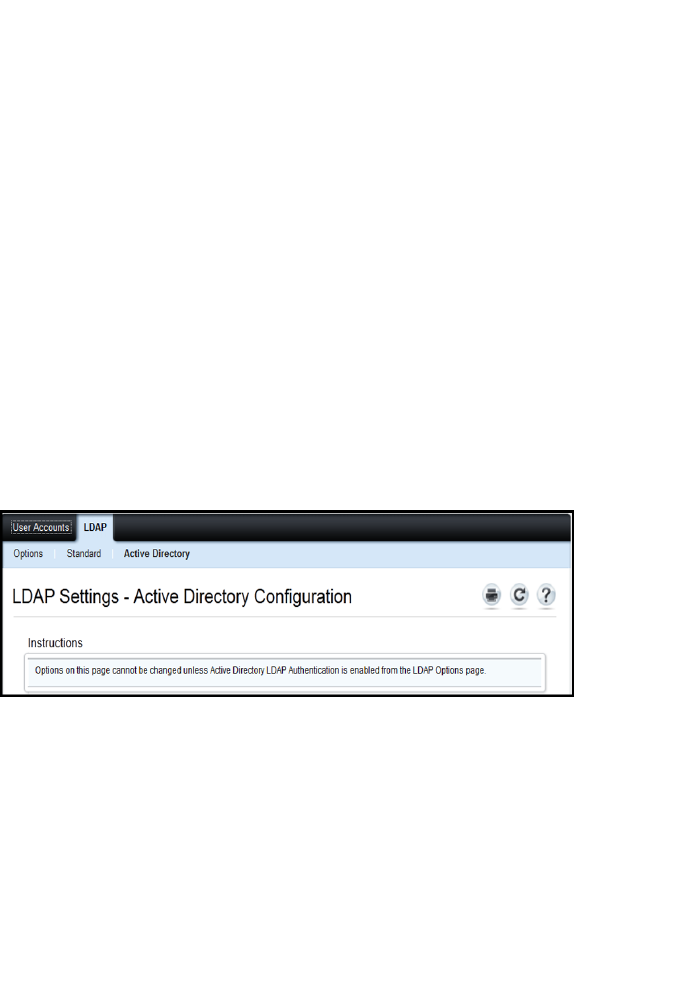
118xxx |LDAP Feature for the RCSxxx
Standard LDAP Message Port via SSL - 636
Active Directory via Global Catalog server - 3268
Active Directory via Global Catalog server/SSL - 3269
IP Port numbers are permitted to range from 1 to 65535. Failure to match up
port numbers with those in use by the LDAP Directory Server will result in a
failure to establish communications with that server.
Completing LDAP Configuration
For both Standard and Active Directory LDAP modes, additional parameters are
required to insure proper connectivity to the LDAP Directory Servers. These
parameters are discussed in the following sections. However, you should be aware
that there are 'interlocks' established in the OBWI pages to assist the
administrator by insuring that parameter updates are made on the appropriate
page.
For example, if you were to select the Active Directory LDAP tab, you might
see the following display on your screen see Figure 5.4
Figure 5.4: Notification Message -LDAPMode Not Enabled
When this happens, it is an indication that the Active Directory mode has not
been enabled or it was enabled, but not saved. You should return to the LDAP
Options screen, select Active Directory LDAP, make note of the secondary
parameters for this mode on that page, then click Save before returning to this
screen.
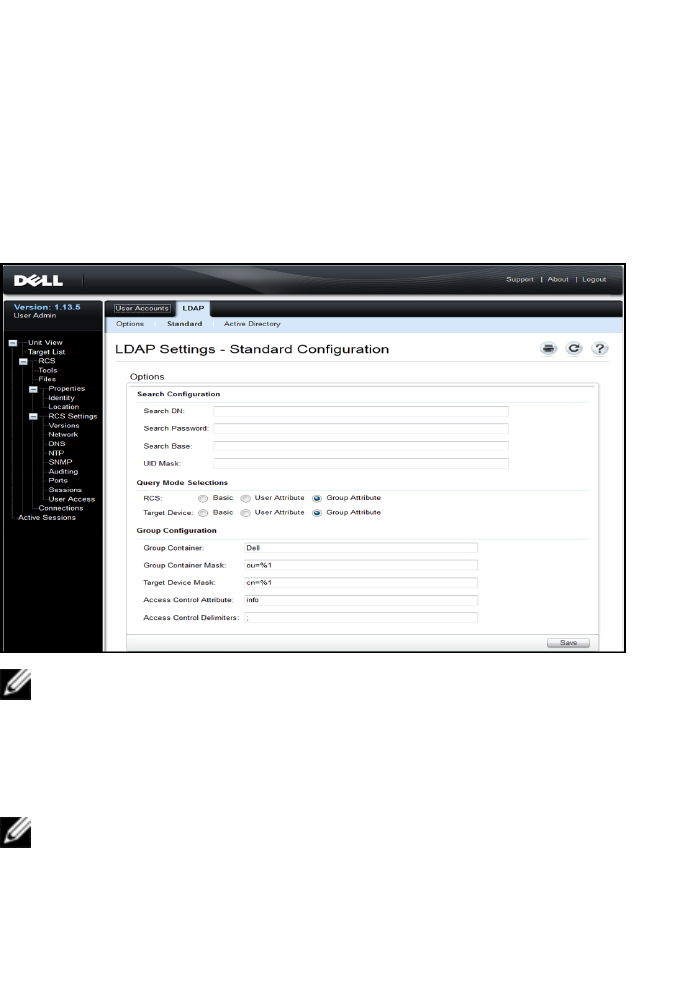
LDAP Feature for the RCSxxx |xxx119
There is an equivalent display for Standard LDAP mode that appears whenever
that mode is not enabled.
Secondary LDAPSettings - Standard Configuration
As with LDAP Active Directory Configurations, Standard LDAP
authentication, search, and query parameters are configured through the remote
OBWI. Settings in this section are accessed from the User Access / LDAP /
Standard tabs via the OBWI window shown here in Figure 5.5
Figure 5.5: Secondary LDAP Settings - Standard Configuration
NOTE: While this section describes the setup parameters for connections
being made to Standard LDAP Directory Servers, please also note that this
section may also be used to establish connections to more generic versions
of Active Directory services as well.
Setting up the RCS for performing Standard LDAP queries
NOTE: Before you can use any of the querying modes with Active Directory,
you must update Active Directory so that the selected querying mode can
assign the applicable authorization level for the user.

120xxx |LDAP Feature for the RCSxxx
To set up group queries:
1Log in to your LDAP Directory Server software with administrator
privileges.
2Create an organizational unit (OU) to be used as group container.
3Create a computer object in with a name identical to the switching system
name for querying appliances or identical to the attached target devices for
querying target devices. The name must match exactly and is case-sensitive.
4The appliance names and target device names used for group queries are
stored in the appliance. The appliance name specified in the Appliance
Overview screen of the remote OBWI and target device names must be
comprised of any combination of upper-case and lower-case letters, digits,
and hyphens, and must match the object names on the LDAP Server.
5Create one or more groups under the group container organizational unit.
6Add the usernames and the target device and appliance objects to the
groups you created in step four (4).
7Specify the value of an attribute used to implement the Access Control
Attribute.
Search Configuration Settings
There are four settings that are required for successful LDAP connections. They
are Search DN, Search Password, Search Base, and UID Mask.
Search DN
Search DN defines the administrator-level user that the target device uses to log
into the directory service. Once the target device is authenticated, the directory
service grants it access to the directory to perform the user authentication
queries specified on the LDAP query page. Each search value must be separated
by a comma. A typical entry might look like this:
cn=Administrator,cn=Users,dc=MyDomainName,dc=com

LDAP Feature for the RCSxxx |xxx121
Search password
Search password is used if a password is required for search options. It
authenticates the administrator or user specified in the Search DN field. Any
printable ASCII characters are allowed.
Search base
Search Base defines a starting point from which all LDAP searches begin. The
default values are dc=yourDomainName and dc=com. Each search component
must be separated by a comma. For example, to define a search base for
test.com, your values are dc=test, dc=com.
UIDmask
UID mask specifies the search criteria for User ID searches of LDAP target
devices. The format is <name>=<%1>. The default value is
sAMAccountName=%1, which corresponds to the default for Microsoft Active
Directory services.
Query Mode Selection Settings
Configure the Query Mode parameters for the appliance and target device. The
appliance is used to authenticate administrators and users attempting to access
the console switch. The target device is used to authenticate users attempting
to access attached target devices.
There are three query modes available. They are basic, user attribute, and group
attribute.
Basic
A username and password query for the user is sent to the directory service.
Once authenticated as a valid user, the user is given access to the appliance and
any attached target devices.
User attribute
A username, password, and Access Control Attribute query for the user is sent to
the directory service. The Access Control Attribute is read from the user object

122xxx |LDAP Feature for the RCSxxx
in Active Directory. If no values are found, the user is given no access to the
appliance or target devices
Group attribute
A username, password, and group query sent to the directory service for an
appliance and attached target devices when using Appliance query mode or for a
selected target device when using Target Device query mode. If a group is found
containing the user and appliance name, the user is given access to either the
appliance or target devices when using Appliance query mode. If a group is
found containing the user and target device IDs, the user is given access to the
selected target device when using Target Device query mode.
NOTE: Depending on the query mode selected, several of the configuration
items on this screen may be enabled or disabled according to their
applicability.
Group Configuration Parameters
There are several group configuration parameters available.
Group container
The group container specifies the OU created in Active Directory by the
administrator as the location for group objects. Group objects can contain users,
computers, contacts, and other groups, each assigned with a certain access level.
Group container mask
The group container mask defines the object type of the Group Container,
normally an OU. The default value is ou=%1.
Target device mask
The target device mask defines a search filter for the target device. The default
value is cn=%1.
Access control attribute
The access control attribute specifies the name of the attribute used when the
query modes are set to User Attribute or Group Attribute. The default attribute

LDAP Feature for the RCSxxx |xxx123
name is "info".
Access control delimiters
The LDAP Standards specify that the semi-colon character (;) is used to
separate multiple properties within a single named attribute. Under normal
circumstances, this need not be changed. For example, suppose we have a dry-
erase-board marker object in the LDAP Directory, and the attribute “Color” is
used to identify colors that this marker might have.
Color: red;blue;green;black;purple
"Color" is the name of the attribute; the rest represents the attribute’s value – in
this case a compound value. With compound values, the semi-colon is the
delimiter used to mark the end of one component and the beginning of the next.
In rare cases, an LDAP Administrator may need the semi-colon to be part of the
value itself. In such instances, the Delimiter character has to be changed to
something else. If so, use this field to specify all of the characters (at least one
character is required; more than one is acceptable) that will identify how the
Access Control Attribute should be divided up. For example, the delimiter field
is set to #$; (three characters)
Color: red#blue$green;black#purple
These delimiters would find the same five value components as in the first
example above. LDAP Administrators should make sure that any Access Control
Delimiter characters defined do not appear as values for any attributes elsewhere
for any purpose other than that of delimiter.
As shown above, the Access Control Attribute (ACA) consists of a combination
of a name and a value. By default, we search LDAP Directory entries that match
up the user and the target device, looking for attributes named ‘info’. When
found, the value of such attributes should tell us the user’s authorization level on
that device. If the LDAP Services Administrator wishes to use an attribute
other than info, it may be customized via the field indicated above.
Because users may be members of several groups, and each group may have
differing authorization levels to different devices, a running tally is kept of the
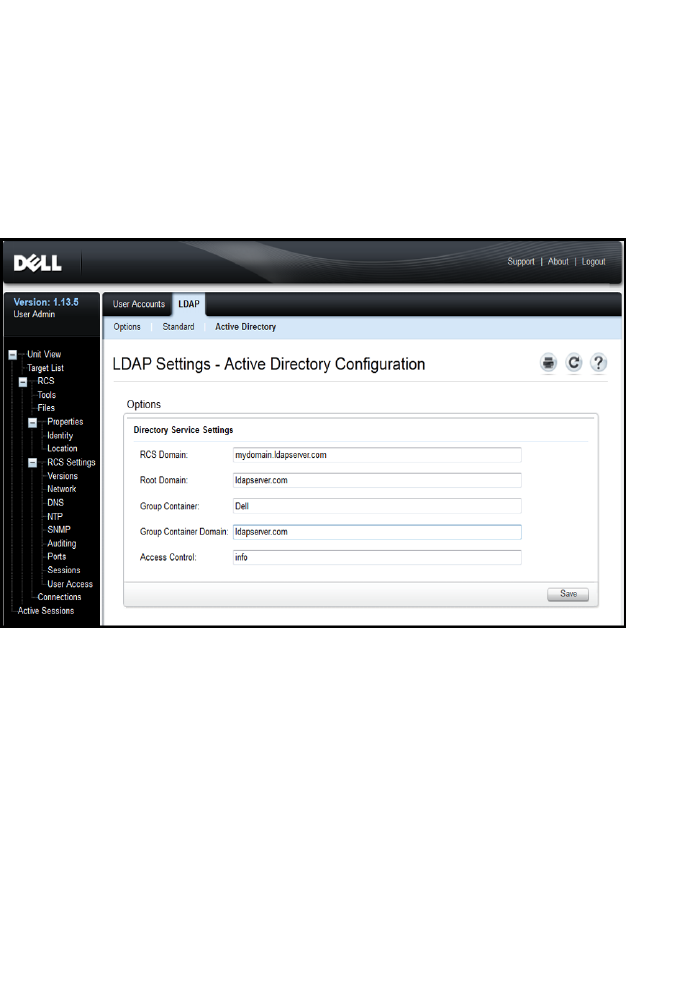
124xxx |LDAP Feature for the RCSxxx
results. By LDAP standards, the final authorization level reported is the highest
(most permissive) level found among all positive results found for the specific
user and device under scrutiny.
Secondary LDAP Settings - Active Directory Configuration
Settings in this section are accessed from the User Access / LDAP / Active
Directory tabs via the OBWI window shown here in Figure 5.6.
Figure 5.6: Secondary LDAP Settings - Active Directory Configuration
If you plan to install the Dell Extended Schema, enter only the RCS and Root
Domains that will be used.
If you elect not to use the Dell Extended Schema, the RCSs and access
controlled SIPs in your installation will be configured as Computer Objects
within Active Directory. To do this, you will first need to configure an
Organizational Unit to hold group objects that relate users to access controlled
RCSs and their attached SIPs. This can be a previously created OU, or one
created specifically for this purpose but it must be unique among all OU objects
in the Group Container domain.
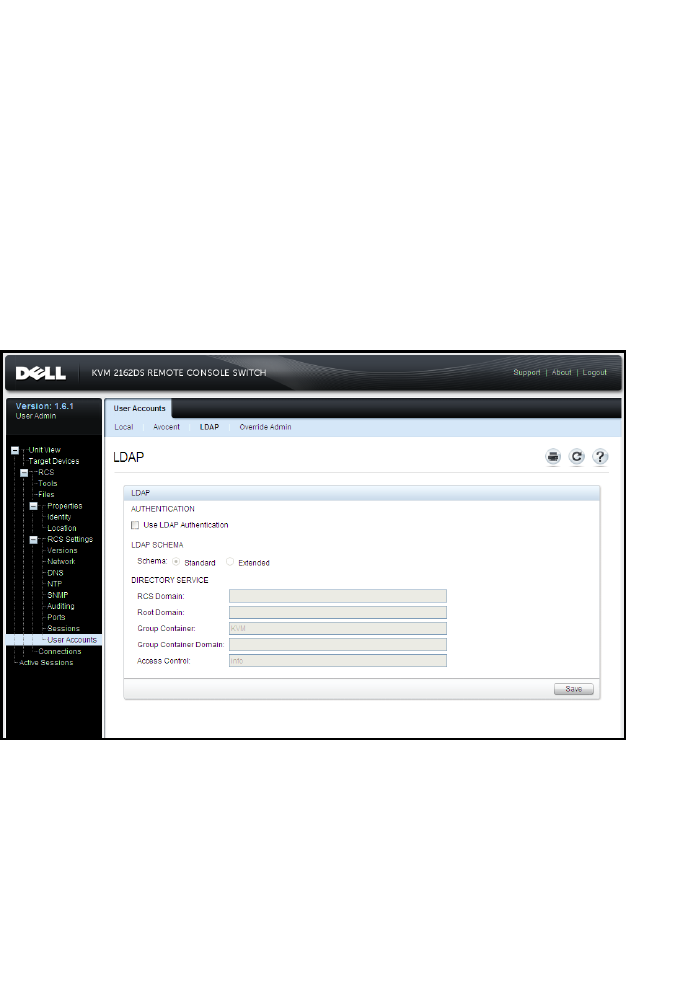
LDAP Feature for the RCSxxx |xxx125
Next, choose an attribute within the LDAP directory to be used to contain
discretionary access control information. This should be a previously unused
attribute that is capable of storing a string value. (The default is the “info”
attribute of the Group Object.)
Finally, you will need to enter the location for the Group Container, the Group
Container Domain and the Access Control Attribute in the blanks provided in
the Global - Authentication window.
For more detailed descriptions of the Authentication panel fields, see Table 5.2.
To access the Authentication panel in the OBWI:
Click User Accounts, then click LDAP.
Figure 5.7: OBWI - Authentication Panel Local/LDAP and Parameters
Table 5.2: Authentication Panel Field Descriptions

126xxx |LDAP Feature for the RCSxxx
Field Description
Authentication
Settings
Users can choose to use LDAP authentication by clicking the
box shown.
The user may still log in with the Override admin account if the
LDAP servers are inaccessible.
Schema
Radio Button to indicate which Active Directory (AD) object
classes are used to store information related to authorization.
For the default Standard schema, Microsoft Active Directory
objects are used. When using the Extended schema, the extra
Dell object classes are added.
RCS Domain
The RCS Domain field contains the name of the Active
Directory Domain chosen to hold all objects that represent
RCSs and SIPs.
Root Domain The uppermost domain within the Active Directory Forest.
Group
Container
(Standard
schema set
only)
This field, available when the standard schema is selected,
contains part of the Distinguished Name of an Organizational
Unit (OU) object in Active Directory. The OU is used to hold
group objects that relate users to access controlled Remote
Console Switches and their attached SIPs.
For example, suppose the Distinguished Name of the chosen
OU is: ou=KVM-AccessControls,dc=MyCom,dc=com. In this
case, the Group Container field should be set to “KVM-
AccessControls.” The name entered into the Group Container
field must be unique among all OU objects in the Group
Container domain. You may choose to use a previously
created OU for the Group Container, or create one specifically
for this purpose.
The default Group Container is KVM.

LDAP Feature for the RCSxxx |xxx127
Field Description
Group
Container
Domain
(Standard
schema set
only)
This field, available when the Standard schema is selected, is
the DNS name of the Active Directory domain where the group
container resides.
Access
Control
Attribute
(Standard
schema set
only)
The value of this field specifies which attribute in the LDAP
directory is to be used to contain discretionary access control
information and is only enabled when Standard Schema is
selected.
The Access Control Attribute is chosen from among the
attributes in the LDAP directory object representing the group
whose membership includes both the user and the RCS or
attached computer that you are trying to access.
When using the Standard schema, it is necessary for Group
objects in the Group Container to have an attribute that is
chosen to contain the permission level associated with the
Group. The Access Control Attribute field, available when the
Standard schema is selected, contains the name of the
chosen attribute. The chosen attribute must be capable of
storing a character string value; for example, the default
attribute is “info” which is an attribute accessible via the Active
Directory Users and Computers (ADUC) snap-in. Using
ADUC, the value of the info attribute is set by accessing the
“Notes” property of the Group object.
LDAP SSL Certificates
All LDAP protocol exchanges (between an RCS and Active Directory servers)
are secured by SSL. When the LDAP protocol is being protected by SSL, it is

128xxx |LDAP Feature for the RCSxxx
referred to as LDAPS (Lightweight Directory Access Protocol over SSL). Each
LDAPS connection begins with a protocol handshake that triggers a security
certificate transmission from the responding Active Directory server to the RCS.
Once received, the RCS is responsible for verifying the certificate. In order to
verify the certificate, the RCS must be configured with a copy of the root
Certification Authority's (CA) certificate. Before this can be done, the
certificate must first be generated.
Enabling SSL on a Domain Controller
If you plan to use Microsoft Enterprise Root CA to automatically assign all your
domain controllers SSL certificate, you must perform the following steps to
enable SSL on each domain controller if you have not previously done so.
1Install a Microsoft Enterprise Root CA on a Domain Controller.
a. Select Start - Control Panel - Add or Remove Programs.
b. Select Add/Remove Windows Components.
c. In the Windows Components Wizard, select the Certificate Services
checkbox.
d. Select Enterprise root CA as CA Type and click Next.
e. Enter Common name for this CA, click Next, and click Finish.
2Enable SSL on each of your domain controllers by installing the SSL
certificate for each controller.
a. Click Start - Administrative Tools - Domain Security Policy.
b. Expand the Public Key Policies folder, right-click Automatic Certificate
Request Settings and click Automatic Certificate Request.
c. In the Automatic Certificate Request Setup Wizard, click Next and
select Domain Controller.
3Click Next and click Finish.
A certificate/private key file can be created using openssl using Linux. Openssl
can be downloaded from openssl.org. Any instructions below with text in <> is

LDAP Feature for the RCSxxx |xxx129
where a user would need to set a value based on the criteria at the end of that
line.
NOTE: Any instructions below with text in <anglebrackets> is where a user
would need to set a value based on the criteria at the end of that line.
To create a certificate to import:
1From the Linux command prompt, type openssl and press <Enter>. The
user should be at the OpenSSL prompt.
OpenSSL> genrsa -out privatekey.pem <512>
Generating RSA private key, 512 bit long modulus
..........++++++++++++
.....++++++++++++
e is 65537 (0x10001)
OpenSSL> req -new -key privatekey.pem -x509 -out certificate.pem-
batch-days <365>
2Enter the information that will be incorporated into your certificate request
in the Distinguished Name or DN. There may be a default value for some
fields. If you wish, you may type '.' to leave a field blank.
-----
Country Name (2 letter code) [GB]:<US>
State or Province Name (full name) [Berkshire]:<Texas>
Locality Name (eg, city) [Newbury]:<Austin>
Organization Name (eg, company) [My Company Ltd]:<Dell, Inc.>
Organizational Unit Name (eg, section) []:<Round Rock>
Common Name (eg, your name or your server's hostname) []:<RCS
DNS Name or IP>
Email Address []:<support@dell.com>
OpenSSL> quit

130xxx |LDAP Feature for the RCSxxx
3From the Linux command prompt, type cat certificate.pem privatekey.pem
> webserver.pem, then convert the file from UNIX linefeed to DOS carriage
return/linefeed by typing unix2dos webserver.pem.
To export the CA certificate:
1Within the Windows operating system, to open the Certificate Authority
management tool, click Start - All Programs - Administrative Tools -
Certificate Authority.
2You may view properties of the certificate authority by right clicking on the
authority in the tree view and selecting Properties. The CA Properties
dialog box will open.
3Click the General tab and the View Certificate button to open the
Certificate dialog box.
4Click the Details tab then the Copy To File button. The Certificate Export
Wizard will open.
5Click Next to begin using the wizard.
6On the Export File Format screen select the Base-64 encoded X.509
(.CER) radio button and press the Next button.
7On the File To Export screen enter or browse to a filename and path for the
exported certificate. Press the Next button.
8Press the Finish button.
The resulting certificate file is properly formatted and readable by OpenSSL.
In general, it will be necessary to upload the CA certificate only once; however,
it will have to be uploaded again if the certificate is revoked, if it expires, or if
“Restore Factory Defaults” is selected from the serial console menu.
NOTE: The instructions above are written for a Microsoft Root CA certificate.
For other CAs, please check with the CA vendor.
NOTE: The Network Time Protocol (NTP) must be enabled for LDAPS to
function.
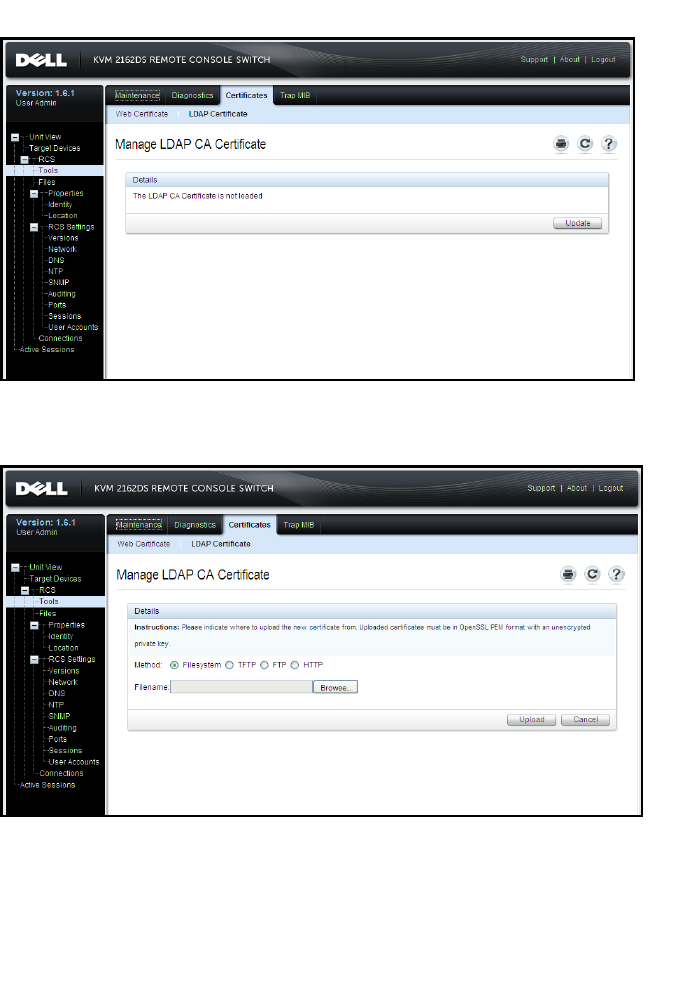
LDAP Feature for the RCSxxx |xxx131
Figure 5.8: OBWI - LDAP Certificate
After clicking Update, the following window displays.
Figure 5.9: OBWI - Update LDAP Certificate
You can browse to a certificate and open it. Once the certificate is open and its
contents are displayed, the user can then send the certificate to the RCS.
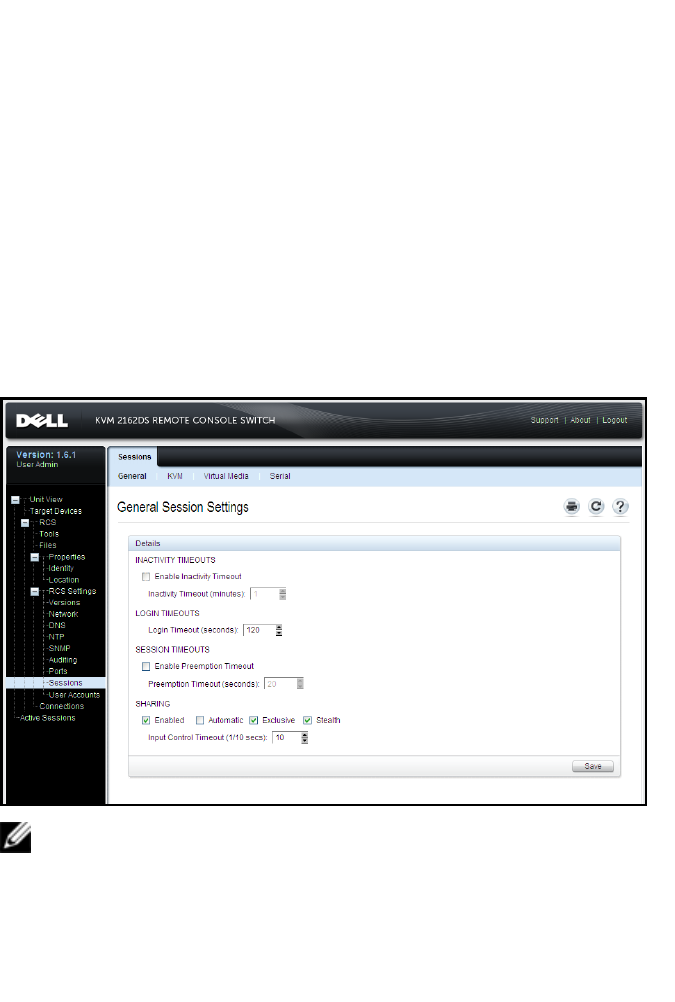
132xxx |LDAP Feature for the RCSxxx
Login Timeout
In cases where there is a large enough directory tree to cause LDAP
authentication to perform slowly, the Sessions window includes a Login
Timeout function with a default timeout of 30 seconds. The login timeout is
the time from which the user presses the OK button on the Login dialog box
until there is no response from the RCS. The RCS will also use this value to
determine the timeout on a LDAP request for authentication.
To specify the login timeout in the on-board web interface:
1Click Sessions to open the General Session Settings screen.
2Specify the number of seconds in the Login Timeout menu.
3Click Save.
Figure 5.10: OBWI - Login Timeout
NOTE: The Login Timeout is distinct from the User Login Caching feature.
The latter works after a login is completed by caching authorization results for
a period of time, eliminating repeated LDAP communications requests.

LDAP Feature for the RCSxxx |xxx133
CA Certificate Information Display
The RCS can only display complete CA Certificate Information in this window
when the public key length is less than or equal to 2048 bits. When the key is
greater than 2048 bits, the subject, issuer, and validity period data in this
window will be incomplete.1
The following display is an example of the CA certificate information:
1From the Client, download CA certificate into the RCS.
2From the serial console Main Menu, type option 8 to display the LDAP CA
Certificate.
The RCS will display the following types of information:
Begin CA certificate information display
subject= /DC=msft/DC=ldaptest/CN=MyCertificate
issuer= /DC=msft/DC=ldaptest/CN=MyCertificate
notBefore=Dec 7 20:09:56 2005 GMT
notAfter=Dec 7 20:18:34 2010 GMT
serial=7BA146C0221A08B447B989292074329F
MD5 Fingerprint=
CB:6D:70:30:31:E5:1B:C0:90:BB:DB:32:B2:C9:D1:5A
End CA certificate information display
Perform the steps in the following instructions for enabling the installation of
RCS software on Microsoft Windows Server 2003 platforms:
1Select the Start menu.
2Right-click on My Computer and select Properties.
3Select the Advanced tab.
4Click the Performance Settings button.
5Select the Data Execution Prevention tab.

134xxx |LDAP Feature for the RCSxxx
6Select the radio button for Turn on DEP for essential Windows programs
and services only
7Click OK.
8Click OK again on the System Properties dialog box.
Configuring Group Objects
Access control is applied to a specific Active Directory user account by
including that user in the membership of a Group in the Group Container. The
Group membership must also contain the objects representing the RCS(s) and
the SIP(s) the user is allowed to access. The level of access granted is
determined by the value of a specific attribute in the Group object (Standard
Schema) or Association Object (Extended Schema). There are three permission
levels available. In increasing order of access they are KVM User, KVM User
Admin, and the most powerful level, KVM Appliance Admin.
NOTE: If the KVM User access level is not being used, SIP objects will not
need configuration as both administrator permissions have access to all SIPs
by default.

LDAP Feature for the RCSxxx |xxx135
Operation KVM Appliance
Admin KVM User Admin KVM User
Preemption
Allowed to
preempt another
KVM Appliance
Admin or a KVM
User Admin.
Permission must
be configured for
each target device
by including the
TD in the
appropriate Group
object in the
Directory.
Allowed to
preempt another
User Admin.
Permission must
be configured for
each target device
by including the
target device in the
appropriate Group
object in the
Directory.
No
Configure
network
parameters
and global
settings
Yes – Permission
must be
configured for
each RCS by
including the RCS
in the appropriate
Group object in the
Directory.
No No
Restart
Yes – Permission
must be
configured for
each RCS by
including the RCS
in the appropriate
Group object in the
Directory.
No No

136xxx |LDAP Feature for the RCSxxx
Operation KVM Appliance
Admin KVM User Admin KVM User
FLASH
Upgrade
Yes – Permission
must be
configured for
each RCS by
including the RCS
in the appropriate
Group object in the
Directory.
No No
Administer
user
accounts
Yes – Permission
must be
configured for
each RCS by
including the RCS
in the appropriate
Group object in the
Directory.
Yes – Permission
must be
configured for
each RCS by
including the RCS
in the appropriate
Group object in the
Directory.
No
Configure
port settings
Yes – Permission
must be
configured for
each RCS by
including the RCS
in the appropriate
Group object in the
Directory.
No No

LDAP Feature for the RCSxxx |xxx137
Operation KVM Appliance
Admin KVM User Admin KVM User
Target
Device
Access
Yes – Permission
must be
configured for
each RCS by
including the RCS
in the appropriate
Group object in the
Directory.
Yes – Permission
must be
configured for
each RCS by
including the RCS
in the appropriate
Group object in the
Directory.
Yes, if
configured by
Administrator.
Permission
must be
configured for
each target
device by
including the
TD in the
appropriate
Group object
in the
Directory.
Table 5.3: Allowed Operations by Access Level
An AD user account must be configured to receive RCS Administrator (KVM
Appliance Admin)permission before that account will be allowed to modify any
of the fields in the Authentication Panel. In particular, only an RCS
Administrator is allowed to modify the Authentication Settings.
Active Directory Object Overview for Standard Schema
For each of the physical RCSs on the network that you want to integrate with
Active Directory for Authentication and Authorization, you must create at least
one Computer Object to represent it. You will also need to create a computer
object for each SIP attached to the RCS that will be controlled using the KVM
User privilege level. Computer objects representing SIPs are not required for the
Administrator level groups. Users in the KVM User Group will only have access
to SIPs that are also in the KVM User Group. Users with Administrator
privileges will have access to all SIPs by default.
To set up the Group Objects for an RCS:

138xxx |LDAP Feature for the RCSxxx
1If you have not already, create the Organizational Unit that will contain the
Group Objects related to your switch installation.
2Within this Organizational Unit, create three group objects to represent
user privilege levels. One for KVM Appliance Administrators, KVM User
Administrators and KVM Users, respectively.
3Using the MSADUC tool, open the KVM Appliance Administrator Group
Object and select the Notes property. Type the access level ("KVM
Appliance Admin") for that group in the Notes field and save. Repeat this
step for the other two Group Objects using their respective names.
NOTE: The single syntax for all access control attribute values is:
"[<arbitrary text string> <delimiter>] < privilege level>
[<delimiter> <arbitrary text string>]"
Where: <privilege level> := "KVM User" or "KVM User Admin" or
"KVM Appliance Admin"
<delimiter> ::= one or more of any of the following: <newline> or
<c/r> or <comma> or <semicolon> or <tab>
<arbitrary text string> is any string of alphanumeric characters and
may be the null (i.e., empty) string.
Square brackets indicate optional items; for example, the following
template indicates an optional string and delimiter followed by a
required privilege level: "[<arbitrary text string> <delimiter>] <
privilege level1>".
4Create a computer object to represent the RCS.
5Create a computer object for each SIP attached to a server to be access
restricted at the KVM User privilege level.
6Add the computer object that represents the switch to the appropriate
group objects.
7Add user objects to the appropriate group object for their access level.
8Add the computer objects for the access controlled SIPs to the KVM User
Group.

LDAP Feature for the RCSxxx |xxx139
Dell Extended Schema Active Directory Object Overview
For each of the physical RCSs on the network that you want to integrate with
Active Directory for Authentication and Authorization, you must create at least
one RCS Device Object to represent the physical switch and one Association
Object. The Association object is used to link together the users or groups with
a specific set of privileges to one or more SIPs. This model provides an
Administrator maximum flexibility over the different combinations of users,
RCS privileges, and SIPs on the Remote Console Switch without adding too
much complexity
The RCS Device Object is the link to the RCS for querying Active Directory for
authentication and authorization. When a RCS is added to the network, the
Administrator must configure the RCS and its device object with its Active
Directory name so that users can perform authentication and authorization with
Active Directory. The Administrator will also need to add the Remote Console
Switch to at least one Association Object in order for users to authenticate.
You can create as many Association Objects as you want, and each Association
Object can be linked to as many users, groups of users, or RCS Device Objects
as desired. The users and RCS Device Objects can be members of any domain
in the enterprise.
However, each Association Object may be linked (or, may link users, groups of
users, or RCS Device Objects) to only one Privilege Object. A Privilege Object
allows an Administrator to control which users have what kind of privileges on
specific SIPs.
The following figure illustrates that the Association Object provides the
connection that is needed for all of the Authentication and Authorization.
Figure 5.11: Typical Setup for Active Directory Objects
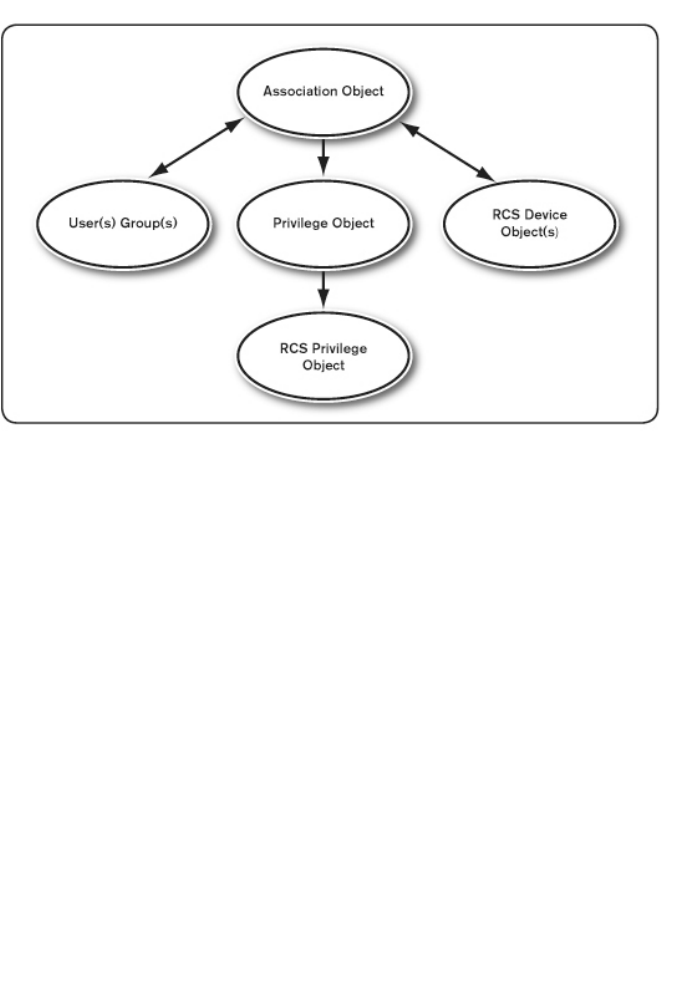
140xxx |LDAP Feature for the RCSxxx
You can create as many or as few association objects as you want or need.
However, you must create at least one Association Object, and you must have
one RCS Device Object for each RCS on the network that you want to
integrate with Active Directory for Authentication and Authorization. The
Association Object allows for as many or as few users and/or groups as well as
RCS Device Objects. However, the Association Object only has one Privilege
Object per Association Object. The Association Object connects the users who
have privileges on the RCSs.
In addition, you can set up Active Directory objects in a single domain or in
multiple domains. For example, you have two RCSs (RCS1 and RCS2) and
three existing Active Directory users (User1, User2, and User3). You want to
give User1 and User2 an Administrator privilege to both RCSs and give User3 a
login privilege to the RCS2.
The following figure illustrates how to set up the Active Directory objects in
this scenario.
Figure 5.12: Setting Up Active Directory Objects in a Single Domain
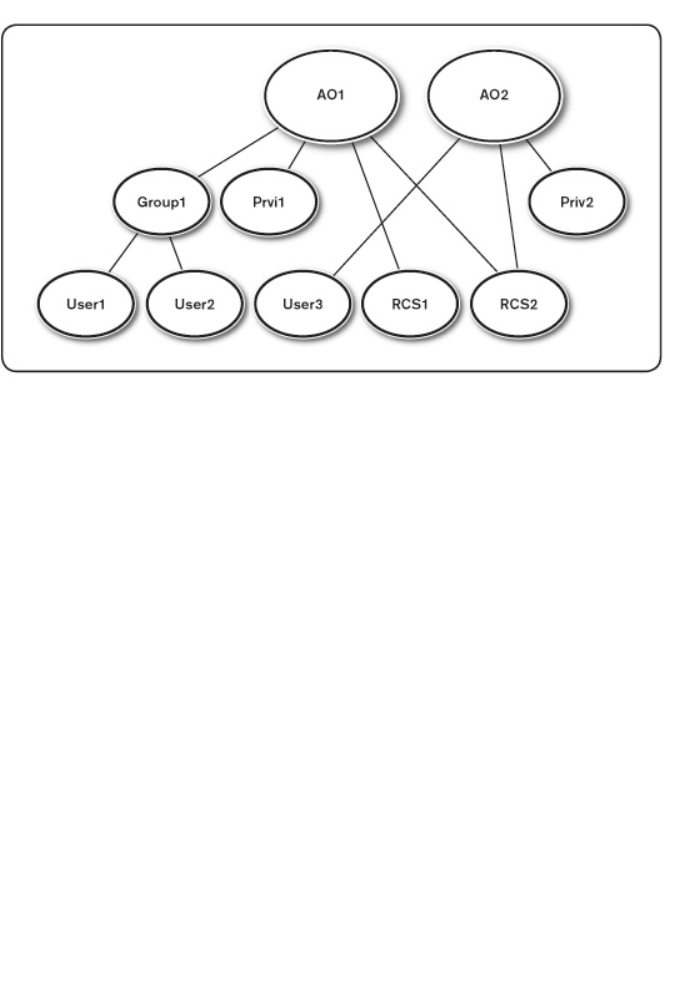
LDAP Feature for the RCSxxx |xxx141
To set up the objects for the single domain scenario, perform the following
tasks:
1Create two Association Objects.
2Create two RCS Device Objects, RCS1 and RCS2, to represent the two
RCSs.
3Create two Privilege Objects, Priv1 and Priv2, in which Priv1 has all
privileges (Administrator) and Priv2 has login privileges.
4Group User1 and User2 into Group1.
5Add Group1 as Members in Association Object 1 (AO1), Priv1 as Privilege
Objects in AO1, and RCS1 and RCS2 as RCS Devices in AO1.
6Add User3 as Members in Association Object 2 (AO2), Priv2 as Privilege
Objects in AO2, and RCS2 as RCS Devices in AO2.
See “Adding RCS Users and Privileges to Active Directory with Dell Schema
Extensions” for detailed instructions.
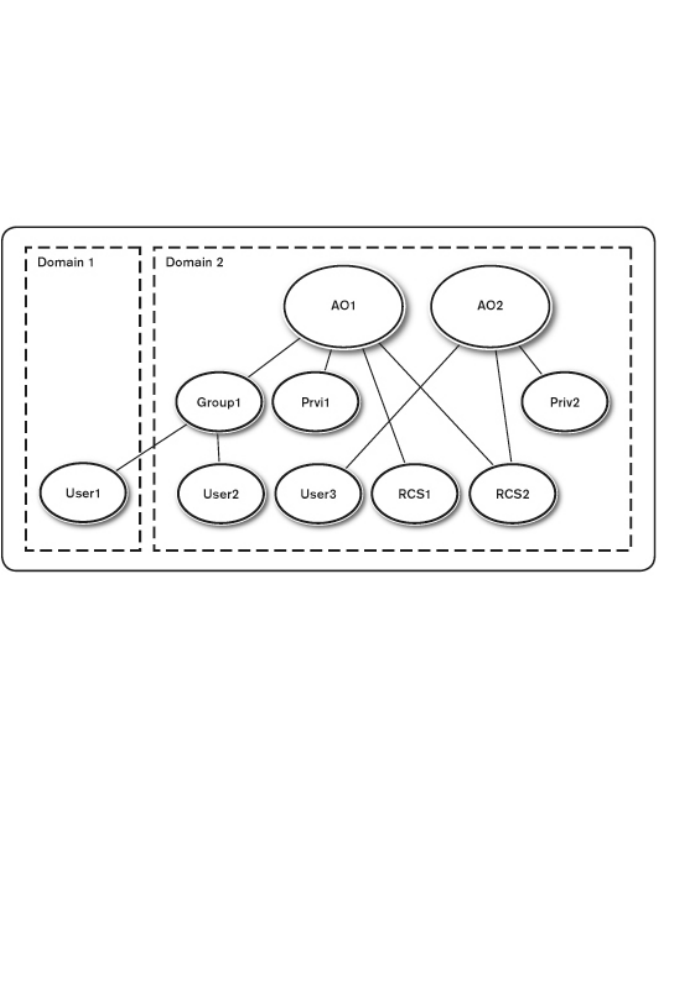
142xxx |LDAP Feature for the RCSxxx
The following figure illustrates how you can set up the Active Directory Objects
in multiple domains. In this scenario, you have two RCSs (RCS1 and RCS2)
and three existing Active Directory users (User1, User2, and User3).
User1 is in Domain1, and User2 and User3 are in Domain2. You want to give
User1 and User2 an administrator privilege to both RCSs and give User3 a login
privilege to the RCS2.
Figure 5.13: Setting Up Active Directory Objects in Multiple Domains
To set up the objects for the multiple domain scenario, perform the following
tasks:
1Ensure that the domain forest function is in Native or Windows 2003
mode.
2Create two Association Objects, AO1 (of Universal scope) and AO2, in any
domain. The figure shows the objects in Domain2.
3Create two RCS Device Objects, RCS1 and RCS2, to represent the two
RCSs.

LDAP Feature for the RCSxxx |xxx143
4Create two Privilege Objects, Priv1 and Priv2, in which Priv1 has all
privileges (Administrator) and Priv2 has login privileges.
5Group User1 and User2 into Group1. The group scope of Group1 must be
Universal.
6Add Group1 as Members in Association Object 1 (AO1), Priv1 as Privilege
Objects in AO1, and RCS1, RCS2 as RCS Devices in AO1.
7Add User3 as a Member in Association Object 2 (AO2), Priv2 as Privilege
Objects in AO2, and RCS2 as RCS Devices in AO2.
Configuring Active Directory with Dell
Schema Extensions to Access Your RCS
Before you can use Active Directory to access your RCS, you must configure the
Active Directory software and the Remote Console Switch by performing the
following steps in their numbered order:
1Extend the Active Directory schema.
2Extend the Active Directory Users and Computers Snap-in.
3Add RCS users and their privileges to Active Directory.
Extending the Active Directory Schema (Optional)
Extending your Active Directory schema will add a Dell organizational unit,
schema classes and attributes, and example privileges and association objects to
the Active Directory schema.
NOTE: Before you extend the schema, you must have Schema Admin
privileges on the Schema Master Flexible Single Master Operation (FSMO)
Role Owner of the domain forest.
You can extend your schema using two different methods. You can use the Dell
Schema Extender utility or you can use the LDIF script file.
NOTE: The Dell organizational unit will not be added if you use the LDIF
script file.

144xxx |LDAP Feature for the RCSxxx
The LDIF files and Dell Schema Extender can be obtained at dell.com/support.
To use the LDIF files, see the instructions in the readme that is in the LDIF
files directory. To use the Dell Schema Extender to extend the Active Directory
Schema, perform the steps in “Using the Dell Schema Extender.”
You can copy and run the Schema Extender or LDIF files from any location.
Using the Dell Schema Extender
NOTE: The Dell Schema Extender uses the SchemaExtenderOem.ini file. To
ensure that the Dell Schema Extender utility functions properly, do not modify
the name of this file.
1Click Next on the Welcome screen.
2Read the warning and click Next again.
3Either select Use Current Log In Credentials or enter a user name and
password with schema administrator rights.
4Click Next to run the Dell Schema Extender.
5Click Finish.
Installing the Dell Extension to the Active Directory Users and
Computers Snap-In (Optional)
When you extend the schema in Active Directory, you must also extend the
Active Directory Users and Computers snap-in so that the administrator can
manage RCS devices, Users and User Groups, RCS Associations, and SIP
Privileges. The Dell Extension to the Active Directory User’s and Computers
Snap-In is an option that can be installed when you install your systems
management software using the Dell Systems Management Consoles CD. See
the Dell OpenManage Software Quick Installation Guide for further instructions
on installing systems management software.
NOTE: You must install the Administrator Pack on each system that is
managing the Active Directory RCS Objects. The installation is described in
the following section, “Opening the Active Directory Users and Computers
Snap-In.” If you do not install the Administrator Pack, then you cannot view
the Dell SIP Object in the container.

LDAP Feature for the RCSxxx |xxx145
NOTE: For more information about the Active Directory Users and Computers
snap-in, see your Microsoft documentation.
Opening the Active Directory Users and Computers Snap-In
To open the Active Directory Users and Computers snap-in, perform the
following steps:
If you are on the domain controller, click Start -Admin Tools - Active Directory
Users and Computers
- or -
If you are not on the domain controller, you must have the appropriate
Microsoft Administrator Pack installed on your local system. To install this
Administrator Pack, click Start - Run, type <MMC> and press <Enter>. This
opens the Microsoft Management Console (MMC).
1Click File (or Console on systems running Windows 2000) in the Console 1
window.
2Click Add/Remove Snap-in.
3Select the Active Directory Users and Computers snap-in and click Add
4Click Close and click OK.
Adding Users and Privileges to Active
Directory with Dell Schema Extensions
The Dell-extended Active Directory Users and Computers snap-in allows you to
add RCS users and privileges by creating SIP, Association, and Privilege objects.
To add each type of object, perform the steps in each subsections.
Creating a SIP Object
1In the MMC Console Root window, right-click a container.
2Select New - Dell SIP Object. This opens the New Object window.

146xxx |LDAP Feature for the RCSxxx
3Type a name for the new object. This name must match the RCS name
that you will type in step 4 of "Configuring the Remote Console Switch" on
page 38.
4Select SIP Device Object.
5Click OK.
Creating a Privilege Object
Privilege Objects must be created in the same domain as the Association Object
to which it is associated.
1In the Console Root (MMC) window, right-click a container.
2Select New - Dell SIP Object to open the New Object window.
3Type a name for the new object.
4Select Privilege Object.
5Click OK.
6Right-click the privilege object that you created, and select Properties.
7Click the RCS Privileges tab and select the RCS privileges that you want
the user to have.

LDAP Feature for the RCSxxx |xxx147
Using Dell Association Objects Syntax
Using the Dell Association Objects syntax, object types default to User and
Group in the Dell LDAP Schema. In the Dell Extended Schema, Dell has added
unique Object IDs for four new object classes:
• KVM RCS Objects
• KVM SIP Objects
• Privilege Objects
• Association Objects
Each of these new object classes is defined in terms of various combinations
(hierarchies) of default Active Directory classes, together with Dell unique
attribute types. Each of the Dell unique attribute types is defined in terms of a
default Active Directory attribute syntax.
The default Microsoft Active Directory object classes used include User and
Group. The User class generally denotes Active Directory objects that contain
information about single entities. The Group class represents containers used for
nesting and contain information about collections of objects.
Each KVM RCS Object represents an individual Remote Console Switch within
Active Directory. Since these are single entities, in the LDAP default language
they are User objects rather than Group objects.
Each Privilege Object defines a distinct composite set of privileges. Each set is
treated as a discrete entity, therefore it is a User object rather than a Group
object.
An Association Object contains a collection of information about the privileges
granted to specific user accounts with respect to a specific RCS(s) and/or
specific SIP(s). User accounts in an RCS Object may be specified in terms of
any combination of the following:
• Individual account
• Active Directory security group of user accounts

148xxx |LDAP Feature for the RCSxxx
• Multiple Active Directory security groups of user accounts
Similarly, for the RCSs and/or SIPs in an Association Object and because the
Association Object has the ability to use security groups in the same way, it is
defined as a group object itself.
Creating an Association Object
The Association Object is derived from a Group and must contain a Group
Type. The Association Scope specifies the Security Group Type for the
Association Object. When you create an Association Object, you must choose
the Association Scope that applies to the type of objects you intend to add.
Selecting Universal, for example, means that association objects are only
available when the Active Directory Domain is functioning in Native Mode or
above.
To create an association object:
1In the Console Root (MMC) window, right-click a container.
2Select New - Dell SIP Object to open the New Object window.
3Type a name for the new object.
4Select Association Object.
5Select the scope for the Association Object.
6Click OK.
Adding Objects to an Association Object
By using the Association Object Properties window, you can associate users or
user groups, privilege objects, and SIP devices or SIP device groups.
NOTE: When using Windows 2000 mode or higher, you must use Universal
Groups to span domains with your users or SIP objects.
You can add groups of Users and SIP devices. Creating Dell-related groups is
done the same way you create other groups.
To add users or User Groups:

LDAP Feature for the RCSxxx |xxx149
1Right-click the Association Object and select Properties.
2Select the Users tab and click Add.
3Type the user or User Group name and click OK.
Click the Privilege Object tab to add the privilege object to the association that
defines the user’s or user group’s privileges when authenticating to a SIP device.
NOTE: You can add only one privilege object to an association object.
To add a privilege:
1Select the Privileges Object tab and click Add.
2Type the Privilege Object name and click OK.
Click the Products tab to add one or more SIP devices to the association. The
associated devices specify the SIP devices connected to the network that are
available for the defined users or user groups.
NOTE: You can add multiple SIP devices to an association object.
To add SIP devices or SIP device groups:
1Select the Products tab and click Add.
2Type the SIP device or SIP device group name and click OK.
3In the Properties window, click Apply and then OK.
Console Redirection Access Security
In any RCS installation, any user privilege allows the user to launch the on-board
web interface. The on-board web interface functionality for that user is limited
by the User Privilege level established in the RCS. LDAP with Dell Extended
Schema adds an extra level of security to RCS management by allowing
administrators to limit a user's access to the on-board web interface.
Authorization to use the on-board web interface is defined by whether User
Privilege level is or is not configured in the KVM RCS Privileges tab of the Dell
Privilege Object (DPO). The Console Redirection Access checkbox in the KVM

150xxx |LDAP Feature for the RCSxxx
SIP Privileges tab of the DPO provides the means for a user who cannot view
the on-board web interface to launch Video Viewer sessions to a subset of SIPs
through the RCS Client. This authorization is controlled by a combination of
the configuration parameters set in the DPO and the SIP Objects contained in
the Dell Association Object (DAO).
If you do not wish a user to have authorization to access the on-board web
interface, but you do wish them to be able to launch viewer sessions from the
RCS Client, perform the following steps:
1Create a Dell SIP object for each SIP that the User(s) is (are) allowed to
access.
2Create an Active Directory User account for each of the users to be
controlled.
3Create a DPO. Do not check any of the three boxes on the KVM RCS
Privileges tab. Check the Console Redirection Access box on the KVM SIP
Privileges tab.
NOTE: If you check any of the KVM RCS Privileges checkboxes and you
check the Console Redirection Access box, the normal User Privileges
associated with the privilege level checked in the KVM RCS Privileges box
will take precedence over the Console Redirection Access checkbox, and the
user will still be able to view the AMP.
4Create a DAO.
5Open the properties dialog for the DAO created in step 4.
a. Add all the user accounts created in step 2.
b. Add the DPO created in step 3.
c. Add the SIP objects created in step 1.
Using Active Directory to Log In to the RCS
You can use Active Directory to log in to the RCS through the RCS software or
OBWI.
The login syntax is consistent for all three methods:

LDAP Feature for the RCSxxx |xxx151
<username@domain> or <domain>\<username> or <domain>/<username>
(where username is an ASCII string of 1–256 bytes). No white space and no
special characters (such as \, /, or @) are allowed in either the username or the
domain name.
NOTE: You cannot specify NetBIOS domain names, such as Americas, since
those names cannot be resolved.
NOTE: If a domain name is not included, the local database in the Remote
Console Switch will be used to authenticate the user.
Target Device Naming Requirements for
LDAP Implementation
If you experience the following error:
Login Failure. Reason: Access cannot be granted due to Authentication Server
errors
Please verify that the SIP object was created in the Active Directory and its
name exactly matches the name assigned to that SIP via the OBWI at the
console switch.
The Dell Standard Schema and the Dell Extended Schema use specific object
classes in the Microsoft Windows Active Directory to represent SIPs. The
Microsoft standard naming conventions for these object classes prohibit the use
of special characters or spaces. If you intend to use LDAP in a deployed
environment where target device names in SIPs currently include spaces or
special characters, you will need to rename them without spaces or special
characters.
Renaming a target device in a SIP should be done through the OBWI at the
console switch and then resynchronized through the RCS software. It is
important to note that while the OBWI will allow you to enter spaces into the
names assigned to the SIPs, Active Directory does not. You must name SIP
objects according to the Microsoft Active Directory rules.
152xxx |LDAP Feature for the RCSxxx
Frequently Asked Questions
The following table lists frequently asked questions and answers.
Can I log into the
Remote Console
Switch using Active
Directory across
multiple forests?
The RCS Active Directory query algorithm only
supports a single tree in a single forest.
Does the login to the
Remote Console
Switch using Active
Directory work in mixed
mode (that is, the
domain controllers in
the forest run different
operating systems,
such as Microsoft
Windows NT® 4.0,
Windows 2000, or
Windows Server
2003)?
Yes. In mixed mode, all objects used by the RCS
querying process (among user, SIP Device Object, and
Association Object) have to be in the same domain.
The Dell-extended Active Directory Users and
Computers snap-in checks the mode and limits users
in order to create objects across domains if in mixed
mode.
Does using the RCS
with Active Directory
support multiple
domain environments?
Yes. The domain forest function level must be in Native
mode or Windows 2003 mode. In addition, the groups
among Association Object, Remote Console Switch
user objects, and SIP Device Objects (including
Association Object) must be universal groups.

LDAP Feature for the RCSxxx |xxx153
Can these Dell-
extended objects (Dell
Association Object,
Dell Remote Console
Switch Device, and
Dell Privilege Object)
be in different
domains?
The Association Object and the Privilege Object must
be in the same domain. The Dell-extended Active
Directory Users and Computers snap-in forces you to
create these two objects in the same domain. Other
objects can be in different domains.
Are there any
restrictions on Domain
Controller SSL
configuration?
Yes. All Active Directory servers’ SSL certificates in the
forest must be signed by the same root CA since RCS
only allows uploading one trusted CA SSL certificate.

154xxx |LDAP Feature for the RCSxxx
What can I do if I
cannot log into the
RCS using Active
Directory
authentication? How
do I troubleshoot the
issue?
Troubleshoot as follows:
• If no domain name is specified, the local database is
used. To login when AD authentication isn't working,
use the default local admin account.
• Ensure that you have checked the Enable Active
Directory checkbox (RCS Software) or the Use LDAP
Authentication checkbox (on-board web interface) on
the RCS Active Directory configuration page.
• Ensure that the DNS setting is correct on the RCS
Networking configuration page.
• Ensure Network Time Protocol is enabled on at least
one server specified on the NTP panel.
• Ensure that you have uploaded the Active Directory
certificate from your Active Directory root CA to the
RCS.
• Check the Domain Controller SSL certificates to
ensure that they have not expired.
• Ensure that your “Remote Console Switch Name”,
“Root Domain Name”, and “RCS Domain Name” match
your Active Directory environment configuration.
• Ensure that you use the correct user domain name
during a login and not the NetBIOS name.

A
Appendix A: Terminal Operationsxxx |xxx155
Appendix A: Terminal
Operations
Each RCS may be configured at the switch level through the Console menu
interface accessed through the SETUP port. All terminal commands are accessed
through a terminal or PC running terminal emulation software.
NOTE: The preferred method is to make all configuration settings in the local
UI.
To connect a terminal to the switch:
1Using the supplied RJ-45 to DB-9 (female) adaptor and flat RJ-45 cable,
connect a terminal or a PC that is running terminal emulation software
(such as HyperTerminal) to the SETUP port on the back panel of the
switch. The terminal settings are 9600 bits per second (bps), 8 bits, 1 stop
bit, no parity and no flow control.
2Turn on each target device and then turn on the switch. When the switch
completes initialization, the Console menu will display the following
message: Press any key to continue.
Console Boot Menu Options
While the switch is turning on, you can press a key to view the boot menu.
From this menu, you can choose one of four options.
• Boot Normal
• Boot Alternate Firmware
• Reset Factory Defaults
Appendix A: Terminal Operationsxxx |xxx156
• Full-Factory Reset
Console Main Menu Options
Once turned on, the main menu displays the product name and version. From
this menu, you can choose one of four options.
• Network configuration: This menu option allows you to configure the
network setting of the RCS.
• Debug messages:This menu option turns on console status messages.
Because this can significantly reduce performance, you should only enable
debug messages when instructed to do so by Dell Technical Support. When
you are finished viewing the messages, press any key to exit this mode.
• Reset RCS:This menu option allows you to execute a soft reset of the
switch.
• Exit:This menu selection will return you to the ready prompt. If the
Console menu interface password is enabled, you must exit the Console
main menu so that the next user will be prompted with the Username and
Password login screen.

B
Appendix B: Using SIPsxxx |xxx157
Appendix B: Using SIPs
An administrator can choose between the Avocent ACS console server and
Cisco pinouts for each serial SIP port via the local user interface or the remote
OBWI. ACS is the default.
To change the pinout to Cisco mode:
1Select Unit View - RCS - RCS Settings - Ports - SIPs.
2Click on the desired SIP.
3Select Settings - Pinout.
NOTE: If the DB-9 adaptor is used, select the ACS console server pinouts.
ACS Console Server Port Pinouts
The following table lists the ACSconsole server serial port pinouts for the SIP.
Pin No. Signal Name Input/Output
1 RTS - Request to Send OUT
2 DTR - Data Terminal Ready OUT
3 TXD - Transmit Data OUT
4 GND - Signal Ground N/A
5 CTS - Clear to Send IN
Table B.1: ACS Console Server Serial Port Pinouts

Appendix B: Using SIPsxxx |xxx158
Pin No. Signal Name Input/Output
6 RXD - Receive Data IN
7 DCD/DSR - Data Set Ready IN
8 N/C - Not Connected N/A
Cisco Port Pinouts
The following table lists the Cisco serial port pinouts for the SIPs.
Pin No. Signal Name Input/Output
1 CTS - Clear to Send IN
2 DCD/DSR - Data Set Ready IN
3 RXD - Receive Data IN
4 GND - Signal Ground N/A
5 N/C - Not Connected N/A
6 TXD - Transmit Data OUT
7 DTR - Data Terminal Ready OUT
8 RTS - Request to Send OUT
Table B.2: Cisco Serial Port Pinouts

C
Appendix C: MIB and SNMP Trapsxxx |xxx159
Appendix C: MIB and SNMP
Traps
The Dell RCS has the ability to send audit events to an SNMP Manager. The
SNMP traps are defined in an SNMP Trap MIB.
The Trap MIB file may be uploaded from the RCS using the Save Trap MIB
function. The uploaded Trap MIB file may then be loaded into an SNMP Trap
Receiver application.
Audit events may also be directed to “syslog” destinations. The format of each
syslog message is given in the corresponding “--#SUMMARY” comment of each
trap defined in the Trap MIB file.
This appendix describes the trap events which the RCS may generate. Although
care has been taken to keep the information in this appendix up to date, the
Trap MIB file will contain the most accurate trap information.
An SNMP manager may access MIB-II objects of the RCS using the IPv4 or
IPv6 protocols.
By design, the enterprise specific MIB objects within the RCS cannot be
accessed using SNMP.
The RCS Trap definitions use the structure described in the following Request
For Comments (RFCs).
• RFC-1155-SMI
Describes the common structures and identification scheme for the
definition of management information for use with TCP/IP-based
Internets.

Appendix C: MIB and SNMP Trapsxxx |xxx160
• RFC-1212
Describes the format for producing concise and descriptive MIB
modules.
• RFC-1213-MIB
Describes the Internet standard MIB-II for use with network
management protocols in TCP/IP-based inter-networks.
• RFC-1215
Describes the SNMP standardized traps and provides a means for
defining enterprise-specific traps. The specific objects reported by each
trap are defined in the Trap MIB file which is uploaded from the RCS.
The following table is a list of the generated trap events.
Table C.1: Generated Trap Events
Trap Event Trap Number
Reboot Started 1
User Login 2
User Logout 3
Target Session Started 4
Target Session Stopped 5
Target Session Terminated 6
traps 7 through 9 are deprecated 7-9
Image File Upgrade Started 10
Image File Upgrade Results 11
User Added 12

Appendix C: MIB and SNMP Trapsxxx |xxx161
Trap Event Trap Number
User Deleted 13
User Modified 14
User Locked 15
User Unlocked 16
User Authentication Failure 17
SIP Added 18
SIP Removed 19
SIP Moved 20
Target Device Name Changed 21
Tiered Switch Added 22
Tiered Switch Removed 23
Tiered Switch Name Changed 24
Configuration File Loaded 25
User Database File Loaded 26
Ca Certificate Loaded 27
SIP Image Upgrade Started 28
SIP Image Upgrade Result 29
SIP Restarted 30
Virtual Media Session Started 31

Appendix C: MIB and SNMP Trapsxxx |xxx162
Trap Event Trap Number
Virtual Media Session Stopped 32
Virtual Media Session Terminated 33
Virtual Media Session Reserved 34
Virtual Media Session Unreserved 35
Virtual Media Drive Mapped 36
Virtual Media Drive Unmapped 37
traps 38 through 44 are deprecated 38-44
Screen Resolution Changed 45
Aggregated Target Device Status Changed 46
Factory Defaults Set 47
Power Supply Failure 48
Power Supply Restored 49
Pdu Device Online 50
Pdu Device Offline 51
Pdu Socket On Command 52
Pdu Socket Off Command 53
Pdu Socket Reboot Command 54
Pdu Socket On Sense Fail 55
Pdu Socket Off Sense Fail 56

Appendix C: MIB and SNMP Trapsxxx |xxx163
Trap Event Trap Number
Pdu Status Socket On 57
Pdu Status Socket Off 58
Pdu Port Name Changed 59
Pdu Socket Name Changed 60
Pdu Input Feed Total Load High 61
Pdu Input Feed Total Load Low 62
Pdu Device Name Changed 63
Pdu Input Feed Name Changed 64
Pdu Socket Lock Command 65
Pdu Socket Unlock Command 66
Pdu Status Socket Lock 67
Pdu Status Socket Unlock 68
Pdu Image File Upgrade Started 69
Pdu Image File Upgrade Result 70
Pdu Circuit Name Changed 71
Pdu Device Total Load High 72
Pdu Circuit Total Load High 73
Pdu Socket Total Load High 74
Fan Failure 75
Appendix C: MIB and SNMP Trapsxxx |xxx164
Trap Event Trap Number
Temperature Range 76
Smart Card Inserted 77
Smart Card Removed 78
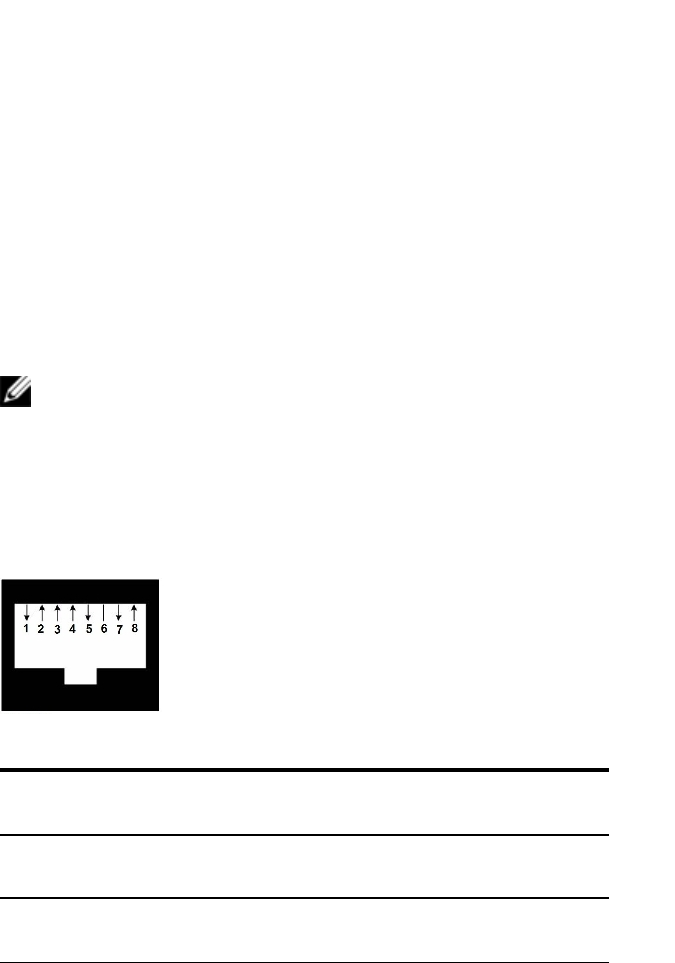
D
Appendix D: Cable Pinouts Informationxxx |xxx165
Appendix D: Cable Pinouts
Information
NOTE: All switches have the 8-pin modular jack for the modem and
console/setup ports.
Modem Pinouts
The modem port pinouts and descriptions are provided in the following figure
and table.
Figure D.1: Modem Pinouts
Table D.1: Modem Pinout Descriptions
Pin
Number Description Pin Number Description
1 Request to Send (RTS 5 Transmit Data
(TXD)
2 Data Set Ready (DSR 6 Signal Ground
(SG)
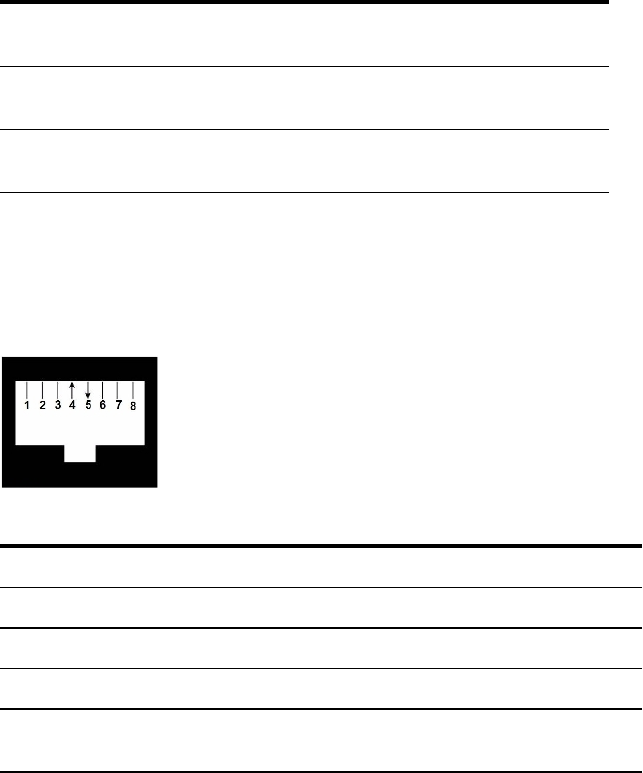
Appendix D: Cable Pinouts Informationxxx |xxx166
Pin
Number Description Pin Number Description
3Data Carrier Detect
(DCD) 7Data Terminal
Ready (DTR)
4 Receive Data (RXD 8 Clear to Send
(CTS
Console/Setup Pinouts
The console/setup port pinouts and descriptions are provided in the following
figure and table.
Figure D.2: Console/Setup Pinouts
Table D.2: Console/Setup Pinout Descriptions
Pin Number Description Pin Number Description
1 No Connection 5 Transmit Data (TXD)
2 No Connection 6 Signal Ground (SG)
3 No Connection 7 No Connection
4Receive Data
(RXD) 8 No Connection

E
Appendix E: UTP Cablingxxx |xxx167
Appendix E: UTP Cabling
This appendix discusses various aspects of connection media. The RCS system
utilizes UTP cabling. The performance of an switch system depends on high
quality connections. Poor quality or poorly installed or maintained cabling can
diminish switch system performance.
NOTE: This appendix is for information purposes only. Please consult with
your local code officials and/or cabling consultants prior to any installation.
UTP Copper Cabling
The following are basic definitions for the three types of UTP cabling that the
RCS supports.
• CAT 5 (4-pair) high performance cable consists of twisted pair conductors,
used primarily for data transmission. The twisting of the pairs gives this
cable some immunity from the infiltration of unwanted interference. CAT 5
cable is generally used for networks running at 10 or 100 Mbps.
• CAT 5E (enhanced) cable has the same characteristics as CAT 5, but is
manufactured to somewhat more stringent standards.
• CAT 6 cable is manufactured to tighter requirements than CAT 5E cable.
CAT 6 has higher measured frequency ranges and significantly better
performance requirements than CAT 5E cable at the same frequencies.
Wiring Standards
There are two supported wiring standards for 8-conductor (4-pair) RJ-45
terminated UTP cable: EIA/TIA 568A and B. These standards apply to

Appendix E: UTP Cablingxxx |xxx168
installations utilizing UTP cable specifications. The RCS system supports either
of these wiring standards. The following table describes the standards for each
pin.
Table E.1: UTP wiring standards
Pin EIA/TIA 568A EIA/TIA 568B
1 white/green white/orange
2 green orange
3 white/orange white/green
4 blue blue
5 white/blue white/blue
6 orange green
7 white/brown white/brown
8 brown brown
Cabling Installation, Maintenance, and
Safety Tips
The following is a list of important safety considerations that should be
reviewed prior to installing or maintaining your cables:
• Keep all UTP runs to a maximum of 30 feet each.
• Maintain the twists of the pairs all the way to the point of termination, or
no more than one-half inch untwisted. Do not skin off more than one inch
of the jacket while terminating.
Appendix E: UTP Cablingxxx |xxx169
• If bending the cable is necessary, make it gradual with no bend sharper than
a one inch radius. Allowing the cable to be sharply bent or kinked can
permanently damage the cable’s interior.
• Dress the cables neatly with cable ties, using low to moderate pressure. Do
not over tighten the ties.
• Cross-connect cables where necessary, using rated punch blocks, patch
panels, and components. Do not splice or bridge the cable at any point.
• Keep the UTP cable as far away as possible from potential sources of EMI,
such as electrical cables, transformers, and light fixtures. Do not tie the
cables to electrical conduits or lay the cables on electrical fixtures.
• Always test every installed segment with a cable tester. Toning alone is not
an acceptable test.
• Always install jacks so as to prevent dust and other contaminants from
settling on the contacts. The contacts of the jack should face up on the
flush mounted plates, or left/right/down on surface mount boxes.
• Always leave extra slack on the cables, neatly coiled in the ceiling or nearest
concealed location. Leave at least five feet at the work outlet side and 15
feet at the patch panel side.
• Choose either 568A or 568B wiring standard before beginning. Wire all
jacks and patch panels for the same wiring scheme. Do not mix 568A and
568B wiring in the same installation.
• Always obey all local and national fire and building codes. Be sure to firestop
all the cables that penetrate a firewall. Use plenum-rated cable where it is
required.
Appendix E: UTP Cablingxxx |xxx170

F
Appendix F: Sun Advanced Key Emulationxxx |xxx171
Appendix F: Sun Advanced Key
Emulation
Certain keys on a standard Type 5 (US) Sun keyboard can be emulated by key
press sequences on the local port USB keyboard. To enable Sun Advanced Key
Emulation mode and use these keys, press and hold <Ctrl+Shift+Alt> and
then press the <Scroll Lock> key. The Scroll Lock LED blinks. Use the
indicated keys in the following table as you would use the advanced keys on a
Sun keyboard. For example: For <Stop + A>, press and hold
<Ctrl+Shift+Alt> and press <Scroll Lock>, then <F1 + A>.
These key combinations will work with the Dell USB, USB2, and USB2+CAC
SIPs and Avocent USB, USB2, and VMC IQ modules. With the exception of
<F12>, these key combinations are not recognized by Microsoft Windows.
Using <F12> performs a Windows key press. When finished, press and hold
<Ctrl+Shift+Alt> and then press the <Scroll Lock> key to toggle Sun
Advanced Key Emulation mode off.
Table F.1: Sun Key Emulation
Compose Application1
Compose keypad
Power F11
Open F7

Appendix F: Sun Advanced Key Emulationxxx |xxx172
Help Num Lock
Props F3
Front F5
Stop F1
Again F2
Undo F4
Cut F10
Copy F6
Paste F8
Find F9
Mute keypad /
Vol.+ keypad +
Vol.- keypad -
Command
(left)2F12
Command
(left)2Win (GUI) left1
Command
(right)2Win (GUI) right 1
ENDNOTES:
(1) Windows 95 104-key keyboard.
(2) The Command key is the Sun Meta (diamond) key.

G
Appendix G: Technical Specificationsxxx |xxx173
Appendix G: Technical
Specifications
Table G.1: RCS Technical Specifications
Number of ports
1082DS: 8
2162DS: 16
4322DS: 32
Type
Dell PS/2, USB, USB2, USB2+CAC, and Serial SIPs.
Avocent PS/2, PS2M, USB, Sun, USB2, VMC, and
Serial modules.
Connectors 8-pin modular (RJ-45)
Sync types Separate horizontal and vertical

Appendix G: Technical Specificationsxxx |xxx174
Input video
resolution
Standard
640 x 480 @ 60 Hz
800 x 600 @ 75 Hz
960 x 700 @ 75 Hz
1024 x 768 @ 75 Hz
1280 x 1024 @ 75 Hz
1600 x 1200 @ 60 Hz
Widescreen
800 x 500 @ 60 Hz
1024 x 640 @ 60 Hz
1280 x 800 @ 60 Hz
1440 x 900 @ 60 Hz
1680 x 1050 @ 60 Hz
Supported
cabling 4-pair UTP, 45 meters maximum length
Dimensions
Form factor 1U or 0U rack mount
Dimensions 1.72 x 17.00 x 9.20 (Height x Width x Depth)
Weight (without
cables)
1082DS: 6.6 lb (3.0 kg)
2162DS: 7.0 lb (3.2 kg)
4322DS: 7.6 lb (3.4 kg)
SETUP port
Number 1
Protocol RS-232 serial
Connector 8-pin modular (RJ-45)
Local port

Appendix G: Technical Specificationsxxx |xxx175
Number/Type 1 VGA/4 USB
Network connection
Number 2
Protocol 10/100/1000 Ethernet
Connector 8-pin modular (RJ-45)
USB device port
Number 4
Protocol USB 2.0
MODEM port
Number 1
Protocol RS-232 serial
Connectors 8-pin modular (RJ-45)
PDU port
Number 2
Protocol RS-232 serial
Connector 8-pin modular (RJ-45)
Power specifications
Connectors
1082DS: 1 IEC C14
2162DS: 2 IEC C14
4322DS: 2 IEC C14
Type Internal

Appendix G: Technical Specificationsxxx |xxx176
Power 18W
Heat dissipation 47 BTU/hr
AC input range 100 - 240 VAC
AC frequency 50/60 Hz auto-sensing
AC input current
rating 1.25 A
AC input power
(maximum) 40 W
Ambient atmospheric condition ratings
Temperature
32 to 122 degrees Fahrenheit (0 to 50 degrees
Celsius) operating; -4 to 158 degrees Fahrenheit (-20
to 70 degrees Celsius) non-operating
Humidity
Operating: 20% to 80 % relative humidity (non-
condensing Non-operating: 5% to 95% relative
humidity, 38.7 degrees C maximum wet bulb
temperature
Safety and EMC
Standards
approvals and
markings
UL / cUL, CE - EU, N (Nemko), GOST, C-Tick, NOM /
NYCE, MIC (KCC), SASO, TUV-GS, IRAM, FCC, ICES,
VCCI, SoNCAP, SABS, Bellis, FIS/ Kvalitet, Koncar,
INSM, Ukrtest, STZ, KUCAS
Safety certifications and EMC certifications for this
product are obtained under one or more of the
following designations: CMN (Certification Model
Number), MPN (Manufacturer’s Part Number), or Sales
Level Model designation. The designation that is
referenced in the EMC and/or safety reports and
certificates are printed on the label applied to this
product.

H
Appendix H: Technical Supportxxx |xxx177
Appendix H: Technical Support
Our Technical Support staff is ready to assist you with any installation or
operating issues you encounter with your Dell product. If an issue should
develop, follow the steps below for the fastest possible service.
To resolve an issue:
1Check the pertinent section of this manual to see if the issue can be
resolved by following the procedures outlined.
2Check our web site at dell.com/support to search the knowledge base or use
the on-line service request.
3Call the Dell Technical Support location nearest you.
Appendix H: Technical Supportxxx |xxx178
