Dell License Manager Version 1 0 Owners Manual 1.0.1 User’s Guide
2014-11-13
: Dell Dell-License-Manager-Version-1-0-1-Owners-Manual-117653 dell-license-manager-version-1-0-1-owners-manual-117653 dell pdf
Open the PDF directly: View PDF  .
.
Page Count: 46
- Contents
- About Dell License Manager
- Installing Dell License Manager
- Getting Started With Dell License Manager
- Working With Licensable Systems
- Managing Licenses
- Managing Tasks and Logs
- Troubleshooting
- Systems - Reference
- Licenses - Reference
- Tasks - Reference
- Logs - Reference

Dell License Manager
Version 1.0
User’s Guide
dlm.book Page 1 Wednesday, November 16, 2011 9:09 AM

Notes and Cautions
NOTE: A NOTE indicates important information that helps you make better use of
your computer.
CAUTION: A CAUTION indicates potential damage to hardware or loss of data if
instructions are not followed.
____________________
Information in this publication is subject to change without notice.
© 2011 Dell Inc. All rights reserved.
Reproduction of these materials in any manner whatsoever without the written permission of Dell Inc.
is strictly forbidden.
Trademarks used in this text: Dell™, the DELL logo, Dell Precision™, OptiPlex™, Latitude™,
PowerEdge™, PowerVault™, PowerConnect™, OpenManage™, EqualLogic™, KACE™,
FlexAddress™ and Vostro™ are trademarks of Dell Inc. Intel
®
, Pentium
®
, Xeon
®
, Core™ and
Celeron
®
are registered trademarks of Intel Corporation in the U.S. and other countries. AMD
®
is a
registered trademark and AMD Opteron™, AMD Phenom™, and AMD Sempron™ are trademarks
of Advanced Micro Devices, Inc. Microsoft®, Windows®, Windows Server®, MS-DOS® and
Windows Vista® are either trademarks or registered trademarks of Microsoft Corporation in the United
States and/or other countries. Red Hat Enterprise Linux® and Enterprise Linux® are registered
trademarks of Red Hat, Inc. in the United States and/or other countries. Novell® is a registered
trademark and SUSE ™ is a trademark of Novell Inc. in the United States and other countries. Oracle®
is a registered trademark of Oracle Corporation and/or its affiliates. Citrix®, Xen®, XenServer® and
XenMotion® are either registered trademarks or trademarks of Citrix Systems, Inc. in the United States
and/or other countries. VMware®, Virtual SMP®, vMotion®, vCenter®, and vSphere® are registered
trademarks or trademarks of VMWare, Inc. in the United States or other countries.
Other trademarks and trade names may be used in this publication to refer to either the entities claiming
the marks and names or their products. Dell Inc. disclaims any proprietary interest in trademarks and
trade names other than its own.
2011 - 11
dlm.book Page 2 Wednesday, November 16, 2011 9:09 AM

Contents 3
Contents
1 About Dell License Manager. . . . . . . . . . . 7
2 Installing Dell License Manager . . . . . . . . 9
Minimum System Requirements. . . . . . . . . . . . . . 9
Limitations . . . . . . . . . . . . . . . . . . . . . . . . . 9
Installing Dell License Manager . . . . . . . . . . . . 10
3 Getting Started With Dell License
Manager . . . . . . . . . . . . . . . . . . . . . . . . . 11
Starting Dell License Manager . . . . . . . . . . . . . 11
Dell License Manager Workflow . . . . . . . . . . . . 11
Dell License Manager User Interface. . . . . . . . . . 12
Menu Bar . . . . . . . . . . . . . . . . . . . . . . 12
Task Status Bar . . . . . . . . . . . . . . . . . . . 14
Help Icon . . . . . . . . . . . . . . . . . . . . . . 14
Dell License Manager Views . . . . . . . . . . . . 14
Understanding Licenses . . . . . . . . . . . . . . . . . 16
Entitlement Identifiers . . . . . . . . . . . . . . . 16
License Descriptions . . . . . . . . . . . . . . . . 16
Perpetual Licenses . . . . . . . . . . . . . . . . . 17
Evaluation Licenses . . . . . . . . . . . . . . . . 17
Bound Licenses. . . . . . . . . . . . . . . . . . . 17
dlm.book Page 3 Wednesday, November 16, 2011 9:09 AM

4Contents
Upgrade Licenses. . . . . . . . . . . . . . . . . . 17
License Features . . . . . . . . . . . . . . . . . . . . . 17
Filtering Data . . . . . . . . . . . . . . . . . . . . . . . 17
Filter Options . . . . . . . . . . . . . . . . . . . . 18
4 Working With Licensable Systems . . . . 19
Inventorying Licensable Systems . . . . . . . . . . . . 19
Editing an Inventory Range . . . . . . . . . . . . . . . 20
Viewing Inventoried Systems . . . . . . . . . . . . . . 20
System Inventory Table . . . . . . . . . . . . . . . 20
Removing System Information . . . . . . . . . . . . . . 21
Deploying Licenses . . . . . . . . . . . . . . . . . . . 21
Saving Reports . . . . . . . . . . . . . . . . . . . . . . 21
5 Managing Licenses . . . . . . . . . . . . . . . . 23
Obtaining Licenses. . . . . . . . . . . . . . . . . . . . 23
Importing Licenses. . . . . . . . . . . . . . . . . . . . 23
Deploying Licenses . . . . . . . . . . . . . . . . . . . 24
Selecting Licenses for Deployment . . . . . . . . . . . 25
Selecting Systems for Deployment . . . . . . . . . . . 25
Removing Licenses From Inventory . . . . . . . . . . . 25
Exporting License Archives . . . . . . . . . . . . . . . 25
dlm.book Page 4 Wednesday, November 16, 2011 9:09 AM

Contents 5
Saving Reports . . . . . . . . . . . . . . . . . . . . . . 26
6 Managing Tasks and Logs . . . . . . . . . . . . 27
Cancelling Tasks. . . . . . . . . . . . . . . . . . . . . 27
Log Entries . . . . . . . . . . . . . . . . . . . . . . . . 27
Clearing Completed Tasks . . . . . . . . . . . . . . . . 27
Viewing Dell License Manager Logs . . . . . . . . . . 28
Clearing Result Logs. . . . . . . . . . . . . . . . . . . 28
Generating Support Log Archives . . . . . . . . . . . . 28
Saving Reports . . . . . . . . . . . . . . . . . . . . . . 28
7 Troubleshooting . . . . . . . . . . . . . . . . . . . . 29
License Importing . . . . . . . . . . . . . . . . . . . . 29
Cannot Import Trial Licenses . . . . . . . . . . . . 29
License or Archive is Corrupt or Unreadable . . . 29
License Inventory/Discovery and License
Deployment . . . . . . . . . . . . . . . . . . . . . . . 30
Invalid Credentials . . . . . . . . . . . . . . . . . 30
Certificate Error. . . . . . . . . . . . . . . . . . . 30
Unable to Connect . . . . . . . . . . . . . . . . . 31
License Status Warnings . . . . . . . . . . . . . . . . 32
Individual Bound License Deployed to
Multiple Systems . . . . . . . . . . . . . . . . . . 32
Original License Missing During Upgrade.. . . . . 32
dlm.book Page 5 Wednesday, November 16, 2011 9:09 AM

6Contents
8 Systems - Reference . . . . . . . . . . . . . . . 33
System Inventory Table. . . . . . . . . . . . . . . . . . 33
Systems Details Pane . . . . . . . . . . . . . . . . . . 34
Discovery / Inventory Wizard . . . . . . . . . . . . . . 35
Communication Settings. . . . . . . . . . . . . . . . . 35
9 Licenses - Reference. . . . . . . . . . . . . . . 39
Manage Licenses . . . . . . . . . . . . . . . . . . . . 40
10 Tasks - Reference . . . . . . . . . . . . . . . . . 43
11 Logs - Reference . . . . . . . . . . . . . . . . . . 45
dlm.book Page 6 Wednesday, November 16, 2011 9:09 AM

About Dell License Manager 7
1
About Dell License Manager
Dell License Manager is a one-to-many license deployment and reporting tool
for Dell iDRAC licenses.
Dell License Manager can deploy and backup iDRAC licenses on all Dell 12
Generation PowerEdge servers (denoted as yx2x) that are equipped with an
iDRAC7 or greater Dell Remote Access controller.
NOTE: For the server name format
yxxx
; y denotes alphabets, for example M
(modular), R (rack), or T (tower) and x denotes numbers. For example, a PowerEdge
R720 is a 12th generation rack mount 700 series server.
Dell License Manager can also inventory licensable systems to report on the
licensing status and currently enabled iDRAC feature level.
Use Dell iDRAC licenses to enable server management capabilities such as
the virtual media and remote console support currently available in the
Enterprise iDRAC feature set.
You can purchase and download licenses from the Dell Online Licensing
Portal at dell.com/support/retail/lkm. You can also purchase licenses when
you purchase a server.
dlm.book Page 7 Wednesday, November 16, 2011 9:09 AM

8About Dell License Manager
dlm.book Page 8 Wednesday, November 16, 2011 9:09 AM

Installing Dell License Manager 9
2
Installing Dell License Manager
Minimum System Requirements
Limitations
Dell License Manager supports up to 600 licensable servers and an inventory
of up to a class B IP address range (65,536 addresses).
Table 2-1. Minimum System Requirements
Particulars Requirement
Hard Disk 200 MB (minimum)
RAM 2 GB (minimum)
Operating Systems Microsoft Windows 7
Microsoft Windows Vista (SP2 or later)
Microsoft Windows Server 2008 R2
Windows Server 2008 (SP2 or later)
Both 64-bit and 32-bit versions are supported.
Network 100 Mbps or higher
Screen Resolution 1024 X 768
.NET 4.0 Client Profile (or full version)
Remote Management Windows Remote Management (WinRM) 2.0
This functionality is included in Windows 7 and
Windows Server 2008 R2.
The WinRM prerequisite is available through
Microsoft Windows Update.
dlm.book Page 9 Wednesday, November 16, 2011 9:09 AM

10 Installing Dell License Manager
Installing Dell License Manager
Download Dell License Manager from support.dell.com.
To install License Manager:
1
Run the
License Manager
Windows installer package.
2
In the Welcome screen, click
Next
.
3
In
License Agreement
, select
I accept the terms in the license agreement
and click
Next
.
4
In
Setup Type
, do any of the following:
• To accept the default installation path, choose the
Ty p i c a l
installation.
• To enable specific program features and change the installation path,
select the
Custom
installation option and click
Next.
In
Custom
Setup
, select the License Manager features that you require; check for
disk space, assign a new location for installing Dell License Manager.
5
In the
Installation readiness
screen, click
Install
.
6
After the installation is complete, click
Finish
.
dlm.book Page 10 Wednesday, November 16, 2011 9:09 AM

Getting Started With Dell License Manager 11
3
Getting Started With Dell License
Manager
Starting Dell License Manager
To access Dell License Manager, from the Windows desktop:
•Click
Start
All Programs
Dell OpenManage Applications
License
Manager
License Manager
.
• Double-click the
License Manager
icon.
NOTE: Local administrator privileges are required to run Dell License Manager.
The Getting Started with Dell License Manager screen is displayed with
information on getting started with license deployment.
Dell License Manager Workflow
To get started with license deployment:
Discover/Inventory
licensable iDRACs
Inventorying Licensable Systems
Download licenses
from the Dell Online
Licensing Portal at
dell.com/support/retail/
lkm
Obtaining Licenses
Import your licenses
into Dell License
Manager
Importing Licenses
Deploy your licenses
Deploying Licenses
dlm.book Page 11 Wednesday, November 16, 2011 9:09 AM
12 Getting Started With Dell License Manager
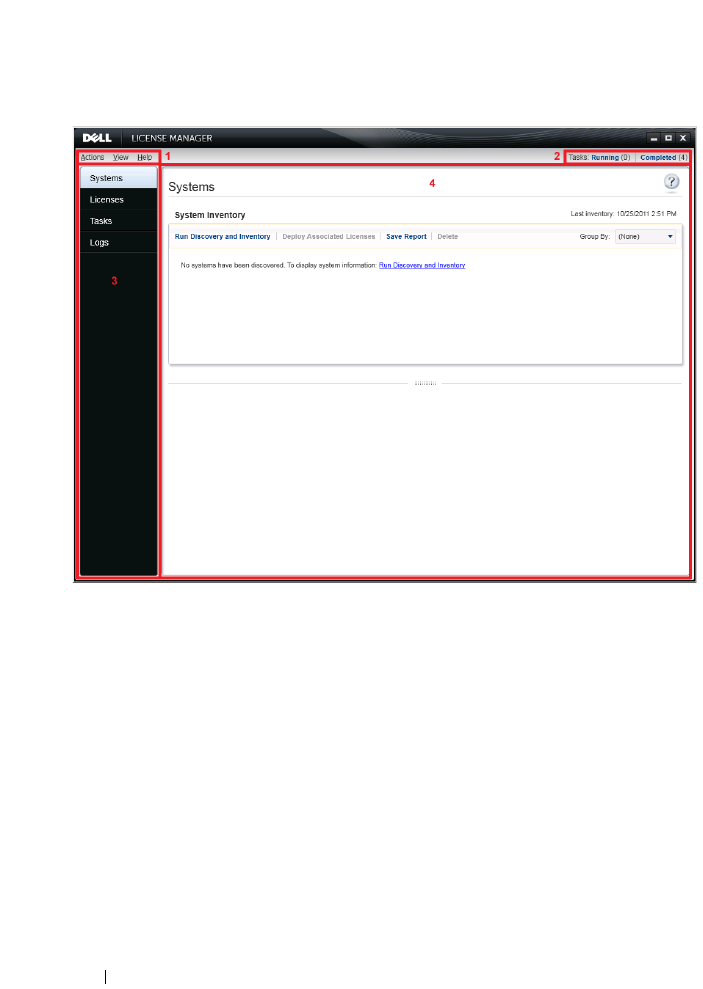
Dell License Manager User Interface
The Dell License Manager contains a menu bar, task status bar, navigation
pane, and an active view pane.
Menu Bar
The menu bar consists of the Actions, Views, and Help menus.
1 Menu bar 2 Task status bar
3 Navigation pane 4 Active view pane
dlm.book Page 12 Wednesday, November 16, 2011 9:09 AM

Getting Started With Dell License Manager 13
Actions Menu
The Actions menu consists of:
•
Discover and Inventory Systems
—Launches the
Discovery/Inventory
Wizard
. See Inventorying Licensable Systems.
•
Launch Dell Online License Portal
—Select this option to access the Dell
Online Licensing Portal at
dell.com/support/retail/lkm
. Before you access
the portal, connect the system to the Internet. From the online portal you
can purchase and download Dell licenses.
•
Import Licenses
— Launches the
Import Wizard
. See Importing Licenses.
•
Automatically Deploy Licenses
—Selects all undeployed licenses bound to
systems in inventory for deployment and launch the License Management
Wizard. See Deploying Licenses.
•
Export License Archive
—Saves an archive containing all licenses in
inventory in the compressed file format. See Managing Licenses.
•
Save Report
—Saves a CSV, HTML, or XML informational report from
system, license, or log view. See the section on the respective view for more
information.
•
Clear Log
—Removes all entries from the activity log.
NOTE: This option does not remove information on tasks from task view. See
Managing Tasks and Logs
.
•
Exit
—Closes the Dell License Manager application. This option ends all
current tasks.
View Menu
The View menu consists of:
•
Systems
—Navigates to the Systems view.
•
Licenses
—Navigates to the Licenses view.
•
Tas ks
—Navigates to the Tasks view.
•
Logs
—Navigates to the Logs view.
•
Getting Started
—Displays the
Getting Started with Dell License
Manager
screen.
dlm.book Page 13 Wednesday, November 16, 2011 9:09 AM

14 Getting Started With Dell License Manager
Help Menu
The Help menu consists of:
•
Dell License Manager Help
—Select this option to access the Dell License
Manager help. You can also access the Dell License Manager help by
clicking the help icon within each view.
•
Online Support
—Select this option to access the Dell Technical Support
at
support.dell.com
.
•
Generate Support Log Archive
—Select this option to generate an
archive of activity logs which Dell Technical Support can use to
troubleshoot problems.
•
About
—Select this option to view the Dell License Manager version and
copyright information.
Task Status Bar
The Task Status bar shows the number of running and completed tasks.
Clicking the Task Status bar activates the Task view.
Help Icon
Click the help icon to access context-sensitive online help.
Dell License Manager Views
Dell License Manager supports these primary views:
• Systems view
• License view
•Tasks view
• Logs view
Systems View
The Systems view is accessible through the Systems link in the navigation
pane. From the systems view, you can:
• Discover and inventory licensable systems
• Deploy licenses
• View information on system licensing status
dlm.book Page 14 Wednesday, November 16, 2011 9:09 AM

Getting Started With Dell License Manager 15
For more information on system view, see
Working With Licensable Systems
.
Licenses View
The Licenses view is accessible through the Licenses link in the navigation
pane. From the license view, you can:
• Import downloaded licenses into Dell License Manager
• View information on available licenses
• Deploy licenses
• Export a license archive
For more information on license view, see
Managing Licenses
.
Tasks View
The Tasks view is accessible through the Task s link in the navigation pane.
From the tasks view, you can:
• Monitor task progress
• Cancel running tasks
For more information on task view, see
Managing Tasks and Logs
.
Logs View
The Logs view is accessible through the Logs link in the navigation pane.
From the log view, you can:
• View archived task results
•Save reports
• Generate support log archives
For more information on log view, see
Managing Tasks and Logs
.
dlm.book Page 15 Wednesday, November 16, 2011 9:09 AM

16 Getting Started With Dell License Manager
Working With Views
The system, license, task, and log data view data grids allow for sorting,
grouping, and filtering. You may also choose which columns to display in the
data grid.
• Sorting—To sort on a particular column, click the column header. Clicking
the header again sorts the column in reverse order.
• Grouping—To group items together, select the column on which to group
from the Group By menu in the grid header.
• Filtering—To filter data rows, select the column on which to filter and
click the filter icon. Select the filter operation and then enter the filter
string. To clear the filter, select the filter icon and click
Clear Filter
.
• Selecting Columns—To select which columns are displayed, click the
Show/Hide Columns
icon. Selected columns are displayed.
Understanding Licenses
Dell Licenses contain the following properties:
• Entitlement Identifiers
•License Descriptions
Entitlement Identifiers
Each license has an Entitlement ID, which uniquely identifies that license.
License Descriptions
The description specifies the level of features enabled in the license.
For more information on the iDRAC functionality supported by each feature
level, access the online licensing portal at dell.com/support/retail/lkm.
The following licenses are available:
• Perpetual licenses
• Evaluation licenses
• Bound licenses
•Upgrade licenses
dlm.book Page 16 Wednesday, November 16, 2011 9:09 AM

Getting Started With Dell License Manager 17
Perpetual Licenses
Perpetual licenses are standard licenses that enable iDRAC features and do
not expire.
Evaluation Licenses
Evaluation licenses allow for a 30-day trial of specific iDRAC features, with an
available 30-day extension.
NOTE: You cannot deploy or archive evaluation licenses in Dell License Manager.
Bound Licenses
Dell Perpetual licenses are bound to a particular system Service Tag and you
can deploy the licenses only to those respective systems.
Upgrade Licenses
Some Dell Licenses are upgradeable. An upgrade license includes an Upgrade
ID referencing the Entitlement ID of the upgraded license.
License Features
Each license includes a specific set of iDRAC features, that are enabled by the
license. The license description summarizes the level of features included in
the license.
Filtering Data
The Dell License Manager allows you to filter data in the Systems, Licenses,
Task s , and Logs views. To filter data:
1
Place the cursor on the column heading and click the funnel icon .
2
After selecting a filter option from the drop-down list, enter the
alphanumeric characters in the field and click the
aA
button to make the
filter search case independent.
3
After you set the filter logic, click
Filter
to run the filter logic.
Click Clear Filter to clear a search.
dlm.book Page 17 Wednesday, November 16, 2011 9:09 AM

18 Getting Started With Dell License Manager
Filter Options
Filter Option Description
Is equal to Select to create the same as logic.
Is not equal to Select to create the different from logic.
Starts with Select to filter search based on a text chunk’s initial
alphanumeric character(s). Provide the starting
alphanumeric character(s) in the field.
Ends with Select to filter search based on a text chunk’s final
alphanumeric character(s). Provide the ending
alphanumeric character(s) in the field.
Contains Select to filter search based on alphanumeric characters
present in a text chunk. Provide the alphanumeric
character(s) in the field.
Does not contain Select to include the not present logic in search based on
alphanumeric characters present in a text chunk.
Is contained in Select to include the is present logic in an alphanumeric
character string.
Is not contained in Select to include the not present logic in an alphanumeric
character string.
dlm.book Page 18 Wednesday, November 16, 2011 9:09 AM

Working With Licensable Systems 19
4
Working With Licensable Systems
Inventorying Licensable Systems
Performing discovery and inventory of licensable systems enables you to view
the licensing status for those systems. Perform a system’s inventory before
deploying licenses for the system. The inventory process automatically
retrieves the installed non-evaluation licenses for archival purposes.
To inventory systems:
1
In Dell License Manager, click
Systems
.
2
In
Systems
, click
Run Discovery and Inventory
.
3
In
Discovery / Inventory Wizard
, click
Add Range or IP
and provide the
IP address or range name along with the iDRAC IP address range or
individual iDRAC address.
4
Click
Ok
and then click
Next
.
5
Provide user credentials and configure the Internet Control Message
Protocol (ICMP) and WS-Man options, and then click
Next
.
NOTE: For information on certificate settings, see
Communication Settings
.
6
In
Confirm Settings
screen of the
Discover / Inventory Wizard
:
• Review the discovery settings you provided. Click
Back
to edit settings.
• Select
Show task pane after launch
to view inventory task progress in
task pane.
In systems view, the Inventoried systems are displayed.
7
Click
Run Discovery / Inventory
.
dlm.book Page 19 Wednesday, November 16, 2011 9:09 AM

20 Working With Licensable Systems
Editing an Inventory Range
Specify the iDRAC addresses in the appropriate discovery/inventory tables.
Dell License Manager cannot inventory license information from installed
server operating systems or hypervisors.
To edit a range:
1
Click Run
Discover and Inventory
.
2
Select the entry in the table and click
Edit
.
To remove a range from Dell License Manager, select the entry in the table
and click Remove Selected.
Viewing Inventoried Systems
Inventoried systems are listed in the Systems view. The System Inventory
table provides a summary of information on the inventoried systems and the
System Details pane provides additional information on a selected system.
System Inventory Table
The system inventory table contains a summary of information on licensable
systems. You can sort or resize each column. You can select a system to view
additional information or perform tasks on that system. You can also select
multiple systems for deployment tasks or removal.
To view inventoried systems: Select Systems.
System inventory information includes the following:
• System Name
•iDRAC Name
• System Model
• Upgrade Available
•Service Tag
• Evaluation Installed
• Current License
• Purchased License
• Entitlement ID
dlm.book Page 20 Wednesday, November 16, 2011 9:09 AM

Working With Licensable Systems 21
• Additional Information
• Last Inventory
Removing System Information
1
In
Systems
, select the systems you want to remove and click
Delete
.
2
When prompted, click
Yes
to confirm.
Deploying Licenses
See
Deploying Licenses
.
Saving Reports
You can save system information into reports in the CSV, XML, or
HTML formats. To save reports:
1
From
Systems
, click
Save Report
.
2
Specify the folder location and file name, and in
Save as type
, select the
report format, and then click
Save
.
dlm.book Page 21 Wednesday, November 16, 2011 9:09 AM

22 Working With Licensable Systems
dlm.book Page 22 Wednesday, November 16, 2011 9:09 AM

Managing Licenses 23
5
Managing Licenses
Using Dell License Manager you can deploy licenses to licensable systems.
Dell License Manager also supports the export of license archives for backup.
From Licenses view, you can view the status of available licenses.
Before you deploy licenses:
1
Inventory the licensable systems. See Inventorying Licensable Systems.
2
Obtain licenses from the Dell Online Licensing Portal.
3
Import licenses into Dell License Manager.
4
Deploy the licenses.
To work with licenses, from the Dell License Manager, in the navigation pane,
click Licenses.
Obtaining Licenses
You can purchase licenses or download licenses from the Dell Online Licensing
Portal at dell.com/support/retail/lkm. You can also purchase licenses along with
the server you purchased. The licenses are installed at the factory.
The downloaded license package contains a license archive in a
compressed file format (ZIP format). The license archive contains license
files in an XML format.
Importing Licenses
Before you import licenses, you must download licenses. You can also import
archived licenses. However, you cannot import expired or evaluation licenses.
To download licenses from the Dell Licensing Portal:
1
In Dell License Manager, click
Actions
Launch
Dell Online
Licensing Portal
.
2
From the Dell licensing portal, download the required licenses to a file system.
dlm.book Page 23 Wednesday, November 16, 2011 9:09 AM

24 Managing Licenses
To import licenses from a file system:
1
From
Licenses
, select
Import Licenses
.
2
In
Select Licenses
, browse to the location where the license files are
downloaded, select the license package, and then click
Open
.
3
In
Import Licenses
, select valid licenses and click
Import
.
Deploying Licenses
Dell License Manager can automatically deploy all available licenses to
discovered systems. Alternatively, you can select specific licenses or systems
for deployment. Before you deploy licenses:
• Inventory systems on which you want to deploy licenses.
• Confirm that the inventoried systems are licensable.
• Confirm that the licenses are downloaded from Dell Online Licensing Portal.
• Confirm that the required licenses are imported into Dell License Manager.
NOTE: If numerous systems have licenses with the same Entitlement ID, then the
duplicate licenses are flagged for potential licensing problems.
NOTE: You cannot remove licenses deployed to iDRAC systems using Dell License
Manager. To remove a license from iDRAC, run the appropriate commands using
the iDRAC GUI, RACADM, or WS-Man interface. Connect to the iDRAC GUI using
the link provided in the System Inventory table. For more information, see the iDRAC
documentation.
To deploy licenses automatically:
1
Select
Licenses
Deploy Licenses
Automatically Deploy Licenses
.
2
In operation selection page, click
Next
.
3
In communication settings, provide iDRAC credentials and verify
communication settings and click
Next
.
Monitor the deployment in task view. As systems are updated,
corresponding information in systems view and license view are updated.
dlm.book Page 24 Wednesday, November 16, 2011 9:09 AM

Managing Licenses 25
Selecting Licenses for Deployment
1
Click
Licenses
Deploy Licenses
Deploy Selected Licenses
.
2
In operation selection page, verify licenses you want to deploy and click
Next
.
3
In communication settings, provide iDRAC credentials, verify
communication settings, and click
Next
.
Monitor the deployment in task view. As systems are updated,
corresponding information in system view and license view are updated.
Selecting Systems for Deployment
1
In
Systems
, select the systems on which you want to deploy licenses.
2
Click
Deploy Associated Licenses
.
3
Select the licenses to deploy on the systems and click
Next
.
4
In communication settings, provide iDRAC credentials, verify
communication settings, and click
Next
.
Monitor the deployment in task view. As systems are updated,
corresponding information in system view and license view are updated.
Removing Licenses From Inventory
1
From
Licenses
, select the license you want to delete and click
Delete
.
2
In
Confirm License Removal
, click
Yes
.
Exporting License Archives
You can export an archive of all licenses available in the system. You can use
this archive as a backup when a system is repaired and the Dell Licensing
Portal is not accessible (due to a security restricted network.)
You can also use the archived licenses for transfer among Dell License
Manager installations.
Dell License Manager retrieves factory-installed licenses during discover and
inventory of systems.
dlm.book Page 25 Wednesday, November 16, 2011 9:09 AM

26 Managing Licenses
When you archive licenses, a package containing a compressed file of XML
license files, similar to the license package downloaded from the Dell Online
Licensing Portal is created. To export licenses:
1
From
Licenses
, click
Export Archive
.
2
Specify the folder location and click
Save
.
The licenses are archived in the compressed file format (ZIP format.)
Saving Reports
You can save license information into reports in CSV, XML, or HTML
formats. To save reports:
1
From
Licenses
, click
Save Report
.
2
Specify the folder location and file name, and in
Save as type
, select report
format, and then click
Save
.
dlm.book Page 26 Wednesday, November 16, 2011 9:09 AM

Managing Tasks and Logs 27
6
Managing Tasks and Logs
From the Tasks view, you can monitor progress of long-running tasks. The Task
Status table includes a summary of executing and recently completed tasks.
The Results tab includes a summary of per-operation results and the Execution
Logs tab includes the detailed log of the currently selected task or operation.
Cancelling Tasks
Cancelled tasks do not terminate until the operations that are already in-
progress are concluded. As such, it may take several minutes for a cancelled
task to terminate. In some circumstances, tasks may complete before
cancellation can take effect. To cancel tasks:
1
From
Tas ks
, select the task that you want to cancel and click
Cancel
Selected Task
.
2
In
Cancel Task
, click
Yes
.
Log Entries
If a task result is selected, the Execution Log tab includes detailed
information on the selected task log. If a task result is selected, the log is
filtered to entries related to that specific result. Log entries consist of the date
and time of the entry, a log code, and a detailed log message.
Clearing Completed Tasks
If the Dell License Manager application is closed while tasks are running,
then those tasks are terminated. You cannot clear tasks that are in progress.
To clear completed tasks:
1
From
Tas ks
, click
Clear Completed Tasks
.
2
In
Clear Completed Tasks
, click
Yes
.
dlm.book Page 27 Wednesday, November 16, 2011 9:09 AM

28 Managing Tasks and Logs
Viewing Dell License Manager Logs
Saved result information is available in the Log view. The Result Logs table
includes a summary of Dell License Manager activity including discovery and
inventory, license import, and license deployment or removal operations. The
Log Entries pane shows detailed results of the currently selected activity.
Dell License Manager logs summary based information. The logged
information includes status, date and time, unique identifier, and a list of
logged events.
To view logs, click Logs.
Clearing Result Logs
To remove all logs from Dell License Manager:
1
In
Logs
, click
Clear Logs
.
2
In
Confirm Log Removal
, click
Yes
.
Generating Support Log Archives
When directed by technical support, click Generate Support Log Archive.
This option generates a zip archive containing the text of each result log. You
can provide the log to support as directed.
Saving Reports
You can save log information into reports in CSV, XML, or HTML formats.
To save reports:
1
From
Logs
, click
Save Report
.
2
Specify the folder location and file name, and in
Save as type
, select report
format, and then click
Save
.
dlm.book Page 28 Wednesday, November 16, 2011 9:09 AM

Troubleshooting 29
7
Troubleshooting
License Importing
Cannot Import Trial Licenses
Message
Trial licenses are not supported by the license manager.
Resolution
Apply a trial license through the iDRAC GUI or RACADM CLI. For more
information, see the iDRAC documentation.
License or Archive is Corrupt or Unreadable
Messages
• Unable to read archive file.
• The archive does not contain any license files.
• Unable to parse license.
• The digital signature is invalid.
Resolution
Download license archive once again from the Dell Online Licensing Portal at
dell.com/support/retail/lkm.
dlm.book Page 29 Wednesday, November 16, 2011 9:09 AM

30 Troubleshooting
License Inventory/Discovery and License
Deployment
When resolving discovery/inventory errors, verify that the remote address
corresponds to an iDRAC7 or greater by accessing the iDRAC GUI. To access
the iDRAC GUI, connect to the system IP/hostname using a web browser.
If the system does not contain iDRAC7, then ignore this error message.
Invalid Credentials
Message
Unable to establish communications - Access is denied.
Resolution
Enter correct credentials. If iDRACs do not share common credentials, you
must run multiple discovery/inventory tasks using different credentials.
Certificate Error
Messages
• Unable to establish communications - The SSL certificate contains a
common name (CN) that does not match the hostname.
• Unable to establish communications - The SSL certificate is signed by an
unknown certificate authority.
• Unable to establish communications - The SSL certificate could not be
checked for revocation. The server used to check for revocation might be
unreachable.
• Unable to establish communications - The SSL certificate is expired.
Resolution
If the certificate name does not match the hostname, install a certificate
matching the address on which the iDRAC is inventoried. Alternatively,
disable certificate name validation in your discovery/inventory settings.
For more information, see
Communication Settings
.
dlm.book Page 30 Wednesday, November 16, 2011 9:09 AM

Troubleshooting 31
If the certificate authority is not recognized, add the certificate authority to
the list of Windows Trusted Root Certification Authorities on the
management console. Alternatively, disable certificate authority validation in
the discovery/inventory settings. For more information, see
Communication
Settings
.
If you cannot check the certificate for revocation, make sure that the
certificate revocation list server is available to the management console.
Alternatively, disable certificate revocation list checking in the
discovery/inventory settings. For more information, see
Communication
Settings
.
If the certificate has expired, generate and install a new certificate. Dell
License Manager cannot connect to iDRACs using an expired certificate.
Unable to Connect
Messages
• Unable to ping system - Timed Out
• Unable to establish communications - Connection to host timed out
Resolution
Verify that the iDRAC is connected to the network and assigned the specified
address. Verify firewall settings allow you to access the system from the
management console.
From the iDRAC GUI, verify that the address corresponds to a system that
contains iDRAC7 or a later version. To access the GUI, connect to the system
IP/hostname from a web browser. If the system does not contain iDRAC7,
then ignore this error message.
dlm.book Page 31 Wednesday, November 16, 2011 9:09 AM

32 Troubleshooting
License Status Warnings
Individual Bound License Deployed to Multiple Systems
Message
One or more licenses with the same Entitlement ID are bound to other
service tags and are currently deployed.
Resolution
Install each individual bound license, distinguished by a unique Entitlement
ID, on a single system specified by its service tag. By using the Dell Online
Licensing Portal at dell.com/support/retail/lkm, determine that a license is
properly associated with the system. Remove license instances deployed to
systems other than those specified in the portal. Purchase additional licenses
within the portal to support additional systems.
You may determine to which systems an Entitlement is deployed by sorting or
filtering the Entitlement ID column within the System Inventory table.
Improperly deployed licenses can be removed using the iDRAC GUI. If multiple
perpetual licenses are installed on the same system their Entitlement IDs are not
displayed in the table. You must inspect such systems individually and review the
installed licenses listed in the System Details pane.
Original License Missing During Upgrade.
Message
The license is designated as an upgrade, however the original license is not
currently installed.
Resolution
Make sure that the original license is not reassigned to another system. If the
original license is not present due to service performed on the system, then,
ignore this message.
dlm.book Page 32 Wednesday, November 16, 2011 9:09 AM

Systems - Reference 33
8
Systems - Reference
From Systems, you can discovery and inventory systems, deploy licenses, and
save reports.
System Inventory Table
The system inventory table contains a summary of information on licensable
systems. You can sort or resize each column. Select a system to view
additional information or perform tasks on that system. You can also select
multiple systems deployment tasks or removal.
Run Discovery and
Inventory
Select to discover and inventory iDRAC systems.
Deploy Associated
Licenses
Select to deploy licenses.
Save Report Select to save license reports.
Delete Select to remove systems from the License Manager
inventory.
Selected Click check box to select the license.
System Name The host name of the installed operating system, if available.
iDRAC Name The host name of the management controller. Clicking the
link connects to the iDRAC GUI using Microsoft Internet
Explorer. The discovery address is shown in parenthesis.
System Model The system model name.
Upgrade Available If a license upgrade is available for deployment, a message
is displayed.
Service Tag The factory-assigned system Service Tag that uniquely
identifies each system. Each license is bound to a particular
service tag indicating the system on which it is deployed.
Evaluation Installed If applicable, the status of any installed evaluation licenses
are shown.
dlm.book Page 33 Wednesday, November 16, 2011 9:09 AM

34 Systems - Reference
Systems Details Pane
The system details pane shows information on a licensable system, including
the installed licenses and licensable components of that system. The system
details contains component details and license details.
Current License The level of functionality currently supported by the
iDRAC. Supported levels include:
• Enterprise
•Express
•Express for Blades
•Basic Management
For more information on iDRAC functionality supported
by each feature level or to purchase an upgrade, access the
online licensing portal at dell.com/support/retail/lkm.
NOTE: Not all hardware supports all management features.
For more information, see the hardware documentation.
Purchased License The highest license class of any perpetual license bound to
the system is shown. Both installed licenses and licenses in
inventory awaiting deployment are included when
calculating the purchased license class.
Entitlement ID The unique license identifier.
Additional
Information
If a potential EULA violation is detected, it is indicated in
this column.
Last Inventory The date and time the system was last inventoried. The
systems will automatically re-inventory when a license
operation is conducted on the system.
Component Details
Discovery Address The IP address or hostname at which the iDRAC
was discovered.
dlm.book Page 34 Wednesday, November 16, 2011 9:09 AM

Systems - Reference 35
Discovery / Inventory Wizard
Provide these values to set IP range and host information.
Communication Settings
Optimal parameter values depend on the characteristics of a network. In
communication settings, you can provide credentials, Ping (ICMP) Settings,
and WS-Man Settings.
Status The license status:
• Green—The license is ok.
• Yellow—The license has a potential problem.
• Red—License is not functional.
Description The license description.
Entitlement ID The unique license identifier.
Expiration The license expiration date, if applicable.
Term The license terms.
Inventory Click the check box to select the IP address.
Range / Address Name Enter a unique name describing the range.
Start / Individual
Address
Enter the IPv4 address beginning the range or the
individual IP address.
End Address Enter the IPv4 address ending the range.
Subnet Mask (Optional) Use subnet mask to exclude network and
broadcast addresses from inventory attempts. If omitted,
each address is treated as a host.
Description (Optional) You can enter a description. Each inventory
range can include at most a Class B network (65,536
addresses).
Credentials You must specify the credentials to conduct discovery
inventory. Credential information is not persistent across
task executions.
dlm.book Page 35 Wednesday, November 16, 2011 9:09 AM

36 Systems - Reference
iDRAC User name Provide iDRAC user name. If using Active Directory
authentication, enter username in the format
Domain\User name.
NOTE: The iDRAC Login privilege is required to perform
system inventory.
iDRAC Password Provide iDRAC password.
Ping (ICMP) Settings
Require successful ping
before attempting
inventory
When enabled, a ping response is received from an address
before attempting WS-Man inventory communications.
This can improve the performance of the inventory process.
However, disable this option if the network blocks ping
requests. This option is enabled by default.
Retries The number of times to re-attempt a ping before excluding
the system from inventory. The default is 3 retries (4 total
attempts).
Timeout The time in which a ping response is received before the
ping attempt fails. The default is 5 seconds.
WS-Man Settings Dell License Manager uses the iDRAC WS-Man interface
to obtain inventory information.
Validate Certificate
Name
If enabled, this ensures that inventory communications are
conducted only with systems identifying themselves based
on a certificate that matches the address used to
communicate with that system. If the iDRAC certificate
does not match the discovery address, then disable
certificate name validation for Dell License Manager to
communicate with the iDRAC. However, if the certificate
name is not validated, Dell License Manager cannot
authenticate the identity of the remote system.
dlm.book Page 36 Wednesday, November 16, 2011 9:09 AM

Systems - Reference 37
Validate Certificate
Authority
If enabled, this ensures that the inventory communications
are conducted only with systems identifying themselves
based on a certificate issued by a trusted source. If the
iDRAC certificate is not issued by a trusted authority, then
disable validation in order for Dell License Manager to
communicate with the iDRAC. However, if the certificate
authority is not validated, Dell License Manager cannot
authenticate the identity of the remote system.
For validation, include a trusted certificate authority as part
of the Trusted Root Certification Authorities list in
Microsoft Windows. For more information, see the
Microsoft Windows documentation.
Validate Certificate
Revocation List
If enabled, this ensures that communications are not
conducted with a system identifying itself using a
certificate that is revoked. If the management console
cannot communicate with a certificate revocation list
server, then disable this option for communicating with
iDRAC. However, if the certificate revocation list is not
validated, Dell License Manager cannot authenticate the
identity of the remote system.
Retries The number of communication retry attempts made if
temporary WS-Man communication errors occur before
the inventory attempt fails. The default is 1 retry (2 total
attempts).
Timeout The time within which the WS-Man host must begin to
return data before the communication attempt fails. The
default is 30 seconds.
Port The HTTPS communication port configured on the
iDRACs. The default port is 443. On this port, ensure that
firewall settings allow HTTPS communication between the
management station and the iDRACs.
dlm.book Page 37 Wednesday, November 16, 2011 9:09 AM

38 Systems - Reference
dlm.book Page 38 Wednesday, November 16, 2011 9:09 AM

Licenses - Reference 39
9
Licenses - Reference
From Dell License Manager, Licenses, you can import and deploy matching
licenses, archive exported license and save reports.
Import Licenses Click to import licenses from a file system.
Export Archive Select to archive licenses.
Deploy Licenses Select to deploy licenses matched to a licensable system.
The options include:
• Deploy Selected Licenses
• Automatically Deploy Licenses
Save Report Select to save the license report.
Delete Select to remove licenses from License Manager.
Selected Click to select a license.
Description Details of the type of license; Enterprise License, bound,
unbound, or upgraded.
Term The license term. For more information, see
Understanding
Licenses
.
Bound Service Tag The Service Tag to which the license is bound. You can only
deploy this license on the system with the specified tag.
Deployed The deployment status:
• Yes—The license is deployed.
• No—The license is not deployed.
• Unknown—The corresponding system is not in inventory.
Matching System The system to which you can assign this license.
• Yes—Indicates the associated system is in inventory.
• No—Indicates the system is not in inventory.
dlm.book Page 39 Wednesday, November 16, 2011 9:09 AM

40 Licenses - Reference
Manage Licenses
Origin The manner in which the license was added:
• Imported—The license was imported into Dell License
Manager.
• Retrieved—The license was obtained during inventory.
Date Purchased The date the license was purchased.
Date Imported The date the license was imported.
License The license identification number is displayed and the
following details are available for the license.
Entitlement ID The unique ID of the license.
Upgrade ID In the case of an upgrade license, the ID of the license to
which the upgrade applies.
Expiration Date on which the license expires (if applicable).
License Features The features supported by the selected license.
Selected Click to select license.
Operation Status Details on whether the license is available for deployment.
Entitlement ID The ID of the license to deploy.
License Description The description of the license to deploy.
System The name of the system on which to deploy the license. If
available, the host name is used, otherwise the iDRAC
name is used.
Service Tag The factory-assigned system Service Tag which uniquely
identifies each system. Each license is bound to a particular
Service Tag indicating the system on which the license
is deployed.
NOTE: Licenses already deployed to a system do not appear
in the Operation Selection page.
Active License The class and term of the highest class license installed on
the system.
dlm.book Page 40 Wednesday, November 16, 2011 9:09 AM

Licenses - Reference 41
Credentials
iDRAC User name Provide iDRAC user name. If you are using Active
Directory authentication, enter the user name in the
format Domain\User name.
NOTE: The iDRAC login privilege is required to perform
system inventory.
iDRAC Password Provide the iDRAC password.
WS-Man Settings Dell License Manager uses the iDRAC WS-Man interface
to obtain inventory information.
Validate Certificate
Name
If enabled, this ensures that inventory communications are
conducted only with systems identifying themselves based
on a certificate that matches the address used to
communicate with that system. If the iDRAC certificate
does not match the discovery address, then disable
certificate name validation for Dell License Manager to
communicate with iDRAC. However, if the certificate
name is not validated, Dell License Manager cannot
authenticate the identity of the remote system.
Validate Certificate
Authority
If enabled, this ensures that inventory communications are
conducted only with systems identifying themselves based
on a certificate issued by a trusted source. If the iDRAC
certificate is not issued by a trusted authority, then disable
validation in order for Dell License Manager to
communicate with iDRAC. However, if the certificate
authority is not validated, Dell License Manager cannot
authenticate the identity of the remote system.
For validation, include a trusted certificate authority as part
of the Trusted Root Certification Authorities list in
Microsoft Windows. For more information, see the
Microsoft Windows documentation.
Validate Certificate
Revocation List
If enabled, this ensures that communications are not
conducted with a system identifying itself using a
certificate that is revoked. If the management console
cannot communicate with a certificate revocation list
server, then disable this option to communicate with
iDRAC. However, if the certificate revocation list is not
validated, Dell License Manager cannot authenticate the
identity of the remote system.
dlm.book Page 41 Wednesday, November 16, 2011 9:09 AM

42 Licenses - Reference
Retries The number of communication retry attempts made if
temporary WS-Man communication errors occur before
the inventory attempt fails. The default is 1 retry (2 total
attempts).
Timeout The time within which the WS-Man host must begin to
return data before the communication attempt fails. The
default is 30 seconds.
Port The HTTPS communication port configured on the
iDRACs. The default port is 443. On this port, ensure that
the firewall settings allow HTTPS communication between
the management station and iDRACs.
To save changes and proceed with discovery/inventory,
click Next.
Tas k S et ti n g s
Show task pane
after launch
Select to view the task progress in Task s.
dlm.book Page 42 Wednesday, November 16, 2011 9:09 AM

Tasks - Reference 43
10
Tasks - Reference
From Tasks, you can view discovery and inventory, and license deployment
task information.
Cancel Selected Task Select to cancel a listed task.
Clear Completed Task Select to purge completed task information.
Status Status type of the task is listed.
• Normal—The task is successfully completed.
• Failure—The task is not completed.
ID Unique ID assigned to the task.
Task Description of the task.
Summary Description of the task’s status.
Progress Indicator of the task’s progress.
Start Time Starting time of the task.
End Time Ending time of the task.
Task Results Provides status, operation, and result information. It
includes the following tabs:
•Results
•Execution Log
Status
• Green—The task is successfully completed.
• Yellow—The task is completed with warnings.
• Red—The task completed with errors.
Operation The description of the operation
dlm.book Page 43 Wednesday, November 16, 2011 9:09 AM

44 Tasks - Reference
Result The summary of the operation result.
NOTE: When generating results for a discovery/inventory IP
range, result entries are not created for addresses where
communication is not established or where a non-licensable
system is detected. For result information on such systems,
consult the execution log tab.
Execution Log The Execution Log tab provides detailed information from
the selected task log.
dlm.book Page 44 Wednesday, November 16, 2011 9:09 AM

Logs - Reference 45
11
Logs - Reference
From Logs, you can view License Manager activities, clear log results, and
save reports.
Clear Logs Select to purge logged information.
Generate Support Log
Archive
Select to archive logged information.
Save Report Select to save log report.
Result Status type of the task listed:
• Normal—The task is successfully completed.
• Failure—The task is not completed.
ID Unique ID assigned to the task.
Summary Summary description of the logged event.
Date Date and time at which the task completed.
Log Entries Details of the logged information.
dlm.book Page 45 Wednesday, November 16, 2011 9:09 AM

46 Logs - Reference
dlm.book Page 46 Wednesday, November 16, 2011 9:09 AM
