Dell Microsoft Windows Storage Server 2003 R2 Service Pack 2 Getting Started Guide
2015-01-05
: Dell Dell-Microsoft-Windows-Storage-Server-2003-R2-Service-Pack-2-Getting-Started-Guide-137875 dell-microsoft-windows-storage-server-2003-r2-service-pack-2-getting-started-guide-137875 dell pdf
Open the PDF directly: View PDF  .
.
Page Count: 122 [warning: Documents this large are best viewed by clicking the View PDF Link!]
- Getting Started Guide
- 使用入门指南
- 入門指南
- Guide de mise en route
- Handbuch Zum Einstieg
- はじめに
- 시작 안내서
- Guía de introducción
www.dell.com | support.dell.com
Microsoft® Windows®
Storage Server 2003 R2
x64 Edition With SP2
Getting Started Guide
使用入门指南
入門指南
Guide de mise en route
Handbuch Zum Einstieg
はじめに
시작 안내서
Guía de introducción
www.dell.com | support.dell.com
Microsoft® Windows®
Storage Server 2003 R2
x64 Edition With SP2
Getting Started Guide

Notes and Notices
NOTE: A NOTE indicates important information that helps you
make better use of your computer.
NOTICE: A NOTICE indicates either potential damage to
hardware or loss of data and tells you how to avoid the problem.
____________________
Information in this document is subject to change without notice.
© 2007 Dell Inc. All rights reserved.
Reproduction in any manner whatsoever without the written permission of
Dell Inc. is strictly forbidden.
Trademarks used in this text: Dell, the DELL logo, PowerEdge, and
Dell OpenManage are trademarks of Dell Inc.; Microsoft, Internet Explorer,
Windows, and Windows Server are either trademarks or registered trademarks of
Microsoft Corporation in the United States and/or other countries.
Other trademarks and trade names may be used in this document to refer to either
the entities claiming the marks and names or their products. Dell Inc. disclaims
any proprietary interest in trademarks and trade names other than its own.
June 2007 P/N XN080 Rev. A00

Contents 3
Contents
Overview. . . . . . . . . . . . . . . . . . . . . . . . . . . . . . . . 5
Configuring Your NAS System . . . . . . . . . . . . . . . . . 6
Configuring Your System Using a Keyboard, Monitor,
and Mouse . . . . . . . . . . . . . . . . . . . . . . . . . . . . . . 6
Configuring Your System For Network Access . . . . . . . . . . . 6
Configuring the Network IP Address for the NAS System . . . . . 7
Entering the Default Administrator User Name
and Password . . . . . . . . . . . . . . . . . . . . . . . . . . . . 8
Localizing Your System Using the
Multilanguage User Interface . . . . . . . . . . . . . . . . . 8
Starting the Windows Storage Server
Management Console. . . . . . . . . . . . . . . . . . . . . . . 9
Accessing the Microsoft Management Console . . . . 9
Accessing the MMC Locally on the Host . . . . . . . . . . . . . . 9
Accessing the MMC Using Remote Desktop Connection. . . . . . 10
Dell OpenManage Server Administrator. . . . . . . . . 11
Installing Server Administrator . . . . . . . . . . . . . . . . . . . 11
Accessing Server Administrator . . . . . . . . . . . . . . . . . . 12
Adding Trusted Sites to Your Browser. . . . . . . . . . . . . . . . 12
Updating Your System . . . . . . . . . . . . . . . . . . . . . . . . 13
Updating Your Microsoft Windows Software . . . . . . . . . . . . 13
Other Documents You May Need . . . . . . . . . . . . . . 14

4Contents

Getting Started Guide 5
This document provides an overview of the Microsoft® Windows®
Storage Server 2003 R2 x64 Edition With SP2 operating system and
information about configuring, localizing, and installing your
Dell™ Network Attached Storage (NAS) system on a corporate network.
The following topics are covered in this document:
• Overview
• Configuring your NAS system
• Localizing your system using the Multilanguage User Interface (MUI)
• Starting the Windows Storage Server Management Console
• Accessing the Microsoft Management Console (MMC)
• Dell OpenManage
™
Server Administrator
• Other documents you may need
Overview
The Windows Storage Server 2003 R2 x64 Edition With SP2 operating
system adds new search capabilities, simplified setup and storage
management, extensibility, and is specially tuned to provide optimal NAS
performance. Windows Storage Server 2003 R2 x64 Edition With SP2
provides significant enhancements in storage management scenarios, as
well as ease of installation.
Your NAS system is preconfigured with the Windows Storage Server 2003
R2 x64 Edition With SP2 operating system. Most of the setup procedures
are completed for you and do not require user intervention.
When your system boots for the first time, the Microsoft Mini Setup
process begins. When completed, your system automatically reboots
and you can access the server either locally or remotely.
NOTE: If your system is pre-configured with software redundant array of
independent disks (RAID) 5, the system performs a RAID synchronization to
optimize the array. The process runs in the background and may affect your
overall system performance until it completes. If the system is powered off
before the process completes, RAID synchronization will begin again when
the system is powered up and continue until it completes.

6Getting Started Guide
Configuring Your NAS System
Configuring Your System Using a Keyboard, Monitor, and Mouse
NOTE: Depending on your method of configuration, local keyboard, video, and
mouse (KVM) connections may be required to complete the installation and
configuration procedures. If your remote system can complete the configuration
procedures, local KVM connections are not required for operation.
1
Connect a keyboard, monitor, and mouse to the NAS system.
For information about system connectors, see your system’s
User’s Guide
.
2
Turn on the NAS system.
3
Log in to the NAS system.
NOTE: The default administrator user name is administrator
and the default password is storageserver.
Configuring Your System For Network Access
1
If your NAS system is powered on, turn it off.
2
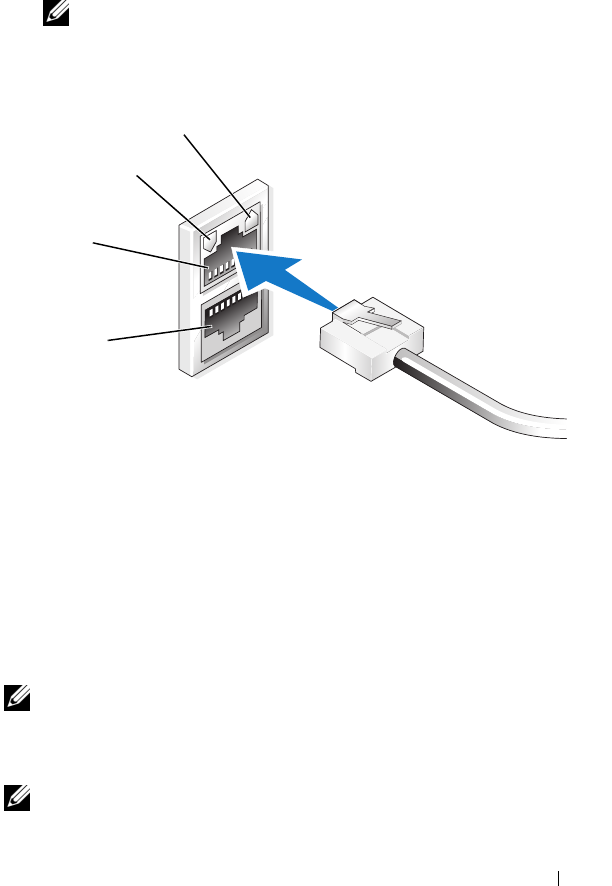
Connect one end of an Ethernet cable into one of the 10/100/1000
RJ-45 NIC connectors (see Figure 1-1) on the back of your NAS system.
For more information about the location of system connectors, see
your NAS system’s
User’s Guide
.
3
Connect the other end of the Ethernet cable to a functioning Ethernet jack.
4
Turn on the NAS system.
5
Verify that the server is connected to the Ethernet by ensuring that the
LED associated with the network interface controller (NIC) connector
is on. See Figure 1-1. If the NIC connector’s LED is a steady green
color, then the connection is good. If the NIC connector’s LED is
a flashing amber color, then data is successfully being transferred.
If the LED is not on, ensure that each end of the Ethernet cable is
seated properly in the NIC connector and the Ethernet jack.
Getting Started Guide 7
The NAS system retrieves the required information to set up network
parameters (the IP address, gateway subnet mask, and DNS server
address) from a
Dynamic Host Configuration Protocol (
DHCP)
server on the network.
NOTE: Depending on your configuration and the amount of storage
attached to the NAS system, it may take several minutes for the NAS
system to boot.
Figure 1-1. NIC Connector
Configuring the Network IP Address for the NAS System
If you have a DHCP server on your network, you are not required to
configure your NAS system’s IP address because DHCP automatically
assigns an address to the NAS system. If your network is not configured
with a DHCP server, configure the NAS system’s IP address through the
Network Configuration window.
To access the Network Configuration window, click Start→ Settings→
Control Panel→ Network Configuration.
NOTE: If you do not have a DHCP server on your network, a local keyboard,
monitor, and a mouse is required to complete your NAS configuration. For more
information, see "Configuring Your System Using a Keyboard, Monitor, and
Mouse" on page 6.
NOTE: The Windows Firewall is enabled by default. When you access
the remote system, you may experience issues with connectivity.
NIC 2 LED
NIC 1 LED
NIC 1
NIC 2

8Getting Started Guide
Entering the Default Administrator User Name and Password
When logging into the NAS system for the first time, you must enter an
administrator user name and password. The default administrator user
name for your NAS system is administrator and the default password
is storageserver.
Changing the Administrator Password
1
Click
Start
→
Administrative Tools
→
Computer Management
.
2
In the
Computer Management
window, expand
Local Users and
Groups
and select
Users
.
3
In the right window pane, right-click
Administrator
and select
Set Password
.
4
In the
Set Password for Administrator
window, click
Proceed
.
5
Enter and confirm your password in the appropriate fields and
click
OK
.
6
Close the
Computer Management
window.
Localizing Your System Using the
Multilanguage User Interface
The NAS system allows you to change the native language for the
operating system's user interface. Many languages are installed on your
system by default. The Multilanguage User Interface (MUI) allows the
NAS system to display operating systems menus, dialogs, and help files
in multiple languages.
If your system was pre-configured with the Windows Storage Server 2003
R2 x64 Edition With SP2 operating system, the MUI is pre-configured
with your localized language in both the regional settings and in the
browser settings. No user intervention is required.
To change the default browser language:
1
Open an Internet Explorer
®
browser.
2
In the
Tools
menu, select
Internet Options
.
3
In the
General
tab, click
Languages
.

Getting Started Guide 9
4
In the
Language Preference
window, click
Add
.
5
In the
Language
box, select a language.
6
Click
OK
.
Starting the Windows Storage Server
Management Console
The Windows Storage Server Management Console appears in
the MMC, providing an easy and convenient method for system
administration. The MMC opens automatically when you are logged into
the Windows Storage Server 2003 R2 x64 Edition With SP2 operating
system.
To open the Windows Storage Server Management Console, click
Start → All Programs→ Windows Storage Server Management.
In the Microsoft Management Console window, the left window pane
shows the File Server Management (Local) node as the default node.
The center window pane provides selectable scenarios that assist you
with operating system administration.
Accessing the Microsoft Management Console
The MMC is configured by default as part of the Microsoft Start menu.
The MMC can be used for disk management, NFS configuration,
and as a general NAS management station. For more information,
see the Microsoft MMC document included with your system.
Using MMC, you can configure your storage by either accessing MMC
locally on the host or by accessing MMC using a Remote Desktop
connection.
Accessing the MMC Locally on the Host
The MMC appears on the host in the Start menu. If the MMC
does not appear in the Start menu, perform the following steps:
1
Click
Start
→
Run
.
2
Ty p e
nas.msc
and click
OK
.
NOTE: The nas.msc file is located at c:\windows\system32.

10 Getting Started Guide
Accessing the MMC Using Remote Desktop Connection
Use Remote Desktop Connection for remote server administration to
reduce the overhead associated with remote administration. Enabled
by Terminal Services technology, Remote Desktop for Administration
is specifically designed for server management.
Remote Desktop for Administration does not require a special license
for client systems that access the server. Additionally, you are not required
to install Terminal Server Licensing when using Remote Desktop for
Administration.
Administrators can also fully administer computers running Windows
Storage Server 2003 R2 x64 Edition With SP2 from systems running
earlier versions of Windows by installing Remote Desktop Connection.
NOTE: To connect to Remote Desktop for Administration from a remote system,
use Remote Desktop Connection.
Creating a Remote Desktop Connection To Your Desktop
To create and save a Remote Desktop connection to Windows Storage
Server 2003 R2 x64 Edition With SP2, perform the following steps:
1
Click
Start
→
Run
.
2
Ty p e
mstsc
and then click
OK
.
The
Remote Desktop Connection
window appears.
3
In the
Remote Desktop Connection
screen, type the computer name
or IP address of the storage server and then click
Options
.
4
Under
Connection Settings
, click
Save As
.
5
In the
Save As
screen, type a name for the connection and include
the default
.rdp
extension.
6
In the
Save in
drop-down menu, select
Desktop
and then click
Save
.
Your connection is saved to your desktop.
For more information about configuring your remote desktop connection,
click Help in the Remote Desktop Connection window.

Getting Started Guide 11
Dell OpenManage Server Administrator
Dell OpenManage Server Administrator provides a comprehensive,
one-to-one system management solution using an integrated, Web
browser-based interface (the Server Administrator home page) or a
command line interface (CLI) through the operating system.
Server Administrator allows you to manage NAS systems on a network
locally and remotely and to focus on managing the entire network with
comprehensive, one-to-one system management.
NOTE: If you are using Server Administrator, a system can be a stand-alone
system, a server with Network Attached Storage units in separate chassis,
or a modular system consisting of one or more server modules in a chassis.
For more information, see your Server Administrator documentation.
Installing Server Administrator
The Dell Installation and Server Management media provides a setup
program to install, upgrade, and uninstall Server Administrator and other
system software components on your NAS system. You can also install
Server Administrator on multiple systems through an unattended
installation across a network.
Using the setup program on the Dell Installation and Server Management
media, you can install and upgrade Server Administrator on systems
running all supported Windows Storage Server 2003 R2 x64 Edition
With SP2 operating systems.
To install Server Administrator, perform the following steps:
1
Insert the
Dell Installation and Server Management
media into your
system’s CD/DVD drive.
The media autoloads and the
Server Administrator Installer
window
appears.
2
Click
Install, Modify, Repair or Remove Server Administrator
.
3
In the
License Agreement
window, read and accept the agreement
and click
Next
.
4
In the
Setup Type
window, select the appropriate setup type
for your configuration and click
Next
.

12 Getting Started Guide
5
In the
Ready to Install
window, click
Install
.
6
In the
Install Wizard Completed
window, click
Finish
.
Accessing Server Administrator
You can access Server Administrator locally through the host by double-
clicking the Server Administrator icon on the desktop.
To access Server Administrator directly from a client system on the same
network, open an Internet Explorer 6.0 or later browser and connect to
the secure port, 1311, of your NAS system.
For example, type:
https://DELL1234567:1311
where DELL1234567 is the name of your NAS system.
If port 1311 is disabled by the firewall, use the following procedure to set
an exception to enable port 1311 for OpenManage use.
1Click Start→ Settings→ Control Panel→ Windows Firewall
.
2
Click the
Exceptions
tab.
3
Click on
Add port
.
4
Ty p e
Dell OpenManage Server Administrator
in the
Name
field.
5
Ty p e
1311
in the
Port number
field.
6
Click
OK
.
7
If prompted, restart the firewall service.
Adding Trusted Sites to Your Browser
Due to enhanced Microsoft security standards, you may be prompted to
add an internet or intranet site to the trusted sites zone when you initially
access the site.
To add trusted sites to Internet Explorer, perform the following steps:
1
In the
Tools
menu, click
Internet Options
.
The
Internet Options
screen appears.
2
Click the
Security Tab
.
The
Security
tab menu appears.

Getting Started Guide 13
3
Click
Trusted Sites
.
4
Click
Sites
.
The
Trusted sites
screen appears.
5
In the
Add this Web site to the zone:
field, type the address of the site,
using the https: secure protocol, and click
Add
.
The site appears in the
Web sites:
box.
6
Repeat step 5 to add any additional sites and click
OK
.
The
Internet Options
screen appears.
7
Click
OK
.
Updating Your System
The Server Update Utility media contains an application for identifying
and applying updates to your server. The Server Update Utility (SUU) can
also be downloaded from the Dell Support website at support.dell.com.
For more information, see the Server Update Utility User’s Guide.
To update individual Server Administrator components, use
component-specific Dell Update Packages, which may be found on the
Dell PowerEdge™ Updates media. The SUU compares the versions of
components currently installed on your Dell NAS system with update
components that are packaged on the Dell PowerEdge Updates media.
Use the SUU to view a comparison report of the versions and to update
an entire system.
Updating Your Microsoft Windows Software
To update your Windows Storage Server 2003 R2 x64 Edition operating
system, see the Microsoft Support website at support.microsoft.com.
All updates to Windows Server® 2003 R2 x64 Edition apply to Windows
Storage Server 2003 R2 x64 Edition.

14 Getting Started Guide
Other Documents You May Need
NOTE: The Product Information Guide provides important safety and regulatory
information. Warranty information may be included within this document or as a
separate document.
• The
Rack Installation Guide
or
Rack Installation Instructions
included
with your rack solution describes how to install your system into a rack.
• The
Administrator’s Guide
provides information about completing the
configuration procedures on your system and a general overview of
Windows Storage Server 2003 R2 x64 Edition With SP2 features.
• The
Important Information
document provides the minimum hardware
and software requirements and all known issues.
• The system’s
User's Guide
provides information about system features
and technical specifications.
• Systems management software documentation describes the features,
requirements, installation, and basic operation of the software.
• Operating system documentation describes how to install (if necessary),
configure, and use the operating system software.
• Documentation for any components you purchased separately provides
information to configure and install these options.
• Updates are sometimes included with the system to describe changes
to the system, software, and/or documentation.
NOTE: Always read the updates first because they often supersede information
in other documents.
• Release notes or readme files may be included to provide last-minute
updates to the system, documentation, or advanced technical reference
material intended for experienced users or technicians.
• The
Server Update Utility User's Guide
describes how you can use
the Server Update Utility to view the software versions on your system
and update your system’s software. It can be downloaded from the
Dell Support website at
support.dell.com
.
www.dell.com | support.dell.com
Microsoft® Windows®
Storage Server 2003 R2
x64 Edition(含 SP2)
使用入门指南

注和注意
注:注表示可以帮助您更好地使用计算机的重要信息。
注意:注意表示可能会损坏硬件或导致数据丢失,
并告诉您如何避免此类问题。
____________________
本说明文件中的信息如有更改,恕不另行通知。
© 2007 Dell Inc. 版权所有,翻印必究。
未经 Dell Inc. 书面许可,严禁以任何形式进行复制。
本文中使用的商标:Dell、DELL 徽标、PowerEdge 和 Dell OpenManage
是 Dell Inc. 的商标; Microsoft、Internet Explorer、Windows 和 Windows
Server 是 Microsoft Corporation 在美国和 /或其它国家 /地区的商标或注
册商标。
本文件中述及的其它商标和产品名称是指拥有相应商标和名称的公司或
其制造的产品。Dell Inc. 对本公司的商标和产品名称之外的其它商标和
产品名称不拥有任何专有权。
2007 年 6 月P/N XN080 Rev. A00

目录 17
目录
概览 . . . . . . . . . . . . . . . . . . . . . . . . . . . . . . . . . . 19
配置 NAS 系统 . . . . . . . . . . . . . . . . . . . . . . . . . . 20
使用键盘、显示器和鼠标配置系统 . . . . . . . . . . . . . . . 20
配置系统进行网络访问 . . . . . . . . . . . . . . . . . . . . . . 20
为 NAS 系统配置网络 IP 地址 . . . . . . . . . . . . . . . . . . . 21
输入默认管理员名称和密码. . . . . . . . . . . . . . . . . . . . 22
使用多语种用户界面本地化系统 . . . . . . . . . . . . 22
启动 Windows Storage Server 管理控制台. . . . . . 23
访问 Microsoft 管理控制台 . . . . . . . . . . . . . . . . . 23
在主机上本地访问 MMC. . . . . . . . . . . . . . . . . . . . . . 23
使用远程桌面连接访问 MMC . . . . . . . . . . . . . . . . . . . 24
Dell OpenManage Server Administrator. . . . . . . . . 25
安装 Server Administrator. . . . . . . . . . . . . . . . . . . . . . 25
访问 Server Administrator. . . . . . . . . . . . . . . . . . . . . . 26
将受信任的站点添加到您的浏览器 . . . . . . . . . . . . . . . 26
更新系统 . . . . . . . . . . . . . . . . . . . . . . . . . . . . . . 27
更新 Microsoft Windows 软件 . . . . . . . . . . . . . . . . . . . 27
您可能需要的其它说明文件 . . . . . . . . . . . . . . . . 28

18 目录

使用入门指南 19
本说明文件概要介绍
Microsoft
®
Windows
®
Storage Server 2003 R2 x64
Edition
(含
SP2
)操作系统,并提供有关在公司网络上配置、
本地化和安装
Dell
™
网络连接存储器
(NAS)
系统的信息。
本说明文件讨论以下主题:
•
概览
•
配置
NAS
系统
•
使用多语种用户界面
(MUI)
本地化系统
•
启动
Windows Storage Server
管理控制台
•
访问
Microsoft
管理控制台
(MMC)
•Dell OpenManage
™
Server Administrator
•
您可能需要的其它说明文件
概览
Windows Storage Server 2003 R2 x64 Edition(含 SP2)操作系统增加了
新的搜索功能,简化了设置和存储管理过程,提高了可扩展性,并经
过专门优化以提供最佳的 NAS 性能。Windows Storage Server 2003 R2
x64 Edition(含 SP2)在存储管理方面提供了重要的增强功能,
并且易于安装。
NAS
系统已预配置了
Windows
Storage Server 2003 R2 x64 Edition
(含
SP2
)
操作系统。大多数设置过程已经完成,无需用户干预。
第一次引导系统时,将开始
Microsoft Mini Setup
(
Microsoft
袖珍安装)
过程。安装完成后,系统会自动重新引导,然后您便可通过本地或远程
访问服务器。
注:如果系统已预先配置了软件独立磁盘冗余阵列 (RAID) 5,系统将执
行 RAID 同步以优化阵列。此过程在后台运行,在完成之前可能会影响
系统的整体性能。如果在此过程完成之前关闭系统电源,则在系统通电
时将再次开始 RAID 同步,直至此过程完成。

20 使用入门指南
配置 NAS 系统
使用键盘、显示器和鼠标配置系统
注:根据您的配置方法,您可能需要进行本地键盘、视频和鼠标 (KVM)
连接,才能完成安装和配置过程。如果远程系统可以完成配置过程,
则无需进行本地 KVM 连接,系统即可正常运行。
1
将键盘、显示器和鼠标连接至
NAS
系统。
有关系统连接器的信息,请参阅《用户指南》。
2
打开
NAS
系统。
3
登录到
NAS
系统。
注:默认的管理员用户名为 administrator,默认密码为
storageserver。
配置系统进行网络访问
1
如果已打开
NAS
系统的电源,请关闭电源。
2
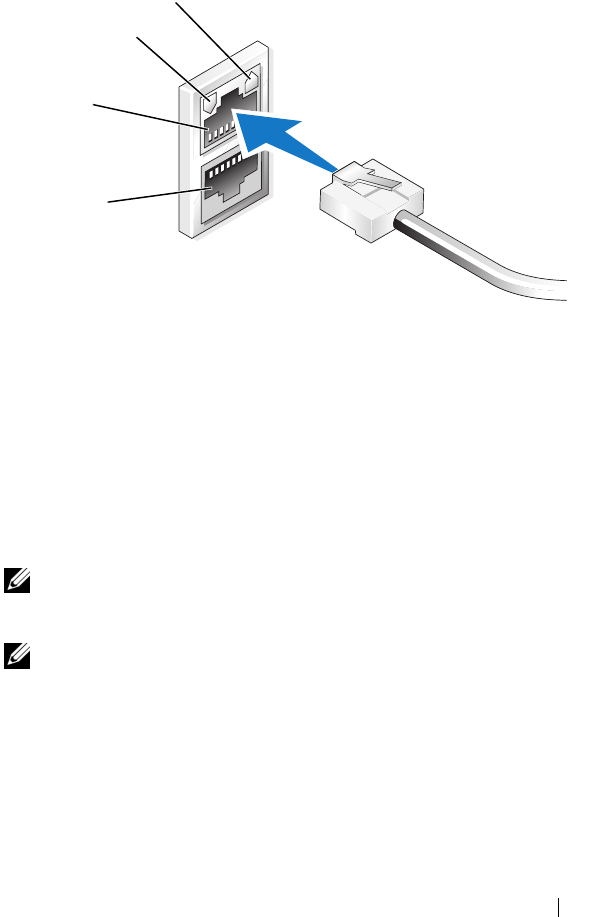
将以太网电缆的一端连接到
NAS
系统背面上的一个
10/100/1000
RJ-45 NIC
连接器(请参阅图
1-1
)。
有关系统连接器位置的详情,请参阅
NAS
系统的《用户指南》。
3
将以太网电缆的另一端连接到有效的以太网插孔。
4
打开
NAS
系统。
5
确保与网络接口控制器
(NIC)
连接器关联的
LED
亮起,这表示验
证服务器已连接至以太网。请参见图
1-1
。如果
NIC
连接器的
LED
呈绿色持续亮起,则表明连接是正常的。如果
NIC
连接器的
LED
呈琥珀色闪烁,则表明正在成功地传输数据。
如果
LED
未亮起,请进行检查,以确保以太网电缆的两端分别正
确地插入
NIC
连接器和以太网插孔中。
NAS
系统将从网络中的
动态主机配置协议 (
DHCP)
服务器上检索
设置网络参数所需的信息(
IP
地址、网关子网掩码和
DNS
服务器
地址)。
注:引导 NAS 系统可能需要几分钟,具体视您的配置以及连接至
NAS 系统的存储设备数量而定。
使用入门指南 21
图 1-1. NIC 连接器
为 NAS 系统配置网络 IP 地址
如果网络上已配备
DHCP
服务器,则无需配置
NAS
系统的
IP
地址,
因为
DHCP
会自动为
NAS
系统分配地址。如果网络中未配置
DHCP
服
务器,则通过
Network Configuration
(网络配置)窗口配置
NAS
系统的
IP
地址。
要访问
Network Configuration
(网络配置)窗口,单击
Start
(开始)
→
Settings
(设置)
→
Control Panel
(控制面板)
→
Network Configuration
(网络配置)。
注:如果网络上未配备 DHCP 服务器,则需要使用本地键盘、显示器和
鼠标来完成 NAS 配置。有关详情,请参阅第 20 页的“使用键盘、显示
器和鼠标配置系统”。
注:默认情况下,已启用 Windows 防火墙。在访问远程系统时,
可能会遇到与连接有关的问题。
NIC 2 LED
NIC 1 LED
NIC 1
NIC 2

22 使用入门指南
输入默认管理员名称和密码
首次登录
NAS
系统时,必须输入管理员用户名和密码。
NAS
系统的默
认管理员用户名为
administrator
,默认密码为
storageserver
。
更改管理员密码
1
单击
Start
(开始)
→
Administrative Tools
(管理工具)
→
Computer Management
(计算机管理)。
2
在
Computer Management
(计算机管理)窗口中,展开
Local
Users and Groups
(本地用户和组),然后选择
Users
(用户)。
3
在右侧窗格中,右键单击
Administrator
(管理员),然后选择
Set Password
(设置密码)。
4
在
Set Password for Administrator
(为管理员设置密码)窗口中,
单击
Proceed
(继续)。
5
在相应字段中输入并确认密码,然后单击
OK
(确定)。
6
关闭计算机管理窗口。
使用多语种用户界面本地化系统
NAS
系统允许您更改操作系统用户界面的母语。默认情况下,系统中安
装了多种语言。多语种用户界面
(MUI)
允许
NAS
系统用多种语言显示
操作系统菜单、对话框和帮助文件。
如果系统预配置了
Windows Storage Server 2003 R2 x64 Edition
(含
SP2
)
操作系统,则
MUI
在区域设置和浏览器设置中都已预配置了本地化语言。
无需用户干预。
要更改默认的浏览器语言:
1
打开
Internet Explorer
®
浏览器。
2
在
Tools
(工具)菜单中,选择
Internet Options
(
Internet
选项)。
3
在
General
(常规)选项卡中,单击
Languages
(语言)。
4
在
Language Preference
(语言首选项)窗口中,单击
Add
(添加)。
5
在
Language
(语言)框中,选择语言。
6
单击
OK
(确定)。

使用入门指南 23
启动 Windows Storage Server 管理控制台
Windows Storage Server Management Console
(
Windows Storage Server
管理控制台)显示在
MMC
中,可供用户进行简单便捷的系统管理。
当您登录到
Windows Storage Server 2003 R2 x64 Edition
(含
SP2
)操作
系统时,系统将自动打开
MMC
。
要打开
Windows Storage Server
管理控制台,单击
Start
(开始)
→
All Programs
(所有程序)
→
Windows Storage Server Management
(
Windows Storage Server
管理)。
在
Microsoft
Management Console
(
Microsoft
管理控制台)窗口中,左窗
格中将显示
File Server Management (Local)
(文件服务器管理
[
本地
]
)
节点作为默认节点。中间窗格提供多种可供选择的方案,帮助您进行操
作系统管理。
访问 Microsoft 管理控制台
默认情况下,
MMC
被配置为
Microsoft
Start
(开始)菜单的一部分。
MMC
可用于进行磁盘管理和
NFS
配置,还可用作常规的
NAS
管理站。
有关详情,请参阅系统随附的
Microsoft MMC
说明文件。
您可以在主机上本地访问
MMC
或用远程桌面连接来访问
MMC
,
从而利用
MMC
来配置存储。
在主机上本地访问 MMC
在主机上,
MMC
显示为
Start
(开始)菜单中的菜单项。如果
Start
(开始)菜单中未显示
MMC
,则执行以下步骤:
1
单击
Start
(开始)
→
Run
(运行)。
2
键入
nas.msc
,然后单击
OK
(确定)。
注:nas.msc 文件位于 c:\windows\system32 下。

24 使用入门指南
使用远程桌面连接访问 MMC
使用远程桌面连接来进行远程服务器管理,可以减少与远程管理相关的
额外开销。用于管理的远程桌面通过终端服务技术实现,它是专门为管
理服务器而设计的。
对于访问服务器的客户机系统,用于管理的远程桌面不需要特殊许可。
此外,在使用用于管理的远程桌面时,无需安装终端服务器许可。
通过安装远程桌面连接,管理员也可以从运行
Windows
较早版本的系统
上全面管理运行
Windows Storage Server 2003 R2 x64 Edition
(含
SP2
)
的计算机。
注:要从远程系统连接到用于管理的远程桌面,请使用远程桌面连接。
创建远程桌面连接并保存到您的桌面上
要创建和保存指向
Windows Storage Server 2003 R2 x64 Edition
(含
SP2
)
的远程桌面连接,请执行以下步骤:
1
单击
Start
(开始)
→
Run
(运行)。
2
键入
mstsc
,然后单击
OK
(确定)。
屏幕将显示
Remote Desktop Connection
(远程桌面连接)窗口。
3
在
Remote Desktop Connection
(远程桌面连接)屏幕中,键入计
算机名称或存储服务器的
IP
地址,然后单击
Options
(选项)。
4
在
Connection Settings
(连接设置)下,单击
Save As
(另存为)。
5
在
Save As
(另存为)屏幕中,键入连接的名称,并包含默认的扩
展名
.rdp
。
6
在
Save in
(保存于)下拉式菜单中,选择
Desktop
(桌面),
然后单击
Save
(保存)。
此连接已保存到您的桌面上。
有关配置远程桌面连接的详情,请单击
Remote Desktop Connection
(远程桌面连接)窗口中的
Help
(帮助)。

使用入门指南 25
Dell OpenManage Server Administrator
Dell OpenManage Server Administrator
通过一个集成的、基于
Web
浏览
器的界面(
Server Administrator
主页)提供了一个全面、一对一的系统
管理解决方案,同时通过操作系统提供了一个命令行界面
(CLI)
。
借助于
Server Administrator
,用户可以本地和远程管理网络上的
NAS
系
统;同时,通过全面、一对一的系统管理功能,可以将精力集中在整个
网络的管理上。
注:如果您使用的是 Server Administrator,则所谓的系统既可以是独立
式系统,也可以是在单独的机箱中装有多个网络连接存储器装置的服务
器,还可以是在机箱中安装了一个或多个服务器模块的模块化系统。
有关详情,请参阅
Server Administrator
说明文件。
安装 Server Administrator
Dell Installation and Server Management
介质提供了一个安装程序,用于
在
NAS
系统上安装、升级和卸载
Server Administrator
和其它所管理的系
统软件组件。也可采用无人参与安装方式,通过网络在多个系统上安装
Server Administrator
。
使用
Dell Installation and Server Management
介质上的设置程序,可以在
运行所有支持的
Windows Storage Server 2003 R2 x64 Edition
(含
SP2
)
操作系统的系统上安装和升级
Server Administrator
。
要安装
Server Administrator
,请按以下步骤进行:
1
将
Dell Installation and Server Management
介质插入系统的
CD/DVD
驱动器。
介质自动载入程序,并显示
Server Administrator Installer
(
Server Administrator
安装程序)窗口。
2
单击
Install, Modify, Repair or Remove Server Administrator
(安装、修改、修复或删除
Server Administrator
)。
3
在
License Agreement
(许可协议)窗口中,阅读并接受此协议,
然后单击
Next
(下一步)。
4
在
Setup Type
(安装类型)窗口中,选择与配置对应的安装类型,
然后单击
Next
(下一步)。
5
在
Ready to Install
(准备安装)窗口中,单击
Install
(安装)。
6
在
Install Wizard Completed
(安装向导完成)窗口中,单击
Finish
(完成)。

26 使用入门指南
访问 Server Administrator
在主机上,双击桌面上的
Server Administrator
图标可以本地访问
Server
Administrator
。
要从位于同一网络中的客户机系统直接访问
Server Administrator
,请打开
Internet Explorer 6.0
或更新版本,并连接
NAS
系统的安全端口
1311
。
例如,键入:
https://DELL1234567:1311
其中,
DELL1234567
是
NAS
系统的名称。
如果防火墙禁用了端口
1311
,请使用以下过程设置例外,以使端口
1311
可用于
OpenManage
。
1单击
Start
(开始)
→
Settings
(设置)
→
Control Panel
(控制面板)
→
Windows Firewall
(
Windows
防火墙)。
2
单击
Exceptions
(例外)选项卡。
3
单击
Add port
(添加端口)。
4
在
Name
(名称)字段中,键入
Dell OpenManage Server
Administrator
。
5
在
Port number
(端口号)字段中,键入
1311
。
6
单击
OK
(确定)。
7
如果出现提示,请重新启动防火墙服务。
将受信任的站点添加到您的浏览器
由于提高了
Microsoft
安全标准,因此当您初次访问互联网或内部网时,
系统可能会提示您将这些站点添加到受信任的站点区域。
要将受信任的站点添加到
Internet Explorer
,请执行以下步骤:
1
在
Tools
(工具)菜单中,单击
Internet Options
(
Internet
选项)。
屏幕将显示
Internet Options
(
Internet
选项)屏幕。
2
单击
Security
(安全)选项卡。
屏幕将显示
Security
(安全)选项卡菜单。
3
单击
Trusted Sites
(受信任的站点)。

使用入门指南 27
4
单击
Sites
(站点)。
屏幕将显示
Trusted sites
(受信任的站点)屏幕。
5
在
Add this Web site to the zone:
(将该网站添加到区域中:)字段中,
键入网站的地址(使用
https
:安全协议),然后单击
Add
(添加)。
该站点将出现在
Web sites:
(网站:)框中。
6
重复步骤
5
添加任何其它的站点,然后单击
OK
(确定)。
屏幕将显示
Internet Options
(
Internet
选项)窗口。
7
单击
OK
(确定)。
更新系统
Server Update Utility
介质包含一个用于识别服务器和对服务器应用更新
的应用程序。也可以从
Dell
支持
Web
站点
support.dell.com
下载
Server
Update Utility
(服务器更新公用程序,
SUU
)。有关详情,请参阅
Server
Update Utility User
’s
Guide
(《服务器更新公用程序用户指南》)。
要更新
Server Administrator
的单独组件,请使用组件
—
特定的
Dell
更
新软件包,您可以在
Dell PowerEdge™ Updates
介质上找到该软件包。
SUU
将当前安装在
Dell NAS
系统上的组件版本与
Dell PowerEdge Updates
介质中的更新组件进行比较。使用
SUU
查看版本比较报告,然后更新整
个系统。
更新 Microsoft Windows 软件
要更新
Windows Storage Server 2003 R2 x64 Edition
操作系统,请参阅
Microsoft
支持网站
support.microsoft.com
。
Windows Server
®
2003 R2
x64 Edition
的所有更新均适用于
Windows Storage Server 2003 R2 x64
Edition
。

28 使用入门指南
您可能需要的其它说明文件
注:《产品信息指南》提供了重要的安全信息和管制信息。保修信息可
能包括在该说明文件中,也可能作为单独的说明文件提供。
•
随机架解决方案附带的《机架安装指南》或《机架安装说明》,
介绍了如何在机架中安装系统。
•
《管理员指南》提供了有关完成系统配置过程的信息,并简要概述
了
Windows Storage Server 2003 R2 x64 Edition
(含
SP2
)的功能。
•
重要信息说明文件,提供了最低硬件和软件要求及所有的已知问题。
•
系统的《用户指南》,提供了有关系统功能和技术规格的信息。
•
系统管理软件说明文件,介绍了软件的功能、要求、安装和基本
操作。
•
操作系统说明文件,介绍了如何安装(如果需要)、配置和使用操
作系统软件。
•
单独购买的任何组件所附带的说明文件,提供了有关配置和安装这
些选件的信息。
•
系统有时附带更新,用于说明对系统、软件和
/
或说明文件所做的
更改。
注:请始终先阅读这些更新,因为更新通常用于替代其它说明文件中的
信息。
•
系统可能附带版本注释或自述文件,以提供系统、说明文件的最新
更新,或者为有经验的用户或技术人员提供高级技术参考资料。
•
Server Update Utility User
’s
Guide
(《服务器更新公用程序用户指南》),
说明了如何使用服务器更新公用程序来查看系统上的软件版本和更
新系统的软件。可以从
Dell
支持
Web
站点
support.dell.com
下载该
指南。
www.dell.com | support.dell.com
Microsoft® Windows®
Storage Server 2003 R2
x64 Edition With SP2
入門指南

註和注意
註:「註」會提供您更有效使用電腦的重要資訊。
備註:「注意」表示可能會損壞硬體或導致資料遺失,
並告訴您如何避免此類問題的發生。
____________________
對本文件中所含資訊之修正恕不另行通知。
© 2007 Dell Inc. 版權所有。
未經 Dell Inc. 的書面許可,不准以任何形式進行複製。
本文所用商標:Dell、DELL 標誌、PowerEdge 和 Dell OpenManage
是 Dell Inc. 的商標;Microsoft、Internet Explorer、Windows 和 Windows
Server 是 Microsoft Corporation 在美國和 /或其他國家 /地區的商標或註
冊商標。
本文件所述及之其他商標或品牌名稱,均各自分屬其商標或產品名稱之
申請者或擁有者所擁有。Dell Inc. 對本公司之外的商標和產品名稱不擁
有任何專有權。
2007 年 6 月P/N XN080 Rev. A00

目錄 31
目錄
概觀 . . . . . . . . . . . . . . . . . . . . . . . . . . . . . . . . . . 33
組態 NAS 系統 . . . . . . . . . . . . . . . . . . . . . . . . . . 34
使用鍵盤、顯示器和滑鼠組態系統 . . . . . . . . . . . . . . . 34
組態系統進行網路存取 . . . . . . . . . . . . . . . . . . . . . . 34
組態 NAS 系統的網路 IP 位址 . . . . . . . . . . . . . . . . . . . 35
輸入預設管理員使用者名稱和密碼 . . . . . . . . . . . . . . . 36
使用多語言使用者介面本土化系統 . . . . . . . . . . 36
啟動 Windows Storage Server 管理控制台. . . . . . 37
存取 Microsoft 管理控制台 . . . . . . . . . . . . . . . . . 37
在主機上從本機存取 MMC . . . . . . . . . . . . . . . . . . . . 37
使用 Remote Desktop Connection 存取 MMC . . . . . . . . . . . 38
Dell OpenManage Server Administrator. . . . . . . . . 39
安裝 Server Administrator. . . . . . . . . . . . . . . . . . . . . . 39
存取 Server Administrator. . . . . . . . . . . . . . . . . . . . . . 40
新增信任的網站至瀏覽器 . . . . . . . . . . . . . . . . . . . . . 40
更新系統 . . . . . . . . . . . . . . . . . . . . . . . . . . . . . . 41
更新 Microsoft Windows 軟體 . . . . . . . . . . . . . . . . . . . 41
其他您可能需要的文件 . . . . . . . . . . . . . . . . . . . 42

32 目錄

入門指南 33
本文件概述 Microsoft® Windows® Storage Server 2003 R2 x64 Edition
With SP2 作業系統以及關於在公司網路中組態、本土化和安裝
Dell™ Network Attached Storage (NAS) 系統的資訊。
本文件將討論以下主題:
•
概觀
•
組態
NAS
系統
•
使用多語言使用者介面
(MUI)
本土化系統
•
啟動
Windows Storage Server
管理控制台
•
存取
Microsoft
管理控制台
(MMC)
• Dell OpenManage
™
Server Administrator
•
其他您可能需要的文件
概觀
Windows Storage Server 2003 R2 x64 Edition With SP2 作業系統新增了
搜尋功能、簡化的設定和儲存管理、擴充性,並已專門調整為提供最
佳的 NAS 效能。Windows Storage Server 2003 R2 x64 Edition With SP2
大大增強了儲存管理功能,並且簡化了安裝。
您的 NAS 系統已使用 Windows Storage Server 2003 R2 x64 Edition
With SP2 作業系統預先組態。大多數設定程序均已完成,無需使用者
介入。
在系統第一次啟動時,Microsoft Mini Setup (Microsoft 迷你安裝程式 )
即會開始安裝。安裝完成之後,您的系統會自動啟動,您可以在本機
或遠端存取伺服器。
註:如果您的系統已使用軟體容錯式獨立磁碟陣列 (RAID) 5 預先組態,
系統將執行 RAID 同步以最佳化陣列。同步程序在背景中執行,執行期間
可能會影響您的整體系統效能。如果在該程序完成之前關閉了系統電源,
則在系統加電時,RAID 同步將重新開始,直到完成為止。

34 入門指南
組態 NAS 系統
使用鍵盤、顯示器和滑鼠組態系統
註:視您的組態方法而定,可能需要進行本機鍵盤、影像及滑鼠 (KVM)
連接才能完成安裝和組態程序。如果遠端系統可以完成組態程序,則無
需本機 KVM 連接即可進行操作。
1
將鍵盤、顯示器和滑鼠連接至
NAS
系統。
如需系統連接器的資訊,請參閱系統的使用者指南。
2
開啟
NAS
系統。
3
登入
NAS
系統。
註:預設管理員使用名稱為 administrator,預設密碼為
storageserver。
組態系統進行網路存取
1
如果
NAS
系統電源已開啟,請關閉。
2
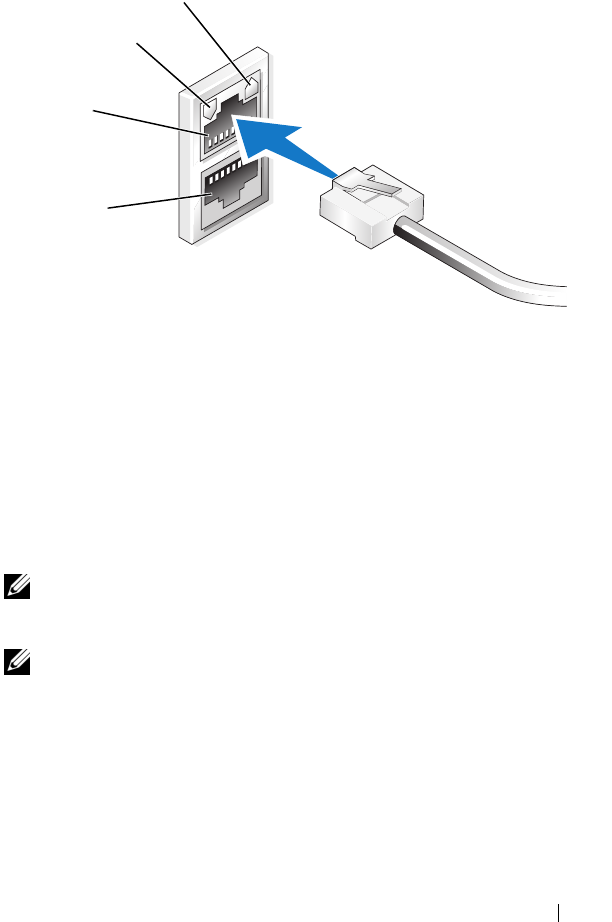
將乙太網路電纜的一端連接至
NAS
系統背面的一個
10/100/1000
RJ-45 NIC
連接器
(
請參見圖
1-1)
。
如需系統連接器位置的詳細資訊,請參閱
NAS
系統的使用者指南。
3
將乙太網路電纜的另一端連接至運作中的乙太網路插座。
4
開啟
NAS
系統。
5
可透過觀察與網路介面控制器
(NIC)
關聯的
LED
是否亮起來驗證
伺服器是否連接至乙太網路。請參見圖
1-1
。如果
NIC
連接器的
LED
呈綠色持續亮起,則表明連接狀況良好。如果
NIC
連接器的
LED
呈琥珀色閃爍,則表明資料正在順利傳送。
如果
LED
未亮起,請確定乙太網路電纜的各端是否正確穩定地連
接至
NIC
連接器和乙太網路插座。
NAS
系統將從網路上的
動態主機組態協定 (
DHCP)
伺服器擷取所
需的資訊來設定網路參數
(IP
位址、閘道子網路遮罩和
DNS
伺服器
位址
)
。
註:視您的組態和系統安裝的儲存容量而定,NAS 系統啟動可能需
要幾分鐘。
入門指南 35
圖 1-1. NIC 連接器
組態 NAS 系統的網路 IP 位址
如果您的網路上有 DHCP 伺服器,則無需組態 NAS 系統的 IP 位址,
因為 DHCP 會自動指定位址給 NAS 系統。如果您的網路未使用 DHCP
伺服器組態,請透過 Network Configuration (網路組態 ) 視窗組態 NAS
系統的 IP 位址。
若要存取 Network Configuration (網路組態 ) 視窗,請按一下 Start
(開始 ) → Settings (設定 ) → Control Panel (控制台 ) → Network
Configuration (網路設定 )。
註:如果您的網路上沒有 DHCP 伺服器,則需要本機鍵盤、顯示器和滑
鼠來完成 NAS 組態。如需更多資訊,請參閱第 34 頁的「使用鍵盤、顯示
器和滑鼠組態系統」。
註:Windows 防火牆預設為啟用。在存取遠端系統時,您可能會遇到連
接性問題。
NIC 2 LED
NIC 1 LED
NIC 1
NIC 2

36 入門指南
輸入預設管理員使用者名稱和密碼
在第一次登入 NAS 系統時,必須輸入管理員使用者名稱和密碼。
NAS 系統的預設管理員使用者名稱為 administrator,預設密碼
為 storageserver。
變更管理員密碼
1
按一下
Start
(
開始
)
→
Administrative Tools
(
管理工具
)
→
Computer Management
(
電腦管理
)
。
2
在
Computer Management
(
電腦管理
)
視窗中,展開
Local Users
and Groups
(
本機使用者和群組
)
,然後選擇
Users
(
使用者
)
。
3
在右窗格中,用滑鼠右鍵按一下
Administrator
(
管理員
)
並選擇
Set Password
(
設定密碼
)
。
4
在
Set Password for Administrator
(
設定管理員密碼
)
視窗中,
按一下
Proceed
(
繼續
)
。
5
在對應的欄位中輸入並確認您的密碼,然後按一下
OK
(
確定
)
。
6
關閉
Computer Management
(
電腦管理
)
視窗。
使用多語言使用者介面本土化系統
NAS 系統允許您變更作業系統使用者介面的原始語言。系統預設安裝
有許多語言。多語言使用者介面 (MUI) 允許 NAS 系統以多種語言顯
示作業系統功能表、對話方塊和說明檔案。
如果您的系統已經使用 Windows Storage Server 2003 R2 x64 Edition
With SP2 作業系統預先組態,則 MUI 的區域設定和瀏覽器設定將會
用本土化的語言預先組態。而無需使用者介入。
若要變更預設的瀏覽器語言,請:
1
開啟
Internet Explorer
®
瀏覽器。
2
在
Tools
(
工具
)
功能表中,選擇
Internet Options
(
網際網路選項
)
。
3
在
General
(
一般
)
標籤中,按一下
Languages
(
語言
)
。
4
在
Language Preference
(
語言喜好設定
)
視窗中,按一下
Add
(
新增
)
。
5
在
Language
(
語言
)
方塊中,選擇一種語言。
6
按一下
OK
(
確定
)
。

入門指南 37
啟動 Windows Storage Server 管理控制台
Windows Storage Server 管理控制台將出現在 MMC 中,提供簡便的系
統管理方法。該 MMC 在您登入 Windows Storage Server 2003 R2 x64
Edition With SP2 作業系統時自動開啟。
若要開啟
Windows Storage Server
管理控制台,請按一下
Start
(
開始
)
→
All Programs (所有程式 ) → Windows Storage Server Management
(Windows 儲存伺服器管理 )。
在 Microsoft Management Console (Microsoft 管理控制台 ) 視窗中,
左窗格顯示 File Server Management (Local) (檔案伺服器管理 (本機 ))
節點作為預設節點。中央窗格提供協助您管理作業系統的可選情景。
存取 Microsoft 管理控制台
MMC 預設組態為 Microsoft Start (開始 ) 功能表的一部份。MMC 可用
於磁碟管理、NFS 組態以及用作一般的 NAS 管理站。如需更多資訊,
請參閱系統隨附的 Microsoft MMC 文件。
利用 MMC,可以透過在主機上從本機存取 MMC 或使用 Remote
Desktop Connection ( 遠端桌面連線 ) 存取 MMC 來組態儲存系統。
在主機上從本機存取 MMC
MMC 將出現在主機的 Start (開始 ) 功能表中。如果 MMC 沒有出現
在 Start (開始 ) 功能表中,請執行下列步驟:
1
按一下
Start
(
開始
)
→
Run
(
執行
)
。
2
鍵入
nas.msc
並按一下
OK
(
確定
)
。
註:nas.msc 檔案位於 c:\windows\system32 下。

38 入門指南
使用 Remote Desktop Connection 存取 MMC
使用 Remote Desktop Connection ( 遠端桌面連線 ) 進行遠端伺服器管
理可以降低與遠端管理相關的費用。Remote Desktop for Administration
(系統遠端管理桌面 ) 由終端機服務技術支援,專門設計用於伺服器
管理。
Remote Desktop for Administration ( 系統遠端管理桌面 ) 不需要特殊
的用戶端系統授權即可存取伺服器。此外,在使用 Remote Desktop for
Administration ( 系統遠端管理桌面 ) 時,也無需安裝終端機伺服器
授權。
安裝 Remote Desktop Connection ( 遠端桌面連線 ) 之後,管理員亦可
從早期版本的 Windows 系統完全管理執行 Windows Storage Server
2003 R2 x64 Edition With SP2 的電腦。
註:若要從遠端系統連接至 Remote Desktop for Administration ( 系統遠端
管理桌面 ),請使用 Remote Desktop Connection ( 遠端桌面連線 )。
建立 Remote Desktop Connection 至桌面
若要建立並儲存 Remote Desktop Connection ( 遠端桌面連線 ) 至
Windows Storage Server 2003 R2 x64 Edition With SP2,請執行下列
步驟:
1
按一下
Start
(
開始
)
→
Run
(
執行
)
。
2
鍵入
mstsc
,然後按一下
OK
(
確定
)
。
螢幕上將會出現
Remote Desktop Connection
(
遠端桌面連線
)
視窗。
3
在
Remote Desktop Connection
(
遠端桌面連線
)
畫面中,鍵入儲存
伺服器的電腦名稱或
IP
位址,然後按一下
Options
(
選項
)
。
4
在
Connection Settings
(
連線設定
)
下,按一下
Save As
(
另存新檔
)
。
5
在
Save As
(
另存新檔
)
畫面中,鍵入連線的名稱,包含預設的
.rdp
副檔名。
6
在
Save in
(
儲存位置
)
下拉功能表中,選擇
Desktop
(
桌面
)
,
然後按一下
Save
(
儲存檔案
)
。
您的連線即會儲存至桌面。
如需有關設定 Remote Desktop Connection ( 遠端桌面連線 ) 的詳細資
訊,請在 Remote Desktop Connection (遠端桌面連線 ) 視窗中按一下
Help (說明 )。

入門指南 39
Dell OpenManage Server Administrator
Dell OpenManage Server Administrator 透過作業系統使用整合式、
基於 ─ Web 瀏覽器的介面 (Server Administrator 首頁 ) 或指令行介面
(CLI) 提供全面的一對一管理解決方案。
Server Administrator 可讓您從本機和遠端管理網路上的 NAS 系統,
以及透過全面的一對一管理來集中管理整個網路。
註:如果使用的是 Server Administrator,系統可以是獨立的系統、
將Network Attached Storage 單元安裝於獨立機殼的伺服器、或在機
殼中包括一或多個伺服器模組的模組化系統。
如需更多資訊,請參閱您的 Server Administrator 文件。
安裝 Server Administrator
Dell Installation and Server Management 媒體提供安裝程式,用以在 NAS
系統上安裝、升級和解除安裝 Server Administrator 及其他系統軟體元
件。您也可以透過自動網路安裝在多個系統上安裝 Server Administrator。
使用 Dell Installation and Server Management 媒體上的安裝程式,您可
以在所有支援的 Windows Storage Server 2003 R2 x64 Edition With SP2
作業系統上安裝和升級 Server Administrator。
若要安裝 Server Administrator,請執行下列步驟:
1
將
Dell Installation and Server Management
媒體插入系統的
CD/DVD
光碟機。
該媒體將自動載入,並且螢幕上出現
Server Administrator Installer
(
伺服器管理員安裝程式
)
視窗。
2
按一下
Install, Modify, Repair or Remove Server Administrator
(
安裝、修改、修復或移除伺服器管理員
)
。
3
在
License Agreement
(
授權合約
)
視窗中,閱讀並接受合約,
然後按一下
Next
(
下一步
)
。
4
在
Setup Type
(
安裝類型
)
視窗中,選擇適合您的組態的安裝類型,
然後按一下
Next
(
下一步
)
。
5
在
Ready to Install
(
準備安裝
)
視窗中,按一下
Install
(
安裝
)
。
6
在
Install Wizard Completed
(
安裝精靈完成
)
視窗中,按一下
Finish
(
完成
)
。

40 入門指南
存取 Server Administrator
您可以連按兩下桌面的 Server Administrator (伺服器管理員 ) 圖示,
透過主機從本機存取 Server Administrator。
若要直接從同一網路的用戶端系統存取 Server Administrator,請開啟
Internet Explorer 6.0 或更新版本的瀏覽器,然後連接至 NAS 系統的安
全連接埠 1311。
例如,鍵入:
https://DELL1234567:1311
其中 DELL1234567 為 NAS 系統的名稱。
如果連接埠 1311 已被防火牆停用,請使用下列程序設定例外以啟用連
接埠 1311 供 OpenManage 使用。
1按一下
Start
(
開始
)
→
Settings
(
設定
)
→
Control Panel
(
控制台
)
→
Windows Firewall
(Windows
防火牆
)
。
2
按一下
Exceptions
(
例外
)
標籤。
3
按一下
Add port
(
新增連接埠
)
。
4
在
Name
(
名稱
)
欄位中鍵入
Dell OpenManage Server
Administrator
。
5
在
Port number
(
連接埠號碼
)
欄位中鍵入
1311
。
6
按一下
OK
(
確定
)
。
7
如果出現提示,請重新啟動防火牆服務。
新增信任的網站至瀏覽器
由於 Microsoft 安全保護標準的提高,在您開始存取網站時,系統可能
會提示您將網際網路或公司內部網站新增至信任的網站區域。
若要將信任的網站新增至 Internet Explorer,請執行下列步驟:
1
在
Tools
(
工具
)
功能表中,按一下
Internet Options
(
網際網路選項
)
。
將會出現
Internet Options
(
網際網路選項
)
畫面。
2
按一下
Security
(
安全性
)
標籤。
螢幕上將會出現
Security
(
安全性
)
標籤功能表。
3
按一下
Trusted Sites
(
信任的網站
)
。

入門指南 41
4
按一下
Sites
(
網站
)
。
將會出現
Trusted sites
(
信任的網站
)
畫面。
5
在
Add this Web site to the zone:
(
將此網站加到該區域:
)
欄位中,
使用
https
:安全通訊協定鍵入網站的位址,然後按一下
Add
(
新增
)
。
該網站將出現在
Web sites: (
網站:
)
方塊中。
6
重複步驟
5
以新增任何其他網站,然後按一下
OK
(
確定
)
。
將會出現
Internet Options
(
網際網路選項
)
畫面。
7
按一下
OK
(
確定
)
。
更新系統
Server Update Utility 媒體包含用於辨識伺服器和套用更新至伺服器的
應用程式。Server Update Utility (SUU) 亦可從 Dell 支援網站
support.dell.com 下載。如需更多資訊,請參閱 Server Update Utility
User's
Guide ( 伺服器更新公用程式使用者指南)。
若要更新個別 Server Administrator 元件,請使用元件特定的 Dell-更新
套件,這些套件可在 Dell PowerEdge™ Updates (Dell PowerEdge™ 更新 )
媒體中找到。SUU 會將您 Dell NAS 系統上目前安裝的元件版本與 Dell
PowerEdge Updates 媒體上封裝的更新元件進行比較。請使用 SUU 檢
視比較報告和更新整個系統。
更新 Microsoft Windows 軟體
若要更新 Windows Storage Server 2003 R2 x64 Edition 作業系統,
請參閱 Microsoft 支援網站 support.microsoft.com。所有 Windows
Server® 2003 R2 x64 Edition 更新均適用於 Windows Storage
Server 2003 R2 x64 Edition。

42 入門指南
其他您可能需要的文件
註:產品資訊指南提供重要的安全與管制資訊。保固資訊包含於此文件
或以單獨文件附加。
•
機架安裝指南或機架安裝說明隨附於機架解決方案,說明如何將系
統安裝於機架中。
•
管理員指南提供在系統上完成組態程序的資訊,並概述
Windows
Storage Server 2003 R2 x64 Edition With SP2
的功能。
•
重要資訊文件提供最低的硬體及軟體要求,並列出所有已知的問題。
•
系統的使用者指南提供有關系統功能和技術規格的資訊。
•
系統管理軟體說明文件說明軟體的功能、要求、安裝和基本操作。
•
作業系統說明文件說明如何安裝
(
如有必要
)
、組態和使用作業系統
軟體。
•
您單獨採購的任何元件之說明文件提供這些選件的組態和安裝資訊。
•
有時候更新會包含在系統中以描述系統、軟體和
/
或說明文件的變更。
註:請務必先閱讀更新內容,因為它們經常在其他文件中更新資訊。
•
可能會隨附附註說明或讀我檔案以提供最新的系統更新、說明文件
或進階的技術參考資料以供有經驗的使用者或技術人員使用。
•
Server Update Utility User's Guide
(
伺服器更新公用程式使用者指南
)
說明如何使用伺服器更新公用程式檢視系統上的軟體版本和更新系
統軟體。該公用程式可從
Dell
支援網站
support.dell.com
下載。
www.dell.com | support.dell.com
Microsoft® Windows®
Storage Server 2003 R2 Édition
64 bits avec SP2
Guide de mise en route

Remarques et avis
REMARQUE : Une REMARQUE indique des informations
importantes qui peuvent vous aider à mieux utiliser votre
ordinateur.
AVIS : Un AVIS vous avertit d'un risque de dommage matériel
ou de perte de données et vous indique comment éviter le
problème.
____________________
Les informations contenues dans ce document peuvent être modifiées
sans préavis.
© 2007 Dell Inc. Tous droits réservés.
La reproduction de ce document de quelque manière que ce soit sans
l'autorisation écrite de Dell Inc. est strictement interdite.
Marques utilisées dans ce document : Dell, le logo DELL, PowerEdge et
Dell OpenManage sont des marques de Dell Inc. ; Microsoft, Internet Explorer,
Windows et Windows Server sont des marques ou des marques déposées
de Microsoft Corporation aux États-Unis et/ou dans d'autres pays.
Tous les autres noms de marques et marques commerciales utilisés dans ce
document se rapportent aux sociétés propriétaires de ces marques et de ces noms
ou à leurs produits. Dell Inc. décline tout intérêt dans l'utilisation des marques
déposées et des noms de marques ne lui appartenant pas.
Juin 2007 N/P XN080 Rév. A00

Sommaire 45
Sommaire
Présentation . . . . . . . . . . . . . . . . . . . . . . . . . . . . 47
Configuration du système NAS . . . . . . . . . . . . . . . 48
Configuration du système à l'aide d'un clavier,
d'un moniteur et d'une souris . . . . . . . . . . . . . . . . . . . . 48
Configuration du système pour l'accès au réseau . . . . . . . . . 48
Configuration de l'adresse IP réseau pour le système NAS . . . . 49
Saisie du nom d'utilisateur et du mot de passe par défaut
de l'administrateur. . . . . . . . . . . . . . . . . . . . . . . . . . 50
Changement de langue à l'aide de l'interface
multilingue (MUI). . . . . . . . . . . . . . . . . . . . . . . . . 50
Démarrage de la console de gestion
de Windows Storage Server . . . . . . . . . . . . . . . . . 51
Accès à la console MMC . . . . . . . . . . . . . . . . . . . 51
Accès à la console MMC en local sur le système hôte . . . . . . . 51
Accès à la console MMC via une connexion Bureau
à distance . . . . . . . . . . . . . . . . . . . . . . . . . . . . . . 52
Dell OpenManage Server Administrator. . . . . . . . . 53
Installation de Server Administrator. . . . . . . . . . . . . . . . . 53
Accès à Server Administrator . . . . . . . . . . . . . . . . . . . . 54
Ajout de sites de confiance au navigateur . . . . . . . . . . . . . 55
Mise à jour du système . . . . . . . . . . . . . . . . . . . . . . . 55
Mise à jour de Microsoft Windows . . . . . . . . . . . . . . . . . 56
Autres documents utiles . . . . . . . . . . . . . . . . . . . . 56

46 Sommaire

Guide de mise en route 47
Ce document présente le système d'exploitation Microsoft
®
Windows
®
Storage Server 2003 R2 Édition 64 bits avec SP2. Il indique comment
configurer et installer un système Dell™ Network Attached Storage (NAS)
sur un réseau d'entreprise, et contient les instructions requises pour changer
la langue de l'interface utilisateur.
Les thèmes abordés dans ce document sont les suivants :
• Présentation
• Configuration du système NAS
• Changement de langue à l'aide de l'interface multilingue (MUI)
• Démarrage de la console Windows Storage Server Management
• Accès à la console MMC
• Dell OpenManage
™
Server Administrator
• Autres documents utiles
Présentation
L'édition 64 bits de Windows
Storage Server 2003 R2 avec SP2 inclut de
nouvelles fonctions de recherche et simplifie la gestion du stockage et de la
configuration. Ce système d'exploitation évolutif a été conçu spécialement
pour optimiser les performances des systèmes de stockage réseau (NAS).
Il apporte des améliorations notables en termes de gestion du stockage et
de facilité d'installation.
L'édition 64 bits de Windows
Storage Server 2003 R2 avec SP2 a été
préinstallée sur votre système NAS. La plupart des procédures de
configuration ont déjà été effectuées et ne requièrent aucune intervention
de l'utilisateur.
Le processus de mini-installation Microsoft est lancé au premier démarrage
du système. Une fois son exécution terminée, vous pouvez accéder au
serveur en local ou à distance.
REMARQUE : Si le système a été préconfiguré en RAID logiciel de niveau 5,
il lance une synchronisation RAID pour optimiser la matrice de disques.
Ce processus s'exécute en arrière-plan et peut affecter les performances
générales du système tant qu'il n'est pas terminé. Si le système est mis hors
tension prématurément, la synchronisation RAID recommence à la mise sous
tension suivante, jusqu'à ce qu'elle puisse se terminer.

48 Guide de mise en route
Configuration du système NAS
Configuration du système à l'aide d'un clavier, d'un moniteur
et d'une souris
REMARQUE : Selon la méthode de configuration utilisée, vous devrez
peut-être utiliser des connexions KVM (clavier/vidéo/souris) locales pour
effectuer les procédures d'installation et de configuration. Ces connexions ne
sont pas nécessaires si la configuration peut être effectuée à partir du système
distant.
1
Connectez un clavier, un moniteur et une souris au système NAS.
Pour plus d'informations sur les connecteurs du système, consultez
le document
User's Guide
(Guide d'utilisation).
2
Allumez le système NAS.
3
Connectez-vous au système NAS.
REMARQUE : Le nom d'utilisateur par défaut de l'administrateur est
administrator et le mot de passe associé storageserver.
Configuration du système pour l'accès au réseau
1
Si le système NAS est sous tension, éteignez-le.
2
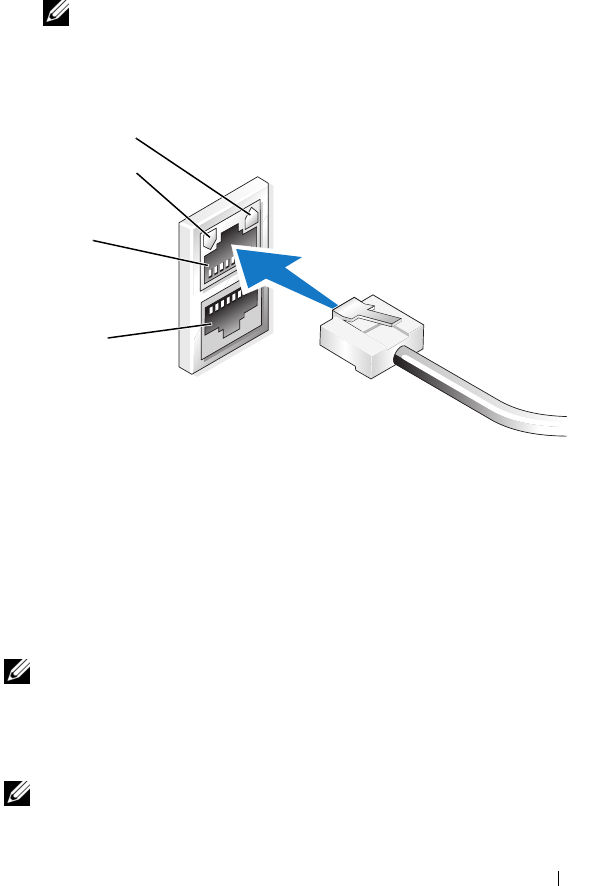
Connectez l'extrémité d'un câble Ethernet à l'un des connecteurs
de contrôleur d'interface réseau (NIC) 10/100/1000 RJ-45
(voir la figure 1-1) situés à l'arrière du système NAS.
Pour plus d'informations sur l'emplacement des connecteurs, consultez
le document
User's Guide
(Guide d'utilisation) du système NAS.
3
Connectez l'autre extrémité du câble Ethernet à une prise Ethernet fiable.
4
Allumez le système NAS.
5
Vérifiez que le serveur est connecté à Ethernet. Pour ce faire, vérifiez
que le voyant du connecteur de NIC est allumé. Voir la figure 1-1. Si ce
voyant est vert fixe, la connexion est de bonne qualité. S'il clignote en
orange, des données sont en cours de transfert.
Si le voyant est éteint, vérifiez que chaque extrémité du câble Ethernet
est correctement insérée dans le connecteur de NIC et dans la prise
Ethernet.
Guide de mise en route 49
Le système NAS obtient d'un serveur DHCP
(Dynamic Host
Configuration Protocol
) les informations permettant de définir les
paramètres réseau (adresse IP, masque de sous-réseau correspondant
à la passerelle et adresse du serveur DNS).
REMARQUE : Le démarrage du système NAS peut prendre quelques
minutes. Ce délai varie selon la configuration utilisée et le nombre
de ressources de stockage connectées.
Figure 1-1. Connecteur de NIC
Configuration de l'adresse IP réseau pour le système NAS
Si votre réseau contient un serveur DHCP, il est inutile de configurer
l'adresse IP du système NAS (le protocole DHCP attribue cette adresse
automatiquement). Dans le cas contraire, configurez l'adresse IP du système
NAS via la fenêtre
Configuration du réseau
.
Pour accéder à cette dernière, cliquez sur
Démarrer
→
Paramètres
→
Panneau de configuration
→
Configuration du réseau
.
REMARQUE : Si le réseau ne comprend aucun serveur DHCP, vous devez
connecter un clavier, un moniteur et une souris au système local pour
procéder à la configuration du système NAS. Pour plus d'informations,
voir “Configuration du système à l'aide d'un clavier, d'un moniteur et
d'une souris”, à la page 48.
REMARQUE : Le pare-feu Windows est activé par défaut. Il est donc possible
que vous soyez confronté à des problèmes de connectivité lors de l'accès
au système distant.
Voyant du NIC 2
Voyant du NIC 1
NIC 1
NIC 2

50 Guide de mise en route
Saisie du nom d'utilisateur et du mot de passe par défaut
de l'administrateur
Lorsque vous vous connectez au système NAS pour la première fois, vous
devez entrer un nom d'utilisateur pour l'administrateur, ainsi qu'un mot de
passe. Par défaut, le nom d'administrateur est
administrator
et le mot
de passe
storageserver
.
Modification du mot de passe administrateur
1
Cliquez sur
Démarrer
→
Outils d'administration
→
Gestion
de l'ordinateur
.
2
Dans la fenêtre
Gestion de l'ordinateur
, développez l'élément
Utilisateurs et groupes locaux
puis cliquez sur
Utilisateurs
.
3
Dans le volet de droite, cliquez avec le bouton droit sur
Administrateur
et sélectionnez
Définir le mot de passe
.
4
Dans la fenêtre
Définir le mot de passe Administrateur
, cliquez
sur
Continuer
.
5
Saisissez puis confirmez le mot de passe dans les champs appropriés,
puis cliquez sur
OK
.
6
Fermez la fenêtre
Gestion de l'ordinateur
.
Changement de langue à l'aide de l'interface
multilingue (MUI)
Le système NAS permet de changer la langue de l'interface utilisateur
du système d'exploitation. Par défaut, plusieurs langues sont installées.
L'interface MUI permet d'afficher les menus, boîtes de dialogue et fichiers
d'aide du système d'exploitation dans plusieurs langues.
Si le système a été préconfiguré avec l'édition 64 bits de Windows Storage
Server 2003 R2 avec SP2, l'interface MUI est configurée pour prendre en
compte votre langue dans les paramètres régionaux et dans le navigateur.
Aucune intervention de l'utilisateur n'est requise.
Pour changer la langue par défaut du navigateur, procédez comme suit :
1
Ouvrez une fenêtre Internet Explorer
®
.
2
Dans le menu
Outils
, sélectionnez
Options Internet
.

Guide de mise en route 51
3
Dans l'onglet
Général
, cliquez sur
Langues
.
4
Dans la fenêtre
Langues
, cliquez sur
Ajouter
.
5
Dans la zone
Langue
, sélectionnez une langue.
6
Cliquez sur
OK
.
Démarrage de la console de gestion
de Windows Storage Server
La console de gestion de Windows Storage Server s'affiche dans la console
MMC (Microsoft Management Console) et simplifie l'administration du
système. La console MMC s'ouvre automatiquement lorsque vous vous
connectez à Windows Storage Server 2003 R2 Édition 64 bits avec SP2.
Pour ouvrir la console de gestion de Windows Storage Server, cliquez sur
Démarrer
→
Tous les programmes
, puis sélectionnez l'option appropriée.
Le nœud par défaut affiché dans le volet gauche de la fenêtre
Microsoft
Management Console
est
Gestion de serveur de fichiers (Local)
. Le volet
central affiche plusieurs scénarios que vous pouvez sélectionner pour
bénéficier d'une assistance lors des opérations liées à l'administration
du système d'exploitation.
Accès à la console MMC
Par défaut, la console MMC figure parmi les options du menu
Démarrer
.
Elle peut être utilisée pour configurer le système de fichiers réseau (NFS)
et gérer les disques ou le système NAS. Pour plus d'informations, consultez
la documentation fournie avec le système et concernant la console MMC.
Avec la console MMC, vous pouvez gérer le stockage localement
(à partir du système hôte) ou au moyen d'une connexion Bureau à distance.
Accès à la console MMC en local sur le système hôte
La console MMC doit normalement figurer parmi les options du menu
Démarrer
. Si tel n'est pas le cas, procédez comme suit :
1
Cliquez sur
Démarrer
→
Exécuter
.
2
Ta p ez
nas.msc
et cliquez sur
OK
.
REMARQUE : Le fichier nas.msc se trouve dans le répertoire
c:\windows\system32.

52 Guide de mise en route
Accès à la console MMC via une connexion Bureau à distance
La gestion du serveur via la fonction Bureau à distance permet d'alléger la
charge liée à l'administration à distance. Elle est spécialement conçue pour
la gestion des serveurs et fait appel à la technologie Terminal Services.
Aucune licence spéciale n'est requise pour les clients qui accèdent au
serveur, et il n'est pas nécessaire d'installer la gestion de licences Terminal
Server.
La connexion Bureau à distance permet également aux administrateurs de
gérer intégralement les systèmes équipés de l'édition 64 bits de Windows
Storage Server 2003 R2 avec SP2 à partir d'ordinateurs équipés de versions
antérieures de Windows.
REMARQUE : Pour vous connecter à la fonction Bureau à distance pour
administration à partir d'un système distant, utilisez la connexion au bureau
à distance.
Création d'une connexion Bureau à distance et ajout d'une icône sur le bureau
Pour créer et enregistrer une connexion Bureau à distance vers un système
Windows Storage Server 2003 R2 Édition 64 bits avec SP2, procédez
comme suit :
1
Cliquez sur
Démarrer
→
Exécuter
.
2
Ta pe z
mstsc
et cliquez sur
OK
.
La fenêtre
Connexion Bureau à distance
s'affiche.
3
Dans le champ
Connexion au bureau à distance
, entrez le nom
d'ordinateur ou l'adresse IP du serveur de stockage, puis cliquez
sur
Options
.
4
Sous
Paramètres de connexion
, cliquez sur
Enregistrer sous
.
5
Dans l'écran
Enregistrer sous
, saisissez un nom pour la connexion
en conservant l'extension par défaut
.rdp
.
6
Dans le menu déroulant
Enregistrer dans
, sélectionnez
Bureau
puis cliquez sur
OK
.
La connexion est enregistrée sur le bureau.
Pour plus d'informations sur la configuration de la connexion au bureau à
distance, cliquez sur
Aide
dans la fenêtre
Connexion Bureau à distance
.

Guide de mise en route 53
Dell OpenManage Server Administrator
Dell OpenManage Server Administrator fournit une solution de gestion
de systèmes individuels complète, qui peut être utilisée via une interface
intégrée de type navigateur Web (page d'accueil de Server Administrator)
ou au moyen de l'interface CLI du système d'exploitation.
Ses fonctions d'administration permettent de gérer des systèmes NAS
individuellement sur un réseau, en local ou à distance, et de se concentrer
sur la gestion du réseau dans son ensemble.
REMARQUE : Dans le cadre de l'utilisation de Server Administrator, le terme
système peut désigner un système autonome, un serveur connecté à des unités
NAS dans un châssis distinct, ou bien un système modulaire constitué d'un
châssis contenant un ou plusieurs modules serveurs.
Pour plus de détails, reportez-vous à la documentation de Server
Administrator.
Installation de Server Administrator
Le support
Dell Installation and Server Management
contient un programme
de configuration qui permet d'installer, de mettre à niveau et de désinstaller
Server Administrator, ainsi que d'autres composants logiciels du système
NAS. Vous pouvez également installer Server Administrator automati-
quement sur plusieurs systèmes du réseau.
Le programme de configuration fourni sur le support
Dell Installation and
Server Management
permet d'installer Server Administrator et de le mettre
à niveau sur tout système équipé d'une version prise en charge de Windows
Storage Server 2003 R2 Édition 64 bits avec SP2.
Pour installer Server Administrator, procédez comme suit :
1
Insérez le CD
Dell Installation and Server Management
dans le lecteur
de CD/DVD.
Le support démarre automatiquement et la fenêtre
Server
Administrator Installer
(Programme d'installation de Server
Administrator) s'affiche.
2
Cliquez sur
Install, Modify, Repair or Remove Server Administrator
(Installer, modifier, réparer ou supprimer Server Administrator).

54 Guide de mise en route
3
Dans la fenêtre
License Agreement
(Contrat de licence),
lisez et acceptez le contrat, puis cliquez sur
Next
(Suivant).
4
Dans la fenêtre
Setup Type
(Type d'installation), sélectionnez le type
d'installation souhaité et cliquez sur
Next
.
5
Dans la fenêtre
Ready to Install
(Prêt pour l'installation),
cliquez sur
Install
(Installer).
6
Dans la fenêtre
Install Wizard Completed
(Assistant d'installation
terminé), cliquez sur
Finish
(Terminer).
Accès à Server Administrator
Vous pouvez accéder à Server Administrator en local sur le système hôte.
Pour ce faire, double-cliquez sur l'icône
Server Administrator
du bureau.
Pour accéder directement à Server Administrator à partir d'un système client
connecté au même réseau, ouvrez Internet Explorer 6.0 (ou version
suivante) puis connectez-vous au port sécurisé (1311) du système NAS.
Par exemple, tapez :
https://DELL1234567:1311
où
DELL1234567
est le nom du système NAS.
Si le port 1311 est désactivé par le pare-feu, utilisez la procédure suivante
pour définir une exception afin d'autoriser OpenManage à utiliser ce port.
1Cliquez sur
Démarrer
→
Paramètres
→
Panneau de configuration
→
Pare-feu Windows
.
2
Cliquez sur l'onglet
Exceptions
.
3
Cliquez sur
Ajouter un port
.
4
Ta pe z
Dell OpenManage Server Administrator
dans le champ
Nom
.
5
Ta pe z
1311
dans le champ
Numéro du port
.
6
Cliquez sur
OK
.
7
Si un message vous y invite, redémarrez le service de pare-feu.

Guide de mise en route 55
Ajout de sites de confiance au navigateur
Microsoft ayant renforcé ses normes de sécurité, vous serez probablement
invité à ajouter un site Internet ou intranet auquel vous accédez pour
la première fois à la zone des sites de confiance.
Pour ajouter des sites de confiance à Internet Explorer, procédez
comme suit :
1
Dans le menu
Outils
, cliquez sur
Options Internet
.
L'écran
Options Internet
s'affiche.
2
Cliquez sur l'onglet
Sécurité
.
Le menu correspondant s'affiche.
3
Cliquez sur
Sites de confiance
.
4
Cliquez sur
Sites
.
La fenêtre
Sites de confiance
s'affiche.
5
Dans le champ
Ajouter ce site Web à cette zone
, tapez l'adresse du site
en utilisant le protocole de sécurité https:, puis cliquez sur
Ajouter
.
Le site s'affiche dans la zone
Sites Web
.
6
Recommencez l'étape 5 pour ajouter des sites supplémentaires,
puis cliquez sur
OK
.
L'écran
Options Internet
s'affiche.
7
Cliquez sur
OK
.
Mise à jour du système
Le support
Server Update Utility
contient une application permettant
d'identifier les mises à jour et de les appliquer au serveur. Server Update
Utility (“SUU”) peut également être téléchargé à partir du site
support.dell.com
. Pour plus de détails, reportez-vous au document
Server
Update Utility User's Guide
(Server Update Utility - Guide d'utilisation).

56 Guide de mise en route
Pour mettre à jour uniquement certains composants de Server
Administrator, utilisez les progiciels de mise à jour Dell appropriés
disponibles sur le support
Dell PowerEdge™ Updates
. SUU compare
les versions des composants installés sur le système Dell NAS avec celles du
support
Dell PowerEdge Updates
. Il permet d'afficher un rapport comparatif
de ces versions et de mettre à jour la totalité du système.
Mise à jour de Microsoft Windows
Pour mettre à jour le système d'exploitation Windows Storage Server 2003
R2 Édition 64 bits avec SP2, rendez-vous sur le site Web de support
technique de Microsoft,
support.microsoft.com
. Toutes les mises à jour de
Windows Server
®
2003 R2 Édition 64 bits s'appliquent à Windows Storage
Server 2003 R2 Édition 64 bits.
Autres documents utiles
REMARQUE : Le document Product Information Guide (Guide d'information
sur le produit) contient d'importantes informations se rapportant à la sécurité
et aux réglementations. Les informations sur la garantie se trouvent soit dans
ce document, soit à part.
• Les documents
Rack Installation Guide
(Guide d'installation du rack)
et
Rack Installation Instructions
(Instructions d'installation du rack)
fournis avec la solution rack décrivent l'installation du système.
• Le document
Administrator's Guide
(Guide de l'administrateur)
contient des informations relatives aux procédures de configuration du
système, ainsi qu'une présentation générale des fonctions de Windows
Storage Server 2003 R2 Édition 64 bits avec SP2.
• Le document
Important Information
(Informations importantes)
présente la configuration minimale requise sur le plan matériel et
logiciel, et répertorie tous les incidents recensés.
• Le document
User's Guide
(Guide d'utilisation) fournit des
informations sur les fonctions et spécifications techniques du système.
• La documentation des logiciels de gestion des systèmes contient des
informations sur les fonctionnalités, les exigences, l'installation et
l'utilisation de base de ces logiciels.

Guide de mise en route 57
• La documentation du système d'exploitation indique comment installer
(au besoin), configurer et utiliser le système d'exploitation.
• La documentation fournie avec les composants achetés séparément
contient des informations permettant de configurer et d'installer ces
options.
• Des mises à jour sont parfois fournies avec le système. Elles décrivent
les modifications apportées au système, aux logiciels ou à la
documentation.
REMARQUE : Lisez toujours les mises à jour en premier car elles remplacent
souvent les informations contenues dans les autres documents.
• Si des notes d'édition ou des fichiers lisez-moi (readme) sont fournis,
ils contiennent des mises à jour de dernière minute apportées au
système ou à la documentation, ou bien des informations techniques
avancées destinées aux utilisateurs expérimentés ou aux techniciens.
• Le document
Server Update Utility User's Guide
(Server Update
Utility - Guide d'utilisation) indique comment utiliser SUU pour
afficher les versions de logiciels installées sur le système et les mettre
à jour. Il peut être téléchargé à partir du site
support.dell.com
.

58 Guide de mise en route
www.dell.com | support.dell.com
Microsoft® Windows®
Storage Server 2003 R2
x64 Edition mit SP2
Handbuch Zum Einstieg

Anmerkungen und Hinweise
ANMERKUNG: Eine ANMERKUNG macht auf wichtige
Informationen aufmerksam, die die Arbeit mit dem Computer
erleichtern.
HINWEIS: Ein HINWEIS warnt vor möglichen Beschädigungen
der Hardware oder vor Datenverlust und zeigt auf, wie derartige
Probleme vermieden werden können.
____________________
Irrtümer und technische Änderungen vorbehalten.
© 2007 Dell Inc. Alle Rechte vorbehalten.
Jegliche Reproduktion dieses Dokuments ohne vorherige schriftliche
Genehmigung von Dell Inc. ist streng untersagt.
In diesem Text verwendete Marken: Dell, das DELL Logo, PowerEdge, und
Dell OpenManage sind Marken von Dell Inc.; Microsoft, Internet Explorer,
Windows und Windows Server sind Marken oder eingetragene Marken von
Microsoft Corporation in den USA und/oder anderen Ländern.
Alle anderen in dieser Dokumentation genannten Marken und Handels-
bezeichnungen sind Eigentum der jeweiligen Hersteller und Firmen. Dell Inc.
erhebt keinen Anspruch auf Besitzrechte an Marken und Handelsbezeichnungen
mit Ausnahme der eigenen.
Juni 2007 Teilenr. XN080 Rev. A00

Inhalt 61
Inhalt
Übersicht . . . . . . . . . . . . . . . . . . . . . . . . . . . . . . 63
Konfigurieren des NAS-Systems . . . . . . . . . . . . . . 64
Konfiguration des Systems mit Tastatur, Bildschirm
und Maus . . . . . . . . . . . . . . . . . . . . . . . . . . . . . . 64
Konfiguration des Systems für den Netzwerkzugriff . . . . . . . . 64
Konfiguration der Netzwerk-IP-Adresse für das NAS-System . . . 66
Eingabe des vorgegebenen Administratorbenutzernamens
und -kennworts . . . . . . . . . . . . . . . . . . . . . . . . . . . 66
Lokalisieren des Systems mit der
Mehrsprachen-Benutzerschnittstelle . . . . . . . . . . 67
Aufrufen der Windows Storage Server
Management Console. . . . . . . . . . . . . . . . . . . . . . 67
Aufrufen der Microsoft Management Console . . . . 68
Lokaler MMC-Aufruf auf dem Host . . . . . . . . . . . . . . . . . 68
Zugriff auf die MMC über eine Remotedesktopverbindung. . . . . 68
Dell OpenManage Server Administrator. . . . . . . . . 69
Installation von Server Administrator . . . . . . . . . . . . . . . . 70
Aufrufen von Server Administrator . . . . . . . . . . . . . . . . . 70
Hinzufügen von vertrauenswürdigen Sites im Browser. . . . . . . 71
Aktualisieren des Systems. . . . . . . . . . . . . . . . . . . . . . 72
Aktualisieren der Microsoft Windows-Software . . . . . . . . . . 72
Weitere nützliche Dokumente . . . . . . . . . . . . . . . . 73

62 Inhalt

Handbuch Zum Einstieg 63
Dieses Dokument enthält einen Überblick über das Betriebssystem Microsoft
®
Windows
®
Storage Server 2003 R2 x64 Edition mit SP2 und Informationen
über die Konfiguration, Lokalisierung und Installation des Dell™ NAS-Systems
(Network Attached Storage) in einem Unternehmens-netzwerk.
Die folgenden Themen werden in diesem Dokument behandelt:
• Übersicht
• Konfigurieren des NAS-Systems
• Lokalisieren des Systems mit der Mehrsprachen-Benutzerschnittstelle
(MUI)
• Aufrufen der Windows Storage Server Management Console
• Aufrufen der Microsoft Management Console (MMC)
• Dell OpenManage
™
Server Administrator
• Weitere nützliche Dokumente
Übersicht
Das Betriebssystem Windows
Storage Server 2003 R2 x64 Edition mit SP2
bietet neue Suchfunktionen, vereinfachte Einrichtung und Speicherver-
waltung sowie Erweiterbarkeit; insbesondere wird eine optimale NAS-
Leistung erreicht. Windows Storage Server 2003 R2 x64 Edition mit SP2
bietet erhebliche Verbesserungen bei Speichermanagement-Szenarien
und ist einfach zu installieren.
Ihr NAS-System ist vorkonfiguriert mit dem Betriebssystem Windows
Storage
Server 2003 R2 x64 Edition mit SP2. Die meisten Einrichtungsvorgänge
wurden bereits durchgeführt und erfordern keinen Benutzereingriff.
Wenn Sie das System zum ersten Mal starten, beginnt das
Microsoft Mini-
Setup
. Nachdem es abgeschlossen ist, startet Ihr System automatisch neu.
Anschließend können Sie lokal oder über Netzwerk auf den Server zugreifen.
ANMERKUNG: Wenn das System mit softwareseitigem RAID 5 (RAID =
Redundant Array of Independent Disks) vorkonfiguriert ist, wird eine RAID-
Synchronisation zum Optimieren des Arrays durchgeführt. Der Vorgang findet
im Hintergrund statt und kann bis zu seinem Abschluss die allgemeine
Systemleistung beeinträchtigen. Wenn das System vor Abschluss des Vorgangs
ausgeschaltet wird, beginnt die RAID-Synchronisation beim nächsten
Einschalten erneut, bis der Vorgang abgeschlossen ist.

64 Handbuch Zum Einstieg
Konfigurieren des NAS-Systems
Konfiguration des Systems mit Tastatur, Bildschirm und Maus
ANMERKUNG: Je nach Konfigurationsverfahren ist es eventuell erforderlich,
dass Tastatur, Bildschirm und Maus lokal angeschlossen sind, um die
Installation und Konfiguration durchzuführen. Wenn Sie die Konfiguration über
das Netzwerk vornehmen können, brauchen Tastatur, Bildschirm und Maus
nicht lokal angeschlossenen zu sein.
1
Verbinden Sie eine Tastatur, einen Bildschirm und eine Maus mit
dem NAS-System.
Nähere Informationen zu den Systemanschlüssen finden Sie im
Benutzer-
handbuch
.
2
Schalten Sie das NAS-System ein.
3
Melden Sie sich beim NAS-System an.
ANMERKUNG: Der vorgegebene Administratorbenutzername lautet
administrator, und das zugehörige Kennwort ist storageserver.
Konfiguration des Systems für den Netzwerkzugriff
1
Falls das NAS-System eingeschaltet ist, schalten Sie es aus.
2
Verbinden Sie ein Ende eines Ethernet-Kabels mit einem der
10/100/1000 RJ-45 NIC-Anschlüsse (siehe Abbildung 1-1) auf
der Rückseite des NAS-Systems.
Nähere Informationen über die Position der Systemanschlüsse
erhalten Sie im
Benutzerhandbuch
zum NAS-System.
3
Verbinden Sie das andere Ende des Ethernet-Kabels mit
einer funktionierenden Ethernet-Anschlussbuchse.
4
Schalten Sie das NAS-System ein.
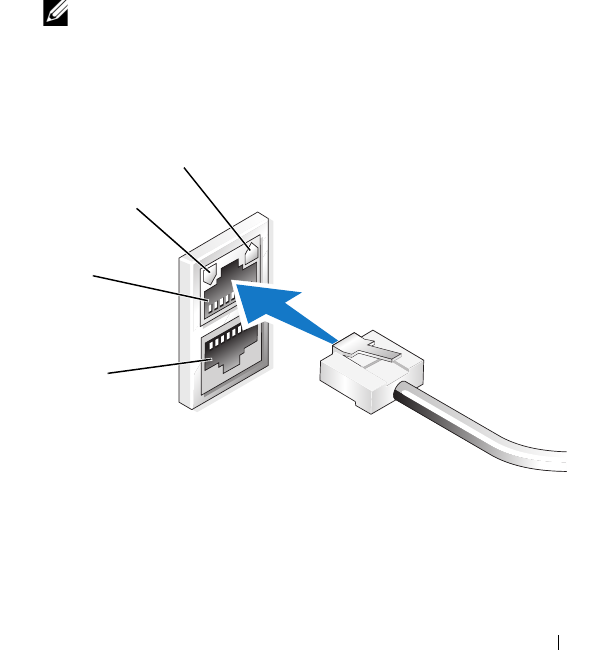
Handbuch Zum Einstieg 65
5
Überprüfen Sie die Ethernet-Verbindung des Servers, indem Sie
kontrollieren, ob die LED für den Netzwerkadapter (NIC) leuchtet.
Siehe Abbildung 1-1. Wenn die LED des NIC-Anschlusses stetig grün
leuchtet, ist die Verbindung ordnungsgemäß hergestellt. Wenn die
LED des NIC-Anschlusses gelb blinkt, zeigt dies die Übertragung
von Daten an.
Wenn die LED nicht leuchtet, überprüfen Sie den korrekten Sitz
des Ethernet-Kabels am NIC-Anschluss und an der Ethernet-
Anschlussbuchse.
Das NAS-System bezieht die für das Einrichten der Netzwerkpara-
meter (IP-Adresse, Gateway-Subnetzmaske und DNS-Serveradresse)
erforderlichen Informationen von einem DHCP-Server (DHCP =
Dynamic Host Configuration Protocol) im Netzwerk.
ANMERKUNG: Je nach Konfiguration und der am System
angeschlossenen Speicherkapazität kann der Startvorgang
des NAS-Systems mehrere Minuten dauern.
Abbildung 1-1. NIC-Anschluss
LED für NIC 2
LED für NIC 1
NIC 1
NIC 2

66 Handbuch Zum Einstieg
Konfiguration der Netzwerk-IP-Adresse für das NAS-System
Wenn das Netzwerk über einen DHCP-Server verfügt, brauchen Sie die IP-
Adresse des NAS-Systems nicht zu konfigurieren, da DHCP dem NAS-
System automatisch eine Adresse zuweist. Wenn das Netzwerk nicht mit
einem DHCP-Server ausgestattet ist, konfigurieren Sie die IP-Adresse des
NAS-Systems im Fenster
Netzwerkkonfiguration
.
Um das Fenster
Netzwerkkonfiguration
zu öffnen, klicken Sie auf
Start
→
Einstellungen
→
Systemsteuerung
→
Netzwerkkonfiguration
.
ANMERKUNG: Wenn im Netzwerk kein DHCP-Server vorhanden ist,
benötigen Sie zum Durchführen der NAS-Konfiguration eine lokalen Gerätesatz
aus Tastatur, Bildschirm und Maus. Weitere Informationen erhalten Sie unter
„Konfiguration des Systems mit Tastatur, Bildschirm und Maus“ auf Seite 64.
ANMERKUNG: Die Windows-Firewall ist standardmäßig aktiviert.
Wenn Sie über das Netzwerk auf das System zugreifen, kann es zu
Verbindungsproblemen kommen.
Eingabe des vorgegebenen Administratorbenutzernamens
und -kennworts
Wenn Sie sich am NAS-System zum ersten Mal anmelden, müssen Sie
einen Administratorbenutzernamen mit dem dazugehörigen Kennwort
eingeben. Der vorgegebene Administratorbenutzername für das NAS-
System lautet
administrator
, und das entsprechende Kennwort
ist
storageserver
.
Ändern des Administratorkennworts
1
Klicken Sie auf
Start
→
Verwaltung
→
Computerverwaltung
.
2
Erweitern Sie im Fenster
Computerverwaltung
den Eintrag
Lokale
Benutzer und Gruppen,
und wählen Sie
Benutzer
.
3
Klicken Sie im rechten Bereich auf
Administrator
, und wählen Sie
Kennwort festlegen
.
4
Klicken Sie im Fenster
Set Password for Administrator
(Kennwort für Administrator festlegen) auf
Fortsetzen
.
5
Geben Sie das Kennwort in den entsprechenden Feldern ein,
und klicken Sie auf
OK
.
6
Schließen Sie das Fenster
Computerverwaltung
.

Handbuch Zum Einstieg 67
Lokalisieren des Systems mit der
Mehrsprachen-Benutzerschnittstelle
Sie können für das NAS-System die Sprache der Betriebssystem-Benutzer-
schnittstelle ändern. Viele Sprachen sind standardmäßig auf dem System
installiert. Die Mehrsprachen-Benutzerschnittstelle (MUI) ermöglicht für
das NAS-System die Anzeige von Menüs, Dialogfenstern und Hilfedateien
in verschiedenen Sprachen.
Wenn das System mit dem Betriebssystem Windows Storage Server 2003 R2
x64 Edition mit SP2 vorkonfiguriert war, ist die Mehrsprachen-Schnittstelle
bereits für Ihre Sprache eingestellt, und zwar sowohl bei den Länder- als
auch den Browsereinstellungen. Es ist kein Eingriff vom Benutzer
erforderlich.
So ändern Sie die Standardsprache des Browsers:
1
Öffnen Sie ein Fenster des Browsers Internet Explorer
®
.
2
Wählen Sie im Menü
Extras
den Eintrag
Internetoptionen
.
3
Klicken Sie auf der Registerkarte
Allgemein
auf
Sprachen
.
4
Klicken Sie im Fenster
Spracheinstellung
auf
Hinzufügen
.
5
Wählen Sie eine Sprache im Feld
Sprache
.
6
Klicken Sie auf
OK
.
Aufrufen der Windows Storage Server
Management Console
Die
Windows Storage Server Management Console
wird in der MMC
(Microsoft Management Console) angezeigt und ermöglicht eine einfache
und komfortable Verwaltung des Systems. Die MMC wird automatisch
geöffnet, wenn Sie sich bei Windows Storage Server 2003 R2 x64 Edition
mit SP2 anmelden.
Um die
Windows Storage Server Management Console
zu öffnen, klicken
Sie auf
Start
→
Alle Programme
→
Windows Storage Server Management
(Windows Storage Server Verwaltung).
Im linken Bereich des Fensters
Microsoft Management Console
wird der
Knoten
File Server Management (Local)
(Dateiserververwaltung [lokal])
als Standardknoten angezeigt. Der mittlere Fensterbereich enthält Szenarien,
die Sie zur vereinfachten Betriebssystemverwaltung auswählen können.

68 Handbuch Zum Einstieg
Aufrufen der Microsoft Management Console
Die MMC ist standardmäßig im Microsoft Startmenü konfiguriert. Die
MMC lässt sich zur Datenträgerverwaltung und NFS-Konfiguration sowie
als allgemeine NAS-Verwaltungsstation nutzen. Weitere Informationen
erhalten Sie im mitgelieferten Dokument über Microsoft MMC.
Um Ihr Speichersystem über MMC zu konfigurieren, können Sie entweder
lokal oder über eine Remote-Desktop-Verbindung auf die MMC zugreifen.
Lokaler MMC-Aufruf auf dem Host
Die MMC wird im
Start
-Menü des Hosts angezeigt. Wenn die MMC
nicht im Menü
Start
angezeigt wird, gehen Sie wie folgt vor:
1
Wählen Sie
Start
→
Ausführen
.
2
Geben Sie
nas.msc
ein, und klicken Sie auf
OK
.
ANMERKUNG: Die Datei nas.msc befindet sich im Verzeichnis
c:\windows\system32.
Zugriff auf die MMC über eine Remotedesktopverbindung
Verwenden Sie die Remotedesktopverbindung zur Serververwaltung über
das Netzwerk und reduzieren Sie so den Aufwand für die Fernverwaltung.
Remotedesktop für Verwaltung ist mit Terminal-Services-Technologie
ausgestattet und speziell auf die Anforderungen der Serverwaltung
zugeschnitten.
Remotedesktop für Verwaltung benötigt keine spezielle Lizenz für Client-
Systeme, die auf den Server zugreifen. Außerdem ist es nicht erforderlich,
bei der Benutzung von Remotedesktop für Verwaltung die Terminal-Server-
Lizenzierung zu installieren.
Computer mit Windows Storage Server 2003 R2 x64 Edition mit SP2 lassen
sich auch von einem System mit einer Vorgängerversion von Windows
vollständig verwalten, wenn die Remotedesktopverbindung auf jenem
System installiert wird.
ANMERKUNG: Um von einer Netzwerkstation auf Remotedesktop für
Verwaltung zuzugreifen, verwenden Sie die Remotedesktopverbindung.

Handbuch Zum Einstieg 69
Erstellen einer Remotedesktopverbindung auf dem Desktop
Um eine Remotedesktopverbindung zu Windows Storage Server 2003 R2
x64 Edition mit SP2 zu erstellen und zu speichern, gehen Sie wie folgt vor:
1
Wählen Sie
Start
→
Ausführen
.
2
Geben Sie
mstsc
ein, und klicken Sie auf
OK
.
Das Fenster
Remotedesktopverbindung
wird angezeigt.
3
Geben Sie im Fenster
Remotedesktopverbindung
den
Computernamen oder die IP-Adresse des Speicherservers ein,
und klicken Sie dann auf
Optionen
.
4
Klicken Sie unter
Verbindungseinstellungen
auf
Speichern unter
.
5
Geben Sie im Fenster
Speichern unter
einen Namen für die Verbindung
ein, und hängen Sie die Standard-Dateinamenerweiterung
.rdp
an.
6
Wählen Sie im Dropdownmenü
Speichern in
den Eintrag
Desktop
,
und klicken Sie dann auf
Speichern
.
Die Verbindung wird auf dem Desktop gespeichert.
Weitere Informationen über das Konfigurieren der Remotedesktopver-
bindung erhalten Sie, wenn Sie im Fenster
Remotedesktopverbindung
auf
Hilfe
klicken.
Dell OpenManage Server Administrator
Dell OpenManage Server Administrator ist eine umfassende, Eine-zu-Eins-
Systemverwaltungslösung, die sich mit einer integrierten browser-basierten
Schnittstelle (der Server-Administrator-Homepage) oder einer Befehlszei-
lenschnittstelle (CLI) über das Betriebssystem bedienen lässt.
Mit Server Administrator können Sie NAS-Systeme im Netzwerk lokal und
aus der Ferne verwalten. Die Verwaltung des gesamten Netzwerks erfolgt
über eine umfassende Eins-zu-Eins-Systemverwaltung.
ANMERKUNG: Ein System im Sinne von Server Administrator kann ein
eigenständiges System sein, ein Server mit NAS-Einheiten in separaten
Gehäusen oder ein modulares System mit einem oder mehreren Servermodulen
in einem Gehäuse.
Weitere Informationen finden Sie in der Dokumentation zu Server
Administrator.

70 Handbuch Zum Einstieg
Installation von Server Administrator
Auf dem
Dell Installation and Server Management
-Medium befindet sich
ein Setup-Programm, mit dem sich Server Administrator und andere
System-Softwarekomponenten auf dem NAS-System installieren, upgraden
und deinstallieren lassen. Außerdem können Sie Server Administrator auf
mehreren Systemen mit einer unbeaufsichtigten Installation über das
Netzwerk installieren.
Mit dem Setup-Programm auf dem
Dell Installation and Server Management
-
Medium können Sie Server Administrator auf Systemen mit Windows
Storage Server 2003 R2 x64 Edition mit SP2 installieren oder upgraden.
Um Server Administrator zu installieren, gehen Sie wie folgt vor:
1
Legen Sie das
Dell Installation and Server Management
-Medium
in das CD/DVD-Laufwerk des Systems ein.
Das Medium wird automatisch gestartet, und das Fenster
Server
Administrator Installer
wird angezeigt.
2
Klicken Sie auf
Install, Modify, Repair or Remove Server
Administrator
(Server Administrator installieren, ändern, reparieren
oder entfernen).
3
Lesen und akzeptieren Sie die Bedingungen im Fenster
License
Agreement
(Lizenzvertrag), und klicken Sie auf
Next
(Weiter).
4
Wählen Sie im Fenster
Setup Type
(Setup-Typ) den betreffenden Typ
für die Installation aus, und klicken Sie auf
Next
(Weiter).
5
Klicken Sie im Fenster
Ready to Install
(Bereit zur Installation)
auf
Install
(Installieren).
6
Klicken Sie im Fenster
Install Wizard Completed
(Fertigstellen
des Assistenten) auf
Finish
(Fertig stellen).
Aufrufen von Server Administrator
Sie können Server Administrator lokal über den Host aufrufen, indem Sie
auf dem Desktop auf das Symbol
Server Administrator
doppelklicken.
Um Server Administrator direkt von einem Client-System auf dem gleichen
Netzwerk aufzurufen, öffnen Sie Internet Explorer 6.0 oder eine neuere
Browserversion, und stellen Sie eine Verbindung mit dem sicheren Port 1311
des NAS-Systems her.

Handbuch Zum Einstieg 71
Geben Sie beispielsweise ein:
https://DELL1234567:1311
wobei
DELL1234567
der Name des NAS-Systems ist.
Wenn Port 1311 von der Firewall deaktiviert wurde, legen Sie mit den
folgenden Schritten eine Ausnahme fest, um Port 1311 zur Verwendung
durch OpenManage freizugeben.
1Klicken Sie auf
Start
→
Einstellungen
→
Systemsteuerung
→
Windows-Firewall
.
2
Klicken Sie auf die Registerkarte
Ausnahmen
.
3
Klicken Sie auf
Port
.
4
Geben Sie
Dell OpenManage Server Administrator
im Feld
Name
ein.
5
Geben Sie
1311
im Feld
Portnummer
ein.
6
Klicken Sie auf
OK
.
7
Wenn Sie dazu aufgefordert werden, starten Sie den Firewall-Dienst
neu.
Hinzufügen von vertrauenswürdigen Sites im Browser
Aufgrund von verbesserten Microsoft-Sicherheitsstandards werden Sie
beim ersten Zugriff auf eine Internet- oder Intranet-Site möglicherweise
dazu aufgefordert, diese Site der Zone mit den vertrauenswürdigen Sites
hinzuzufügen.
So fügen Sie im Internet Explorer vertrauenswürdige Sites hinzu:
1
Klicken Sie im Menü
Extras
auf den Eintrag
Internetoptionen
.
Das Fenster
Internetoptionen
wird eingeblendet.
2
Klicken Sie auf die Registerkarte
Sicherheit
.
Die Registerkarte
Sicherheit
wird angezeigt.
3
Klicken Sie auf
Vertrauenswürdige Sites
.
4
Klicken Sie auf
Sites
.
Das Fenster
Vertrauenswürdige Sites
wird angezeigt.

72 Handbuch Zum Einstieg
5
Geben Sie im Feld
Diese Website zur Zone hinzufügen:
die Adresse
der Website ein, unter Verwendung des sicheren https-Protokolls,
und klicken Sie auf
Hinzufügen
.
Die Website wird im Feld
Websites:
angezeigt .
6
Wiederholen Sie Schritt 5 gegebenenfalls für weitere Websites,
und klicken Sie dann auf
OK
.
Das Fenster
Internetoptionen
wird eingeblendet.
7
Klicken Sie auf
OK
.
Aktualisieren des Systems
Das
Server Update Utility
-Medium enthält eine Anwendung zum
Identifzieren und Anwenden von Updates für den Server. Das SUU-
Dienstprogramm zum Server-Update kann auch von der Dell Support-
Website
support.dell.com
heruntergeladen werden. Weitere Informationen
hierzu finden Sie im
Server Update Utility User’s Guide
(Benutzerhandbuch
zum Server-Update-Dienstprogramm).
Um einzelne Komponenten von Server Administrator zu aktualisieren,
verwenden Sie komponentenspezifische Dell Update-Pakete, die sich auf
dem
Dell PowerEdge Updates
-Medium befinden. Das SUU-Dienstprogramm
vergleicht die derzeit auf dem Dell PowerEdge NAS-System installierten
Komponentenversionen mit den Update-Komponenten auf dem
Dell PowerEdge Updates
-Medium. Verwenden Sie das Server-Update-
Dienstprogramm, um die Versionsvergleiche anzuzeigen und das gesamte
System zu aktualisieren.
Aktualisieren der Microsoft Windows-Software
Um das Betriebssystem Windows Storage Server 2003 R2 x64 Edition
zu aktualisieren, rufen Sie die Microsoft Support-Website
support.microsoft.com
auf. Alle Updates für Windows Server
®
2003
R2 x64 Edition gelten für Windows Storage Server 2003 R2 x64 Edition.

Handbuch Zum Einstieg 73
Weitere nützliche Dokumente
ANMERKUNG: Das Produktinformationshandbuch enthält wichtige
Informationen zu Sicherheits- und Betriebsbestimmungen. Garantiebestim-
mungen können als separates Dokument beigelegt sein.
• Im zusammen mit der Rack-Lösung gelieferten
Rack Installation Guide
(Rack-Installationshandbuch) oder in der
Rack Installation Instructions
(Rack-Installationsanleitung) ist beschrieben, wie das System in einem
Rack installiert wird.
•Das
Administrator’s Guide
(Administratorhandbuch) enthält
Informationen über die Konfigurationsmaßnahmen für das System
und einen allgemeinen Überblick über die Funktionen von Windows
Storage Server 2003 R2 x64 Edition mit SP2.
• Das Dokument
Important Information
(Wichtige Informationen)
enthält die Mindestanforderungen für Hardware und Software
und informiert über bekannte Probleme.
•Das
Benutzerhandbuch
enthält Informationen über Systemfunktionen
und technische Daten.
• In der Dokumentation zur Systemverwaltungssoftware sind die
Merkmale, die Anforderungen, die Installation und der grundlegende
Einsatz der Software beschrieben.
• In der Dokumentation zum Betriebssystem ist beschrieben, wie
das Betriebssystem installiert (sofern erforderlich), konfiguriert
und verwendet wird.

74 Handbuch Zum Einstieg
• Dokumentationen für alle separat erworbenen Komponenten
enthalten Informationen zur Konfiguration und zur Installation
dieser Zusatzgeräte.
• Möglicherweise sind auch aktualisierte Dokumente beigelegt, in denen
Änderungen am System, an der Software oder an der Dokumentation
beschrieben sind.
ANMERKUNG: Lesen Sie diese aktualisierten Dokumente immer zuerst,
da sie frühere Informationen gegebenenfalls außer Kraft setzen.
• Möglicherweise sind Versionshinweise oder Readme-Dateien
vorhanden – diese enthalten letzte Aktualisierungen der Systemdoku-
mentation oder fortgeschrittenes technisches Referenzmaterial für
erfahrene Benutzer oder Techniker.
• Im Dokument
Server Update Utility User’s Guide
(Server-Update-
Dienstprogramm Benutzerhandbuch) ist beschrieben, wie Sie mit
dem Server-Update-Dienstprogramm die Softwareversionen auf
dem System anzeigen und die Systemsoftware aktualisieren.
Das Dienstprogramm kann von der Dell Support-Website
support.dell.com
heruntergeladen werden.
www.dell.com | support.dell.com
Microsoft® Windows®
Storage Server 2003 R2
x64 Edition With SP2
はじめに

メモおよび注意
メモ: コンピュータを使いやすくするための重要な情報
を説明しています。
注意: ハードウェアの損傷やデータの損失の可能性を
示し、その危険を回避するための方法を説明しています。
____________________
本書の内容は予告なく変更されることがあります。
© 2007 すべての著作権は Dell Inc. にあります。
Dell Inc. の書面による許可のない複製は、いかなる形態においても厳
重に禁じられています。
本書に使用されている商標:Dell、DELL ロゴ、PowerEdge および
Dell OpenManage は Dell Inc. の商標です。Microsoft、Internet
Explorer、Windows、および Windows Server は 米国その他の国にお
ける Microsoft Corporation の商標または登録商標です。
本書では、必要に応じて上記以外の商標や会社名が使用されている場
合がありますが、それらの商標や会社名は、一切 Dell Inc. に帰属する
ものではありません。
2007 年 6 月P/N XN080 Rev. A00

目次 77
目次
概要. . . . . . . . . . . . . . . . . . . . . . . . . . . . . . . 79
NAS システムの設定 . . . . . . . . . . . . . . . . . . . 80
キーボード、モニター、およびマウスを使用したシ
ステムの設定 . . . . . . . . . . . . . . . . . . . . . . . . 80
ネットワークにアクセスするためのシステム設定. . . . . 80
NAS システムのネットワーク IP アドレスの設定 . . . . . 82
デフォルトの管理者ユーザー名とパスワードの入力 . . . 82
多言語ユーザーインタフェースを使用し
てシステムをローカライズする方法 . . . . . . . . 83
Windows Storage Server 管理コンソー
ルの起動 . . . . . . . . . . . . . . . . . . . . . . . . . . . 83
Microsoft 管理コンソールへのアクセス . . . . . . 84
ホストでローカルから MMC にアクセス . . . . . . . . . . 84
リモートデスクトップ接続を使用して MMC
にアクセス . . . . . . . . . . . . . . . . . . . . . . . . . 84
Dell OpenManage Server Administrator . . . . . . . . 85
Server Administrator のインストール . . . . . . . . . . . . 86
Server Administrator へのアクセス. . . . . . . . . . . . . . 87
信頼済みサイトのブラウザへの追加 . . . . . . . . . . . . 87
システムのアップデート . . . . . . . . . . . . . . . . . . 88
Microsoft Windows ソフトウェアのアップデート. . . . . . 89
その他のマニュアル . . . . . . . . . . . . . . . . . . . 89

78 目次

はじめに 79
本書では、
Microsoft
®
Windows
®
Storage Server 2003 R2 x64
Edition With SP2
の概要、および
Dell™ Network Attached Storage
(
NAS
)システムを企業ネットワークに設置し、設定、ローカライズす
る手順について説明します。
取り上げるトピックは以下のとおりです。
•
概要
•
NAS
システムの設定
•
多言語ユーザーインタフェース(
MUI
)を使用してシステムを
ローカライズする方法
•
Windows Storage Server
管理コンソールの起動
•
Microsoft
管理コンソール(
MMC
)へのアクセス
•
Dell OpenManage
™
Server Administrator
•
その他のマニュアル
概要
Windows
Storage Server 2003 R2 x64 Edition With SP2
は、新しい検
索機能、ストレージ管理、拡張性が加わり、セットアップが簡易化さ
れているほか、
NAS
の最適なパフォーマンスが得られるように特別に
調整されています。
Windows Storage Server 2003 R2 x64 Edition
With SP2
では、インストールが容易に行えるだけでなく、ストレージ
管理のさまざまな面が大幅に改善されています。
お使いの
NAS
システムには、工場出荷時に
Windows
Storage
Server 2003 R2 x64 Edition With SP2
がインストールされ、設定済み
です。セットアップ手順のほとんどが完了しており、ユーザーの操作
は不要です。
システムを初めて起動したときに、
Microsoft Mini Setup
の処理が
開始します。処理が完了すると、ローカルでもリモートからでもサー
バーにアクセスできます。
メモ: お使いのシステムがソフトウェア RAID 5 で設定済みの場合、シ
ステムは RAID の同期化を実行してアレイを最適化します。この処理は
バックグラウンドで実行され、完了するまでシステム全体のパフォー
マンスが影響を受けることがあります。処理が完了する前にシステム
の電源が切られた場合は、システムに再度電源を入れた時点で RAID の
同期化が再開し、完了するまで続行されます。

80 はじめに
NAS システムの設定
キーボード、モニター、およびマウスを使用したシステムの
設定
メモ: 設定方法によっては、インストールと設定の手順を完了するた
めにローカルのキーボード、ビデオ、およびマウス(KVM)の接続が
必要な場合があります。リモートシステムで設定手順を完了できる場
合は、操作のためにローカル KVM 接続は必要ありません。
1
キーボード、モニター、およびマウスを
NAS
システムに接続し
ます。
システムコネクタの詳細については、お使いのシステムの
『ユーザーズガイド』を参照してください。
2
NAS
システムの電源を入れます。
3
NAS
システムにログインします。
メモ: デフォルトの管理者ユーザー名は administrator で、
デフォルトのパスワードは storageserver です。
ネットワークにアクセスするためのシステム設定
1
NAS
システムに電源が入っている場合は、オフにします。
2
イーサネットケーブルの一方の端を
NAS
システム背面の
10/100/1000 RJ-45 NIC
コネクタ(図
1-1
を参照)の
1
つに接続し
ます。
システムコネクタの位置の詳細については、
NAS
システムの
『ユーザーズガイド』を参照してください。
3
イーサネットケーブルのもう一方の端を機能しているイーサネット
ジャックに接続します。
4
NAS
システムの電源を入れます。
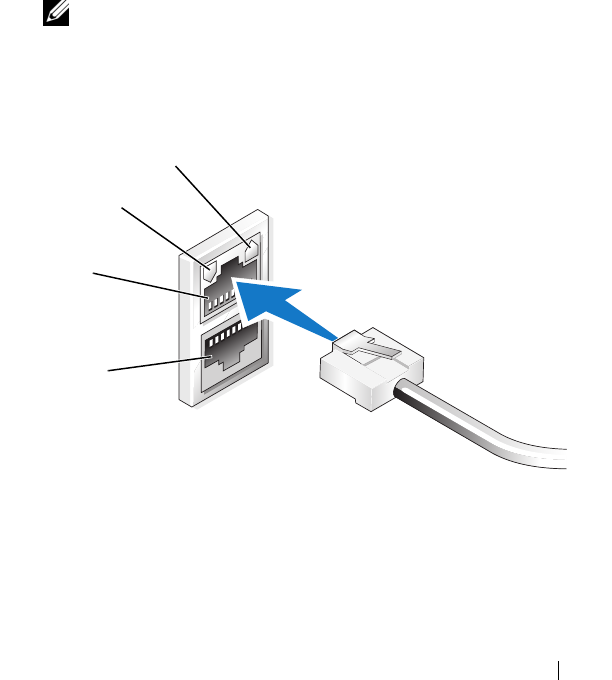
はじめに 81
5
NIC
コネクタと関連する
LED
の点灯(オンの状態)を確かめるこ
とで、サーバーがイーサネットに接続されていることを確認しま
す。図
1-1
を参照してください。
NIC
コネクタの
LED
が緑色に点
灯していれば、接続は正常です。
NIC
コネクタの
LED
が黄色に点
滅している場合は、データの転送が正常に行われています。
LED
がオンになっていない場合は、イーサネットケーブルの両端
が
NIC
コネクタとイーサネットジャックに正しく接続されている
ことを確認します。
NAS
システムは、ネットワーク上の
DHCP
サーバーからネット
ワークパラメータのセットアップに必要な情報(
IP
アドレス、
ゲートウェイサブネットマスク、および
DNS
サーバーアドレス)
を取得します。
メモ: 設定や NAS システムに接続されているストレージの容量
によっては、NAS システムが起動するのに数分かかることがあり
ます。
図1-1 NIC コネクタ
NIC 2 LED
NIC 1 LED
NIC 1
NIC 2

82 はじめに
NAS システムのネットワーク IP アドレスの設定
ネットワーク上に
DHCP
サーバーがある場合、
DHCP
が
IP
アドレスを
自動的に
NAS
システムに割り当てるので、
NAS
システムの
IP
アドレ
スを設定する必要はありません。お使いのネットワークが
DHCP
サー
バーで設定されていない場合は、
ネットワークの設定
ウィンドウで
NAS
システムの
IP
アドレスを設定します。
ネットワークの設定
ウィンドウにアクセスするには、
スタート
→
設
定
→
コントロールパネル
→
ネットワークの設定
の順にクリックし
ます。
メモ: ネットワーク上に DHCP サーバーがない場合は、NAS の設定を
完了するためにローカルのキーボード、モニター、およびマウスが必
要です。詳細については、80 ページの「キーボード、モニター、およ
びマウスを使用したシステムの設定」を参照してください。
メモ: Windows ファイアウォールはデフォルトで有効です。リモート
システムにアクセスする際に、接続に関する問題が発生する場合があ
ります。
デフォルトの管理者ユーザー名とパスワードの入力
はじめて
NAS
システムにログインする際には、管理者ユーザー名とパ
スワードを入力する必要があります。お使いの
NAS
システムのデフォ
ルトの管理者ユーザー名は
administrator
で、デフォルトのパス
ワードは
storageserver
です。
管理者パスワードの変更
1
スタート
→
管理ツール
→
コンピュータの管理
をクリックします。
2
コンピュータの管理
ウィンドウで、
ローカルユーザーとグループ
を展開し、
ユーザー
を選択します。
3
右ウィンドウペインで
Administrator
を右クリックし、
パスワードの設定
を選択します。
4
Administrator
のパスワードの設定
ウィンドウで、
続行
をクリックします。
5
パスワードの入力と確認入力を各フィールドで行い、
OK
をクリックします。
6
コンピュータの管理
ウィンドウを閉じます。

はじめに 83
多言語ユーザーインタフェースを使用して
システムをローカライズする方法
NAS
システムでは、
OS
のユーザーインタフェースに使用される言語
を変更できます。システムには、デフォルトで多数の言語がインス
トールされています。多言語ユーザーインタフェース(
MUI
)により、
NAS
システムは
OS
メニュー、ダイアログ、およびヘルプファイルを
複数の言語で表示することができます。
お使いのシステムが
Windows Storage Server 2003 R2 x64 Edition
With SP2
で設定済みの場合、
MUI
は地域の設定とブラウザの設定の
どちらにおいても、お使いの言語にあらかじめ設定されています。
ユーザーは何も行う必要がありません。
デフォルトのブラウザ言語を変更するには、次の手順を実行します。
1
Internet Explorer
®
ブラウザを開きます。
2
ツール
メニューで
インターネットオプション
を選択します。
3
全般
タブで、
言語
をクリックします。
4
言語の優先順位
ウィンドウで
追加
をクリックします。
5
言語
ボックスで言語を選択します。
6
OK
をクリックします。
Windows Storage Server 管理コンソールの
起動
Windows Storage Server
管理コンソール
は
Microsoft
管理コン
ソール(
MMC
)内に表示され、これを使用すれば、システムの管理が
容易になります。
Windows Storage Server 2003 R2 x64 Edition With
SP2
にログインすると、
MMC
は自動的に開きます。
Windows Storage Server
管理コンソール
を開くには、
スタート
→
すべてのプログラム
→
Windows Storage Server
の管理
の順にク
リックします。
Microsoft
管理コンソール
ウィンドウには、左ウィンドウペインに
ファイルサーバーの管理(ローカル)
ノードがデフォルトノードとし
て表示されます。中央ウィンドウペインには、
OS
の管理に役立つ選択
可能な例が用意されています。

84 はじめに
Microsoft 管理コンソールへのアクセス
MMC
はデフォルトで
Microsoft
の
スタート
メニューの一部として設
定されています。
MMC
は、ディスク管理と
NFS
の設定に、また、一
般的な
NAS
管理ステーションとして使用できます。詳細については、
システムに同梱の
Microsoft MMC
のマニュアルを参照してください。
MMC
を使用することで、ホストでローカルから
MMC
にアクセスす
るか、リモートデスクトップ接続を使用して
MMC
にアクセスするこ
とで、ストレージを設定できます。
ホストでローカルから MMC にアクセス
MMC
はホストで
スタート
メニュー内に表示されます。
MMC
が
スタート
メニューに表示されない場合は、次の手順を実行します。
1
スタート
ファイル名を指定して実行
の順にクリックします。
2nas.msc
と入力し、
OK
をクリックします。
メモ: nas.msc ファイルは c:\windows\system32 にあります。
リモートデスクトップ接続を使用して MMC にアクセス
リモートサーバーの管理にリモートデスクトップ接続を使用して、リ
モート管理によるオーバーヘッドを低減します。ターミナルサービス
テクノロジによって有効にされる管理用リモートデスクトップは、
サーバー管理専用に設計されています。
管理用リモートデスクトップは、サーバーにアクセスするクライアン
トシステム用に特別なライセンスを必要としません。また、管理用リ
モートデスクトップ使用時には、ターミナルサーバーライセンスのイ
ンストールは不要です。
管理者はまた、リモートデスクトップ接続をインストールすることで、
Windows Storage Server 2003 R2 x64 Edition With SP2
を実行してい
るコンピュータを
Windows
の旧バージョンを実行しているシステム
から十分に管理することができます。
メモ: リモートシステムから管理用リモートデスクトップに接続する
には、リモートデスクトップ接続を使用します。

はじめに 85
リモートデスクトップ接続をデスクトップに作成する方法
リモートデスクトップ接続を作成し、
Windows Storage Server 2003
R2 x64 Edition With SP2
に保存するには、次の手順を実行します。
1
スタート
→
ファイル名を指定して実行
の順にクリックします。
2mstsc
と入力し、
OK
をクリックします。
リモートデスクトップ接続
ウィンドウが表示されます。
3
リモートデスクトップ接続
画面で、ストレージサーバーのコン
ピュータ名または
IP
アドレスを入力し、
オプション
をクリック
します。
4
接続の設定
の下で、
名前を付けて保存
をクリックします。
5
名前を付けて保存
画面で、デフォルトの
.rdp
拡張子を含めて接
続用の名前を入力します。
6
保存先
ドロップダウンメニューで
デスクトップ
を選択し、
保存
をクリックします。
接続がデスクトップに保存されます。
リモートデスクトップ接続の設定の詳細については、
リモートデスク
トップ接続
ウィンドウの
ヘルプ
をクリックしてください。
Dell OpenManage Server Administrator
Dell OpenManage Server Administrator
には、統合されたウェブブ
ラウザベースのインタフェース(
Server Administrator
のホームペー
ジ)または
OS
を通じてコマンドラインインタフェース(
CLI
)を使用
する総合的な
1
対
1
のシステム管理ソリューションが備わってい
ます。
Server Administrator
を使用することで、総合的な
1
対
1
のシステム
管理により、ネットワーク上の
NAS
システムをローカルまたはリモー
トで管理し、ネットワーク全体の管理に集中することができます。
メモ: Server Administrator を使用する場合、「システム」はスタンドア
ロン、別のシャーシ内に NAS ユニットを備えたサーバー、1 つの
シャーシ内に 1 つまたは複数のサーバーモジュールを組み込んだモ
ジュラーシステムのいずれでもかまいません。
詳細については、
Server Administrator
のマニュアルを参照してくだ
さい。

86 はじめに
Server Administrator のインストール
Dell Installation and Server Management
メディアには、
Server
Administrator
およびその他のシステムソフトウェアのコンポーネン
トをお使いの
NAS
システムにインストール、アップグレードし、アン
インストールするためのセットアッププログラムが用意されています。
また、
Server Administrator
をネットワークを介して複数のシステム
に無人インストールすることも可能です。
Dell Installation and Server Management
メディアのセットアッププ
ログラムを使用して、サポートされているすべての
Windows Storage
Server 2003 R2 x64 Edition With SP2
を実行しているシステムに
Server Administrator
をインストールし、アップグレードすることが
できます。
Server Administrator
をインストールするには、次の手順を実行し
ます。
1
システムの
CD/DVD
ドライブに
Dell Installation and Server
Management
メディアをセットします。
メディアがオートロードし、
Server Administrator
インストーラ
ウィンドウが表示されます。
2
Server Administrator
の
インストール
、
変更
、
修復
、
削除
のいずれかをクリックします。
3
使用許諾契約書
ウィンドウの内容を読んで同意したら、
次へ
をクリックします。
4
セットアップの種類
ウィンドウで、使用する構成にふさわしい
セットアップの種類を選択し、
次へ
をクリックします。
5
インストールの準備完了
ウィンドウで、
インストール
をクリッ
クします。
6
インストールウィザードの完了
ウィンドウで、
完了
をクリック
します。

はじめに 87
Server Administrator へのアクセス
デスクトップの
Server Administrator
アイコンをダブルクリックす
ることで、ホストを通じてローカルで
Server Administrator
にアクセ
スできます。
同じネットワーク上にあるクライアントシステムから
Server
Administrator
に直接アクセスするには、バージョン
6.0
またはそれ
以降の
Internet Explorer
を開き、お使いの
NAS
システムのセキュア
ポート(
1311
)に接続します。
たとえば、次のように入力します。
https://DELL1234567:1311
DELL1234567
は
NAS
システムの名前です。
ポート
1311
がファイアウォールによって無効にされている場合は、
次の手順で例外を設定し、ポート
1311
を
OpenManage
で使用でき
るように有効にします。
1
スタート
→
設定
→
コントロールパネル
→
Windows
ファイアウォール
の順にクリックします。
2
例外
タブをクリックします。
3
ポートの追加
をクリックします。
4
名前
フィールドに
Dell OpenManage Server
Administrator
と入力します。
5
ポート番号
フィールドに
1311
と入力します。
6
OK
をクリックします。
7
ファイアウォールサービスの再起動を指示するメッセージが表示
されたら、ファイアウォールサービスを再起動します。
信頼済みサイトのブラウザへの追加
Microsoft
の高度なセキュリティ基準により、インターネットまたは
イントラネットのサイトにはじめてアクセスする場合、サイトを信頼
済みサイトゾーンに追加するように求めるメッセージが表示される場
合があります。

88 はじめに
信頼済みサイトを
Internet Explorer
に追加するには、次の手順を実行
します。
1
ツール
メニューで
インターネットオプション
をクリックします。
インターネットオプション
画面が表示されます。
2
セキュリティ
タブをクリックします。
セキュリティ
タブのメニューが表示されます。
3
信頼済みサイト
をクリックします。
4
サイト
をクリックします。
信頼済みサイト
画面が表示されます。
5
次の
Web
サイトをゾーンに追加する
フィールドに
https: secure
protocol
を使用してサイトのアドレスを入力し、
追加
をクリッ
クします。
Web
サイト
ボックスにサイトが表示されます。
6
手順
5
を繰り返して他のサイトを追加し、
OK
をクリックし
ます。
インターネットオプション
画面が表示されます。
7
OK
をクリックします。
システムのアップデート
Server Update Utility
メディアには、アップデートを識別してお使い
のサーバーに適用するためのアプリケーションが入っています。
Server Update Utility
(
SUU
)は、デルサポートサイト
support.dell.com
からダウンロードすることも可能です。詳細につ
いては、
Server Update Utility
の『ユーザーズガイド』を参照してく
ださい。
Server Administrator
の個々のコンポーネントをアップデートする
には、コンポーネントに固有の
Dell
アップデートパッケージを使用し
てください。
Dell
アップデートパッケージは
Dell PowerEdge™
Updates
メディアに入っています。
SUU
は、お使いの
Dell NAS
シス
テムに現在インストールされているコンポーネントのバージョンを
Dell PowerEdge Updates
メディアに入っているアップデートコン
ポーネントと比較します。
SUU
を使用してバージョンの比較レポート
を参照し、システム全体をアップデートしてください。

はじめに 89
Microsoft Windows ソフトウェアのアップデート
Windows Storage Server 2003 R2 x64 Edition
をアップデートする場
合は、
Microsoft
のサポートサイト
support.microsoft.com
を参照
してください。
Windows Server
®
2003 R2 x64 Edition
に対するアッ
プデートはすべて
Windows Storage Server 2003 R2 x64 Edition
に適用されます。
その他のマニュアル
メモ: 『製品情報ガイド』には、安全および認可機関に関する情報が
記載されています。保証情報については、『サービス & サポートのご
案内』を参照してください。
•
システムをラックに取り付ける方法については、ラックに付属の
『ラック取り付けガイド』に説明があります。
•
『管理者ガイド』には、お使いのシステムの設定手順を完了する
ための情報、および
Windows Storage Server 2003 R2 x64
Edition With SP2
の機能に関する概要が記載されています。
•
『重要情報』には、ハードウェアとソフトウェアの最小要件とす
べての既知の問題が記載されています。
•
システムの『ユーザーズガイド』では、システム機能および仕様
について説明しています。
•
システム管理ソフトウェアのマニュアルでは、システム管理ソフ
トウェアの機能、動作要件、インストール、および基本操作につ
いて説明しています。
•
OS
のマニュアルでは、
OS
ソフトウェアのインストール手順(必
要な場合)や設定方法、および使い方について説明しています。

90 はじめに
•
システムとは別に購入した各種コンポーネントのマニュアル。
これらのオプションを取り付けて設定する方法を説明してい
ます。
•
システム、ソフトウェア、またはマニュアルの変更に関して記載
されたアップデート情報がシステムに付属していることがあり
ます。
メモ: このアップデート情報には他の文書の内容を差し替える情報が
含まれていることがあるので、必ず最初にお読みください。
•
リリースノートまたは
readme
ファイルには、システムまたはマ
ニュアルの最新のアップデート情報や、専門知識をお持ちのユー
ザーや技術者のための高度な技術情報が含まれていることがあり
ます。
•
Server Update Utility
の『ユーザーズガイド』では、
Server
Update Utility
を使用してお使いのシステムのソフトウェアバー
ジョンを表示し、ソフトウェアをアップデートする方法を説明し
ています。『ユーザーズガイド』は、デルサポートサイト
support.dell.com
からダウンロードできます。
www.dell.com | support.dell.com
Microsoft® Windows®
Storage Server 2003 R2
x64 Edition With SP2
시작 안내서

참고 및 알림
주: ì주î는 컴퓨터를 보다 효율적으로 사용하는데 도움이 되
는 중요 정보를 제공합니다.
주의사항: ì주의사항î은 하드웨어의 손상 또는 데이터 유실
위험을 설명하며, 이러한 문제를 방지할 수 있는 방법을 알
려줍니다.
____________________
본 설명서에 수록된 정보는 사전 통보 없이 변경될 수 있습니다.
© 2007 Dell Inc. 저작권 본사 소유.
Dell Inc.의 사전 승인 없이 어떠한 경우에도 무단 복제하는 것을 엄격히
금합니다.
본
설명서에
사용된
상표인
Dell
,
DELL
로고
,
PowerEdge
및
Dell OpenManage
는
Dell Inc.
의
상표이며
;
Microsoft
,
Internet Explorer
,
Windows
및
Windows
Server
는
미국
및
기타
국가에서
Microsoft Corporation
의
상표
또는
등록
상
표입니다
.
본 설명서에서 특정 회사의 표시나 제품 이름을 지칭하기 위해 기타 상표
나 상호를 사용할 수도 있습니다. Dell Inc.는 자사가 소유하고 있는 것 이
외에 기타 모든 등록 상표 및 상표 이름에 대한 어떠한 소유권도 보유하지
않습니다.
2007 년 6 월P/N XN080 Rev. A00

차례 93
차례
개요. . . . . . . . . . . . . . . . . . . . . . . . . . . . . . . 95
NAS 시스템 구성 . . . . . . . . . . . . . . . . . . . . . . 96
키보드 , 모니터 및 마우스를 사용한 시스템 구성 . . . . . . 96
네트워크 액세스용 시스템 구성 . . . . . . . . . . . . . . . 96
NAS 시스템용 네트워크 IP 주소 구성 . . . . . . . . . . . . 97
기본 관리자 사용자 이름 및 암호 입력 . . . . . . . . . . . 98
MUI (Multilanguage User Interface)
를 사용한 시스템 한글화 . . . . . . . . . . . . . . . . 98
Windows 스토리지 서버 관리 콘솔 . . . . . . . . . . 99
MMC (Microsoft Management Console)
액세스 . . . . . . . . . . . . . . . . . . . . . . . . . . . . . 99
호스트에서 MMC 로컬 액세스. . . . . . . . . . . . . . . . 99
원격 데스크탑 연결을 사용한 MMC 액세스 . . . . . . . . . 99
Dell OpenManage Server Administrator . . . . . . . 100
Server Administrator 설치 . . . . . . . . . . . . . . . . . . 101
Server Administrator 액세스 . . . . . . . . . . . . . . . . . 101
브라우저에 신뢰할 수 있는 사이트 추가 . . . . . . . . . . 102
시스템 업데이트. . . . . . . . . . . . . . . . . . . . . . . 103
Microsoft Windows 소프트웨어 업데이트 . . . . . . . . . . 103
기타 필요한 설명서 . . . . . . . . . . . . . . . . . . . 103

94 차례

시작 안내서 95
본
설명서는
Microsoft
®
Windows
®
Storage Server 2003 R2 x64 Edition
With SP2
운영
체제의
개요
및
Dell™ NAS (Network Attached Storage)
시스템을
기업
네트워크에서
구성
,
한글화
및
설치하는
방법에
대한
내용
에
대해
설명합니다
.
본
설명서에서는
다음
내용을
다룹니다
.
•
개요
•NAS
시스템
구성
• MUI (Multilanguage User Interface)
를
사용한
시스템
한글화
• Windows
스토리지
서버
관리
콘솔
• MMC (Microsoft Management Console)
액세스
• Dell OpenManage
™
Server Administrator
•
기타
필요한
설명서
개요
Windows
Storage Server 2003 R2 x64 Edition With SP2
운영
체제에는
새
로운
검색
기능
,
간단해진
설치
및
스토리지
관리
,
확장성이
추가되었으며
최적의
NAS
성능을
제공합니다
. Windows Storage Server 2003 R2 x64
Edition With SP2
를
사용하면
쉽게
설치할
수
있을
뿐만
아니라
더욱
향상
된
스토리지
관리
시나리오를
사용할
수
있습니다
.
NAS
시스템은
Windows
Storage Server 2003 R2 x64 Edition With SP2
운
영
체제로
미리
구성되어
있습니다
.
대부분의
설치
과정이
완료되므로
사
용자가
개입할
필요가
없습니다
.
시스템이
처음으로
부팅되면
Microsoft
최소
설치
과정이
시작됩니다
.
설
치가
완료되면
시스템이
자동으로
재부팅되고
서버를
로컬
또는
원격으
로
액세스 할
수
있게
됩니다
.
주: 시스템이 소프트웨어 RAID (Redundant Array of Independent Disks) 5로
미리 구성되어 있으면 시스템이 RAID 동기화 작업을 수행하여 배열을 최
적화합니다. 이 과정은 백그라운드에서 실행되며 완료될 때까지 시스템
의 전체 성능에 영향을 줄 수 있습니다. 과정이 완료되기 전에 시스템의 전
원이 꺼지는 경우 전원이 다시 켜지면 RAID 동기화가 시작되어 완료될 때
까지 계속 실행됩니다.

96 시작 안내서
NAS 시스템 구성
키보드 , 모니터 및 마우스를 사용한 시스템 구성
주: 구성 방법에 따라 설치 및 구성 과정을 완료하기 위해 로컬 KVM
(Keyboard, Video, and Mouse) 연결이 필요할 수 있습니다. 원격 시스템이
구성 과정을 완료할 수 있으면 로컬KVM 연결은 필요하지 않습니다.
1
NAS
시스템에
키보드
,
모니터
,
마우스를
연결하십시오
.
시스템
커넥터에
대한
자세한
내용은
시스템
사용
설명서를
참조하
십시오
.
2
NAS
시스템의
전원을
켜십시오
.
3
NAS
시스템에
로그인합니다
.
주: 기본 관리자 이름은 administrator이고 기본 암호는
storageserver입니다.
네트워크 액세스용 시스템 구성
1
NAS
시스템의
전원이
켜져
있으면
끄십시오
.
2
Ethernet
케이블의
한쪽
끝을
NAS
시스템
뒤쪽에
있는
10/100/1000
RJ-45 NIC
커넥터
(
그림
1-1
참조
)
의
끝에
연결하십시오
.
시스템
커넥터
위치에
대한
자세한
내용은
NAS
시스템의
사용
설명서를
참조하십시오
.
3
Ethernet
케이블의
다른
쪽
끝을
Ethernet
기능
잭에
연결하십시오
.
4
NAS
시스템의
전원을
켜십시오
.
5
NIC (Network Interface Controller)
커넥터와
연관된
LED
가
켜져
있
는지
확인하여
서버가
Ethernet
에
연결되어
있는지
점검하십시오
.
그림
1-1
을
참조하십시오
. NIC
커넥터의
LED
가
계속
녹색이면
연결
상태가
좋다는
의미입니다
. NIC
커넥터의
LED
가
황색으로
깜박 거
리면
데이터가
성공적으로
전송
중이라는
의미입니다
.
LED
가
켜져
있지
않으면
Ethernet
케이블의
양쪽
끝이
NIC
커넥터
및
Ethernet
잭에
제대로
장착되어
있는지
확인하십시오
.
NAS
시스템은
필요한
정보를
검색하여
네트워크의
DHCP
(Dynamic Host Configuration Protocol) 서버에서 네트워크 매개
변수(IP 주소, 게이트웨이, 서브넷 마스크 및 DNS 서버 주소)를 설
치합니다.
주: NAS 시스템이 부팅하려면 NAS 시스템에 장착된 스토리지의 구
성 및 양에 따라 몇 분이 걸릴 수 있습니다.
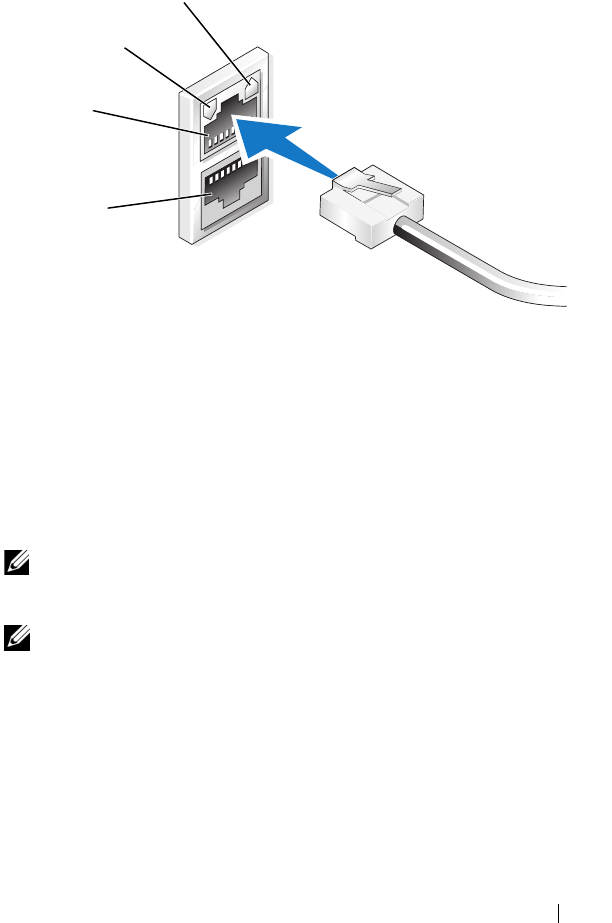
시작 안내서 97
그림 1-1. NIC 커넥터
NAS 시스템용 네트워크 IP 주소 구성
네트워크에
DHCP
서버가
있는
경우
DHCP
는
자동으로
NAS
시스템에
주소를
할당해주므로
NAS
시스템의
IP
주소를
구성하지
않아도
됩니다
.
네트워크가
DHCP
서버로
구성되어
있지
않은
경우
네트워크
구성
창에
서
NAS
시스템의
IP
주소를
구성하십시오
.
네트워크
구성
창을
액세스하려면
시작
→
설정
→
제어판
→
네트워크
구
성
을
클릭하십시오
.
주: 네트워크에 DHCP 서버가 없는 경우 NAS 구성을 완료하려면 로컬 키
보드, 모니터 및 마우스가 필요합니다. 자세한 내용은 "키보드, 모니터 및
마우스를 사용한 시스템 구성페이지의 "96을 참조하십시오.
주: Windows 방화벽은 기본값으로 활성화되어 있습니다. 원격 시스템을
액세스하면 연결 문제가 발생할 수 있습니다.
NIC 2 LED
NIC 1 LED
NIC 1
NIC 2

98 시작 안내서
기본 관리자 사용자 이름 및 암호 입력
처음으로
NAS
시스템에
로그인하면
관리자
사용자
이름
및
암호를
입력해야
합니다
. NAS
시스템의
기본
관리자
사용자
이름은
administrator
이고
기본
암호는
storageserver
입니다
.
관리자 암호 변경
1
시작
→
관리
도구
→
컴퓨터
관리
를
클릭하십시오
.
2
컴퓨터
관리
창에서
로컬
사용자
및
그룹
을
확장하고
사용자
를
선택
합니다
.
3
오른쪽
창에서
관리자
를
마우스
오른쪽
단추로
클릭한
다음
암호 설정
을
선택합니다
.
4
관리자용
암호
설정
창에서
계속
을
클릭합니다
.
5
해당
필드에
암호를
입력하고
확인
을
클릭합니다
.
6
컴퓨터
관리
창을
닫습니다
.
MUI (Multilanguage User Interface)
를 사용한 시스템 한글화
NAS
시스템을
사용하면
운영
체제의
사용자
인터페이스
기본
언어를
변
경할
수
있습니다
.
기본값으로
많은
언어가
시스템에
설치됩니다
. MUI
(Multilanguage User Interface)
를
사용하면
NAS
시스템이
운영
체제
메뉴
,
대화
상자
및
도움말
파일을
여러
언어로
표시 할
수
있습니다
.
시스템이
Windows Storage Server 2003 R2 x64 Edition With SP2
운영
체
제로
미리
구성되어
있는
경우
MUI
가
지역
설정과
브라우저
설정
양쪽에
해당
지역
언어로
미리
구성됩니다
.
사용자가
개입하지
않아도
됩니다
.
기본
브라우저
언어를
변경하려면
다음과
같이
수행하십시오
.
1
Internet Explorer
®
브라우저를
엽니다
.
2
도구
메뉴에서
인터넷
옵션
을
선택합니다
.
3
일반
탭에서
언어
를
클릭합니다
.
4
언어
기본
설정
창에서
추가
를
클릭합니다
.
5
언어
상자에서
언어를
선택합니다
.
6
확인
을
클릭합니다
.

시작 안내서 99
Windows 스토리지 서버 관리 콘솔
Windows
스토리지
서버
관리
콘솔
은
MMC
에
나타나며
시스템
관리를
쉽고
편리하게
해줍니다
. Windows Storage Server 2003 R2 x64 Edition
With SP2
운영
체제에
로그인하면
MMC
가
자동으로
열립니다
.
Windows
스토리지
서버
관리
콘솔
을
열려면
시작
→
모든
프로그램
→
Windows
스토리지
서버
관리
를
클릭합니다
.
Microsoft
관리
콘솔
창에서
왼쪽
창은
파일
서버
관리
(
로컬
)
노드를
기본
노드로
보여줍니다
.
중간 창은
운영
체제
관리를
도와줄
시나리오
목
록을
보여줍니다
.
MMC (Microsoft Management Console) 액세스
MMC
는
Microsoft
시작
메뉴의
일부로
기본값으로
구성됩니다
. MMC
는
디스크
관리
, NFS
구성
및
일반
NAS
관리
스테이션으로
사용
할
수
있습
니다
.
자세한
내용은
시스템에
포함된
Microsoft MMC
문서를
참조하십
시오
.
MMC
를
사용하여
호스트의
MMC
를
로컬로
액세스하거나
원격
데스크
탑
연결을
통해
MMC
를
액세스하여
스토리지를
구성할
수
있습니다
.
호스트에서 MMC 로컬 액세스
MMC
는
시작
메뉴의
호스트에
나타납니다
. MMC
가
시작
메뉴에
나타나
지
않으면
다음
단계를
수행하십시오
.
1
시작
→
실행
을
클릭합니다
.
2nas.msc
를
입력하고
확인
을
클릭합니다
.
주: nas.msc 파일은 c:\windows\system32에 있습니다.
원격 데스크탑 연결을 사용한 MMC 액세스
원격
서버
관리에
원격
데스크탑
연결을
사용하여
원격
관리와
연관된
오
버헤드를
줄이십시오
.
터미널
서비스
기술 로
활성화된
관리용
원격
데스
크탑은
서버
관리를
위해
특별히
설계되었습니다
.
관리용
원격
데스크탑에는
서버에
액세스하는
클라이언트
시스템 용
특
별
라이센스가
필요하지
않습니다
.
또한
관리용
원격
데스크탑을
사용할
때
Terminal Server Licensing
을
설치하지
않아도
됩니다
.

100 시작 안내서
관리자는
또한
원격
데스크탑
연결을
설치하여
하위
Windows
버전이
탑
재된
시스템에서
Windows Storage Server 2003 R2 x64 Edition With SP2
가
탑재된
컴퓨터까지
전체
관리할
수
있습니다
.
주: 원격 시스템에서 관리용 원격 데스크탑에 연결하려면 원격 데스크탑
연결을 사용하십시오.
데스크탑에 원격 데스크탑 연결 생성
원격
데스크탑
연결을
생성하고
Windows Storage Server 2003 R2 x64
Edition With SP2
에
저장하려면
다음
단계를
수행하십시오
.
1
시작
→
실행
을
클릭합니다
.
2mstsc
를
입력하고
확인
을
클릭합니다
.
원격
데스크탑
연결
창이
나타납니다
.
3
원격
데스크탑
연결
화면에서
컴퓨터
이름
또는
스토리지
서버의
IP
주소를
입력한
다음
옵션
을
클릭합니다
.
4
연결
설정
아래에서
다른
이름으로
저장
을
클릭합니다
.
5
다른
이름으로
저장
화면에서
기본
확장자인
.rdp
를
포함한
해당
연
결
이름을
입력합니다
.
6
저장
위치
드롭
다운
메뉴에서
바탕
화면
을
선택한
다음
저장
을
클릭
합니다
.
그러면
연결이
바탕
화면에
저장됩니다
.
원격
데스크탑
연결
구성에
대한
자세한
내용을
보려면
원격
데스크탑
연
결
창에서
도움말
을
클릭합니다
.
Dell OpenManage Server Administrator
Dell OpenManage Server Administrator
는
통합된
웹
브라우저
기반의
인
터페이스
(Server Administrator
홈
페이지
)
또는
운영
체제의
CLI
(Command Line Interface)
를
사용하는
종합
일대일
시스템
관리
솔루션
을
제공합니다
.
Server Administrator
를
사용하면
네트워크의
NAS
시스템을
로컬
및
원격
으로
관리할
수
있으며
종합
일대일
시스템
관리로
네트워크
전체를
관리
할
수
있습니다
.
주: Server Administrator를 사용할 경우 시스템은 별도의 섀시에 네트워크
스토리지 장치 또는 섀시에 하나 이상의 서버 모듈로 구성된 모듈 시스템
이 장착된 서버와 같은 독립형 시스템이 될 수 있습니다.
자세한
내용은
Server Administrator
설명서를
참조하십시오
.

시작 안내서 101
Server Administrator 설치
Dell Installation and Server Management
매체에는
Server Administrator
설
치
,
업그레이드
및
제거를
위한
설치
프로그램과
관리
시스템에서
관리되
는
기타
시스템
소프트웨어
구성
요소가
들어
있습니다
.
또한
네트워크
상
의
무인
설치를
통해
여러
시스템에
Server Administrator
를
설치할
수
있
습니다
.
Dell Installation and Server Management
매체의
설치
프로그램을
사용하여
지원되는
모든
Windows Storage Server 2003 R2 x64 Editions With SP2
운
영
체제가
탑재된
시스템에서
Server Administrator
를
설치
및
업그레이드
할
수
있습니다
.
Server Administrator
를
설치하려면
다음
단계를
수행하십시오
.
1
Installation and Server Management
매체를
시스템의
CD/DVD
드라
이브에
넣습니다
.
매체가
자동으로
실행되고
Server Administrator Installer
창이
나타
납니다
.
2
Install, Modify, Repair or Remove Server Administrator
(Server Administrator
설치
,
수정
또는
제거
)
를
클릭합니다
.
3
License Agreement
(
사용
계약
)
창에서
계약
내용 을
숙지하고
Next
(
다음
)
을
클릭합니다
.
4
Setup Type
(
설치
유형
)
창에서
구성에
적합한
설치
유형 을
선택하고
Next
(
다음
)
를
클릭합니다
.
5
Ready to Install
(
설치
대기
)
창에서
Install
(
설치
)
을
클릭합니다
.
6
Install Wizard Completed
(
설치
마법사
완료
)
창에서
Finish
(
마침
)
를
클릭합니다
.
Server Administrator 액세스
바탕
화면에서
Server Administrator
아이콘을
두
번
클릭하여
호스트에서
Server Administrator
를
로컬로
액세스할
수
있습니다
.
동일한
네트워크의
클라이언트
시스템에서
직접
Server Administrator
를
액세스하려면
Internet Explorer 6.0
이상의
버전을
열고
NAS
시스템 의
1311
포트에
연결하십시오
.
예를
들면
,
다음을
입력하십시오
.
https://DELL1234567:1311
여기서
DELL1234567
은
NAS
시스템의
이름입니다
.

102 시작 안내서
1311
포트가
방화벽에
막혀
있으면
다음
절차를
통해
예외
규칙을
적용하
여
OpenManage
용으로
1311
포트를
활성화하십시오
.
1
시작
→
설정
→
제어판
→
Windows
방화벽
을
클릭합니다
.
2
예외
탭을
클릭합니다
.
3
포트
추가
를
클릭합니다
.
4
이름
필드에
Dell OpenManage Server Administrator
를
입력합니다
.
5
포트
번호
필드에
1311
을
입력합니다
.
6
확인
을
클릭합니다
.
7
메시지가
표시되면
방화벽
서비스를
재시작하십시오
.
브라우저에 신뢰할 수 있는 사이트 추가
Microsoft
보안
규정의
강화로
인해
처음
사이트에
액세스할
때
인터넷
또
는
인트라넷
사이트를
신뢰할
수
있는
사이트
영역에
추가할지
묻는
메시
지가
표시될
수
있습니다
.
신뢰할
수
있는
사이트를
Internet Explorer
에
추가하려면
다음
단계를
수
행하십시오
.
1
도구
메뉴에서
인터넷
옵션
을
클릭합니다
.
인터넷
옵션
화면이
나타납니다
.
2
보안
탭
을
클릭합니다
.
보안
탭
메뉴가
나타납니다
.
3
신뢰할
수
있는
사이트
를
클릭합니다
.
4
사이트
를
클릭합니다
.
신뢰할
수
있는
사이트
화면이
나타납니다
.
5
영역에
웹
사이트
추가
:
필드에서
https:
보안
프로토콜을
사용하여
사이트의
주소를
입력하고
추가
를
클릭합니다
.
해당
사이트가
웹
사이트
:
상자에
나타납니다
.
6
다른
사이트를
추가하려면
단계
5
를
반복한
다음
확인
을
클릭
합니다
.
인터넷
옵션
화면이
나타납니다
.
7
확인
을
클릭합니다
.

시작 안내서 103
시스템 업데이트
Server Update Utility
매체에는
서버
업데이트
확인
및
적용
응용프로그
램이
들어
있습니다
. SUU (Server Update Utility)
는
Dell
지원
웹
사이트
(
support.dell.com
)
에서도
다운로드할
수
있습니다
.
자세한
내용은
Server Update Utility
사용
설명서를
참조하십시오
.
Server Administrator
구성
요소를
개별
업데이트하려면
Dell PowerEdge™
Updates
매체에
있는
구성
요소별
Dell
업데이트
패키지를
사용하십시오
.
SUU
는
Dell NAS
시스템에
현재
설치되어
있는
구성
요소의
버전과
Dell
PowerEdge Updates
매체에
들어
있는
업데이트
구성
요소를
비교합니다
.
SUU
를
사용하여
버전
비교
보고서를
검토하고
시스템
전체를
업데이
트 합니다
.
Microsoft Windows 소프트웨어 업데이트
Windows Storage Server 2003 R2 x64 Edition
운영
체제를
업데이트하려면
Microsoft
지원
웹
사이트
(
support.microsoft.com
)
를
참조하십시오
.
Windows Server
®
2003 R2 x64 Edition
에
대한
모든
업데이트는
Windows Storage Server 2003 R2 x64 Edition
에
적용됩니다
.
기타 필요한 설명서
주: 제품 정보 안내는 중요한 안전 지침 및 규제 관련 정보를 제공합니다.
보증 정보는 본 설명서에 포함되어 있거나 별도의 문서로 제공됩니다.
•
랙
솔루션과
함께
제공되는
랙
설치
안내서
또는
랙
설치
지침에는
시스템을
랙에
설치하는
방법이
기술되어
있습니다
.
•
관리
설명서는
시스템에서
구성
절차를
완료하는
방법
및
Windows
Storage Server 2003 R2 x64 Edition With SP2
기능
개요에
대해
설명
합니다
.
•
중요
정보
문서는
최소
하드웨어
및
소프트웨어
요구
사항
및
알려진
모든
문제에
대해
설명합니다
.
•
시스템의
사용
설명서는
시스템
기능
및
기술
사양에
대해
설명합
니다
.
•
시스템
관리
소프트웨어
설명서는
소프트웨어
기능
,
요구
사항
,
설치
및
기본
작동을
설명합니다
.

104 시작 안내서
•
운영
체제
설명서에는
운영
체제
소프트웨어
설치
(
필요한
경우
),
구성
및
사용
방법이
기술되어
있습니다
.
•
별도로
구입한
구성
요소의
설명서에는
옵션을
구성하고
설치하는
내용이
기술되어
있습니다
.
•
시스템
,
소프트웨어
또는
설명서의
변경
사항이
포함된
업데이트가
시스템과
함께
제공되기도
합니다
.
주: 업데이트에는 최신 정보가 수록되어 있으므로 다른 설명서를 읽기 전
에 반드시 먼저 참조하시기 바랍니다.
•
릴리즈
노트나
readme
파일에는
시스템에
대한
최신
업데이트
사항
이나
전문가
또는
기술자를
위한
고급
기술
참조
자료가
포함되어
있
기도
합니다
.
•
SUU (Server Update Utility)
사용
설명서는
SUU (Server Update
Utility)
를
사용하여
시스템 의
소프트웨어
버전을
검토하고
시스템
소프트웨어를
업데이트하는
방법에
대해
설명합니다
. Dell
지원
웹
사이트
(
support.dell.com
)
에서
다운로드할
수
있습니다
.
www.dell.com | support.dell.com
Microsoft® Windows®
Storage Server 2003 R2
x64 Edition con SP2
Guía de introducción

Notas y avisos
NOTA: una NOTA proporciona información importante que
le ayudará a utilizar mejor el ordenador.
AVISO: un AVISO indica la posibilidad de daños en el hardware
o la pérdida de datos, e informa de cómo evitar el problema.
____________________
La información contenida en este documento puede modificarse
sin previo aviso.
© 2007 Dell Inc. Todos los derechos reservados.
Queda estrictamente prohibida la reproducción de este documento
en cualquier forma sin la autorización por escrito de Dell Inc.
Marcas comerciales utilizadas en este texto: Dell, el logotipo de DELL,
PowerEdge y Dell OpenManage son marcas comerciales de Dell Inc.; Microsoft,
Internet Explorer, Windows y Windows Server son marcas comerciales o marcas
comerciales registradas de Microsoft Corporation en los Estados Unidos
o en otros países.
Otras marcas y otros nombres comerciales pueden utilizarse en este documento
para hacer referencia a las entidades que los poseen o a sus productos. Dell Inc.
renuncia a cualquier interés sobre la propiedad de marcas y nombres comerciales
que no sean los suyos.
Junio de 2007 N/P XN080 Rev. A00

Contenido 107
Contenido
Información general. . . . . . . . . . . . . . . . . . . . . . . 109
Configuración del sistema NAS. . . . . . . . . . . . . . . 110
Configuración del sistema mediante un teclado,
un monitor y un ratón . . . . . . . . . . . . . . . . . . . . . . . 110
Configuración del sistema para acceder a la red . . . . . . . . . 111
Configuración de la dirección IP de red para el sistema NAS . . 112
Introducción del nombre de usuario y la contraseña
predeterminados del administrador . . . . . . . . . . . . . . . . 113
Localización del sistema mediante la interfaz
de usuario multilingüe . . . . . . . . . . . . . . . . . . . . . 113
Inicio de Windows Storage Server
Management Console. . . . . . . . . . . . . . . . . . . . . . 114
Acceso a Microsoft Management Console . . . . . . . 114
Acceso a MMC de forma local en el host . . . . . . . . . . . . . 115
Acceso a MMC mediante una conexión a escritorio remoto . . . 115
Dell OpenManage Server Administrator. . . . . . . . . 116
Instalación de Server Administrator. . . . . . . . . . . . . . . . 117
Acceso a Server Administrator . . . . . . . . . . . . . . . . . . 118
Adición de sitios de confianza al explorador . . . . . . . . . . . 118
Actualización del sistema . . . . . . . . . . . . . . . . . . . . . 119
Actualización del software de Microsoft Windows. . . . . . . . 119
Otros documentos útiles . . . . . . . . . . . . . . . . . . . . 120

108 Contenido

Guía de introducción 109
En este documento se proporciona información general sobre el sistema
operativo Microsoft
®
Windows
®
Storage Server 2003 R2 x64 Edition con
SP2, así como información sobre la configuración, localización e instalación
del sistema de almacenamiento conectado a red (NAS) de Dell™ en una red
corporativa.
Este documento consta de los temas siguientes:
• Información general
• Configuración del sistema NAS
• Localización del sistema mediante la interfaz de usuario multilingüe
(MUI)
• Inicio de Windows Storage Server Management Console
• Acceso a Microsoft Management Console (MMC)
• Dell OpenManage
™
Server Administrator
• Otros documentos útiles
Información general
El sistema operativo Windows
Storage Server 2003 R2 x64 Edition con SP2
incorpora nuevas funciones de búsqueda, permite una configuración y
administración de almacenamiento simplificadas, se puede ampliar y está
especialmente ajustado para proporcionar un rendimiento óptimo de NAS.
Windows Storage Server 2003 R2 x64 Edition con SP2 ofrece mejoras
significativas para la administración de almacenamiento, y su instalación
es muy sencilla.
El sistema NAS está preconfigurado con el sistema operativo Windows
Storage Server 2003 R2 x64 Edition con SP2. La mayoría de los procedi-
mientos de configuración son automáticos y no requieren la intervención
del usuario.

110 Guía de introducción
Cuando el sistema se inicia por primera vez, empieza el proceso de
instalación mínima de Microsoft
. Cuando este proceso haya finalizado,
el sistema se reiniciará automáticamente y podrá acceder al servidor de
forma local o remota.
NOTA: si el sistema está preconfigurado con RAID (matriz redundante de
discos independientes) 5 por software, se efectuará una sincronización de
RAID para optimizar la matriz. El proceso se ejecuta en segundo plano y puede
afectar al rendimiento general del sistema hasta que finalice. Si el sistema se
apaga antes de que finalice el proceso, la sincronización de RAID se reiniciará
al encender el sistema y continuará hasta que finalice.
Configuración del sistema NAS
Configuración del sistema mediante un teclado,
un monitor y un ratón
NOTA: según el método de configuración, es posible que se requieran
conexiones de teclado, vídeo y ratón (KVM) locales para realizar los
procedimientos de instalación y configuración. Si el sistema remoto puede
realizar los procedimientos de configuración, no se requieren conexiones KVM
locales.
1
Conecte un teclado, un monitor y un ratón al sistema NAS.
Para obtener información sobre los conectores del sistema, consulte
la
Guía del usuario
del sistema.
2
Encienda el sistema NAS.
3
Inicie una sesión en el sistema NAS.
NOTA: el nombre de usuario predeterminado del administrador
es administrator y la contraseña predeterminada es
storageserver.

Guía de introducción 111
Configuración del sistema para acceder a la red
1
Si el sistema NAS está encendido, apáguelo.
2
Conecte un extremo de un cable Ethernet a uno de los conectores
de NIC RJ-45 10/100/1000 (vea la figura 1-1) de la parte posterior
del sistema NAS.
Para obtener más información sobre la ubicación de los conectores
del sistema, consulte la
Guía del usuario
del sistema NAS.
3
Conecte el otro extremo del cable Ethernet a una toma Ethernet
que funcione.
4
Encienda el sistema NAS.
5
Compruebe que el servidor está conectado a Ethernet; para ello,
asegúrese de que el LED asociado al conector de la controladora de
interfaz de red (NIC) esté encendido. Vea la figura 1-1. Si el LED
del conector de NIC emite una luz verde fija, la conexión es correcta.
Si el LED del conector de NIC emite una luz ámbar parpadeante,
los datos se están transfiriendo correctamente.
Si el LED no está encendido, asegúrese de que los dos extremos del
cable Ethernet están conectados correctamente al conector de NIC
y a la toma Ethernet.
El sistema NAS recupera la información necesaria para configurar los
parámetros de red (la dirección IP, la máscara de subred de la puerta
de enlace y la dirección del servidor DNS) de un servidor DHCP
(
protocolo de configuración dinámica de host
) de la red.
NOTA: según la configuración y la cantidad de almacenamiento
conectada al sistema NAS, éste puede tardar varios minutos en iniciarse.
body.fm Page 111 Wednesday, June 27, 2007 3:02 PM
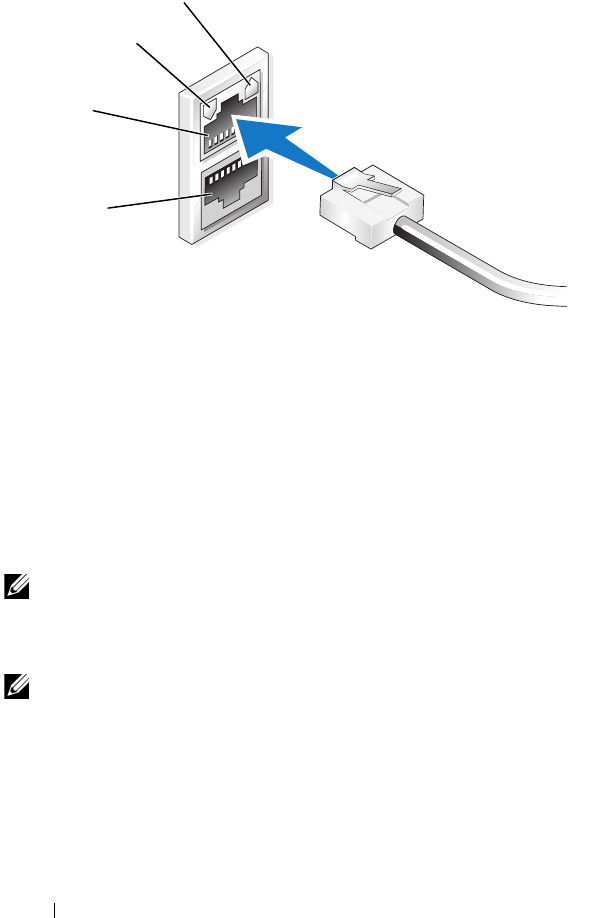
112 Guía de introducción
Figura 1-1. Conector de NIC
Configuración de la dirección IP de red para el sistema NAS
Si tiene un servidor DHCP en la red, no es necesario que configure la
dirección IP del sistema NAS, ya que DHCP asigna automáticamente
una dirección al sistema NAS. Si la red no está configurada con un servidor
DHCP, configure la dirección IP del sistema NAS mediante la ventana
de conexión de red.
Para acceder a la ventana
Conexión de red
, haga clic en
Inicio
→
Configuración
→
Panel de control
→
Conexión de red
.
NOTA: si no tiene un servidor DHCP en la red, se necesita un teclado local,
un monitor y un ratón para finalizar la configuración de NAS. Para obtener
más información, consulte “Configuración del sistema mediante un teclado,
un monitor y un ratón” en la página 110.
NOTA: el servidor de seguridad de Windows está activado de forma
predeterminada. Al acceder al sistema remoto, pueden producirse problemas
de conectividad.
LED de la NIC 2
LED de la NIC 1
NIC 1
NIC 2
body.fm Page 112 Wednesday, June 27, 2007 2:59 PM

Guía de introducción 113
Introducción del nombre de usuario y la contraseña predeterminados
del administrador
Cuando inicie sesión en el sistema NAS por primera vez, deberá introducir
el nombre de usuario y la contraseña del administrador. El nombre de
usuario predeterminado del administrador para su sistema NAS es
administrator
y la contraseña predeterminada es
storageserver
.
Cambio de la contraseña del administrador
1
Haga clic en
Inicio
→
Herramientas administrativas
→
Administración
de equipos
.
2
En la ventana
Administración de equipos
, expanda
Usuarios y grupos
locales
y seleccione
Usuarios
.
3
En el panel derecho de la ventana, haga clic con el botón derecho
del ratón en
Administrador
y seleccione
Establecer contraseña
.
4
En la ventana
Establecer contraseña para Administrador
, haga clic
en
Continuar
.
5
Escriba y confirme la contraseña en los campos pertinentes y haga clic
en
Aceptar
.
6
Cierre la ventana
Administración de equipos
.
Localización del sistema mediante la interfaz
de usuario multilingüe
El sistema NAS permite cambiar el idioma original de la interfaz de usuario
del sistema operativo. Hay muchos idiomas instalados en el sistema de
manera predeterminada. La interfaz de usuario multilingüe (MUI) permite
que el sistema NAS muestre los menús, los cuadros de diálogo y los archivos
de ayuda del sistema operativo en varios idiomas.
Si el sistema se preconfiguró con el sistema operativo Windows Storage
Server 2003 R2 x64 Edition con SP2, la MUI estará preconfigurada con
el idioma localizado tanto en la configuración regional como en la
configuración del explorador. No es necesaria la intervención del usuario.

114 Guía de introducción
Para cambiar el idioma predeterminado del explorador, realice lo siguiente:
1
Abra un explorador Internet Explorer
®
.
2
En el menú
Herramientas
, seleccione
Opciones de Internet
.
3
En la ficha
General
, haga clic en
Idiomas
.
4
En la ventana
Preferencias de idioma
, haga clic en
Agregar
.
5
En la casilla
Idioma
, seleccione un idioma.
6
Haga clic en
Aceptar
.
Inicio de Windows Storage Server
Management Console
Windows Storage Server Management Console
forma parte de MMC
y proporciona un método sencillo y práctico para la administración de
sistemas. La consola MMC se abre automáticamente al iniciar sesión en
el sistema operativo Windows Storage Server 2003 R2 x64 Edition con SP2.
Para abrir
Windows Storage Server Management Console
, haga clic en
Inicio
→
Todos los programas
→
Windows Storage Server Management
.
En el panel izquierdo de la ventana
Microsoft
Management Console
, se
muestra el nodo
Administración de servidores de archivos (local)
como
nodo predeterminado. En el panel central de la ventana se proporcionan
situaciones seleccionables que le ayudarán en la administración del
sistema operativo.
Acceso a Microsoft Management Console
La consola MMC está configurada de manera predeterminada como parte
del menú
Inicio
de Microsoft. Puede utilizarse para la administración
de discos, la configuración de NFS y como estación de administración
general de NAS. Para obtener más información, consulte el documento
sobre MMC de Microsoft suministrado con el sistema.
Con MMC puede configurar el almacenamiento ya sea de forma local
en el host o mediante una conexión a escritorio remoto.

Guía de introducción 115
Acceso a MMC de forma local en el host
La consola MMC aparece en el host, en el menú
Inicio
. Si no aparece
en el menú
Inicio
, realice los pasos siguientes:
1
Haga clic en
Inicio
→
Ejecutar
.
2
Escriba
nas.msc
y haga clic en
Aceptar
.
NOTA: el archivo nas.msc está ubicado en c:\windows\system32.
Acceso a MMC mediante una conexión a escritorio remoto
Utilice Conexión a Escritorio remoto para que la administración del servidor
remoto reduzca la sobrecarga asociada a la administración remota. La opción
Escritorio remoto para Administración, activada por la tecnología Servicios
de Terminal Server, está diseñada específicamente para la administración
de servidores.
La opción Escritorio remoto para Administración no requiere una licencia
especial para los sistemas cliente que acceden al servidor. Además, no es
necesario instalar las licencias de Terminal Server cuando se utiliza
Escritorio remoto para Administración.
Asimismo, los administradores pueden administrar completamente los
ordenadores que ejecutan Windows Storage Server 2003 R2 x64 Edition con
SP2 desde sistemas que ejecutan versiones anteriores de Windows mediante
la instalación de Conexión a Escritorio remoto.
NOTA: para conectarse a Escritorio remoto para Administración desde
un sistema remoto, utilice Conexión a Escritorio remoto.
Creación de una conexión a escritorio remoto en el escritorio
Para crear y guardar una conexión a escritorio remoto en Windows Storage
Server 2003 R2 x64 Edition con SP2, realice los pasos siguientes:
1
Haga clic en
Inicio
→
Ejecutar
.
2
Escriba
mstsc
y haga clic en
Aceptar
.
Se abre la ventana
Conexión a Escritorio remoto
.
3
En la pantalla
Conexión a Escritorio remoto
, escriba el nombre
del ordenador o la dirección IP del servidor de almacenamiento
y, a continuación, haga clic en
Opciones
.
4
En
Configuración de la conexión
, haga clic en
Guardar como
.

116 Guía de introducción
5
En la pantalla
Guardar como
, escriba un nombre para la conexión
e incluya la extensión
.rdp
predeterminada.
6
En el menú desplegable
Guardar en
, seleccione
Escritorio
y haga clic
en
Guardar
.
La conexión se guardará en el escritorio.
Para obtener más información sobre la configuración de la conexión a
escritorio remoto, haga clic en
Ayuda
en la ventana
Conexión a Escritorio
remoto
.
Dell OpenManage Server Administrator
Dell OpenManage Server Administrator proporciona una solución de
administración de sistemas completa e individualizada mediante una
interfaz integrada basada en explorador web (la página de inicio de Server
Administrator) o una interfaz de línea de comandos (CLI) a través del
sistema operativo.
Server Administrator permite administrar sistemas NAS de una red de forma
local y remota y centrarse en la administración de toda la red gracias a una
administración de sistemas completa e individualizada.
NOTA: si utiliza Server Administrator, un sistema puede ser un sistema
independiente, un servidor con unidades de almacenamiento conectado a red
en chasis independientes o un sistema modular formado por uno o varios
módulos de servidor en un chasis.
Para obtener más información, consulte la documentación de Server
Administrator.

Guía de introducción 117
Instalación de Server Administrator
El soporte multimedia
Dell Installation and Server Management
(Instalación
y administración de servidores Dell) incluye un programa de configuración
para instalar, actualizar y desinstalar Server Administrator y otros
componentes de software del sistema NAS. También puede instalar Server
Administrador en varios sistemas mediante una instalación desatendida
a través de una red.
Con el programa de configuración incluido en el soporte multimedia
Dell Installation and Server Management
, podrá instalar y actualizar Server
Administrator en sistemas que ejecuten todas las ediciones admitidas del
sistema operativo Windows Storage Server 2003 R2 x64 Edition con SP2.
Para instalar Server Administrator, realice los pasos siguientes:
1
Inserte el soporte multimedia
Dell Installation and Server Management
en la unidad de CD/DVD del sistema.
El soporte multimedia se carga automáticamente y aparece la ventana
Server Administrator Installer
(Programa de instalación de Server
Administrator).
2
Haga clic en
Install, Modify, Repair or Remove Server Administrator
(Instalar, modificar, reparar o quitar Server Administrator).
3
En la ventana
License Agreement
(Contrato de licencia), lea y acepte
el contrato y, a continuación, haga clic en
Next
(Siguiente).
4
En la ventana
Setup Type
(Tipo de instalación), seleccione el tipo
de instalación adecuado para su configuración y haga clic en
Next
(Siguiente).
5
En la ventana
Ready to Install
(Preparado para instalar), haga clic
en
Install
(Instalar).
6
En la ventana
Install Wizard Completed
(Asistente de instalación
completado), haga clic en
Finish
(Finalizar).

118 Guía de introducción
Acceso a Server Administrator
Para acceder a Server Administrator de forma local a través del host,
haga doble clic en el icono de
Server Administrator
del escritorio.
Para acceder a Server Administrator directamente desde un sistema cliente
de la misma red, abra un explorador Internet Explorer 6.0 o posterior y
conéctese al puerto seguro, 1311, del sistema NAS.
Por ejemplo, escriba:
https://DELL1234567:1311
donde
DELL1234567
es el nombre del sistema NAS.
Si el servidor de seguridad desactiva el puerto 1311, utilice el procedimiento
siguiente para definir una excepción que permita activar el puerto 1311 para
utilizar OpenManage.
1Haga clic en
Inicio
→
Configuración
→
Panel de control
→
Firewall
de Windows
.
2
Haga clic en la pestaña
Excepciones
.
3
Haga clic en
Agregar puerto
.
4
Escriba
Dell OpenManage Server Administrator
en el campo
Nombre
.
5
Escriba
1311
en el campo
Número de puerto
.
6
Haga clic en
Aceptar
.
7
Si se le solicita, reinicie el servicio de servidor de seguridad.
Adición de sitios de confianza al explorador
Debido a los estándares de seguridad mejorados de Microsoft, es posible que
se le pida que añada un sitio de Internet o de intranet a la zona de sitios
de confianza cuando acceda al sitio por primera vez.
Para añadir sitios de confianza en Internet Explorer, realice los pasos
siguientes:
1
En el menú
Herramientas
, haga clic en
Opciones de Internet
.
Aparece la pantalla
Opciones de Internet
.
2
Haga clic en la ficha
Seguridad
.
Aparece el menú de la ficha
Seguridad
.

Guía de introducción 119
3
Haga clic en
Sitios de confianza
.
4
Haga clic en
Sitios
.
Se abre la pantalla
Sitios de confianza
.
5
En el campo
Agregar esta página web a la zona:
, escriba la dirección
del sitio mediante el protocolo seguro https: y haga clic en
Agregar
.
El sitio aparece en la casilla
Sitios web
.
6
Repita el paso 5 para añadir sitios adicionales y haga clic en
Aceptar
.
Aparece la pantalla
Opciones de Internet
.
7
Haga clic en
Aceptar
.
Actualización del sistema
El soporte multimedia
Server Update Utility
contiene una aplicación para
identificar y aplicar actualizaciones al servidor. Server Update Utility (SUU)
también puede descargarse de la página web de asistencia de Dell
(
support.dell.com
). Para obtener más información, consulte la guía del
usuario de Server Update Utility.
Para actualizar componentes individuales de Server Administrator, utilice
los paquetes de actualización de Dell específicos de componentes, que
pueden encontrarse en el soporte multimedia
Dell PowerEdge™ Updates
(Actualizaciones de Dell PowerEdge™). SUU compara las versiones de los
componentes que están instalados en ese momento en el sistema NAS de
Dell con los componentes de actualización suministrados en el soporte
multimedia
Dell PowerEdge Updates
. Utilice SUU para ver un informe
comparativo de las versiones y para actualizar un sistema completo.
Actualización del software de Microsoft Windows
Para actualizar el sistema operativo Windows Storage Server 2003 R2 x64
Edition, visite la página web de asistencia de Microsoft
(
support.microsoft.com
). Todas las actualizaciones a Windows Server
®
2003
R2 x64 Edition se aplican a Windows Storage Server 2003 R2 x64 Edition.

120 Guía de introducción
Otros documentos útiles
NOTA: la Guía de información del producto contiene información importante
sobre seguridad y normativas. La información sobre la garantía puede estar
incluida en este documento o constar en un documento aparte.
• En los documentos
Guía de instalación del rack
o
Instrucciones de
instalación del rack
, incluidos con el rack, se describe cómo instalar
el sistema en un rack.
• En la
Guía del administrador
se proporciona información sobre cómo
realizar los procedimientos de configuración en el sistema e
información general sobre las funciones de Windows Storage
Server 2003 R2 x64 Edition con SP2.
• En el documento
Información importante
se enumeran los requisitos
mínimos de hardware y software y todos los problemas conocidos.
• En la
Guía del usuario
del sistema se ofrece información sobre
las características y las especificaciones técnicas del sistema.
• En la documentación del software de administración de sistemas
se describen las funciones, los requisitos, la instalación y el
funcionamiento básico del software.
• En la documentación del sistema operativo se describe cómo instalar
(si es necesario), configurar y utilizar el software del sistema operativo.
• En la documentación de los componentes adquiridos por separado
se incluye información para configurar e instalar las opciones
correspondientes.
• Algunas veces, con el sistema se incluyen actualizaciones que describen
los cambios realizados en el sistema, en el software o en la documen-
tación.
NOTA: lea siempre las actualizaciones primero, ya que a menudo éstas
sustituyen la información de otros documentos.
• Es posible que se incluyan notas de la versión o archivos Léame para
proporcionar actualizaciones de última hora relativas al sistema o a
la documentación, o material de consulta técnica avanzada destinada
a usuarios o técnicos experimentados.
• En la Guía del usuario de Server Update Utility se describe cómo se
puede utilizar Server Update Utility para ver las versiones de software
del sistema y actualizarlo. Puede descargarse de la página web
de asistencia de Dell (
support.dell.com
).
