Dell Personal Computer 450 Users Manual Precision Workstations And 650 User's Guide
Dell-Precision-450-Users-Manual-111081 dell-precision-450-users-manual-111081
450 to the manual 010d2ee0-cabf-44d1-9a43-b59801567645
2015-02-09
: Dell Dell-Personal-Computer-450-Users-Manual-544525 dell-personal-computer-450-users-manual-544525 dell pdf
Open the PDF directly: View PDF  .
.
Page Count: 158 [warning: Documents this large are best viewed by clicking the View PDF Link!]

DellPrecision™Workstations450and650User'sGuide
This document describes the features and operation of your computer. This document is stored on your computer hard drive. For information on other
documentation included with your computer, see "Finding Information for Your Computer."
Information About Your Computer
Finding Information for Your Computer
Specifications
Caring for Your Computer
About Your Computer—Dell Precision 650
Front View
Back View
Inside Your Computer
System Board Components
About Your Computer—Dell Precision 450
Front View
Back View
Inside Your Computer
System Board Components
Advanced Features
LegacySelect Technology Control
Manageability
Security
Password Protection
System Setup
Jumper Settings
Power Button
TAPI
Hyper-Threading
IEEE 1394
U320 SCSI Controller
Integrated Striping
Removing and Installing Parts—Dell Precision
650
Opening the Computer Cover
Memory
Cards
Drives
Microprocessor Airflow Shroud
Microprocessor
VRM
Battery
Closing the Computer Cover
Removing and Installing Parts—
Dell Precision
450
Opening the Computer Cover
Memory
Cards
Drives
Microprocessor Airflow Shroud
Microprocessor
VRM
Battery
Closing the Computer Cover
Solving Problems
Troubleshooting Your Computer
Battery Problems
Card Problems
Drive Problems
Dropped or Damaged Computer
E-Mail, Modem, and Internet Problems
Error Messages
General Problems
IEEE 1394 Device Problems
Keyboard Problems
Memory Problems
Microprocessor Problems
Mouse Problems
Network Problems
Power Problems
Printer Problems
Serial or Parallel Device Problems
Sound and Speaker Problems
System Board Problems
Video and Monitor Problems
Advanced Troubleshooting
Diagnostic Lights
Beep Codes
Dell Diagnostics
Drivers
Using System Restore
Resolving Software and Hardware Incompatibilities
Cleaning Your Computer
Before Cleaning Your Computer
Computer, Keyboard, and Monitor
Mouse
Floppy Drive
CDs and DVDs
Ergonomic Computing Habits
Your Operating System
Reinstalling Microsoft®Windows®XP
Reinstalling Microsoft Windows 2000
Microsoft Windows XP Features
Regulatory Notices
FCC Notices (U.S. Only)
IC Notice (Canada Only)
CE Notice (European Union)
ENERGY STAR® Compliance
Simplified Chinese Class A Warning Notice (China
Only)
EN 55022 Compliance (Czech Republic Only)
VCCI Notice (Japan Only)
MIC Notice (Republic of Korea Only)
Polish Center for Testing and Certification Notice
BSMI Notice (Taiwan Only)
NOM Information (Mexico Only)
Warranty and Return Policy
Getting Help
Technical Assistance
Problems With Your Order
Product Information
Returning Items for Warranty Repair or Credit
Before You Call
Contacting Dell
Glossary

For a complete list of abbreviations and acronyms, see the Glossary.
IfyoupurchasedaDell™nSeriescomputer,anyreferencesinthisdocumenttoMicrosoft®Windows®operating systems are not applicable.
Information in this document is subject to change without notice.
©2003DellComputerCorporation.Allrightsreserved.
Reproduction in any manner whatsoever without the written permission of Dell Computer Corporation is strictly forbidden.
Trademarks used in this text: Dell, the DELL logo, Inspiron, Dell Precision, Dimension, OptiPlex, Dell OpenManage, and Latitude are trademarks of Dell Computer Corporation; Intel,
Pentium, and Celeron are registered trademarks and Xeon is a trademark of Intel Corporation; Microsoft, MS-DOS, Windows NT, and Windows are registered trademarks of Microsoft
Corporation; IBM and OS/2 are registered trademarks of International Business Machines Corporation; ENERGY STAR is a registered trademark of the U.S. Environmental Protection
Agency. As an ENERGY STAR partner, Dell Computer Corporation has determined that this product meets the ENERGY STAR guidelines for energy efficiency.
Other trademarks and trade names may be used in this document to refer to either the entities claiming the marks and names or their products. Dell Computer Corporation
disclaims any proprietary interest in trademarks and trade names other than its own.
Models: WHL and WHM
April2003P/N6T345Rev.A03
NOTE: A NOTE indicates important information that helps you make better use of your computer.
NOTICE: A NOTICE indicates either potential damage to hardware or loss of data and tells you how to avoid the problem.
CAUTION: A CAUTION indicates a potential for property damage, personal injury, or death.
Back to Contents Page
Advanced Troubleshooting
DellPrecision™Workstations450and650User'sGuide
Diagnostic Lights
Beep Codes
Dell Diagnostics
Drivers
Using System Restore
Resolving Software and Hardware Incompatibilities
Diagnostic Lights
System Lights
Located on the front of the computer, these lights can indicate a computer problem.
Diagnostic Lights
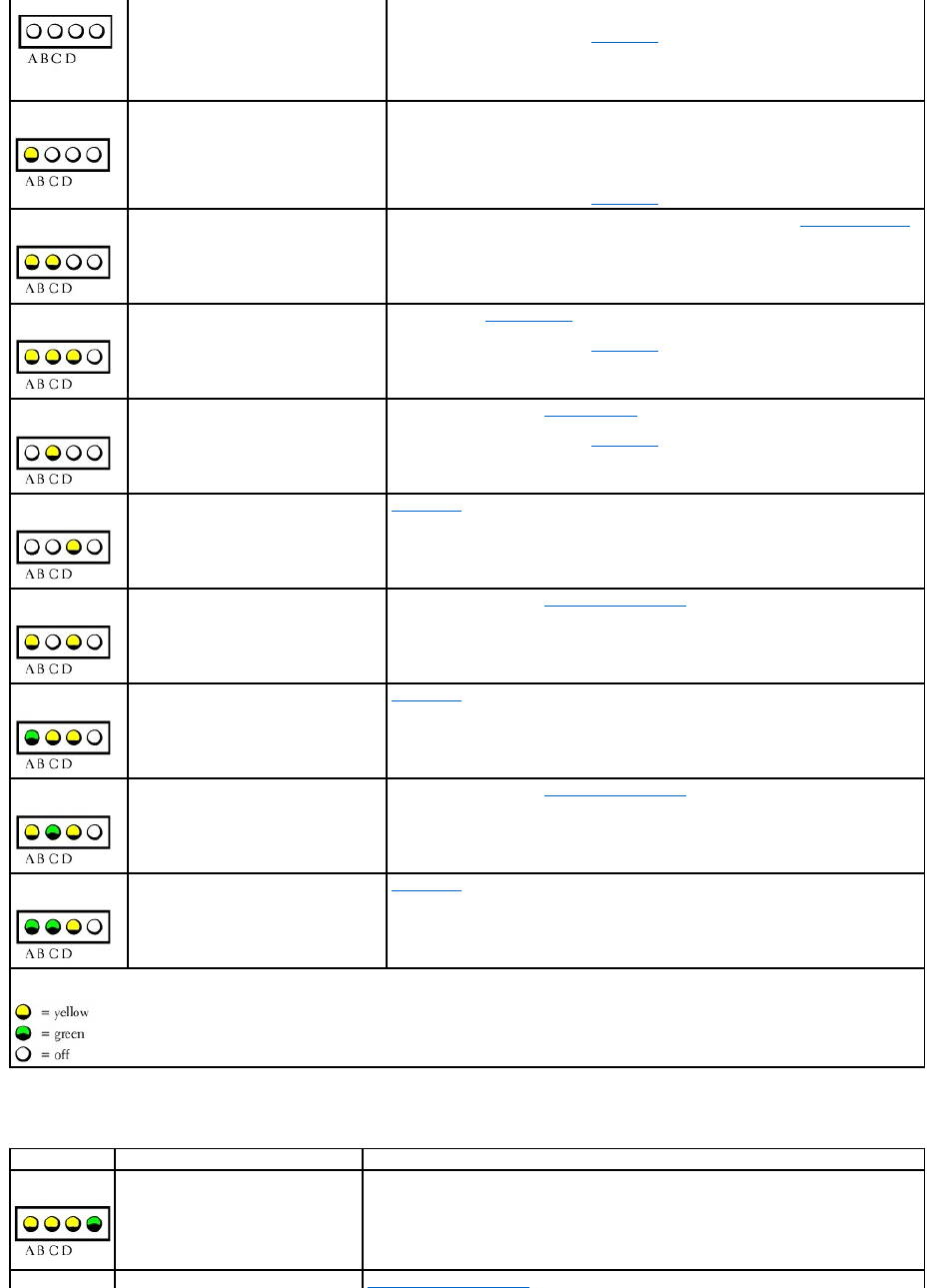
To help you troubleshoot a problem, your computer is equipped with four lights on the front panel labeled "A," "B," "C," and "D". These lights can be yellow or
green. When the computer starts normally, the lights flash. After the computer starts, the lights remain green. If the computer malfunctions, the color and
sequence of the lights identify the problem.
Diagnostic Light Codes Before POST
Power Light
Hard-
Drive
Light
Problem Description
Suggested Resolution
Solid green
N/A
Power is on, and the computer is operating
normally.
No corrective action is required.
Blinking green
Blank
The computer is in the suspended state
(Microsoft®Windows®2000 and Windows XP).
Press the power button, move the mouse, or press a key
on the keyboard to wake the computer. See "Power
Button."
Blinks green several times and then
turns off
N/A
A configuration error exists.
Check the diagnostic lights to see if the specific problem is
identified.
Solid yellow
N/A
The Dell Diagnostics is running a test, or a
device on the system board may be faulty or
incorrectly installed.
If the Dell Diagnostics is running, allow the testing to
complete.
Check the diagnostic lights to see if the specific problem is
identified. See "System Board Problems."
If the computer does not boot, contact Dell for technical
assistance.
Blinking yellow
Blank
A power supply or system board failure has
occurred.
Check the diagnostic lights to see if the specific problem is
identified. See "Power Problems" and "System Board
Problems."
Blinking yellow
Solid
green
A system board or VRM failure has occurred.
Check the diagnostic lights to see if the specific problem is
identified. See "System Board Problems."
Solid green and a beep code during
POST
N/A
A problem was detected while the BIOS was
executing.
See "Beep Codes" for instructions on diagnosing the beep
code. Also, check the diagnostic lights to see if the specific
problem is identified.
Solid green power light and no
beep code and no video during
POST
N/A
The monitor or the graphics card may be faulty
or incorrectly installed.
Check the diagnostic lights to see if the specific problem is
identified. See "Video and Monitor Problems."
Solid green power light and no
beep code but the computer locks
up during POST
N/A
An integrated system board device may be
faulty.
Check the diagnostic lights to see if the specific problem is
identified. If the problem is not identified, contact Dell for
technical assistance.
CAUTION: Before you begin any of the procedures in this section, follow the safety instructions in the System Information Guide.
Light Pattern
Problem Description
Suggested Resolution
No electrical power is supplied to the
computer.
Connect the computer to its electrical outlet. Ensure that the front-panel power light is on.
If the power light is off, ensure that the computer is connected to a working electrical outlet
Diagnostic Light Codes During POST
and then press the power button.
If the problem is still not resolved, contact Dell for technical assistance.
The computer is in a normal off condition;
the computer is connected to its electrical
outlet.
Press the power button to turn the computer on.
If the computer does not turn on, ensure that the front-panel power light is on. If the
power light is off, ensure that the computer is connected to a working electrical outlet and
then press the power button.
If the problem is still not resolved, contact Dell for technical assistance.
The computer is in a reduced power or
"sleep" state.
Use one of the appropriate methods to "wake up" the computer. See "Advanced Features."
If the problem is not resolved and you are trying to wake the computer with a USB mouse
or keyboard, subsitute the mouse or keyboard with a working PS/2 mouse or keyboard and
try to wake the computer.
The BIOS is not executing.
Ensure that the microprocessor is seated correctly and restart the computer.
If the problem is still not resolved, contact Dell for technical assistance.
A possible power supply or power cable
failure has occurred.
Perform the procedure in "Power Problems."
If the problem is still not resolved, contact Dell for technical assistance.
A possible system board failure has
occured.
Contact Dell for technical assistance.
A microprocessor and/or VRM mismatch
exists.
Perform the procedure in "Microprocessor Problems."
A possible VRM 0 failure has occurred.
Contact Dell for technical assistance.
A possible VRM 1 failure has occurred.
Perform the procedure in "Microprocessor Problems."
A possible VRM 0 and VRM 1 failure has
occurred.
Contact Dell for technical assistance.
Light Pattern
Problem Description
Suggested Resolution
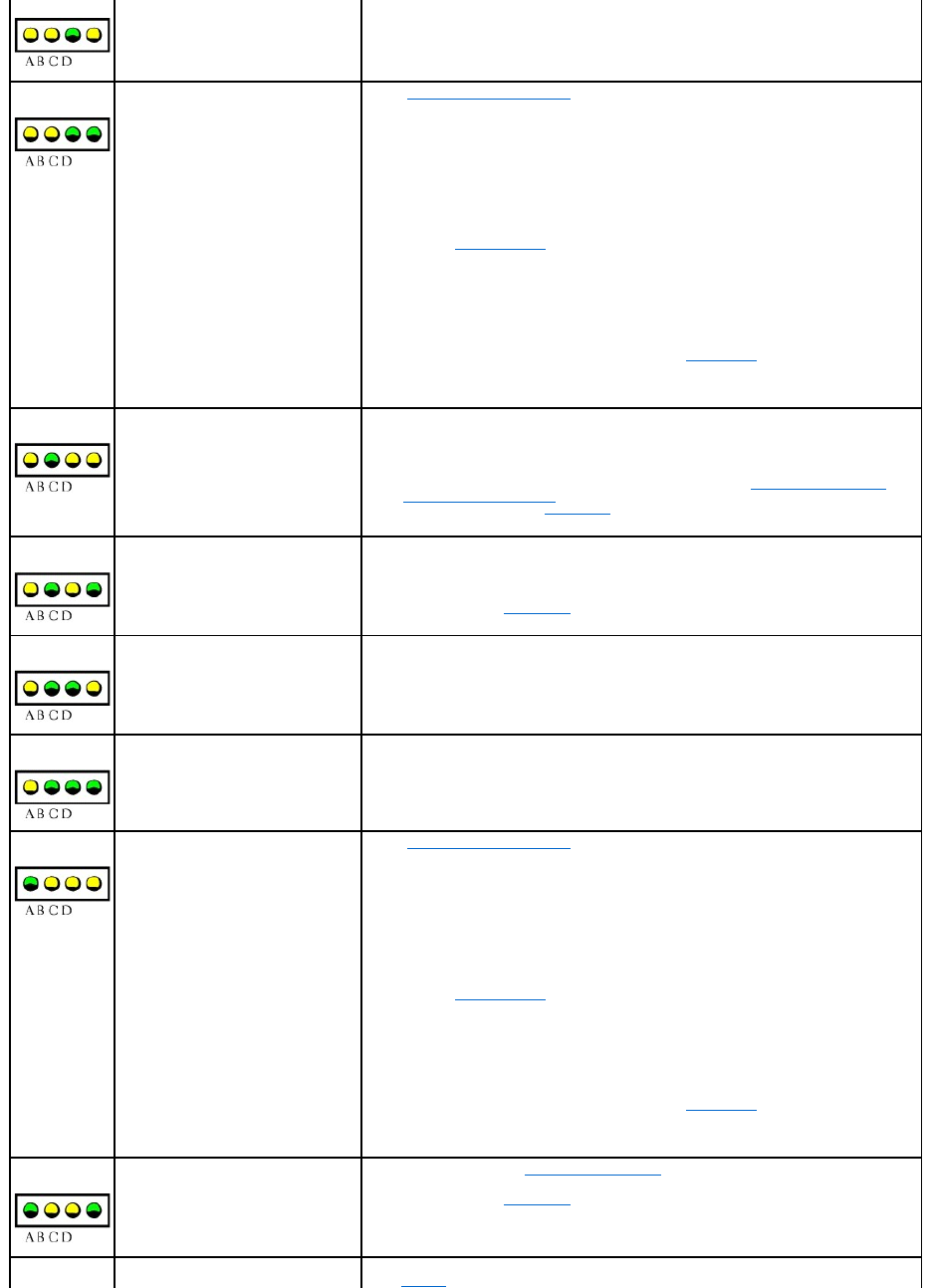
A possible BIOS failure has occurred; the
computer is in the recovery mode.
Run the BIOS Recovery Utility, wait for recovery completion, and then restart the computer.
A possible microprocessor failure has
Reinstall the microprocessor and restart the computer.
occurred.
Memory modules are detected, but a
memory failure has occurred.
1. Reseat the memory modules to ensure that your computer is successfully communicating
with the memory.
2. Restart the computer.
3. If the problem still exists, remove all the memory modules and install one memory
module in memory module connector 4.
4. Restart the computer.
The following message appears: Alert! Operating in Debug Mode. Please Populate
Memory in Pairs for Normal Operation.
5. Press <F1> to boot to the operating system.
6. Run the Dell Diagnostics.
7. If the memory module passes, shut down the computer, remove the memory module,
and repeat the process with the remaining memory modules until a memory error occurs
during start-up or diagnostic testing.
If the first memory module tested is defective, repeat the process with the remaining
modules to ensure the remaining modules are not defective.
8. When the defective memory module is identified, contact Dell for a replacement.
NOTE: If necessary, the computer can operate in debug mode until new memory modules are
installed.
A possible expansion card failure has
occurred.
1. Determine if a conflict exists by removing a card (not the video card) and then restarting
the computer.
2. If the problem persists, reinstall the card that you removed, remove a different card, and
then restart the computer.
3. Repeat this process for each card. If the computer starts normally, troubleshoot the last
card removed from the computer for resource conflicts (see "Resolving Software and
Hardware Incompatibilities").
4. If the problem persists, contact Dell.
A possible graphics card failure has
occurred.
Reinstall the graphics card and restart the computer.
If the problem still exists, install a graphics card that you know works and restart the computer.
If the problem persists, contact Dell.
A possible floppy or hard drive failure has
occurred.
Check all power and data cable connections, and then restart the computer.
A possible USB failure has occurred.
Reinstall all USB devices, check cable connections, and then restart the computer.
No memory modules are detected.
1. Reseat the memory modules to ensure that your computer is successfully communicating
with the memory.
2. Restart the computer.
3. If the problem still exists, remove all the memory modules and install one memory
module in memory module connector 4.
4. Restart the computer.
The following message appears: Alert! Operating in Debug Mode. Please Populate
Memory in Pairs for Normal Operation.
5. Press <F1> to boot to the operating system.
6. Run the Dell Diagnostics.
7. If the memory module passes, shutdown the computer, remove the memory module,
and repeat the process with the remaining memory modules until a memory error occurs
during start-up or diagnostic testing.
If the first memory module tested is defective, repeat the process with the remaining
modules to ensure the remaining modules are not defective.
8. When the defective memory module is identified, contact Dell for a replacement.
NOTE: If necessary, the computer can operate in debug mode until new memory modules are
installed.
System board failure has occurred.
Perform the procedures in "System Board Problems."
If the problem persists, contact Dell.
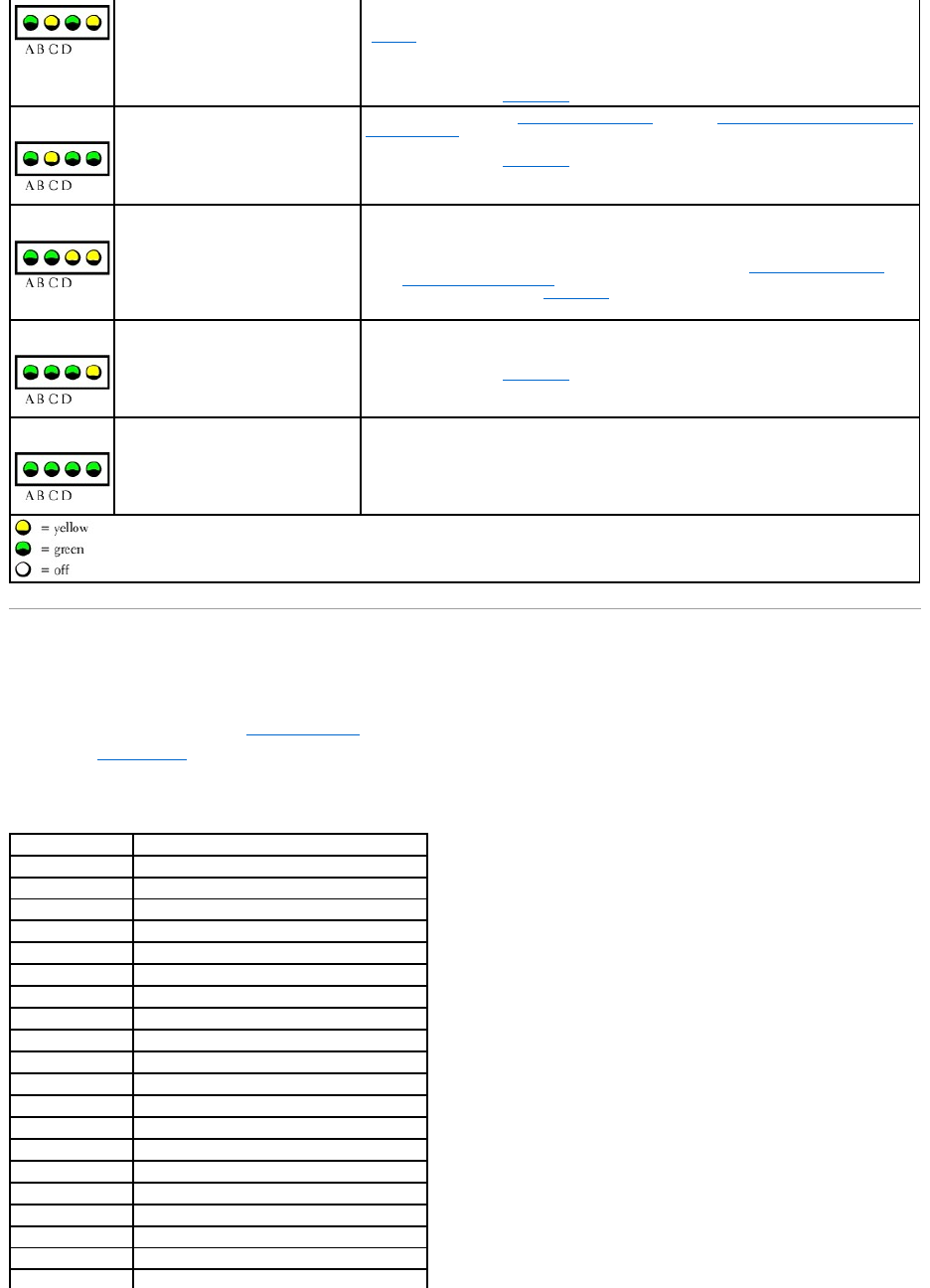
Memory modules are detected, but a
memory configuration or compatibility
Ensure that there are no special memory module/memory connector placement requirements
(see "Memory").
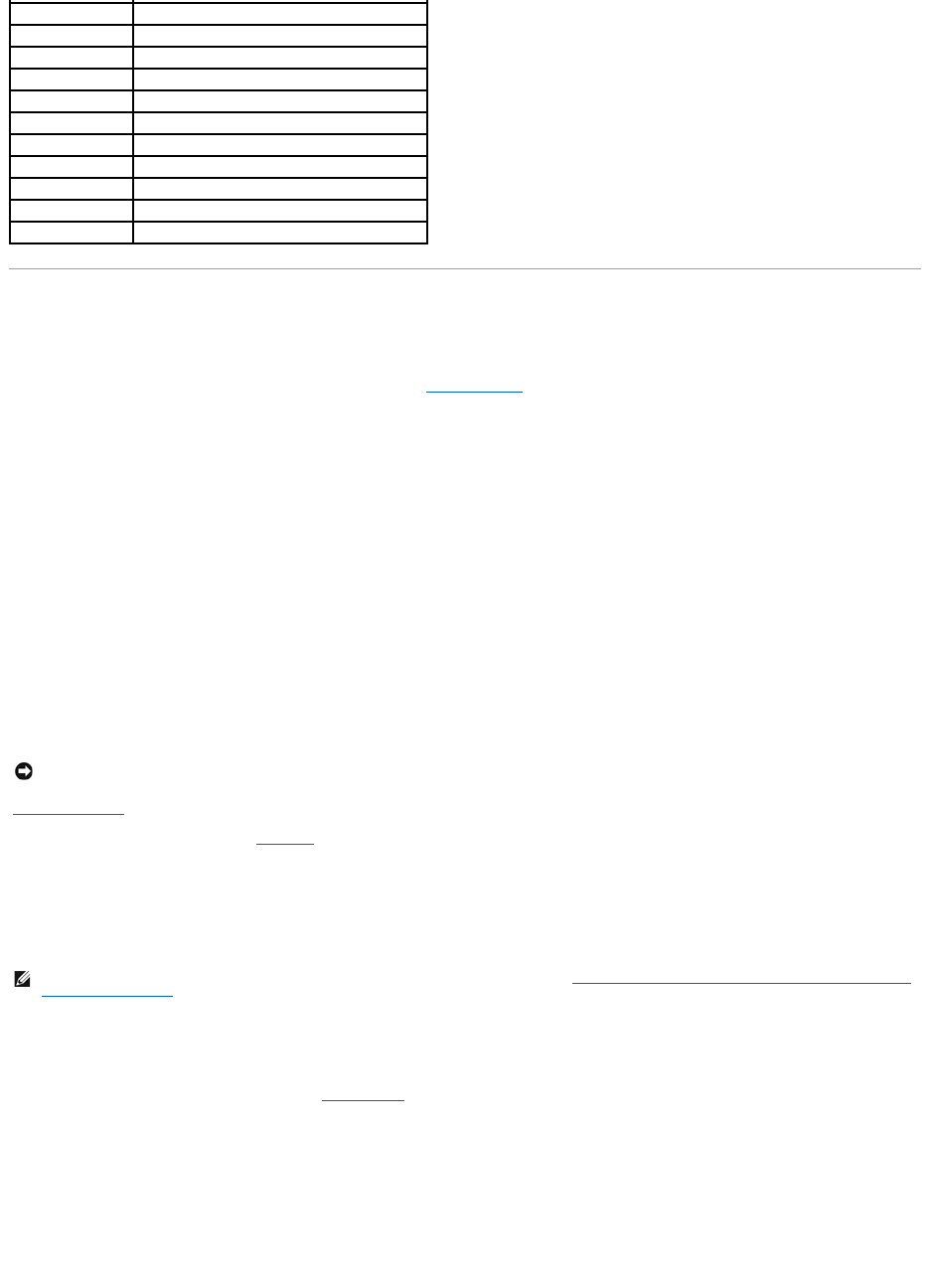
Beep Codes
Your computer might emit a series of beeps that identify a problem. One possible series (code 1-3-1) consists of one beep, a burst of three beeps, and then
one beep. This series tells you that the computer encountered a memory problem.
1. Write the beep code down on the Diagnostic Checklist.
2. Run the Dell Diagnostics to identify a more serious cause.
3. Contact Dell for technical assistance.
error exists.
Verify that the memory modules that you are installing are compatible with your computer (see
"Memory").
Reinstall the memory modules and then restart the computer.
If the problem persists, contact Dell.
A possible system board resource and/or
hardware failure has occurred.
Perform the procedure in "System Board Problems" and see "Resolving Software and Hardware
Incompatibilities."
If the problem persists, contact Dell.
A possible expansion card failure has
occurred.
1. Determine if a conflict exists by removing a card and then restarting the computer.
2. If the problem persists, reinstall the card that you removed, remove a different card, and
then restart the computer.
3. Repeat this process for each card. If the computer starts normally, troubleshoot the last
card removed from the computer for resource conflicts (see "Resolving Software and
Hardware Incompatibilities").
4. If the problem persists, contact Dell.
Other failure has occurred.
Ensure that the cables are properly connected from the hard drive, CD drive, and DVD drive to
the system board.
If the problem persists, contact Dell.
The computer is in a normal operating
condition after POST.
None.
Code
Cause
1-1-2
Microprocessor register failure
1-1-3
NVRAM
1-1-4
ROM BIOS checksum failure
1-2-1
Programmable interval timer
1-2-2
DMA initialization failure
1-2-3
DMA page register read/write failure
1-3
Video Memory Test failure
1-3-1 through 2-4-4
DIMMs not being properly identified or used
3-1-1
Slave DMA register failure
3-1-2
Master DMA register failure
3-1-3
Master interrupt mask register failure
3-1-4
Slave interrupt mask register failure
3-2-2
Interrupt vector loading failure
3-2-4
Keyboard Controller Test failure
3-3-1
NVRAM power loss
3-3-2
NVRAM configuration
3-3-4
Video Memory Test failure
3-4-1
Screen initialization failure
3-4-2
Screen retrace failure
3-4-3
Search for video ROM failure
Dell Diagnostics
When to Use the Dell Diagnostics
If you experience a problem with your computer, perform the checks in "Solving Problems" and run the Dell Diagnostics before you contact Dell for technical
assistance. Running the Dell Diagnostics may help you resolve the problem without contacting Dell. If you do contact Dell, the test results can provide
important information for Dell's service and support personnel.
The Dell Diagnostics allows you to:
lPerform express, extended, or custom tests on one or all devices
lSelect tests based on a symptom of the problem you are having
lChoose how many times a test is run
lDisplay test results
lSuspend testing if an error is detected
lAccess online help information that describes the tests and devices
lReceive status messages that tell you whether tests completed successfully
lReceive error messages if problems are detected
Starting the Dell Diagnostics
It is recommended that you print these procedures before you begin.
Enter system setup, review your computer's configuration information, and ensure that the device you want to test displays in system setup and is active.
Start the Dell Diagnostics from either your hard drive or from the Drivers and Utilities CD (also known as the ResourceCD).
Starting the Dell Diagnostics From Your Hard Drive
1. Shut down and restart the computer.
2. When the DELL®logo appears, press <F12> immediately.
If you wait too long and the Microsoft®Windows®logo appears, continue to wait until you see the Windows desktop. Then shut down your computer
through the Start menu and try again.
3. When the boot device list appears, highlight Boot to Utility Partition and press <Enter>.
4. When the Dell Diagnostics Main Menu appears, select the test you want to run.
Starting the Dell Diagnostics From the Drivers and Utilities CD
1. Insert the Drivers and Utilities CD into the CD drive.
2. Shut down and restart the computer.
When the DELL®logo appears, press <F12> immediately.
If you wait too long and the Windows logo appears, continue to wait until you see the Windows desktop. Then shut down your computer through the
Start menu and try again.
4-2-1
No time tick
4-2-2
Shutdown failure
4-2-3
Gate A20 failure
4-2-4
Unexpected interrupt in protected mode
4-3-1
Memory failure above address 0FFFFh
4-3-3
Timer-chip counter 2 failure
4-3-4
Time-of-day clock stopped
4-4-1
Serial or parallel port test failure
4-4-2
Failure to decompress code to shadowed memory
4-4-3
Math-coprocessor test failure
4-4-4
Cache test failure
NOTICE: OnlyusetheDellDiagnosticstotestyourDell™computer.Usingthisprogramwithothercomputerscanresultinerrormessages.
NOTE: If you receive a message stating that no Diagnostics utility partition has been found, follow the instructions to run the Dell Diagnostics from your
Drivers and Utilities CD.
3. When the boot device list appears, highlight IDE CD-ROM Device and press <Enter>.
4. Select the IDE CD-ROM Device option from the CD boot menu.
5. Select the Boot from CD-ROM option from the menu that appears.
6. Type 1 to start the ResourceCD menu.
7. Type 2 to start the Dell Diagnostics.
8. Select Run the 32 Bit Dell Diagnostics from the numbered list. If multiple versions are listed, select the version appropriate for your platform.
9. When the Dell Diagnostics Main Menu appears, select the test you want to run.
Dell Diagnostics Main Menu
1. After the Dell Diagnostics loads and the Main Menu screen appears, click the button for the option you want.
2. If a problem is encountered during a test, a message displaying the error code and a description of the problem appear. Write down the error code and
problem description and follow the instructions on the screen.
If you cannot resolve the error condition, contact Dell.
3. If you run a test from the Custom Test or Symptom Tree option, click the applicable tab described in the following table for more information.
4. When the tests are completed, if you are running the Dell Diagnostics from the Drivers and Utilities CD, remove the CD.
5. Close the test screen to return to the Main Menu screen. To exit the Dell Diagnostics and restart the computer, close the Main Menu screen.
Drivers
What Is a Driver?
A driver is a program that controls a device such as a printer, mouse, or keyboard. All devices require a driver program.
A driver acts like a translator between the device and the programs that use the device. Each device has its own set of specialized commands that only its
driver recognizes.
Many drivers, such as the keyboard driver, come with your Microsoft® Windows® operating system. You may need to install drivers if:
lYou upgrade your operating system.
lYou reinstall your operating system.
lYou connect or install a new device.
If you experience a problem with any device, perform the steps in the following sections to identify whether the driver is the source of your problem and if
necessary, to update the driver.
NOTE: This feature changes the boot sequence for one time only. On the next start-up, the computer boots according to the devices specified in system
setup.
NOTE: The Service Tag number for your computer is located on the top of each test screen.
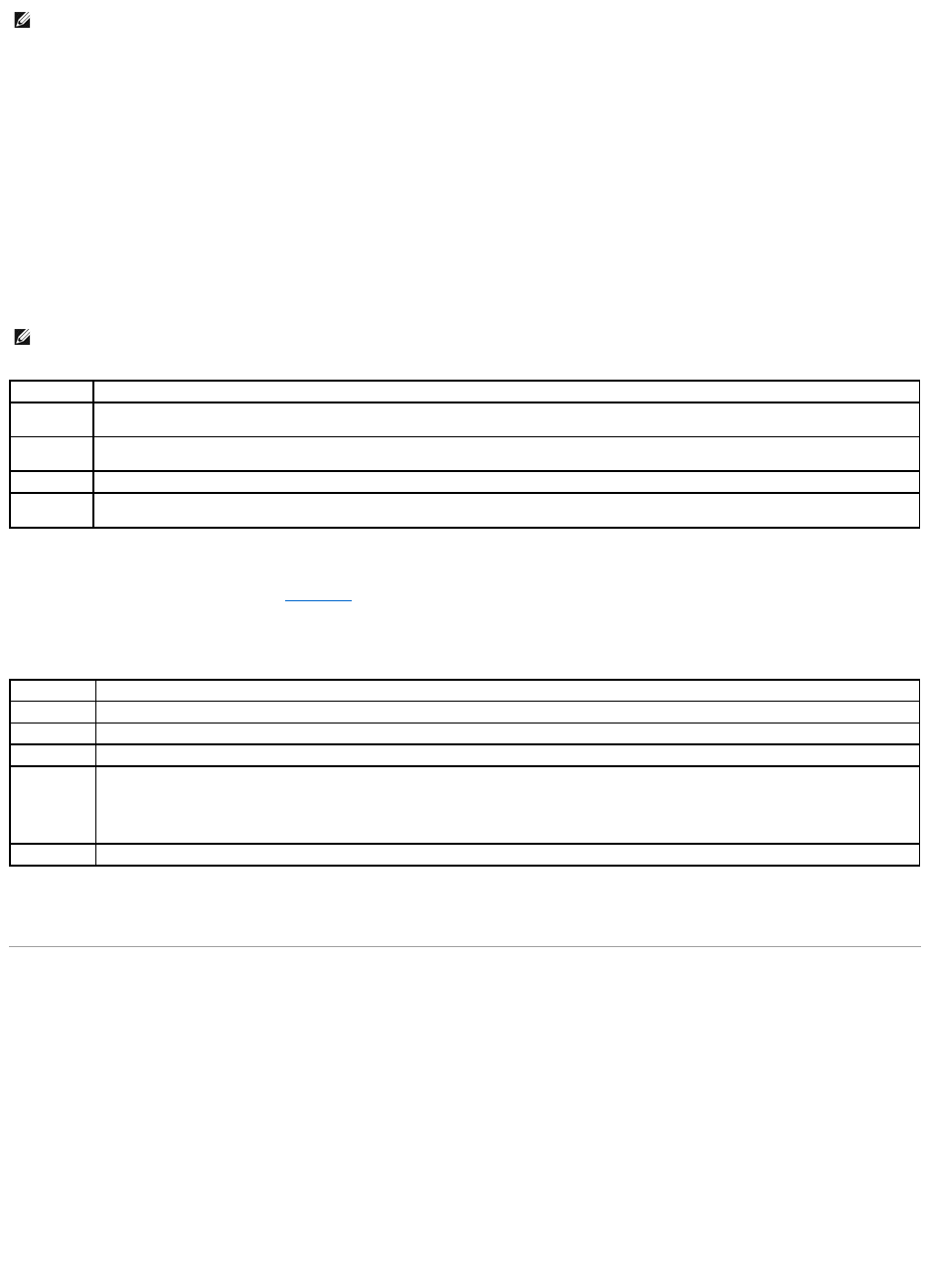
Option
Function
Express Test
Performs a quick test of devices. This test typically takes 10 to 20 minutes and requires no interaction on your part. Run Express Test first to
increase the possibility of tracing the problem quickly.
Extended
Test
Performs a thorough check of devices. This test typically takes an hour or more and requires you to answer questions periodically.
Custom Test
Tests a specific device. You can customize the tests you want to run.
Symptom
Tree
Lists the most common symptoms encountered and allows you to select a test based on the symptom of the problem you are having.
Tab
Function
Results
Displays the results of the test and any error conditions encountered.
Errors
Displays error conditions encountered, error codes, and problem description.
Help
Describes the test and may indicate requirements for running the test.
Configuration
Displays your hardware configuration for the selected device.
The Dell Diagnostics obtains your configuration information for all devices from system setup, memory, and various internal tests and displays
it in the device list in the left pane of the screen. The device list may not display the names of all the components installed on your computer
or all devices attached to your computer.
Parameters
Allows you to customize the test by changing the test settings.

Identifying Drivers
Windows XP
1. Click the Start button and click Control Panel.
2. In the Control Panel window, under Pick a Category, click Performance and Maintenance.
3. In the Performance and Maintenance window, click System.
4. In the System Properties window, click the Hardware tab.
5. Click Device Manager.
6. In the Device Manager window, scroll down the list to see if any device has an exclamation point (a yellow circle with a [!]) on the device icon.
If an exclamation point is next to the device name, you may need to reinstall the driver or install a new driver.
Windows 2000
1. Click the Start button, point to Settings, and click Control Panel.
2. In the Control Panel window, double-click System.
3. In the System Properties window, click the Hardware tab.
4. Click Device Manager.
5. In the Device Manager window, scroll down the list to see if any device has an exclamation point (a yellow circle with a [!]) on the device icon.
If an exclamation point is next to the device name, you may need to reinstall the driver or install a new driver.
Reinstalling Drivers
1. Insert the Drivers and Utilities CD into the CD drive.
If this is your first time to use the Drivers and Utilities CD, the Installation window opens to inform you that the CD will begin the installation. Click OK,
and respond to the installation program prompts to complete the installation.
2. Click Next at the Welcome Dell System Owner screen.
3. Choose the appropriate selections for System Model, Operating System, Device Type, and Topic.
4. Click My Drivers in the Topic drop-down menu.
The Drivers and Utilities CD scans your computer's hardware and operating system and then displays a list of device drivers for your system
configuration.
5. Click the appropriate driver and follow the instructions to download the driver for your computer.
To view a list of all available drivers for your computer, click Drivers in the Topic drop-down menu.
To access the Dell Drivers and Utilities CD Guide, click User's Guides in the Topic drop-down menu, and then click Dell Precision ResourceCD.
Using Windows XP Device Driver Rollback
If a problem occurs on your computer after you install or update a driver, use Windows XP Device Driver Rollback to replace the driver with the previously
installed version.
To use Device Driver Rollback:
1. Click the Start button and click Control Panel.
2. In the Control Panel window, under Pick a Category, click Performance and Maintenance.
3. In the Performance and Maintenance window, click System.
4. In the System Properties window, click the Hardware tab.
5. Click Device Manager.
6. In the Device Manager window, right-click the device for which the new driver was installed, and then click Properties.
7. Click the Drivers tab.
8. Click Roll Back Driver.
If Device Driver Rollback does not resolve the problem, then use Using System Restore to return your operating system to the operating state it was in before
you installed the new driver.
NOTICE: The Dell Support website and your Dell Precision Drivers and Utilities CD provideapproveddriversforDell™computers.Ifyouinstalldrivers
obtained from other sources, your computer might not work correctly.
NOTE: To access device drivers and user documentation, you must use the Drivers and Utilities CD while your computer is running Windows.

Using System Restore
The Microsoft® Windows® XP operating system provides System Restore to allow you to return your computer to an earlier operating state (without affecting
data files) if changes to the hardware, software, or other system settings have left the computer in an undesirable operating state. See Windows Help for
information on using System Restore.
Creating a Restore Point
1. Click the Start button.
2. Click Help and Support.
3. Click System Restore.
4. Follow the instructions on the screen.
Restoring the Computer to an Earlier Operating State
If problems occur after installing a device driver, first try using Device Driver Rollback. If that is unsuccessful, then use System Restore.
1. Click the Start button, point to All Programs® Accessories® System Tools, and then click System Restore.
2. Ensure that Restore my computer to an earlier time is selected, and then click Next.
3. Click a calendar date to which you want to restore your computer.
The Select a Restore Point screen provides a calendar that allows you to see and select restore points. All calendar dates with available restore points
appear in bold.
4. Select a restore point, and then click Next.
If a calendar date has only one restore point, then that restore point is automatically selected. If two or more restore points are available, click the
restore point that you prefer.
5. Click Next.
The Restoration Complete screen appears after System Restore finishes collecting data, and then the computer automatically restarts.
6. After the computer restarts, click OK.
To change the restore point, you can either repeat the steps using a different restore point, or you can undo the restoration.
Undoing the Last System Restore
1. Click the Start button, point to All Programs ®
Accessories ® System Tools, and then click System Restore.
2. Select Undo my last restoration and click Next.
3. Click Next.
The System Restore screen appears, and then the computer automatically restarts.
4. After the computer restarts, click OK.
Enabling System Restore
If you reinstall Windows XP with less than 200 MB of free hard-disk space available, System Restore is automatically disabled. To see if System Restore is
enabled:
1. Click the Start button, and then click Control Panel.
2. Click Performance and Maintenance.
3. Click System.
4. Click the System Restore tab.
5. Make sure that Turn off System Restore is unchecked.
NOTICE: Make regular backups of your data files. System Restore does not monitor your data files or recover them.
NOTICE: Before restoring the computer to an earlier operating state, save and close all open files and close all open programs. Do not alter, open, or
delete any files or programs until the system restoration is complete.
NOTICE: Before undoing the last system restore, save and close all open files and close all open programs. Do not alter, open, or delete any files or
programs until the system restoration is complete.

Resolving Software and Hardware Incompatibilities
Windows XP
Microsoft® Windows® XP IRQ conflicts occur if a device either is not detected during the operating system setup or is detected but incorrectly configured.
To check for conflicts on a computer running Windows XP:
1. Click the Start button, and then click Control Panel.
2. Click Performance and Maintenance, and then click System.
3. Click the Hardware tab, and then click Device Manager.
4. In the Device Manager list, check for conflicts with the other devices.
Conflicts are indicated by a yellow exclamation point (!) beside the conflicting device or a red X if the device has been disabled.
5. Double-click any conflicting device listed to bring up the Properties window to determine what needs to be reconfigured or removed from the Device
Manager.
Resolve these conflicts before checking specific devices.
6. Double-click the malfunctioning device type in the Device Manager list.
7. Double-click the icon for the specific device in the expanded list.
The Properties window appears.
8. Resolve any IRQ conflicts, as described in step 5.
If an IRQ conflict exists, the Device status area in the Properties window reports the cards or devices that share the device's IRQ.
To use the Windows XP Hardware Troubleshooter:
1. Click the Start button, and then click Help and Support.
2. Type hardware troubleshooter in the Search field, and then click the arrow to start the search.
3. Click Hardware Troubleshooter in the Search Results list.
4. In the Hardware Troubleshooter list, click I need to resolve a hardware conflict on my computer, and then click Next.
Windows 2000
To check for conflicts on a computer running Windows 2000:
1. Click the Start button, point to Settings, and click Control Panel.
2. In the Control Panel window, double-click System.
3. Click the Hardware tab.
4. Click Device Manager.
5. Click View, and then click Resources by connection.
6. Double-click Interrupt request (IRQ) to view the IRQ assignments.
Conflicts are indicated by a yellow exclamation point (!) beside the conflicting device or a red X if the device has been disabled.
7. Double-click any conflicting device listed to bring up the Properties window to determine what needs to be reconfigured or removed from the Device
Manager. Resolve these conflicts before checking specific devices.
8. Double-click the malfunctioning device type in the Device Manager list.
9. Double-click the icon for the specific device in the expanded list.
The Properties window appears.
10. If an IRQ conflict exists, the Device status area in the Properties window reports the cards or devices that share the device's IRQ. Resolve the IRQ
conflicts.
To use the Windows 2000 Hardware Troubleshooter:
1. Click the Start button, and then click Help.
2. Click Troubleshooting and Maintenance on the Contents tab, click Windows2000troubleshooters, and then click Hardware.
3. In the Hardware Troubleshooter list, click I need to resolve a hardware conflict on my computer, and then click Next.
Back to Contents Page
Back to Contents Page
Advanced Features
DellPrecision™Workstations450and650User'sGuide
LegacySelect Technology Control
Manageability
Security
Password Protection
System Setup
Jumper Settings
Power Button
TAPI
Hyper-Threading
IEEE 1394
U320 SCSI Controller
Integrated Striping
LegacySelect Technology Control
LegacySelect technology control offers legacy-full, legacy-reduced, or legacy-free solutions based on common platforms, hard-drive images, and help desk
procedures.Controlisprovidedtotheadministratorthroughsystemsetup,DellOpenManage™ITAssistant,orDell™customfactoryintegration.
LegacySelect allows administrators to electronically activate or deactivate connectors and media devices that include serial and USB connectors, a parallel
connector, a floppy drive, and a PS/2 mouse. Connectors and media devices that are deactivated make resources available. You must restart the computer for
the changes to take effect.
Manageability
Alert Standard Format
ASF is a DMTF management standard that specifies "pre-operating system" or "operating system-absent" alerting techniques. It is designed to generate an
alert on potential security and fault conditions when the operating system is in a sleep state or the computer is powered down. ASF is designed to supersede
previous operating system-absent alerting technologies.
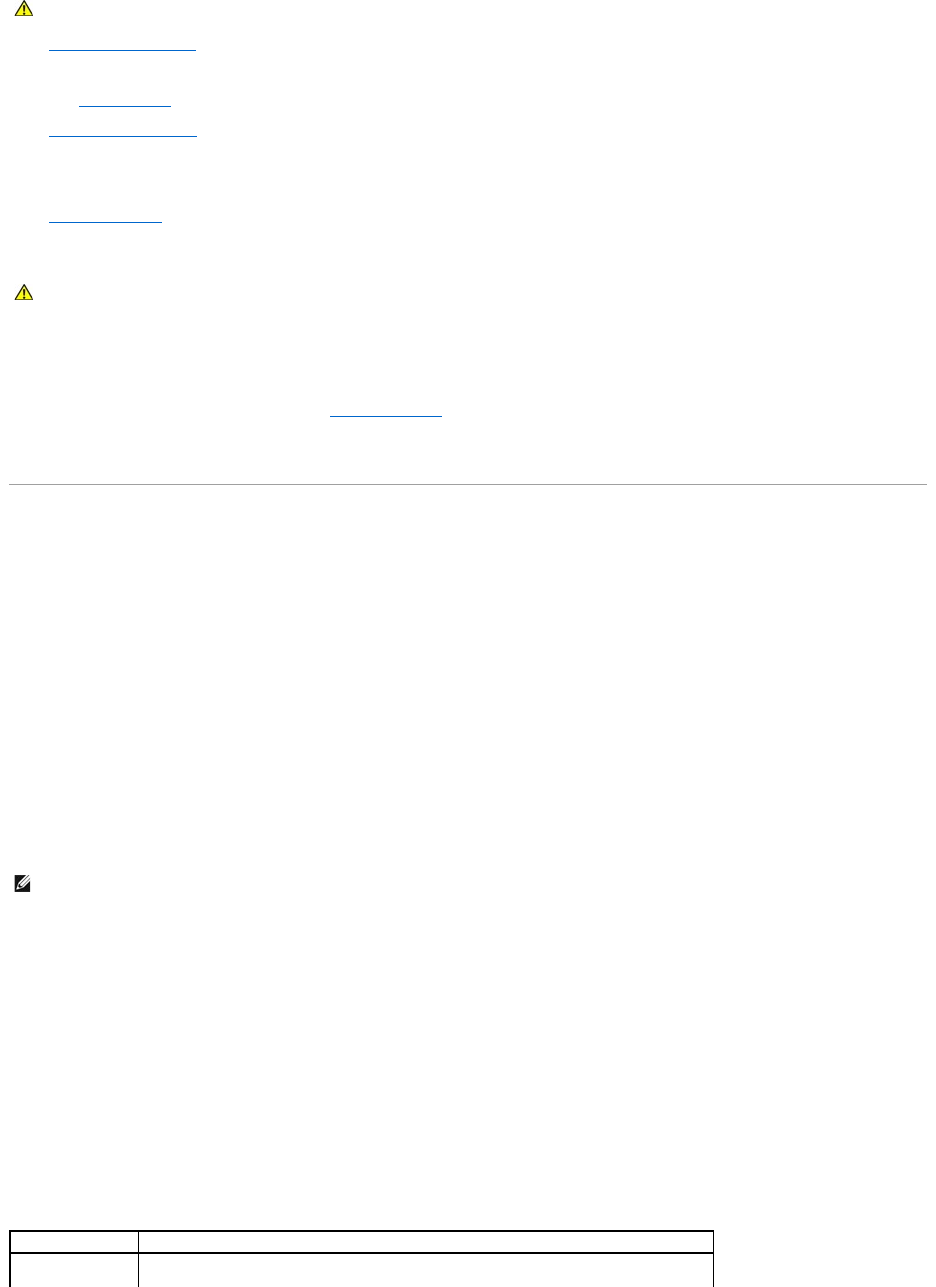
Your computer supports the following ASF alerts and remote capabilities:
For more information about Dell's ASF implementation, see the ASF User's Guide and the ASF Administrator's Guide, available on the Dell Support website at
support.dell.com.
Dell OpenManage IT Assistant
IT Assistant configures, manages, and monitors computers and other devices on a corporate network. IT Assistant manages assets, configurations, events
(alerts), and security for computers equipped with industry-standard management software. It supports instrumentation that conforms to SNMP, DMI, and CIM
industry standards.
Dell OpenManage Client instrumentation, which is based on DMI and CIM, is available for your computer. For information on IT Assistant, see the Dell
OpenManage IT Assistant User's Guide available on the Dell Support website at support.dell.com.
Dell OpenManage Client Instrumentation
Alert
Description
Bad CPU
The microprocessor has been unable to execute its first instructions.
Chassis Intrusion/Chassis Intrusion Cleared
The computer has been opened or the chassis intrusion alert has been cleared.
Corrupt BIOS
The BIOS is corrupted.
Failure to Boot to BIOS
The BIOS did not complete loading upon initiation.
System Password Failure
The system password is invalid (after 3 failed attempts).
Entity Presence
Periodic Heartbeats have been transmitted to verify computer presence.
Temperature - Too High (critical)
The computer temperature is out of limits.
Voltage - Too Low
Too High (critical)
The computer voltage is out of limits.
Cooling Device Limits
The computer fan speed/rpm is out of limits.
Ethernet Connectivity Enabled/Ethernet Connectivity Disabled
The Ethernet connectivity is enabled or Ethernet connectivity is disabled.
Power Supply
A fan or voltage failure exists inside the power supply.

Dell OpenManage Client Instrumentation is software that enables remote management programs such as IT Assistant to do the following:
lAccess information about your computer, such as how many processors it has and what operating system it is running
lMonitor the status of your computer, such as listening for thermal alerts from temperature probes or hard-drive failure alerts from storage devices
lChange the state of your computer, such as updating its BIOS or shutting it down remotely
A managed system is one that has Dell OpenManage Client Instrumentation set up on a network that uses IT Assistant. For information about Dell
OpenManage Client Instrumentation, see the Dell OpenManage Client Instrumentation User's Guide available on the Dell Support website at support.dell.com.
Security
Chassis Intrusion Detection
This feature detects that the chassis was opened and alerts the user. To change the Chassis Intrusion setting:
1. Enter system setup.
2. Press the down-arrow keys to move to the System Security option.
3. Press <Enter> to access the System Security option's pop-up menu.
4. Press the down-arrow key to move to the Chassis Intrusion setting.
5. Press the spacebar to select an option setting.
6. Exit system setup.
Option Settings
lEnabled — If the computer cover is opened, the setting changes to Detected, and the following alert message displays during the boot routine at the
next computer start-up:
Alert! Cover was previously removed.
To reset the Detected setting, enter system setup. In the Chassis Intrusion option, press the left- or right-arrow key to select Reset, and then choose
Enabled, Enabled-Silent, or Disabled.
lEnabled-Silent (default) — If the computer cover is opened, the setting changes to Detected. No alert message appears during the boot sequence at
the next computer start-up.
lDisabled — No intrusion monitoring occurs and no messages appear.
Padlock Ring and Security Cable Slot
Use one of the following methods to secure your computer:
lUse a padlock alone or a padlock and looped security cable with the padlock ring.
A padlock alone prevents the computer from being opened.
A security cable looped around a stationary object is used in conjunction with a padlock to prevent unauthorized movement of the computer.
lAttach a commercially available antitheft device to the security cable slot on the back of the computer.
Antitheft devices usually include a segment of metal-stranded cable with an attached locking device and key. A Kensington lock is recommended. The
documentation that comes with the locking device contains instructions for installing it.
Password Protection
System Password
NOTE: When the setup password is enabled, you must know the setup password before you can reset the Chassis Intrusion setting.
NOTE: Before you purchase an antitheft device, ensure that it works with the security cable slot on your computer.
NOTICE: Although passwords provide security for the data on your computer, they are not foolproof. If your data requires more security, it is your
responsibility to obtain and use additional forms of protection, such as data encryption programs.
NOTICE: If you leave your computer running and unattended without having a system password assigned, or if you leave your computer unlocked so
that someone can disable the password by changing a jumper setting, anyone can access the data stored on your hard drive.

Option Settings
You cannot change or enter a new system password if either of the following two options is displayed:
lEnabled — A system password is assigned.
lDisabled — The system password is disabled by a jumper setting on the system board.
You can only assign a system password when the following option is displayed:
lNot Enabled — A system password has not been assigned and the password jumper on the system board is in the enabled position (the default).
Assigning a System Password
To escape from the field without assigning a system password, press <Tab> or the <Shift><Tab> key combination to move to another field, or press <Esc> at
any time before you complete step 5.
1. Enter system setup and verify that Password Status is set to Unlocked.
2. Highlight System Password and then press the left- or right-arrow key.
The option heading changes to Enter Password, followed by an empty 32-character field in square brackets.
3. Type your new system password.
You can use up to 32 characters. To erase a character when entering your password, press <Backspace> or the left-arrow key. The password is not
case sensitive.
Certain key combinations are not valid. If you enter one of these combinations, the speaker emits a beep.
As you press each character key (or the spacebar for a blank space), a placeholder appears in the field.
4. Press <Enter>.
If the new system password is less than 32 characters, the whole field fills with placeholders. Then the option heading changes to Verify Password,
followed by another empty 32-character field in square brackets.
5. To confirm your password, type it a second time and press <Enter>.
The password setting changes to Enabled.
6. Exit system setup.
Password protection takes effect when you restart the computer.
Typing Your System Password
When you start or restart your computer, one of the following prompts appears on the screen.
If Password Status is set to Unlocked:
Type in the password and
- press <ENTER> to leave password security enabled.
- press <CTRL><ENTER> to disable password security.
Enter password:
If Password Status is set to Locked:
Type the password and press <Enter>.
If you have assigned a setup password, the computer accepts your setup password as an alternate system password.
If you type a wrong or incomplete system password, the following message appears on the screen:
** Incorrect password. **
If you again type an incorrect or incomplete system password, the same message appears on the screen. The third and subsequent times you type an
incorrect or incomplete system password, the computer displays the following message:
** Incorrect password. **
Number of unsuccessful password attempts: 3
System halted! Must power down.
Even after your computer is turned off and on, the previous message is displayed each time you type an incorrect or incomplete system password.

Deleting or Changing an Existing System Password
1. Enter system setup and verify that Password Status is set to Unlocked.
2. Restart your computer.
3. When prompted, type the system password.
4. Press <Ctrl><Enter> to disable the existing system password.
5. Confirm that Not Enabled is displayed for the System Password option.
If Not Enabled is displayed, the system password is deleted. If Not Enabled is not displayed, press <Alt><b> to restart the computer, and then repeat
step 3 through step 5.
To assign a new password, follow the procedure in "Assigning a System Password."
6. Exit system setup.
Setup Password
Option Settings
lEnabled — Does not allow assignment of setup passwords; you must enter a setup password to make changes to system setup.
lNot Enabled — Allows assignment of setup passwords; password feature is enabled but no password is assigned.
Assigning a Setup Password
The setup password can be the same as the system password.
1. Enter system setup and verify that Setup Password is set to Not Enabled.
2. Highlight Setup Password and press the left- or right-arrow key.
The computer prompts you to type and verify the password. If a character is not permitted, the computer emits a beep.
3. Type and then verify the password.
After you verify the password, the Setup Password setting changes to Enabled. The next time you enter system setup, the computer prompts you for
the setup password.
4. Exit system setup.
A change to Setup Password becomes effective immediately (no need to restart the computer).
Operating Your Computer With a Setup Password Enabled
When you enter system setup, the Setup Password option is highlighted, prompting you to type the password.
If you do not type the correct password, the computer lets you view, but not modify, system setup options.
Deleting or Changing an Existing Setup Password
To change an existing setup password, you must know the setup password.
1. Enter system setup.
2. Type the setup password at the prompt.
3. Highlight Setup Password and press the left- or right-arrow key to delete the existing setup password.
The setting changes to Not Enabled.
To assign a new setup password, perform the steps in "Assigning a System Password."
4. Exit system setup.
Disabling a Forgotten Password and Setting a New Password
NOTE: You can use Password Status in conjunction with System Password and Setup Password to further protect your computer from unauthorized
changes.
NOTE: If the two passwords are different, the setup password can be used as an alternate system password. However, the system password cannot
be used in place of the setup password.
NOTE: You can use password status in conjunction with setup password to protect the system password from unauthorized changes.
NOTICE: This process erases both the system and setup passwords.
1. Open the computer cover.
2. Remove the jumper plug labeled "PSWD" from the jumper.
See "Jumper Settings" to locate the password jumper.
3. Close the computer cover.
4. Reconnect your computer and devices to electrical outlets and turn them on.
This disables the existing password(s).
5. Enter system setup and verify that Setup Password is set to Disabled.
6. Exit system setup.
7. Open the computer cover.
8. Replace the PSWD jumper plug.
9. Close the computer cover and reconnect the computer and devices to electrical outlets and turn them on.
This reenables the password feature. When you enter system setup, both password options appear as Not Enabled—the password feature is enabled
but no password is assigned.
10. Assign a new system and/or setup password.
System Setup
Use system setup settings as follows:
lTo set user-selectable options such as date and time or system password
lTo read the current amount of memory or set the type of hard drive installed
It is recommended that you print the system setup screens (by pressing <Print Screen>) or record the information for future reference.
Before you use system setup, you must know the kind of floppy drive(s) and hard drive(s) installed in your computer. To confirm this information, see the
Manufacturing Test Report that came with your computer, or find this information in the online Dell Accessories folder.
Entering System Setup
1. Turn on or restart your computer.
2. When Press <F2> to Enter Setup appears in the upper-right corner of the screen, press <F2> immediately.
If you wait too long and the Microsoft®Windows® logo appears, continue to wait until you see the Windows desktop. Then shut down your computer
and try again.
System Setup Screens
System setup screens display current configuration information for your computer. Information on the screen is organized into four areas:
lTitle — The box at the top of all screens that lists the computer name
lComputer data — Two boxes below the title box that display your computer processor, L2 cache, service tag, and the version number of the BIOS
lOptions — A scrollable box listing options that define the configuration of your computer, including installed hardware, power conservation, and security
features
Fields to the right of the option titles contain settings or values. The fields that you can change appear bright on the screen. The fields that you cannot
change (because they are set by the computer) appear less bright. When <Enter> appears to the right of an option title, press <Enter> to access a
popup menu of additional options.
lKey functions — A line of boxes across the bottom of all screens that lists keys and their functions within system setup
¡<F1> — Access the System Setup Help
¡<ESC> — Exit System Setup
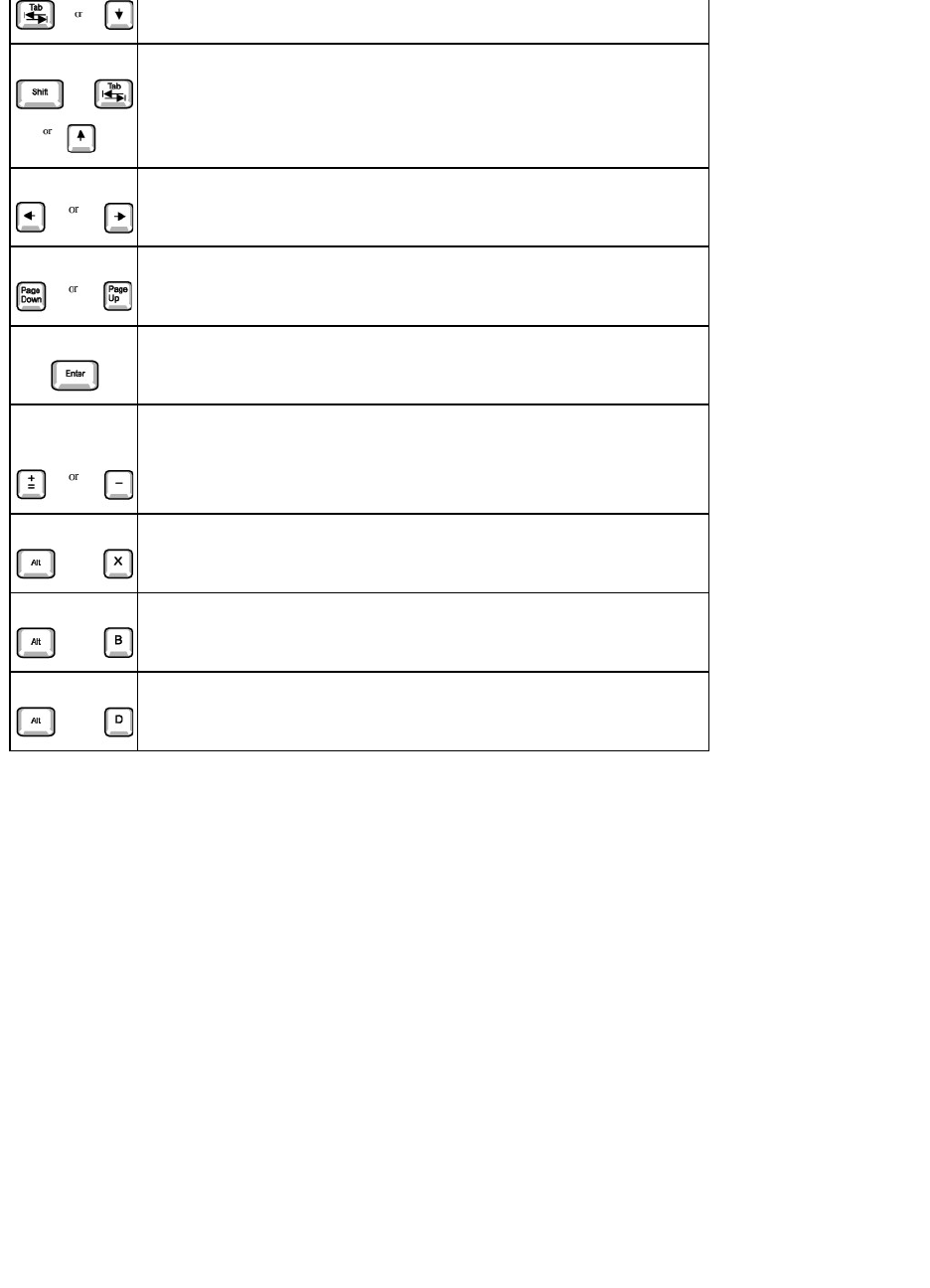
System Setup Navigation Keys
CAUTION: Before you open the computer cover, see the safety instructions in the System Information Guide.
CAUTION: Before you open the computer cover, see the safety instructions in the System Information Guide.
NOTE: To ensure an orderly computer shutdown, consult the documentation that came with your operating system.
Keys
Action
Moves to the next field.
Boot Sequence
This feature allows users to change the sequence of devices from which the computer boots.
Option Settings
lNormal — (Available only for the current boot process.) The computer attempts to boot from the sequence of devices specified in system setup.
lDiskette Drive — The computer attempts to boot from the floppy drive. If the floppy disk in the drive is not bootable, or if no floppy disk is in the drive,
the computer generates an error message.
lHard Disk Drive C: — The computer attempts to boot from the primary hard drive. If no operating system is on the drive, the computer generates an
error message.
lCD Drive — The computer attempts to boot from the CD drive. If no CD is in the drive, or if the CD has no operating system, the computer generates an
error message.
lIntegrated NIC — As the computer boots, it prompts you to press <Ctrl><Alt><b>. Pressing this key combination causes a menu to display that allows
you to select a method for booting from a network server. If a boot routine is not available from the network server, the computer attempts to boot from
the next device in the boot sequence list.
lUSB Flash Device — Insert the key into a USB port and restart the computer. When F12 = Boot Menu appears in the upper-right corner of the screen,
press <F12>. The BIOS detects the key and adds the USB key option to the boot menu.
Changing the Computer Boot Sequence for the Current Boot
You can use this feature, for example, to tell the computer to boot from the CD drive so you can run the Dell Diagnostics, and specify that the computer boots
from the hard drive when the diagnostic tests are complete.
1. Turn on or restart your computer.
2. When F2 = Setup appears in the upper-right corner of the screen, press <F12>.
If you wait too long and the Microsoft Windows logo appears, continue to wait until you see the Windows desktop. Then shut down your computer and
try again.
Moves to the previous field.
Cycles through the options in a field. In many fields, you can also type the appropriate value.
Scrolls through help information.
Enters the selected field's pop-up options menu.
spacebar or
In the selected field's pop-up options menu, cycles through the options in a field.
Exits system setup without restarting the computer and returns the computer to the boot routine.
Exits system setup and restarts the computer, implementing any changes you have made.
Resets the selected option to the default.
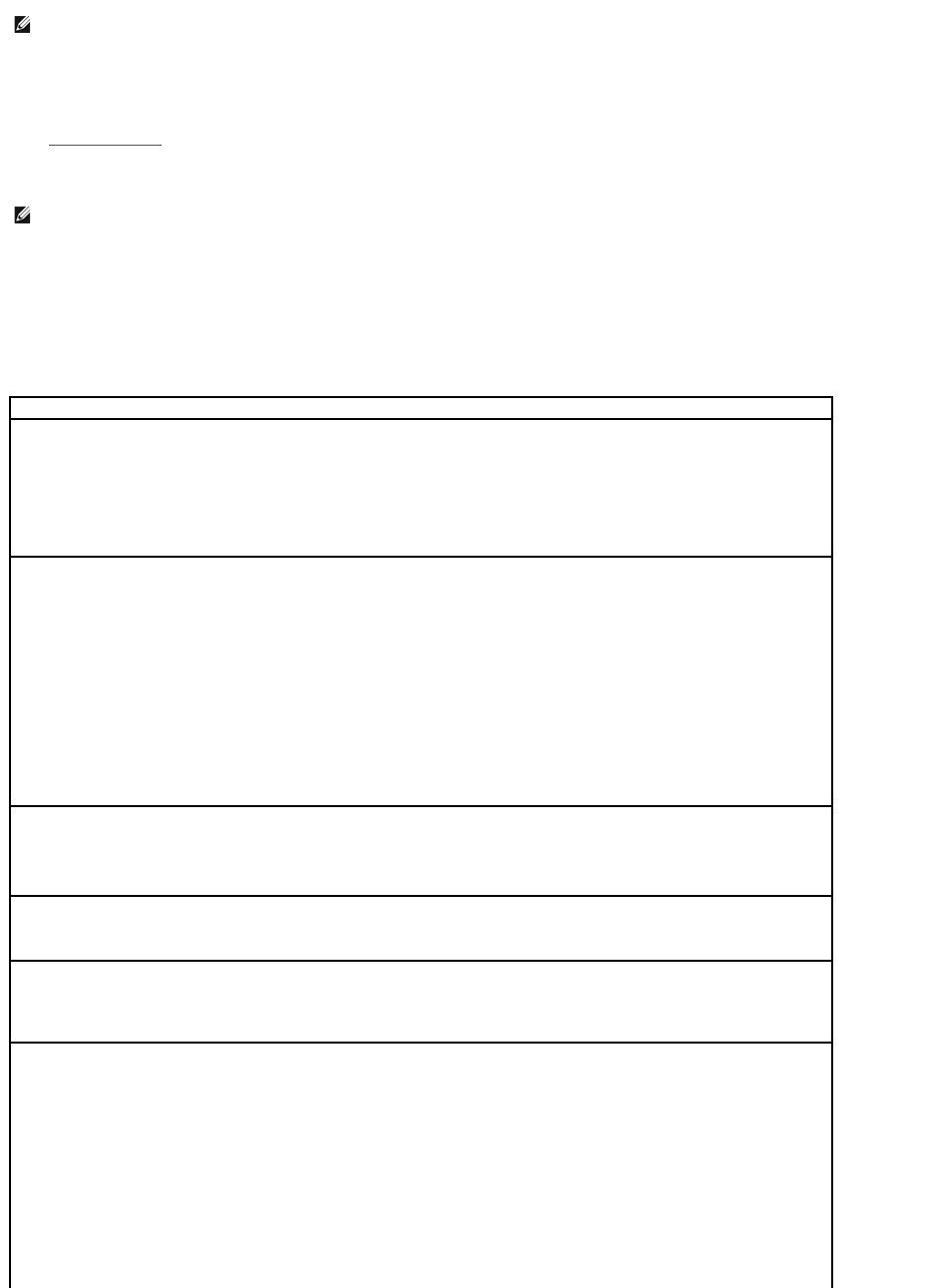
The Boot Device Menu appears, listing all available boot devices. Each device has a number next to it. At the bottom of the menu, enter the number of
the device that is to be used for the current boot only.
Changing Boot Sequence for Future Boots
1. Enter system setup.
2. Use the arrow keys to highlight the Boot Sequence menu option and press <Enter> to access the pop-up menu.
3. Press the up- and down-arrow keys to move through the list of devices.
4. Press the spacebar to enable or disable a device (enabled devices have a checkmark).
5. Press plus (+) or minus (–) to move a selected device up or down the list.
System Setup Options
NOTE: To ensure an orderly computer shutdown, consult the documentation that came with your operating system.
NOTE: Write down your current boot sequence in case you want to restore it.
Asset Tag — Displays the customer-programmable asset tag number for the computer if an asset tag number is assigned.
Auto Power On — Sets time and days of week to turn on the computer automatically. Choices are every day or every Monday through
Friday.
Time is kept in a 24-hour format (hours:minutes). Change the start-up time by pressing the right- or left-arrow keys to increase or decrease
the numbers or to type numbers in both the date and time fields.
Disabled is the default.
This feature does not work if you turn off your computer using a power strip or surge protector.
CPU Information
lCPU Speed — Processor speed at which the computer boots
Press the left- or right-arrow key to toggle the CPU Speed option between the resident microprocessor's rated speed (the default)
and a lower compatibility speed.
To toggle between the rated processor speed and the compatibility speed while the computer is running in real mode, press
<Ctrl><Alt><\>. (For keyboards that do not use American English, press <Ctrl><Alt><#>.)
lBus Speed — Speed of the microprocessor's system bus
lProcessor ID — Manufacturer's identification code(s) for the installed microprocessor
lClock Speed — Core speed at which the microprocessor(s) operates
lCache Size — Size of the microprocessor's L2 cache
lHyper-Threading — Enables or disables Hyper-Threading technology for operating systems that support this feature. The default
setting is Disabled.
Diskette Drive A — Type of floppy drive(s) installed in the computer. With the standard cabling configuration, Diskette Drive A (the boot
floppy drive) is the 3.5-inch floppy drive installed in the top externally accessible drive bay. The two options are 3.5 Inch, 1.44 MB, and Not
Installed.
Tape drives are not reflected in the Diskette Drive A option. For example, if a single floppy drive and a tape drive are attached to the floppy
drive interface cable, set Diskette Drive A to 3.5 Inch, 1.44 MB.
Hard-Disk Drive Sequence — Allows the selection specific drive devices for priority in boot. When this field is highlighted, press <Enter>.
A second dialog box appears with the list of devices that can be selected. Use the +/- keys to move the device highlighted up or down in the
priority list.
Fastboot
lOn (default) — Your computer boots faster by skipping certain configurations and tests.
lOff — Your computer does not skip certain configurations and tests during the boot process.
Integrated Devices — Configures the following devices integrated with the system board:
lSound — Settings are On (default) or Off.
lUSB Controller — Settings are On or Off.
lNetwork Interface Controller — Settings are On (default), Off, or On w/ PXE.
lMouse Port — Settings are On or Off.
lSerial Port 1 and Serial Port 2 — Settings are Off and Auto (default).
Auto automatically configures a connector to a particular designation (COM1 or COM3 for Serial Port 1; COM2 or COM4 for Serial
Port 2).
If you set a serial connector to Auto and add a card containing a connector configured to the same designation, the computer
automatically remaps the integrated port to the next available connector designation that shares the same IRQ setting as follows:
¡COM1 (I/O address 3F8h), which shares IRQ4 with COM3, is remapped to COM3 (I/O address 3E8h).
¡COM2 (I/O address 2F8h), which shares IRQ3 with COM4, is remapped to COM4 (I/O address 2E8h).
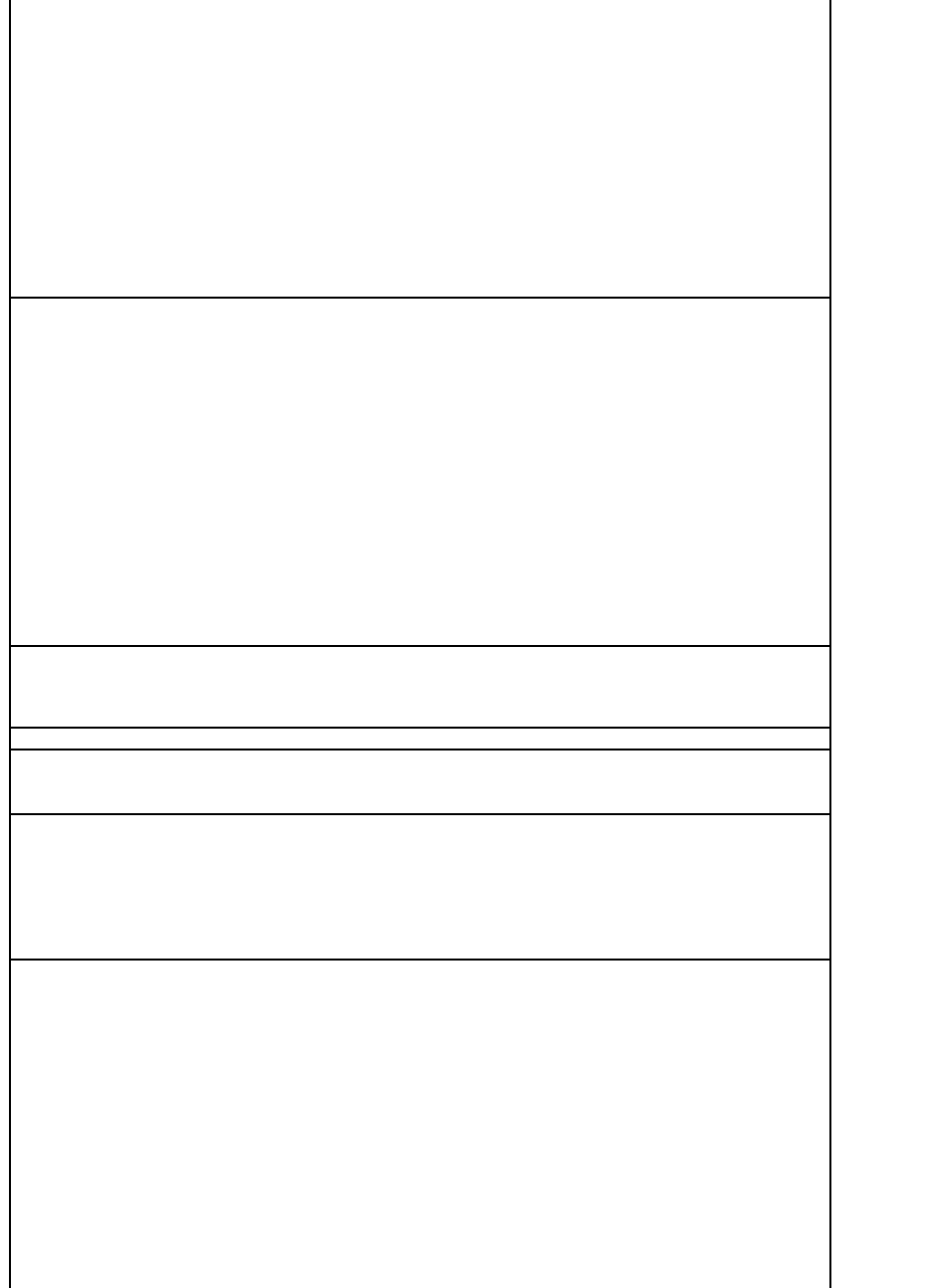
NOTE: When two COM connectors share an IRQ setting, you can use either connector as necessary, but you may not be able to use them
both at the same time. If you are running the Microsoft Windows 95 or IBM® OS/2® operating system, you cannot use both serial connectors
at the same time. If the second connector (COM3 or COM4) is also in use, the integrated connector is turned off.
lParallel Port — The settings are Mode, I/O Address, and DMA Channel.
Mode settings are PS/2, EPP, ECP, AT, or Off. Set the Mode option according to the type of device connected to the parallel
connector. To determine the correct mode to use, see the documentation that came with the device.
I/O Address settings are 378h (default), 278h, or 3BCh. The settings are not available when Mode is set to Off.
NOTE: You cannot set the parallel connector to 3BCh if Mode is set to EPP.
DMA Channel appears only when Mode is set to ECP. Settings are DMA 1, DMA 3, or Off.
lIDE Drive Interface — The settings are Off and Auto (default).
Auto turns off the IDE interface when necessary to accommodate a controller card installed in an expansion slot.
lDiskette Interface — The settings are Auto (default), Read Only, and Off.
Auto turns off the integrated floppy drive controller when necessary to accommodate a controller card installed in an expansion slot.
Read Only prevents the computer's integrated floppy drive controller from writing to floppy drives and activates Auto.
lUSB Emulation — The settings are On and Off.
lPrimary Video Controller — The settings are Auto and AGP (default).
Auto — If only an AGP card is installed, the computer uses the AGP card; if only a PCI card is installed, the computer uses the PCI
card; if both AGP and PCI cards are installed, the computer uses the PCI card to boot.
AGP (default) — The computer uses the AGP card.
lVideo DAC Snoop — The settings are Off (default) and On.
On corrects video problems such as incorrect colors or blank windows that may occur when you use certain video cards.
FortheDellPrecision™Workstation650only:
l1394 Controller — Enabled is the default.
lSCSI Controller — Disabled is the default.
Keyboard NumLock — The settings are On and Off (does not apply to 84-key keyboards).
On — Activates the rightmost bank of keys so they provide the mathematical and numeric functions shown at the top of each key.
Off — Activates the rightmost bank of keys so they provide cursor-control functions shown by the label on the bottom of each key.
Memory Information — Indicates amount of installed memory, computer memory speed, and AGP Aperture size
PCI IRQ Assignment — Specifies which IRQ lines are assigned to the PCI devices installed in the computer
Press <Enter> and then select the device whose IRQ line you want to change, and press the plus (+) or minus (–) key to scroll through the
available IRQ lines.
Power Management —
lSuspend Mode — Selects S1 or S3 (default) power management suspend mode
lAC Power Recovery — Determines what happens when AC power is restored to the computer
¡Off — The computer remains off when AC power is restored.
¡On — The computer starts when AC power is restored.
¡Last — The computer returns to the AC power state existing at the time that AC power was lost.
lLow Power Mode — Selects the amount of power used when the computer is in hibernate mode or off. Disabled is the default. When
Enabled, Remote Wake-Up events no longer start the computer from hibernate mode or off.
Primary Drive n and Secondary Drive n — The settings are Auto (use this setting for all IDE devices from Dell) and Off.
Primary Drive n — Identifies drives attached to the primary IDE interface connector (labeled "IDE1") on the system board.
Secondary Drive n — Identifies drives connected to the secondary IDE interface connector (labeled "IDE2").
NOTE: You must have an IDE device connected to the primary IDE interface if you have an IDE device connected to the secondary IDE
interface.
If You Have a Problem
If the computer generates a drive error message the first time you boot your computer after you install an IDE drive, your drive may not work
with the automatic drive-type detect feature. Press <Alt><d> in any hard drive field to set the hard drive autoconfiguration feature.
During POST the computer scans the IDE channels for supported devices and generates a summary message. For example, if the computer
detects that a hard drive is connected to the Primary channel and that a CD drive is connected to the Secondary channel, the computer
generates the following message:
Performing automatic IDE configuration...
Primary Master: IDE Disk Drive
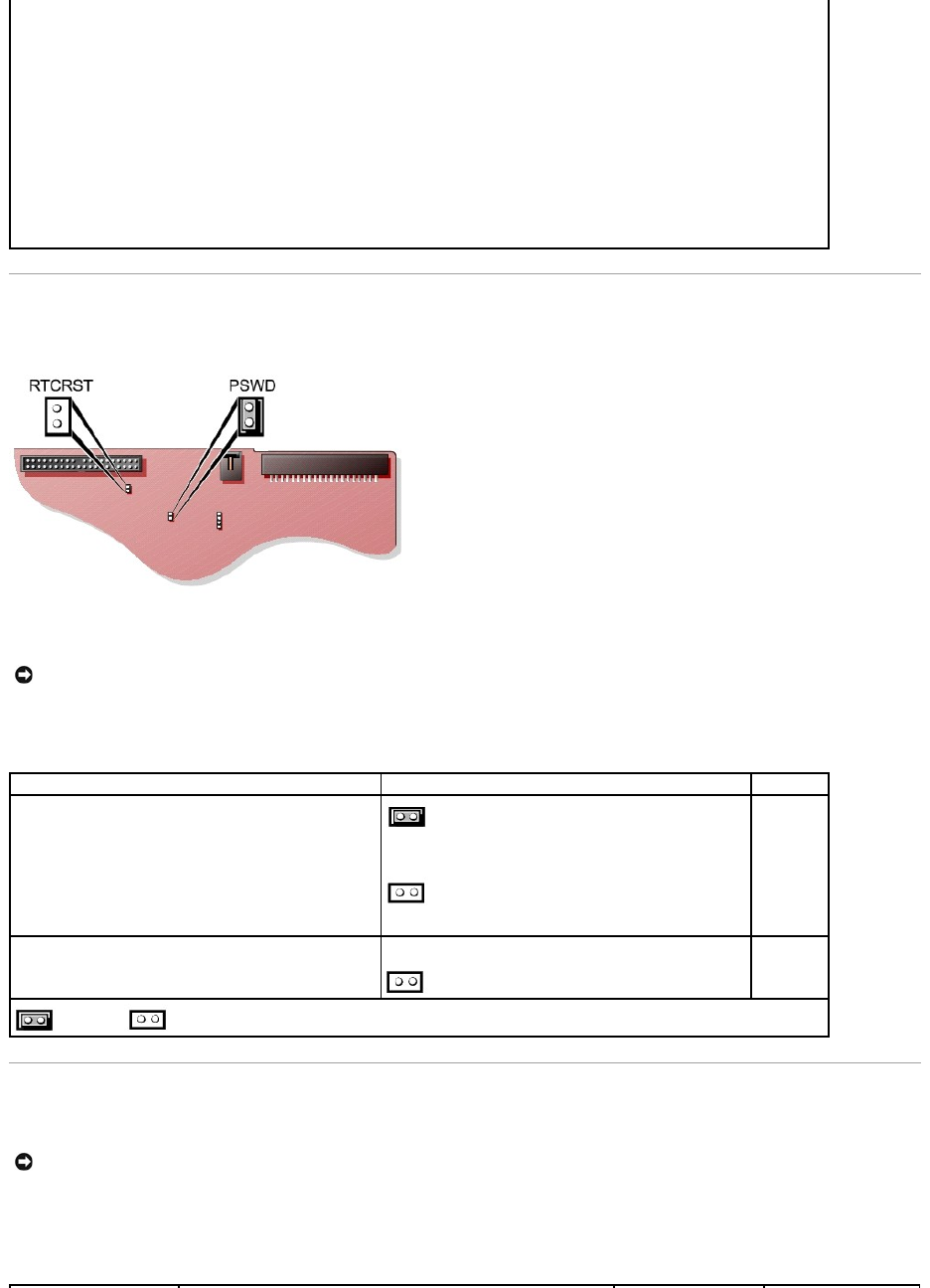
Jumper Settings
To change a jumper setting, pull the plug off its pin(s) and carefully fit it down onto the pin(s) indicated.
Power Button
You can use the ACPI feature to configure the function of the Microsoft Windows 2000 and Windows XP operating systems.
Power Button Functions for Operating Systems With ACPI Enabled
Secondary Master: CD-ROM Reader
If the computer detects a device during the scan, it sets the device to Auto in system setup. If no device is listed, it sets the device setting to
Off in system setup.
If your computer does not reset after you perform these steps, enter system setup and reset the computer to its original factory settings:
1. Restart your computer.
2. As the computer restarts, press <F2> to enter system setup.
3. When the system setup screen appears, press <Alt><F> to load the default settings.
The computer beeps when the settings are restored.
4. Verify that the time, date, and year are correct and that the Secondary Drive 0 option is set to Auto.
5. Press <Esc> and then press <Enter> to save your changes and exit.
The computer restarts.
NOTICE: Ensure that your computer is turned off and unplugged before you change the jumper settings. Otherwise, damage to your computer or
unpredictable results can occur.
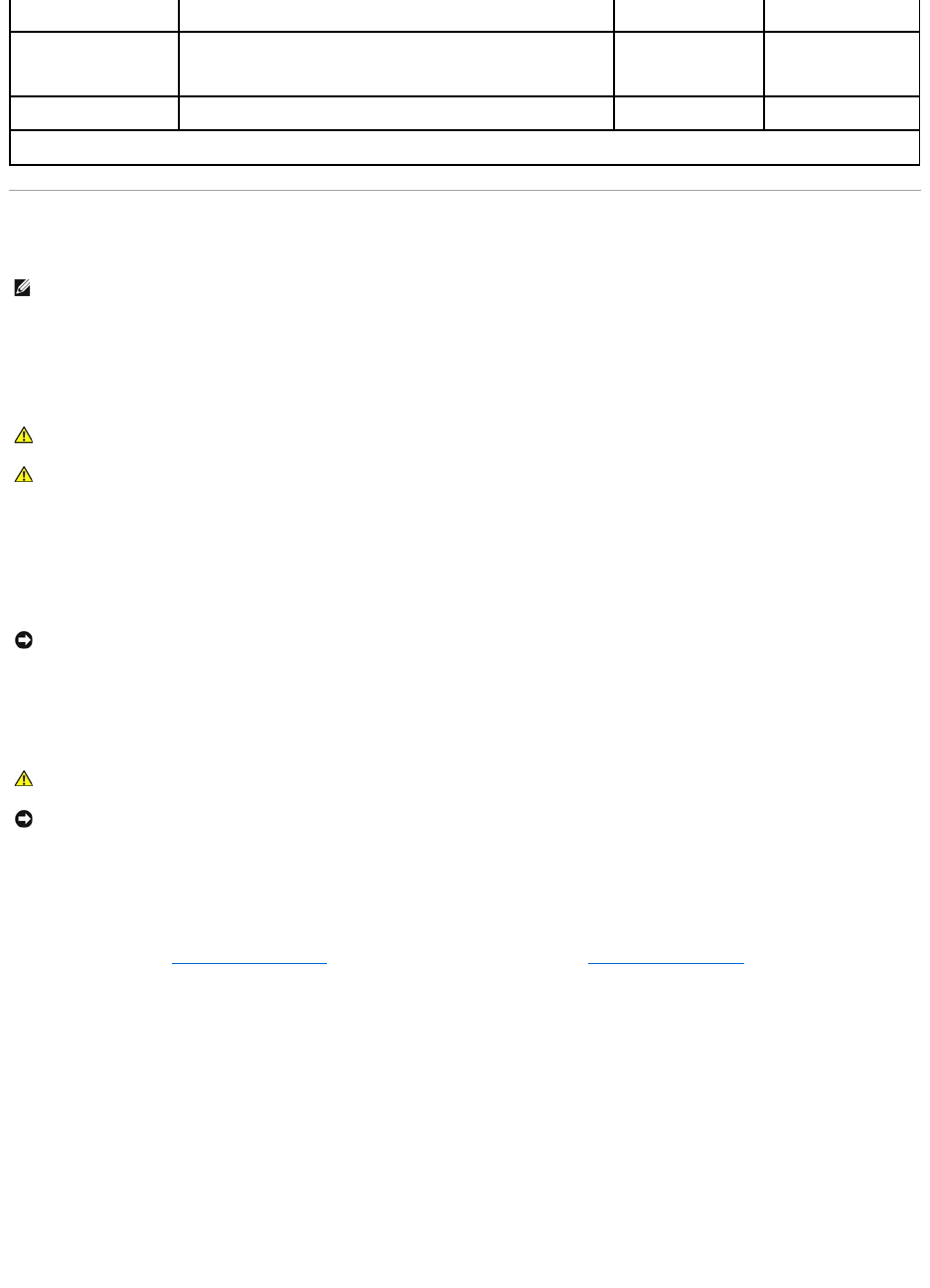
Jumper
Setting
Description
PSWD
(default)
Password
features
are
enabled.
Password
features
are
disabled.
RTCRST
Real-time
clock reset
jumpered unjumpered
NOTICE: To turn off your computer, perform an orderly computer shutdown when possible.
TAPI
Your computer supports TAPI-compliant modem cards using the standard TAPI connector (the green connector labeled MODEM or TELEPHONY). If your modem
supports voice features, you can connect your modem to the TAPI connector and then use your audio speakers and microphone as an answering machine or
speakerphone. The microphone carries your voice into the computer and then through the TAPI system board connector to your modem card. The caller's voice
enters through the modem card to the TAPI system board connector and then out to the speakers. You can also use this configuration to record and play
audio files over the telephone by using third-party software.
Installing a TAPI-Compliant Modem Card
1. Shut down the computer through the Start menu.
2. Ensure that your computer and attached devices are turned off. If your computer and attached devices did not automatically turn off when you shut
down your computer, turn them off now.
3. Disconnect any telephone or telecommunication lines from the computer.
4. Disconnect your computer and all attached devices from electrical outlets, and then press the power button to ground the system board.
5. If you have installed a padlock through the padlock ring on the back panel, remove the padlock.
6. Open the computer cover.
7. Install the TAPI-compliant modem card:
a. Connect the 4-pin TAPI cable to the TAPI system board connector.
To locate the TAPI connector on the system board, see the system board components illustration for your computer (for the Dell Precision 450
computer, see "System Board Components" or for the Dell Precision 650 computer, see "System Board Components").
b. Connect the other end of the cable to the TAPI connector on the modem card.
To locate the TAPI connector on the card, see the documentation for the card.
8. Close the computer cover.
9. Reconnect the computer and devices to electrical outlets, and turn them on.
10. Install the appropriate modem driver and voice program.
For more information, see the manufacturer's documentation and your Microsoft® Windows® documentation.
Installing a TAPI Sound Card
You can connect your modem to a TAPI-compliant sound card connector (typically labeled TAD) and then use the audio capabilities as a speakerphone.
1. Shut down the computer through the Start menu.
2. Ensure that your computer and attached devices are turned off. If your computer and attached devices did not automatically turn off when you shut
down your computer, turn them off now.
Action
Computer Turned On and ACPI Enabled
Computer in Standby
Mode
Computer Turned Off
Press power button
Computer goes into standby mode or turns off (depending on the
operating system setup)
Computer turns on
Boots and computer
turns on
Hold power button for 6
seconds
Computer turns off
Computer turns off
Boots and computer
turns on
NOTE: Pressing or holding the power button to shut down the computer may result in data loss. Use the power button to shut down the computer only if
the operating system is not responding.
NOTE: See the documentation that came with the TAPI-compliant card for more information on using TAPI devices and to verify that the card works with
your computer.
CAUTION: Before you begin any of the procedures in this section, follow the safety instructions in the System Information Guide.
CAUTION: To guard against electrical shock, always unplug your computer from the electrical outlet before opening the cover.
NOTICE: To disconnect a network cable, first unplug the cable from your computer and then unplug it from the network wall jack.
CAUTION: To guard against electrical shock, always unplug your computer from the electrical outlet before opening the cover.
NOTICE: Before touching anything inside your computer, ground yourself by touching an unpainted metal surface, such as the metal at the back of the
computer. While you work, periodically touch an unpainted metal surface to dissipate any static electricity that could harm internal components.

3. Disconnect any telephone or telecommunication lines from the computer.
4. Disconnect your computer and all attached devices from electrical outlets, and then press the power button to ground the system board.
5. If you have installed a padlock through the padlock ring on the back panel, remove the padlock.
6. Open the computer cover.
7. Install the TAPI-compliant sound card.
8. Connect external audio devices to the sound card's connectors. Do not connect external audio devices to the microphone, speaker/headphone, or line-
in connectors on the front or back panel of your computer.
9. Connect the 4-pin TAPI cable to the TAPI sound card connector.
To locate the TAPI connector on the sound card, see the documentation for the card.
10. Connect the other end of the cable to the TAPI connector on the modem card.
To locate the TAPI connector on the card, see the documentation for the card.
11. Close the computer cover.
12. Reconnect the computer and devices to electrical outlets, and turn them on.
13. Enter system setup, go to Integrated Devices, and change the setting for Sound to Off.
14. Install the appropriate drivers for the new devices.
For more information, see the manufacturer's documentation and your Windows documentation.
Hyper-Threading
Hyper-Threading is an Intel®technology that can enhance overall performance by allowing one physical microprocessor to function as two logical
microprocessors, capable of performing certain tasks simultaneously. It is recommended that you use the Windows XP operating system because Windows XP
is optimized to take advantage of Hyper-Threading technology. While many programs can benefit from Hyper-Threading technology, some programs have not
been optimized for Hyper-Threading and may require an update from the software manufacturer. Contact the software manufacturer for updates and
information on using your software with Hyper-Threading.
To determine if your computer is using Hyper-Threading technology:
1. Click the Start button, right-click My Computer, and then click Properties.
2. Click Hardware and click Device Manager.
3. In the Device Manager window, click the plus (+) sign next to the processor type. If Hyper-Threading is enabled, the processor is listed twice.
You can enable or disable Hyper-Threading through system setup. For more information on Hyper-Threading, search the Knowledge Base on the Dell Support
website at support.dell.com.
IEEE 1394
IEEE 1394 is a digital interface that can move large amounts of data between computers and peripheral devices. IEEE 1394 is ideal for use with multimedia
devices because it speeds the transfer of data and large files, which enables a computer to connect directly to devices such as digital video cameras.
The Dell Precision 650 computer provides a standard IEEE 1394 connector on both the front and back panels (see "About Your Computer—Dell Precision
650").
U320 SCSI Controller
The U320 SCSI controller is PCI-X based and operates in a low voltage differential (LVD) mode while running at U320 (320 MBps) speeds. The bus is backward
compatible and can run at U160 (160 MBps), Ultra2 (80 MBps), Ultra (40 MBps) speeds.
If single-ended (SE)devices are connected to the same bus as the LVD devices (such as U320, U160, or Ultra2), the SCSI bus operates in SE mode and runs
at maximum of Ultra (40 MBps) speed.
For more information installing a SCSI device and SCSI ID settings for the Dell Precision 650, see "Drives."
NOTICE: To disconnect a network cable, first unplug the cable from your computer and then unplug it from the network wall jack.
CAUTION: To guard against electrical shock, always unplug your computer from the electrical outlet before opening the cover.
NOTICE: Before touching anything inside your computer, ground yourself by touching an unpainted metal surface, such as the metal at the back of the
computer. While you work, periodically touch an unpainted metal surface to dissipate any static electricity that could harm internal components.

Integrated Striping
Your Dell Precision 650 computer supports integrated striping for a minimum of two hard drives to a maximum of four hard drives on the Integrated Ultra320
SCSI channel. Integrated striping writes data across multiple hard drives rather than writing to one hard drive by partitioning each hard drive's storage space
into stripes. The stripe volume can be created and deleted through a SCSI BIOS configuration utility.
Creating a Stripe Volume
1. Press <Ctrl><a> during system start-up when the following message appears: Press Cntl-A to start LSI Logic Configuration Utility.
2. Select the drive controller and press <Enter>.
3. Use the arrow keys to select Add RAID Array and press <Enter>.
4. Use the <+> key to select YES for each drive that you want to be part of a stripe volume. Use the <-> key to select NO for each drive that you do not
want to be part of a stripe volume.
5. Press <F3> to save the changes.
6. Press any key to continue.
7. If you do not want to create the stripe volume, select Discard Changes Then Exit this Menu.
If you are ready to create the stripe volume, Select Save Changes Then Exit This Menu and press <Enter>.
While the configuration utility establishes the stripe volume, the following message appears: Processing...takes upto one minute. The main menu
appears once the stripe volume is created.
8. Press <Esc>, exit the configuration utility, and then press <Enter>.
The stripe volume can be used as a boot volume or as a data volume. For more information, see your operating system documentation.
Deleting a Stripe Volume
1. Press <Ctrl><a> during system start-up when the following message appears: Press Cntl-A to start LSI Logic Configuration Utility.
2. Select the drive controller and press <Enter>.
3. Using the arrow keys, select Activate/Delete RAID Array and press <Enter>.
If more than one stripe volume is present on the controller, press any key to continue and press <F2> to return to the top menu.
4. Select Delete Array and press <Enter>.
5. Press <F3> to delete the stripe volume.
While the configuration utility deletes the stripe volume, the following message appears: Processing...takes upto one minute. The main menu appears
once the stripe volume is deleted.
Activating a Stripe Volume
1. Press <Ctrl><a> during system start-up when the following message appears: Press Cntl-A to start LSI Logic Configuration Utility.
NOTICE: Creating a stripe volume deletes all information that is currently on your hard drives. Save all data before you begin this procedure.
NOTE: Key combinations for the utility are listed at the bottom of the configuration screen.
NOTE: Multiple warning screens may appear if you have a valid partition on the drives selected or if the drives selected to be part of the stripe are
different sizes.
NOTE: If you choose unequal drive sizes to be part of the stripe volume, the available size of the stripe volume is equal to the number of drives in the
volume multiplied by the smallest drive size in the volume. The unused space in the larger drive is unusable.
NOTICE: Deleting stripe volume deletes all information that is currently on your stripe volume. Save all data before you begin this procedure.
NOTE: Key combinations for the utility are listed at the bottom of the configuration screen.
NOTE: A controller supports only one stripe volume. If more than one stripe volume is connected to a controller, you can activate the stripe volume you
want to use through the configuration utility.
NOTE: Key combinations for the utility are listed at the bottom of the configuration screen.
2. Select the drive controller and press <Enter>.
3. Using the arrow keys, select Activate/Delete RAID Array and press <Enter>.
4. Press any key to continue.
5. Use the <Page Up> or the <Page Down> keys to select the volume to be activated.
6. Press <F2> to return to the top menu.
7. Select Activate Array and press <Enter>.
8. Press any key to continue.
While the configuration utility activates the stripe volume and deactivates the other stripe volumes, the following message appears:
Processing...takes upto one minute. The main menu appears once the stripe volume is activated.
Troubleshooting the Stripe Volume
NOTE: If a partial stripe volume is present and no longer part of a good array, the partial stripe volume can be deleted, see "Deleting a Stripe Volume."
During installation, no SCSI drives are found —
lEnsure that all devices are connected.
lEnsure that each device has a unique SCSI ID, including the SCSI controller.
lEnsure that the SCSI controller is enabled in the system BIOS.
lEnsure that all devices can be seen in the Fusion-MPT SCSI BIOS display banner when the computer starts up.
lReset the Fusion-MPT SCSI BIOS setting to default.
During installation blue screens occur and the message "inaccessible boot device" appears —
This error may be caused by:
lNot pressing <F6> at the correct time during the operating system installation
Restart the computer and operating system installation. Press <F6> when prompted during the Microsoft Windows
operating system installation to load the drivers using the driver diskette for the SCSI controller.
NOTE: To create the driver diskette, use your Drivers and Utilities CD.
lIRQ or I/O address conflict
Remove any third party components that were added.
lBoot order configuration
Ensure that the SCSI is part of the boot order configuration in system setup.
lMaster Boot Record Infection
Use a virus scanning program to determine if a virus has infected the master boot record of the boot device. For help
resolving virus issues, see the Knowledge Base at support.dell.com.
A hard drive is recognized as seven different devices when only one is physically connected to the SCSI bus —
An older SCSI device may incorrectly indicate to the operating system that it supports multiple LUNs. Contact the device manufacturer for a
firmware upgrade.
Problems with certain SCSI devices when using an Ultra320 SCSI adapter —
Some SCSI devices do not operate properly when the controller attempts to negotiate Ultra320 SCSI transfer rates. Lower the transfer
speed setting with the Fusion-MPT SCSI BIOS Configuration Utility. Press <Ctrl><a> during system start-up when the following message
appears: Press Cntl-A to start LSI Logic Configuration Utility.
The computer hangs at boot, has a long boot time, or a SCSI device is not available —
Some older SCSI devices do not support Domain Validation operations, which is a feature of Ultra320 SCSI. When the computer boots, it
performs Domain Validation to test the data integrity of the SCSI bus between the host adapter and each SCSI device. With some older SCSI
devices, the Domain Validation operations can cause the device to stop responding to SCSI commands.
Back to Contents Page
Check all internal and external SCSI bus cable connections. If the problem continues, disable Domain Validation for a specific SCSI device. To
disable Domain Validation for a specific SCSI device, use the Fusion-MPT SCSI BIOS Configuration Utility to set the Sync Rate to 0 (async) and
the Data Width to 8. The SCSI device runs in async/narrow mode and no Domain Validation operations are performed on the SCSI device.
The integrated stripe volume Fails — The POST displays Failed instead of Optimal.
1. Ensure that the SCSI cable is properly attached to each hard drive and to the system board.
2. Ensure that the power cable is connected to each hard drive.
3. Ensure that the stripe volume drives have not been moved.
For additional assistance, contact Dell.
If the integrated stripe volume contains the operating system and the computer does not boot:
1. Press <Ctrl><a> during system startup when the following message appears: Press Cntl-A to start LSI Logic Configuration
Utility.
2. Access the Array Disk menu
3. Delete the integrated stripe volume.
If the BIOS recognizes all SCSI hard drives, enter the configuration utility and recreate the intergrate stripe volume.
If one or more the hard drives is not recognized by the BIOS or is the configuration utility does not allow the selection of one or more of the
hard drives:
1. Replace the defective hard drive(s).
2. Enter the configuration utility and recreate the integrated stripe volume.
NOTICE: The following procedure may delete all the information that is currently on your hard drives.

Back to Contents Page
Battery
DellPrecision™Workstations450and650User'sGuide
A coin-cell battery maintains computer configuration, date, and time information. The battery can last several years.
The battery may need replacing if you have repeatedly reset the time and date information after turning on the computer or if one of the following messages
appears:
Time-of-day not set - please run SETUP program
or
Invalid configuration information -
please run SETUP program
or
Strike the F1 key to continue,
F2 to run the setup utility
To determine whether you need to replace the battery, reenter the time and date in system setup and exit the program to save the information. Turn off your
computer and disconnect it from the electrical outlet for a few hours; then reconnect the computer, turn it on, and enter system setup. If the date and time are
not correct in system setup, replace the battery.
You can operate your computer without a battery; however, without a battery, the configuration information is erased if the computer is turned off or
unplugged from the electrical outlet. In this case, you must enter system setup and reset the configuration options.
To replace the battery:
1. Shut down the computer through the Start menu.
2. Ensure that your computer and attached devices are turned off. If your computer and attached devices did not automatically turn off when you shut
down your computer, turn them off now.
3. Disconnect any telephone or telecommunication lines from the computer.
4. Disconnect your computer and all attached devices from electrical outlets, and then press the power button to ground the system board.
5. If you have installed a padlock through the padlock ring on the back panel, remove the padlock.
6. Open the computer cover.
7. Locate the battery socket. For the Dell Precision 450 computer, see "System Board Components" or for the Dell Precision 650 computer, see "System
Board Components" or see the system board label inside your computer..
8. Remove the battery by carefully prying it out of its socket with your fingers or with a blunt, nonconducting object such as a plastic screwdriver.
9. Insert the new battery into the socket with the side labeled "+" facing up, and snap the battery into place.
CAUTION: Before you begin this procedure, follow the safety instructions in the System Information Guide.
CAUTION: A new battery can explode if it is incorrectly installed. Replace the battery only with the same or equivalent type recommended by the
manufacturer. Discard used batteries according to the manufacturer's instructions.
NOTE: If you have not already done so, make a copy of your configuration information, found in system setup.
NOTICE: To disconnect a network cable, first unplug the cable from your computer and then unplug it from the network wall jack.
CAUTION: To guard against electrical shock, always unplug your computer from the electrical outlet before opening the cover.
NOTICE: Before touching anything inside your computer, ground yourself by touching an unpainted metal surface, such as the metal at the back of the
computer. While you work, periodically touch an unpainted metal surface to dissipate any static electricity that could harm internal components.
NOTICE: If you pry the battery out of its socket with a blunt object, be careful not to touch the system board with the object. Ensure that the object is
inserted between the battery and the socket before you attempt to pry out the battery. Otherwise, you may damage the system board by prying off
the socket or by breaking circuit traces on the system board.
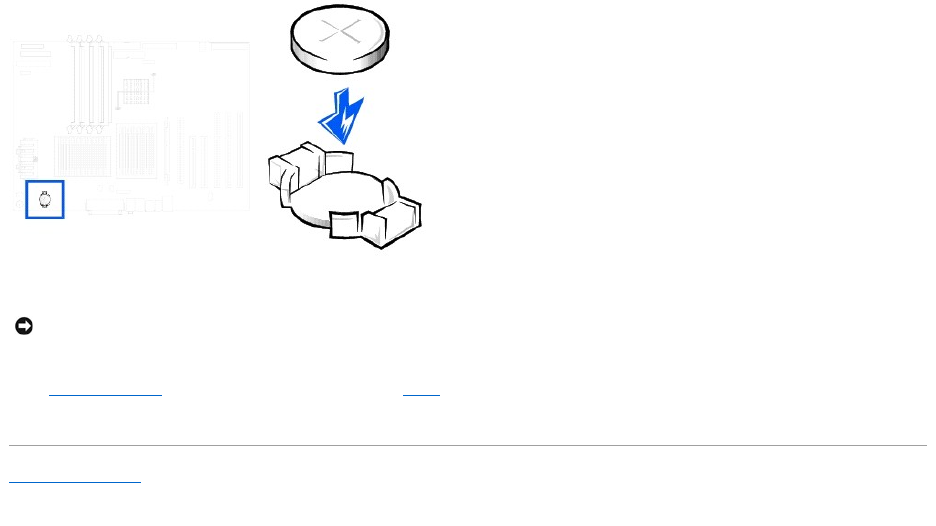
10. Close the computer cover, and plug your computer and devices into electrical outlets.
11. Enter system setup and restore the settings you recorded in step 1.
12. Properly dispose of the old battery. For more information see your System Information Guide.
Back to Contents Page
NOTICE: To connect a network cable, first plug the cable into the network wall jack and then plug it into the computer.
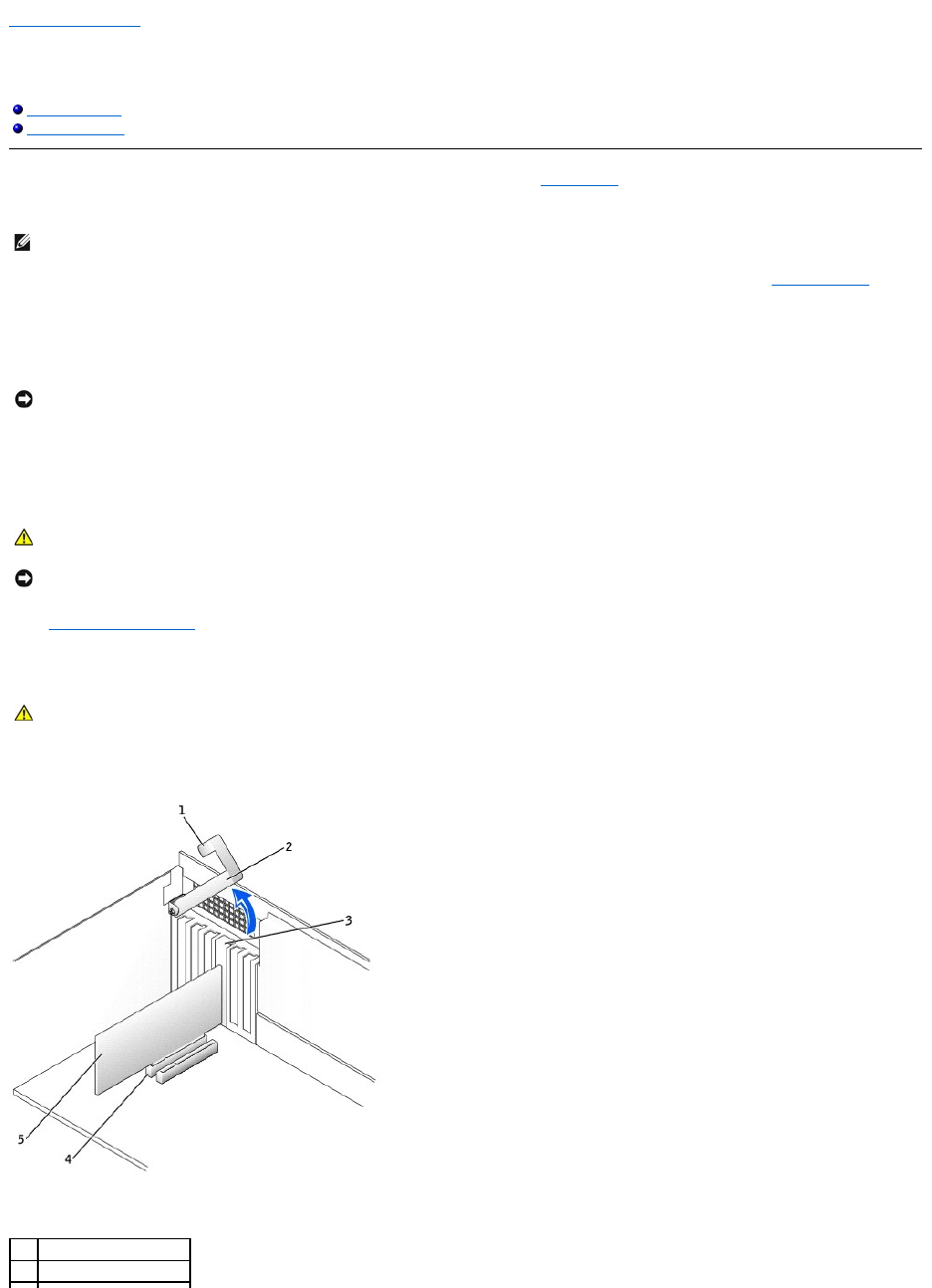
Back to Contents Page
Cards
DellPrecision™Workstations450and650User'sGuide
Installing a Card
Removing a Card
YourDell™computerprovidesslotsforPCI/PCI-X and AGP cards. For more information, see "Specifications" or the system board components illustration for
your computer.
If you are installing or replacing a card, follow the procedures in the next section. If you are removing but not replacing a card, see "Removing a Card."
1. Shut down the computer through the Start menu.
2. Ensure that your computer and attached devices are turned off. If your computer and attached devices did not automatically turn off when you shut
down your computer, turn them off now.
3. Disconnect any telephone or telecommunication lines from the computer.
4. Disconnect your computer and all attached devices from electrical outlets, and then press the power button to ground the system board.
5. If you have installed a padlock through the padlock ring on the back panel, remove the padlock.
6. Open the computer cover.
Installing a Card
1. Press the lever on the card retention arm and raise the retention arm.
NOTE: To meet PC99 requirements, your Dell computer uses only PCI slots. ISA cards are not supported.
NOTICE: To disconnect a network cable, first unplug the cable from your computer and then unplug it from the network wall jack.
CAUTION: To guard against electrical shock, always unplug your computer from the electrical outlet before opening the cover.
NOTICE: Before touching anything inside your computer, ground yourself by touching an unpainted metal surface, such as the metal at the back of the
computer. While you work, periodically touch an unpainted metal surface to dissipate any static electricity that could harm internal components.
CAUTION: Before you perform this procedure, follow the safety instructions in the System Information Guide.
1
lever
2
retention arm
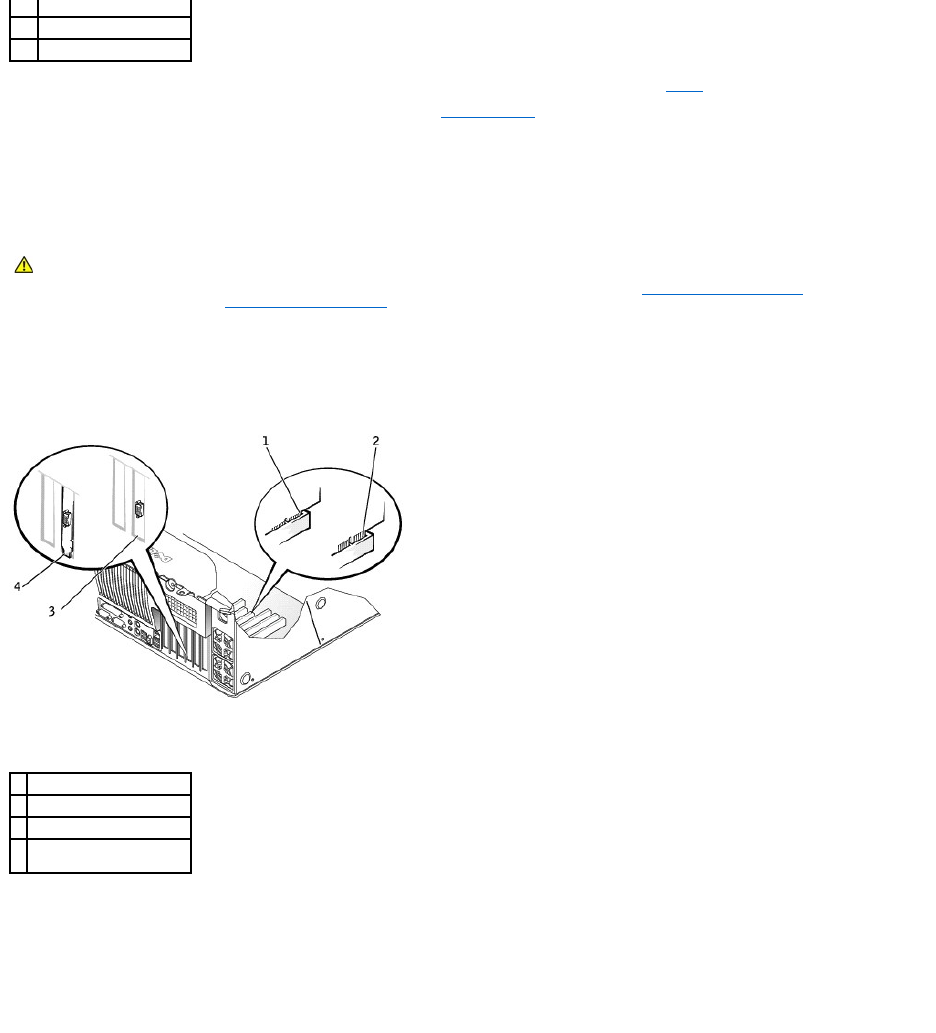
2. If you are installing a new card, remove the filler bracket to create a card-slot opening. Then continue with step 4.
3. If you are replacing a card that is already installed in the computer, remove the card.
If necessary, disconnect any cables connected to the card. Grasp the card by its top corners, and ease it out of its connector.
4. Prepare the card for installation.
See the documentation that came with the card for information on configuring the card, making internal connections, or otherwise customizing it for your
computer.
5. Place the card in the connector and press down firmly. Ensure that the card is fully seated in the slot.
If the card is full-length, insert the end of the card into the card guide bracket as you lower the card toward its connector on the system board. Insert
the card firmly into the card connector on the system board.
6. Before you lower the retention arm, ensure that:
lThe tops of all cards and filler brackets are flush with the alignment bar
lThe notch in the top of the card or filler bracket fits around the alignment guide
Press the arm into place, securing the card(s) in the computer.
3
card bracket
4
card connector
5
card
CAUTION: Some network connectors automatically start the computer when they are connected to a network. To guard against electrical shock,
be sure to unplug your computer from its electrical outlet before installing any cards. Verify that the standby power light on the system board is
off. To locate this light, see the system board illustration (for the Dell Precision 450 computer, see"System Board Components" or for the Dell
Precision 650 computer, see "System Board Components").
1
fully seated card
2
not fully seated card
3
bracket within slot
4
bracket caught outside of
slot
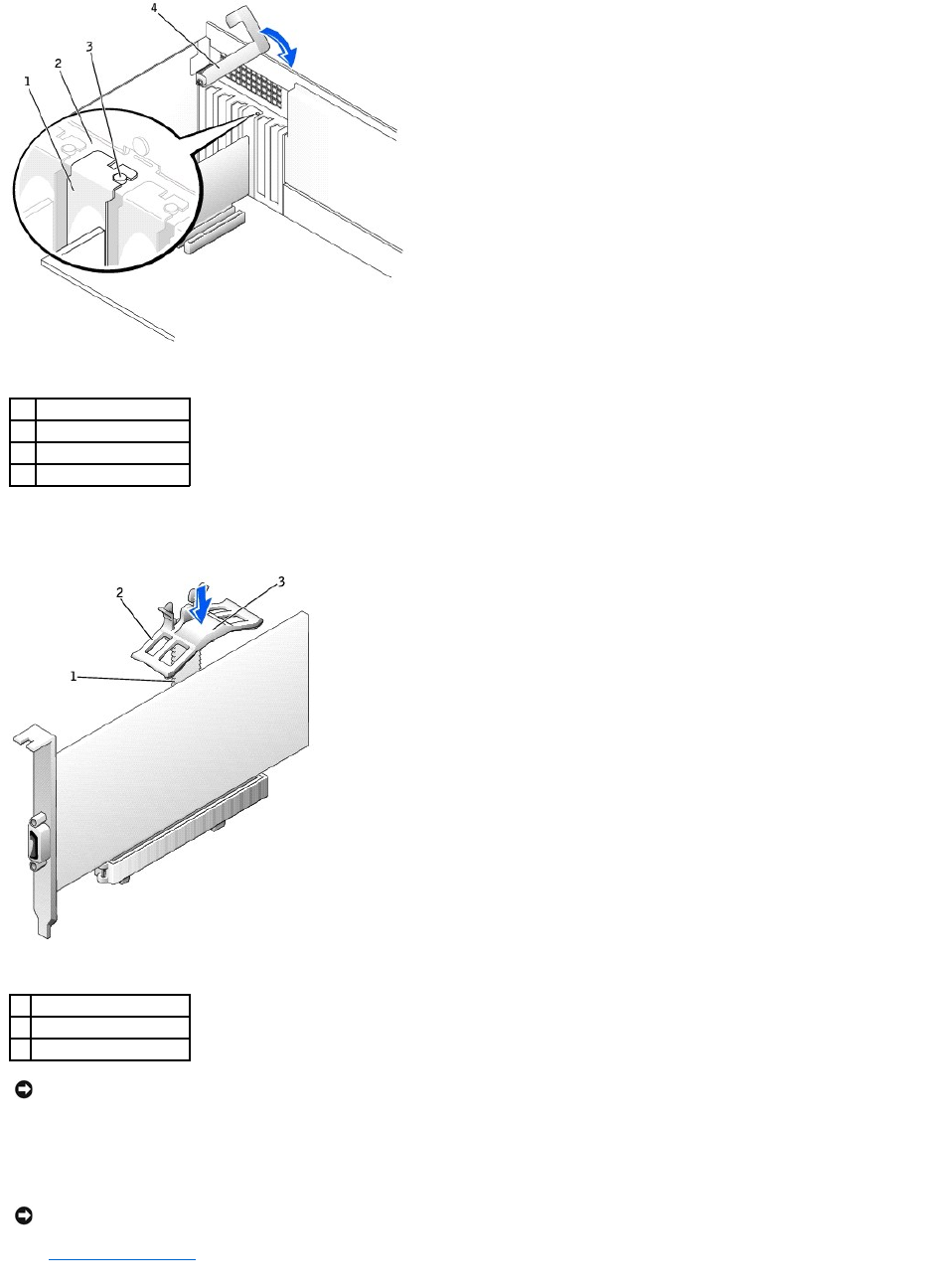
7. If you are replacing an AGP card, align the AGP card guide with the base and press down on the indentation until the guide stops at the top of the AGP
card.
8. Connect any cables that should be attached to the card.
See the documentation for the card for information about the card's cable connections.
9. Close the computer cover, reconnect the computer and devices to electrical outlets, and turn them on.
10. If you installed a sound card:
1
filler bracket
2
alignment bar
3
alignment guide
4
retention arm
1
base
2
AGP retention spring
3
indentation
NOTICE: Do not route card cables over or behind the cards. Cables routed over the cards can prevent the computer cover from closing properly or
cause damage to the equipment.
NOTICE: To connect a network cable, first plug the cable into the network wall jack and then plug it into the computer.
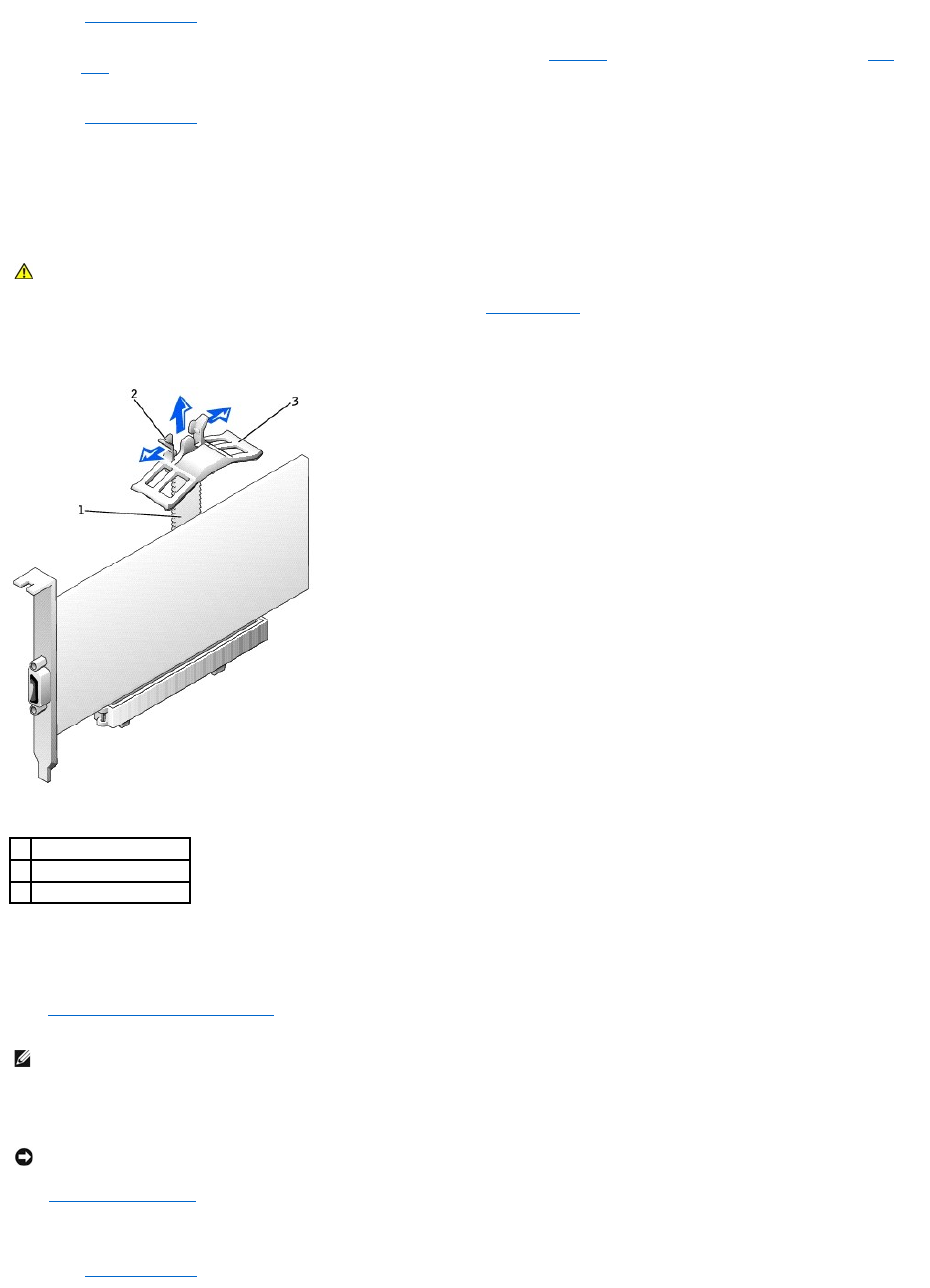
a. Enter system setup, select Integrated Devices, and change the setting for Sound to Off.
b. Connect external audio devices to the sound card's connectors. Do not connect external audio devices to the microphone, speaker/headphone,
or line-in connectors on the back panel (for the Dell Precision 450 computer, see "Back View" or for the Dell Precision 650 computer, see "Back
View").
11. If you installed an add-in network connector:
a. Enter system setup, select Integrated Devices, and change the setting for Network Interface Card to Off.
b. Connect the network cable to the add-in network connector's connectors. Do not connect the network cable to the integrated connector on the
back panel.
12. Install any drivers required for the card as described in the card documentation.
Removing a Card
1. Press the lever on the card retention arm and raise the retention arm (see "Installing a Card").
2. If you are removing an AGP card, press out on the release tabs and pull the AGP card guide up and off of the base.
3. If necessary, disconnect any cables connected to the card.
4. Grasp the card by its top corners, and ease it out of its connector.
5. If you are removing the card permanently, install a filler bracket in the empty card-slot opening.
If you need a filler bracket, contact Dell.
6. Lower the retention arm and press it into place, securing the card(s) in the computer.
7. Close the computer cover, reconnect the computer and devices to electrical outlets, and turn them on.
8. Remove the card's driver from the operating system.
9. If you removed a sound card:
a. Enter system setup, select Integrated Devices, and change the setting for Sound to On.
CAUTION: Before you perform this procedure, follow the safety instructions in the System Information Guide.
1
base
2
release tabs (2)
3
AGP retention spring
NOTE: Installing filler brackets over empty card-slot openings is necessary to maintain FCC certification of the computer. The brackets also keep dust
and dirt out of your computer.
NOTICE: To connect a network cable, first plug the cable into the network wall jack and then plug it into the computer.

b. Connect external audio devices to the audio connectors on the computer back panel (for the Dell Precision 450 computer, see "Back View" or for
the Dell Precision 650 computer, see "Back View").
10. If you removed an add-in network connector:
a. Enter system setup, select Integrated Devices, and change the setting for Network Interface Card to On.
11. Connect the network cable to the integrated connector on the computer back panel (for the Dell Precision 450 computer, see "Back View" or for the Dell
Precision 650 computer, see "Back View").
Back to Contents Page

Back to Contents Page
Cleaning Your Computer
DellPrecision™Workstations450and650User'sGuide
Before Cleaning Your Computer
Computer, Keyboard, and Monitor
Mouse
Floppy Drive
CDs and DVDs
Before Cleaning Your Computer
1. Shut down the computer through the Start menu.
2. Ensure that your computer and attached devices are turned off. If your computer and attached devices did not automatically turn off when you shut
down your computer, turn them off now.
3. Disconnect any telephone or telecommunication lines from the computer.
4. Disconnect your computer and all attached devices from electrical outlets, and then press the power button to ground the system board.
Computer, Keyboard, and Monitor
lUse a vacuum cleaner with a brush attachment to remove dust from the slots and holes on your computer and between the keys on the keyboard.
lTo clean your monitor screen, lightly dampen a soft, clean cloth with water. If possible, use a special screen-cleaning tissue or solution suitable for the
monitor's antistatic coating.
lWipe the keyboard, computer, and plastic part of the monitor with a soft cleaning cloth moistened with a solution of three parts water and one part
liquid dishwashing detergent. Wipe off stubborn stains with a cloth lightly moistened with isopropyl alcohol.
Do not soak the cloth in the solution or let the solution drip inside your computer or keyboard.
Mouse
If your screen cursor skips or moves abnormally, clean the mouse. To clean a non-optical mouse:
1. Turn the retainer ring on the underside of your mouse counterclockwise, and then remove the ball.
2. Wipe the ball with a clean, lint-free cloth.
3. Blow carefully into the ball cage to dislodge dust and lint.
4. If there is a buildup of dirt on the rollers inside the ball cage, clean the rollers with a cotton swab moistened lightly with isopropyl alcohol.
5. Recenter the rollers in their channels if they are misaligned. Ensure that fluff from the swab is not left on the rollers.
6. Replace the ball and retainer ring. Turn the retainer ring clockwise until it clicks into place.
Floppy Drive
Clean your floppy drive using a commercially available cleaning kit. These kits contain pretreated floppy disks to remove contaminants that accumulate during
normal operation.
CAUTION: Before you begin any of the procedures in this section, follow the safety instructions in the System Information Guide.
NOTICE: To disconnect a network cable, first unplug the cable from your computer and then unplug it from the network wall jack.
NOTICE: Do not wipe the monitor screen with any soap or alcohol solution. Doing so may damage the antiglare coating.
NOTICE: Do not attempt to clean drive heads with a swab. You might accidentally misalign the heads, which prevents the drive from operating.

CDs and DVDs
1. Hold the disc by its outer edge. It is okay to touch the inside edge of the center hole.
2. With a soft, lint-free cloth, gently wipe the bottom of the disc (the unlabeled side) in a straight line from the center to the outer edge of the disc.
For stubborn dirt, try using water or a diluted solution of water and mild soap. You can also purchase commercial products that clean discs and provide
some protection from dust, fingerprints, and scratches. Cleaning products for CDs are safe to use on DVDs.
Back to Contents Page
NOTICE: To prevent damaging the surface, do not wipe in a circular motion around the disc.
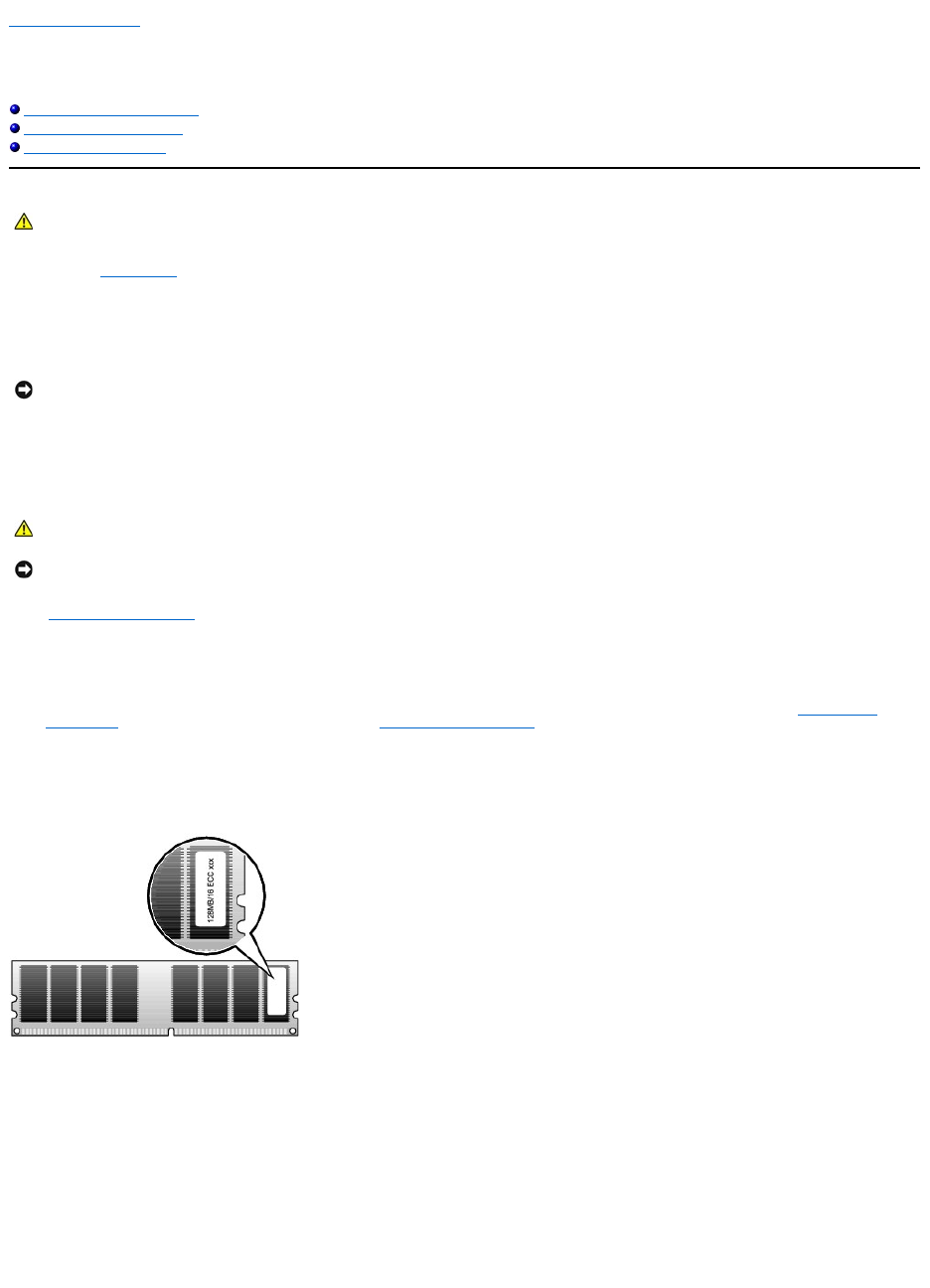
Back to Contents Page
Memory
DellPrecision™Workstations450and650User'sGuide
Memory Installation Guidelines
Removing a Memory Module
Adding a Memory Module
You can increase your computer memory by installing memory modules on the system board. For information on the type of memory supported by your
computer, see "Specifications."
1. Shut down the computer through the Start menu.
2. Ensure that your computer and attached devices are turned off. If your computer and attached devices did not automatically turn off when you shut
down your computer, turn them off now.
3. Disconnect any telephone or telecommunication lines from the computer.
4. Disconnect your computer and all attached devices from electrical outlets, and then press the power button to ground the system board.
5. If you have installed a padlock through the padlock ring on the back panel, remove the padlock.
6. Open the computer cover.
Memory Installation Guidelines
lMemory module connectors must be upgraded in matched pairs. Memory module connectors 1 and 2 must contain modules of identical size, type,
speed, and number of chips and memory module connectors 3 and 4 must contain modules of identical size, type, speed, and number of chips. To locate
the memory sockets on the system board, see the system board components illustration (for the Dell Precision 450 computer, see "System Board
Components" or for the Dell Precision 650 computer, see "System Board Components") or the system board label inside your computer.
lBefore you install new memory modules, download the most recent BIOS for your computer from the Dell Support website at support.dell.com.
Memory Module Label
Addressing Memory With 4-GB Configurations
Your computer supports a maximum of 4GB of memory when using four 1-GB DIMMs. Current operating systems, such as Microsoft®Windows®2000 and
Windows XP, can only utilize a maximum of 4 GB of address space; however, the amount of memory available to the operating system is slightly less than 4
GB. Certain components within the computer require address space in the 4-GB range. Any address space reserved for these components cannot be used by
computer memory. The following is a list of components that require memory address space:
lSystem ROM
lAPIC(s)
lIntegrated PCI devices, such as network connector, SCSI controller, and IEEE 1394 controller
lPCI and AGP cards
lThe AGP Aperture size specified in system setup
CAUTION: Before you begin any of the procedures in this section, follow the safety instructions in the System Information Guide.
NOTICE: To disconnect a network cable, first unplug the cable from your computer and then unplug it from the network wall jack.
CAUTION: To guard against electrical shock, always unplug your computer from the electrical outlet before opening the cover.
NOTICE: Before touching anything inside your computer, ground yourself by touching an unpainted metal surface, such as the metal at the back of the
computer. While you work, periodically touch an unpainted metal surface to dissipate any static electricity that could harm internal components.
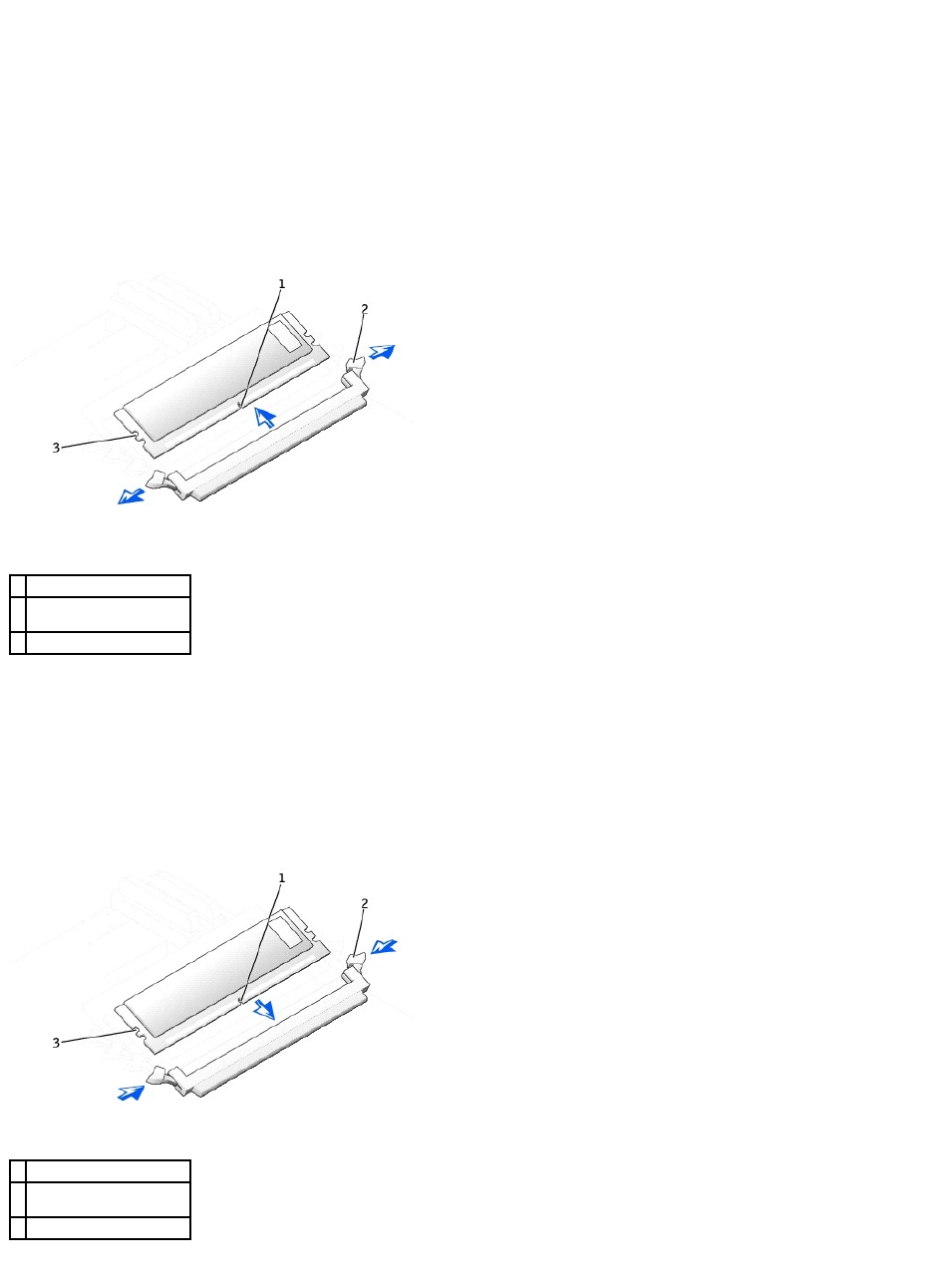
At start-up the BIOS identifies the components that require address space. The BIOS dynamically calculates the amount of reserved address space required.
It then subtracts the reserved address space from 4 GB to determine the amount of usable space.
lIf the total installed computer memory is less than the usable space, all installed computer memory is available for use only by the operating system.
lIf the total installed computer memory is equal to or greater than the usable address space, a small portion of installed memory is available for use by
the operating system.
Removing a Memory Module
1. Press down and outward on the securing clips.
2. Grasp the module and pull up.
If the module is difficult to remove, gently ease the module back and forth to remove it from the connector.
Adding a Memory Module
1. Press out the securing clip at each end of the memory module connector.
2. Align the notch on the bottom of the module with the crossbar in the connector.
3. Insert the module into the connector, ensuring that it fits into the guides at each end of the connector. Carefully press each end of the module into
place.
The memory module socket has alignment keys that allow the memory module to be installed in the socket only one way.
4. Pull up on the securing clips to lock the modules into place.
1
notch
2
memory module securing
clips (2)
3
alignment keys
1
notch
2
memory module securing
clips (2)
3
alignment keys

If you insert the module correctly, the securing clips snap into the cutouts at each end of the module.
When the memory module is properly seated in the socket, the securing clips on the memory module socket should align with the securing clips on the
other sockets with memory modules installed.
5. Close the computer cover.
6. Connect your computer and devices to electrical outlets, and turn them on.
The computer detects that the new memory does not match the existing configuration information and generates the following message:
The amount of system memory has changed.
Strike the F1 key to continue, F2 to run the setup utility
7. Press <F2> to enter system setup and check the value for System Memory.
The computer should have changed the value of System Memory to reflect the newly installed memory. Verify the new total. If it is correct, skip to step
10.
8. If the memory total is incorrect, turn off and disconnect your computer and devices from electrical outlets.
9. Open the computer cover and check the installed memory modules to ensure that they are seated properly in their sockets. Then repeat steps step 4
through step 7.
10. When the System Memory total is correct, press <Esc> to exit system setup.
11. Run the Dell Diagnostics to verify that the memory modules are operating properly.
Back to Contents Page
NOTICE: To connect a network cable, first plug the cable into the network wall jack and then plug it into the computer.

Back to Contents Page
Getting Help
DellPrecision™Workstations450and650User'sGuide
Technical Assistance
Problems With Your Order
Product Information
Returning Items for Warranty Repair or Credit
Before You Call
Contacting Dell
Technical Assistance
If you need help with a technical problem, Dell is ready to assist you.
1. Complete the procedures in "Solving Problems."
2. Run the Dell Diagnostics.
3. Make a copy of the Diagnostics Checklist and fill it out.
4. Use Dell's extensive suite of online services available at Dell Support (support.dell.com) for help with installation and troubleshooting procedures.
5. If the preceding steps have not resolved the problem, contact Dell.
NOTE: Call technical support from a telephone near or at the computer so that technical support can assist you with any necessary procedures.
NOTE: Dell's Express Service Code system may not be available in all countries.
When prompted by Dell's automated telephone system, enter your Express Service Code to route the call directly to the proper support personnel. If
you do not have an Express Service Code, open the Dell Accessories folder, double-click the Express Service Code icon, and follow the directions.
For instructions on using the technical support service, see "Technical Support Service."
NOTE: Some of the following services are not always available in all locations outside the continental U.S. Call your local Dell representative for information on
availability.
Online Services
You can access Dell Support at support.dell.com. Select your region on the WELCOME TO DELL SUPPORT page, and fill in the requested details to access
help tools and information.
You can contact Dell electronically using the following addresses:
lWorld Wide Web
www.dell.com/
www.dell.com/ap/ (Asian/Pacific countries only)
www.euro.dell.com (Europe only)
www.dell.com/la/ (Latin American countries)
www.dell.ca (Canada only)
lAnonymous file transfer protocol (FTP)
ftp.dell.com/
Log in as user: anonymous, and use your e-mail address as your password.
lElectronic Support Service
mobile_support@us.dell.com
support@us.dell.com
apsupport@dell.com (Asian/Pacific countries only)
support.euro.dell.com (Europe only)
lElectronic Quote Service
sales@dell.com
CAUTION: If you need to remove the computer covers, first disconnect the computer power and modem cables from all electrical outlets.

apmarketing@dell.com (Asian/Pacific countries only)
sales_canada@dell.com (Canada only)
lElectronic Information Service
info@dell.com
AutoTech Service
Dell's automated technical support service—AutoTech—provides recorded answers to the questions most frequently asked by Dell customers about their
portable and desktop computers.
When you call AutoTech, use your touch-tone telephone to select the subjects that correspond to your questions.
TheAutoTechserviceisavailable24hoursaday,7daysaweek.Youcanalsoaccessthisservicethroughthetechnicalsupportservice.Forthetelephone
number to call, see the contact numbers for your region.
Automated Order-Status Service
TocheckonthestatusofanyDell™productsthatyouhaveordered,youcangotosupport.dell.com, or you can call the automated order-status service. A
recording prompts you for the information needed to locate and report on your order. For the telephone number to call, see the contact numbers for your
region.
Technical Support Service
Dell'stechnicalsupportserviceisavailable24hoursaday,7daysaweek,toansweryourquestionsaboutDellhardware.Ourtechnicalsupportstaffuses
computer-based diagnostics to provide fast, accurate answers.
To contact Dell's technical support service, call the number for your country as listed in "Contacting Dell."
Problems With Your Order
If you have a problem with your order, such as missing parts, wrong parts, or incorrect billing, contact Dell for customer assistance. Have your invoice or
packing slip handy when you call. For the telephone number to call, see the contact numbers for your region.
Product Information
If you need information about additional products available from Dell, or if you would like to place an order, visit the Dell website at www.dell.com. For the
telephone number to call to speak to a sales specialist, see the contact numbers for your region.
Returning Items for Warranty Repair or Credit
Prepare all items being returned, whether for repair or credit, as follows:
1. Call Dell to obtain a Return Material Authorization Number, and write it clearly and prominently on the outside of the box.
For the telephone number to call, see the contact numbers for your region.
2. Include a copy of the invoice and a letter describing the reason for the return.
3. Include a copy of the Diagnostics Checklist indicating the tests you have run and any error messages reported by the Dell Diagnostics.
4. Include any accessories that belong with the item(s) being returned (power cables, software floppy disks, guides, and so on) if the return is for credit.
5. Pack the equipment to be returned in the original (or equivalent) packing materials.
You are responsible for paying shipping expenses. You are also responsible for insuring any product returned, and you assume the risk of loss during
shipment to Dell. Collect On Delivery (C.O.D.) packages are not accepted.
Returns that are missing any of the preceding requirements will be refused at Dell's receiving dock and returned to you.
Before You Call
NOTE: Have your Express Service Code ready when you call. The code helps Dell's automated- support telephone system direct your call more efficiently.
Remember to fill out the Diagnostics Checklist. If possible, turn on your computer before you call Dell for technical assistance and call from a telephone at or
near the computer. You may be asked to type some commands at the keyboard, relay detailed information during operations, or try other troubleshooting
steps possible only at the computer itself. Ensure that the computer documentation is available.
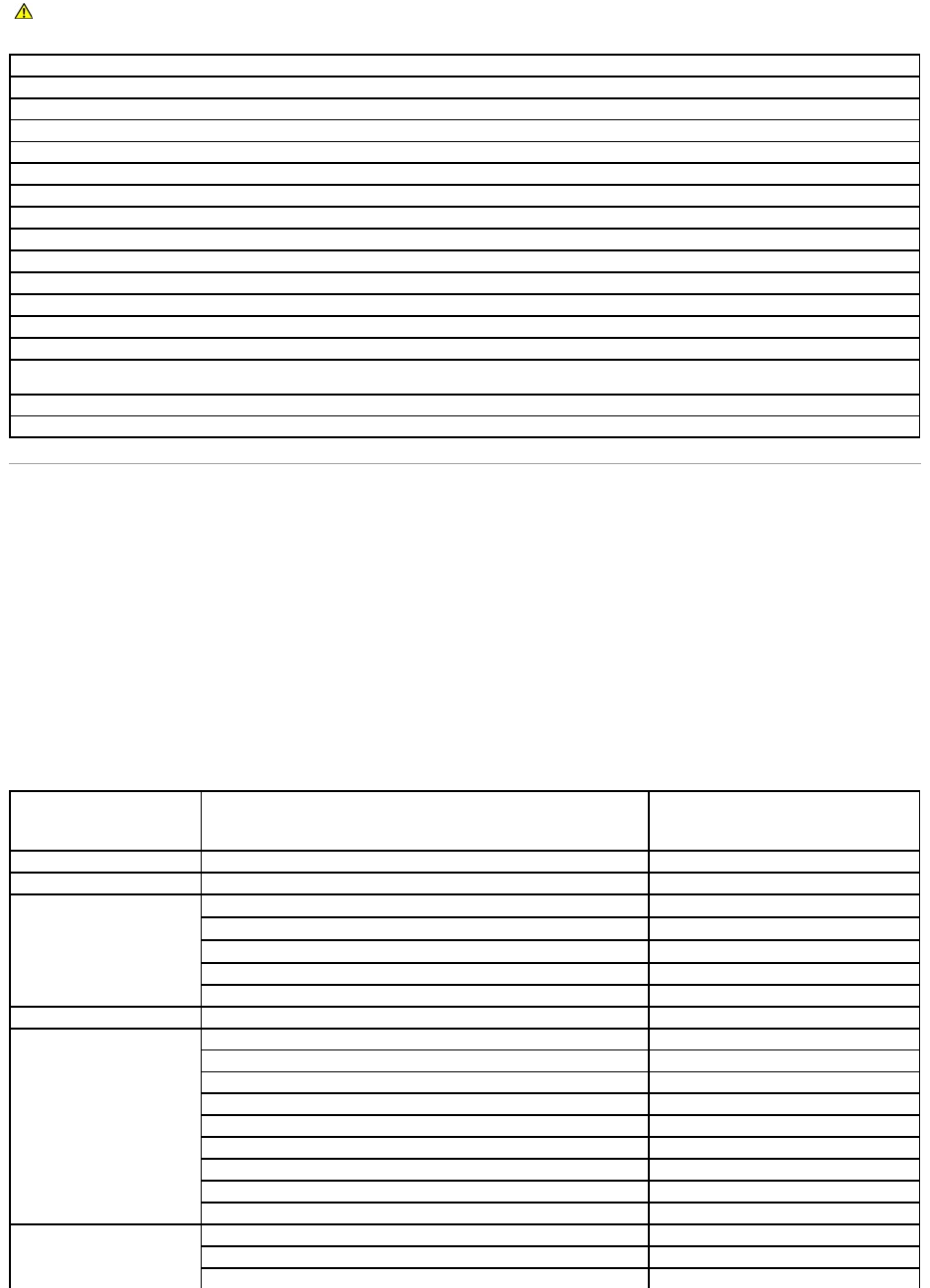
Contacting Dell
To contact Dell electronically, you can access the following websites:
lwww.dell.com
lsupport.dell.com (technical support)
lpremiersupport.dell.com (technical support for educational, government, healthcare, and medium/large business customers, including Premier,
Platinum, and Gold customers)
For specific web addresses for your country, find the appropriate country section in the table below.
NOTE: Toll-free numbers are for use within the country for which they are listed.
When you need to contact Dell, use the electronic addresses, telephone numbers, and codes provided in the following table. If you need assistance in
determining which codes to use, contact a local or an international operator.
CAUTION: Before working inside your computer, read the safety instructions in your System Information Guide.
Diagnostics Checklist
Name:
Date:
Address:
Phone number:
Service Tag (bar code on the back of the computer):
Express Service Code:
Return Material Authorization Number (if provided by Dell support technician):
Operating system and version:
Devices:
Expansion cards:
Are you connected to a network? Yes No
Network, version, and network adapter:
Programs and versions:
See your operating system documentation to determine the contents of the system's start-up files. If the computer is connected to a printer, print each file.
Otherwise, record the contents of each file before calling Dell.
Error message, beep code, or diagnostic code:
Description of problem and troubleshooting procedures you performed:
Country (City)
International Access Code
Country Code
City Code
Department Name or Service Area,
Website and E-Mail Address
Area Codes,
Local Numbers, and
Toll-Free Numbers
Anguilla
General Support
toll-free:800-335-0031
Antigua and Barbuda
General Support
1-800-805-5924
Argentina (Buenos Aires)
International Access Code: 00
Country Code: 54
City Code: 11
Website: www.dell.com.ar
Tech Support and Customer Care
toll-free:0-800-444-0733
Sales
0-810-444-3355
Tech Support Fax
1145157139
Customer Care Fax
1145157138
Aruba
General Support
toll-free:800-1578
Australia (Sydney)
International Access Code:
0011
Country Code: 61
City Code: 2
E-mail (Australia): au_tech_support@dell.com
E-mail (New Zealand): nz_tech_support@dell.com
Home and Small Business
1-300-65-55-33
Government and Business
toll-free:1-800-633-559
Preferred Accounts Division (PAD)
toll-free:1-800-060-889
Customer Care
toll-free:1-800-819-339
Corporate Sales
toll-free:1-800-808-385
Transaction Sales
toll-free:1-800-808-312
Fax
toll-free:1-800-818-341
Austria (Vienna)
International Access Code: 900
Website: support.euro.dell.com
E-mail: tech_support_central_europe@dell.com
Home/Small Business Sales
082024053000
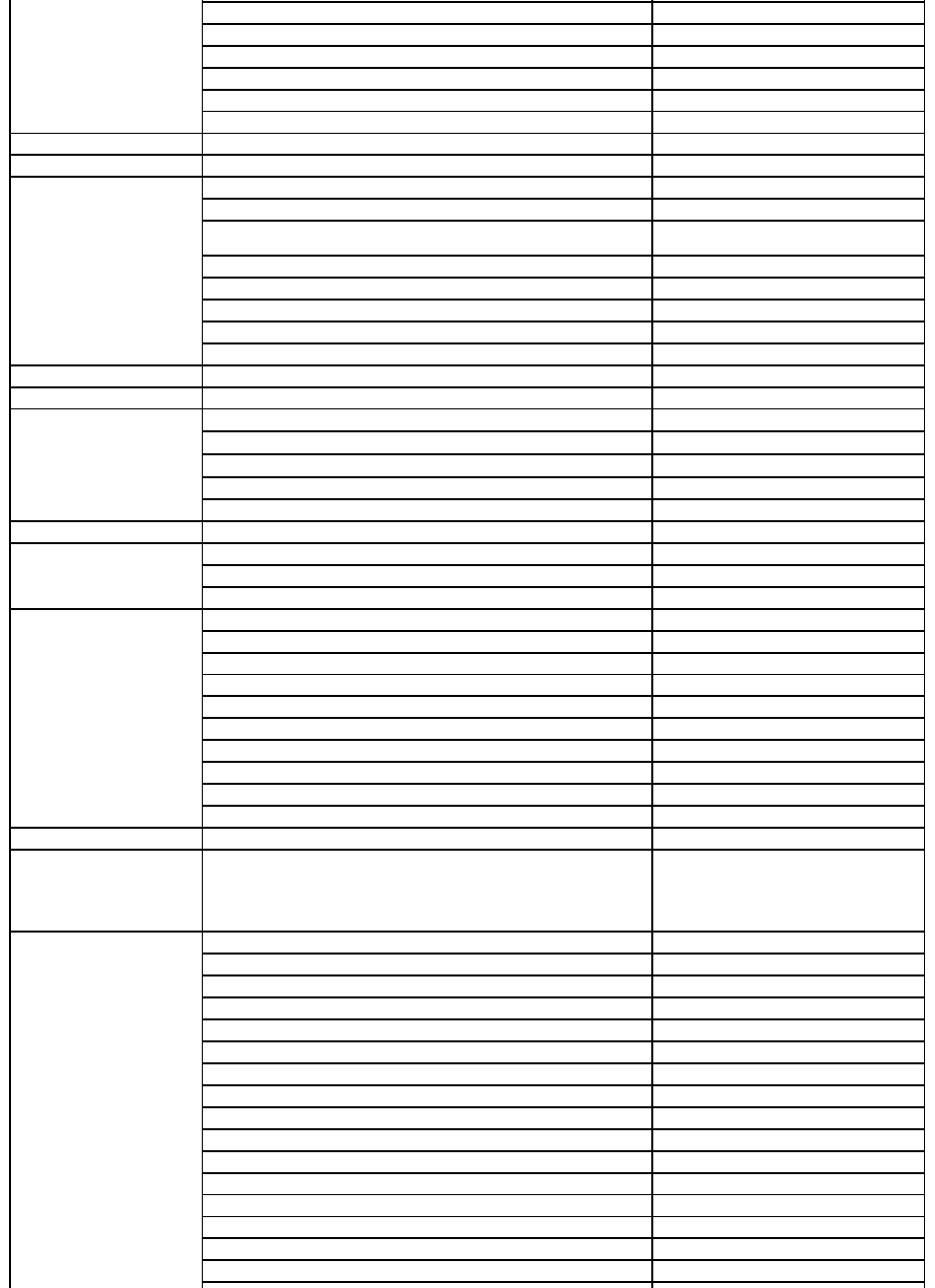
Country Code: 43
City Code: 1
Home/Small Business Fax
082024053049
Home/Small Business Customer Care
082024053014
Preferred Accounts/Corporate Customer Care
082024053016
Home/Small Business Technical Support
082024053014
Preferred Accounts/Corporate Technical Support
06608779
Switchboard
082024053000
Bahamas
General Support
toll-free:1-866-278-6818
Barbados
General Support
1-800-534-3066
Belgium (Brussels)
International Access Code: 00
Country Code: 32
City Code: 2
Website: support.euro.dell.com
E-mail: tech_be@dell.com
E-mail for French Speaking Customers:
support.euro.dell.com/be/fr/emaildell/
Technical Support
024819288
Customer Care
024819119
Corporate Sales
024819100
Fax
024819299
Switchboard
024819100
Bermuda
General Support
1-800-342-0671
Bolivia
General Support
toll-free:800-10-0238
Brazil
International Access Code: 00
Country Code: 55
City Code: 51
Website: www.dell.com/br
Customer Support, Technical Support
0800903355
Tech Support Fax
514815470
Customer Care Fax
514815480
Sales
0800903390
British Virgin Islands
General Support
toll-free:1-866-278-6820
Brunei
Country Code: 673
Customer Technical Support (Penang, Malaysia)
6046334966
Customer Service (Penang, Malaysia)
6046334949
Transaction Sales (Penang, Malaysia)
6046334955
Canada (North York, Ontario)
International Access Code: 011
Online Order Status: www.dell.ca/ostatus
AutoTech (automated technical support)
toll-free:1-800-247-9362
TechFax
toll-free:1-800-950-1329
Customer Care (Home Sales/Small Business)
toll-free:1-800-847-4096
Customer Care (med./large business, government)
toll-free:1-800-326-9463
Technical Support (Home Sales/Small Business)
toll-free:1-800-847-4096
Technical Support (med./large bus., government)
toll-free:1-800-387-5757
Sales (Home Sales/Small Business)
toll-free:1-800-387-5752
Sales (med./large bus., government)
toll-free:1-800-387-5755
Spare Parts Sales & Extended Service Sales
18664403355
Cayman Islands
General Support
1-800-805-7541
Chile (Santiago)
Country Code: 56
City Code: 2
Sales, Customer Support, and Technical Support
toll-free:1230-020-4823
China (Xiamen)
Country Code: 86
City Code: 592
Tech Support website: support.ap.dell.com/china
Tech Support E-mail: cn_support@dell.com
Tech Support Fax
8181350
Home and Small Business Technical Support
toll-free:8008582437
Corporate Accounts Technical Support
toll-free:8008582333
Customer Experience
toll-free:8008582060
Home and Small Business
toll-free:8008582222
Preferred Accounts Division
toll-free:8008582062
Large Corporate Accounts GCP
toll-free:8008582055
Large Corporate Accounts Key Accounts
toll-free:8008582628
Large Corporate Accounts North
toll-free:8008582999
Large Corporate Accounts North Government and Education
toll-free:8008582955
Large Corporate Accounts East
toll-free:8008582020
Large Corporate Accounts East Government and Education
toll-free:8008582669
Large Corporate Accounts Queue Team
toll-free:8008582572
Large Corporate Accounts South
toll-free:8008582355
Large Corporate Accounts West
toll-free:8008582811
Large Corporate Accounts Spare Parts
toll-free:8008582621
Colombia
General Support
980-9-15-3978
Costa Rica
General Support
0800-012-0435
Czech Republic (Prague)
International Access Code: 00
Country Code: 420
City Code: 2
Website: support.euro.dell.com
E-mail: czech_dell@dell.com
Technical Support
0221862727
Customer Care
0221862711
Fax
0221862714
TechFax
0221862728
Switchboard
0221862711
Denmark (Copenhagen)
International Access Code: 00
Country Code: 45
Website: support.euro.dell.com
E-mail Support (portable computers): den_nbk_support@dell.com
E-mail Support (desktop computers): den_support@dell.com
E-mail Support (servers): Nordic_server_support@dell.com
Technical Support
70230182
Customer Care (Relational)
70230184
Home/Small Business Customer Care
32875505
Switchboard (Relational)
32871200
Fax Switchboard (Relational)
32871201
Switchboard (Home/Small Business)
32875000
Fax Switchboard (Home/Small Business)
32875001
Dominica
General Support
toll-free:1-866-278-6821
Dominican Republic
General Support
1-800-148-0530
Ecuador
General Support
toll-free:999-119
El Salvador
General Support
01-899-753-0777
Finland (Helsinki)
International Access Code: 990
Country Code: 358
City Code: 9
Website: support.euro.dell.com
E-mail: fin_support@dell.com
E-mail Support (servers): Nordic_support@dell.com
Technical Support
0925331360
Technical Support Fax
0925331381
Relational Customer Care
0925331338
Home/Small Business Customer Care
0969379194
Fax
0925331399
Switchboard
0925331300
France (Paris) (Montpellier)
International Access Code: 00
Country Code: 33
City Codes: (1) (4)
Website: support.euro.dell.com
E-mail: support.euro.dell.com/fr/fr/emaildell/
Home and Small Business
Technical Support
0825387270
Customer Care
0825823833
Switchboard
0825004700
Switchboard (calls from outside of France)
0499754000
Sales
0825004700
Fax
0825004701
Fax (calls from outside of France)
0499754001
Corporate
Technical Support
0825004719
Customer Care
0825338339
Switchboard
0155947100
Sales
0155947100
Fax
0155947101
Germany (Langen)
International Access Code: 00
Country Code: 49
City Code: 6103
Website: support.euro.dell.com
E-mail: tech_support_central_europe@dell.com
Technical Support
06103766-7200
Home/Small Business Customer Care
0180-5-224400
Global Segment Customer Care
06103766-9570
Preferred Accounts Customer Care
06103766-9420
Large Accounts Customer Care
06103766-9560
Public Accounts Customer Care
06103766-9555
Switchboard
06103766-7000
Greece
International Access Code: 00
Country Code: 30
Website: support.euro.dell.com
E-mail: support.euro.dell.com/gr/en/emaildell/
Technical Support
080044149518
Gold Technical Support
08844140083
Switchboard
2108129800
Sales
2108129800
Fax
2108129812
Grenada
General Support
toll-free:1-866-540-3355
Guatemala
General Support
1-800-999-0136
Guyana
General Support
toll-free:1-877-270-4609
Hong Kong
International Access Code: 001
Country Code: 852
Website: support.ap.dell.com
E-mail: ap_support@dell.com
TechnicalSupport(Dimension™andInspiron™)
29693188
TechnicalSupport(OptiPlex™,Latitude™,andDellPrecision™)
29693191
Customer Service (non-technical, post-sales issues)
800938291
Transaction Sales
toll-free:800964109
Large Corporate Accounts HK
toll-free:800964108
Large Corporate Accounts GCP HK
toll-free:800903708
India
Technical Support
1600338045
Sales
1600338044
Ireland (Cherrywood)
International Access Code: 16
Country Code: 353
City Code: 1
Website: support.euro.dell.com
E-mail: dell_direct_support@dell.com
Ireland Technical Support
1850543543
U.K. Technical Support (dial within U.K. only)
08709080800
Home User Customer Care
012044014
Small Business Customer Care
012044014
U.K. Customer Care (dial within U.K. only)
08709060010
Corporate Customer Care
1850200982
Corporate Customer Care(dial within U.K. only)
08709074499
Ireland Sales
012044444
U.K. Sales (dial within U.K. only)
08709074000
Fax/SalesFax
012040103
Switchboard
012044444
Italy (Milan)
International Access Code: 00
Country Code: 39
City Code: 02
Website: support.euro.dell.com
E-mail: support.euro.dell.com/it/it/emaildell/
Home and Small Business
Technical Support
0257782690
Customer Care
0269682114
Fax
0269682113
Switchboard
0269682112
Corporate
Technical Support
0257782690
Customer Care
0257782555
Fax
0257503530
Switchboard
02577821
Jamaica
General Support (dial from within Jamaica only)
1-800-682-3639
Japan (Kawasaki)
International Access Code: 001
Country Code: 81
City Code: 44
Website: support.jp.dell.com
Technical Support (servers)
toll-free: 0120-198-498
Technical Support outside of Japan (servers)
81-44-556-4162
TechnicalSupport(Dimension™andInspiron™)
toll-free: 0120-198-226
Technical Support outside of Japan (Dimension and Inspiron)
81-44-520-1435
TechnicalSupport(DellPrecision™,OptiPlex™,andLatitude™)
toll-free:0120-198-433
Technical Support outside of Japan (Dell Precision, OptiPlex, and Latitude)
81-44-556-3894
Faxbox Service
044-556-3490
24-Hour Automated Order Service
044-556-3801
Customer Care
044-556-4240
Business Sales Division (up to 400 employees)
044-556-1465
Preferred Accounts Division Sales (over 400 employees)
044-556-3433
Large Corporate Accounts Sales (over 3500 employees)
044-556-3430
Public Sales (government agencies, educational institutions, and medical
institutions)
044-556-1469
Global Segment Japan
044-556-3469
Individual User
044-556-1760
Switchboard
044-556-4300
Korea (Seoul)
International Access Code: 001
Country Code: 82
City Code: 2
Technical Support
toll-free:080-200-3800
Sales
toll-free:080-200-3600
Customer Service (Seoul, Korea)
toll-free: 080-200-3800
Customer Service (Penang, Malaysia)
6046334949
Fax
2194-6202
Switchboard
2194-6000
Latin America
Customer Technical Support (Austin, Texas, U.S.A.)
512728-4093
Customer Service (Austin, Texas, U.S.A.)
512728-3619
Fax (Technical Support and Customer Service) (Austin, Texas, U.S.A.)
512728-3883
Sales (Austin, Texas, U.S.A.)
512728-4397
SalesFax (Austin, Texas, U.S.A.)
512728-4600
or512728-3772
Luxembourg
International Access Code: 00
Country Code: 352
Website: support.euro.dell.com
E-mail: tech_be@dell.com
Technical Support (Brussels, Belgium)
3420808075
Home/Small Business Sales (Brussels, Belgium)
toll-free:080016884
Corporate Sales (Brussels, Belgium)
024819100
Customer Care (Brussels, Belgium)
024819119
Fax (Brussels, Belgium)
024819299
Switchboard (Brussels, Belgium)
024819100
Macao
Country Code: 853
Technical Support
toll-free:0800582
Customer Service (Penang, Malaysia)
6046334949
Transaction Sales
toll-free:0800581
Malaysia (Penang)
International Access Code: 00
Country Code: 60
City Code: 4
Technical Support
toll-free:1800888298
Customer Service
046334949
Transaction Sales
toll-free:1800888202
Corporate Sales
toll-free:1800888213
Mexico
International Access Code: 00
Country Code: 52
Customer Technical Support
001-877-384-8979
or 001-877-269-3383
Sales
50-81-8800
or 01-800-888-3355
Customer Service
001-877-384-8979
or 001-877-269-3383
Main
50-81-8800
or 01-800-888-3355
Montserrat
General Support
toll-free:1-866-278-6822
Netherlands Antilles
General Support
001-800-882-1519
Netherlands (Amsterdam)
International Access Code: 00
Country Code: 31
City Code: 20
Website: support.euro.dell.com
E-mail (Technical Support):
(Enterprise): nl_server_support@dell.com
(Latitude): nl_latitude_support@dell.com
(Inspiron): nl_inspiron_support@dell.com
(Dimension): nl_dimension_support@dell.com
(OptiPlex): nl_optiplex_support@dell.com
(Dell Precision): nl_workstation_support@dell.com
Technical Support
0206744500
Technical Support Fax
0206744766
Home/Small Business Customer Care
0206744200
Relational Customer Care
0206744325
Home/Small Business Sales
0206745500
Relational Sales
0206745000
Home/Small Business Sales Fax
0206744775
Relational Sales Fax
0206744750
Switchboard
0206745000
Switchboard Fax
0206744750
New Zealand
International Access Code: 00
Country Code: 64
E-mail (New Zealand): nz_tech_support@dell.com
E-mail (Australia): au_tech_support@dell.com
Home and Small Business
0800446255
Government and Business
0800444617
Sales
0800441567
Fax
0800441566
Nicaragua
General Support
001-800-220-1006
Norway (Lysaker)
International Access Code: 00
Country Code: 47
Website: support.euro.dell.com
E-mail Support (portable computers):
nor_nbk_support@dell.com
E-mail Support (desktop computers):
nor_support@dell.com
E-mail Support (servers):
nordic_server_support@dell.com
Technical Support
67116882
Relational Customer Care
67117514
Home/Small Business Customer Care
23162298
Switchboard
67116800
Fax Switchboard
67116865
Panama
General Support
001-800-507-0962
Peru
General Support
0800-50-669
Poland (Warsaw)
International Access Code: 011
Country Code: 48
City Code: 22
Website: support.euro.dell.com
E-mail: pl_support@dell.com
Customer Service Phone
5795700
Customer Care
5795999
Sales
5795999
Customer Service Fax
5795806
Reception Desk Fax
5795998
Switchboard
5795999
Portugal
International Access Code: 00
Country Code: 351
Website: support.euro.dell.com
E-mail: support.euro.dell.com/pt/en/emaildell/
Technical Support
707200149
Customer Care
800300413
Sales
800300410or800300411or
800300412or214220710
Fax
214240112
Puerto Rico
General Support
1-800-805-7545
St. Kitts and Nevis
General Support
toll-free:1-877-441-4731
St. Lucia
General Support
1-800-882-1521
St. Vincent and the
Grenadines
General Support
toll-free:1-877-270-4609
Singapore (Singapore)
International Access Code: 005
Country Code: 65
Technical Support
toll-free:8006011051
Customer Service (Penang, Malaysia)
6046334949
Transaction Sales
toll-free:8006011054
Corporate Sales
toll-free:8006011053
South Africa (Johannesburg)
International Access Code:
09/091
Country Code: 27
City Code: 11
Website: support.euro.dell.com
E-mail: dell_za_support@dell.com
Technical Support
0117097710
Customer Care
0117097707
Sales
0117097700
Fax
0117060495
Switchboard
0117097700
Southeast Asian and Pacific
Countries
Customer Technical Support, Customer Service, and Sales (Penang,
Malaysia)
6046334810
Spain (Madrid)
International Access Code: 00
Country Code: 34
City Code: 91
Website: support.euro.dell.com
E-mail: support.euro.dell.com/es/es/emaildell/
Home and Small Business
Technical Support
902100130
Customer Care
902118540
Sales
902118541
Switchboard
902118541
Fax
902118539
Corporate
Technical Support
902100130
Customer Care
902118546
Switchboard
917229200
Fax
917229583
Sweden (Upplands Vasby)
International Access Code: 00
Country Code: 46
City Code: 8
Website: support.euro.dell.com
E-mail: swe_support@dell.com
E-mail Support for Latitude and Inspiron:
Swe-nbk_kats@dell.com
E-mail Support for OptiPlex: Swe_kats@dell.com
E-mail Support for Servers: Nordic_server_support@dell.com
Technical Support
0859005199
Relational Customer Care
0859005642
Home/Small Business Customer Care
0858770527
Employee Purchase Program (EPP) Support
201401444
Fax Technical Support
0859005594
Sales
0859005185
Switzerland (Geneva)
International Access Code: 00
Country Code: 41
City Code: 22
Website: support.euro.dell.com
E-mail: swisstech@dell.com
E-mail for French-speaking HSB and Corporate Customers:
support.euro.dell.com/ch/fr/emaildell/
Technical Support (Home and Small Business)
0844811411
Technical Support (Corporate)
0844822844
Customer Care (Home and Small Business)
0848802202
Customer Care (Corporate)
0848821721
Fax
0227990190
Switchboard
0227990101
Taiwan
International Access Code: 002
Country Code: 886
Technical Support (portable and desktop computers)
toll-free:00801861011
Technical Support (servers)
toll-free:0080601256
Transaction Sales
toll-free:0080651228
or080033556
Corporate Sales
toll-free:0080651227
or080033555
Thailand
International Access Code: 001
Country Code: 66
Technical Support
toll-free:088006007
Customer Service (Penang, Malaysia)
6046334949
Sales
toll-free:088006009
Trinidad/Tobago
General Support
1-800-805-8035
Turks and Caicos Islands
General Support
toll-free:1-866-540-3355
U.K. (Bracknell)
International Access Code: 00
Country Code: 44
City Code: 1344
Website: support.euro.dell.com
Customer Care website: support.euro.dell.com/uk/en/ECare/Form/Home.asp
E-mail: dell_direct_support@dell.com
Technical Support (Corporate/Preferred Accounts/PAD [1000+ employees])
08709080500
Technical Support (direct/PAD and general)
08709080800
Global Accounts Customer Care
01344373186
Home and Small Business Customer Care
08709060010
Corporate Customer Care
01344373185
Preferred Accounts (500–5000 employees) Customer Care
08709060010
Back to Contents Page
Central Government Customer Care
01344373193
Local Government & Education Customer Care
01344373199
Health Customer Care
01344373194
Home and Small Business Sales
08709074000
Corporate/Public Sector Sales
01344860456
Uruguay
General Support
toll-free:000-413-598-2521
U.S.A. (Austin, Texas)
International Access Code: 011
Country Code: 1
Automated Order-Status Service
toll-free:1-800-433-9014
AutoTech (portable and desktop computers)
toll-free:1-800-247-9362
Consumer (HomeandHomeOffice)
Technical Support
toll-free:1-800-624-9896
Customer Service
toll-free:1-800-624-9897
DellNet™ServiceandSupport
toll-free:1-877-Dellnet
(1-877-335-5638)
Employee Purchase Program (EPP) Customers
toll-free:1-800-695-8133
Financial Services website: www.dellfinancialservices.com
Financial Services (lease/loans)
toll-free:1-877-577-3355
Financial Services (Dell Preferred Accounts [DPA])
toll-free:1-800-283-2210
Business
Customer Service and Technical Support
toll-free:1-800-822-8965
Employee Purchase Program (EPP) Customers
toll-free:1-800-695-8133
Projectors Technical Support
toll-free:1-877-459-7298
Public(government,education,andhealthcare)
Customer Service and Technical Support
toll-free:1-800-456-3355
Employee Purchase Program (EPP) Customers
toll-free:1-800-234-1490
Dell Sales
toll-free:1-800-289-3355
or toll-free:1-800-879-3355
Dell Outlet Store (Dell refurbished computers)
toll-free:1-888-798-7561
Software and Peripherals Sales
toll-free:1-800-671-3355
Spare Parts Sales
toll-free:1-800-357-3355
Extended Service and Warranty Sales
toll-free:1-800-247-4618
Fax
toll-free:1-800-727-8320
Dell Services for the Deaf, Hard-of-Hearing, or Speech-Impaired
toll-free:1-877-DELLTTY
(1-877-335-5889)
U.S. Virgin Islands
General Support
1-877-673-3355
Venezuela
General Support
8001-3605
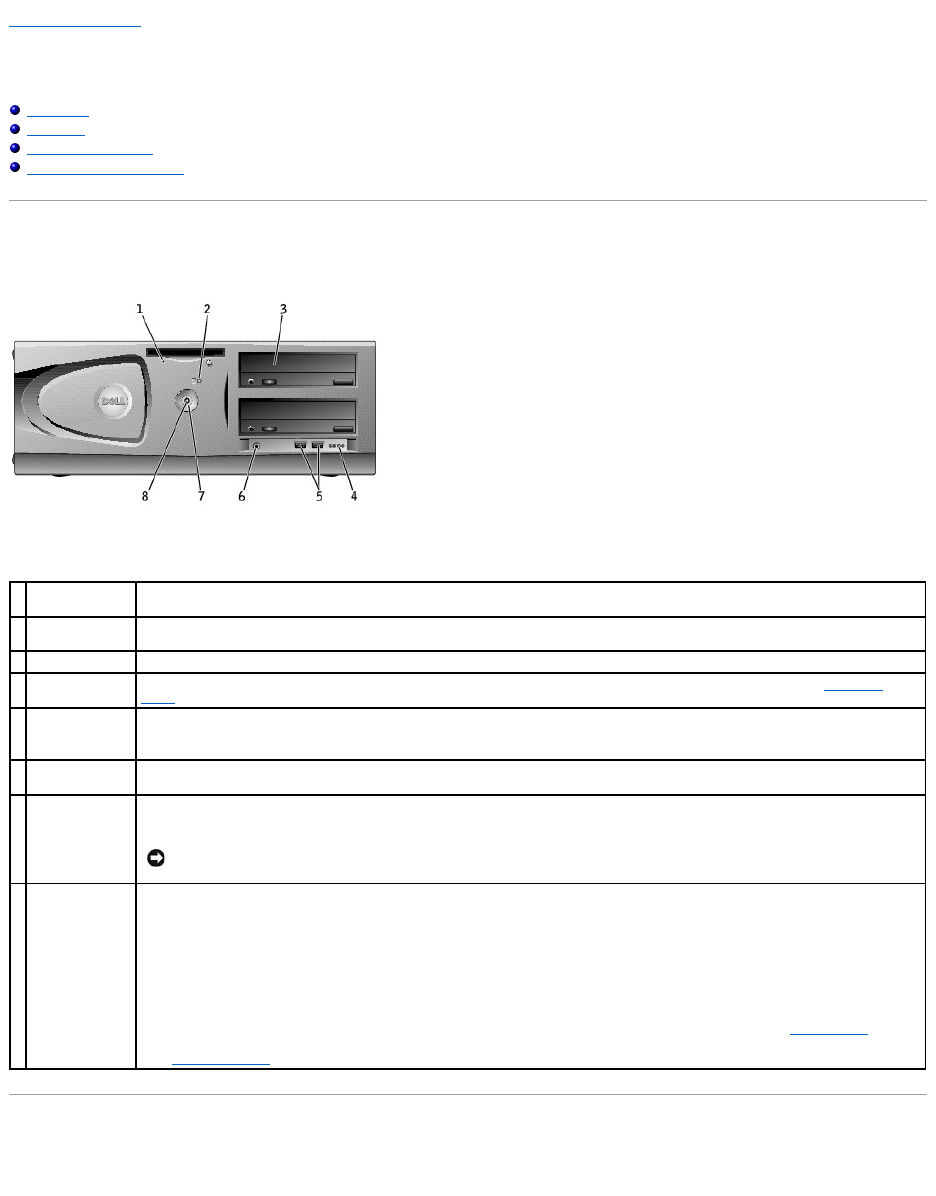
Back to Contents Page
About Your Computer—Dell Precision 450
DellPrecision™Workstations450and650User'sGuide
Front View
Back View
Inside Your Computer
System Board Components
Front View
Back View
1
floppy-drive light
button
The floppy-drive light is on when the computer reads data from or writes data to the floppy drive. Wait until this light turns off before
you remove the floppy disk from the drive.
2
hard-drive light
The hard-drive light is on when the computer reads data from or writes data to the hard drive. The light might also be on when a
device such as your CD player is operating.
3
CD/DVD drive
Access the CD or DVD drive.
4
diagnostic lights
(4)
Use the lights to help you troubleshoot a computer problem based on the diagnostic code. For more information, see "Diagnostic
Lights."
5
USB 2.0
connectors (2)
Use the front USB connectors for devices that you connect occasionally, such as joysticks or cameras.
It is recommended that you use the back USB connectors for devices that typically remain connected, such as printers and keyboards.
6
headphone
connector
Attach headphones.
7
power button
Press this button to turn on the computer.
NOTICE: To avoid losing data, do not use the power button to turn off the computer. Instead, perform a Microsoft®Windows®
shutdown.
8
power light
The power light illuminates and blinks or remains solid to indicate the following different states:
No light — The computer is in the off state.
Steady green —The computer is in a normal operating state.
Blinking green —The computer is in a power-saving state.
To exit from a power-saving state, press the power button or use the keyboard or the mouse if it is configured as a wake device in the
Windows Device Manager. For more information about sleep states and exiting from a power-saving state, see "Power Button."
See "Diagnostic Lights" for a description of light codes that can help you troubleshoot problems with your computer.
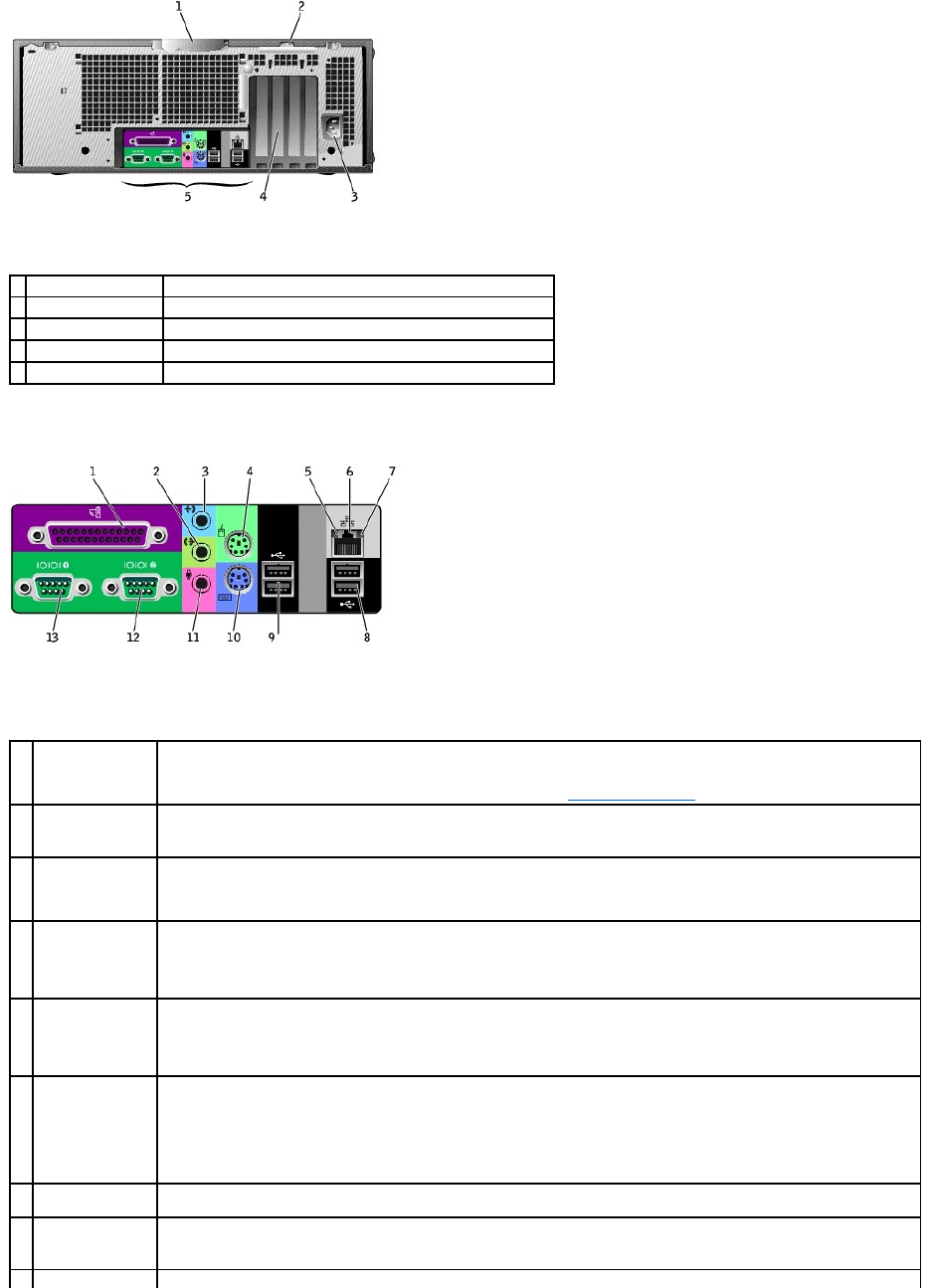
Back Panel Connectors
1
cover release latch
Push the latch to the left to open the computer cover.
2
padlock ring
Insert a padlock to lock the computer cover.
3
power connector
Insert the power cable.
4
card slots (4)
Access connectors for any installed PCI and AGP cards.
5
back panel connectors
Plug serial, USB, and other devices into the appropriate connector.
1
parallel connector
Connect a parallel device, such as a printer, to the parallel connector. If you have a USB printer, plug it into a USB connector.
NOTE: The integrated parallel connector is automatically disabled if the computer detects an installed card containing a parallel
connector configured to the same address. For more information, see "System Setup Options."
2
line-out connector
Use the green line-out connector (available on computers with integrated sound) to attach headphones and speakers.
On computers with a sound card, use the connector on the card.
3
line-in connector
Use the blue line-in connector (available on computers with integrated sound) to attach a record/playback device such as a
cassette player, CD player, or VCR.
On computers with a sound card, use the connector on the card.
4
mouse connector
Plug a standard mouse into the green mouse connector. Turn off the computer and any attached devices before you connect a
mouse to the computer. If you have a USB mouse, plug it into a USB connector.
If your computer is running the Microsoft®Windows®2000 or Windows XP operating system, the necessary mouse drivers have
been installed on your hard drive.
5
link integrity light
lGreen — A good connection exists between a 10-Mbps network and the computer.
lOrange — A good connection exists between a 100-Mbps network and the computer.
lYellow — A good connection exists between a 1 Gb (or 1000-Mbps) connection.
lOff — The computer is not detecting a physical connection to the network.
6
network connector
Attach the UTP cable to an RJ45 jack wall plate or to an RJ45 port on a UTP concentrator or hub and press the other end of the UTP
cable into the network connector until the cable snaps securely into place.
The use of Category 5 wiring and connectors is recommended for our customers' networks. If Category 3 wiring must be used,
force the network speed to 10 Mbps to ensure reliable operation.
On computers with a network connector card, use the connector on the card.
7
network activity
light
The yellow light flashes when the computer is transmitting or receiving network data. A high volume of network traffic may make
this light appear to be in a steady "on" state.
8
USB 2.0connectors
(2)
Use the back USB connectors for devices that typically remain connected, such as printers and keyboards.
It is recommended that you use the front USB connectors for devices that you connect occasionally, such as joysticks or cameras.
9
USB 2.0 connectors
Use the back USB connectors for devices that typically remain connected, such as printers and keyboards.
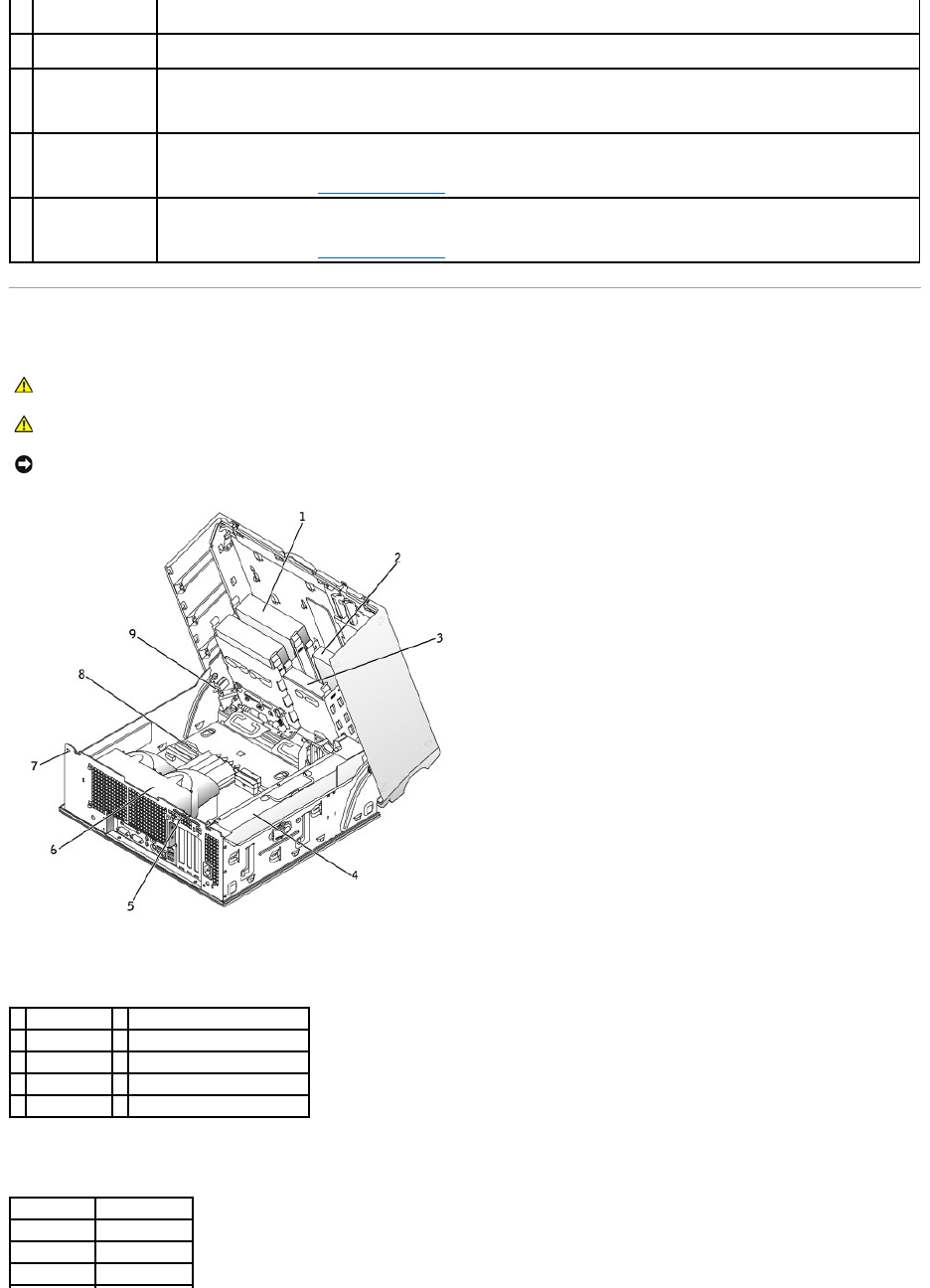
Inside Your Computer
Cable Colors
(2)
It is recommended that you use the front USB connectors for devices that you connect occasionally, such as joysticks or cameras.
10
keyboard connector
If you have a standard keyboard, plug it into the purple keyboard connector. If you have a USB keyboard, plug it into a USB
connector.
11
microphone
connector
Use the pink microphone connector (available on computers with integrated sound) to attach a personal computer microphone for
voice or musical input into a sound or telephony program.
On computers with a sound card, use the microphone connector on the card.
12
serial connector
(COM 2)
Connect a serial device, such as a handheld device, to the serial port. The default designations are COM1 for serial connector 1 and
COM2 for serial connector 2.
For more information, see "System Setup Options."
13
serial connector
(COM 1)
Connect a serial device, such as a handheld device, to the serial port. The default designations are COM1 for serial connector 1 and
COM2 for serial connector 2.
For more information, see "System Setup Options."
CAUTION: Before you begin any of the procedures in this section, follow the safety instructions in the System Information Guide.
CAUTION: To avoid electrical shock, always unplug your computer from the electrical outlet before opening the cover.
NOTICE: Be careful when opening the computer cover to ensure that you do not accidentally disconnect cables from the system board.
1
CD/DVD drive
6
microprocessor airflow shroud
2
floppy drive
7
security cable slot
3
hard drive
8
system board
4
power supply
9
chassis intrusion switch
5
padlock ring
Device
Cable Color
Hard drive
Blue pull tab
Floppy drive
Black pull tab
CD/DVD drive
Orange pull tab
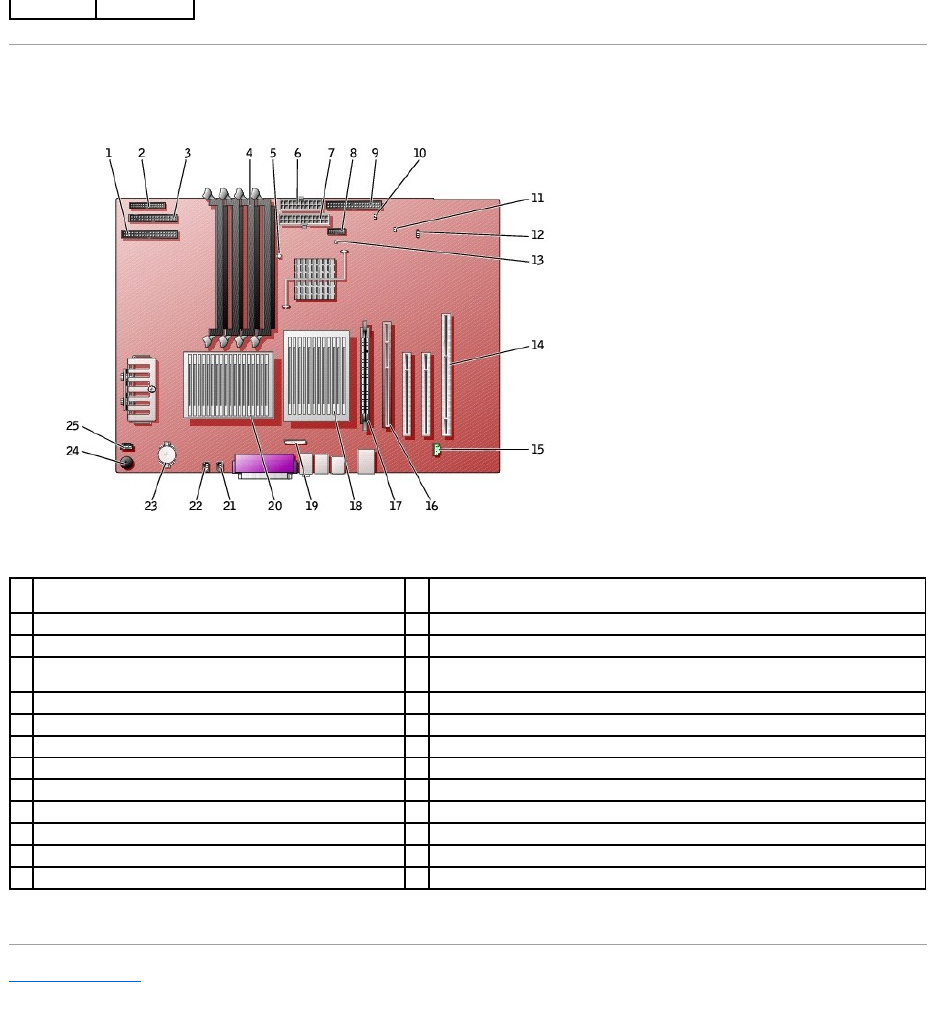
System Board Components
Back to Contents Page
I/O panel
Yellow pull tab
1
CD/DVD drive connector (IDE2)
14
PCI card connectors (PCI1, PCI2 [32-bit connectors], and PCI3 [64-bit PCI-X
connector])
2
I/O panel (I/O PANEL)
15
telephony connector (MODEM)
3
floppy drive connector (DISKETTE)
16
AGP card connector (AGP)
4
memory module connectors (DIMM_1, DIMM_2, DIMM_3,
DIMM_4)
17
VRM connector (VRM) (for a second microprocessor only)
5
suspend-to-RAM light (STR_LED)
18
microprocessor and heat-sink connector (CPU_1)
6
power connector (POWER 2)
19
front-panel audio connector (FP2AUDIO)
7
power connector (POWER 1)
20
microprocessor and heat-sink connector (CPU_0)
8
USB connector (USB)
21
microprocessor fan connector (FAN_P1)
9
hard-drive connector (IDE1)
22
microprocessor fan connector (FAN_P0))
10
real-time clock reset jumper (RTCRST)
23
battery socket (BATTERY)
11
password jumper (PSWD)
24
internal speaker (SPKR)
12
auxiliary LED add-in storage adapter connector (AUX_LED)
25
CDdriveaudiocableconnector(CD_IN)
13
standby power light (AUX_PWR_LED)
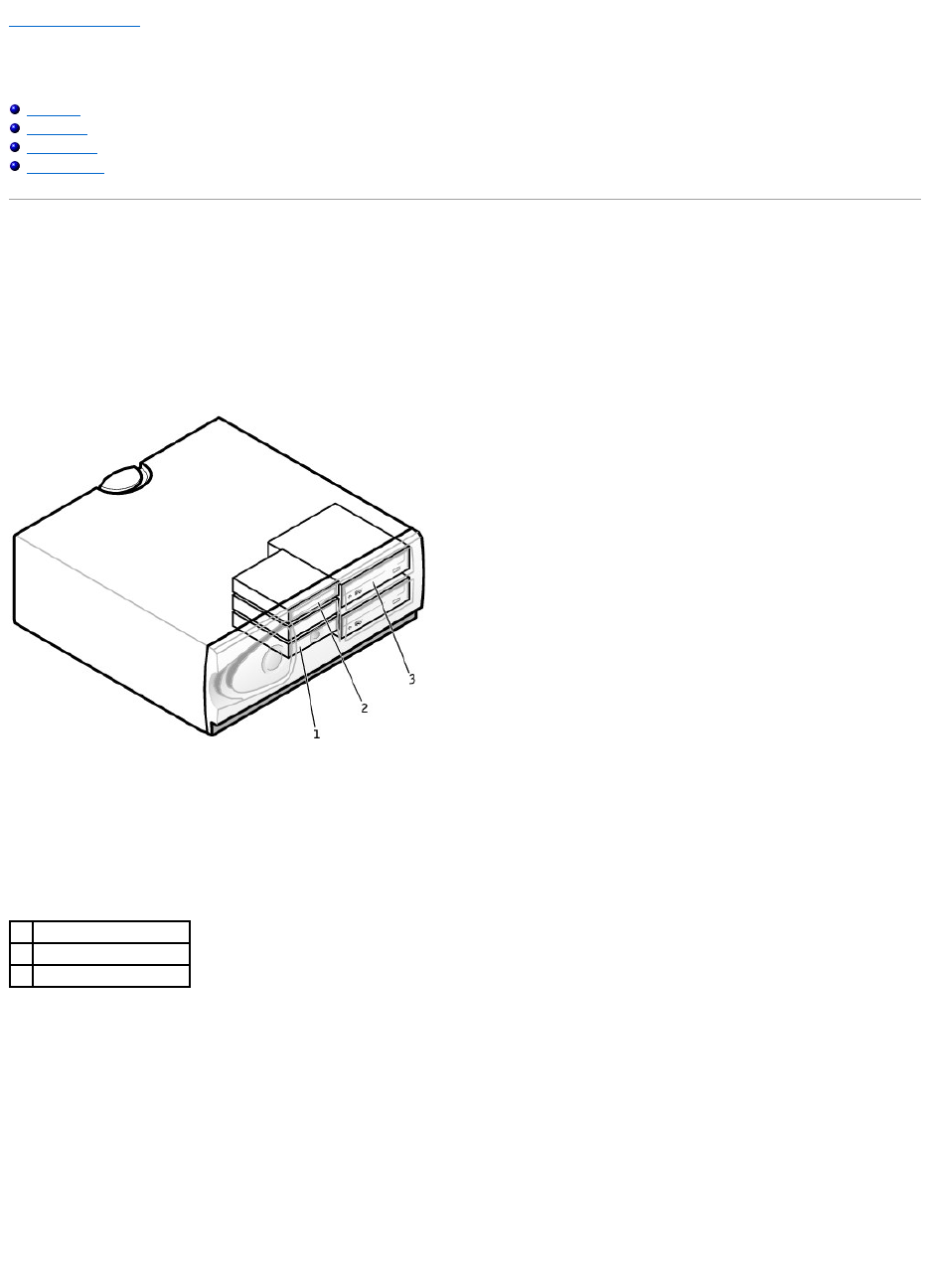
Back to Contents Page
Drives
DellPrecision™Workstations450and650User'sGuide
Overview
Hard Drive
Floppy Drive
CD/DVD Drive
Overview
Your computer supports:
lTwo hard drives (Your computer supports SCSI with an add-in controller, IDE, and Serial ATA.)
lOne floppy drive
lTwo CD or DVD drives
IDE Drive Addressing
When you connect two IDE devices to a single IDE interface cable and configure them for the cable select setting, the device attached to the last connector on
the interface cable is the primary (master) or boot device (drive 0), and the device attached to the middle connector on the interface cable is the secondary
(slave) device (drive 1). See the drive documentation in your upgrade kit for information on configuring devices for the cable select setting.
Since cable select is the default setting, any additional drives that are installed do not need to be set as a primary or secondary drive.
Your computer supports up to two IDE devices. Hard drives should be connected to the connector labeled "IDE1," and CD/DVD drives should be connected to
the connector labeled "IDE2."
Connect serial ATA drives to the connectors labeled "SATA_0" or "SATA_1."
Connecting Drive Cables
When you install a drive, you connect two cables—a DC power cable and an interface cable—to the back of the drive.
1
hard drive(s)
2
floppy drive(s)
3
CD/DVD drives(s)
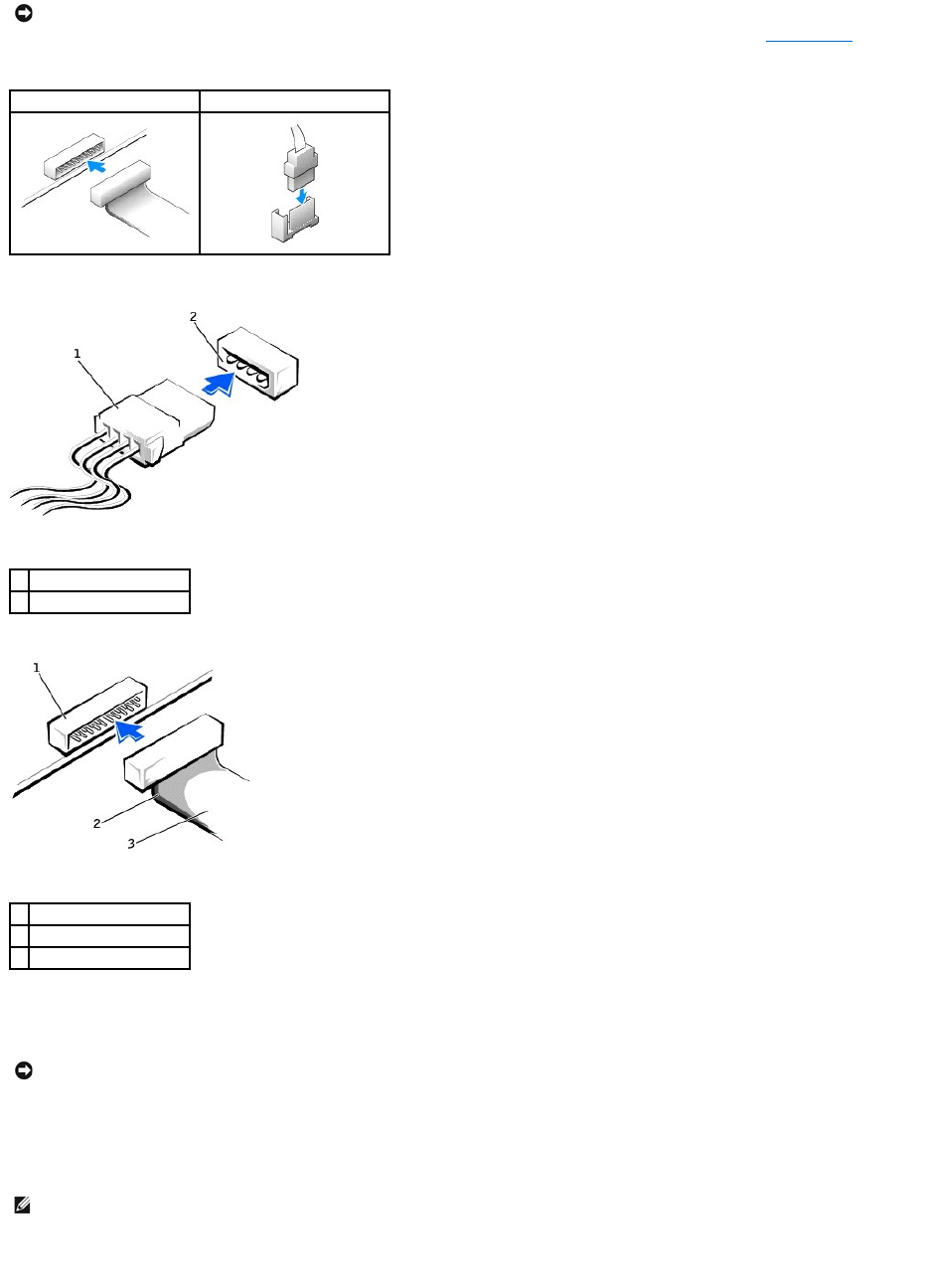
Most interface connectors are keyed for correct insertion; that is, a notch or a missing pin on one connector matches a tab or a filled-in hole on the other
connector. Keyed connectors ensure that the pin-1 wire in the cable (indicated by the colored stripe along one edge of the cable) goes to the pin-1 end of the
connector. The pin-1 end of a connector on a board or a card is usually indicated by a silk-screened "1" printed directly on the board or card.
SCSI Device Installation Guidelines
This section describes how to configure and install SCSI devices in your computer.
SCSI ID Numbers
Internal SCSI devices must have a unique SCSI ID number from 0 to 15. If you are using the SCSI connector on the system board and a SCSI controller card
NOTICE: If your system was purchased with a Serial ATA hard drive, the system includes the newer style Serial ATA style power connector. If you are
adding a Serial ATA hard drive to a system that was not originally equipped with one and the drive you are adding requires the new style Serial ATA
power connector, you may need to obtain a power adapter cable from Dell. If you need a Serial ATA power adapter cable, see Contacting Dell for the
number to call for assistance.
IDE Drive Connector
Serial ATA Connector
1
power cable
2
power input connector
1
interface connector
2
colored stripe on cable
3
interface cable
NOTICE: When you connect an interface cable, do not place the colored stripe away from pin 1 of the connector. Reversing the cable prevents the drive
from operating and could damage the controller, the drive, or both.
NOTE: The system board SCSI controller supports hard drives only. Do not connect CD or DVD drives, tape drives, DAT drives, and so on.

installed in your computer, you have two separate SCSI buses operating. Each SCSI bus has a set of SCSI ID numbers from 0 to 15.
When SCSI devices are shipped from the factory, the default SCSI ID numbers are assigned as follows:
SCSI devices installed by Dell are configured correctly during the manufacturing process. You do not need to set the SCSI ID for these SCSI devices.
If you attach additional optional SCSI devices, see the documentation for each device for information about setting the appropriate SCSI ID number.
Device Termination
SCSI logic requires that termination be enabled for the two devices at opposite ends of the SCSI chain and disabled for all devices in between.
It is recommended that you use terminated cables and that you disable termination on all devices. See the documentation provided with any optional SCSI
device you purchase for information on disabling termination on the device.
General Guidelines
Follow these general guidelines when installing SCSI devices in your computer:
lAlthough you install SCSI devices essentially the same way as other devices, their configuration requirements are different. For details on configuring
your particular SCSI subsystem, see the documentation for your SCSI devices and/or your host adapter card.
lConfigure the device for a SCSI ID number and disable termination, if necessary.
lTo use an external SCSI device, you must have a SCSI controller card installed in your computer. Connect one end of the external SCSI cable to the
connector on the back of the SCSI device. Attach the other end of the external SCSI cable to the connector on the controller card installed in the
computer.
lAfter you install a SCSI hard drive, Primary Drive 0 and Primary Drive 1 should be set to None in system setup if no EIDE hard drives are installed. If
you have any EIDE devices on the second EIDE channel, such as a CD or tape drive, Secondary Drive 0 and/or Secondary Drive 1 should be set to
Auto.
lYou may need to use programs other than those provided with the operating system to partition and format SCSI hard drives. See the documentation
that came with your SCSI software drivers for information on installing the appropriate drivers and preparing your SCSI hard drive for use.
SCSI Cables
Ultra 320 (optional on the Dell Precision 450 computer), Ultra 160/m and Ultra2/Wide LVD drives (typically hard drives) both use a 68-pin cable. One end of the
cable attaches to the SCSI connector on the system board or the SCSI controller card installed in your computer. The remaining connectors on the cable attach
to the various drives.
Narrow SCSI drives (tape drives, CD drives, and some hard drives) use a 50-pin cable. One end of this cable attaches to the SCSI controller card. The
remaining connectors on the cable attach to the various Narrow SCSI devices.
Hard Drive
1. If you are replacing a hard drive that contains data you want to keep, back up your files before you begin this procedure.
2. Shut down the computer through the Start menu.
3. Ensure that your computer and attached devices are turned off. If your computer and attached devices did not automatically turn off when you shut
down your computer, turn them off now.
System Board Controller
Controller Card
Device
ID
Device
ID
Controller
7
Controller
7
Boot hard drive
0
Boot hard drive
0
CD or DVD drive
5
tape or DAT drive
6
NOTE: There is no requirement that SCSI ID numbers be assigned sequentially or that devices be attached to the cable in order by ID number. If two or
more devices use the same ID, your computer may hang during POST and in SCSI BIOS.
NOTICE: Dell recommends that you use only SCSI cables purchased from Dell. Cables purchased elsewhere are not guaranteed to work with Dell
computers.
NOTICE: Dell recommends that you use only SCSI cables purchased from Dell. Cables purchased elsewhere are not guaranteed to work with Dell
computers.
CAUTION: Before you begin any of the procedures in this section, follow the safety instructions in the System Information Guide.
NOTICE: To avoid damage to the drive, do not set it on a hard surface. Instead, set the drive on a surface, such as a foam pad, that will sufficiently
cushion it.
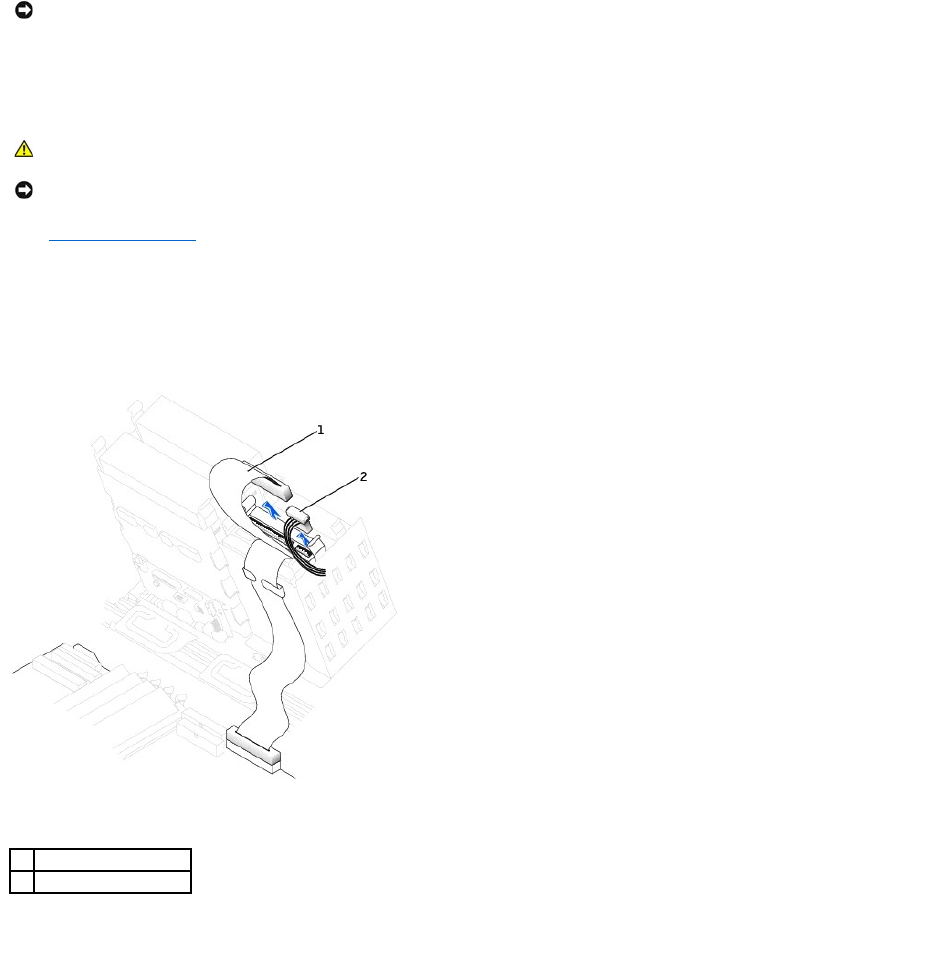
4. Disconnect any telephone or telecommunication lines from the computer.
5. Disconnect your computer and all attached devices from electrical outlets, and then press the power button to ground the system board.
6. If you have installed a padlock through the padlock ring on the back panel, remove the padlock.
7. Open the computer cover.
Removing a Hard Drive
1. Disconnect the power and hard-drive cables from the drive.
IDE/SCSI Drive
Serial ATA Drive
NOTICE: To disconnect a network cable, first unplug the cable from your computer and then unplug it from the network wall jack.
CAUTION: To guard against electrical shock, always unplug your computer from the electrical outlet before opening the cover.
NOTICE: Before touching anything inside your computer, ground yourself by touching an unpainted metal surface, such as the metal at the back of the
computer. While you work, periodically touch an unpainted metal surface to dissipate any static electricity that could harm internal components.
1
hard-drive cable
2
power cable
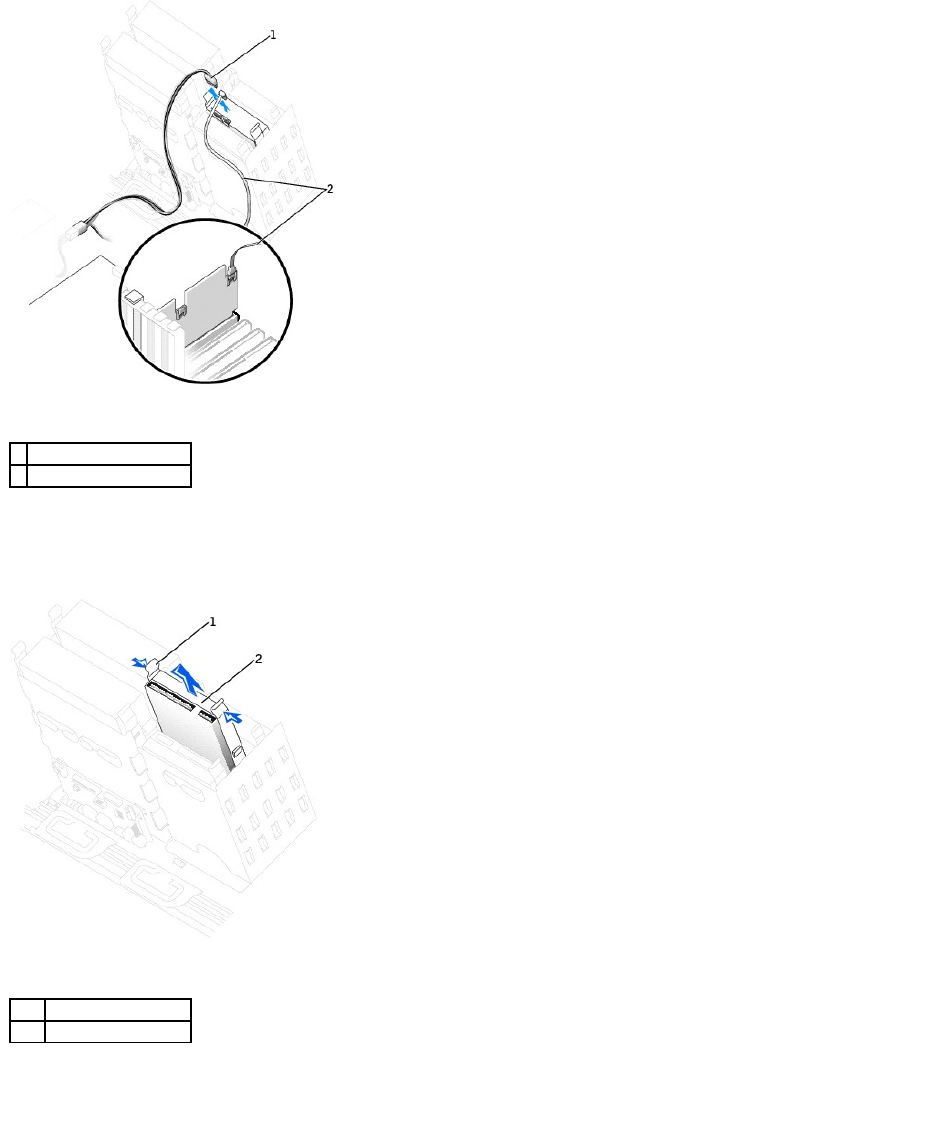
2. Press in on the tabs on each side of the drive and slide the drive up and out.
IDE/SCSI Drive
Serial ATA Drive
1
power cable
2
serial ATA hard-drive cable
1
tab (2)
2
hard drive
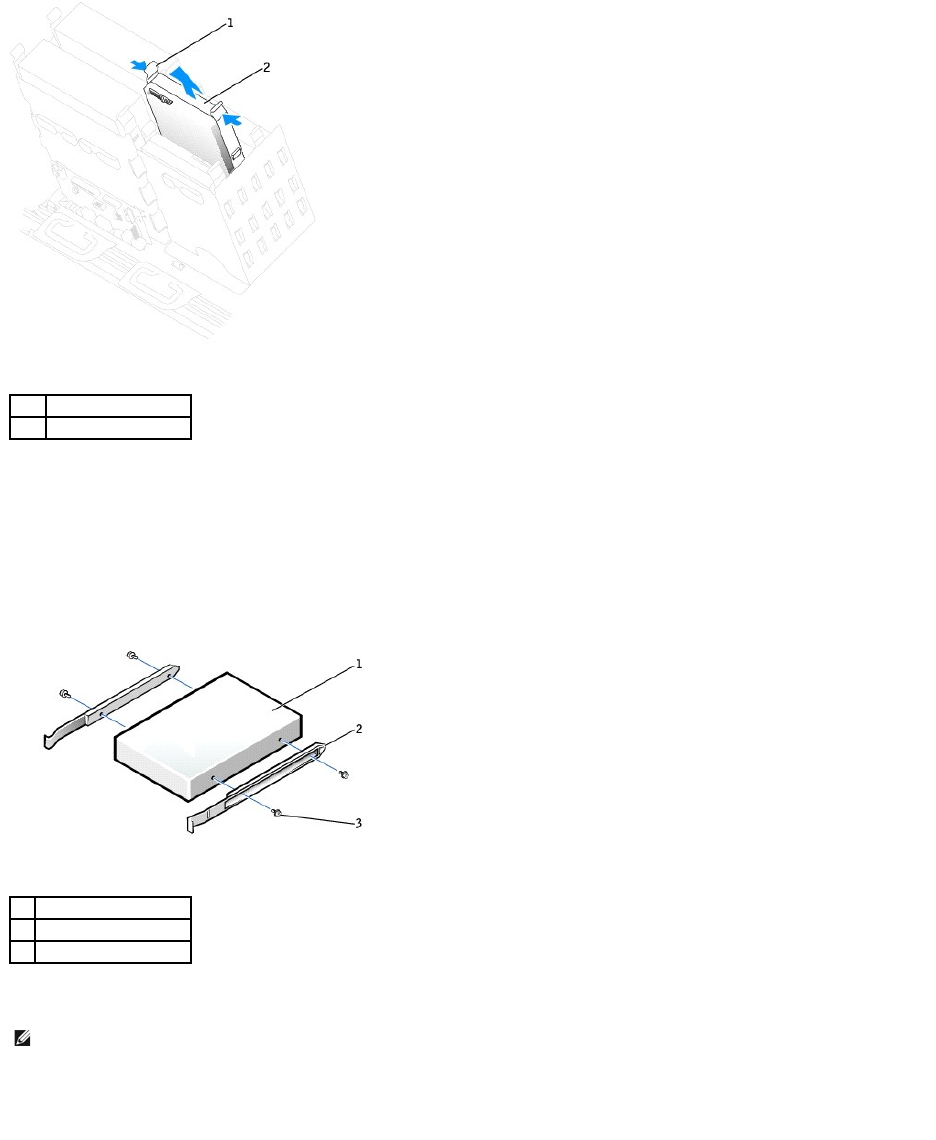
Installing a Hard Drive
1. Unpack the replacement hard drive, and prepare it for installation.
2. Check the documentation for the drive to verify that it is configured for your computer.
3. If your replacement hard drive does not have the bracket rails attached, remove the rails from the old drive by removing the two screws that secure
each rail to the drive. Attach the bracket rails to the new drive by aligning the screw holes on the drive with the screw holes on the bracket rails and
then inserting and tightening all four screws (two screws on each rail).
4. Gently slide the drive into place until the tabs securely click into position.
IDE/SCSI Drive
1
tab (2)
2
hard drive
1
drive
2
bracket rails (2)
3
screws (4)
NOTE: If you are installing a hard drive in the lower bay, the drive should be placed in the bay so that the power connector is on the left-hand side
(opposite of the top hard drive).
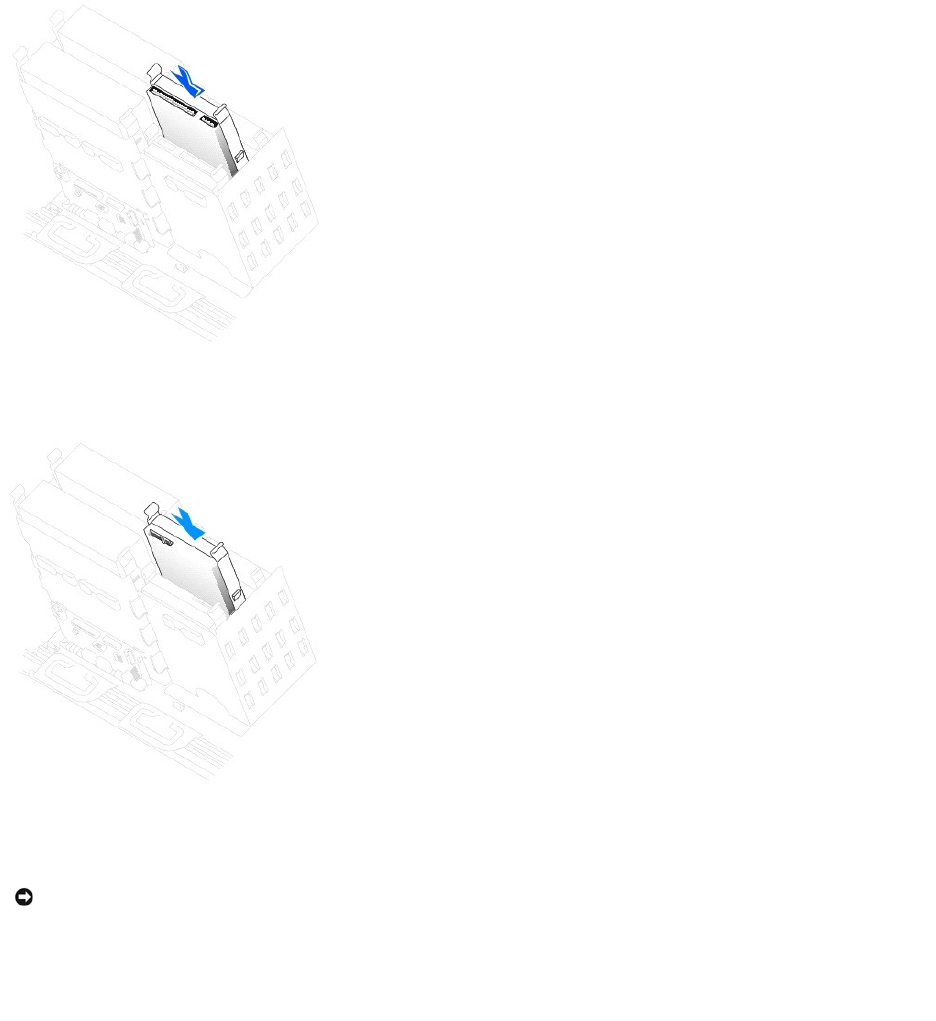
Serial ATA Drive
5. If you are installing a drive that has its own controller card, install the controller card in an expansion slot.
See the documentation that accompanied the drive and controller card to verify that the configuration is correct for your computer.
6. Connect the power and hard-drive cables to the drive.
IDE/SCSI Drive
NOTICE: Match the colored strip on the cable with pin 1 on the drive (pin 1 is marked as "1").
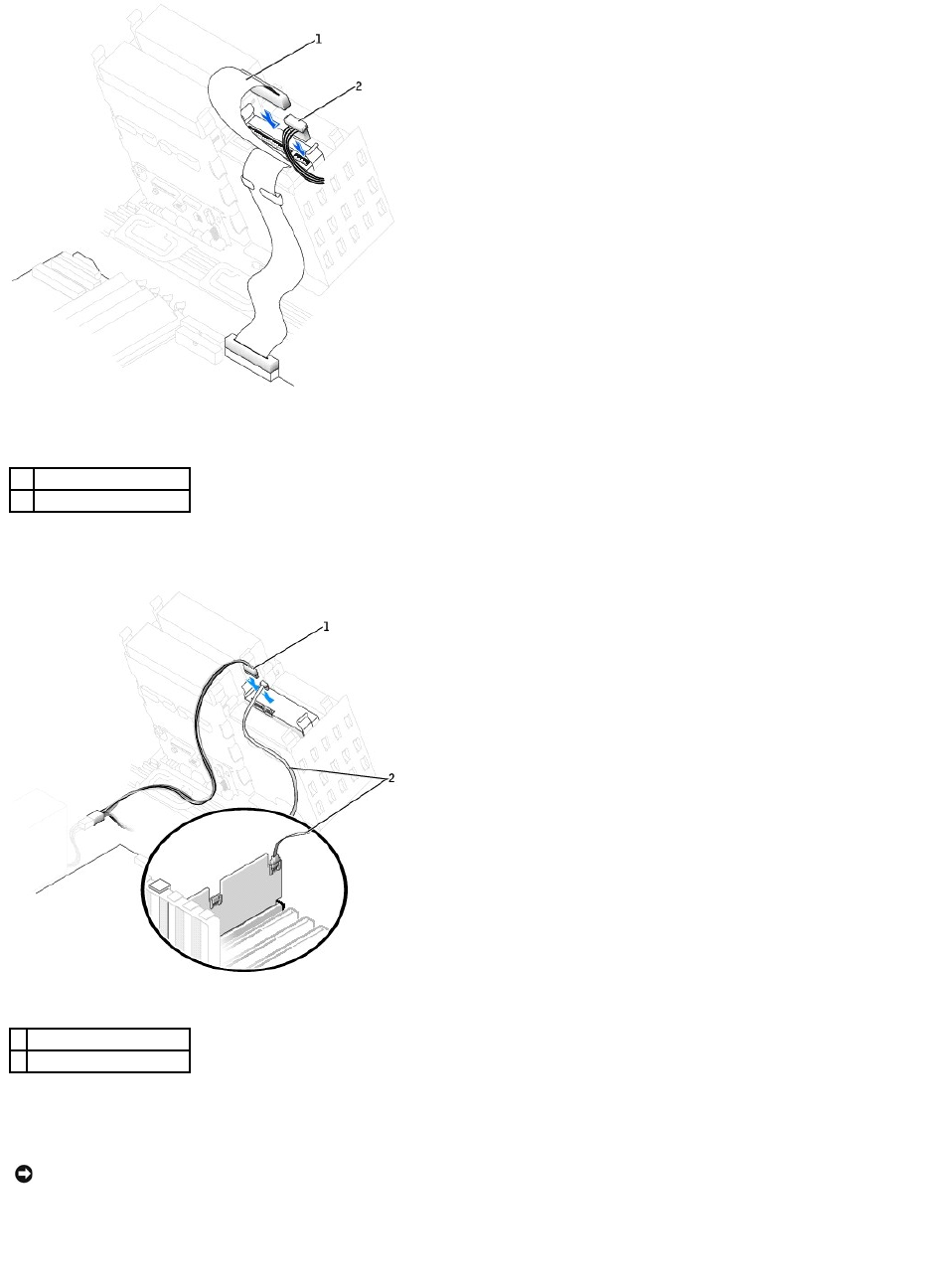
Serial ATA Drive
7. Check all connectors to be certain that they are properly cabled and firmly seated.
8. Close the computer cover.
9. Connect your computer and devices to electrical outlets, and turn them on.
See the documentation that came with the drive for instructions on installing any software required for drive operation.
10. If the drive you just installed is the primary drive, insert a bootable floppy disk into drive A.
1
hard-drive cable
2
power cable
1
power cable
2
serial ATA hard-drive cable
NOTICE: To connect a network cable, first plug the cable into the network wall jack and then plug it into the computer.
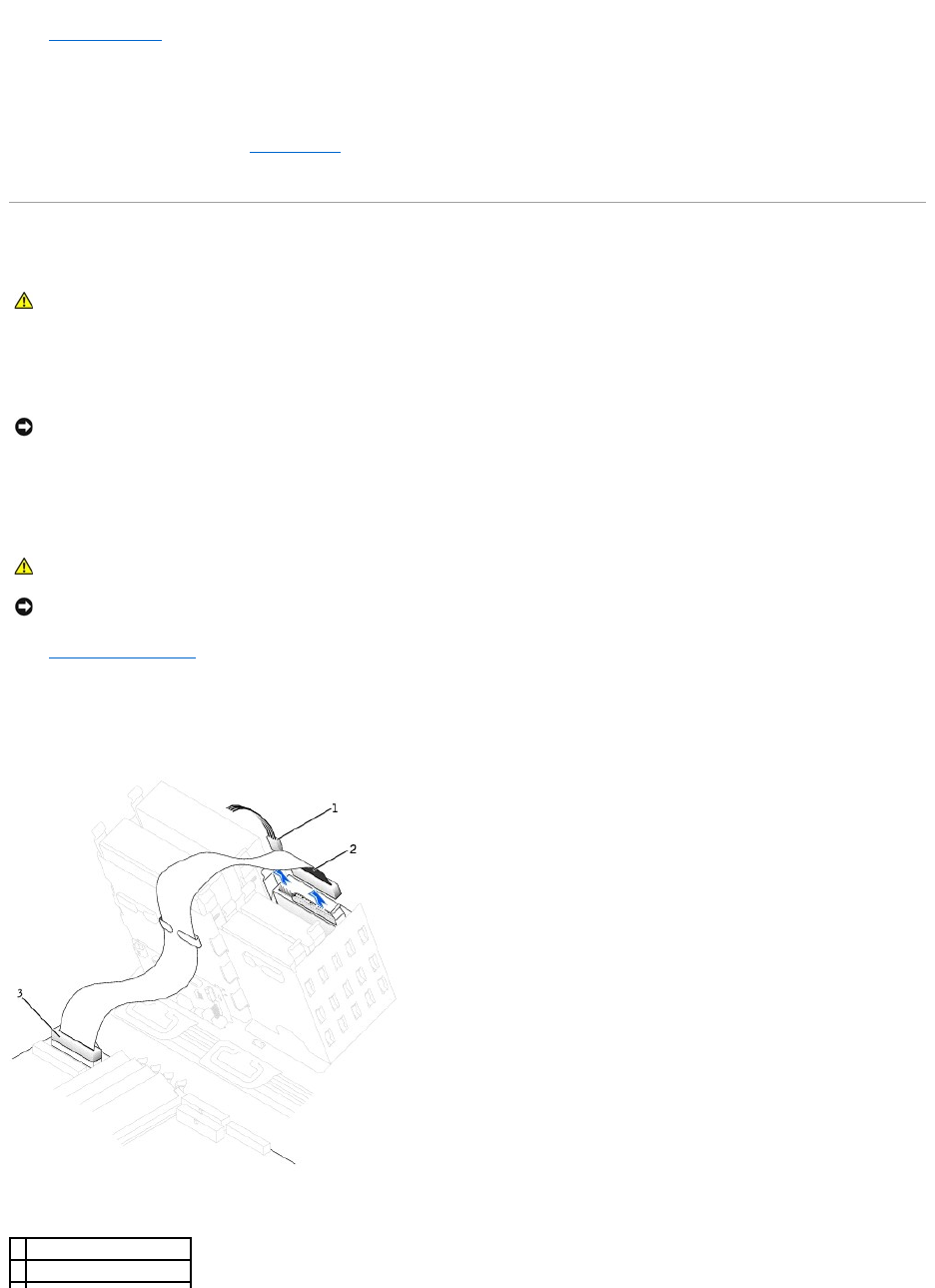
11. Turn on the computer.
12. Enter system setup, and update the your drive configuration.
13. After you have updated the system settings, exit system setup, and restart the computer.
14. Partition and logically format your drive before you proceed to the next step.
See the documentation for your operating system for instructions.
15. Test the hard drive by running the Dell Diagnostics.
16. If the drive you just installed is the primary drive, install your operating system on the hard drive.
Floppy Drive
1. Shut down the computer through the Start menu.
2. Ensure that your computer and attached devices are turned off. If your computer and attached devices did not automatically turn off when you shut
down your computer, turn them off now.
3. Disconnect any telephone or telecommunication lines from the computer.
4. Disconnect your computer and all attached devices from electrical outlets, and then press the power button to ground the system board.
5. If you have installed a padlock through the padlock ring on the back panel, remove the padlock.
6. Open the computer cover.
Removing a Floppy Drive
1. Disconnect the power and floppy-drive cables from the back of the floppy drive.
CAUTION: Before you begin any of the procedures in this section, follow the safety instructions in the System Information Guide.
NOTICE: To disconnect a network cable, first unplug the cable from your computer and then unplug it from the network wall jack.
CAUTION: To guard against electrical shock, always unplug your computer from the electrical outlet before opening the cover.
NOTICE: Before touching anything inside your computer, ground yourself by touching an unpainted metal surface, such as the metal at the back of the
computer. While you work, periodically touch an unpainted metal surface to dissipate any static electricity that could harm internal components.
1
power cable
2
floppy-drive cable
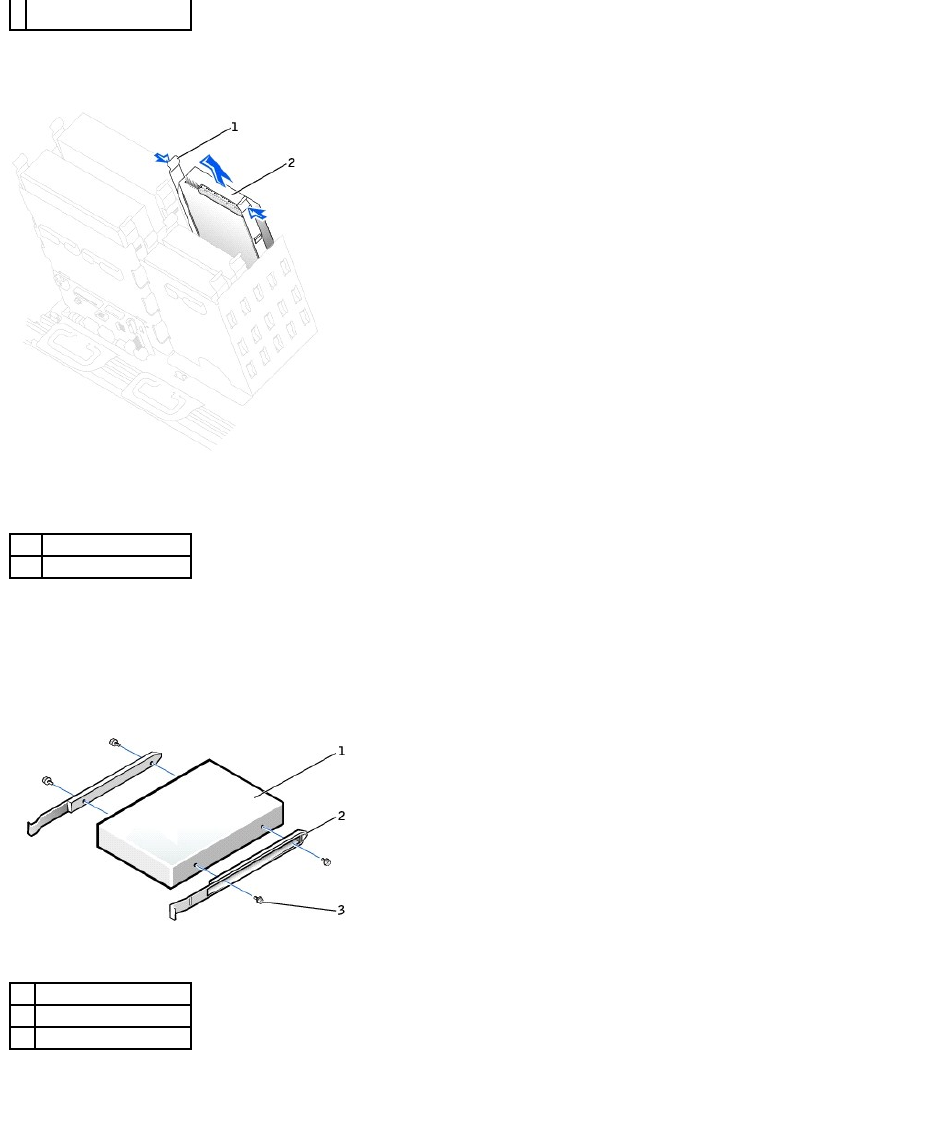
2. Press inward on the two tabs on the sides of the drive, slide the drive upward, and remove it from the floppy-drive bay.
Installing a Floppy Drive
1. If you are replacing a drive and the the new drive does not have the bracket rails attached, remove the rails from the old drive by removing the two
screws that secure each rail to the drive. Attach the bracket to the new drive by aligning the screw holes on the drive with the screw holes on the
bracket rails and then inserting and tightening all four screws (two screws on each rail).
2. Gently slide the drive into place until the tabs securely click into position.
3
floppy-drive connector
(DSKT)
1
tabs (2)
2
floppy drive
1
drive
2
bracket rails (2)
3
screws (4)
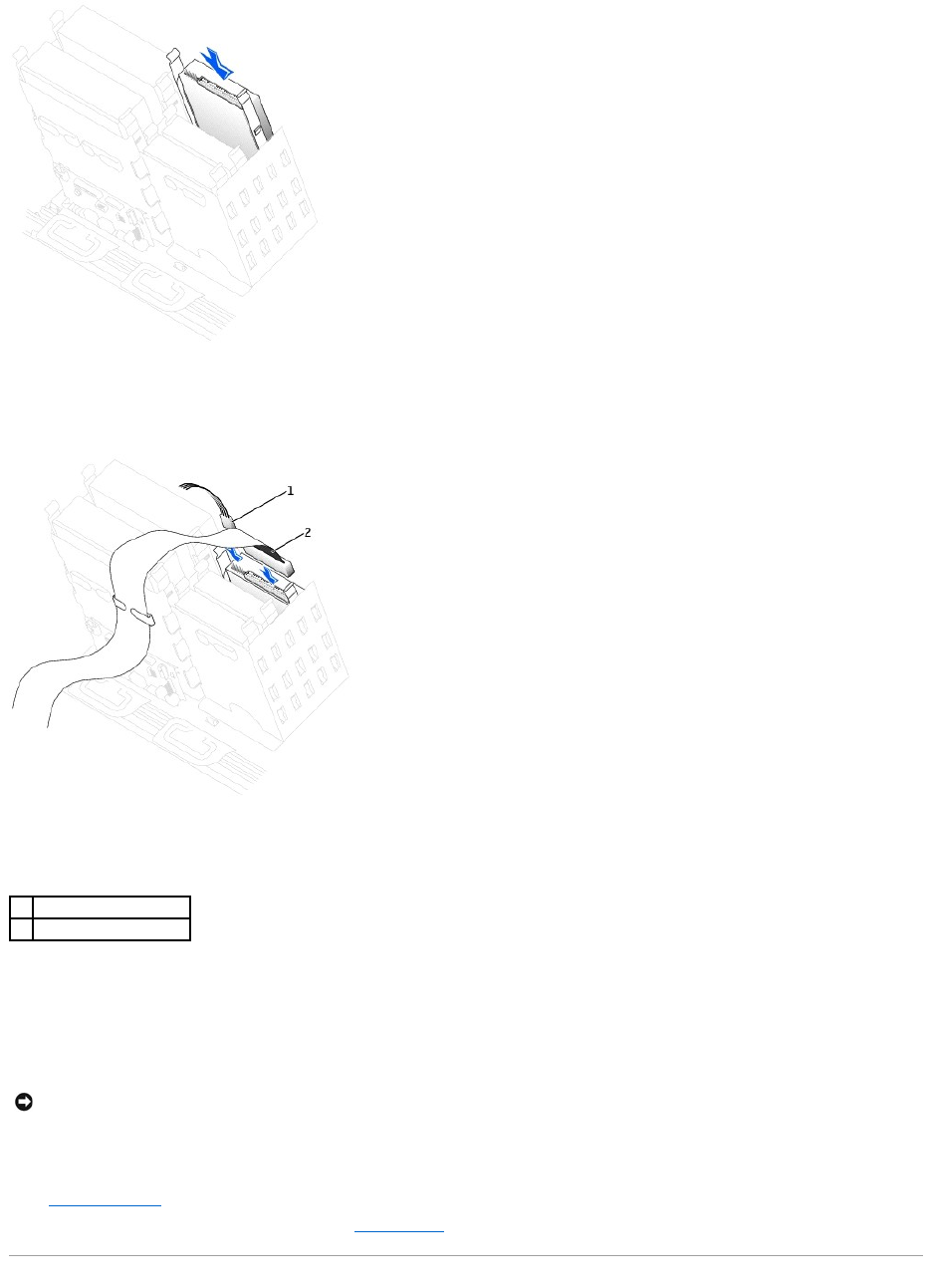
3. Attach the power and floppy-drive cables to the floppy drive.
4. If you are installing a new floppy drive rather than replacing a drive, remove the front- panel inserts.
From inside the drive bay, gently press on each side of the insert until it pops out.
5. Check all cable connections, and fold cables out of the way to provide airflow for the fan and cooling vents.
6. Close the computer cover.
7. Connect your computer and devices to electrical outlets, and turn them on.
See the documentation that came with the drive for instructions on installing any software required for drive operation.
8. Enter system setup and update the appropriate Diskette Drive A option to reflect the size and capacity of your new floppy drive.
9. To verify that your computer works correctly, run the Dell Diagnostics.
1
power cable
2
floppy-drive cable
NOTICE: To connect a network cable, first plug the cable into the network wall jack and then plug it into the computer.
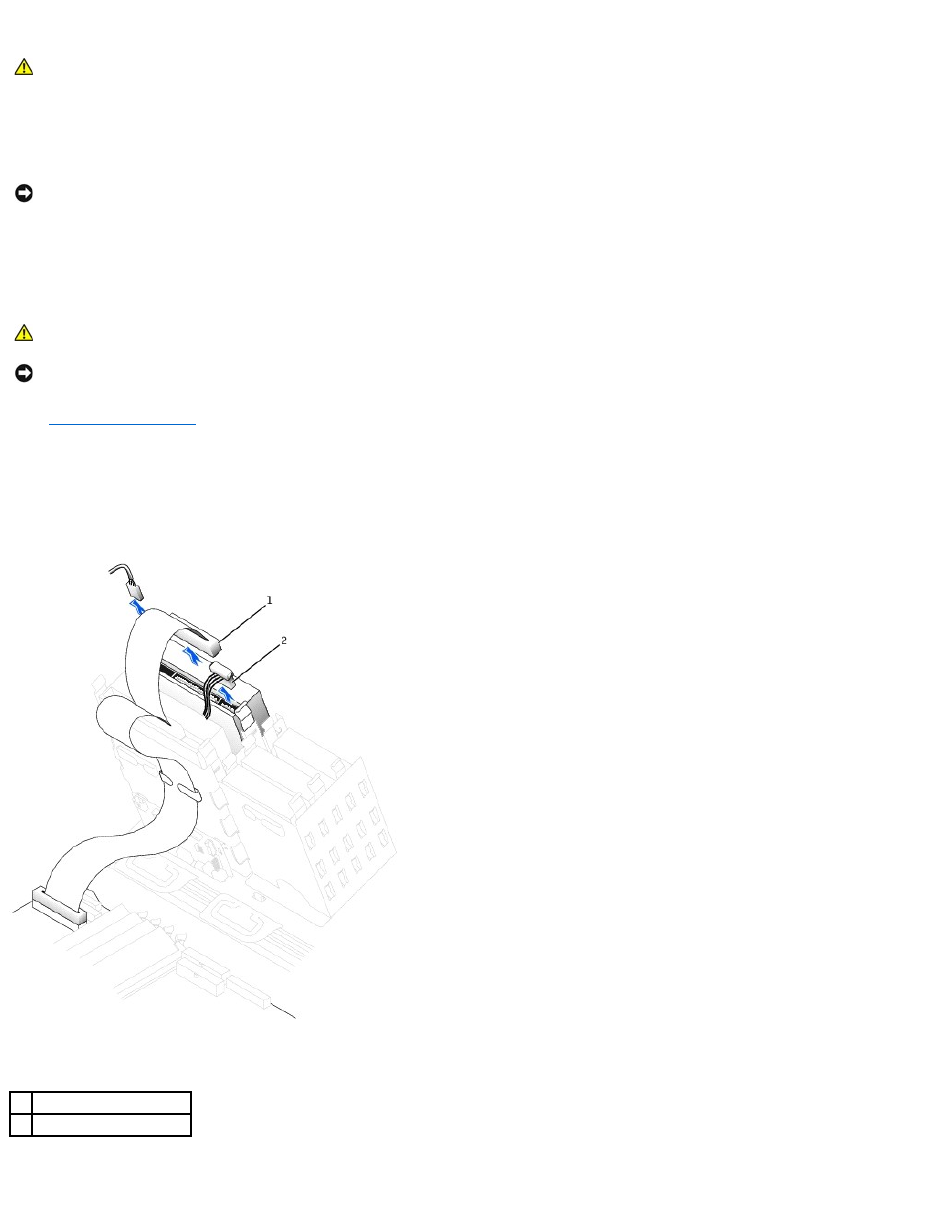
CD/DVD Drive
1. Shut down the computer through the Start menu.
2. Ensure that your computer and attached devices are turned off. If your computer and attached devices did not automatically turn off when you shut
down your computer, turn them off now.
3. Disconnect any telephone or telecommunication lines from the computer.
4. Disconnect your computer and all attached devices from electrical outlets, and then press the power button to ground the system board.
5. If you have installed a padlock through the padlock ring on the back panel, remove the padlock.
6. Open the computer cover.
Removing a CD/DVD Drive
1. Disconnect the power and CD/DVD drive cables from the back of the drive.
2. Press inward on the two tabs on the sides of the drive, and then slide the drive upward and remove it from the drive bay.
CAUTION: Before you begin any of the procedures in this section, follow the safety instructions in the System Information Guide.
NOTICE: To disconnect a network cable, first unplug the cable from your computer and then unplug it from the network wall jack.
CAUTION: To guard against electrical shock, always unplug your computer from the electrical outlet before opening the cover.
NOTICE: Before touching anything inside your computer, ground yourself by touching an unpainted metal surface, such as the metal at the back of the
computer. While you work, periodically touch an unpainted metal surface to dissipate any static electricity that could harm internal components.
1
CD/DVD drive cable
2
power cable
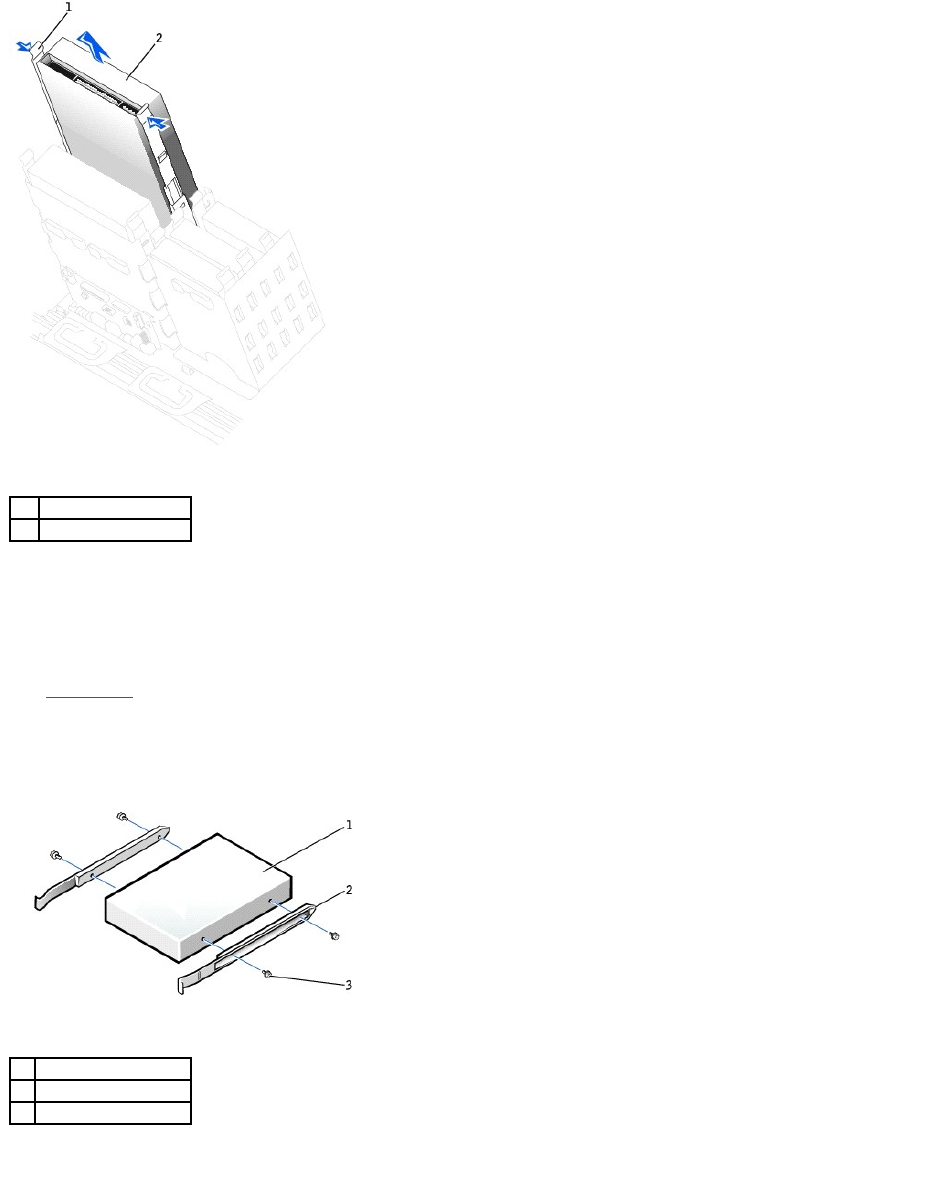
Installing a CD/DVD Drive
1. If you are installing a new drive, unpack the drive and prepare it for installation.
Check the documentation that accompanied the drive to verify that the drive is configured for your computer. If you are installing an IDE drive, configure
the drive for the cable select setting.
2. Connect the new drive to the set of rails that are attached to the inside of the computer cover. If a set of rails is not attached inside the cover, see
Contacting Dell for the number to call for assistance.
3. If you are installing a replacement drive and the new drive does not have the bracket rails attached, remove the rails from the old drive by removing
the two screws that secure each rail to the drive. Attach the bracket to the new drive by aligning the screw holes on the drive with the screw holes on
the bracket rails and then inserting and tightening all four screws (two screws on each rail).
4. Gently slide the drive into place until the tabs securely click into position.
1
tabs (2)
2
CD/DVD drive
1
drive
2
bracket rails (2)
3
screws (4)
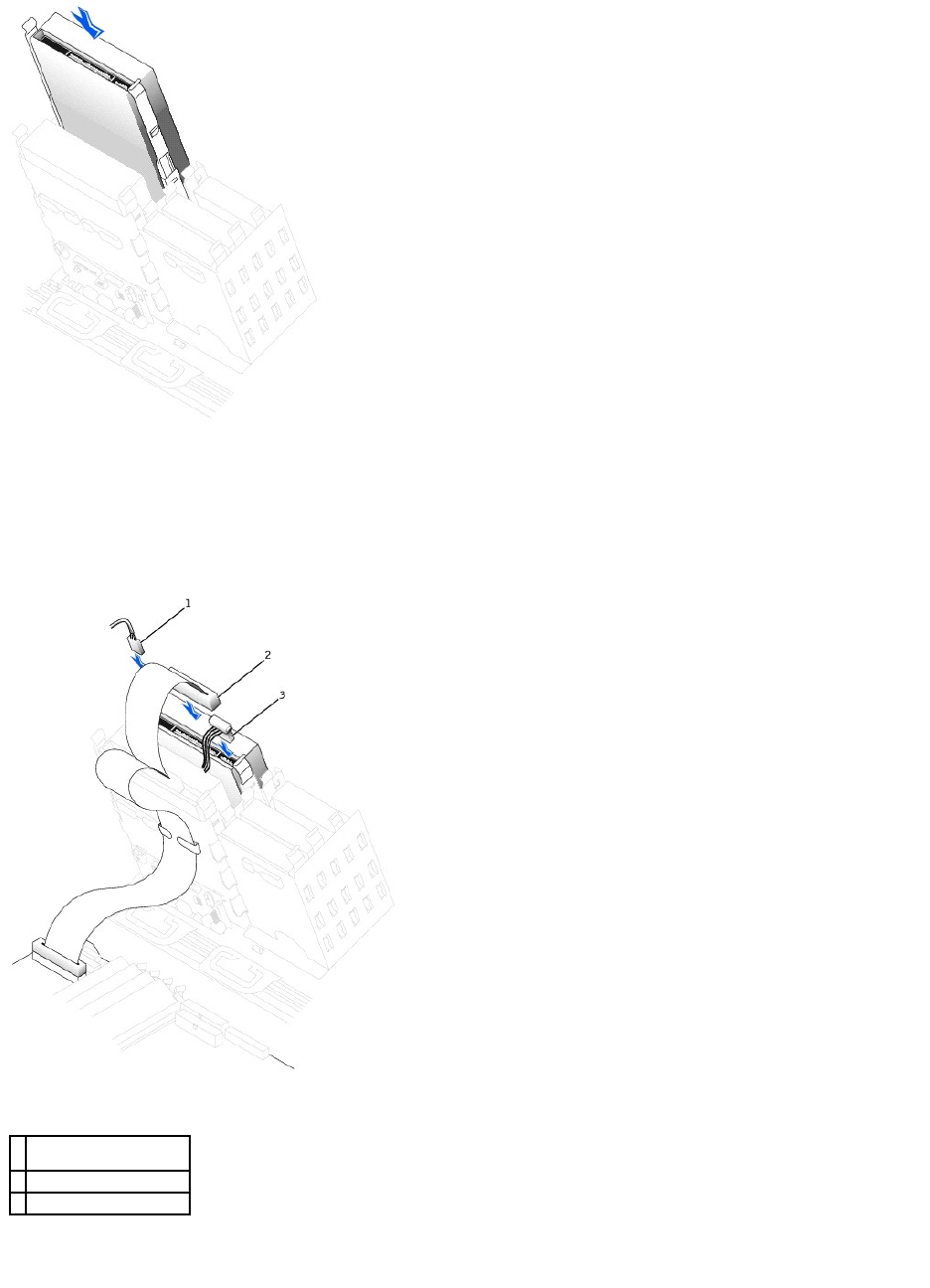
5. If you are installing a drive that has its own controller card, install the controller card in an expansion slot.
See the documentation that accompanied the drive and controller card to verify that the configuration is correct for your computer.
6. Connect the power and CD/DVD drive cables to the drive.
If you are adding a drive that has an audio cable, connect the audio cable to the audio connector on the system board.
7. If you are installing a new CD/DVD drive rather than replacing a drive, remove the front-panel inserts.
From inside the drive bay, gently press on each side of the insert until it pops out.
1
audio cable (some drives
do not have this cable)
2
CD/DVD drive cable
3
power cable

8. Check all cable connections, and fold cables out of the way to provide airflow for the fan and cooling vents.
9. Close the computer cover.
10. Connect your computer and devices to electrical outlets, and turn them on.
See the documentation that came with the drive for instructions on installing any software required for drive operation.
11. Update your configuration information by setting the appropriate Drive option (0 or 1) under Drives: Secondary to Auto. See "Primary Drive n and
Secondary Drive n" for more information.
12. To verify that your computer works correctly, run the Dell Diagnostics
Back to Contents Page
NOTICE: To connect a network cable, first plug the cable into the network wall jack and then plug it into the computer.

Back to Contents Page
Regulatory Notices
DellPrecision™Workstation450andDellPrecisionWorkstation650User'sGuide
Electromagnetic Interference (EMI) is any signal or emission, radiated in free space or conducted along power or signal leads, that endangers the functioning
of a radio navigation or other safety service or seriously degrades, obstructs, or repeatedly interrupts a licensed radio communications service. Radio
communications services include but are not limited to AM/FM commercial broadcast, television, cellular services, radar, air-traffic control, pager, and Personal
Communication Services (PCS). These licensed services, along with unintentional radiators such as digital devices, including computer systems, contribute to
the electromagnetic environment.
Electromagnetic Compatibility (EMC) is the ability of items of electronic equipment to function properly together in the electronic environment. While this
computer system has been designed and determined to be compliant with regulatory agency limits for EMI, there is no guarantee that interference will not
occur in a particular installation. If this equipment does cause interference with radio communications services, which can be determined by turning the
equipment off and on, you are encouraged to try to correct the interference by one or more of the following measures:
lReorient the receiving antenna.
lRelocate the computer with respect to the receiver.
lMove the computer away from the receiver.
lPlug the computer into a different outlet so that the computer and the receiver are on different branch circuits.
If necessary, consult a Dell Technical Support representative or an experienced radio/television technician for additional suggestions.
Dell computer systems are designed, tested, and classified for their intended electromagnetic environment. These electromagnetic environment classifications
generally refer to the following harmonized definitions:
lClass A is typically for business or industrial environments.
lClass B is typically for residential environments.
Information Technology Equipment (ITE), including peripherals, expansion cards, printers, input/output (I/O) devices, monitors, and so on, that are integrated
into or connected to the system should match the electromagnetic environment classification of the computer system.
A Notice About Shielded Signal Cables: Use only shielded cables for connecting peripherals to any Dell device to reduce the possibility of interference
with radio communications services. Using shielded cables ensures that you maintain the appropriate EMC classification for the intended environment.
For parallel printers, a cable is available from Dell. If you prefer, you can order a cable from Dell on the World Wide Web at
accessories.us.dell.com/sna/category.asp?category_id=4117.
Most Dell computer systems are classified for Class B environments. However, the inclusion of certain options can change the rating of some configurations to
Class A. To determine the electromagnetic classification for your system or device, refer to the following sections specific for each regulatory agency. Each
section provides country-specific EMC/EMI or product safety information.
FCC Notices (U.S. Only)
Most Dell computer systems are classified by the Federal Communications Commission (FCC) as Class B digital devices. To determine which classification
applies to your computer system, examine all FCC registration labels located on the bottom or back panel of your computer, on card-mounting brackets, and
on the cards themselves. If any one of the labels carries a Class A rating, your entire system is considered to be a Class A digital device. If all labels carry an
FCC Class B rating as distinguished by either an FCC ID number or the FCC logo, ( ), your system is considered to be a Class B digital device.
Once you have determined your system's FCC classification, read the appropriate FCC notice. Note that FCC regulations provide that changes or modifications
not expressly approved by Dell could void your authority to operate this equipment.
This device complies with Part 15 of the FCC Rules. Operation is subject to the following two conditions:
lThis device may not cause harmful interference.
lThis device must accept any interference received, including interference that may cause undesired operation.
Class A
This equipment has been tested and found to comply with the limits for a Class A digital device pursuant to Part 15 of the FCC Rules. These limits are designed
to provide reasonable protection against harmful interference when the equipment is operated in a commercial environment. This equipment generates, uses,
and can radiate radio frequency energy and, if not installed and used in accordance with the manufacturer's instruction manual, may cause harmful
interference with radio communications. Operation of this equipment in a residential area is likely to cause harmful interference, in which case you will be
required to correct the interference at your own expense.
Class B
This equipment has been tested and found to comply with the limits for a Class B digital device pursuant to Part 15 of the FCC Rules. These limits are designed
to provide reasonable protection against harmful interference in a residential installation. This equipment generates, uses, and can radiate radio frequency
energy and, if not installed and used in accordance with the manufacturer's instruction manual, may cause interference with radio communications. However,
there is no guarantee that interference will not occur in a particular installation. If this equipment does cause harmful interference to radio or television
reception, which can be determined by turning the equipment off and on, you are encouraged to try to correct the interference by one or more of the following
measures:
lReorient or relocate the receiving antenna.
lIncrease the separation between the equipment and the receiver.
lConnect the equipment into an outlet on a circuit different from that to which the receiver is connected.
lConsult the dealer or an experienced radio/television technician for help.
The following information is provided on the device or devices covered in this document in compliance with FCC regulations:
lModel numbers: WHL and WHM
lCompany name:
Dell Computer Corporation
One Dell Way
Round Rock, Texas 78682 USA
(512) 338-4400
IC Notice (Canada Only)
Most Dell computer systems (and other Dell digital apparatus) are classified by the Industry Canada (IC) Interference-Causing Equipment Standard #3 (ICES-
003) as Class B digital devices. To determine which classification (Class A or B) applies to your computer system (or other Dell digital apparatus), examine all
registration labels located on the bottom or the back panel of your computer (or other digital apparatus). A statement in the form of "IC Class A ICES-003" or
"IC Class B ICES-003" will be located on one of these labels. Note that Industry Canada regulations provide that changes or modifications not expressly
approved by Dell could void your authority to operate this equipment.
CE Notice (European Union)
Marking by the symbol indicates compliance of this Dell computer to the EMC Directive and the Low Voltage Directive of the European Union. Such marking
is indicative that this Dell system meets the following technical standards:
lEN 55022 — "Information Technology Equipment — Radio Disturbance Characteristics — Limits and Methods of Measurement."
lEN 55024 — "Information Technology Equipment - Immunity Characteristics - Limits and Methods of Measurement."
lEN 61000-3-2 — "Electromagnetic Compatibility (EMC) - Part 3: Limits - Section2:LimitsforHarmonicCurrentEmissions(EquipmentInputCurrentUpto
and Including 16 A Per Phase)."
lEN 61000-3-3 — "Electromagnetic Compatibility (EMC) - Part3:Limits- Section3:LimitationofVoltageFluctuationsandFlickerinLow-Voltage Supply
Systems for Equipment With Rated Current Up to and Including 16 A."
lEN 60950 — "Safety of Information Technology Equipment."
NOTE:EN 55022 emissions requirements provide for two classifications:
lClass A is for typical commercial areas.
If the label indicates a Class B rating, the following Class B statement applies to your computer:
lClass B is for typical domestic areas.
To determine which classification applies to your computer, examine the system information/regulatory label located on the back, side, or bottom panel of the
computer.
This Dell device is classified for use in a typical Class B domestic environment.
A "Declaration of Conformity" in accordance with the preceding directives and standards has been made and is on file at Dell Computer Corporation Products
Europe BV, Limerick, Ireland.
ENERGY STAR®Compliance
CertainconfigurationsofDell™computerscomplywiththerequirementssetforthbytheEnvironmentalProtectionAgency(EPA)forenergy-efficient computers.
If the front panel of your computer bears the ENERGY STAR®Emblem, your original configuration complies with these requirements and all ENERGY STAR®
power management features of the computer are enabled.
NOTE:Any Dell computer bearing the ENERGY STAR®Emblem is certified to comply with EPA ENERGY STAR®requirements as configured when shipped by Dell.
Any changes you make to this configuration (such as installing additional expansion cards or drives) may increase the computer's power consumption beyond
the limits set by the EPA's ENERGY STAR®Computers program.
ENERGY STAR®Emblem
The EPA's ENERGY STAR®Computers program is a joint effort between the EPA and computer manufacturers to reduce air pollution by promoting energy-
efficient computer products. The EPA estimates that use of ENERGY STAR®computer products can save computer users up to two billion dollars annually in
electricity costs. In turn, this reduction in electricity usage can reduce emissions of carbon dioxide, the gas primarily responsible for the greenhouse effect, and
sulfur dioxide and nitrogen oxides, the primary causes of acid rain.
You can also help reduce electricity usage and its side effects by turning off your computer when it is not in use for extended periods of time, particularly at
night and on weekends.
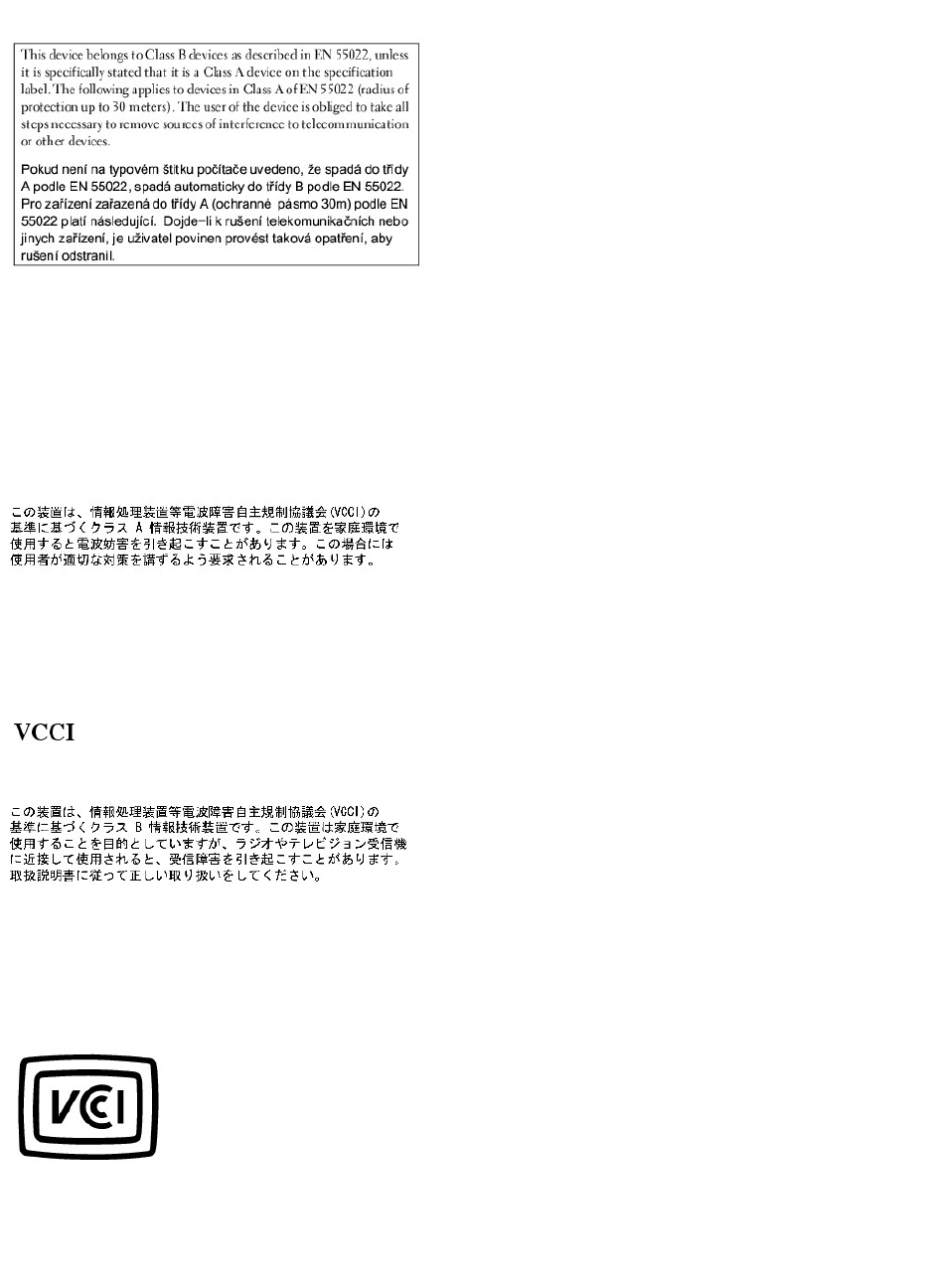
EN 55022 Compliance (Czech Republic Only)
VCCI Notice (Japan Only)
Most Dell computer systems are classified by the Voluntary Control Council for Interference (VCCI) as Class B information technology equipment (ITE).
However, the inclusion of certain options can change the rating of some configurations to Class A. ITE, including peripherals, expansion cards, printers,
input/output (I/O) devices, monitors, and so on, integrated into or connected to the system should match the electromagnetic environment classification (Class
A or B) of the computer system.
To determine which classification applies to your computer system, examine the regulatory labels/markings (see "VCCI Class A ITE Regulatory Mark" and "VCCI
Class B ITE Regulatory Mark") located on the bottom, side, or back panel of your computer. Once you have determined your system's VCCI classification, read
the appropriate VCCI notice.
Class A ITE
This is a Class A product based on the standard of the Voluntary Control Council for Interference (VCCI) for information technology equipment. If this
equipment is used in a domestic environment, radio disturbance may arise. When such trouble occurs, the user may be required to take corrective actions.
VCCI Class A ITE Regulatory Mark
If the regulatory label includes the following marking, your computer is a Class A product:
Class B ITE
This is a Class B product based on the standard of the Voluntary Control Council for Interference (VCCI) for information technology equipment. If this
equipment is used near a radio or television receiver in a domestic environment, it may cause radio interference. Install and use the equipment according to
the instruction manual.
VCCI Class B ITE Regulatory Mark
If the regulatory label includes the following marking, your computer is a Class B product:
MIC Notice (Republic of Korea Only)
To determine which classification (Class A or B) applies to your computer (or other Dell digital device), examine the Republic of Korean Ministry of Information
and Communications (MIC) registration labels located on your computer (or other Dell digital device). The MIC label may be located separately from the other
regulatory marking applied to your product. Line two of the label identifies the emissions class for the product—"(A)" for Class A products or "(B)" for Class B
products.
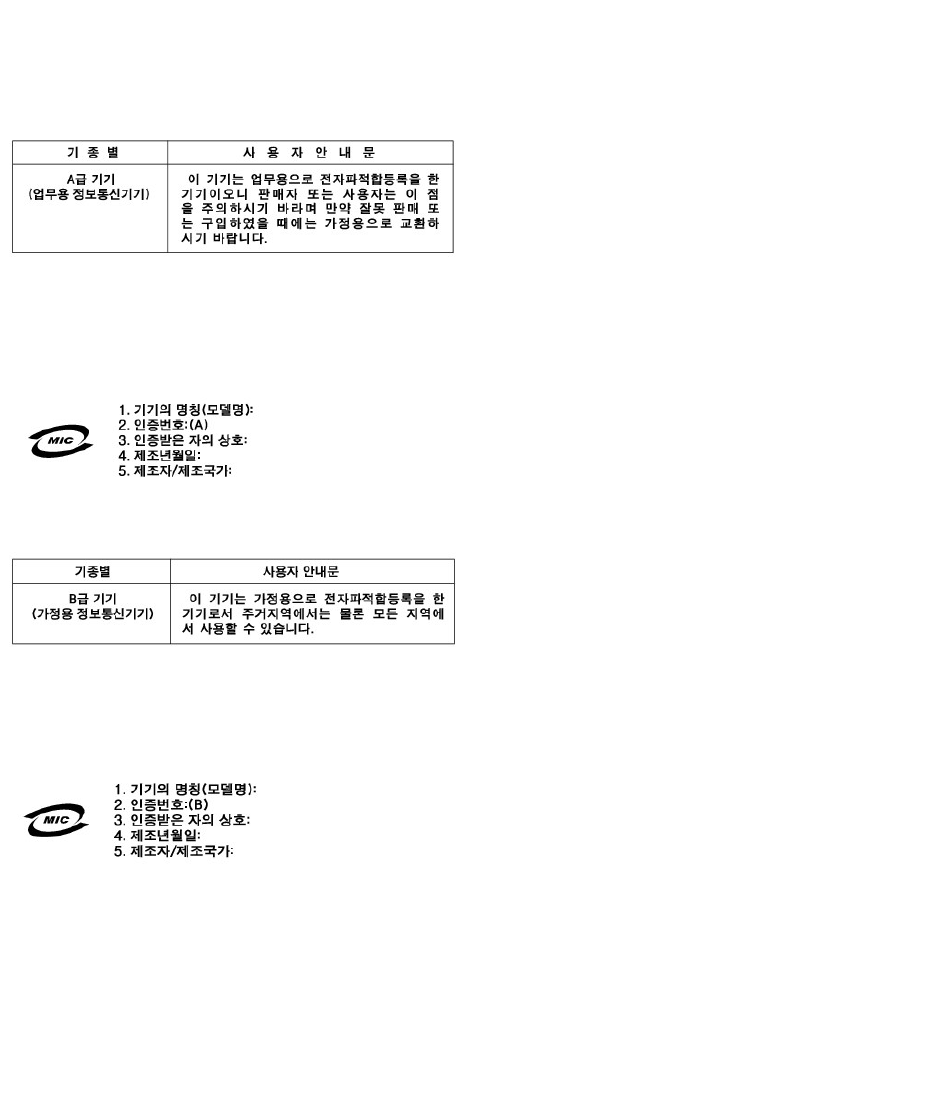
NOTE: MIC emissions requirements provide for two classifications:
lClass A devices are for business purposes.
lClass B devices are for nonbusiness purposes.
Class A Device
Please note that this device has been approved for business purposes with regard to electromagnetic interference. If you find that this device is not suitable
for your use, you may exchange it for a nonbusiness-purpose device.
MIC Class A Regulatory Label
If the regulatory label includes the following marking, your computer is a Class A product:
Class B Device
Please note that this device has been approved for nonbusiness purposes and may be used in any environment, including residential areas.
MIC Class B Regulatory Label
If the regulatory label includes the following marking, your computer is a Class B product.
Polish Center for Testing and Certification Notice
The equipment should draw power from a socket with an attached protection circuit (a three-prong socket). All equipment that works together (computer,
monitor, printer, and so on) should have the same power supply source.
The phasing conductor of the room's electrical installation should have a reserve short-circuit protection device in the form of a fuse with a nominal value no
larger than 16 amperes (A).
To completely switch off the equipment, the power supply cable must be removed from the power supply socket, which should be located near the equipment
and easily accessible.
A protection mark "B" confirms that the equipment is in compliance with the protection usage requirements of standards PN-93/T-42107 and PN-EN 55022:
1996.
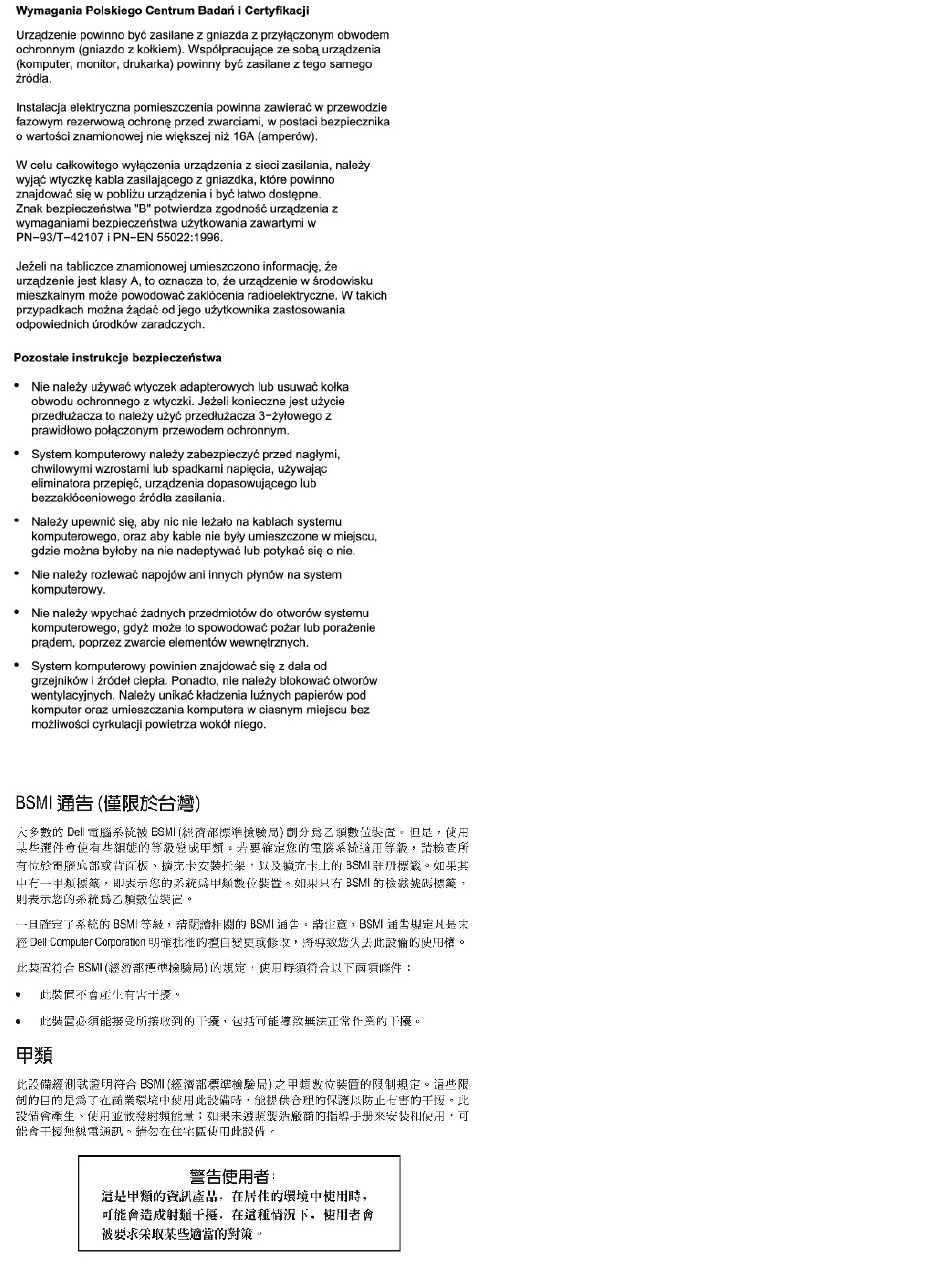
BSMI Notice (Taiwan Only)
NOM Information (Mexico Only)
The following information is provided on the device(s) described in this document in compliance with the requirements of the official Mexican standards (NOM):
Back to Contents Page
Exporter:
Dell Computer Corporation
One Dell Way
Round Rock, TX 78682
Importer:
DellComputerdeMéxico,
S.A.deC.V.
Paseo de la Reforma 2620 - 11°Piso
Col. Lomas Altas
11950México,D.F.
Ship to:
DellComputerdeMéxico,
S.A.deC.V.alCuidadodeKuehne&
NageldeMéxicoS.deR.I.
Avenida Soles No. 55
Col.PeñondelosBaños
15520México,D.F.
Model number:
WHM and WHL
Supply voltage:
115/230 VAC
Frequency:
60–50 Hz
Input current rating:
6.0/3.0 A
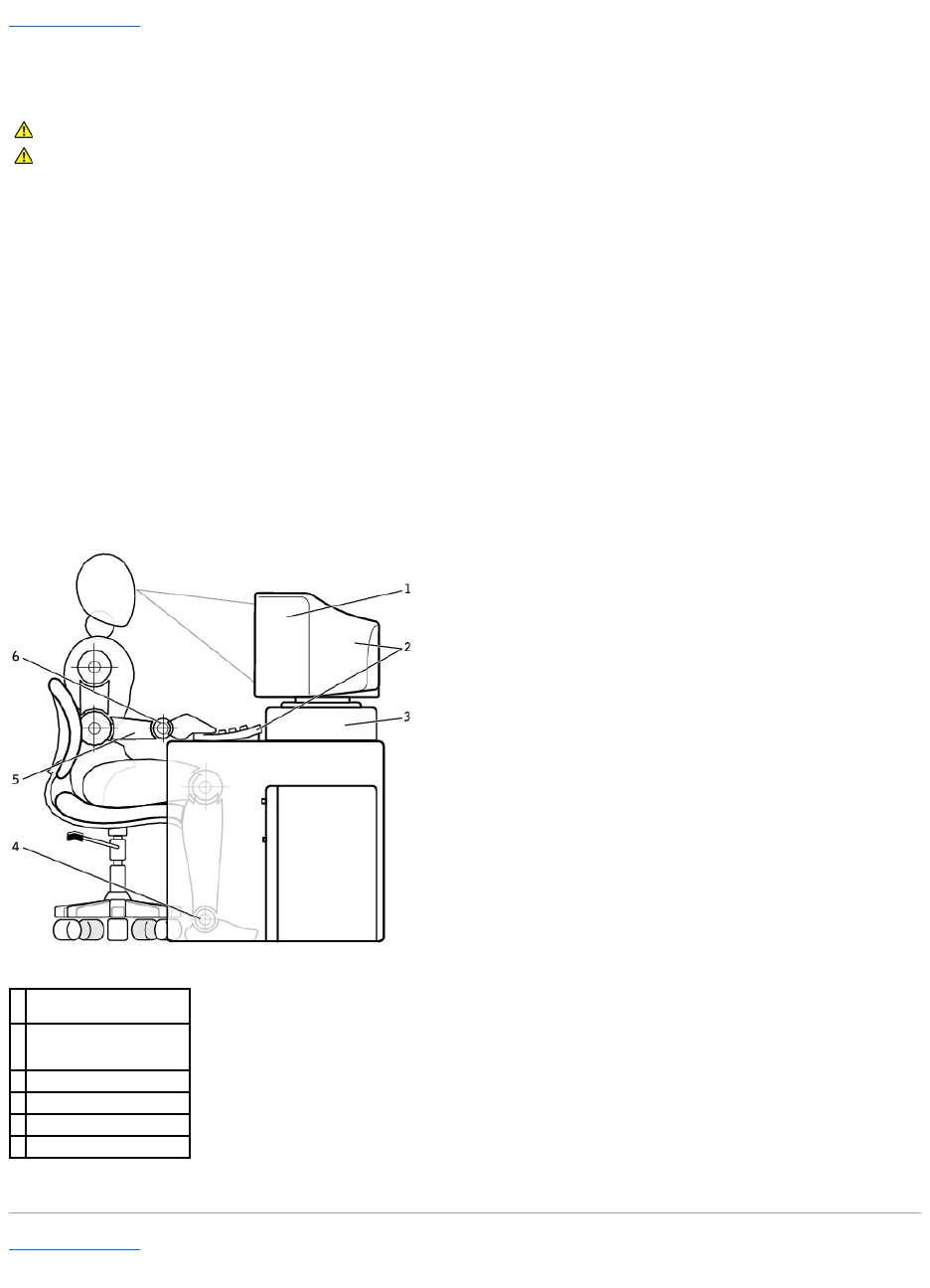
Back to Contents Page
Ergonomic Computing Habits
DellPrecision™Workstation450andDellPrecisionWorkstation650User'sGuide
For comfort and efficiency, observe the following ergonomic guidelines when setting up and using your computer:
lPosition your computer so that the monitor and keyboard are directly in front of you as you work. Special shelves are available (from Dell and other
sources) to help you correctly position your keyboard.
lSet the monitor at a comfortable viewing distance (usually 510 to 610 millimeters [20 to 24 inches] from your eyes).
lMake sure the monitor screen is at eye level or slightly lower when you are sitting in front of the monitor.
lAdjust the tilt of the monitor, its contrast and brightness settings, and the lighting around you (such as overhead lights, desk lamps, and the curtains or
blinds on nearby windows) to minimize reflections and glare on the monitor screen.
lUse a chair that provides good lower back support.
lKeep your forearms horizontal with your wrists in a neutral, comfortable position while using the keyboard or mouse.
lAlways leave space to rest your hands while using the keyboard or mouse.
lLet your upper arms hang naturally at your sides.
lSit erect, with your feet resting on the floor and your thighs level.
lWhen sitting, make sure the weight of your legs is on your feet and not on the front of your chair seat. Adjust your chair's height or use a footrest, if
necessary, to maintain proper posture.
lVary your work activities. Try to organize your work so that you do not have to type for extended periods of time. When you stop typing, try to do things
that use both hands.
Back to Contents Page
CAUTION: Improper or prolonged keyboard use may result in injury.
CAUTION: Viewing the monitor screen for extended periods of time may result in eye strain.
1
monitor screen at or below
eye level
2
monitor and keyboard
positioned directly in front
of the user
3
monitor stand
4
feet flat on the floor
5
arms at desk level
6
wristsrelaxedandflat


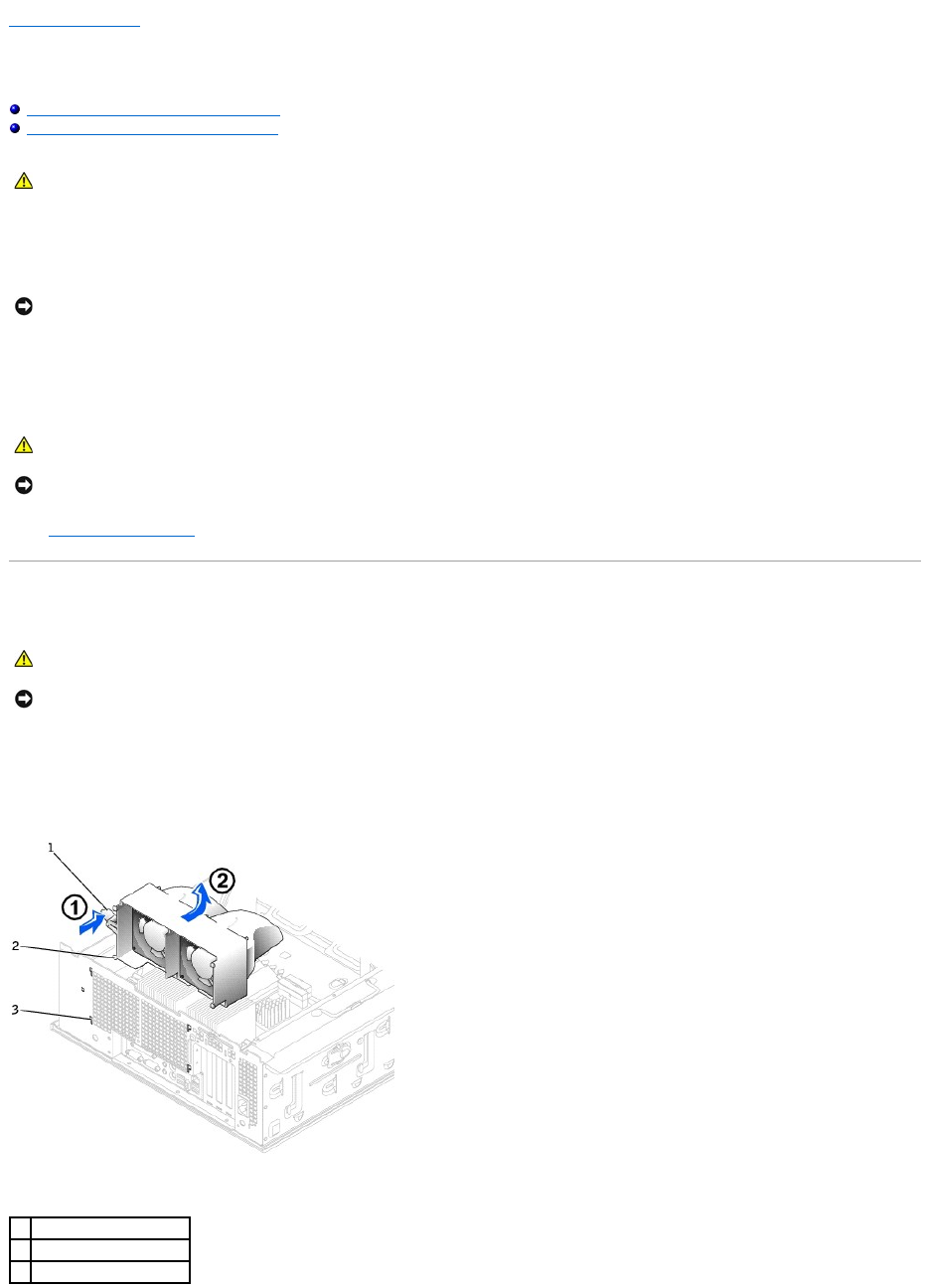
Back to Contents Page
Microprocessor Airflow Shroud
DellPrecision™Workstations450and650User'sGuide
Removing the Microprocessor Airflow Shroud
Installing the Microprocessor Airflow Shroud
1. Shut down the computer through the Start menu.
2. Ensure that your computer and attached devices are turned off. If your computer and attached devices did not automatically turn off when you shut
down your computer, turn them off now.
3. Disconnect any telephone or telecommunication lines from the computer.
4. Disconnect your computer and all attached devices from electrical outlets, and then press the power button to ground the system board.
5. If you have installed a padlock through the padlock ring on the back panel, remove the padlock.
6. Open the computer cover.
Removing the Microprocessor Airflow Shroud
1. Press the shroud release lever towards the front of the computer.
2. Lift the shroud up to disengage the anchors.
3. Once the shroud has been disengaged from the anchors, unplug the fan cables from their connectors on the system board.
CAUTION: Before you perform this procedure, follow the safety instructions in the System Information Guide.
NOTICE: To disconnect a network cable, first unplug the cable from your computer and then unplug it from the network wall jack.
CAUTION: To guard against electrical shock, always unplug your computer from the electrical outlet before opening the cover.
NOTICE: Before touching anything inside your computer, ground yourself by touching an unpainted metal surface, such as the metal at the back of the
computer. While you work, periodically touch an unpainted metal surface to dissipate any static electricity that could harm internal components.
CAUTION: Before you perform this procedure, follow the safety instructions in the System Information Guide.
NOTICE: To avoid damaging the fan power cables, do not slide the shroud too quickly.
1
shroud release lever
2
anchor tabs
3
anchor slots

Installing the Microprocessor Airflow Shroud
1. Attach both fan power cables to the connectors on the system board.
2. Align the anchor tabs with the securing slots.
3. Gently press the shroud until the anchor tabs snap securely into place.
4. Close the computer cover.
5. Connect your computer and devices to electrical outlets, and turn them on.
Back to Contents Page
NOTICE: To connect a network cable, first plug the cable into the network wall jack and then plug it into the computer.
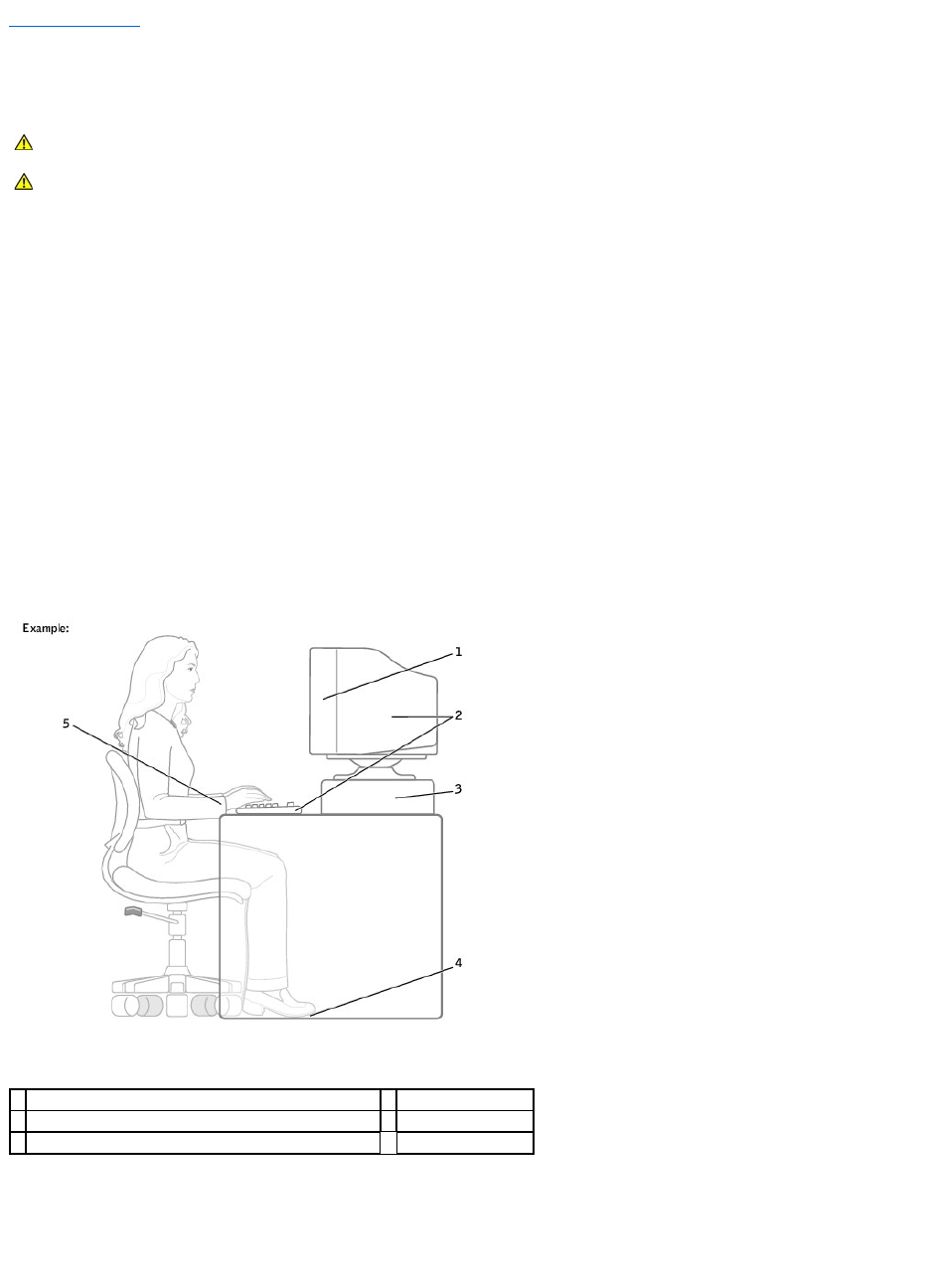
Back to Contents Page
Ergonomic Computing Habits
DellPrecision™Workstations450and650User'sGuide
For comfort and efficiency, observe the following ergonomic guidelines when setting up and using your computer workstation:
lPosition your computer so that the monitor and keyboard are directly in front of you as you work. Special shelves are commercially available to help you
correctly position your keyboard.
lSet the monitor at a comfortable viewing distance (usually 450 to 610 millimeters [18 to 24 inches] from your eyes).
lMake sure the monitor screen is at eye level or slightly lower when you are sitting in front of the monitor.
lAdjust the tilt of the monitor, its contrast and brightness settings, and the lighting around you (such as overhead lights, desk lamps, and the curtains or
blinds on nearby windows) to minimize reflections and glare on the monitor screen.
lUse a chair that provides good lower back support.
lKeep your forearms horizontal with your wrists in a neutral, comfortable position while using the keyboard or mouse.
lAlways leave space to rest your hands while using the keyboard or mouse.
lLet your upper arms hang naturally at your sides.
lEnsure that your feet are resting flat on the floor.
lWhen sitting, make sure the weight of your legs is on your feet and not on the front of your chair seat. Adjust your chair's height or use a footrest, if
necessary, to maintain proper posture.
lVary your work activities. Try to organize your work so that you do not have to type for extended periods of time. When you stop typing, try to do
things that use both hands.
For more information about ergonomic computing habits, see the BSR/HFES 100 standard, which can be purchased on the Human Factors and Ergonomics
Society (HFES) website at: www.hfes.org/publications/HFES100.html
References:
1. American National Standards Institute. ANSI/HFES 100: American National Standards for Human Factors Engineering of Visual Display Terminal Workstations.
Santa Monica, CA: Human Factors Society, Inc., 1988.
2. Human Factors and Ergonomics Society. BSR/HFES 100 Draft standard for trial use: Human Factors Engineering of Computer Workstations. Santa Monica, CA:
CAUTION: Improper or prolonged keyboard use may result in injury.
CAUTION: Viewing the monitor screen for extended periods of time may result in eye strain.
1
monitor screen at or below eye level
4
feet flat on the floor
2
monitor and keyboard positioned directly in front of the user
5
wrists relaxed and flat
3
monitor stand


Back to Contents Page
Glossary
DellPrecision™Workstations450and650User'sGuide
A B C D E F G H I K L M N P R S T U V W Z
A
AC — alternating current — The form of electricity that powers your computer when you plug the AC adapter power cable into an electrical outlet.
ACPI — advanced configuration and power interface — A power management specification that enables Microsoft®Windows®operating systems to put a
computer in standby or hibernate mode to conserve the amount of electrical power allocated to each device attached to the computer.
AGP — accelerated graphics port — A dedicated graphics port that allows system memory to be used for video-related tasks. AGP delivers a smooth, true-color
video image because of the faster interface between the video circuitry and the computer memory.
Antivirus software — A program designed to identify, quarantine, and/or delete viruses from your computer.
ASF — alert standards format — A standard to define a mechanism for reporting hardware and software alerts to a management console. ASF is designed to
be platform- and operating system-independent.
B
Backup — A copy of a program or data file on a floppy disk, CD, or hard drive. As a precaution, back up the data files from your hard drive regularly.
BIOS — basic input/output system — A program (or utility) that serves as an interface between the computer hardware and the operating system. Unless you
understand what effect the settings have on the computer, do not change the settings for this program. Also referred to as the system setup program.
Bit — The smallest unit of data interpreted by your computer.
Boot sequence — Specifies the order of the devices from which the computer attempts to boot.
Bootable CD — A CD that you can use to start your computer. In case your hard drive is damaged or your computer has a virus, ensure that you always have
a bootable CD or bootable disk available. Your Drivers and Utilities CD is a bootable CD.
Bootable disk — A disk that you can use to start your computer. In case your hard drive is damaged or your computer has a virus, ensure that you always
have a bootable disk or bootable CD available.
bps — bits per second — The standard unit for measuring data transmission speed.
BTU — British thermal unit — A measurement of heat output.
Bus — A communication pathway between the components in your computer.
Bus speed — The speed, given in MHz, that indicates how fast a bus can transfer information.
Byte — The basic data unit used by your computer. A byte is usually equal to 8 bits.
C
C — Celsius — Atemperaturemeasurementsystemwhere0°isthefreezingpointand100°istheboilingpointofwater.
Cache — A special high-speed storage mechanism which can be either a reserved section of main memory or an independent high-speed storage device. The
cache enhances the efficiency of many microprocessor operations.
L1 cache — Primary cache stored inside the microprocessor.
L2 cache — Secondary cache which can either be external to the microprocessor or incorporated into the microprocessor architecture.
CD — compact disc — An optical form of storage media, typically used for audio and software programs.
CD drive — A drive that uses optical technology to read data from CDs.
CD player — The software used to play music CDs. The CD player displays a window with buttons you use to play a CD.
CD-R — CD recordable — A recordable version of a CD. Data can be recorded only once onto a CD-R. Once recorded, the data cannot be erased or written
over.
CD-RW — CD rewritable — A rewritable version of a CD. Data can be written to a CD-RW, and then erased and written over (rewritten).
CD-RW drive — A drive that can read CDs and write to CD-RW (rewritable CDs) and CD-R (recordable CDs) discs. You can write to CD-RW discs multiple times,
but you can write to CD-R discs only once.
Clock speed — The speed, given in MHz, that indicates how fast computer components that are connected to the system bus operate.
COA — Certificate of Authenticity — The Windows alpha-numeric code located on a sticker on your computer. You may need the COA to complete the operating
system setup or reinstallation. Also referred to as the Product Key or Product ID.

Control Panel — A Windows utility that allows you to modify operating system and hardware settings, such as display settings.
Controller — A chip that controls the transfer of data between the microprocessor and memory or between the microprocessor and devices.
CRIMM — continuity rambus in-line memory module — A special module that has no memory chips and is used to fill unused RIMM slots.
Cursor — The marker on a display or screen that shows where the next keyboard or mouse action will occur. It often is a blinking solid line, an underline
character, or a small arrow.
D
DDR SDRAM — double-data-rate SDRAM — A type of SDRAM that doubles the data burst cycle, improving system performance.
Device — Hardware such as a disk drive, printer, or keyboard that is installed in or connected to your computer.
Device driver — See driver.
DIN connector — A round, six-pin connector that conforms to DIN (Deutsche Industrinorm) standards; it is typically used to connect PS/2 keyboard or mouse
cable connectors.
Disk striping — A technique for spreading data over multiple disk drives. Disk striping can speed up operations that retrieve data from disk storage.
Computers that use disk striping generally allow the user to select the data unit size or stripe width.
DMA — direct memory access — A channel that allows certain types of data transfer between RAM and a device to bypass the microprocessor.
DMTF — Distributed Management Task Force — A consortium of hardware and software companies who develop management standards for distributed
desktop, network, enterprise and Internet environments.
DRAM — dynamic random-access memory — Memory that stores information in integrated circuits containing capacitors.
Driver — Software that allows the operating system to control a device such as a printer. Many devices do not work properly if the correct driver is not
installed in the computer.
DSL — Digital Subscriber Line — A technology that provides a constant, high-speed Internet connection through an analog telephone line.
Dual display mode — A display setting that allows you to use a second monitor as an extension of your display. Also referred to as extended display mode.
DVD — digital versatile disc — A disc usually used to store movies. DVDs are double-sided, whereas CDs are single-sided. DVD drives read most CD media as
well.
DVD drive — A drive that uses optical technology to read data from DVDs and CDs.
DVD player — The software used to watch DVD movies. The DVD player displays a window with buttons that you use to watch a movie.
DVD+RW drive — A drive that can read DVDs and most CD media and write to DVD+RW (rewritable DVDs) discs.
DVI — digital video interface — A standard for digital transmission between a computer and a digital video display; the DVI adapter works through the
computer's integrated graphics.
E
ECC — error checking and correction — A type of memory that includes special circuitry for testing the accuracy of data as it passes in and out of memory.
ECP — extended capabilities port — A parallel connector design that provides improved bidirectional data transmission. Similar to EPP, it uses direct memory
access to transfer data and often improves performance.
EIDE — enhanced integrated device electronics — An improved version of the IDE interface for hard drives and CD drives.
EMI — electromagnetic interference — Electrical interference caused by electromagnetic radiation.
ENERGY STAR®— EPA requirements that decrease the overall consumption of electricity.
EPP — enhanced parallel port — A parallel connector design that provides bidirectional data transmission.
ESD — electrostatic discharge — A rapid discharge of static electricity. ESD can damage integrated circuits found in computer and communications equipment.
Expansion card — A circuit board that installs in an expansion slot on the computer's system board, expanding the capabilities of the computer. Examples
include video, modem, and sound cards.
Expansion slot — A connector on the computer's system board where you insert an expansion card, connecting it to the system bus.
Express Service Code — AnumericcodelocatedonastickeronyourDell™computer.UsetheExpressServiceCodewhencontactingDellforassistance.
Extended Display Mode — A display setting that allows you to use a second monitor as an extension of your display. Also referred to as dual display mode.
Extended PC Card — A PC card that extends beyond the edge of the PC card slot when installed.
F
F — Fahrenheit — Atemperaturemeasurementsystemwhere32°isthefreezingpointand212°istheboilingpointofwater.

FCC — Federal Communications Commission — A U.S. agency responsible for enforcing communications-related regulations that state how much radiation
computers and other electronic equipment can emit.
Floppy drive — A disk drive that can read and write to floppy disks.
Folder — A place to organize and group files on a disk or drive. Files in a folder can be viewed and ordered in various ways, such as alphabetically, by date,
and by size.
Format — The process that prepares a drive or disk for file storage. When a drive or disk is formatted, the existing information on it is lost.
FSB — front side bus — The data path and physical interface between the microprocessor and RAM.
FTP — file transfer protocol — A standard Internet protocol used to exchange files between computers connected to the Internet.
G
G — gravity — A measurement of weight and force.
GB — gigabyte — For memory, a gigabyte is a unit of data that equals 1024 MB (1,073,741,824 bytes); for storage, a gigabyte equals 16 Mb, or 1 billion bytes.
GHz — gigahertz — A measurement of frequency that equals one thousand million Hz, or one thousand MHz.
Graphics mode — A video mode that can be defined as x horizontal pixels by y vertical pixels by z colors. Graphics modes can display an unlimited variety of
shapes and fonts.
GUI — graphical user interface — Software that interacts with the user by means of menus, windows, and icons. Most programs that operate on the Microsoft
Windows operating systems are GUIs.
H
Hard drive — A drive that reads and writes data on a hard disk. The terms hard drive and hard disk are often used interchangeably.
Heat sink — A metal plate on some microprocessors that helps dissipate heat.
Hibernate mode — A power management mode that saves everything in memory to a reserved space on the hard drive and then turns off the computer.
When you restart the computer, the memory information that was saved to the hard drive is automatically restored.
HTML — hypertext markup language — A set of codes inserted into an Internet web page intended for display on an Internet browser.
HTTP — hypertext transfer protocol — A protocol for exchanging files between computers connected to the Internet.
Hz — hertz — A unit of frequency measurement that equals 1 cycle per second. Computers and electronic devices are often measured in kilohertz (kHz),
megahertz (MHz), gigahertz (GHz), or terahertz (THz).
I
IC — Industry Canada — The Canadian regulatory body responsible for regulating emissions from electronic equipment, much as the FCC does in the United
States.
IDE — integrated device electronics — An interface for mass storage devices in which the controller is integrated into the hard drive or CD drive.
IEEE 1394 — Institute of Electrical and Electronics Engineers, Inc. — A high-performance serial bus used to connect IEEE 1394-compatible devices, such as
digital cameras and DVD players, to the computer.
Integrated — Usually refers to components that are physically located on the computer's system board. Also referred to as built-in.
I/O — input/output — An operation or device that enters and extracts data from your computer. Keyboards and printers are I/O devices.
I/O address — An address in RAM that is associated with a specific device (such as a serial connector, parallel connector, or expansion slot) and allows the
microprocessor to communicate with that device.
IRQ — interrupt request — An electronic pathway assigned to a specific device so that the device can communicate with the microprocessor. Each device
connection must be assigned an IRQ. Although two devices can share the same IRQ assignment, you cannot operate both devices simultaneously.
ISP — Internet service provider — A company that allows you to access its host server to connect directly to the Internet, send and receive e-mail, and access
websites. The ISP typically provides you with a software package, user name, and access phone numbers for a fee.
K
Kb — kilobit — A unit of data that equals 1024 bytes. A measurement of the capacity of memory integrated circuits.
KB — kilobyte — A unit of data that equals 1024 bits but is often referred to as 1000 bytes.
kHz — kilohertz — A measurement of frequency that equals 1000 Hz.
L

LAN — local area network — A computer network covering a small area. A LAN usually is confined to a building or a few nearby buildings. A LAN can be
connected to another LAN over any distance via telephone lines and radio waves to form a wide area network (WAN).
LED — light-emitting diode — An electronic component that emits light to indicate the status of the computer.
Local bus — A data bus that provides a fast throughput for devices to the microprocessor.
LPT — Line print terminal — The designation for a parallel connection to a printer or other parallel device.
M
Mb — megabit — A measurement of memory chip capacity that equals 1024 KB.
Mbps — megabits per second — One million bits per second. This measurement is typically used for transmission speeds for networks and modems.
MB — megabyte — A measurement of data storage that equals 1,048,576 bytes. 1 MB equals 1024 KB. When used to refer to hard drive storage, the term is
often rounded to mean 1,000,000 bytes.
MB/sec — megabytes per second — One million bytes per second. This measurement is typically used for data transfer ratings.
Memory — A temporary data storage area inside your computer. Because the data in memory is not permanent, Dell recommends that you frequently save
your files while you are working on them, and always save your files before you shut down the computer. Your computer can contain several different forms of
memory, such as RAM, ROM, and video memory. Frequently, the word memory is used as a synonym for RAM.
Memory address — A specific location where data is temporarily stored in RAM.
Memory mapping — The process by which the computer assigns memory addresses to physical locations at start-up. Devices and software can then identify
information that the microprocessor can access.
MHz — megahertz — A measure of frequency that equals 1 million cycles per second. The speeds for computer microprocessors, buses, and interfaces are
typically measured in MHz.
Microprocessor — A computer chip that interprets and executes program instructions. Sometimes the microprocessor is referred to as the processor or the
CPU (central processing unit).
Modem — A device that allows your computer to communicate with other computers over analog telephone lines. Three types of modems include: external, PC
Card, and internal. You typically use your modem to connect to the Internet and exchange e-mail.
Monitor — The high-resolution TV-like device that displays your computer's output.
Mouse — A pointing device that controls the movement of the cursor on your screen. Typically you roll the mouse along a hard, flat surface to move the pointer
or cursor on your screen.
ms — millisecond — A measure of time that equals one thousandth of a second. Access times of storage devices are often measured in ms.
N
Network adapter — A chip that provides network capabilities. A computer may include a network adapter on its system board or it may contain a PC Card with
an adapter on it. A network adapter is also referred to as a NIC (network interface controller).
NIC — See network adapter.
Notification area — The section of the Windows taskbar that contains icons for providing quick access to programs and computer functions, such as the clock,
volume control, and print status. Also referred to as system tray.
ns — nanosecond — A measure of time that equals one billionth of a second.
NVRAM — nonvolatile random access memory — A type of memory that stores data when the computer is turned off or loses its external power source. NVRAM
is used for maintaining computer configuration information such as date, time, and other system setup options that you can set.
P
Parallel connector — An I/O port often used to connect a parallel printer to your computer. Also referred to as an LPT port.
Partition — A physical storage area on a hard drive that is assigned to one or more logical storage areas known as logical drives. Each partition can contain
multiple logical drives.
PCI — peripheral component interconnect — PCI is a local bus that supports 32- and 64-bit data paths, providing a high-speed data path between the
microprocessor and devices such as video, drives, and networks.
PIO — programmed input/output — A method of transferring data between two devices through the microprocessor as part of the data path.
Pixel — A single point on a display screen arranged in rows and columns to create an image. A video resolution, such as 800 x 600, is expressed as the
number of pixels across by the number of pixels up and down.
Plug-and-Play — The ability of the computer to automatically configure devices. Plug and Play provides automatic installation, configuration, and compatibility
with existing hardware if the BIOS, operating system, and all devices are Plug and Play compliant.
POST — power-on self-test — Diagnostics programs, loaded automatically by the BIOS, that perform basic tests on the major computer components, such as
memory, hard drives, and video. If no problems are detected during POST, the computer continues the start-up.

Program — Any software that processes data for you, including spreadsheet, word processor, database, and game packages. Programs require an operating
system to run.
PS/2 — personal system/2 — A type of connector for attaching a PS/2-compatible keyboard, mouse, or keypad.
PXE — pre-boot execution environment — A WfM (Wired for Management) standard that allows networked computers that do not have an operating system to
be configured and started remotely.
R
RAID — redundant array of independent disks — A system of two or more drives working together for performance and fault tolerance. RAID drives are
typically used on servers and high-end PCs.
The three most common RAID levels are 0, 3, and 5:
lLevel 0: Provides data striping but no redundancy. Level 0 improves performance but does not provide fault tolerance.
lLevel 3: Same as Level 0, but also reserves one dedicated drive for error correction data, providing good performance and some level of fault
tolerance.
lLevel 5: Provides data striping at the byte level and also stripe error correction information, resulting in excellent performance and good fault
tolerance.
RAM — random-access memory — The primary temporary storage area for program instructions and data. Any information stored in RAM is lost when you turn
off your computer.
Readme file — A text file included with a software package or hardware product. Typically, readme files provide installation information and describe new
product enhancements or corrections that have not yet been documented.
Read-Only — Data and/or files you can view but cannot edit or delete. A file can have read-only status if:
lIt resides on a physically write-protected floppy disk.
lIt is located on a network in a directory and the system administrator has assigned rights only to specific individuals.
Refresh rate — The frequency, measured in Hz, at which your screen's horizontal lines are recharged (sometimes also referred to as its vertical frequency).
The higher the refresh rate, the less video flicker can be seen by the human eye.
Resolution — The sharpness and clarity of an image produced by a printer or displayed on a monitor. The higher the resolution, the sharper the image.
RFI — radio frequency interference — Interference that is generated at typical radio frequencies, in the range of 10 kHz to 100,000 MHz. Radio frequencies are
at the lower end of the electromagnetic frequency spectrum and are more likely to have interference than the higher frequency radiations such as infrared and
light.
ROM — read-only memory — Memory that stores data and programs that cannot be deleted or written to by the computer. ROM, unlike RAM, retains its
contents after you turn off your computer. Some programs essential to the operation of your computer reside in ROM.
RPM — revolutions per minute — The number of rotations that occur per minute.
RTC — real time clock — Battery-powered clock on the system board that keeps the date and time after you turn off the computer.
RTCRST — real time clock reset — A jumper on the system board that can often be used for troubleshooting problems.
S
ScanDisk — A Microsoft utility that checks files, folders, and the hard drive's surface for errors. ScanDisk often runs after a lockup occurs.
SDRAM — synchronous dynamic random-access memory — A type of DRAM that is synchronized with the optimal clock speed of the microprocessor.
Serial connector — An I/O port often used to connect devices such as a handheld digital device or digital camera to your computer.
Service tag — A bar code label on your computer that identifies your computer when you access Dell Support at support.dell.com or when you call Dell for
customer or technical support.
Setup program — A program that is used to install and configure hardware and software. The setup.exe or install.exe program comes with most Windows
software packages. Setup program differs from system setup program.
Shortcut — An icon that provides quick access to frequently used programs, files, folders, and drives. When you place a shortcut on your Windows desktop
and double-click the icon, you can open its corresponding folder or file without having to find it first. Shortcut icons do not change the location of files. If you
delete a shortcut, the original file is not affected. Also, you can rename a shortcut icon.
Shutdown — The process of closing windows and programs, exiting the operating system, and turning off your computer. You can lose data if you turn off your
computer before completing a shutdown.
Software — Anything that can be stored electronically, such as computer files or programs.
Standby mode — A power management mode that shuts down all unnecessary computer operations to save energy.
Surge protectors — Prevents voltage spikes, such as those that may occur during an electrical storm, from entering the computer through the electrical outlet.
They do not protect against lightning strikes or against brownouts, which occur when the voltage drops more than 20 percent below the normal AC line
voltage level.
Network connections cannot be protected by surge protectors. Always disconnect the network cable from the network connector during electrical storms.
System board — The main circuit board in your computer. Also known as the motherboard.
System setup program — A utility that serves as an interface between the computer hardware and the operating system. System setup allows you to
configure user-selectable options in the BIOS such as date and time or system password. Unless you understand what effect the settings have on the

computer, do not change the settings for this program.
System tray — The section of the Windows taskbar that contains icons for providing quick access to programs and computer functions, such as the clock,
volume control, and print status. Also referred to as notification area.
T
TAPI — telephony application programming interface — Enables Microsoft Windows program applications to operate with a wide variety of telephony devices,
including voice, data, fax, video, and so on.
Text editor — A program used to create and edit files that contain only text; for example, Windows Notepad uses a text editor. Text editors do not usually
provide word wrap or formatting functionality (the option to underline, change fonts, and so on).
U
UPS — uninterruptible power supply — A backup power source used when the electrical power fails or drops to an unacceptable voltage level. A UPS keeps a
computer running for a limited amount of time when there is no electrical power. UPS systems typically provide surge suppression and may also provide
voltage regulation. Small UPS systems provide battery power for a few minutes to enable you to shut down your computer.
USB — universal serial bus — A hardware interface for a low-speed device such as a USB-compatible keyboard, mouse, joystick, scanner, set of speakers, or
printer. Devices are plugged directly into a 4-pin socket on your computer or into a multi-port hub that plugs into your computer. USB devices can be connected
and disconnected while the computer is turned on, and they can also be daisy-chained together.
UTP — unshielded twisted pair — a type of cable that consists of two unshielded wires twisted around each other. These cables are used for LANs and
telephone connections.
V
Video controller — The circuitry on a video card or on the system board (in computers with an integrated video controller) that provides the video
capabilities—in combination with the monitor—for your computer.
Video memory — Memory that consists of memory chips dedicated to video functions. Video memory is usually faster than system memory. The amount of
video memory installed primarily influences the number of colors that a program can display.
Video mode — A mode that describes how text and graphics are displayed on a monitor. Graphics-based software, such as the Windows operating system,
displays in video modes that can be defined as x horizontal pixels by y vertical pixels by z colors. Character-based software, such as text editors, displays in
video modes that can be defined as x columns by y rows of characters.
Video resolution — See resolution.
Virus — A program that is designed to inconvenience you or to destroy data stored on your computer. A virus program moves from one computer to another
via an infected disk, software downloaded from the Internet, or e-mail attachments. When an infected program starts, its embedded virus also starts.
A common type of virus is a boot virus, which is stored in the boot sectors of a floppy disk. If the floppy disk is left in the drive when the computer is shut down
and then turned on, the computer is infected when it reads the boot sectors of the floppy disk expecting to find the operating system. If the computer is
infected, the boot virus may replicate itself onto all of the floppy disks that are read or written in that computer until the virus is eradicated.
V — volt — The measurement of electric potential or electromotive force. One V appears across a resistance of 1 ohm when a current of 1 ampere flows
through that resistance.
W
W — watt — The measurement of electrical power. One W is 1 ampere of current flowing at 1 volt.
WHr — watt-hour — A unit of measure commonly used to indicate the approximate capacity of a battery. For example, a 66 WHr battery can supply 66 W of
power for 1 hour or 33 W for 2 hours.
Wallpaper — The background pattern or picture on the Windows desktop. Change your wallpaper through the Windows Control Panel. You can also scan in
your favorite picture and make it wallpaper.
Write-Protected — Files or media that cannot be changed. Use write-protection when you want to protect data from being changed or destroyed. To write-
protect a 3.5-inch floppy disk, slide its write-protect tab to the open position.
Z
ZIF — zero insertion force — A type of socket or connector that allows a computer chip to be installed or removed with no stress applied to either the chip or
its socket.
Zip — A popular data compression format. Files that have been compressed with the Zip format are called Zip files and usually have a filename extension
of .zip. A special kind of zipped file is a self-extracting file, which has a filename extension of .exe. You can unzip a self-extracting file by double-clicking it.
Zip drive — A high-capacity floppy drive developed by Iomega Corporation that uses 3.5-inch removable disks called Zip disks. Zip disks are slightly larger than
regular floppy disks, about twice as thick, and they hold up to 100 MB of data.
Back to Contents Page
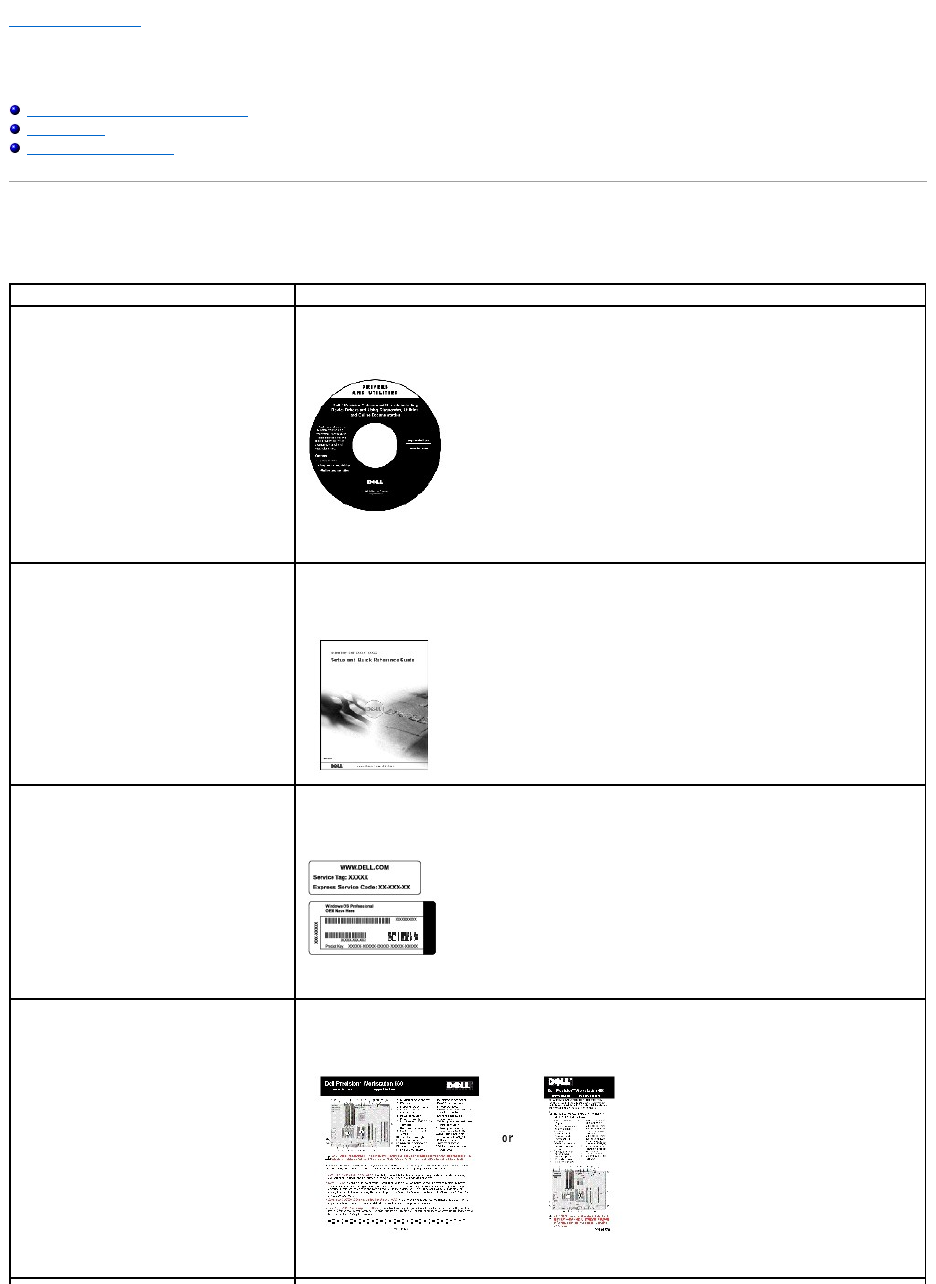
Back to Contents Page
Information About Your Computer
DellPrecision™Workstations450and650User'sGuide
Finding Information for Your Computer
Specifications
Caring for Your Computer
Finding Information for Your Computer
What Are You Looking For?
Find it Here
lA diagnostic program for my computer
lDrivers for my computer
lMy User's Guide
lMy device documentation
Drivers and Utilities CD (also know as the ResourceCD)
You can use this CD to access documentation, reinstall drivers, or run diagnostics tools.
lHow to set up my computer
lHow to care for my computer
lTroubleshooting information
lHow to open my computer cover
lHow to locate other documentation
Setup and Quick Reference Guide
lExpress Service Code and Service Tag
Number
lMicrosoft®Windows®License Label
Express Service Code and Product Key
Located on your computer.
lSystem board connectors
lLocation of system board components
System Information Label
Located on the inside cover of your computer.
lHow to remove and replace parts
lTechnical specifications
lHow to configure system settings
lHow to troubleshoot and solve problems
User's Guide Icon (Microsoft Windows 2000)
Double-click the User's Guides icon on your desktop.
Windows XP Help and Support Center
1. Click the Start button, and click Help and Support.
2. Click User's Guide.
lWarranty Information
System Information Guide
lLatest drivers for my computer
lAnswers to technical service and
support questions
lOnline discussions with other users and
technical support
lDocumentation for my computer
including the Service Manual
Dell Support Website — support.dell.com
The Dell Support website provides several online tools, including:
lKnowledge Base — hints, tips, and online courses
lCustomer Forum — online discussion with other Dell customers
lUpgrades — upgrade information for components, such as memory, the hard drive, and the
operating system
lCustomer Care — contact information, order status, warranty, and repair information
lDownloads — drivers, patches, and software updates
lReference — computer documentation, product specifications, and white papers
lService call status and support history
lTop technical issues for my computer
lFrequently asked questions
lFile downloads
lDetails on my computer's configuration
lService contract for my computer
Dell Premier Support Website — premiersupport.dell.com
The Dell Premier Support website is customized for corporate, government, and education customers. This
site may not be available in all regions.
lHow to reinstall my operating system
Operating System CD and Installation Guide
After you reinstall your operating system, use the Drivers and Utilities CD to reinstall drivers for the devices
that came with your computer.
lHow to use Windows XP
lDocumentation for my computer and
devices
Windows XP Help and Support Center
1. Click the Start button, and then click Help and Support.
2. Type a word or phrase that describes your problem, and then click the arrow icon.
Specifications
3. Click the topic that describes your problem.
4. Follow the instructions shown on the screen.
NOTE: For help using Windows 2000, click the Start button and click Help.
Microprocessor
Microprocessor type
Intel®Xeon™
Level 1 (L1) cache
8 KB
Level 2 (L2) cache
512-KB
Memory
Type
PC2100 DDR
Memory connectors
four
Memory capacities
256-, 512-MB, and 1-GB non-ECC or ECC
Minimum memory
256 MB
Maximum memory
4 GB
BIOS address
F0000h
Computer Information
Chip set
Intel E7505
Data bus width
64 bits
Address bus width
32 bits
DMA channels
8
Interrupt levels
23
BIOS chip
4-Mb
Memory speed
266 MHz DDR (PC 2100 DDR)
NIC
Gigabit integrated network interface with ASF support
as defined by DMTF
Capable of 10/100/1000 communication
lGreen — A good connection exists between a
10-Mbps network and the computer.
lOrange — A good connection exists between a
100-Mbps network and the computer.
lYellow — A good connection exists between a
1 Gb (or 1000-Mbps) connection.
lOff — The computer is not detecting a physical
connection to the network.
SCSI controller
Dell Precision 650 computer — Integrated U320 SCSI
Dell Precision 450 computer — Optional add-in U320
SCSI
FSB clock
400- or 533-MHz data rate
Video
Type
Dell Precision 650 computer — AGP Pro 110 at
8x/4x/2x/1x (1.5 V) or PCI
Dell Precision 450 computer — AGP Pro 50 at
8x/4x/2x/1x (1.5 V) or PCI
Audio
Type
AC97, Sound Blaster emulation
Audio controller
Analog Devices Codec AD1981b
Stereo conversion
16-bit analog-to-digital; 20-bit digital-to-analog
Expansion Bus
Bus type
Dual PCI-X 1.0 (3.3 V only), PCI 2.2 (3.3 V/5.0 V)
AGP Pro 3.0 (1.5 V only)
Bus speed
PCI: 33 MHz; PCI-X: 66/100 MHz
AGP Pro: 66 MHz
Expansion-card connectors:
Dell Precision 650 computer — Three PCI-X
connectors, two PCI slots, and one AGP 8x Pro110
connector
Dell Precision 450 computer — One PCI-X connector,
two PCI slots, and one AGP 8x Pro50 connector
Drives
Externally accessible:
Dell Precision 650 computer
one 3.5-inch drive bay
three 5.25-inch drive bays
Dell Precision 450 computer
one 3.5-inch drive bay
two 5.25-inch drive bays
Internally accessible:
Dell Precision 650 computer
three bays for three 1-inch high or two 1.6-inch high
hard drives
NOTE: You can purchase a conversion bracket from
Dell that allows you to use a 5.25-inch drive bay as
an additional hard drive bay.
Dell Precision 450 computer
two bays for two 1-inch high or one 1.6-inch high
hard drives
Connectors
External connectors:
Serial
two 9-pin connectors; 16550-compatible
Parallel
one 25-hole connector (bidirectional)
IEEE 1394
Dell Precision 650 computer only — Two 6-pin serial
connectors
Video
15-hole connector (on add-in video card)
Network connector
RJ45 connector
PS/2 (keyboard and mouse)
6-pin mini-DIN connector
USB
two USB 2.0-compliant connectors on the front panel;
four USB 2.0-compliant connectors on the back panel
Audio
Dell Precision 650 computer— Three connectors for
line-in, line-out, and microphone on back panel; one
speaker/headphone and one microphone connector
on the front panel
Dell Precision 450 computer— Three connectors for
line-in, line-out, and microphone on back panel; one
speaker/headphone on the front panel
System Board Connectors:
Primary IDE channel
40-pin connector
Secondary IDE channel
40-pin connector
Floppy drive
34-pin connector
SCSI
68-pin connector (Dell Precision 650 computer only)
CD drive audio interface
4-pin connector
Telephony (TAPI)
4-pin connector
Fans (3)
3-pin connector
I/O panel
34-pin connector
USB/IEEE 1394
16-pin connector
Key Combinations
<F2>
starts embedded system setup (during start-up only)
<F12>
changes boot sequence (during start-up only)
<Ctrl><Alt><F10>
launches the utility partition (if installed) during
computer start-up
<Ctrl><Enter>
disables computer password at start-up (after correct
password is entered)
Controls and Lights
Power control
push button
Power light
green light; blinking green in sleep state; dual-color
for computer operations —green for power, yellow for
diagnostics
Hard-drive access light
green
Link integrity light (on integrated network connector)
green light for 10-Mb operation; orange light for 100-
Mb operation; yellow light for 1,000-Mb (1-Gb)
operation
Activity light (on integrated network connector)
yellow blinking light
Diagnostic lights
four lights located on the front panel
Power
DC power supply:
Wattage
Dell Precision 650 computer: 460 W
Dell Precision 450 computer: 360 W
Heat dissipation
Dell Precision 650 computer: 1000 BTU/hr
Dell Precision 450 computer: 910 BTU/hr
Voltage
90 to 135 V at 50/60 Hz; 180 to 265 V at 50/60 Hz
Backup battery
3-V CR2032 lithium coin cell
Physical
Dell Precision 650 computer
Height
49.1 cm (19.3 inches)
Width
22.2 cm (8.7 inches)
Depth
48.8 cm (19.2 inches)
Weight
19 kg (42 lbs)
Dell Precision 450 computer
Height
16.5–16.8 cm (6.5–6.6 inches)
Width
44.7 cm (17.6 inches)
Depth
44.5 cm (17.5 inches)
Weight
18.6 kg (41 lbs)
Supported monitor weight (in desktop
orientation)
45.4 kg (100 lbs)
Environmental
Temperature:
Operating
10°to35°C(50°to95°F)
NOTE: At35°C(95°F),themaximumoperating
altitude is 914 m (3000 ft).
Storage
–40°to65°C(–40°to149°F)
Relative humidity
20% to 80% (noncondensing)
Maximum vibration:
Operating
0.25 G at 3 to 200 Hz at 0.5 octave/min
Storage
0.5 G at 3 to 200 Hz at 1 octave/min
Maximum shock:
Operating
bottom half-sine pulse with a change in velocity of
50.8 cm/sec (20 inches/sec)
Storage
Dell Precision 650 comptuer:
nonoperating (half-sine pulse) 105 G, 2 ms
nonoperating (faired-square wave) 27 G with
a velocity change of 508 cm/sec (200
Caring for Your Computer
To help maintain your computer, follow these suggestions:
lTo avoid losing or corrupting data, never turn off your computer when the hard drive light is on.
lSchedule regular virus scans using virus software.
lManage hard drive space by periodically deleting unnecessary files and defragmenting the drive.
lBack up files on a regular basis.
lPeriodically clean your monitor screen, mouse, and keyboard (see "Cleaning Your Computer").
Back to Contents Page
inches/sec)
Dell Precision 450 computer:
nonoperating (half-sine pulse) 105 G, 2 ms
nonoperating (faired-square wave) 32 G wtih
a velocity change of 596 cm/sec (200
inches/sec)
Altitude:
Operating
–15 to 3048 m (–50 to 10,000 ft)
NOTE: At35°C(95°F),themaximumoperating
altitude is 914 m (3000 ft).
Storage
–15 to 10,600 m (–50 to 35,000 ft)
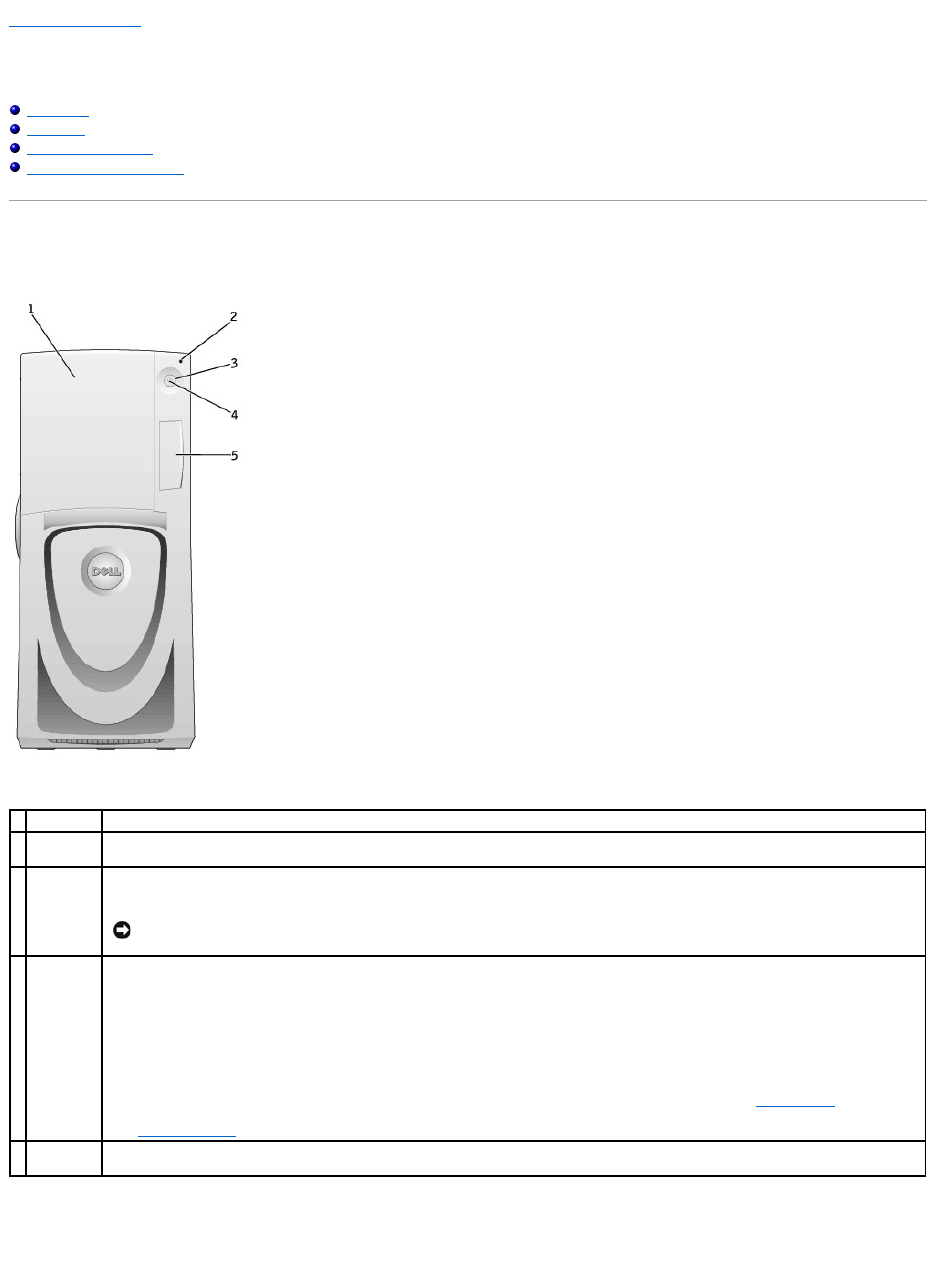
Back to Contents Page
About Your Computer—Dell Precision 650
DellPrecision™Workstations450and650User'sGuide
Front View
Back View
Inside Your Computer
System Board Components
Front View
Front View of the Computer (Doors Open)
1
drive door
Open the drive door to access the floppy and CD/DVD drives.
2
hard-drive
light
The hard-drive light is on when the computer reads data from or writes data to the hard drive. The light might also be on when a device such
as your CD player is operating.
3
power
button
Press this button to turn on the computer.
NOTICE: To avoid losing data, do not use the power button to turn off the computer. Instead, perform a Microsoft®Windows®
shutdown.
4
power light
The power light illuminates and blinks or remains solid to indicate the following different states:
No light — The computer is in the off state.
Steady green — The computer is in a normal operating state.
Blinking green — The computer is in a power-saving state.
To exit from a power-saving state, press the power button or use the keyboard or the mouse if it is configured as a wake device in the
Windows Device Manager. For more information about sleep states and exiting from a power-saving state, see "Power Button."
See "Diagnostic Lights" for a description of light codes that can help you troubleshoot problems with your computer.
5
front-panel
door
Open the door to use the front-panel connectors.
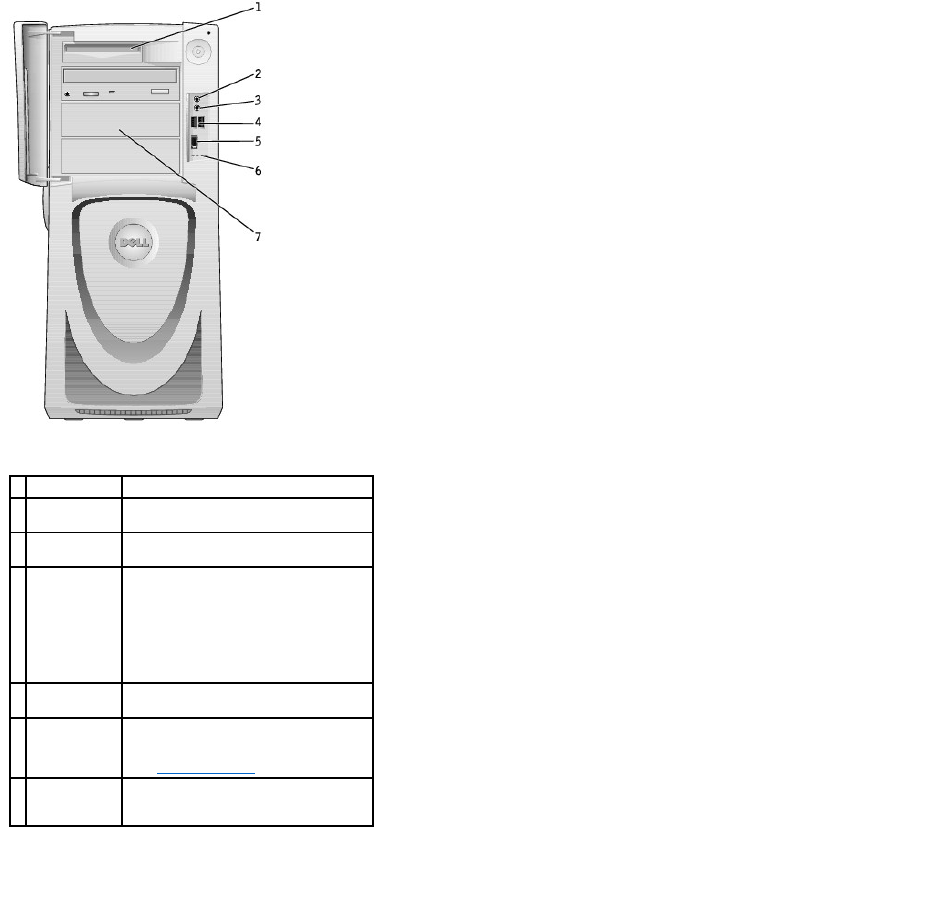
Opening the Drive Door
1
floppy drive
Access the floppy drive.
2
headphone
connector
Attach headphones.
3
microphone
connector
Attach microphone.
4
USB 2.0
connectors (2)
Use the front USB connectors for devices
that you connect occasionally, such as
joysticks or cameras.
It is recommended that you use the back
USB connectors for devices that typically
remain connected, such as printers and
keyboards.
5
IEEE 1394
connector
Attach high-speed serial multimedia
devices, such as a digital video camera.
6
diagnostic
lights (4)
Use the lights to help you troubleshoot a
computer problem based on the
diagnostic code. For more information,
see "Diagnostic Lights."
7
externally
accessible
drives
Access additional drives, such as a CD or
DVD drive. Drive arrangement varies on
computer configuration.
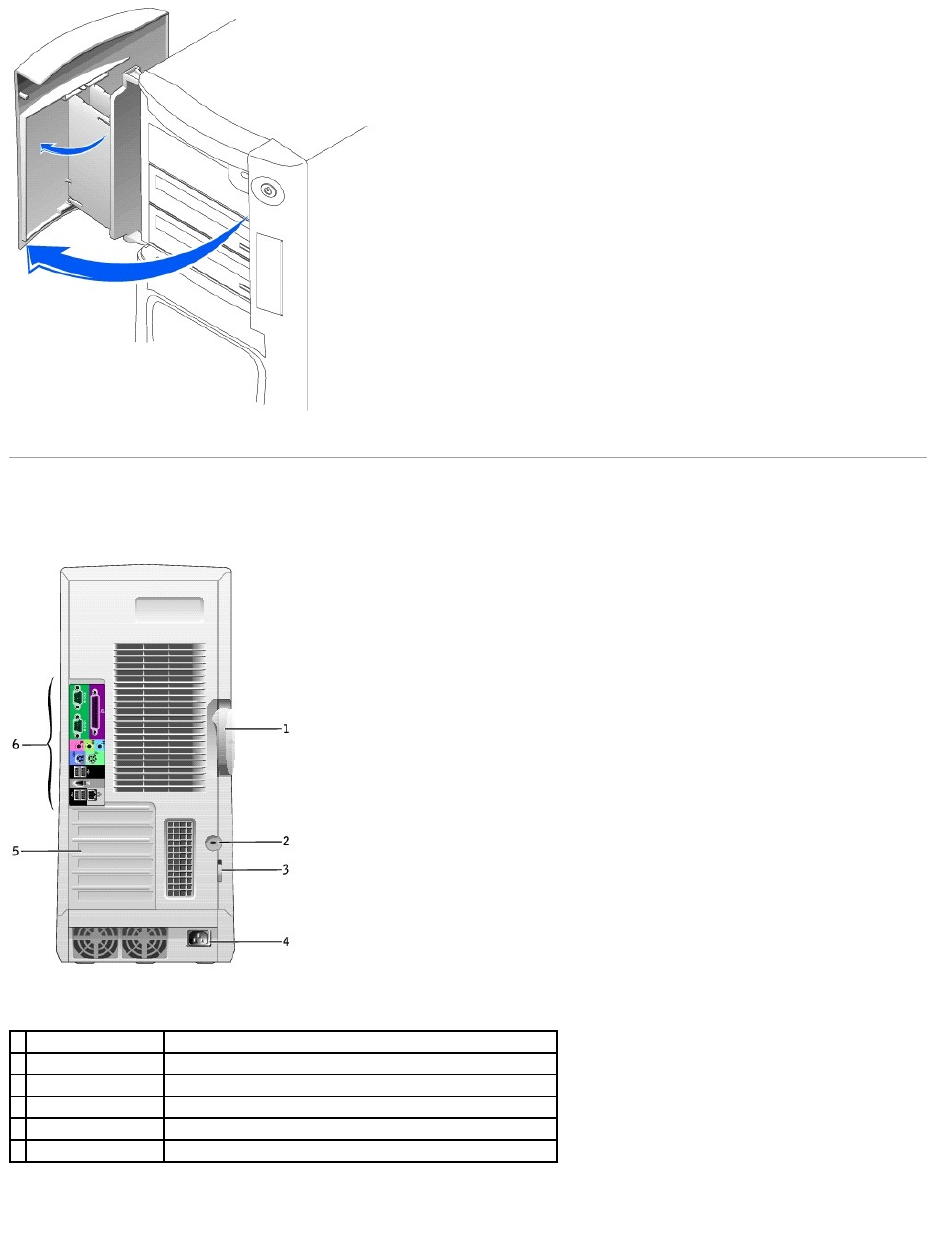
Back View
Back Panel Connectors
1
cover release latch
Push the latch to the left to open the computer cover.
2
security cable slot
Use a security cable with the slot to help secure your computer.
3
padlock ring
Insert a padlock to lock the computer cover.
4
power connector
Insert the power cable.
5
card slots (6)
Access connectors for any installed PCI and AGP cards.
6
back panel connectors
Plug serial, USB, and other devices into the appropriate connector.
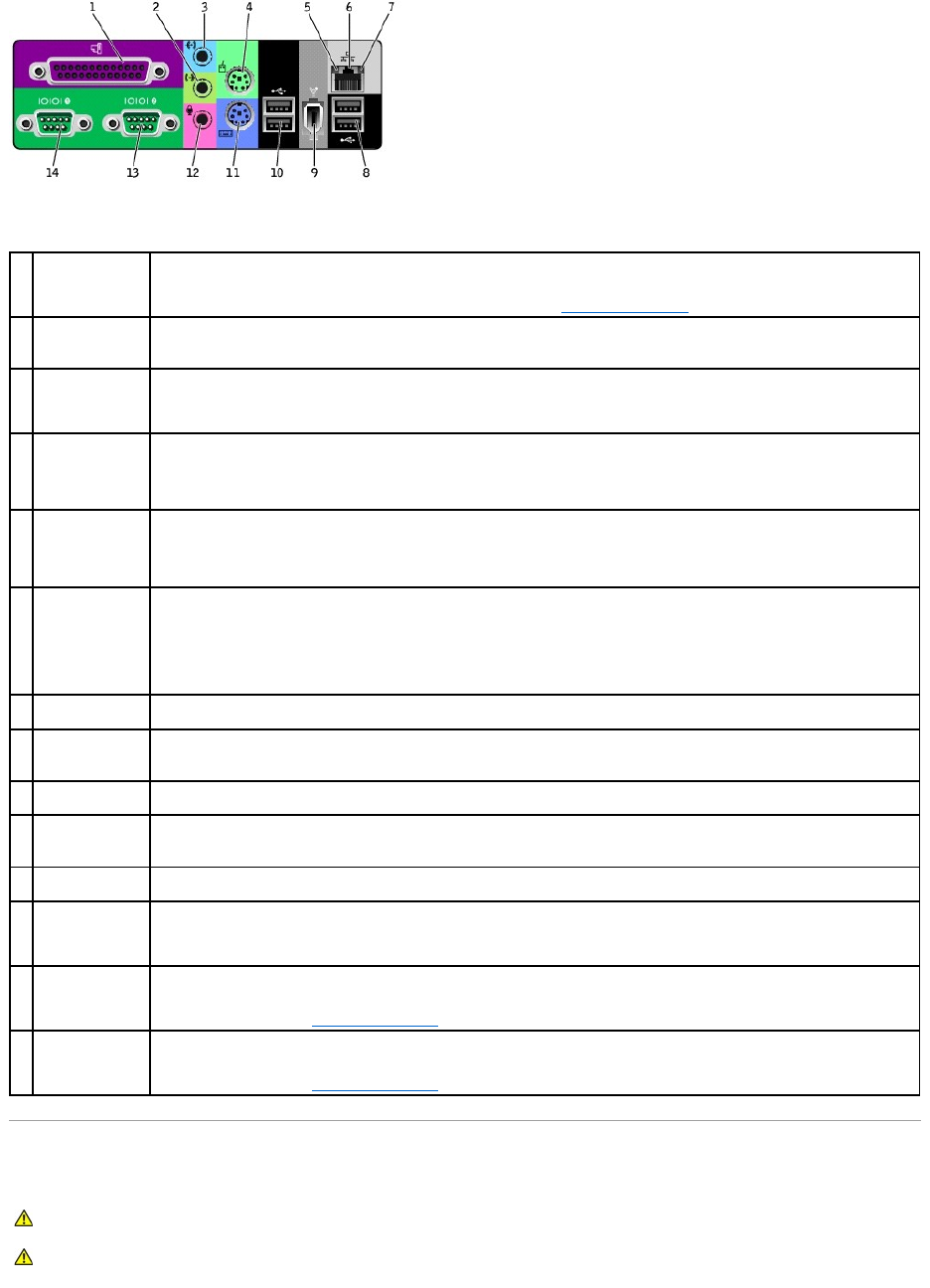
Inside Your Computer
1
parallel connector
Connect a parallel device, such as a printer, to the parallel connector. If you have a USB printer, plug it into a USB connector.
NOTE: The integrated parallel connector is automatically disabled if the computer detects an installed card containing a parallel
connector configured to the same address. For more information, see "System Setup Options."
2
line-out connector
Use the green line-out connector (available on computers with integrated sound) to attach headphones and speakers).
On computers with a sound card, use the connector on the card.
3
line-in connector
Use the blue line-in connector (available on computers with integrated sound) to attach a record/playback device such as a cassette
player, CD player, or VCR.
On computers with a sound card, use the connector on the card.
4
mouse connector
Plug a standard mouse into the green mouse connector. Turn off the computer and any attached devices before you connect a
mouse to the computer. If you have a USB mouse, plug it into a USB connector.
If your computer is running the Microsoft®Windows®2000 or Windows XP operating system, the necessary mouse drivers have
been installed on your hard drive.
5
link integrity light
lGreen — A good connection exists between a 10-Mbps network and the computer.
lOrange — A good connection exists between a 100-Mbps network and the computer.
lYellow — A good connection exists between a 1-Gbps (or 1000-Mbps) connection.
lOff — The computer is not detecting a physical connection to the network.
6
network connector
Attach the UTP cable to an RJ45 jack wall plate or to an RJ45 port on a UTP concentrator or hub and press the other end of the UTP
cable into the network connector until the cable snaps securely into place.
The use of Category 5 wiring and connectors is recommended for our customers' networks. If Category 3 wiring must be used, force
the network speed to 10 Mbps to ensure reliable operation.
On computers with a network connector card, use the connector on the card.
7
network activity
light
Flashes a yellow light when the computer is transmitting or receiving network data. A high volume of network traffic may make this
light appear to be in a steady "on" state.
8
USB 2.0
connectors (2)
Use the back USB connectors for devices that typically remain connected, such as printers and keyboards.
It is recommended that you use the front USB connectors for devices that you connect occasionally, such as joysticks or cameras.
9
IEEE 1394
connector
Attach high-speed serial multimedia devices.
10
USB 2.0
connectors (2)
Use the back USB connectors for devices that typically remain connected, such as printers and keyboards.
It is recommended that you use the front USB connectors for devices that you connect occasionally, such as joysticks or cameras.
11
keyboard
connector
If you have a standard keyboard, plug it into the purple keyboard connector. If you have a USB keyboard, plug it into a USB
connector.
12
microphone
connector
Use the pink microphone connector (available on computers with integrated sound) to attach a personal computer microphone for
voice or musical input into a sound or telephony program.
On computers with a sound card, use the microphone connector on the card.
13
serial connector
(COM 2)
Connect a serial device, such as a handheld device, to the serial port. The default designations are COM1 for serial connector 1 and
COM2 for serial connector 2.
For more information, see "System Setup Options."
14
serial connector
(COM 1)
Connect a serial device, such as a handheld device, to the serial port. The default designations are COM1 for serial connector 1 and
COM2 for serial connector 2.
For more information, see "System Setup Options."
CAUTION: Before you begin any of the procedures in this section, follow the safety instructions in the System Information Guide.
CAUTION: To avoid electrical shock, always unplug your computer from the electrical outlet before opening the cover.
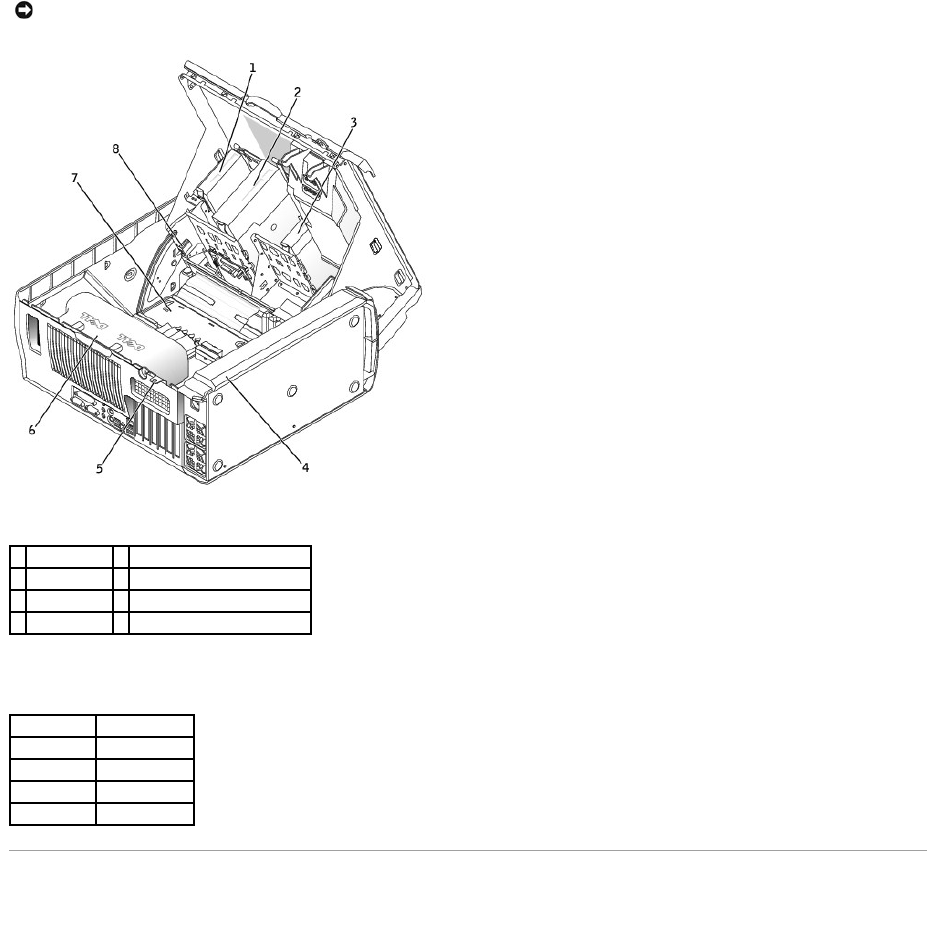
Cable Colors
System Board Components
NOTICE: Be careful when opening the computer cover to ensure that you do not accidentally disconnect cables from the system board.
1
floppy drive
5
padlock ring
2
CD/DVD drive
6
microprocessor airflow shroud
3
hard drive
7
system board
4
power supply
8
chassis intrusion switch
Device
Cable Color
Hard drive
Blue pull tab
Floppy drive
Black pull tab
CD/DVD drive
Orange pull tab
I/O panel
Yellow pull tab
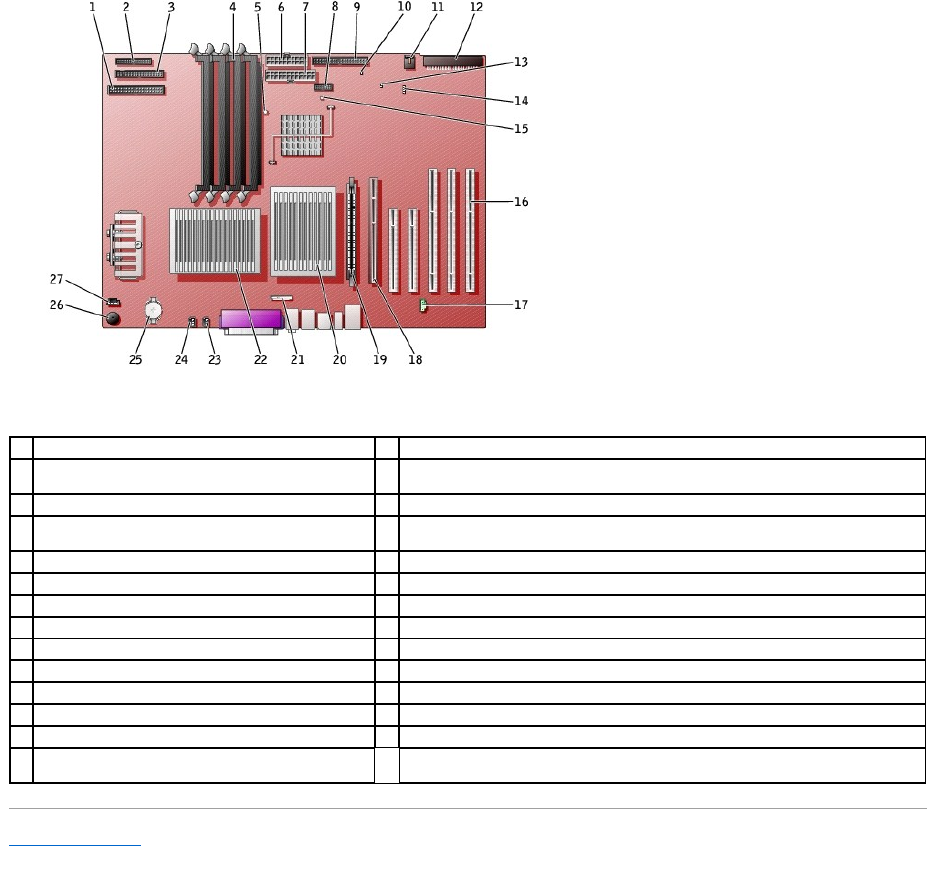
Back to Contents Page
1
CD/DVD drive connector (IDE2)
15
standby power light (AUX_PWR_LED)
2
I/O panel connector (I/O PANEL)
16
PCI card connectors (PCI1, PCI2 [32-bit connectors], PCI3 , PCI4, and PCI5 [64-bit PCI-X
connectors])
3
floppy-drive connector (DISKETTE)
17
telephony connector (MODEM)
4
memory module connectors (DIMM_1, DIMM_2, DIMM_3,
DIMM_4)
18
AGP card connector (AGP)
5
suspend-to-RAM light (STR_LED)
19
VRM connector (VRM)(for a second microprocessor only)
6
power connector (POWER 2)
20
microprocessor and heat-sink connector (CPU_1)
7
power connector (POWER 1)
21
front-panel audio connector (FP2AUDIO)
8
front-panel USB/IEEE 1394 connector (USB)
22
microprocessor and heat-sink connector (CPU_0)
9
hard-drive connector (IDE1)
23
microprocessor fan connector (FAN_P1)
10
real-time clock reset jumper (RTCRST)
24
microprocessor fan connector (FAN_P0)
11
card fan connector (FAN)
25
battery socket (BATTERY)
12
SCSI drive connector (SCSI)
26
internal speaker (SPKR)
13
password jumper (PSWD)
27
CD drive audio cable connector (CD_IN)
14
auxiliary LED add-in storage adapter connector
(AUX_LED)
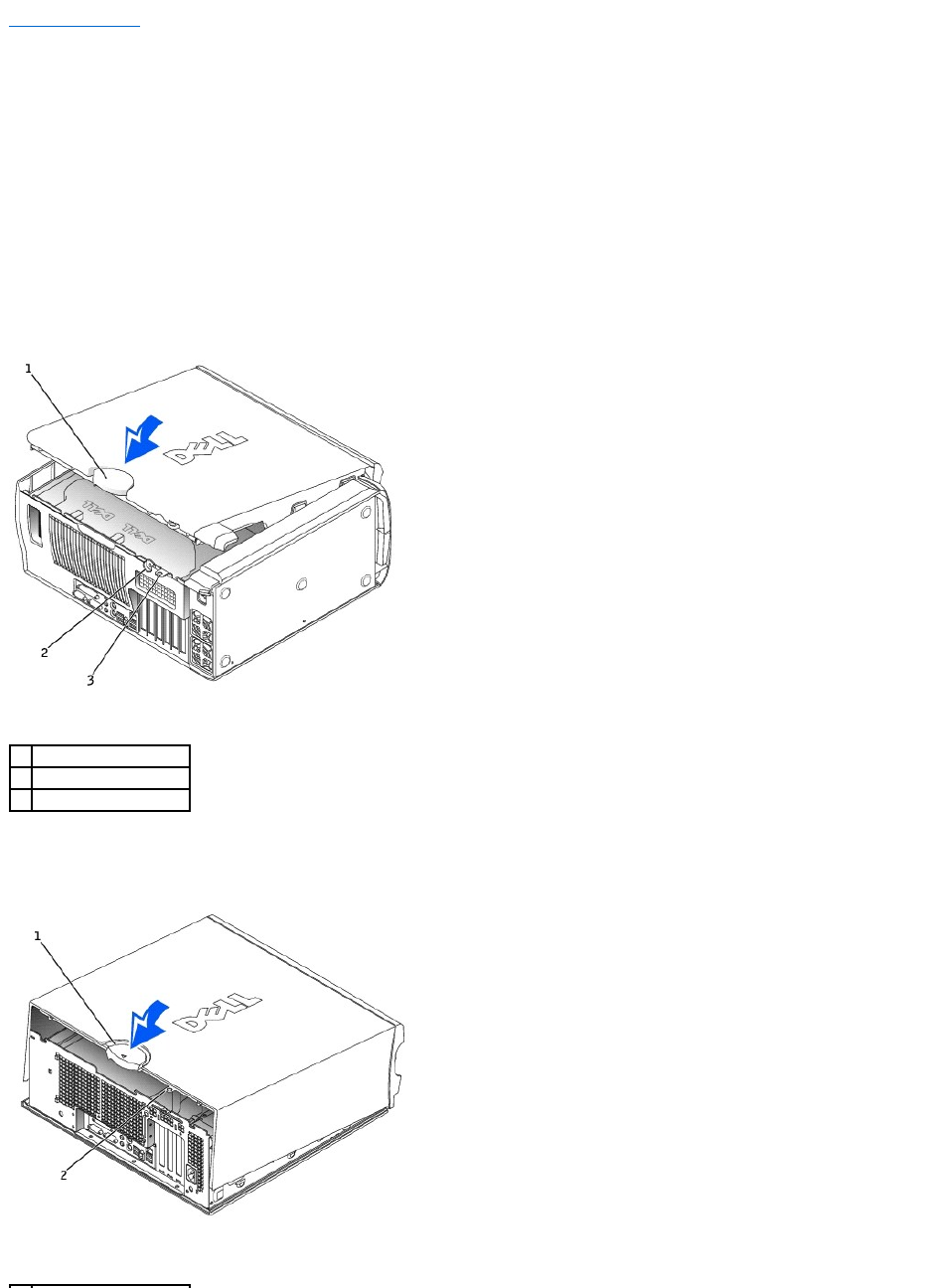
Back to Contents Page
Closing the Computer Cover
DellPrecision™Workstations450and650User'sGuide
1. Ensure that all cables are connected, and fold cables out of the way.
2. Ensure that no tools or extra parts are left inside the computer.
3. Close the computer cover:
a. Pivot the cover down and into position.
b. If your computer has a baffle, ensure that the baffle is correctly positioned by guiding it into place as you lower the cover.
c. Press down on the cover to close it.
d. Once the cover is closed, slide the release latch to the right until the latch clicks into place.
Dell Precision 650
Dell Precision 450
1
cover release latch
2
security cable slot
3
padlock ring

4. If you are using a padlock to secure your computer, install the padlock.
5. Connect your computer and devices to electrical outlets, and turn them on.
Back to Contents Page
1
cover release latch
2
padlock ring
NOTICE: To connect a network cable, first plug the cable into the network wall jack and then plug it into the computer.
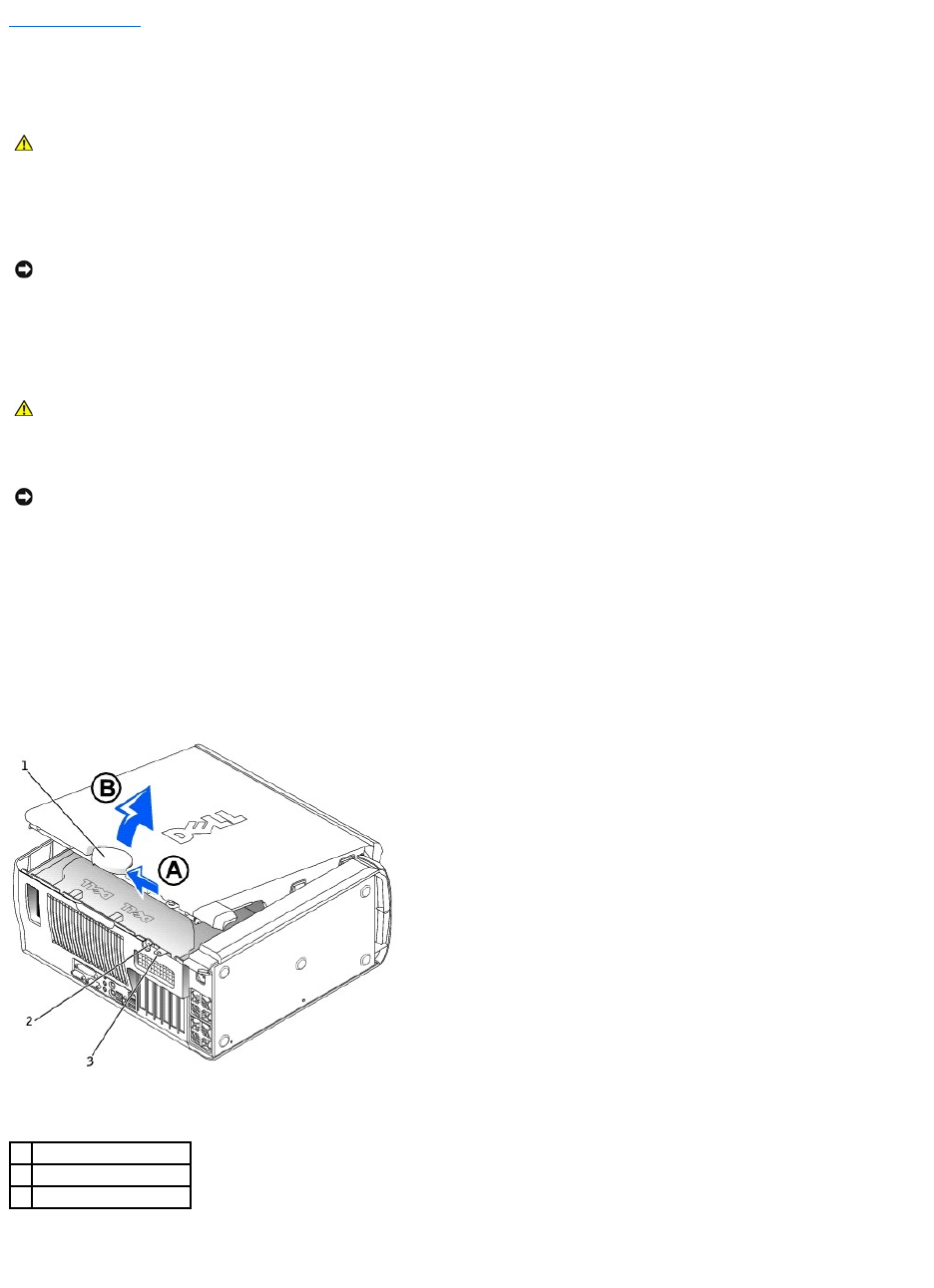
Back to Contents Page
Opening the Computer Cover
DellPrecision™Workstations450and650User'sGuide
1. Shut down the computer through the Start menu.
2. Ensure that your computer and attached devices are turned off. If your computer and attached devices did not automatically turn off when you shut
down your computer, turn them off now.
3. Disconnect any telephone or telecommunication lines from the computer.
4. Disconnect your computer and all attached devices from electrical outlets, and then press the power button to ground the system board.
5. If you have installed a padlock through the padlock ring on the back panel, remove the padlock.
6. Lay the computer on its side as shown in the illustration.
7. Open the computer cover:
a. Slide the cover release latch toward the top of the computer.
b. Raise the cover, and pivot it toward the front of the computer.
8. Ground yourself by touching an unpainted metal surface on the computer, such as the metal at the back of computer, before touching anything inside
your computer.
While you work, periodically touch any unpainted metal surface on the computer to dissipate any static electricity that could harm internal components.
Dell Precision 650
Dell Precision 450
CAUTION: Before you begin any of the procedures in this section, follow the safety instructions in the System Information Guide.
NOTICE: To disconnect a network cable, first unplug the cable from your computer and then unplug it from the network wall jack.
CAUTION: To guard against electrical shock, always unplug your computer from the electrical outlet before opening the cover.
NOTICE: Ensure that sufficient space exists to accommodate the open cover—at least 30 cm (1 ft) of desk top space.
1
cover release latch
2
security cable slot
3
padlock ring
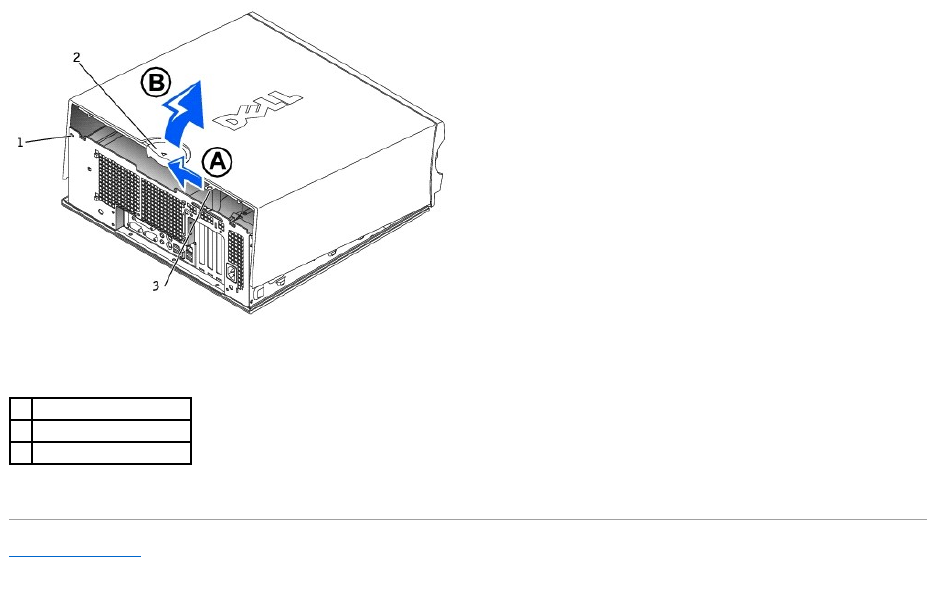
Back to Contents Page
Microprocessor
DellPrecision™Workstations450and650User'sGuide
Installation Guidelines
Installing the Microprocessor
Removing the Microprocessor
Installation Guidelines
lYour computer is designed for dual-processor operations. The heat sinks (CPU_0 and CPU_1) are keyed to fit their specific connector.
lFor single-processor operations, the processor must be installed in socket CPU_0. The VRM for the single processor is already installed and cannot be
removed. Processor socket 1 and VRM connector 1 must be empty. To locate these components, see the system board components illustration (for the
Dell Precision 450 computer, see "System Board Components" or for the Dell Precision 650 computer, see "System Board Components") or the system
board label inside your computer.
lFor dual-processor operations, both processor sockets and the VRM connector must be populated. To locate the VRM connector, see the system board
components illustration (for the Dell Precision 450 computer, see "System Board Components" or for the Dell Precision 650 computer, see "System Board
Components")or the system board label inside your computer.
lFor dual-processor operations, the two processors and the VRMs must be identical. If the processors do not match, you receive a system message. If
the processors voltage don't match or the VRM is not properly installed, the diagnostic lights indicate an error..
lIf you are upgrading your microprocessor, keep your original microprocessor heat sink and securing clips for future troubleshooting.
Installing the Microprocessor
1. Shut down the computer through the Start menu.
2. Ensure that your computer and attached devices are turned off. If your computer and attached devices did not automatically turn off when you shut
down your computer, turn them off now.
3. Disconnect any telephone or telecommunication lines from the computer.
4. Disconnect your computer and all attached devices from electrical outlets, and then press the power button to ground the system board.
5. If you have installed a padlock through the padlock ring on the back panel, remove the padlock.
6. Open the computer cover.
7. Remove the microprocessor airflow shroud (for the Dell Precision 650 computer, see "Microprocessor Airflow Shroud" or for the Dell Precision 450
computer, see "Microprocessor Airflow Shroud").
If you are replacing a microprocessor, see "Removing the Microprocessor."
8. If the release lever is not extended to the release position, move it to that position.
9. Align pin-1 (the imprinted corner) of the microprocessor and pin-1 of the socket.
10. Carefully set the microprocessor in the socket and press it down lightly to seat it.
11. Rotate the release lever back toward the system board until it snaps into place, securing the microprocessor.
CAUTION: The processor can get very hot during normal operation. Ensure that the processor has had sufficient time to cool before you touch it.
CAUTION: Before you perform this procedure, follow the safety instructions in the System Information Guide.
NOTICE: To disconnect a network cable, first unplug the cable from your computer and then unplug it from the network wall jack.
CAUTION: To guard against electrical shock, always unplug your computer from the electrical outlet before opening the cover.
NOTICE: Before touching anything inside your computer, ground yourself by touching an unpainted metal surface, such as the metal at the back of the
computer. While you work, periodically touch an unpainted metal surface to dissipate any static electricity that could harm internal components.
NOTICE: You must position the microprocessor correctly in the socket to avoid permanent damage to the microprocessor and the computer.
NOTICE: Microprocessor pins are delicate. To avoid damage, ensure that the microprocessor aligns properly with the socket, and do not use excessive
force when you install the processor.
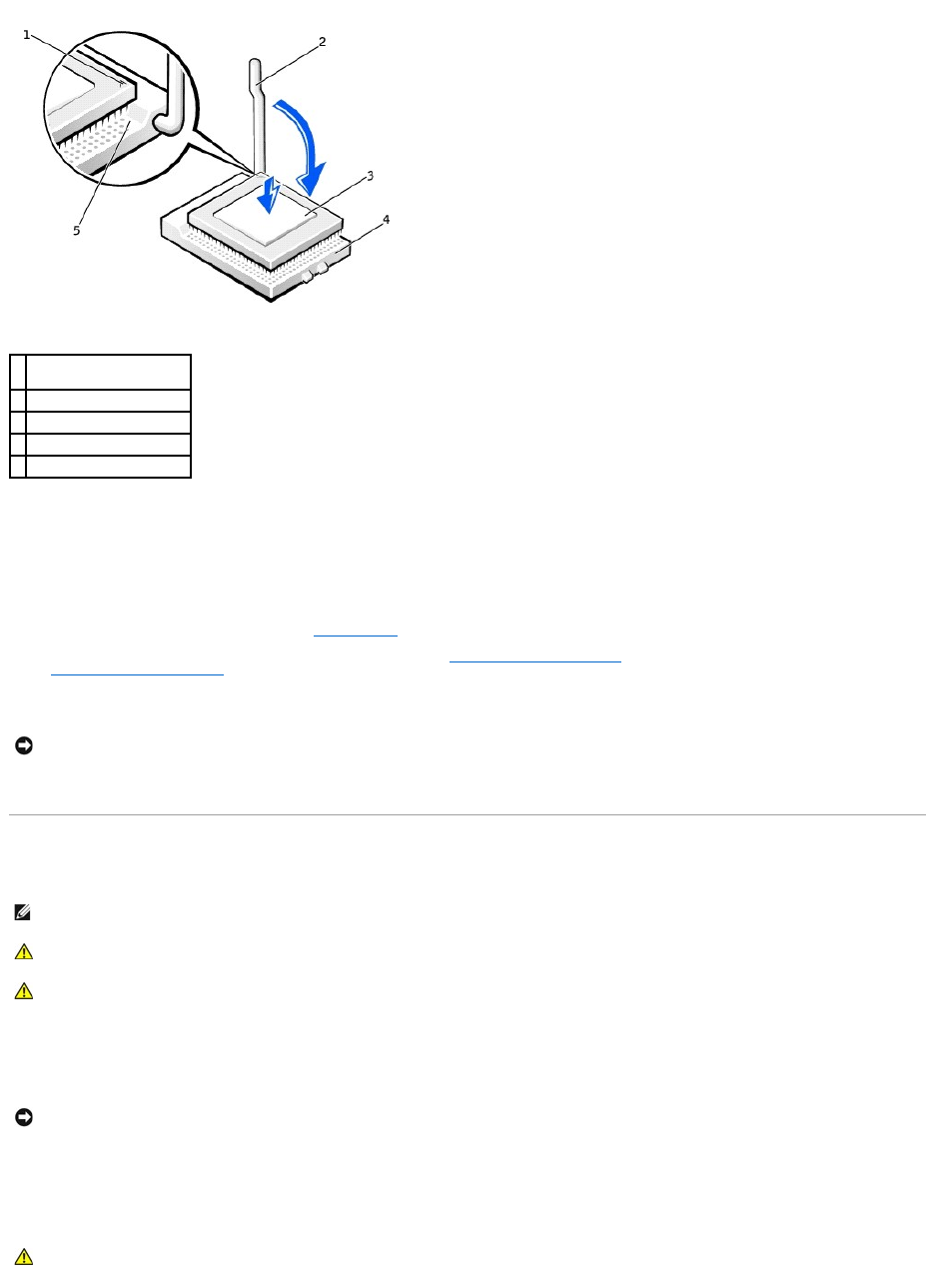
12. Remove the thermal grease protective cover and place the heat sink in the base.
13. Place one end of the heat sink under the tab on the retention module on the side opposite the lever. Lower the heat sink onto the microprocessor so
that the heat sink fits securely under the tab on the other end of the retention module.
14. Replace the retention module clips.
15. If you installed a microprocessor replacement kit from Dell, return the original heat sink assembly and microprocessor to Dell in the same package in
which your replacement kit was sent.
16. If you are installing a second microprocessor, install the VRM.
17. Replace the airflow shroud (for the Dell Precision 650 computer, see "Microprocessor Airflow Shroud" or for the Dell Precision 450 computer, see
"Microprocessor Airflow Shroud").
18. Close the computer cover.
19. Connect your computer and devices to electrical outlets, and turn them on.
Removing the Microprocessor
1. Shut down the computer through the Start menu.
2. Ensure that your computer and attached devices are turned off. If your computer and attached devices did not automatically turn off when you shut
down your computer, turn them off now.
3. Disconnect any telephone or telecommunication lines from the computer.
4. Disconnect your computer and all attached devices from electrical outlets, and then press the power button to ground the system board.
5. If you have installed a padlock through the padlock ring on the back panel, remove the padlock.
1
microprocessor pin-1
indicator
2
release lever
3
microprocessor
4
microprocessor socket
5
socket pin-1 indicator
NOTICE: To connect a network cable, first plug the cable into the network wall jack and then plug it into the computer.
NOTE: It is recommended that only a technically knowledgeable person perform this procedure.
CAUTION: The processor can get very hot during normal operation. Ensure that the processor has had sufficient time to cool before you touch it.
CAUTION: Before you perform this procedure, follow the safety instructions in the System Information Guide.
NOTICE: To disconnect a network cable, first unplug the cable from your computer and then unplug it from the network wall jack.
CAUTION: To guard against electrical shock, always unplug your computer from the electrical outlet before opening the cover.
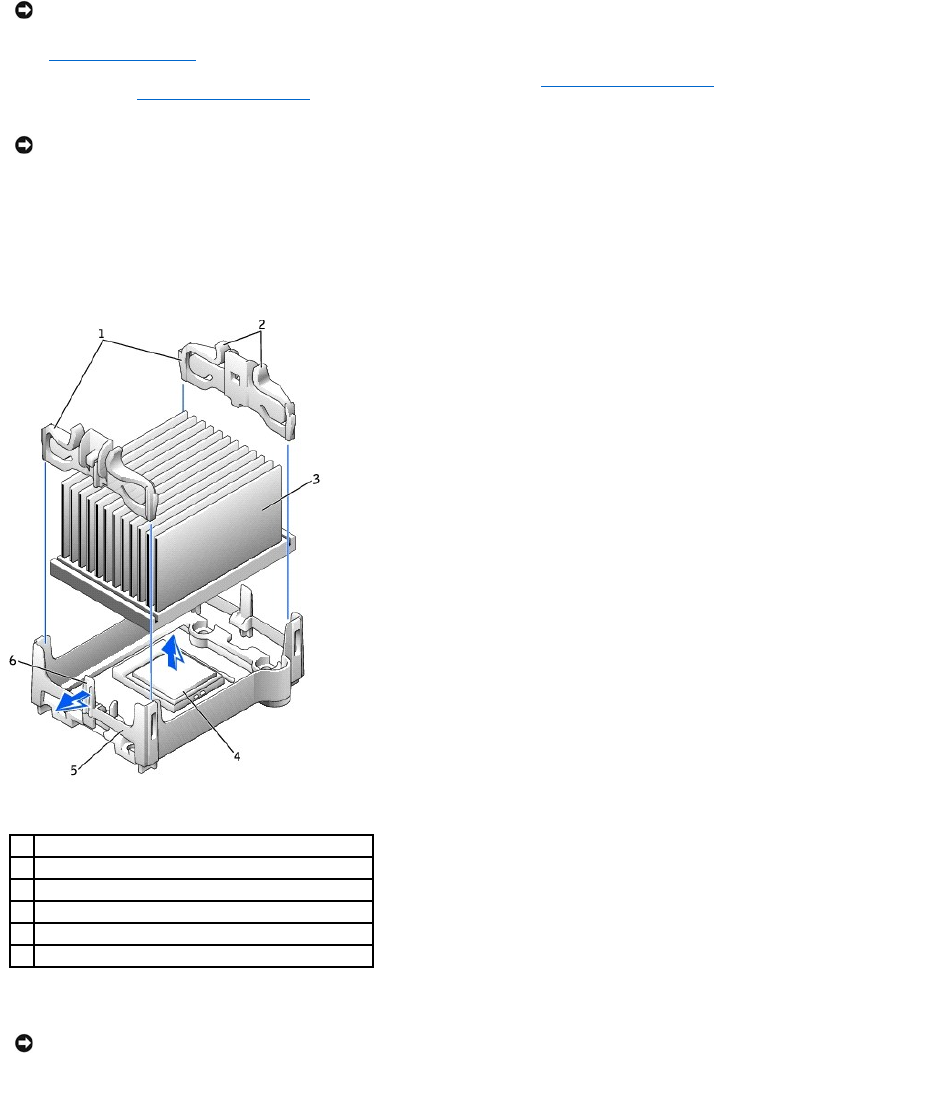
6. Open the computer cover.
7. Remove the microprocessor airflow shroud (for the Dell Precision 650 computer, see "Microprocessor Airflow Shroud" or for the Dell Precision 450
computer, see "Microprocessor Airflow Shroud").
8. Remove the microprocessor heat sink:
a. Remove the two retention module clips by pressing the tabs together and lifting the retention module clips up.
b. Press the lever on the retention module until the heat sink is released.
c. Gently lift the heat sink from the microprocessor.
9. Pull the release lever straight up until the microprocessor is released.
NOTICE: Before touching anything inside your computer, ground yourself by touching an unpainted metal surface, such as the metal at the back of the
computer. While you work, periodically touch an unpainted metal surface to dissipate any static electricity that could harm internal components.
NOTICE: If you are installing a microprocessor upgrade kit from Dell, discard the original heat sink. If you are not installing a microprocessor upgrade kit
from Dell, reuse the original heat sink when you install your new microprocessor.
1
retention module clips (2)
2
tabs (2 on each retention module clip)
3
heat sink
4
microprocessor socket
5
retention module
6
lever
NOTICE: Be careful not to bend any of the pins when you remove the microprocessor from the socket. Bending the pins can permanently damage the
microprocessor.
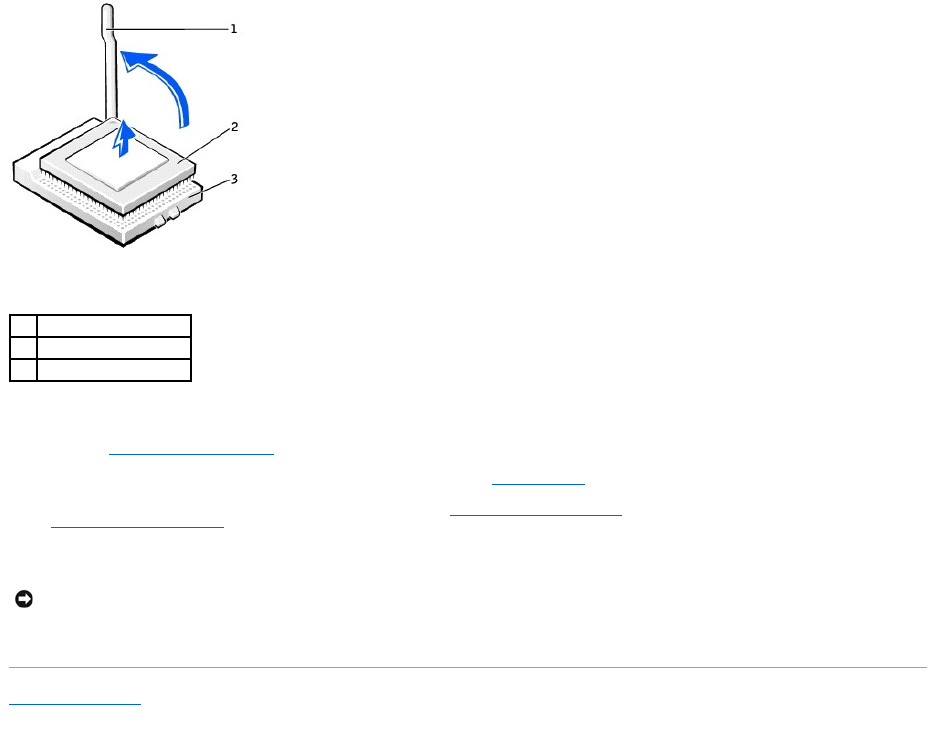
10. Remove the microprocessor from the socket.
If you are replacing the microprocessor, leave the release lever extended in the release position so that the socket is ready for the new microprocessor
and go to "Installing the Microprocessor."
If you are removing a second microprocessor and not installing another one, remove the VRM and then continue with step 9.
11. Replace the airflow shroud (for the Dell Precision 650 computer, see "Microprocessor Airflow Shroud" or for the Dell Precision 450 computer, see
"Microprocessor Airflow Shroud").
12. Close the computer cover.
13. Connect your computer and devices to electrical outlets, and turn them on.
Back to Contents Page
1
release lever
2
microprocessor
3
socket
NOTICE: To connect a network cable, first plug the cable into the network wall jack and then plug it into the computer.
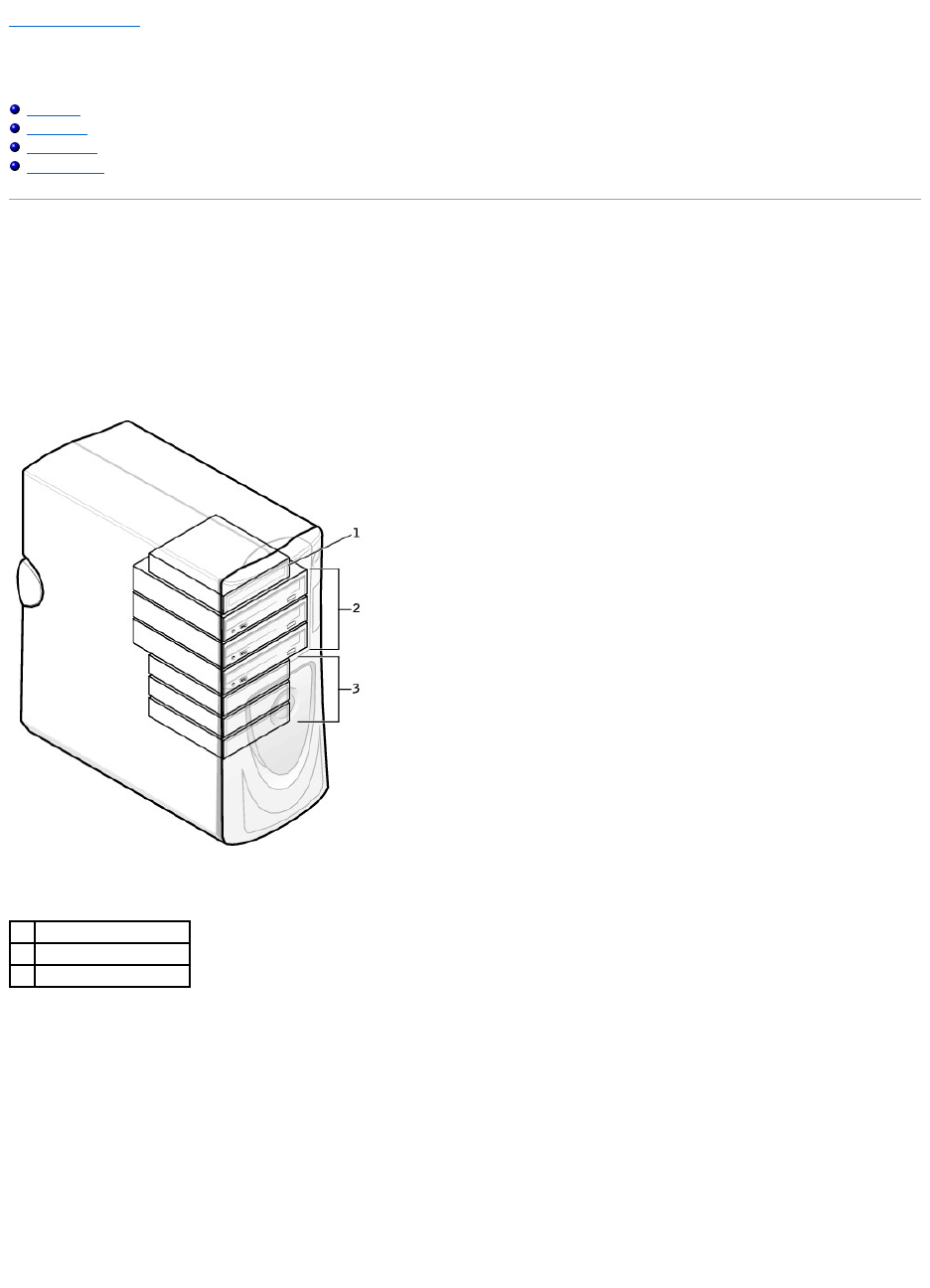
Back to Contents Page
Drives
DellPrecision™Workstations450and650User'sGuide
Overview
Hard Drive
Floppy Drive
CD/DVD Drive
Overview
Your computer supports:
lThree hard drives (Your computer supports IDE, Serial ATA, and SCSI.)
lOne floppy drive
lThree CD or DVD drives (One bay may be used for additional hard drive using an add-in bay bracket.)
IDE Drive Addressing
When you connect two IDE devices to a single IDE interface cable and configure them for the cable select setting, the device attached to the last connector on
the interface cable is the primary (master) or boot device (drive 0), and the device attached to the middle connector on the interface cable is the secondary
(slave) device (drive 1). See the drive documentation in your upgrade kit for information on configuring devices for the cable select setting.
Since cable select is the default setting, any additional drives that are installed do not need to be set as a primary or secondary drive.
Your computer supports up to two IDE devices. Hard drives should be connected to the connector labeled "IDE1," and CD/DVD drives should be connected to
the connector labeled "IDE2."
Connect serial ATA drives to the connectors labeled "SATA_0" or "SATA_1."
Connecting Drive Cables
When you install a drive, you connect two cables—a DC power cable and an interface cable—to the back of the drive.
1
floppy drive(s)
2
CD/DVD drive(s)
3
hard drive(s)
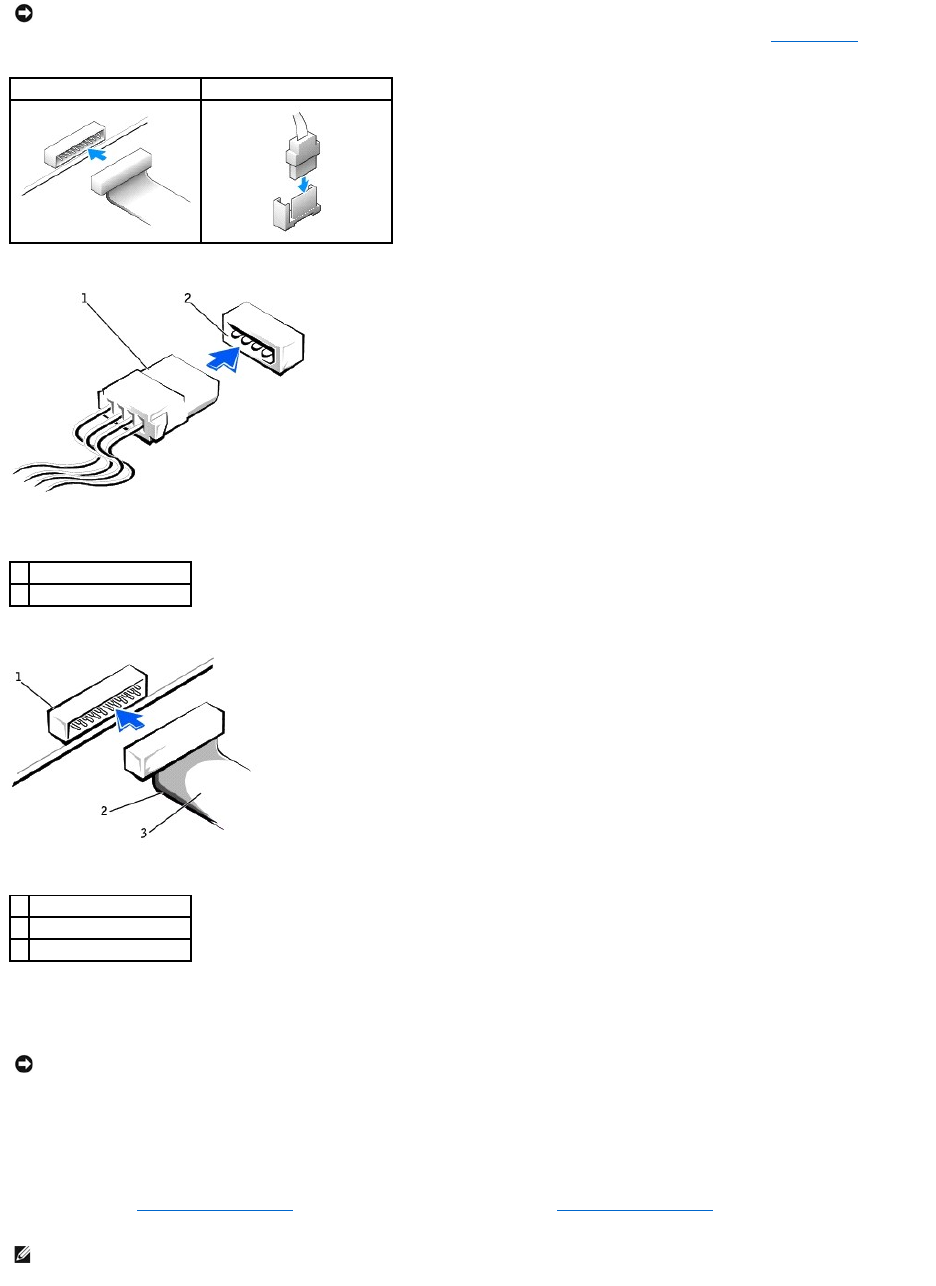
Most interface connectors are keyed for correct insertion; that is, a notch or a missing pin on one connector matches a tab or a filled-in hole on the other
connector. Keyed connectors ensure that the pin-1 wire in the cable (indicated by the colored stripe along one edge of the cable) goes to the pin-1 end of the
connector. The pin-1 end of a connector on a board or a card is usually indicated by a silk-screened "1" printed directly on the board or card.
SCSI Device Installation Guidelines
This section describes how to configure and install SCSI devices in your computer. To install a SCSI device, you can use one or both of the following SCSI
controllers:
lThe SCSI connector on the system board. To locate the SCSI system board connector, see the system board illustration (for the Dell Precision 450
computer, see "System Board Components" or for the Dell Precision 650 computer, see "System Board Components") or the interior service label.
NOTICE: If your system was purchased with a Serial ATA hard drive, the system includes the newer style Serial ATA style power connector. If you are
adding a Serial ATA hard drive to a system that was not originally equipped with one and the drive you are adding requires the new style Serial ATA
power connector, you may need to obtain a power adapter cable from Dell. If you need a Serial ATA power adapter cable, see Contacting Dell.
IDE Drive Connector
Serial ATA Connector
1
power cable
2
power input connector
1
interface connector
2
colored stripe on cable
3
interface cable
NOTICE: When you connect an interface cable, do not place the colored stripe away from pin 1 of the connector. Reversing the cable prevents the drive
from operating and could damage the controller, the drive, or both.
NOTE: The system board SCSI controller supports hard drives only. Do not connect CD or DVD drives, tape drives, DAT drives, and so on.

lA SCSI controller card installed in your computer.
SCSI ID Numbers
Internal SCSI devices must have a unique SCSI ID number from 0 to 15. If you are using the SCSI connector on the system board and a SCSI controller card
installed in your computer, you have two separate SCSI buses operating. Each SCSI bus has a set of SCSI ID numbers from 0 to 15.
When SCSI devices are shipped from the factory, the default SCSI ID numbers are assigned as follows:
SCSI devices installed by Dell are configured correctly during the manufacturing process. You do not need to set the SCSI ID for these SCSI devices.
If you attach additional optional SCSI devices, see the documentation for each device for information about setting the appropriate SCSI ID number.
Device Termination
SCSI logic requires that termination be enabled for the two devices at opposite ends of the SCSI chain and disabled for all devices in between.
It is recommended that you use terminated cables and that you disable termination on all devices. See the documentation provided with any optional SCSI
device you purchase for information on disabling termination on the device.
General Guidelines
Follow these general guidelines when installing SCSI devices in your computer:
lAlthough you install SCSI devices essentially the same way as other devices, their configuration requirements are different. For details on configuring
your particular SCSI subsystem, see the documentation for your SCSI devices and/or your host adapter card.
lConfigure the device for a SCSI ID number and disable termination, if necessary.
lTo use an external SCSI device, you must have a SCSI controller card installed in your computer. Connect one end of the external SCSI cable to the
connector on the back of the SCSI device. Attach the other end of the external SCSI cable to the connector on the controller card installed in the
computer.
lAfter you install a SCSI hard drive, Primary Drive 0 and Primary Drive 1 should be set to None in system setup if no EIDE hard drives are installed. If
you have any EIDE devices on the second EIDE channel, such as a CD or tape drive, Secondary Drive 0 and/or Secondary Drive 1 should be set to
Auto.
lYou may need to use programs other than those provided with the operating system to partition and format SCSI hard drives. See the documentation
that came with your SCSI software drivers for information on installing the appropriate drivers and preparing your SCSI hard drive for use.
SCSI Cables
Ultra 320, Ultra 160/m, and Ultra2/Wide LVD drives (typically hard drives) both use a 68-pin cable. One end of the cable attaches to the SCSI connector on the
system board or the SCSI controller card installed in your computer. The remaining connectors on the cable attach to the various drives.
Narrow SCSI drives (tape drives, CD drives, and some hard drives) use a 50-pin cable. One end of this cable attaches to the SCSI controller card. The
remaining connectors on the cable attach to the various Narrow SCSI devices.
Hard Drive
1. If you are replacing a hard drive that contains data you want to keep, back up your files before you begin this procedure.
2. Shut down the computer through the Start menu.
System Board Controller
Controller Card
Device
ID
Device
ID
Controller
7
Controller
7
Boot hard drive
0
Boot hard drive
0
CD or DVD drive
5
tape or DAT drive
6
NOTE: There is no requirement that SCSI ID numbers be assigned sequentially or that devices be attached to the cable in order by ID number. If two or
more devices use the same ID, your computer may hang during POST and in SCSI BIOS.
NOTICE: Dell recommends that you use only SCSI cables purchased from Dell. Cables purchased elsewhere are not guaranteed to work with Dell
computers.
NOTICE: Dell recommends that you use only SCSI cables purchased from Dell. Cables purchased elsewhere are not guaranteed to work with Dell
computers.
CAUTION: Before you begin any of the procedures in this section, follow the safety instructions in the System Information Guide.
NOTICE: To avoid damage to the drive, do not set it on a hard surface. Instead, set the drive on a surface, such as a foam pad, that will sufficiently
cushion it.
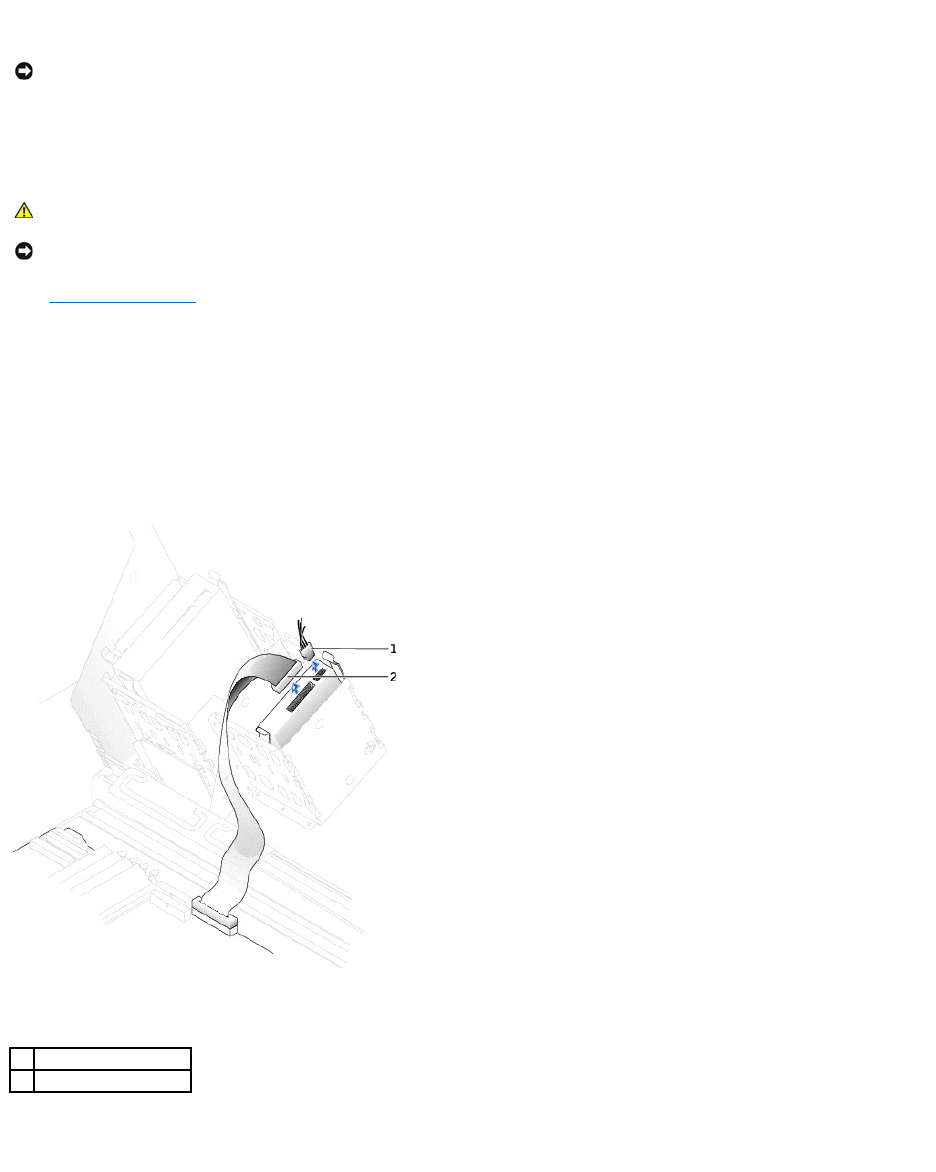
3. Ensure that your computer and attached devices are turned off. If your computer and attached devices did not automatically turn off when you shut
down your computer, turn them off now.
4. Disconnect any telephone or telecommunication lines from the computer.
5. Disconnect your computer and all attached devices from electrical outlets, and then press the power button to ground the system board.
6. If you have installed a padlock through the padlock ring on the back panel, remove the padlock.
7. Open the computer cover.
8. Ground yourself by touching an unpainted metal surface on the computer, such as the metal at the back of the computer, before touching anything
inside your computer.
While you work, periodically touch an unpainted metal surface on the computer to dissipate any static electricity that might harm internal components.
Removing a Hard Drive
1. Disconnect the power and hard-drive cables from the drive.
IDE/SCSI Drive
Serial ATA Drive
NOTICE: To disconnect a network cable, first unplug the cable from your computer and then unplug it from the network wall jack.
CAUTION: To guard against electrical shock, always unplug your computer from the electrical outlet before opening the cover.
NOTICE: Before touching anything inside your computer, ground yourself by touching an unpainted metal surface, such as the metal at the back of the
computer. While you work, periodically touch an unpainted metal surface to dissipate any static electricity that could harm internal components.
1
power cable
2
hard-drive cable
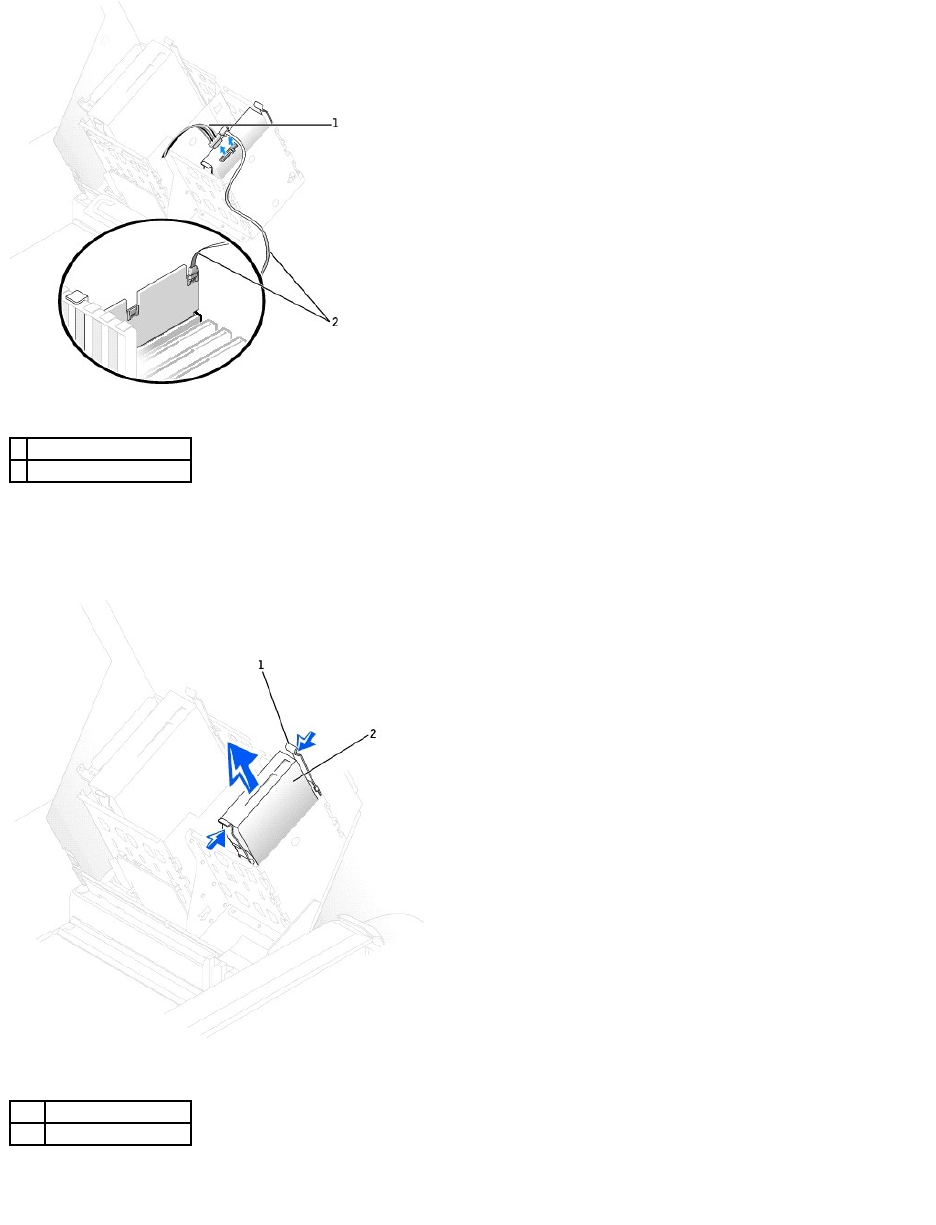
2. Press in on the tabs on each side of the drive and slide the drive up and out.
IDE/SCSI Drive
Serial ATA Drive
1
power cable
2
serial ATA hard-drive cable
1
tab (2)
2
hard drive
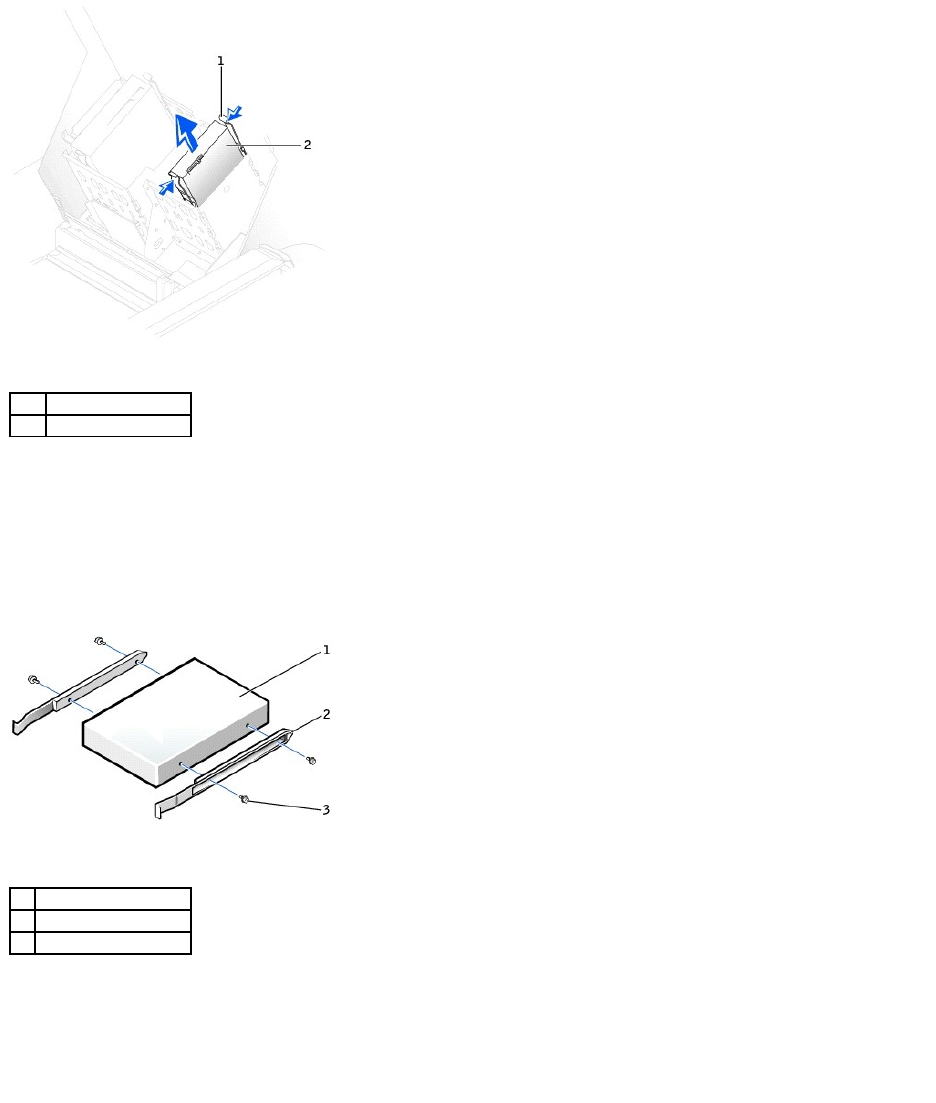
Installing a Hard Drive
1. Unpack the replacement hard drive, and prepare it for installation.
2. Check the documentation for the drive to verify that it is configured for your computer.
3. If your replacement hard drive does not have the bracket rails attached, remove the rails from the old drive by removing the two screws that secure
each rail to the drive. Attach the bracket rails to the new drive by aligning the screw holes on the drive with the screw holes on the bracket rails and
then inserting and tightening all four screws (two screws on each rail).
4. Gently slide the drive into place until the tabs securely click into position.
5. If you are installing a hard drive in the lower bay, place the drive in the bay so that the power connector is on the left-hand side (opposite of the top
hard drive).
IDE/SCSI Drive
1
tab (2)
2
hard drive
1
drive
2
bracket rails (2)
3
screws (4)
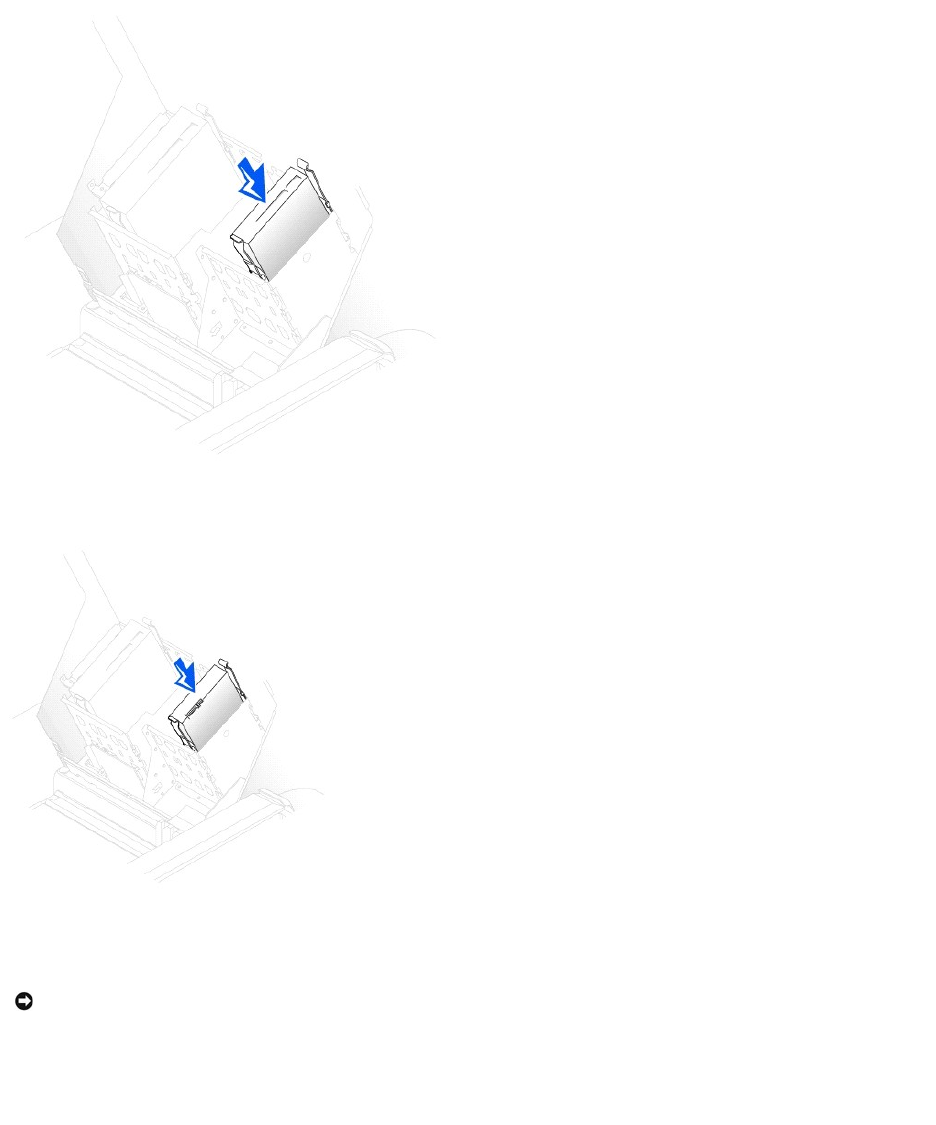
Serial ATA Drive
6. If you are installing a drive that has its own controller card, install the controller card in an expansion slot.
See the documentation that accompanied the drive and controller card to verify that the configuration is correct for your computer.
7. Connect the power and hard-drive cables to the drive.
IDE/SCSI Drive
NOTICE: Match the colored strip on the cable with pin 1 on the drive (pin 1 is marked as "1").
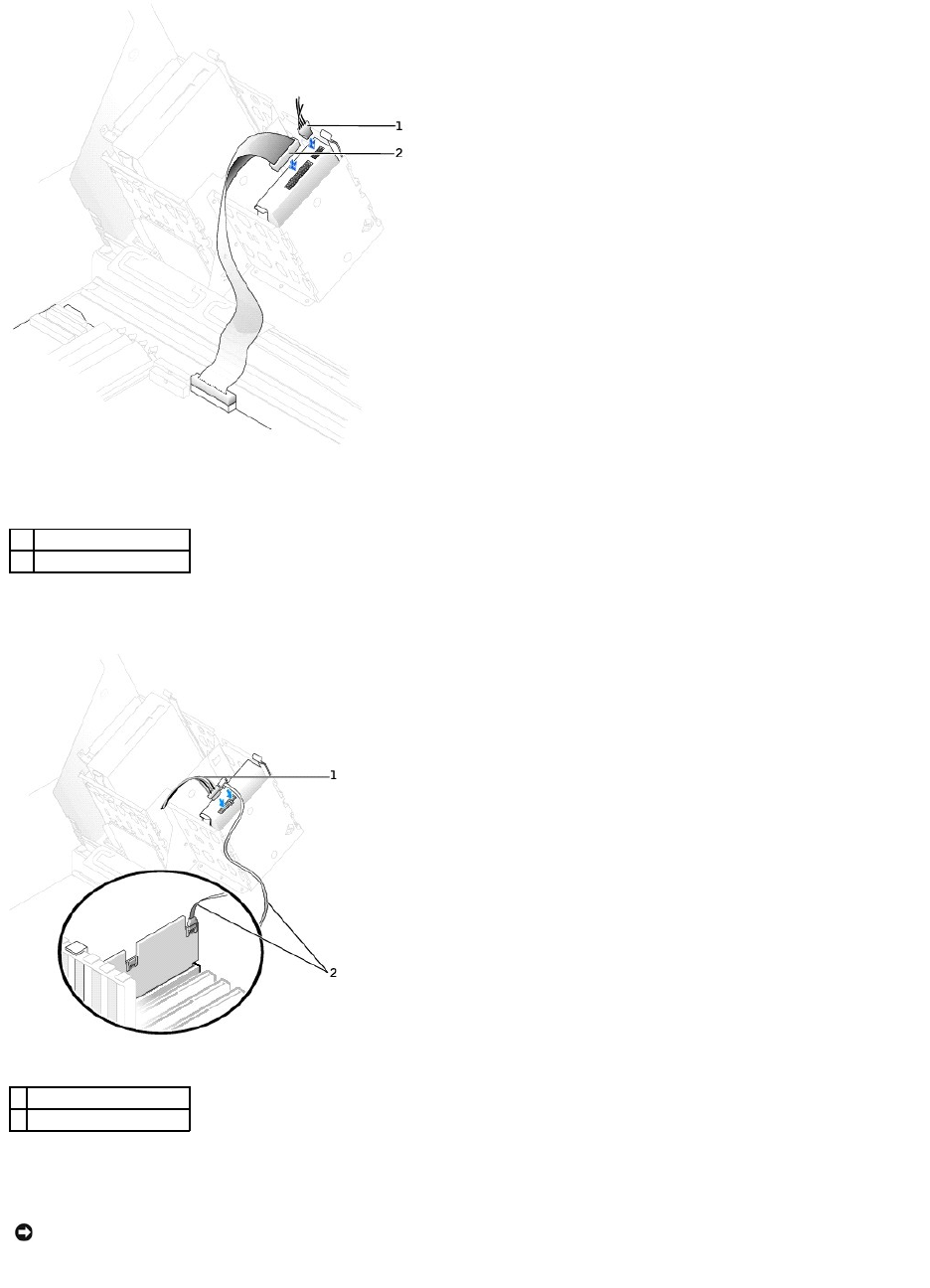
Serial ATA Drive
8. Check all connectors to be certain that they are properly cabled and firmly seated.
9. Close the computer cover.
10. Connect your computer and devices to electrical outlets, and turn them on.
1
power cable
2
hard-drive cable
1
power cable
2
serial ATA hard-drive cable
NOTICE: To connect a network cable, first plug the cable into the network wall jack and then plug it into the computer.

See the documentation that came with the drive for instructions on installing any software required for drive operation.
11. If the drive you just installed is the primary drive, insert a bootable floppy disk into drive A.
12. Turn on the computer.
13. Enter system setup, and update the your drive configuration.
14. After you have updated the system settings, exit system setup, and restart the computer.
15. Partition and logically format your drive before you proceed to the next step.
See the documentation for your operating system for instructions.
16. Test the hard drive by running the Dell Diagnostics.
17. If the drive you just installed is the primary drive, install your operating system on the hard drive.
Floppy Drive
1. Shut down the computer through the Start menu.
2. Ensure that your computer and attached devices are turned off. If your computer and attached devices did not automatically turn off when you shut
down your computer, turn them off now.
3. Disconnect any telephone or telecommunication lines from the computer.
4. Disconnect your computer and all attached devices from electrical outlets, and then press the power button to ground the system board.
5. If you have installed a padlock through the padlock ring on the back panel, remove the padlock.
6. Open the computer cover.
7. Ground yourself by touching an unpainted metal surface on the computer, such as the metal at the back of the computer, before touching anything
inside your computer.
While you work, periodically touch an unpainted metal surface on the computer to dissipate any static electricity that might harm internal components.
Removing a Floppy Drive
1. Disconnect the power and floppy-drive cables from the back of the floppy drive.
CAUTION: Before you begin any of the procedures in this section, follow the safety instructions in the System Information Guide.
NOTICE: To disconnect a network cable, first unplug the cable from your computer and then unplug it from the network wall jack.
CAUTION: To guard against electrical shock, always unplug your computer from the electrical outlet before opening the cover.
NOTICE: Before touching anything inside your computer, ground yourself by touching an unpainted metal surface, such as the metal at the back of the
computer. While you work, periodically touch an unpainted metal surface to dissipate any static electricity that could harm internal components.
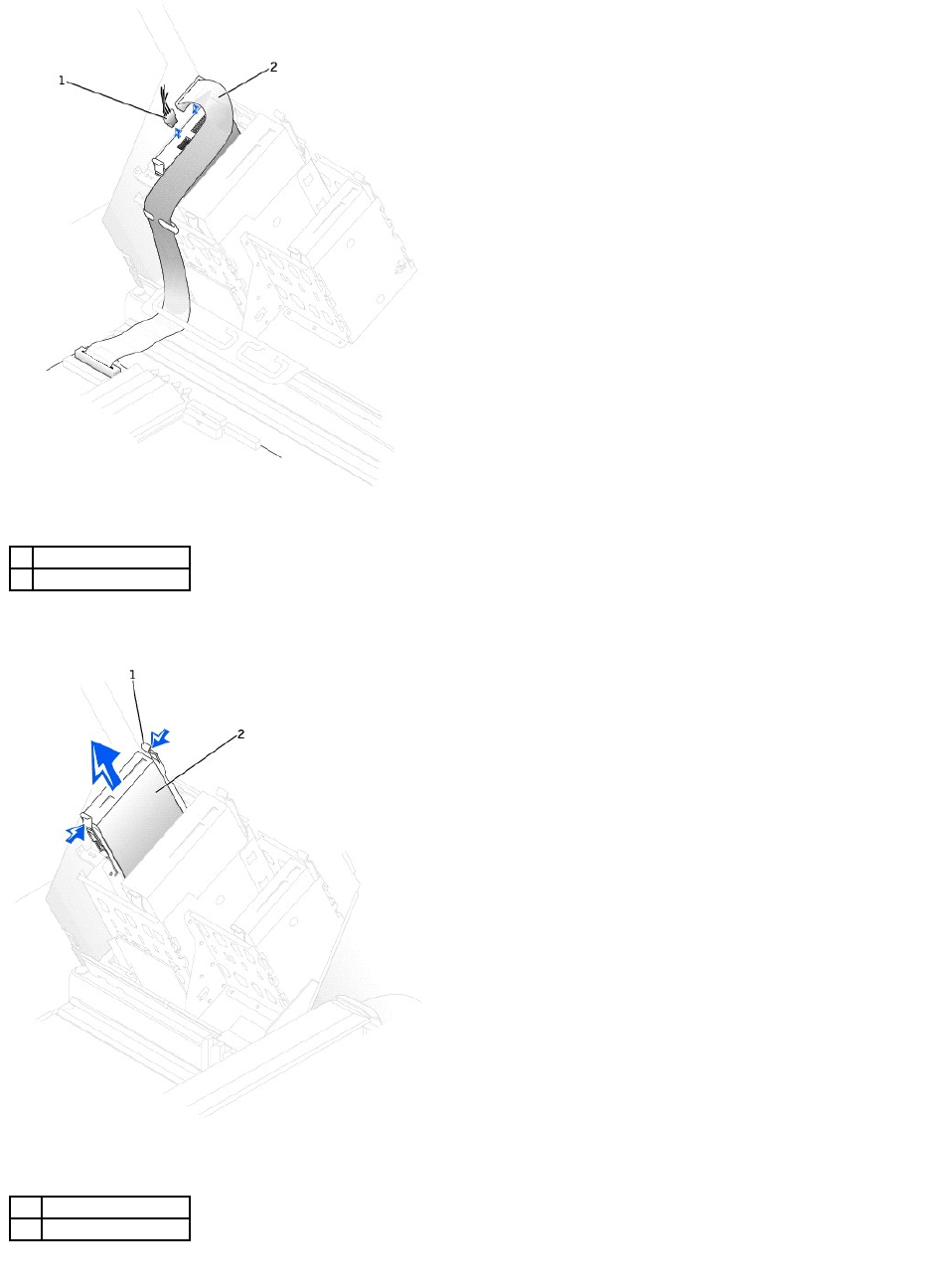
2. Press inward on the two tabs on the sides of the drive, slide the drive upward, and remove it from the floppy-drive bay.
Installing a Floppy Drive
1
power cable
2
floppy-drive cable
1
tab (2)
2
floppy drive
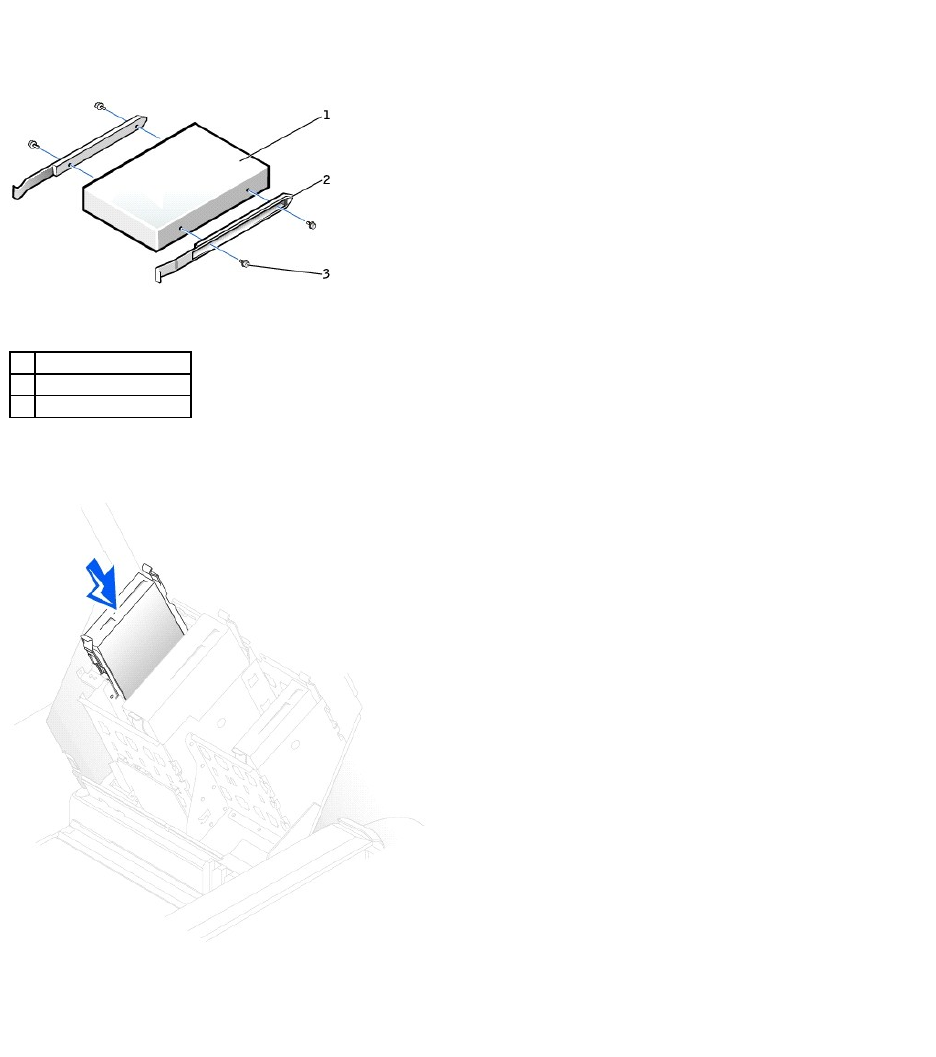
1. If you are replacing a drive and the the new drive does not have the bracket rails attached, remove the rails from the old drive by removing the two
screws that secure each rail to the drive. Attach the bracket to the new drive by aligning the screw holes on the drive with the screw holes on the
bracket rails and then inserting and tightening all four screws (two screws on each rail).
2. Gently slide the drive into place until the tabs securely click into position.
3. Attach the power and floppy-drive cables to the floppy drive.
1
drive
2
bracket rails (2)
3
screws (4)
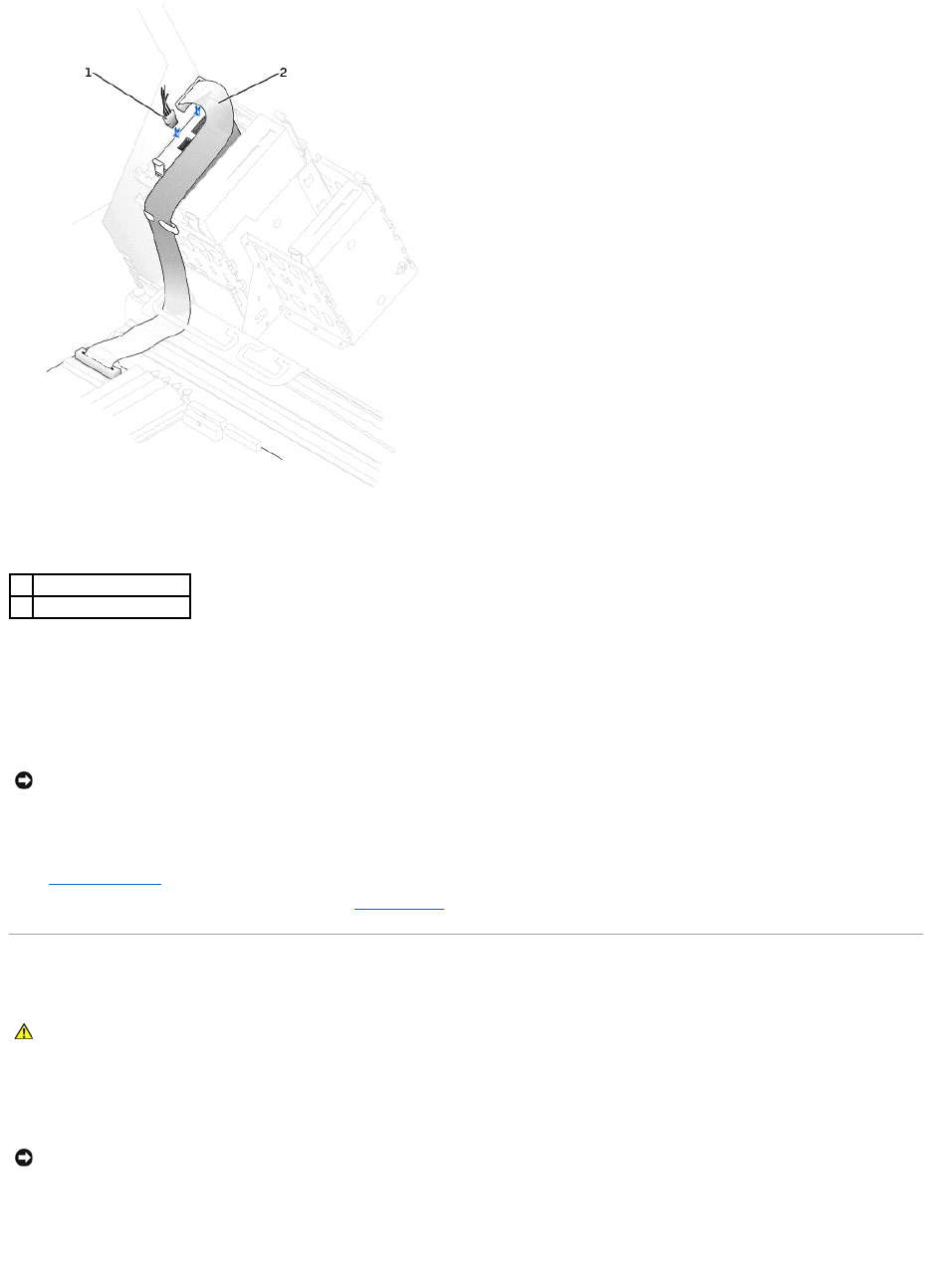
4. If you are installing a new floppy drive rather than replacing a drive, remove the front- panel inserts.
From inside the drive bay, gently press on each side of the insert until it pops out.
5. Check all cable connections, and fold cables out of the way to provide airflow for the fan and cooling vents.
6. Close the computer cover.
7. Connect your computer and devices to electrical outlets, and turn them on.
See the documentation that came with the drive for instructions on installing any software required for drive operation.
8. Enter system setup and update the appropriate Diskette Drive A option to reflect the size and capacity of your new floppy drive.
9. To verify that your computer works correctly, run the Dell Diagnostics.
CD/DVD Drive
1. Shut down the computer through the Start menu.
2. Ensure that your computer and attached devices are turned off. If your computer and attached devices did not automatically turn off when you shut
down your computer, turn them off now.
3. Disconnect any telephone or telecommunication lines from the computer.
4. Disconnect your computer and all attached devices from electrical outlets, and then press the power button to ground the system board.
5. If you have installed a padlock through the padlock ring on the back panel, remove the padlock.
1
power cable
2
floppy-drive cable
NOTICE: To connect a network cable, first plug the cable into the network wall jack and then plug it into the computer.
CAUTION: Before you begin any of the procedures in this section, follow the safety instructions in the System Information Guide.
NOTICE: To disconnect a network cable, first unplug the cable from your computer and then unplug it from the network wall jack.
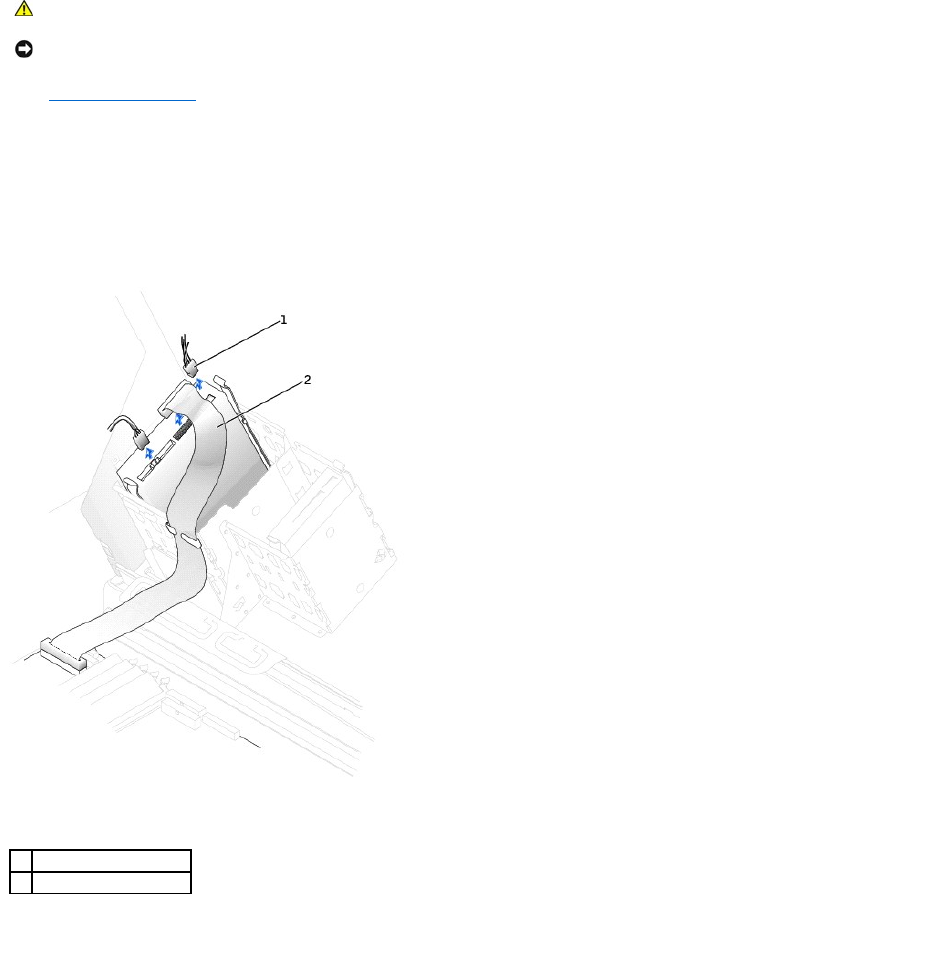
6. Open the computer cover.
7. Ground yourself by touching an unpainted metal surface on the computer, such as the metal at the back of the computer, before touching anything
inside your computer.
While you work, periodically touch an unpainted metal surface on the computer to dissipate any static electricity that might harm internal components.
Removing a CD/DVD Drive
1. Disconnect the power and CD/DVD drive cables from the back of the drive.
2. Press inward on the two tabs on the sides of the drive, and then slide the drive upward and remove it from the drive bay.
CAUTION: To guard against electrical shock, always unplug your computer from the electrical outlet before opening the cover.
NOTICE: Before touching anything inside your computer, ground yourself by touching an unpainted metal surface, such as the metal at the back of the
computer. While you work, periodically touch an unpainted metal surface to dissipate any static electricity that could harm internal components.
1
power cable
2
CD/DVD drive cable
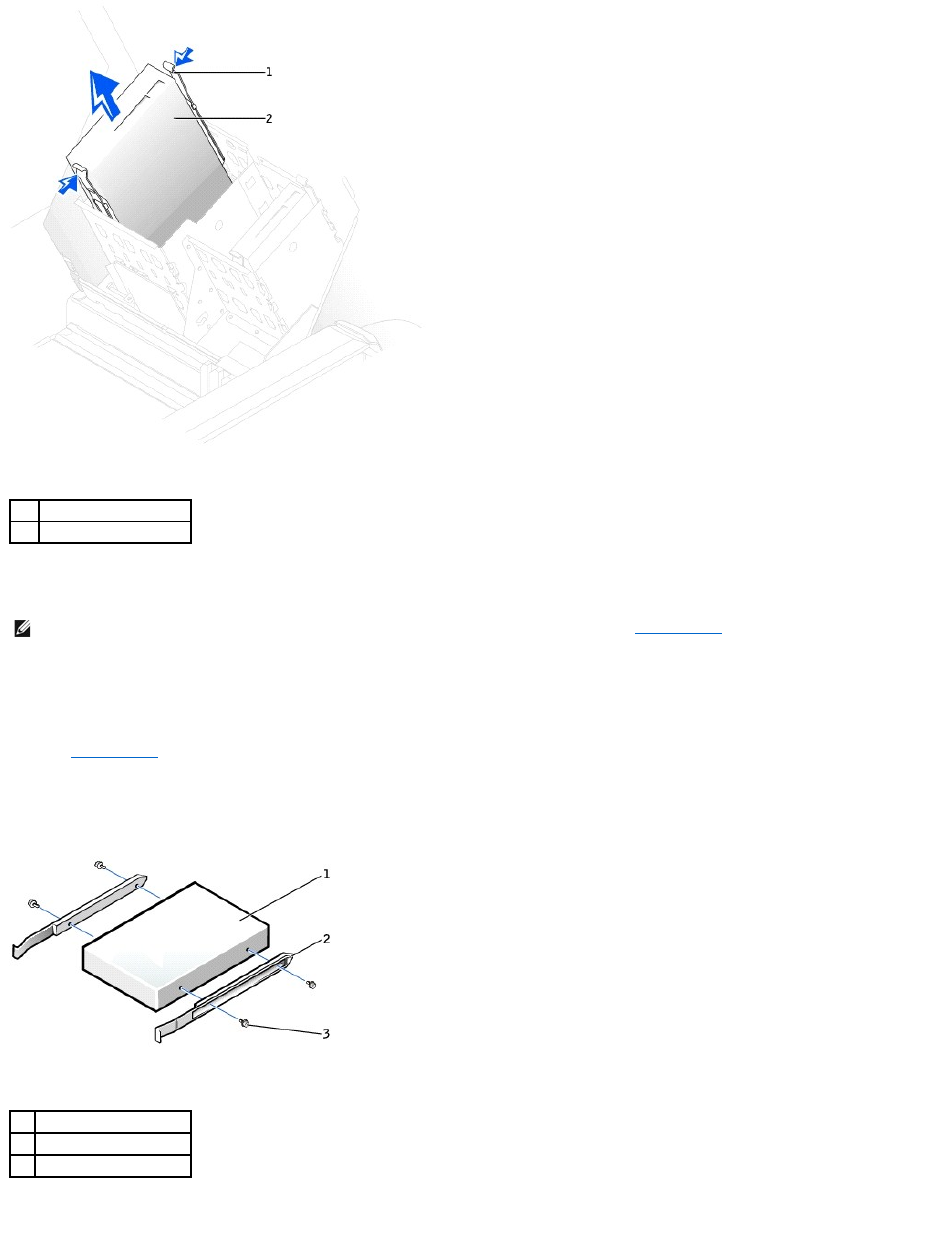
Installing a CD/DVD Drive
1. If you are installing a new drive, unpack the drive and prepare it for installation.
Check the documentation that accompanied the drive to verify that the drive is configured for your computer. If you are installing an IDE drive, configure
the drive for the cable select setting.
2. Connect the new drive to the set of rails that are attached to the inside of the cover. If a set of rails is not attached inside the computer cover, call Dell.
See Contacting Dell.
3. If you are installing a replacement drive and the new drive does not have the bracket rails attached, remove the rails from the old drive by removing
the two screws that secure each rail to the drive. Attach the bracket to the new drive by aligning the screw holes on the drive with the screw holes on
the bracket rails and then inserting and tightening all four screws (two screws on each rail).
4. Gently slide the drive into place until the tabs securely click into position.
1
tab (2)
2
CD/DVD drive
NOTE: A fourth hard drive can be added to a bay using an add-in bay bracket. To order a bracket, see Contacting Dell.
1
drive
2
bracket rails (2)
3
screws (4)
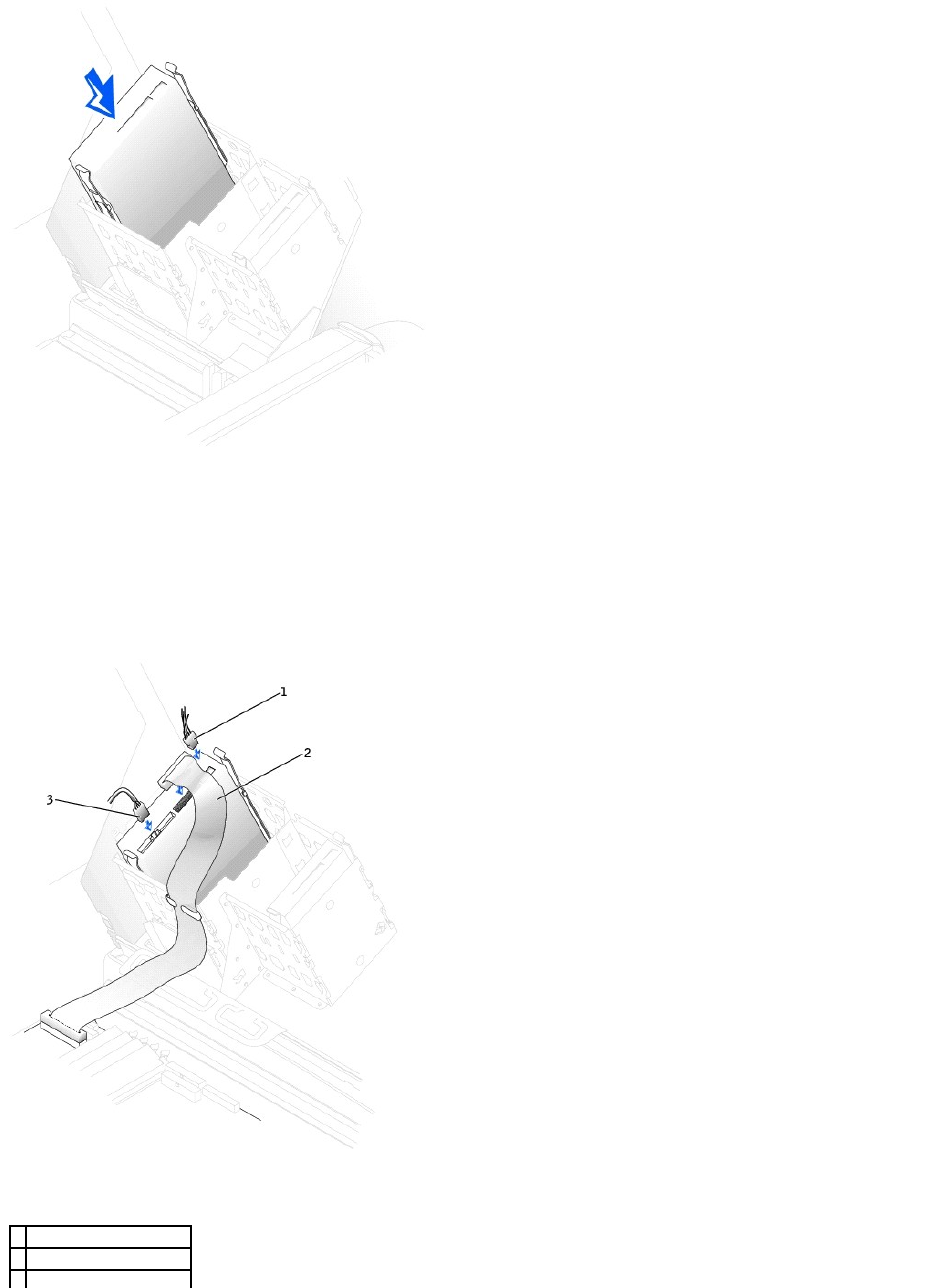
5. If you are installing a drive that has its own controller card, install the controller card in an expansion slot.
See the documentation that accompanied the drive and controller card to verify that the configuration is correct for your computer.
6. Connect the power and CD/DVD drive cables to the drive.
If you are adding a drive that has an audio cable, connect the audio cable to the audio connector on the system board.
1
power cable
2
CD/DVD drive cable
3
audio cable (some drives

7. If you are installing a new CD/DVD drive rather than replacing a drive, remove the front-panel inserts.
From inside the drive bay, gently press on each side of the insert until it pops out.
8. Check all cable connections, and fold cables out of the way to provide airflow for the fan and cooling vents.
9. Close the computer cover.
10. Connect your computer and devices to electrical outlets, and turn them on.
See the documentation that came with the drive for instructions on installing any software required for drive operation.
11. Update your configuration information by setting the appropriate Drive option (0 or 1) under Drives: Secondary to Auto. See "Primary Drive n and
Secondary Drive n" for more information.
12. Verify that your computer works correctly by running the Dell Diagnostics.
Back to Contents Page
do not have this cable)
NOTICE: To connect a network cable, first plug the cable into the network wall jack and then plug it into the computer.
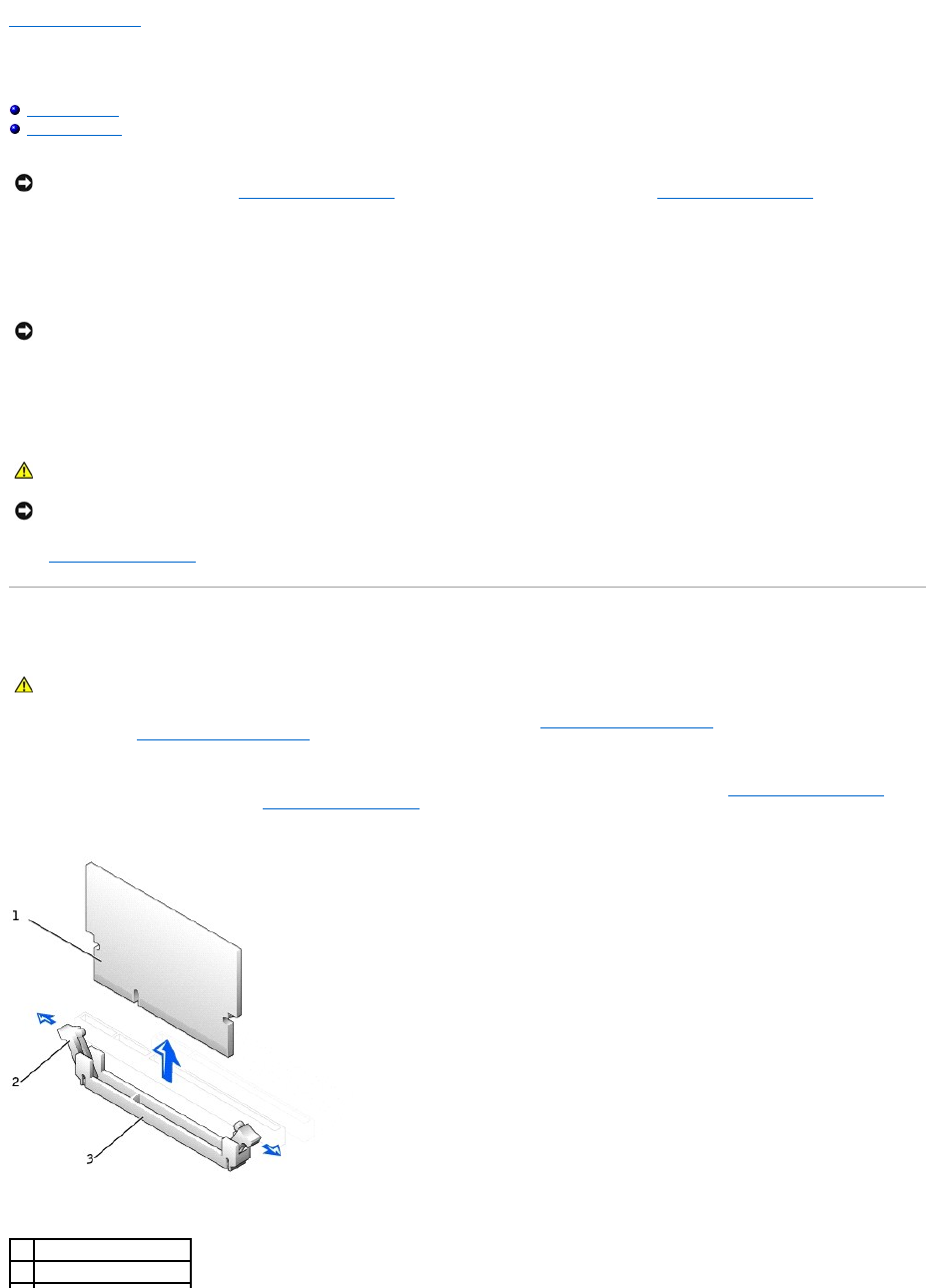
Back to Contents Page
VRM
DellPrecision™Workstations450and650User'sGuide
Installing a VRM
Removing a VRM
1. Shut down the computer through the Start menu.
2. Ensure that your computer and attached devices are turned off. If your computer and attached devices did not automatically turn off when you shut
down your computer, turn them off now.
3. Disconnect any telephone or telecommunication lines from the computer.
4. Disconnect your computer and all attached devices from electrical outlets, and then press the power button to ground the system board.
5. If you have installed a padlock through the padlock ring on the back panel, remove the padlock.
6. Open the computer cover.
Installing a VRM
1. Remove the microprocessor airflow shroud (for the Dell Precision 650 computer, see "Microprocessor Airflow Shroud" or for the Dell Precision 450
computer, see "Microprocessor Airflow Shroud").
2. Press the securing clips at each end of the VRM connector outward until they snap open.
To locate the VRM connector, see the system board components illustration (for the Dell Precision 450 computer, see "System Board Components" or for
the Dell Precision 650 computer, see "System Board Components") or see the system board label inside your computer.
NOTICE: A VRM must be installed to operate dual microprocessors. To locate the VRM connector, see the system board components illustration (for the
Dell Precision 450 computer, see "System Board Components" or for the Dell Precision 650 computer, see "System Board Components") or the system
board label inside your computer.
NOTICE: To disconnect a network cable, first unplug the cable from your computer and then unplug it from the network wall jack.
CAUTION: To guard against electrical shock, always unplug your computer from the electrical outlet before opening the cover.
NOTICE: Before touching anything inside your computer, ground yourself by touching an unpainted metal surface, such as the metal at the back of the
computer. While you work, periodically touch an unpainted metal surface to dissipate any static electricity that could harm internal components.
CAUTION: Before you perform this procedure, follow the safety instructions in the System Information Guide.
1
VRM
2
securing clips (2)
3. Align the notch on the bottom of the VRM with the ridges inside the connector.
4. Press the VRM straight down into the connector until the securing clips snap into place at the ends of the module.
5. Install the microprocessor airflow shroud (for the Dell Precision 650 computer, see "Microprocessor Airflow Shroud" or for the Dell Precision 450
computer, see "Microprocessor Airflow Shroud").
6. Close the computer cover.
7. Connect your computer and devices to electrical outlets, and turn them on.
Removing a VRM
1. Remove the microprocessor airflow shroud (for the Dell Precision 650 computer, see "Microprocessor Airflow Shroud" or for the Dell Precision 450
computer, see "Microprocessor Airflow Shroud").
2. Press the securing clips at each end of the connector outward simultaneously until the VRM slightly pops out from the connector.
3. Grasp the VRM by its top corners, and ease it out of the connector.
4. If you are installing a new VRM, see "Installing a VRM."
If you are not installing a new VRM, continue with step 5.
5. Install the microprocessor airflow shroud (for the Dell Precision 650 computer, see "Microprocessor Airflow Shroud" or for the Dell Precision 450
computer, see "Microprocessor Airflow Shroud").
6. Close the computer cover.
7. Connect your computer and devices to electrical outlets, and turn them on.
Back to Contents Page
3
connector
NOTICE: To connect a network cable, first plug the cable into the network wall jack and then plug it into the computer.
CAUTION: Before you perform this procedure, follow the safety instructions in the System Information Guide.
NOTICE: To connect a network cable, first plug the cable into the network wall jack and then plug it into the computer.
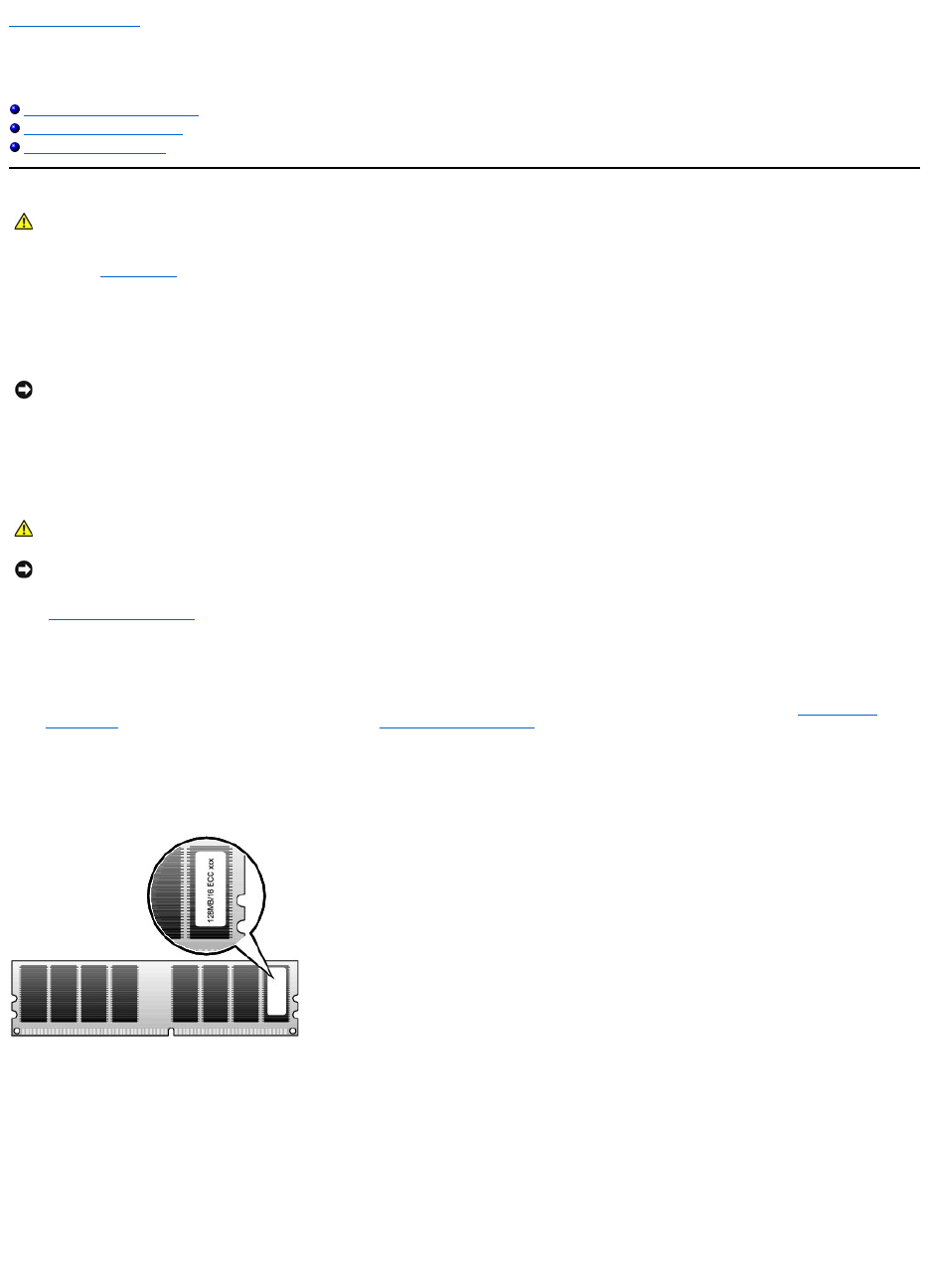
Back to Contents Page
Memory
DellPrecision™Workstations450and650User'sGuide
Memory Installation Guidelines
Removing a Memory Module
Adding a Memory Module
You can increase your computer memory by installing memory modules on the system board. For information on the type of memory supported by your
computer, see "Specifications."
1. Shut down the computer through the Start menu.
2. Ensure that your computer and attached devices are turned off. If your computer and attached devices did not automatically turn off when you shut
down your computer, turn them off now.
3. Disconnect any telephone or telecommunication lines from the computer.
4. Disconnect your computer and all attached devices from electrical outlets, and then press the power button to ground the system board.
5. If you have installed a padlock through the padlock ring on the back panel, remove the padlock.
6. Open the computer cover.
Memory Installation Guidelines
lMemory module connectors must be upgraded in matched pairs. Memory module connectors 1 and 2 must contain modules of identical size, type,
speed, and number of chips and memory module connectors 3 and 4 must contain modules of identical size, type, speed, and number of chips. To locate
the memory sockets on the system board, see the system board components illustration (for the Dell Precision 450 computer, see "System Board
Components" or for the Dell Precision 650 computer, see "System Board Components") or the system board label inside your computer.
lBefore you install new memory modules, download the most recent BIOS for your computer from the Dell Support website at support.dell.com.
Memory Module Label
Addressing Memory With 4-GB Configurations
Your computer supports a maximum of 4GB of memory when using four 1-GB DIMMs. Current operating systems, such as Microsoft®Windows®2000 and
Windows XP, can only utilize a maximum of 4 GB of address space; however, the amount of memory available to the operating system is slightly less than 4
GB. Certain components within the computer require address space in the 4-GB range. Any address space reserved for these components cannot be used by
computer memory. The following is a list of components that require memory address space:
lSystem ROM
lAPIC(s)
lIntegrated PCI devices, such as network connector, SCSI controller, and IEEE 1394 controller
lPCI and AGP cards
lThe AGP Aperture size specified in system setup
CAUTION: Before you begin any of the procedures in this section, follow the safety instructions in the System Information Guide.
NOTICE: To disconnect a network cable, first unplug the cable from your computer and then unplug it from the network wall jack.
CAUTION: To guard against electrical shock, always unplug your computer from the electrical outlet before opening the cover.
NOTICE: Before touching anything inside your computer, ground yourself by touching an unpainted metal surface, such as the metal at the back of the
computer. While you work, periodically touch an unpainted metal surface to dissipate any static electricity that could harm internal components.
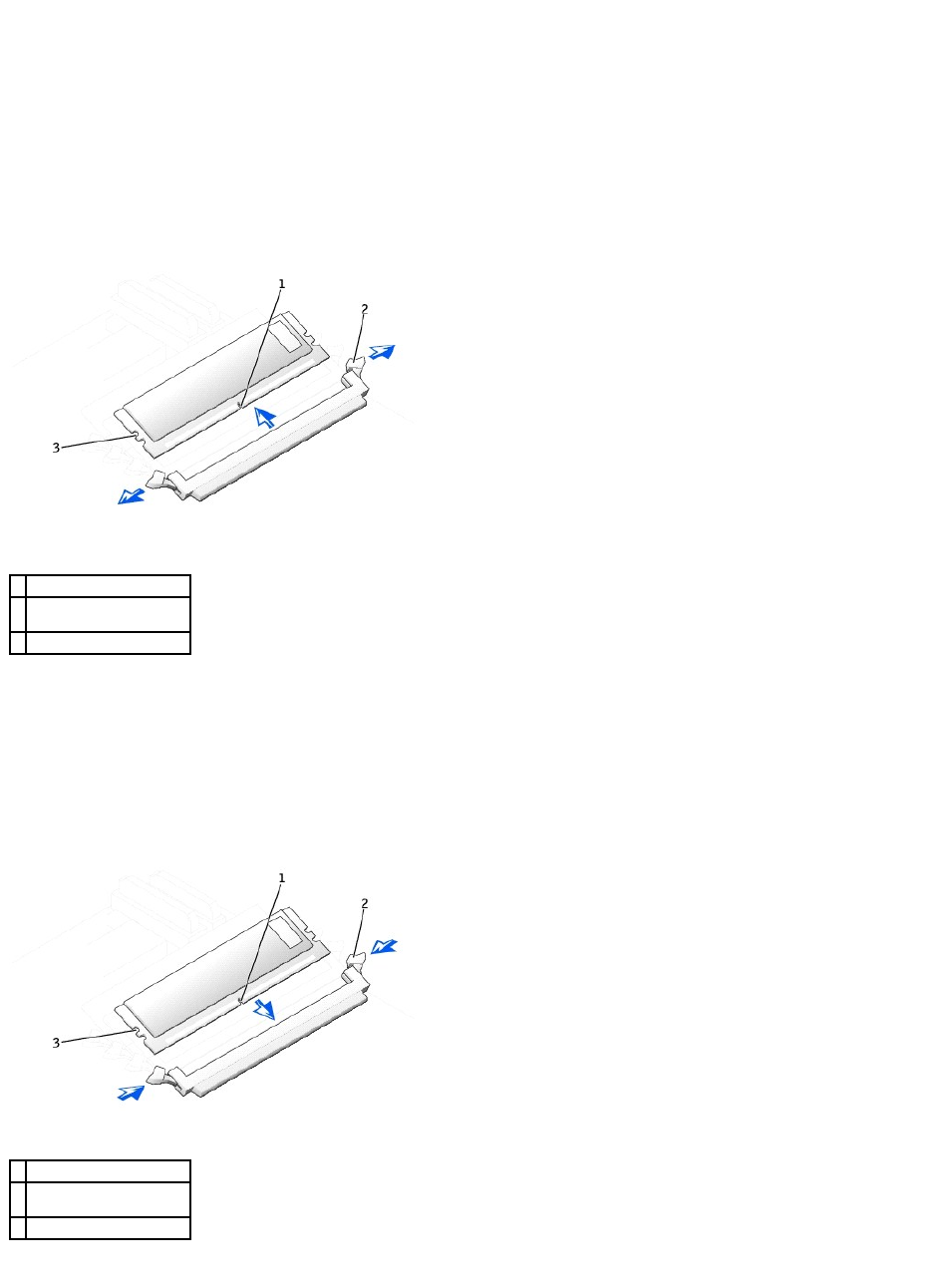
At start-up the BIOS identifies the components that require address space. The BIOS dynamically calculates the amount of reserved address space required.
It then subtracts the reserved address space from 4 GB to determine the amount of usable space.
lIf the total installed computer memory is less than the usable space, all installed computer memory is available for use only by the operating system.
lIf the total installed computer memory is equal to or greater than the usable address space, a small portion of installed memory is available for use by
the operating system.
Removing a Memory Module
1. Press down and outward on the securing clips.
2. Grasp the module and pull up.
If the module is difficult to remove, gently ease the module back and forth to remove it from the connector.
Adding a Memory Module
1. Press out the securing clip at each end of the memory module connector.
2. Align the notch on the bottom of the module with the crossbar in the connector.
3. Insert the module into the connector, ensuring that it fits into the guides at each end of the connector. Carefully press each end of the module into
place.
The memory module socket has alignment keys that allow the memory module to be installed in the socket only one way.
4. Pull up on the securing clips to lock the modules into place.
1
notch
2
memory module securing
clips (2)
3
alignment keys
1
notch
2
memory module securing
clips (2)
3
alignment keys

If you insert the module correctly, the securing clips snap into the cutouts at each end of the module.
When the memory module is properly seated in the socket, the securing clips on the memory module socket should align with the securing clips on the
other sockets with memory modules installed.
5. Close the computer cover.
6. Connect your computer and devices to electrical outlets, and turn them on.
The computer detects that the new memory does not match the existing configuration information and generates the following message:
The amount of system memory has changed.
Strike the F1 key to continue, F2 to run the setup utility
7. Press <F2> to enter system setup and check the value for System Memory.
The computer should have changed the value of System Memory to reflect the newly installed memory. Verify the new total. If it is correct, skip to step
10.
8. If the memory total is incorrect, turn off and disconnect your computer and devices from electrical outlets.
9. Open the computer cover and check the installed memory modules to ensure that they are seated properly in their sockets. Then repeat steps step 4
through step 7.
10. When the System Memory total is correct, press <Esc> to exit system setup.
11. Run the Dell Diagnostics to verify that the memory modules are operating properly.
Back to Contents Page
NOTICE: To connect a network cable, first plug the cable into the network wall jack and then plug it into the computer.

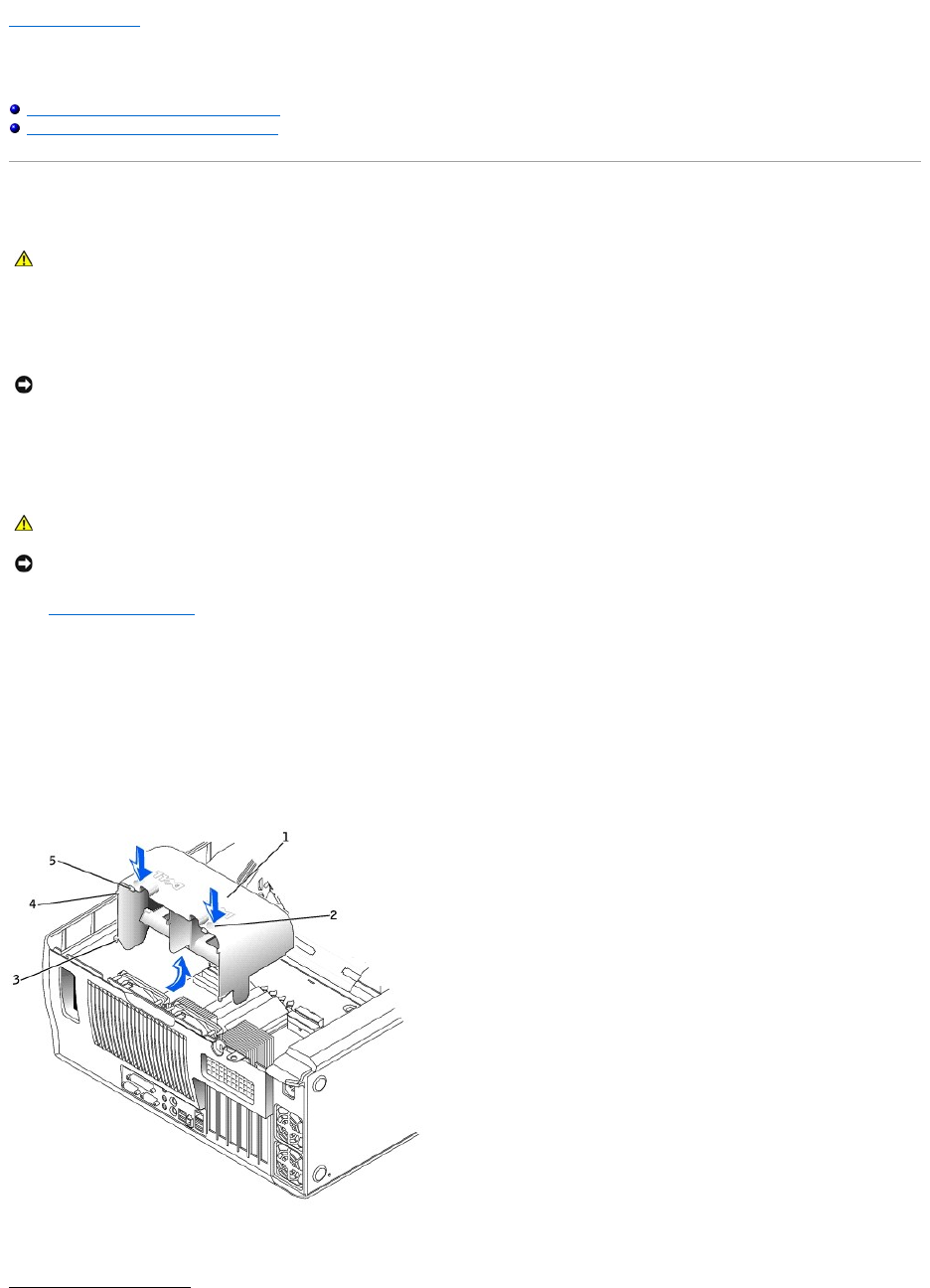
Back to Contents Page
Microprocessor Airflow Shroud
DellPrecision™Workstations450and650User'sGuide
Removing the Microprocessor Airflow Shroud
Installing the Microprocessor Airflow Shroud
Removing the Microprocessor Airflow Shroud
1. Shut down the computer through the Start menu.
2. Ensure that your computer and attached devices are turned off. If your computer and attached devices did not automatically turn off when you shut
down your computer, turn them off now.
3. Disconnect any telephone or telecommunication lines from the computer.
4. Disconnect your computer and all attached devices from electrical outlets, and then press the power button to ground the system board.
5. If you have installed a padlock through the padlock ring on the back panel, remove the padlock.
6. Open the computer cover.
7. Ground yourself by touching an unpainted metal surface on the computer, such as the metal at the back of the computer, before touching anything
inside your computer.
While you work, periodically touch an unpainted metal surface on the computer to dissipate any static electricity that might harm internal components.
8. Press down and back on the indentations at the top corners of the shroud.
The top anchor tabs disengage from the anchor slots.
9. Lift the airflow shroud out of the chassis.
CAUTION: Before you perform this procedure, follow the safety instructions in the System Information Guide.
NOTICE: To disconnect a network cable, first unplug the cable from your computer and then unplug it from the network wall jack.
CAUTION: To guard against electrical shock, always unplug your computer from the electrical outlet before opening the cover.
NOTICE: Before touching anything inside your computer, ground yourself by touching an unpainted metal surface, such as the metal at the back of the
computer. While you work, periodically touch an unpainted metal surface to dissipate any static electricity that could harm internal components.
Installing the Microprocessor Airflow Shroud
1. Insert the bottom anchor tabs into the anchor slots.
2. Align and insert the side anchor tabs into the anchor slots.
3. Press the indentations until the top anchor tabs on the shroud snap securely into place.
4. Close the computer cover.
5. Connect your computer and devices to electrical outlets, and turn them on.
Back to Contents Page
1
airflow shroud
2
indentations (2)
3
bottom anchor tabs (2)
4
side anchor tabs (2)
5
top anchor tabs (2)
NOTICE: To connect a network cable, first plug the cable into the network wall jack and then plug it into the computer.

Back to Contents Page
Regulatory Notices
DellPrecision™Workstations450and650User'sGuide
FCC Notices (U.S. Only)
IC Notice (Canada Only)
CE Notice (European Union)
ENERGY STAR® Compliance
Simplified Chinese Class A Warning Notice (China Only)
EN 55022 Compliance (Czech Republic Only)
VCCI Notice (Japan Only)
MIC Notice (Republic of Korea Only)
Polish Center for Testing and Certification Notice
BSMI Notice (Taiwan Only)
NOM Information (Mexico Only)
Electromagnetic Interference (EMI) is any signal or emission, radiated in free space or conducted along power or signal leads, that endangers the functioning
of a radio navigation or other safety service or seriously degrades, obstructs, or repeatedly interrupts a licensed radio communications service. Radio
communications services include but are not limited to AM/FM commercial broadcast, television, cellular services, radar, air-traffic control, pager, and Personal
Communication Services (PCS). These licensed services, along with unintentional radiators such as digital devices, including computer systems, contribute to
the electromagnetic environment.
Electromagnetic Compatibility (EMC) is the ability of items of electronic equipment to function properly together in the electronic environment. While this
computer system has been designed and determined to be compliant with regulatory agency limits for EMI, there is no guarantee that interference will not
occur in a particular installation. If this equipment does cause interference with radio communications services, which can be determined by turning the
equipment off and on, you are encouraged to try to correct the interference by one or more of the following measures:
lReorient the receiving antenna.
lRelocate the computer with respect to the receiver.
lMove the computer away from the receiver.
lPlug the computer into a different outlet so that the computer and the receiver are on different branch circuits.
If necessary, consult a Dell Technical Support representative or an experienced radio/television technician for additional suggestions.
Dell™computersystemsaredesigned,tested,andclassifiedfortheirintendedelectromagneticenvironment.Theseelectromagneticenvironment
classifications generally refer to the following harmonized definitions:
lClass A is typically for business or industrial environments.
lClass B is typically for residential environments.
Information Technology Equipment (ITE), including peripherals, expansion cards, printers, input/output (I/O) devices, monitors, and so on, that are integrated
into or connected to the system should match the electromagnetic environment classification of the computer system.
A Notice About Shielded Signal Cables: Use only shielded cables for connecting peripherals to any Dell device to reduce the possibility of interference
with radio communications services. Using shielded cables ensures that you maintain the appropriate EMC classification for the intended environment.
For parallel printers, a cable is available from Dell. If you prefer, you can order a cable from Dell on the World Wide Web at
accessories.us.dell.com/sna/category.asp?category_id=4117.
Most Dell computer systems are classified for Class B environments. However, the inclusion of certain options can change the rating of some configurations to
Class A. To determine the electromagnetic classification for your system or device, see the following sections specific for each regulatory agency. Each section
provides country-specific EMC/EMI or product safety information.
FCC Notices (U.S. Only)
Most Dell computer systems are classified by the Federal Communications Commission (FCC) as Class B digital devices. To determine which classification
applies to your computer system, examine all FCC registration labels located on the bottom, side, or back panel of your computer, on card-mounting brackets,
and on the cards themselves. If any one of the labels carries a Class A rating, your entire system is considered to be a Class A digital device. If all labels carry
an FCC Class B rating as distinguished by either an FCC ID number or the FCC logo, ( ), your system is considered to be a Class B digital device.
Once you have determined your system's FCC classification, read the appropriate FCC notice. Note that FCC regulations provide that changes or modifications
not expressly approved by Dell could void your authority to operate this equipment.
This device complies with Part 15 of the FCC Rules. Operation is subject to the following two conditions:
lThis device may not cause harmful interference.
lThis device must accept any interference received, including interference that may cause undesired operation.
Class A
This equipment has been tested and found to comply with the limits for a Class A digital device pursuant to Part 15 of the FCC Rules. These limits are
designed to provide reasonable protection against harmful interference when the equipment is operated in a commercial environment. This equipment
generates, uses, and can radiate radio frequency energy and, if not installed and used in accordance with the manufacturer's instruction manual, may cause
harmful interference with radio communications. Operation of this equipment in a residential area is likely to cause harmful interference, in which case you will
be required to correct the interference at your own expense.
Class B
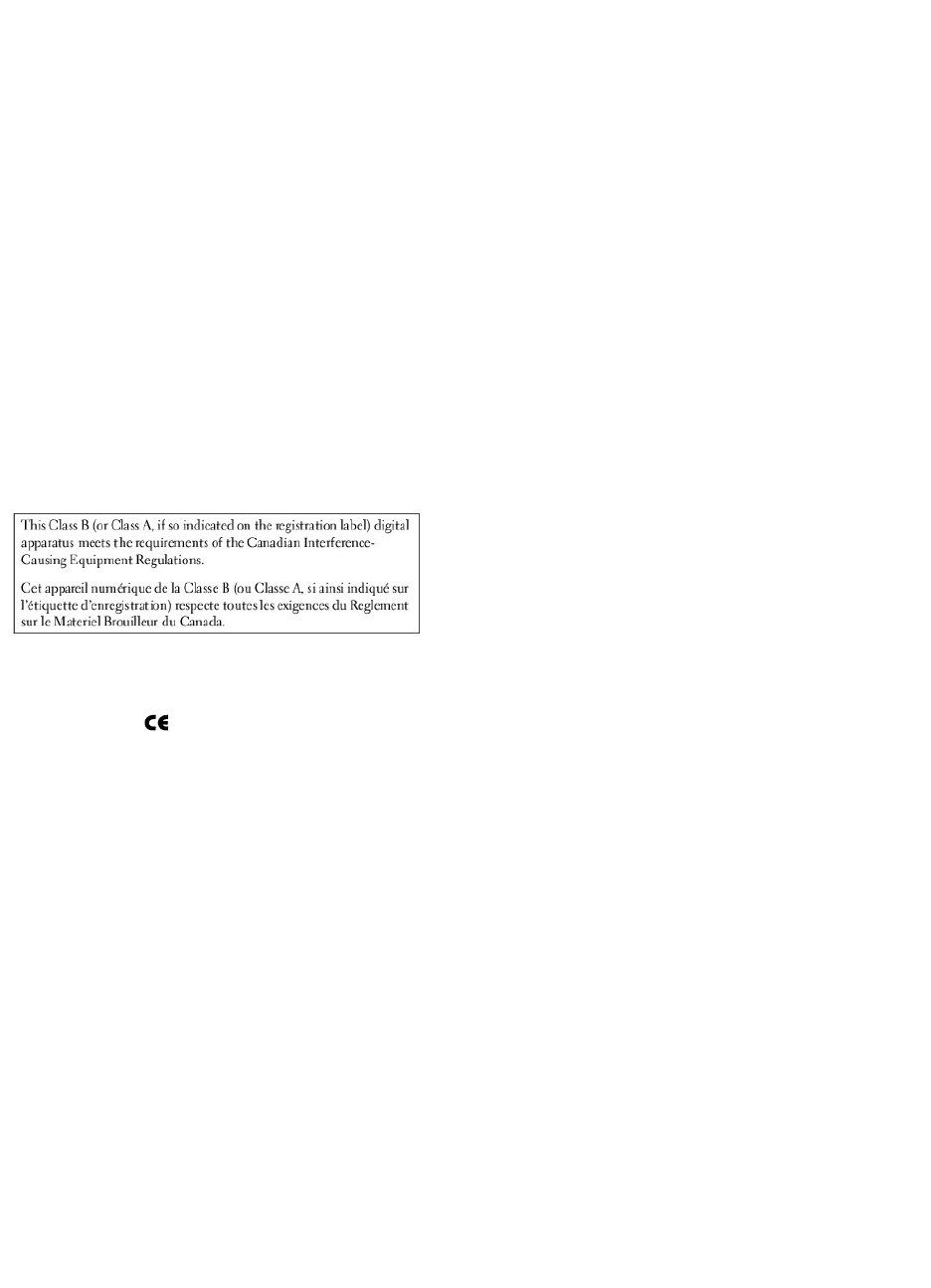
This equipment has been tested and found to comply with the limits for a Class B digital device pursuant to Part 15 of the FCC Rules. These limits are
designed to provide reasonable protection against harmful interference in a residential installation. This equipment generates, uses, and can radiate radio
frequency energy and, if not installed and used in accordance with the manufacturer's instruction manual, may cause interference with radio communications.
However, there is no guarantee that interference will not occur in a particular installation. If this equipment does cause harmful interference to radio or
television reception, which can be determined by turning the equipment off and on, you are encouraged to try to correct the interference by one or more of the
following measures:
lReorient or relocate the receiving antenna.
lIncrease the separation between the equipment and the receiver.
lConnect the equipment into an outlet on a circuit different from that to which the receiver is connected.
lConsult the dealer or an experienced radio/television technician for help.
The following information is provided on the device or devices covered in this document in compliance with FCC regulations:
lModel number: WHL and WHM
lCompany name:
Dell Computer Corporation
One Dell Way
Round Rock, Texas 78682 USA
512-338-4400
IC Notice (Canada Only)
Most Dell computer systems (and other Dell digital apparatus) are classified by the Industry Canada (IC) Interference-Causing Equipment Standard #3 (ICES-
003) as Class B digital devices. To determine which classification (Class A or B) applies to your computer system (or other Dell digital apparatus), examine all
registration labels located on the bottom, side, or the back panel of your computer (or other digital apparatus). A statement in the form of "IC Class A ICES-
003" or "IC Class B ICES-003" will be located on one of these labels. Note that Industry Canada regulations provide that changes or modifications not
expressly approved by Dell could void your authority to operate this equipment.
CE Notice (European Union)
Marking by the symbol indicates compliance of this Dell computer to the EMC Directive and the Low Voltage Directive of the European Union. Such marking
is indicative that this Dell system meets the following technical standards:
lEN 55022 — "Information Technology Equipment — Radio Disturbance Characteristics — Limits and Methods of Measurement."
lEN 55024 — "Information Technology Equipment - Immunity Characteristics - Limits and Methods of Measurement."
lEN 61000-3-2 — "Electromagnetic Compatibility (EMC) - Part 3: Limits - Section2:LimitsforHarmonicCurrentEmissions(EquipmentInputCurrentUpto
and Including 16 A Per Phase)."
lEN 61000-3-3 — "Electromagnetic Compatibility (EMC) - Part3:Limits-Section3:LimitationofVoltageFluctuationsandFlickerinLow-Voltage Supply
Systems for Equipment With Rated Current Up to and Including 16 A."
lEN 60950 — "Safety of Information Technology Equipment."
lEN 55022 — "Information Technology Equipment — Radio Disturbance Characteristics — Limits and Methods of Measurement."
lEN 50082-1 — "Electromagnetic Compatibility - Generic Immunity Standard - Part 1: Residential, Commercial and Light Industry."
lEN 50082-2 — "Electromagnetic Compatibility - Generic Immunity Standard - Part 2: Industrial Environment."
lEN 60950 — "Safety of Information Technology Equipment."
NOTE: EN 55022 emissions requirements provide for two classifications:
lClass A is for typical commercial areas.
lClass B is for typical domestic areas.
This Dell device is classified for use in a typical Class B domestic environment.
A "Declaration of Conformity" in accordance with the preceding directives and standards has been made and is on file at Dell Computer Corporation Products
Europe BV, Limerick, Ireland.
ENERGY STAR®Compliance
Certain configurations of Dell computers comply with the requirements set forth by the Environmental Protection Agency (EPA) for energy-efficient computers.
If the front panel of your computer bears the ENERGY STAR®Emblem, your original configuration complies with these requirements and all ENERGY STAR®
power management features of the computer are enabled.
NOTE: Any Dell computer bearing the ENERGY STAR®Emblem is certified to comply with EPA ENERGY STAR®requirements as configured when shipped by Dell.
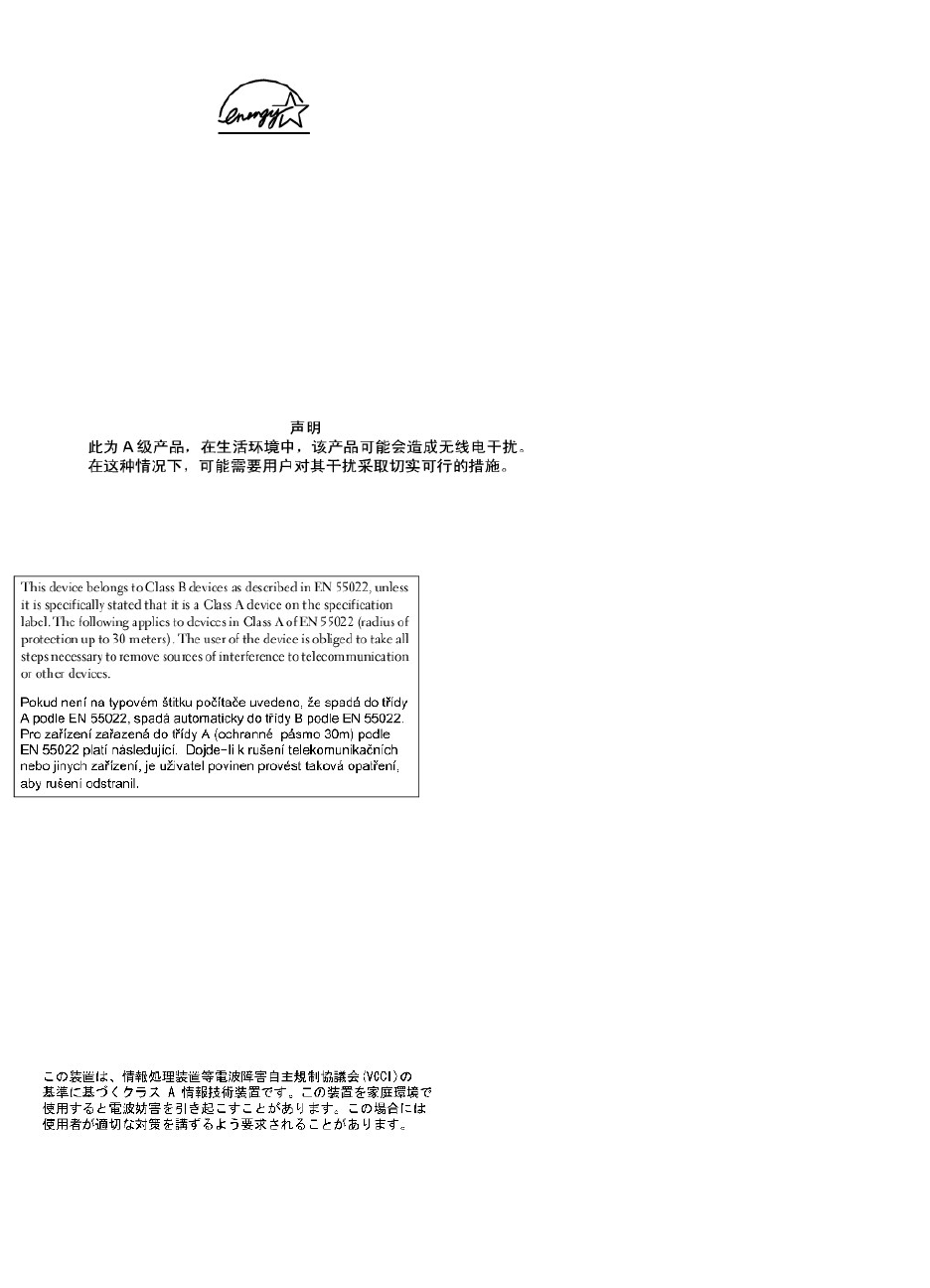
Any changes you make to this configuration (such as installing additional expansion cards or drives) may increase the computer's power consumption beyond
the limits set by the EPA's ENERGY STAR®Computers program.
ENERGY STAR®Emblem
The EPA's ENERGY STAR®Computers program is a joint effort between the EPA and computer manufacturers to reduce air pollution by promoting energy-
efficient computer products. The EPA estimates that use of ENERGY STAR®computer products can save computer users up to two billion dollars annually in
electricity costs. In turn, this reduction in electricity usage can reduce emissions of carbon dioxide, the gas primarily responsible for the greenhouse effect, and
sulfur dioxide and nitrogen oxides, the primary causes of acid rain.
You can also help reduce electricity usage and its side effects by turning off your computer when it is not in use for extended periods of time, particularly at
night and on weekends.
Simplified Chinese Class A Warning Notice (China Only)
On Class A systems, the following warning will appear near the regulatory label:
Warning: This is a Class A product. In a domestic environment this product may cause radio interference, in which case the user may be required to
take adequate measures.
EN 55022 Compliance (Czech Republic Only)
VCCI Notice (Japan Only)
Most Dell computer systems are classified by the Voluntary Control Council for Interference (VCCI) as Class B information technology equipment (ITE).
However, the inclusion of certain options can change the rating of some configurations to Class A. ITE, including peripherals, expansion cards, printers,
input/output (I/O) devices, monitors, and so on, integrated into or connected to the system should match the electromagnetic environment classification (Class
A or B) of the computer system.
To determine which classification applies to your computer system, examine the regulatory labels/markings (see "VCCI Class A ITE Regulatory Mark" and
"VCCI Class B ITE Regulatory Mark") located on the bottom, side, or back panel of your computer. Once you have determined your system's VCCI classification,
read the appropriate VCCI notice.
Class A ITE
This is a Class A product based on the standard of the Voluntary Control Council for Interference (VCCI) for information technology equipment. If this
equipment is used in a domestic environment, radio disturbance may arise. When such trouble occurs, the user may be required to take corrective actions.
VCCI Class A ITE Regulatory Mark
If the regulatory label includes the following marking, your computer is a Class A product:
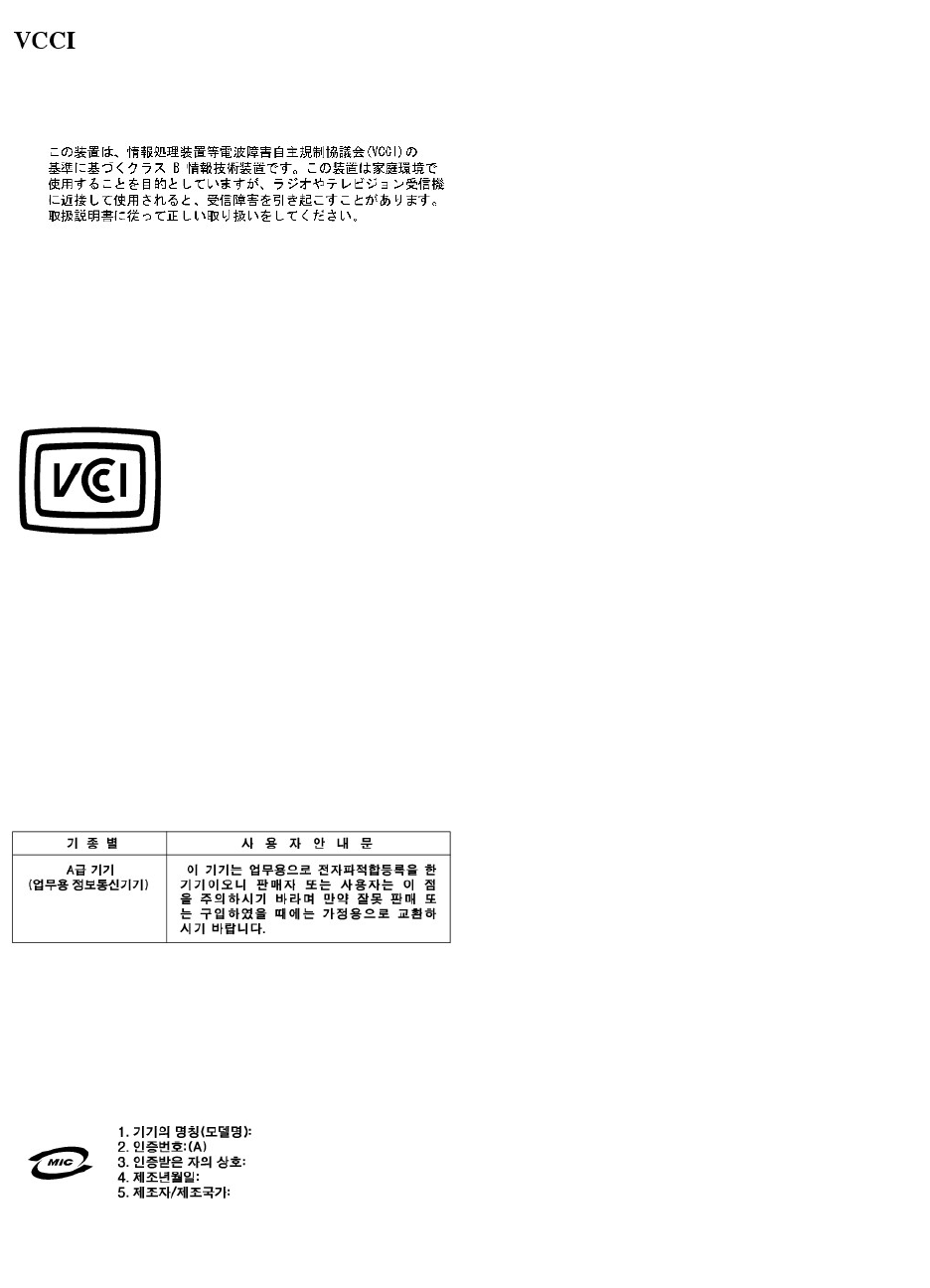
Class B ITE
This is a Class B product based on the standard of the Voluntary Control Council for Interference (VCCI) for information technology equipment. If this
equipment is used near a radio or television receiver in a domestic environment, it may cause radio interference. Install and use the equipment according to
the instruction manual.
VCCI Class B ITE Regulatory Mark
If the regulatory label includes the following marking, your computer is a Class B product:
MIC Notice (Republic of Korea Only)
To determine which classification (Class A or B) applies to your computer (or other Dell digital device), examine the Republic of Korean Ministry of Information
and Communications (MIC) registration labels located on your computer (or other Dell digital device). The MIC label may be located separately from the other
regulatory marking applied to your product. Line two of the label identifies the emissions class for the product—"(A)" for Class A products or "(B)" for Class B
products.
NOTE: MIC emissions requirements provide for two classifications:
lClass A devices are for business purposes.
lClass B devices are for nonbusiness purposes.
Class A Device
Please note that this device has been approved for business purposes with regard to electromagnetic interference. If you find that this device is not suitable
for your use, you may exchange it for a nonbusiness-purpose device.
MIC Class A Regulatory Label
If the regulatory label includes the following marking, your computer is a Class A product:
Class B Device
Please note that this device has been approved for nonbusiness purposes and may be used in any environment, including residential areas.
MIC Class B Regulatory Label
If the regulatory label includes the following marking, your computer is a Class B product.
Polish Center for Testing and Certification Notice
The equipment should draw power from a socket with an attached protection circuit (a 3-prong socket). All equipment that works together (computer,
monitor, printer, and so on) should have the same power supply source.
The phasing conductor of the room's electrical installation should have a reserve short-circuit protection device in the form of a fuse with a nominal value no
larger than 16 amperes (A).
To completely switch off the equipment, the power supply cable must be removed from the power supply socket, which should be located near the equipment
and easily accessible.
A protection mark "B" confirms that the equipment is in compliance with the protection usage requirements of standards PN-93/T-42107 and PN-EN 55022:
1996.
BSMI Notice (Taiwan Only)
If you find a or mark on the regulatory
label on the bottom, side, or back panel of your computer, the following section is applicable:
NOM Information (Mexico Only)
The following information is provided on the device(s) described in this document in compliance with the requirements of the official Mexican standards (NOM):
Back to Contents Page
Exporter:
Dell Computer Corporation
One Dell Way
Round Rock, TX 78682
Importer:
DellComputerdeMéxico,
S.A.deC.V.
Paseo de la Reforma 2620 -11°Piso
Col. Lomas Altas
11950México,D.F.
Ship to:
DellComputerdeMéxico,
S.A.deC.V.alCuidadodeKuehne&
NageldeMéxicoS.deR.I.
Avenida Soles No. 55
Col.PeñondelosBaños
15520México,D.F.
Model number:
WHL and WHM
Supply voltage:
115/230 VAC
Frequency:
60/50 Hz
Input current rating:
6.0/3.0 A
Back to Contents Page
Solving Problems
DellPrecision™Workstations450and650User'sGuide
Troubleshooting Your Computer
Battery Problems
Card Problems
Drive Problems
Dropped or Damaged Computer
E-Mail, Modem, and Internet Problems
Error Messages
General Problems
IEEE 1394 Device Problems
Keyboard Problems
Memory Problems
Microprocessor Problems
Mouse Problems
Network Problems
Power Problems
Printer Problems
Serial or Parallel Device Problems
Sound and Speaker Problems
System Board Problems
Video and Monitor Problems
Troubleshooting Your Computer
Follow these tips when troubleshooting your computer:
lIf you added or removed a computer part before the problem started, review the installation procedures and ensure that the part is correctly installed.
lIf a peripheral device does not work, ensure that the device is properly connected.
lIf an error message appears on the screen, write down the exact message. This message may help technical support diagnose and fix the problem(s).
lIf an error message occurs in a program, consult the program's documentation.
Battery Problems
Fill out the Diagnostics Checklist as you complete these checks.
Card Problems
Fill out the Diagnostics Checklist as you complete these checks.
CAUTION: There is a danger of a new battery exploding if it is incorrectly installed. Replace the battery only with the same or equivalent type
recommended by the manufacturer. Discard used batteries according to the manufacturer's instructions.
CAUTION: Before you begin any of the procedures in this section, follow the safety instructions in the System Information Guide.
Replace the battery — If you have to repeatedly reset time and date information after turning on the computer, or if an incorrect time or
date displays during start-up, replace the battery. If the battery still does not work properly, contact Dell.
CAUTION: Before you begin any of the procedures in this section, follow the safety instructions in the System Information Guide.
Check the card seating and cable —
1. Turn off the computer and devices, disconnect them from electrical outlets, wait 10 to 20 seconds, and then open the computer cover.
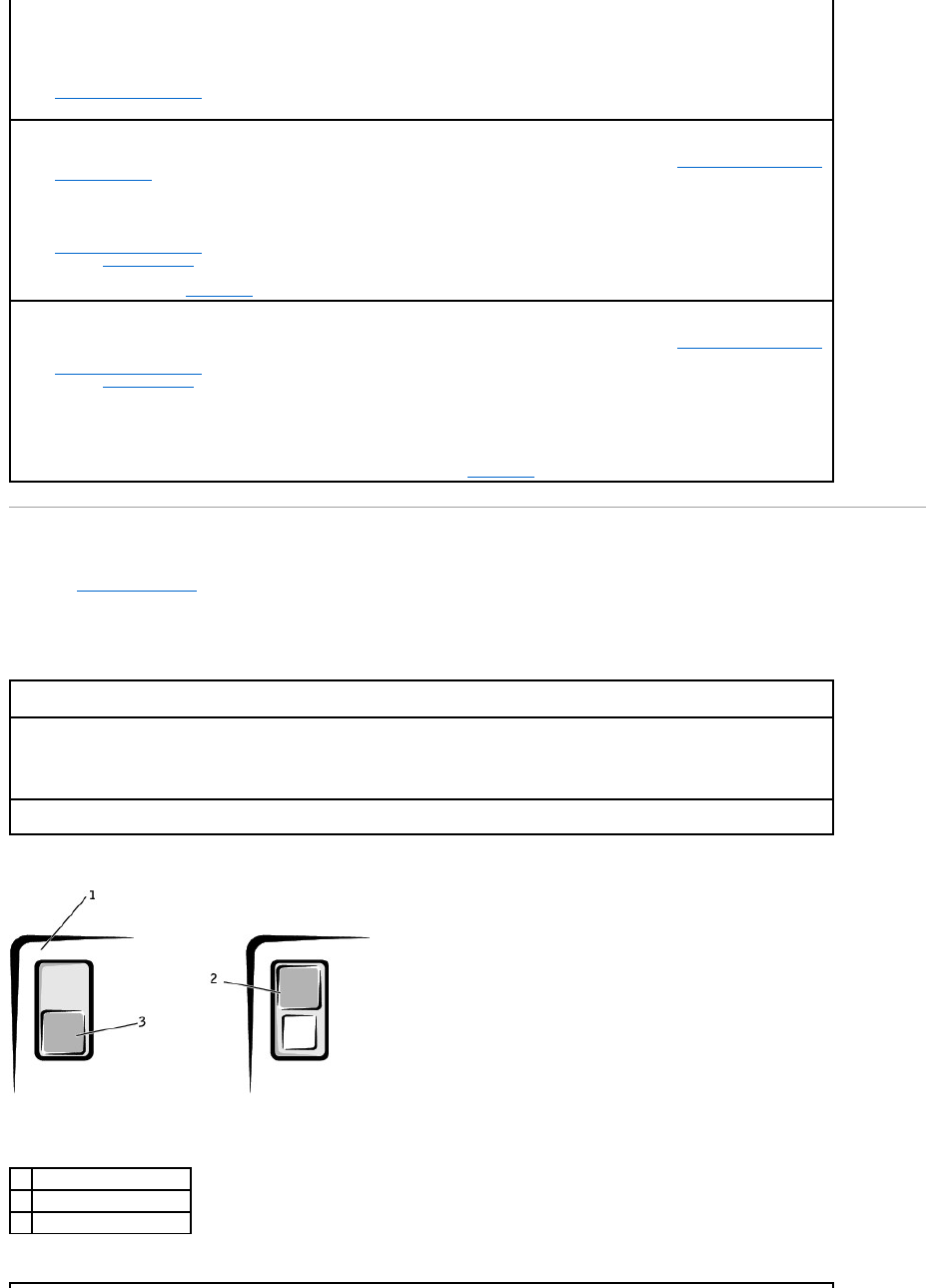
Drive Problems
Fill out the Diagnostics Checklist as you complete these checks.
Floppy drive problems
2. Ensure that each card is firmly seated in its connector. Reseat any loose cards.
3. Ensure that all cables are firmly connected to their corresponding connectors on the cards. If any cables appear loose, reconnect
them.
For instructions on which cables should be attached to specific connectors on a card, see the card's documentation.
4. Close the computer cover, reconnect the computer and devices to electrical outlets, and then turn them on.
Test the video card —
1. Turn off the computer and devices, disconnect them from electrical outlets, wait 10 to 20 seconds, and then open the computer cover.
2. Remove all cards except the video card.
If your primary hard drive is connected to a drive controller card and not to one of the system board IDE connectors, leave the drive
controller card installed in the computer.
3. Close the computer cover, reconnect the computer and devices to electrical outlets, and turn them on.
4. Run the Dell Diagnostics.
If any of the tests fail, contact Dell.
Test the cards —
1. Turn off the computer and devices, disconnect them from electrical outlets, wait 10 to 20 seconds, and then open the computer cover.
2. Reinstall one of the cards that you removed previously.
3. Close the computer cover, reconnect the computer and devices to electrical outlets, and turn them on.
4. Run the Dell Diagnostics.
If any of the diagnostics tests fail, the card you just reinstalled is faulty and needs to be replaced.
5. Repeat this process until you have reinstalled all cards.
If you have reinstalled all of the cards and the problem is not resolved, contact Dell.
Ensure that Windows® recognizes the drive — Click the Start button and click My Computer. If the floppy drive is not listed, perform a full
scan with your antivirus software to check for and remove viruses. Viruses can sometimes prevent Windows from recognizing the drive.
Test the drive —
lInsert another disk to eliminate the possibility that the original floppy disk is defective.
lInsert a bootable floppy disk and restart the computer.
Ensure that the disk is not full or write-protected — Ensure that the disk has available space and that it is not write-protected (locked).
See the following illustration.
1
back of floppy disk
2
write-protected
3
not write-protected
CD drive problems
Problems writing to a CD-RW drive
DVD drive problems
Hard drive problems
Test the floppy drive light —
MS-DOS®
Insert a floppy disk, type dir a: at the DOS prompt, and press <Enter>.
Microsoft Windows operating systems
Insert a floppy disk, click the Start button, click My Computer, and then double-click the floppy drive icon.
Run the Dell Diagnostics — If any of the tests fail, contact Dell.
NOTICE: Do not attempt to clean drive heads with a swab. You may accidentally misalign the heads, which can render the drive inoperable.
Clean the drive — Use a commercially available cleaning kit.
CAUTION: Before you begin any of the procedures in this section, follow the safety instructions in the System Information Guide.
Remove and reinstall the floppy drive — FortheDellPrecision™650computer,see"Removing a Floppy Drive" or for the Dell Precision 450
computer, see "Removing a Floppy Drive" for information on performing this procedure.
If the computer displays a drive error message, see "Error Messages" for an explanation.
NOTE: High-speed CD drive vibration is normal and may cause noise. This does not indicate a defect in the drive or the CD.
Adjust the Windows volume control — Click the speaker icon in the lower-right corner of your screen.
lEnsure that the volume is turned up by clicking the slidebar and dragging it up.
lEnsure that the sound is not muted by clicking any boxes that are checked.
Test the drive with another CD — Insert another CD to eliminate the possibility that the original CD is defective.
Check the speakers and subwoofer — See "Sound and Speaker Problems."
Ensure that Windows recognizes the drive — Click the Start button and click My Computer. If the CD drive is not listed, perform a full scan
with your antivirus software to check for and remove viruses. Viruses can sometimes prevent Windows from recognizing the drive.
Clean the disc — Use a commercially available cleaning kit.
Close other programs — The CD-RW drive must receive a steady stream of data when writing. If the stream is interrupted, an error occurs.
Try closing all programs before writing to the CD-RW.
NOTE: Because of different worldwide file types, not all DVD titles work in all DVD drives.
Test the drive with another DVD — Insert another DVD to eliminate the possibility that the original DVD is defective.
Ensure that Windows recognizes the drive — Click the Start button and click My Computer. If the DVD drive is not listed, perform a full scan
with your antivirus software to check for and remove viruses. Viruses can sometimes prevent Windows from recognizing the drive.
Clean the disc — Use a commercially available cleaning kit.
Check for interrupt request conflicts — See "Resolving Software and Hardware Incompatibilities."
Run Check Disk —
For Windows XP
1. Click the Start button and click My Computer.
2. Right-click the drive letter (local disk) that you want to scan for errors, and then click Properties.
3. Click the Tools tab.
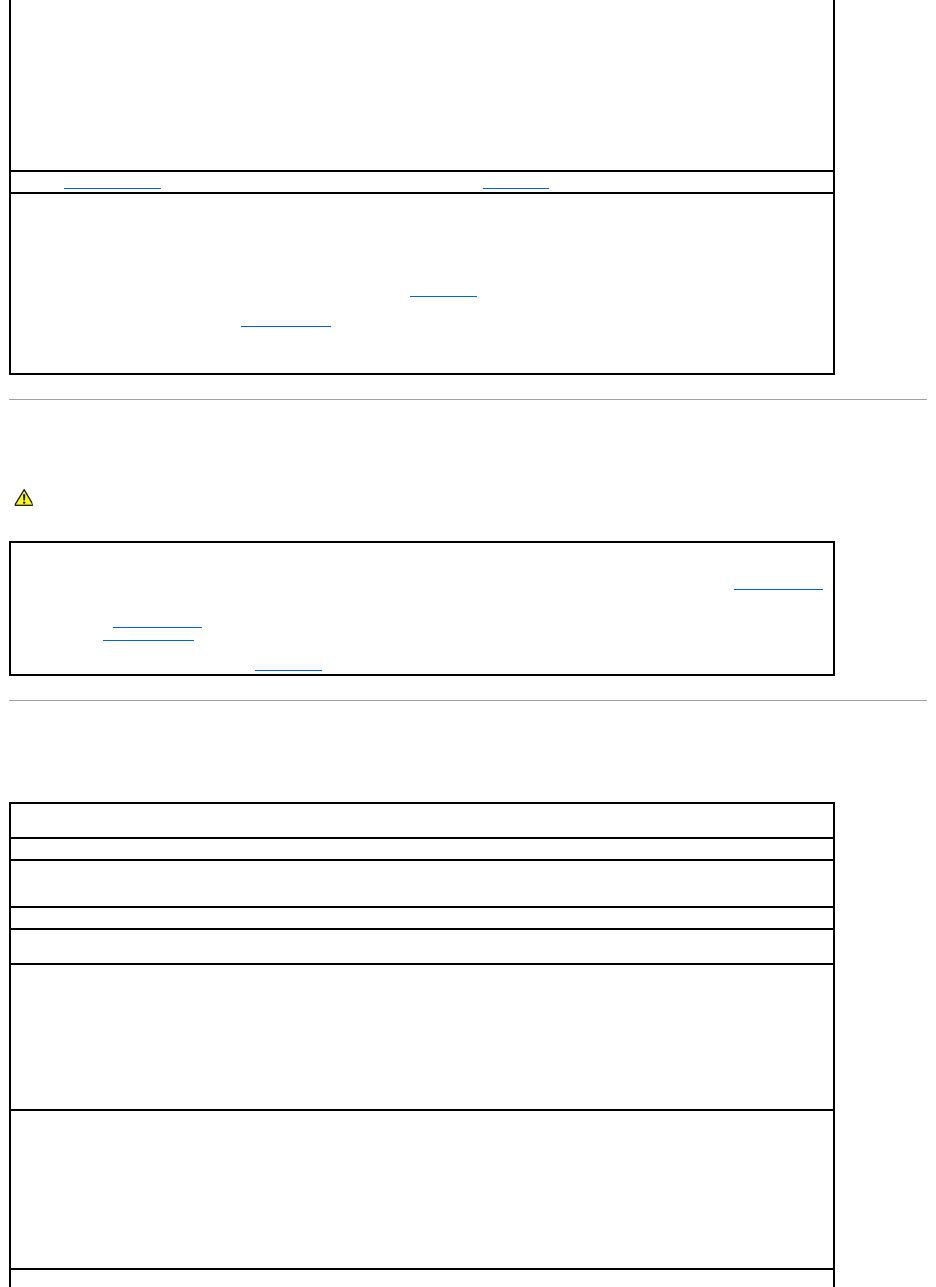
Dropped or Damaged Computer
E-Mail, Modem, and Internet Problems
4. Under Error-checking, click Check Now.
5. Click Start.
For Windows 2000
1. Right-click My Computer on your desktop and click Manage.
2. Click Storage and click Disk Management.
3. Right-click the drive that you want to scan for errors and click Properties.
4. Select the Tools tabs and click Check Now.
If the Tools tab isn't available or to further troubleshoot the drive, select the Hardware tab, click the drive you want to troubleshoot,
and then click Troubleshoot.
Run the Dell Diagnostics — If the tests indicate a faulty drive or drive controller, contact Dell.
Check the cable connections —
1. Ensure that the DC power cables from the power supply are firmly connected to the connectors on each drive.
2. Verify that the interface cable for each drive is firmly connected to the drive and to the system board.
3. Ensure that the control panel cable is firmly connected to the system board.
If the hard drive activity light does not blink during the boot routine, contact Dell.
If a drive error message displays, see "Error Messages" for an explanation.
If the primary hard drive that contains the operating system does not boot, files in the operating system might be corrupt. For more
information, see your operating system documentation.
CAUTION: Before you begin any of the procedures in this section, follow the safety instructions in the System Information Guide..
Check the card and cable connections —
1. Turn off the computer and devices, disconnect them from electrical outlets, wait 10 to 20 seconds, and then open the computer cover.
2. Check all card connections in the computer, and reseat any loose cards.
3. Ensure that all cables are properly connected and that all components are properly seated in their connectors and sockets.
4. Close the computer cover, reconnect the computer and devices to electrical outlets, and turn them on.
5. Run the Dell Diagnostics.
If any of the diagnostics tests fail, contact Dell.
Check the telephone line connection — Verify that the telephone line is connected to the jack on the modem. (The jack has either a green
label or a connector-shaped icon next to it.) Ensure that you hear a click when you insert the telephone line connector into the modem.
Check the telephone jack — Disconnect the telephone line from the modem and connect it to a telephone. Listen for a dial tone.
Connect the modem directly to the telephone wall jack — If you have other telephone devices sharing the line, such as an answering
machine, fax machine, surge protector, or line splitter, then bypass them and use the telephone to connect the modem directly to the
telephone wall jack.
Use a different telephone line — Ifyouareusingalinethatis3m(10ft)ormoreinlength,tryashorterone.
Run the Modem Helper diagnostics — Click the Start button, point to All Programs, and then click Modem Helper. Follow the instructions on
the screen to identify and resolve modem problems. (Modem Helper is not available on all computers.)
Verify that the modem is communicating with Windows®—
1. Click the Start button, and then click Control Panel.
2. Click Printers and Other Hardware.
3. Click Phone and Modem Options.
4. Click the Modems tab.
5. Click the COM port for your modem.
6. Click Properties, click the Diagnostics tab, and then click Query Modem to verify that the modem is communicating with Windows.
If all commands receive responses, the modem is operating properly.
Turn off call waiting (catch-phone) — See your telephone directory for instructions on deactivating this feature. Then adjust the dial-up
networking connection properties.
1. Click the Start button, and then click Control Panel.
2. Click Printers and Other Hardware, and then click Phone and Modem Options.
3. Click your connection type to highlight it.
4. Click the Dialing Rules tab, and then click Edit.
5. Click the To Disable Call Waiting box to place a checkmark in it.
6. Select the disable code from the drop-down menu (for example, *70).
7. Click Apply, and then click OK.
Ensure that you are connected to the Internet — With the Outlook Express e-mail program open, click File. If Work Offline has a checkmark
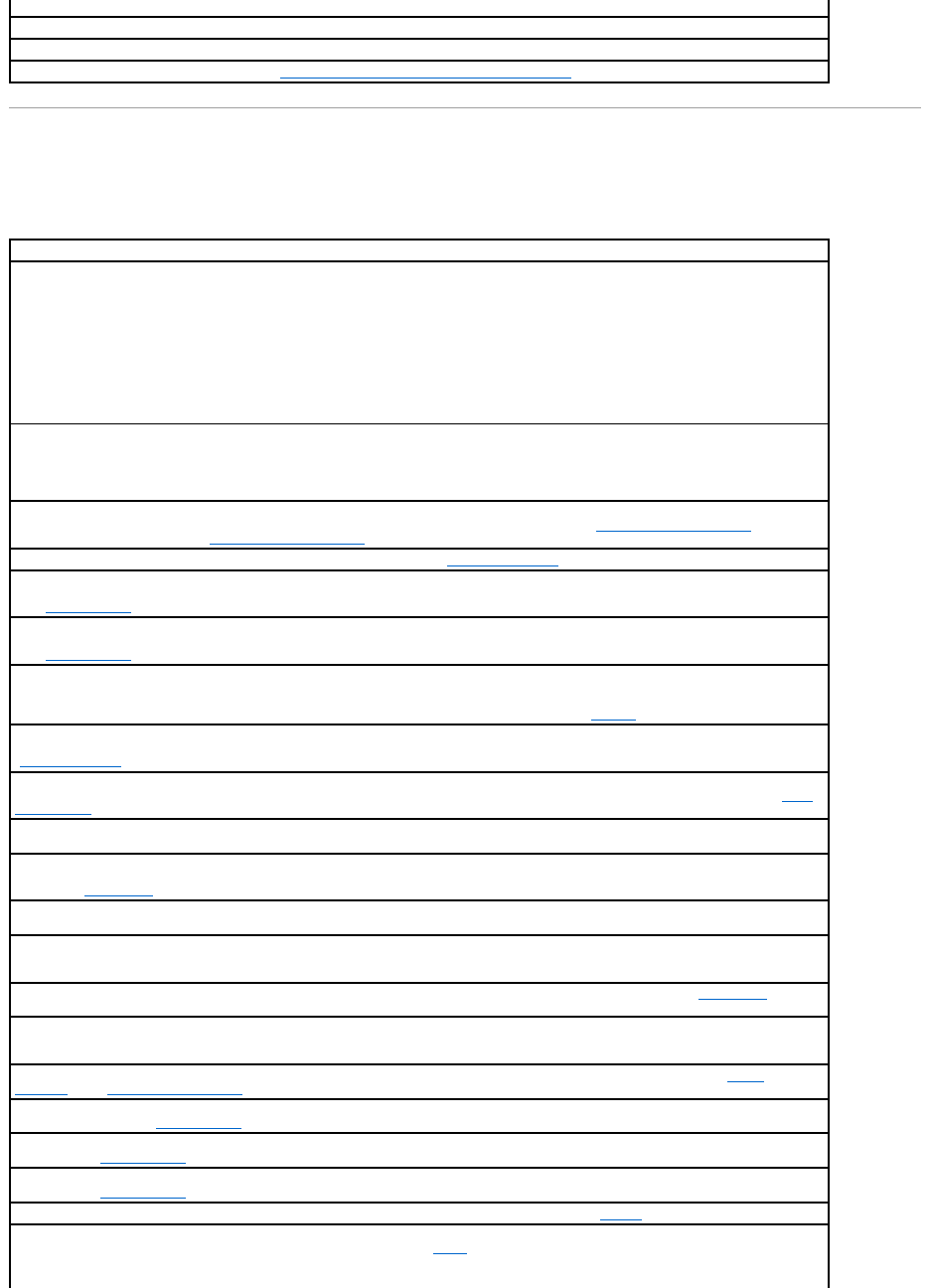
Error Messages
If the message is not listed, see the documentation for the operating system or the program that was running when the message appeared.
next to it, click the checkmark to remove it and connect to the Internet.
Ensure that you have subscribed to an Internet service provider — Contact an Internet service provider to subscribe.
Contact your Internet service provider — Contact your Internet service provider for assistance.
Check for interrupt request conflicts — See "Resolving Software and Hardware Incompatibilities."
A filename cannot contain any of the following characters: \ / : * ? " < > | — Do not use these characters in filenames.
A required .DLL file was not found —
The program that you are trying to open is missing an essential file. To remove and then reinstall the program:
1. Click the Start button.
2. Click Control Panel.
3. Click Add or Remove Programs.
4. Select the program you want to remove.
5. Click the Change or Remove Program icon.
6. See the program documentation for installation instructions.
Alert! Card Cage Fan Failure — The PCI card cooling fan is not installed, has failed, or is not properly connected to the system board.
Ensure that an operational fan is properly installed and connected to the system board. For more information, see the Service Manual at
support.dell.com.
NOTE: ThiserrormessageappliesonlytoDellPrecision™650computers.
Alert! Chipset Heatsink Not Detected — The heat sink is not properly installed on the system board. Reseat the heat sink on the system
board. See the system board illustration for your computer (for the Dell Precision 650 computer, see "System Board Components" or for the
Dell Precision 450 computer, see "System Board Components."
Alert! Cover Was Previously Opened — The computer cover was opened. Enter system setup and reset the Chassis Intrusion option.
Alert! CPU 0 Fan Failure — The cooling fan for microprocessor 0 is not installed, has failed, or is not properly connected to the system
board. Ensure that the cooling fan is properly installed and working. Also, ensure that the microprocessor airflow shroud is properly installed.
See "Microprocessor."
Alert! CPU 1 Fan Failure — The cooling fan for microprocessor 1 is not installed, has failed, or is not properly connected to the system
board. Ensure that the cooling fan is properly installed and working. Also, ensure that the microprocessor airflow shroud is properly installed.
See "Microprocessor."
Alert! Memory Population Mismatch. DIMM Slot 1 and DIMM Slot 3 Are Disabled and Performance Will be Degraded — The memory
module connectors are not populated in matched pairs or there is a defective memory module in the computer. Ensure that memory modules
of identical size, type, speed, and number of chips are installed in memory module connectors 1 and 2 and memory modules of identical size,
type, speed, and number of chips are installed in memory module connectors 3 and 4 (if used). See "Memory."
Alert! Operating in Debug Mode. Please Populate Memory in Pairs for Normal Operation — This message appears when one memory
module is installed in memory module connector 4. This is a troubleshooting mode that allows you to isolate a defective memory module, see
"Memory Problems."
Alert! OS Install Mode Enabled — The OS Install Mode in system setup is set to On, which limits the amount of memory to 256 MB because
some operating systems will not complete installation with more than 2 GB of memory. After you have installed the operating system, enter
system setup and set the OS Install Mode to Off.
Alert! Power Supply Fan Failure — The power supply fan has failed or is blocked. Ensure that the power supply airflow vents are not
blocked.
Alert! Previous Attempts at Booting This System Have Failed at Checkpoint [nnnn ]. For Help in Resolving This Problem, Please Note
This Checkpoint and Contact Dell Technical Support — The computer failed to complete the boot routine three consecutive times for the
same error. Contact Dell and report the checkpoint code (nnnn) to the support technician.
Alert! Previous Fan Failures — The fan caused an error last time you used the computer. Ensure that nothing is blocking the airflow vents
and that all the fans are properly installed and operating correctly.
Alert! Previous Processor Thermal Failure — The microprocessor overheated the last time you used the computer. Ensure that nothing is
blocking the airflow vents and that all the fans are properly installed and operating correctly. Also, ensure that the microprocessor heat sink
is properly installed.
Alert! Previous Reboot Was Due to Voltage Regulator Failure — The VRM failed the last time you used the computer. Contact Dell for
assistance.
Alert! Previous Shutdown Due to Thermal Event — The microprocessor overheated the last time you used the computer. Ensure that
nothing is blocking the airflow vents and that all the fans are working correctly. Also, ensure that the microprocessor heat sink is properly
installed.
Alert! Previous Voltage Failure — Voltage used by the computer either exceeded or fell below acceptable thresholds. See "Power
Problems" and "System Board Problems."
Alert! Processor Cache Size Mistmatch. Install Like Processors or One Processor. System Halted! — Two processor with different cache
sizes are installed. See "Microprocessor."
Alert! Processor Speed Mismatch. Install Like Processors or One Processor. System Halted! — Two processor with different speeds are
installed. See "Microprocessor."
Alert! Processor Type Mismatch. Install Like Processors or One Processor. System Halted! — Two processor with different types are
installed. See "Microprocessor."
Alert! System Battery Voltage is Low — The computer battery is providing inadequate voltage. See "Battery."
Alert! Unsupported High Power AGP Pro Video Adapter Detected. System Halted! — A high-power AGP Pro110 video adatper is installed.
Replace the AGP Pro110 video adapter with an AGP Pro50 adapter. See "Cards."
NOTE: This error message applies only to Dell Precision 450 computers.
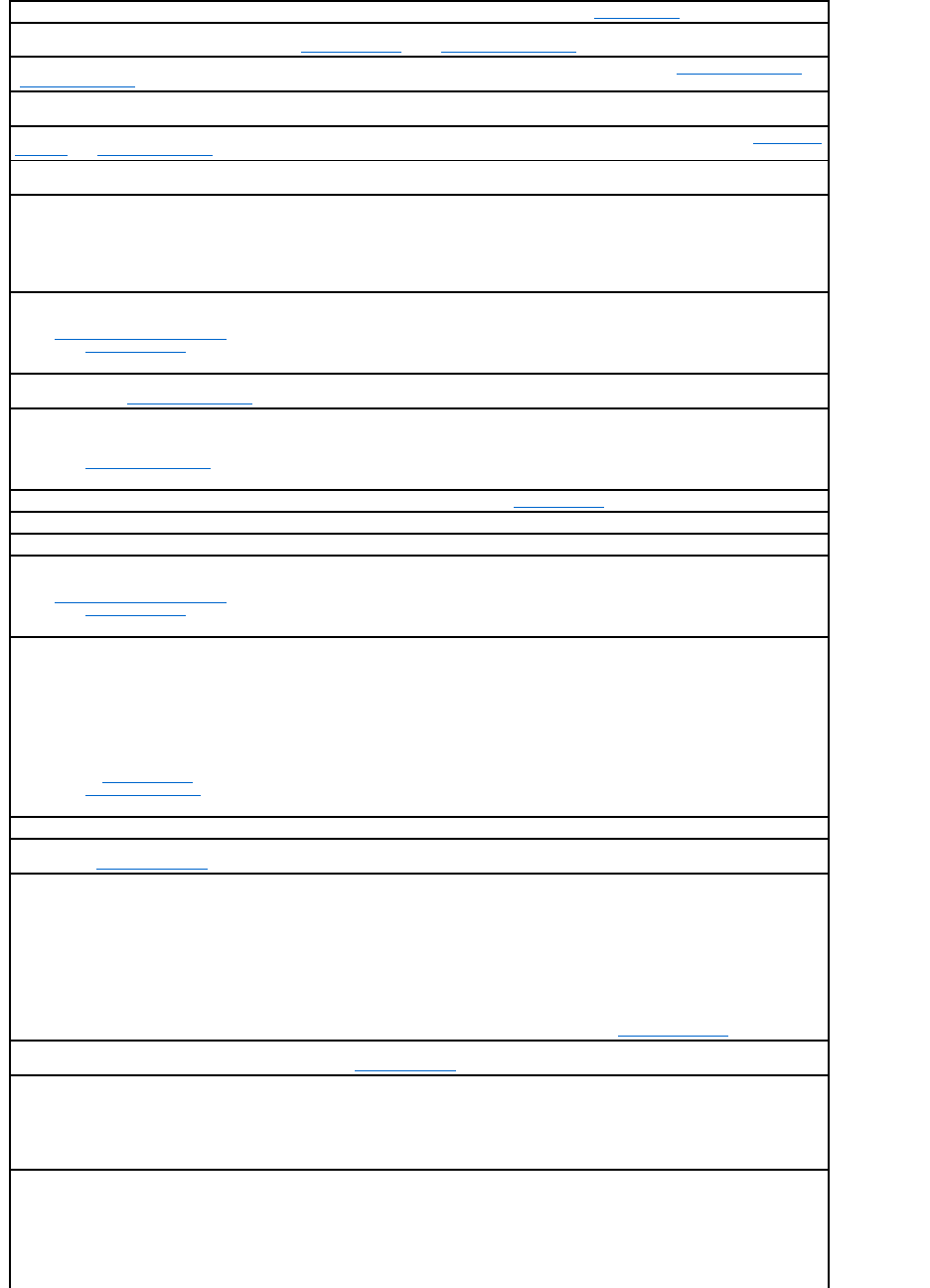
Alert! Unsupported Processor Type Detected. System Halted! — Replace the microprocessor. See "Microprocessor."
Alert! Uncorrectable Memory Error Previously Detected... Address
xxxxxxxx
h — One or more memory modules may be improperly seated
or faulty or the system board may be faulty. See "Memory Problems" and "System Board Problems."
Attachment failed to respond — The floppy or hard drive controller cannot send data to the associated drive. See "Floppy drive problems" or
"Hard drive problems" for troubleshooting suggestions.
Bad command or file name — Ensure that you have spelled the command correctly, have put spaces in the proper place, and have used the
correct pathname.
Bad error-correction code (ECC) on disk read — The floppy or hard drive controller detected an uncorrectable read error. See "Floppy drive
problems" or "Hard drive problems" for troubleshooting suggestions.
Controller has failed — The hard drive or the associated controller is defective. See "Floppy drive problems" or "Hard drive problems" for
troubleshooting suggestions.
Data error — The floppy or hard drive cannot read the data.
lFor the Microsoft® Windows® operating system, run the chkdsk utility to check the file structure of the floppy or hard drive.
lFor another operating system, run the appropriate corresponding utility.
See your operating system documentation for information on running these utilities.
Decreasing available memory — One or more memory modules might be faulty or improperly seated.
lReinstall the memory modules and, if necessary, replace them.
lSee "Memory Problems" for additional troubleshooting suggestions.
Diskette drive 0 seek failure — A cable might be loose or the computer configuration information may not match the hardware
configuration. See "Floppy drive problems" for troubleshooting suggestions.
Diskette read failure — The floppy disk may be defective or a cable might be loose.
lIf the drive access light turns on, try a different disk.
lSee "Floppy drive problems" for troubleshooting suggestions.
Diskette subsystem reset failed — The floppy drive controller might be faulty. Run the Dell Diagnostics.
Diskette write protected — The floppy disk is write-protected. Slide the write-protect notch to the open position.
Drive not ready — No floppy disk is in the drive. Put a floppy disk in the drive.
Gate A20 failure — One or more memory modules might be faulty or improperly seated.
lReinstall the memory modules and, if necessary, replace them.
lSee "Memory Problems" for additional troubleshooting suggestions.
Hard-disk configuration error —
Hard-disk controller failure —
Hard-disk drive failure —
The hard drive failed initialization.
lRun the Dell Diagnostics.
lSee "Hard drive problems" for troubleshooting suggestions.
Insert bootable media — The operating system is trying to boot to a nonbootable floppy disk or CD. Insert a bootable floppy disk or CD.
Invalid configuration information - please run SETUP program — The computer configuration information does not match the hardware
configuration. Enter system setup and correct the computer configuration information.
Keyboard Controller Failure —
KeyBoard Stuck Key Failure —
Keyboard failure —
A cable or connector might be loose, or the keyboard or keyboard/mouse controller might be faulty. See "Keyboard Problems."
Memory address line failure at address, read value expecting value — A memory module might be faulty or improperly seated. Reinstall
the memory modules and, if necessary, replace them. See "Memory Problems" for additional troubleshooting suggestions.
Memory allocation error — The software you are attempting to run is conflicting with the operating system, another program, or a utility.
1. Turn off the computer, wait 30 seconds, and then restart the computer.
2. Try to run the program again.
3. If the error message appears again, see the software documentation for additional troubleshooting suggestions.
Memory data line failure at address, read value expecting value —
Memory double word logic failure at address, read value expecting value —
Memory odd/even logic failure at address, read value expecting value —
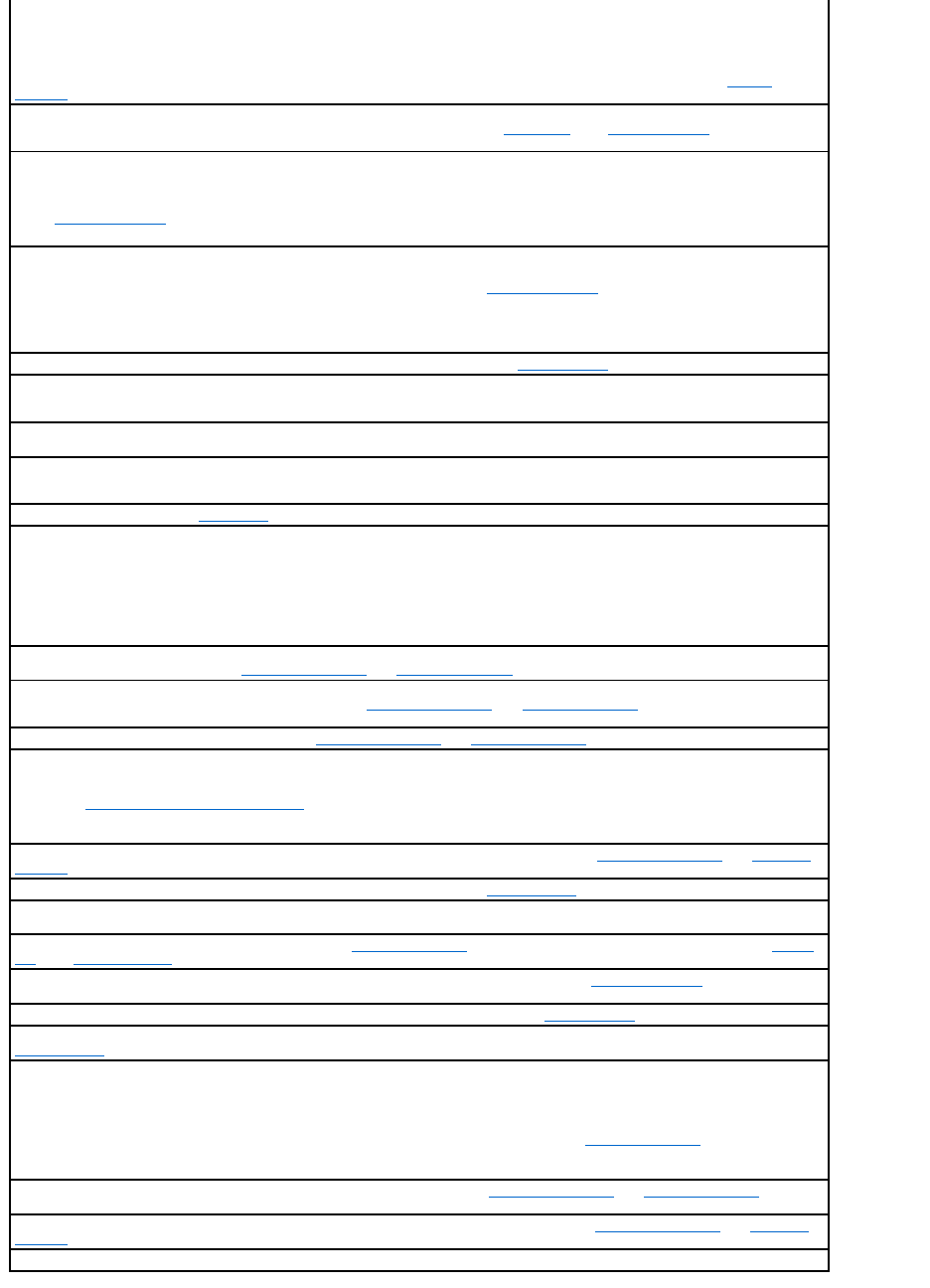
Memory write/read failure at address, read value expecting value —
A memory module might be faulty or improperly seated. Reinstall the memory modules and, if necessary, replace them. See "Memory
Problems" for additional troubleshooting suggestions.
Memory size in CMOS invalid — The amount of memory recorded in the computer configuration information does not match the memory
installed in the computer. Restart the computer. If the error message appears again, contact Dell. See "Memory Problems" for additional
troubleshooting suggestions.
No boot device available — The computer cannot find the floppy disk or hard drive.
lIf the floppy drive is your boot device, ensure that a bootable floppy disk is in the drive.
lIf the hard drive is your boot device, ensure that the drive is installed, properly seated, and partitioned as a boot device.
lEnter system setup and ensure that the boot sequence information is correct.
No boot sector on hard-disk drive —
lThe computer configuration information in system setup might be incorrect. Enter system setup and ensure that the computer
configuration information for the hard drive is correct.
lIf the message continues to appear after you confirmed that the information in system setup is correct, the operating system might
have been corrupted. Reinstall the operating system. See your operating system documentation for reinstallation information.
No timer tick interrupt — A chip on the system board might be malfunctioning. Run the Dell Diagnostics.
Non-system disk or disk error — The floppy disk in drive A or your hard drive does not have a bootable operating system installed on it.
Either replace the floppy disk with one that has a bootable operating system, or remove the floppy disk from drive A and restart the
computer.
Not a boot diskette — The operating system is trying to boot to a floppy disk that does not have a bootable operating system installed on it.
Insert a bootable floppy disk.
Not enough memory or resources. Close some programs and try again — You have too many programs open. Close all windows and open
the program that you want to use. In some cases, you might have to restart your computer to restore computer resources. If so, try running
the program that you want to use first.
Operating system not found — Contact Dell.
Plug and Play Configuration Error — The computer encountered a problem while trying to configure one or more cards.
1. Turn your computer off, unplug it from the electrical outlet, and remove all but one of the cards.
2. Plug in your computer and restart it.
3. If the message reappears, the installed card might be malfunctioning. If the message does not reappear, turn off the computer and
reinsert one of the other cards.
4. Repeat this process until you identify which card is malfunctioning.
Read fault — The operating system cannot read from the floppy or hard drive, the computer could not find a particular sector on the disk, or
the requested sector is defective. See "Floppy drive problems" or "Hard drive problems" for troubleshooting suggestions.
Requested sector not found — The operating system cannot read from the floppy or hard drive, the computer could not find a particular
sector on the disk, or the requested sector is defective. See "Floppy drive problems" or "Hard drive problems" for troubleshooting
suggestions.
Reset failed — The disk reset operation failed. See "Floppy drive problems" or "Hard drive problems" for troubleshooting suggestions.
Sector not found — The operating system cannot locate a sector on the floppy or hard drive.
lRun the Windows error-checking utility to check the file structure on the floppy disk or hard drive. See Windows Help for instructions
(see "Finding Information for Your Computer").
lIf a large number of sectors are defective, back up the data (if possible), and then reformat the floppy disk or hard drive.
Seek error — The operating system cannot find a specific track on the floppy disk or hard drive. See "Floppy drive problems" or "Hard drive
problems" for troubleshooting suggestions.
Shutdown failure — A chip on the system board might be malfunctioning. Run the Dell Diagnostics.
The file being copied is too large for the destination drive — The file that you are trying to copy is too large to fit on the disk. Try copying
the file to a blank disk or using a larger-capacity disk.
Time-of-day clock stopped — The battery might be dead. Enter system setup and correct the date or time. If the problem persists, contact
Dell. See "Battery Problems" for additional troubleshooting suggestions.
Time-of-day not set — The time or date stored in system setup does not match the computer clock. Enter system setup and correct the
Date and Time options.
Timer chip counter 2 failed — A chip on the system board might be malfunctioning. Run the Dell Diagnostics.
Unexpected interrupt in protected mode — The keyboard controller might be malfunctioning, or a memory module might be loose. Run the
Dell Diagnostics.
WARNING: Dell's Disk Monitoring System has detected that drive [0/1] on the [primary/secondary] EIDE controller is operating
outside of normal specifications. It is advisable to immediately back up your data and replace your hard drive by calling your support
desk or Dell — During initial start-up, the drive detected possible error conditions.
lWhen your computer finishes booting, immediately back up your data and replace your hard drive.
lIf no replacement drive is immediately available and the drive is not the only bootable drive, enter system setup and change the
appropriate drive setting to None. Then remove the drive from the computer.
Write fault — The operating system cannot write to the floppy or hard drive. See "Floppy drive problems" or "Hard drive problems" for
troubleshooting suggestions.
Write fault on selected drive — The operating system cannot write to the floppy or hard drive. See "Floppy drive problems" or "Hard drive
problems" for troubleshooting suggestions.
x
:\ is not accessible. The device is not ready — The floppy drive cannot read the disk. Insert a floppy disk into the drive and try again.
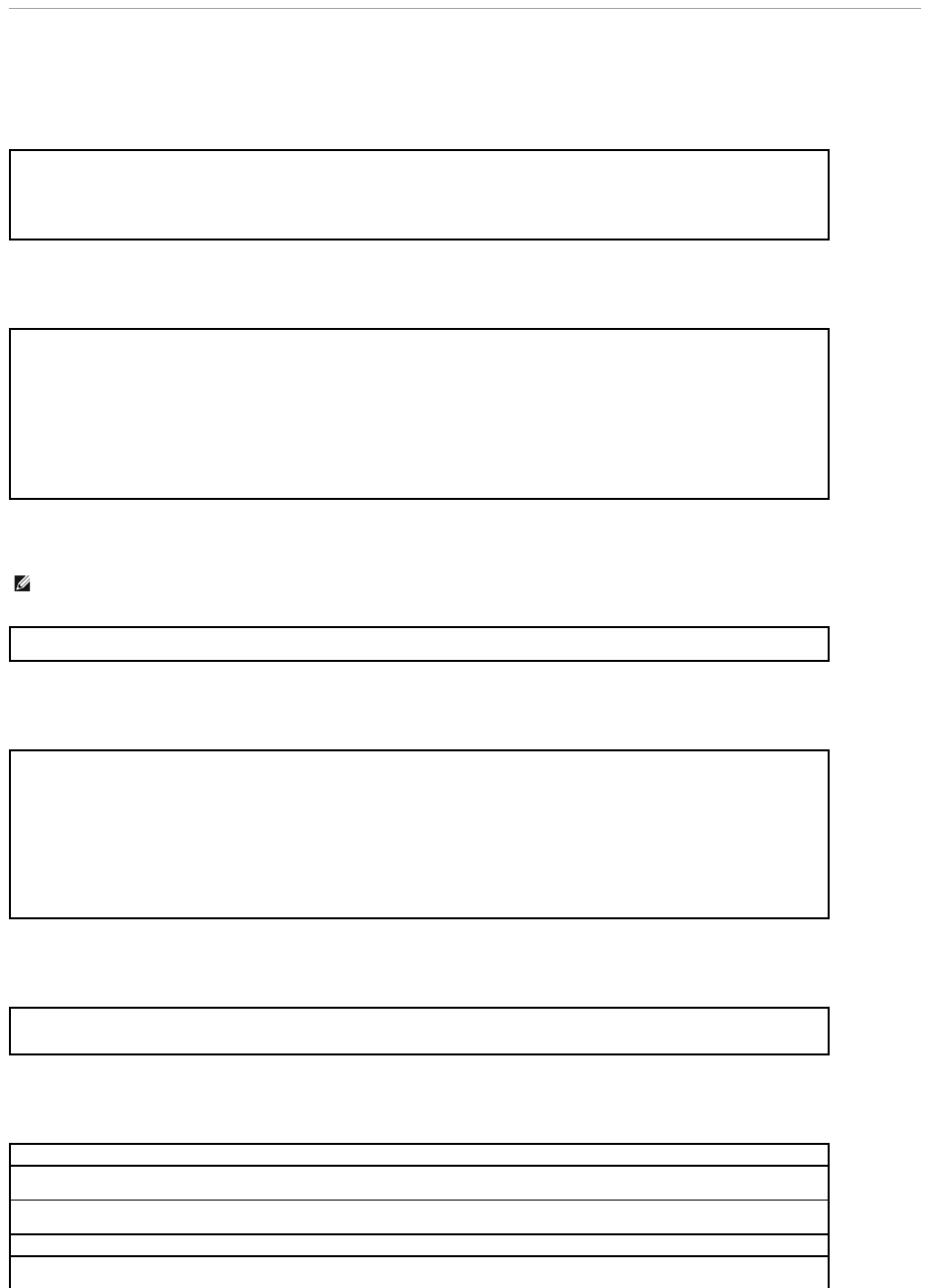
General Problems
The computer stops responding
A program stops responding
A program crashes repeatedly
A program is designed for an earlier Windows operating system
A solid blue screen appears
Other software problems
Turn the computer off — If your computer locks up and you are unable to get a response by pressing a key on your keyboard or moving
your mouse, press and hold the power button for at least 8 to 10 seconds until the computer turns off. Then press the power button again
to turn on the computer. You might lose data if you are unable to perform an operating system shutdown.
If the computer locks up and the power button fails to function properly, unplug the power cable from the computer, wait for the computer to
completely stop running, and plug in the power cable. If the computer does not restart, press the power button to restart the computer.
End the program —
Windows® XP, Windows 2000
1. Press <Ctrl><Shift><Esc> simultaneously.
2. Click Applications.
3. Click the program that is no longer responding.
4. Click End Task.
NOTE: Software usually includes installation instructions in its documentation or on a floppy disk or CD.
Check the software documentation — Many software manufacturers maintain websites with information that may help you solve the
problem. Ensure that you properly installed and configured the program. If necessary, uninstall and then reinstall the program.
If You Are Using Windows XP, Run the Program Compatibility Wizard —
Windows XP provides a Program Compatibility Wizard that configures a program so it runs in an environment similar to non-Windows XP
operating system environments.
1. Click the Start button, point to All Programs® Accessories, and then click Program Compatibility Wizard.
2. In the welcome screen, click Next.
3. Follow the instructions on the screen.
Turn the computer off — If the computer does not respond to a keystroke or a proper shutdown, press the power button for at least 8 to
10 seconds until the computer turns off. Press the power button again to restart the computer. The chkdsk program automatically runs
during the start-up process. Follow the instructions on the screen.
Check the software documentation or contact the software manufacturer for troubleshooting information
Back up your files immediately — If your computer has a CD-RW drive or a zip drive installed, see the drive's documentation for
instructions.
Ensure that you have not made an error while entering data — See the program documentation to make sure that the values or characters
you are entering are valid.
Check for viruses — Use a virus-scanning program to check the hard drive, floppy disks, or CDs.
Restart the computer — Save and close any open files, exit any open programs, and then shut down your computer through the Start menu
instead of pressing the power button. Otherwise, you may lose data.
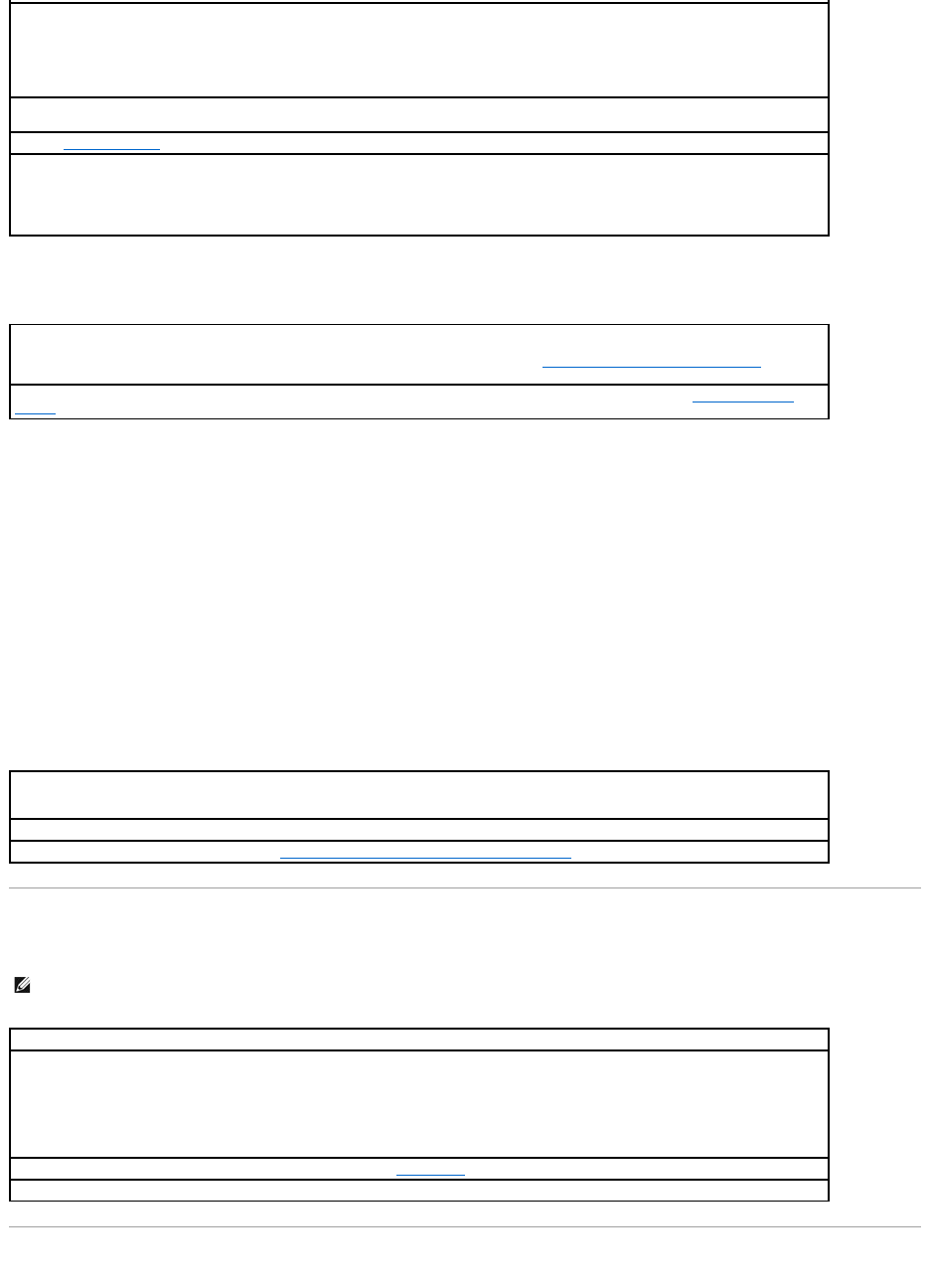
Other technical problems
General hardware problems
If your computer exhibits one or more of the following symptoms, a device conflict may exist:
lYour computer locks up, particularly while using a specific device.
lA recently added device does not work.
lMemory parity errors occur on parity-enabled computers.
lA sound card emits noise or demonstrates other problems.
lUnintelligible characters print from the printer.
lThe mouse pointer does not move or "stutters" when it moves.
lMessages appear stating that the computer is not operating at maximum performance.
lErrors occur and programs crash for no apparent reason.
lNothing displays on the monitor.
IEEE 1394 Device Problems
Keyboard Problems
Check for compatibility —
lEnsure that the program is compatible with the operating system installed on your computer and that your computer meets the
minimum hardware requirements needed to run the software. See the software documentation for information.
lIf necessary, uninstall and then reinstall the program.
Ensure that you properly installed and configured the program — See the software documentation for information. If necessary, uninstall
and then reinstall the program.
Run the Dell Diagnostics — If all tests run successfully, the error condition is related to a software problem.
Check for device driver conflicts —
lVerify that the program's device drivers do not conflict with certain programs.
lCall the software manufacturer for technical assistance.
Go to the Dell Support Website — Go to support.dell.com for help with general usage, installation, and troubleshooting questions.The
support website offers several different tools to help you such as Dell Forum — a chat room where you can communicate with other Dell
customers about their computers and gain access to technical support through e-mail. See "Finding Information for Your Computer" for more
about the Dell Support website.
Call Dell — If you cannot solve your problem by using the Dell Support website, call Dell for technical assistance. See "Technical Support
Service" for a description of the hardware and software support provided by Dell.
Remove any recently added hardware to see if it resolves the conflict — If removing the hardware resolves the conflict, see the hardware
documentation for configuration and troubleshooting instructions. If the problem persists, contact the hardware manufacturer for technical
assistance.
Check your operating system documentation for additional troubleshooting information
Check for interrupt request conflicts — See "Resolving Software and Hardware Incompatibilities."
NOTE: Check Windows Explorer to see if your device is listed as a drive.
Check the IEEE 1394 device — Ensure that the IEEE 1394 device is properly inserted into the connector.
Ensure that the IEEE 1394 device is recognized by Windows®—
1. Click the Start button.
2. Click Control Panel.
3. Click Printers and Other Hardware.
If your IEEE 1394 device is listed, Windows recognizes the device.
If you have problems with a Dell-provided IEEE 1394 device — Contact Dell.
If you have problems with a IEEE 1394 device not provided by Dell — Contact the IEEE 1394 device manufacturer.
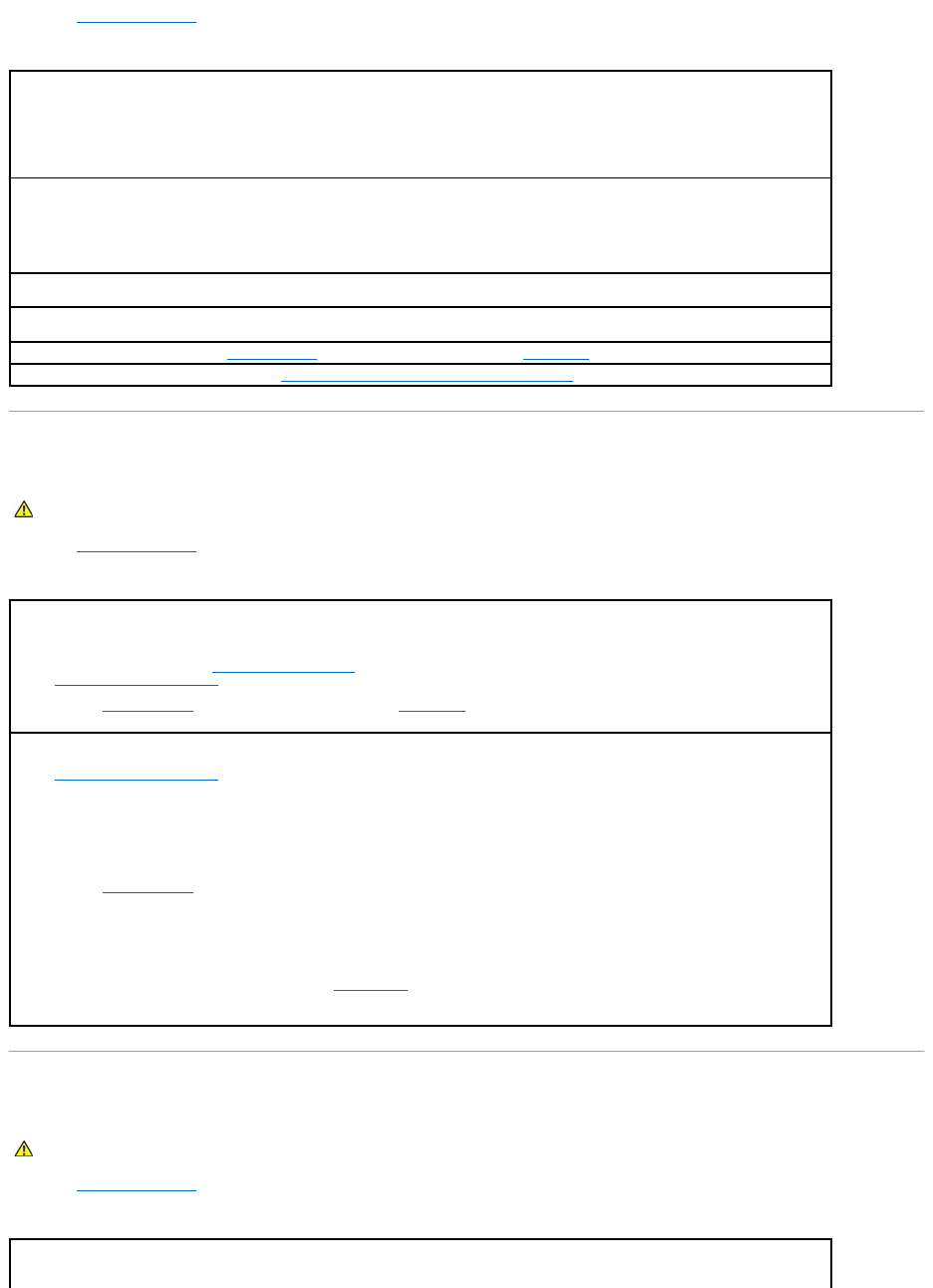
Fill out the Diagnostics Checklist as you complete these checks.
Memory Problems
Fill out the Diagnostics Checklist as you complete these checks.
Microprocessor Problems
Fill out the Diagnostics Checklist as you complete these checks.
Restart the computer —
lIf the mouse is functioning, shut down the computer through the Start menu. After the computer shuts down, press the power button
to restart the computer.
lIf the computer does not respond to a keystroke or the mouse, press the power button for at least 8 to 10 seconds until the
computer turns off. Press the power button again to restart the computer.
Check the keyboard cable —
lEnsure that the keyboard cable is firmly connected to the computer.
lCheck the cable connector for bent or broken pins and for damaged or frayed cables. Straighten bent pins.
lRemove keyboard extension cables and connect the keyboard directly to the computer.
Test the keyboard — Connect a properly working keyboard to the computer, and try using the keyboard. If the new keyboard works, the
original keyboard is faulty.
Check the keyboard switch setting — Some keyboards have switch settings that are on the bottom of the keyboard, sometimes behind a
panel. Ensure that the switch is set to PS/2, Enhanced XT/AT, or PC/AT. See the keyboard documentation for recommended settings.
Run the Dell Diagnostics — Run the Dell Diagnostics. If any of the diagnostics tests fail, contact Dell.
Check for interrupt request conflicts — See "Resolving Software and Hardware Incompatibilities."
CAUTION: Before you begin any of the procedures in this section, follow the safety instructions in the System Information Guide.
If you receive an insufficient memory message —
1. Save and close any open files and exit any open programs you are not using to see if that resolves the problem.
2. Confirm that the computer has sufficient memory to run your programs. See the software documentation for minimum memory
requirements. If necessary, install additional memory.
3. Reseat the memory modules to ensure that your computer is successfully communicating with the memory.
4. Restart the computer.
5. Run the Dell Diagnostics. If any of the diagnostics tests fail, contact Dell.
If you experience other memory problems —
1. Reseat the memory modules to ensure that your computer is successfully communicating with the memory.
2. Restart the computer.
3. If the problem still exists, remove all the memory modules and install one memory module in memory module connector 4.
4. Restart the computer.
The following message appears: Alert! Operating in Debug Mode. Please Populate Memory in Pairs for Normal Operation.
5. Press <F1> to boot to the operating system.
6. Run the Dell Diagnostics.
7. If the memory module passes, shut down the computer, remove the memory module, and repeat the process with the remaining
memory modules until a memory error occurs during start-up or diagnostic testing.
If the first memory module tested is defective, repeat the process with the remaining modules to ensure that the remaining modules
are not defective.
8. When the defective memory module is identified, contact Dell for a replacement.
NOTE: If necessary, the computer can operate in debug mode until new memory modules are installed.
CAUTION: Before you begin any of the procedures in this section, follow the safety instructions in the System Information Guide.
If you receive an error message for the microprocessor —
lIf two microprocessors are installed, ensure that they are identical. If the microprocessors aren't identical, you may receive an error
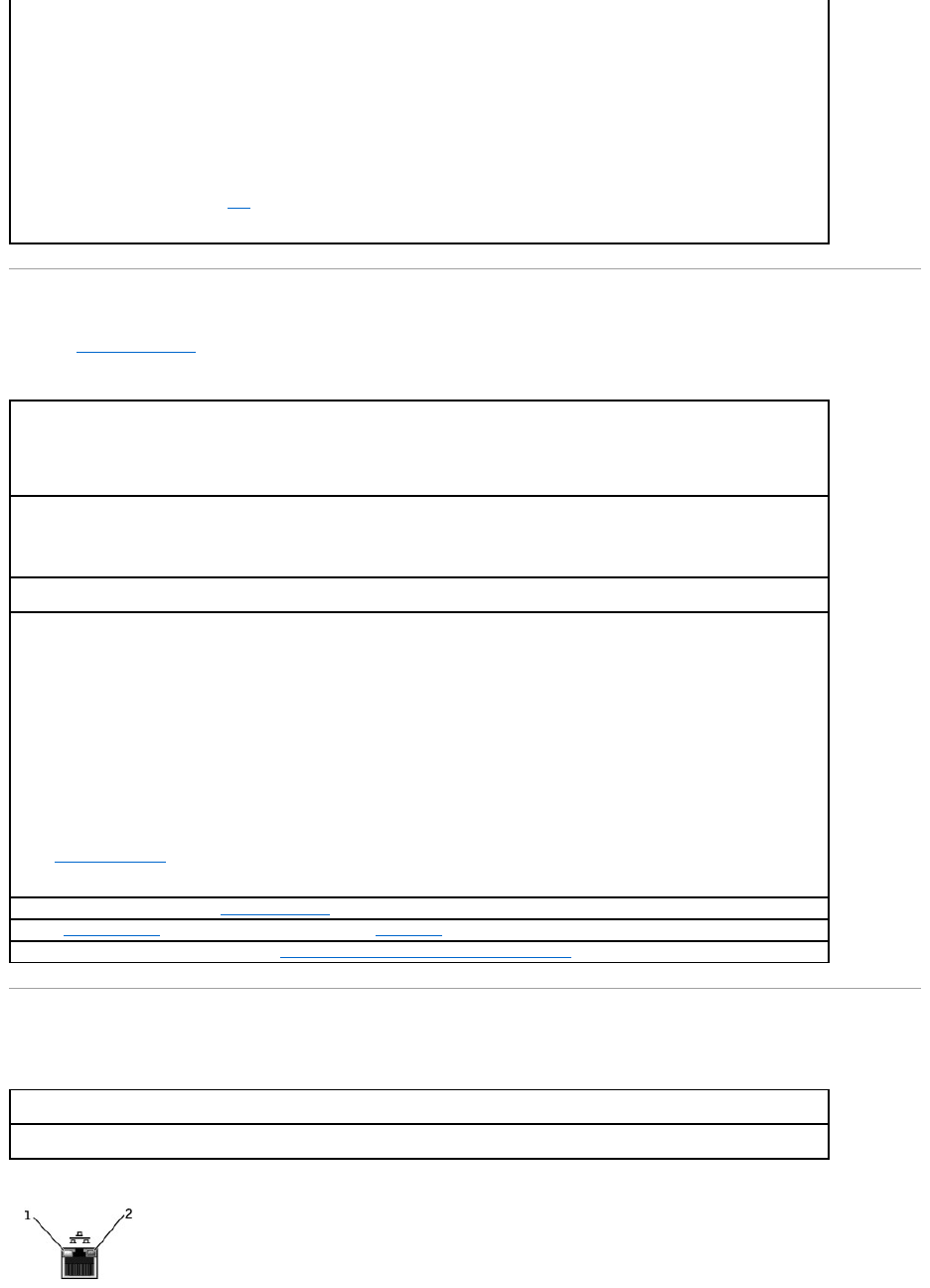
Mouse Problems
Fill out the Diagnostics Checklist as you complete these checks.
Network Problems
message for the following:
¡Different cache sizes
¡Different speeds
¡Different types
Enter system setup and ensure that values for Processor 0 and Processor 1 under the CPU Information option are identical:
lIf two microprocessors are installed, ensure that a VRM is installed for the second microprocessor.
lRemove and reinstall the microprocessor.
lRun the System Board Devices and Processor Cache test groups in the Dell Diagnostics.
Verify that the VRM is working:
lIf two microprocessors are installed, ensure that a VRM is properly installed for the second microprocessor.
lReseat the second VRM (see "VRM").
lRun the System Board Devices and Processor Cache test groups in the Dell Diagnostics.
Restart the computer —
1. Simultaneously press <Ctrl><Esc> to display the Start menu.
2. Type u, press the keyboard arrow keys to highlight Shut down or Turn Off, and then press <Enter>.
3. After the computer turns off, press the power button to restart the computer.
Check the mouse cable —
lCheck the cable connector for bent or broken pins and for damaged or frayed cables. Straighten bent pins.
lEnsure that the cable is firmly connected to the computer.
Test the mouse — Connect a properly working mouse to the computer, and try using the mouse. If the new mouse works, the original
mouse was faulty.
Check the mouse settings —
Windows® XP
1. Click the Start button, click Control Panel, and then click Printers and Other Hardware.
2. Click Mouse.
3. Try adjusting the settings.
Windows 2000
1. Click the Start button, point to Settings, and then click Control Panel.
2. Double-click the Mouse icon.
3. Try adjusting the settings.
If you are using a PS/2 mouse
1. Enter system setup and ensure that Mouse Port under the Integrated Devices option is set to On.
2. Exit system setup and restart the computer.
Reinstall the mouse driver — See "Reinstalling Drivers."
Run the Dell Diagnostics — If any of the diagnostics tests fail, contact Dell.
Check for interrupt request conflicts — See "Resolving Software and Hardware Incompatibilities."
Check the network cable connector — Ensure that the network cable is firmly inserted into both the network connector on the back of the
computer and the network jack.
Check the network lights on the back of the computer — No light indicates that there is no network communication. Try replacing the
network cable.
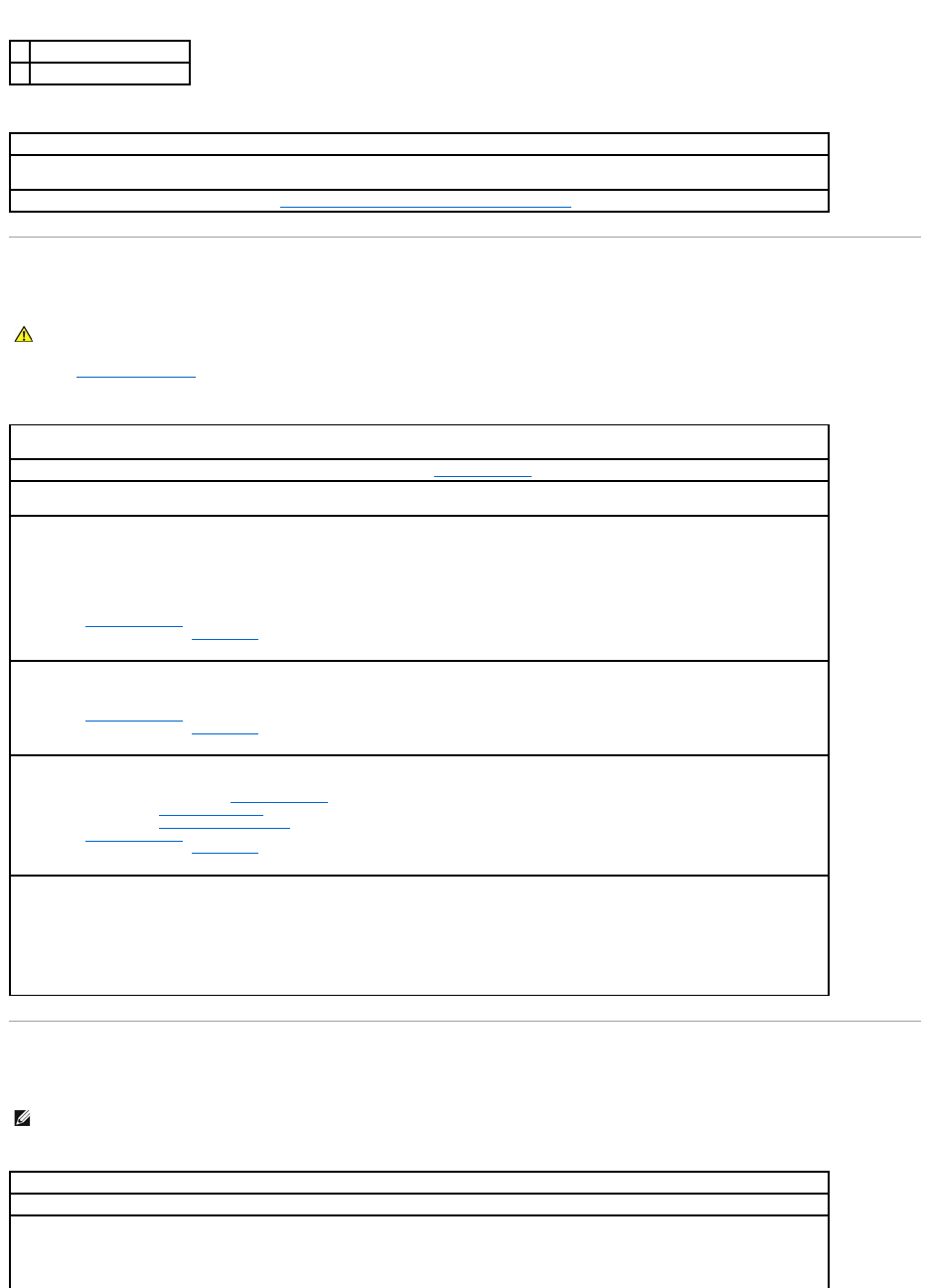
Power Problems
Fill out the Diagnostics Checklist as you complete these checks.
Printer Problems
1
link integrity light
2
network activity light
Restart the computer and try to log on to the network again
Check your network settings — Contact your network administrator or the person who set up your network to verify that your network
settings are correct and that the network is functioning.
Check for interrupt request conflicts — See "Resolving Software and Hardware Incompatibilities."
CAUTION: Before you begin any of the procedures in this section, follow the safety instructions in the System Information Guide.
Adjust the Power Properties — Your computer may be in standby or hibernate mode. For information on power conservation modes, see
your operating system documentation.
If the power light is green and the computer is not responding — See "Diagnostic Lights."
If the power light is blinking green — The computer is in standby mode. Press a key on the keyboard or move the mouse to resume normal
operation.
If the power light is off — The computer is either turned off or is not receiving power.
lReseat the power cable into both the power connector on the back of the computer and the electrical outlet.
lIf the computer is plugged into a power strip, ensure that the power strip is plugged into an electrical outlet and that the power strip
is turned on.
lEnsure that the electrical outlet is working by testing it with another device, such as a lamp.
lBypass power protection devices, power strips, and power extension cables to verify that the computer turns on.
lSee "Diagnostic Lights."
lIf the problem persists, contact Dell.
If the power light is steady amber — The computer is receiving electrical power, but an internal power problem might exist.
lEnsure that the microprocessor power cable is securely connected to the system board.
lSee "Diagnostic Lights."
lIf the problem persists, contact Dell.
If the power light is blinking amber — A device might be malfunctioning or incorrectly installed.
lRemove and then reinstall the memory modules.
lRemove and then reinstall any cards.
lRemove and then reinstall the video card, if applicable.
lSee "Diagnostic Lights."
lIf the problem persists, contact Dell.
Eliminate interference — Electrical appliances on the same circuit or operating near the computer can cause interference. Other causes of
interference are:
lPower extension cables
lKeyboard and mouse extension cables
lToo many devices on a power strip
lMultiple power strips connected to the same electrical outlet
NOTE: Dell does not cover the printer's warranty. If you need technical assistance for your printer, call the printer's manufacturer. See the printer
documentation for the correct phone number.
Check the printer documentation — See the printer documentation for setup and troubleshooting information.
Ensure that the printer is turned on — See the printer documentation for power button information.
Verify the printer cable connections —
lSee the printer documentation for cable connection information.
lEnsure that the printer cables are securely connected to the printer and the computer.
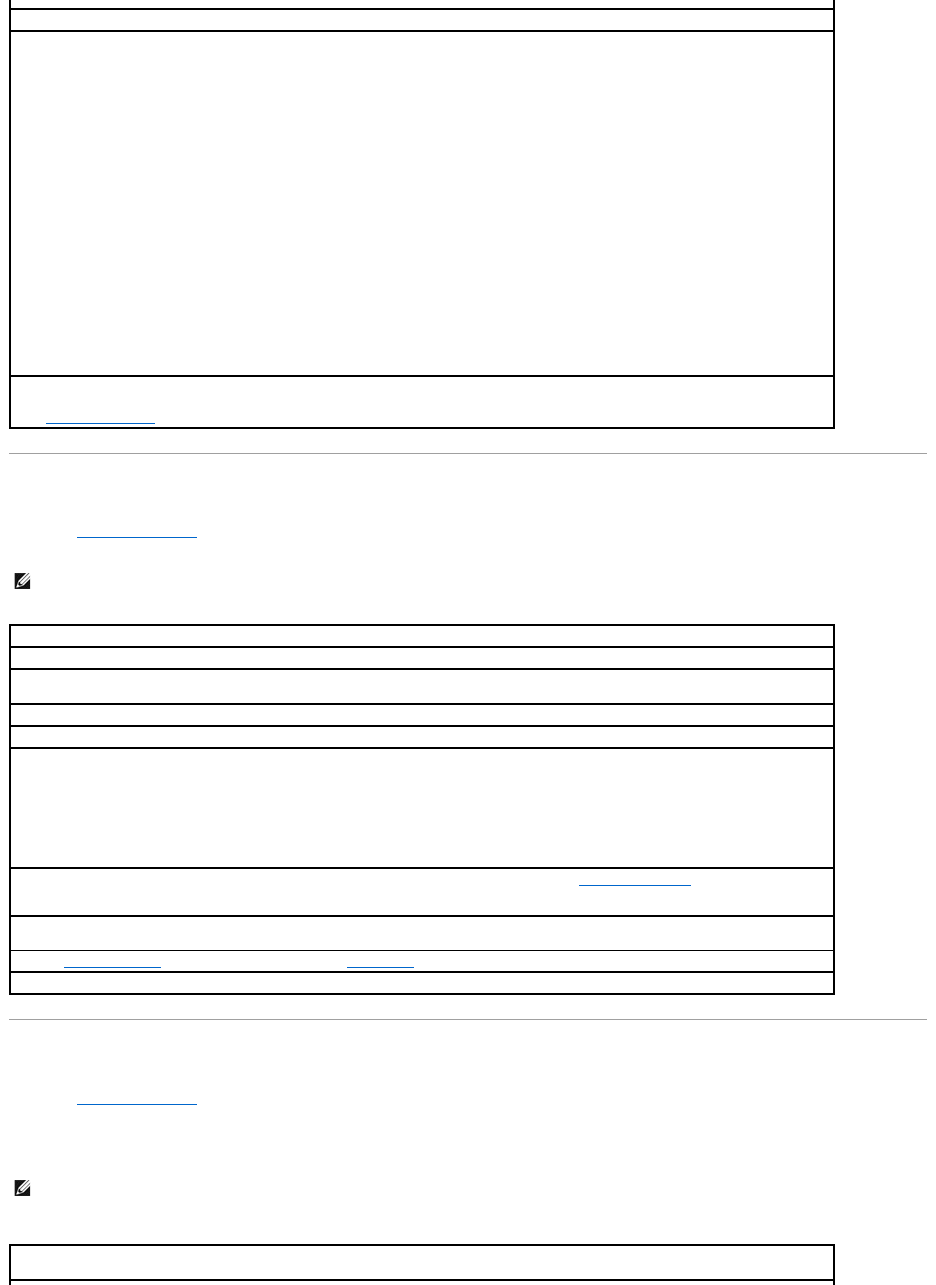
Serial or Parallel Device Problems
Fill out the Diagnostics Checklist as you complete these checks.
Sound and Speaker Problems
Fill out the Diagnostics Checklist as you complete these checks.
No sound from speakers
Test the electrical outlet — Ensure that the electrical outlet is working by testing it with another device, such as a lamp.
Verify that the printer is recognized by Windows®—
Windows XP
1. Click the Start button.
2. Click Control Panel.
3. Click Printers and Other Hardware.
4. Click View installed printers or fax printers.
If the printer is listed, right-click the printer icon.
5. Click Properties, and then select the Ports tab. For a parallel printer, ensure that the Print to the following port(s): setting is LPT1
(Printer Port). For a USB printer, ensure that the Print to the following port(s): setting is USB.
Windows 2000
1. Click the Start button, point to Settings, and then click Printers.
If the printer is listed, right-click the printer icon.
2. Click Properties, and then select the Ports tab. For a parallel printer, ensure that the Print to the following port(s): setting is LPT1
(Printer Port). For a USB printer, ensure that the Print to the following port(s): setting is USB.
Reinstall the printer driver —
See "Reinstalling Drivers."
NOTE: If you are having a problem with a printer, see "Printer Problems."
Check the documentation for the device — See the device's documentation for troubleshooting procedures.
Ensure that the device is turned on — Firmly press the device's power button.
Check the device cable connections — Check the connector for bent or broken pins. (It is normal for most device cable connectors to have
missing pins.) Ensure that the device cable is firmly connected to the computer.
Test the device cable — Swap the device's cable with a cable that works properly.
Test the electrical outlet — Ensure that the electrical outlet is working by testing it with another device, such as a lamp.
Eliminate interference — Relocate any electrical appliances on the same circuit or operating near the computer that might cause
interference. Remove these other possible causes of interference:
lPower extension cables
lKeyboard and mouse extension cables
lToo many devices on a power strip
lMultiple power strips connected to the same electrical outlet
Check the option setting — See the device's documentation for the recommended settings. Then enter system setup and go to the
Integrated Devices option settings. Ensure that the Serial Port setting (for a serial device) or the Parallel Port setting (for a parallel
device) matches the recommended settings.
Check the software documentation — If the problem occurs with particular software, see the software documentation for the recommended
serial or parallel port settings. Ensure that the port settings match the recommended settings.
Run the Dell Diagnostics — If the tests do not complete, contact Dell.
Test the device — Swap the device with a comparable device that works properly.
NOTE: The volume control in some MP3 players overrides the Windows® volume setting. If you have been listening to MP3 songs, ensure that you did
not turn the player volume down or off.
Check the speaker cable connections — Ensure that the speakers are connected as shown on the setup diagram supplied with the
speakers.
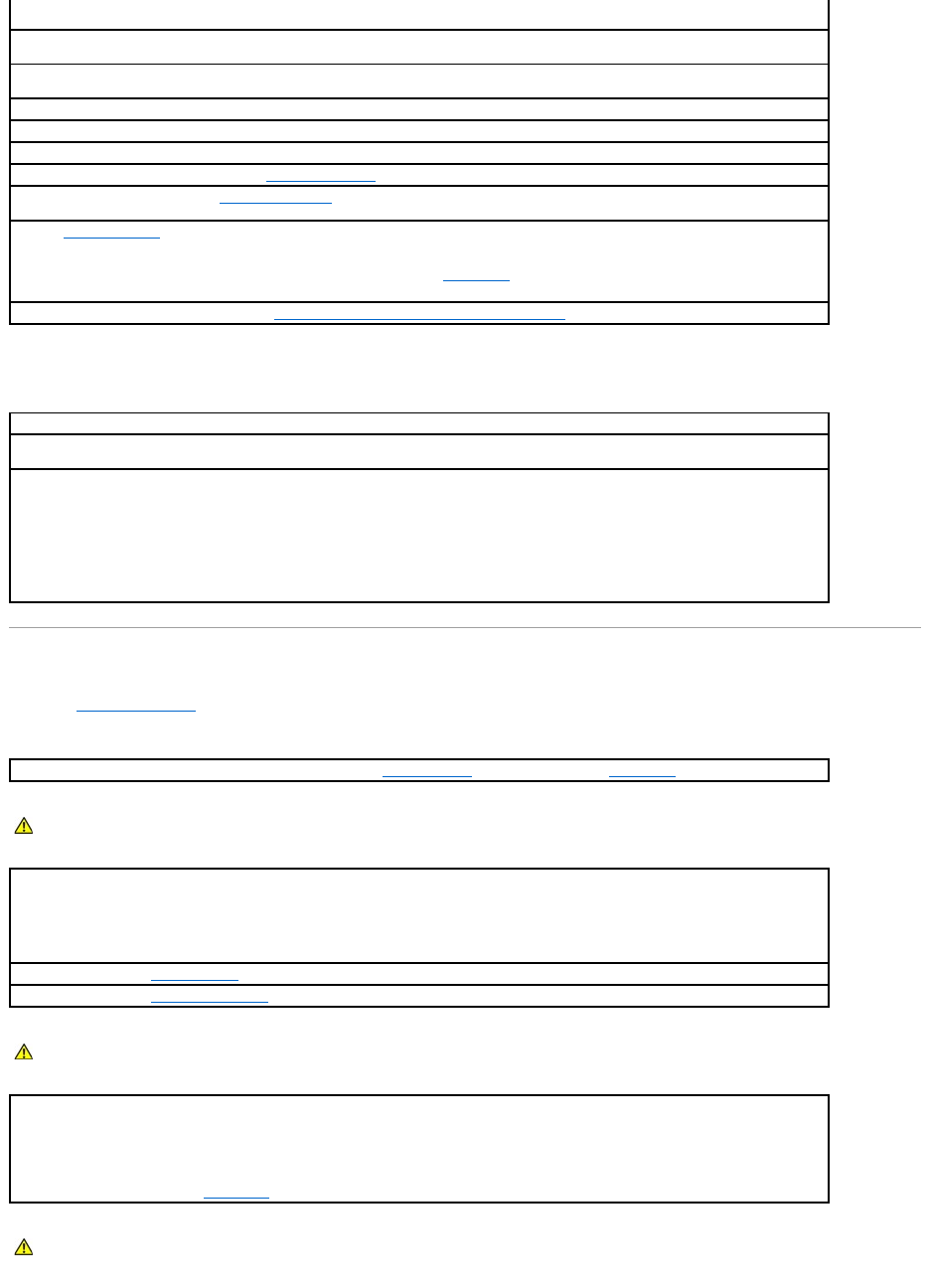
No sound from headphones
System Board Problems
Fill out the Diagnostics Checklist as you complete the following checks.
Ensure that the subwoofer and the speakers are turned on — See the setup diagram supplied with the speakers. If your speakers have
volume controls, adjust the volume, bass, or treble to eliminate distortion.
Adjust the Windows volume control — Click or double-click the speaker icon in the lower-right corner of your screen. Ensure that the volume
is turned up and that the sound is not muted.
Disconnect headphones from the headphone connector — Sound from the speakers is automatically disabled when headphones are
connected to the computer's front-panel headphone connector.
Test the electrical outlet — Ensure that the electrical outlet is working by testing it with another device, such as a lamp.
Eliminate possible interference — Turn off nearby fans, fluorescent lights, or halogen lamps to check for interference.
Run the speaker diagnostics — Some speaker systems have self- diagnostics. See the speaker documentation for diagnostics instructions.
Reinstall the audio (sound) driver — See "Reinstalling Drivers."
Check the device option setting — Enter system setup and ensure that Sound under the Integrated Devices option is set to On. Exit
system setup and restart the computer.
Run the Dell Diagnostics —
lIf the tests complete successfully, the controller is functioning properly.
lIf the problem persists, or if the tests do not complete successfully, contact Dell.
Check for interrupt request conflicts — See Resolving Software and Hardware Incompatibilities.
Check the headphone cable connection — Ensure that the headphone cable is securely inserted into the headphone connector.
Adjust the Windows volume control — Click or double-click the speaker icon in the lower-right corner of your screen. Ensure that the volume
is turned up and that the sound is not muted.
Disable digital mode — Your headphones do not work if the CD drive is operating in digital mode. To disable digital mode:
1. Click the Start button, click Control Panel, and then click Sounds, Speech, and Audio Devices.
2. Click Sounds and Audio Devices.
3. Click the Hardware tab.
4. Double-click the name of your CD drive.
5. Click the Properties tab.
6. Uncheck the Enable digital CD audio for this CD-ROM device box.
Run the Dell Diagnostics — Restart the computer and run t the Dell Diagnostics. If any of the tests fail, contact Dell.
CAUTION: Before you begin any of the procedures in this section, follow the safety instructions in the System Information Guide.
Check the power supply cable connections —
1. Turn off the computer and devices, disconnect them from electrical outlets, wait 10 to 20 seconds, and then open the computer cover.
2. Ensure that the power cables from the power supply are firmly connected to the connectors on the system board.
3. Close the computer cover, reconnect the computer and devices to electrical outlets, and turn them on.
Perform all checks in "Card Problems"
Perform all checks in "Keyboard Problems"
CAUTION: Before you begin any of the procedures in this section, follow the safety instructions in the System Information Guide.
Reinstall the battery —
1. Turn off the computer and devices, disconnect them from electrical outlets, wait 10 to 20 seconds, and then open the computer.
2. Remove the battery, wait 5 minutes, and reinstall the battery.
3. Close the computer cover, reconnect the computer and devices to electrical outlets, and turn them on.
If the problem still exists, contact Dell.
CAUTION: Before you begin any of the procedures in this section, follow the safety instructions in the System Information Guide.
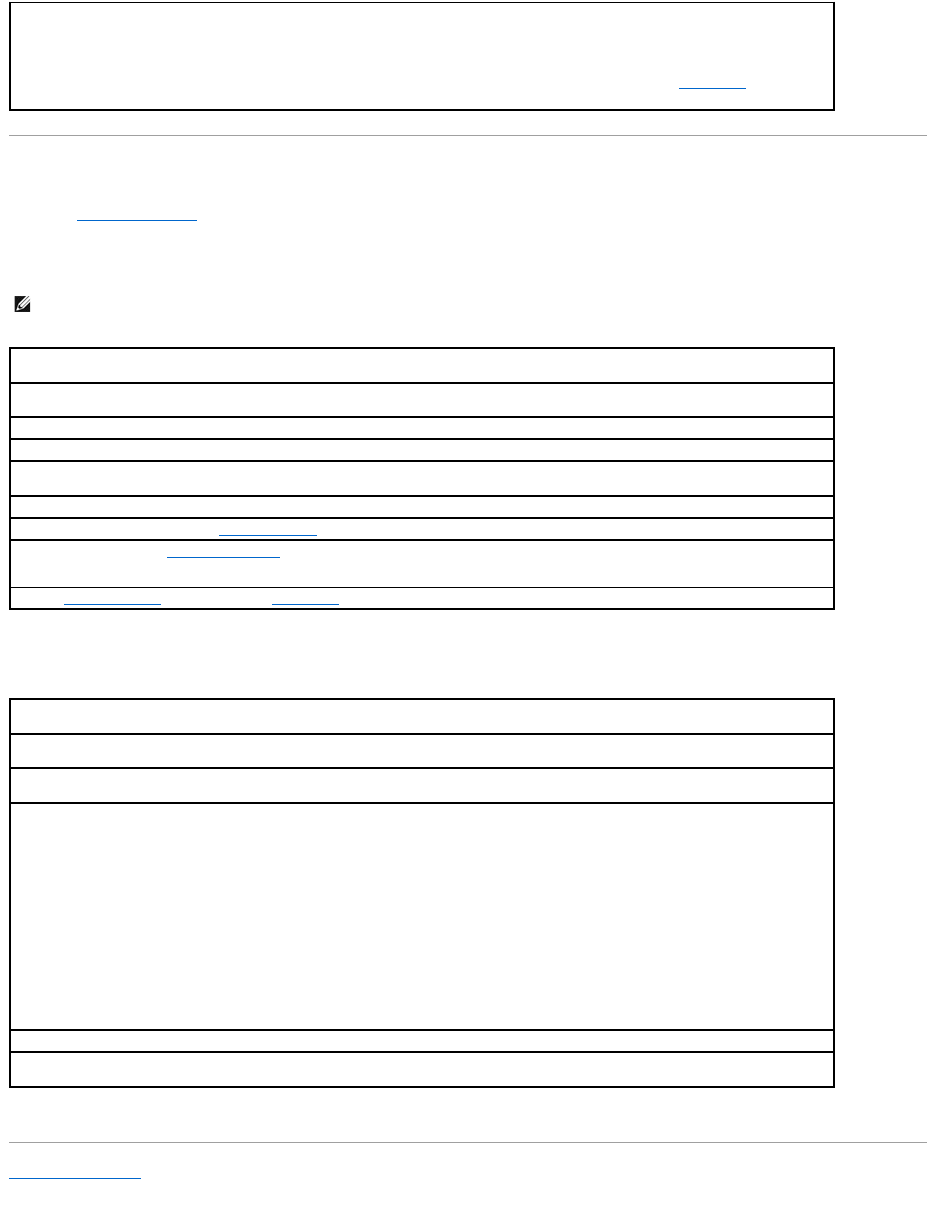
Video and Monitor Problems
Fill out the Diagnostics Checklist as you complete these checks.
If the screen is blank
If the screen is difficult to read
Back to Contents Page
Reseat the Memory Modules —
1. Turn off the computer and devices, disconnect them from electrical outlets, wait 10 to 20 seconds, and then open the computer cover.
2. Remove and replace the memory module(s).
3. Close the computer cover, reconnect the computer and devices to electrical outlets, and turn them on.
4. If the RAM count displayed does not correctly match the actual amount of memory installed in the computer, contact Dell.
NOTE: See the monitor documentation for troubleshooting procedures.
Check the monitor power light — If the power light is off, firmly press the button to ensure that the monitor is turned on. If the power light
is lit or blinking, the monitor has power. If the power light is blinking, press a key on the keyboard or move the mouse.
Check the monitor cable connection — Check the connector for bent or broken pins. (It is normal for monitor cable connectors to have
missing pins.)
Test the electrical outlet — Ensure that the electrical outlet is working by testing it with another device, such as a lamp.
Swap the power cables — Swap the computer and monitor power cables to determine if the power cable is defective.
Test the video extension cable (if used) — If you are using a video extension cable and removing the cable solves the problem, the cable is
defective.
Test another monitor — If another monitor is available, connect it to the computer.
Check the diagnostic lights — See Diagnostic Lights.
Check the card setting — Enter system setup and ensure that Primary Video Controller under the Integrated Devices option is set
correctly. For an AGP card, set Primary Video Controller to AGP. For a PCI card, set Primary Video Controller to Auto. Exit system setup
and restart the computer.
Run the Dell Diagnostics — If any tests fail, contact Dell.
Check the monitor settings — See the monitor documentation for instructions on adjusting the contrast and brightness, demagnetizing
(degaussing) the monitor, and running the monitor self-test.
Move the subwoofer away from the monitor — Ifyourspeakersystemincludesasubwoofer,ensurethatthesubwooferisatleast60cm
(2ft)awayfromthemonitor.
Move the monitor away from external power sources — Fans, fluorescent lights, halogen lamps, and other electrical devices can cause the
screen image to appear "shaky." Turn off nearby devices to check for interference.
Adjust the Windows® display settings —
Windows XP
1. Click the Start button, and then click Control Panel.
2. Click Appearance and Themes.
3. Click Display, and then click the Settings tab.
4. Try different settings for Screen resolution and Color quality.
Windows 2000
1. Click the Start button, point to Settings, and then click Control Panel.
2. Double-click the Display icon, and then click the Settings tab.
3. Try different settings for Screen area or Desktop area.
Restore the recommended settings — Restore the original resolution and refresh rate settings.
Restore the recommended settings — Restore the original resolution and refresh rate settings. See the Tell Me How help file for instructions.
Toaccesshelpfiles,seepage4.

Back to Contents Page
DellPrecision™Workstations450and650User'sGuide
This document describes the features and operation of your computer. This document is stored on your computer hard drive. For information on other
documentation included with your computer, see "Finding Information for Your Computer."
For a complete list of abbreviations and acronyms, see the Glossary.
IfyoupurchasedaDell™nSeriescomputer,anyreferencesinthisdocumenttoMicrosoft®Windows®operating systems are not applicable.
Information in this document is subject to change without notice.
©2003DellComputerCorporation.Allrightsreserved.
Reproduction in any manner whatsoever without the written permission of Dell Computer Corporation is strictly forbidden.
Trademarks used in this text: Dell, the DELL logo, Inspiron, Dell Precision, Dimension, OptiPlex, Dell OpenManage, and Latitude are trademarks of Dell Computer Corporation; Intel,
Pentium, and Celeron are registered trademarks and Xeon is a trademark of Intel Corporation; Microsoft, MS-DOS, Windows NT, and Windows are registered trademarks of Microsoft
Corporation; IBM and OS/2 are registered trademarks of International Business Machines Corporation; ENERGY STAR is a registered trademark of the U.S. Environmental Protection
Agency. As an ENERGY STAR partner, Dell Computer Corporation has determined that this product meets the ENERGY STAR guidelines for energy efficiency.
Other trademarks and trade names may be used in this document to refer to either the entities claiming the marks and names or their products. Dell Computer Corporation
disclaims any proprietary interest in trademarks and trade names other than its own.
Models: WHL and WHM
April2003P/N6T345Rev.A03
Back to Contents Page
NOTE: A NOTE indicates important information that helps you make better use of your computer.
NOTICE: A NOTICE indicates either potential damage to hardware or loss of data and tells you how to avoid the problem.
CAUTION: A CAUTION indicates a potential for property damage, personal injury, or death.

Back to Contents Page
Warranty and Return Policy
DellPrecision™Workstations450and650User'sGuide
Dell Computer Corporation ("Dell") manufactures its hardware products from parts and components that are new or equivalent to new in accordance with
industry-standard practices. For information about the Dell warranty for your computer, see the System Information Guide.
Back to Contents Page

Back to Contents Page
Your Operating System
DellPrecision™Workstations450and650User'sGuide
Reinstalling Microsoft®Windows®XP
Reinstalling Microsoft Windows 2000
Microsoft Windows XP Features
Reinstalling Microsoft®Windows®XP
Before You Reinstall
If you are considering reinstalling the Windows XP operating system to correct a problem with a newly installed driver, use System Restore to return your
operating system to the operating state it was in before you installed the new device driver.
To reinstall Windows XP, you need the following items:
lDell Operating System CD
lDell Drivers and Utilities CD
lProduct Key (Product ID Number) ____________________
Reinstalling Windows XP
To reinstall Windows XP, perform all the steps in the following sections in the order in which they are listed.
The reinstallation process can take 1 to 2 hours to complete. After you reinstall the operating system, you must also reinstall the device drivers, virus
protection program, and other software.
Booting From the Operating System CD
1. Save and close any open files and exit any open programs.
2. Insert the Operating System CD. If any program starts automatically, exit the program before proceeding.
3. Shut down the computer through the Start menu and restart the computer.
4. Press<F12>immediatelyaftertheDELL™logoappears.
If the operating system logo appears, wait until you see the Windows desktop, and then shut down the computer and try again.
5. Press the arrow keys to select CD-ROM, and then press <Enter>.
6. When the Press any key to boot from CD message appears, press any key.
Windows XP Setup
1. When the Windows XP Setup screen appears, press <Enter> to select To set up Windows now.
2. Read the information on the Microsoft Windows Licensing Agreement screen, and press <F8> to accept the license agreement.
3. If your computer already has Windows XP installed and you want to recover your current Windows XP data, type r to select the repair option, and then
remove the CD from the drive.
NOTE: See "Advanced Troubleshooting" for information on identifying drivers, creating a restore point, and resolving software and hardware
incompatibilities.
NOTICE: Before performing the installation, back up all data files on your primary hard drive. For conventional hard drive configurations, the primary
hard drive is the first drive detected by the computer.
NOTE: The Dell Drivers and Utilities CD contains drivers that were factory-installed during assembly of the computer. Use the Drivers and Utilities CD to
load any required drivers, including those drivers required if your computer has a redundant array of independent disks (RAID) controller.
NOTE: The Product Key is the bar code number on the sticker that is located on the external side cover of your computer. You may be prompted for the
Product Key when using the Operating System CD under certain conditions.
NOTICE: The Operating System CD provides options for reinstalling Windows XP. The options can overwrite files and possibly affect programs installed
on your hard drive. Therefore, do not reinstall Windows XP unless instructed to do so by a Dell technical support representative.
NOTICE: To prevent conflicts with Windows XP, disable any virus protection software installed on your computer before you reinstall Windows XP. See
the documentation that came with the software for instructions.

4. If you want to install a new copy of Windows XP, press <Esc> to select that option.
5. Press <Enter> to select the highlighted partition (recommended), and then follow the instructions on the screen.
The Windows XP Setup screen appears, and the operating system begins to copy files and install the devices. The computer automatically restarts
multiple times.
6. When the Regional and Language Options screen appears, select the settings for your location, and then click Next.
7. Enter your name and organization (optional) in the Personalize Your Software screen and click Next.
8. If you are reinstalling Windows XP Home Edition, at the What's your computer's name window, enter a name for your computer (or accept the name
provided) and click Next.
If you are reinstalling Windows XP Professional, at the Computer Name and Administrator Password window, enter a name for your computer (or accept
the one provided) and a password, and then click Next.
9. If the Modem Dialing Information screen appears, enter the requested information and click Next.
10. Enter the date, time, and time zone in the Date and Time Settings window and click Next.
11. If the Networking Settings screen appears, click Typical and click Next.
12. If you are reinstalling Windows XP Professional and you are prompted to provide further information regarding your network configuration, enter your
selections. If you are unsure of your settings, accept the default selections.
Windows XP installs the operating system components and configures the computer. The computer automatically restarts.
13. When the Welcome to Microsoft screen appears, click Next.
14. When the How will this computer connect to the Internet? message appears, click Skip.
15. When the Ready to register with Microsoft? screen appears, select No, not at this time and click Next.
16. When the Who will use this computer? screen appears, you can enter up to five users. Click Next.
17. Click Finish to complete the setup, and remove the CD from the drive.
18. Reinstall the appropriate drivers using the ResourceCD.
19. Reinstall your virus protection software.
Reinstalling Microsoft Windows 2000
The reinstallation process can take 1 to 2 hours to complete. After you reinstall the operating system, you must also reinstall the device drivers, virus
protection program, and other software.
1. Save and close any open files and exit any open programs.
2. Insert the Operating System CD. If any program starts automatically, exit the program before proceeding.
3. Shut down the computer through the Start menu and restart the computer.
4. Press<F12>immediatelyaftertheDELL™logoappears.
If the operating system logo appears, wait until you see the Windows desktop, and then shut down the computer and try again.
5. Press the arrow keys to select CD-ROM, and then press <Enter>.
6. When the Press any key to boot from CD message appears, press any key.
7. When the Windows 2000 Setup window appears, ensure that To setup Win2000 now, press ENTER is highlighted. Then press <Enter>.
8. When the Windows 2000 Professional Setup window appears, press the arrow keys to select the Windows 2000 partition option that you want. Then
press the key for the partition option you chose.
9. When the Windows 2000 Professional Setup window reappears, press the arrow keys to select the type of file system that you want Windows 2000
to use, and then press <Enter>.
10. Press <Enter> again to restart your computer.
11. Click Next when the Welcome to the Windows 2000 Setup Wizard window appears.
12. When the Regional Settings window appears, select your region, and then click Next.
NOTE: The time required to complete the setup depends on the size of the hard drive and the speed of your computer.
NOTICE: Do not press any key when the following message appears: Press any key to boot from the CD.
NOTICE: Do not press any key when the following message appears: Press any key to boot from the CD.
NOTICE: The Operating System CD provides options for reinstalling Windows 2000. The options can overwrite files and possibly affect programs
installed on your hard drive. Therefore, do not reinstall Windows 2000 unless instructed to do so by a Dell technical support representative.

13. Enter your name and organization in the Personalize Your Software window, and then click Next.
14. Enter the Windows product key, which is printed on the Microsoft label on your computer. Then click Next.
15. When the Computer Name and Administrator Password window appears, enter a name for your computer and a password, if desired. Then click Next.
16. Enter the date and time in the Date and Time Settings window, and then click Next.
Windows 2000 installs components and configures the computer.
17. When the Completing the Windows 2000 Setup Wizard window appears, remove the CD from the drive, and then click Finish.
The computer automatically restarts.
18. Reinstall the appropriate drivers using the ResourceCD.
19. Reinstall your virus protection software.
Microsoft Windows XP Features
Transferring Information to a New Computer
The Microsoft®Windows® XP operating system provides a Files and Settings Transfer wizard to move data from the source computer to the new computer.
You can move data such as:
lE-mails
lToolbar settings
lWindow sizes
lInternet bookmarks
You can transfer the data to the new computer over a network or serial connection, or you can store it on a removable medium, such as a writable CD or
floppy disk.
To prepare the new computer for the file transfer:
1. Click the Start button, point to All Programs® Accessories® System Tools, and then click Files and Settings Transfer Wizard.
2. When the Files and Settings Transfer Wizard welcome screen appears, click Next.
3. On the Which computer is this? screen, click New Computer and click Next.
4. On the Do you have a Windows XP CD? screen, click I will use the wizard from the Windows XP CD and click Next.
5. When the Now go to your old computer screen appears, go to your old or source computer. Do not click Next at this time.
To copy data from the old computer:
1. On the old computer, insert the Windows XP Operating System CD.
2. On the Welcome to Microsoft Windows XP screen, click Perform additional tasks.
3. Under What do you want to do?, click Transfer files and settings.
4. On the Files and Settings Transfer Wizard welcome screen, click Next.
5. On the Which computer is this? screen, click Old Computer and click Next.
6. On the Select a transfer method screen, click the transfer method you prefer.
7. On the What do you want to transfer? screen, select the items you want to transfer and click Next.
After the information has been copied, the Completing the Collection Phase screen appears.
8. Click Finish.
To transfer data to the new computer:
1. On the Now go to your old computer screen on the new computer, click Next.
2. On the Where are the files and settings? screen, select the method you chose for transferring your settings and files and click Next.
The wizard reads the collected files and settings and applies them to your new computer.
When all of the settings and files have been applied, the Finished screen appears.
3. Click Finished and restart the new computer.
Switching to Classic View
You can change the Control Panel, the Start menu, and the Microsoft®Windows®desktop so they look like they did in previous versions of the Windows
NOTE: The procedures in this help file were written for the Windows default view, so the options might be different if you switch to the classic view.

operating system.
Control Panel
1. Click the Start button and click Control Panel.
2. Click Switch to Classic View or Switch to Category View in the upper-left area of the Control Panel window.
Start Menu
1. Right-click an empty area on the taskbar.
2. Click Properties and click the Start Menu tab.
3. Click Classic Start Menu and click OK.
Desktop Themes
1. Right-click anywhere on the main desktop screen and click Properties.
2. On the Themes tab, click Windows Classic in the drop-down menu.
3. To customize color, font, and other classic desktop options, click the Appearance tab and click Advanced.
4. When you have made your selections, click OK.
Desktop Cleanup Wizard
By default, the Desktop Cleanup Wizard moves desktop icons that are not frequently used from your desktop to a designated folder 7 days after you first
start your computer and every 60 days after that. The appearance of the Start menu changes as desktop icons are moved.
To turn off the Desktop Cleanup Wizard:
1. Right-click an empty spot on the desktop and click Properties.
2. Click the Desktop tab and click Customize Desktop.
3. Click Run Desktop Cleanup Wizard every 60 days to remove the check mark.
4. Click OK.
To run the Desktop Cleanup Wizard at any time:
1. Right-click an empty spot on the desktop and click Properties.
2. Click the Desktop tab and click Customize Desktop.
3. Click Clean Desktop Now.
4. When the Desktop Cleanup Wizard screen appears, click Next.
5. To leave an icon on the desktop, click the icon name to remove the check mark, and then click Next.
6. Click Finish to remove the shortcuts and close the wizard.
Internet Connection Firewall
The Internet Connection Firewall provides basic protection from unauthorized access to the computer while the computer is connected to the Internet. The
firewall is automatically enabled when you run the Network Setup Wizard. When the firewall is enabled for a network connection, the firewall icon appears
with a red background in the Network Connections section of the Control Panel.
Note that enabling the Internet Connection Firewall does not reduce the need for virus-checking software.
For more information, see the Help and Support Center (Microsoft®Windows®XP).
Setting Up a Home and Office Network
Network Setup Wizard
The Microsoft® Windows® XP operating system provides a Network Setup Wizard to guide you through the process of sharing files, printers, or an Internet
connection between computers in a home or small office.
1. Click the Start button, point to All Programs® Accessories® Communications, and then click Network Setup Wizard.
2. On the welcome screen, click Next.
3. Click Checklist for creating a network.
4. Complete the checklist and required preparations.
5. Return to the Network Setup Wizard and follow the instructions on the screen.
User Accounts and Fast User Switching
NOTE: Selecting the connection method This computer connects directly to the Internet enables the integrated firewall provided with Windows XP.

Adding User Accounts
After the Microsoft®Windows®XP operating system is installed, the administrator or a user with administrator rights can create additional user accounts.
1. Click the Start button and click Control Panel.
2. In the Control Panel window, click User Accounts.
3. Under Pick a task, click Create a new account.
4. Under Name the new account, type the name of the new user and click Next.
5. Under Pick an account type, click one of the following options:
lComputer administrator — You can change all computer settings.
lLimited — You can change only your own personal settings, such as your password. You cannot install programs or use the Internet.
6. Click Create Account.
Fast User Switching
Fast User Switching allows multiple users to access one computer without requiring the previous user to log off.
1. Click the Start button and click Log Off.
2. In the Log Off Windows window, click Switch User.
When you use Fast User Switching, programs that previous users were using remain running in the background, which might decrease your computer's
response time. Also, multimedia programs, such as games and DVD software, might not work with Fast User Switching. For more information, see the Windows
Help and Support Center.
Back to Contents Page
NOTE: Additional options may be available, depending on whether you are using Windows XP Home Edition or Windows XP Professional. Also, options
available in Windows XP Professional vary depending on whether your computer is connected to a domain.
NOTE: Fast User Switching is unavailable if your computer is running Windows XP Professional and is a member of a computer domain, or if your
computer has less than 128 MB of memory.
