Dell Personal Computer C8220 Users Manual PowerEdge Hardware Owner's
2015-02-09
: Dell Dell-Personal-Computer-C8220-Users-Manual-544562 dell-personal-computer-c8220-users-manual-544562 dell pdf
Open the PDF directly: View PDF  .
.
Page Count: 234 [warning: Documents this large are best viewed by clicking the View PDF Link!]
- Dell PowerEdge C8220 Hardware Owner’s Manual
- Contents
- About Your System
- Using the System Setup Program
- Installing System Components
- Safety Instructions
- About the Illustrations
- Recommended Tools
- Inside the System
- Sled Configuration
- Sled
- Sled Blank
- MicroSD Card
- Sled Covers
- Cooling Shroud
- Heat Sink
- Heat Sink Blank
- Processors
- System Memory
- Expansion Card
- RAID Battery
- Expansion Card Riser
- Mezzanine Cards
- MicroSD Card Reader
- Internal Hard-Drives
- Interposer Extender
- Node Power Distribution Board
- System Battery
- System Board
- Troubleshooting
- Safety First-For You and Your System
- Installation Problems
- Troubleshooting System Startup Failure
- Troubleshooting External Connections
- Troubleshooting the Video Subsystem
- Troubleshooting a USB Device
- Troubleshooting a Serial I/O Device
- Troubleshooting a NIC
- Troubleshooting a Wet Enclosure
- Troubleshooting a Damaged Enclosure
- Troubleshooting the Power Sled
- Troubleshooting System Memory
- Troubleshooting a Hard-Drive
- Troubleshooting a Storage Controller
- Troubleshooting Expansion Cards
- Troubleshooting Processors
- Identifying System Board Model Number
- Troubleshooting the System Board
- Troubleshooting the System Battery
- IRQ Assignment Conflicts
- Jumpers and Connectors
- Getting Help
- Index

Dell PowerEdge C8220
Hardware Owner’s
Manual
Regulatory Model: B05B
Regulatory Type: B05B001

Notes, Cautions, and Warnings
NOTE: A NOTE indicates important information that helps you make better use of
your computer.
CAUTION: A CAUTION indicates potential damage to hardware or loss of data if
instructions are not followed.
WARNING: A WARNING indicates a potential for property damage, personal
injury, or death.
____________________
Information in this publication is subject to change without notice.
© 2013 Dell Inc. All rights reserved.
Reproduction of these materials in any manner whatsoever without the written permission of Dell Inc.
is strictly forbidden.
Trademarks used in this text: Dell™, the DELL logo, and PowerEdge™ are trademarks of Dell Inc.
Intel is a registered trademark of Intel Corporation in the U.S. and other countries.
Other trademarks and trade names may be used in this publication to refer to either the entities claiming
the marks and names or their products. Dell Inc. disclaims any proprietary interest in trademarks and
trade names other than its own.
Regulatory Model B05B
Regulatory Type: B05B001
2013 - 09 P/N XXXXX Rev. A02

Contents 3
Contents
1 About Your System . . . . . . . . . . . . . . . . . 11
Accessing System Features During Startup. . . . . . . 11
Front-Panel Features and Indicators . . . . . . . . . . 12
NIC Indicator Codes . . . . . . . . . . . . . . . . . . . 14
Power and System Board Indicator Codes . . . . . . . 16
BMC Heartbeat Indicator Codes. . . . . . . . . . . . . 17
Service Tag. . . . . . . . . . . . . . . . . . . . . . . . 18
POST Error Codes . . . . . . . . . . . . . . . . . . . . 19
Collecting System Event Log for
Investigation . . . . . . . . . . . . . . . . . . . . 19
System Event Log. . . . . . . . . . . . . . . . . . . . . 27
Processor Error. . . . . . . . . . . . . . . . . . . 27
Memory Ecc . . . . . . . . . . . . . . . . . . . . 28
PCIe Error . . . . . . . . . . . . . . . . . . . . . . 30
IOH Core Error . . . . . . . . . . . . . . . . . . . 31
SB Error . . . . . . . . . . . . . . . . . . . . . . . 32
POST Start Event . . . . . . . . . . . . . . . . . . 33
POST End Event. . . . . . . . . . . . . . . . . . . 34
POST Error Code Event . . . . . . . . . . . . . . . 35
BIOS Recovery Event . . . . . . . . . . . . . . . . 36
ME Fail Event . . . . . . . . . . . . . . . . . . . . 37
SEL Generator ID . . . . . . . . . . . . . . . . . . 37

4Contents
BMC . . . . . . . . . . . . . . . . . . . . . . . . . . . 38
Other Information You May Need . . . . . . . . . . . . 43
2 Using the System Setup Program . . . . . 45
System Setup Menu . . . . . . . . . . . . . . . . . . . 45
System Setup Options at Boot . . . . . . . . . . . . . . 46
Using the System Setup Program Navigation
Keys. . . . . . . . . . . . . . . . . . . . . . . . . . . . 46
General Help . . . . . . . . . . . . . . . . . . . . . . . 47
Console Redirection . . . . . . . . . . . . . . . . . . . 47
Enabling and Configuring Console
Redirection . . . . . . . . . . . . . . . . . . . . . 47
Serial Port Connection List . . . . . . . . . . . . . 51
Main Menu . . . . . . . . . . . . . . . . . . . . . . . . 52
Main Screen . . . . . . . . . . . . . . . . . . . . 52
System Settings . . . . . . . . . . . . . . . . . . . 53
Advanced Menu . . . . . . . . . . . . . . . . . . . . . 55
Power Management . . . . . . . . . . . . . . . . 56
CPU Configuration . . . . . . . . . . . . . . . . . 62
Memory Configuration . . . . . . . . . . . . . . . 66
SATA Configuration . . . . . . . . . . . . . . . . . 68
PCI Configuration . . . . . . . . . . . . . . . . . . 71
USB Configuration . . . . . . . . . . . . . . . . . 78
Security Menu . . . . . . . . . . . . . . . . . . . . . . 80
Server Menu . . . . . . . . . . . . . . . . . . . . . . . 82
View System Log . . . . . . . . . . . . . . . . . . 88

Contents 5
Boot Menu . . . . . . . . . . . . . . . . . . . . . . . . 89
Exit Menu . . . . . . . . . . . . . . . . . . . . . . . . 91
Command Line Interfaces for System Setup
Options . . . . . . . . . . . . . . . . . . . . . . . . . . 93
IPMI Command List . . . . . . . . . . . . . . . . . . . 118
Power Management Settings . . . . . . . . . . . . . . 127
3 Installing System Components . . . . . . . 129
Safety Instructions. . . . . . . . . . . . . . . . . . . . 129
About the Illustrations . . . . . . . . . . . . . . . . . . 130
Recommended Tools. . . . . . . . . . . . . . . . . . . 130
Inside the System . . . . . . . . . . . . . . . . . . . . 131
Sled Configuration . . . . . . . . . . . . . . . . . . . . 132
Sled. . . . . . . . . . . . . . . . . . . . . . . . . . . . 133
Removing a Sled . . . . . . . . . . . . . . . . . . 133
Installing a Sled. . . . . . . . . . . . . . . . . . . 134
Sled Blank . . . . . . . . . . . . . . . . . . . . . . . . 134
Removing a Single-Wide Sled Blank . . . . . . . . 134
Installing a Single-Wide Sled Blank . . . . . . . . 135
Removing a Double-Wide Sled Blank . . . . . . . 136
Installing a Double-Wide Sled Blank . . . . . . . . 136
MicroSD Card . . . . . . . . . . . . . . . . . . . . . . 137
Removing a MicroSD Card . . . . . . . . . . . . . 137
Installing a MicroSD Card . . . . . . . . . . . . . 138

6Contents
Sled Covers. . . . . . . . . . . . . . . . . . . . . . . 138
Removing the Front Cover . . . . . . . . . . . . 138
Installing the Front Cover . . . . . . . . . . . . . 139
Removing the Back Cover . . . . . . . . . . . . 140
Installing the Back Cover . . . . . . . . . . . . . 141
Cooling Shroud . . . . . . . . . . . . . . . . . . . . . 141
Removing the Cooling Shroud . . . . . . . . . . 141
Installing the Cooling Shroud . . . . . . . . . . . 142
Heat Sink . . . . . . . . . . . . . . . . . . . . . . . . 143
Removing a Heat Sink. . . . . . . . . . . . . . . 143
Installing a Heat Sink . . . . . . . . . . . . . . . 144
Heat Sink Blank . . . . . . . . . . . . . . . . . . . . 145
Removing a Heat Sink Blank . . . . . . . . . . . 145
Installing a Heat Sink Blank. . . . . . . . . . . . 146
Processors . . . . . . . . . . . . . . . . . . . . . . . 147
Removing a Processor . . . . . . . . . . . . . . 147
Installing a Processor. . . . . . . . . . . . . . . 148
System Memory . . . . . . . . . . . . . . . . . . . . 150
Memory Module Installation Guidelines . . . . . 150
Supported DIMM Configuration . . . . . . . . . 151
Removing Memory Modules . . . . . . . . . . . 153
Installing Memory Modules. . . . . . . . . . . . 154
Expansion Card. . . . . . . . . . . . . . . . . . . . . 155
Removing the Expansion Card . . . . . . . . . . 155
Installing the Expansion Card. . . . . . . . . . . 156
Removing the RAID Controller Card . . . . . . . 157
Installing the RAID Controller Card . . . . . . . . 158

Contents 7
RAID Battery . . . . . . . . . . . . . . . . . . . . . . . 159
Removing the RAID Battery . . . . . . . . . . . . 159
Installing the RAID Battery . . . . . . . . . . . . . 161
Removing the RAID Battery Holder. . . . . . . . . 162
Installing the RAID Battery Holder . . . . . . . . . 164
Expansion Card Riser . . . . . . . . . . . . . . . . . . 164
Removing the Expansion Card Riser . . . . . . . . 164
Installing the Expansion Card Riser . . . . . . . . 165
Mezzanine Cards. . . . . . . . . . . . . . . . . . . . . 166
Removing the Infiniband Mezzanine Card . . . . . 166
Installing the Infiniband Mezzanine Card . . . . . 169
Removing the 10 GbE Mezzanine Card . . . . . . . 170
Installing the 10 GbE Mezzanine Card . . . . . . . 172
MicroSD Card Reader . . . . . . . . . . . . . . . . . . 173
Removing the MicroSD Card Reader. . . . . . . . 173
Installing the MicroSD Card Reader . . . . . . . . 175
Removing the MicroSD Card Reader
Support Bracket . . . . . . . . . . . . . . . . . . 176
Installing the MicroSD Card Reader
Support Bracket . . . . . . . . . . . . . . . . . . 177
Internal Hard-Drives . . . . . . . . . . . . . . . . . . . 178
Removing a Hard-Drive Carrier. . . . . . . . . . . 178
Installing a Hard-Drive Carrier . . . . . . . . . . . 179
Removing a Hard-Drive From the
Hard-Drive Carrier . . . . . . . . . . . . . . . . . 179
Installing a Hard-Drive Into a Hard-Drive
Carrier. . . . . . . . . . . . . . . . . . . . . . . . 180
Removing the Hard-Drive Tray . . . . . . . . . . . 181
Installing the Hard-Drive Tray . . . . . . . . . . . 182

8Contents
Interposer Extender . . . . . . . . . . . . . . . . . . 182
Removing the Interposer Extender . . . . . . . . 182
Installing the Interposer Extender . . . . . . . . 184
Node Power Distribution Board . . . . . . . . . . . . 184
Removing the Node Power Distribution Board . . 184
Installing the Node Power Distribution Board . . 186
System Battery . . . . . . . . . . . . . . . . . . . . . 187
Removing the System Battery . . . . . . . . . . 187
Installing the System Battery . . . . . . . . . . . 188
System Board. . . . . . . . . . . . . . . . . . . . . . 189
Removing the System Board . . . . . . . . . . . 189
Installing the System Board . . . . . . . . . . . 193
4 Troubleshooting. . . . . . . . . . . . . . . . . . . 197
Safety First—For You and Your System . . . . . . . . 197
Installation Problems . . . . . . . . . . . . . . . . . 197
Troubleshooting System Startup Failure. . . . . . . . 198
Troubleshooting External Connections . . . . . . . . 198
Troubleshooting the Video Subsystem. . . . . . . . . 198
Troubleshooting a USB Device . . . . . . . . . . . . 198
Troubleshooting a Serial I/O Device. . . . . . . . . . 199
Troubleshooting a NIC . . . . . . . . . . . . . . . . . 200
Troubleshooting a Wet Enclosure . . . . . . . . . . . 201
Troubleshooting a Damaged Enclosure . . . . . . . . 202

Contents 9
Troubleshooting the Power Sled . . . . . . . . . . . . 203
Troubleshooting System Memory . . . . . . . . . . . . 203
Troubleshooting a Hard-Drive . . . . . . . . . . . . . . 205
Troubleshooting a Storage Controller . . . . . . . . . . 206
Troubleshooting Expansion Cards. . . . . . . . . . . . 207
Troubleshooting Processors. . . . . . . . . . . . . . . 208
Identifying System Board Model Number . . . . . . . . 209
Troubleshooting the System Board . . . . . . . . . . . 210
Troubleshooting the System Battery. . . . . . . . . . . 210
IRQ Assignment Conflicts . . . . . . . . . . . . . . . . 211
5 Jumpers and Connectors . . . . . . . . . . . 213
System Board Types . . . . . . . . . . . . . . . . . . . 213
System Board Jumper Settings . . . . . . . . . . . . . 214
System Board V1.0 Jumper Settings . . . . . . . . 214
System Board V1.1 Jumper Settings . . . . . . . . 215
System Board V1.2 Jumper Settings . . . . . . . . 217
System Board Connectors . . . . . . . . . . . . . . . . 219
System Board V1.0 Connectors . . . . . . . . . . 219
System Board V1.1 Connectors . . . . . . . . . . 220
System Board V1.2 Connectors . . . . . . . . . . 222
Interposer Extender Connectors. . . . . . . . . . . . . 224
Interpose Extender Types . . . . . . . . . . . . . 224
MicroSD Card Reader Connectors . . . . . . . . . . . 226

About Your System 11
1
About Your System
Accessing System Features During Startup
The following keystrokes provide access to system features during startup.
The SAS/SATA card or PXE hotkey support are available only in the BIOS
boot mode. Hotkey function is not available in the Unified Extensible
Firmware Interface (UEFI) boot mode.
NOTE: Throughout this manual, the PowerEdge C8000 server enclosure is referred
to as simply the "server enclosure" or the "chassis".
Keystroke Description
<F2> Enters the System Setup program. See "System Setup Menu" on
page 45.
<F11> Enters the BIOS Boot Manager or the Unified Extensible
Firmware Interface (UEFI) Boot Manager, depending on the
system's boot configuration.
<F12> Starts Preboot eXecution Environment (PXE) boot.
<Ctrl><C> Enters the LSI 2008 SAS Mezzanine Card Configuration Utility.
For more information, see the SAS adapter documentation.
<Ctrl><H> Enters the LSI 2008 SAS Mezzanine Card Configuration Utility.
For more information, see the documentation for your SAS RAID
card.
<Ctrl><S> Enters the utility to configure onboard NIC settings for PXE boot.
For more information, see the documentation for your integrated
NIC.
<Ctrl><I> Enters the onboard SAS and SATA controller’s configuration
utility.
12 About Your System
Front-Panel Features and Indicators
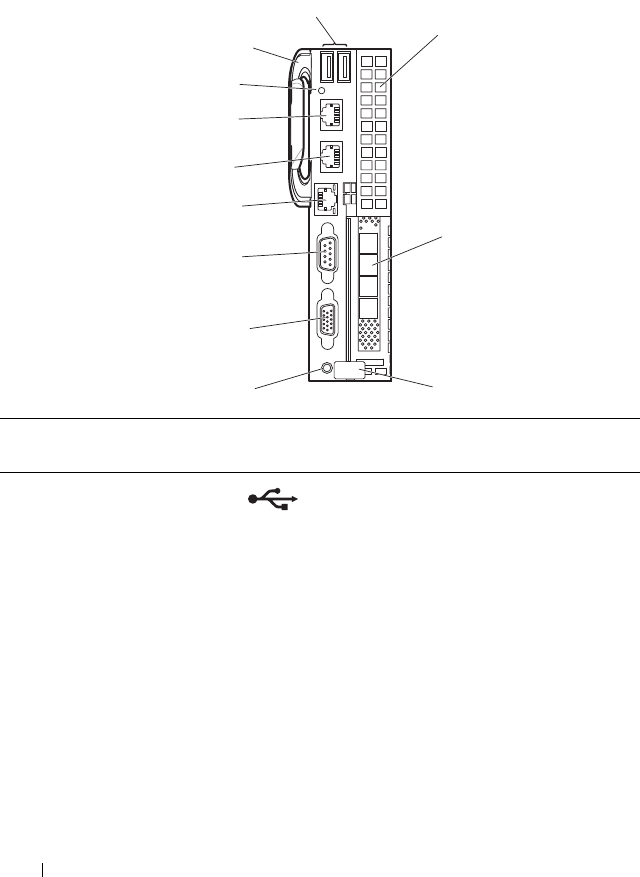
Figure 1-1. Front-Panel Features and Indicators
Item Indicator, Button, or
Connector
Icon Description
1 USB connectors Connects USB devices to the system. The
ports are USB 2.0 compliant.
2 Mezzanine card
expansion slot
Installs an I/O module mezzanine card.
3 Low profile PCIe
expansion slot
Installs a low profile PCI Express x16 card.
4 Release latch Press to release the sled from the
enclosure.
1
2
3
4
5
6
7
8
9
10
11
12

About Your System 13
5Power-on indicator/
power button
The power-on indicator lights when the
sled power is on. The power-on indicator
lights amber when the system critical
event occurs.
NOTE: The power-on indicator lights amber
according to critical system error log (SEL)
assertion. If the SEL is full or a deassertion
event occurred while sensor monitoring is
paused (e.g. fan monitoring is paused during
system power off), the power-on indicator
turns amber. To turn off an amber LED and
reset the power-on indicator to normal
condition (solid green), either perform a
BMC cold reset or reseat the sled in the
server enclosure.
The power button turns the compute
sled on.
NOTES:
• When powering on the sled, the video
monitor can take from several seconds to
over 2 minutes to display an image,
depending on the amount of memory
installed in the system.
• On ACPI-compliant operating systems,
turning off the sled using the power
button causes the sled to perform a
graceful shutdown before power to the
sled is turned off.
• To force an ungraceful shutdown, press
and hold the power button for five
seconds.
6 VGA connector Connects a VGA display to the system.
7 Serial connector Connects a serial device to the system.
Item Indicator, Button, or
Connector
Icon Description
14 About Your System
NIC Indicator Codes
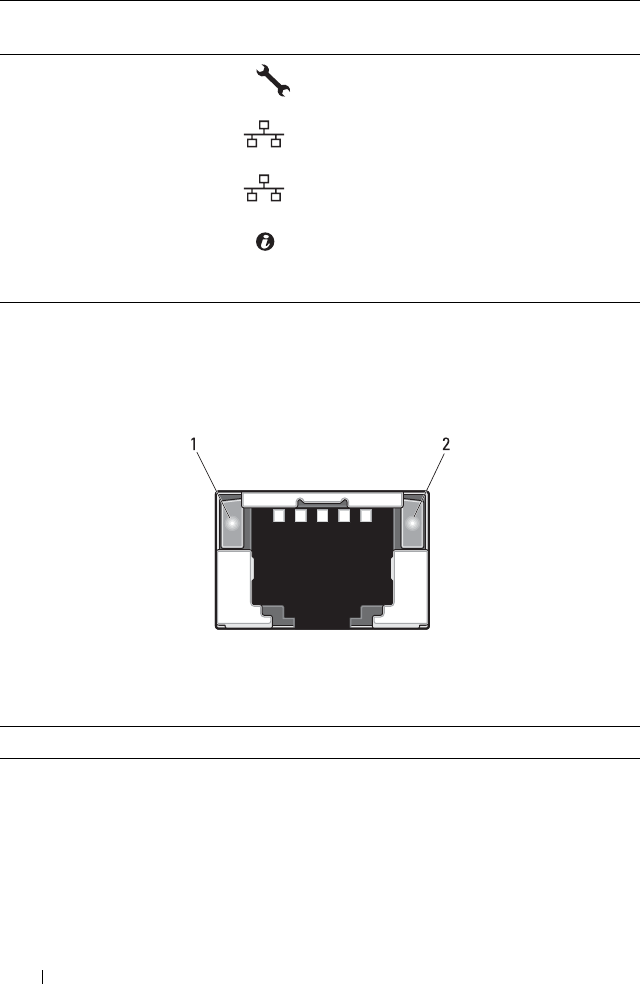
Figure 1-2. NIC Indicators
8 BMC management
port
Dedicated management port.
9 Ethernet connector 2 Embedded 10/100/1000 Mbit NIC
connector.
10 Ethernet connector 1 Embedded 10/100/1000 Mbit NIC
connector.
11 Sled identification
indicator
Lights blue to identify a particular system
and system board.
12 Handle Hold to pull the sled from the enclosure.
1 link indicator 2 activity indicator
Indicator Status Indicator Code
Link indicator Solid amber Linking at 100 Mbps port speed
Solid green Linking at 1 Gbps port speed (maximum)
Item Indicator, Button, or
Connector
Icon Description
2
1
About Your System 15
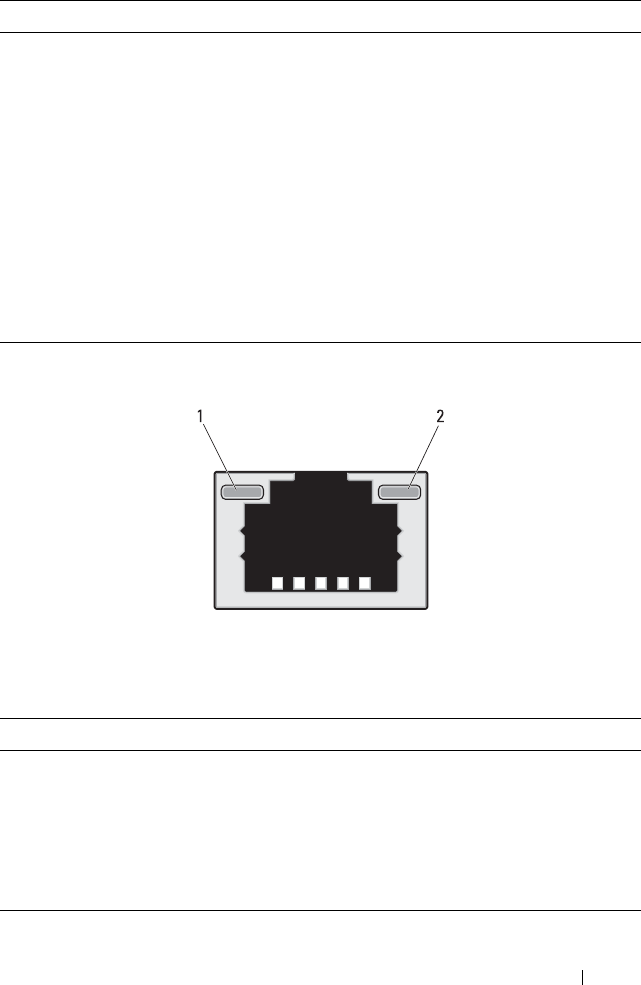
Figure 1-3. NIC Indicators (BMC management port)
Blinking green Linking at 1 Gbps port speed
Network activity is present
•Pre OS POST
•OS without driver
•OS with driver
Blinks at speed relative to packet density
Off Linking at 10 Mbps port speed
Activity
indicator
Solid green No activity
Blinking green Transmit or receive activity
Off Idle
1 link indicator 2 activity indicator
Indicator Status Indicator Code
Link indicator Blinking amber Linking at 10 Mbps port speed
Blinking green Linking at 100 Mbps port speed (maximum)
Activity
indicator
Solid green No activity
Blinking green Transmit or receive activity
Off Idle
Indicator Status Indicator Code
16 About Your System
Power and System Board Indicator Codes
The indicators on the front of the sled display status codes during system
startup. For location of the indicators on the front panel, see Figure 1-1.
Table 1-1. Power and System Board Indicator Codes
Indicator Color Status Indicator Code
Power-on
indicator
Green Solid
Sled power is on (S0)
Amber Off
Green Solid BMC critical condition event in power off
mode (S4/S5)
Amber Blinking
Green Off BMC critical condition event in power on
mode (S0)
Amber Blinking
System
identification
indicator
Blue Solid The IPMI via Chassis Identify Command On
or ID Button Press ID On is generated
Blue Blinking Only the IPMI via Chassis Identify Command
Blink On is generated
Off The IPMI via Chassis Identify Command Off
or ID Button Press ID Off is generated
About Your System 17
BMC Heartbeat Indicator Codes
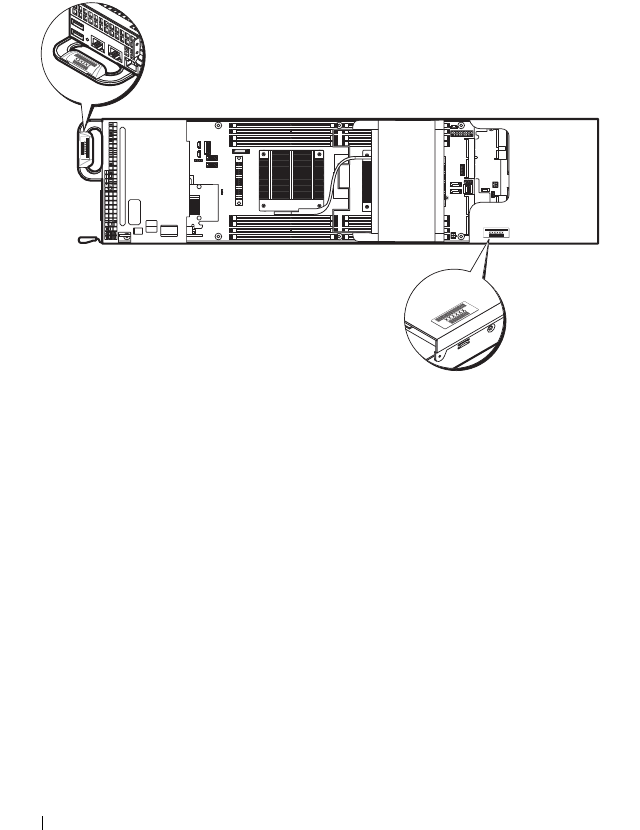
The system board includes a BMC heartbeat indicator (LED17) for
debugging the Baseboard Management Controller (BMC). The BMC
heartbeat indicator lights green when power is supplied to the sled and blinks
green when the BMC firmware is ready.
Figure 1-4. BMC Heartbeat Indicator
1 system board 2 BMC heartbeat indicator
18 About Your System
Service Tag
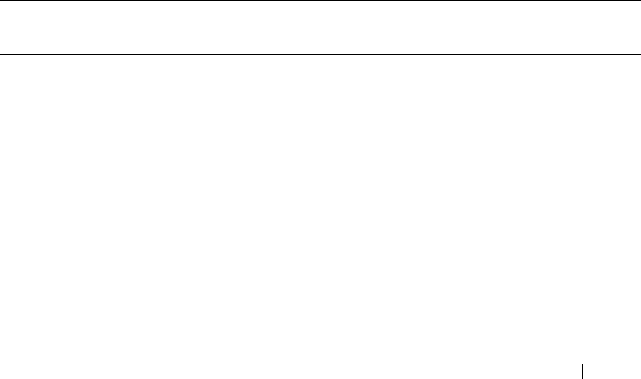
The following illustration provides location of the Service Tag number on the
C8220 single-wide compute sled.
Figure 1-5. Service Tag Location for C8220 Single-Wide Compute Sled
About Your System 19
POST Error Codes
Collecting System Event Log for Investigation
Whenever possible, the system BIOS will output the current boot progress
codes on the video screen. Progress codes are 32-bit quantities plus optional
data. The 32-bit numbers include class, subclass, and operation information.
The class and subclass fields point to the type of hardware that is being
initialized. The operation field represents the specific initialization activity.
Based on the data bit availability to display progress codes, a progress code
can be customized to fit the data width. The higher the data bit, the higher
the granularity of information that can be sent on the progress port. The
progress codes may be reported by the system BIOS or option ROMs.
The Response section in the following table may be divided into 3 types:
• Warning or Not an error – The message is displayed on the screen. An error
record is logged to the SEL. The system will continue booting with a
degraded state. The user may want to replace the erroneous unit.
• Pause – The message is displayed on the screen, an error is logged to the
SEL, and user input is required to continue. The user can take immediate
corrective action or choose to continue booting.
• Halt – The message is displayed on the screen, an error is logged to the
SEL, and the system cannot boot unless the error is resolved. The user
needs to replace the faulty part and restart the system.
Error
Code
Error Message Response Error Cause Corrective Actions
0010h Local Console
Resource
Conflict
Pause Video device
initialization
failed
See "Troubleshooting the
Video Subsystem" on
page 198.
If the problem persists, see
"Getting Help" on page 229.
0011h Local Console
Controller Error
Pause Video device
initialization
failed
See "Troubleshooting the
Video Subsystem" on
page 198.
If the problem persists, see
"Getting Help" on page 229.

20 About Your System
0012h Local Console
Output Error
Pause Video device
initialization
failed
See "Troubleshooting the
Video Subsystem" on
page 198.
If the problem persists, see
"Getting Help" on page 229.
0013h ISA IO
Controller Error
Pause ISA device
initialization
failed
See "Troubleshooting
Expansion Cards" on
page 207.
If the problem persists, see
"Getting Help" on page 229.
0014h ISA IO Resource
Conflict
Pause ISA device
initialization
failed
See "Troubleshooting
Expansion Cards" on
page 207.
If the problem persists, see
"Getting Help" on page 229.
0015h ISA IO
Controller Error
Pause ISA device
initialization
failed
See "Troubleshooting
Expansion Cards" on
page 207.
If the problem persists, see
"Getting Help" on page 229.
0016h ISA Floppy
Controller Error
Pause Floppy device
initialization
failed
See "Troubleshooting a USB
Device" on page 198.
If the problem persists, see
"Getting Help" on page 229.
0017h ISA Floppy
Input Error
Pause Floppy device
initialization
failed
See "Troubleshooting a USB
Device" on page 198.
If the problem persists, see
"Getting Help" on page 229.
0018h ISA Floppy
Output Error
Pause Floppy device
initialization
failed
See "Troubleshooting a USB
Device" on page 198.
If the problem persists, see
"Getting Help" on page 229.
Error
Code
Error Message Response Error Cause Corrective Actions

About Your System 21
0019h USB Read Error Pause USB port
initialization
failed
See "Troubleshooting a USB
Device" on page 198.
If the problem persists, see
"Getting Help" on page 229.
001Ah USB Write Error Pause USB port
initialization
failed
See "Troubleshooting a USB
Device" on page 198.
If the problem persists, see
"Getting Help" on page 229.
001Bh USB Interface
Error
Pause USB port
initialization
failed
See "Troubleshooting a USB
Device" on page 198.
If the problem persists, see
"Getting Help" on page 229.
001Ch Mouse Interface
Error
Pause Mouse device
initialization
failed
To enable USB device, see
"USB Configuration" on
page 78.
See "Troubleshooting a USB
Device" on page 198.
If the problem persists, see
"Getting Help" on page 229.
001Eh Keyboard Not
Detected
Pause No keyboard
detected
To enable USB device, see
"USB Configuration" on
page 78.
See "Troubleshooting a USB
Device" on page 198.
If the problem persists, see
"Getting Help" on page 229.
001Fh Keyboard
Controller Error
Pause Keyboard
controller
initialization
failed
See "Troubleshooting a USB
Device" on page 198.
If the problem persists, see
"Getting Help" on page 229.
Error
Code
Error Message Response Error Cause Corrective Actions

22 About Your System
0020h Keyboard Stuck
Key Error
Pause Keyboard key
stuck
Disconnect and reconnect the
keyboard to the compute sled.
If the problem persists, see
"Getting Help" on page 229.
0021h Keyboard
Locked Error
Pause Keyboard
locked
Disconnect and reconnect the
keyboard to the compute sled.
If the problem persists, see
"Getting Help" on page 229.
0023h Memory
Correctable
Error
Pause Memory
correctable
error detected
Remove AC power to the
system for 10 seconds and
restart the system.
See "Troubleshooting System
Memory" on page 203.
If the problem persists, see
"Getting Help" on page 229.
0024h Memory
Uncorrectable
Error
Pause Memory
uncorrectable
error detected
See "Troubleshooting System
Memory" on page 203.
If the problem persists, see
"Getting Help" on page 229.
0025h Memory Non-
Specific Error
Pause Memory non-
specific error
detected
See "Troubleshooting System
Memory" on page 203.
If the problem persists, see
"Getting Help" on page 229.
0026h MP Service Self
Test Error
Pause MP service self
test error
detected
See "Troubleshooting
Processors" on page 208.
If the problem persists, see
"Getting Help" on page 229.
0027h PCI IO
Controller Error
Pause PCI device
initialization
failed
See "Troubleshooting
Expansion Cards" on
page 207.
If the problem persists, see
"Getting Help" on page 229.
Error
Code
Error Message Response Error Cause Corrective Actions

About Your System 23
0028h PCI IO Read
Error
Pause PCI device
initialization
failed
See "Troubleshooting
Expansion Cards" on
page 207.
If the problem persists, see
"Getting Help" on page 229.
0029h PCI IO Write
Error
Pause PCI device
initialization
failed
See "Troubleshooting
Expansion Cards" on
page 207.
If the problem persists, see
"Getting Help" on page 229.
002Ah Serial Port Not
Detected
Pause Serial device
initialization
failed
See "Troubleshooting a Serial
I/O Device" on page 199.
If the problem persists, see
"Getting Help" on page 229.
002Bh Serial Port
Controller Error
Pause Serial device
initialization
failed
See "Troubleshooting a Serial
I/O Device" on page 199.
If the problem persists, see
"Getting Help" on page 229.
002Ch Serial Port Input
Error
Pause Serial device
initialization
failed
See "Troubleshooting a Serial
I/O Device" on page 199.
If the problem persists, see
"Getting Help" on page 229.
002Dh Serial Port
Output Error
Pause Serial device
initialization
failed
See "Troubleshooting a Serial
I/O Device" on page 199.
If the problem persists, see
"Getting Help" on page 229.
002Eh Microcode
Update Error
Pause Processor
microcode
update error
Check microcode. A BIOS
update is required.
If the problem persists, see
"Getting Help" on page 229.
Error
Code
Error Message Response Error Cause Corrective Actions

24 About Your System
002Fh No Microcode
Be Updated
Pause Processor
microcode load
failed
Ensure that your processors
match and conform to the
type described in the
processor technical
specifications outlined in
your system’s Getting Started
Guide.
8012h SATA 0 Device
Not Found
Pause SATA 0 device
not found
Check if the SATA port 0 is
enabled. See "SATA
Configuration" on page 68.
Install a SATA device to SATA
port 0.
If the problem persists, see
"Getting Help" on page 229.
8013h SATA 1 Device
Not Found
Pause SATA 1 device
not found
Check if the SATA port1 is
enabled. See "SATA
Configuration" on page 68.
Install a SATA device to SATA
port 1.
If the problem persists, see
"Getting Help" on page 229.
8014h SATA 2 Device
Not Found
Pause SATA 2 device
not found
Check if the SATA port 2 is
enabled. See "SATA
Configuration" on page 68.
Install a SATA device to SATA
port 2.
If the problem persists, see
"Getting Help" on page 229.
8015h SATA 3 Device
Not Found
Pause SATA 3 device
not found
Check if the SATA port 3 is
enabled. See "SATA
Configuration" on page 68.
Install a SATA device to SATA
port 3.
If the problem persists, see
"Getting Help" on page 229.
Error
Code
Error Message Response Error Cause Corrective Actions

About Your System 25
8016h SATA 4 Device
Not Found
Pause SATA 4 device
not found
Check if the SATA port 4 is
enabled. See "SATA
Configuration" on page 68.
Install a SATA device to SATA
port 4.
If the problem persists, see
"Getting Help" on page 229.
8017h SATA 5 Device
Not Found
Pause SATA 5 device
not found
Check if the SATA port 5 is
enabled. See "SATA
Configuration" on page 68.
Install a SATA device to SATA
port 5.
If the problem persists, see
"Getting Help" on page 229.
8018h Sparing Mode is
not be
Configured!!,
Please check
Memory
Configuration!!
Pause Memory
Sparing Mode
Failed
Check if the memory
configuration is set to Sparing
mode. See "Memory
Configuration" on page 66.
If the problem persists, see
"Getting Help" on page 229.
8019h Mirror Mode is
not be
Configured!!,
Please check
Memory
Configuration!!
Pause Memory Mirror
Mode Failed
Check if the memory
configuration is set to Sparing
mode. See "Memory
Configuration" on page 66.
If the problem persists, see
"Getting Help" on page 229.
8020h Supervisor and
User Passwords
have been
cleared
Pause Supervisor and
User Passwords
have been
cleared
Reset password. See "System
Board Jumper Settings" on
page 214 for more
information.
If the problem persists, see
"Getting Help" on page 229.
Error
Code
Error Message Response Error Cause Corrective Actions

26 About Your System
8021h CMOS Battery
Error
Pause No CMOS
battery
See "Troubleshooting the
System Battery" on page 210.
8100h Memory device
disabled by
BIOS
Pause Memory
Device Error
See "Troubleshooting System
Memory" on page 203.
If the problem persists, see
"Getting Help" on page 229.
Error
Code
Error Message Response Error Cause Corrective Actions

About Your System 27
System Event Log
Processor Error
Message: “Processor Sensor, IERR error, Processor 1”
Table 1-2. Processor Error
Byte Field Value Description
1 NetFunLun 10h
2 Platform Event Command 02h
3 Generator ID 01h Generated by BIOS
4 Event Message Format
Version
04h Event Message Format Revision.
04h for this specification
5 Sensor Type 07h Processor
6 Sensor Number 04h Processor Sensor Number
(depends on platform)
7 Event Direction Event Type 6Fh Bit 7: 0 = Assert Event Bit 6: 0 =
Event Type Code
8 Event Data1 AXh 00h: IERR 01h: Thermal Trip
02h: FRB1/BIST Failure
03h: FRB2/Hang in POST Failure
04h: FBR3/Processor
Startup/Initialization Failure
0Ah: Processor Automatically
Throttled
9 Event Data2 XXh 00h: Processor1
01h: Processor2
02h: Processor3
04h: Processor4
10 Event Data3 FFh FFh: Not Present

28 About Your System
Memory Ecc
Message: “Memory Sensor, Correctable ECC error, SBE warning threshold,
CPU1 DIMM_A1”
Table 1-3. Memory ECC
Byte Field Value Description
1 NetFunLun 10h
2 Platform Event Command 02h
3 Generator ID 01h Generated by BIOS
4 Event Message Format
Version
04h Event Message Format Revision.
04h for this specification
5 Sensor Type 0Ch Memory
6 Sensor Number 60h Memory Sensor Number (depend
on platform)
7 Event Direction Event Type 6Fh Bit 7: 0 = Assert Event
Bit 6: 0 = Event Type Code
8 Event Data1 AXh 00h: Correctable ECC Error
01h: Uncorrectable ECC Error
03h: Memory Scrub Failed
04h: Memory Device Disabled
08h: Spare

About Your System 29
9 Event Data2 XXh Bit 7:4
0x00: SBE warning threshold
0x01: SBE critical threshold
0x0F: Unspecified
Bit 3:0
0x00: CPU1 DIMM A1-8 slots
(1~8)
0x01: CPU2 DIMM B1-8 slots
(9~16)
0x02: CPU3 DIMM C1-8 slots
(17~24)
0x03: CPU4 DIMM D1-8 slots
(25~32) And so on…
10 Event Data3 XXh DIMM bit-map location of bits
Bit 0=1: DIMM1 error event
Bit 1=1: DIMM2 error event …
Bit7=1: DIMM8 error event
Table 1-3. Memory ECC
Byte Field Value Description

30 About Your System
PCIe Error
Message: “Critical Interrupt Sensor, PCI PERR, Device#, Function#,
Bus#”
Table 1-4. PCIe Error
Byte Field Value Description
1 NetFunLun 10h
2 Platform Event Command 02h
3 Generator ID 01h Generated by BIOS
4 Event Message Format
Version
04h Event Message Format Revision.
04h for this specification
5 Sensor Type 13h Critical Interrupt
6 Sensor Number 73h PCI Sensor ID (depend on
platform)
7 Event Direction Event Type 6Fh Bit 7: 0 = Assert Event
Bit 6: 0 = Event Type Code
8 Event Data1 AXh 04h: PCI PERR
05h: PCI SERR
07h: Bus Correctable Error
08h: Bus Uncorrectable Error
0Ah: Bus Fatal Error
9 Event Data2 XXh Bit 7:3Device Number
Bit 2:0Function Number
10 Event Data3 XXh Bit 7:0 Bus Number

About Your System 31
IOH Core Error
Message: “Critical Interrupt Sensor, Fatal Error, xxxx bit, QPI[0] Error”
Table 1-5. IOH Core Error
Byte Field Value Description
1 NetFunLun 10h
2 Platform Event Command 02h
3 Generator ID 01h Generated by BIOS
4 Event Message Format
Version
04h Event Message Format Revision.
04h for this specification
5 Sensor Type C0h OEM Defined Interrupt
6 Sensor Number XXh 71h: QPI Sensor ID (depend on
platform)
72h: INT Sensor ID (depend on
platform)
7 Event Direction Event Type 6Fh Bit 7: 0 = Assert Event Bit 6: 0 =
Event Type Code
8 Event Data1 AXh 07h: Core
08h: Non-Fatal
0Ah: Fatal
9 Event Data2 XXh Local Error Bit
10 Event Data3 XXh 00h: QPI[0] Error
01h: QPI[1] Error
02h: QPI[2] Error
03h: QPI[3] Error
04h: QPI[0] Protocol Error
05h: QPI[1] Protocol Error
06h: QPI[2] Protocol Error
07h: QPI[3] Protocol Error
23h: Miscellaneous Error
24h: IOH Core Error

32 About Your System
SB Error
Message: “Critical Interrupt Sensor, Correctable, MCU Parity Error”
Table 1-6. SB Error
Byte Field Value Description
1 NetFunLun 10h
2 Platform Event Command 02h
3 Generator ID 01h Generated by BIOS
4 Event Message Format
Version
04h Event Message Format Revision.
04h for this specification
5 Sensor Type 13h Critical Interrupt
6 Sensor Number 77h SB Sensor ID (depend on
platform)
7 Event Direction Event Type 6Fh Bit 7: 0 = Assert Event
Bit 6: 0 = Event Type Code
8 Event Data1 AXh 07h: Correctable
08h: Uncorrectable
9 Event Data2 XXh Bit 7:5Reserved Local error bit
number (4 ~ 0)
00000b: HT Periodic CRC Error
00001b: HT Protocol Error
00010b: HT Flow-Control Buffer
Overflow
00011b: HT Response Error
00100b: HT Per-Packet CRC Error
00101b: HT Retry Counter Error
00111b: MCU Parity Error
10 Event Data3 FFh FFh: Not Present

About Your System 33
POST Start Event
Message: “System Event, POST starts with BIOS xx.xx.xx”
Table 1-7. POST Start Event
Byte Field Value Description
1 NetFunLun 10h
2 Platform Event Command 02h
3 Generator ID 01h Generated by BIOS
4 Event Message Format
Version
04h Event Message Format Revision.
04h for this specification
5 Sensor Type 12h System Event
6 Sensor Number 81h POST Start (depend on platform)
7 Event Direction Event Type 6Fh Bit 7: 0 = Assert Event
Bit 6: 0 = Event Type Code
8 Event Data1 AXh 01h: OEM System Boot Event
9 Event Data2 XXh 7~4: BIOS 1st Field Version
(0~15)
3~0: BIOS 2nd Field Version
higher 4bits (0~63)
10 Event Data3 XXh 7~6: BIOS 2nd Field Version lower
2bits (0~63)
5~0: BIOS 3rd Field Version
(0~63)

34 About Your System
POST End Event
Table 1-8. POST End Event
Byte Field Value Description
1 NetFunLun 10h
2 Platform Event Command 02h
3 Generator ID 01h Generated by BIOS
4 Event Message Format
Version
04h Event Message Format Revision.
04h for this specification
5 Sensor Type 12h System Event
6 Sensor Number 85h POST End (depend on platform)
7 Event Direction Event Type 6Fh Bit 7: 0 = Assert Event
Bit 6: 0 = Event Type Code
8 Event Data1 AXh 01h: OEM System Boot Event
9 Event Data2 XXh Bit 7 = Boot Type
0b: PC Compatible Boot
(Legacy) 1b: uEFI Boot
Bit 3:0 = Boot Device
0001b: Force PXE Boot
0010b: NIC PXE Boot
0011b: Hard Disk Boot
0100b: RAID HDD Boot
0101b: USB Storage Boot
0111b: CD/DVD ROM Boot
1000b: iSCSI Boot
1001b: uEFI Shell
1010b: ePSA Diagnostic Boot
10 Event Data3 FFh FFh: Not Present

About Your System 35
POST Error Code Event
Message: “System Firmware Progress, POST error code: UBLBh.”
Table 1-9. POST Error Code Event
Byte Field Value Description
1 NetFunLun 10h
2 Platform Event Command 02h
3 Generator ID 01h Generated by BIOS
4 Event Message Format
Version
04h Event Message Format Revision.
04h for this specification
5 Sensor Type 0Fh System Firmware Progress
6 Sensor Number 86h POST Error (depend on platform)
7 Event Direction Event Type 6Fh Bit 7: 0 = Assert Event
Bit 6: 0 = Event Type Code
8 Event Data1 AXh 00: System Firmware Error (POST
Error)
9 Event Data2 XXh Upper Byte
10 Event Data3 XXh Lower Byte

36 About Your System
BIOS Recovery Event
Table 1-10. BIOS Recovery Event
Byte Field Value Description
1 NetFunLun 10h
2 Platform Event Command 02h
3 Generator ID 01h Generated by BIOS
4 Event Message Format
Version
04h Event Message Format Revision.
04h for this specification
5 Sensor Type 12h System Event
6 Sensor Number 89h BIOS Recovery fail (depend on
platform)
7 Event Direction Event Type 6Fh Bit 7: 0 = Assert Event Bit 6: 0 =
Event Type Code
8 Event Data1 AXh 01h: OEM BIOS recovery Event
9 Event Data2 XXh 01h:Start Recovery
02h:Recovery Success
03h:Load Image Fail
04h:Signed Fail
10 Event Data3 FFh FFh: Not Present
About Your System 37
ME Fail Event
SEL Generator ID
Table 1-11. BIOS Recovery Event
Byte Field Value Description
1 NetFunLun 10h
2 Platform Event Command 02h
3 Generator ID 01h Generated by BIOS
4 Event Message Format
Version
04h Event Message Format Revision.
04h for this specification
5 Sensor Type 12h System Event
6 Sensor Number 8Ah ME fail (depend on platform)
7 Event Direction Event Type 6Fh Bit 7: 0 = Assert Event
Bit 6: 0 = Event Type Code
8 Event Data1 AXh 01h: OEM ME fail Event
9 Event Data2 XXh 01h:ME fail
10 Event Data3 FFh FFh: Not Present
Table 1-12. SEL Generator ID
Generator ID
BIOS 0x0001
BMC 0x0020
ME 0x002C
Windows 2008 0x0137
38 About Your System
BMC
The following table includes an overview of the system sensors.
In the Offset column:
• SI = Sensor Initialization
• SC = Sensor Capabilities
• AM = Assertion Mask
• DM = Deassertion Mask
• RM = Reading Mask
• TM = Settable/Readable Threshold Mask
Table 1-13. Sensor Summary
Sensor
Number
Sensor Name Sensor Type Event/Reading Type Offset
01h SEL Fullness Event Logging
Disabled (10h)
Sensor-specific
(6Fh)
SI: 67h
SC: 40h
AM: 0035h
DM: 0000h
RM: 0035h
02h P1 Thermal Trip Processor (07h) Sensor-specific
(6Fh)
SI: 01h
SC: 40h
AM: 0002h
DM: 0000h
RM: 0002h
03h P2 Thermal Trip Processor (07h) Sensor-specific
(6Fh)
SI: 01h
SC: 40h
AM: 0002h
DM: 0000h
RM: 0002h

About Your System 39
Table 1-14. Sensor Summary (continued)
Sensor
Number
Sensor Name Sensor Type Event/Reading Type Offset
04h CPU ERR2 Processor (07h) Sensor-specific
(6Fh)
SI: 01h
SC: 40h
AM: 0001h
DM: 0000h
RM: 0001h
05h 12V Standby Voltage (02h) Threshold (01h) SI: 7Fh
SC: 59h
AM: 7A95h
DM: 7A95h
TM: 3F3Fh
06h 5V Voltage (02h) Threshold (01h) SI: 7Fh
SC: 59h
AM: 7A95h
DM: 7A95h
TM: 3F3Fh
07h 5V Standby Voltage (02h) Threshold (01h) SI: 7Fh
SC: 59h
AM: 7A95h
DM: 7A95h
TM: 3F3Fh
08h 3.3V Voltage (02h) Threshold (01h) SI: 7Fh
SC: 59h
AM: 7A95h
DM: 7A95h
TM: 3F3Fh

40 About Your System
Table 1-15. Sensor Summary (continued)
Sensor
Number
Sensor Name Sensor Type Event/Reading Type Offset
09h 3.3V Standby Voltage (02h) Threshold (01h) SI: 7Fh
SC: 59h
AM: 7A95h
DM: 7A95h
TM: 3F3Fh
0Ah Battery low Battery (29h) Sensor-specific
(6Fh)
SI: 67h
SC: 40h
AM: 0001h
DM: 0000h
RM: 0001h
41h MEZZ1 TEMP Temperature (01h) Threshold (01h) SI: 7Fh
SC: 68h
AM: 0A80h
DM: 0A80h
TM: 3838h
41h CPU1 Temp Temperature (01h) Threshold (01h) SI: 7Fh
SC: 68h
AM: 0A80h
DM: 0A80h
TM: 3838h
42h CPU2 Temp Temperature (01h) Threshold (01h) SI: 7Fh
SC: 68h
AM: 0A80h
DM: 0A80h
TM: 3838h

About Your System 41
Table 1-16. Sensor Summary (continued)
Sensor
Number
Sensor Name Sensor Type Event/Reading Type Offset
43h DIMM ZONE 1
Temp
Temperature (01h) Threshold (01h) SI: 7Fh
SC: 68h
AM: 0A80h
DM: 0A80h
TM: 3838h
44h DIMM ZONE 1
Temp
Temperature (01h) Threshold (01h) SI: 7Fh
SC: 68h
AM: 0A80h
DM: 0A80h
TM: 3838h
45h PCH Temp Temperature (01h) Threshold (01h) SI: 7Fh
SC: 68h
AM: 0A80h
DM: 0A80h
TM: 3838h
60h Memory Memory (0Ch) Sensor-specific
(6Fh)
SI: 01h
SC: 40h
AM: 0023h
DM: 0000h
RM: 0023h
A0h Watchdog Watchdog 2 (23h) Sensor-specific
(6Fh)
SI: 67h
SC: 40h
AM: 000Fh
DM: 0000h
RM: 000Fh

42 About Your System
Table 1-17. Sensor Summary (continued)
Sensor
Number
Sensor Name Sensor Type Event/Reading Type Offset
A1h Soft Reset System Boot/
Restart Initiated
(1Dh)
Sensor-specific
(6Fh)
SI: 01h
SC: 40h
AM: 0004h
DM: 0000h
RM: 0004h
A2h AC lost Power Unit (09h) Sensor-specific
(6Fh)
SI: 01h
SC: 40h
AM: 0010h
DM: 0000h
RM: 0010h
A3h Power off Power Unit (09h) Sensor-specific
(6Fh)
SI: 01h
SC: 40h
AM: 0002h
DM: 0000h
RM: 0002h

About Your System 43
Other Information You May Need
WARNING: See the safety and regulatory information that shipped with your
system. Warranty information may be included within this document or as a
separate document.
• The Getting Started Guide provides an overview of rack installation,
system features, setting up your system, and technical specifications.
• The PowerEdge C8000 Hardware Owner’s Manual for information about
the server enclosure features, troubleshooting, and component
replacement. This document is available at
dell.com
/
support
/
manuals
.
• The Baseboard Management Controller Guide provides information about
installing and using the systems management utility. See Using the
Baseboard Management Controller Guide at
dell.com
/
support
/
manuals
.
NOTE: Always check for updates on dell.com/support/manuals and read the
updates first because they often supersede information in other documents.

44 About Your System

Using the System Setup Program 45
2
Using the System Setup Program
The System Setup program is the BIOS program that enables you to manage
your system hardware and specify BIOS-level options. From the System Setup
program, you can:
• Change the NVRAM settings after you add or remove hardware
• View the system hardware configuration
• Enable or disable integrated devices
• Set performance and power management thresholds
• Manage system security
System Setup Menu
The system employs the latest Insyde® BIOS, which is stored in Flash
memory. The Flash memory supports the Plug and Play specification, and
contains a System Setup program, the Power On Self Test (POST) routine,
and the PCI auto-configuration utility.
This system supports system BIOS shadowing which enables the BIOS to
execute from 64-bit onboard write-protected DRAM.
You can configure items such as:
• Hard-drives, diskette drives, and peripherals
• Password protection
• Power management features
The Setup utility should be executed under the following conditions:
• When changing the system configuration
• When a configuration error is detected by the system and you are
prompted to make changes to the Setup utility
• When redefining the communication ports to prevent any conflicts
46 Using the System Setup Program
• When changing the password or making other changes to the security
setup
NOTE: Only items in brackets [ ] can be modified, Items that are not in brackets are
display only.
NOTE: PowerEdge C8000 server enclosure is referred to as simply the "server
enclosure" or the "chassis" in this manual.
System Setup Options at Boot
You can initiate Setup by pressing the respective key during the POST:
Using the System Setup Program Navigation Keys
The following table lists the keys found in the legend bar with their
corresponding alternates and functions:
Keystroke Description
<F2> Enter the System Setup
<F8> Load customized defaults
<F9> Load optimal defaults in Setup menu
<F10> Save and exit Setup
Keys Function
F1 General Help
or Select Screen
or Select Item
Change Option/Field
Tab Select Field
Esc Exit
Enter Go to Sub Screen
Home Go to Top of Screen
End Go to Bottom of Screen

Using the System Setup Program 47
General Help
In addition to the Item Specific Help window, the Setup Utility also provides
a General Help screen. This screen can be called up from any menu by
pressing <F1>. The General Help screen lists the legend keys with their
corresponding alternates and functions. To exit the help window, press
<Enter> or <Esc>.
Console Redirection
The console redirection allows a remote user to diagnose and fix problems on
a server, which has not successfully booted the operating system (OS). The
centerpiece of the console redirection is the BIOS Console. The BIOS
Console is a Flash ROM-resident utility that redirects input and output over
a serial or modem connection.
The BIOS supports console redirection to a serial port. If serial port based
headless server support is provided by the system, the system must provide
support for redirection of all BIOS driven console I/O to the serial port. The
driver for the serial console must be capable of supporting the functionality
documented in the ANSI Terminal Definition.
The console redirection behavior shows a change of string displays that
reduce the data transfer rate in the serial port and cause the absence or an
incomplete POST screen. If you see an abnormal POST screen after you
connect to the console, it is recommended to press <Ctrl><R> to reflash
the screen.
Enabling and Configuring Console Redirection
Console redirection is configured through the System Setup program. There
are three options available to establish console redirection on the system.
• External serial port
• Internal serial connector as Serial Over LAN (SOL)
•BMC SOL

48 Using the System Setup Program
Enabling and Configuring Console Redirection Via COM1
To activate console redirection via COM1, you must configure the following
settings:
1
Connect the serial cable to the serial port and host system. See
Figure 1-1
for the location of the serial port on the sled.
2
Press <F2> immediately after a power-on or reboot to enter System
Setup.
3
In the System Setup screen, select the
Server
menu and press <Enter>.
4
In the Server screen, select
Remote Access Configuration
and press
<Enter>.
5
In the Remote Access Configuration screen, verify the following settings:
• Remote Access: Enabled
• Serial port number: COM1
• Serial Port Mode: 115200 8,n,1
• Flow Control: None
• Redirection After BIOS POST: Always
• Terminal Type: ANSI
See "Remote Access Configuration" on page 86 for details. Make sure the
last four options syncs with the host and client.
6
Press <Esc> to return to the System Setup screen. Press <Esc> again,
and a message prompts you to save the changes.
Enabling and Configuring Console Redirection Via COM2 SOL
To activate console redirection via COM2 SOL, you must configure the
following settings:
1
Connect the serial cable to the serial port and host system. See
Figure 1-1
for the location of the serial port on the sled.
2
Press <F2> immediately after a power-on or reboot to enter System
Setup.
3
In the System Setup screen, select the
Server
menu and press <Enter>.
4
In the Server screen, select
Remote Access Configuration
and press
<Enter>.

Using the System Setup Program 49
5
In the Remote Access Configuration screen, verify the following settings:
• Remote Access: Enabled
• Serial port number: COM2 as SOL
• Serial Port Mode: 115200 8,n,1
• Flow Control: None
• Redirection After BIOS POST: Always
•Terminal Type: ANSI
See "Remote Access Configuration" on page 86 for details. Make sure the
host and client are on the same network.
6
Press <Esc> to return to the System Setup screen. Press <Esc> again,
and a message prompts you to save the changes.
Enabling and Configuring Console Redirection Via BMC SOL
When using the BMC management port, you have two options for
connecting and managing servers: Dedicated-NIC mode and Shared-NIC
mode. The following procedures show the setup option of the BMC
management port through a Dedicated-NIC or Shared-NIC.
To activate console redirection via a dedicated BMC management port, you
must configure the following settings:
1
Connect the sled system board and node power distribution board with a
BMC cable.
2
Connect the network cable to the BMC management port. See
Figure 1-1
for the location of the BMC management port on the sled.
3
Press <F2> immediately after a power-on or reboot to enter System
Setup.
4
In the System Setup screen, select the
Server
menu and press <Enter>.
5
In the Server screen, select
Remote Access Configuration
and press
<Enter>.
6
In the Remote Access Configuration screen, verify the following settings:
• Remote Access: Enabled
• Serial port number: COM2 as SOL
• Serial Port Mode: 115200 8,n,1

50 Using the System Setup Program
• Flow Control: None
• Redirection After BIOS POST: Always
• Terminal Type: ANSI
See "Remote Access Configuration" on page 86 for details. Make sure the
last four options syncs with the host and client.
7
In the Server screen, select
BMC LAN Configuration
and press <Enter>.
8
In the BMC LAN Configuration screen, verify the following settings:
• BMC LAN Port Configuration: Dedicated-NIC
• BMC NIC IP Source: DHCP or Static (Use DHCP if your network
servers are using automatic assignment of IP addresses)
• IP Address: 192.168.001.003
• Subnet Mask: 255.255.255.000
• Gateway Address: 000.000.000.000
See "Set BMC LAN Configuration" on page 84 for details. Make sure the
host and client are on the same network
9
Press <Esc> to return to the System Setup screen. Press <Esc> again,
and a message prompts you to save the changes.
To activate console redirection via a shared BMC management port, you must
configure the following settings:
1
Connect the sled system board and node power distribution board with a
BMC cable.
2
Connect the network cable to the Ethernet connector 1. See
Figure 1-1 for
the location of the Ethernet connector 1 on the sled.
3
Press <F2> immediately after a power-on or reboot to enter System
Setup.
4
In the System Setup screen, select the
Server
menu and press <Enter>.
5
In the Server screen, select
Remote Access Configuration
and press
<Enter>.
6
In the Remote Access Configuration screen, verify the following settings:
• Remote Access: Enabled
• Serial port number: COM2
Using the System Setup Program 51
• Serial Port Mode: 115200 8,n,1
• Flow Control: None
• Redirection After BIOS POST: Always
•Terminal Type: ANSI
See "Remote Access Configuration" on page 86 for details. Make sure the
last four options syncs with the host and client.
7
In the Server screen, select
BMC LAN Configuration
and press <Enter>.
8
In the BMC LAN Configuration screen, verify the following settings:
• BMC LAN Port Configuration: Shared-NIC
• BMC NIC IP Source: DHCP or Static (Use DHCP if your network
servers are using automatic assignment of IP addresses)
• IP Address: 192.168.001.003
• Subnet Mask: 255.255.255.000
• Gateway Address: 000.000.000.000
See "Set BMC LAN Configuration" on page 84 for details. Make sure the
host and client are on the same network
9
Press <Esc> to return to the System Setup screen. Press <Esc> again,
and a message prompts you to save the changes.
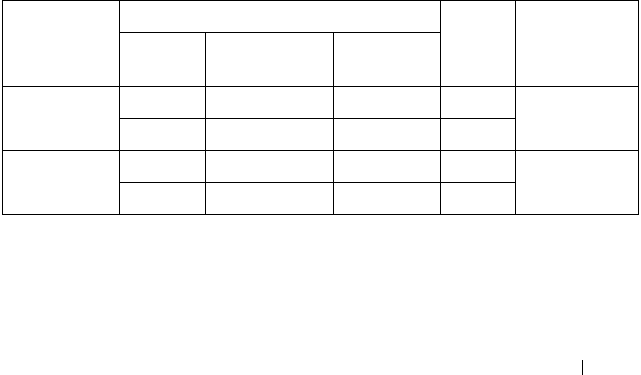
Serial Port Connection List
Signal Type Setup Option OS
Setting
Output
Remote
Access
Serial Port
Number
Serial Port
Address
Serial Console
Redirection
Enabled COM1 3F8h/2F8h ttyS0 Serial Port
Enabled COM1 2F8h/3F8h ttyS1
BMC Serial
Over LAN
Enabled COM2 as SOL 3F8h/2F8h ttyS1 Management
Port
Enabled COM2 as SOL 2F8h/3F8h ttyS0
52 Using the System Setup Program
Main Menu
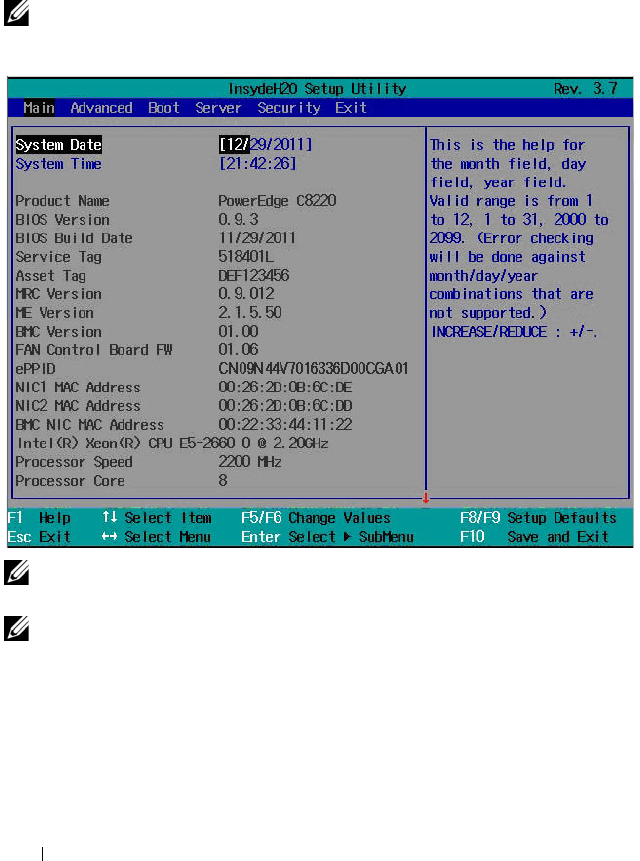
The main menu displays information about your system boards and BIOS.
Main Screen
NOTE: Press <Alt><H> to enter the BIOS debug mode and reset the BIOS to default
settings.
NOTE: The options for the System Setup program change based on the system
configuration.
NOTE: The System Setup program defaults are listed under their respective
options in the following sections, where applicable.

Using the System Setup Program 53
System Settings
Option Description
System Date Scroll to this item to adjust the date. Use <Enter>,
<Tab> or <Shift><Tab> to select a field. Use [+] or
[-] to configure system date.
System Time Scroll to this item to adjust the time. Use <Enter>,
<Tab> or <Shift><Tab> to select a field. Use [+] or
[-] to configure system time.
Product Name Displays the system product name.
BIOS Version Displays the BIOS version.
NOTE: Check this version number when updating BIOS from
the manufacturer.
BIOS Build Date Displays the date the BIOS was created.
Service Tag Displays the system service tag number. The service tag
field should match what is physically on the service tag of
the system.
Asset Tag Displays the system asset tag number.
MRC Version Displays the Memory Reference Code (MRC) firmware
version.
ME Version Displays the Manageability Engine (ME) firmware version.
BMC Version Displays the Baseboard Management Controller (BMC)
firmware version.
FAN Control Board FW Displays the Fan Controller Board (FCB) firmware version.
ePPID Displays the information from Electronic Piece Part
Identification (ePPID) label.
NIC1 MAC Address Displays the Media Access Control (MAC) address for the
NIC1 connector.
NIC2 MAC Address Displays the MAC address for the NIC2 connector.
BMC NIC MAC
Address
Displays the MAC address of the BMC management port.
Processor Type Displays the processor type.
Processor Speed Displays the current speed of the processor.

54 Using the System Setup Program
Processor Core Displays the processor core.
System Memory Size Displays total memory size installed on the system board.
System Memory Speed Displays the maximum speed of your system memory.
System Memory Voltage Displays the maximum voltage of your system memory.
Option Description
Using the System Setup Program 55
Advanced Menu
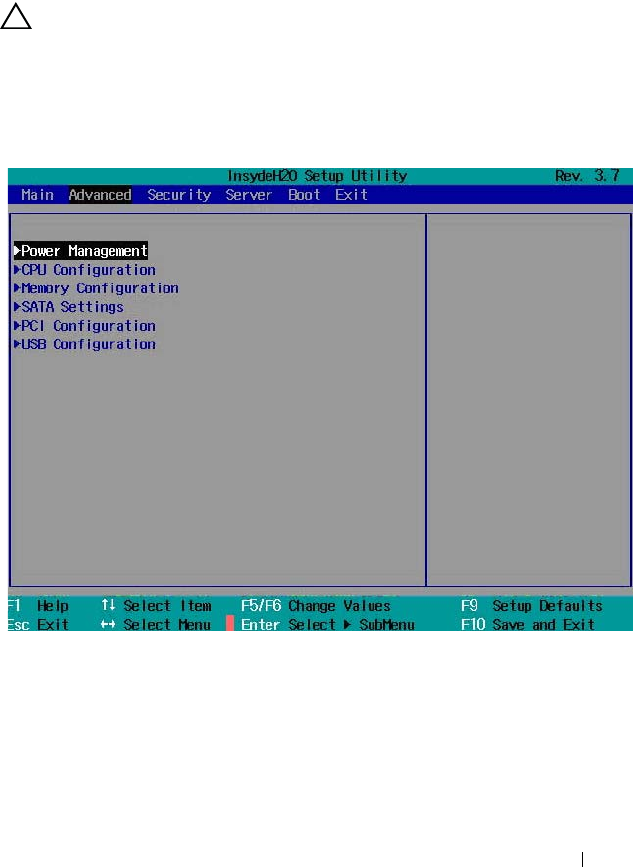
The advanced menu displays a table of items that defines advanced
information about your system. Scroll to this item and press <Enter> to view
the following screen.
CAUTION: Making incorrect settings to items on these pages may cause the
system to malfunction. Unless you have experience adjusting these items, it is
recommended that you leave these settings at the default values. If making
settings to items on these pages causes your system to malfunction or prevents the
system from booting, open BIOS and choose "Load Optimal Defaults" in the Exit
menu to boot up normally.
56 Using the System Setup Program
Power Management
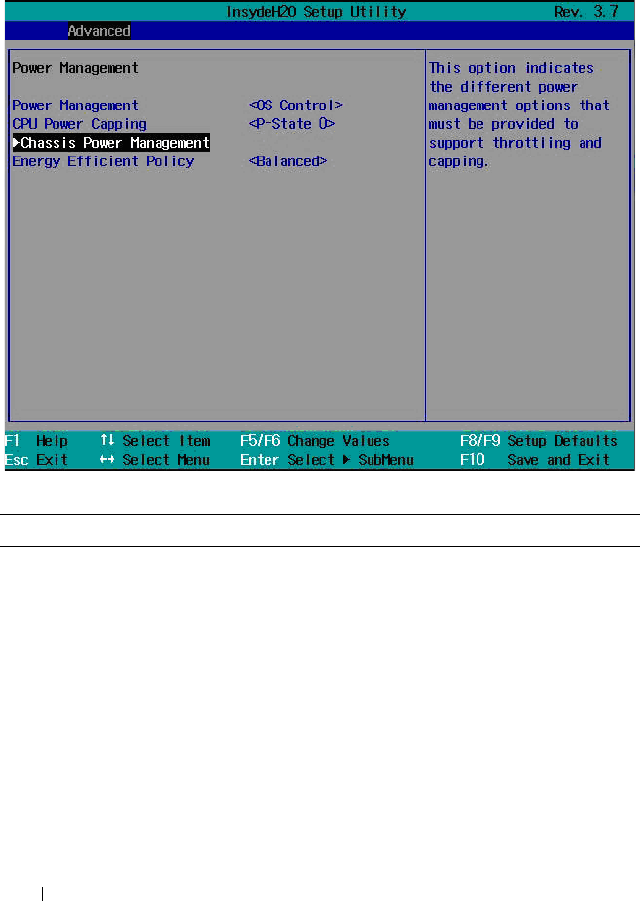
Scroll to this item and press <Enter> to view the following screen.
Power Management
Option Description
Power Management
(OS Control default)
Select a system power management mode.
• Maximum Performance: Sets the system power
management to maximum performance.
• OS Control: Allows the operating system to control the
power management.
• Node Manager: Enables Node Manager to moderate
power consumption and performance of the processors in
the compute sled. Node manager delivers power reporting
and power capping functionality for individual compute
sleds.

Using the System Setup Program 57
CPU Power Capping
(P-State 0 default)
Select a processor performance state (P-state). Options are
[P-State 0], [P-State 1], [P-State 2], [P-State 3] and
[P-state 4].
NOTE: This option is enabled when Power Management is
set to OS Control mode.
Chassis Power
Management
Press <Enter> to set the different power management
options that must be provided to support throttling and
capping.
Energy Efficient Policy
(
Balanced
default)
Select a power policy option.
• Max Performance: Sets the processors at the highest
performance state at all times.
• Balanced: Offers full performance and saves power by
reducing system power consumption during periods of
inactivity.
• Low Power: Use different processor power saving modes
(C-states) to reduce system power consumption.
NOTE: This option works when the OS does not support
power management control of processor.
Option Description
58 Using the System Setup Program
Chassis Power Management
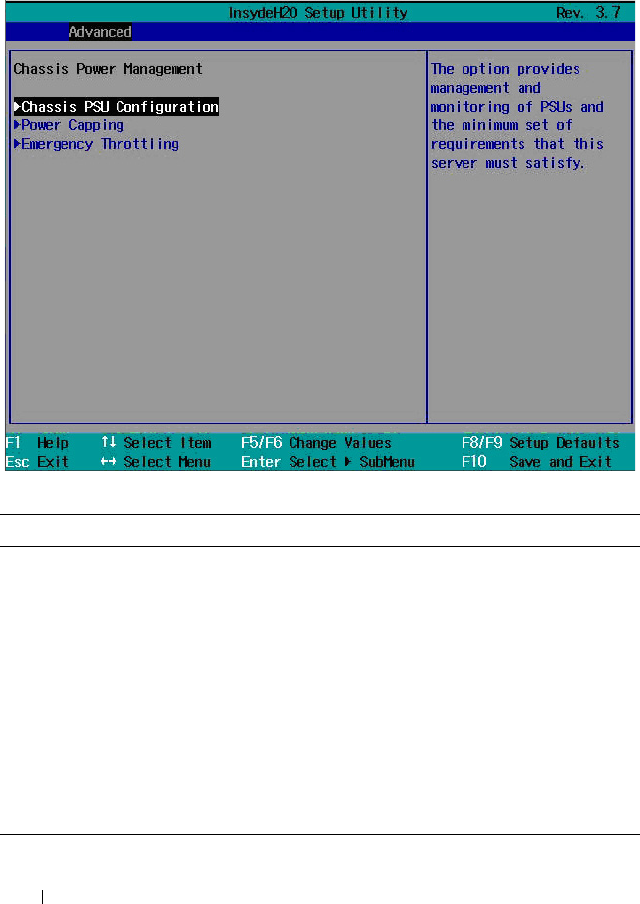
Scroll to this item and press <Enter> to view the following screen.
Chassis Power Management
Option Description
Chassis PSU
Configuration
Press <Enter> to configure the chassis power supply.
This option provides management and monitoring of the
PSUs and allows you to set the minimum PSU
requirements for the server.
Power Capping Press <Enter> to set PSU power and server loading
limited in selected watts.
NOTE: The sled’s total power consumption does not include
enclosure fan power energy use. The enclosure fan operates
at a maximum of 280 W of power.
Emergency Throttling Press <Enter> to set sled level policy when emergency
throttling event is triggered.
Using the System Setup Program 59
Chassis PSU Configuration
Scroll to this item and press <Enter> to view the following screen.
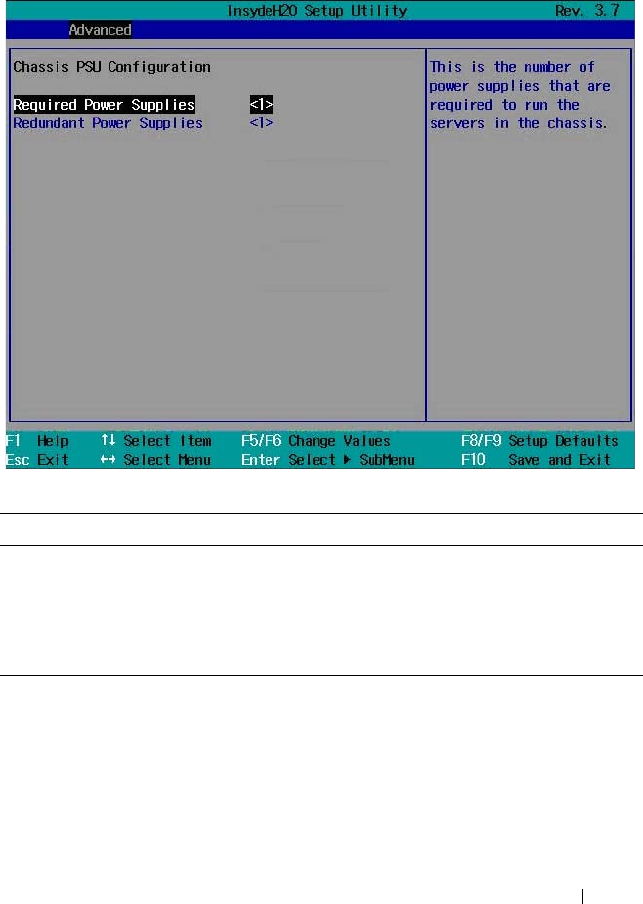
Chassis PSU Configuration
Option Description
Required Power Supplies
(1 default)
Select the number of power supplies to provide load-shared
power to run the sleds in the enclosure. Options are [1],
[2], [3], and [4].
Redundant Power
Supplies (1 default)
Select the number of power supplies to provide power
redundancy to the enclosure. Options are [0], [1], and [2].
60 Using the System Setup Program
Power Capping
Scroll to this item and press <Enter> to view the following screen.
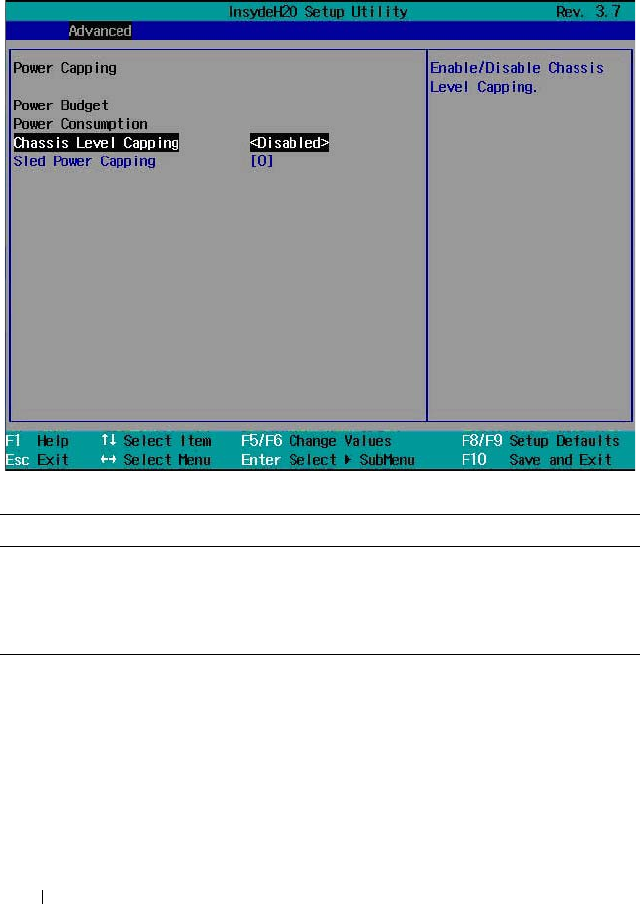
Power Capping
Option Description
Chassis Level Capping
(Disabled default)
Enables or disables chassis level capping.
Sled Power Capping
(0 default)
Specify the maximum amount of power to be consumed by
the sled. Settings range from 0 or 100 to 1000 W.
Using the System Setup Program 61
Emergency Throttling
Scroll to this item and press <Enter> to view the following screen.
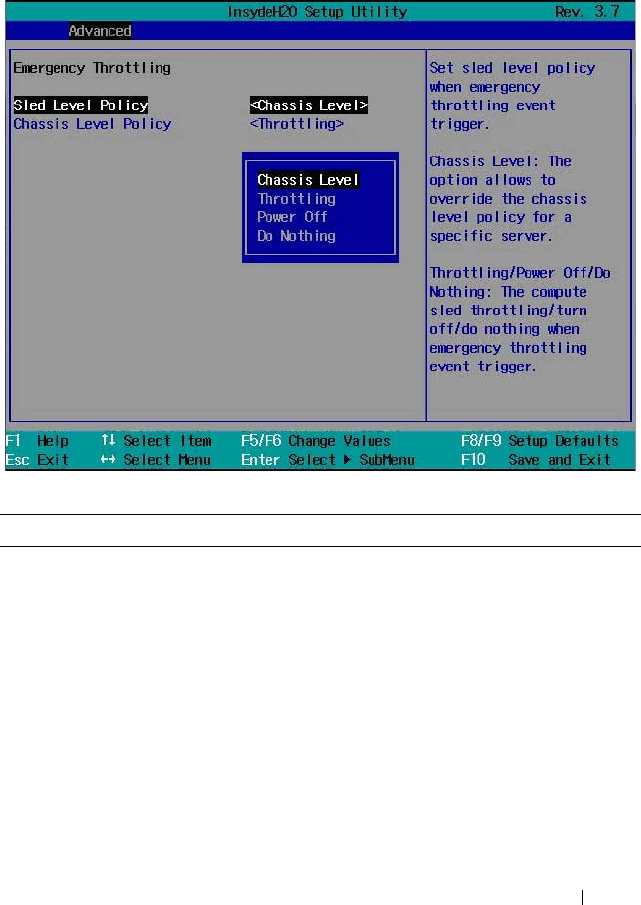
Emergency Throttling
Option Description
Sled Level Policy
(Chassis Level default)
Select a sled level policy when an emergency throttle event
is triggered.
•
Chassis Level
: Overrides the chassis level policy for a
specific server.
• Throttling: Allows compute sled throttling when an
emergency throttle event is triggered.
•
Power Off
: Turns off the compute sled when an
emergency throttle event is triggered.
•
Do Nothing
: The compute sled will do nothing when an
emergency throttle event is triggered.
62 Using the System Setup Program
CPU Configuration
Scroll to this item and press <Enter> to view the following screen.
Chassis Level Policy
(Throttling default)
Select a chassis level policy when an emergency throttle
event is triggered. This option can be configured when the
Sled Level Policy is set as Chassis Level.
• Throttling: Allows chassis sled throttling when an
emergency throttle event is triggered.
•
Power Off
: The server power turns off when an emergency
throttle event is triggered.
Option Description

Using the System Setup Program 63
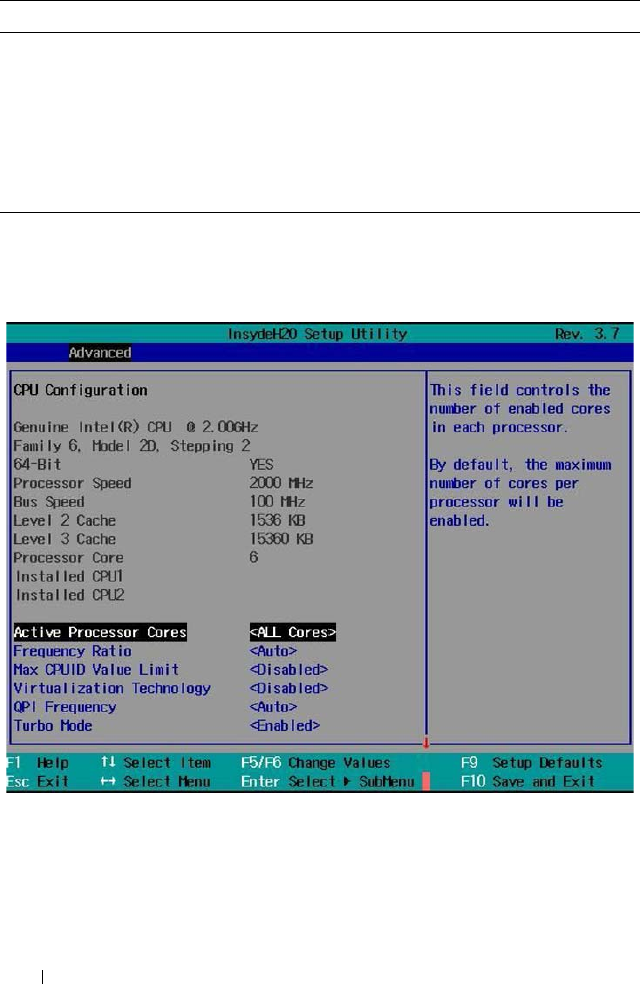
CPU Configuration
Option Description
Active Processor Cores
(All Cores default)
Allows you to control the number of enabled core in each
processor. Options are [1], [2], [4], [6], [8], [10]and [All
Cores]. (Option depends on processor core.)
Frequency Ratio
(Auto default)
Sets the frequency multipliers as maximum level.
Max CPUID Value
Limit
(Disabled default)
Some OS, which is (NT4), fails if the value returned in
EAX is >3 when CPUID instruction is executed with
EAX=0.
When enabled, this setting limits CPUID function to 3.
When disabled, this setting disables the 3 or less.
Virtualization
Technology
(Disabled default)
Allows you to set the Virtualization Technology in
applicable CPUs.
Enabled (applicable CPUs)/Disabled (unusable in any
OS).
QPI Frequency
(Auto default)
Select the link speed. Options are [6.4GTs], [7.2GTs], and
[8.0GTs].
Tu r b o M o d e
(Enabled default)
Enables or disables processor Turbo mode.
C-States
(Enabled default)
When enabled, the processor(s) can operate in all available
power C states.
When disabled, the user power C states are not available
for the processor.
C1E State
(Enabled default)
Enables or disables the Enhanced Halt (C1E) state.
NOTE: Disable this option at your own risk. When you disable
this option, pop up message appears on the screen and
warning appears in the System Setup Help.
C6 State
(Enabled default)
Enables or disables the processor C6 state.
NOTE: Disable this option at your own risk. When you disable
this option, pop up message appears on the screen and
warning appears in the System Setup Help.

64 Using the System Setup Program
C7 State
(Enabled default)
Enables or disables the processor C7 state.
NOTE: This feature is visible only when the processor
supports C7 state.
NOTE: Disable this option at your own risk. When you disable
this option, pop up message appears on the screen and
warning appears in the System Setup Help.
XD Bit Capability
(Enabled default)
Enables or disables the processor’s Execute Disable (XD)
Memory Protection Technology feature.
Direct Cache Access
(Enabled default)
Enables or disables the direct cache access.
Hyper-Threading
Tec hnol ogy
(Enabled default)
Enables or disables the Hyper-Threading technology.
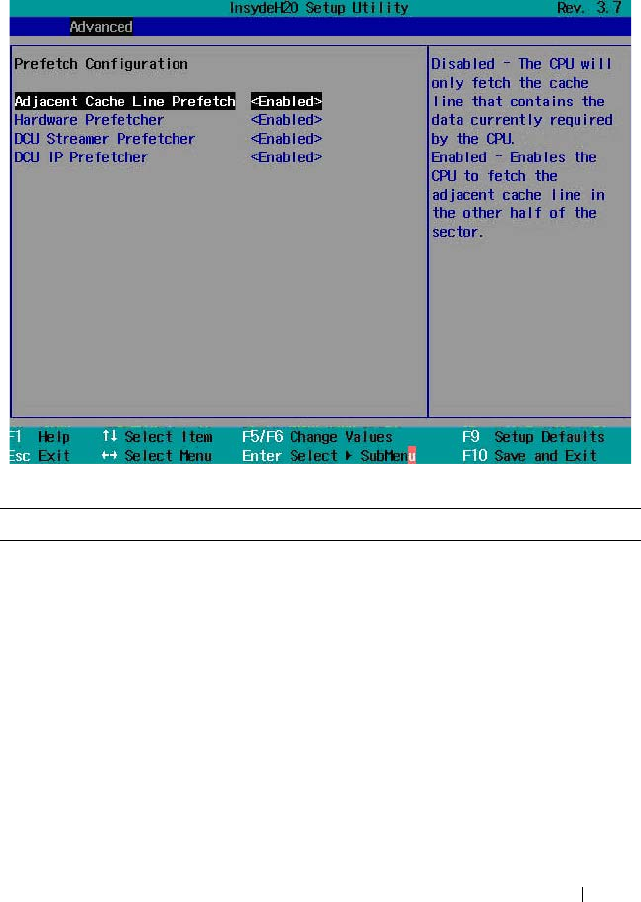
Prefetch Configuration Press <Enter> to configure the prefetch settings.
NOTE: This feature is available when supported by the
processor.
Option Description
Using the System Setup Program 65
Prefetch Configuration
Scroll to this item and press <Enter> to view the following screen.
Prefetch Configuration
Option Description
Adjacent Cache Line
Prefetch
(Enabled default)
Enables or disables system optimization for sequential
memory access.
Hardware Prefetcher
(Enabled default)
Enables or disables the speculative unit within the
processor(s).
DCU Streamer
Prefetcher
(Enabled default)
Enables or disables Data Cache Unit (DCU) streamer
prefetcher.
NOTE: This feature is available when supported by the
processor.
66 Using the System Setup Program
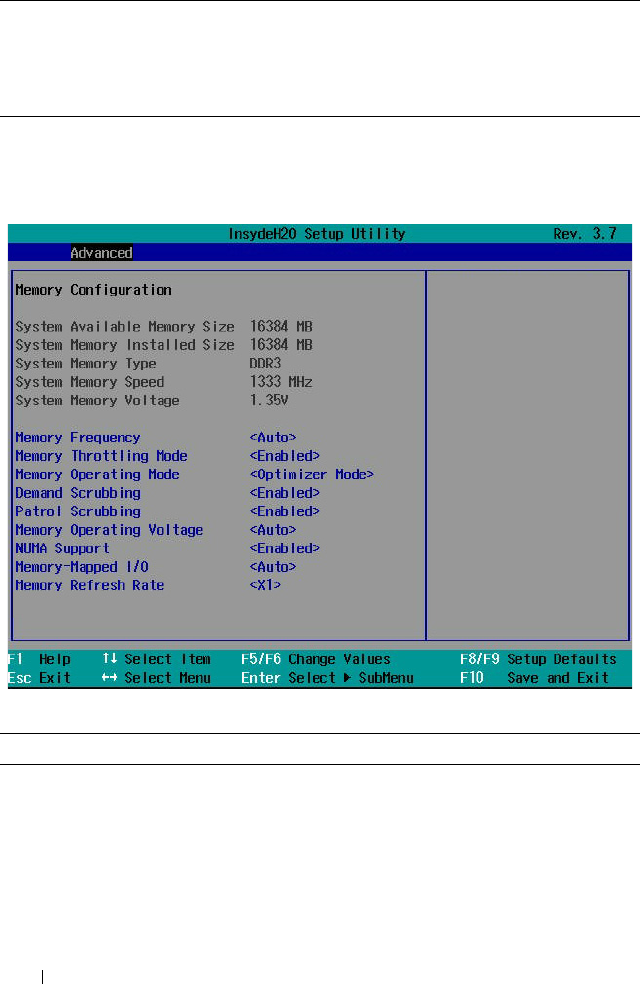
Memory Configuration
Scroll to this item and press <Enter> to view the following screen.
Memory Configuration
DCU IP Prefetcher
(Enabled default)
Enables or disables DCU IP prefetcher.
NOTE: This feature is available when supported by the
processor.
Option Description
Memory Frequency
(Auto default)
Select an operating memory frequency. Options are
[Auto], [800], [1066], [1333], [1600], and [1866].
Memory Turbo Mode
(Disabled default)
Enables or disables the memory turbo mode.
NOTE: This feature is not available for Intel Xeon
E5-2600 v2 processors.
Option Description

Using the System Setup Program 67
Memory Throttling Mode
(Enabled default)
Enables or disables the memory to run in closed-loop
thermal throttling mode.
Memory Operating Mode
(Optimizer Mode default)
Select the type of memory operation if a valid memory
configuration is installed.
• Optimizer Mode: The two memory controllers run in
parallel 64-bit mode for improved memory
performance.
• Spare Mode: Enables memory sparing
• Mirror Mode: Enables memory mirroring
• Advanced ECC Mode: Controllers are joined in
128-bit mode running multi-bit advanced ECC.
Demand Scrubbing
(Enabled default)
Enables or disables DRAM scrubbing.
DRAM scrubbing is the ability to write corrected data
back to the memory once a correctable error is detected
on read transaction.
Patrol Scrubbing
(Enabled default)
Enables or disables patrol scrubbing.
Patrol scrubbing proactively searches the system
memory, repairing correctable errors.
Memory Operating Voltage
(Auto default)
If set to Auto, the system sets the voltage to an optimal
value based on the capacity of the installed memory
modules. You can also set the voltage of the memory
module to a higher value (1.5 V) provided that the
modules support multiple voltages. Options are [Auto],
[1.5 volts], and [1.35 volts].
NOTE: BIOS will auto restrict selection if DIMM is not
supporting low voltage.
NUMA Support
(Enabled default)
Enables or disables Non-Uniform Memory Access
(NUMA) support to improve processor performance.
NOTE: This option is available for NUMA systems that
allow memory interleaving across all processor nodes.
Memory Mapped I/O
(Auto default)
Select the base address register for the PCIe memory
space. Options are [Auto], [32-bit], and [64-bit].
Memory Refresh Rate
(X1 default)
Enables or disables the 2X memory refresh rate.
Option Description
68 Using the System Setup Program
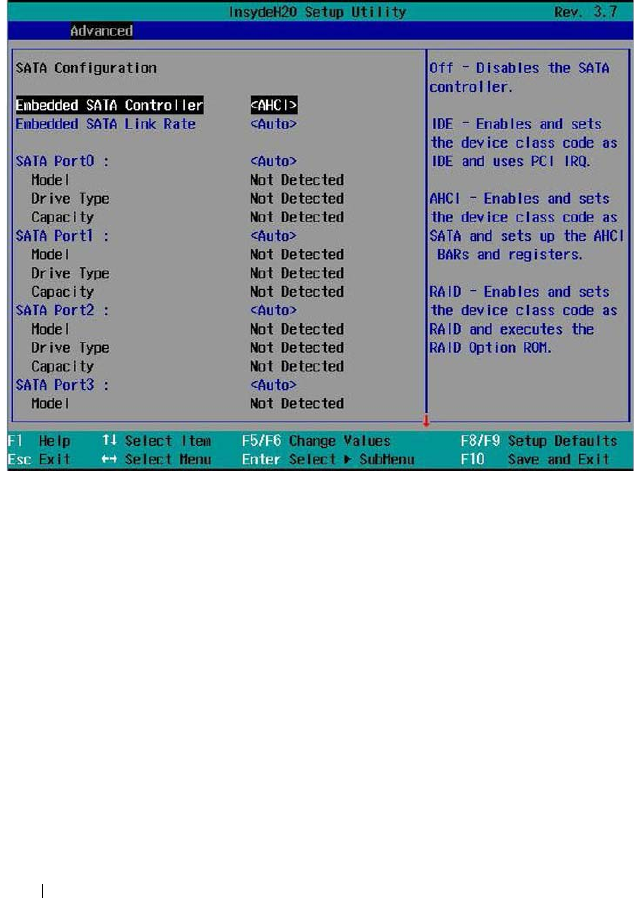
SATA Configuration
Scroll to this item and press <Enter> to view the following screen.

Using the System Setup Program 69
SATA Configuration
Option Description
Embedded SATA
Controller
(AHCI default)
Select an operation mode for the onboard SATA controller.
• Off: Disables the SATA controller. This token applies to
the first onboard SATA controller.
• IDE: Enables the SATA controller to run in IDE mode.
Sets the device class code as IDE and uses PCI IRQ
(referred as Native mode). This token applies to the first
onboard SATA controller.
• AHCI: Enables the SATA controller to run in AHCI
mode. Sets the device class code as SATA and sets up the
AHCI BARs and registers. This token applies to the first
onboard SATA controller.
• RAID: Enables the SATA controller to run in RAID mode.
Sets the device class code as RAID and executes the RAID
Option ROM. This token applies to the first onboard
SATA controller. This provides access to the RAID setup
utility during system bootup.
Embedded SATA Link
Rate (Auto default)
Select a SATA link speed.
• Auto: Sets the SATA link speed at maximum 6.0 Gbps.
• 1.5 Gbps: Sets the SATA link speed to 1.5 Gbps. For
power consumption.
• 3.0 Gbps: Sets the SATA link speed to 3.0 Gbps.
SATA Port 0
(Auto default)
When set to off, turns off the 1st Serial ATA drive
controller.
When set to auto, enables BIOS support for the 1st Serial
ATA drive controller (enabled if present, POST error if not
present).
SATA Port 1
(Auto default)
When set to off, turns off the 2nd Serial ATA drive
controller.
When set to auto, enables BIOS support for the 2nd Serial
ATA drive controller (enabled if present, POST error if not
present).

70 Using the System Setup Program
SATA Port 2
(Auto default)
When set to off, turns off the 3rd Serial ATA drive
controller.
When set to auto, enables BIOS support for the 3rd Serial
ATA drive controller (enabled if present, POST error if not
present).
SATA Port 3
(Auto default)
When set to off, turns off the 4th Serial ATA drive
controller.
When set to auto, enables BIOS support for the 4th Serial
ATA drive controller (enabled if present, POST error if not
present).
SATA Port 4
(Auto default)
When set to off, turns off the 5th Serial ATA drive
controller.
When set to auto, enables BIOS support for the 5th Serial
ATA drive controller (enabled if present, POST error if not
present).
SATA Port 5
(Auto default)
When set to off, turns off the 6th Serial ATA drive
controller.
When set to auto, enables BIOS support for the 5th Serial
ATA drive controller (enabled if present, POST error if not
present).
Power Saving Features
(Auto default)
Enables or disables the feature that allows SATA hard-
drives to initiate link power management transitions.
HDD Security Erase
(Disabled default)
Enables or disables the hard-drive security freeze lock
feature.
Option Description
Using the System Setup Program 71
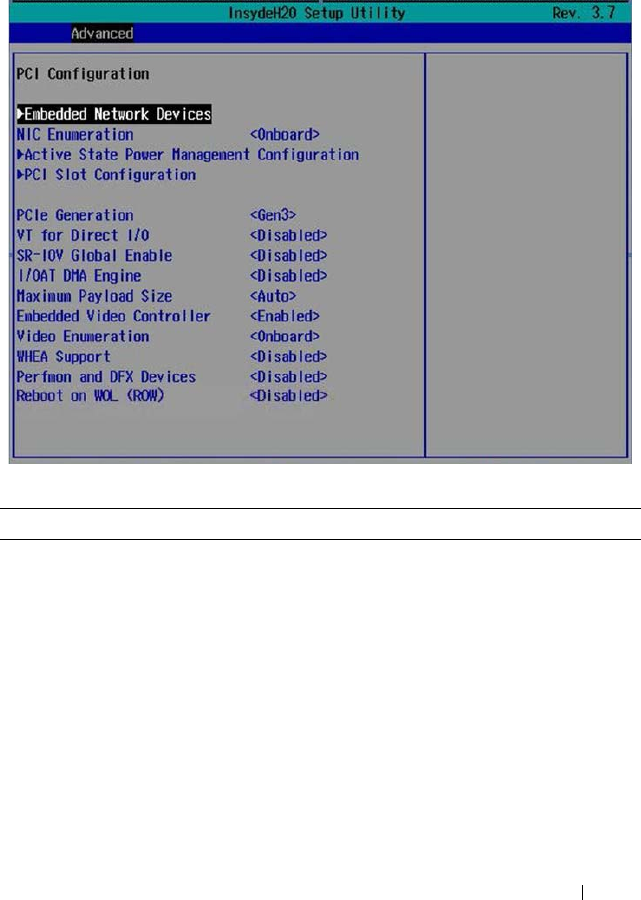
PCI Configuration
Scroll to this item and press <Enter> to view the following screen.
PCI Configuration
Option Description
Embedded Network Devices Press <Enter> to configure available network drives.
NIC Enumeration
(Onboard default)
Select a LAN boot ROM option.
• Onboard: Uses the PXE boot on NICs to boot the
system.
• Add-in: Use the PXE boot on add-in network adapters
to boot the system.
Active State Power
Management Configuration
Press <Enter> to configure power management for
PCI Express devices.

72 Using the System Setup Program
PCI Slot Configuration Press <Enter> to configure PCI Express devices.
NOTE: When you install an Intel Xeon Phi card in the
C8220X sled, BIOS automatically enables the PCI memory
64-bit decode option.
PCIe Generation
(Gen3 default)
Select a PCI signaling rate.
• Gen1: 2.5 GT/s
•Gen2: 5 GT/s
•Gen3: 8 GT/s
VT for Direct I/O
(Disabled default)
Enables or disables Intel hardware virtualization
support.
SR-IOV Global Enable
(Disabled default)
Enables or disables BIOS configuration of Single Root
I/O Virtualization (SR-IOV) devices.
I/OAT DMA Engine
(Disabled default)
If set to Enabled, the I/O Acceleration Technology
(I/OAT) feature is enabled for network controllers that
support this technology.
Maximum Payload Size
(Auto default)
Sets the maximum payload size of the PCI Express
controller. Options are Auto, 128 bytes, and 256 bytes.
Embedded Video Controller
(Enabled default)
Enables or disables the onboard video controller.
NOTE: This option should always be set to Enabled. The
remote KVM function cannot function if set to disabled.
Video Enumeration
(Onboard default)
Select video controller enumeration type.
• Onboard - The onboard video controller is used for
boot-time messages.
• Add-in - The first add-in video controller is used for
boot-time messages. Depending on the BIOS search
order and system slot layout.
WHEA Support
(Disabled default)
Enables or disables the Windows Hardware Error
Architecture (WHEA) feature.
Perfmon and DFX Devices
(Disabled default)
Enables or disables the Perfmon devices (e.g. disk
usage, memory consumption, and CPU load) DFX
devices (such as a USB adaptor) installed in the system.
Option Description
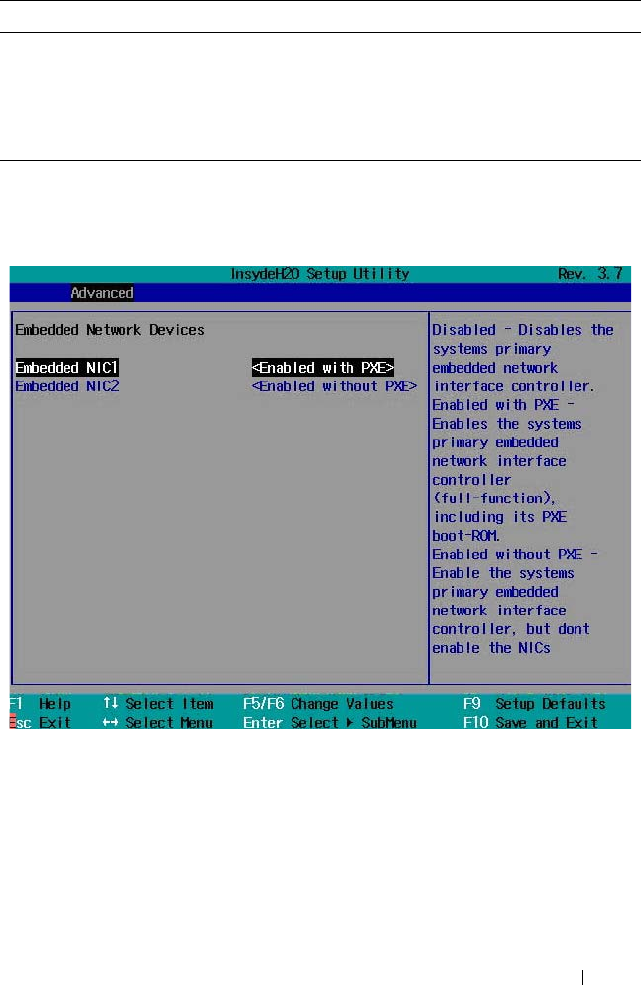
Using the System Setup Program 73
Embedded Network Devices
Scroll to this item and press <Enter> to view the following screen.
Reboot on WOL (ROW)
(Disabled default)
Enables or disables reboot on wake-on-LAN feature.
Reboot On WOL targets network controllers when the
network controller receives a magic packet. This option
displays when the network chip supports Reboot on
WOL feature.
Option Description

74 Using the System Setup Program
Embedded Network Devices
Option Description
Embedded NIC1
(Enabled with PXE
default)
Enables or disables the onboard NIC1 controller.
• Enabled with PXE: Allows you to enable the system’s
primary embedded NIC (full function), including its PXE
boot-ROM.
• Enabled without PXE: Allows you to enable the system’s
primary embedded NIC only. The NIC associated PXE or
RPL boot-ROM are disabled in this option.
• iSCSI Remote Boot: Allows you to configure the iSCSI
target and initiator variables to support iSCSI Remote
Boot. Changes take effect after the system reboots.
• Disabled: Allows you to disable the system’s primary
embedded NIC.
Embedded NIC2
(Enabled without PXE
default)
Enables or disables the onboard NIC2 controller.
• Enabled with PXE: Allows you to enable the system’s
secondary embedded NIC (full function), including its
PXE boot-ROM.
• Enabled without PXE: Allows you to enable the system’s
secondary embedded NIC only. The NIC associated PXE
or RPL boot-ROM are disabled in this option.
• iSCSI Remote Boot: Allows you to configure the iSCSI
target and initiator variables to support iSCSI Remote
Boot. Changes take effect after the system reboots.
• Disabled: Allows you to disable the system’s primary
embedded NIC.
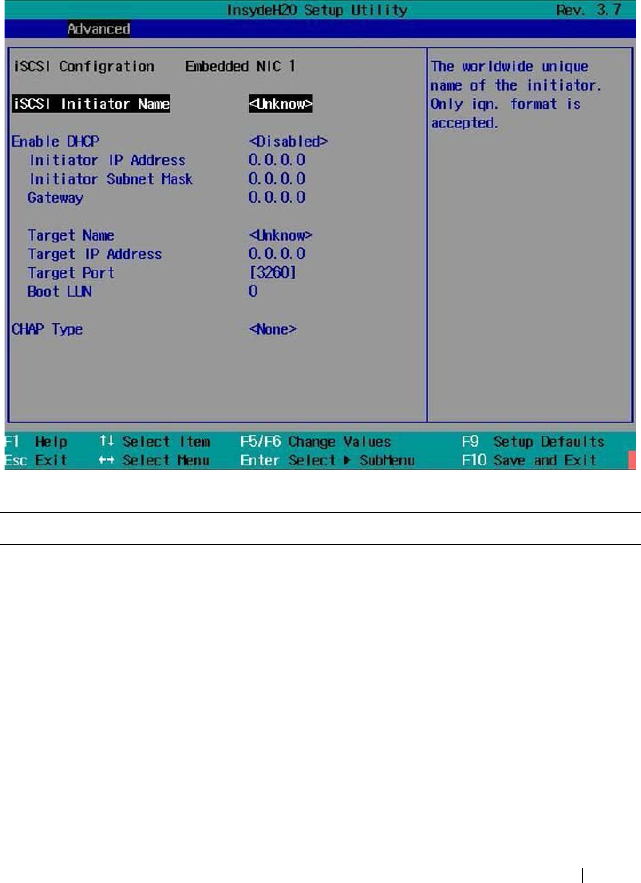
Using the System Setup Program 75
iSCSI Remote Boot
Select iSCSI Remote Boot in the Embedded NIC1/NIC2 option and press
<Enter> to view the following screen.
iSCSI Remote Boot
Option Description
iSCSI Initiator Name Displays the worldwide unique name of the initiator. Only
iqn format is accepted.
Enable DHCP
(Disabled default)
Enables or disables the DHCP network settings.
Initiator IP Address Sets the initiator’s static IP address.
Initiator Subnet Mask Sets the subnet mask for the static IP address.
Gateway Sets the IP gateway for the static IP address.
Target Name Sets the name for the target IP.
Target IP Address Sets the target’s IP address.
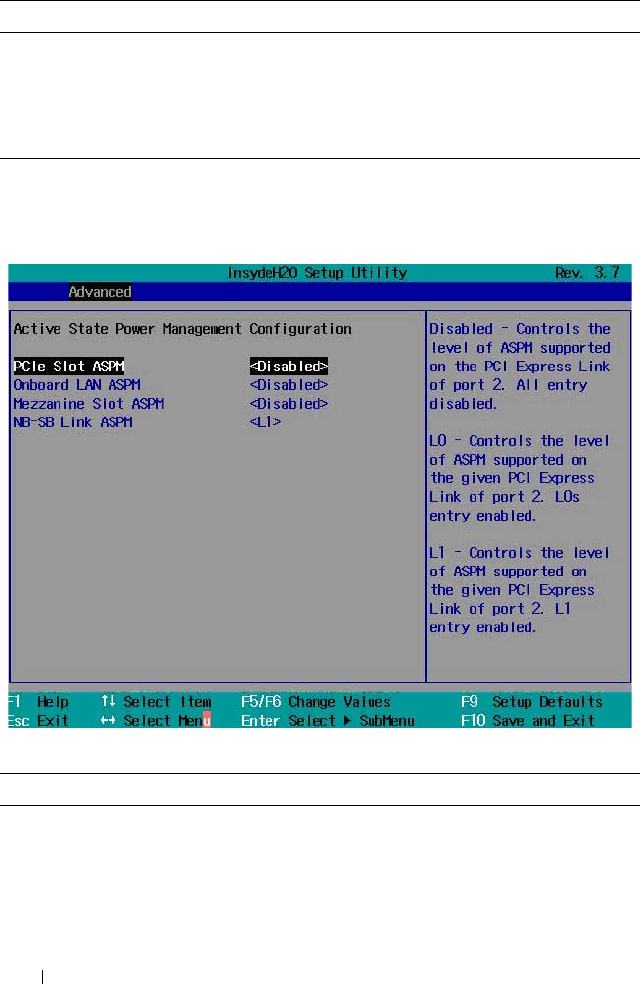
76 Using the System Setup Program
Active State Power Management Configuration
Scroll to this item and press <Enter> to view the following screen.
Active State Power Management Configuration
Target Port Sets the target port.
Boot LUN Sets the hexadecimal representation of LU number.
CHAP Type
(None default)
Select CHAP type. Options are [None], [One Way
CHAP], and [Mutual CHAP].
Option Description
PCIe Slot ASPM
(Disabled default)
Select an active state power management (ASPM)
protocol for the PCI Express slot. Options are
[Disabled] and [L1].
Onboard LAN ASPM
(Disabled default)
Select an ASPM protocol for the onboard network
controller. Options are [Disabled] and [L1].
Option Description
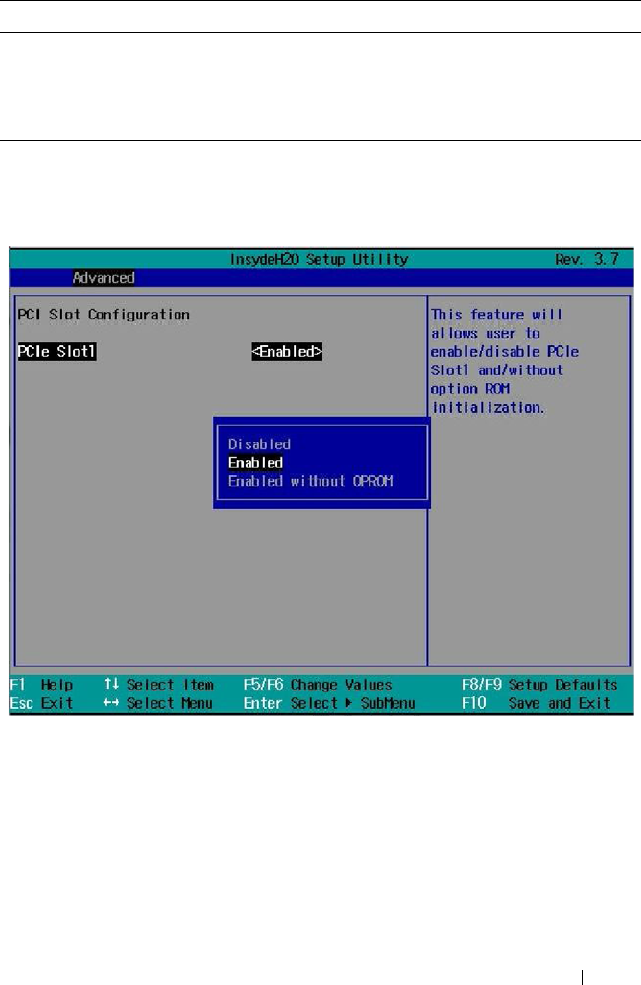
Using the System Setup Program 77
PCI Slot Configuration
Scroll to this item and press <Enter> to view the following screen.
Mezzanine Slot ASPM
(Disabled default)
Select an ASPM protocol for the mezzanine slot.
NB-SB Link ASPM
(L1 default)
Select an ASPM protocol for the northbridge and
southbridge chipsets.
Option Description
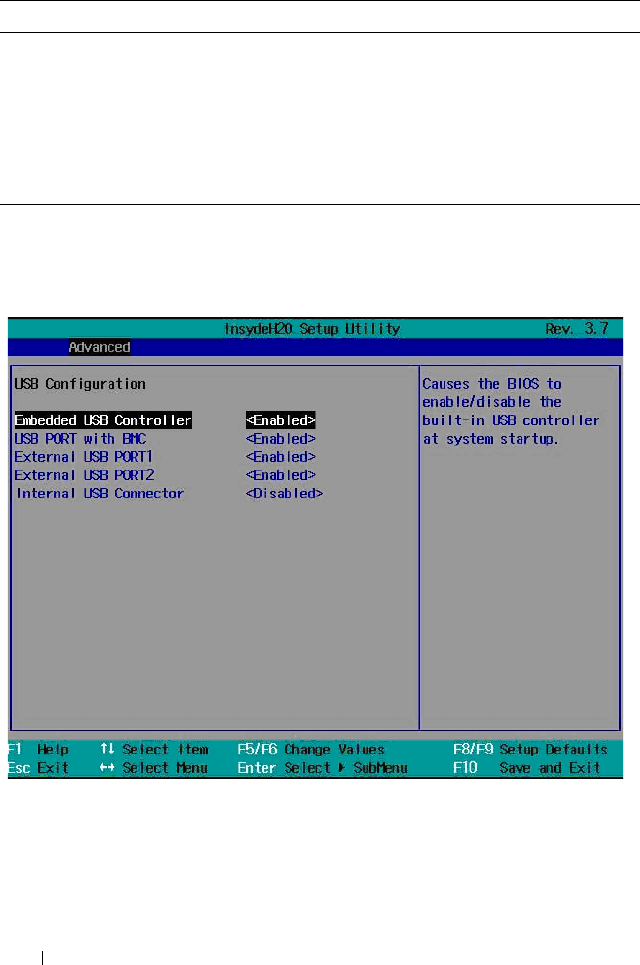
78 Using the System Setup Program
PCI Slot Configuration
USB Configuration
Scroll to this item and press <Enter> to view the following screen.
Option Description
PCIe Slot1
(Enabled default)
Enables or disables the PCIe slot1. Options are
[Disabled], [Enabled], [Enabled without OPROM].
NOTE: When you install an Intel Xeon Phi card in the
C8220X sled, BIOS automatically enables the PCI memory
64-bit decode option. You can set the GPGPU information
using IPMI commands. See Table 2-18 for more
information.

Using the System Setup Program 79
USB Configuration
Option Description
Embedded USB
Controller
(Enabled default)
Enables or disables the onboard USB controller at system
startup.
USB Port with BMC
(Enabled default)
Enables or disables internal USB port with BMC support.
External USB Port1
(Enabled default)
Enables or disables the external USB port1.
External USB Port2
(Enabled default)
Enables or disables the external USB port2.
Internal USB Connector
(Enabled default)
Enables or disables the internal USB port.
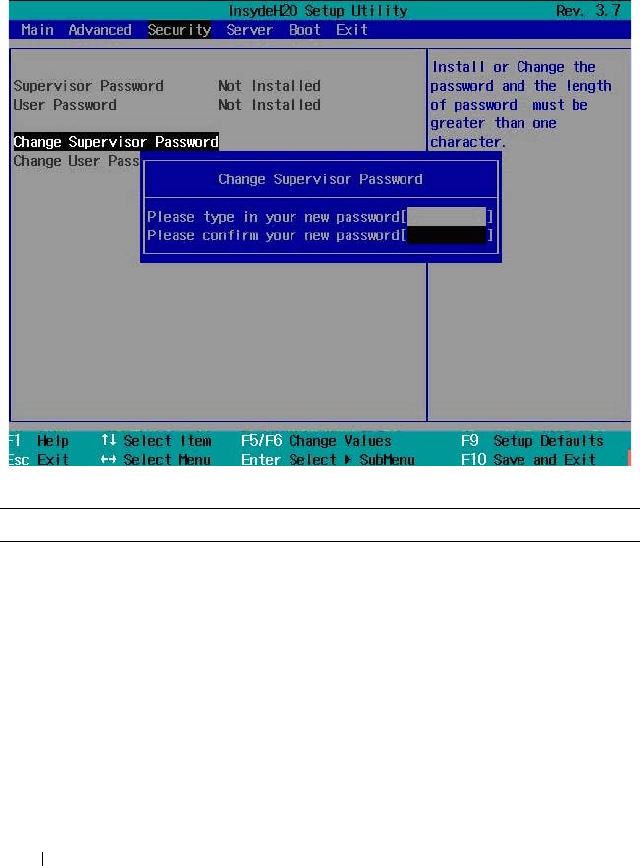
80 Using the System Setup Program
Security Menu
The security menu enables you to set the security parameters. Scroll to this
item and press <Enter> to view the following screen.
Security Settings
Option Description
Supervisor Password Indicates whether a supervisor password has been set. If
the password has been installed, Installed displays. If not,
Not Installed displays.
User Password Indicates whether a supervisor password has been set. If
the password has been installed, Installed displays. If not,
Not Installed displays.

Using the System Setup Program 81
Change Supervisor You can install a Supervisor password, and if you install a
supervisor password, you can then install a user password.
A user password does not provide access to many of the
features in the Setup utility. Note, the Change User
Password option only appears after a Supervisor password
has been set.
Select this option and press <Enter> to access the sub
menu, a dialog box appears which lets you enter a
password. You can enter no more than six letters or
numbers. Press <Enter> after you have typed in the
password. A second dialog box asks you to retype the
password for confirmation. Press <Enter> after you have
retyped it correctly. If the password confirmation is
incorrect, an error message appears. The password is stored
in NVRAM after ezPORT completes. The password is
required at boot time, or when the user enters the Setup
utility.
Change User Password Installs or changes the User password.
Option Description
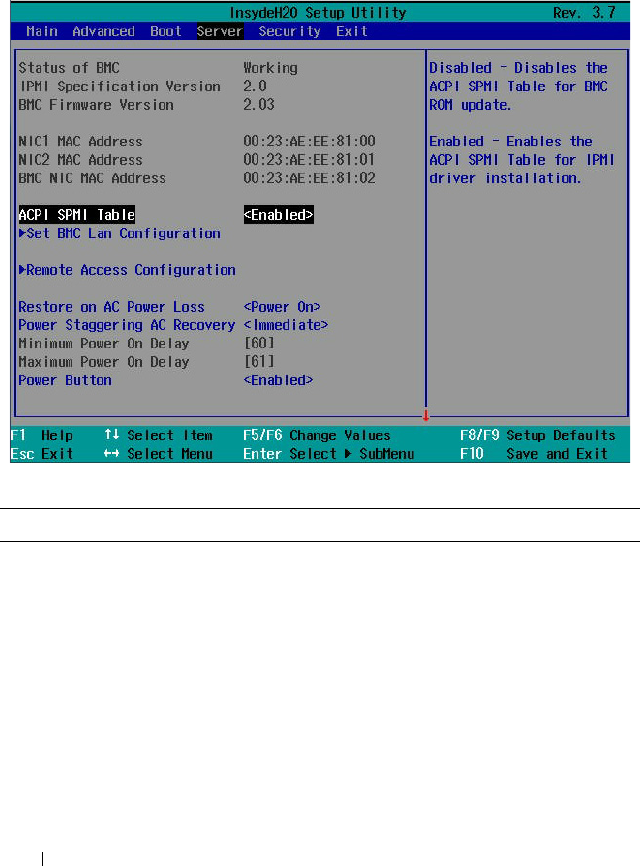
82 Using the System Setup Program
Server Menu
The server menu enables you to configure compute sled parameters. Scroll to
this item and press <Enter> to view the following screen.
Server Settings
Option Description
Status of BMC Displays BMC status.
IPMI Specification Version Displays the Intelligent Platform Management
Interface (IPMI) firmware version number.
BMC Firmware Version Displays the BMC firmware version number.
NIC1 MAC Address Displays the MAC address for the NIC1 connector.
NIC2 MAC Address Displays the MAC address for the NIC2 connector.
BMC NIC MAC Address Displays the MAC address for the BMC NIC
connector.

Using the System Setup Program 83
ACPI SPMI Table
(Enabled default)
When enabled, BIOS enables Advanced Configuration
and Power Interface (ACPI) Service Processor
Management Interface (SPMI) table for IPMI driver
installation.
When disabled, BIOS disables the ACPI SPMI table
for BMC ROM update.
Set BMC LAN
Configuration
Press <Enter> to set the BMC network.
Remote Access
Configuration
Press <Enter> to configure serial port settings related
to console redirection.
Restore on AC Power Loss
(Power On default)
Select the power state when the AC power is back.
• Power Off: System remains off until the power button
is pressed.
• Last State: System reverts to the last power state
before power loss.
• Power On: System switches back on after the AC
power loss.
Power Staggering AC
Recovery
(Immediate default)
Set the time period for the system to turn back on from
an AC power loss once power is resumed.
• Immediate: Power On (No Delay)
•Random: Auto
• User Defined: User defined delay time.
Power Button
(Enabled default)
When enabled, the power button can turn the system's
power off.
When disabled, the power button can only turn on
system power.
View System Event Log Press <Enter> to view the BMC system event log.
Event Logging
(Enabled default)
Enables or disables BIOS to log system events.
NMI on Error
(Enabled default)
Enables or disables BIOS to generate an Non-masked
Interrupt (NMI) when an uncorrectable PCI Express
error occurs.
Option Description
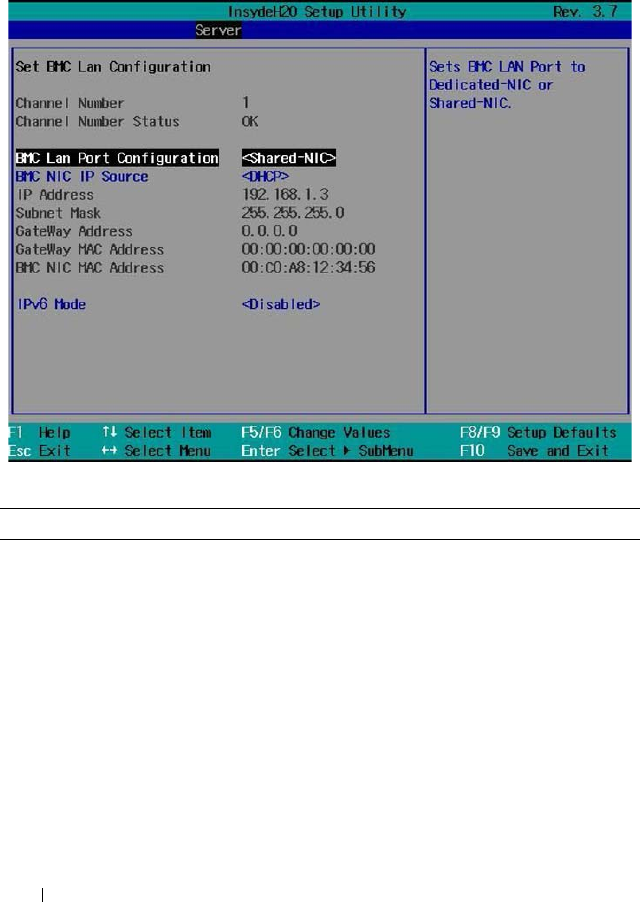
84 Using the System Setup Program
Set BMC LAN Configuration
Scroll to this item and press <Enter> to view the following screen.
Set BMC LAN Configuration
Option Description
Channel Number Displays the channel number used for BMC LAN.
Channel Number Status Displays the BMC channel number status.
BMC LAN Port
Configuration
(Shared-NIC default)
Set the BMC management port to dedicated or shared
NIC port. Options are [Dedicated NIC] and [Shared NIC].
BMC NIC IP Source
(DHCP default)
Set BMC to obtain its IP address using DHCP or establish
a static IP address.
IP Address Sets the static IP address.
Subnet Mask Sets the subnet mask for the static IP address.
Gateway Address Sets the IP gateway for the static IP address.
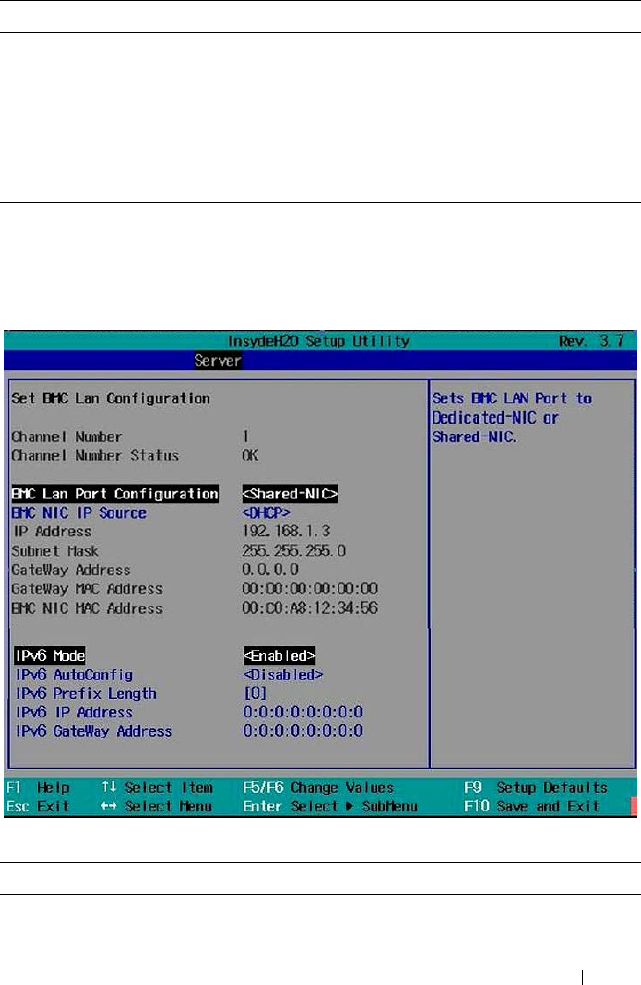
Using the System Setup Program 85
IPv6 Mode
Select Enabled in the IPv6 Mode option and press <Enter> to view the
following screen.
IPv6 Mode
Gateway MAC Address Sets the MAC address for the static IP address.
BMC NIC MAC
Address
Sets the MAC address for the BMC management port.
IPv6 Mode
(Disabled default)
Enables or disables the IPv6 internet protocol support.
If set to enabled, configure the IPv6 prefix, IP, and gateway
addresses.
Option Description
IPv6 AutoConfig Enables or disables IPv6 auto configuration.
Option Description
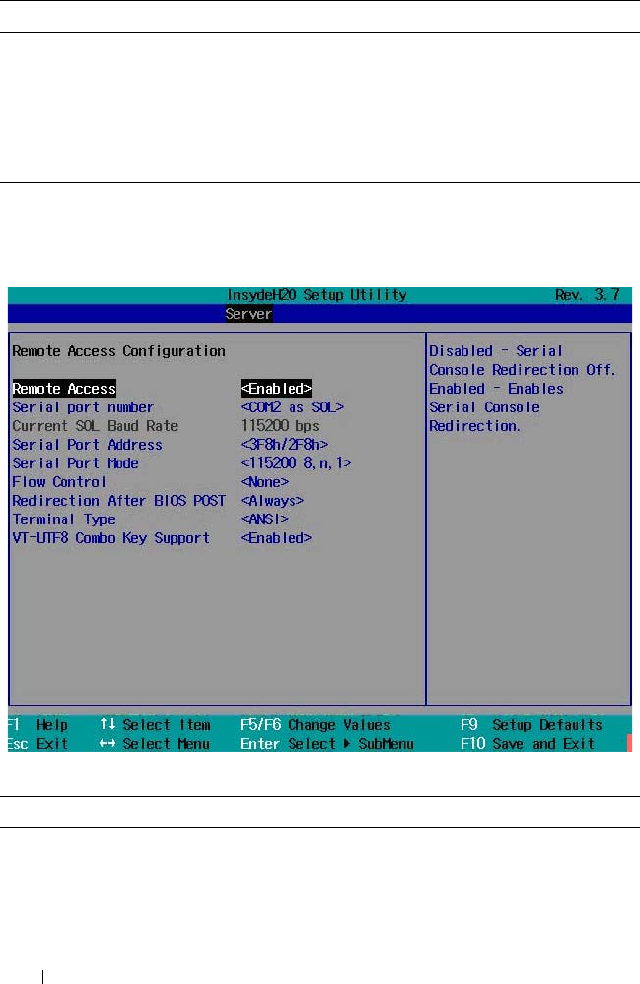
86 Using the System Setup Program
Remote Access Configuration
Scroll to this item and press <Enter> to view the following screen.
Remote Access Configuration
IPv6 Prefix Length Sets prefix length of the IPv6 address.
IPv6 IP Address Set the BMC management port to dedicated or shared
NIC port. Options are [Dedicated NIC] and [Shared NIC].
IPv6 IP Address Sets the BMC IPv6 address.
IPv6 Gateway Address Sets the MAC address for the static IPv6 address.
Option Description
Remote Access
(Enabled default)
Enables or disables serial console redirection.
Option Description

Using the System Setup Program 87
Serial port number
(COM1 default)
Select a serial port for console redirection.
• COM1: Enables console redirection via COM1.
See token D7h.
• COM2 as SOL: Enables console redirection via
COM2.
Serial Port Address
(3F8h/2F8h default)
Specifies the base I/O port address of the serial port.
•
3F8h/2F8h
: Sets the front serial port address as 0x3F8
and internal serial port address as 0x2F8.
• COM2 as SOL: Sets the front serial port address as
0x2F8 and internal serial port address as 0x3F8.
Serial Port Mode
(115200 8,n,1 as default)
Select a baud rate for the serial port. Options are
[115200 8,n,1], [57600 8,n,1], [38400 8,n,1],
[192008,n,1], and [9600 8,n,1].
Flow Control
(None default)
Select a flow control for console redirection. Options
are [None] and [Software].
Redirection After BIOS
POST (Always default)
If set to Always, the console redirection is always active.
When Disabled, console redirection is turned off after
POST.
Terminal Type
(ANSI default)
Select a target terminal type for console redirection.
Options are [ANSI], [VT100], and [VT-UTF8].
VT-UTF8 Combo Key
Support (Enabled default)
Enables or disables the VT-UTF8 Combination Key
support for ANSI/VT100 terminals.
Option Description
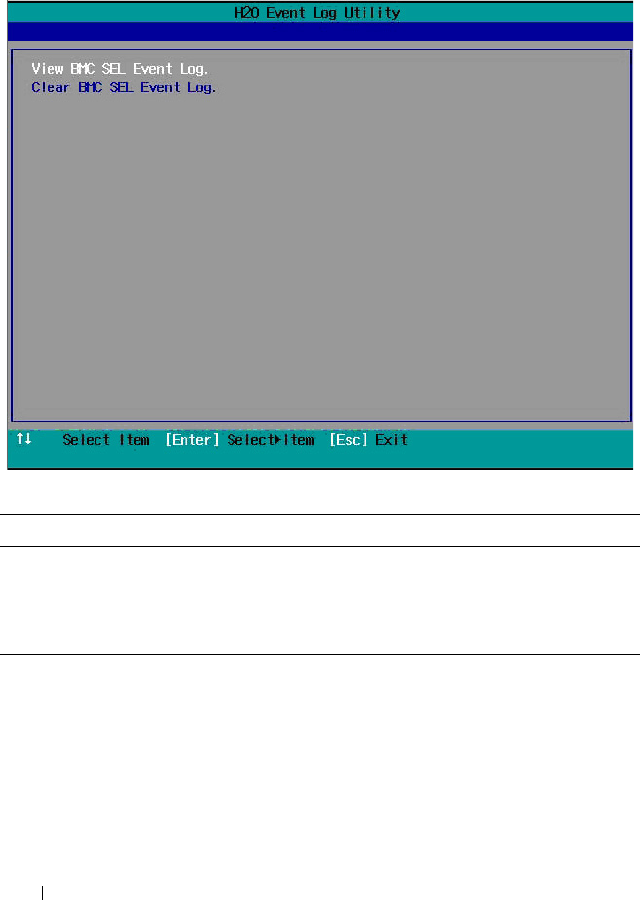
88 Using the System Setup Program
View System Log
Scroll to this item and press <Enter> to view the following screen.
View System Log
Option Description
View BMC SEL Event
Log
View all events in the BMC system event log.
Clear BMC SEL Event
Log
Deletes all records in the BMC system event log.
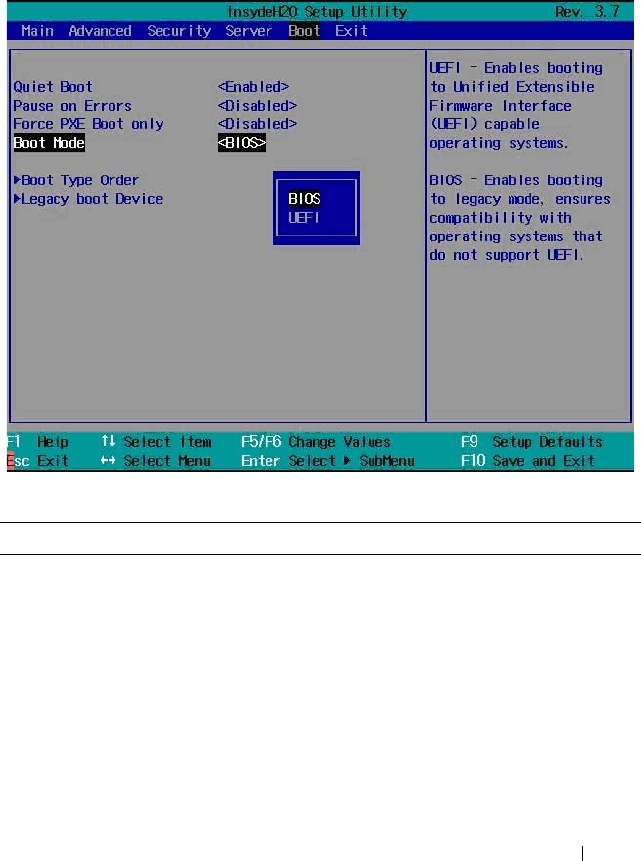
Using the System Setup Program 89
Boot Menu
The boot menu enables you to set POST boot parameters. Scroll to this item
and press <Enter> to view the following screen.
Boot Settings
Option Description
Quiet Boot
(Enabled default)
Enable this item to display the splash or summary
screen, rather than the detail of the POST flow. When
disabled, normal POST messages appear.
Pause on Errors
(Disabled default)
Enables or disables BIOS to prompt you to press <F1>
or <F2> keys on errors during POST.
Force PXE Boot only
(Disabled default)
Enables or disables PXE to be the only boot device.

90 Using the System Setup Program
Boot Mode (BIOS default) Select a system boot mode.
•
BIOS
: The
standard BIOS-level boot interface
•UEFI: A
n enhanced 64-bit boot interface based on
Unified Extensible Firmware Interface (UEFI)
specifications that overlays the system BIOS.
Boot Type Order Press <Enter> to set the preferred boot sequence from
the available devices.
Legacy Boot Device Press <Enter> to set the preferred boot sequence from
the available legacy USB devices.
Option Description
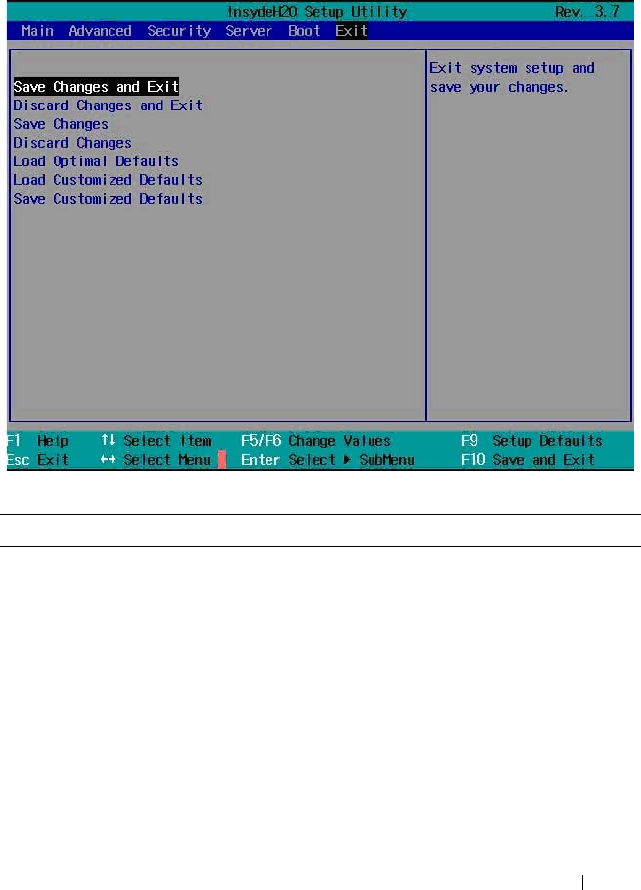
Using the System Setup Program 91
Exit Menu
Scroll to this item and press <Enter> to view the following screen.
Exit Options
Option Description
Save Changes and Exit Highlight this item and press <Enter> to save any
changes that you have made in the Setup utility and
exit the Setup utility. When the Save Changes and Exit
dialog box appears, press <Y> to save the changes and
exit, or press <N> to return to the setup main menu.
Discard Changes and Exit Highlight this item and press <Enter> to discard any
changes that you have made in the Setup utility and
exit the Setup utility. When the Discard Changes and
Exit dialog box appears, press <Y> to discard changes
and exit, or press <N> to return to the setup main
menu.

92 Using the System Setup Program
Save Changes Select this item and press <Enter> to save changes
you have made without leaving the setup utility.
Discard Changes Select this item and press <Enter> to discard any
changes you have made without leaving the setup
utility.
Load Optimal Defaults If you highlight this item and press <Enter>, a dialog
box asks if you want to install optimal settings for all
the items in the Setup utility. Press the <Y> key to
indicate Yes, and then press <Enter> to install the
optimal settings.
The optimal settings default values are quite
demanding and your system might not function
properly if you are using slower memory chips or other
kinds of low-performance components.
Load Customized Defaults Load 2nd default values from NVRAM for all the setup
parameters.
Save Customized Defaults Save all the setup parameters to NVRAM as 2nd
default values.
Option Description
Using the System Setup Program 93
Command Line Interfaces for System Setup
Options
The options in the System Setup menu allows you to control the System
Configuration Utility (syscfg). This utility is included in the Dell
OpenManage Deployment Toolkit (DTK).
See the Deployment Toolkit Version 1.3 User's Guide for additional
information about installing and using the DTK utilities, and the
Deployment Toolkit Version 1.3 Command Line Interface Reference Guide
for a complete list of all valid options, suboptions, and arguments for using
the BMCCFG.EXE to configure and manage your BMC.
You can use the system configuration utility for the following conditions:
• To change the System Setup option by D4 token:
./syscfg –t=D4_token_id
(Example: ./syscfg -t=0x002D to enable NIC1 Option ROM)
• To check token activity status:
./syscfg --istokenactive=D4_token_id
(Example: ./syscfg --istokenactive=0x002D to check the token active
status of NIC1 Option ROM)
• To directly change the System Setup option through BMC memory:
./ipmitool raw <command> <data>
(Example: ./ipmitool raw 0xc 1 1 3 10 106 42 120 to set IP address of BMC
management port as 10.106.42.120)
Table 2-1. D4 Token Table
Token Setup Option Description
002D Embedded NIC1 Enables the onboard NIC1 controller (full-function),
including its PXE boot-ROM.
002E Embedded NIC1 Disables the onboard NIC1 controller.
0051 N/A For the next system boot, set the IPL priority to: USB
storage, hard disk, CD/DVD-ROM, RAID, Network (if
the devices are available).

94 Using the System Setup Program
0052 N/A For the next system boot, set the IPL priority to: hard
disk then option ROMs (if the devices are available).
0053 N/A For the next system boot, set the IPL priority to:
Network, hard disk, RAID,USB storage, CD/DVD-
ROM (if the devices are available).
0054 N/A For the next system boot, set the IPL priority to:
CD/DVD-ROM, USB Storage, hard disk, RAID,
Network (if the devices are available).
005C N/A Enables BIOS remote update on the next reboot, to
search for an operating-system initiated BIOS update
image.
005D N/A Disables BIOS remote update on the next reboot, to
search for an operating-system initiated BIOS update
image.
006E Embedded NIC1 Enables the onboard NIC1 controller, but disables the
NIC associated PXE or RPL boot-ROM.
0087 Video
Enumeration
Allows BIOS to use the onboard video controller for
boot-time messages.
0088 Video
Enumeration
Allows BIOS to use the first add-in video controller for
boot-time messages. Depending on the BIOS search
order and system slot layout.
008C Embedded USB
Controller
Allows BIOS to enable the built-in USB controller at
system startup.
008D Embedded USB
Controller
Allows BIOS to enable the built-in USB controller at
system startup.
00A1 Restore on AC
Power Loss
System remains off until the power button is pressed.
00A2 Restore on AC
Power Loss
System reverts to the last power state before power
loss.
00A3 Restore on AC
Power Loss
System switches back on after the AC power loss.
00BA Embedded NIC2 Disables the onboard NIC2 controller.
Table 2-1. D4 Token Table
(continued)
Token Setup Option Description

Using the System Setup Program 95
00BB Embedded NIC2 Enables the onboard NIC2 controller, but disables the
NIC associated PXE or RPL boot-ROM.
00BC Embedded NIC2 Enables the onboard NIC2 controller (full-function),
including its PXE boot-ROM.
00BF Remote Access Disables serial console redirection.
00C0 Serial port
number
Enables console redirection via COM1. See token
D7h.
00C1 Power Button Enables the power button to turn off the system
power. (default)
00C2 Power Button Disables the power button to turn off the system
power.
00D1 Hyper-Threading
Techno logy
Enables Hyper-Threading Technology.
00D2 Hyper-Threading
Techno logy
Disables Hyper-Threading Technology.
00D7 Serial port
number
Enables console redirection via COM2.
00D8 Load Optimal
Defaults
Install optimal default settings for all the items in the
Setup utility on the next boot.
00FE Legacy USB
Support
Disables the system to provide legacy USB support for
the operating system.
00FF Legacy USB
Support
Enables the system to provide legacy USB support for
the operating system.
0117 SATA Port0 Turns off the 1st Serial ATA drive controller.
0118 SATA Port0 Enables BIOS support for the 1st Serial ATA drive
controller (enabled if present, POST error appears if
not present).
0119 SATA Port1 Turns off the 2nd Serial ATA drive controller.
011A SATA Port1 Enables BIOS support for the 2nd Serial ATA drive
controller (enabled if present, POST error appears if
not present).
Table 2-1. D4 Token Table
(continued)
Token Setup Option Description

96 Using the System Setup Program
011B SATA Port2 Turns off the 3rd Serial ATA drive controller.
011C SATA Port2 Enables BIOS support for the 3rd Serial ATA drive
controller (enabled if present, POST error appears if
not present).
011D SATA Port3 Turns off the 4th Serial ATA drive controller.
011E SATA Port3 Enables BIOS support for the 4th Serial ATA drive
controller (enabled if present, POST error appears if
not present).
011F SATA Port4 Turns off the 5th Serial ATA drive controller.
0120 SATA Port4 Enables BIOS support for the 5th Serial ATA drive
controller (enabled if present, POST error appears if
not present).
0121 SATA Port5 Turns off the 6th Serial ATA drive controller.
0122 SATA Port5 Enables BIOS support for the 6th Serial ATA drive
controller (enabled if present, POST error appears if
not present).
0135 Embedded SATA
Controller
Disables the SATA controller. This token applies to
the first onboard SATA controller.
0137 Embedded SATA
Controller
Enables the SATA controller to run in IDE mode. Sets
the device class code as IDE and uses PCI IRQ
(referred as Native mode). This token applies to the
first onboard SATA controller.
0138 Embedded SATA
Controller
Enables the SATA controller. Sets the device class
code as SATA and sets up the AHCI BARs and
registers. This token applies to the first onboard SATA
controller.
0139 Embedded SATA
Controller
Enables the SATA controller. Sets the device class
code as RAID and executes the RAID Option ROM.
This token applies to the first onboard SATA
controller.
013E Memory
Remapping
(3GB~4GB)
When disabled, memory remapping relocates memory
space behind PCI hole to the space above 4 GB.
Table 2-1. D4 Token Table
(continued)
Token Setup Option Description

Using the System Setup Program 97
013F Memory
Remapping
(3GB~4GB)
When enabled, memory remapping relocates memory
space (3GB - 4 GB) to the space above 4 GB.
0140 Execute-Disable
(XD) Bit
Capability
When disabled, the Intel processors supporting the
XD feature reports the support to the operating
system.
0141 Execute-Disable
(XD) Bit
Capability
When enabled, the Intel processors supporting the
XD feature reports the support to the operating
system. If the operating system supports this extended
paging mechanism, it will provide some protection
against software viruses that exploit buffer overflows.
014A Virtualization
Techno logy
Allows you to disable the VT technology in applicable
processors. If disabled, the VT feature is unusable in
any OS.
014B Virtualization
Techno logy
Allows you to enable the VT technology in applicable
processors.
014E External USB
PORT1
Allows you to electrically disable the external USB
connector 1.
014F External USB
PORT1
Allow you to electrically enable the external USB
connector 1.
0168 Max CPUID
Valu e L im it
Some OS, which is (NT4), fails if the value returned
in EAX is >3 when CPUID instruction is executed
with EAX=0. This setting disables the 3 or less.
0169 Max CPUID
Valu e L im it
Some OS, which is (NT4), fails if the value returned
in EAX is >3 when CPUID instruction is executed
with EAX=0. This setting limits CPUID function
to 3.
016F Embedded SAS
Controller
Disables the SAS controller. This token applies to the
onboard SAS controller.
0170 Embedded SAS
Controller
Enables the SAS controller. Sets the device class code
as AHCI/RAID and executes the RAID Option ROM.
This token applies to the onboard SAS controller.
Table 2-1. D4 Token Table
(continued)
Token Setup Option Description

98 Using the System Setup Program
0171 Adjacent Cache
Line Prefetch
Disables system optimization for sequential memory
access. The processor fetches the cache line that
contains the data it currently requires.
0172 Adjacent Cache
Line Prefetch
Enables system optimization for sequential memory
access. The processor fetches the adjacent cache line
in the other half of the sector.
0173 Hardware
Prefetcher
Disables the processor’s HW prefetcher.
0174 Hardware
Prefetcher
Enables the processor’s HW prefetcher.
0178 Remote Access Enables serial console redirection.
0189 External USB
PORT2
Allows you to electrically disable the external USB
connector 2.
018A External USB
PORT2
Allow you to electrically enable the external USB
connector 2.
0199 Power Saving
Features
Disables the feature that allows SATA hard-drives to
initiate link power management transitions.
019A Power Saving
Features
Enables the feature that allows SATA hard-drives to
initiate link power management transitions.
01C4 NUMA Support Disables the NUMA support to improve processor
performance. This option is available for NUMA
systems that allow memory interleaving across all
processor nodes.
01C5 NUMA Support Enables the NUMA support to improve processor
performance. This option is available for NUMA
systems that allow memory interleaving across all
processor nodes.
01C4 Node Interleave Disables the node interleave option. This option is
available for NUMA systems that allow memory
interleaving across all processor nodes.
01C5 Node Interleave Enable the node interleave option. This option is
available for NUMA systems that allow memory
interleaving across all processor nodes.
Table 2-1. D4 Token Table
(continued)
Token Setup Option Description

Using the System Setup Program 99
01CF I/OAT DMA
Engine
Enables the I/O Acceleration Technology (I/OAT)
DMA Engine feature. Set to enabled only if the
hardware and software support I/OAT.
01D0 I/OAT DMA
Engine
Disables the I/OAT DMA Engine feature. This option
should be disabled only if the hardware and software
support I/OAT.
01DA Embedded NIC1 Enables NIC1 with iSCSI Remote Boot.
01DB Embedded NIC2 Enables NIC2 with iSCSI Remote Boot.
01EA Turbo Mode Disables memory turbo mode. It disables the
processor core to increase its frequency.
01EB Turbo Mode Enables memory turbo mode. It allows the processor
core to increase its frequency.
01F0 Embedded NIC3 Enables the onboard NIC3 controller.
01F1 Embedded NIC3 Enables the onboard NIC3 controller, but disables the
NIC associated PXE or RPL boot-ROM.
01F2 Embedded NIC3 Enables the onboard NIC3 controller (full-function),
including its PXE boot-ROM.
01F3 Embedded NIC3 Enables NIC3 with iSCSI Remote Boot.
0204 VT for Direct I/O Disables Intel Virtualization Technology for Direct
I/O (VT-d) that enhances I/O support (DMA) when
running a Virtual Machine Monitor.
0205 VT for Direct I/O Enables Intel Virtualization Technology for Direct I/O
(VT-d) that enhances I/O support (DMA) when
running a Virtual Machine Monitor.
0211 Internal USB
PORT
Disables the internal USB connector.
0212 Internal USB
PORT
Enables the internal USB connector.
021F Maximum
Performance
Sets the system power management to maximum
performance.
0221 OS Control Allows the OS to change the P-state.
Table 2-1. D4 Token Table
(continued)
Token Setup Option Description

100 Using the System Setup Program
0224 Embedded Video
Controller
Enables the onboard video controller as the primary
video device.
0225 Embedded Video
Controller
Disables the onboard video controller.
022D Boot Mode Enables booting to Unified Extensible Firmware
Interface (UEFI) capable operating systems.
022E Boot Mode Enables booting to legacy mode, ensures compatibility
with operating systems that do not support UEFI.
0231 Active Processor
Cores
Four cores of the processor are enabled This applies to
Quad-core processors only.
0232 Active Processor
Cores
Two cores of the processor are enabled. This applies to
Quad-core and Dual-core processors.
0233 Active Processor
Cores
Single core of the processor is enabled. This applies to
Quad-core and Dual-Core processors.
024B C States When enabled, the processor can operate in all
available Power C States. (default)
024C C States When disabled, there are no C states available for the
processor.
024D Pause on Errors Enables the BIOS from prompting for F1/F2 on error.
BIOS pauses at F1/F2 prompt.
024E Pause on Errors Disables the BIOS from prompting for F1/F2 on error.
BIOS pauses at F1/F2 prompt.
024F Quiet Boot Enables the display of the splash or summary screen,
rather than the detail of the POST flow.
0250 Quiet Boot Disables the display of the splash or summary screen.
The user is able to see the detail of the POST
messages.
0251 N/A The NIC1 is used for PXE boot, followed by NIC2.
0252 N/A The NIC2 is used for PXE boot, followed by NIC1.
0254 3F8h/2F8h Sets the back serial port address to 0x3F8 and internal
serial port address to 0x2F8
Table 2-1. D4 Token Table
(continued)
Token Setup Option Description

Using the System Setup Program 101
0257 2F8h/3F8h Sets the back serial port address to 0x2F8 and internal
serial port address to 0x3F8.
025D Optimizer Mode Selects optimizer mode as the memory operating
mode.
025E Spare Mode Selects spare mode as the memory operating mode.
025F Mirror Mode Selects mirror mode as the memory operating mode.
0260 Advanced ECC
Mode
Selects Advanced ECC (i.e. Lockstep, Chipkill) as the
memory operating mode.
026A Coherent HT
Link Speed
Sets to support HyperTransport 1 specification.
026B Coherent HT
Link Speed
Sets to support HyperTransport 3 specification.
026E Active Processor
Cores
This field controls the number of enabled all of cores
in each processor. By default, the maximum number
of cores per processor will be enabled.
026F Active Processor
Cores
This field controls the number of enabled 6 cores in
each processor. By default, the maximum number of
cores per processor will be enabled.
0270 Active Processor
Cores
This field controls the number of enabled 8 cores in
each processor. By default, the maximum number of
cores per processor will be enabled.
0271 Active Processor
Cores
This field controls the number of enabled 10 cores in
each processor. By default, the maximum number of
cores per processor will be enabled.
0272 Active Processor
Cores
This field controls the number of enabled 12 cores in
each processor. By default, the maximum number of
cores per processor will be enabled.
027B HT Assist Disables the Probe Filter chipset option in the System
setup. There are some applications that may lower
chipset performance when this is enabled.
027C HT Assist Enables the Probe Filter chipset option in the System
setup. There are some applications that may lower
chipset performance when this is disabled.
Table 2-1. D4 Token Table
(continued)
Token Setup Option Description

102 Using the System Setup Program
02A1 C1E State Enables the processor Enhanced Halt (C1E) state.
(default)
02A2 C1E State Disables the processor C1-E state. Do at your own
risk. When you disable this option, a warning appears
in the BIOS Setup help text and a pop up message
appears when this option is changing.
02A9 DRAM Prefetcher Disables DRAM references from triggering DRAM
prefetch requests.
02AA DRAM Prefetcher Turns on the DRAM prefetch unit in the Northbridge.
02AB HW Prefetch
Tra ini ng o n SW
Disables hardware prefetcher from considering
software prefetches when detecting strides for
prefetch requests.
02AC HW Prefetch
Tra ini ng o n SW
Enables Hardware prefetcher considers software
prefetches when detecting strides for prefetch
requests. (default)
02AD SR-IOV Global
Enable
Enables BIOS support for SRIOV devices.
02AE SR-IOV Global
Enable
Disables BIOS support for SRIOV devices.
02B6 Memory
Operating Voltage
Indicates all DIMMs in the system are operating at 1.5
volts.
02B7 Memory
Operating Voltage
Indicates all DIMMs in the system are operating at
1.35 volts.
02B8 Memory
Operating Voltage
This setting indicates the memory operating voltage
will be set automatically by the Memory initialization
code and depending upon the installed DIMM's
capability and the memory configuration of the
system. This is the default setting and will set the
Memory Operating voltage to the POR voltage.
02C5 DCU Streamer
Prefetcher
Enables the DCU Streamer Prefetcher. (default)
02C6 DCU Streamer
Prefetcher
Disables the DCU Streamer Prefetcher.
Table 2-1. D4 Token Table
(continued)
Token Setup Option Description

Using the System Setup Program 103
02C7 Data Reuse
Optimization
Sets to enable for HPC applications. (default)
02C8 Data Reuse
Optimization
Sets to disable for energy efficiency.
02C9 QPI Bandwidth
Priority
Sets to compute for computation-intensive
applications. (default)
02CA QPI Bandwidth
Priority
Sets to I/O for I/O-intensive applications.
02CE DCU IP
Prefetcher
Enables the DCU IP Prefetcher. (default)
02CF DCU IP
Prefetcher
Disables the DCU IP Prefetcher.
401A Terminal Type The BIOS console redirection, if enabled, operates in
VT100 emulation model. See tokens BFh, C0h, and
D7h.
401B Terminal Type The BIOS console redirection, if enabled, operates in
ANSI emulation model. See also tokens BFh, C0h,
and D7h.
401C Redirection After
BIOS POST
The BIOS console redirection, if enabled, continues to
operate after the OS boot hand-off.
401D Redirection After
BIOS POST
The BIOS console redirection, if enabled, operates
during the BIOS boot only and is disabled prior to OS
boot hand-off. See also tokens BFh, C0h, D7h, 401Ah,
and 401Bh.
4022 1st Boot Device Whenever the BIOS boots the system, the first PXE-
capable device is inserted as the first device in the
boot sequence. Enabling this feature causes the BIOS
operation to occur on the next and all subsequent
boots and causes a change in the system's defined
boot sequence. The BIOS chooses the first PXE-
capable device as the system's onboard network
controller, if present and enabled, or the first bootable
network device found in the system's standard PCI
search order.
Table 2-1. D4 Token Table
(continued)
Token Setup Option Description

104 Using the System Setup Program
4026 Manufacturing
Mode
Enables the manufacturing mode to bypass POST
tasks/memory tests and F1/F2 prompts on specific
error messages. Used by manufacturers only and is not
for general use.
4027 Manufacturing
Mode
Disables the manufacturing mode to bypass POST
tasks/memory tests and F1/F2 prompts on specific
error messages. Used by manufacturers only and is not
for general use.
4033 Serial Port Mode Console Redirection baud rate is set to 115,200 bits
per second.
4034 Serial Port Mode Console Redirection baud rate is set to 57,600 bits per
second
4035 Serial Port Mode Console Redirection baud rate is set to 19,200 bits per
second.
4036 Serial Port Mode Console Redirection baud rate is set to 9,600 bits per
second.
403F Clear SMBIOS
System Event Log
Deletes all records in the BMC system event log on
the next boot.
4800 Node Manager Enables the Node Manager mode for Intel processors.
4801 APML Enable the Advanced Platform Management Link
mode for AMD processors.
4802 CPU Power
Capping
To decide the highest processor performance state in
the OS. (P0-state).
4803 CPU Power
Capping
To decide the highest processor performance state in
the OS. (P1-state).
4804 CPU Power
Capping
To decide the highest processor performance state in
the OS. (P2-state).
4805 CPU Power
Capping
To decide the highest processor performance state in
the OS. (P3-state).
4806 CPU Power
Capping
To decide the highest processor performance state in
the OS. (P4-state).
Table 2-1. D4 Token Table
(continued)
Token Setup Option Description

Using the System Setup Program 105
480A C6 State Disables the processor C6 state. Do at your own risk.
When you disable this option, a warning appears in
the BIOS Setup help text and a pop up message
appears when this option is changing.
480B C6 State Enables the processor C6 state. (default)
480C L3 Cache Power
Control
Disable the clock stop for an idle subcache.
480D L3 Cache Power
Control
Enable the clock stop for an idle subcache.
480E C7 State Disables the processor C7 state. Do at your own risk.
When you disable this option, a warning appears in
the BIOS Setup help text and a pop up message
appears when this option is changing.
480F C7 State Enables the processor C7 state. (default)
4810 Non Coherent
HT Link Width
Sets the HT link to 8 bit width.
4811 Non Coherent
HT Link Width
Sets the HT link to 16 bit width.
4812 Non Coherent
HT Link Speed
Sets the HT link speed to 800MHz.
4813 Non Coherent
HT Link Speed
Sets the HT link speed to 1000MHz.
4814 Non Coherent
HT Link Speed
Sets the HT link speed to 1200MHz.
4815 Non Coherent
HT Link Speed
Sets the HT link speed to 1600MHz.
4816 Non Coherent
HT Link Speed
Sets the HT link speed to 2000MHz.
4817 Non Coherent
HT Link Speed
Sets the HT link speed to 2600MHz.
4820 Memory Turbo
Mode
Disables memory turbo mode.
Table 2-1. D4 Token Table
(continued)
Token Setup Option Description

106 Using the System Setup Program
4821 Memory Turbo
Mode
Enables memory turbo mode.
4822 NUMA Support Enables the node interleave option for SLES11. This
applies to NUMA systems that allow memory
interleaving across all processor nodes.
4823 Memory
Frequency
Detects the memory running speed from H/W
designed (SPD, memory population).
4824 Memory
Frequency
Sets memory running speed up to 800MHz.
4825 Memory
Frequency
Sets memory running speed up to 1066MHz.
4826 Memory
Frequency
Sets memory running speed up to 1333MHz.
4827 Memory
Frequency
Sets memory running speed up to 1600MHz.
4960 Memory
Frequency
Sets memory running speed up to 1866 MHz.
4828 Memory
Throttling Mode
Sets memory running as Open Loop Throughput
Throttling (OLTT). (default)
4829 Memory
Throttling Mode
Sets memory running as Closed Loop Thermal
Throttling (CLTT).
482A DRAM Scrubbing Disables DRAM scrubbing to write corrected data
back to the memory once a correctable error is
detected on a read transaction.
482B DRAM Scrubbing Enables Dram scrubbing to write corrected data back
to the memory once a correctable error is detected on
a read transaction.
482C Demand
Scrubbing
Disables Demand scrubbing to write corrected data
back to the memory once a correctable error is
detected on a read transaction.
482D Demand
Scrubbing
Enables Demand scrubbing to write corrected data
back to the memory once a correctable error is
detected on a read transaction.
Table 2-1. D4 Token Table
(continued)
Token Setup Option Description

Using the System Setup Program 107
482E Patrol Scrubbing Disables Patrol scrubbing to proactively search the
system memory, repairing correctable errors.
482F Patrol Scrubbing Enables Patrol scrubbing to proactively search the
system memory, repairing correctable errors.
4830 HDD Security
Erase
Sets security freeze lock to all hard-drives.
4831 HDD Security
Erase
Unlocks the security freeze lock on all hard-drives.
4832 AHCI-AMD Supports AMD inbox AHCI driver.
4833 AHCI-MS Supports Microsoft inbox AHCI driver.
4834 Embedded SATA
Link Rate
Sets the SATA link rate at maximum rate speed of
6.0 Gbps.
4835 Embedded SATA
Link Rate
Sets the SATA link rate at minimum rate speed of
1.5 Gbps. For power consumption.
4836 Embedded SATA
Link Rate
Sets the SATA link rate at minimum rate speed of
3.0 Gbps.
4840 PCIe Slot ASPM Controls the level of ASPM supported on the PCI
Express Link of port. All entry disabled.
4841 PCIe Slot ASPM Controls the level of ASPM supported on the given
PCI Express Link of port. L0s entry enabled.
4842 PCIe Slot ASPM Controls the level of ASPM supported on the given
PCI Express Link of port. L1 entry enabled.
4843 PCIe Slot ASPM Controls the level of ASPM supported on the given
PCI Express Link of port. L0s and L1 entry enabled.
4844 PCIe Slot ASPM Controls the level of ASPM supported on the given
PCI Express Link of port. L0s entry downstream
enabled.
4845 PCIe Slot ASPM Controls the level of ASPM supported on the given
PCI Express Link of port. L0s entry downstream and
L1 enabled
4846 Onboard LAN
ASPM
Controls the level of ASPM supported to onboard
LAN. All entry disabled.
Table 2-1. D4 Token Table
(continued)
Token Setup Option Description

108 Using the System Setup Program
4847 Onboard LAN
ASPM
Controls the level of ASPM supported to onboard
LAN. L0s entry enabled.
4848 Onboard LAN
ASPM
Controls the level of ASPM supported to onboard
LAN. L1 entry enabled.
4849 Onboard LAN
ASPM
Controls the level of ASPM supported to onboard
LAN. L0s and L1 entry enabled.
484A Onboard LAN
ASPM
Controls the level of ASPM supported to onboard
LAN. L0s entry downstream enabled.
484B Onboard LAN
ASPM
Controls the level of ASPM supported to onboard
LAN. L0s entry downstream and L1 enabled.
484C Mezzanine Slot
ASPM
Controls the level of ASPM supported on Mezzanine
Slot. All entry disabled.
484D Mezzanine Slot
ASPM
Controls the level of ASPM supported on Mezzanine
Slot. L0s entry enabled.
484E Mezzanine Slot
ASPM
Controls the level of ASPM supported on Mezzanine
Slot. L1 entry enabled.
484F Mezzanine Slot
ASPM
Controls the level of ASPM supported on Mezzanine
Slot. L0s and L1 entry enabled.
4850 Mezzanine Slot
ASPM
Controls the level of ASPM supported on Mezzanine
Slot. L0s entry downstream enabled.
4851 Mezzanine Slot
ASPM
Controls the level of ASPM supported on Mezzanine
Slot. L0s entry downstream and L1 enabled.
4852 NB-SB Link
ASPM
Controls the level of ASPM supported on the NB-SB.
All entry disabled.
4853 NB-SB Link
ASPM
Controls the level of ASPM supported on the NB-SB.
L1 entry enabled.
4854 Maximum
Payload Size
Auto detects the PCIe maximum payload size.
4855 Maximum
Payload Size
Sets the PCIe maximum payload size to 128 Bytes.
4856 Maximum
Payload Size
Sets the PCIe maximum payload size to 256 Bytes.
Table 2-1. D4 Token Table
(continued)
Token Setup Option Description

Using the System Setup Program 109
4857 WHEA Support Disables Windows Hardware Error Architecture.
4858 WHEA Support Enables Windows Hardware Error Architecture.
4859 NIC
Enumeration
Sets PXE boot from onboard NIC to Add-on NIC
adapter. (default)
485A NIC
Enumeration
Sets PXE boot from Add-on NIC adapter to onboard
NIC.
485B PCIe Generation Sets the PCI signaling rate at Gen3 8.0 Gigabits
bandwidth.
485C PCIe Generation Sets the PCI signaling rate at Gen2 5.0 Gigabits
bandwidth.
485D PCIe Generation Sets the PCI signaling rate at Gen1 2.5 Gigabits
bandwidth.
485E Reboot on WOL
(ROW)
Disables ROW. (default)
The ROW repurposes the Wake on LAN (WOL)
signal to reboot the system board when the system is
in S0/S3 state.
485F Reboot on WOL
(ROW)
Enables ROW.
ROW repurposes the WOL signal to reboot the
system board when the system is in S0/S3 state. When
a WOL packet is received by the NIC, the wake up
signal generated by the NIC shall cause a hardware
reboot of the system board.
4860 USB PORT with
BMC
Allows you to electrically disable the internal USB port
which contacts to BMC.
4861 USB PORT with
BMC
Allow the users to electrically enable the internal USB
port which contacts to BMC.
4870 Force PXE Boot
only
Disables PXE to be the boot device only.
4871 Force PXE Boot
only
Enables PXE to be the boot device only. The system
retrying to boot from PXE device.
Table 2-1. D4 Token Table
(continued)
Token Setup Option Description

110 Using the System Setup Program
4873 Active Processor
Cores
This field controls the number of enabled 16 cores in
each processor. By default, the maximum number of
cores per processor will be enabled.
4877 PCIe Slot1 Allows you to electrically disable PCIe Slot1.
4878 PCIe Slot1 Allows you to electrically enable PCIe Slot1 and
option ROM initialization.
4879 PCIe Slot2 Allows you to electrically disable PCIe Slot2.
487A PCIe Slot2 Allows you to electrically enable PCIe Slot2 and
option ROM initialization.
487B PCIe Slot3 Allows you to electrically disable PCIe Slot3.
487C PCIe Slot3 Allows you to electrically enable PCIe Slot3 and
option ROM initialization.
487F Mezzanine Slot Allows you to electrically disable Mezzanine Slot.
4880 Mezzanine Slot Allows you to electrically enable Mezzanine Slot and
option ROM initialization.
4881 1st Boot Device Sets the hard-drive as the first boot device.
4882 1st Boot Device Sets RAID as the first boot device.
4883 1st Boot Device Sets a USB storage device as the first boot device.
4884 1st Boot Device Sets a CD/DVD ROM as the first boot device.
4885 2nd Boot Device Sets a network device as the 2nd boot device.
4886 2nd Boot Device Sets the hard-drive as the 2nd boot device.
4887 2nd Boot Device Sets RAID as the 2nd boot device.
4888 2nd Boot Device Sets a USB storage device as the 2nd boot device.
4889 2nd Boot Device Sets the CD/DVD ROM as the 2nd boot device.
488A 3rd Boot Device Sets the network device as the 3rd boot device.
488B 3rd Boot Device Sets the hard-drive as the 3rd boot device.
488C 3rd Boot Device Sets RAID as the 3rd boot device.
488D 3rd Boot Device Sets a USB storage device as the 3rd boot device.
488E 3rd Boot Device Sets the CD/DVD ROM as the 3rd boot device.
Table 2-1. D4 Token Table
(continued)
Token Setup Option Description

Using the System Setup Program 111
488F 4th Boot Device Sets the network device as the 4th boot device.
4890 4th Boot Device Sets the hard-drive as the 4th boot device.
4891 4th Boot Device Sets RAID as the 4th boot device.
4892 4th Boot Device Sets a USB storage device as the 4th boot device.
4893 4th Boot Device Sets the CD/DVD ROM as the 4th boot device.
4894 5th Boot Device Sets the network device as the 5th boot device.
4895 5th Boot Device Sets the hard-drive as the 5th boot device.
4896 5th Boot Device Sets RAID as the 5th boot device.
4897 5th Boot Device Sets a USB storage device as the 5th boot device.
4898 5th Boot Device Sets the CD/DVD ROM as the 5th boot device.
48A0 ACPI SPMI Table Disables the ACPI SPMI Table for BMC ROM
update.
48A1 ACPI SPMI Table Enables the ACPI SPMI Table for IPMI driver
installation.
48A2 BMC LAN Port
Configuration
Sets BMC LAN Port to Dedicated-NIC.
48A3 BMC LAN Port
Configuration
Sets BMC LAN Port to Shared-NIC.
48A4 BMC NIC IP
Source
Sets BMC LAN to get LAN IP from Static mode.
48A5 BMC NIC IP
Source
Sets BMC LAN to get LAN IP from DHCP mode.
48A6 IPv6 Mode Disables IPv6 internet protocol support.
48A7 IPv6 Mode Enables IPv6 internet protocol support.
48A8 IPv6 AutoConfig Disables IPv6 auto configuration.
48A9 IPv6 AutoConfig Enables IPv6 auto configuration.
48AA Serial Port Mode Sets the console redirection baud rate to 3,8400 bits
per second.
Table 2-1. D4 Token Table
(continued)
Token Setup Option Description

112 Using the System Setup Program
48AB Flow Control Selects none as the flow control for console
redirection.
48AC Flow Control Selects hardware as the flow control for console
redirection.
48AD Flow Control Selects software as the flow control for console
redirection.
48AE Terminal Type The BIOS console redirection, if enabled, operates in
VTUTF8 emulation model. See also tokens BFh, C0h,
and D7h.
48AF VT-UTF8 Combo
Key Support
Disables VT-UTF8 Combination Key Support for
ANSI/VT100 terminals.
48B0 VT-UTF8 Combo
Key Support
Enables VT-UTF8 Combination Key Support for
ANSI/VT100 terminals.
48B1 Event logging Disables BIOS to log system events to BMC, errors
include ECC/PCI/PCIe/HT…etc.
48B2 Event logging Enables BIOS to log system events to BMC, errors
include ECC/PCI/PCIe/HT…etc.
48B3 NMI on Error Disables BIOS to generate NMI when PCIe
uncorrectable errors occur.
48B4 NMI on Error Enables BIOS to generate NMI when PCIe
uncorrectable errors occur.
48B5 Memory
Operating Voltage
Indicates all DIMMs in the system are operating at
1.25 volts.
48C0 Frequency Ratio Sets frequency multiplier as maximum level.
48C1 Frequency Ratio Downgrades frequency multiplier one level.
48C2 Frequency Ratio Downgrades frequency multiplier two levels.
48C3 Frequency Ratio Downgrades frequency multiplier three levels.
48C8 QPI Frequency Sets the QPI frequency runs at maximum speed.
48C9 QPI Frequency Sets the QPI frequency runs at 4.800GT.
48CA QPI Frequency Sets the QPI frequency runs at 5.866GT.
48CB QPI Frequency Sets the QPI frequency runs at 6.400GT.
Table 2-1. D4 Token Table
(continued)
Token Setup Option Description

Using the System Setup Program 113
48CC QPI Frequency Sets the QPI frequency runs at 7.200GT.
48CD QPI Frequency Sets the QPI frequency runs at 8.000GT.
48D0 Energy Efficient
Policy
Controls the energy efficient policy as performance
profile to configure all necessary settings. This option
is supported for processor power management that is
independent of the entire OS.
48D1 Energy Efficient
Policy
Controls the energy efficient policy as balance profile
to configure all necessary settings. This option is
supported for processor power management that is
independent of the entire OS. (default)
48D2 Energy Efficient
Policy
Controls the energy efficient policy as low power
profile to configure all necessary settings. This option
is supported for processor power management that is
independent of the entire OS.
48D3 Direct Cache
Access
Disables the Direct Cache Access.
48D4 Direct Cache
Access
Enables the Direct Cache Access.
48D8 Load Customized
Defaults
Requests a customized default of SETUP values on
the next boot.
48DA Save Customized
Defaults
Saves current settings to customized defaults of
SETUP on next boot.
48DB N/A Requests maximum performance settings of SETUP
values on the next boot.
48DC N/A Requests a energy efficiency settings of SETUP values
on the next boot.
48DD N/A Requests HPCC efficiency settings of SETUP values
on the next boot. Dell will provide the settings before
A-can BIOS.
48DE Shell Requests the EFI Shell as first boot device on the next
boot.
48DF Dell ePSA
Diagnostic Tool
Requests auto launches ePSA (Enhanced Preboot
System Assessment) diagnostic tool on the next boot.
Table 2-1. D4 Token Table
(continued)
Token Setup Option Description

114 Using the System Setup Program
48E0 N/A Use NIC3 as the 1st PXE boot device on the next boot
followed by NIC1.
48E1 N/A Use NIC4 as the 1st PXE boot device on the next boot
followed by NIC1.
48E2 N/A Use NIC5 as the 1st PXE boot device on the next boot
followed by NIC1.
48E3 N/A Use NIC6 as the 1st PXE boot device on the next boot
followed by NIC1.
48E4 N/A Use NIC7 as the 1st PXE boot device on the next boot
followed by NIC1.
48E5 N/A Use NIC8 as the 1st PXE boot device on the next boot
followed by NIC1.
48E6 N/A Use HDD1 as the 1st HDD boot device on the next
boot.
48E7 N/A Use HDD2 as the 1st HDD boot device on the next
boot.
48E8 N/A Use HDD3 as the 1st HDD boot device on the next
boot.
48E9 N/A Use HDD4 as the 1st HDD boot device on the next
boot.
48EA N/A Use HDD5 as the 1st HDD boot device on the next
boot.
48EB N/A Use HDD6 as the 1st HDD boot device on the next
boot.
48EC N/A Use RAID HDD1as the 1st RAID boot device on the
next boot.
48ED N/A Use RAID HDD2 as the 1st RAID boot device on the
next boot.
48EE N/A Use RAID HDD3 as the 1st RAID boot device on the
next boot.
48EF N/A Use RAID HDD4 as the 1st RAID boot device on the
next boot.
Table 2-1. D4 Token Table
(continued)
Token Setup Option Description

Using the System Setup Program 115
48F0 N/A Use RAID HDD5 as the 1st RAID boot device on the
next boot.
48F1 N/A Use RAID HDD6 as the 1st RAID boot device on the
next boot.
48F2 N/A Use RAID HDD7 as the 1st RAID boot device on the
next boot.
48F3 N/A Use RAID HDD8 as the 1st RAID boot device on the
next boot.
48F4 N/A Use RAID HDD9 as the 1st RAID boot device on the
next boot.
48F5 N/A Use RAID HDD10 as the 1st RAID boot device on the
next boot.
48F6 N/A Use RAID HDD11 as the 1st RAID boot device on the
next boot.
48F7 N/A Use RAID HDD12 as the 1st RAID boot device on the
next boot.
48F8 N/A Use RAID HDD13 as the 1st RAID boot device on the
next boot.
48F9 N/A Use RAID HDD14 as the 1st RAID boot device on the
next boot.
48FA N/A Use RAID HDD15 as the 1st RAID boot device on the
next boot.
48FB N/A Use RAID HDD16 as the 1st RAID boot device on the
next boot.
48FC N/A Use HDD7 as the 1st boot device on the next boot.
48FD N/A Use HDD8 as the 1st boot device on the next boot.
4900 PCIe Slot1 Enables the PCIe expansion slot1 without executing
the option ROM initialization.
4901 PCIe Slot2 Enables the PCIe expansion slot2 without executing
the option ROM initialization.
Table 2-1. D4 Token Table
(continued)
Token Setup Option Description

116 Using the System Setup Program
4902 PCIe Slot3 Enables the PCIe expansion slot3 without executing
the option ROM initialization.
4903 PCIe Slot4 Enables the PCIe expansion slot4 without executing
the option ROM initialization.
4904 Mezzanine Slot Enables the mezzanine card expansion slot without
executing the option ROM initialization.
4910 Chassis Level
Capping
Disables the chassis level capping function.
4911 Chassis Level
Capping
Enables the chassis level capping function. (default)
4912 Sled Level Policy Selects chassis level as the sled level policy when an
emergency throttling event is triggered. (default)
4913 Sled Level Policy Selects throttling as the sled level policy when an
emergency throttling event is triggered.
4914 Sled Level Policy Selects power off as the sled level policy when an
emergency throttling event is triggered.
4915 Sled Level Policy Sets sled level policy to do nothing when an
emergency throttling event is triggered.
4916 Chassis Level
Policy
Selects throttling as the chassis level policy when an
emergency throttling event is triggered. (default)
4917 Chassis Level
Policy
Selects power off as the chassis level policy when an
emergency throttling event is triggered.
4918 N/A Disables clock spread spectrum. (default)
4919 N/A Enables clock spread spectrum.
491A Disables the PCIe memory 64-bit decode option.
491B Enables the PCIe memory 64-bit decode option.
491C Automatically configures to PCIe memory 64-bit
decode option.
4875 Perfmon and
DFX Devices
Disables Perfmon and DFX Devices.
Table 2-1. D4 Token Table
(continued)
Token Setup Option Description

Using the System Setup Program 117
4876 Perfmon and
DFX Devices
Enables Perfmon and DFX Devices.
Table 2-1. D4 Token Table
(continued)
Token Setup Option Description

118 Using the System Setup Program
IPMI Command List
The following tables include all commands defined in the IPMI v2.0
specifications. All mandatory commands and some optional functions are
supported. Special functions beyond the scope of IPMI v2.0 are implemented
as original equipment manufacturer (OEM) commands.
In the O/M column:
• M = Mandatory in the IPMI spec and is implemented.
• O = Optional command supported in this implementation.
• N = Not supported in this implementation.
See the Deployment Toolkit Version 1.3 User's Guide for additional
information about installing and using the DTK utilities, and the
Deployment Toolkit Version 1.3 Command Line Interface Reference Guide
for a complete list of all valid options, suboptions, and arguments for using
the BMCCFG.EXE to configure and manage your BMC.
NOTE: For more information about the standard IPMI tool commands, see
ipmitool.sourceforge.net/manpage.html.
Table 2-2. IPMI Device Global Commands (NetFn: 0x06H)
Command NetFn Code IPMI 2.0 BMC
Get Device ID App 0x01h M Yes
Broadcast Get Device ID App 0x02h M Yes
Cold Reset App 0x03h O Yes
Warm Reset App 0x04h O No
Get Self Test Results App 0x05h M Yes
Manufacture Test On App 0x06h O Yes
Get ACPI Power State App 0x07h O Yes
Get Device GUID App 0x08h O Yes
Get NetFn Support App 0x09h O Yes
Get Command Support App 0x0Ah O Yes
Get Command Sub-function Support App 0x0Bh O Yes
Using the System Setup Program 119
Table 2-2. IPMI Device Global Commands (NetFn: 0x06H)
(continued)
Command NetFn Code IPMI 2.0 BMC
Get Configurable Commands App 0x0C O Yes
Get Configurable Command Sub-functions App 0x0Dh O Yes
Set Command Enables App 0x60h O Yes
Get Command Enables App 0x61h O Yes
Set Command Sub-function Enables App 0x62h O Yes
Get Command Sub-function Enables App 0x63h O Yes
Get OEM NetFn IANA Support App 0x64h O Yes
Table 2-3. BMC Watchdog Timer Commands (NetFn: 0x06H)
Command NetFn Code IPMI2.0 BMC
Reset Watchdog Timer App 0x22h M Yes
Set Watchdog Timer App 0x24h M Yes
Get Watchdog Timer App 0x25h M Yes
Table 2-4. BMC Device and Messaging Commands (NetFn: 0x06H)
Command NetFn Code IPMI 2.0 BMC
Set BMC Global Enables App 0x2Eh M Yes
Get BMC Global Enables App 0x2Fh M Yes
Clear Message Buffer Flags App 0x30h M Yes
Get Message Buffer Flags App 0x31h M Yes
Enable Message Channel Receive App 0x32h O Yes
Get Message App 0x33h M Yes
Send Message App 0x34h M Yes
Read Event Message Buffer App 0x35h O Yes

120 Using the System Setup Program
Table 2-5. BMC Device and Messaging Commands (NetFn: 0x 06H)
(continued)
Command NetFn Code IPMI2.0 BMC
Get BT Interface Capabilities App 0x36h M No
Get System GUID App 0x37h M Yes
Set System Info Parameters App 0x58h O Yes
Get System Info Parameters App 0x59h O Yes
Get Channel Authentication Capabilities App 0x38h O Yes
Get Session Challenge App 0x39h O Yes
Activate Session Command App 0x3Ah O Yes
Set Session Privilege Level Command App 0x3Bh O Yes
Close Session App 0x3Ch O Yes
Get Session Information App 0x3Dh O Yes
Get Authentication Code Command App 0x3Fh O Yes
Set Channel Access Commands App 0x40h O Yes
Get Channel Access Commands App 0x41h O Yes
Get Channel Info Command App 0x42h O Yes
Set User Access Commands App 0x43h O Yes
Get User Access Commands App 0x44h O Yes
Set User Name Commands App 0x45h O Yes
Get User Name Commands App 0x46h O Yes
Set User Password Commands App 0x47h O Yes
Active Payload Command App 0x48h O Yes
Deactivate Payload Command App 0x49h O Yes
Get Payload Activation Status App 0x4Ah O Yes
Get Payload Instance Info Command App 0x4Bh O Yes
Set User Payload Access App 0x4Ch O Yes
Get User Payload Access App 0x4Dh O Yes
Get Channel Payload Support App 0x4Eh O Yes
Using the System Setup Program 121
Table 2-5. BMC Device and Messaging Commands (NetFn: 0x 06H)
(continued)
Command NetFn Code IPMI2.0 BMC
Get Channel Payload Version App 0x4Fh O Yes
Get Channel OEM Payload Info App 0x50h O Yes
Master Write-Read I2C App 0x52h M Yes
Get Channel Cipher Suites App 0x54h O Yes
Suspend/Resume Payload Encryption App 0x55h O Yes
Set Channel Security Keys App 0x56h O Yes
Get System Interface Capabilities App 0x57h O No
Table 2-6. Chassis Device Commands (NetFn: 0x00H)
Command NetFn Code IPMI2.0 BMC
Get Chassis Capabilities Chassis 0x00h M Yes
Get Chassis Status Chassis 0x01h M Yes
Chassis Control Chassis 0x02h M Yes
Chassis Reset Chassis 0x03h O No
Chassis Identify Chassis 0x04h O Yes
Set Chassis Capabilities Chassis 0x05h O Yes
Set Power Restore Policy Chassis 0x06h O Yes
Get System Restart Cause Chassis 0x07h O Yes
Set System Boot Options Chassis 0x08h O Yes
Get System Boot Options Chassis 0x09h O Yes
Set Front Panel Button Enable Chassis 0x0Ah O Yes
Set Power Cycle Interval Chassis 0x0Bh O Yes
Get POH Counter Chassis 0x0Fh O No
122 Using the System Setup Program
Table 2-7. Event Commands (NetFn: 0x04H)
Command NetFn Code IPMI2.0 BMC
Set Event Receiver S/E 0x00h M Yes
Get Event Receiver S/E 0x01h M Yes
Platform Event S/E 0x02h M Yes
Table 2-8. PEF/PET Alerting Commands (NetFn: 0x04H)
Command NetFn Code IPMI2.0 BMC
Get PEF Capabilities S/E 0x10h M Yes
Arm PEF Postpone Timer S/E 0x11h M Yes
Set PEF Configuration Parameters S/E 0x12h M Yes
Get PEF Configuration Parameters S/E 0x13h M Yes
Set Last Processed Event ID S/E 0x14h M Yes
Get Last Processed Event ID S/E 0x15h M Yes
Alert Immediate S/E 0x16h O Yes
PET Acknowledge S/E 0x17h O Yes
Table 2-9. Sensory Device Commands (NetFn: 0x04H)
Command NetFn Code IPMI2.0 BMC
Get Device SDR Info S/E 0x20h O No
Get Device SDR S/E 0x21h O No
Reserve Device SDR Repository S/E 0x22h O No
Get Sensor Reading Factors S/E 0x23h O Yes
Set Sensor Hysteresis S/E 0x24h O Yes
Get Sensor Hysteresis S/E 0x25h O Yes
Set Sensor Threshold S/E 0x26h O Yes
Get Sensor Threshold S/E 0x27h O Yes
Set Sensor Event Enable S/E 0x28h O Yes
Using the System Setup Program 123
Table 2-10. Sensory Device Commands (NetFn: 0x04H)
(continued)
Command NetFn Code IPMI2.0 BMC
Get Sensor Event Enable S/E 0x29h O Yes
Set Sensor Reading and Event Status S/E 0x30h O Yes
Re-arm Sensor Events S/E 0x2Ah O Yes
Get Sensor Event Status S/E 0x2Bh O Yes
Get Sensor Reading S/E 0x2Dh M Yes
Set Sensor Type S/E 0x2Eh O No
Get Sensor Type S/E 0x2Fh O No
Table 2-11. FRU Inventory Device Commands (NetFn: 0x0AH)
Command NetFn Code IPMI2.0 BMC
Get FRU Inventory Area Info Storage 0x10h M Yes
Read FRU Inventory Data Storage 0x11h M Yes
Write FRU Inventory Data Storage 0x12h M Yes
Table 2-12. SDR Repository Commands (NetFn: 0x0AH)
Command NetFn Code IPMI2.0 BMC
Get SDR Repository Info Storage 0x20h M Yes
Get SDR Repository Allocation Info Storage 0x21h O Yes
Reserve SDR Repository Storage 0x22h M Yes
Get SDR Storage 0x23h M Yes
Add SDR Storage 0x24h M Yes
Partial ADD SDR Storage 0x25h O Yes
Delete SDR Storage 0x26h O Yes
Clear SDR Repository Storage 0x27h M Yes
Get SDR Repository Time Storage 0x28h O Yes
124 Using the System Setup Program
* Support for Partial Add SEL is not required when Add SEL is supported.
Table 2-12. SDR Repository Commands (NetFn: 0x0AH)
(continued)
Command NetFn Code IPMI2.0 BMC
Set SDR Repository Time Storage 0x29h O Yes
Enter SDR Repository Update Mode Storage 0x2Ah O No
Exit SDR Repository Update Mode Storage 0x2Bh O No
Run Initialization Agent Storage 0x2Ch O Yes
Table 2-13. SEL Commands (NetFn: 0x40H)
Command NetFn Code IPMI2.0 BMC
Get SEL Info Storage 0x40h M Yes
Get SEL Allocation Info Storage 0x41h O Yes
Reserve SEL Storage 0x42h O Yes
Get SEL Entry Storage 0x43h M Yes
Add SEL Entry Storage 0x44h M Yes
Partial Add SEL Entry Storage 0x45h M No*
Delete SEL Entry Storage 0x46h O Yes
Clear SEL Storage 0x47h M Yes
Get SEL Time Storage 0x48h M Yes
Set SEL Time Storage 0x49h M Yes
Get Auxiliary Log Status Storage 0x5Ah O No
Set Auxiliary Log Status Storage 0x5Bh O No
Get SEL Time UTC Offset Storage 0x5Ch O No
Set SEL Time UTC Offset Storage 0x5D O No
Using the System Setup Program 125
Table 2-14. LAN Device Commands (NetFn: 0x0CH)
Command NetFn Code IPMI2.0 BMC
Set LAN Configuration Parameters
(Note: Parameter 9 and 25 are not
supported.)
Transport 0x01h M Yes
Get LAN Configuration Parameters
(Note: Parameter 9 and 25 are not
supported.)
Transport 0x02h M Yes
Suspend BMC ARP Transport 0x03h O Yes
Get IP/UDP/RMCP Statistics Transport 0x04h O No
Table 2-15. Serial/Modem Device Commands (NetFn: 0x 0CH)
Command NetFn Code IPMI2.0 BMC
Set Serial/Modem Configuration Transport 0x10h M Yes
Get Serial/Modem Configuration Transport 0x11h M Yes
Set Serial/Modem Mux Transport 0x12h O Yes
Get TAP Response Codes Transport 0x13h O No
Set PPP UDP Proxy Transmit Data Transport 0x14h O No
Get PPP UDP Proxy Transmit Data Transport 0x15h O No
Send PPP UDP Proxy Packet Transport 0x16h O No
Get PPP UDP Proxy Receive Data Transport 0x17h O No
Serial/Modem Connection Active Transport 0x18h M Yes
Callback Transport 0x20h O No
SOL Activating Transport 0x19h O Yes
Set SOL Configuration Transport 0x20h O Yes
Get SOL Configuration Transport 0x21h O Yes
Set User Callback Options Transport 0x1Ah O No
Get User Callback Options Transport 0x1Bh O No
Set Serial Routing Mux Transport 0x1Ch O Yes
126 Using the System Setup Program
Table 2-16. Command Forwarding Commands (NetFn: 0x0CH)
Command NetFn Code IPMI2.0 BMC
Forwarded Command Transport 0x30h O Yes
Set Forwarded Commands Transport 0x31h O Yes
Get Forwarded Commands Transport 0x32h O Yes
Enable Forwarded Commands Transport 0x33h O Yes
Table 2-17. Firmware Update Commands (NetFn: 0x08H)
Command NetFn Code IPMI2.0 BMC
Firmware Update Phase 1 Firmware 0x10h O Yes
Firmware Update Phase 2 Firmware 0x11h O Yes
Get Firmware Update Status Firmware 0x12h O Yes
Get Firmware Version Firmware 0x13h O Yes
Set Firmware Update Status Firmware 0x16h O Yes
Firmware Update Phase 3 Firmware 0x21h O Yes
Table 2-18. GPGPU Setting Commands (NetFn: 0x30H)
Command NetFn LUN CMD Privelege
Set GPGPU ID 0x30h 0h 32h Admin
Get GPGPU ID 0x30h 0h 33h Admin
Table 2-19. Fresh Air Mode Setting Commands (NetFn: 0x30H)
Command NetFn CMD O/M Supported
Enable Fresh Air Mode Firmware 43h O Yes
Get Fresh Air Status Firmware 44h O Yes
Disable Fresh Air Mode Firmware 43h O Yes

Using the System Setup Program 127
Power Management Settings
The system BIOS provides various options for power settings to help you save energy,
maximize system performance. The following table provides a guide for power
management settings.
Table 2-20. Power Management Settings
System Setup Menu Setting Maximum
Performance (48DB)
Energy Efficiency
(48DC)
Setup Page Setting Option D4
Token
Option D4
Token
Power
Management
Power Management Max.
Performance
021F Node
Manager
4800
Energy Efficiency Policy Performance 48D0 Low
Power
48D2
CPU
Configuration
Active Processor Cores All 026E 1/2 0233/
0232
Frequency Ratio Auto 48C0 3 48C3
QPI Frequency Auto 48C8 4.80GT/s 48C9
Turbo Mode Enabled 01E8 Disabled 01EA
C State Disabled 024C Enabled 024B
C1E State Disabled 02A2 Enabled 02A1
C6 State Disabled 480A Enabled 480B
C7 State Disabled 480E Enabled 480F
Direct Cache Access Enabled 48D4 Disabled 48D3
Hyper-Threading
Technology
Enabled 00D1 Disabled 00D2
Adjacent Cache Line
Prefetch
Enabled 0172 Disabled 0171
Hardware Prefetcher Enabled 0174 Disabled 0173
DCU Streamer
Prefetcher
Enabled 02C5 Disabled 02C6
DCU IP Prefetcher Enabled 02CE Disabled 02CF
128 Using the System Setup Program
Memory
Configuration
Memory Frequency Auto 4823 800 MHz 4824
Memory Turbo Mode Enabled 4821 Disabled 4820
Memory Throttling
Mode
Disabled 4828 Enabled 4829
Memory Operating
Voltage
1.5 V 02B6 1.35V/
1.25V
02B7/
48B5
SATA
Configuration
Embedded SATA Link
State
Auto 4834 1.5 Gbps 4835
Power Saving Features Disabled 0199 Enabled 019A
PCI
Configuration
PCIe Slot ASPM Disabled 4840 L0s & L1 4843
Onboard LAN ASPM Disabled 4846 L0s & L1 4849
Mezzanine Slot ASPM Disabled 484C L0s & L1 484F
NB-SB Link ASPM Disabled 4852 L1 4853
PCIe Generation Gen3/Gen2 485B/
485C
Gen1 485D
Table 2-20. Power Management Settings
(continued)
System Setup Menu Setting Maximum
Performance (48DB)
Energy Efficiency
(48DC)
Setup Page Setting Option D4
Token
Option D4
Token

Installing System Components 129
3
Installing System Components
Safety Instructions
WARNING: Working on systems that are still connected to a power supply can be
extremely dangerous.
CAUTION: System components and electronic circuit boards can be damaged by
discharge of static electricity.
CAUTION: Many repairs may only be done by a certified service technician. You
should only perform troubleshooting and simple repairs as authorized in your
product documentation, or as directed by the online or telephone service and
support team. Damage due to servicing that is not authorized by Dell is not covered
by your warranty. Read and follow the safety instructions that came with the
product.
To avoid injury to yourself or damage to your system, follow these guidelines:
• Always disconnect the system from the power outlet whenever you are
working inside the system.
• If possible, wear a grounded wrist strap when you are working inside the
system. Alternatively, discharge any static electricity by touching the bare
metal chassis of the system case, or the bare metal body of any other
grounded appliance.
• Hold electronic circuit boards by the edges only. Do not touch the
components on the board unless it is necessary to do so. Do not flex or
stress the circuit board.
• Leave all components inside the static-proof packaging until you are ready
to use the component for the installation.

130 Installing System Components
• Some cables have a connector with locking tabs; if you are disconnecting
this type of cable, press in on the locking tabs before you disconnect the
cable. As you pull connectors apart, keep them evenly aligned to avoid
bending any connector pins. Also, before you connect a cable, ensure that
both connectors are correctly oriented and aligned.
About the Illustrations
The illustrations used in this chapter identifies the component parts and does
not show step-by-step component removal or replacement instructions.
Recommended Tools
• #1 Phillips screwdriver
• #2 Phillips screwdriver
•Torx drivers
• Set of jeweler screwdrivers
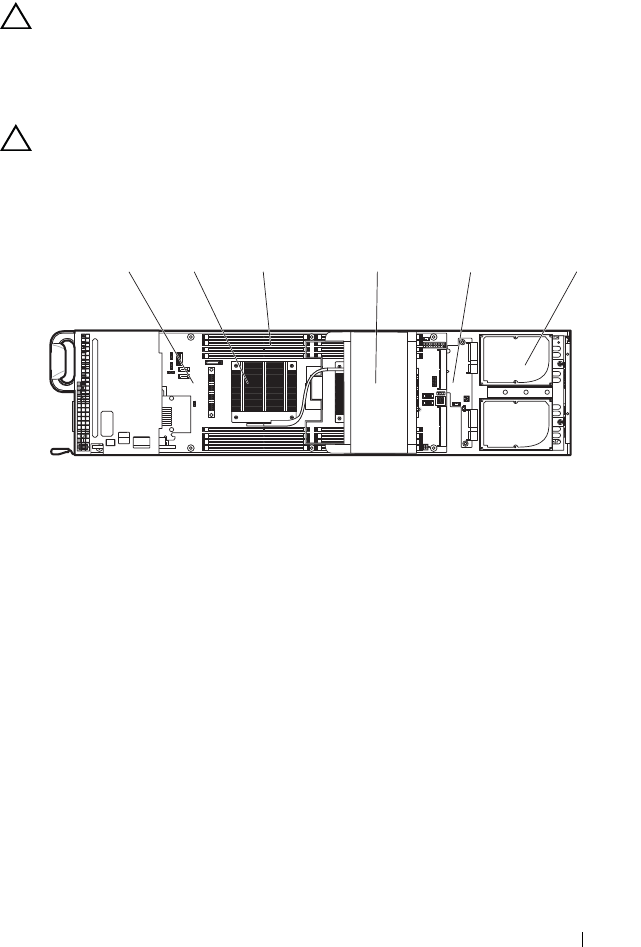
Installing System Components 131
Inside the System
CAUTION: Many repairs may only be done by a certified service technician. You
should only perform troubleshooting and simple repairs as authorized in your
product documentation, or as directed by the online or telephone service and
support team. Damage due to servicing that is not authorized is not covered by
warranty. Read and follow the safety instructions that came with the product.
CAUTION: This system must be operated with the sled or a sled blank installed to
make sure of proper cooling.
Figure 3-1. Inside the Sled
1 system board 2 heat sinks/processors (2)
3 memory (16) 4 cooling shroud
5 interposer extender 6 internal 2.5-inch hard-drives (2)
123456
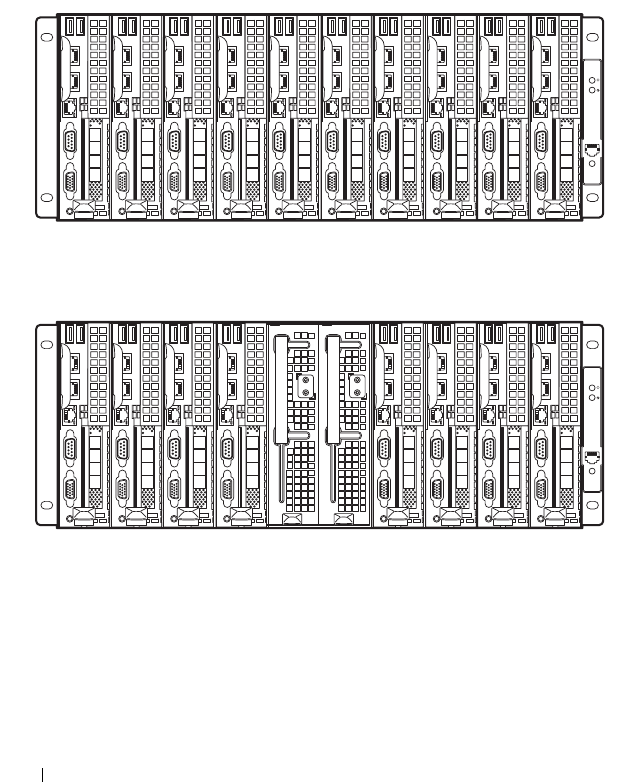
132 Installing System Components
Sled Configuration
The following illustrations show a 10-Sled and 8-Sled configuration. A
mixture of differing sled types is also supported in the PowerEdge C8000
server enclosure. For more information, refer to the PowerEdge C8000
Hardware Owner’s Manual.
Figure 3-2. PowerEdge C8220 10-Sled SKU
Figure 3-3. PowerEdge C8220 8-Sled SKU
The power sleds shown in Figure 3-3 are available on server enclosures that
support internal power source.
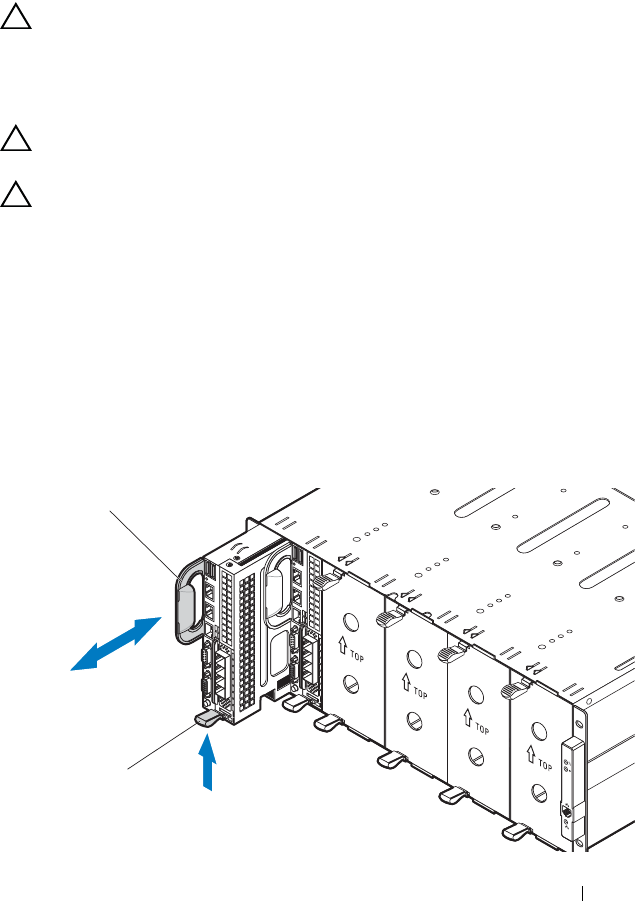
Installing System Components 133
Sled
Removing a Sled
CAUTION: Many repairs may only be done by a certified service technician. You
should only perform troubleshooting and simple repairs as authorized in your
product documentation, or as directed by the online or telephone service and
support team. Damage due to servicing that is not authorized is not covered by
warranty. Read and follow the safety instructions that came with the product.
CAUTION: To ensure proper airflow in the system, if a module is removed it
should be immediately replaced with another sled or sled blank.
CAUTION: Operating the system for extended periods of time without a sled blank
installed can cause the PowerEdge C8000 server enclosure to overheat.
See "Installing a Single-Wide Sled Blank" on page 135.
1
Power down the sled using OS commands or the Baseboard Management
Controller, and ensure that the sled's power is off.
When a sled is powered off, its front-panel power indicator is off.
2
Pull up on the compute sled release latch at the bottom of the sled to
disengage the sled from the server enclosure. See Figure 3-4.
3
Using the handle, slide the sled out of the enclosure. See Figure 3-4.
Figure 3-4. Removing and Installing a Sled
1
2

134 Installing System Components
Installing a Sled
CAUTION: Many repairs may only be done by a certified service technician. You
should only perform troubleshooting and simple repairs as authorized in your
product documentation, or as directed by the online or telephone service and
support team. Damage due to servicing that is not authorized is not covered by
warranty. Read and follow the safety instructions that came with the product.
1
Orient the sled so that the release latch is in the bottom of the sled.
See Figure 3-4.
2
Slide the new sled into the enclosure until the sled is fully seated and the
release latch snaps into place. See Figure 3-4.
Sled Blank
CAUTION: To ensure proper airflow in the system, if a module is removed it
should be immediately replaced with another sled or sled blank.
The information in this section include replacement procedures for the
single-side and double-wide sled blank.
Removing a Single-Wide Sled Blank
1
Pull up on the sled blank latch at the bottom of the sled to disengage the
sled from the server enclosure. See Figure 3-5.
2
Using the handle, slide the sled out of the enclosure. See Figure 3-5.
1 release latch 2 handle
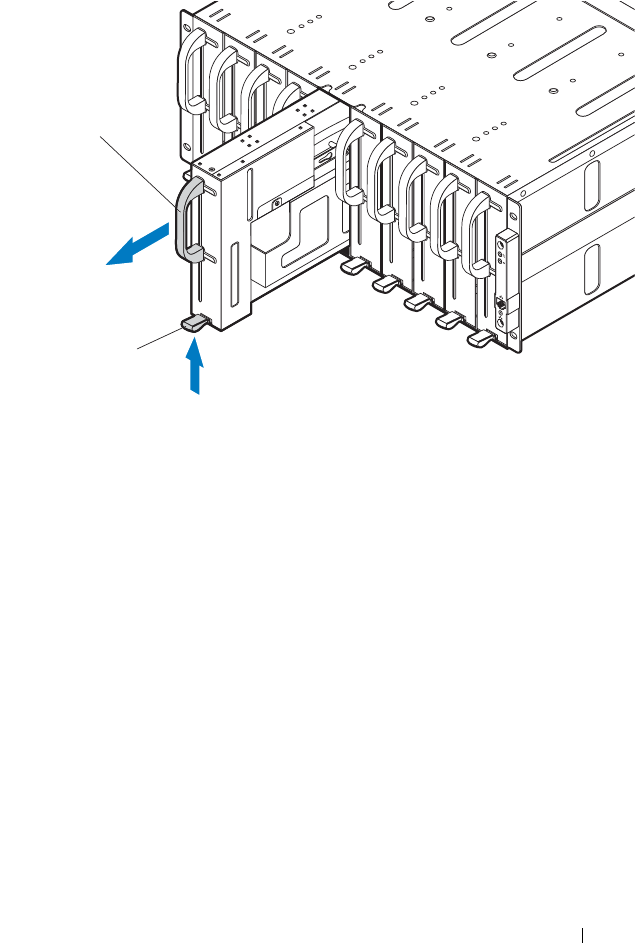
Installing System Components 135
Figure 3-5. Removing and Installing a Single-Wide Sled Blank
Installing a Single-Wide Sled Blank
1
Orient the sled blank so that the release latch is in the bottom of the sled.
See Figure 3-5.
2
Slide the sled blank into the enclosure until the release latch snaps into
place. See Figure 3-5.
1 release latch 2 single-wide sled blank handle
2
1
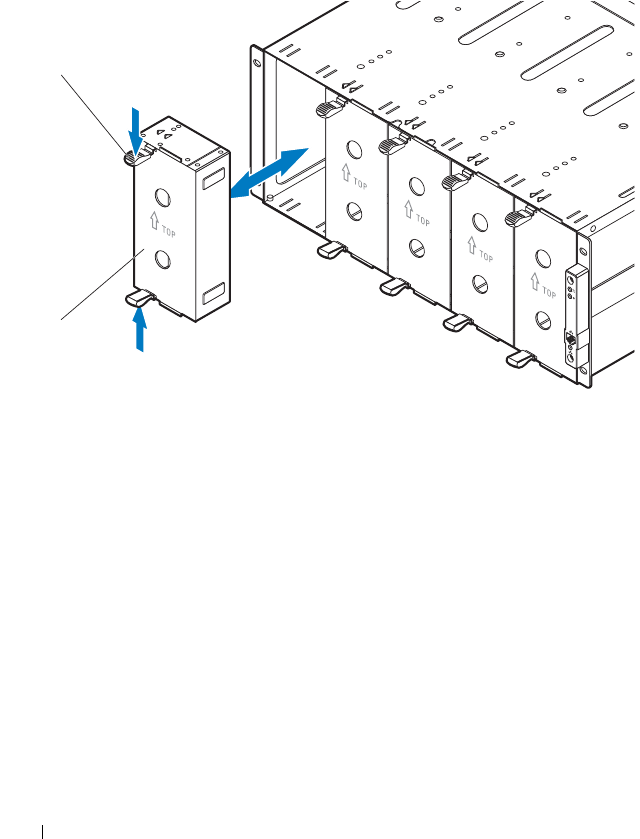
136 Installing System Components
Removing a Double-Wide Sled Blank
Squeeze and hold the release latches and slide the blank out of the enclosure.
See Figure 3-6.
Figure 3-6. Removing and Installing a Double-Wide Sled Blank
Installing a Double-Wide Sled Blank
Hold the blank with the guide rail facing forward. Slide the blank into the
enclosure until it is fully seated and the release latches snap into place.
See Figure 3-6.
1 release latches (2) 2 double-wide sled blank
1
2
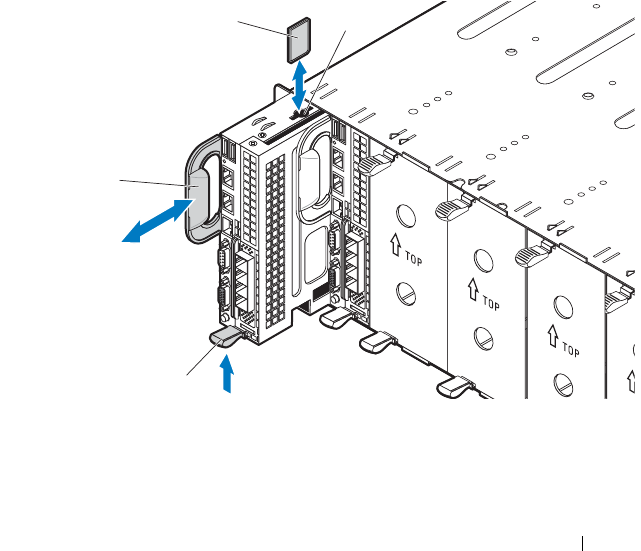
Installing System Components 137
MicroSD Card
Removing a MicroSD Card
1
Power down the sled using OS commands or the Baseboard Management
Controller, and ensure that the sled's power is off.
When a sled is powered off, its front-panel power-on indicator is off.
See Figure 1-1.
2
Pull up on the sled release latch at the bottom of the sled to disengage the
sled from the server enclosure. See Figure 3-7.
3
Using the handle, slide the sled out slightly until you have access to the
MicroSD card slot. See Figure 3-7.
4
Press the MicroSD card in to release it from the slot and remove the card.
See Figure 3-7.
Figure 3-7. Removing and Installing a MicroSD Card
1 release latch 2 handle
3 MicroSD card 4 MicroSD card slot
1
2
34
138 Installing System Components
Installing a MicroSD Card
Media memory cards are generally marked with a symbol (such as a triangle or
an arrow) or a label to indicate which end to insert into the slot. The cards are
keyed to prevent incorrect insertion. If card orientation is not clear, see the
documentation that came with the card.
NOTE: To use a MicroSD card with your sled, ensure that the MicroSD card slot is
enabled in the System Setup program. See "Using the System Setup Program" on
page 45.
1
Hold the MicroSD card with the label side facing to the right.
See Figure 3-7.
2
Press the card into the slot to lock into place. See Figure 3-7.
If you encounter too much resistance, do not force the card. Check the
card orientation and try again.
3
Slide the sled into the server enclosure until the sled is fully seated and the
release latch snaps into place. See Figure 3-7.
Sled Covers
Removing the Front Cover
CAUTION: The sled must be operated with the sled covers installed to ensure
proper cooling.
CAUTION: Many repairs may only be done by a certified service technician. You
should only perform troubleshooting and simple repairs as authorized in your
product documentation, or as directed by the online or telephone service and
support team. Damage due to servicing that is not authorized is not covered by
warranty. Read and follow the safety instructions that came with the product.
NOTE: It is recommended that you always use a static mat and static strap while
working on components in the interior of the system.
1
Remove the four screws securing the front cover. See Figure 3-8.
2
Lift the front cover from the sled tray. See Figure 3-8.
3
If installed, disconnect all cables from the expansion card.
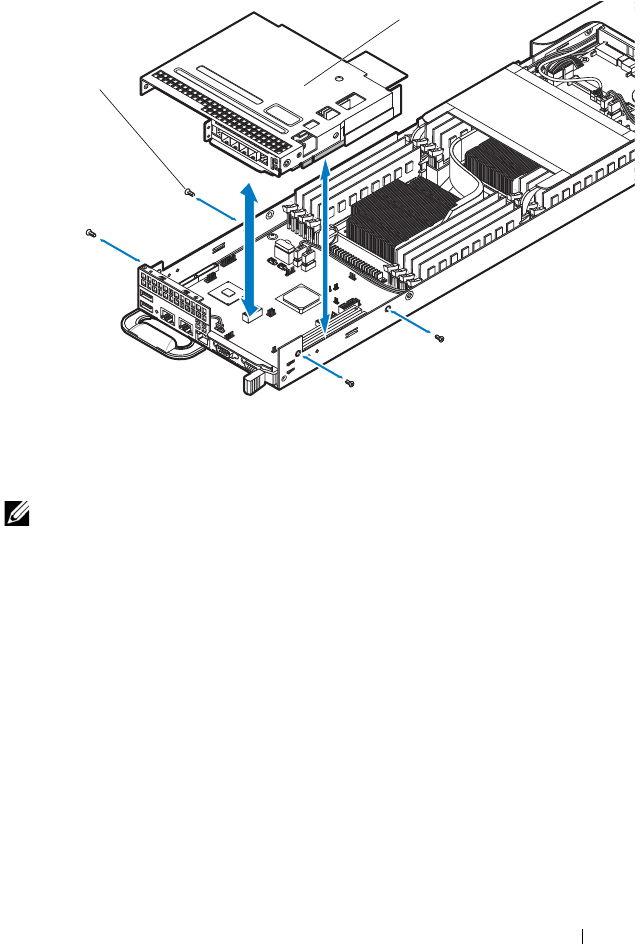
Installing System Components 139
Figure 3-8. Removing and Installing the Front Cover
Installing the Front Cover
NOTE: It is recommended that you always use a static mat and static strap while
working on components in the interior of the system.
1
Check that all cable connections are secure.
2
Place the front cover on top of the sled tray, aligning the notches in the
front cover with the corresponding tabs in the sled tray. See Figure 3-8.
3
If an expansion card is installed, make sure the expansion card riser is
firmly seated.
4
Replace the four screws securing the front cover to the sled tray.
See Figure 3-8.
1 M3 screws (4) 2 front cover
1
2
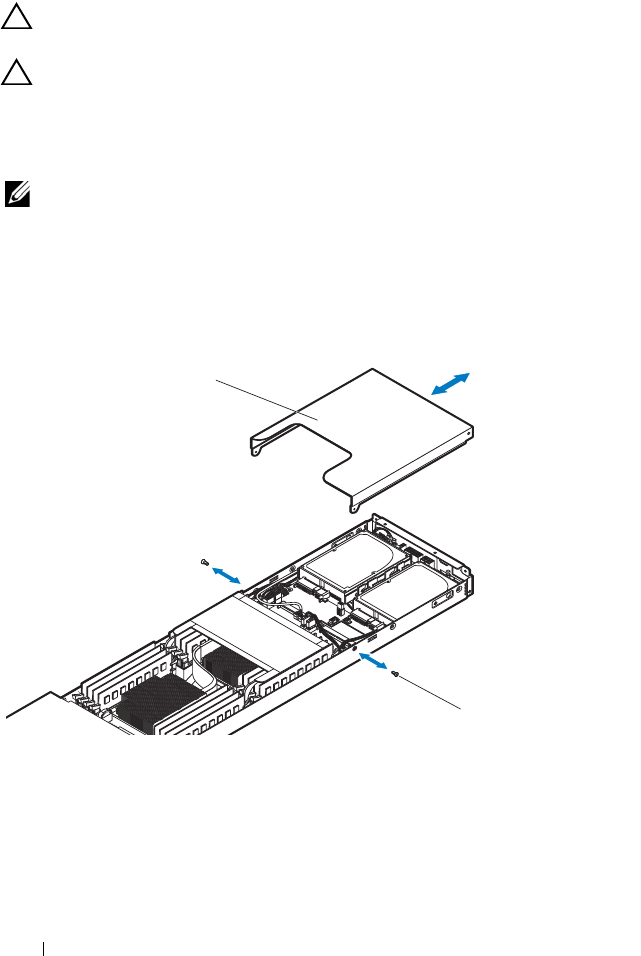
140 Installing System Components
Removing the Back Cover
CAUTION: The sled must be operated with the sled covers installed to ensure
proper cooling.
CAUTION: Many repairs may only be done by a certified service technician. You
should only perform troubleshooting and simple repairs as authorized in your
product documentation, or as directed by the online or telephone service and
support team. Damage due to servicing that is not authorized is not covered by
warranty. Read and follow the safety instructions that came with the product.
NOTE: It is recommended that you always use a static mat and static strap while
working on components in the interior of the system.
1
Remove the two screws securing the back cover. See Figure 3-9.
2
Slide the cover off the back of the sled tray. See Figure 3-9.
Figure 3-9. Removing and Installing the Back Cover
1 back cover 2 M3 screws (2)
1
2

Installing System Components 141
Installing the Back Cover
NOTE: It is recommended that you always use a static mat and static strap while
working on components in the interior of the system.
1
Place the cover on the sled tray and slide it towards the front of the sled
tray so that the screw holes on the back cover align with the sled tray.
See Figure 3-9.
2
Replace the two screws securing the back cover to the sled tray.
See Figure 3-9.
Cooling Shroud
Removing the Cooling Shroud
CAUTION: Many repairs may only be done by a certified service technician. You
should only perform troubleshooting and simple repairs as authorized in your
product documentation, or as directed by the online or telephone service and
support team. Damage due to servicing that is not authorized is not covered by
warranty. Read and follow the safety instructions that came with the product.
CAUTION: Never operate your system with the cooling shroud removed. The
system may get overheated quickly, resulting in shutdown of the system and loss of
data.
1
Remove the sled from the enclosure. See "Removing a Sled" on page 133.
2
Remove the two screws securing the cooling shroud to the sled tray.
See Figure 3-10.
3
Pull on the anchor tab to release the cooling shroud from the heat sink.
See Figure 3-10.
4
Lift the cooling shroud up and out of the sled tray. See Figure 3-10.
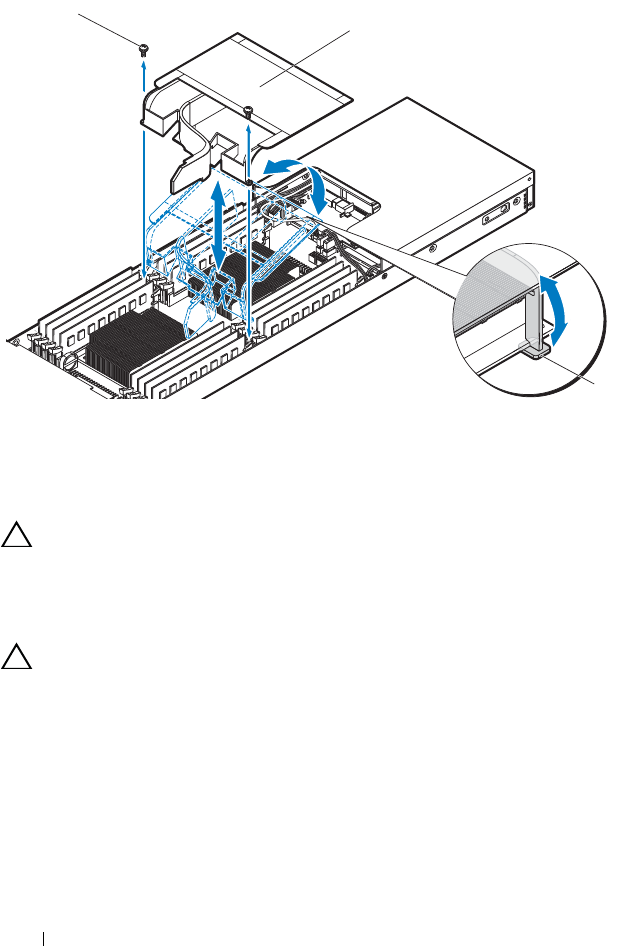
142 Installing System Components
Figure 3-10. Removing and Installing the Cooling Shroud
Installing the Cooling Shroud
CAUTION: Many repairs may only be done by a certified service technician. You
should only perform troubleshooting and simple repairs as authorized in your
product documentation, or as directed by the online or telephone service and
support team. Damage due to servicing that is not authorized is not covered by
warranty. Read and follow the safety instructions that came with the product.
CAUTION: Never operate your system with the cooling shroud removed. The
system may get overheated quickly, resulting in shutdown of the system and loss of
data.
1
Lower the cooling shroud to the sled tray. See Figure 3-10.
2
Gently press the cooling shroud until the anchor tab snap securely into
place. See Figure 3-10.
3
Replace the two screws securing the cooling shroud to the sled tray.
See Figure 3-10.
4
Replace the sled. See "Installing a Sled" on page 134.
1 M3 screws (2) 2 cooling shroud
3 anchor tab
1
2
3
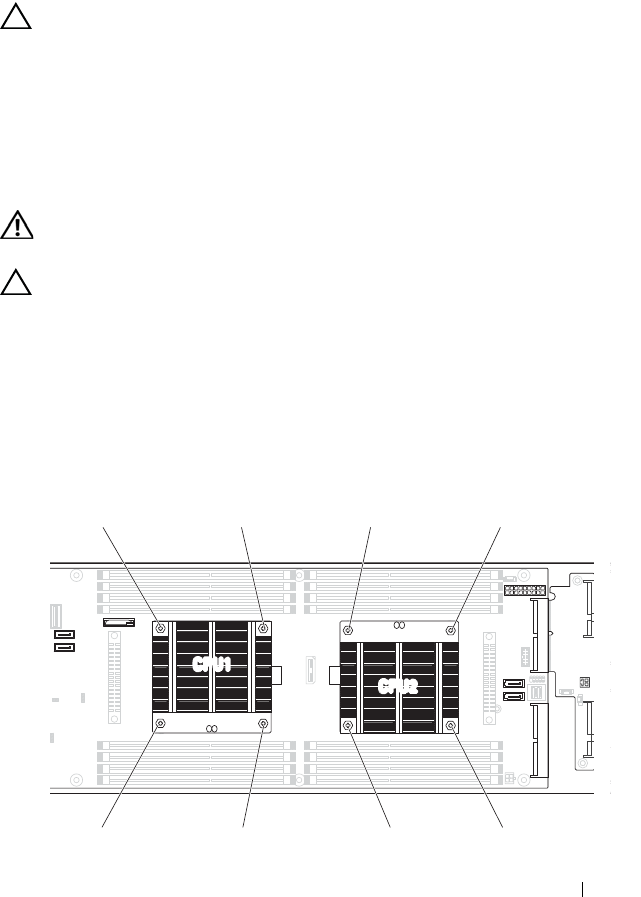
Installing System Components 143
Heat Sink
Removing a Heat Sink
CAUTION: Many repairs may only be done by a certified service technician. You
should only perform troubleshooting and simple repairs as authorized in your
product documentation, or as directed by the online or telephone service and
support team. Damage due to servicing that is not authorized is not covered by
warranty. Read and follow the safety instructions that came with the product.
1
Remove the sled from the enclosure. See "Removing a Sled" on page 133.
2
Remove the cooling shroud. See "Removing the Cooling Shroud" on
page 141.
WARNING: The heat sink may be hot to touch for some time after the system has
been powered down. Allow the heat sink to cool before removing it.
CAUTION: Never remove the heat sink from a processor unless you intend to
remove the processor. The heat sink is necessary to maintain proper thermal
conditions.
3
Using a Phillips screwdriver, loosen one pair of diagonal retention screws
that secure the heat sink to the system board. See screw sequence
indicated on Figure 3-11.
4
Loosen the other pair of retention screws. See Figure 3-11.
Figure 3-11. Heat Sink Screw Loosening Sequence
CPU1
CPU2
1458
6
7
2
3
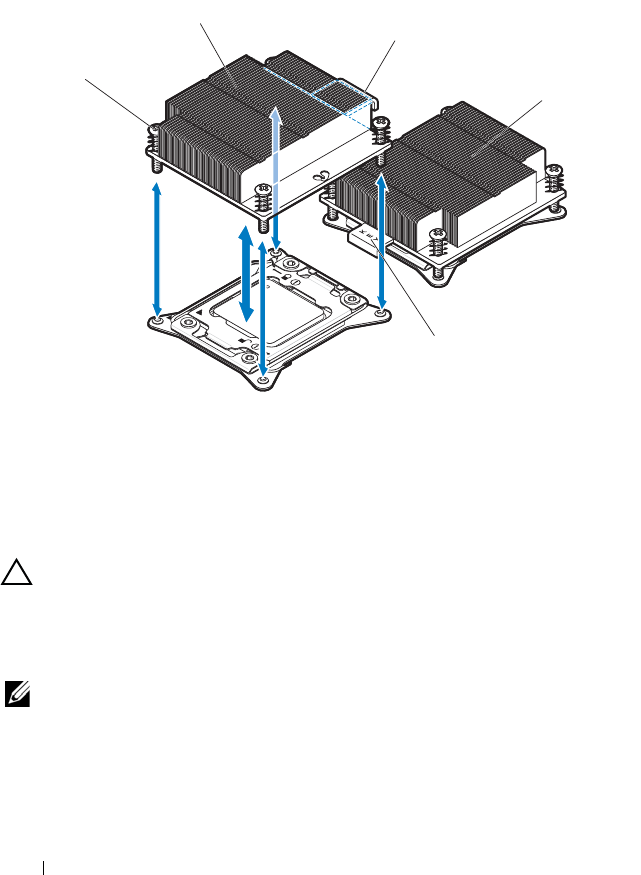
144 Installing System Components
5
Gently lift the heat sink off the processor and set the heat sink aside with
thermal grease side facing up. See Figure 3-12.
Figure 3-12. Removing and Installing the Heat Sink
Installing a Heat Sink
CAUTION: Many repairs may only be done by a certified service technician. You
should only perform troubleshooting and simple repairs as authorized in your
product documentation, or as directed by the online or telephone service and
support team. Damage due to servicing that is not authorized is not covered by
warranty. Read and follow the safety instructions that came with the product.
NOTE: When installing the heat sink, be sure to orient the heat sink so that the KEY
icon on the heat sink label is facing the neighboring heat sink.
1
Using a clean lint-free cloth, remove the thermal grease from the heat sink.
2
Apply new thermal grease evenly to the center of the top of the new
processor.
1 screws (4) 2 CPU1 socket heat sink
3 heat sink KEY icon 4 CPU2 socket heat sink
5 heat sink KEY icon
1
2
3
4
5

Installing System Components 145
3
Orient the heat sink so that the KEY icon on the heat sink is facing the
neighboring heat sink’s KEY icon. See Figure 3-12.
4
Using a Phillips screwdriver, tighten the four heat sink retention screws in a
diagonal sequence. See Figure 3-11.
5
Replace the cooling shroud. See "Installing the Cooling Shroud" on
page 142.
6
Replace the sled. See "Installing a Sled" on page 134.
Heat Sink Blank
Removing a Heat Sink Blank
CAUTION: Many repairs may only be done by a certified service technician. You
should only perform troubleshooting and simple repairs as authorized in your
product documentation, or as directed by the online or telephone service and
support team. Damage due to servicing that is not authorized is not covered by
warranty. Read and follow the safety instructions that came with the product.
1
Remove the sled from the enclosure. See "Removing a Sled" on page 133.
2
Remove the cooling shroud. See "Removing the Cooling Shroud" on
page 141.
3
If you are installing a second processor in a socket that was previously
unoccupied, remove the heat sink blank and socket protector from the
vacant processor socket.
4
Using a Phillips screwdriver, loosen the diagonal retention screws that
secure the heat sink blank to the system board. See Figure 3-13.
5
Gently lift the heat sink blank off the processor socket. Save the heat sink
blank for future use. See Figure 3-13.
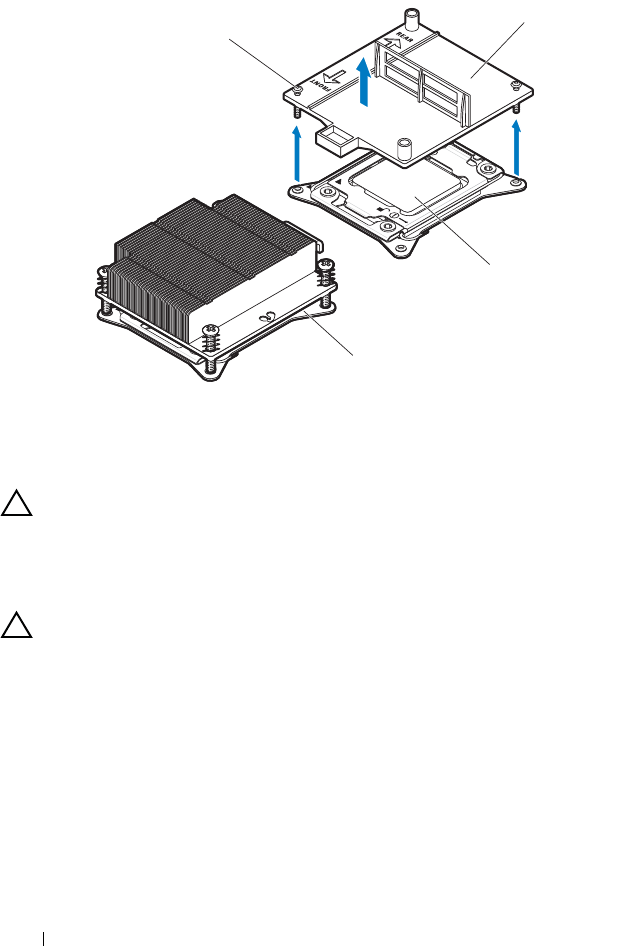
146 Installing System Components
Figure 3-13. Removing and Installing the Heat Sink Blank
Installing a Heat Sink Blank
CAUTION: Many repairs may only be done by a certified service technician. You
should only perform troubleshooting and simple repairs as authorized in your
product documentation, or as directed by the online or telephone service and
support team. Damage due to servicing that is not authorized is not covered by
warranty. Read and follow the safety instructions that came with the product.
CAUTION: Heat sink blank installs on socket CPU2 only.
1
If you are permanently removing a processor from the socket CPU2, you
must install a socket protector and heat sink blank to ensure proper system
cooling.
2
Place the heat sink blank on the processor socket.
3
Tighten the two retention screws on the heat sink blank. See Figure 3-13.
4
Replace the cooling shroud. See "Installing the Cooling Shroud" on
page 142.
5
Replace the sled. See "Installing a Sled" on page 134.
1 screws (2) 2 heat sink blank
1
2
CPU2
CPU1

Installing System Components 147
Processors
Use the following procedure when:
• Installing an additional processor
• Replacing a processor
Removing a Processor
CAUTION: Many repairs may only be done by a certified service technician. You
should only perform troubleshooting and simple repairs as authorized in your
product documentation, or as directed by the online or telephone service and
support team. Damage due to servicing that is not authorized is not covered by
warranty. Read and follow the safety instructions that came with the product.
1
Remove the sled from the enclosure. See "Removing a Sled" on page 133.
2
Remove the cooling shroud. See "Removing the Cooling Shroud" on
page 141.
3
Remove the heat sink. See "Removing a Heat Sink" on page 143.
CAUTION: The processor is held in its socket under strong pressure. Be aware
that the release lever can spring up suddenly if not firmly grasped.
4
Position your thumb firmly over the processor hook-shaped socket-release
lever and release the lever from the locked position. Do not force the lever
up to the fully open position. See Figure 3-14.
5
Position your thumb firmly over the bent load lever and release the lever
from the locked position. Rotate the lever 90 degrees upward to lift the
processor shield. See Figure 3-14.
6
Rotate the processor shield upward and out of the way. See Figure 3-14.
7
Lift the processor out of the socket and leave the socket-release lever and
load lever up so that the socket is ready for the new processor.
See Figure 3-14.
CAUTION: The processor is held in its socket under strong pressure. Be aware
that the release and load levers can spring up suddenly if not firmly grasped.
If you are permanently removing a processor, you must install a socket
protective cap in the vacant socket to protect the pins and keep the socket
free from dust.
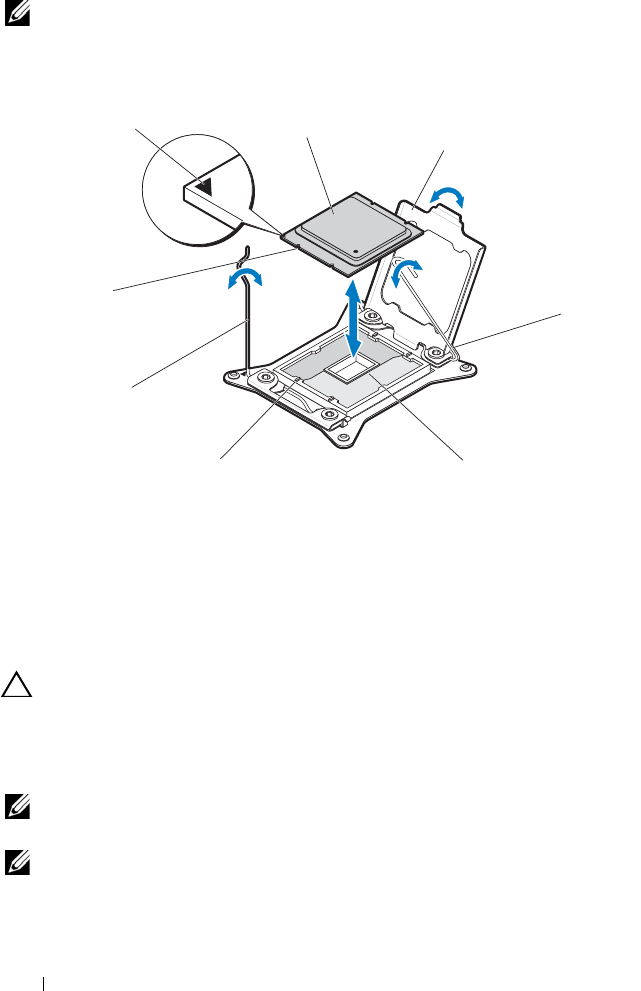
148 Installing System Components
NOTE: In single processor configurations, a processor must be installed in socket
CPU1. Install the blanks in socket CPU2 only.
Figure 3-14. Removing and Installing a Processor
Installing a Processor
CAUTION: Many repairs may only be done by a certified service technician. You
should only perform troubleshooting and simple repairs as authorized in your
product documentation, or as directed by the online or telephone service and
support team. Damage due to servicing that is not authorized is not covered by
warranty. Read and follow the safety instructions that came with the product.
NOTE: In single processor configurations, a processor must be installed in socket
CPU1.
NOTE: If you are upgrading your processors, prior to upgrading your system,
download and install the latest system BIOS version from dell.com/support. Follow
the instructions included in the file download to install the update on your system.
1 processor alignment mark (triangle) 2 processor
3 processor shield 4 hook-shaped socket-release lever
5 processor socket 6 socket key (4)
7 bent load lever 8 alignment notch
2
3
4
5
6
8
1
7

Installing System Components 149
1
If you are installing a second processor in a socket that was previously
unoccupied, remove the heat sink blank and socket protective cap from
the vacant processor socket. See "Removing a Heat Sink Blank" on
page 145.
2
Unpack the processor if it has not been used previously.
3
If the processor has already been used, remove any thermal grease from the
top of the processor using a lint-free cloth.
4
Align the processor with the socket keys on the processor socket.
See Figure 3-14.
CAUTION: Positioning the processor incorrectly can permanently damage the
system board or the processor. Be careful not to bend the pins in the processor
socket.
5
With the hook-shaped release and bent load levers on the processor socket
in the open position, match the processor with the alignment mark
indicator and the socket keys and set the processor lightly in the socket.
See Figure 3-14.
CAUTION: Do not use force to seat the processor. When the processor is
positioned correctly, it engages easily into the socket.
6
Close the processor shield.
7
Rotate the bent load lever down until it snaps into place.
8
Rotate the hook-shaped socket-release lever down until it snaps into place.
See Figure 3-14.
9
Replace the heat sink. See "Installing a Heat Sink" on page 144.
10
Replace the cooling shroud. See "Installing the Cooling Shroud" on
page 142.
11
Replace the sled. See "Installing a Sled" on page 134.
12
Press <F2> to enter the System Setup and check that the processor
information matches the new system configuration.

150 Installing System Components
System Memory
Each system board has 16 memory module sockets for the installation of
DDR3 unbuffered ECC DIMMs (ECC UDIMMs), registered DIMMs
(RDIMMs), and load reduced DIMMs (LRDIMMs) to support processor 1
and processor 2. See "System Board Connectors" on page 219 for the location
of the memory modules.
Memory Module Installation Guidelines
Follow these guidelines when installing memory modules on the sled system
board.
• Use only Dell approved R/LR/UDIMM DDR3 memory modules in 2 GB,
4 GB, 8 GB, 16 GB, and 32 GB capacities. DIMM types (R/LR/UDIMM)
cannot be mixed.
• DIMM slots are numbered 1 to 8 and designated by two channels. The
number of channels used and the allowable configuration depend on the
memory mode selected in the System Setup program.
• DIMMs must be installed in each channel starting with the DIMM socket
farthest from the processor, per Table 3-1.
• Memory optimized mode is supported on the sled system board.
• Memory sparing and memory mirroring are supported on the sled system
board. Memory sparing requires that all the DIMMs are identically
populated in all 4 channels. One channel will be the spare and not
accessible as system memory until brought online to replace a failing
channel. For memory mirroring, two channels operate as mirrors for each
other, identical DIMMs must be installed in the same slots across both
channels.
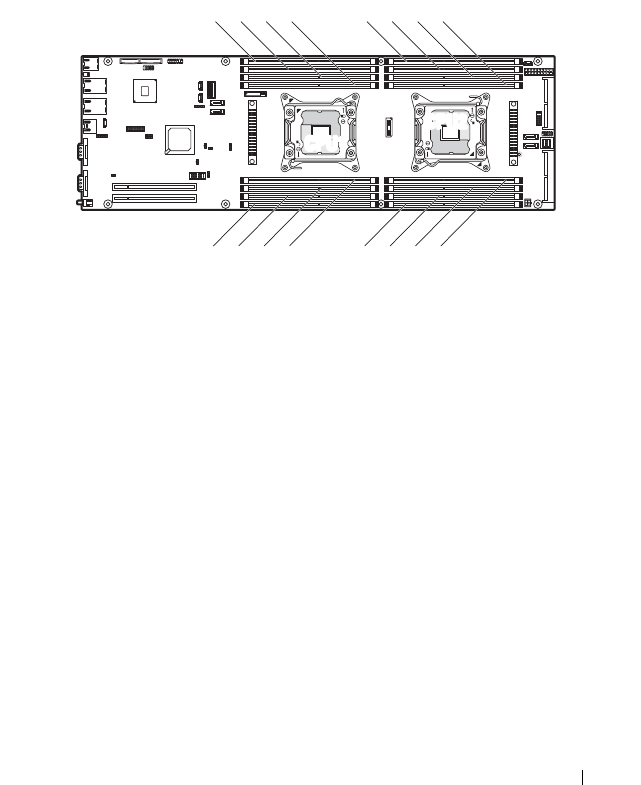
Installing System Components 151
Supported DIMM Configuration
For the sequence of the 16 DIMM sockets, see Figure 3-15. When you insert
the DIMM(s), always start with DIMM_A1. For single processor
configurations, the optimized memory module installation sequence is
A1/A2/A3/A4/A5/A6/A7/A8. See Table 3-1 for dual processor configurations.
Figure 3-15. Memory Slot Locations
1 DIMM_A3 2 DIMM_A7
3 DIMM_A4 4 DIMM_A8
5 DIMM_B1 6 DIMM_B5
7 DIMM_B2 8 DIMM_B6
9 DIMM_B8 10 DIMM_B4
11 DIMM_B7 12 DIMM_B3
13 DIMM_A6 14 DIMM_ A2
15 DIMM_A5 16 DIMM_A1
12345678
910
11
12
13
14
15
16
CPU1
CPU2
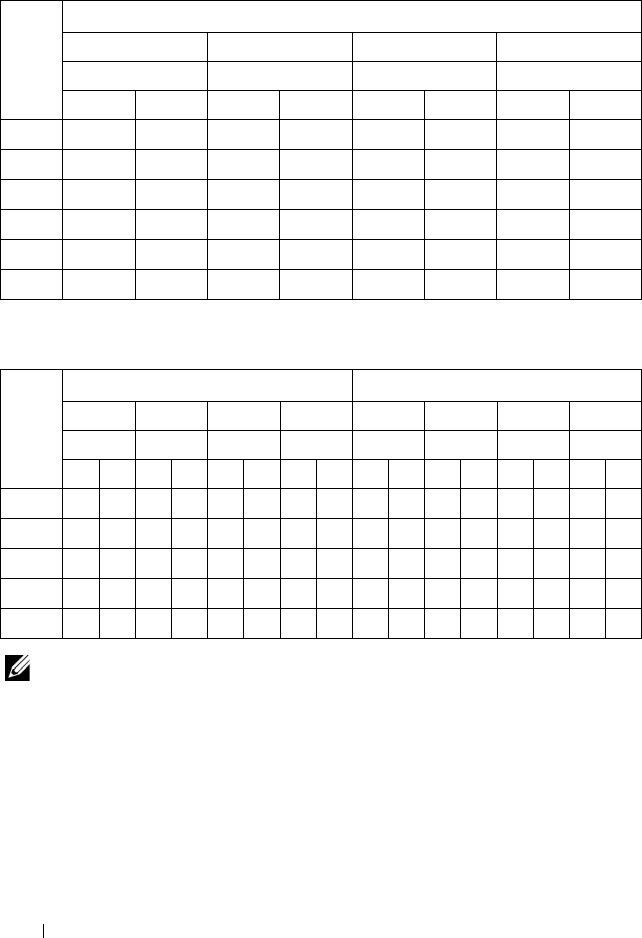
152 Installing System Components
NOTE: An empty DIMM socket is marked as " ". For best performance, all the
memory modules installed must be of the same speed, capacity, and from the same
manufacturer.
Table 3-1. Memory Module Configuration—Single Processor
DIMM
QTY
Processor 1
Channel A Channel B Channel C Channel D
DIMM DIMM DIMM DIMM
A1 A5 A2 A6 A3 A7 A4 A8
1
2
3
4
6
8
Table 3-2. Memory Module Configuration—Dual Processors
DIMM
QTY
Processor 1 Processor 2
Channel A Channel B Channel C Channel D Channel A Channel B Channel C Channel D
DIMM DIMM DIMM DIMM DIMM DIMM DIMM DIMM
A1 A5 A2 A6 A3 A7 A4 A8 B1 B5 B2 B6 B3 B7 B4 B8
2
6
8
12
16
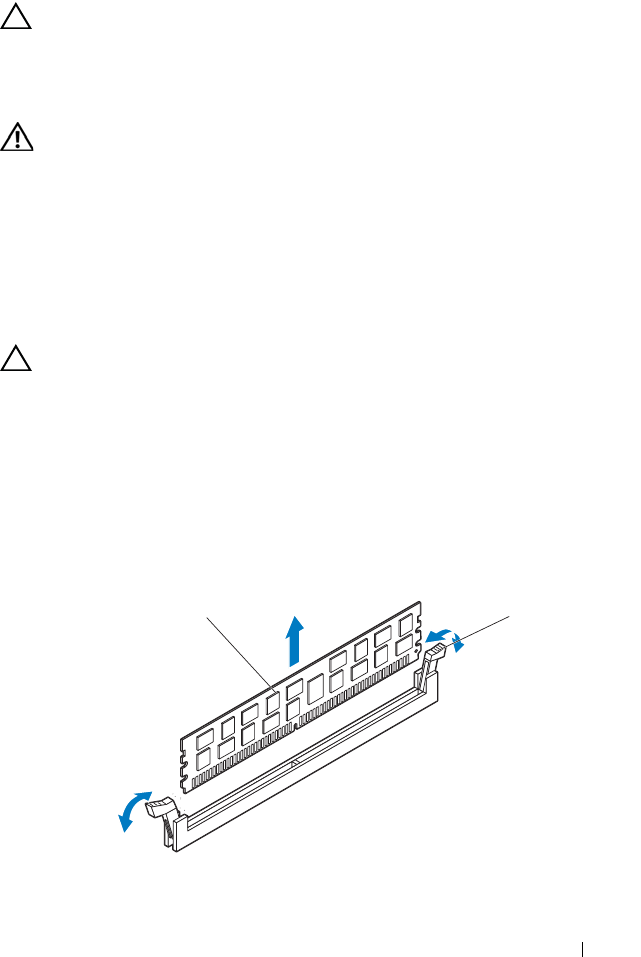
Installing System Components 153
Removing Memory Modules
CAUTION: Many repairs may only be done by a certified service technician. You
should only perform troubleshooting and simple repairs as authorized in your
product documentation, or as directed by the online or telephone service and
support team. Damage due to servicing that is not authorized is not covered by
warranty. Read and follow the safety instructions that came with the product.
WARNING: The memory modules are hot to the touch for some time after the
system has been powered down. Allow time for the memory modules to cool
before handling them. Handle the memory modules by the card edges and avoid
touching the components on the memory module.
1
Remove the sled from the enclosure. See "Removing a Sled" on page 133.
2
Remove the cooling shroud. See "Removing the Cooling Shroud" on
page 141.
3
Locate the memory module sockets. See Figure 3-16.
CAUTION: Handle each memory module only on either card edge, making sure
not to touch the middle of the memory module. To avoid damaging components on
the memory module, remove only one memory module at a time.
4
Simultaneously press down and out on the ejectors at both ends of the
memory module socket until the module is released from the socket.
See Figure 3-16.
5
Lift the module out of the socket. See Figure 3-16.
Figure 3-16. Removing a Memory Module
1 memory module 2 memory module socket ejectors (2)
12

154 Installing System Components
Installing Memory Modules
1
Press down and out on the ejectors on each end of the memory module
socket. See Figure 3-17.
2
Align the memory module correctly with the alignment key of the memory
module socket. See Figure 3-17.
3
Press down firmly on the memory module with your thumbs until the
module snaps into place. See Figure 3-17.
CAUTION: Even pressure during insertion must be applied at both ends of the
module simultaneously to prevent damage to the socket. No pressure should be
applied to the center of the module.
Complete the latching of the module into the socket by applying inward
pressure to the socket ejectors to assure that the ejectors are in a locked
position. When the memory module is properly seated in the socket, the
ejectors on the memory module socket align with the ejectors on other
identical sockets that have memory modules installed.
Figure 3-17. Installing a Memory Module
1 memory module 2 memory module socket ejectors (2)
3 alignment key
1
2
3
Installing System Components 155
4
Replace the cooling shroud. See "Installing the Cooling Shroud" on
page 142.
5
Replace the sled. See "Installing a Sled" on page 134.
Expansion Card
The sled supports a low-profile PCIe x16 expansion card installed in the
expansion card riser. To locate the expansion card riser, see Figure 3-24.
Removing the Expansion Card
CAUTION: Many repairs may only be done by a certified service technician. You
should only perform troubleshooting and simple repairs as authorized in your
product documentation, or as directed by the online or telephone service and
support team. Damage due to servicing that is not authorized is not covered by
warranty. Read and follow the safety instructions that came with the product.
CAUTION: Expansion cards can only be installed in the slots on the expansion
card riser. Do not attempt to install expansion cards directly into the riser
connector on the system board.
1
Remove the sled from the enclosure. See "Removing a Sled" on page 133.
2
Remove the front cover. See "Removing the Front Cover" on page 138.
3
Once the front cover is detached, turn it over to expose the expansion card
side. See Figure 3-18.
4
If applicable, disconnect all cables from the expansion card.
5
Remove the screw securing the expansion card. See Figure 3-18.
6
Grasp the expansion card by its edges and carefully remove it from the
expansion card riser. See Figure 3-18.
7
If you are removing the card permanently, install a metal filler bracket over
the empty expansion slot opening, and secure with the screw.
NOTE: You must install a filler bracket over an empty expansion slot to maintain
Federal Communications Commission (FCC) certification of the system. The
brackets also keep dust and dirt out of the system and aid in proper cooling and
airflow inside the sled.
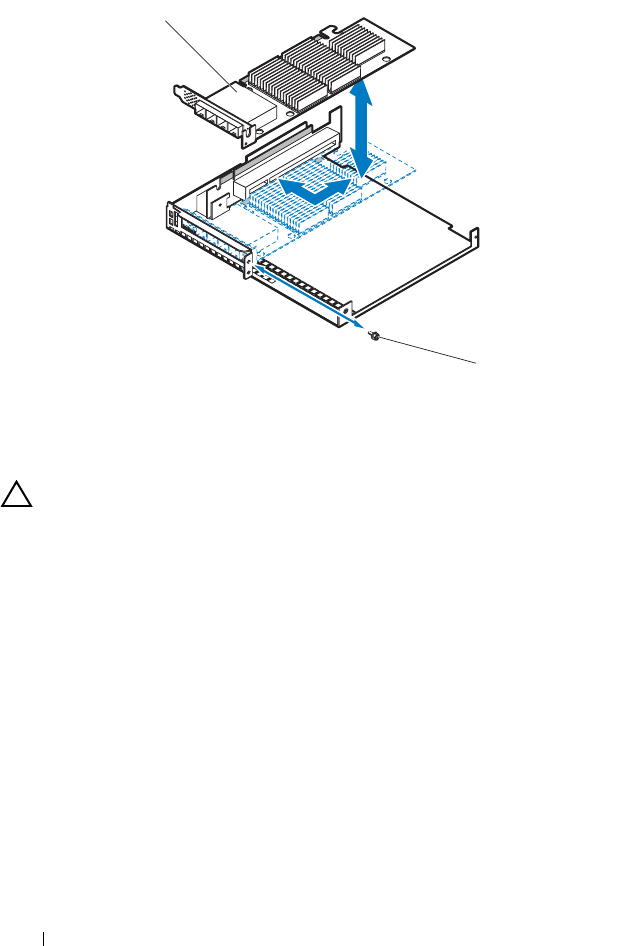
156 Installing System Components
Figure 3-18. Removing and Installing the Expansion Card
Installing the Expansion Card
CAUTION: Expansion cards can only be installed in the slots on the expansion
card riser. Do not attempt to install expansion cards directly into the riser
connector on the system board.
1
Unpack the expansion card and prepare it for installation. For instructions,
see the documentation accompanying the card.
2
Hold the card by its edges, position the card so that the card edge
connector aligns with the expansion card riser connector on the front
cover. See Figure 3-18.
3
Insert the card edge connector firmly into the riser connector until the
card is fully seated.
4
Replace the screw securing the expansion card. See Figure 3-18.
5
If applicable, connect any cables to the expansion card.
6
Replace the front cover. See "Installing the Front Cover" on page 139.
7
Replace the sled. See "Installing a Sled" on page 134.
1 expansion card 2 M3 screw (1)
2
1

Installing System Components 157
Removing the RAID Controller Card
CAUTION: Many repairs may only be done by a certified service technician. You
should only perform troubleshooting and simple repairs as authorized in your
product documentation, or as directed by the online or telephone service and
support team. Damage due to servicing that is not authorized is not covered by
warranty. Read and follow the safety instructions that came with the product.
CAUTION: Expansion cards can only be installed in the slots on the expansion
card riser. Do not attempt to install expansion cards directly into the riser
connector on the system board.
1
Remove the sled from the enclosure. See "Removing a Sled" on page 133.
2
Remove the front cover. See "Removing the Front Cover" on page 138.
3
Once the front cover is detached, turn it over to expose the RAID
controller card side. See Figure 3-19.
4
If applicable, disconnect all cables from the RAID controller card.
5
Remove the screw securing the RAID controller card. See Figure 3-19.
6
Grasp the RAID controller card by its edges and carefully remove it from
the expansion card riser. See Figure 3-19.
7
If you are removing the card permanently, install a metal filler bracket over
the empty expansion slot opening, and secure with the screw.
NOTE: You must install a filler bracket over an empty expansion slot to maintain
Federal Communications Commission (FCC) certification of the system. The
brackets also keep dust and dirt out of the system and aid in proper cooling and
airflow inside the sled.
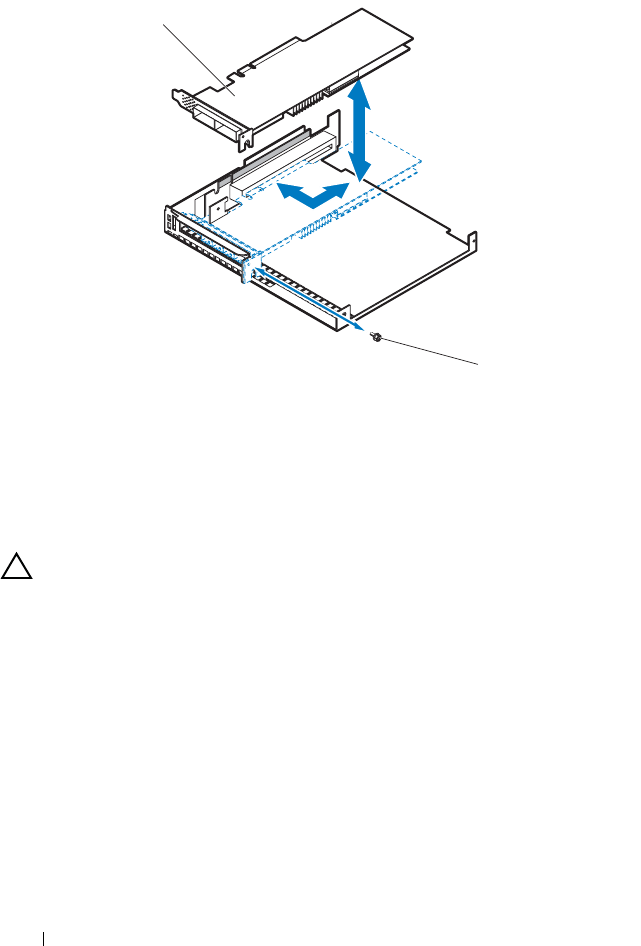
158 Installing System Components
Figure 3-19. Removing and Installing the RAID Controller Card
8
If applicable, remove the RAID battery. See "Removing the RAID Battery"
on page 159.
Installing the RAID Controller Card
CAUTION: Expansion cards can only be installed in the slots on the expansion
card riser. Do not attempt to install expansion cards directly into the riser
connector on the system board.
1
Unpack the RAID controller card and prepare it for installation. For
instructions, see the documentation accompanying the card.
2
Hold the RAID controller card by its edges, position the card so that the
card edge connector aligns with the expansion card riser connector on the
front cover. See Figure 3-19.
3
Insert the card edge connector firmly into the riser connector until the
card is fully seated.
1 RAID controller card 2 M3 screw (1)
2
1

Installing System Components 159
4
Replace the screw securing the RAID controller card. See Figure 3-19.
5
If applicable, connect any cables to the RAID controller card.
6
For battery-cached RAID controller cards, install the RAID battery.
See "Installing the RAID Battery" on page 161.
7
Replace the front cover. See "Installing the Front Cover" on page 139.
8
Replace the sled. See "Installing a Sled" on page 134.
RAID Battery
The information in this section applies only to systems with the optional
battery-cached RAID controller (for example, MegaRAID SAS 9285CV-8e)
card.
Removing the RAID Battery
CAUTION: Many repairs may only be done by a certified service technician. You
should only perform troubleshooting and simple repairs as authorized in your
product documentation, or as directed by the online or telephone service and
support team. Damage due to servicing that is not authorized is not covered by
warranty. Read and follow the safety instructions that came with the product.
1
Remove the sled from the enclosure. See "Removing a Sled" on page 133.
2
Remove the front cover. See "Removing the Front Cover" on page 138.
3
Disconnect the RAID battery cable connecting to the RAID controller
card. See Figure 3-20.
4
Remove the two screws securing the RAID battery assembly to the sled
tray. See Figure 3-20.
5
Lift the RAID battery assembly from the sled tray. See Figure 3-20.
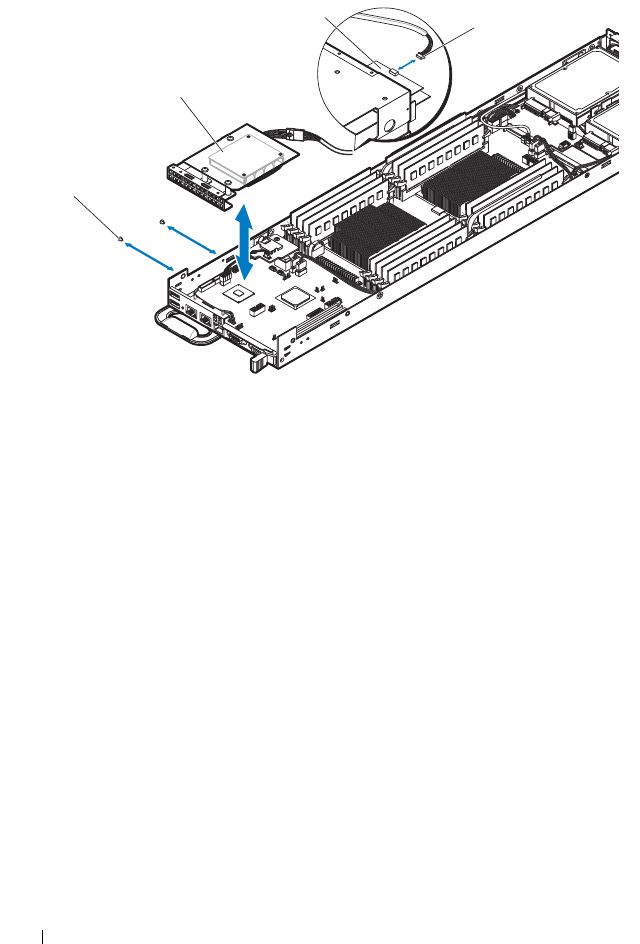
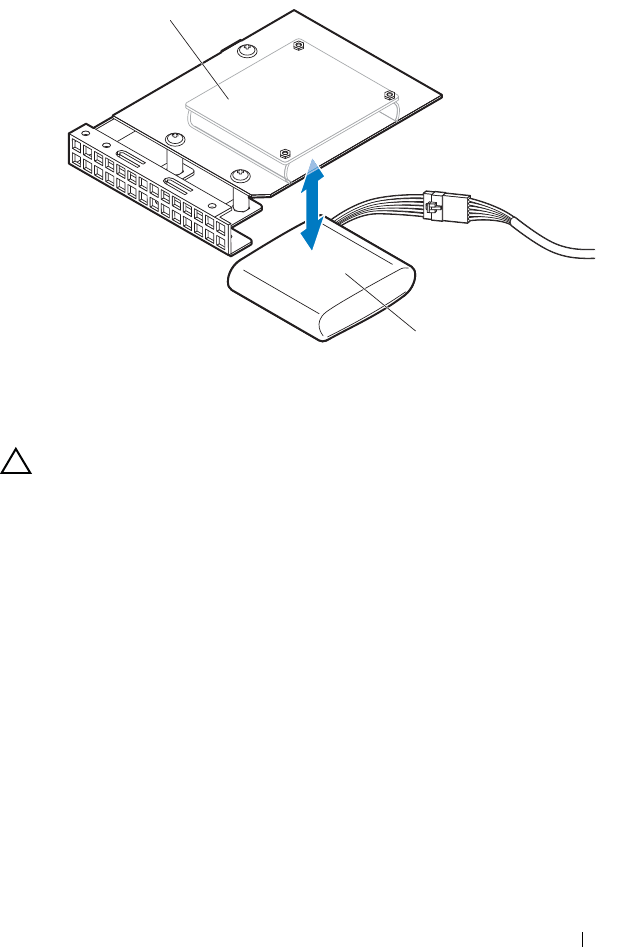
Installing System Components 161
Figure 3-21. Removing and Installing the RAID Battery
Installing the RAID Battery
CAUTION: Many repairs may only be done by a certified service technician. You
should only perform troubleshooting and simple repairs as authorized in your
product documentation, or as directed by the online or telephone service and
support team. Damage due to servicing that is not authorized is not covered by
warranty. Read and follow the safety instructions that came with the product.
1
Orient the new RAID battery appropriately in the battery holder and push
the battery firmly into the battery holder until it snaps into place.
See Figure 3-21.
2
Lower the RAID battery assembly to the sled tray. See Figure 3-20.
3
Replace the two screws securing the RAID battery assembly to the sled
tray. See Figure 3-20.
4
Connect the RAID battery cable to the RAID controller card.
See Figure 3-20.
5
Replace the front cover. See "Installing the Front Cover" on page 139.
6
Replace the sled. See "Installing a Sled" on page 134.
1 battery holder 2 RAID battery
1
2
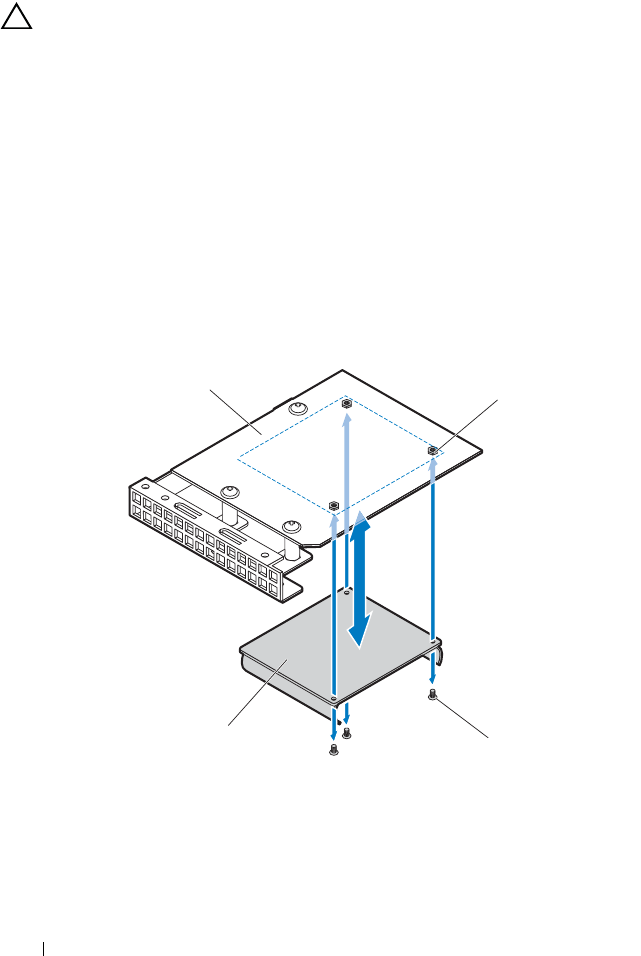
162 Installing System Components
Removing the RAID Battery Holder
CAUTION: Many repairs may only be done by a certified service technician. You
should only perform troubleshooting and simple repairs as authorized in your
product documentation, or as directed by the online or telephone service and
support team. Damage due to servicing that is not authorized is not covered by
warranty. Read and follow the safety instructions that came with the product.
1
Remove the sled from the enclosure. See "Removing a Sled" on page 133.
2
Remove the front cover. See "Removing the Front Cover" on page 138.
3
Remove the RAID battery. See "Removing the RAID Battery" on page 159.
4
Remove the three screws and hex nuts securing the battery holder to the
mounting board. See Figure 3-22.
5
Remove the battery holder. See Figure 3-22.
Figure 3-22. Removing and Installing the Battery Holder
1 mounting board 2 M2 hex nuts (3)
3 M3 screws (3) 4 battery holder
12
3
4
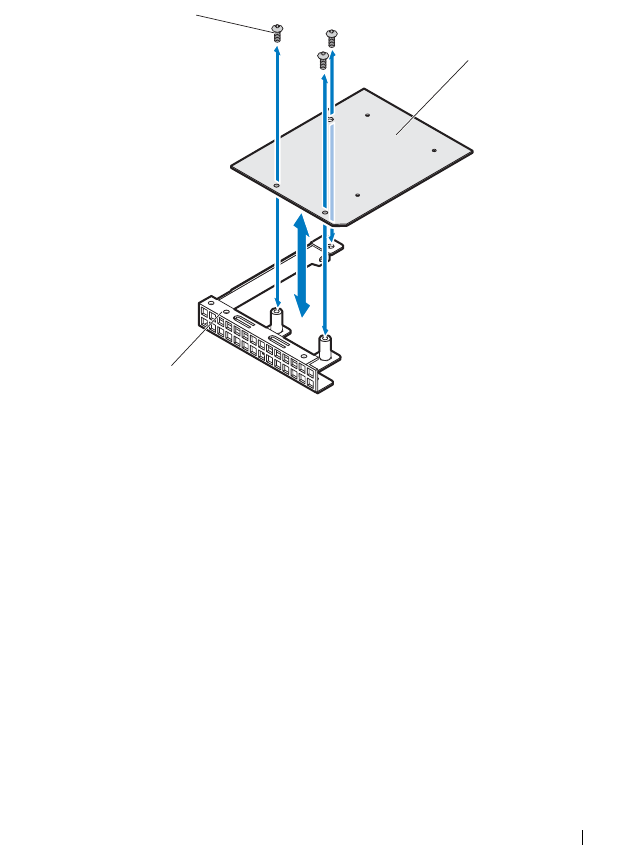

164 Installing System Components
Installing the RAID Battery Holder
CAUTION: Many repairs may only be done by a certified service technician. You
should only perform troubleshooting and simple repairs as authorized in your
product documentation, or as directed by the online or telephone service and
support team. Damage due to servicing that is not authorized is not covered by
warranty. Read and follow the safety instructions that came with the product.
1
Align the mounting board with the screw holes on the bracket.
See Figure 3-23.
2
Replace the three screws securing the mounting board to the bracket.
See Figure 3-23.
3
Align the battery holder with the screw holes on the mounting board.
See Figure 3-22.
4
Secure the battery holder to the mounting board using three screws and
hex nuts. See Figure 3-22.
5
Replace the RAID battery. See "Installing the RAID Battery" on page 161.
6
Replace the front cover. See "Installing the Front Cover" on page 139.
7
Replace the sled. See "Installing a Sled" on page 134.
Expansion Card Riser
CAUTION: Many repairs may only be done by a certified service technician. You
should only perform troubleshooting and simple repairs as authorized in your
product documentation, or as directed by the online or telephone service and
support team. Damage due to servicing that is not authorized is not covered by
warranty. Read and follow the safety instructions that came with the product.
Removing the Expansion Card Riser
1
Remove the sled from the enclosure. See "Removing a Sled" on page 133.
2
Remove the front cover. See "Removing the Front Cover" on page 138.
3
If installed, remove the expansion card or RAID controller card.
See "Removing the Expansion Card" on page 155 or "Removing the RAID
Controller Card" on page 157.
4
Remove the two screws securing the expansion card riser to the front cover.
See Figure 3-24.
5
Pull the expansion card riser away from the front cover. See Figure 3-24.
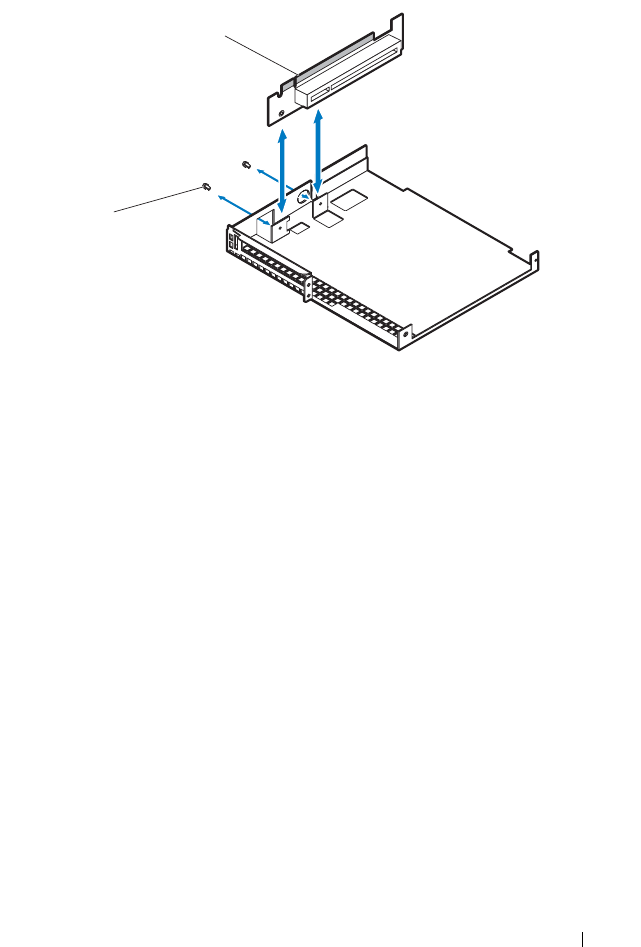
Installing System Components 165
Figure 3-24. Removing and Installing the Expansion Card Riser
Installing the Expansion Card Riser
1
Place the expansion card riser into the front cover. See Figure 3-24.
2
Replace the two screws securing the expansion card riser. See Figure 3-24.
3
If applicable, replace the expansion card or RAID controller card.
See "Installing the Expansion Card" on page 156 or "Installing the RAID
Controller Card" on page 158.
4
Replace the front cover. See "Installing the Front Cover" on page 139.
5
Replace the sled. See "Installing a Sled" on page 134.
1 expansion card riser 2 M3 screws (2)
1
2

166 Installing System Components
Mezzanine Cards
The sled supports a variety of optional mezzanine cards.
• Mellanox QDR ConnectX-2 Infiniband mezzanine card
• Mellanox FDR ConnectX-3 Infiniband mezzanine card
• Intel 82599 dual-port 10 GbE mezzanine card
Removing the Infiniband Mezzanine Card
CAUTION: Many repairs may only be done by a certified service technician. You
should only perform troubleshooting and simple repairs as authorized in your
product documentation, or as directed by the online or telephone service and
support team. Damage due to servicing that is not authorized is not covered by
warranty. Read and follow the safety instructions that came with the product.
The installation and removal procedures of the dual-port and single port
Infiniband mezzanine cards are similar. Following is an example showing the
replacement procedure of a dual-port Infiniband mezzanine card.
1
Remove the sled from the enclosure. See "Removing a Sled" on page 133.
2
Remove the front cover. See "Removing the Front Cover" on page 138.
3
Remove the two screws securing the Infiniband mezzanine card assembly
to the sled tray. See Figure 3-25.
4
Lift the Infiniband mezzanine card assembly out of the sled tray.
See Figure 3-25.
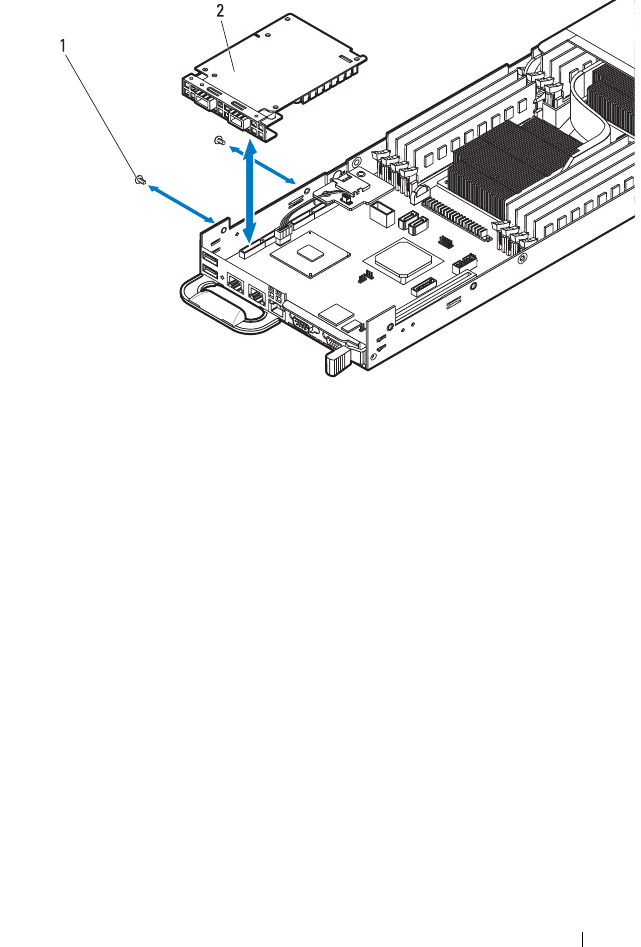
Installing System Components 167
Figure 3-25. Removing and Installing the Infiniband Mezzanine Card Assembly
5
Remove the screw securing the mezzanine card bridge board to the
bracket. See Figure 3-26.
6
Pull the mezzanine card bridge board away from the mezzanine slot.
See Figure 3-26.
1 M3 screws (2) 2 Infiniband mezzanine card assembly
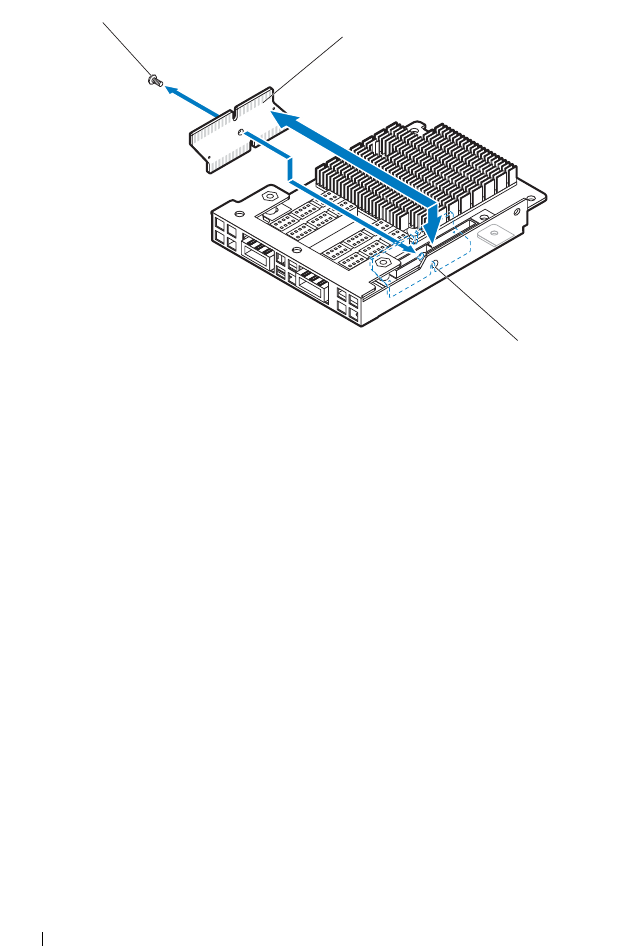
168 Installing System Components
Figure 3-26. Removing and Installing the Mezzanine Card Bridge Board
7
Remove the three screws securing the Infiniband mezzanine card to the
bracket. See Figure 3-27.
8
Remove the Infiniband mezzanine card from the bracket. See Figure 3-27.
1 M3 screw (1) 2 mezzanine card bridge board
3 bracket
1
2
3
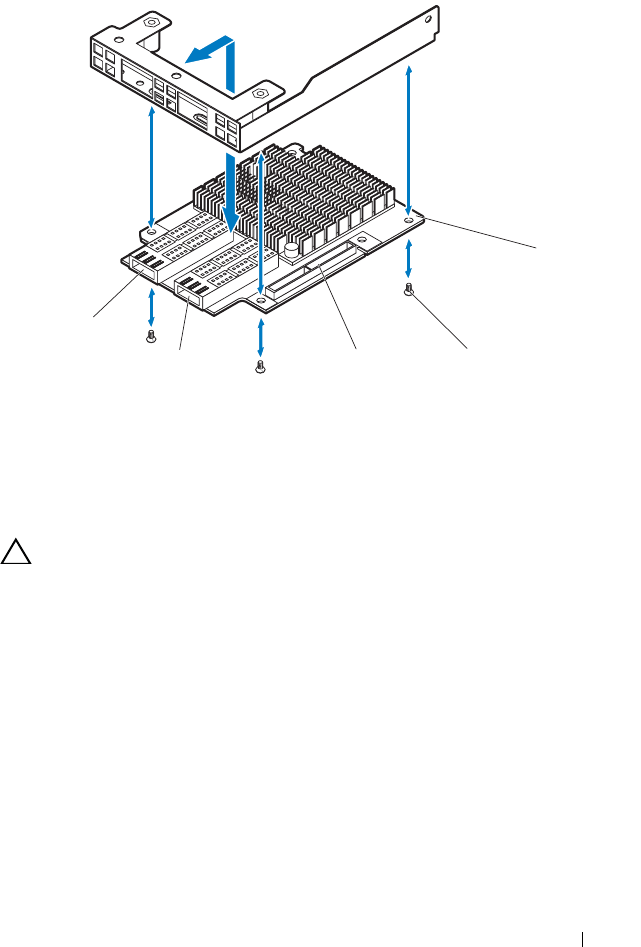
Installing System Components 169
Figure 3-27. Removing and Installing the Infiniband Mezzanine Card
Installing the Infiniband Mezzanine Card
CAUTION: Many repairs may only be done by a certified service technician. You
should only perform troubleshooting and simple repairs as authorized in your
product documentation, or as directed by the online or telephone service and
support team. Damage due to servicing that is not authorized is not covered by
warranty. Read and follow the safety instructions that came with the product.
1
Align the Infiniband mezzanine card with the screw holes on the bracket.
See Figure 3-27.
2
Replace the three screws securing the Infiniband mezzanine card to the
bracket. See Figure 3-27.
3
Install the mezzanine card bridge board into the mezzanine slot on the
Infiniband mezzanine card. See Figure 3-26.
4
Replace the screw securing the mezzanine card bridge board to the
bracket. See Figure 3-26.
1 Infiniband mezzanine card 2 M3 screws (3)
3 mezzanine card bridge board connector 4 QSFP cage 1
5 QSFP cage 2
2
1
3
4
5
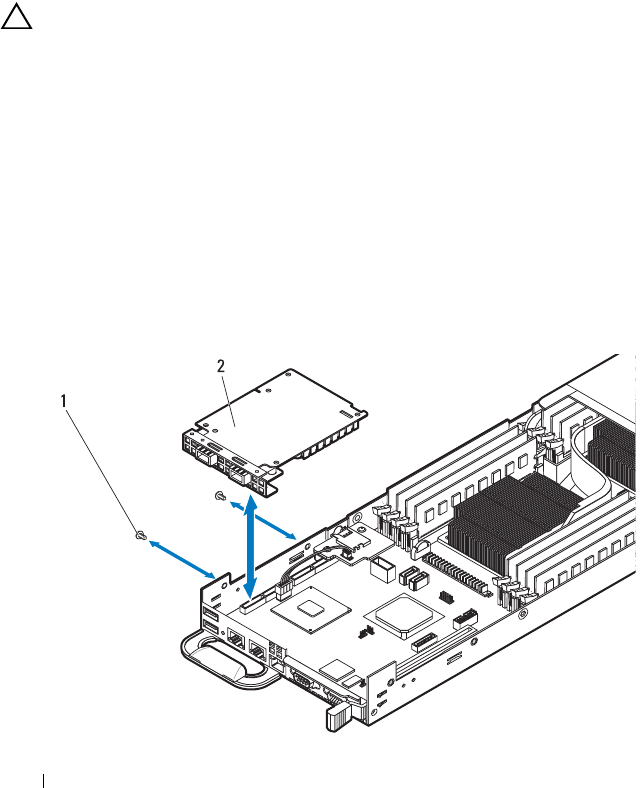
170 Installing System Components
5
Lower the Infiniband mezzanine card assembly to the sled tray.
6
Replace the two screws securing the Infiniband mezzanine card assembly
to the sled tray. See Figure 3-25.
7
Replace the front cover. See "Installing the Front Cover" on page 139.
8
Replace the sled. See "Installing a Sled" on page 134.
Removing the 10 GbE Mezzanine Card
CAUTION: Many repairs may only be done by a certified service technician. You
should only perform troubleshooting and simple repairs as authorized in your
product documentation, or as directed by the online or telephone service and
support team. Damage due to servicing that is not authorized is not covered by
warranty. Read and follow the safety instructions that came with the product.
1
Remove the sled from the enclosure. See "Removing a Sled" on page 133.
2
Remove the front cover. See "Removing the Front Cover" on page 138.
3
Remove the two screws securing the 10 GbE mezzanine card assembly to
the sled tray. See Figure 3-28.
4
Lift the 10 GbE mezzanine card assembly out of the sled tray.
See Figure 3-28.
Figure 3-28. Removing and Installing the 10 GbE Mezzanine Card Assembly
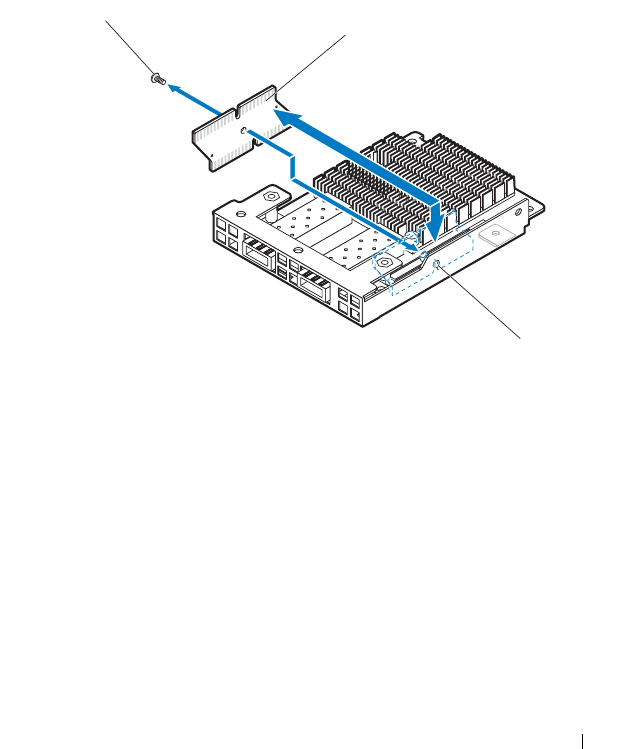
Installing System Components 171
5
Remove the screw securing the mezzanine card bridge board to the
bracket. See Figure 3-29.
6
Pull the mezzanine card bridge board away from the mezzanine slot.
See Figure 3-29.
Figure 3-29. Removing and Installing the Mezzanine Card Bridge Board
7
Remove the three screws securing the 10 GbE mezzanine card to the
bracket. See Figure 3-30.
8
Remove the 10 GbE mezzanine card from the bracket. See Figure 3-30.
1 M3 screws (2) 2 10 GbE mezzanine card assembly
1 M3 screw (1) 2 mezzanine card bridge board
3 bracket
1
2
3
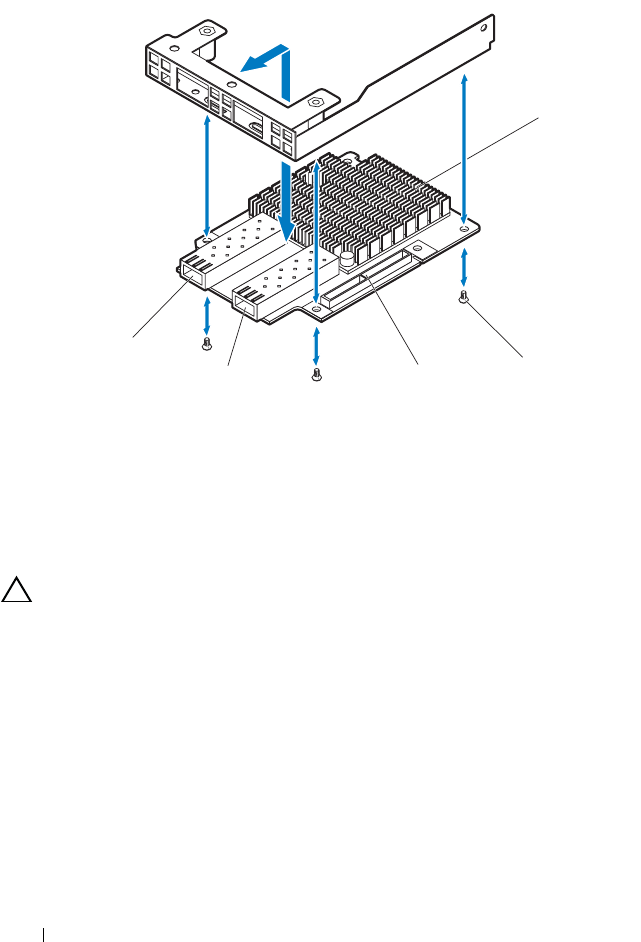
172 Installing System Components
Figure 3-30. Removing and Installing the 10 GbE Mezzanine Card
Installing the 10 GbE Mezzanine Card
CAUTION: Many repairs may only be done by a certified service technician. You
should only perform troubleshooting and simple repairs as authorized in your
product documentation, or as directed by the online or telephone service and
support team. Damage due to servicing that is not authorized is not covered by
warranty. Read and follow the safety instructions that came with the product.
1
Align the 10 GbE mezzanine card with the screw holes on the bracket.
See Figure 3-30.
2
Replace the three screws securing the 10 GbE mezzanine card to the
bracket. See Figure 3-30.
3
Install the mezzanine card bridge board into the mezzanine slot on the
10 GbE mezzanine card. See Figure 3-29.
1 10 GbE mezzanine card 2 M3 screw (3)
3 mezzanine card bridge board
connector
4 SFP + port 1
5 SFP + port 0
2
1
3
4
5

Installing System Components 173
4
Replace the screw securing the mezzanine card bridge board to the
bracket. See Figure 3-29.
5
Lower the 10 GbE mezzanine card assembly to the sled tray.
See Figure 3-28.
6
Replace the two screws securing the 10 GbE mezzanine card assembly to
the sled tray. See Figure 3-28.
7
Replace the front cover. See "Installing the Front Cover" on page 139.
8
Replace the sled. See "Installing a Sled" on page 134.
MicroSD Card Reader
Removing the MicroSD Card Reader
CAUTION: Many repairs may only be done by a certified service technician. You
should only perform troubleshooting and simple repairs as authorized in your
product documentation, or as directed by the online or telephone service and
support team. Damage due to servicing that is not authorized is not covered by
warranty. Read and follow the safety instructions that came with the product.
1
Remove the sled from the enclosure. See "Removing a Sled" on page 133.
2
Remove the front cover. See "Removing the Front Cover" on page 138.
3
If applicable, remove the RAID battery. See "Removing the RAID Battery"
on page 159
4
If applicable, remove the mezzanine card. See "Removing the Infiniband
Mezzanine Card" on page 166 or "Removing the 10 GbE Mezzanine Card"
on page 170.
5
If installed, remove the MicroSD card. Locate the MicroSD card slot in the
MicroSD card reader and press inward on the card to release it from the
slot and remove the card. See Figure 3-31.
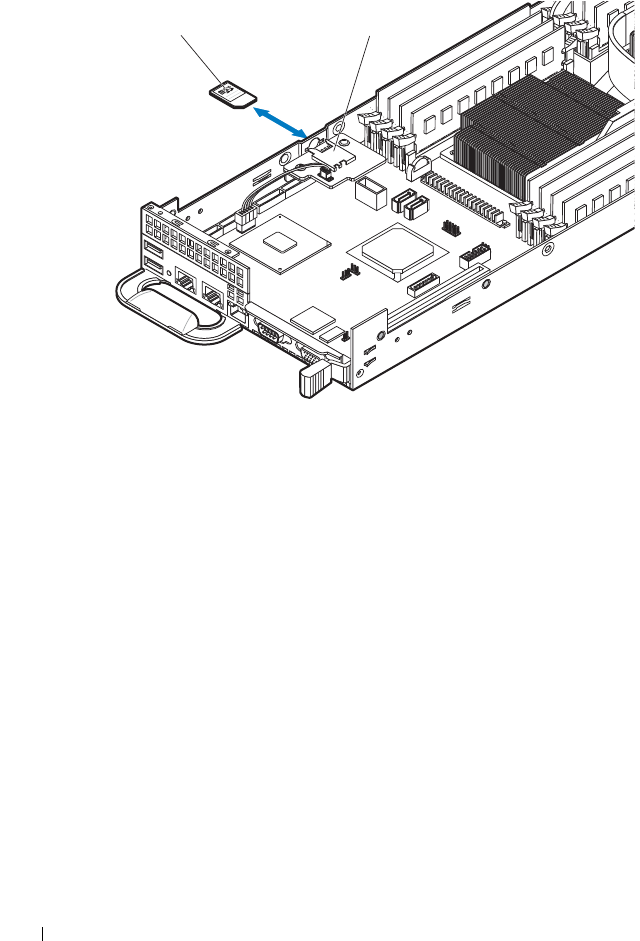
174 Installing System Components
Figure 3-31. Removing and Installing the MicroSD Card
6
Disconnect the MicroSD card reader cable from the MicroSD card reader.
See Figure 3-32.
7
Remove the two screws securing the MicroSD card reader. See Figure 3-32.
8
Lift the MicroSD card reader from the MicroSD card reader support
bracket. See Figure 3-32.
1 MicroSD card 2 MicroSD card slot
12
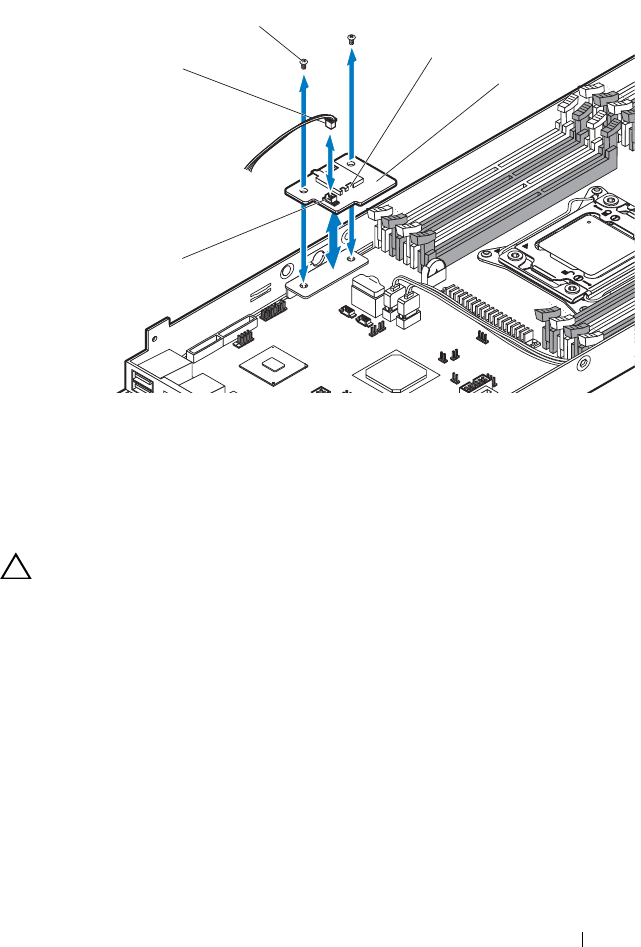
Installing System Components 175
Figure 3-32. Removing and Installing the MicroSD Card Reader
Installing the MicroSD Card Reader
CAUTION: Many repairs may only be done by a certified service technician. You
should only perform troubleshooting and simple repairs as authorized in your
product documentation, or as directed by the online or telephone service and
support team. Damage due to servicing that is not authorized is not covered by
warranty. Read and follow the safety instructions that came with the product.
1
Place the MicroSD card reader on the MicroSD card reader support
bracket. See Figure 3-32.
2
Replace the two screws securing the MicroSD card reader. See Figure 3-32.
3
Connect the MicroSD card reader cable to the MicroSD card reader. See
Figure 3-32.
4
If applicable, install the MicroSD card. Hold the MicroSD card with the
label side facing to the right and press the card into the slot to lock into
place. See Figure 3-31.
1 MicroSD card reader cable 2 M3 screws (2)
3 MicroSD card slot 4 MicroSD card reader
5 MicroSD card reader connector
1
2
3
4
5

176 Installing System Components
5
If applicable, replace the mezzanine card. See "Installing the Infiniband
Mezzanine Card" on page 169 or "Installing the 10 GbE Mezzanine Card"
on page 172.
6
If applicable, replace the RAID battery. See "Installing the RAID Battery"
on page 161.
7
Replace the front cover. See "Installing the Front Cover" on page 139.
8
Replace the sled. See "Installing a Sled" on page 134.
Removing the MicroSD Card Reader Support Bracket
1
Remove the sled from the enclosure. See "Removing a Sled" on page 133.
2
Remove the front cover. See "Removing the Front Cover" on page 138.
3
If applicable, remove the RAID battery. See "Removing the RAID Battery"
on page 159
4
If applicable, remove the mezzanine card. See "Removing the Infiniband
Mezzanine Card" on page 166 or "Removing the 10 GbE Mezzanine Card"
on page 170.
5
Remove the MicroSD card reader. See "Removing the MicroSD Card
Reader" on page 173.
6
Remove the two screws securing the MicroSD card reader support bracket.
See Figure 3-33.
7
Lift the support bracket out of the sled tray. See Figure 3-33.
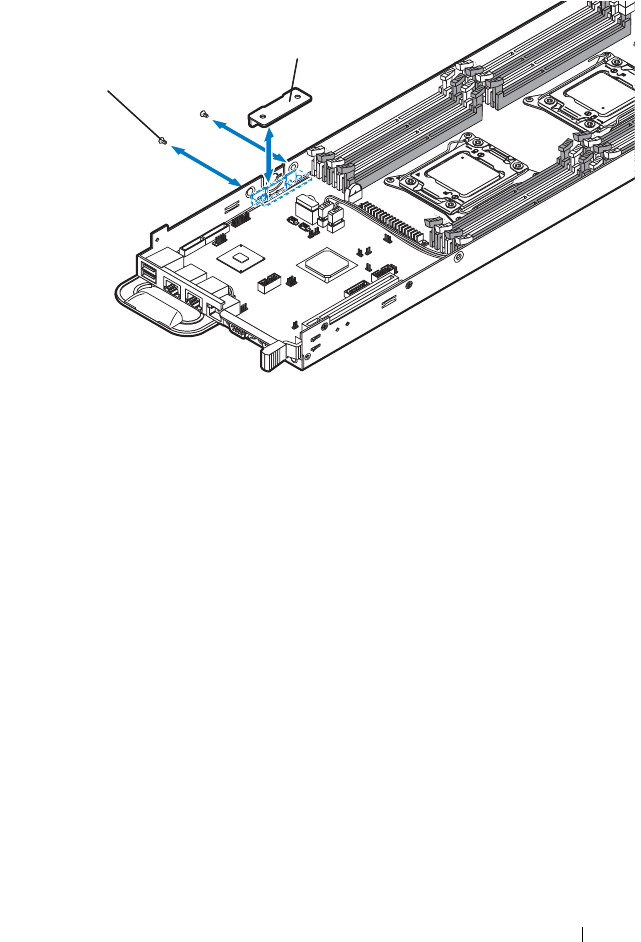
Installing System Components 177
Figure 3-33. Removing and Installing the MicroSD Card Reader Support Bracket
Installing the MicroSD Card Reader Support Bracket
1
Align the MicroSD card reader support bracket with the screw holes on the
sled tray. See Figure 3-33.
2
Replace the two screws securing the MicroSD card reader support bracket.
See Figure 3-33.
3
Replace the MicroSD card reader. See "Installing the MicroSD Card
Reader" on page 175.
4
If applicable, replace the mezzanine card. See "Installing the Infiniband
Mezzanine Card" on page 169 or "Installing the 10 GbE Mezzanine Card"
on page 172.
5
If applicable, replace the RAID battery. See "Installing the RAID Battery"
on page 161.
6
Replace the front cover. See "Installing the Front Cover" on page 139.
7
Replace the sled. See "Installing a Sled" on page 134.
1 M3 screws (2) 2 MicroSD card reader support
bracket
1
2
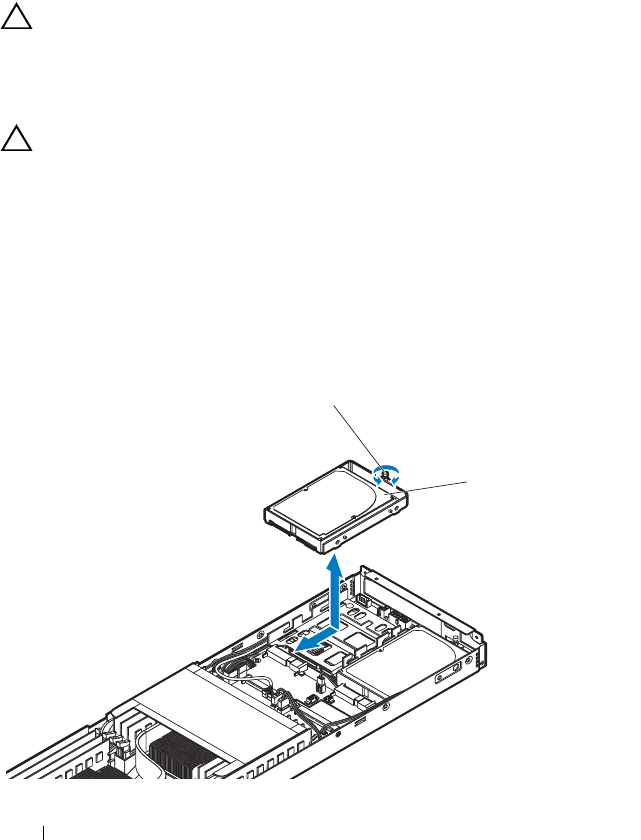
178 Installing System Components
Internal Hard-Drives
The sled supports up to two 2.5-inch hard-drives attached internally to the
sled tray.
Removing a Hard-Drive Carrier
CAUTION: Many repairs may only be done by a certified service technician. You
should only perform troubleshooting and simple repairs as authorized in your
product documentation, or as directed by the online or telephone service and
support team. Damage due to servicing that is not authorized is not covered by
warranty. Read and follow the safety instructions that came with the product.
CAUTION: Combining SATA and SAS hard-drives in the same sled configuration
is not supported.
1
Remove the sled from the enclosure. See "Removing a Sled" on page 133.
2
Remove the back cover. See "Removing the Back Cover" on page 140.
3
Loosen the thumbscrew securing the hard-drive carrier to the hard-drive
bracket. See Figure 3-34.
4
Slide and lift the hard-drive carrier out of the sled tray. See Figure 3-34.
Figure 3-34. Removing and Installing a Hard-Drive Carrier
1
2

Installing System Components 179
Installing a Hard-Drive Carrier
CAUTION: Many repairs may only be done by a certified service technician. You
should only perform troubleshooting and simple repairs as authorized in your
product documentation, or as directed by the online or telephone service and
support team. Damage due to servicing that is not authorized is not covered by
warranty. Read and follow the safety instructions that came with the product.
CAUTION: Combining SATA and SAS hard-drives in the same sled configuration
is not supported.
1
Place the hard-drive carrier into the sled tray and slide into place.
See Figure 3-34.
2
Tighten the thumbscrew to secure the hard-drive carrier in place.
See Figure 3-34.
3
Replace the back cover. See "Installing the Back Cover" on page 141.
4
Replace the sled. See "Installing a Sled" on page 134.
Removing a Hard-Drive From the Hard-Drive Carrier
CAUTION: Many repairs may only be done by a certified service technician. You
should only perform troubleshooting and simple repairs as authorized in your
product documentation, or as directed by the online or telephone service and
support team. Damage due to servicing that is not authorized is not covered by
warranty. Read and follow the safety instructions that came with the product.
1
Remove the four screws securing the hard-drive. See Figure 3-35.
2
Lift the hard-drive out of the hard-drive carrier. See Figure 3-35.
1 thumbscrew 2 hard-drive carrier
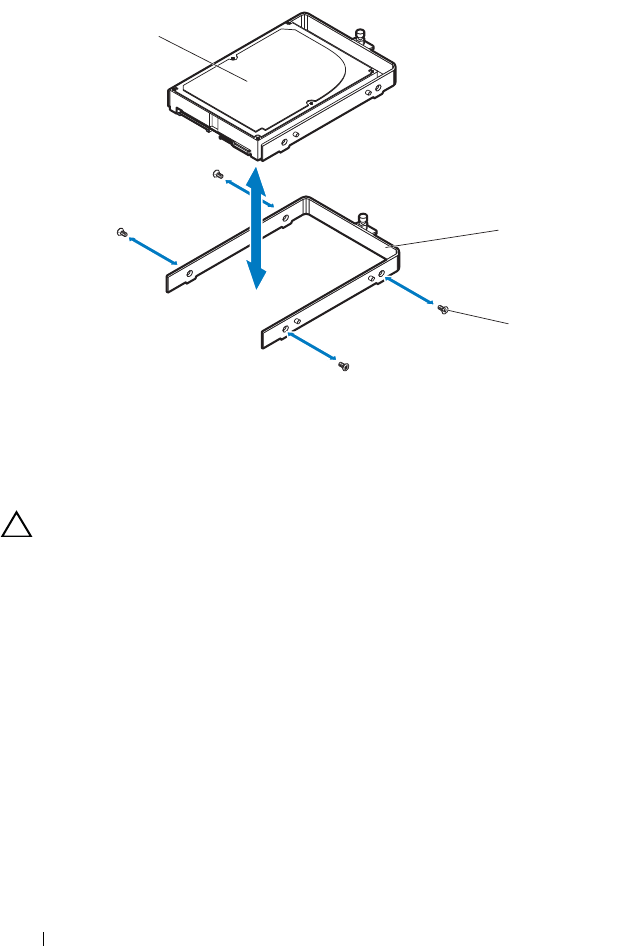
180 Installing System Components
Figure 3-35. Removing and Installing a Hard-Drive from the Hard-Drive Carrier
Installing a Hard-Drive Into a Hard-Drive Carrier
CAUTION: Many repairs may only be done by a certified service technician. You
should only perform troubleshooting and simple repairs as authorized in your
product documentation, or as directed by the online or telephone service and
support team. Damage due to servicing that is not authorized is not covered by
warranty. Read and follow the safety instructions that came with the product.
1
Align the hard-drive carrier with the new hard-drive screw holes.
See Figure 3-35.
2
Replace the four screws securing the hard-drive. See Figure 3-35.
1 hard-drive 2 hard-drive carrier
3 M3 screws (4)
2
1
3
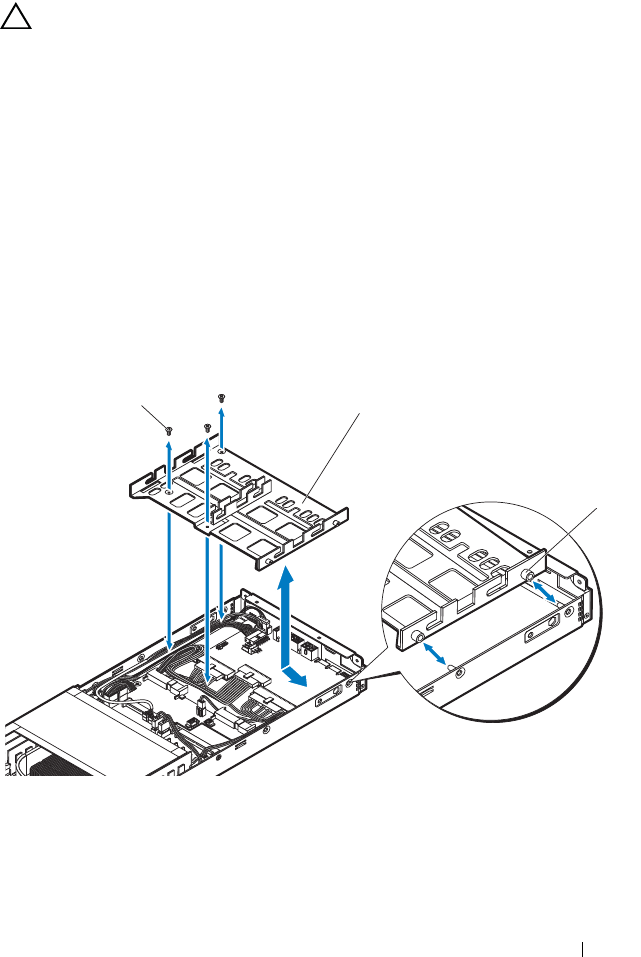
Installing System Components 181
Removing the Hard-Drive Tray
CAUTION: Many repairs may only be done by a certified service technician. You
should only perform troubleshooting and simple repairs as authorized in your
product documentation, or as directed by the online or telephone service and
support team. Damage due to servicing that is not authorized is not covered by
warranty. Read and follow the safety instructions that came with the product.
1
Remove the sled from the enclosure. See "Removing a Sled" on page 133.
2
Remove the back cover. See "Removing the Back Cover" on page 140.
3
Remove the internal hard-drives. See "Removing a Hard-Drive Carrier" on
page 178.
4
Remove the three screws securing the hard-drive tray. See Figure 3-36.
5
Lift the hard-drive tray at an angle and slide the standoff holes on the
hard-drive tray out of the sled tray standoffs. See Figure 3-36.
Figure 3-36. Removing and Installing the Hard-Drive Tray
1 M3 screws (3) 2 hard-drive tray
3 hard-drive tray standoff holes (2)
12
3
182 Installing System Components
Installing the Hard-Drive Tray
CAUTION: Many repairs may only be done by a certified service technician. You
should only perform troubleshooting and simple repairs as authorized in your
product documentation, or as directed by the online or telephone service and
support team. Damage due to servicing that is not authorized is not covered by
warranty. Read and follow the safety instructions that came with the product.
1
Insert the sled tray’s standoff holes into the sled tray standoffs.
See Figure 3-36.
2
Replace the three screws securing the hard-drive tray. See Figure 3-36.
3
Replace the internal hard-drives. See "Installing a Hard-Drive Carrier" on
page 179.
4
Replace the back cover. See "Installing the Back Cover" on page 141.
5
Replace the sled. See "Installing a Sled" on page 134.
Interposer Extender
The following table lists the types of interposer extenders supported for a
specific system board model.
NOTE: For information about identifying the sled’s system board model number,
see "Identifying System Board Model Number" on page 209.
Removing the Interposer Extender
CAUTION: Many repairs may only be done by a certified service technician. You
should only perform troubleshooting and simple repairs as authorized in your
product documentation, or as directed by the online or telephone service and
support team. Damage due to servicing that is not authorized is not covered by
warranty. Read and follow the safety instructions that came with the product.
1
Remove the sled from the enclosure. See "Removing a Sled" on page 133.
2
Remove the back cover. See "Removing the Back Cover" on page 140.
System Board Interposer Extender
V1.0 V1.0
V1.1 V1.1
V1.2 V1.1
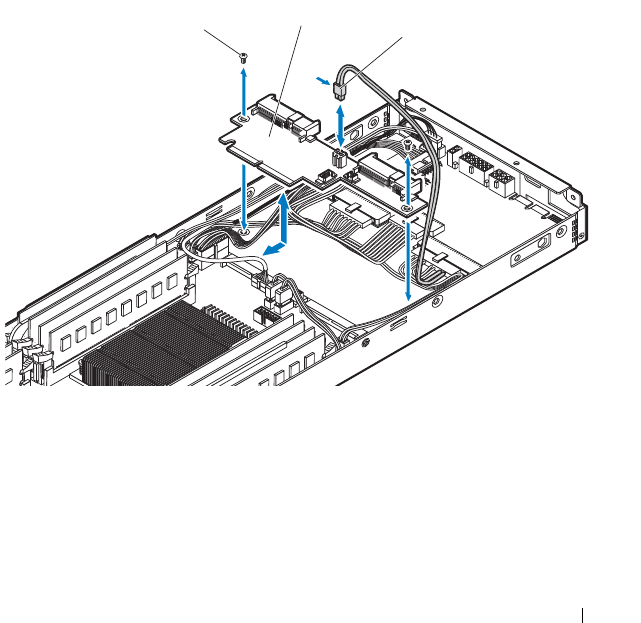
Installing System Components 183
3
Remove the internal hard-drives. See "Removing a Hard-Drive Carrier" on
page 178.
4
Remove the hard-drive tray. See "Removing the Hard-Drive Tray" on
page 181.
5
Press down the cable-locking tab and disconnect the power cable from the
interposer extender. See Figure 3-37.
6
Remove the two screws securing the interposer extender to the sled tray.
See Figure 3-37.
7
Grasp the interposer extender by its edges and carefully remove it from the
system board connector.
8
Lift the interposer extender out of the sled tray. See Figure 3-37.
Figure 3-37. Removing and Installing the Interposer Extender
1 M3 screws (2) 2 interposer extender
3 power cable
12
3

184 Installing System Components
Installing the Interposer Extender
CAUTION: Many repairs may only be done by a certified service technician. You
should only perform troubleshooting and simple repairs as authorized in your
product documentation, or as directed by the online or telephone service and
support team. Damage due to servicing that is not authorized is not covered by
warranty. Read and follow the safety instructions that came with the product.
1
Hold the card by its edges, position the interposer extender so that the
edge connector aligns with the system board connector. See Figure 3-37.
2
Insert the card edge connector firmly into the system board connector
until the card is fully seated.
3
Replace the two screws securing the interposer extender to the sled tray.
See Figure 3-37.
4
Connect the power cable to the interposer extender. Press down on the
locking tab to secure the power cable. See Figure 3-37.
5
Replace the hard-drive tray. See "Installing the Hard-Drive Tray" on
page 182.
6
Replace the internal hard-drives. See "Installing a Hard-Drive Carrier" on
page 179.
7
Replace the back cover. See "Installing the Back Cover" on page 141.
8
Replace the sled. See "Installing a Sled" on page 134.
Node Power Distribution Board
Removing the Node Power Distribution Board
CAUTION: Many repairs may only be done by a certified service technician. You
should only perform troubleshooting and simple repairs as authorized in your
product documentation, or as directed by the online or telephone service and
support team. Damage due to servicing that is not authorized is not covered by
warranty. Read and follow the safety instructions that came with the product.
1
Remove the sled from the enclosure. See "Removing a Sled" on page 133.
2
Remove the back cover. See "Removing the Back Cover" on page 140.
3
Remove the internal hard-drives. See "Removing a Hard-Drive Carrier" on
page 178.
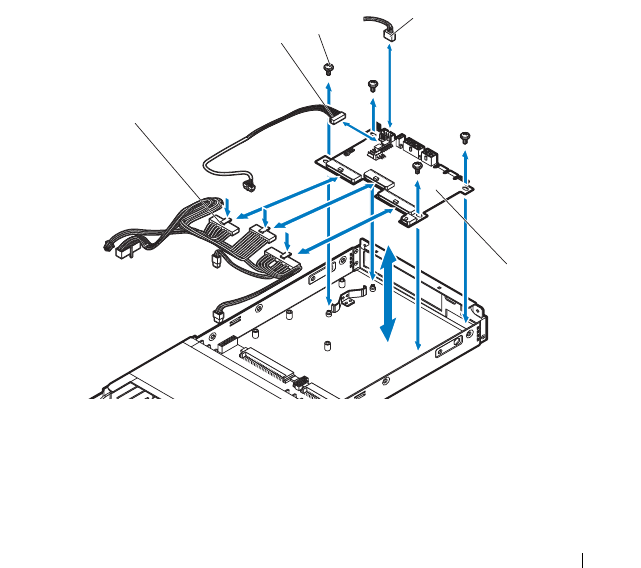
Installing System Components 185
4
Remove the hard-drive tray. See "Removing the Hard-Drive Tray" on
page 181.
5
Remove the interposer extender. See "Removing the Interposer Extender"
on page 182.
6
Disconnect all cables from the node power distribution board (NPDB).
See Figure 3-38. When you disconnect the power cable, press down the
cable-locking tab and disconnect the power cable from the NPDB.
Note the routing of the cables on the sled as you remove them from the
sled tray. You must route these cables properly when you replace them to
prevent the cables from being pinched or crimped.
7
Remove the four screws securing the NPDB to the sled tray.
See Figure 3-38.
8
Lift the NPDB out of the sled tray. See Figure 3-38.
Figure 3-38. Removing and Installing the Node Power Distribution Board
1 power cable 2 system board control cable
3 M3 screws (4) 4 I2C cable
5 node power distribution board
5
3
1
2
4

186 Installing System Components
Installing the Node Power Distribution Board
CAUTION: Many repairs may only be done by a certified service technician. You
should only perform troubleshooting and simple repairs as authorized in your
product documentation, or as directed by the online or telephone service and
support team. Damage due to servicing that is not authorized is not covered by
warranty. Read and follow the safety instructions that came with the product.
1
Insert the new power distribution board into the right retaining clip at a
45-degree angle, and then press the other end of the board down into the
left retaining clip to secure the board in place. Make sure to align the new
power distribution board with the screw holes on the bracket.
See Figure 3-38.
2
Replace the four screws securing the NPDB. See Figure 3-38.
3
Connect all cables to the NPDB. See Figure 3-38.
4
You must route the cables properly on the sled tray to prevent them from
being pinched or crimped.
5
Replace the interposer extender. See "Installing the Interposer Extender"
on page 184.
6
Replace the hard-drive tray. See "Installing the Hard-Drive Tray" on
page 182.
7
Replace the internal hard-drives. See "Installing a Hard-Drive Carrier" on
page 179.
8
Replace the back cover. See "Installing the Back Cover" on page 141.
9
Replace the sled. See "Installing a Sled" on page 134.
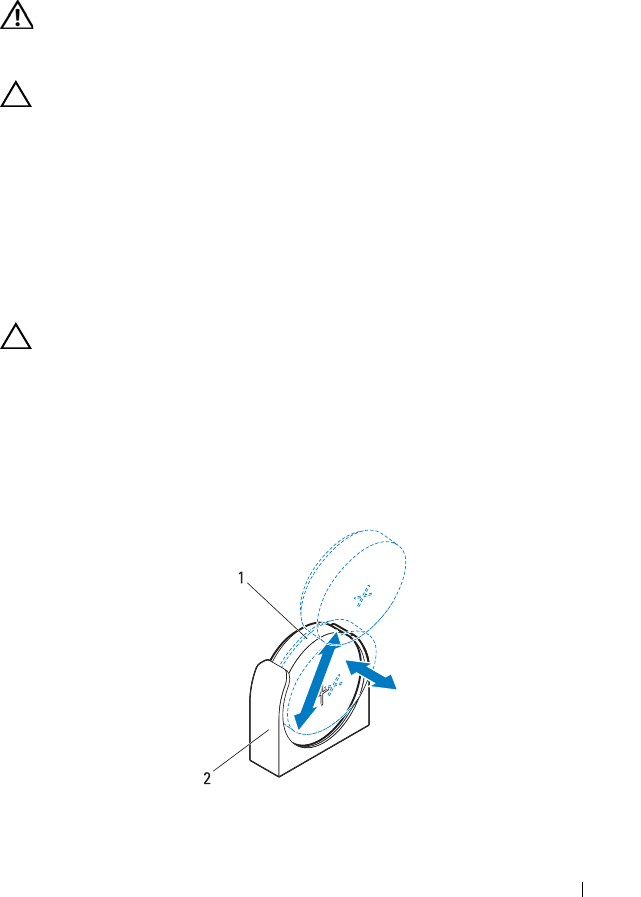
Installing System Components 187
System Battery
Removing the System Battery
WARNING: There is a danger of a new battery exploding if it is incorrectly
installed. Replace the battery only with the same or equivalent type recommended
by the manufacturer. See your safety information for additional information.
CAUTION: Many repairs may only be done by a certified service technician. You
should only perform troubleshooting and simple repairs as authorized in your
product documentation, or as directed by the online or telephone service and
support team. Damage due to servicing that is not authorized is not covered by
warranty. Read and follow the safety instructions that came with the product.
1
Remove the sled from the enclosure. See "Removing a Sled" on page 133.
2
Remove the front cover. See "Removing the Front Cover" on page 138.
3
Locate the battery socket on the system board. See "System Board
Connectors" on page 219.
CAUTION: To avoid damage to the battery connector, you must firmly support the
connector while installing or removing a battery.
4
Press the "-" side of the battery outward to allow the battery to pop out
from the socket.
5
Lift the battery out of the connector. See Figure 3-39.
Figure 3-39. Removing and Installing the System Battery
1 system battery 2 connector

188 Installing System Components
Installing the System Battery
WARNING: There is a danger of a new battery exploding if it is incorrectly
installed. Replace the battery only with the same or equivalent type recommended
by the manufacturer. See your safety information for additional information.
CAUTION: Many repairs may only be done by a certified service technician. You
should only perform troubleshooting and simple repairs as authorized in your
product documentation, or as directed by the online or telephone service and
support team. Damage due to servicing that is not authorized is not covered by
warranty. Read and follow the safety instructions that came with the product.
1
Hold the new battery with the "+" facing the retention clip on the battery
connector. See Figure 3-39.
2
Insert the "-" side of the battery then push the positive side
3
Gently pull the retention clip towards the positive side of the connector
and slide the battery into the connector until the retention clip snaps into
place. See Figure 3-39.
4
Replace the front cover. See "Installing the Front Cover" on page 139.
5
Replace the sled. See "Installing a Sled" on page 134.
6
Reconnect the system to the electrical outlet and turn the system on,
including any attached peripherals.
7
Enter the System Setup program to confirm that the battery is operating
properly. See "Using the System Setup Program" on page 45.
8
Enter the correct time and date in the System Setup program's Time and
Date fields.
9
Exit the System Setup program.
Installing System Components 189
System Board
The following table lists the different types of system boards, including model
numbers, supported in the sled.
NOTE: For information about identifying the sled’s system board model number,
see "Identifying System Board Model Number" on page 209.
Removing the System Board
CAUTION: Many repairs may only be done by a certified service technician. You
should only perform troubleshooting and simple repairs as authorized in your
product documentation, or as directed by the online or telephone service and
support team. Damage due to servicing that is not authorized is not covered by
warranty. Read and follow the safety instructions that came with the product.
1
Remove the sled from the enclosure. See "Removing a Sled" on page 133.
2
Remove the front cover. See "Removing the Front Cover" on page 138.
3
Remove the back cover. See "Removing the Back Cover" on page 140.
4
Remove the cooling shroud. See "Removing the Cooling Shroud" on
page 141.
5
Remove the heat sink. See "Removing a Heat Sink" on page 143.
6
Remove the processor. See "Removing a Processor" on page 147.
7
Remove the memory modules. See "Removing Memory Modules" on
page 153.
8
If installed, remove the RAID controller card. See "Removing the RAID
Controller Card" on page 157.
9
If installed, remove the RAID battery. See "Removing the RAID Battery"
on page 159.
System Board System Board Model Number
V1.0 CN0W6W6G (for sled with Intel Xeon E5-2600 series processor)
V1.1 CN0TND55 (for sled with Intel Xeon E5-2600 series processor)
V1.2 CN09N44V (for sled with Intel Xeon E5-2600V2 series processor)

190 Installing System Components
10
If installed, remove the mezzanine card. See "Removing the Infiniband
Mezzanine Card" on page 166 or "Removing the 10 GbE Mezzanine Card"
on page 170.
11
Remove the MicroSD card reader. See "Removing the MicroSD Card
Reader" on page 173.
12
Remove the MicroSD card reader support bracket. See "Removing the
MicroSD Card Reader Support Bracket" on page 176.
13
Remove the internal hard-drives. See "Removing a Hard-Drive Carrier" on
page 178.
14
Remove the hard-drive tray. See "Removing the Hard-Drive Tray" on
page 181.
15
Remove the interposer extender. See "Removing the Interposer Extender"
on page 182.
16
Remove the node power distribution board. See "Removing the Node
Power Distribution Board" on page 184.
17
Disconnect the following cables from the system board.
Note the routing of the cables as you remove them from the sled tray. You
must route these cables properly when you replace them to prevent the
cables from being pinched or crimped.
• power cable
When you disconnect the power cable, press down the cable-locking tab
and disconnect the power cable from the system board. See Figure 3-40.
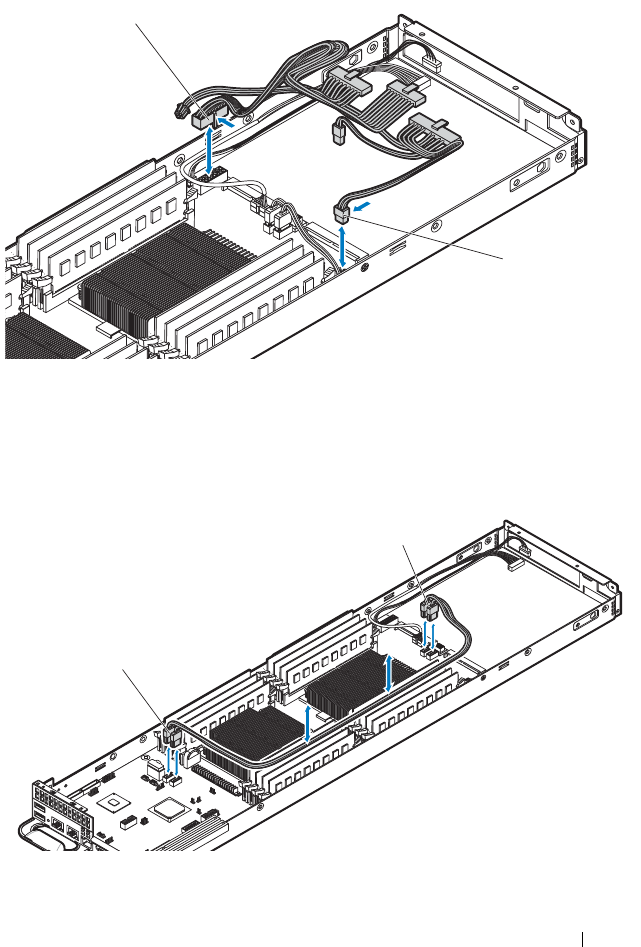
Installing System Components 191
Figure 3-40. Removing and Installing the Power Cable
•SATA cables
Figure 3-41. Removing and Installing the SATA Cables
1, 2 power cable
1, 2 SATA cables
1
2
1
2
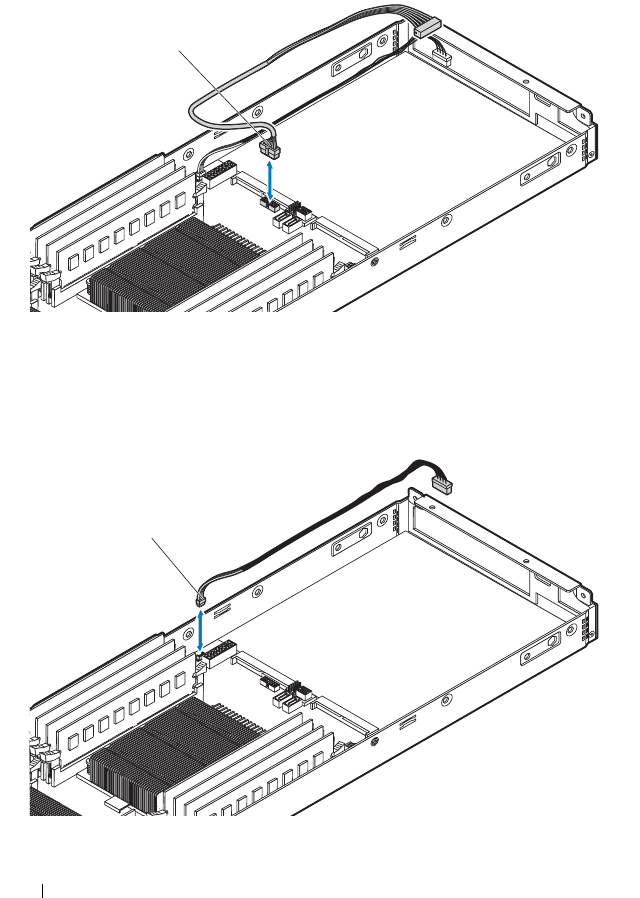
192 Installing System Components
• system board control cable
Figure 3-42. Removing and Installing the System Board Control Cable
•I2C cable
Figure 3-43. Removing and Installing the I2C Cable
1 system board control cable
1 I2C cable
1
1
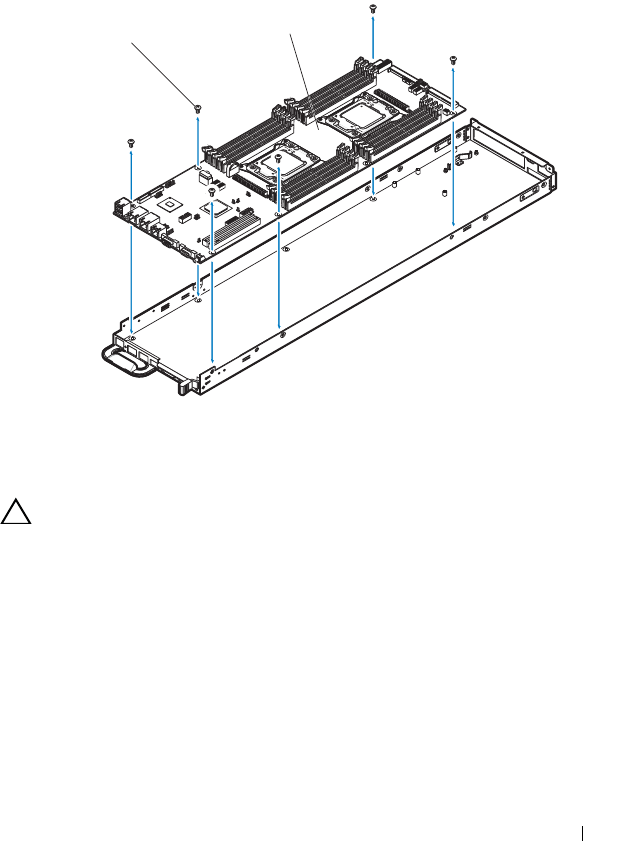
Installing System Components 193
18
Remove the six screws securing the system board. See Figure 3-44.
19
Grasp the system board by the edges and lift the system board out of the
sled tray. See Figure 3-44.
Figure 3-44. Removing the System Board
Installing the System Board
CAUTION: Many repairs may only be done by a certified service technician. You
should only perform troubleshooting and simple repairs as authorized in your
product documentation, or as directed by the online or telephone service and
support team. Damage due to servicing that is not authorized is not covered by
warranty. Read and follow the safety instructions that came with the product.
1
Unpack the new system board.
2
Holding the system board by the edges, slide the system board into the
sled tray. See Figure 3-44.
3
Replace the six screws securing the system board to the sled tray.
See Figure 3-44.
1 M3 screws (6) 2 system board
12

194 Installing System Components
4
Connect the following cables to the system board.
– I2C cable. See Figure 3-43.
– System board control cable. See Figure 3-42.
– SATA cable. See Figure 3-41.
– Power cable. See Figure 3-40.
5
You must route the cables properly on the sled tray to prevent them from
being pinched or crimped.
6
Install the node power distribution board. See "Installing the Node Power
Distribution Board" on page 186.
7
Install the interposer extender to the new board. See "Installing the
Interposer Extender" on page 184.
8
Install the hard-drive tray. See "Installing the Hard-Drive Tray" on
page 182.
9
Install the hard-drives. See "Installing a Hard-Drive Carrier" on page 179.
10
Install the MicroSD card reader support bracket. See "Installing the
MicroSD Card Reader Support Bracket" on page 177.
11
Install the MicroSD card reader. See "Installing the MicroSD Card Reader"
on page 175.
12
Transfer the processors to the new system board. See "Removing a
Processor" on page 147 and "Installing a Processor" on page 148.
13
Remove the memory modules and transfer them to the same locations on
the new board. See "Removing Memory Modules" on page 153 and
"Installing Memory Modules" on page 154.
14
Replace the cooling shroud. See "Installing the Cooling Shroud" on
page 142.
15
If applicable, install the mezzanine card. See "Installing the Infiniband
Mezzanine Card" on page 169 or "Installing the 10 GbE Mezzanine Card"
on page 172.

Installing System Components 195
16
If applicable, install the RAID controller card and RAID battery. See
"Installing the RAID Controller Card" on page 158 and "Installing the
RAID Battery" on page 161.
17
Install the expansion card. See "Installing the Expansion Card" on
page 156.
18
Replace the front cover. See "Installing the Front Cover" on page 139.
19
Replace the back cover. See "Installing the Back Cover" on page 141.
20
Replace the sled. See "Installing a Sled" on page 134.

196 Installing System Components

Troubleshooting 197
4
Troubleshooting
Safety First—For You and Your System
WARNING: Whenever you need to lift the system, get others to assist you. To
avoid injury, do not attempt to lift the system by yourself.
WARNING: Before removing the system cover, disconnect all power, then unplug
the AC power cord, and then disconnect all peripherals, and all LAN lines.
CAUTION: Many repairs may only be done by a certified service technician. You
should only perform troubleshooting and simple repairs as authorized in your
product documentation, or as directed by the online or telephone service and
support team. Damage due to servicing that is not authorized by Dell is not covered
by your warranty. Read and follow the safety instructions that came with the
product.
Installation Problems
Perform the following checks if you are troubleshooting an installation
problem:
• Check all cable and power connections (including all rack cable
connections).
• Unplug the power cord and wait for one minute. Then reconnect the
power cord and try again.
• If the network is reporting an error, verify that the system has enough
memory and disk space.
• Remove all added peripherals, one at a time, and try to turn on the system.
If after removing a peripheral the system works, it may be a problem with
the peripheral or a configuration problem between the peripheral and the
system. Contact the peripheral vendor for assistance.

198 Troubleshooting
• If the system does not power on, check the LED display. If the power LED
is not on, you may not be receiving AC power. Check the AC power cord to
make sure that it is securely connected.
Troubleshooting System Startup Failure
If your system halts during startup, especially after installing an operating
system or reconfiguring your system’s hardware, check for invalid memory
configurations. These could cause the system to halt at startup without any
video output.
For all other startup issues, note any system messages that appear onscreen.
See "Using the System Setup Program" on page 45 for more information.
Troubleshooting External Connections
Ensure that all external cables are securely attached to the external
connectors on your sled before troubleshooting any external devices.
See Figure 1-1 for the front-panel connectors on the sled.
Troubleshooting the Video Subsystem
1
Check the sled and power connections to the monitor.
2
Check the video interface cabling from the sled to the monitor.
Troubleshooting a USB Device
Use the following steps to troubleshoot a USB keyboard and/or mouse. For
other USB devices, go to step 5.
1
Ensure that the sled is turned on.
2
Disconnect the keyboard and mouse cables from the sled briefly and
reconnect them.
3
If the problem is resolved, restart the sled, enter the System Setup
program, and check if the nonfunctioning USB ports are enabled.
4
Swap the keyboard/mouse with a known-working keyboard/mouse.
5
If another sled is installed, connect the USB device to the sled. If the USB
device works with a different sled, the first sled may be faulty.

Troubleshooting 199
If the problem is resolved, replace the faulty keyboard/mouse.
If the problem is not resolved, proceed to the next step to begin
troubleshooting the other USB devices attached to the system.
a
Power down all attached USB devices and disconnect them from the
sled.
b
Restart the sled and, if your keyboard is functioning, enter the System
Setup program. Verify that all USB ports are enabled. See "USB
Configuration" on page 78.
c
If your keyboard is not functioning, you can also use remote access. If
the system is not accessible, see "System Board Jumper Settings" on
page 214 for instructions on setting the NVRAM Clear jumper inside
your system and restoring the BIOS to the default settings.
d
Reconnect and turn on each USB device one at a time.
6
If a device causes the same problem, power down the device, replace the
USB cable, and power up the device.
If the problem persists, replace the device.
If all troubleshooting fails, see "Getting Help" on page 229.
Troubleshooting a Serial I/O Device
1
Turn off the sled and any peripheral devices connected to the serial port.
2
Swap the serial interface cable with another working cable, and turn on the
sled and the serial device.
If the problem is resolved, replace the interface cable.
3
Turn off the sled and the serial device, and swap the device with a
comparable device.
4
Turn on the sled and the serial device.
If the problem is resolved, replace the serial device.
If the problem persists, see "Getting Help" on page 229.

200 Troubleshooting
Troubleshooting a NIC
1
Restart the sled and check for any system messages pertaining to the NIC
controller.
2
Check the appropriate indicator on the NIC connector. See "NIC Indicator
Codes" on page 14.
• If the link indicator does not light, check all cable connections.
• If the activity indicator does not light, the network driver files might
be damaged or missing.
• Remove and reinstall the drivers if applicable. See the NIC's
documentation.
• Change the auto-negotiation setting, if possible.
• Use another connector on the switch or hub.
If you are using a NIC card instead of an integrated NIC, see the
documentation for the NIC card.
3
Ensure that the appropriate drivers are installed and the protocols are
bound. See the NIC's documentation.
4
Enter the System Setup program and confirm that the NIC ports are
enabled. See "Using the System Setup Program" on page 45.
5
Ensure that the NICs, hubs, and switches on the network are all set to the
same data transmission speed. See the documentation for each network
device.
6
Ensure that all network cables are of the proper type and do not exceed the
maximum length.
If all troubleshooting fails, see "Getting Help" on page 229.

Troubleshooting 201
Troubleshooting a Wet Enclosure
CAUTION: Many repairs may only be done by a certified service technician. You
should only perform troubleshooting and simple repairs as authorized in your
product documentation, or as directed by the online or telephone service and
support team. Damage due to servicing that is not authorized by Dell is not covered
by your warranty. Read and follow the safety instructions that came with the
product.
1
Turn off the sleds and attached peripherals
2
Disconnect the enclosure from the electrical outlet or the PDU.
CAUTION: Wait until all of the indicators on the power supplies turn off before
proceeding.
3
Remove all sleds from the enclosure. See "Removing a Sled" on page 133.
4
Open the sled. See "Sled Covers" on page 138.
5
Disassemble components from the sled. See "Installing System
Components" on page 129.
•Hard-drives
• Cooling shroud
• Processors and heat sinks
•Memory modules
• Expansion card/ RAID controller card
• Mezzanine card
• Interposer extender
• Node power distribution board
• MicroSD card reader
6
Remove all server enclosure components. See the PowerEdge C8000
Systems Hardware Owner’s Manual for more information.
7
Let the sled dry thoroughly for at least 24 hours.
8
Reinstall all server enclosure components. See the PowerEdge C8000
Systems Hardware Owner’s Manual for more information.
9
Reinstall all sled components you removed in step 5.
10
Close the sled. See "Sled Covers" on page 138.

202 Troubleshooting
11
Reinstall the sled. See "Installing a Sled" on page 134.
12
Reconnect the server enclosure to the electrical outlet or the PDU.
13
Turn on the sleds and attached peripherals.
14
If the system fails to start, see "Getting Help" on page 229.
Troubleshooting a Damaged Enclosure
CAUTION: Many repairs may only be done by a certified service technician. You
should only perform troubleshooting and simple repairs as authorized in your
product documentation, or as directed by the online or telephone service and
support team. Damage due to servicing that is not authorized by Dell is not covered
by your warranty. Read and follow the safety instructions that came with the
product.
1
Turn off the sleds and attached peripherals.
2
Disconnect the enclosure from the electrical outlet or the PDU.
3
Ensure that the following components are properly installed in the
enclosure:
• Power sleds
•Fan modules
•Sleds
4
Ensure that the following components are properly installed in the sled:
• MicroSD card reader
• Node power distribution board
• Interposer extender
• Mezzanine card
• Expansion card/RAID controller card
•Memory modules
• Processors and heat sinks
• Cooling shroud
• Hard-drives
5
Ensure that all cables are properly connected.
Troubleshooting 203
6
Ensure that all components are properly installed and free of damage.
7
If the system fails to start, see "Getting Help" on page 229.
Troubleshooting the Power Sled
CAUTION: Remove and replace one PSU module at a time. Leave a failed PSU
module installed in the power sled until you are ready to replace it. Operating the
system with a power sled removed for extended periods of time can cause the
system to overheat.
NOTE: The 1400 W power supply module in the power sled require a 200-240 V
power source to operate.
1
Locate the power sled to be removed or the power sled that contains the
failed PSU module. The PSU module’s status indicator will either light up
green or amber. If the PSU module is faulty the status indicator lights up
amber.
2Replace the faulty PSU module in the power sled.
See the PowerEdge
C8000 Systems Hardware Owner’s Manual for more information.
NOTE: After installing a power sled with a new PSU module, allow several seconds
for the system to recognize the power supply and to determine if it is working
properly. The status indicator turns green to signify that the module is functioning
properly.
If none of the PSU modules show a fault LED and the sleds do not power
on, log into the BMC web interface and check for status messages. See
Using the Baseboard Management Controller Guide for more information.
If all troubleshooting fails, see "Getting Help" on page 229.
Troubleshooting System Memory
CAUTION: Many repairs may only be done by a certified service technician. You
should only perform troubleshooting and simple repairs as authorized in your
product documentation, or as directed by the online or telephone service and
support team. Damage due to servicing that is not authorized by Dell is not covered
by your warranty. Read and follow the safety instructions that came with the
product.
NOTE: Invalid memory configurations can cause your system to halt at startup
without video output. See "System Memory" on page 150 and verify that your
memory configuration complies with all applicable guidelines.

204 Troubleshooting
1
If the system is not operational, turn off the sled and attached peripherals.
2
After 10 seconds, turn on the sled and attached peripherals and note the
messages on the screen.
Go to step 13 if an error message appears indicating a fault with a specific
memory module.
3
Enter the System Setup program and check the system memory settings.
See "Main Menu" on page 52. Make any changes to the memory settings, if
needed.
If the memory settings match the installed memory but a problem is still
indicated, go to step 13.
4
Turn off the sled and attached peripherals.
5
Remove the sled from the enclosure. See "Removing a Sled" on page 133.
6
Remove the cooling shroud. See "Removing the Cooling Shroud" on
page 141.
7
Check the memory channels and ensure that they are populated correctly.
See "Supported DIMM Configuration" on page 151.
8
Reseat the memory modules in their sockets. See "Removing Memory
Modules" on page 153 and "Installing Memory Modules" on page 154.
9
Replace the cooling shroud. See "Installing the Cooling Shroud" on
page 142.
10
Reinstall the sled into the enclosure. See "Installing a Sled" on page 134.
11
Turn on the sled and attached peripherals.
12
Enter the System Setup program and check the system memory settings.
See "Main Menu" on page 52.
If the problem is not resolved, proceed with the next step.
13
Turn off the sled and attached peripherals.
14
Remove the sled from the enclosure. See "Removing a Sled" on page 133.
15
Remove the cooling shroud. See "Removing the Cooling Shroud" on
page 141.
16
If a diagnostic test or error message indicates a specific memory module as
faulty, swap or replace the module.

Troubleshooting 205
17
To troubleshoot an unspecified faulty memory module, replace the
memory module in the first DIMM socket with a module of the same type
and capacity. See "Installing Memory Modules" on page 154.
18
Replace the cooling shroud. See "Installing the Cooling Shroud" on
page 142.
19
Reinstall the sled into the enclosure. See "Installing a Sled" on page 134.
20
Turn on the sled and attached peripherals.
21
As the system boots, observe any error message that appears and the
diagnostic indicators on the front of the system.
22
If the memory problem is still indicated, repeat step 13 through step 21 for
each memory module installed.
23
If the problem persists after all memory modules have been checked, see
"Getting Help" on page 229.
Troubleshooting a Hard-Drive
CAUTION: Many repairs may only be done by a certified service technician. You
should only perform troubleshooting and simple repairs as authorized in your
product documentation, or as directed by the online or telephone service and
support team. Damage due to servicing that is not authorized by Dell is not covered
by your warranty. Read and follow the safety instructions that came with the
product.
CAUTION: This troubleshooting procedure can destroy data stored on the
hard-drive. Before you proceed, back up all files on the hard-drive.
1
If your sled has a RAID controller and your hard-drives are configured in a
RAID array, perform the following steps:
a
Restart the sled and enter the host adapter configuration utility
program by pressing <Ctrl><H> for a RAID controller,
<Ctrl><C> for a SAS mezzanine card, or <Ctrl><I> for the
onboard RAID controller.
See the documentation supplied with the host adapter for information
about the configuration utility.
b
Ensure that the hard-drive(s) have been configured correctly for the
RAID array.

206 Troubleshooting
c
Take the hard-drive offline and reseat the drive. See "Removing a
Hard-Drive Carrier" on page 178.
d
Exit the configuration utility and allow the system to boot to the
operating system.
2
Ensure that the required device drivers for your controller card are installed
and are configured correctly. See the operating system documentation for
more information.
3
Restart the sled, enter the System Setup program, and verify that the
controller is enabled and the drives appear in the System Setup program.
See "Using the System Setup Program" on page 45.
If the problem persists, see "Getting Help" on page 229.
Troubleshooting a Storage Controller
NOTE: When troubleshooting a SAS RAID controller, also see the documentation
for your operating system and the controller.
1
Enter the System Setup program and ensure that the SAS controller is
enabled. See "Using the System Setup Program" on page 45.
2
Restart the sled and press the applicable key sequence to enter the
configuration utility program.
• <Ctrl><C> for a LSI SAS 2008 mezzanine card
• <Ctl><H> for a LSI 9265-8i SAS RAID Card
See the controller’s documentation for information about configuration
settings.
3
Check the configuration settings, make any necessary corrections, and
restart the system.
CAUTION: Many repairs may only be done by a certified service technician. You
should only perform troubleshooting and simple repairs as authorized in your
product documentation, or as directed by the online or telephone service and
support team. Damage due to servicing that is not authorized by Dell is not covered
by your warranty. Read and follow the safety instructions that came with the
product.
4
Turn off the sled and attached peripherals.
5
Remove the sled from the enclosure. See "Removing a Sled" on page 133.

Troubleshooting 207
6
Open the sled. See "Sled Covers" on page 138.
7
Ensure that the controller card is firmly seated into the system board
connector. See "Installing the RAID Controller Card" on page 158.
8
If you have a battery-cached SAS RAID controller, ensure that the RAID
battery is properly connected and, if applicable, the memory module on
the RAID card is properly seated.
9
Ensure that the cables are firmly connected to the storage controller.
10
Close the sled. See "Sled Covers" on page 138.
11
Reinstall the sled into the enclosure. See "Installing a Sled" on page 134.
12
Turn on the sled and attached peripherals.
13
If the problem persists, see "Getting Help" on page 229.
Troubleshooting Expansion Cards
NOTE: When troubleshooting an expansion card, see the documentation for your
operating system and the expansion card.
CAUTION: Many repairs may only be done by a certified service technician. You
should only perform troubleshooting and simple repairs as authorized in your
product documentation, or as directed by the online or telephone service and
support team. Damage due to servicing that is not authorized by Dell is not covered
by your warranty. Read and follow the safety instructions that came with the
product.
1
Turn off the sled and attached peripherals.
2
Remove the sled from the enclosure. See "Removing a Sled" on page 133.
3
Open the sled. See "Sled Covers" on page 138.
4
Ensure that each expansion card is firmly seated in its connector. See
"Installing the RAID Controller Card" on page 158.
5
Close the sled. See "Sled Covers" on page 138.
6
Reinstall the sled into the enclosure. See "Installing a Sled" on page 134.
7
Turn on the sled and attached peripherals.
8
If the problem is not resolved, see "Getting Help" on page 229.

208 Troubleshooting
Troubleshooting Processors
CAUTION: Many repairs may only be done by a certified service technician. You
should only perform troubleshooting and simple repairs as authorized in your
product documentation, or as directed by the online or telephone service and
support team. Damage due to servicing that is not authorized by Dell is not covered
by your warranty. Read and follow the safety instructions that came with the
product.
1
Turn off the sled and attached peripherals.
2
Remove the sled from the server enclosure. See "Removing a Sled" on
page 133.
3
Remove the cooling shroud. See "Removing the Cooling Shroud" on
page 141.
4
Ensure that each heat sink is properly installed. See "Installing a Heat
Sink" on page 144.
5
Ensure that there is thermal grease on the heat sink and processor.
6
Ensure that each processor is properly installed. See "Installing a Processor"
on page 148.
7
Replace the cooling shroud. See "Installing the Cooling Shroud" on
page 142.
8
Reinstall the sled into the enclosure. See "Installing a Sled" on page 134.
9
Turn on the sled and attached peripherals.
10
If the problem persists, turn off the sled and attached peripherals.
11
Remove the sled from the enclosure. See "Removing a Sled" on page 133.
12
Remove the cooling shroud. See "Removing the Cooling Shroud" on
page 141.
13
Remove processor 2. See "Removing a Processor" on page 147.
14
Replace the cooling shroud. See "Installing the Cooling Shroud" on
page 142.
15
Reinstall the sled into the enclosure. See "Installing a Sled" on page 134.
16
Turn on the sled and attached peripherals.
If the problem persists, the processor is faulty. See "Getting Help" on
page 229.
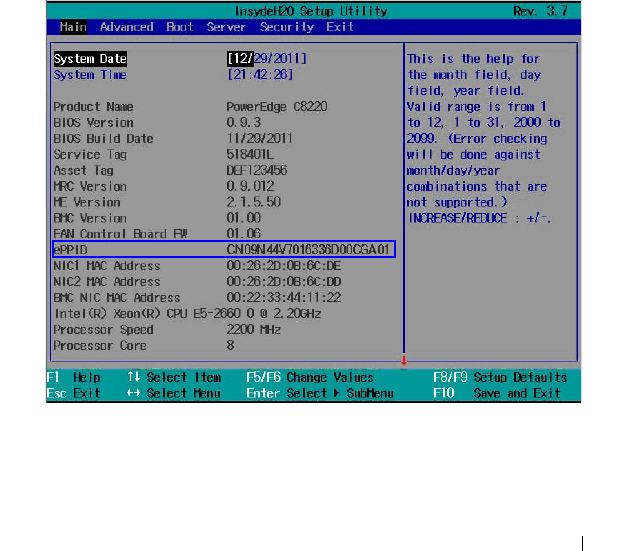
Troubleshooting 209
17
Turn off the sled and attached peripherals.
18
Remove the sled from the enclosure. See "Removing a Sled" on page 133.
19
Remove the cooling shroud. See "Removing the Cooling Shroud" on
page 141.
20
Replace processor 1 with processor 2. See "Installing a Processor" on
page 148.
21
Repeat step 13 through step 16.
If you have tested both the processors and the problem persists, the system
board is faulty. See "Getting Help" on page 229.
Identifying System Board Model Number
1
Press <F2> immediately after a power-on or reboot to enter System
Setup.
2
In the Main menu look for the ePPID entry.
3
The first 8 digits (
CN09N44V)
of the ePPID number represents the system
board model number and the remaining 14 digits represents the code for
the system’s piece part identification code.

210 Troubleshooting
Troubleshooting the System Board
CAUTION: Many repairs may only be done by a certified service technician. You
should only perform troubleshooting and simple repairs as authorized in your
product documentation, or as directed by the online or telephone service and
support team. Damage due to servicing that is not authorized by Dell is not covered
by your warranty. Read and follow the safety instructions that came with the
product.
1
Remove the sled from the enclosure. See "Removing a Sled" on page 133.
2
Open the sled. See "Sled Covers" on page 138.
3
Locate the NVRAM clear jumper on the system board.
4
Clear the NVRAM.
5
Close the sled. See "Sled Covers" on page 138.
6
If there is still a problem with the compute sled, remove and reinstall the
sled. See "Installing a Sled" on page 134.
If the problem persists, see "Getting Help" on page 229.
Troubleshooting the System Battery
NOTE: If the system is turned off for long periods of time (for weeks or months), the
NVRAM may lose its system configuration information. This situation is caused by a
defective battery.
1
Re-enter the time and date through the System Setup program. See
"System Setup Options at Boot" on page 46.
2
Turn off the sled and remove it from the enclosure for at least one hour.
3
Reconnect the sled to the server enclosure and turn on the sled.
4
Enter the System Setup program.
If the date and time are not correct in the System Setup program, replace
the battery. See "Removing the System Battery" on page 187.
Troubleshooting 211
CAUTION: You should only perform troubleshooting and simple repairs as
authorized in your product documentation, or as directed by the online or
telephone service and support team. Damage due to servicing that is not
authorized by Dell is not covered by your warranty. Read and follow the safety
instructions that came with the product.
If the problem is not resolved by replacing the battery, see "Getting Help"
on page 229.
NOTE: Some software may cause the system time to speed up or slow down. If the
system seems to operate normally except for the time kept in the System Setup
program, the problem may be caused by software rather than by a defective
battery.
IRQ Assignment Conflicts
Most PCI devices can share an IRQ with another device, but they cannot use
an IRQ simultaneously. To avoid this type of conflict, see the documentation
for each PCI device for specific IRQ requirements.
PCI IRQ pool definition is the BIOS code assigned at run time.
IRQ Line Assignment IRQ Line Assignment
IRQ0 8254 timer IRQ8 Real-time clock
IRQ1 Keyboard controller IRQ9 PCI IRQ pool definition
IRQ2 Cascade for IRQ9 IRQ10 PCI IRQ pool definition
IRQ3 Serial port (COM2) or
PCI IRQ pool definition
IRQ11 PCI IRQ pool definition
IRQ4 Serial port (COM1) or
PCI IRQ pool definition
IRQ12 Mouse controller
IRQ5 PCI IRQ pool definition IRQ13 Processor
IRQ6 PCI IRQ pool definition IRQ14 Primary IDE controller
IRQ7 Reserved IRQ15 Secondary IDE controller

212 Troubleshooting
Jumpers and Connectors 213
5
Jumpers and Connectors
This section provides specific information about the system jumpers. It also
provides some basic information on jumpers and switches and describes the
connectors on the various boards in the system.
System Board Types
The following table lists the different types of system boards, including model
numbers, supported in the sled.
NOTE: For information about identifying the sled’s system board model number,
see "Identifying System Board Model Number" on page 209.
System Board System Board Model Number
V1.0 CN0W6W6G (for sled with Intel Xeon E5-2600 series processor)
V1.1 CN0TND55 (for sled with Intel Xeon E5-2600 series processor)
V1.2 CN09N44V (for sled with Intel Xeon E5-2600V2 series processor)
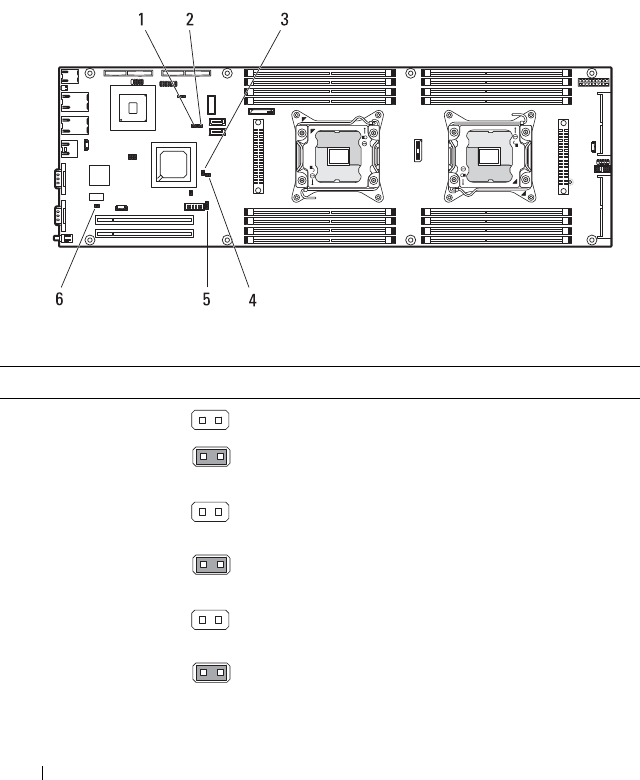
214 Jumpers and Connectors
System Board Jumper Settings
This section describes the jumper options and settings available on system
board v1.0, v1.1 and v1.2.
System Board V1.0 Jumper Settings
Figure 5-1. System Board V1.0 Jumper Settings
Table 5-1. System Board Jumper Settings
Item Jumper Setting Description
1 Service mode (default) The flash security setting is enabled.
The flash security and NVRAM clear
signal is disabled.
2 NVRAM clear (default) The configuration settings are retained at
system boot.
The configuration settings are cleared at
the next system boot.
3ME firmware
recovery
(default) The ME firmware recovery jumper is
disabled.
The ME firmware recovery jumper
enables ME firmware recovery mode.
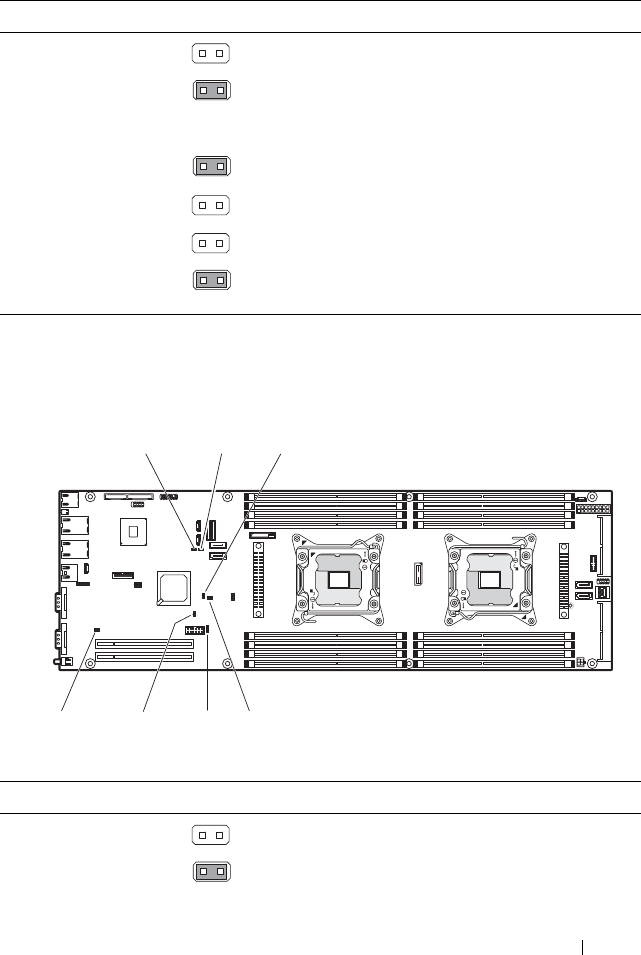
Jumpers and Connectors 215
System Board V1.1 Jumper Settings
Figure 5-2. System Board V1.1 Jumper Settings
4 BIOS recovery (default) The BIOS recovery jumper is disabled.
The BIOS recovery jumper enables the
BIOS flash memory special recovery
mode.
5 Password enable (default) The password feature is enabled.
The password feature is disabled.
6 Power button
pass
(default) The BMC triggers a power button signal.
The power button passthrough signal is
triggered.
Table 5-2. System Board Jumper Settings
Item Jumper Setting Description
1 Service mode (default) The flash security setting is enabled.
The flash security and NVRAM clear
signal is disabled.
Table 5-1. System Board Jumper Settings
Item Jumper Setting Description
123
4
75
6
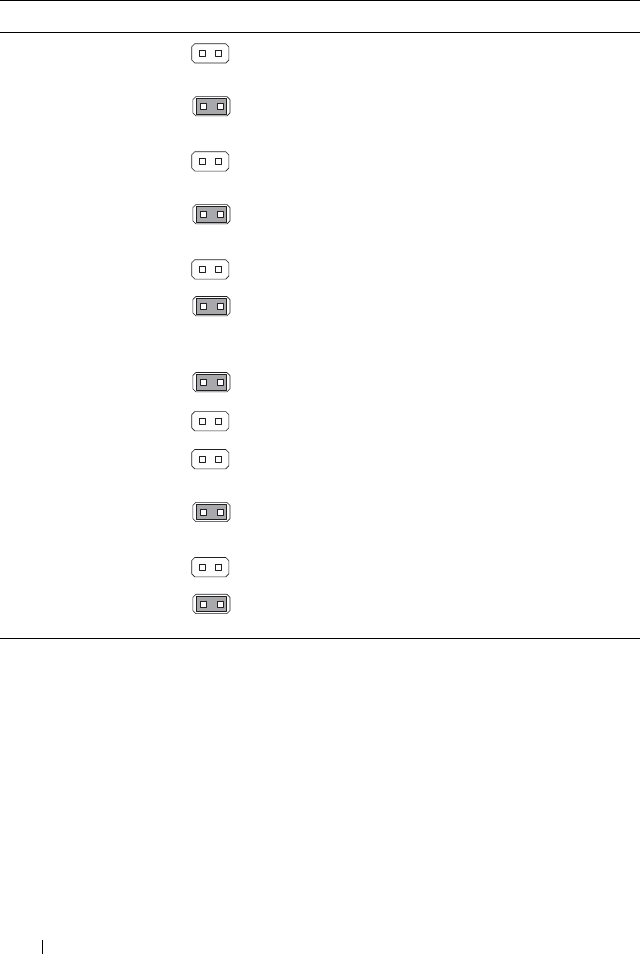
216 Jumpers and Connectors
2 NVRAM clear (default) The configuration settings are retained at
system boot.
The configuration settings are cleared at
the next system boot.
3ME firmware
recovery
(default) The ME firmware recovery jumper is
disabled.
The ME firmware recovery jumper
enables ME firmware recovery mode.
4 BIOS recovery (default) The BIOS recovery jumper is disabled.
The BIOS recovery jumper enables the
BIOS flash memory special recovery
mode.
5 Password enable (default) The password feature is enabled.
The password feature is disabled.
6Flash descriptor
security override
(default) The flash descriptor security override is
enabled.
The flash descriptor security override is
disabled.
7 Power button
pass
(default) The BMC triggers a power button signal.
The power button passthrough signal is
triggered.
Table 5-2. System Board Jumper Settings
Item Jumper Setting Description
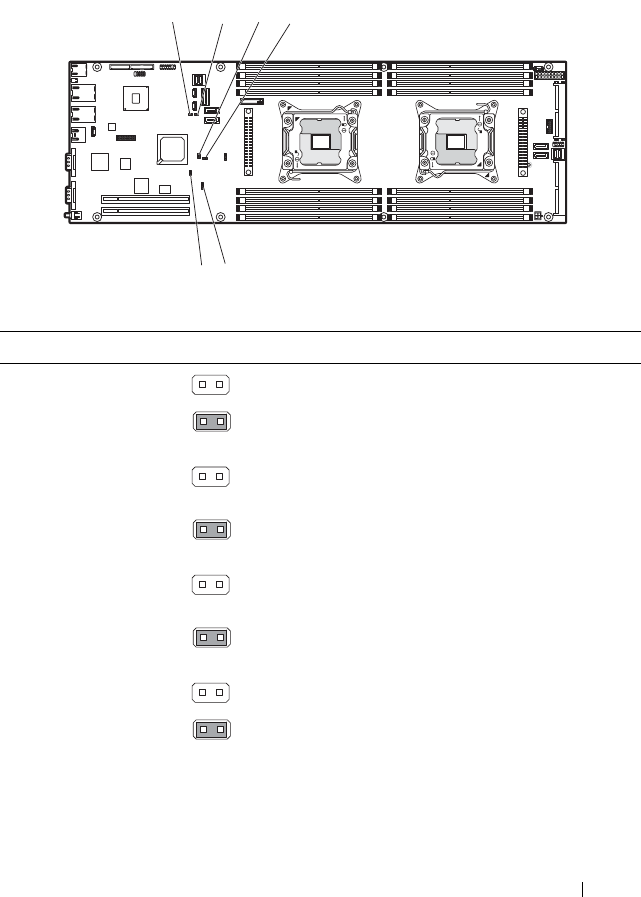
Jumpers and Connectors 217
System Board V1.2 Jumper Settings
Figure 5-3. System Board V1.2 Jumper Settings
Table 5-3. System Board Jumper Settings
Item Jumper Setting Description
1 Service mode (default) The flash security setting is enabled.
The flash security and NVRAM clear
signal is disabled.
2 NVRAM clear (default) The configuration settings are retained at
system boot.
The configuration settings are cleared at
the next system boot.
3ME firmware
recovery
(default) The ME firmware recovery jumper is
disabled.
The ME firmware recovery jumper
enables ME firmware recovery mode.
4 BIOS recovery (default) The BIOS recovery jumper is disabled.
The BIOS recovery jumper enables the
BIOS flash memory special recovery
mode.
234
56
1
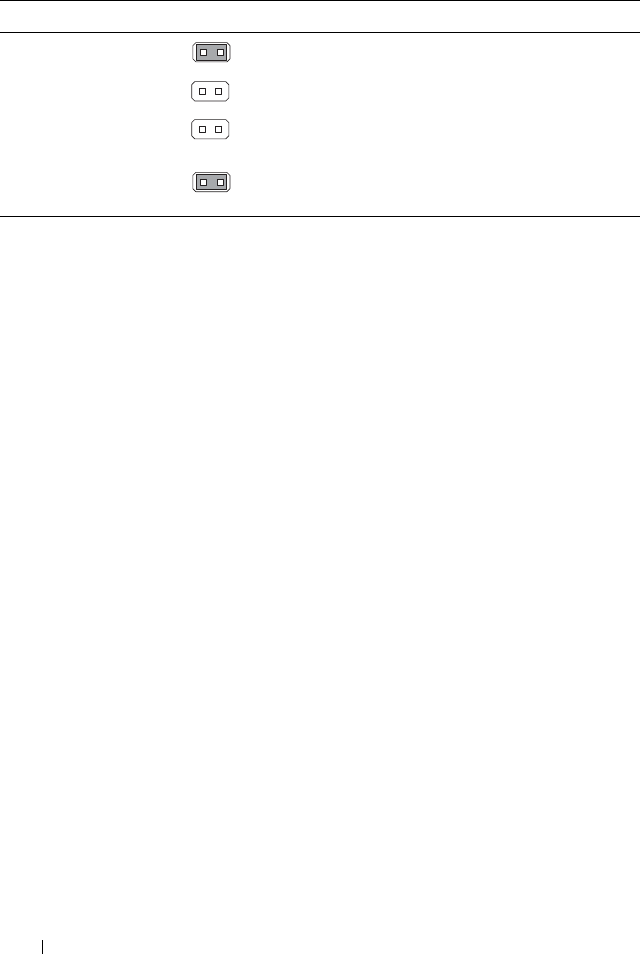
218 Jumpers and Connectors
5 Password enable (default) The password feature is enabled.
The password feature is disabled.
6Flash descriptor
security override
(default) The flash descriptor security override is
enabled.
The flash descriptor security override is
disabled.
Table 5-3. System Board Jumper Settings
Item Jumper Setting Description
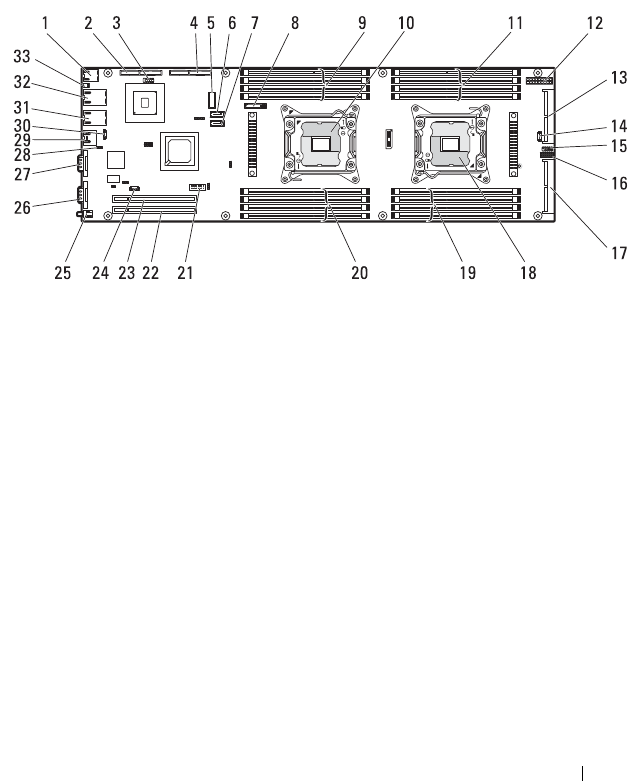
Jumpers and Connectors 219
System Board Connectors
This section describes the connectors available on system board v1.0, v1.1 and
v1.2.
System Board V1.0 Connectors
Figure 5-4. System Board V1.0 Connectors
1 USB connectors (2) 2 PCIe x8 mezzanine slot
3 MicroSD card reader (internal
USB) connector
4 internal SAS mezzanine slot
5 mini-SAS connector 0 6 onboard SATA connector 4
7 onboard SATA connector 5 8 system battery
9 DIMM sockets for CPU1
DIMMA3 socket
DIMMA4 socket
DIMMA7 socket
DIMMA8 socket
10 CPU1 socket
11 DIMM sockets for CPU2
DIMMB1 socket
DIMMB2 socket
DIMMB5 socket
DIMMB6 socket
12 main power connector
13 internal hard-drive interposer 14 SGPIO connector 2
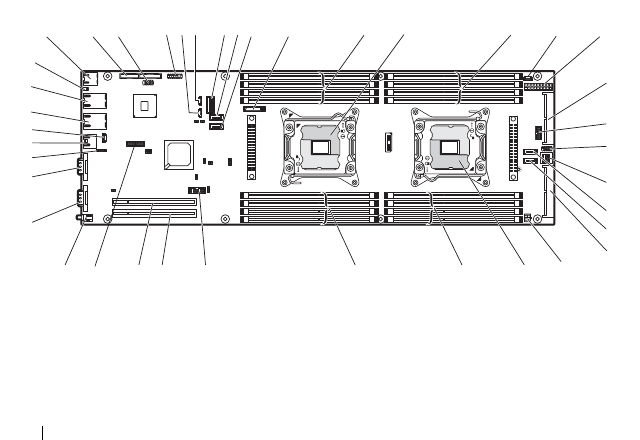
220 Jumpers and Connectors
System Board V1.1 Connectors
Figure 5-5. System Board V1.1 Connectors
15 internal serial connector 16 front panel connector 1
17 PCIe x16 back GPGPU 18 CPU2 socket
19 DIMM sockets for CPU2
DIMMB3 socket
DIMMB4 socket
DIMMB7 socket
DIMMB3 socket
20 DIMM sockets for CPU1
DIMMA1 socket
DIMMA2 socket
DIMMA5 socket
DIMMA6 socket
21 LAN LED connector 22 PCIe x16 slot 1
23 PCIe x16 slot 2 24 SGPIO connector 1
25 power button/power-on indicator 26 VGA connector
27 serial connector 28 internal BMC serial console
connector
29 BMC management port 30 consolidated BMC cable
connector
31 NIC1 connector (RJ45) 32 NIC0 connector (RJ45)
33 system identification indicator
1 USB connectors (2) 2 PCIe x8 mezzanine slot
12347910 11 13
12 15
16
17
18
2425262728293031
32
33
35
36
37
38
39
34
22
19
20
21
23
65 14
8

Jumpers and Connectors 221
3 MicroSD card reader (internal
USB) connector
4 low pin count (LPC) debug
connector
5 SGPIO connector 2 6 SGPIO connector 1
7 mini-SAS connector 0 8 onboard SATA connector 4
9 onboard SATA connector 5 10 system battery
11 DIMM sockets for CPU1
DIMMA3 socket
DIMMA4 socket
DIMMA7 socket
DIMMA8 socket
12 CPU1 socket
13 DIMM sockets for CPU2
DIMMB1 socket
DIMMB2 socket
DIMMB5 socket
DIMMB6 socket
14 I2C connector
15 main power connector 16 internal hard-drive interposer
17 front panel connector 1 18 internal serial connector
19 mini-SAS connector 1 20 onboard SATA_IN connector 5
21 onboard SATA_IN connector 4 22 PCIe x16 back GPGPU
23 power connector interposer 24 CPU2 socket
25 DIMM sockets for CPU2
DIMMB3 socket
DIMMB4 socket
DIMMB7 socket
DIMMB3 socket
26 DIMM sockets for CPU1
DIMMA1 socket
DIMMA2 socket
DIMMA5 socket
DIMMA6 socket
27 LAN LED connector 28 PCIe x16 slot 1
29 PCIe x16 slot 2 30 NCSI connector
31 power button/power-on indicator 32 VGA connector
33 serial connector 34 internal BMC serial console
connector
35 BMC management port 36 consolidated BMC cable
connector
37 NIC1 connector (RJ45) 38 NIC0 connector (RJ45)
39 system identification indicator
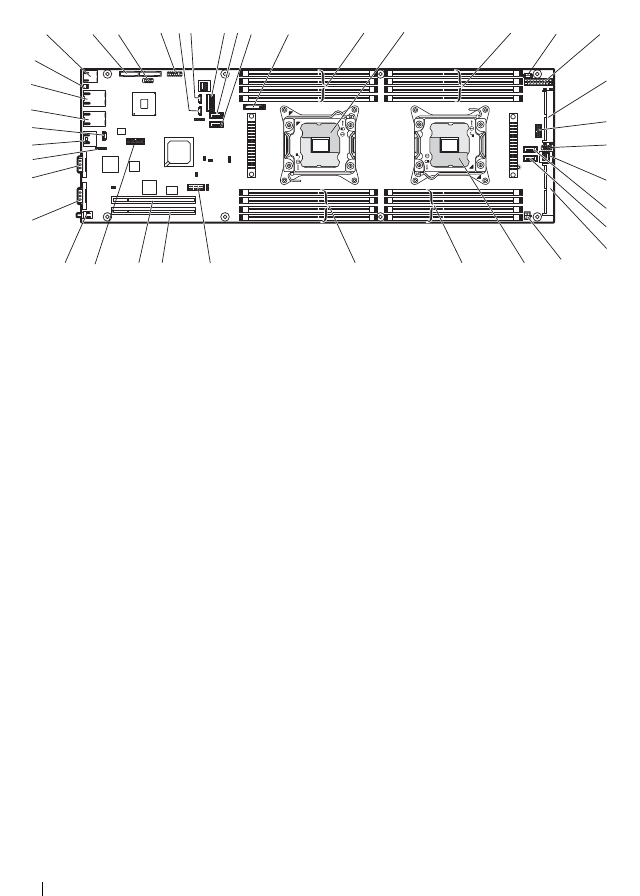
222 Jumpers and Connectors
System Board V1.2 Connectors
Figure 5-6. System Board V1.2 Connectors
1 USB connectors (2) 2 PCIe x8 mezzanine slot
3 MicroSD card reader (internal
USB) connector
4 low pin count (LPC) debug
connector
5 SGPIO connector 2 6 SGPIO connector 1
7 mini-SAS connector 2 8 mini-SAS connector 0
9 onboard SATA connector 4 10 onboard SATA connector 5
11 system battery 12 DIMM sockets for CPU1
DIMMA3 socket
DIMMA4 socket
DIMMA7 socket
DIMMA8 socket
13 CPU1 socket 14 DIMM sockets for CPU2
DIMMB1 socket
DIMMB2 socket
DIMMB5 socket
DIMMB6 socket
15 I2C connector 16 main power connector
17 internal hard-drive interposer 18 front panel connector 1
19 internal serial connector 20 mini-SAS connector 1
21 onboard SATA connector 5 22 onboard SATA connector 4
12347910 11 13
12 15
16
17
18
242526
28293031
32
33
35
36
37
38
39
22
19
20
21
23
65 14
8
34
27

Jumpers and Connectors 223
23 PCIe x16 back GPGPU 24 power connector interposer
25 CPU2 socket 26 DIMM sockets for CPU2
DIMMB3 socket
DIMMB4 socket
DIMMB7 socket
DIMMB3 socket
27 DIMM sockets for CPU1
DIMMA1 socket
DIMMA2 socket
DIMMA5 socket
DIMMA6 socket
28 PCIe x16 slot 1
29 PCIe x16 slot 2 30 NCSI connector
31 power button/power-on indicator 32 VGA connector
33 serial connector 34 BMC management port
35 consolidated BMC cable
connector
36 NIC1 connector (RJ45)
37 NIC0 connector (RJ45) 38 system identification indicator
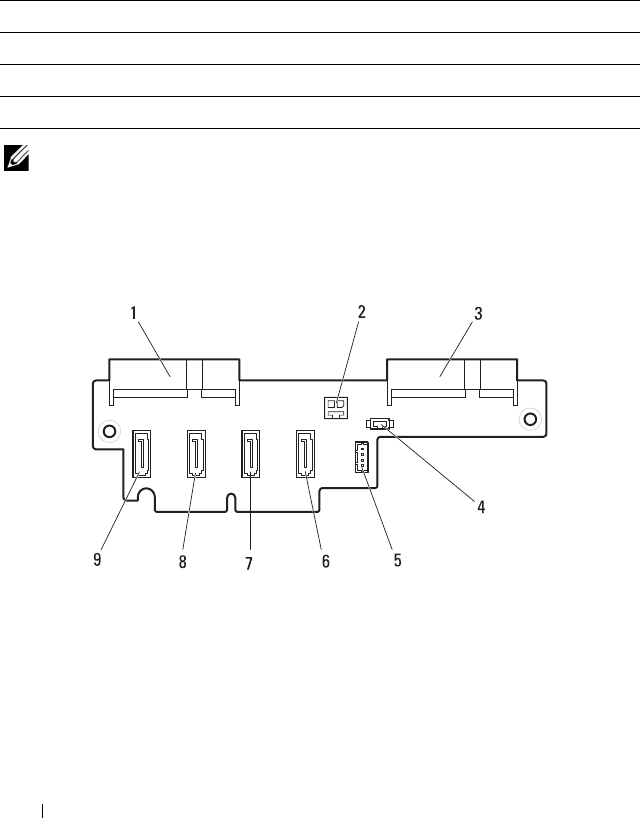
224 Jumpers and Connectors
Interposer Extender Connectors
Interpose Extender Types
The following table lists the types of interposer extenders supported for a
specific system board model.
NOTE: For information about identifying the sled’s system board model number,
see "Identifying System Board Model Number" on page 209.
Interposer Extender V1.0 Connectors
Figure 5-7. Interposer Extender V1.0 Connectors
System Board Interposer Extender
V1.0 V1.0
V1.1 V1.1
V1.2 V1.1
1 SATA connector 4 2 2-pin power connector
3 SATA connector 5 4 IPMB connector
5 SGPIO connector 6 SATA connector 0
7 SATA connector 1 8 SATA connector 2
9 SATA connector 3
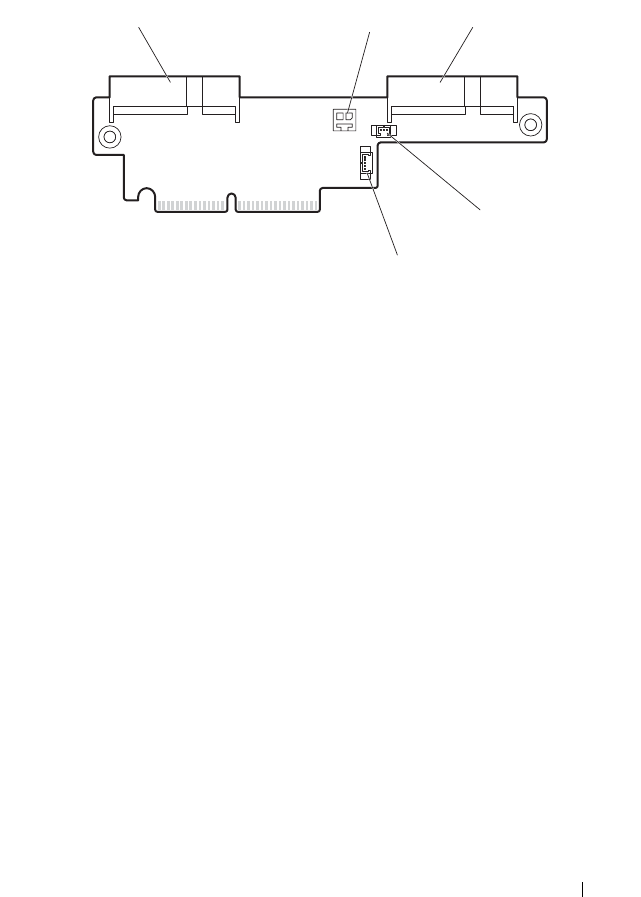
Jumpers and Connectors 225
Interposer Extender V1.1 Connectors
Figure 5-8. Interposer Extender V1.1 Connectors
1 SATA connector 4 2 2-pin power connector
3 SATA connector 5 4 IPMB connector
5 SGPIO connector
13
4
5
2
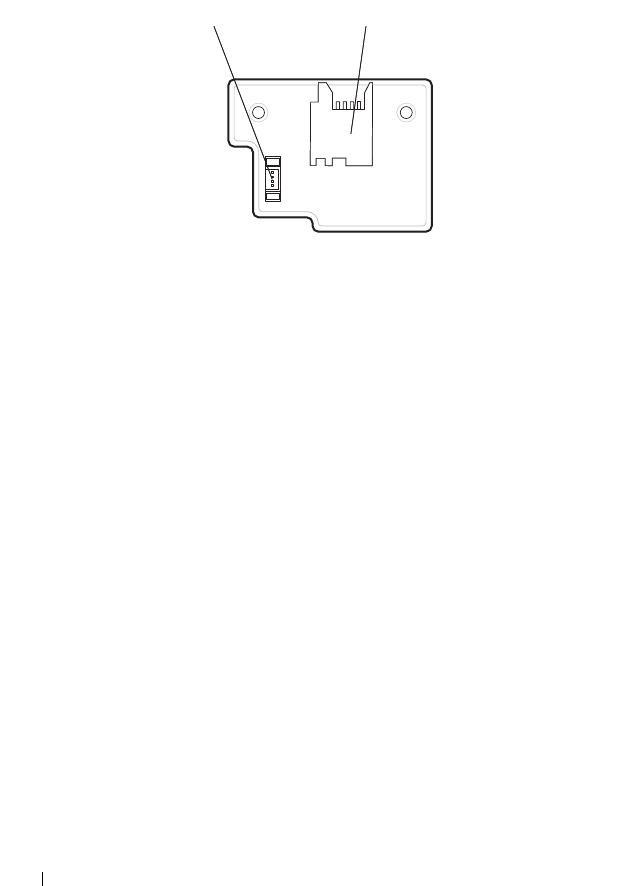
226 Jumpers and Connectors
MicroSD Card Reader Connectors
Figure 5-9. MicroSD Card Reader Connectors
1 MicroSD card reader cable
connector
2 MicroSD card connector
12
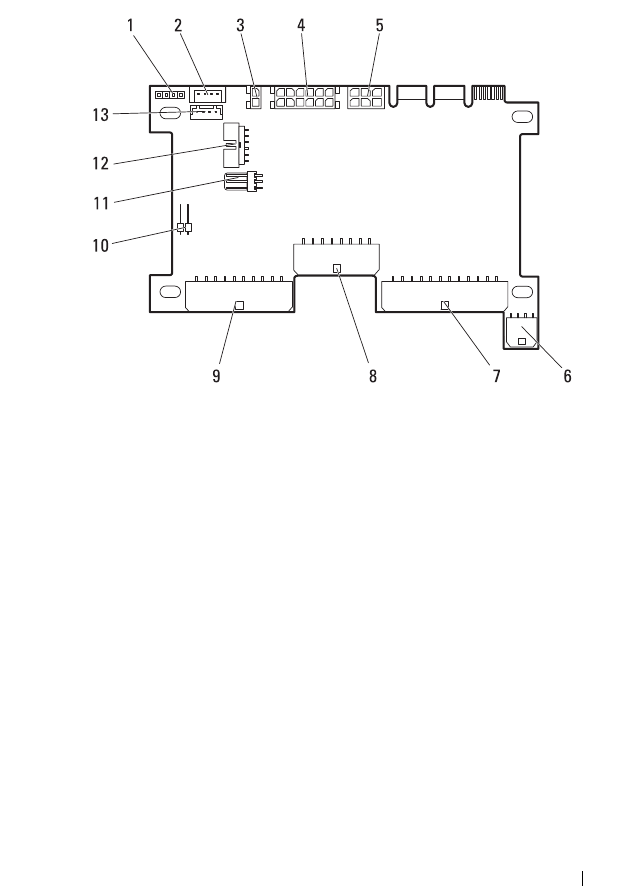
Jumpers and Connectors 227
Node Power Distribution Board Connectors
Figure 5-10. Node Power Distribution Board Connectors
1 power/throttle connector 2 I2C connector
3 12V S2 power connector 4 HDD1 power connector
5 power connector 6 HDD3 power connector
7 HDD2 power connector 8 system board power connector
9 12V S1 power connector 10 remote sensor connector
11 hard-drive LED indicator
connector
12 system board control connector
13 LAN pass-through connector

228 Jumpers and Connectors

Getting Help 229
6
Getting Help
Contacting Dell
NOTE: If you do not have an active Internet connection, you can find contact
information on your purchase invoice, packing slip, bill, or Dell product catalog.
Dell provides several online and telephone-based support and service options.
Availability varies by country and product, and some services may not be
available in your area. To contact Dell for sales, technical support, or
customer service issues:
1
Visit
dell.com/support
.
2
Select your support category.
3
Verify your country or region in the Choose a Country/Region drop-down
menu at the top of the page.
4
Select the appropriate service or support link based on your need.

230 Getting Help

FILE LOCATION: D:\Projects\User Guide\Server\Dell\OOB\HOM\Hardware Owners
Manual\SWC Sled\C8220\C8220_HOM_bk0IX.fm
Index 231
Index
A
about your system, 11
B
back cover
installing, 141
removing, 140
C
command line interfaces, 93
connectors
interposer extender, 224
system board, 219
console redirection
configuring, 47
cooling shroud
installing, 142
removing, 141
D
Dell
contacting, 229
double-wide sled blank
installing, 136
removing, 136
E
Ethernet mezzanine card
installing, 172
removing, 170-172
expansion card
installing, 156
removing, 155
expansion card riser
installing, 165
removing, 164
F
features
front panel, 12
front cover
installing, 139
removing, 138
H
hard-drive
installing, 180
removing, 179
hard-drive carrier
installing, 179
removing, 178

FILE LOCATION: D:\Projects\User Guide\Server\Dell\OOB\HOM\Hardware Owners
Manual\SWC Sled\C8220\C8220_HOM_bk0IX.fm
232 Index
hard-drive tray
installing, 182
removing, 181
heat sink
installing, 144
removing, 143
heat sink blank
installing, 146
removing, 145
I
indicator
front panel, 12
NIC, 14
power, 13
system identity, 14
indicator codes
power and system board, 16
Infiniband mezzanine card
installing, 169
removing, 166-169
installing
back cover, 141
cooling shroud, 142
double-wide sled blank, 136
Ethernet mezzanine card, 172
expansion card, 156
expansion card riser, 165
front cover, 139
hard-drive, 180
hard-drive carrier, 179
hard-drive tray, 182
heat sink, 144
heat sink blank, 146
Infiniband mezzanine card, 169
interposer extender, 184
memory modules, 154
MicroSD card, 138
MicroSD card reader, 175-176
MicroSD card reader bracket, 177
NPDB, 186
processor, 148-149
RAID battery, 161
RAID controller card, 158
single-wide sled blank, 135
sled, 134
system battery, 188
system board, 193
interposer extender
connectors, 224
installing, 184
removing, 182
types, 224
IPMI command list, 118
M
memory modules (DIMMs)
configuration, 151-152
installation guidelines, 150
installing, 154
removing, 153
MicroSD card
installing, 138
removing, 137

FILE LOCATION: D:\Projects\User Guide\Server\Dell\OOB\HOM\Hardware Owners
Manual\SWC Sled\C8220\C8220_HOM_bk0IX.fm
Index 233
MicroSD card reader
installing, 175-176
removing, 173, 175
MicroSD card reader bracket
installing, 177
removing, 176
N
NPDB
installing, 186
removing, 184
P
POST error codes, 19
power management settings, 127
processor
installing, 148-149
removing, 147-148
R
RAID battery
installing, 161
removing, 159
RAID controller card
installing, 158
removing, 157
removing
back cover, 140
cooling shroud, 141
double-wide sled blank, 136
Ethernet mezzanine
card, 170-172
expansion card, 155
expansion card riser, 164
front cover, 138
hard- drive carrier, 178
hard-drive, 179
hard-drive tray, 181
heat sink, 143
heat sink blank, 145
Infiniband mezzanine
card, 166-169
interposer extender, 182
memory modules, 153
MicroSD card, 137
MicroSD card reader, 173-175
MicroSD card reader bracket, 176
NPDB, 184
processor, 147-148
RAID battery, 159
RAID controller card, 157
single-wide sled blank, 134
sled, 133
system battery, 187
system board, 189
S
safety, 197
service tag, 18
single-wide sled blank
installing, 135
removing, 134

FILE LOCATION: D:\Projects\User Guide\Server\Dell\OOB\HOM\Hardware Owners
Manual\SWC Sled\C8220\C8220_HOM_bk0IX.fm
Index 234
sled
front features, 12
installing, 134
removing, 133
sled front features, 12
system battery
installing, 188
removing, 187
system board
connectors, 219
installing, 193
jumper settings, 214
removing, 189
types, 213
system features
accessing, 11
System log
See system setup screen
system sensor overview, 38
system setup
active state power management
configuration, 76
BMC LAN configuration, 84
chassis power management, 58
chassis PSU configuration, 59
CPU configuration, 62
embedded network devices, 73
emergency throttling, 61
iSCSI remote boot, 75, 85
memory configuration, 66
PCI configuration, 71
PCI slot configuration, 77
power capping, 60
power management, 56
prefetch configuration, 65
remote access configuration, 86
SATA configuration, 68
security settings, 80
USB configuration, 78
system setup program
entering, 46
general help, 47
system setup menu, 45
system setup screen
advanced, 55
boot, 89
exit, 91
main, 52
security, 80
server, 82
T
troubleshooting
damaged enclosure, 202
expansion cards, 207
external connections, 198
hard-drive, 205
power sled, 203
processors, 208
RTC battery, 210
serial device, 199
storage controller, 206
system board, 210
system board model number, 209
system memory, 203
USB device, 198
video, 198
wet enclosure, 201
