Dell Precision M40 Users Manual Mobile Workstation User's Guide
2014-11-13
: Dell Dell-Precision-M40-Users-Manual-112533 dell-precision-m40-users-manual-112533 dell pdf
Open the PDF directly: View PDF  .
.
Page Count: 100
DellPrecision™MobileWorkstationM40User'sGuide
Model PP01X
Notes, Notices, and Cautions
Information in this document is subject to change without notice.
©2001 Dell Computer Corporation. All rights reserved.
Reproduction in any manner whatsoever without the written permission of Dell Computer Corporation is strictly forbidden.
Trademarks used in this text: Dell, Dimension, Dell Precision, Latitude, Inspiron, OptiPlex, ExpressCharge, HyperCool, DellWare, TrueMobile, DellNet, and AccessDirect are
trademarksofDellComputerCorporation;Microsoft, Windows, and MS-DOS are registered trademarks of Microsoft Corporation; 3Com is a registered trademark of 3Com
Corporation; Intel and Pentium are registered trademarks of Intel Corporation; Quadro2 Go is a trademark of NVIDIA Corporation; ENERGY STAR is a registered trademark of
the U.S. Environmental Protection Agency. As an ENERGY STAR partner, Dell has determined that this product meets the ENERGY STAR guidelines for energy efficiency.
Other trademarks and trade names may be used in this document to refer to either the entities claiming the marks and names or their products. Dell disclaims any proprietary
interest in trademarks and trade names other than its own.
The following product notice applies to the Macrovision Corporation product that is included with the DVD drive:
This product incorporates copyright protection technology that is protected by method claims of certain U.S. patents and other intellectual property rights owned by
Macrovision Corporation and other rights owners. Use of this copyright protection technology must be authorized by Macrovision Corporation, and is intended for home and
other limited viewing uses only unless otherwise authorized by Macrovision Corporation. Reverse engineering or disassembly is prohibited.
September 2001 1K409 A00
About Your Computer
What You Need to Know
Features and Options
Front View
Setup and Operation
Using Your Computer
Connecting Devices
Passwords and Security
Traveling With Your Computer
Removing and Replacing Parts
Powering Your Computer
AC Adapter and Battery
Conserving Power
Using the System Setup Program
Reinstalling Software
Solving Problems
Finding Solutions
DellDiagnostics
Understanding Error Messages
Getting Help
Help Overview
Contacting Dell
Technical Specifications
Additional Information
Regulatory Notices
Warranty and Return Policy
NOTE:ANOTEindicatesimportantinformationthathelpsyoumakebetteruseofyourcomputer.
NOTICE:ANOTICEindicateseitherpotentialdamagetohardwareorlossofdataandtellsyouhowtoavoidtheproblem.
CAUTION: A CAUTION indicates a potential for property damage, personal injury, or death.
Back to Contents Page
ACAdapterandBattery:DellPrecision™MobileWorkstationM40User'sGuide
About the AC Adapter
lYou can connect the AC adapter with your computer either turned on or off.
lThe AC adapter works with electrical outlets worldwide. However, power connectors vary among countries. Before you use AC power in a
foreign country, you may need to obtain a new power cable designed for use in that country.
lIf the computer is connected to a Dell docking device, you can run the computer on AC power by connecting the AC adapter to the docking
device.
NOTICE:ToavoidoverheatingtheACadapterwhenpoweringthecomputerorchargingthebattery,usetheACadapterina
ventilated area, such as on a desktop or on the floor. Do not use the AC adapter in a poorly ventilated environment, such as inside a
carrying case.
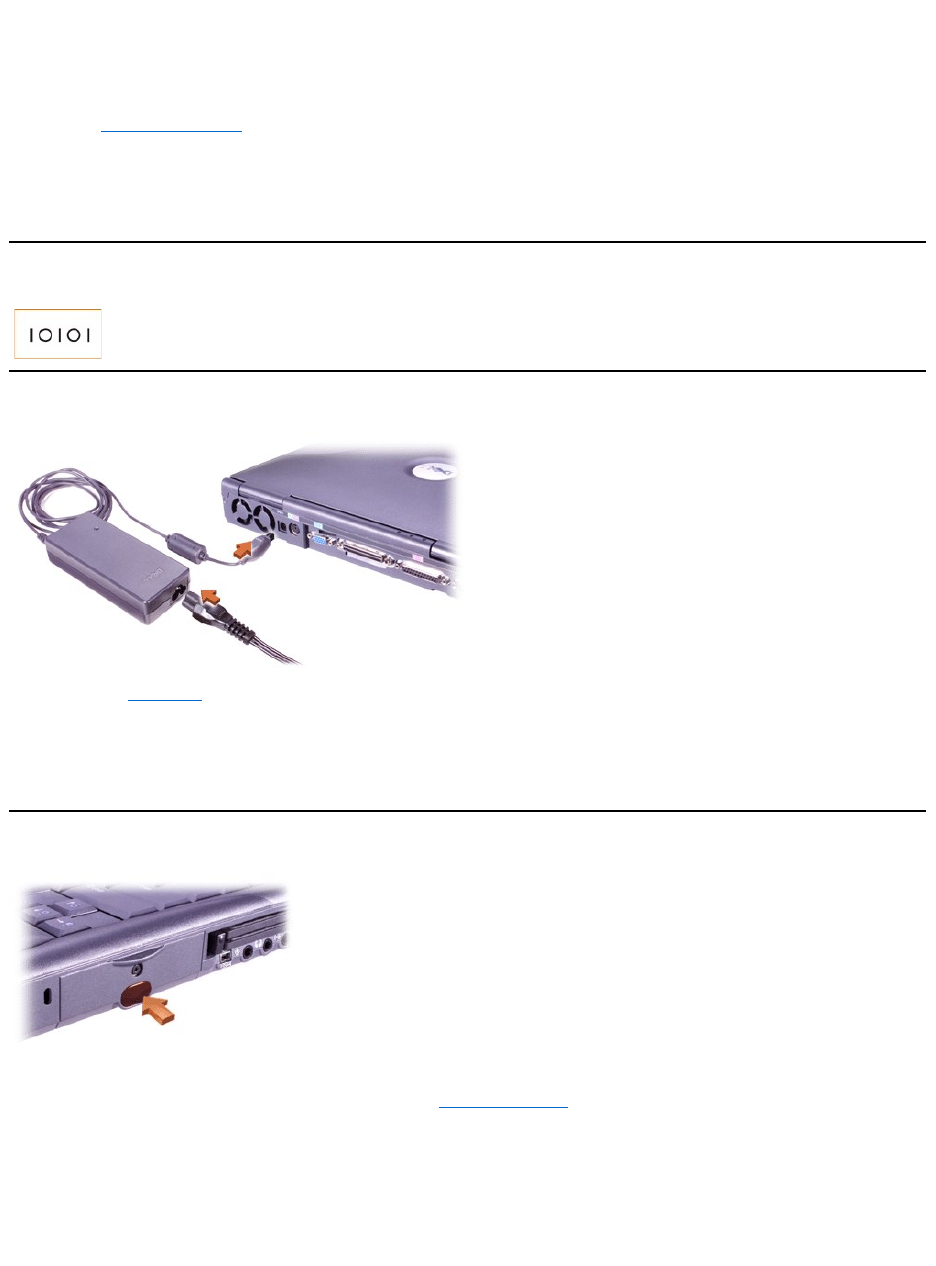
Connecting the AC Adapter
About the Batteries
lA partially charged lithium-ionbatterycomesstandardinthebatterybay,andprovidespowerwhenanelectricaloutletisnotavailable.Dell
recommends that you charge your battery to full capacity before using it to power the computer. For information on conserving battery power,
see "Conserving Power."
lToincreasebatterylife,installasecondbatteryinthemodularbay.
lWith a single fully charged, 8-cell lithium-ion battery, you can expect about 2–4 hours of battery life; with two fully charged lithium-ion batteries,
4–8hoursofbatterylife.Actualperformancedependsonthepowermanagementfeaturesandapplicationprogramsyouuse.
lWhen two batteries are installed, the computer draws power from the battery with the higher capacity until both batteries are at the same
chargelevel.Thenitdrawspowerfromboth.TheACadapterfirstchargesthebatteryinthebatterybay.
lThe integrated charge gauge lets you check a battery’s charge before you insert it into the computer.
About the AC Adapter
Checking the Battery Charge
Connecting the AC Adapter
Battery Warnings
About the Batteries
Charging the Battery
Removing a Battery
Detecting Battery Problems
Installing a Battery
Battery Disposal
NOTE: If you are running your computer on AC power with a battery installed, the AC adapter charges the battery (if needed) and then
maintains the battery's charge.
CAUTION: Do not puncture, disassemble, or incinerate the computer's battery. The battery may present a fire or chemical burn
hazardifmistreated.Donotexposethebatterytotemperaturesabove60°Celsius(C)(140°Fahrenheit[F]).Keepthebattery
away from children. Handle damaged or leaking batteries with extreme care. If the battery is damaged, electrolyte may leak
from the cells and cause personal injury.
lThe battery’s self-test capability alerts you to battery conditions such as low charge.
lThe battery has a life span of around 400 discharge/charge cycles, provided it is charged at normal room temperature.
lWhen you activate standby mode, the computer can run on a fully-chargedbatteryforapproximatelyoneweek.
lIf you are going to store the computer, disconnect all devices and turn off the computer. Remove the battery when you store your computer for
an extended period of time. A battery will drain when not in use during prolonged storage. After a long storage period, recharge the battery
fully before you attempt to run your computer from the battery.
lDo not dispose lithium ion batteries with common household waste products. See "Battery Disposal" for more information.
lLithium-ion batteries are longer lived than conventional batteries and do not require replacement as often. You can charge the lithium ion
battery whenever you like without fear of reducing its charge capacity. You do not need to drain a lithium ion battery completely before
recharging it.
Removing a Battery
NOTICE: If you choose to replace the battery with the computer in standby mode, you have up to 4 minutes to complete the battery
replacement. After 4 minutes, the computer shuts down and you will lose any unsaved data.
1. Ensure that the computer is turned off, suspended in a power management mode, or connected to an electrical outlet.
2. If the computer is docked, undock it.
3. Close the display and turn the computer over.
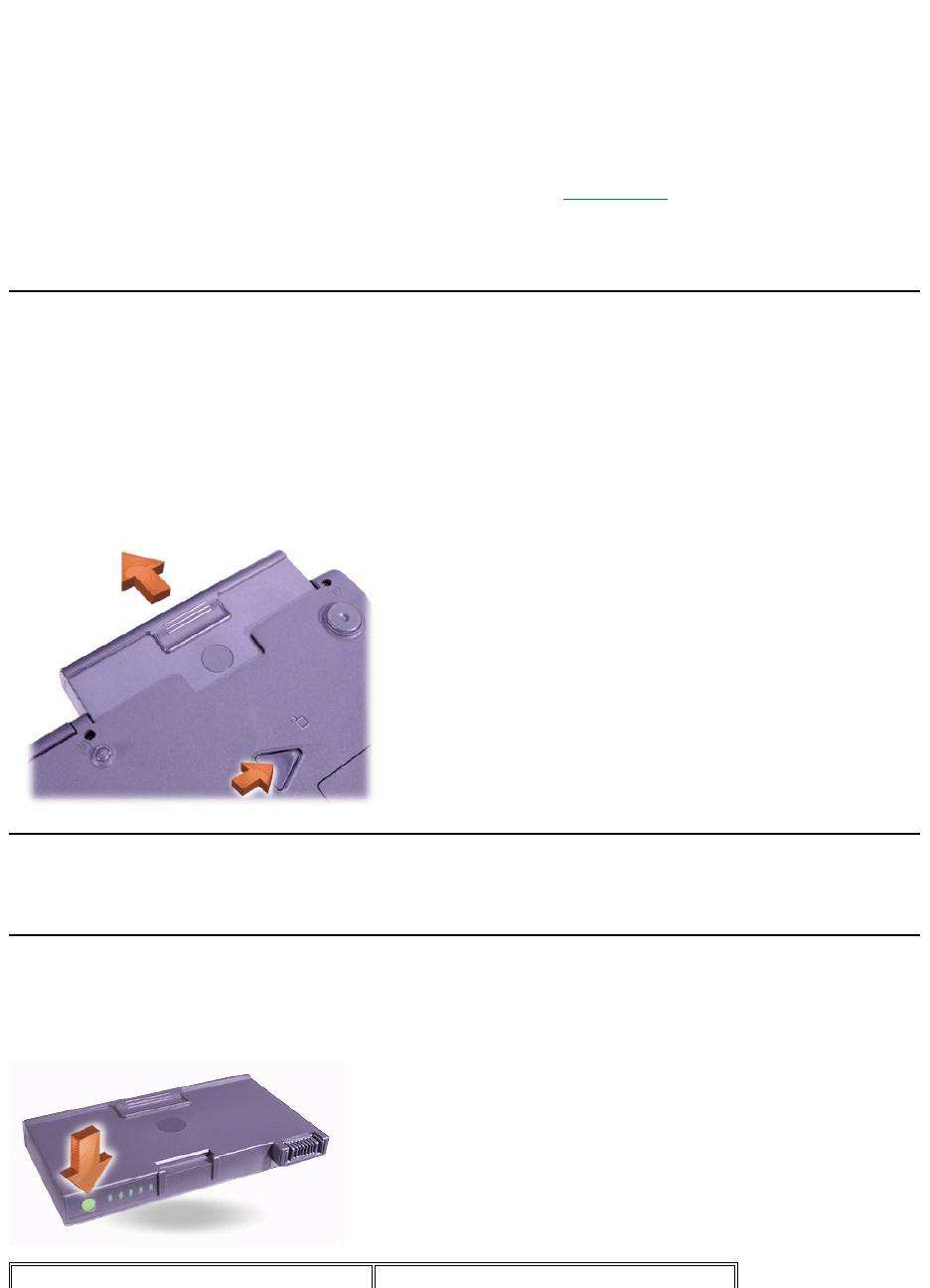
4. Slide and hold the battery bay (or module bay) latch release on the bottom of the computer, and then remove the battery from the bay.
Installing a Battery
Slide the battery into the bay until the latch release clicks.
Checking the Battery Charge
Press the battery test button next to the lights. The number of lights that appear shows an estimate of the remaining battery charge.
Battery Charge Gauge and Test Button
Lights
Charge Remaining (%) or Description
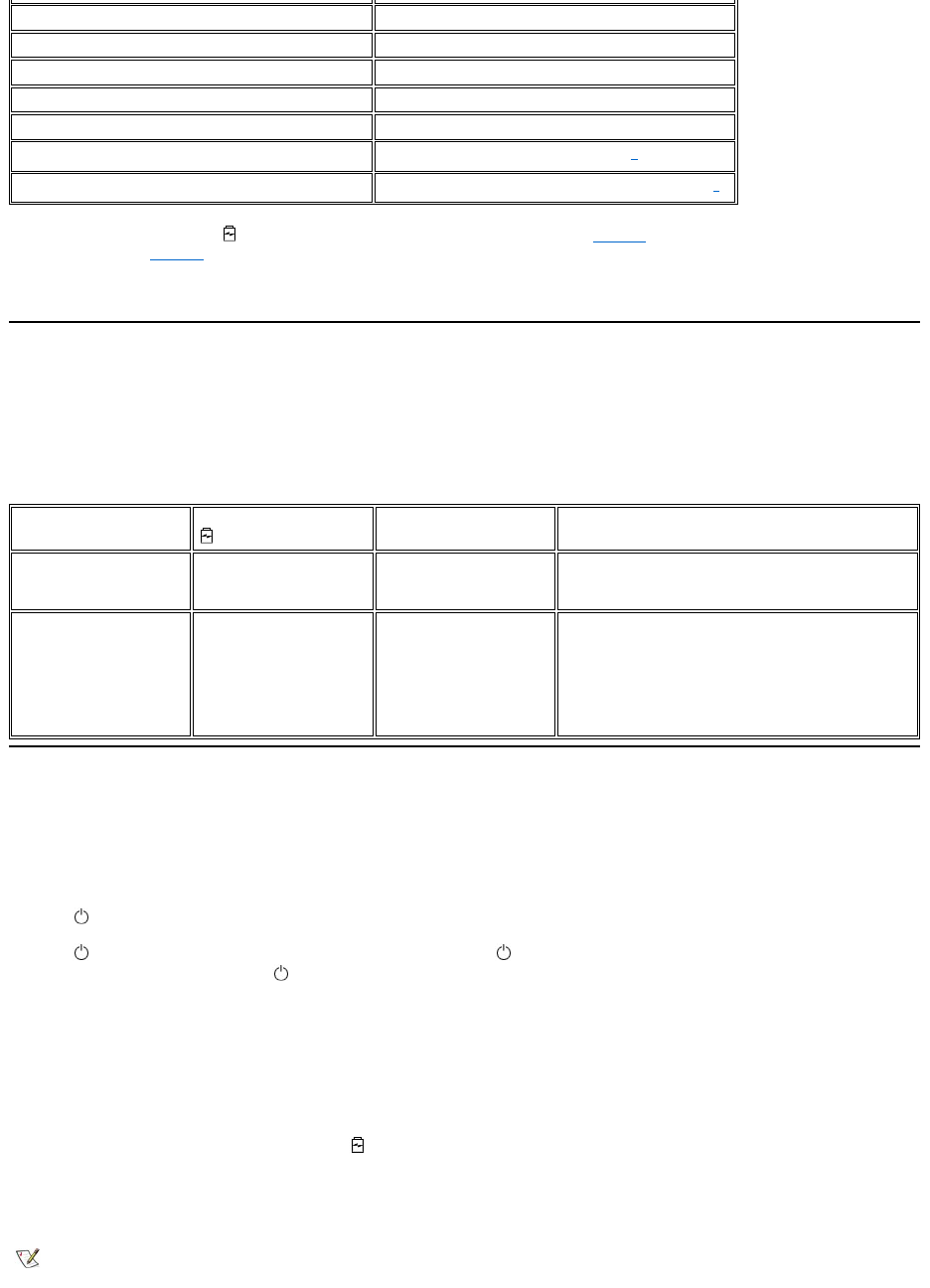
1If you install a failed battery, the light flashes amber rapidly. To purchase a new battery, call Dell or go to the Dell website at
http://www.dell.com. Dispose of the old battery properly.
2Allow a hot battery to cool for several minutes before checking the charge level again.
Battery Warnings
NOTICE: When you see a low-battery warning, save your work immediately. Then replace the battery or connect your computer to an
electrical outlet.
NOTICE: To avoid losing data (and possibly corrupting data areas on your hard-disk drive), save your work immediately after a
second low-battery warning. Then connect your computer to an electrical outlet, or place the computer in standby mode. If the
battery runs completely out of power, the computer shuts off without properly closing any open files.
Charging the Battery
lEach time you connect the computer to an electrical outlet or install a battery in a computer that is connected to an electrical outlet, the
computerchecksthebattery'scharge.Ifneeded,thecomputerusesDellExpressCharge™technologytochargethebattery.
lIf the computer is off and connected to an electrical outlet, ExpressCharge technology charges a fully discharged battery in about one hour.
Otherwise,chargetimesdependonwhichdevicesyouareusingandwhichprogramsyouarerunning.
lThe lightremainssteadygreenduringcharging.
lThe light starts blinking when the charge cycle is complete. While the lightisblinking,theACadapterprovidesatricklechargeto
bring the battery to full capacity. The light continues to blink until you remove the battery or disconnect the computer from its electrical
outlet.
lIf two batteries are installed in the computer, the AC adapter first charges the battery in the battery bay, then the battery in the modular bay.
NOTICE: If the battery is hot from being used in your computer or being in a hot environment, follow these precautions:
lA hot battery will not charge when you connect the AC adapter to the computer. This feature is important because charging a
hot battery shortens the battery’s life span and may damage the battery and the computer.
lThe battery is too hot to start charging if the light flashes alternately green and amber. If this occurs while the computer is
connected to an electrical outlet, disconnect the computer from the outlet and allow the computer and the battery to return to
roomtemperature.Thenreconnectthecomputertoitselectricaloutletandcontinuechargingthebattery.
lIf the computer is not allowed to return to room temperature, the battery stops charging before it reaches full capacity.
5
81–100
4
61–80
3
41–60
2
21–40
1
1–20; recharge the battery before using it
0
Completely drained or permanent failure1
Rapid blinking
Temporary or recoverable failure such as overheating2
Warning (If AC adapter is
not attached)
Light
RemainingBatteryLife
Computer Response
First low-battery
Blinking amber
About 15 minutes
If no further activity occurs, enters hibernate mode and
turns off computer. If the computer has no hibernate file,
entersstandbymode.
Second low-battery
Steady amber
About 5 minutes
If no further activity occurs, enters hibernate mode. If
thereisnohibernatefile,entersstandbymode.
If already in standby mode when second low-battery
warning occurs, enters hibernate mode immediately. If
hibernate mode has been disabled, reenters standby
mode.
NOTE: You can leave the battery in the computer as long as you like. The battery's integrated circuitry prevents the battery from
overcharging.
Detecting Battery Problems
To avoid installing a defective battery in your computer, check the battery's charge by pressing the battery test button. The battery gauge light will
not light if the battery is completely drained. A battery problem may prevent the battery from being charged to its full potential and can lead to
unpredictableoperation.
Battery Disposal
When your battery no longer holds a charge, call your local waste disposal agency or environmental agency for advice on disposing of it. To
purchase a new battery, call Dell or go to the Dell website at http://www.dell.com.
Back to Contents Page
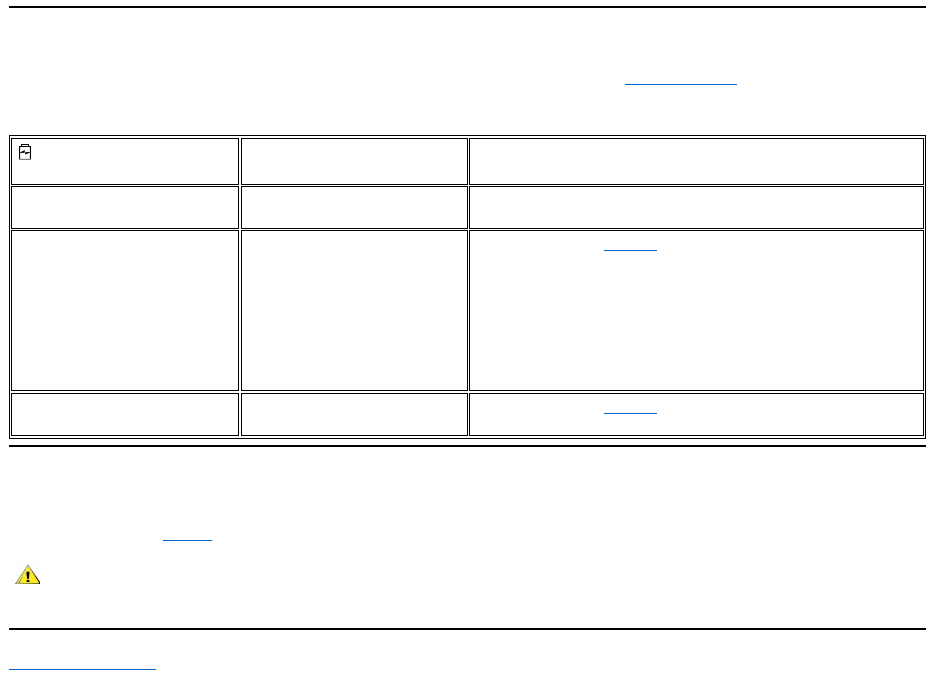
Light After Installing a
Battery
Problem
Action
Alternately green and amber
Battery too hot to charge
Turn off the computer, and let the battery and computer cool to room
temperature.
Amber for 4 seconds after:
lconnecting or disconnecting
AC adapter
or
lpressing the power button
Defective battery
Replace the battery. Call Dell or go to the Dell website at
http://www.dell.com.
Rapidly amber
Defective battery
Replace the battery. Call Dell or go to the Dell website at
http://www.dell.com
CAUTION: If your battery is damaged, or if it no longer holds a charge, dispose of it promptly and properly. Do not dispose of it
along with household waste. Call your local waste disposal agency or environmental agency for advice on disposing of the
battery.
Back to Contents Page
Connecting Devices: DellPrecision™MobileWorkstationM40User'sGuide
Back View
NOTICE: When disconnecting external devices from the back of the computer, wait 5 seconds after turning off the computer before
you disconnect a device to avoid possible damage to the system board.
NOTICE: To avoid overheating the computer, do not place any objects close to an air intake or fan, and do not allow any objects to
cover up an intake or fan.
Left Side View
Back View
Serial Devices
Left Side View
AC Adapter
Right Side View
Infrared Sensor
External Monitor
Modem
Parallel Devices
Network
Docking Devices
TV and Digital Audio
USB Devices
Audio Devices
Mouse, External Keyboard, and External Numeric Keypad
IEEE 1394 Devices
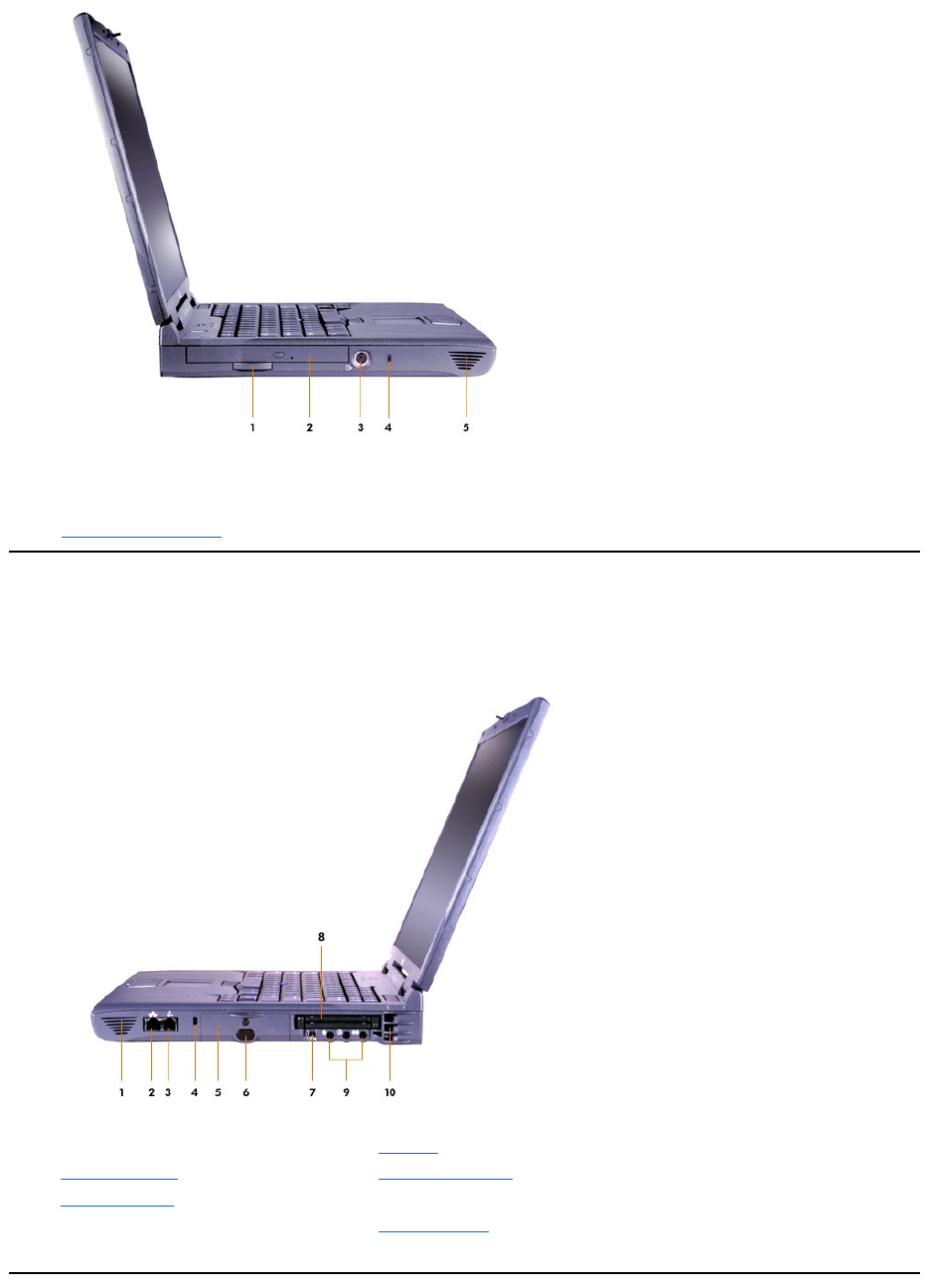
1
Fans
5
Docking connector
2
AC power connector
6
Parallel connector
3
PS/2 connector (for mouse, keyboard, or keypad)
7
Serial connector
4
Video connector
8
USB connectors
Right Side View
NOTICE: To avoid overheating the computer, do not place any objects close to an air intake or fan, and do not allow any objects to
cover up an intake or fan.
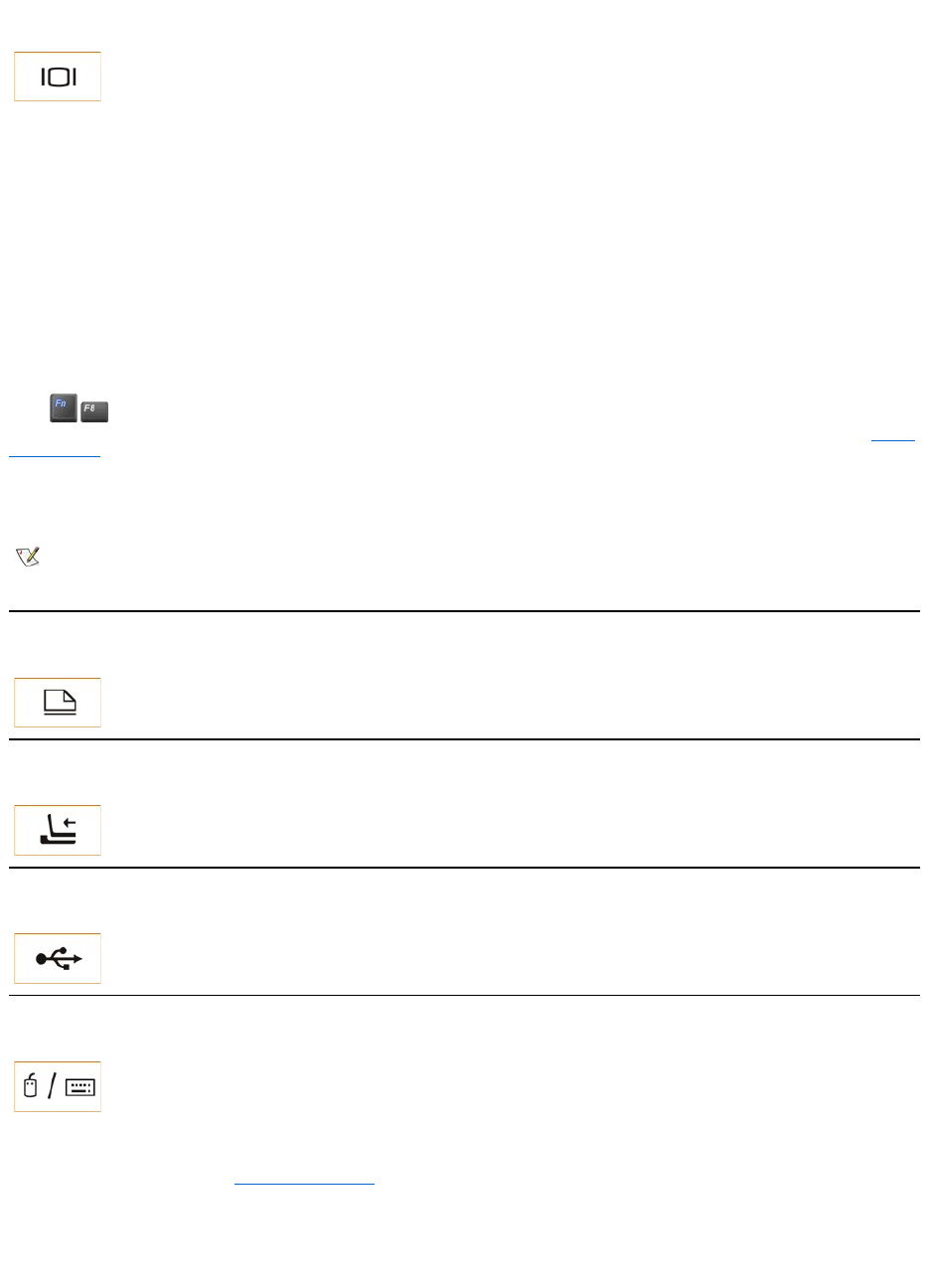
1
Fixed optical drive pull-tab
4
Security cable slot
2
Fixed optical drive
5
Speaker
3
S-video TV-out connector
1
Speaker
6
IR sensor
2
Network connector
7
IEEE 1394 connector
3
Modem connector
8
PCCardslots
4
Security cable slot
9
Audio connectors
5
Hard drive bay
10
Air intake
External Monitor
NOTICE: Do not place the monitor directly on top of your mobile workstation computer, even if it is closed. Doing so can crack the
computer case and the display.
1. Make sure that the external monitor is turned off. Set the monitor on a monitor stand, desktop, or other level surface near your computer.
2. Connect the external monitor's video cable to the computer.
Be sure to tighten all the screws on the video cable connector(s) to eliminate radio frequency interference (RFI).
3. Connect your external monitor to a grounded electrical outlet. If the monitor's power cable is not permanently attached to the monitor, connect
it to the monitor.
Using an External Monitor
When an external monitor is connected to the computer, the video image appears on the external monitor's screen when you boot your computer.
Press to switch the video image to the next display in the following sequence: the computer's display, the display and external monitor
simultaneously, or an external monitor. Press <Scroll Lock><F8> on an external keyboard if the External Hot Key option is enabled in the system
setup program.
If the external monitor is turned off when you boot your computer, the computer still sends the video image to the external monitor, but you will not
see an image on either the computer's display or the external monitor. To see an image, turn on the external monitor or switch the video image to
the computer’s display.
Parallel Devices
Docking Devices
USB Devices
Mouse, External Keyboard, and External Numeric Keypad
Mouse
If the Pointing Device option in the system setup program is set to Touch Pad-PS/2 Mouse (the default), you can use both the DualPoint device
and an external PS/2-compatible mouse if one is attached. If you disconnect the mouse, to use the advanced features of the DualPoint device, you
mustshutdownthecomputerorenterstandbymodeandthenresume.Ifyoudonotdothis,theDualPointdeviceresumesoperationinstandard
PS/2 mode, which means that many of the configuration features are disabled.
If you are using a PS/2-compatible mouse that is not made by Microsoft and the mouse does not work properly, reboot the computer. If the mouse
still does not work, install the drivers from the floppy disk or CD that came with the mouse and reboot the computer.
You can attach an external monitor to the video connector.
NOTE: If you are using your external monitor at a resolution greater than the display supports, the simultaneous display feature is
disabled.
You can attach a parallel device (usually a printer) to the parallel connector.
You can attach a Dell docking device to the docking connector. For information on docking your computer, see the documentation
that came with your docking device.
You can attach USB-compatibledevicessuchasamouse,keyboard,printer,orscannertoaUSBconnector.
You can attach a mouse, 101- or 102-key keyboard, or numeric keypad to the Personal System/2 (PS/2) connector.
External Keyboard
You can use the computer's keyboard and an external keyboard at the same time. When you attach a keyboard to the computer, the embedded
numeric keypad is automatically disabled.
Onanexternalkeyboard,the<ScrollLock>keyactsthesamewayasthe<Fn>keyonthecomputer’s keyboard (if the External Hot Key option is
enabled in the system setup program).
External Numeric Keypad
When you attach an external numeric keypad to the computer, the numeric keypad on the computer keyboard is automatically disabled. The lights
on the integrated keyboard track the operation of an external numeric keypad.
Serial Devices
AC Adapter
You can attach the AC adapter to the AC adapter connector. The AC adapter converts AC power to the DC power required by the computer.
You can connect the AC adapter with your computer turned either on or off.
The AC adapter works with electrical outlets worldwide. However, power connectors vary among countries. Before using AC power in a foreign
country, you may need to obtain a new power cable designed for use in that country.
Infrared Sensor
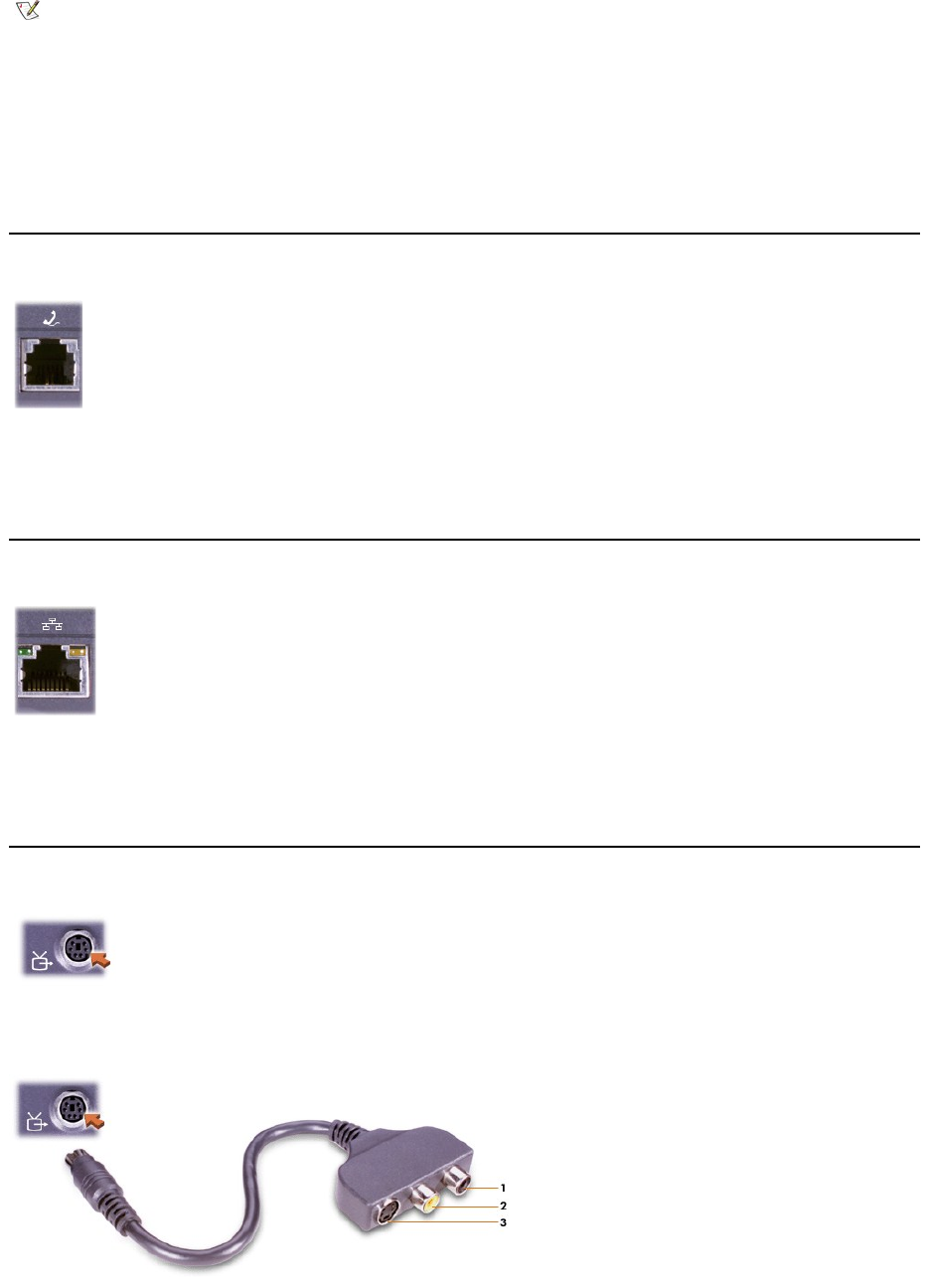
The computer’s infrared (IR) sensor lets you transfer files from your computer to another IR-compatible device without using cable connections.
When you receive your computer, the IR sensor is disabled. You can enable the IR sensor using the system setup program.
To transfer files after you enable the IR sensor:
1. Point the computer’s IR sensor directly at the compatible device’s IR sensor. IR devices transmit data in a 30-degree cone of IR light up to a
distanceof1meter(m)(3.3feet[ft]).
2. Start the data communications software on both devices, and then begin to transfer files. Read the documentation that came with your
compatible device to make sure that you operate the device correctly.
You can attach a serial device, such as a serial mouse, to the serial connector.
Using the IR Sensor
lTheIRsensoriscompatiblewithInfraredDataAssociation(IrDA)1.1(FastIR)and1.0(SlowIR)standards.
lThe default address of the IR port is COM3. If the address causes resource conflicts with other devices, remap the address of the IR sensor.
lWhen the computer is connected to a Dell docking device, the IR sensor on the computer is automatically disabled.
lFormoreinformationaboutusinganIRdevice,seethedocumentationthatcamewithyouroperatingsystem.
Modem
NOTICE: Do not confuse the modem and network connectors on your computer. Do not plug a telephone line into the network
connector.
For information on using the modem, see the online modem documentation supplied with your computer. To access the documentation, double-
click the Dell Documents icon on the Windows desktop, click System Information, and then click Communications.
Network
NOTICE: Do not confuse the modem and network connectors on your computer. Do not plug a telephone line into the network
connector.
For information on using the network adapter, see the online network adapter documentation supplied with your computer. To access the
documentation, double-click the Dell Documents icon on the Windows desktop, click System Information, and then click Communications.
TV and Digital Audio
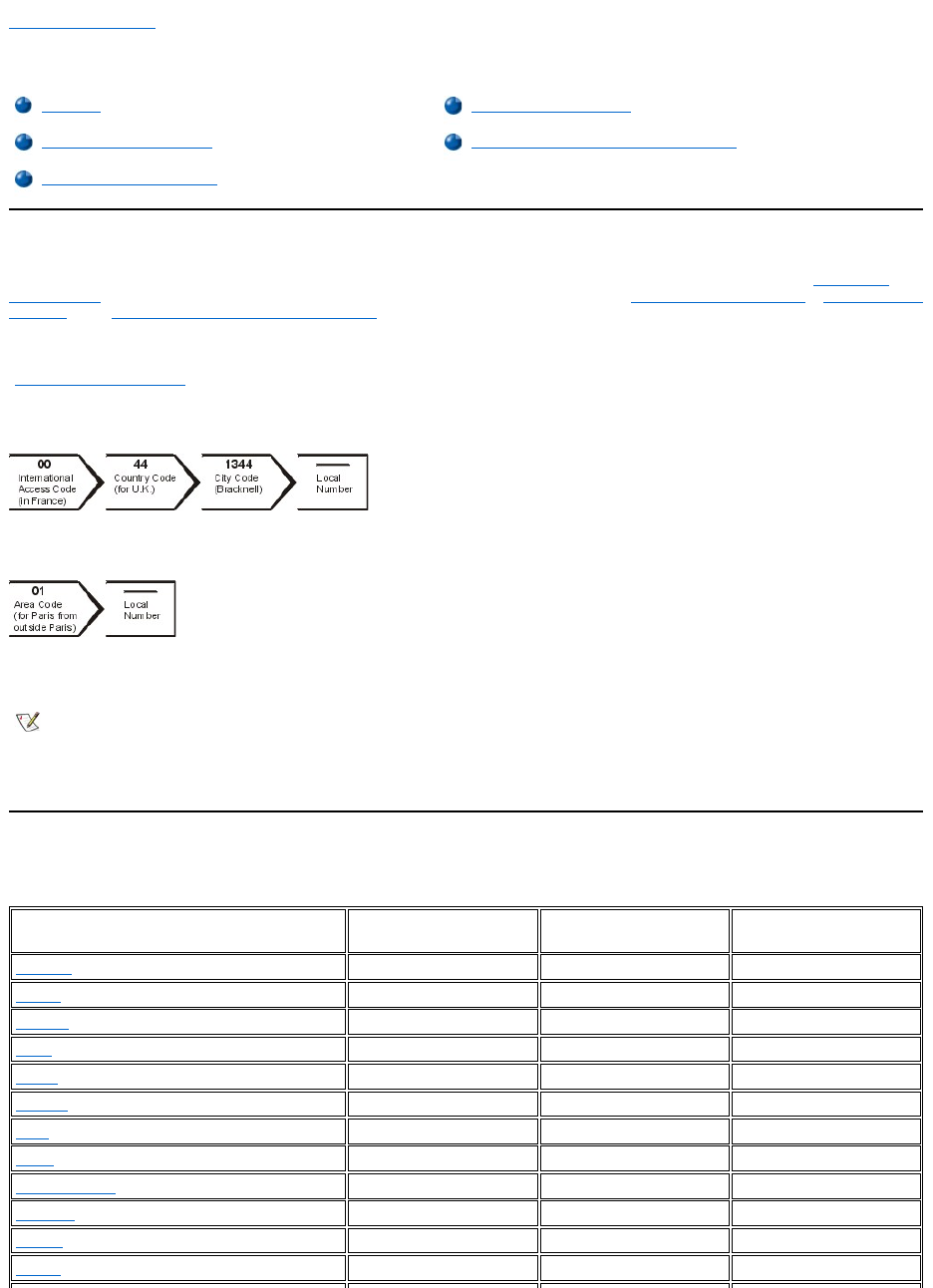
If your TV has a composite cable, use the TV/digital audio adapter cable that came with your computer to connect your TV to the computer. Make
sure you attach the composite video cable to the composite connector of the TV/digital audio adapter cable. See the user manual that came with
your television for instructions on connecting a composite cable or an S-video device.
NOTE: Make sure that books, papers, or other objects do not come between the two IR devices and that the two devices are aligned and
within the 30-degree cone.
Pluginthetelephonelinetothemodemconnector.
Fortheinternalnetworkadapter,pluginthenetworklinetothenetworkconnector.
If your TV has an S-video cable, you can plug it directly into the S-video TV-out connector.

After you connect the television to the computer, you must also enable the television in your display settings.
Changing NVIDIA Video Card Display Settings
If your computer has an NVIDIA video card installed, follow these steps to enable the television in your display settings:
In Windows 2000:
1. Open the Control Panel window, double-click the Display icon, click the Settings tab, and then click the Advanced button.
2. Click the TwinView tab.
3. Click the Output Device button, and then click Select Output Device....
4. On the Output Device tab, click TV to select it.
5. Click Apply, and then click OK.
Connecting S/PDIF Devices
To connect a digital audio device with a S/PDIF connector, attach the S/PDIF cable to the digital audio connector on the TV/digital audio adapter
cable. See the user manual that came with your S/PDIF device for instructions.
If you want to use a S/PDIF device and TV simultaneously:
1. Connect the S/PDIF cable to the digital audio connector on the TV/digital audio adapter cable.
2. Connect the S-video or composite cable to the S-video or composite connector on the TV/digital audio adapter cable.
3. Connect the TV/digital audio adapter cable to the S-video TV-out connector on the computer.
Adjusting the Picture
If an error message notifies you that the current resolution and color depth are using too much memory and preventing DVD playback, adjust the
display properties:
In Windows 2000:
1. Open the Control Panel window, and then double-click the Display icon.
2. In the Display Properties window, click the Settings tab.
3. Click and drag the bar in Screen area and change the setting to 800 by 600 pixels by moving the bar to the left or right.
4. Click the pull-down menu under Colors, and then click High Color (16 bit).
5. Click OK.
Audio Devices
1
Digital audio connector
2
Composite video connector
3
S-video connector
NOTE: If you connect a television to your computer, you might need to change the display resolution to 800 x 600 pixels. See Adjusting the
Picture for instructions.

Youcanattachheadphonesorspeakerstothe connector, a microphone to the connector, and record/playback devices such as cassette
players and CD players to the connector.
You can control the sound on your computer through the volume icon on the Windows taskbar, the system setup program, and key combinations.
IEEE 1394 Devices
Back to Contents Page
You can attach devices that require high-speed transfer rates, such as video cameras, to the IEEE 1394 connector.
Back to Contents Page
ContactingDell:DellPrecision™MobileWorkstationM40User'sGuide
Overview
When you need to contact Dell, use the telephone numbers, codes, and electronic addresses provided in the following sections. "International
Dialing Codes" provides the various codes required to make long-distance and international calls. "Americas Contact Numbers," "Europe Contact
Numbers," and "Asia and Other Regions Contact Numbers" provide local telephone numbers, area codes, toll-free numbers, and e-mail
addresses, if applicable, for each department or service available in various countries around the world.
If you are making a direct-dialed call to a location outside of your local telephone service area, determine which codes to use (if any) in
"International Dialing Codes," in addition to the local numbers provided in the other sections.
For example, to place an international call from Paris, France to Bracknell, England, dial the international access code for France followed by the
country code for the U.K., the city code for Bracknell, and then the local number as shown in the following illustration:
To place a long-distance call within your own country, use area codes instead of international access codes, country codes, and city codes. For
example, to call Paris, France from Montpellier, France, dial the area code plus the local number as shown in the following illustration:
The codes required depend on where you are calling from as well as the destination of your call; in addition, each country has a different dialing
protocol. If you need assistance in determining which codes to use, contact a local or an international operator.
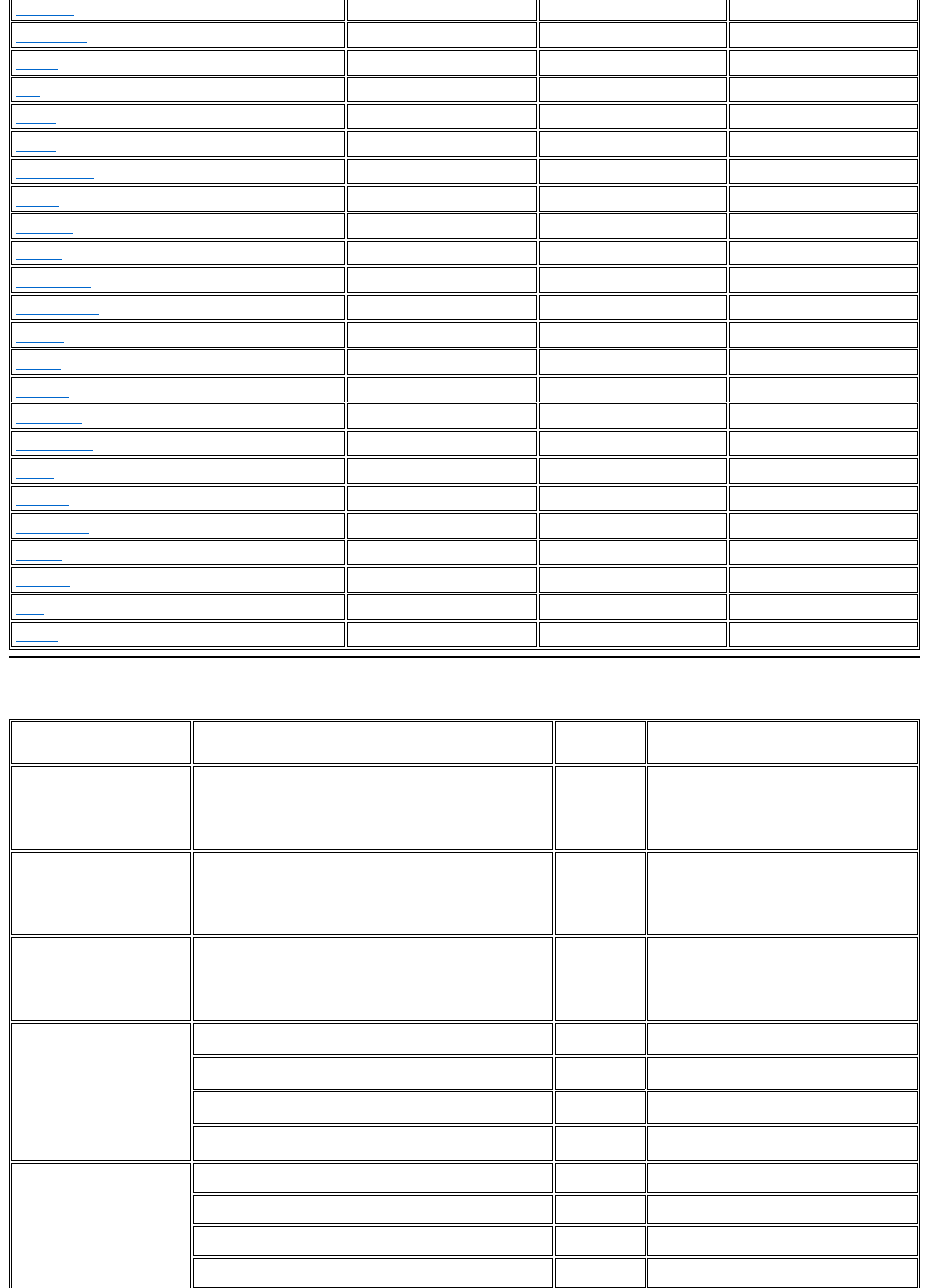
International Dialing Codes
Click a listed country to obtain the appropriate contact numbers.
Overview
Europe Contact Numbers
International Dialing Codes
Asia and Other Regions Contact Numbers
Americas Contact Numbers
NOTES: Toll-free numbers are for use only within the country for which they are listed. Area codes are most often used to call long
distance within your own country (not internationally)—in other words, when your call originates in the same country you are calling.
Have your Express Service Code ready when you call. The code helps Dell's automated-support telephone system direct your call
more efficiently.
Country (City)
International Access
Code
Country Code
City Code
Australia (Sydney)
0011
61
2
Austria (Vienna)
900
43
1
Belgium (Brussels)
00
32
2
Brazil
0021
55
51
Brunei
—
673
—
Canada (North York, Ontario)
011
—
Not required
Chile (Santiago)
—
56
2
China (Xiamen)
—
86
592
Czech Republic (Prague)
00
420
2
Denmark (Horsholm)
00
45
Not required
Finland (Helsinki)
990
358
9
France (Paris) (Montpellier)
00
33
(1) (4)
Americas Contact Numbers
Germany (Langen)
00
49
6103
Hong Kong
001
852
Not required
Ireland (Cherrywood)
16
353
1
Italy (Milan)
00
39
02
Japan (Kawasaki)
001
81
44
Korea (Seoul)
001
82
2
Luxembourg
00
352
—
Macau
—
853
Not required
Malaysia (Penang)
00
60
4
Mexico (Colonia Granada)
00
52
Not required
Netherlands (Amsterdam)
00
31
20
New Zealand
00
64
—
Norway (Lysaker)
00
47
Not required
Poland (Warsaw)
011
48
22
Portugal
00
35
—
Singapore (Singapore)
005
65
Not required
South Africa (Johannesburg)
09/091
27
11
Spain (Madrid)
00
34
91
Sweden (Upplands Vasby)
00
46
8
Switzerland (Geneva)
00
41
22
Taiwan
002
886
—
Thailand
001
66
—
U.K. (Bracknell)
010
44
1344
U.S.A. (Austin, Texas)
011
1
Not required
Country (City)
Department Name or Service
Area Code
Local Number or
Toll-Free Number
Antigua and Barbuda
General Support
1-800-805-5924
Barbados
General Support
1-800-534-3066
Bermuda
General Support
1-800-342-0671
Brazil
Customer Support, Technical Support
toll free: 0800 90 3355
Technical Support Fax
51
51 481-5470
Sales
toll free: 0800 90 3366
Web site: http://www.dell.com/br
Canada
(North York, Ontario)
Automated Order-Status System
toll free: 1-800-433-9014
AutoTech (Automated technical support)
toll free: 1-800-247-9362
Customer Care (From outside Toronto)
toll free: 1-800-387-5759
Customer Care (From within Toronto)
416
758-2400
Customer Technical Support
toll free: 1-800-847-4096
Sales (Direct Sales—from outside Toronto)
toll free: 1-800-387-5752
Sales (Direct Sales—from within Toronto)
416
758-2200
Sales (Federal government, education, and medical)
toll free: 1-800-567-7542
Sales (Major Accounts)
toll free: 1-800-387-5755
TechFax
toll free: 1-800-950-1329
Cayman Islands
General Support
1-800-805-7541
Chile
(Santiago)
NOTE: Customers in
Chile call the U.S.A. for
sales, customer, and
technical assistance
Sales, Customer Support, and Technical Support
toll free: 1230-020-4823
Columbia
General Support
980-9-15-3978
Costa Rica
General Support
800-012-0435
Dominican Republic
General Support
1-800-148-0530
El Salvador
General Support
01-889-753-0777
Guatemala
General Support
1-800-999-0136
Jamaica
General Support
1-800-682-3639
Latin America
NOTE: Customers in Latin
America call the U.S.A. for
sales, customer, and
technical assistance.
Customer Technical Support (Austin, Texas, U.S.A.)
512
728-4093
Customer Service (Austin, Texas, U.S.A.)
512
728-3619
Fax (Technical Support and Customer Service)
(Austin, Texas, U.S.A.)
512
728-3883
Sales (Austin, Texas, U.S.A.)
512
728-4397
SalesFax (Austin, Texas, U.S.A.)
512
728-4600
728-3772
Mexico
Customer Technical Support
001-877-384-8979 or 001-877-269-3383
Sales
50-81-8800 or
01-800-888-3355
Customer Service
001-877-384-8979 or 001-877-269-3383
Main
50-81-8800 or
01-800-888-3355
Netherlands Antilles
General Support
001-800-882-15194
Nicaragua
General Support
001-800-220-1006
Panama
General Support
001-800-507-0962
Peru
General Support
0800-50-669
Puerto Rico
General Support
800-805-7545
St. Lucia
General Support
1-800-882-1521
Trinidad and Tobago
General Support
1-800-805-8035
U.S.A.
(Austin, Texas)
Automated Order-Status System
toll free: 1-800-433-9014
AutoTech (for portable and desktop computers)
toll free: 1-800-247-9362
Dell Home and Small Business Group (forInspiron™andLatitude™portablecomputersandDimension™,
DellPrecision™,andOptiPlex™desktopcomputers):
Customer Technical Support (Return Material
Authorization Numbers)
toll free: 1-800-624-9896
Customer Technical Support
(Home sales purchased via http://www.dell.com)
toll free: 1-877-576-3355
Customer Service
(Credit Return Authorization Numbers)
toll free: 1-800-624-9897
National Accounts (Precision Mobile Workstation M40 computers and systems purchased by established Dell
national accounts [have your account number handy], medical institutions, or value-added resellers [VARs])
Customer Service and Technical Support (Return
Material Authorization Numbers)
toll free: 1-800-822-8965
Public Americas International (systems purchased by governmental agencies [local, state, or federal] or
educational institutions):
Customer Service and Technical Support (Return
Material Authorization Numbers)
toll free: 1-800-234-1490
Dell Sales
toll free: 1-800-289-3355
toll free: 1-800-879-3355
Spare Parts Sales
toll free: 1-800-357-3355
DellWare™
toll free: 1-800-753-7201
Europe Contact Numbers
Desktop and Portable Fee-Based Technical Support
toll free: 1-800-433-9005
Sales (Catalogs)
toll free: 1-800-426-5150
Fax
toll free: 1-800-727-8320
TechFax
toll free: 1-800-950-1329
Dell Services for the Deaf, Hard-of-Hearing, or Speech-
Impaired
toll free: 1-877-DELLTTY
(1-877-335-5889)
Switchboard
512
338-4400
DellNet™
1-877-dellnet
(1-877-335-5638)
U.S. Virgin Islands
General Support
1-877-673-3355
Venezuela
General Support
8001-3605
Country (City)
Department Name or Service
Area Code
Local Number or
Toll-Free Number
Austria
(Vienna)
NOTE: Customers in Austria call Langen,
Germany for Technical Support and Customer
Care.
Switchboard
01
491 040
Home/Small Business Sales
01
795676-02
Home/Small Business Sales Fax
01
795676-05
Home/Small Business Customer Care
01
795676-03
Preferred Accounts/Corporate Customer Care
0660-8056
Home/Small Business Technical Support
01
795676-04
Preferred Accounts/Corporate Technical Support
0660-8779
Website: http://support.euro.dell.com
E-mail: tech_support_central_europe@dell.com
Belgium (Brussels)
Technical Support
02
481 92 88
Customer Care
02
481 91 19
Home/Small Business Sales
toll free: 0800 16884
Corporate Sales
02
481 91 00
Fax
02
481 92 99
Switchboard
02
481 91 00
Website: http://support.euro.dell.com
E-mail: tech_be@dell.com
E-mail for French Speaking Customers:
http://support.euro.dell.com/be/fr/emaildell/
Czech Republic
(Prague)
Technical Support
02
22 83 27 27
Customer Care
02
22 83 27 11
Fax
02
22 83 27 14
TechFax
02
22 83 27 28
Switchboard
02
22 83 27 11
Website: http://support.euro.dell.com
E-mail: czech_dell@dell.com
Denmark
(Horsholm)
Technical Support
45170182
Relational Customer Care
45170184
NOTE: Customers in Denmark call Sweden for fax
technical support.
Home/Small Business Customer Care
32875505
Switchboard
45170100
Fax Technical Support (Upplands Vasby, Sweden)
46
859005594
Fax Switchboard
45170117
Website: http://support.euro.dell.com
E-mail: den_support@dell.com
E-mail Support for Servers:
Nordic_server_support@dell.com
Finland
(Helsinki)
Technical Support
09
253 313 60
Technical Support Fax
09
253 313 81
Relational Customer Care
09
253 313 38
Home/Small Business Customer Care
09
693 791 94
Fax
09
253 313 99
Switchboard
09
253 313 00
Website: http://support.euro.dell.com
E-mail:fin_support@dell.com
France
(Paris/Montpellier)
Home and Small Business
Technical Support
0825
387 270
CustomerCare
0825
823 833
Fax
0825
004701
Fax(Alternative)
04
99 75 40 01
Switchboard
0825
004 700
Switchboard (Alternative)
04
99 75 40 00
Sales
0825
004 700
Website: http://support.euro.dell.com
E-mail:http://support.euro.dell.com/fr/fr/emaildell/
Corporate
Technical Support
0825
004 719
CustomerCare
0825
338 339
Fax
01
55 94 71 01
Switchboard
01
55 94 71 00
Sales
01
55 94 71 00
Website: http://support.euro.dell.com
E-mail:http://support.euro.dell.com/fr/fr/emaildell/
Germany
(Langen)
Technical Support
06103
766-7200
Home/Small Business Customer Care
0180-5-224400
Global Segment Customer Care
06103
766-9570
Preferred Accounts Customer Care
06103
766-9420
Large Accounts Customer Care
06103
766-9560
Public Accounts Customer Care
06103
766-9555
Switchboard
06103
766-7000
Website: http://support.euro.dell.com
E-mail:tech_support_central_europe@dell.com
Ireland
(Cherrywood)
Technical Support
1850 543 543
HomeUserCustomerCare
01
204 4095
Small Business Customer Care
01
204 4026
Corporate Customer Care
01
279 5011
Sales
01
204 4444
SalesFax
01
204 0144
Fax
204 5960
Switchboard
01
204 4444
Website: http://support.euro.dell.com
E-mail:dell_direct_support@dell.com
Italy
(Milan)
Home and Small Business
Technical Support
02
577 826 90
Customer Care
02
696 821 14
Fax
02
696 821 13
Switchboard
02
696 821 11
Website: http://support.euro.dell.com
E-mail:http://support.euro.dell.com/it/it/emaildell/
Corporate
Technical Support
02
577 826 90
Customer Care
02
577 825 55
Fax
02
575 035 30
Switchboard
02
577 821
Website: http://support.euro.dell.com
E-mail:http://support.euro.dell.com/it/it/emaildell/
Luxembourg
NOTE: Customers in Luxembourg call Belgium for
sales, customer, and technical assistance.
Technical Support (Brussels, Belgium)
02
481 92 88
Home/Small Business Sales (Brussels, Belgium)
toll free: 080016884
Corporate Sales (Brussels, Belgium)
02
481 91 00
Customer Care (Brussels, Belgium)
02
481 91 19
Switchboard (Brussels, Belgium)
02
481 91 00
Fax (Brussels, Belgium)
02
481 92 99
Website: http://support.euro.dell.com
E-mail: tech_be@dell.com
Netherlands
(Amsterdam)
Technical Support
020
581 8838
Customer Care
020
581 8740
Home/Small Business Sales
toll free: 0800-0663
Home/Small Business Sales Fax
020
682 7171
Corporate Sales
020
581 8818
Corporate Sales Fax
020
686 8003
Fax
020
686 8003
Switchboard
020
581 8818
Website: http://support.euro.dell.com
E-mail: tech_nl@dell.com
Norway
(Lysaker)
NOTE: Customers in Norway call Sweden for fax
technical support.
Technical Support
671 16882
Relational Customer Care
671 17514
Home/Small Business Customer Care
231 62298
Switchboard
671 16800
Fax Technical Support (Upplands Vasby, Sweden)
00
46 08 590 05 594
Fax Switchboard
671 16865
Website: http://support.euro.dell.com
E-mail: nor_support@dell.com
E-mail Support for Servers:
Nordic_server_support@dell.com
Poland
(Warsaw)
Customer Service Phone
22
57 95 700
Customer Care
22
57 95 999
Sales
22
57 95 999
Switchboard
22
57 95 999
Customer Service Fax
22
57 95 806
Fax
22
57 95 998
Website: http://support.euro.dell.com
E-mail:pl_support@dell.com
Portugal
Technical Support
35
800 834 077
Customer Care
800 300 415
or 800 834 075
Sales
800 300 410
or 800 300 411
or 800 300 412
or 351 214 220 710
Switchboard
34
917 229 200
Fax
35
121 424 01 12
E-mail:http://support.euro.dell.com/es/es/emaildell/
Spain
(Madrid)
Home and Small Business
Technical Support
902 100 130
Customer Care
902 118 540
Sales
902 118 541
Fax
902 118 539
Website: http://support.euro.dell.com
E-mail:http://support.euro.dell.com/es/es/emaildell/
Corporate
Technical Support
902 100 130
Customer Care
902 118 546
Switchboard
91
722 92 00
Fax
91
722 95 83
Website: http://support.euro.dell.com
E-mail:http://support.euro.dell.com/es/es/emaildell/
Sweden
(Upplands Vasby)
Technical Support
08
590 05 199
Relational Customer Care
08
590 05 642
Home/Small Business Customer Care
08
587 70 527
Fax Technical Support
08
590 05 594
Sales
08
590 05 185
Website: http://support.euro.dell.com
E-mail:swe_support@dell.com
E-mail Support for Latitude and Inspiron: Swe-
nbk_kats@dell.com
E-mail Support for OptiPlex: Swe_kats@dell.com
E-mail Support for Servers:
Nordic_server_support@dell.com
Switzerland
(Geneva)
Technical Support (Home and Small Business)
0844 811 411
Technical Support (Corporate)
0844 822 844
Customer Care (Home and Small Business)
0848 802 202
Customer Service (Corporate)
0848 821 721
Asia and Other Regions Contact Numbers
Switchboard
022
799 01 01
Fax
022
799 01 90
Website: http://support.euro.dell.com
E-mail for French Speaking HSB and Corporate
Customers:
http://support.euro.dell.com/ch/fr/emaildell/
U.K.
(Bracknell)
Technical Support (Corporate/Preferred
Accounts/PAD [1000+ employees])
0870
9080500
Technical Support (Direct/PAD and General)
0870
9080800
Global Accounts Customer Care
01344
723186
Corporate Customer Care
01344
72 3185
Preferred Accounts (500-5000 employees)
Customer Care
01344
723 196
Central Government Customer Care
01344
723 193
Local Government Customer Care
01344
723 194
Home/Small Business Sales
0870
9074000
Home/Small Business Customer Care
0870
906 0010
Corporate/Public Sector Sales
01344
860 456
Website: http://support.euro.dell.com
E-mail: dell_direct_support@dell.com
Country (City)
Department Name or Service
Area Code
Local Number or
Toll-Free Number
Australia
(Sydney)
Home and Small Business
1-300-65-55-33
Government and Business
toll free: 1-800-633-559
Preferred Accounts Division (PAD)
toll free: 1-800-060-889
Customer Care
toll free: 1-800-819-339
Corporate Sales
toll free: 1-800-808-385
Transaction Sales
toll free: 1-800-808-312
Fax
toll free: 1-800-818-341
Brunei
NOTE: Customers in
Brunei call Malaysia for
customer assistance.
Customer Technical Support
(Penang, Malaysia)
633 4966
Customer Service
(Penang, Malaysia)
633 4949
Transaction Sales
(Penang, Malaysia)
633 4955
China
(Xiamen)
Home and Small Business Technical Support
toll free: 800 858 2437
Corporate Accounts Technical Support
toll free: 800 858 2333
Customer Experience
toll free: 800 858 2060
Home and Small Business
toll free: 800 858 2222
Preferred Accounts Division
toll free: 800 858 2062
Large Corporate Accounts North
toll free: 800 858 2999
Large Corporate Accounts East
toll free: 800 858 2020
Large Corporate Accounts South
toll free: 800 858 2355
Large Corporate Accounts GCP
toll free: 800 858 2055
Large Corporate Accounts HK
toll free: 800 964108
Large Corporate Accounts GCP HK
toll free: 800 907308
Hong Kong
Technical Support
toll free: 800 96 4107
NOTE: Customers in
Hong Kong call Malaysia
for customer assistance.
Customer Service (Penang, Malaysia)
633 4949
Transaction Sales
toll free: 800 96 4109
Corporate Sales
toll free: 800 96 4108
Japan
(Kawasaki)
Technical Support (Server)
toll free: 0120-1984-35
Technical Support Outside of Japan (Server)
81-44
556-4152
Technical Support (Dimension and Inspiron)
Technical Support Outside of Japan (Dimension
and Inspiron)
81-44
toll free: 0120-1982-26
520-1435
Technical Support (Dell Precision, OptiPlex, and
Latitude)
Technical Support Outside of Japan (Dell Precision,
OptiPlex, and Latitude)
81-44
toll free: 0120-1984-33
556-3894
Customer Care
044
556-4240
24-Hour Automated Order Status Service
044
556-3801
IndividualUser
044
556-1657
Business Sales Division (up to 400 employees)
044
556-3494
PublicSales(GovernmentAgencies,Education
Institutions, and Medical Institutions)
044
556-3440
Preferred Accounts Division Sales (over 400
employees)
044
556-3433
Global Segment Japan
044
556-3469
Large Corporate Accounts Sales (over 3500
employees)
044
556-3440
Faxbox Service
044
556-3490
Switchboard
044
556-4300
Web site: http://support.jp.dell.com
Korea
(Seoul)
Technical Support
toll free: 080-200-3800
Sales
toll free: 080-200-3600
Customer Service (Penang, Malaysia)
toll free: 604-633-4949
Customer Service (Seoul, Korea)
080-200-3800
Fax
2194-6202
Switchboard
2194-6000
Macau
NOTE: Customers in
Macau call Malaysia for
customer assistance.
Technical Support
toll free: 0800 582
Customer Service (Penang, Malaysia)
633 4949
Transaction Sales
toll free: 0800 581
Malaysia
(Penang)
Technical Support
toll free: 1 800 888 298
Customer Service
04
633 4949
Transaction Sales
toll free: 1 800 888 202
Corporate Sales
toll free: 1 800 888 213
New Zealand
Home and Small Business
0800 446 255
Government and Business
0800 444 617
Sales
0800 441 567
Fax
0800 441 566
Singapore
(Singapore)
NOTE: Customers in
Singapore call Malaysia
for customer assistance.
Technical Support
toll free: 800 6011 051
Customer Service (Penang, Malaysia)
04
633 4949
Transaction Sales
toll free: 800 6011 054
Corporate Sales
toll free: 800 6011 053
South Africa
Technical Support
011
709 7710
Back to Contents Page
(Johannesburg)
Customer Care
011
709 7707
Sales
011
709 7700
Fax
011
706 0495
Switchboard
011
709 7700
Website: http://support.euro.dell.com
E-mail: dell_za_support@dell.com
Southeast Asian/Pacific
Countries
(excluding Australia,
Brunei, China, Hong Kong,
Japan, Korea, Macau,
Malaysia, New Zealand,
Singapore, Taiwan, and
Thailand—refer to
individual listings for these
countries)
Customer Technical Support, Customer Service,
and Sales (Penang, Malaysia)
60 4 633-4810
Taiwan
Technical Support
toll free: 0080 60 1225
Technical Support (Servers)
toll free: 0080 60 1256
Customer Service (Penang, Malaysia)
633 4949
Transaction Sales
toll free:
0080 651 228/0800 33 556
Corporate Sales
toll free:
0080 651 227/0800 33 555
Thailand
NOTE: Customers in
Thailand call Malaysia for
customer assistance.
Technical Support
toll free: 088 006 007
Customer Service (Penang, Malaysia)
633 4949
Sales
toll free: 088 006 009

Back to Contents Page
Dell Diagnostics: DellPrecision™MobileWorkstationM40User'sGuide
When to Use the Dell Diagnostics
Whenever a major component or device in your computer does not function properly, you may have a component failure. If you are experiencing a
problem with your computer, Dell recommends that you perform the checks in "Finding Solutions" and run the Dell Diagnostics before you call Dell
fortechnicalassistance.
As long as the microprocessor and the input and output components of your computer (the display, keyboard, and floppy drive) are working, you
can use the Dell Diagnostics. Running the Dell Diagnostics may help you to resolve the problem yourself quickly without having to contact Dell for
assistance.
If you are experienced with computers and know what component(s) you need to test, simply select the appropriate diagnostic test group(s) or
subtest(s). If you are unsure about how to begin diagnosing a problem, see "Starting the Dell Diagnostics" and "Advanced Testing."
Features of the Dell Diagnostics
The Dell Diagnostics helps you check your computer's hardware without any additional equipment and without destroying any data. By using the
diagnostics, you can have confidence in your computer's operation. And if you find a problem you cannot solve by yourself, the diagnostic tests can
provide you with important information you will need when talking to Dell's service and support personnel. If you are experiencing a problem with
your computer, Dell recommends that you perform the checks in "Finding Solutions" and run the Dell Diagnostics before you call Dell for technical
assistance.
NOTICE:UsetheDellDiagnosticstotestonlyyourDell™computer.Usingthisprogramwithothercomputersmaycauseincorrect
computer responses or result in error messages.
The diagnostic test groups or subtests also have these helpful features:
lOptions that let you perform quick checks or extensive tests on one or all devices
lAn option that allows you to choose the number of times a test group or subtest is repeated
lThe ability to display test results or to save them in a file
lOptions to temporarily suspend testing if an error is detected, or to terminate testing when an adjustable error limit is reached
lExtensive online Help screens that describe the tests and how to run them
lStatus messages that inform you whether test groups or subtests were completed successfully
lError messages that appear if any problems are detected
Starting the Dell Diagnostics
1. Turn off the computer.
2. Undock the computer if you have it docked.
3. Turn on the computer.
4. Press <F2> at the start of the boot routine to access the system setup menu.
5. Select the following boot sequence.
When to Use the Dell Diagnostics
Advanced Testing
Features of the Dell Diagnostics
Confirming the System Configuration Information
Starting the Dell Diagnostics
NOTE: Dell recommends that print these procedures before you begin.
NOTE: Write down your current boot sequence in the event you want to restore it after running the Dell Diagnostics.
NOTE: You can only boot from a CD, CD-RW, or DVD drive installed as a fixed optical drive. You cannot boot from one of these
modules installed in the modular bay.
lBootFirstDevice:DisketteDrive
lBootSecondDevice:CD/DVD/CD-RW Drive
lBootThirdDevice:InternalHDD
6. Insert the Dell ResourceCD into the CD drive.
7. Turn the computer off.
8. Turn the computer on. The computer starts and automatically begins to run the Dell Diagnostics.
9. When you have completed running diagnostics, remove the ResourceCD from the CD drive.
To change the boot sequence, repeat steps 1 through 6, customizing the boot sequence to fit your needs. Then restart your computer.
When you start the diagnostics, the Dell logo screen appears, followed by a message telling you that the diagnostics is loading. After the
diagnostics loads, the Diagnostics Menuappears.
To select an option from this menu, highlight the option and press <Enter>, or press the key that corresponds to the highlighted letter in the option
you choose.
Diagnostics Menu
For a quick check of your computer, select Quick Tests from the Test All Devices or Test One Device option. Quick Tests runs only the
subtests that do not require user interaction and that do not take a long time to run. Dell recommends that you choose Quick Tests first to
increasetheoddsoftracingthesourceoftheproblemquickly.
For a thorough check of your computer, select Extended Tests from the Test All Devicesoption.
To check a particular area of your computer, select Extended Tests from the Test One Device option, or select the Advanced Testing option to
customize your test(s).
Advanced Testing
When you select Advanced Testing from the Diagnostics Menu, the following screen appears listing the diagnostic test device groups and
devices of the selected device group, and it allows you to select categories from a menu. Press the arrow keys or <Page Up> and <Page Down>
keys to navigate the screen.
Advanced Testing Main Screen
Option
Function
Test All Devices
Performs extensive diagnostic tests or quick diagnostic tests on all devices.
Test One
Device
Performs extensive diagnostic tests or quick diagnostic tests on one device after you select it
from a list of device groups. After you select Test One Device, press <F1> for more
information about a test.
Advanced
Testing
Allows you to modify the parameters of a test and select a group of tests to perform. You can
access online Help for more information about Advanced Testing.
Information and
Results
Provides test results, test errors, version numbers of the subtests used by the Dell
Diagnostics, and additional help on the Dell Diagnostics.
Program
Options
Allows you to change the settings of the Dell Diagnostics.
Exit to MS-DOS
Exits to the MS-DOS®prompt.
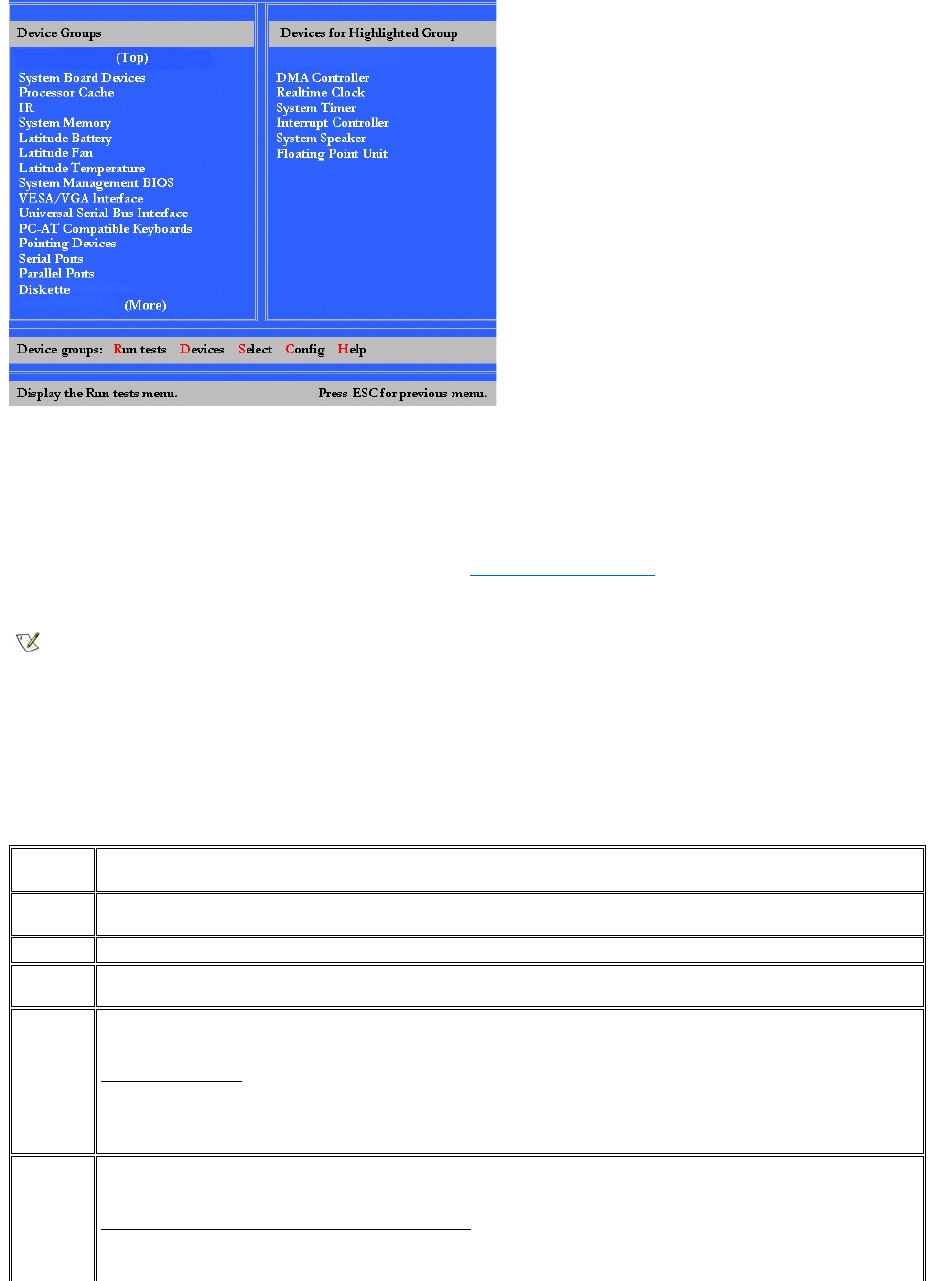
Information in the Advanced Testing screen is presented as follows:
lOn the left side of the screen, the Device Groups area lists the diagnostic test groups in the order they will run if you select All from the Run
tests menu category. Press the up- or down-arrow key to highlight a test device group.
lOn the right side of the screen, the Devices for Highlighted Group area lists the computer's currently detected hardware and some of the
relevant settings.
lTwo lines at the bottom of the screen make up the menu area (see "Advanced Testing Help Menu"). The first line lists the categories you can
select; press the left- or right-arrow key to highlight a menu category. The second line gives information about the category currently
highlighted.
Advanced Testing Help Menu
For more information on using the Advanced Testing option:
1. Press<h>.
2. Highlight the Help category and press <Enter>, or press the key that corresponds to the highlighted letter in the category you choose.
Advanced Testing Help Categories
NOTE: The options displayed on your screen should reflect the hardware configuration of your computer.
Help
Category
Description
Menu
Provides descriptions of the main menu screen area, the Device Groups, and the different diagnostic menus and commands and
instructions on how to use them.
Keys
Explains the functions of the all of the keystrokes that can be used in Dell Diagnostics.
Device
Group
Describes the test group that is presently highlighted in the Device Groups list on the main menu screen. It also provides reasoning
for using some tests.
Device
Describes the function and purpose of the highlighted device in the Device Groups.Forexample,thefollowinginformation
appears when you select the DeviceHelpcategoryforDiskette in the Device Groups list:
Diskette Drive A
The floppy drive device reads and writes data to and from floppy disks. Floppy disks are flexible recording media, sometimes
contained in hard shells. Floppy disk recording capacities are small and access times are slow relative to hard disk drives, but
they provide a convenient means of storing and transferring data.
Test
Provides a thorough explanation of the test procedure of each highlighted test group subtest. An example of the Diskette subtest
floppy drive Seek Test is as follows:
Diskette Drive A - floppy drive Seek Test
This test verifies the drive's ability to position its read/write heads. The test
operates in two passes: first, seeking from the beginning to ending cylinders
Confirming the System Configuration Information
When you boot your computer from your ResourceCD, the diagnostics checks your system configuration information and displays it in the Device
Groups area on the main screen.
The following sources supply this configuration information for the diagnostics:
lThe system configuration information settings (stored in nonvolatile random-access memory [NVRAM]) that you selected while using the
system setup program
lIdentification tests of the microprocessor, the video controller, the keyboard controller, and other key components
lBasic input/output system (BIOS) configuration information temporarily saved in RAM
Do not be concerned if the Device Groups area does not list the names of all the components or devices you know are part of your computer. For
example, you may not see a printer listed, although you know one is attached to your computer. Instead, the printer is listed as a parallel port. The
computer recognizes the parallel port as LPT1, which is an address that tells the computer where to send outgoing information and where to look
for incoming information. Because your printer is a parallel communications device, the computer recognizes the printer by its LPT1 address and
identifies it as a parallel port. You can test your printer connection in the Parallel Portstests.
Back to Contents Page
inclusively, and second, seeking alternately from the beginning to ending cylinders with
convergence towards the middle.
Versions
Lists the version numbers of the subtests that are used by the Dell Diagnostics.

Back to Contents Page
Reinstalling Software: DellPrecision™MobileWorkstationM40User'sGuide
Installing Drivers and Utilities
The Dell Drivers and Utilities CD for your computer contains most of the drivers that you will need for your computer, including drivers for operating
systemsthatmaynotbeonyourcomputer.Verifythatthedriveryouareloadingisforyouroperatingsystem.
To reinstall drivers for optional devices such as wireless communications, DVD drives, and Zip drives, see the software CD and documentation
that came with those devices.
You can also access and download new drivers, system tools, and documentation from Dell's technical support page at support.dell.com. For
more information on using the operating system installed on your computer by Dell, see the operating system user's guide that came with your
computer.
NOTICE: Before you reinstall drivers, make sure that your computer is undocked.
To install a driver or utility from your Drivers and Utilities CD:
1. Saveyourworkinallopenprograms.
2. Insert your Drivers and Utilities CD into the CD or DVD drive.
In most cases, the CD should start running automatically. If it does not, start Microsoft®Windows®Explorer, click your CD drive directory to
display the CD contents, and then click the autorcd application file. If a welcome screen appears, click Next. The first time that you run the
CD, it might prompt you to install some setup files. Click OK and follow the instructions on the screen to continue.
3. From the Language pull-down menu on the toolbar, select your preferred language for the driver or utility (if available).
A welcome screen appears.
4. Click Next.
5. Under Search Criteria, select the appropriate categories from the System Model, Operating System, Device Type, and Topic pull-down
menus.
A link or links appear(s) for the specific drivers or utilities used by your computer.
6. Click the link of a specific driver or utility to display information about the driver or utility you want to install.
7. At the driver information screen, do one of the following:
lClick the Install button (if present) to start the automatic installation. At the welcome screen, follow the screen prompts to
complete the installation.
lIf no Install button is present, automatic installation is not an option. For installation instructions, either go to the appropriate
procedure below or click Extract, follow the extracting instructions, and read the readme file.
Reinstalling the Asset Tag Utility
1. Insert the Drivers and Utilities CD.
In most cases, the CD should start running automatically. If it does not, start Windows Explorer, click your CD drive directory to display the
CD contents, and then double-click the autorcd application file. If a welcome screen appears, click Next. The first time that you run the CD,
it might prompt you to install some setup files. Click OK and follow the instructions on the screen to continue.
2. Under Search Criteria, select the appropriate categories from the System Model, Operating System, and Device Type pull-down
Installing Drivers and Utilities
Reinstalling the Asset Tag Utility
Manually Reinstalling the Internal Modem and Network Adapter Drivers (Optional)
NOTES: Dell recommends that you print these procedures before you begin.
You may need administrator privileges to perform some of the procedures in this section. Dell recommends that you check with your
network administrator before performing the procedures.
NOTE: If instructed to navigate to the driver files, click the CD directory on the driver information screen to display the files associated
with that driver.

menus, and select Utilities from the Topic pull-downmenu.
A link or links appear(s) for the specific utilities used by your computer.
3. Click Asset Tag.
4. Click Extract.
5. Unzip the Asset Tag utility on the Drivers and Utilities CD to the c:\dell\utildirectoryonyourharddrive.
To use the utility, see "Assigning an Asset Tag."
Manually Reinstalling the Internal Modem and Network Adapter Drivers (Optional)
If you ordered the internal modem, you need to reinstall the modem driver.
If you ordered the combination modem/network adapter,youneedtoreinstallboththemodemandnetworkadapterdrivers.
To install a modem or network adapter driver, use the appropriate procedure in this section, depending on your operating system.
Installing the Modem or Network Adapter Driver for Windows 2000
1. Save your work in all open programs, and insert your Drivers and Utilities CD.
2. Click the Start button, point to Settings, and double-click Control Panel.
3. In the Control Panel window, double-click the System icon.
4. In the System Properties window, click the Hardware tab.
5. Click Device Manager.... Under Other Devices:
If you are installing a modem driver, click PCI Simple Communications Controller.
If you are installing a network adapter, click Ethernet Controller.
6. From the pull-down menu, click Driver, and select Properties.
7. Click Reinstall Driver, and click Next.
8. Verify that Search for a suitable driver for my device (Recommended) is selected, and click Next.
9. Verify that CD-ROM drives is selected, and click Next.
10. When the search is complete and the appropriate driver found, click Next.
11. Click Finish to complete installation of the modem driver.
Back to Contents Page
Back to Contents Page
UnderstandingErrorMessages:DellPrecision™MobileWorkstationM40User'sGuide
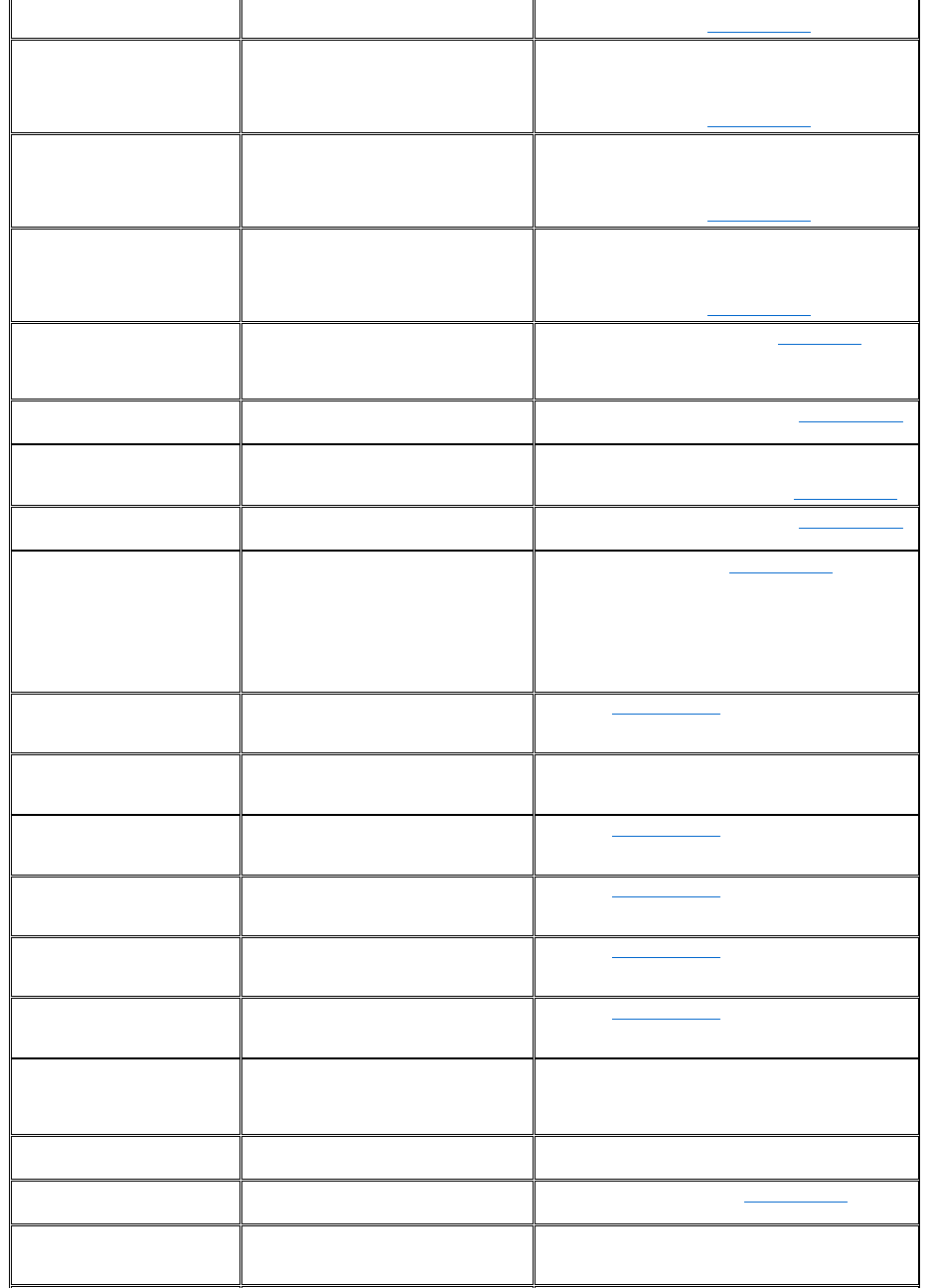
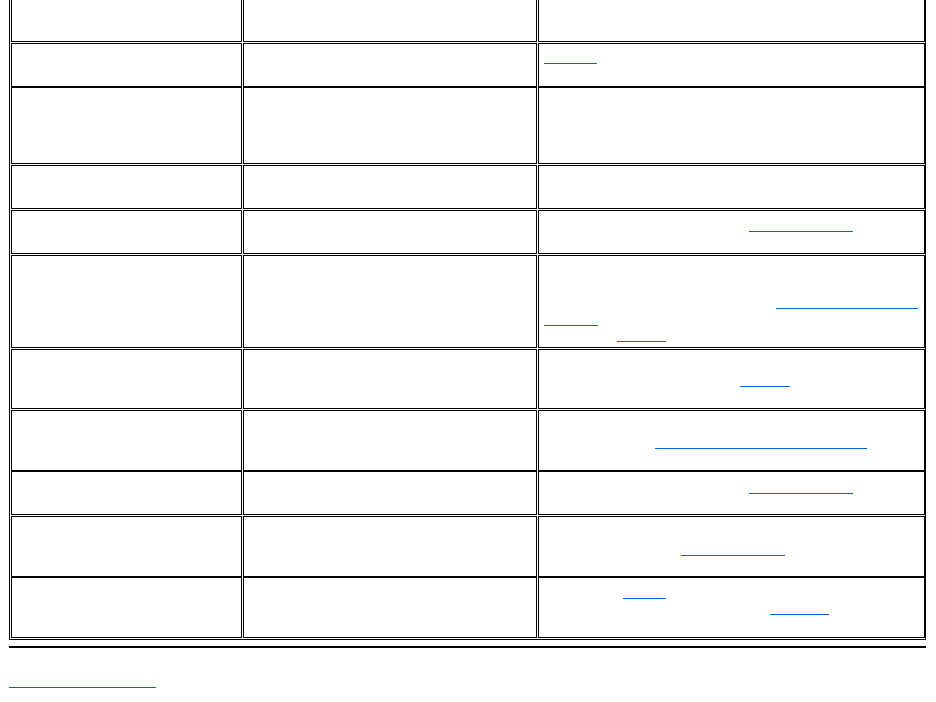
Your application programs, operating system, and the computer itself can identify problems and alert you to them. When this occurs, a message
may appear on the computer's display or on an external monitor (if one is attached), or a flash code may be emitted.
If an error message appears on the display or external monitor, make a note of the message. For an explanation of the message and suggestions
for correcting any errors, see "System Error Messages." The messages are listed alphabetically.
System Error Messages
NOTE: If the message is not listed in "System Error Messages," see the documentation for the application program that was running at
the time the message appeared and/or the operating system documentation for an explanation of the message and a recommended
action.
Message
Cause
Action
Auxiliary device failure
The touch pad, track stick, or external PS/2
mouse may be faulty.
If you are using an external mouse only, check the
connection for a loose or improperly connected cable. If the
problem persists, enable the Pointing Device option. If the
problem persists, call Dell for technical assistance.
Bad command or file name
The command you entered does not exist or
is not in the pathname you specified.
Make sure that you have typed the command correctly,
placed spaces in the proper location, and used the correct
pathname.
Cache disabled due to
failure
The primary cache internal to the
microprocessor has failed.
Call Dell for technical assistance.
CD drive controller
failure 1
The CD drive does not respond to
commands from the computer.
Turn off the computer, remove the drive, and boot the
computer from a bootable floppy disk. Then turn off the
computer again, reinstall the drive, and reboot the
computer. If the problem persists, try another drive. Then run
the CD drive tests in the Dell Diagnostics.
Data error
The floppy or hard drive cannot read the
data.
Run the appropriate utility to check the file structure of the
floppy drive or hard drive. See the documentation that came
with your operating system.
Decreasing available
memory
One or more memory modules may be faulty
or improperly seated.
Reseat the memory modules and, if necessary, replace
them.
Disk C: failed
initialization
The hard drive failed initialization.
Run the hard drive tests in the Dell Diagnostics.
floppy drive 0 seek
failure
A cable may be loose, or the system
configuration information may not match the
hardware configuration.
Run the floppy drive tests in the Dell Diagnostics. If error is
not corrected, have the cables checked by an authorized
service technician.
Diskette read failure
A cable may be loose, or the floppy disk may
be faulty.
If the access light lights up, try a different floppy disk.
Diskette subsystem reset
failed
The floppy drive controller may be faulty.
Run the floppy drive tests in the Dell Diagnostics.
Diskette write-protected
Because the floppy disk is write-protected,
the operation cannot be completed.
Slide the write-protect notch up.
Drive not ready
No floppy disk is in the floppy drive, or no
hard drive is in the drive bay. The operation
requires a floppy disk in the drive or a hard
drive in the bay before it can continue.
Put a floppy disk in the drive, or push the floppy disk all the
way into the drive until the eject button pops out. Or, install a
hard drive in the drive bay.
Error reading PCMCIA
card
The computer cannot identify the PC Card.
Reseat the card or try another PC Card that you know
works.
Extended memory size has
changed
The amount of memory recorded in NVRAM
does not match the memory installed in the
computer.
Reboot the computer. If the error appears on the display
again, call Dell for technical assistance.
Gate A20 failure
An installed memory module may be loose.
Reseat the memory modules and, if necessary, replace
them.
General failure
The operating system is unable to carry out
the command.
This message is usually followed by specific information—
for example, Printer out of paper.Respondby
taking the appropriate action.
Hard-disk drive
configuration error
The computer cannot identify the drive type.
Turn off the computer, remove the drive, and boot the
computer from a bootable floppy disk. Then turn off the
computer, reinstall the drive, and reboot the computer. Run
the hard drive tests in the Dell Diagnostics.
Hard-disk drive
controller failure 0
The hard drive does not respond to
commands from the computer.
Turn off the computer, remove the drive, and boot the
computer from a bootable floppy disk. Then turn off the
computer again, reinstall the drive, and reboot the
computer. If the problem persists, try another drive. Then run
the hard drive tests in the Dell Diagnostics.
Hard-disk drive failure
The hard drive does not respond to
commands from the computer.
Turn off the computer, remove the drive, and boot the
computer from a bootable floppy disk. Then turn off the
computer again, reinstall the drive, and reboot the
computer. If the problem persists, try another drive. Then run
the hard drive tests in the Dell Diagnostics
hard drive read failure
The hard drive may be faulty.
Turn off the computer, remove the drive, and boot the
computer from a bootable floppy disk. Then turn off the
computer again, reinstall the drive, and reboot the
computer. If the problem persists, try another drive. Then run
the hard drive tests in the Dell Diagnostics
Invalid configuration
information-please run
System Setup Program
The system configuration information does
not match the hardware configuration. This
message is most likely to occur after a
memory module is installed.
Correct the appropriate options in the system setup
program.
Keyboard clock line
failure
A cable or connector may be loose, or the
keyboard may be faulty.
Run the Keyboard Controller test in the Dell Diagnostics.
Keyboard controller
failure
A cable or connector may be loose, or the
keyboard may be faulty.
Reboot the computer, and avoid touching the keyboard or
the mouse during the boot routine. If the problem persists,
run the Keyboard Controller test in the Dell Diagnostics.
Keyboard data line
failure
A cable or connector may be loose, or the
keyboard may be faulty.
Run the Keyboard Controller test in the Dell Diagnostics.
Keyboard stuck key
failure
If an external keyboard or keypad is being
used, a cable or connector may be loose or
the keyboard may be faulty. If the integrated
keyboard is being used, the keyboard may
be faulty.
A key on the integrated keyboard or external
keyboard may have been pressed while the
computer was booting.
Run the Stuck Key test in the Dell Diagnostics.
Memory address line
failure at address, read
value expecting value
An installed memory module may be faulty or
improperly seated.
Reseat the memory modules and, if necessary, replace
them.
Memory allocation error
The software you are attempting to run is
conflicting with the operating system, another
application program, or a utility.
Turn off the computer, wait 30 seconds, and then restart it.
Try to run the program again. If the problem persists,
contact the software company.
Memory data line failure
at address, read value
expecting value
An installed memory module may be faulty or
improperly seated.
Reseat the memory modules and, if necessary, replace
them.
Memory double word logic
failure at address, read
value expecting value
An installed memory module may be faulty or
improperly seated.
Reseat the memory modules and, if necessary, replace
them.
Memory odd/even logic
failure at address, read
value expecting value
An installed memory module may be faulty or
improperly seated.
Reseat the memory modules and, if necessary, replace
them.
Memory write/read
failure at address, read
value expecting value
An installed memory module may be faulty or
improperly seated.
Reseat the memory modules and, if necessary, replace
them.
No boot device available
The computer cannot find the floppy or hard
drive.
If the floppy drive is your boot device, make sure that there
is a bootable floppy disk in the drive. If the hard drive is your
boot device, make sure that the drive is installed, properly
seated, and partitioned as a boot device.
No boot sector on hard
drive
The operating system may be corrupted.
Reinstall your operating system. See the documentation
that came with your operating system.
No timer tick interrupt
A chip on the system board may be
malfunctioning.
Run the System Set tests in the Dell Diagnostics.
Non-system disk or disk
error
The floppy disk in drive A or your hard-disk
drive does not have a bootable operating
system installed on it.
If you are trying to boot from the floppy disk, replace it with
one that has a bootable operating system.
Back to Contents Page
Not a boot diskette
There is no operating system on the floppy
disk.
Boot the computer with a floppy disk that contains an
operating system.
Optional ROM bad
checksum
The optional ROM apparently failed.
Call Dell for technical assistance.
Sector not found
The operating system cannot locate a sector
on the floppy or hard drive. You probably
have a bad sector or corrupted FAT on the
floppy or hard drive.
Run the appropriate utility to check the file structure on the
floppy or hard drive. If a large number of sectors are
defective, back up the data (if possible), and then reformat
the floppy or hard drive.
Seek error
The operating system cannot find a specific
track on the floppy or hard drive.
If the error is on the floppy drive, try another floppy disk in
the drive.
Shutdown failure
A chip on the system board may be
malfunctioning.
Run the System Set tests in the Dell Diagnostics.
Time-of-day clock lost
power
Data stored in NVRAM has become
corrupted.
Connect your computer to an electrical outlet to charge the
battery. If the problem persists, try to restore the data. To
restore the data, press <Fn><F1> to enter the system setup
program. Then immediately exit it. If the message
reappears, call Dell for technical assistance.
Time-of-day clock
stopped
The reserve battery that supports the data
stored in NVRAM may be read.
Connect your computer to an electrical outlet to charge the
battery. If the problem persists, call Dell for technical
assistance.
Time-of-day not set-
please run the System
Setup program
The time or date stored in the system setup
program does not watch the system clock.
Correct the settings for the Date and Time options. (For
instructions, see "Using the System Setup Program.")
Timer chip counter 2
failed
A chip on the system board may be
malfunctioning.
Run the System Set tests in the Dell Diagnostics.
Unexpected interrupt in
protected mode
The keyboard controller may be
malfunctioning, or an installed memory
module may be loose.
Run the System Memory tests and the Keyboard
Controller test in the Dell Diagnostics.
Warning: Battery is
critically low.
The battery is running out of charge.
Replace the battery, or connect the computer to an
electrical outlet. Otherwise, activate hibernate mode or turn
off the computer.

Back to Contents Page
FeaturesandOptions:DellPrecision™MobileWorkstationM40User'sGuide
l15.0-inch ultra extended graphics array (UXGA), TFT 1600 x 1200 active-matrix color display.
l256-bitinternaldatapathhardwareacceleratedvideosupport,with32megabytes(MB)ofvideomemory(standard)and64-bit
memorybus.
lESS Maestro 3i audio controller with software wavetable support and emulated 3D sound.
lAccelerated graphics port (AGP) architecture that increases the computer's video performance.
lIntegrated all-in-one multimedia capability:
¡Fixed optical drive that supports a DVD/CD-RWcombinationdrive.
¡Modular bay that supports modules such as a second battery, DVD/CD-RW combination drive, CD-RWdrive,andfloppydrives.
l10/100 LAN + 56K V.90 Mini PCI data/fax modem, PC99-compliant, with ACPI power management support (including remote wake-up for
Microsoft®Windows®2000).
For additional information on the Mini PCI modem, see "Connecting Devices" and the 10/100 LAN + V.90 Modem Mini PCI modem User's
Guide.
lDellAccessDirect™keylocatedaboveyourkeyboardthatallowsyoutoquicklyaccessafrequentlyusedprogram,suchasInternetExplorer.
l512-MB synchronous dynamic random-access memory (SDRAM).
lSupport for the CardBus standard for 32-bit data transfer on PC Cards.
lThree audio jacks for connecting external speakers, headphones, a microphone, or a recording device.
lIntegrated microphone and two stereo speakers.
lHardware and software support for Dell docking devices.
lDellDualPointintegratedpointingdevice,whichincludesbothatouchpadandatrackstick.
lAn 8-cell lithium ion battery (standard) in the battery bay. For lithium ion batteries, the Dell ExpressCharge™ technology charges a single
batteryinapproximately1hourwhenthecomputerisofforinsuspendmode.
lEnergyefficiency.AnENERGYSTAR®partner, Dell has determined that this product meets the ENERGY STAR guidelines for energy
efficiency.
lTwo Universal Serial Bus (USB) connectors that support stand-alone and hub devices, and an IEEE 1394 serial connector for attaching high-
speed devices.
lHyperCool™automaticthermalmanagementsystemthatusesvariable-speed fans, microprocessor speed changes, and Intel®Remote
Heat Exchanger technology to keep the computer running at the optimum temperature.
The following software is included with your Dell computer:
lMicrosoft®Windows®2000 operating system.
lSystem setup program that lets you view and change the system configuration. For more information, see "Using the System Setup
Program."
lDell Diagnostics for evaluating the computer's components and devices.
Available Options
For information on the available options for your computer, visit the Dell website at http://www.dell.com.
Back to Contents Page
NOTE: If Dell did not install an operating system on your hard drive, the drivers, system utilities, and diagnostics are available
separately from Dell. To order them, see "Help Overview" for the appropriate telephone number in your location.
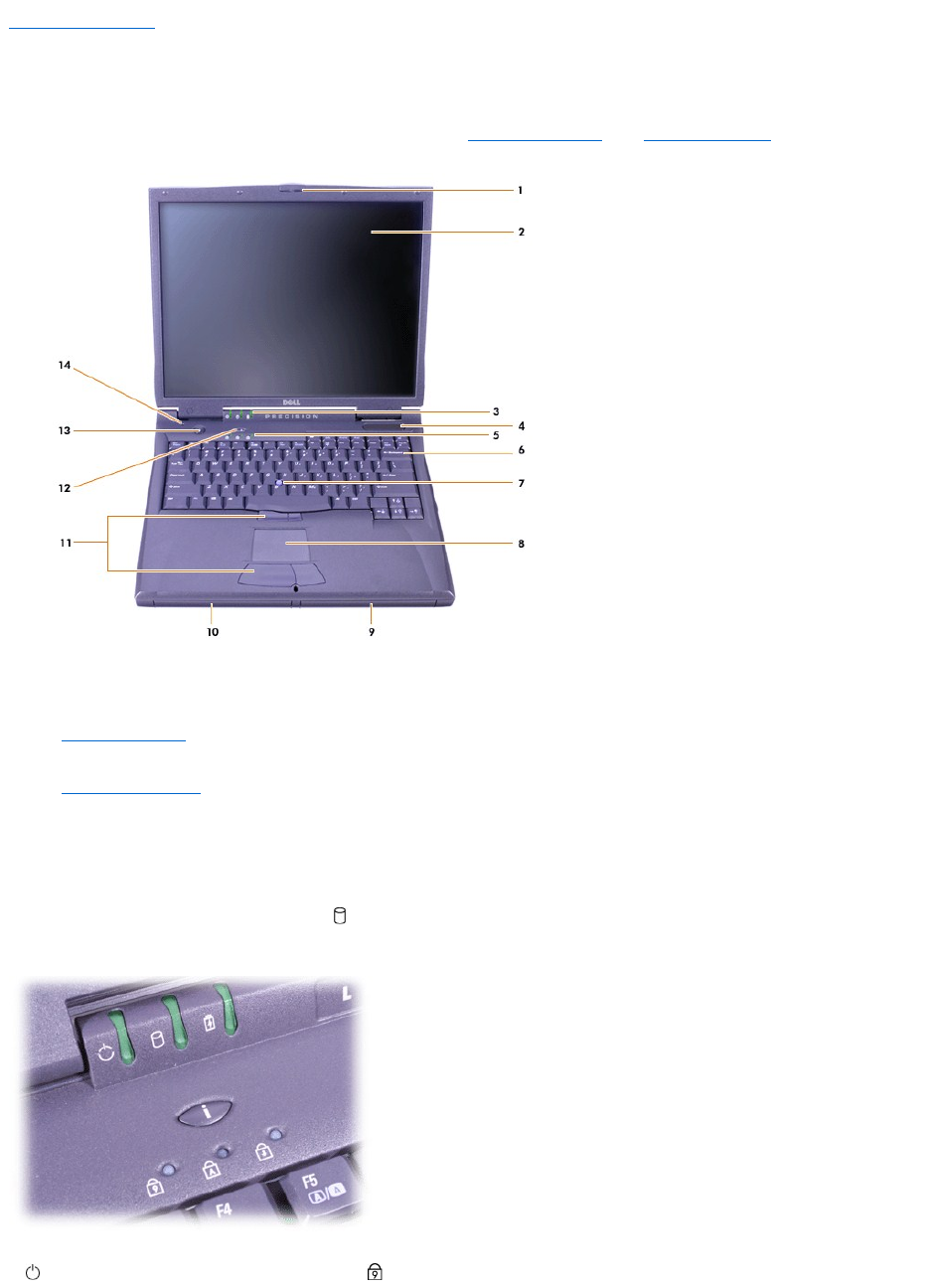
Back to Contents Page
Front View:DellPrecision™MobileWorkstationM40User'sGuide
NOTICE: To avoid overheating the computer, do not place any objects close to an air intake or fan.
For information on the computer's connectors and on using devices, see "Using Your Computer" and "Connecting Devices."
Status Lights
NOTICE: Never turn off the computer while the light is on. Doing so could cause data loss. Instead, close all programs before you
turn off the computer.
1
Display latch
8
Touchpad
2
Display
9
Battery
3
System status lights
10
Modular bay
4
Air intake
11
Track stick and touch pad buttons
5
Keyboard status lights
12
DellAccessDirect™key
6
Keyboard
13
Power button
7
Track stick
14
Internal microphone
Power
Num Lock

Back to Contents Page
HelpOverview:DellPrecision™MobileWorkstationM40User'sGuide
Technical Assistance
If you need assistance with a technical problem, perform the following steps:
1. Run the Dell Diagnostics.
2. Make a copy of the Diagnostics Checklist and fill it out.
3. Use Dell's extensive suite of online services available at Dell's World Wide Web site (http://www.dell.com) for help with installation and
troubleshooting procedures.
4. If the preceding steps have not resolved the problem, call Dell for technical assistance.
When prompted by Dell's automated telephone system, enter your Express Service Code to route the call directly to the proper support
personnel. If you do not have an Express Service Code, open the Dell Accessories folder, double-click the Express Service Code
icon, and follow the directions.
For instructions on using the technical support service, see "Technical Support Service" and "Before You Call."
Help Tools
Dell provides a number of tools to assist you. These tools are described in the following sections.
World Wide Web
The Internet is your most powerful tool for obtaining information about your computer and other Dell products. Through the Internet, you can access
most of the services described in this section, including AutoTech, TechFax, order status, technical support, and product information.
You can access Dell’s support Web site at http://support.dell.com. To select your country, click the map that appears. The Welcome to
support.dell.com page opens. Enter your system information to access help tools and information.
You can contact Dell electronically by using the following addresses:
lWorld Wide Web
http://www.dell.com/
http://www.dell.com/ap/ (for Asian/Pacific countries only)
http://www.euro.dell.com (for Europe only)
http://www.dell.com/la/ (for Latin American countries)
lAnonymous file transfer protocol (FTP)
ftp.dell.com/
Log in as user: anonymous, and use your e-mail address as your password.
lElectronic Support Service
mobile_support@us.dell.com
Technical Assistance
Product Information
Help Tools
Returning Items for Warranty Repair or Credit
Problems With Your Order
Before You Call
NOTE: Dell's Express Service Code system may not be available in all countries.
NOTE: Some of the following tools are not always available in all locations outside the continental U.S. Please call your local Dell
representative for information on availability.

support@us.dell.com
apsupport@dell.com (for Asian/Pacific countries only)
support.euro.dell.com (for Europe only)
lElectronic Quote Service
sales@dell.com
apmarketing@dell.com (for Asian/Pacific countries only)
lElectronic Information Service
info@dell.com
AutoTech Service
Dell's automated technical support service—AutoTech—provides recorded answers to the questions most frequently asked by Dell customers
about their portable and desktop computer systems.
When you call AutoTech, you use your touch-tonetelephonetoselectthesubjectsthatcorrespondtoyourquestions.
The AutoTech service is available 24 hours a day, seven days a week. You can also access this service through the technical support service. For
the telephone number to call, see the contact numbers for your region.
TechFax Service
Dell takes full advantage of fax technology to serve you better. Twenty-four hours a day, seven days a week, you can call the Dell TechFax line toll-
free for all kinds of technical information.
Using a touch-tone phone, you can select from a full directory of topics. The technical information you request is sent within minutes to the fax
number you designate. For the TechFax telephone number to call, see the contact numbers for your region.
Automated Order-Status System
You can call this automated service to check on the status of any Dell products that you have ordered. A recording prompts you for the information
needed to locate and report on your order. For the telephone number to call, see the contact numbers for your region.
Technical Support Service
Dell's industry-leading hardware technical support service is available 24 hours a day, seven days a week, to answer your questions about Dell
hardware.
Our technical support staff pride themselves on their track record: more than 90 percent of all problems and questions are taken care of in just one
toll-free call, usually in less than 10 minutes. When you call, our experts can see records kept on your Dell system to better understand your
particular question. Our technical support staff uses computer-based diagnostics to provide fast, accurate answers to questions.
To contact Dell's technical support service, see "Before You Call" and then call the number for your country as listed in "Contacting Dell."
Problems With Your Order
If you have a problem with your order, such as missing parts, wrong parts, or incorrect billing, contact Dell for customer assistance. Have your
invoice or packing slip handy when you call. For the telephone number to call, see the contact numbers for your region.
Product Information
If you need information about additional products available from Dell, or if you would like to place an order, visit Dell's World Wide Web site at
http://www.dell.com. For the telephone number to call to speak to a sales specialist, see "Contacting Dell."
Returning Items for Warranty Repair or Credit
Prepare all items being returned, whether for repair or credit, as follows:
1. Call Dell to obtain an authorization number, and write it clearly and prominently on the outside of the box.
For the telephone number to call, see the contact numbers for your region.
2. Include a copy of the invoice and a letter describing the reason for the return.
3. Include a copy of the Diagnostics Checklist indicating the tests you have run and any error messages reported by the Dell Diagnostics.
4. Include any accessories that belong with the item(s) being returned (power cables, software diskettes, guides, and so on) if the return is for
credit.
5. Pack the equipment to be returned in the original (or equivalent) packing materials.
You are responsible for paying shipping expenses. You are also responsible for insuring any product returned, and you assume the risk of loss
during shipment to Dell. Collect On Delivery (C.O.D.) packages are not accepted.
Returns that are missing any of the preceding requirements will be refused at our receiving dock and returned to you.
Before You Call
Remember to fill out the Diagnostics Checklist. If possible, turn on your system before you call Dell for technical assistance and call from a
telephone at or near the computer. You may be asked to type some commands at the keyboard, relay detailed information during operations, or try
other troubleshooting steps possible only at the computer system itself. Make sure the system documentation is available.
Diagnostics Checklist
Back to Contents Page
NOTE: Have your Express Service Code ready when you call. The code helps Dell's automated-support telephone system direct your
call more efficiently.
CAUTION: If you need to remove the computer covers, be sure to first disconnect the computer system's power and modem
cables from all electrical outlets.
Date:
Name:
Address:
Phone number:
Service tag (bar code on the back of the computer):
Express Service Code:
Return Material Authorization Number (if provided by Dell support technician):
Operating system and version:
Peripherals:
Expansion cards:
Areyouconnectedtoanetwork?YesNo
Network, version, and network card:
Programs and versions:
See your operating system documentation to determine the contents of the system’s start-up files. If the computer is connected to a printer, print
each file. Otherwise, record the contents of each file before calling Dell.
Error message, beep code, or diagnostic code:
Description of problem and troubleshooting procedures you performed:
Back to Contents Page
WhatYouNeedtoKnow:DellPrecision™MobileWorkstationM40User'sGuide
Finding Information
In addition to this User's Guide, the following documentation is included with your computer.
lAn operating system Setup Guide,whichdescribeshowtosetuptheoperatingsysteminstalledonyourDell™computer.
lOnlinedocumentationforyourcomputer'sdevices(suchasamodem)andforoptionsyoupurchaseseparatelyfromyourcomputer.
¡In Windows 2000, double-click the Dell User's Guideicononthedesktop,clickSystem Information, and then click System
Documentation.
lReadme files, which may be installed on your hard drive, provide last-minute updates about technical changes to your computer or advanced
technical reference material intended for experienced users or technicians.
For detailed information on the computer's parts and assemblies and how to remove and replace them, see the computer's Service Manualonthe
Dell support website at http://support.dell.com.
Safety and EMC Symbols
The following information defines the meaning of additional symbols used only in the Safety and Electromagnetic Compatibility (EMC)
Instructions.
Safety Instructions
General
Finding Information
When Using Your Computer
Safety and EMC Symbols
Ergonomic Computing Habits
Safety Instructions
When Removing or Installing Memory Modules
EMC Instructions
Protecting Against Electrostatic Discharge
NOTE: Documentation updates are sometimes included with your computer to describe changes to your computer or software. Always
read these updates beforeconsultinganyotherdocumentationbecausetheupdatescontainthelatestinformation.
Risk of explosion
Aircraft
Risk of fire
Use of this feature may be prohibited on aircraft
Risk of electric shock
lDo not attempt to service the computer yourself unless you are a trained service technician. Always follow installation
instructions closely.
lIfyouuseanextensionpowercablewithyourACadapter,ensurethatthetotalampereratingoftheproductspluggedinto
the extension power cable does not exceed the ampere rating of the extension cable.
lDo not push objects into air vents or openings of your computer. Doing so can cause fire or electric shock by shorting out
interior components.
lPlace the AC adapter in a ventilated area, such as a desk top or on the floor, when you use it to run the computer or to charge
the battery. Do not cover the AC adapter with papers or other items that will reduce cooling; also, do not use the AC adapter
inside a carrying case.
lDo not allow your mobile workstation computer to operate with the base resting directly on exposed skin for extended
periods of time. The surface temperature of the base will rise during normal operation (particularly when AC power is

Power (Safety Instructions, continued)
Battery(SafetyInstructions,continued)
present). Allowing sustained contact with the skin can cause discomfort or, eventually, a burn.
lDo not use your computer in a wet environment, for example, near a bath tub, sink, or swimming pool or in a wet basement.
lIf your computer includes an integrated or optional (PC Card) modem, disconnect the modem cable if an electrical storm is
approaching to avoid the remote risk of electric shock from lightning via the telephone line.
lTo help avoid the potential hazard of electric shock, do not connect or disconnect any cables or perform maintenance or
reconfiguration of this product during an electrical storm. Do not use your computer during an electrical storm unless all
cables have been disconnected and the computer is operating on battery power.
lIf your computer includes a modem, the cable used with the modem should be manufactured with a minimum wire size of 26
American wire gauge (AWG) and an FCC-compliant RJ-11 modular plug.
lPC Cards may become very warm during normal operation. Use care when removing PC Cards after their continuous
operation.
lBefore you clean your computer, remove power. Clean your computer with a soft cloth dampened with water. Do not use
liquid or aerosol cleaners, which may contain flammable substances.
lUse only the Dell-provided AC adapter approved for use with this computer. Use of another AC adapter may cause a fire or
explosion.
lBefore you connect the computer to an electrical outlet, check the AC adapter voltage rating to ensure that the required
voltage and frequency match the available power source.
lTo remove power from the computer, turn it off, remove the battery pack, and disconnect the AC adapter from the electrical
outlet.
lTo help prevent electric shock, plug the AC adapter and peripheral power cables into properly grounded power sources.
These power cables may be equipped with three-prong plugs to provide an earth grounding connection. Do not use adapter
plugs or remove the grounding prong from the power cable plug. If you use a power extension cable, use the appropriate
type, two-prong or three-prong, to mate with the AC adapter power cable.
lBe sure that nothing rests on your AC adapter's power cable and that the cable is not located where it can be tripped over or
stepped on.
lIf you are using a multiple-outlet power strip, use caution when plugging the AC adapter's power cable into the power strip.
Some power strips may allow you to insert the plug incorrectly. Incorrect insertion of the power plug could result in permanent
damage to your computer, as well as risk of electric shock and/or fire. Ensure that the ground prong of the power plug is
inserted into the mating ground contact of the power strip.
lUse only Dell battery modules that are approved for use with this computer. Use of other types may increase the risk of fire or
explosion.
lDo not carry a battery pack in your pocket, purse, or other container where metal objects (such as car keys or paper clips)
could short-circuit the battery terminals. The resulting excessive current flow can cause extremely high temperatures and may
result in damage to the battery pack or cause fire or burns.
lThe battery poses a burn hazard if you handle it improperly. Do not disassemble it. Handle a damaged or leaking battery
pack with extreme care. If the battery is damaged, electrolyte may leak from the cells and may cause personal injury.
lKeep the battery away from children.
AirTravel(SafetyInstructions,continued)
EMC Instructions
lUse shielded signal cables to ensure that you maintain the appropriate EMC classification for the intended environment. For parallel printers,
a cable is available from Dell. If you prefer, you can order a cable from Dell at its world-wide website at http://www.dell.com.
lStatic electricity can harm electronic components inside your computer. To prevent static damage, discharge static electricity from your body
before you touch any of your computer's electronic components, such as a memory module. You can do so by touching an unpainted metal
surface on the computer's input/output panel.
When Using Your Computer
Observe the following guidelines to prevent damage to your computer.
lWhen setting up the computer for work, place it on a level surface.
lWhen traveling, do not check the computer as baggage. You can put your computer through an X-ray security machine, but never put your
computer through a metal detector. If you have the computer checked by hand, be sure to have a charged battery available in case you are
asked to turn on the computer.
lWhen traveling with the hard drive removed from the computer, wrap the drive in a nonconducting material, such as cloth or paper. If you have
the drive checked by hand, be ready to install the drive in the computer. You can put the hard drive through an X-ray security machine, but
never put the drive through a metal detector.
lWhen traveling, do not place the computer in overhead storage compartments where it could slide around. Do not drop your computer or
subject it to other mechanical shocks.
lProtect your computer, battery, and hard drive from environmental hazards such as dirt, dust, food, liquids, temperature extremes, and
overexposure to sunlight.
lWhen you move your computer between environments with very different temperature and/or humidity ranges, condensation may form on or
within the computer. To avoid damaging the computer, allow sufficient time for the moisture to evaporate before using the computer.
NOTICE: When taking the computer from low-temperature conditions into a warmer environment or from high-temperature
conditions into a cooler environment, allow the computer to acclimate to room temperature before turning on power.
lWhen you disconnect a cable, pull on its connector or on its strain-relief loop, not on the cable itself. As you pull out the connector, keep it
evenly aligned to avoid bending any connector pins. Also, before you connect a cable make sure both connectors are correctly oriented and
aligned.
lHandle components with care. Hold a component such as a memory module by its edges, not its pins.
lWhen removing a memory module from the system board or disconnecting a peripheral device from the computer, wait 5 seconds after
lDo not store or leave your computer or battery pack near a heat source such as a radiator, fireplace, stove, electric heater, or
other heat-generatingapplianceorotherwiseexposeittotemperaturesinexcessof60°C(140°F).Whenheatedto
excessive temperatures, battery cells could explode or vent, posing a risk of fire.
lDo not dispose of your computer's battery in a fire or with normal household waste. Battery cells may explode. Discard a
used battery according to the manufacturer's instructions or contact your local waste disposal agency for disposal
instructions. Dispose of a spent or damaged battery promptly.
lCertain Federal Aviation Administration regulations and/or airline-specific restrictions may apply to the operation of your Dell
computer while you are onboard an aircraft. For example, such regulations/restrictions may prohibit the use of any personal
electronic device (PED) that has the capacity for intentional transmission of radio frequency or other electromagnetic signals while
on an aircraft.
¡In order to best comply with all such restrictions, if your Dell mobile workstationcomputer is equipped with Dell
TrueMobile™orsomeotherwirelesscommunicationdevice,pleasedisablethisdevicebeforeyouboardtheaircraft
and follow all instructions provided by airline personnel with regard to such device.
¡Additionally, the use of any PED, such as a mobile workstationcomputer, may be prohibited in aircraft during certain
critical phases of flight, for example, takeoff and landing. Some airlines may further define the critical flight phase as any
time the aircraft is below 3050 m (10,000 ft). Please follow the airline's specific instructions as to when the use of a PED
is allowed.
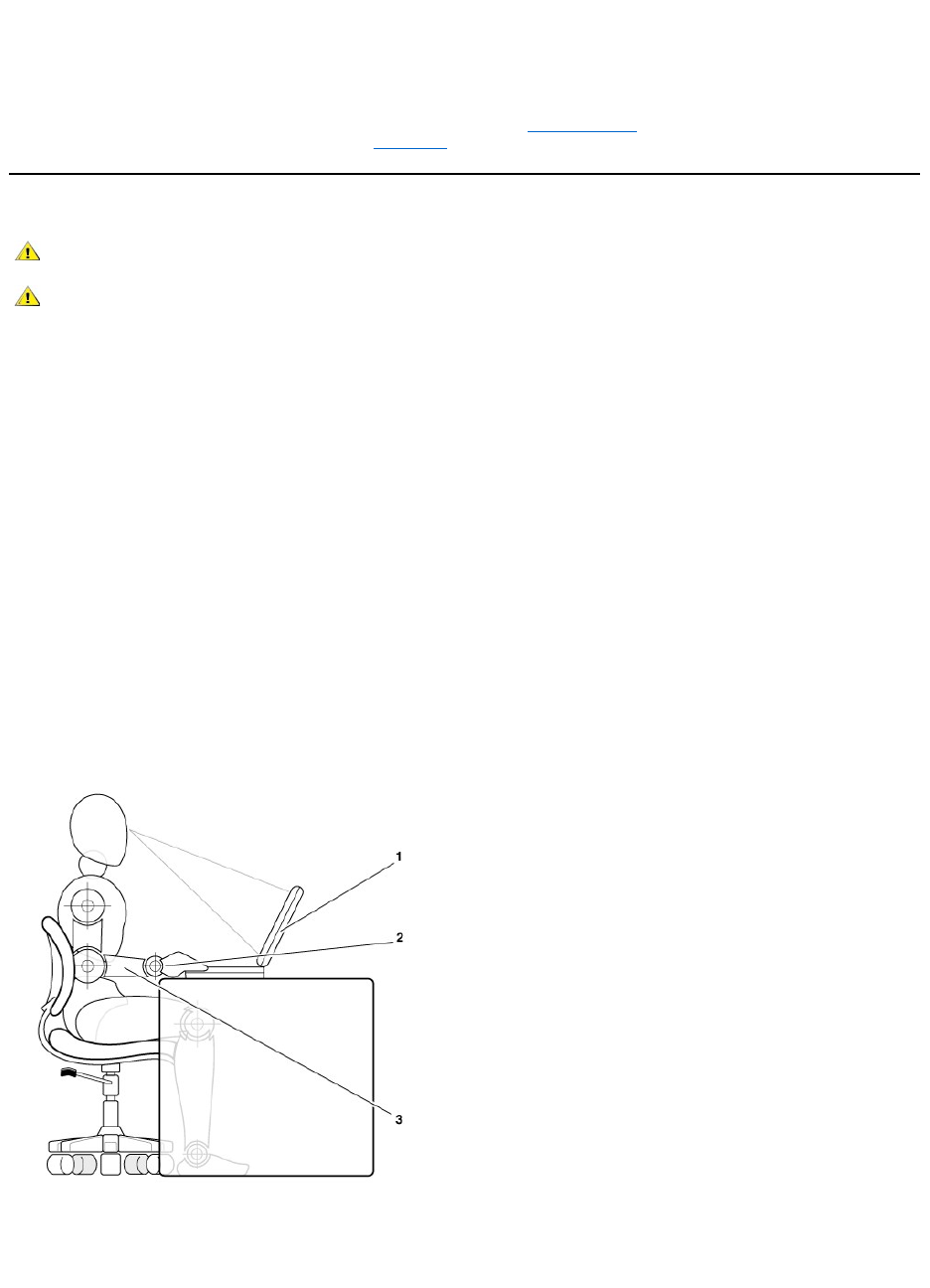
turning off the computer before removing the memory module or disconnecting the device to help avoid possible damage to the system
board.
lClean the display with a soft, clean cloth and commercial window cleaner that does not contain wax or abrasives. Apply the cleaner to the
cloth; then stroke the cloth across the display in one direction, moving from the top of the display to the bottom. If the display contains grease
or some other contaminant, use isopropyl alcohol instead of commercial window cleaner.
lIf your computer gets wet or is damaged, follow the procedures described in "Finding Solutions." If, after following these procedures, you
confirm that your computer is not operating properly, contact Dell.
Ergonomic Computing Habits
For comfort and efficiency, observe the following ergonomic guidelines when setting up and using your computer:
lPosition your computer directly in front of you as you work.
lAdjust the tilt of the computer's display, its contrast and/or brightness settings, and the lighting around you (such as overhead lights, desk
lamps, and the curtains or blinds on nearby windows) to minimize reflections and glare on the display.
lWhen using an external monitor with your computer, set the monitor at a comfortable viewing distance (usually 510 to 610 millimeters [20 to
24 inches] from your eyes). Make sure the monitor screen is at eye level or slightly lower when you are sitting in front of the monitor.
lUse a chair that provides good lower-back support.
lKeepyourforearmshorizontalwithyourwristsinaneutral,comfortablepositionwhileusingthekeyboard,touchpad,trackstick,orexternal
mouse.
lAlways use the palmrest with the keyboard, touch pad, or track stick. Leave space to rest your hands when using an external mouse.
lLet your upper arms hang naturally at your sides.
lSit erect with your feet resting on the floor and your thighs level.
lWhen sitting, make sure the weight of your legs is on your feet and not on the front of your chair seat. Adjust your chair's height or use a
footrest, if necessary, to maintain proper posture.
lVary your work activities. Try to organize your work so that you do not have to type for extended periods of time. When you stop typing, try to
do things that use both hands.
CAUTION: Improper or prolonged keyboard use may result in injury.
CAUTION: Viewing the display or external monitor screen for extended periods of time may result in eye strain.
1
Computer positioned directly in front of user
2
Wrists relaxed and flat
3
Arms at desk level

When Removing or Installing Memory Modules
Before removing or installing memory modules, perform the following steps in the sequence indicated.
NOTICE: The only time you should ever access the inside of your computer is when you are installing memory modules.
NOTICE: Wait 5 seconds after turning off the computer before disconnecting a peripheral device or removing a memory module to
help prevent possible damage to the system board.
1. Turn off your computer and any attached peripherals.
2. Disconnect your computer and peripherals from AC power to reduce the potential for personal injury or shock. Also, disconnect any
telephone or telecommunication lines from the computer.
3. Remove the main battery from the battery compartment and, if necessary, the secondary battery from the options bay.
4. Ground yourself by touching the unpainted metal surface of the input/output (I/O) panel on the back of the computer.
While you work, periodically touch the I/O panel to dissipate any static electricity that might harm internal components.
Protecting Against Electrostatic Discharge
Static electricity can harm electronic components inside your computer. To prevent static damage, discharge static electricity from your body
before you touch any of your computer's electronic components, such as a memory module. You can do so by touching an unpainted metal surface
on the computer's I/O panel.
As you continue to work inside the computer, periodically touch an I/O connector to remove any static charge your body may have accumulated.
You can also take the following steps to prevent damage from electrostatic discharge (ESD):
lWhen unpacking a static-sensitive component from its shipping carton, do not remove the component from the antistatic packing material
until you are ready to install the component. Just before unwrapping the antistatic packaging, be sure to discharge static electricity from your
body.
lWhen transporting a sensitive component, first place it in an antistatic container or packaging.
lHandle all sensitive components in a static-safe area. If possible, use antistatic floor pads and workbench pads.
The following notice may appear throughout this document to remind you of these precautions:
NOTICE: See "Protecting Against Electrostatic Discharge" in the safety instructions at the front of this guide.
Back to Contents Page
Back to Contents Page
Conserving Power: DellPrecision™MobileWorkstationM40User'sGuide
Management Tips
lConnect the computer to an electrical outlet when possible, because the battery life expectancy is largely determined by the number of times
it is charged.
lPlace the computer in standby mode or hibernate modewhenyouleavethecomputerunattendedforlongperiodsoftime.
lIf you are going to connect your computer to a port replicator or a docking station, click None (or Do nothing) when you program the
display-close option in the Advanced tab in the Microsoft®Windows®Power Options Properties window.
lTo exit a power management mode, press the power button.
Power Management Modes
Standby Mode
Standby mode conserves power by turning off the display and the hard drive after a predetermined period of inactivity (a time-out). When you exit
standby mode, the computer returns to the same state it was in before entering standby mode.
NOTICE: If your computer loses AC and battery power while in standby mode, you may lose data.
To enter standby mode:
lIn Microsoft Windows 2000, click the Start button, click Shutdown, click Standby, and then click OK.
or
lDepending on how you set the power management options in the Advanced tab, use one of the following methods:
¡Press the power button.
¡Close the display.
¡Press the power management keyboard shortcut (sometimes referred to as the "sleep button"), .
If an external monitor is connected to the computer when you close the display, the computer does not enter standby mode. You can still use the
external monitor.
To exit standby mode, press the power button or open the display depending on how you set the options in the Advanced tab.
Hibernate Mode (Suspend-to-Disk Mode)
Hibernate mode (also called suspend-to-disk or S2D mode) conserves power by copying system data to a reserved area on the hard drive and
then completely turning off the computer. When you exit hibernate mode, the computer returns to the same state it was in before entering hibernate
mode.
NOTICE: You cannot remove devices or undock your computer while in hibernate mode.
Your computer enters hibernate mode if the battery charge level becomes critically low.
Depending on how you set the power management options in the Advanced tab, use one of the following methods to enter hibernate mode:
lPress the power button.
lClose the display.
lPress the power management keyboard shortcut (sometimes referred to as the "sleep button"), .
If an external monitor is connected to the computer when you close the display, the computer does not enter hibernate mode. You can still use the
external monitor.
Management Tips
Power Options Properties
Power Management Modes
ENERGY STAR®Emblem
NOTE: See "About the Batteries" for more information on conserving battery power.
NOTE: You cannot exit standby mode or hibernate mode by pressing a key or touching the touch pad.
NOTE: Some PC Cards may not operate correctly after the computer exits hibernate mode. Remove and reinsert the card, or simply
restart (reboot) your computer.

To exit hibernate mode, press the power button. The computer may take a short time to exit hibernate mode.
For more information on hibernate mode, see the documentation that came with your operating system.
Power Options Properties
To access the Windows Power Options Properties window:
For Windows 2000
1. Click the Start button, point to Settings, and then click Control Panel.
2. Double-click the Power Options icon.
Power Schemes Tab
The Power schemes pull-down menu displays the selected preset power scheme. Depending on your operating system, typical power schemes
are:
lPortable/Laptop
lHome/Office
lAlways On
lPresentation
lMinimal Power Management
lMax Battery
Each preset power scheme has different time-out settings for putting the computer into standby mode, turning off the display, and turning off the
hard drive. For more information on power management options, see Windows Help (in Windows 2000).
Alarms Tab
The Low battery alarm and Critical battery alarm settings alert you with a message when the battery charge falls below a certain percentage.
When you receive your computer, the Low battery alarm and Critical battery alarm check boxes are selected. Dell recommends that you
continue to use these settings. See "Battery Warnings" for more information on low battery warnings.
Power Meter Tab
The Power Meter tab displays the current power source and amount of battery charge remaining.
Advanced Tab
The Advanced tab allows you to:
lSet power icon and standby mode password options.
lProgram the following functions:
¡Activate standby mode.
¡Activate hibernate mode.
¡Shut down Windows and turn off the computer.
¡Choose no action (None).
To program these functions, click an option from the corresponding pull-down menu, and then click OK.
Hibernate Tab
The Hibernate tab lets you enable hibernate mode by clicking the Enable hibernate support check box.
NOTE: Dell recommends that you use the Portable/Laptop power scheme to maximize battery power.
NOTE: To enable audible alarms, click each Alarm Action button and select Sound alarm.
NOTE: If you are going to connect your computer to a port replicator or a docking station, click None when you
program the display-close option. This setting ensures that your computer does not enter standby mode or hibernate
mode when you close (lower) the display.

ENERGY STAR®Emblem
The EPA’s ENERGY STAR® Computers program is a joint effort between the EPA and computer manufacturers to reduce air pollution by
promoting energy-efficient computer products. The EPA estimates that use of ENERGY STAR® computer products can save computer users up
to two billion dollars annually in electricity costs.
Back to Contents Page
Back to Contents Page
RegulatoryNotices:DellPrecision™MobileWorkstationM40User'sGuide
Overview
Electromagnetic Interference (EMI) is any signal or emission, radiated in free space or conducted along power or signal leads, that endangers the
functioning of a radio navigation or other safety service or seriously degrades, obstructs, or repeatedly interrupts a licensed radio communications
service. Radio communications services include but are not limited to AM/FM commercial broadcast, television, cellular services, radar, air-traffic
control, pager, and Personal Communication Services (PCS). These licensed services, along with unintentional radiators such as digital devices,
including computers, contribute to the electromagnetic environment.
Electromagnetic Compatibility (EMC) is the ability of items of electronic equipment to function properly together in the electronic environment.
While this computer has been designed and determined to be compliant with regulatory agency limits for EMI, there is no guarantee that
interference will not occur in a particular installation. If this equipment does cause interference with radio communications services, which can be
determined by turning the equipment off and on, you are encouraged to try to correct the interference by one or more of the following measures:
lReorient the receiving antenna.
lRelocate the computer with respect to the receiver.
lMove the computer away from the receiver.
lPlug the computer into a different outlet so that the computer and the receiver are on different branch circuits.
If necessary, consult a Dell Technical Support representative or an experienced radio/television technician for additional suggestions.
Dell computers are designed, tested, and classified for their intended electromagnetic environment. These electromagnetic environment
classifications generally refer to the following harmonized definitions:
lClass A is typically for business or industrial environments.
lClass B is typically for residential environments.
Information Technology Equipment (ITE), including peripherals, expansion cards, printers, input/output (I/O) devices, monitors, and so on, that are
integrated into or connected to the computer should match the electromagnetic environment classification of the computer.
A Notice About Shielded Signal Cables: Use only shielded cables for connecting peripherals to any Dell device to reduce the
possibility of interference with radio communications services. Using shielded cables ensures that you maintain the appropriate
EMC classification for the intended environment. For parallel printers, a cable is available from Dell. If you prefer, you can order a
cable from Dell on the World Wide Web at http://accessories.us.dell.com.
Most Dell computers are classified for Class B environments. However, the inclusion of certain options can change the rating of some
configurations to Class A. To determine the electromagnetic classification for your computer or device, refer to the following sections specific for
each regulatory agency. Each section provides country-specific EMC/EMI or product safety information.
FCC Notices (U.S. Only)
Most Dell computers are classified by the Federal Communications Commission (FCC) as Class B digital devices. To determine which
classification applies to your computer, examine all FCC registration labels located on the bottom or back panel of your computer, on card-
mounting brackets, and on the cards themselves. If any one of the labels carries a Class A rating, your entire computer is considered to be a Class
A digital device. If all labels carry an FCC Class B rating as distinguished by either an FCC ID number or the FCC logo ( ), your computer is
considered to be a Class B digital device.
Overview
Polish Center for Testing and Certification Notice
FCC Notices (U.S. Only)
Wymagania Polskiego Centrum Badan i Certyfikacji
IC Notice (Canada Only
Pozostale instrukcje bezpieczenstwa
CE Notice (European Union)
NOM Information (Mexico Only)
Battery Disposal
InformaciónparaNOM(únicamenteparaMéxico)
EN 55022 Compliance (Czech Republic Only)
BSMI Notice (Taiwan Only)
VCCI Notice (Japan Only)
CE Mark Notice
MIC Notice (Republic of Korea Only)
New Zealand Telecom Warnings

Once you have determined your computer's FCC classification, read the appropriate FCC notice. Note that FCC regulations provide that changes
or modifications not expressly approved by Dell could void your authority to operate this equipment.
This device complies with Part 15 of the FCC Rules. Operation is subject to the following two conditions:
lThis device may not cause harmful interference.
lThis device must accept any interference received, including interference that may cause undesired operation.
Class A
This equipment has been tested and found to comply with the limits for a Class A digital device pursuant to Part 15 of the FCC Rules. These limits
are designed to provide reasonable protection against harmful interference when the equipment is operated in a commercial environment. This
equipment generates, uses, and can radiate radio frequency energy and, if not installed and used in accordance with the manufacturer's instruction
manual, may cause harmful interference with radio communications. Operation of this equipment in a residential area is likely to cause harmful
interference, in which case you will be required to correct the interference at your own expense.
Class B
This equipment has been tested and found to comply with the limits for a Class B digital device pursuant to Part 15 of the FCC Rules. These limits
are designed to provide reasonable protection against harmful interference in a residential installation. This equipment generates, uses, and can
radiate radio frequency energy and, if not installed and used in accordance with the manufacturer's instruction manual, may cause interference with
radio communications. However, there is no guarantee that interference will not occur in a particular installation. If this equipment does cause
harmful interference to radio or television reception, which can be determined by turning the equipment off and on, you are encouraged to try to
correct the interference by one or more of the following measures:
lReorient or relocate the receiving antenna.
lIncrease the separation between the equipment and the receiver.
lConnect the equipment into an outlet on a circuit different from that to which the receiver is connected.
lConsult the dealer or an experienced radio/television technician for help.
The following information is provided on the device or devices covered in this document in compliance with FCC regulations:
lModel number: PP01X
lCompany name:
Dell Computer Corporation
One Dell Way
Round Rock, Texas 78682 USA
Modem Regulatory Information
This equipment complies with Part 68 of the FCC rules. On the bottom of your computer is a label that contains, among other information, the FCC
registration number and ringer equivalence number (REN) for your equipment. If requested, you must provide this information to the telephone
company.
The REN is used to determine the quantity of devices that may be connected to the telephone line. Excessive RENs on the telephone line may
result in the devices not ringing in response to an incoming call. In most areas, the sum of all the RENs on your telephone line should be less than
five to ensure proper service from the telephone company. To be certain of the number of devices that you may connect to a line, as determined by
the total RENs, contact your local telephone company.
The registration jack Universal Service Order Code (USOC) used by this equipment is RJ-11C. An FCC compliant telephone cord and modular
plug is provided with this equipment. This equipment is designed to be connected to the telephone network or premises wiring using a compatible
modular jack that is Part 68 compliant.
This equipment cannot be used on public coin-phone service provided by the telephone company. Connection to party line service is subject to
state tariffs.
There are no user serviceable parts on the modem contained in your computer.
If your telephone equipment causes harm to the telephone network, the telephone company will notify you in advance that service may be
temporarily discontinued. If advance notice is not practical, the telephone company will notify you as soon as possible. Also, you will be advised of
your right to file a complaint with the FCC if you believe it is necessary.
The telephone company may make changes in its facilities, equipment, operations, or procedures that could affect the operation of this equipment.
If this happens, the telephone company will provide advance notice in order for you to make necessary modifications to maintain uninterrupted
service.
If you experience trouble with this telephone equipment, refer to the chapter titled "Getting Help" in your Dell User's Guide or the section titled
"Contacting Dell" in your Dell User's Guide to find the appropriate telephone number for obtaining customer assistance. If the equipment is
causing harm to the telephone network, the telephone company may request that you disconnect the equipment until the problem is resolved.

Fax Branding
The Telephone Consumer Protection Act of 1991 makes it unlawful for any person to use a computer or other electronic device, including fax
machines, to send any message unless such message clearly contains in a margin at the top or bottom of each transmitted page or on the first
page of the transmission, the date and time it is sent, identification of the business, other entity, or individual sending the message, and the
telephone number of the sending machine or such business, other entity, or individual. The telephone number provided may not be a 900 number
or any other number for which charges exceed local or long-distance transmission charges.
IC Notice (Canada Only)
Most Dell computers (and other Dell digital apparatus) are classified by the Industry Canada (IC) Interference-Causing Equipment Standard #3
(ICES-003) as Class B digital devices. To determine which classification (Class A or B) applies to your computer (or other Dell digital apparatus),
examine all registration labels located on the bottom or the back panel of your computer (or other digital apparatus). A statement in the form of "IC
Class A ICES-003" or "IC Class B ICES-003" will be located on one of these labels. Note that Industry Canada regulations provide that changes or
modifications not expressly approved by Dell could void your authority to operate this equipment.
Modem Regulatory Information
The IC label identifies certified equipment. This certification means that the equipment meets telecommunications network protective, operational,
and safety requirements as prescribed in the appropriate Terminal Equipment Technical Requirements document(s). The IC label does not
guarantee that the equipment will operate to the user's satisfaction.
Before installing this equipment, users should ensure that it is permissible to be connected to the facilities of the local telecommunications
company. The equipment must also be installed using an acceptable method of connection. The customer should be aware that compliance with
the above conditions may not prevent degradation of service in some situations.
Repairs to certified equipment should be coordinated by a representative designated by the supplier. Any repairs or alteration made by a user to
this equipment, or equipment malfunctions, may give the telephone communications company cause to request the user to disconnect the
equipment.
Users should ensure for their own protection, that the electrical ground connections of the power utility, telephone lines, and internal metallic water-
pipe system, if present, are connected together. This precaution may be particularly important in rural areas.
NOTICE: Users should not attempt to make such connections themselves. Contact the appropriate electric inspection authority, or
electrician, as appropriate.
The REN for the internal modem as stated on the IC regulatory label located on the bottom of the computer is 0.6B.
The following information is provided in compliance with IC regulations:
Dell Computer Corporation
One Dell Way
Round Rock, TX 78682 USA
CE Notice (European Union)
Marking by the symbol indicates compliance of this Dell system to the EMC Directive and the Low Voltage Directive of the European Union.
Such marking is indicative that this Dell system meets the following set of technical standards:
lEN 55022 — "Limits and Methods of Measurement of Radio Interference Characteristics of Information Technology Equipment."
lEN 55024 — "Information technology equipment - Immunity characteristics - Limits and methods of measurement."
lEN 61000-3-2 — "Electromagnetic compatibility (EMC) - Part 3: Limits -Section2:Limitsforharmoniccurrentemissions(Equipmentinput
current up to and including 16 A per phase)."
lEN 61000-3-3 — "Electromagnetic compatibility (EMC) - Part3:Limits-Section3:Limitationofvoltagefluctuationsandflickerinlow-
voltage supply systems for equipment with rated current up to and including 16 A."
lEN 60950 — "Safety of Information Technology Equipment."
This Class B (or Class A, if so indicated on the registration label) digital apparatus meets the requirements of the Canadian Interference-Causing
Equipment Regulations.
CetappareilnumériquedelaClasseB(ouClasseA,siainsiindiquésurl'étiquetted'enregistration)respectetouteslesexigencesduReglement
sur le Materiel Brouilleur du Canada.
NOTE: The REN assigned to each terminal device provides an indication of the maximum number of terminals allowed to be
connected to a telephone interface. The termination on an interface may consist of any combination of devices subject only to the
requirement that the sum of the RENs of all the devices does not exceed the number five.
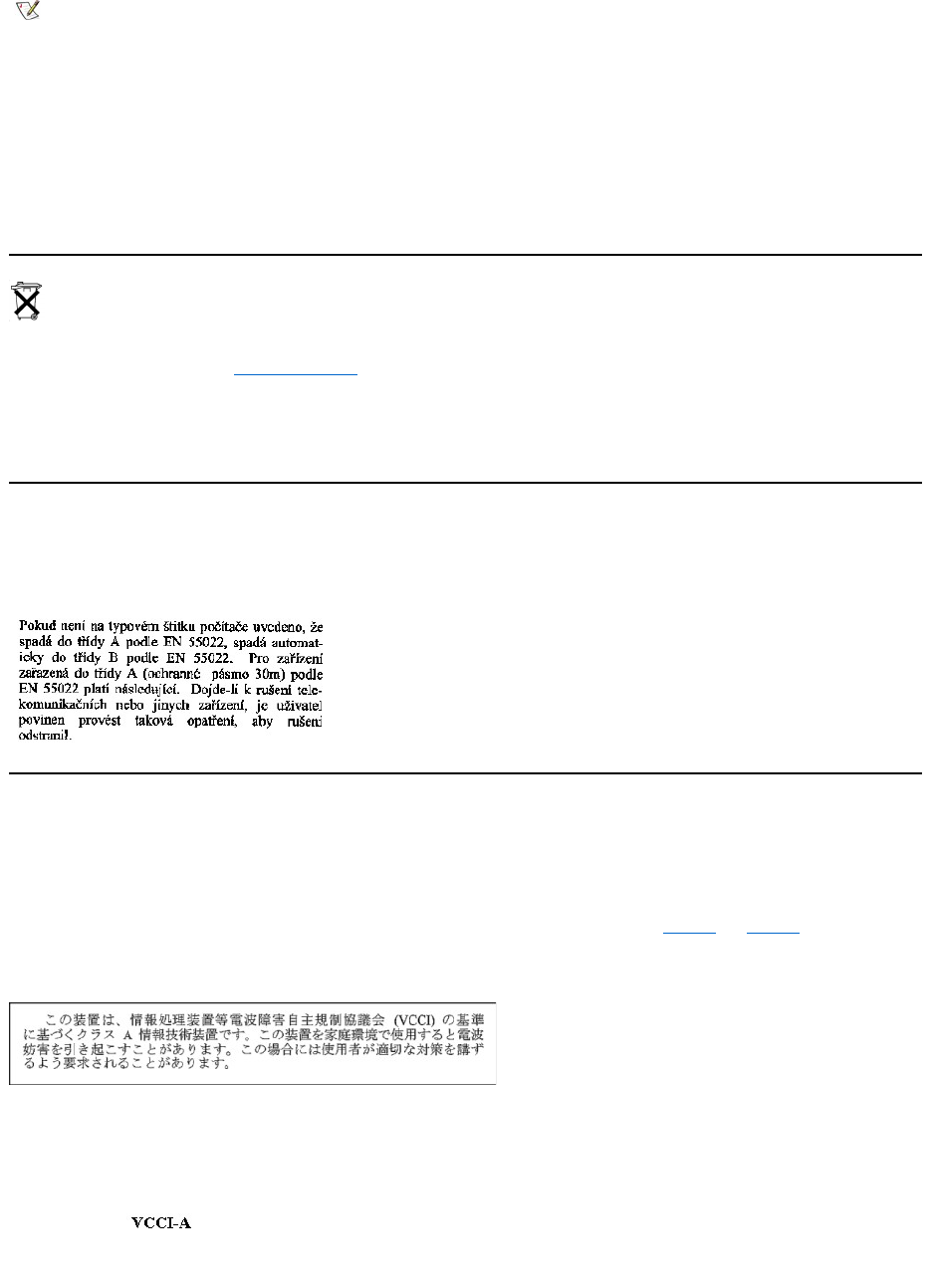
lClass A is for typical commercial areas.
lClass B is for typical domestic areas.
RF INTERFERENCE WARNING: This is a Class A product. In a domestic environment this product may cause radio frequency (RF)
interference, in which case the user may be required to take adequate measures.
This Dell device is classified for use in a typical Class B domestic environment.
A "Declaration of Conformity" in accordance with the preceding directives and standards has been made and is on file at Dell Computer
Corporation Products Europe BV, Limerick, Ireland.
Battery Disposal
Your computer uses a lithium-ion battery pack and a nickel-metal hydride (NiMH) coin-cell battery. For instructions about replacing the lithium-ion
battery pack in your computer, see "Removing a Battery" in your Dell User's Guide. The nickel-metal hydride (NiMH) coin-cell battery is a long-life
battery, and it is very possible that you will never need to replace it. However, should you need to replace it, the procedure must be performed by
an authorized service technician.
Do not dispose of these batteries along with household waste. Contact your local waste disposal agency for the address of the nearest battery
deposit site.
EN 55022 Compliance (Czech Republic Only)
This device belongs to Class B devices as described in EN 55022, unless it is specifically stated that it is a Class A device on the specification
label.ThefollowingappliestodevicesinClassAofEN55022(radiusofprotectionupto30meters).Theuserofthedeviceisobligedtotakeall
steps necessary to remove sources of interference to telecommunication or other devices.
VCCI Notice (Japan Only)
Most Dell computers are classified by the Voluntary Control Council for Interference (VCCI) as Class B information technology equipment (ITE).
However, the inclusion of certain options can change the rating of some configurations to Class A. ITE, including peripherals, expansion cards,
printers, input/output (I/O) devices, monitors, and so on, integrated into or connected to the computer, should match the electromagnetic
environment classification (Class A or B) of the computer.
To determine which classification applies to your computer, examine the regulatory labels/markings (see Figure 1 and Figure 2) located on the
bottom or back panel of your computer. Once you have determined your computer's VCCI classification, read the appropriate VCCI notice.
Class A ITE
This is a Class A product based on the standard of the Voluntary Control Council for Interference (VCCI) for information technology equipment. If
this equipment is used in a domestic environment, radio disturbance may arise. When such trouble occurs, the user may be required to take
corrective actions.
Figure 1. VCCI Class A ITE Regulatory Mark
Class B ITE
NOTE: EN 55022 emissions requirements provide for two classifications:
This is a Class B product based on the standard of the Voluntary Control Council for Interference (VCCI) for information technology equipment. If
this equipment is used near a radio or television receiver in a domestic environment, it may cause radio interference. Install and use the equipment
according to the instruction manual.
Figure 2. VCCI Class B ITE Regulatory Mark
MIC Notice (Republic of Korea Only)
To determine which classification (Class A or B) applies to your computer system (or other Dell digital device), examine the Republic of Korean
Ministry of Information and Communications (MIC) registration labels located on your computer (or other Dell digital device). The MIC label may be
located separately from the other regulatory marking applied to your product. Line three of the label identifies the emissions class for the product—
"(A)"forClassAproductsor"(B)"forClassBproducts.
lClass A devices are for business purposes.
lClass B devices are for nonbusiness purposes.
Class A Device
Please note that this device has been approved for business purposes with regard to electromagnetic interference. If you find that this device is not
suitable for your use, you may exchange it for a nonbusiness-purpose device.
MIC Class A Regulatory Label
Class B Device
Please note that this device has been approved for nonbusiness purposes and may be used in any environment, including residential areas.
MIC Class B Regulatory Label
NOTE: MIC emissions requirements provide for two classifications:
Polish Center for Testing and Certification Notice
The equipment should draw power from a socket with an attached protection circuit (a three-prong socket). All equipment that works together
(computer, monitor, printer, and so on) should have the same power supply source.
The phasing conductor of the room's electrical installation should have a reserve short-circuit protection device in the form of a fuse with a nominal
value no larger than 16 amperes (A).
To completely switch off the equipment, the power supply cable must be removed from the power supply socket, which should be located near the
equipment and easily accessible.
A protection mark "B" confirms that the equipment is in compliance with the protection usage requirements of standards PN-93/T-42107 and PN-
EN 55022: 1996.
NOM Information (Mexico Only)
The following information is provided on the device(s) described in this document in compliance with the requirements of the official Mexican
standards (NOM)
Exporter:
Dell Computer Corporation
One Dell Way
Round Rock, TX 78682
Importer:
DellComputerdeMéxico,
S.A.deC.V.
Paseo de la Reforma 2620 - 11°Piso
Col. Lomas Altas
11950México,D.F.
Ship to:
DellComputerdeMéxico,
S.A.deC.V.alCuidadodeKuehne&
NageldeMéxicoS.deR.I.

InformaciónparaNOM(únicamenteparaMéxico)
Lainformaciónsiguienteseproporcionaeneldispositivooenlosdispositivosdescritosenestedocumento,encumplimientoconlosrequisitos
de la Norma Oficial Mexicana (NOM):
BSMI Notice (Taiwan Only)
Avenida Soles No. 55
Col.PeñondelosBaños
15520México,D.F.
Supply input voltage:
100–240 VAC
Frequency:
50–60 Hz
Current consumption:
1.5 A
Output voltage:
20 VDC
Output current:
3.5 A
Exportador:
Dell Computer Corporation
One Dell Way
Round Rock, TX 78682
Importador:
DellComputerdeMéxico,
S.A.deC.V.
Paseo de la Reforma 2620 - 11°Piso
Col. Lomas Altas
11950México,D.F.
Embarcar a:
DellComputerdeMéxico,S.A.deC.V.
alCuidadodeKuehne&Nagelde
MéxicoS.deR.I.
Avenida Soles No. 55
Col.PeñondelosBaños
15520México,D.F.
Voltajedeentradadealimentación:
100–240 VAC
Frecuencia:
50–60 Hz
Consumoeléctrico:
1.5 A
Output voltage:
20 VDC
Corriente de salida:
3.5 A
CE Mark Notice
This device complies with the requirements of the European Directive 1999/5/EC.
New Zealand Telecom Warnings
General
“The grant of a Telepermit for any item of terminal equipment indicates only that Telecom has accepted that the item complies with minimum
conditions for connection to its network. It indicates no endorsement of the product by Telecom, nor does it provide any sort of warranty. Above all,
it provides no assurance that any item will work correctly in all respects with another item of Telepermitted equipment of a different make or model,
nor does it imply that any product is compatible with all of Telecom’s network services.”
“This equipment does not fully meet Telecom impedance requirements. Performance limitations may occur when used in conjunction with some
parts of the network. Telecom will accept no responsibility should difficulties arise in such circumstances.”

“This equipment shall not be set up to make automatic calls to the Telecom ‘111’ Emergence Service.”
“If a charge for local calls is unacceptable, the ‘Dial’ button should NOT be used for local calls. Only the 7-digits of the local number should be
dialed from your telephone. DO NOT dial the area code digit or the ‘0’ prefix.”
“This equipment may not provide for the effective hand-over of a call to another device connected to the same line.”
Important Notice
“Under power failure conditions, this telephone may not operate. Please ensure that a separate telephone, not dependent on local power, is
available for emergency use.”
“Some parameters required for compliance with Telecom’s Telepermit requirements are dependent on the equipment (PC) associated with this
device. The associated equipment shall be set to operate within the following limits for compliance with Telecom’s Specification:
1. There shall be no more than 10 call attempts to the same number within any 30-minute period for any single manual call initiation, and the
equipment shall go on-hook for a period of not less than 30 seconds between the end of one attempt and the beginning of the next attempt.
2. Where automatic calls are made to different numbers, the equipment shall go on-line for a period of not less than 5 seconds between the end
of one attempt and the beginning of the next attempt.
3. The equipment shall be set to ensure that calls are answered between 3 and 30 seconds of receipt of ringing.”
“All persons using this device for recording telephone conversations shall comply with New Zealand law. This requires that at least one party to the
conversation is to be aware that it is being recorded. In addition, the Principles enumerated in the Privacy Act of 1993 shall be complied with in
respect to the nature of the personal information collected, the purpose for its collection, how it is used and what is disclosed to any other party.”
Back to Contents Page

Back to Contents Page
Removing and Replacing Parts: DellPrecision™MobileWorkstationM40 User's Guide
Preparing to Work Inside the Computer
Before you start to work on the computer, perform the following steps.
NOTICE: Failure to perform the following steps could result in damage to the computer.
1. Save any work in progress and close all open application programs.
2. Turn off the computer and any attached devices.
3. If the computer is docked, undock the computer.
Disconnect the computer and any attached devices from their electrical outlets to reduce the potential for personal injury or shock. Also
disconnect any telephone or telecommunications lines from the computer.
NOTICE: To avoid damaging the system board, remove the power cable, the battery, and the second battery (if installed) before you
service the computer.
4. Remove the power cable.
5. Disconnect all other external cables from the computer.
6. Remove any installed PC Cards.
NOTICE: Make sure that the work surface is clean to prevent scratching the computer cover.
7. Remove any installed batteries.
8. Ground yourself by touching the unpainted metal surface of the input/output (I/O) panel on the back of the computer.
While you work, periodically touch the I/O panel to dissipate any static electricity that might harm components.
Replacing a Primary Hard Drive
NOTICE: To prevent data loss, turn off your computer before you remove the hard drive. Do not remove the hard drive if the
computer is in suspend mode or if the light is on. Removing the drive under these conditions will lead to loss of data.
1. Complete the tasks as described in "Preparing to Work Inside the Computer."
2. Closethedisplayandturnthecomputerover.
3. Remove the drive. Use a small Phillips-head screwdriver to remove the drive door screw. Save the screw for use later in this procedure.
When the hard drive is not in the computer, protect the drive from exposure to static electricity. See "Protecting Against Electrostatic
Discharge" for more information.
Preparing to Work Inside the Computer
Replacing a Primary Hard Drive
Removing or Installing Memory Modules
NOTE: If necessary, print these instructions for reference before proceeding.
NOTE: Make sure that the computer is turned off and not in hibernate mode. If you cannot shut down the computer using the computer
operating system, press the power button until the computer turns off.
CAUTION: The primary hard drive may be hot to the touch under extreme environmental conditions. If the drive is hot, allow it
to cool before you replace it.
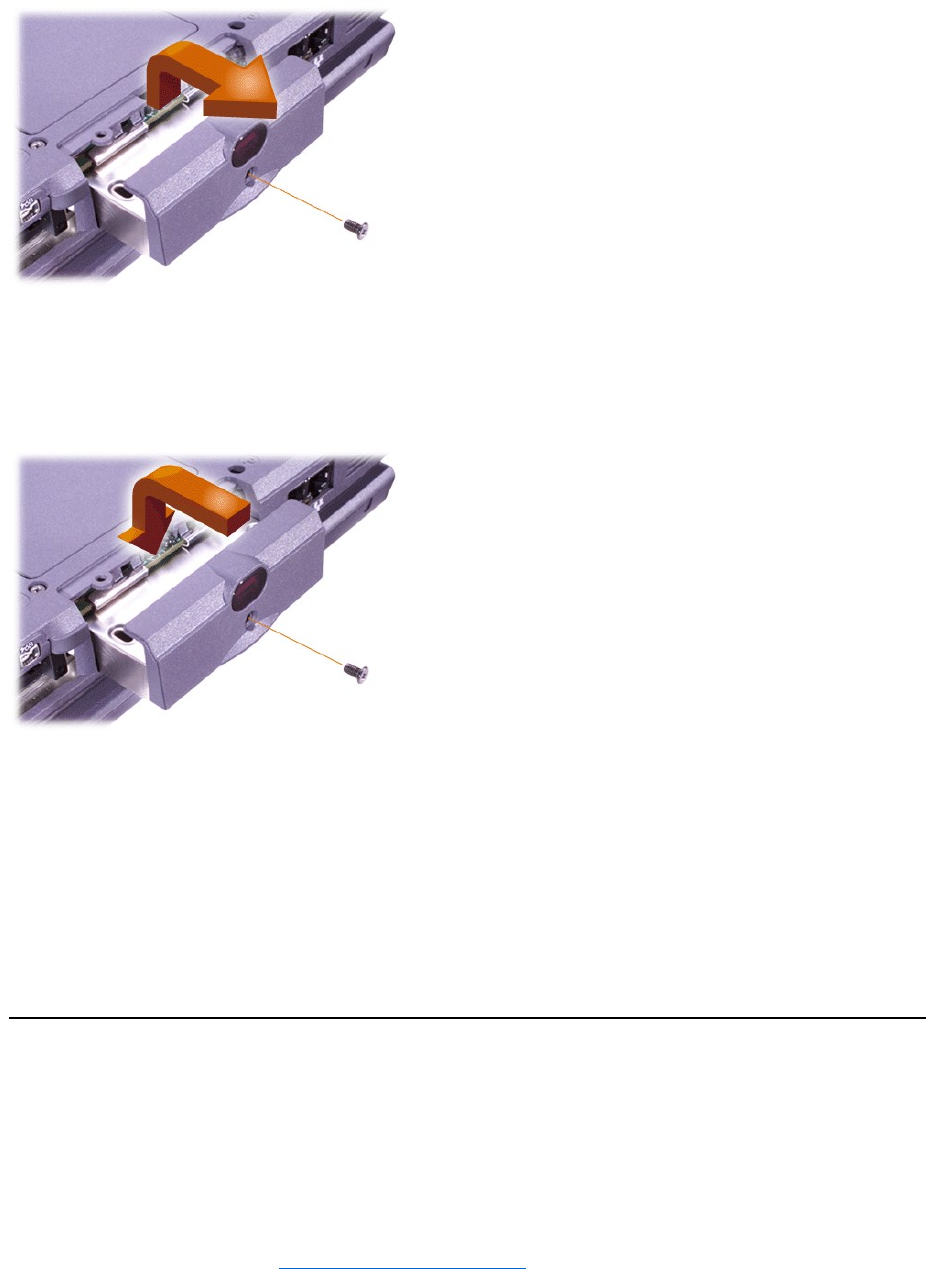
4. Remove the new hard drive from its packaging.
Save the original packaging to use when you store or ship the hard drive.
NOTICE: If the drive does not slide in easily, pull it out and try again. To avoid damage, do not force the drive into the bay.
5. Gently push the new hard drive into the drive bay until the drive door is flush with the computer case.
6. Pushdownonthedrivedooruntilitsnapsintoplace.
7. Replace the screw you removed in step 3. Be careful not to over tighten the screw.
If you have installed a new hard drive, follow the directions that came with the drive to partition and logically format the drive.
NOTICE:Harddrivesareextremelyfragileandmustbehandledcarefullytoavoiddamage.Followtheseguidelines:
lThe primary hard drive is installed in a metal carrier to protect the drive and make installation easier. When you remove and
install hard drives, handle the drive carrier, not the drive itself.
lNever press down on the top of the drive.
lDo not bump or jar the drive.
Removing or Installing Memory Modules
NOTICE: Your computer only supports 100-megahertz (MHz) synchronous dynamic random-access memory (SDRAM) modules. It
does not support extended-data out (EDO) memory modules.
NOTICE:Donotinstallmemorymoduleswhilethecomputerisinanypowermanagementmodes,suchasstandbymode.
NOTICE: Ground yourself by touching an unpainted metal surface of a connector on the back of the computer. While you work,
periodically touch the connector to dissipate any static electricity that might harm internal components.
To remove or install memory modules, perform the following steps:
1. Complete the tasks as described in "Preparing to Work Inside the Computer."
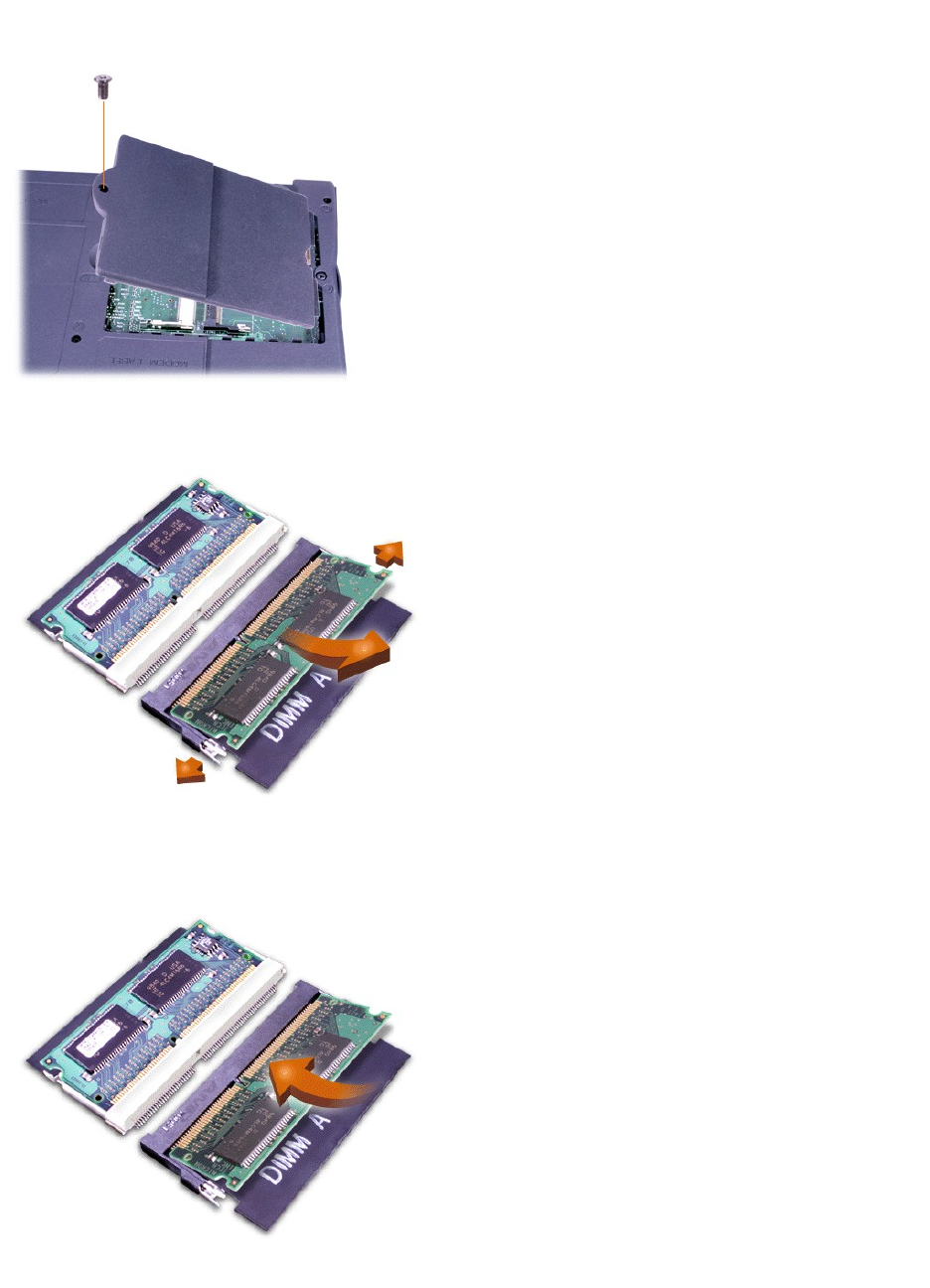
2. Closethedisplay,andturnthecomputerupsidedown.
3. Remove the screw from the memory module cover (located next to the icon labeled "K/M"), and remove the memory module cover.
4. If you are replacing a memory module, remove the existing module.
Carefully spread apart the inner metal tabs of the memory module socket, and then lift the memory module away from the socket.
5. Ground yourself and unpack the new memory module from the upgrade kit.
6. If you need to install memory modules in two sockets, install a memory module in the socket labeled "JDIM 1" ("DIMM A") before you install a
moduleinthesocketlabeled"JDIM2"("DIMMB").
Ifyouhaveonlyonememorymodule,installitinthe"JDIM1"("DIMMA")socket.
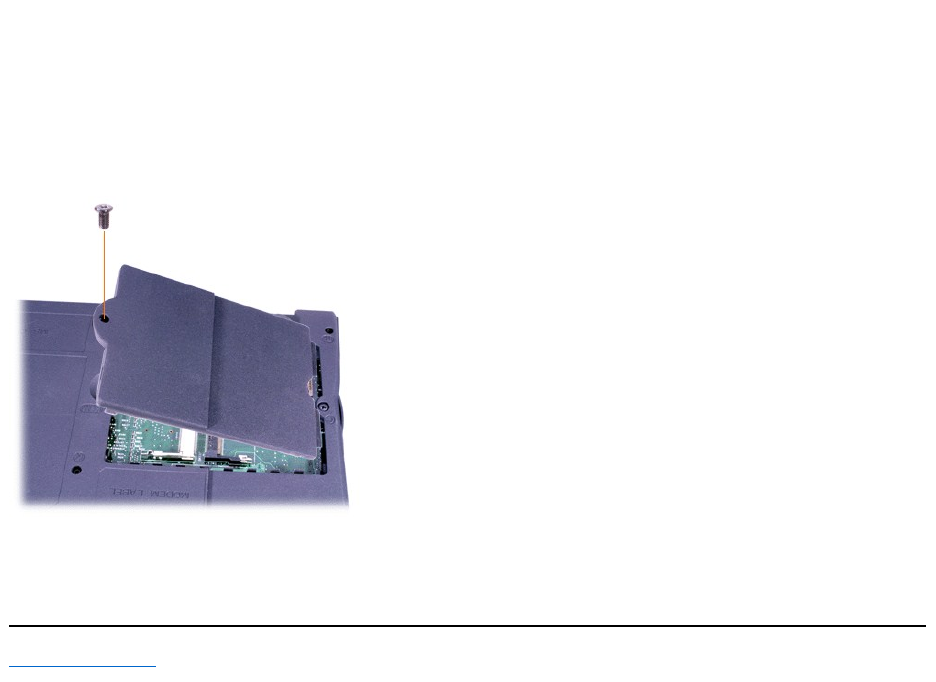
Memory modules are keyed, or designed to fit into their sockets in only one direction. The slots on the system board are notched so
that the memory module can be firmly seated only one way.
7. If you do not hear a click as each end of the memory module snaps into the metal tabs, remove the memory module and reinstall it.
NOTICE: If the memory module cover does not fit or is difficult to close after installation, you may have installed the memory module
improperly or into the wrong slots. Remove the memory module and reinstall it. Do not force the memory module cover to close
becauseyoumaydamageyourcomputer.
8. Replace the memory module cover. Be careful not to over tighten the screw.
9. Reconnect your computer and devices to their electrical outlets and turn them on.
As the computer boots, it detects the presence of additional memory and automatically updates the system configuration information.
Verify that the correct memory total is displayed. If necessary, repeat steps 1 through 8 until the memory total is correct.
Back to Contents Page

Back to Contents Page
Passwords and Security: DellPrecision™MobileWorkstationM40User'sGuide
About Passwords
A primary password prevents unauthorized access to the computer at start-up. An administrator password can be used in place of the primary
password. A hard drive password helps prevent the unauthorized access of data on the drive, even when the device is placed into another
computer.
If you forget any of your passwords, call Dell. For your protection, Dell’s technical support staff will ask you for proof of your identity to make sure
that an unauthorized person is not trying to use the computer.
Using a Primary Password
The primary password allows you to protect the computer from unauthorized access.
After assigning a primary password, you must enter it each time you turn on your computer. The following message appears each time you turn on
the computer:
Please type in the primary or administrator password and press <Enter>.
To continue, enter your password (maximum eight characters).
If you have assigned an administrator password, you can use it instead of the primary password. The computer does not specifically prompt you
for the administrator password.
NOTICE: If you disable the administrator password, the primary password is also disabled.
Using an Administrator Password
The administrator password is designed to give system administrators or service technicians in large companies access to computers for repair
orreconfiguration.Theadministratorsortechnicianscanassignidenticaladministratorpasswordstogroupsofcomputersastheyareunpacked
and configured, leaving the primary password free to be assigned by the user.
When you set an administrator password, the Configure Setup option becomes available in the system setup program. The Configure Setup
option allows you to restrict access to the system setup program in the same way a system password restricts access to the system.
The administrator password can be used in place of the primary password. Whenever you are prompted to enter the primary password, you can
enter the administrator password instead.
If you forget the primary password and do not have an administrator password assigned, or if you have both a primary and an administrator
password assigned but forget them both, call Dell.
NOTICE: If you disable the administrator password, the primary password is also disabled.
Using a Hard Drive Password
The hard drive password helps protect the data on your hard drive from unauthorized access. You can also assign a password for the modular
About Passwords
Using a Hard Drive Password
Using a Primary Password
Assigning an Asset Tag
Using an Administrator Password
Using a Security Cable Slot
NOTE: All three passwords are disabled when you receive your computer. You need to assign those passwords if you require password
security for your computer. Some companies may assign any or all of these passwords before distributing the computer.
NOTICE: The password features provide a high level of security for the data in your computer or hard drive. However, they are not
foolproof. If your data requires more security, you should obtain and use additional forms of protection, such as data encryption
programs or PC Cards with encryption features.
NOTE: If no password is entered within 2 minutes, the computer returns to its previous state.
NOTE: The administrator password provides access to the system, but it does not provide access to the hard drive when it is protected
by a password.

hard drive (if one is being used) that can be the same as or different from the password for the primary hard drive.
After assigning a hard drive password, you must enter it each time you turn on the computer and each time you resume normal operation from
suspend mode or standby mode.
If the hard drive password is enabled, the following message appears each time you turn on the computer:
Please type in the hard-disk drive password and press <Enter>.
To continue, enter your password (maximum eight characters). Press <Esc> to return the computer to its previous state—suspend or standby
mode.
If you enter the wrong password, the following message appears:
Invalid password
[Press Enter to retry]
If the correct password is not entered in three attempts, the computer tries to boot from another bootable device if the Boot First Device option in
the system setup program is set to allow it. If the Boot First Device option is not set to allow booting from another device, the computer returns to
the state it was in when you turned it on—standby mode.
Assigning an Asset Tag
The Asset Tag utility allows you to enter an asset tag number that you or your company assigns to the computer. The default system setup screens
do not show the asset tag number unless you enter one by using this utility.
You can also use the Asset Tag utility to enter an owner tag that appears in the system log-on screen and with the primary password prompt.
Viewing Existing Asset Tag and Service Numbers
1. Boot the computer from a bootable floppy disk or CD.
2. Type cd c:\Dell\Util and press <Enter>.
3. Type asset and press <Enter>.
Assigning an Asset Tag Number
Anassettagnumbercanhaveuptotencharacters;anycombinationofcharactersexcludingspacesisvalid.
1. Boot the computer from a bootable floppy disk or CD.
2. Type cd c:\Dell\Util and press <Enter>.
3. Type asset and a space followed by the new number, and press <Enter>.
For example, type the following command line and press <Enter>:
asset 1234$ABCD&
4. When the system prompts you to verify the asset tag number, type y and press <Enter>.
The system displays the new or modified asset tag number and the service tag number.
Deleting an Asset Tag Number
1. Boot the computer from a bootable floppy disk or CD.
2. Type cd c:\Dell\Util and press <Enter>.
3. Type asset /d and press <Enter>.
NOTE: Only hard drives purchased from Dell for use with the Dell Precision Mobile Workstation M40 computer support the hard drive
password option.
NOTE: If no password is entered within 2 minutes, the computer returns to its previous state.
NOTES: If the hard drive password, the modular hard drive password, and the primary password are the same, you are prompted only
for the primary password. If the hard drive password is different from the primary password, you are prompted for both. Two different
passwords provide greater security.
The administrator password provides access to the computer, but it does not provide access to a hard drive that is protected by a
password.
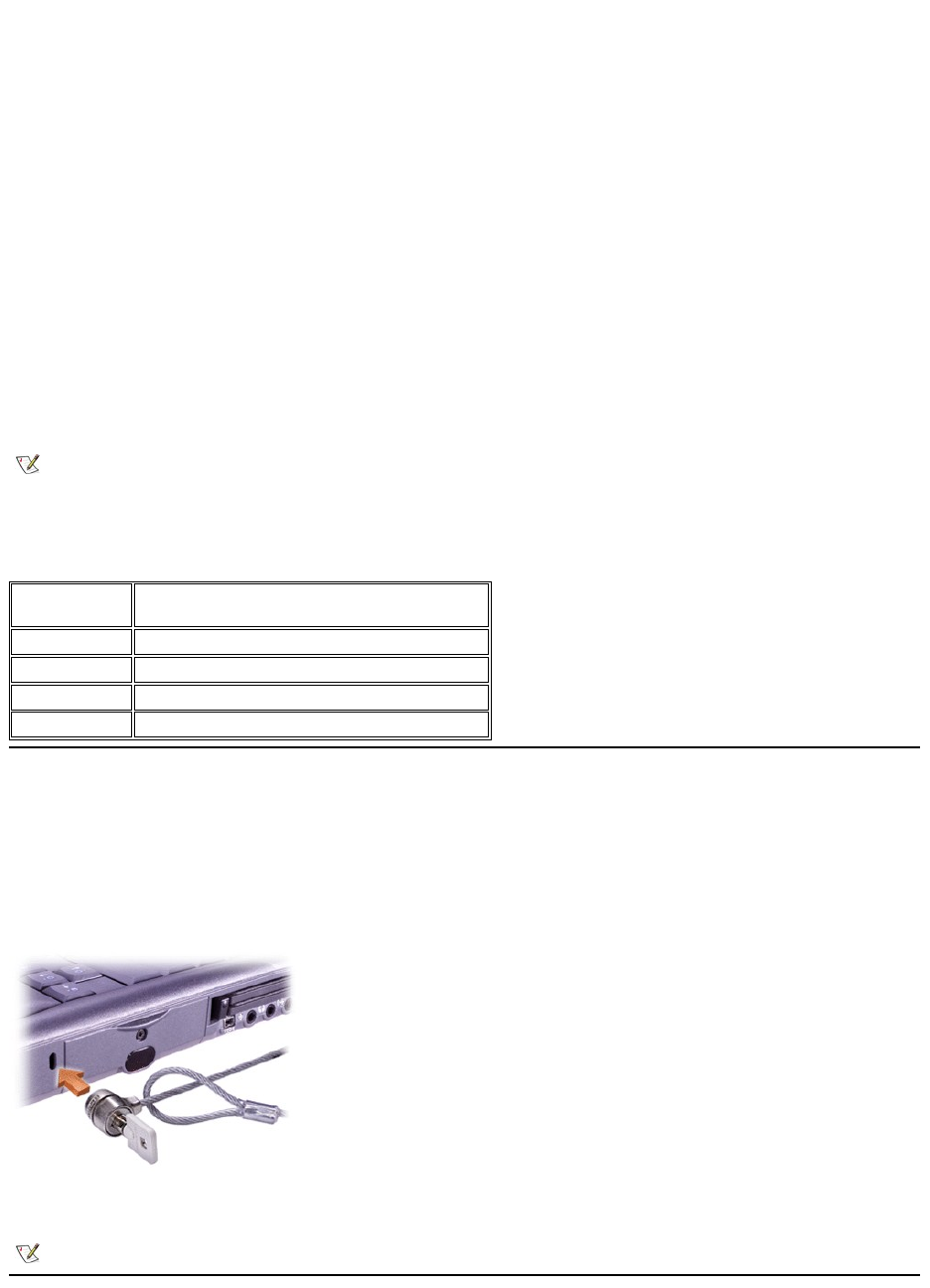
Assigning an Owner Tag
Anownertagcanhaveupto48characters;anycombinationofletters,numbers,andspacesisvalid.
1. Boot the computer from a bootable floppy disk or CD.
2. Type cd c:\Dell\Util and press <Enter>.
3. Type asset /o and a space followed by the new owner tag, and press <Enter>.
For example, type the following command line and press <Enter>:
asset /o ABC Company
4. When the computer prompts you to verify the owner tag, type y and press <Enter>.
The computer displays the new owner tag.
Deleting an Owner Tag
1. Boot the computer from a bootable floppy disk or CD.
2. Type cd c:\Dell\Util and press <Enter>.
3. Type asset /o /d and press <Enter>.
To use one of the following command-line options, open an MS-DOS®prompt, type asset and a space followed by the option, and then press
<Enter>.
Asset Tag Utility Command-Line Options
Using the Security Cable Slot
To prevent unauthorized removal of the computer, you can use a security cable to attach the computer to an immovable object. Your computer has
two security cable slots, located on the both sides of the computer.
1. Loop the cable around an immovable object.
2. Insertalockingdeviceintothesecuritycableslot,andlockthedevice.Instructionsforinstallingthiskindofantitheftdeviceareusually
included with the device.
Antitheft devices for mobile workstationcomputers usually include a segment of metal-stranded cable with an attached locking device and
associated key.
NOTE: For security, you cannot set, change, or delete the owner tag if the primary or administrator passwords are set.
Asset Tag
Option
Description
/d
Deletes the asset tag number
/o tag
Specifies a new owner tag
/o /d
Deletes the owner tag
/?
Displays the Asset Tag utility help screen
NOTE: Before purchasing an antitheft device, make sure that it will work with a security cable slot.

Back to Contents Page
UsingtheSystemSetupProgram:DellPrecision™MobileWorkstationM40User's
Guide
Overview
You can use the system setup program as follows:
lTo set or change user-selectable features—for example, your password or power management features
lTo verify information about your computer's current configuration, such as the amount of system memory
For some setup options, you must reboot the computer before any changes take effect. Changes for other options take effect immediately. The
Help text in the upper-right corner of system setup screens tells you if the computer must be rebooted.
After you set up your computer, run the system setup program to familiarize yourself with your system configuration information and optional
settings. Dell recommends that you write down the information for future reference.
Entering and Exiting the System Setup Program
The System Setup Screens
The system setup screens display the current setup and configuration information and optional settings for your computer. Information on the
screens is organized in five boxed areas:
lTitle
The box at the top of each screen lists the page number, system name, and version number of the basic input/output system (BIOS).
lOptions
The box on the left half of each screen lists options that define the installed hardware in your computer and the power conservation and
security features for your computer.
Fields next to the options contain settings or values. You can change those values that appear bright on the screen. Options or values that
you cannot change (because they are determined or calculated by the computer) appear less bright.
Overview
Changing Printer Modes
Entering and Exiting the System Setup Program
Changing COM Ports
The System Setup Screens
Enabling the IR Sensor
Changing the Boot Sequence
NOTE: This section provides general information on using the system setup program. For detailed information on options and settings,
enter the system setup program and navigate through the screens, or visit the Dell support website at http://support.dell.com.
NOTE: ACPI operating systems, such as Microsoft®Windows®2000, automatically configures most of the setup options available in
the system setup program, and override options entered through the system setup program. One exception is the External Hot Key
option, which you can disable or enable only through the system setup program. For more information on configuring features for these
operating systems, see your Microsoft Windows Help.
Action
Computer or External Keyboard
Enter the system setup program.
<F2>whenpromptedduringthesystembootroutine.
If you do not enter the system setup program when prompted, wait until the computer
finishes the boot routine, restart the computer, and then begin again.
Exit the system setup program.
<Esc>
If you change the setting of an option that requires rebooting to take effect, exit the
operating system before rebooting. (The Help text in the upper-right corner of system
setup screens tells you if the computer must be rebooted.)
NOTE: If the system setup program is running when the computer enters standby mode, the computer exits the system setup program
and then activates standby mode.
lHelp
The box on the upper-right half of each screen displays help information for the option with a currently highlighted field.
lComputer data
The box in the lower-right corner of each screen displays information about your computer.
lKey functions
The line of boxes across the bottom of each screen lists keys and their functions within the system setup program.
Changing the Boot Sequence
To change the computer's boot sequence, change the device settings in the Boot First Device, Boot Second Device, or Boot Third Device
options.
For a change in the boot sequence options to take effect, you must reboot your computer.
The term boot refers to the computer's start-up procedure. When you turn on the computer, it "bootstraps" itself into an operational state by loading
into memory a small program, which in turn loads the necessary operating system. The boot sequence tells the computer where to look to find the
software needed to start the operating system.
Changing Printer Modes
Set the Parallel Modeoptionaccordingtothetypeofprinterordeviceconnectedtotheparallelport.Todeterminethecorrectmodetouse,see
the documentation that came with the device.
Setting Parallel Mode to Disabled disables the parallel port and its assigned LPT address, freeing its interrupt for another device to use.
Changing COM Ports
Serial Port allows you to map the address of the serial port, or to disable the serial port and its assigned COM address, freeing that interrupt for
another device to use.
Enabling the IR Sensor
1. Set the Infrared Data Port option to a COM setting (COM3 isrecommended).
2. Set the Infrared Mode option to either Fast IR or Slow IR.
Back to Contents Page
Boot Sequence Option
Description
Boot First Device
Tells the computer where to look first for the software it needs to start the operating system
Boot Second Device
Tells the computer where to look if it cannot find the software it needs to start the operating system on the
drive identified in Boot First Device
Boot Third Device
Tells the computer where to look if it cannot find the software it needs to start the operating system on the
drive identified in Boot First Device or Boot Second Device
NOTE: You can only boot from a CD, CD-RW, or DVD drive installed as a fixed optical drive. You cannot boot from one of these
modules installed in the modular bay.
Back to Contents Page
Finding Solutions: DellPrecision™MobileWorkstationM40 User's Guide
Overview
Before you call Dell for technical assistance, complete the following tasks to help you resolve some computer problems:
1. Read the safety instructions in your System Information guide and "What You Need to Know."
2. Run the Dell Diagnosticstohelpyoudetectaproblemquickly.
3. Perform the appropriate procedure for the component or equipment that is malfunctioning. Click a topic from the menu at the top of this page
for instructions.
NOTICE: Only access the inside of your computer when you are installing memory modules.
Overview
PC Card Problems
Recover From a Program That Is Not Responding
Modem, Fax, and Internet Connection Problems
Restart a Computer That Is Not Responding
No Image Appears on Display
Wet Computer
No Image Appears on External Monitor
Dropped or Damaged Computer
No Image Appears on TV
No Power at All
Sound and Speaker Problems
No Power, Using AC Adapter
DualPointDevice,TouchPad,orMouse
No Power, Using Battery
,, and Lights Don't Light Up
Only Partial Power
External Keyboard Doesn't Work
Floppy Drive Problems
Devices Attached to Serial or Parallel Ports Don't Work
CD, CD-RW, DVD Drive Problems
Parallel Port Printer Doesn't Work
Hard Drive Problems
Software Solutions
Hardware Conflicts
Incorrect Computer Memory Amount
NOTE: When you see the question "Is the problem resolved?" in a problem-solving procedure, perform the operation that caused the
problem to see if the problem still occurs.
CAUTION: To help prevent possible damage to the system board, wait 5 seconds after turning off the computer before you
disconnect a device or remove a memory module.
Problem
Procedure
Recover From a
Program That Is Not
Responding
1. Press <Ctrl><Alt><Del>.
2. If necessary, click Task Manager.
3. Select the program that is no longer responding.
4. Click End Task.
Restart a Computer
That Is Not Responding
1. Press and hold the power button until the computer turns off.
2. To turn on the computer, press the power button.
Check Disk (or ScanDisk), a program that checks for and repairs errors on the hard drive, may run during the
boot process. Microsoft Windows loads and runs after the scan completes.
Wet Computer
Spills, splashes, and
excessive humidity can
cause moisture damage to
thecomputer.
CAUTION:Performstep1onlyafteryouarecertainthatitissafetodoso.Ifthecomputerisconnected
to an electrical outlet, Dell recommends turning off AC power at the circuit breaker before attempting to
remove the power cables from the electrical outlet. Use the utmost caution when removing wet cables from
live power.
1. Turn off the computer and disconnect it from the AC adapter. Then disconnect the AC adapter from the
electrical outlet. Turn off any attached peripherals and disconnect them from their power sources and then from
the computer.
2. Ground yourself by touching one of the metal connectors on the back of the computer.
3. Remove any installed batteries.
Wipe off each battery and store it in a safe place to dry.
4. If the modular bay is wet, remove the device from the bay. If the PC Card slot is wet, remove any PC Cards. Put
the device and cards in a safe place to dry.
5. Remove the hard drive.
6. Remove the memory module(s).
7. Open the display, and place the computer across two books or similar props to let air circulate all around it. Let
thecomputerdryforatleast24hours.
Place the computer in a dry area at room temperature. Do not use artificial means to speed up the drying
process.
CAUTION: Before continuing with this procedure, verify that the computer is thoroughly dry.
8. Ground yourself by touching one of the unpainted metal connectors on the I/O panel.
9. Replace the memory module(s).
10. Replace the memory module cover.
11. Reinstall the hard drive.
12. Reinstall the modular bay and PC Cards that you removed.
13. Replace any batteries that you removed.
14. Reconnect the computer and peripherals to an electrical outlet and turn them on.
15. Does the computer work properly?
Yes. The problem is resolved.
No. If the computer is able to boot, run the Dell Diagnostics to identify computer damage. If the computer
is unable to boot, see "No Power at All." If you cannot identify the damaged component(s), call Dell for
technical assistance.
Dropped or Damaged
Computer
1. Save and close any open files, exit any open application programs, and shut down the computer.
2. Disconnect the AC adapter from the electrical outlet and disconnect the AC adapter from the computer. Turn off
any attached devices and disconnect them from the electrical outlet and then from the computer.
3. Ground yourself by touching one of the metal connectors on the back of the computer.
4. Remove any installed batteries or other devices from the modular bay.
5. Remove the hard drive.
6. Remove the memory module cover and the memory module(s).
7. Reinstall the memory modules, making sure to seat them properly.
8. Replace the memory module cover.
9. Reinstall the hard drive.
10. Verify that any installed PC Cards are properly seated in the PC Card connectors.
11. Reinstall the battery or other device(s) removed from the modular bay. Verify that the device(s) is seated
properly.
12. Reconnect the computer and peripherals to the electrical outlet and turn them on.
13. Run the Dell Diagnosticstoverifythatthecomputerisoperatingproperly.
14. If the computer does not operate properly, fill out the Diagnostics Checklist. Then call Dell for technical
assistance.
No Power at All
If you don't have any
power, none of the
lights on the keyboard light
up and you don't hear
sounds from any drives. See
also "Only Partial Power."
Fill out the Diagnostics Checklist as you perform the following steps:
1. Connect the AC adapter to the computer and to an electrical outlet.
2. Remove all devices, including internal devices such as the floppy drive, hard drive, and battery.
3. Turn on the computer.
4. Does the computer turn on properly?
Yes. The problem is resolved.
No. Go to Step 5.
5. Turn off the computer. Does the light appear?
Yes. Go to step 6.
No. Go to step 7.
6. Remove any installed batteries and disconnect the AC adapter. Then reinstall the batteries, reconnect the AC
adapter, and turn on the computer. Does the light appear?
Yes. Go to step 8.
No. Go to step 7.
7. Turn off the computer, wait a few seconds, and then turn on the computer again. Does the light appear?
Yes. Your computer is receiving power. Go to step 8.
No. Your computer is not receiving power. Go to step 9.
8. Does the computer boot successfully?
Yes. The problem is resolved.
No. Go to step 9.
9. Remove and reinstall any batteries, and check the AC adapter connection. Does the light appear?
Yes. The problem is resolved.
No. If the computer is powered by the AC adapter, see "No Power, Using AC Adapter." If the computer is
using battery power, see "No Power, Using Battery."
No Power, Using AC
Adapter
Basic Checks:
lTest the electrical outlet: Ensure that the electrical outlet is working by testing it with another device such as a
lamp.
lConnect the AC adapter directly to an electrical outlet: Bypass power protection devices, power strips, and
extension cords to verify that the computer turns on.
lCheck for interference: High-voltage electrical appliances on the same circuit or operating in close proximity to
the computer can cause interference. Extension cords or too many devices on a power strip or multiple power
strips connected to an electrical outlet can cause problems.
Fill out the Diagnostics Checklist as you perform the following steps:
1. Turn off the computer and devices and disconnect them from the electrical outlet. If you are using a surge
protector, remove it.
2. Make sure the AC adapter is connected to the computer, and then verify that the power cable is firmly attached
to the AC adapter and to the electrical outlet.
3. Does the light on top of the AC adapter light up?
Yes. Go to step 4.
No. The AC adapter may be defective. Go to step 5.
4. Turn on the computer. Does the light appear?
Yes. The problem is resolved.
No. Go to step 5.
5. Call Dell for technical assistance.
No Power, Using
Battery
If an AC adapter is not
connected to your
computer, the computer runs
on battery power. If the
computer does not turn on
when a battery is installed,
the battery's charge may be
depleted.
Fill out the Diagnostics Checklist as you perform the following steps:
1. Turn off the computer and devices. Disconnect the devices from the electrical outlet.
2. Remove and then reinstall each batteryinitsbay.
3. Press the power button. Does the computer turn on?
Allow 1 minute for the computer to initialize its components before checking for signs of power.
Yes. The battery was not seated properly. The problem is resolved.
No. Use the AC adapter to connect your computer to an electrical outlet. If the computer operates normally
when using AC power, go to step 4. If the computer does not boot when using the AC adapter, see "No
Power, Using AC Adapter."
4. Use the AC adapter to charge the battery.
5. Does the light remain constantly lit (not blinking), indicating that the battery is charging?
Yes. Go to step 6.
No. You may have a defective battery. Call Dell for technical assistance.
6. Press the power button. Does computer turn on?
Yes. Youneededtochargethebattery.Theproblemisresolved.
No. Call Dell for technical assistance.
Only Partial Power
If the light shows
that your computer is
receiving power, but the
display remains blank, part
of your computer is probably
not receiving power. See also
"No Power at All."
1. Turn off the computer and devices and disconnect them from the electrical outlet. Disconnect any attached
devices from the computer.
2. Make sure that the AC adapter is connected to the computer and to an electrical outlet, or confirm that a fully
charged battery is properly seated in the modular bay.
3. Turn on the computer. Is the display on?
Allow 1 minute for the computer to initialize its components before checking for signs of power.
Yes. The entire computer is receiving power; the problem is resolved.
No. Adjust the brightness of the display. If the display still does not show an image, call Dell for technical
assistance.
Floppy Drive Problems
During the power-on
self-test (POST), the
computer checks the floppy
drive, comparing its
characteristics with the
system configuration
information. (The light
blinks as the computer
performs this check on a
floppy drive.)
Basic Checks:
lIf you hear an unfamiliar scraping or grinding sound when a drive is accessed, make sure the sound is not
caused by the application program that is running. The sound could be caused by a hardware malfunction. See
"Help Overview" for instructions on obtaining technical assistance from Dell.
lWhen you turn on the computer, you can hear floppy or hard drive activity during the boot routine. If your
computer does not boot, call Dell for technical assistance. (See "Help Overview" for instructions.) Otherwise,
see the "Dell Diagnostics."
lTest this indicator by inserting a floppy disk into the drive, typing dir a: at an MS-DOS®prompt, and
pressing<Enter>.
lEnsure that the floppy disk is not write-protected if you are trying to copy data to it.
lRun the Diskette tests as described in "Dell Diagnostics."
lTry a different floppy disk in the drive. If the new floppy disk works, the original one may be defective.
lCheck the settings on the Page One submenu of the system setup program.
lClean the drive using a commercially available cleaning kit.
NOTICE: Do not attempt to clean drive heads with a swab. You may accidentally misalign the heads,
rendering the drive inoperable.
If the problem still exists after you complete the basic checks, fill out the Diagnostics Checklist as you perform the
following steps:
1. Save and close any open files, exit any open application programs, and shut down the computer.
2. Remove the floppy drive from the modular bay.
3. Reinstall the floppy drive.
4. Reboot the computer. Does the light blink during the boot routine?
Yes. Go to step 6.
No. Go to step 5.
5. Remove and reinsert the floppy drive. Reboot the computer. Does the light appear during the boot routine?
Yes. Go to step 6.
No. Go to step 9.
6. Does the computer display a drive error message?
Yes. See "Understanding Error Messages" for an explanation of the message, and then go to step 7.
No. Go to step 9.
7. Insert a bootable 1.44-megabyte (MB) floppy disk into the floppy drive and reboot the computer.
8. Does the light blink during the boot routine, and does the drive boot the operating system?
Yes. The floppy drive problem has probably been resolved. If you continue to experience trouble, call Dell
for technical assistance.
No. Go to step 9.
9. Call Dell for technical assistance.
CD, CD-RW, DVD
Drive Problems
Basic Checks:
lIf you hear an unfamiliar scraping or grinding sound when a drive is accessed:
During POST, the
computer checks the
drive, comparing its
characteristics with the
system configuration
information. The light
blinks as the computer
performsthischeck.
Inconsistencies in the
manufacturing of CD media
may cause some higher-
speed CD drives to vibrate
more than others. Such
vibration and associated
noise do not indicate a
defect in the drive or the CD.
¡Make sure the sound is not caused by the application program that is running. The sound could be caused
by a hardware malfunction. See "Help Overview" for instructions on obtaining technical assistance from
Dell.
¡Verify that the disc is fully seated on the drive spindle.
lWhen you turn on the computer, you can hear floppy or hard drive activity during the boot routine. If your
computer does not boot, call Dell for technical assistance. Otherwise, see the "Dell Diagnostics."
lTest the drive indicator by typing dir x: at an MS-DOS prompt, where x is the drive letter, and pressing
<Enter>.
lVerify that the drive is recognized by the computer (in Windows 2000, double-click the My Computer icon on
your desktop). Most of the common boot sector viruses cause the drive to "disappear." Use virus-scanning
software (if Dell installed the operating system on your computer, you should already have virus-scanning
software) to check for and remove any viruses.
lClean the disc using a commercially available cleaning kit.
lClean the drive using a commercially available cleaning kit.
lTry another CD or DVD.
lRun the IDE Devices tests as described in "Dell Diagnostics."
lTurn off the computer and remove the drive from the modular bay. Replace the drive and turn on the computer.
If the CD, CD-RW, or DVD drive button doesn't eject the tray, or if you have a power failure:
1. Make sure the computer is off.
2. Straighten a paper clip and insert one end into the eject hole at the front of the drive; push firmly until the tray is
partially ejected.
3. Pull the tray out the rest of the way.
If the problem still exists after you complete the basic checks, fill out the Diagnostics Checklist as you perform the
following steps:
1. Save and close any open files, exit any open application programs, and shut down the computer.
2. If the drive is installed in the modular bay, remove the drive.Ifthedriveisafixedopticaldrive,gotostep6.
3. Reinstall the drive.
4. Reboot the computer. Does the light blink during the boot routine?
Yes. Go to step 6.
No. Go to step 5.
5. Remove and reinsert the drive. Reboot the computer. Does the light blink during the boot routine?
Yes. Go to step 6.
No. Go to step 10.
6. Remove the hard drive and boot the computer from a bootable CD. Does the light blink?
Yes. Go to step 7.
No. Go to step 10.
7. Reinstall the hard drive. Then open the Control Panel, double-click the System icon, click the Hardware tab,
and click the Device Managerbutton.Istheappropriatedriverinstalled?
Yes. Go to step 8.
No. Load the driver, and return to step 1 to begin this procedure again. (To load the driver, use the Drivers
and Utilities CDyoureceivedwithyourDellcomputer.)
8. Insert a bootable floppy disk into drive A and reboot the computer.
9. Type x:(where x is the drive) and press <Enter>. Then type dir and press <Enter>. Does MS-DOS
display the root directory contents for the drive?
Yes. The problem is resolved.
No. Go to step 10.
10. Insert your Drivers and Utilities CDintothedriveandrebootthecomputer.ThenruntheIDE Devices device
group. Does your drive pass all the tests?
Yes. Return to step 1 and perform this troubleshooting procedure again. If you continue to experience
trouble, call Dellfortechnicalassistance.
NOTE: Because of different conventions currently used in the industry, not all DVD titles work in
all DVD drives.
No. Go to step 11.
11. Call Dell for technical assistance.
Hard Drive Problems
During POST, the
computer checks the
hard drive, comparing its
characteristics with the
system configuration
information. (The light
blinks as the computer
performs this check.)
Basic Checks:
lIf you hear an unfamiliar scraping or grinding sound when a drive is accessed, make sure the sound is not
caused by the application program that is running. The sound could be caused by a hardware malfunction. See
"Help Overview" for instructions on obtaining technical assistance from Dell.
lWhen you turn on the computer, you can hear floppy or hard drive activity during the boot routine. If your
computer does not boot, call Dell for technical assistance. (See "Help Overview" for instructions.) Otherwise,
see the "Dell Diagnostics."
lTest the drive indicator by typing dir x: at an MS-DOS prompt, where x is the drive letter, and pressing
<Enter>.
lRun the Check Disk (or ScanDisk) utility. To do this, double-click the My Computer icon (or click the Start
button, and then click My Computer), right-click the hard drive, click Properties, click the Tools tab, click
Check Now, and click Start.
lRun the IDE Devices device group as described in "Dell Diagnostics."
If the problem still exists after you complete the basic checks, fill out the Diagnostics Checklist as you perform the
following steps:
1. Shut down the computer.
2. Reboot the computer. Does the light blink during the boot routine, and does the drive boot the operating
system?
Yes. If a message appears on the display, see "Understanding Error Messages," for an explanation of the
message and possible corrective actions. Then go to step 7.
No. Go to step 3.
3. Insert a bootable floppy disk into drive A and reboot the computer.
4. Type c: and press <Enter>. Then type dir and press <Enter>. Does MS-DOS display the root directory
contents for drive C?
Yes. Go to step 6.
No. Go to step 5.
5. If your hard drive has more than one logical drive, type x:(where x is the CD-ROM or DVD drive) and press
<Enter>. Then type dir and press <Enter>. Does MS-DOS display the root directory contents for the CD-ROM
and DVD drive?
Yes. You may have a corrupted boot sector or file allocation table (FAT) on drive C. Go to step 9.
No. Go to step 8.
6. Rename your autoexec.bat and config.sys files, remove the operating system floppy disk from drive A, and
reboot the computer. Does the operating system load now?
Yes. You have an error in your autoexec.bat or config.sys file. Use a text editor to examine the contents
of these files and locate the error. For information on the correct syntax for commands in these files, see
the documentation that accompanied your operating system.
No. Go to step 7.
7. Insert your ResourceCD and reboot the computer. Then run the IDE Devices device group. Does your drive
pass all the tests?
Yes. Go to step 8.
No. Go to step 9.
8. Replace your ResourceCD with the operating system CD, and reboot the computer. Does the operating system
load now?
Yes. The hard drive may contain a corrupted operating system or it may have bad sectors. Reinstall the
operating system as described in the documentation that came with it. If reinstalling the operating system
does not correct the problem, go to step 9.
No. Go to step 9.
9. Call Dell for technical assistance.

Hardware Conflicts
Hardware conflicts
occur if the device is
detected by the operating
system but is configured
incorrectly.
Symptoms:
lSystem hangs or
locks up, particularly
while using a device.
l(Memory) parity errors
on parity-enabled
systems.
lNoise or other
problems from sound
cards.
lJunk being printed on
your printer.
lThe mouse pointer
hanging and refusing
to move, or moving in
a stuttering fashion.
lError messages from
Windows, messages
about the computer
not operating at
maximum
performance, or the
system dropping to
"Safe Mode" or "MS-
DOS Compatibility
Mode".
lErrors and crashes of
applications for no
apparent reason.
Hardware conflicts occur if the device is detected by the operating system but is configured incorrectly. To check for
conflicts, perform the following steps:
1. Open the Control Panel (if you are running Windows 2000, click the Start button, point to Settings, and
double-click Control Panel).
2. In the Control Panel, double-click System.
3. Click the Hardware tab, and click Device Manager.
4. Conflicts are indicated in the Device Manager list by a yellow exclamation point (!) beside the conflicting
device. A red X beside a device indicates that the device is disabled in the current hardware profile.
View the status of a device by double-clicking the type of device, clicking Properties, and clicking the General
tab.
5. If a hardware conflict exists, the Device status area in the Properties window shows the conflicting expansion
cards or devices.
To resolve conflicts, see your operating system documentation.
Incorrect Computer
Memory Amount
During POST, the
computer checks the
computer's memory, and
then writes to and reads from
the number of available bytes
toensureproperoperation.
Basic Checks:
lIf an insufficient memory message appears, save and close any open files and exit any open programs not in
use.
lConsider installing additional system memory.
lRun the System Memory test as described in "Dell Diagnostics."
lReseat the memory modules.
lRestart the computer.
If the problem still exists after you complete the basic checks, fill out the Diagnostics Checklist as you perform the
following steps:
1. Reboot the computer. Does the random-access memory (RAM) count displayed correctly match the actual
amount of memory installed in the computer?
Yes. The computer needed to update the memory; the memory check phase is okay now.
No. Go to step 2.
2. Save and close any open files, exit any open programs, and remove any installed batteries.
3. Turn off the computer and disconnect it from the AC adapter. Then disconnect the AC adapter from the
electrical outlet. Turn off any attached devices, and disconnect them from their power sources and then from the
computer.
4. Ground yourself by touching one of the metal connectors on the back of the computer.
5. Turn the computer over and remove the memory module cover and the memory modules.
6. Install the new memory module(s).
7. Replace the memory module cover.
8. Reboot the computer, and press <F2> when prompted to enter the system setup program.
9. Call Dell for technical assistance.
PC Card Problems
Basic Checks:
lEnsure that the PC Card is properly inserted into the connector.
lEnsurethatthecardisrecognizedbytheWindowsoperatingsystem:
1. Double-click the Unplug or Eject HardwareiconintheWindowstaskbar.
2. Ensure that the card is listed.
If you still have problems with a Dell-provided PC Card, call Dell for technical assistance. If you have problems with a
non-Dell-provided PC Card, call the card manufacturer.
Modem, Fax, and
Internet Connection
Problems
If you can connect to
your Internet service
provider (ISP) and send or
receive a fax, your modem is
functioning properly. If you
are sure that your modem is
working properly and you still
experience problems
connecting to your ISP,
contact the ISP technical
support department for
assistance.
NOTICE: Connect the modem to an analog line only. Using a nonanalog line, such as a digital or private
branch exchange (PBX) line, will damage the modem.
NOTICE: Do not confuse the modem and network connectors on your computer. Do not plug a telephone
line into the network connector.
Basic Checks:
lEnsure that you have touch-tone telephone service.
lIf you have call-waiting service, disable call-waiting. Refer to your local telephone directory or call your telephone
service provider for information on temporarily disabling call-waiting.
lIf you have voice mail service, you may hear an irregular dial tone when you have messages. Contact your
telephone service provider for information on restoring a normal dial tone.
lIf you have any other telephone devices plugged into this line, such as answering machines, dedicated fax
machines, or line splitters, bypass them and plug the modem cable directly into the telephone connector on the
wall.
lReseatthecableconnections.
lTry a different cable; if you are using a cable that is 10 feet or more in length, try a shorter one.
lDisconnect the cable from the modem and plug it directly into a telephone. Listen for a dial tone.
lLine noise can cause low connection speeds. If you have persistent problems, try connecting the modem to a
different telephone connector. You may also wish to contact your telephone company to report the problem.
If you still have problems with a Dell-provided modem, call Dell for technical assistance. If you have problems with a
non-Dell-provided modem, call the modem manufacturer.
No Image Appears on
Display
Extended graphics
array (XGA) displays
support 1024 x 768 pixels,
and super extended graphics
array plus (SXGA+) displays
support 1400 x 1050 pixels.
If your application program
uses a higher resolution, you
must attach an external
video graphics array (VGA)
monitor to your computer.
Basic Checks:
lIf the display is blank, the computer may be in standby mode. To resume normal operations, press the power
button.
lIf the display is blank and the light is on, the display may have timed out. In this case, press any key on the
keyboard or move the mouse to resume normal operation.
lIf the light is blinking, connect the AC adapter to the computer or replace the battery.
lAdjust the brightness.
lIf your computer is attached to an external monitor, press <Fn><F8> to switch the video image to the display.
If the computer is receiving power, but nothing appears on your display (such as light, text, or graphics) or the display
image does not appear as you would expect, fill out the Diagnostics Checklist as you perform the following steps.
1. If the computer is running, press any key on the integrated keyboard. Is the full display readable?
Yes. The computer was in standby mode. The problem is resolved.
No. Go to step 2.
2. Is an external monitor connected to the computer?
Yes. Go to step 3.
No. Go to step 4.
3. Press the <Fn><F8> key combination. Is the full display readable?
Yes. The problem is resolved.
No. Go to step 8.
4. Turn off the computer and any attached devices. Disconnect all devices from the computer.
5. Make sure that the AC adapter is firmly connected to the computer and to an electrical outlet, or verify that a fully
charged battery is properly seated in its bay.
6. Turn on the computer. Is the display on?
Allow one minute for the computer to initialize its components.
Yes. Go to step 7.
No. Go to step 9.
7. Adjust the brightness. Is the full display readable?
Yes. Go to step 8.
No. Go to step 9.
8. Has an error message appeared?
Yes. See "Understanding Error Messages," to find the message, along with its explanation. If you can't
find the message, call Dellfortechnicalassistance.
No. If you still have a display problem but the display is not completely blank, run the Video device group
in the Dell Diagnostics.ThencallDellfortechnicalassistance.
9. Turn off your computer and connect an external monitor to the computer.
10. Turn on the computer and the monitor and adjust the monitor's brightness and contrast controls. Is the monitor
readable?
Yes. The computer's display may be defective. Call Dellfortechnicalassistance.
No. The computer's video controller on the system board may be defective. Call Dell for technical
assistance.
No Image Appears on
ExternalMonitor
During POST, the
computer checks to
see if an external monitor is
attached to the computer
Basic Checks:
lPress <Fn>< F8> to switch the video image from the display to the external monitor.
If the external monitor is blank, the computer may be in standby or hibernate mode. To resume normal operations,
press the power button.
lEnsure that the video cable is firmly attached to the video connector on the back of the computer and that the
monitorpowercableispluggedintoaworkingelectricaloutlet.
lCheck for damaged or frayed cables and for bent pins on connectors. It is normal on some video cable
connectors for pins to appear to be missing. See the monitor documentation.
lCheck the Video Display Device setting in the system setup program. To use an external monitor, this option
must be set to CRT Mode or Simul Mode.
lAdjust brightness and contrast settings.
lRun the VESA/VGA Interface tests as described in "Dell Diagnostics."
lRestart the computer.
If the problem still exists after you complete the basic checks, fill out the Diagnostics Checklist as you perform the
following steps:
1. Turn off the computer, wait a minute, and then turn the computer back on. Adjust the monitor's brightness and
contrast controls. Is the monitor readable?
Allow one minute for the computer to initialize its components.
Yes. The problem is resolved.
No. Go to step 2.
2. Adjust the display's brightness. Is the full display readable?
Yes. The external monitor may be defective. Go to step 3.
No. The video controller on the system board may be defective. Call Dell for technical assistance.
3. Turn off the computer and any attached devices. Disconnect all devices from the computer. Attach another
external monitor to the computer.
If you do not have another external monitor, call Dell for technical assistance.
4. Reboot the computer, and adjust the monitor's brightness and contrast. Allow one minute for the computer to
initialize its components.
Is the monitor readable?
Yes. The original monitor is defective. Call Dellfortechnicalassistance.
No. Call Dellfortechnicalassistance.
No Image Appears on
TV
Basic Checks:
lEliminate possible interference. Turn off nearby fans, fluorescent lights, or halogen lamps to check for
interference from those devices.
lIf you connected a TV to the S-video TV-out connector on your computer and there is no picture on your TV
screen, verify the following connections and settings:
¡The proper cable is connected to the S-video TV-out connector on your computer. See "TV and Digital
Audio."
¡Check for damaged or frayed cables and for bent pins on connectors.
NOTE: If your TV did not come with a composite video cable, you can purchase one from a
local electronics store.
¡Television Type in the system setup program is set to the correct video standard for your country.
¡Television Port is Enabled in the system setup program.
Check the TV Type Setting
NOTE: For more information on connecting a TV to your computer, see "TV and Digital Audio."
For Windows 2000
1. Save and close any open files, and exit any open application programs.
2. Shut down your computer.
3. Connect the proper video cable to the S-video TV-out connector on your computer. See "TV and Digital Audio."
4. Turn on your TV.
5. Verify that the correct video input is selected on the TV.
6. Restart your computer.
7. Click the Start button, point to Settings, and double-click Control Panel.
8. Double-click the Display icon.
9. Click the Settings tab.
10. Click the Advanced button.
11. Click the TV button.
12. Set the television type to NTSC (US) or PAL (Europe).
NOTE: For more information on connecting a TV to your computer, see "TV and Digital Audio."
Sound and Speaker
Problems
Basic Checks:
lIf using external speakers:
¡Verify the speaker cable connections.
¡Test the electrical outlet. Verify that the speakers are connected to a working electrical outlet. Ensure that
the speakers are turned on.
¡Eliminate possible interference. Turn off nearby fans, fluorescent lights, or halogen lamps to check for
interference from those devices.
lAdjust the volume.
lReinstall the audio driverforyouroperatingsystem.
lIf you are using a S/PDIF-capable device, make sure that the proper cable is connected to the S-video TV-out
connector on your computer. See "TV and Digital Audio."
If the problem still exists after you complete the basic checks, fill out the Diagnostics Checklist as you perform the
following steps:
1. Insert your ResourceCD into the CD drive, reboot the computer, and run the Misc. PCI Devices device group in
the Dell Diagnostics. The Misc. PCI Devices device group checks the functionality of the audio controller.
2. Do the tests complete successfully?
Yes.Thecontrollerisfunctioningproperly.Iftheproblempersists,callDellfortechnicalassistance.
No. Call Dell for technical assistance.
DualPoint Device,
Touch Pad, or Mouse
Problems
Basic Checks
lIf you are using a mouse, ensure that the connector is firmly attached. Mouse extension cables can cause
problems.
lIf you are using the touch pad or a PS/2 mouse, run the Pointing Devices test as described in "Dell
Diagnostics."
lVerify that the correct device is listed for the Pointing Devices option in the system setup program. For a USB
mouse, you do not have to change the setting. The computer automatically recognizes the USB mouse.
lReinstall the touch pad driver for your operating system.
NOTE: Be sure to refer to the section specific to your operating system.
lRestart the computer.
If the problem still exists after you complete the basic checks, fill out the Diagnostics Checklist as you perform the
following steps:
1. Insert your ResourceCD into the CD drive, reboot the computer, and run the Mouse test in the Pointing
Devices device group in the Dell Diagnostics. The Mouse test checks the functionality of the mouse controller
(which affects the ability to move the pointer around the screen) and the operation of the touch pad buttons.
2. Do the tests complete successfully?
Yes. The controller is functioning properly. If the problem persists, call Dell for technical assistance.
No. Call Dell for technical assistance.
, , and Lights
Don't Light Up
1. Pressthe<NumLk>,<ScrollLk>,and<CapsLock>keys.
2. If their lights do not light, run the PC-AT Compatible Keyboards tests in the Dell Diagnostics.
External Keyboard
Doesn't Work
When you attach an
external keyboard, the
integrated keyboard remains
fully functional. During
POST, the computer checks
whether an external
keyboard is connected; if it
is, the computer recognizes
both the integrated keyboard
andtheexternalkeyboard.
Use the integrated keyboard:
lwhen working in MS-
DOSmode
lwhen running the Dell
Diagnostics
lwhen using the
system setup
program
Basic Checks:
lDisconnect the keyboard cable from the computer and check the cable connector for bent or broken pins.
Check for damaged or frayed cables.
lCheck for interference. Keyboard extension cables can cause problems
lRun the PC-AT Compatible Keyboards tests as described in "Dell Diagnostics."
lRestart the computer.
If the problem still exists after you complete the basic checks, fill out the Diagnostics Checklist as you perform the
following steps:
1. Turn off the computer, and then remove the keyboard cable and check it for bent or broken pins.
Yes. If you see bent pins and they can be straightened, straighten them and go to step 2. If they cannot be
straightened, or are broken, you need a new keyboard.
No. Go to step 2.
2. Reconnect the keyboard to the computer.
3. Make sure the cable from the external keyboard is firmly connected to the keyboard/mouse connector on the
back of the computer.
4. Turn on the computer.
5. If you are using a keyboard that can be configured with various switch settings, make sure the switch is set to
PS/2, Enhanced XT/AT, or PC/AT.
The switch settings are usually on the bottom of the keyboard, sometimes behind a panel tab. Refer to the
documentation that came with the keyboard for more information.
6. Turn off the computer, wait one minute, and then turn it on again. During the boot routine, do the Num Lock,
Caps Lock, and Scroll Lock lights on the external keyboard blink momentarily?
Yes. Go to step 7.
No. You may have a defective keyboard. Go to step 10.
7. Does the computer recognize the external keyboard?
Use the external keyboard to type some characters. Do they appear on the display?
Yes. The problem is resolved.
No. Go to step 8.
8. Turn off the computer and disconnect the external keyboard from the computer.
9. Turn on the computer. Does the computer recognize the integrated keyboard?
Allow one minute for the computer to initialize its components. Then use the computer's integrated
keyboard to type some characters. Do the characters appear on the display?
Yes. The external keyboard may be defective. Run the PC-AT Compatible Keyboards device group in
the Dell Diagnostics. If you cannot isolate the problem after running the diagnostics, call Dell for technical
assistance.
No. Go to step 10.
10. Call Dell for technical assistance.
Devices Attached to
Serial or Parallel Ports
Don't Work
If you are having a
problem with a printer,
see "Parallel Port Printer
Doesn't Work."
If a system error message
indicates a port problem or if
equipment connected to a
port seems to perform
incorrectly or not at all, the
source of the problem may
Basic Checks for All Devices:
lMake sure that the device's cable is firmly connected to its connector on the computer.
lTest the electrical outlet. Verify that the device is connected to a working electrical outlet. Verify that the device
is on.
Basic Checks for Serial Device:
1. Exit any open application programs, and then turn off the computer and the serial device.
2. Swap the device's cable with a known working cable.
3. Turn on the computer and the serial device.
Is the problem resolved?

be any of the following:
lA faulty connection
between the I/O port
and the device
lIncorrect settings for
system setup options
lIncorrect settings in
the operating
system's configuration
files
lA faulty cable
between the I/O port
and the device
lA faulty device
lFaulty I/O port logic
on the system board
lConflicting COM port
settings
lLack of drivers
Yes. You probably need a new device cable. Call Dell for technical assistance.
No. Go to step 4.
4. Turn off the computer and the serial device and swap the device with a comparable working device.
For example, if your serial mouse has a problem, swap it with a serial mouse you know is working
properly.
5. Turn on the computer and the serial device.
Is the problem resolved?
Yes. Youprobablyneedanewdevice.CallDellfortechnicalassistance.
No. CallDellfortechnicalassistance.
Checking the Serial or Parallel Port on the Computer:
Fill out the Diagnostics Checklist as you perform the following steps:
1. Check the settings for the Serial Port and Parallel Modeoptionsinthesystem setup program.
Are the communication port options set correctly for the devices connected to the computer?
Yes. Go to step 3.
No. Go to step 2.
2. Change the Serial Port and Parallel Mode options to the appropriate settings, and then reboot the system.
Is the problem resolved?
Yes. The problem is resolved.
No. Go to step 3.
3. Check the contents of your initialization and start-up files. (See "Software Solutions.")
Are the port configuration commands correct?
Yes. Go to step 5.
No. Go to step 4.
4. Change the necessary statements in the start-up files.
If the port problem is confined to a particular application program, see the application program's
documentation for specific port configuration requirements.
Is the problem resolved?
Yes. The problem is resolved.
No. Go to step 5.
5. Insert your ResourceCD into the CD drive, reboot the computer, and run the Serial Ports device group and/or
the Parallel Ports device group in the Dell Diagnostics.
The Serial Ports device group and the Parallel Ports device group check the basic functions of the
system board's I/O port logic. Also, if a parallel printer is attached to the parallel port, the Parallel Ports
device group tests the communication link between the system board's I/O port logic and the printer.
Do the tests complete successfully?
Yes. The problem is with the serial device. Run the basic checks for the serial device. If you have
completed the basic checks and the problem persists, call Dell.
No. Call Dellfortechnicalassistance.
Parallel Port Printer
Doesn'tWork
Basic Checks:
lVerify the printer cable connections. Ensure that the printer cable is properly connected to the computer.
lTest the electrical outlet. Verify that the printer is connected to a working electrical outlet. Ensure that the printer
is turned on.
Back to Contents Page
Fill out the Diagnostics Checklist as you perform the following steps:
1. Turn off the printer and computer.
2. Swap the printer's cable with a known working cable.
3. Turn on the printer and computer.
4. Try to print.
Does the print operation complete successfully?
Yes. You probably need a new printer cable. Call Dell for technical assistance.
No. Go to step 5.
5. Run the printer's self-test.
Does the self-test complete successfully?
Yes. Go to step 6.
No. The printer is probably defective. If you bought the printer from Dell, call Dell for technical assistance. If
you purchased the printer elsewhere, take it to one of the manufacturer's authorized service centers for
repair.
6. Try to print again.
Does the print operation complete successfully?
Yes. The problem is resolved.
No. Call Dellfortechnicalassistance.
Software Solutions
Software usually
includes installation
instructions in its
accompanying
documentation and a
software setup program
(usually called setup.exe or
install.exe) on a floppy disk
or CD.
Error messages can be
produced by an application
program, the operating
system, or the computer.
"Understanding
ErrorMessages," discusses
the error messages
generated by the computer. If
you receive an error
message not listed, check
the operating system or
application program
documentation.
Basic Checks
lEnsure that you properly installed and configured the application program. Reinstall the program if necessary.
lVerifythattheprogram'sdriversdonotconflictwithcertainapplicationprograms.
lConfirm that a problem is software-related by running the System Board Devices tests as described in "Dell
Diagnostics."Ifalltestsinthedevicegrouprunsuccessfully,theerrorconditionmayberelatedtoasoftware
problem.
lFor detailed troubleshooting information on a particular application program, see the software documentation or
contact the software manufacturer.
Before installing software:
lEnsurethattheapplicationprogramiscompatiblewiththeoperatingsysteminstalledinyourcomputerandthat
your computer meets the minimum hardware requirements needed to run the software.
lUse a virus-scanning application program to check the floppy disks or CDs for viruses.

Back to Contents Page
TechnicalSpecifications:DellPrecision™MobileWorkstationM40User'sGuide
Processor
AC Adapter
PC Cards
Physical
Memory
Environmental (Computer)
Connectors
Touch Pad
Audio
Track Stick
Video
Modem
Display
Supported CD/DVD Formats
Keyboard
Fixed Optical Drives
Battery
Processor
Microprocessor
Intel®Mobile Pentium®III microprocessor
System chip set
Intel 815EP
L2 cache
512 KB
Externalbus
133 MHz Front Side Bus
Microprocessor data bus width
64 bits
DRAM bus width
64 bits
Address bus width
32 bits
Flash EPROM
4 Mb
AGP bus
133 MHz
PCI bus
33 MHz
PC Cards
CardBus controller
Texas Instruments PCI 4450/4451 CardBus controller
PC Card connectors
twoTypeIIcardsinanycombination;
oneTypeIIIcardusedonlyinthelowerconnector
Cards supported
3.3-V and 5-V
lType II and Type III PC Cards (including memory cards)
lATA cards that emulate IDE hard drives
lI/Ocardssuchasmodems,LANcards,wirelessLANcards,andSCSIcards
PC Card connector size
68 pins
Data width (maximum):
PCMCIA
16 bits
CardBus
32 bits
Memory
Architecture
PC133SDRAM
Memory module sockets
two user-accessibleSODIMMsockets
Memory module capacities and type
256-MB

3.3-V SDRAM SODIMMS
Maximum RAM
512 MB
Memory clock speed
133MHz
Memory access time
CL2 (Note: CL2 indicates a CAS latency of 2 clocks)
Connectors
Serial (DTE)
16,550-compatible, 16-byte buffer connector
Parallel
unidirectional (standard AT), bidirectional, or ECP connector
Video
VGA connector
PS/2
mini-DIN connector
Infrared
port compatible with both IrDA Standard 1.1
(Fast IR) and IrDA Standard 1.0 (Slow IR)
Audio
stereo line-in minijack;
microphone-in mini jack;
headphones/speakers (line-out) minijack
USB
two USB-compliant connectors
Docking
connector for a Dell docking device
S-video TV-out
7-pin mini-DIN connector for S-video (adapter cable supports composite video and S/PDIF)
Mini-PCI
Type IIIA mini-PCI card slot
Modem
RJ11 port for mini-PCI modem
Modem/Ethernet LAN
factory-configurable RJ11/RJ45 combination port for mini-PCI modem/network controller
IEEE 1394
four-pin serial connector
Audio
Audio type
Sound Blaster (software emulation-capable)
Audio controller
ESSMaestro3i
Stereo conversion
16 bit (analog-to-digital and digital-to-analog)
Interfaces:
Internal
PCI bus/AC97
External
stereo line-in minijack;
microphone-in minijack;
headphones/speakers (line-out) minijack
Speakers
two 8-ohm speakers
Internal speaker amplifier
1.5-W (maximum) channel into two 8-ohmsstereo
Controls
volume can be controlled through key combinations and application program menu
Video
Video type
256-bit internal data path hardware accelerated video support
Data bus
4X AGP
Video controller
NVIDIAQuadro2Go™
Video memory
32MB(standard)with64-bit memory bus
DisplayResolution,Colors,andRefreshRates
Resolution
Color Depth
External Monitor Available
Refresh
TV as Secondary Display
Available Refresh
640 x 480 (VGA)
256 (8-bit)
60, 75, 85 Hz
60 Hz NTSC, 50 Hz PAL
NOTE: Color depth is based on 256 colors for 8-bit, 65,536 colors for 16-bit, and 4,294,967,296 colors for 32-bit displays.
Display Resolution and Color Depth Without DVD and 3D Running
640 x 480 (VGA)
65 K (16-bit)
60, 75, 85 Hz
60 Hz NTSC, 50 Hz PAL
640 x 480 (VGA)
4.2 B (32-bit)
60, 75, 85 Hz
60 Hz NTSC, 50 Hz PAL
800 x 600 (SVGA)
256 (8-bit)
60, 70, 72, 75, 85 Hz
60 Hz NTSC, 50 Hz PAL
800 x 600 (SVGA)
65 K (16-bit)
60, 70, 72, 75, 85 Hz
60 Hz NTSC, 50 Hz PAL
800 x 600 (SVGA)
4.2 B (32-bit)
60, 70, 72, 75, 85 Hz
60 Hz NTSC, 50 Hz PAL
1024 x 768 (XGA)
256 (8-bit)
60, 70, 72, 75, 85 Hz
60 Hz NTSC, 50 Hz PAL
1024 x 768 (XGA)
65 K (16-bit)
60, 70, 72, 75, 85 Hz
60 Hz NTSC, 50 Hz PAL
1024 x 768 (XGA)
4.2 B (32-bit)
60, 70, 72, 75, 85 Hz
60 Hz NTSC, 50 Hz PAL
1280 x 1024 (SXGA)
256 (8-bit)
60, 70, 72, 75, 85 Hz
60 Hz NTSC, 50 Hz PAL
1280 x 1024 (SXGA)
65 K (16-bit)
60, 70, 72, 75, 85 Hz
60 Hz NTSC, 50 Hz PAL
1280 x 1024 (SXGA)
4.2 B (32-bit)
60, 70, 72, 75, 85 Hz
60 Hz NTSC, 50 Hz PAL
1400 x 1050 (SXGA+)
256 (8-bit)
60,70,72,75,85Hz
60 Hz NTSC, 50 Hz PAL
1400 x 1050 (SXGA+)
65 K (16-bit)
60, 70, 72, 75, 85 Hz
60 Hz NTSC, 50 Hz PAL
1400 x 1050 (SXGA+)
4.2 B (32-bit)
60, 70, 72, 75, 85 Hz
60 Hz NTSC, 50 Hz PAL
1600 x 1200 (UXGA)
256 (8-bit)
60, 70, 72, 75, 85 Hz
60 Hz NTSC, 50 Hz PAL
1600 x 1200 (UXGA)
65 K (16-bit)
60, 70, 72, 75, 85 Hz
60 Hz NTSC, 50 Hz PAL
1600 x 1200 (UXGA)
4.2 B (32-bit)
60, 70, 72, 75, 85 Hz
60 Hz NTSC, 50 Hz PAL
Primary
Secondary/Maximum Color Depth Possible (in bits)
640 x 480
800 x 600
1024 x 768
1280 x 1024
1400 x 1050
1600 x 1200
640 x 480 (8 bit)
32
32
32
32
32
32
800 x 600 (8 bit)
32
32
32
32
32
32
1024 x 768 (8 bit)
32
32
32
32
32
32
1280 x 1024 (8 bit)
32
32
32
32
32
32
1400 x 1050 (8 bit)
32
32
32
32
32
32
1600 x 1200 (8 bit)
32
32
32
32
32
32
640 x 480 (16 bit)
32
32
32
32
32
32
800 x 600 (16 bit)
32
32
32
32
32
32
1024 x 768 (16 bit)
32
32
32
32
32
32
1280 x 1024 (16 bit)
32
32
32
32
32
32
1400 x 1050 (16 bit)
32
32
32
32
32
32
1600 x 1200 (16 bit)
32
32
32
32
32
32
640 x 480 (32 bit)
32
32
32
32
32
32
800 x 600 (32 bit)
32
32
32
32
32
32
1024 x 768 (32 bit)
32
32
32
32
32
32
1280 x 1024 (32 bit)
32
32
32
32
32
32
1400 x 1050 (32 bit)
32
32
32
32
32
32
1600 x 1200 (32 bit)
32
32
32
32
32
16
Display
Type
UXGA active-matrix color (TFT)

Dimensions(activearea):15.0inches
Height
228.1 mm (9.0 inches)
Width
304.1 mm (12.0 inches)
Diagonal
380.1 mm (15.0 inches)
Maximum resolution/colors
1600 x 1200/32-bit color (UXGA)
Response time (typical)
50.0 ms (20 ms rise, 30 ms fall)
Refresh rate
60 Hz
Operating angle
0°(closed)to180°
Viewing angles:
Horizontal
± 40°
Vertical
+15°/–30°
Dot pitch
0.19 mm (15.0-inch UXGA)
Powerconsumption:
Panel (typical)
1.3 W
Backlight
3.4 W using battery, 4.9 W using AC adapter
Controls
brightness can be controlled through a key combination
Keyboard
Number of keys
87 (U.S., Canada, Korea, Thailand, and locations that use traditional Chinese);
88 (Europe);
90 (Japan)
Key travel
2.7 mm + 0.3 mm/– 0.4 mm
(0.11 inch ± 0.016 inch)
Key spacing
19.05 mm ± 0.3 mm (0.75 inch ± 0.012 inch)
Battery
Type
8-cell lithium ion (dual battery support is available via the modular bay)
Dimensions:
Height
21.5 mm (0.83 inch)
Depth
88.5 mm (3.48 inches)
Width
139.0 mm (5.47 inches)
Weight
8 cell: 0.39 kg (0.87 lb)
Voltage
14.8 VDC
Capacity
8 cell: 59.0 WH
Charge time (approximate)1:
Computer on
2.5hr
Computer off
1 hr
Battery life
2–4 hours minimum with 8-cell standard battery
Life span (approximate)1
400 discharge/charge cycles

Temperature range:
Operating
0°to45°C(32°to113°F)
Storage
–20°to60°C(–4°to140°F)
1 Battery performance features such as charge time and life span can vary according to the conditions under which the computer and battery
are used.
AC Adapter
Input voltage
90to135VACand164to264VAC
Input current (maximum)
1.5 A
Input frequency
47 to 63 Hz
Output current
4.5 A (maximum at 4-second pulse);
3.5 A (continuous)
Rated output voltage
20.0 VDC
Height
27.94 mm (1.1 inches)
Width
58.42 mm (2.3 inches)
Depth
133.35 mm (5.25 inches)
Weight (with cables)
0.4 kg (0.9 lb)
Temperature range:
Operating
0°to40°C(32°to104°F)
Storage
–40°to65°C(–40°to149°F)
Physical
Computers with a 15.0-inch display:
Height
44.5 mm (1.75 inches)
Width
331.0 mm (13.03 inches)
Depth
276.0 mm (10.87 inches)
Weight2
3.28 kg (7.22 lb) with travel module installed in modular bay
3.48 kg (7.68 lb) with standard floppy drive installed in modular bay
2 Your computer's actual weight depends on its configuration.
Environmental (Computer)
Temperature:
Operating
0°to35°C(32°to95°F)
Storage
–40°to65°C(–40°to149°F)
Relative humidity (maximum):
Operating
10% to 90% (noncondensing)
Storage
5% to 95% (noncondensing);
20%at65°C(149°F)
Maximum vibration:

Operating
0.9 GRMS using a random-vibration spectrum that simulates user environment
Storage
1.3 GRMS using a random-vibration spectrum that simulates air/truck shipment
Maximum shock3:
Operating
152.4cm/sec(60.0inches/sec)
(equal to a half-sine pulse width of 2 ms)
Storage
203.2 cm/sec (80 inches/sec)
(equal to a half-sine pulse width of 2 ms)
Altitude (maximum):
Operating
–15.2 to 3048 m (–50 to 10,000 ft)
Storage
–15.2 to 10,668 m (–50 to 35,000 ft)
3 Measured with the hard drive in head-parked position.
Touch Pad
Interface
PS/2-compatible
X/Y position resolution (graphics table mode)
240 cpi
Size:
Thickness
2.00 mm (0.08 inch) at highest component
Width (sensor-active area)
64.88 mm (2.55 inch)
Height
48.88 mm (1.92 inch) rectangle
Weight
6.5 g (0.23 oz)
Power:
Supply voltage
5 V ± .5 VDC
Supply current
25 mA (maximum operating for track stick and touch pad combined)
ESD
in accordance with IEC-801-2
Track Stick
Interface
PS/2-compatible
X/Y position resolution
250 counts/sec.@100gf
Size:
protrudes 0.5 mm (.02 inch) higher than surrounding keycaps
Power:
Supply voltage
5 V ± .5 VDC
Supply current
25 mA (maximum operating for track stick and touch pad combined)
ESD
in accordance with IEC-801-2
Modem
Data/fax and network adapter combination
modem
3Com®10/100 LAN + 56K, V.90 Mini PCI Modem. For more information, see the online
documentation for the modem.

Back to Contents Page
Supported CD/DVD Formats
lCD-ROM red-book audio discs (CD-DA)
lCD-ROM yellow-book mode-1 and mode-2 data discs
lCD-ROM XA (mode-2 form 1 and form 2; without Adaptive Differential Pulse Code modulation [ADPCM])
lCD-I (mode-2 form 1 and form 2)
lCD-I Ready
lCD-Bridge
lPhoto CD, CD-recordable (CD-R) (single and multisession)
lVideo CD
lCD-rewritable (CD-RW) (only the CD-RW drives can write to this type of disc; the CD-ROM and DVD drives can read, but not write to, CD-
RWs)
lDVD-5 (the DVD drive supports the DVD-5 format)
Fixed Optical Drives
Supported 12.5-mm drives
combo DVD/CD-RW

Back to Contents Page
TravelingWithYourComputer:DellPrecision™MobileWorkstationM40User'sGuide
Identifying Your Computer
lAttach a nametag or business card to the computer, or, use a permanent marker or stencil to write a unique identifying mark (such as your
driver's license number) on the computer. If a lost or stolen computer is recovered, such marking identifies the computer as your property.
lWrite down your service tag sequence and store it in a safe place separate from the computer or carrying case. If the computer is lost or
stolen, use the service tag sequence when reporting to law enforcement officials and to Dell.
lUse a text editor (such as Microsoft®Windows®Notepad) to create a file on the Windows desktop called if_found. Place information such
as your name, address, and telephone number in this file.
lContact your credit card company, and ask if it offers coded identification tags that allow your property to be returned to you without revealing
your name, address, or telephone number.
Packing the Computer
lRemove any external devices attached to the computer and store them in a safe place. Remove any cables attached to installed PC Cards
(you do not have to remove the PC Cards themselves).
lTo make the computer as light as possible, remove all drive modules from the modular bay, and install the travel module.
lTo maximize battery operating time, fully charge the main battery and any spare batteries you plan to carry with you.
lTurn off the computer or put the computer into hibernate mode.
lDisconnect the AC adapter.
NOTICE: When the display is closed, extraneous items on the keyboard could damage the display.
lRemove any extraneous items, such as paper clips, pens, and paper, from the keyboard and then close the display.
lUse the optional Dell carrying case.
lAvoid packing the computer with items such as shaving cream, colognes, perfumes, or food.
lProtect the computer, the batteries, and the hard drive from hazards such as extreme temperatures and overexposure to sunlight, dirt, dust,
or liquids.
lPack the computer so that it does not slide around in the trunk of your car or in an overhead storage compartment.
NOTICE: Do not check the computer as baggage.
Travel Tips
NOTICE: Do not use the CD, DVD, or CD-RW drive while the computer is in motion. Doing so could interrupt the flow of data to and
from the CD, DVD, or CD-RW drive and the hard drive or floppy drive.
lConsider changing your power management options to maximize battery operating time.
lIf you are traveling internationally, carry proof of ownership—or of your right to use the computer if it is company-owned—to speed your
passage through customs. Investigate the customs regulations of the countries you plan to visit and consider acquiring an international carnet
(also known as a merchandise passport) from your government if you travel through many different countries. A carnet is an international
customsdocumentthatfacilitatestemporaryimportsintoforeigncountries.
lMake sure that you know which electrical outlets are used in the countries you will visit, and have appropriate power adapters.
lCheck with your credit card company for information about the kinds of emergency travel assistance they offer to mobile
workstationcomputer users. Many companies provide services to help you solve problems, such as quickly locating floppy disks or providing
Identifying Your Computer
Traveling by Air
Packing the Computer
If Your Computer Is Lost or Stolen
Travel Tips
a direct-dial telephone line for your modem connection.
Traveling by Air
lBe sure to have a charged battery available in case you are asked to turn on the computer.
NOTICE: Do not put the computer through a metal detector.
lHave airport security personnel check the computer by hand. If the computer passes through a metal detector, you might lose data. If you
must pass the computer through a metal detector, first remove the hard drive.
lBefore you use the computer on an airplane, check the in-flight magazine or ask the flight crew to verify that such usage is permitted. Some
airlines forbid the use of electronic devices during the flight. All airlines forbid the use of electronic devices during takeoff and landing.
If Your Computer Is Lost or Stolen
lCall a law enforcement agency to report the lost or stolen computer. Include the service tag sequence in your description of the computer.
Ask that a case number be assigned and write down the number, along with the name, address, and telephone number of the law
enforcement agency. If possible, obtain the name of the investigating officer.
lIf the computer belongs to a company, notify the security office of the firm.
lCall Dell customer support to report the missing computer. Provide the computer's service tag sequence, the case number, and the name,
address, and telephone number of the law enforcement agency to which you reported the missing computer. If possible, give the name of the
investigating officer.
The Dell support technician will log your report under the computer's service tag sequence and flag the computer as missing or stolen. If someone
calls Dell for technical assistance and gives your service tag sequence, the computer is identified automatically as missing or stolen. The
technician will attempt to get the phone number and address of the caller. Dell will then contact the law enforcement agency to which you made the
report of the missing or stolen computer.
Back to Contents Page
NOTE: If you know where the computer was lost or stolen, call a law enforcement agency in that area. If you do not know, call
a law enforcement agency where you live.
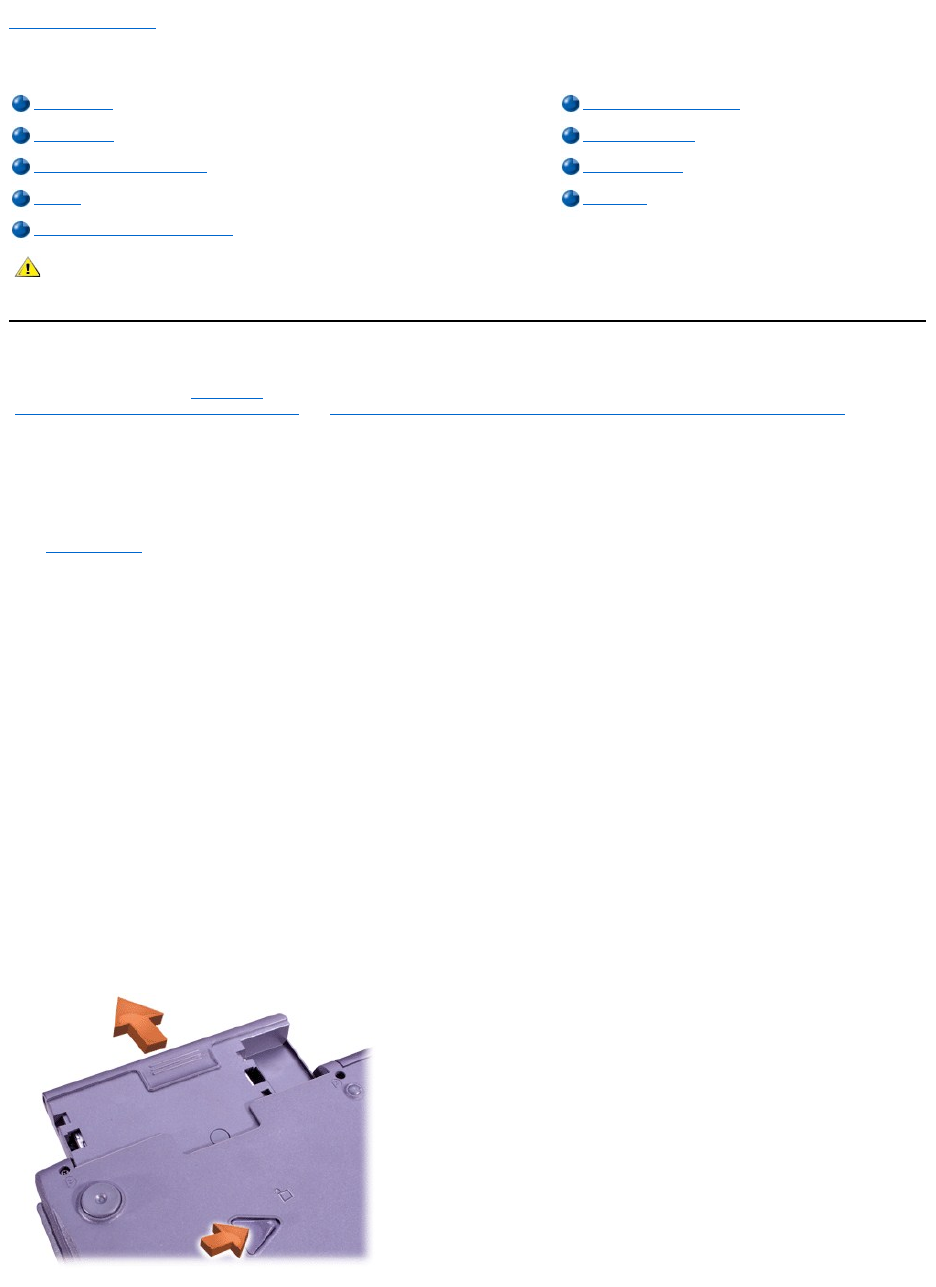
Back to Contents Page
UsingYourComputer:DellPrecision™MobileWorkstationM40User'sGuide
Modular Bay
Your computer comes with a floppy driveinstalledinthemodularbay.Touseanotherdeviceinthemodularbay,firstremovethefloppydrive(see
"Swapping Devices While the Computer Is Off" or "Swapping Devices While the Microsoft®Windows®Operating System Is Running.")
NOTICE: When drives are not inside the computer, they are fragile and must be handled carefully to avoid damage. Do not press
down on the drives or place heavy objects on top of them. Place the drives in a travel case to keep them free of dust and liquids.
Store the drives in a safe place.
Youcaninstallthefollowingmodulesinthemodularbay:
lSecond battery
lFloppy drive
lCD drive
lDVD drive
lCD-RW drive
lSecond hard drive
To make the computer as light as possible, use the travel module in the modular bay in place of any of the available drives.
Swapping Devices While the Computer Is Off
1. Save and close any open files, exit any open programs, and shut down the computer.
2. If the computer is connected (docked) to an Advanced Port Replicator (APR), undock it.
3. Close the display and turn the computer over.
4. Slide and hold the latch release, and pull the device out of the bay.
NOTICE: To prevent damage to devices, place them in a travel case when they are not inserted in the computer. Store devices in a
dry,safeplace,andavoidpressingdownonthemorplacingheavyobjectsontopofthem.
Modular Bay
DellAccessDirect™Key
Floppy Drive
Speaker Controls
CD, CD-RW, or DVD Drive
Cursor Controls
Display
PC Cards
Keyboard and Keypad Controls
CAUTION:Donotoperateyourcomputerforanextendedperiodoftimewiththebaserestingdirectlyonyourbody.With
extendedoperation,heatcanpotentiallybuildupinthebase.Allowingsustainedcontactwiththeskincouldcausediscomfort
or,eventually,aburn.
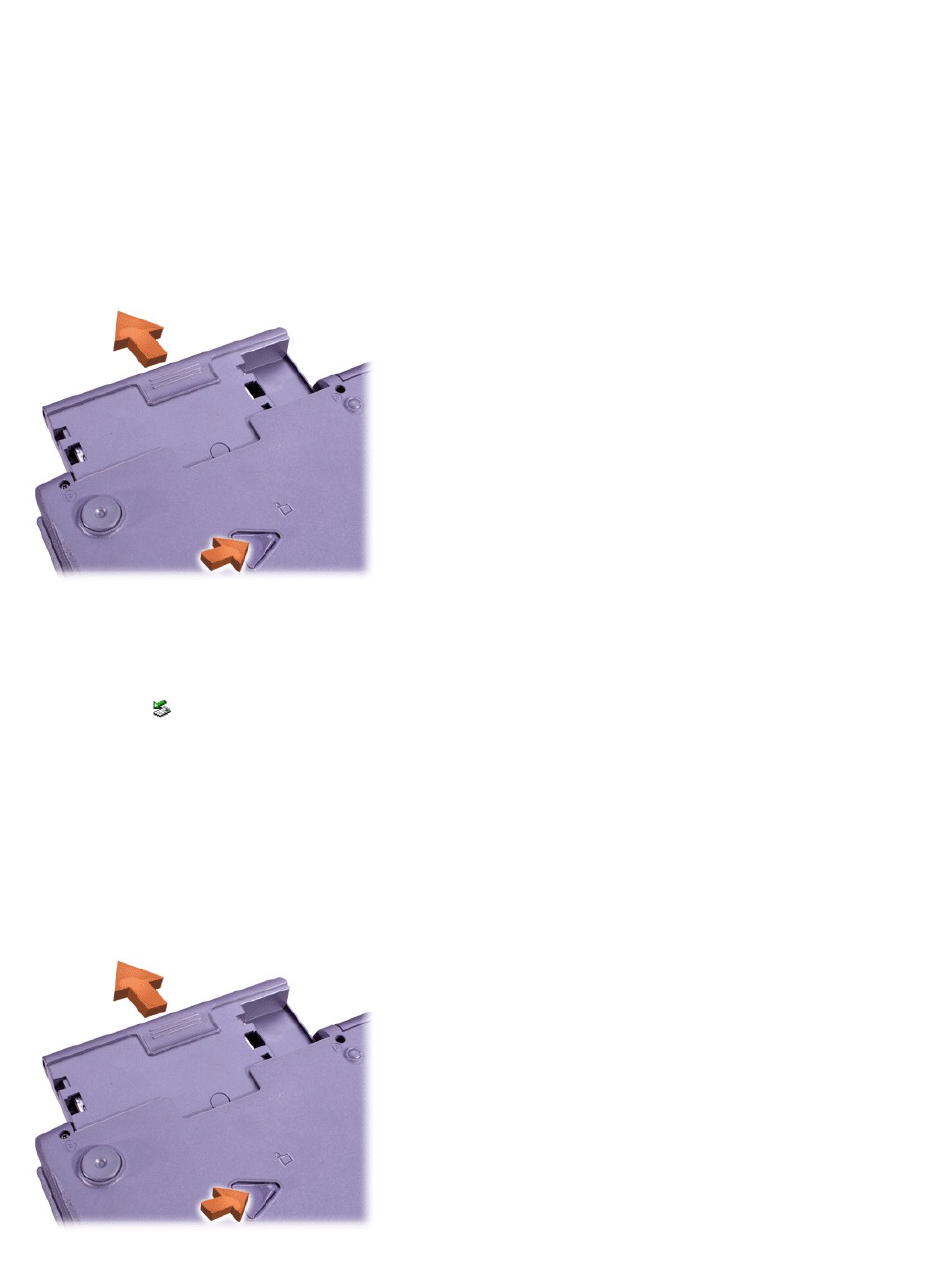
NOTICE:Insertdevicesbeforeyoudockandturnonthecomputer.
5. Insert the new device into the bay, and push it until you hear a click.
6. Turn the computer over and open the display.
7. Turn on the computer.
Swapping Devices While the Microsoft Windows Operating System Is Running
NOTICE: To prevent damage to the docking connector, do not remove or replace devices while the computer is connected to an
APR.
NOTICE: To prevent damage to devices, place them in a travel case when they are not inserted in the computer. Store devices in a
dry,safeplace,andavoidpressingdownonthemorplacingheavyobjectsontopofthem.
6. Insert the new device into the bay, and push the device in until you hear a click.
7. If necessary, enter your password to unlock your computer.
In Windows 2000
1. Double-click the icon on the Windows taskbar.
2. Click the device you want to eject and then click Stop.
3. Click OK, and wait until the device you want to eject is cleared from the list of devices in the Unplug or Eject Hardware window.
4. Keep the display open, and tilt the computer back so that you can access the bottom of the computer.
5. Slide and hold the latch release, and pull the device out of the bay.
NOTICE: To prevent damage to devices, place them in a travel case when they are not inserted in the computer. Store devices in a
dry,safeplace,andavoidpressingdownonthemorplacingheavyobjectsontopofthem.
6. Insert the new device into the bay, and push the device in until you hear a click.
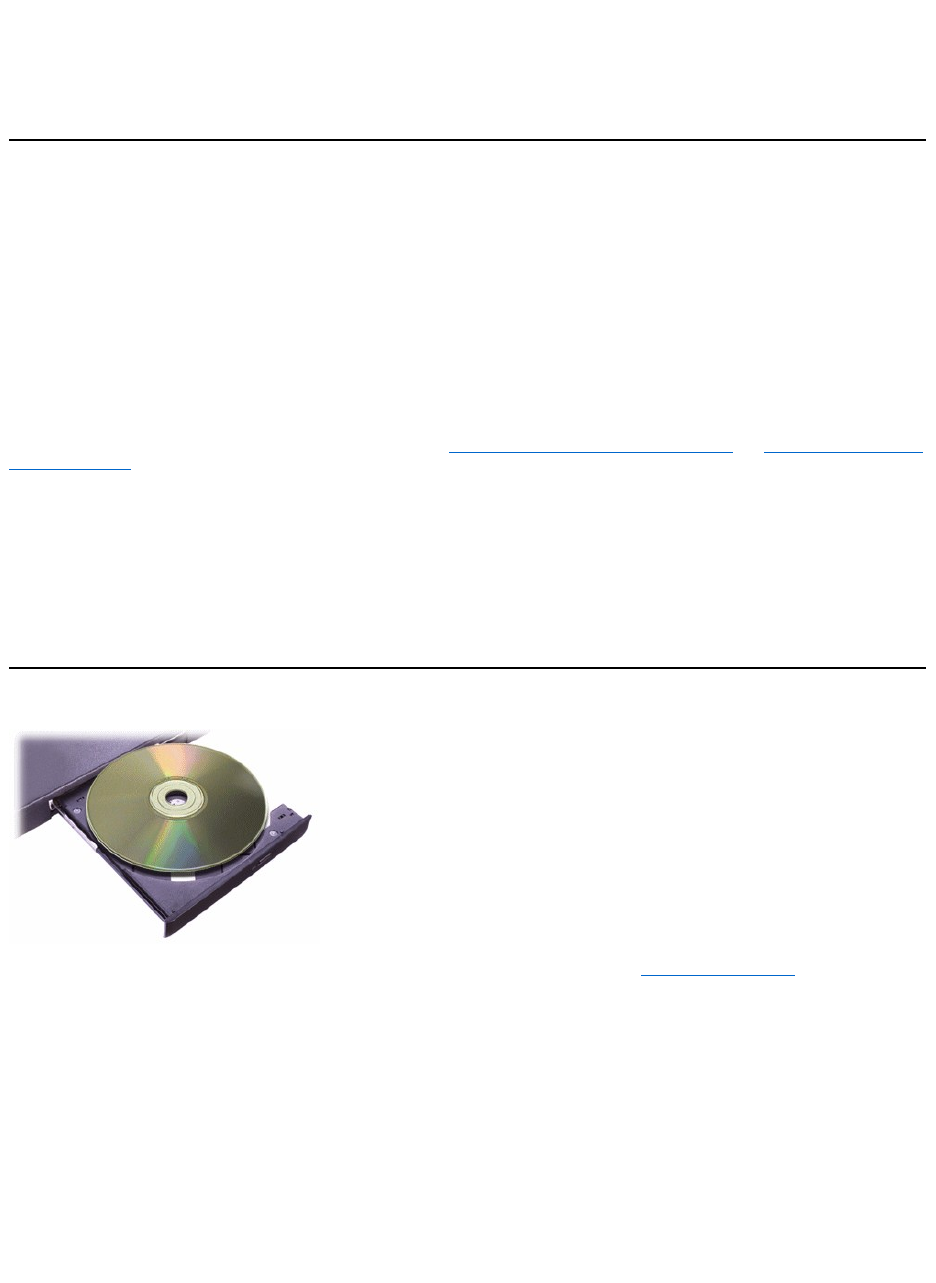
7. Turn the computer over and open the display.
8. Press the power button to resume from standby mode.
9. If necessary, enter your password to unlock your computer.
10. When Windows resumes and recognizes the new device, click Close.
Floppy Drive
To use the floppy drive:
1. Insert a 3.5-inchfloppydiskintothedrivewiththelabelsideupandmetalendfirst.
2. Push the floppy disk into the drive until the eject button extends outside the drive casing.
NOTICE: Do not travel with a floppy disk in the floppy drive. Doing so could break the eject button and damage the drive.
To remove a floppy disk from the drive:
1. Press the eject button to release the floppy disk.
2. Pull the floppy disk out of the drive.
To remove the drive or to use another device in the modular bay, see "Swapping Devices While the Computer Is Off" or "Swapping Devices While
the Computer Is On."
NOTICE: When drives are not inside the computer, they are fragile and must be handled carefully to avoid damage. Do not press
down on the drives or place heavy objects on top of them. Place the drives in a travel case to keep them free of dust and liquids.
Store the drives in a safe place.
Caring for Floppy Disks
lNever use damaged floppy disks in the computer.
lDo not store floppy disks near magnetic sources.
CD, CD-RW, or DVD Drive
Your computer comes with a DVD/ CD-RW combination drive installed as a fixed optical drive. See "Technical Specifications" for information on
supported CD, CD-RW, and DVD formats.
NOTICE: Donotmovethecomputerwhenusingthedrive.
NOTICE: Always use compressed air to clean the lens in the drive. Never touch the lens.
Playing a Disc
1. Press the eject button.
2. Pull the tray out.
3. Placethediscinthecenterofthetray,labelsideup.
NOTICE: If the disc is not seated correctly, the drive or media can be damaged.
4. Snap the disc onto the spindle.
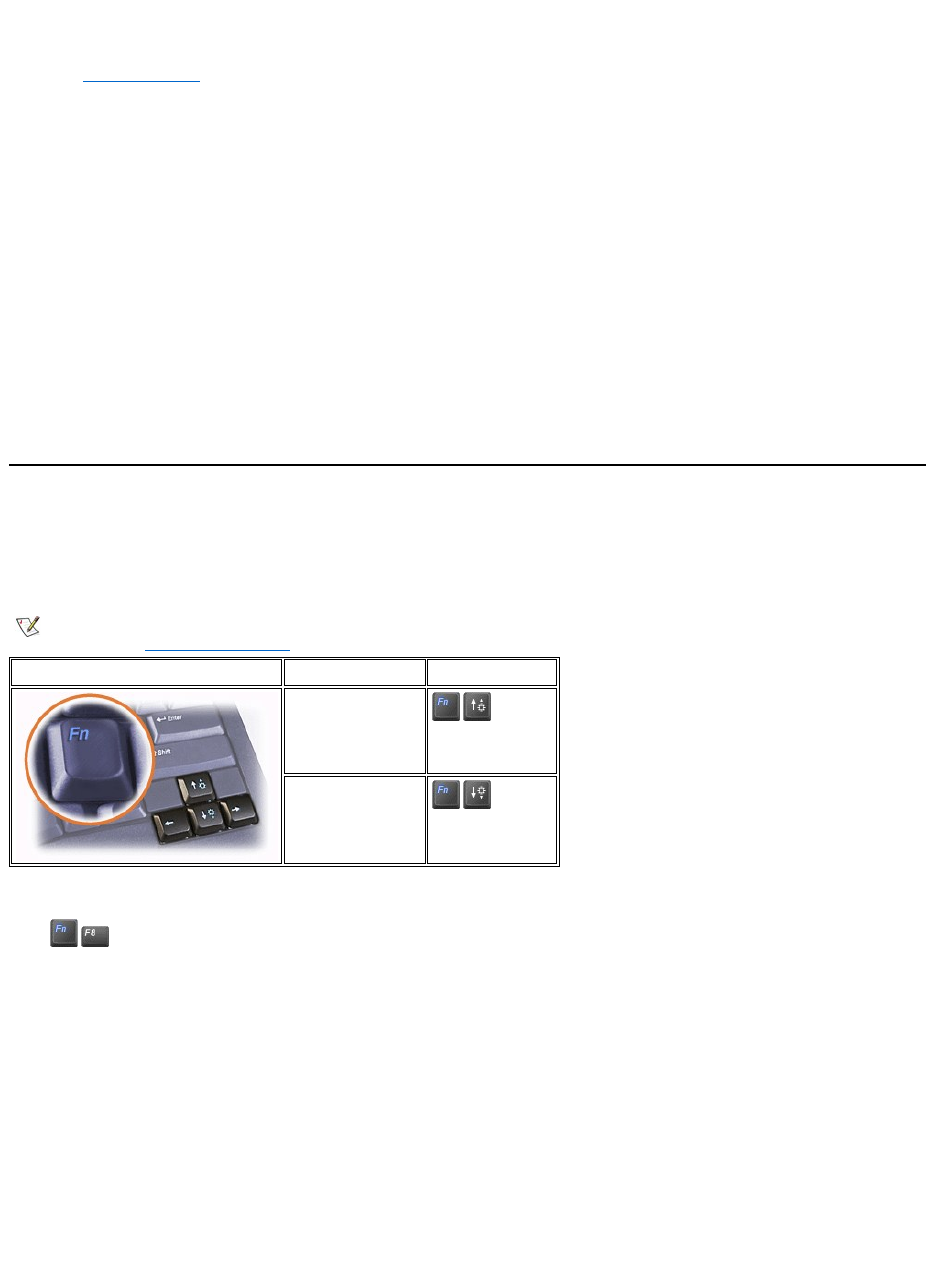
5. Push the tray back into the drive.
The autoplay feature can interfere with the computer’s power management functions. If Dell installed the operating system, the autoplay feature has
been disabled. If you reinstall the operating system or if you installed it yourself, be sure to disable the autoplay feature if you want to use the
drive.See"Conserving Power."
For instructions on changing the Auto Insert Notification option, see the operating system user’sguide.
Caring for Discs
lNever use a damaged or warped disc.
lAlways hold the disc by its edges. Do not touch the surface of the disc.
lUse a clean, dry cloth to remove dust, smudges, or fingerprints from the surface of the disc. When cleaning the disk, wipe from the center of
the disc to the edge.
lNever use solvents, such as benzene, record cleaners, or antistatic sprays, to clean the disc.
lDo not write on the surface of the disc.
lStore the disc in its container, placing it in a cool, dry place. Extreme temperatures may damage discs.
lDo not bend or drop a disc.
lDo not place objects on top of a disc.
Display
When you run the computer on battery power, set the brightness control to the lowest setting that affords comfortable viewing. You can conserve
battery power by using the minimum brightness setting.
Adjusting Brightness
Controlling Display Modes
Press to switch the video image to the next display in the following sequence: the computer's display, the display and external monitor
simultaneously,oranexternalmonitor.
Customizing Display Resolution
In Windows 2000
1. Click the Start button, point to Settings, and then click Control Panel.
2. Double-click the Display icon, and then click the Settings tab.
3. Try different settings for Colors and Screen area.
For more information, see your operating system documentation.
If you choose a resolution or color palette that is higher than the display supports, the settings adjust automatically to the closest possible
setting.
Video Drivers and Video Resolution
The Dell-installed video drivers work with the operating system to let you customize the video resolution and number of screen colors on your
NOTE: On an external keyboard, press <Scroll Lock> with the key combinations in the following table if the External Hot Key option is
enabled in the system setup program.
Keys
Function
Key Combination
Increase brightness
Decrease brightness
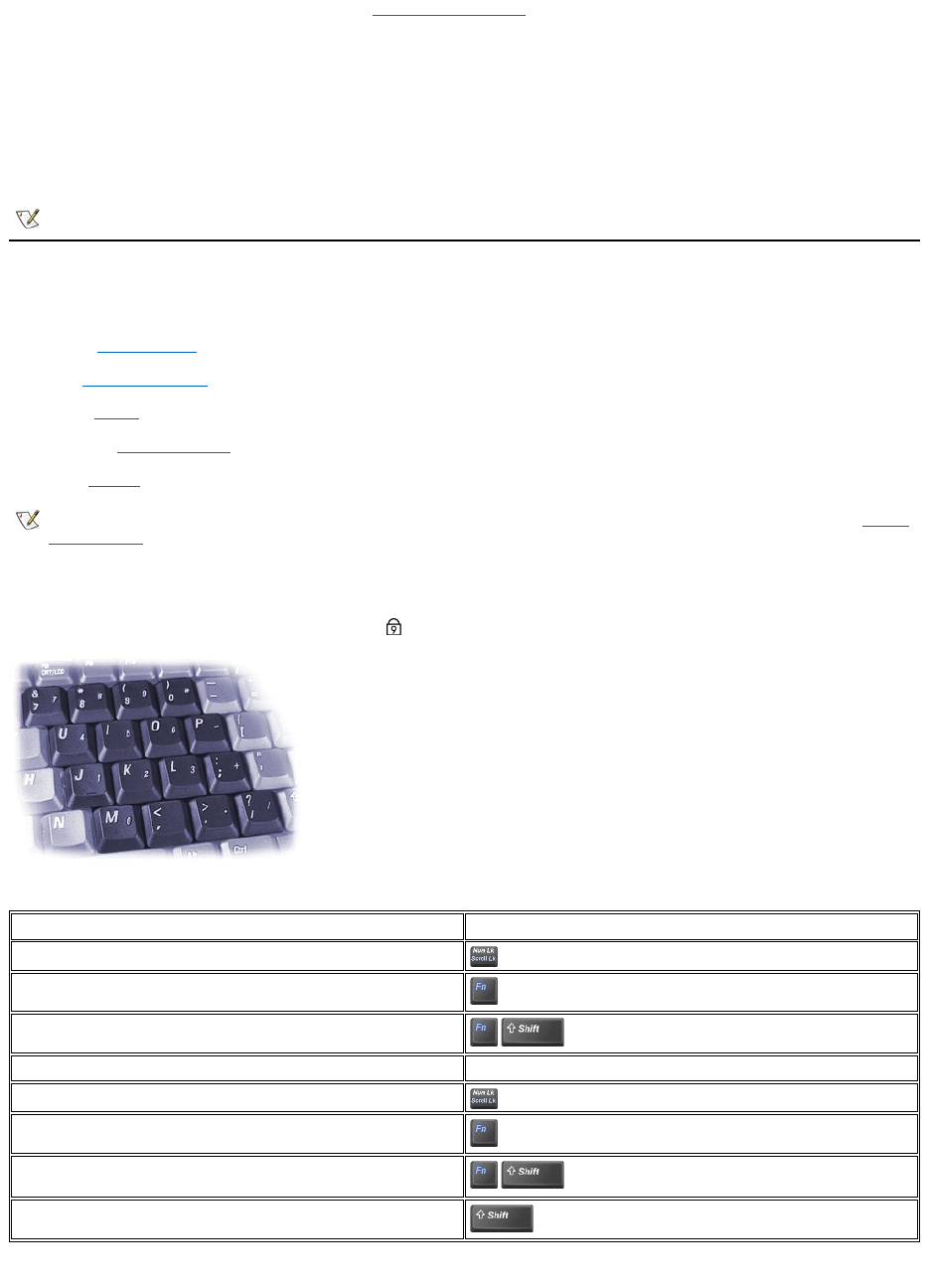
display. For detailed information on video resolution, see "Technical Specifications."
If the video resolution setting is higher than that supported by the display, the computer enters pan mode. In pan mode the screen cannot be
completely displayed. For example, the taskbar that usually appears at the bottom of the desktop may no longer be visible. To view the rest of the
screen,usethetouchpadortracksticktopanupanddownandleftandright.
NOTICE: You can damage the monitor by using an unsupported refresh rate. Before adjusting the refresh rate on an external
monitor,seethemonitor'suser'sguide.
If you select a resolution and color combination that the computer does not support, the computer automatically selects the next supported
combination.
Keyboard and Keypad Controls
Key combinations allow you to:
lUse the numeric keypad.
lEnter power management modes.
lControl display settings.
lControl the Dell AccessDirect key.
lAdjust speaker volume.
Numeric Keypad
The numeric keypad shares some of the keys on your computer's keyboard. The shared numbers and symbol characters are shown on the right
sideofthekeys.Whenyouactivatethenumerickeypad,the light turns on.
Numeric Keypad Key Combinations
Power Conservation Key Combination
NOTE: Color depth is based on 256 colors for 8-bit, 65,536 colors for 16-bit, and 4,294,967,296 colors for 32-bitdisplays.
NOTE: On an external keyboard, press <Scroll Lock> with the appropriate keys if the External Hot Key option is enabled in the system
setup program.
Function
When Keypad Is Off
Turn on the keypad
Temporarily enable a cursor-control key in the keypad
<cursor key>
Temporarily enable a number or symbol key on the keypad
<number key>
Function
When Keypad Is On
Turn off the keypad
Temporarily enable the lowercase characters/functions of the keyboard
<key>
Temporarily enables the uppercase characters/functions of the
keyboard
Temporarily enable a cursor-control key in the keypad
<cursor key>
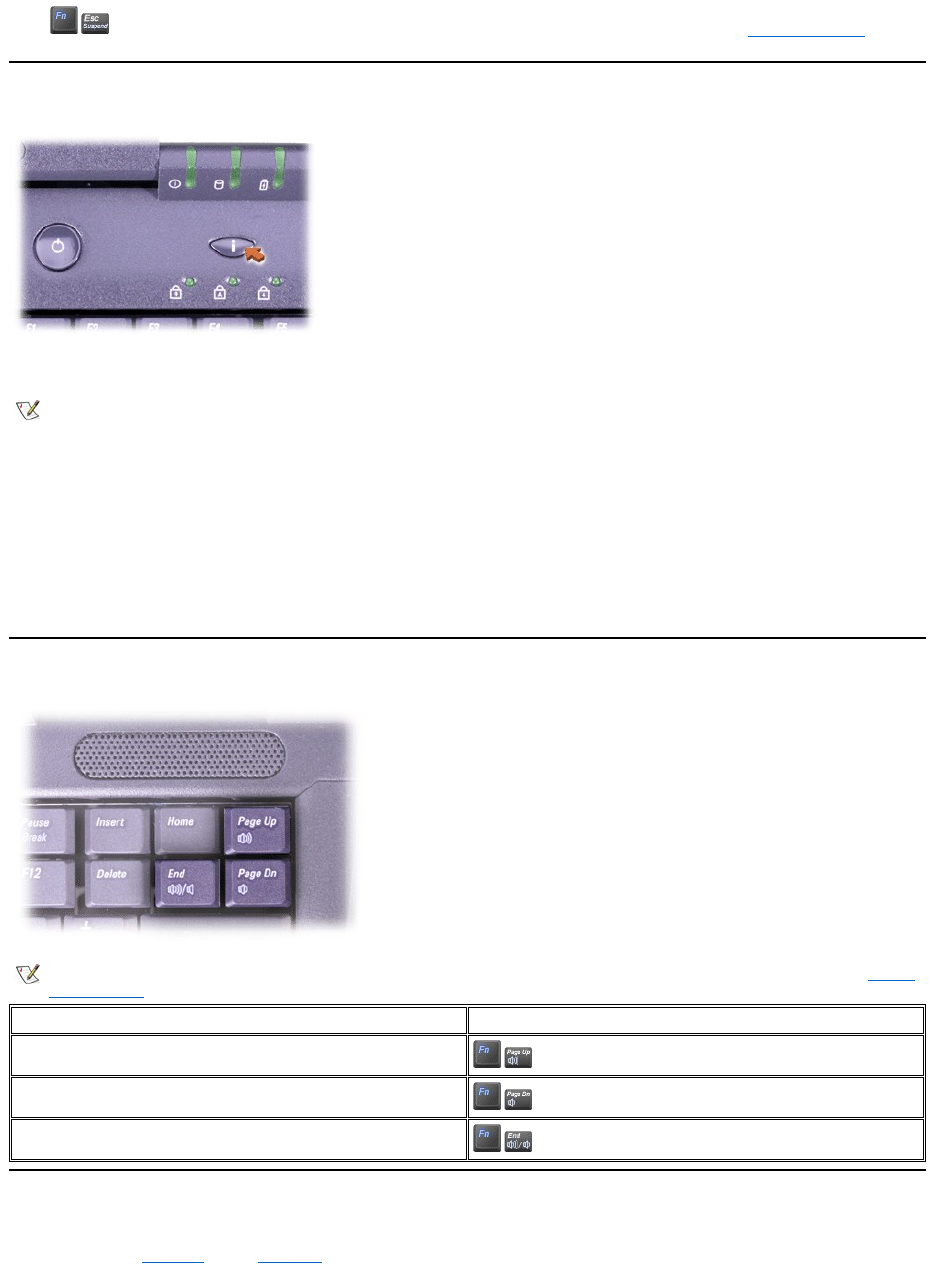
Press toactivatepowerconservationpropertiesifyouconfiguredthepowermanagementproperties.See"Conserving Power."
DellAccessDirect™Key
The Dell AccessDirect key allows you to quickly access a frequently used program, such as Microsoft Internet Explorer.
For information on using the AccessDirect key and viewing or changing key assignments, see the AccessDirect Help:
1. Open the Dell AccessDirect program in one of the following ways:
lDouble-click the AccessDirect icon in the system tray on the Windows taskbar (normally in the bottom-right corner of the screen).
lIn Windows 2000, click the Start button, point to Settings, and then double-click Control Panel. In the Control Panel window,
double-click the Keyboard icon, and then click the AccessDirect tab.
2. Click Help.
Speaker Controls
Cursor Controls
YourcomputerisequippedwiththeDellDualPointintegratedpointingdevice,whichincludestwocursorpointingdevicesthatperformtraditional
mouse functions: the touch pad and the track stick.Youcanchoosetousethetouchpadonly,thetrackstickonly,orbothatthesametime.
NOTE: Using an external keyboard with your computer disables the AccessDirect key.
NOTE: On an external keyboard, press <Scroll Lock> with the appropriate keys if the External Hot Key option is enabled in the system
setup program.
Function
Key Combination
Turn the volume up
Turn the volume down
Turn the speakers on or off
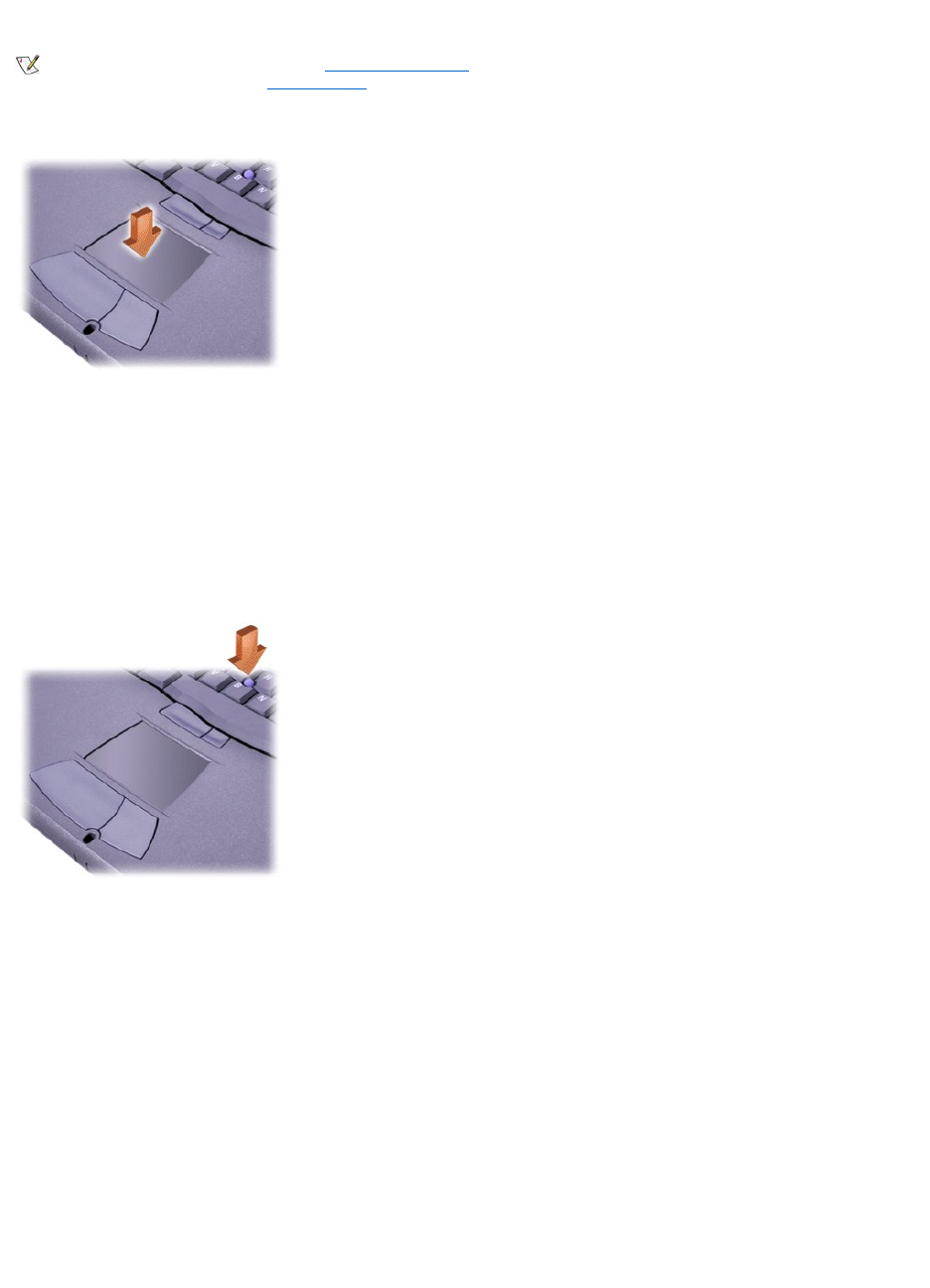
DualPoint device software allows you to adjust settings, such as sensitivity, motion, and drag and drop features for both the touch pad and track
stick.
Using the Touch Pad
The two touch pad buttons, located directly below the touch pad, correspond to the left and right buttons on a mouse.
lTo move the cursor, lightly slide your finger over the smooth sensor area.
lToselectanobject,gentlytaponceonthesurfaceofthetouchpadoruseyourthumbtopressthelefttouchpadbutton.
lTo select and move (or drag) an object, position the cursor on the object and tap down-up-down on the touch pad. On the second down
motion, leave your finger on the touch pad and move the selected object by sliding your finger across the surface.
lTo double-click an object, position the cursor on the object and then tap the touch pad or the left touch pad button twice.
Using the Track Stick
The two track stick buttons, located between the touch pad and the space bar on the keyboard, correspond to the left and right buttons on a
mouse.
lTomovethecursor,applypressuretothetrackstickwithyourindexfinger.Pressupordowntomovethecursortothetoporbottomofthe
displayscreen.Pressleftorrighttomovethecursortotheleftorrightofthedisplayscreen.
lToselectanobject,taponceonthetrackstickoruseyourthumbtopressthelefttrackstickbutton.
lToselectandmove(ordrag)anobject,positionthecursorontheobject.Thenpressandholdthelefttrackstickbutton.Leaveyourthumbon
the button and move the selected object by pressing the track stick in the desired direction.
lTo double-click an object, position the cursor on the object and then tap the left track stick button or the track stick itself twice. The track stick
functionsmuchlikethetouchpadinthatitallowsyoutousebuttonsformousefunctionsorthepointingdeviceitself.
Customizing the DualPoint Integrated Pointing Device
In Windows 2000
1. Click the Start button, point to Settings, and then click Control Panel.
2. Double-click the Mouse icon and click the Touch tab in the Mouse Properties window.
3. In the drop-down menu, click to select either the touch pad or the pointing stick (track stick) and click Apply.
NOTE: If the Pointing Device option in the system setup program is set to Touch Pad-PS/2 Mouse (the default), you can use
both the DualPoint device and an external mouse.
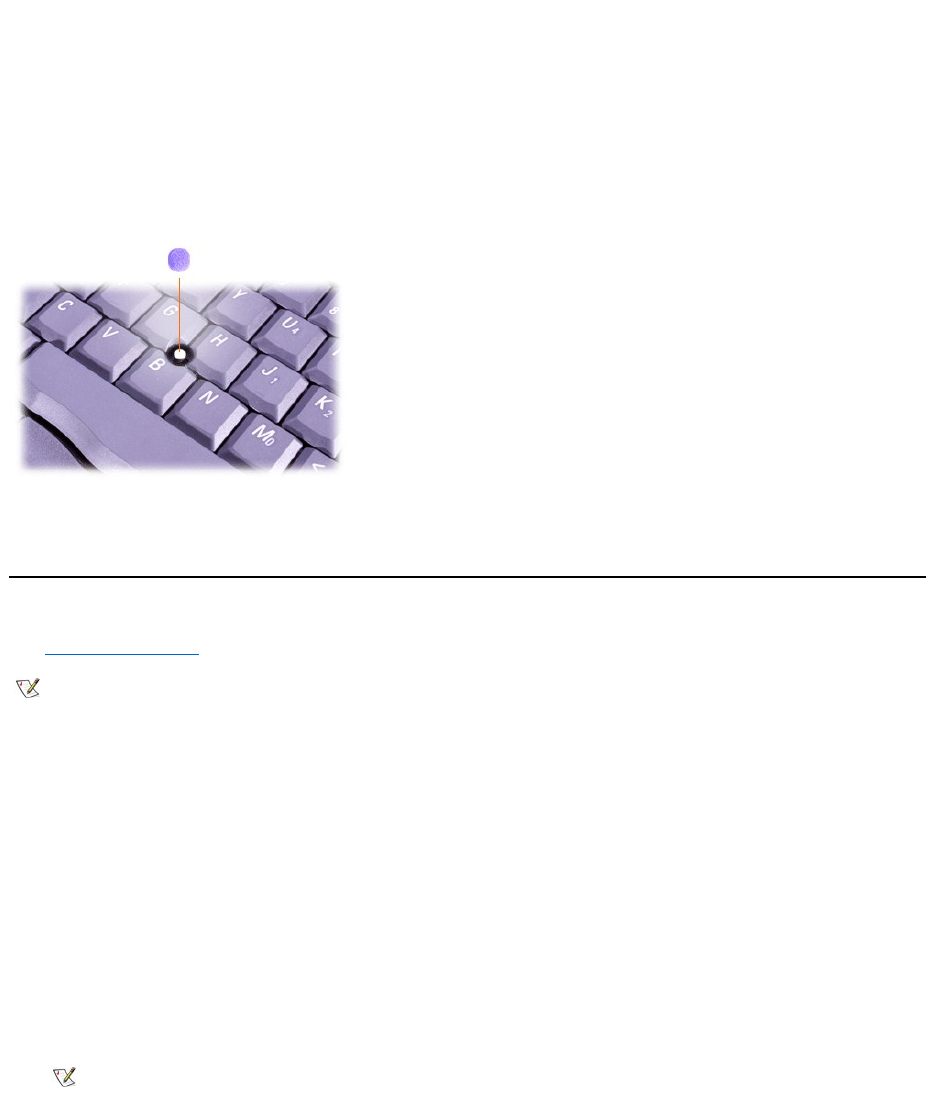
4. Click OK to save the settings and close the window.
To open the Mouse Properties window, you can also right-click the Touch Pad icon on the taskbar, and click Touch Pad Properties.
To disable the selected touch pad or track stick settings, click in the Disable this Device box. If you docked your computer with a mouse, the
touch pad and track stick settings are automatically disabled.
Changing the Track Stick Cap
Your computer came with additional track stick caps. You may need to change the track stick cap if it wears down from prolonged use.
1. Pull the cap off the track stick.
2. Alignanewcapoverthesquaretrackstickpostandgentlypressthecapdownontothepost.
3. Test the track stick to ensure that the cap is seated properly.
PC Cards
See "Technical Specifications" for information on supported PC Cards.
NOTICE: Extended cards are longer versions of standard PC Cards. They fit into and operate correctly with your computer. Follow
these precautions when using extended PC Cards:
lMake sure that nothing strikes the exposed end of an installed extended card. Otherwise, damage to the system board can
occur.
lAlways remove an extended PC Card before you pack the computer in its carrying case.
lTry installing an extended card in the upper PC Card slot to allow room for a second PC Card.
Removing PC Cards and Blanks
NOTICE: Use the PC Card configuration utility on the taskbar to select and disable a card before you remove it. If you do not disable
the card using the configuration utility, you could lose data from open programs.
1. Disable the PC Card by using the PC Card configuration utility on the taskbar.
2. Press the eject button.
NOTES: A PC Card is not a boot device. The "type" of a card refers to its thickness, not its functionality.
Your computer recognizes most I/O cards and automatically loads the device driver associated with the card.
NOTE:AdotoneachejectbuttonindicateswhetherthebuttonisforthetoporbottomPCCardslot.
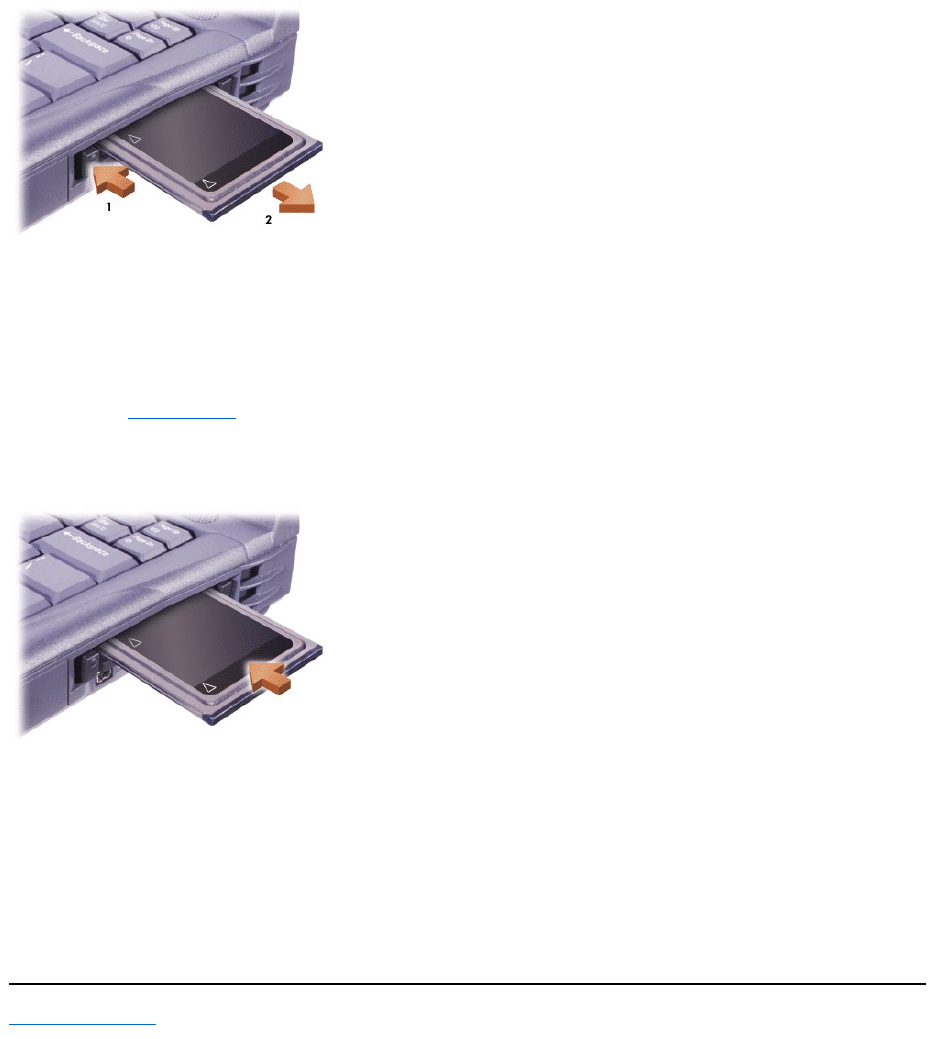
3. Gently remove the card or blank.
Save a blank to use whenever you do not have a PC Card installed. The blank protects the PC Card slot from dust and other particles.
Installing PC Cards
YoudonotneedtoturnoffyourcomputerorexitsuspendorstandbymodebeforeyouinstallaPCCard.
1. If necessary, remove the blank from the PC Card slot.
2. Insert the card, and press in firmly until the card is completely seated.
If card orientation is not clear, see the documentation that came with the card.
3. If you encounter resistance when inserting the card, do not force it. Check the card's orientation and try again.
Configuring PC Cards
The PC Card configuration utility performs the following functions:
lNotifies you whenever a PC Card is inserted and tells you how the card is configured
lAutomatically loads the proper device driver if the driver is available on the hard drive
lPrompts you to install drivers if they are not available on the hard drive
Back to Contents Page

Back to Contents Page
LimitedWarrantyandReturnPolicy:DellPrecision™MobileWorkstationM40User's
Guide
Three-Year Limited Warranty (U.S. Only)
Dell Computer Corporation ("Dell") manufactures its hardware products from parts and components that are new or equivalent to new in
accordance with industry-standard practices. Dell warrants that the hardware products it manufactures will be free from defects in materials and
workmanship. The limited warranty term is three years beginning on the date of invoice, as described in the following text.
Damage due to shipping the products to you is covered under this limited warranty. Otherwise, this limited warranty does not cover damage due to
external causes, including accident, abuse, misuse, problems with electrical power, servicing not authorized by Dell, usage not in accordance with
product instructions, failure to perform required preventive maintenance, and problems caused by use of parts and components not supplied by
Dell.
This limited warranty does not cover any items that are in one or more of the following categories: software; external devices (except as specifically
noted); accessories or parts added to a Dell system after the system is shipped from Dell; accessories or parts added to a Dell system through
Dell's system integration department; accessories or parts that are not installed in the Dell factory; or DellWare™ products. Monitors, keyboards,
and mice that are Dell-branded or that are included on Dell's standard price list are covered under this limited warranty; all other monitors,
keyboards, and mice (including those sold through the DellWare program) are not covered. Batteries for portable computers are covered only
during the initial one-year period of this limited warranty.
Coverage During Year One
During the one-year period beginning on the invoice date, Dell will repair or replace products covered under this limited warranty that are returned
to Dell's facility. To request warranty service, you must contact Dell's Customer Technical Support within the warranty period. See "Contacting Dell"
to find the appropriate contact information for obtaining customer assistance. If warranty service is required, Dell will issue a Return Material
Authorization Number. You must ship the products back to Dell in their original or equivalent packaging, prepay shipping charges, and insure the
shipment or accept the risk of loss or damage during shipment. Dell will ship the repaired or replacement products to you freight prepaid if you use
an address in the continental U.S., where applicable. Shipments to other locations will be made freight collect.
Dell owns all parts removed from repaired products. Dell uses new and reconditioned parts made by various manufacturers in performing warranty
repairs and building replacement products. If Dell repairs or replaces a product, its warranty term is not extended.
Coverage During Years Two and Three
During the second and third years of this limited warranty, Dell will provide, on an exchange basis and subject to Dell's Exchange Policy in effect on
the date of the exchange, replacement parts for the Dell hardware product(s) covered under this limited warranty when a part requires
replacement. You must report each instance of hardware failure to Dell's Customer Technical Support in advance to obtain Dell's concurrence that
a part should be replaced and to have Dell ship the replacement part. Dell will ship parts (freight prepaid) if you use an address in the continental
U.S., where applicable. Shipments to other locations will be made freight collect. Dell will include a prepaid shipping container with each
replacement part for your use in returning the replaced part to Dell. Replacement parts are new or reconditioned. Dell may provide replacement
parts made by various manufacturers when supplying parts to you. The warranty term for a replacement part is the remainder of the limited
warranty term.
You will pay Dell for replacement parts if the replaced part is not returned to Dell. The process for returning replaced parts, and your obligation to
pay for replacement parts if you do not return the replaced parts to Dell, will be in accordance with Dell's Exchange Policy in effect on the date of
the exchange.
You accept full responsibility for your software and data. Dell is not required to advise or remind you of appropriate backup and other procedures.
General Provisions
THIS LIMITED WARRANTY GIVES YOU SPECIFIC LEGAL RIGHTS, AND YOU MAY ALSO HAVE OTHER RIGHTS, WHICH VARY FROM
STATE TO STATE (OR JURISDICTION TO JURISDICTION). DELL'S RESPONSIBILITY FOR MALFUNCTIONS AND DEFECTS IN HARDWARE
IS LIMITED TO REPAIR AND REPLACEMENT AS SET FORTH IN THIS LIMITED WARRANTY STATEMENT. ALL EXPRESS AND IMPLIED
WARRANTIES FOR THE PRODUCT, INCLUDING BUT NOT LIMITED TO ANY IMPLIED WARRANTIES OF AND CONDITIONS OF
MERCHANTABILITY AND FITNESS FOR A PARTICULAR PURPOSE, ARE LIMITED IN DURATION TO THE WARRANTY PERIOD SET FORTH
ABOVE AND NO WARRANTIES, WHETHER EXPRESS OR IMPLIED, WILL APPLY AFTER SUCH PERIOD.
SOME STATES (OR JURISDICTIONS) DO NOT ALLOW LIMITATIONS ON HOW LONG AN IMPLIED WARRANTY LASTS, SO THE
PRECEDING LIMITATION MAY NOT APPLY TO YOU.
Three-Year Limited Warranty (U.S. Only)
One-Year End-User Manufacturer Guarantee (Latin America and
the Caribbean Only)
Three-Year Limited Warranty (Canada Only)
"Total Satisfaction" Return Policy (U.S. and Canada Only)
NOTE: Before you ship the product(s) to Dell, back up the data on the hard drive(s) and any other storage device(s) in the product(s). Remove
any removable media, such as floppy disks, CDs, or PC Cards. Dell does not accept liability for lost data or software.

DELL DOES NOT ACCEPT LIABILITY BEYOND THE REMEDIES SET FORTH IN THIS LIMITED WARRANTY STATEMENT OR LIABILITY FOR
INCIDENTAL OR CONSEQUENTIAL DAMAGES, INCLUDING WITHOUT LIMITATION ANY LIABILITY FOR PRODUCTS NOT BEING
AVAILABLE FOR USE OR FOR LOST DATA OR SOFTWARE.
SOME STATES (OR JURISDICTIONS) DO NOT ALLOW THE EXCLUSION OR LIMITATION OF INCIDENTAL OR CONSEQUENTIAL
DAMAGES, SO THE PRECEDING EXCLUSION OR LIMITATION MAY NOT APPLY TO YOU.
These provisions apply to Dell's three-year limited warranty only. For provisions of any service contract covering your system, refer to your invoice
or the separate service contract that you will receive.
If Dell elects to exchange a system or component, the exchange will be made in accordance with Dell's Exchange Policy in effect on the date of the
exchange. In any instance in which Dell issues a Return Material Authorization Number, Dell must receive the product(s) for repair prior to the
expiration of the warranty period in order for the repair(s) to be covered by the limited warranty.
Three-Year Limited Warranty (Canada Only)
Dell Computer Corporation ("Dell") manufactures its hardware products from parts and components that are new or equivalent to new in
accordance with industry-standard practices. Dell warrants that the hardware products it manufactures will be free from defects in materials and
workmanship. The limited warranty term is three years beginning on the date of invoice, as described in the following text.
Damage due to shipping the products to you is covered under this limited warranty. Otherwise, this limited warranty does not cover damage due to
external causes, including accident, abuse, misuse, problems with electrical power, servicing not authorized by Dell, usage not in accordance with
product instructions, failure to perform required preventive maintenance, and problems caused by use of parts and components not supplied by
Dell.
This limited warranty does not cover any items that are in one or more of the following categories: software; external devices (except as specifically
noted); accessories or parts added to a Dell system after the system is shipped from Dell; accessories or parts added to a Dell system through
Dell's system integration department; accessories or parts that are not installed in the Dell factory; or DellWare products. Monitors, keyboards, and
mice that are Dell-branded or that are included on Dell's standard price list are covered under this limited warranty; all other monitors, keyboards,
and mice (including those sold through the DellWare program) are not covered. Batteries for portable computers are covered only during the initial
one-year period of this limited warranty.
Coverage During Year One
During the one-year period beginning on the invoice date, Dell will repair or replace products covered under this limited warranty that are returned
to Dell's facility. To request warranty service, you must contact Dell's Customer Technical Support within the warranty period. See "Contacting Dell"
to find the appropriate telephone number for obtaining customer assistance. If warranty service is required, Dell will issue a Return Material
Authorization Number. You must ship the products back to Dell in their original or equivalent packaging, prepay shipping charges, and insure the
shipment or accept the risk of loss or damage during shipment. Dell will ship the repaired or replacement products to you freight prepaid if you use
an address in Canada, where applicable. Shipments to other locations will be made freight collect.
Dell owns all parts removed from repaired products. Dell uses new and reconditioned parts made by various manufacturers in performing warranty
repairs and building replacement products. If Dell repairs or replaces a product, its warranty term is not extended.
Coverage During Years Two and Three
During the second and third years of this limited warranty, Dell will provide, on an exchange basis and subject to Dell's Exchange Policy in effect on
the date of the exchange, replacement parts for the Dell hardware product(s) covered under this limited warranty when a part requires
replacement. You must report each instance of hardware failure to Dell's Customer Technical Support in advance to obtain Dell's concurrence that
a part should be replaced and to have Dell ship the replacement part. Dell will ship parts (freight prepaid) if you use an address in Canada, where
applicable. Shipments to other locations will be made freight collect. Dell will include a prepaid shipping container with each replacement part for
your use in returning the replaced part to Dell. Replacement parts are new or reconditioned. Dell may provide replacement parts made by various
manufacturers when supplying parts to you. The warranty term for a replacement part is the remainder of the limited warranty term.
You will pay Dell for replacement parts if the replaced part is not returned to Dell. The process for returning replaced parts, and your obligation to
pay for replacement parts if you do not return the replaced parts to Dell, will be in accordance with Dell's Exchange Policy in effect on the date of
the exchange.
You accept full responsibility for your software and data. Dell is not required to advise or remind you of appropriate backup and other procedures.
General Provisions
DELL MAKES NO EXPRESS WARRANTIES OR CONDITIONS BEYOND THOSE STATED IN THIS LIMITED WARRANTY STATEMENT. DELL
DISCLAIMS ALL OTHER WARRANTIES AND CONDITIONS, EXPRESS OR IMPLIED, INCLUDING WITHOUT LIMITATION IMPLIED
WARRANTIES AND CONDITIONS OF MERCHANTABILITY AND FITNESS FOR A PARTICULAR PURPOSE. SOME STATES (OR
JURISDICTIONS) DO NOT ALLOW LIMITATIONS ON IMPLIED WARRANTIES OR CONDITIONS, SO THIS LIMITATION MAY NOT APPLY TO
YOU.
DELL'S RESPONSIBILITY FOR MALFUNCTIONS AND DEFECTS IN HARDWARE IS LIMITED TO REPAIR AND REPLACEMENT AS SET
NOTE: If you chose one of the available warranty and service options in place of the standard three-year limited warranty described in the
preceding text, the option you chose will be listed on your invoice.
NOTE: Before you ship the product(s) to Dell, back up the data on the hard drive(s) and any other storage device(s) in the product(s). Remove
any removable media, such as floppy disks, CDs, or PC Cards. Dell does not accept liability for lost data or software.

FORTH IN THIS LIMITED WARRANTY STATEMENT. THESE WARRANTIES GIVE YOU SPECIFIC LEGAL RIGHTS, AND YOU MAY ALSO
HAVE OTHER RIGHTS, WHICH VARY FROM STATE TO STATE (OR JURISDICTION TO JURISDICTION).
DELL DOES NOT ACCEPT LIABILITY BEYOND THE REMEDIES SET FORTH IN THIS LIMITED WARRANTY STATEMENT OR LIABILITY FOR
INCIDENTAL OR CONSEQUENTIAL DAMAGES, INCLUDING WITHOUT LIMITATION ANY LIABILITY FOR PRODUCTS NOT BEING
AVAILABLE FOR USE OR FOR LOST DATA OR SOFTWARE.
SOME STATES (OR JURISDICTIONS) DO NOT ALLOW THE EXCLUSION OR LIMITATION OF INCIDENTAL OR CONSEQUENTIAL
DAMAGES, SO THE PRECEDING EXCLUSION OR LIMITATION MAY NOT APPLY TO YOU.
These provisions apply to Dell's three-year limited warranty only. For provisions of any service contract covering your system, refer to your invoice
or the separate service contract that you will receive.
If Dell elects to exchange a system or component, the exchange will be made in accordance with Dell's Exchange Policy in effect on the date of the
exchange. In any instance in which Dell issues a Return Material Authorization Number, Dell must receive the product(s) for repair prior to the
expiration of the warranty period in order for the repair(s) to be covered by the limited warranty.
One-Year End-User Manufacturer Guarantee (Latin America and the Caribbean Only)
Guarantee
Dell Computer Corporation ("Dell") warrants to the end user in accordance with the following provisions that its branded hardware products,
purchased by the end user from a Dell company or an authorized Dell distributor in Latin America or the Caribbean, will be free from defects in
materials, workmanship, and design affecting normal use, for a period of one year from the original purchase date. Products for which proper
claims are made will, at Dell’s option, be repaired or replaced at Dell’s expense. Dell owns all parts removed from repaired products. Dell uses
new and reconditioned parts made by various manufacturers in performing repairs and building replacement products.
Exclusions
This Guarantee does not apply to defects resulting from: improper or inadequate installation, use, or maintenance; actions or modifications by
unauthorized third parties or the end user; accidental or willful damage; or normal wear and tear.
Making a Claim
Claims must be made in Latin America or the Caribbean by contacting the Dell point of sale within the guarantee period. The end user must
always supply proof of purchase, indicating name and address of the seller, date of purchase, model and serial number, name and address of the
customer, and details of symptoms and configuration at the time of malfunction, including peripherals and software used. Otherwise, Dell may
refuse the guarantee claim. Upon diagnosis of a warranted defect, Dell will make arrangements and pay for ground freight and insurance to and
from Dell’s repair/replacement center. The end user must ensure that the defective product is available for collection properly packed in original or
equally protective packaging together with the details listed above and the return number provided to the end user by Dell.
Limitation and Statutory Rights
Dell makes no other warranty, guarantee or like statement other than as explicitly stated above, and this Guarantee is given in place of all other
guarantees whatsoever, to the fullest extent permitted by law. In the absence of applicable legislation, this Guarantee will be the end user’s sole
and exclusive remedy against Dell or any of its affiliates, and neither Dell nor any of its affiliates shall be liable for loss of profit or contracts, or any
other indirect or consequential loss arising from negligence, breach of contract, or howsoever.
This Guarantee does not impair or affect mandatory statutory rights of the end-user against and/or any rights resulting from other
contracts concluded by the end-user with Dell and/or any other seller.
Dell World Trade LP
One Dell Way, Round Rock, TX 78682, USA
Dell Computadores do Brasil Ltda (CNPJ No. 72.381.189/0001-10)/
Dell Commercial do Brasil Ltda (CNPJ No. 03 405 822/0001-40)
Avenida Industrial Belgraf, 400
92990-000 - Eldorado do Sul – RS - Brasil
Dell Computer de Chile Ltda
Coyancura 2283, Piso 3- Of.302,
Providencia, Santiago - Chile
Dell Computer de Colombia Corporation
Carrera 7 #115-33 Oficina 603
Bogota, Colombia
Dell Computer de Mexico SA de CV
Paseo de la Reforma 2620 - 11°Piso
Col. Lomas Altas
11950México,D.F.
NOTE: If you chose one of the available warranty and service options in place of the standard three-year limited warranty described in the
preceding text, the option you chose will be listed on your invoice.

"Total Satisfaction" Return Policy (U.S. and Canada Only)
If you are an end-user customer who bought new products directly from a Dell company, you may return them to Dell within 30 days of the date of
invoice for a refund or credit of the product purchase price. If you are an end-user customer who bought reconditioned or refurbished products from
a Dell company, you may return them to Dell within 14 days of the date of invoice for a refund or credit of the product purchase price. In either case,
the refund or credit will not include any shipping and handling charges shown on your invoice. If you are an organization that bought the products
under a written agreement with Dell, the agreement may contain different terms for the return of products than specified by this policy.
To return products, you must contact Dell Customer Service to receive a Credit Return Authorization Number. See "Contacting Dell" to find the
appropriate contact information for obtaining customer assistance. To expedite the processing of your refund or credit, Dell expects you to return
the products to Dell in their original packaging within five days of the date that Dell issues the Credit Return Authorization Number. You must also
prepay shipping charges and insure the shipment or accept the risk of loss or damage during shipment. You may return software for refund or
credit only if the sealed package containing the floppy disk(s) or CD(s) is unopened. Returned products must be in as-new condition, and all of the
manuals, floppy disk(s), CD(s), power cables, and other items included with a product must be returned with it. For customers who want to return,
for refund or credit only, either applications software or an operating system that has been installed by Dell, the whole system must be returned,
along with any media and documentation that may have been included in the original shipment.
This "Total Satisfaction" Return Policy does not apply to DellWare products, which may be returned under DellWare's then-current return policy. In
addition, reconditioned parts purchased through Dell Spare Parts Sales in Canada are nonreturnable.
Back to Contents Page
