Dell Repository Manager Version 1 3 Users Manual 1.3 User's Guide
2014-11-13
: Dell Dell-Repository-Manager-Version-1-3-Users-Manual-117667 dell-repository-manager-version-1-3-users-manual-117667 dell pdf
Open the PDF directly: View PDF  .
.
Page Count: 92
- User’s Guide
- Contents
- Overview
- User Scenarios
- Launching Repository Manager Using Command Line Options
- Repairing Repository Manager
- Upgrading to the Latest Version of Repository Manager
- Using Repository Manager to Create and Manage a Server Repository
- Creating an Update Repository for Dell OpenManage Essentials
- Creating an Update Repository for Dell Management Plug-in for VMware vCenter
- Creating an Update Repository for Dell Management Plug-in Without Inventory Data
- Using Repository Manager in the Server Mode to Create and Manage Bundles
- Using Repository Manager in the Server Mode to Create and Manage Components
- Using Repository Manager to Create and Manage a Client Repository
- Using Repository Manager in Client Mode to Create and Manage Components
- Using Repository Manager to Search for Updates
- Using Repository Manager to Update or Save SUU and Deployment Media Plug-ins
- Updating a Local Repository
- Putting a SUU ISO on a Bootable USB Key
- Upgrading and Uninstalling Repository Manager
- Using Dell Repository Manager in Server Mode
- Creating a Repository
- Creating a New Repository
- Creating an Update Repository for Dell OpenManage Essentials
- Creating an Update Repository for Dell Management Plug-in for VMware vCenter Using Inventory Data
- Creating an Empty Repository
- Selecting a Source for the Repository
- Selecting Form Factors
- Selecting Operating Systems
- Selecting System Models
- Selecting Bundles
- Saving a Repository
- Importing an Existing Repository
- Comparing and Updating Repositories
- Editing a Repository
- Removing a Repository
- Opening the Dell Online Catalog
- Opening a Local Repository
- Viewing Properties of a Repository
- Viewing Inventory Information of a Repository
- Refreshing a Repository
- Working With Bundles
- Viewing the Size of Bundles
- Creating Custom Bundles
- Importing Bundles
- Removing Bundles
- Cloning Bundles
- Comparing Bundles
- Exporting Bundles
- Exporting to Light Weight Deployment Scripts
- Exporting as a SUU
- Downloading SUU and Deployment Media Plug-ins
- Customizing Bundles
- Customizing the Script for Deployment
- Creating Bootable USB Keys for Deployment Updates
- Working With Components
- Working With Filters
- Creating a Repository
- Using Dell Repository Manager in Client Mode
- Frequently Asked Questions

Dell Repository Manager
Version 1.4
User’s Guide
drm.book Page 1 Monday, December 5, 2011 11:27 AM

Notes and Cautions
NOTE: A NOTE indicates important information that helps you make better use of
your computer.
CAUTION: A CAUTION indicates potential damage to hardware or loss of data if
instructions are not followed.
____________________
Information in this document is subject to change without notice.
© 2011 Dell Inc. All rights reserved.
Reproduction of these materials in any manner whatsoever without the written permission of Dell Inc.
is strictly forbidden.
Trademarks used in this text: Dell™, the DELL™ logo, PowerEdge™, PowerVault™,
PowerConnect™, and OpenManage™ are trademarks of Dell Inc. VMware vCenter™ is the trademark
or registered trademark of VMware Inc in the United States and/or other countries. Microsoft®,
Microsoft®.NET, Windows®, and Windows Server® are either trademarks or registered trademarks
of Microsoft Corporation in the United States and/or other countries. Red Hat Enterprise Linux® and
Enterprise Linux® are registered trademarks of Red Hat, Inc. in the United States and/or other
countries. Other trademarks and trade names may be used in this document to refer to either the entities
claiming the marks and names or their products. Dell Inc. disclaims any proprietary interest in
trademarks and trade names other than its own.
2011 - 12
drm.book Page 2 Monday, December 5, 2011 11:27 AM

Contents 3
Contents
1Overview . . . . . . . . . . . . . . . . . . . . . . . . . . 9
What’s New in this Release . . . . . . . . . . . . . . . . 9
Updating Repository Manager. . . . . . . . . . . . . . 10
Updating Repository Manager at Run Time . . . . 11
Updating Repository Manager using the
Settings icon . . . . . . . . . . . . . . . . . . . . 11
Updating Repository Manager Using an
External Application . . . . . . . . . . . . . . . . 12
Configuring Settings for Repository Manager . . . . . 12
Configuring Default Repository Settings . . . . . . 12
Configuring Update Repository Source Settings. . 13
Configuring Default Proxy Settings. . . . . . . . . 13
Configuring Plug-in Update Check Settings . . . . 14
Configuring Repository Manager Update
Settings . . . . . . . . . . . . . . . . . . . . . . . 16
Other Documents You Might Need . . . . . . . . . . . 16
2 User Scenarios . . . . . . . . . . . . . . . . . . . . 19
Launching Repository Manager Using Command
Line Options . . . . . . . . . . . . . . . . . . . . . . . 19
Repairing Repository Manager . . . . . . . . . . . . . 19
Upgrading to the Latest Version of Repository
Manager . . . . . . . . . . . . . . . . . . . . . . . . . 20
drm.book Page 3 Monday, December 5, 2011 11:27 AM

4Contents
Using Repository Manager to Create and Manage a
Server Repository . . . . . . . . . . . . . . . . . . . . 20
Creating an Update Repository for Dell OpenManage
Essentials . . . . . . . . . . . . . . . . . . . . . . . . 20
Creating an Update Repository for Dell Management
Plug-in for VMware vCenter . . . . . . . . . . . . . . . 21
Creating an Update Repository for Dell Management
Plug-in Without Inventory Data . . . . . . . . . . . . . 22
Using Repository Manager in the Server Mode to
Create and Manage Bundles. . . . . . . . . . . . . . . 22
Using Repository Manager in the Server Mode to
Create and Manage Components . . . . . . . . . . . . 23
Using Repository Manager to Create and Manage
a Client Repository . . . . . . . . . . . . . . . . . . . . 24
Using Repository Manager in Client Mode to
Create and Manage Components . . . . . . . . . . . . 24
Using Repository Manager to Search for Updates . . . 25
Using Repository Manager to Update or Save
SUU and Deployment Media Plug-ins . . . . . . . . . . 25
Updating a Local Repository. . . . . . . . . . . . . . . 26
Putting a SUU ISO on a Bootable USB Key . . . . . . . 26
3 Upgrading and Uninstalling Repository
Manager . . . . . . . . . . . . . . . . . . . . . . . . . 27
Pre-Requisites for Installing Dell Repository
Manager . . . . . . . . . . . . . . . . . . . . . . . . . 27
Repairing Dell Repository Manager . . . . . . . . . . . 29
drm.book Page 4 Monday, December 5, 2011 11:27 AM

Contents 5
Uninstalling Dell Repository Manager . . . . . . . . . 29
On Windows XP and Windows Server 2003 . . . . 29
On Windows Vista, Windows Server 2008,
Windows Server 2008 R2, and Windows 7 . . . . . 29
4 Using Dell Repository Manager in
Server Mode . . . . . . . . . . . . . . . . . . . . . . 31
Creating a Repository . . . . . . . . . . . . . . . . . . 32
Creating a New Repository . . . . . . . . . . . . . 32
Creating an Update Repository for
Dell OpenManage Essentials. . . . . . . . . . . . 35
Creating an Update Repository for
Dell Management Plug-in for VMware
vCenter Using Inventory Data . . . . . . . . . . . 37
Creating an Empty Repository . . . . . . . . . . . 40
Selecting a Source for the Repository . . . . . . . 41
Selecting Form Factors . . . . . . . . . . . . . . . 41
Selecting Operating Systems . . . . . . . . . . . . 42
Selecting System Models. . . . . . . . . . . . . . 42
Selecting Bundles . . . . . . . . . . . . . . . . . 43
Saving a Repository . . . . . . . . . . . . . . . . . . . 43
Importing an Existing Repository . . . . . . . . . . . . 44
Comparing and Updating Repositories . . . . . . . . . 44
Repository Update Report . . . . . . . . . . . . . 46
Saving a Catalog . . . . . . . . . . . . . . . . . . 46
Editing a Repository . . . . . . . . . . . . . . . . . . . 47
Removing a Repository . . . . . . . . . . . . . . . . . 47
Opening the Dell Online Catalog . . . . . . . . . . . . 48
Opening a Local Repository . . . . . . . . . . . . . . . 48
drm.book Page 5 Monday, December 5, 2011 11:27 AM

6Contents
Viewing Properties of a Repository . . . . . . . . . . . 48
Viewing Inventory Information of a Repository . . . . . 49
Refreshing a Repository . . . . . . . . . . . . . . . . . 49
Working With Bundles. . . . . . . . . . . . . . . . . . 50
Viewing the Size of Bundles . . . . . . . . . . . . 51
Creating Custom Bundles. . . . . . . . . . . . . . 51
Importing Bundles . . . . . . . . . . . . . . . . . 52
Removing Bundles . . . . . . . . . . . . . . . . . 54
Cloning Bundles. . . . . . . . . . . . . . . . . . . 54
Comparing Bundles . . . . . . . . . . . . . . . . . 55
Exporting Bundles. . . . . . . . . . . . . . . . . . 56
Exporting to Light Weight Deployment Scripts . . . 58
Exporting as a SUU . . . . . . . . . . . . . . . . . 59
Downloading SUU and Deployment Media
Plug-ins . . . . . . . . . . . . . . . . . . . . . . . 61
Customizing Bundles . . . . . . . . . . . . . . . . 62
Customizing the Script for Deployment. . . . . . . 62
Creating Bootable USB Keys for Deployment
Updates . . . . . . . . . . . . . . . . . . . . . . . 63
Working With Components . . . . . . . . . . . . . . . 64
Creating a Bundle for Selected Components. . . . 64
Viewing the Size of Components . . . . . . . . . . 65
Adding Components . . . . . . . . . . . . . . . . 65
Removing Components . . . . . . . . . . . . . . . 66
Downloading Components . . . . . . . . . . . . . 67
Exporting Components . . . . . . . . . . . . . . . 67
Working With Filters . . . . . . . . . . . . . . . . . . . 69
Creating Filters . . . . . . . . . . . . . . . . . . . 70
Managing Filters . . . . . . . . . . . . . . . . . . 75
drm.book Page 6 Monday, December 5, 2011 11:27 AM

Contents 7
5 Using Dell Repository Manager in
Client Mode . . . . . . . . . . . . . . . . . . . . . . . 77
Creating a Repository . . . . . . . . . . . . . . . . . . 77
Creating a New Repository . . . . . . . . . . . . . 78
Creating an Empty Repository . . . . . . . . . . . 79
Selecting a Source for the Repository . . . . . . . 79
Selecting Line of Business . . . . . . . . . . . . . 80
Selecting System Models. . . . . . . . . . . . . . 80
Importing an Existing Repository . . . . . . . . . . . . 81
Comparing and Updating Repositories . . . . . . . . . 81
Saving a Repository . . . . . . . . . . . . . . . . . . . 81
Editing a Repository . . . . . . . . . . . . . . . . . . . 82
Removing a Repository . . . . . . . . . . . . . . . . . 82
Working With Components . . . . . . . . . . . . . . . 82
Viewing the Size of Components . . . . . . . . . . 82
Adding Components . . . . . . . . . . . . . . . . 83
Removing Components . . . . . . . . . . . . . . . 83
Downloading Components . . . . . . . . . . . . . 83
Exporting Components . . . . . . . . . . . . . . . 84
Viewing Component Properties . . . . . . . . . . 84
Working With Filters. . . . . . . . . . . . . . . . . . . 85
Creating Filters . . . . . . . . . . . . . . . . . . . 85
Managing Filters . . . . . . . . . . . . . . . . . . 88
6 Frequently Asked Questions . . . . . . . . . . 89
drm.book Page 7 Monday, December 5, 2011 11:27 AM

8Contents
drm.book Page 8 Monday, December 5, 2011 11:27 AM

Overview 9
1
Overview
The Dell Repository Manager (Repository Manager) allows you to create
repositories of customized bundles and updates, and groups of related
updates for systems running supported Microsoft Windows or Linux
operating systems. This facilitates generation of comparison reports and
establishing update baselines of repositories. The customized bundles and
repositories are made up of Dell Update Packages (DUPs) based on operating
systems supported, update types, form factor and line of business. DUPs are
software utilities provided by Dell to update specific software components on
Dell PowerEdge systems, Dell desktops, and Dell laptops. Repository
Manager checks for the digital signature while handling the DUPs. By using
Repository Manager, you can ensure that your Dell desktop or Dell laptop,
Dell PowerEdge, Dell PowerVault, and Dell EqualLogic systems are equipped
with the latest BIOS, driver, firmware, and software updates. The DUPs are
modified periodically to indicate the latest updates for your systems. You can
group related updates together as bundles. Every repository has a catalog.xml
or catalog.cab file that specifies the contents of the repository. The
catalog.cab file, downloaded from ftp.dell.com, is digitally signed by Dell.
You can deploy the repository through bootable ISO images, raw driver packs,
deployment scripts, or Server Update Utility (SUU).
Repository Manager can run in two modes — Server and Client. The Server
mode is used to manage repositories on Dell servers and storage systems. The
Client mode is used to manage repositories on individual systems such as
Precision, Inspiron, or Optiplex systems.
What’s New in this Release
• Repository Manager is integrated with
Dell OpenManage Essentials
(OME)
and
Dell Management plug-in for VMware vCenter
to fetch
system inventory data for creating customized local repositories.
• New links are added to the menu bar on
Repository Manager
screen that
makes creating, opening, and updating of repositories easier. The menu
bar also contains links for:
• viewing the properties of repositories
drm.book Page 9 Monday, December 5, 2011 11:27 AM

10 Overview
• viewing inventory data fetched from Dell OME or Dell Management
plug-in for VMware vCenter
• refreshing repositories built from Dell OME or Dell Management
plug-in for VMware
•A
Settings
icon ( ) is provided on the right-hand side corner of the
Repository Manager screen that facilitates configuration of a:
• default repository, which you can open while running Repository
Manager
• default source repository, which you can use as a default repository to
update a local repository
• default proxy settings, which overrides the default proxy settings used
from the existing Internet Explorer proxy settings
• check and update the existing version of Repository Manager with a
newer version
• Two new options are provided in the Light Weight Deployment wizard:
– Force scripts to update regardless of version or date
– Combine selected bundles into one folder
NOTE: Repository Manager can only be installed on Windows operating systems.
Updating Repository Manager
You can update the Repository Manager application installed on your system,
with the latest available version of the application. The application can be
updated by:
• running Repository Manager in the server or client mode for the first time
after Repository Manager is installed
•using the
Settings
icon on the Repository Manager screen
• launching an external application, Dell Repository Manager Updater
drm.book Page 10 Monday, December 5, 2011 11:27 AM

Overview 11
Updating Repository Manager at Run Time
1
When you run Repository Manager in the server or client mode for the
first time, the application checks for the latest available version of
Repository Manager, on
ftp.dell.com
.
2
If the latest version is available, the
Dell Repository Manager Update
Manager
dialog box appears with the following details:
• version number
• location where the new version is available
• version number of the release notes
3
Click
Update
to update the latest version of Repository Manager on your
system.
NOTE: The Update button is enabled only when the Repository Manager
version installed on your system is out-of-date.
If you do not want Repository Manager to check for the latest available
versions of the application at run time, In the Dell Repository Manager
Update Manager dialog box, clear the Check for new version at launch
check box.
Updating Repository Manager using the Settings icon
To update Repository Manager:
1
On the
Repository Manager
screen, click .
2
In the
Settings
window, select the
Dell Repository Manager Update
option. Repository Manager checks the latest available version of the
application at
ftp.dell.com
.
3
The application prompts you to install a later version of Dell Repository
Manager, if available. For more information on installing Repository
Manager on your system see, the
Dell Repository Manager Quick
Installation Guide
on the Dell support web site.
drm.book Page 11 Monday, December 5, 2011 11:27 AM

12 Overview
Updating Repository Manager Using an External Application
To update the existing version of Repository Manager on systems with
Microsoft Windows operating system:
1
Click
Start
All Programs
Dell Repository Manager v<version
number>
folder.
2
Select the
Dell Repository Manager Updater
option.
3
The
Dell Repository Manager Update
dialog box appears indicating the
search for the latest available versions of the application. If the latest
version is available, the following details appear in the dialog box:
• version number
• location where the new version is available
• version number of the release notes
4
Click
Update
to install the latest version of Repository Manager on your
system.
Configuring Settings for Repository Manager
The Settings icon on the Repository Manager screen enables you to configure
the following settings:
•Default Repository
• Update Repository Source
•Default Proxy
• Plug-in Update Check (only in Server mode)
• Dell Repository Manager Update
Configuring Default Repository Settings
You can compare the default repository with other repositories.
To configure the default repository settings:
1
On the
Repository Manager
screen, click .
2
In the
Settings
window, click the
Default Repository Setting
option.
3
In the
Default Repository
window, select one of the following as the
default repository:
drm.book Page 12 Monday, December 5, 2011 11:27 AM

Overview 13
• Dell online repository (ftp.dell.com)
• Local Repository
• Recent Repositories
4
Click
Finish
.
Configuring Update Repository Source Settings
To configure the update repository source settings:
1
On the
Repository Manager
screen, click .
2
In the
Settings
window, click the
Update Repository Source Setting
option.
3
In the
Update Repository Source
window, select one of the following as
the source update repository:
• Dell online repository (ftp.dell.com)
• Local Repository
• Recent Repositories
4
Click
Finish
.
The name of the update repository source appears in the Update Repository
Source window.
To remove the existing update repository source setting, in the Update
Repository Source window, click Clear.
Configuring Default Proxy Settings
To configure the default proxy settings for a repository:
1
On the
Repository Manager
screen, click .
2
In the
Settings
window, click the
Default Proxy Setting
option.
3
In the
Proxy Server Settings
window, select the
Use Proxy Server
check
box. This overrides the default proxy settings used from the existing
Internet Explorer proxy settings.
The proxy server settings you configure affect all outbound network traffic
from Repository Manager.
4
Enter the address and number of the proxy server.
5
Click
Apply
.
drm.book Page 13 Monday, December 5, 2011 11:27 AM

14 Overview
The name of the update repository source appears in the
Proxy Server Settings
window.
To remove the existing update repository source setting, in the
Proxy Server
Settings
window, click Clear.
The proxy server settings you configure also appear in the Plug-in Update
Check and Settings window. Repository Manager searches for the latest
available plug-in updates on the proxy server you configured.
Configuring Plug-in Update Check Settings
You can configure the settings and check for updates to the SUU plug-in
packages for bundle(s) and download the new payload and save them on your
system, from the
Repository Manager Plug-ins
window. The SUU plug-in
enables Repository Manager to generate an ISO, with Windows and Linux
DUPs, for post-OS updates.
You can also download the Deployment Media plug-in from this window. The
Deployment Media plug-ins enable Repository Manager to generate new
bootable ISOs, with Linux DUPs, that will update the pre-OS BIOS and
firmware.
NOTE: When you launch Repository Manager for the first time, the Repository
Manager Plug-in Notifications Settings window is displayed after the catalog is
downloaded. Else, it is displayed after the Welcome to Repository Manager window
is closed.
To configure the plug-in notification settings:
1
On the
Repository Manager
screen, click .
2
In the
Repository Manager Settings
window, click the
Plug-in Update
Check and Settings
option.
3
In the
Repository Manager Plug-in Notification Settings
window, select
one of the following options:
• Automatically download new plug-ins when application is launched
• Notify me of new plug-ins when application is launched
• Manually check for new plug-ins
4
Under the
Source of Plug-in Update
, select
Online (ftp.dell.com)
to
download the latest version of the plug-in.
drm.book Page 14 Monday, December 5, 2011 11:27 AM

Overview 15
Alternatively, select the
Folder
option to update the plug-in from a local
folder on your system. Click
Browse
to navigate to the plug-in update
location.
5
Click
OK
. The
File Download - Security Warning
window appears
prompting you to accept the plug-in. The name of the plug-in, publisher,
certificate type, and the date of expiry of the plug-in appear in the window.
6
Select one of the following options:
• Always Accept files from this publisher
• Ask me every time
By default, the option,
Always Accept files from this publisher
, is selected.
7
Click
Accept
. The
Checking for new Plug-ins
dialog box appears,
indicating the search for plug-ins.
New plug-ins, if any, appear in the
Repository Manager Plug-ins
window.
The following details are displayed in the window:
• Name of the plug-in
• Current and new versions of the plug-in
8
To update the plug-ins on your system, select the check box corresponding
to the plug-in.
To download all the plug-ins, select the
All
check box in the header.
Proceed to step 10.
9
To save a copy of the plug-in, select the
Save a copy of the latest plug-ins
to:
check box and provide the path where you want to save the plug-in.
10
Click
Download
. The
Downloading Plug-ins
window displays the progress
of the download.
NOTE: The option to configure plug-in settings is available only in the Server mode
of Repository Manager.
drm.book Page 15 Monday, December 5, 2011 11:27 AM

16 Overview
Configuring Repository Manager Update Settings
To configure the Repository Manager update settings for a repository:
1
On the
Repository Manager
screen, click .
2
In the
Settings
window, click the
Dell Repository Manager Update
option.
The
Dell Repository Manager Update
dialog box appears indicating the
search for the latest versions of Repository Manager. The
Update Dell
Repository Manager
window displays the existing version number of
Repository Manager installed on your system, the latest available version
number, path where the new version is located, and the version number of
the release notes available.
3
Click
Update
to install the latest version of Repository Manager on your
system.
NOTE: The Update button is enabled only when Repository Manager is out-
of-date.
Repository Manager checks for the latest available version at the support site,
everytime you run the application. But, you can skip the subsequent checks,
by clearing the Check for new version at launch check box, in the Dell
Repository Manager Update Manager window.
Other Documents You Might Need
In addition to this guide, you can access the following guides available at
support.dell.com/manuals. On the Manuals screen, click SoftwareSystems
Management. Click the appropriate product link on the right-side to access
the documents.
• Dell Repository Manager Quick Installation Guide
•
Dell Systems Software Support Matrix
• Dell Update Packages User's Guide
• Dell OpenManage Server Update Utility User's Guide
•
Dell OpenManage Server Administrator Installation Guide
*
drm.book Page 16 Monday, December 5, 2011 11:27 AM

Overview 17
• Dell OpenManage Management Station Software Installation Guide*
* This guide is also found on the Dell Systems Management Tools and
Documentation DVD.
For information on terms used in this document, see the Glossary on the Dell
support website.
drm.book Page 17 Monday, December 5, 2011 11:27 AM

18 Overview
drm.book Page 18 Monday, December 5, 2011 11:27 AM

User Scenarios 19
2
User Scenarios
This chapter describes the various uses of Dell Repository Manager
(Repository Manager) and the user scenarios.
Launching Repository Manager Using Command
Line Options
To launch Repository Manager using the command line options, use:
•
RepositoryManager.exe
<path>
to load a specific repository at
start up.
•
RepositoryManager.exe -server
to launch the application in
Server mode.
or
RepositoryManager.exe -client
to launch the application in
Client mode.
If you do not specify the command line option, Repository Manager prompts
you to do so.
Repairing Repository Manager
To repair Repository Manager, after it is installed:
1
Double-click the
Repository Manager.msi
located on your system.
2
On the
Dell Repository Manager - InstallShield Wizard
, click
Next
.
NOTE: The Repair option is selected by default in the Program Maintenance
window.
For more information, see Repairing Dell Repository Manager.
drm.book Page 19 Monday, December 5, 2011 11:27 AM

20 User Scenarios
Upgrading to the Latest Version of Repository
Manager
To upgrade an earlier version of the Repository Manager that is installed on
your system:
1
Download the
Repository Manager.msi
file from
support.dell.com
.
For more information, see the
Dell Repository Manager - Quick Installation
Guide
available at
support.dell.com/manuals
.
2
Install Repository Manager. For more information, see the
Dell Repository
Manager - Quick Installation Guide
available at
support.dell.com/manuals
.
Using Repository Manager to Create and Manage
a Server Repository
To create and manage a server repository:
1
Launch Repository Manager in the
Server mode
.
2
Create or open a new repository. For more information, see Creating a
Repository or Importing an Existing Repository.
You can manage the loaded repository in the following ways:
• Compare and update the repository against another repository. For more
information, see Comparing and Updating Repositories.
• Save the repository. For more information, see Saving a Repository.
• Edit the repository. For more information, see Editing a Repository.
• Search for repositories by using the available filter options or by creating
filters. For more information, see Working With Filters.
Creating an Update Repository for Dell
OpenManage Essentials
To create a local repository for Dell OpenManage Essentials (OME):
1
Launch Repository Manager in the
Server mode
.
2
On the
Repository Manager
screen, click the
Create
link and select the
Dell OpenManage Essentials Repository
option.
drm.book Page 20 Monday, December 5, 2011 11:27 AM

User Scenarios 21
3
Enter a name and description for the repository and click
Next
.
4
Select the
Local Repository
option and click
Next
. For more information,
see Selecting a Source for the Repository.
To creating repositories using inventory, Repository Manager must be
installed on the same system where OME is installed. Else, the following
message appears:
No OpenManage Essentials installation detected
5
Click
Next
and select the form factor. For more information, see Selecting
Form Factors.
6
Click
Next
and select an operating system for your repository. For more
information, see Selecting Operating Systems.
7
Click
Next
and select a system model. For more information, see Selecting
System Models.
8
Click
Next
. Select one of the following options:
• Save and download repository - For more information, see Saving a
Repository
• Open repository for editing - For more information, see Editing a
Repository
9
Click
Finish
.
Creating an Update Repository for Dell
Management Plug-in for VMware vCenter
To create a local repository for Dell Management Plug-in for VMware
vCenter:
1
Launch Repository Manager in the
Server mode
.
2
On the Repository Manager screen, click the
Create
link and select the
Dell Mgmt Plug-in for vCenter Repository
option.
3
Enter a name and description for the repository and click
Next
.
4
Select
Yes
, to get inventory data from the Dell Management Virtual
Appliance Host. For more information, see Creating an Update Repository
for Dell Management Plug-in for VMware vCenter Using Inventory Data.
drm.book Page 21 Monday, December 5, 2011 11:27 AM

22 User Scenarios
Creating an Update Repository for Dell
Management Plug-in Without Inventory Data
To create an update repository for Dell Management Plug-in without using
inventory data:
1
On the
Repository Manager
screen, click the
Create
link and select the
Dell Mgmt Plug-in for vCenter Repository...
option.
The
Create Repository for Dell Mgmt plug-in for VMware vCenter
window appears.
2
Enter the
Name:
and
Description:
and click
Next
.
3
Select a source for your repository, and click
Next
. For more information
on selecting a source, see Selecting a Source for the Repository.
4
Select
No
to create the repository without inventory data. For more
information, see Creating an Update Repository for Dell Management
Plug-in Without Inventory Data.
Using Repository Manager in the Server Mode to
Create and Manage Bundles
To create and manage bundles in the Server mode:
1
Launch Repository Manager in the
Server mode
.
2
Create a new repository or open an existing repository. For more
information, see Creating a Repository or Importing an Existing
Repository.
3
Click the
Bundles
tab.
You can perform the following tasks in the
Bundles
tab:
• Import bundles. For more information, see Importing Bundles.
• Create custom bundles. For more information, see Creating Custom
Bundles.
• Create bundle clones. For more information, see Cloning Bundles.
• Compare bundles. For more information, see Comparing Bundles.
drm.book Page 22 Monday, December 5, 2011 11:27 AM

User Scenarios 23
• Export bundles to a repository or raw driver pack or to a lightweight
deployment script or deployment media. For more information, see
Exporting Bundles.
• Create custom bundles. For more information, see Creating Custom
Bundles.
Using Repository Manager in the Server Mode to
Create and Manage Components
To create and manage components in the Server mode:
1
Launch Repository Manager in the
Server mode
.
2
Create a new repository or open an existing repository. For more
information, see Creating a Repository or Importing an Existing
Repository.
3
Click the
Components
tab.
You can perform the following tasks in the
Components
tab:
• Add components. This is applicable to local repositories only. For more
information, see Adding Components.
• Remove components. For more information, see Removing Components.
• Create a bundle for selected components. For more information, see
Creating a Bundle for Selected Components.
• View the size of components. For more information, see Viewing the Size
of Components.
• Download components. For more information, see Downloading
Components.
• Export components. For more information, see Exporting Components.
• View component properties. For more information, see Viewing
Component Properties.
drm.book Page 23 Monday, December 5, 2011 11:27 AM

24 User Scenarios
Using Repository Manager to Create and Manage
a Client Repository
To create and manage a repository in the Client mode:
1
Launch Repository Manager in the
Client mode
.
2
Create a new repository or open an existing repository. For more
information, see Creating a Repository or Importing an Existing
Repository.
You can manage the loaded repository in the following ways:
• Compare and update the repository against another repository. For more
information, see Comparing and Updating Repositories.
• Save the repository. For more information, see Saving a Repository.
• Edit or remove the repository. For more information, see Editing a
Repository.
• Search for repositories, using the available filter options or create filters.
For more information, see Working With Filters.
Using Repository Manager in Client Mode to
Create and Manage Components
To create and manage components in the Client mode:
1
Launch Repository Manager in the
Client mode
.
2
Create or import a new repository or open an existing repository. For more
information, see Creating a Repository or Importing an Existing
Repository.
3
In the
Components
tab, you can perform the following tasks:
• Add components. This is applicable to local repositories only. For more
information, see Adding Components.
• Remove components. For more information, see Removing Components.
• Download components. For more information, see Downloading
Components.
• Export components. For more information, see Exporting Components.
drm.book Page 24 Monday, December 5, 2011 11:27 AM

User Scenarios 25
• View component properties. For more information, see Viewing
Component Properties.
Using Repository Manager to Search for Updates
To search for updates using Repository Manager:
1
Open a repository while launching Repository Manager in the
Server
or
Client
mode. For more information, see Importing an Existing Repository.
2
Select search filters to reduce the bundle and component scope.
3
You can use the following Search filters:
– Update Type
– Form Factor (server mode only)
– Line of Business (client mode only)
– Criticality
– Operating System
–Component Version
– Supported Platforms
–Supported Devices
– Release Date
–PCI Device Information
– Driver Packs (server mode only)
For more information,
see
Creating Filters
and
Managing Filters
.
4
Locate the updates from the list of bundles or components.
Using Repository Manager to Update or Save SUU
and Deployment Media Plug-ins
To update the Deployment Media or SUU plug-in using Repository Manager:
1
Configure the Plug-in Settings. For more information, see Configuring
Plug-in Update Check Settings.
2
Create a new repository. For more information, see Creating a New
Repository.
drm.book Page 25 Monday, December 5, 2011 11:27 AM

26 User Scenarios
3
Export bundles to the repository. For more information, see Exporting
Bundles and Selecting a Destination for Bundle Exports.
4
Select the
Export to SUU
option as destination for the bundle export. For
more information, see Exporting as a SUU.
5
Download the SUU and Deployment Media plug-ins. For more
information, see Downloading SUU and Deployment Media Plug-ins.
Updating a Local Repository
To update a local repository:
1
Open a local repository located on your system. For more information, see
Opening a Local Repository.
2
On the
Repository Manager
screen, click the
Update
link. For more
information, see Updating a Local Repository.
Putting a SUU ISO on a Bootable USB Key
To put a SUU ISO on a bootable USB key:
1
Launch Repository Manager in the
Server
mode
.
2
Create a repository. For more information, see Creating a Repository.
3
Export bundles to the repository. For more information, see Exporting
Bundles and Selecting a Destination for Bundle Exports.
4
Select the
Export to SUU
option as destination for the bundle export. For
more information, see Exporting as a SUU.
5
Create the bootable USB keys for the deployment updates. For more
information, see Creating Bootable USB Keys for Deployment Updates.
drm.book Page 26 Monday, December 5, 2011 11:27 AM
Upgrading and Uninstalling Repository Manager 27
3
Upgrading and Uninstalling
Repository Manager
This chapter lists the pre-requisites and procedures to upgrade, modify, repair,
and uninstall Dell Repository Manager (Repository Manager).
Pre-Requisites for Installing Dell Repository
Manager
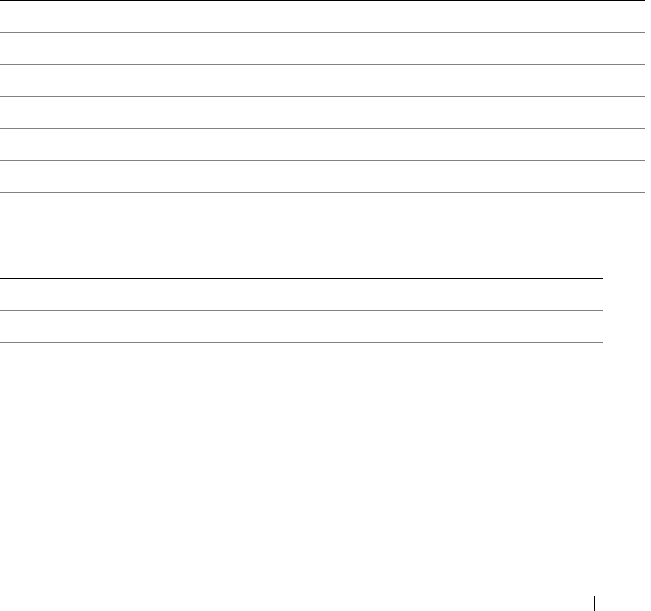
Table 3-1. Hardware Requirements
Requirement Details
Processor 1 GHz Pentium processor or equivalent
RAM 1024 MB
Hard Disk Up to 500 MB of available space
Display 1024 x 768 high color, 32-bit
Optical Drive CD/DVD writer
Table 3-2. Software Requirements
Requirement Details
System Requirement
• Microsoft .NET Framework 3.5 SP1 or 4.0
drm.book Page 27 Monday, December 5, 2011 11:27 AM

28 Upgrading and Uninstalling Repository Manager
NOTE: Internet Connectivity and DVD burning software are optional requirements.
You can use Repository Manager for local repositories, without Internet
connectivity. The DVD burning software is required only for functions such as
burning a custom SUU DVD or a bootable Linux CD.
Supported Dell Systems for Exported Repositories and Bundles
You can use the exported bundles on Dell systems that support Dell Update
Packages (DUPs). With Repository Manager, you can use the FTP catalog,
which you contains the support for n and n-1 blocks. For more information
about the supported system models for the FTP catalog, see
ftp.dell.com/cmsdk/PDK_Readme.doc.
Supported Operating Systems
• Microsoft Windows Server 2003 (32-bit and
64-bit)
• Microsoft Windows Server 2008 (32-bit and
64-bit)
• Microsoft Windows XP (32-bit and 64-bit)
• Microsoft Windows Vista (32-bit and 64-bit)
• Microsoft Windows 7 (32-bit and 64-bit)
• Microsoft Windows Server 2008 R2
Supported Internationalized
Operating Systems
•English
•French
•German
•Spanish
• Japanese
• Simplified Chinese
•Russian
•Portuguese
NOTE: The Repository Manager user interface is
displayed only in English irrespective of the lan-
guage of the operating system on which it is
installed.
Table 3-2. Software Requirements
(continued)
Requirement Details
drm.book Page 28 Monday, December 5, 2011 11:27 AM

Upgrading and Uninstalling Repository Manager 29
Repairing Dell Repository Manager
Repository Manager facilitates repair of errors such as missing or corrupt files
and shortcuts, and registry entries that occur while installing the application.
To repair the installation errors:
1
Double-click the
Repository Manager.msi
located on your system.
2
In the
Dell - Repository Manager - InstallShield Wizard
, click
Next
.
3
Select
Repair
and click
Next
.
4
In the
Ready to Repair the Program
, click
Install
.
5
Click
Finish
. The repaired Repository Manager is installed on your system.
Uninstalling Dell Repository Manager
To uninstall, depending on your operating system, do the following:
On Windows XP and Windows Server 2003
To uninstall Repository Manager on a system running Windows XP and
Windows Server 2003:
1
From the
Start
menu, click
Settings
Control Panel
Add or Remove
Programs
.
2
Select
Dell Repository Manager
, and click
Remove
.
3
Click
Yes
to confirm.
On Windows Vista, Windows Server 2008, Windows Server 2008 R2, and
Windows 7
To uninstall Repository Manager from Windows Server 2008, Windows 2008
R2, and Windows 7:
1
From the
Start
menu, click
Control Panel
Programs and Features
.
2
In
Programs and Features
, select
Dell Repository Manager
, and click
Uninstall
.
3
Click
Yes
to confirm.
drm.book Page 29 Monday, December 5, 2011 11:27 AM

30 Upgrading and Uninstalling Repository Manager
drm.book Page 30 Monday, December 5, 2011 11:27 AM

Using Dell Repository Manager in Server Mode 31
4
Using Dell Repository Manager in
Server Mode
You can perform the following tasks in the Server mode:
• Create repositories —
Creating a Repository
• Import repositories —
Importing an Existing Repository
• Update repositories —
Comparing and Updating Repositories
• Export Catalog —
Saving a Repository
•Save repositories — Saving a Repository
• Edit repositories — Editing a Repository
• Delete repositories — Removing a Repository
• Work with Bundles —
Working With Bundles
• Work with Components —
Working With Components
• Search your repository based on filters and search criteria you specify —
Wor king With Filters
drm.book Page 31 Monday, December 5, 2011 11:27 AM

32 Using Dell Repository Manager in Server Mode
Creating a Repository
To create a repository:
1
On the
Repository Manager
screen, click the
Create
link and select one of
the following options:
• New Repository... — For more information, see Creating a New
Repository
• Dell OpenManage Essentials Repository... — For more information,
see Creating an Update Repository for Dell OpenManage Essentials
• Dell Mgmt Plug-in for vCenter Repository... — For more information,
see Creating an Update Repository for Dell Management Plug-in for
VMware vCenter Using Inventory Data
• Empty Repository — For more information, see Creating a New
Repository
Creating a New Repository
To create a New Repository:
1
On the
Repository Manager
screen, click the
Create
link and select the
New Repository...
option.
The
Create Repository
window appears.
2
Enter the name and description in the
Name
and
Description
text boxes
and click
Next
.
NOTE: You can customize the filename of the repository while saving it.
3
Select a source for your repository, and click
Next
. For more information
on selecting a source, see Selecting a Source for the Repository.
4
Click
Next
.
If you want to load an inventory file for your repository, click
Yes
. Loading
an inventory file enables you to create the repository based on the systems
and devices available in the file.
Click
Browse
to navigate to the location on your system where the
inventory file must be saved. Repository Manager validates the inventory
file and displays the results in the
Inventory File Schema Validation
text
box.
drm.book Page 32 Monday, December 5, 2011 11:27 AM

Using Dell Repository Manager in Server Mode 33
Select one of the following options you want to include in the repository:
•
Latest updates for all devices
— the available updates for existing and
outdated devices are added to the repository
•
Latest updates for only out-of-date devices
— only the latest updates
for all outdated devices are added to the repository
Select the file and click
Next
. The
Summary
window displays the
properties of the repository based on your selections in the Repository
Manager. You can download and save the repository or open it for editing.
5
If you select
No
and click
Next
, you can select the desired form factor for
the repository you are creating. The available options are: Rack mount,
Tower, and Blade chassis.
6
Click
Next
.
7
Select the operating system whose components you want to include in the
repository, and click
Next
. For more information on selecting operating
systems, see Selecting Operating Systems.
8
The system models are displayed based on the form factor you select. For
more information on selecting form factors, see Selecting Form Factors.
9
Select a system model, and click
Next
. For more information on selecting
system models, see Selecting System Models.
10
Select the bundle(s) you want to include in the repository, and click
Next
.
For more information on selecting bundle(s), see Selecting Bundles.
11
Click
Select Components
to include additional components in the
bundle(s) you selected.
12
In the
Select Additional Components
window, select the check box
corresponding to the systems whose components you want to include in
the repository. The list of components appears on the right-hand side of
the window.
13
Select the check box corresponding to the components you want to
include in the repository, and click
OK
.
The
Summary
window displays the properties of the repository based on
your selections in the Repository Manager.
You can download and save the repository or open it for editing. By default,
the
Save and download repository
option is selected.
drm.book Page 33 Monday, December 5, 2011 11:27 AM

34 Using Dell Repository Manager in Server Mode
If you select the
Open the repository
option, Repository Manager displays
the repository.
14
If you select the
Save and download repository
option and click
Finish
,
the bundles are saved to the specified destination.
The components present in the bundles are also exported to the repository
you create. The number of components added to the repository appear in
the
Export Components
window.
The name of the repository and the path where the repository is saved
appear in the window. The size and number of the bundle(s) downloaded,
and the number of the component files downloaded also appear in the
window.
In case Repository Manager fails to download some files, the names of the
files appear in the window.
15
Click
Close
. The Repository Manager prompts you to save the repository
in the
catalog file
, in the
xml
or
cab
format, and all update packages on
your system.
The
Save
Repository
window appears with the following message:
Download completed successfully
The saved repository comprises catalogs and packages defined in it. It also
includes the Dell Inventory Collector.
NOTE: Ensure that the bundle(s) and components you add to the repository belong
to the specified criteria. Repository Manager does not restrict you from
adding components that do not belong to the specified criteria into the
repository.
drm.book Page 34 Monday, December 5, 2011 11:27 AM

Using Dell Repository Manager in Server Mode 35
Creating an Update Repository for Dell OpenManage Essentials
You use the inventory data generated by the OME plug-in to create a custom
repository, which contains updates for all devices or only out-of-date devices.
To create an update repository for Dell OpenManage Essentials (OME):
1
On the
Repository Manager
screen, click the
Create
link and select the
Dell OpenManage Essentials Repository...
option.
The
Create Repository for Dell OpenManage Essentials
window appears.
2
Enter the name and description in the
Name
and
Description
text boxes
and click
Next
.
NOTE: You can customize the filename of the repository while saving it.
3
Select a source for your repository, and click
Next
. For more information
on selecting a source, see Selecting a Source for the Repository.
4
Click
Next
. Repository Manager obtains the inventory data from the OME
setup and displays the list of systems and models managed by OME.
NOTE: Repository Manager and OME must be installed on the same system
for Repository Manager to fetch the inventory data from the OME setup. If OME is
not installed, Repository Manager automatically picks only the latest version of a
bundle for a particular platform while creating repositories.
If OME is not installed on the system where Repository Manager is
installed, proceed to step 6.
5
Select one of the following options you want to include in the repository:
•
Latest updates for all devices
— the available updates for existing and
outdated devices are added to the repository
•
Latest updates for only out-of-date devices
— only the latest updates
for all outdated devices are added to the repository
If you have modified or removed certain systems from the systems
managed by OME, click
Resync
to retrieve the updated inventory data.
Click
Next
and proceed to step 9.
6
Click
Next
. Select the desired form factor for your repository, and click
Next
. For more information on selecting form factors, see Selecting Form
Factors.
drm.book Page 35 Monday, December 5, 2011 11:27 AM

36 Using Dell Repository Manager in Server Mode
7
In the
Select Operating System(s)
window, select the operating system
whose components you want to include in the repository, and click
Next
.
For more information on selecting operating systems, see Selecting
Operating Systems.
8
Select a system model, and click
Next
. For more information on selecting
system models, see Selecting System Models.
The
Summary
window displays the properties of the repository based on
your selections in the Repository Manager.
You can download and save the repository or open it for editing. By default,
the
Save and download repository
option is selected.
If you select the
Open the repository
option, Repository Manager displays
the repository.
9
If you select the
Save and download repository
option and click
Finish
,
the bundles are saved to the specified destination.
10
Click
Close
. Repository Manager prompts you to save the repository in the
catalog file
, in the
xml
or
cab
format, and all update packages on your
system.
The
Save
Repository
window appears with the following message:
Download completed successfully
The name of the repository and the path where the repository is saved appear
in the window. The size and number of the bundle(s) downloaded, and the
number of the component files downloaded also appear in the window.
In case Repository Manager fails to download some files, the names of the
files appear in the window.
The saved repository comprises catalogs and packages defined in it. It also
includes the inventory collector.
NOTE: Ensure that the bundle(s) and components you add to the repository belong
to the specified criteria. Repository Manager does not restrict you from
adding components that do not belong to the specified criteria into the
repository.
drm.book Page 36 Monday, December 5, 2011 11:27 AM

Using Dell Repository Manager in Server Mode 37
Creating an Update Repository for Dell Management Plug-in for VMware
vCenter Using Inventory Data
You use the inventory data generated by the Dell Management plug-in for
VMware vCenter to create a custom repository, which contains updates for all
devices or only out-of-date devices.
To create an update repository for Dell Management Plug-in for VMware
vCenter:
1
On the
Repository Manager
screen, click the
Create
link and select the
Dell Mgmt Plug-in for vCenter Repository...
option.
The
Create Repository for Dell Mgmt plug-in for VMware vCenter
window appears.
2
Enter the name and description in the
Name
and
Description
text boxes
and click
Next
.
NOTE: You can customize the filename of the repository while saving it.
3
Select a source for your repository, and click
Next
. For more information
on selecting a source, see Selecting a Source for the Repository.
4
Select
Yes
, to get inventory data from the Dell Management Virtual
Appliance Host.
5
Click
Connect
. The
Dell Management Virtual Appliance User
Credentials
window appears.
6
Enter the host name or IP address to connect to the Dell Management
Virtual Appliance Host.
7
Click
Check Availability
to confirm if the Dell virtual appliance is
available. If the Dell virtual appliance is available, proceed to step 8.
8
Enter the administrator password in the Dell virtual appliance.
NOTE: Based on the version of the Dell virtual appliance, you may have to
enter the Dell Management appliance administrator password.
9
Enter the registered vCenter server IP or host name, user name, and
password, and click
OK
. Repository Manager fetches the inventory data.
10
Select one of the following options you want to include in the repository:
•
Latest updates for all devices
— the available updates for existing and
outdated devices are added to the repository
drm.book Page 37 Monday, December 5, 2011 11:27 AM

38 Using Dell Repository Manager in Server Mode
•
Latest updates for only out-of-date devices
— only the latest updates
for all outdated devices are added to the repository
Click
Resync
to retrieve the updated inventory data, if you have modified
or removed certain systems from the systems managed by Dell
Management Virtual Appliance Host.
11
Click
Next
.
The
Summary
window displays the properties of the repository based on
your selections in the Repository Manager.
You can download and save the repository or open it for editing. By default,
the
Save and download repository
option is selected.
If you select the
Open the repository
option, Repository Manager fetches
the inventory data and opens the repository for editing.
12
If you select the
Save and download repository
option and click
Finish
,
Repository Manager collects the inventory and creates the repository based
on the inventory data. Once the repository is created, Repository Manager
prompts you to save the repository in the
catalog file
, in the
xml
or
cab
format, and all update packages on your system.
The
Save
Repository
window appears with the following message:
Download completed successfully
The name of the repository and the path where the repository is saved appear
in the window. The size and number of the bundle(s) downloaded, and the
number of the component files downloaded also appear in the window.
In case Repository Manager fails to download some files, the names of the
files appear in the window.
drm.book Page 38 Monday, December 5, 2011 11:27 AM

Using Dell Repository Manager in Server Mode 39
The saved repository comprises catalogs and packages defined in it. It also
includes the inventory collector.
NOTE: You can create Dell Management Plug-in repositories only for yx1x and
later systems. In the server name format yxxx; y denotes alphabets, for
example M, R, or T; and x denotes numbers. For example: PE M710.
NOTE: Ensure that the bundle(s) and components you add to the repository belong
to the specified criteria. Repository Manager does not restrict you from
adding components that do not belong to the specified criteria into the
repository.
NOTE: While creating repositories without inventory, Repository Manager filters
out all Linux bundles and driver components.
Creating an Update Repository for Dell Management Plug-in Without Inventory Data
You can also use this option to create repositories for applying updates from
the USC environment.
To create an update repository for Dell Management Plug-in without using
inventory data:
1
On the
Repository Manager
screen, click the
Create
link and select the
Dell Mgmt Plug-in for vCenter Repository...
option.
The
Create Repository for Dell Mgmt plug-in for VMware vCenter
window appears.
2
Enter the name and description in the
Name
and
Description
text boxes
and click
Next
.
NOTE: You can customize the filename of the repository while saving it.
3
Select a source for your repository, and click
Next
. For more information
on selecting a source, see Selecting a Source for the Repository.
4
Select
No
to create the repository without inventory data.
5
click
Next.
Select the desired form factor for your repository, and click
Next
. For more information on selecting form factors, see Selecting Form
Factors.
6
Select a system model, and click
Next
. For more information on selecting
system models, see Selecting System Models.
The
Summary
window displays the properties of the repository based on
your selections in the Repository Manager.
drm.book Page 39 Monday, December 5, 2011 11:27 AM

40 Using Dell Repository Manager in Server Mode
You can download and save the repository or open it for editing. By default,
the
Save and download repository
option is selected.
If you select the
Open the repository
option, Repository Manager opens
the repository for editing.
7
If you select the
Save and download repository
option and click
Finish
,
Repository Manager creates the repository and prompts you to specify the
location for saving the repository.
Once the repository is downloaded, the
Save
Repository
window appears
with the following message:
Download completed successfully
The name of the repository and the path where the repository is saved appear
in the window. The size and number of the bundle(s) downloaded, and the
number of the component files downloaded also appear in the window.
In case Repository Manager fails to download some files, the names of the
files appear in the window.
The saved repository comprises catalogs and packages defined in it. It also
includes the inventory collector.
NOTE: You can create Dell Management Plug-in repositories only for yx1x and
later systems. In the server name format yxxx; y denotes alphabets, for
example M, R, or T; and x denotes numbers. For example: PE M710.
NOTE: Ensure that the bundle(s) and components you add to the repository belong
to the specified criteria. Repository Manager does not restrict you from
adding components that do not belong to the specified criteria into the
repository.
Creating an Empty Repository
To create an Empty Repository:
1
On the
Repository Manager
screen, click the
Create
link and select the
Empty Repository
option.
The name of the empty repository appears in the following format:
Repository: Repository <number of the repository>
()
You can add bundle(s) and components to the empty repository.
drm.book Page 40 Monday, December 5, 2011 11:27 AM

Using Dell Repository Manager in Server Mode 41
For information on adding bundle(s), see Importing Bundles.
For information on adding component(s), see Adding Components.
2
If you want to save the repository, click on the
Repository Manager
screen. For more information, see Saving a Repository.
Selecting a Source for the Repository
You can select a source for the repository you want to create, in the Create
Repository window.
Select one of the options:
•
Dell online repository (ftp.dell.com)
— Imports the default repository.
This option is enabled only if you have access to the Internet. You can
import the bundle(s) and components from this repository into the
repositories you create. For more information, see Importing an Existing
Repository.
•
Local Repository
— Selects an existing repository as a base repository. You
can save a local repository as a catalog.cab or catalog.xml file.
•
Recent Repository
— Lists the recent repositories that were created or
imported using Repository Manager. Select one of these repositories as the
base repository, and click
Next
. In the
Select Form Factor
window, select
the type of Dell systems that you want to include in your repository and
click
Next
. Dell systems can be classified into racks (monolithic), towers
(monolithic), and blades (modular) systems.
Selecting Form Factors
You can select a form factor for the repository you want to create, in the
Create Repository window.
The system models are displayed based on the
form factor you select. For example, if you select
Tower
, all system models
pertaining to tower systems are displayed.
Select one of the following options:
•
Rack mount
— Includes Dell system models of the rack mount or
monolithic type of form factor.
•
Tower
— Includes Dell system models of the tower or monolithic type of
form factor.
drm.book Page 41 Monday, December 5, 2011 11:27 AM

42 Using Dell Repository Manager in Server Mode
•
Blade chassis
— Includes Dell system models of the blade chassis or
modular type of form factor.
Selecting Operating Systems
You can select one or more operating systems for the repository you want to
create, in the Create Repository window.
Select one of the following options:
•
All Operating Systems
— Allows to select component(s) pertaining to all
the Windows and Linux operating systems supported by Repository
Manager, and the components that are independent of an operating
system.
•
Windows
— Allows to select component(s) pertaining to the Windows
operating systems supported by Repository Manager.
•
Linux
— Allows to select component(s) pertaining to the Linux operating
systems supported by Repository Manager.
•
Other
— Allows to select component(s) that are independent of an
operating system.
Selecting System Models
You can select a system model for the repository you want to create, in the
Create Repository window.
Select one of the following options:
•
Include All
— Includes Dell Update Packages (DUPs) for all available
systems based on the form factor and operating system you selected, in
your repository. For example, if you selected
Tower
as the form factor,
selecting
Include All
includes DUPs of all the Dell tower system(s) in the
repository.
•
Select Model(s)
— Displays all the available systems based on the form
factor and operating system you selected. You can select individual or
multiple systems as required from the list box. For example, if you select
Tower
as the form factor, selecting
Select Model(s)
displays all the Dell
tower systems. You can then choose the tower system(s) whose DUPs you
want to include in the repository.
drm.book Page 42 Monday, December 5, 2011 11:27 AM

Using Dell Repository Manager in Server Mode 43
Selecting Bundles
A bundle is a collection of DUPs that contain information about related
components to be updated for that system. Select one of the following to
add a bundle to the repository you want to create:
•
ONLY include most recent and custom bundle(s)
— Includes recently
released bundle(s) in the repository.
•
Select Bundle(s)
— Allows to select bundle(s) from the list displayed.
Saving a Repository
Repositories can be saved as:
• Entire repositories including the catalog and the packages defined in it —
For more information, see Creating a Repository.
When an entire repository is saved, the total size of the repository and the
name of the file downloaded appear in the
Save Repository
dialog box.
• Catalog only — For more information, see Saving a Catalog.
If you close Repository Manager without saving the repository, the Unsaved
Repositories window appears with the following message:
You have at least one unsaved repository.
Would you like to save them now?
The list of changed repositories is also displayed in the window.
•Click
Save All
to save the repositories in the list.
•Click
Cancel
to close the window.
•Click
Exit without Saving
to exit the application without saving the
repositories.
drm.book Page 43 Monday, December 5, 2011 11:27 AM

44 Using Dell Repository Manager in Server Mode
Importing an Existing Repository
To import an existing repository:
1
Launch
Repository Manager
.
2
In the
Welcome
window, click
Import a Repository
. If the
Welcome
window is closed, click the
Open
link on the
Repository Manager
screen
to add a repository.
3
In the
Load Repository
window:
• Select
Dell online repository (ftp.dell.com)
to import a repository from
ftp.dell.com
.
NOTE: You cannot edit bundle(s) and components contained in the
repository stored on ftp.dell.com. Therefore, the Add, Save, and
Remove buttons on the Bundles and Components tabs are disabled
while viewing the ftp repository.
• Select
Local Repository
to import a repository stored on your system.
Click
Browse
to specify the location of the local repository.
• Select
Recent Repositories
to view and import one of the recent
repositories that you created or imported using Repository Manager.
4
Click
Finish
.
You can view the bundle(s) and components in this repository from the
Bundles and Components tabs.
Comparing and Updating Repositories
You can compare repositories you created or imported with other available
repositories to view the differences and update the destination repository.
To compare and update repositories:
1
From the
Repository Information
drop-down list, select the repository you
want to update.
2
Click the
Update
link located at the top of the
Repository Manager
screen. The
Update Repository
window appears. The instructions on
updating the repository appear on the
Overview
tab.
3
From the
Source Repository
drop-down list, select a repository with which
you want to compare the repository you selected in step 1.
drm.book Page 44 Monday, December 5, 2011 11:27 AM

Using Dell Repository Manager in Server Mode 45
4
Click
Compare
. The comparison details appear in the categorized tabs in
the
Update Repository
window. The tabs are:
•
Overview
— View the comparison summary of the selected
repositories. This comprises the total number of files in each category
and the number of new version files, changed files, obsolete files, and
other files in source.
This tab appears by default.
•
Newer Versions — Click to view the latest versions of the updates available
in the source repository. Select the check box corresponding to the system
from which you want to add files to the destination repository. The source
and destination files appear on the right-hand side. Select the check box
corresponding to the files you want to add.
•
Changed Files — Click to view any component files whose hash values are
different in the destination and source repositories. Select the check box
corresponding to the files you want to update in the destination repository.
•
Obsolete Files
—
Click to view the files that exist in the destination
repository but, not in the source repository. Select the check box
corresponding to the system from which you want to remove the files. The
file names appear on the right-hand side. Select the check box
corresponding to the files you want to remove.
•
Other Files in Source —
Click to view new files in the source
repository. Select the check box corresponding to the system from
which you want to add files to the destination repository. The source
files appear on the right-hand side. Select the check box
corresponding to the files you want to add to the destination
repository.
• You can filter the files using the
System
or
Device
filters.
5
Select the desired updates for the destination repository. The
Update
button and
Show report after update
check box are enabled.
6
Click
Update
.
7
Select the
Show report after update
check box if you want to view the
update report.
The destination repository is updated with the latest versions of the updates
available in the source repository.
drm.book Page 45 Monday, December 5, 2011 11:27 AM

46 Using Dell Repository Manager in Server Mode
The update report for the selected repositories appears in the Repository
Update Report window.
Repository Update Report
The update report displays the timestamp when the report was generated,
names of the source and destination repositories, newer versions of
components, changed files, obsolete files, and other files in the source
repository.
Click Save As... to save the report, in html format, on your system.
Saving a Catalog
You can save the catalog.xml or catalog.cab file, which contain details of the
repository you created or customized, to your local system.
To save a catalog:
1
On the
Repository Manager
screen, click .
2
In the
Save Repository
window, select
Catalog file only
.
3
In the
Save repository to:
text box, browse to the location where you want
to save the repository.
4
Select
Change base location in catalog XML
, if required.
Select
ftp.dell.com
to choose it as the base location for the
Catalog.xml
file. The files and components to be included in the repository are
downloaded from this location.
Select the empty text box option and enter the path of the location on
your system, which you want to choose as the base location for the
catalog.XML
file.
5
Click
Save
.
When a repository is saved, the size and number of files downloaded are
displayed in the following format:
<size> bytes downloaded
<number of files> out of <total number of files>
downloaded.
When a catalog is being saved, the following message is displayed:
drm.book Page 46 Monday, December 5, 2011 11:27 AM

Using Dell Repository Manager in Server Mode 47
Catalog save successful
Catalog successfully saved to:<path where the
repository is saved>
6
Click
Close
to return to the
Repository Manager
screen.
Editing a Repository
You can only edit the name and description of a selected repository, if the
repository is editable.
To edit a repository:
1
Select the repository you want to edit.
2
Click the
Properties
link
at the top of the
Repository Manager
screen.
3
In the
Repository Details
window, edit the name or description and
click
Apply Changes
.
Removing a Repository
You can remove repositories you do not use from Repository Manager.
To remove a repository:
1
To remove a repository from Repository Manager, select the repository,
and click the
Remove
link at the top of the
Repository Manager
screen.
2
In the
Save Confirmation
window, click
Yes
to save the repository in your
system before removing it. The Repository Manager saves the repository in
your system but does not display it in the drop-down list. Click
No
to
remove the repository without saving it.
NOTE: Removing a repository will remove the repository only from the
application and not from your system.
drm.book Page 47 Monday, December 5, 2011 11:27 AM

48 Using Dell Repository Manager in Server Mode
Opening the Dell Online Catalog
To open the Dell online catalog directly:
On the Repository Manager screen, click the Open link and select the Dell
FTP Catalog option.
The Load Remote Repository window appears. Once the online repository is
loaded, the bundles and components in the repository appear in the
respective tabs.
Opening a Local Repository
To open a local repository directly:
1
On the
Repository Manager
screen, click the
Open
link and select the
Local Repository
option.
The
Load Repository
window appears.
2
Select the repository you want to load, and click
Finish
.
Once the selected local repository is loaded, the bundles and components
in the repository appear in the respective tabs.
Viewing Properties of a Repository
To view the properties of a repository:
1
On the
Repository Manager
screen, select the repository from the
Repository Information
drop-down list.
2
Click the
Properties
link. The
Repository Details
window appears.
The details displayed comprise the name and description of the repository,
location of the repository, number of bundles and components in the
repository, form factor, system models, Dell update package format, and
unassigned components in the repository.
drm.book Page 48 Monday, December 5, 2011 11:27 AM

Using Dell Repository Manager in Server Mode 49
Viewing Inventory Information of a Repository
You can view the inventory information of repositories that are created using
inventory from OME or Dell Management Plug-in for VMWare vCenter.
To view the inventory information of an OME or vCenter repository:
1
Open an existing OME or vCenter repository.
2
On the
Repository Manager
screen, click the
Inventory
link and select the
Information
option.
The available inventory information appears in the
Inventory Information
for Repository: <name of repository>
window. The name of the system,
the operating system, the timestamp of the inventory verification, and the
total number of devices appear on the left-hand side of the window.
The name of the device, type, and version appear on the right-hand side of
the window.
3
Click
Close
to return to the Repository Manager screen.
Refreshing a Repository
You can refresh information of repositories that are created using inventory
from OME or Dell Management Plug-in for VMWare vCenter.
To refresh the details of an OME or vCenter repository:
1
Open an existing OME or vCenter repository.
2
On the
Repository Manager
screen, click the
Inventory
link and select the
Refresh
option.
After refreshing the inventory information, new updates, if any, are added
to the repository as new bundles with a new version and timestamp in the
bundle name. The total number of bundles and components added appear
in the final report.
drm.book Page 49 Monday, December 5, 2011 11:27 AM

50 Using Dell Repository Manager in Server Mode
Working With Bundles
A bundle is a collection of Dell Update Packages (DUPs), called components,
that are related to a certain platform, for example, PowerEdge R410 and
operating system, for example, Microsoft Windows 2003.
You can use Repository Manager to:
• Create or import and customize bundle(s). For more information, see
Creating Custom Bundles.
• Clone existing bundle(s). For more information, see Cloning Bundles.
• Compare bundle(s). For more information, see Comparing Bundles.
• Export bundle(s) to external repositories or deploy them to applicable
systems in the form of Linux ISOs, deployment packs, INF files, or a fully
functional Server Update Utility (SUU).
The list of bundle(s), you create or import, appear in the
Bundles
tab. You can
sort the list of bundle(s) based on name of the bundle, version, operating
system, date on which the bundle(s) were created, size, author, server
generation, and brand of the bundle(s).
You can view the number of bundle(s) in the list and the number of
bundle(s) you select, at the top of the list. The numbers are displayed in the
format: <Selected/Total>. The name of the repository to which the
bundles belong, appears at the top of the Bundles list.
You can also view the total size of the bundle(s) you select at the top right-
hand corner of the list. The size is displayed in MB or GB.
You can update the SUU and Deployment Media plug-ins for bundle(s) or
download and save them on your system. For more information, see
Downloading SUU and Deployment Media Plug-ins
.
drm.book Page 50 Monday, December 5, 2011 11:27 AM

Using Dell Repository Manager in Server Mode 51
Viewing the Size of Bundles
In the Bundles tab, you can view the size of all the bundle(s) you select in the
repository, at the top of the bundle(s) list. The size is displayed in MB or GB.
You can also view the size of individual bundle(s) in the Size column, in the
bundle(s) list.
To view the size of a bundle, click the Get Size link corresponding to the
bundle.
NOTE: The Get Size link is displayed only for bundle(s) for which the size is not
fetched while the repository is loaded.
Creating Custom Bundles
You can create a custom bundle, and then import components to that
bundle.
To create a bundle:
1
Open the repository in which you want to create the custom bundle, or
create a new repository.
2
Click the
Bundles
tab.
3
Click
Add
.
4
In the
Import Bundle(s)
window, click
Next
.
5
In the
Import Options
window, click
Manually create a bundle
. Click
Next
.
6
In the
Name and Version
window, enter a name and version for your
bundle. Select the operating system this bundle applies to, and click
Next
.
7
In the
Select Operating System
window, select one of the following and
click
Next
:
• Select all Operating Systems
• Select specific Operating Systems
NOTE: This option is available only when the selected OS Type is "Windows"
or "Linux".
8
In the
Select Platforms
window, select the required platform(s) required,
and click
Next
.
drm.book Page 51 Monday, December 5, 2011 11:27 AM

52 Using Dell Repository Manager in Server Mode
The
Import Summary
window displays the properties of the custom
bundle you created.
9
Click
Finish
.
The custom bundle is added under the list of bundle(s) on the
Bundles
tab. Custom bundle(s) you create are indicated by ’User’ in the
Author
column and Dell default bundle(s) are indicated by ’DELL’.
NOTE: You cannot add components to a bundle if the components are not
compatible with the operating system or platform associated with the
bundle(s).
Importing Bundles
To import a bundle:
1
Create or import a repository.
2
Click the
Bundles
tab.
3
Click
Add
.
4
In the
Import Bundle(s)
window, click
Next
.
5
In the
Import Options
window, select one of the following, and click
Next
.
•
Import bundle(s) from an existing repository
— Imports bundle(s)
already present in an existing repository
•
Manually create a bundle
. — Creates a custom bundle. For more
information on creating a bundle manually, see Creating Custom
Bundles.
6
In the
Select Source Repository
window, select one of the following
repository location that contains the bundle(s) you want:
• Dell online repository (ftp.dell.com) —
Imports the default
repository. This option is enabled only if you have access to the
Internet. You can import the bundle(s) and components from
this repository into the repositories you create. For more
information, see Importing an Existing Repository.
•Local Repository —
Selects an existing repository as a base
repository. You can save a local repository as a catalog.cab or
catalog.xml file.
drm.book Page 52 Monday, December 5, 2011 11:27 AM

Using Dell Repository Manager in Server Mode 53
• Recent Repository —
Displays the recent repositories created or
imported using Repository Manager. Select one of these
repositories as the base repository.
Click
Next
.
7
In the
Select Form Factor
window, select the form factor of the systems
associated with the bundle you want to import, and click
Next
. For
example, if you want to import the bundle for a tower system, select
Tower
.
8
In the
Select Operating System(s)
window, select one of the following,
and click
Next
.
• All Operating Systems —
Select components pertaining to all the
Windows and Linux operating systems supported by Repository
Manager
•
Windows
— Select DUPs applicable to Windows
•
Linux
— Select DUPs applicable to Linux
•
Other
— Select DUPs independent of an operating system
9
In the
Select System Model(s)
window, select one of the following, and
click
Next
.
•
Include All
— Includes DUPs for all available systems
•
Select Model(s)
— Includes DUPs only for the systems selected from
the list
10
In the
Select Bundle(s)
window, select the bundle(s) you want to include
in the repository. Select
ONLY include most recent and custom
bundle(s)
to include manually created bundle(s) and the most recently
used bundle(s).
Click
Next
.
11
The
Import Summary
window displays a list of bundle(s) based on the
criteria you specified. Click
Finish
to import the bundle(s).
drm.book Page 53 Monday, December 5, 2011 11:27 AM

54 Using Dell Repository Manager in Server Mode
Removing Bundles
To remove a bundle:
1
On the
Bundles
tab select the bundle you want to remove.
2
Click
Remove
.
The following message appears:
Do you want to remove the selected bundle(s)?
3
Click
Yes
to proceed.
Cloning Bundles
You can create an exact copy of an existing bundle, and specify a new name
and version for the copy.
To clone a bundle:
1
On the
Bundles
tab, select a bundle you want to copy from the list of
displayed bundle(s), and click
Clone
.
2
In the
Clone Bundle
window, the
Bundle Name
field displays the bundle
that you selected to be copied or cloned.
3
In the
New Name
field, enter a name for the cloned bundle.
4
In the
Version
field, enter a version number for the cloned bundle.
5
Click
OK
.
drm.book Page 54 Monday, December 5, 2011 11:27 AM

Using Dell Repository Manager in Server Mode 55
Comparing Bundles
You can compare bundle(s), view and compare the DUPs that have changed
in the bundle(s) you selected.
To compare bundle(s):
1
On the
Bundles
tab select the bundle you want to compare. This is the
base bundle.
2
Click
Compare
.
3
In the
Compare Bundles
window, select a repository that contains the
bundle with which you want to compare the base bundle, from the
Repository
drop-down list.
4
The
Bundles
list box displays the bundle(s) contained in the repository
you selected. Select the bundle(s) you want to compare with the base
bundle.
NOTE: The Bundles list box displays bundle(s) from the selected repository
based on the base bundle. If you select a Linux bundle as the base bundle,
then Linux bundle(s) are displayed. If you select a Windows bundle as
the base bundle, then Windows bundle(s) are displayed.
5
Select
Newer Versions
to view newer versions of the components in the
bundle(s) you selected.
6
Select
Changed Files
to view component files that have changed in the
selected bundle(s).
7
Select
Updates to Add
to view updates that are present in the comparison
bundle but not in the base bundle.
8
Select
Updates to Remove
to view updates that are present in the base
bundle but not in the comparison bundle.
9
Click
Compare
to view the comparison report for the selected bundle(s)
based on the criteria you specified.
10
You can also click
Comparison Report
to save the report as a HTML file
and view it in a Web browser.
drm.book Page 55 Monday, December 5, 2011 11:27 AM

56 Using Dell Repository Manager in Server Mode
Exporting Bundles
You can export a bundle to an existing repository as deployment media or an
INF file, or light-weight deployment packs, or SUU, and use it to update
applicable systems.
To export bundle(s):
1
Click the
Bundles
tab.
2
Select the bundle(s) you want to export from the list of displayed
bundle(s) and click
Export
.
3
In the
Export Bundle(s)
window, click
Next
.
4
Select the destination of export for the selected bundle(s), and click
Next
.
For more information, see Selecting a Destination for Bundle Exports and
Exporting as a SUU.
If you select the
Raw Driver Pack (Using Windows Bundle) Extract driver
files (.INF) from bundles
or
Export to light weight deployment scripts
options, the
Browse for Folder
window is displayed.
5
In the
Browse for Folder
window, select the location on your system
where you want to store the exported bundle.
6
In the
Select Repository
window, click
Add
to select repositories to which
you want to export the bundle.
In the
Export Summary
window, the details about the bundle(s) selected
for export and the destination properties appear.
7
Click
Finish
to complete the export. The following message appears:
Bundles exported successfully
8
Click
OK
.
To export bundle(s) on a shared network using deployment script, raw
driver pack, deployment media, and SUU:
• prior to the export, map the shared network
• during the export, point the mapped shared network as the
destination location
drm.book Page 56 Monday, December 5, 2011 11:27 AM

Using Dell Repository Manager in Server Mode 57
Selecting a Destination for Bundle Exports
You can select an export destination for the bundle(s) in the Export
Destination window.
Select one of the following options:
•
Export to Repository —
Exports the bundle(s) to a repository. You can
choose to export to an existing repository or create a new repository. If you
select the
Export as NEW Repository
option, Repository Manager creates
a repository containing only the bundle(s) you selected.
•
Raw Driver Pack (Using Windows Bundle) —
Exports the bundle(s) as
INF files. You can use these INF files to update applicable systems. This
option is applicable to only those bundle(s) that contain driver updates for
the supported Microsoft Windows operating system.
NOTE: Bundle(s) containing Linux components are skipped during the export
process. Only bundle(s) containing INF/SYS files are exported.
For every exported bundle(s), a folder is created with the name of the
bundle(s). Navigate to the required bundle folder and run
.bat
file to apply
the drivers on the system.
•
Export to light weight deployment scripts —
Exports the bundle(s) in the
form of deployment scripts. Select a location to save these bundle(s).
Repository Manager saves the scripts for bundle(s) pertaining to Microsoft
Windows in the
.bat
format and Linux in the
.sh
format. You can then run
the
.bat
and
.sh
scripts on Microsoft Windows and Linux systems
respectively.
When a deployment folder is created, a new
Readme.html
is added. The
Readme file describes what the deployment kit contains, like supported
platforms, operating system, and information about components.
NOTE: You can edit these scripts to add or remove components of you
choice.
•
Deployment Media (Using Linux Bundle) —
Updates the system
irrespective of the operating system installed on them. It can be used to
update systems that do not have an operating system installed.
The
Deployment Media
option exports the bundle(s) as ISO images. You
can burn these ISO images to a CD and boot the CD, or create a bootable
USB key on the systems that you want to update with the latest bundle(s).
drm.book Page 57 Monday, December 5, 2011 11:27 AM

58 Using Dell Repository Manager in Server Mode
This option is available for deployment only if you select Linux custom
bundle(s).
This ISO image uses Deployment Media Linux Kernel to execute the
DUPs and update the system. The update package is compatible only
when you select Linux bundles and components.
If the deployment media(ISO) is created using multiple base lines
(bundle(s)), all the base lines are displayed on the console when you boot
the server through the media. To start the execution, enter the number
corresponding to the required baseline and press <
Enter
>. For example,
if M710 is the second in the list, press <2> and apply the bundle.
If the deployment media is created using a single base line (bundle),
execution automatically starts when you boot the server through the
media.
When a deployment folder is created, a new
Readme.html
is created with
the bundle(s) in the location you provided. The readme file describes the
contents of the deployment kit such as platform included, operating
system (OS), and information about components.
NOTE: If you select a Windows bundle(s), the bundle(s) are skipped.
You can also customize the Dell default script or add your own scripts for
deployment. For more information, see Customizing the Script for
Deployment.
•
Export as SUU —
Exports a
selected Dell recommended or custom
bundle as a fully functional SUU. For more information, see Exporting as a
SUU.
Exporting to Light Weight Deployment Scripts
You can export a selected Dell-recommended or a custom bundle as a light
weight deployment script.
To export a Dell recommended or a custom bundle as a light weight
deployment script:
1
Open or import a repository.
2
Click the
Bundles
tab.
3
Select the bundle(s) you want to export from the list of displayed
bundle(s), and click
Export
.
drm.book Page 58 Monday, December 5, 2011 11:27 AM

Using Dell Repository Manager in Server Mode 59
4
In the
Export Bundle(s)
window, select
Export to light weight
deployment scripts
, and click
Next
.
5
Select one of the following options, and click
Next
.
• Force scripts to update regardless of version or date.
• Combine selected bundles into one folder. Each bundle will have a
separate script. This will minimize disk space.
6
In the
Browse For Folder
window, navigate to the folder on your local
drive, where you want to export the light weight deployment script, and
click
OK
.
The
Export Summary
window appears with the names of the selected
bundles and the export destination properties.
7
Click
Finish
.
Exporting as a SUU
You can export a selected Dell-recommended or a custom bundle as a fully
functional SUU.
To export a Dell-recommended or a custom bundle as a functional SUU:
1
Open or import a repository.
2
Click the
Bundles
tab.
3
Select the bundle(s) you want to export from the list of displayed
bundle(s), and click
Export
.
4
In the
Export Bundle(s)
window, select
Export as SUU
, and select one of
the following, and click
Next
.
•
Export as SUU to Directory
to create
a SUU pack in the provided
directory.
•
Export as SUU to ISO
to create an ISO image of the SUU pack.
The system checks for availability of the latest SUU plug-in. If a plug-in is
available, the version number of the plug-in appears and the application
prompts you to proceed with the exporting process.
For more information on the usage of SUU on Windows and Linux
servers, see the
Dell OpenManage Server Update Utility
User's Guide
at
support.dell.com/manuals
.
drm.book Page 59 Monday, December 5, 2011 11:27 AM

60 Using Dell Repository Manager in Server Mode
• While Repository Manager checks for availability of the required SUU
plug-ins, the
Checking to see if the required plug-in is installed...
dialog box is displayed.
• If the latest plug-in is already downloaded the following message
appears:
Required plug-in found
The version number of the plug-in found is also displayed.
•When
ftp.dell.com
is accessible and, latest plug-ins exist on your
system, the
Update plug-in
link appears. When you click the link, the
plug-ins from the system are updated.
• If you attempt installing plug-ins by clicking the
Click here to install
the plug-in
, when ftp.dell.com is not accessible and plug-ins do not
exist on your system, the following error message appears.
Plug-in file not found in configured location.
Press "OK" to open Plug-in update settings.
NOTE: Ensure the system connects to the Internet and the ftp.dell.com is
accessible.
5
In the
Browse For Folder
window, navigate to the folder on your local
drive, where you want to export the SUU, and click
OK
.
6
In the
Export Summary
window, click
Errors/Warnings
to check for errors
or warnings, if any, in the export.
The following are considered as errors:
• If the file type of a component mismatches the bundle it belongs to.
For example, an Linux DUP shows in a Windows bundle.
• If the Supported platforms of a component mismatches the bundle
supported list. For example an R210 BIOS shows in a T710 bundle.
• If the operating system supported for the bundle is Windows or
Linux. For example, export M1000e bundle to a SUU. Other
operating systems are considered as errors.
The following is considered a warning:
drm.book Page 60 Monday, December 5, 2011 11:27 AM

Using Dell Repository Manager in Server Mode 61
• If multiple update components are applicable to the same device
within a bundle, Repository Manager preserves only the latest version
of the component in a custom SUU. All the other duplicated
components are removed from the bundle in the custom SUU.
7
Click
Finish
.
Downloading SUU and Deployment Media Plug-ins
You can check for updates to the Deployment Media/SUU plug-in packages for
bundle(s) and download the new payload and save them on your system. The
Deployment Media plug-in enables Repository Manager to generate new
bootable ISOs, with Linux DUPs, that will update the pre-OS BIOS and
firmware. The SUU plug-in enables Repository Manager to generate an ISO,
with Windows and Linux DUPs, for post-OS updates.
To download a SUU or Deployment Media plug-in:
1
On the
Repository Manager
screen, click .
2
In the
Settings
window, select the
Plug-in Update Check and Settings
option.
The
Download Plug-ins
dialog box appears indicating the status of the
download.
If plug-ins already exist on the system, The
Checking for Plug-ins
dialog
box appears.
New plug-ins, if any, appear in the
Repository Manager Plug-ins
window.
The following details are displayed in the window:
• Name of the plug-in
• Current and new versions of the plug-in
3
To update the plug-ins on your system, select the check box corresponding
to the plug-in.
To include download all the plug-ins, select the
All
check box in the
header. Proceed to step 5.
4
To save a copy of the plug-in, select the
Save a copy of the latest plug-ins
to:
check box and provide the path where you want to save the plug-in.
5
Click
Download
. The
Downloading Plug-ins
window is displayed to show
the progress of the download.
drm.book Page 61 Monday, December 5, 2011 11:27 AM

62 Using Dell Repository Manager in Server Mode
Customizing Bundles
You can customize the Dell recommended bundle(s) as per your needs by
removing components, adding DUPs, or modifying the titles of bundle(s).
To customize bundle(s):
1
In the
Components
tab, select the system bundle you want to customize,
from the
Selected Bundles
drop-down list.
2
When you add or remove components, the following message is displayed:
You are about to modify a Dell recommended
bundle(s). Please test the bundle(s) before
deployment if you want to continue.
3
Click
OK
to proceed with the changes.
Customizing the Script for Deployment
You can use your customized BASH script instead of the Dell default script,
or append the custom script to default script in the ISO, for deploying Linux
bundle(s) on the server.
To customize the script for deployment:
1
Open or import a repository.
2
Click the
Bundles
tab.
3
Select the bundle(s) you want to export from the list of displayed
bundle(s), and click
Export
.
4
In the
Export Bundle(s)
window, click
Next
.
5
In the
Export Destination
window, select
Deployment Media (Using
Linux Bundles)
,
and click
Next
.
NOTE: The Deployment Media (Using Linux Bundles) option is enabled only
for Linux bundle(s).
6
The version number of available plug-in appears. Click
Next
.
7
In the
Browse For Folder
window, navigate to the folder on your local
drive, where your customized script is located, and click
OK
.
8
In the
Select custom Bundle Script
window, select
Yes
to include a
custom script in the deployment media.
9
Under
Select custom script
, select one of the following:
drm.book Page 62 Monday, December 5, 2011 11:27 AM

Using Dell Repository Manager in Server Mode 63
•
Replace default script with custom script
to execute the customized
script instead of the Dell default script. Click
Browse
to navigate to
the folder where the customized script is located.
•
Append custom script to default script
to execute the customized
script after the Dell default script is executed.
NOTE: Ensure the customized script is of ’.sh’ format.
NOTE: Ensure that the script is edited and saved in UNIX format. Scripts with
Windows end-line characters are unusable.
10
Click
Next
.
11
The
Export Summary
window displays details of the selected bundle(s),
destination properties, and custom bundle script used.
Creating Bootable USB Keys for Deployment Updates
You can create bootable USB keys for deployment updates, using any third-
party or free tool. You can start your managed system by the bootable CD or
USB storage. After the system starts up, it automatically runs the selected
updates. After the update is done, you can remove the CD or USB storage,
and reboot the system to your host OS.
You can use bootable ISO to apply the updates if:
• you have a server running an operating system that is not supported by
Repository Manager, such as BSD, Solaris, or older versions of Microsoft
Windows, RedHat Linux or SuSE Linux.
• you are using Linux versions such as Ubuntu or Debien.
• you prefer to do your updates (regardless of OS) in an out-of-band method
To create bootable USB keys, using the tool - UNetBootIn as an example:
1
Download the UNetBootIn for Windows available at:
sourceforge.net/projects/unetbootin/files/UNetbootin/442/unetbootin-
windows-442.exe/download.
2
Run Repository Manager and generate the deployment media.
3
Start UNetBootIn and select the
Diskimage
option.
4
Click
[…]
adjacent to the ISO dropdown and navigate to the ISO created
by Repository Manager.
drm.book Page 63 Monday, December 5, 2011 11:27 AM

64 Using Dell Repository Manager in Server Mode
5
Ensure that the type setting is equal to USB Drive and the location where
you want to download the USB key appears in the drive dropdown.
6
Click
OK
to start the USB writing.
7
After the USB key writing is complete, insert the USB Key into a USB port
on the system you want to upgrade.
8
Press <
F11
>. The boot menu is displayed.
9
Select the USB key as the boot target.
10
Select option 1 in the UNetBootIn menu’s boot menu to proceed with the
component updates.
Working With Components
Components are also known as Dell Update Packages (DUPs). DUPs are self-
contained executables in a standard package format for updating a single
software element on the system. They are used for updating the Basic Input
Output System (BIOS), firmware, Redundant Array of Independent Disks
(RAID) controller firmware, and drivers on specific platforms.
The list of components you add appear in the
Components
tab. You can sort
the list of components based on file name, type, version, criticality, and the date
on which the component was created.
The name of the repository to which the
bundles belong, appears at the top of the Components list.
You can view the number of components in the list and the number of
components you select, at the top of the list. The numbers are displayed in
the format:
<Selected/Total>
Creating a Bundle for Selected Components
In the Components tab, you can create bundles for selected components.
To create a bundle for a component:
1
In the
Components
tab, select the component for which you want to
create a bundle.
2
Click
Create Bundle
.
3
Enter the name and version of the bundle. By default, the name of the
bundle is New Bundle (Windows) and the version number, 1.0.
drm.book Page 64 Monday, December 5, 2011 11:27 AM

Using Dell Repository Manager in Server Mode 65
4
Select an operating system (OS Type) for the bundle and click Next. By
default, the
Windows
OS Type is selected.
5
In the
Select Platforms
window, select one of the following options:
• No platform is specified
• Select specific Platform(s)
6
Click
Next
.
The
Export Summary
window appears with the name of the selected
component, details of the bundle you created, associated operating
systems, and associated platforms.
7
Click
Finish
. The
Export Components
window appears with the details
about the number of components exported into the number of bundle,
and the name of the bundle created.
8
Click
Close
to return to the
Components
tab.
Viewing the Size of Components
In the Components tab, you can view the size of all the components you
select in the repository, at the top of the components list. The size is
displayed in MB or GB.
You can also view the size of individual components in the Size column, in
the components list.
To view the size of a component, click the Get Size link corresponding to the
component.
NOTE: The Get Size link is displayed only for components for which the size is not
fetched while the repository is loaded.
Adding Components
You can add components from other bundle(s) and repositories to the bundle
or repository you select.
To add components:
1
Select the repository to which you want to add the component.
2
On the
Components
tab, click
Add
.
drm.book Page 65 Monday, December 5, 2011 11:27 AM

66 Using Dell Repository Manager in Server Mode
3
In the
Select DUP File to Add
window, select the component that you
want to add. You can browse and search for the component from all the
repositories available on your system.
4
Repository Manager adds the component to the repository and the
following message appears:
DUP File(s) Imported successfully.
NOTE: The selected file must be a DUP and digitally signed by Dell. If it is a Linux
DUP, make sure that the relevant DUP signature file <DUP file name>.sign is
located in the same folder as the DUP file. Else, the bundle or component
export fails.
Removing Components
You can remove components from a bundle or a repository.
To remove components:
1
On the
Components
tab select the component you want to remove, and
click
Remove
.
If the selected components are not assigned to any bundle in the
repository, the following message is displayed:
Do you want to remove the <number of selected
components> selected component(s) from the
selected repository?
If the selected components are assigned to any bundle in the repository,
the following message is displayed:
Do you want to remove the <number of selected
components> selected component(s) from these
bundles:
<name of bundle>
2
Click
Yes
to proceed.
NOTE: The component removed from the bundle is available in the repository.
drm.book Page 66 Monday, December 5, 2011 11:27 AM

Using Dell Repository Manager in Server Mode 67
Downloading Components
You can download one or multiple components to the local drives on your
system.
To download components:
1
In the
Components
tab, select the component you want to download.
2
Click
Download
.
3
In the
Browse For Folder
window, navigate to the folder on your local
drive where you want to download the component.
4
Click
OK
. The component is downloaded to the location.
Exporting Components
To export components:
1
Select the repository to which you want to export the component.
2
On the
Components
tab, select the component(s) to export.
3
Click
Export
.
4
In the
Export Component(s)
window, click
Next
.
5
Select the export destination, and click
Finish
. For more information on
selecting the export destination, see Selecting a Destination for
Component Exports.
NOTE: To add a component to a bundle, first add the component to the
repository which the bundle belongs to, and then export it to the bundle.
After the components are exported, the number of components exported and
the number of bundle(s) they are exported to, appear in the Export
Components screen.
If any errors or warnings occur during the export of components, click
Errors/Warnings to view the details in the Errors and Warnings window.
drm.book Page 67 Monday, December 5, 2011 11:27 AM

68 Using Dell Repository Manager in Server Mode
Selecting a Destination for Component Exports
You can select an export destination for the components, in the Export
Destination window.
Select one of the following options:
•
Copy component(s) into an Existing Repository —
Exports component(s) to an
existing repository. Select the repository to export the components. Click the
Add
button to select repositories that are not displayed under
Repositories
.
•
Create a NEW Repository and copy component(s) into it — Exports
component(s) to a new repository that you create. In the Name and Description
window, enter the name and description of the components. For information on
creating a repository, see
Creating a Repository
.
•
Add component(s) into an Existing Bundle in the same repository — Exports
component(s) to an existing bundle in the same repository. Select a specific
bundle to which you can add the components.
•
Create a NEW Bundle in the same repository and add component(s) into it —
Exports component(s) to a bundle in the same repository. In the Name and
Version window, enter the name, version, and OS type of your bundle, and click
Next. In the Select Operating System window, select the required operating
system(s). In the Select Platforms window, select the desired platform(s).
drm.book Page 68 Monday, December 5, 2011 11:27 AM

Using Dell Repository Manager in Server Mode 69
Viewing Component Properties
You can view properties of components in the Components tab.
To view component properties:
1
In the
Components
tab, select the component whose properties you want
to view.
2
Click
Properties
.
The
Component Properties
window appears with the following details:
File name, Path, Version, Release ID, Release Date, Update Type,
Category, Criticality of the component Description, Supported OS
Versions, Supported Platforms, Supported Devices, Size, and PCI device
information supported by the component.
3
Click
Close
to return to the
Components
tab.
NOTE: The Properties button is enabled only when you select one
component.
Working With Filters
Repository Manager has an extensive search mechanism that allows you to
query repositories, create filters, save, and load filters. Using the filtering
capability of Repository Manager, you can view specific bundle(s) and
Dell Update Packages (DUPs) from any selected repository.
You can create filters based on the following criteria:
•Text Search
• Update Type
• Criticality
• Form factors such as rack, tower, blade
• Component versions
• Operating systems
•Supported Platforms
•Supported Devices
drm.book Page 69 Monday, December 5, 2011 11:27 AM

70 Using Dell Repository Manager in Server Mode
• Release date
• PCI device information
• Driver Packs
Creating Filters
You can create filters at the bundle level or component level.
To create a filter:
1
On the
Repository Manager
screen, select a repository whose bundle(s)
and components you want to search, from the
Repository Information
drop-down. The bundle(s) and components for that repository are
displayed on the right side.
2
Select the desired filter options to create a filter
.
NOTE: The Search Filter operation is different for bundle(s) and components.
To share the filter across bundle(s) and components, save the filter and apply
the saved filter at the respective Bundles or Components tab.
Following are the filter properties that you can use for searching bundles
and components:
•
Text Search —
Filters bundle(s) and component(s) based on the text
you enter. For example, if you type
PowerEdge R410
, Repository
Manager displays the latest repositories, bundle(s), and components
applicable to the Dell PowerEdge R410 system.
NOTE: You can enter only regular search syntax in this field.
•
Update Type
— Filters bundle(s) and component(s) based on the type
of components. The options available are:
– Drivers
–Firmware
–BIOS
–Applications
– Utilities
drm.book Page 70 Monday, December 5, 2011 11:27 AM

Using Dell Repository Manager in Server Mode 71
For example, if you select
BIOS
, Repository Manager displays all the
bundle(s) and components comprising only BIOS updates.
NOTE: This filter displays the bundle(s) only if they have components
matching the search criteria.
•
Criticality —
Filters bundle(s) and component(s) based on the
criticality of the update. The options available are:
–Optional
– Recommended
–Urgent
For example, if you select
Urgent
, Repository Manager displays all the
bundle(s) and components that you require to update your system
immediately.
NOTE: This filter displays the bundle(s) only if they have components
matching the search criteria.
•
Form Factor -
Filters bundle(s) and component(s) based on the form
factor. The options available are:
–Rack
–Tower
–Blade
For example, if you select
Tower
, Repository Manager displays the
bundle(s) and components applicable to all the tower systems in your
repository.
•
Component Version —
Filters bundle(s) and component(s) based on
the version of the component. The options available are:
– All: Displays all the components in the selected repository irrespective
of the component version.
– Most Recent: Displays the most recent version of the component in
the selected repository.
– Contains: Displays all the components whose version contain the text
you entered. For example, if you entered
A01
, Repository Manager
displays all the components whose version is A01.
NOTE: This filter displays the bundle(s) only if they have components
matching the search criteria.
drm.book Page 71 Monday, December 5, 2011 11:27 AM

72 Using Dell Repository Manager in Server Mode
•
Operating System —
Filters bundle(s) and component(s) based on
the operating system. The options available are:
–All
–Windows
–Linux
–Others
For example, if you select
Windows
, Repository Manager displays the
bundle(s) applicable to the update of the Windows operating system. If
you select
Others
, OS-independent or generic bundle(s).
The option,
Others
, appears in the list of operating systems if the
deployment type differs from the target BIOS and firmware.
For Components, the available options are:
–All
–Windows-DUP
–Linux-DUP
–Non-DUP
For example, if you select
Windows-DUP
, Repository Manager displays all
components applicable to the Windows operating system. If you select
Non-DUP
, Repository Manager displays components of non DUP format.
NOTE: When you select an operating system, Repository Manager displays
all the applicable updates relevant to that operating system. However, some
of these updates may be associated with operating systems no longer
supported by Dell. For the list of supported operating systems, see the
Dell Systems Software Support Matrix at support.dell.com/manuals.
•
Supported Platforms —
Filters bundle(s) and component(s) based on
the selected platform. The options available are:
–All
– Selected
drm.book Page 72 Monday, December 5, 2011 11:27 AM

Using Dell Repository Manager in Server Mode 73
For example, if you select
PowerEdge R200
, Repository
Manager displays the bundle(s) and components applicable to the Dell
PowerEdge R200 system.
NOTE: When you select a platform, Repository Manager displays all the
applicable updates relevant to that platform. However, not all these updates
may be available at support.dell.com.
•
Supported Devices —
Filters bundle(s) and component(s) based on
supported hardware devices. The options available are:
–All
–NIC
–Hard Disk
– Storage Controllers
For example, if you select
NIC
, Repository Manager displays all the
bundle(s) and components that contain updated Network Interface Cards
(NICs).
NOTE: This filter displays the bundle(s) only if they have components
matching the search criteria.
•
Release Date —
Filters bundle(s) and component(s) based on the
release date of the bundle(s) and components. The options available
are:
–Exact Date
–Prior To
–Most Recent
For example, if you enter 12/16/2010 and select
Prior to
, Repository
Manager displays all the bundle(s) and components released earlier than
December 16, 2010.
drm.book Page 73 Monday, December 5, 2011 11:27 AM

74 Using Dell Repository Manager in Server Mode
•
PCI Device Information —
Filters bundle(s) and component(s)
based on the PCI devices. The options available are:
–All
–Contains
NOTE: This filter displays the bundle(s) only if they have components
matching the search criteria.
•
Driver Packs —
Filters component(s) based on the Driver Pack. The
available options are:
– PE Maintenance
–USC
For example, if you select
PE Maintenance
, Repository Manager displays
all components associated applicable to PE Driver Maintenance pack.
NOTE: This filter is available only in the Components tab, in the Server mode.
3
Click
Save Filter
to save your search.
4
In the
Save Filter
window, specify a name and description for your filter.
5
Click
Save
.
The following message appears:
Search Filter Saved...
You can access the saved search or filter from the drop-down list located
above the Text Search field.
NOTE: An asterisk (*) appears adjacent to the selected filter property and the filter
property is highlighted in green color.
NOTE: The Search Filter operation is different for bundle(s) and components. To
share the filter across bundle(s) and components, save the filter and apply the
saved filter at the required Bundles or Components tabs.
drm.book Page 74 Monday, December 5, 2011 11:27 AM

Using Dell Repository Manager in Server Mode 75
Managing Filters
The drop-down list on the left side of Repository Manager displays the filters
that you created and saved.
To view a summary of the all existing filters, click Manage Search Filters in
the drop-down list. The Manage Filters window appears with the following
options:
•
Properties —
Edit the name and description of a selected filter.
•
Delete —
Delete the selected filter.
•
Close —
Close the
Manage Filters
window.
drm.book Page 75 Monday, December 5, 2011 11:27 AM

76 Using Dell Repository Manager in Server Mode
drm.book Page 76 Monday, December 5, 2011 11:27 AM

Using Dell Repository Manager in Client Mode 77
5
Using Dell Repository Manager in
Client Mode
You can perform the following tasks in the Client mode:
• Configure settings — Configuring Settings for Repository Manager
• Create repositories —
Creating a Repository
• Import repositories — Importing an Existing Repository
•Save repositories — Saving a Repository
• Edit or delete repositories — Editing a Repository
• Delete repositories — Removing a Repository
• Work with components — Working With Components
• Update repositories — Comparing and Updating Repositories
• Export catalog — Saving a Repository
• Search your repository based on filters and search criteria you specify —
Working With Filters
• Export components to new and existing repositories — Exporting
Components
Creating a Repository
To create a repository:
1
Launch
Repository Manager
.
2
On the
Repository Manager
screen, click the
Create
link and select one of
the following options:
• Empty Repository - For more information, see Creating a New
Repository
• New Repository... - For more information, see Creating a New
Repository
drm.book Page 77 Monday, December 5, 2011 11:27 AM

78 Using Dell Repository Manager in Client Mode
Creating a New Repository
To create a New Repository:
1
Launch
Repository Manager
.
2
On the
Repository Manager
screen, click the
Create
link and select the
New Repository...
option.
The
Create Repository
window appears.
3
Enter the name and description in the
Name
and
Description
text boxes
and click
Next
.
NOTE: You can customize the filename of the repository while saving it.
4
In the
Select Source Repository
window, select a source for the repository,
and click
Next
. For more information on selecting the source, see Selecting
a Source for the Repository.
5
In the
Select Line of Business
window, select a line of business, and click
Next
. For more information on selecting system models, see Selecting Line
of Business.
6
In the
Select System Model(s)
window, select a system model(s), and click
Next
. For more information on selecting system models, see Selecting
System Models.
The
Summary
window displays the properties of the repository based on
your selections in the Repository Manager.
You can download and save the repository or open it for editing. By default,
the
Save and download repository
option is selected.
If you select the
Open the repository
option, Repository Manager displays
the repository.
If you select the
Save and download repository
option and click
Finish
,
the components are saved to the specified destination.
The number of components added to the repository appear in the
Export
Components
window.
The list of imported components appear in the
Components
tab.
7
Click
Close
. Repository Manager prompts you to save the repository in the
catalog file
, in the
xml
or
cab
format, and all update packages on your
system. You can modify the name of the catalog file.
drm.book Page 78 Monday, December 5, 2011 11:27 AM

Using Dell Repository Manager in Client Mode 79
The
Repository Saved
window is displayed with the following message:
Download completed successfully
The name of the repository and the number of component files
downloaded added to the repository appears in the window.
You can customize repositories for Dell Client System Update (DCSU)
and Dell Client Manager (DCM) applications. In this version, DCSU 1.1.1
A03, DCM 3.1 SP1, and higher versions are supported.
NOTE: Ensure that the components you add to the repository belong to a specified
criteria. Repository Manager does not restrict you from adding components
that do not belong to the specified criteria into the repository.
Creating an Empty Repository
To create an Empty Repository:
1
Launch
Repository Manager
.
2
On the
Repository Manager
screen, click the
Create
link and select the
Empty Repository
option.
The name of the empty repository appears in the following format:
Repository: Repository <number of the repository>
()
You can add component(s) to the empty repository. For information on
adding component(s), see Adding Components.
3
If you want to save the repository, click on the
Repository Manager
screen. For more information, see Saving a Repository.
Selecting a Source for the Repository
You can select a source for the repository you want to create, from the Select
Source Repository window.
Select one of the following options:
•
Dell online repository (ftp.dell.com) —
Imports the default repository.
This option is enabled only if you have access to the Internet. You can
import the components from this repository into the repositories you
create. For more information, see Importing an Existing Repository.
drm.book Page 79 Monday, December 5, 2011 11:27 AM

80 Using Dell Repository Manager in Client Mode
•
Local Repository —
Selects an existing repository as a base repository. You
can add components to the base repository.
•
Recent Repository —
Displays the recent repositories created or imported
using Repository Manager. Select one of these repositories as the base
repository.
Selecting Line of Business
You can select a line of business of the Dell system model(s) for the repository
you want to create in the Select Line of Business window.
Select one of the following options:
•
Optiplex —
Includes Dell Update Packages (DUPs) for the available
Optiplex systems in the repository.
•
Latitude —
Includes DUPs for the available Latitude systems in the
repository.
•
Precision —
Includes DUPs for the available Precision systems in the
repository.
Selecting System Models
You can select a system model for the repository you want to create, in the
Select System Model(s) window.
Select one of the following options:
•
Include All —
Includes DUPs for all available systems based on the line of
business you selected, in your repository. For example, if you selected
Latitude
as the line of business, selecting
Include All
includes DUPs of all
the Dell Latitude systems in the repository.
•
Select Model(s) —
Displays all the available systems based on the line of
business you selected. You can select individual or multiple systems as
required from the list box. For example, if you select
Latitude
as the line of
business,
Select Model(s)
displays all the Dell Latitude systems. You can
then choose the Latitude systems whose DUPs you want to include in the
repository.
drm.book Page 80 Monday, December 5, 2011 11:27 AM

Using Dell Repository Manager in Client Mode 81
Importing an Existing Repository
To import an existing repository:
1
Launch Repository Manager.
2
In the
Welcome
window, click
Import Repository
. If the
Welcome
window
is closed, click the
Open
link located at the top of the
Repository Manager
screen to add a repository.
3
In the
Load Repository
window you can select one of the following
options:
•
Dell online repository (ftp.dell.com)
— imports the repository from
ftp.dell.com
NOTE: You cannot edit components contained in the repository stored on
ftp.dell.com. Therefore, the Add, Remove, and Clone buttons on the
Components tab are disabled if you are viewing the components from
ftp.dell.com.
•
Local Repository
— Allows to import the repository stored on your
system. Click
Browse
to specify the location of the local repository.
•
Recent Repositories
— Displays and allows to import one of the
recent repositories that you created or imported using Repository
Manager.
4
Click
Finish
to complete the import of the repository.
The number of DUPs imported and the name of the DUPs imported appear
in the Adding Components to Repository screen.
You can view the components in this repository from the Components tab.
Comparing and Updating Repositories
For more information,
see
Comparing and Updating Repositories
.
Saving a Repository
Repositories can be saved as:
• Entire repositories including the catalog and the packages defined in it —
For more information, see Creating a Repository.
• Catalog only — For more information, see Saving a Catalog.
drm.book Page 81 Monday, December 5, 2011 11:27 AM

82 Using Dell Repository Manager in Client Mode
Editing a Repository
For more information, see Editing a Repository.
Removing a Repository
For more information, see
Removing a Repository
.
Working With Components
Components are also known as Dell Update Packages (DUPs). They are used
for updating the Basic Input Output System (BIOS), firmware, and drivers on
specific platforms.
The list of components you add appear in the
Components
tab. You can sort the
list of components based on file name, type, version, criticality, date on which
the component was created, and size of the component.
You can view the number of components in the list and the number of
components you select, at the top of the list. The numbers are displayed in
the format:
<Selected/Total>
Viewing the Size of Components
In the Components tab, you can view the size of all the components you
select in the repository, at the top of the components list. The size is displayed
in MB or GB.
You can also view the size of individual components in the Size column, in
the components list.
To view the size of a component:
• Under the
Size
column, click the
Get Size
link corresponding to the
component.
NOTE: The Get Size link is displayed only for components for which the size is
not fetched while the repository is loaded.
drm.book Page 82 Monday, December 5, 2011 11:27 AM

Using Dell Repository Manager in Client Mode 83
Adding Components
You can add components from other repositories to the repository you select.
To add components:
1
Select the repository to which you want to add the component.
2
Click
Add
.
3
In the
Select DUP File to Add
window, select the component that you
want to add. You can browse and search for the component from all the
repositories available on your system.
4
Repository Manager adds the component to the repository and the
following message is displayed:
DUP File(s) Imported successfully.
NOTE: The selected file must be a DUP and digitally signed by Dell. Else, the
component export fails.
Removing Components
You can remove components from a repository.
To remove components:
1
Select repository from which you want to remove a component(s).
2
Click
Remove
.
The following message is displayed:
Do you want to remove the <number of selected
components> selected component(s)from the selected
repository?
3
Click
Yes
to proceed.
Downloading Components
For more information,
see
Downloading Components
.
drm.book Page 83 Monday, December 5, 2011 11:27 AM

84 Using Dell Repository Manager in Client Mode
Exporting Components
To export components:
1
Select the repository to which you want to export the component.
2
On the
Components
tab, select the component(s) to export.
3
Click
Export
.
4
In the
Export Component(s)
window, click
Next
.
5
In the
Export Destination
window, select any of the following:
•
Copy component(s) into an Existing Repository
— to export
components to an existing repository. Select the repository to export
the components. Click
Add
to select repositories that are not
displayed under
Repositories
.
•
Create a NEW Repository and copy component(s) into it
— to
export components to a new repository that you create. In the
Name
and Description
window, enter the name and description of the
components. For information on creating a repository, see Creating a
Repository.
6
Click
Next
. The
Export Summary
window appears.
7
Click
Finish
to complete the export.
After the components are exported, the number of components exported and
the number of and names of repositories they are exported to, appear in the
Export Components screen.
Viewing Component Properties
For more information,
see
Viewing Component Properties
.
drm.book Page 84 Monday, December 5, 2011 11:27 AM

Using Dell Repository Manager in Client Mode 85
Working With Filters
Repository Manager has an extensive search mechanism that allows you to
query repositories, create filters, and save and load filters. Using the filtering
capability of Repository Manager, you can view specific Dell Update Packages
(DUPs) from any selected repository.
You can create filters based on the following options:
•Text Search
• Update Type
• Supported Platforms
•Supported Devices
• Component versions
• Operating System
• Line of Business
• Criticality
• Release date
• PCI device information
Creating Filters
You can create filters at the component levels.
To create a filter:
1
Select the repository you want to filter from the
Repository Information
drop-down list. The components for that repository are displayed on the
right side.
2
Select and expand the filter option(s) listed on the
Repository Manager
screen to create a filter
.
drm.book Page 85 Monday, December 5, 2011 11:27 AM

86 Using Dell Repository Manager in Client Mode
Following are the filter properties that you can use for searching bundles
and components:
•
Text Search —
Filters component(s) based on the search text you have
provided. For example, if you enter
Latitude
, Repository Manager
displays all the latest repositories and components applicable to the
Latitude systems.
NOTE: You can enter only regular search syntax in this field.
•
Update Type —
Filters component(s) based on the type of
components. The options available are:
– Drivers
–Firmware
–BIOS
–Applications
– Utilities
For example, if you select BIOS, Repository Manager displays all components
comprising only BIOS updates.
•
Criticality —
Filters component(s) based on the criticality of the
update. The options available are:
–Optional
– Recommended
–Urgent
For example, if you select Urgent, Repository Manager displays all the
components that you need to immediately update your system with.
•
Line of Business —
The options available are:
–Optiplex
–Latitude
–Precision
•
Component Version —
Filters component(s) based on the version of
the component. If you select:
– All— Displays all the components in the selected repository
irrespective of the component version.
drm.book Page 86 Monday, December 5, 2011 11:27 AM

Using Dell Repository Manager in Client Mode 87
– Most Recent— Displays the most recent version of the component in
the selected repository.
– Contains— Displays all the components whose version contain the
text you entered. For example, if you entered
A01
, Repository
Manager
displays all the components whose version is A01.
•
Operating System —
Filters component(s) based on the file format.
The options available options are:
–All
–Windows-DUP
–Non-DUP
For example, if you select
Windows-DUP
, Repository Manager displays the
components applicable to the Windows operating system. If you select
None-DUP
, Repository Manager displays components that are operating
system-independent.
•
Supported Platforms —
Filters component(s) based on the selected
platform.
The options available are:
–All
– Selected
For example, if you select
Latitude E4200
, Repository Manager displays
the components applicable to the Dell Latitude E4200 system.
NOTE: When you select a platform, Repository Manager displays all the
applicable updates relevant to that platform. However, not all these updates may be
available on the Dell Support website at support.dell.com.
•
Supported Devices —
Filters component(s) based on supported
hardware devices.
The options available are:
–All
–NIC
–Video
–Audio
–Chipset
drm.book Page 87 Monday, December 5, 2011 11:27 AM

88 Using Dell Repository Manager in Client Mode
For example, if you select
NIC
, Repository Manager displays all the
components that contain updated Network Interface Cards (NICs).
•
Release Date —
Filters component(s) based on the release date of the
components. The options available are:
–Exact Date
–Prior To
–Most Recent
For example, if you enter 12/16/2010 and select
Prior to
, Repository
Manager displays all the bundles and components released earlier than
December 16, 2010.
•
PCI Device Information —
Filters component(s) based on the PCI
devices. The options available are:
–All
–Contains
NOTE: This filter displays the bundles only if they have components matching
the search criteria.
3
Click
Save Filter
to save your search.
4
In the
Save Filter
window, specify a name and description for your filter.
5
Click
Save
. The following message is displayed:
Search Filter Saved...
You can access the saved search or filter from the drop-down list located
above the Text Search field.
NOTE: An asterisk (*) appears adjacent to the selected filter property and the filter
property is highlighted in green color.
Managing Filters
For more information,
see
Managing Filters
.
drm.book Page 88 Monday, December 5, 2011 11:27 AM

Frequently Asked Questions 89
6
Frequently Asked Questions
This section lists some frequently asked questions about Repository Manager.
I do not see the Welcome screen everytime I launch the application. How
can I make it appear?
On the Welcome screen, when you select the Do not show again check box,
the Welcome screen does not appear when you launch the application each
time.
To make the Welcome screen appear, delete the file DoNotShow.tmp:
On systems running Microsoft Windows XP and Windows Server 2003
operating systems:
(C):\Documents and Settings\<user name>\Local Settings\Application Data\
RepositoryManager\
On systems running Windows Vista, Windows Server 2008 and Windows 7
operating systems:
(C):\Users\<user name>\AppData\ Local\RepositoryManager\
Where is the Repository Manager runtime log located?
Dell Repository Manager creates two log files at runtime:
• DellRepositoryManager_Server.svclog is for Server mode
• DellRepositoryManager_Client.svclgo is for Client mode
On systems running Microsoft Windows XP and Windows Server 2003
operating systems, the log file is located in:
(C):\Documents and Settings\<user name>\Local Settings\Application
Data\RepositoryManager\Log
On systems running Windows Vista, Windows Server 2008 and Windows 7
operating systems, the log file is located in:
drm.book Page 89 Monday, December 5, 2011 11:27 AM

90 Frequently Asked Questions
(C):\Users\<user name>\AppData\ Local\RepositoryManager\Log
I cannot see all the bundles and components on the Bundles and
Components tabs when I load my repository.
You may have used a filter that is hiding some of the bundles and
components. Click Clear Filter to view all the bundles and components.
My search displays even those bundles that are not relevant to my systems.
Sometimes, Repository Manager searches the bundle and then the
components inside that bundle. Select the check box next to the specific
bundle and then click the Components tab. The components you see are the
ones causing that bundle to appear as a search result.
I see an update present in support.dell.com but when I load the repository
from ftp.dell.com using Repository Manager, I do not see that update.
Repository Manager loads the latest ftp.dell.com repository that is supported
by Dell OpenManage. The content in this repository is released quarterly and
follows a robust testing process. Occasionally, updates may be available on
support.dell.com before the contents of the repository on ftp.dell.com are
updated. If you want to add an update to your repository from
support.dell.com, download the update locally, and click Add on the
Components tab of Repository Manager.
How do I view the unassigned components in a repository?
Select a repository and click the Components tab. From the Selected
Bundles drop-down list on the right side, select UnAssigned Components.
Repository Manager displays the unassigned components. The UnAssigned
Components option is not displayed if the repository does not have any
unassigned components.
drm.book Page 90 Monday, December 5, 2011 11:27 AM

Frequently Asked Questions 91
How do I edit the search criteria of the filter that I created.
In the left pane of Repository Manager, select the filter whose criteria you
want to edit from the drop-down list located above the Text Search field.
The features for which you specified the criteria are marked with * and
highlighted in green color. You can edit the filter criteria for these features or
specify new criteria.
Can Repository Manager be run through a Proxy Server?
Yes, install Repository Manager inside the firewall and connect to a catalog
located outside the firewall (ftp.dell.com or a local repository) through a
proxy server. You can use the proxy server settings of Internet Explorer. You
can then use Repository Manager to customize the catalog as per your
requirement and store the customized catalog inside the firewall.
Why would I use Repository Manager to create the catalog that LifeCycle
Controller uses, instead of just using the catalog on the SUU?
The size of SUU is very large, over 7GB, while with Repository Manager you
can just select the systems you want to manage and create a smaller catalog
(R710 = 729MB).
SUU supports the Dell systems from 8G to the most current systems. With
Repository Manager you can select just the systems you want to manage thus,
reducing the size of the file.
drm.book Page 91 Monday, December 5, 2011 11:27 AM

92 Frequently Asked Questions
drm.book Page 92 Monday, December 5, 2011 11:27 AM
