Dell Server Management Pack Suite Version 5 0 1 For Microsoft System Center Operations Manager Owners Manual 5.0.1 Installation Guide
2014-11-13
: Dell Dell-Server-Management-Pack-Suite-Version-5-0-1-For-Microsoft-System-Center-Operations-Manager-Owners-Manual-117863 dell-server-management-pack-suite-version-5-0-1-for-microsoft-system-center-operations-manager-owners-manual-117863 dell pdf
Open the PDF directly: View PDF  .
.
Page Count: 31
- Dell Server Management Pack Suite Version 5.0.1 For Microsoft System Center Operations Manager And System Center Essentials Installation Guide
- Overview
- Installing, Uninstalling, And Upgrading Dell Server Management Pack Suite
- Installing The Dell Server Management Pack Suite
- Upgrading Monitoring Features Using Dell Feature Management Dashboard
- Upgrading From Previous Management Packs
- Upgrading to OpsMgr 2012
- Post-Installation or Upgrade Tasks For The Dell Server Management Pack Suite
- Uninstalling The Dell Server Management Pack Suite
- Access Privileges
- Troubleshooting
- Importing The Dell Feature Monitoring Management Pack
- Override Task Parameters
- Feature Management Alerts
- Feature Management Host Server's Health Service Goes Down
- Creating Connections License Manager Domain Groups
- Feature Management Dashboard Is Not Getting Populated
- Feature Management Dashboard Is Taking Time To Populate
- Chassis And DRAC Overrides Not Getting Transferred After Upgrading To OpsMgr 2012
- Contacting Dell

Dell Server Management Pack Suite Version 5.0.1 For
Microsoft System Center Operations Manager And
System Center Essentials
Installation Guide

Notes, Cautions, and Warnings
NOTE: A NOTE indicates important information that helps you make better use of your computer.
CAUTION: A CAUTION indicates either potential damage to hardware or loss of data and tells you how to avoid the
problem.
WARNING: A WARNING indicates a potential for property damage, personal injury, or death.
© 2012 Dell Inc.
Trademarks used in this text: Dell™, the Dell logo, Dell Boomi™, Dell Precision™ , OptiPlex™, Latitude™, PowerEdge™, PowerVault™,
PowerConnect™, OpenManage™, EqualLogic™, Compellent™, KACE™, FlexAddress™, Force10™ and Vostro™ are trademarks of Dell
Inc. Intel®, Pentium®, Xeon®, Core® and Celeron® are registered trademarks of Intel Corporation in the U.S. and other countries. AMD®
is a registered trademark and AMD Opteron™, AMD Phenom™ and AMD Sempron™ are trademarks of Advanced Micro Devices, Inc.
Microsoft®, Windows®, Windows Server®, Internet Explorer®, MS-DOS®, Windows Vista® and Active Directory® are either trademarks
or registered trademarks of Microsoft Corporation in the United States and/or other countries. Red Hat® and Red Hat®
Enterprise Linux® are registered trademarks of Red Hat, Inc. in the United States and/or other countries. Novell® and SUSE® are
registered trademarks of Novell Inc. in the United States and other countries. Oracle® is a registered trademark of Oracle Corporation
and/or its affiliates. Citrix®, Xen®, XenServer® and XenMotion® are either registered trademarks or trademarks of Citrix Systems, Inc. in
the United States and/or other countries. VMware®, Virtual SMP®, vMotion®, vCenter® and vSphere® are registered trademarks or
trademarks of VMware, Inc. in the United States or other countries. IBM® is a registered trademark of International Business Machines
Corporation.
2012 - 08
Rev. A00
Contents
Notes, Cautions, and Warnings...................................................................................................2
1 Overview.......................................................................................................................................5
Monitoring Features Supported By Dell Server Management Pack Suite...............................................................5
Supported Dell Devices............................................................................................................................................6
Supported Firmware Versions..................................................................................................................................7
Management Server (MS) Requirements.................................................................................................................7
Server In-Band Monitoring Requirements.........................................................................................................7
Server Out-of-Band Monitoring Requirements..................................................................................................8
Chassis Monitoring Requirements.....................................................................................................................9
DRAC Monitoring Requirements......................................................................................................................10
Chassis Blade Correlation Monitoring Requirements......................................................................................10
Managed System Requirements............................................................................................................................11
Supported Operating Systems.........................................................................................................................11
Server In-Band Monitoring Requirements.......................................................................................................11
DRAC Monitoring Requirements Using Server In-Band Feature.....................................................................12
2 Installing, Uninstalling, And Upgrading Dell Server Management Pack Suite...............13
Installing The Dell Server Management Pack Suite...............................................................................................13
Before Installing The Dell Server Management Pack Suite On OpsMgr 2012.................................................13
Installing The Dell Server Management Pack Suite Using The Installer.........................................................13
Importing Monitoring Features Using Dell Feature Management Dashboard.................................................15
Upgrading Monitoring Features Using Dell Feature Management Dashboard......................................................19
Feature Upgrade Matrix...................................................................................................................................20
Upgrading From Previous Management Packs......................................................................................................20
Upgrading From Dell Server Management Pack Version 5.0...........................................................................20
Upgrading From Dell Server Management Pack Suite Version 4.1 Using Dell Feature Management
Dashboard........................................................................................................................................................21
Upgrading From Dell Server Management Pack Suite Version 4.0..................................................................21
Upgrading From Dell Server Management Pack Suite Version 3.x..................................................................21
Upgrading to OpsMgr 2012.....................................................................................................................................22
Post-Installation or Upgrade Tasks For The Dell Server Management Pack Suite...............................................22
Configuring OpsMgr 2012 To Enable Monitoring Traps And Trap Based Unit Monitors.................................22
Configuring Dell Connections License Manager URL......................................................................................24
Uninstalling The Dell Server Management Pack Suite..........................................................................................25
Removing Monitoring Features Using Dell Feature Management Dashboard................................................25
Uninstalling The Dell Server Management Pack Suite....................................................................................25
Access Privileges...................................................................................................................................................25
Restarting The Dell Device Helper...................................................................................................................26
3 Troubleshooting.........................................................................................................................27
Importing The Dell Feature Monitoring Management Pack...................................................................................27
Override Task Parameters......................................................................................................................................27
Feature Management Alerts...................................................................................................................................27
Feature Management Host Server's Health Service Goes Down..........................................................................29
Creating Connections License Manager Domain Groups......................................................................................29
Feature Management Dashboard Is Not Getting Populated..................................................................................29
Feature Management Dashboard Is Taking Time To Populate..............................................................................29
Chassis And DRAC Overrides Not Getting Transferred After Upgrading To OpsMgr 2012....................................30
4 Contacting Dell..........................................................................................................................31
1
Overview
This guide provides information on software prerequisites and requirements to install and uninstall Dell Server
Management Pack Suite version 5.0.1 with Microsoft System Center Operations Manager 2007 R2, System Center 2012
Operations Manager, and System Center Essentials 2010.
The integration of the Dell Server Management Pack Suite version 5.0.1 with System Center Operations Manager 2007
R2, System Center 2012 Operations Manager, or System Center Essentials 2010 environment allows you to manage,
monitor, and ensure the availability of your Dell devices.
CAUTION: Perform the procedures in this document only if you have proper knowledge and experience in using
Microsoft Windows operating system and the System Center Operations Manager 2007 R2, System Center 2012
Operations Manager, and System Center Essentials 2010, to avoid data corruption and/or data loss.
NOTE: All references to OpsMgr in this document are applicable to System Center Operations Manager 2007 R2,
System Center 2012 Operations Manager, and System Center Essentials 2010, unless otherwise specified.
NOTE: The term Dell Remote Access Controller (DRAC) devices in this document is used to refer to DRAC 5, iDRAC
6, and iDRAC 7, unless otherwise specified.
NOTE: The term Chassis devices in this document is used to refer to both DRAC/MC and CMC, unless otherwise
specified.
The Management Pack Suite Installer, Installation Guide, and Readme files are packaged in a self-extracting executable
Dell_Server_Management_Pack_Suite_v5.0.1_A00.exe file. You can download the executable from support.dell.com.
Read the Management Pack’s readme file, which contains the latest information about software and management
server requirements, in addition to information about known issues. The readme file is also posted to the Systems
Management documentation page at support.dell.com/manuals.
Monitoring Features Supported By Dell Server Management Pack
Suite
The following table lists the monitoring features supported by this version of Dell Server Management Pack suite.
Table 1. Features Supported by Dell Server Management Pack Suite
Feature Description Required Management Packs
Feature Monitoring Importing, upgrading, and removing
Server, DRAC, and Chassis Monitoring
Features.
• Dell Base Hardware Library
• Dell Feature Monitoring
Server In-band Monitoring In-band monitoring and inventory of the
Dell PowerEdge and PowerVault
systems.
• Dell Base Hardware Library
• Dell Server Model
• Dell Server Operations Library
• Dell Server View
• Dell Windows Server (Scalable
Edition)
• Dell Windows Server (Detailed
Edition)
5

Feature Description Required Management Packs
• Dell Windows Server Overrides
(Informational Alerts On)
Server Out-of-band Monitoring Out-of-band monitoring and inventory
of PowerEdge servers. • Dell Base Hardware Library
• Dell Server Model
• Dell Server Operations Library
• Dell Server View
• Dell Common Operations
Library
• Dell Server (Out-Of-Band)
• Dell Server (Out-Of-Band)
Detailed Monitoring On -
Overrides
DRAC Monitoring Monitoring and inventory of your DRAC
devices. • Dell Base Hardware Library
• Dell Common Operations
Library
• Dell DRAC Model
• Dell DRAC View
• Dell DRAC Operations Library
• Dell DRAC (SCOM 2007/SCE
2010)
• Dell DRAC (SC2012 OM)
Chassis Monitoring Monitoring and inventory of your Dell
CMC devices. • Dell Base Hardware Library
• Dell Common Operations
Library
• Dell CMC Model
• Dell CMC View
• Dell CMC Operations Library
• Dell CMC (SCOM 2007/SCE
2010)
• Dell CMC (SC2012 OM)
Chassis Blade Correlation Monitoring and inventory of the blade
servers within a chassis. • Dell Chassis Blade Correlation
• Dell CMC (SCOM 2007/SCE
2010)
• Dell CMC (SC2012 OM)
• Dell Server Model
• Dell Windows Server (Scalable
Edition)
Supported Dell Devices
The following table lists the Dell devices are supported for Dell Server Management Pack Suite.
6
Table 2. Supported Dell Devices
Devices Generation Features
Dell PowerEdge 9G, 10G, 11G • Server In-band Monitoring
• Chassis Blade Correlation
12G • Server In-band Monitoring
• Server Out-Of-Band Monitoring
• Chassis Blade Correlation
Dell PowerVault 9G, 10G, 11G • Server In-band Monitoring
• Chassis Blade Correlation
Dell Remote Access Controller DRAC 5, iDRAC 6, iDRAC 7 DRAC Monitoring
Dell Chassis Management
Controller
CMC, DRAC/MC • Chassis Monitoring
• Chassis Blade Correlation
Supported Firmware Versions
The following table lists the supported firmware versions for DRAC, iDRAC, and CMC devices.
Table 3. Supported Firmware Versions For DRAC And CMC Devices
DRAC CMC and DRAC/MC
iDRAC 7 Modular and Monolithic: version 1.0 CMC: versions 3.1 to 4.0
iDRAC 6 Modular: versions 1.5, 1.6, 3.2, and 3.3 DRAC/MC: versions 1.5 and later
iDRAC 6 Monolithic: versions 1.7 and 1.8
DRAC 5: versions 1.5 and 1.6
Management Server (MS) Requirements
Server In-Band Monitoring Requirements
Supported Operating Systems
For the list of supported operating systems for the management server for OpsMgr 2007, see technet.microsoft.com/en-
us/library/bb309428(en-us).aspx, and for OpsMgr 2012, see technet.microsoft.com/en-us/library/hh205990.aspx.
Software Requirements
The following table lists the software requirements in the Management Server for using the features of the suite.
Table 4. Pre-Requisites For Software
Software Purpose
DRAC Tools
OR
To discover Chassis Slot Summary and Server Modules
for CMC and DRAC/MC Chassis.
7
Software Purpose
OpenManage Server Administrator (Server Administrator)
Dell OpenManage Power Center Install Dell OpenManage Power Center on the
management server. For more information, see
Dell
OpenManage Power Center Installation Guide
at
support.dell.com/manuals.
BMC Management Utility To run the Remote Power Control tasks or the LED
Identification Control tasks on Dell-managed systems.
Dell License Manager To deploy licenses and collect reports from the
management server. To launch Dell License Manager
console, install Dell License Manager on the management
server. For more information, see
Dell License Manager
User’s Guide
at support.dell.com/manuals.
NOTE: Access BMC Management Utility, OpenManage Server Administrator (Server Administrator), and DRAC
tools from the
Dell Systems Management Tools and Documentation
media, or download it from support.dell.com/
manuals.
NOTE: To discover managed systems with IPv6 attributes, enable and configure IPv6 in the management server.
Management Server Action Account
The following table lists the software requirements in the Management Server for using the features of the suite.
The Management Server Action Account needs the following additional privileges on Dell systems for the following
features.
Table 5. Management Server Action Account Privileges
Feature User Privilege
Dell Server In-band DRAC discovery and the
corresponding DRAC console launch
Admin or Power user
Clear ESM log Admin or Power user
Alternatively, if the Management Server Action Account
has normal user privileges, operators can, instead of
selecting Use the predefined Run as Account, enter task
credentials with Power User (or higher) privileges to run
the Clear ESM Logs task.
Server Out-of-Band Monitoring Requirements
Table 6. Pre-Requisites For Software
Software Purpose
System Center 2012 Operations Manager (required) The Server Out-of-Band monitoring feature is available
only on management servers running System Center 2012
Operations Manager. For details on how to download and
install OpsMgr 2012, see technet.microsoft.com.
Microsoft’s Out-Of-Band SMASH Library MPB (required) Install Microsoft’s Out-Of-Band SMASH Library MPB file
on the management server to perform an out-of-band
8

Software Purpose
discovery of your systems. For more information, see
Installing the Out-Of-Band Monitoring Template.
Dell Connections License Manager (required) Install and configure the licensing server. For more
information, see
Dell Connections License Manager
Installation Guide
at support.dell.com/manuals.
Dell License Manager Console Launch To deploy iDRAC 7 licenses and collect reports from the
management server. To launch Dell License Manager
console, install Dell License Manager on the management
server. For more information, see
Dell License Manager
User’s Guide
at support.dell.com/manuals.
Dell OpenManage Power Center To launch Power Center console, install Dell OpenManage
Power Center on the management server. For more
information, see
Dell OpenManage Power Center
Installation Guide
at support.dell.com/manuals.
Warranty Information The management server should have access to the
Internet to view the warranty information of your managed
systems.
Installing the Out-Of-Band Monitoring Template
1. Download the SMASH Library MPB file from go.microsoft.com/fwlink/?LinkID=244308 to a temporary location.
2. Launch the OpsMgr 2012 console.
3. From the navigation pane, click Administration.
4. Expand Administration, right-click Management Packs, and select Import Management Packs.
5. Click Add → Add from disk.
6. Type the location details or navigate to the location where you downloaded the Microsoft's Out-Of-Band SMASH
Library MPB file.
7. Select the MPB file and click Open.
The Import Management Packs screen appears with the template displayed in the Import List.
8. Click Install.
Chassis Monitoring Requirements
• Enable RACADM on CMC devices for slot discovery and correlation to work. For more information, see the
RACADM Command Line Reference Guide for iDRAC7 and CMC
available at support.dell.com/manuals.
• To discover Chassis Slot Summary for CMC and DRAC/MC, configure Run As Accounts and associate it to the
profiles Dell CMC Login Account or DRAC/MC Login Account Run As Profiles. Also, enable the CMC and
DRAC/MC Slot Discoveries from Operations Console. For more information, see Configuring Dell Chassis
Management Controller Feature For Correlating Server Modules With Chassis Slot Summary .
Configuring Dell Chassis Management Controller Feature For Correlating Server Modules With Chassis Slot
Summary
Create Run As Accounts and associate it to Run As Profiles to populate chassis slot summary.
1. Create a Run As Account of type Simple Authentication that has privileges to connect to the CMC, DRAC/MC, or
both. Also, use Basic or Digest Run As Account types for configuring the user credentials. Select the More
9

Secure option in Run As Account configuration, so that you can selectively distribute the configuration to specific
management servers.
NOTE: Add the Server Management Action account to the OpsMgr administrator group.
2. Associate the just created Run As accounts with the profiles Dell CMC Login Account and/or Dell DRAC/MC Login
Account and select the appropriate class, group, or object on which you can configure the profile.
3. To enable slot summary discovery for CMC, override the enable property to True in Dell CMC Slot Discovery. It is
disabled by default.
4. To enable slot summary discovery for DRAC/MC, override the enable property to True in Dell DRAC/MC Slot
Discovery.
NOTE: After the slot discovery, if you remove the link between Run As Account with Run As Profile, or disable
the slot-discovery workflow, the discovered slots remain with old data.
DRAC Monitoring Requirements
Table 7. Software Requirements
Software Purpose
Dell License Manager (for iDRAC 7 systems only) To deploy licenses and collect reports from the
management server. To launch Dell License Manager
console, install Dell License Manager on the management
server. For more information, see
Dell License Manager
User’s Guide
at support.dell.com/manuals.
Dell OpenManage Power Center To launch Power Center console, install Dell OpenManage
Power Center on the management server. For more
information, see
Dell OpenManage Power Center
Installation Guide
at support.dell.com/manuals.
Chassis Blade Correlation Monitoring Requirements
In a distributed OpsMgr 2007 R2 environment, enable server proxy on the management server where you discover and
monitor the CMC and/or DRAC/MC chassis. For more information, see Chassis Blade Correlation In Distributed OpsMgr
Environment .
Chassis Blade Correlation In Distributed OpsMgr Environment
NOTE: Enable CMC Slot Discovery and/or DRAC/MC Slot Discovery for the correlation feature to work.
To enable the proxy agent:
1. In the OpsMgr console, click Administration.
2. In the Administration pane, expand Administration → Device Management → Management Servers.
3. Select the management server where you have discovered Chassis devices.
4. Right-click and select Properties.
5. In the Management Server Properties dialog box, click the Security tab.
6. Select the Allow this server to act as a proxy and discover managed objects on other computers option.
7. Click OK.
10
Managed System Requirements
Supported Operating Systems
For the list of supported operating systems for the management server for OpsMgr 2007, see technet.microsoft.com/hi-
in/library/bb309428(en-us).aspx, and for OpsMgr 2012, see technet.microsoft.com/en-us/library/hh205990.aspx.
Server In-Band Monitoring Requirements
To enable Server (In-band) Monitoring, install Server Administrator version 6.2 to version 7.0 (including the Server
Administrator Storage Management Service).
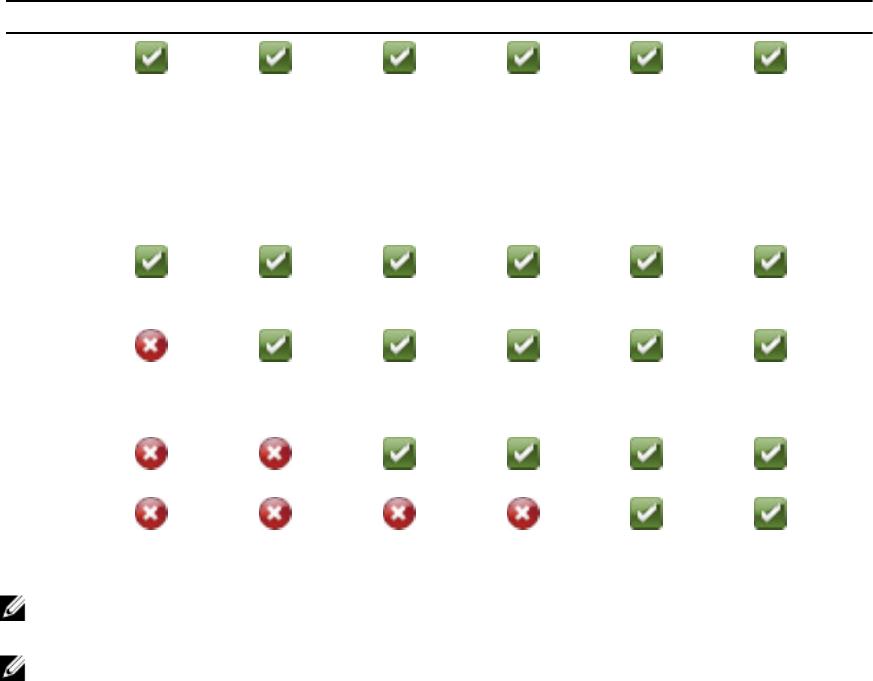
The following table lists the supported Server Administrator versions on the managed system and the corresponding
features.
Table 8. Server In-Band Monitoring Requirements
Feature Version 6.2 Version 6.2.0.1 Version 6.3 Version 6.4 Version 6.5 Version 7.0
Discovery,
inventory, and
monitoring of
Dell servers
running the
Windows
operating
system
Basic network
interface
attributes
Enriched
network
interface
attributes
Monitoring
iDRAC
View the
Express
Service code
NOTE: If a system has Server Administrator version lower than 6.2, it is grouped under
Unmanaged
and monitoring
is disabled.
NOTE: If you want to upgrade or uninstall Server Administrator on the managed system, the Alerts View of the
managed system may display the following error: Script or Executable failed to run. If the
managed system is not a management server, then switch the system to the Maintenance Mode till the upgrade or
uninstall completes. If the managed system is the management server, you may manually close the alerts after the
upgrade or uninstall is complete.
11
DRAC Monitoring Requirements Using Server In-Band Feature
The requirements for iDRAC 7 are:
• Install Server Administrator (including the Server Administrator Storage Management Service) to enable in-
band troubleshooting tasks. To launch Server Administrator and enable Remote Desktop feature on systems
with iDRAC 7 make sure that:
– Server Administrator is installed on the iDRAC 7 host system
– Resolve the hostname of the iDRAC 7 host from the Management System
– Set the Server Administrator port to the default port, that is, 1311
– Remote desktop enabled on the iDRAC 7 host system
12

2
Installing, Uninstalling, And Upgrading Dell
Server Management Pack Suite
Installing The Dell Server Management Pack Suite
To install and enable the various Monitoring features supported by Dell Server Management Pack Suite:
1. Run the Dell Server Management Pack Suite installer to extract the management packs.
For more information, see Installing The Dell Server Management Pack Suite Using The Installer.
2. Enable the supported Monitoring features using the Feature Monitoring Dashboard.
For more information, see Enabling Monitoring Features Using Dell Feature Management Dashboard.
Before Installing The Dell Server Management Pack Suite On OpsMgr 2012
For systems running OpsMgr 2012, ensure that the SNMP Monitoring Account Profile has an association for All targeted
objects with a default
Community
Run As Account. For more information, see Configuring OpsMgr 2012 To Enable
Monitoring Traps And Trap Based Unit Monitors.
Installing The Dell Server Management Pack Suite Using The Installer
NOTE: In a distributed setup install the Dell Server Management Pack Suite on all management servers.
NOTE: Install Windows PowerShell 2.0 on all the management servers.
1. Go to support.dell.com → Drivers & Downloads.
2. Download the Dell_Server_Management_Pack_Suite_v5.0.1_Axx.exe (where
xx
is the Dell Server Management
Pack release number.)
3. Run the .exe file and specify a path to extract the contents of the self extractable zip file.
4. Launch the Dell_Management_Pack_Suite_x86_x64.exe file from the extracted location.
NOTE: If the installer detects features from Dell Server Management Pack Suite version 5.0, these features
are automatically upgraded to version 5.0.1.
The welcome screen for Dell Server Management Suite Pack is displayed.
5. Click Next.
The license agreement is displayed.
6. To continue the installation, accept the license terms after reading them, and click Next.
7. Click Change (if required) to change the default installation folder and click Next.
The User Credentials screen is displayed.
8. On systems running 64–bit operating system, provide your Active Directory Domain Administrator’s Username and
Password for the Dell Device Helper COM+ application and click Next.
13

NOTE: For the Server (Out-of-band) Monitoring feature functions optimally make sure that the Active Directory
Domain Administrator is configured correctly.
9. The Ready to Install the Program screen is displayed. Click Install.
The Installing Dell Server Management Pack Suite progress screen is displayed.
10. Click Finish on the Install Shield Wizard Completed screen.
During the installation, the installer creates the Dell Connections License Manager domain groups in the Windows
Server Active Directory. If the domain groups are not automatically created during installation, then manually
create them. For more information, see Creating Connections License Manager Domain Groups.
The Management packs are extracted to the location where Dell Server Management Pack Suite is installed. The
default location is C:\Program Files\Dell Management Packs\Server Mgmt Suite\5.0.1. To import the Management
Packs (MP) and enable Monitoring features, see Enabling Monitoring Features Using Dell Feature Management
Dashboard.
NOTE: The Dell Feature Monitoring MP is automatically imported if the installation has completed
successfully. If the installer failed to import the Dell Feature Monitoring MP, manually import it. For more
information, see Importing the Dell Feature Monitoring MP.
NOTE: The installer registers the DellDeviceHelper.dll on the management server. The default location is C:
\Program Files\Dell Management Packs\Server Mgmt Suite\5.0.1\Library. Run the installer on every
management server in a distributed setup to register the DellDeviceHelper.dll.
Using The Repair Option In The Installer
This feature repairs any installation errors that may have occurred while installing the Dell Server Management Pack
Suite.
1. Launch the Dell_Management_Pack_Suite_x86_x64.exe file from the extracted location.
The welcome screen for Dell Server Management Suite Pack is displayed.
2. Click Next.
The Maintenance screen is displayed.
3. Select Repair and click Next.
The Ready to Repair the Program screen is displayed.
4. Click Install.
The Installation Completed Successfully screen is displayed.
5. Click Finish.
6. On systems running 64–bit operating system, use the Modify option of the installer to re-enter the Active Directory
Domain Administrator’s credentials for the Dell Device Helper COM+ application. For more information, see Using
The Modify Option In The Installer.
Using The Modify Option In The Installer
NOTE: The Modify option is not available on systems running 32–bit operating system.
1. Launch the Dell_Management_Pack_Suite_x86_x64.exe file from the extracted location.
The welcome screen for Dell Server Management Suite Pack is displayed.
2. Click Next.
The Maintenance screen is displayed.
3. Select Modify and click Next.
The User Credentials screen is displayed.
14
4. Provide your Active Directory Domain Administrator’s Username and Password for the Dell Device Helper COM+
application and click Next.
The Ready to Modify the Program screen is displayed.
5. Click Install.
The Installation Completed Successfully screen is displayed.
6. Click Finish.
After running the Modify option in the installer, if you observe any Dell Server Discovery or Health monitoring related
alerts, restart the Dell Device Helper. For more information, see Restarting The Dell Device Helper.
Importing Monitoring Features Using Dell Feature Management Dashboard
NOTE: In a distributed setup (including distributed resource pool in OpsMgr 2012), Dell Feature Monitoring MP
identifies one management server amongst the list of management servers to host all feature management
activities such as discoveries, alerts, and tasks.
Dell Feature Management Dashboard allows you to discover the available Dell Server Management Pack Suite’s
Monitoring features and enable them automatically importing, upgrading, and removing the management packs that are
required by a particular feature.
The Feature Management Dashboard runs on all the management servers in a distributed environment to discover a
Feature Management Host Server. Depending on the timing of discovery on each of the management servers, the
dashboard may get populated in duration varying from a few minutes to maximum of a day’s cycle. To populate the
dashboard within 40 minutes, decrease the frequency of the Discovery elements Dell Feature Management Host
Discovery to a minimum of 15 minutes and Dell Registry based Server Management Suite Discovery to a minimum of 10
minutes. It is recommended to revert the overrides made to the Discoveries once the Feature Management Dashboard is
populated. To import monitoring features:
1. Launch OpsMgr console.
2. From the Navigation pane, click Monitoring.
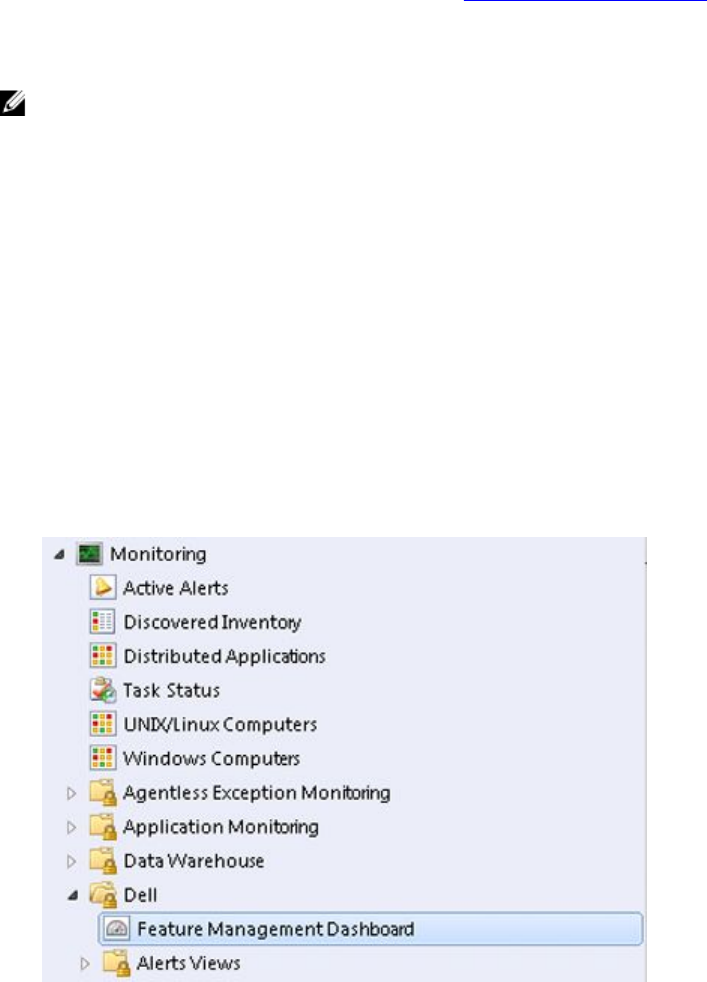
3. Expand Monitoring → Dell → Feature Management Dashboard.
15
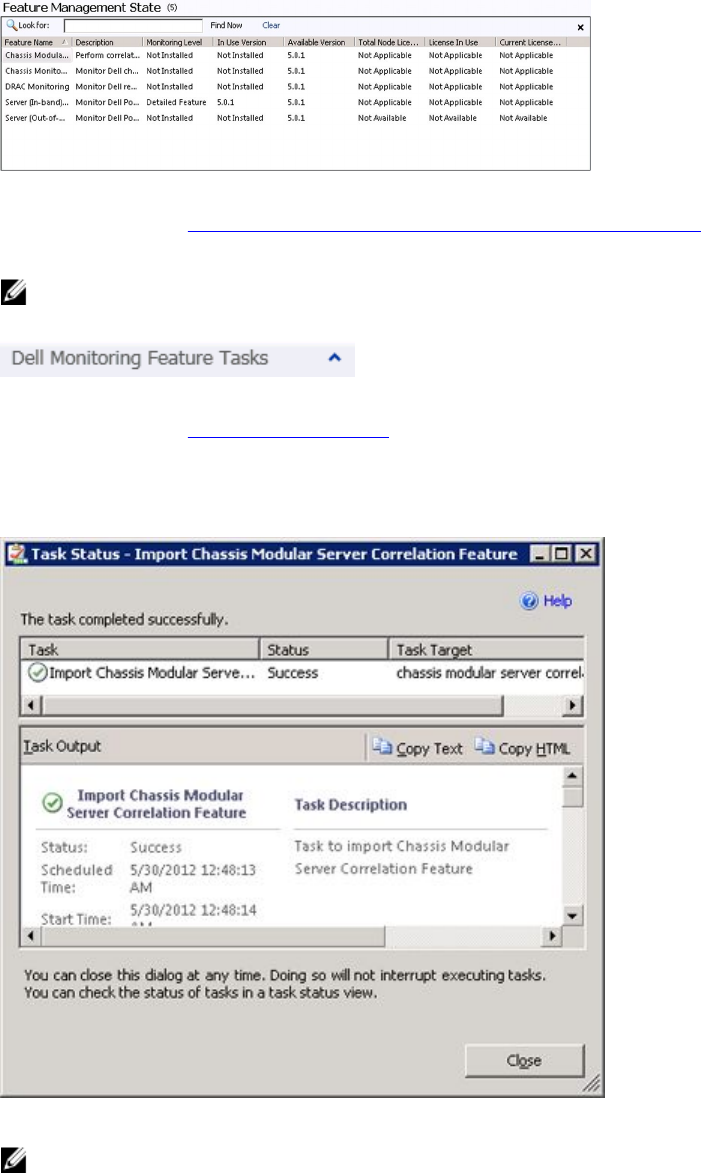
On the Feature Management Dashboard pane you can view the list of features installed, the version currently in
use, the version you can upgrade to, the level of monitoring, total licenses, and licenses in use.
4. Select the Monitoring feature you want to install.
For more information, see Monitoring Features Supported By Dell Server Management Pack Suite.
5. Under the Tasks pane, expand Dell Monitoring Feature Tasks.
NOTE: In System Center Operations Manager 2007 or System Center Essentials 2010 the Tasks pane is
referred to as Actions pane.
6. Click on a task to import/upgrade a feature.
For more information, see Feature Management Tasks.
7. On the Run Task screen, make sure that the Use the predefined Run As Account option is selected.
8. Click Run.
9. After the task has successfully completed, click Close.
10. Repeat step 4 to step 9 for each Monitoring feature you want to enable.
NOTE: Wait for a task to complete before launching another task using the Feature Management Dashboard.
16

Feature Management Tasks
The following table lists the tasks available on the Feature Management Dashboard. Some tasks listed below appear
only after you have imported a particular Monitoring feature.
NOTE: In the OpsMgr even log, ignore the error logs that state that the management packs being imported are
already imported and cannot be re-imported. These errors occur when Feature Management Dashboard re-
imports all the dependent MPs that were already imported in OpsMgr while importing a Monitoring Feature.
NOTE: Wait for a task to complete (view the state update change in the dashboard) before launching another task
using the Feature Management Dashboard.
Table 9. Feature Management Tasks
Tasks Description
Server (Out-of-band) Monitoring
NOTE: Supported only on 12th generation of PowerEdge servers running OpsMgr 2012.
Configure License Server Configures the Dell Connections License Manager. For
more information, see Configuring Dell Connections
License Manager URL.
NOTE: Perform this task before importing the Server (Out-of-band) Monitoring feature, as the Dell servers are
discovered only after the Dell Connections License Server is configured.
Launch Dell Connections License Manager Launches the Dell Connections License Manager
console. For more information, see
Dell Connections
License Manager User’s Guide
at support.dell.com/
manuals.
NOTE: While configuring the Dell Connections License Manager, the License Manager task is enabled only after
the configuration of the LicenseWebUIIRL is complete. For more information, see Configuring Dell Connections
License Manager URL.
NOTE: The Configure License Server and Launch Connections License Manger are common tasks for all the
Monitoring features on Feature Management Dashboard.
Set Server (Out-of-band) Monitoring as Preferred
Monitoring Method
If the Dell servers in the setup are monitored through
both the Server (In-band) Monitoring feature and Server
(Out-of-band) Monitoring feature, this task enables the
Server (Out-of-band) Monitoring feature as the
monitoring method for your Dell server.
Import Server (Out-of-band) Scalable Feature If the Monitoring feature is not installed, the Scalable
edition of Server (Out-of-band) Monitoring Feature is
imported.
Import Server (Out-of-band) Detailed Feature If the Monitoring feature is not installed, then the
Detailed edition of Server (Out-of-band) Monitoring
Feature is imported.
Set to Server (Out-of-band) Scalable Feature If the Detailed edition of Server (Out-of-band)
Monitoring Feature is running on the system, the
Feature Management Dashboard switches from Server
17

Tasks Description
(Out-of-band) Detailed Feature to Server (Out-of-band)
Scalable Feature.
Set to Server (Out-of-band) Detailed Feature If the Scalable edition of Server (Out-of-band)
Monitoring Feature is running on the system, the
Feature Management Dashboard switches from Server
(Out-of-band) Scalable Feature to Server (Out-of-band)
Detailed Feature.
Remove Server (Out-of-band) Feature Removes the Server (Out-of-band) Monitoring feature.
Server (In-band) Monitoring
Import Server (In-band) Detailed Feature If the Monitoring feature is not installed, the Detailed
edition of Server (In-band) Monitoring Feature is
imported.
If upgrading from previous versions of Dell Server
Management Pack Suite, the Detailed edition of Server
(In-band) Monitoring feature is imported.
Import Server (In-band) Scalable Feature If the Monitoring feature is not installed, the Scalable
edition of Server (In-band) Monitoring Feature is
imported.
If upgrading from previous versions of Dell Server
Management Pack Suite, the Scalable edition of Server
(In-band) Monitoring Feature is imported.
Set Server (In-band) Monitoring as Preferred
Monitoring Method
If the Dell servers in the setup are monitored through
both the Server In-band Monitoring feature and Server
Out-of-band Monitoring feature, this task enables the
Server (In-band) Monitoring feature as the monitoring
method for your Dell server.
Set to Server (In-band) Scalable Feature If the Detailed edition of Server (In-band) Monitoring
Feature is running on the system, the Feature
Management Dashboard switches from Server (In-
band) Detailed Feature to Server (In-band) Scalable
Feature.
Set to Server (In-band) Detailed Feature If the Scalable edition of Server (In-band) Monitoring
Feature is running on the system, the Feature
Management Dashboard switches from Server (In-
band) Scalable Feature to Server (In-band) Detailed
Feature.
Set Informational Alerts On (Server In-band) Information Alerts are turned on when the Server (In-
band) Scalable Monitoring is in use.
Set Informational Alerts Off (Server In-band) Information Alerts are turned off when the Server (In-
band) Scalable Monitoring is in use.
Remove Server (In-band) Feature Removes the Server (In-band) Monitoring feature.
DRAC Monitoring
Import DRAC Monitoring Feature If the Monitoring feature is not installed, then the DRAC
Monitoring feature is imported.
18

Tasks Description
Upgrade DRAC Monitoring Feature If upgrading from previous versions of Dell Server
Management Pack Suite, the DRAC Monitoring feature
of the current version Dell Server Management Pack is
imported.
Remove DRAC Monitoring Feature Removes the DRAC Monitoring feature.
Chassis Monitoring
Import Chassis Monitoring Feature If the Monitoring feature is not installed, then the
Chassis Monitoring feature is imported.
Upgrade Chassis Monitoring Feature If upgrading from previous versions of Dell Server
Management Pack Suite, the Chassis Monitoring
feature of the current version Dell Server Management
Pack is imported.
Remove Chassis Monitoring Feature Removes the Chassis Monitoring feature.
Chassis Modular Server Correlation
Import Chassis Modular Server Correlation Feature If the Monitoring feature is not installed, then the
Chassis Modular Server Correlation feature is imported.
Upgrade Chassis Modular Server Correlation Feature If upgrading from previous versions of Dell Server
Management Pack Suite, the Chassis Modular Server
Correlation feature of Dell Server Management Pack is
imported.
Remove Chassis Modular Server Correlation Feature Removes the Chassis Blade Correlation Monitoring
feature.
Upgrading Monitoring Features Using Dell Feature Management
Dashboard
1. Launch the OpsMgr console.
2. From the navigation pane, click Monitoring.
3. Click Dell → Feature Management Dashboard.
On the Feature Management Dashboard pane, you can view the list of features installed, the version currently in
use, the version you can upgrade to, the level of monitoring, total licenses, and the licenses in use.
4. Select the feature you want to upgrade. For the list of available upgrade options for each feature, see Feature
Upgrade Matrix.
5. Under the Tasks pane, expand Dell Monitoring Feature Tasks.
NOTE: In System Center Operations Manager 2007 or System Center Essentials 2010 the Tasks pane is
referred to as Actions pane.
6. Click on the upgrade task you want to perform. For more information, see Feature Management Tasks.
7. On the Run Task upgrade screen, select Use the predefined Run As Account option.
8. Click Run.
19
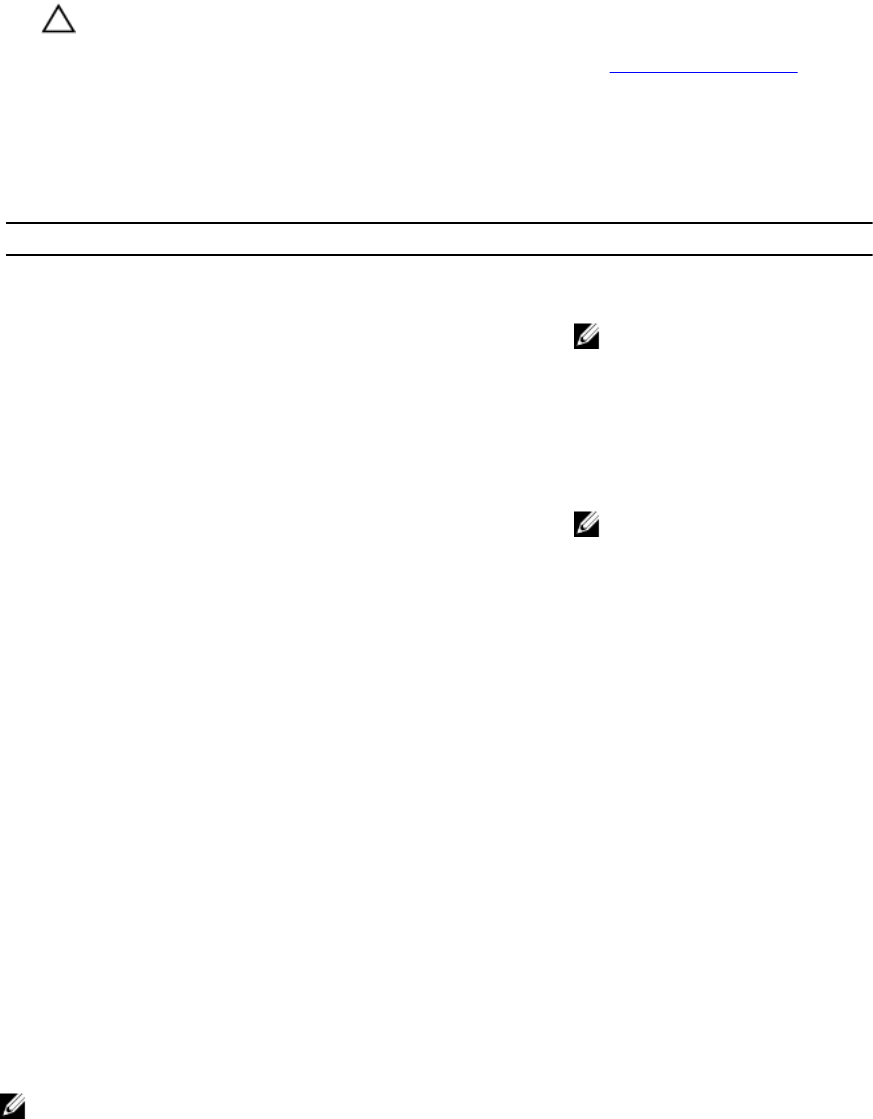
CAUTION: If there are any dependencies or associations that have to be overridden, which result in data loss,
the task will fail with the appropriate message. To proceed with the task, click Override and set the
AutoResolve Warnings/Errors override to True. For more information, see Override Task Parameters.
9. After the task is complete, click Close.
Feature Upgrade Matrix
Table 10. Feature Upgrade Matrix
Features Scalable Detailed
Server (In-band) Monitoring Inventory and health monitoring at
server and component group level only
Inventory and health monitoring of
individual components.
NOTE: Use this Management Pack
when you are managing less than
300 nodes.
Server (Out-of-band) Monitoring Inventory up to individual components
Health monitoring only at server and
component group level
Inventory and health monitoring of
individual components.
View metrics for power, temperature,
and network interface cards.
NOTE: Use this MP when you are
managing less than 30 nodes.
DRAC Monitoring DRAC inventory
DRAC health monitoring
N/A
Chassis Monitoring Blade inventory
Chassis slots summary
Health monitoring of chassis only
N/A
Chassis Modular Server Correlation Inventory and health monitoring from
chassis up to individual components
inside blade
N/A
Upgrading From Previous Management Packs
You can upgrade to the latest version of Dell Server Management Pack using the Dell Feature Management Dashboard.
Before upgrading Dell Server Management Pack, close or resolve all the Chassis monitoring and DRAC monitoring
alerts.
Upgrading From Dell Server Management Pack Version 5.0
When you run the installer, it detects the installed features from Dell Server Management Pack Suite version 5.0 and
automatically upgrades them to version 5.0.1.
NOTE: The installer might display a message that a restart is required after completing the upgrade, ignore this
message as a restart is not required.
20

Upgrading From Dell Server Management Pack Suite Version 4.1 Using Dell Feature
Management Dashboard
NOTE: Overrides targeted to a specific object are not carry forwarded while upgrading to Dell Server Management
Pack Suite version 5.0.1, even if the override MPs are carried over.
It is recommended to use the Dell Feature Management Dashboard to upgrade the monitoring features. To upgrade the
monitoring features using the Dell Feature Management Dashboard:
1. Launch the OpsMgr console and click Monitoring.
2. In Monitoring, browse to Dell → Feature Management Dashboard.
The Feature Management Dashboard pane lists the management pack present in OpsMgr and the management
pack version you can upgrade to.
3. Select the monitoring feature you want to upgrade.
4. Under Tasks, expand Dell Monitoring Feature Tasks.
NOTE: In System Center Operations Manager 2007 or System Center Essentials 2010 the Tasks pane is
referred to as Actions pane.
5. Select the task to upgrade the monitoring feature.
For more information, see Feature Management Tasks.
6. On the Run Task upgrade screen, select the Use the predefined Run As Account option.
7. Click Run.
CAUTION: If there are any dependencies or associations that you must override and which will result in data
loss, the task will fail with the appropriate message. To proceed with the task, click Override and set the
AutoResolve Warnings/Errors override to True. For more information, see Override Task Parameters.
8. After the task is complete, click Close.
While upgrading, any overrides (customizations to discovery, monitors, rules, and so on) from previous versions of
Dell Server Management Pack are migrated to Dell Server Management Pack Suite version 5.0.1.
Upgrading From Dell Server Management Pack Suite Version 4.0
To update Dell Server Management Pack Suite version 4.0 to version 5.0.1, it is recommended to upgrade to version 4.1
and then to version 5.0.1. For more information on upgrading to version 4.1, see the
Dell Server Management Pack Suite
Version 4.1 For Microsoft System Center Operations Manager and System Center Essentials User’s Guide
at
support.dell.com/manuals.
Upgrading From Dell Server Management Pack Suite Version 3.x
You cannot upgrade from Dell Server Management Pack Suite version 3.x to version 5.0.1. Delete the corresponding
previous version of Dell Server Management Pack and then install Dell Server Management Pack Suite version 5.0.1 on
System Center Operations Manager. For information on the steps to install Dell Server Management Pack Suite version
5.0.1, see Installing the Dell Server Management Pack Suite Using the Installer.
CAUTION: If you delete the version Dell Management Packs 3.x, you may lose all the monitoring data you have
collected so far from the Operations database.
21

NOTE: Make sure that you delete the Dell Server Management Pack Suite version 3.x (Dell.Connections.001.mp)
prior to importing any of the Management Packs that are part of the Dell Server Management Pack Suite version
5.0.1.
Upgrading to OpsMgr 2012
NOTE: Close or resolve all the Chassis and DRAC alerts before upgrading to OpsMgr 2012. It is recommended to
take a backup of Chassis monitoring and DRAC monitoring override references for Custom Group and Instance
Level override as those overrides may be lost during the upgrade.
If you have already imported the Dell Server Management Pack Suite version 5.0.1 MPs on your system and then
upgraded to OpsMgr 2012, the Chassis and DRAC monitoring feature will be automatically upgraded in the next Feature
Monitoring Pack discovery cycle. During this upgrade, Chassis Monitoring and DRAC Monitoring Management Packs
specific to OpsMgr 2007 will remain along with the just imported OpsMgr 2012 specific Chassis Monitoring and DRAC
Monitoring Management Packs.
In OpsMgr 2012, the Network Monitoring Stack has been upgraded, to use the new Network Monitoring features in
OpsMgr 2012, it is recommended to re-discover the Dell devices using the new OpsMgr 2012 Network Device Discovery
Wizard. After the Chassis Monitoring and DRAC Monitoring features have been upgraded in OpsMgr 2012, it is
recommended to:
• Remove the Chassis and DRAC devices that are under Legacy Network Devices.
• Rediscover the Chassis and DRAC devices as nodes. For more information, see technet.microsoft.com/en-us/
library/hh278846.aspx.
• Remove the Dell CMC (SCOM 2007/SCE 2010) MP and Dell DRAC (SCOM 2007/SCE 2010) MP files from OpsMgr
2012 as the functions of these MPs are performed by Dell CMC (SC2012 OM) MPs and Dell DRAC (SC2012 OM)
MPs in OpsMgr 2012.
For details on how to upgrade from OpsMgr 2007 to OpsMgr 2012, see technet.microsoft.com/en-us/library/
hh476934.aspx.
NOTE: To make sure that the feature management workflows are functioning at an optimal level, restart the root
management server after upgrading to OpsMgr 2012.
Post-Installation or Upgrade Tasks For The Dell Server
Management Pack Suite
Perform the following post-installation tasks after you import the management packs:
1. Configure CMC Monitoring feature for discovering Chassis Slots Summary and Server Modules.
For more information, see Configuring Dell Chassis Management Controller Feature For Correlating Server Modules
With Chassis Slot Summary .
2. Configure Dell Server Management Pack Suite to get licenses from Dell Connections License Manager to enable
Server (Out-of-band) Monitoring feature.
For more information, see Configuring Dell Connections License Manager URL.
Configuring OpsMgr 2012 To Enable Monitoring Traps And Trap Based Unit Monitors
To enable monitoring, traps, and trap-based unit monitors in OpsMgr 2012:
1. Launch OpsMgr 2012, and click Administration.
2. In the Administration pane, browse to Run As Configuration→ Profiles.
3. From the list of available profiles, right-click SNMP Monitoring Account and click Properties.
22

The Introduction screen is displayed.
4. Click Next.
The General Properties screen is displayed.
5. Click Next.
The Add Run As accounts screen is displayed.
6. Click Add.
The Add a Run As Account screen is displayed.
7. Select the community string
Run As Account
you use to discover devices from the Run As account drop-down list.
NOTE: Create a Community String Run As Account if none is present. For more information, see Creating Run
As Account for SNMP Monitoring.
NOTE: If you are using multiple Run As Accounts to discover devices, associate each device with its Run As
account. For more information, see Associating Multiple Run As Accounts.
8. Click OK.
9. After the wizard is complete, click Close.
Creating Run As Account For SNMP Monitoring
1. Launch OpsMgr 2012, and click Administration.
2. In the Administration pane, browse to Run As Configuration → Accounts.
3. Right-click Accounts and click Create Run As Account.
NOTE: For more information on Run As Account for Network Monitoring, see the Microsoft TechNet site at
technet.microsoft.com/en-us/library/hh212920.aspx.
The Introduction screen is displayed.
4. Click Next.
The General Properties screen is displayed.
5. Select community string from the Run As account type: drop-down list.
6. Provide a name in the Display name: text box and click Next.
7. Provide the appropriate string in the Community string text box and click Next.
The Distribution Security screen is displayed.
8. Select the Less secure - I want the credentials to be distributed automatically to all managed computers. option
and click Create.
9. After the wizard is complete, click Close.
Associating Multiple Run As Accounts
1. Follow step 1 to step 6 under Configuring OpsMgr 2012 to Enable Monitoring, Traps, and Trap Based Unit Monitors.
2. On the Add a Run As Account screen, select the A selected class, group, or object option.
3. Click Select → Class.
The Class Search screen is displayed.
NOTE: You can also associate the community string Run As Account with Object and Group. For more
information, see the Microsoft documentation for OpsMgr 2012 at technet.microsoft.com.
4. In the Filter by (option) text box enter the class of the object. Depending on the type of device, enter Dell Server,
Dell CMC, Dell DRAC/MC, or Dell RAC classes.
5. Click Search.
6. Under Available items select the class you want to add.
23

7. Click OK.
8. On the Add Run As account screen, click OK.
9. Repeat step 2 to step 8 for each type of class you want to manage.
10. Click Save.
11. After the wizard is complete, click Close.
Configuring Dell Connections License Manager URL
Perform this task before importing the Server (Out-of-band) Monitoring feature, as Dell Servers are discovered only after
the Dell Connections License Server is configured.
NOTE: If you have already imported the Server (Out-of-band) Monitoring feature, the Dell servers are discovered
only in the next discovery cycle and an alert is generated in the Feature Management Dashboard prompting you to
configure the Dell Connections License Manager URL. For more information, see Feature Management Alerts.
NOTE: If the management server has been restarted, the discovered Dell Servers will appear only after the next
discovery cycle.
1. Install the Dell Connections License Manager. For more information, see
Dell Connections License Manager
Version 1.0 Installation Guide
at support.dell.com/manuals.
2. Obtain licenses for the monitoring feature. For more information, see the "Managing Connections License Manager"
section in the
Dell Connections License Manager Version 1.0 User’s Guide
at support.dell.com/manuals.
3. Launch OpsMgr 2012 console.
4. From the Navigation pane, click Monitoring.
5. Expand Monitoring → Dell → Feature Management Dashboard.
6. Select Server (Out-of-Band) Monitoring feature.
7. Run the Configure License Server task.
The Run Task - Configure License Server screen is displayed.
8. Click Override.
The Override Task Parameters screen is displayed.
9. In the LicenseWebServiceURL parameter under the New Value column enter the license web service URL (the
license webservice URL uses the default port as 8543) in the following format http://<
License Server IP
>: <
port
number
>/.
For example: http://10.56.123.255:8543/.
10. In the LicenseWebUIURL parameter under the New Value column enter the license web UI URL (the license web UI
URL uses the default port as 8544) in the following format http://<
License Server IP
>: <
port number
>/.
For example: http://10.56.123.255:8544/.
11. Click Override.
The Run Task - Configure License Server screen is displayed.
12. Click Run.
The Task Status - Configure License Server screen is displayed. The Configure License Server task takes several
minutes to complete.
NOTE: Wait for the task to complete (view the state update change in the dashboard) before launching
another task through the Feature Management Dashboard.
24

Uninstalling The Dell Server Management Pack Suite
Removing Monitoring Features Using Dell Feature Management Dashboard
It is recommended to use the Dell Feature Management Dashboard to remove the management packs. Before removing
any of the Monitoring features, close or resolve all open alerts. While removing a monitoring feature, the Feature
Management Dashboard exports all override references as backup in the installation folder, but custom group
information and override instance level information cannot be reused in the future. To remove your management pack
using the Dell Feature Management Dashboard:
1. Launch OpsMgr, click Monitoring.
2. In the Monitoring pane, browse to Dell → Feature Management Dashboard.
The Feature Management Dashboard pane displays the list of management packs present in OpsMgr.
3. Select the monitoring feature you want to remove.
4. Under the Tasks pane, expand Dell Monitoring Feature Tasks.
NOTE: In System Center Operations Manager 2007 or System Center Essentials 2010 the Tasks pane is
referred to as Actions pane.
5. Click Remove Feature.
6. On the Run Task - Remove feature screen, select the Use the predefined Run As Account option.
7. Click Run.
CAUTION: If there are any dependencies or associations that have to be overridden, which result in data loss,
the task will fail with the appropriate message. To proceed with the task, click Override and set the
AutoResolve Warnings/Errors override to True. For more information, see Override Task Parameters.
8. Click Close after the task is complete.
NOTE: Removing any of the features may affect the scope of some user roles.
Uninstalling The Dell Server Management Pack Suite
To uninstall Dell Server Management Pack Suite:
1. Click Start → Control Panel → Uninstall a program.
2. Right-click Dell Server Management Pack Suite and click Uninstall.
3. Follow the instructions on the screen to complete the uninstallation process.
Or double-click the installer, select Remove, and follow the instructions on the screen.
NOTE: While uninstalling, a message The following applications should be closed before
continuing the installation: COM Surrogate is displayed as the COM Surrogate process is
running the DellDeviceHelper.DLL in the background and it needs to be closed. Select the Automatically close
applications and attempt to restart them after the setup is complete option. Click OK to proceed with the
uninstallation.
Access Privileges
Operations Console access privileges are handled internally by OpsMgr. To setup privileges use the User Roles option
under Administration → Security feature on the OpsMgr console. The profile assigned to you determines what actions
25

you can perform. For more information on security considerations, see the
Microsoft System Center Operations
Manager 2007 R2, Microsoft System Center 2012 Operation Manager,
or
Microsoft System Center Essentials 2010 Online
Help
at support.dell.com/manuals.
Restarting The Dell Device Helper
1. Click Start → All Programs → Administrative Tools → Component Services.
The Component Services screen is displayed.
2. Expand Component Services → Computers → My Computer → COM+ Applications.
3. Right-click Dell Device Helper and click Shutdown.
4. Right-click Dell Device Helper and click Start.
5. Close the Component Services window.
NOTE: After restarting the Dell Device Helper, the discovered Dell servers will appear only after the next
discovery cycle.
26

3
Troubleshooting
The following chapter provides information for troubleshooting installation related errors.
Importing The Dell Feature Monitoring Management Pack
If the installer fails to import the Feature Monitoring Management Pack (MP):
1. Launch the OpsMgr console.
2. From the navigation pane, click Administration.
3. Expand Administration, right-click Management Packs, and select Import Management Packs.
4. On the Select Management Packs screen, click Add → Add from disk.
5. Type the location details or navigate to the location where you have installed you installed the Dell Server
Management Pack Suite.
If you had chosen to install in the default directory, then the Dell Feature Monitoring Library MP is available under
C:\Program Files\Dell Management Packs\5.0.1.
6. Select the Dell.FeatureManagement.Pack.mp and Dell.Connections.HardwareLibrary.mp and click Open.
The Import Management Packs screen appears with the MPs displayed in the Import List.
7. Click Install.
Override Task Parameters
CAUTION: Overriding task parameters will results in management pack or operational data loss.
1. Launch OpsMgr console and click Monitoring.
2. In the Monitoring pane, browse to Dell → Feature Management Dashboard.
The Feature Management Dashboard pane displays the list of management pack present in OpsMgr and the
management pack version you can to which you can upgrade.
3. Select the monitoring feature and then click on the task you want to override.
4. On the Run Task screen, click Override.
The Override Task Parameters screen is displayed.
5. From the drop-down menu in the New Value column, change the value of AutoResolve Warnings/Errors to True.
6. Click Override.
7. Click Run to run the task.
Feature Management Alerts
The following alerts are generated in the Feature Management Alerts on the dashboard, if the Dell Device Helper Utility
or the Dell Connections License Manager server is not correctly installed, or the license server has insufficient licenses
for monitoring Dell Servers through the Dell Server (Out-of-band) Monitoring feature.
27

Table 11. Feature Management Alerts
Alert Text Alert State Cause Resolution
Dell FMP: Dell Device
Helper Utility is either not
present or incompatible
with Dell Server (out-of-
band) Management Pack
Critical The Dell Device Helper Utility
version 5.0.1 was not found
or the Dell Device Helper
Utility is corrupted.
A version higher than 5.0.1 of
Dell Device Helper Utility was
found.
A version lower than 5.0.1 of
Dell Device Helper Utility was
found.
Run the Dell Server
Management Pack Suite
version 5.0.1 installer on the
management server.
Dell FMP: Dell License
Server is not configured
properly
Critical The Dell Connections License
Server is not configured.
Install and configure the Dell
Connections License Server
URL. For more information,
see Configuring Dell
Connections License
Manager URL.
Dell FMP: Dell License
Server is not reachable
Critical Unable to contact the Dell
Connections License Server.
Make sure that the Dell
Connections License Server
URL is configured correctly.
For more information, see
Configuring Dell Connections
License Manager URL.
Check if the Dell
Connections License Server
is accessible.
Dell FMP: Dell Licenses
for feature are
insufficient or not
available.
Critical No licenses present on the
Dell Connections License
Server.
License usage for a
monitoring feature has
exceeded the monitoring
capacity.
Purchase additional licenses
and import them into the Dell
Connections License Server.
Warning License usage for a
monitoring feature is
approaching the total
monitoring capacity.
Purchase additional licenses
and import them into the Dell
Connections License Server.
Critical Unable to process licenses
for a monitoring feature.
Make sure that the Dell
Connections License Server
is configured correctly. For
more information, see
Dell
Connections License
Manager Version 1.0 User’s
Guide
at support.dell.com
\manuals.
Check if the Dell
Connections License Server
is accessible.
Check the access privileges
for getting the license from
28

Alert Text Alert State Cause Resolution
the Dell Connections License
Server.
Feature Management Host Server's Health Service Goes Down
In a distributed setup (including distributed resource pool in OpsMgr 2012), Dell Feature Monitoring MP identifies one
management server amongst the list of management servers to host all feature management activities such as
discoveries, alerts, and tasks. If the selected management server has stopped functioning the executed Feature
Management tasks will fail. If such a selected management server is corrupt/health service cannot be brought up, plan
decommissioning the management server to remove stale objects . For more information, see technet.microsoft.com/en-
us/library/hh456439.aspx.
The Dell Feature Management Pack will switch to a new Feature Management Host Server and host the features there
in the subsequent discovery cycle.
Creating Connections License Manager Domain Groups
The following groups are created in the Windows Server Active Directory during installation of Dell Server Management
Pack Suite or Dell Connections License Manager:
• Dell Connections License Administrators
• Dell Connections License Operators
• Dell Connections License Users
If the preceding domain groups are not automatically created during installation, then manually create the groups. To
create domains and add users to domains, see the Windows documentation from Microsoft at technet.microsoft.com.
NOTE: After creating the required domain groups add your Management Server Machine Account as part of the
Dell Connections License Users group and add the current user account to the Dell Connections License
Administrators group.
Feature Management Dashboard Is Not Getting Populated
Feature Management Dashboard has a prerequisite that the Dell Server Management Pack Suite should be installed on
all the management servers. If you have manually imported the Feature Monitoring MP without running the installer on
the Management servers the Feature Management Dashboard will not be populated. To populate the Feature
Management Dashboard, run the installer on all the Management servers. For more information, see Installing the Dell
Server Management Pack Suite Using the Installer.
Feature Management Dashboard Is Taking Time To Populate
The Feature Management Dashboard runs on all the management servers in a distributed environment to discover a
Feature Management Host Server. Depending on the timing of discovery on each of the management servers, the
dashboard may get populated in duration varying from a few minutes to maximum of a day’s cycle. To populate the
dashboard within 40 minutes, decrease the frequency of the Discovery elements Dell Feature Management Host
Discovery to a minimum of 15 minutes and Dell Registry based Server Management Suite Discovery to a minimum of 10
minutes. It is recommended to revert the overrides made to the Discoveries once the Feature Management Dashboard is
populated.
29
Chassis And DRAC Overrides Not Getting Transferred After
Upgrading To OpsMgr 2012
If the Chassis and DRAC overrides are not getting transferred after upgrading to OpsMgr 2012 from OpsMgr 2007 R2 ,
first run the Chassis upgrade task from the Feature Management Dashboard which will transfer the Chassis overrides,
then run the DRAC upgrade task from Feature Management Dashboard which will transfer the DRAC overrides.
30

4
Contacting Dell
NOTE: If you do not have an active Internet connection, you can find contact information on your purchase invoice,
packing slip, bill, or Dell product catalog.
Dell provides several online and telephone-based support and service options. Availability varies by country and
product, and some services may not be available in your area. To contact Dell for sales, technical support, or customer
service issues:
1. Visit support.dell.com.
2. Select your support category.
3. If you are not a U.S. customer, select your country code at the bottom of the support.dell.com page, or select All to
see more choices.
4. Select the appropriate service or support link based on your need.
31
