Dell Studio Xps 9100 Mid 2010 Setup Guide
Manual studio-xps-9100_setup%20guide_en-us Dell Studio XPS 9100 Setup Manual | Manual Device
2014-11-13
: Dell Dell-Studio-Xps-9100-Mid-2010-Setup-Guide-111283 dell-studio-xps-9100-mid-2010-setup-guide-111283 dell pdf
Open the PDF directly: View PDF  .
.
Page Count: 74

SETUP GUIDE


SETUP GUIDE
Regulatory model: DCRM
SETUP GUIDE

Notes, Cautions, and Warnings
NOTE: A NOTE indicates important information that helps you make better use of your
computer.
CAUTION: A CAUTION indicates either potential damage to hardware or loss of data and tells
you how to avoid the problem.
WARNING: A WARNING indicates a potential for property damage, personal injury, or death.
__________________
Information in this document is subject to change without notice.
© 2010 Dell Inc. All rights reserved.
Reproduction of these materials in any manner whatsoever without the written permission of Dell Inc. is strictly forbidden.
Trademarks used in this text:
Dell
, the
DELL
logo, YOURS IS HERE, Studio XPS, Solution Station, and
DellConnect
are
trademarks of Dell Inc.;
Intel
is a registered trademark and
Core
is a trademark of Intel Corporation in the U.S. and other
countries;
Microsoft
,
Windows
, and the
Windows
start button logo are either trademarks or registered trademarks
of Microsoft Corporation in the United States and/or other countries;
Blu-ray Disc
is a trademark of the Blu‑ray Disc
Association;
Bluetooth
is a registered trademark owned by Bluetooth SIG, Inc. and is used by Dell under license.
Other trademarks and trade names may be used in this document to refer to either the entities claiming the marks and
names or their products. Dell Inc. disclaims any proprietary interest in trademarks and trade names other than its own.
June 2010 P/N NWK08 Rev. A01
3
Setting Up Your Studio XPS Desktop . . . . . .5
Before Setting Up Your Computer . . . . . . . . . 6
Connect the Keyboard and Mouse. . . . . . . . . 7
Connect the Display. . . . . . . . . . . . . . . . . . . . . 8
Connect the Network Cable (Optional) . . . . 10
Connect the Power Cable . . . . . . . . . . . . . . . 11
Press the Power Button . . . . . . . . . . . . . . . . 12
Set Up Microsoft Windows. . . . . . . . . . . . . . 13
Create System Recovery Media
(Recommended). . . . . . . . . . . . . . . . . . . . . . . 14
Connect to the Internet (Optional) . . . . . . . . 15
Using Your Studio XPS Desktop . . . . . . . . .18
Front View Features. . . . . . . . . . . . . . . . . . . . 18
Top View Features . . . . . . . . . . . . . . . . . . . . . 20
Back View Features. . . . . . . . . . . . . . . . . . . . 22
Back Panel Connectors. . . . . . . . . . . . . . . . . 24
Software Features . . . . . . . . . . . . . . . . . . . . . 26
Dell Dock . . . . . . . . . . . . . . . . . . . . . . . . . . . . 27
Dell DataSafe Online Backup . . . . . . . . . . . . 28
Solving Problems . . . . . . . . . . . . . . . . . . . . .29
Beep Codes . . . . . . . . . . . . . . . . . . . . . . . . . . 29
Network Problems . . . . . . . . . . . . . . . . . . . . . 30
Power Problems. . . . . . . . . . . . . . . . . . . . . . . 31
Memory Problems . . . . . . . . . . . . . . . . . . . . . 33
Lockups and Software Problems . . . . . . . . . 34
Using Support Tools. . . . . . . . . . . . . . . . . . .36
Dell Support Center . . . . . . . . . . . . . . . . . . . . 36
My Dell Downloads . . . . . . . . . . . . . . . . . . . . 37
System Messages . . . . . . . . . . . . . . . . . . . . . 37
Hardware Troubleshooter. . . . . . . . . . . . . . . 39
Dell Diagnostics . . . . . . . . . . . . . . . . . . . . . . 40
Contents
4
Contents
Restoring Your Operating System . . . . . . .44
System Restore . . . . . . . . . . . . . . . . . . . . . . . 45
Dell DataSafe Local Backup. . . . . . . . . . . . . 46
System Recovery Media . . . . . . . . . . . . . . . . 48
Dell Factory Image Restore . . . . . . . . . . . . . 49
Getting Help . . . . . . . . . . . . . . . . . . . . . . . . .51
Technical Support and Customer
Service . . . . . . . . . . . . . . . . . . . . . . . . . . . . . . 52
DellConnect . . . . . . . . . . . . . . . . . . . . . . . . . . 52
Online Services . . . . . . . . . . . . . . . . . . . . . . . 53
Automated Order‑Status Service . . . . . . . . . 54
Product Information. . . . . . . . . . . . . . . . . . . . 54
Returning Items for Repair Under
Warranty or for Credit . . . . . . . . . . . . . . . . . . 55
Before You Call. . . . . . . . . . . . . . . . . . . . . . . . 56
Contacting Dell. . . . . . . . . . . . . . . . . . . . . . . . 57
Finding More Information and
Resources . . . . . . . . . . . . . . . . . . . . . . . . . . .58
Specifications . . . . . . . . . . . . . . . . . . . . . . .60
Appendix. . . . . . . . . . . . . . . . . . . . . . . . . . . .65
Macrovision Product Notice. . . . . . . . . . . . . 65
Information for NOM, or Official Mexican
Standard (Only for Mexico). . . . . . . . . . . . . . 66
Index . . . . . . . . . . . . . . . . . . . . . . . . . . . . . . .67

5
This section provides information about
setting up your Studio XPS™ 9100 desktop.
WARNING: Before you begin any of the
procedures in this section, read the
safety information that shipped with
your computer. For additional safety
best practices information, see the
Regulatory Compliance Homepage at
www.dell.com/regulatory_compliance.
NOTE: Your computer’s Service Tag is located
on a label under the FlexBay panel on the
front of your computer. Use the Service Tag
to identify your computer when you access
the Dell Support website or contact technical
support.
Setting Up Your Studio XPS Desktop
6
Setting Up Your Studio XPS Desktop
Before Setting Up Your Computer
When positioning your computer, ensure that you allow easy access to a power source, adequate
ventilation, and a level surface to place your computer.
Restricting airflow around your computer may cause it to overheat. To prevent overheating ensure
that you leave at least 10.2 cm (4 inches) at the back of the computer and a minimum of
5.1 cm (2 inches) on all other sides. You should never place your computer in an enclosed space,
such as a cabinet or drawer when it is powered on.
7
Setting Up Your Studio XPS Desktop
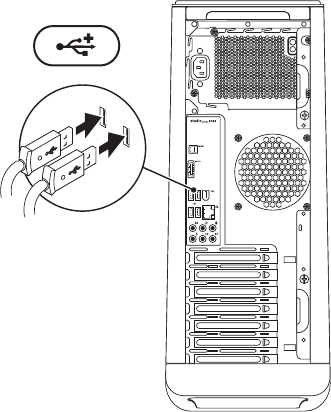
Connect the Keyboard and Mouse
Connect the USB keyboard and mouse to the USB connectors on the back panel of your computer.

8
Setting Up Your Studio XPS Desktop
Connect the Display
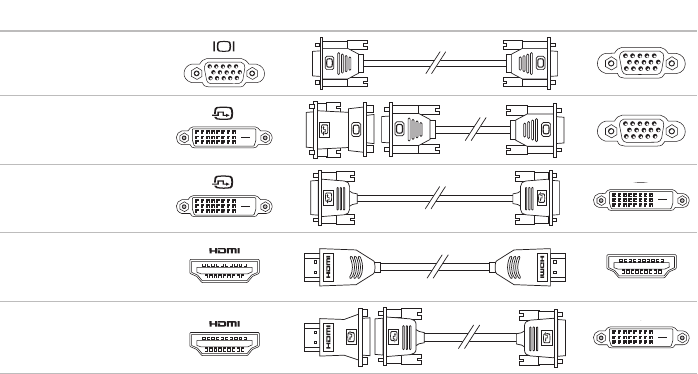
Your computer does not have an integrated video connector. You must use the connector available
on the video card in the expansion slot to connect to the display.
NOTE: If your video card does not have a VGA connector, use the DVI‑to‑VGA adapter and VGA
cable to connect to the display.
NOTE: HDMI or DVI cables may not ship with your computer. You can purchase the
HDMI‑to‑DVI adapter and additional HDMI or DVI cables at www.dell.com.
Use the appropriate cable based on the connectors available on your computer and display. See the
following table to identify the connectors on your computer and display.
NOTE: When connecting to a single display, connect the display to ONLY ONE of the connectors
on your computer.
9
Setting Up Your Studio XPS Desktop
Connection Type Computer Cable Display
VGA‑to‑VGA
(VGA cable)
DVI‑to‑VGA
(DVI‑to‑VGA adapter
+ VGA cable)
DVI‑to‑DVI
(DVI cable)
HDMI‑to‑HDMI
(HDMI cable)
HDMI‑to‑DVI
(HDMI‑to‑DVI
adapter + DVI cable)
10
Setting Up Your Studio XPS Desktop
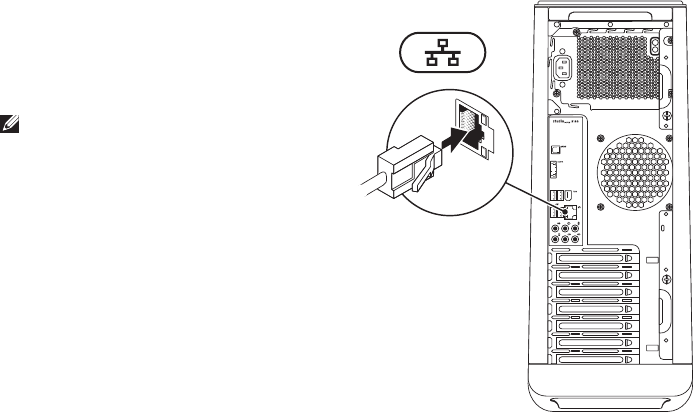
Connect the Network Cable
(Optional)
A network connection is not required to complete
your computer setup, but if you have an existing
network or Internet connection that uses a cable
connection (such as a broadband device or
Ethernet jack), you can connect it now.
NOTE: Use only an Ethernet cable to
connect to the network connector
(RJ45 connector). Connect the telephone
cable only to the modem connector
(RJ11 connector) and not to the network
connector (RJ45 connector).
To connect your computer to a network or a
broadband device, connect one end of the
network cable to the network port or the
broadband device. Connect the other end of
the network cable to the network connector
(RJ45 connector) on the back panel of your
computer. A click indicates that the network
cable has been securely attached.
11
Setting Up Your Studio XPS Desktop
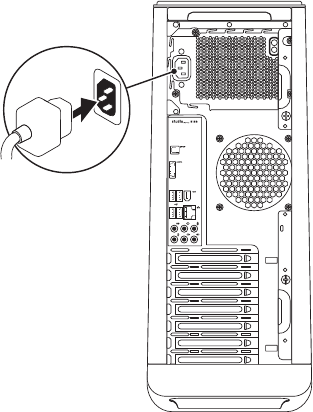
Connect the Power Cable
12
Setting Up Your Studio XPS Desktop
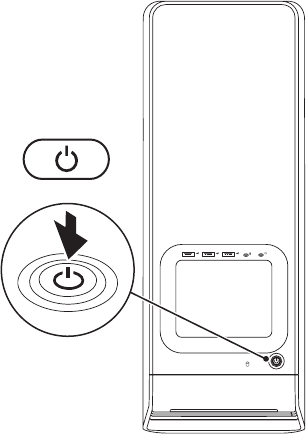
Press the Power Button

13
Setting Up Your Studio XPS Desktop
Set Up Microsoft Windows
Your Dell computer is preconfigured with the Microsoft® Windows® operating system. To set
up Windows for the first time, follow the instructions on the screen. These steps are mandatory
and may take some time to complete. The Windows setup screens will take you through several
procedures including accepting license agreements, setting preferences, and setting up an Internet
connection.
CAUTION: Do not interrupt the operating system’s setup process. Doing so may render your
computer unusable and you will need to reinstall the operating system.
NOTE: For optimal performance of your computer, it is recommended that you download and
install the latest BIOS and drivers for your computer available at support.dell.com.
NOTE: For more information on the operating system and features, see
support.dell.com/MyNewDell.

14
Setting Up Your Studio XPS Desktop
Create System Recovery
Media (Recommended)
NOTE: It is recommended that you create
a system recovery media as soon as you
set up Microsoft Windows.
The system recovery media can be used to
restore your computer to the operating state it
was in when you purchased the computer, while
preserving data files (without the need of the
Operating System
disc). You can use the system
recovery media if changes to the hardware,
software, drivers, or other system settings have
left the computer in an undesirable operating
state.
You will require the following to create the
system recovery media:
Dell DataSafe Local Backup•
USB key with a minimum capacity of 8 GB or •
DVD‑R/DVD+R/Blu‑ray Disc™
NOTE: Dell DataSafe Local Backup does
not support rewritable discs.
To create a system recovery media:
Ensure that the computer is turned on.1.
Insert the disc or USB key in the computer.2.
Click 3. Start → Programs→ Dell DataSafe
Local Backup.
Click 4. Create Recovery Media.
Follow the instructions on the screen.5.
NOTE: For information on using the system
recovery media, see “System Recovery
Media” on page 48.
15
Setting Up Your Studio XPS Desktop
Connect to the Internet
(Optional)
To connect to the Internet, you need an external
modem or network connection and an Internet
service provider (ISP).
If an external USB modem or WLAN adapter is
not part of your original order, you can purchase
one at www.dell.com.
Setting Up a Wired Connection
If you are using a dial‑up connection, connect •
the telephone cable to the optional modem
and to the telephone wall jack before you set
up your Internet connection.
If you are using a DSL or cable/satellite •
modem connection, contact your ISP
or cellular telephone service for setup
instructions.
To complete setting up your wired Internet
connection, follow the instructions in “Setting Up
Your Internet Connection” on page 16.

16
Setting Up Your Studio XPS Desktop
Setting Up a Wireless Connection
NOTE: To set up your wireless router, see the
documentation that shipped with your router.
Before you can use your wireless Internet
connection, you need to connect to your
wireless router.
To set up your connection to a wireless router:
Save and close any open files, and exit any 1.
open programs.
Click 2. Start → Control Panel.
In the search box, type 3. network, and
then click Network and Sharing Center→
Connect to a network.
Follow the instructions on the screen to 4.
complete the setup.
Setting Up Your Internet Connection
ISPs and ISP offerings vary by country. Contact
your ISP for offerings available in your country.
If you cannot connect to the Internet but have
successfully connected in the past, the ISP
might have a service outage. Contact your ISP
to check the service status, or try connecting
again later.
Have your ISP information ready. If you do not
have an ISP, the Connect to the Internet wizard
can help you get one.

17
Setting Up Your Studio XPS Desktop
To set up your Internet connection:
Save and close any open files, and exit any 1.
open programs.
Click 2. Start → Control Panel.
In the search box, type 3. network, and then
click Network and Sharing Center→ Set up
a new connection or network→ Connect to
the Internet.
The Connect to the Internet window appears.
NOTE: If you do not know which type of
connection to select, click Help me choose
or contact your ISP.
Follow the instructions on the screen and 4.
use the setup information provided by your
ISP to complete the setup.
18
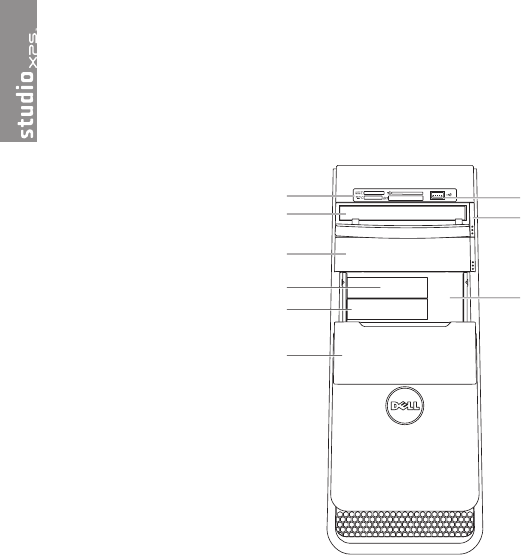
Front View Features
Using Your Studio XPS Desktop
This section provides information about the features available on your Studio XPS™ 9100 desktop.
1
4
9
2
3
8
6
7
5

19
Using Your Studio XPS Desktop
1Media Card Reader — Provides a fast
and convenient way to view and share
digital photos, music, and videos stored
on a media card.
2Optical drive — Plays or records only
standard‑size (12 cm) CDs, DVDs, and
Blu‑ray Discs (optional).
3Optional optical drive bay — Can
support an additional optical drive.
4 USB 3.0 connector (optional) —
Connects to USB 3.0‑compliant devices
such as external hard drives. Also
compatible with USB 2.0 devices.
5FlexBay slot — Can support an optional
Media Card Reader or an additional hard
drive.
6FlexBay panel — Covers the FlexBay
slots.
7 Service Tag and Express Service
Code — Used to identify your computer
when you access the Dell Support
website or call technical support.
8Optical drive eject button — Press the
marked portion on the lower end of the
button to eject the disc tray.
9 USB 2.0 connector — Connects
to USB devices that are connected
occasionally such as memory keys,
digital cameras, and MP3 players.
20
Using Your Studio XPS Desktop
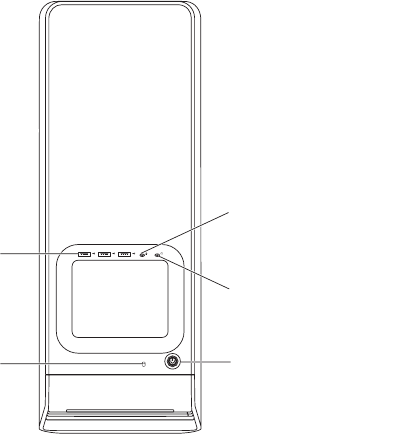
Top View Features
5
1
23
4
21
Using Your Studio XPS Desktop
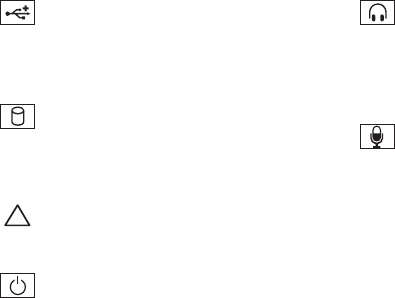
1 USB 2.0 connectors (3) — Connect
to USB devices that are connected
occasionally such as memory keys, digital
cameras, and MP3 players.
2 Hard-drive activity light — Turns on
when the computer reads or writes data.
A blinking white light indicates hard‑drive
activity.
CAUTION: To avoid loss of data, never
turn off the computer while the hard-
drive activity light is blinking.
3 Power button — Turns the computer on
or off when pressed. The light in the center of
this button indicates the power state.
NOTE: For information on power problems,
see “Power Problems” on page 31.
4 Headphone connector — Connects
to headphones.
NOTE: To connect to a powered speaker or
sound system, use the audio connectors
on the back of your computer.
5 Line-in or microphone connector —
Connects to a microphone for voice or to
an audio cable for audio input.
22
Using Your Studio XPS Desktop
Back View Features
1
2
3
4
5
23
Using Your Studio XPS Desktop
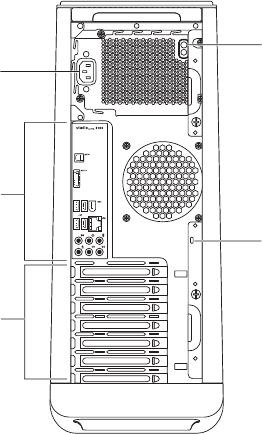
1Power connector — Connects to
the power cable. Appearance of this
connector may vary.
2Back panel connectors — Connect
USB, audio, and other devices into the
appropriate connectors.
3Expansion card slots — Provide access
to connectors on any installed PCI and
PCI express cards.
4Security cable slot — Attaches a
commercially available security cable to
your computer.
NOTE: Before you buy a security cable,
ensure that it fits into the security cable
slot on your computer.
5Power supply light — Indicates power
availability on the power supply unit.
NOTE: The power supply light may not be
available on all computers.
24
Using Your Studio XPS Desktop
Back Panel Connectors
3
2
1
6
8
7
10
4
5
9
11
25
Using Your Studio XPS Desktop
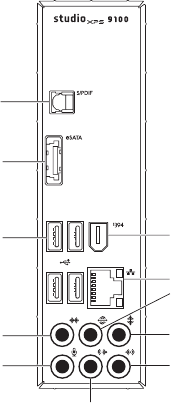
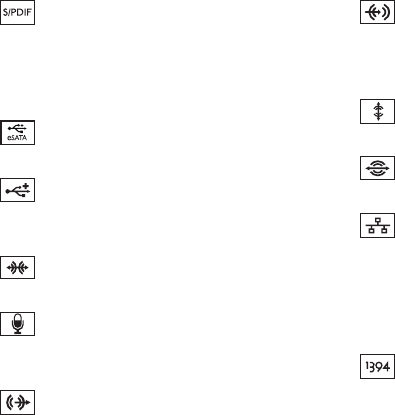
1 S/PDIF connector — Connects to
amplifiers of TVs for digital audio through
optical digital cables. This format carries
an audio signal without going through an
analog audio conversion process.
2 eSATA connector — Connects to
external SATA storage devices.
3 USB 2.0 connectors (4) — Connect
to USB devices, such as a mouse, printer,
keyboard, external drive, or MP3 player.
4 Side L/R surround connector —
Connects to side L/R surround speakers.
5 Microphone connector — Connects
to a microphone for voice or audio input
into a sound or telephony program.
6 Front L/R line-out connector —
Connects to front L/R speakers.
7 Line-in connector — Connects to
recording or playback devices such as
a microphone, cassette player, CD player,
or VCR.
8 Center/subwoofer connector —
Connects to a center speaker or subwoofer.
9 Rear L/R surround connector —
Connects to rear L/R surround speakers.
10 Network connector and light —
Connects your computer to a network
or broadband device if you are using a
wired network. The two lights next to the
connector indicate status and activity for a
wired network connection.
11 IEEE 1394 connector — Connects to
high‑speed serial multimedia devices such
as digital video cameras.

26
Using Your Studio XPS Desktop
Software Features
NOTE: For more information about the
features described in this section, see the
Dell Technology Guide available on your
hard drive or at support.dell.com/manuals.
Productivity and Communication
You can use your computer to create
presentations, brochures, greeting cards, fliers,
and spreadsheets. You can also edit and view
digital photographs and images. Check your
purchase order for software installed on your
computer.
After connecting to the Internet, you can access
websites, setup an e‑mail account, and upload
or download files.
Entertainment and Multimedia
You can use your computer to watch videos,
play games, create your own CDs, listen to
music and radio stations.
You can download or copy pictures and video
files from portable devices, such as digital
cameras and cell phones. Optional software
applications enable you to organize and create
music and video files that can be recorded to a
disc, saved on portable products such as MP3
players and handheld entertainment devices, or
played and viewed directly on connected TVs,
projectors, and home theater equipment.

27
Using Your Studio XPS Desktop
Dell Dock
The Dell Dock is a group of icons that provides easy access to frequently‑used applications, files,
and folders. You can personalize the Dock by:
Adding or removing icons•
Grouping related icons into categories•
Changing the color and location of the Dock•
Changing the behavior of the icons•
Add a Category
Right‑click the Dock, click 1. Add→ Category.
The Add/Edit Category window is displayed.
Enter a title for the category in the 2. Title field.
Select an icon for the category from the 3.
Select an image: box.
Click 4. Save.
Add an Icon
Drag and drop the icon to the Dock or a
category.
Remove a Category or Icon
Right‑click the category or icon on the Dock 1.
and click Delete shortcut or Delete category.
Follow the instructions on the screen.2.
Personalize the Dock
Right‑click the Dock and click 1. Advanced
Setting....
Choose the desired option to personalize the 2.
Dock.

28
Using Your Studio XPS Desktop
Dell DataSafe Online Backup
NOTE: Dell DataSafe Online may not be
available in all regions.
NOTE: A broadband connection is
recommended for fast upload or download
speeds.
Dell DataSafe Online is an automated backup
and recovery service that helps protect your
data and other important files from catastrophic
incidents like theft, fire, or natural disasters. You
can access the service on your computer using
a password‑protected account.
For more information, go to delldatasafe.com.
To schedule backups:
Double‑click the Dell DataSafe Online 1.
icon on the taskbar.
Follow the instructions that appear on the 2.
screen.

29
Solving Problems
This section provides troubleshooting
information for your computer. If you cannot
solve your problem using the following
guidelines, see “Using Support Tools” on
page 36 or “Contacting Dell” on page 57.
Beep Codes
Your computer might emit a series of beeps during
start‑up if there are errors or problems. This series
of beeps, called a beep code, identifies a problem.
Write down the beep code and contact Dell
(see “Contacting Dell” on page 57).
Beep Code Possible Problem
One Possible system board failure —
BIOS ROM checksum failure
Two No RAM detected
NOTE: If you installed or
replaced the memory module,
ensure that the memory module
is seated properly.
Three Possible system board failure —
Chipset error
Four RAM read/write failure
Five Real Time Clock failure
Six Video card or chip failure
Seven Processor failure

30
Solving Problems
Network Problems
Wireless Connections
If the network connection is lost — The
wireless router is offline or wireless has been
disabled on the computer.
Check your wireless router to ensure it is •
powered on and connected to your data
source (cable modem or network hub).
Re‑establish your connection to the •
wireless router (see “Setting Up a Wireless
Connection” on page 16).
Wired Connections
If the network connection is lost —
Check the cable to ensure it is plugged in •
and not damaged.
Check the status of the link integrity light.•
The link integrity light on the integrated network
connector lets you verify that your connection is
working and provides information on the status:
Off — The computer is not detecting a •
physical connection to the network or is
connected to a 10‑Mbps network.
Solid green — A good connection exists •
between a 100‑Mbps network and the
computer.
Solid orange — A good connection exists •
between a 1000‑Mbps network and the
computer.
NOTE: The link integrity light on the network
connector is only for the wired cable
connection. The link integrity light does not
provide status for wireless connections.
If the problem persists, contact your network
administrator.
31
Solving Problems
Power Problems
If the power light is off — The computer is in
hibernate mode, turned off, or is not receiving
power.
Press the power button to resume normal •
operation.
Reseat the power cable into both the •
power connector on the computer and the
electrical outlet.
If the computer is plugged into a power strip, •
ensure that the power strip is plugged into
an electrical outlet and that the power strip
is turned on. Also bypass power protection
devices, power strips, and power extension
cables to verify that the computer turns on
properly.
Ensure that the electrical outlet is working •
by testing it with another device, such as
a lamp.
Ensure that the power supply light on the •
back of the computer is on. If the light is off
there may be a possible problem with the
power supply or the power cable.
If the problem persists,• contact Dell (see
“Contacting Dell” on page 57).
If the power light is solid white and the
computer is not responding — The display may
not be connected or powered on.
Ensure that the display is properly connected •
and then turn it off, then back on.
If the problem persists, contact Dell (see •
“Contacting Dell” on page 57).
32
Solving Problems
If the power light is solid amber —
The computer is in sleep or standby state. •
Press a key on the keyboard, move the
connected mouse, or press the power button
to resume normal operation.
There may be a problem with either the •
system board or the power supply. For
assistance, contact Dell (see “Contacting
Dell” on page 57).
If the power light is blinking amber — There
may be a problem with the system board.
For assistance, contact Dell (see “Contacting
Dell” on page 57).
If you encounter interference that hinders
reception on your computer — An unwanted
signal is creating interference by interrupting or
blocking other signals. Some possible causes of
interference are:
Power, keyboard, and mouse extension •
cables.
Too many devices connected to a power •
strip.
Multiple power strips connected to the same •
electrical outlet.
33
Solving Problems
Memory Problems
If you receive an insufficient memory
message —
Save and close any open files and exit any •
open programs you are not using to see if
that resolves the problem.
See the software documentation for •
minimum memory requirements. If
necessary, install additional memory
(see the Service Manual at
support.dell.com/manuals).
Reseat the memory module(s) into the •
connector(s) (see the Service Manual at
support.dell.com/manuals).
If the problem persists, contact Dell (see •
“Contacting Dell” on page 57).
If you experience other memory problems —
Ensure that you are following the memory •
installation guidelines (see the
Service
Manual
at support.dell.com/manuals).
Check if the memory module is compatible •
with your computer. Your computer supports
DDR3 memory. For more information about
the type of memory supported by your
computer, see “Specifications” on page 60.
Run the Dell Diagnostics (see “Dell •
Diagnostics” on page 40).
If the problem persists, contact Dell (see •
“Contacting Dell” on page 57).

34
Solving Problems
Lockups and Software
Problems
If the computer does not start up — Ensure
that the power cable is firmly connected to the
computer and to the electrical outlet.
If a program stops responding — End the
program:
Press <Ctrl><Shift><Esc> simultaneously.1.
Click 2. Applications.
Select the program that is no longer 3.
responding
Click 4. End Task.
If a program crashes repeatedly — Check the
software documentation. If necessary, uninstall
and then reinstall the program.
NOTE: Software usually includes installation
instructions in its documentation or on CD.
If the computer stops responding or a solid blue
screen appears —
CAUTION: You might lose data if you are
unable to perform an operating system
shutdown.
If you are unable to get a response by pressing
a key on your keyboard or moving your mouse,
press and hold the power button for at least
8 to 10 seconds until the computer turns off.
Then restart your computer.
If a program is designed for an earlier
Microsoft® Windows® operating system —
Run the Program Compatibility Wizard. The
Program Compatibility Wizard configures a
program so that it runs in an environment similar
to an earlier version of Microsoft® Windows®
operating system environments.

35
Solving Problems
Click 1. Start → Control Panel→
Programs→ Run programs made for
previous versions of Windows.
In the welcome screen, click 2. Next.
Follow the instructions on the screen.3.
If you have other software problems —
Back up your files immediately.•
Use a virus‑scanning program to check the •
hard drive or CDs.
Save and close any open files or programs •
and shut down your computer through the
Start menu.
Check the software documentation or •
contact the software manufacturer for
troubleshooting information:
Ensure that the program is compatible –
with the operating system installed on
your computer.
Ensure that your computer meets the –
minimum hardware requirements needed
to run the software. See the software
documentation for information.
Ensure that the program is installed and –
configured properly.
Verify that the device drivers do not –
conflict with the program.
If necessary, uninstall and then reinstall –
the program.
36
Using Support Tools
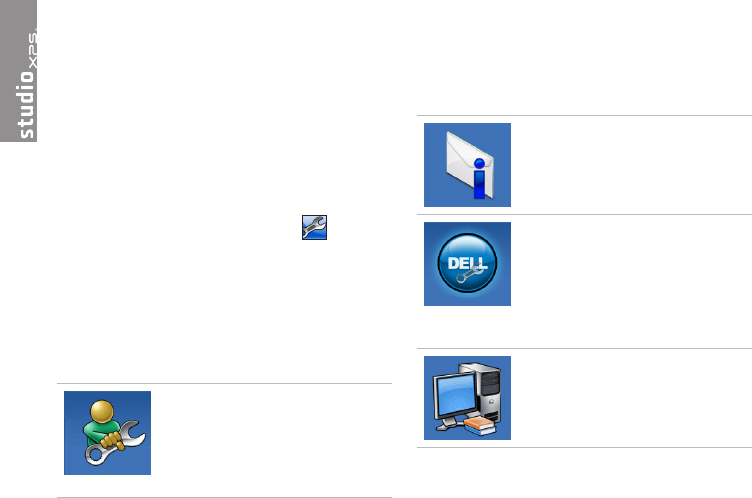
Dell Support Center
The Dell Support Center helps you find
the service, support, and system‑specific
information you need.
To launch the application, click the icon in
the taskbar.
The Dell Support Center home page displays
your computer’s model number, service tag,
express service code, and service contact
information.
The home page also provides links to access:
Self Help (Troubleshooting,
Security, System Performance,
Network/Internet, Backup/
Recovery, and Windows
operating system)
Alerts (technical support alerts
relevant to your computer)
Assistance from Dell (Technical
Support with DellConnect™,
Customer Service, Training and
Tutorials, How‑To Help with
Solution Station™, and Online
Scan with PC CheckUp)
About Your System (System
Documentation, Warranty
Information, System Information,
Upgrades & Accessories)
For more information about Dell Support Center
and available support tools, click the Services
tab on support.dell.com.

37
Using Support Tools
My Dell Downloads
NOTE: My Dell Downloads may not be
available in all regions.
Some of the software pre‑installed on your new
computer do not include a backup CD or DVD.
This software is available at My Dell Downloads.
From this website you can download available
software for reinstallation or create your own
backup media.
To register and use My Dell Downloads:
Go to 1. downloadstore.dell.com/media.
Follow the instructions on the screen to 2.
register and download the software.
Reinstall or create backup media of the 3.
software for future use.
System Messages
If your computer has an issue or error, it may
display a system message that will help you
identify the cause and action needed to resolve
the issue.
NOTE: If the message you received is not
listed in the following examples, see the
documentation for either the operating
system or the program that was running
when the message appeared. Alternatively
you could see the
Dell Technology Guide
on your hard drive or at support.dell.com
or see “Contacting Dell” on page 57 for
assistance.
38
Using Support Tools
Alert! Previous attempts at booting this system
have failed at checkpoint [nnnn]. For help
in resolving this problem, please note this
checkpoint and contact Dell Technical
Support — The computer failed to complete
the boot routine three consecutive times for
the same error. Contact Dell for assistance (see
“Contacting Dell” on page 57).
CMOS checksum error — Possible system
board failure or coin‑cell battery low.
Battery needs replacement. See the Service
Manual at support.dell.com/manuals or contact
Dell for assistance (see “Contacting Dell” on
page 57).
CPU fan failure — CPU fan has failed. CPU
fan needs replacement. See the Service Manual
at support.dell.com/manuals.
System fan failure — System fan has failed.
System fan needs replacement. See the Service
Manual at support.dell.com/manuals.
Hard-disk drive failure — Possible hard‑disk
drive failure during HDD POST. Contact Dell for
assistance (see “Contacting Dell” on page 57).
Hard-disk drive read failure — Possible
hard‑disk drive failure during HDD boot test.
Contact Dell for assistance (see “Contacting
Dell” on page 57).
Keyboard failure — Replace keyboard or check
the cable for loose connection.
No boot device available — No bootable
partition on hard drive, the hard drive cable is
loose, or no bootable device exists.
If the hard drive is your boot device, ensure •
that the cables are connected and that the
drive is installed properly and partitioned as
a boot device.
Enter system setup and ensure that the •
boot sequence information is correct.
See the
Service Manual
at
support.dell.com/manuals.

39
Using Support Tools
No timer tick interrupt — A chip on the system
board might be malfunctioning or there might be
a system board failure. See the
Service Manual
at support.dell.com/manuals or contact Dell for
assistance (see “Contacting Dell” on page 57).
USB over current error — Disconnect the USB
device. Your USB device needs more power for
it to function properly. Use an external power
source to connect the USB device, or if your
device has two USB cables, connect both
of them.
NOTICE - Hard Drive SELF MONITORING
SYSTEM has reported that a parameter
has exceeded its normal operating range.
Dell recommends that you back up your data
regularly. A parameter out of range may or may
not indicate a potential hard drive
problem — S.M.A.R.T error, possible hard
drive failure. Contact Dell for assistance (see
“Contacting Dell” on page 57).
Hardware Troubleshooter
If a device is either not detected during
the operating system setup or is detected
but incorrectly configured, you can use the
Hardware Troubleshooter to resolve the
incompatibility.
To start the Hardware Troubleshooter:
Click 1. Start → Help and Support.
Type 2. hardware troubleshooter in
the search field and press <Enter> to start
the search.
In the search results, select the option that 3.
best describes the problem and follow the
remaining troubleshooting steps.

40
Using Support Tools
Dell Diagnostics
If you experience a problem with your
computer, perform the checks in “Lockups and
Software Problems” on page 34 and run the
Dell Diagnostics before you contact Dell for
technical assistance.
It is recommended that you print these
procedures before you begin.
NOTE: Dell Diagnostics works only on
Dell computers.
NOTE: The
Drivers and Utilities
disc may
not ship with your computer.
Ensure that the device that you want to test
displays in the system setup program and is
active. Press <F2> during POST (Power On Self
Test) to enter the System Setup (BIOS) utility.
Start the Dell Diagnostics from your hard drive
or from the
Drivers and Utilities
disc.
Starting Dell Diagnostics From Your
Hard Drive
The Dell Diagnostics is located on a hidden
diagnostic utility partition on your hard drive.
NOTE: If your computer cannot display
a screen image, contact Dell (see
“Contacting Dell” on page 57).
Ensure that the computer is connected to an 1.
electrical outlet that is known to be working
properly.
Turn on (or restart) your computer.2.
When the DELL3. ™ logo appears, press <F12>
immediately. Select Diagnostics from the
boot menu and press <Enter>.
This may invoke the Pre‑Boot System
Assessment (PSA) on your computer.

41
Using Support Tools
NOTE: If you wait too long and the operating
system logo appears, continue to wait until
you see the Microsoft® Windows® desktop;
then, shut down your computer and try again.
NOTE: If you see a message stating that no
diagnostic utility partition has been found,
run the Dell Diagnostics from the
Drivers
and Utilities
disc.
If PSA is invoked:
The PSA will start running the tests.a.
If the PSA completes successfully, the b.
following message is displayed: “No
problems have been found
with this system so far.
Do you want to run the
remaining memory tests? This
will take about 30 minutes
or more. Do you want to
continue? (Recommended).”
If you are experiencing memory issues c.
press <y>, otherwise press <n>. The
following message is displayed:
“Booting Dell Diagnostic
Utility Partition. Press any
key to continue.”
Press any key to go to the d. Choose An
Option window.
If PSA is not invoked:
Press any key to start the Dell Diagnostics from
the diagnostics utility partition on your hard
drive and go to the Choose An Option window.
Select the test you want to run.4.
If you encounter a problem during a test, 5.
a message with the error code and a
description of the problem will appear on
your screen. Write down the error code and
problem description and contact Dell (see
“Contacting Dell” on page 57).

42
Using Support Tools
NOTE: The Service Tag for your computer
is displayed at the top of each test screen.
The Service Tag helps you identify your
computer when you contact Dell.
When the tests complete, close the test 6.
screen to return to the Choose An Option
window.
To exit the Dell Diagnostics and restart the 7.
computer, click Exit.
Starting Dell Diagnostics From the
Drivers and Utilities Disc
NOTE: The
Drivers and Utilities
disc may
not ship with your computer.
Insert the1.
Drivers and Utilities
disc.
Shut down and restart the computer. 2.
When the DELL logo appears, press <F12>
immediately.
NOTE: If you wait too long and the
operating system logo appears, continue to
wait until you see the Microsoft® Windows®
desktop; then, shut down your computer
and try again.
NOTE: The next steps change the boot
sequence for one time only. On the next
start‑up, the computer boots according to
the devices specified in the system setup
program.
When the boot device list appears, highlight 3.
CD/DVD/CD-RW and press <Enter>.

43
Using Support Tools
Select the 4. Boot from CD-ROM option from
the menu that appears and press <Enter>.
Type 5. 1 to start the CD menu and press
<Enter> to proceed.
Select 6. Run the 32 Bit Dell Diagnostics from
the numbered list. If multiple versions are
listed, select the version appropriate for
your computer.
Select the test you want to run.7.
If you encounter a problem during a test, 8.
a message with the error code and a
description of the problem will appear on
your screen. Write down the error code and
problem description and contact Dell (see
“Contacting Dell” on page 57).
NOTE: The Service Tag for your computer
is displayed at the top of each test screen.
The Service Tag helps you identify your
computer when you contact Dell.
When the tests complete, close the test 9.
screen to return to the Choose An Option
window.
To exit the Dell Diagnostics and to restart the 10.
computer, click Exit.
Remove the11.
Drivers and Utilities
disc.
44
Restoring Your Operating System
You can restore the operating system on your computer using any of the following options:
CAUTION: Using Dell Factory Image Restore or the
Operating System
disc permanently deletes
all data files on your computer. If possible, backup your data files before using these options.
Option Use
System Restore as the first solution
Dell DataSafe Local Backup when System Restore does not resolve your problem
System recovery media when operating system failure prevents the use of System
Restore and DataSafe Local Backup
when installing the factory image on a newly installed hard
drive
Dell Factory Image Restore to restore your computer to the operating state it was in
when you received your computer
Operating System
disc to reinstall only the operating system on your computer
NOTE: The
Operating System
disc may not ship with your computer.

45
Restoring Your Operating System
System Restore
The Microsoft® Windows® operating systems
provide a System Restore option which allows
you to restore your computer to an earlier
operating state (without affecting data files) if
changes to the hardware, software, or other
system settings have left the computer in an
undesirable operating state. Any changes that
System Restore makes to your computer are
completely reversible.
CAUTION: Make regular backups of your
data files. System Restore does not monitor
your data files or recover them.
Starting System Restore
Click 1. Start .
In the search box, type 2. System Restore
and press <Enter>.
NOTE: The User Account Control window
may appear. If you are an administrator on
the computer, click Continue; otherwise,
contact your administrator to continue the
desired action.
Click 3. Next and follow the instructions on the
screen.
In the event that System Restore did not resolve
the issue, you may undo the last system restore.
Undoing the Last System Restore
NOTE: Before you undo the last system
restore, save and close all open files, and
exit any open programs. Do not alter, open,
or delete any files or programs until the
system restoration is complete.
Click 1. Start .
In the search box, type 2. System Restore
and press <Enter>.
Click 3. Undo my last restoration and click Next.
Follow the instructions on the remaining 4.
screens.

46
Restoring Your Operating System
Dell DataSafe Local Backup
CAUTION: Using Dell DataSafe Local
Backup permanently removes any
programs or drivers installed after you
received your computer. Prepare backup
media of applications you need to install
on your computer before using Dell
DataSafe Local Backup. Use Dell DataSafe
Local Backup only if System Restore did
not resolve your operating system problem.
CAUTION: Although Dell Datasafe Local
Backup is designed to preserve the data
files on your computer, it is recommended
that you backup your data files before
using Dell DataSafe Local Backup.
NOTE: Dell DataSafe Local Backup may not
be available in all regions.
NOTE: If Dell DataSafe Local Backup is
not available on your computer, use Dell
Factory Image Restore (see “Dell Factory
Image Restore” on page 49) to restore your
operating system.
You can use Dell DataSafe Local Backup to
restore your hard drive to the operating state
it was in when you purchased your computer,
while preserving the data files.
Dell DataSafe Local Backup allows you to:
Backup and restore your computer to an •
earlier operating state
Create system recovery media•
Dell DataSafe Local Backup Basic
To restore the factory image while preserving
the data files:
Turn off your computer.1.
Disconnect all the devices (USB drive, 2.
printer, etc.) connected to the computer and
remove any newly added internal hardware.
NOTE: Do not disconnect the display,
keyboard, mouse, or the power cable.
Turn on your computer.3.

47
Restoring Your Operating System
When the DELL4. ™ logo appears, press <F8>
several times to access the Advanced Boot
Options window.
NOTE: If you wait too long and the
operating system logo appears, continue to
wait until you see the Microsoft® Windows®
desktop; then, shut down your computer
and try again.
Select 5. Repair Your Computer.
Select 6. Dell DataSafe Restore and
Emergency Backup from the System
Recovery Options menu and follow the
instructions on the screen.
NOTE: The restoration process may take an
hour or more depending on the size of the
data to be restored.
NOTE: For more information, see the
knowledge base article 353560 at
support.dell.com.
Upgrading to Dell DataSafe Local
Backup Professional
NOTE: Dell DataSafe Local Backup
Professional may be installed on your
computer, if you ordered it at the time of
purchase.
Dell DataSafe Local Backup Professional
provides additional features that allow you to:
Backup and restore your computer based on •
file types
Backup files to a local storage device•
Schedule automated backups•
To upgrade to Dell DataSafe Local Backup
Professional:
Double‑click the Dell DataSafe Local Backup 1.
icon on the taskbar.
Click 2. UPGRADE NOW!
Follow the instructions on the screen to 3.
complete the upgrade.

48
Restoring Your Operating System
System Recovery Media
CAUTION: Although the system recovery
media is designed to preserve the data
files on your computer, it is recommended
that you backup your data files before
using the system recovery media.
You can use the system recovery media, created
using Dell DataSafe Local Backup, to return
your hard drive to the operating state it was
in when you purchased the computer while
preserving the data files on your computer.
Use the system recovery media in case of:
Operating system failure that prevents the •
use of recovery options that are installed on
your computer.
Hard drive failure that prevents data from •
being recovered.
To restore the factory image of your computer
using the system recovery media:
Insert the system recovery disc or USB key 1.
and restart the computer.
When the DELL2. ™ logo appears, press <F12>
immediately.
NOTE: If you wait too long and the
operating system logo appears, continue to
wait until you see the Microsoft® Windows®
desktop; then, shut down your computer
and try again.
Select the appropriate boot device from the 3.
list and press <Enter>.
Follow the instructions on the screen to 4.
complete the recovery process.

49
Restoring Your Operating System
Dell Factory Image Restore
CAUTION: Using Dell Factory Image
Restore permanently deletes all data on
the hard drive and removes any programs
or drivers installed after you received your
computer. If possible, back up the data
before using this option. Use Dell Factory
Image Restore only if System Restore did
not resolve your operating system problem.
NOTE: Dell Factory Image Restore may
not be available in certain countries or on
certain computers.
NOTE: If Dell Factory Image Restore is
not available on your computer, use Dell
DataSafe Local Backup (see “Dell DataSafe
Local Backup” on page 46) to restore your
operating system.
Use Dell Factory Image Restore only as the
last method to restore your operating system.
This option restores your hard drive to the
operating state it was in when you purchased
the computer. Any programs or files added
since you received your computer—including
data files—are permanently deleted from
the hard drive. Data files include documents,
spreadsheets, e‑mail messages, digital photos,
music files, and so on. If possible, back up all
data before using Factory Image Restore.

50
Restoring Your Operating System
Performing Dell Factory Image Restore
Turn on the computer. 1.
When the DELL logo appears, press <F8> 2.
several times to access the Advanced Boot
Options Window.
NOTE: If you wait too long and the operating
system logo appears, continue to wait until
you see the Microsoft® Windows® desktop;
then, shut down your computer and try again.
Select 3. Repair Your Computer.
The System Recovery Options window
appears.
Select a keyboard layout and click 4. Next.
To access the recovery options, log on as a 5.
local user. To access the command prompt,
type administrator in the User name
field, then click OK.
Click 6. Dell Factory Image Restore. The Dell
Factory Image Restore welcome screen
appears.
NOTE: Depending upon your configuration,
you may need to select Dell Factory Tools,
then Dell Factory Image Restore.
Click 7. Next. The Confirm Data Deletion
screen appears.
NOTE: If you do not want to proceed with
Factory Image Restore, click Cancel.
Click the check box to confirm that you want 8.
to continue reformatting the hard drive and
restoring the system software to the factory
condition, then click Next.
The restore process begins and may take
five or more minutes to complete. A message
appears when the operating system and
factory‑installed applications have been
restored to factory condition.
Click 9. Finish to restart the computer.

51
Getting Help
If you experience a problem with your computer,
you can complete the following steps to
diagnose and troubleshoot the problem:
See “Solving Problems” on page 1. 29 for
information and procedures that pertain to
the problem your computer is experiencing.
See “Dell Diagnostics” on page 2. 40 for
procedures on how to run Dell Diagnostics.
Fill out the “Diagnostic Checklist” on 3.
page 56.
Use Dell’s extensive suite of online 4.
services available at support.dell.com for
help with installation and troubleshooting
procedures. See “Online Services” on
page 53 for a more extensive list of Dell
Support online.
If the preceding steps have not resolved the 5.
problem, see “Contacting Dell” on page 57.
NOTE: Call Dell Support from a telephone
near or at the computer so that the support
staff can assist you with any necessary
procedures.
NOTE: Dell’s Express Service Code system
may not be available in all countries.
When prompted by Dell’s automated telephone
system, enter your Express Service Code to
route the call directly to the proper support
personnel. If you do not have an Express
Service Code, open the Dell Accessories folder,
double‑click the Express Service Code icon, and
follow the directions.
NOTE: Some of the following services
are not always available in all locations
outside the continental U.S. Call your local
Dell representative for information on
availability.
52
Getting Help
Technical Support and
Customer Service
Dell’s support service is available to answer
your questions about Dell hardware. Our
support staff uses computer‑based diagnostics
to provide fast, accurate answers.
To contact Dell’s support service, see
“Before You Call” on page 56 and then see the
contact information for your region or go to
support.dell.com.
DellConnect
DellConnect™ is a simple online access tool that
allows a Dell service and support associate to
access your computer through a broadband
connection, diagnose your problem, and repair it
all under your supervision. For more information,
go to support.dell.com/dellconnect.
53
Getting Help
Online Services
You can learn about Dell products and services
on the following websites:
www.dell.com•
www.dell.com/ap• (Asian/Pacific countries
only)
www.dell.com/jp• (Japan only)
www.euro.dell.com• (Europe only)
www.dell.com/la• (Latin American and
Caribbean countries)
www.dell.ca• (Canada only)
You can access Dell Support through the
following websites and e‑mail addresses:
Dell Support websites
support.dell.com•
support.jp.dell.com• (Japan only)
support.euro.dell.com• (Europe only)
Dell Support e-mail addresses
mobile_support@us.dell.com•
support@us.dell.com•
la-techsupport@dell.com• (Latin America and
Caribbean countries only)
apsupport@dell.com• (Asian/Pacific
countries only)
Dell Marketing and Sales e-mail
addresses
apmarketing@dell.com• (Asian/Pacific
countries only)
sales_canada@dell.com• (Canada only)
Anonymous file transfer protocol (FTP)
ftp.dell.com•
Log in as user: anonymous, and use your
e‑mail address as your password.
54
Getting Help
Automated Order-Status
Service
To check on the status of any Dell products
that you have ordered, you can go to
support.dell.com, or you can call the automated
order‑status service. A recording prompts you for
the information needed to locate and report on
your order. For the telephone number to call your
region, see “Contacting Dell” on page 57.
If you have a problem with your order, such as
missing parts, wrong parts, or incorrect billing,
contact Dell for customer assistance. Have your
invoice or packing slip handy when you call. For
the telephone number to call for your region,
see “Contacting Dell” on page 57.
Product Information
If you need information about additional
products available from Dell, or if you would
like to place an order, visit www.dell.com. For
the telephone number to call for your region or
to speak to a sales specialist, see “Contacting
Dell” on page 57.

55
Getting Help
Returning Items for Repair
Under Warranty or for Credit
Prepare all items being returned, whether for
repair or credit, as follows:
NOTE: Before you return the product to
Dell, make sure to back up any data on
the hard drive and on any other storage
device in the product. Remove any and
all confidential, proprietary and personal
information, as well as removable media,
such as CDs and media cards. Dell is not
responsible for any of your confidential,
proprietary or personal information; lost
or corrupted data; or damaged or lost
removable media that may be included
with your return.
Call Dell to obtain a Return Material 1.
Authorization Number, and write it clearly
and prominently on the outside of the box.
For the telephone number to call your region,
see “Contacting Dell” on page 57.
Include a copy of the invoice and a letter 2.
describing the reason for the return.
Include a copy of the Diagnostics Checklist (see 3.
“Diagnostic Checklist” on page 56), indicating
the tests that you have run and any error
messages reported by the Dell Diagnostics
(see “Dell Diagnostics” on page 40).
Include any accessories that belong with the 4.
item(s) being returned (power cables, software,
guides, and so on) if the return is for credit.
Pack the equipment to be returned in the 5.
original (or equivalent) packing materials.
NOTE: You are responsible for paying
shipping expenses. You are also
responsible for insuring any product
returned, and you assume the risk of loss
during shipment to Dell. Collect On Delivery
(C.O.D.) packages are not accepted.
NOTE: Returns that are missing any of the
preceding requirements will be refused at
Dell’s receiving dock and returned to you.

56
Getting Help
Before You Call
NOTE: Have your Express Service Code
ready when you call. The code helps Dell’s
automated‑support telephone system direct
your call more efficiently. You may also be
asked for your Service Tag.
Remember to fill out the following Diagnostic
Checklist. If possible, turn on your computer
before you call Dell for assistance and call from
a telephone at or near the computer. You may be
asked to type some commands at the keyboard,
relay detailed information during operations, or
try other troubleshooting steps possible only at
the computer itself. Ensure that the computer
documentation is available.
Diagnostic Checklist
Name:•
Date:•
Address:•
Phone number:•
Service Tag and Express Service Code •
(located on the label under the FlexBay
panel):
Return Material Authorization Number •
(if provided by Dell support technician):
Operating system and version:•
Devices:•
Expansion cards:•
Are you connected to a network? Yes/No•
Network, version, and network adapter:•
Programs and versions:•

57
Getting Help
See your operating system documentation
to determine the contents of the computer’s
start‑up files. If the computer is connected to
a printer, print each file. Otherwise, record the
contents of each file before calling Dell.
Error message, beep code, or diagnostic •
code:
Description of problem and troubleshooting •
procedures you performed:
Contacting Dell
For customers in the United States, call
800‑WWW‑DELL (800‑999‑3355).
NOTE: If you do not have an active
Internet connection, you can find contact
information on your purchase invoice,
packing slip, bill, or Dell product catalog.
Dell provides several online and telephone‑
based support and service options. Availability
varies by country and product, and some
services may not be available in your area.
To contact Dell for sales, technical support, or
customer service issues:
Visit 1. www.dell.com/contactdell.
Select your country or region. 2.
Select the appropriate service or support link 3.
based on your need.
Choose the method of contacting Dell that is 4.
convenient for you.
58
Finding More Information and Resources
If you need to: See:
reinstall your operating system “System Recovery Media” on page 48
find your system model number the back of your computer
run a diagnostic program for your computer “Dell Diagnostics” on page 40
reinstall desktop system software “My Dell Downloads” on page 37
for more information about the Microsoft®
Windows® operating system and features
support.dell.com
upgrade your computer with new or additional
components, like a new hard drive
reinstall or replace a worn or defective part
the Service Manual at
support.dell.com/manuals
NOTE: In some countries, opening and
replacing parts of your computer may void
your warranty. Check your warranty and
return policies before working inside your
computer.

59
Finding More Information and Resources
If you need to: See:
find safety best practices information for your
computer, review Warranty information, Terms
and Conditions (U.S. only), Safety instructions,
Regulatory information, Ergonomics
information, and End User License Agreement
the safety information that is shipped with your
computer, before working inside your computer.
For additional safety best practices information,
see the Regulatory Compliance Homepage at
www.dell.com/regulatory_compliance.
find your Service Tag/Express Service Code —
You must use the Service Tag to identify your
computer on support.dell.com or to contact
technical support
the label under the FlexBay panel
the Dell Support Center. To launch the Dell
Support Center, click the icon in the
taskbar.
find drivers and downloads; readme files
access technical support and product help
check on your order status for new purchases
find solutions and answers to common
questions
locate information for last‑minute updates
about technical changes to your computer or
advanced technical‑reference material for
technicians or experienced users
support.dell.com

60
This section provides information that you may need when setting up, updating drivers for, and
upgrading your computer.
NOTE: Offerings may vary by region. For more information regarding the configuration of your
computer, click Start → Help and Support and select the option to view information about
your computer.
Specifications
Computer Model
Studio XPS™ 9100
Computer Information
Processor type Intel® Core™ i7
System chipset Intel X58
RAID support RAID 0 (striping)
RAID 1 (mirroring)
BIOS chip (NVRAM) 4 MB
Drives
Externally
accessible
two 5.25‑inch bays for
SATA DVD+/‑RW Super
Multi Drive, Blu‑ray Disc™
combo, or Blu‑ray Disc RW
optical drive
two 3.5‑inch FlexBays
Internally
accessible
three 3.5‑inch bays for
SATA hard drives

61
Specications
Memory
Connectors six internally‑accessible
DIMM sockets
Capacities 1 GB, 2 GB, and 4 GB
Memory type 1333‑MHz DDR3 DIMM;
non‑ECC memory only
Minimum 3 GB
Maximum 24 GB
NOTE: For instructions on upgrading
memory, see the Service Manual at
support.dell.com/manuals.
External Connectors
Network
adapter
one RJ45 connector
eSATA one back‑panel connector
IEEE 1394 one back‑panel 6‑pin serial
connector
USB three top‑panel, one front‑panel
and four back‑panel USB
2.0‑compliant connectors
one front‑panel USB
3.0‑compliant connector
(optional)
Audio top panel — one headphone
and one microphone connector
back panel — six connectors
for 7.1 channel support
S/PDIF one S/PDIF (optical)connector

62
Specications
Communication
Wireless
(optional)
Wi‑Fi/Bluetooth® wireless
technology
Modem
(optional)
PCI modem
Video
Discrete PCI Express x16 card
up to 300 W
Audio
Type integrated 7.1 channel,
High Definition audio with
S/PDIF support
Expansion Slots
PCI one 124‑pin connector
PCI Express x1 three 36‑pin connectors
PCI Express x8 one 98‑pin connector
PCI Express x16 one 164‑pin connector

63
Specications
Memory Card Reader
Cards
supported
CompactFlash (CF) card
SmartMedia (SM) card
xD‑Picture (xD) card
Memory Stick (MS) card
Memory Stick Duo card
Memory Stick PRO Duo card
Memory Stick PRO (MSPRO)
card
Memory Stick PRO HG (MSPRO
HG) card
Secure Digital (SD) card
Secure Digital High Capacity
(SDHC) 2.0 card
MultiMedia Card (MMC)
MicroDrive (MD)
Power
Wattage 525 W
Voltage 100‑240 VAC
Coin‑cell battery CR2032 lithium
Physical
Height 493 mm
(19.40 inches)
Width 198 mm
(7.79 inches)
Depth 528 mm
(20.78 inches)
Weight (starting at) 20.01 kg (44.11 lb)

64
Specications
Computer Environment
Temperature ranges:
Operating 10°C to 35°C (50°F to 95°F)
Storage –40°C to 65°C (–40°F to 149°F)
Relative
humidity
(maximum):
20% to 80% (non‑condensing)
Maximum vibration (using a random‑vibration
spectrum that simulates user environment):
Operating 0.25 GRMS
Non‑
Operating
2.20 GRMS
Computer Environment
Maximum shock (for operating — measured
with Dell Diagnostics running on the hard
drive and a 2‑ms half‑sine pulse; for non‑
operating — measured with the hard drive
in head‑parked position and a 2‑ms half‑sine
pulse):
Operating 40 G for 2 ms with a change in
velocity of 20 in/s (51 cm/s)
Non‑
Operating
50 G for 26 ms with a change in
velocity of 320 in/s (813 cm/s)
Altitude (maximum):
Operating –15.2 to 3048 m
(–50 to 10,000 ft)
Storage –15.2 to 10,668 m
(–50 to 35,000 ft)
Airborne
contaminant
level
G2 or lower as defined by
ISA‑S71.04‑1985

65
Appendix
Macrovision Product Notice
This product incorporates copyright protection technology that is protected by method claims of
certain U.S. patents and other intellectual property rights owned by Macrovision Corporation and
other rights owners. Use of this copyright protection technology must be authorized by Macrovision
Corporation, and is intended for home and other limited viewing uses only unless otherwise
authorized by Macrovision Corporation. Reverse engineering or disassembly is prohibited.

66
Appendix
Information for NOM, or Official Mexican Standard
(Only for Mexico)
The following information is provided in the device(s) described in this document in accordance
with the requirements of the Official Mexican Standard (NOM):
Importer:
Dell México S.A. de C.V.
Paseo de la Reforma 2620 ‑ 11°
Col. Lomas Altas
11950 México, D.F.
Regulatory Model Number Voltage Frequency Electricity Consumption
DCRM 100‑240 VAC 50‑60 Hz 10 A
For details, read the safety information that shipped with your computer.
For additional safety best practices information, see the Regulatory Compliance Homepage at
www.dell.com/regulatory_compliance.

67
C
calling Dell 57
CDs, playing and creating 26
chipset 60
computer capabilities 26
connect(ing)
optional network cable 10
Contacting Dell online 57
customer service 52
D
DataSafe Local Backup 46
DellConnect 52
Dell DataSafe Online Backup 28
Dell Diagnostics 40
Dell Dock 27
Dell Factory Image Restore 49
Diagnostic Checklist 56
drivers and downloads 59
DVDs, playing and creating 26
E
email addresses
for technical support 53
Express Service Code 59
F
front‑view connectors 18
FTP login, anonymous 53
H
hard drive
type 60
Index
68
Index
hard drive activity light 21
hardware problems
diagnosing 39
Hardware Troubleshooter 39
headphone
top connector 21
I
Internet connection 15
ISP
Internet Service Provider 15
M
memory problems
solving 33
memory support 61
N
network connection
fixing 30
network connector
location 25
O
order status 54
P
power button 21
power problems, solving 31
problems, solving 29
products
information and purchasing 54
R
restoring factory image 49
69
Index
S
Service Tag 5, 59
shipping products
for return or repair 55
software features 26
software problems 34
solving problems 29
support e‑mail addresses 53
support sites
worldwide 53
System Messages 37
System Restore 45
T
technical support 52
temperature
operating and storage ranges 64
U
USB 2.0
back connectors 25
front connector 19
top connectors 21
W
warranty returns 55
Windows
Program Compatibility Wizard 34
Windows, reinstalling 44
wireless network connection 30


0NWK08A01
www.dell.com | support.dell.comwww.dell.com | support.dell.com
Printed in the U.S.A.
