Dell Systems Build And Update Utility Version 2 0 Users Manual 2.0 User's Guide
2014-11-13
: Dell Dell-Systems-Build-And-Update-Utility-Version-2-0-Users-Manual-118002 dell-systems-build-and-update-utility-version-2-0-users-manual-118002 dell pdf
Open the PDF directly: View PDF  .
.
Page Count: 30
- Dell Systems Build and
- Update Utility Version 2.0
- User’s Guide
- Notes and Cautions
- About Dell OpenManage Systems Build and Update Utility
- Launching SBUU
- Using SBUU in Different Scenarios
- Deploying Your Current Bare-Metal Dell System
- Deploying More Than One System With the Same Configuration
- Deploying More Than One System With Slightly Different Configurations
- Deploying Multiple Systems of Different Models
- Deploying Multiple Systems With the Same Configuration for Different Operating Systems
- Reusing Configuration Files
- Frequently Asked Questions
- Appendix A

Dell Systems Build and
Update Utility
Version 2.0
User’s Guide

Notes and Cautions
NOTE: A NOTE indicates important information that helps you make better use of
your computer.
CAUTION: A CAUTION indicates potential damage to hardware or loss of data if
instructions are not followed.
___________________
Information in this publication is subject to change without notice.
© 2012 Dell Inc. All rights reserved.
Reproduction of these materials in any manner whatsoever without the written permission of Dell Inc.
is strictly forbidden.
Trademarks used in this text: Dell™, the DELL™ logo, PowerEdge™, and OpenManage™ are
trademarks of Dell Inc. Microsoft®, Windows®, and Windows Server®, are either trademarks or
registered trademarks of Microsoft Corporation in the United States and/or other countries. VMware®
is a registered trademark of VMware, Inc. in the United States and/or other jurisdictions. SUSE® is
a registered trademark of Novell, Inc. in the United States and other countries. Citrix® and XenServer®
are either trademarks or registered trademarks of Citrix Systems, Inc. in the United States and/or other
countries. Red Hat® and Red Hat Enterprise Linux® are registered trademarks of Red Hat, Inc. in the
U.S. and other countries.
Other trademarks and trade names may be used in this publication to refer to either the entities claiming
the marks and names or their products. Dell Inc. disclaims any proprietary interest in trademarks and
trade names other than its own.
2012-03

Contents 3
Contents
1 About Dell OpenManage Systems Build
and Update Utility . . . . . . . . . . . . . . . . . . . 5
Key Functionalities . . . . . . . . . . . . . . . . . . . . 5
What’s New in This Release . . . . . . . . . . . . . . . 6
Prerequisites . . . . . . . . . . . . . . . . . . . . . . . 6
USC Transition . . . . . . . . . . . . . . . . . . . . 6
Firmware Update Module . . . . . . . . . . . . . . . . . 7
Updating Your System Firmware . . . . . . . . . . . 7
Hardware Configuration Module . . . . . . . . . . . . . 8
Configuring Your System Hardware . . . . . . . . . 9
Server Operating System Installation Module . . . . . 10
Installing the Operating System . . . . . . . . . . 11
Other Documents You May Need . . . . . . . . . . . . 13
Getting Technical Assistance . . . . . . . . . . . . . . 13
. . . . . . . . . . . . . . . . . . . . . . . . . . . 13
2 Launching SBUU . . . . . . . . . . . . . . . . . . . 15
On a Local System . . . . . . . . . . . . . . . . . . . . 15
On a Remote System . . . . . . . . . . . . . . . . . . . 15

4Contents
3 Using SBUU in Different Scenarios . . . . 17
Deploying Your Current Bare-Metal Dell System . . . . 17
Deploying More Than One System With the Same
Configuration . . . . . . . . . . . . . . . . . . . . . . 19
Deploying More Than One System With Slightly Different
Configurations . . . . . . . . . . . . . . . . . . . . . . 20
Prerequisites . . . . . . . . . . . . . . . . . . . . 20
Deploying Multiple Systems of Different Models . . . . 21
Prerequisites . . . . . . . . . . . . . . . . . . . . 21
Deploying Multiple Systems With the Same Configuration
for Different Operating Systems . . . . . . . . . . . . . 22
Reusing Configuration Files . . . . . . . . . . . . . . . 23
4 Frequently Asked Questions . . . . . . . . . . 25
A Appendix A . . . . . . . . . . . . . . . . . . . . . . . 29
Creating Bootable USB . . . . . . . . . . . . . . . . . 29
Creating an ISO image . . . . . . . . . . . . . . . . . . 30
About Dell OpenManage Systems Build and Update Utility5
1
About Dell OpenManage Systems
Build and Update Utility
Dell OpenManage Systems Build and Update Utility (SBUU) is an integrated
tool for deployment and update of your Dell systems. It has modules such as
Server OS Installation, Firmware Update, and Hardware Configuration.
These modules enable you to update BIOS and firmware in the pre-operating
system environment, apply these settings on the current system or on
multiple systems, and install the operating system.
Key Functionalities
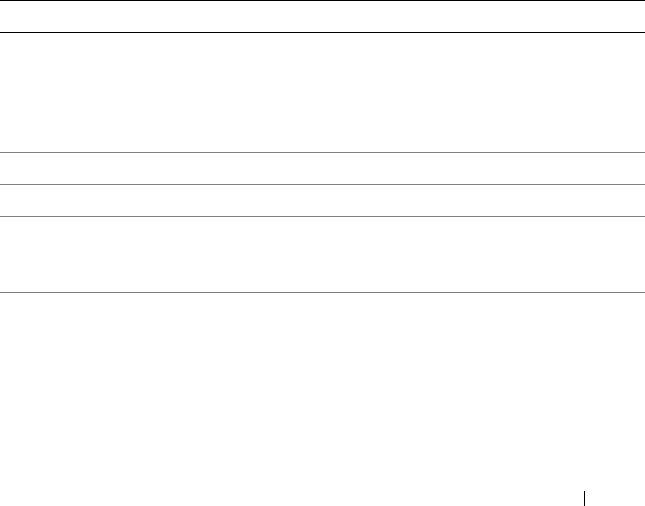
Table 1-1 lists the key SBUU functionalities for deploying and updating the
Dell systems.
Table 1-1. Organization of Information in This Guide
To See
Update your system firmware (Baseboard
Management Controller [BMC], Dell Remote
Access Controller [DRAC], Redundant Array of
Independent Disks [RAID]) and BIOS in a pre-
operating system environment.
Updating Your System Firmware
Configure your system hardware.
Configuring Your System Hardware
Install an operating system on your system.
Installing the Operating System
Create customized bootable media to deploy
multiple systems (different platforms) of your
choice
Using SBUU in Different Scenarios

6About Dell OpenManage Systems Build and Update Utility
What’s New in This Release
Support for the following operating systems:
• VMware ESX 4.1 U2 and ESXi 4.1 U2 installer and recovery
• VMware ESXi 5.0 installer and recovery
• Citrix XenServer 6.0 FP1 HDD
• RedHat Enterprise Linux 6.1 x86_64
• Added support for 12G systems — PowerEdge R720, PowerEdge R620,
PowerEdge M620, PowerEdge T620, and PowerEdge R720XD
Prerequisites
This section lists the prerequisites for using SBUU and where to find the
other information that you may need.
• Dell system with minimum memory of 512 MB.
• Optical drive,
Dell Server Updates
media, and
Dell Systems Management
Tools and Documentation
media (to install Dell OpenManage System
Administrator).
• Two Network File System (NFS) or Samba multiple network shares.
NOTE: If you do not have network connectivity for the system you are
deploying, ensure that you have multiple USB keys.
NOTE: This is not applicable for Dell PowerEdge SC systems.
• Basic knowledge of RAID, BIOS, BMC, and DRAC.
• Windows OS install support pack.
NOTE: This is applicable only if you download the SBUU image from the
support site and you want to install Microsoft Windows Server 2008.
USC Transition
1
Insert the
Dell Systems Management Tools and Documentation
media in
your media drive.
The boot menu is displayed.
2
Press <F3>.
The
Advanced Options
screen
is displayed.

About Dell OpenManage Systems Build and Update Utility 7
3
Select
USCBOOT
to reboot the system to USC.
NOTE: USC boot is supported only on 11g or later systems. You have an option
to use USC or continue with SBUU.
NOTE: Ensure that iDRAC6/BMC and uEFI BIOS is preset and configured, and
System Services and Intelligent Platform Management Interface (IPMI) are
enabled.
Firmware Update Module
The Firmware Update module in SBUU enables you to update the BIOS and
firmware versions of your Dell systems in a pre-operating system
environment. This module:
• Inventories your system
• Enables you to select your own repository
• Generates a comparison report
NOTE: A comparison report is a comparison of the currently installed version
of each component on the existing system with the repository component
version for the same system.
• Enables you to upgrade the system components
Updating Your System Firmware
1
On the
Dell Systems Build and Update Utility Home
screen, click
Firmware Update
on the left pane.
The
Repository Selection
screen is displayed.
2
Specify the location where the update files repository resides. The options
available are:
•NFS
•SMB
• CD/DVD Media
•USB
NOTE: To compare your system component status with a different version of
the Server Update Utility, provide the location of the Server Update Utility on
the Repository Selection screen.

8About Dell OpenManage Systems Build and Update Utility
If you select NFS, enter the
IP Address/Hostname
and
Network Share
details.
If you select SMB, enter the
IP Address/Hostname
,
Network Share
,
User
Name
,
and Password
details.
3
Click
Continue
.
The comparison report is displayed on the
Comparison Report
screen.
If the media is unavailable the following error message appears:
Unable to recognize the media. It may be blank,
damaged, or the format is not supported.
Click
OK
.
Insert the media and click
Continue
.
NOTE: You can selectively upgrade components depending on your
requirement. However, you cannot perform selective downgrades.
4
Select any components that you want to upgrade and click
Systems Build
and Update Utility Home
.
NOTE: SBUU saves the information about the repository and the selections
you made on the Comparison Report screen. These updates are applied
during the actual deployment.
5
To update your current system, click
Apply/Export Configuration
.
The
Configure Apply /Export Options
screen is displayed.
6
Select
Apply Configuration to Current System
and click
Apply/Export
.
The progress bar is displayed after which your system reboots with the
firmware updates configured.
Hardware Configuration Module
The Hardware Configuration module in SBUU enables you to configure your
system’s Baseboard Management Controller (BMC), Dell Remote Access
Controller (DRAC), Redundant Array of Independent Disks (RAID), and
BIOS.
Once you save the configuration settings, you can use the tool to generate the
.ini file and apply these configuration settings across multiple systems.

About Dell OpenManage Systems Build and Update Utility 9
Configuring Your System Hardware
On Your Current System
1
On the
Systems Build and Update Utility Home
screen, click
Hardware
Configuration
on the left pane.
The
Configuration Status Summary
screen is displayed.
2
To configure the components (RAID, DRAC, BIOS, and so on), click the
individual component buttons.
Component screens are displayed, on which you can configure various
components.
NOTE: If you configure RAID manually and use SBUU to install an operating
system on a master system, you need to manually configure RAID on the
target system as well.
3
Click
Save Settings
and then,
Go Back to Configuration Summary
.
4
Click
Save Settings and Go Back to Home Page
.
5
Click
Apply/Export Configuration
.
The
Configure Apply/Export Options
screen is displayed with the
Apply
Configuration to Current System
option selected, by default.
6
Click
Apply/Export
.
A progress bar is displayed indicating that the configuration changes you
saved in step 3 are being applied to your system. After the changes are
applied, your system reboots automatically and is ready for use with the
updated configuration.
On Your Current System For Multiple Systems
1
On the
Systems Build and Update Utility Home
screen, click
System(s)
Selection
on the left pane.
The
Select System(s)
screen is displayed.
2
Select the system(s) on which you want to deploy the hardware
configuration.
NOTE: To generate a bootable ISO image to deploy a hardware configuration
to multiple systems, select all the required systems on the Select System(s)
screen.

10 About Dell OpenManage Systems Build and Update Utility
3
Click
Save Settings
.
The
Systems Build and Update Utility Home
screen is displayed listing
the selected systems under
System(s) Selection
.
4
Click
Hardware Configuration
on the left pane.
The
Configuration Status Summary
screen is displayed.
5
To configure the components (RAID, DRAC, BIOS, and so on), click the
individual component buttons.
Component screens are displayed on which you can configure various
components.
6
After you configure fields on each component screen, click
Save Settings
and then,
Go Back to Configuration Summary
.
7
Click
Save Settings and Go Back to Home Page
.
8
Click
Apply/Export Configuration
.
The
Configure Apply/Export Options
screen is displayed with the
Create
Auto-Deployment Bootable Image
option selected, by default.
9
Click
Destination
and specify the location where you want to save the
bootable ISO image.
10
Click
Continue
and then
Apply/Export
.
NOTE: If the destination you specified is not a bootable USB key, burn the ISO
image using any media burning software application.
11
Boot the selected systems with the bootable media you created.
The deployment starts automatically and you are not prompted for any
inputs. The system reboots as and when required until the selected systems
are ready with the updated configuration.
Server Operating System Installation Module
The Server Operating System Installation (SOI) module in SBUU enables
you to install Dell-supported operating systems on your Dell
systems
. SOI
also maps the operating system you want to install on your
system and installs
the requisite drivers. It has a simple interface to configure Dell-supported
storage controllers.
You can use SOI to:

About Dell OpenManage Systems Build and Update Utility 11
• Deploy an operating system on your
bare-metal
Dell system
•
Repurpose
your system
Installing the Operating System
To install the operating system, perform the following steps:
NOTE: Make sure that you have selected the RedHat Enterprise Linux 6.1 x86_64 as
the operating system and create a utility partition.
1
On the
Systems Build and Update Utility Home
screen, click
Server OS
Installation
on the left pane.
The
Set the Date and Time
screen is displayed.
NOTE: If you want to install ESXi Flash or HDD, insert a SD card or USB key.
2
Make the required changes and click
Continue
.
The
Select an Operating System to Install
screen is displayed.
3
Select
Red Hat Enterprise Linux 6.1 x86_64
,
Create Utility Partition
, and
click
Continue
.
NOTE: The utility partition does not have DOS-based RAID tools.
The
Select RAID Configuration
screen is displayed.
4
Indicate whether you want to apply the RAID configuration that you
specified in Configuring Your System Hardware or retain the existing
RAID configuration on your system, and click
Continue
.
The
Configure the Disk Partition for Red Hat Enterprise Linux 6.1
x86_64
screen
is displayed.
5
Select the file system for boot partition, enter the size of the virtual disk
available, and click
Continue
.
The
Network Adapter(s) Configuration
screen is displayed.
6
Enter the appropriate information about the network adapters on your
system and click
Continue
.
The
Enter Configuration Information for Red Hat Enterprise Linux 6.1
x86_64
screen is displayed.
7
Fill in the appropriate fields and click
Continue
.
The
Operating System Installation Summary
screen is displayed.

12 About Dell OpenManage Systems Build and Update Utility
8
Click
Back
to change the settings if required.
To save your configuration and export it for later use, click
Go Back to
Home Page
and go to step 9.
To apply the configuration on your system immediately, click
Apply Now
and go to step 11.
NOTE: The Apply Now option is enabled only if you have not selected any
system on the Select System (s) screen.
9
In the
Systems Build and Update Utility Home
screen that is displayed,
click
Apply/Export Configuration
.
The
Configure Apply/Export Options
screen is displayed with the
Apply
Configuration to Current System
option selected, by default. You can
export the operating system installation configuration for later use by
selecting
Export Configuration
.
10
Click
Apply/Export
.
The
Script Generation Progress
screen is displayed indicating that the
configuration is being saved.
11
If you selected the option to install the Dell OpenManage Server
Administrator in step 7, specify the location of either the Server
Administrator media or the Server Administrator
.exe
file on your system.
12
Insert the operating system media, when prompted.
SBUU
copies the operating system files to your system and launches the
operating system installer. Your system may reboot multiple times.
NOTE: If you are using the SBUU ISO image downloaded from
support.dell.com and installing Microsoft Windows Server 2008 32-bit or 64-
bit, and Windows Small Business Server 2011, download Windows OS Install
Support Pack package from support.dell.com. Create your own optical media
from the Windows OS Install Support Pack package and make it available to
SBUU when prompted.

About Dell OpenManage Systems Build and Update Utility 13
The operating system is installed and is ready to install Server Administrator.
The files to install Server Administrator are saved on the system and the
Install Server Administrator icon is saved on the desktop.
NOTE: Though a FC card is present with a supported controller, SBUU behavior
can be unpredictable. You can download the drivers for these devices from the Dell
Systems Service and Diagnostics Tools on the Dell Systems Management Tools
and Documentation DVD or from the Dell support website at support.dell.com.
Other Documents You May Need
1
Go to
support.dell.com/manuals
.
2
Click
Software
Systems Management
Dell OpenManage Releases
.
3
Click the relevant version to view the all the documents for a particular
release.
Getting Technical Assistance
For customers in the United States, call 800-WWW-DELL (800-999-3355).
NOTE: If you do not have an active Internet connection, you can find contact
information on your purchase invoice, packing slip, bill, or Dell product catalog.
For information on technical support, visit dell.com/contactus.
Additionally, Dell Enterprise Training and Certification is available at
dell.com/training.

14 About Dell OpenManage Systems Build and Update Utility

Launching SBUU 15
2
Launching SBUU
You can launch Dell Systems Build and Update Utility (SBUU) on a local
system or a remote system.
On a Local System
To launch SBUU locally, you can use the Dell Systems Management Tools and
Documentation media, the SBUU ISO image or the bootable USB media:
1
Insert the relevant
media in your system’s optical drive/USB drive.
2
Reboot your system.
The boot menu screen is displayed.
On a Remote System
To launch SBUU on a remote system:
1
In the relevant Dell Remote Access Controller (DRAC) version, click
Media
.
The
Virtual Media
screen is displayed.
NOTE: You are prompted to install the Virtual Media Active X Control if it is not
already installed on the system.
2
Set
Attach/Detach Status
to
Attached
.
3
Specify the location of the
ISO Image File
.
To access the location of
SBUU
bootable media or the ISO image of the
Dell Systems Management Tools and Documentation
media, select your
system drive location or browse to identify the
ISO Image File
, as
appropriate.
4
Click
Connect
.
The
Virtual Media Status
screen is displayed indicating that the
Dell
Systems Management Tools and Documentation
media is now connected to
your host system.
5
Click
Power Management
.

16 Launching SBUU
6
To boot the host system with the SBUU media, select
Power Cycle
System
, and click
Apply
.
7
Click
Console
.
The
Console Redirection
screen is displayed.
8
Click
Connect
.
You can now access the boot menu screen on your host system from your
client system and proceed to use
SBUU
remotely.
Using SBUU in Different Scenarios 17
3
Using SBUU in Different Scenarios
This section describes some of the possible scenarios in which you can use
Dell Systems Build and Update Utility (SBUU).
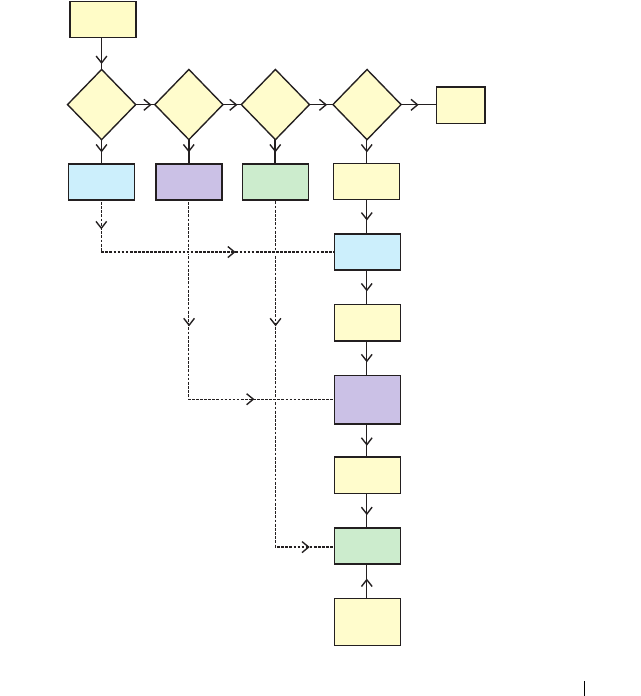
Deploying Your Current Bare-Metal Dell System
In this scenario, you can see how to update and deploy your current system.
Bare Metal
System
Save
Config
Save
Config
Save
Config
Apply
Updates
System
Reboots
System
applies
H/W Config
System
Reboots
System
Installs OS
Multisystem
Config files
applied
Apply
H/W
Config
Export
Config
Specify
Path
SOI
Yes Yes Yes
Yes
No
NoNoNo
Config to be
applied later
Config to be
applied later
Config to be
applied later
Firmware
Update

18 Using SBUU in Different Scenarios
1
Update your system firmware, if required.
See Firmware Update Module.
2
Configure your system hardware and make sure you click
Save Settings
before you navigate away from a component screen.
See Hardware Configuration Module.
NOTE: Ensure that you configure RAID to proceed beyond the Configure RAID
screen in the Configure Server Operating System Installation module.
3
Click
Configure
against
Server OS Installation
on the
Systems Build and
Update Utility Home
or click
Server OS Installation
on the left pane.
See Server Operating System Installation Module.
You can view, edit, or reset the configuration for the modules by clicking
View
,
Edit
, or
Reset
, respectively.
4
On the
Systems Build and Update Utility Home
,
click
Apply/Export
Configuration
.
The
Configure Apply/Export Options
screen is displayed.
5
Provide your inputs as required and click
Continue
.
NOTE: You can choose to configure the multi-system configuration file so that
system settings are taken from this file.
NOTE: You can check the Exit on Failure option so that SBUU exits when a
failure occurs. If this option is not selected, it may cause your system to
become unstable.
The progress screen is displayed, after which the unattended update or
deployment begins. SBUU continues with hardware configuration and
operating system installation, as per your configuration.
NOTE: If any of the firmware updates requires a system reboot, your system
reboots automatically.
Using SBUU in Different Scenarios 19
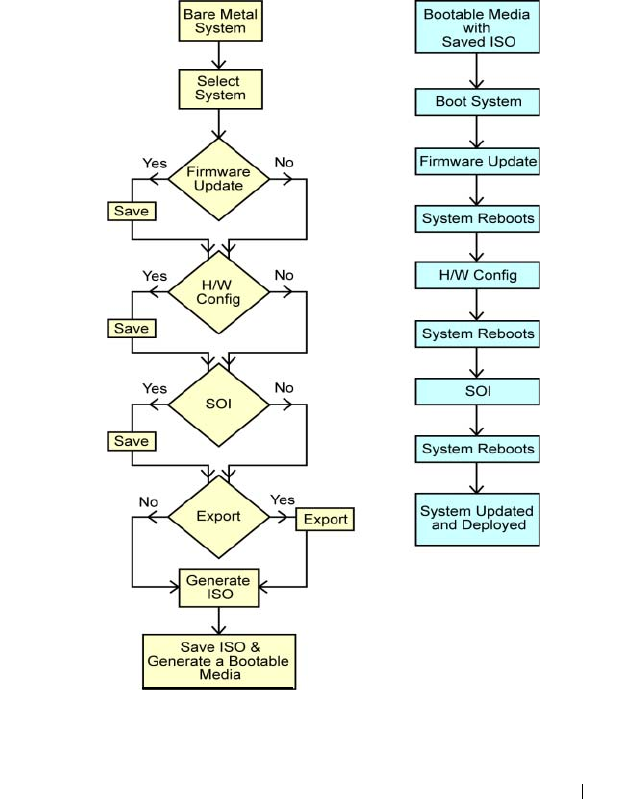
Deploying More Than One System With the Same
Configuration
In this scenario, you can deploy more than one supported system with the
same configuration (that is, having the same cards, controllers, hard drive,
memory, and so on), for example, 50 Dell PowerEdge R720 systems.

20 Using SBUU in Different Scenarios
1
On the
Systems Build and Update Utility Home
screen, click
Change
against
System(s) Selection
on the left pane.
The
Select System(s)
screen is displayed.
NOTE: Make sure that you click Select Systems to enable the Create Auto-
deployment Bootable Image on the Select Options screen.
2
Select
PowerEdge R720
from the list and click the right arrow.
3
Click
Save Settings
and return to the
Systems Build and Update Utility
Home
screen.
4
Configure the Systems Build and Update Utility modules.
See step 1 through step 4 in Deploying Your Current Bare-Metal Dell
System.
5
Create an ISO image.
See Creating an ISO image.
Deploying More Than One System With Slightly
Different Configurations
In this scenario, you can see how to deploy more than one supported system
with slightly different configurations. For example, you can configure
50 PowerEdge R720 systems but the systems may have different cards,
controllers, hard drives, memory, and so on.
Prerequisites
• The controller type must be the same as that you configured.
• The configured Redundant Array of Independent Disks (RAID) level and
RAID policy must be supported by the existing controller.
NOTE: Serial Attached SCSI (SAS) 5 and SAS 6 controllers require a minimum
of 2 disks.
• The number of disks and the disk size must be the same or more.
• The available disks must be of the same type.
Once the prerequisites are met, follow the steps in
Deploying More Than One
System With the Same Configuration
.

Using SBUU in Different Scenarios 21
Deploying Multiple Systems of Different Models
In this scenario, you can deploy multiple systems of different models; for
example, you can deploy 25 PowerEdge R720 systems, 50 PowerEdge R620
systems, and 25 PowerEdge T620 systems.
Prerequisites
• Make sure that all the systems you want to deploy are selected on the
Select System(s)
screen
• The components that need to be updated must be selected in the
Firmware Update module.
• The relevant options for all the systems must be selected in the Hardware
Configuration module.
• The systems that are selected have supported operating systems that can
be installed on them.
Once the prerequisites are met, follow steps in
Deploying More Than One
System With the Same Configuration
.
22 Using SBUU in Different Scenarios
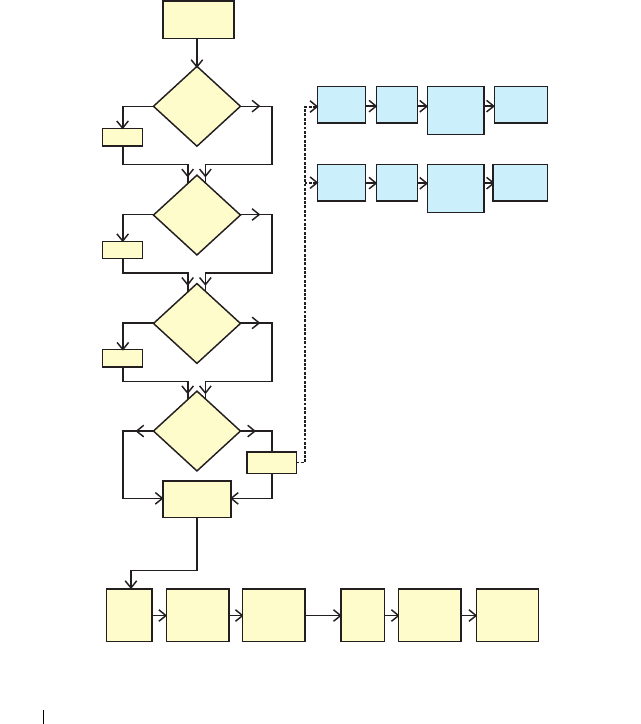
Deploying Multiple Systems With the Same
Configuration for Different Operating Systems
In this scenario, you can update and deploy multiple systems with the same
configuration for different operating systems. For example, you have 100
PowerEdge R720 systems and you want to deploy 25 systems with the
Microsoft Windows Server 2008 operating system, 50 systems with the Red
Hat Enterprise Linux 6.1 x86_64 operating system, and 25 systems with the
Windows Server 2008 operating system.
Save
Yes No
Save
Yes
Yes
No
No
Select
Systems
SBUU
Home Import Edit SOI
(Set to
RHEL 5.3)
Generate
ISO
SBUU
Home Import Edit SOI
(Set to
W2K8)
Generate
ISO
Save
Firmware
Update
H/W
Config
SOI
Set to
W2K3
Export
Export
Configuring in
Current
Session
Required if
Reconfiguring in
Future
Generate
ISO 1
Go to
SBUU
Home
Edit SOI
(Set to
RHEL 5.3)
Generate
ISO 2
Go to
SBUU
Home
Edit SOI
(Set to
W2K8)
Generate
ISO 3
If Configuring
in Current
Session
Yes No

Using SBUU in Different Scenarios 23
1
Create a bootable ISO image to deploy an operating system, for example,
Windows Server 2008 operating system.
See Creating an ISO image.
2
On the
Systems Build and Update Utility Home
screen, click
SOI
.
3
On the
Select an Operating System to Install
screen, select Windows
Server 2008.
NOTE: You can export the configuration and import it later, in another session,
by clicking by clicking Import Saved Configuration on the Systems Build and
Update Utility Home screen.
4
On the
Systems Build and Update Utility Home
screen, click
SOI
and
select another operating system, for example,
Red Hat Enterprise
Linux 6.1 x86_64, export the configuration for this operating system,
and generate an ISO image.
5
Similarly, configure and generate an ISO image for a third operating
system, for example, Windows Server 2008.
You now have three ISO images for the three operating systems you want
to install on multiple systems.
6
Create three different bootable media for the ISO images, respectively.
7
Boot the corresponding number of systems with the corresponding
bootable media to install the required operating systems.
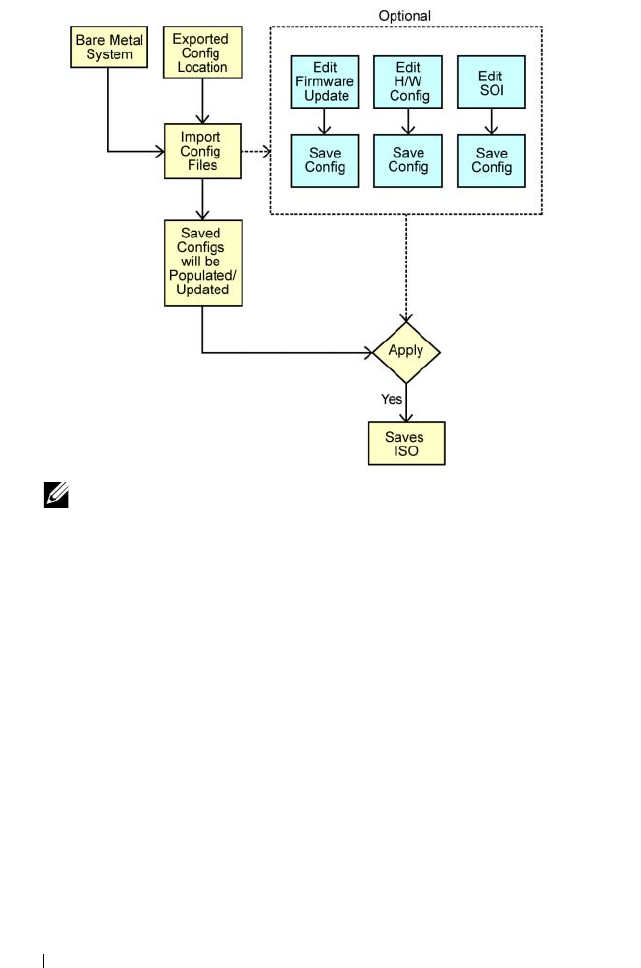
Reusing Configuration Files
In this scenario, you can import and reuse a configuration file that you
created and exported in an earlier session. You can use this configuration file
and create multiple ISO images with slightly different configuration.
This configuration can be used for the current system or for multiple systems.
However, you need to create separate ISO images for every variation of the
multiple systems deployment. For the current system, you can directly apply
the configuration you imported, with slight modifications, if required.
24 Using SBUU in Different Scenarios
NOTE:
The GUI fields are populated when you import the configuration file.
You
can edit the modules, as required. If you make any changes on the System(s)
Selection screen all existing configuration for the three modules will be reset.
1
On the
Systems Build and Update Utility Home
screen, click
Import
Saved Configuration
.
The
Import Configuration
screen is displayed.
2
Specify the location from where you want to import the configuration file
and click
Continue
.
The progress screen is displayed, followed by the
Imported Configuration
File Details
screen.
3
Click
Systems Build and Update Utility Home
.
4
Edit the existing configuration for the
Firmware Update
,
Hardware
Configuration
, and
SOI
modules, if required.
5
Create the ISO image for this configuration.
See Creating an ISO image.

Frequently Asked Questions 25
4
Frequently Asked Questions
This chapter contains important information about the different modules in
Dell Systems Build Update Utility (SBUU), including answers to some
frequently asked questions.
Q: What is the repository?
A: The repository contains the updated BIOS, firmware, and driver
components for Dell systems.
The Dell Server Updates media includes the repository.
Q: What should I do if I face any prerequisite failure during the update process?
A: See the Server Update Utility User's Guide to rectify this failure.
Q: I want to use my custom repository for firmware updates using SBUU.
A: If you want to use your custom repository for firmware updates using
SBUU, you need a Linux repository. To generate a Linux repository, use the
Dell Repository Manager or SUU DVD. Also, you must ensure that the
repository contains updates for the system on which you want to run firmware
updates.
Q: What should I do if I want to downgrade the firmware?
A: Use the Dell Server Updates media to downgrade the firmware on your
system. You cannot downgrade the firmware using the Firmware Update
module.
Q: What should I do if some of the updates fail?
A: Reboot your system and try using the latest repository to update the
firmware. Also, see the Server Update Utility User's Guide for more
information.
Q: I want to use a USB key as my source repository.
A: If you are using a USB key as your source repository, insert the USB key
when you are prompted.
NOTE: It is recommended that you do not boot your system to SBUU with the USB
key inserted in your system. This is because SBUU may not detect a USB key that is
inserted before you boot the system.

26 Frequently Asked Questions
Q: How do I access the command line interface?
A: To access the command line interface, from the boot menu, select DTK
Command Line Interface (Linux).
Q: How do I know which components to configure?
A: Select the system that you want to configure. In the left pane, SBUU
displays the components that you can configure. Click the component. The
right pane displays the options that you can configure for the selected
component.
Q: Where do I get more information on RAID controllers?
A: For details on read, write, cache policies, and supported stripe sizes, see the
Dell OpenManage
Deployment Toolkit Command Line Interface Reference Guide.
Q: How do I know which BIOS setup options are available on my system?
A: Go to the boot menu screen and select DTK Command Line Interface
(Linux). Use the SYSCFG tool to see the list of options available on your
system.
Q: When setting the boot sequence for devices, what happens if I choose a
device that is not on my system?
A: The configuration utility selects the boot devices in the sequence that you
specify for boot order. However, if you choose a device that is not present on
your system, the utility ignores the device, selects the remaining boot devices,
and lists them based on the specified order.
Q: What happens if I create a virtual disk by specifying the size?
A: If you create a virtual disk by specifying the size (instead of using the
Maximum possible size option), subsequent virtual disks that you create are
bound to the controller and the array disk that you selected. This condition is
valid until you exhaust all the available space on that array disk.
Q: What happens if I want to delete a virtual disk that is one of the virtual
disks that was created using a particular array disk?
A: All the virtual disks created on that array disk are selected for deletion.

Frequently Asked Questions 27
Q: What should I do if I am not able to configure Redundant Array of
Independent Disks (RAID) using SBUU?
A: Ensure that the Fast Initialization parameter of the RAID controller is set
to ON and try again. This setting is the factory default for all RAID
controllers.
Q: Using SBUU, can I configure RAID on a system with a SATA 2s controller
connected to a hard drive?
A: SBUU does not support RAID configuration on any system with a SATA 2s
controller connected to a hard drive. To configure RAID on such a system, use
the <Ctrl><A> option or set the hard drive configuration to Native mode
through BIOS.
Q: I have multiple SCSI and RAID controllers on my system. How can I set
the order in which SBUU looks for controllers?
A: SBUU uses the controller listed first in the BIOS boot order list. If you
want to use another controller for the operating system, go to the BIOS setup
(by pressing <F2> as the system starts) and set the controller as the first
boot device.
Q: What should I do if I find that one or more virtual disks are in a failed or
degraded state?
A: Do not start the server setup program. Use the RAID controller's firmware
utility (by using <Ctrl><A>, <Ctrl><M>, or <Ctrl><C> while
booting) to reset the RAID controller's state.
Q: How can I configure RAID for disks that are displayed in Legacy mode?
A: On Cost Effective RAID Controller (CERC) ATA or CERC SATA RAID
controller cards, disks that are displayed in Legacy mode is not available for
RAID configuration in SBUU. If you want to use Legacy mode disks as part of
a RAID container, use the RAID controller firmware utility to initialize the
disks. However, if all disks are in Legacy mode, SBUU may fail to configure
RAID on the controller.
Q: Why does the Novell SUSE Linux Enterprise Server (SLES) version 10
operating system installation sometimes fail on systems equipped with
multiple RAID and SCSI controllers?
A: When two or more RAID or SCSI controllers are present, install Novell
SLES I0 with only one configured RAID or SCSI controller. Configure the
other controllers after you install the Novell 10 operating system.

28 Frequently Asked Questions
Q: What happens if I install a new operating system on my system that
already has an operating system?
A: If you already have an operating system on your system, and you use the
Server Operating System Installation (SOI) to install a different operating
system, the existing operating system is removed and data is deleted from
your system.
Q: Can I install Microsoft Windows Server 2008 and VMware ESX Server
operating systems?
A: Yes, you can. However, for operating systems such as Windows Server 2008
and VMware ESX Server, the native Graphical User Installation tool provided
by the operating system installation media is used.
Q: What happens if I disconnect the network connection while I am copying
the operating system image from a Server Message Block (SMB) share?
A: If you disconnect the network connection while the operating system
image is copying, an error message is displayed indicating that the network is
being disconnected. A Reboot button is also enabled. However, the operating
system installation process does not resume after you reconnect the network
cable. You need to reboot your system.
Q: What happens if I use the SOI to configure
RAID controllers on my system
that has virtual disks configured on the controller?
A: If you have virtual disks configured on your controller and you use the
SOI to configure RAID controllers on your system, the existing virtual disks
are deleted.
Q: Where can I get information about support for operating systems and
RAID controllers?
A: Some operating systems are not supported with some RAID controllers.
See the readme.text file in the root folder for details.
Q: Where can I get information on support for storage controllers and
operating systems?
A: Depending on the storage controllers on your system, some operating
systems may not be supported. See readme.txt in the root folder of the
Dell Systems Management Tools and Documentation media or the online help
for details.

Appendix A 29
A
Appendix A
Creating Bootable USB
You can create a bootable USB key from the Dell OpenManage media image
on Red Hat Enterprise Linux and SUSE Linux Enterprise operating systems.
To create a bootable USB:
1
Plug in the USB key to the system.
NOTE: Make sure that no other USB media is mounted on the system.
NOTE: Make sure that the size of the USB key is more than that of the media
image.
2
Insert the
Dell OpenManage media
in the system.
3
To see all the connected USB media devices, type the following command:
/media/cdrom/server_assistant/driver_tool/src/mak
e_bootable_usb.sh --scan
4
To create the bootable USB media from the
Dell OpenManage media
,
type the following command:
/media/cdrom/server_assistant/driver_tool/src/mak
e_bootable_usb.sh <path-to-mounted-dvd> <path-to-
usb-device>
Example:
/media/cdrom/server_assistant/driver_tool/src/mak
e_bootable_usb.sh /media/cdrom /dev/sdb
5
Remove the USB key and use this key to boot the target system.
NOTE: If the Linux automount feature is active on the USB device, unmount
the USB before removing it.

30 Appendix A
Creating an ISO image
1
On the
Systems Build and Update Utility Home
screen,
click
Apply/Export Configuration
.
The
Configure Apply/Export Options
screen is displayed.
2
Select the
Create Auto-deployment Bootable Image
option and click
Destination
to specify the location where you want to save the ISO image.
3
On the
ISO Save Location
screen, specify the location where you want to
save the ISO image and click
Continue
.
If you choose USB as the location, you can also make the USB key
bootable.
The
Configure Apply/Export Options
screen is displayed.
4
Click
Apply/Export
.
The ISO image is created.
You can create a bootable media to boot the systems that you want to update
or deploy.
