Dell K08A001 Inspiron Duo Audio Station User's Guide User Manual To The 55ebd59a 9741 4539 9130 58ec89f15f29
User Manual: Dell K08A001 to the manual
Open the PDF directly: View PDF  .
.
Page Count: 34
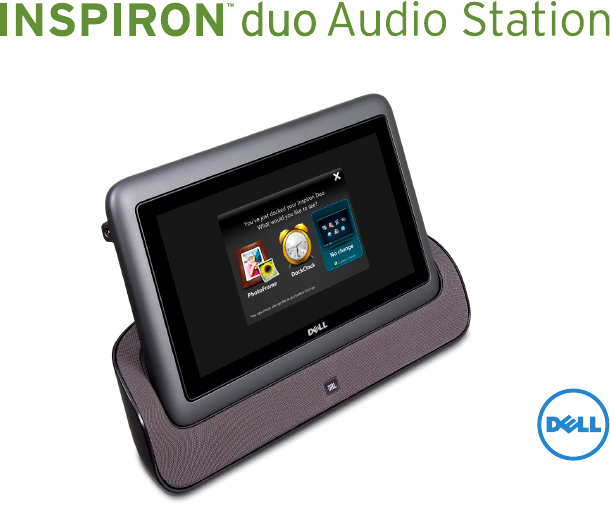
User’s Guide

User’s Guide
Regulatory model: K08A Regulatory type: K08A001

Notes, Cautions, and Warnings
NOTE: A NOTE indicates important information that helps you make better use of your
dock.
CAUTION: A CAUTION indicates either potential damage to hardware or loss of data and
tells you how to avoid the problem.
WARNING: A WARNING indicates a potential for property damage, personal injury, or
death.
__________________
Information in this document is subject to change without notice.
© 2010 Dell Inc. All rights reserved.
Reproduction of these materials in any manner whatsoever without the written permission of Dell Inc. is strictly forbidden.
Trademarks used in this text: Dell™, the DELL logo, and Inspiron™ are trademarks of Dell Inc.
Other trademarks and trade names may be used in this document to refer to either the entities claiming the marks and names
or their products. Dell Inc. disclaims any proprietary interest in trademarks and trade names other than its own.
November 2010 Rev. A00
3
About Your Dock . . . . . . . . . . . . . . . . . . . . . . . . . . . . . . . . . . . . . . . . . . . . . . . . . . . . . . 5
Front View Features . . . . . . . . . . . . . . . . . . . . . . . . . . . . . . . . . . . . . . . . . . . . . . . . . . . . . . . . . 6
Back View Features . . . . . . . . . . . . . . . . . . . . . . . . . . . . . . . . . . . . . . . . . . . . . . . . . . . . . . . . . .7
Docking or Undocking Your Tablet . . . . . . . . . . . . . . . . . . . . . . . . . . . . . . . . . . . . . . 9
Using Your Dock . . . . . . . . . . . . . . . . . . . . . . . . . . . . . . . . . . . . . . . . . . . . . . . . . . . . . 13
Connect the Network Cable (Optional) . . . . . . . . . . . . . . . . . . . . . . . . . . . . . . . . . . . . . . . . .13
Using the Media Card Reader . . . . . . . . . . . . . . . . . . . . . . . . . . . . . . . . . . . . . . . . . . . . . . . . .14
duo Station Interface . . . . . . . . . . . . . . . . . . . . . . . . . . . . . . . . . . . . . . . . . . . . . . . . . . . . . . . .15
Solving Problems . . . . . . . . . . . . . . . . . . . . . . . . . . . . . . . . . . . . . . . . . . . . . . . . . . . .26
Power Problems . . . . . . . . . . . . . . . . . . . . . . . . . . . . . . . . . . . . . . . . . . . . . . . . . . . . . . . . . . . 26
Network Problems . . . . . . . . . . . . . . . . . . . . . . . . . . . . . . . . . . . . . . . . . . . . . . . . . . . . . . . . . .27
duo Station Problems. . . . . . . . . . . . . . . . . . . . . . . . . . . . . . . . . . . . . . . . . . . . . . . . . . . . . . . 28
Specifications . . . . . . . . . . . . . . . . . . . . . . . . . . . . . . . . . . . . . . . . . . . . . . . . . . . . . . .29
Contents
4
5
Your Inspiron duo Audio Station expands the functionality of your tablet by allowing you to:
listen to music using the speakers available on the audio station•
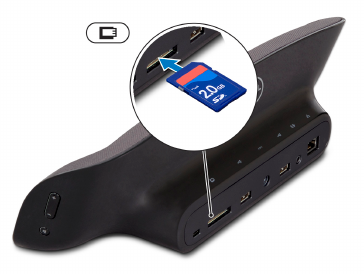
share and view pictures, videos, and documents stored on a memory card using the 7-in-1 •
Media Card Reader slot
connect your tablet to a wired network•
connect to USB devices such as a mouse, keyboard, printer, external drive, or MP3 player•
connect a pair of headphones, to a powered speaker, or sound system to the audio-out •
connector
The duo Station interface launches as soon as you dock your tablet. For more information, see
“duo Station Interface”, on page 15.
About Your Dock
6
About Your Dock
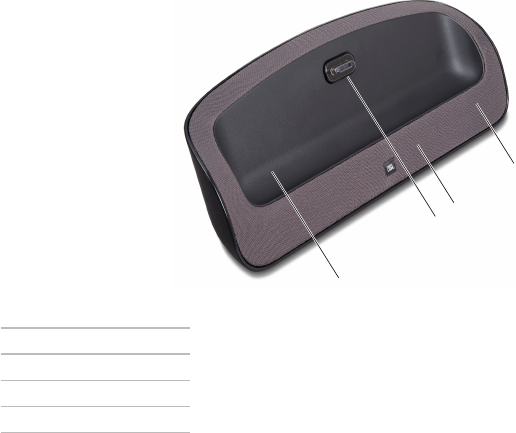
Front View Features
1
23
4
1dock holder
2dock connector
3speakers
4power status light
7
About Your Dock
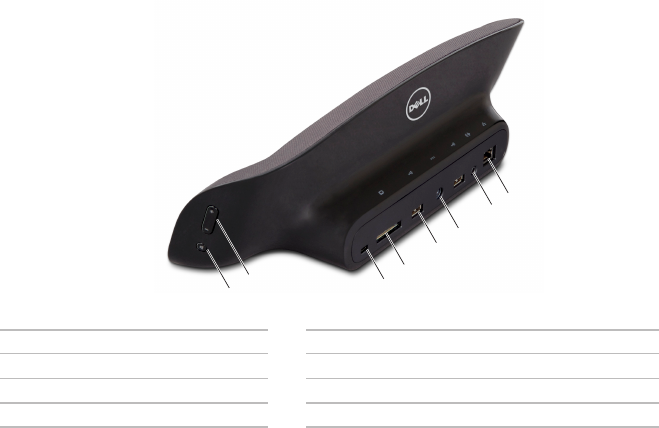
Back View Features
1234
56
78
1mute button 5USB 2.0 connectors (2)
2volume control buttons 6AC adapter connector
3security cable slot 7Audio-out/Headphone connector
47-in-1 Media Card Reader 8network connector
8
About Your Dock
9
Docking or Undocking Your Tablet
To dock your tablet:
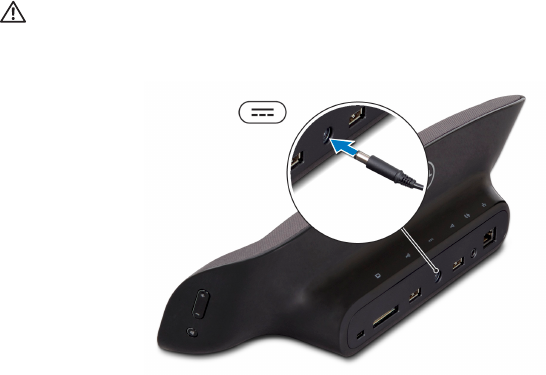
Connect the AC adapter.1.
WARNING: The AC adapter works with electrical outlets worldwide. However, power
connectors and power strips vary among countries. Using an incompatible cable or
improperly connecting the cable to a power strip or electrical outlet may cause fire or
permanent damage to your tablet.
10
Docking or Undocking Your Tablet
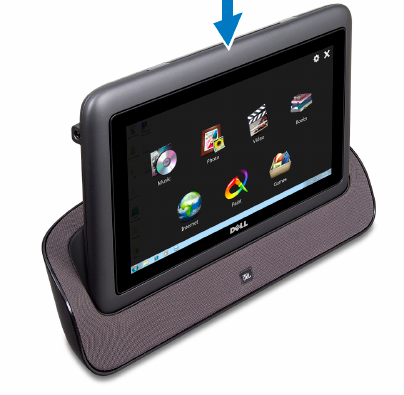
Place your tablet on the dock holder.2.
11
Docking or Undocking Your Tablet
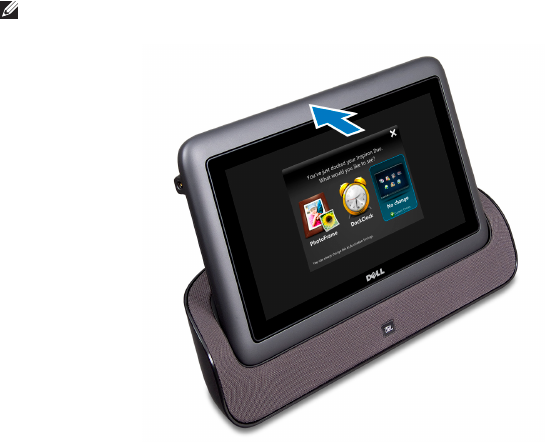
Push the tablet to connect it to the dock. Ensure that the tablet is firmly connected to the 3.
dock connector. A white power status light indicates that the tablet is docked and charging.
NOTE: The duo Station interface launches as soon as the tablet is docked. For more
information, see “duo Station Interface” on page 15.
12
Docking or Undocking Your Tablet
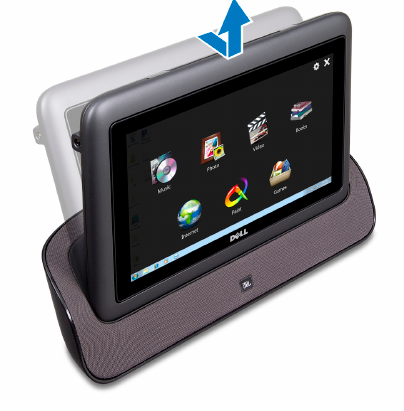
To undock your tablet, pull the tablet forward to disconnect it from the dock connector and
then lift the tablet from the dock.
13
Using Your Dock
Using Your Dock
Connect the Network Cable (Optional)
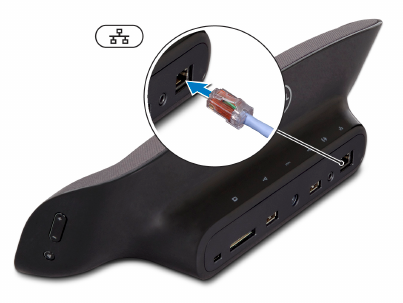
To use a wired connection, connect the network cable.
15
Using Your Dock
duo Station Interface
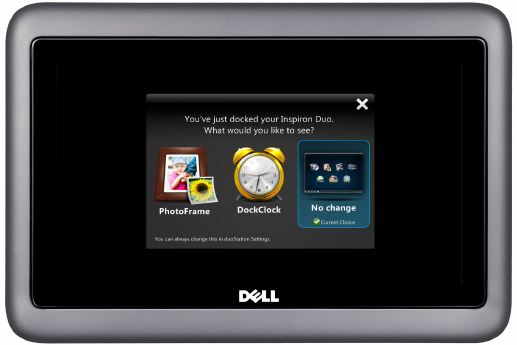
The duo Station interface installed on your tablet launches as soon as you dock your tablet.
The interface will display the following options when you dock your tablet for the first time:
PhotoFrame•
DockClock•
No change•
16
Using Your Dock
Touch the desired option to set as the default application to launch when you dock the tablet.
The No change option will retain the current state.
To change the default application the next time you dock:
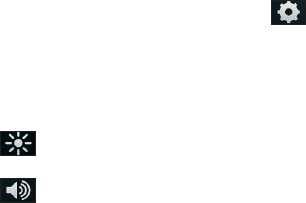
Touch the screen and touch settings 1. .
Choose a different application under 2. On docking, display:.
Click 3. OK to exit the settings interface.
The change comes into effect the next time you launch the duo Station interface.
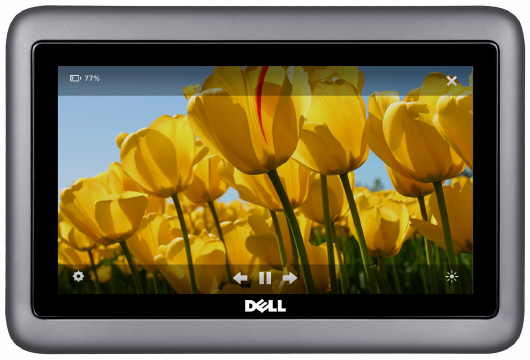
Touching the screen at anytime will display controls for the application.
• Brightness control button — Touch to display a slider to increase or decrease the
brightness of your screen.
• Volume control button — Touch to display a slider to increase or decrease the volume
level.
17
Using Your Dock
PhotoFrame
The PhotoFrame application displays a slide show of photos available on your tablet and
media card. The PhotoFrame will automatically display the last hundred photos you have
added to your tablet.
18
Using Your Dock
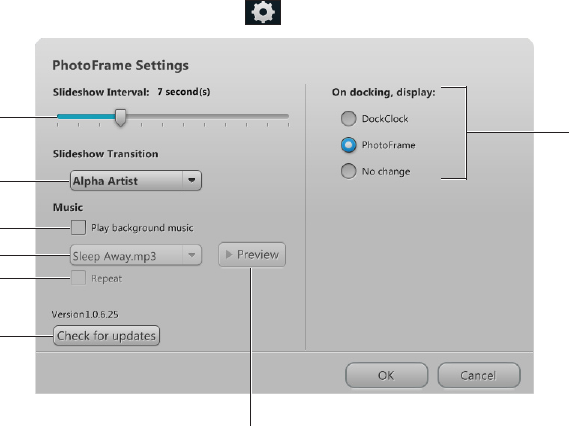
To change the PhotoFrame settings:
Touch the screen and then touch settings in the bottom left corner of the screen.
1
2
8
3
4
5
6
7

19
Using Your Dock
1Touch and drag the slider to set the time interval (in seconds) for the picture to appear.
The default time interval is 7 seconds.
2Touch to select an animation effect for the slideshow. The options available are Cross
fade, Alpha Artist, and Pan/Zoom. The default option is Pan/Zoom.
3Touch the check box to enable or disable the background music.
4Touch the drop down list to select a song to play as the background music. This option is
enabled only if you have selected the Play background music check box.
5Touch the check box to play the selected song in a repeat mode.
6Touch to check if there are any updates for the duo Station interface. If your tablet is
connected to the Internet, duo Station will download the updates and install them.
7Touch to preview the selected song.
8Touch to change the default application to launch when you dock your tablet. The change
comes into effect the next time you launch the duo Station interface.
Click OK to save the changes you have made to the settings.
20
Using Your Dock
21
Using Your Dock
DockClock
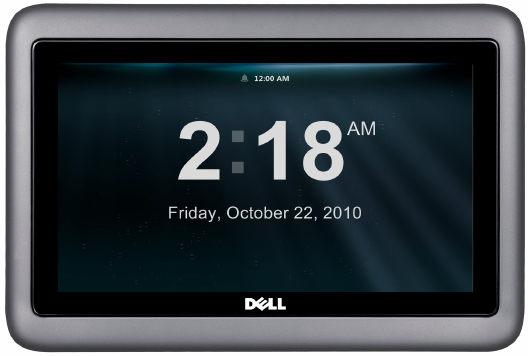
The DockClock application displays the system date and time and can be set to work as an
alarm.
22
Using Your Dock
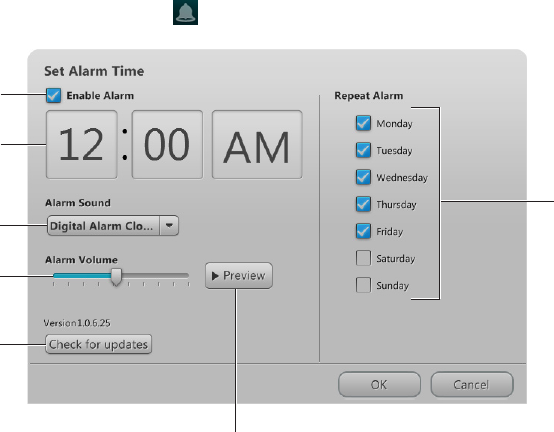
To set an alarm, touch the alarm icon.
1
2
3
4
5
6
7

23
Using Your Dock
1Touch the check box to enable or disable the alarm.
2Touch to set the alarm time. This option is enabled only if you have selected the Enable
Alarm check box.
3Touch the drop down list to select an alarm sound.
4Touch and drag the pointer on the slider to set the alarm volume.
5Touch to check if there are any updates for the duo Station interface. If your tablet is
connected to the Internet, duo Station will download the updates and install them.
6Touch to preview the selected song.
7Touch to select the check box(es) for the day(s) you want to repeat the alarm.
Click OK to save the changes you have made to the settings.
24
Using Your Dock
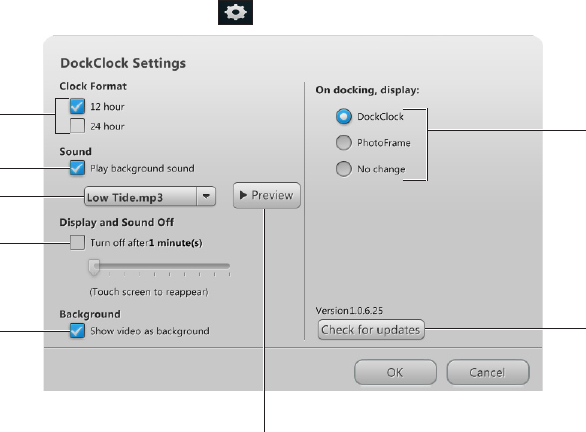
To change the DockClock settings:
Touch the screen and touch settings on the bottom left corner of the screen.
1
2
3
4
5
6
8
7

25
Using Your Dock
1Touch to select the time format — 12 hour or 24 hour.
2Touch the check box to enable or disable background sound for the clock.
3Touch the drop down list to select a background sound. This option is enabled only if you
have selected the Play background sound check box.
4Touch the Turn off after check box and drag the pointer on the slider to set the delay
which the music and display should turn off.
5Allows you to set a video as background. Touch the Show video as background check
box to enable or disable this option.
6 Touch to preview the selected song.
7Touch to check if there are any updates for the duo Station interface. If your tablet is
connected to the Internet, duo Station will download the updates and install them.
8Touch to change the default application. For more information on changing the default
application, see page 16.
Click OK to save the changes you have made to the settings.
26
This section provides troubleshooting
information for your dock.
Power Problems
If the power status light is off — The tablet is
turned off, in hibernate mode, is not receiving
power, or battery is fully charged.
Press the power button on the tablet. The •
tablet resumes normal operation if it is off
or in hibernate mode.
Reseat the AC adapter cable into the •
power connector on the dock, into the
AC adapter, and to the electrical outlet.
If the AC adapter cable is plugged into a •
power strip, ensure that the power strip is
plugged into an electrical outlet and that
the power strip is turned on. Also bypass
power protection devices, power strips,
and power extension cables to verify that
the computer turns on properly.
Ensure that the electrical outlet is working •
by testing it with another device, such as
a lamp.
Check the AC adapter cable connections. •
If the AC adapter has a light, ensure that
the light on the AC adapter is on.
Solving Problems
27
Solving Problems
Network Problems
Wireless Connections
If the wireless network connection is lost —
The wireless router is offline or wireless has
been disabled on the computer.
•Checkyourwirelessroutertoensureitis
powered on and connected to your data
source (cable modem or network hub).
•Checkifwirelessisenabledonthe
computer. For information on how to enable
wireless, see “Inspiron duo Setup Guide” at
support.dell.com/manuals.
•Re-establishyourconnectiontothewireless
router. For information on setting up a
wireless connection, see “Inspiron duo Setup
Guide” at support.dell.com/manuals.
•Interferencemaybeblockingorinterrupting
your wireless connection. Try moving your
tablet closer to your wireless router.
Wired Connections
If the wired network connection is lost —
The network cable is loose or damaged.
Check the network cable to ensure it is
plugged in and not damaged.

28
Solving Problems
duo Station Problems
If the duo Station interface does not launch
as soon as you dock the tablet — The duo
Station interface is corrupt or has some files
missing.
Try launching the application manually. •
Click Start → All Programs→ Dell→ duo
Station.
Reinstall the duo Station interface. To •
reinstall, download the duo Station
application file from support.dell.com or
from My Dell Downloads at
DownloadStore.dell.com.

29
Specifications
This section provides information about the specifications for your dock.
NOTE: Offerings may vary by region.
Device Information
Inspiron duo Audio Station
Connectors
Audio one audio-out/
headphone connector
Network adapter one RJ45 connector
USB two 4-pin USB
2.0-compliant
connectors
Media Card
Reader
one 7-in-1 slot
Media Card Reader
Cards
supported
Secure Digital (SD)
memory card
Secure Digital High
Capacity (SDHC)
memory card
Secure Digital Extended
Capacity (SDXC) memory
card
Multimedia Card plus
(MMC+)
Memory Stick
Memory Stick PRO
xD-Picture Card
30
Specifications
Audio
Speakers 2 x 7 Watt main
speakers
+ 7 Watt subwoofer
AC Adapter
NOTE: Use only AC adapters specified
for use with your dock. See the safety
information that shipped with your
computer.
Input voltage 100-240 VAC
Input current
(maximum)
1.5 A/1.6 A/1.7 A
Input frequency 50-60 Hz
Output power 65 W
Output current 3.34 A (continuous)
Rated output
voltage
19.5 VDC
AC Adapter
Temperature range:
Operating 0° to 40°C
(32° to 104°F)
Storage –40° to 70°C
(–40° to 158°F)
Physical
Height 110.44 mm
(4.35 inches)
Width 330.27 mm
(13.00 inches)
Depth 98.00 mm
(3.86 inches)
Weight 1.13 kg (2.49 lb)

31
Specifications
Device Environment
Temperature range:
Operating 5° to 35°C
(41° to 95°F)
Storage –40° to 65°C
(–40° to 149°F)
Relative humidity (maximum):
Operating 10% to 90%
(noncondensing)
Storage 5% to 95%
(noncondensing)
Altitude (maximum):
Operating –15.2 to 3048 m
( –50 to 10,000 ft)
Storage –15.2 to 10,668 m
(–50 to 35,000 ft)
Airborne
contaminant level
G2 or lower as defined
by ISA-S71.04-1985
Device Environment
Maximum vibration (using a random
vibration spectrum that simulates user
environment):
Operating Nil
Non-operating 2.20 GRMS (when
tablet is undocked)
Maximum shock (for operating — measured
with Dell Diagnostics running on the hard
drive and a 2-ms half-sine pulse; for
non-operating — measured with the hard
drive in head-parked position and a 2-ms
half-sine pulse):
Operating 40 G (when tablet is
docked)
Non-
Operating
160 G (when tablet is
undocked)
