Dell Alienware Area51 Area 51 Service Manual User En Us
Dell-Alienware-Area-51-Late-2009-Service-Manual-110555 dell-alienware-area-51-late-2009-service-manual-110555
User Manual: Dell alienware-area51 - Alienware Area-51 Service Manual
Open the PDF directly: View PDF  .
.
Page Count: 103 [warning: Documents this large are best viewed by clicking the View PDF Link!]
- CHAPTER 1: BEFORE YOU BEGIN
- CHAPTER 2: TECHNICAL OVERVIEW
- CHAPTER 3: CHASSIS
- Removing the Left Side-Panel
- Replacing the Left Side-Panel
- Removing the Right Side-Panel
- Replacing the Right Side-Panel
- Removing the Left Bottom-Panel
- Replacing the Left Bottom-Panel
- Removing the Right Bottom-Panel
- Replacing the Right Bottom-Panel
- Removing the Chassis-Intrusion Switch
- Replacing the Chassis-Intrusion Switch
- CHAPTER 4: SHROUDS
- CHAPTER 5: MEMORY MODULE(S)
- CHAPTER 6: PCI AND PCI-EXPRESS CARDS
- CHAPTER 7: DRIVES
- CHAPTER 8: FRONT BEZEL
- CHAPTER 9: FANS
- CHAPTER 10: ACTIVE-VENTING ASSEMBLY
- CHAPTER 11: TOP I/O PANEL
- CHAPTER 12: BLUETOOTH MODULE
- CHAPTER 13: LIQUID-COOLING ASSEMBLY
- CHAPTER 14: PROCESSOR
- CHAPTER 15: MASTER I/O BOARD
- CHAPTER 16: SYSTEM BOARD
- CHAPTER 17: POWER SUPPLY
- CHAPTER 18: BATTERY
- CHAPTER 19: SYSTEM SETUP

01 01
/
ALIENWARE® AREA-51
SERVICE MANUAL
02 02
/
e contents herein are subject to change without notice.
© 2009 Dell Inc. All rights reserved.
Reproduction of these materials in any manner whatsoever without the prior
written permission of Dell Inc. is strictly prohibited.
Trademarks used in this manual: Alienware is a registered trademark of
Alienware Corporation. Dell is a trademark of Dell Inc.; Intel and SpeedStep
are registered trademarks of Intel Corporation in the U.S. and other countries;
Microsoft, Windows, Windows Vista, and Windows Vista start button logo are
either trademarks or registered trademarks of Microsoft Corporation in the
United States and/or other countries; Bluetooth is a registered trademark
owned by Bluetooth SIG, Inc. and is used by Dell under license.
Other trademarks and trade names may be used in this manual to refer to either
the entities claiming the marks and names or their products. Dell Inc. disclaims
any proprietary interest in trademarks and trade names other than its own.
Rev. A00 October 2009
Notes, Cautions, and Warnings
NOTE: A NOTE indicates important information that helps you make
better use of your computer.
CAUTION: A CAUTION indicates either potential damage to hardware or
loss of data and tells you how to avoid the problem.
WARNING: A WARNING indicates a potential for property damage,
personal injury, or death.

03 03
/
CONTENTS
CONTENTS
CHAPTER 1: BEFORE YOU BEGIN ......................................... 6
Recommended Tools .............................................. 7
Turning O Your Computer ........................................ 7
Before Working Inside Your Computer . . . . . . . . . . . . . . . . . . . . . . . . . . . . . . 8
CHAPTER 2: TECHNICAL OVERVIEW ..................................... 9
System Board Components........................................11
Master I/O Board Components .................................... 12
CHAPTER 3: CHASSIS...................................................13
Removing the Left Side-Panel .................................... 15
Replacing the Left Side-Panel..................................... 15
Removing the Right Side-Panel ................................... 16
Replacing the Right Side-Panel ................................... 16
Removing the Left Bottom-Panel ..................................17
Replacing the Left Bottom-Panel ..................................17
Removing the Right Bottom-Panel ................................ 18
Replacing the Right Bottom-Panel ................................ 18
Removing the Chassis-Intrusion Switch ........................... 19
Replacing the Chassis-Intrusion Switch ........................... 19
CHAPTER 4: SHROUDS ................................................20
Removing the PCI Shroud ........................................22
Replacing the PCI Shroud.........................................22
Removing the Drive-Bay Shroud ..................................23
Replacing the Drive-Bay Shroud...................................23
CHAPTER 5: MEMORY MODULE(S)......................................24
Removing Memory Module(s).....................................26
Replacing Memory Module(s) .....................................27
CHAPTER 6: PCI AND PCI-EXPRESS CARDS ..............................29
Removing PCI and PCI-Express Cards.............................. 31
Replacing PCI and PCI-Express Cards ..............................32
CHAPTER 7: DRIVES ...................................................33
Removing Optical Drive(s) ........................................35
Replacing Optical Drive(s) ........................................37
Removing the Media Card Reader .................................38
Replacing the Media Card Reader .................................40
Removing Hard Drive(s) .......................................... 41
Replacing Hard Drive(s) ..........................................43

04 04
/
CONTENTS
CHAPTER 13: LIQUID-COOLING ASSEMBLY ..............................66
Removing the Liquid-Cooling Assembly ...........................68
Replacing the Liquid-Cooling Assembly ...........................69
CHAPTER 14: PROCESSOR .............................................70
Removing the Processor..........................................72
Replacing the Processor ..........................................73
CHAPTER 15: MASTER I/O BOARD ...................................... 75
Removing the Master I/O Board................................... 77
Replacing the Master I/O Board ...................................78
CHAPTER 16: SYSTEM BOARD .......................................... 79
Removing the System Board...................................... 81
Replacing the System Board ......................................82
CHAPTER 17: POWER SUPPLY ..........................................83
Removing the Power Supply . . . . . . . . . . . . . . . . . . . . . . . . . . . . . . . . . . . . . .85
Replacing the Power Supply ......................................86
CHAPTER 8: FRONT BEZEL .............................................44
Removing the Front Bezel ........................................46
Replacing the Front Bezel ........................................46
CHAPTER 9: FANS ..................................................... 47
Removing the PCI Fan ............................................49
Replacing the PCI Fan ............................................50
Removing the Hard-Drive Fan(s) .................................. 51
Replacing the Hard-Drive Fan(s) ..................................52
CHAPTER 10: ACTIVE-VENTING ASSEMBLY .............................53
Removing the Active-Venting Assembly ...........................55
Replacing the Active-Venting Assembly ...........................56
CHAPTER 11: TOP I/O PANEL ........................................... 57
Removing the Top I/O Panel ......................................59
Replacing the Top I/O Panel....................................... 61
CHAPTER 12: BLUETOOTH MODULE ....................................62
Removing the Bluetooth Module..................................64
Replacing the Bluetooth Module ..................................65

05 05
/
CONTENTS
CHAPTER 18: BATTERY ................................................ 87
Removing the Coin-Cell Battery ...................................89
Replacing the Coin-Cell Battery ...................................90
Removing the eater-Lighting Batteries ......................... 91
Replacing the eater-Lighting Batteries..........................92
CHAPTER 19: SYSTEM SETUP ..........................................93
Overview ........................................................95
Entering System Setup ...........................................95
System Setup Options............................................96
Clearing CMOS Settings .........................................102
Flashing the BIOS ...............................................103

CHAPTER 1: BEFORE YOU BEGIN
06 06
/
is manual provides procedures for removing and installing the components
in your computer. Unless otherwise noted, each procedure assumes that the
following conditions exist:
You have performed the steps in “Turning O Your Computer” on page • 7 and
“Before Working Inside Your Computer” on page 8.
You have read the safety information that shipped with your computer.•
A component can be replaced or—if purchased separately—installed by •
performing the removal procedure in reverse order.
CHAPTER 1: BEFORE YOU BEGIN
CHAPTER 1: BEFORE YOU BEGIN
07 07
/
CHAPTER 1: BEFORE YOU BEGIN
Turning O Your Computer
CAUTION: To avoid losing data, save and close all open les and exit all
open programs before you turn o your computer.
Save and close all open les and exit all open programs.1.
Shut down the operating system; click 2. Start , click the arrow , and then
click Shut Down.
e computer turns o after the operating system shutdown process
nishes.
Ensure that the computer is turned o. If your computer did not 3.
automatically turn o when you shut down the operating system, press and
hold the power button until the computer turns o.
Recommended Tools
e procedures in this document may require the following tools:
Small at-blade screwdriver•
Phillips screwdriver•
08 08
/
CHAPTER 1: BEFORE YOU BEGIN
CAUTION: To avoid damaging the computer, perform the following steps
before you begin working inside the computer.
Ensure that the work surface is at and clean.1.
Ensure that sufcient space exists to support the computer with the side 2.
panel(s) opened.
Turn o your computer (see “Turning O Your Computer” on page 3. 7) and all
attached devices.
CAUTION: To disconnect a network cable, rst unplug the cable from
your computer and then unplug the cable from the network device.
Disconnect all telephone or network cables from the computer.4.
Disconnect your computer and all attached devices from their electrical 5.
outlets.
Disconnect all attached devices from your computer.6.
Press the power button to ground the system board.7.
CAUTION: Before touching anything inside your computer, ground
yourself by touching an unpainted metal surface, such as the metal
at the back of the computer. While you work, periodically touch an
unpainted metal surface to dissipate static electricity, which could harm
internal components.
Before Working Inside Your Computer
Use the following safety guidelines to help protect your computer from potential
damage and to help to ensure your own personal safety.
WARNING: Before you begin any of the procedures in this section, follow
the safety instructions that shipped with your computer. For additional
safety best practices information, see the Regulatory Compliance
Homepage at www.dell.com/regulatory_compliance.
CAUTION: Only a certied service technician should perform repairs on
your computer. Damage due to servicing that is not authorized by Dell™
is not covered by your warranty.
CAUTION: Handle components and cards with care. Do not touch the
components or contacts on a card. Hold a card by its edges. Hold a
component such as a processor by its edges, not by its pins.
CAUTION: When you disconnect a cable, pull on its connector or on its
pull-tab, not on the cable itself. Some cables have connectors with locking
tabs; if you are disconnecting this type of cable, press in on the locking
tabs before you disconnect the cable. As you pull connectors apart, keep
them evenly aligned to avoid bending any connector pins. Also, before
you connect a cable, ensure that both connectors are correctly oriented
and aligned.

CHAPTER 2: TECHNICAL OVERVIEW
09 09
/
CHAPTER 2: TECHNICAL OVERVIEW
CHAPTER 2: TECHNICAL OVERVIEW
010 010
/
CHAPTER 2: TECHNICAL OVERVIEW
Technical Overview
WARNING: Before working inside your computer, read the safety
information that shipped with your computer. For additional safety best
practices information, see the Regulatory Compliance Homepage at
www.dell.com/regulatory_compliance.
011 011
/
CHAPTER 2: TECHNICAL OVERVIEW
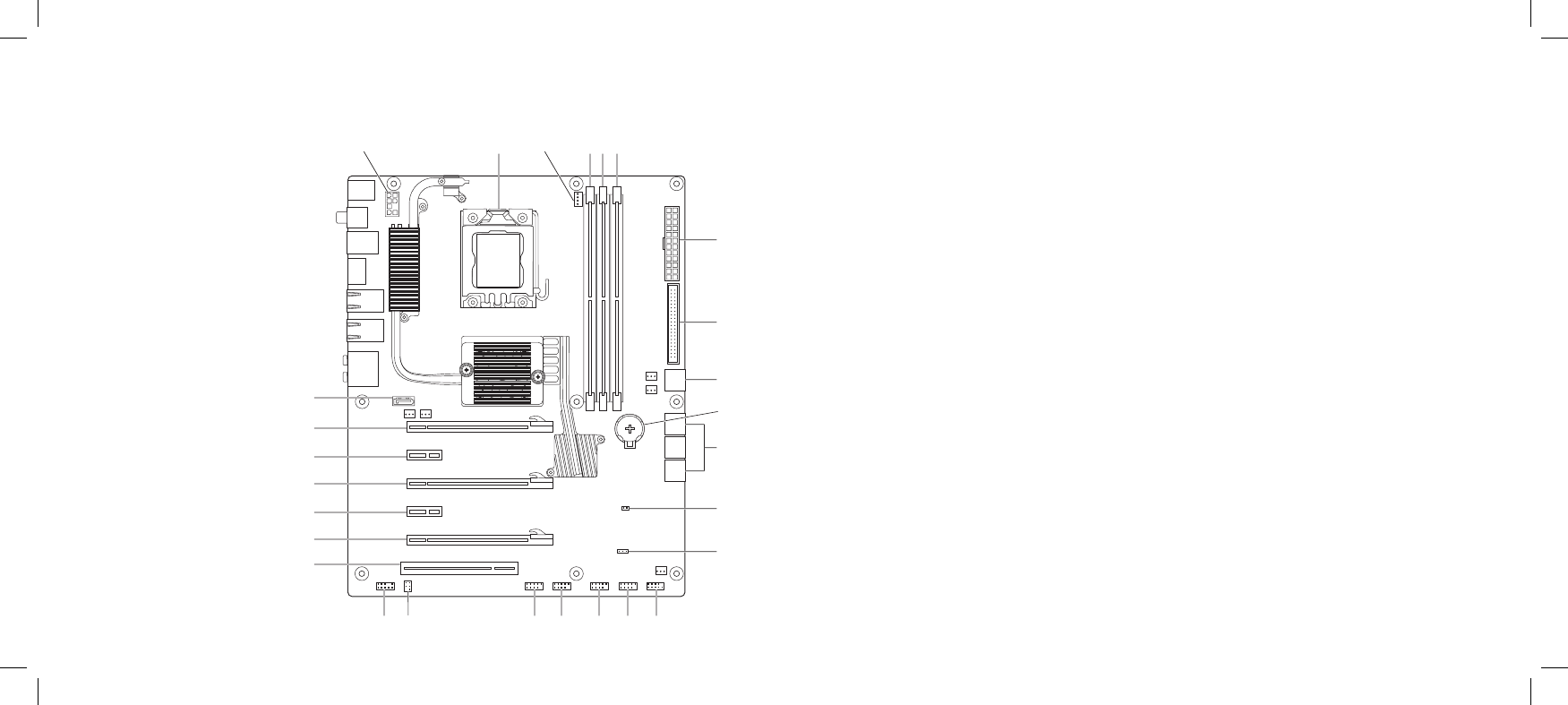
1 12 V power connector (PWR1) 15 internal USB header (USB1)
2 CPU socket 16 internal USB header (USB2)
3 CPU-fan connector (CPUFAN1) 17 internal USB header (USB3)
4 memory-module connector (DIMM1) 18 IEEE 1394 header (1394_1)
5 memory-module connector (DIMM2) 19 S/PDIF header (SPDIF_IN)
6 memory-module connector (DIMM3) 20 front-panel audio connector
(FP_AUDIO)
7 main power connector (PWR2) 21 PCI card slot (PCI1)
8 IDE connector (IDE1) 22 PCI-Express x16 card slot
(PCI_E5)
9 SATA connectors (SATA 7 and SATA 8)
for optical drives
23 PCI-Express x1 card slot
(PCI_E4)
10 battery socket (BAT1) 24 PCI-Express x16 card slot
(PCI_E3)
11 SATA connectors (SATA 1-SATA 6) for
hard drives
25 PCI-Express x1 card slot
(PCI_E2)
12 password reset jumper (PASSWORD) 26 PCI-Express x16 card slot
(PCI_E1)
13 CMOS reset jumper (CLEAR_CMOS) 27 internal eSATA header
(SATA9)
14 front-panel connector (FP1)
System Board Components
1 2 3 4 5 6
7
8
9
11
10
12
13
14151617181920
21
22
23
24
25
26
27
012 012
/
CHAPTER 2: TECHNICAL OVERVIEW
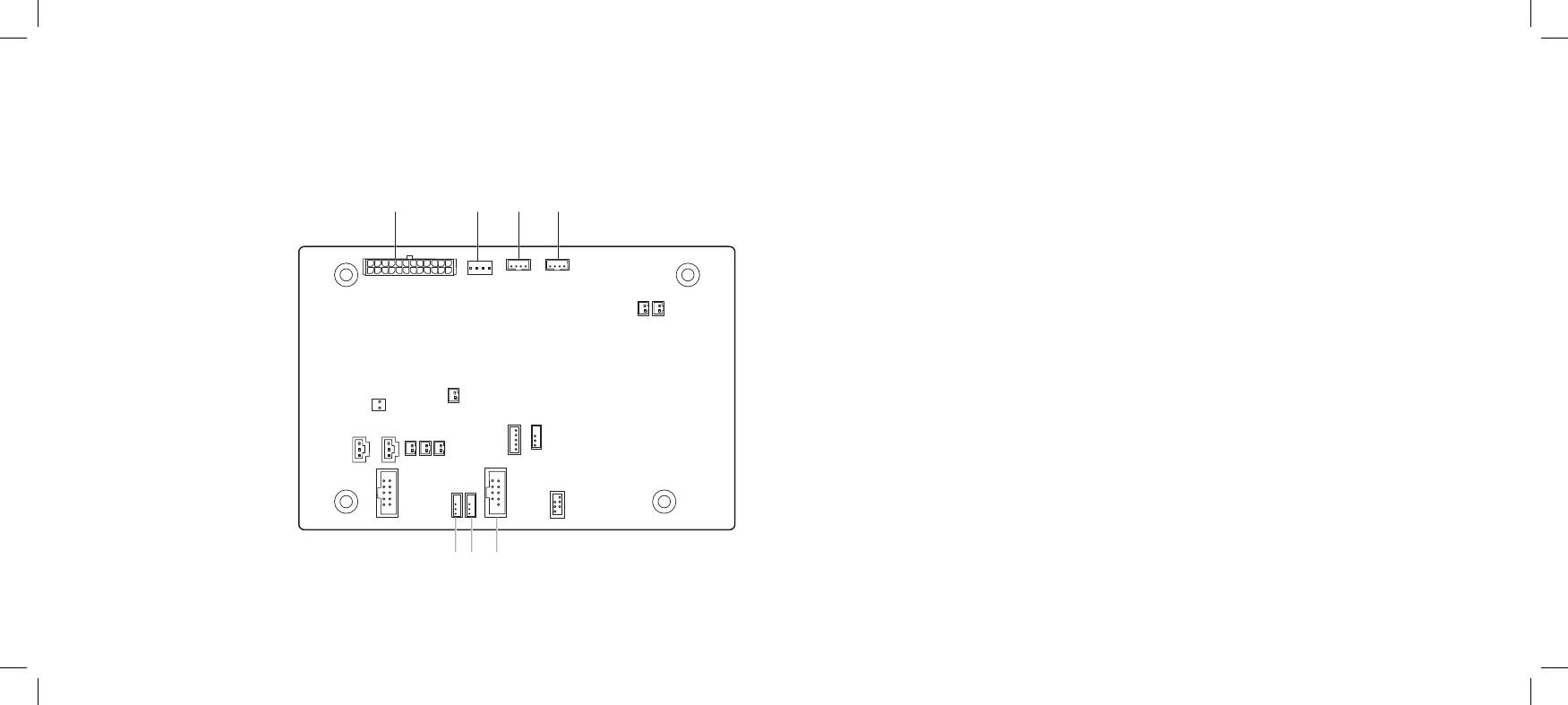
1 fan connector (FANCONN1)
2 PCI-fan connector (PCI_FAN1)
3 hard-drive fan connector (HDD_FAN2)
4 hard-drive fan connector (HDD_FAN1)
5 system-board USB header (MB_USB1)
6 bluetooth-module connector (BLUETOOTH)
7 wireless-module connector (WIRELESS)
Master I/O Board Components
1 2 3 4
567

CHAPTER 3: CHASSIS
013 013
/
CHAPTER 3: CHASSIS
CHAPTER 3: CHASSIS
014 014
/
CHAPTER 3: CHASSIS
CAUTION: To avoid electrostatic discharge, ground yourself by using a
wrist grounding strap or by periodically touching an unpainted metal
surface (such as a connector on the back of the computer).
CAUTION: Ensure that sufcient space exists to support the computer
with the side panel(s) opened.
Chassis
WARNING: Before working inside your computer, read the safety
information that shipped with your computer. For additional safety best
practices information, see the Regulatory Compliance Homepage at
www.dell.com/regulatory_compliance.
WARNING: To guard against electrical shock, always unplug your
computer from the electrical outlet before opening the side panel(s).
WARNING: Do not operate your equipment with any cover(s) (including
side panels, bezels, ller brackets, front-panel inserts, etc.) removed.
CAUTION: Only a certied service technician should perform repairs on
your computer. Damage due to servicing that is not authorized by Dell™
is not covered by your warranty.
015 015
/
CHAPTER 3: CHASSIS
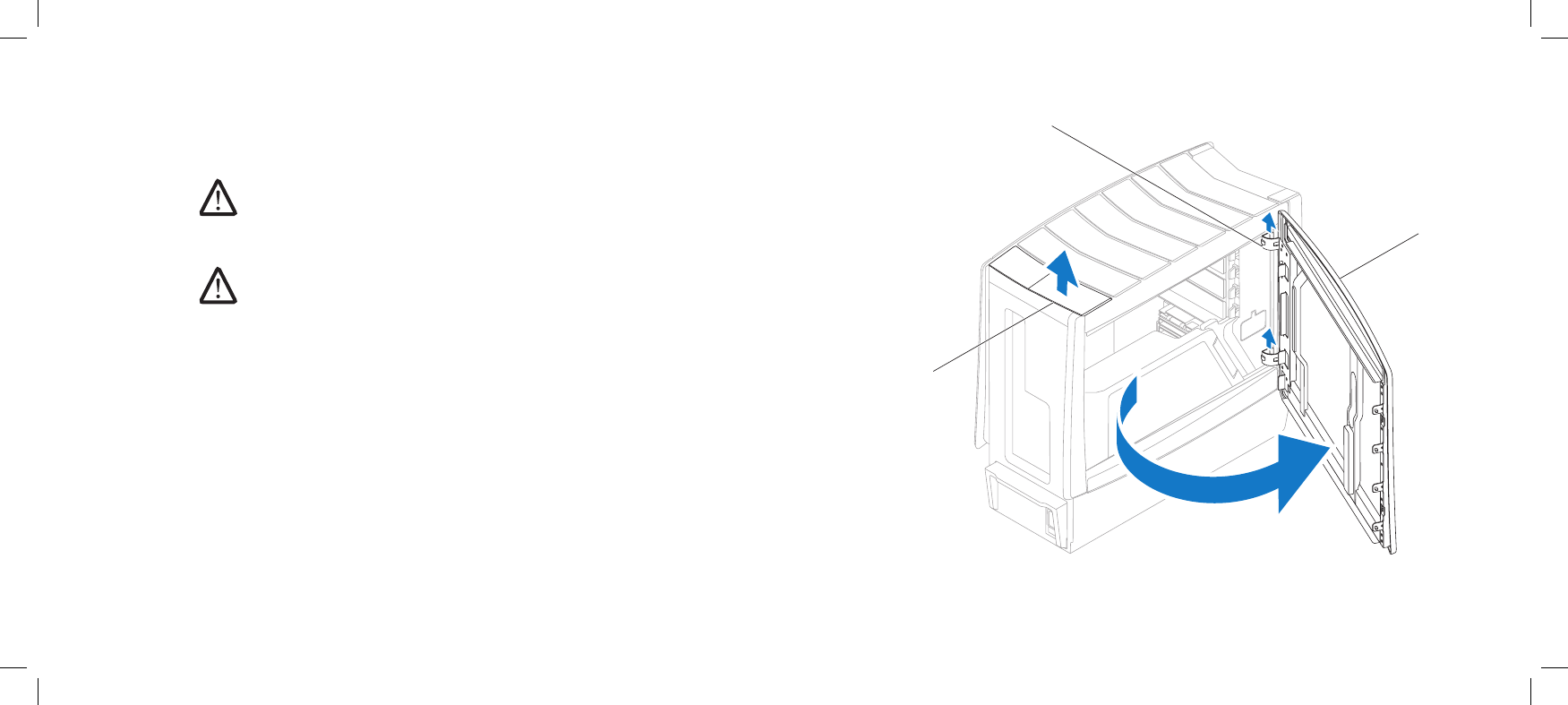
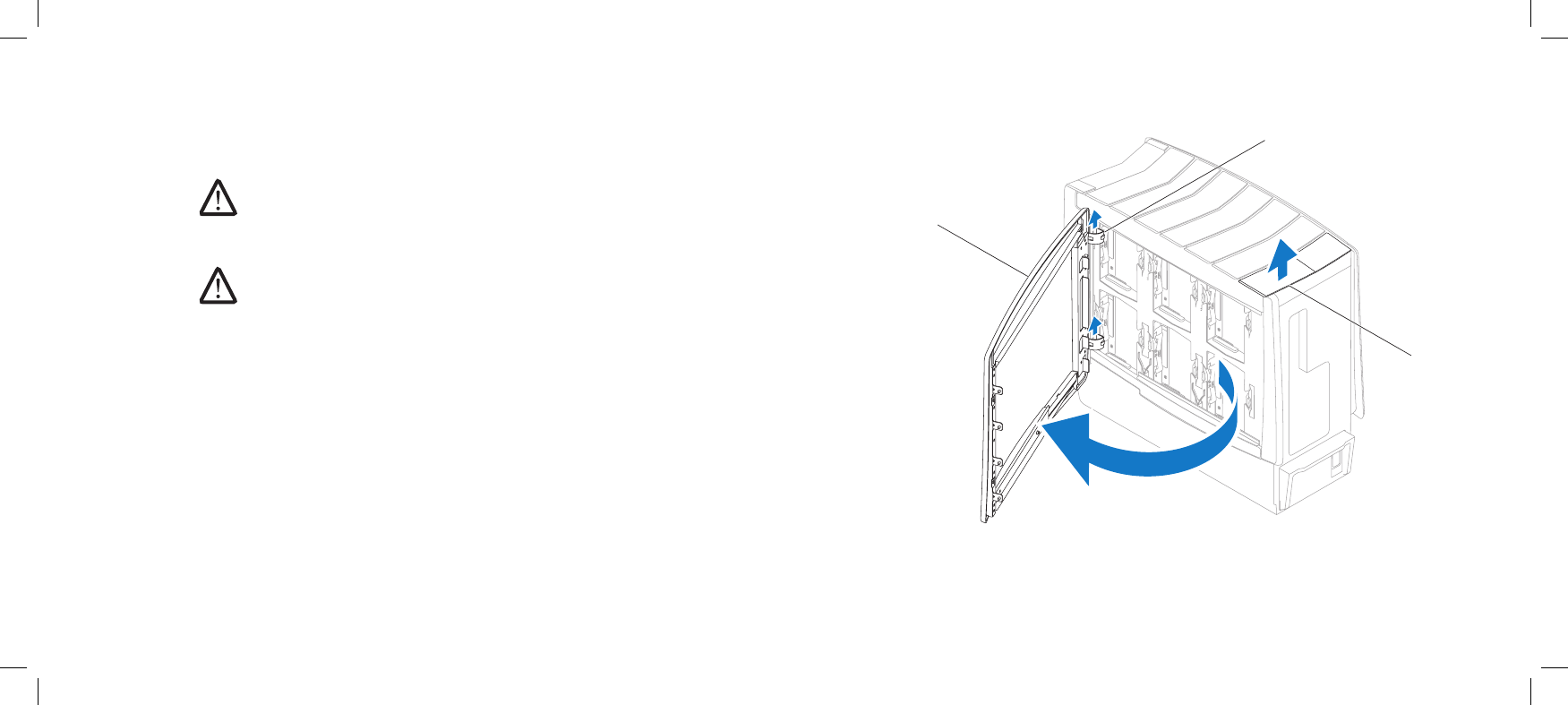
1
3
2
1 release panel 3 left side-panel
2 hinges (2)
Removing the Left Side-Panel
Follow the instructions in “Before You Begin” on page 1. 6.
NOTE: Ensure that any attached security cable is removed before
attempting to lift the release panel.
Lift the release panel and open the left side-panel as far as possible.2.
NOTE: eater lighting turns on automatically when the side panel is
opened.
To remove the left side-panel completely from the chassis, lift the left 3.
side-panel and rotate it away from the chassis to release it from the hinges.
Replacing the Left Side-Panel
Follow the instructions in “Before You Begin” on page 1. 6.
If the left side-panel was removed completely from the chassis, align it with 2.
the hinges and replace it in the chassis.
Push the left side-panel against the side of the computer until it locks into 3.
place.
Connect your computer and devices to electrical outlets, and then turn 4.
them on.
016 016
/
CHAPTER 3: CHASSIS
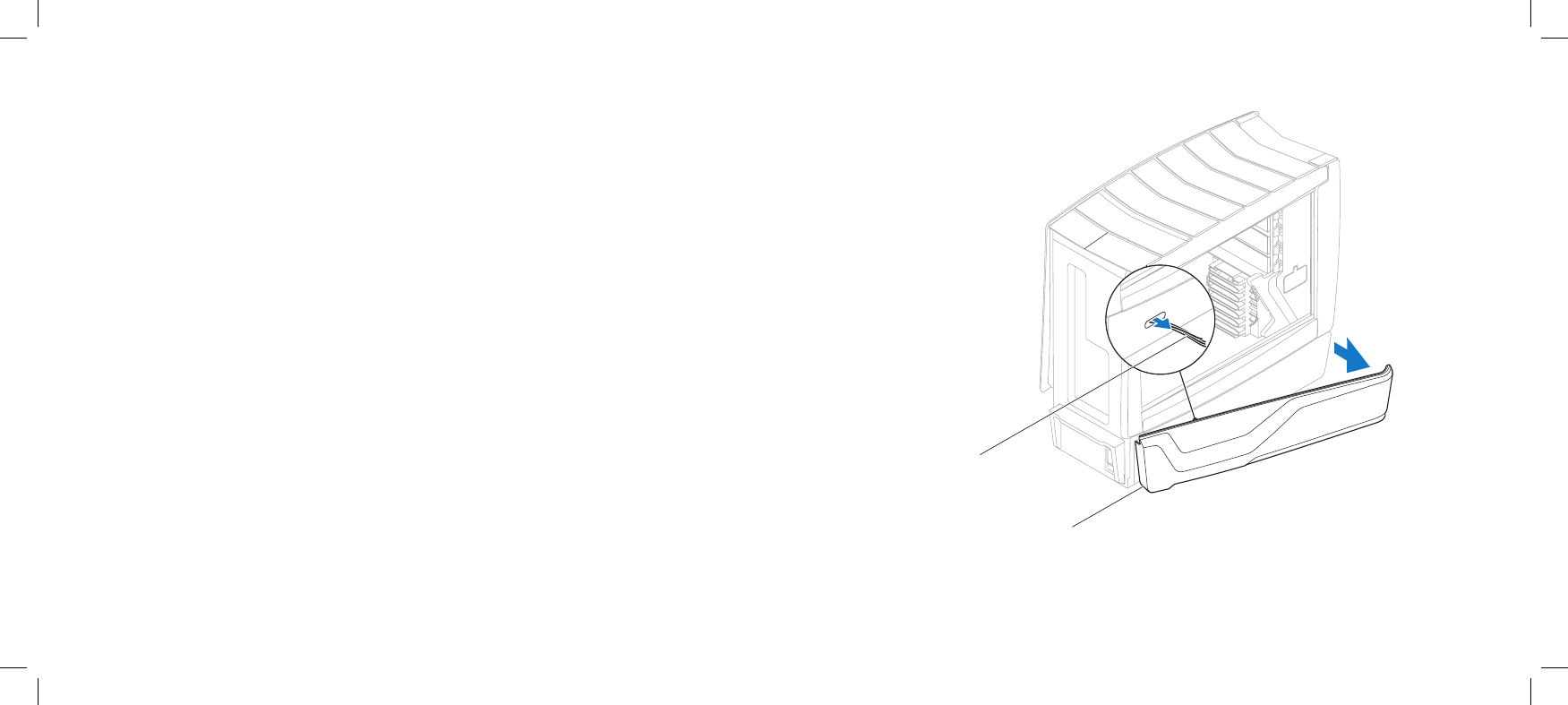
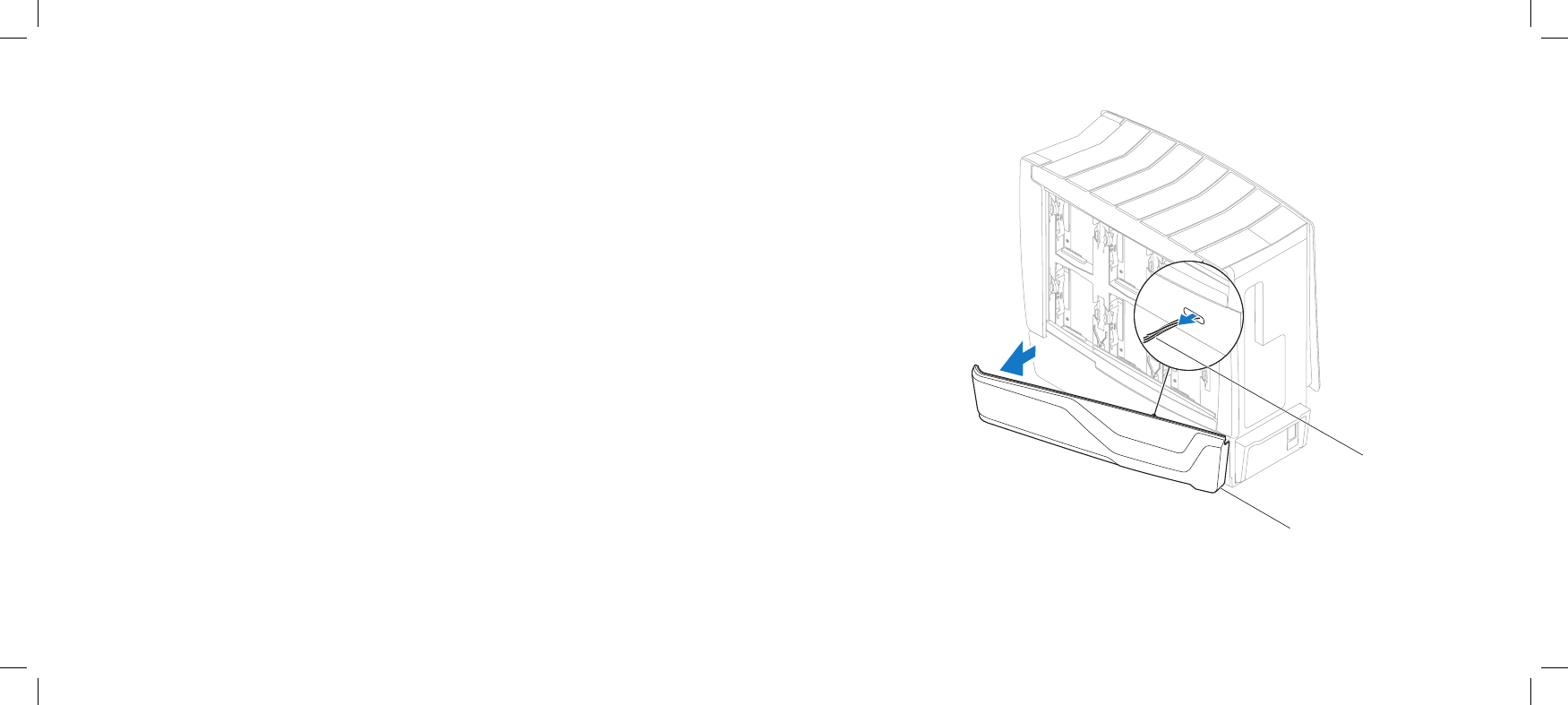
1
2
3
1 right side-panel 3 release panel
2 hinges (2)
Removing the Right Side-Panel
Follow the instructions in “Before You Begin” on page 1. 6.
NOTE: Ensure that any attached security cable is removed before
attempting to lift the release panel.
Lift the release panel and open the right side-panel as far as possible.2.
NOTE: eater lighting turns on automatically when the side panel is
opened.
To remove the right side-panel completely from the chassis, lift the right 3.
side-panel and rotate it away from the chassis to release it from the hinges.
Replacing the Right Side-Panel
Follow the instructions in “Before You Begin” on page 1. 6.
If the right side-panel was removed completely from the chassis, align it 2.
with the hinges and replace it in the chassis.
Push the right side-panel against the side of the computer until it locks into 3.
place.
Connect your computer and devices to electrical outlets, and then turn 4.
them on.
017 017
/
CHAPTER 3: CHASSIS
1
2
1 left bottom-panel cable 2 left bottom-panel
Removing the Left Bottom-Panel
Follow the instructions in “Before You Begin” on page 1. 6.
Remove the left side-panel (see “Removing the Left Side-Panel” on page 2. 15).
Disconnect the left bottom-panel cable from the SIDE_LEFT connector on 3.
the master I/O board.
Press out to release the left bottom-panel clamps that secure the left 4.
bottom-panel to the chassis.
Remove the left bottom-panel.5.
Replacing the Left Bottom-Panel
Follow the instructions in “Before You Begin” on page 1. 6.
Route the left bottom-panel cable through the chassis and connect it to the 2.
SIDE_LEFT connector on the master I/O board.
Align the left bottom-panel clamps with the clamp inserts on the chassis.3.
Push the left bottom-panel towards the chassis until the left bottom-panel 4.
clamps snap into place.
Replace the left side-panel (see “Replacing the Left Side-Panel” on page 5. 15).
Connect your computer and devices to electrical outlets, and then turn 6.
them on.
018 018
/
CHAPTER 3: CHASSIS
2
1
1 right bottom-panel 2 right bottom-panel cable
Removing the Right Bottom-Panel
Follow the instructions in “Before You Begin” on page 1. 6.
Remove the right side-panel (see “Removing the Right Side-Panel” on 2.
page 16).
Disconnect the right bottom-panel cable from the SIDE_RIGHT connector on 3.
the master I/O board.
Remove the hard-drive fans (see “Removing the Hard-Drive Fan(s)” on 4.
page 51).
Press out to release the right bottom-panel clamps that secure the right 5.
bottom-panel to the chassis.
Remove the right bottom-panel.6.
Replacing the Right Bottom-Panel
Follow the instructions in “Before You Begin” on page 1. 6.
Route the right bottom-panel cable through the chassis and connect it to 2.
the SIDE_RIGHT connector on the master I/O board.
Align the right bottom-panel clamps with the clamp inserts on the chassis.3.
Push the right bottom-panel towards the chassis until the right bottom-4.
panel clamps snap into place.
Replace the hard-drive fans (see “Replacing the Hard-Drive Fan(s)” on 5.
page 52).
Replace the right side-panel (see “Replacing the Right Side-Panel” on 6.
page 16).
Connect your computer and devices to electrical outlets, and then turn 7.
them on.
019 019
/
CHAPTER 3: CHASSIS
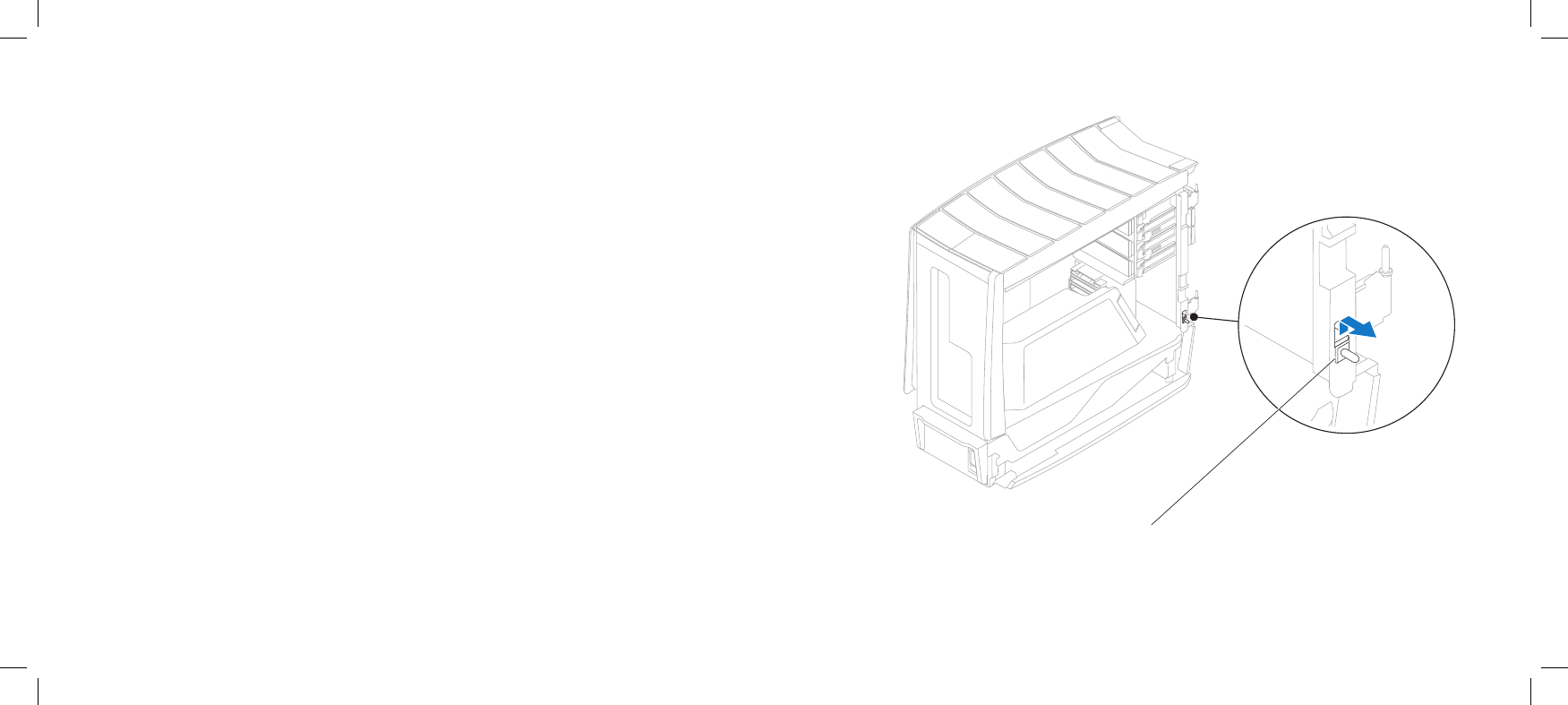
1
1 chassis-intrusion switch
Removing the Chassis-Intrusion Switch
Follow the instructions in “Before You Begin” on page 1. 6.
Remove the left side-panel (see “Removing the Left Side-Panel” on page 2. 15).
Disconnect the chassis-intrusion switch cable from the master I/O board 3.
connector.
Slide the chassis-intrusion switch towards the top of the computer and then 4.
pull it away.
Replacing the Chassis-Intrusion Switch
Follow the instructions in “Before You Begin” on page 1. 6.
Route the chassis-intrusion switch cable through the chassis and connect it 2.
to the master I/O board connector.
Replace the chassis-intrusion switch in the chassis.3.
Slide the chassis-intrusion switch towards the bottom of the computer until 4.
the chassis-intrusion switch snaps into place.
Replace the left side-panel (see “Replacing the Left Side-Panel” on page 5. 15).
Connect your computer and devices to electrical outlets, and then turn 6.
them on.

CHAPTER 4: SHROUDS
020 020
/
CHAPTER 4: SHROUDS
CHAPTER 4: SHROUDS
021 021
/
CHAPTER 4: SHROUDS
Shrouds
WARNING: Before working inside your computer, read the safety
information that shipped with your computer. For additional safety best
practices information, see the Regulatory Compliance Homepage at
www.dell.com/regulatory_compliance.
WARNING: To guard against electrical shock, always unplug your
computer from the electrical outlet before opening the side panel(s).
WARNING: Do not operate your equipment with any cover(s) (including
side panels, bezels, ller brackets, front-panel inserts, etc.) removed.
CAUTION: Only a certied service technician should perform repairs on
your computer. Damage due to servicing that is not authorized by Dell™
is not covered by your warranty.
CAUTION: To avoid electrostatic discharge, ground yourself by using a
wrist grounding strap or by periodically touching an unpainted metal
surface (such as a connector on the back of the computer).
022 022
/
CHAPTER 4: SHROUDS
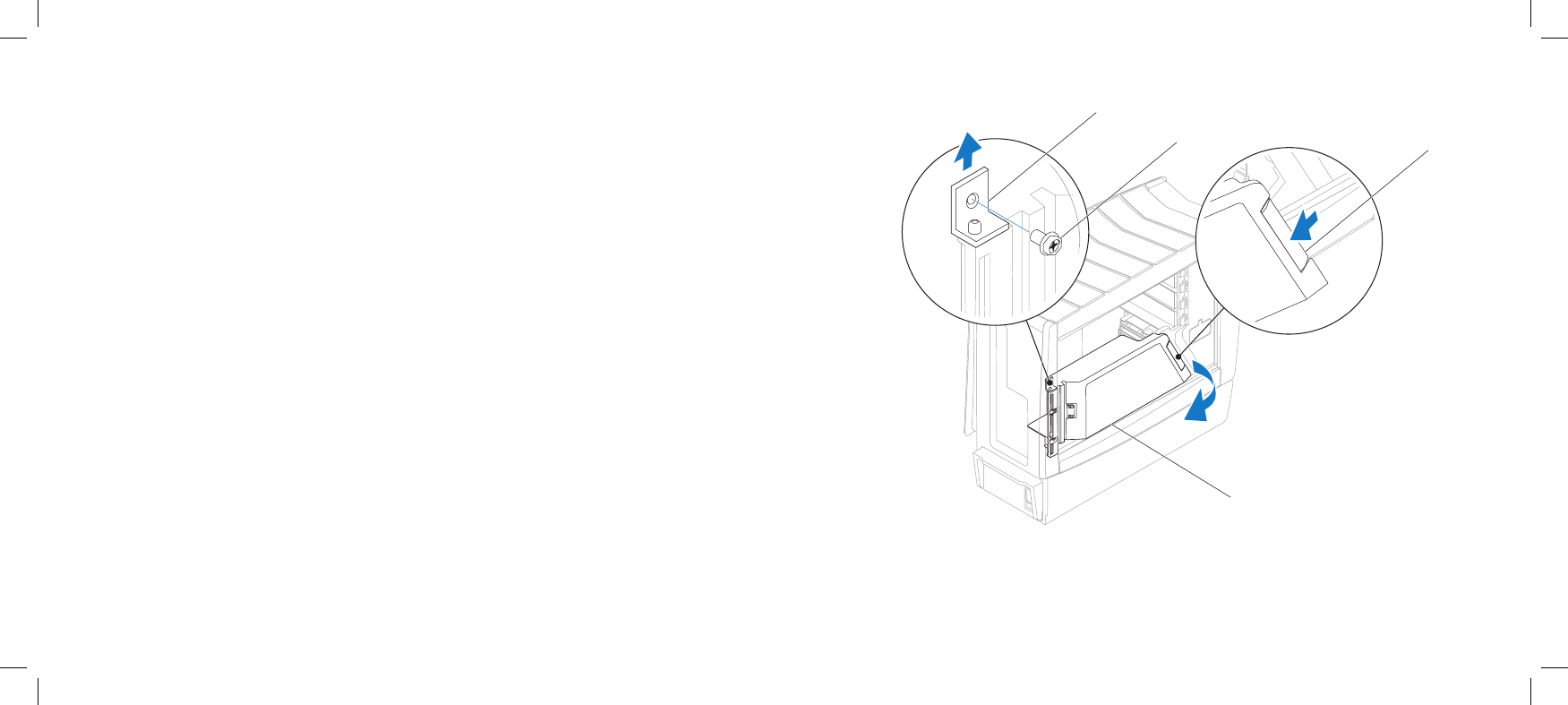
Removing the PCI Shroud
Follow the instructions in “Before You Begin” on page 1. 6.
Lift the release panel and open the left side-panel2.
Press the PCI-shroud button to release the PCI shroud and then rotate the 3.
PCI shroud away from the computer.
To remove the PCI-shroud completely from the chassis:4.
Remove the PCI-shroud clamp screw and lift the PCI-shroud clamp out a.
of the chassis.
Lift the PCI shroud up and away from the chassis.b.
Replacing the PCI Shroud
Follow the instructions in “Before You Begin” on page 1. 6.
If the PCI shroud was removed completely from the chassis:2.
Align the PCI shroud with the hinges and replace it in the chassis.a.
Replace the PCI-shroud clamp in the chassis.b.
Replace the PCI-shroud clamp screw.c.
Push the PCI shroud to snap it into place.3.
Close the left-side panel.4.
Connect your computer and devices to electrical outlets, and then turn 5.
them on.
1
23
4
1 PCI-shroud clamp 3 PCI-shroud button
2 PCI-shroud clamp screw 4 PCI shroud
023 023
/
CHAPTER 4: SHROUDS
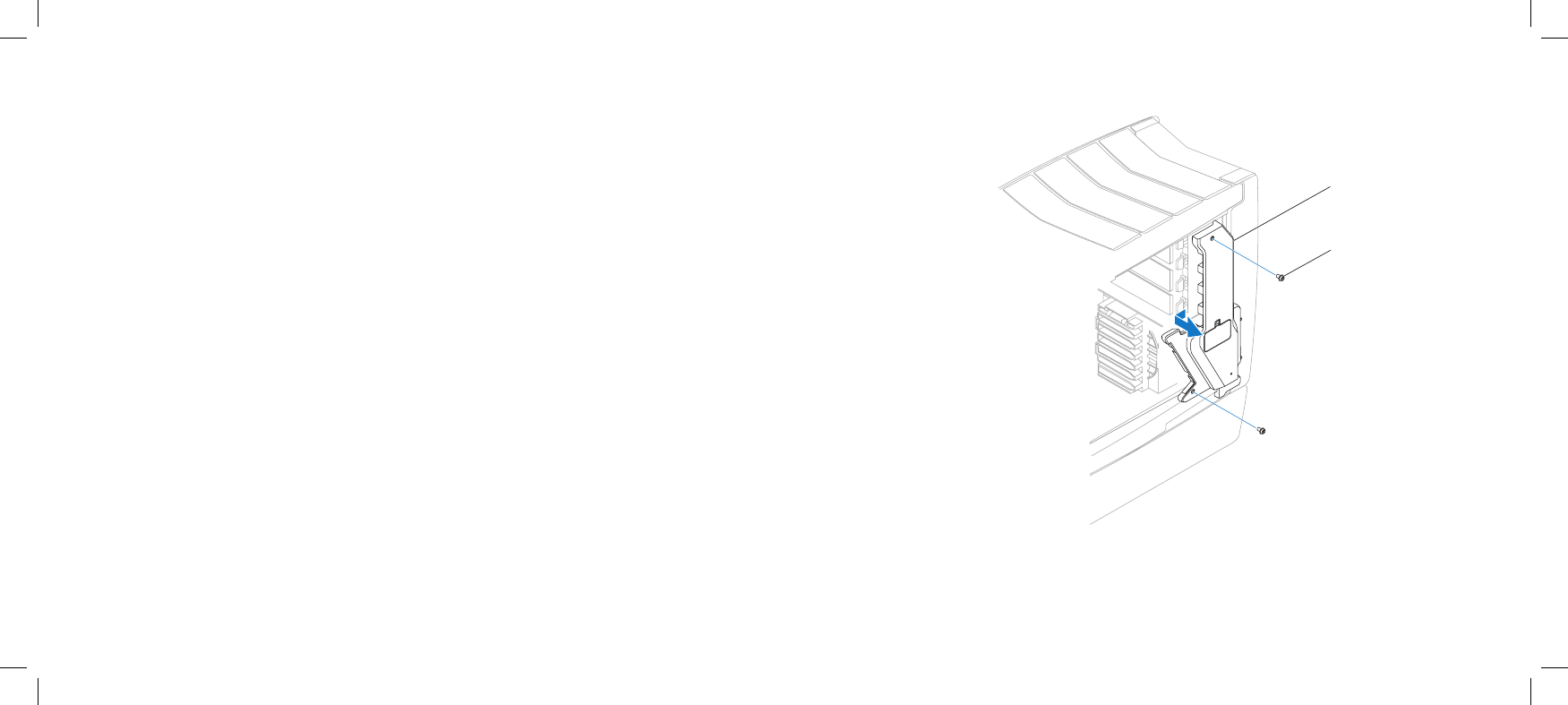
Removing the Drive-Bay Shroud
Follow the instructions in “Before You Begin” on page 1. 6.
Remove the left side-panel (see “Removing the Left Side-Panel” on page 2. 15).
Remove the PCI shroud (see “Removing the PCI Shroud“ on page 3. 22).
Disconnect the drive-bay shroud cables from the master I/O board 4.
connectors.
Remove the two screws that secure the drive-bay shroud to the chassis.5.
Slide and pull the drive-bay shroud away from the computer.6.
Replacing the Drive-Bay Shroud
Follow the instructions in “Before You Begin” on page 1. 6.
Align the screw holes on the drive-bay shroud with the screw holes on the 2.
chassis.
Replace the two screws that secure the drive-bay shroud to the chassis. 3.
Connect the drive-bay shroud cables to the master I/O board connectors.4.
Replace the PCI shroud (see “Replacing the PCI Shroud” on page 5. 22).
Replace the left side-panel (see “Replacing the Left Side-Panel” on page 6. 15).
Connect your computer and devices to electrical outlets, and then turn 7.
them on.
1
2
1 drive-bay shroud 2 screws (2)

CHAPTER 5: MEMORY MODULE(S)
024 024
/
You can increase your computer memory by installing memory modules on
the system board. See the specications in your Desktop Manual or in the
Comprehensive Specications at support.dell.com for information on the
memory supported by your computer. Install only memory modules that are
supported by your computer.
NOTE: Memory modules purchased from Dell or Alienware are covered
under your computer warranty.
Your computer has three internally-accessible DDR3 DIMM sockets.
CHAPTER 5: MEMORY MODULE(S)
CHAPTER 5: MEMORY MODULE(S)
025 025
/
CHAPTER 5: MEMORY MODULE(S)
Memory Module(s)
WARNING: Before working inside your computer, read the safety
information that shipped with your computer. For additional safety best
practices information, see the Regulatory Compliance Homepage at
www.dell.com/regulatory_compliance.
WARNING: To guard against electrical shock, always unplug your
computer from the electrical outlet before opening the side panel(s).
WARNING: Do not operate your equipment with any cover(s) (including
side panels, bezels, ller brackets, front-panel inserts, etc.) removed.
CAUTION: Only a certied service technician should perform repairs on
your computer. Damage due to servicing that is not authorized by Dell™
is not covered by your warranty.
CAUTION: To avoid electrostatic discharge, ground yourself by using a
wrist grounding strap or by periodically touching an unpainted metal
surface (such as a connector on the back of the computer).
026 026
/
CHAPTER 5: MEMORY MODULE(S)
Removing Memory Module(s)
Follow the instructions in “Before You Begin” on page 1. 6.
Lift the release panel and open the left side-panel.2.
Locate the memory-module connectors on the system board (see “System 3.
Board Connectors“ on page 11).
CAUTION: e memory module(s) may become very hot during normal
operation. Allow the memory module(s) to cool before touching them.
NOTE: For better access to the memory module(s), remove the graphics
card if the card is full length (see “Removing PCI and PCI Express Cards”
on page 31).
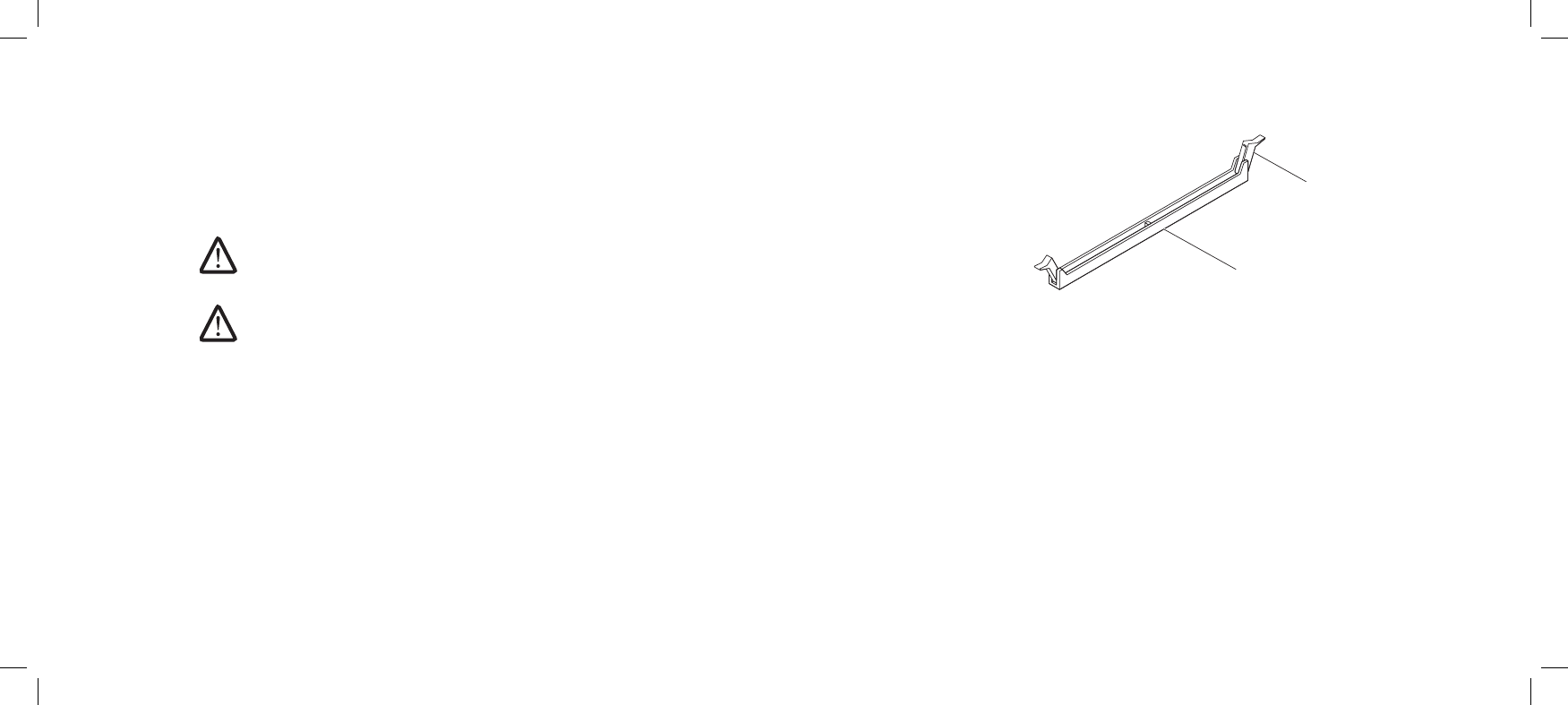
Press out the securing clip at each end of the memory-module connector. 4.
Lift the memory module o the memory-module connector. If the memory 5.
module is difcult to remove, gently ease the memory module back and
forth to remove it from the memory-module connector.
1
2
1 memory-module connector 2 securing clips (2)
027 027
/
CHAPTER 5: MEMORY MODULE(S)
Replacing Memory Module(s)
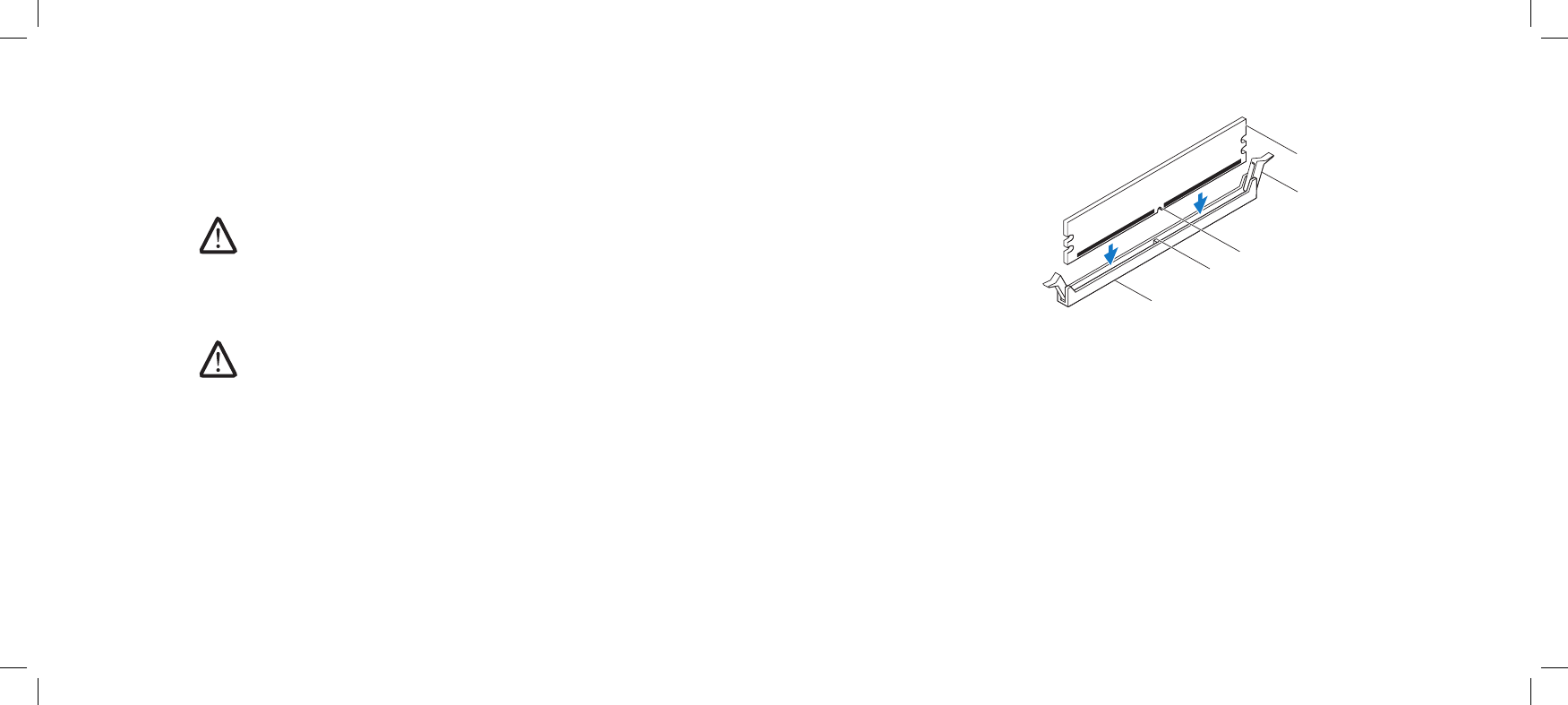
Follow the instructions in “Before You Begin” on page 1. 6.
Align the notch on the bottom of the memory module with the tab on the 2.
memory-module connector.
CAUTION: To avoid damage to the memory module, press the memory
module straight down into the memory-module connector while you
apply equal force to each end of the memory module.
Insert the memory module into the memory-module connector until the 3.
memory module snaps into position.
NOTE: If the memory module is not installed properly, the computer may
not boot.
If you insert the memory module correctly, the securing clips snap into the 4.
cutouts at each end of the memory module.
Close the left-side panel.5.
Connect your computer and devices to electrical outlets, and then turn 6.
them on.
1
2
3
5
4
1 memory-module connector 4 securing clips (2)
2 tab 5 memory module
3 notch
028 028
/
CHAPTER 5: MEMORY MODULE(S)
As the computer boots, it detects the additional memory and automatically
updates the system conguration information. To conrm the amount of memory
installed in the computer:
Windows Vista®
Click Start → Control Panel→ System and Maintenance.
Windows® 7
Click Start → Control Panel→ System and Security→ System.

CHAPTER 6: PCI AND PCI-EXPRESS CARDS
029 029
/
CHAPTER 6: PCI AND PCI-EXPRESS CARDS
CHAPTER 6: PCI AND PCI-EXPRESS CARDS
030 030
/
CHAPTER 6: PCI AND PCI-EXPRESS CARDS
PCI and PCI-Express Cards
WARNING: Before working inside your computer, read the safety
information that shipped with your computer. For additional safety best
practices information, see the Regulatory Compliance Homepage at
www.dell.com/regulatory_compliance.
WARNING: To guard against electrical shock, always unplug your
computer from the electrical outlet before opening the side panel(s).
WARNING: Do not operate your equipment with any cover(s) (including
side panels, bezels, ller brackets, front-panel inserts, etc.) removed.
CAUTION: Only a certied service technician should perform repairs on
your computer. Damage due to servicing that is not authorized by Dell™
is not covered by your warranty.
CAUTION: To avoid electrostatic discharge, ground yourself by using a
wrist grounding strap or by periodically touching an unpainted metal
surface (such as a connector on the back of the computer).
031 031
/
CHAPTER 6: PCI AND PCI-EXPRESS CARDS
2
3
1
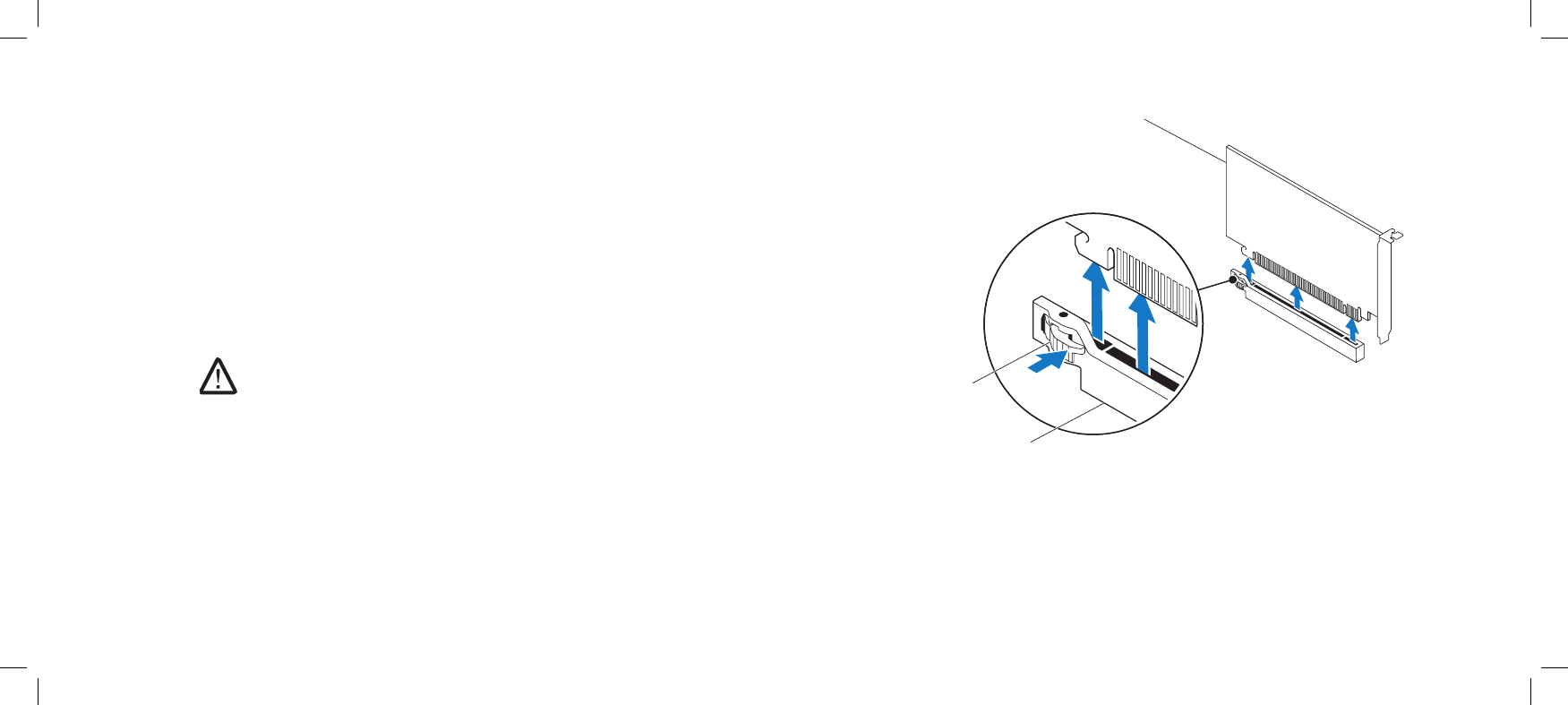
1PCI-Express x16 card 3PCI-Express x16 connector
2 retention mechanism
Removing PCI and PCI-Express Cards
Follow the instructions in “Before You Begin” on page 1. 6.
Lift the release panel and open the left side-panel.2.
Remove the PCI shroud (see “Removing the PCI Shroud“ on page 3. 22).
Disconnect any cables connected to the card (if applicable).4.
Remove the card:5.
For a PCI or PCI-Express x1 card, grasp the card by its top corners, and •
ease it out of its connector.
For a PCI-Express x16 card, push the retention mechanism on the card •
connector as you grasp the card by its top corners, and then ease the
card out of the connector.
NOTE: If you are not replacing a card, install a ller bracket
in the empty card-slot opening.
032 032
/
CHAPTER 6: PCI AND PCI-EXPRESS CARDS
2
3
1
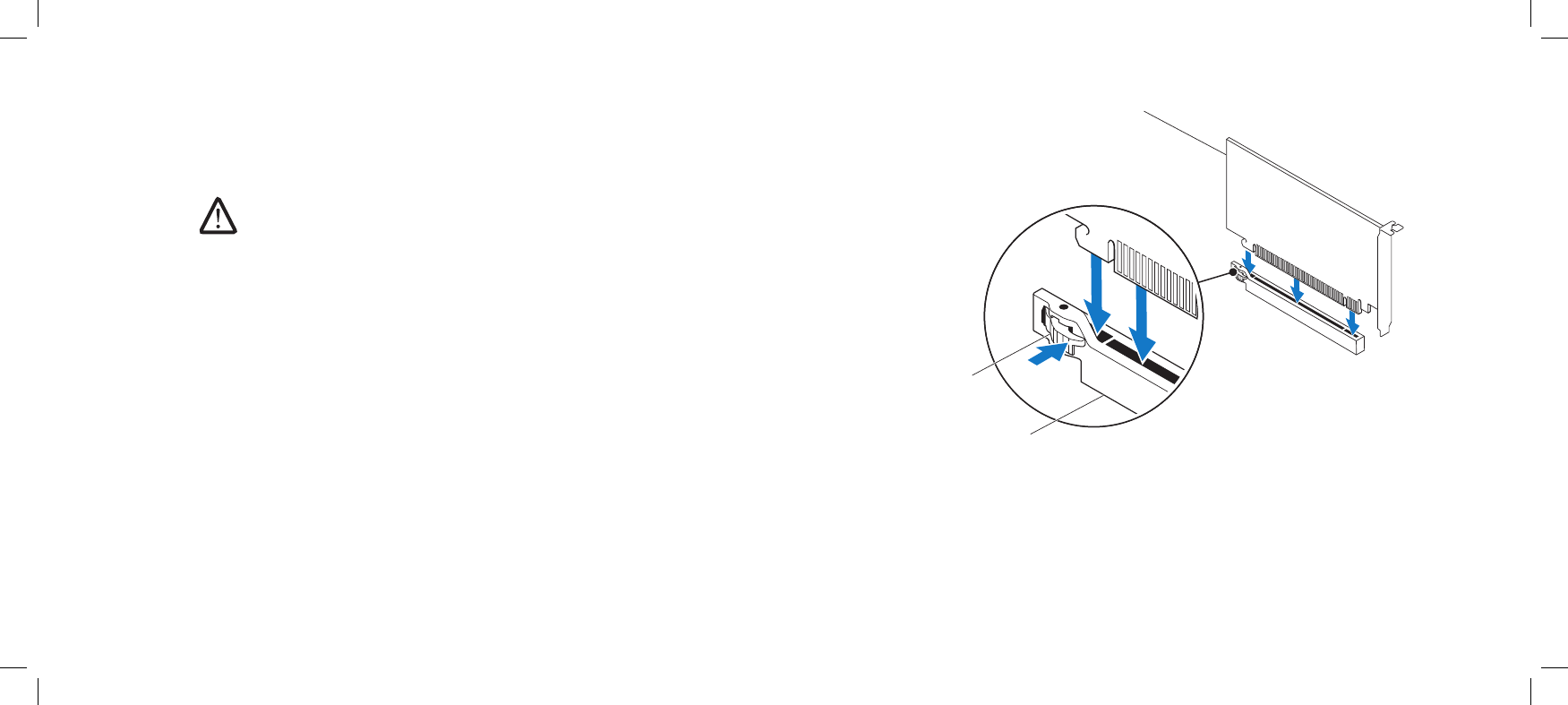
1PCI-Express x16 card 3PCI-Express x16 connector
2 retention mechanism
Replacing PCI and PCI-Express Cards
Follow the instructions in “Before You Begin” on page 1. 6.
Remove the ller bracket to create a card-slot opening (if applicable). 2.
NOTE: For information on conguring, customizing, and making internal
connections on the card, see the documentation that shipped with the
card.
Align the card with the connector on the system board.3.
Place the card in the connector and press down rmly. Ensure that the card 4.
is rmly seated in the connector.
If you are installing the PCI-Express card into the x16 card connector, push
the retention mechanism and insert the card in the connector.
Connect any cables that should be attached to the card (if applicable).5.
Replace the PCI shroud (see “Replacing the PCI Shroud” on page 6. 22).
Close the left side-panel.7.
Connect your computer and devices to electrical outlets, and then turn 8.
them on.

CHAPTER 7: DRIVES
033 033
/
CHAPTER 7: DRIVES
CHAPTER 7: DRIVES
034 034
/
CHAPTER 7: DRIVES
Drives
WARNING: Before working inside your computer, read the safety
information that shipped with your computer. For additional safety best
practices information, see the Regulatory Compliance Homepage at
www.dell.com/regulatory_compliance.
WARNING: To guard against electrical shock, always unplug your
computer from the electrical outlet before opening the side panel(s).
WARNING: Do not operate your equipment with any cover(s) (including
side panels, bezels, ller brackets, front-panel inserts, etc.) removed.
WARNING: If you remove the hard drive from the computer when the
drive is hot, do not touch the metal housing of the hard drive.
CAUTION: Only a certied service technician should perform repairs on
your computer. Damage due to servicing that is not authorized by Dell™
is not covered by your warranty.
CAUTION: To prevent data loss, turn o your computer (see “Turning
O Your Computer” on page 7) before removing the hard drive. Do not
remove the hard drive while the computer is on or in Sleep state.
CAUTION: Hard drives are extremely fragile. Exercise care when handling
the hard drive.
NOTE: Dell does not guarantee compatibility or provide support for hard
drives from sources other than Dell or Alienware.
NOTE: If you are installing a hard drive from a source other than Dell or
Alienware, you need to install an operating system, drivers, and utilities
on the new hard drive.
036 036
/
CHAPTER 7: DRIVES
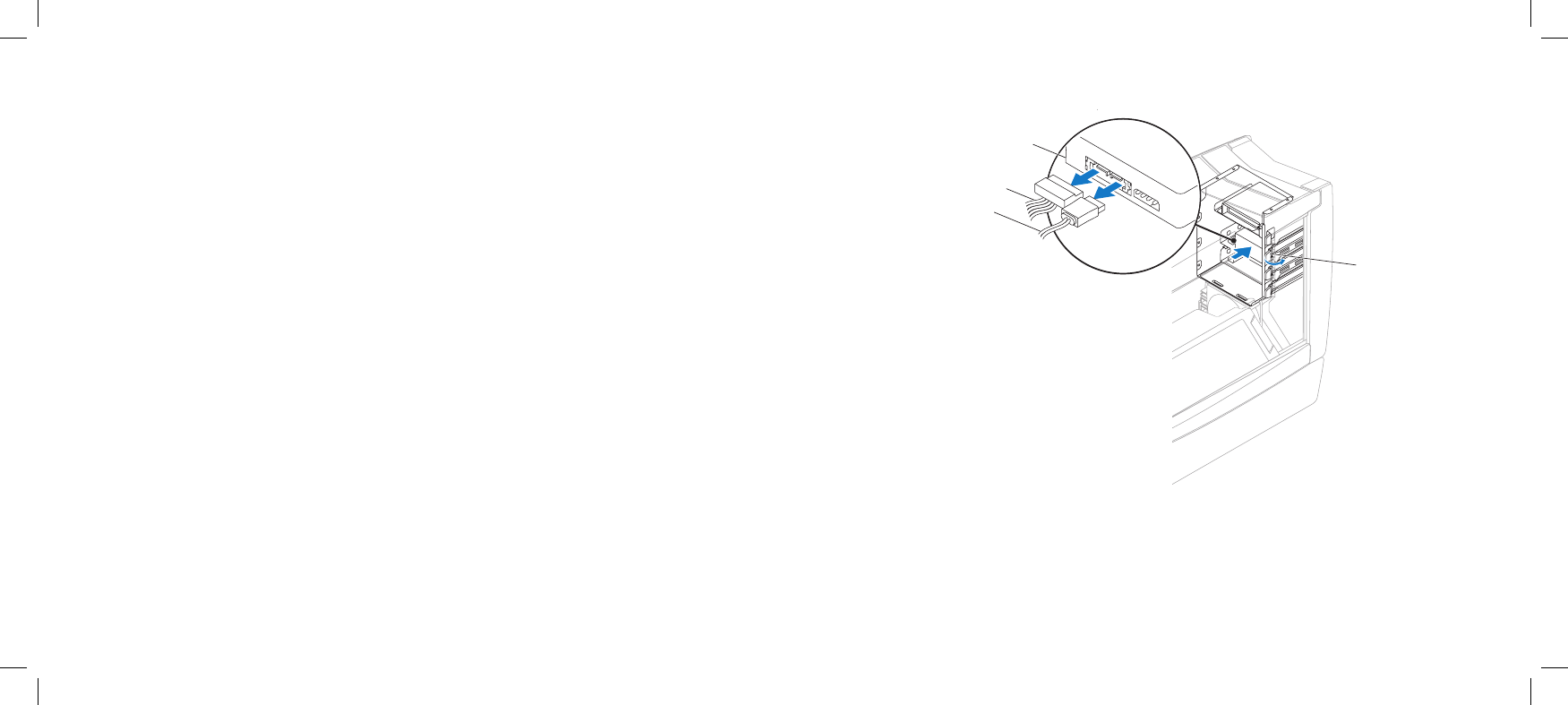
Lift the release panel and open the left side-panel.3.
Disconnect the power cable and the data cable from the back of the optical 4.
drive.
Pull the securing tab on the optical-drive bracket and slide the optical drive 5.
out through the front of the computer.
1
3
2
4
1 data cable 3 optical drive
2 power cable 4 securing tab

037 037
/
CHAPTER 7: DRIVES
Replacing Optical Drive(s)
Follow the instructions in “Before You Begin” on page 1. 6.
Remove the new drive from its packaging. 2.
Save the original packaging for storing or shipping the optical drive.
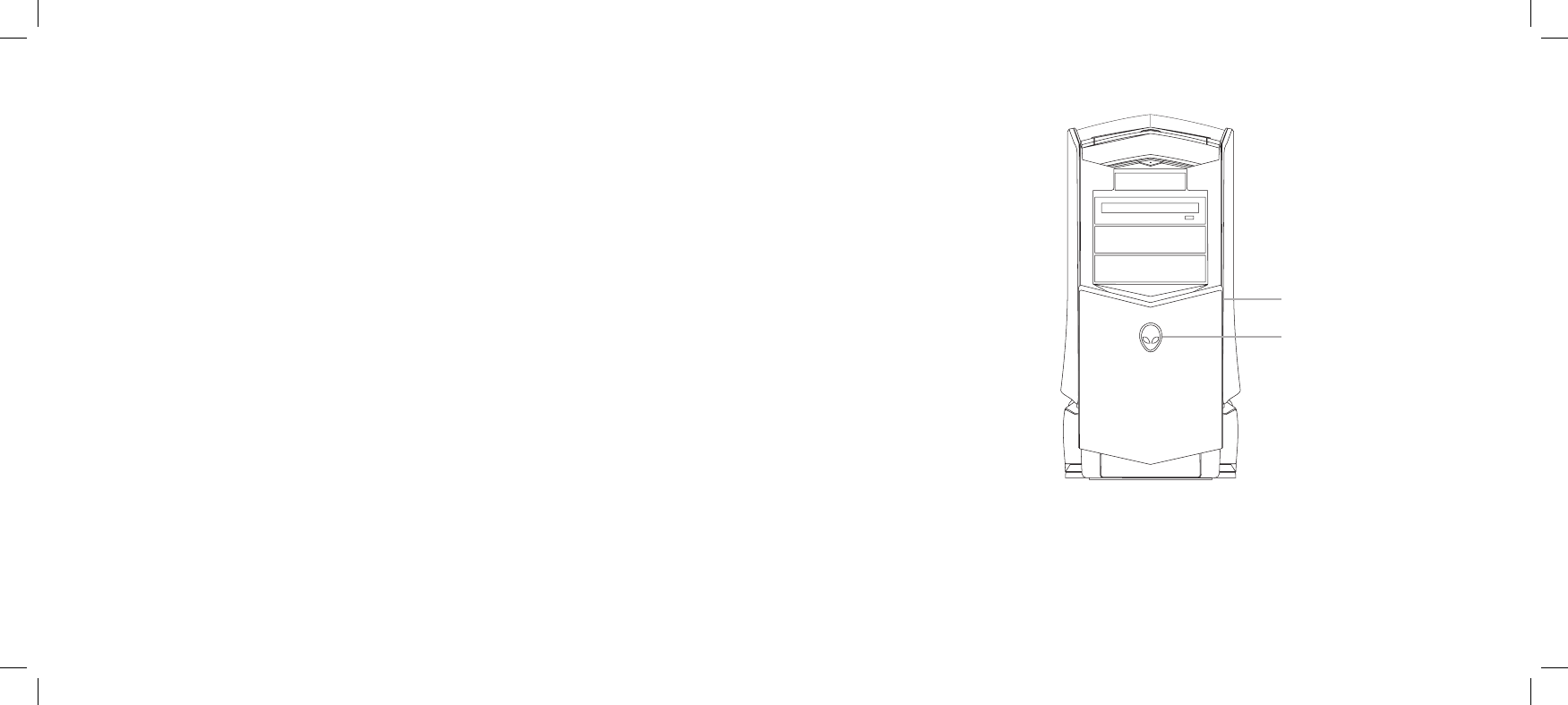
Remove the optical-drive bay ller, if applicable: 3.
Pull the securing tab on the optical-drive bracket and slide the optical-drive
bay ller out through the front of the computer.
Pull the securing tab on the optical-drive bracket and slide the optical drive 4.
into the optical-drive bay, until the securing tab snaps into place.
Connect the power cable and the data cable to the optical drive.5.
Close the left side-panel.6.
Connect your computer and devices to electrical outlets, and then turn 7.
them on.
039 039
/
CHAPTER 7: DRIVES
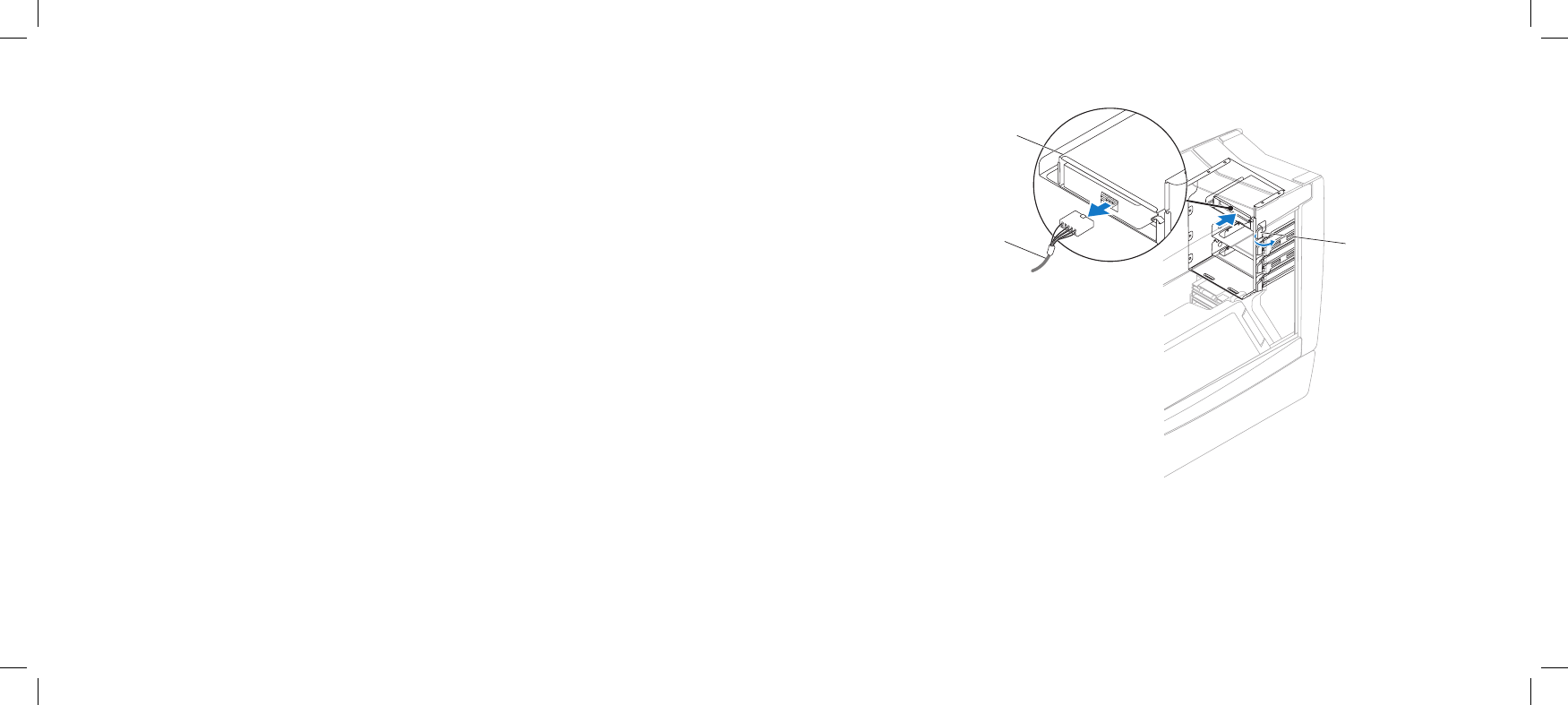
1
2
3
1FlexBay cable 3 securing tab
2 Media Card Reader
Lift the release panel and open the left side-panel.3.
Disconnect the FlexBay cable from the back of the Media Card Reader.4.
Pull the securing tab on the FlexBay bracket and slide the Media Card 5.
Reader out through the front of the computer.

040 040
/
CHAPTER 7: DRIVES
Replacing the Media Card Reader
Follow the instructions in “Before You Begin” on page 1. 6.
Remove the new Media Card Reader from its packaging. 2.
Save the original packaging for storing or shipping the Media Card Reader.
Remove the FlexBay ller, if applicable: 3.
Pull the securing tab on the FlexBay bracket and slide the FlexBay ller out
through the front of the computer.
Pull the securing tab on the FlexBay bracket and slide the Media Card 4.
Reader into the FlexBay, until the securing tab snaps into place.
Connect the FlexBay cable to the Media Card Reader.5.
Close the left side-panel.6.
Connect your computer and devices to electrical outlets, and then turn 7.
them on.
041 041
/
CHAPTER 7: DRIVES
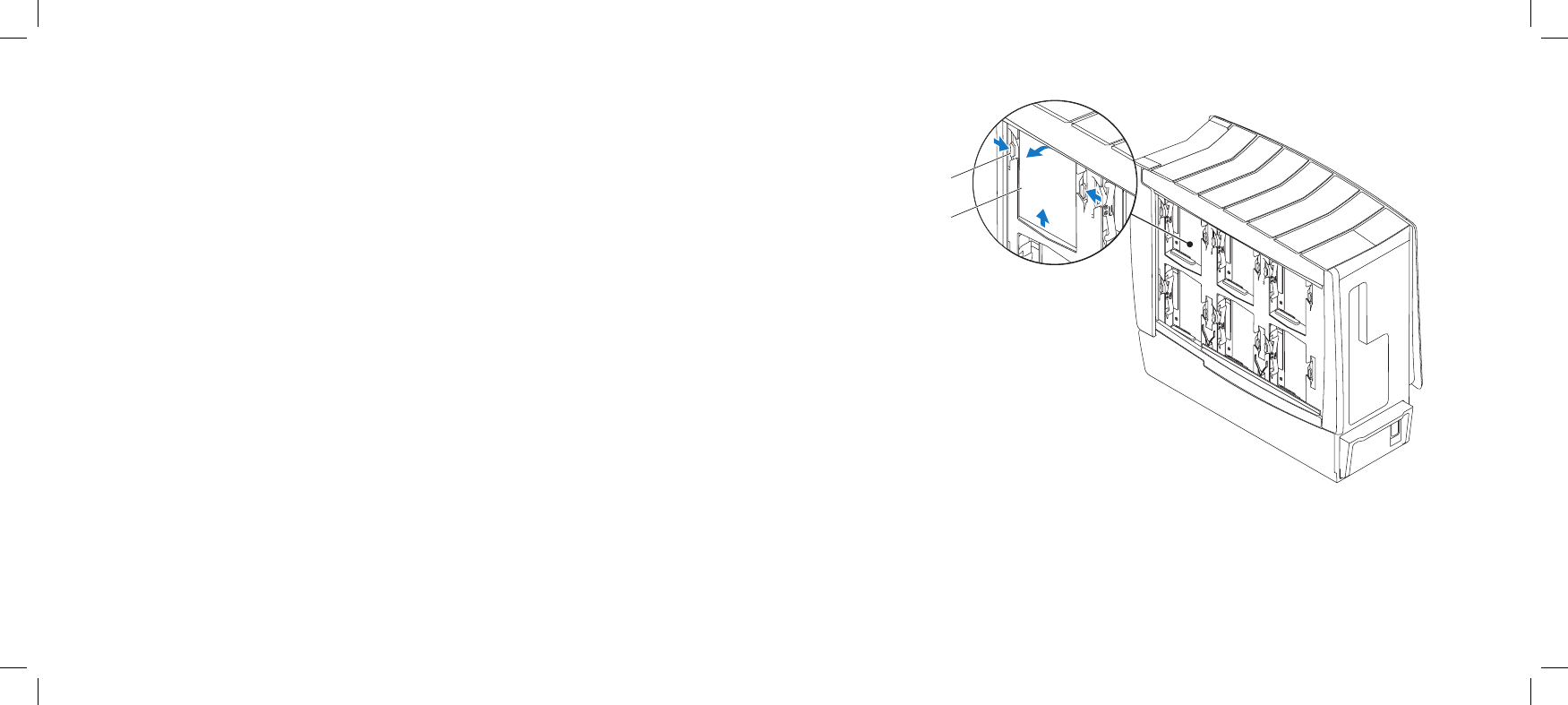
2
1
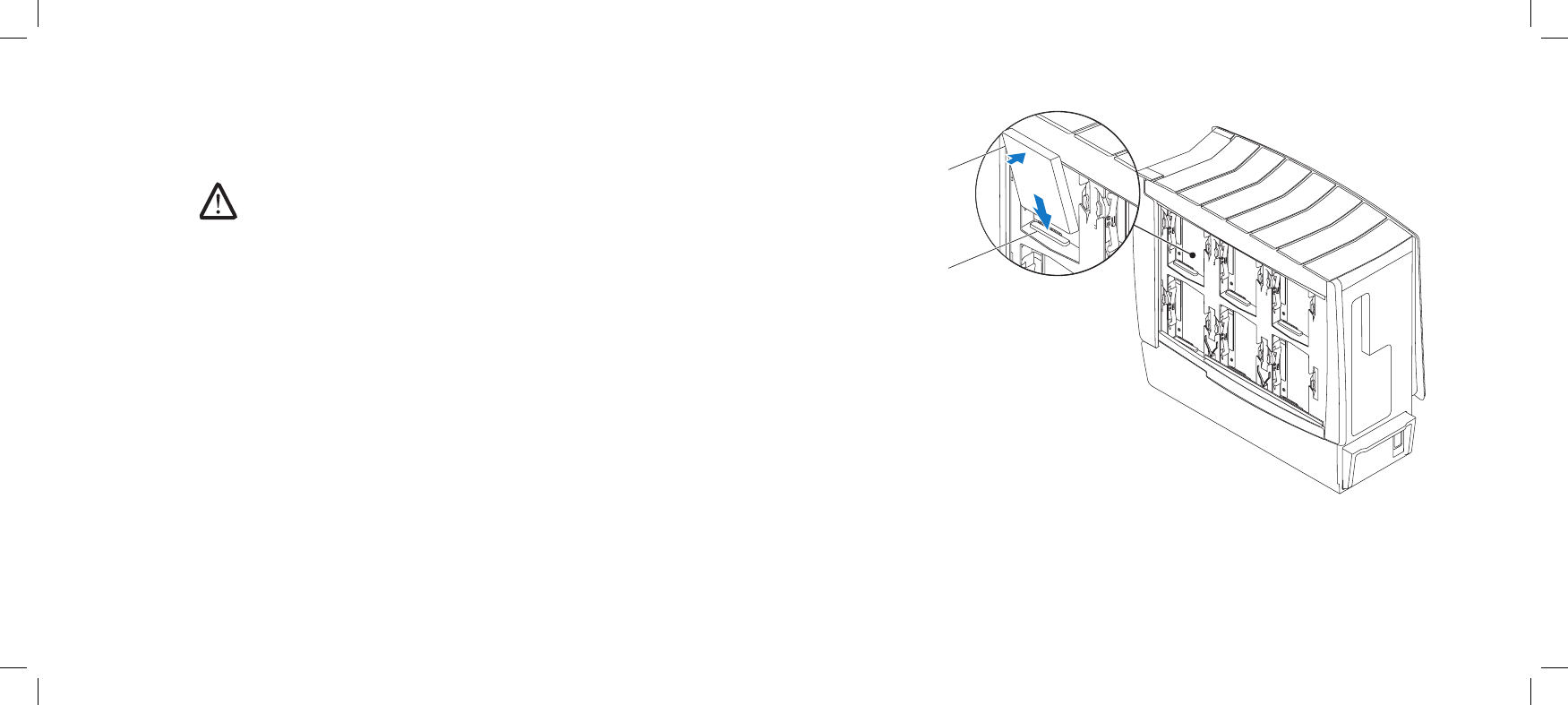
1 hard-drive release tabs (2) 2 hard drive
Removing Hard Drive(s)
Follow the instructions in “Before You Begin” on page 1. 6.
Lift the release panel and open the right side-panel.2.
Press the hard-drive release tabs simultaneously and slide the hard drive 3.
towards the top and out of the computer.
042 042
/
CHAPTER 7: DRIVES
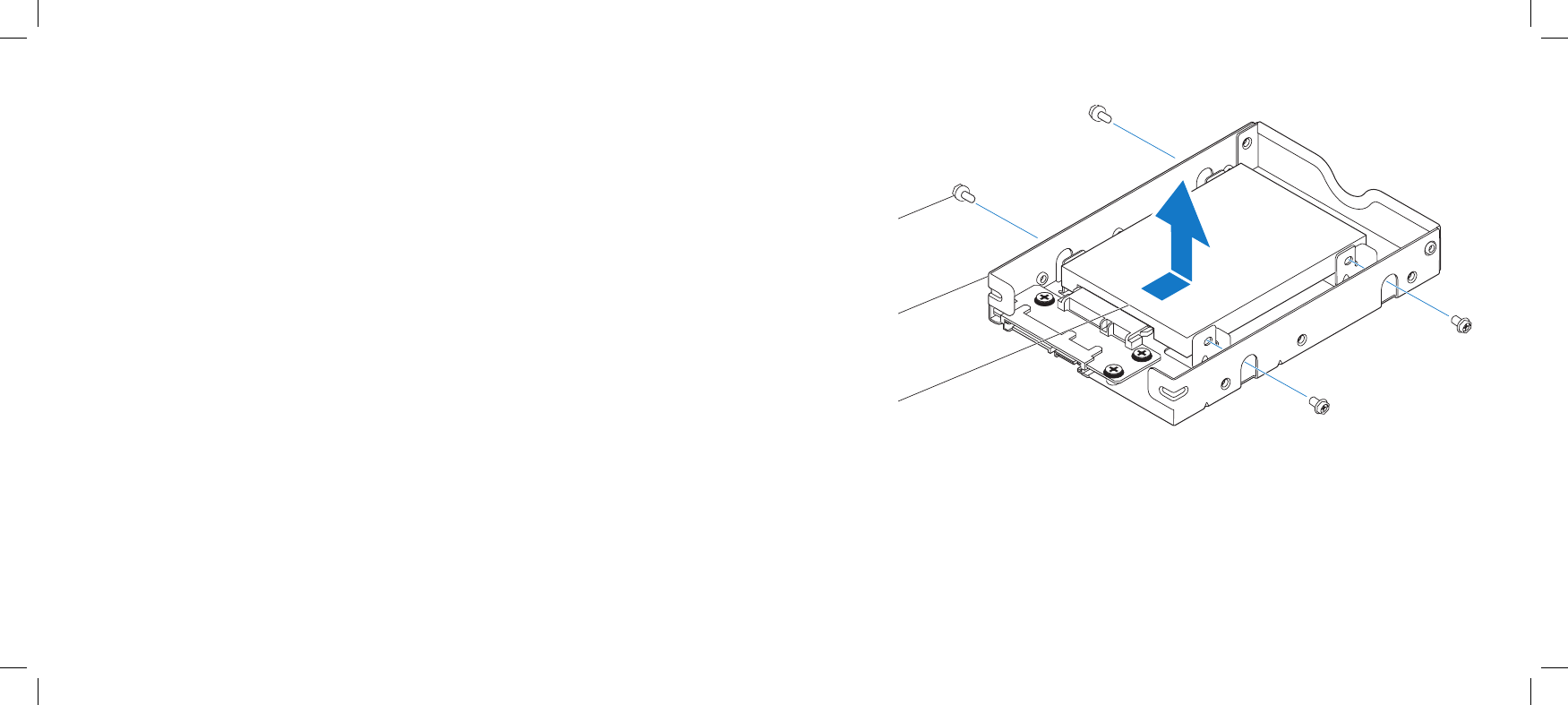
If you are removing a solid-state drive (SSD):4.
Remove the four screws that secure the SSD to the hard-drive bracket.a.
Slide and lift the SSD out of the hard-drive bracket. b.
2
1
3
1 screws (4) 3 SSD
2 hard-drive bracket
043 043
/
CHAPTER 7: DRIVES
2
1
1 hard drive 2 hard-drive connector
Replacing Hard Drive(s)
Follow the instructions in “Before You Begin” on page 1. 6.
NOTE: See the documentation that shipped with your new hard-drive to
verify that it is congured for your computer.
If you are replacing an SSD:2.
Replace the SSD in the hard-drive bracket.a.
Replace the four screws that secure the SSD to the hard-drive bracket.b.
Slide the new hard-drive into the hard-drive bay and align it with the 3.
hard-drive connector.
Press the hard drive down until it locks into place.4.
Close the right side-panel.5.
Connect your computer and devices to electrical outlets, and then turn 6.
them on.

CHAPTER 8: FRONT BEZEL
044 044
/
CHAPTER 8: FRONT BEZEL
CHAPTER 8: FRONT BEZEL
045 045
/
CHAPTER 8: FRONT BEZEL
Front Bezel
WARNING: Before working inside your computer, read the safety
information that shipped with your computer. For additional safety best
practices information, see the Regulatory Compliance Homepage at
www.dell.com/regulatory_compliance.
WARNING: To guard against electrical shock, always unplug your
computer from the electrical outlet before opening the side panel(s).
WARNING: Do not operate your equipment with any cover(s) (including
side panels, bezels, ller brackets, front-panel inserts, etc.) removed.
CAUTION: Only a certied service technician should perform repairs on
your computer. Damage due to servicing that is not authorized by Dell™
is not covered by your warranty.
CAUTION: To avoid electrostatic discharge, ground yourself by using a
wrist grounding strap or by periodically touching an unpainted metal
surface (such as a connector on the back of the computer).
046 046
/
CHAPTER 8: FRONT BEZEL
1
2
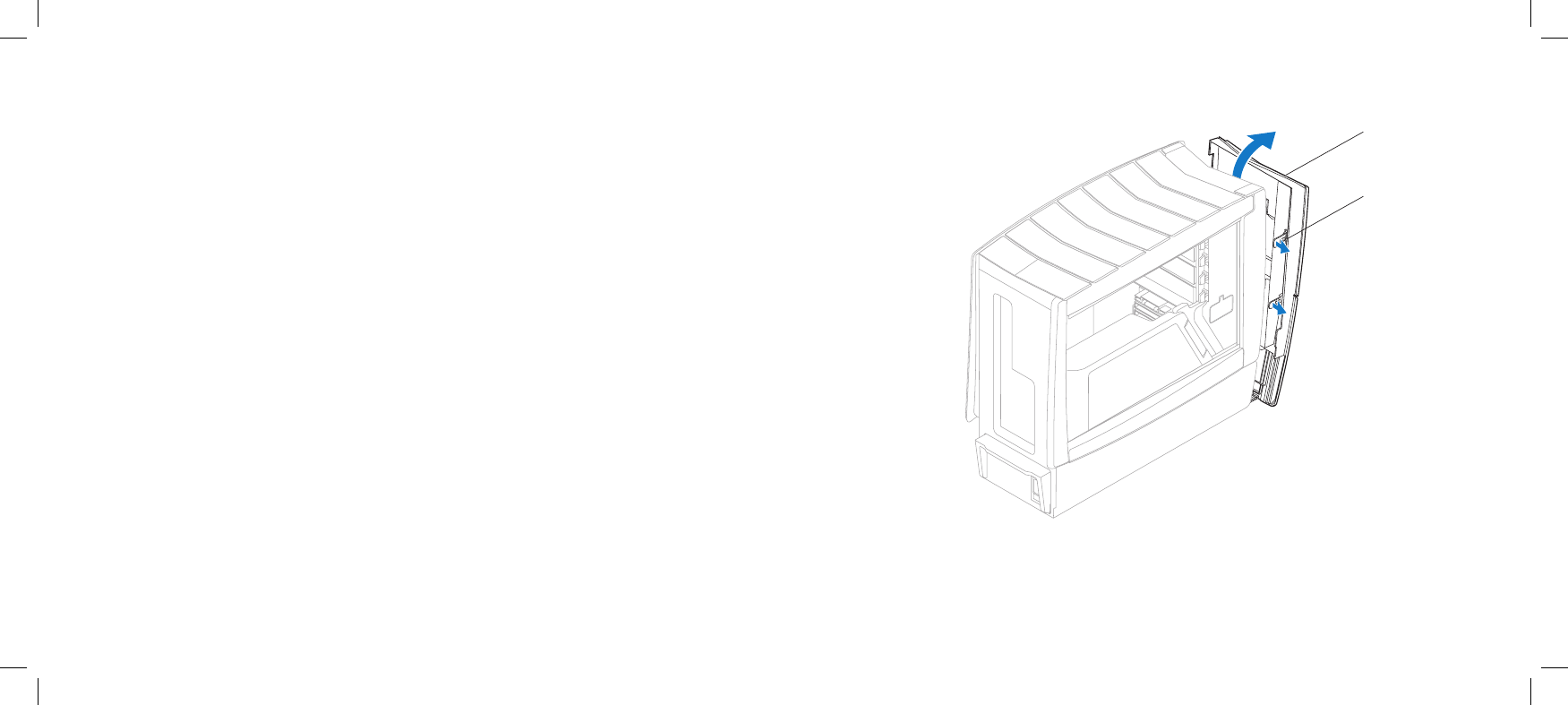
1 front bezel 2 front-bezel clamps (6)
Removing the Front Bezel
Follow the instructions in “Before You Begin” on page 1. 6.
Remove the left side-panel (see “Removing the Left Side-Panel” on page 2. 15).
Remove the right side-panel (see “Removing the Right Side-Panel” on 3.
page 16).
Disconnect the front-bezel cables from the master I/O board connectors.4.
Release the front-bezel clamps that secure the front bezel to the chassis.5.
Pull the front bezel away from the front of the computer.6.
Replacing the Front Bezel
Follow the instructions in “Before You Begin” on page 1. 6.
Align the front-bezel clamps with the front-bezel clamp inserts on the 2.
chassis.
Push the front bezel towards the computer until the front-bezel clamps 3.
snap into place.
Connect the front-bezel cables to the master I/O board connectors.4.
Replace the right side-panel (see “Replacing the Right Side-Panel” on 5.
page 16).
Replace the left side-panel (see “Replacing the Left Side-Panel” on page 6. 15).
Connect your computer and devices to electrical outlets, and then turn 7.
them on.

CHAPTER 9: FANS
047 047
/
CHAPTER 9: FANS
CHAPTER 9: FANS
048 048
/
CHAPTER 9: FANS
Fans
WARNING: Before working inside your computer, read the safety
information that shipped with your computer. For additional safety best
practices information, see the Regulatory Compliance Homepage at
www.dell.com/regulatory_compliance.
WARNING: To guard against likelihood of electric shock, laceration by
moving fan blades or other unexpected injuries, always unplug your
computer from the electrical outlet before opening the side panel(s).
WARNING: Do not operate your equipment with any cover(s) (including
side panels, bezels, ller brackets, front-panel inserts, etc.) removed.
CAUTION: Only a certied service technician should perform repairs on
your computer. Damage due to servicing that is not authorized by Dell™
is not covered by your warranty.
CAUTION: To avoid electrostatic discharge, ground yourself by using a
wrist grounding strap or by periodically touching an unpainted metal
surface (such as a connector on the back of the computer).
049 049
/
CHAPTER 9: FANS
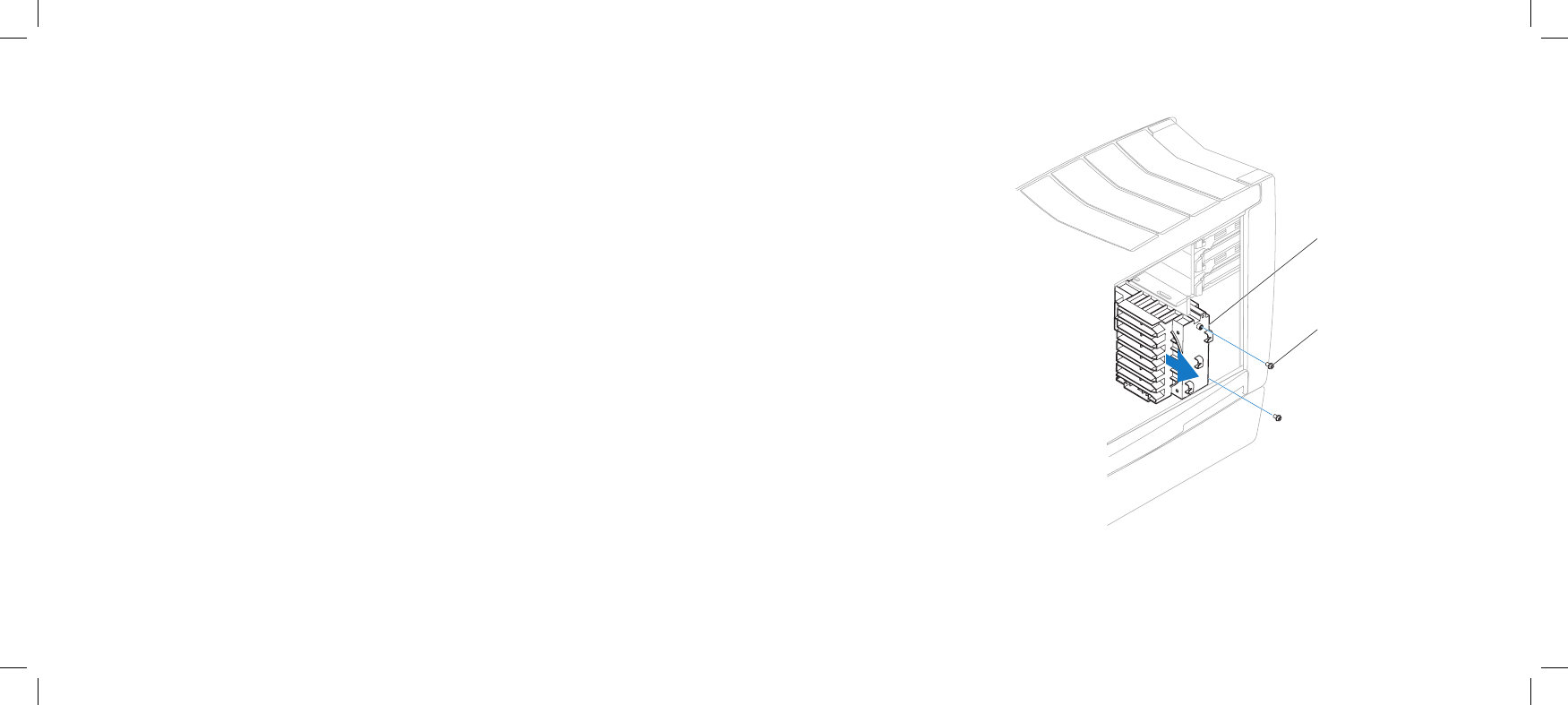
1
2
1 PCI-fan shroud 2 screws (2)
Removing the PCI Fan
Follow the instructions in “Before You Begin” on page 1. 6.
Remove the left side-panel (see “Removing the Left Side-Panel” on page 2. 15).
Remove the drive-bay shroud (see “Removing the Drive-Bay Shroud” on 3.
page 23).
Disconnect the PCI-fan cable from the PCI_FAN1 connector on the master 4.
I/O board (see “Master I/O Board Connectors” on page 12).
Remove the two screws that secure the PCI-fan shroud to the chassis.5.
Slide the PCI-fan shroud out of the chassis.6.
050 050
/
CHAPTER 9: FANS
Replacing the PCI Fan
Follow the instructions in “Before You Begin” on page 1. 6.
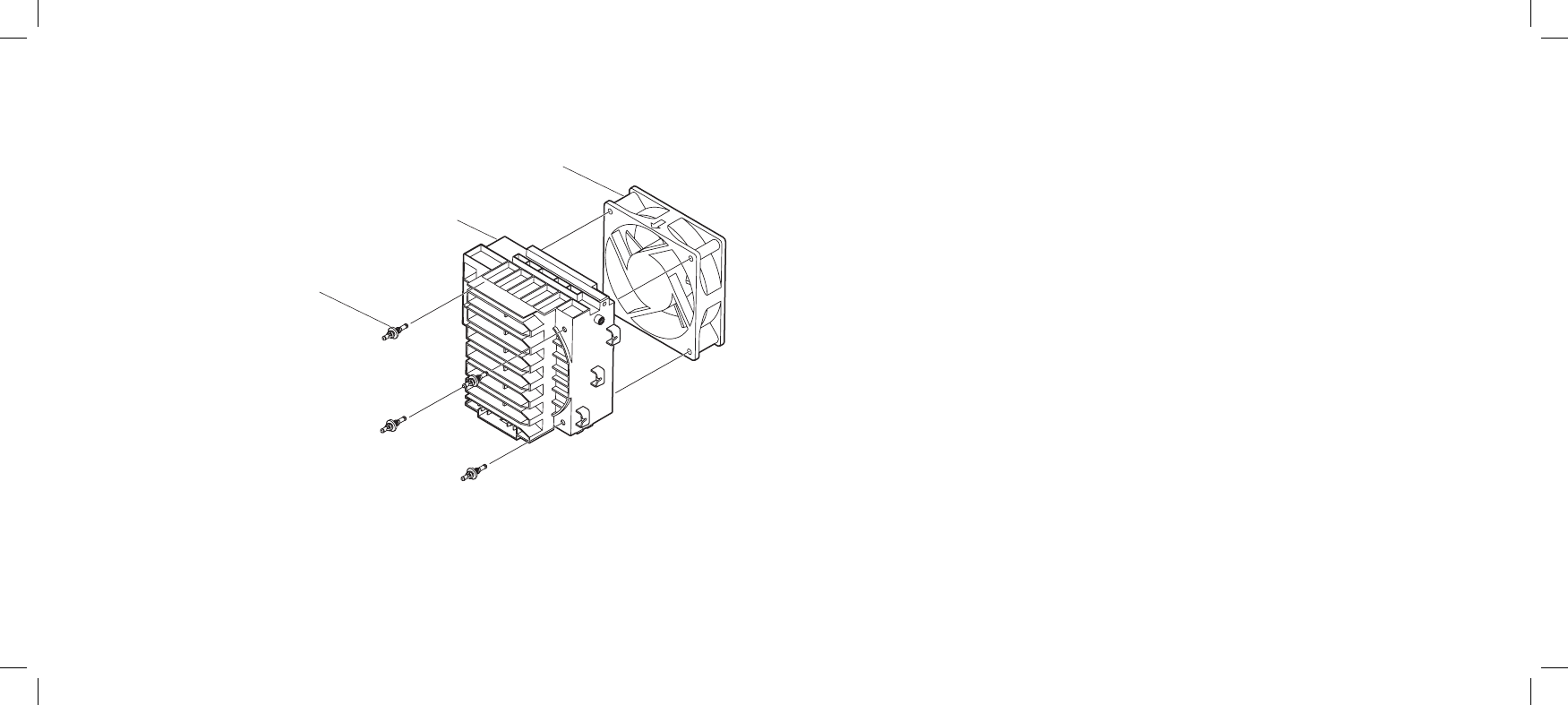
Orient the PCI-fan cable downward and replace the PCI fan in the PCI-fan 2.
shroud.
Align the rubber grommets with the openings in each corner of the PCI-fan 3.
shroud, and then pull the grommets through until they snap into place.
Slide the PCI-fan shroud into the chassis.4.
Replace the two screws that secure the PCI-fan shroud to the chassis.5.
Connect the PCI-fan cable to the PCI_FAN1 connector on the master I/O 6.
board (see “Master I/O Board Connectors” on page 12).
Replace the drive-bay shroud (see “Replacing the Drive-Bay Shroud” on 7.
page 23).
Replace the left side-panel (see “Replacing the Left Side-Panel” on page 8. 15).
Connect your computer and devices to electrical outlets, and then turn 9.
them on.
Pull to detach the four rubber grommets that secure the PCI fan to the 7.
PCI-fan shroud.
3
2
1
1 rubber grommets (4) 3 PCI fan
2 PCI-fan shroud
051 051
/
CHAPTER 9: FANS
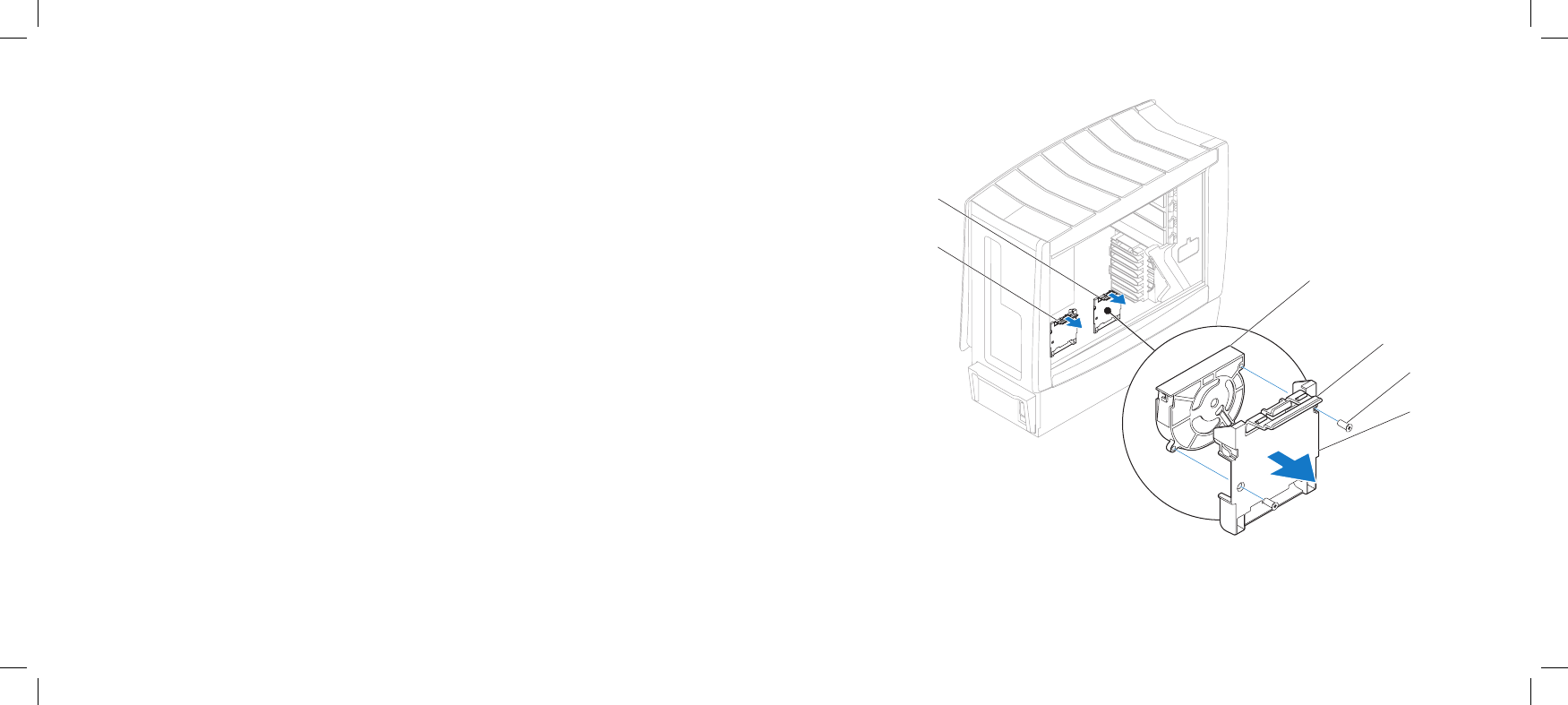
2
1
3
5
4
6
1 left hard-drive fan shroud 4 hard-drive fan shroud handle
2 right hard-drive fan shroud 5 screws (2)
3 hard-drive fan 6 hard-drive fan shroud
Removing the Hard-Drive Fan(s)
Follow the instructions in “Before You Begin” on page 1. 6.
Remove the left side-panel (see “Removing the Left Side-Panel” on page 2. 15).
Remove the PCI shroud (see “Removing the PCI Shroud“ on page 3. 22).
If you are removing the left hard-drive fan, remove the power supply (see 4.
“Removing the Power Supply” on page 85).
Disconnect the hard-drive fan cables from the HDD_FAN1 and HDD_FAN2 5.
connectors on the master I/O board (see “Master I/O Board Connectors” on
page 12).
Press the hard-drive fan shroud handle down and pull the hard-drive fan out 6.
of the chassis.
Remove the two screws that secure the hard-drive fan to the hard-drive fan 7.
shroud.
Remove the hard-drive fan from the hard-drive fan shroud.8.

052 052
/
CHAPTER 9: FANS
Replacing the Hard-Drive Fan(s)
Follow the instructions in “Before You Begin” on page 1. 6.
Replace the hard-drive fan in the hard-drive fan shroud.2.
Replace the two screws that secure the hard-drive fan to the hard-drive fan 3.
shroud.
Push the hard-drive fan into the chassis until the hard-drive fan handle 4.
clicks into place.
Connect the hard-drive fan cables to the HDD_FAN1 and HDD_FAN2 5.
connectors on the master I/O board (see “Master I/O Board Connectors” on
page 12).
If you removed the power supply, replace it (see “Replacing the Power 6.
Supply“ on page 86).
Replace the PCI shroud (see “Replacing the PCI Shroud” on page 7. 22).
Replace the left side-panel (see “Replacing the Left Side-Panel” on page 8. 15).
Connect your computer and devices to electrical outlets, and then turn 9.
them on.

CHAPTER 10: ACTIVE-VENTING ASSEMBLY
053 053
/
CHAPTER 10: ACTIVE-VENTING ASSEMBLY
CHAPTER 10: ACTIVE-VENTING ASSEMBLY
054 054
/
CHAPTER 10: ACTIVE-VENTING ASSEMBLY
Active-Venting Assembly
WARNING: Before working inside your computer, read the safety
information that shipped with your computer. For additional safety best
practices information, see the Regulatory Compliance Homepage at
www.dell.com/regulatory_compliance.
WARNING: To guard against electrical shock, always unplug your
computer from the electrical outlet before opening the side panel(s).
WARNING: Do not operate your equipment with any cover(s) (including
side panels, bezels, ller brackets, front-panel inserts, etc.) removed.
CAUTION: Only a certied service technician should perform repairs on
your computer. Damage due to servicing that is not authorized by Dell™
is not covered by your warranty.
CAUTION: To avoid electrostatic discharge, ground yourself by using a
wrist grounding strap or by periodically touching an unpainted metal
surface (such as a connector on the back of the computer).
055 055
/
CHAPTER 10: ACTIVE-VENTING ASSEMBLY
Removing the Active-Venting Assembly
Follow the instructions in “Before You Begin” on page 1. 6.
Remove the left side-panel (see “Removing the Left Side-Panel” on page 2. 15).
Remove the right side-panel (see “Removing the Right Side-Panel” on 3.
page 16).
Disconnect the active-venting assembly cables from the connectors on the 4.
master I/O board.
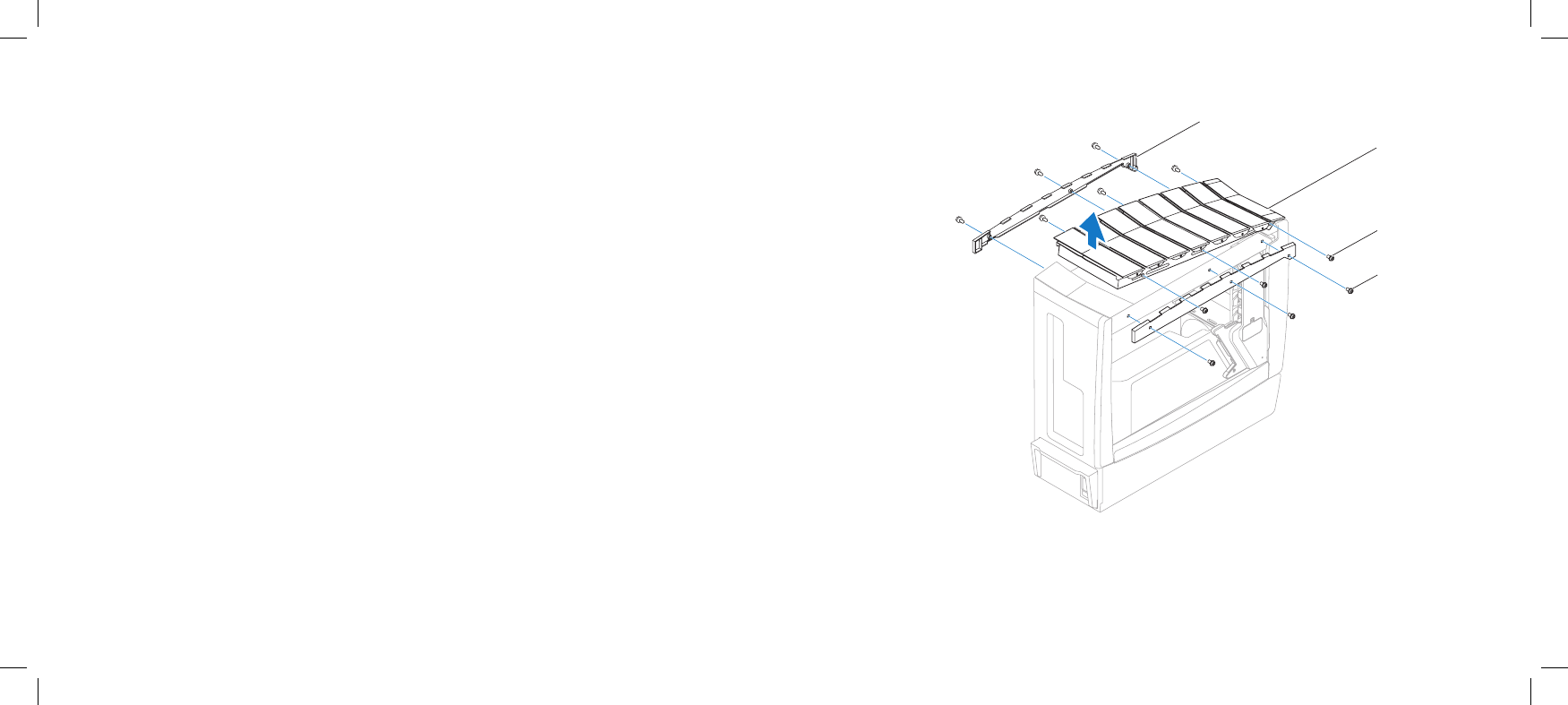
Remove the six screws (three on each side) that secure the active-venting 5.
panels to the active-venting assembly.
Remove the active-venting panels.6.
Remove the six screws (three on each side) that secure the active-venting 7.
assembly to the chassis.
Pivot the back of the active-venting assembly upwards and lift it o the 8.
chassis.
2
1
3
4
1 active-venting panels (2) 3 active-venting assembly screws (6)
2 active-venting assembly 4 active-venting panel screws (6)
056 056
/
CHAPTER 10: ACTIVE-VENTING ASSEMBLY
Replacing the Active-Venting Assembly
Follow the instructions in “Before You Begin” on page 1. 6.
Replace the active-venting assembly on the chassis.2.
Replace the six screws (three on each side) that secure the active-venting 3.
assembly to the chassis.
Replace the active-venting panels.4.
Replace the six screws (three on each side) that secure the active-venting 5.
panels to the active-venting assembly.
Connect the active-venting cables to the connectors on the master 6.
I/O board.
Replace the right side-panel (see “Replacing the Right Side-Panel” on 7.
page 16).
Replace the left side-panel (see “Replacing the Left Side-Panel” on page 8. 15).
CAUTION: Before turning on the computer, replace all screws and ensure
that no stray screws remain inside the computer. Failure to do so may
result in damage to the computer.
Connect your computer and devices to electrical outlets, and then turn 9.
them on.

CHAPTER 11: TOP I/O PANEL
057 057
/
CHAPTER 11: TOP I/O PANEL
CHAPTER 11: TOP I/O PANEL
058 058
/
CHAPTER 11: TOP I/O PANEL
Top I/O Panel
WARNING: Before working inside your computer, read the safety
information that shipped with your computer. For additional safety best
practices information, see the Regulatory Compliance Homepage at
www.dell.com/regulatory_compliance.
WARNING: To guard against electrical shock, always unplug your
computer from the electrical outlet before opening the side panel(s).
WARNING: Do not operate your equipment with any cover(s) (including
side panels, bezels, ller brackets, front-panel inserts, etc.) removed.
CAUTION: Only a certied service technician should perform repairs on
your computer. Damage due to servicing that is not authorized by Dell™
is not covered by your warranty.
CAUTION: To avoid electrostatic discharge, ground yourself by using a
wrist grounding strap or by periodically touching an unpainted metal
surface (such as a connector on the back of the computer).
059 059
/
CHAPTER 11: TOP I/O PANEL
Removing the Top I/O Panel
Follow the instructions in “Before You Begin” on page 1. 6.
Remove the left side-panel (see “Removing the Left Side-Panel” on page 2. 15).
Remove the right side-panel (see “Removing the Right Side-Panel” on 3.
page 16).
Remove the front bezel (see “Removing the Front Bezel” on page 4. 46).
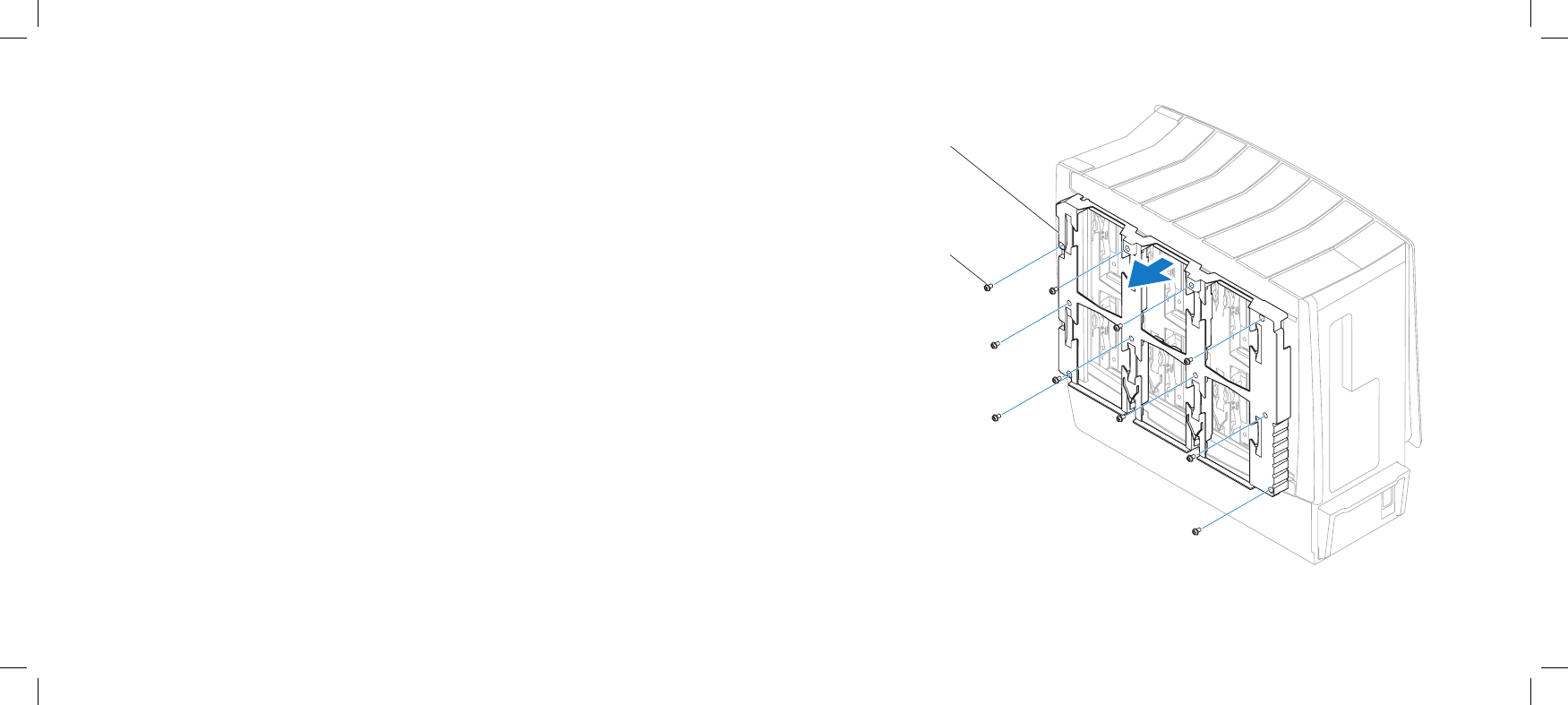
Remove the ten screws that secure the hard-drive shroud to the chassis.5.
Pull to remove the hard-drive shroud o the chassis.6.
2
1
1 hard-drive shroud 2 screws (10)
060 060
/
CHAPTER 11: TOP I/O PANEL
1
2
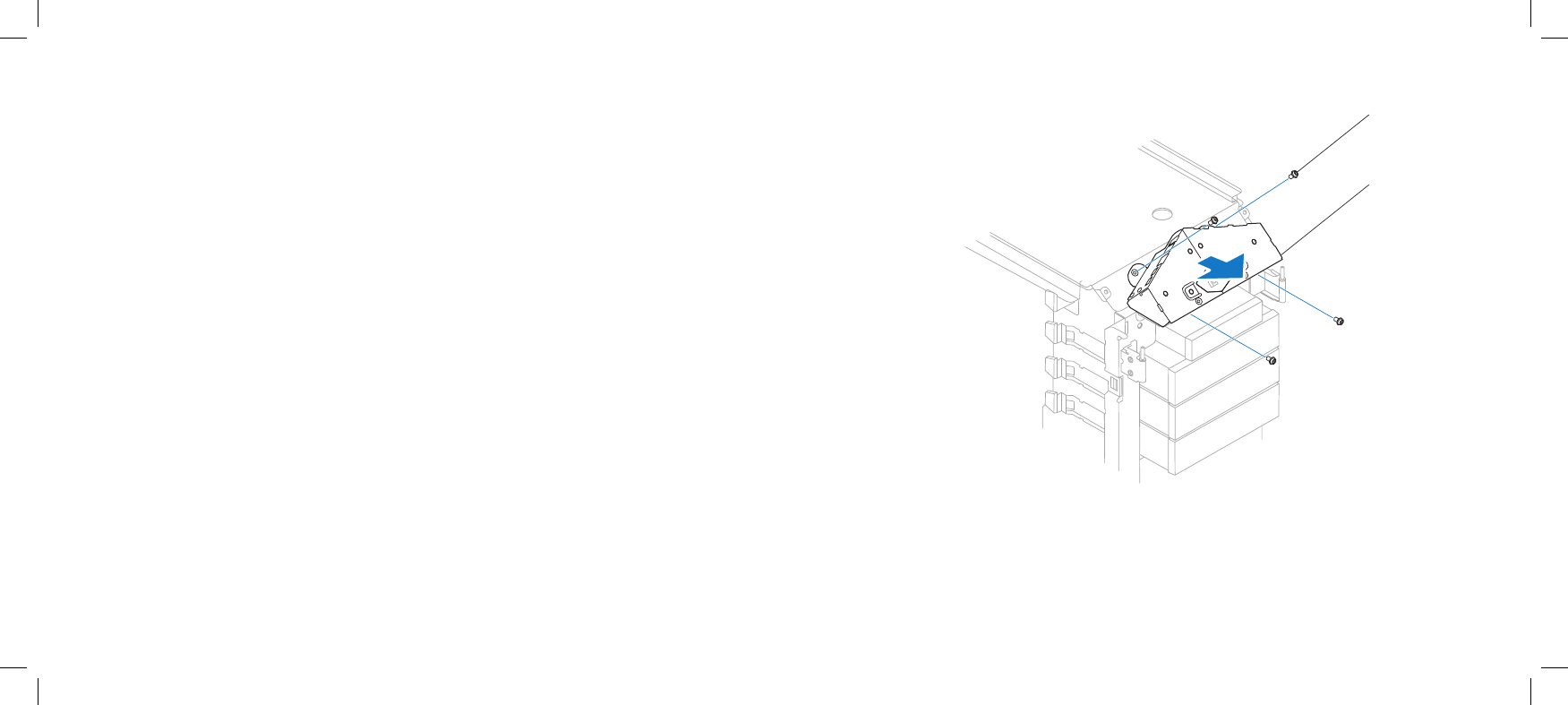
1 screws (4) 2 top I/O panel
Remove the active-venting assembly (see “Removing the Active-Venting 7.
Assembly” on page 55).
Disconnect the top I/O panel cables from the system board connectors and 8.
remove the cables from their routing guides.
Remove the four screws that secure the top I/O panel to the chassis.9.
Pull the top I/O panel o the chassis.10.

061 061
/
CHAPTER 11: TOP I/O PANEL
Replacing the Top I/O Panel
Follow the instructions in “Before You Begin” on page 1. 6.
Replace the top I/O panel on the chassis.2.
Replace the four screws that secure the top I/O panel to the chassis.3.
Route the top I/O panel cables through their routing guides and connect the 4.
cables to the system board connectors.
Replace the active-venting assembly (see “Replacing the Active-Venting 5.
Assembly” on page 56).
Replace the hard-drive shroud on the chassis.6.
Replace the ten screws that secure the hard-drive shroud to the chassis.7.
Replace the front bezel (see “Replacing the Front Bezel” on page 8. 46).
Replace the right side-panel (see “Replacing the Right Side-Panel” on 9.
page 16).
Replace the left side-panel (see “Replacing the Left Side-Panel” on page 10. 15).
Connect your computer and devices to electrical outlets, and then turn 11.
them on.

CHAPTER 12: BLUETOOTH MODULE
062 062
/
CHAPTER 12: BLUETOOTH MODULE
CHAPTER 12: BLUETOOTH MODULE
063 063
/
CHAPTER 12: BLUETOOTH MODULE
Bluetooth Module
WARNING: Before working inside your computer, read the safety
information that shipped with your computer. For additional safety best
practices information, see the Regulatory Compliance Homepage at
www.dell.com/regulatory_compliance.
WARNING: To guard against electrical shock, always unplug your
computer from the electrical outlet before opening the side panel(s).
WARNING: Do not operate your equipment with any cover(s) (including
side panels, bezels, ller brackets, front-panel inserts, etc.) removed.
CAUTION: Only a certied service technician should perform repairs on
your computer. Damage due to servicing that is not authorized by Dell™
is not covered by your warranty.
CAUTION: To avoid electrostatic discharge, ground yourself by using a
wrist grounding strap or by periodically touching an unpainted metal
surface (such as a connector on the back of the computer).
064 064
/
CHAPTER 12: BLUETOOTH MODULE
2
1
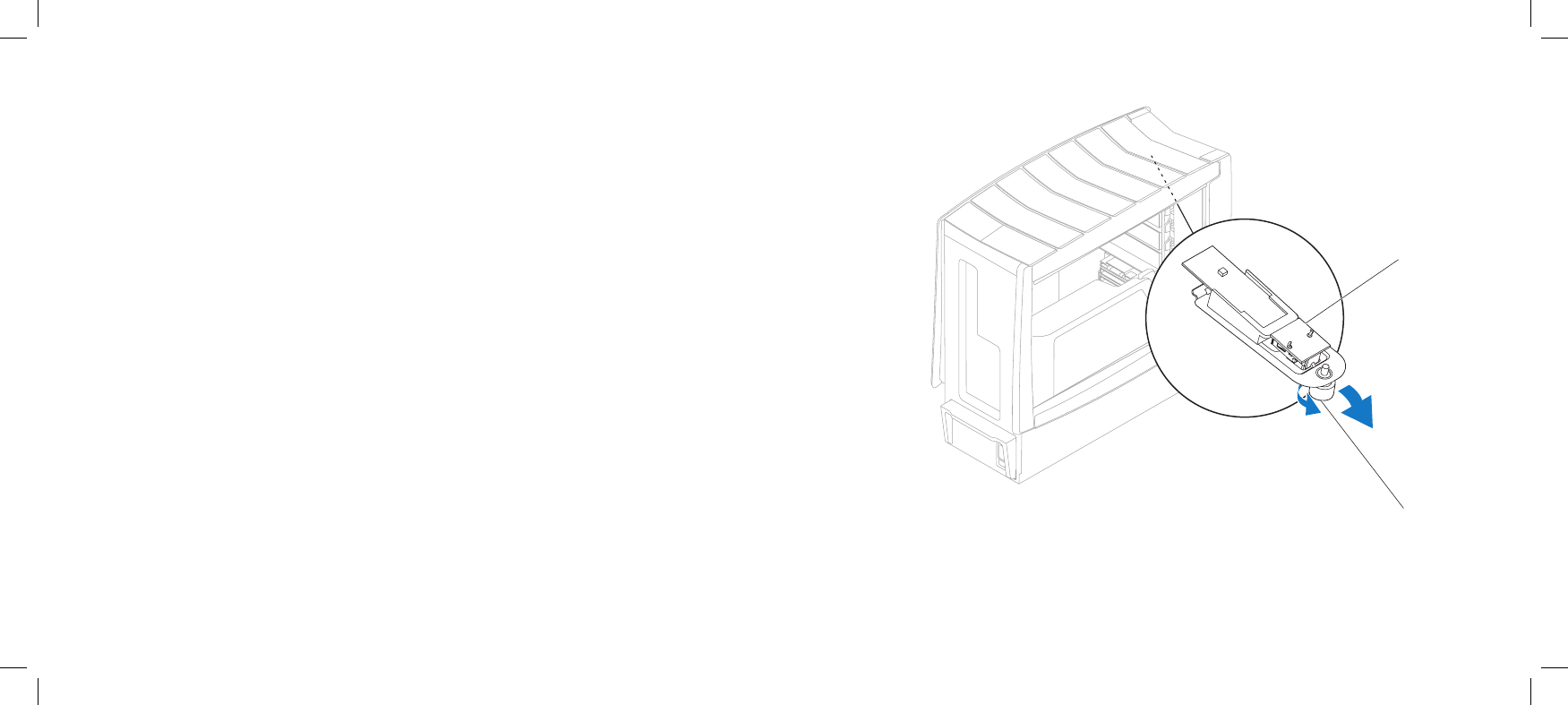
1 Bluetooth module 2 thumbscrew
Removing the Bluetooth Module
Follow the instructions in “Before You Begin” on page 1. 6.
Remove the left side-panel (see “Removing the Left Side-Panel” on page 2. 15).
Disconnect the Bluetooth3. ®-module cable from the BLUETOOTH connector
on the master I/O board (see “Master I/O Board Connectors” on page 12).
Loosen the thumbscrew that secures the Bluetooth module to the chassis.4.
Remove the Bluetooth module from the chassis.5.

065 065
/
CHAPTER 12: BLUETOOTH MODULE
Replacing the Bluetooth Module
Follow the instructions in “Before You Begin” on page 1. 6.
Replace the Bluetooth module in the chassis. 2.
Tighten the thumbscrew that secures the Bluetooth module to the chassis.3.
Connect the Bluetooth-module cable to the BLUETOOTH connector on the 4.
master I/O board (see “Master I/O Board Connectors” on page 12).
Replace the left side-panel (see “Replacing the Left Side-Panel” on page 5. 15).
Connect your computer and devices to electrical outlets, and then turn 6.
them on.

CHAPTER 13: LIQUID-COOLING ASSEMBLY
066 066
/
CHAPTER 13: LIQUID-COOLING ASSEMBLY
CHAPTER 13: LIQUID-COOLING ASSEMBLY
067 067
/
CHAPTER 13: LIQUID-COOLING ASSEMBLY
Liquid-Cooling Assembly
WARNING: Before working inside your computer, read the safety
information that shipped with your computer. For additional safety best
practices information, see the Regulatory Compliance Homepage at
www.dell.com/regulatory_compliance.
WARNING: To guard against electrical shock, always unplug your
computer from the electrical outlet before opening the side panel(s).
WARNING: Do not operate your equipment with any cover(s) (including
side panels, bezels, ller brackets, front-panel inserts, etc.) removed.
CAUTION: Only a certied service technician should perform repairs on
your computer. Damage due to servicing that is not authorized by Dell™
is not covered by your warranty.
CAUTION: To avoid electrostatic discharge, ground yourself by using a
wrist grounding strap or by periodically touching an unpainted metal
surface (such as a connector on the back of the computer).
068 068
/
CHAPTER 13: LIQUID-COOLING ASSEMBLY
1
2
3
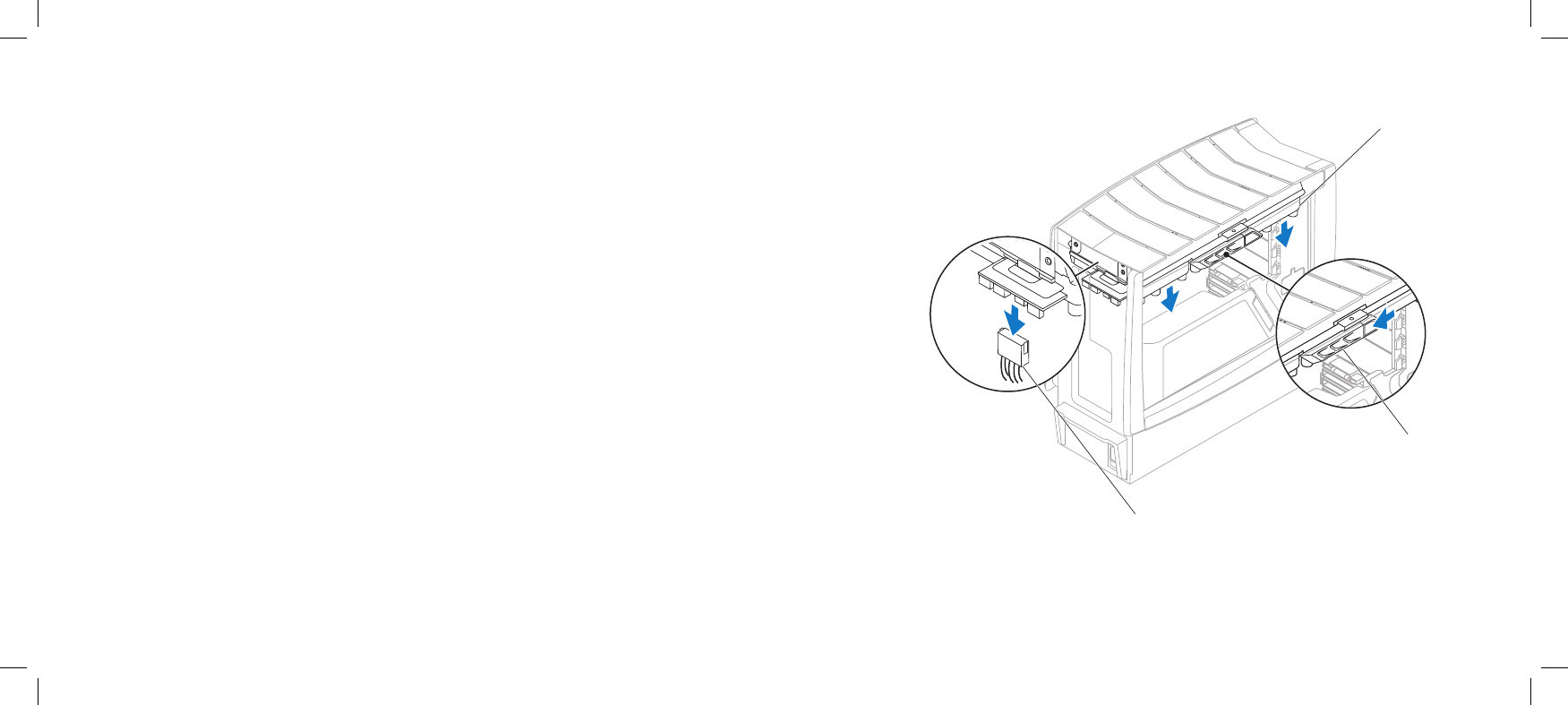
1 liquid-cooling assembly cable 3 liquid-cooling assembly
2 release latch
Removing the Liquid-Cooling Assembly
Follow the instructions in “Before You Begin” on page 1. 6.
Remove the left side-panel (see “Removing the Left Side-Panel” on page 2. 15).
Disconnect the liquid-cooling assembly cable from the liquid-cooling 3.
assembly.
Push the release latch towards the back of the computer to release the 4.
liquid-cooling assembly from the chassis.
Rotate the liquid-cooling assembly down and pull it away from the chassis.5.

069 069
/
CHAPTER 13: LIQUID-COOLING ASSEMBLY
Replacing the Liquid-Cooling Assembly
Follow the instructions in “Before You Begin” on page 1. 6.
Replace the liquid-cooling assembly in the chassis and rotate the 2.
liquid-cooling assembly upwards until it snaps into place.
Connect the liquid-cooling assembly cable to the liquid-cooling assembly.3.
Replace the left side-panel (see “Replacing the Left Side-Panel” on page 4. 15).
Connect your computer and devices to electrical outlets, and then turn 5.
them on.

CHAPTER 14: PROCESSOR
070 070
/
CHAPTER 14: PROCESSOR
CHAPTER 14: PROCESSOR
071 071
/
CHAPTER 14: PROCESSOR
Processor
WARNING: Before working inside your computer, read the safety
information that shipped with your computer. For additional safety best
practices information, see the Regulatory Compliance Homepage at
www.dell.com/regulatory_compliance.
WARNING: To guard against electrical shock, always unplug your
computer from the electrical outlet before opening the side panel(s).
WARNING: Do not operate your equipment with any cover(s) (including
side panels, bezels, ller brackets, front-panel inserts, etc.) removed.
CAUTION: Only a certied service technician should perform repairs on
your computer. Damage due to servicing that is not authorized by Dell™
is not covered by your warranty.
CAUTION: To avoid electrostatic discharge, ground yourself by using a
wrist grounding strap or by periodically touching an unpainted metal
surface (such as a connector on the back of the computer).
072 072
/
CHAPTER 14: PROCESSOR
2
1
3
4
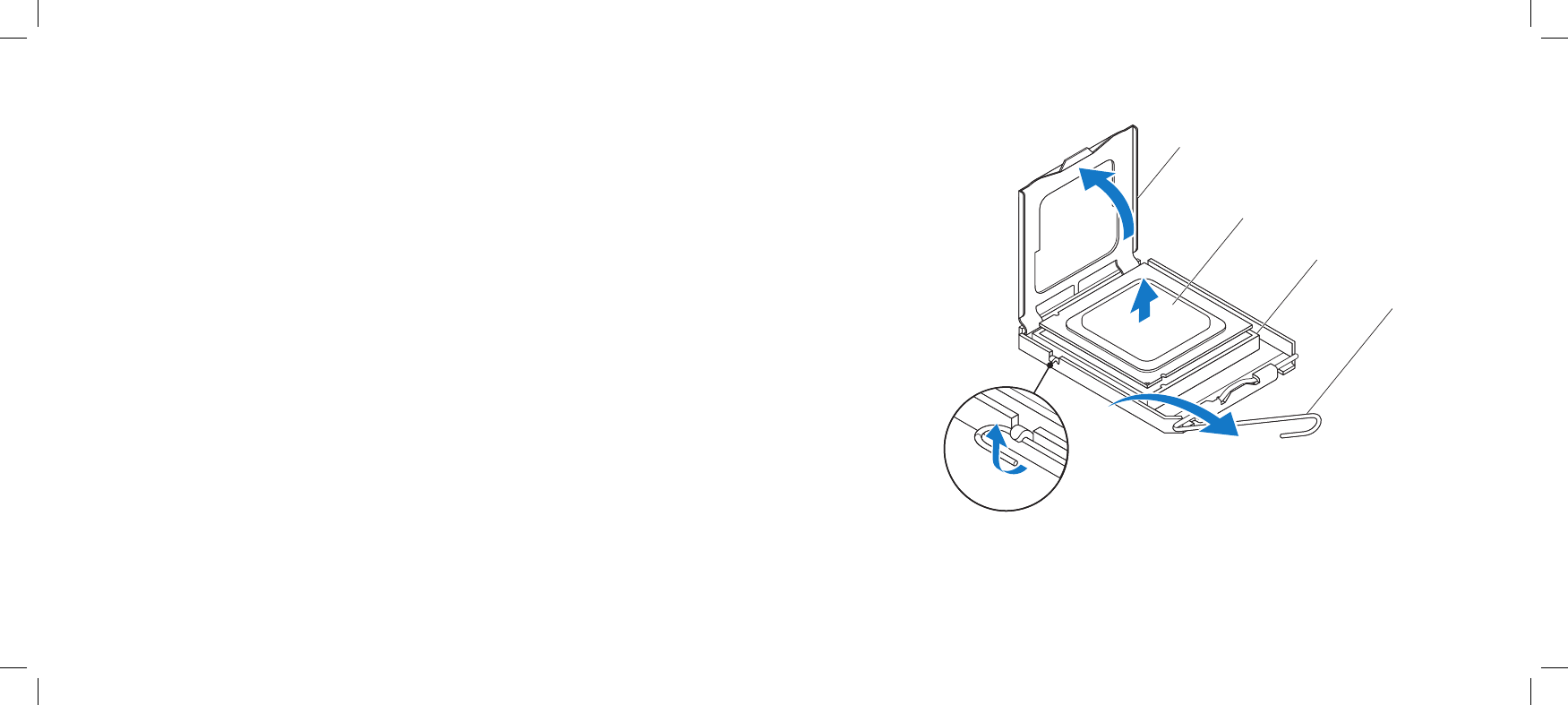
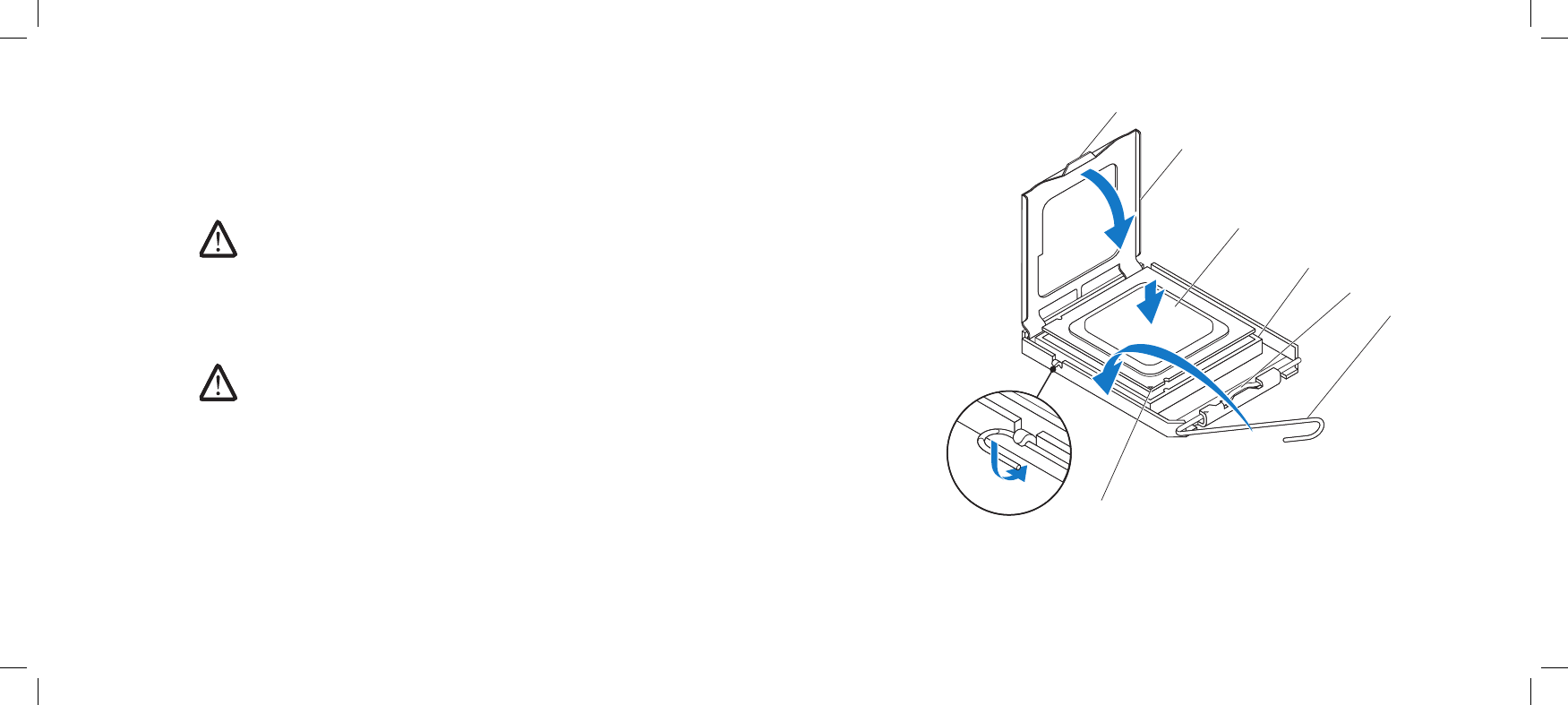
1 processor cover 3 socket
2 processor 4 release lever
Removing the Processor
Follow the instructions in “Before You Begin” on page 1. 6.
Remove the left side-panel (see “Removing the Left Side-Panel” on page 2. 15).
Remove the PCI shroud (see “Removing the PCI Shroud“ on page 3. 22).
Remove the liquid-cooling assembly (see “Removing the Liquid-Cooling 4.
Assembly” on page 68).
Press and push the release lever down and out to release it from the tab 5.
that secures it.
Open the processor cover and gently lift the processor to remove it from the 6.
socket.
073 073
/
CHAPTER 14: PROCESSOR
3
2
4
6
1
5
7
1 tab 4 socket 7 processor pin-1 indicator
2 processor cover 5 center cover latch
3 processor 6 release lever
Replacing the Processor
Follow the instructions in “Before You Begin” on page 1. 6.
Unpack the new processor, being careful not to touch the underside of the 2.
processor.
CAUTION: You must position the processor correctly in the socket to
avoid permanent damage to the processor and the computer when you
turn on the computer.
If the release lever on the socket is not fully extended, move it to that 3.
position.
Align the pin-1 corners of the processor and socket. 4.
CAUTION: To avoid damage, ensure that the processor aligns properly
with the socket, and do not use excessive force when you install the
processor.
Set the processor lightly in the socket and ensure that the processor is 5.
positioned correctly.
When the processor is fully seated in the socket, close the processor cover. 6.
Ensure that the tab on the processor cover is positioned underneath the
center cover latch on the socket.
Pivot the socket release lever back toward the socket, and snap it into place 7.
to secure the processor.
074 074
/
CHAPTER 14: PROCESSOR
CAUTION: Ensure that you apply new thermal grease. New thermal
grease is critical for ensuring adequate thermal bonding, which is a
requirement for optimal processor operation.
Apply the new thermal grease to the top of the processor.8.
Replace the liquid-cooling assembly (see “Replacing the Liquid-Cooling 9.
Assembly” on page 69).
Replace the PCI shroud (see “Replacing the PCI Shroud” on page 10. 22).
Replace the left side-panel (see “Replacing the Left Side-Panel” on page 11. 15).
Connect your computer and devices to electrical outlets, and then turn 12.
them on.

CHAPTER 15: MASTER I/O BOARD
075 075
/
CHAPTER 15: MASTER I/O BOARD
CHAPTER 15: MASTER I/O BOARD
076 076
/
CHAPTER 15: MASTER I/O BOARD
Master I/O Board
WARNING: Before working inside your computer, read the safety
information that shipped with your computer. For additional safety best
practices information, see the Regulatory Compliance Homepage at
www.dell.com/regulatory_compliance.
WARNING: To guard against electrical shock, always unplug your
computer from the electrical outlet before opening the side panel(s).
WARNING: Do not operate your equipment with any cover(s) (including
side panels, bezels, ller brackets, front-panel inserts, etc.) removed.
CAUTION: Only a certied service technician should perform repairs on
your computer. Damage due to servicing that is not authorized by Dell™
is not covered by your warranty.
CAUTION: To avoid electrostatic discharge, ground yourself by using a
wrist grounding strap or by periodically touching an unpainted metal
surface (such as a connector on the back of the computer).
077 077
/
CHAPTER 15: MASTER I/O BOARD
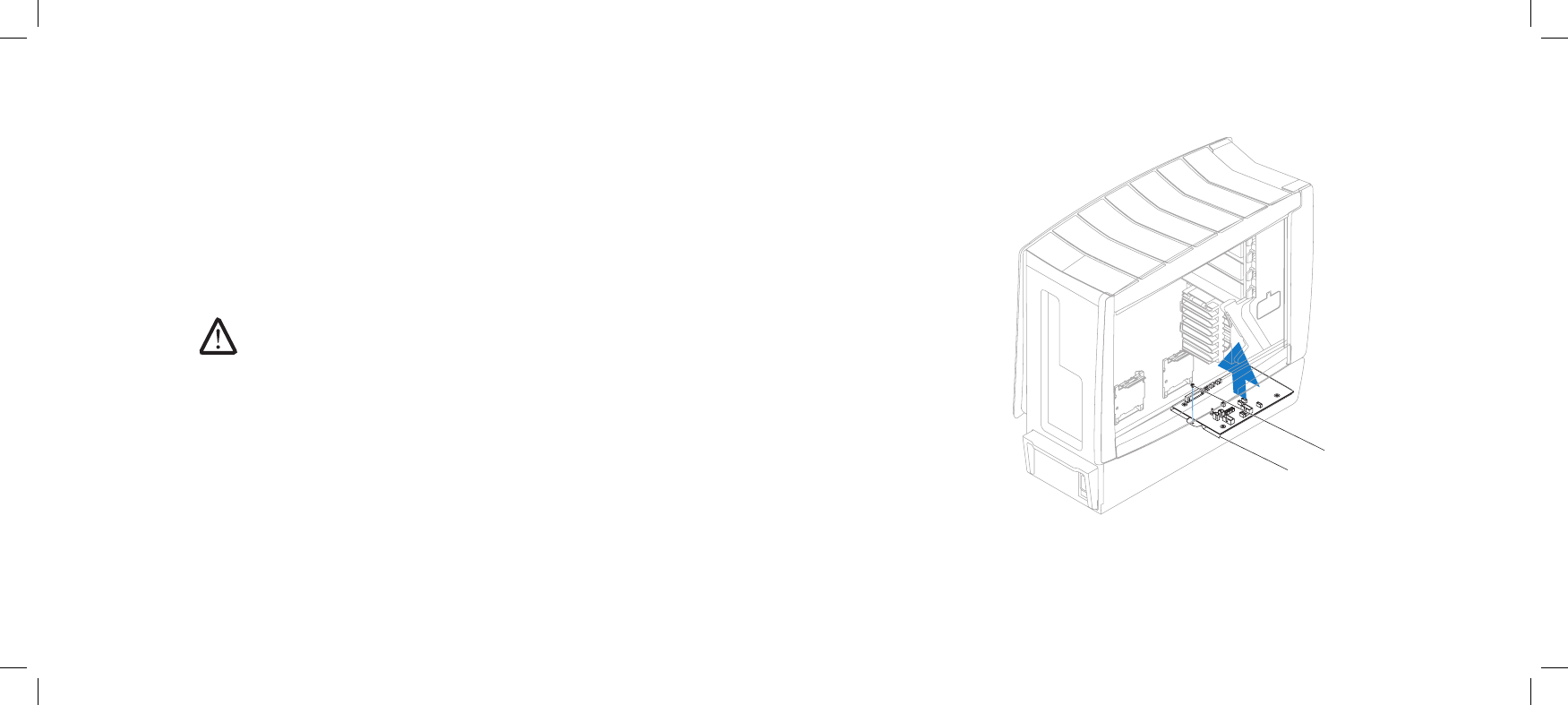
2
1
1 master I/O board tray 2 screw
Removing the Master I/O Board
Follow the instructions in “Before You Begin” on page 1. 6.
Remove the left side-panel (see “Removing the Left Side-Panel” on page 2. 15).
Remove the PCI shroud (see “Removing the PCI Shroud“ on page 3. 22).
Disconnect all cables from the master I/O board. Note the routing of all 4.
cables as you remove them so that you can re-route them correctly after
installing the new master I/O board.
Remove the screw that secures the master I/O board tray to the chassis.5.
Lift the master I/O board tray up and out of the chassis.6.
NOTE: Do not remove the master I/O board from the master I/O board
tray. e master I/O board tray is shipped together with the replacement
master I/O board.
078 078
/
CHAPTER 15: MASTER I/O BOARD
Replacing the Master I/O Board
Follow the instructions in “Before You Begin” on page 1. 6.
Replace the master I/O board tray in the chassis.2.
Replace the screw that secures the master I/O board tray to the chassis.3.
Route and connect the cables that you removed from the master I/O board.4.
Replace the PCI shroud (see “Replacing the PCI Shroud” on page 5. 22).
Replace the left side-panel (see “Replacing the Left Side-Panel” on page 6. 15).
CAUTION: Before turning on the computer, replace all screws and ensure
that no stray screws remain inside the computer. Failure to do so may
result in damage to the computer.
Connect your computer and devices to electrical outlets, and then turn 7.
them on.

CHAPTER 16: SYSTEM BOARD
079 079
/
CHAPTER 16: SYSTEM BOARD
CHAPTER 16: SYSTEM BOARD
080 080
/
CHAPTER 16: SYSTEM BOARD
System Board
WARNING: Before working inside your computer, read the safety
information that shipped with your computer. For additional safety best
practices information, see the Regulatory Compliance Homepage at
www.dell.com/regulatory_compliance.
WARNING: To guard against electrical shock, always unplug your
computer from the electrical outlet before opening the side panel(s).
WARNING: Do not operate your equipment with any cover(s) (including
side panels, bezels, ller brackets, front-panel inserts, etc.) removed.
CAUTION: Only a certied service technician should perform repairs on
your computer. Damage due to servicing that is not authorized by Dell™
is not covered by your warranty.
CAUTION: Do not perform the following steps unless you are familiar with
hardware removal and replacement. Performing these steps incorrectly
could damage your system board. For information on contacting Dell,
see your
Desktop Manual
.
CAUTION: To avoid electrostatic discharge, ground yourself by using a
wrist grounding strap or by periodically touching an unpainted metal
surface (such as a connector on the back of the computer).
081 081
/
CHAPTER 16: SYSTEM BOARD
1
3
2
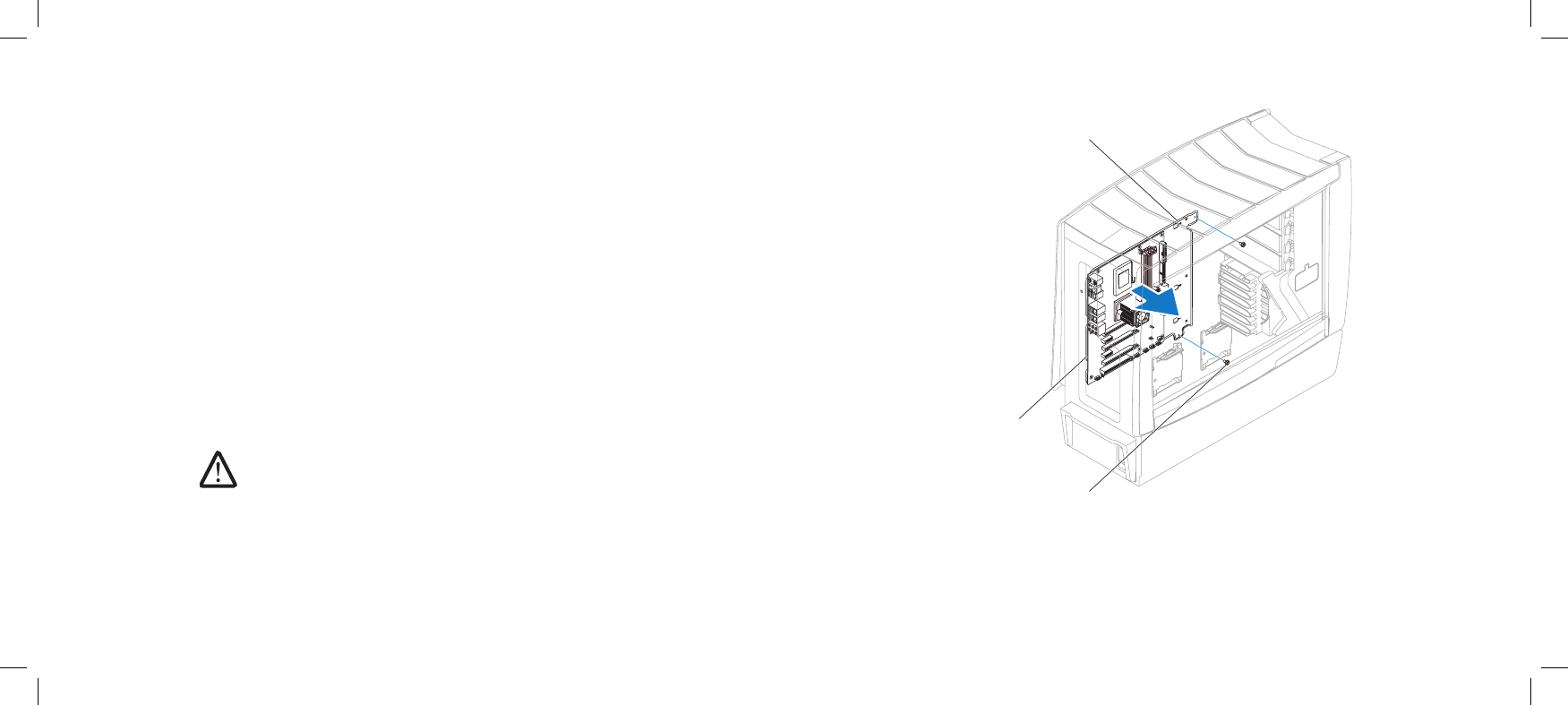
1 system-board tray 3 screws (2)
2 system board
Removing the System Board
Follow the instructions in “Before You Begin” on page 1. 6.
Remove the left side-panel (see “Removing the Left Side-Panel” on page 2. 15).
Remove the PCI shroud (see “Removing the PCI Shroud“ on page 3. 22).
Remove any add-on cards on the system board (see “Removing PCI and PCI 4.
Express Cards” on page 31).
Remove the memory modules (see “Removing Memory Module(s)” on 5.
page 26).
Remove the liquid-cooling assembly (see “Removing the Liquid-Cooling 6.
Assembly” on page 68).
Remove the processor (see “Removing the Processor” on page 7. 72).
Disconnect all cables from the system board. Note the routing of all cables 8.
as you remove them so that you can re-route them correctly after installing
the new system board.
Remove the two screws that secure the system-board tray to the chassis.9.
Carefully remove the system-board tray from the chassis.10.
NOTE: Do not remove the system board from the system-board tray. e
system-board tray is shipped together with the replacement system
board.
082 082
/
CHAPTER 16: SYSTEM BOARD
Replacing the System Board
Follow the instructions in “Before You Begin” on page 1. 6.
Replace the system-board tray in the chassis.2.
Replace the two screws that secure the system-board tray to the chassis.3.
Route and connect the cables that you removed from the system board.4.
Replace the processor (see “Replacing the Processor” on page 5. 73).
Replace the liquid-cooling assembly (see “Replacing the Liquid-Cooling 6.
Assembly” on page 69).
Replace the memory modules (see “Replacing Memory Module(s)” on 7.
page 27).
Replace any add-on cards on the system board (see “Replacing PCI and PCI 8.
Express Cards” on page 32).
Replace the PCI shroud (see “Replacing the PCI Shroud” on page 9. 22).
Replace the left side-panel (see “Replacing the Left Side-Panel” on page 10. 15).
CAUTION: Before turning on the computer, replace all screws and ensure
that no stray screws remain inside the computer. Failure to do so may
result in damage to the computer.
Connect your computer and devices to electrical outlets, and then turn 11.
them on.

CHAPTER 17: POWER SUPPLY
083 083
/
CHAPTER 17: POWER SUPPLY
CHAPTER 17: POWER SUPPLY
084 084
/
CHAPTER 17: POWER SUPPLY
Power Supply
WARNING: Before working inside your computer, read the safety
information that shipped with your computer. For additional safety best
practices information, see the Regulatory Compliance Homepage at
www.dell.com/regulatory_compliance.
WARNING: To guard against electrical shock, always unplug your
computer from the electrical outlet before opening the side panel(s).
WARNING: Do not operate your equipment with any cover(s) (including
side panels, bezels, ller brackets, front-panel inserts, etc.) removed.
CAUTION: Only a certied service technician should perform repairs on
your computer. Damage due to servicing that is not authorized by Dell™
is not covered by your warranty.
CAUTION: To avoid electrostatic discharge, ground yourself by using a
wrist grounding strap or by periodically touching an unpainted metal
surface (such as a connector on the back of the computer).
085 085
/
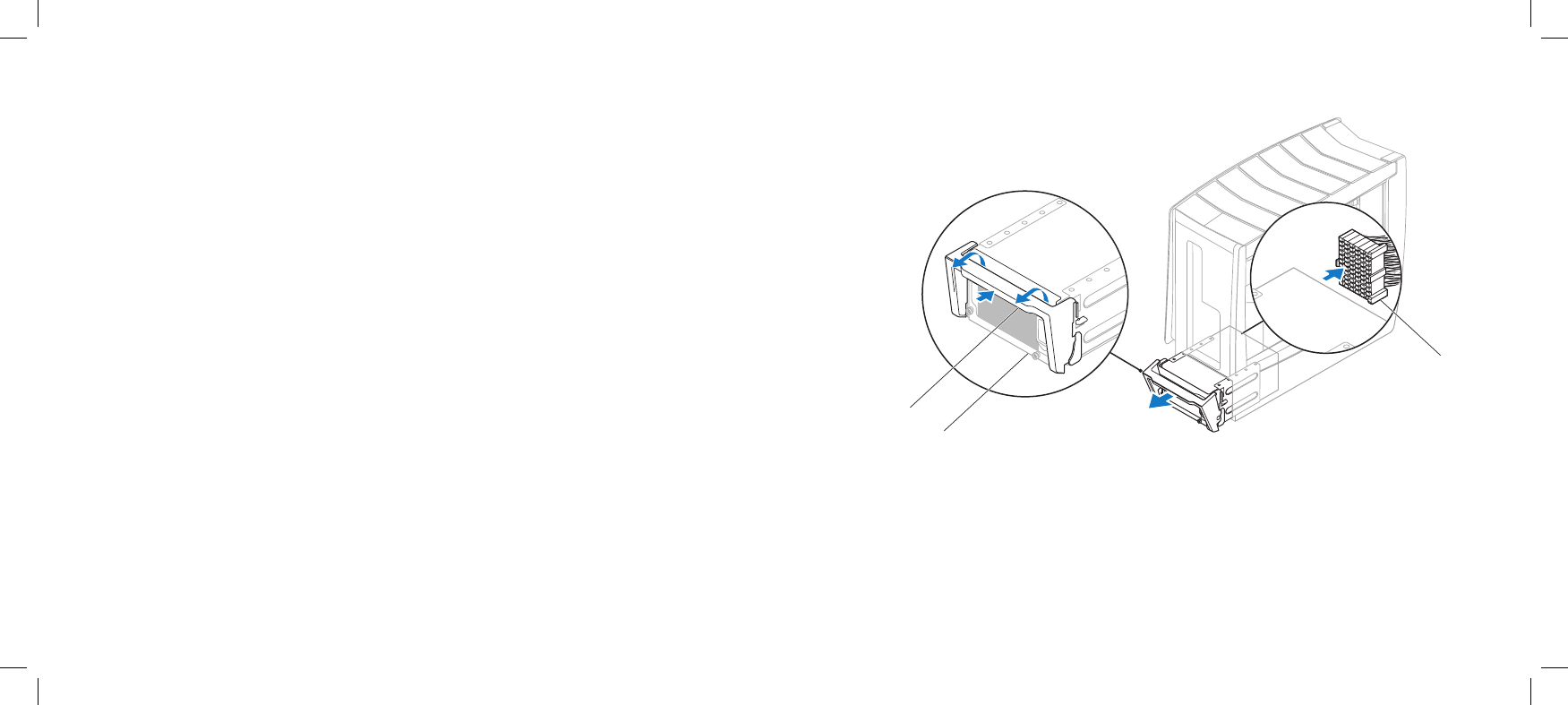
CHAPTER 17: POWER SUPPLY
3
2
1
1 power-supply handle 3 power-supply cable connector
2 power supply
Removing the Power Supply
Follow the instructions in “Before You Begin” on page 1. 6.
Remove the left side-panel (see “Removing the Left Side-Panel” on page 2. 15).
Remove the PCI shroud (see “Removing the PCI Shroud“ on page 3. 22).
Push the power-supply handle inwards to unlock it.4.
Using the power-supply handle, partially slide the power supply away from 5.
the computer to access the power-supply cable connector .
Disconnect the power-supply cable connector from the power supply.6.
Slide the power supply out of the chassis.7.

086 086
/
CHAPTER 17: POWER SUPPLY
Replacing the Power Supply
Follow the instructions in “Before You Begin” on page 1. 6.
Replace the power supply in the chassis and partially slide it towards the 2.
front of the computer.
Connect the power-supply cable connector to the power supply.3.
Slide the power supply completely into the chassis.4.
Push the power-supply handle inwards to lock it. 5.
Replace the PCI shroud (see “Replacing the PCI Shroud” on page 6. 22).
Replace the left side-panel (see “Replacing the Left Side-Panel” on page 7. 15).
Connect your computer and devices to electrical outlets, and then turn 8.
them on.

CHAPTER 18: BATTERY
087 087
/
CHAPTER 18: BATTERY
CHAPTER 18: BATTERY
088 088
/
CHAPTER 18: BATTERY
Battery
WARNING: Before working inside your computer, read the safety
information that shipped with your computer. For additional safety best
practices information, see the Regulatory Compliance Homepage at
www.dell.com/regulatory_compliance.
WARNING: A new battery can explode if it is incorrectly installed. Replace
the battery only with the same or equivalent type recommended by the
manufacturer. Discard used batteries according to the manufacturer’s
instructions.
WARNING: To guard against electrical shock, always unplug your
computer from the electrical outlet before opening the side panel(s).
WARNING: Do not operate your equipment with any cover(s) (including
side panels, bezels, ller brackets, front-panel inserts, etc.) removed.
CAUTION: Only a certied service technician should perform repairs on
your computer. Damage due to servicing that is not authorized by Dell™
is not covered by your warranty.
CAUTION: To avoid electrostatic discharge, ground yourself by using a
wrist grounding strap or by periodically touching an unpainted metal
surface (such as a connector on the back of the computer).
089 089
/
CHAPTER 18: BATTERY
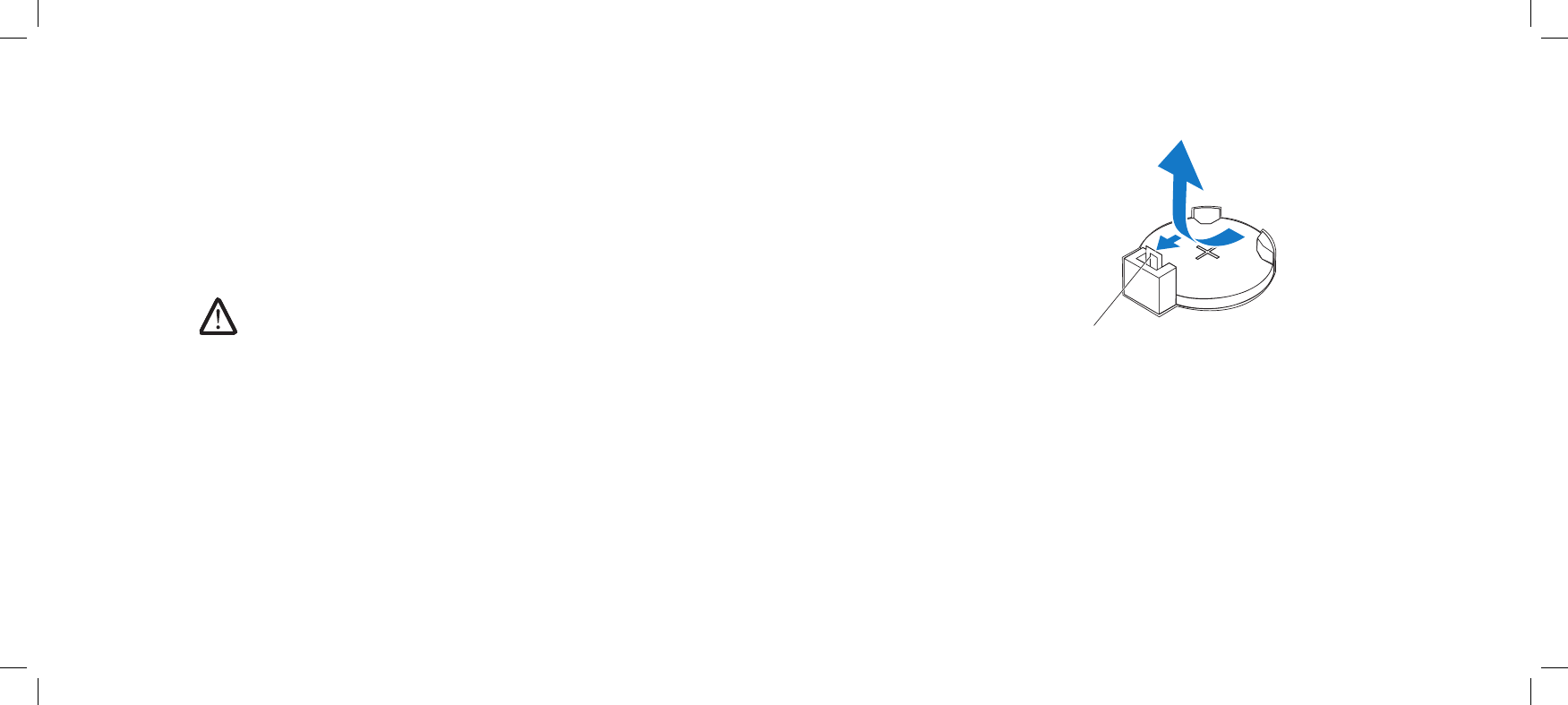
1
1 battery-release lever
Removing the Coin-Cell Battery
Record all the screens in system setup (see “System Setup” on page 1. 93) so
that you can restore the correct settings after the new battery has been
installed.
Follow the instructions in “Before You Begin” on page 2. 6.
Lift the release panel and open the left side-panel.3.
Remove the PCI shroud (see “Removing the PCI Shroud“ on page 4. 22).
Locate the battery socket (see “System Board Components” on page 5. 11).
CAUTION: If you pry the battery out of its socket with a blunt object,
be careful not to touch the system board with the object. Ensure that
the object is inserted between the battery and the socket before you
attempt to pry out the battery. Otherwise, you may damage the system
board by prying o the socket or by breaking circuit traces on the system
board.
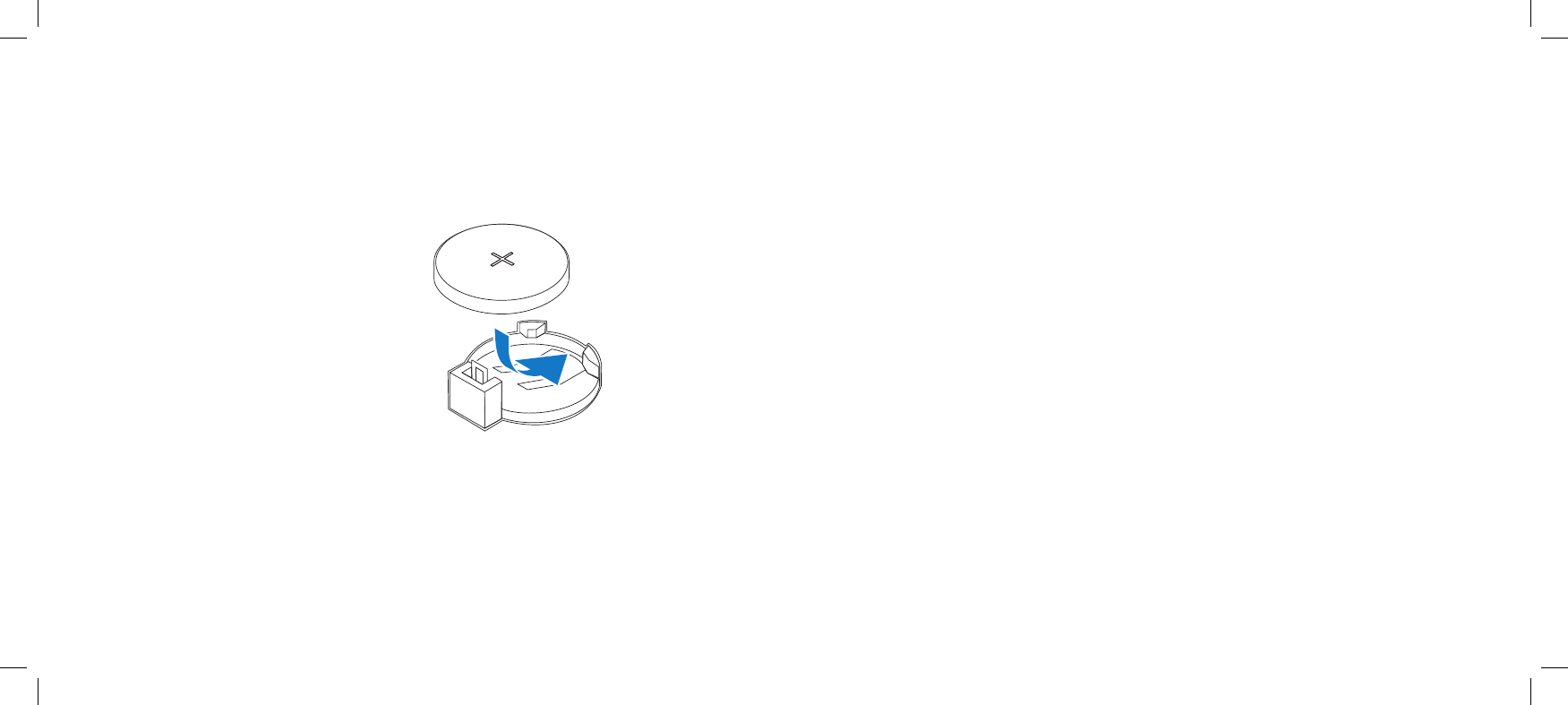
Press the battery-release lever to remove the battery. 6.
090 090
/
CHAPTER 18: BATTERY
Replacing the Coin-Cell Battery
Follow the instructions in “Before You Begin” on page 1. 6.
Insert the new battery (CR2032) into the socket with the side labeled “+” 2.
facing up, and press the battery into place.
Replace the PCI shroud (see “Replacing the PCI Shroud” on page 3. 22).
Close the left-side panel.4.
Connect your computer and devices to electrical outlets, and then turn 5.
them on.
Enter system setup (see “Entering System Setup” on page 6. 95) and restore
the settings you recorded before removing the battery.
091 091
/
CHAPTER 18: BATTERY
1
2
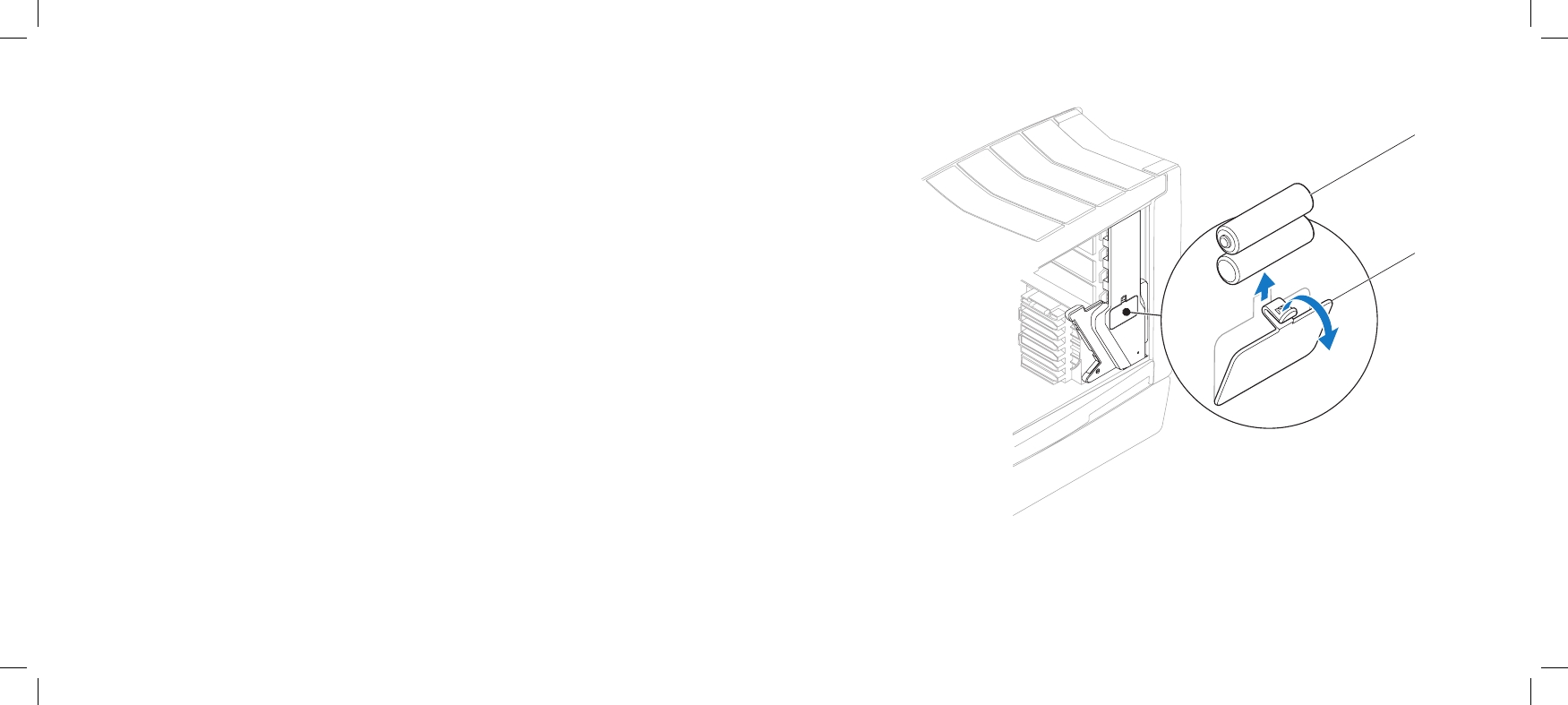
1 theater-lighting
batteries (2)
2 theater-lighting battery-
compartment door
Removing the eater-Lighting Batteries
Follow the instructions in “Before You Begin” on page 1. 6.
Lift the release panel and open the left side-panel.2.
Open the theater-lighting battery-compartment door.3.
Remove the two theater-lighting batteries.4.

092 092
/
CHAPTER 18: BATTERY
Replacing the eater-Lighting Batteries
Follow the instructions in “Before You Begin” on page 1. 6.
Insert the two new batteries (rechargeable AA, NiMH type) in the theater-2.
lighting battery compartment.
Close the theater-lighting battery-compartment door.3.
Close the left side-panel.4.
Connect your computer and devices to electrical outlets, and then turn 5.
them on.

CHAPTER 19: SYSTEM SETUP
093 093
/
CHAPTER 19: SYSTEM SETUP
CHAPTER 19: SYSTEM SETUP
094 094
/
CHAPTER 19: SYSTEM SETUP
System Setup
WARNING: Before working inside your computer, read the safety
information that shipped with your computer. For additional safety best
practices information, see the Regulatory Compliance Homepage at
www.dell.com/regulatory_compliance.
WARNING: To guard against electrical shock, always unplug your
computer from the electrical outlet before opening the side panel(s).
WARNING: Do not operate your equipment with any cover(s) (including
side panels, bezels, ller brackets, front-panel inserts, etc.) removed.
CAUTION: Only a certied service technician should perform repairs on
your computer. Damage due to servicing that is not authorized by Dell™
is not covered by your warranty.
CAUTION: To avoid electrostatic discharge, ground yourself by using a
wrist grounding strap or by periodically touching an unpainted metal
surface (such as a connector on the back of the computer).
095 095
/
CHAPTER 19: SYSTEM SETUP
Entering System Setup
Turn on (or restart) your computer.1.
While your computer is booting, press <F2> immediately before the 2.
operating system logo appears to access System Setup.
NOTE: If an error occurs during POST (Power On Self Test), press <F2>
when the prompt appears to enter System Setup.
NOTE If you wait too long and the operating system logo appears,
continue to wait until you see the Microsoft® Windows® desktop, then
shut down your desktop and try again.
NOTE: Keyboard failure may result when a key on the keyboard is held
down for extended periods of time. To avoid possible keyboard failure,
press and release <F2> in even intervals until the System Setup screen
appears.
System Setup Screens
e System Setup window displays current or changeable conguration
information for your computer.
Key functions appear at the bottom of the System Setup window and lists keys
and their functions within the active eld.
Overview
Use System Setup to:
Change the system conguration information after you add, change, or •
remove any hardware in your desktop.
Set or change a user-selectable option such as the user password.•
View the installed amount of memory or set the type of hard drive installed.•
Before you use System Setup, it is recommended that you write down the current
System Setup information for future reference.
CAUTION: Do not change the settings in System Setup unless you are
an expert computer user. Certain changes can cause your computer to
work incorrectly.

096 096
/
CHAPTER 19: SYSTEM SETUP
System Information
CPU Speed Displays the processor speed.
Current QPI
Speed Displays the QPI speed.
Cache L2 Displays the processor L2 cache size.
Cache L3 Displays the processor L3 cache size.
Standard CMOS Features
System Time
(hh:mm:ss) Displays the current time.
System Date
(mm:dd:yy) Displays the current date.
SATA 1 Displays the SATA 1 drive integrated in your computer.
SATA 2 Displays the SATA 2 drive integrated in your computer.
SATA 3 Displays the SATA 3 drive integrated in your computer.
SATA 4 Displays the SATA 4 drive integrated in your computer.
SATA 5 Displays the SATA 5 drive integrated in your computer.
SATA 6 Displays the SATA 6 drive integrated in your computer.
SATA 7 Displays the SATA 7 drive integrated in your computer.
SATA 8 Displays the SATA 8 drive integrated in your computer.
System Setup Options
NOTE: e items listed in this section may or may not appear exactly as
listed depending on your computer model and installed devices.
System Information
Product Name Displays the product name.
BIOS Version Displays the BIOS version, number, and date
information.
Input Service
Tag Allows you to input the service tag.
Service Tag Displays the service tag of the computer.
Asset Tag Displays the asset tag of the computer.
Memory
Installed Displays the amount of memory installed in your
computer.
Memory
Available Displays the amount of memory available in your
computer.
Memory
Technology Displays the type of memory technology used.
Memory Speed Displays the memory speed.
CPU ID/uCode ID Displays the processor ID.

097 097
/
CHAPTER 19: SYSTEM SETUP
Boot Conguration Features
1st Boot Device Displays the rst boot device.
2nd Boot Device Displays the second boot device.
Hard Disk Drives Sets the hard drive boot priority.
e items displayed are dynamically
updated according to the hard drives
detected.
CD/DVD Drives Sets the CD/DVD drive boot priority.
CPU Conguration
XD Bit Capability Enable XD Bit Capability to allow the
processor to distinguish between the
bits of code that can be executed and
the ones that cannot be executed.
Intel® Speedstep® tech If enabled, the processor clock
speed and core voltage are adjusted
dynamically based on the processor
load.
Intel® C State Tech If enabled, C State: Processor idle is
set to C2/C3/C4.
Standard CMOS Features
IDE Master Displays the IDE master drive integrated in your
computer.
IDE Slave Displays the IDE slave drive integrated in your
computer.
Wait For ‘F1’
If Error If enabled, the computer displays errors detected
during POST. Press <F1> to continue.
Advanced BIOS Features
Bootup Num-Lock Select power-on state for num-lock.
ACPI APIC
support Include ACPI APIC table pointer to RSDT pointer list.
OptionRom
Display Screen Set display mode for Raid Option Rom screen.
(Hide; Display)
CD/DVD Drives Sets the CD/DVD drive boot priority.

098 098
/
CHAPTER 19: SYSTEM SETUP
Power Management Setup
Suspend Mode Sets the energy-saving mode of the
ACPI function.
AC Recovery Sets what action the computer takes
when power is restored.
Remote Wakeup Sets the system to wake up from an
onboard LAN, PCIE-X1 LAN card, or a
PCI LAN card.
Auto Power On Allows the computer to start up at a
certain time.
Frequency/Voltage Control
CPU Speed Displays the current processor speed.
Memory Speed Displays the current memory speed.
Current QPI Speed Displays current QPI Speed.
QPI Frequency Allows you to change the QPI
frequency.
Memory Ratio Allows you to change the memory
ratio.
Integrated Devices
USB Functions Allows you to enable or disable the
integrated USB controller.
HD Audio Controller Allows you to enable or disable the
integrated audio controller.
Onboard IEEE1394 Controller Allows you to enable or disable the
onboard IEEE1394 controller.
LAN1 BCM5784 Device Allows you to enable or disable the
onboard LAN1 controller.
LAN1 Option ROM Allows you to enable or disable the
network controller’s boot option.
LAN2 BCM5784 Device Allows you to enable or disable the
onboard LAN2 controller.
LAN2 Option ROM Allows you to enable or disable the
network controller’s boot option.
JMicron 363 ATA Controller Allows you to enable or disable the
onboard ATA controller.
SiL3132 E-Sata Device Allows you to enable and disable the
e-SATA controller.
Congure SATA#1-6 as Allows you to congure the integrated
hard drive controller to AHCI or RAID.
AHCI CD/DVD Boot Time out Allows you to set the wait time for
SATA or CD/DVD in AHCI mode.

099 099
/
CHAPTER 19: SYSTEM SETUP
Advance DRAM Conguration Submenu
Memory-Z Opens submenu to display the SPD
conguration for each memory
module.
Advanced Memory Settings Allows you to toggle to Manual mode
and set all of the timing parameters.
tCL Displays the Column Address Strobe
Latency (editable in Manual Mode).
tRCD Displays timing of RAS to CAS delay
(editable in Manual Mode).
tRP Displays timing of RAS Precharge
(editable in Manual Mode).
tRAS Displays timing of Row Address Strobe
(editable in Manual Mode).
tRFC Displays timing of Refresh to Archive/
Refresh cycle time (editable in Manual
Mode).
tWR Displays timing of Write Recover
(editable in Manual Mode).
tWTR Displays Write to Read Delay (editable
in Manual Mode).
Frequency/Voltage Control
CPU Core (Non-Turbo) Ratio Displays the ratio between the
processor core clock and the FSB
frequency.
Advance DRAM Conguration Allows you to access the Advance
DRAM Conguration submenu
Overclock Conguration Allows you to access the Overclock
Conguration submenu
Overvoltage Conguration Allows you to access the Overvoltage
Conguration submenu
Load Level 1 OC Setting Allows you to restore the Level 1
overclocking settings that were
shipped from the factory (only
displayed with an XE processor).
Load Level 2 OC Setting Allows you to restore the Level 2
overclocking settings that were
shipped from the factory (only
displayed with an XE processor).
Load Level 3 OC Setting Allows you to restore the Level 3
overclocking settings that were
shipped from the factory (only
displayed with an XE processor).

0100 0100
/
CHAPTER 19: SYSTEM SETUP
Overclock Conguration Submenu
Turbo Mode TDP Limit
Override Allows you to program the power
thresholds for the processor while in
turbo mode.
Overvoltage Conguration Submenu
CPU Temperature Sensor Displays the processor temperature in
Celsius and Fahrenheit.
VCore Displays processor core voltage.
Dynamic CPU VCore Offset Processor core voltage oset.
DDR3 Memory Voltage Adjust the DDR3 memory voltage.
IOH Voltage Adjust the IOH voltage.
QPI and Uncore Voltage Adjust QPI and uncore voltage.
Advance DRAM Conguration Submenu
tRRD Displays RAS to RAS delay (editable in
Manual Mode).
tRTP Displays Read to Precharge Command
Delay (editable in Manual Mode).
1T/2T Timing Displays the Command Rate (editable
in Manual Mode).
Overclock Conguration Submenu
Adjust CPU BClk (MHz) Allows you to adjust BClk of processor.
Spread Spectrum Enable/Disable Spread Spectrum
Modulation.
Adjust PCI Frequency (MHz) Allows you to adjust PCI Frequency.
Adjust PCI-E Frequency (MHz) Allows you to adjust PCI-E Frequency.
Intel® Turbo Mode tech If enabled, allows processor to run at
faster frequencies than marked.
[1-4] Core CPU Turbo Ratio
Limit Limit ratio for cores 1-4.
Turbo Mode TDC Limit
Override Allows you to program the current
thresholds for the processor while in
turbo mode.

0101 0101
/
CHAPTER 19: SYSTEM SETUP
BIOS Security Features
Change Supervisor Password Allows you to set or change the
supervisor password.
Change User Password Allows you to set or change the user
password. You cannot use the user
password to make change to the BIOS
settings.
Exit
Exit Options Provides options to Save Changes and
Exit, Discard Changes and Exit, and
Load Optimal Defaults.
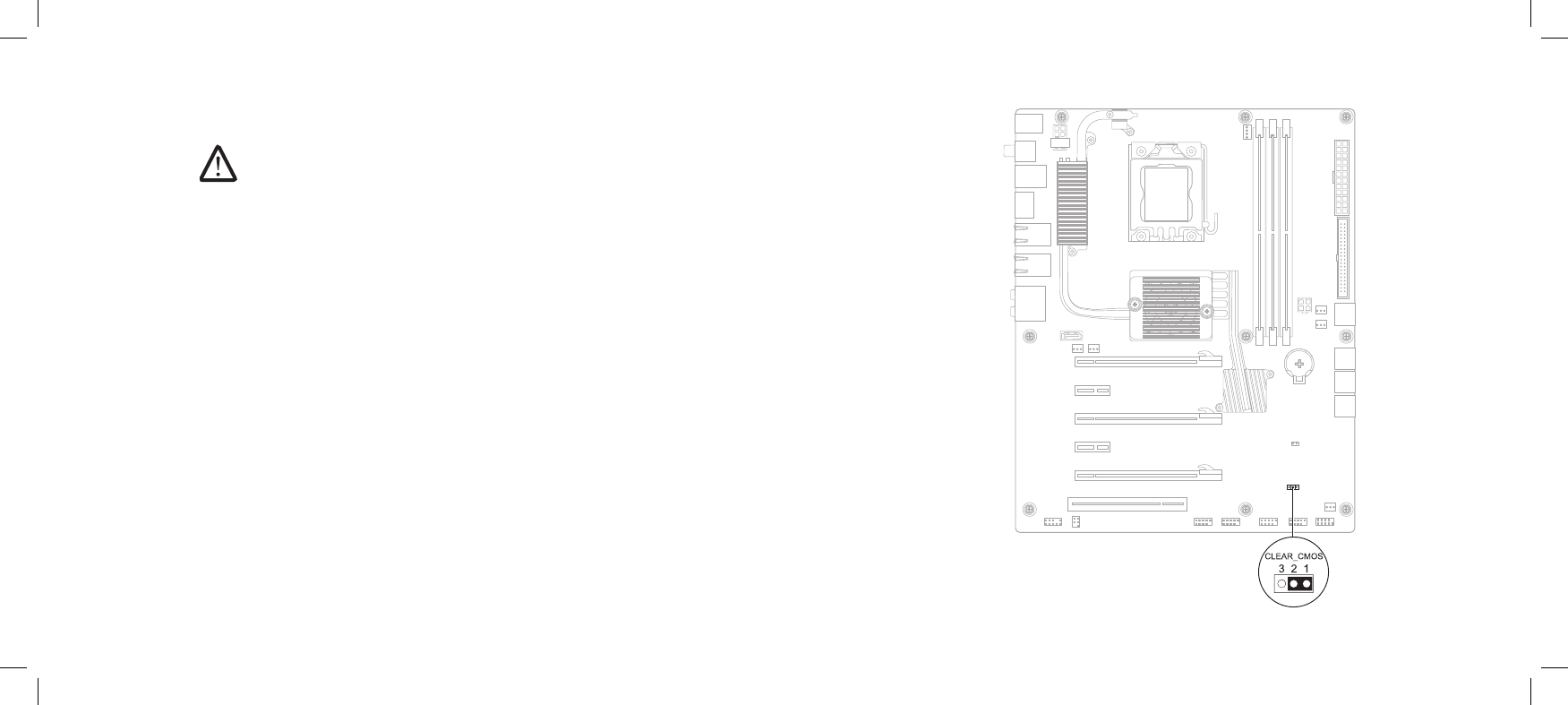
0102 0102
/
CHAPTER 19: SYSTEM SETUP
Clearing CMOS Settings
NOTE: is procedure does not clear or reset system and setup
passwords.
Follow the instructions in “Before You Begin” on page 1. 6.
Remove the left side-panel (see “Removing the Left Side-Panel” on page 2. 15).
Remove the PCI shroud (see “Removing the PCI Shroud“ on page 3. 22).
Locate the 3-pin CMOS reset jumper on the system board (see “System 4.
Board Components” on page 11).
Remove the jumper plug from the CMOS reset jumper pins 1 and 2. 5.
Place the jumper plug on the CMOS reset jumper pins 2 and 3 and wait for 6.
approximately ve seconds.
Remove the jumper plug and replace it on the CMOS reset jumper pins 7.
1 and 2.
Replace the PCI shroud (see “Replacing the PCI Shroud” on page 8. 22).
Replace the left side-panel (see “Replacing the Left Side-Panel” on page 9. 15).
Connect your computer and devices to electrical outlets, and then turn 10.
them on.
0103 0103
/
CHAPTER 19: SYSTEM SETUP
– If you do not have your computer’s Service Tag:
Click a. Select Your Product Model in the Select Your Entry Method list.
Select the type of product in the b. Select Your Product Family list.
Select the product brand in the c. Select Your Product Line list.
Select the product model number in the d. Select Your Product Model list.
NOTE: If you have selected a dierent model and want to start over
again, click Start Over on the top right of the menu.
Click e. Conrm.
A list of results appear on the screen. Click 6. BIOS.
Click 7. Download Now to download the latest BIOS le.
e File Download window appears.
Click 8. Save to save the le on your desktop. e le downloads to your
desktop.
Click 9. Close if the Download Complete window appears.
e le icon appears on your desktop and is titled the same as the
downloaded BIOS update le.
Double-click the le icon on the desktop and follow the procedures that 10.
appear on the screen.
Flashing the BIOS
e BIOS may require ashing when an update is available or when replacing the
system board. To ash the BIOS:
Turn on the computer.1.
Visit 2. support.dell.com.
Select your country and language.3.
Click 4. Drivers & Downloads.
Locate the BIOS update le for your computer:5.
NOTE: e Service Tag for your computer is located on a label next to the
FlexBay.
– If you have your computer’s Service Tag:
Click a. Enter a Service Tag.
Enter your computer’s Service Tag in the b. Enter a service tag: eld, click
Go, and proceed to step 6.
