Dell Alienware Aurora R6 Desktop Setup And Specifications User Manual En Us
User Manual: Dell alienware-aurora-r6-desktop - Aurora R6 Setup and Specifications
Open the PDF directly: View PDF  .
.
Page Count: 21

Aurora R6
Setup and Specifications
Computer Model: Alienware Aurora R6
Regulatory Model: D23M
Regulatory Type: D23M001
Notes, cautions, and warnings
NOTE: A NOTE indicates important information that helps you make
better use of your product.
CAUTION: A CAUTION indicates either potential damage to
hardware or loss of data and tells you how to avoid the problem.
WARNING: A WARNING indicates a potential for property damage,
personal injury, or death.
Copyright © 2017 Dell Inc. or its subsidiaries. All rights reserved. Dell, EMC, and
other trademarks are trademarks of Dell Inc. or its subsidiaries. Other trademarks may be
trademarks of their respective owners.
2017 - 01
Rev. A00
Contents
Set up your computer.................................................... 4
Setting up the Virtual Reality (VR) headset —
optional...........................................................................7
Views..............................................................................8
Front................................................................................................8
Back...............................................................................................10
Back panel......................................................................................12
Specifications............................................................... 15
Dimensions and weight................................................................... 15
System information..........................................................................15
Memory..........................................................................................16
Ports and connectors.......................................................................16
Communications..............................................................................17
Video............................................................................................. 17
Audio............................................................................................. 18
Storage...........................................................................................18
Power ratings..................................................................................19
Computer environment................................................................... 19
Getting help and contacting Alienware......................21
Self-help resources..........................................................................21
Contacting Alienware......................................................................21
3
Set up your computer
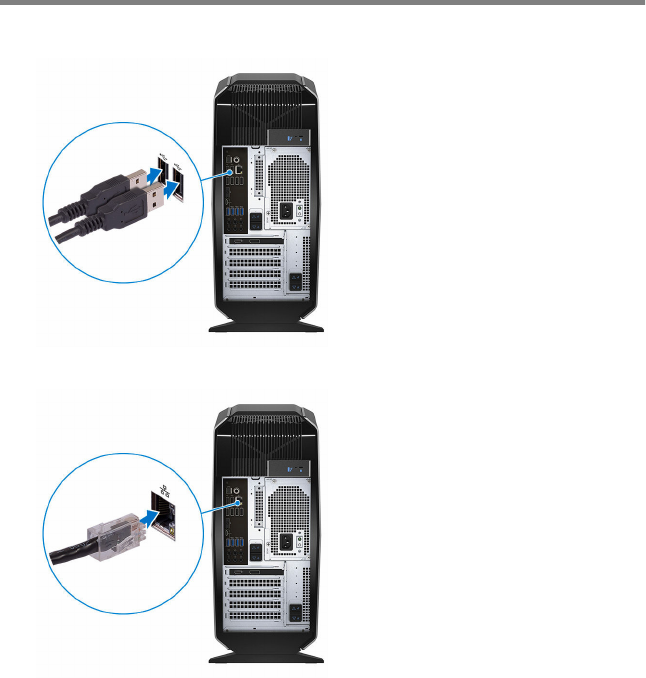
1 Connect the keyboard and mouse.
2 Connect the network cable — optional.
4
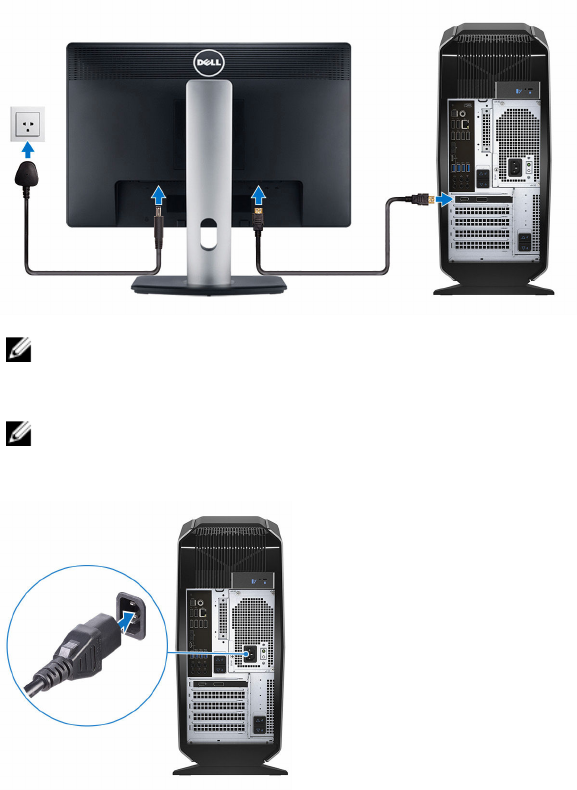
3 Connect the display.
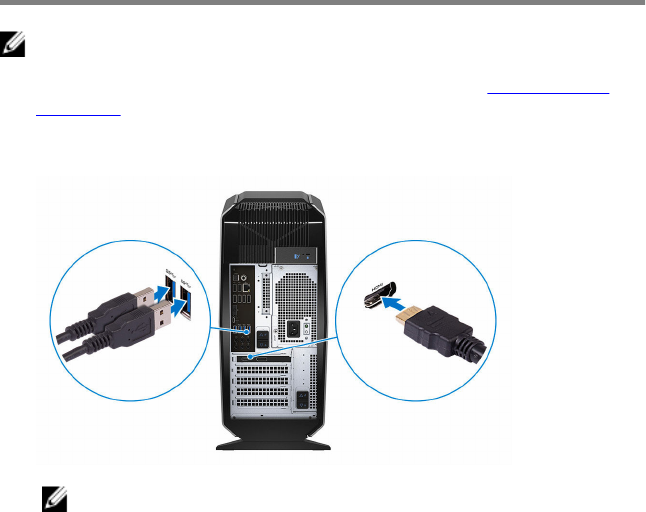
NOTE: The DisplayPort on the back panel of your computer is
covered. Connect the display to the discrete graphics card of your
computer.
NOTE: If you have two graphics cards, the card installed in PCI-
Express X16 (graphics slot 1) is the primary graphics card.
4 Connect the power cable.
5
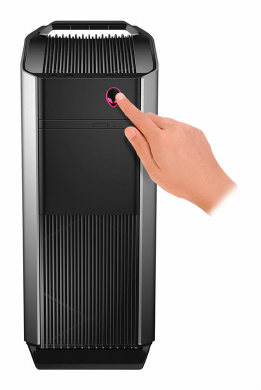
5 Press the power button.
6
Setting up the Virtual Reality (VR)
headset — optional
NOTE: The VR headset is sold separately.
1 Download and run the setup tools for your VR headset at www.dell.com/
VRsupport.
2 Connect the VR headset to the designated USB and HDMI ports on your
computer, when prompted.
NOTE: Connect the headset to the HDMI port on the primary
graphics card and connect the display to any available port on the
card.
3 Follow the instructions on the screen to complete the setup.
7
Views
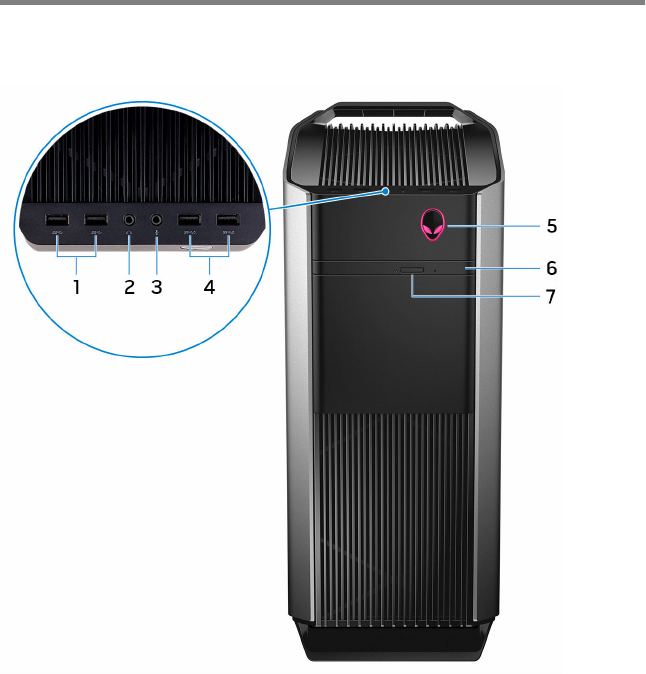
Front
1USB 3.0 ports (2)
Connect peripherals such as storage devices and printers. Provide data
transfer speeds up to 5 Gbps.
2Headphone port
Connect a headphone or speakers.
3Microphone port
8
Connect an external microphone to provide sound input.
4USB 3.0 ports with PowerShare (2)
Connect peripherals such as storage devices and printers. Provides data
transfer speeds up to 5 Gbps.
PowerShare allows you to charge your USB devices even when your
computer is turned off.
5AlienHead/Power button
Press to turn on the computer if it is turned off or in sleep state.
Press to shut down the computer if it is turned on.
Press and hold for 4 seconds to force shut‑down the computer.
6Optical drive (optional)
Reads from and writes to CDs, DVDs, and Blu‑ray discs.
7Optical-drive eject button
Press to open or close the optical drive tray.
9
Back
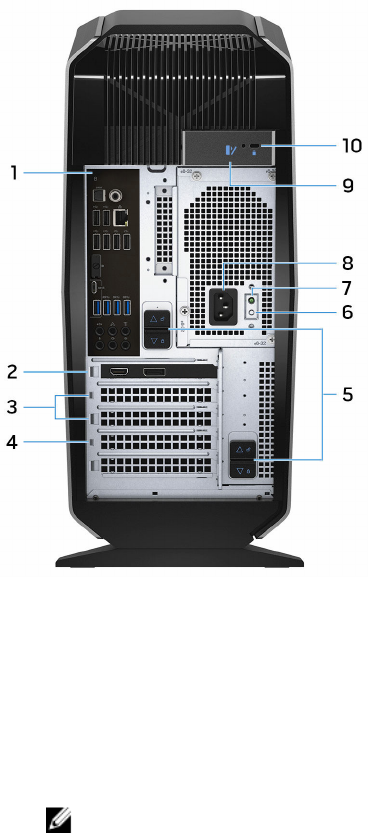
1Back panel
Connect USB, audio and other devices.
2PCI-Express X16 (graphics slot 1)
Connect a PCI-Express card such as graphics, audio, or network card to
enhance the capabilities of your computer.
For optimal graphics performance, use a PCI-Express X16 slot for connecting
the graphics card.
NOTE: If you have two graphics cards, the card installed in PCI-
Express X16 (graphics slot 1) is the primary graphics card.
10
3PCI-Express X4 slots (2)
Connect a PCI-Express card such as graphics, audio, or network card to
enhance the capabilities of your computer.
4PCI-Express X16 (graphics slot 2)
Connect a PCI-Express card such as graphics, audio, or network card to
enhance the capabilities of your computer.
For optimal graphics performance, use a PCI-Express X16 slot for connecting
the graphics card.
5Power-supply cage release-latches (2)
Allows you to remove the power supply unit from your computer.
6Power-supply diagnostics button
Press to check the power‑supply state.
7Power-supply diagnostics light
Indicates the power-supply state.
8Power port
Connect a power cable to provide power to your computer.
9Side panel release latch
Allows you to remove the side panel from your computer.
10 Security-cable slot
Connect a security cable to prevent unauthorized movement of your
computer. This prevents the side panel release latch from opening.
11
Back panel
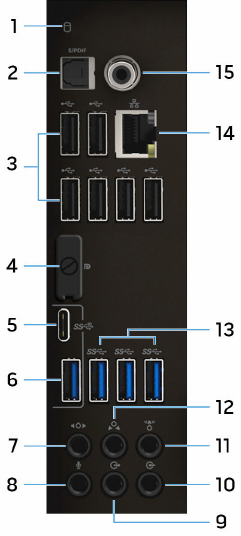
1Hard-drive activity light
Turns on when the computer reads from or writes to the hard drive.
2Optical S/PDIF port
Connect an amplifier, speakers, or a TV for digital audio output through
optical cables.
3USB 2.0 ports (6)
Connect peripherals such as storage devices and printers. Provides data
transfer speeds up to 480 Mbps.
4DisplayPort
Connect an external display or a projector.
12

NOTE: The DisplayPort on the back panel of your computer is
covered. Connect the display to the discrete graphics card of your
computer.
5USB 3.1 Type-C port
Connect peripherals, such as external storage devices and printers. Provides
data transfer speeds up to 10 Gbps.
6USB 3.1 Type-A port
Connect peripherals, such as storage devices and printers. Provides data
transfer speeds up to 10 Gbps.
7Side L/R surround port
Connect the side-left and side-right speakers or surround sound speakers.
8Microphone port
Connect an external microphone to provide sound input.
9Front L/R surround line-out port
Connect audio-output devices such as speakers and amplifiers. In a 5.1
speaker channel setup, connect the front-left and front-right speakers.
10 Line-in port
Connect recording or playback devices such as a microphone or CD player.
11 Center/subwoofer LFE surround port
Connect the subwoofer.
NOTE: For more information about the speaker setup, refer the
documentation that shipped with the speakers.
12 Rear L/R surround port
Connect audio-output devices such as speakers and amplifiers. In a 5.1
speaker channel setup, connect the rear-left and rear-right speakers.
13 USB 3.0 ports (3)
Connect peripherals such as storage devices and printers. Provides data
transfer speeds up to 5 Gbps.
14 Network port
Connect an Ethernet (RJ45) cable from a router or a broadband modem for
network or internet access.
The two lights next to the connector indicate the connectivity status and
network activity.
13
15 Coaxial S/PDIF port
Connect an amplifier, speakers, or a TV for digital audio output through
coaxial cables.
14
Specifications
Dimensions and weight
Table 1. Dimensions and weight
Height 472.5 mm (18.60 in)
Width 212 mm (8.34 in)
Depth 360.50 mm (14.19 in)
Weight 14.62 kg (32.23 lb)
NOTE: The weight of your computer varies
depending on the configuration ordered
and the manufacturing variability.
System information
Table 2. System information
Computer model Alienware Aurora R6
Processor • 7th Generation Intel Core i3
• 7th Generation Intel Core i5/i5k
• 7th Generation Intel Core i7/i7k
NOTE: If your computer is shipped with an
Intel Core i5k or Intel Core i7k processor,
you can overclock the processing speed
beyond the standard specifications.
Chipset Intel Z270 chipset
15

Memory
Table 3. Memory specifications
Slots Four DIMM sockets
Type DDR4
Speed • 2400 MHz
• Up to 2667 MHz with XMP (optional)
Configurations supported 4 GB, 8 GB, 16 GB, 32 GB, and 64 GB (2400
MHz only)
Ports and connectors
Table 4. Ports and connectors on the back panel
Back panel:
Network One RJ45 port
USB • Six USB 2.0 ports
• One USB 3.1 Type-C port
• One USB 3.1 Type-A port
• Three USB 3.0 ports
Audio • One audio input/microphone port
• One optical S/PDIF port
• One coaxial S/PDIF port
• One front L/R surround line-out port
• One side L/R surround port
• One rear L/R surround port
• One center/subwoofer LFE surround port
• One line-in port
Video One DisplayPort - optional
16
Back panel:
NOTE: The DisplayPort on the back panel
of your computer is covered. Connect the
display to the discrete graphics card of your
computer.
Table 5. Ports and connectors on the front panel
Front panel:
USB • Two USB 3.0 ports
• Two USB 3.0 ports with PowerShare
Audio • One audio output/headphone port
• One audio input/microphone port
Communications
Table 6. Supported Communications
Ethernet 10/100/1000 Mbps Killer E2400 Ethernet
controller integrated on system board
Wireless • 802.11b/g/n
• 802.11ac
• Bluetooth 4.1/Bluetooth 4.2
Video
Table 7. Video specifications
Integrated:
Controller Intel HD Graphics 630
Memory Shared system memory
Discrete:
17
Integrated:
Type Up to two PCI-Express X16, single-width/
double-width, full length (maximum 10.5 inches)
NOTE: The graphics configuration of your
desktop varies depending on the graphics
card configuration ordered.
Controller • AMD or NVIDIA
• Also supports Dual AMD or NVIDIA (SLI)
Memory Up to 12 GB
Audio
Table 8. Audio specifications
Controller Realtek ALC3861
Type Integrated 7.1 channel audio with S/PDIF support
Storage
Table 9. Storage specifications
Interface SATA 6 Gbps
Externally accessible One 5.25-inch drive bay for DVD+/-RW drive,
Blu-ray Disc combo (optional), or Blu-ray Disc
writer (optional)
Internally accessible
Solid-state drive (SSD) One M.2 drive
NOTE: If you purchased an M.2 drive, it is
assigned as primary drive and all other
SATA drives in your computer are assigned
as secondary drives.
One 3.5-inch drive bay For one 3.5-inch SATA drive or two 2.5-inch
SATA drives (optional)
18

NOTE: If your computer is shipped with one
3.5-inch SATA drive, it is the primary drive.
If your computer is shipped with two 2.5-
inch SATA drives, one is primary drive and
the other is secondary drive.
Two 2.5-inch drive bays For two 2.5-inch SATA drives
NOTE: The SATA drives installed in these
drive bays are secondary drives.
Power ratings
Table 10. Power adapter specifications
Input voltage 100 VAC–240 VAC
Input frequency 50 Hz–60 Hz
Temperature range
Operating 5°C to 50°C (41°F to 122°F)
Storage –40°C to 70°C (–40°F to 158°F)
Type 460 W 850 W
Input current (maximum): 8 A 10 A
Output current: 3.3V/17A, 5V/25A,
12VA/18A, 12VB/16A,
12VC/8A, 5Vaux/3A
3.3V/20A, 5V/20A,
12VA/32A, 12VB/48A,
12VD/16A, -12V/0.5A,
5Vaux/4A
Rated output voltage: 3.3V, 5V, 12VA, 12VB,
12VC, 5Vaux
3.3V, 5V, 12VA, 12VB,
12VD, -12V, 5Vaux
Computer environment
Airborne contaminant level: G2 or lower as defined by ISA-S71.04-1985
19

Table 11. Computer environment
Operating Storage
Temperature range 5°C to 35°C (41°F to
95°F)
–40°C to 65°C (–40°F to
149°F)
Relative humidity
(maximum)
10% to 90% (non-
condensing)
0% to 95% (non-
condensing)
Vibration (maximum) 0.26 GRMS 1.37 GRMS
Shock (maximum)*40 G for 2 ms with a
change in velocity of 20
in/s (51 cm/s)†
105 G for 2 ms with a
change in velocity of 52.5
in/s (133 cm/s)‡
Altitude (maximum) –15.20 m to 3048 m (–50
ft to 10,000 ft)
–15.20 m to 10,668 m (–
50 ft to 35,000 ft)
* Measured using a random vibration spectrum that simulates user environment.
† Measured using a 2 ms half-sine pulse when the hard drive is in use.
20
Getting help and contacting
Alienware
Self-help resources
You can get information and help on Alienware products and services using these
online self-help resources:
Table 12. Alienware products and online self-help resources
Information about Alienware products
and services
www.alienware.com
Troubleshooting information, user
manuals, setup instructions, product
specifications, technical help blogs,
drivers, software updates, and so on
www.alienware.com/gamingservices
Videos providing step-by-step
instructions to service your computer
www.youtube.com/alienwareservices
Contacting Alienware
To contact Alienware for sales, technical support, or customer service issues, see
www.alienware.com.
NOTE: Availability varies by country and product, and some services may
not be available in your country.
NOTE: If you do not have an active internet connection, you can find
contact information on your purchase invoice, packing slip, bill, or Dell
product catalog.
21
