Digianswer A S BTP2M100 Motorola Bluetooth Phone Module User Manual Bluetooth

Digianswer A/S Motorola Bluetooth Phone Module Bluetooth

users manual

Compatible with Timeport™ 270c Digital Wireless Phones™Bluetooth Specification 1.0B Compliant
 Welcome Welcome to Motorola’s “connected” world of Bluetooth™ personal area wireless networking. The Motorola Bluetooth Phone Module makes wireless connection simple and quick.With the Bluetooth Phone Module, you can quickly and securely transmit data or audio between your  Motorola Timeport™ 270c wireless phone  and other Bluetooth devices such as headsets or notebook computers. (Other Bluetooth devices must be purchased separately.) The Bluetooth technology makes all connections quickly and  without any cables .All Motorola wireless products are designed and manufactured to meet Motorola’s rigorous specifications and world-class quality standards. During development, our testing team took the Motorola Bluetooth Phone Module through rigorous durability tests including temperature, humidity, shock, dust, vibration, and drop tests—and it worked perfectly.We are confident that you will find your Bluetooth Phone Module to be a convenient and secure way to exchange data and audio. Thank you for choosing a Motorola Bluetooth product!
 2Personal Communications Sector600 North U.S. Highway 45Libertyville, Illinois 600481-800-331-6456 (United States)1-888-390-6456 (TTY/TDD United States)1-800-461-4575 (Canada)www.motorola.comMOTOROLA, the Stylized M Logo and all other trademarks indicated as such herein are trademarks of Motorola, Inc. ® Reg. U.S. Pat. & Tm. Off. The BLUETOOTH trademarks are owned by their proprietor and used by Motorola, Inc., under license. TrueSync is a trademark of Starfish, Inc., a wholly owned subsidiary of Motorola, Inc. All other product or service names are the property of their respective owners.© 2001 Motorola, Inc. All rights reserved. Printed in the U.S.A.Manual number: 9888933L01-O
 3 Contents Safety and General Information  . . . . . . . . . . . . . . . . . . . . . . . . . . . . . . . . . . 5 Introduction  . . . . . . . . . . . . . . . . . . . . . . . . . . . . . . . . . . . . . . . . . . . . . . . . . . . 7What Is Bluetooth Wireless Technology? . . . . . . . . . . . . . . . . . . . . . . . . . . . . . . 7How Can I Use My Bluetooth Phone Module?  . . . . . . . . . . . . . . . . . . . . . . . . . 7The Basic Steps  . . . . . . . . . . . . . . . . . . . . . . . . . . . . . . . . . . . . . . . . . . . . . . . . 8 Attaching the Module to Your Phone  . . . . . . . . . . . . . . . . . . . . . . . . . . . . . 10Attaching the Module  . . . . . . . . . . . . . . . . . . . . . . . . . . . . . . . . . . . . . . . . . . 10Verifying Module Attachment . . . . . . . . . . . . . . . . . . . . . . . . . . . . . . . . . . . . . 11 Introducing Devices to Each Other  . . . . . . . . . . . . . . . . . . . . . . . . . . . . . . . 12Introducing Your Phone to a PC  . . . . . . . . . . . . . . . . . . . . . . . . . . . . . . . . . . . 12Introducing a Headset to Your Phone . . . . . . . . . . . . . . . . . . . . . . . . . . . . . . . 15 Linking with a PC or Data Device  . . . . . . . . . . . . . . . . . . . . . . . . . . . . . . . . 18Responding to Link Requests from Data Devices . . . . . . . . . . . . . . . . . . . . . . . 19 Linking with a Bluetooth Headset . . . . . . . . . . . . . . . . . . . . . . . . . . . . . . . . 20Responding to Link Requests from a Bluetooth Headset . . . . . . . . . . . . . . . . . 21Re-establishing a Headset Connection . . . . . . . . . . . . . . . . . . . . . . . . . . . . . . 22Managing Multiple Handsfree Devices . . . . . . . . . . . . . . . . . . . . . . . . . . . . . . 23If You Lose Your Bluetooth Connection During a Call . . . . . . . . . . . . . . . . . . . . . . . . . . . . . . . . . . . . . . . . . . . . . . . . . 24Using the Headset Bluetooth Control Button  . . . . . . . . . . . . . . . . . . . . . . . . . 25
 4 Ending a Bluetooth Connection . . . . . . . . . . . . . . . . . . . . . . . . . . . . . . . . . . 26Ending a Connection with a Bluetooth Headset  . . . . . . . . . . . . . . . . . . . . . . . 26Ending a Connection with a PC . . . . . . . . . . . . . . . . . . . . . . . . . . . . . . . . . . . 27 Customization Features  . . . . . . . . . . . . . . . . . . . . . . . . . . . . . . . . . . . . . . . . 28Naming Your Phone . . . . . . . . . . . . . . . . . . . . . . . . . . . . . . . . . . . . . . . . . . . . 28Turning Voice Dial On and Off  . . . . . . . . . . . . . . . . . . . . . . . . . . . . . . . . . . . . 29Maintaining Your Device List  . . . . . . . . . . . . . . . . . . . . . . . . . . . . . . . . . . . . . 30Reviewing Your Device List   . . . . . . . . . . . . . . . . . . . . . . . . . . . . . . . . . . . . . . 30 Troubleshooting . . . . . . . . . . . . . . . . . . . . . . . . . . . . . . . . . . . . . . . . . . . . . . . 34 Glossary  . . . . . . . . . . . . . . . . . . . . . . . . . . . . . . . . . . . . . . . . . . . . . . . . . . . . . 37 Limited Warranty . . . . . . . . . . . . . . . . . . . . . . . . . . . . . . . . . . . . . . . . . . . . . . 38
5Safety and General InformationIMPORTANT INFORMATION ON SAFE AND EFFICIENTOPERATION. READ THIS INFORMATION BEFORE USING YOURPHONE.Users are not permitted to make changes or modify the device in any way.Changes or modifications not expressly approved by the party responsiblefor compliance could void the user’s authority to operate the equipment. See47 CFR Sec. 15.21.This device complies with part 15 of the FCC rules and with RSS-210 / RSS-139 of the Industry Canada. Operation is subject to the following twoconditions: (1) This device may not cause harmful interference, and (2) thisdevice must accept any interference received, including interference thatmay cause undesired operation. See 47 CFR Sec. 15.19(3).Canada Compliance (Industry Canada)To prevent radio interference to the licensed service, this device is intendedto be operated indoors and away from windows to provide maximumshielding. Equipment that is installed outdoors is subject to licensing.In French: Pour empêcher un brouillage radioélectrique au service faisantl'objet d'une licence, cet appareil doit être utilisé à l'interieur et loin desfenêtres afin de founir un écran de blindage maximal. Au cas aù uninstallation en plain air, le materiel doit faire l'objet d'une licence.
Safety and General Information6European Union (EU) and EFTAThis equipment complies with theR&TTE directive 1999/5/EC and hasbeen provided with the CE markaccordingly.Electromagnetic Interference/CompatibilityNote: Nearly every electronic device is susceptible to electromagneticinterference (EMI) if inadequately shielded, designed, or otherwiseconfigured for electromagnetic compatibility.FacilitiesTo avoid electromagnetic interference and/or compatibility conflicts, turn offyour phone in any facility where posted notices instruct you to do so.Hospitals or health care facilities may be using equipment that is sensitive toexternal RF energy.AircraftWhen instructed to do so, turn off your phone when on board an aircraft.Any use of a phone must be in accordance with applicable regulations perairline crew instructions.
7Safety and General InformationMedical DevicesPacemakersThe Health Industry Manufacturers Association recommends that aminimum separation of 6 inches (15 centimeters) be maintained between ahandheld wireless phone and a pacemaker. These recommendations areconsistent with the independent research by, and recommendations of,Wireless Technology Research.Persons with pacemakers should:• ALWAYS keep the phone and Bluetooth phone module more than sixinches (15 centimeters) from your pacemaker when the phone is turnedON.• NOT carry the phone and Bluetooth phone module in the breast pocket.• use the ear opposite the pacemaker to minimize the potential forinterference.• turn OFF the phone immediately if you have any reason to suspect thatinterference is taking place.Other Medical DevicesIf you use any other personal medical device, consult the manufacturer ofyour device to determine if it is adequately shielded from RF energy. Yourphysician may be able to assist you in obtaining this information.
Safety and General Information8
 7 Introduction What Is Bluetooth Wireless Technology? Bluetooth  wireless technology propels you into a new dimension in connectivity.Bluetooth devices communicate without wires, using built-in radio transceivers that operate on a globally available radio frequency to ensure worldwide compatibility. Your Bluetooth Phone Module can communicate with other Bluetooth devices within a range of approximately 10 meters (33 feet). How Can I Use My Bluetooth Phone Module? When you attach the Bluetooth module, your  Motorola Timeport™ 270c wireless phone  can connect with compatible devices  with no cables or connectors . Establish Wireless Links with Your Personal Computer • Use dial-up networking to access the Internet so you can surf the Web, check email, and other Internet services.• Synchronize Bluetooth devices. For example, you can synchronize the datebooks on your phone and PC.• Use your computer’s fax software to send fax messages. Connect with a Bluetooth Headset for Hands Free Phone Use • Handle incoming and outgoing calls with the headset Bluetooth control button.• Use voice control to make calls.
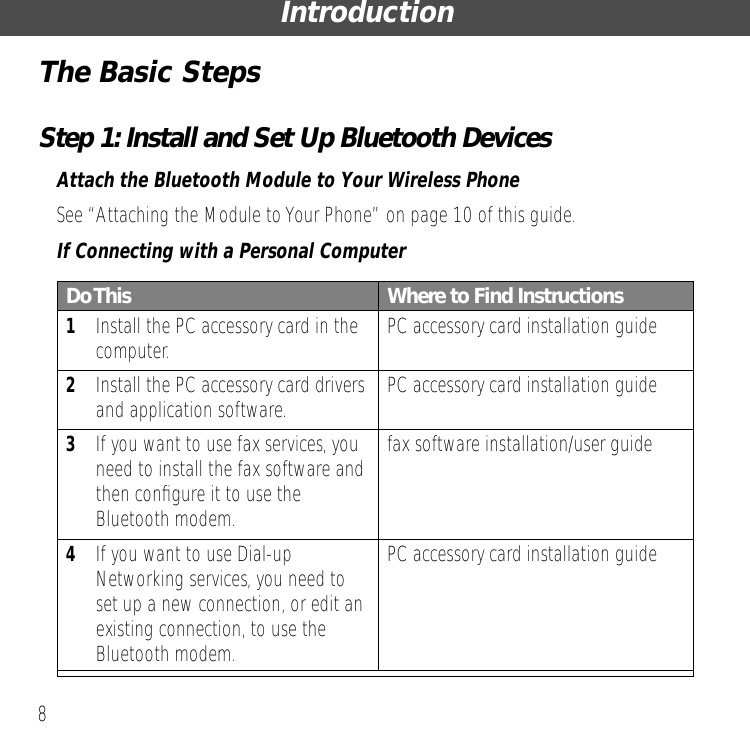
 Introduction 8 The Basic Steps Step 1: Install and Set Up Bluetooth Devices Attach the Bluetooth Module to Your Wireless Phone See “Attaching the Module to Your Phone” on page 10 of this guide. If Connecting with a Personal Computer Do This Where to Find Instructions 1 Install the PC accessory card in the computer. PC accessory card installation guide 2 Install the PC accessory card drivers and application software. PC accessory card installation guide 3 If you want to use fax services, you need to install the fax software and then configure it to use the Bluetooth modem.fax software installation/user guide 4 If you want to use Dial-up Networking services, you need to set up a new connection, or edit an existing connection, to use the Bluetooth modem.PC accessory card installation guide
 9 Introduction If Connecting with a Bluetooth Headset Charge the headset (if required) and prepare the headset for use according to the instructions in the headset user’s guide.  Step 2: Introduce Devices to Each Other Before you can connect two Bluetooth devices for the first time, you must introduce them to each other through a process called  bonding . For future connections, these same devices can bypass this introduction process (because they already recognize each other) and connect immediately. To introduce your Bluetooth phone module and a personal computer,  follow the instructions in “Introducing Your Phone to a PC” on page 12. To introduce your Bluetooth phone module and a Bluetooth headset,  follow the instructions in “Introducing a Headset to Your Phone” on page 15. Step 3: Link with Bluetooth Devices To connect with a PC or other data devices,  follow the instructions in “Linking with a PC or Data Device” on page 18. To connect with a Bluetooth headset,  follow the instructions in “Linking with a Bluetooth Headset” on page 20.
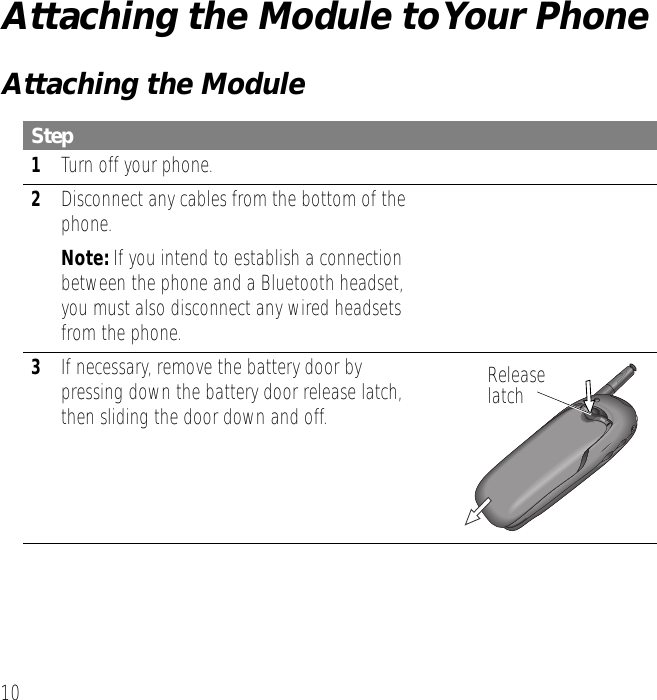
 10 Attaching the Module to Your Phone Attaching the Module Step 1 Turn off your phone. 2 Disconnect any cables from the bottom of the phone. Note:  If you intend to establish a connection between the phone and a Bluetooth headset, you must also disconnect any wired headsets from the phone. 3 If necessary, remove the battery door by pressing down the battery door release latch, then sliding the door down and off.Releaselatch
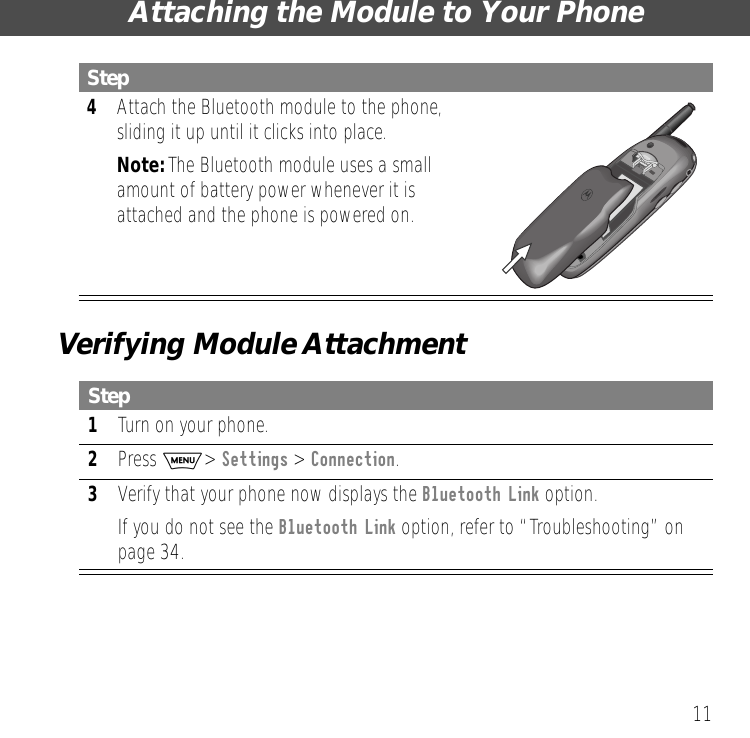
 11 Attaching the Module to Your PhoneVerifying Module Attachment 4 Attach the Bluetooth module to the phone, sliding it up until it clicks into place. Note:  The Bluetooth module uses a small amount of battery power whenever it is attached and the phone is powered on. Step 1 Turn on your phone. 2 Press  M >  Settings  >  Connection . 3 Verify that your phone now displays the Bluetooth Link option.If you do not see the Bluetooth Link option, refer to “Troubleshooting” on page 34.Step
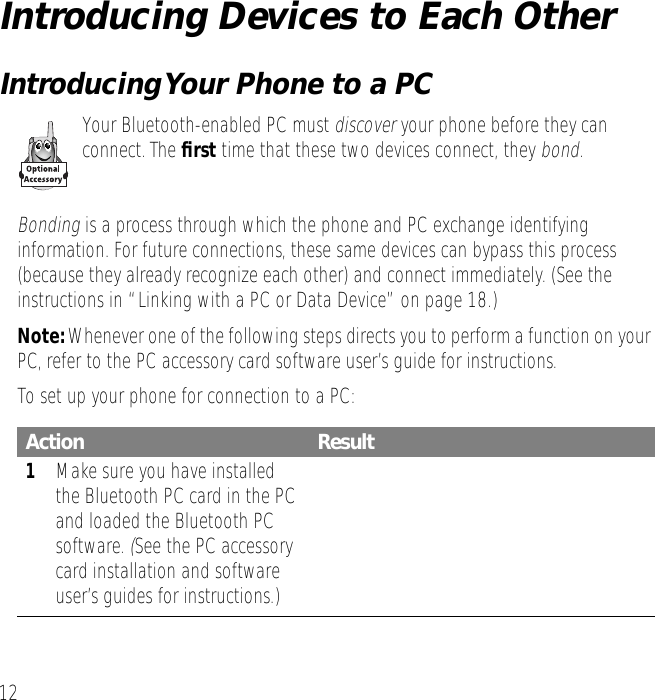
12Introducing Devices to Each OtherIntroducing Your Phone to a PCYour Bluetooth-enabled PC must discover your phone before they can connect. The first time that these two devices connect, they bond.Bonding is a process through which the phone and PC exchange identifying information. For future connections, these same devices can bypass this process (because they already recognize each other) and connect immediately. (See the instructions in “Linking with a PC or Data Device” on page 18.)Note: Whenever one of the following steps directs you to perform a function on your PC, refer to the PC accessory card software user’s guide for instructions.To set up your phone for connection to a PC:Action Result1Make sure you have installed the Bluetooth PC card in the PC and loaded the Bluetooth PC software. (See the PC accessory card installation and software user’s guides for instructions.)
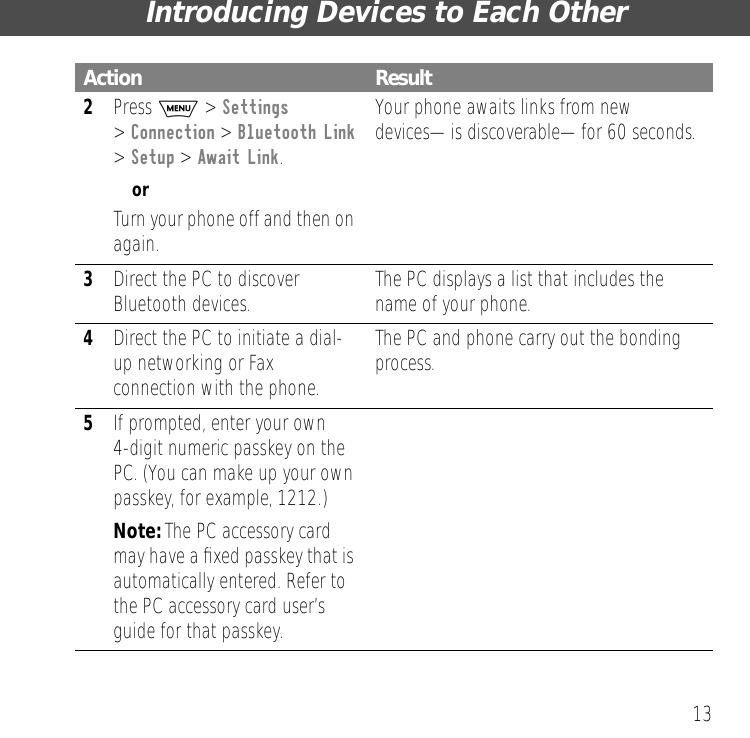
13Introducing Devices to Each Other2Press M > Settings> Connection > Bluetooth Link > Setup > Await Link.orTurn your phone off and then on again.Your phone awaits links from new devices—is discoverable—for 60 seconds.3Direct the PC to discover Bluetooth devices. The PC displays a list that includes the name of your phone.4Direct the PC to initiate a dial-up networking or Fax connection with the phone.The PC and phone carry out the bonding process.5If prompted, enter your own 4-digit numeric passkey on the PC. (You can make up your own passkey, for example, 1212.)Note: The PC accessory card may have a fixed passkey that is automatically entered. Refer to the PC accessory card user’s guide for that passkey.Action Result
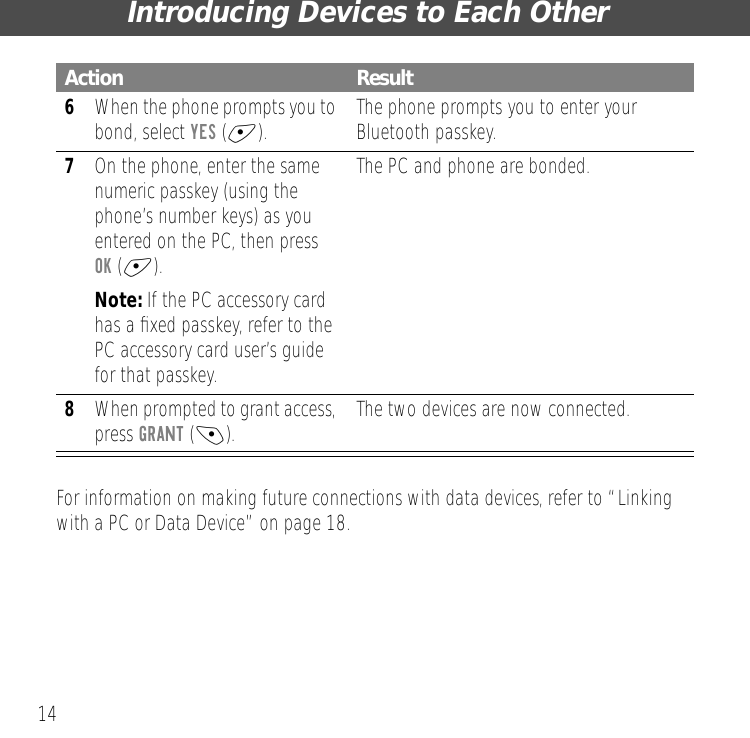
Introducing Devices to Each Other14For information on making future connections with data devices, refer to “Linking with a PC or Data Device” on page 18.6When the phone prompts you to bond, select YES (+). The phone prompts you to enter your Bluetooth passkey.7On the phone, enter the same numeric passkey (using the phone’s number keys) as you entered on the PC, then press OK (+).Note: If the PC accessory card has a fixed passkey, refer to the PC accessory card user’s guide for that passkey.The PC and phone are bonded.8When prompted to grant access, press GRANT (-). The two devices are now connected.Action Result
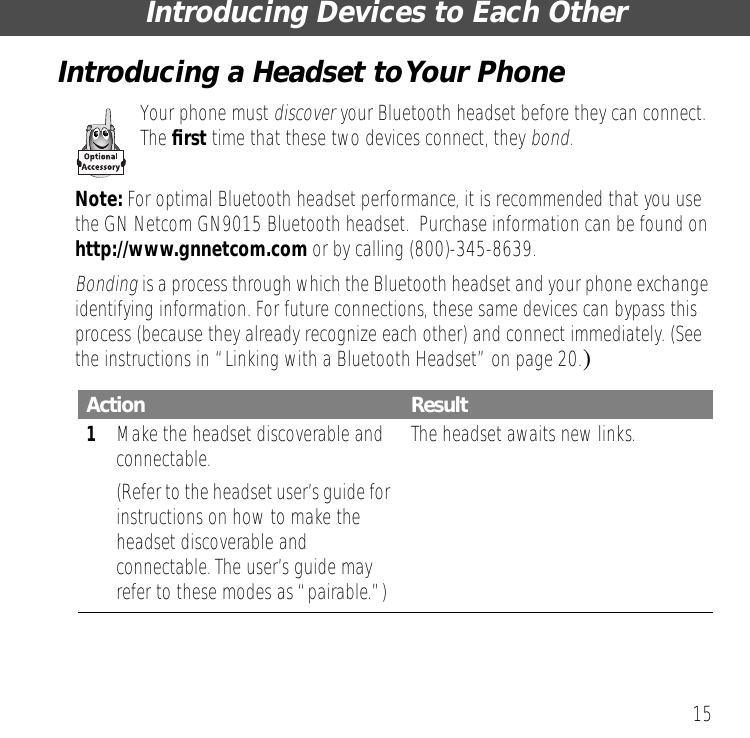
15Introducing Devices to Each OtherIntroducing a Headset to Your PhoneYour phone must discover your Bluetooth headset before they can connect. The first time that these two devices connect, they bond.Note: For optimal Bluetooth headset performance, it is recommended that you use the GN Netcom GN9015 Bluetooth headset.  Purchase information can be found on http://www.gnnetcom.com or by calling (800)-345-8639.Bonding is a process through which the Bluetooth headset and your phone exchange identifying information. For future connections, these same devices can bypass this process (because they already recognize each other) and connect immediately. (See the instructions in “Linking with a Bluetooth Headset” on page 20.)Action Result1Make the headset discoverable and connectable.(Refer to the headset user’s guide for instructions on how to make the headset discoverable and connectable. The user’s guide may refer to these modes as “pairable.”)The headset awaits new links.
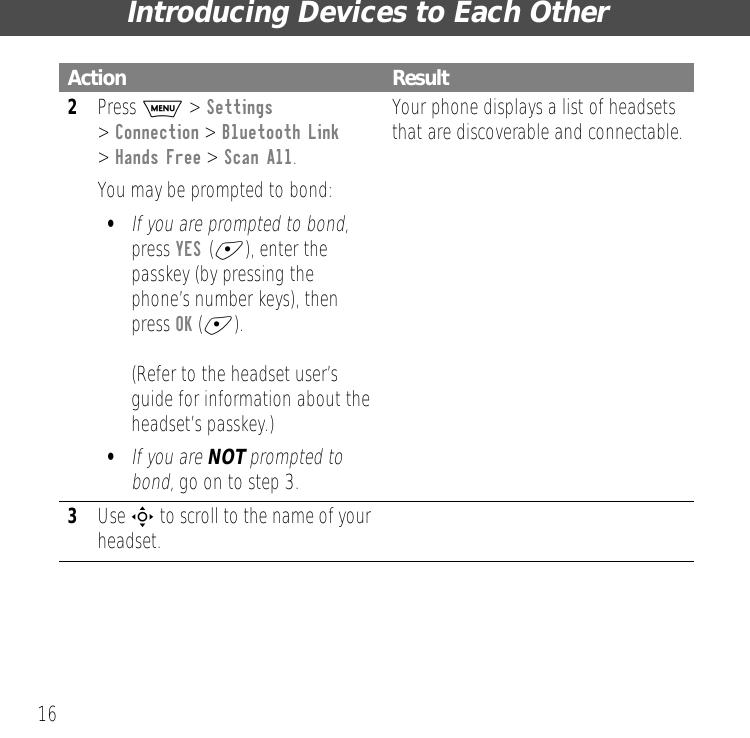
Introducing Devices to Each Other162Press M > Settings > Connection > Bluetooth Link > Hands Free > Scan All.You may be prompted to bond:•If you are prompted to bond, press YES (+), enter the passkey (by pressing the phone’s number keys), then press OK (+).(Refer to the headset user’s guide for information about the headset’s passkey.)•If you are NOT prompted to bond, go on to step 3.Your phone displays a list of headsets that are discoverable and connectable.3Use S to scroll to the name of your headset.Action Result
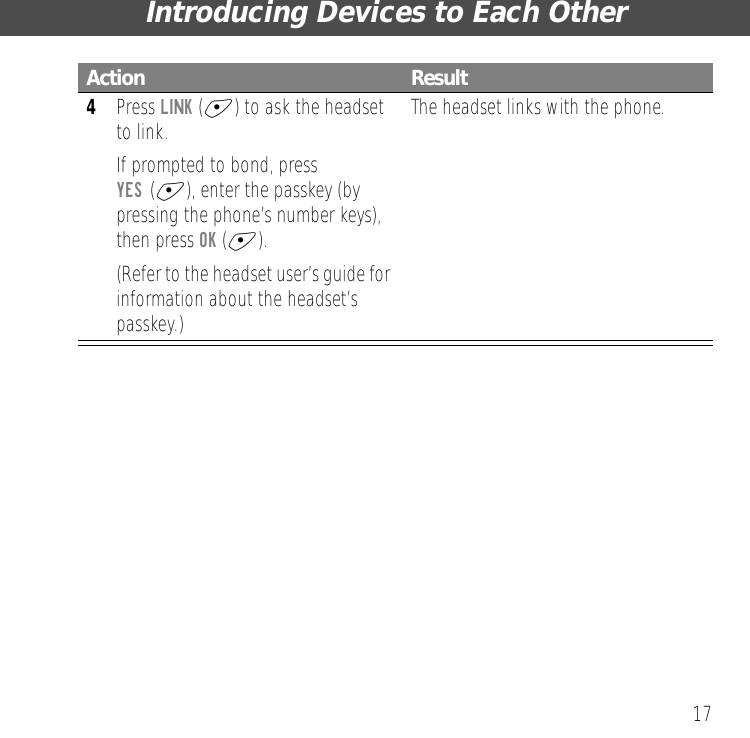
17Introducing Devices to Each Other4Press LINK (+) to ask the headset to link.If prompted to bond, pressYES (+), enter the passkey (by pressing the phone’s number keys), then press OK (+).(Refer to the headset user’s guide for information about the headset’s passkey.)The headset links with the phone.Action Result
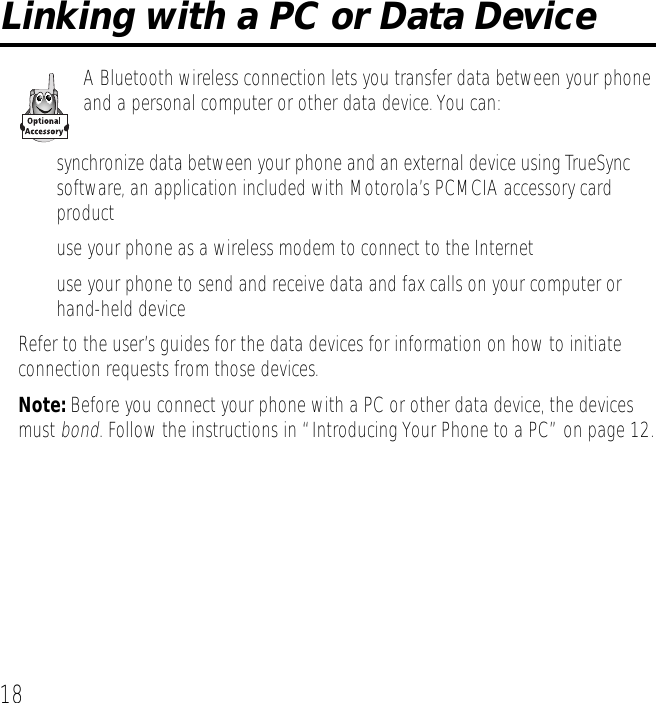
18Linking with a PC or Data DeviceA Bluetooth wireless connection lets you transfer data between your phone and a personal computer or other data device. You can:• synchronize data between your phone and an external device using TrueSync™ software, an application included with Motorola’s PCMCIA accessory card product• use your phone as a wireless modem to connect to the Internet• use your phone to send and receive data and fax calls on your computer or hand-held deviceRefer to the user’s guides for the data devices for information on how to initiate connection requests from those devices.Note: Before you connect your phone with a PC or other data device, the devices must bond. Follow the instructions in “Introducing Your Phone to a PC” on page 12.
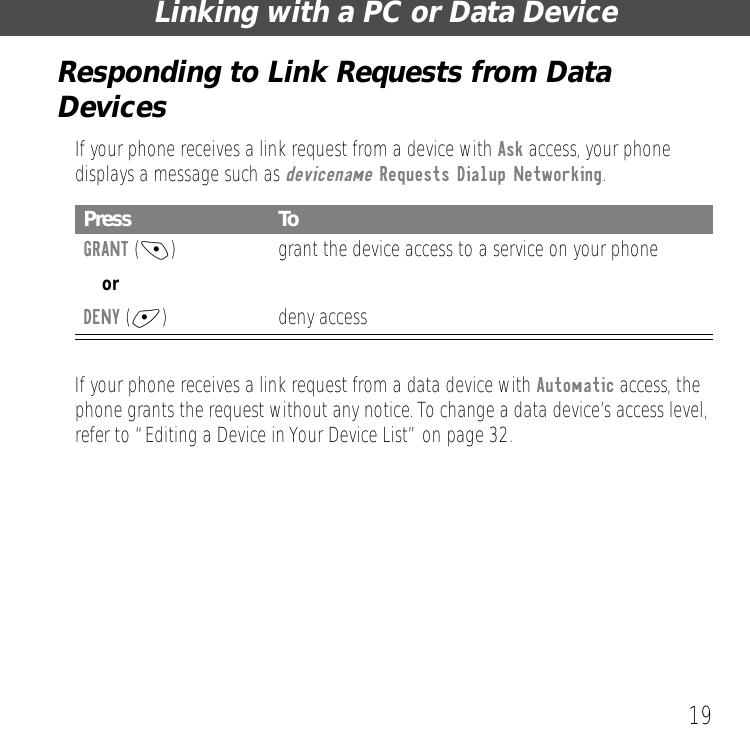
19Linking with a PC or Data DeviceResponding to Link Requests from Data DevicesIf your phone receives a link request from a device with Ask access, your phone displays a message such as devicename Requests Dialup Networking.If your phone receives a link request from a data device with Automatic access, the phone grants the request without any notice. To change a data device’s access level, refer to “Editing a Device in Your Device List” on page 32.Press ToGRANT (-) grant the device access to a service on your phoneorDENY (+) deny access
20Linking with a Bluetooth HeadsetYour phone can accept connection requests from a Bluetooth headset. (Refer to the headset user’s guide for information on how it initiates connection requests.)You can also tell your phone to scan for available Bluetooth headsets and then link to one that you specify. Because your phone remembers the last device it linked to, you can reconnect quickly. When your Bluetooth headset and phone are successfully connected, the headset functions as your phone’s speaker and microphone. You can make and receive as many calls as you wish without the need to reconnect the Bluetooth headset and phone.
21Linking with a Bluetooth HeadsetResponding to Link Requests from a Bluetooth HeadsetWhen your phone receives a link request from a Bluetooth headset with Automatic access, the phone grants the request without any notice. To change the headset’s access level, refer to “Editing a Device in Your Device List” on page 32.If your phone receives a link request from a headset with Ask access, your phone displays a message such as devicename Requests Voice Gateway.Press ToGRANT (-) grant the headset access to a service on your phoneYou are now able to make and receive calls from your headset, using your Bluetooth wireless.orDENY (+) deny access
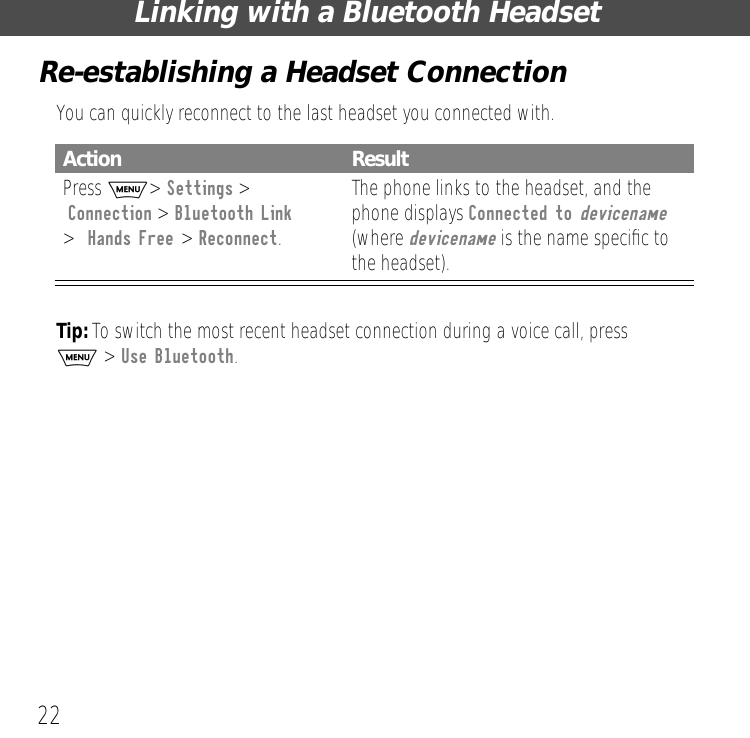
Linking with a Bluetooth Headset22Re-establishing a Headset ConnectionYou can quickly reconnect to the last headset you connected with.Tip: To switch the most recent headset connection during a voice call, press M > Use Bluetooth.Action ResultPress M> Settings > Connection > Bluetooth Link>  Hands Free > Reconnect.The phone links to the headset, and the phone displays Connected to devicename (where devicename is the name specific to the headset).
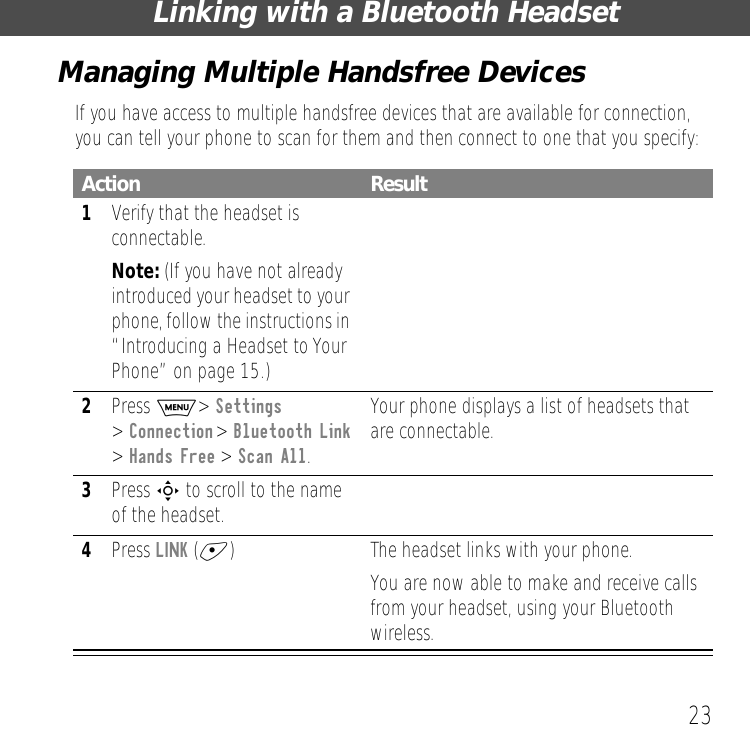
23Linking with a Bluetooth HeadsetManaging Multiple Handsfree DevicesIf you have access to multiple handsfree devices that are available for connection, you can tell your phone to scan for them and then connect to one that you specify:Action Result1Verify that the headset is connectable. Note: (If you have not already introduced your headset to your phone, follow the instructions in “Introducing a Headset to Your Phone” on page 15.)2Press M> Settings > Connection >  Bluetooth Link > Hands Free > Scan All.Your phone displays a list of headsets that are connectable.3Press S to scroll to the name of the headset.4Press LINK (+) The headset links with your phone.You are now able to make and receive calls from your headset, using your Bluetooth wireless.
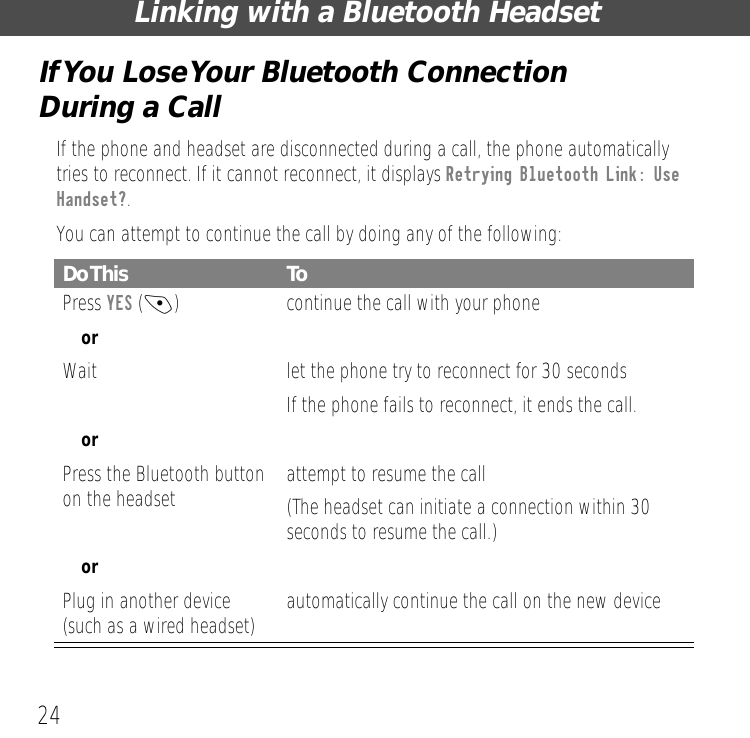
Linking with a Bluetooth Headset24If You Lose Your Bluetooth Connection During a CallIf the phone and headset are disconnected during a call, the phone automatically tries to reconnect. If it cannot reconnect, it displays Retrying Bluetooth Link: Use Handset?.You can attempt to continue the call by doing any of the following:Do This ToPress YES (-)  continue the call with your phoneorWait let the phone try to reconnect for 30 secondsIf the phone fails to reconnect, it ends the call.orPress the Bluetooth button on the headset attempt to resume the call(The headset can initiate a connection within 30 seconds to resume the call.)orPlug in another device (such as a wired headset) automatically continue the call on the new device
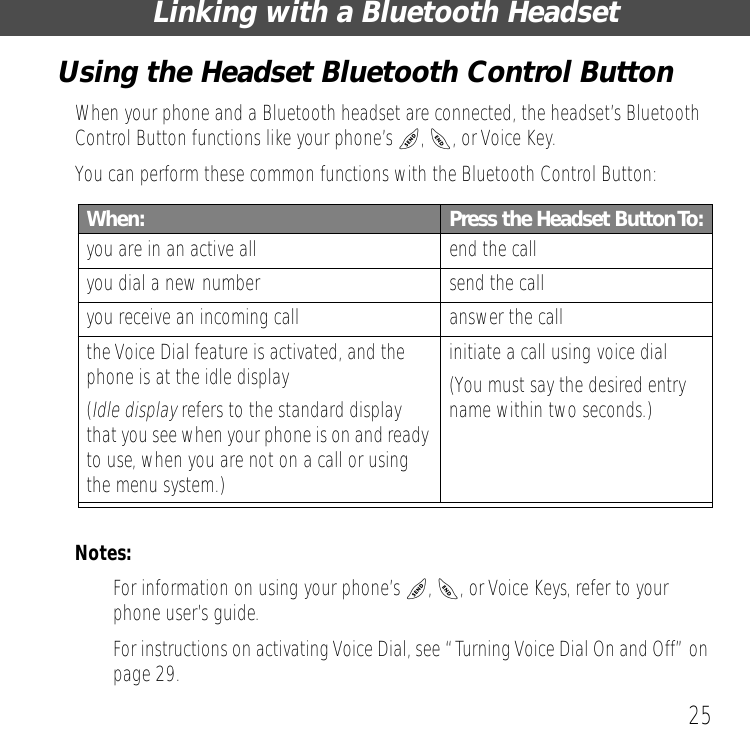
25Linking with a Bluetooth HeadsetUsing the Headset Bluetooth Control ButtonWhen your phone and a Bluetooth headset are connected, the headset’s Bluetooth Control Button functions like your phone’s N, O, or Voice Key.You can perform these common functions with the Bluetooth Control Button:Notes: • For information on using your phone’s N, O, or Voice Keys, refer to your phone user’s guide.• For instructions on activating Voice Dial, see “Turning Voice Dial On and Off” on page 29.When: Press the Headset Button To:you are in an active all end the callyou dial a new number send the callyou receive an incoming call answer the callthe Voice Dial feature is activated, and the phone is at the idle display(Idle display refers to the standard display that you see when your phone is on and ready to use, when you are not on a call or using the menu system.)initiate a call using voice dial(You must say the desired entry name within two seconds.)
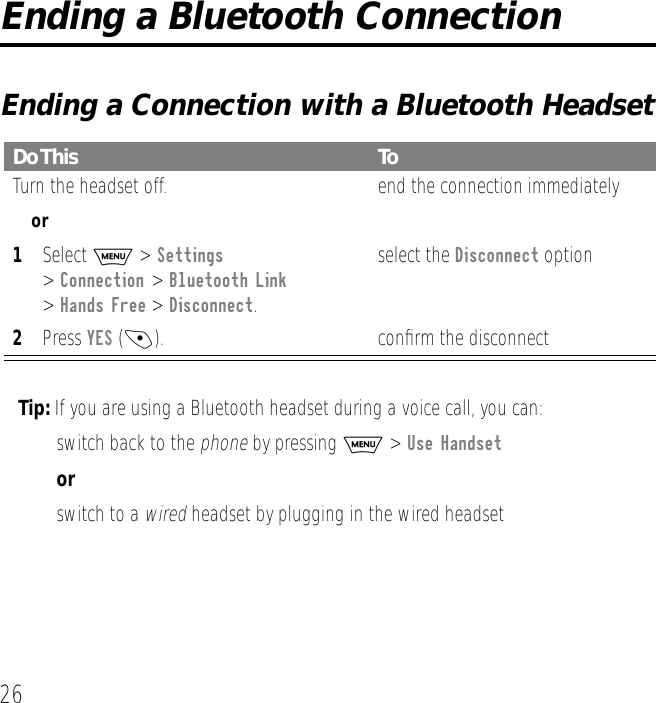
26Ending a Bluetooth ConnectionEnding a Connection with a Bluetooth HeadsetTip: If you are using a Bluetooth headset during a voice call, you can:• switch back to the phone by pressing M > Use Handsetor• switch to a wired headset by plugging in the wired headsetDo This ToTurn the headset off. end the connection immediatelyor1Select M > Settings> Connection > Bluetooth Link > Hands Free > Disconnect. 2Press YES (-).select the Disconnect optionconfirm the disconnect
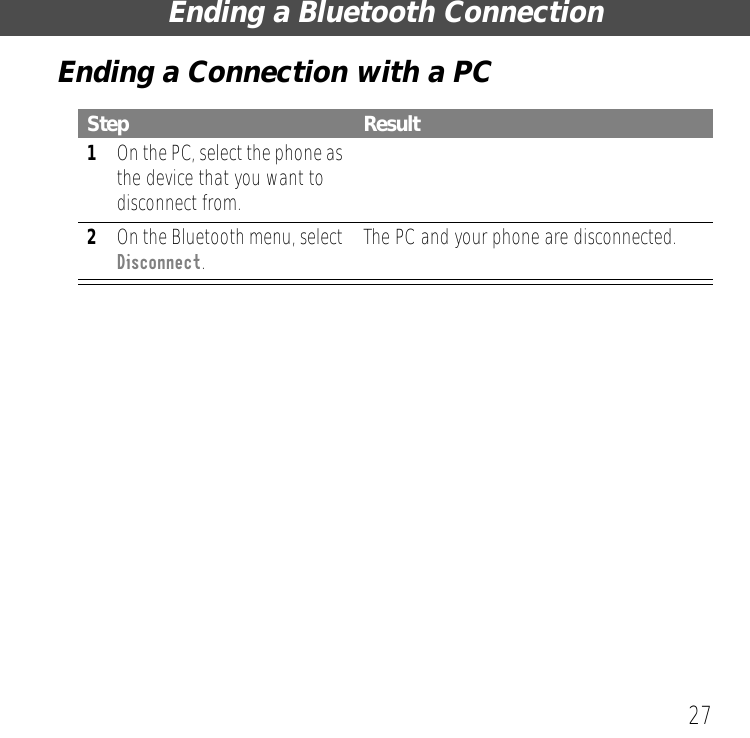
27Ending a Bluetooth ConnectionEnding a Connection with a PCStep Result1On the PC, select the phone as the device that you want to disconnect from.2On the Bluetooth menu, select Disconnect.The PC and your phone are disconnected.
28Customization FeaturesNaming Your  PhoneWhen other Bluetooth devices find your phone in a scan, they see its default Bluetooth name. If you wish to assign a custom name to your phone:Press To1M> Settings > Connection > Bluetooth Link > Setup > Name2keypad keys enter the characters for the name3OK (+) save the name that you entered
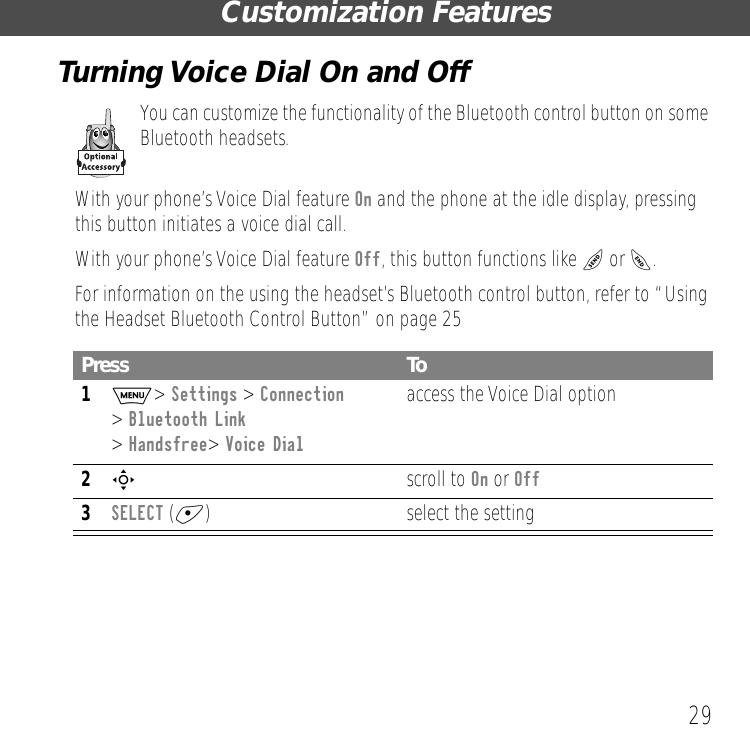
29Customization FeaturesTurning Voice Dial On and OffYou can customize the functionality of the Bluetooth control button on some Bluetooth headsets.With your phone’s Voice Dial feature On and the phone at the idle display, pressing this button initiates a voice dial call. With your phone’s Voice Dial feature Off, this button functions like N or O. For information on the using the headset’s Bluetooth control button, refer to “Using the Headset Bluetooth Control Button” on page 25Press To1M> Settings > Connection> Bluetooth Link > Handsfree> Voice Dialaccess the Voice Dial option2S scroll to On or Off3SELECT (+) select the setting
Customization Features30Maintaining Your Device ListYour phone keeps a list of the devices with which it has linked. If you change the name and access level for a device in this list, your phone will use these new settings the next time it links to the device.Note: Your device list holds up to ten devices. When your phone bonds and connects with a new device, that device is added to the phone’s device list. If the device list is full, and a new connection to the phone is attempted, your phone will display Bond Failed, Device List Full. For instructions on deleting a device from the list, see “Deleting a Device in Your Device List” on page 33.Reviewing Your Device ListPress To1M > Settings > Connection> Bluetooth Link > Devices access the device list2S  scroll through your device list
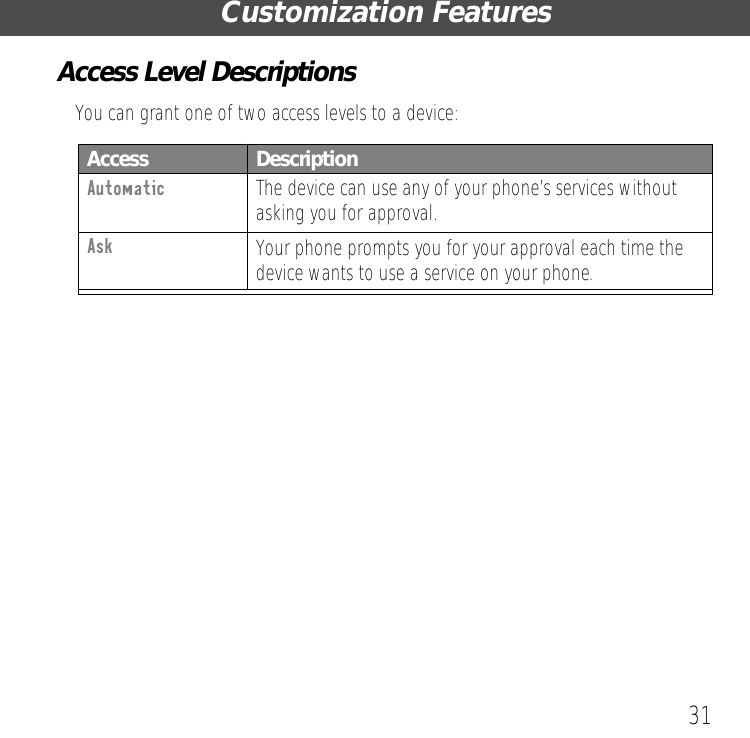
31Customization FeaturesAccess Level DescriptionsYou can grant one of two access levels to a device:Access  DescriptionAutomatic The device can use any of your phone’s services without asking you for approval.Ask Your phone prompts you for your approval each time the device wants to use a service on your phone.
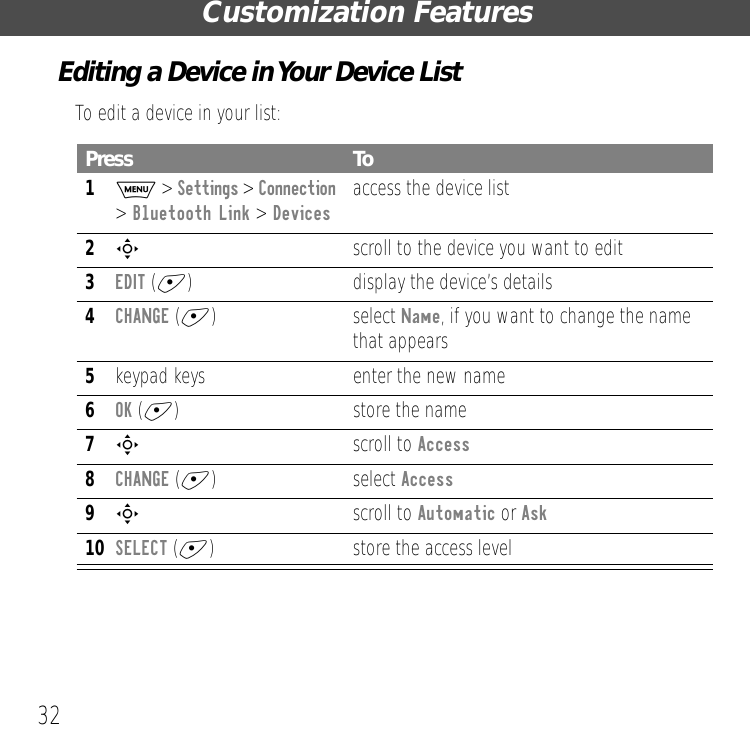
Customization Features32Editing a Device in Your Device ListTo edit a device in your list:Press To1M > Settings > Connection> Bluetooth Link > Devices access the device list2Sscroll to the device you want to edit3EDIT (+) display the device’s details4CHANGE (+) select Name, if you want to change the name that appears5keypad keys enter the new name6OK (+) store the name7S scroll to Access8CHANGE (+) select Access9S scroll to Automatic or Ask10SELECT (+) store the access level
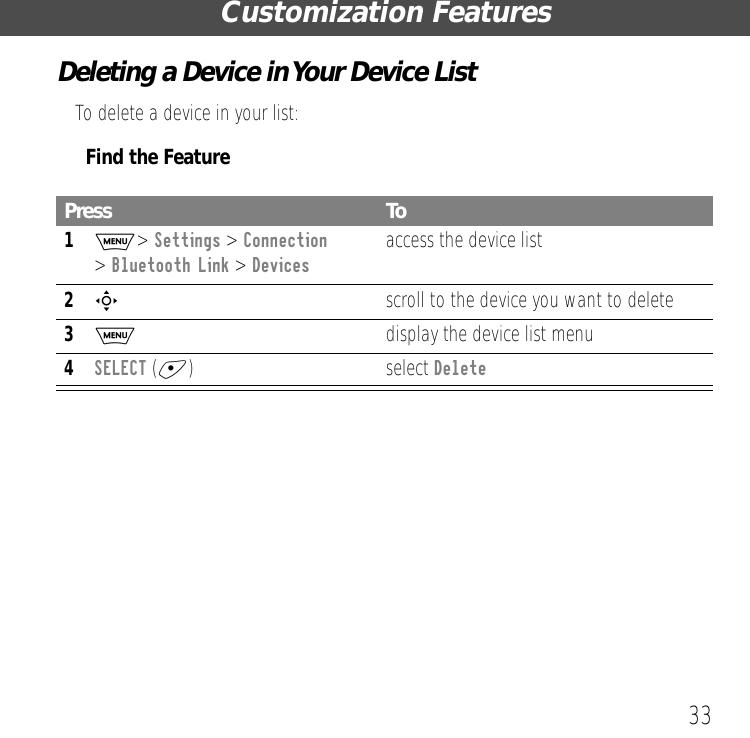
33Customization FeaturesDeleting a Device in Your Device ListTo delete a device in your list:Find the FeaturePress To1M> Settings > Connection > Bluetooth Link > Devices access the device list2Sscroll to the device you want to delete3Mdisplay the device list menu4SELECT (+) select Delete
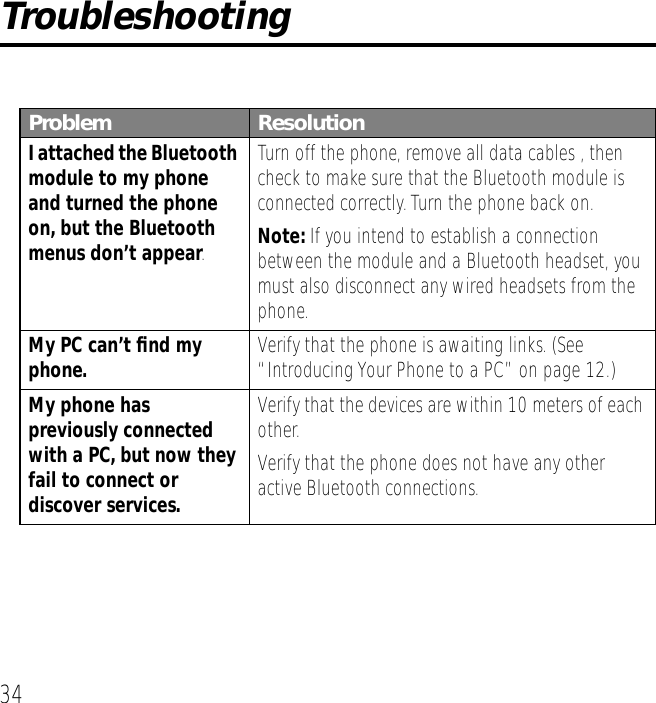
34TroubleshootingProblem ResolutionI attached the Bluetooth module to my phone and turned the phone on, but the Bluetooth menus don’t appear.Turn off the phone, remove all data cables , then check to make sure that the Bluetooth module is connected correctly. Turn the phone back on. Note: If you intend to establish a connection between the module and a Bluetooth headset, you must also disconnect any wired headsets from the phone.My PC can’t find my phone. Verify that the phone is awaiting links. (See “Introducing Your Phone to a PC” on page 12.)My phone has previously connected with a PC, but now they fail to connect or discover services.Verify that the devices are within 10 meters of each other.Verify that the phone does not have any other active Bluetooth connections.
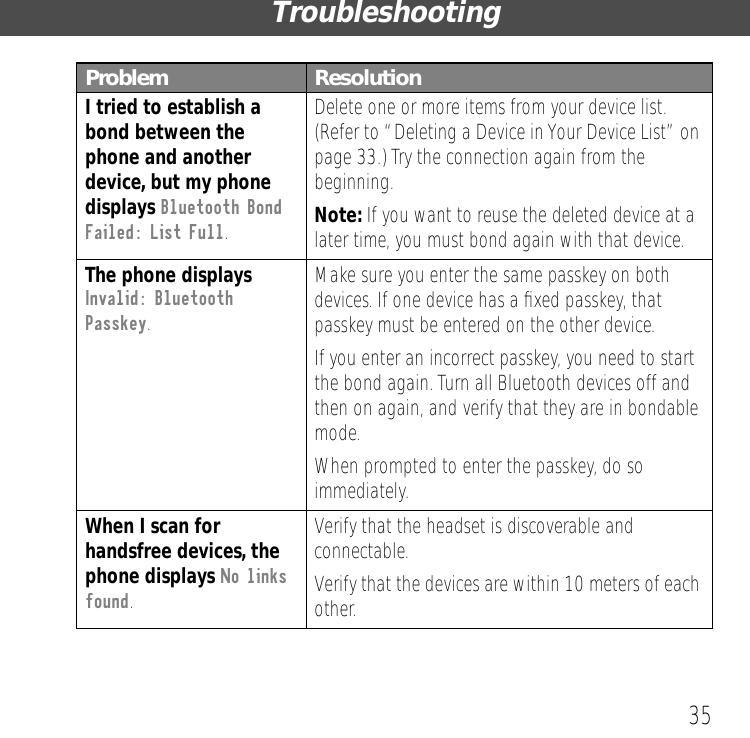
35TroubleshootingI tried to establish a bond between the phone and another device, but my phone displays Bluetooth Bond Failed: List Full.Delete one or more items from your device list. (Refer to “Deleting a Device in Your Device List” on page 33.) Try the connection again from the beginning.Note: If you want to reuse the deleted device at a later time, you must bond again with that device.The phone displays Invalid: Bluetooth Passkey.Make sure you enter the same passkey on both devices. If one device has a fixed passkey, that passkey must be entered on the other device.If you enter an incorrect passkey, you need to start the bond again. Turn all Bluetooth devices off and then on again, and verify that they are in bondable mode. When prompted to enter the passkey, do so immediately. When I scan for handsfree devices, the phone displays No links found.Verify that the headset is discoverable and connectable.Verify that the devices are within 10 meters of each other.Problem Resolution
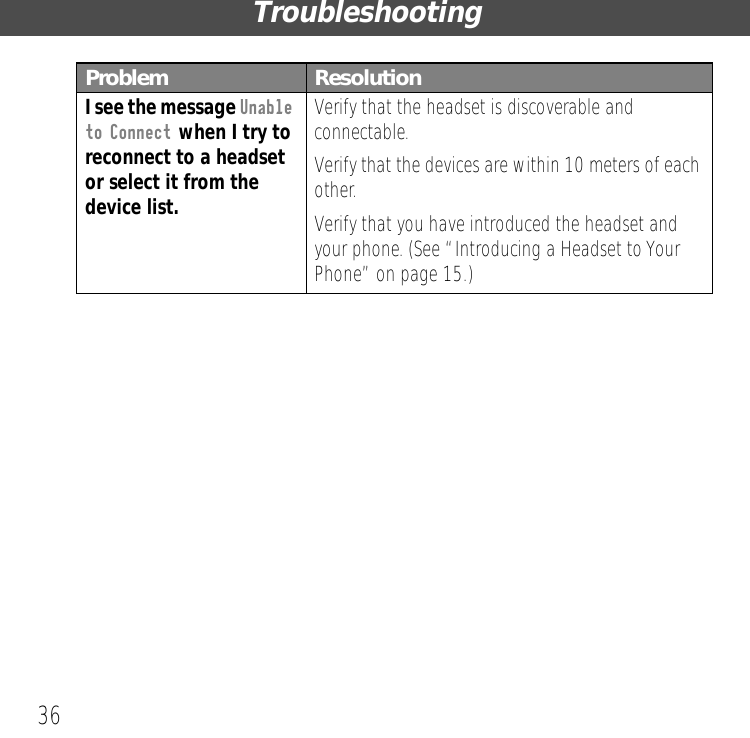
Troubleshooting36I see the message Unable to Connect when I try to reconnect to a headset or select it from the device list.Verify that the headset is discoverable and connectable.Verify that the devices are within 10 meters of each other.Verify that you have introduced the headset and your phone. (See “Introducing a Headset to Your Phone” on page 15.)Problem Resolution
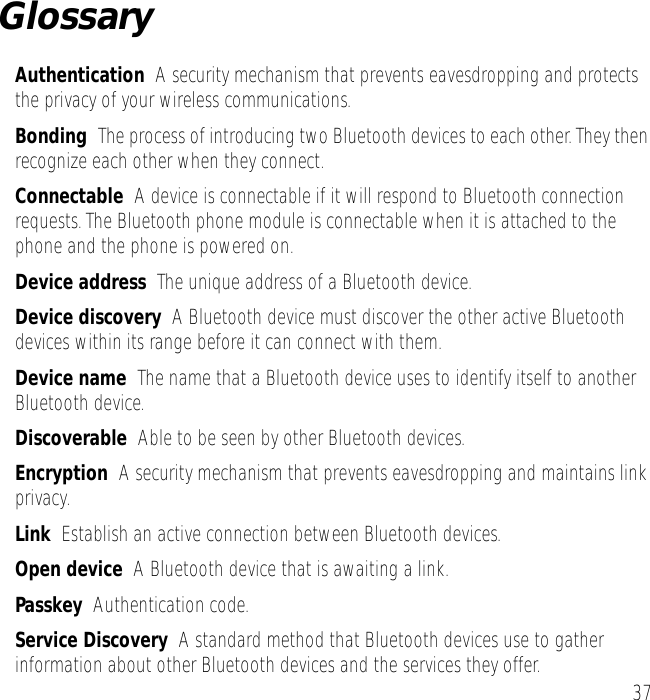
37GlossaryAuthentication  A security mechanism that prevents eavesdropping and protects the privacy of your wireless communications.Bonding  The process of introducing two Bluetooth devices to each other. They then recognize each other when they connect.Connectable  A device is connectable if it will respond to Bluetooth connection requests. The Bluetooth phone module is connectable when it is attached to the phone and the phone is powered on.Device address  The unique address of a Bluetooth device.Device discovery  A Bluetooth device must discover the other active Bluetooth devices within its range before it can connect with them.Device name  The name that a Bluetooth device uses to identify itself to another Bluetooth device.Discoverable  Able to be seen by other Bluetooth devices.Encryption  A security mechanism that prevents eavesdropping and maintains link privacy.Link  Establish an active connection between Bluetooth devices.Open device  A Bluetooth device that is awaiting a link.Passkey  Authentication code.Service Discovery  A standard method that Bluetooth devices use to gather information about other Bluetooth devices and the services they offer.
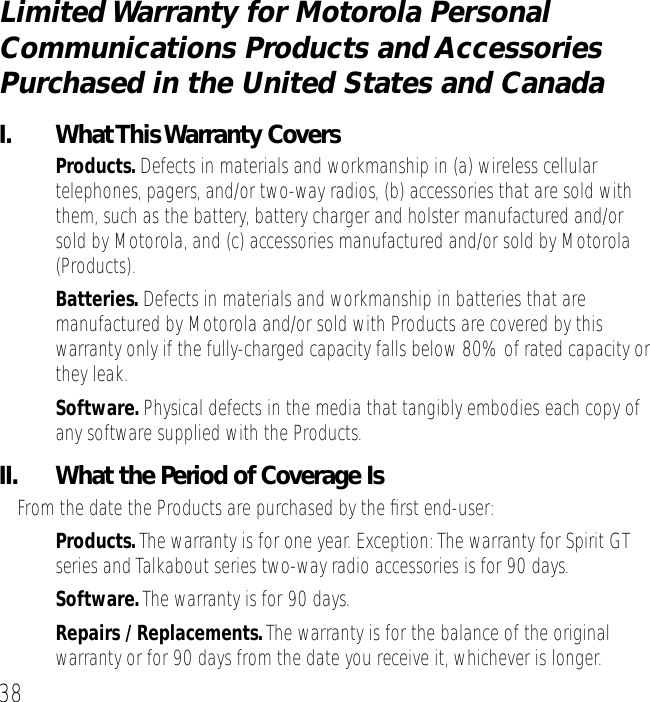
38Limited Warranty for Motorola Personal Communications Products and Accessories Purchased in the United States and CanadaI. What This Warranty Covers•Products. Defects in materials and workmanship in (a) wireless cellular telephones, pagers, and/or two-way radios, (b) accessories that are sold with them, such as the battery, battery charger and holster manufactured and/or sold by Motorola, and (c) accessories manufactured and/or sold by Motorola (Products).•Batteries. Defects in materials and workmanship in batteries that are manufactured by Motorola and/or sold with Products are covered by this warranty only if the fully-charged capacity falls below 80% of rated capacity or they leak.•Software. Physical defects in the media that tangibly embodies each copy of any software supplied with the Products.II.  What the Period of Coverage IsFrom the date the Products are purchased by the first end-user:•Products. The warranty is for one year. Exception: The warranty for Spirit GT series and Talkabout series two-way radio accessories is for 90 days.•Software. The warranty is for 90 days.•Repairs / Replacements. The warranty is for the balance of the original warranty or for 90 days from the date you receive it, whichever is longer.
39Limited WarrantyIII.  Who is CoveredThis warranty extends to the first end-user purchaser, only.IV.  What We Will Do to Correct Warranty ProblemsAt no charge to you, we have the option to repair or replace the Products or software that do not conform to the warranty, or to refund the Products’ purchase price. We may use functionally equivalent reconditioned/refurbished/pre-owned or new Products or parts. No software updates are provided.V.  How to Get Warranty ServicePLEASE CALL – DO NOT SHIP:USA CanadaCellular 1-800-331-6456  All Products1-800-461-4575Paging 1-800-548-9954  TTY (Text Telephone) Two-Way 1-800-353-2729 1-888-390-6456TTY (Text Telephone) 1-888-390-6456Accessories -- call the number designated for the product with which you use the accessory. You will receive instructions on how to ship the Products to Motorola or our designated resource. If instructed to ship the Products, you must ship them with freight, duties and insurance prepaid. Regardless of where you are instructed to return the Products, you must include: (a) a copy of your receipt, bill of sale or other comparable proof of purchase; (b) a written description of the problem; (c) the name
Limited Warranty40of your service provider (if this Product requires subscription service); (d) the name and location of the installation facility (if applicable) and, most importantly; (e) your address and telephone number. If requested, you must also return all detachable parts such as antennas, batteries and chargers. RETAIN YOUR ORIGINAL PROOF OF PURCHASE.For Products you ship to us, we will ship repaired or replacement Products at our expense for the freight and insurance, but at your expense for any duties. If additional information is needed, please contact us at the telephone number listed above.VI. What This Warranty Does Not Cover• Products that are operated in combination with ancillary or peripheral equipment or software not furnished by Motorola for use with the Products ("ancillary equipment"), or any damage to the Products or ancillary equipment as a result of such use. Among other things, "ancillary equipment" includes batteries, chargers, adaptors, and power supplies not manufactured or supplied by Motorola. Any of these voids the warranty.• Someone other than Motorola (or its authorized service centers) tests, adjusts, installs, maintains, alters, modifies or services the Products in any way. Any of these voids the warranty.• Rechargeable batteries that: (a) are charged by other than the Motorola-approved battery charger specified for charging such batteries; (b) have any broken seals or show evidence of tampering; (c) are used in equipment other
41Limited Warrantythan the Product for which they are specified; or (d) are charged and stored at temperatures greater than 60 degrees centigrade. Any of these voids the warranty.• Products that have: (a) serial numbers or date tags that have been removed, altered or obliterated; (b) board serial numbers that do not match each other, or board serial numbers that do not match the housing; or (c) nonconforming or non-Motorola housings or parts. Any of these voids the warranty.• Defects or damage that result from: (a) use of the Products in a manner that is not normal or customary; (b) improper operation or misuse; (c) accident or neglect such as dropping the Products onto hard surfaces; (d) contact with water, rain, extreme humidity or heavy perspiration; (e) contact with sand, dirt or the like; or (f) contact with extreme heat, or spills of food or liquid.• Physical damage to the surface of the Products, including scratches, cracks or other damage to a display screen, lens or other externally exposed parts.• Failure of Products that is due primarily to any communication service or signal you may subscribe to or use with the Products.• Coil cords that are stretched or that have any broken modular tabs.• Products that are leased.Flat-rate repair rates may apply to Products not covered by this warranty. To obtain information about Products needing repairs that are not covered by this warranty, please call the telephone number previously listed. We will provide information on repair availability, rates, methods of payment, where to send the Products, etc.
Limited Warranty42VII.  Some Other LimitationsThis is Motorola’s complete warranty for the Products, and states your exclusive remedies. This warranty is given in lieu of all other express warranties. Implied warranties, including without limitation, the implied warranties of merchantability and fitness for a particular purpose, are given only if specifically required by applicable law. Otherwise, they are specifically excluded. No warranty is made as to coverage, availability, or grade of service provided by the Products, whether through a service provider or otherwise. No warranty is made that the software will meet your requirements or will work in combination with any hardware or applications software products provided by third parties, that the operation of the software products will be uninterrupted or error free, or that all defects in the software products will be corrected.  In no event shall Motorola be liable, whether in contract or tort (including negligence) for damages in excess of the purchase price of the Product, or for any indirect, incidental, special or consequential damages of any kind, or loss of revenue or profits, loss of business, loss of information or data, or other financial loss arising out of or in connection with the ability or inability to use the Products, to the full extent these damages may be disclaimed by law.
43Limited WarrantyVIII.  Patent and Software ProvisionsAt Motorola’s expense, we will defend you, and pay costs and damages that may be finally awarded against you, to the extent that a lawsuit is based on a claim that the Products directly infringe a United States patent. Our obligation is conditioned on: (a) you notifying us promptly in writing when you receive notice of the claim; (b) you giving us sole control of the defense of the suit and all negotiations for its settlement or compromise; and (c) should the Products become, or in Motorola's opinion be likely to become, the subject of a claim of infringement of a United States patent, you permit us, at our option and expense, either to: procure for you the right to continue using the Products; replace or modify them so that they become non-infringing; or grant you a credit for such Products, as depreciated, and accept their return. The depreciation will be an equal amount per year over the lifetime of the Products, as established by Motorola.Motorola will have no liability to you with respect to any claim of patent infringement that is based upon the combination of the Products or parts furnished under this limited warranty with ancillary equipment, as defined in VI., above.This is Motorola’s entire liability with respect to infringement of patents by the Products. Laws in the United States and other countries preserve for Motorola and other third party software providers certain exclusive rights for copyrighted software, such as the exclusive rights to reproduce in copies and distribute copies of such software. The software may be copied into, used in and redistributed with only those Products that are associated with such software. No other use, including without limitation,
Limited Warranty44disassembly or reverse engineering of such software or exercise of exclusive rights in such software is permitted.IX.  State Law and Other Jurisdiction RightsSome states and other jurisdictions do not allow the exclusion or limitation of incidental or consequential damages, or limitation on the length of an implied warranty, so the above limitations or exclusions may not apply to you.This warranty gives you specific legal rights, and you may also have other rights, which vary from jurisdiction to jurisdiction. To obtain information on Motorola Personal Communications Products, including warranty service, accessories and optional Extended Warranties on selected Products, please call:USA  CanadaCellular 1-800-331-6456  All Products 1-800 461-4575Paging 1-800-548-9954  TTY 1-888-390-6456Two-Way 1-800-353-2729TTY 1-888-390-6456Accessories  --  call the number designated for the product with which you use the accessory. DO NOT SHIP PRODUCTS UNDER WARRANTY TO THESE ADDRESSES – INSTEAD PLEASE CALL. To correspond with Motorola about Products, please write us at http://www.motorola.com or at:
45Limited WarrantyIn the USA:  In Canada:Motorola, Inc.  Motorola Canada Limited600 North U.S. Highway  45 5875 Whittle RoadLibertyville, IL 60048  Mississauga, ON L4Z 2H4Copyright 2001 Motorola. All rights reserved.

Navigation menu