Digianswer A S BTPCM101 Bluetooth PCMCIA Card User Manual 00 04 19

Digianswer A/S Bluetooth PCMCIA Card 00 04 19

Contents

Software Suite Users Manual

                             SOFTWARE SUITE          Preliminary User’s Manual
Bluetooth Software Suite   User’s Manual   2 Contents   Introduction  Overview Bluetooth Neighborhood Bluetooth Configuration Tool Bluetooth Network Manager Bluetooth Control Center  Main window Profiles and services List view  Basic functions Device discovery Service discovery Link establishment Disconnecting Status information Device groups Windows Explorer Online Help   Managing COM ports Establishing COM port links  Object transfer Making your business card available Business card transfer Sending objects directly from MS Outlook       File transfer Sending files Receiving files  Audio links  Networking   Settings Bluetooth Radio settings Profile properties  Local device properties  Properties (Bluetooth Neighborhood options) Remote device properties  Appendices Profiles Regulatory statements
Bluetooth Software Suite   User’s Manual      3 Introduction   With the Bluetooth Software Suite, you can establish wireless links between your computer and other Bluetooth enabled devices. Without using any cables, you can transfer sound, objects and files; connect to serial devices like a mouse, modem, printer etc.; and network.  This user’s manual is a comprehensive guide to the Bluetooth™ Software Suite version 1.0. It contains all the descriptions and instructions you need to be able to make the most of the program.   We will start by providing an overview of the applications of the Bluetooth Software Suite. We will then look closer into the Bluetooth Neighborhood main window, which is where most of the action takes place. Next, we will account for the basic principles of operating the Bluetooth Neighborhood. We will then turn to each of the services (applications) currently facilitated by your Bluetooth Software Suite. Finally, we will deal with the various settings of the program.  In addition to this user’s manual, the documentation for the Bluetooth Software Suite comprises a Beginner’s Guide providing a general introduction to the Bluetooth technology. Both the User’s Manual and the Beginner’s Guide are  included on the CD-ROM for the Bluetooth Software Suite. Furthermore, when you have installed the Bluetooth Software Suite, the two documents are available from the Windows Start      menu. Finally, the Bluetooth Software Suite is accompanied by a printed installation guide. The Bluetooth Software Suite and Microsoft Windows are highly integrated. However, it is beyond the scope of this manual to explain the basics of using Windows. If you need  information on that topic, please refer to the Windows user’s manual or online help.    Disclaimer  Any responsibility or liability for loss or damage in connection with the use of this product and the accompanying documentation is disclaimed. The  information in this document is furnished for informational use only, is subject to change without notice, may contain errors or inaccuracies, and represents no commitment whatsoever. This agreement is governed by the laws of Denmark.  Document issue: Draft TR 00-04-19          Bluetooth is a trademark owned by its proprietor and used by this manufacturer under license.
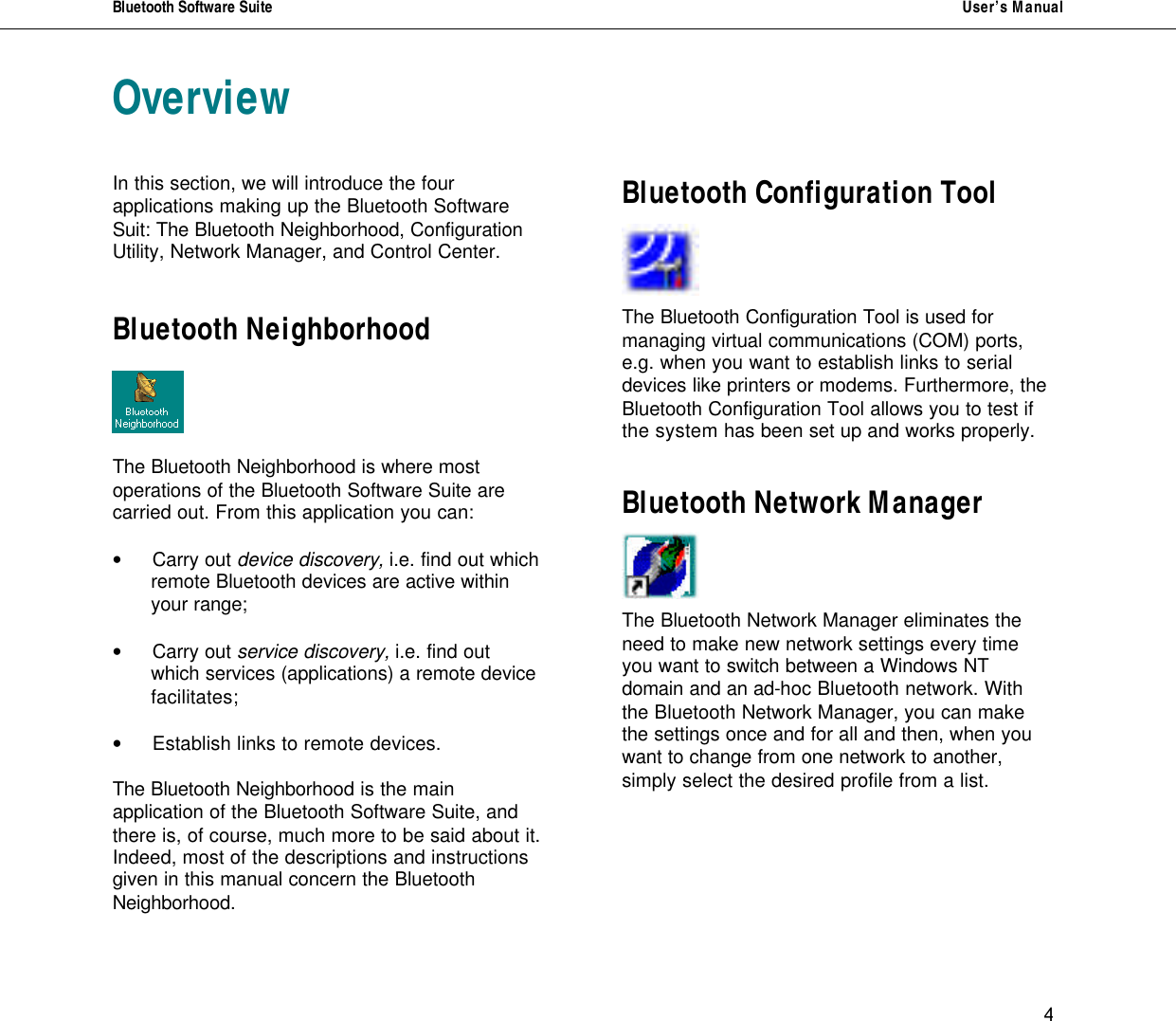
Bluetooth Software Suite   User’s Manual      4 Overview   In this section, we will introduce the four applications making up the Bluetooth Software Suit: The Bluetooth Neighborhood, Configuration Utility, Network Manager, and Control Center.    Bluetooth Neighborhood     The Bluetooth Neighborhood is where most operations of the Bluetooth Software Suite are carried out. From this application you can:  • Carry out device discovery, i.e. find out which  remote Bluetooth devices are active within  your range;   • Carry out service discovery, i.e. find out  which services (applications) a remote device  facilitates;  • Establish links to remote devices.  The Bluetooth Neighborhood is the main application of the Bluetooth Software Suite, and there is, of course, much more to be said about it. Indeed, most of the descriptions and instructions given in this manual concern the Bluetooth Neighborhood.      Bluetooth Configuration Tool     The Bluetooth Configuration Tool is used for managing virtual communications (COM) ports, e.g. when you want to establish links to serial devices like printers or modems. Furthermore, the Bluetooth Configuration Tool allows you to test if the system has been set up and works properly.  Bluetooth Network Manager     The Bluetooth Network Manager eliminates the need to make new network settings every time you want to switch between a Windows NT domain and an ad-hoc Bluetooth network. With the Bluetooth Network Manager, you can make the settings once and for all and then, when you want to change from one network to another, simply select the desired profile from a list.
Bluetooth Software Suite   User’s Manual      5 Bluetooth Control Center     The Bluetooth Control Center is a small tray icon application located in the lower right corner of the screen. The Bluetooth Control Center shows the state of the Bluetooth radio, and allows you to enable/ disable the Bluetooth radio manually. Also, the Bluetooth Control Center is where you open the Bluetooth Network Manager.
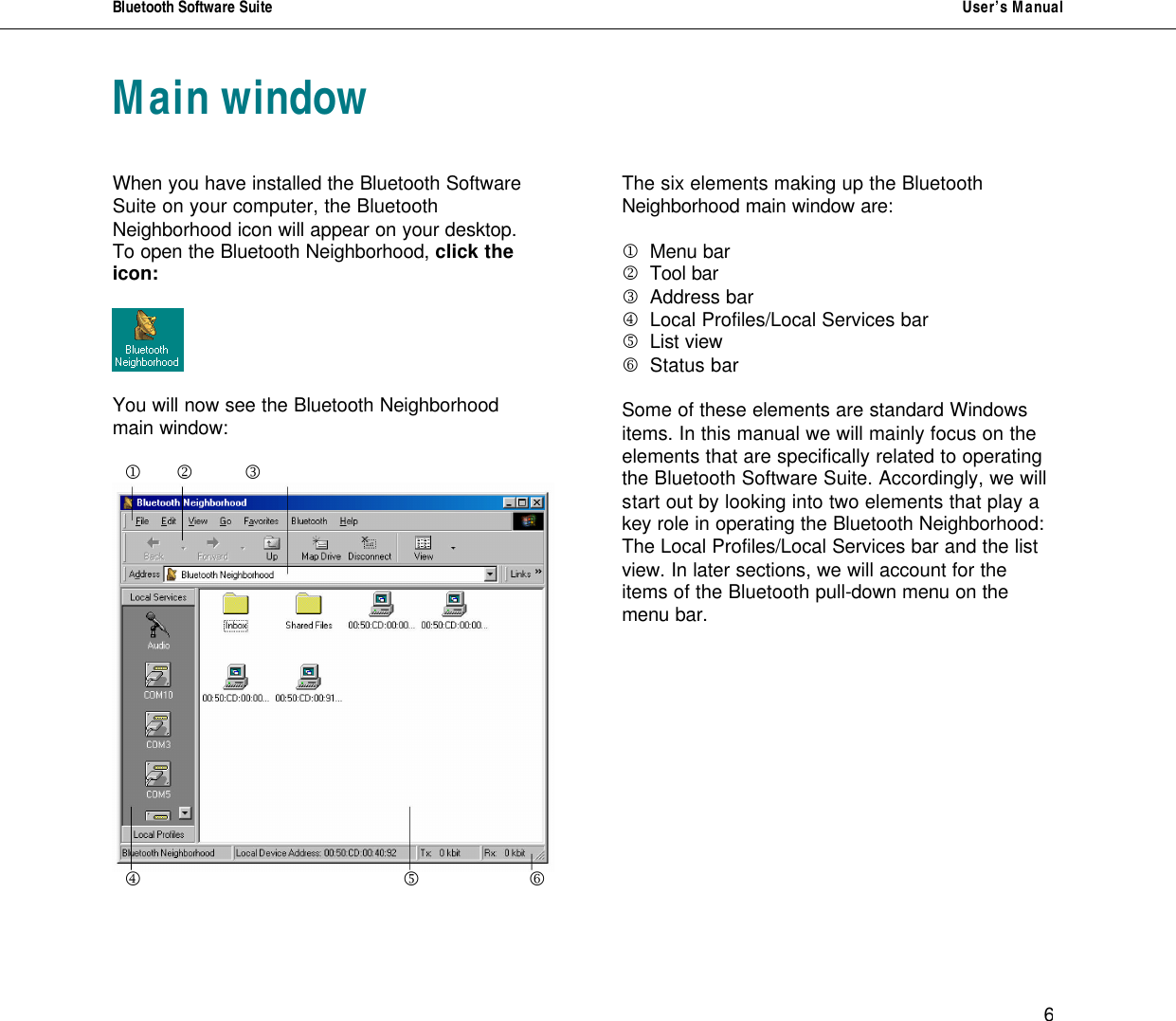
Bluetooth Software Suite   User’s Manual      6 Main window    When you have installed the Bluetooth Software Suite on your computer, the Bluetooth Neighborhood icon will appear on your desktop.  To open the Bluetooth Neighborhood, click the icon:    You will now see the Bluetooth Neighborhood main window:    j     k   l     m         n      o       The six elements making up the Bluetooth Neighborhood main window are:  j Menu bar   k Tool bar l Address bar m Local Profiles/Local Services bar n List view       o Status bar  Some of these elements are standard Windows items. In this manual we will mainly focus on the elements that are specifically related to operating the Bluetooth Software Suite. Accordingly, we will start out by looking into two elements that play a key role in operating the Bluetooth Neighborhood: The Local Profiles/Local Services bar and the list view. In later sections, we will account for the items of the Bluetooth pull-down menu on the menu bar.
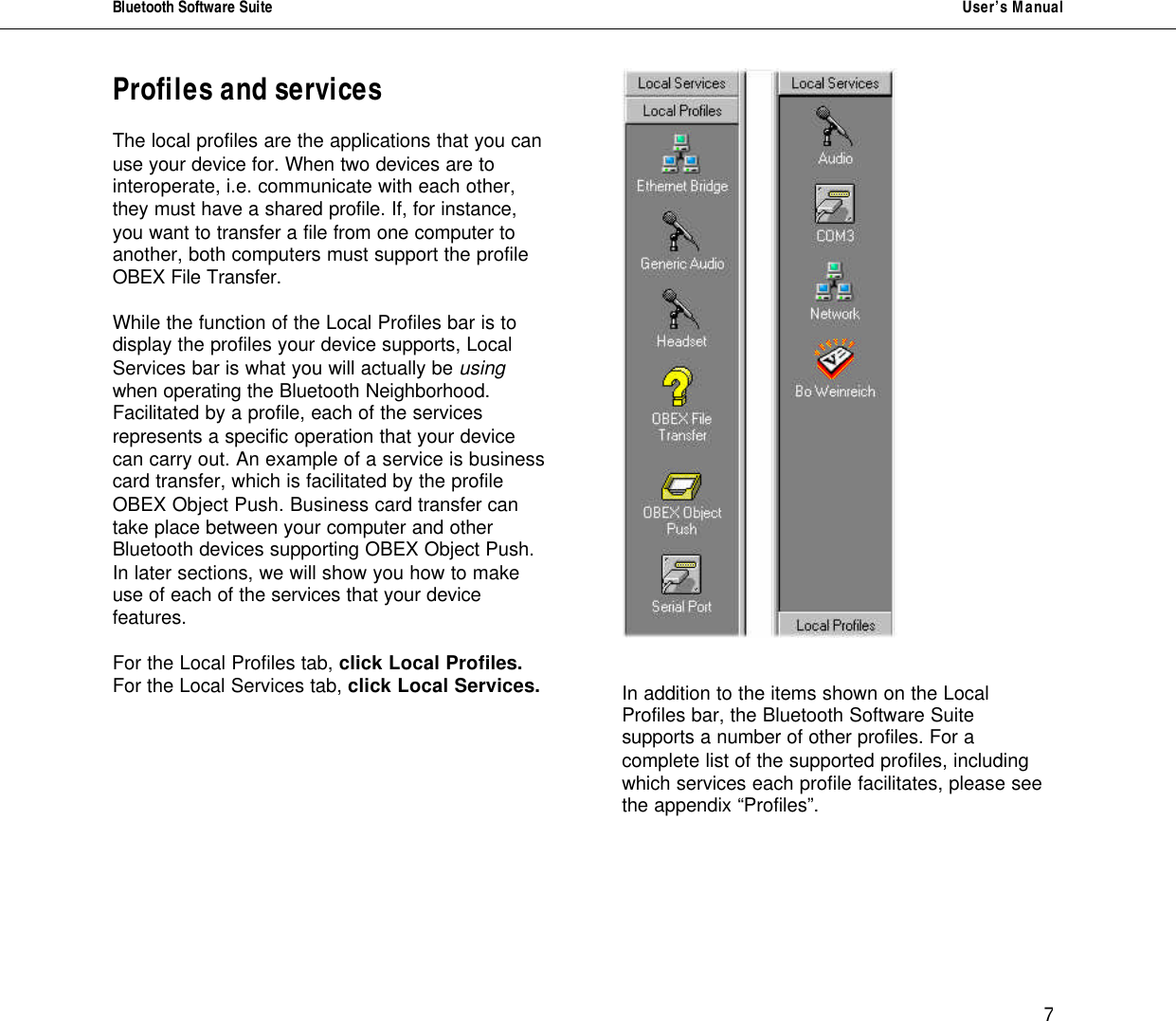
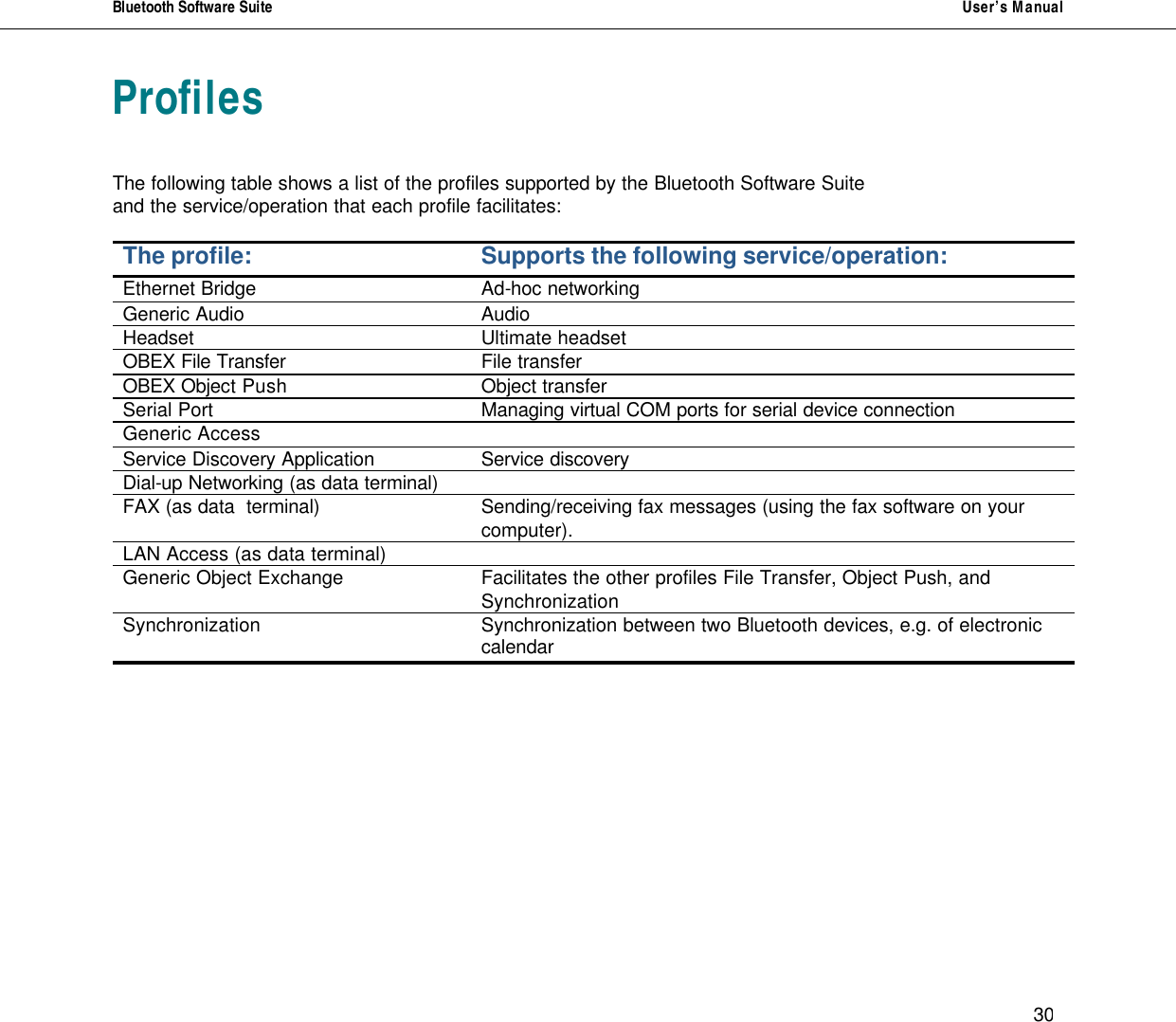
Bluetooth Software Suite   User’s Manual      7 Profiles and services     The local profiles are the applications that you can use your device for. When two devices are to interoperate, i.e. communicate with each other, they must have a shared profile. If, for instance, you want to transfer a file from one computer to another, both computers must support the profile OBEX File Transfer.   While the function of the Local Profiles bar is to display the profiles your device supports, Local Services bar is what you will actually be using when operating the Bluetooth Neighborhood. Facilitated by a profile, each of the services represents a specific operation that your device can carry out. An example of a service is business card transfer, which is facilitated by the profile OBEX Object Push. Business card transfer can take place between your computer and other Bluetooth devices supporting OBEX Object Push. In later sections, we will show you how to make use of each of the services that your device features.  For the Local Profiles tab, click Local Profiles.  For the Local Services tab, click Local Services.      In addition to the items shown on the Local Profiles bar, the Bluetooth Software Suite supports a number of other profiles. For a complete list of the supported profiles, including which services each profile facilitates, please see the appendix “Profiles”.
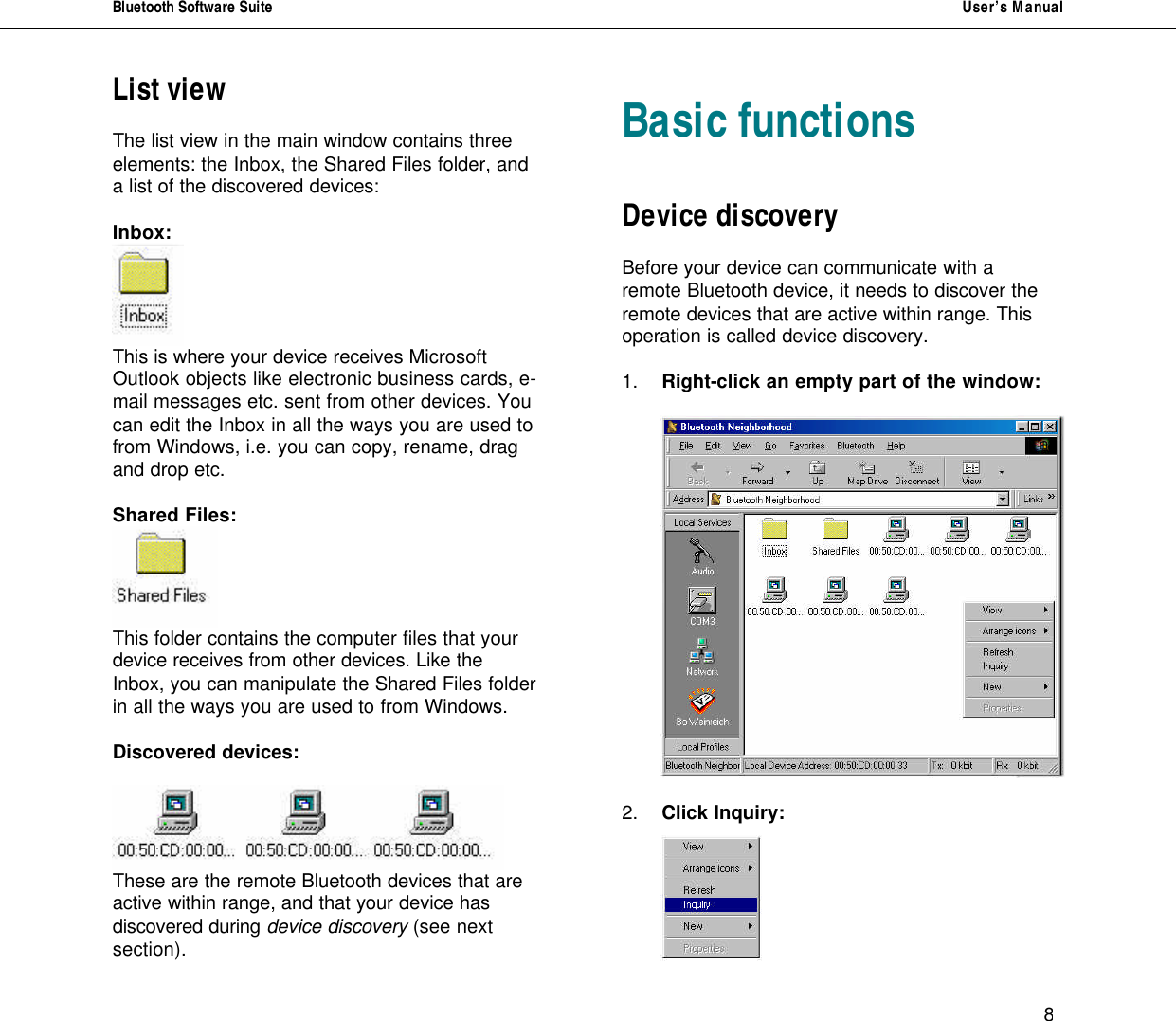
Bluetooth Software Suite   User’s Manual      8 List view  The list view in the main window contains three elements: the Inbox, the Shared Files folder, and a list of the discovered devices:  Inbox:  This is where your device receives Microsoft Outlook objects like electronic business cards, e-mail messages etc. sent from other devices. You can edit the Inbox in all the ways you are used to from Windows, i.e. you can copy, rename, drag and drop etc.  Shared Files:  This folder contains the computer files that your  device receives from other devices. Like the  Inbox, you can manipulate the Shared Files folder  in all the ways you are used to from Windows.  Discovered devices:   These are the remote Bluetooth devices that are active within range, and that your device has discovered during device discovery (see next section).     Basic functions   Device discovery  Before your device can communicate with a remote Bluetooth device, it needs to discover the remote devices that are active within range. This operation is called device discovery.  1. Right-click an empty part of the window:     2. Click Inquiry:
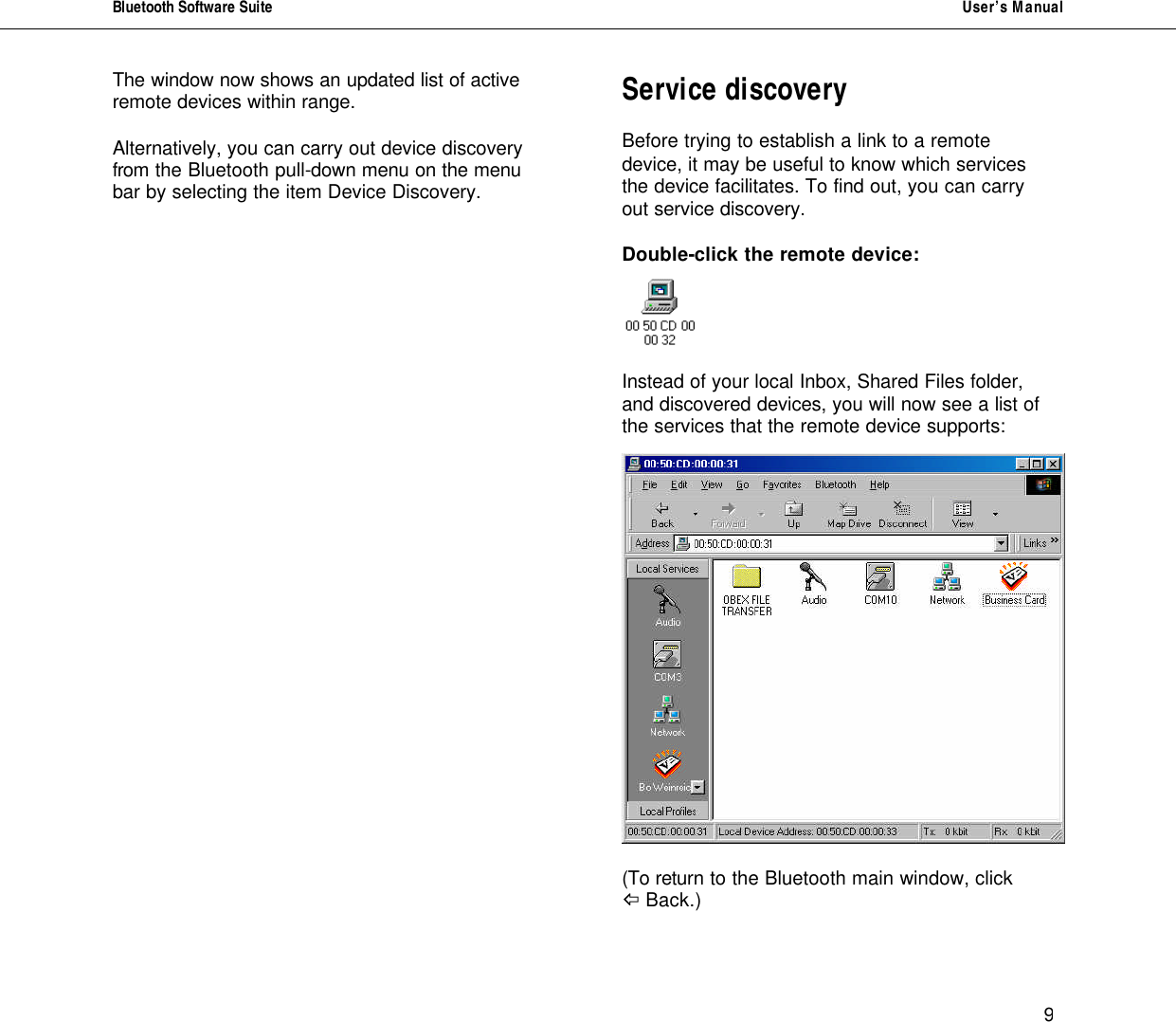
Bluetooth Software Suite   User’s Manual      9 The window now shows an updated list of active remote devices within range.   Alternatively, you can carry out device discovery from the Bluetooth pull-down menu on the menu bar by selecting the item Device Discovery.                     Service discovery  Before trying to establish a link to a remote device, it may be useful to know which services the device facilitates. To find out, you can carry out service discovery.  Double-click the remote device:    Instead of your local Inbox, Shared Files folder, and discovered devices, you will now see a list of the services that the remote device supports:    (To return to the Bluetooth main window, click  ^ Back.)
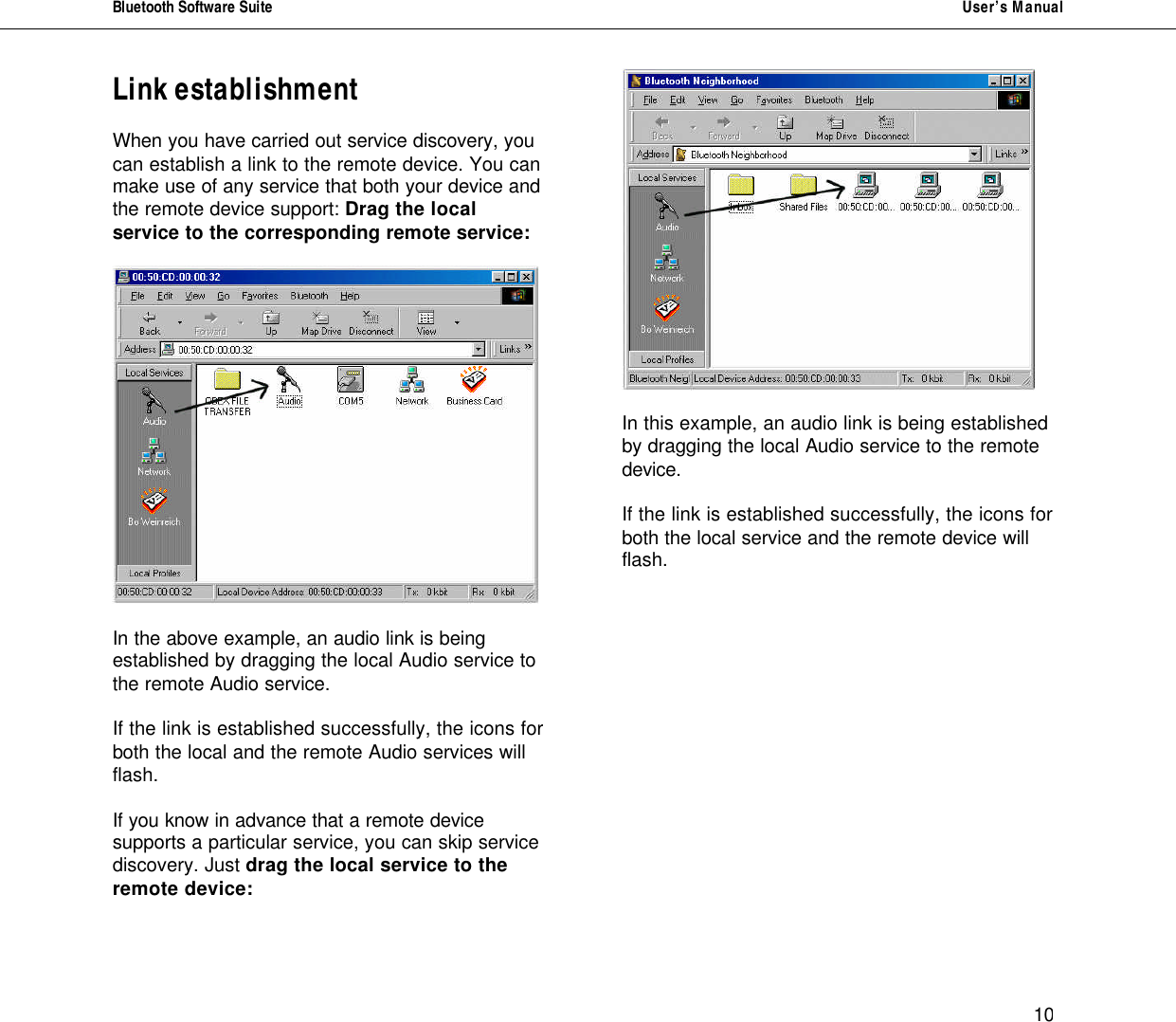
Bluetooth Software Suite   User’s Manual      10 Link establishment  When you have carried out service discovery, you can establish a link to the remote device. You can make use of any service that both your device and the remote device support: Drag the local service to the corresponding remote service:    In the above example, an audio link is being established by dragging the local Audio service to the remote Audio service.  If the link is established successfully, the icons for both the local and the remote Audio services will flash.  If you know in advance that a remote device supports a particular service, you can skip service discovery. Just drag the local service to the remote device:    In this example, an audio link is being established by dragging the local Audio service to the remote device.  If the link is established successfully, the icons for both the local service and the remote device will flash.
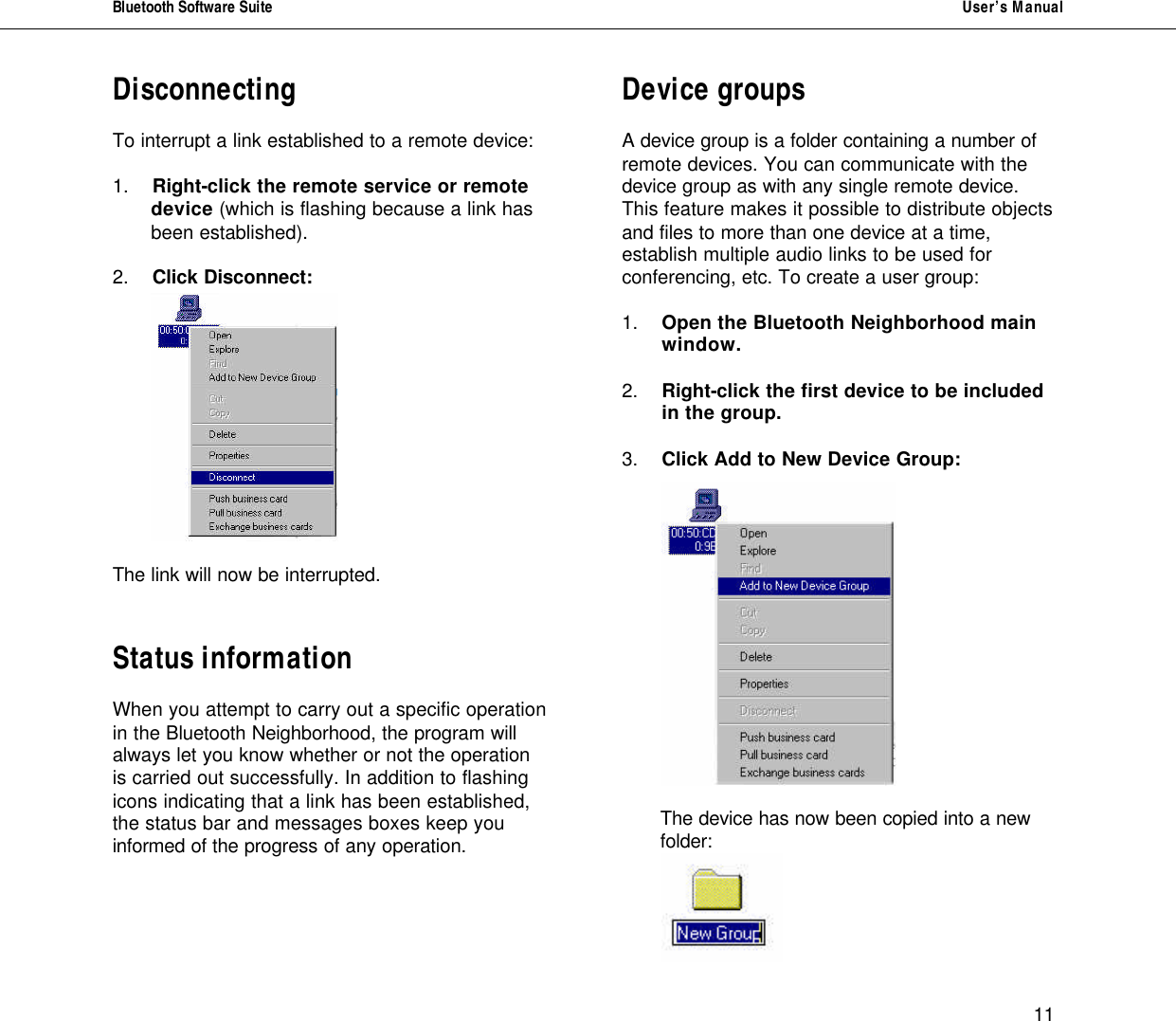
Bluetooth Software Suite   User’s Manual      11 Disconnecting  To interrupt a link established to a remote device:   1. Right-click the remote service or remote  device (which is flashing because a link has  been established).  2. Click Disconnect:    The link will now be interrupted.   Status information  When you attempt to carry out a specific operation in the Bluetooth Neighborhood, the program will always let you know whether or not the operation is carried out successfully. In addition to flashing icons indicating that a link has been established, the status bar and messages boxes keep you informed of the progress of any operation.   Device groups  A device group is a folder containing a number of remote devices. You can communicate with the device group as with any single remote device. This feature makes it possible to distribute objects and files to more than one device at a time, establish multiple audio links to be used for conferencing, etc. To create a user group:  1.  Open the Bluetooth Neighborhood main    window.  2.  Right-click the first device to be included    in the group.  3.  Click Add to New Device Group:       The device has now been copied into a new folder:
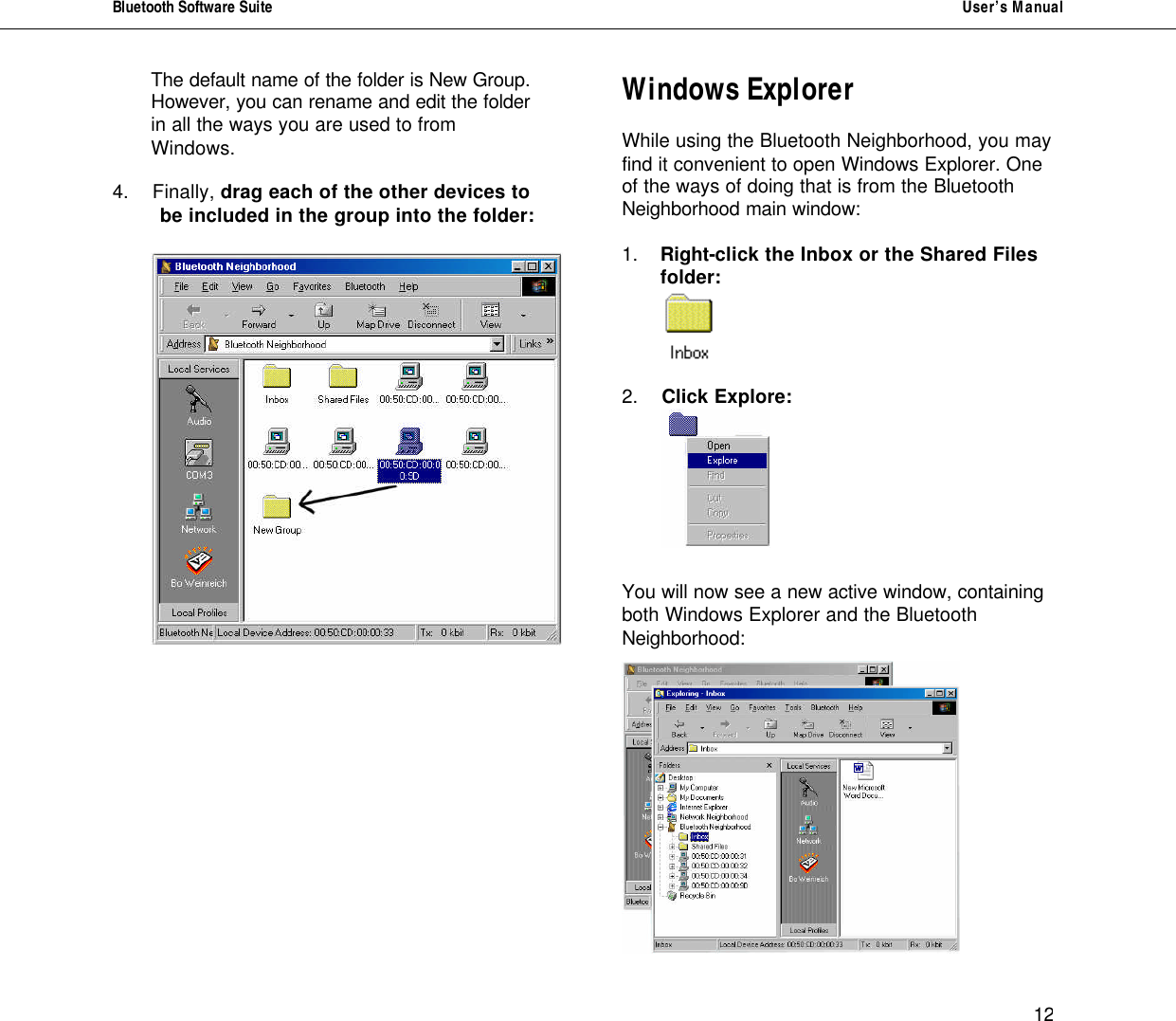
Bluetooth Software Suite   User’s Manual      12 The default name of the folder is New Group. However, you can rename and edit the folder in all the ways you are used to from Windows.  4.  Finally, drag each of the other devices to          be included in the group into the folder:            Windows Explorer  While using the Bluetooth Neighborhood, you may find it convenient to open Windows Explorer. One of the ways of doing that is from the Bluetooth Neighborhood main window:  1.  Right-click the Inbox or the Shared Files folder:         2.  Click Explore:      You will now see a new active window, containing both Windows Explorer and the Bluetooth Neighborhood:
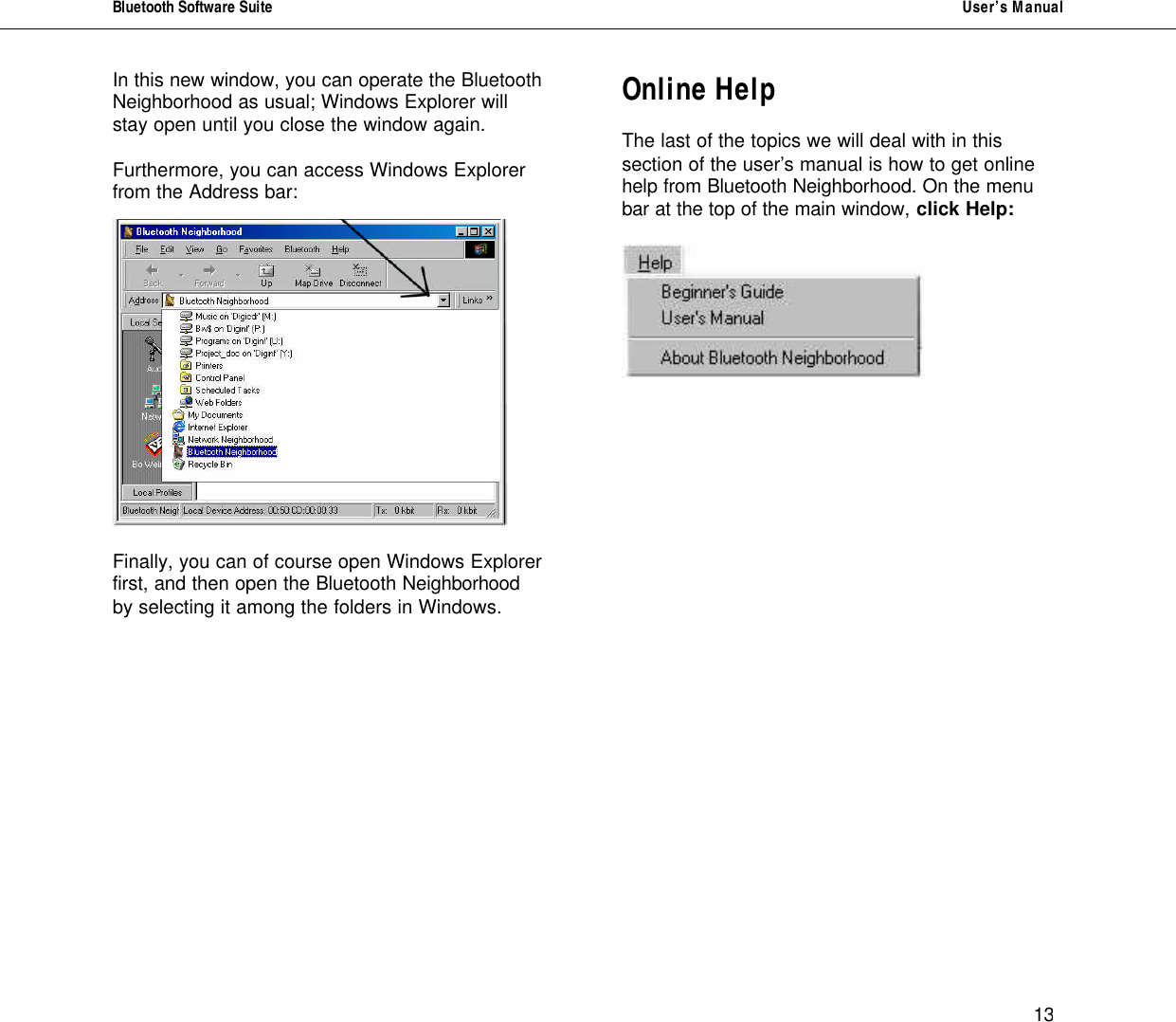
Bluetooth Software Suite   User’s Manual      13 In this new window, you can operate the Bluetooth Neighborhood as usual; Windows Explorer will stay open until you close the window again.  Furthermore, you can access Windows Explorer from the Address bar:    Finally, you can of course open Windows Explorer first, and then open the Bluetooth Neighborhood by selecting it among the folders in Windows.          Online Help  The last of the topics we will deal with in this section of the user’s manual is how to get online help from Bluetooth Neighborhood. On the menu bar at the top of the main window, click Help:
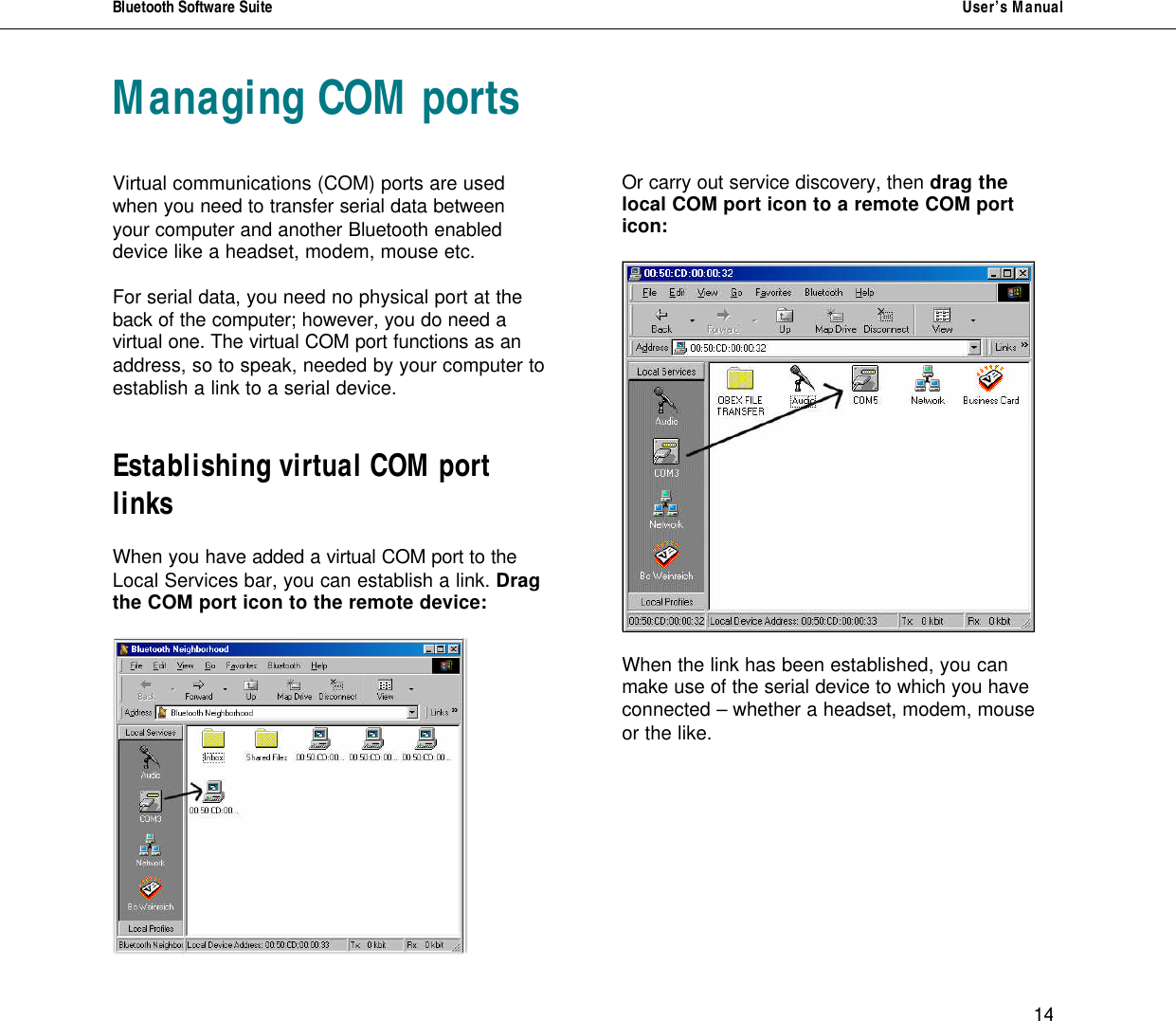
Bluetooth Software Suite   User’s Manual      14 Managing COM ports   Virtual communications (COM) ports are used when you need to transfer serial data between your computer and another Bluetooth enabled device like a headset, modem, mouse etc.   For serial data, you need no physical port at the back of the computer; however, you do need a virtual one. The virtual COM port functions as an address, so to speak, needed by your computer to establish a link to a serial device.   Establishing virtual COM port links  When you have added a virtual COM port to the Local Services bar, you can establish a link. Drag the COM port icon to the remote device:         Or carry out service discovery, then drag the local COM port icon to a remote COM port icon:    When the link has been established, you can make use of the serial device to which you have connected – whether a headset, modem, mouse or the like.
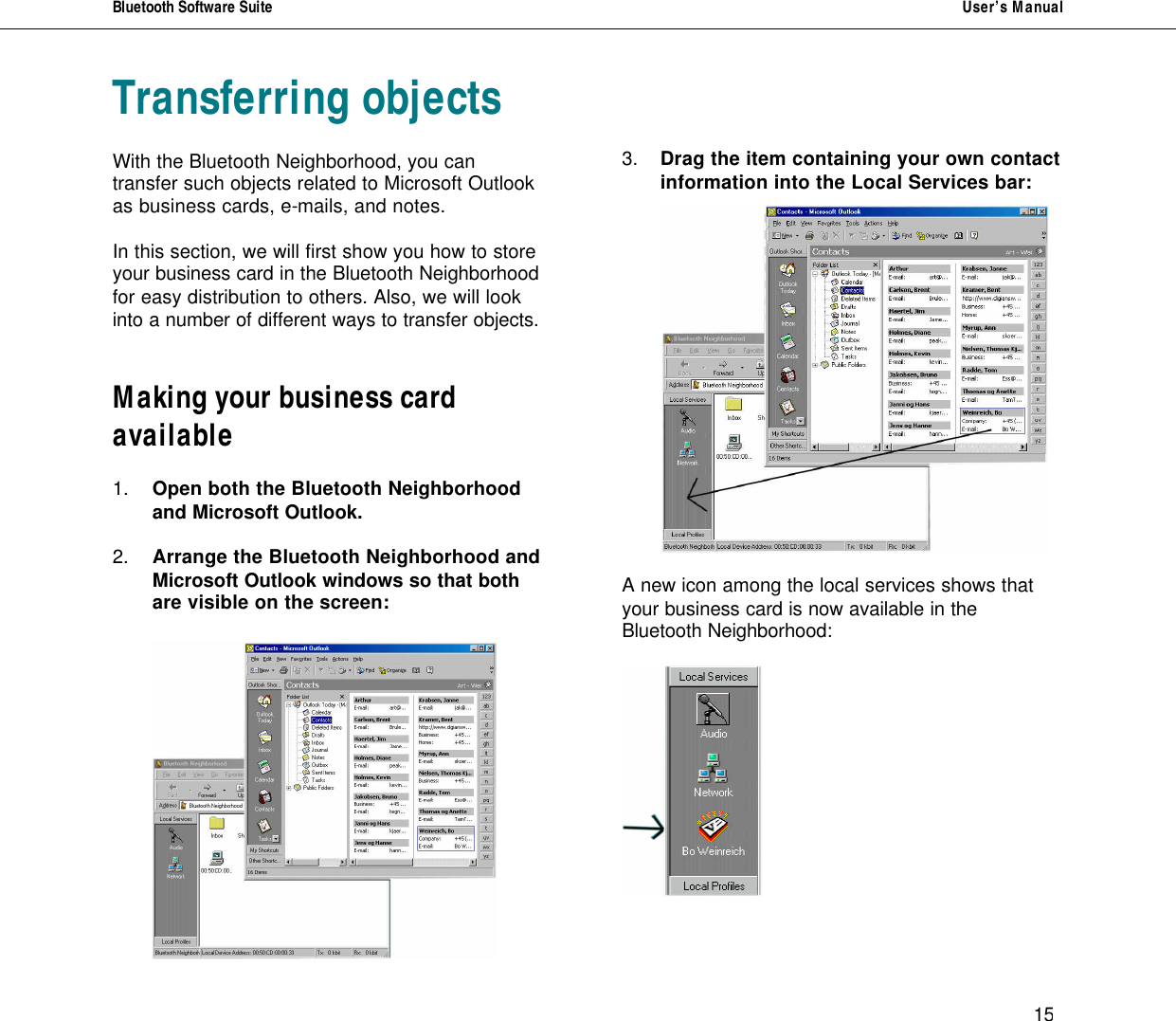
Bluetooth Software Suite   User’s Manual      15 Transferring objects  With the Bluetooth Neighborhood, you can transfer such objects related to Microsoft Outlook as business cards, e-mails, and notes.   In this section, we will first show you how to store your business card in the Bluetooth Neighborhood for easy distribution to others. Also, we will look into a number of different ways to transfer objects.   Making your business card available  1.  Open both the Bluetooth Neighborhood    and Microsoft Outlook.  2.  Arrange the Bluetooth Neighborhood and   Microsoft Outlook windows so that both    are visible on the screen:          3.  Drag the item containing your own contact information into the Local Services bar:      A new icon among the local services shows that your business card is now available in the Bluetooth Neighborhood:
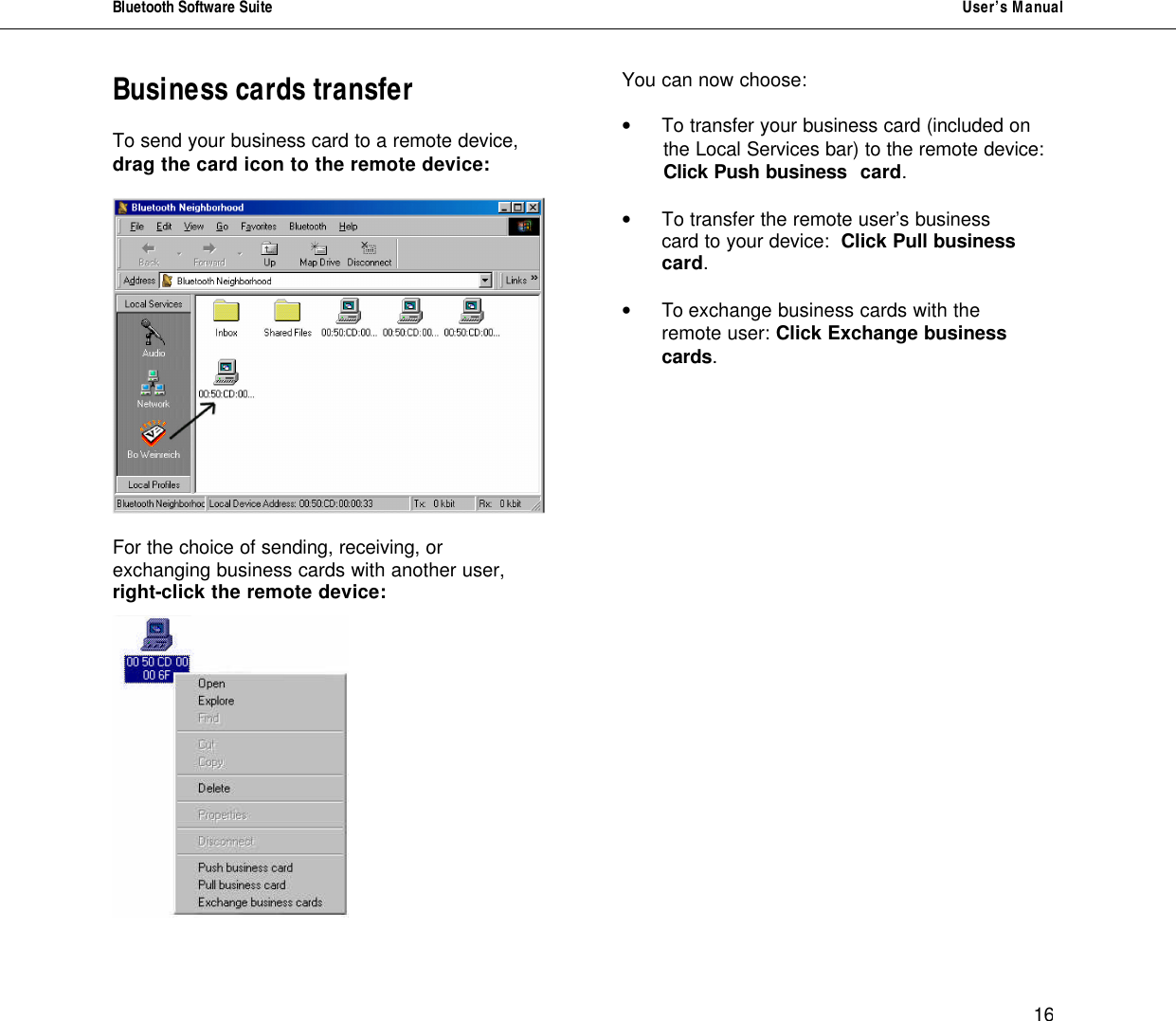
Bluetooth Software Suite   User’s Manual      16 Business cards transfer  To send your business card to a remote device, drag the card icon to the remote device:    For the choice of sending, receiving, or exchanging business cards with another user, right-click the remote device:     You can now choose:  •  To transfer your business card (included on         the Local Services bar) to the remote device:                     Click Push business  card.  •  To transfer the remote user’s business    card to your device:  Click Pull business    card.  •  To exchange business cards with the    remote user: Click Exchange business    cards.
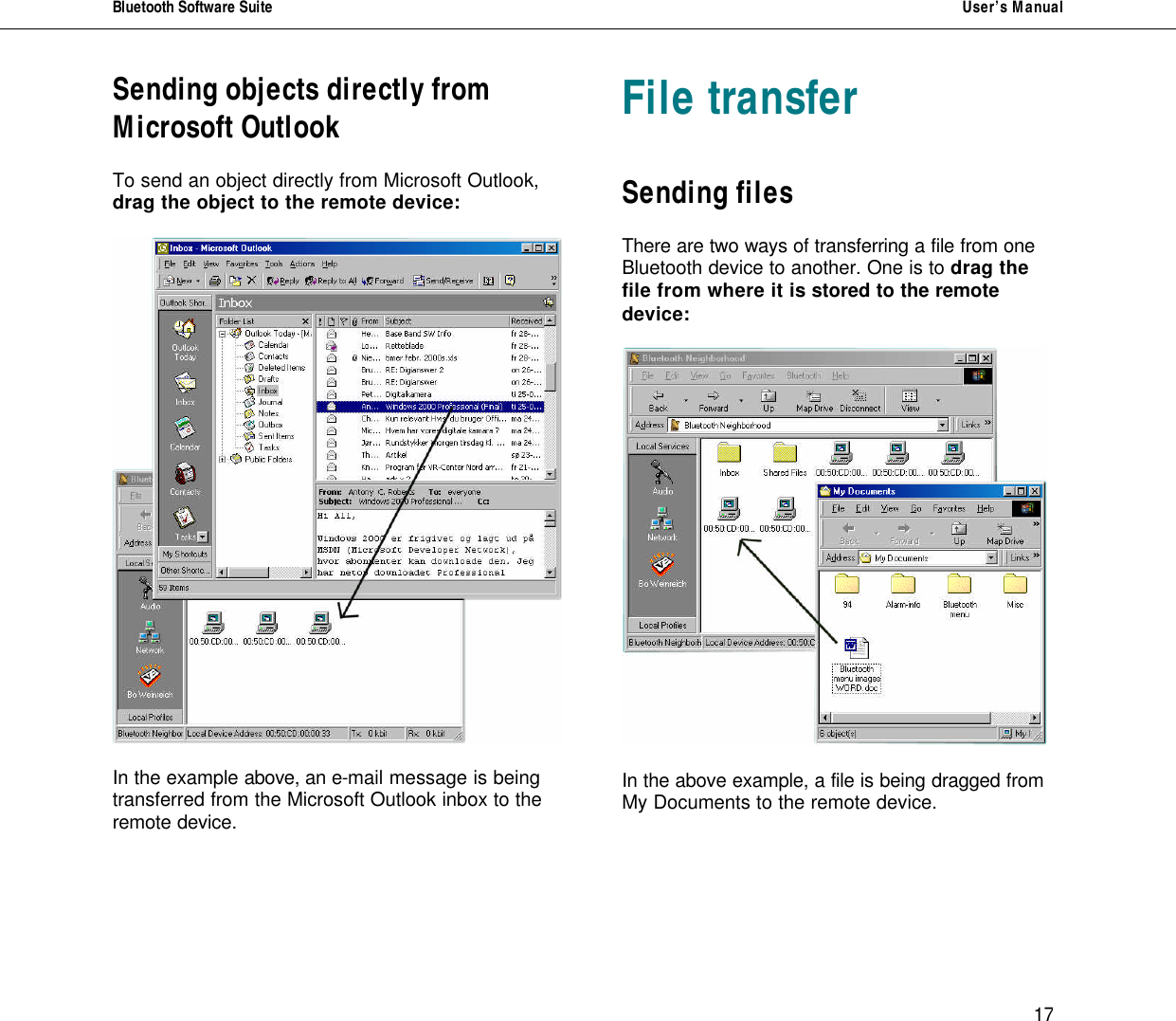
Bluetooth Software Suite   User’s Manual      17 Sending objects directly from Microsoft Outlook  To send an object directly from Microsoft Outlook, drag the object to the remote device:    In the example above, an e-mail message is being transferred from the Microsoft Outlook inbox to the remote device.      File transfer   Sending files  There are two ways of transferring a file from one Bluetooth device to another. One is to drag the file from where it is stored to the remote device:    In the above example, a file is being dragged from My Documents to the remote device.
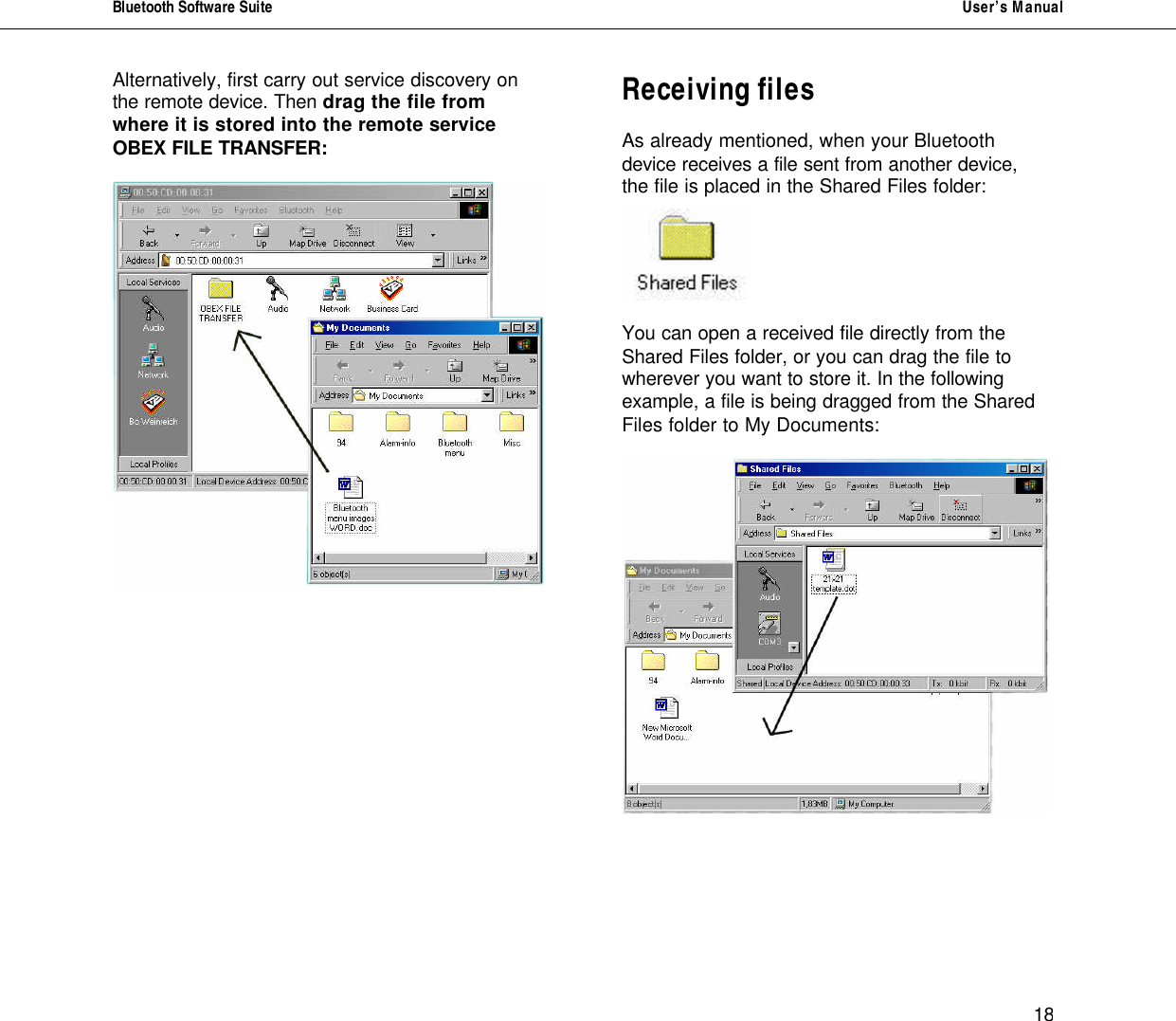
Bluetooth Software Suite   User’s Manual      18 Alternatively, first carry out service discovery on the remote device. Then drag the file from where it is stored into the remote service OBEX FILE TRANSFER:                Receiving files   As already mentioned, when your Bluetooth device receives a file sent from another device, the file is placed in the Shared Files folder:    You can open a received file directly from the Shared Files folder, or you can drag the file to wherever you want to store it. In the following example, a file is being dragged from the Shared Files folder to My Documents:
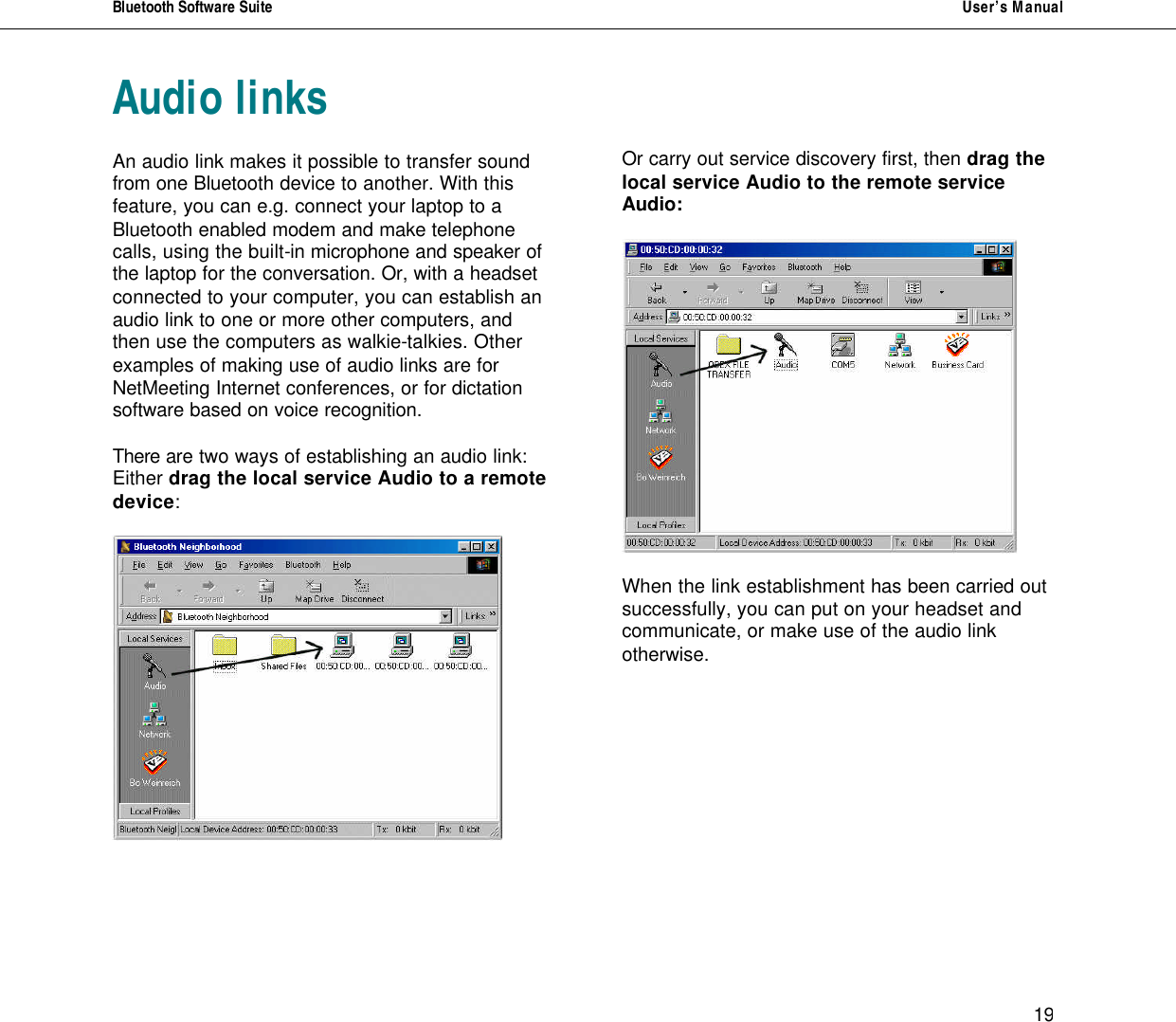
Bluetooth Software Suite   User’s Manual      19 Audio links  An audio link makes it possible to transfer sound from one Bluetooth device to another. With this feature, you can e.g. connect your laptop to a Bluetooth enabled modem and make telephone calls, using the built-in microphone and speaker of the laptop for the conversation. Or, with a headset connected to your computer, you can establish an audio link to one or more other computers, and then use the computers as walkie-talkies. Other examples of making use of audio links are for NetMeeting Internet conferences, or for dictation software based on voice recognition.  There are two ways of establishing an audio link:  Either drag the local service Audio to a remote device:         Or carry out service discovery first, then drag the local service Audio to the remote service Audio:    When the link establishment has been carried out successfully, you can put on your headset and communicate, or make use of the audio link otherwise.
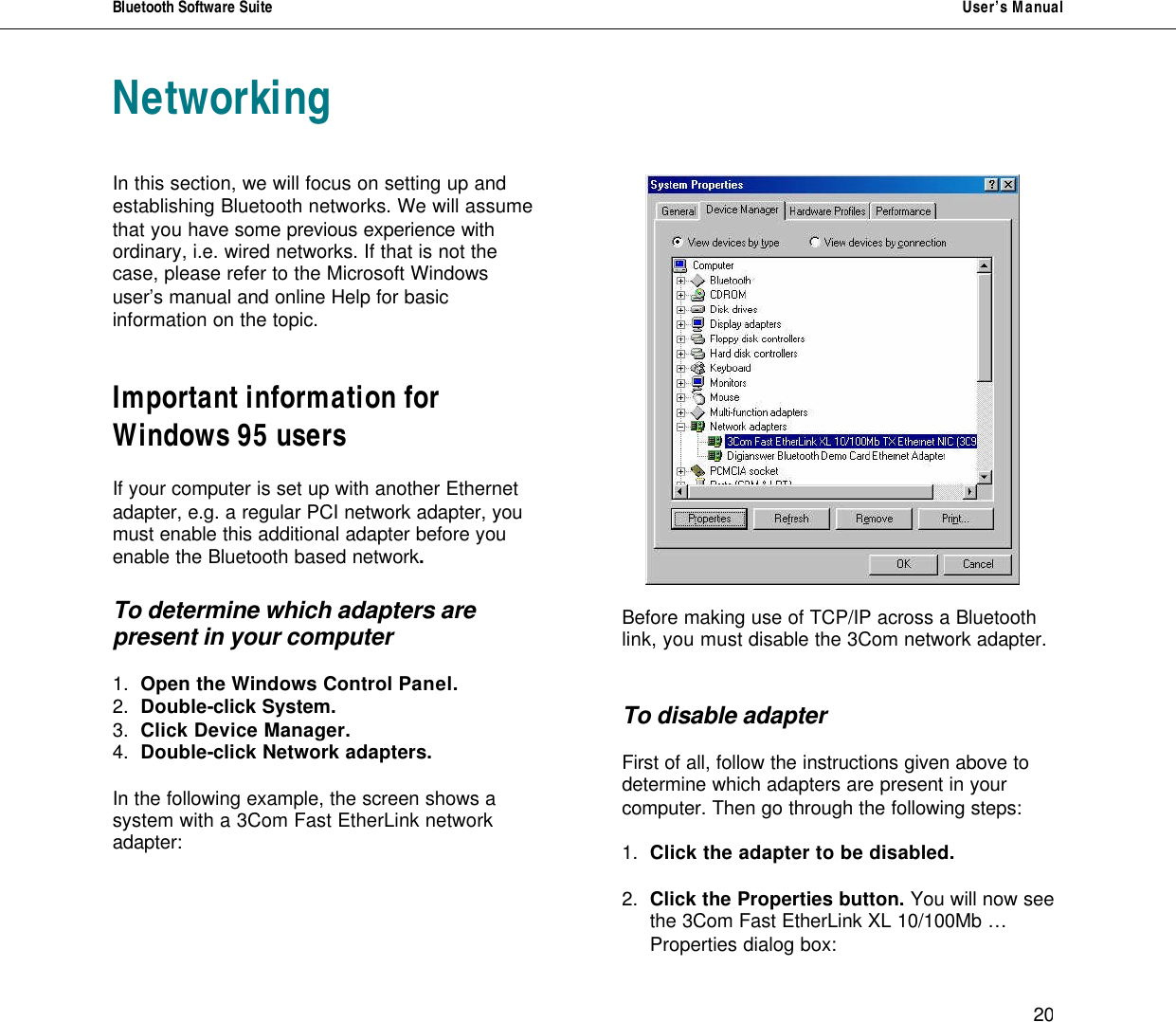
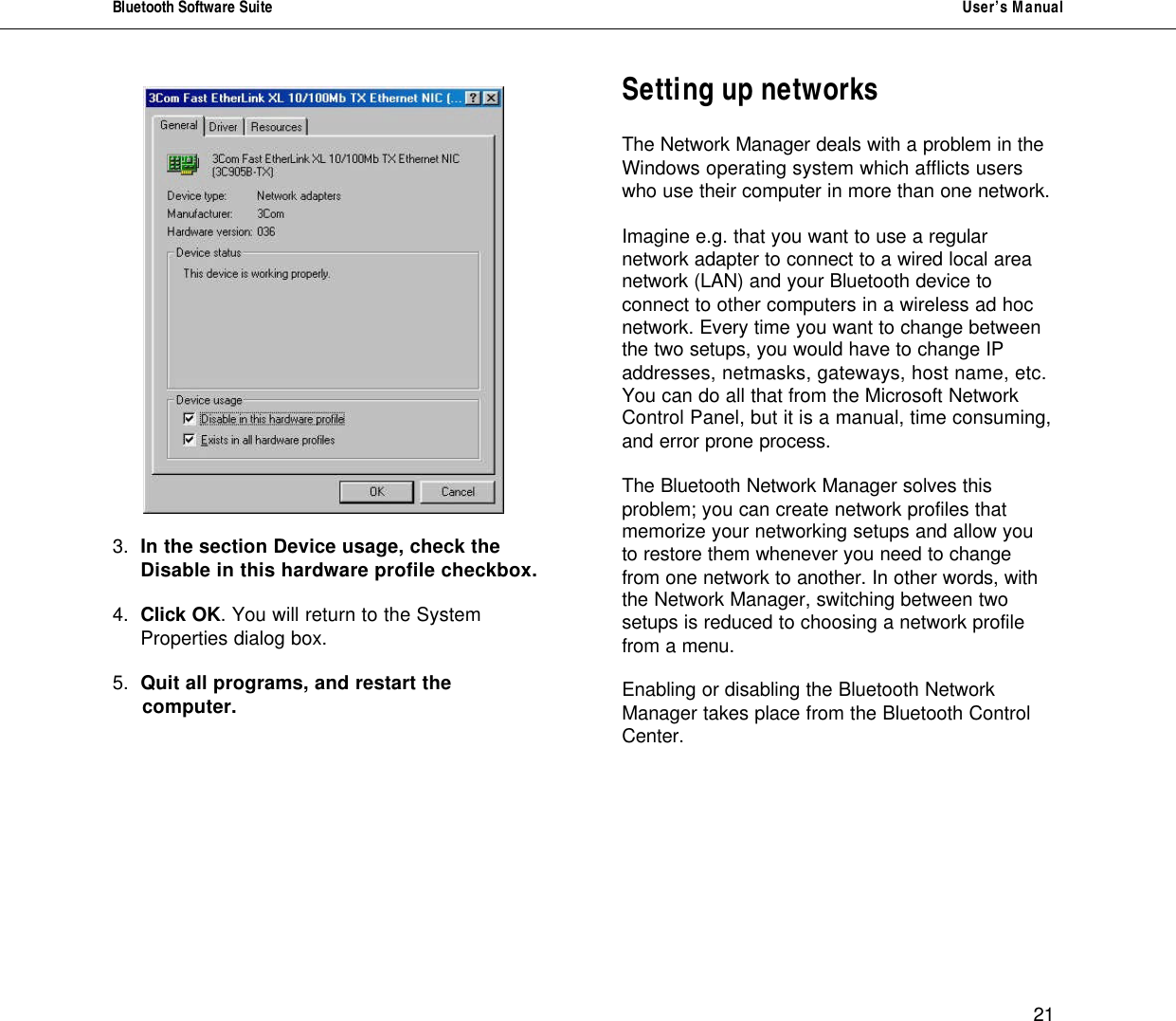
Bluetooth Software Suite   User’s Manual      20 Networking   In this section, we will focus on setting up and establishing Bluetooth networks. We will assume that you have some previous experience with ordinary, i.e. wired networks. If that is not the case, please refer to the Microsoft Windows user’s manual and online Help for basic information on the topic.   Important information for Windows 95 users   If your computer is set up with another Ethernet adapter, e.g. a regular PCI network adapter, you must enable this additional adapter before you enable the Bluetooth based network.   To determine which adapters are present in your computer  1. Open the Windows Control Panel. 2. Double-click System. 3. Click Device Manager. 4.  Double-click Network adapters.   In the following example, the screen shows a system with a 3Com Fast EtherLink network adapter:         Before making use of TCP/IP across a Bluetooth link, you must disable the 3Com network adapter.    To disable adapter  First of all, follow the instructions given above to determine which adapters are present in your computer. Then go through the following steps:  1. Click the adapter to be disabled.  2. Click the Properties button. You will now see the 3Com Fast EtherLink XL 10/100Mb … Properties dialog box:
Bluetooth Software Suite   User’s Manual      21  3. In the section Device usage, check the  Disable in this hardware profile checkbox.   4. Click OK. You will return to the System Properties dialog box.  5.  Quit all programs, and restart the       computer.            Setting up networks  The Network Manager deals with a problem in the Windows operating system which afflicts users who use their computer in more than one network.   Imagine e.g. that you want to use a regular network adapter to connect to a wired local area network (LAN) and your Bluetooth device to connect to other computers in a wireless ad hoc network. Every time you want to change between the two setups, you would have to change IP addresses, netmasks, gateways, host name, etc. You can do all that from the Microsoft Network Control Panel, but it is a manual, time consuming, and error prone process.  The Bluetooth Network Manager solves this problem; you can create network profiles that memorize your networking setups and allow you to restore them whenever you need to change from one network to another. In other words, with the Network Manager, switching between two setups is reduced to choosing a network profile from a menu.  Enabling or disabling the Bluetooth Network  Manager takes place from the Bluetooth Control Center.
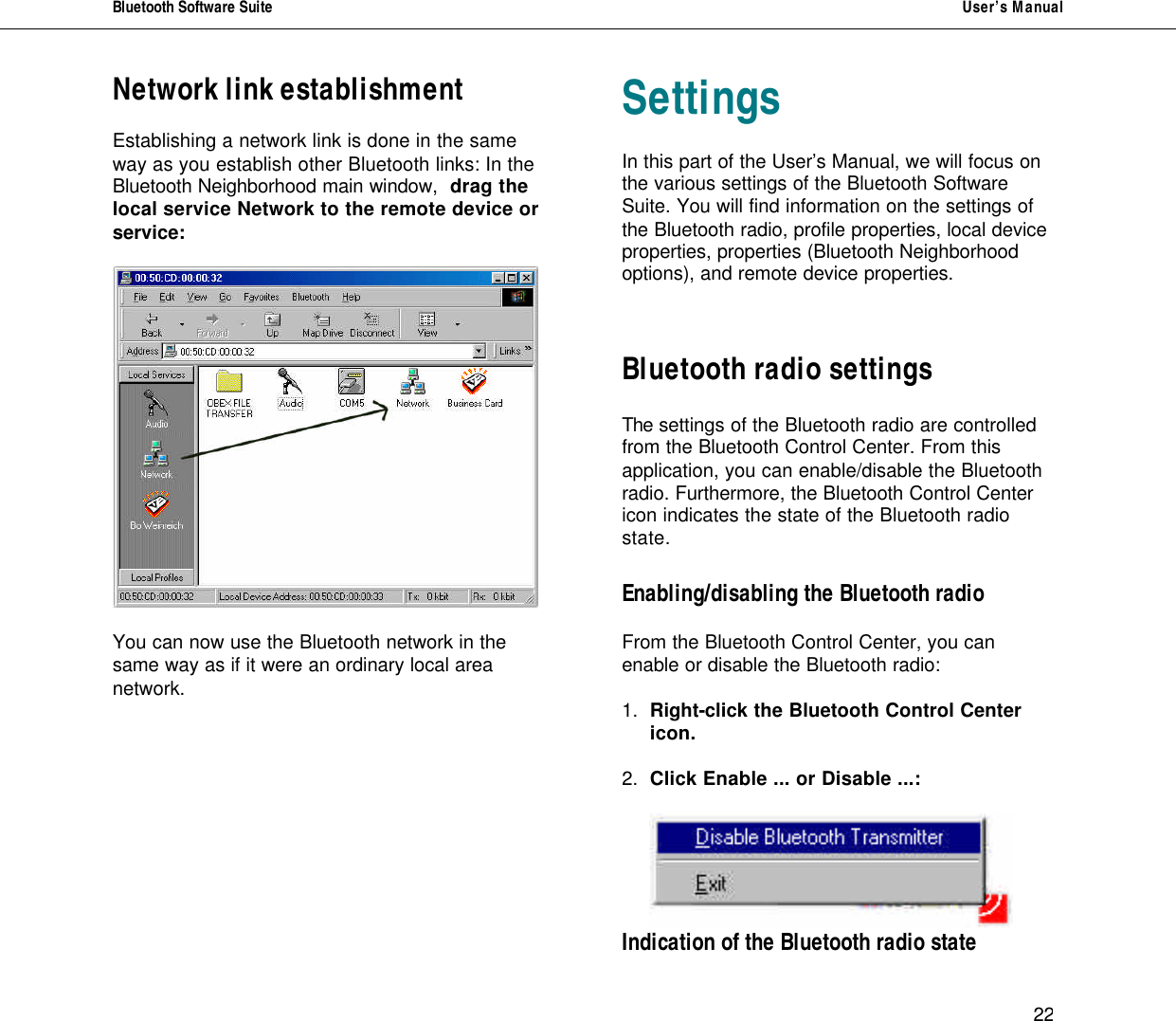
Bluetooth Software Suite   User’s Manual      22 Network link establishment  Establishing a network link is done in the same way as you establish other Bluetooth links: In the Bluetooth Neighborhood main window,  drag the local service Network to the remote device or service:    You can now use the Bluetooth network in the same way as if it were an ordinary local area network.        Settings  In this part of the User’s Manual, we will focus on the various settings of the Bluetooth Software Suite. You will find information on the settings of the Bluetooth radio, profile properties, local device properties, properties (Bluetooth Neighborhood options), and remote device properties.    Bluetooth radio settings  The settings of the Bluetooth radio are controlled from the Bluetooth Control Center. From this application, you can enable/disable the Bluetooth radio. Furthermore, the Bluetooth Control Center icon indicates the state of the Bluetooth radio state.   Enabling/disabling the Bluetooth radio  From the Bluetooth Control Center, you can enable or disable the Bluetooth radio:   1. Right-click the Bluetooth Control Center  icon.  2. Click Enable ... or Disable ...:        Indication of the Bluetooth radio state
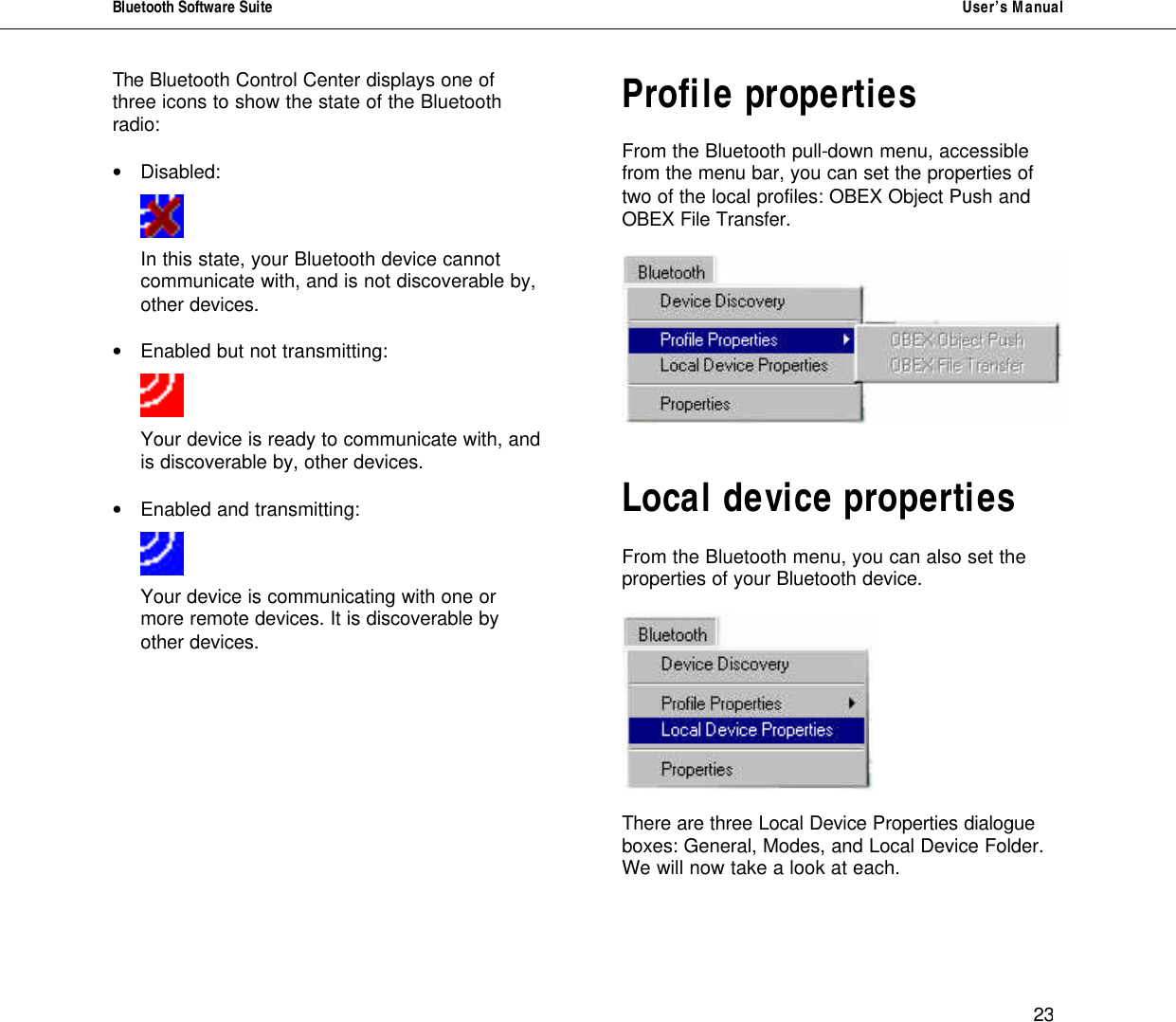
Bluetooth Software Suite   User’s Manual      23 The Bluetooth Control Center displays one of three icons to show the state of the Bluetooth radio:   • Disabled:       In this state, your Bluetooth device cannot   communicate with, and is not discoverable by,  other devices.   • Enabled but not transmitting:     Your device is ready to communicate with, and is discoverable by, other devices.  • Enabled and transmitting:      Your device is communicating with one or more remote devices. It is discoverable by other devices.          Profile properties   From the Bluetooth pull-down menu, accessible from the menu bar, you can set the properties of two of the local profiles: OBEX Object Push and OBEX File Transfer.      Local device properties   From the Bluetooth menu, you can also set the properties of your Bluetooth device.     There are three Local Device Properties dialogue boxes: General, Modes, and Local Device Folder. We will now take a look at each.
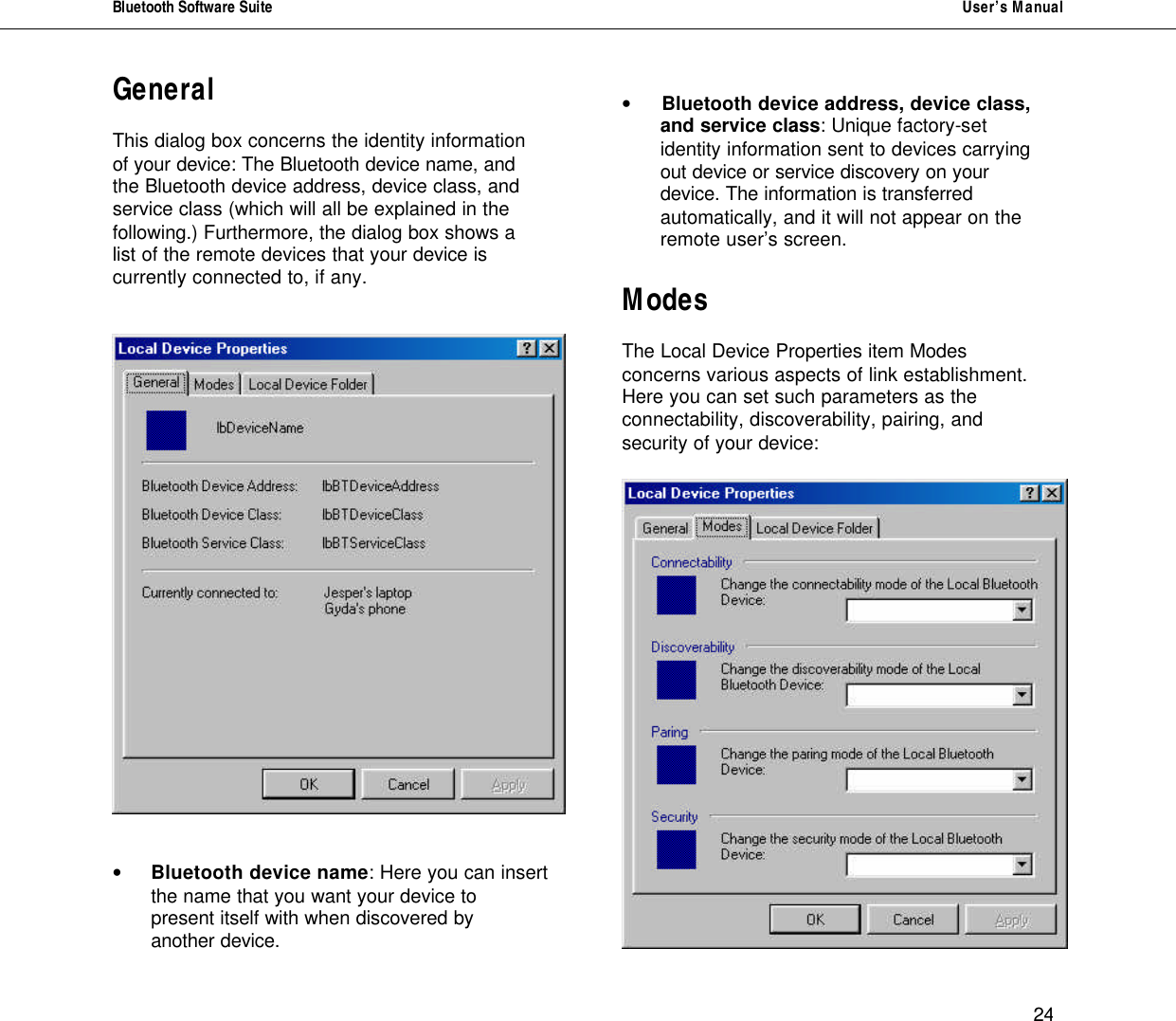
Bluetooth Software Suite   User’s Manual      24 General   This dialog box concerns the identity information of your device: The Bluetooth device name, and the Bluetooth device address, device class, and service class (which will all be explained in the following.) Furthermore, the dialog box shows a list of the remote devices that your device is currently connected to, if any.      • Bluetooth device name: Here you can insert the name that you want your device to present itself with when discovered by another device.  • Bluetooth device address, device class,  and service class: Unique factory-set  identity information sent to devices carrying out device or service discovery on your device. The information is transferred automatically, and it will not appear on the remote user’s screen.  Modes  The Local Device Properties item Modes concerns various aspects of link establishment. Here you can set such parameters as the connectability, discoverability, pairing, and security of your device:
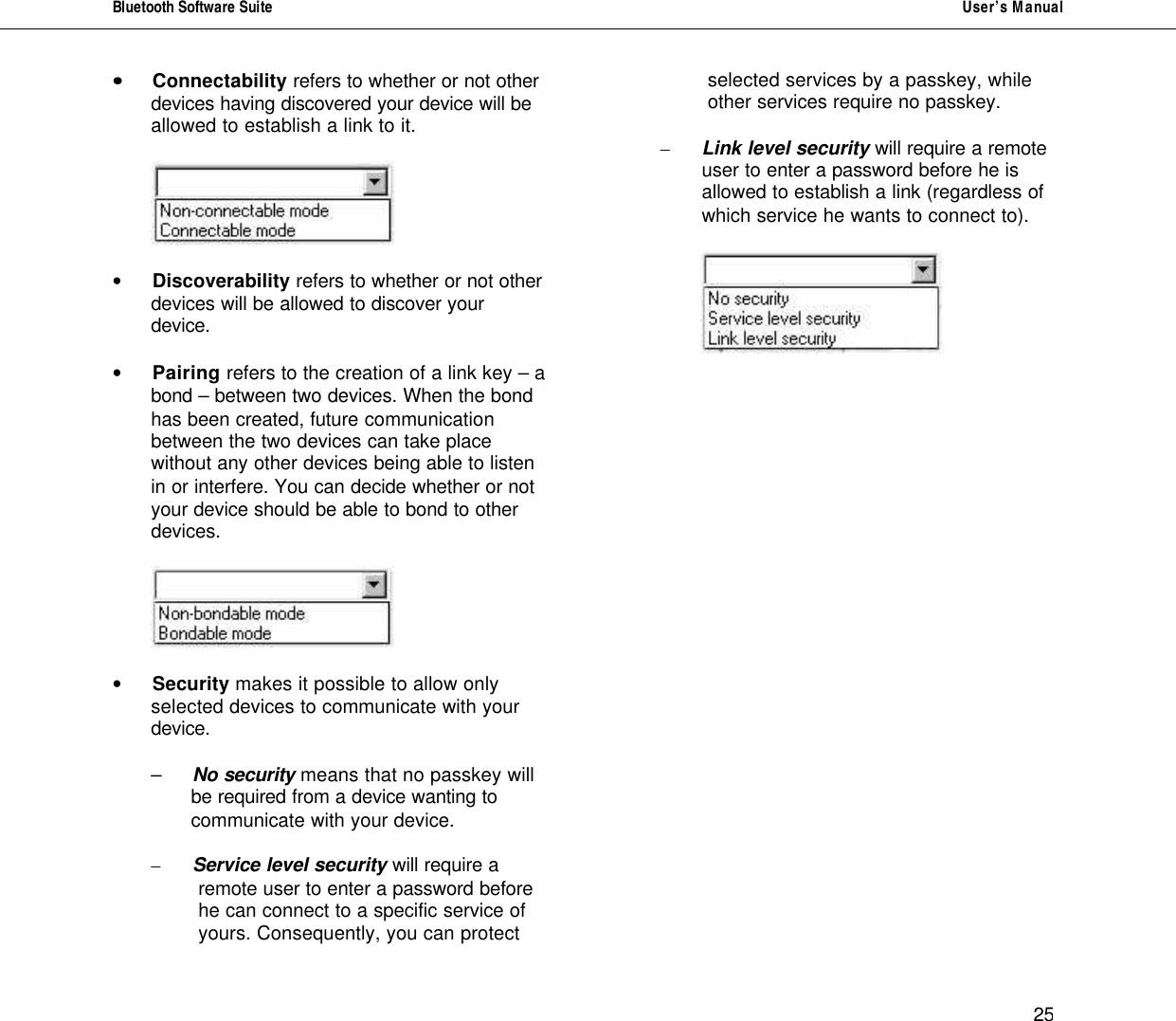
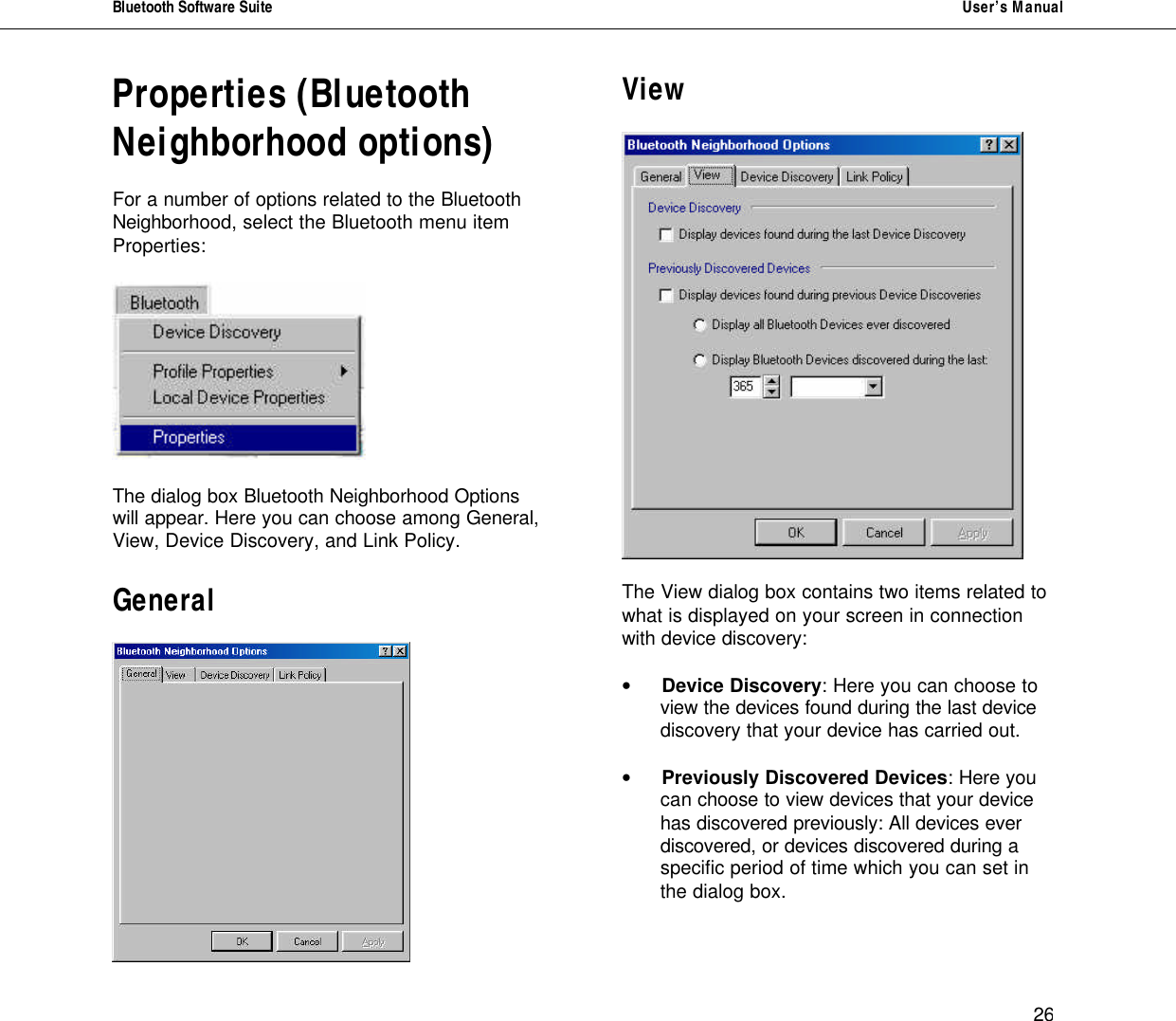
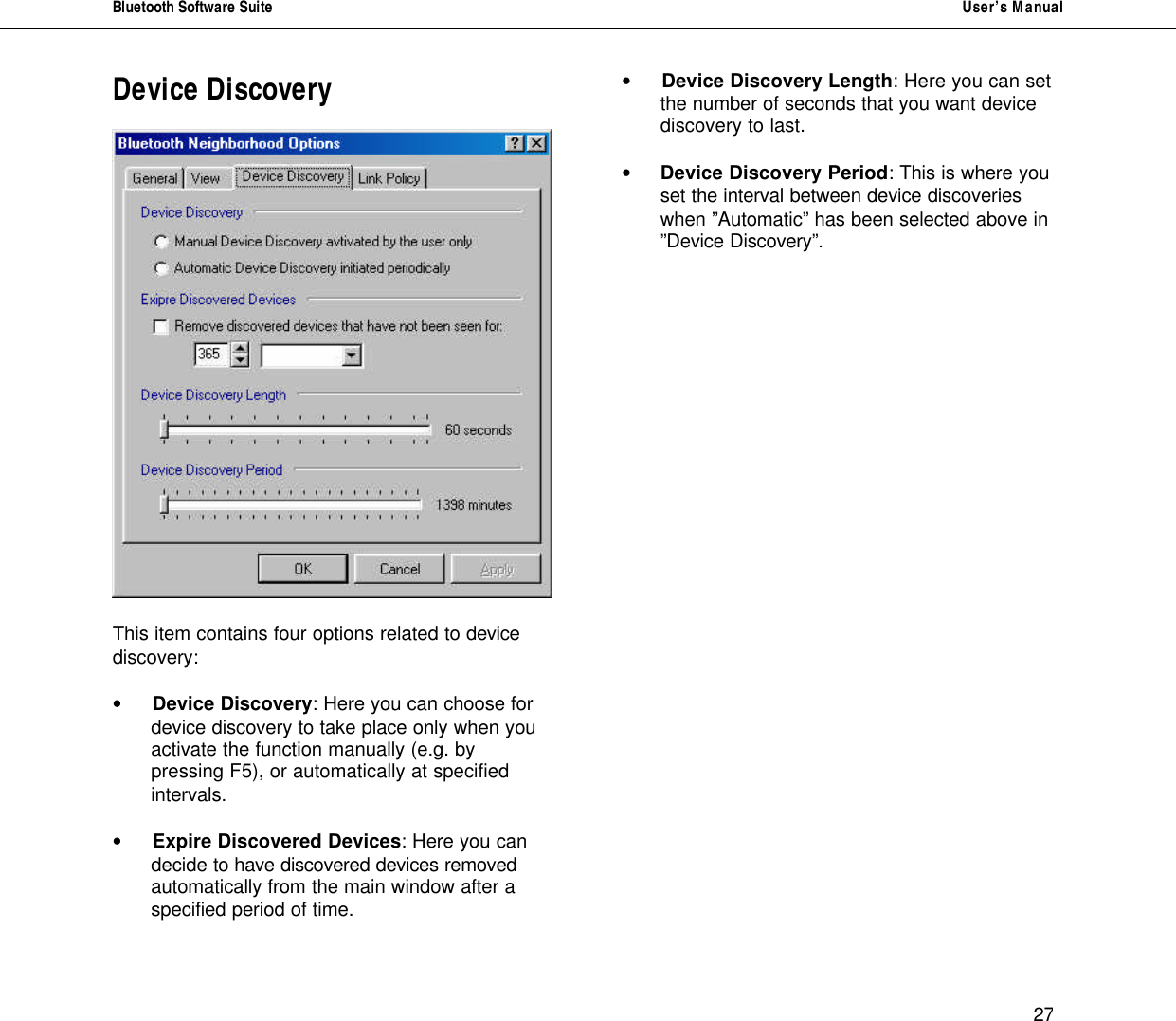
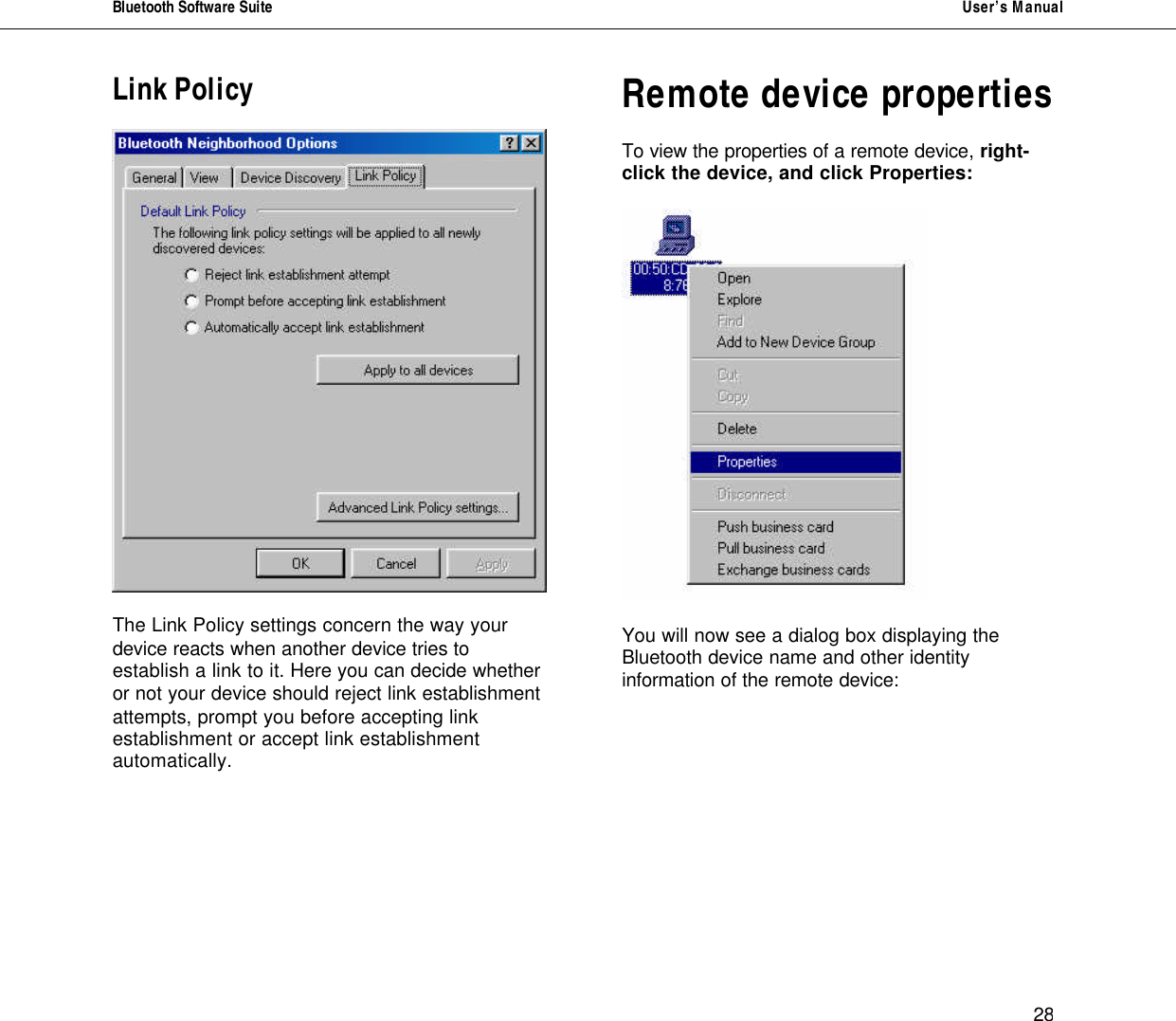
Bluetooth Software Suite   User’s Manual      25 •• Connectability refers to whether or not other  devices having discovered your device will be allowed to establish a link to it.      • Discoverability refers to whether or not other  devices will be allowed to discover your device.   • Pairing refers to the creation of a link key – a  bond – between two devices. When the bond has been created, future communication between the two devices can take place without any other devices being able to listen in or interfere. You can decide whether or not your device should be able to bond to other devices.     • Security makes it possible to allow only  selected devices to communicate with your device.   – No security means that no passkey will  be required from a device wanting to  communicate with your device.  – Service level security will require a          remote user to enter a password before                     he can connect to a specific service of          yours. Consequently, you can protect          selected services by a passkey, while          other services require no passkey.   – Link level security will require a remote                   user to enter a password before he is                 allowed to establish a link (regardless of          which service he wants to connect to).
Bluetooth Software Suite   User’s Manual      26 Properties (Bluetooth Neighborhood options)  For a number of options related to the Bluetooth Neighborhood, select the Bluetooth menu item Properties:    The dialog box Bluetooth Neighborhood Options will appear. Here you can choose among General, View, Device Discovery, and Link Policy.  General   View    The View dialog box contains two items related to what is displayed on your screen in connection with device discovery:  • Device Discovery: Here you can choose to  view the devices found during the last device discovery that your device has carried out.  • Previously Discovered Devices: Here you  can choose to view devices that your device has discovered previously: All devices ever discovered, or devices discovered during a specific period of time which you can set in the dialog box.
Bluetooth Software Suite   User’s Manual      27 Device Discovery    This item contains four options related to device discovery:  • Device Discovery: Here you can choose for  device discovery to take place only when you activate the function manually (e.g. by pressing F5), or automatically at specified intervals.   • Expire Discovered Devices: Here you can  decide to have discovered devices removed automatically from the main window after a specified period of time.   • Device Discovery Length: Here you can set  the number of seconds that you want device discovery to last.   • Device Discovery Period: This is where you set the interval between device discoveries when ”Automatic” has been selected above in ”Device Discovery”.
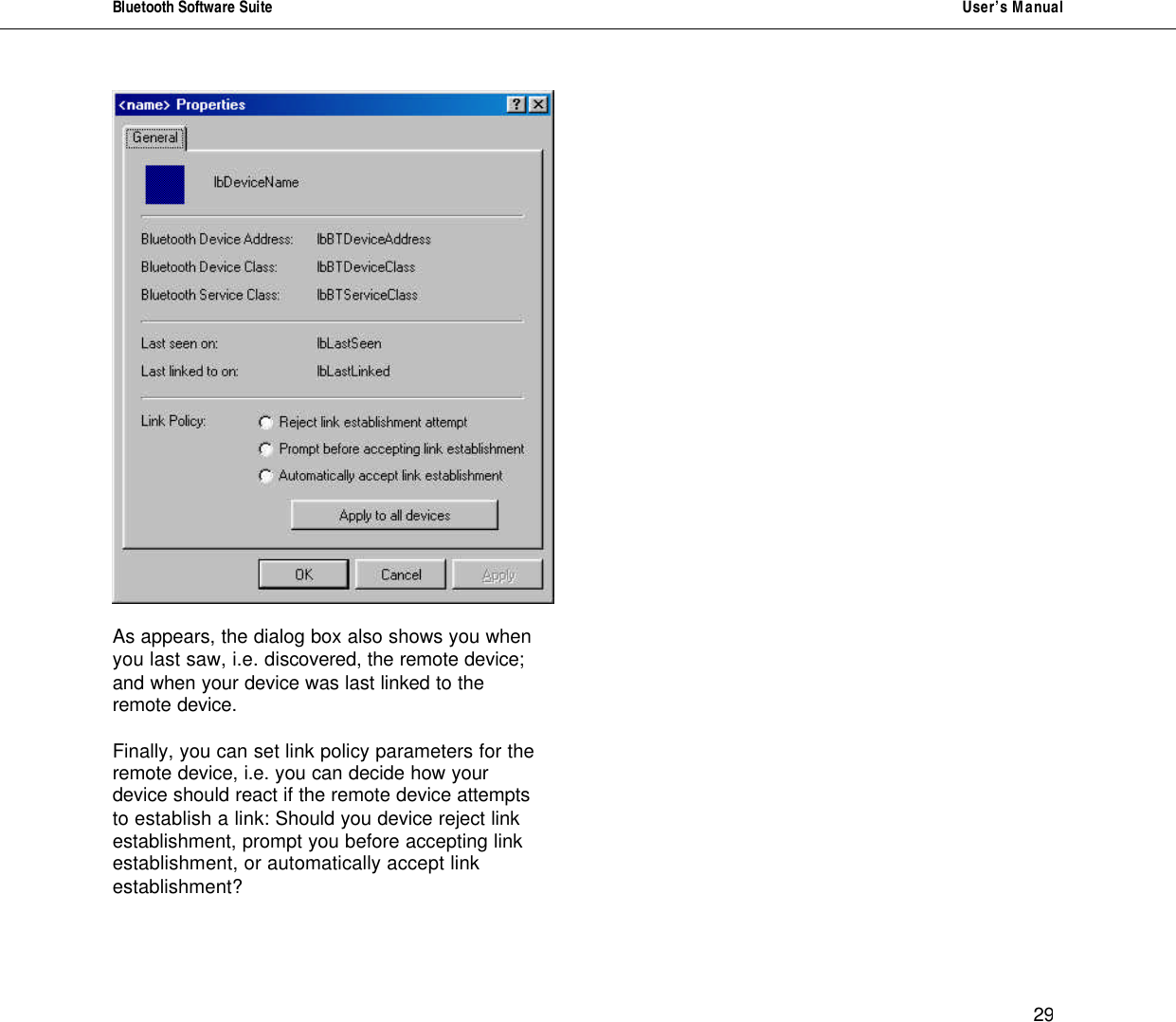
Bluetooth Software Suite   User’s Manual      28 Link Policy    The Link Policy settings concern the way your device reacts when another device tries to establish a link to it. Here you can decide whether or not your device should reject link establishment attempts, prompt you before accepting link establishment or accept link establishment automatically.       Remote device properties  To view the properties of a remote device, right-click the device, and click Properties:    You will now see a dialog box displaying the Bluetooth device name and other identity information of the remote device:
Bluetooth Software Suite   User’s Manual      29    As appears, the dialog box also shows you when you last saw, i.e. discovered, the remote device; and when your device was last linked to the remote device.  Finally, you can set link policy parameters for the remote device, i.e. you can decide how your device should react if the remote device attempts to establish a link: Should you device reject link establishment, prompt you before accepting link establishment, or automatically accept link establishment?
Bluetooth Software Suite   User’s Manual      30 Profiles      The following table shows a list of the profiles supported by the Bluetooth Software Suite  and the service/operation that each profile facilitates:  The profile:  Supports the following service/operation: Ethernet Bridge Ad-hoc networking  Generic Audio Audio Headset Ultimate headset   OBEX File Transfer File transfer  OBEX Object Push Object transfer Serial Port Managing virtual COM ports for serial device connection Generic Access   Service Discovery Application Service discovery Dial-up Networking (as data terminal)   FAX (as data  terminal) Sending/receiving fax messages (using the fax software on your computer).  LAN Access (as data terminal)   Generic Object Exchange Facilitates the other profiles File Transfer, Object Push, and Synchronization   Synchronization  Synchronization between two Bluetooth devices, e.g. of electronic calendar
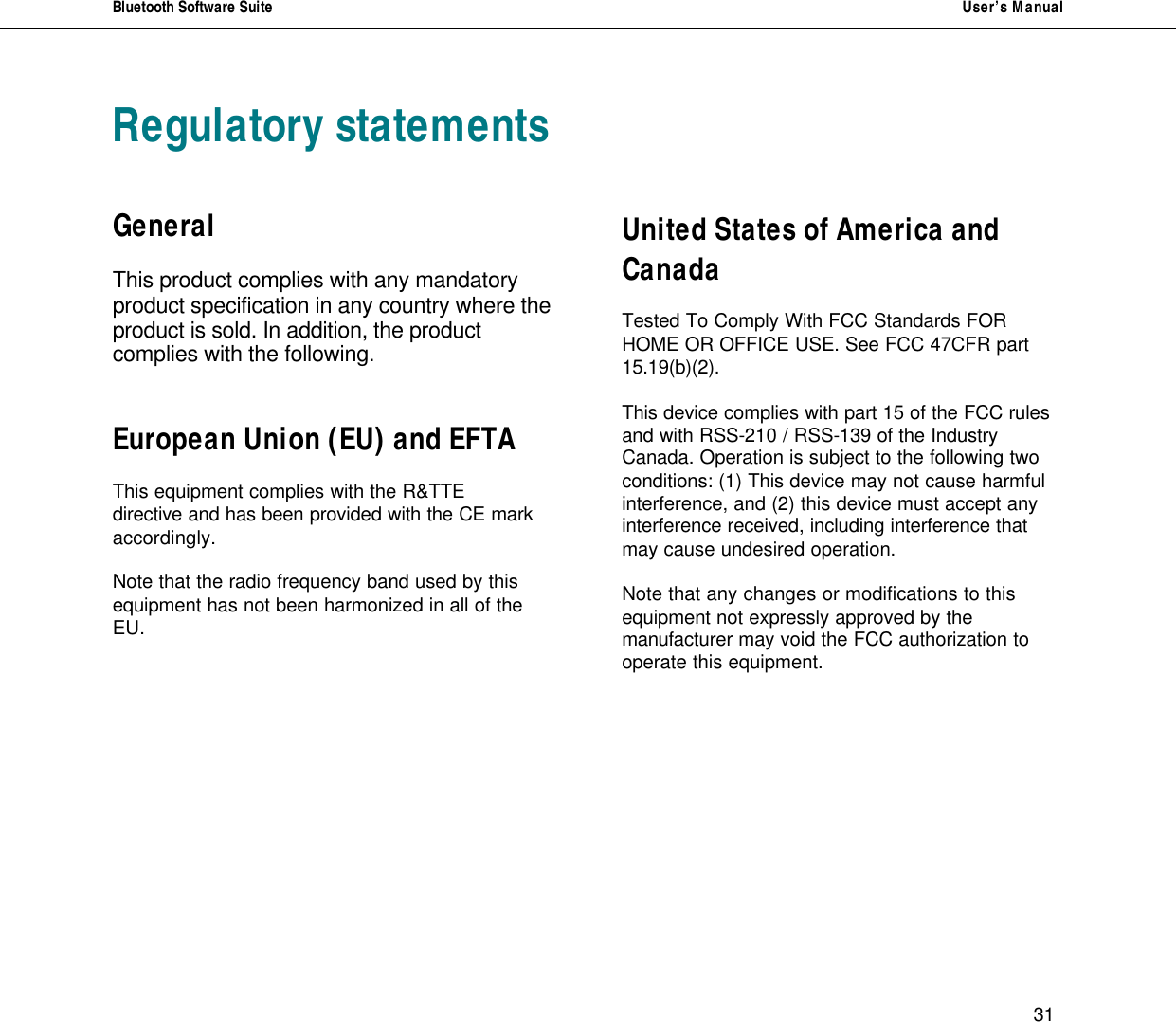
Bluetooth Software Suite   User’s Manual      31 Regulatory statements   General  This product complies with any mandatory product specification in any country where the product is sold. In addition, the product complies with the following.   European Union (EU) and EFTA  This equipment complies with the R&TTE directive and has been provided with the CE mark accordingly.  Note that the radio frequency band used by this equipment has not been harmonized in all of the EU.                 United States of America and Canada  Tested To Comply With FCC Standards FOR HOME OR OFFICE USE. See FCC 47CFR part 15.19(b)(2).  This device complies with part 15 of the FCC rules and with RSS-210 / RSS-139 of the Industry Canada. Operation is subject to the following two conditions: (1) This device may not cause harmful interference, and (2) this device must accept any interference received, including interference that may cause undesired operation.  Note that any changes or modifications to this equipment not expressly approved by the manufacturer may void the FCC authorization to operate this equipment.
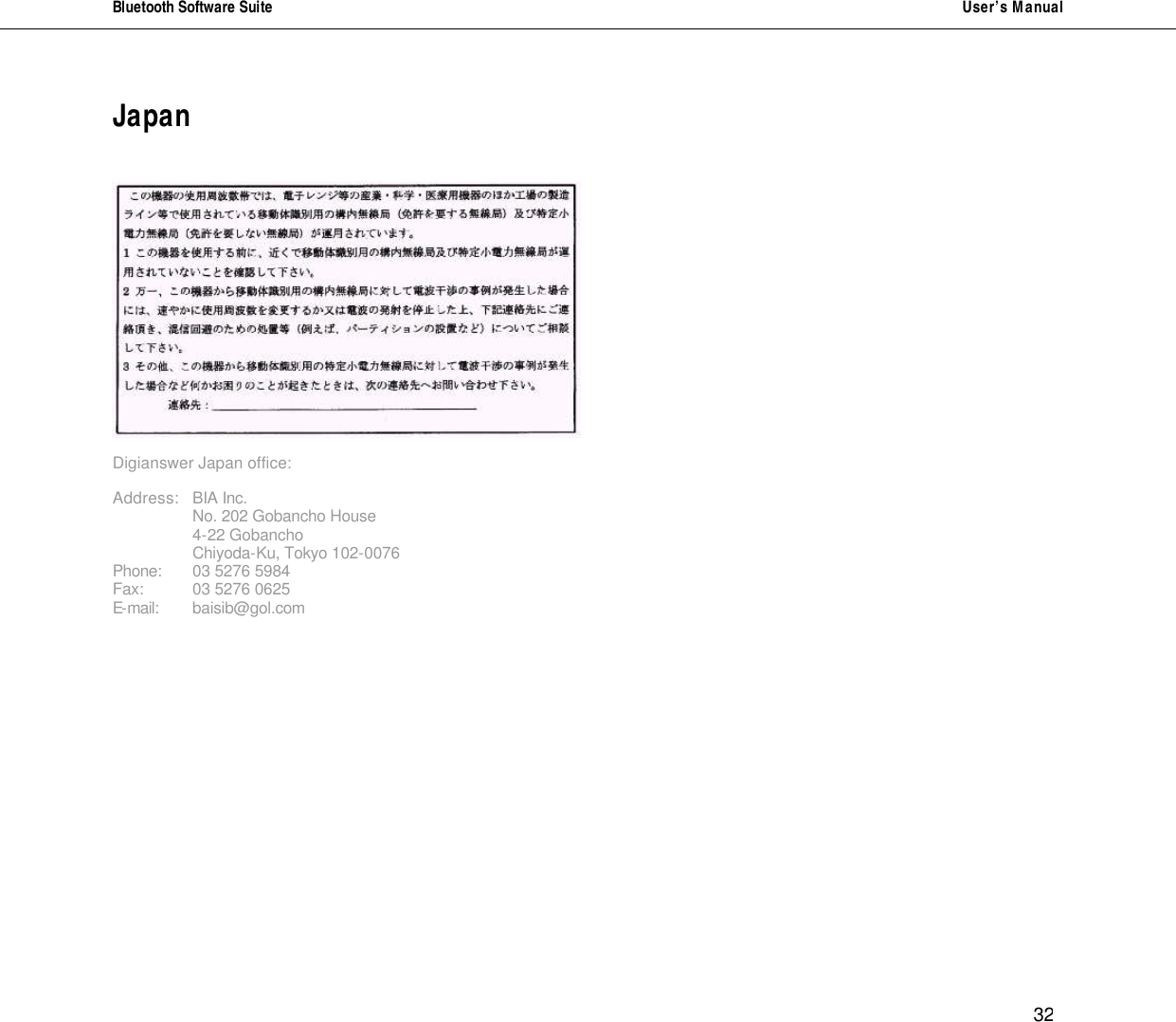
Bluetooth Software Suite   User’s Manual      32 Japan     Digianswer Japan office:  Address: BIA Inc.   No. 202 Gobancho House   4-22 Gobancho   Chiyoda-Ku, Tokyo 102-0076 Phone: 03 5276 5984 Fax:  03 5276 0625 E-mail: baisib@gol.com
                                                                          Skalhuse 5 DK-9240 Nibe Phone: +45 9671 0000 Fax: +45 9835 0052 E-mail: sales@digianswer.com Web sites: www.digianswer.com / www.bluetooth.net

Navigation menu