Digianswer A S BTUSB101 USB Bluetooth Transmitter User Manual 00 09 19
Digianswer A/S USB Bluetooth Transmitter 00 09 19
Contents
- 1. users manual
- 2. users manual Pt 2
- 3. users manual II
users manual
SOFTWARE SUITE
USB ADAPTER INSTALLATION GUIDE

Contents
About this guide, 3
System requirements, 3
Connecting USB adapter, 4
Installing drivers, 4
Installing application software, 5
Uninstalling application software, 6
Operation, 6
Regulatory statements, 7
CAUTION
FCC Radio-Frequency Exposure Statement
This equipment generates and radiates radio-frequency energy. In order to comply
with FCC radio-frequency radiation exposure guidelines for an uncontrolled
environment, this equipment has to be installed and operated while maintaining a
minimum body to antenna distance of 20 cm.
Users are not permitted to make changes or modify the system in any way.

3
About this guide
This Installation Guide will show you
how to install the Bluetooth™
Software Suite v1.0. The instructions
will cover:
• Connecting the Bluetooth USB
adapter and installing the drivers,
i.e. software programs needed for
the adapter to work.
• Installing the application software.
Furthermore, users who have a
previous version of the Bluetooth
Software Suite will find information on
how to uninstall the old version before
installing the new one.
Additional documentation
In addition to this Installation Guide,
the Bluetooth Software Suite is
accompanied by the following
documents: A Beginner’s Guide
providing a general introduction to the
Bluetooth technology, and a User’s
Manual covering all aspects of
operating the Bluetooth Software
Suite. You will find these documents
on the Bluetooth Software Suite CD-
ROM.
Adobe Acrobat Reader
The documents accompanying the
Bluetooth Software Suite are provided
in the PDF format. To view these
documents, you will need Adobe
Acrobat Reader. If that program is not
already installed on your computer,
you can install it from the CD-ROM:
1. Click Start.
2. Click Run.
3. Type D:\Acrobat\ar405eng.exe
(substitute the appropriate letter
of your CD-ROM drive for D).
4. Follow the onscreen prompts to
complete the installation of Adobe
Acrobat Reader.
When Adobe Acrobat Reader has
been installed on your computer,
simply double-click a PDF document
to open it.
Disclaimer
Any responsibility or liability for loss
or damage in connection with the use
of this product and the accompanying
documentation is disclaimed. The
information in this document is
furnished for informational use only, is
subject to change without notice, may
contain errors or inaccuracies, and
represents no commitment
whatsoever. This agreement is
governed by the laws of Denmark.
Rev. TR 1.0 00-09-19
System
Requirements
The Bluetooth Software Suite can be
installed on computers running the
following operating systems:
• Windows 98
• Windows Me
• Windows 2000
4
Connecting USB
adapter
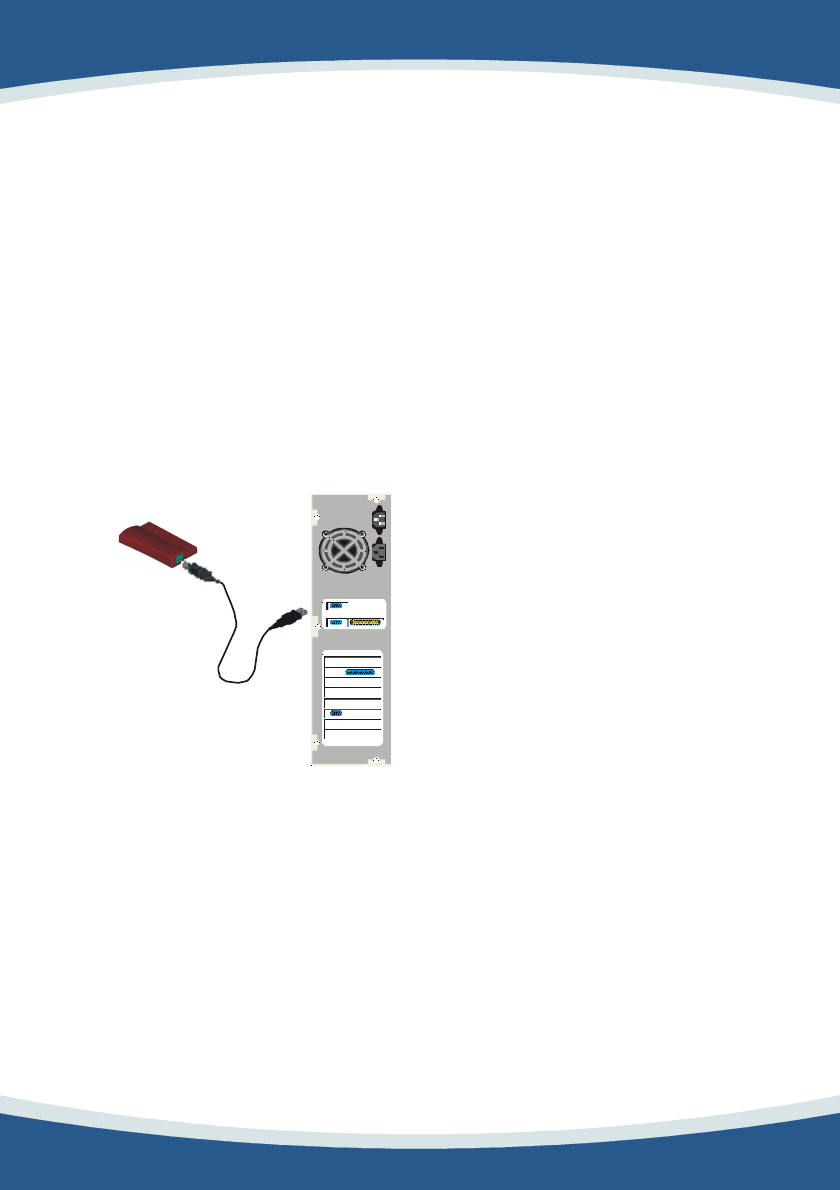
To install the Bluetooth Software
Suite, first connect the USB adapter
to your computer:
1. Turn on the computer.
2. Make sure all programs are
closed.
3. Plug the USB adapter into an
available USB port at the back of
the computer.
Back of PC
USB
USB adaptor
Installing drivers
The first time you connect the USB
adapter to your computer, Windows
will tell you that it needs to find drivers
for the new hardware. A driver is a
software program needed for a piece
of hardware to work.
1. Insert the Bluetooth Software
Suite CD-ROM.
2. Follow the onscreen prompts to
complete the installation of
drivers.
Location of drivers
When Windows asks you to specify
the location of the drivers, type the
following (substitute the appropriate
letter of your CD-ROM drive for D):
• Windows 98 and Me users:
D:\drivers\win9x
• Windows 2000 users:
D:\drivers\w2k
Found New Hardware Wizard
During the installation, the Found
New Hardware Wizard will appear a
number of times. The following
drivers are found:
• Bluetooth USB Adapter.
• Bluetooth Ethernet Adapter
Note: On Windows 2000, if told
Digital Signature Not Found
and asked whether you want to
continue, click Yes.
In addition on Windows 2000 the
following drivers are found:
• Bluetooth RFCOMM Protocol.
• Bluetooth SDP Protocol.
Do not remove CD-ROM
Do not remove the Bluetooth
Software Suite CD-ROM from the
computer until you have installed the
application software.

5
Installing
application
software
Note: If a previous version of the
Bluetooth Software Suite is installed
on your computer, this must be
uninstalled before the installation of
the new application software can take
place. See the section Uninstalling
application software.
Having connected the USB adapter,
inserted the CD-ROM, and installed
the drivers, you are now ready to
install the software for the Bluetooth
Software Suite applications. To do so,
follow the instructions in this section.
(If Autorun is enabled on your
computer, in some cases steps 1-3
may be skipped.)
1. Click Start.
2. Click Run.
3. Type D:\setup.exe (substitute the
appropriate letter of your CD-
ROM drive for D).
4. Follow the onscreen prompts to
complete the installation of the
application software.
Adding new folders
During the installation, the program
will ask where to install the Bluetooth
Software Suite files. A destination
folder is suggested that should suit
most users: C:\...\... Bluetooth
Software Suite ... Alternatively, you
can browse for any destination you
prefer.
Furthermore, the program will ask
where to add the Bluetooth Software
Suite icons. A program folder is
suggested that should suit most
users: C:\...\... Bluetooth Software
Suite ... Alternatively, you can type a
new folder name in Program
Folders, or select one from Existing
Folders.
Creating network profiles
During the installation, the Network
Manager Wizard will create two
network profiles on your system: one
saving your current system network
settings and one to be used for
Bluetooth ad hoc networking. The
program will guide you through this
procedure. For more information on
Bluetooth networking, please refer to
the User's Manual.
Restart now
When the installation is complete, the
program will ask if the computer
should be restarted now or later. To
be able to operate the Bluetooth
Software Suite, restart the computer.

6
Uninstalling
application
software
If a previous version of the Bluetooth
Software Suite is installed on your
computer, you must uninstall it before
the installation of the new program
can take place. When the installation
program has installed the drivers, it
will discover any old versions of the
Bluetooth Software Suite on your
computer. The program will then ask
if you want the deinstallation of the
old version to take place
automatically or manually.
Uninstalling automatically
The program will suggest that you
have the old version of the Bluetooth
Software Suite uninstalled
automatically. To do so, follow the
onscreen instructions.
Note: When the old version of the
Bluetooth Software Suite has been
uninstalled automatically, the
installation program will ask if you
want to restart your computer.
Whether you answer yes or no, the
program will now begin installing the
new application software.
Uninstalling manually
Some users may prefer to uninstall
previous versions of the Bluetooth
Software Suite manually. To do so,
when the program asks, select the
manual procedure. Then, to uninstall:
1. Quit all programs.
2. Click Start.
3. Point to Programs.
4. Point to ... Bluetooth Software
Suite v...
5. Click Uninstall.
6. Click ... Bluetooth Software
Suite v...
7. Follow the onscreen instructions
to complete uninstalling the
program.
When you have uninstalled the
previous version of the Bluetooth
Software Suite, proceed with the
installation of the new application
software (as described in the section
Installing application software).
Operation
When you have finished the
installation, you can remove the
Bluetooth Software Suite CD-ROM
from your computer. However, when
operating the Bluetooth Software
Suite, the USB adapter must always
be connected to your computer. If the
USB adapter is removed, the
Bluetooth radio cannot communicate
with other Bluetooth devices.
For detailed information on how to
operate the Bluetooth Software Suite,
please refer to the User’s Manual and
online help accompanying the
program.
7
Regulatory
statements
General
This product complies with any
mandatory product specification in
any country where the product is sold.
In addition, the product complies with
the following.
European Union (EU) and
EFTA
This equipment complies with the
R&TTE directive 1999/5/EC and has
been provided with the CE mark
accordingly.
Note that the radio frequency band
used by this equipment has not been
harmonized in all of the EU.
United States of America
and Canada
Tested To Comply With FCC
Standards FOR HOME OR OFFICE
USE. See FCC 47CFR part
15.19(b)(2).
This device complies with part 15 of
the FCC rules and with RSS-210 /
RSS-139 of the Industry Canada.
Operation is subject to the following
two conditions: (1) This device may
not cause harmful interference, and
(2) this device must accept any
interference received, including
interference that may cause
undesired operation.
Note that any changes or
modifications to this equipment not
expressly approved by the
manufacturer may void the FCC
authorization to operate this
equipment.
Canada
IC Notice
To prevent radio interference to the
licensed service, this device is
intended to be operated indoors and
away from windows to provide
maximum shielding. Equipment that is
installed outdoors is subject to
licensing.
<In French>
Pour empêcher un brouillage
radioélectrique au service faisant
l'objet d'une licence, cet appareil doit
être utilisé à l'interieur et loin des
fenêtres afin de founir un écran de
blindage maximal. Au cas aù un
installation en plain air, le materiel
doit faire l'objet d'une licence.
Japan
Japan office:
Address: BIA Inc.
No. 202 Gobancho House
4-22 Gobancho
Chiyoda-Ku, Tokyo 102-0076
Phone 03 5276 5984
Fax: 03 5276 0625
E-mail: biasib@gol.com

8