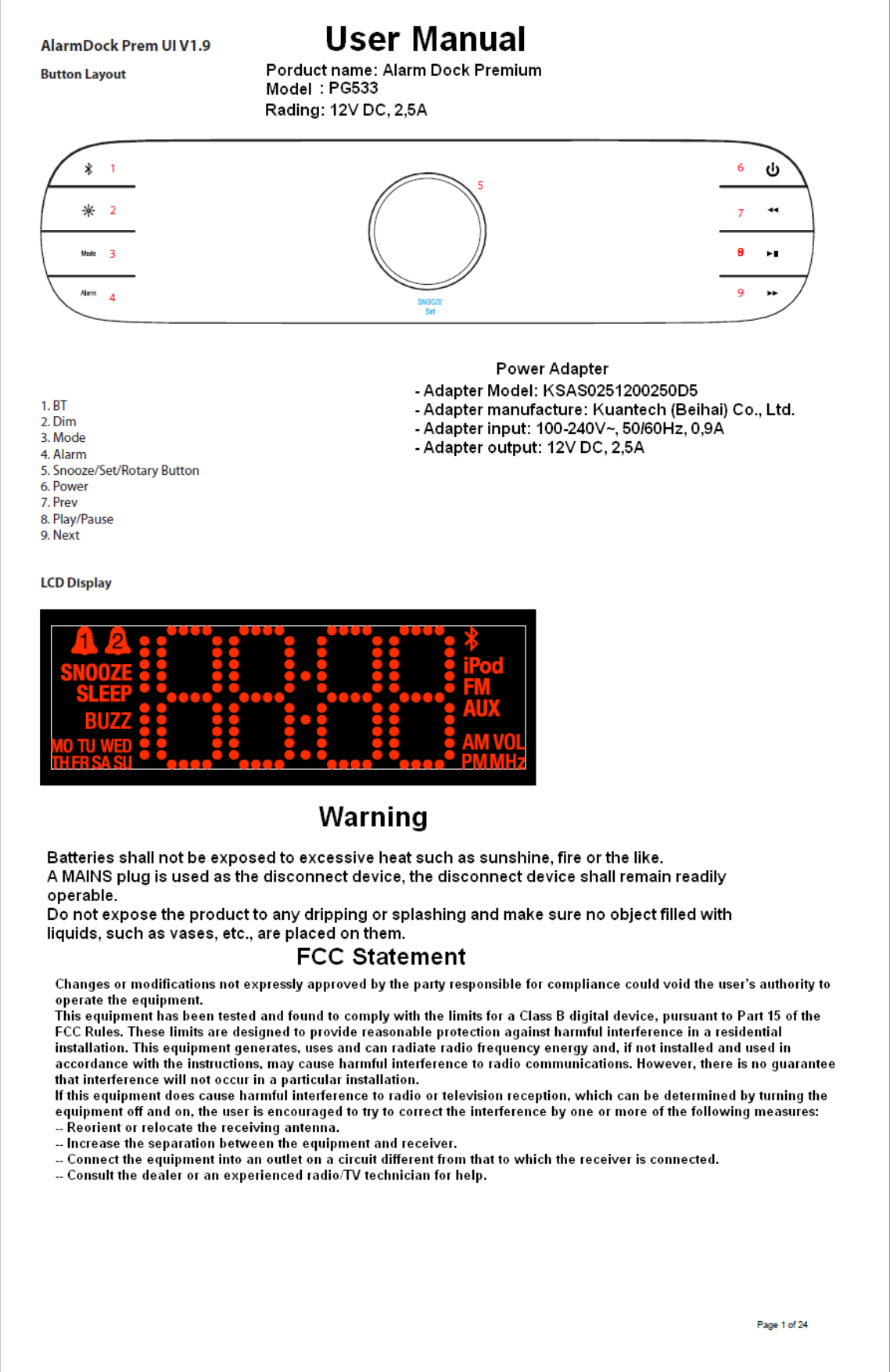
Disruptive PG533US Alarm Dock Premium User Manual

Disruptive Ltd. Alarm Dock Premium

User Manual

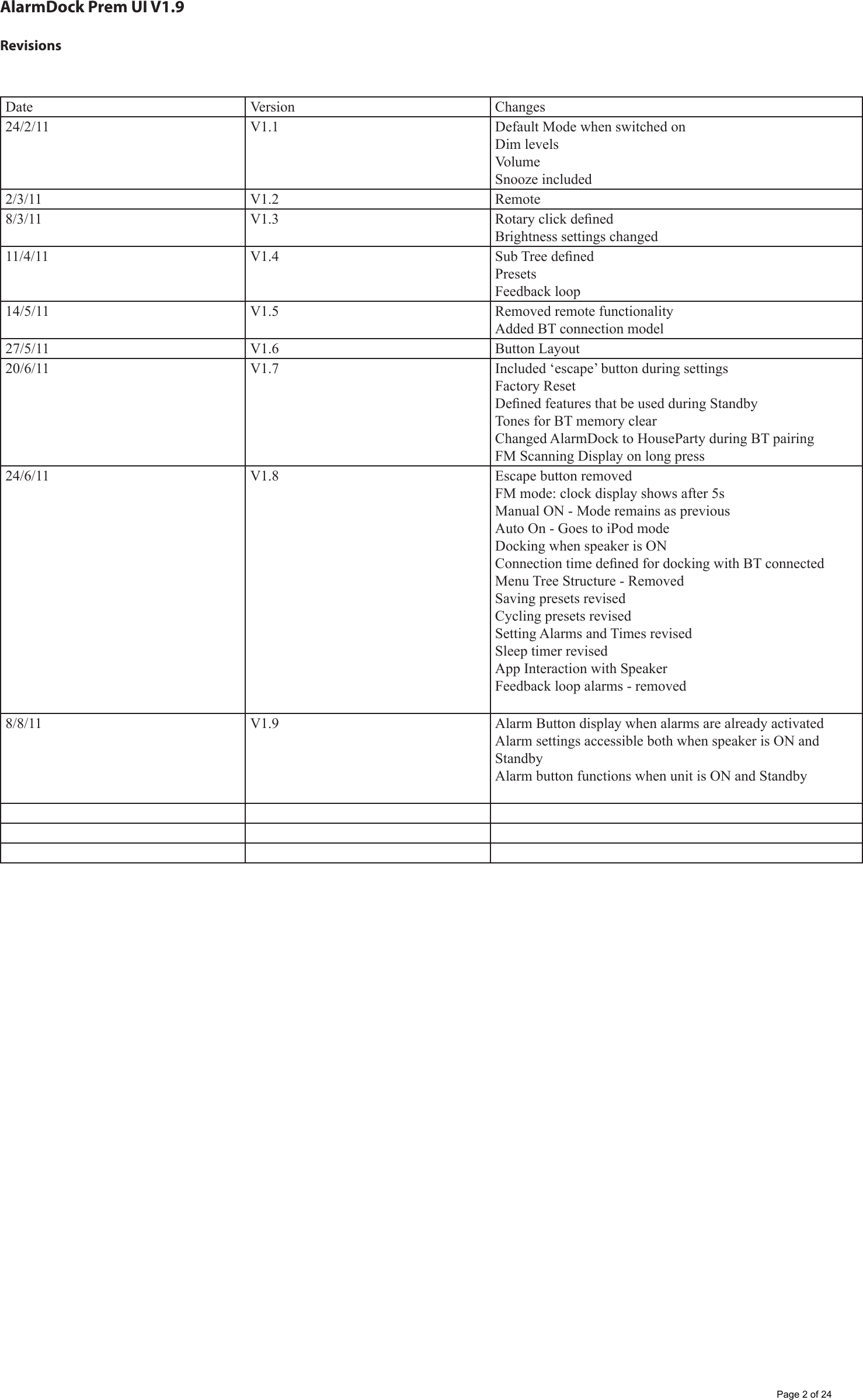
AlarmDock Prem UI V1.9RevisionsDate Version Changes24/2/11 V1.1 Default Mode when switched onDim levelsVolumeSnooze included2/3/11 V1.2 Remote8/3/11 V1.3 Rotary click denedBrightness settings changed11/4/11 V1.4 Sub Tree denedPresetsFeedback loop14/5/11 V1.5 Removed remote functionalityAdded BT connection model27/5/11 V1.6 Button Layout20/6/11 V1.7 Included ‘escape’ button during settingsFactory ResetDened features that be used during StandbyTones for BT memory clearChanged AlarmDock to HouseParty during BT pairingFM Scanning Display on long press24/6/11 V1.8 Escape button removedFM mode: clock display shows after 5sManual ON - Mode remains as previousAuto On - Goes to iPod modeDocking when speaker is ONConnection time dened for docking with BT connectedMenu Tree Structure - RemovedSaving presets revisedCycling presets revisedSetting Alarms and Times revisedSleep timer revisedApp Interaction with SpeakerFeedback loop alarms - removed8/8/11 V1.9 Alarm Button display when alarms are already activatedAlarm settings accessible both when speaker is ON and StandbyAlarm button functions when unit is ON and StandbyPage 2 of 24
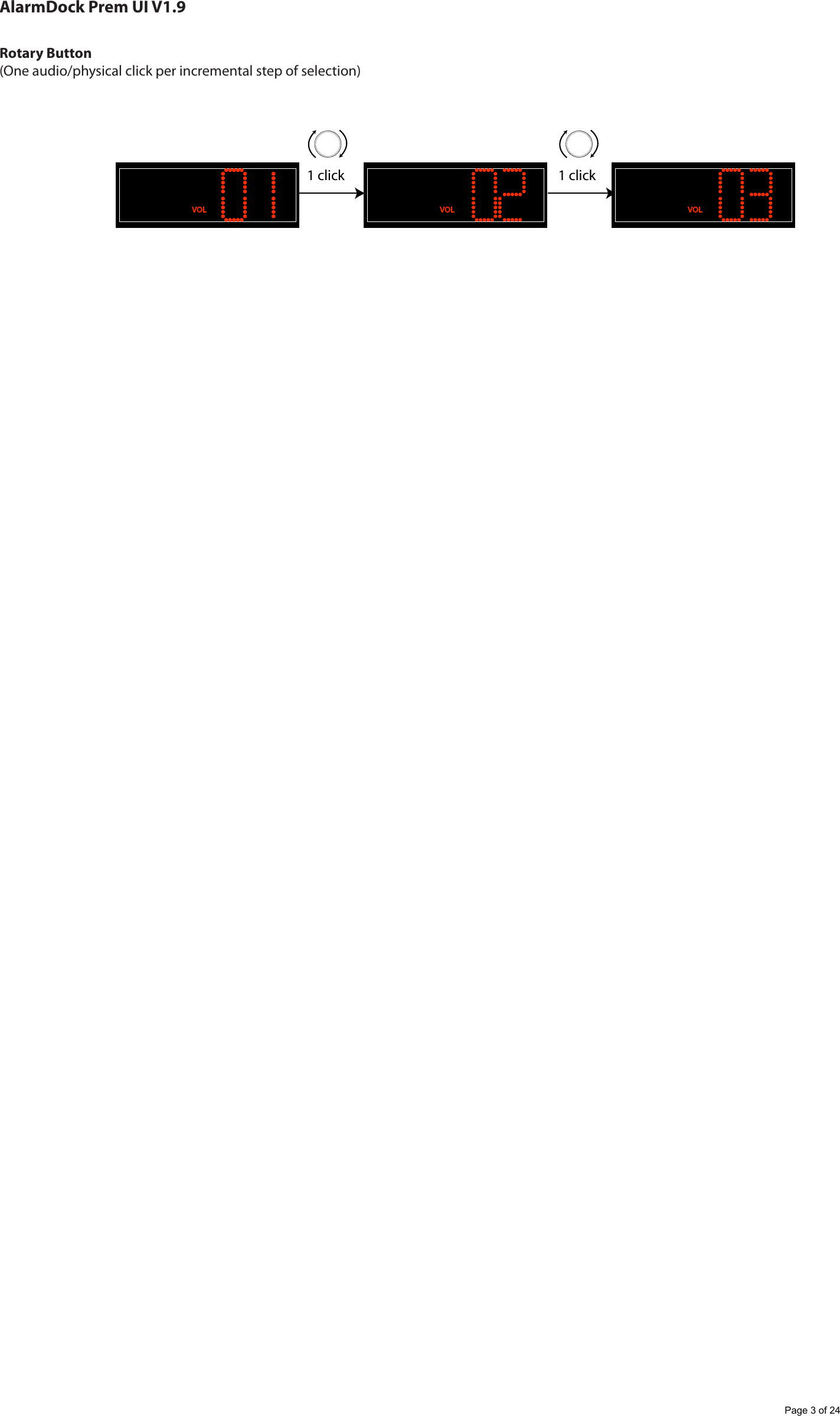
AlarmDock Prem UI V1.9Rotary Button(One audio/physical click per incremental step of selection)1 click 1 clickPage 3 of 24
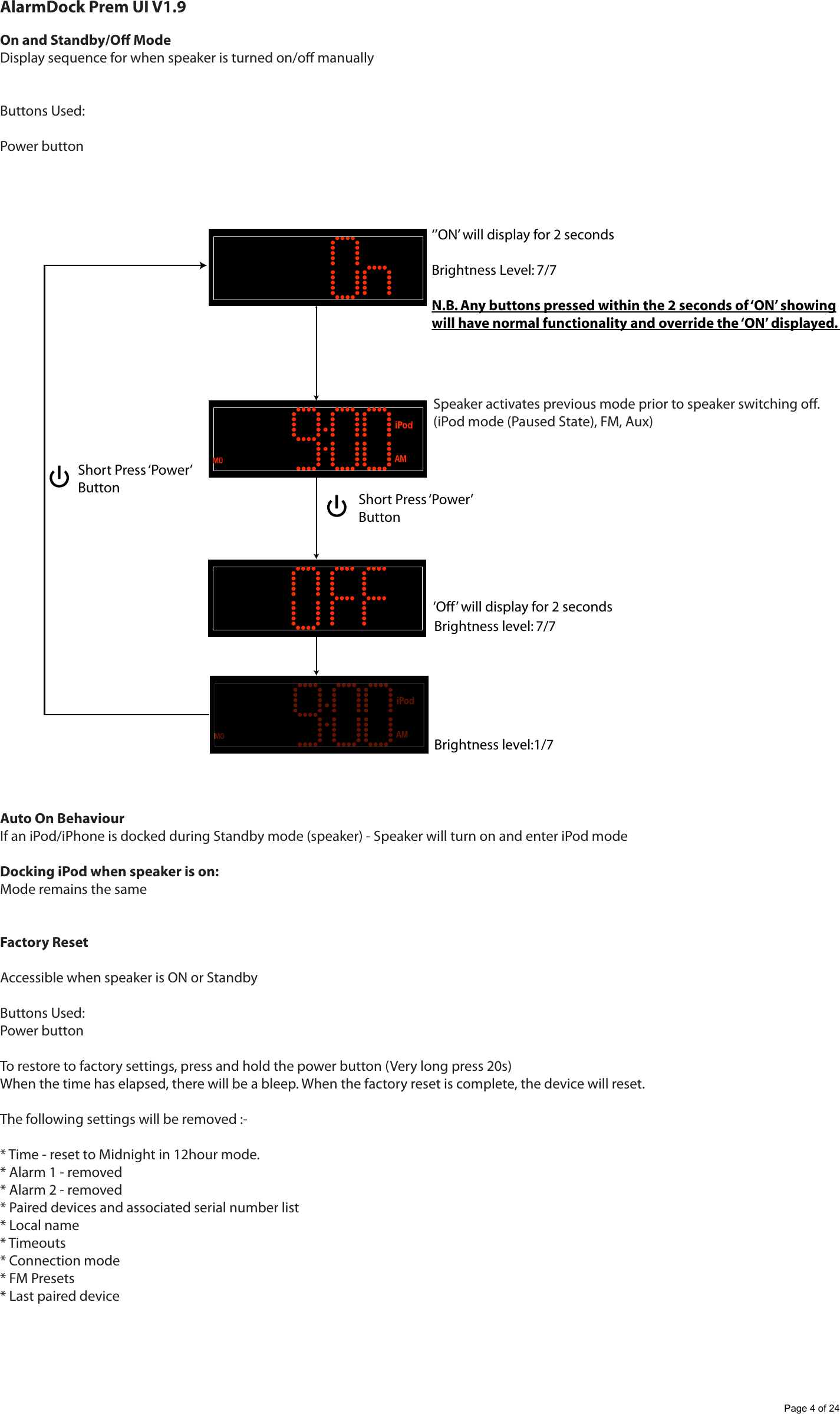
AlarmDock Prem UI V1.9On and Standby/O ModeDisplay sequence for when speaker is turned on/o manuallyButtons Used:Power buttonAuto On BehaviourIf an iPod/iPhone is docked during Standby mode (speaker) - Speaker will turn on and enter iPod mode Docking iPod when speaker is on:Mode remains the sameFactory ResetAccessible when speaker is ON or StandbyButtons Used:Power buttonTo restore to factory settings, press and hold the power button (Very long press 20s) When the time has elapsed, there will be a bleep. When the factory reset is complete, the device will reset.The following settings will be removed :-* Time - reset to Midnight in 12hour mode.* Alarm 1 - removed* Alarm 2 - removed* Paired devices and associated serial number list* Local name* Timeouts* Connection mode* FM Presets* Last paired deviceBrightness level: 7/7 ‘Off’ will display for 2 secondsBrightness level:1/7 ‘’ON’ will display for 2 secondsBrightness Level: 7/7 N.B. Any buttons pressed within the 2 seconds of ‘ON’ showingwill have normal functionality and override the ‘ON’ displayed. Short Press ‘Power’ ButtonShort Press ‘Power’ ButtonSpeaker activates previous mode prior to speaker switching o.(iPod mode (Paused State), FM, Aux)Page 4 of 24
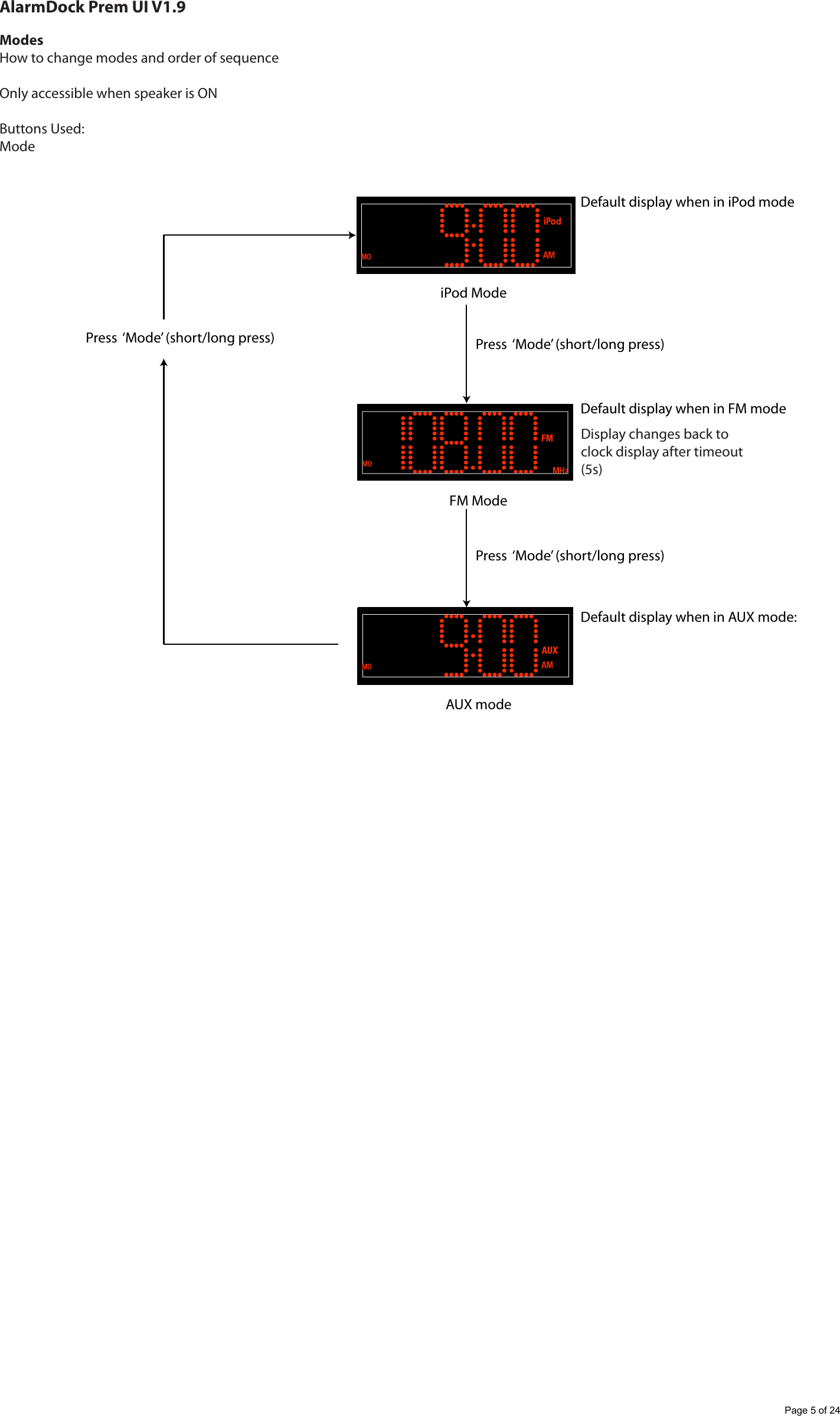
AlarmDock Prem UI V1.9ModesHow to change modes and order of sequenceOnly accessible when speaker is ONButtons Used:ModeiPod ModeAUX modeFM ModePress  ‘Mode’ (short/long press)Press  ‘Mode’ (short/long press)Press  ‘Mode’ (short/long press)Default display when in iPod modeDefault display when in FM modeDefault display when in AUX mode:Display changes back to clock display after timeout (5s)Page 5 of 24
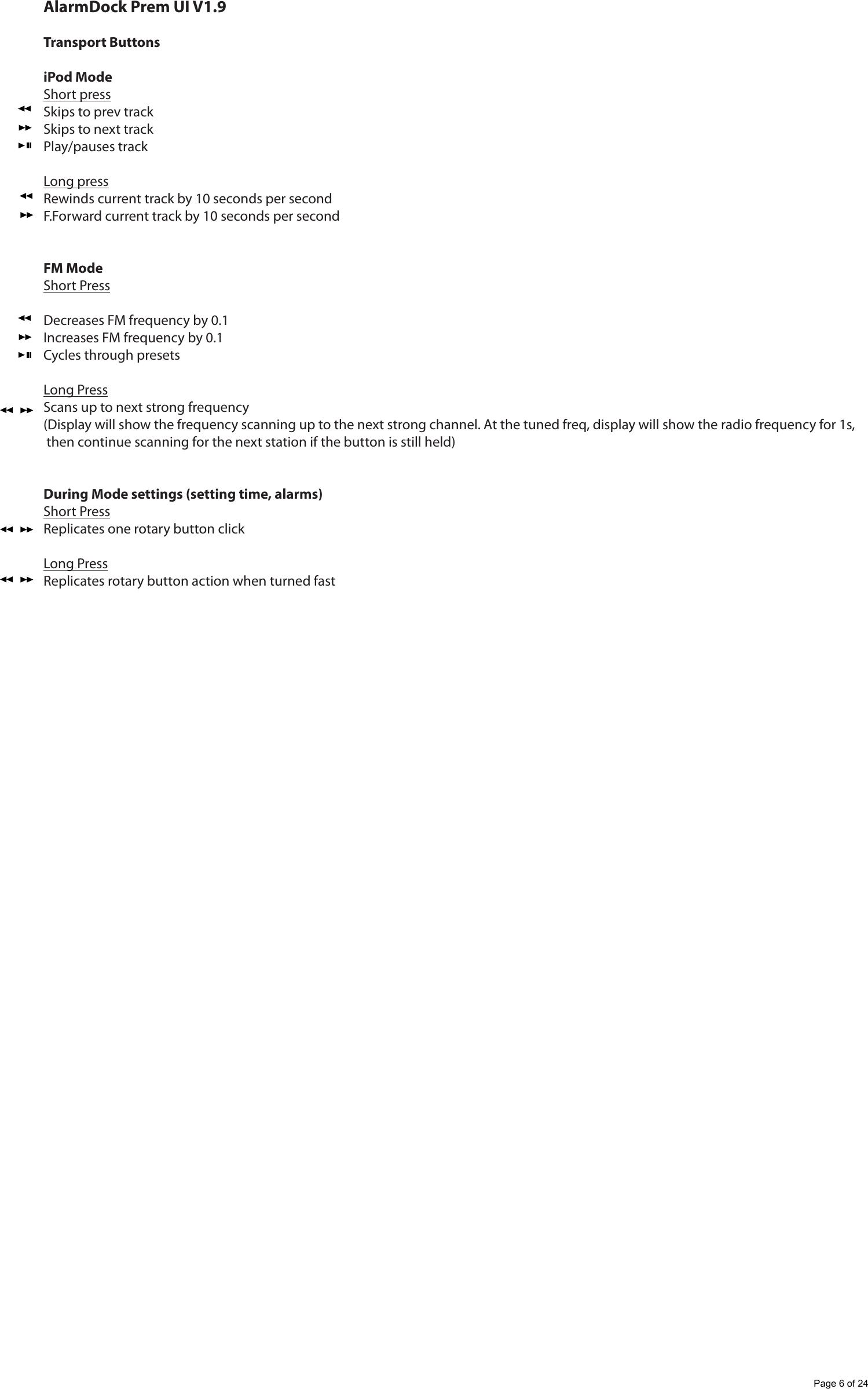
AlarmDock Prem UI V1.9Transport ButtonsiPod ModeShort pressSkips to prev trackSkips to next trackPlay/pauses trackLong pressRewinds current track by 10 seconds per secondF.Forward current track by 10 seconds per secondFM ModeShort PressDecreases FM frequency by 0.1Increases FM frequency by 0.1Cycles through presetsLong PressScans up to next strong frequency(Display will show the frequency scanning up to the next strong channel. At the tuned freq, display will show the radio frequency for 1s, then continue scanning for the next station if the button is still held)During Mode settings (setting time, alarms)Short PressReplicates one rotary button clickLong PressReplicates rotary button action when turned fastPage 6 of 24
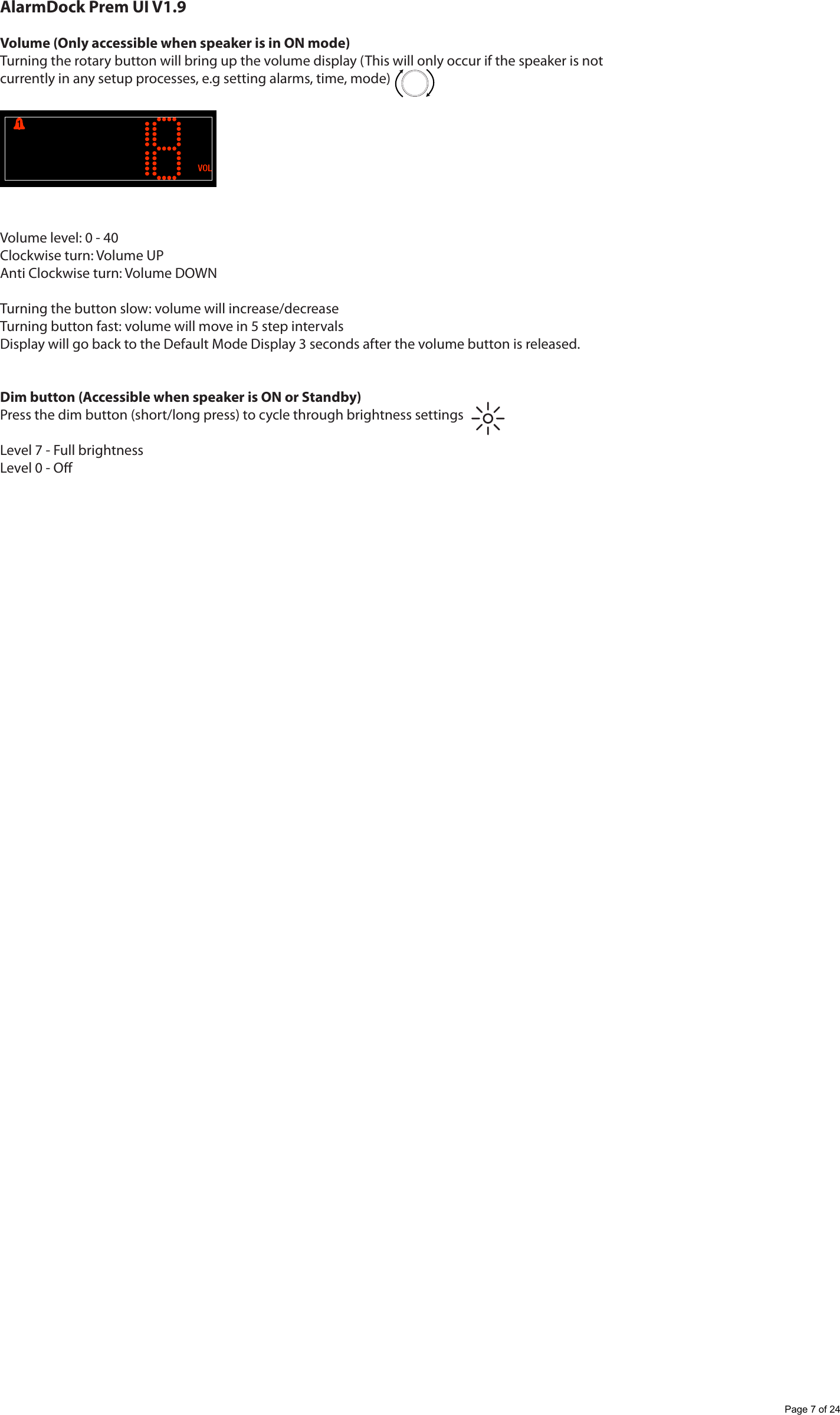
AlarmDock Prem UI V1.9Volume (Only accessible when speaker is in ON mode)Turning the rotary button will bring up the volume display (This will only occur if the speaker is notcurrently in any setup processes, e.g setting alarms, time, mode)Volume level: 0 - 40Clockwise turn: Volume UPAnti Clockwise turn: Volume DOWNTurning the button slow: volume will increase/decreaseTurning button fast: volume will move in 5 step intervals Display will go back to the Default Mode Display 3 seconds after the volume button is released.Dim button (Accessible when speaker is ON or Standby)Press the dim button (short/long press) to cycle through brightness settingsLevel 7 - Full brightnessLevel 0 - OPage 7 of 24
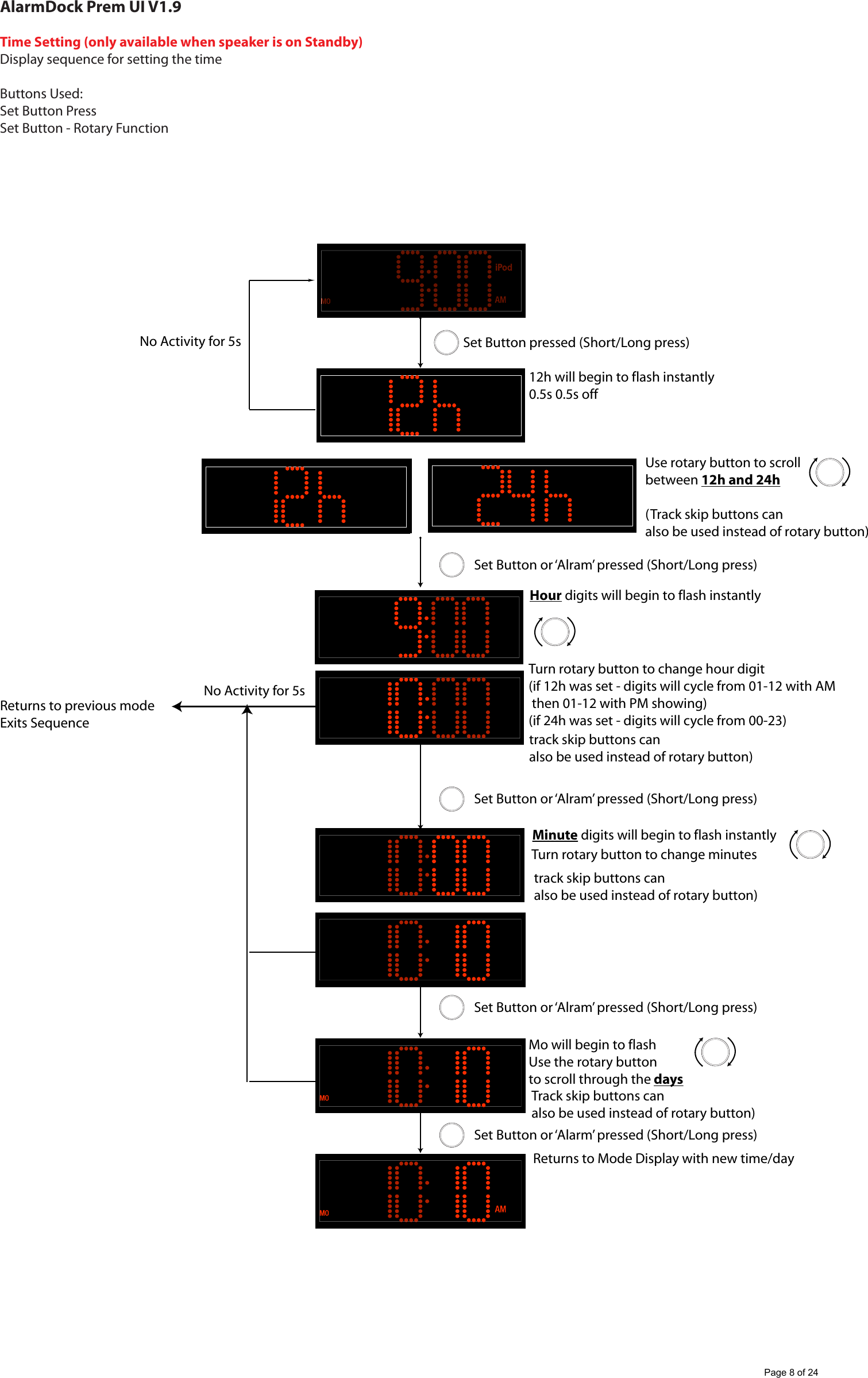
AlarmDock Prem UI V1.9Time Setting (only available when speaker is on Standby)Display sequence for setting the timeButtons Used:Set Button PressSet Button - Rotary FunctionUse rotary button to scroll between 12h and 24h(Track skip buttons canalso be used instead of rotary button)No Activity for 5sHour digits will begin to flash instantlyMinute digits will begin to flash instantlyTurn rotary button to change minutesTurn rotary button to change hour digit(if 12h was set - digits will cycle from 01-12 with AM then 01-12 with PM showing)(if 24h was set - digits will cycle from 00-23)Mo will begin to flashUse the rotary button to scroll through the daysReturns to Mode Display with new time/dayNo Activity for 5sReturns to previous modeExits SequenceSet Button pressed (Short/Long press)Set Button or ‘Alram’ pressed (Short/Long press)Set Button or ‘Alram’ pressed (Short/Long press)Set Button or ‘Alram’ pressed (Short/Long press)Set Button or ‘Alarm’ pressed (Short/Long press)Track skip buttons canalso be used instead of rotary button)track skip buttons canalso be used instead of rotary button)track skip buttons canalso be used instead of rotary button)12h will begin to flash instantly0.5s 0.5s offPage 8 of 24
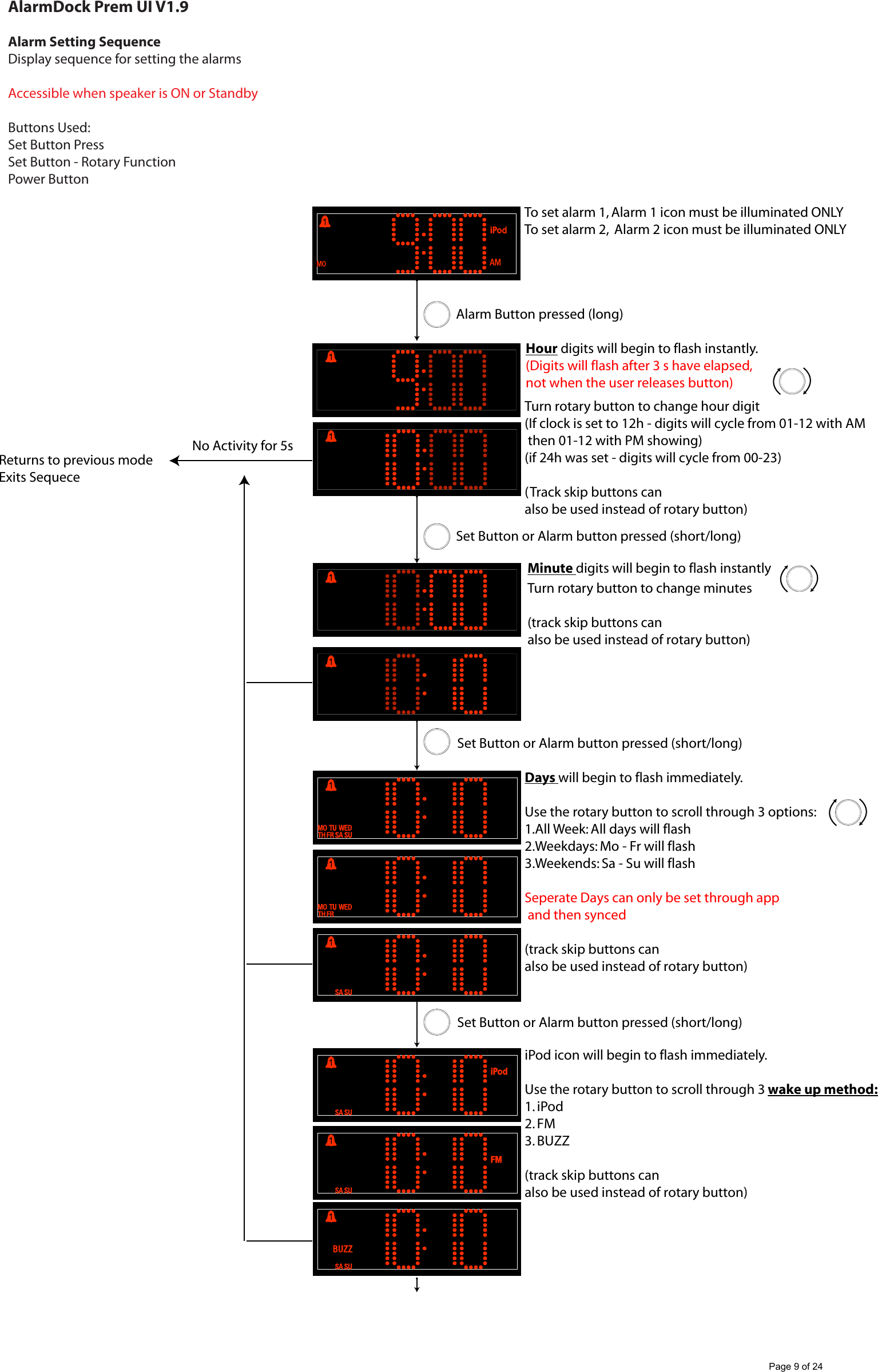
AlarmDock Prem UI V1.9Alarm Setting SequenceDisplay sequence for setting the alarmsAccessible when speaker is ON or StandbyButtons Used:Set Button PressSet Button - Rotary FunctionPower ButtonHour digits will begin to flash instantly. (Digits will flash after 3 s have elapsed, not when the user releases button)Minute digits will begin to flash instantlyTurn rotary button to change minutes(track skip buttons canalso be used instead of rotary button)Turn rotary button to change hour digit(If clock is set to 12h - digits will cycle from 01-12 with AM then 01-12 with PM showing)(if 24h was set - digits will cycle from 00-23)(Track skip buttons canalso be used instead of rotary button)Days will begin to flash immediately.Use the rotary button to scroll through 3 options:1.All Week: All days will flash2.Weekdays: Mo - Fr will flash3.Weekends: Sa - Su will flashSeperate Days can only be set through app and then synced(track skip buttons canalso be used instead of rotary button)iPod icon will begin to flash immediately.Use the rotary button to scroll through 3 wake up method:1. iPod2. FM3. BUZZ(track skip buttons canalso be used instead of rotary button)No Activity for 5sReturns to previous mode Exits SequeceAlarm Button pressed (long)Set Button or Alarm button pressed (short/long)To set alarm 1, Alarm 1 icon must be illuminated ONLYTo set alarm 2,  Alarm 2 icon must be illuminated ONLYSet Button or Alarm button pressed (short/long)Set Button or Alarm button pressed (short/long)Page 9 of 24
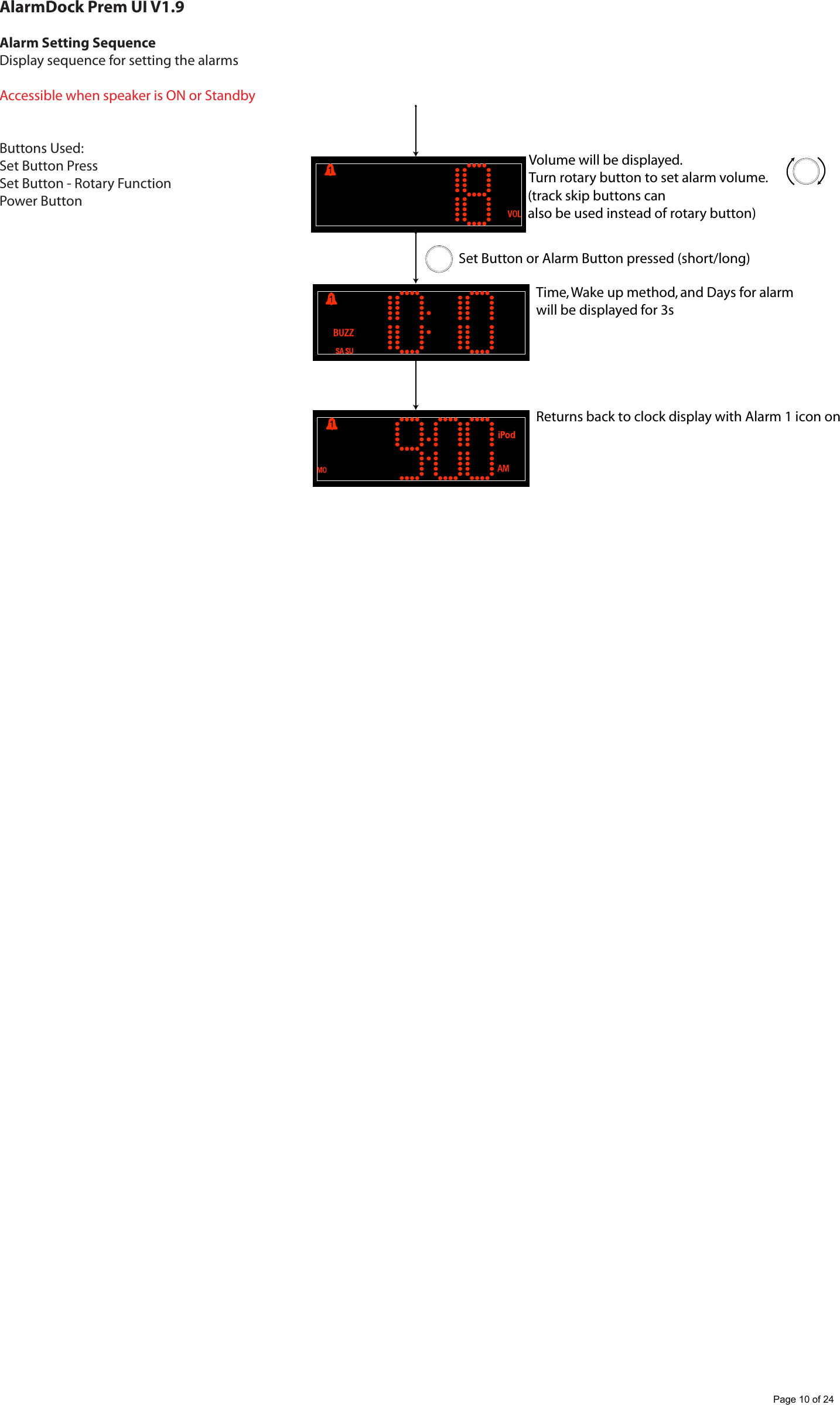
AlarmDock Prem UI V1.9Alarm Setting SequenceDisplay sequence for setting the alarmsAccessible when speaker is ON or StandbyButtons Used:Set Button PressSet Button - Rotary FunctionPower ButtonVolume will be displayed.Turn rotary button to set alarm volume.Time, Wake up method, and Days for alarm will be displayed for 3sReturns back to clock display with Alarm 1 icon onSet Button or Alarm Button pressed (short/long)(track skip buttons canalso be used instead of rotary button)Page 10 of 24
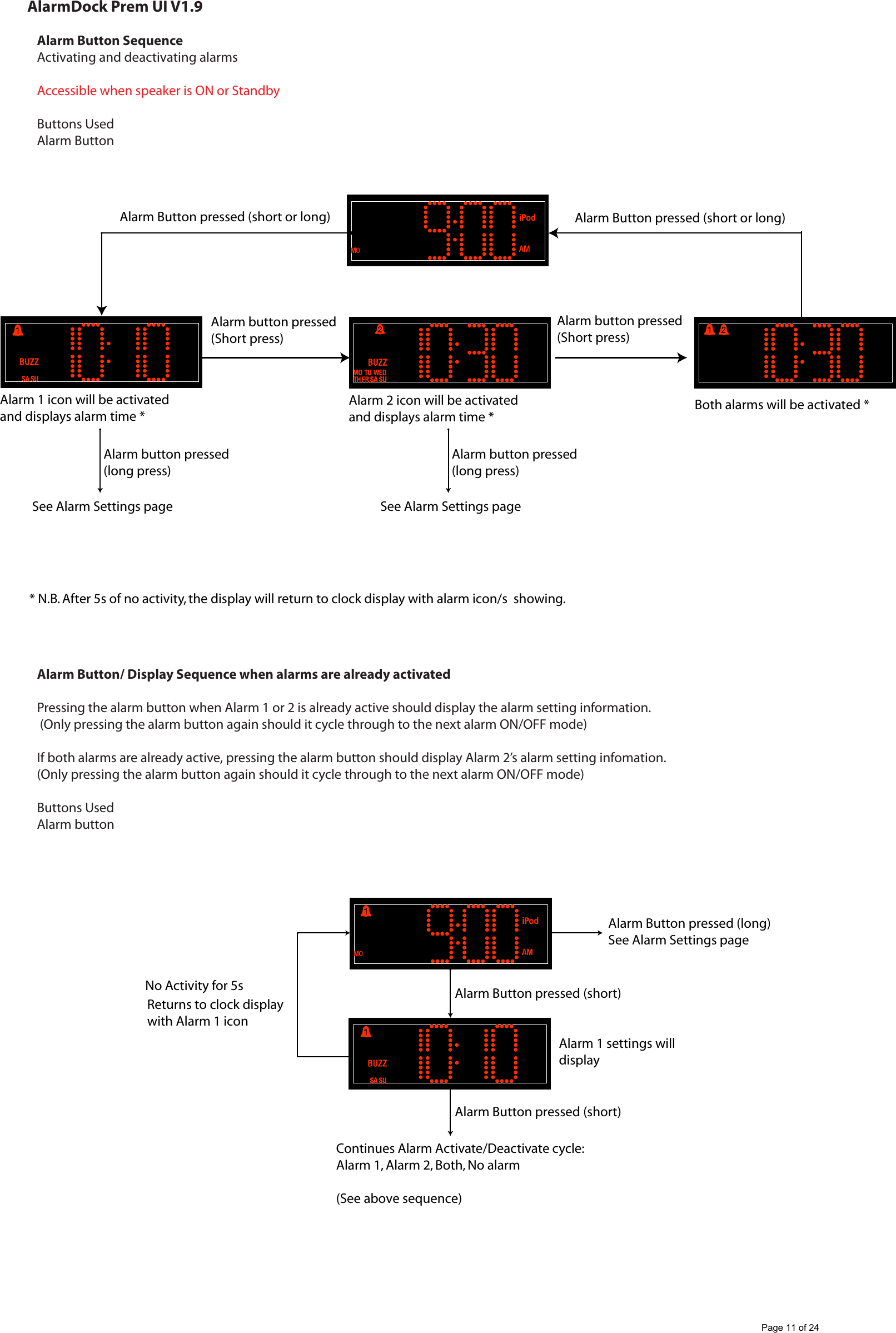
AlarmDock Prem UI V1.9Alarm Button SequenceActivating and deactivating alarmsAccessible when speaker is ON or StandbyButtons UsedAlarm ButtonAlarm Button/ Display Sequence when alarms are already activatedPressing the alarm button when Alarm 1 or 2 is already active should display the alarm setting information. (Only pressing the alarm button again should it cycle through to the next alarm ON/OFF mode)If both alarms are already active, pressing the alarm button should display Alarm 2’s alarm setting infomation.(Only pressing the alarm button again should it cycle through to the next alarm ON/OFF mode)Buttons UsedAlarm buttonAlarm Button pressed (short or long) Alarm Button pressed (short or long)Alarm button pressed(Short press)Alarm button pressed(long press)Alarm button pressed(Short press)See Alarm Settings pageAlarm button pressed(long press)See Alarm Settings pageAlarm 1 icon will be activated and displays alarm time *Alarm 2 icon will be activated and displays alarm time * Both alarms will be activated * * N.B. After 5s of no activity, the display will return to clock display with alarm icon/s  showing.Alarm Button pressed (short)Alarm Button pressed (long)See Alarm Settings pageAlarm Button pressed (short)No Activity for 5sAlarm 1 settings willdisplaysReturns to clock display with Alarm 1 iconContinues Alarm Activate/Deactivate cycle:Alarm 1, Alarm 2, Both, No alarm(See above sequence)Page 11 of 24
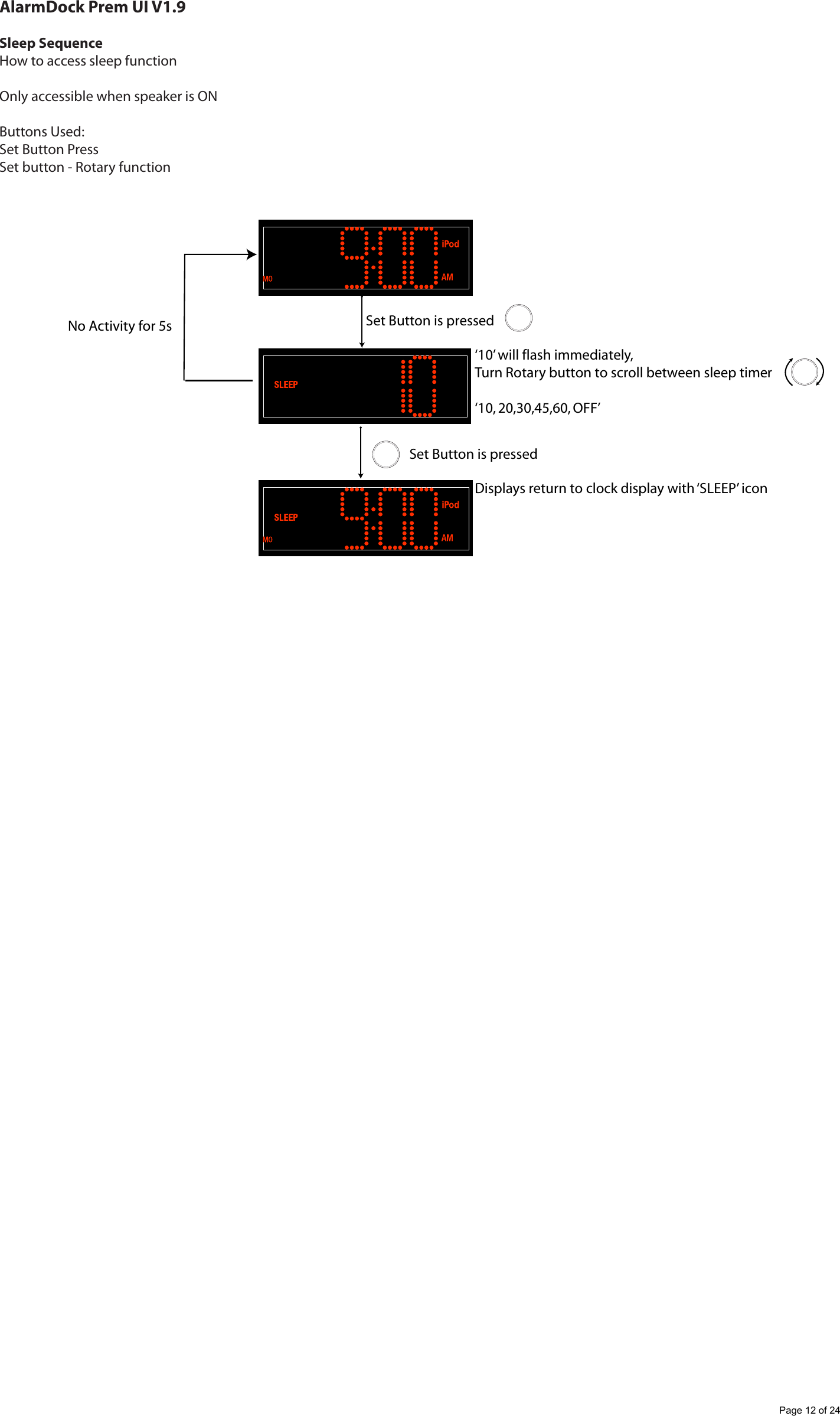
AlarmDock Prem UI V1.9Sleep SequenceHow to access sleep functionOnly accessible when speaker is ONButtons Used:Set Button PressSet button - Rotary function‘10’ will flash immediately,Turn Rotary button to scroll between sleep timer‘10, 20,30,45,60, OFF’Set Button is pressedSet Button is pressedDisplays return to clock display with ‘SLEEP’ iconNo Activity for 5sPage 12 of 24
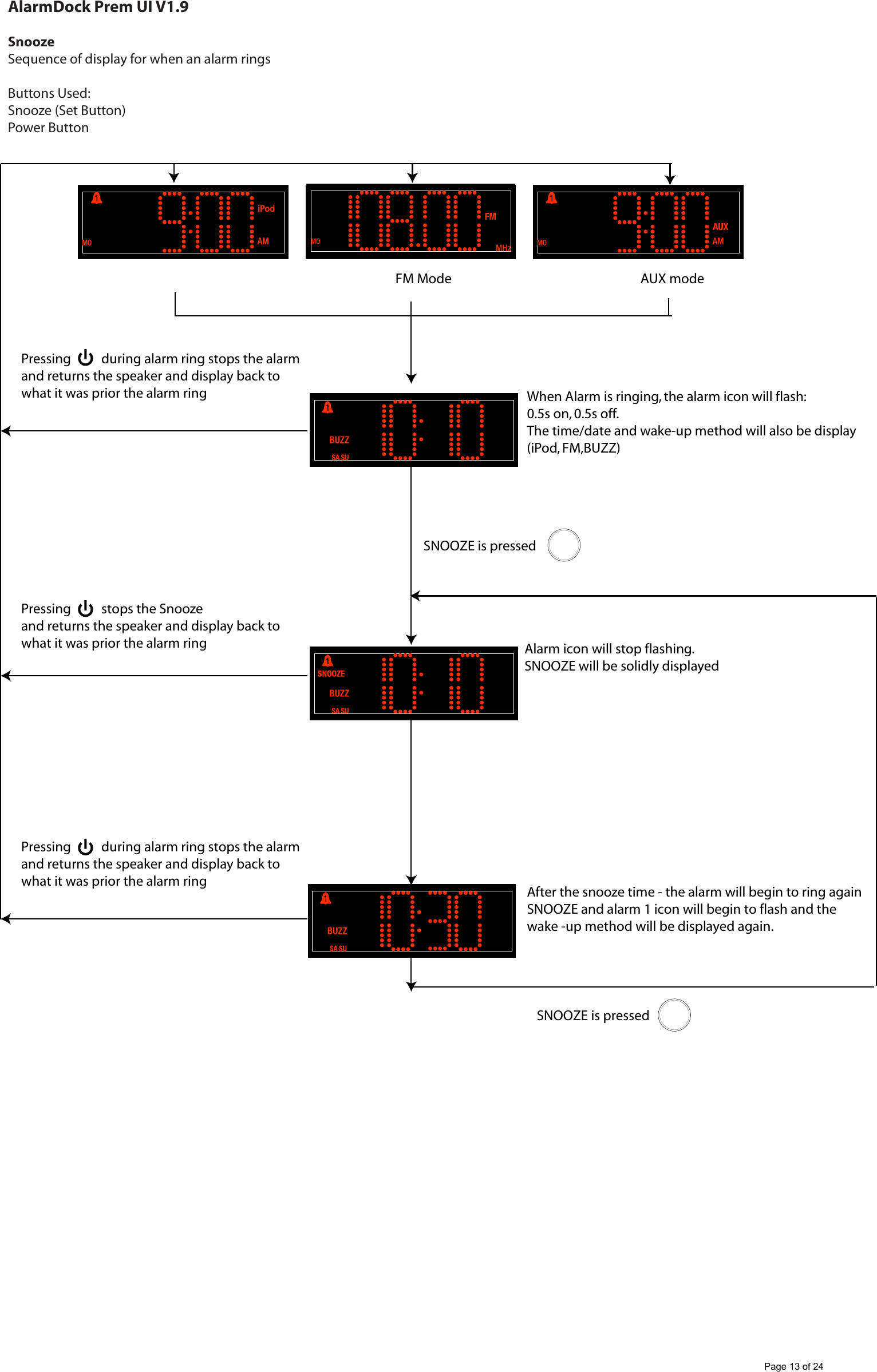
AlarmDock Prem UI V1.9SnoozeSequence of display for when an alarm ringsButtons Used:Snooze (Set Button)Power ButtonAUX modeFM ModeWhen Alarm is ringing, the alarm icon will flash:0.5s on, 0.5s off.The time/date and wake-up method will also be display (iPod, FM,BUZZ)Alarm icon will stop flashing.SNOOZE will be solidly displayedAfter the snooze time - the alarm will begin to ring again SNOOZE and alarm 1 icon will begin to flash and thewake -up method will be displayed again.SNOOZE is pressedPressing          during alarm ring stops the alarmand returns the speaker and display back to what it was prior the alarm ringPressing          during alarm ring stops the alarmand returns the speaker and display back to what it was prior the alarm ringSNOOZE is pressedPressing          stops the Snoozeand returns the speaker and display back to what it was prior the alarm ringPage 13 of 24
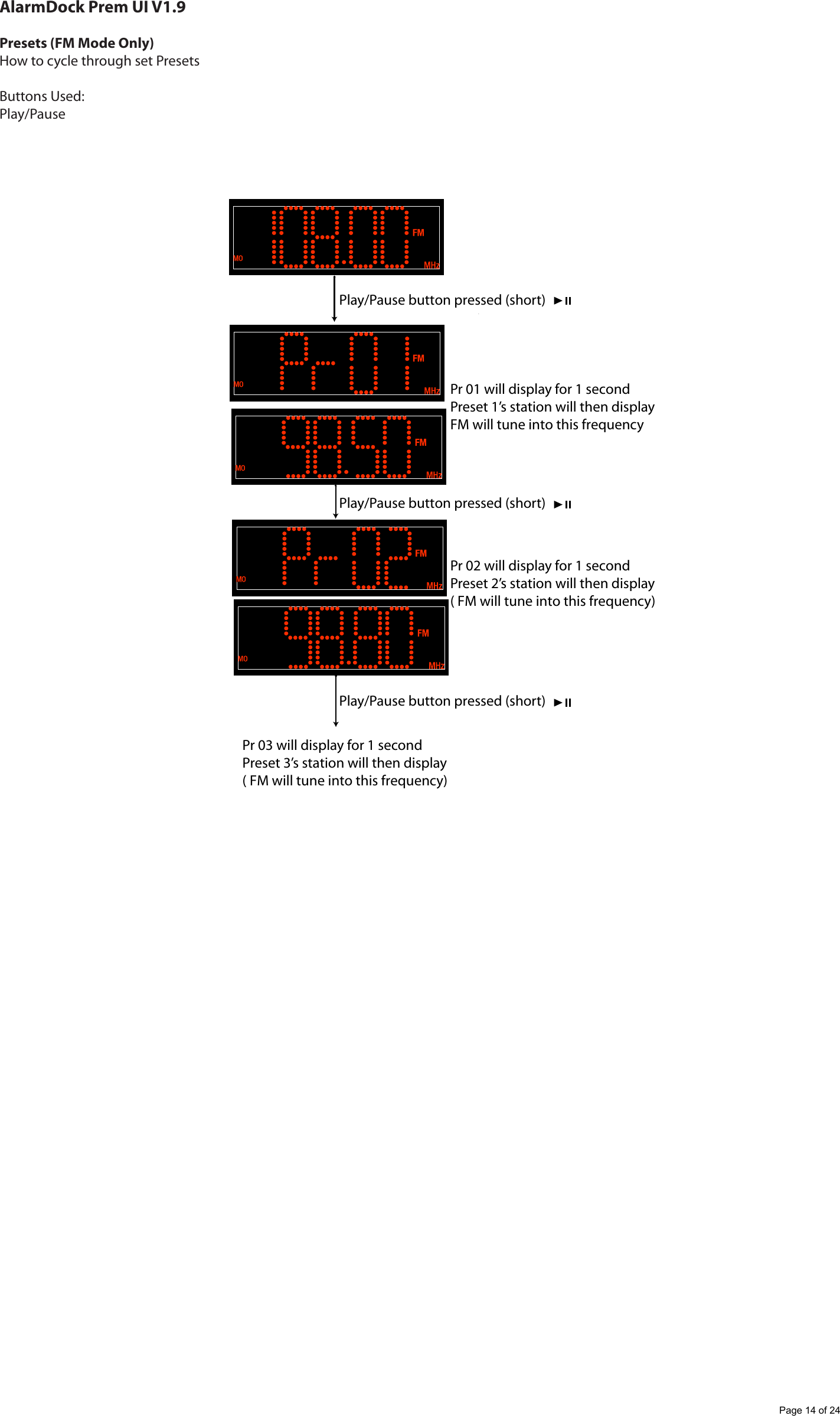
AlarmDock Prem UI V1.9Presets (FM Mode Only)How to cycle through set PresetsButtons Used:Play/PausePlay/Pause button pressed (short)Play/Pause button pressed (short)Play/Pause button pressed (short)Pr 01 will display for 1 secondPreset 1’s station will then displayFM will tune into this frequencyPr 02 will display for 1 secondPreset 2’s station will then display( FM will tune into this frequency)Pr 03 will display for 1 secondPreset 3’s station will then display( FM will tune into this frequency)Page 14 of 24
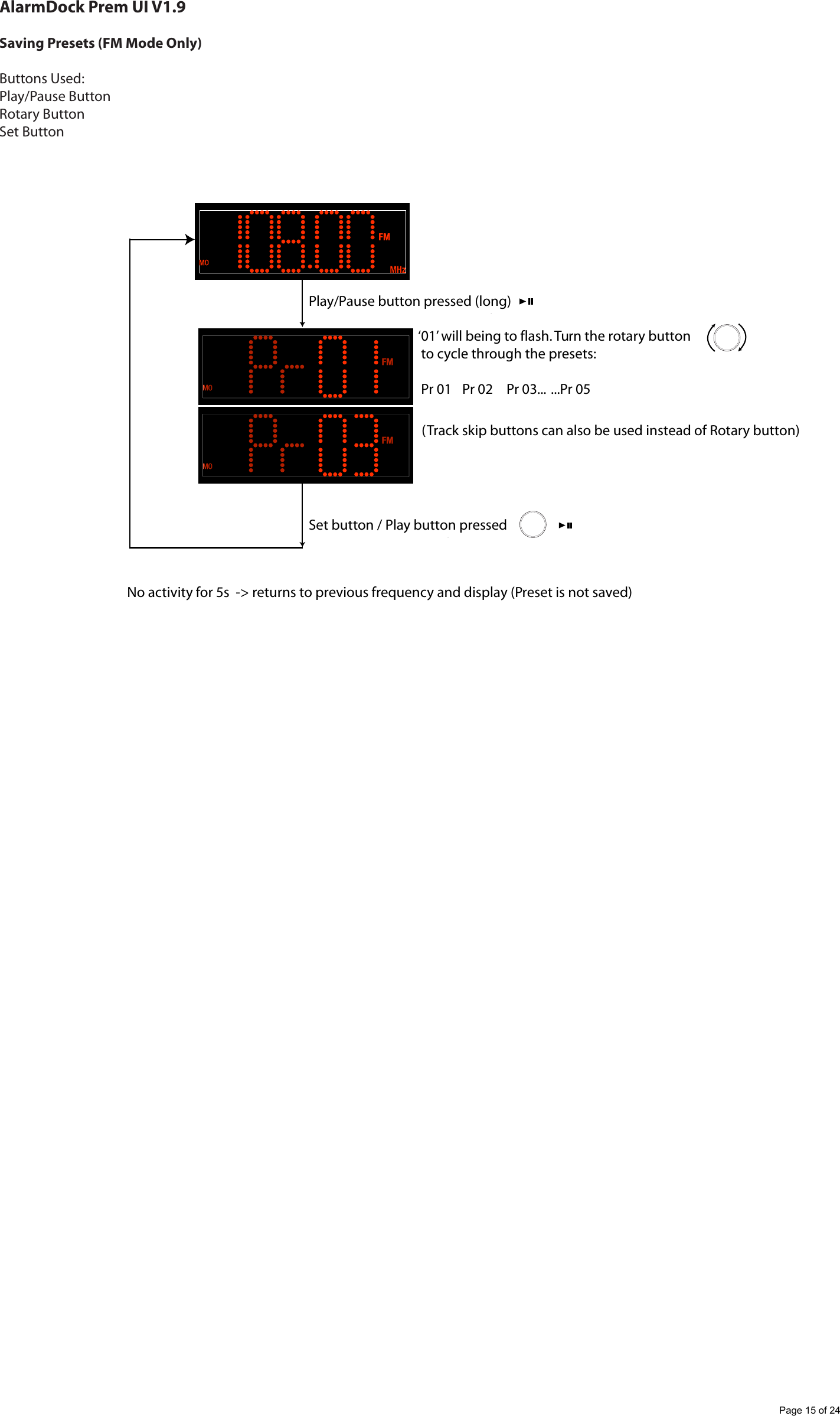
AlarmDock Prem UI V1.9Saving Presets (FM Mode Only)Buttons Used:Play/Pause ButtonRotary ButtonSet Button‘01’ will being to flash. Turn the rotary button to cycle through the presets: Pr 01  Pr 02  Pr 03...  ...Pr 05Play/Pause button pressed (long)Set button / Play button pressed(Track skip buttons can also be used instead of Rotary button)No activity for 5s  -> returns to previous frequency and display (Preset is not saved)Page 15 of 24
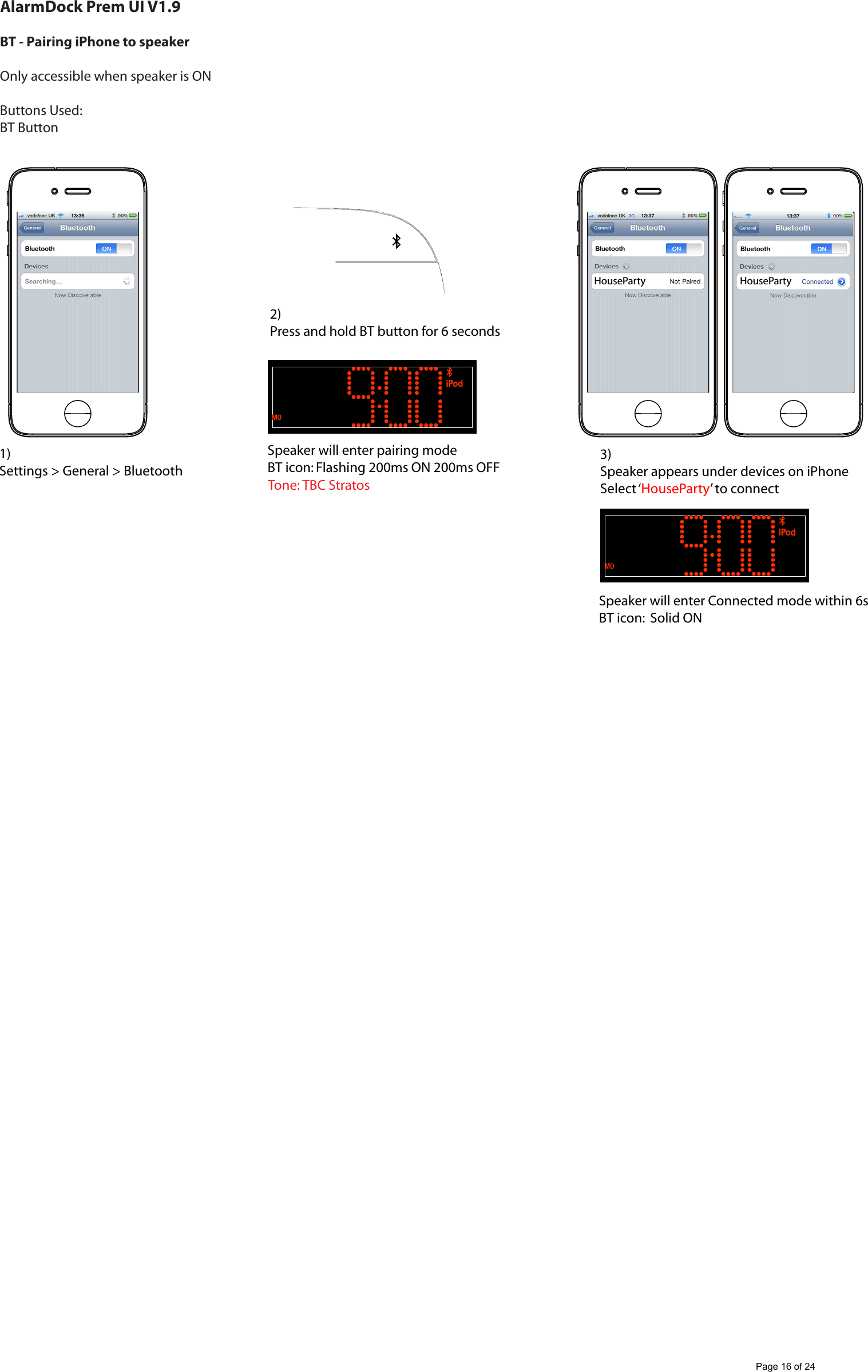
AlarmDock Prem UI V1.9BT - Pairing iPhone to speaker Only accessible when speaker is ONButtons Used:BT Button1)Settings > General > Bluetooth2)Press and hold BT button for 6 secondsSpeaker will enter pairing modeBT icon: Flashing 200ms ON 200ms OFFSpeaker will enter Connected mode within 6sBT icon:  Solid ON3)Speaker appears under devices on iPhoneSelect ‘HouseParty’ to connectHouseParty HousePartyTone: TBC StratosPage 16 of 24
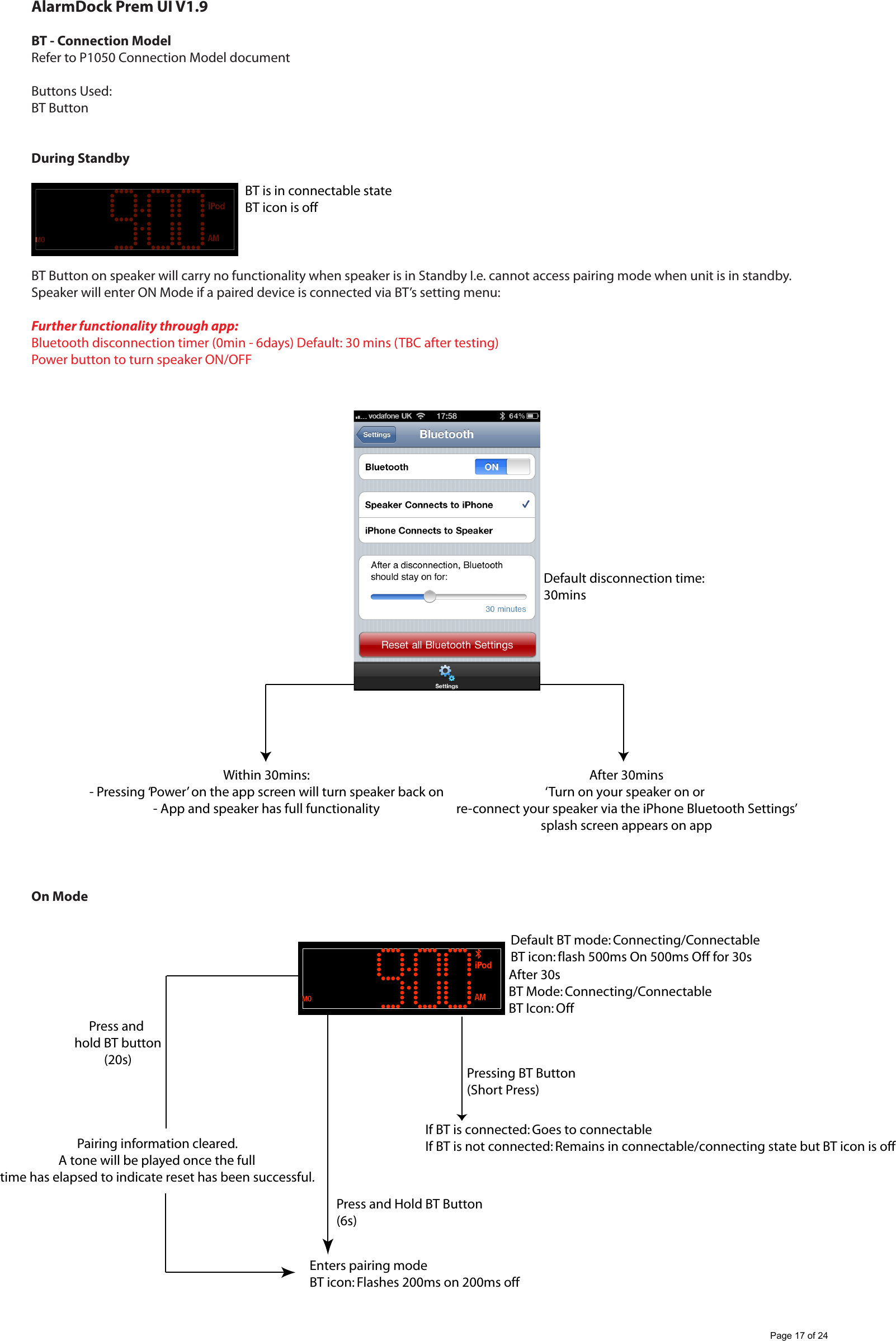
AlarmDock Prem UI V1.9BT - Connection ModelRefer to P1050 Connection Model documentButtons Used:BT ButtonDuring StandbyBT Button on speaker will carry no functionality when speaker is in Standby I.e. cannot access pairing mode when unit is in standby.Speaker will enter ON Mode if a paired device is connected via BT’s setting menu:Further functionality through app:Bluetooth disconnection timer (0min - 6days) Default: 30 mins (TBC after testing)Power button to turn speaker ON/OFFOn ModeBT is in connectable stateBT icon is offDefault disconnection time:30minsAfter 30mins‘Turn on your speaker on or re-connect your speaker via the iPhone Bluetooth Settings’splash screen appears on appWithin 30mins:- Pressing ‘Power’ on the app screen will turn speaker back on- App and speaker has full functionalityDefault BT mode: Connecting/ConnectableBT icon: flash 500ms On 500ms Off for 30sPressing BT Button(Short Press)Press and Hold BT Button(6s)Press and hold BT button(20s)Pairing information cleared.A tone will be played once the fulltime has elapsed to indicate reset has been successful.Enters pairing modeBT icon: Flashes 200ms on 200ms offIf BT is connected: Goes to connectableIf BT is not connected: Remains in connectable/connecting state but BT icon is offAfter 30s BT Mode: Connecting/ConnectableBT Icon: OffPage 17 of 24
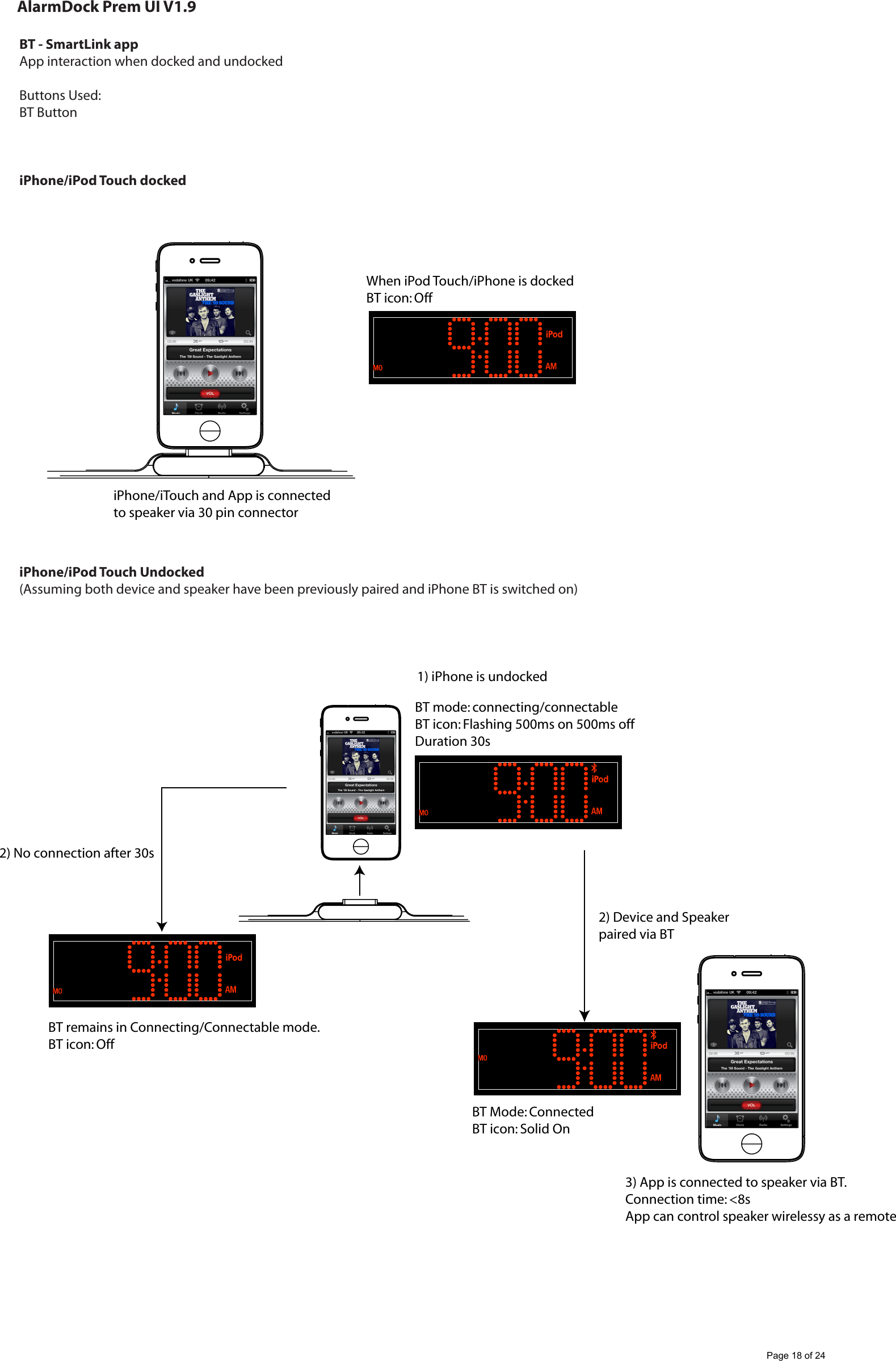
AlarmDock Prem UI V1.9BT - SmartLink appApp interaction when docked and undockedButtons Used:BT ButtoniPhone/iPod Touch dockediPhone/iPod Touch Undocked(Assuming both device and speaker have been previously paired and iPhone BT is switched on)When iPod Touch/iPhone is dockedBT icon: OffiPhone/iTouch and App is connected to speaker via 30 pin connector3) App is connected to speaker via BT.Connection time: <8sApp can control speaker wirelessy as a remoteBT mode: connecting/connectableBT icon: Flashing 500ms on 500ms offDuration 30s2) No connection after 30sBT remains in Connecting/Connectable mode.BT icon: Off2) Device and Speaker paired via BTBT Mode: ConnectedBT icon: Solid On1) iPhone is undockedPage 18 of 24
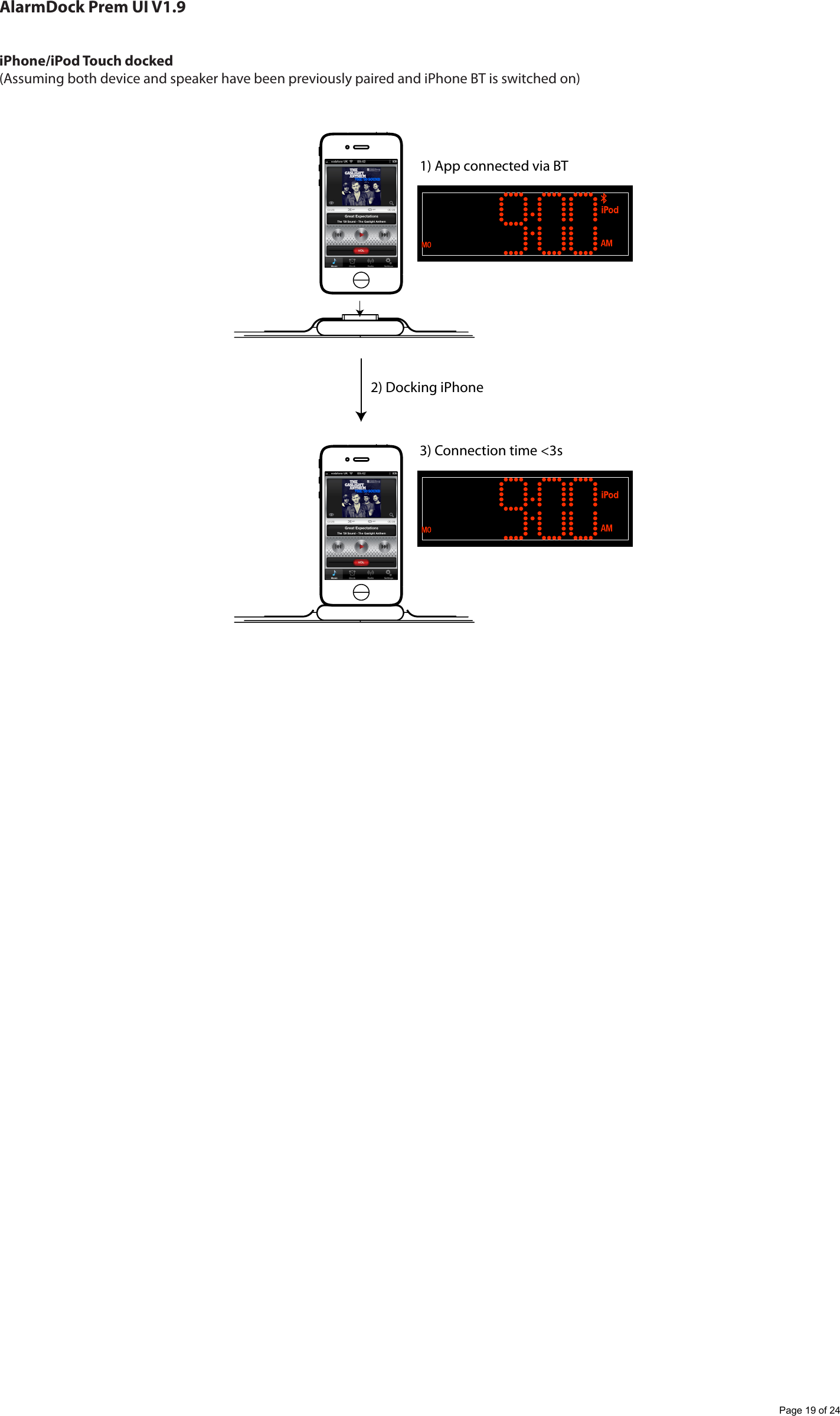
AlarmDock Prem UI V1.9iPhone/iPod Touch docked(Assuming both device and speaker have been previously paired and iPhone BT is switched on)1) App connected via BT3) Connection time <3s2) Docking iPhonePage 19 of 24
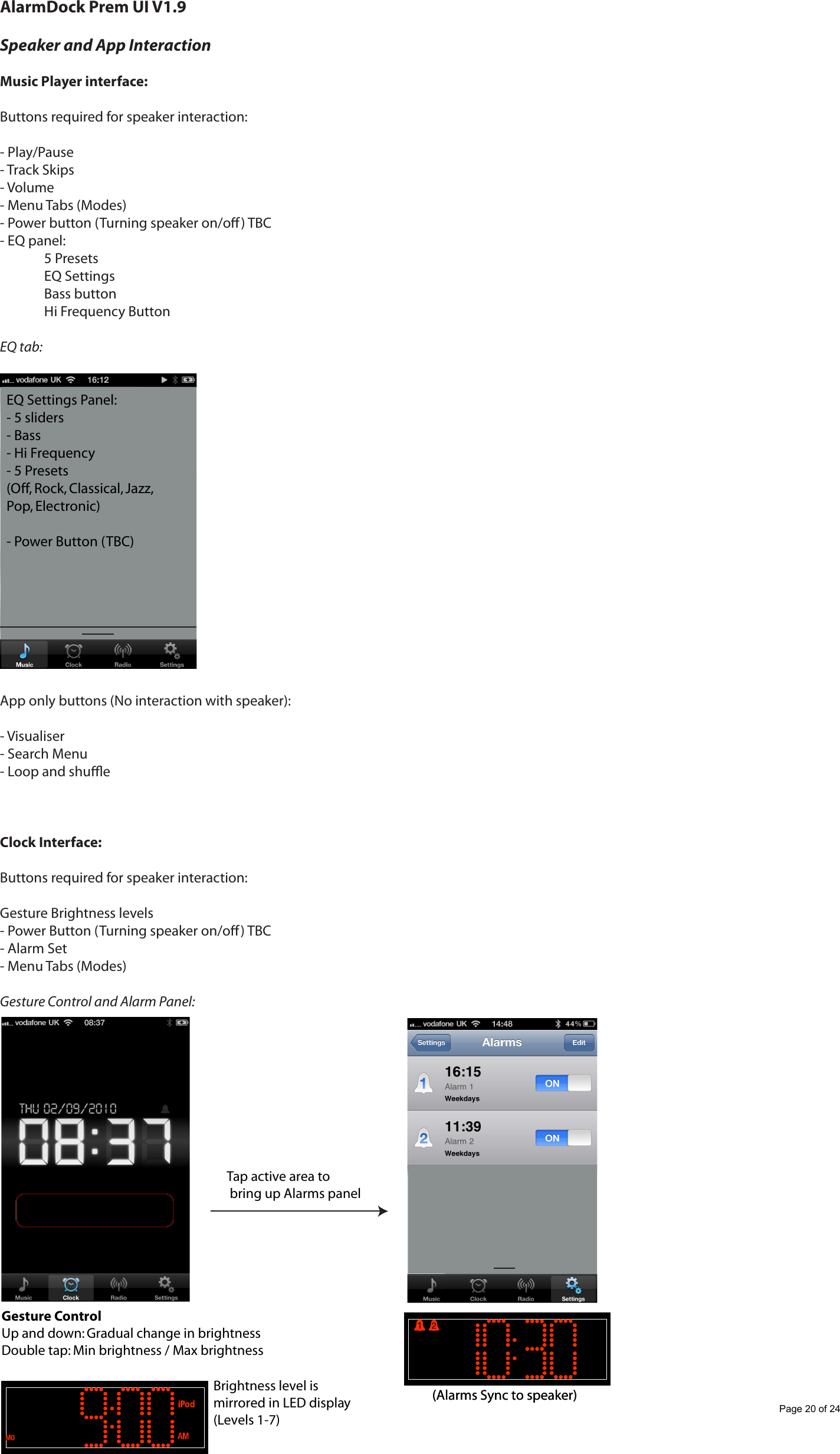
AlarmDock Prem UI V1.9Speaker and App InteractionMusic Player interface:Buttons required for speaker interaction:- Play/Pause- Track Skips- Volume- Menu Tabs (Modes)- Power button (Turning speaker on/o) TBC- EQ panel:  5 Presets  EQ Settings  Bass button  Hi Frequency ButtonEQ tab:App only buttons (No interaction with speaker):- Visualiser- Search Menu- Loop and shueClock Interface:Buttons required for speaker interaction:Gesture Brightness levels- Power Button (Turning speaker on/o) TBC- Alarm Set- Menu Tabs (Modes)Gesture Control and Alarm Panel:EQ Settings Panel:- 5 sliders- Bass- Hi Frequency- 5 Presets (Off, Rock, Classical, Jazz, Pop, Electronic)- Power Button (TBC)Tap active area to bring up Alarms panelGesture ControlUp and down: Gradual change in brightnessDouble tap: Min brightness / Max brightnessBrightness level is mirrored in LED display(Levels 1-7)(Alarms Sync to speaker)(Alarms Sync to speaker)Page 20 of 24
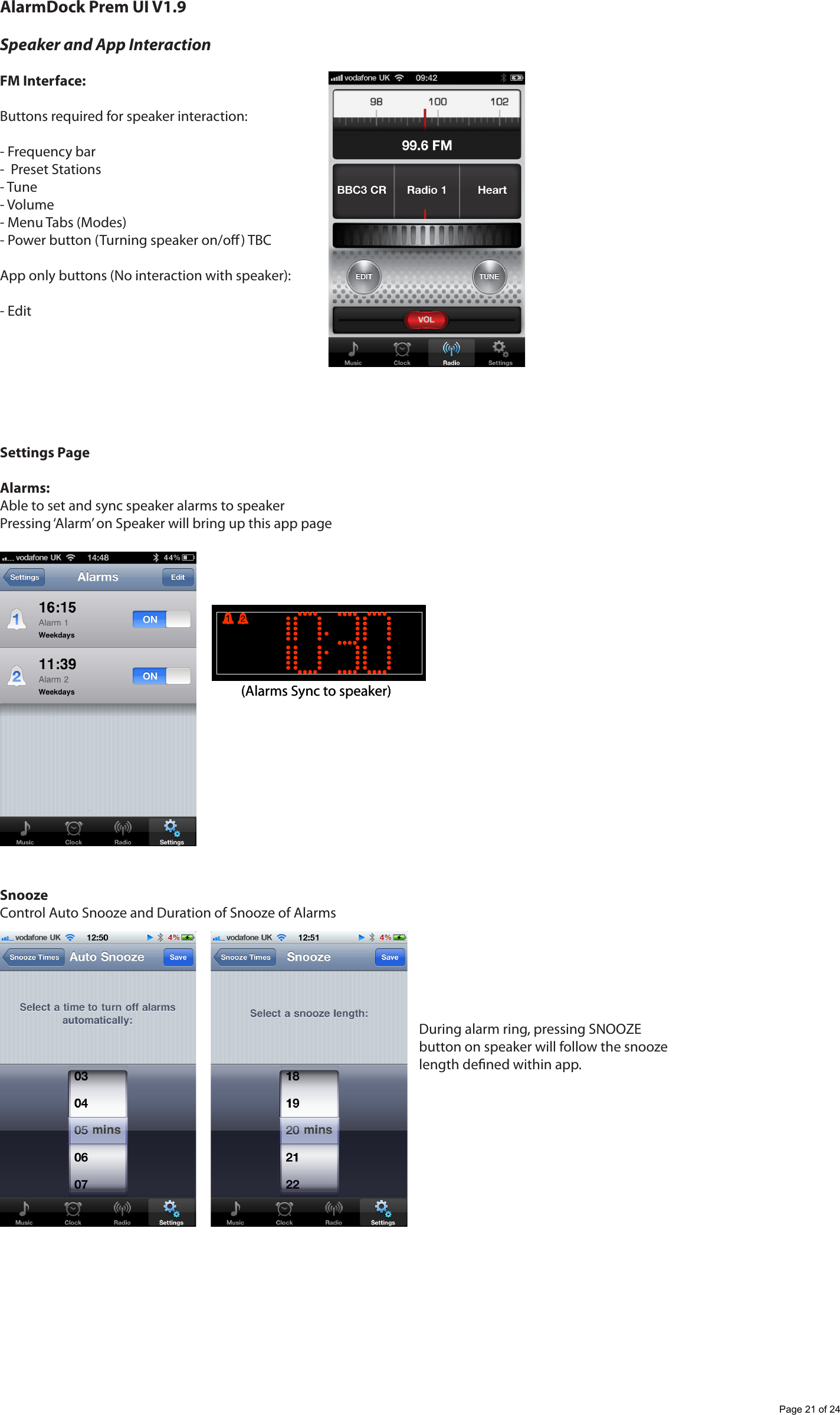
AlarmDock Prem UI V1.9Speaker and App InteractionFM Interface:Buttons required for speaker interaction:- Frequency bar-  Preset Stations- Tune- Volume- Menu Tabs (Modes)- Power button (Turning speaker on/o) TBCApp only buttons (No interaction with speaker):- EditSettings PageAlarms:Able to set and sync speaker alarms to speakerPressing ‘Alarm’ on Speaker will bring up this app pageSnoozeControl Auto Snooze and Duration of Snooze of Alarms(Alarms Sync to speaker)(Alarms Sync to speaker)During alarm ring, pressing SNOOZE button on speaker will follow the snooze length dened within app. Page 21 of 24
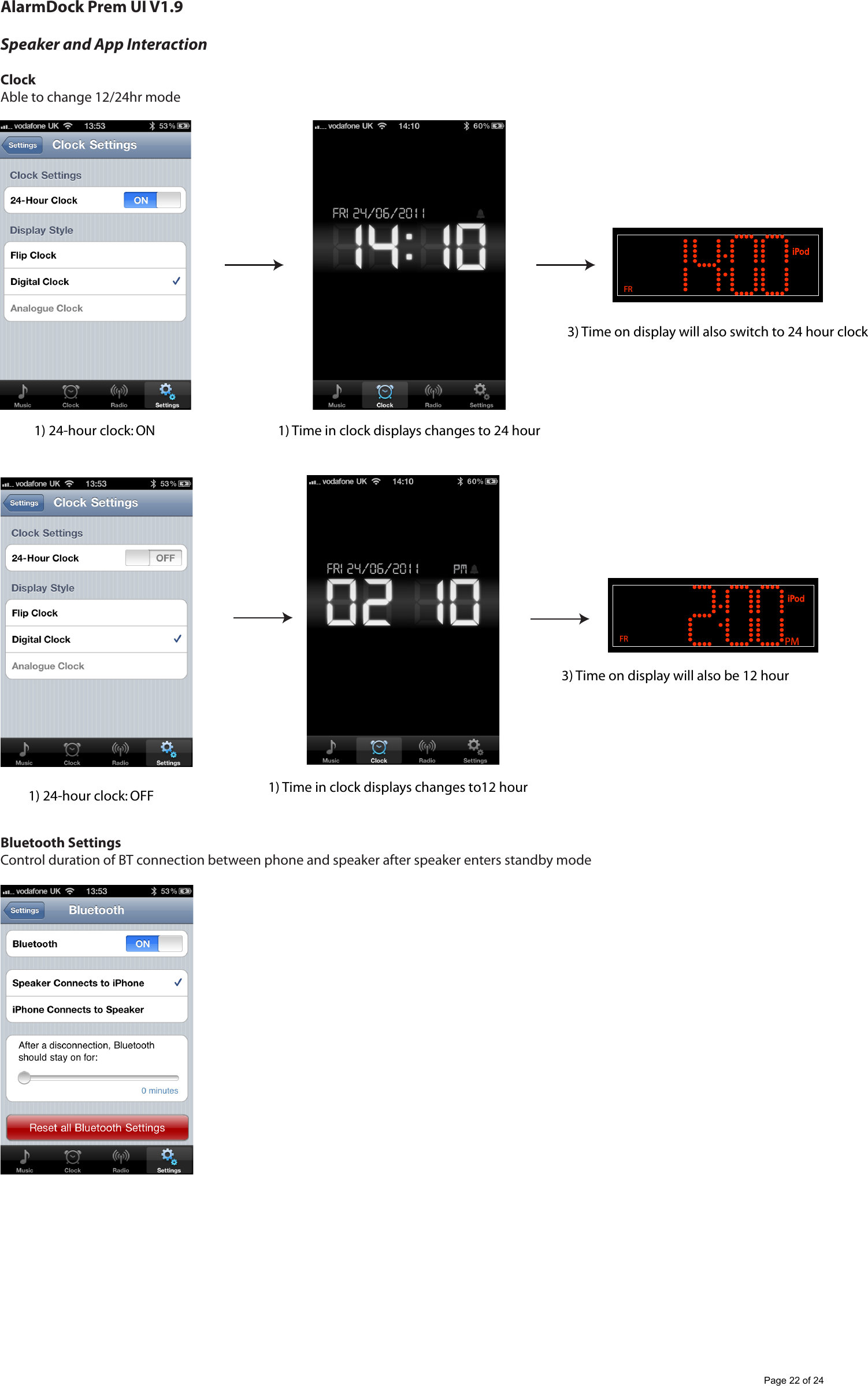
AlarmDock Prem UI V1.9Speaker and App InteractionClockAble to change 12/24hr modeBluetooth Settings Control duration of BT connection between phone and speaker after speaker enters standby modeFR1) 24-hour clock: ON 1) Time in clock displays changes to 24 hour3) Time on display will also switch to 24 hour clockPMFR1) 24-hour clock: OFF 1) Time in clock displays changes to12 hour3) Time on display will also be 12 hourPage 22 of 24
AlarmDock Prem UI V1.9Speaker and App InteractionAdvanced SettingsEnabling/Disabling Auto Launch and Auto ONPage 23 of 24
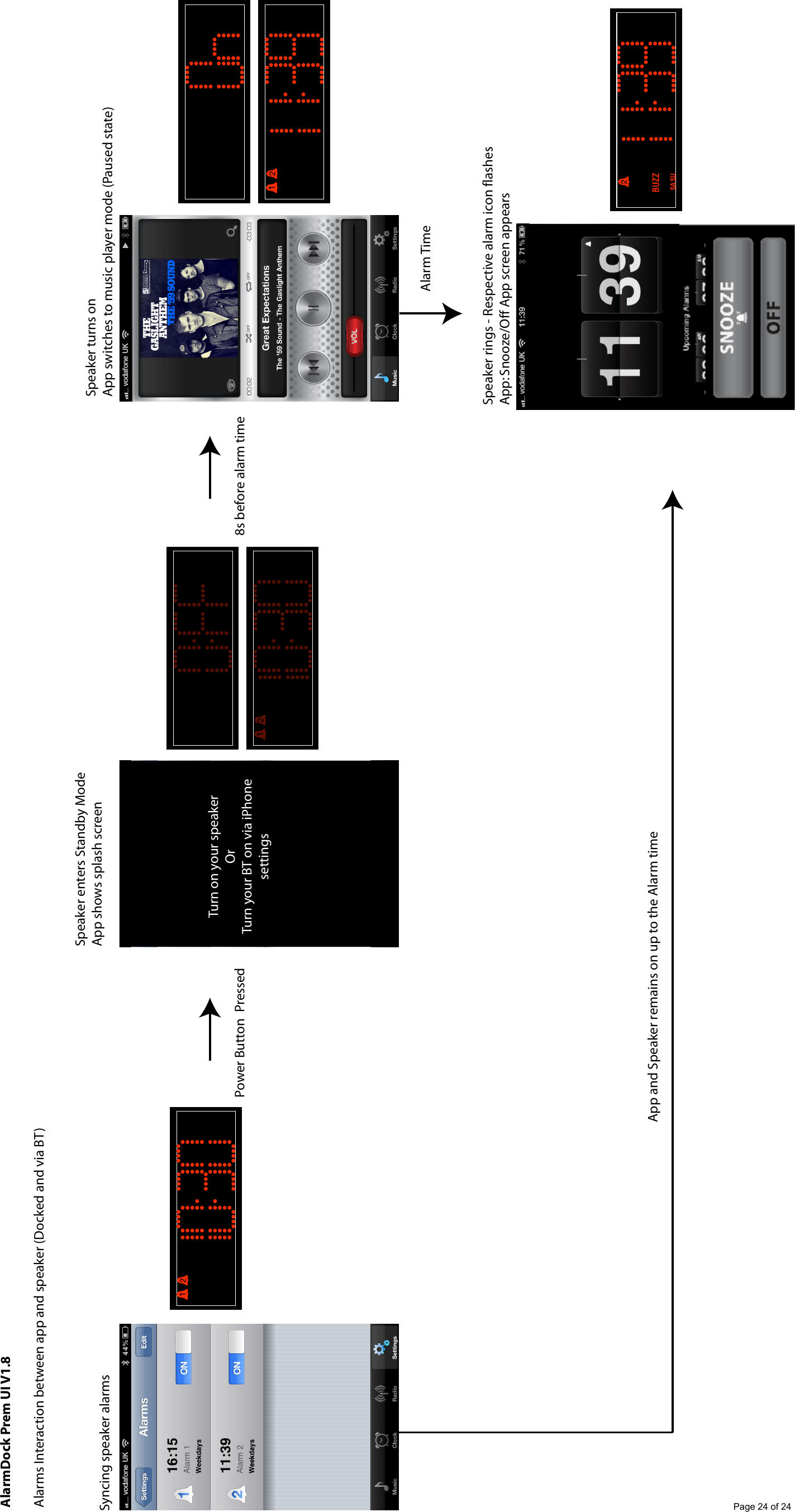
Power Button  Pressed 8s before alarm timeSpeaker enters Standby ModeApp shows splash screenTurn on your speakerOr Turn your BT on via iPhone settingsSyncing speaker alarmsSpeaker turns onApp switches to music player mode (Paused state)Alarm TimeSpeaker rings - Respective alarm icon flashesApp: Snooze/Off App screen appearsApp and Speaker remains on up to the Alarm timeAlarmDock Prem UI V1.8Alarms Interaction between app and speaker (Docked and via BT)Page 24 of 24

Navigation menu