PlanIt! User Guide Date, Time, Events, Calendar 03.Plan It Date Time Events
User Manual: 03.PlanIt-User-Guide-Date-Time-Events-Calendar
Open the PDF directly: View PDF  .
.
Page Count: 10
PlanIt! for
Photographers
ALL-IN-ONE PLANNING APP FOR LANDSCAPE PHOTOGRAPHERS
QUICK USER GUIDES
3
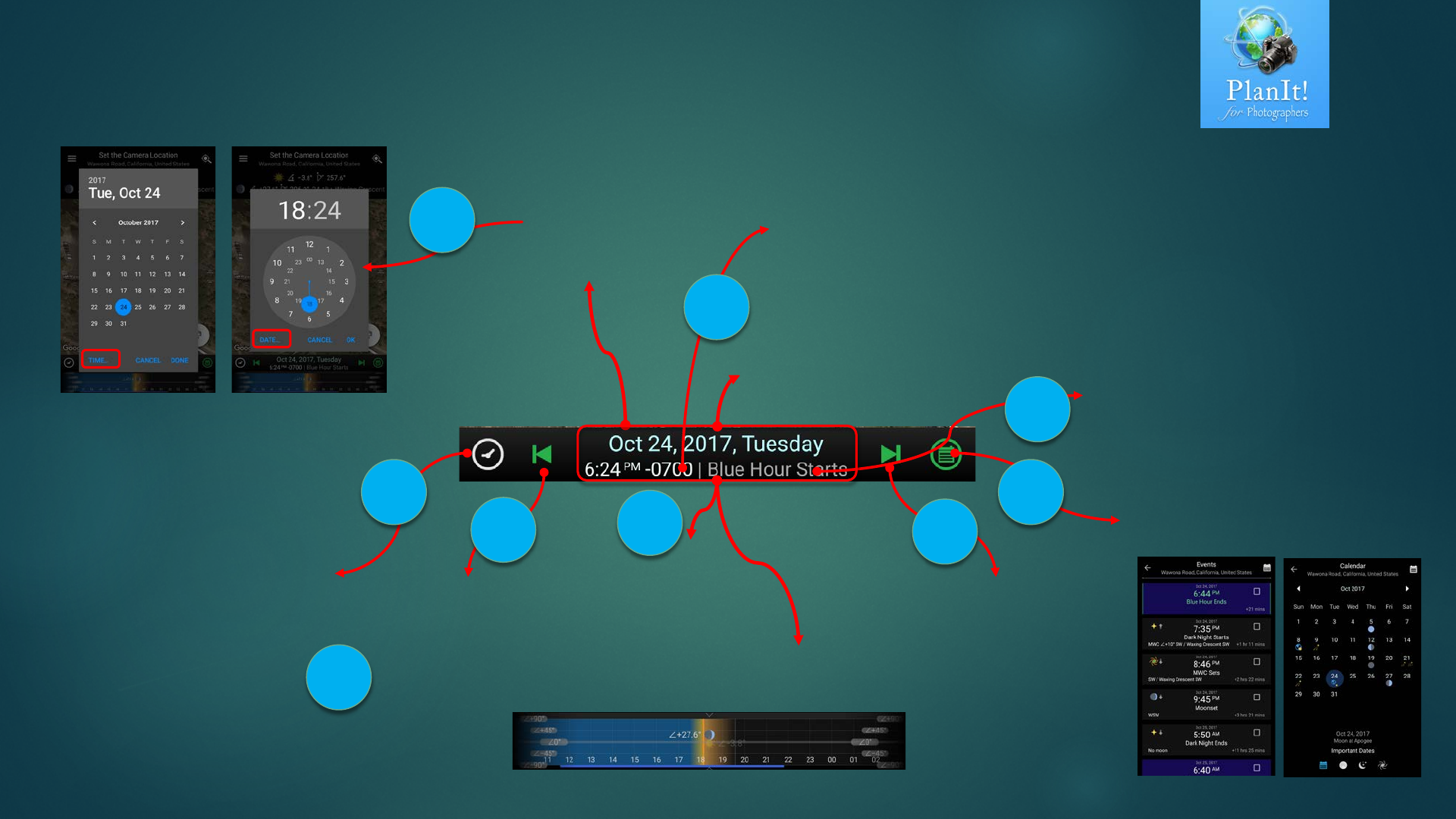
Date/Time Bar
Tap to set to Current Time
Green icon means
it is at the current time
Long press to lock the time
Tap to open Event Page
Long press for Calendar Page
Long press to
show the
date/time picker
Swipe right or left to go to
Next or Previous Event
Previous Event Next Event
Current Event
“Blue hour starts” event is
happening. Any events within 5
mins will be shown here so it could
show multiple events.
Event Page Calendar Page
Date/Time Slider
Date/Time Picker
Swipe up to show the Date/Time slider. Tap also works.
When visible, swipe down or tap to hide.
Timezone Offset
It could have three colors: White means the timezone is accurate because we
got the data from network. Yellow means the timezone is most likely correct
but could be wrong near border area so use it with cautious. If your phone
doesn’t have network, it will remain in yellow. Red is very rare but if you ever
see it, it means the timezone is just a guess based on the longtitude.
There is a “Show timezone” setting in the Settings. If you can turn it off, it will
only show the timezone offset when the timezone is different from your
phone’s timezone.
The whole area is just
one clickable area
3
48
2
1
5
9
6
7
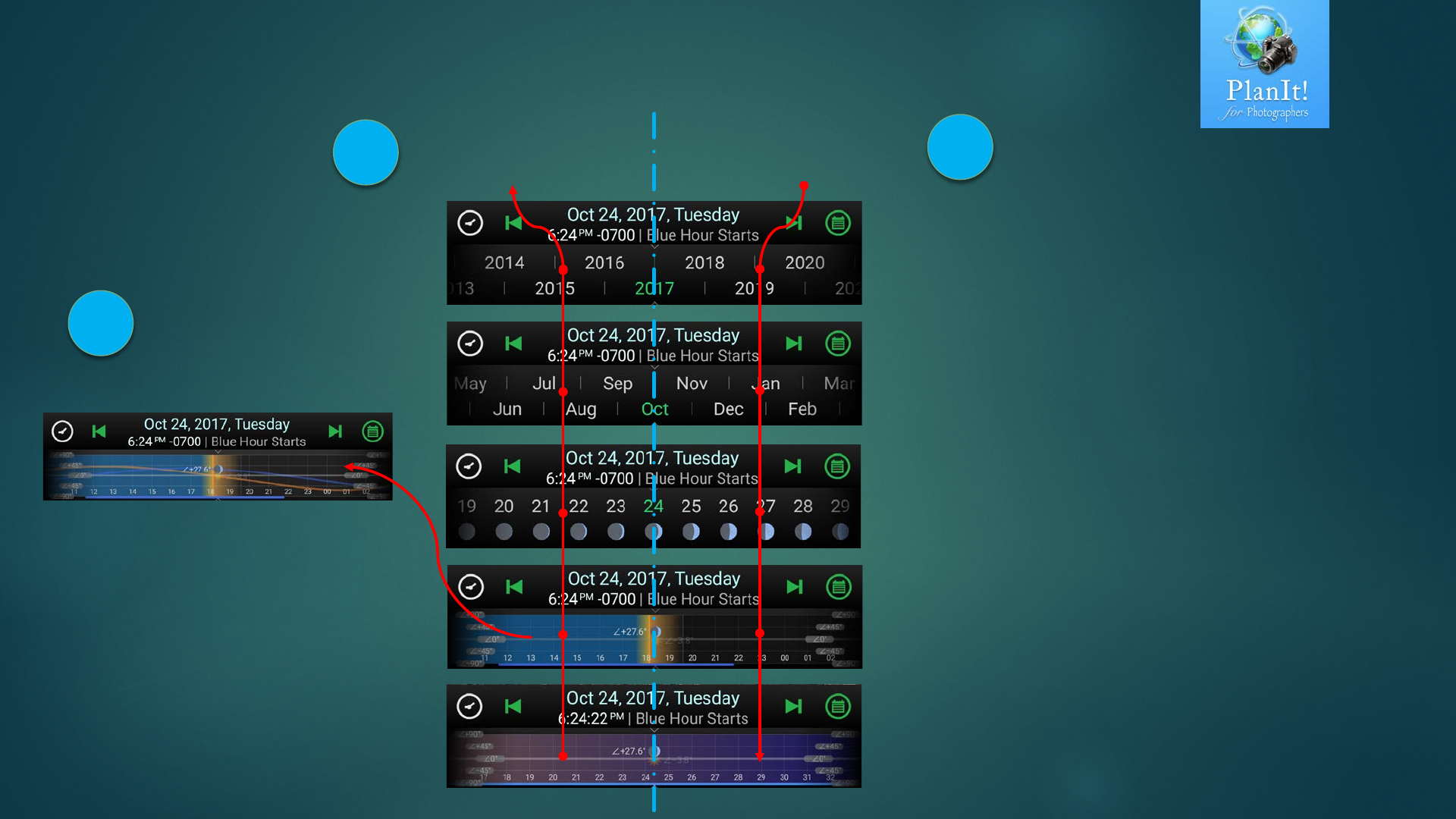
Five Modes for Date/Time Slider
Year Mode
Month Mode
Day Mode
Show the Moon Phases
Hour Mode
Show the day/night colors and elevation angles of
the celestial objects
Minute Mode
Show the day/night colors and elevation angles of the celestial
objects. The only mode shows seconds in the time value
Tap on the left side
to go up the scale
Tap on the right side
to go down the scale
Drag left and right to
change the date or time
When dragging, the
sun/moon/star/milky way
center curves will show
up. It hides automatically
when stop dragging.
1
23
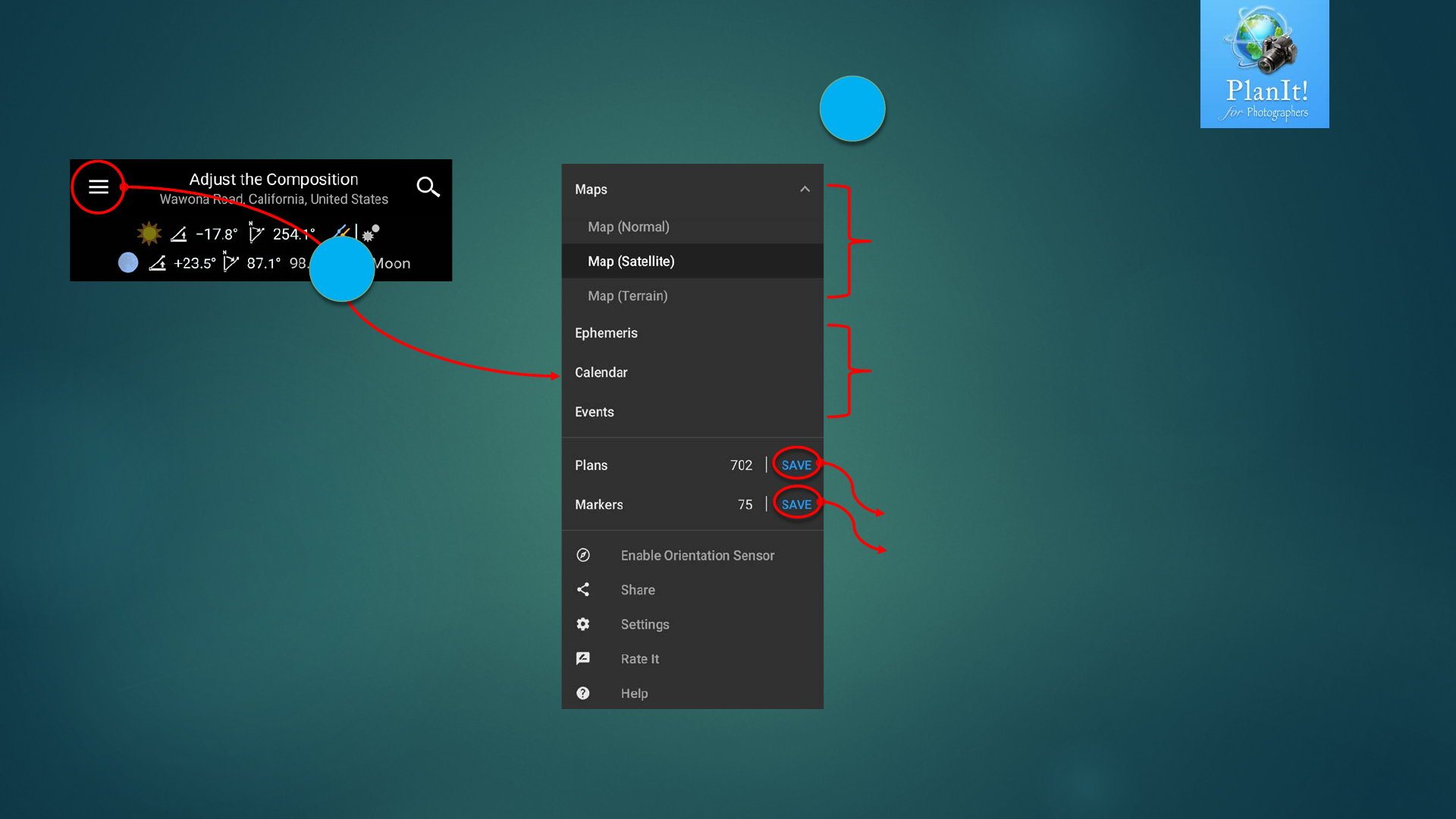
Drawer Menu Drawer Menu
Save the current plan as a plan file
Save as the visible markers as a marker file
Change the map type
Also can be accessed from the map type button on the
top left of the map
Access Ephemeris, Event and Calendar
These three can be accessed without using Drawer
Tap the Drawer Button to show the
Drawer Menu. Or swipe from the left
edge of the screen also can show the
Drawer Menu. You can use the
second way when the Drawer Button
becomes the Go Back Button in the
Viewfinder Modes.
1
2
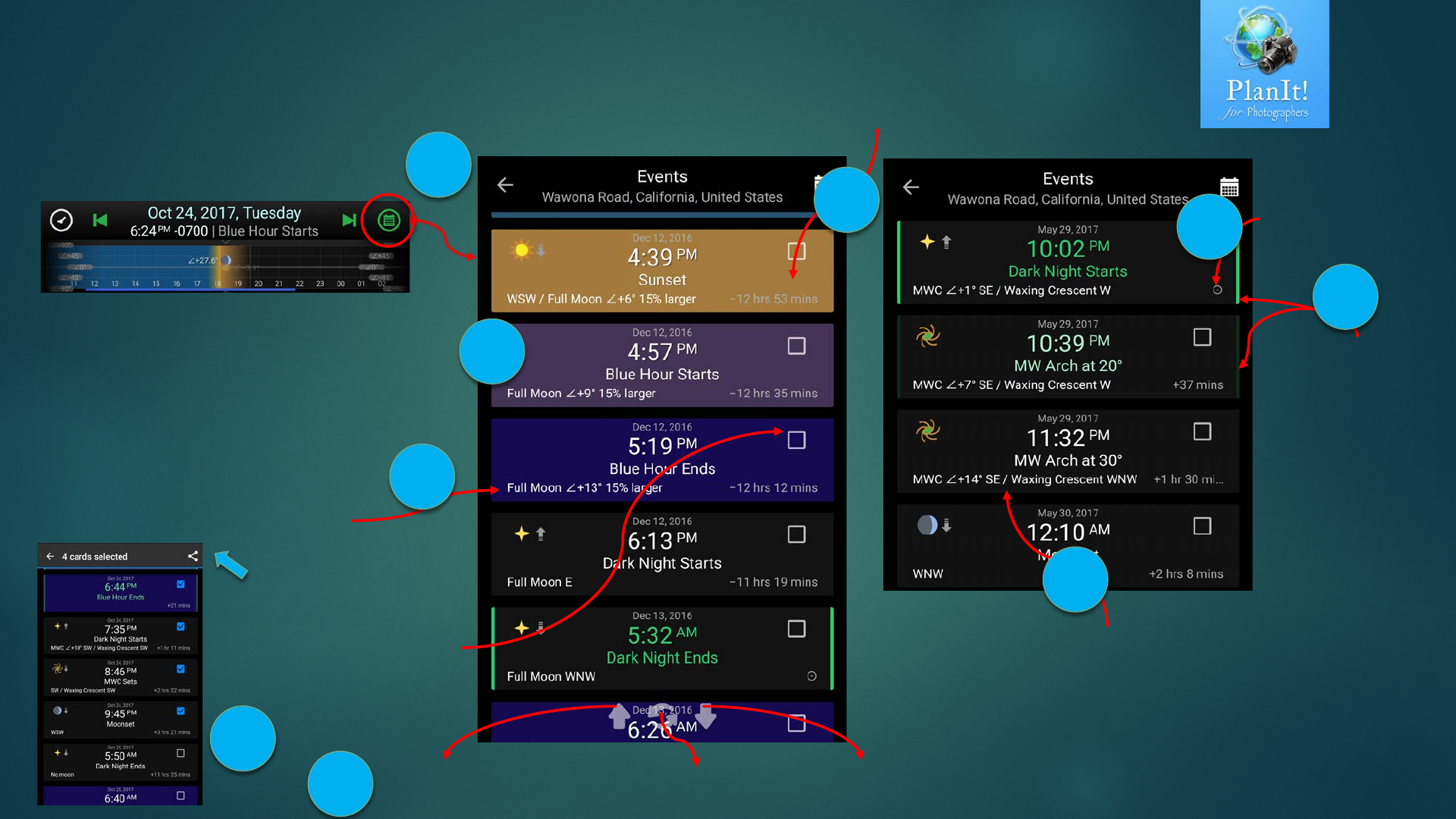
Events
Event cards’ background are
colored based on the time of the
day, same colors as the hour slider
For any Sun related events,
the moon information will be
shown if it is full moon
The moon information will be shown for all
the moons for any milky way events because
any moon could have a big impact on MW
shots
We also show the time difference between the current time and the
event time. Note the current time is not your system time but the
current time displayed on the Date/Time Bar
This symbol is the
indicator for the
current time
The green border
also means the it is at
the current time. All
events within one
hour of the current
time will have some
kind of green. The
greener, the closer to
the current time.
Previous day Go back to the current time Next day
These three buttons will only be shown when scrolling
Tap the event button to
open the Events
Tap on the check box to
select the card and then you
can share the events as text
to your friends or share to
other apps or just copy to
clipboard
1
2
3
46
7
5
8
9
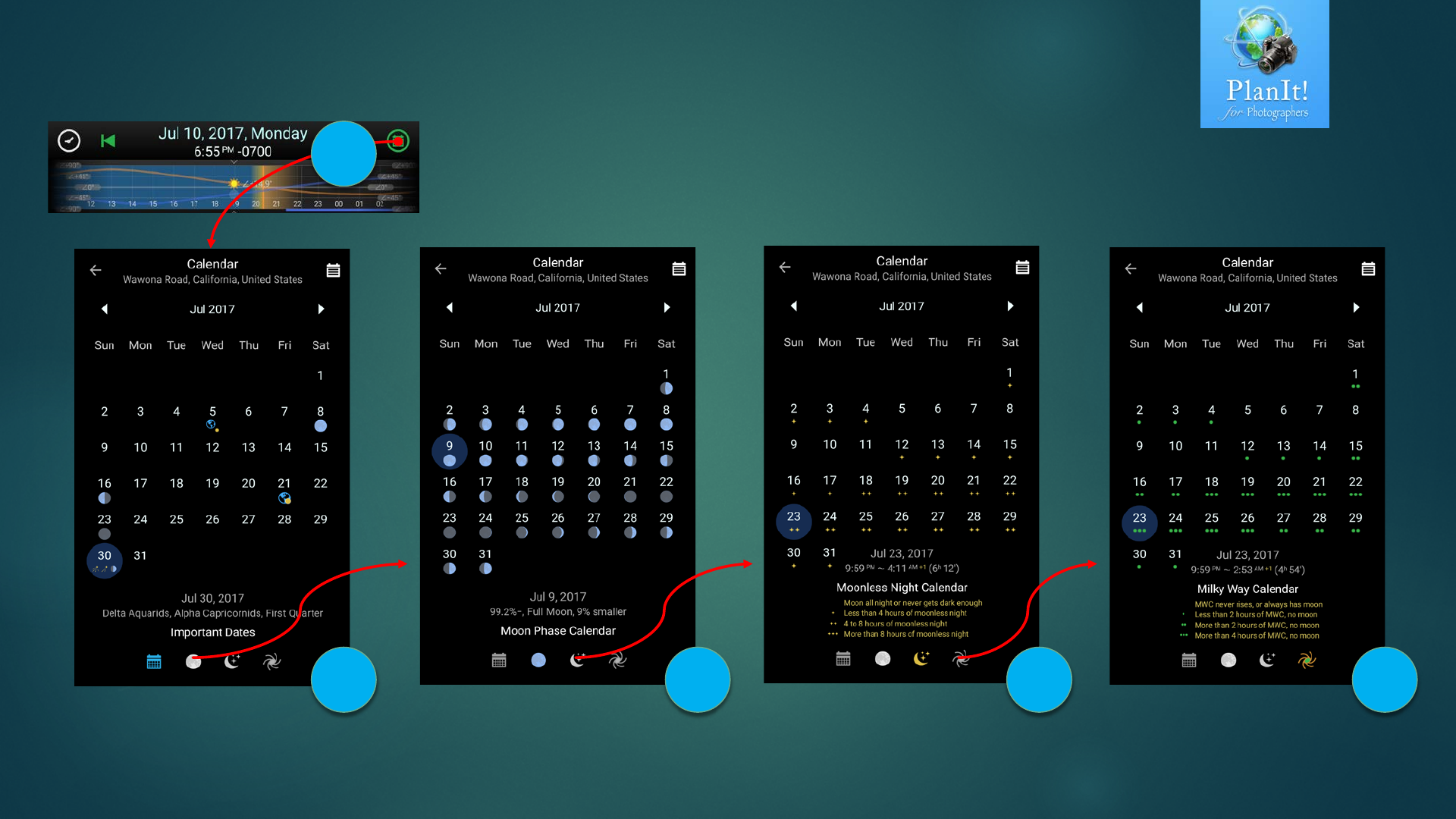
Calendar
Long press on the event button
to open the Calendar
Important dates include
•new, full, and quarter moons
•meteor shower peak date
•perigee, apogee
•solstice, equinox
Useful for deep sky
photography, star-trail, or
night photography in general.
Looks for nights with 2 to 3
star rating
Useful for milky way
photography. Look for nights
with 2 to 3 green dot rating
Useful for moon photography
or just information about the
moon phases
1
2 3 4 5
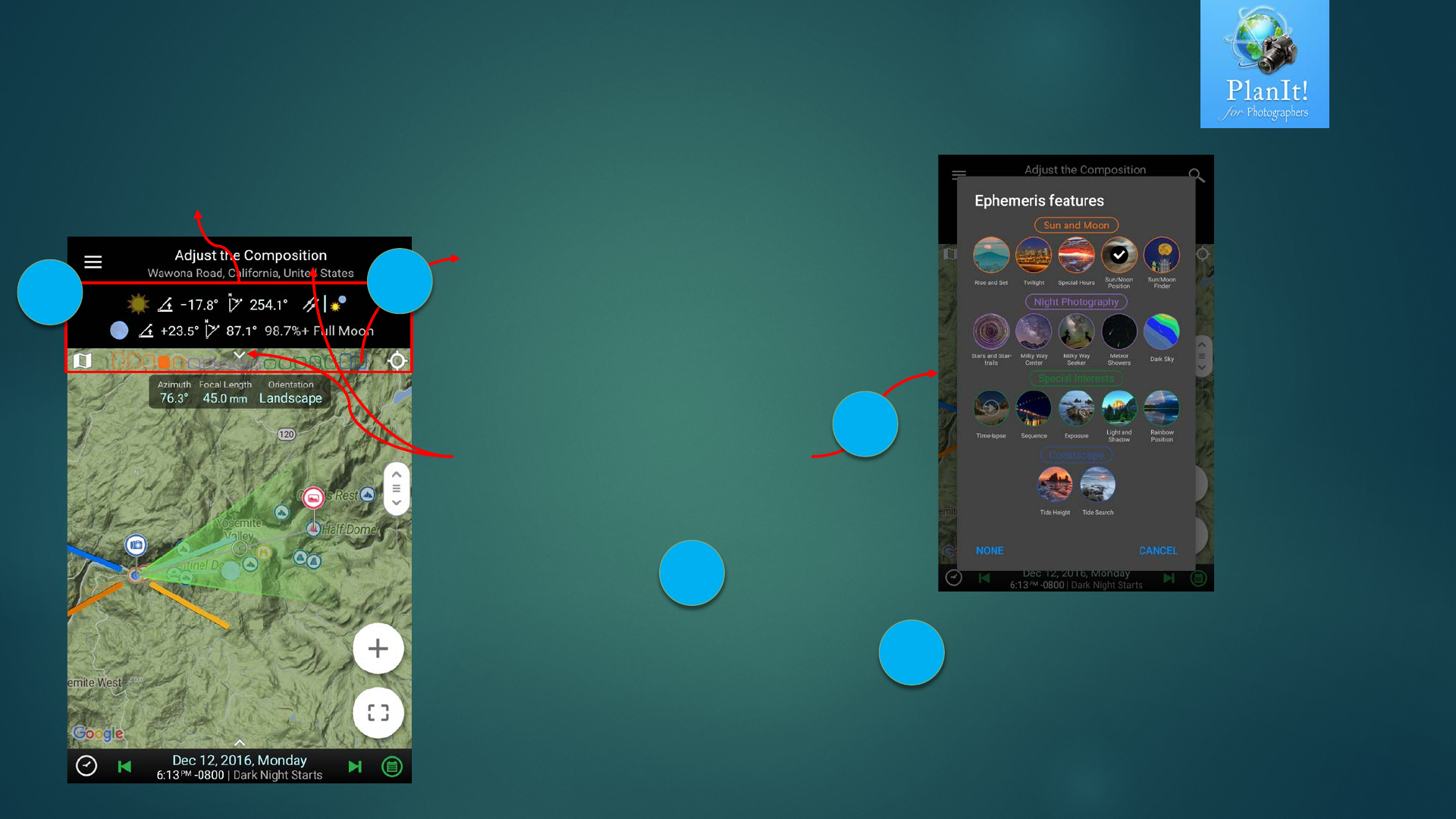
Ephemeris Pager and Page Indicator
There are 17 pages. Swipe left and
right to go to next or previous page.
But, that’s too slow.
Noted the color rounded rectangles
below the pager. There are 17 of
them to match the 17 pages. Tap on
one will go to that page directly.
Since the area is small, you might
miss it. If so, just swipe once to get to
the correct page which is still faster
than swiping many times.
Confused about which one is which?
Swipe down from the title bar or the
indicator to show this ephemeris chooser.
Remember the colors.
Sun and Moon: orange
Night Photography: purple
Special interests: green
Coastscape: blue
After trying it for a few times, you will get used
to tap the color indicator to go to a page
directly.
Here is how I remember all the pages
Q: Which page is the Sun/Moon Finder?
A: The fifth one in the green group
Q: How about Milky Way Seeker?
A: The third one in the purple group
…
12
3
4
5
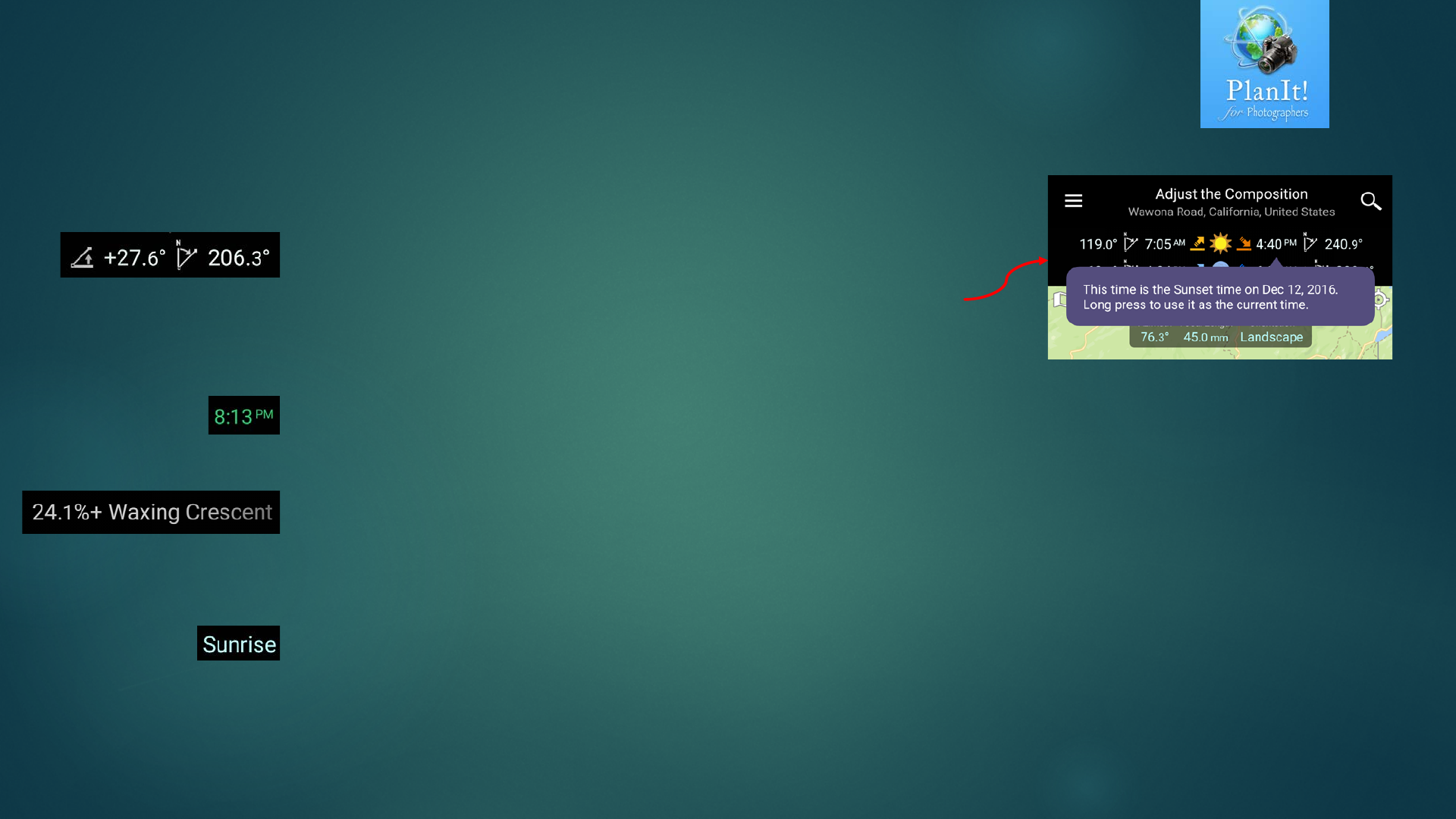
The text colors used on Ephemeris Pager have
meaning
White color: means the value cannot be edited
directly. It is most likely a value that is calculated.
Usually you can tap it to see a hint explaining what is
the value for. Long press usually also does something.
Green color: is usually a value for time. It means this
time is within five minutes of the current time.
Grey color: means the value is read-only. It is also
calculated from other values as the white color but the
difference is if tapping on it, no hint will be shown.
Light blue color: means the value is editable. It is
usually an input value for a calculation. Tapping it to
edit the value.
Text Colors
On Ephemeris pager, you can
always long press on a time
or a date value to set the
current time or date to it.
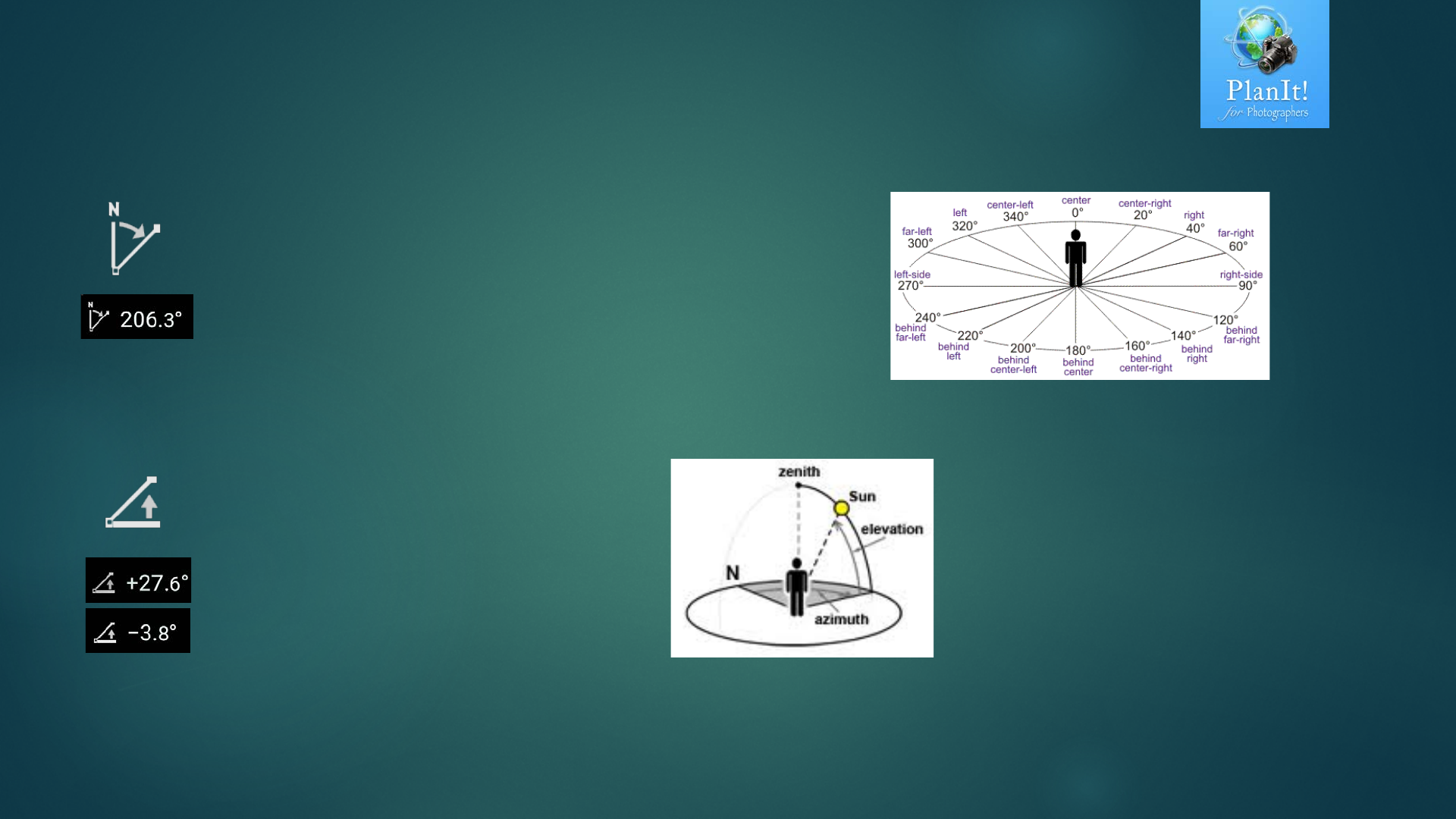
Icons for Degrees
Azimuth
•The direction of a celestial object from the observer, expressed
as the angular distance from the north or south point of the
horizon to the point at which a vertical circle passing through
the object intersects the horizon.
•The horizontal angle or direction of a compass bearing.
Elevation Angle
The elevation angle (used
interchangeably with altitude angle) is
the angular height of the sun in the
sky measured from the horizontal. In
English, both altitude and elevation
can be used to describe the height
above sea level or the elevation angle.
To tell the difference, pay attention to
this elevation angle icon. For elevation
angle, we also always put a + or –
before the value and a degree symbol
after the value.
On Ephemeris pager, you can
always long press on the
value with these two icons to
set the camera azimuth or
the elevation angle to the
value.
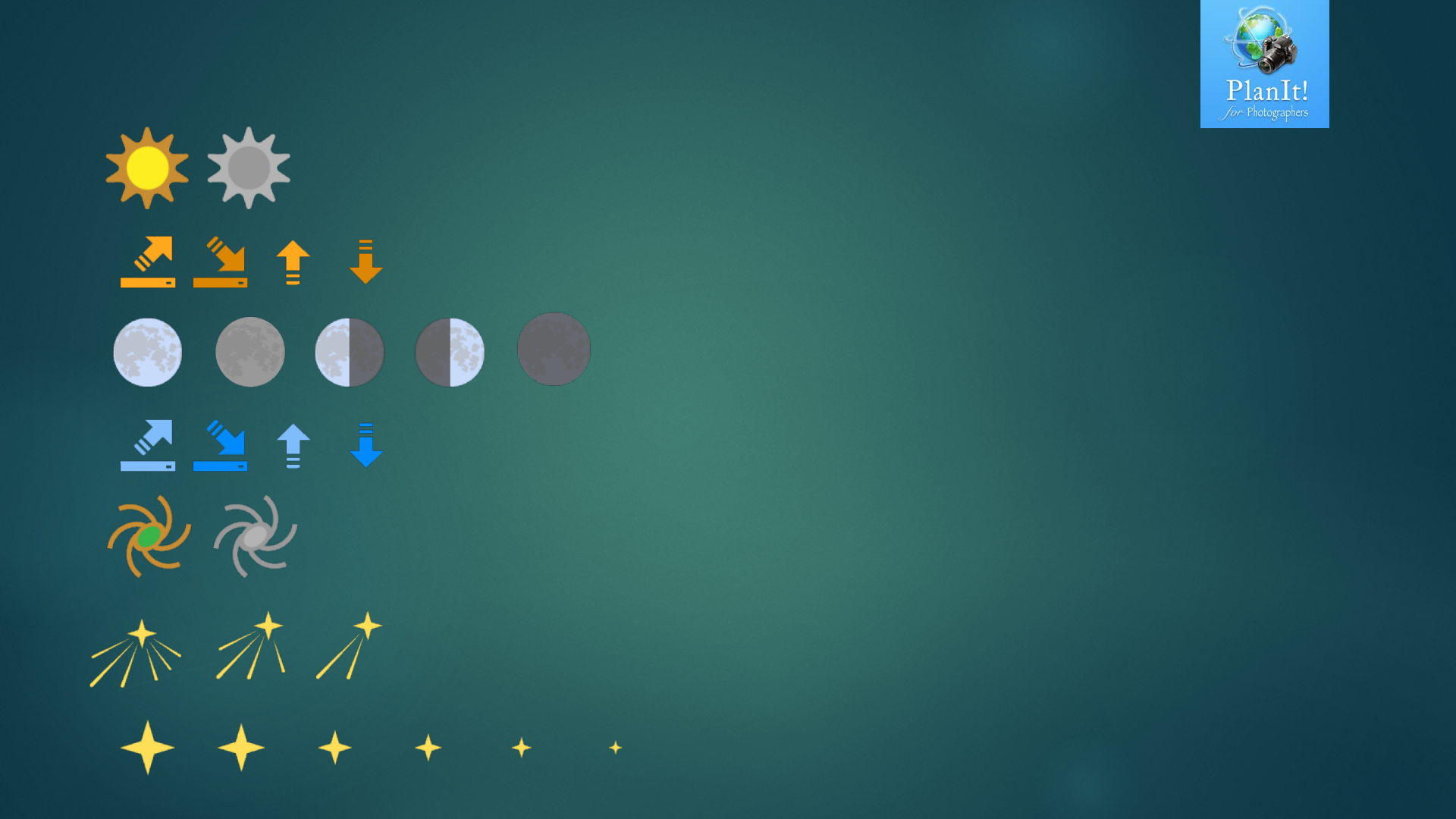
Icons for Ephemeris
Sun
It is usually the color one. Black-white one means the Sun is hidden from showing.
You can tap on the Sun icon on the Rise/Set or the Position page to hide/show the
Sun. Transparent one means it is below horizon.
Sunrise and Sunset
The first two are used on the pager. The next two is used in the viewfinder
Moons
Different colors are the same as the sun
Moonrise and Moonset
The first two are used on the pager. The next two is used in the viewfinder
Milky Way Center
Different colors are the same as the sun
Meteor Showers
Different colors are the same as the sun. The different icon variations are determined
by the Zenithal hourly rate (ZHR) of the Meteor Showers.
ZHR >= 50 ZHR >= 10 ZHR < 10
Stars
Different colors are the same as the sun. The size is determined by the magnitude.
MG < 1 MG < 2 MG < 3 MG < 4 MG < 5 MG < 6
