10.1.3.5 Packet Tracer Propagating A Route In OSPFv2 Instructions
10.1.2.5%20Packet%20Tracer%20-%20Propagating%20a%20Default%20Route%20in%20OSPFv2%20Instructions
10.1.2.5%20Packet%20Tracer%20-%20Propagating%20a%20Default%20Route%20in%20OSPFv2%20Instructions
10.1.3.5%20Packet%20Tracer%20-%20Propagating%20a%20Default%20Route%20in%20OSPFv2%20Instructions
10.1.3.5%20Packet%20Tracer%20-%20Propagating%20a%20Default%20Route%20in%20OSPFv2%20Instructions
10.1.2.5%20Packet%20Tracer%20-%20Propagating%20a%20Default%20Route%20in%20OSPFv2%20Instructions
User Manual:
Open the PDF directly: View PDF  .
.
Page Count: 2
© 2013 Cisco and/or its affiliates. All rights reserved. This document is Cisco Public. Page 1 of 2
Packet Tracer - Propagating a Default Route in OSPFv2
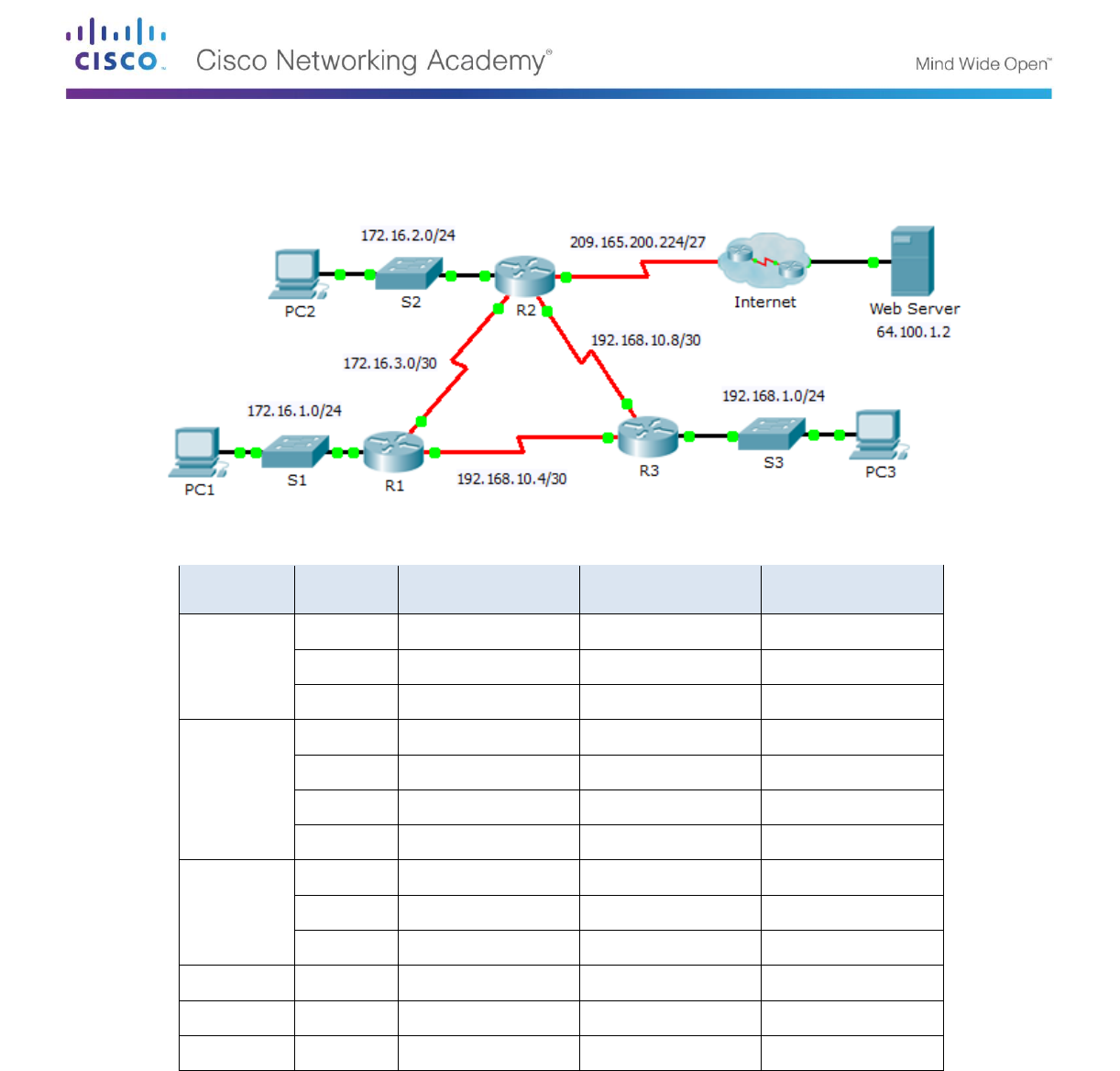
Topology
Addressing Table
Device
Interface
IPv4 Address
Subnet Mask
Default Gateway
R1
G0/0
172.16.1.1
255.255.255.0
N/A
S0/0/0
172.16.3.1
255.255.255.252
N/A
S0/0/1
192.168.10.5
255.255.255.252
N/A
R2
G0/0
172.16.2.1
255.255.255.0
N/A
S0/0/0
172.16.3.2
255.255.255.252
N/A
S0/0/1
192.168.10.9
255.255.255.252
N/A
S0/1/0
209.165.200.225
255.255.255.224
N/A
R3
G0/0
192.168.1.1
255.255.255.0
N/A
S0/0/0
192.168.10.6
255.255.255.252
N/A
S0/0/1
192.168.10.10
255.255.255.252
N/A
PC1
NIC
172.16.1.2
255.255.255.0
172.16.1.1
PC2
NIC
172.16.2.2
255.255.255.0
172.16.2.1
PC3
NIC
192.168.1.2
255.255.255.0
192.168.1.1
Objectives
Part 1: Propagate a Default Route
Part 2: Verify Connectivity

Packet Tracer - Propagating a Default Route in OSPFv2
© 2013 Cisco and/or its affiliates. All rights reserved. This document is Cisco Public. Page 2 of 2
Background
In this activity, you will configure an IPv4 default route to the Internet and propagate that default route to other
OSPF routers. You will then verify the default route is in downstream routing tables and that hosts can now
access a web server on the Internet.
Part 1: Propagate a Default Route
Step 1: Configure a default route on R2.
Configure R2 with a directly attached default route to the Internet.
R2(config)# ip route 0.0.0.0 0.0.0.0 Serial0/1/0
Step 2: Propagate the route in OSPF.
Configure OSPF to propagate the default route in OSPF routing updates.
R2(config-router)# default-information originate
Step 3: Examine the routing tables on R1 and R3.
Examine the routing tables of R1 and R3 to verify that the route has been propagated.
R1> show ip route
<output omitted>
O*E2 0.0.0.0/0 [110/1] via 172.16.3.2, 00:00:08, Serial0/0/0
!-------------------
R3> show ip route
<output omitted>
O*E2 0.0.0.0/0 [110/1] via 192.168.10.9, 00:08:15, Serial0/0/1
Part 2: Verify Connectivity
Verify that PC1, PC2, and PC3 can ping the web server.
