AXIS 1440 1440um
User Manual: AXIS 1440
Open the PDF directly: View PDF  .
.
Page Count: 94
- Cover
- AXIS 1440 Network Print Server
- Preface
- Table of Contents
- Section 1 Introduction
- Section 2 Product Overview
- Section 3 Installing and Configuring the Print Server
- Section 4 Performing Additional NetWare Setup
- Section 5 Setting Up Windows Workstations
- Section 6 Setting Up Macintosh Computers
- Section 7 Setting Up OS/2 Workstations
- Section 8 Setting Up - UNIX
- Section 9 Management and Configuration
- Section 10 Updating the Software
- Appendix A The Test Button
- Appendix B The Parameter List
- Appendix C Technical Specifications
- Index

AXIS 1440 User’s Manual
AXIS 1440
Network Print Server
User’s Manual
AXIS 1440 User’s Manual
Safety Notices
Please read through the safety notices before installing the AXIS 1440.
Caution! - must be observed to avoid loss of data or damage to your equipment.
Important: - must be observed to avoid operational impairment.
Do not proceed beyond a Caution! or an Important: unless you have taken appropriate measures!
Electromagnetic Compatibility (EMC) notices - USA
This equipment generates, uses, and can radiate radio frequency energy and if not installed and used in accordance with the
instruction manual, may cause interference to radio communications. It has been tested and found to comply with the limits for a
Class A computing device pursuant to Subpart B of Part 15 of FCC rules, which are designed to provide reasonable protection against
such interference when operated in a commercial environment. Operation of this equipment in a residential area is likely to cause
interference in which case the user at his own expense will be required to take whatever measures may be required to correct the
interference. Shielded cables should be used with this unit to ensure compliance with the Class A limits.
Electromagnetic Compatibility (EMC) notices - Europe
This digital equipment fulfils the requirements for radiated emission according to limit B of EN55022/1994, and the requirements
for immunity according to EN50082-1/1992 residential, commercial, and light industry (Compliance is not valid for unshielded
network and printer cables).
Liability
Every care has been taken in the preparation of this manual; if you detect any inaccuracies or omissions, please inform us by
contacting your local Axis office detailed on the back cover of this manual. AXIS Communications AB cannot be held responsible for
any technical or typographical errors and reserves the right to make changes to the product and manuals without prior notice. Axis
Communications AB makes no warranty of any kind with regard to the material contained within this document, including, but not
limited to, the implied warranties of merchantability and fitness for a particular purpose. Axis Communications AB shall not be liable
nor responsible for incidental or consequential damages in connection with the furnishing, performance or use of this material.
Year 2000 compliance
Axis Communications warrants that the AXIS 1440 with software versions 5.51 or later is Year 2000 compliant.
Axis’ Trademarks
NetPilot, ThinServer.
Other Trademark Acknowledgments
AIX, Apple, CompuServe, DOS, EPSON, EPSON Stylus, EPSON SoundAdvice, EPSON FaxAdvice, Ethernet, EtherTalk, IBM,
Internet Explorer, LAN Manager, LAN Server, LANtastic, Macintosh, Microsoft, Netscape, Novell NetWare, OS/2, UNIX,
Windows, are registered trademarks of the respective holders.
AXIS 1440 User’s Manual Revision 1.0
Part No: 16085 Dated: August 1998
Copyright © Axis Communications AB, 1998

AXIS 1440 User’s Manual 1
Preface
Thank you for purchasing the AXIS 1440 Network Print Server. This product has been
developed to connect your EPSON® Stylus COLOR and EPSON Stylus Photo printers
anywhere in your network, allowing all network users access to the shared printer resources.
About this manual
This manual provides introductory information as well as detailed instructions on how to set up
and manage the AXIS 1440 in various network environments. It is intended for everyone
involved in installing and managing the AXIS 1440. To fully benefit from the manual, you
should be familiar with basic networking principles.
This manual is applicable to the AXIS 1440, with software release 5.51 or later.
About Axis
Axis Communications is dedicated to providing innovative solutions for network-connected
computer peripherals. Since the start in 1984, it has been one of the fastest growing companies in
the market and is now a leader in its field.
ThinServer™ Technology - enables Axis’ products to act as intelligent file server independent
ThinServer devices. A ThinServer device is a network server which includes “thin” embedded
server software capable of simultaneous multiprotocol communication, scalable RISC hardware,
and a built-in Web server that allows easy access and management via any standard Web browser.
ThinServer technology, the core of all Axis products, makes it possible to connect any electronic
device to the network, thus providing “access to everything”.
Axis Communications offers six major ThinServer™ product lines, including:
Network Print Servers - offer a powerful and cost-efficient method for sharing printer resources
in your network. They connect to any standard printer, featuring high performance, simple
management and easy upgrading across the network. The print servers are available in Ethernet,
Fast Ethernet and Token Ring versions.
IBM Mainframe and S/3x - AS/400 Print Servers and Protocol Converters - include a wide
range of LAN, coax and twinax attached print servers for the IBM host environment. By
emulating IBM devices, these servers provide conversion of the IPDS, SCS and 3270DS data
streams to the major ASCII printer languages.

2 AXIS 1440 User’s Manual
Network Attached Optical Media Servers - provide a flexible and cost-efficient solution for
sharing CD-ROMs, DVD-ROMs and other optical media across the network. They are available
in Ethernet, Fast Ethernet and Token Ring versions.
Network Attached Storage Servers - offer network connectivity for re-writable media such as
hard disks and Iomega Jaz cartridges, which, via the storage server, can be backed up on DAT
tapes. They are only available in Ethernet versions.
Network Camera Servers - provide live images using standard Internet technology, thus enabling
access to live cameras via any standard Web browser. These servers offer a perfect solution for
remote surveillance over the Internet; their sharp images can bring life to any web site. They
support Ethernet as well as PSTN and GSM phone lines.
Network Scan Servers - enable easy distribution of paper-based information across workgroups
and the enterprise. By sending the scanned documents to your destination via the
Internet/intranet, you will reduce your faxing/mailing costs, as well as save time, thus improving
your organization’s efficiency.

AXIS 1440 User’s Manual 3
Table of Contents
Section 1 Introduction . . . . . . . . . . . . . . . . . . . . . . . . . . . . . . . . . . . . . . . . . . . . . . . . . . . . . . . 5
Where to Use It . . . . . . . . . . . . . . . . . . . . . . . . . . . . . . . . . . . . . . . . . . . . . . . 6
How to Use It . . . . . . . . . . . . . . . . . . . . . . . . . . . . . . . . . . . . . . . . . . . . . . . . . 7
Features and Benefits . . . . . . . . . . . . . . . . . . . . . . . . . . . . . . . . . . . . . . . . . . . 8
Where to Get Help . . . . . . . . . . . . . . . . . . . . . . . . . . . . . . . . . . . . . . . . . . . . 9
Section 2 Product Overview . . . . . . . . . . . . . . . . . . . . . . . . . . . . . . . . . . . . . . . . . . . . . . . . . 11
Package Contents . . . . . . . . . . . . . . . . . . . . . . . . . . . . . . . . . . . . . . . . . . . . . 11
Section 3 Installing and Configuring the Print Server . . . . . . . . . . . . . . . . . . . . . . . . . . . . 13
Introduction . . . . . . . . . . . . . . . . . . . . . . . . . . . . . . . . . . . . . . . . . . . . . . . . . . 13
Hardware Installation . . . . . . . . . . . . . . . . . . . . . . . . . . . . . . . . . . . . . . . . . . 14
Installation and Setup Overview . . . . . . . . . . . . . . . . . . . . . . . . . . . . . . . . . 16
Software Installation . . . . . . . . . . . . . . . . . . . . . . . . . . . . . . . . . . . . . . . . . . . 18
Configuring the Print Server Using AXIS NetPilot . . . . . . . . . . . . . . . . . . 20
Configuring the Print Server for TCP/IP . . . . . . . . . . . . . . . . . . . . . . . . . . . 23
Section 4 Performing Additional NetWare Setup . . . . . . . . . . . . . . . . . . . . . . . . . . . . . . . 31
Adding Print Queues to the AXIS 1440 Print Server . . . . . . . . . . . . . . . 31
Section 5 Setting Up Windows Workstations . . . . . . . . . . . . . . . . . . . . . . . . . . . . . . . . . . 35
Setting Up Windows 95, Windows 98, and Windows NT Workstations .
35
Setting Up Windows 3.1 and Windows for Workgroups Workstations 41
Section 6 Setting Up Macintosh Computers. . . . . . . . . . . . . . . . . . . . . . . . . . . . . . . . . . . . 47
Installation Using the Chooser Window . . . . . . . . . . . . . . . . . . . . . . . . . . 47
Choosing a Printer . . . . . . . . . . . . . . . . . . . . . . . . . . . . . . . . . . . . . . . . . . . . 48
Section 7 Setting Up OS/2 Workstations . . . . . . . . . . . . . . . . . . . . . . . . . . . . . . . . . . . . . . 49
Installation Using AXIS Print Utility for OS/2 . . . . . . . . . . . . . . . . . . . . . . 49
Integrating your AXIS 1440 into the OS/2 Environment . . . . . . . . . . . . . 51
Section 8 Setting Up - UNIX . . . . . . . . . . . . . . . . . . . . . . . . . . . . . . . . . . . . . . . . . . . . . . . . . 53
LPD/LPR Printing . . . . . . . . . . . . . . . . . . . . . . . . . . . . . . . . . . . . . . . . . . . . . . 54
The axinstall installation script . . . . . . . . . . . . . . . . . . . . . . . . . . . . . . . . . . . 54
Printing to an LPR Print Queue . . . . . . . . . . . . . . . . . . . . . . . . . . . . . . . . . . 56

4 AXIS 1440 User’s Manual
Section 9 Management and Configuration. . . . . . . . . . . . . . . . . . . . . . . . . . . . . . . . . . . . . . 57
Using the Internal Web Pages . . . . . . . . . . . . . . . . . . . . . . . . . . . . . . . . . . . 59
Using AXIS NetPilot . . . . . . . . . . . . . . . . . . . . . . . . . . . . . . . . . . . . . . . . . . . 63
Using FTP . . . . . . . . . . . . . . . . . . . . . . . . . . . . . . . . . . . . . . . . . . . . . . . . . . . . 69
Using SNMP . . . . . . . . . . . . . . . . . . . . . . . . . . . . . . . . . . . . . . . . . . . . . . . . . 70
Using Novell Utilities . . . . . . . . . . . . . . . . . . . . . . . . . . . . . . . . . . . . . . . . . . 72
Section 10 Updating the Software . . . . . . . . . . . . . . . . . . . . . . . . . . . . . . . . . . . . . . . . . . . . . 75
Obtaining the New Software . . . . . . . . . . . . . . . . . . . . . . . . . . . . . . . . . . . 75
Upgrading the Software . . . . . . . . . . . . . . . . . . . . . . . . . . . . . . . . . . . . . . . . 76
Appendix A The Test Button. . . . . . . . . . . . . . . . . . . . . . . . . . . . . . . . . . . . . . . . . . . . . . . . . . . 79
Appendix B The Parameter List . . . . . . . . . . . . . . . . . . . . . . . . . . . . . . . . . . . . . . . . . . . . . . . . 81
Appendix C Technical Specifications. . . . . . . . . . . . . . . . . . . . . . . . . . . . . . . . . . . . . . . . . . . . . 85
Index. . . . . . . . . . . . . . . . . . . . . . . . . . . . . . . . . . . . . . . . . . . . . . . . . . . . . . . . . . . . . 87
Section 1: Introduction
AXIS 1440 User’s Manual 5
Section 1 Introduction
Based on the AXIS ThinServer™ technology, the AXIS 1440 allows
you to share your EPSON Stylus® COLOR and EPSON Stylus
Photo printers with anyone on your network.
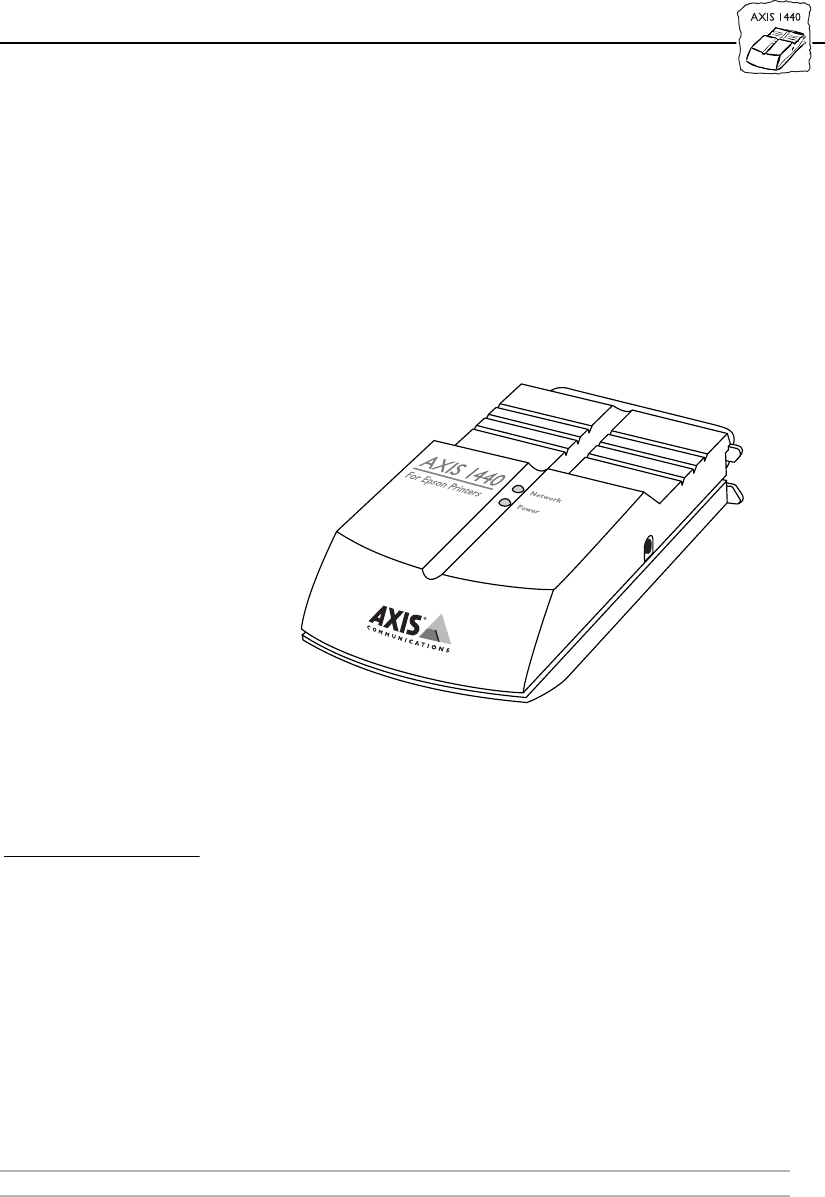
The AXIS 1440 Network Print Server
Supported Printers The AXIS 1440 Print Server supports the following printers:
• EPSON Stylus COLOR 740
• EPSON Stylus COLOR 850
• EPSON Stylus Photo 700
• EPSON Stylus Photo EX.
Section 1: Introduction
6 AXIS 1440 User’s Manual
Where to Use It
Supported
Environments
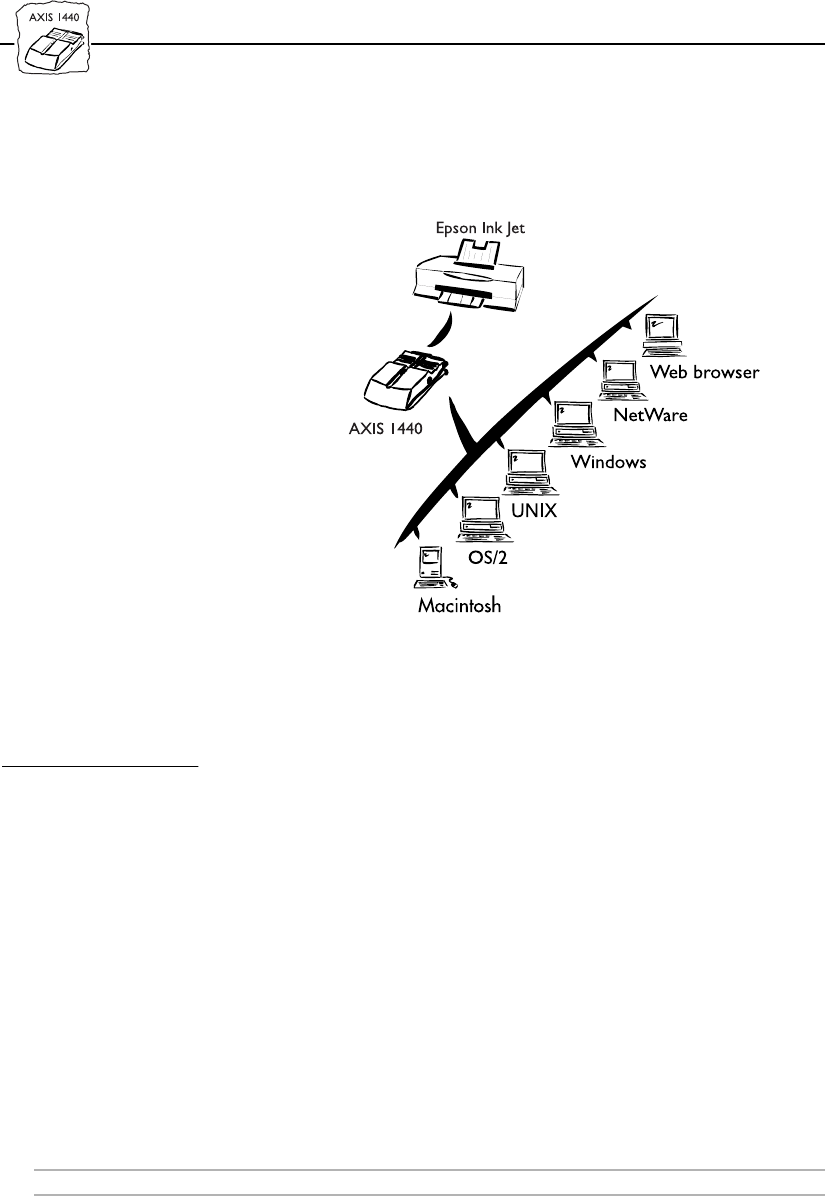
The AXIS 1440 is an ideal print server in mixed environments. It can
communicate with most major computer systems and network
protocols, including:
• Windows
• Windows clients connected to LANtastic networks
• Macintosh
•NetWare
•OS/2
• UNIX (LPR printing only)
• Internet/intranet via any standard Web browser

Section 1: Introduction
AXIS 1440 User’s Manual 7
Note: ❏EPSON does not provide OS/2 or UNIX printer drivers for the
supported printers. You must obtain these printer drivers from
third-party vendors.
How to Use It
Installation and
Integration
The following software is provided on the AXIS Utilities disks 1 and
2. Use the software appropriate for your environment to install and
configure the AXIS 1440. (See Installation and Setup Overview on page
16 for information about which software to use.)
•AXIS NetPilot™ (NetWare)
• AXIS Print Monitor (Windows 95/98 and Windows NT)
• AXIS Print Utility for Windows (Windows 3.1 and WfW)
• AXIS Print Utility for OS/2
•axinstall
Note: ❏The AXIS 1440 can be installed in the Macintosh environment
without any Axis software. However, you need an EPSON
network (AT) printer driver to use the print server. You can
download printer drivers from EPSON’s Home Page at
http://www.epson.com.
Configuration and
Management
If your network supports TCP/IP, you can use the AXIS 1440’s
internal web pages to configure and manage the print server.
AXIS NetPilot is the recommended configuration and management
tool for NetWare networks.
See Section 9 - Management and Configuration for more information
on these tools.

Section 1: Introduction
8 AXIS 1440 User’s Manual
Features and Benefits
Reliability The AXIS 1440 Print Server provides high performance and reliability
combined with low power consumption. The electronic circuits are
based on the AXIS ETRAX chip, which is made up of an integrated
32 bit RISC processor and associated network controllers.
Flexibility It supports printing in several operating systems and environments,
including NetWare, Windows, OS/2, UNIX, Macintosh and
TCP/IP.
Speed The AXIS ETRAX chip, which is specifically designed for LAN
products, provides users with faster transmission than a direct PC-to-
printer connection. It has a sustained data transmission of up to
450 Kb per second.
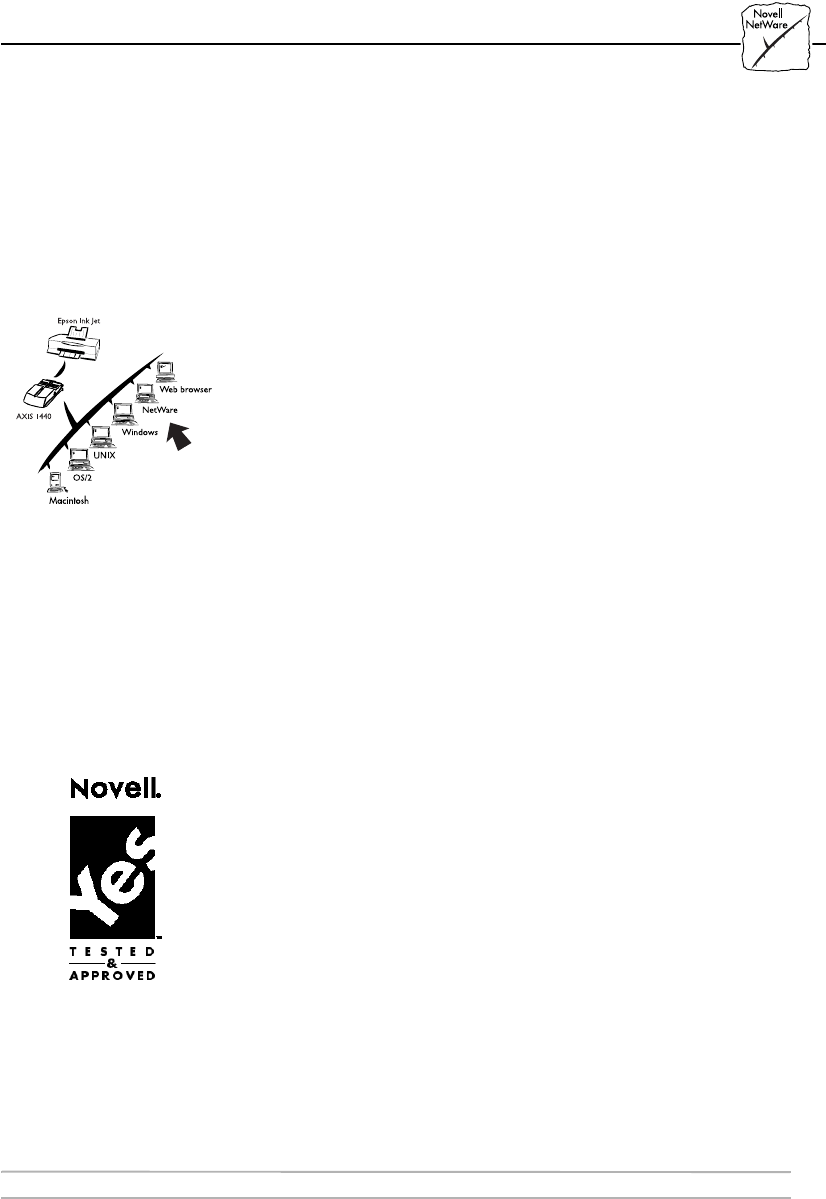
Easy to Install If you have a NetWare network or network supporting
NetBIOS/NetBEUI, you can install and configure the AXIS 1440 in
minutes using AXIS NetPilot.
Security You can assign passwords to restrict both login and printer access.
Monitoring The AXIS NetPilot software and the internal AXIS 1440 web pages
allow you to continuously monitor printer status.
The AXIS Print Monitor for Windows 95/98 and Windows NT
displays pop-up messages showing the status of peer-to-peer print jobs.
Futureproof Because you can upgrade AXIS 1440 flash memory over the network,
you can take advantage of new print server software as soon as it
becomes available. All software upgrades are free of charge.
Pocket-sized The AXIS 1440 is equipped with one high-speed parallel connector
that connects directly to the printer´s parallel port.
Section 1: Introduction
AXIS 1440 User’s Manual 9
Where to Get Help
EPSON provides technical assistance through electronic support
services and automated telephone services 24 hours a day. The
following tables list the contact information:
To speak to a technical support representative, dial (310) 782-2600
(U.S.) or (905) 709-9475 (Canada), 6 AM to 6 PM, Pacific Time,
Monday through Friday. Toll or long distance charges may apply.
Service Access
World Wide Web From the Internet, you can reach EPSON’s Home Page at http://www.epson.com
EPSON Internet FTP Site If you have Internet FTP capability, use your Web browser (or other software for FTP
downloading) to log onto ftp.epson.com with the user name anonymous and your
e-mail address as the password.
EPSON Download Service You can call the EPSON Download Service at (800) 442-2007. Set your communications
software to 8 data bits, 1 stop bit, no parity. Modem speed can be up to 28.8 Kbps.
EPSON Forum on
CompuServe®
Members of CompuServe can type GO EPSON at the menu prompt to reach the Epson
America Forum. For a free introductory CompuServe membership, call (800) 848-8199 and
ask for representative #529.
Service Access
EPSON SoundAdviceSM For pre-recorded answers to commonly asked questions about EPSON products 24 hours
a day, seven days a week, call (800) 442-2110.
EPSON FaxAdvice™ Access EPSON’s technical information library by calling (800) 442-2110. You must provide
a return fax number to use this service.
EPSON Referral Service For the location of your nearest Authorized EPSON Reseller or Customer Care Center,
call (800) 442-2110.
Electronic support services
Automated telephone service

Section 1: Introduction
10 AXIS 1440 User’s Manual
Before you call, please have the following information ready:
•Product name
• Product serial number
• Computer configuration
• Description of the problem
You can purchase ink cartridges, paper, and manuals from EPSON
Accessories at (800) 873-7766 (U.S. sales only). In Canada, please call
(800) 873-7766 for dealer referral.
Section 2: Product Overview
AXIS 1440 User’s Manual 11
Section 2 Product Overview
Package Contents
Use the check list below to make sure nothing is missing from your
package. Contact your dealer if anything is missing or damaged. All
packing materials are recyclable:
oAXIS 1440 Network Print Server (part no. AXIS0058-36)
oAXIS 1440 Network Print Server User’s Manual and
AXIS 1440 Quick Installation Guide (part no. AXIS14677)
o3.5” AXIS Utilities disks 1 and 2 (part no. AXIS15425). Includes
AXIS NetPilot™, AXIS MIB, AXIS Print Monitor, AXIS Print
Utility for Windows, AXIS Print Utility for OS/2, and axinstall.
o9 Volt Power Supply (part no. AXIS12919)
Section 2: Product Overview
12 AXIS 1440 User’s Manual
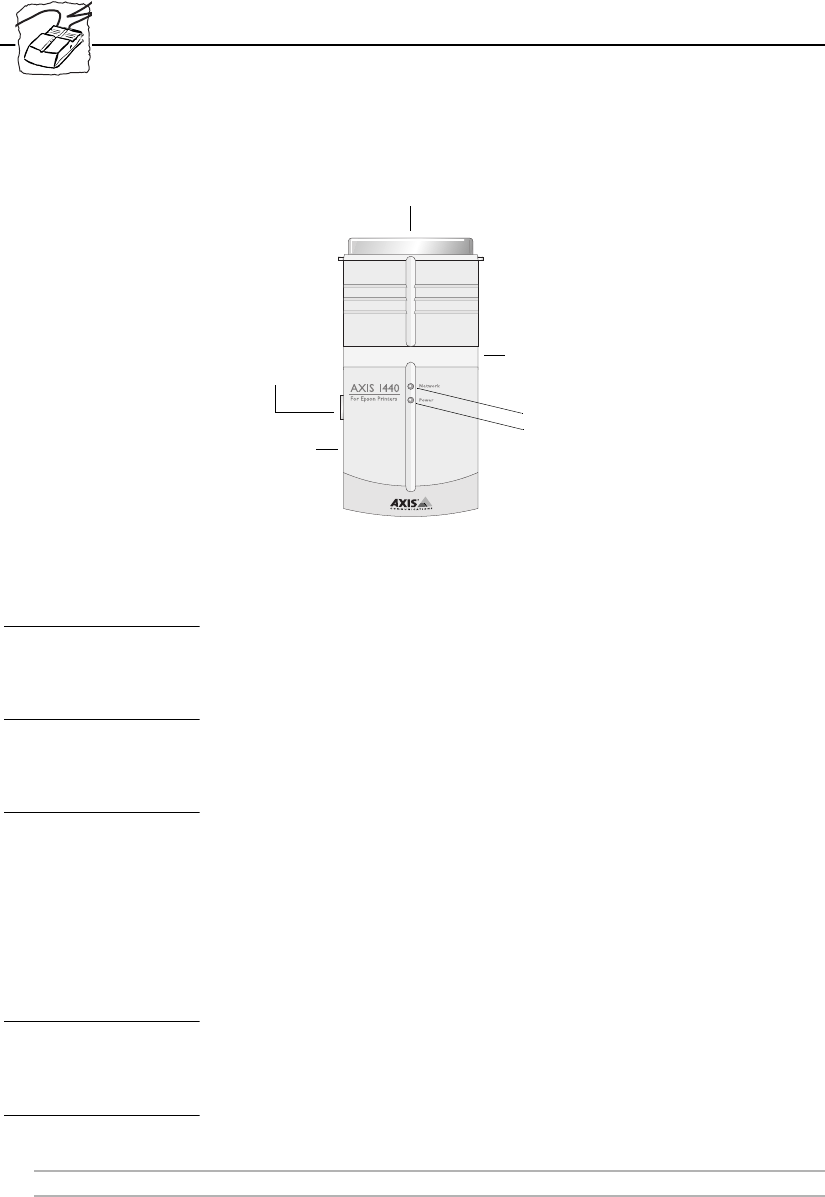
AXIS 1440 Connectors
AXIS 1440 Network Print Server
Network Connector The AXIS 1440 is designed for 10 Mbps Ethernet networks. It
connects to the network via a twisted pair (10BaseT) cable.
Printer Port The AXIS 1440 has a single high-speed parallel connector that
connects to the printer’s parallel port.
Test Button The test button is used for:
• Printing a test page to check the connection to the printer.
• Printing the parameter list showing all the AXIS 1440 settings.
• Resetting the AXIS 1440 parameters to factory default values.
See Appendix A - The Test Button for more information.
Network Indicator The network indicator flashes to indicate network activity.
Power Indicator The power indicator is on while power is on. If it flashes or does not
light, there is a problem with the AXIS 1440 or its power supply.
Printer
Connector
Network Indicator
Power Indicator
Test Button
Ethernet
10BaseT
Connector
Ethernet Power
Supply Connector

Section 3: Installing and Configuring the Print Server
AXIS 1440 User’s Manual 13
Section 3 Installing and Configuring the
Print Server
Introduction
This section is divided into five parts:
•Hardware Installation explains how to connect the AXIS 1440 to
your printer and to the network.
•Installation and Setup Overview provides an overview of the
installation and setup process.
•Software Installation explains how to install the Axis utilities.
•Configuring the Print Server Using AXIS NetPilot explains how to
set up the AXIS 1440 for your network using AXIS NetPilot, the
recommended management and configuration tool for NetWare
networks.
•Configuring the Print Server for TCP/IP provides instructions for
assigning an Internet address to the print server using DHCP,
ARP, RARP, and BOOTP.
Section 3: Installing and Configuring the Print Server
14 AXIS 1440 User’s Manual
Hardware Installation
Connecting a Printer
to the AXIS 1440
Print Server
Follow the instructions below to connect your EPSON printer to the
AXIS 1440 Print Server.
Caution! ❏Make sure that the external power supply you’re using has the
correct voltage.
1. Turn the printer off.
2. Connect the AXIS 1440 to your printer’s parallel port.
3. Connect the external power supply to the external power supply
connector. The power indicator lights and the network indicator
start to flash during the power up and self test routines. The AXIS
1440 is ready to use when the network indicator stops flashing
and remains off.
Test the Connection: 1. Turn the printer on.
2. Press and release the test button on the AXIS 1440 to print a test
page.
If the test page prints successfully, the AXIS 1440 is connected to
the printer.
Note: ❏The test page includes a list of the most important parameters, as
well as the firmware version number.

Section 3: Installing and Configuring the Print Server
AXIS 1440 User’s Manual 15
Connecting the
AXIS 1440 to an
Ethernet Network
Follow these steps to connect the AXIS 1440 to the network:
1. Turn the printer off and disconnect the AXIS 1440 external
power supply.
2. Locate the serial number on the bottom of the print server and
write it down. You need this number for network configuration.
3. Connect the AXIS 1440 to the printer’s parallel port.
4. Connect your AXIS 1440 to the network using a twisted pair
(10BaseT) cable.
5. Turn the printer on and connect the external power supply to the
AXIS 1440.
The AXIS 1440 is successfully connected to the network when the
network indicator begins to flash.
Now you’re ready to install your server on your network. See
Installation and Setup Overview on page 16 for information about
what to do next.
Note: ❏Each AXIS 1440 Print Server is pre-configured with a unique
node address that is identical to the serial number. You can use
the AXIS 1440’s internal web server or AXIS NetPilot to change
the node address. See Section 9 Management and Configuration
for more information.

Section 3: Installing and Configuring the Print Server
16 AXIS 1440 User’s Manual
Installation and Setup Overview
Now you’re ready to install and configure the AXIS 1440 for your
network. The steps you perform depend on your network protocol
and the operating systems on your network. The table on the
following page provides guidelines specific to different network
requirements.
Here is a setup overview:
1. Set up the AXIS 1440 Print Server for your network.
2. Install the AXIS software on server workstations, if setting up a
shared printer. (See Software Installation on page 18 for
installation instructions.)
3. Install the AXIS software on client workstations printing in peer-
to-peer mode.
4. Configure each workstation’s printer port to use the AXIS 1440
Print Server.
Note: ❏This setup overview assumes that you’ve already done the
following:
• Set up your EPSON printer and installed the printer software
on each computer that will print over the network.
• Attached the AXIS 1440 Print Server to your printer and con-
nected it to the network.
Section 3: Installing and Configuring the Print Server
AXIS 1440 User’s Manual 17
Network
Configurations
See the following table to find your network configuration (operating
system and protocol) and determine what to install.
*
You don’t need to install NetPilot if you don’t plan to change the print
server name.
** Windows 3.1 requires network support software to print to a
network printer.
Available Network Configurations
Operating
system
Network
configuration What you need to install and configure
Windows
95/98/NT
TCP/IP (LPR) 1. Install AXIS Print Monitor (page 18).
2. Configure your AXIS 1440 for TCP/IP (page 23).
3. Configure workstation ports to use the AXIS 1440 (page 35).
Novell NetWare 1. Install AXIS NetPilot (page 18).
2. Use AXIS NetPilot to configure the AXIS 1440 (page 20 and page 31).
3. Capture the created NetWare queues from client workstations.
NetBIOS/Net-
BEUI
1. Install AXIS NetPilot and use this program to configure the AXIS
1440 for your network (page 20).*
2. Install AXIS Print Monitor (page 18).
3. Configure workstation ports to use the AXIS 1440 (page 35).
Windows 3.1**
/ Windows for
Workgroups
peer-to-peer
printing
1. Install AXIS Print Utility for Windows on all workstations (page 19).
2. Configure workstation ports to print to the AXIS 1440 (page 41).
client-server
printing
1. Install AXIS Print Utility for Windows on the server (page 19).
2. Set up the printer for sharing on the server (page 44).
3. Configure the clients’ ports to use the printer (page 45).
Novell NetWare 1. Install AXIS NetPilot (page 18).
2. Use AXIS NetPilot to configure the AXIS 1440 (page 20 and page 31).
3. Capture the created NetWare queues from client workstations.
Macintosh AppleTalk Select the AppleTalk driver for your printer in the Chooser (page 48).
IBM OS/2 NetBIOS/Net-
BEUI
1. Install AXIS Print Utility for OS/2.
2. Use AXIS Print Utility for OS/2 to set up your AXIS printer port (page 51).
3. Create a shared print queue (page 51).
UNIX
(LPR only)
TCP/IP 1. Configure your AXIS 1440 for TCP/IP (page 23).
2. Copy the axinstall script to your hard disk.
3. Create an LPR print queue on your UNIX system.
4. Edit the LPR print queue.

Section 3: Installing and Configuring the Print Server
18 AXIS 1440 User’s Manual
Software Installation
AXIS Utilities disks 1 and 2 contain the following:
•AXIS NetPilot
• AXIS Print Utility for Windows
• AXIS Print Monitor
• AXIS Print Utility for OS/2
• AXIS MIB (Management Information Base)
•axinstall (UNIX)
Installing software for
Windows 95/98, and
Windows NT
Before you begin this procedure, make sure you’ve installed your
EPSON printer software and closed all applications.
Follow these steps to install the Axis software:
1. With Windows running, insert the AXIS Utilities disk 1 in your
diskette drive.
2. Select Run from the Start menu, then type a:\windows\setup
(where a is the letter of your diskette drive). Click OK.
3. Follow the instructions on screen. Choose Custom if you want to
install both AXIS NetPilot and AXIS Print Monitor; leave Typical
selected if you only want to install AXIS Print Monitor.
4. When you see a message that the software has successfully
installed, click Close.
Note: ❏If the Installing AXIS Printer Ports wizard appears on your screen,
close it. Do not try to install your printer this way.
5. Restart your system.

Section 3: Installing and Configuring the Print Server
AXIS 1440 User’s Manual 19
Installing Software for
Windows 3.1 and
Windows 3.1x
Before you begin this procedure, make sure you’ve installed your
EPSON printer software and closed all applications.
Follow these steps to install the Axis software:
1. With Windows running, insert the AXIS Utilities disk 1 in your
diskette drive.
2. Select Run from the Program Manager File menu, then type
a:\windows\setup (where a is the letter of your diskette drive).
Click OK.
3. Follow the instructions on screen. Choose Custom if you want to
install both AXIS NetPilot and AXIS Print Utility for Windows;
leave Typical selected if you only want to install AXIS Print
Utility for Windows.
4. When you see a message that the software has installed
successfully, click Close, then restart your system.

Section 3: Installing and Configuring the Print Server
20 AXIS 1440 User’s Manual
Configuring the Print Server Using AXIS NetPilot
The AXIS NetPilot Installation Wizard enables you to install and
configure the AXIS 1440 for your network quickly and easily. You can
use it to configure the print server for multiple network protocols:
NetWare, NetBIOS/NetBEUI, TCP/IP, SNMP, and Apple
EtherTalk. However, you must run it on a Windows workstation (or
on an OS/2 workstation in a Win OS/2 window) connected to a
NetWare or NetBIOS/NetBEUI network.
Notes: ❏If you’re installing and configuring the AXIS 1440 from a
Windows NT workstation, your display should not be set to a
generic video driver, such as VGA compatible. Before you start
AXIS NetPilot, make sure your display is set to the exact video
driver for your hardware. (Check your computer documentation
if you’re unsure of the correct video driver.) If you need to reset
your display setting, restart your computer before beginning this
procedure.
❏If you have a network that supports NetBIOS/NetBEUI, you
don’t need to use the AXIS NetPilot Installation Wizard to
perform initial setup unless you want to change the default print
server name. Skip this procedure and go to Section 5 Setting Up
Windows Workstations.
1. Follow the instructions in Software Installation on page 18 to
install the AXIS software on your computer.
2. Double-click the NetPilot icon, which is located in the folder
where you installed AXIS NetPilot.
Section 3: Installing and Configuring the Print Server
AXIS 1440 User’s Manual 21
3. Look in the New AXIS Units Folder for your AXIS 1440. Select it
and click the Install icon. Choose the Installation Wizard and
click OK. The following screen appears.
The AXIS Installation Wizard main window
The AXIS NetPilot Installation Wizard guides you through the
installation process. You’ll see the following options:
Environments You can chose the networking environments for which you want to
configure the AXIS 1440: NetWare, TCP/IP, Windows, OS/2, or
Macintosh. If you have several platforms on your network, you can
enable all of them.
NetWare NDS You can place NetWare print queues on a specific bindery server or
into an NDS tree.
Print Queues The AXIS 1440 uses the print server name followed by the printer
port as the default print queue and print server port names. You can
use the Installation Wizard to change the default names.
Default Print Queue Names and Print Server Port Names
Environment Default Names
NetWare AXIS1A0003_LPT1_Q
Windows & OS/2 AX1A0003.LP1
AppleTalk AXIS1A0003_LPT1

Section 3: Installing and Configuring the Print Server
22 AXIS 1440 User’s Manual
The Internet Address During installation, you choose whether the AXIS 1440 uses DHCP,
ARP, RARP, or BOOTP to set its network address. You can also set
the Internet address manually. See Configuring the Print Server for
TCP/IP on page 23 for more information about these options.
Test Page The final user prompt in the Installation Wizard lets you print a test
page through NetWare. This page displays the names of the NetWare
servers to which the AXIS 1440 is connected and shows the status of
each connection.
You can use AXIS NetPilot to change your settings at any time to
meet your network printing requirements.

Section 3: Installing and Configuring the Print Server
AXIS 1440 User’s Manual 23
Configuring the Print Server for TCP/IP
Before the AXIS 1440 can communicate on a TCP/IP network, you
must assign it an Internet (IP) address.
Methods for
downloading the
Internet Address
You can use DHCP, ARP, RARP or BOOTP to set the Internet
address. All methods are enabled. If you want to disable any of these
methods, you can do so when installing the AXIS 1440 using the
AXIS NetPilot Installation Wizard. (See Configuring the Print Server
Using AXIS NetPilot on page 20.)
You can also set the Internet address manually using the AXIS
NetPilot Installation Wizard.
The following list describes these methods:
DHCP Available in Windows NT and UNIX systems, DHCP provides
automatic but temporary assignment of Internet addresses from a
central pool. DHCP causes the host computer to automatically
allocate and download an unused Internet address to the requesting
print server. It also provides validation data that defines how long the
Internet address will remain valid. To benefit fully from this method,
the AXIS 1440 also supports the WINS host name resolution
protocol, which is available in Windows NT networks.
ARP Available in UNIX, Windows 95, Windows 98 and Windows NT,
ARP is an easy method to download Internet addresses to individual
print servers. It is not appropriate to use this method over routers.
RARP Available in UNIX, RARP automatically downloads the Internet
address to each device. It requires an RARP daemon on your system,
and only operates within a single network segment. A request made to
an active RARP daemon initiates a search of the Ethernet Address
Table for an entry matching the print server’s Ethernet address. If a
matching entry is found, the daemon downloads the Internet address
to the print server.

Section 3: Installing and Configuring the Print Server
24 AXIS 1440 User’s Manual
BOOTP Available in UNIX and similar to RARP (although it can operate on
the entire network) BOOTP requires a BOOTP daemon on your
system. A request made to an active BOOTP daemon initiates a search
of the Boot Table for an entry matching the print server’s Ethernet
address. If a matching entry is found, the daemon then downloads the
Internet address to the print server.
Before you start
System privileges You need root privileges on your UNIX system, or administrator
privileges on a Windows NT server.
Ethernet address You need to know the Ethernet address of your AXIS 1440 to perform
the installation. The Ethernet address is based on the serial number of
your AXIS 1440. For example, an AXIS 1440 with a serial number of
00408C100086 has a corresponding Ethernet address of 00 40 8C 10
00 86. Your print server’s serial number is located on the bottom of
the unit.
Internet address Unless you are downloading the Internet address using DHCP, you
must obtain an unused Internet address from your network
administrator.
Important: ❏DO NOT use the Internet address presented in the examples in
this section when installing your AXIS 1440. Always consult your
network administrator before assigning an Internet address.

Section 3: Installing and Configuring the Print Server
AXIS 1440 User’s Manual 25
Assigning a
Host Name to the
Internet Address
If you are using host names, you can map a unique host name to the
acquired Internet address. Refer to your system manuals or to your
network administrator for instructions on how name mapping is
performed on your system.
The AXIS 1440 supports WINS (Windows Internet Name Service),
which is recommended when you are using DHCP in a Windows NT
network to set the Internet address.
Note: ❏If a host name has not been mapped to the Internet address, you
can still download the Internet address to your AXIS 1440 using
the steps described in Using DHCP in Windows below. Just
replace the host name entries with the Internet address wherever
necessary.
Using DHCP in
Windows
Follow these steps to use DHCP to download the Internet address:
1. Edit or create a scope in the DHCP manager of the DHCP
daemon. The entries included in this scope should contain the
following parameters:
• range of Internet addresses
•subnet mask
• default router Internet address
• WINS server Internet address(es)
• lease duration
2. Activate the scope.
The AXIS 1440 automatically downloads the DHCP parameters.
If you intend to use WINS, at least one WINS server Internet address
must be included in the DHCP scope. Immediately after the Internet
address is received, the AXIS 1440 registers its host name and Internet
address on the WINS server.
Section 3: Installing and Configuring the Print Server
26 AXIS 1440 User’s Manual
The AXIS 1440 can automatically download a customized config file
from a TFTP server. Just add the name of the config file and the
TFTP server’s Internet address to your DHCP scope. The config file is
downloaded immediately after the AXIS 1440 receives its Internet
address.
Note: ❏You don’t have to restart the AXIS 1440 to download the Internet
address.
Using ARP in
Windows 95/98 and
Windows NT
If you’re running Windows 95, Windows 98 or Windows NT, you
can use ARP to set the Internet address.
Follow these steps:
1. Start a DOS window.
2. Type the following commands:
Example:
The host returns a message similar to the following: Reply from
192.168.3.191.... This indicates that the address has been set
and communication is established.
Notes: ❏When using the Windows 95 implementation of ARP, you must
first ping an existing unit on your network before setting the
Internet address of your AXIS 1440. (Use arp-a to verify that you
have an empty ARP table first.)
arp -s <Internet address> <Ethernet address>
ping <Internet address>
arp -d <Internet address>
arp -s 192.168.3.191 00-40-8c-10-00-86
ping 192.168.3.191
arp -d 192.168.3.191
Section 3: Installing and Configuring the Print Server
AXIS 1440 User’s Manual 27
❏When you execute the ping command for the first time, you will
experience a significantly longer response time than usual.
❏It’s best to use the arp -d command so that the Internet to
Ethernet address information is stored as a dynamic parameter in
the host’s cache memory. If you don’t use arp-d, mapping is static
and permanently installed on the host.
Using ARP in UNIX You can also use ARP to download the Internet address in a UNIX
environment.
Type the following commands:
Example
The host returns a message similar to the following: npsname is
alive. This indicates that the address has been set and
communication is established.
Notes: ❏The ARP command can vary between different UNIX systems.
Some BSD type systems expect the host name and the node
address in reverse order. Also, IBM AIX systems require the
additional argument ether. For example:
❏When you execute the ping command for the first time, you may
experience a significantly longer response time than usual.
arp -s <host name> <Ethernet address> temp
ping <host name>
arp -s npsname 00:40:8c:10:00:86 temp
ping npsname
arp -s ether npsname 00:40:8c:10:00:86 temp
Section 3: Installing and Configuring the Print Server
28 AXIS 1440 User’s Manual
Using RARP in UNIX Follow these steps to set the Internet address using RARP:
1. Append the following line to your Ethernet Address table. This is
typically performed using the command /etc/ethers:
Example
2. If necessary, update your host table and alias name databases, as
required by your system.
3. If it is not already running, start the RARP daemon. This is
typically performed using the command rarpd -a
4. Restart the AXIS 1440 to download the Internet address.
<Ethernet address> <host name>
00:40:8c:10:00:86 npsname
Section 3: Installing and Configuring the Print Server
AXIS 1440 User’s Manual 29
Using BOOTP in UNIX Follow these steps to set the Internet address using BOOTP:
1. Append the following entry to your boot table. This is typically
performed by editing the file: /etc/bootptab
Example:
Notes: ❏Enter the ht and vm fields exactly as shown.
❏The ha field is the Ethernet address and the ip field is the Internet
address of your AXIS 1440.
❏The gw and sm fields correspond to the default router address and
subnet mask (DEF_ROUT and NET_MASK).
2. If necessary, update your host table and alias name databases as
required by your system.
3. If it is not already running, start the BOOTP daemon. This is
typically performed using the bootpd command.
4. Restart the AXIS 1440 to download the Internet address, default
router address and subnet mask.
The AXIS 1440 can automatically download a customized config file
from a TFTP server. Just add the name of the config file and the
Internet address of the TFTP server to your boot table. The config file
is downloaded immediately after the AXIS 1440 receives its Internet
address.
<host name>:ht=<hardware type>:vm=<vendor magic>:\
:ha=<hardware address>:ip=<Internet address>:\
:sm=<subnet mask>:gw=<gateway field>
npsname:ht=ether:vm=rfc1048:\
:ha=00408c100086:ip=192.168.3.191:\
:sm=255.255.255.0:gw=192.168.1.1

Section 3: Installing and Configuring the Print Server
30 AXIS 1440 User’s Manual
Section 4: Performing Additional NetWare Setup
AXIS 1440 User’s Manual 31
Section 4 Performing Additional
NetWare Setup
This chapter describes how to use AXIS NetPilot to add print queues
to the AXIS 1440.
For information on how to use AXIS NetPilot to perform other
configuration tasks, see Using AXIS NetPilot on page 63.
If you plan to use the AXIS 1440 in a multiprotocol environment, you
need to set it up in each environment in your network. See the
relevant sections in this manual:
Section 5 Setting Up Windows Workstations on page 35
Section 6 Setting Up Macintosh Computers on page 47
Section 7 Setting Up OS/2 Workstations on page 49
Section 8 Setting Up - UNIX on page 53
Adding Print Queues to the AXIS 1440 Print Server
You can use AXIS NetPilot to add print queues to your AXIS 1440 in
both Print Server Mode and Remote Printer Mode. In Print Server
Mode, which is recommended for medium to large networks, the
AXIS 1440 emulates a workstation running PSERVER. In Remote
Printer Mode, recommended for small networks where the number of
NetWare user licenses may be limited, the AXIS 1440 emulates a
workstation running RPRINTER or NPRINTER. See your NetWare
documentation for more information about Printer Server Mode and
Remote Printer Mode.
Note: ❏You must have performed basic installation and configuration of
the AXIS 1440 Print Server before you begin this procedure. See
Configuring the Print Server Using AXIS NetPilot on page 20.
Section 4: Performing Additional NetWare Setup
32 AXIS 1440 User’s Manual
Network
Environments
Window
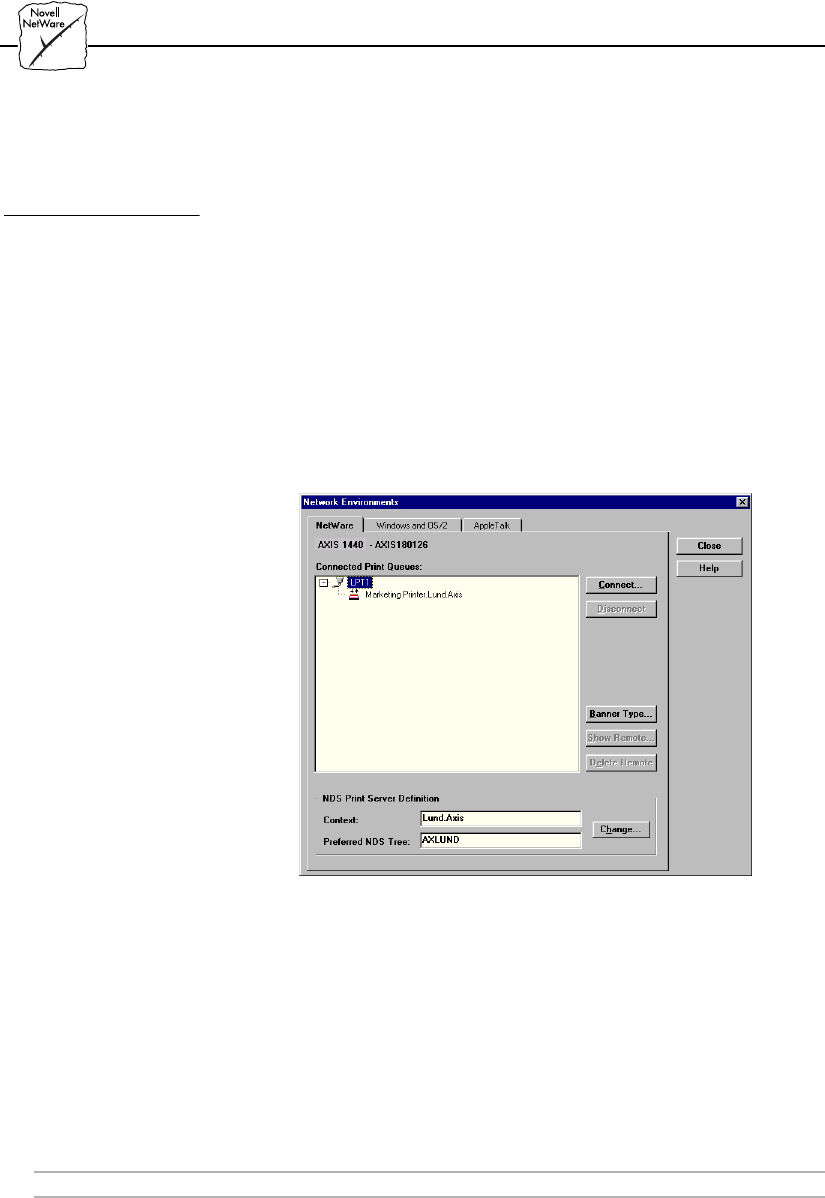
You use Axis NetPilot’s NetWare Network Environments window to
connect additional print queues to your AXIS 1440 as well as create
new queues.
Follow these steps to access the Network Environments window:
1. Select the desired Network Print Server from the Network Print
Server folder.
2. Choose Network from the Setup menu, or click the Network icon
on the toolbar.
3. Log on to your NetWare file server, if necessary.
Network Environments window
The AXIS 1440 Print Server periodically updates its configuration by
searching the NDS tree or, in the case of NetWare 3.x, the network
file servers.
Section 4: Performing Additional NetWare Setup
AXIS 1440 User’s Manual 33
Connecting
Print Queues
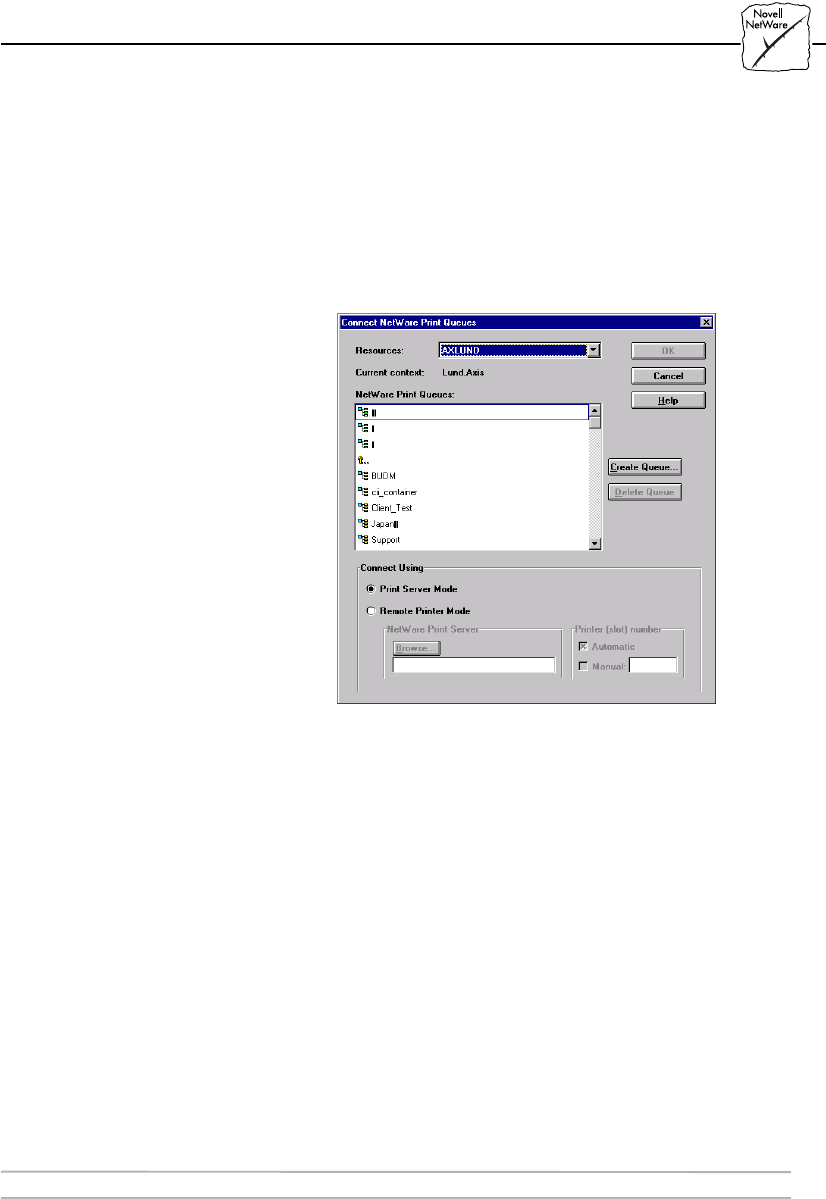
Follow these steps to connect a print queue to the print server port:
1. In the Network Environments window, select the print server
port to which you want to connect.
2. Click the Connect... button. The Connect NetWare Print
Queues window appears.
Connect NetWare Print Queues window
3. Select the location of the print queue from the Resources box.
4. Select an existing NetWare print queue for connection to the
server port, or create a new print queue by clicking Create
Queue... If you are connecting an existing queue, skip to step 7. If
you’re creating a new queue, continue with step 5.
5. Type the queue name in the Create Queue dialog window. (If you
want to create a queue in an NDS tree, you must also type the
name of the volume where the queue will be stored.) Click OK.
6. Select the newly created queue from the queue list.
7. Select Print Server Mode or Remote Printer Mode. If you selected
Print Server Mode, skip to step 10. If you selected Remote Printer
Mode, continue with step 8.

Section 4: Performing Additional NetWare Setup
34 AXIS 1440 User’s Manual
8. Select an appropriate NetWare Print Server name by using the
Browse... button. Note that you cannot type or edit the name
manually.
9. If you want to define a remote printer number slot manually,
check the Manual box and type the desired number in the box.
10. Click OK to return to the Network Environments window.
Section 5: Setting Up Windows Workstations
AXIS 1440 User’s Manual 35
Section 5 Setting Up Windows
Workstations
This section describes how to use the AXIS print utilities for printing
in the Windows environment.
If you plan to use the AXIS 1440 in a multiprotocol environment, you
need to set it up in each environment in your network. See the
relevant sections in this manual:
Section 4 Performing Additional NetWare Setup on page 31
Section 6 Setting Up Macintosh Computers on page 47
Section 7 Setting Up OS/2 Workstations on page 49
Section 8 Setting Up - UNIX on page 53
Setting Up Windows 95, Windows 98, and Windows NT
Workstations
If you have a network supporting the NetBIOS/NetBEUI or TCP/IP
(LPR) protocols, use AXIS Print Monitor to configure AXIS 1440
printer ports on Windows 95, Windows 98 and Windows NT
workstations for peer-to-peer or client-server printing.
Install the utility on each workstation performing peer-to-peer
printing, and on server workstations in a client-server environment.
(See Software Installation on page 18 for instructions.) AXIS Print
Monitor allows users to access any shared network printer as if it were
connected directly to their workstations. It also allows users to enable
pop-up messages notifying them of error conditions.
You can use AXIS NetPilot or the internal web server to change the
print server’s default name or other default parameters. See Section 9
Management and Configuration on page 57.

Section 5: Setting Up Windows Workstations
36 AXIS 1440 User’s Manual
Notes: ❏You can use AXIS Print Monitor to print from DOS on a
Windows NT workstation. You can also use it to print from DOS
on a Windows 95 or 98 workstation, if the workstation is
configured as a client in client-server mode. If you want to print
from DOS on a Windows 95 or 98 workstation in peer-to-peer
mode, use AXIS Print Utility for Windows. See Setting Up
Windows 3.1 and Windows for Workgroups Workstations on page
41 for more information about AXIS Print Utility for Windows.
❏If using client-server printing, do not enable pop-up messages on
the server, as these notifications must be acknowledged before
printing can continue.
Using the
AXIS Print Monitor
with Windows 95/98
Follow the procedure appropriate to your network protocol to install
Axis printer ports on a Windows 95 or Windows 98 workstation:
NetBIOS/NetBEUI 1. Click Start, point to Settings, then click Printers.
2. Right-click your EPSON printer icon and click Properties.
3. Click the Details tab.
4. Select the AXIS printer port from the ports list and click OK. The
port name appears as <name>.LP1, where <name> is AX followed
by the last six digits of the AXIS 1440 serial number, (for example
AX560B35).
5. Click Port Settings. If you want error condition pop-up messages
to be displayed, check the Show printer error condition pop-up
messages box and specify the frequency at which messages will be
re-displayed in the Printer Error Condition Pop-up Timeout
option.
6. Click OK to close the Port Configuration dialog box, then click
OK to save your settings and close your printer’s Properties
screen.

Section 5: Setting Up Windows Workstations
AXIS 1440 User’s Manual 37
TCP/IP (LPR) 1. Click Start, point to Settings, then click Printers.
2. Right-click your EPSON printer icon and click Properties.
3. Click the Details tab.
4. Click Add Port.
5. Click Other and select AXIS Port from the list. Click OK.
6. Select LPR (TCP/IP) as your network protocol and click OK.
7. Enter the IP address (or the host name) of your print server. Then
type LPT1 as the printer name and click OK.
8. Click Port Settings. If you want error condition pop-up messages
to be displayed, check the Show printer error condition pop-up
messages box and specify the frequency at which messages will be
re-displayed in the Printer Error Condition Pop-up Timeout
option.
9. Click OK to close the Port Configuration dialog box, then click
OK to save your settings and close the Properties screen.

Section 5: Setting Up Windows Workstations
38 AXIS 1440 User’s Manual
Using a shared
printer from a
Windows 95/98 client
Follow these steps if you are using a shared printer from a
Windows 95 or Windows 98 client:
1. Click Start, point to Settings, then click Printers.
2. Click Add Printer.
3. Select Network Printer, then click Next.
4. Enter the full path for the network printer (for example, //<host
name>/<printer name>), or click Browse to locate the workstation
sharing the printer and select the printer.
5. Click Next, then click Finish.
Note: File and printer sharing must be enabled on the workstation sharing
the printer.
Using the
AXIS Print Monitor
with
Windows NT 4.0
Follow the procedure appropriate to your network protocol to install
Axis printer ports from a Windows NT 4.0 workstation:
NetBIOS/NetBEUI 1. Click Start, point to Settings, then click Printers.
2. Right-click your EPSON printer icon and click Properties.
3. Click the Ports tab, then click Add Port.
4. Select AXIS Port from the list, and click New Port...
5. Select NetBIOS/NetBEUI as your protocol and click OK.
6. Select the AXIS printer port from the ports list and click OK. The
port name appears as <name>.LP1, where <name> is AX followed
by the last six digits of the AXIS 1440 serial number, (for example
AX560B35). Click Close.

Section 5: Setting Up Windows Workstations
AXIS 1440 User’s Manual 39
7. Click Configure Port... If you want error condition pop-up
messages to be displayed, check the Show printer error condition
pop-up messages box and specify the frequency at which messages
will re-display in the Printer Error Condition Pop-up Timeout
option.
8. Click OK to close the Port Configuration dialog box, then click
OK to save your settings and close the Properties screen.
TCP/IP (LPR) Before you configure workstation ports in the TCP/IP environment,
configure the AXIS 1440 for TCP/IP, as described in Configuring the
Print Server for TCP/IP on page 23.
1. Click Start, point to Settings, then click Printers.
2. Right-click your EPSON printer icon and click Properties.
3. Click the Ports tab, then click Add Port.
4. Select AXIS Port from the list and click New Port...
5. Select LPR (TCP/IP) as your network protocol and click OK.
6. Enter the IP address or host name for your print server, then enter
LPT1 as the printer name. Click OK, then click Close.
7. Click Configure Port... If you want error condition pop-up
messages to be displayed, check the Show printer error condition
pop-up messages box and specify the frequency at which messages
will re-display in the Printer Error Condition Pop-up Timeout
option.
8. Click OK to close the Port Configuration dialog box, then click
OK to save your settings and close the Properties screen.

Section 5: Setting Up Windows Workstations
40 AXIS 1440 User’s Manual
Using the Microsoft
LPD Monitor with
Windows NT 4.0
This section describes how to use the built-in Microsoft® LPD
Monitor to set up a Windows NT 4.0 server for LPR printing over the
TCP/IP protocol.
Before You Begin Before you begin this procedure, configure the AXIS 1440 for
TCP/IP, as described in Configuring the Print Server for TCP/IP on
page 23.
Preparing for
LPR/LPD printing
Follow these steps to prepare for LPR/LPD printing:
1. Open the Control Panel and click the Network icon to verify that
TCP/IP printing appears in the list of installed components. If
TCP/IP is already installed, skip to Installing a printer below.
2. Select Protocols and add TCP/IP Protocol.
3. Select Services and add Microsoft TCP/IP Printing.
Installing a printer Follow these steps to install a printer for LPD printing:
1. Click Start, point to Settings, then click Printers.
2. Right-click your EPSON printer icon and select Properties.
3. Click the Ports tab, then select Add Port.
4. Select LPR Port and click New Port.
5. In Add LPR compatible printer, enter the name or Internet
address of the AXIS 1440 as the print server to provide LPD.
6. Enter ’LPT1’ as the name of the printer or print queue on that
server.
7. Click the Sharing tab, then select Shared to share the printer over
the network.
8. Enter the name you want to use for the shared printer.
9. Click the Security tab to select security settings on the printer.
10. Click OK to save your settings.

Section 5: Setting Up Windows Workstations
AXIS 1440 User’s Manual 41
Setting Up Windows 3.1 and Windows for Workgroups
Workstations
Use AXIS Print Utility for Windows to configure printer ports on
Windows 3.1 or Windows for Workgroups.
Before you begin these procedures, install this utility on each
workstation performing peer-to-peer printing, or on server
workstations in a client-server printing environment. See Software
Installation on page 18 for instructions.
About
AXIS Print Utility
for Windows
AXIS Print Utility for Windows does the following:
• Configures workstation printer ports to use the AXIS 1440.
• Captures and monitors print jobs directed to the AXIS 1440 port,
and notifies you of problems. Print jobs are directed through a
spool directory either at your local hard disk (peer-to-peer mode),
or at the file server (client-server mode).
For more information about AXIS Print Utility for Windows, see the
on-line help.
Notes: ❏Microsoft Network protocols (NetBIOS/NetBEUI) must be
running when using AXIS Print Utility for Windows.
❏You can use AXIS NetPilot or the internal web pages to change
the default name or default parameters of the AXIS 1440. See
Section 9 - Management and Configuration for more information
about these tools.

Section 5: Setting Up Windows Workstations
42 AXIS 1440 User’s Manual
Peer-to-Peer vs.
Client-Server Printing
Windows for Workgroups and Windows 3.1 users printing to a
network printer in peer-to-peer mode need to install the AXIS Print
Utility for Windows software on their workstations. Users can then
add the network printer to their systems and use the printer as if it
were connected directly to their workstations.
Peer-to-peer printing has the following advantages:
• You can monitor the printer status at all times and be notified
when a print job is complete.
• You don’t have to rely on a server.
Client-server printing requires that only one user install the AXIS
Print Utility for Windows software on his workstation. This user then
adds the printer to his or her workstation (the server) and shares the
printer with other users on the network. Client workstations use
Windows Print Manager to connect to the printer.
Client-server mode provides a way of maintaining queue ordering and
job priority. It has the following disadvantages:
• You cannot receive printer status or print job notification.
• The workstation set up as the server must be available at all times.
It must also have the capacity to handle the print jobs that pass
through it.
Notes: ❏Client workstations in a client-server environment can still choose
to install AXIS Print Utility for Windows and print directly to the
network printer in peer-to-peer mode.
❏The server workstation should be running Windows for
Workgroups.
Windows 3.1 You must have network software, such as IBM LAN Server or LAN
Manager Workstation, installed before you can print to a network
printer from a Windows 3.1 workstation. If this software is already
installed, proceed as described in Windows for Workgroups below.

Section 5: Setting Up Windows Workstations
AXIS 1440 User’s Manual 43
Windows for
Workgroups
Peer-to-Peer Printing Follow these steps to configure the printer port on your workstation to
use the AXIS 1440 for peer-to-peer printing:
1. Double-click the AXIS Utilities icon in Program Manager, then
double-click the AXIS Print Utility icon to start the program.
2. In the Port menu, click Add.
3. In the NPS Port list, select the AXIS 1440 port to be installed.
The port name appears as <name>.LP1, where <name> is AX
followed by the last six digits of your print server serial number
(for example, AX100086.LP1).
4. Click on the port name in the NPS Port field to highlight it. The
port name should appear in the Windows Port field. Make a note
of the Windows port name, as you will need this later.
Note: If the port name doesn’t appear in the Windows Port field, make
sure the name is highlighted in the NPS Port field. If necessary,
click on the port name in the NPS Port field again to highlight it.
5. Type any desired comment in the Description field.Then click
OK to install the Windows port.
6. In the Port menu, click Connect...
7. Select your EPSON printer driver from the list of Installed
Printers, then click Connect...
8. Select the Windows port name from step 4 above (this name can
be found at the bottom of the Ports list).
9. Click OK to close the Connect dialog box, and Close to save your
settings and close the Printers dialog box.
Your printer port configuration is complete, and you can now print
through the AXIS 1440 Print Server.

Section 5: Setting Up Windows Workstations
44 AXIS 1440 User’s Manual
Note: ❏It’s a good idea to copy the AXIS Print Utility for Windows icon
into your Startup folder, since it must be running whenever you
use the AXIS 1440 for peer-to-peer printing.
.
Client-Server Printing:
Server Setup
Follow these steps to set up a Windows for Workgroups workstation
as a server:
1. Choose a workstation that you want to use as a server for network
printing. The server must be available at all times and must have
sufficient hard disk space for spooling print jobs.
2. Make sure that the printer sharing option is enabled. (Open
Network Setup, click Sharing..., then check the ‘I want to be able
to allow others to print to my printer(s)’ box.)
3. Install AXIS Print Utility for Windows on the server.
4. Configure the server’s printer port to use the AXIS 1440. (Follow
the instructions under Peer-to-Peer Printing on page 43.)
5. Open Print Manager and select your EPSON printer.
Note: Print Manager must be enabled for your EPSON printer before
you can share the printer. If necessary, open the Printers group in
the Control Panel, select your printer, and check the Use Print
Manager box.
6. In the Printer menu, select Share Printer As...
7. Type a printer name in the Share As field (this is the printer name
seen by the clients).
8. Check the Re-share at Startup box, then click OK.
Server setup is now complete. Now you’re ready to set up the client
workstations.
Note: ❏It’s a good idea to copy the AXIS Print Utility for Windows icon
into the server’s Startup folder. Both AXIS Print Utility for
Windows and Print Manager must be running whenever clients
access the server for client-server printing.

Section 5: Setting Up Windows Workstations
AXIS 1440 User’s Manual 45
Client-Server Printing:
Client Setup
Follow these steps to set up a Windows for Workgroups workstation
as a client:
1. In the Control Panel, select Printers.
2. Select your EPSON printer from the list of Installed Printers,
then click Connect...
3. Select Network...
4. In the Device Name list, select a local port to redirect to your
network printer.
5. In the Show Shared Printers on list, select the server from Server
Setup above.
6. In the Shared Printers list, select the printer you want to use and
click OK.
7. Click OK again, then click Close.
8. Exit the Control Panel.
Client setup is complete. The client workstation is ready to print
through the AXIS 1440.
Windows Clients
using LANtastic
Windows workstations on a LANtastic network can also use the AXIS
1440 Print Server for peer-to-peer printing. Follow the instructions
for your workstation’s operating system to set it up.
Note: ❏Make sure that your LANtastic client is running the desired
printing protocols.

Section 5: Setting Up Windows Workstations
46 AXIS 1440 User’s Manual
Section 6: Setting Up Macintosh Computers
AXIS 1440 User’s Manual 47
Apple
E
E
therTalk
Section 6 Setting Up Macintosh
Computers
This section explains how to set up your AXIS 1440 for printing in the
AppleTalk environment.
If you plan to use your AXIS 1440 in a multiprotocol environment,
you need to set it up in each environment on your network. See the
relevant sections in this manual:
Section 4 Performing Additional NetWare Setup on page 31
Section 5 Setting Up Windows Workstations on page 35
Section 7 Setting Up OS/2 Workstations on page 49
Section 8 Setting Up - UNIX on page 53
Installation Using the Chooser Window
Basic Configuration Use the Chooser to set up your Macintosh to use the AXIS 1440 Print
Server.
You can change the default name of your AXIS 1440 or any default
parameters by editing the config file. You need FTP support, such as
Mac TCP, Fetch, or Anarchio, to access the config file.

Section 6: Setting Up Macintosh Computers
48 AXIS 1440 User’s Manual
Apple
EtherTalk
Choosing a Printer
Selecting a Printer Before you can choose your printer, the network (AT) version of your
EPSON printer driver must be installed on your Macintosh computer.
You can download your printer driver from EPSON’s Home Page at
http://www.epson.com.
Follow the steps below to choose a printer:
1. Open the Chooser window and click your EPSON printer’s icon.
(If two printer driver versions have been installed, select the icon
whose name ends with the (AT) suffix.)
2. If your network has more than one zone, click the zone you want.
(If your network has no zones, this box doesn’t appear.)
3. The default AXIS 1440 printer name appears in the right-hand
frame. The printer name is shown as: AXIS<nnnnnn>_<port>,
where <nnnnnn> is the last six digits of the AXIS 1440 serial
number, and <port> is LPT1. For example: AXIS100086_LPT1.
4. Click the printer name. (By doing so, you see if the AXIS 1440 is
correctly connected to the printer.)
5. Use the radio buttons to enable or disable background printing.
6. Close the Chooser.
Repeat this procedure for each Macintosh on the network using the
AXIS 1440. To make sure that the printer is set up correctly, print a
test page from each Macintosh.
Printer Status You can use EPSON StatusMonitor to view printer status.
Follow these steps:
1. Choose Print or Page Setup from the File Menu. The printer
settings dialog is displayed.
2. Click Utility ...
3. Click the EPSON StatusMonitor icon.
Section 7: Setting Up OS/2 Workstations
AXIS 1440 User’s Manual 49
Section 7 Setting Up OS/2 Workstations
This section explains how to set up a server workstation to create and
share AXIS 1440 print queues in an OS/2 environment.
If you plan to use your AXIS 1440 in a multiprotocol environment,
you need to set it up in each environment on your network. See the
relevant sections in this manual.
Section 4 Performing Additional NetWare Setup on page 31
Section 5 Setting Up Windows Workstations on page 35
Section 6 Setting Up Macintosh Computers on page 47
Section 8 Setting Up - UNIX on page 53
Note: ❏Since EPSON does not provide OS/2 printer drivers with the
supported printers, you must obtain these drivers from third-party
vendors.
Installation Using AXIS Print Utility for OS/2
Use the AXIS Print Utility for OS/2 to configure the AXIS 1440
printer port on your OS/2 workstation.
Install this utility on server workstations when printing in client-server
mode. (You don’t have to install it on client workstations.) You’ll find
the installation program for AXIS Print Utility for OS/2 in the
os2\install directory in the AXIS Utilities disk 1.
You can use the internal web server or AXIS NetPilot in a Win OS/2
window to change the default parameters of the AXIS 1440.

Section 7: Setting Up OS/2 Workstations
50 AXIS 1440 User’s Manual
About AXIS Print
Utility for OS/2
AXIS Print Utility for OS/2 does the following:
• Installs and maintains the AXIS 1440 printer port as an OS/2
printer port.
• Captures and monitors print jobs directed to the AXIS 1440 port,
and notifies you of problems. Print jobs may be directed through
a spool directory either at your local hard disk, or at the file server.
Note: ❏The NetBEUI protocol must be active. If not, use MPTS/LAPS
(LAN Server) to activate it.
Install the AXIS 1440 1. With AXIS Print Utility for OS/2 running, click Install to install
your AXIS 1440. The print server appears in the list as
<name>.LP1, where <name> is AX followed by the last six digits
of your print server number (for example, AX100086.LP1). You
can use AXIS NetPilot to change this default name.
2. Select the port that you want to install, then click Install.
Repeat this procedure for each server using the AXIS 1440.
Note: ❏AXIS Print Utility for OS/2 must be running on the server
whenever clients print to the AXIS 1440.

Section 7: Setting Up OS/2 Workstations
AXIS 1440 User’s Manual 51
Integrating your AXIS 1440 into the OS/2 Environment
Create a Print Queue
(OS/2 version 1.x)
1. Double-click the Print Manager icon, click Setup and select
Printers...
2. Click Add to create a new printer definition, then type a name for
your printer in the Name field.
3. Select \PIPE\<name>.LP1 from the Device list, then select your
EPSON printer.
4. Click Add, then click OK.
5. Click Setup, then select Queues...
6. Click Add to create a print queue, then type a name for the queue
in the Name field.
7. Click Add, then click OK to confirm the queue definition.
Create a Print Queue
(OS/2 version 2.x
and OS/2 Warp)
1. Double-click the Templates folder, then drag the Printer icon out
to the Workplace Shell (or into a folder) while pressing the right
mouse button.
2. Type a name for the printer in the Name field.
3. Select \PIPE\<name>.LP1 from the Port list, then select your
EPSON printer from the Standard Printer list.
4. Click OK to confirm the printer definition.

Section 7: Setting Up OS/2 Workstations
52 AXIS 1440 User’s Manual
Share the Print
Queue
Before other computers can access the print queue, you must
configure it as a shared resource. Open an OS/2 window and enter the
following command:
NET SHARE <queue_name> /PRINT
where <queue_name> is the name of the queue created in the
procedure above.
To share a printer resource when using OS/2 Warp with IBM Peer
service, follow the steps below:
1. Click the right mouse button on the printer object.
2. Select Share, then Start sharing. In the dialog box, enter a
Description.
3. Select the check-box Start sharing at LAN workstation startup.
4. Click OK.
To share a printer resource when using LAN server 4.0, follow the
steps below:
1. Open LAN Server Administration.
2. Open your domain, then open Resource Definition.
3. Drag and drop a printer from the template.
4. Enter the Alias name, then select a Server name and the previously
created Spooler Queue Name.
5. Click OK.
The print queue is now available to other users as a shared resource.
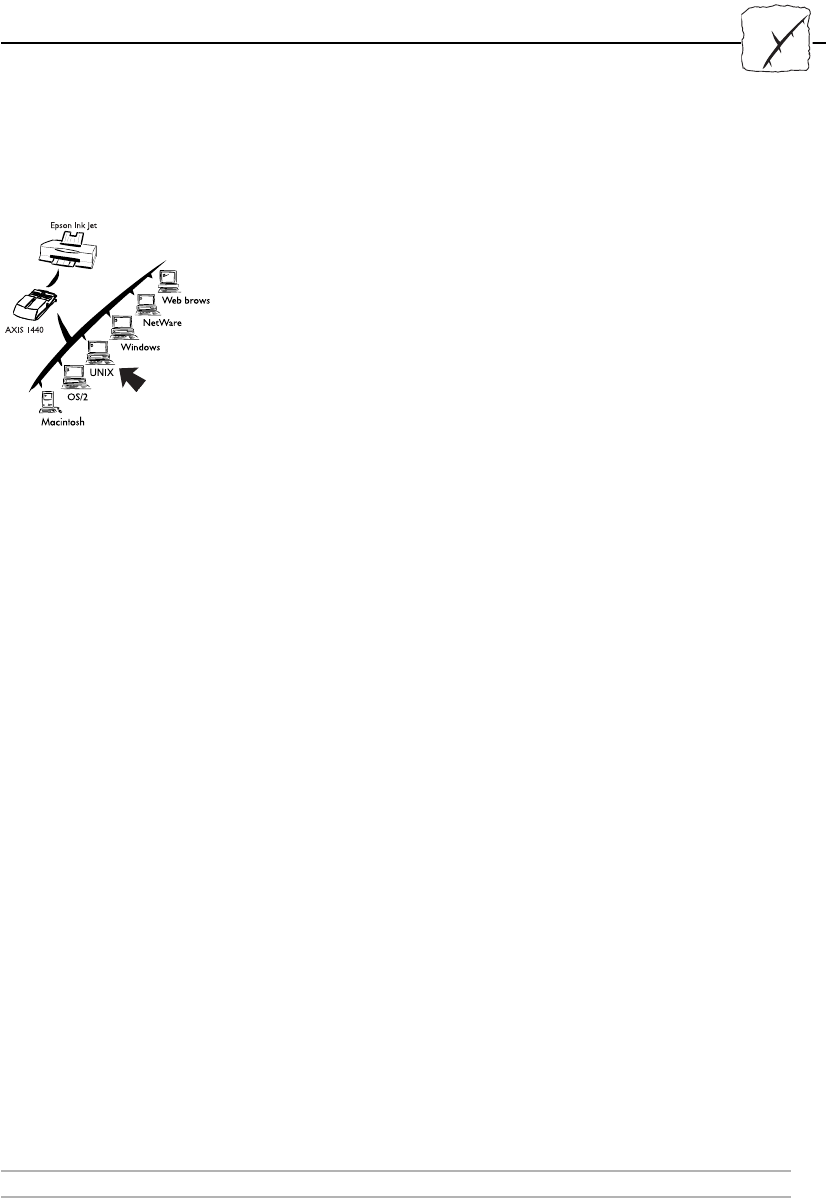
Section 8: Setting Up - UNIX
AXIS 1440 User’s Manual 53
U
U
NIX
Section 8 Setting Up - UNIX
The AXIS 1440 supports LPR/LPD printing in several UNIX
environments. This section describes how to create LPR print queues
using the axinstall installation script and how to print to an LPR print
queue.
If you plan to use the AXIS 1440 in a multiprotocol environment, you
need to set it up for each environment in your network. See the
relevant sections in this manual.
Section 4 Performing Additional NetWare Setup on page 31
Section 5 Setting Up Windows Workstations on page 35
Section 6 Setting Up Macintosh Computers on page 47
Section 7 Setting Up OS/2 Workstations on page 49
Notes: ❏You must assign an Internet (IP) address to the AXIS 1440 before
beginning these procedures. See Configuring the Print Server for
TCP/IP on page 23.
❏EPSON does not provide UNIX printer drivers for the supported
printers. You must obtain these printer drivers from third-party
vendors.
❏The examples provided throughout this section are specific to a
BSD (Berkeley UNIX) system. System responses and print
filenames on other UNIX systems may be different. See your
UNIX documentation for more detailed information.
❏Some System V versions do not support LPD.
❏If you need more information about axinstall, visit the EPSON
Home Page at http://www.epson.com.

Section 8: Setting Up - UNIX
54 AXIS 1440 User’s Manual
UNIX
LPD/LPR Printing
The Line Printer Daemon, a protocol for transferring print jobs
between hosts, is a convenient method for printing on UNIX systems.
You can also install the AXIS 1440 as a remote queue in System V, or
you can add it as a remote printer on BSD systems by editing the rm
and rp parameters in the /etc/printcap file.
The axinstall installation script
The axinstall script installs LPR print queues on your UNIX system.
You can use the interrupt keys to stop axinstall at any time, and an
installation log will be saved to a file.
Setup Overview To use the axinstall script to set up your UNIX system, you must
complete the following steps:
•Download the axinstall script from EPSON’s Home Page at
http://www.epson.com/, or
Copy the script from Axis Utilities disk 1 to your hard drive.
• Create an LPR print queue on your UNIX system using axinstall.
• Use your host’s text editor to edit the UNIX print queue
description in the printcap file.
Creating an LPR Print
Queue
Follow these steps to create an LPR print queue on your UNIX
system:
1. Enter sh axinstall on the command line to start axinstall.
2. Press Enter when the program asks if you want to continue. The
program then identifies your host UNIX system and asks you to
verify that the information is correct. If OK, press Enter.

Section 8: Setting Up - UNIX
AXIS 1440 User’s Manual 55
U
U
NIX
3. Press Enter to choose LPD printing as your print method.
Note: The AXIS 1440 does not support PROS or FTP printing.
4. Enter an IP address or host name (for example,
171.16.115.149), then press Enter.
5. Press Enter to accept the default logical printer number.
6. Press Enter to accept the default printer name, or enter a printer
name. The default printer name is made up of the IP address or
host name, plus the suffix _pr (for example, 171.16.115.149_pr).
7. Press Enter to accept the default spool directory path, or enter the
path (for example, /var/spool/lpd/<internet address of host
name>_pr).
8. Press Enter to accept the default log file path, or enter the path
(for example, /var/spool/lpd/171.16.115.149_pr/log)
9. Press Enter to accept the default path to the printcap file,
(/etc/printcap) or enter the path.
axinstall displays a printer setup summary and asks if you want to
install this printer.
10. Press Enter.
axinstall checks the setup to make sure there are no conflicts, then
confirms installation of the printer.
11. When axinstall asks whether you want a test printout, type n (no)
and then press Enter.
Section 8: Setting Up - UNIX
56 AXIS 1440 User’s Manual
UNIX
Editing the Print
Queue Description
Now you need to edit the print queue description in the printcap file
to define the rp parameter as lpt1.
Follow the procedure below to edit the printcap file:
1. Use your text editor to open the printcap file.
Example:
2. Go to the last entry in the file. This entry defines the print queue
created using axinstall.
Note: The printer name appears as a string in the margin.
3. Change the rp (remote port) parameter to lpt1.
Example:
4. Save the file and exit.
Printing to an LPR Print Queue
Type the following to print to the LPR print queue:
lpr -P <printer name> <print filename>
Example:
vi /etc/printcap
171.16.115.149_pr Network printer on Print server 171.16.115.149:\
:lp=:\
:sd=/var/spool/lpd/171.16.115.149_pr:\
:lf=/var/spool/lpd/171.16.115.149_pr/log:
:rm=171.16.115.149:\
:rp=lpt1:
lpr -P 171.16.115.149_pr printjob1

Section 9: Management and Configuration
AXIS 1440 User’s Manual 57
Section 9 Management and
Configuration
The config file in the print server’s memory contains all parameters
determining the print server’s functionality. This section describes
several ways to change the parameters.
See Appendix B - The Parameter List for a complete list of AXIS 1440
parameters.
Configuration
methods
The configuration methods covered in this section include the
following:
•Using the Internal Web Pages on page 59
•Using AXIS NetPilot on page 63
•Using FTP on page 69
•Using SNMP on page 70
•Using Novell Utilities on page 72
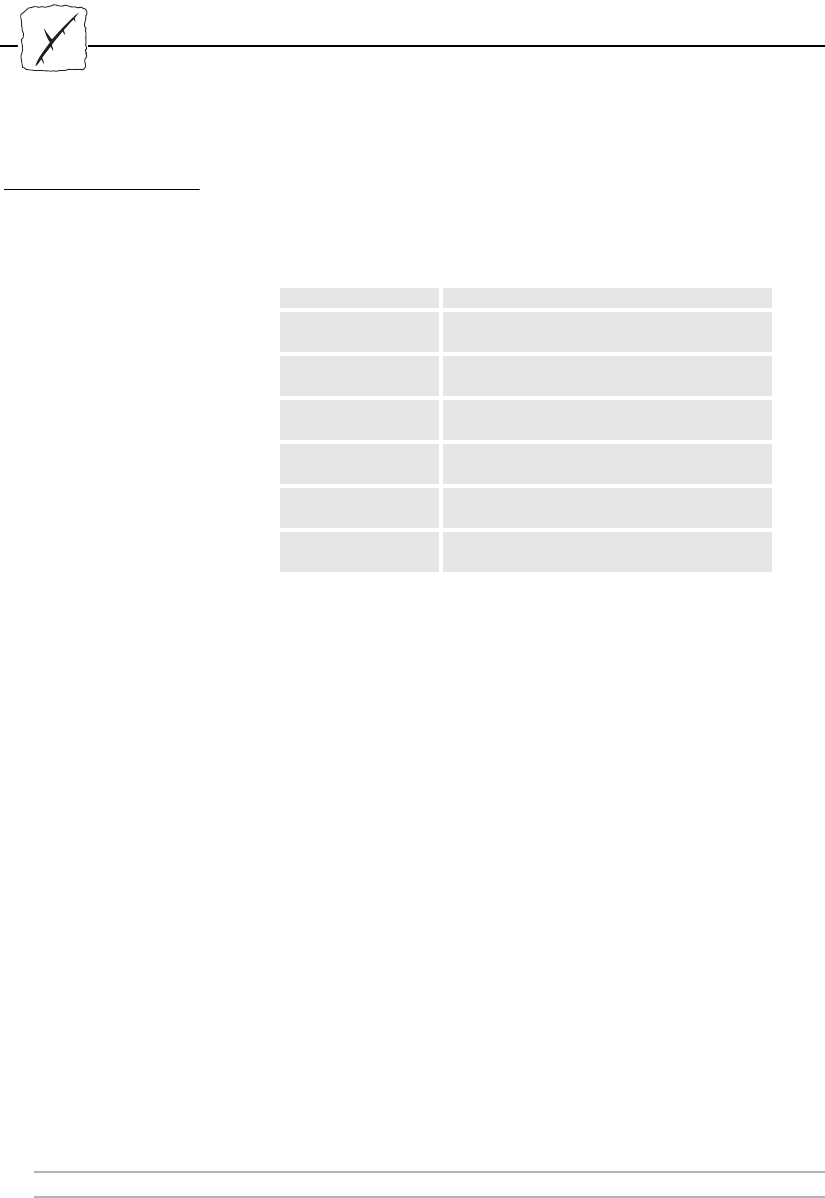
Section 9: Management and Configuration
58 AXIS 1440 User’s Manual
Configuration
Overview
The table below displays which methods to use in supported network
environments.
Note: You can’t use EPSON Status Monitor 2 with the AXIS 1440 Print
Server on your Windows system. Instead, use one of the monitoring
tools described in this chapter.
Operating System
Protocols Configuration/Management methods
IPX/SPX (NetWare) AXIS NetPilot, Novell Utilities
TCP/IP
(Windows 95/98/NT)
Web Browser, FTP, SNMP
TCP/IP
(Windows 3.1/WfW)
Web Browser, FTP, SNMP
NetBIOS/NetBEUI
(Windows 95/98/NT)
AXIS NetPilot
NetBIOS/NetBEUI
(Windows 3.1/WfW)
AXIS NetPilot
NetBIOS/NetBEUI
(OS/2)
AXIS NetPilot
Apple EtherTalk Mac-FTP or HTTP, AXIS NetPilot via a PC
platform within the same network.
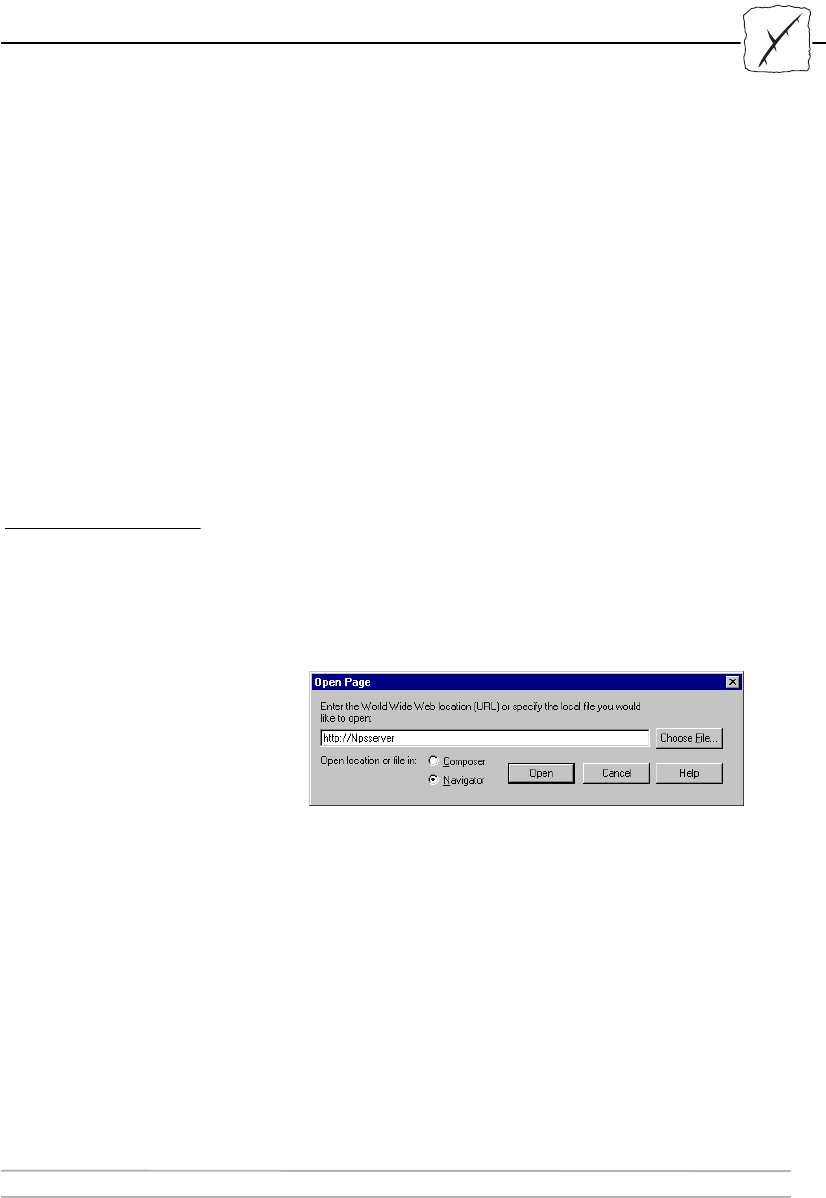
Section 9: Management and Configuration
AXIS 1440 User’s Manual 59
Using the Internal Web Pages
The AXIS 1440 Print Server has web pages stored in its memory,
which you can access using any standard web browser. If your network
supports TCP/IP, you can use these internal web pages to configure,
manage, view printer status, and obtain other useful information
about the AXIS 1440.
Note: ❏Before you can use the AXIS 1440 on a TCP/IP network, you
must first assign it a valid Internet address. See Configuring the
Print Server for TCP/IP on page 23.
Accessing the Web
Pages
Follow these steps to access the internal AXIS 1440 Home Page. (The
browser used in the following example is Netscape
Communicator 4.3.)
1. Start your Web browser.
2. From the File menu, select Open Page... The Open Page dialog
box appears.
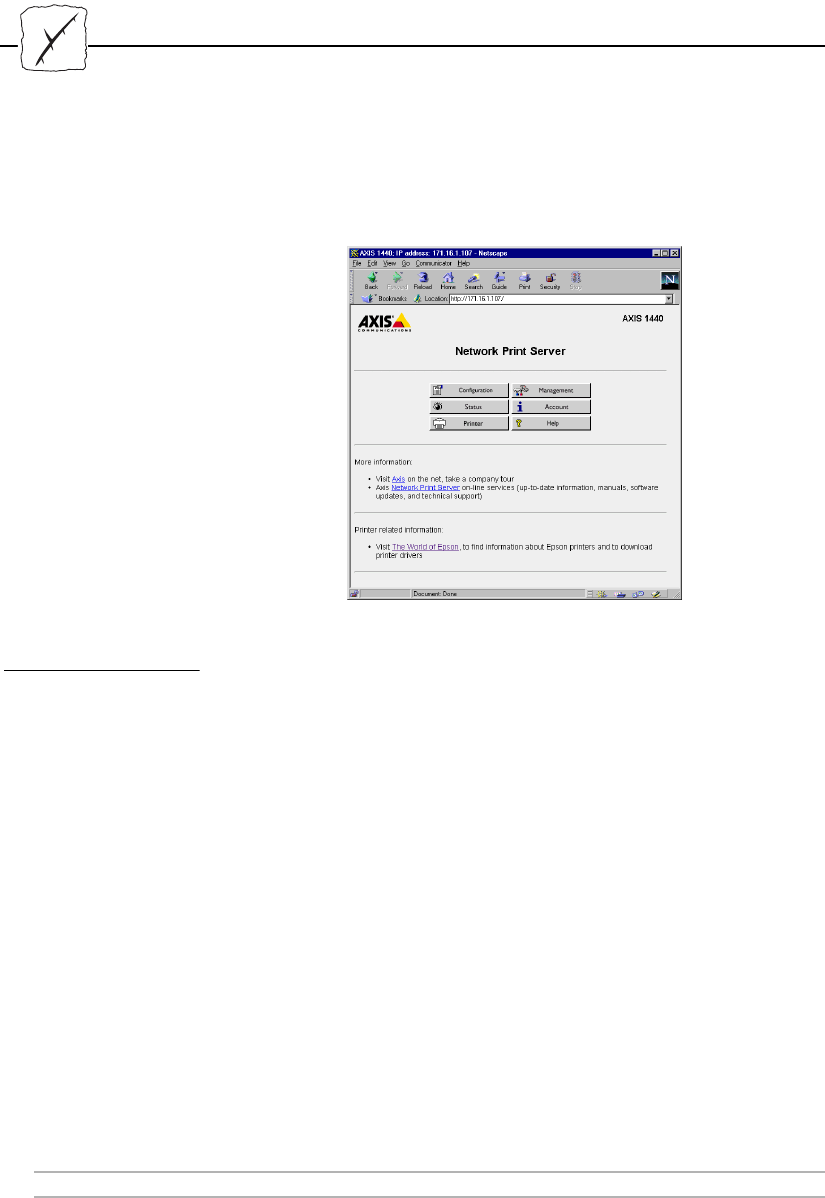
Section 9: Management and Configuration
60 AXIS 1440 User’s Manual
3. Type the host name or the Internet address assigned to your print
server in the Open Page dialog box. The internal AXIS 1440
Home Page appears.
Services The Home Page includes the following links:
• Configuration
• Management
• Status
•Account
•Printer
• Help
You can also access the EPSON Home Page and the Axis Home Page
on the Internet.
Section 9: Management and Configuration
AXIS 1440 User’s Manual 61
A summary of the services available from the AXIS 1440 Home Page
follows:
Click the Configuration link to do the following:
• Change configuration parameters, including the node address and
root password. You’ll find a complete list of these parameters in
Appendix B - The Parameter List.
• Enable or disable available networking protocols, or modify their
operation.
Note: ❏When you click either Management or Configuration for the first
time, you are asked to provide a user name and password. By
default these are set to root and pass, respectively.
Caution! ❏Make sure you consult the network administrator before you
make any changes to the network configuration.
You can reset parameter settings to the factory default values from the
Management page. You can also view basic information about the
AXIS 1440, such as the current software version, Ethernet address,
serial number, base URL address, and enabled networking protocols.
Click the Status link to view detailed status of the connected printer
ports (for example, number of bytes printed for each print job).
The Account page displays an historical record of print jobs that
includes the user, protocol, file size, elapsed time and off-line time.
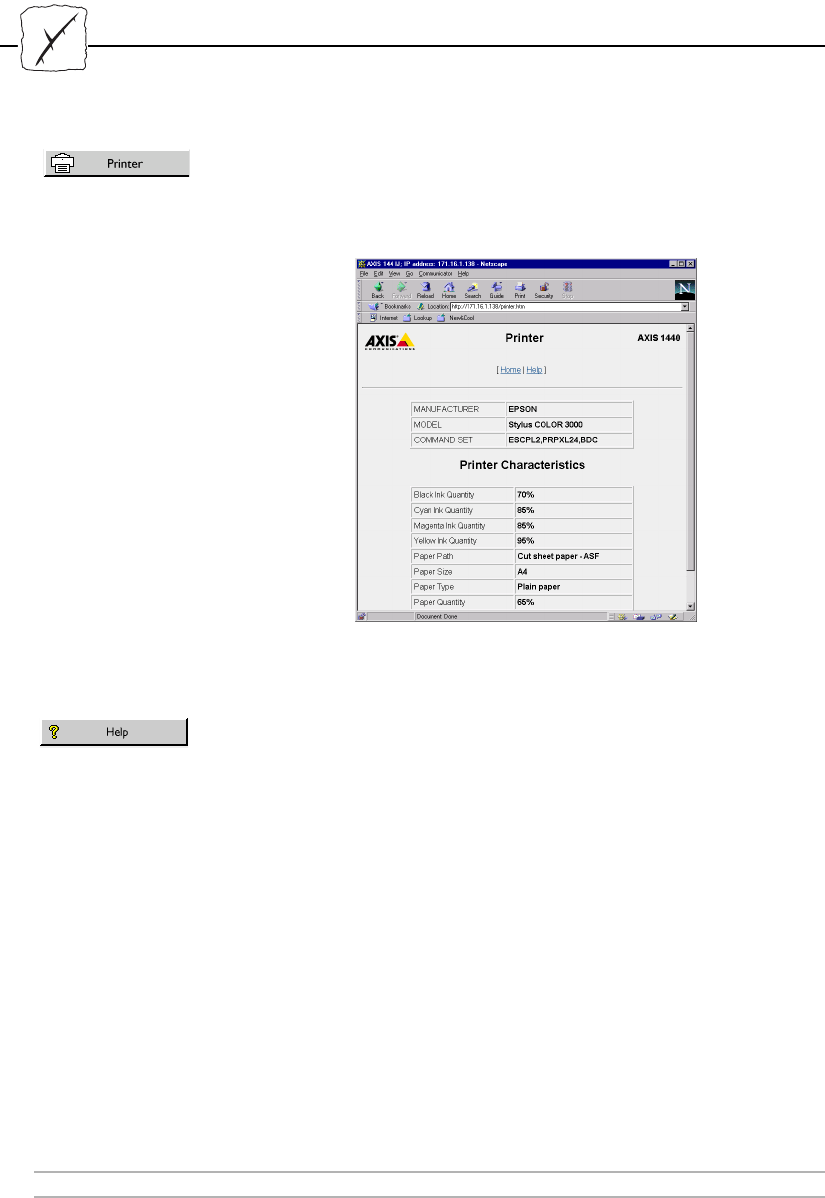
Section 9: Management and Configuration
62 AXIS 1440 User’s Manual
Click the Printer link to view information about the printer connected
to the AXIS 1440, including printer name, printer model, paper size
and quantity, and ink levels.
The AXIS 1440 Printer Information page
Click the Help link to view a brief description of activities you can
perform on the internal AXIS 1440 web pages.
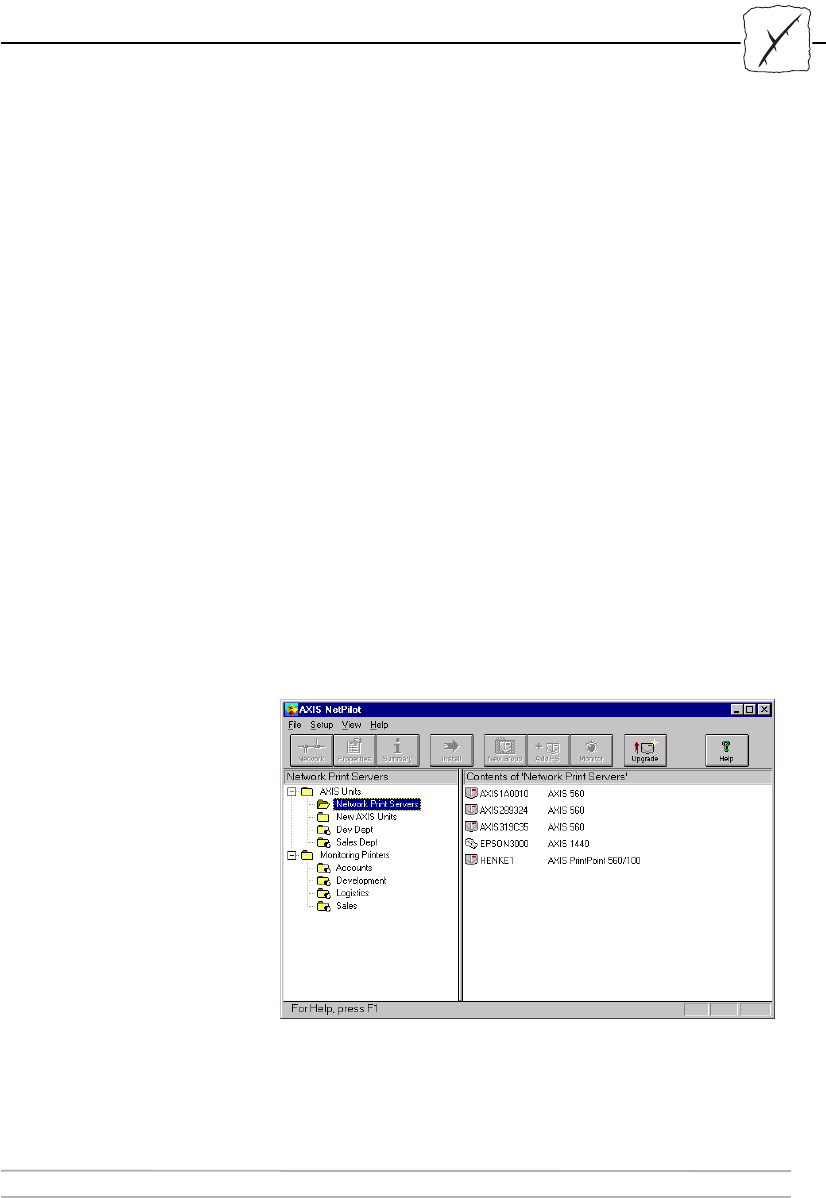
Section 9: Management and Configuration
AXIS 1440 User’s Manual 63
Using AXIS NetPilot
AXIS NetPilot is the recommended configuration and management
tool for NetWare networks.
AXIS NetPilot lets you:
• Change the AXIS 1440 parameter values.
• Modify network environments.
• Monitor printers.
• View detailed information about the connected printer.
• Create logical groups of print servers and printers to simplify
administration.
• Upgrade the AXIS 1440 with the latest available software.
Starting
AXIS NetPilot
Start AXIS NetPilot by clicking the NetPilot icon. (You’ll find it in
the folder where you installed AXIS NetPilot on your host computer.)
The main window of AXIS NetPilot

Section 9: Management and Configuration
64 AXIS 1440 User’s Manual
Changing the
Parameter Values
AXIS NetPilot provides two tools to change parameter values:
• Properties screen Use the Properties screen if you have little
experience editing configuration files and
need a user-friendly interface.
• Parameter List Editor Use this fast and effective tool if you have
considerable experience editing
configuration files.
Properties Screen The Properties screen provides an easy way to inspect and change the
AXIS 1440 parameters. It contains a series of tabs for different
network environments.
Follow these steps to use the Properties screen to change parameter
values:
1. Select the AXIS 1440 from the Network Print Servers folder.
2. Click the Properties button on the AXIS NetPilot toolbar, or
choose Properties from the Setup menu.
3. Select the tab for your environment and change any values.
4. Click Apply to save the changes to the print server. (If you click
OK, the changes are also saved, but the Properties screen closes.)
Parameter
List Editor
The Parameter List Editor is a simple word processor that lets you:
• Edit the AXIS 1440 config file.
• Save a customized config file on your hard disk.
• Configure several network print servers simultaneously.

Section 9: Management and Configuration
AXIS 1440 User’s Manual 65
Follow these steps to use the Parameter List Editor to change
parameter values:
1. Choose Edit Parameter List from the Setup menu.
2. Download a config file from a print server or from your hard disk
by selecting it and clicking the Load button. The config file opens
in the editor.
3. Make the desired changes, then click Save to save the modified file
to the print server or your hard disk. You can also save the
modified file to more than one print server.
Modifying
Network
Environments
You can use the Network Environment window to modify the
network settings for each network environment defined when you
installed the AXIS 1440. Make sure you consult the network
administrator before you make any changes to network configuration.
Follow these steps to use the Network Environment window:
1. Select the AXIS 1440 from the Network Print Servers folder.
2. Click the Network button on the AXIS NetPilot toolbar, or select
Network from the Setup menu.
3. Select the tab corresponding to the environment you want to
modify.
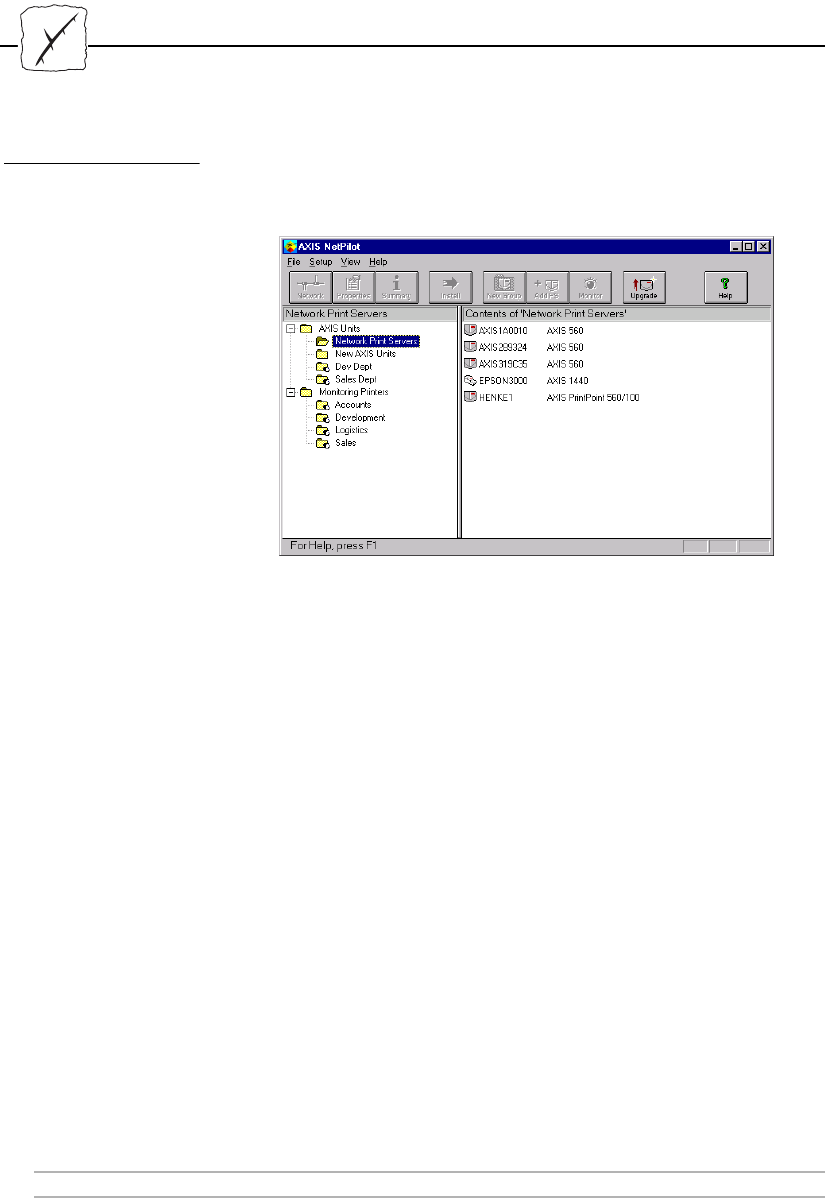
Section 9: Management and Configuration
66 AXIS 1440 User’s Manual
Monitoring Printers AXIS NetPilot lets you create logical groups of printers to simplify
printer monitoring. The AXIS NetPilot window displays the printer
groups and their contents, as shown below.
To view the status of a printer, click its group folder.
You can create as many printer groups as you want, delete printer
groups, and delete individual printers from a group. You can also
include a printer in more than one group.
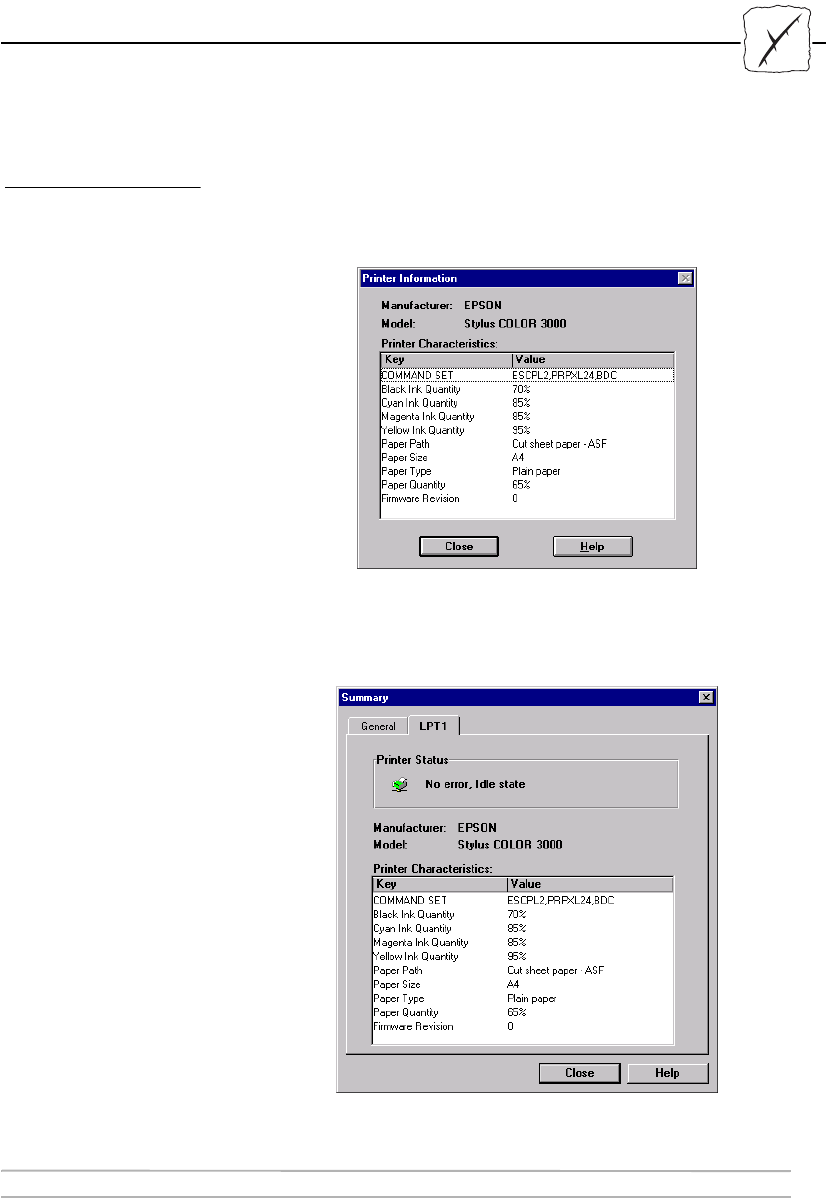
Section 9: Management and Configuration
AXIS 1440 User’s Manual 67
Detailed Printer
Information
To obtain more detailed information about an individual printer,
select the printer icon in the AXIS NetPilot window, then choose
Printer Information from the File menu. The Printer Information
window opens.
AXIS NetPilot Printer Information window
You can also view detailed printer information in the Summary
window.
AXIS NetPilot Summary window
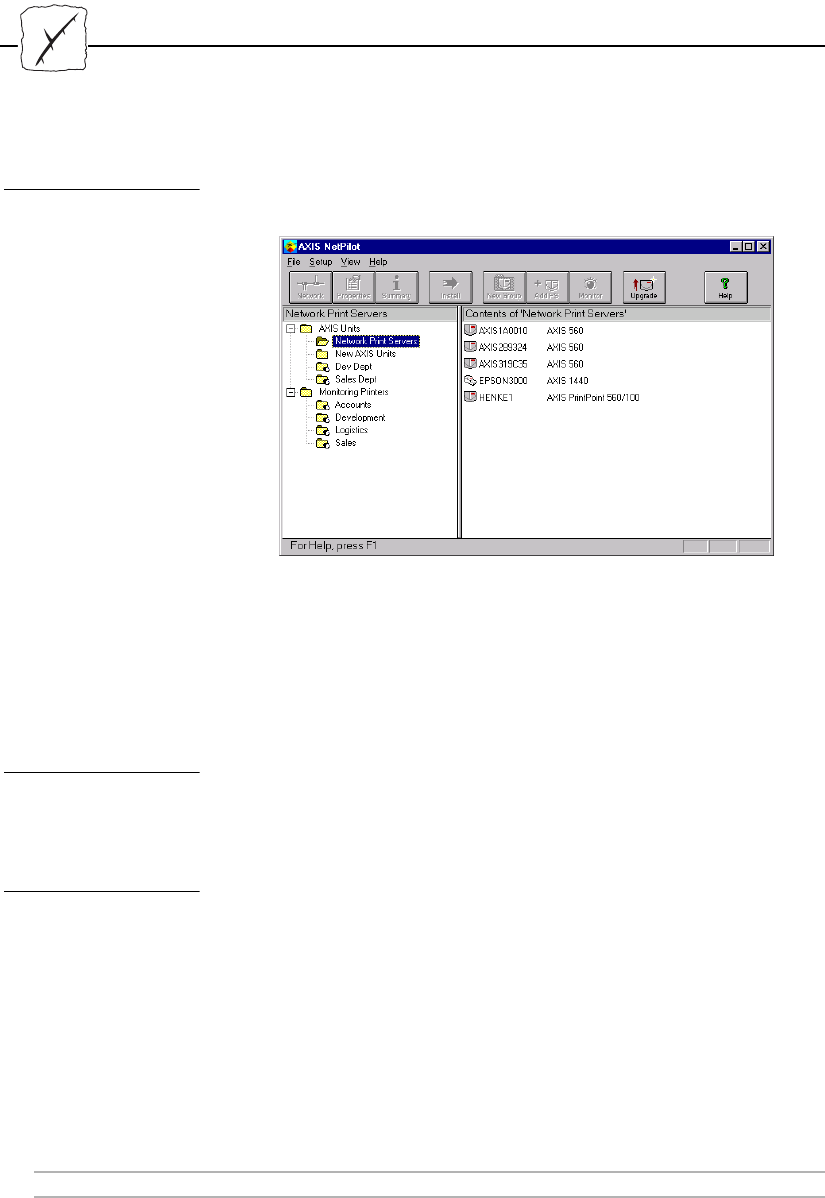
Section 9: Management and Configuration
68 AXIS 1440 User’s Manual
Grouping Print
Servers
AXIS NetPilot lets you create logical groups of print servers to simplify
administration. The AXIS NetPilot window displays the print server
groups and their contents, as shown below.
To view the status of a print server, click on its group folder. You can
create as many print server groups as you want, delete print server
groups, and delete individual print servers from a group. You can also
include a print server in more than one group.
Upgrading
the Print Server
You can use the AXIS NetPilot Upgrade Wizard to upgrade the AXIS
1440 software. See Section 10 - Updating the Software for details.
Additional
Information
See the AXIS NetPilot online help for further information about this
tool.

Section 9: Management and Configuration
AXIS 1440 User’s Manual 69
Using FTP
If your network supports TCP/IP, you can use File Transfer Protocol
(FTP) to change parameter settings.
Follow these steps to edit the config file using FTP:
1. Log in to the AXIS 1440 by typing the command ftp <host
name> in the DOS window (Windows), OS/2 window, or UNIX
shell window.
2. Enter root as the user id and pass as the password.
3. Upload the config file to the host by typing: get config
4. Edit the file using your preferred text editor.
5. Download the config file to the AXIS 1440 by typing:
Put config CONFIG
where config is the name of the edited file.
Note: ❏You must type CONFIG in capital letters, or your edits will be
lost when the AXIS 1440 is turned off.

Section 9: Management and Configuration
70 AXIS 1440 User’s Manual
Using SNMP
You can use SNMP (Simple Network Management Protocol) for
remote monitoring and configuration of the AXIS 1440. All major
functions applicable to print servers are supported.
General Information SNMP refers to a set of standards for network management, including
a protocol, a database structure specification, and a set of data objects.
The AXIS 1440 SNMP implementation runs in the TCP/IP
environment.
Management is handled by NMS (Network Management System)
software running on a host on your network. The NMS software
communicates with network devices by messages, which are references
to one or more objects.
A message can be a question or an instruction to a device, or an alarm
triggered by a specific event in a device. Objects are contained in data
bases called MIBs (Management Information Base), where MIB-II is a
standard database.
The AXIS 1440 supports all relevant parts of MIB-II. It also includes a
private enterprise MIB. See The AXIS MIB on page 71.

Section 9: Management and Configuration
AXIS 1440 User’s Manual 71
System Requirements
for SNMP
To use AXIS 1440 SNMP support, you must have the following:
• A host that supports FTP on which to run the NMS software.
• A version of NMS software that allows you to install private
enterprise MIBs.
Follow these steps to add the AXIS MIB to your NMS software:
1. Log in to the AXIS 1440 using FTP.
2. Upload the MIB file /snmp/axis.mib to the NMS host.
3. Install the AXIS MIB. (See the instructions in your NMS software
documentation.)
The AXIS MIB The AXIS MIB contains a large number of objects that can be
categorized as follows:
• Menu objects - used for viewing and changing the AXIS 1440
configuration from the NMS program. See Appendix B - The
Parameter List for information about parameters.
• Printer status and unit administration objects - used for
monitoring AXIS 1440 print jobs and storing parameter changes.
• Trap objects - used for alarms associated with error conditions.
For technical details, you can view the MIB file (axis.mib) with any
text editor.
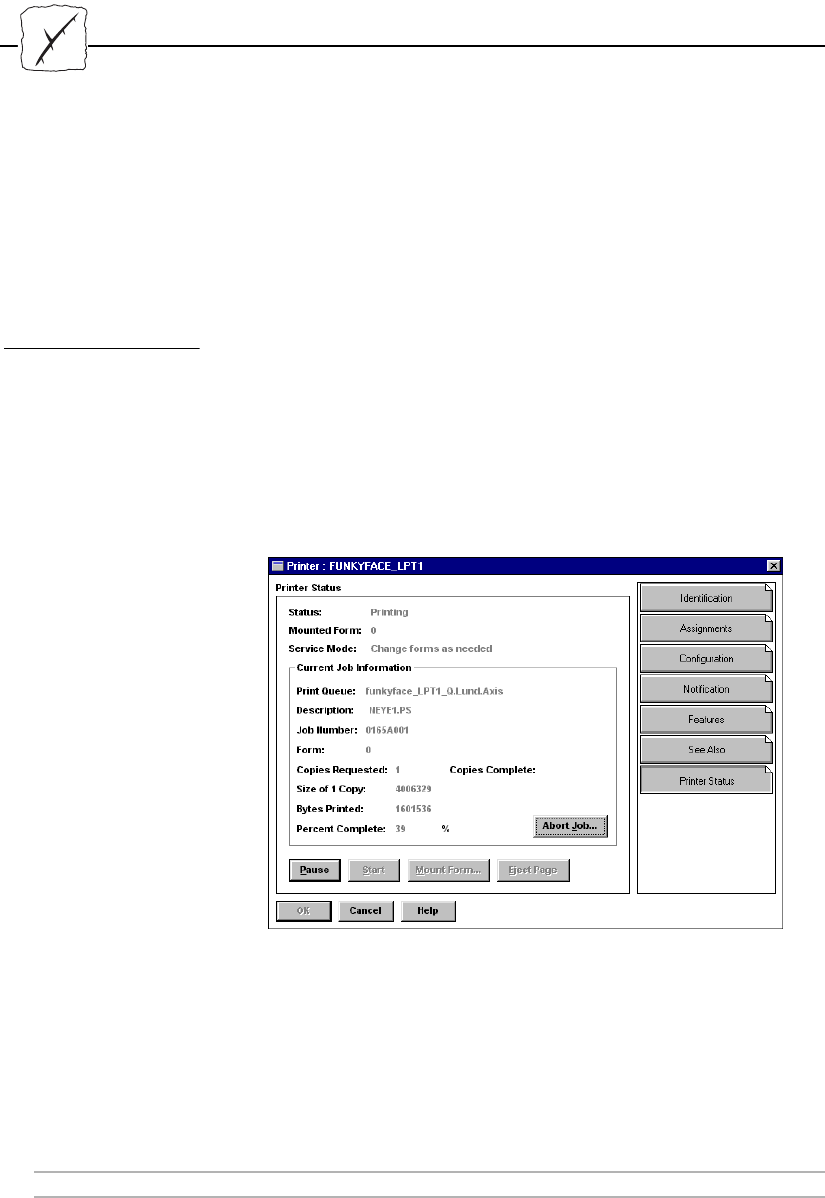
Section 9: Management and Configuration
72 AXIS 1440 User’s Manual
Using Novell Utilities
You can restart or view the status of the AXIS 1440 using either
Novell’s NetWare Administrator or PCONSOLE.
NetWare
Administrator
Some useful features provided by the NetWare Administrator are
described in more detail below:
Printer Status The Printer Status menu shows the status of an active print job using
the AXIS 1440 Print Server. It displays detailed information,
including print queue, print job description, size of print file, and
percentage of job completed. You can also abort or pause the print job
from this menu.
NetWare Administrator Printer Status Menu
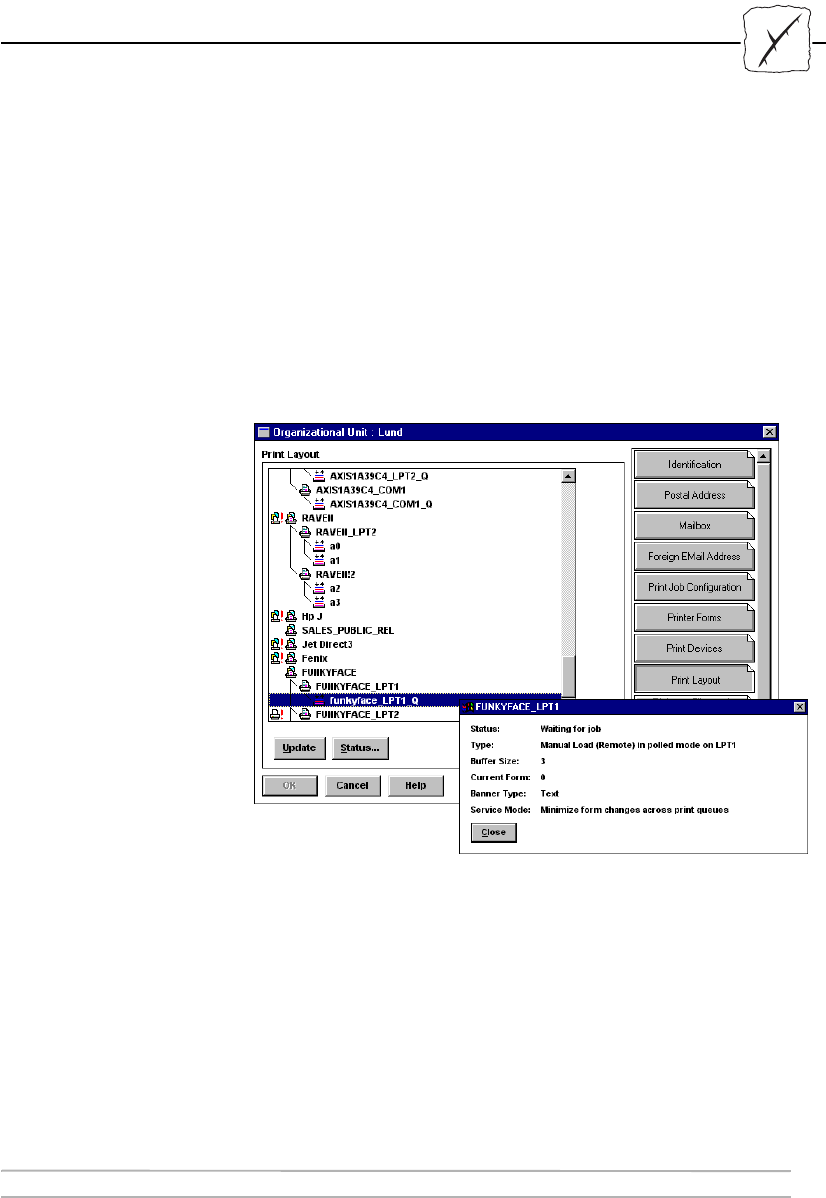
Section 9: Management and Configuration
AXIS 1440 User’s Manual 73
Notification You can also use the NetWare Administrator to enable or disable
status notification messages for printers connected to the AXIS 1440.
You can add or remove print job owners and administrators from the
list of persons to be notified.
Organizational Layout You can view AXIS 1440 Print Servers and their print queues for any
NetWare organizational unit. You can also display summary
information by right-clicking on the printer object you want to
examine.
Displaying summary information

Section 9: Management and Configuration
74 AXIS 1440 User’s Manual

Section 10 : Updating the Software
AXIS 1440 User’s Manual 75
Section 10 Updating the Software
AXIS provides free software updates to the following:
•AXIS NetPilot
• AXIS Print Monitor for Windows 95/98 and Windows NT
• AXIS Print Utility for Windows
• AXIS Print Utility for OS/2
• AXIS 1440 flash memory
•axinstall
Obtaining the New Software
Over the Internet You can obtain software updates from the EPSON Home Page or FTP
site on the Internet.
You can access the EPSON Home Page at http://www.epson.com
You can log onto ftp.epson.com with the user name anonymous and
your e-mail address as the password.
Your dealer Contact your dealer for information about new releases. Be sure to
have your present version number ready.

Section 10 Updating the Software
76 AXIS 1440 User’s Manual
Upgrading the Software
You can upgrade the AXIS 1440 flash memory using either of the
following:
• AXIS NetPilot (for networks supporting IPX/SPX).
• FTP (for networks supporting TCP/IP).
Contact your EPSON dealer if the above methods fail, or call EPSON
at (310) 782-2600 (U.S.) or (905) 709-9475 (Canada) 6 AM to 6 PM,
Pacific Time, Monday through Friday. The AXIS NetPilot and FTP
upgrade procedures are described on the following pages.
Upgrading Using
AXIS NetPilot
This method is recommended for upgrading flash memory in
NetWare networks. An Upgrade Wizard is available to guide you
through the necessary procedures. Just click the Upgrade icon on the
AXIS NetPilot toolbar to display the Upgrade Wizard menu.
To ensure that the upgrade goes smoothly, put the file with the new
software in the Upgrade folder. This folder, which was created when
AXIS NetPilot was installed, resides in the same folder as AXIS
NetPilot.
Upgrading Over the
Network Using FTP
To upgrade over the network using FTP, you need the file with the
new print server software. The name of this file is in the form
product_version.bin, (for example, 1440_551.bin for software
release 5.51). You can obtain this file from the EPSON Home Page or
FTP site on the Internet.
The AXIS 1440 must be installed and configured for TCP/IP as
described in Configuring the Print Server for TCP/IP on page 23.

Section 10 : Updating the Software
AXIS 1440 User’s Manual 77
Follow these steps to upgrade the AXIS 1440:
Caution! ❏Be sure not to interrupt the file transfer. If you do, your AXIS
1440 may not be able to initialize. Contact EPSON or an EPSON
Authorized Service Center if this occurs.
1. Use the command ftp <host name> to log into the AXIS
1440, where <host name> is the host name assigned to your
AXIS 1440.
2. When prompted, enter the user id root, and the default password
pass.
3. Enter the command binary to change to binary transfer mode.
4. Enter the command put <software name> flash, where
<software name> is the name of the new print server software,
(for example, 1440_551.bin).
5. Wait for the flash loading operation to finish. (This normally
takes 1 to 4 minutes.) The unit automatically restarts with the
new print server software.
6. Log out using the command quit, bye or exit, depending on
your FTP version.
Note: ❏If you have problems upgrading over the network, contact your
dealer or EPSON for more information.

Section 10 Updating the Software
78 AXIS 1440 User’s Manual

Appendix A: The Test Button
AXIS 1440 User’s Manual 79
Appendix A The Test Button
The test button, located on the side of the AXIS 1440, is used for the
following:
• Printing a test page to check the connection to the printer.
• Printing the parameter list showing the AXIS 1440 settings.
• Resetting the AXIS 1440 parameters to the factory default
settings.
Printing a Test Page After you connect your printer to the AXIS 1440, press the test button
once to print a test page. If the test page prints, the parallel interface is
functioning correctly.
Printing a
Parameter List
Press the test button twice to print a parameter list showing the
current AXIS 1440 settings. You can use AXIS NetPilot or the
internal web server to change these settings.

Appendix A: The Test Button
80 AXIS 1440 User’s Manual
Factory Default
Settings
Follow these steps to reset the AXIS 1440 to the factory default
settings.
1. Unplug the external power supply.
2. Press and hold down the test button while you plug the external
power supply back in. Continue to hold down the test button
until the network indicator begins to flash at one second intervals.
(This should take at least 5 seconds.)
3. Release the test button and wait until the network indicator
flashes at least five times.
4. Press and hold down the test button again for at least five seconds
until the network indicator remains lit.
The AXIS 1440 is now reset to its factory default settings. Restart the
AXIS 1440 by turning it off and then on again.
Note: ❏All parameters except Node Address (NODE_ADDR) are reset.
Use AXIS NetPilot or the internal web pages to change the node
address. See Section 9 Management and Configuration.

Appendix B: The Parameter List
AXIS 1440 User’s Manual 81
Appendix B The Parameter List
This appendix provides an overview of the AXIS 1440 parameters.
The Config File The left-hand column of this table shows the parameters and their
default values as they appear in the config file, and the right-hand
column contains a brief description of each parameter.
After you change them, most parameters take effect for the next print
job. If Requires Restart appears in the parameter description, you must
restart the AXIS 1440 before a change to that parameter takes effect.
Note: The Root Password parameter (ROOT_PWD) only appears when
you’re logged in to the AXIS 1440 using root. It does not print when
you press the test button.
--- GENERAL MENU
NODE_ADDR. : 00 40 8C 10 00 86 Node Address
BASE URL. : WWW.AXIS.COM Default Base URL Address
ROOT_PWD. : pass Root Password
HP_JETADMIN. : AUTO_SENSE (AUTO_SENSE, YES, NO) HP JetAdmin Support Enabled
--- TCP/IP MENU
TCP_ENB. : YES TCP/IP Protocol Enabled
INT_ADDR. : 0 0 0 0 Internet Address
DEF_ROUT. : 0 0 0 0 Default Router Address (0.0.0.0 for no router)
NET_MASK. : 0 0 0 0 Net Mask (e.g. 255.255.255.0 for class C, 0.0.0.0 for auto-sense)
LPD_BANN. : OFF LPD Banner Page Disabled
DHCP_ENB. : YES DHCP Protocol Enabled
BOOTP_ENB. : YES BOOTP Protocol Enabled
RARP_ENB. : YES RARP Protocol Enabled
WINS_ENB. : YES WINS Protocol Enabled
WINS_ADDR1. : 0 0 0 0 Internet Address of the primary WINS server
WINS_ADDR2. : 0 0 0 0 Internet Address of the secondaryWINS server
NBT_SCOPE_ID. : Defines the NetBIOS scope to be used with WINS Name Registration

Appendix B: The Parameter List
82 AXIS 1440 User’s Manual
--- SNMP MENU
READ_COM. : public Read-Only Community Name
WRT_COM. : pass Read-Write Community Name
TRAPADDR. : 0 0 0 0 SNMP Trap Internet Address
TRAP_COM. : public SNMP Trap Community Name
SYS_CONT. : System Contact
SYS_NAME. : System Name
SYS_LOC. : System Location
SNMP_AUT. : DISABLE (DISABLE, ENABLE) Authentication Failure Traps
TRAP_PRT. : DISABLE (DISABLE, ENABLE) Printer Traps
--- NETWARE MENU
NETW_ENB. : YES NetWare Protocol Enabled
PS_NAME. : AXIS100086 Print Server Name (100086 are the last six digits of the serial number)
JOB_CHECK_DELAY. : 5 Print Server queue polling interval
CONF_CHECK_DELAY. : 300 Interval between automatic configuration checks
FR_802_3. : YES IEEE 802.3 Frame Type Enabled
FR_ETH_2. : YES Ethernet II Frame Type Enabled
FR_802_2. : YES IEEE 802.2 Frame Type Enabled
FR_SNAP. : YES SNAP Frame Type Enabled
NCP_BURST_MODE. : YES NetWare Burst Mode Enabled (Requires Restart)
PSERVER_NDS. : File server & Name of print server (including context)
PSERVER_BINDERY1. : Bindery file server name
PSERVER_BINDERY2. : Bindery file server name
PSERVER_BINDERY3. : Bindery file server name
PSERVER_BINDERY4. : Bindery file server name
PSERVER_BINDERY5. : Bindery file server name
PSERVER_BINDERY6. : Bindery file server name
PSERVER_BINDERY7. : Bindery file server name
PSERVER_BINDERY8. : Bindery file server name
PSERVER_BINDERY9. : Bindery file server name
PSERVER_BINDERY10. : Bindery file server name
PSERVER_BINDERY11. : Bindery file server name
PSERVER_BINDERY12. : Bindery file server name
PSERVER_BINDERY13. : Bindery file server name
PSERVER_BINDERY14. : Bindery file server name
PSERVER_BINDERY15. : Bindery file server name
PSERVER_BINDERY16. : Bindery file server name
NPRINTER1. : Print Server name. Slot
NPRINTER2. : Print Server name. Slot
NPRINTER3. : Print Server name. Slot
NPRINTER4. : Print Server name. Slot
NPRINTER5. : Print Server name. Slot
NPRINTER6. : Print Server name. Slot
NPRINTER7. : Print Server name. Slot
NPRINTER8. : Print Server name. Slot
--- NetBIOS/NetBEUI MENU
LSLM_ENB. : YES LAN Server/LAN Manager Protocol Enabled
NB_FR_TYPE. : FR_AUTO (FR_AUTO, FR_802_2, FR_DIX) Frame Type (Requires Restart)
LPRINT_1. : AX100086.LP1 Printer 1 Name (100086 are the last six characters of the serial number)

Appendix B: The Parameter List
AXIS 1440 User’s Manual 83
--- APPLETALK MENU
ATLK_ENB. : YES AppleTalk Protocol Enabled
ATK_ZONE. : AppleTalk Zone
APRINT_1. : AXIS100086_LPT1 Printer 1 Name (100086 are the last six digits of the serial number)
ATYPE_1. : EPSONLQ2 Printer 1 Type

Appendix B: The Parameter List
84 AXIS 1440 User’s Manual

Appendix C: Technical Specifications
AXIS 1440 User’s Manual 85
Appendix C Technical Specifications
Supported Systems
Novell NetWare: Versions 3.11, 3.12, 4.10 and above, supporting both NDS and Bindery
Emulation. At least 16 bindery file servers and 96 print queues can be served.
User messages are also supported.
Print Methods: RPRINTER/NPRINTER, PSERVER.
IBM LAN Server: LAN Server 4 and above, running under OS/2 ver 1.3 and above including
OS/2 Warp, OS/2 Warp Connect.
Microsoft Windows: Windows NT ver. 4.0 and above, Windows 3.1, Windows for Workgroups,
Windows 95, Windows 98.
LANtastic: Windows for Workgroups, Windows 95 and Windows 98 clients using
LANtastic 7.0 and above.
Apple EtherTalk: Print Method: AppleTalk Phase 2.
WWW: Netscape Navigator 3.0, MS Internet Explorer 3.0, or compatible Web
browsers.
UNIX Any UNIX system that supports LPR
Supported Protocols
NetWare: IPX, SAP, RIP, SPX, NCP (extended with NDS) and LIP.
Windows and OS/2: NetBIOS/NetBEUI, TCP/IP, WINS/NBT.
TCP/IP: LPD, FTP, BOOTP, DHCP, ARP, RARP, ICMP, IP, TCP, UDP, HTTP,
TFTP, SNMP, SLP.
Apple EtherTalk: AARP, ATP, DDP, NBP, PAP, RTMP, ZIP.
Network Management SNMP- MIB II compliant private enterprise MIB included. Print
server/job/printer status presentation and management via
NWAdmin/PCONSOLE.
Hardware 32 bit RISC Controller, 1 Mbyte Flash memory, 256 kbytes RAM.

Appendix C: Technical Specifications
86 AXIS 1440 User’s Manual
Front Panel 2 LED indicators: Power and Network. Button for test printouts.
Logical Connection Running simultaneously any combination of the supported protocols. Use of
IEEE802.2, IEEE802.3, SNAP and Ethernet II frame types simultaneously.
Attachments RJ-45 connector10BaseT (Twisted Pair) Ethernet.
Security
NetWare: Encrypted passwords.
UNIX Root password.
Parallel Printer One IEEE 1284 compatible high-speed parallel port, 36-pin Centronics
connector. Sustained throughput up to 450 Kb/s using NetWare or LAN
Server/LAN Manager.
Supported Printers EPSON Stylus COLOR 740, EPSON Stylus COLOR 850, EPSON Stylus
Photo EX, EPSON Stylus Photo 700.
Power Consumption Power provided by external supply.
Maximum 170 mA at 12 VDC. (Type PS-A, 9 V, 300 mA).
Dimensions Height x Width x Depth
1.1 x 2.2 x 4.7 inches (2.7 x 5.6 x 11.8 cm)
Weight 0.26 lb. (0.12 Kg)
Environmental Temperature: 40 - 105 °F (5 - 40 °C).
Humidity: 10 - 95% non-condensing.
Approvals
EMC: EN 55022/1994, EN50082-1/1992. FCC Class A.
Safety: EN 60950.
All specifications are subject to change without prior notice

AXIS 1440 User’s Manual 87
Index
A
ARP, Description 23
Axinstall Script 54
AXIS MIB 71
AXIS NetPilot
Adding Print Queues 31
Basic Configuration 20
Changing Network Settings 65
Grouping Print Servers 68
Printer Information 67
Upgrading Flash Memory 76
AXIS Print Monitor 35
Using with Windows 95/98 36
Using with Windows NT 38
AXIS Print Utility for OS/2 49, 50
AXIS Print Utility for Windows 41
B
BOOTP, Description 24
C
Config File 81
Configuration Methods
AXIS NetPilot
Parameter List Editor 64
Properties Screen 64
FTP 69
Internal Web Pages 59
NetWare Administrator 72
Overview 58
PCONSOLE 72
SNMP 70
Connecting a Printer 14
Connecting AXIS 1440 to the Network
15
Connectors 12
D
DHCP, Description 23
E
EPSON Support 9
Ethernet Address 24
ETRAX 8
F
Factory Default Settings 80
Flash Memory, Upgrading 76
FTP 69
H
Help 9
Host Name 25
I
Installation
Hardware 14
Overview 16
Software 18
Internet Address 22
Methods for Downloading 23
Setting with ARP 26
Setting with BOOTP 29
Setting with DHCP 25
Setting with RARP 28
L
LANtastic 45
M
Macintosh
Choosing a Printer 48
Printer Status 48

88 AXIS 1440 User’s Manual
N
NDS 21, 32
NetWare
Installation
Adding Print Queues 31
Basic Configuration 20
Network Connector 12
Network Indicator LED 12
O
OS/2
Creating Print Queues 51
Installing AXIS 1440 50
Setting Up 49
Sharing Print Queues 52
P
Parameter List 81
Parameter List Editor, Using 65
Peer-to-Peer Printing (Windows) 43
Power Consumption 86
Power Indicator LED 12
Print Queues
Adding (NetWare) 31
Creating (OS/2) 51
Creating (UNIX) 54
Sharing (OS/2) 52
Printer Connector 12, 86
Printer Information
AXIS NetPilot 67
Internal Web Pages 62
Macintosh 48
Printers, Supported 86
Printing
Parameter List 79
Test Page 79
UNIX 56
Protocols, Supported 85
R
RAM 85
RARP, Description 23
Resetting the Print Server 80
S
Safety Approvals 86
Setting the Internet Address
ARP 26, 27
BOOTP 29
DHCP 25
RARP 28
Setting Up
Macintosh 47
NetWare 20, 31
OS/2 49
Overview 16, 17
UNIX 53
Windows 35
SNMP 70
Software Updates 75
Support Services 9
Supported Printers 5
T
Test Button 12, 79
Testing the Printer Connection 14
TFTP 26, 29
ThinServer Technology 1

AXIS 1440 User’s Manual 89
U
UNIX
Creating Print Queues 54
Editing the Printcap File 56
Printing 56
Upgrade Wizard 76
W
Web Pages, Internal
Accessing 59
Changing parameters 61
Printer Information 62
Windows 3.1
Installing Printer Ports 42
Windows 95/98
Installing Printer Ports
NetBIOS/NetBEUI 36
TCP/IP 37
Windows for Workgroups
Client-Server Printing
Client Setup 45
Server Setup 44
Peer-to-Peer Printing 43
Windows NT 4.0
Installing Printer Ports
NetBIOS/NetBEUI 38
TCP/IP 39
WINS 25

90 AXIS 1440 User’s Manual
